
MCD-CF370 - CD Player SAMSUNG - Free user manual and instructions
Find the device manual for free MCD-CF370 SAMSUNG in PDF.


| Model | MCD-CF370 |
| Brand | Samsung |
| Product Type | CD Player |
| Dimensions (Approx.) | 14 cm x 14 cm x 2.5 cm |
| Weight (Approx.) | 300 g |
| Power Supply | 2x AA batteries or AC adapter (DC 3V) |
| Playback Formats | Audio CD, CD-R, CD-RW |
| Playback Modes | Normal, Repeat, Random, Program |
| Anti-Shock Protection | 10-second ESP (Electronic Shock Protection) |
| Headphone Output | 3.5 mm stereo jack |
| LCD Display | Yes, with track number and time |
| Control Buttons | Play/Pause, Stop, Skip, Search, Program, Repeat, Mode |
| Cleaning Instructions | Wipe exterior with soft dry cloth; clean lens with CD lens cleaner |
| Safety Warnings | Do not use in humid environments; keep away from water |
| Replaceable Parts | Batteries, AC adapter (optional) |
| Accessories Included | User manual, earphones (may vary) |
Frequently Asked Questions - MCD-CF370 SAMSUNG
User questions about MCD-CF370 SAMSUNG
0 question about this device. Answer the ones you know or ask your own.
Ask a new question about this device
Download the instructions for your CD Player in PDF format for free! Find your manual MCD-CF370 - SAMSUNG and take your electronic device back in hand. On this page are published all the documents necessary for the use of your device. MCD-CF370 by SAMSUNG.
USER MANUAL MCD-CF370 SAMSUNG
Portable MP3-CD Player
MP3-CD, WMA-CD, CD-DA Playback
MCD-CF370
Instruction Manual

ELECTRONICS

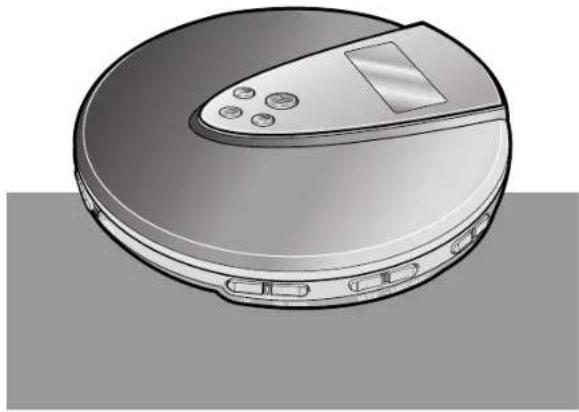
natural_image
Illustration of a circular vacuum cleaner with control buttons and a display screen (no text or symbols)AH68-01589A
Main Features Contents

Menu function
You can easily customize the settings to your liking.

Random function
The Random function allows you to play tracks in random order.

Resume function
(MP3(WMA)-CD Only)
The Resume function allows you to resume playback from the start of the track that you last listened to.

FM Radio function
You can listen to FM radio using various functions such as the automatic tuning, preset FM stations, and etc.
What is MP3?
MP3 means MPEG1 Layer 3, the global standard for audio signal compression technology. It uses digital compression technology to compress original sound data by up to 12 times without sound quality degradation.
What is WMA?
WMA (Windows Media Audio) is a file format, created by Microsoft, that offers a higher compression rate and just as good sound quality as MP3. Typical MP3 files are about one-tenth the size of the original, whereas WMA files are about half the size of standard MP3.
Safety Warning....3
Buttons and Controls....5
Preparation before using your unit....9
●How to Connect....9
●Using the rechargeable batteries (not supplied) .....10
●Using standard batteries (not supplied) .....11
CD Playback....12
MP3(WMA)-CD Playback....13
Skip/Search function 14
MENU function 15
EQ function....16
DISPLAY function 17
- SCROLL SPEED....17
•TIAG 18
●LCD CONTRAST 18
SYSTEM function 19
●SLEEP 19
●LANGUAGE 20
●RESUME....21
-CD VEOS 21
- DEFAULT 22
REPEAT function....23
+10/DIR function....24
AVIGATION function 25
●In the stop mode 25
●During Playback 26
Program function 27
●To confirm the program 28
●To change the program 28
●To cancel the program mode 28
Listening to FM Radio 29
●To select the desired radio station ....30
●Presetting Stations in Memory (Memory function)...30
●Tuning in to a Preset Station....30
Features 31
Precautions when using compact discs ....32
Troubleshooting Guide 33
Specifications 34

Safety Warning
Take care not to allow dust or other contaminants to come into contact with your player.

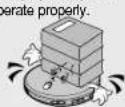
Do not apply heavy pressure to the player.
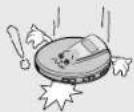
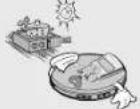
Do not leave your player in direct sunlight or near a heat source.
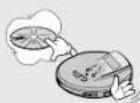
Do not put anything other than a CD (CD-R or CD-RW) inside your player.
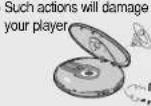
Do not use broken or scratched MP3 CDs.
Do not use your player on uneven or unstable surfaces.
- Your player may not
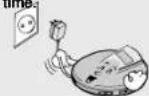
Unplug the power cord when not using the player for long periods of time.
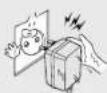
Do not touch the AC Adaptor with wet hands when it is plugged in.
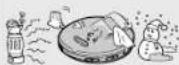
Avoid places of low temperature (below 5°C) or high temperature (above 35°C).
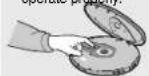
Do not touch the lens with your finger or scratch it.
- Your player may not operate properly.
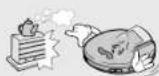
Do not place your player in a dusty or humid location.
Do not attempt to take apart, repair or modify your player. - Such actions will damage your player.
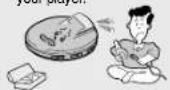
Earphones
Road safety
- Do not use the earphones while riding a bicycle, driving any kind of motor vehicle or motorcycle.
This is very dangerous and is illegal in certain regions. It is dangerous to listen to earphones at high volume while crossing roads.
In order to protect your hearing
- Do not wear the earphones with the volume set too high. Doctors state that listening to music at high volume for prolonged periods is harmful to hearing.
- If you experience a ringing in your ears, reduce the volume or stop listening.
Ambient operating conditions
- Ambient temperature : 5°C\~35°C (41°F\~95°F)
● Humidity : 10\~75%
Environmental information
- Your unit consists of materials which can be recycled if disassembled by a specialized company. Please observe local regulations regarding the disposal of packing materials, exhausted batteries and old equipment.
CLASS 1 LASER PRODUCT KLASSE 1 LASER PRODUKT LUOKAN 1 LASER LAITE KLASS 1 LASER APPARAT PRODUCTO LASER CLASE 1
- Use of controls adjustments or performance of procedures other than those specified herein may result in hazardous radiation exposure.
• CLASS 1 LASER PRODUCT
This Compact Disc player is classified as a CLASS 1 LASER product.
- CAUTION-INVISIBLE LASER RADIATION WHEN OPEN AND INTER LOCKS DEFEATED, AVOID EXPOSURE TO BEAM.

Buttons and Controls
Main Unit
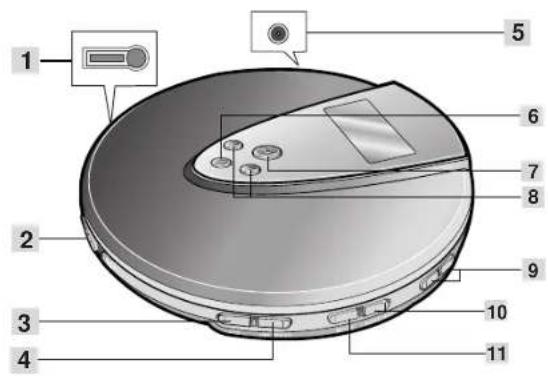
- Remote control Connection jack
- Open switch
- +10 button
- DIR./PROG. button • Preset button (FM)
- Power Input Jack
-
Stop (■) button
-
Play/Pause (▶II) button
-
Skip/Search button
-
Volume buttons
-
· NAVI—MENU button
-
· MODE button — FM Radio button (FM)

Bottom of the Main Unit
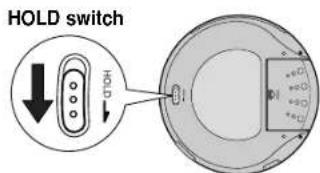
Accessories
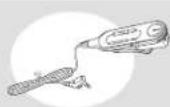
Remote Control
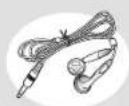
Earphones AC adaptor
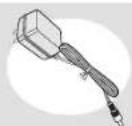
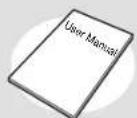
User Manual
Buttons and Controls
Remote Control
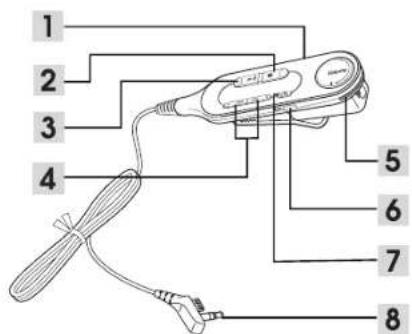
- Hold switch
- Stop button
- Play/Pause button
-
Skip/Search button
-
Volume
- · MODE button — FM Radio button (FM)
- +10 button
- Main Unit connection jack
Display
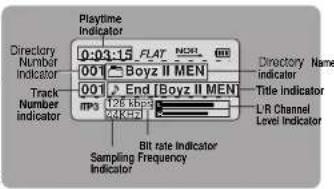
* The picture of the display panel below is based on MP3-CD playback.
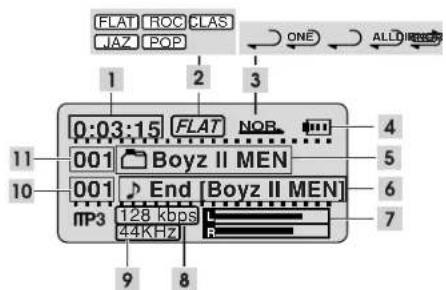
- Play Time Indicator
- EQ Mode Indicator
- Playback or Repeat Mode Indicator
- Remaining Battery Power Indicator
- Directory Name Indicator (MP3(WMA)-CD Only)
-
Title Indicator (MP3(WMA)-CD Only)
-
L/R Channel Level Indicator
- Bit Rate Indicator (MP3(WMA)-CD Only)
- Sampling Frequency Indicator (MP3(WMA)-CD Only)
- Track Number Indicator
- Directory Number Indicator (MP3(WMA)-CD Only)

Preparation before using your unit
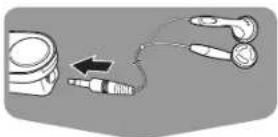
How to Connect
1 Connect the earphones to the remote control.
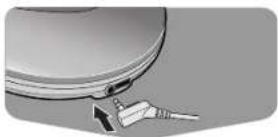
2 Connect the main unit connection jack to the main unit.
Using rechargeable batteries (not supplied)
1 Strip the sheath covering the terminals of the rechargeable battery before charging it.
- As shown in the illustration, with a knife carefully strip the sheath of the negative (-) terminal by 6 mm.
▶ If the sheath is not stripped, charging will not function.
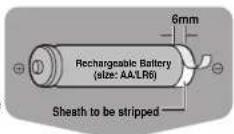
2 Insert the batteries into the battery compartment.
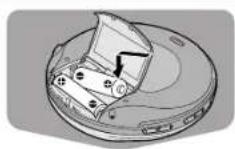
3 An AC adaptor must be connected to the AC outlet and power input.
- Charging of the rechargeable batteries will commence.
AC adaptor : DC 4.5V, 500mA

• Time taken to fully charge the battery : 10 hours
Preparation before using your unit
Using standard batteries (not supplied)

Open the cover of the battery compartment.
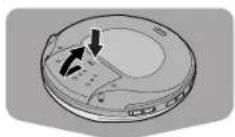

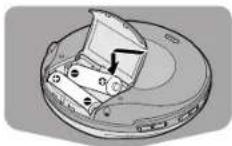
Carefully check the correct orientation of the positive and negative terminals of the batteries.
- Use two AA/LR6 type 1.5 V batteries.
Use two AA/LR6 alkaline batteries. Manganese batteries have a shorter battery life.
Battery Life (Using alkaline batteries)
* The battery life-time is based on continuous use.
• WMA-CD : 27 hours max.
• CD (When VEOS is On) : 16 hours max.

CD Playback

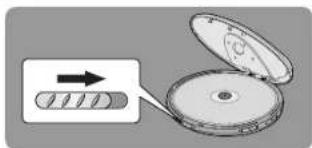
Slide the OPEN button to open the door. Insert a CD.
- Push the door to close it.


Press the PLAY/PAUSE (▶II) button.
- Once the CD is recognized, playback commences.
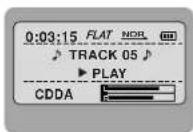

To stop playback, press the STOP (■) button.
- Press and hold the STOP (■) button to switch off the unit.
- If no buttons are pressed, the power will automatically switch off after 15 seconds.
Time for Battery Replacement
- Replace the batteries if the remaining battery power indicator *☐ " flashes.
- Even though the remaining battery power indicator *☐ " may be flashing,
If the batteries have already expired, the LCD will not be lit.

Warning
• Do not mix old and new batteries.
- Remove the batteries if they will not be used for a long time.
• Standard batteries cannot be recharged.
- Remove the batteries when you use an AC adaptor.
To temporarily pause playback
Press the PLAY/PAUSE (▶II) button.
- Playback will be temporarily suspended.
- Press the PLAY/PAUSE (▶) button again to resume playback.
MP3(WMA)-CD Playback

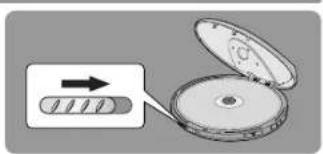
Slide the OPEN button to open the door, and insert an MP3(WMA)-CD.
- Push the door to close it.

Press the PLAY/PAUSE (▶II) button.
• The inserted MP3(WMA)-CD will be scanned for about 30\~90 seconds. Playback will then commence.
Your CD Player will take a few moments to scan through all the tracks and the sessions recorded on an MP3(WMA)-CD.

To stop playback, press the STOP (■) button.
- Press and hold the STOP (■) button to switch off the unit.

- If a music file is corrupted and a particular section cannot be read, only that section will be skipped. But if the file continues to be unreadable, the player will skip to the next file.
- Files that do not conform to specifications (refer to P. 34) will be skipped.
- When the Open switch is slid to open the door, playback will stop.
- The quality of MP3(WMA)-CD playback may vary depending on the condition of the disc containing the music files or the condition of the recorder with which the disc was created.
- If different types of files or unnecessary folders are on the same disc, you will have problems with playback.

SKIP/SEARCH function
Skip
Press and release the I◄◄ or ►►I button during playback of a CD.
- Press the ▶▶1 button to play the next track. Press the I◀◀ button to go back to the beginning of the current track. (Briefly press the I◀◀ button twice to repeat the previous track).
- Press the ▶▶I button while the unit is in "STOP" (no playback) mode. Track 2 will be played back. Press the I◀◀ button to play back the previous song.
Main Unit
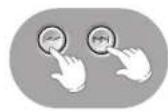
Search
Press and hold the I◄◄ or ►►I button during playback of a CD.
- Press and hold the ◀◀◀ or▶▶ | button.
The CD will playback in fast forward or fast reverse mode. - Release the button to return to normal playback mode.
Remote Control
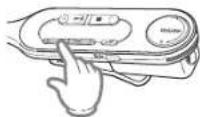
HOLD function
- Buttons pressed during CD playback will not function. (The "HOLD" message will appear on the display.)
- Use the HOLD function when carrying your CD Player around with you. Use of this function will allow you to conserve battery life as it prevents the CD Player from being turned on if a button is pressed unintentionally.
- The remote control will still operate while the HOLD function on the main unit is active.
- The main unit will still operate while the HOLD function on the remote control is active.
Bottom of the Main Unit
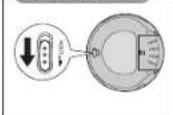

MENU function
You can customize the settings to your liking.
- Menu Structure
MENU
• A group of menu icons will appear.
• A list of functions will appear.
Use the |◀◀, ▶▶| buttons to select the desired function, and then press the PLAY/PAUSE (▶II) button.
DISPLAY
♦ SCROLL SPEED
◇ ID3 TAG
LCD CONTRAST
4
Press the STOP (■) button to move to a higher level menu.
- If no button is pressed for 20 seconds, you will be exited to the main unit display.
- While the Disc is being read, you won't be able to use the Menu function.
EQ function
1
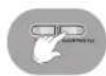
Select EQ in the MENU screen.
Select DISPLAY in the MENU screen.
*MENU
◇ EQ
• DISPLAY
SYSTEM

Use the |◀◀, ▶▶| buttons to select the desired menu, and then press the PLAY/PAUSE (▶II) button.
• A list of functions will appear.
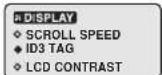
M DISPLAY
♦ SCROLL SPEED
ID3 TAG
◇ LCD CONTRAST
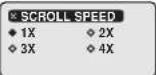
SCROLL SPEED
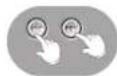
- Use the I◄◄, ►► I buttons to set the scroll speed.
- You can adjust the scroll speed of the track titles.
• 1X : Scrolls at normal speed. • 3X : Scrolls at three times the normal speed.
- 2X : Scrolls at two times the normal speed. - 4X : Scrolls at four times the normal speed.
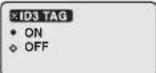
ID3 TAG
* This function is only available during playback of an MP3(WMA)-CD.
- This function displays the tag information from all of the tracks on an MP3/WMA-CD.
What is ID3 TAG? - This is what is attached to an MP3 audio file to carry information relevant to the file, such as the title, artist, album, year, genre and a comment field.
- Use the I◄◄, ►►I buttons
to select ID3 TAG ON or OFF.
- ID3 TAG ON : Tag information of the track file is displayed.
- ID3 TAG OFF : Only the name of the track file is displayed.

Note
- If no tag information is present in the file, the track title or artist cannot be displayed. Only the file name is displayed.
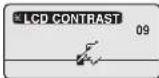
LCD CONTRAST
- Use the I◄◄, ►►I buttons to set the contrast.
- The setting range of the contrast, which adjusts the brightness of the screen, is 0 to 19.
SYSTEM function
1
Select SYSTEM in the MENU screen.

2
Use the I◄◄, ►►I buttons to select the desired menu, and then press the PLAY/PAUSE (►II) button.
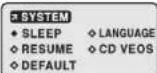
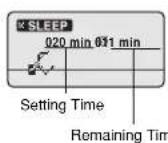
SLEEP
- Use the I◄◄, ►►I buttons to set the sleep time.
- Use this function to set the player to power off automatically after a preset time has elapsed.
- You can turn off the sleep timer or select from 10 to 120 minutes in 10 minute increment: OFF >010 >……120.
LANGUAGE

- Use the ◀◀◀, ▶▶▶ buttons to select the language in which the ID3 TAG of music files will be displayed.
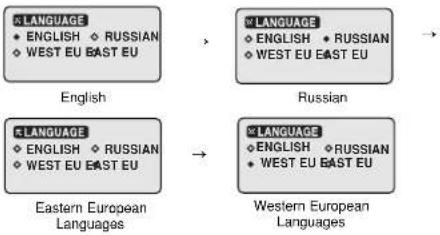
flowchart
graph LR
    A["LANGUAGE<br>• ENGLISH ◇ RUSSIAN<br>• WEST EU BAST EU"] --> B["English"]
    C["LANGUAGE<br>• ENGLISH ◇ RUSSIAN<br>• WEST EU BAST EU"] --> D["Eastern European Languages"]
    E["LANGUAGE<br>• ENGLISH ◇ RUSSIAN<br>• WEST EU BAST EU"] --> F["Western European Languages"]
    G["LANGUAGE<br>• ENGLISH ◇ RUSSIAN<br>• WEST EU BAST EU"] --> H["→"]
    I["LANGUAGE<br>• ENGLISH ◇ RUSSIAN<br>• WEST EU BAST EU"] --> J["→"]
• Languages Supported
- Western Europe: Albanian, Catalan, Danish, Dutch, English, Faeroese, Finnish, French, Galician, German, Icelandic, Italian, Norwegian, Portuguese, Spanish, Swedish
- Eastern Europe: Croatian, Czech, Estonian, Hungarian, Latvian, Lithuanian, Polish, Romanian, Slovak, Slovene
- Russian: Bulgarian, Byelorussian, Macedonian, Russian, Serbian, Ukrainian

SYSTEM function
RESUME DEFAULT
- Use the I◄◄, ►►I buttons to select RESUME ON or OFF.
- ON: Resumes playback from the last turn-off track.
• OFF: Plays the first track on the CD.
※RESUME
• ON
OFF
CD VEOS
- Use the |◀◀, ▶▶ | buttons to select CD VEOS ON or OFF.
- This function prevents music from skipping during movement by buffering ahead in the data stream.
- CD VEOS ON : For an Audio CD, the player buffers up to 45 seconds of CD data.
- 120 seconds of data stream for an MP3-CD and 240 seconds for a WMA-CD will be buffered automatically.

What is VEOS(Versatile ESP Operating System)?
VEOS (Versatile ESP Operating System) combines the strengths of Memory Buffering and Fast Recovery System to store the contents of a CD in memory before playing back and to recover from CD skips in the shortest amount of time.

- Use the I◀◀, ▶▶I buttons to select DEFAULT YES or NO.
- YES: Initializes all settings to their default values.
• NO: Maintains the existing settings.
DEFAULT
NO
♦ YES
Default Settings
• Each time the button is pressed,
NOR → ONE → DIR ALL
are selected.
(album mode only works for MP3(WMA)-CD disks which contain albums.)
| Mode | Repeat Mode indicator | Description |
| NORMAL | NOR | - Plays all of the tracks on a CD once. |
| REPEAT ONE | ONE | - Repeatedly plays one track. |
| REPEAT DIRECTORY | DIR | - Repeatedly plays all of the tracks in the selected directory. |
| REPEAT ALL | ALL | - Repeatedly plays all of the tracks on a CD. |
| RANDOM | - Plays all of the tracks on a CD in random order. |
+10/DIR function
+10 function

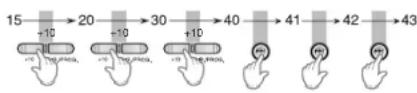
- Press the +10 button briefly while playing back a CD. Playback will skip 10 tracks.
Example : If you want to select track 43 during playback of track 15, press the +10 button three times, then press the ▶▶I button three times.
DIRECTORY function
- This function is only available during playback of an MP3(WMA)-CD. Albums are sections of tracks representing one artist. This function makes it easier to skip between them.
Press the DIR./PROG. button.
- It moves to the next album.
Example) Pressing the DIR./PROG button during playback of the first album will take you to the start of the first track of the second album.
NAVIGATION function
You can easily select and play the track you want from the album.
* This function is only available during playback of an MP3(WMA)-CD.
1 Press the NAVI-MENU button.
• Albums in the root folder will be displayed.
Root
Boyz II MEN
2 Using |◀◀ or ▶▶| button, select the desired album or track.
Root
Janet Jackson
Press the PLAY/PAUSE ▶II button.
- Album : Albums or tracks in the selected album will be displayed. Repeat the steps 2-3 above to select the track you want.
- Track : The selected track will be played back.
Boyz II MEN
02 - Come back to
03 - End
◆ To cancel the navigation function, press the NAVI/-MENU button again.
- If no button is pressed for 20 seconds, the display switches to the stop mode.
Boyz II MEN
02 - Come back to
03 - End
* This function is only available during playback of an MP3(WMA)-CD.
1 Press the NAVI-MENU button.
• A list of all the tracks in the album will be displayed.
Boyz II MEN
02 - Come back to
03 - End
2 Using I◄◄ or ►►I button, select the desired track.
- If no button is pressed for 20 seconds, the display switches to the playback mode.
Boyz II MEN
01 - It's So Hard To
03 - End
Press the PLAY/PAUSE (▶II) button.
• The selected track will be played back.
Boyz II MEN
01 - It's So Hard To
02 - Come back to
◆ To cancel the navigation function, press the NAVI/-MENU button again.
- The navigation function does not work while the program function is operating.
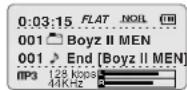
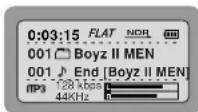
0:03:15 FLAT NOR
001 Boyz II MEN
001 End [Bovz II MEN]
128 kbps
44KHz
To move to a higher album
- In the currently selected album, press the STOP (■) button to move to the album that is one level higher in hierarchy.
PROGRAM function
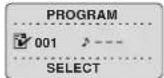
You can store up to 30 tracks.
Example: When storing track number 4 to program number 1.
In the stop mode, press and hold the DIR./PROG. button.
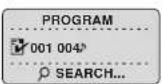
2 Using I◄◄ or ►►I button, select the desired track.
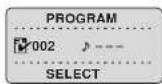
3 Press the PLAY/PAUSE (▶II) button. - Track number 4 is stored under program number 1 and you will be taken to program number 2. - Continue to program the desired tracks.
4 Press the DIR./PROG. button when programming is complete.
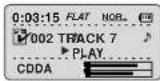
To stop program playback
- Press the STOP (■) button.
- The total number of programmed tracks as well as the total number of tracks in a given disk will be shown on the display.
- Press the PLAY/PAUSE (▶II) button to resume program playback.
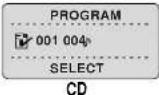
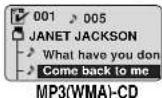
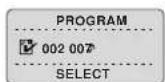
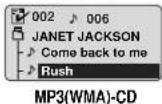
To confirm the program
- In the stop mode, press and hold the DIR./PROG. button.
- Each time the NAVI./-MENU is pressed, track numbers will be shown on the display according to their program sequence.

To change the program
- To change the programmed tracks during program confirmation, use I◀◀ or ▶▶I to select the track to change.
- Press the PLAY/PAUSE button.
To cancel the program mode
- Press the STOP (■) button twice.
- The Program mode will also be canceled if the lid opens during programming.

Warning
- During programming, if no action is performed for about 40 seconds, the player will automatically turn itself off to conserve battery power consumption.
Listening to FM Radio
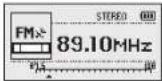
To select the desired radio station
1
Press and hold the MODE button.
- Press the MODE button to select
either Mono or Stereo.
2
Use the |◀◀, ▶▶| buttons to tune in to a desired radio station.
Automatic Tuning
Press and hold the I◄◄ or ►►I.
• Automatically scans and tunes to the next available station.
Manual Tuning
Press the I◄◄ or ►► L
- Press the button repeatedly to tune in the desired station manually.
3
To turn off the radio, press
and hold the STOP (■) button.
- Press the PLAY/PAUSE ▶ button to switch to CD mode.

Note
• The reception may not be clear in a weak signal area.
- If the reception of an FM station transmitting in stereo is weak, press the
MODE button to switch to the mono mode for improved sound quality.
Presetting Stations in Memory(Memory function)
- You can either manually
or automatically preset and store FM stations.
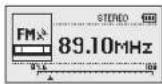
EXAMPLE: Storing an FM station at 89.10 MHz into preset number 2
1
Tune to a station of 89.10 MHz and then press the DIR./PROG. button.
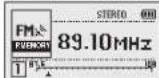

2
Press I◀◀ or ▶▶I to select the preset "P. MEMORY 2".
- Each time the button is pressed a higher or lower preset number is selected.
- Start with the preset station number 1 if you are presetting stations for the first time since the purchase of the product.
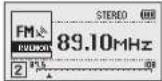
3
Press the DIR./PROG. button again to store the selected station.
- The preset number disappears, indicating that the station has been stored.
- Repeat steps 1 to 3 to change the station or store other stations. You can preset up to 15 stations.
Tuning in to a Preset Station
1
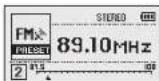
If you have already stored stations into memory, press the STOP (■) button
- "PRESET" and the station frequency stored under that preset number appear on the display.
2
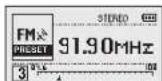
Press |◀◀ or ▶▶| to select the desired preset number.
- "PRESET" remains, and the frequencies of the preset stations are displayed in turn.
Features
Playback sequence of albums and tracks
- Albums with .jpg, .wav or .doc are not audio files and therefore will be skipped.
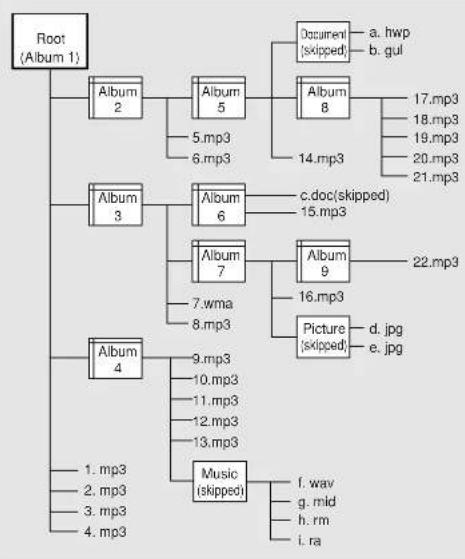
flowchart
graph TD
    A["Root (Album 1)"] --> B["Album 2"]
    A --> C["Album 3"]
    A --> D["Album 4"]
    B --> E["5.mp3"]
    B --> F["6.mp3"]
    C --> G["7.wma"]
    C --> H["8.mp3"]
    D --> I["9.mp3"]
    D --> J["10.mp3"]
    D --> K["11.mp3"]
    D --> L["12.mp3"]
    D --> M["13.mp3"]
    D --> N["Music (skipped)"]
    N --> O["f.wav"]
    N --> P["g.mid"]
    N --> Q["h.rm"]
    N --> R["i.ra"]
    E --> S["14.mp3"]
    F --> T["15.mp3"]
    G --> U["16.mp3"]
    H --> V["17.mp3"]
    I --> W["18.mp3"]
    J --> X["19.mp3"]
    K --> Y["20.mp3"]
    L --> Z["21.mp3"]
    M --> AA["22.mp3"]
    N --> AB["21.mp3"]
    S --> AC["a. hwp"]
    S --> AD["b. gul"]
The player can recognize up to about 999 files.
Precautions when using compact discs
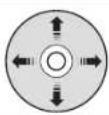
Looking after your CDs
Wash the disc with a neutral detergent diluted in water, and then wipe gently with a soft dry cloth from the center of the disc to the outside.

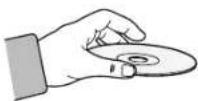
Handling your CDs
Carefully pick up the disc by its edge without touching the disc's surface.
Do not attach stickers to the signal surface (the side with shiny, rainbow colors).
Do not write on the labeled (printed) side with a ballpoint pen or a pencil.
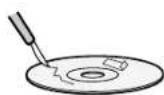
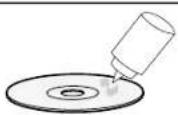
Do not clean your CDs with record spray or anti-static.
Do not use volatile chemicals such as benzene or thinners.
Troubleshooting Guide
Problem Check
| Unit has no power. | Did you insert the battery with the correct polarity?Are the batteries drained?Is the AC adaptor connected correctly?Is the door open? |
| Playback does not function. | Is the disc inserted correctly?Is the disc damaged or deformed?Has the unit been locked with the HOLD switch?Has the unit been moved from a cold place to a hot place?Abrupt change of temperature may cause condensation to form on the lens. Keep your CD Player in a warm place until the condensation on the lens has disappeared. |
| Earphones don’t work. | Is the volume control on the unit at the minimum setting? |
| A sound or track is skipped. | Was the unit jolted or knocked?Is there dust, fingerprints or scratches on the disc? |
| Some of the MP3(WMA) files on a CD are not recognized. | Check if the unreadable files have .mp3(.WMA) as their extension on your PC. |
Specifications
| Item Description | |
| • Frequency range 20Hz ~ 20KHz | |
| • Earphone output 330mV(RMS), 6.8mW/CH,16Ω | |
| • Signal/noise ratio 90dB (1kHz) | |
| • Total harmonic distortion 0.1% (1kHz, 0dB) | |
| Format Support | CD-DA (8Cm/12Cm) |
| CD-ROM Mode 1, Mode 2 Form 1 | |
| CD-R/RW Readability | ISO 9660, Joliet |
| Romeo, Multi-session | |
| File Support MPEG 1 Layer 3, WMA | |
| Bit Rate | 8kbps ~ 320kbps (MP3) |
| 32kbps ~ 320kbps (WMA) | |
| FM Frequency Range 87.50MHz ~ 108.00MHz | |
| FM S/N Ratio 58dB | |
| FM Stereo Separation | 30dB |
| Tag Support ID3 V1, ID3 V2 2.0 | |
| Dimensions | 136(W) X 136(D) X 30(H)(mm) |
| Weight | 200g (without batteries) |
*: (Based on the jack output of the main unit)

File Compatibility
- Only files in MP3 Format (Mpeg1.Layer3), with an .mp3 as the file extension, and WMA files with .WMA extension can be played back.
How many MP3 files can a CD-R or CD-RW disc record?
- The maximum capacity of one CD-R or CD-RW disc is 700MB. Normally, one MP3 file has a capacity of 4MB, therefore approximately 170 files can be recorded on a single disc.