
Free Antivirus (Mac) - Antivirus Software AVAST - Free user manual and instructions
Find the device manual for free Free Antivirus (Mac) AVAST in PDF.


User questions about Free Antivirus (Mac) AVAST
0 question about this device. Answer the ones you know or ask your own.
Ask a new question about this device
Download the instructions for your Antivirus Software in PDF format for free! Find your manual Free Antivirus (Mac) - AVAST and take your electronic device back in hand. On this page are published all the documents necessary for the use of your device. Free Antivirus (Mac) by AVAST.
USER MANUAL Free Antivirus (Mac) AVAST
avast! Free Antivirus for Mac
Quick Start Guide
Introduction
Welcome to avast! Free Antivirus for Mac.
avast! Free Antivirus for Mac contains the same ICSA Certified scan engine as all avast! antivirus products.
With built-in anti-spyware, certified by West Coast Lab's Checkmark process, avast! antivirus offers best-in-class protection against viruses, Trojan horses, spyware, and other malware threats.
About AVAST Software a.s.
Since 1988, AVAST Software has produced antivirus products that have been developed into the multi-award winning avast! antivirus product line, making avast! one of the most mature and tested products on the antivirus market.
Headquartered in Prague, in the Czech Republic, AVAST Software develops and markets avast! antivirus products that protect every major operating system and every major type of vulnerable device. Further details about the company and its products can be found on our website, www.avast.com.
avast!® is a registered trademark in the United States of America and other countries and is used under exclusive license to AVAST Software a.s.
Further Help
If you experience any difficulties with avast! Free Antivirus for Mac, which you are unable to resolve after reading this manual, you may find the answer in the Support Center of our website at http://support.avast.com
- In the Knowledgebase section you can quickly find answers to some of the most frequently asked questions
• Alternatively, you can take advantage of the avast! Support Forums. Here you can interact with other users of avast! who may have experienced the same problem and may already have discovered the solution. You will need to register to use the forum but this is a very quick and simple process. To register to use the forum, go to http://forum.avast.com/
If you are still unable to resolve your query, you can "Submit a ticket" to our support team. Again, you will need to register to do this and when writing to us, please make sure to include as much information as possible.
Key features of avast! antivirus
avast! is the multi-award winning antivirus product line from AVAST Software a.s., which is ICSA Labs certified, and Checkmark certified (for both antivirus and anti-malware). avast! antivirus is a multiple recipient of the Virus Bulletin 100% award, for detection of 100% of in-the-wild viruses, and is a repeated winner of the Secure Computing Award.
avast! antivirus is actively protecting over 150 million devices worldwide; it is specifically engineered to have low system requirements and to update both itself and the virus definitions automatically.
avast! antivirus represents a collection of high-end technologies created to give you unrivaled protection against all forms of malware. The key features of avast! Free Antivirus for Mac are described below.
Antivirus kernel
The antivirus kernel is the basic core of the program. The latest version of the avast! antivirus kernel combines outstanding detection abilities with high performance. You can expect 100% detection of "in-the-wild" viruses (viruses already spreading between users) and excellent detection of Trojan horses.
The kernel is certified by ICSA Labs; it frequently takes part in the tests of Virus Bulletin magazine, regularly yielding the VB100 award.
Real-time Shields
Real-time protection is one of the most important features of an antivirus program today. avast! Free Antivirus for Mac includes "After-close" and "On-execute" check which will ensure that any newly created or modified files are automatically scanned at the moment they are closed or executed. avast! Free Antivirus for Mac also automatically scans all your web browsing and incoming mail. In this way, potential infections will be detected before they have any chance to infect your computer.
Automatic updates
Automatic updates are another key need in virus protection to ensure continuous protection from the latest threats. Both the virus database and the program itself can be updated automatically. The updates are incremental, with only new or missing data downloaded, reducing the transfer time significantly. The typical size of a virus database update is tens of KB while program updates are typically not more than hundreds of KB.
If your Internet connection is continuous (such as an always-on broadband connection), then updates are performed completely automatically at fixed time intervals. If you connect to the Internet only occasionally, avast! monitors your connection and tries to
perform the update when you are online. You can also initiate an update manually at any time from the main user interface.
System requirements
The following are the minimum system requirements in order to run avast! antivirus Mac Edition on your Mac system (please note that Mac OS X versions prior to 10.5 and PowerPC-based machines are not supported):
Intel-based machines:
Any Intel-based Mac with Mac OS X 10.5 Leopard or newer installed, with a minimum 512 MB of RAM (1 GB preferred) and 256 MB of free hard disk space.
Note: various problems can arise as a result of installing more than one security product on the same computer. If you have installed other security software, it is recommended that this is uninstalled before you try to install avast!
How to use avast! Free Antivirus for Mac
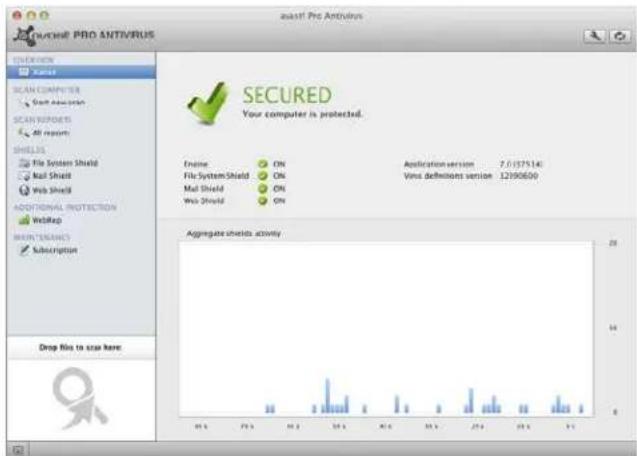
When you start avast! Free Antivirus for Mac on your apple computer, the following graphical interface will appear.
text_image
Oracle PRO ANTIVIRUS ESCURED Your computer is protected. Engine ON Application version 7.01375140 File SystemShield ON Virus definitions version 12990600 Mail Shield ON Mail Shield ON Web Shield ON WebShield ON Aggregate threads activity Drop Files to scan here:On the left side are listed all the main features, while on the right you can see the various options and summary information.
Overview
Here you can see the status of your avast! Free Antivirus for Mac and all of its services.
If it shows that your computer is "Secured", it means that all services are running as they should. You can also see information about your program version and virus definitions version, so you can see whether they are completely up to date.
Your virus definitions are normally updated automatically, but if you click on the Update icon, next to the "wrench" icon in the top-right corner of the screen, avast will try to find the latest virus database and program updates. If new versions are found, they will be downloaded and your program and virus definitions will be updated.
The wrench icon can be used to access the system preferences, where you can adjust your settings according to your particular requirements – see the section "Preferences" later in this guide.
If you have an avast! Account, you can connect to it via the "Connect" button.
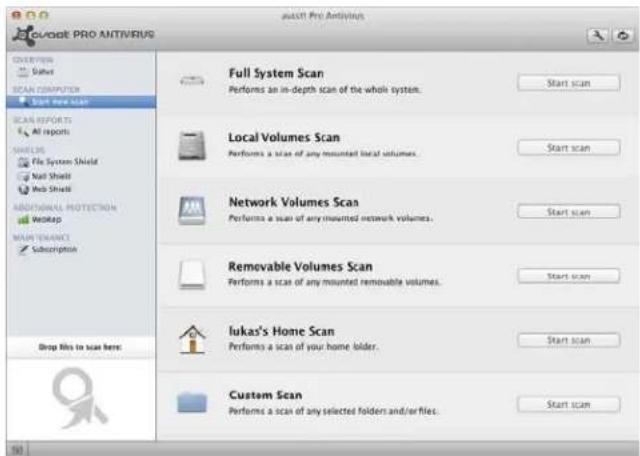
Scan Computer
Here you can decide what to scan:
• Full System scan (1)
- Local Volumes Scan (2)
• Network Volumes Scan (3)
- Removable volumes scan (4)
- *user* Home Scan (5)
- Custom Scan (6)
text_image
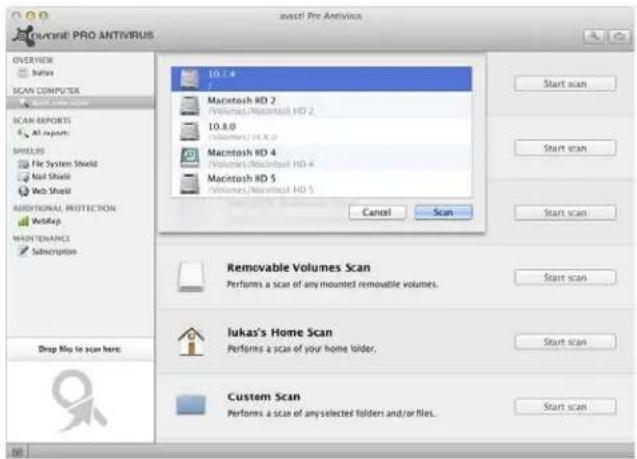
Avail Pro Antivirus GOVAIL PRO ANTIVIRUS OVERVIEW Status SCAN COMPUTER Start new system SCAN REPORTS All reports SHELERS File System Shield Mail Shield Web Shield ADDITIONAL PROTECTION WebMap MAINTENANCE Subscription Drop files to scan here: Full System Scan Performs an in-depth scan of the whole system. Start scan Local Volumes Scan Performs a scan of any mounted local volumes. Start scan Network Volumes Scan Performs a scan of any mounted network volumes. Start scan Removable Volumes Scan Performs a scan of any mounted removable volumes. Start scan Iukas's Home Scan Performs a scan of your home folder. Start scan Custom Scan Performs a scan of any selected folders and/or files. Start scanAfter selecting any of these actions, you may be prompted for to select the specific location and/or files that you want to be scanned.
text_image
Macintosh PRO ANTIVIRUS OVERVIEW Scans COMPUTER SCAN REPORTS All systems MISCELLS File System Shield Not Shell Web Shell ADDITIONAL PROTECTION WebUp MAINTENANCE Subscription 10.7.4 Volumes/Macintosh HD 2 10.8.0 Volumes/34.8.0 Macintosh HD 4 Volumes/Macintosh HD 4 Macintosh HD 5 Volumes/Macintosh HD 5 Cancel Scan Start scan Start scan Start scan Start scan Removable Volumes Scan Performs a scan of any mounted removable volumes. Start scan Iukas's Home Scan Performs a scan of your home folder. Start scan Custom Scan Performs a scan of any selected folders and/or files. Start scanAlternatively, to scan specific files or folders, you can just drag and drop them into the box in the bottom left corner and the scan will start automatically.
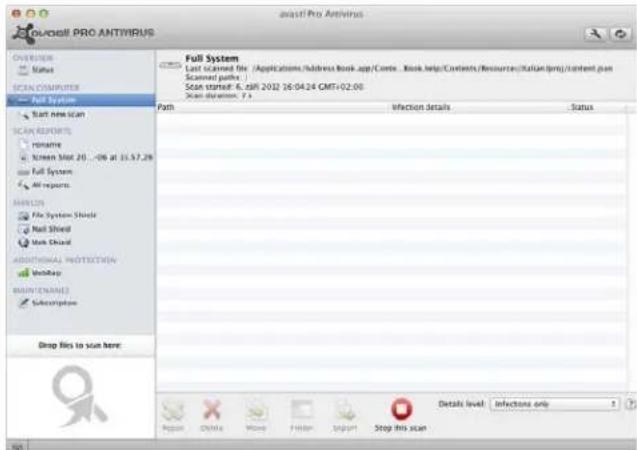
While a scan is running you can see what is currently being scanned. Here you can also see a list of any infected or suspicious files, together with details of their location and other information about the potential infection.
By clicking the button marked "Detail level" you can choose to additionally see warnings about files which could not be scanned. This option can be turned off in the system preferences if it isn't required – see the section "Preferences" later in this guide.
If selected in the system preferences, you can also choose to view information about scanned clean files. However, it is recommended to enable this option only if you really need to see information about clean files, as this could produce a very long list of many thousands of files.
text_image
SOLVOSI PRO ANTIVIRUS Full System Last scanned file (Applications/Address Book app/Comte...Book help/Contents/Resources/Italian-pro/content.psn Scan started: 6. mail 2022 26:04:24 GMT+02:06 Scan duration: 7.1 Path Infection details Status Drop files to scan here: Repairs Details level: Infections only Stop this scanAt the bottom of the screen there are various control buttons which enable you to interrupt the scan or choose what action to take with the infected files, for example, you can choose to move a file, or to try to repair it or you can choose to delete the file completely.
Scan Reports
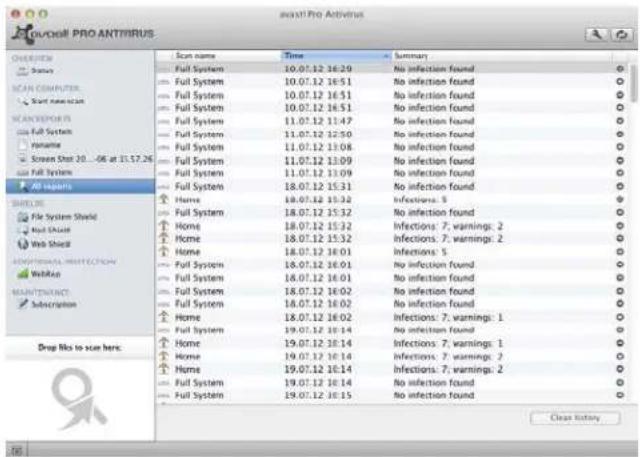
Here you can find the results of scans which you have run in the past, including the time the scan was run and details of any infections that were detected.
text_image
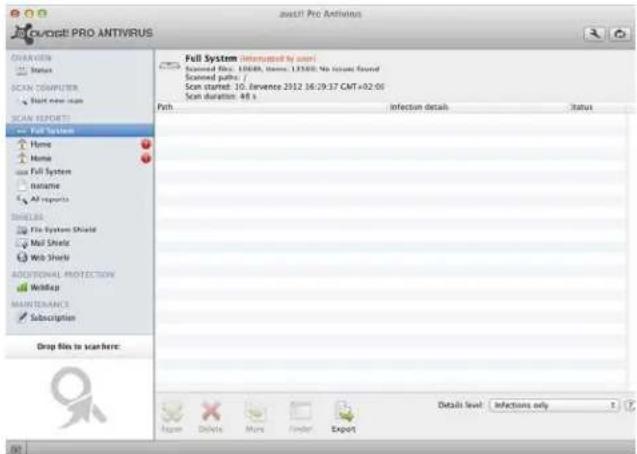
PROANTIRUS GOUDOSI PRO ANTRIRUS Scan name Time summary Full System 10.07.12 16:29 No infection found Full System 10.07.12 16:51 No infection found Full System 10.07.12 16:51 No infection found Full System 10.07.12 16:51 No infection found Full System 11.07.12 11:47 No infection found Full System 11.07.12 12:30 No infection found Full System 11.07.12 11:08 No infection found Full System 11.07.12 11:09 No infection found Full System 11.07.12 11:09 No infection found Full System 11.07.12 15:31 No infection found Home 18.07.12 15:32 Infections: 3 Full System 18.07.12 15:32 No infection found Home 18.07.12 15:32 Infections: 7, warnings: 2 Home 18.07.12 15:32 Infections: 7, warnings: 2 Home 18.07.12 16:01 Infections: 5 Full System 18.07.12 16:01 No infection found Full System 18.07.12 16:01 No infection found Full System 18.07.12 16:02 No infection found Full System 18.07.12 16:02 No infection found Home 18.07.12 16:02 Infections: 7, warnings: 1 Home 19.07.12 16:14 No infection found Home 19.07.12 16:14 Infections: 7, warnings: 1 Home 19.07.12 16:14 Infections: 7, warnings: 2 Home 19.07.12 16:14 Infections: 7, warnings: 2 Full System 19.07.12 16:15 No infection found Clear history DRG Nos to see here.By double-clicking any scan from the list, you can see more details of the scan and also filter the information displayed using the button marked "Detail level" in the bottom-right corner. The information you can choose to view depends on the details which are selected in the system preferences, as described above.
text_image
Scourage Pro ANTIVIR PROVAGE PRO ANTIVIRUS QUARTER Status SCAN COMPUTER Joint new user SCAN REPORTS Full System Home Home use Full System username All reports SHELLS File System Shield Mail Shield Web Shield ADDITIONAL PROTECTION WebMap MAINTUANCE Subscription Drop Flo in scan here: Full System (Interrupted by user) Scanned Fios: 10048, Items: 13560; No issues found Scanned paths: / Scan started: 10. Jarvence 2932 16:29:37 CMT+02:06 Scan duration: 48 s Path... Infection details Status Details level: Infections only Name Details More Play ExportShields
The real-time shields are the most important part of the program, as they are working continuously to prevent your computer from becoming infected. avast! Free Antivirus for Mac includes three real-time shields which monitor all of your computer's activity - checking all programs and files in real-time at the moment a newly created or modified file is closed (or in the case of binary/script files, at the moment the file is executed), scanning all your incoming mail, and protecting you from infected web pages while browsing the web.
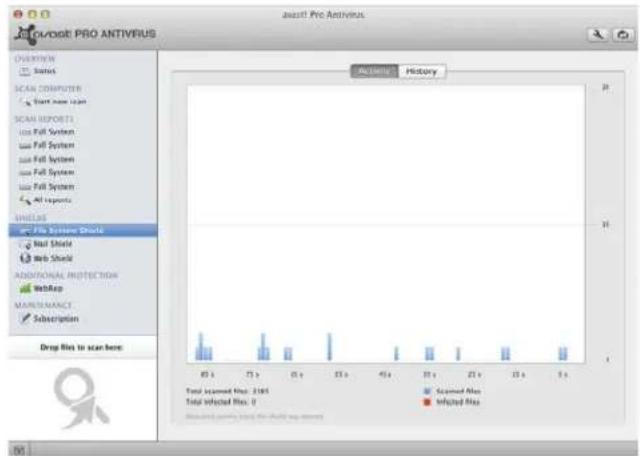
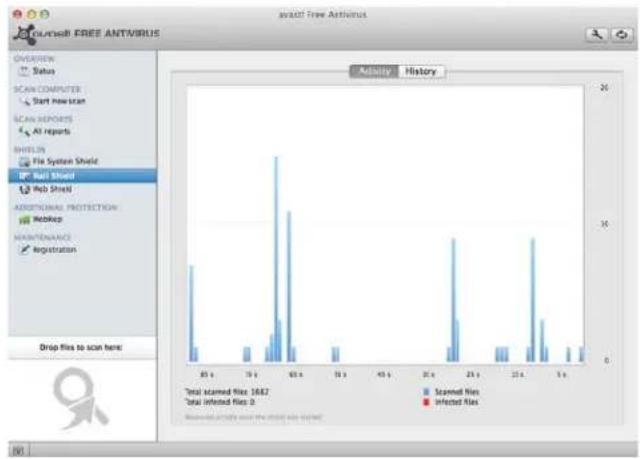
For each shield, the "activity" tab shows you how many files have been scanned and whether any infected files were found. In the "history" tab you can see information about malicious programs that avast has detected.
File System Shield
The File System Shield checks all files on your system at the moment they are closed and saved and you will be notified immediately if anything suspicious is detected. In respect of binary/script files, they are checked as soon as an attempt is made to execute them. If anything suspicious is detected, the file system shield will prevent the program from being executed, to prevent any damage being caused to your computer and data.
text_image
AVAST! Pro ANTIVFIUS UNIFORM Status SCAN COMPUTER Start menu item SCAN REPORTS Use Full System Use Full System Use Full System All options WHEELS Use Pro System Shock Web Shield Web Shield ADDITIONAL PROTECTION WebRep MATERIALANCE Subscription Drop files to scan here: Accting History Total Scanned Miss: 2185 Total Selected Miss: 0 Scanned Miss Infected MissMail Shield
The Mail Shield checks all your incoming email messages and will warn you with a message in the email header if anything suspicious is detected. This shield scans all email received by your installed email program but cannot scan web based emails.
bar
Scanned file Infected file Total scanned files 1682 Total infected files 2 Drip files to scan here: #0 #1 #2 #3 #4 #5 #6 #7 #8 #9 #10 #11 #12 #13 #14 #15 #16 #17 #18 #19 #20 #21 #22 #23 #24 #25 #26 #27 #28 #29 #30 #31 #32 #33 #34 #35 #36 #37 #38 #39 #40 #41 #42 #43 #44 #45 #46 #47 #48 #49 #50 # # # # # # # # # # # # # # # # # # # # # # # # # # # # # # # # # # # # # # # # # # # # # # # # # # # # # # # # # # # # # # # # # # # # # # # # # # # # # # # # # # # # # # # # # # # # # # # # # # # # ## # # # # # # # # # # # # # # # # # # # # # # # # # # # # # # # # # # # # # # # # # # # # # # # # # # # # # # # # # # # # # # # # # # # # # # # # # # # # # # # # # # # # # # # # # # # # # # # # # # # #0 #1 #2 #3 #4 #5 #6 #7 #8 #9 #10 #11 #12 #13 #14 #15 #16 #17 #18 #19 #20 #21 #22 #23 #24 #25 #26 #Web Shield
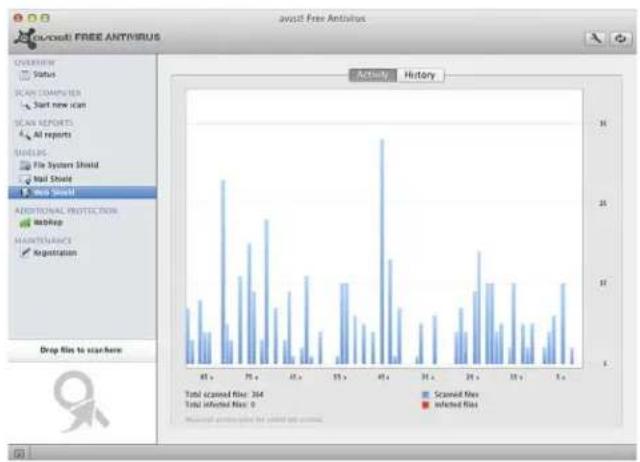
The Web Shield protects your computer from on-line attacks while browsing the internet by preventing infected web pages from being loaded. Any files downloaded from the internet will be checked by the File System Shield as described earlier, so all the shields act together to help protect your computer from on-line threats.
bar
Scanned files Total scanned files: 364 Total infected files: 0 Number of participants for saved site countsAdditional Protection
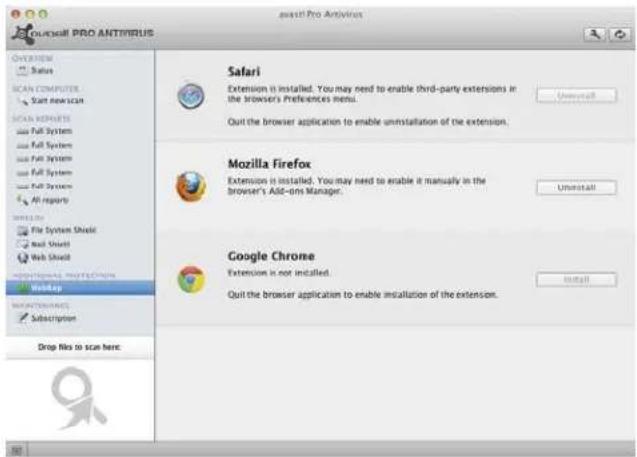
To give you even more confidence while browsing the web, we provide our WebRep plugin for the three main browsers: Safari (with third party extensions enabled), Mozilla Firefox and Google Chrome (Chromium).
text_image
SPASIT Pro Antivirus OVERVIEW Status SCAN COMPUTER Start new scan SCAN REPORTS Full System Full System Full System All reports Systematic File System Shield Real Shield Web Shield Microsoft Server 2003 Backup Maintenance Subscription Drop file to scan here. Safari Extension it installed. You may need to enable third-party extensions in the Browser's Preferences Menu. Uninstall Quit the browser application to enable uninstallation of the extension. Mozilla Firefox Extension is installed. You may need to enable it manually in the Browser's Add-ons Manager. Uninstall Google Chrome Extension is not installed. Quit the browser application to enable installation of the extension. InstallThe WebRep plugin is based on information received from the global avast! user community related to the content and security of visited websites, to help improve the browsing experience of all users. You can contribute your own feedback by "voting" on the content and security of websites that you visit.
Installing or uninstalling the browser plugins is just one click away. Just click either either install or uninstall and you will see the status updated immediately.
When you visit a website, you will see three bars (red, yellow, or green) to the left of the address bar, which tell you how the website has been rated, or when you do a search using one of the popular search engines, you will see the same color-coded indicator next to each of the listed results.
The color of the indicator tells you whether the site is rated as "good" (green), "average" (yellow), or "bad" (red). The number of bars that are highlighted indicate the strength of the rating. One, two, or three highlighted bars represent a small, limited, or large number of votes.
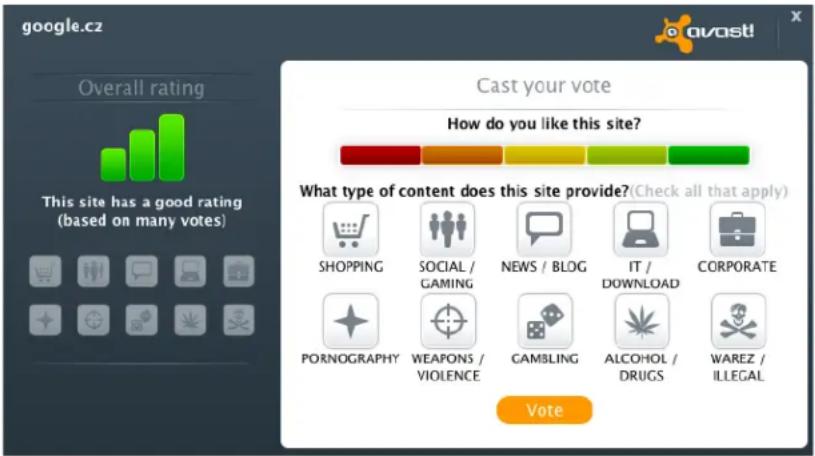
Clicking on the colored indicator will open a box where you can see more information about how the site has been rated and where you can also submit your own vote:
text_image
Google.cz Overall rating This site has a good rating (based on many votes) Cast your vote How do you like this site? What type of content does this site provide?(Check all that apply) SHOPPING SOCIAL / GAMING NEWS / BLOG IT / DOWNLOAD CORPORATE PORNOGRAPHY WEAPONS / VIOLENCE GAMBLING ALCOHOL / DRUGS WAREZ / ILLEGAL VoteOn the left side, you can see the overall rating. Below the rating, you can see smaller icons which represent the categories that the site belongs to.
On the right side, you can submit your own vote. Here you can see a single bar divided into five colored segments which you can use to assign a more detailed rating to the domain. Below this bar you can again find the category icons. Click on one or more icons to assign the domain to the relevant categories, then finally click on "vote" to submit your rating.
Maintenance
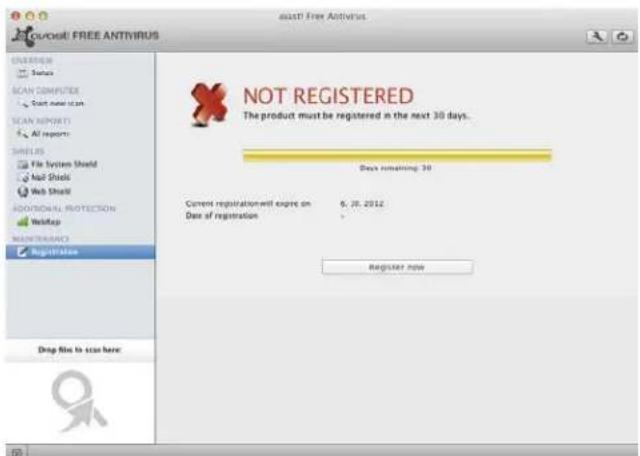
Finally, in Maintenance/Registration tab, you can register your avast! Free Antivirus for Mac to ensure that you continue to receive all the latest virus definition updates.
text_image
NOT REGISTERED The product must be registered in the next 30 days. Days remaining: 30 Current registration will expire on Date of registration 6.26.2012 - Register nowOn this screen you can see how many days you have left before your current registration expires and you will need to re-register. Registration takes just a moment and it is completely free to re-secure your avast! Free Antivirus for Mac and receive a further year of free virus updates.
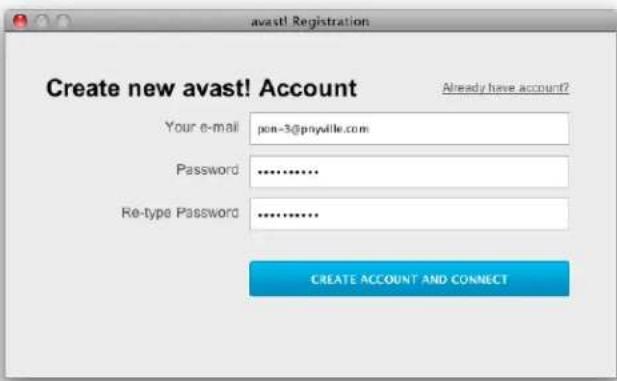
When you click on Register now, you will be prompted to create a new avast! Account using your email and a password of your choice.
text_image
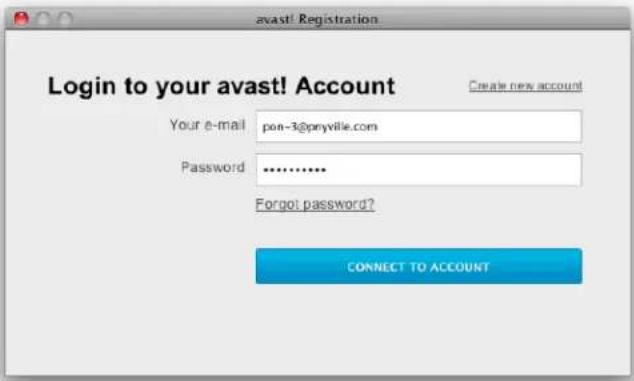
avast! Registration Create new avast! Account Already have account? Your e-mail: pon-3@pnyville.com Password: ............. Re-type Password: ............. CREATE ACCOUNT AND CONNECTIf you already have an avast! Account, just click on "Already have account?" and simply login using the email address and password you provided during your previous registration.
text_image
avast! Registration Login to your avast! Account Create new account Your e-mail pon-3@prnyville.com Password .......... Forgot password? CONNECT TO ACCOUNTYour avast! Free Antivirus for Mac will then be registered automatically and you will continue to receive free virus updates another 12 months, to protect you from the latest threats.

text_image
Ovlogit FREE ANTIVIRUS Ovlogit FREE ANTIVIRUS ORIENT Status SCAN COMPUTER Start new scan SCAN REPORTS All reports SHEES File System Shield Mail Shield Web Shield ADDITIONAL PROTECTION WriteUp MAINTUANCE Registration Current registration will expire on Date of registration 23.4.2013 23.4.2012 Days remaining: 161 Register now Stop Files to scan here:Preferences
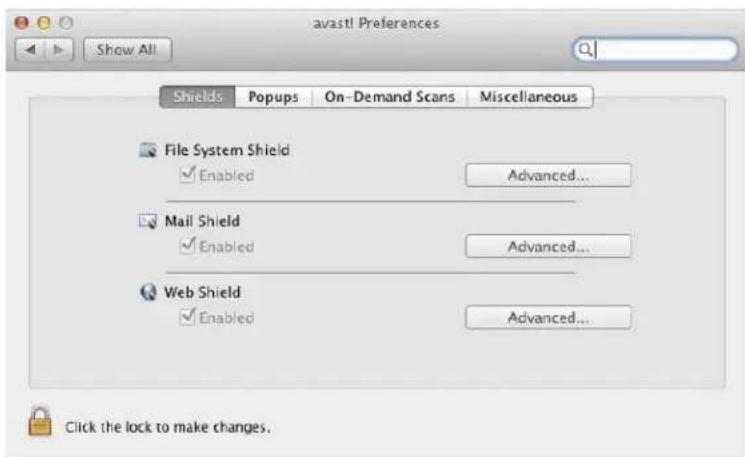
You can access the configuration menu by clicking the wrench button in upper right corner. The configuration menu (Preferences) enables you to change the status of each avast! shield and more.
The first tab gives you full control over the real-time shields. You can enable or disable them, as well as specify more advanced settings, such as excluding particular directories and files from being scanned.
text_image
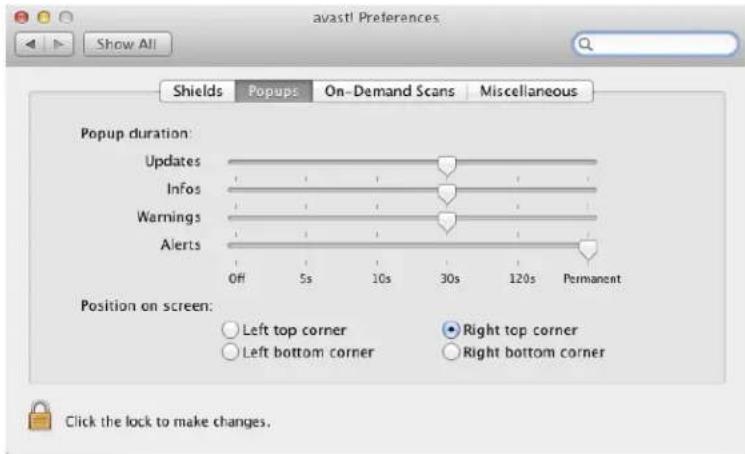
avastl Preferences Show All Shields Popups On-Demand Scans Miscellaneous File System Shield Enabled Advanced... Mail Shield Enabled Advanced... Web Shield Enabled Advanced... Click the lock to make changes.The next tab enables you to configure your avast! Popups. You can specify where and for how long important information popups should appear.
text_image
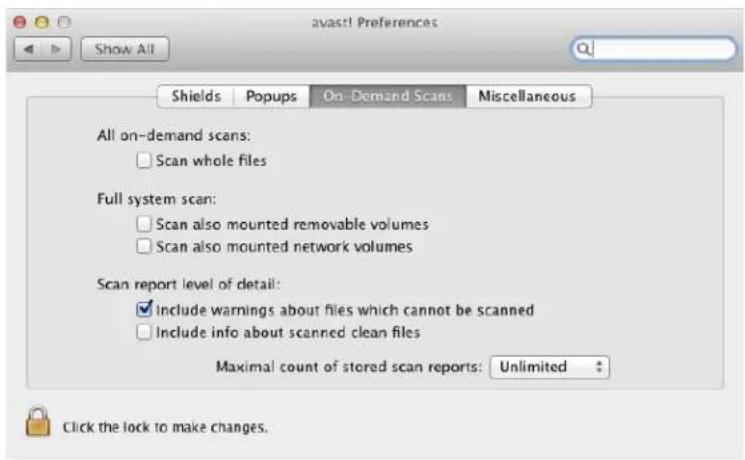
avastl Preferences Show All Shields Popups On-Demand Scans Miscellaneous Popup duration: Updates Infos Warnings Alerts Position on screen: Left top corner Right top corner Left bottom corner Right bottom corner Click the lock to make changes.In the "On-demand scans" tab, you can decide whether the scans that you run should scan the whole files, or just look for specific virus markers that may indicate a possible infection. Scanning whole files is more thorough, but will take longer.
You can also specify whether removable devices and/or mounted network drives should be scanned and you can customize the level of detail that can be viewed in your scan reports i.e. whether or not to include warnings about files which could not be scanned, and information about files which have been scanned and were found to be clean.
text_image
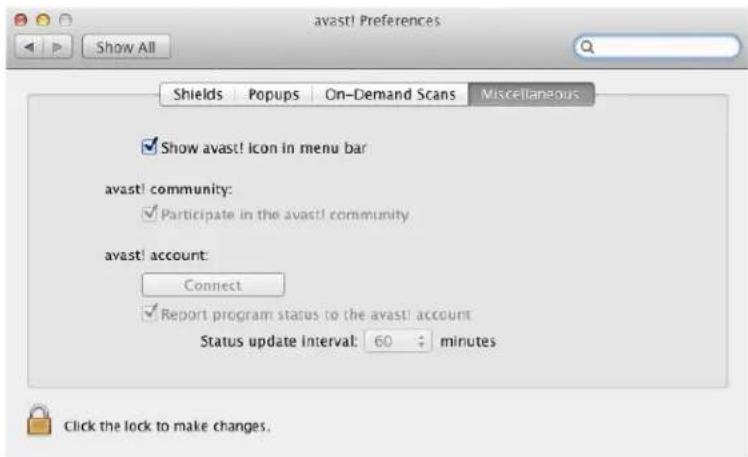
avast! Preferences Show All Shields Popups On-Demand Scans Miscellaneous All on-demand scans: Scan whole files Full system scan: Scan also mounted removable volumes Scan also mounted network volumes Scan report level of detail: ✓ include warnings about files which cannot be scanned Include info about scanned clean files Maximal count of stored scan reports: Unlimited Click the lock to make changes.In the final "Miscellaneous" tab you can check if you are connected to your avast! Account and whether you are participating in the avast! Community, and you can change these settings as required. You can also specify how often the status of your avast! Free Antivirus for Mac should be sent to your avast! Account.
text_image
avast! Preferences Show All Shields Popups On-Demand Scans Miscellaneous ✓ Show avast! icon in menu bar avast! community: ✓ Participate in the avast! community avast! account: Connect ✓ Report program status to the avast! account Status update interval: 60 minutes Click the lock to make changes.For some options, you need to click the lock in the bottom-left corner and enter your system password before you can make any changes.
Thank you for choosing avast!