
DV-NC65S - DVD/VHS Player SHARP - Free user manual and instructions
Find the device manual for free DV-NC65S SHARP in PDF.


| Product Type | DVD player / VHS VCR combi |
| Brand | SHARP |
| Model | DV-NC65S |
| Compatible disc formats | DVD-Video, DVD-R/RW, Audio CD, CD-R/RW |
| Supported audio formats | Dolby Digital, Dolby Pro Logic, Linear PCM, MPEG Audio, DTS |
| VHS VCR | VHS playback and recording |
| Connectivity | SCART outputs, composite, stereo audio, antenna |
| Power supply | 110-240 V, 50/60 Hz |
| Dimensions (W x H x D) | 430 x 85 x 270 mm |
| Weight | 3.5 kg |
| Care and cleaning | Wipe with a soft, dry cloth. Do not use solvents. |
| Safety | Do not expose to moisture or heat sources. Unplug before cleaning. |
| Spare parts and repairability | Parts available from SHARP after-sales service. |
| General information | Combination unit for playing DVDs and VHS tapes. Manual in French and English. |
Frequently Asked Questions - DV-NC65S SHARP
User questions about DV-NC65S SHARP
0 question about this device. Answer the ones you know or ask your own.
Ask a new question about this device
Download the instructions for your DVD/VHS Player in PDF format for free! Find your manual DV-NC65S - SHARP and take your electronic device back in hand. On this page are published all the documents necessary for the use of your device. DV-NC65S by SHARP.
USER MANUAL DV-NC65S SHARP
- All mentions of "the Unit" refer to the DV-NC65S VCR/DVD COMBINATION.
- All mentions of "the Remote" refer to the remote control unit.
- The following table describes the icons used in this Operation Manual.
| Icon | Meaning |
| DVD | Tips and Hints for easier operation |
| Functions for DVD | |
| CD | Functions for Audio CD |
| Quick Start Guide (the separate sheet) | |
| General Information | |
| Connection and Initial Setting | |
| VCR, DVD Setup | |
| Watching the VCR, DVD | |
| Other Information |
Important!
Be sure to read this Operation Manual carefully before using the Unit for the first time, and keep it on hand for future reference when you experience operational problems.
SAFETY INFORMATION
Note:
This unit can be used only where the power supply is AC 230V-240V, 50Hz. It cannot be used elsewhere.
CAUTION:
USE OF CONTROLS OR ADJUSTMENTS OR PERFORMANCE OF PROCEDURES OTHER THAN THOSE SPECIFIED HEREIN MAY RESULT IN HAZARDOUS RADIATION EXPOSURE.
AS THE LASER BEAM USED IN THIS UNIT IS HARMFUL TO THE EYES, DO NOT ATTEMPT TO DISASSEMBLE THE CABINET. REFER SERVICING TO QUALIFIED PERSONNEL ONLY.
WARNING:
TO REDUCE THE RISK OF FIRE OR ELECTRIC SHOCK, DO NOT EXPOSE THIS EQUIPMENT TO RAIN OR MOISTURE.
TO REDUCE THE RISK OF FIRE OR ELECTRIC SHOCK, AND ANNOYING INTERFERENCE, USE THE RECOMMENDED ACCESSORIES ONLY.
Laser Diode Properties
Material: AlGaInP
Wavelength: 650 nm
Emission Duration: Continuous
Laser output: Max. 0.7 mW
Power Lead Protection
To avoid any malfunctions of the unit, and to protect against electric shock, fire or personal injury, please observe the following.
- Hold the plug firmly when connecting or disconnecting the AC power lead.
- Keep the AC power lead away from heating appliances.
- Never put any heavy object on the AC power lead.
- Do not attempt to repair or reconstruct the AC power lead in any way.
- This unit is classified as a CLASS 1 LASER product.
- The CLASS 1 LASER PRODUCT label is located on the rear cover.
- This product contains a low power laser device. To ensure continued safety, do not remove any cover or attempt to gain access to the inside of the product. Refer all servicing to qualified personnel.
(Rear of product)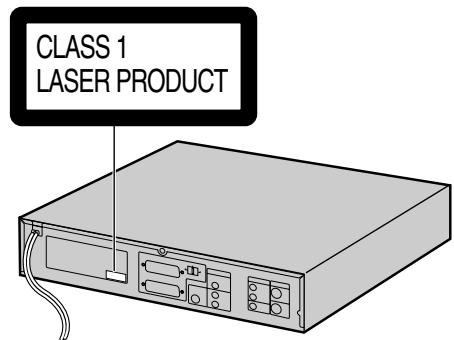
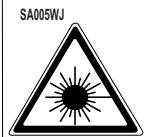
CAUTION-LASER RADIATION WHEN OPEN, DO NOT STARE INTO BEAM OR VIEW DIRECTLY WITH OPTICAL INSTRUMENTS.
CAUTION - LASER RADIATION. DO NOT STARE INTO THE BEAM OR VIEW IT DIRECTLY WITH OPTICAL INSTRUMENTS.
CAUTION - LASER RADIATION. IN CASE OF OPENING, DO NOT STARE INTO THE BEAM OR VIEW IT DIRECTLY WITH OPTICAL INSTRUMENTS.
WARNING: LASER RADIATION IN THIS PART OF THE REPORT. DO NOT STARE INTO THE BEAM AND DO NOT VIEW THE BEAM WITH OPTICAL INSTRUMENTS.
WARNING: DO NOT LOOK DIRECTLY INTO THE LASER BEAM WITH OPTICAL INSTRUMENTS.
WARNING: LASER RADIATION WHEN THIS APPENDIX IS OPEN. DO NOT STARE INTO THE BEAM AND DO NOT VIEW THE BEAM WITH OPTICAL INSTRUMENTS.
WARNINGS-LASER RADIATION. DO NOT STARE INTO THE BEAM OR VIEW DIRECTLY WITH OPTICAL INSTRUMENTS.
ADVASEL-LASER RADIATION. DO NOT LOOK INTO THE LASER BEAM. CLASS 3B LASER PRODUCT.
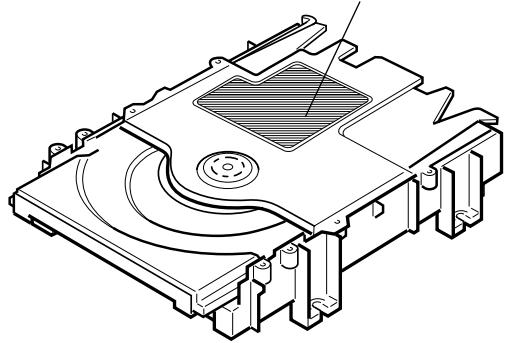
SAFETY INFORMATION
Location and Handling
- Do not place your Unit in enclosed spaces or do not cover it to prevent excessive temperatures inside the unit.
- Do not place the Unit in direct sunlight, or near heat sources.
- Keep the Unit away from strong magnetic fields, i.e. loudspeakers etc.
- Do not place any object containing water or other liquids on the Unit. In the event that liquid should enter the cabinet, unplug the Unit immediately and contact the retailer or service centre approved by SHARP immediately.
- Do not remove the Unit cabinet. Touching parts inside the cabinet could result in electric shock and/or damage to the Unit. For service and adjustment inside the cabinet, call a qualified dealer or service centre approved by SHARP.
Periods of no use
When the unit is not being used, switch the unit to the Standby mode.
When left unused for a long period of time, the unit should be unplugged from the household AC socket.
No Fingers or Other Objects Inside
Do not put any foreign object on the disc tray.
Stacking
Place the unit in a horizontal position, and do not place anything heavy on it.
Condensation
Moisture may form on the pickup lens in the following conditions:
- immediately after a heater has been turned on.
- in a steamy or very humid room.
- when the unit is suddenly moved from a cold environment to a warm one.
If moisture forms inside this unit, it may not operate properly.
In this case, turn on the power and wait about one hour for the moisture to evaporate.
Cleaning
Unplug your Unit before cleaning. Use a damp cloth for cleaning. Do not use cleaning fluids or aerosols which could enter the unit and cause damage, fire, or electrical shock. These substances may also deteriorate the finish of your Unit.
If there is Noise Interference on the TV While a Broadcast is being Received
Depending on the reception condition of the TV, interference may appear on the TV monitor while you watch a TV broadcast and the unit is left on. This is not a malfunction of the unit or the TV. To watch a TV broadcast, turn off the unit.
Service
Do not attempt to service this Unit yourself. Please refer any service to the nearest service centre approved by SHARP.
Copyright
Recording and playback of any material may require consent.
Please refer particularly to the provisions of the Copyright Act 1956, the Dramatic and Musical Performers Protection Act 1958, the Performers Protection Acts 1963 and 1972 and to any subsequent statutory enactments and orders.
- SHOWVIEW is registered trademarks of Gemstar Development Corporation.
- The SHOWVIEW system is manufactured under license from Gemstar Development Corporation.
Copy Protection
This Unit supports Macrovision copy protection. On DVDs that include a copy protection code, if the contents of the DVD are copied using a VCR, the copy protection code prevents the videotape copy from playing normally.
Apparatus Claims of U.S.Patent Nos. 4,631,603, 4,577,216, 4,819,098 and 4,907,093 licensed for limited viewing uses only.
This product incorporates copyright protection technology that is protected by method claims of certain U.S. patents and other intellectual property rights owned by Macrovision Corporation and other rights owners. Use of this copyright protection technology must be authorized by Macrovision Corporation, and is intended for home and other limited viewing uses only unless otherwise authorized by Macrovision Corporation. Reverse engineering or disassembly is prohibited.
Recommended Measures for Optimum Picture Excellence
The unit is a precision device that is constructed using extremely accurate technology. Soiling or friction affecting the pickup lens or disc drive can impair the image quality. In the worst case, neither video nor audio will be played back. To obtain optimum picture quality, the Unit should be checked (cleaning and replacement of some parts) every 1,000 hours. Note that this period varies depending on the environment (temperature, humidity, dust, etc.) in which the Unit is used. Contact your authorized Sharp supplier for details.
Do not attempt to clean the pickup lens yourself.
Contents

GENERAL INFORMATION
SAFETY INFORMATION 5
Contents 7
Types of Discs that Can Be Played on This Unit 9
Disc Handling and Maintenance 11
Features 12
Accessories 13
Major Components 14

CONNECTION AND INITIAL SETTINGS
Basic Connection 19
Connecting to ANTENNA IN/ANTENNA OUT...19
Connecting a TV with LINE 1 (TV) Output and LINE 2 Input SCARTS 20
Connecting a TV Equipped with VIDEO/AUDIO Input Jacks 21
DVD Audio Connections 22
Connecting a TV Equipped with S-VIDEO Input Jacks 22
Connecting to Audio Equipment 22
Playing 2 channel audio 22
Playing Dolby Digital (5.1 channel), DTS or MPEG audio 23
Preparations Before Using The Product ... 24

VCR SETUP
VCR Auto Installation 26
VCR Setup 28
Menu Screen 28
Mode Selection 29
Manually Tuning Channel Setting 30
Channel Sort 32
Deleting Channels 33
Re-naming Channels 34
Clock Setting 35
Manual Clock Setting 35
Changing the on-screen display language 36
Decoder Switching Operation 37
Selecting the Output from the VCR 37
VCR Display Information 38
VCR Reset 38

DVD SETUP
DVD Setup 40
About the SET UP Screen 40
TV MODE Setting 41
PARENTAL LEVEL Setting 43
AUDIO Setting 45
Setting the COMPRESSION (Dolby Digital output level) 45
Setting the DOLBY DIGITAL 46
Setting the MPEG 47
Setting the CINEMA VOICE 48
DISC LANGUAGE Setting 49
Setting SUBTITLE, AUDIO and MENU languages 49
Selecting languages from OTHER 50
DVD Display Information 51
Operation Mode Indicators 51
Language Code List for Disc Language ... 51

WATCHING THE VCR
Playback 54
Playback 54
Picture Disturbance During Playback 54
Pausing and Slow Motion 55
Fast Forwarding/Rewinding a Video Tape 55
Forward/Reverse Visual Search 55
Automatic Head Cleaning System 55
Playing Back an S-VHS Cassette 56
Playing Back an NTSC Cassette 56
Blue Mute 57
Colour 57
16:9 Playback and Recording 58
Audio Output Mode 59
Hi-Fi Stereo Sound 59
NICAM/IGR Hi-Fi Stereo Sound 59
Sharp Super Picture 60
Auto Repeat/Auto Zero Back 61
Auto Repeat 61
Auto Zero Back 61
DPSS (Digital Program Search System) / Skip Search 62
DPSS 62
Skip Search 62
Contents
TV Program Recording 63
Selection of a Channel 63
Tape Speed Selection 63
Immediate Recording 63
Simple Timed Recording 63
Timer Recording 64
How to Use the SHOWVIEW® system to Make a Recording. 64
How to Set a Delayed Recording 66
Setting a Recording 66
How to Check, Change, and Cancel a Delayed Recording 68
Checking a Recording 68
Changing a Recording 69
Cancelling a Recording 69
Recording from Other Equipment 70
Tape Remaining 71
Recording a DVD Disc onto a Video Cassette 72
Recording a DVD disc onto a video cassette (Tape Editing mode) 72

WATCHING THE DVD
Preparing to Use the DVD 74
When connecting a TV with the DVD output jacks 74
When connecting a TV with the DVD/VCR shared output jacks 74
Playback 75
Basic Play 75
Fast Forward/Fast Reverse 76
Slow-Motion Play 76
Still/Pause 77
Frame Advance 77
Skip (Forward/Reverse) 77
Angle Selection 78
Playing MP3 Discs 79
Regarding MP3 discs 79
Playing MP3 discs 79
To play MP3 discs 80
To play another file (music title) while playing 80
To skip the file while playing 80
About the Function Control Screen 81
Direct skip (title/chapter/time) 82
Sub Title language setting 83
Angle setting 84
Audio setting 85
Advanced Surround setting 86
Digital Gamma setting 87
Direct Selection of Scenes 88
Selecting Scenes by Title Number 88
Selecting Scenes from the Menu Screen 88
Programmed Playback 89
Chapter Programmed Playback 89
Track Programmed Playback 90
MP3 Files Programmed Playback 91
Repeat Playback 93
Repeat playback 92
A-B Repeat 93
Resume Function 94

OTHER INFORMATION
Troubleshooting 96
Definition of Terms 98
Specifications 101

Types of Discs that Can Be Played on This Unit
This Unit can play back discs bearing any of the following marks:
| DVD VIDEO DVD R 4.7 DVD RW | DVD DVD-R / DVD-RW [8cm(3") disc/12cm(5") disc] | See NOTE 1 See NOTE 2 on the next page |
| COMPACT DISC DIGITAL AUDIO | Audio CDs [8cm(3") disc/12cm(5") disc] | See NOTE 3 on the next page |
| CD-R/CD-RW [8cm(3") disc/12cm(5") disc] | Discs recorded in MP3 file format or Audio format. | |
| Other CDs 1) On CD-G and CD-EXTRA discs, only the sound can be played (no images). 2) Video CD, Photo CD, DVD-ROM, DVD-RW (Video recording format), DVD-Audio, SACD and CD-ROM discs cannot be used. 3) Discs with unusual shapes (heart-shaped or hexagonal discs) cannot be used. The use of such discs will cause a fault. · This Unit will reject an incompatible disc, therefore the disc type should be checked. | ||
This unit will output NTSC signals when playing "NTSC discs".
NTSC signals cannot be converted to modified PAL signals.
An NTSC TV or NTSC-compatible Multi-system TV must be used when playing NTSC discs.
NOTE 1
DVD video players and discs are designed with region numbers which dictate the regions in which a disc can be played. If the region number on the disc you want to play does not match the region number in this Unit, you will not be able to play the disc. DVD-R/DVD-RW discs recorded in video mode can only be played back. - Non-finalised DVD-RW discs cannot be played back.
The region number for this Unit is 2.
Samples of region number marks compatible with this Player:


Disc playable in all regions

As for the list of the region number 2 countries and the world map for all region numbers, refer to pages 99 and 100.
Disc Function or Operation that is Not Available
In the cases listed below, the indicator may appear on the TV screen, which indicates that the function or operation is not available.
- When you intend to perform the function or operation on which the manufacturer restriction is imposed: The specific functions on some DVDs are determined by the disc manufacturer. As this Unit plays disc data in accordance with the guidelines of the disc manufacturer, some functions may not be available on some discs. Be sure to read the documentation provided with the disc.
- When you intend to perform the functions or operations prohibited for the current disc: The types of functions and operations that can be used for a particular disc vary depending on the features of that disc. Some disc functions and operations may differ from the descriptions given in this Operation Manual. In this event, follow the instructions given on the screen.
Icons Used on DVDs
Sample Icons

NOTE 2
- This Unit supports 2-channel (L/R) audio and 5.1ch (Multi-channel) MPEG Audio 1/2 (only when the DIGITAL OUT coaxial jack is used for connection). It does not support 7.1 channel MPEG Audio Version 2.0.
NOTE 3
- When playing back a CD-G (Graphics) or CD EXTRA disc, the audio portion will be played, but the graphic images will not be shown.
Title, Chapter and Tracks
- DVDs are divided into "titles" and "chapters". If the disc has more than one movie on it, each movie would be a separate "title". "Chapters", on the other hand, are sections of titles.
Example: DVD
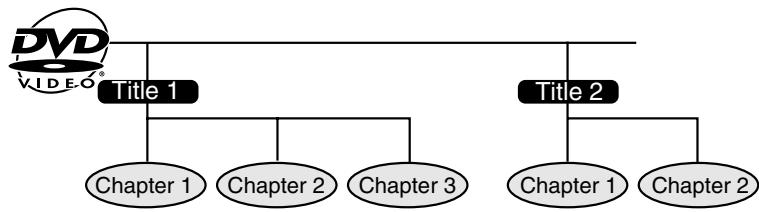
- Audio CDs are divided into "tracks". You can think of a "track" as one tune on an Audio CD.
Example: Audio CD

NOTE
- Numbers identify each title, chapter, and track on a disc. Most discs have these numbers recorded on them, but some do not.
Handling Precautions
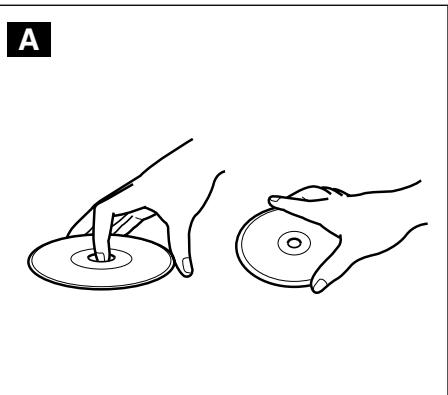
- Hold the disc by the edges so the surface will not be soiled with fingerprints. (A) Fingerprints, dirt and scratches can cause skipping and distortion.
- Do not write on the label side with a ball-point pen or other writing utensils.
- Do not use record cleaning sprays, benzine, thinner, static electricity prevention liquids or any other solvent.
- Be careful not to drop or bend the disc.
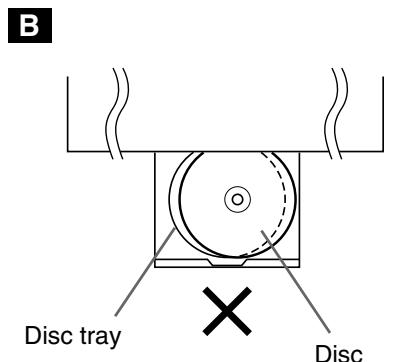
- Do not install more than 1 disc on the disc tray.
- Do not try to close the disc tray when the disc is not installed properly. (B)
- Be sure to store the disc in its exclusive case when not in use. Then store upright.
- Do not stick paper or adhesive labels to the disc.
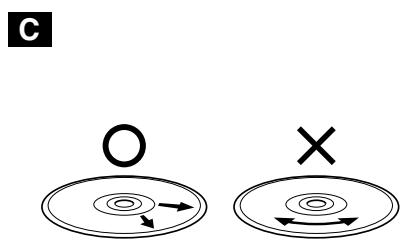
If the Surface is Soiled (C)
Wipe gently with a soft, damp (water only) cloth.
When wiping discs, always move the cloth from the center hole toward the outer edge.
(If you wipe the discs using a circular motion, circular scratches are likely to occur, which will cause noise.)
If the playing surface of a disc is soiled or scratched, the Unit may decide that the disc is incompatible and eject the disc tray, or it may fail to play the disc correctly. Wipe any soiling off the playing surface with a soft cloth.
If the Disc is Brought from a Cold to a Warm Environment, Dew May Form on the Disc
Wipe the dew off with a soft, dry, lint-free cloth before using the disc.
Improper Disc Storage
You can damage discs if you store them in the following places:
- Areas exposed to direct sunlight
- Humid or dusty areas
- Areas directly exposed to a heat outlet or heating appliance
Maintenance
- Be sure to turn the Unit off and disconnect the AC power cord before maintaining the Unit.
- Wipe this Unit with a dry soft cloth. If the surfaces are extremely dirty, wipe clean with a cloth which has been dipped in a weak soap-and-water solution and wrung out thoroughly and then wipe again with a dry cloth.
- Never use alcohol, benzine, thinner, cleaning fluid or other chemicals. And do not use compressed air to remove dust.

Features
Common Features
- A DVD, AUDIO CD player and VCR all in one.
- Simultaneous VCR recording and DVD playback.
VCR
Hi-Fi Stereo Sound/Double-Azimuth 4-Heads - 1 minute Rewind (E-180) S-VHS Simple Playback HQ (High Quality) Circuitry - Simple Recording Timer Sharp Super Picture
DVD
- Plays DVD and Audio CD discs as well as CD-R/CD-RW discs recorded in MP3 file format
- Advanced Surround provides high-quality surround sound
- Digital Gamma correction and Digital Super Picture functions
- Dolby Digital*, DTS*, MPEG Audio digital out capability High-quality digital images High-quality digital sound
1 Manufactured under license from Dolby Laboratories. "Dolby", "Pro Logic" and the double-D symbol are trademarks of Dolby Laboratories. 2 "DTS" and "DTS Digital Surround" are trademarks of Digital Theater Systems, Inc.
Disc Features and this Operation Manual
- The types of functions and operations that can be used for a particular disc vary depending on the features of that disc. In some cases, these functions and operations may differ from the descriptions given in this Operation Manual. In this event, follow the instructions given on the screen. This Operation Manual only covers basic disc operations.
- For some operations, the or indicator may appear on the TV screen. This indicates that the operation described in this Operation Manual is not permitted for the current disc.
CHECK THAT ALL THESE ACCESSORIES ARE SUPPLIED WITH YOUR VCR.
CONTACT YOUR DEALER IF ANY ARE MISSING.
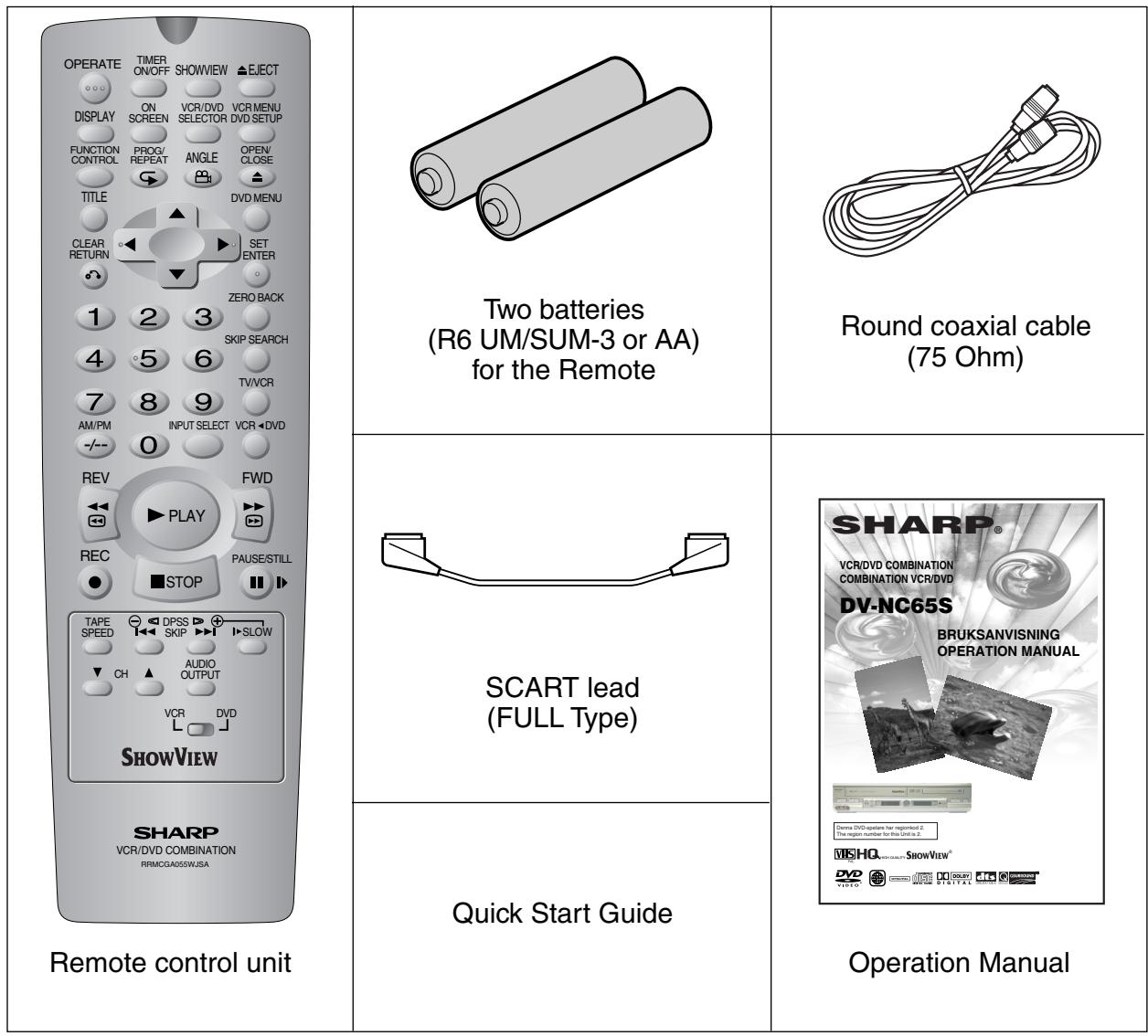
Remote Control
- The remote control must be pointed towards the unit to operate.
- Do not expose to liquid or shock.
- May not function if the Unit is in direct sunlight or any other strong light.
- Replace both alkaline batteries (type AA/R6/UM3) if the remote control fails.
- Remove the batteries and keep in a safe place if you do not plan to use the Unit for several months.
- Remove and dispose of flat batteries safely and promptly.
- Incorrect use of batteries may cause them to leak or burst.

Major Components
VCR Main Unit (Front)
Numbers in refer to the main pages in this Operation Manual where the topic is explained.
GB-14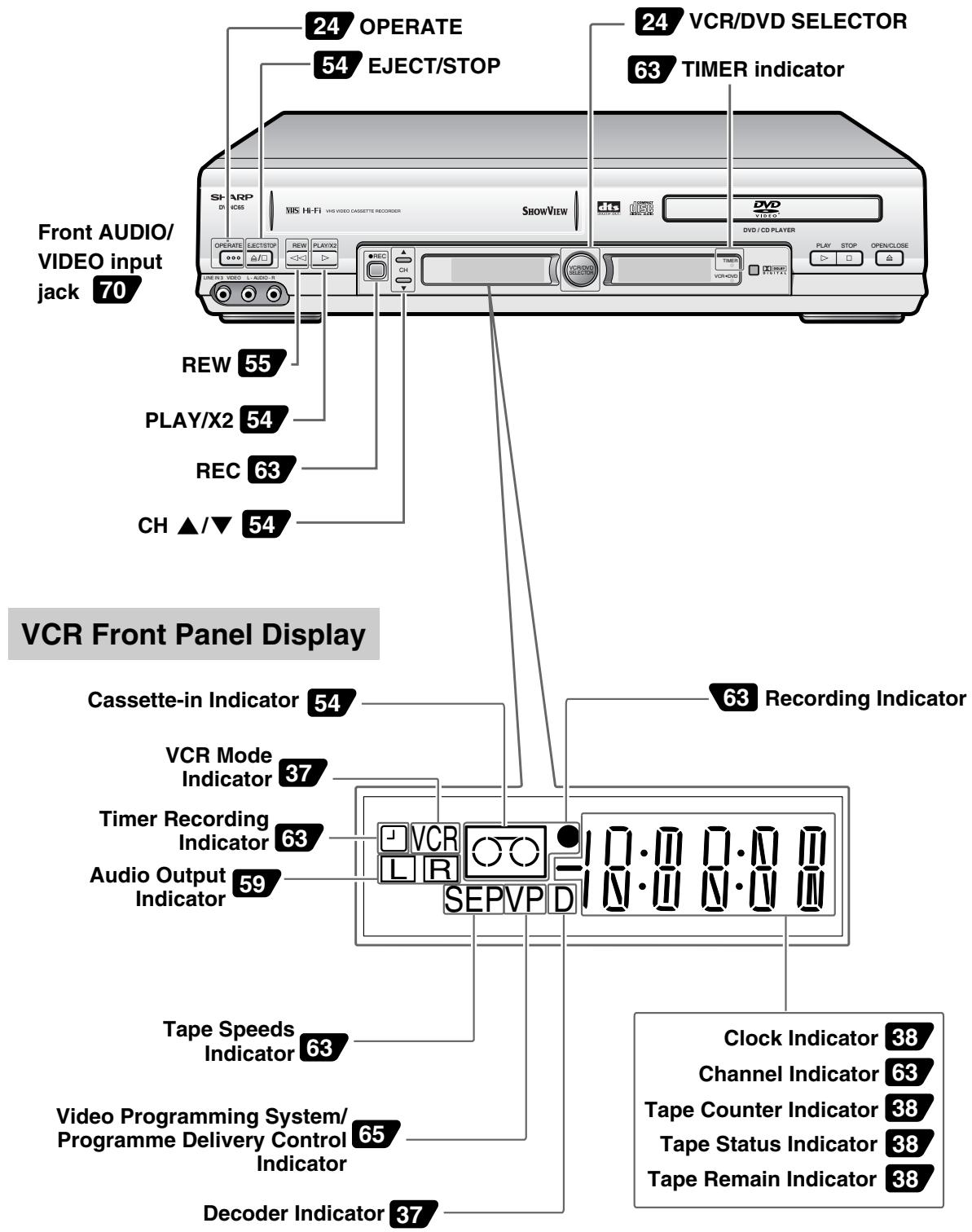
DVD Main Unit (Front)
Numbers in refer to the main pages in this Operation Manual where the topic is explained.
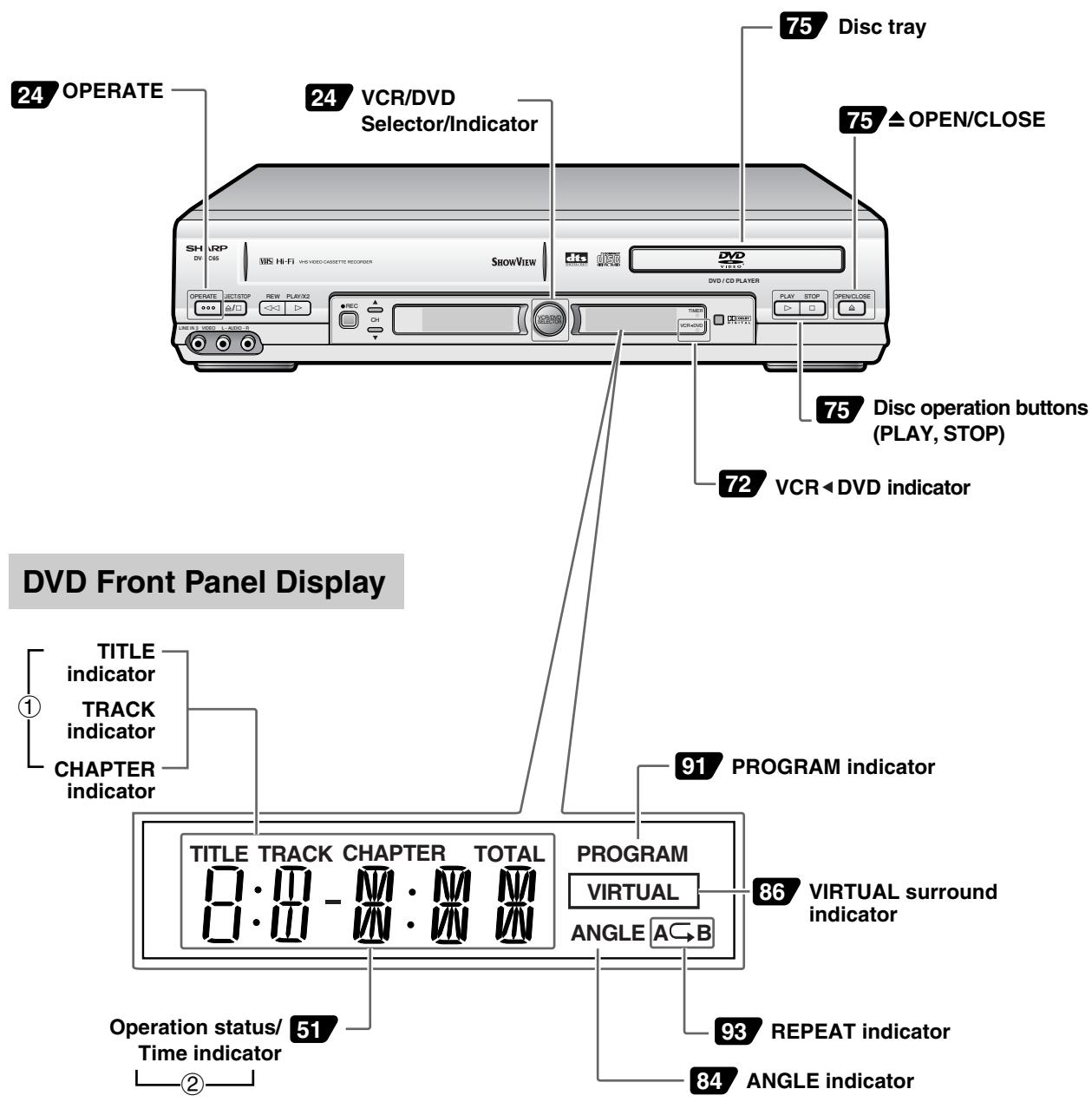
You can toggle between ① and ② by pressing the remote control unit's DISPLAY button (page 51).
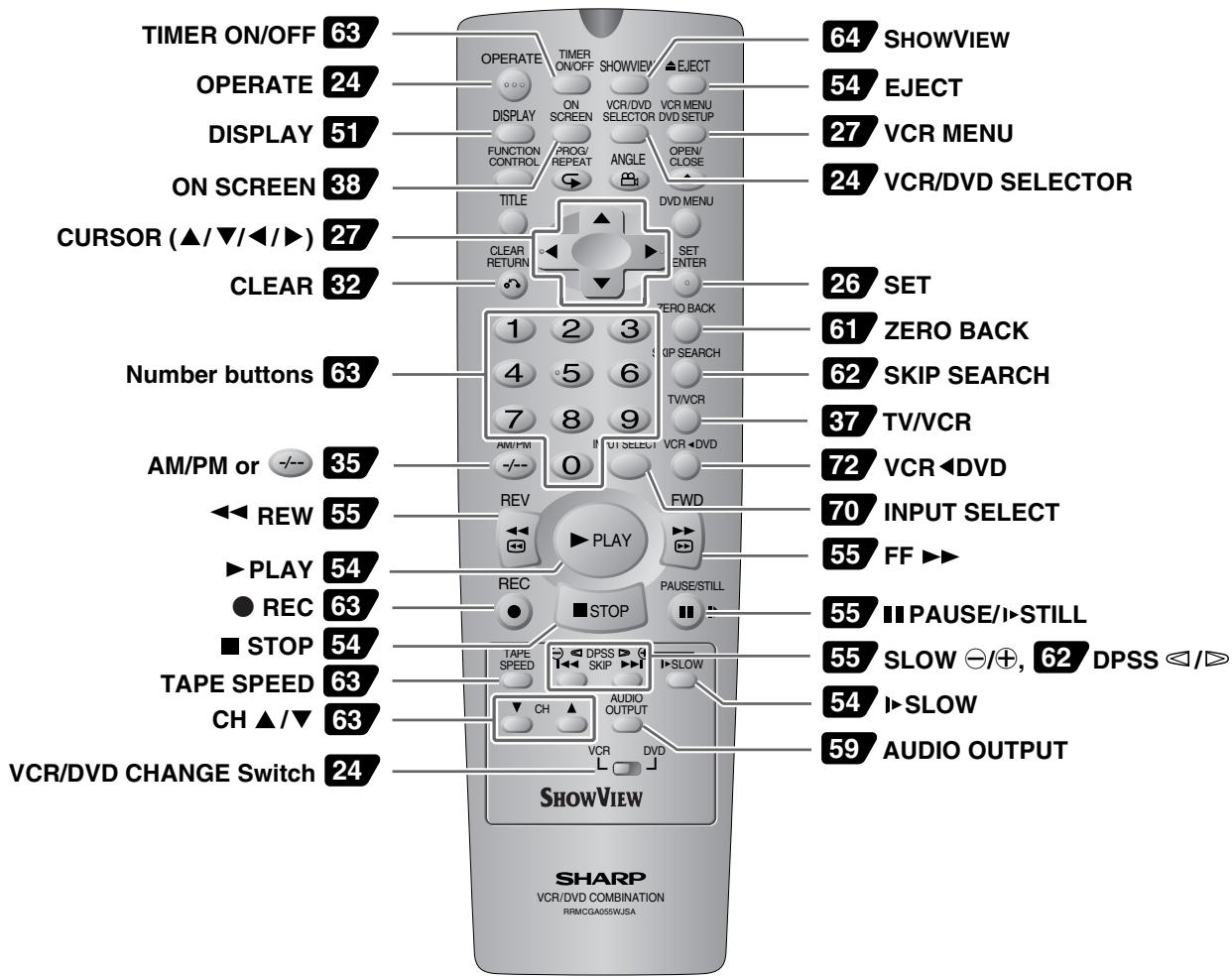
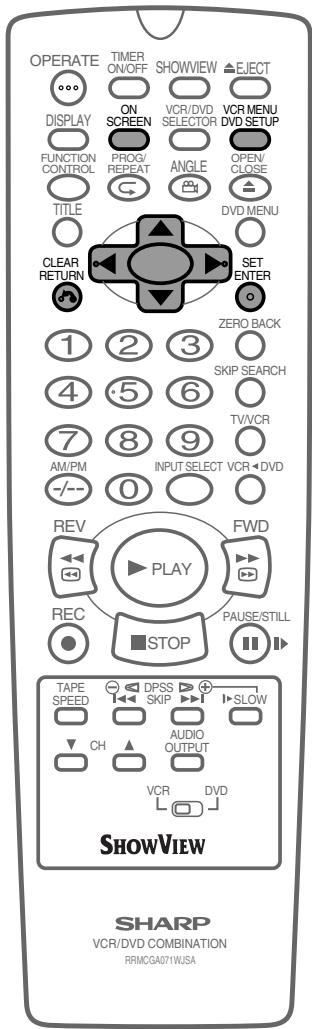
Remote (VCR Operation Buttons)
- The explanations on this page use the VCR/DVD CHANGE Switch in the VCR position.
Numbers in refer to the main pages in this Operation Manual where the topic is explained.
Loading the Batteries
1. Open the battery cover by pulling the lid in the direction of the arrow.
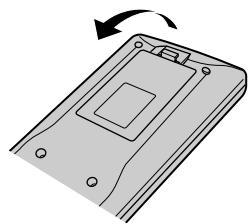
2. Load the batteries. Insert the two batteries (R6 UM/SUM-3 or AA) supplied with the remote control, ensuring that the battery poles \(\ominus\) and \(\oplus\) are positioned as indicated.
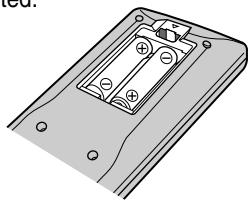
3. Close the battery cover by lowering the lid in the direction of the arrow.
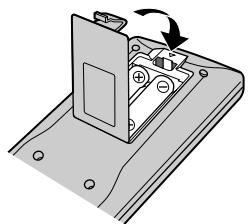
Remote (DVD Operation Buttons)
- The explanations on this page use the VCR/DVD CHANGE switch in the DVD position.
Numbers in [ ] refer to the main pages in this Operation Manual where the topic is explained.
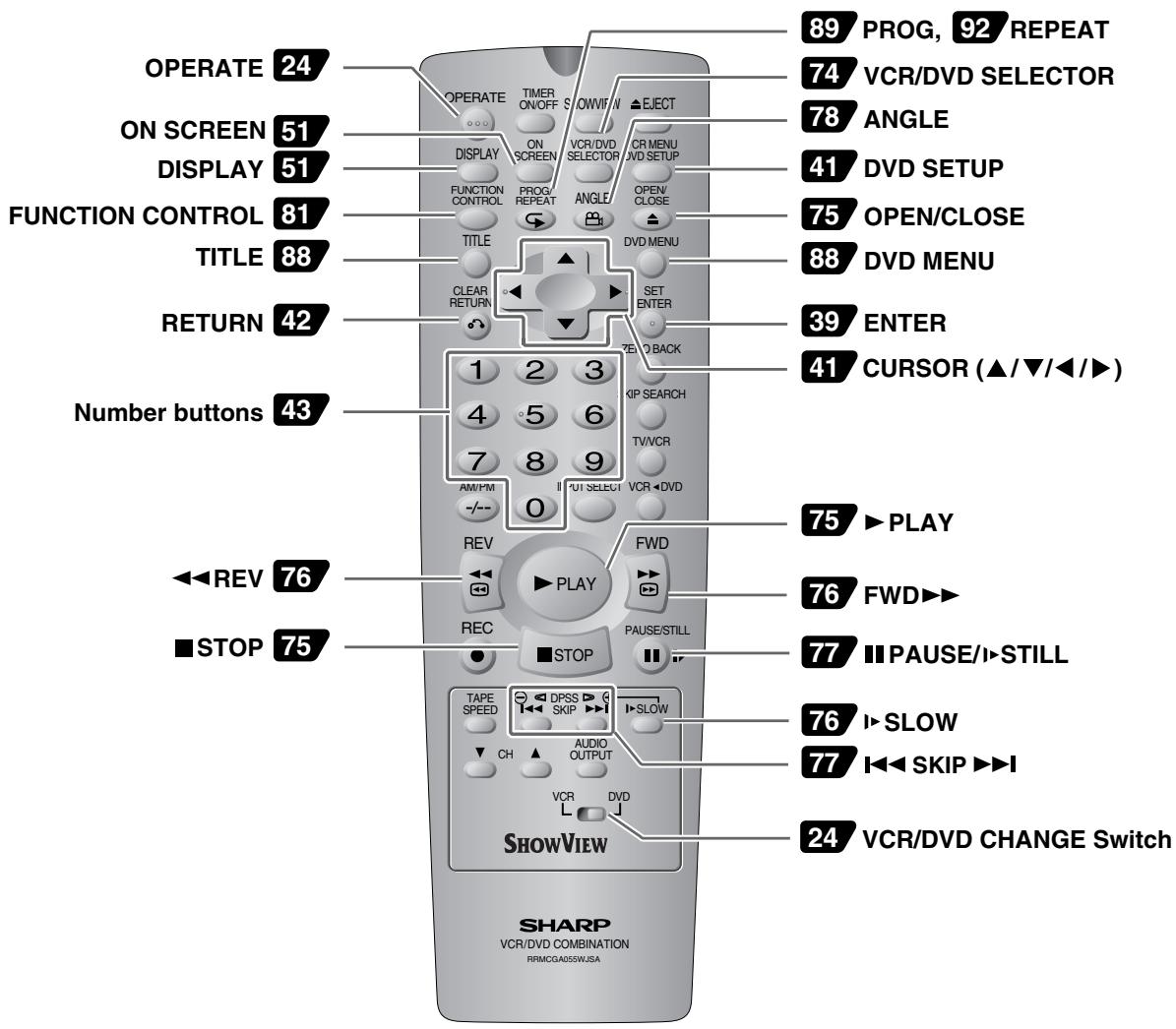
NOTE
- Do not subject the remote control to shock, water, or excessive humidity.
- The remote control may not function if the unit's sensor is in direct sunlight or any other strong light.
- Incorrect use of batteries may cause them to leak or burst. Read the battery warnings and use the batteries properly.
- Do not mix old and new batteries, or mix brands in use.
- Remove the batteries if you do not use the remote control for an extended period of time.
Main Unit (Rear)


Basic Connection
Caution:
- Be sure to turn off the Unit and equipment to be connected before connecting.
- Read through the operation manual for the equipment to be connected.
- Be sure that the colours of the jacks and plugs match up when using a VIDEO/AUDIO lead (commercially available).
- Be sure to keep the Unit connection leads separate from the TV aerial lead when you install the Unit, because it may cause electrical interference when you are watching television programmes.
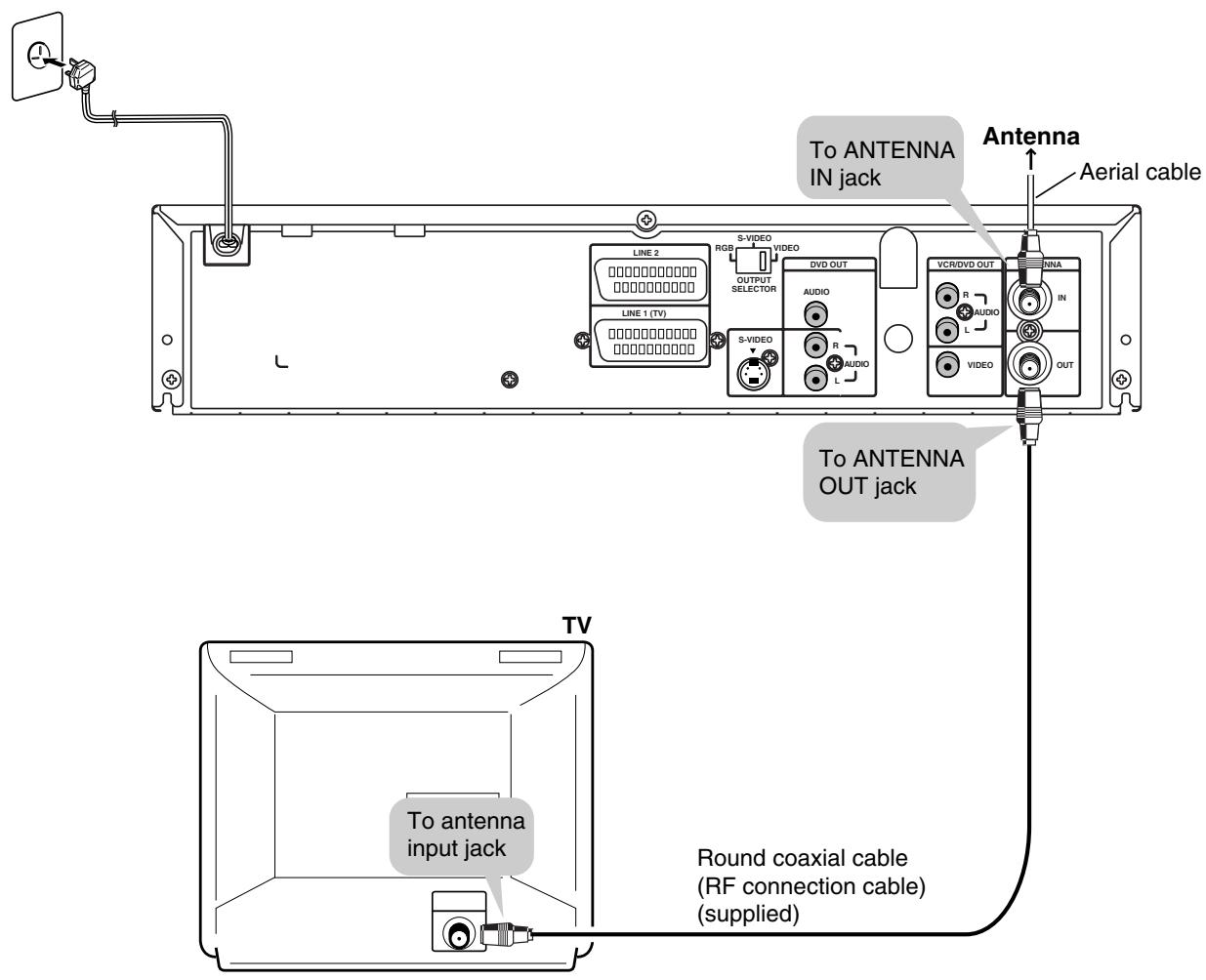
Connecting to ANTENNA IN/ANTENNA OUT
The connection method differs depending on the type of TV.
The signal from ANTENNA OUT will only be the Television Signal. A scart lead MUST be used to view the units' playback signal.
Connecting a TV with LINE 1 (TV) Output and LINE 2 Input SCARTS

Use the SCART leads (one SCART lead: supplied) to connect the Unit to your TV and VCR or DEORDER.
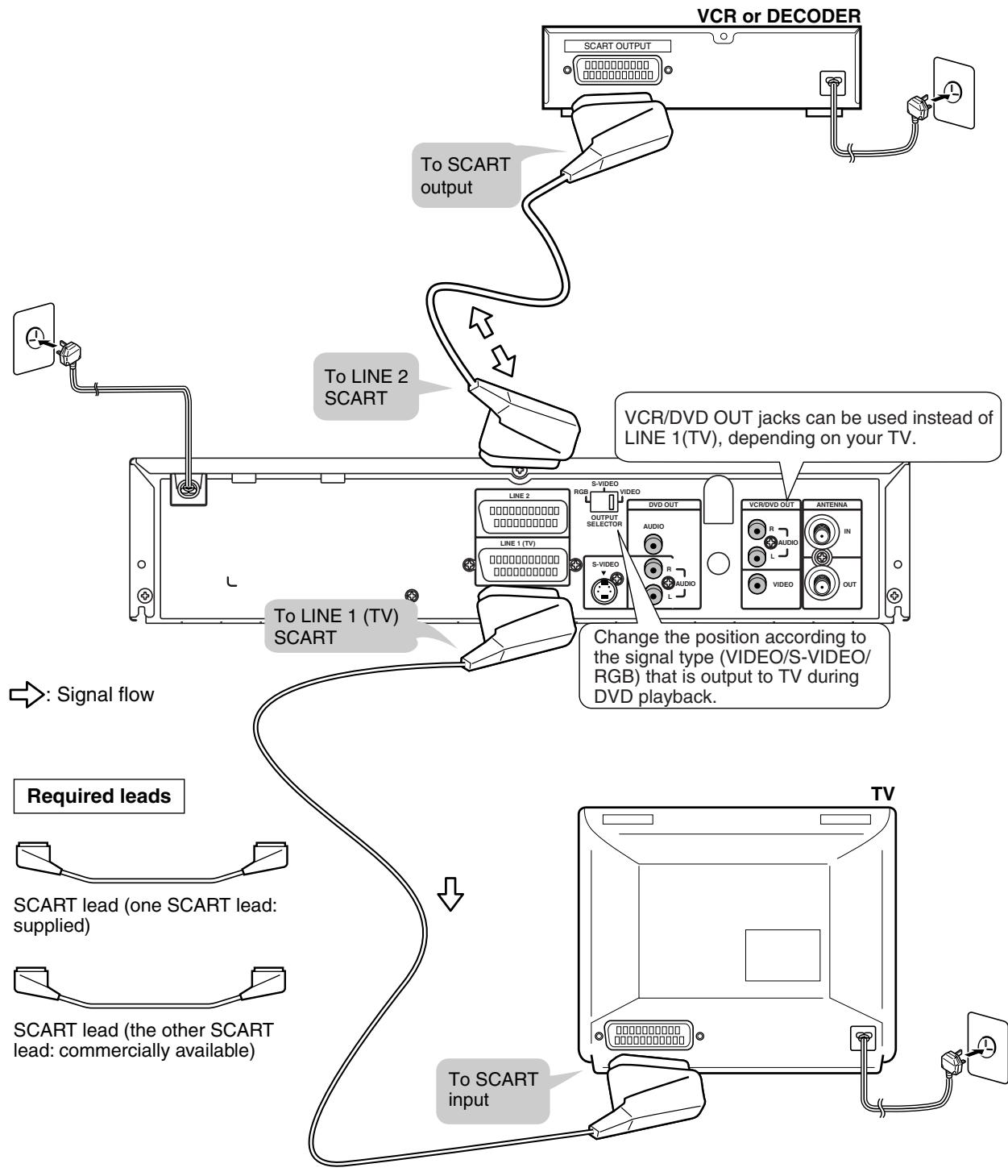

The factory default setting for the OUTPUT SELECTOR is "VIDEO". If your TV supports the higher quality modes S-VIDEO or RGB via the SCART, then please set the selector for your preference.
Connecting a TV Equipped with VIDEO/AUDIO Input Jacks
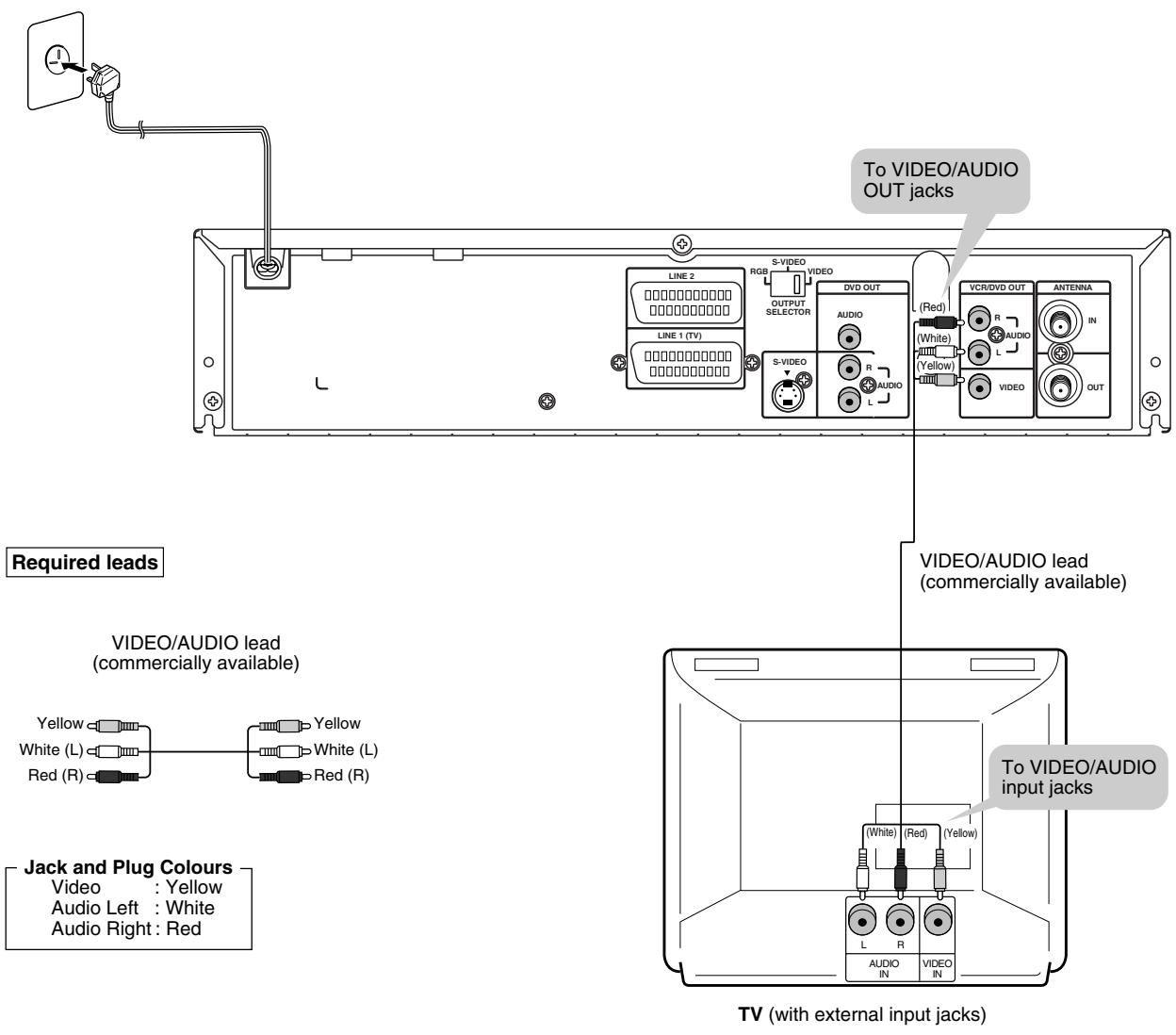

- You will not be able to hear all of the sound being output by the Unit if you use the VIDEO/AUDIO lead shown above to a monaural TV that has only one AUDIO input jack.
NOTE
- Be sure that the colours of the jacks and plugs match up when connecting the lead.
- Connect the Unit directly to the TV. If you attempt to view video on a TV connected via a VCR, the copy protection function will scramble the picture.
- If you want to listen to the audio through audio equipment, connect only the VIDEO lead to the TV.

DVD Audio Connections
Connecting a TV Equipped with S-VIDEO Input Jacks
When you want to achieve a better video image by connecting a TV equipped with an S-VIDEO input connector to the Unit, you should use an S-VIDEO lead (commercially available) to connect the TV to the Unit.

Please note, if the Output Selector Switch is set to RGB, no signal will be output from the S-VIDEO socket.
Connecting to Audio Equipment
Connecting the Unit to audio equipment provides normal stereo sound plus powerful stereo sound enhanced by Dolby Digital (5.1 channel), DTS, and MPEG Audio.
Playing 2 channel audio
Analogue Connection TV (with external input jacks)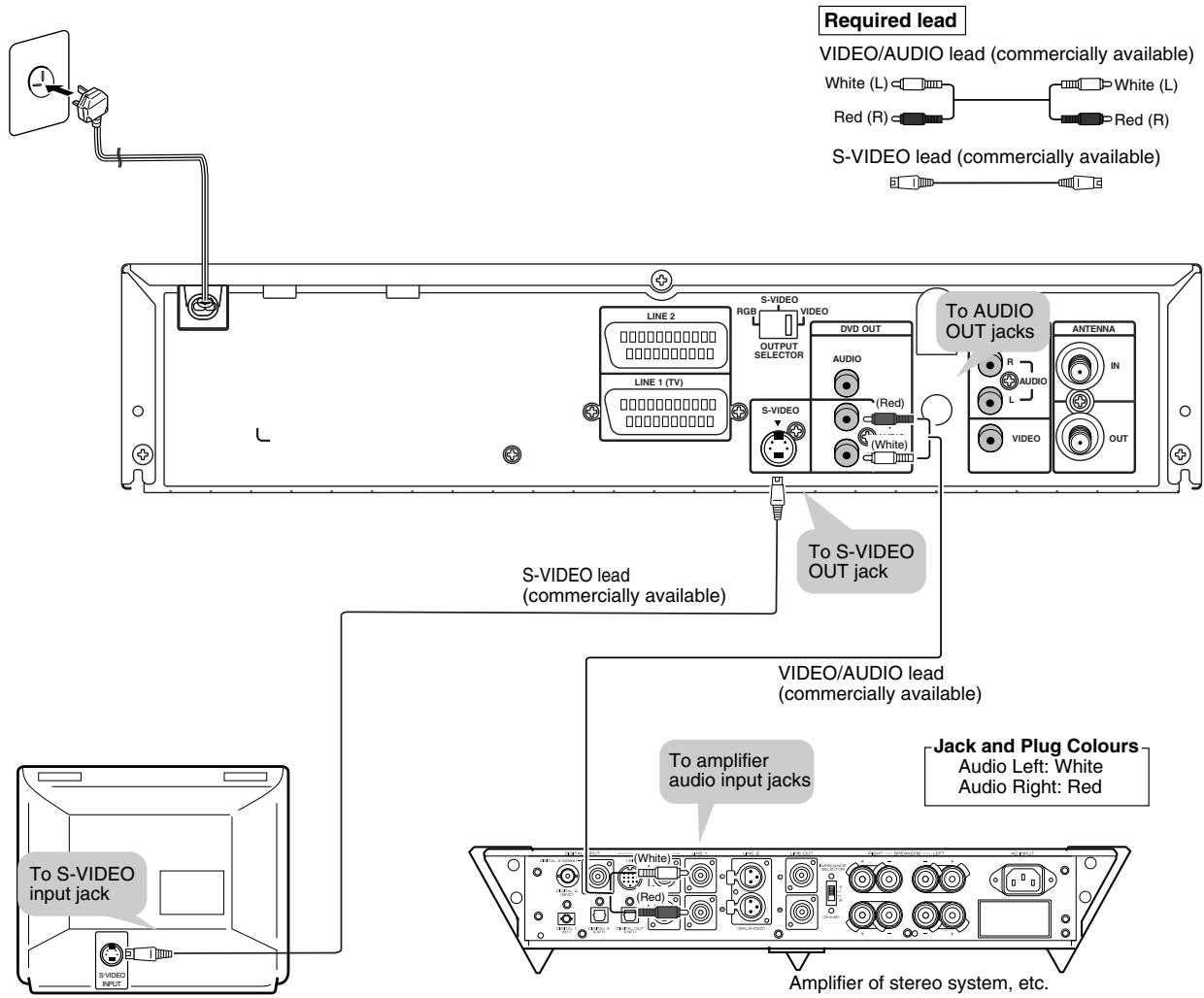

If the Unit is set to OPERATE ON, the DVD signals will be output from the DVD OUT jacks at all times. (The DVD signals will be output from the DVD OUT jacks also when using the VCR.)
Playing Dolby Digital (5.1 channel), DTS or MPEG audio
Connecting an amplifier with a Dolby Digital/DTS/MPEG Audio digital surround processor or a Dolby Digital/ DTS/MPEG Audio surround processor to your Unit's coaxial digital jack provides richer and more powerful audio play.
Connection to a processor or amplifier with a coaxial digital input jack.
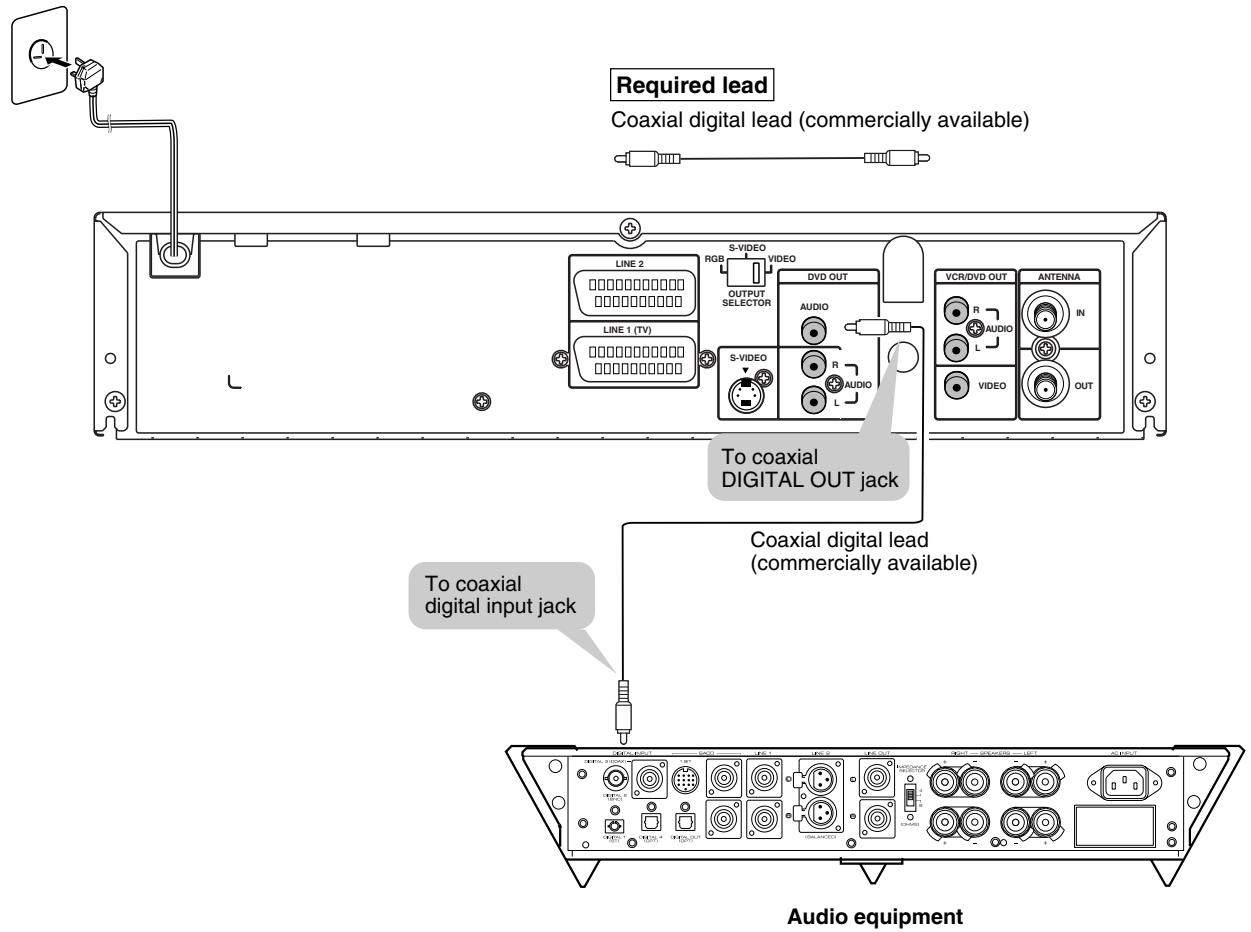
Digital Connection to an MD to Record a CD
Some Audio CDs have a short silent section between musical tracks. When sound from discs such as these is digitally recorded by connecting the Unit directly to a digital recorder (such as an MD player), the music may be recorded continuously and track numbers may be lost.
Digital Connection to Audio Equipment or MD Player without a Dolby Digital Decoder
Audio CD
Play the disc as you normally would, with the audio mode set to "L+R" (see page 85). With a digital connection, audio of a disc recorded with DTS sounds abnormal in this case.
DVD
With a digital connection, audio cannot be produced from a DVD recorded with Dolby Digital (5.1 channel), Dolby Surround (Pro Logic), DTS or MPEG Audio, so you should use an analogue connection to play such discs. Discs with linear PCM audio should play normally.
NOTE
- This connection is not possible if the processor or amplifier to which you want to connect does not have a coaxial digital input jack.

Preparations Before Using the Product
Preparing to Watch a VCR or a DVD
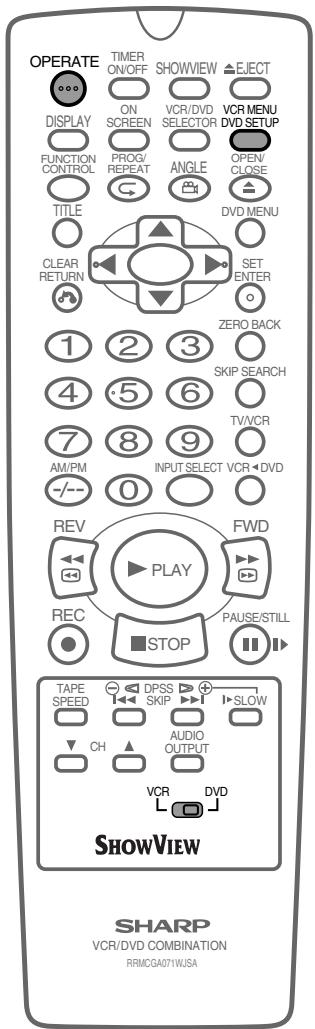
1 Turn on the TV and switch the TV channel to the external "VIDEO" or "AV" channel connected to the DVD/VCR shared output jacks. 2 Press OPERATE.
- The product is turned on.
3 Press VCR/DVD SELECTOR on the remote control to switch to the "VCR" mode or "DVD" mode. - The VCR/DVD SELECTOR on the product lights up in orange for "VCR" or green for "DVD".
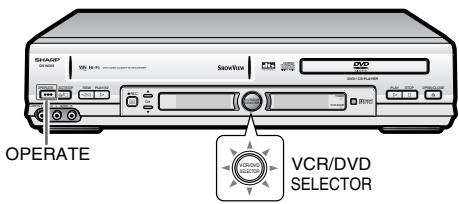
Each time VCR/DVD SELECTOR is pressed, the mode changes between "VCR" mode and "DVD" mode. - The mode can be switched by pressing the VCR/DVD SELECTOR on the product.
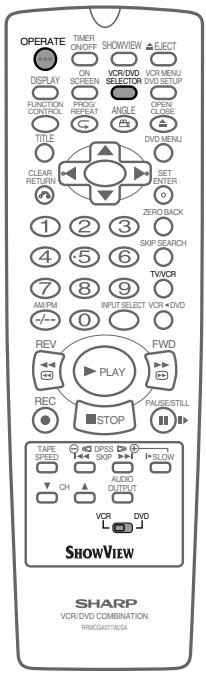
4 Move the VCR/DVD change switch on the remote control to either "VCR" or "DVD".
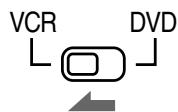
The VCR functions on the remote will now take priority.
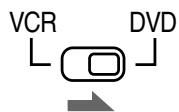
The DVD functions on the remote will now take priority.
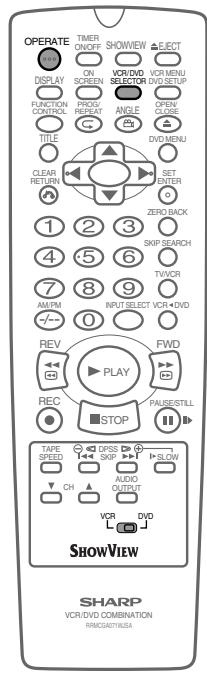
VCR Setup
VCR Auto Installation 26
VCR Setup 28
Menu Screen 28
Mode Selection 29
Manually Tuning Channel Setting 30
Channel Sort 32
33
Re-naming Channels 34
Clock Setting 35
ManualClock Setting 35
Changing the on-screen display language 36
Decoder Switching Operation 37
Selecting the Output from the VCR 37
VCR Display Information 38
VCR Reset 38

VCR Auto Installation
This Unit automatically tunes the TV channels for your area, then using Teletext information sorts the TV channels into a standard order and sets the clock. If the Unit has not previously been tuned-in, instructions will be given on screen to guide you through this procedure.
1 Press OPERATE. 2 The screen below should now be displayed on your TV screen.
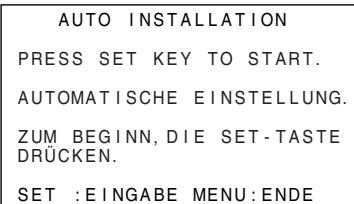
NOTE
- If the AUTO INSTALLATION screen does not appear when you switch on your VCR or you wish to reset your Unit and start the installation again, refer to VCR RESET on page 38.
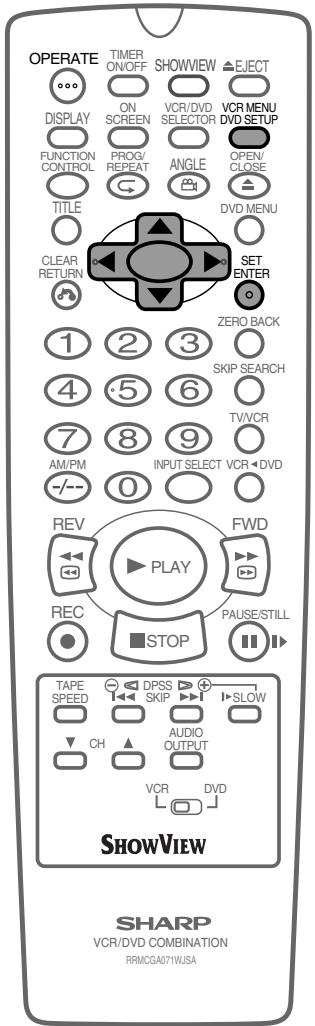
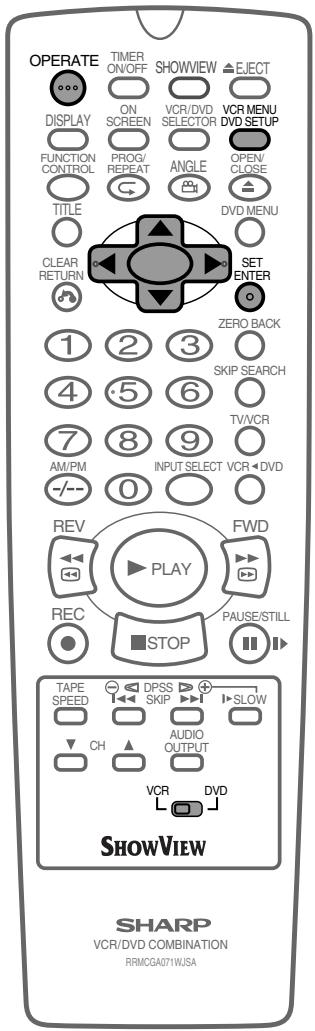
3 Press SET to continue with the installation. 4 Press ▲/▼/◀/▶ to select your language. Then press SET to confirm.
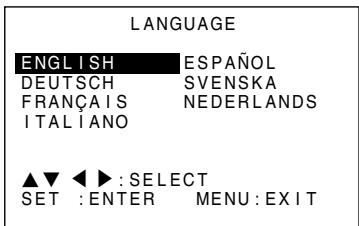
5 Press ▲/▼/◀/▶ to select your country. Then press SET to confirm.
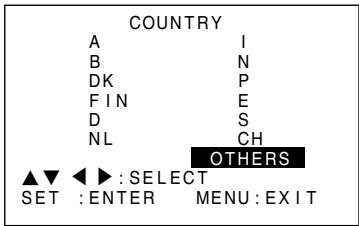
6 Ensure your Aerial/Scart cables are connected to your Unit and then press SET to confirm.
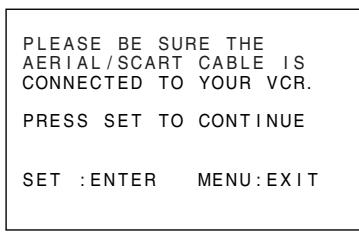
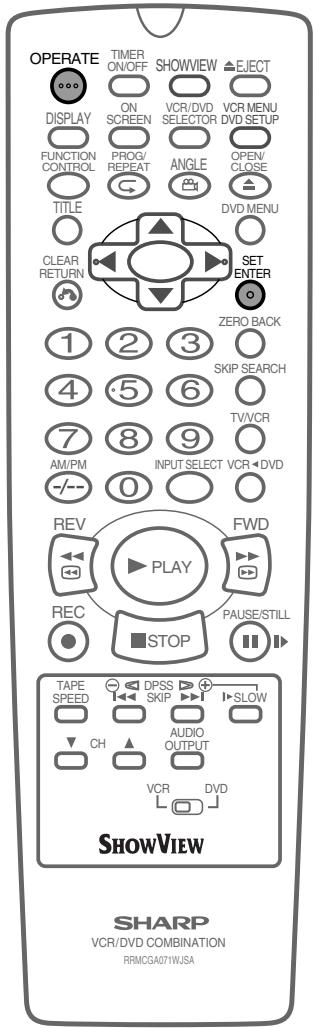
GB-26
7 All available terrestrial channels will be automatically installed. (Auto install may take a few minutes.)
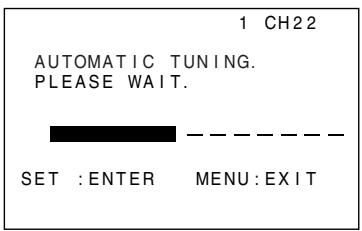
8 Once Auto Installation is complete, the MOVE menu screen will appear showing all the channels the Unit was able to tune in. 9 If you wish to move any channels, press ▲/▼/◀ to highlight the channel to be moved. Then press SET to confirm.
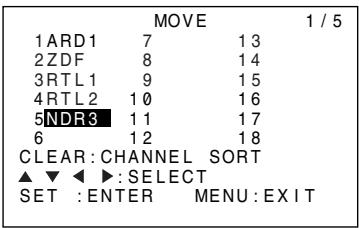
10 Press ▲/▼/◀ to highlight the new position for the channel. Then press SET to confirm.
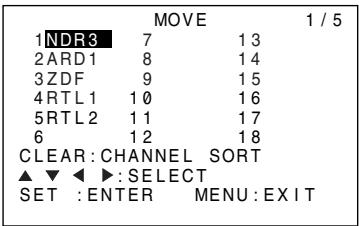
11 If any more channels are to be moved, repeat this procedure from step 7. 12 Press VCR MENU to exit if you are satisfied with the channel order.
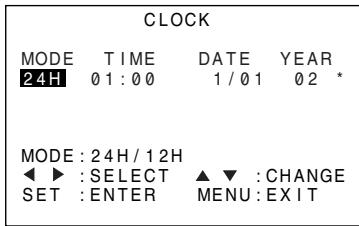
- The correct time and date should now be displayed on your TV screen for approximately 2 seconds. If the clock is not automatically set, the “CLOCK” screen will appear. Refer to Manual Clock Setting on page 35.

VCR Setup
Menu Screen
The MENU screen is a home screen used to select various screen functions. A sub-menu will appear once you select an item from the menu. See the following pages for details on each menu procedure.
Menu Screen
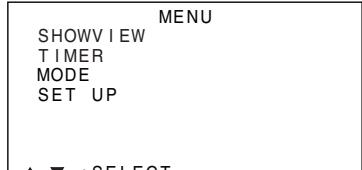
SET:ENTER MENU:EXIT
MENU item list
Main Menu
64
SHOWVIEW
66
TIMER
29
MODE
NICAM [AUTO/OFF]
COLOUR [AUTO/PAL/MESECAM]
BLUE MUTE [AUTO/OFF]
REPEAT [ON/OFF]
16:9 [AUTO/OFF]
SUPER.P [ON/OFF]
26
SETUP
CHANNEL PRESET
PRESET
CHANNEL
FINE TUNING
DECODER
SKIP
CHANNEL SORT
MOVE
CANCEL
NAME
CLOCK
LANGUAGE
ENGLISH
DEUTSCH
FRANÇAIS
ITALIANO
ESPANOL
SVENSKA
NEDERLANDS
- Numbers in refer to the pages where the setting procedures are described.
GB-28
Mode Selection
You can use the Mode selection screen to select the mode for basic features.
Preparation
- Press OPERATE. Then move the VCR/DVD CHANGE Switch to VCR.
1 Press VCR MENU to display the menu screen. 2 Select "MODE" with ▲/▼ and then press SET.
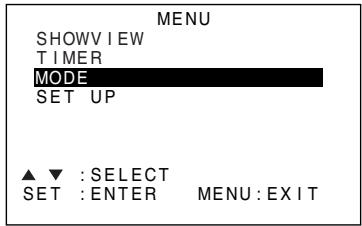
3 Example: When you change the NICAM settings. Set "NICAM" mode to "AUTO" or "OFF" with ◀/▶. Then press ▼. (See NICAM Hi-Fi STEREO SOUND on page 59.)
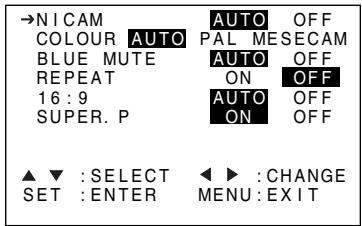
4 Set "COLOUR" mode to "AUTO", "PAL" or "MESECAM" with ◀/▶. Then press ▼.
(See COLOUR on page 57.)
- You can change the BLUE MUTE, 16:9, SUPER.P and REPEAT settings the same way (See on pages 57, 58, 60 and 61).
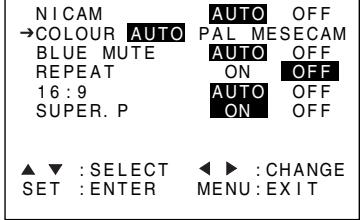
5 Press SET to enter.
- The screen returns to MENU screen, and press MENU to return to normal.
NOTE
- If you press VCR MENU to exit the mode selection screen in Step 5, the data will not be stored. Be sure to press SET to store the data.
Manually Tuning Channel Setting
It should not be necessary to tune in a broadcast channel manually except in unusual circumstances such as poor signal.
To manually tune in a channel, follow the procedure below.
Preparation
- Press OPERATE. Then move the VCR/DVD CHANGE Switch to VCR.
- Ensure the Video channel is selected on the TV.
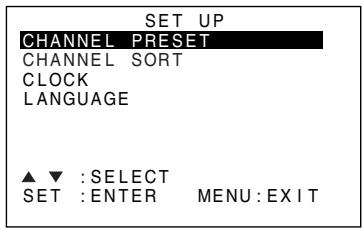
1 Press VCR MENU. Press ▲/▼ to select SET UP. Press SET to confirm. 2 "CHANNEL PRESET" will be highlighted. Press SET to confirm.
3 "PRESET" will be selected. Press ◀/▶ to choose the required VCR preset channel.
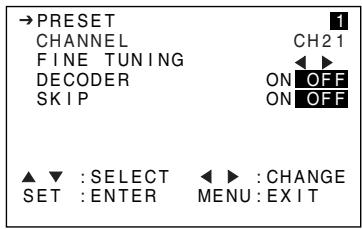
4 Press ▲/▼ to select "CHANNEL". 5 Press ◀/▶ to start tuning in either direction. Tuning will stop when a channel is received. If it is not the desired channel, press ◀/▶ to continue tuning. 6 Press ▲/▼ to select "FINE TUNING". Press and hold ◀/▶ until the sharpest colour picture is obtained.
IMPORTANT NOTE:
7 Press ▲/▼ to select "DECODER". This is preset to OFF. If you connect a decoder, as shown previously, you must use ▲/▶ to turn the decoder function ON. Refer to DECODER SWITCHING OPERATION on page 37.
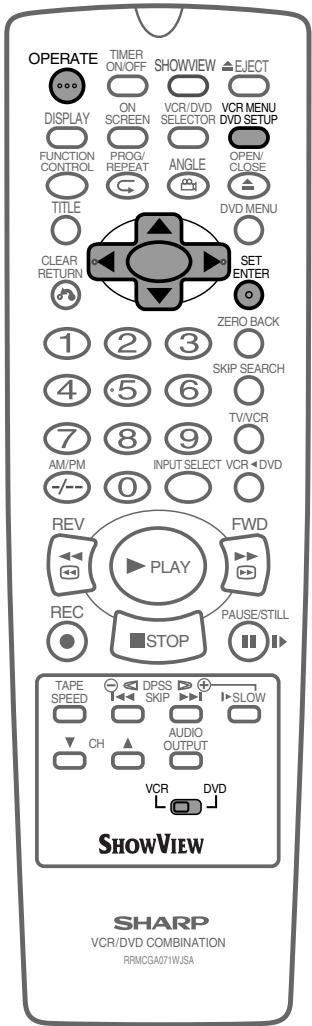
8 Press ▲/▼ to select "SKIP" then ▲/▼ to select "ON" or "OFF".
- The SKIP function determines whether the channel can be selected when using the CH ▲ / ▼ instead of the number buttons.
9 Press SET to store this channel. The Unit will increment to the next channel up.
- If any more channels are to be tuned in, repeat this procedure.
- Once all the channels have been tuned in. Press VCR MENU to return to the normal screen.
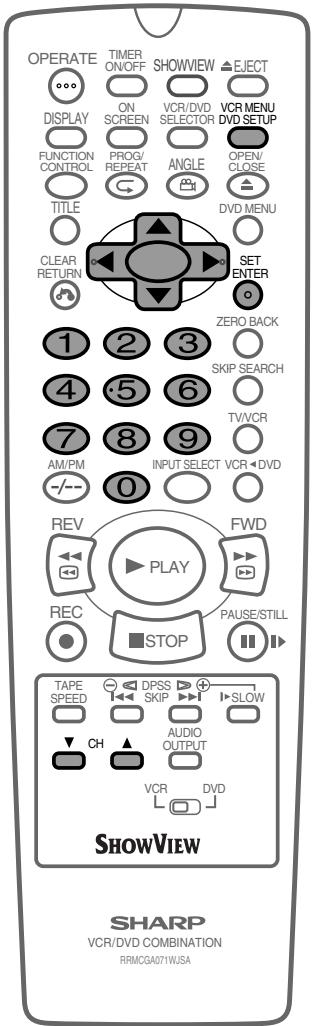
Channel Sort
When your Unit tunes in broadcast channels automatically, it sorts them into a standard order using teletext information. You can change the order of the channel with the following procedure.
1 Press VCR MENU.
2 Press ▲/▼ to select "SET UP". Press SET to confirm.
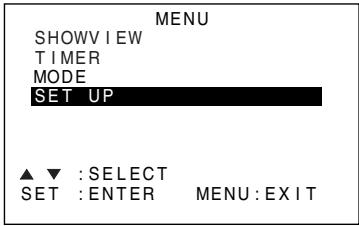
3 Press ▲/▼ to select "CHANNEL SORT". Press SET to confirm.
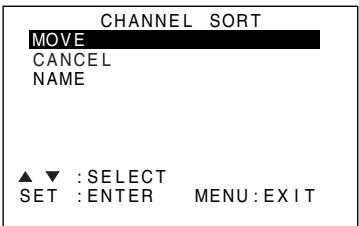
4 The MOVE position will be highlighted. Press SET to confirm. 5 Press ▲/▼/◀/▶ to highlight the channel to be moved. Press SET to confirm.
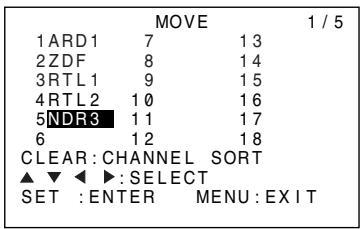
6 Press ▲/▼/◀/▶ to highlight the new position for the channel. Press SET to confirm.
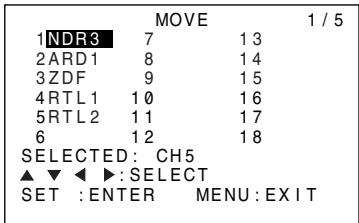
7 If any more channels are to be moved, repeat the procedure from step 5. 8 When all the channels are in your preferred order, either press CLEAR to return to the CHANNEL SORT menu or press VCR MENU to return to the normal screen.
NOTE
- If when moving channels the picture becomes unclear and the on-screen display is unreadable, ON SCREEN can be used to toggle between a blue background and the normal picture.
- The blue background will be shown until either another channel is selected or ON SCREEN is pressed again.
GB-32
Deleting Channels
If there is a channel you wish to delete from the VCR memory, you can follow the procedure below.
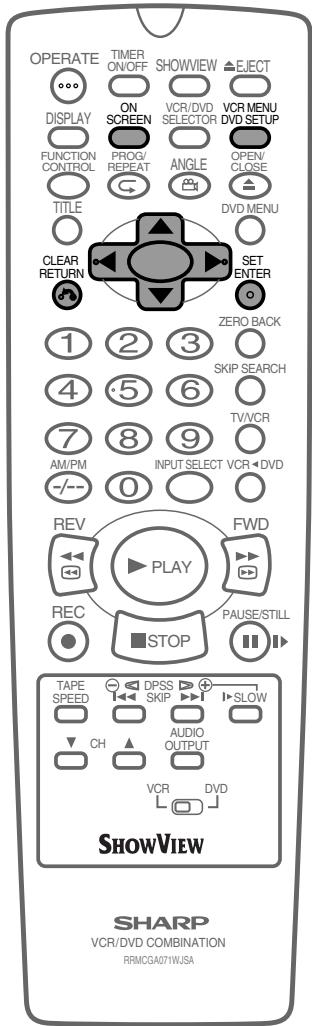
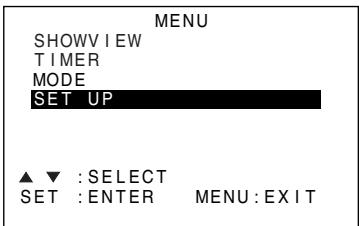
1 Press VCR MENU. 2 Press ▲/▼ to select "SET UP". Press SET to confirm.
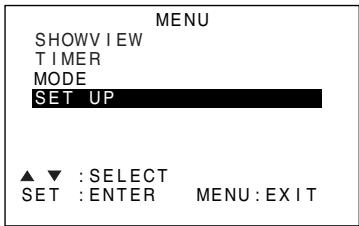
3 Press △/▽ to select "CHANNEL SORT". Press SET to confirm. 4 Press △/▽ to select "CANCEL". Press SET to confirm. 5 Press △/▽/◀/▶ to highlight the channel to be cancelled.
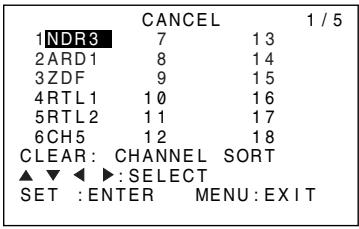
6 Press SET twice to cancel the channel.
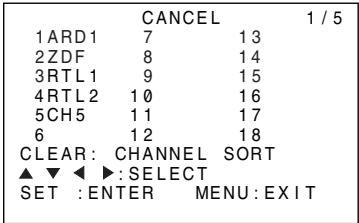
7 When all the channels you wish have been cancelled, either press CLEAR to return to the CHANNEL SORT menu or press VCR MENU to return to the normal screen.
NOTE
- If when deleting channels the picture becomes unclear and the on-screen display is unreadable, ON SCREEN can be used to toggle between a blue background and the normal picture.
- The blue background will be shown until either another channel is selected or ON SCREEN is pressed again.
Re-naming Channels
When your Unit tunes in broadcast channels automatically, it names them using teletext information. You can change the name of a channel with the following procedure.
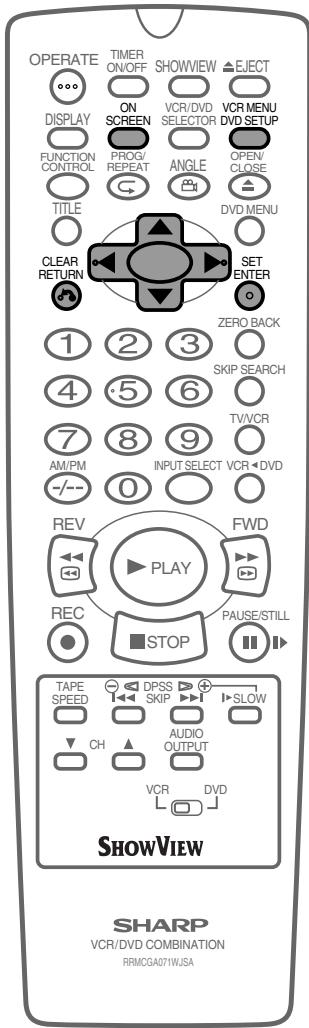
1 Press VCR MENU. 2 Press △/▽ to select "SET UP". Press SET to confirm.
3 Press △/▽ to select "CHANNEL SORT". Press SET to confirm. 4 Press △/▽ to select "NAME". Press SET to confirm. 5 Press △/▽/◀/▶ to highlight the channel to be re-named. Press SET to confirm.
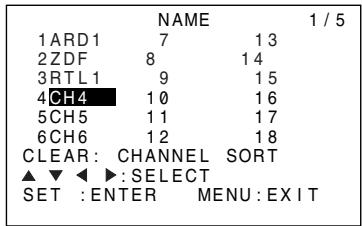
6 To enter a new channel name use △/▽ to scroll through the characters and ◀/▶ to move to the next position. Press SET to confirm.
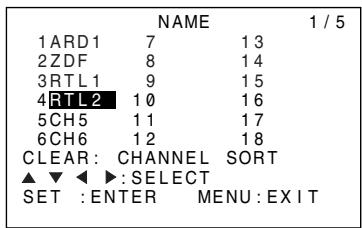
7 If any more channels are to be re-named, repeat the procedure from step 5. 8 When all the channels are named correctly, either press CLEAR to return to the CHANNEL SORT menu or press VCR MENU to return to the normal screen.
NOTE
- If when re-naming channels the picture becomes unclear and the on-screen display is unreadable, ON SCREEN can be used to toggle between a blue background and the normal picture.
- The blue background will be shown until either another channel is selected or ON SCREEN is pressed again.
Clock Setting
Manual Clock Setting
The clock will normally be set using teletext information when your Unit automatically tunes in the broadcast channels. If for any reason teletext signals are not present, your Unit will not be able to set the clock. This procedure will allow you to set the clock manually.
Preparation
- Press OPERATE. Then move the VCR/DVD CHANGE Switch to VCR.
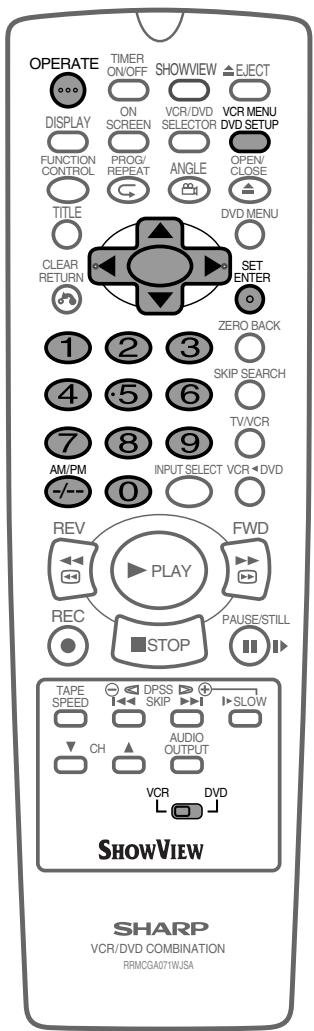
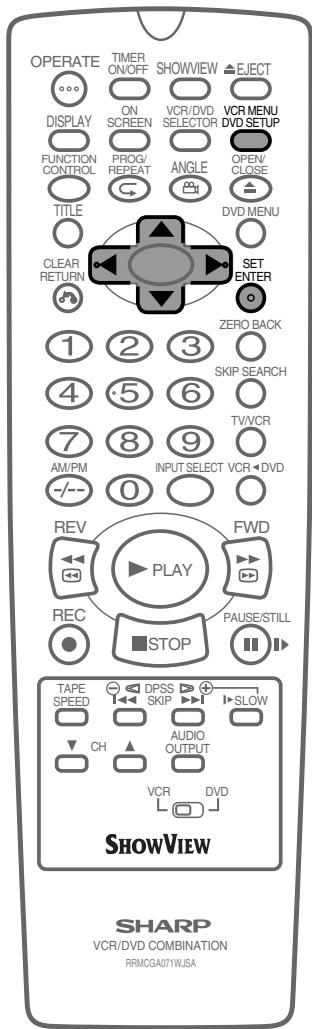
1 Press VCR MENU. 2 Press ▲/▼ to select "SET UP". Press SET to confirm. 3 Press ▲/▼ to select "CLOCK." Press SET to confirm.
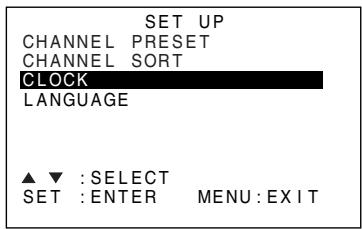
4 Press ▲/▼ to select either 12 or 24 hour clock.
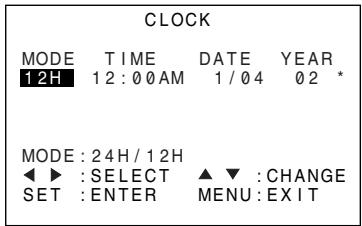
5 Press ◀/▶ to select "TIME". Enter the time using the number buttons or ▲/▼. If the minutes or hours are less than 10, enter leading 0. If using the 12 hour clock enter AM or PM by pressing AM/PM on the Remote. 6 Press ◀/▶ to select "DATE". Enter the date using the number buttons or ▲/▼. For example, for 1st April enter 01 04. 7 Press ◀/▶ to select "YEAR". Enter the last two digits of the year using the number buttons or ▲/▼. For example, for 2002 enter 02. For the year 2003 enter 03.
8 Auto Clock Setting
Press ◀/▶ to select ★. Press ▲/▼ to change between AUTO CLOCK on/off (★ is "ON", - is "OFF"). Then press SET to confirm.
NOTE
- If AUTO CLOCK is set to OFF (- is OFF) then you will need to update the clock for daylight saving.
Changing the on-screen display language
Changing the language used by the on-screen display will not change the operation of the VCR or make it suitable for any other broadcast standard.
1 Press VCR MENU. 2 Press ▲/▼ to select "SET UP". If the display is not in a language you can understand, this is the fourth option from the top. Press SET to confirm. 3 Press ▲/▼ to select "LANGUAGE" (the last option). 4 Press SET. 5 Press ▲/▼/◀/▶ to select your language. Press SET to confirm. Press VCR MENU to return to a normal screen.
LANGUAGE
ENGLISH
SPANISH
GERMAN
SWEDISH
FRENCH
DUTCH
ITALIAN
SELECT
SET :ENTER
MENU:EXIT
Decoder Switching Operation
If you have a separate decoder connected to the Unit's L2 input as previously shown in the "Basic Connection" section, you will need to set the decoder function to ON in order to record the unscrambled signal and/or watch it on your TV. Now, when the Unit receives a scrambled signal it is output via LINE 2 terminal to the decoder. The decoder then outputs the unscrambled signal back to LINE 2 terminal and the signal can be recorded. The Unit outputs the descrambled signal to your TV through the LINE 1 terminal and you can watch the unscrambled picture.
If you have a separate decoder connected to the Unit's L2 input as previously shown in the "Basic Connection" section, you will need to set the decoder function to ON in order to record the unscrambled signal and/or watch it on your TV. Now, when the Unit receives a scrambled signal, it is output via the LINE 2 terminal to the decoder. The decoder then outputs the unscrambled signal back to the LINE 2 terminal, and the signal can be recorded. The Unit outputs the descrambled signal to your TV through the LINE 1 terminal, and you can watch the unscrambled picture.
When making a recording using a separate decoder connected as shown, remember to leave the decoder function ON.
If you connect a decoder unit to this Unit, the decoder unit provides a switching signal which will automatically allow your TV to display the unscrambled signal routed through the Unit. To use this feature, make sure that the Unit is connected to both the TV and the decoder unit by the SCART leads. Then:
- Press OPERATE to place the Unit in STAND-BY mode. OR
- Press TV/VCR to place the Unit in "VCR mode". The "VCR" indicator appears on the VCR Front Panel display.
Selecting the Output From the VCR
If your VCR is connected to your TV with a SCART lead, when you start to play a video tape the VCR will automatically switch its output so that the playback picture is shown on the TV. In this case, "VCR" will appear on the VCR display.
You can manually override this by pressing TV/VCR on the remote control. Now the TV broadcast channel will be seen on the TV screen and "VCR" will disappear from the VCR display.
- Pressing TV/VCR again will return the TV picture to the playback picture.
- While in DVD mode, the unit will override this function.
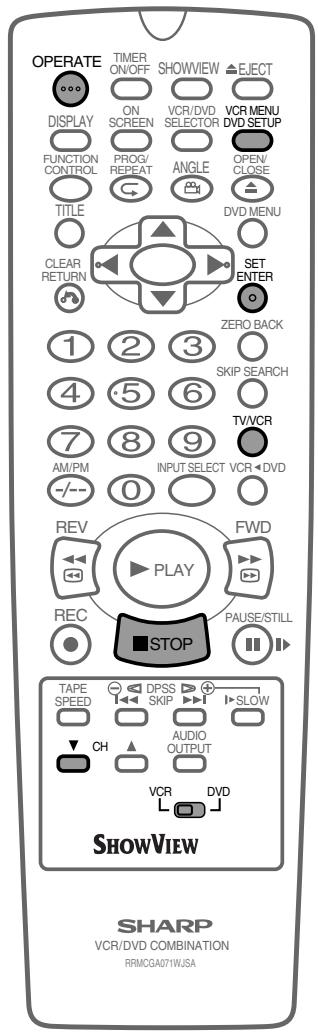

VCR Display Information
All the information you need on the VCR status will be summarised on the on-screen display. If you are recording, playing back a tape or watching a broadcast on the video channel, you can call up three standard on-screen displays. The display can be selected by pressing ON SCREEN on the Remote, 1, 2, 3 or 4 times.
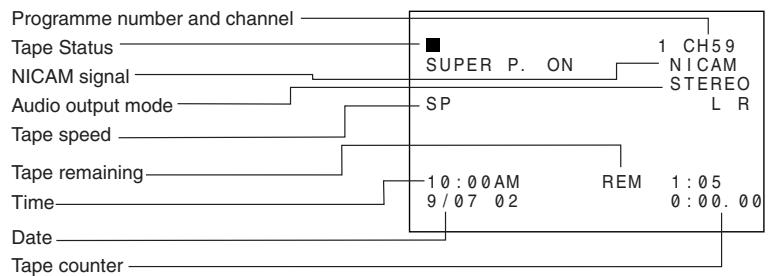
NOTE
- If the clock is not set, the time and date will not be displayed.
- When in tape playback mode, "channel" is not displayed.
Each time ON SCREEN on the Remote is pressed, the display on the TV screen changes the mode in the following sequence:
→AUTO mode → FULL mode → Counter mode → OFF mode
- AUTO mode. The current mode and channel number will be displayed for 3 seconds when an operation or number button is pressed.
- FULL mode. All the active features will also be shown on screen.
- Counter mode. This display will show the tape counter and amount of tape remaining.
- OFF mode. This will remove the display from the screen.
Each time DISPLAY on the Remote is pressed, the VCR Front Panel Display changes the mode in the following sequence:
Clock mode → Channel position mode*1 → Tape counter mode → Tape remain mode
*1 When in tape playback mode, "channel" is not displayed.
- Clock mode. The current time will be displayed.
- Channel position mode. The channel position will be displayed.
- Tape counter mode. The current tape position will be displayed.
- Tape remain mode. The amount of video tape remaining will be displayed.
NOTE
- The default time and date will not be displayed if the clock has not been set.
- The VCR will return to Tape counter mode each time it is switched on.
- If you are recording from this VCR to another, make sure you remove the display from the screen otherwise it will be recorded.
- When power ON, channel position is displayed. Usually use the "channel position".
VCR Reset
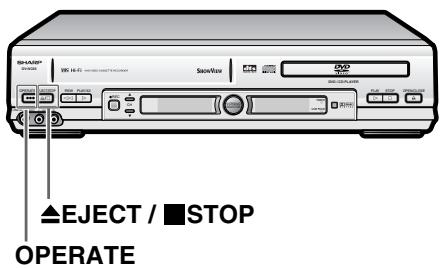
1 Select VCR/DVD CHANGE Switch to VCR. 2 Press OPERATE. 3 Press and hold VCR MENU and CH together on the Remote Control for 10 seconds.
- VCR reset is now complete.
GB-38
DVD Setup
DVD Setup 40
About the SET UP Screen 40
TV MODE Setting 41
PARENTAL LEVEL Setting 43
AUDIO Setting 45
Setting the COMPRESSION (Dolby Digital output level) 45
Setting the DOLBY DIGITAL 46
Setting the MPEG 47
Setting the CINEMA VOICE 48
DISC LANGUAGE Setting 49
Setting SUB TITLE, AUDIO and MENU languages from 8 languages 49
Selecting languages from OTHER 50
DVD Display Information 51
Operation Mode Indicators 51
Language Code List for Disc Language 52

DVD Setup
About the SETUP Screen
This section describes how to specify various basic settings using the SETUP screen. The list below shows all the items you can set and adjust. See the following pages for details on each setup procedure.
- The setting procedures described on the following pages are available only in STOP mode.
- The OSD (On Screen Display) screens used in this Operation Manual are purely for the purposes of explanation. The actual displays may differ slightly from what is shown here.
(Example) DVD MODE
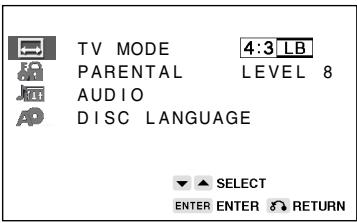
Setup item list
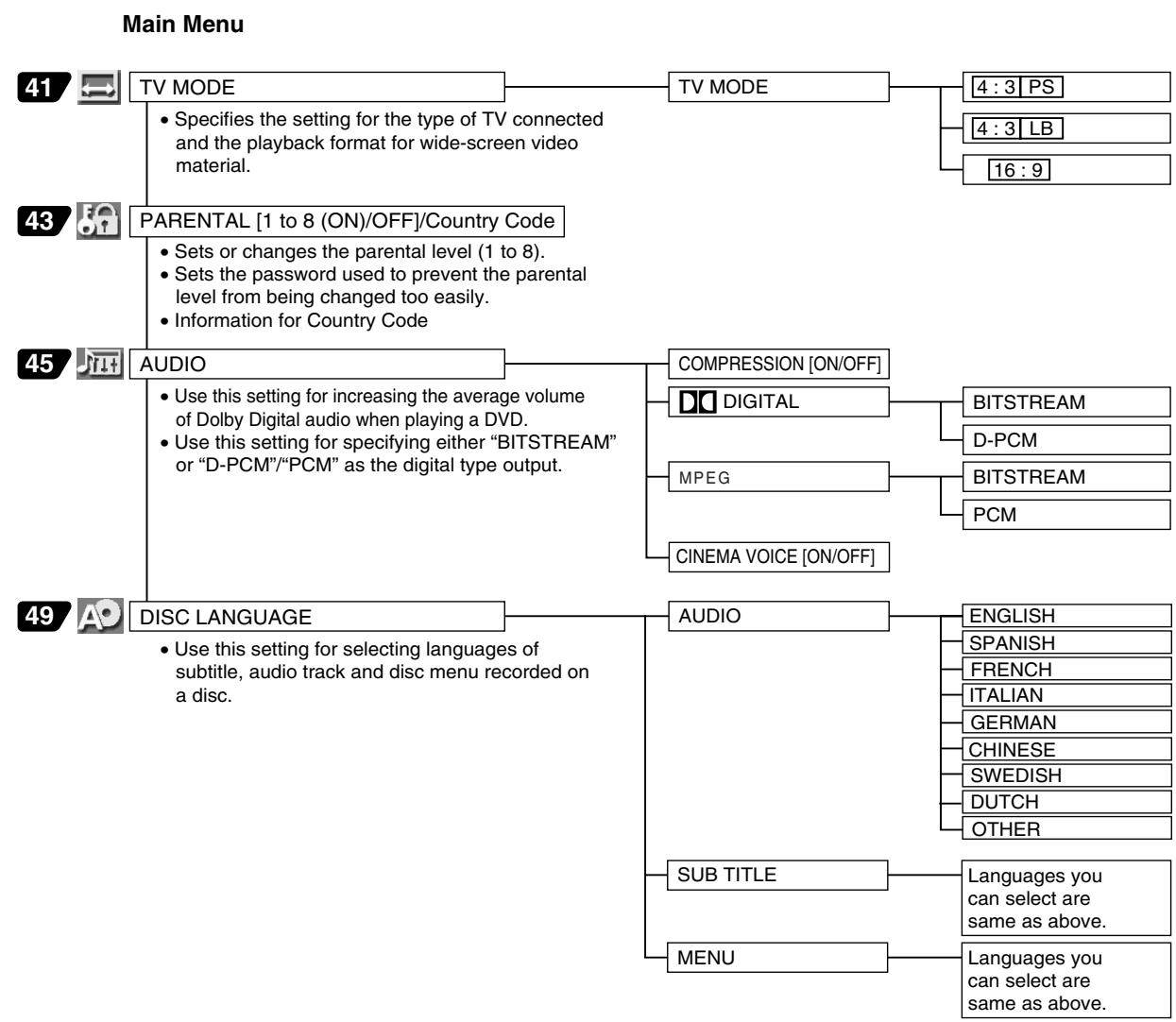
- Numbers in [ ] refer to the pages where the setting procedures are described.
GB-40
TV MODE Setting
Preparation
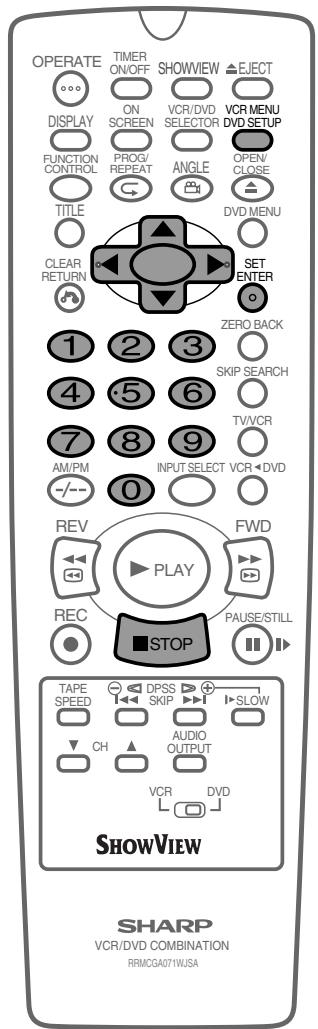
- Press OPERATE. Then move the VCR/DVD CHANGE Switch to DVD. 1 While this Unit is stopped, press DVD SETUP to display the SETUP screen. 2 Use or to select the "TV MODE SETUP".
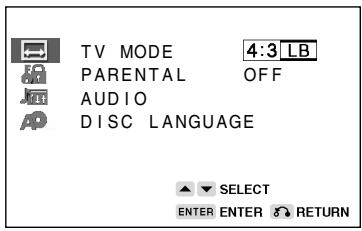
3 Press ENTER and then use or to select "TV MODE". 4 Press ENTER to display the items you can select. 5 Use or to select 4:3 LB, 4:3 PS or 16:9. (Example) Selecting 4:3 PS.
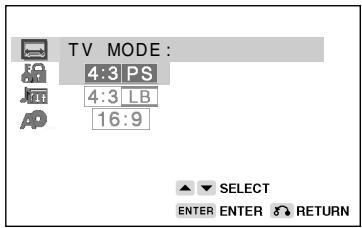
Continue on next page →
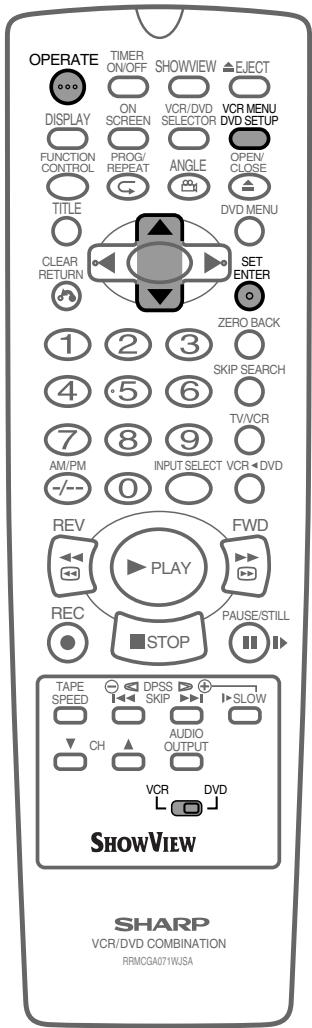
- [4:3] [PS] — (Pan & Scan mode): When wide-screen video material is played, this mode clips the right and left sides of the image so that it can be viewed on a conventional TV screen.
- Some wide-screen DVDs that do not permit Pan & Scan mode playback are automatically played in letterbox mode (black bands top and bottom).
- 4:3 LB — (Letterbox mode): When wide-screen video material is played in this mode on a conventional TV screen, black bands appear at the top and bottom of the screen.
- [16:9] — (Wide-screen TV): This is the correct mode for playing wide-screen videos on a wide-screen TV.
- You must also set the screen mode on your wide-screen TV to "FULL".
6
Press ENTER to confirm the "TV MODE" setting. - When you have completed the setting above, press RETURN to exit the SETUP screen.
Cut off when a wide-screen video image is played.
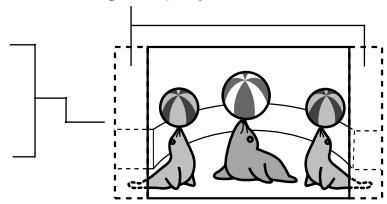
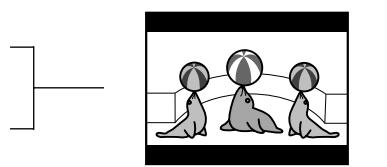
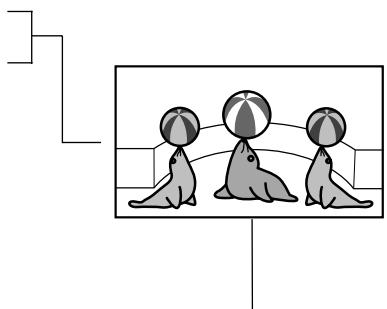
The actual appearance of the image depends on the screen mode setting of your wide-screen TV.
Parental Level Setting
Certain discs come preset with country codes and parental level settings defined for particular countries. Discs equipped with the parental lock function are rated according to their content. The rated content allowed by a parental lock level and the way a DVD can be controlled vary from disc to disc. Some discs, for example, may let you edit out scenes and replace them with scenes suitable for children. You can also use the parental lock to completely disable playback of the DVD.
Preparation
See Preparing to Watch a DVD on page 24.
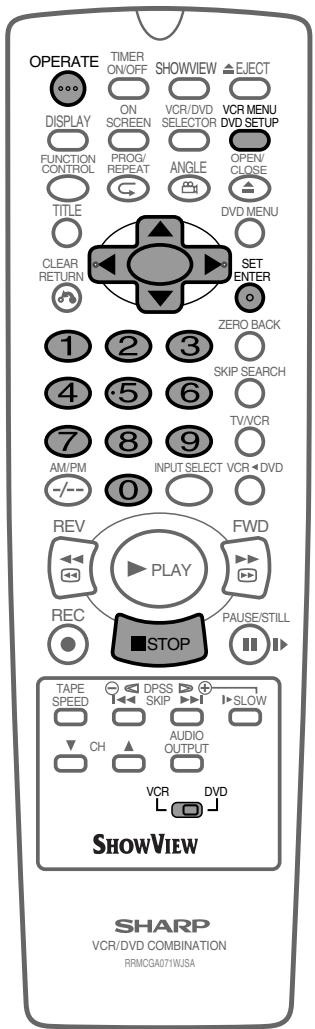
1 Press DVD SETUP to display the SETUP screen. 2 Use the up or down arrow to select "PARENTAL SETUP" and then press ENTER.
- The password specification and verification screen appears.
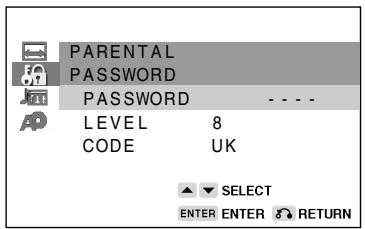
- If you have already set your password, - - - - (password verification display) appears.
3 Use the number buttons (0 to 9) to enter a 4-digit password.
password :
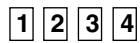
Displayed when "1234" is being entered as the password
NOTE
- Enter the numbers slowly as each number is stored separately.
- If you enter the wrong number three times in succession, the normal screen reappears.
If you forget your password, you can erase your current password by pressing STOP four times.
4 The cursor is moved to "LEVEL" and then press ENTER.
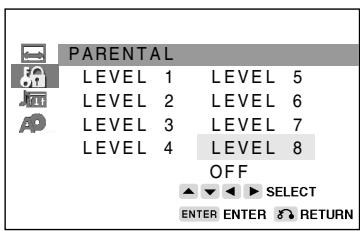
5 Press the up, down, left, or right arrow to select the desired parental level and then press ENTER.
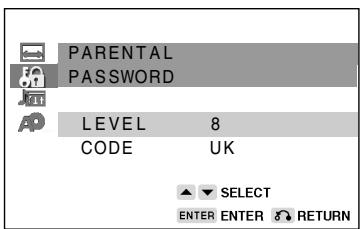
- Level 1: for most restrictive viewing → Level 8: for adult viewing (The smaller the number, the greater the level of restriction.)
- When the parental level is set to "OFF", DVDs can be played back regardless of the parental level.
The parental level for the UK is as follows:
Level 8: Adult
Level 1: Child
As for the set up of an appropriate level, please check the level when you purchase your DVD disc equipped with the parental feature.
6 Press ▽ to select "CODE" and then press ENTER.
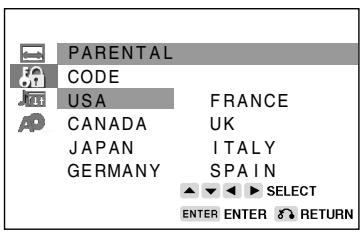
7 Press △, ▽, ◀ or ▶ to select the desired country code and then press ENTER.
- If you want to go to the next page, select the country code displayed at the bottom, then press ▽.
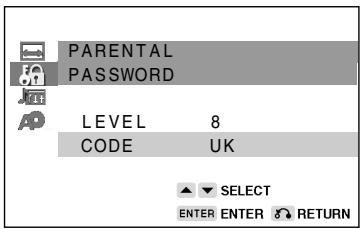
8 Press RETURN to return to the SETUP screen.
- If you want to go on and specify other settings, use △ or ▽ to display other SETUP screens. However, press RETURN if you want to exit the SETUP screen.
Important!
- Be sure to try playing back the disc to confirm that the parental level setting is working correctly. If it is not working correctly, try changing the country code.
Country Code List
| USA | FINLAND |
| CANADA | BELGIUM |
| JAPAN | HONG KONG |
| GERMANY | SINGAPORE |
| FRANCE | THAILAND |
| UK | MALAYSIA |
| ITALY | INDONESIA |
| SPAIN | TAIWAN |
| SWISS | PHILIPPINE |
| SWEDEN | AUSTRALIA |
| HOLLAND | RUSSIA |
| NORWAY | CHINA |
| DENMARK |
NOTE
- You can use the parental lock function only with DVD discs that are equipped with the parental lock feature.
- On some DVD discs, the parental level setting is fixed and cannot be modified.
- The parental level depends on countries. If you do not set the country code correctly, it fails to work correctly.
- Some DVD discs allow the viewer to temporarily change the parental level setting to view the original scenes. When this prompt appears, input the password to view the original scenes.
AUDIO Setting
COMPRESSION . . . . . . Use this setting for increasing the average volume of Dolby Digital audio when playing a DVD.
DIGITAL/MPEG ....... Use these settings for specifying the type of digital output when playing a disc recorded using Dolby Digital/MPEG AUDIO.
CINEMA VOICE.... Use the setting for raising the sound of the centre speaker to make the voices in a movie easier to hear.
Setting the COMPRESSION (Dolby Digital output level)
When Dolby Digital is used to record the audio on a DVD disc, the average overall volume level of the audio is relatively lower than that produced by an Audio CD. This is to provide the widest possible dynamic range. To counteract this, this Unit automatically raises the overall average volume level of a disc recorded using Dolby Digital to a level that is similar to that of an Audio CD.
| COMPRESSION: OFF | COMPRESSION: ON | |
| DVD Dolby Digital Audio | Low audio level | Audio level the same as audio CD, etc. |
| Audio CD's |
- OFF.............. Audio level recorded on disc is played back without modification.
- ON . Dolby Digital average audio level is increased so it sounds similar to that of Audio CD.

- Use of the "OFF" setting is recommended when the Unit is connected to audio equipment or, depending on the disc, the sound is abnormal.
- Advanced Surround is disabled when "COMPRESSION" is set to "ON".
Preparation
- Press OPERATE. Then move the VCR/DVD CHANGE Switch to DVD.
1 Press DVD SETUP to display the SETUP screen.
2 Use ▲ or ▼ to select "AUDIO SETUP". 3 Press ENTER and then use ▲ or ▼ to select "COMPRESSION".
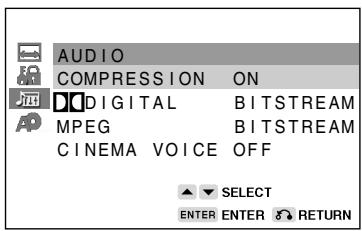
4 Press ENTER to display the settings you can select.
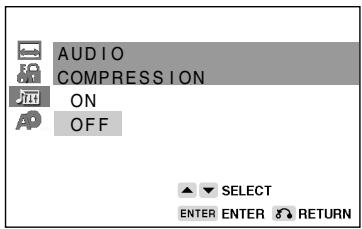
5 Use ▲ or ▼ to select "ON" or "OFF". - Use of the "OFF" setting is recommended when the Unit is connected to audio equipment. 6 Press ENTER to confirm the setting. - When you have completed the above setting, press RETURN to exit the SETUP screen. However, if you want to specify the "Digital" setting in succession, proceed to step 1 below.
NOTE
- Whenever the "COMPRESSION" setting is "ON", Advanced Surround setting is automatically changed to "OFF".
Setting the DOLBY DIGITAL
When playing a disc recorded using Dolby Digital (5.1ch), you can specify either "BITSTREAM" or "D-PCM" as the digital type output.
- Before setting the "D DIGITAL", perform the step 1 to 2 on pages 45 and 46.
1 Press ENTER and then use ▲ or ▼ to select "DIGITAL". 2 Press ENTER to display the settings you can select.
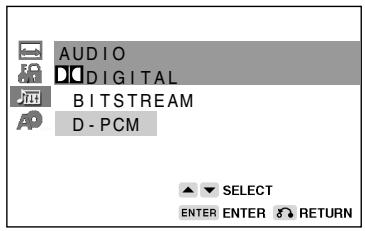
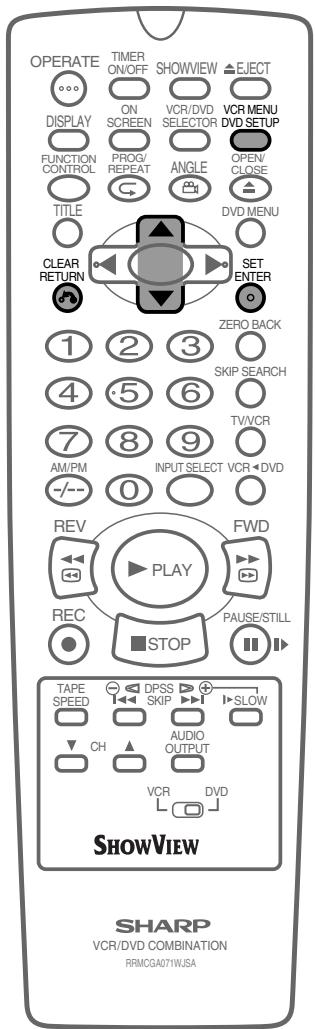
3 Use ▲ or ▼ to select "BITSTREAM" or "D-PCM".
BITSTREAM: Use this setting for a digital connection of a receiver (amplifier) equipped with a Dolby Digital decoder.
D-PCM: Use this setting for a digital connection to the
(Down Mix PCM) PCM digital input jack of a DAT or MD, or for a digital connection to a receiver (amplifier) that does not have a Dolby Digital decoder.
4 Press ENTER to confirm the setting. 5 Press RETURN to exit the SETUP screen and return to normal screen.
- When you have completed the above setting, press RETURN to exit the SETUP screen. However, if you want to specify the "MPEG" setting in succession, proceed to step 1 below.
Setting the MPEG
Select the same as "COMPRESSION" on page 45 for MPEG signals.
1 Press ENTER and then use ▲ or ▼ to select "MPEG". 2 Press ENTER to display the settings you can select.
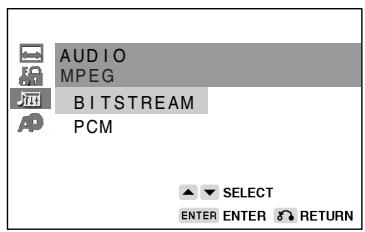
3 Use ▲ or ▼ to select "BITSTREAM" or "PCM".
BITSTREAM: Use this setting for a digital connection of a receiver (amplifier) equipped with an MPEG Audio decoder. PCM: Use this setting for a digital connection to the PCM digital input jack of a DAT or MD, or for a digital connection to a receiver (amplifier) that does not have an MPEG Audio decoder.
4 Press ENTER to confirm the setting. 5 Press RETURN to exit the SETUP screen and return to normal screen.
- If you want to go on and specify other settings, use ▲ or ▼ to display the other SETUP screen without pressing RETURN.

When playing a disc recorded using DTS, the bitstream type signal is output regardless of the setting of "Digital" and "MPEG".
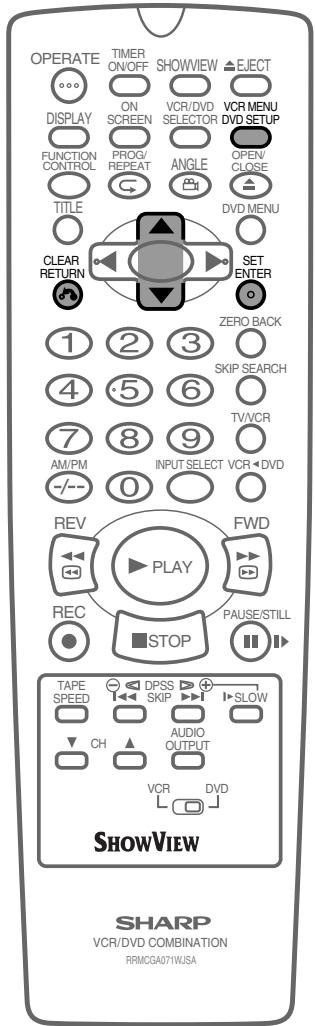
NOTE
- When audio CD's that support MPEG are played back, BITSTREAM signals will be output, even if "MPEG" has been set to "PCM". Make sure to set "DIGITAL" or "MPEG" to "PCM" when making a digital connection to 2 channel audio equipment or MD. Leaving on "BITSTREAM" may cause static noise and damage the speakers as well as incorrect recording on MD's.
Setting the CINEMA VOICE
This function raises the sound of the centre speaker to make the voices in a movie easier to hear.
- Before setting the "CINEMA VOICE", perform steps 1 and 2 from pages 45 to 46.
1 Press ENTER and then use the up or down arrow to select "CINEMA VOICE". 2 Press ENTER to display the settings you can select.
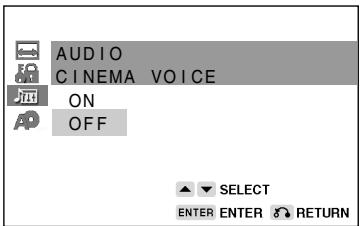
3 Use the left or right arrow to select "ON" or "OFF".
ON: Set to "ON" when you want to raise the sound of the voice.
OFF: Set to "OFF" when you do not want to use this function.
4 Press ENTER to confirm the setting. 5 When you have completed the setting above, press RETURN to return to the SETUP screen. However, if you want to go on and specify other settings, use the up or down arrow to display other setting screens.
NOTE
- The CINEMA VOICE setting raises the sound of the centre channel. It does not affect the voices in other channels.
- Even if this function is set to "ON", the results may or may not be effective, depending on the disc.
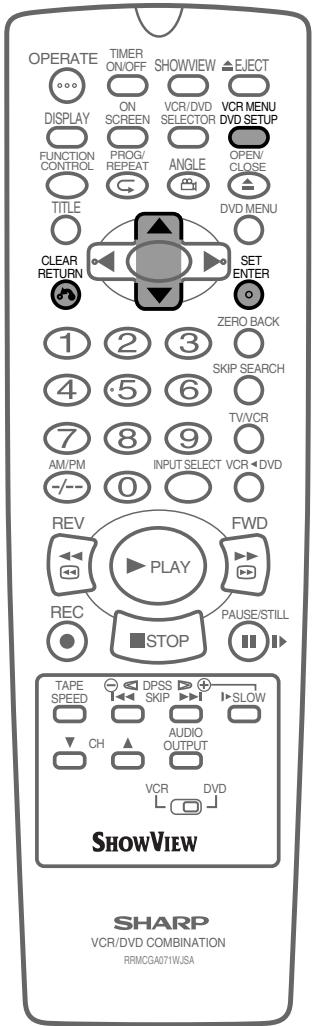
DISC LANGUAGE Setting
Use this setting for selecting the language for subtitles, audio tracks and disc menu.

Note that the language you select is not displayed or does not sound if it is not recorded on the disc you are playing. - With some discs, it is intentionally disabled by the disc manufacturer to change the language of the subtitle, audio track and disc menu through this SETUP screen. When playing such discs, try using FUNCTION CONTROL (pages 81 and 83) or, if applicable, use the menu that appears on the DVD.
Setting SUB TITLE, AUDIO and MENU languages.
Preparation
- Press OPERATE. Then move the VCR/DVD CHANGE Switch to DVD.
1 Press DVD SETUP to display the SETUP screen. 2 Use the up or down arrow to select the "DISC LANGUAGE".
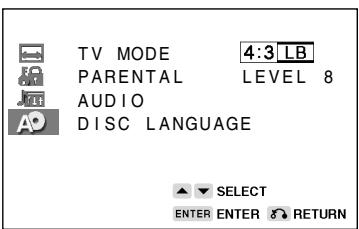
3 Press ENTER and then use △ or ▽ to select "AUDIO", "SUB TITLE" or "MENU".
- You can set "AUDIO", "SUB TITLE" or "MENU" individually. (Example) Selecting "AUDIO"
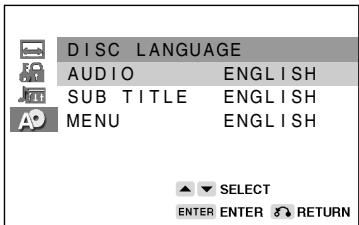
4 After selecting the item, press ENTER. 5 Select the language you want to use with ◁, ▽, ◁ and ▷. (Example) Selecting "ENGLISH"
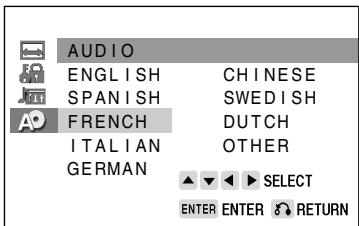
- If you want to use any languages which are not on the OSD, proceed to step 1 under "Selecting languages from OTHER" on next page.

DVD Setup
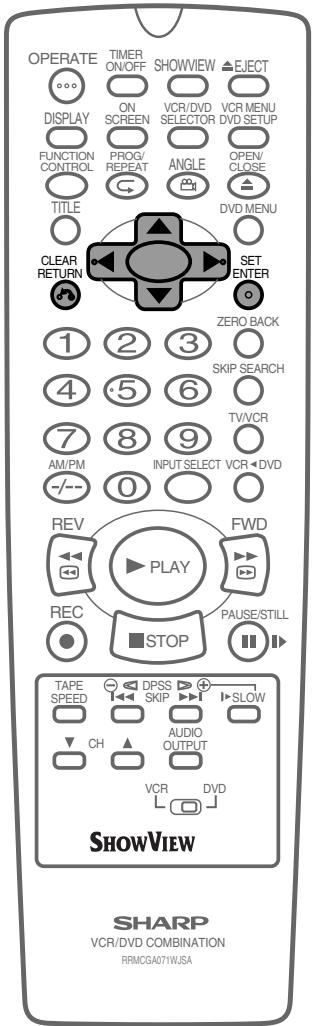
6 Press ENTER to confirm the setting. 7 Repeat steps 4 to 7 above to go on with other "DISC LANGUAGE" settings in succession. 8 If you want to exit the SETUP screen and return to the normal screen, press RETURN.
- If you want to go on and specify other settings, press △ or ▽ to display other SETUP screen without pressing RETURN.
Selecting languages from OTHER
1 Select "OTHER" with △, ▽, ◁ and ▷, then press ENTER to set the "OTHER" input item (two letters).
- See Language Code List for Disc Language on page 52 when selecting the code.
(Example) Selecting "OTHER" in "AUDIO"
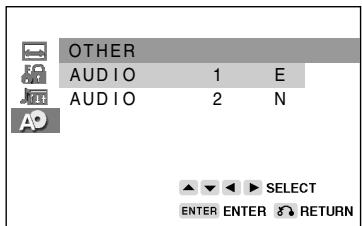
- The "SUB TITLE" and "MENU" screens are displayed respectively when being set.
2 Press ◁ or ▷ to select the alphabet as the first letter on "AUDIO 1" (upper side). 3 Press ▽ to move the cursor to "AUDIO 2" (lower side).
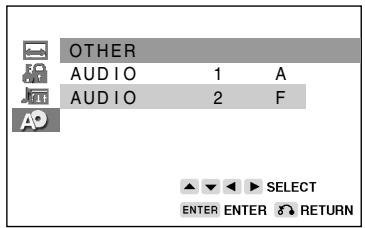
4 Press ◁ or ▷ to select the alphabet as the second letter. 5 Press ENTER to confirm the setting.
NOTE
- Press RETURN to return to the previous screen.
Operation Mode Indicators
Each time ON SCREEN on the Remote is pressed, the display on the TV screen changes the mode in the following sequence:
AUTO mode → ON mode → OFF mode
- AUTO mode...... Displays indicators for 3 seconds when operation begins.
- ON mode ....... Displays indicators continually until the operation mode is changed.
- OFF mode ....... Does not display indicators.
Each time DISPLAY on the Remote is pressed, the DVD Front Panel Display changes the mode in the following sequence:
Time mode → Operation Status mode → Title mode
- Time mode Displays the playing time*.
- Operation Status mode ....... Displays the operation you perform such as "PLAY", "REV".
- Title mode Displays the total number of titles, chapters, or tracks.
- When the disc you attempt to play has no information on time, the operation status is displayed.
This Unit displays the information shown below on the TV screen and on the DVD Front Panel Display depending on the operation status.
Display Examples
| TV Screen | DVD Front Panel Display | Remarks | |
| If no disc is loaded or an unplayable disc is loaded when this Unit is switched on. | "-----" appears when the tray is closed and:1) There is no disc in the tray.2) The disc type is not DVD or Audio CD.3) The disc is not loaded correctly (upside-down, etc.) | ||
| Tray open | |||
| Tray closed | |||
| Loading | |||
| Stopped | The indicator changes to show other indicators (total time, etc.) | ||
| Playing | |||
| Still/Paused | When a DVD is played back. | ||
| When an Audio CD is played back. | |||
| Fast Forward | |||
| Fast Reverse | |||
| Slow | Does not function for Audio CD's. |
Region (Local) Number Error Indicator
If the region (local) number of the disc that you attempt to play differs from the region number of this Unit (see page 99), "REGION CODE ERROR" appears on the TV screen and the disc tray slides out. (The disc cannot be played.)

Language Code List for Disc Language
| Code | Language Name | Code | Language Name | Code | Language Name | Code | Language Name |
| AA | Afar | FY | Frisian | MG | Malagasy | SL | Slovenian |
| AB | Abkhazian | GA | Irish | MI | Maori | SM | Samoan |
| AF | Afrikaans | GD | Scotts Gaelic | MK | Macedonian | SN | Shona |
| AM | Ameharic | GL | Galician | ML | Malayalam | SO | Somali |
| AR | Arabic | GN | Guarani | MN | Mongolian | SQ | Albanian |
| AS | Assamese | GU | Gujarati | MO | Moldavian | SR | Serbian |
| AY | Aymara | HA | Hausa | MR | Marathi | SS | Siswat |
| AZ | Azerbaijani | HI | Hindi | MS | Malay | ST | Sesotho |
| BA | Bashkir | HR | Croatian | MT | Maltese | SU | Sundanese |
| BE | Byelorussian | HU | Hungarian | MY | Burmese | SV | Swedish |
| BG | Bulgarian | HY | Armenian | NA | Nauru | SW | Swahili |
| BH | Bihari | IA | Interlingua | NE | Nepali | TA | Tamil |
| BI | Bislama | IE | Interlingue | NL | Dutch | TE | Telugu |
| BN | Bengali; | IK | Inupiak | NO | Norwegian | TG | Tajik |
| Bangla | IN | Indonesian | OC | Occitan | TH | Thai | |
| BO | Tibetan | IS | Icelandic | OM | (Afan) Oromo | TI | Tigrinya |
| BR | Breton | IT | Italian | OR | Oriya | TK | Turkmen |
| CA | Catalan | IW | Hebrew | PA | Panjabi | TL | Tagalog |
| CO | Corsican | JA | Japanese | PL | Polish | TN | Setswana |
| CS | Czech | JI | Yiddish | PS | Pashto, Pushto | TO | Tonga |
| CY | Welsh | JW | Javanese | PT | Portuguese | TR | Turkish |
| DA | Danish | KA | Georgian | QU | Quechua | TS | Tsonga |
| DE | German | KK | Kazakh | RM | Rhaeto- | TT | Tatar |
| DZ | Bhutani | KL | Greenlandic | Romance | TW | Twi | |
| EL | Greek | KM | Cambodian | RN | Kirundi | UK | Ukrainian |
| EN | English | KN | Kannada | RO | Romanian | UR | Urdu |
| EO | Esperanto | KO | Korean | RU | Russian | UZ | Uzbek |
| ES | Spanish | KS | Kashmiri | RW | Kinyarwanda | VI | Vietnamese |
| ET | Estonian | KU | Kurdish | SA | Sanskrit | VO | Volapük |
| EU | Basque | KY | Kirghiz | SD | Sindhi | WO | Wolof |
| FA | Persian | LA | Latin | SG | Sangho | XH | Xhosa |
| FI | Finnish | LN | Lingala | SH | Serbo- | YO | Yoruba |
| FJ | Fiji | LO | Laothian | Croatian | ZH | Chinese | |
| FO | Faroese | LT | Lithuanian | SI | Singhalese | ZU | Zulu |
| FR | French | LV | Latvian, Lettish | SK | Slovak |
GB-52
Watching the VCR
Playback 54
Playback 54
Picture Disturbance During Playback 54
Pausing and Slow Motion 55
Fast Forwarding/Rewinding a Video Tape 55
Forward/Reverse Visual Search 55
Automatic Head Cleaning System 55
Playing Back an S-VHS Cassette 56
Playing Back an NTSC Cassette 56
Blue Mute 57
Colour 57
16:9 Playback and Recording 58
Audio Output Mode 59
Hi-Fi Stereo Sound 59
NICAM/IGR Hi-Fi Stereo Sound 59
Sharp Super Picture 60
Auto Repeat/Auto Zero Back 61
Auto Repeat 61
Auto Zero Back 61
DPSS (Digital Program Search System) / Skip Search 62
DPSS 62
Skip Search 62
TV Program Recording 63
Selection of a Channel 63
Tape Speed Selection 63
Immediate Recording 63
Simple Timed Recording 63
Timer Recording 64
How to Use the SHOWVIEW® System to Make a Recording 64
How to Set a Delayed Recording 66
Setting a Recording 66
How to Check, Change, and Cancel a Delayed Recording 68
Checking a Recording 68
Changing a Recording 69
Cancelling a Recording 69
Recording From Other Equipment 70
Tape Remaining 71
Recording a DVD Disc onto a Video Cassette 72
Recording a DVD disc onto a video cassette
(Tape Editing mode) 72

Playback
Caution:
Condensation forms in the Unit when it is moved out of or into a warm place. If you try to playback or record, the video tape and Unit may be damaged. Turn the Unit on and wait for about two hours until the Unit reaches room temperature before operating.
Playback
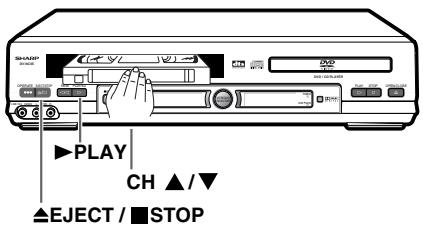
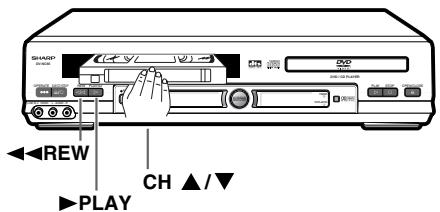
1. Switch on your TV and select the video channel. 2. Carefully push a pre-recorded video tape into the tape compartment. This will switch the Unit on.
- If the record-protection tab has been removed, the VCR will start playback as soon as the video tape has been loaded.
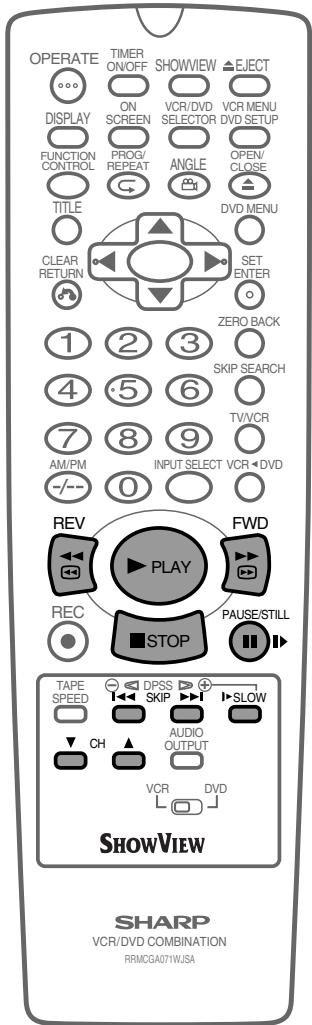
3. Press ▶ PLAY to start playback.
- For double speed playback (without sound), press ▶ PLAY again.
- To revert to normal playback, press ▶ PLAY again.
- To stop the video tape, press STOP.
- To eject the tape, press EJECT.
SHARP SUPER PICTURE should enhance the picture quality during playback. It is normally set to "ON". (See page 60.)
Picture Disturbance During Playback
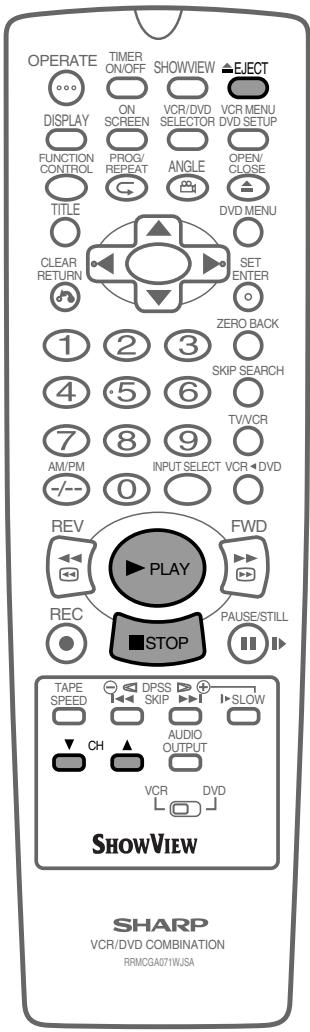
This Unit has an automatic tracking system which reduces picture disturbance when you start to playback a video tape. When autotracking is in operation → flashes on the on-screen display. If the picture still has disturbance you may need to manually track the video tape:
During PLAYBACK of a video tape.
- Press CH ▲/▼ to position picture interference off the TV screen.
- Press CH ▲/▼ together to start Auto Tracking.
Pausing and Slow Motion
1. Press ▶ PLAY to start the video tape playback. 2. Press II PAUSE/STILL to pause the video tape.
- Press CH ▲/▼ to minimise jitter whilst in pause mode.
- Press ▶ PLAY to resume playback.
3. Press ▶ SLOW to playback in slow motion (without sound). Slow motion speed can be adjusted using SLOW ⊖/⊕ next to ▶ SLOW. Picture disturbance can be improved by pressing CH ▲/▼ during slow motion playback.
- Press ▶ PLAY to resume playback.
NOTE
- When using SLOW MOTION function some mechanical noise may be heard.
- There will be picture interference and possibly a change to black and white picture using the Pause and Slow functions.
- PAUSE mode, Slow Motion will automatically disengage after about 5 minutes.
Fast Forwarding/Rewinding a Video Tape
1. Press STOP to stop the video tape. 2. Press FF or REW. 3. Press STOP to stop fast forward/rewind.
NOTE
- If you use other than E-90/E-180 cassettes, fast forward and rewind may take somewhat longer.
Forward/Reverse Visual Search
1 Press FF or REW during playback to select search mode. 2 Press PLAY to resume playback. OR 3 Press FF or REW to decrease the speed during visual search mode. There are 2 search speeds in each direction. The unit switches between them each time the button is pressed. 4 Press PLAY.
NOTE
- There will be picture interference and possibly a change to black and white picture using Visual Fast Forward/Rewind functions.
Automatic Head Cleaning System
When the tape is inserted, or ejected, this system automatically cleans the drum and heads with a special roller before recording or playback begins, protecting the heads and drum from dirt and preserving beautiful sound and picture quality.
Playing Back an S-VHS Cassette
S-VHS (super -VHS) pre-recorded cassettes give you a better quality playback picture with increased detail and depth.
Your Unit will automatically recognise which type of cassette is being used, VHS or S-VHS and playback the appropriate standard accordingly.
NOTE
- All of the VCR's playback functions can be used during S-VHS playback, SLOW, PLAY/X2, VISUAL SEARCH, etc.
- Your Unit is S-VHS playback only, it will not record S-VHS.
- Some picture noise may be observed on the screen in trick playback (Slow Motion, Frame Advance playback).
Playing Back an NTSC Cassette
NTSC (National Television Standards Committee) is a different TV standard to PAL and is used in some non-European countries. Your unit can play back pre-recorded NTSC cassettes onto a PAL system TV, but cannot record an NTSC signal onto a video cassette.
NOTE
- You cannot record NTSC signals or dub NTSC cassettes onto other VCRs from this unit.
- You cannot use Slow speed, Still frame, Double Speed, Frame Advance, or Tape Remaining with a pre-recorded NTSC cassette.
- Some picture noise may be observed on the screen in Long Play (LP) mode trick playback (Slow Motion, Frame Advance playback).
- On some TVs, the picture may appear in black and white or there may be no picture. This does not indicate a fault with your VCR.
- On some TVs, the picture may shrink vertically causing black bands to appear at the top and bottom of your screen.
- On some TVs, the played-back picture may roll vertically. This does not indicate a fault with your VCR.
BLUE MUTE
The TV screen will be blue if a TV channel with no signal is selected, an unrecorded section of tape is played, or the quality of the recording on the tape is poor. Select OFF in the mode menu to disable this feature.
1 Press VCR MENU to display the main menu on the screen. 2 Press △ / ▽ to select "MODE". 3 Press SET. 4 Press △ / ▽ to select "BLUE MUTE".
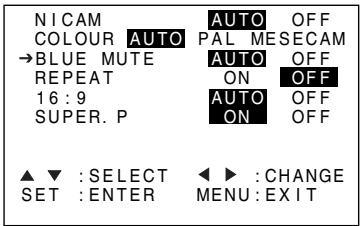
5 Press ◀ / ▶ to select "AUTO" or "OFF". 6 Press SET to confirm and then VCR MENU to return to the normal screen.
COLOUR
If the VCR is playing a poor quality recording, the picture may turn black and white. Selecting PAL or MESECAM may improve this (depending on the recording), although coloured speckles may appear on black and white recordings.
1 Follow steps 1 to 3 from BLUE MUTE above. 2 Press △ / ▽ to select "COLOUR".
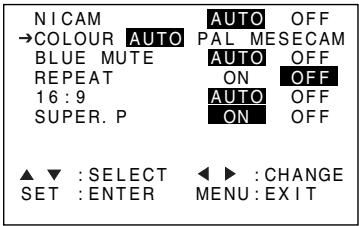
3 Press ◀ / ▶ to select "AUTO", "PAL" or "MESECAM". 4 Press SET to confirm and then VCR MENU to return to the normal screen.
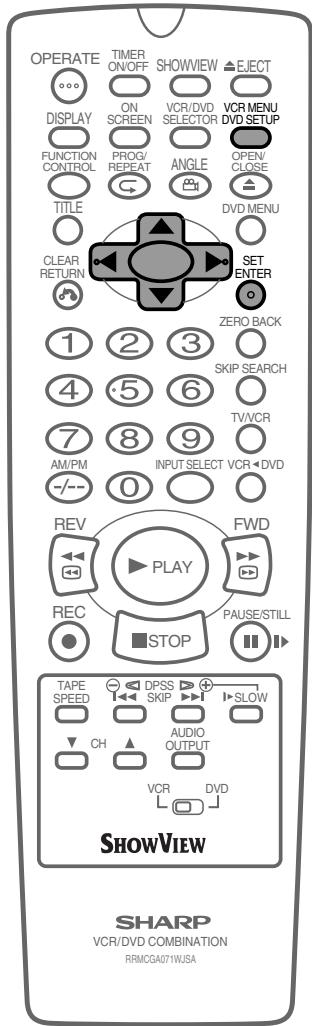
16:9 Playback and Recording
This feature allows the playback and recording of wide screen format signals (16:9), which should automatically change the picture size setting on a wide screen TV. To allow the operation of this feature, ensure 16:9 mode is set to AUTO in the MODE menu. A scart connection must be used between the VCR (SOCKET L1) and the TV.
During playback of a 16:9 encoded tape, the TV should switch to (Widescreen) 16:9 mode.
1 Follow steps 1 to 3 from BLUE MUTE on page 57. 2 Press ▲ / ▼ to select "16:9".
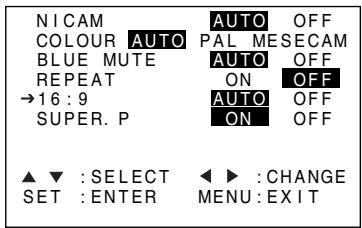
3 Press ◀ / ▶ to select "AUTO" or "OFF". 4 Press SET to confirm and then VCR MENU to return to the normal screen.
Hi-Fi STEREO SOUND
Stereo sound is possible from this unit if you have a stereo TV connected to the unit with a scart lead, or audio equipment connected with audio phono leads. The unit is normally set so that stereo sound is possible. The sound output from the unit is controlled by AUDIO OUTPUT. If you wish to change the sound output, you can use AUDIO OUTPUT as follows:
- Press AUDIO OUTPUT once. The LEFT audio channel will be sent to BOTH speakers. L will appear on the VCR front panel display.
- Press AUDIO OUTPUT again. The RIGHT audio channel will be sent to BOTH speakers. R will appear on the VCR front panel display.
- Press AUDIO OUTPUT a third time and the MONO track will be sent to BOTH speakers. L and R will not appear on the VCR front panel display.
- Pressing AUDIO OUTPUT a fourth time, normal Hi-Fi stereo sound will be heard. L and R will appear on the VCR front panel display.
NICAM/IGR Hi-Fi STEREO SOUND
Your unit can receive and record NICAM/IGR sound. The unit is normally set so that NICAM/IGR sound is possible if it is present on the receiving signal, otherwise the unit will automatically switch to receive the mono signal. NICAM/IGR sound can be turned off. If you wish to do this, follow the procedure below:
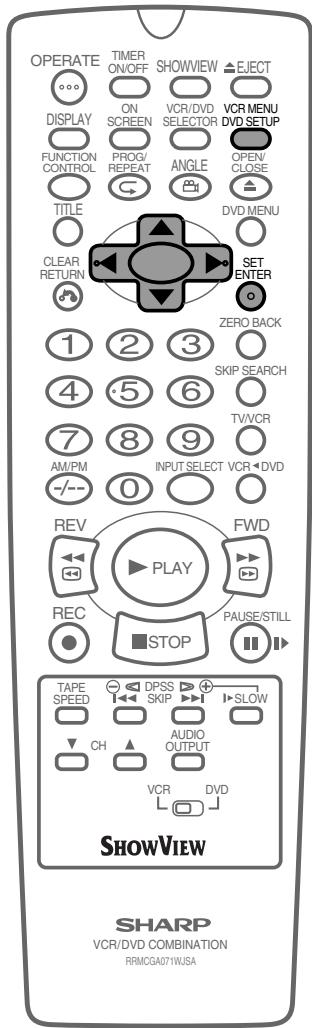
1 Press VCR MENU to display the menu screen. 2 Press ▲ / ▼ to select "MODE" then press SET to confirm. The MODE menu will be displayed with NICAM selected
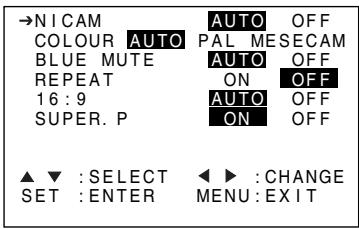
3 Press ◀ / ▶ to select "OFF". 4 Press SET to confirm and return to the menu screen. 5 Press VCR MENU to exit to normal screen.
NOTE
- If the tape being played back does not carry sound recorded on Hi-Fi tracks, L and R will not appear on the display.
- If the sound contains 'crackling' or 'popping' noises the sound quality may be improved by adjusting the tracking using CH ▲ / ▼.
- If the poor quality is for a long period the Unit will automatically select the mono track and the sound will be in mono.
- NICAM sound may not be stereo.
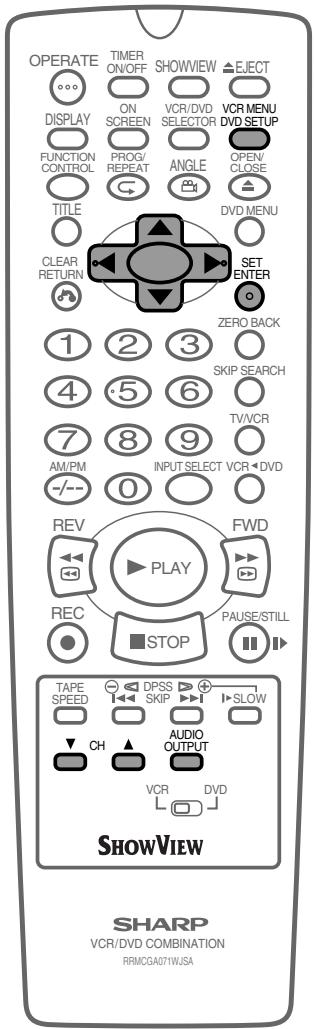

Sharp Super Picture
This function creates clearer picture quality only during playback.
1 Press VCR MENU to display the menu screen. 2 Select "MODE" with △ / ▽ and then press SET.
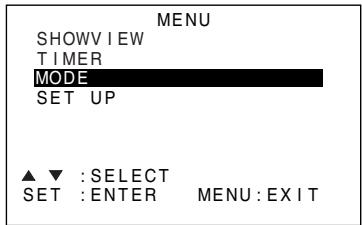
3 Select "SUPER. P" with △ / ▽. Then set it to "ON" or "OFF" with △ / ▽.
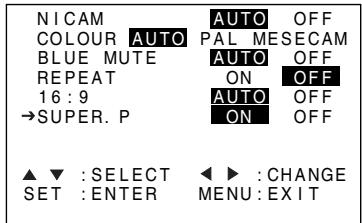
ON:
Normally leave the mode set to ON. This high picture quality function will create a clearer image during playback.
OFF:
Set to OFF when playing back a tape on the VCR while editing or when strong noise appears on the screen.
4 Press SET to confirm and return to the menu screen. 5 Press VCR MENU to exit to normal screen.
NOTE
- This function only operates during playback. It will not operate when recording or watching a TV program with the VCR tuner.
- When playing S-VHS tape
- Sharp Super Picture is set to off automatically. When finished playback, the setting will return to the previous setting.
- You cannot change ON/OFF setting manually.
- The ON/OFF status of the Sharp Super Picture can be checked when ON SCREEN is pressed to display OSD.
- When the Unit power is turned off, the Sharp Super Picture setting is retained in memory.
- If power is interrupted for more than 60 seconds (power failure, etc.), the setting will return to ON.

Auto Repeat
This function replays the specified part.
1 Press VCR MENU to display the menu screen. 2 Select "MODE" with ▲/▼ and then press SET.
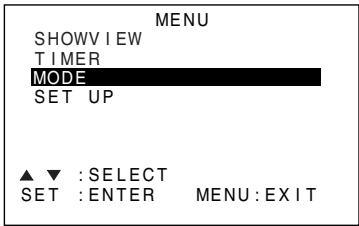
3 Select "REPEAT" mode with / . Then set the mode to "ON" or "OFF" with / .
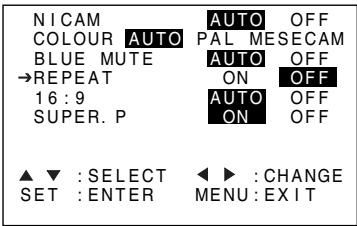
4 Press SET to confirm and return to the menu screen. 5 Press VCR MENU to return to normal screen.
Auto Zero Back
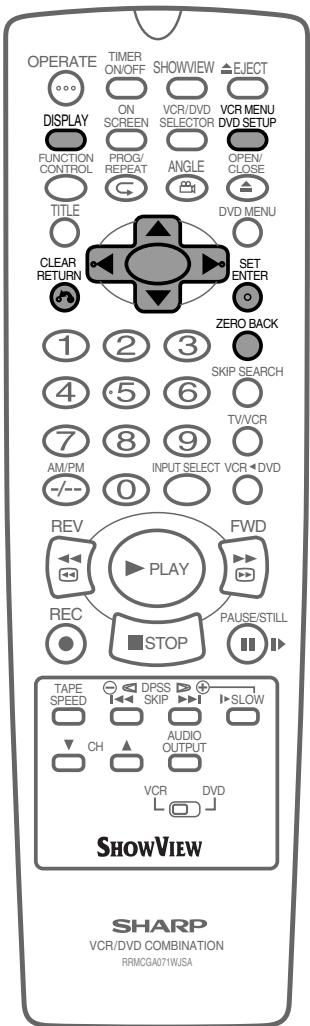
ZERO BACK uses the tape counter to determine a specific point on a cassette you may wish to return to.
1 Press DISPLAY until tape counter appears. 2 Press CLEAR to identify the current position on a video cassette and the tape counter will appear. 3 Press ZERO BACK when you wish to return to this position on the video cassette. The cassette will rewind/advance to this point.
NOTE
- The tape counter will only operate on recorded sections of cassette.

DPSS (Digital Program Search System) / Skip Search
DPSS
Your Unit records a marker signal on the tape at the start of each recording. These signals can be used later to locate the starting point of a recording.
Press DPSS / to locate a previous programme or the next programme.
1 Load the video cassette into the Unit. 2 Press DPSS ① three times. DPSS 3 will appear on the onscreen display, and the Unit will fast forward to locate the third recording after the current one. 3 Press DPSS once. DPSS -1 will appear on the on-screen display and the Unit will rewind to locate the beginning of the current recording.
Rewind DPSS Signals Fast Forward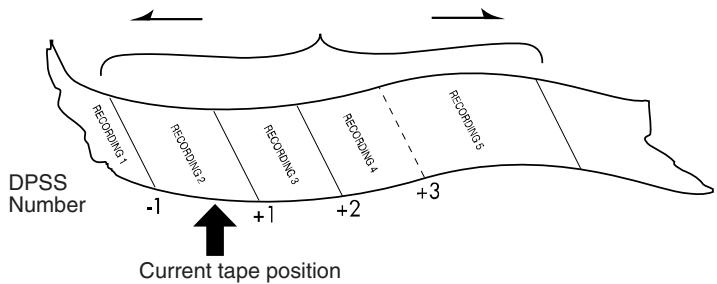
4 To cancel the search before it has finished, press STOP or PLAY.
NOTE
- Recordings must be longer than 3 minutes.
- The starting point of playback may vary.
- This feature will only work with video tapes recorded on a VCR with the DPSS feature.
Skip Search
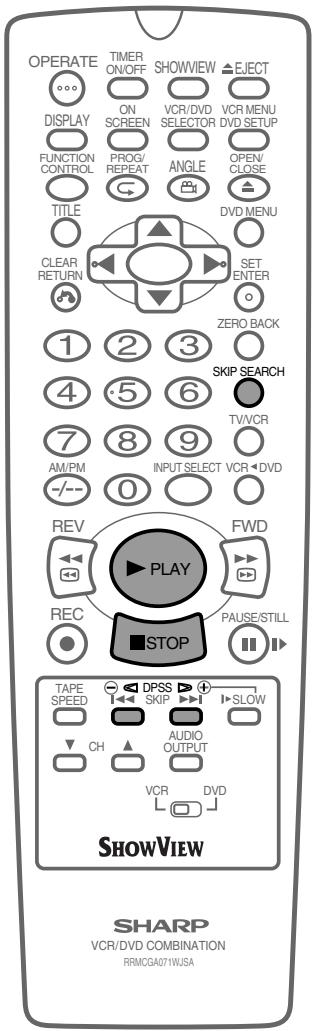
With this feature, you can set a forward video search time to approx. 30, 60, 90 or 120 seconds of recorded material. After searching, normal playback will resume automatically.
1 Press ▶ PLAY to start playback. 2 Press SKIP SEARCH. The number of times you press SKIP SEARCH determines the forward search time.
| Number of Times Pressed | 1 Time | 2 Times | 3 Times | 4 Times |
| Video Search Time | Approx. 30 sec. | Approx. 60 sec. | Approx. 90 sec. | Approx. 120 sec. |

TV Program Recording
Immediate Recording
Selection of a Channel
Select the channel you wish to record by using the number buttons, or select the next/previous channel by pressing CH ▲ / ▼.
To change between single digit and 2-digit channel numbers, press
-1--. For example, for channel 24, press -I -- then press 2 and 4.
Tape Speed Selection
Your Unit has three tape speeds: SP (Standard Play), LP (Long Play) and EP (Extended Play). Press TAPE SPEED to select the desired setting.
It is recommended that EP recordings are only played back on the Unit on which they were originally recorded.
You can record the channel you are watching or a different channel.
| MODE CASSETTE | SP Standard Play | LP Long Play | EP Extended Play |
| E-240 | 240 min. | 480 min. | 720 min. |
Immediate Recording
1 Insert a video tape into your Unit. 2 Select the channel you wish to record on the Unit as above. 3 Press ● REC to start recording. 4 Press II PAUSE/STILL to pause during recording. 5 Press ● REC to continue recording. 6 Press STOP once to stop recording.
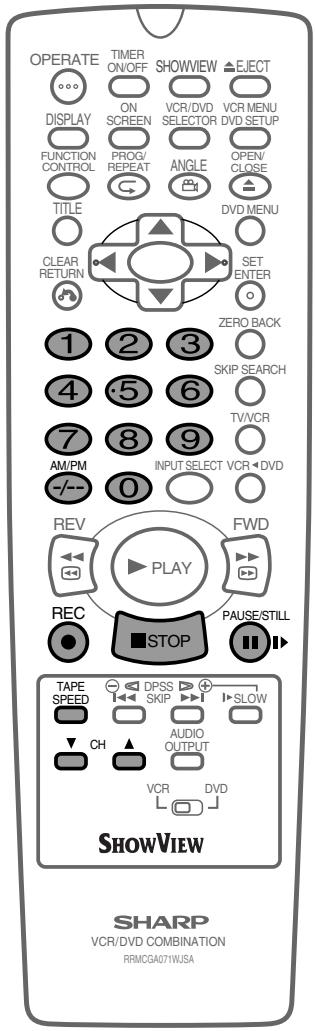
Simple Timed Recording
1 Press ● REC. 2 To specify a stop time, each additional press of ● REC will delay the stop time by 10 minutes. 3 Press STOP once to stop recording at any time.
STOP 15:30
NOTE
- If the tape ends before the recording is complete the Unit will stop recording, rewind, eject the tape and place the Unit into STANDBY mode.
- If the Unit ejects the video tape when you press ● REC the tape is record protected. i.e. record protection tab has been removed.

Timer Recording
How to Use the SHOWVIEW® System to Make a Recording
The ShowView system allows you to program the Unit to record up to eight programmes using the ShowView numbers published in TV listings (refer to your daily newspaper or TV magazine).
Preparations
- Check that the clock is displaying the correct time.
- If the Timer Standby symbol [boxed plus] appears on the VCR display, press the TIMER ON/OFF to remove the [boxed plus] symbol.
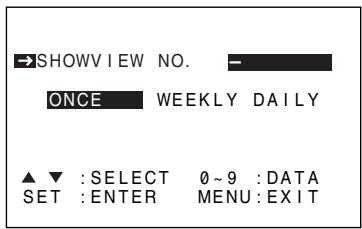
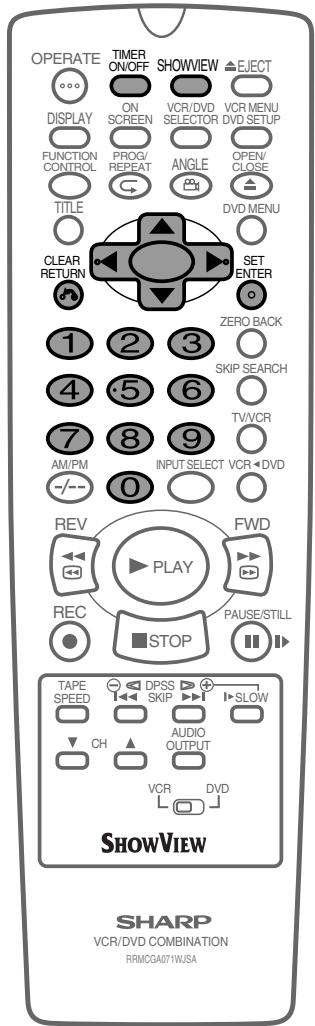
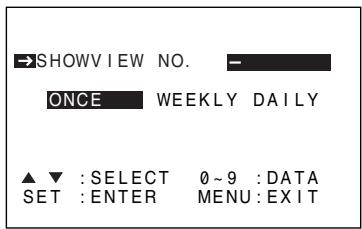
1 Press the ShowView button. 2 Enter the SHOWVIEW number from the TV listing using the number buttons.
NOTE
- An ERROR message will appear if you have entered a number that is not a current ShowView number. If this happens press CLEAR to delete the numbers as required and enter the correct ShowView number.
3 Press ▲/▼ to select ONCE, WEEKLY, DAILY.
- If you want to make additional recordings at the same time each day or week, then use ◀/▶ to select the WEEKLY, or DAILY option as appropriate.
4 Press SET to confirm.
NOTE
- Check that the menu list agrees with the times shown in the TV listing. If it does not, press CLEAR to return to the SHOWVIEW system menu, and re-enter the correct SHOWVIEW number.
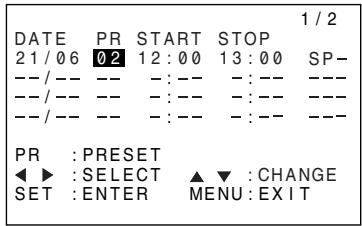
The first time that you use the SHOWVIEW system to make a recording on each channel Preset, (PR) may be highlighted on the On-Screen Display.
5 Enter the channel number you wish to record using the number buttons.
(Example) Channel 2
GB-64
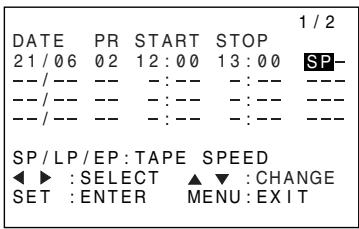
6 If you wish to change the recording speed, use ◀/▶ to highlight SP. Press ▲/▼ to select standard play (SP), long play (LP) or extended play (EP) as required.
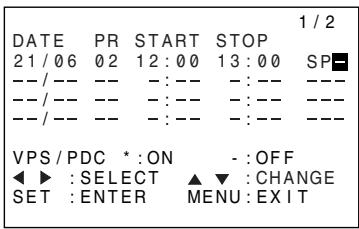
7 For VPS/PDC setting use ◀/▶ to highlight the final column (See NOTE below). Using ◀/▶ will select VPS/PDC "ON" or "OFF". (* = ON - = OFF)
8 Press SET to confirm the programme. The SHOWVIEW system menu will reappear. If you wish to enter further SHOWVIEW system recordings repeat this procedure.
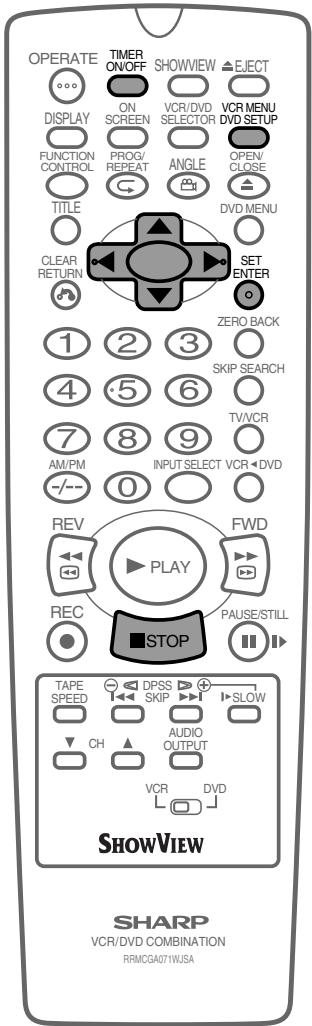
9 When you have completed entering the timer settings, press VCR MENU to remove the menu from the TV screen. 10 Ensure that the tape on which you wish to record is inserted into the Unit, then press TIMER ON/OFF once to place the Unit in TIMER STANDBY mode. The symbol will be shown on the VCR Front Panel Display and the timer standby indicator will be illuminated.
NOTE
- You may also access the SHOWVIEW system menu by the following procedure:
1. Press VCR MENU. 2. The ShowView system option will be highlighted. Press SET to confirm.
Continue from step 2 of this procedure.
- VPS/PDC is a signal broadcast by some TV stations which adjusts the start and stop time of your Unit recording. This ensures that if there is a change in broadcast time for your programme the Unit will still record the whole programme. It is essential that the start time as it appears in the TV listing is used to program the Unit, as this information is used to identify the VPS/PDC signal corresponding to your programme.
- If the symbol flashes, a video tape has not been inserted into the Unit.
- If the video cassette is ejected when the Unit tries to record, the record protection tab has been removed.
- During recording, press STOP to cancel the recording. If there are further recordings to be made, the Unit will return to Timer Standby.
How to Set a Delayed Recording
You can make a maximum of eight delayed recordings up to a year in advance. The example shown is for 24-hour clock operation. To change to 12-hour clock operation refer to the Manual Clock Setting section of this manual. 12-hour clock am/pm can be selected using AM/PM.
Preparations
- If the Timer Standby symbol appears on the VCR Front Panel Display, press the TIMER ON/OFF to remove the symbol.
- Check that the VCR clock is displaying the correct time.
Setting a Recording
For example: Recording a programme on channel 3 from 21:05 to 22:30 on July 9th.
1 Press STOP to ensure that the Unit is switched on. 2 Press VCR MENU. 3 Press / to select "TIMER". Then press SET to confirm.
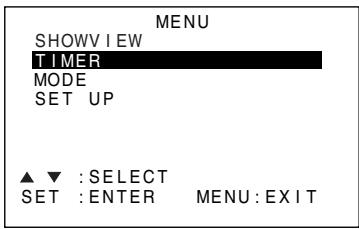
4 Press SET again, the on-screen display will now show today's date. If you wish to change the date use / or number buttons. If you use the number buttons, enter two digits for the day, then two for the month. For example for July 9th, press 0 9 (9th), then 0 7 (July). When the correct date for your recording is shown, press to move to the next setting.
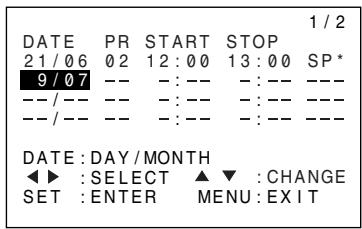
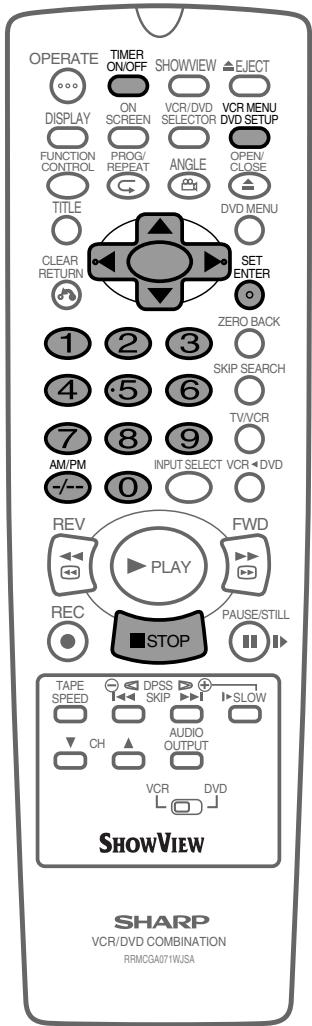
5 If you want to make additional recordings at the same time each day or week, use / to select D (daily) or W (weekly). Then press to move to the next setting.
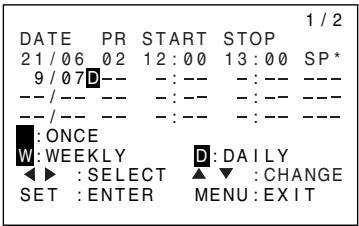
6 Enter the channel number using / or the number buttons. For example to record a programme on channel 3, press 0 3. Then press to move to the next setting. 7 Enter the start time using / or the number buttons, hours first then minutes (when entering less than 10 hours or minutes add a '0' before the number), for example for 21:05 start, press 2 1 0 5. Then press to move to the next setting.
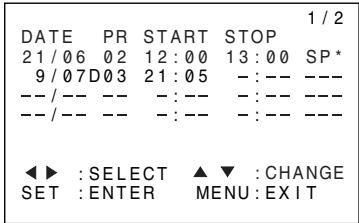
8 Enter the stop time, for example for 22:30 stop, press 2 2 3 0. 9 If you wish to change the "RECORDING SPEED", use / to highlight SP. Press / to select standard play (SP), long play (LP) or extended play (EP) as required.
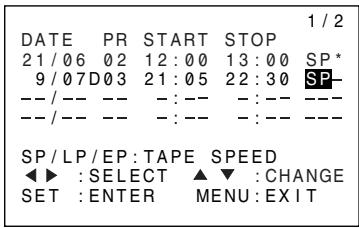
10 For VPS/PDC setting use / to highlight the final column (See note on next page). Using / will select VPS/PDC "ON" or "OFF" ( * = ON - = OFF ).
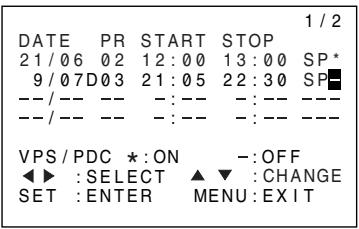
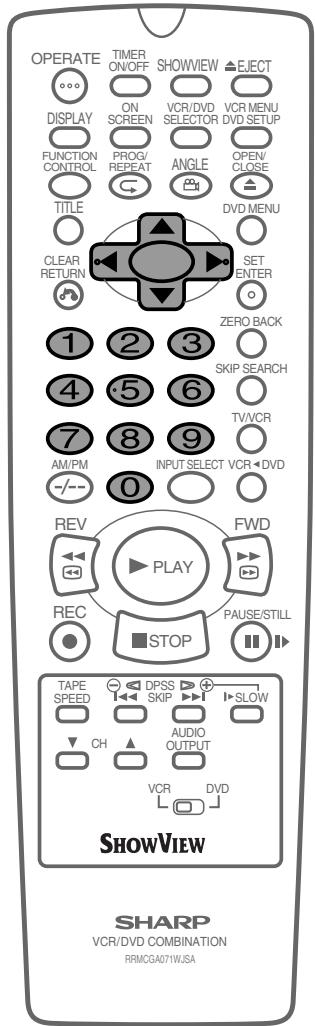

Timer Recording
11 Press SET to confirm.
- The MENU now shows all the timer settings you have entered. If you wish to make additional timer recordings, repeat this procedure.
12 When you have completed entering timer settings, press VCR MENU to remove the menu from the TV screen.
13 Ensure that the tape on which you wish to record is inserted into the Unit, then press TIMER ON/OFF once to place the Unit in TIMER STANDBY mode. will be shown on the VCR Front Panel display and the timer standby indicator will be illuminated.
NOTE
- VPS/PDC is a signal broadcast by some TV stations which adjusts the start and stop time of your VCR recording. This ensures that if there is a change in broadcast time for your programme the Unit will still record the whole programme. It is essential that the start time as it appears in the TV listing is used to program the Unit, as this information is used to identify the VPS/PDC signal corresponding to your programme.
- If the symbol flashes a video tape has not been inserted into the Unit.
- If the video tape is ejected when the Unit tries to record, the record protection tab has been removed.
- During recording, press STOP to cancel the recording. If there are further recordings to be made, the Unit will return to Timer Standby.
How to Check, Change, and Cancel a Delayed Recording
Checking a Recording
You can see on the Timer setting screen a list of all timer programmes that are already set.
Preparations
- If the Timer Standby symbol □ appears on the VCR Front Panel Display, press the TIMER ON/OFF to remove the □ symbol.
1 Press STOP to switch on the VCR.
2 Press VCR MENU.
3 Press ▲/▼ to select "TIMER". Press SET to confirm. All the delayed recordings in the VCR's memory will be shown.
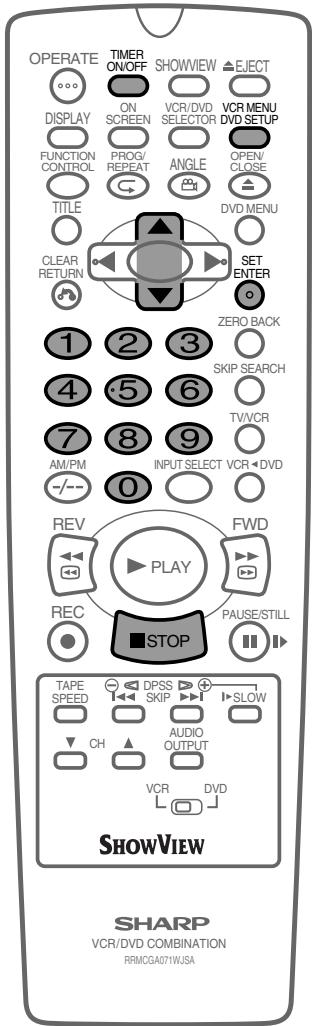
Changing a Recording
1 Follow steps 1 to 3 of Checking a Recording on page 68. 2 To change a delayed recording, press ▲/▼ to highlight the recording, then press SET to select. 3 Press ◀/▶ to highlight the setting to be changed and correct it by using ▲/▼ or the number buttons.
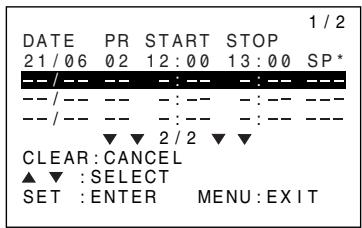
4 When all corrections are complete press SET to confirm, then press VCR MENU to exit.
Cancelling a Recording
1 Follow steps 1 to 3 of Checking a Recording on page 68. 2 To cancel a delayed recording, press ▲/▼ to highlight the recording to be cancelled, then press CLEAR.
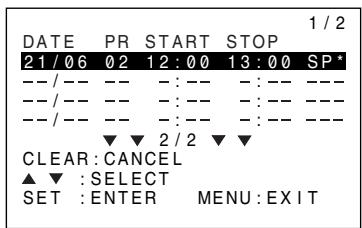
3 Press VCR MENU to exit.
NOTE
- If there are some programmes to be recorded, do not forget to press TIMER ON/OFF to return the Unit to Timer Standby mode.
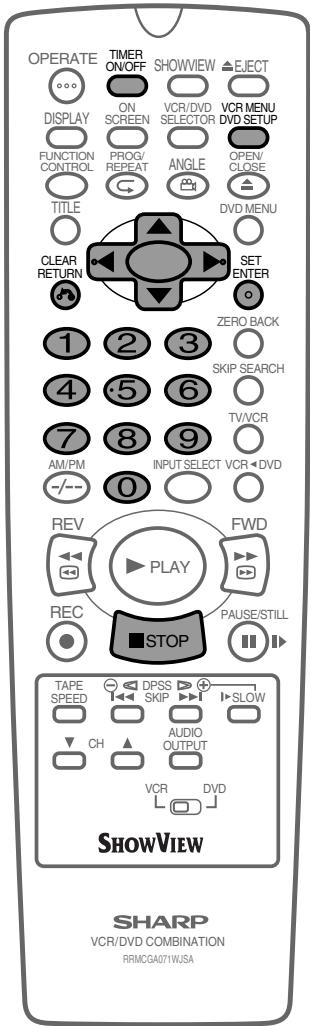

Recording From Other Equipment
Recording from Other Equipment
You can record video and audio signals from various external sources, such as a camcorder, onto a video tape using this Unit.
For example, recording from a camcorder connected to LINE 2 IN/DECODER on the Unit:
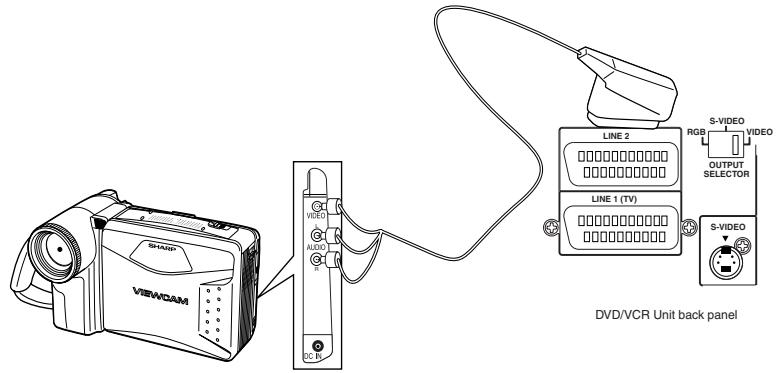
1 Connect your signal source (e.g. Camcorder, Digital Camera etc.) to the desired scart socket on the back of the Unit using the manufacturers' recommended cable (not supplied). 2 Ensure that the tape on which you wish to record is inserted into the Unit. 3 Press the INPUT SELECT button on the remote control until the VCR display shows L2. 4 Press the RECORD button on the remote to start recording.
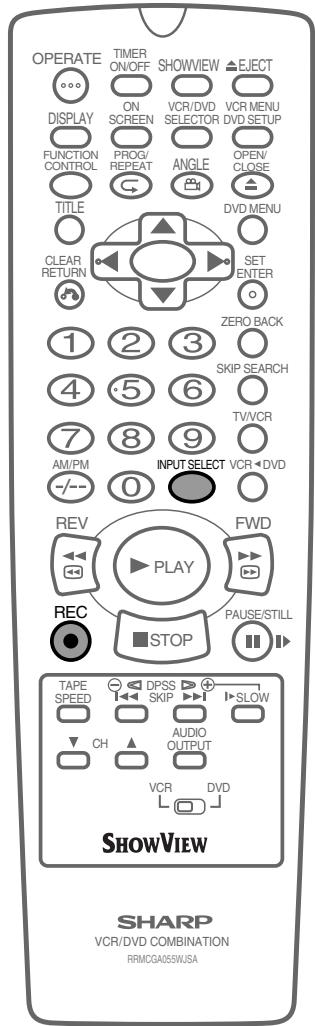
OTHER POSSIBLE CONNECTIONS
- If you wish to record from a source connected to LINE 1 IN/OUT, select L1. Press the ● REC button on the remote to start recording.
- If you wish to record from a source connected with audio phone leads to the sockets on the front of the Unit, select L3. Press the ●REC button on the remote to start recording.
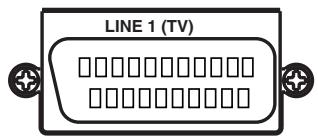
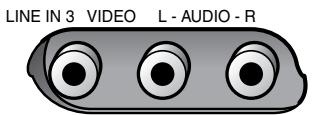
NOTE
There are many different ways of connecting external equipment to the Unit. Please refer to your equipment operation manuals for further information.

Tape Remaining
When you load a video cassette into the Unit, the Unit can calculate approximately the amount of video tape remaining in hours and minutes. This is useful in determining whether or not there is sufficient tape left to make a recording.
When a video tape is playing, the amount of tape remaining is calculated automatically. To display the amount of video tape remaining:
1 Load the video cassette into the Unit. 2 Press DISPLAY as many times as necessary until "R" appears on the VCR Front Panel display. The tape will wind forward for a few seconds and then return to its original position. The tape remaining will be shown on the VCR Front Panel display in hours and minutes. By pressing TAPE SPEED on the Remote the remaining time will change between standard play, long play and extended play.
NOTE
- If the TAPE REMAINING function is interrupted, the remaining time will not be displayed.
- If less than 5 minutes of tape remains the display will flash.
- When you start recording or playback, the VCR will begin the computation. However, this may take some time. When the computation is completed, the tape remaining will be shown on the OSD and VCR display for 5 seconds.
- If the "REM" mode is selected with MODE OSD or DISPLAY and the VCR is in Stop mode, the tape will automatically fast forward or rewind for a few seconds and then the VCR will begin computing the amount of tape remaining.
- During computation, REC will not function and pressing STOP, PLAY/X2 or other buttons will interrupt the computation.
- Setting the DPSS or ZERO BACK function during computation may cancel it.
- The indicated length of tape remaining is only an approximate guide.
- This function may not work properly for video tapes other than E-60, E-90, E-180 and E-240.
- The length of tape remaining during fast forward or rewind may be indicated as greater than it actually is.
- When VHSC and SVHSC tapes are used with a cassette adapter, the indication may not be correct.
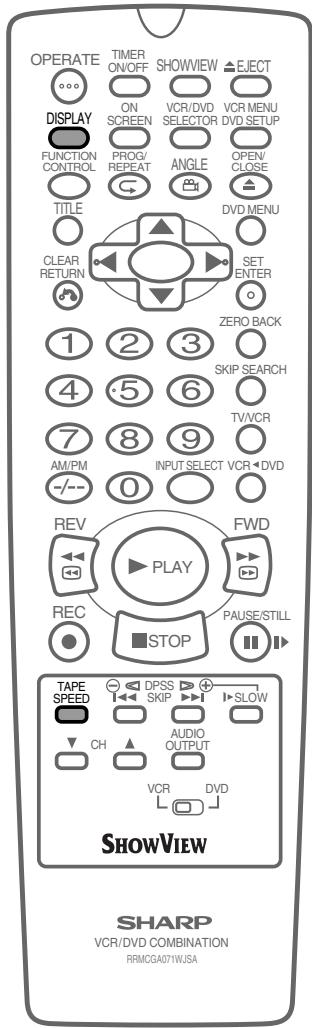

Recording a DVD Disc onto a Video Cassette
Use the following procedure to record the images and sounds on a DVD disc onto a video cassette.
Recording a DVD disc onto a video cassette (Tape Editing mode)
Preparation
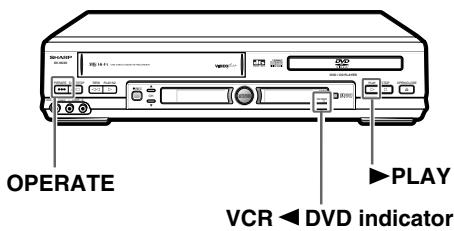
TV
- Turn on the TV and switch to the external "VIDEO" or "AV" channel.
This Unit
- Press OPERATE.
- Move the VCR/DVD CHANGE Switch on the Remote to DVD.
1 Insert both the DVD disc and the video cassette for recording. 2 Press VCR DVD.
- The VCR DVD indicator on the product lights up.
- The channel has changed to DVD playback picture and the product enters the REC PAUSE mode.
3 Press ON SCREEN to turn off the DVD on screen display (see page 38). - If the DVD on screen display is "ON" while recording, the display will also be recorded. 4 Press ▶ PLAY. The disc starts playback. 5 Press ● REC. - The images on the DVD disc are recorded onto the VCR cassette. 6 To stop the Tape Editing mode, first move the VCR/DVD CHANGE Switch to VCR and press the STOP button to stop the VCR. Then move the selector switch to DVD and press STOP to stop the DVD.
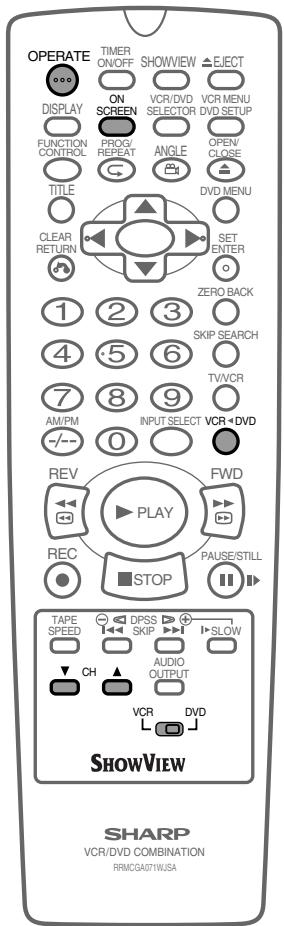
NOTE
- The following are not signs of trouble:
The brightness of images from regular DVD disc playback and from discs played in Tape Editing mode might vary. The disc's playing time and the Real Time counter vary slightly when recording. While in Tape Editing mode, it is not possible to adjust timer settings to use the Exact Rec function. The DVD/VCR output jacks become VCR fixed. The following operations cancel the Tape Editing mode:
When stopped or performing other tape operations except for recording or pause. When changing channels. When pressing VCR DVD once more or turning the power on or off, after setting the Tape Editing mode.
- Copy protected DVD discs cannot be recorded (the image will be distorted when REC is pressed).
- Discs that can be recorded onto tape are DVD discs that are not copy protected, and Audio CD-R and CD-RW (CD-R or CD-RW are limited to those recorded in Audio CD format).
The recordings which you make from TV/radio broadcasts or audio sources (such as records) are for your own private use and cannot be used without prior permission or consent of the author.
Watching the DVD
Preparing to Use the DVD 74
When connecting a TV with the DVD output jacks 74
When connecting a TV with the DVD/VCR shared output jacks 74
Playback 75
Basic Play 75
Fast Forward/Fast Reverse 76
Slow-Motion Play 76
Still/Pause 77
Frame Advance 77
Skip (Forward/Reverse) 77
Angle Selection 78
Playing MP3 Discs 79
Regarding MP3 discs 79
Playing MP3 discs 79
To play MP3 discs 80
To play another file (music title) while playing 80
To skip the file while playing 80
About the Function Control Screen 81
Direct skip (title/chapter/time) 82
Subtitle language setting 83
Angle setting 84
Audio setting 85
Advanced Surround setting 86
Digital Gamma setting 87
Direct Selection of Scenes 88
Selecting Scenes by Title Number 88
Selecting Scenes from the Menu Screen 88
Programmed Playback 89
Chapter Programmed Playback 89
Track Programmed Playback 90
MP3 Files Programmed Playback 91
Repeat Playback 93
Repeat Playback 92
A-B Repeat 93
Resume Function 94

Preparing to Use The DVD
The following steps are necessary to display the DVD screen on the TV.
When connecting a TV with the DVD output jacks
1 Turn on the TV and switch the TV channel to the external input "VIDEO" or "AV" channel connected to the DVD output jack.
2 Press OPERATE.
- The start up screen is displayed on the TV screen.
3 Move the VCR/DVD CHANGE Switch on the remote control to DVD.
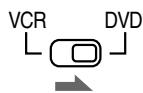
NOTE
- When the TV is connected to the DVD output jack, the image will be displayed regardless of the VCR/DVD mode selected. Therefore, it is not necessary to adjust the mode selected.
When connecting a TV with the DVD/VCR shared output jacks
1 Turn on the TV and switch the TV channel to the external input "VIDEO" or "AV" channel connected to the DVD/VCR shared output jack. 2 Press OPERATE. 3 Move VCR/DVD CHANGE Switch on the remote control to DVD.
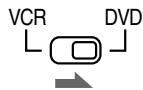
4 Press VCR/DVD SELECTOR to enter the DVD mode.
- The VCR/DVD SELECTOR on the product lights up in green.

Lights up in green
Each time VCR/DVD SELECTOR is pressed, the mode changes between "VCR" mode and "DVD" mode.
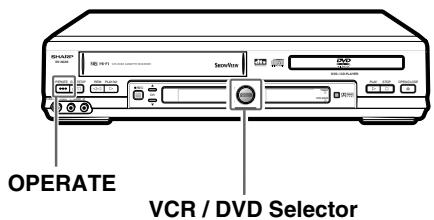
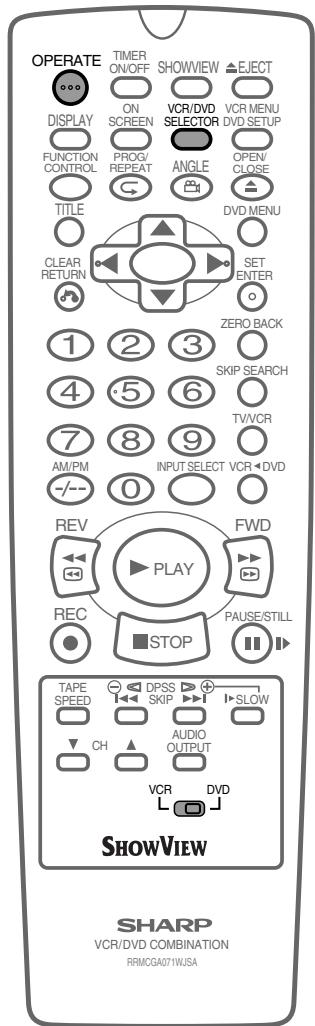

Playback
DVD
CD
CD-R/RW
Preparation
See Preparing to Use DVD on page 24.
DVD
CD
CD-R/RW
- The icons below are used in this Operation Manual:
DVD ....... Indicates the functions that can be performed for DVDs. CD ....... Indicates the functions that can be performed for AUDIO CDs. CD-R/RW... Indicates the functions that can be performed for CD-R/RW.
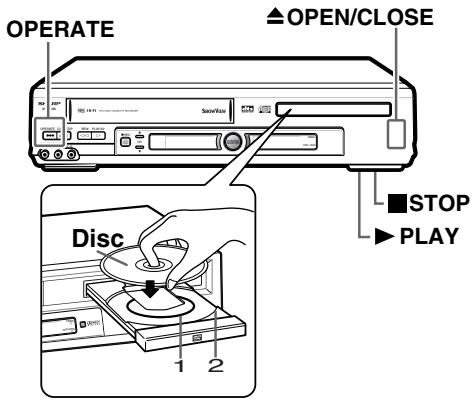
Basic Play
1 Press OPERATE. 2 Press OPEN/CLOSE to open the disc tray. 3 Place a disc onto the tray.
- Hold the disc without touching either of its surfaces, position it with the printed title side facing up, align it with the guides, and place it in its proper position.
① 8cm (3") disc ② 12cm (5") disc - Do not stack discs in the tray. This can damage the player and the discs.
4 Press OPEN/CLOSE to close the disc tray. 5 Press PLAY.
- Playback image appears on the screen. (The "Start Up screen" will be shown for audio CDs.)
- Some discs are played back automatically without pressing PLAY.
- Some discs prompt you to select a title. In this case, select a title you want to view.
6 Press STOP to stop playback.
NOTE
- If the disc is loaded upside down or is damaged, “---” appears on the DVD Front Panel display and the disc tray slides out.
- If you attempt to play a DVD disc with the wrong region code, "REGION CODE ERROR" appears on the TV screen and the disc tray slides out.
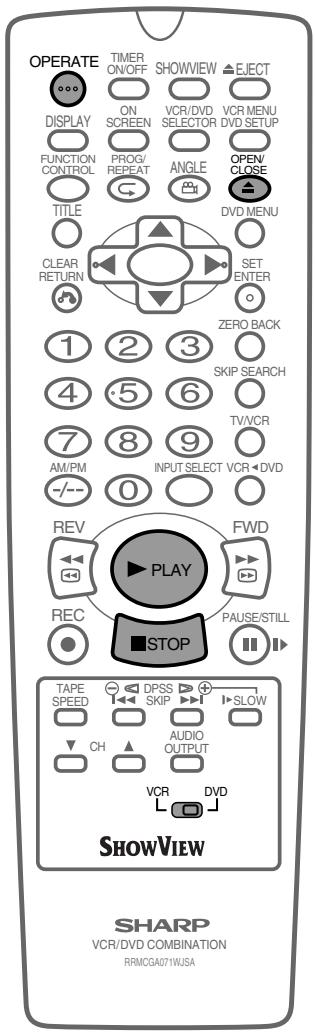

Playback
DVD
CD
CD-R/RW
Fast Forward/Fast Reverse
1 Press FWD or REV during playback.
- The disc begins fast scan at × 2 speed (1).
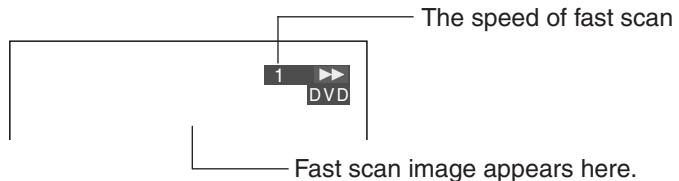
(No image is shown for Audio CDs.)
- Three speeds are available for DVD and for Audio CDs. Each time FWD▶ or REV is pressed, the speed of fast scan changes in the following sequence:
Number of Presses
↓ 1 (approx. x2) → 2 (approx. x8) → 3 (approx. x32)
2 Press ▶ PLAY when you reach the desired point.
NOTE
- On some discs, the fast scan function is disabled.
- On DVD discs, audio and subtitles are not played back during the fast scan playback. Audio is played back only when the search speed of the fast forward is 1 (about x2).
- With a DVD disc, you cannot search past a title. Playback starts from the beginning of the title.
- Depending on the audio equipment, the sound may not come out when the fast forward is 1 (about x2).
DVD
Slow-Motion Play
1 Press ▶ SLOW in the play mode or still mode.
- Three speeds are available. Each time ▶ SLOW is pressed, the speed of slow-motion playback changes in the following sequence:
(DVD)
Number of Presses
↓ →1 (approx. x1/2) → 2 (approx. x1/8) → 3 (approx. x1/16)
2 Press ▶ PLAY to return to normal playback, or press PAUSE/STILL to return to still picture mode.
NOTE
- On some discs, the slow-motion playback functions are disabled.
- Slow-motion playback is disabled on Audio CDs and MP3 discs.
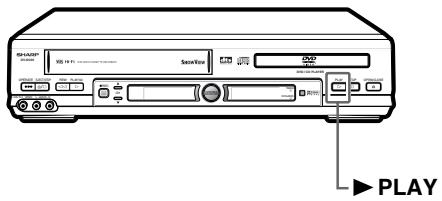
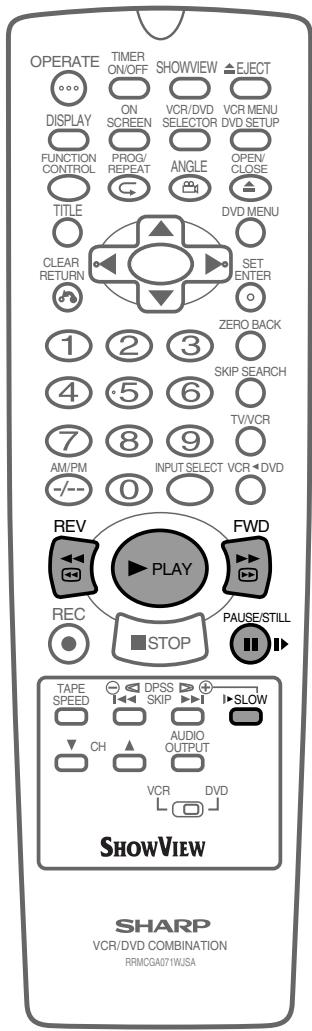
DVD
CD
CD-R/RW
Still/Pause
1 Press PAUSE/STILL during playback. 2 If you press ▶ PLAY while paused (STILL/PAUSE), normal playback resumes.
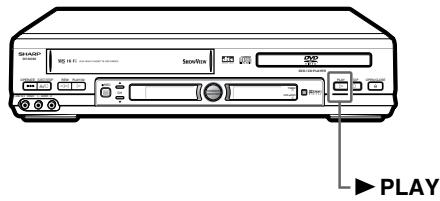
DVD
Frame Advance
1 Press PAUSE/STILL during playback.
- The playback is paused (STILL/PAUSE).
- The disc goes forward by one frame each time PAUSE/STILL is pressed.
2 Press ▶ PLAY to return to normal playback.
DVD
CD
CD-R/RW
Skip (Forward/Reverse)
While you are playing a disc, this function jumps to the beginning of the next chapter/track (Forward) or the current chapter/track (Reverse) and automatically starts playing that chapter/track.
1 While a disc is playing, press SKIP▶ or KSKIP.
- Playback skips forwards one chapter/track for each time SKIP▶■ is pressed.
- If you press SKIP and playback begins, and you then press SKIP again within 3 seconds, playback returns to the beginning of the previous chapter/track.
NOTE
- The frame advance playback functions are disabled for Audio CDs and CD-R/RW.
- On some discs, the skip functions are disabled.
- The playback image is not displayed during the skip. It resumes during playback following the skip.
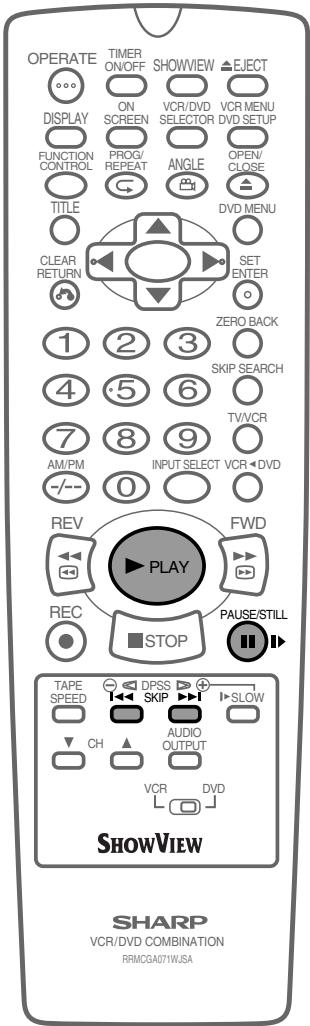
DVD
Angle Selection
Some DVD discs contain scenes which have been shot simultaneously from a number of different angles. For these discs, the same scene can be viewed from each of these different angles. (The recorded angles differ depending on the disc used.)
1 While you are playing a DVD disc with different angles recorded, press ANGLE to view the number of the current angle.
The number changes to show the number of the current angle. (The maximum number stipulated by the manufacturers is 9.)
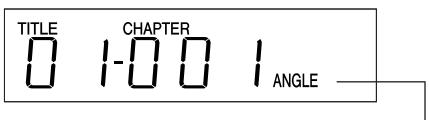
Lights when different angles are recorded for the title currently playing.
2 Use or (or ANGLE) to change the scene to the next angle in those recorded.
- About two seconds later, playback continues from the new angle you selected.
- If no button is pressed within 10 seconds, playback continues without changing the current angle.
Sequence of angle shots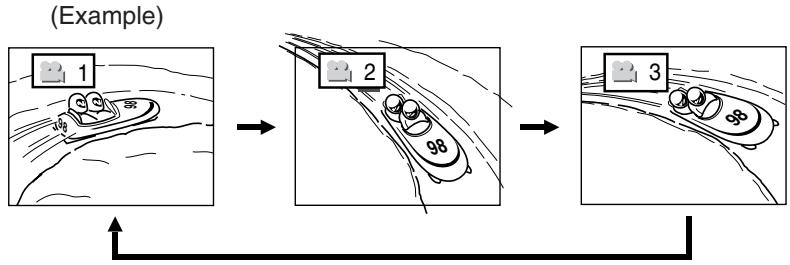
NOTE
- This function can only be used for discs on which scenes shot from multiple angles have been recorded.
- If no angles are recorded, xx is displayed.
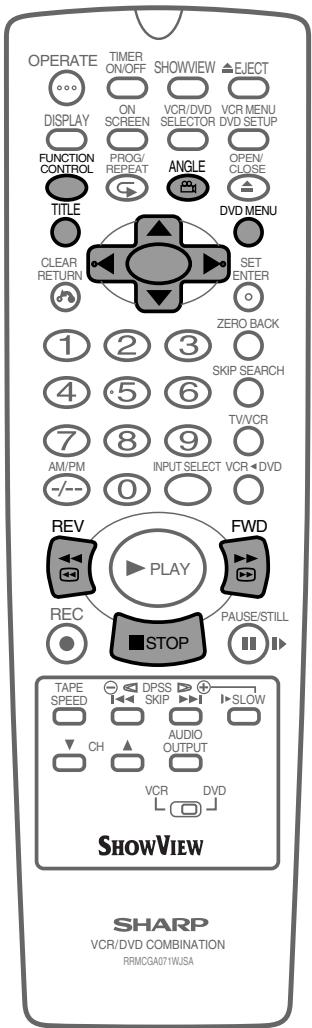
This Unit is able to play CD-R or CD-RW discs recorded in MP3 format.
Regarding MP3 discs
- MP3 files are audio data compressed in MPEG1 Audio layer 3 file format. "MP3 files" have ".mp3" as extensions.
- Some files that have ".mp3" extensions or files that have not been recorded in MP3 format will produce noise or cannot be played.
- Some discs cannot be played depending on the actual CD-R/CD-RW disc condition, the recording equipment and the disc's recording.
- Data on the CD-R or CD-RW disc, which has not been recorded in MP3 format, audio tracks or has been recorded in other file formats except MP3, cannot be played.
Playing MP3 discs
- Discs that have more than 1000 folders and files in total cannot be played.
- Some MP3 files are not played in the order they were recorded.
- The number of layers, which can be recognized, including files and folders, is maximum 8.
- Only the first session of a multi-session disc can be played.
- When both audio tracks and MP3 files are recorded on a disc, audio tracks will be played.
- Depending on the folder tree, reading MP3 files can take time. (The more files there are, the longer the reading time. Therefore it is recommended to lower the number of folders before recording.)
- Folder or track (file) names are limited to 8 characters. The folder / file names are displayed in half-size, capital letters or half-size numbers. Folder or track (file) names that go over 8 characters will be abbreviated.
- Certain letters or symbols in folder names or file names may not be displayed. In this case, "?" will be displayed.
- The playing time may not be correctly displayed during MP3 file playback.
- It is recommended to record data at a lower speed as data recorded at fast speed can produce noise and may not be able to be played.

CAUTION
- It is impossible to make a digital copy by using a digital audio recording device which outputs sound from discs in MP3 format through the coaxial digital output jack of this Unit.
CD-R/RW
To play MP3 discs
1. Load the MP3 recorded CD-R or CD-RW.
- The folder selection screen will be displayed after the data is read.
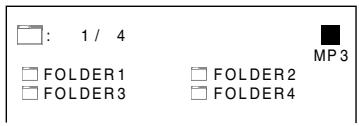
2. Select the folder you want to play by using the arrow keys (up, down, left, or right) and then press ENTER.
- The files (music titles) in the folder are displayed on the file selection screen.
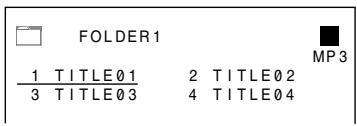
- Press RETURN to return to the folder selection screen.
- When pressing the PLAY button after selecting the folder, the playback screen is displayed and the files in that folder can be played from the beginning.
3. Select the file (music title) you want to play by using the arrow keys (up, down, left, or right) and then press ENTER.
- The chosen file (music title) will be played in sequence.
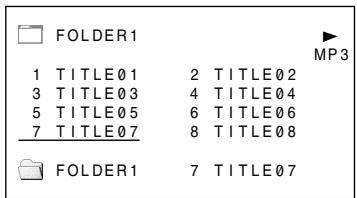
4. Press STOP to stop playback.
To play another file (music title) while playing
1. Press the arrow keys (up, down, left, or right) to select the file (music title) you want to play and then press ENTER.
- The chosen file (music title) will be played.
NOTE
- The file where the cursor is on will be played when the cursor is moved to a different file from the file being played and no operation is taken within 10 seconds.
- Press RETURN to return to the folder selection screen.
To skip the file while playing
1 Press SKIP▶I or I<SKIP during playback.
- SKIP▶ will skip forward, and ↓SKIP will rewind.
- When playing files (tracks) from other folders, press RETURN and then select the files from the folder selection screen.
While the MP3 disc is playing
- Time Search is disabled.
- It is possible to repeat one track or the entire folder.
GB-80
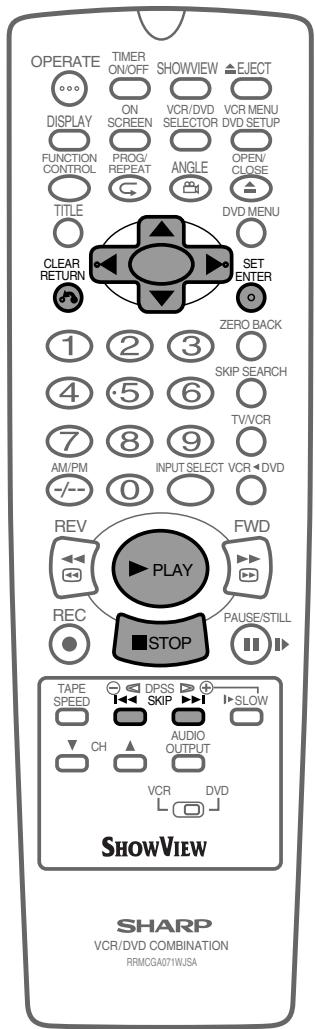

About the Function Control Screen
DVD
CD
Using Function control, you can check at a glance and change the current settings of the following items: SUBTITLE, ANGLE, AUDIO, ADVANCED SURROUND and DIGITAL GAMMA.
Function control also allows you three ways of direct skips (title [track], chapter and time).
- While the disc is playing, press FUNCTION CONTROL to display the screen shown below.
- Pressing or changes the currently selected item.
- Numbers in refer to the pages where the setting procedures are described.
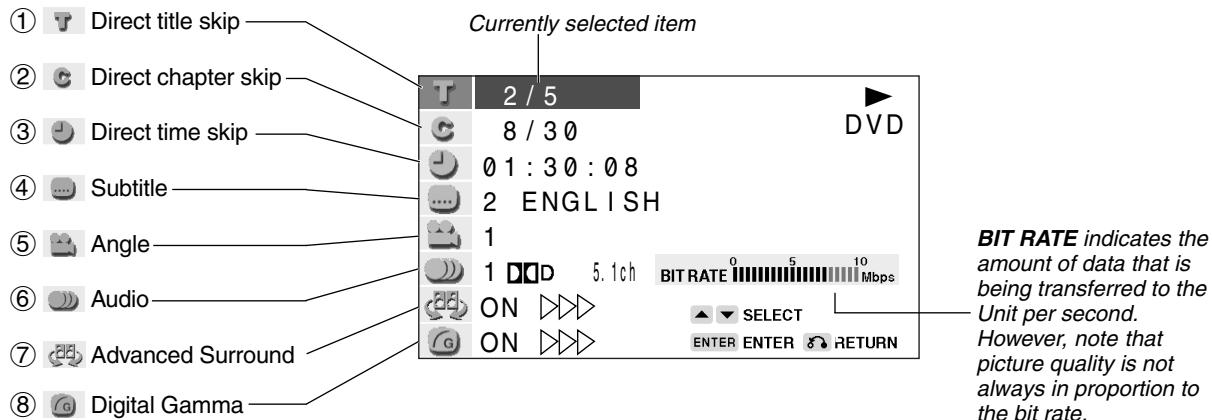


Direct title skip 82
- The number of the title currently played back is displayed.
- You can skip directly to the desired title.


Direct chapter skip 82
- The number of the chapter currently played back is displayed.
- You can skip directly to the desired chapter.


Direct time skip 82
- Elapsed time from the beginning of the disc is displayed.
- You can skip directly to the point from which you want to start playback.


Title setting 83
- The subtitle number and language currently selected are displayed. (When a disc with only one subtitle is played back, xx is displayed.)
- You can select the desired subtitle language.


Angle setting 84
- The current angle is displayed. (When a disc with only one angle is played back, xx is displayed.)
- You can select the desired angle.

Audio setting 85
- The type of audio currently selected is displayed.
- You can select the desired type of audio.

Advanced Surround setting 86
- This function provides rich surround sound by downmixing Dolby Digital 5.1 channel and Dolby Surround (Pro Logic) to 2-channel audio or TV.
- You can toggle the setting between "ON" and "OFF", and change the level.
- When "COMPRESSION" is "ON", this function is disabled, which is indicated by xx. To use the Advanced Surround function, set the "COMPRESSION" to "OFF" (see page 45).

Digital Gamma setting 87
- You can make the entire image easier to see by brightening the darker and obscure portions.
- You can toggle the setting between "ON" and "OFF", and change the level.
NOTE
- In Function Control mode, you can return to the previous setting screen by pressing RETURN or FUNCTION CONTROL.
- You can cancel the Function Control mode by pressing STOP, DVD MENU, or TITLE.
- The setting screen is cleared automatically whenever you display a DVD screen that prompts you to change the scene by pressing △, ▽, △, or ▷.
- When playing back Audio CDs, only the Track Number and Time are displayed.
Direct skip (title/chapter/time)
Use the following procedure to perform Direct title skip, Direct chapter skip, or Direct time skip.
1 Press FUNCTION CONTROL during playback.
- The Function control screen appears.
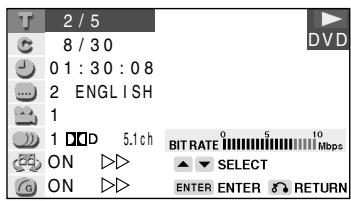
2 Use △ or ▽ to select ▽ and then press ENTER.
(Example) Direct title skip
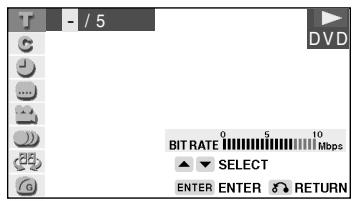
3 Use number buttons (0 to 9) to input the title number to which you want to skip.
- You can also use △ or ▽ to input the title number.
- When you specify the time for the direct time skip, use ◁ or ▷ to move the highlighting to the next or previous digit.
(Example) Entering title 5
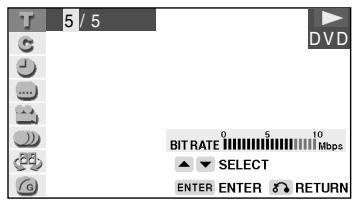
4 Press ENTER.
- The played back image changes to the beginning of the specified title.
- You can exit the Function control screen by pressing RETURN or FUNCTION CONTROL.
NOTE
- The number of titles, chapters, or times you can input depends on that of the titles, chapters, or times recorded on a disc you play.
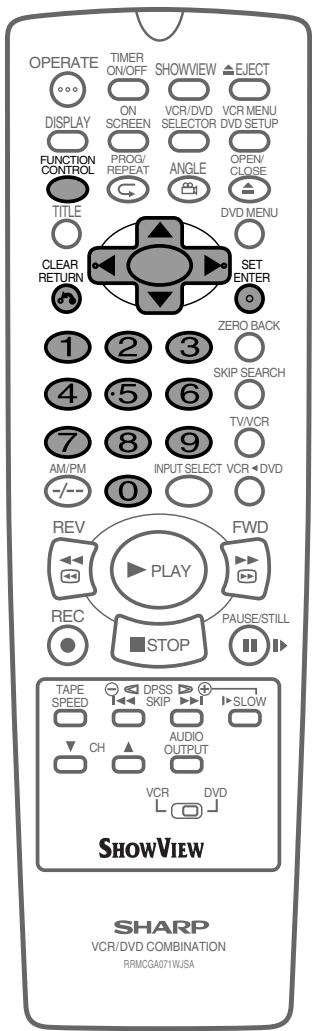
DVD
Subtitle language setting
Use the following procedure to perform the Subtitle language setting.
1 Press FUNCTION CONTROL during playback.
- The Function control screen appears.
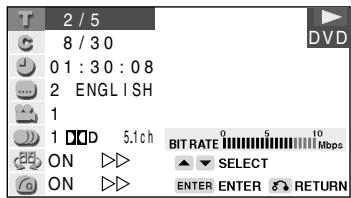
2 Use ▲ or ▼ to select and then press ENTER.
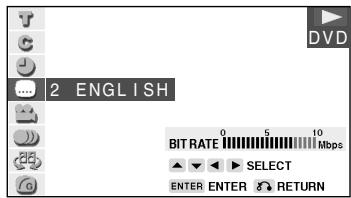
3 Press ▲ or ▼ to select the subtitle language you want to use.
- You can set the subtitle setting to "OFF".
- You can also toggle the setting between "ON" and "OFF" by pressing ◀ or ▶.
(Example) Selecting "3 SPANISH"
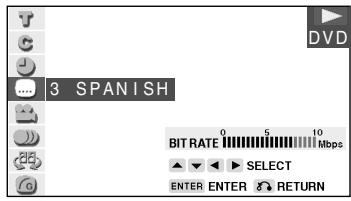
4 Press ENTER to confirm the setting.
- You can exit the Function control screen by pressing RETURN or FUNCTION CONTROL.
NOTE
- This function can only be used for discs on which subtitles have been recorded in multiple languages.
- Some DVD discs are marked "Forced Display", indicating that the subtitling cannot be suppressed. With such discs, the subtitles will be displayed even when you select "ON OFF" display. This does not indicate a fault with this Unit.
- If no subtitles are recorded on the disc, is displayed.
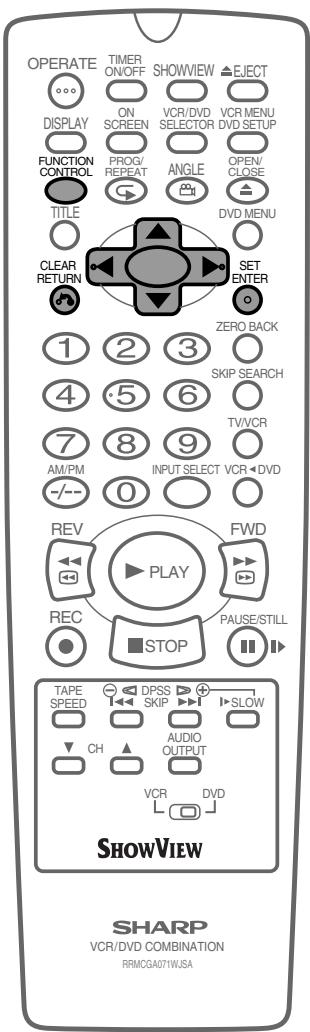
DVD
Angle setting
You can change the angle of view when playing a DVD video disc that contains scenes recorded from multiple angles. Use the following procedure to perform the Angle setting.
1 Press FUNCTION CONTROL during playback.
- The Function control screen appears.
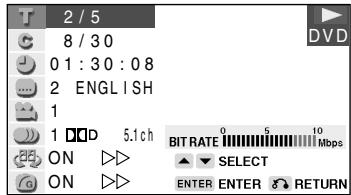
2 Use or to select and then press ENTER.
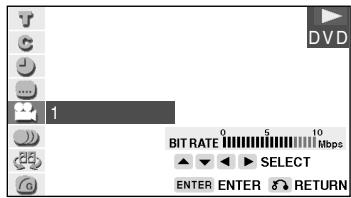
3 Press or to select the angle number you want.
- The number of recorded angles differs depending on the disc used.
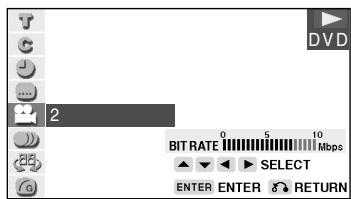
4 Press ENTER to confirm the setting.
- You can exit the Function control screen by pressing RETURN or FUNCTION CONTROL.
NOTE
- This function can only be used for discs on which scenes shot from multiple angles have been recorded.
- If no angles are recorded on the disc, 20 xx is displayed.
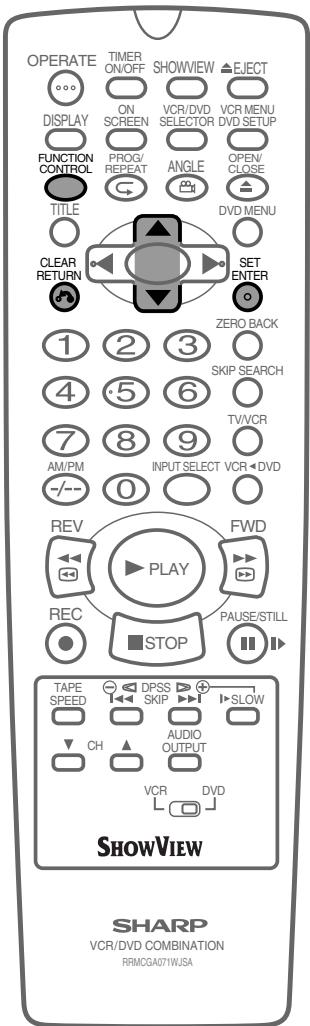
DVD
Audio setting
A number of different methods are used to record audio onto a DVD video disc, including multi-channels (used for voiceovers in other languages), Dolby Digital (5.1ch), DTS, and Linear PCM. This Unit provides a number of different audio modes from which you can choose to suit the type of disc you are playing. Use the following procedure to perform the Audio setting.
1 Press FUNCTION CONTROL during playback.
- The Function control screen appears.
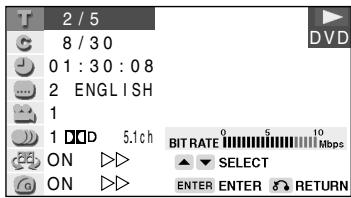
2 Use or to select and then press ENTER.
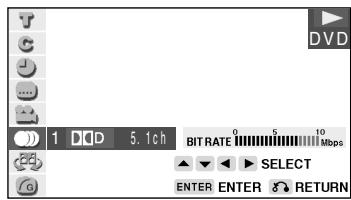
3 Press or to select the audio format you want to use.
- See page 45 for details about the types of audio format.
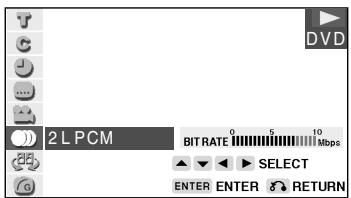
4 Press ENTER to confirm the setting.
- You can exit the Function control screen by pressing RETURN or FUNCTION CONTROL.
NOTE
- This function can only be used for discs on which the sound has been recorded in multiple formats.
- With certain types of discs, you can change the audio using the disc menu.
- A DTS digital surround decoder is required to listen to DTS audio.
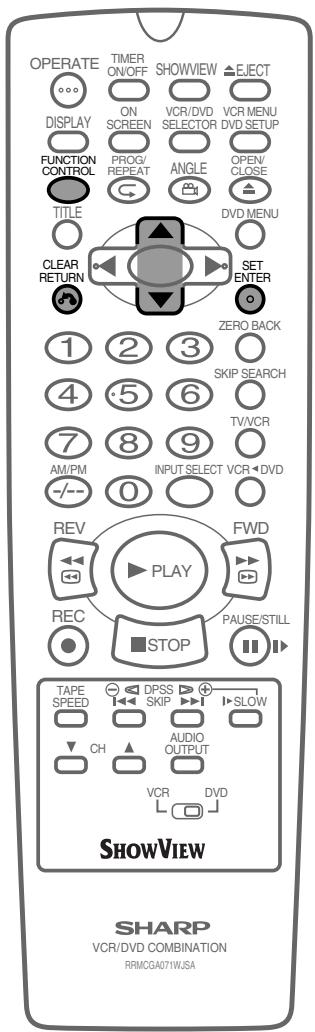
DVD
Advanced Surround setting
This function allows you to enjoy a "surround sound" effect when you are using an analog connection (using LINE 1 OUT on this Unit) to 2-channel audio equipment (TV, etc.).
Preparation
To use the Advanced Surround function
- Set the "COMPRESSION" setting in "AUDIO" to "OFF" (see page 45).
Refer to the table below about the types of audio format with which Advanced Surround works.
1 Press FUNCTION CONTROL during playback.
- The Function control screen appears.
| T | 2/5 | DVD | |
| G | 8/30 | ||
| O | 01:30:08 | ||
| E | 2 ENGLISH | ||
| I | 1 | ||
| J | 1 D/D 5.1ch | BIT RATE 0 10 Mbps | |
| C | ON ▷ | ▲▼ SELECT | |
| F | ON ▷ | ENTER ENTER RETURN | |
2 Use ▲ or ▼ to select and then press ENTER.
| T G J L O B F E B C D U V W X Y Z | DVD | ||
| BIT RATE 0 10 Mbps | |||
| ON ▲ SELECT | |||
| ENTER ENTER △ RETURN | |||
3 Press ▲ or ▼ to toggle Advanced Surround between "ON" and "OFF". 4 While "ON" is selected, use ◀ or ▶ to change the level setting.
| T G J L O B E F G H I J K L M N O P Q R S T U V W X Y Z | DVD | |||
| BIT RATE 10 Mbps | ||||
| ON | ▶ | SELECT | ||
| ENTER | ENTER | RETURN | ||
5 Press ENTER to confirm the setting.
- You can exit the Function control screen by pressing RETURN or FUNCTION CONTROL.
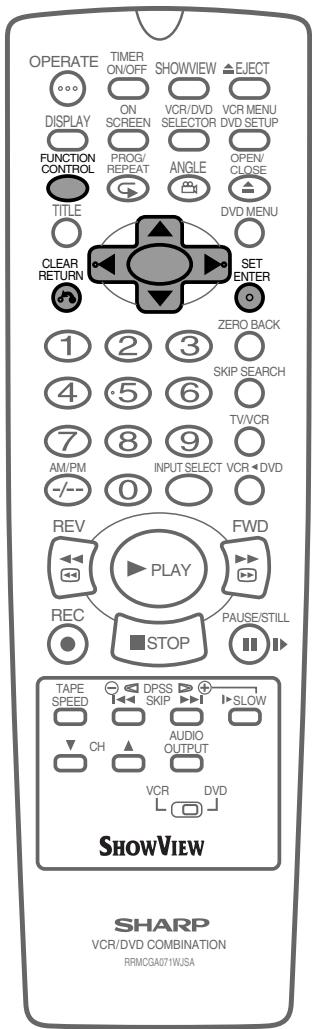
NOTE
- Advanced Surround does not operate on Audio CDs.
- Advanced Surround does not operate when you set the "COMPRESSION" setting in "AUDIO SETUP" to "ON".
- Advanced Surround does not operate when you are using a Digital connection.
- Advanced Surround does not operate when you play back a disc recorded using Linear PCM or DTS format.
DVD
Digital Gamma setting
DIGITAL GAMMA is a digital image quality enhancement function that gives a richer image by brightening the darker and more obscure portions of the image without altering the brightness of the brighter portions, thereby making the entire image easier to see. Three digital gamma settings are available to allow for differences in the images played and in brightness of the room.
1 Press FUNCTION CONTROL during playback.
- The Function control screen appears.
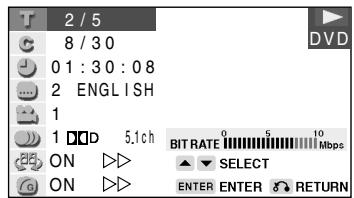
2 Use or to select and then press ENTER.
3 Press or to toggle DIGITAL GAMMA between "ON" and "OFF".
4 While "ON" is displayed, press or .
- The level selection indicator that shows the current level appears.
- If no button is pressed within 10 seconds, the level selection indicator goes off.
5 Use or to change the level.
6 Press ENTER to confirm the setting.
- If no change is made for 10 seconds after the level is set, the level indicator goes off.
- You can exit the Function control screen by pressing RETURN or FUNCTION CONTROL.
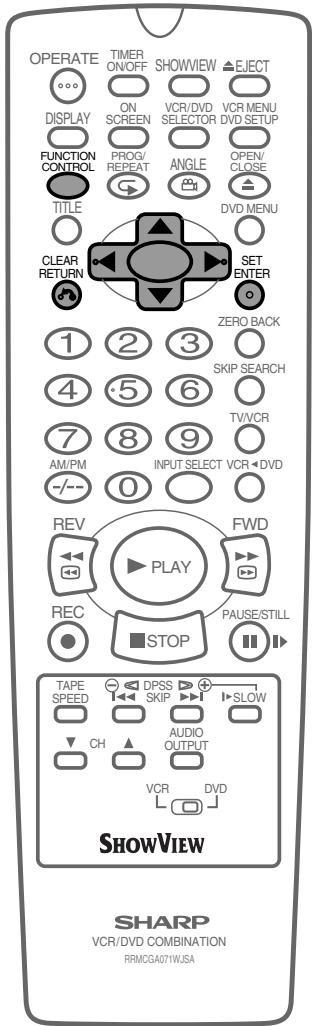

Direct Selection of Scenes
DVD
Selecting Scenes by Title Number
1 Press TITLE to show the title screen.
(Example)
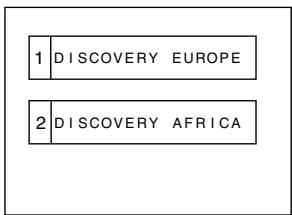
2 Use the number buttons (0 to 9) to enter the desired title, or use the left, right, or up/down buttons to highlight the desired title. 3 When you press ENTER or the play button, the title specified in step 2 starts playing.
Selecting Scenes from the Menu Screen
1 Press DVD MENU to show the menu screen.
(Example)
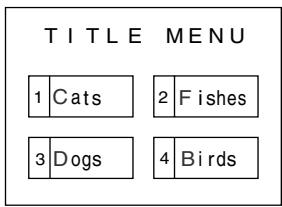
2 Use the number buttons (0 to 9) or the up/down/left/right buttons to highlight the desired title.
(Example) Title 2 selected.
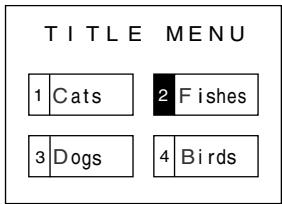
3 When you press ENTER or the play button, title 2 starts playing.
NOTE
- These functions only operate on DVD discs that have a title or menu screen.
- Languages not provided on the disc are not displayed.
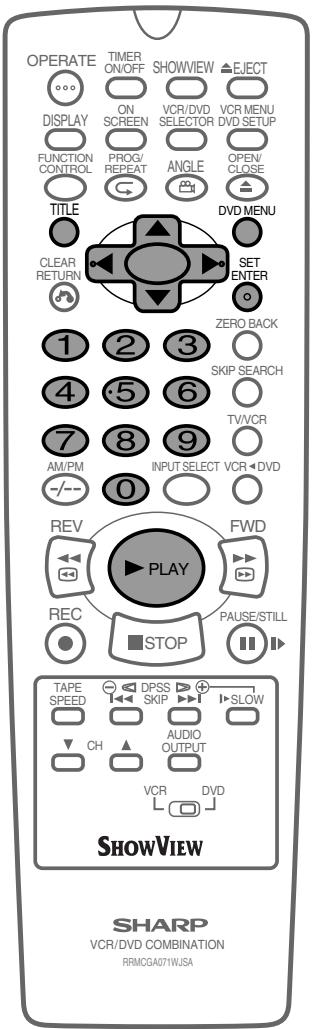

Programmed Playback
The two types of programmed playback provided by this Unit are chapter programmed playback (DVD discs) and track programmed playback (audio CD MP3 recorded on CD-R/RW).
DVD
Chapter Programmed Playback
1 Press PROG/ once while the disc is stopped.
- The "DVD-VIDEO PROGRAM" screen appears.
- Press PROG/ to return to the normal screen.
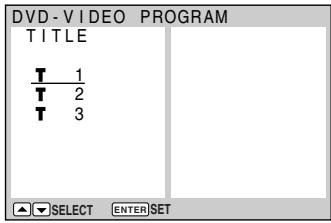
2 Press or to select the desired title and then press ENTER.
- The chapter selection screen appears.
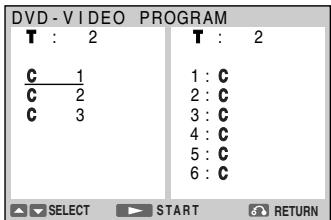
3 Press or to select the desired chapter and press ENTER.
- The chapter is programmed in the playlist.
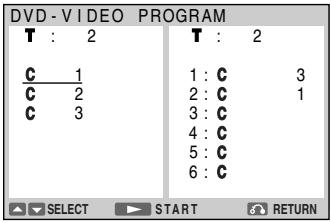
- Repeat the above step for each of the chapters that you want to play as part of the program.
- To delete the chapter programmed in the playlist, follow the steps below:
① Press ▶ to move the cursor to the playlist. ② Press ▲ or ▼ to select the program (chapter) you want to delete and then press RETURN.
- To delete all programmed chapters, move the cursor to the playlist and then press RETURN for more than two seconds.
④ Press ▶ PLAY to begin playing the programmed chapters.
- The chapters will be played in the order they were entered.
- The PROGRAM indicator lights up on the DVD Front Panel display.
⑤ Press STOP to stop programmed playback.
- To start programmed playback again, follow the steps below:
① Press STOP to stop programmed playback. ② Press PROG. ③ Select the title you programmed and press ENTER. (If other titles are selected, the previously entered program will be cleared.) ④ Press ▶ PLAY.
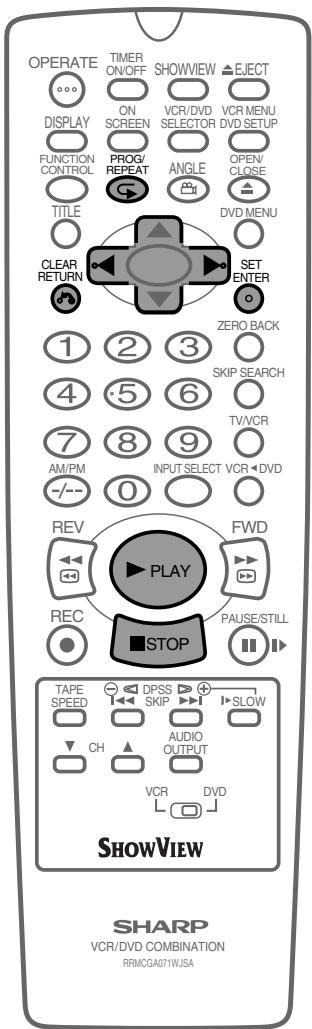
NOTE
- Up to 24 chapters can be programmed.
- Press RETURN to return to the previous screen.
- The program cannot be set during normal playback.
- This function can only be used for DVD discs on which the chapter has been recorded.
- On some discs in which programmed playback is prohibited, this function is disabled.
CD
Track Programmed Playback
1 Press PROG/ while the disc is stopped.
- The "CD PROGRAM" screen appears.
- Press PROG/ to return to the normal screen.
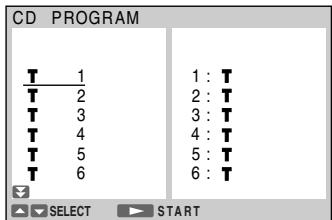
2 Press ▲ or ▼ to select the desired track and then press ENTER.
- The track is programmed in the playlist.
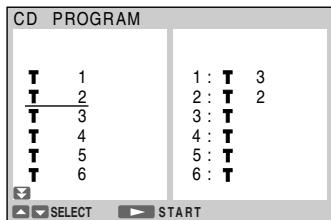
3 Repeat step 2 for each of the tracks that you want to play as part of the program.
4 Press ▶ PLAY to begin playing the programmed tracks.
- The tracks will be played in the order they were entered.
5 Press STOP to stop programmed playback.
NOTE
- Up to 24 tracks can be programmed.
- The programme cannot be set during the normal playback.
- On some discs in which programmed playback is prohibited, this function is disabled.
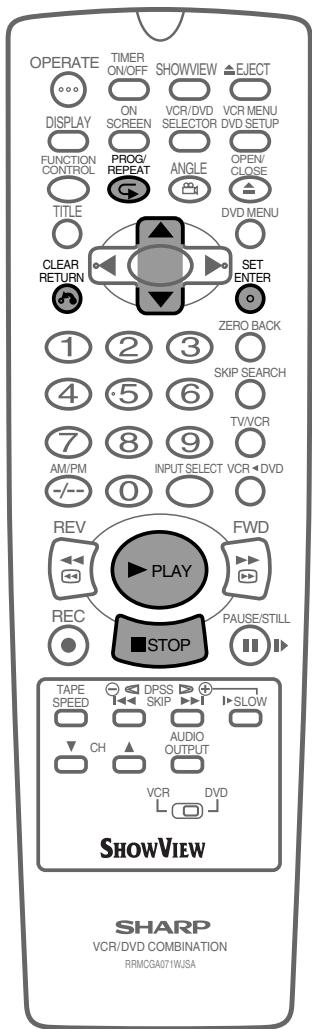
CD-R/RW
MP3 Files Programmed Playback
1 Press PROG/ while the disc is stopped.
- The "MP3 PROGRAM" screen appears.
- Press PROG/ to return to the normal screen.
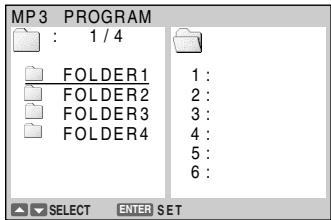
2 Press ▲ or ▼ to select the desired folder and then press ENTER.
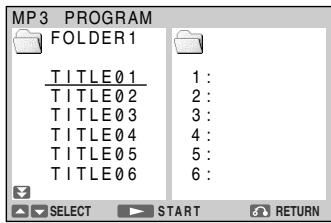
3 Press ▲ or ▼ to select the desired file and then press ENTER.
- The file is programmed in the playlist.
- Press RETURN to return to step 2 and then select the files of the other folder.
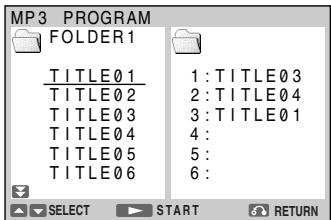
- Repeat the above step for each of the files that you want to play as part of the program.
- To delete the files programmed in the playlist, follow the steps below:
① Press ▶ to move the cursor to the playlist. ② Press ▲ or ▼ to select the program (track/file) you want to delete and then press RETURN.
- To delete all programmed chapter numbers, move the cursor to the playlist and then press RETURN for more than two seconds.
4 Press ▶ PLAY to begin playing the MP3 files.
- The files will be played in the order they were entered.
5 Press STOP to stop the programmed playback.
- To start programmed playback again, follow the steps below:
① Press STOP to stop programmed playback. ② Press PROG/. (3) Select the file you programmed and press ENTER. ④ Press ▶ PLAY.
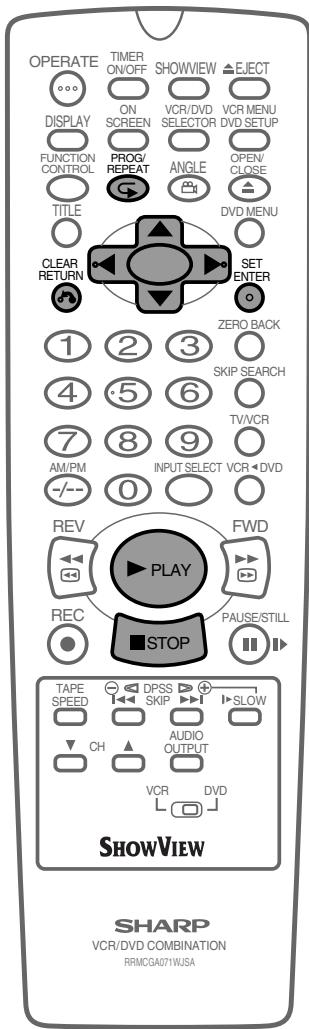
NOTE
- Repeat playback is disabled on some discs.

Repeat Playback
DVD
Repeat playback
1 Press REPEAT while a disc is playing.
- The “REPEAT” indicator appears on the DVD front panel. Each time REPEAT is pressed, the repeat function changes as follows.
- Depending on the disc type, the repeat function will vary.
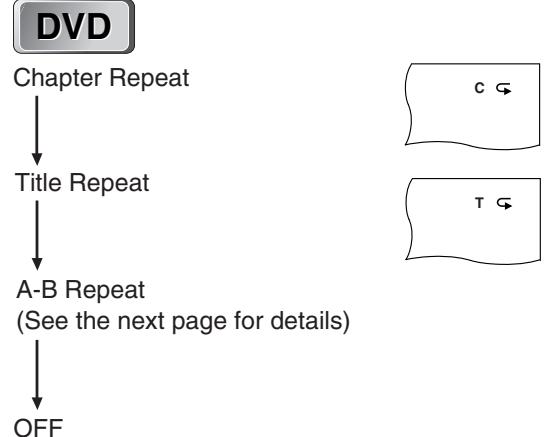
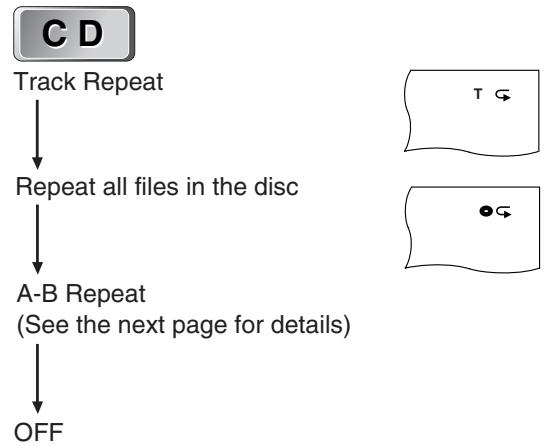
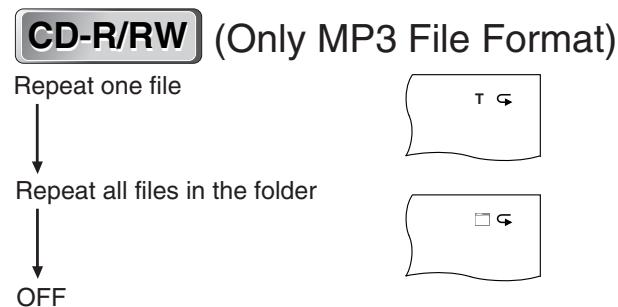
2 Press ENTER to start repeat playback.
- Press REPEAT and select OFF when returning to regular playback.
NOTE
- Repeat playback is disabled on some discs.
- Repeat playback cannot be used during programmed playback.
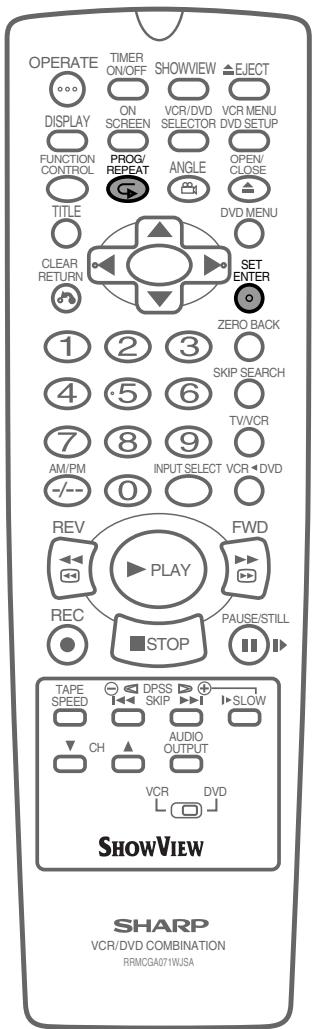
GB-92
DVD
CD
A-B Repeat
A-B repeat allows you to repeat a specified section on the disc.
1 Press REPEAT three times while a disc is playing. 2 While you are playing a disc, press ENTER when you reach the start of the section to be repeated. 3 While the disc is playing the same title (same chapter/track), press ENTER again when you reach the end of the section to be repeated.
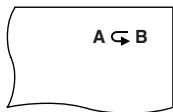
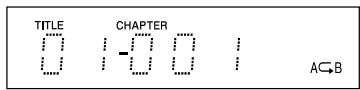
- The A-B repeat begins from the point where you specified in step 1.
- Press REPEAT to turn off the indicator when returning to regular playback.
NOTE
- To cancel A-B repeat, press STOP, TITLE or DVD MENU.
- A-B repeat can only be used within the same title/track. (On some DVD discs, A-B repeat is restricted to the same chapter.) If the title/track finishes before specifying the ending location (B), the location where the title/track finishes will be set as the ending location (B).
- The A-B repeat function cannot be used during programmed playback.
- If the DVD Front Panel display does not show the elapsed playback time while a disc is playing, A-B repeat playback cannot be used for that disc.
- The A-B repeat function does not operate in scenes where different camera angles are recorded.
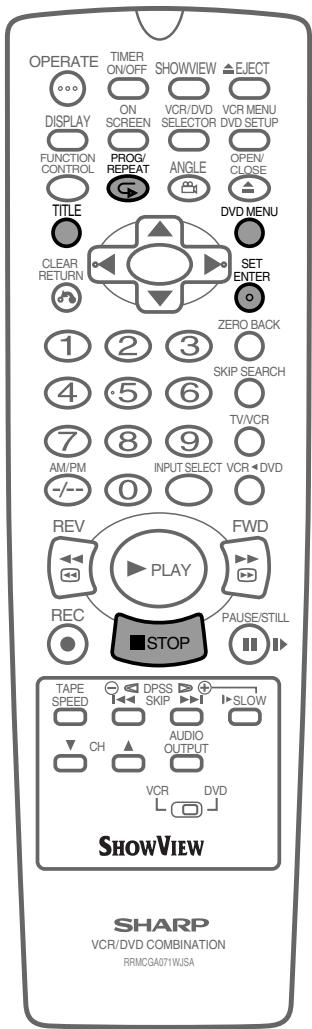

Resume Function
DVD
CD
This function enables you to resume playback from the location you specify.
1 Press STOP at the desired point during playback.
- "RESUME" appears on the screen.
- This unit stores the location where you stopped.
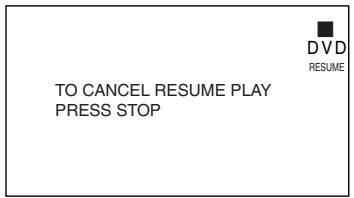
2 Press PLAY to restart playback.
- Playback resumes from a point slightly before the point where it was stopped.
- Press PLAY to resume disc playback if auto-playback starts from the beginning of the disc when you reload the same disc after removing it.
NOTE
- Resume information will not be cancelled if the power is turned off.
- The continued playback described here may not be possible on some discs (such as discs that automatically start playing when the disc tray closes).
This resume operation does not work in the following cases.
If you press STOP twice. - If you press STOP during auto-playback. - When you open the disc tray. - After enabling the Resume function.
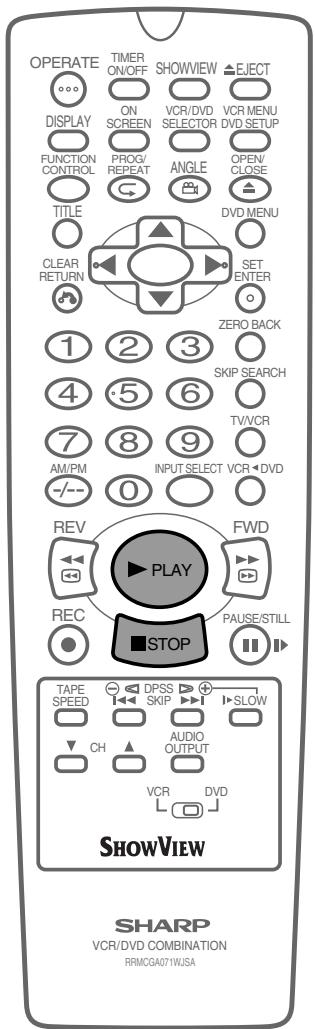
Other Information
Troubleshooting 96 Definition of Terms 98 Specifications 101
AaD EHL
ONIHOLVAM
GB-95

Troubleshooting
The following problems do not always denote a broken unit. Perform the checks listed below before calling service.
VCR/DVD
| Problem | Suggested Solution |
| • No power | • Is the power cord connected properly? • Is the power cord firmly plugged into the power outlet? • One of the safety mechanisms may be operating. In this event, unplug the Unit from the power outlet briefly and then plug it in again. |
| • The Remote does not work. | • Are the batteries loaded correctly? • Are the batteries flat? • Is the signal emitter on the Remote pointing at the Unit? • Is the Remote too far from the Unit, or is there any obstacle between the Remote and the Unit? • Did the VCR/DVD CHANGE Switch change correctly? |
| • No picture | • Did the VCR/DVD SELECTOR change correctly? |
| • Dew | • See page 6 for information. |
VCR
| Problem | Possible Cause/Solutions |
| • TV will not tune in to the VCR. | • Check all the cables are correctly connected. • Check your TV manual for correct tuning of your TV. |
| • Auto Installation screen does not appear when the VCR is switched on or Auto Installation is not complete. | • Reset the VCR and complete AUTO INSTALLATION again. (Refer to VCR Reset on page 38.) |
| • Display is not working. | • Make sure the power cord is plugged in. • Make sure the wall socket has power . |
| • No picture appears. | • Make sure the TV is set to the video channel. • Check all connecting cables. |
| • Playback picture is snowy. | • Adjust the tracking using CH ▲/▼. • Try another tape. • The video heads may have been contaminated - refer to a SHARP Service Facility. |
| •Playback/Recording does not play back in Stereo. | • Ensure the VCR is connected to a stereo TV with a SCART lead. • Programme may not carry stereo. |
| • Tape is automatically ejected when pressing ●REC or TIMER ON/OFF. | • The record-protection tab has been removed from the cassette. |
| ·The SHOWVIEW system does not record desired programme. | ·Broadcast does not carry VPS/PDC signal which alters recording time. ·Check VPS/PDC mode is switched ON. ·Ensure date and time are correctly set on the Unit. |
| ·Tape can not be loaded. | ·Make sure there is no other tape in the VCR. ·Make sure you are loading the tape correctly. |
| ·Rewind is not possible. | ·Make sure the tape is not at the start. |
| ·Desired channel position can not be selected. | ·The channel position has been set to be skipped. Cancel the SKIP mode for that channel. |
| ·No colour or poor TV picture on normal viewing. | ·Make sure all the cables are connected properly. ·Make sure the VCR power cord is properly plugged in. |
| ·Desired channel has interference. | ·Possible weak signal strength, the same channel with a better signal strength may have been tuned in on another VCR preset channel. Example; VCR preset 1 = ZDF and VCR preset 14 = ZDF (Refer to Manually Sorting Channels section to move the channel to your desired position.) ·TV aerial may need adjusting. |
DVD
| Problem | Suggested Solution |
| ·The DVD player is switched on but does not operate. | ·Have you loaded a disc? ·Is the disc unplayable? (See pages 9 – 11) ·Is there dew in the DVD player? (See page 11.) |
| ·The playback image does not appear. ·No sound is produced. | ·Are the video and audio cables connected correctly? (See pages 18 – 23) ·Is the disc scratched? (See page 11) ·Is the disc dirty? (See page 11) ·Is the disc loaded upside down? ·Is the input selector on the TV set to “VIDEO” or “AV”? ·Is the audio equipment switched on and are all the components connected properly? (Refer to the operation manuals for your audio equipment.) |
| ·The sound is not Dolby Digital (5ch or 5.1ch). | ·Is the disc you are playing recorded in Dolby Digital (5ch or 5.1ch)? ·Have you set the “DO DIGITAL” in “AUDIO SETUP” to “BITSTREAM”? (See page 45.) |
| ·The image and sound are garbled. | ·Is the disc scratched? (See page 11) ·Are vibrations from the speakers affecting the DVD player? |
| ·The sound is not stable during playback. | ·Set the “COMPRESSION” in “AUDIO SETUP” to “OFF” (See page 45.) |
This unit is equipped with a microprocessor. Its performance could be adversely affected by external electrical noise or interference. If this should happen, unplug the unit and plug it in again after a few minutes.

Definition of Terms
VCR
Full Automatic Playback
This function automatically turns the power on and starts playback when a tape with the erasure protection tabs removed is inserted.
Sharp Super Picture
Enhanced picture quality during playback.
S-VHS SimplePlayback
This function facilitates S-VHS software playback. The original high picture quality of S-VHS (horizontal resolution of 400 lines) cannot be played.
Tracking Control
When noise appears on an image during tape playback, you can adjust the image quality to a suitable level so as to reduce the noise.
DVD
Angle
Recorded onto some DVD discs are scenes which have been simultaneously shot from a number of different angles (the same scene is shot from the front, from the left side, from the right side, etc.). With such discs, you can select the angle on Function Control Screen to view the scene from different angles.
Chapter Number
These numbers are recorded on DVD discs. A title is subdivided into many sections, each of which is numbered, and specific parts of video presentations can be searched quickly using these numbers.
Compression (Dolby Digital output level)
Setting that increases the average volume of Dolby Digital audio when playing a DVD.
Digital Gamma
Corrects for gradations in dark areas of images to make images clearer.
Dolby Digital (5.1 channel)
A sound system developed by Dolby Laboratories Inc. that gives movie theater ambience to audio output when the DVD video player is connected to a Dolby Digital 5.1 channel processor or amplifier.
Advanced Surround
Provides rich surround sound by downmixing Dolby Digital 5.1 channel and Dolby Surround (Pro Logic) to 2-channel audio.
GB-98
DVD
This refers to a high-density optical disc on which high-quality pictures and sound have been recorded by means of digital signals. Incorporating a new video compression technology (MPEG II) and high-density recording technology, DVD enables esthetically pleasing full-motion video to be recorded over long periods of time (for instance, a whole movie can be recorded).
DVD has a structure consisting of two 0.6 mm thin discs which are adhered to each other. Since the thinner the disc, the higher the density at which the information can be recorded, a DVD disc has a greater capacity than a single 1.2 mm thick disc. Since the two thin discs are adhered to each other, there is the potential to achieve double-sided play sometime in the future for even longer duration play.
Letter Box
4:3 LB
Screen size that cuts off the top and bottom of the image to allow playing of Wide (16:9) software on a connected 4:3 TV.
Linear PCM Sound
Linear PCM is a signal recording format used for audio CDs.
The sound on audio CDs is recorded at 44.1 kHz with 16 bits. (On DVD discs, sound is recorded at between 48 kHz with 16 bits and 96 kHz with 24 bits.)
Pan Scan
4:3 PS
Screen size that cuts off the sides of the image to allow playing of Wide (16:9) software on a connected 4:3 TV.
Pickup
Laser device that reads the data from a disc for playback.
Region Number
Number identifying a geographic region of compatibility for a DVD.
The list of the region number 2 countries
| Common Names | Names of Nations and Areas | Common Names | Names of Nations and Areas |
| Albania | Republic of Albania | Malta | Republic of Malta |
| Andorra | Principality of Andorra | Monaco | Principality of Monaco |
| Austria | Republic of Austria | Netherlands | Kingdom of the Netherlands |
| Bahrain | State of Bahrain | Norway | Kingdom of Norway |
| Belgium | Kingdom of Belgium | Oman | Sultanate of Oman |
| Bosnia and Herzegovina | Bosnia and Herzegovina | Poland | Republic of Poland |
| Portugal | Portuguese Republic | ||
| Bulgaria | Republic of Bulgaria | Qatar | State of Qatar |
| Croatia | Republic of Croatia | Romania | Romania |
| Cyprus | Republic of Cyprus | San Marino | Republic of San Marino |
| Czech | The Czech Republic | Saudi Arabia | Kingdom of Saudi Arabia |
| Denmark | Kingdom of Denmark | Slovakia | The Slovak Republic |
| Egypt | Arab Republic of Egypt | Slovenia | Republic of Slovenia |
| Finland | Republic of Finland | South Africa | Republic of South Africa |
| France | French Republic | Spain | Spain |
| Germany | Federal Republic of Germany | Swaziland | Kingdom of Swaziland |
| Greece | Hellenic Republic | Sweden | Kingdom of Sweden |
| Hungary | Republic of Hungary | Switzerland | Swiss Confederation |
| Iceland | Republic of Iceland | Syrian Arab Republic | Syrian Arab Republic |
| Iran | Islamic Republic of Iran | Turkey | Republic of Turkey |
| Iraq | Republic of Iraq | United Arab Emirates | United Arab Emirates |
| Ireland | Ireland | United Kingdom | United Kingdom of Great Britain and Northern Ireland |
| Israel | State of Israel | ||
| Italy | Republic of Italy | Vatican City State | State of the City of Vatican |
| Japan | Japan | Yemen | Republic of Yemen |
| Jordan | Hashemite Kingdom of Jordan | Yugoslavia | Federal Republic of Yugoslavia |
| Kuwait | State of Kuwait | Channel Islands* | Channel Islands |
| Lebanon | Republic of Lebanon | Faeroe Islands* | Faeroe Islands |
| Lesotho | Kingdom of Lesotho | Gibraltar* | Gibraltar |
| Liechtenstein | Principality of Liechtenstein | Greenland* | Greenland |
| Luxembourg | Grand Duchy of Luxembourg | Isle of Man* | Isle of Man |
| Macedonia | The Former Yugoslav Republic of Macedonia | Svalbard and Jan Mayen Islands* | Svalbard and Jan Mayen Islands |
*Represents area name
The world map for all region numbers
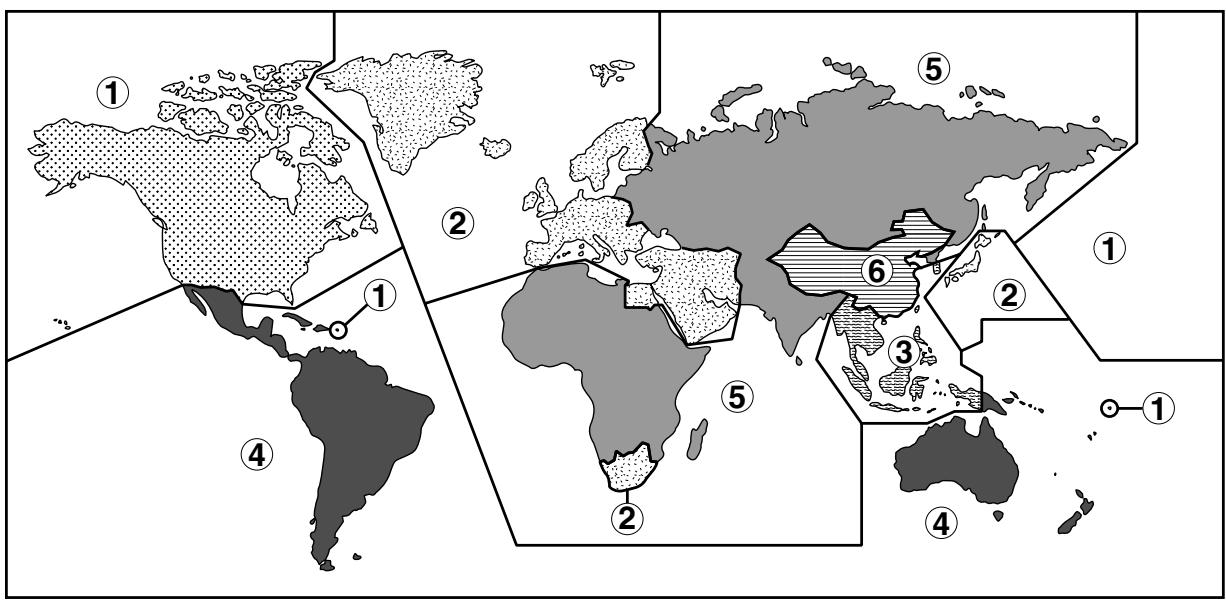
Subtitles
These are the printed lines appearing at the bottom of the screen which translate or transcribe the dialog. They are recorded on DVD discs.
Time Number
This indicates the play time which has elapsed from the start of a disc or a title. It can be used to find a specific scene quickly. (It may not work with some discs.)
Title Menu
This is a menu displayed by some DVDs for selection of chapters and subtitle set. The title menu is also called a "top menu".
Title Number
These numbers are recorded on DVD discs. When a disc contains two or more movies, these movies are numbered as title 1, title 2, etc.
Track Number
These numbers are assigned to the tracks which are recorded on audio CDs. They enable specific tracks to be located quickly.

Specifications
| Signal System | PAL/MESECAM | |
| INPUT/OUTPUTJACKS | DVD/VCR shared output jacks | VIDEO jack: RCA Pin-jackAUDIO jack: RCA Pin-jack |
| DVD output jacks | VIDEO jack: S-Video jackAUDIO jack: RCA Pin-jackDIGITAL AUDIO IF: Coaxial digitalAUDIO output jack: RCA Pin-jack | |
| VIDEO input jacks | VIDEO jack: SCARTAUDIO jack: SCARTVIDEO jack: RCA pin-jackAUDIO jack: RCA pin-jack | |
| VCR | Video Recording SystemNumber of Video HeadsVideo Signal StandardAudio Recording SystemTape WidthTape Speed (PAL) | Rotary Two-Head Helical Scanning4PAL/MESECAM Colour System1 Stationary Head for Linear Audio2 Rotary Heads for Hi-Fi stereo12.7 mm(SP) 23.39 mm/sec(LP) 11.70 mm/sec(EP) 7.80 mm/sec(PP) 33.35 mm/sec(LP) 16.67 mm/sec(EP) 11.12 mm/sec |
| (TNTSC)Recording/Playback Time | (Playback only)(SP) 240 min (With E-240 Cassette)(LP) 480 min (With E-240 Cassette)(EP) 720 min (With E-240 Cassette) | |
| Channel CoverageAntenna InputVideo InputVideo OutputAudio Input(0 dBs = 0.775 Vrms)Audio Output(0 dBs = 0.775 Vrms)Hi-Fi AudioMemory Backup | VHF E2-E12 + S1-S41; UHF E21-E6975ΩInput level: 0.5 to 2.0 Vp-p (75Ω)Output level: 1.0 Vp-p (75Ω)Input level: -3.8 dBs (47kΩ)Output level: -3.8 dBs (1kΩ)Dynamic Range: ~ 90 dBFrequency Response: 20 Hz-20 kHz10 minutes | |
| DVD | DVD/VCR shared Video outputS video outputAudio outputVideo signal horizontal resolutionS/N ratioAudio signal frequency characteristicsS/N ratioDynamic rangeTotal harmonic distortion ratioPickup | Output level: 1 Vp-p (75Ω)Y output level: 1 Vp-p (75Ω)C output level: 0.300 Vp-p (75Ω)Output level: 2 Vrms (1 kHz, 0 dB)500 lines (450 lines min.)60 dB (50 dB min.)For DVD linear PCM playback:4 Hz to 22 kHz (48 kHz sampling)CD playback: 4 Hz to 20 kHz (JEITA)CD: 96 dB, 1 kHz (JEITA)DVD linear PCM: 96 dB (JEITA)CD: 96 dB (JEITA)CD: 0.006% (JEITA)Wave length: 650 nm (DVD) / 780nm (CD)Laser output: Max. 0.7 mW |
| Operating temperatureStorage temperaturePower supplyPower consumptionDimensionsWeight | 5°C to 35°C (41°F to 95°F)-20°C to 55°C (-4°F to 131°F)230V-240V AC, 50 Hz20 W430 mm × 93.5 mm × 350 mm (W × H × D)5.3 kg | |
Specifications are subject to change without notice.
Weight and dimensions are approximate.
- IMPORTANT
- SAFETY INFORMATION
- NOTE
- CAUTION
- WARNING
- LASER DIODE PROPERTIES
- POWER LEAD PROTECTION
- LOCATION AND HANDLING
- PERIODS OF NO USE
- NO FINGERS OR OTHER OBJECTS INSIDE
- STACKING
- CONDENSATION
- CLEANING
- IF THERE IS NOISE INTERFERENCE ON THE TV WHILE A BROADCAST IS BEING RECEIVED
- SERVICE
- COPYRIGHT
- COPY PROTECTION
- RECOMMENDED MEASURES FOR OPTIMUM PICTURE EXCELLENCE
- CONTENTS
- GENERAL INFORMATION
- CONNECTION AND INITIAL SETTINGS
- VCR SETUP
- DVD SETUP
- WATCHING THE VCR
- TV PROGRAM RECORDING
- TIMER RECORDING
- RECORDING FROM OTHER EQUIPMENT
- TAPE REMAINING
- RECORDING A DVD DISC ONTO A VIDEO CASSETTE
- WATCHING THE DVD
- PREPARING TO USE THE DVD
- PLAYBACK
- ANGLE SELECTION
- PLAYING MP3 DISCS
- ABOUT THE FUNCTION CONTROL SCREEN
- DIRECT SELECTION OF SCENES
- PROGRAMMED PLAYBACK
- REPEAT PLAYBACK
- RESUME FUNCTION
- OTHER INFORMATION
- TROUBLESHOOTING
- DEFINITION OF TERMS
- SPECIFICATIONS
- TYPES OF DISCS THAT CAN BE PLAYED ON THIS UNIT
- THE REGION NUMBER FOR THIS UNIT IS
- SAMPLES OF REGION NUMBER MARKS COMPATIBLE WITH THIS PLAYER
- DISC FUNCTION OR OPERATION THAT IS NOT AVAILABLE
- IN THE CASES LISTED BELOW, THE INDICATOR MAY APPEAR ON THE TV SCREEN, WHICH INDICATES THAT THE FUNCTION OR OPERATION IS NOT AVAILABLE
- ICONS USED ON DVDS
- SAMPLE ICONS
- TITLE, CHAPTER AND TRACKS
- EXAMPLE: DVD
- EXAMPLE: AUDIO CD
- HANDLING PRECAUTIONS
- IF THE SURFACE IS SOILED (C)
- IF THE DISC IS BROUGHT FROM A COLD TO A WARM ENVIRONMENT, DEW MAY FORM ON THE DISC
- IMPROPER DISC STORAGE
- MAINTENANCE
- FEATURES
- COMMON FEATURES
- VCR
- DVD
- DISC FEATURES AND THIS OPERATION MANUAL
- REMOTE CONTROL
- MAJOR COMPONENTS
- VCR MAIN UNIT (FRONT)
- DVD MAIN UNIT (FRONT)
- REMOTE (VCR OPERATION BUTTONS)
- LOADING THE BATTERIES
- REMOTE (DVD OPERATION BUTTONS)
- MAIN UNIT (REAR)
- BASIC CONNECTION
- CONNECTING TO ANTENNA IN/ANTENNA OUT
- CONNECTING A TV WITH LINE 1 (TV) OUTPUT AND LINE 2 INPUT SCARTS
- CONNECTING A TV EQUIPPED WITH VIDEO/AUDIO INPUT JACKS
- DVD AUDIO CONNECTIONS
- CONNECTING A TV EQUIPPED WITH S-VIDEO INPUT JACKS
- CONNECTING TO AUDIO EQUIPMENT
- PLAYING 2 CHANNEL AUDIO
- PLAYING DOLBY DIGITAL (5.1 CHANNEL), DTS OR MPEG AUDIO
- DIGITAL CONNECTION TO AN MD TO RECORD A CD
- DIGITAL CONNECTION TO AUDIO EQUIPMENT OR MD PLAYER WITHOUT A DOLBY DIGITAL DECODER
- PREPARATIONS BEFORE USING THE PRODUCT
- PREPARING TO WATCH A VCR OR A DVD
- VCR AUTO INSTALLATION
- MENU SCREEN
- MENU ITEM LIST
- GB
- MODE SELECTION
- PREPARATION
- MANUALLY TUNING CHANNEL SETTING
- IMPORTANT NOTE
- CHANNEL SORT
- DELETING CHANNELS
- RE-NAMING CHANNELS
- CLOCK SETTING
- MANUAL CLOCK SETTING
- CHANGING THE ON-SCREEN DISPLAY LANGUAGE
- IF YOU HAVE A SEPARATE DECODER CONNECTED TO THE UNIT'S L2 INPUT AS PREVIOUSLY SHOWN IN THE "BASIC CONNECTION" SECTION, YOU WILL NEED TO SET THE DECODER FUNCTION TO ON IN ORDER TO RECORD THE UNSCRAMBLED SIGNAL AND/OR WATCH IT ON YOUR TV. NOW, WHEN THE UNIT RECEIVES A SCRAMBLED SIGNAL IT IS OUTPUT VIA LINE 2 TERMINAL TO THE DECODER. THE DECODER THEN OUTPUTS THE UNSCRAMBLED SIGNAL BACK TO LINE 2 TERMINAL AND THE SIGNAL CAN BE RECORDED. THE UNIT OUTPUTS THE DESCRAMBLED SIGNAL TO YOUR TV THROUGH THE LINE 1 TERMINAL AND YOU CAN WATCH THE UNSCRAMBLED PICTURE
- SELECTING THE OUTPUT FROM THE VCR
- VCR DISPLAY INFORMATION
- VCR RESET
- ABOUT THE SETUP SCREEN
- SETUP ITEM LIST
- TV MODE SETTING
- PARENTAL LEVEL SETTING
- AUDIO SETTING
- SETTING THE COMPRESSION (DOLBY DIGITAL OUTPUT LEVEL)
- SETTING THE DOLBY DIGITAL
- SETTING THE MPEG
- SETTING THE CINEMA VOICE
- DISC LANGUAGE SETTING
- SETTING SUB TITLE, AUDIO AND MENU LANGUAGES
- SELECTING LANGUAGES FROM OTHER
- OPERATION MODE INDICATORS
- REGION (LOCAL) NUMBER ERROR INDICATOR
- LANGUAGE CODE LIST FOR DISC LANGUAGE
- AUDIO OUTPUT MODE
- SHARP SUPER PICTURE
- AUTO REPEAT/AUTO ZERO BACK
- DPSS (DIGITAL PROGRAM SEARCH SYSTEM) / SKIP SEARCH
- PICTURE DISTURBANCE DURING PLAYBACK
- PAUSING AND SLOW MOTION
- FAST FORWARDING/REWINDING A VIDEO TAPE
- FORWARD/REVERSE VISUAL SEARCH
- AUTOMATIC HEAD CLEANING SYSTEM
- PLAYING BACK AN S-VHS CASSETTE
- PLAYING BACK AN NTSC CASSETTE
- BLUE MUTE
- COLOUR
- PLAYBACK AND RECORDING
- HI-FI STEREO SOUND
- NICAM/IGR HI-FI STEREO SOUND
- ON
- OFF
- AUTO REPEAT
- AUTO ZERO BACK
- DPSS
- SKIP SEARCH
- IMMEDIATE RECORDING
- SELECTION OF A CHANNEL
- TAPE SPEED SELECTION
- SIMPLE TIMED RECORDING
- HOW TO USE THE SHOWVIEW® SYSTEM TO MAKE A RECORDING
- PREPARATIONS
- HOW TO SET A DELAYED RECORDING
- SETTING A RECORDING
- PRESS SET TO CONFIRM
- WHEN YOU HAVE COMPLETED ENTERING TIMER SETTINGS, PRESS VCR MENU TO REMOVE THE MENU FROM THE TV SCREEN
- HOW TO CHECK, CHANGE, AND CANCEL A DELAYED RECORDING
- CHECKING A RECORDING
- CHANGING A RECORDING
- CANCELLING A RECORDING
- OTHER POSSIBLE CONNECTIONS
- RECORDING A DVD DISC ONTO A VIDEO CASSETTE (TAPE EDITING MODE)
- TV
- THIS UNIT
- WHEN CONNECTING A TV WITH THE DVD OUTPUT JACKS
- WHEN CONNECTING A TV WITH THE DVD/VCR SHARED OUTPUT JACKS
- CD
- CD-R/RW
- BASIC PLAY
- FAST FORWARD/FAST REVERSE
- PRESS FWD OR REV DURING PLAYBACK
- PRESS ▶ PLAY WHEN YOU REACH THE DESIRED POINT
- SLOW-MOTION PLAY
- PRESS ▶ SLOW IN THE PLAY MODE OR STILL MODE
- PRESS ▶ PLAY TO RETURN TO NORMAL PLAYBACK, OR PRESS PAUSE/STILL TO RETURN TO STILL PICTURE MODE
- STILL/PAUSE
- FRAME ADVANCE
- SKIP (FORWARD/REVERSE)
- REGARDING MP3 DISCS
- TO PLAY MP3 DISCS
- TO PLAY ANOTHER FILE (MUSIC TITLE) WHILE PLAYING
- TO SKIP THE FILE WHILE PLAYING
- WHILE THE MP3 DISC IS PLAYING
- DIRECT TITLE SKIP
- DIRECT CHAPTER SKIP
- DIRECT TIME SKIP
- TITLE SETTING
- ANGLE SETTING
- ADVANCED SURROUND SETTING
- DIGITAL GAMMA SETTING
- DIRECT SKIP (TITLE/CHAPTER/TIME)
- PRESS FUNCTION CONTROL DURING PLAYBACK
- USE △ OR ▽ TO SELECT ▽ AND THEN PRESS ENTER
- USE NUMBER BUTTONS (0 TO 9) TO INPUT THE TITLE NUMBER TO WHICH YOU WANT TO SKIP
- PRESS ENTER
- SUBTITLE LANGUAGE SETTING
- USE ▲ OR ▼ TO SELECT AND THEN PRESS ENTER
- PRESS ▲ OR ▼ TO SELECT THE SUBTITLE LANGUAGE YOU WANT TO USE
- PRESS ENTER TO CONFIRM THE SETTING
- USE OR TO SELECT AND THEN PRESS ENTER
- PRESS OR TO SELECT THE ANGLE NUMBER YOU WANT
- PRESS OR TO SELECT THE AUDIO FORMAT YOU WANT TO USE
- PRESS OR TO TOGGLE DIGITAL GAMMA BETWEEN "ON" AND "OFF
- WHILE "ON" IS DISPLAYED, PRESS OR
- USE OR TO CHANGE THE LEVEL
- SELECTING SCENES BY TITLE NUMBER
- SELECTING SCENES FROM THE MENU SCREEN
- CHAPTER PROGRAMMED PLAYBACK
- PRESS PROG/ ONCE WHILE THE DISC IS STOPPED
- PRESS OR TO SELECT THE DESIRED TITLE AND THEN PRESS ENTER
- PRESS OR TO SELECT THE DESIRED CHAPTER AND PRESS ENTER
- ④ PRESS ▶ PLAY TO BEGIN PLAYING THE PROGRAMMED CHAPTERS
- ⑤ PRESS STOP TO STOP PROGRAMMED PLAYBACK
- TRACK PROGRAMMED PLAYBACK
- PRESS PROG/ WHILE THE DISC IS STOPPED
- PRESS ▲ OR ▼ TO SELECT THE DESIRED TRACK AND THEN PRESS ENTER
- REPEAT STEP 2 FOR EACH OF THE TRACKS THAT YOU WANT TO PLAY AS PART OF THE PROGRAM
- PRESS ▶ PLAY TO BEGIN PLAYING THE PROGRAMMED TRACKS
- PRESS STOP TO STOP PROGRAMMED PLAYBACK
- MP3 FILES PROGRAMMED PLAYBACK
- PRESS ▲ OR ▼ TO SELECT THE DESIRED FOLDER AND THEN PRESS ENTER
- PRESS ▲ OR ▼ TO SELECT THE DESIRED FILE AND THEN PRESS ENTER
- PRESS ▶ PLAY TO BEGIN PLAYING THE MP3 FILES
- PRESS STOP TO STOP THE PROGRAMMED PLAYBACK
- PRESS REPEAT WHILE A DISC IS PLAYING
- PRESS ENTER TO START REPEAT PLAYBACK
- A-B REPEAT
- PRESS STOP AT THE DESIRED POINT DURING PLAYBACK
- PRESS PLAY TO RESTART PLAYBACK
- THIS RESUME OPERATION DOES NOT WORK IN THE FOLLOWING CASES
- VCR/DVD
- FULL AUTOMATIC PLAYBACK
- S-VHS SIMPLEPLAYBACK
- TRACKING CONTROL
- ANGLE
- CHAPTER NUMBER
- COMPRESSION (DOLBY DIGITAL OUTPUT LEVEL)
- DIGITAL GAMMA
- DOLBY DIGITAL (5.1 CHANNEL)
- ADVANCED SURROUND
- LETTER BOX
- LINEAR PCM SOUND
- PAN SCAN
- PICKUP
- REGION NUMBER
- SUBTITLES
- TIME NUMBER
- TITLE MENU
- TITLE NUMBER
- TRACK NUMBER
Brand : SHARP
Model : DV-NC65S
Category : DVD/VHS Player