GS-216P - Switch Getnet - Free user manual and instructions
Find the device manual for free GS-216P Getnet in PDF.


| Product Type | 16-Port Fast Ethernet Switch |
| Model | GS-216P |
| Standards | IEEE 802.3, IEEE 802.3u |
| Ports | 16 RJ-45 10/100 Mbps ports with Auto-MDI/MDI-X |
| Switching Method | Store-and-forward, wire-speed filtering and forwarding |
| Duplex Modes | Full and half duplex with auto-negotiation |
| Flow Control | Back pressure for half-duplex, IEEE 802.3x for full-duplex |
| Address Learning | Automatic source address learning and aging |
| LED Indicators | Power (green), Link/Activity per port (green) |
| Power Supply | External power adapter (5V DC, typical) |
| Operating Temperature | 32°F to 131°F (0°C to 55°C) |
| Operating Humidity | 10% to 95% non-condensing |
| Cable Type | UTP Cat 5 or better, EIA/TIA 568 |
| Max Cable Length | 100 meters (300 feet) per segment |
| Dimensions (approx.) | 17.3 x 6.3 x 1.7 inches (440 x 160 x 44 mm) |
| Weight (approx.) | 1.5 lbs (0.7 kg) |
| Regulatory Approvals | FCC Class B, CE Mark |
| Package Contents | Switch, power adapter, manual |
| Maintenance | Keep clean and dry; do not obstruct vents |
| Safety Precautions | Avoid moisture, heat sources, and direct sunlight |
| Spare Parts | Power adapter (contact reseller) |
Frequently Asked Questions - GS-216P Getnet
User questions about GS-216P Getnet
0 question about this device. Answer the ones you know or ask your own.
Ask a new question about this device
Download the instructions for your Switch in PDF format for free! Find your manual GS-216P - Getnet and take your electronic device back in hand. On this page are published all the documents necessary for the use of your device. GS-216P by Getnet.
USER MANUAL GS-216P Getnet
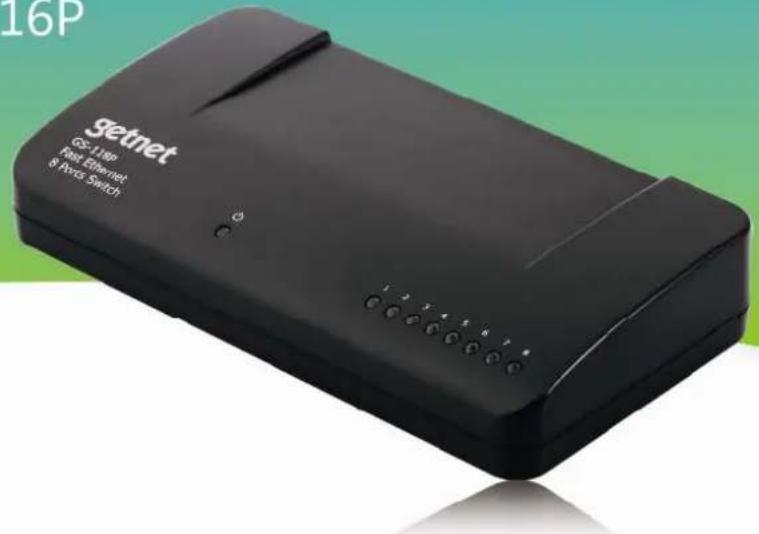
5/8/16 Port 10/100Mbps Switch
GS-115P / GS-118P / GS-216P
text_image
16P Setnet G3-118P Post Ethernet 8 Ports Switchgetnet www.getnet.com.tw
Copyright© by Edimax Technology Co, LTD. all rights reserved. No part of this publication may be reproduced, transmitted, transcribed, stored in a retrieval system, or translated into any language or computer language, in any form or by any means, electronic, mechanical, magnetic, optical, chemical, manual or otherwise, without the prior written permission of this company
This company makes no representations or warranties, either expressed or implied, with respect to the contents hereof and specifically disclaims any warranties, merchantability or fitness for any particular purpose. Any software described in this manual is sold or licensed "as is". Should the programs prove defective following their purchase, the buyer (and not this company, its distributor, or its dealer) assumes the entire cost of all necessary servicing, repair, and any incidental or consequential damages resulting from any defect in the software. Further, this company reserves the right to revise this publication and to make changes from time to time in the contents hereof without obligation to notify any person of such revision or changes.
The product you have purchased and the setup screen may appear slightly different from those shown in this Manual. The software and specifications are subject to change without notice. Please visit our web site www.getnet.com.tw for the update. All rights reserved including all brand and product names mentioned in this manual are trademarks and/or registered trademarks of their respective holders.
Federal Communication Commission Interference Statement
This equipment has been tested and found to comply with the limits for a Class B digital device, pursuant to Part 15 of FCC Rules. These limits are designed to provide reasonable protection against harmful interference in a residential installation. This equipment generates, uses, and can radiate radio frequency energy and, if not installed and used in accordance with the instructions, may cause harmful interference to radio communications.
However, there is no guarantee that interference will not occur in a particular installation. If this equipment does cause harmful interference to radio or television reception, which can be determined by turning the equipment off and on, the user is encouraged to try to correct the interference by one or more of the following measures:
- Reorient or relocate the receiving antenna.
- Increase the separation between the equipment and receiver.
- Connect the equipment into an outlet on a circuit different from that to which the receiver is connected.
- Consult the dealer or an experienced radio technician for help.
FCC Caution
This device and its antenna must not be co-located or operating in conjunction with any other antenna or transmitter. This device complies with Part 15 of the FCC Rules. Operation is subject to the following two conditions: (1) this device may not cause harmful interference, and (2) this device must accept any interference received, including interference that may cause undesired operation.
Any changes or modifications not expressly approved by the party responsible for compliance could void the authority to operate equipment.
CE Mark Warning.
This is a Class B product. In a domestic environment, this product may cause radio interface, in which case the user may be required to take adequate measures.
Thank you for purchasing GetNet Ethernet switch. This high cost-efficiency switch complies with 10/100-Base-TX standards is the best choice for Small office / Home office users. Easy install procedures allows any computer users to setup a network environment in very short time.
Product Package
This package contains the following components:
■ One Fast Ethernet Switch
■ Manual
■ Power Adapter
If any item is missing or damaged, please contact your local resellers for service.
Feature
- Complies with the IEEE 802.3, IEEE 802.3u standards.
- Provides Store and Forward architecture, full wire speed filtering and forwarding rates.
• Supports Auto-MDI/MDI-X, full/half duplex modes and auto-negotiation.
• Supports flow control: back pressure for half-duplex, IEEE 802.3x for full-duplex mode.
• Automatic source address learning and aging, extensive front-panel diagnostic LEDs.
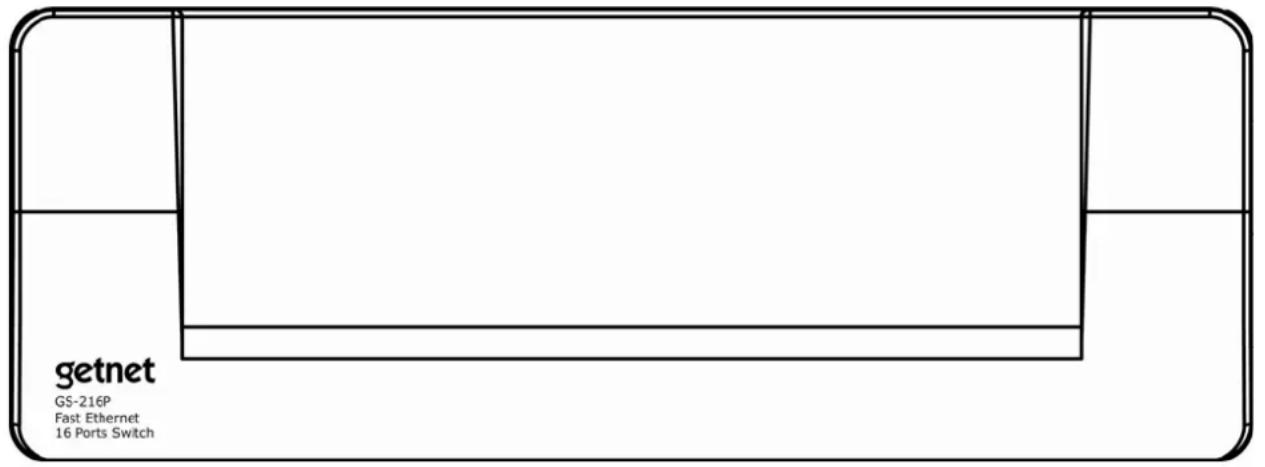
Front Panel
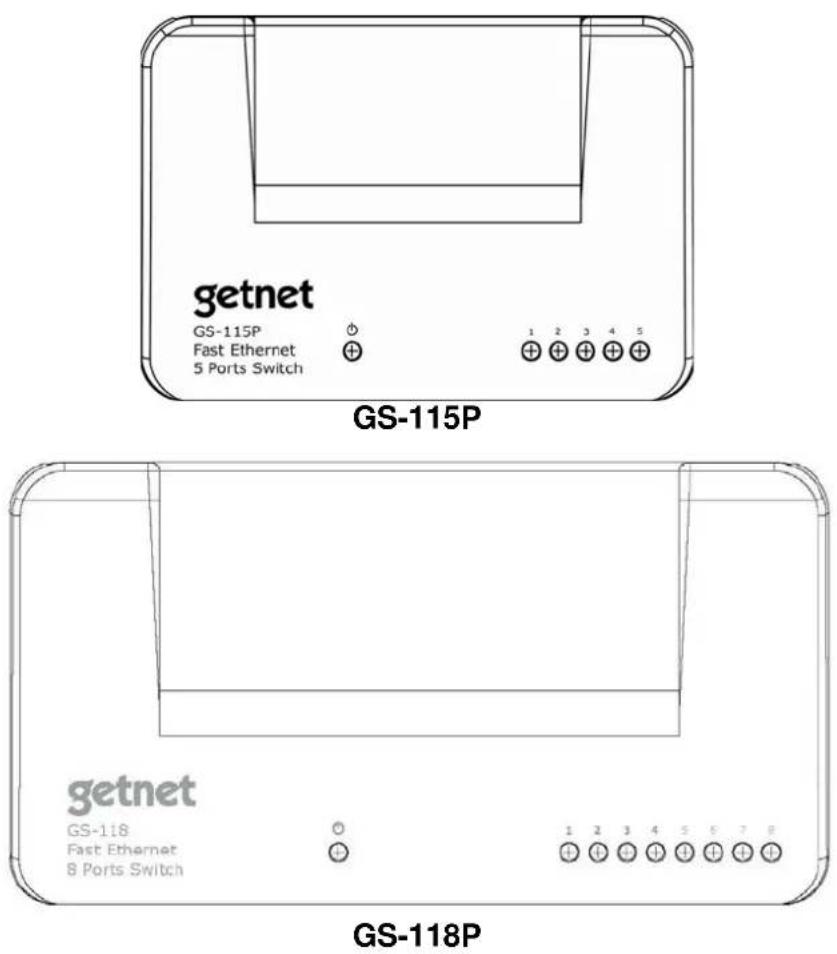
text_image
getnet GS-216P Fast Ethernet 16 Ports Switch
text_image
PWR 1 2 3 4 5 6 7 8 Link/Act Link/Act 9 10 11 12 13 14 15 16GS-216P
Fast Ethernet Switch LED Panel
| LED Color Status Description | |||
| (Power) | Green | On The switch is power on | |
| Off | No power | ||
| 1,2,3....(Link/Activity) | Green | On A valid link is established | |
| Flash Data is being transmitted / received | |||
| Off No link is established | |||
1. Operating Environment
This switching hub must be installed and operated within the limits of specified operating temperature (32-131°F) and humidity (10\~95% Non-condensing).
• Do not place objects on top of the unit.
- Do not obstruct any vents at the sides of the unit.
- Do not position the unit near any heating source such as heater, radiator, or direct exposure to sun.
Prevent entering of water and moisture into the unit. If necessary, use dehumidifier to reduce humidity.
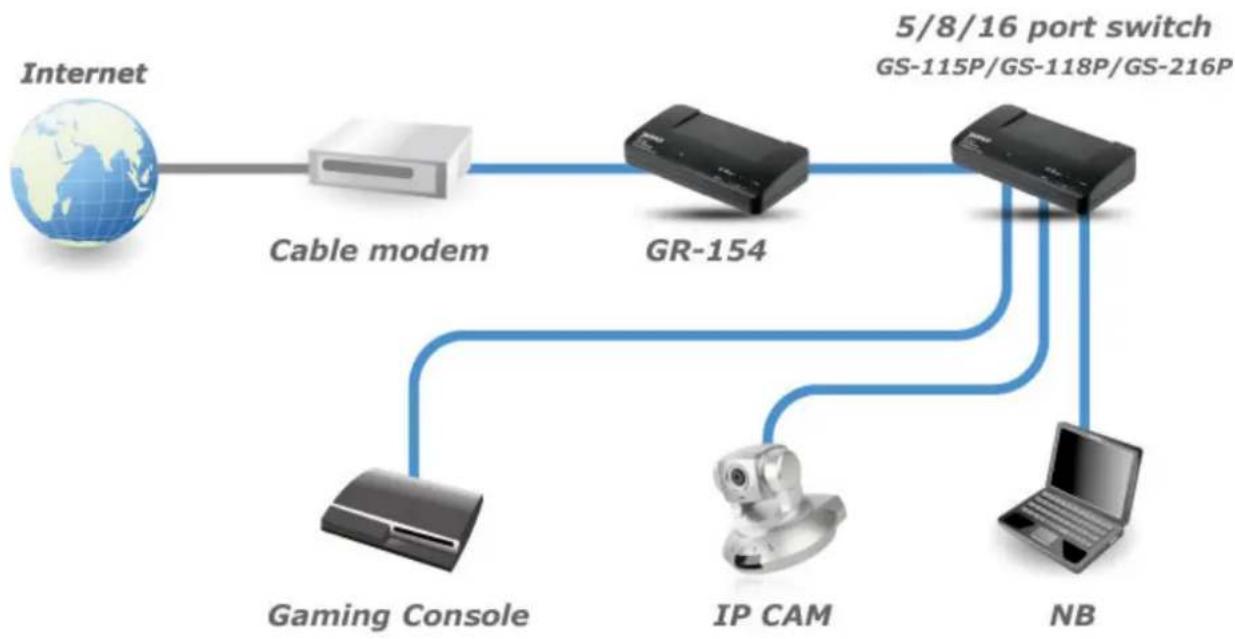
2. Connecting to network devices
The RJ-45 ports on the switch support Auto-MDI/MDI-X function which allows using straight-through or cross-over type cables to connect this switch to workstation or hub.
Connect one end of the network cable to the RJ-45 port on the rear panel, and connect the other end of the network cable to the RJ-45 port on the network device. Follow the same procedure to connect all the RJ-45 ports of the switch.
The UTP network cables must comply with EIA/TIA 568 specifications and Category 5 standard for 100Mbps data transmission. Maximum length: using UTP cable, between the switch and connected device is 100 meters (300ft).
Once the network cable is connected to both ends and the attached network device is powered on, the green LNK/ACT LED should be lit.
flowchart
graph LR
    A["Internet"] --> B["Cable modem"]
    B --> C["GR-154"]
    C --> D["5/8/16 port switch GS-115P/GS-118P/GS-216P"]
    D --> E["NB"]
    E --> F["IP CAM"]
    F --> G["Gaming Console"]
Connecting the power
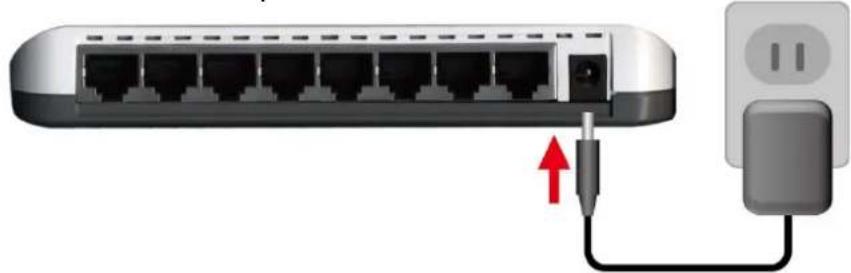
Connect the power adapter to the power connector on the rear panel of the unit; the green Power LED on the front panel should be lit.
natural_image
Illustration of a network switch connected to a power outlet via cable (no text or symbols)Trouble Shooting
- Power LED is not lit
- Check if the power cord is properly connected to the external power adapter and the power outlet. Make sure the power jack is firmly plugged into the power socket of the switch.
- Link/Activity is not lit when connect to 10/100Mbps devices
- Check the power switch of the network device attached to the switch; make sure it is turned ON.
- Check the network cable; make sure it is properly connected to the switch and the network device.
- Check the network cable; make sure the UTP cables comply with EIA/TIA 568 and Category 5 specification.
- Make sure maximum cable length between the switch and connected device is 100 meters (300ft).
[!] Contact your dealer if problem persist.

text_image
CE FC PG АЯ46getnet www.getnet.com.tw
EDIMAX Technology Co., Ltd.
www.getnet.com.tw