RN 66 - Gps RoadNavigator - Free user manual and instructions
Find the device manual for free RN 66 RoadNavigator in PDF.


User questions about RN 66 RoadNavigator
0 question about this device. Answer the ones you know or ask your own.
Ask a new question about this device
Download the instructions for your Gps in PDF format for free! Find your manual RN 66 - RoadNavigator and take your electronic device back in hand. On this page are published all the documents necessary for the use of your device. RN 66 by RoadNavigator.
USER MANUAL RN 66 RoadNavigator
Congratulations on choosing a RoadNavigator product. We have every expectation that you will be completely satisfied with your new purchase. To always guarantee optimal function and performance of your product, we would ask the following:
- Before using the appliance for the first time, carefully read the operating instructions and adhere to the safety precautions!
• Also read the software user manual including the End User License Agreement. - All activities at and with this appliance may only be carried out as described in these operating instructions.
- Please be sure to include the operating instructions in case you pass along this product to someone else.
Packaging
This appliance is delivered in protective packaging to prevent transportation damage. Packaging materials are raw materials and can therefore be recycled. Please recycle these materials.
Contents
1 Brief introduction of hardware 4
2 Specifications 6
2.1 Supported file formats 6
3 Operating the hardware 7
3.1 Turning the device On/Off and activating 'sleep mode' 7
3.2 The 'Programs' menu 8
3.3 Using music player 9
3.3.1 Music player explained 9
3.3.2 Adding files to the playlist 10
3.4 Using video player 11
3.4.1 Video player explained 11
3.4.2 Adding files to the playlist 12
3.5 Using text viewer 13
3.5.1 Text viewer explained 13
3.5.2 Opening text files 14
3.6 Using photo viewer 14
3.6.1 Photo viewer explained 14
3.6.2 Opening photo files 15
4 With reference to environmental protection 16
1 Brief introduction of hardware
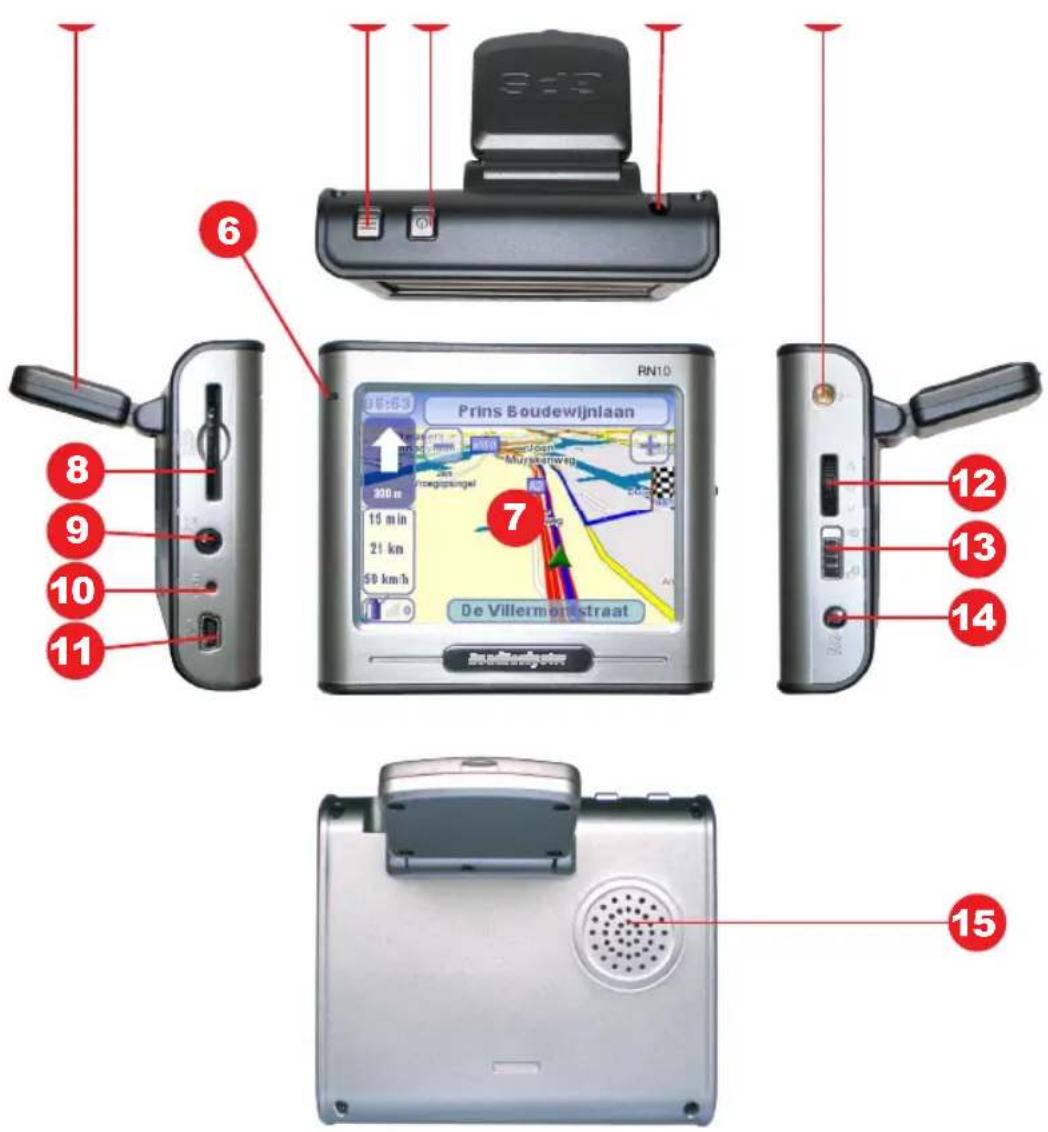
- Antenna
- Menu button
- Power button (hold down 3 sec.)
- Touch pen (stylus)
- External antenna socket
- Indicator light:
Power on: blue light
Battery charging: yellow light
Battery fully charged: green light
- Touch screen
- SD-card slot
-
Headphone jack
-
Reset button
-
USB
- Volume and OK button
- Locking switch
- DC in (12V)
- Speaker
2 Specifications
Size: 90.5mm*78mm*22mm
Operation temperature: -10^ +70^
Storage temperature: -40°C \~ +80°C
Operation frequency: 400MHz
CPU: Samsung S3C2440A-40
SDRAM: 64MB
NAND FLASH: 128mB
Navigation Software: CosmicSoftII
Operating system: WinCE 4.2 NET
Touch screen: TFT 3.5 inch, 320*240 screen resolution
Audio output:: Stereo headphone/Built-in 1w speaker
DC voltage input: 9–30V (12V DC input via cigarette lighter)
Battery: 900mAh Li-ion Polymer battery
Chip Set: SiRF Star III
Antenna: Built-in GPS Antenna (can be connected to an external antenna)
2.1 Supported file formats
Audio player supports MP3, WAV & MID;
Video player supports ASF, AVI, MP4, WMV;
Picture browser supports BMP, JPG, PNG & GIF;
Text viewer supports TXT.
3 Operating the hardware
3.1 Turning the device On/Off and activating 'sleep mode'
When the device is turned off, press the Power button and hold it for more than 3 seconds to turn on the device. The indicator light will be lit and a loading screen will appear on the touch screen. Please wait until the loading is finished.
When the device is turned on, ‘sleep mode’ can be activated by pressing the Power button for 1 second. The ‘sleeping’ screen will appear before ‘sleep mode’ is activated. In ‘sleep mode’ your device will save power and can be turned on quickly by pressing the Power button again.

text_image
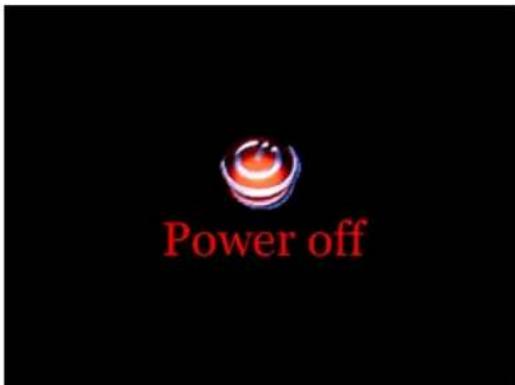
SleepingTo turn off the device, press the Power button and hold it for more than 3 seconds. First you will see the 'sleeping' screen, followed by the 'Power off' screen. You device is now turned off.
text_image
Power off3.2 The 'Programs' menu
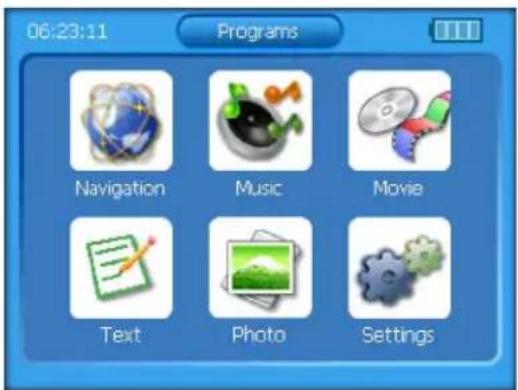
When your device has finished loading after turning it on, you will hear a notification sound and the 'Programs' menu will appear. It consists of six buttons:
text_image
06:23:11 Programs Navigation Music Movie Text Photo SettingsThe 'Navigation' button
Tap this button to operate the navigation software of your device.
More information on the operation of the navigation software can be found in the Software User Manual.
The 'Music' button
Tap this button to operate the music player. More information can be found in section 3.3.
The 'Movie' button
Tap this button to operate the movie player. More information can be found in section 3.4.
The 'Text' button
Tap this button to operate the text viewer. More information can be found in section 3.5.
The 'Photo' button
Tap this button to operate the photo viewer. More information can be found in section 3.6.
The 'Settings' button
Tap this button to view and/or change the settings of your device.
Settings
3.3 Using music player
3.3.1 Music player explained
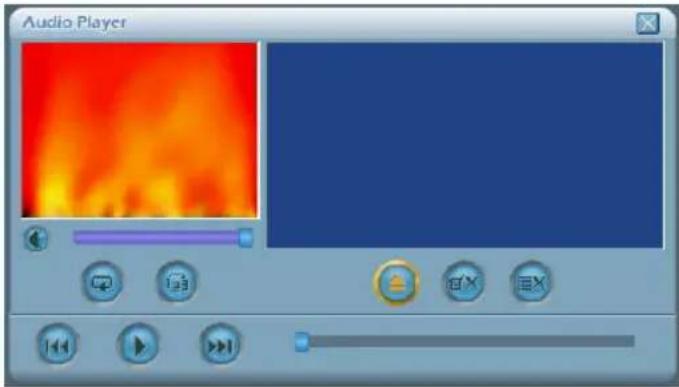
After tapping the 'Music' button in the 'Programs' menu you will enter the music player interface.
text_image
Audio PlayerIt consists of the following elements:

Tap this button to exit the music player and return to the grams' menu.

Tap this button to play (or to pause) music.

Tap this button to go to the next song.

Tap this button to go to the previous song.
The bottom right slider can be used to control the playing 'cursor' within a file.

Tap this button to activate the 'repeat' function. This function will eat the selected song. Tap it again to deactivate the 'repeat' action.

Tap this button to play music in the playlist's order. Tap this button to mute (or activate) the sound.
The centre left slider can be used to adjust the volume.

ap this button to delete the selected file from the playlist.
ap this button to delete all files from the playlist.
ap this button to add files to the playlist.
3.3.2 Adding files to the playlist
After tapping the button to add files to the playlist (showing the content of your SD card.

file exploring screen will appear
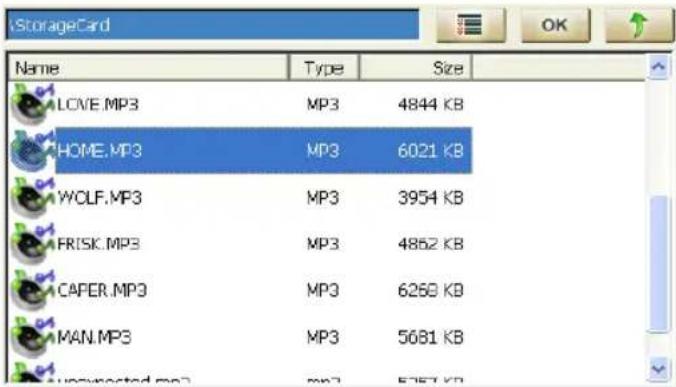
text_image
StorageCard Name Type Size LOVE.MP3 MP3 4844 KB HOME.MP3 MP3 6021 KB WOLF.MP3 MP3 3954 KB FRISK.MP3 MP3 4862 KB CAPER.MP3 MP3 6260 KB MAN.MP3 MP3 5681 KB unselected.mp3 mp3 5757 KBSelect an audio file (MP3,WAV or MID) and tap to add the selected file to the playlist. It is also possible to select the entire audio content of a folder by tapping Otherwise, tap to return to the music player.
3.4 Using video player
3.4.1 Video player explained
After tapping the 'Video' button in the 'Programs' menu you will enter the video player interface.
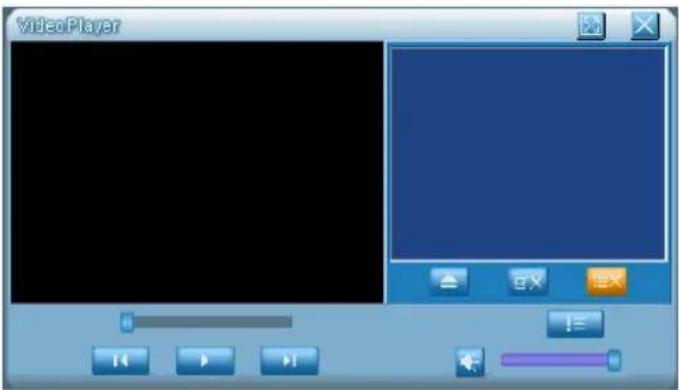
text_image
VideoPlayer 14 P P1It consists of the following elements:

Tap this button to exit the video player and return to the grams' menu.

Tap this button to set the video player to full screen.

Tap this button to hide the playlist (right of the screen) expanding the movie window.


this button to play (or to pause) videos.

Tap this button to go to the next song.

Tap this button to go to the previous song.
The left slider can be used to control the playing 'cursor' within a file.


Tap this button to mute (or activate) the sound.
The right slider can be used to adjust the volume.

Tap this button to delete the selected file from the playlist.
Tap this button to delete all files from the playlist.
Tap this button to add files to the playlist.
3.4.2 Adding files to the playlist
After tapping the button to add files to the playlist ( ), a file exploring screen will appear showing the content of your SD card.
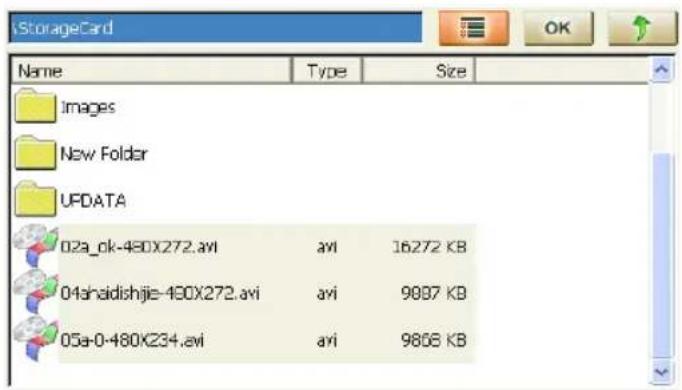
text_image
iStorageCard Name Type Size Images New Folder UPDATA 02a_ok-480X272.avi avi 16272 KB 04ahaidishjie-480X272.avi avi 9887 KB 05a-0-480X234.avi avi 9868 KBSelect an video file (ASF, AVI, MP4 or WMV) and tap to add the selected file to the playlist.
It is also possible to select the entire video content of a folder by tapping, otherwise, tap

to return to the video player.
3.5 Using text viewer
3.5.1 Text viewer explained
After tapping the 'Text' button in the 'Programs' menu you will enter the text viewer interface.
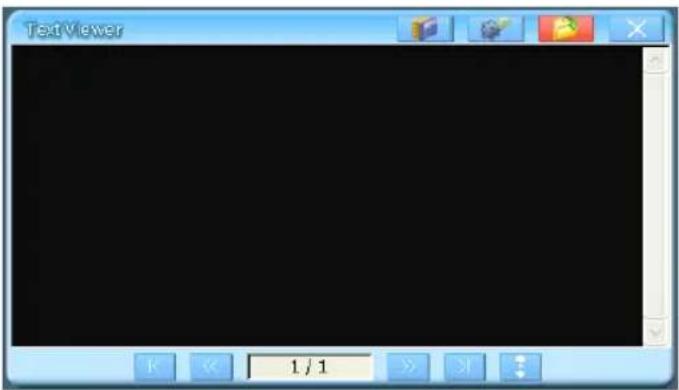
text_image
Text Viewer 1 / 1It consists of the following elements:
Tap this button to show file information.
Tap this button to edit text viewer settings.
Tap this button open text files.
Tap this button to exit the text viewer and return to the 'Programs'
menu.
Tap this button to go to the first page.
Tap this button to go to the last page.
Tap this button to go to the previous page.
Tap this button to go to the next page.
Tap this button to activate automatic scrolling.
3.5.2 Opening text files
After tapping the button to open text files ( ), a file exploring screen will appear showing the content of your SD card.
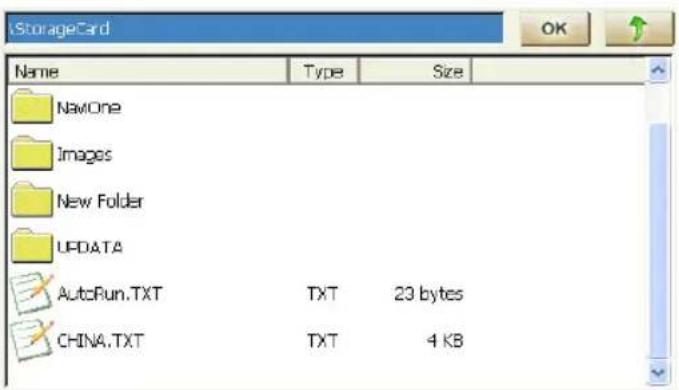
text_image
iStorageCard Name Type Size NavOne Images New Folder UPDATA AutoRun.TXT TXT 23 bytes CHINA.TXT TXT 4 KBSelect a text file (TXT) and tap viewer.
OK to view the selected file or tap to return to the text
3.6 Using photo viewer
3.6.1 Photo viewer explained
After tapping the 'Photo' button in the 'Programs' menu you will enter the photo viewer interface.
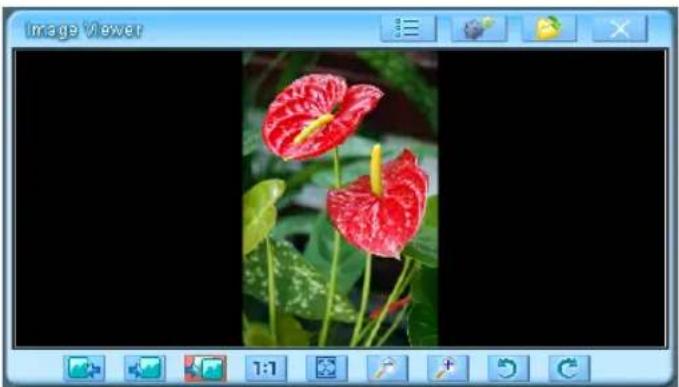
natural_image
Close-up photo of two red anthurium flowers with green leaves, displayed within a photo viewer window (no text or symbols on the flower image itself)It consists of the following elements:
Tap this button to show file information.
Tap this button to edit slideshow settings.
Tap this button open photo files.
Tap this button to exit the photo viewer and return to the
'Programs' menu.

Tap this button to view the previous photo file in the folder.
Tap this button to view the next photo file in the folder.
Tap this button to start a slideshow of the files in the folder.
Tap this button to view the photo at it's actual size.
Tap this button to zoom out.
Tap this button to zoom in.
Tap this button to rotate the photo 90 degrees counter clockwise.
Tap this button to rotate the photo 90 degrees clockwise.
3.6.2 Opening photo files
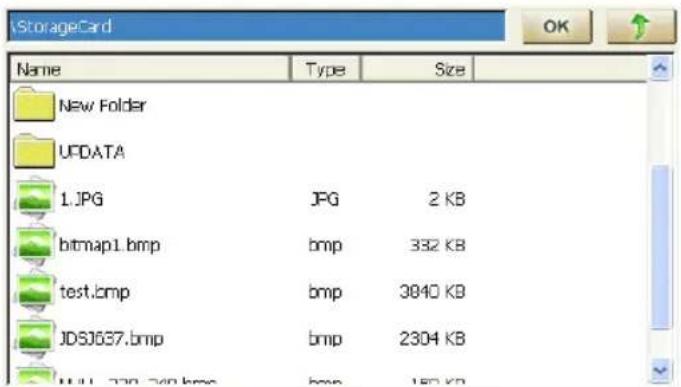
After tapping the button to open photo files ( ), a file exploring screen will appear showing the content of your SD card.
text_image
StorageCard Name Type Size New Folder UFDATA 1.JPG JPG 2 KB bitmap1.bmp bmp 332 KB test.bmp bmp 3840 KB JDSJ637.bmp bmp 2304 KB HILL 279.740.bmp bmp 150 KBSelect a photo file (BMP, JPG, PNG or GIF) and tap return to the photo viewer.

ew the selected file or tap to

4 With reference to environmental protection
Packing materials are raw materials and can be used again.
Keep packing materials separate. For more information about recycling contact your local administration.
Old devices do not belong in the domestic refuse!
Dispose of old devices responsibly, and contribute to environmental protection.
Your local administration will inform you about collecting points and opening times.
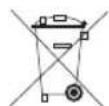
Old batteries do not belong in the domestic refuse!
Dispose of old batteries accordingly and contribute to environmental protection. Your local administration will inform you about collecting points and opening times.

This product complies with European directives