
NAV500 - Browser BUSHNELL - Free user manual and instructions
Find the device manual for free NAV500 BUSHNELL in PDF.


| Product Type | In-Car Navigation System with MP3 Player and Photo Viewer |
| Brand | Bushnell |
| Model | NAV500 |
| Display | Touch screen, brightness adjustable, calibration available |
| GPS | Built-in GPS receiver, foldable antenna, best performance when parallel to ground |
| Audio | MP3 player supporting MP3, WMA, WAV formats |
| Photo Viewer | Supports jpg, gif, png, bmp; slideshow feature |
| Memory | SD memory card (supplied), FAT file system |
| Connectivity | USB (via ActiveSync), car charger |
| Power | Rechargeable battery, orange LED charging, green when fully charged |
| Buttons | Power, directional keys, OK, volume, playback controls (play/pause/stop/next/previous) |
| Languages | Multiple languages selectable in Setup |
| Clock | Time/date setting with time zone selection |
| Brightness | Adjustable; idle time feature to auto-off display after inactivity |
| Calibration | Touch screen calibration option in Setup |
| Idle Time | Adjustable (off, 1-15 minutes), display backlight turns off if idle |
| System Info | Serial number, OS version, bootloader version displayed |
| GPS Always On | Option to keep GPS running when navigator closed (default on) |
| Care | Keep away from extreme heat, cold, humidity; do not get wet; avoid shocks |
| Cleaning | Use lint-free cloth slightly dampened while device is off |
| Warranty | Void if device is opened |
| Safety Warning | Not for precise measurement; driver must not operate while driving; mount safely |
| FCC Compliance | Class B digital device; shielded interface cable required |
| Disposal | WEEE symbol; do not dispose as household waste; recycle at collection point |
Frequently Asked Questions - NAV500 BUSHNELL
User questions about NAV500 BUSHNELL
0 question about this device. Answer the ones you know or ask your own.
Ask a new question about this device
Download the instructions for your Browser in PDF format for free! Find your manual NAV500 - BUSHNELL and take your electronic device back in hand. On this page are published all the documents necessary for the use of your device. NAV500 by BUSHNELL.
USER MANUAL NAV500 BUSHNELL
Model Number: Bushnell NAV500
Congratulations on your purchase of the NAV500. Not only can you use your NAV500 as an in-car navigation system, you can also use it as an MP3 player and a photo album viewer.
Please read through the following manual carefully in order to use your NAV500 correctly.
Contents
BUSHNELL....1
NAV500 1
User Guide....1
Contents....2
DESCRIPTION OF BUTTONS, ETC.... 3
ACCESSING THE NAVIGATOR FUNCTION....5
MP3 PLAYER 6
Mp3 player button definitions....7
Playing music....7
Adjusting the volume 8
Changing the order of tracks 8
Repeating tracks....8
Creating a play list....9
Viewing photos....11
Using the slideshow ....12
SETUP....13
Setting the time/date....14
Setting the volume ....15
Brightness options 16
Calibrating the touch screen ....16
Adjusting the brightness....17
Setting the Idle Time....17
Choosing the language 18
Info....19
DOWNLOADING FILES TO THE MEMORY CARD 20
CARE AND MAINTENACE.... 21
Design Limitations....25
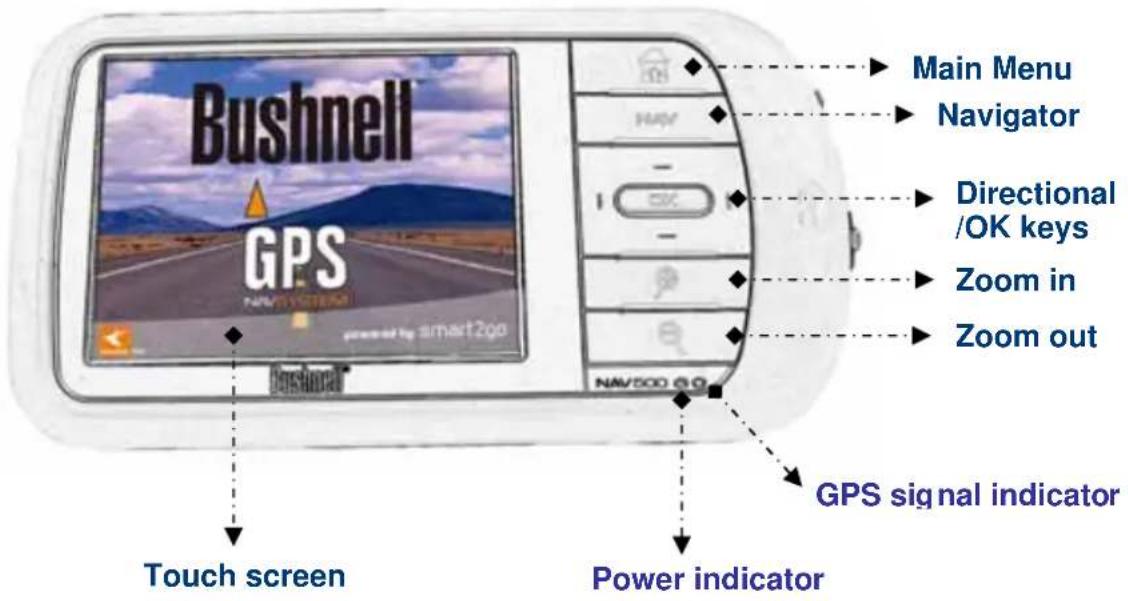
DESCRIPTION OF BUTTONS, ETC.
FRONT VIEW
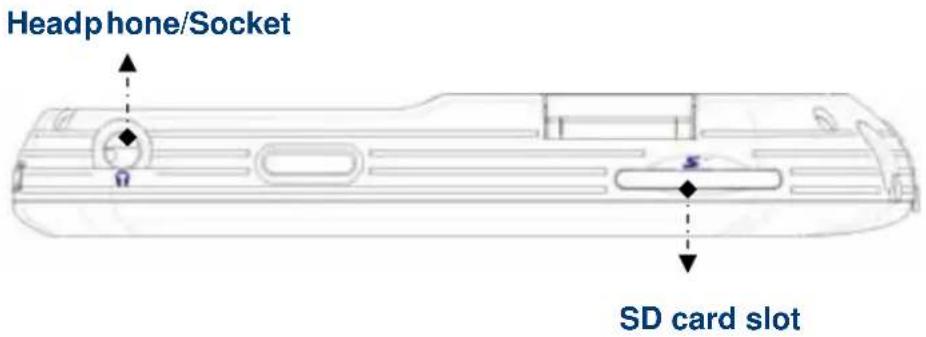
TOP VIEW
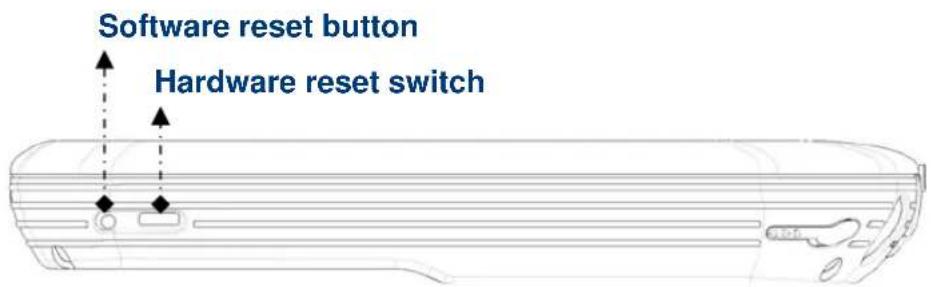
BOTTOM VIEW
SIDE VIEWS
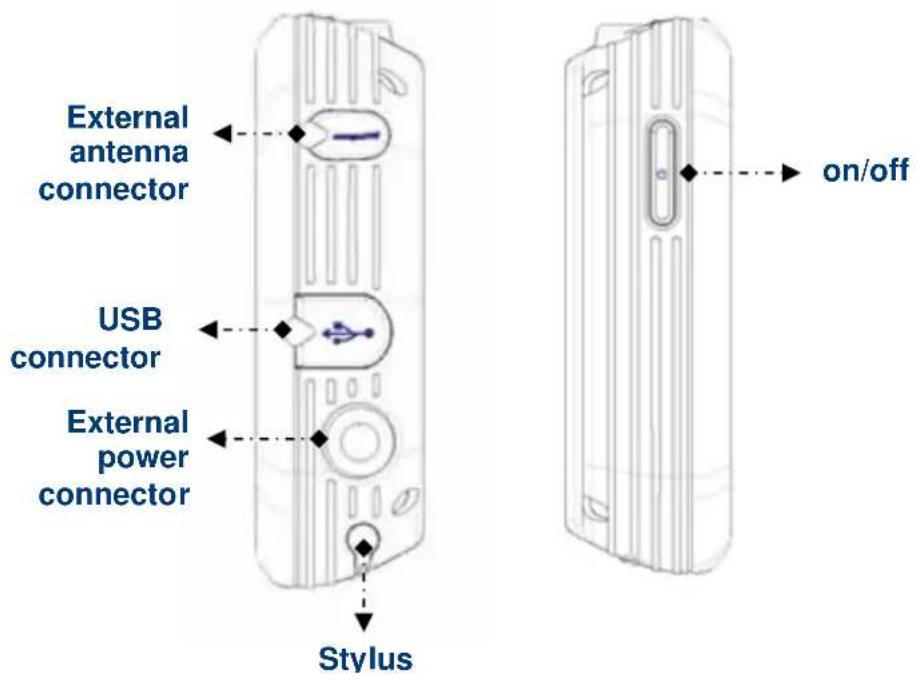
BACK VIEW
ACCESSING THE NAVIGATOR FUNCTION
■ Switch the unit on and tap Navigator in the Main Menu screen.
■ Alternatively, you can use the directional keys to highlight Navigator and then press the OK key.
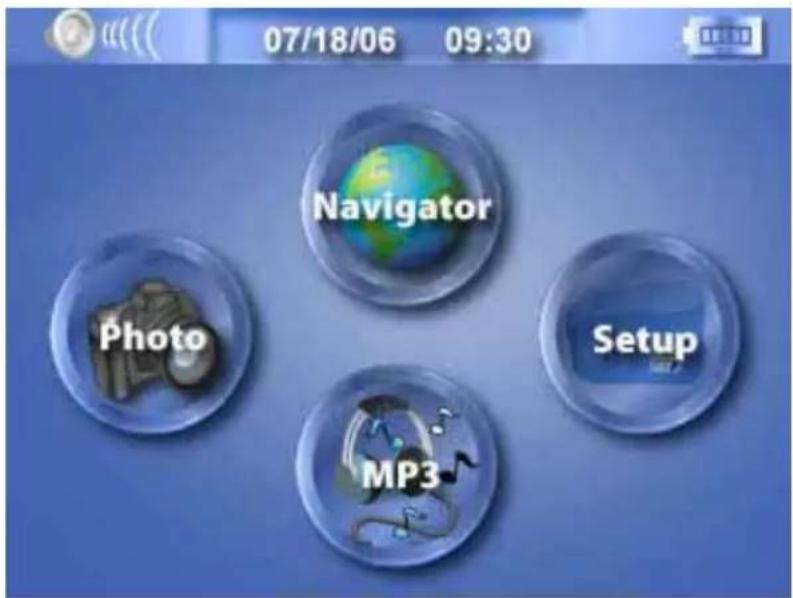
After the application loads the main Navigator menu will appear. For more information regarding the Navigator function please see the Navigator Manual.
MP3 PLAYER
Playing music on your NAV500 couldn't be easier.
■ Switch the unit on and tap MP3 in the Main Menu screen.
■ Alternatively, you can use the directional keys to highlight MP3 and then press the OK key.
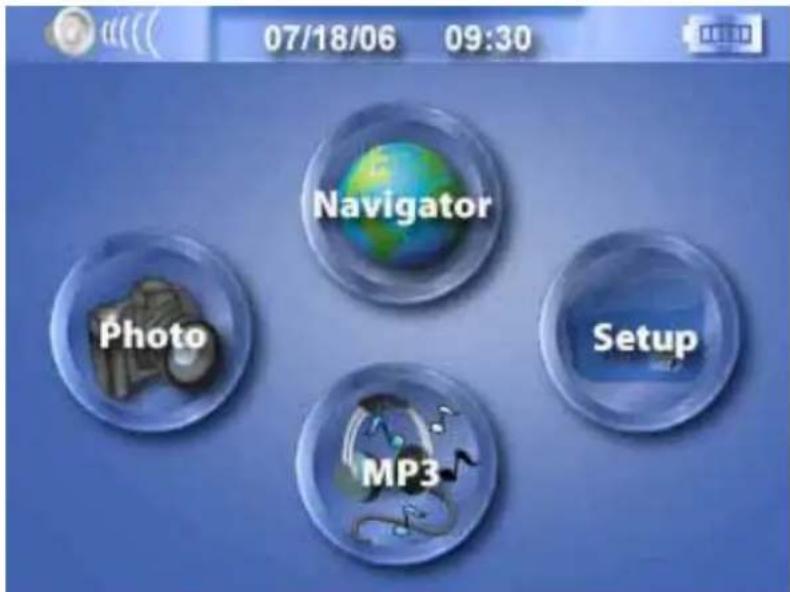
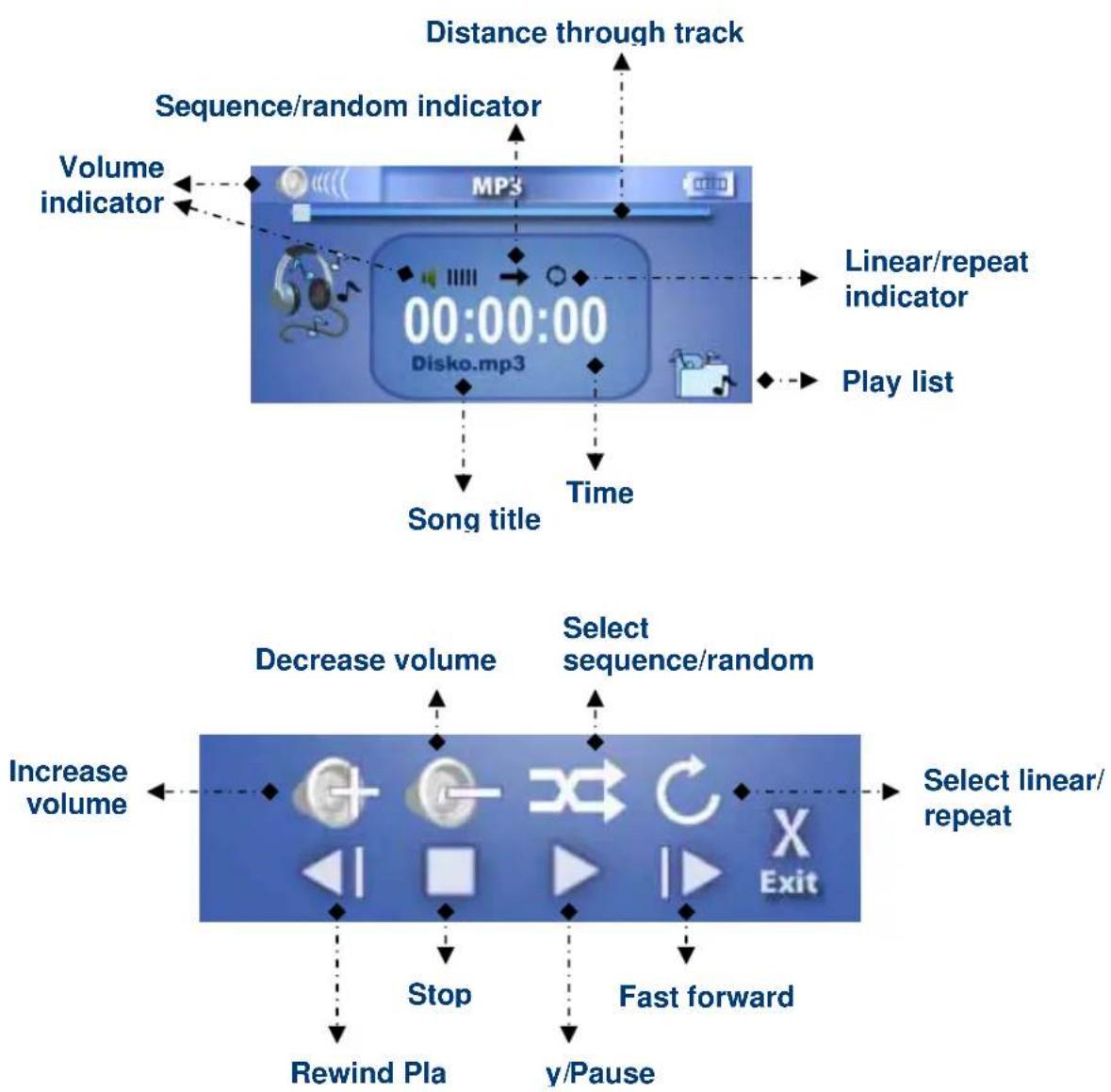
The MP3 screen will now appear in the display:
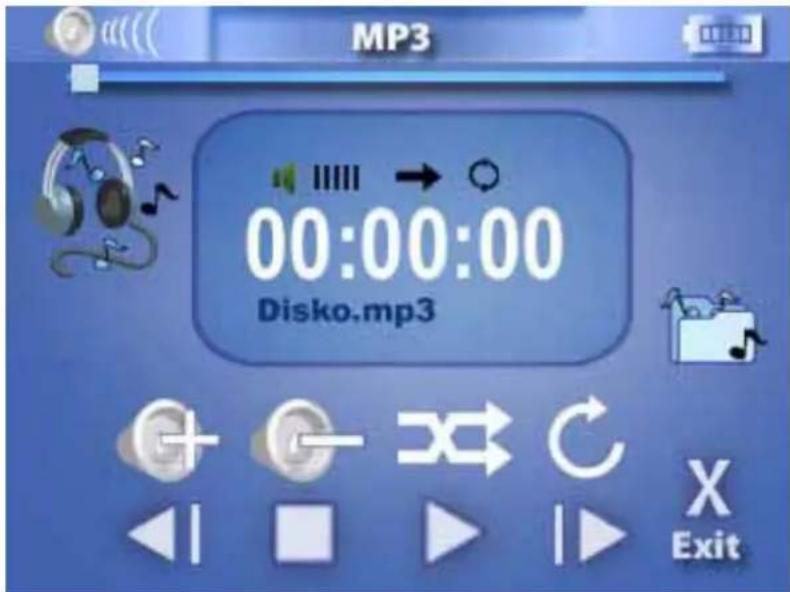
NOTE: Music must be loaded to the SD memory card from your computer. See the section entitled DOWNLOADING FILES TO THE MEMORY CARD for more information.
Mp3 player button definitions
The MP3 Player Buttons are defined as follows:
Playing music
■ While on the MP3 screen, press the Play button ▶ to begin listening to music.
■ To pause music, press the Pause ▶ button.
■ To stop listening to music, press the Stop button
- To skip to the next track, press the Fast forward button ▶.
- To go to the beginning of the current track or skip back to the previous track, press the Rewind <1 button.
Adjusting the volume
To adjust the volume, press the Increase volume or Decrease volume buttons.
Changing the order of tracks
To choose between playing tracks in sequential order or random order, press the Select sequence → /random button. The current order is indicated in the top left-hand side of the screen.
NOTE: The appearance of the Select sequence/random button changes depending on the current mode.
Repeating tracks
To choose between repeating tracks or not, press the Select linear / repeat ○ button. The current mode is indicated in the top left-hand side of the screen.
NOTE: The appearance of the Select linear/repeat button changes depending on the current mode.
Creating a play list
■ Press the Play list button

■ The Play list screen will now appear in the display
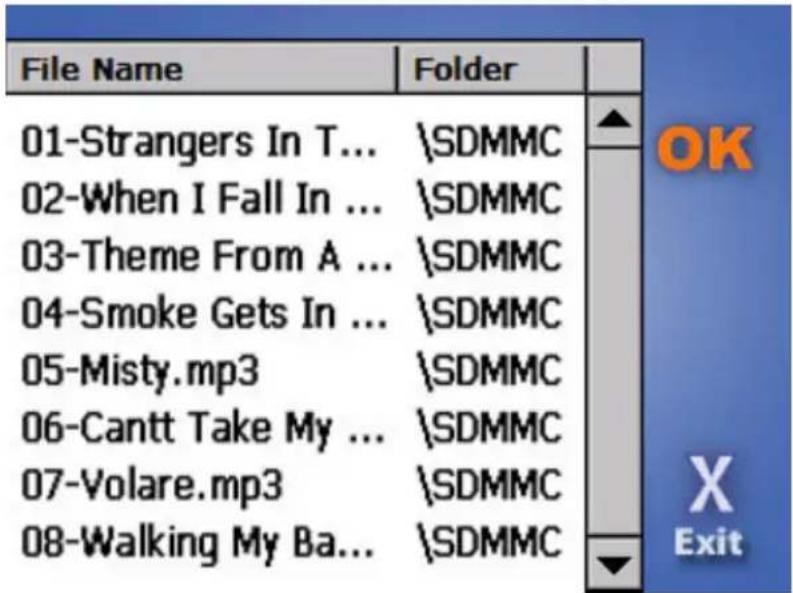
NOTE: By default, all tracks in the My Music folder of the Memory Card are added to the play list.
- To remove ALL tracks from the play list, press the Remove all tracks button. You will be asked to confirm this operation.
- To remove only the currently highlighted track, press the Remove track 📄 button.
NOTE: To change which track is highlighted, use the up/down direction buttons or the touch screen.
- To add tracks, press the Add track button, then navigate to the track/s you would like to add.
■ To exit the Play list screen, press the Exit X button.
PHOTO ALBUM
You can view individual photos or slideshows on your NAV500.
■ Switch the unit on and tap Photo Album in the Main Menu screen.
■ Alternatively, you can use the directional keys to highlight Photo Album and then press the OK key.
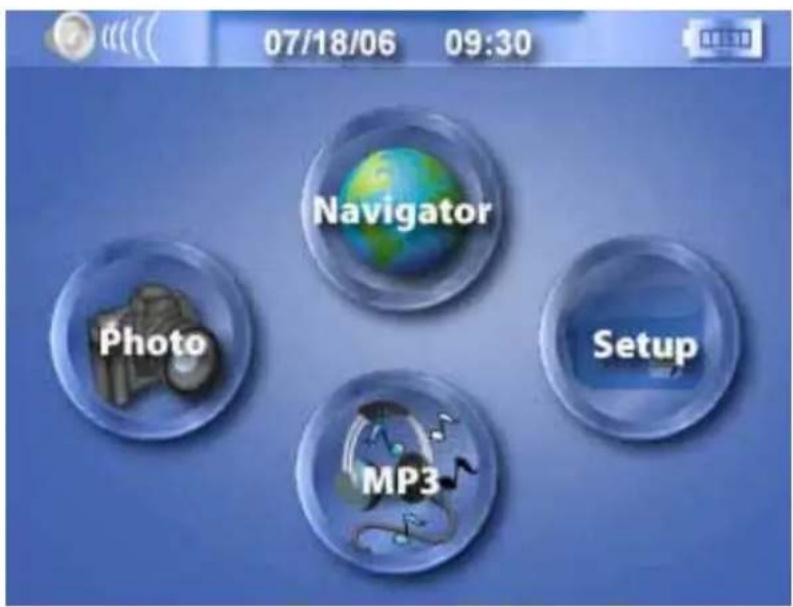
- The Photo Album screen will now appear in the display:
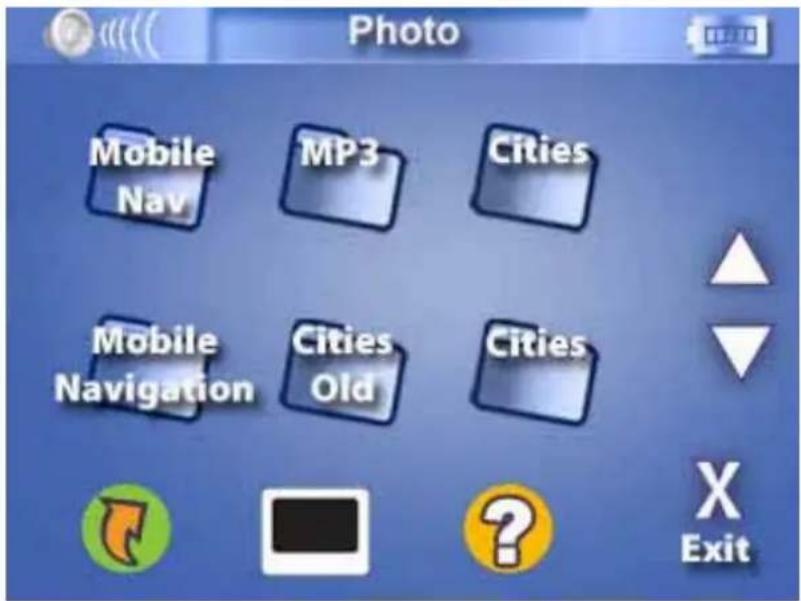
Viewing photos
If you cannot see photo thumbnails, but instead see folders (as in the above image), then you can click these to access their contents (as in the image below).
You can also scroll up or down to search up or down the list of folders or photos.
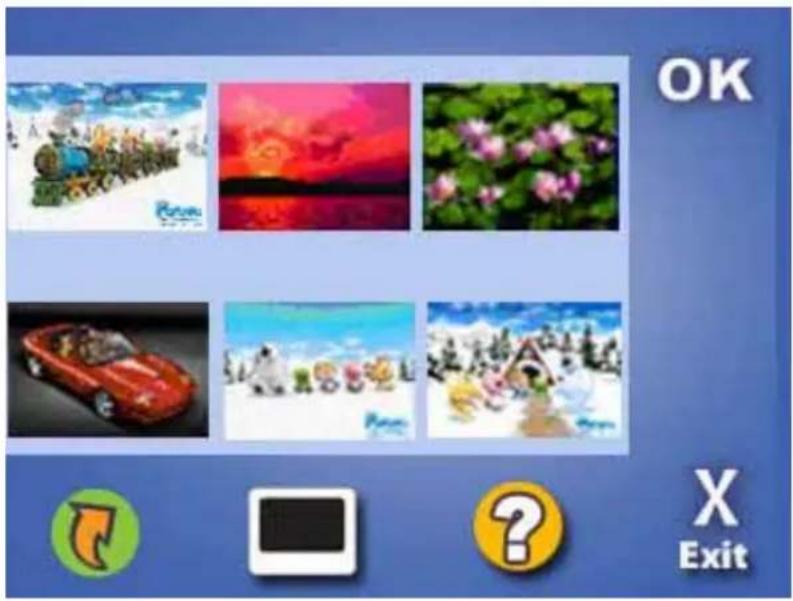
- If you need to move back up a level, click the back button
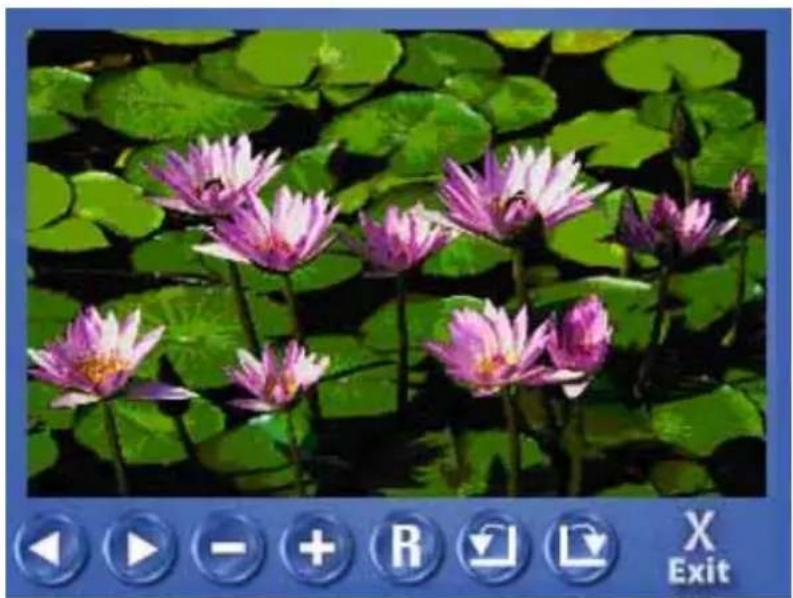
- Once you can see photos, you can click on one to display it full size (see below).
natural_image
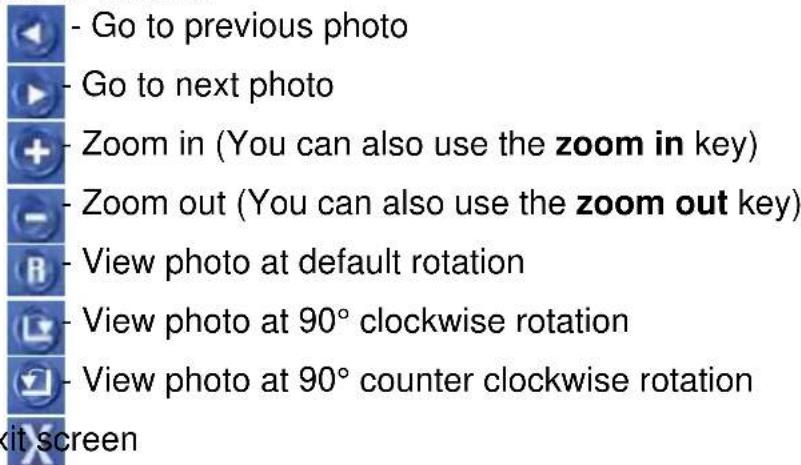
Lily flower field with pink water lilies and green leaves, displayed in a blue control panel (no text or symbols on the flower image itself)You will see several options at the bottom of the screen, which are defined as follows:
Using the slideshow
Make sure you can see photo thumbnails by using the steps outlined in
Accessing Photos
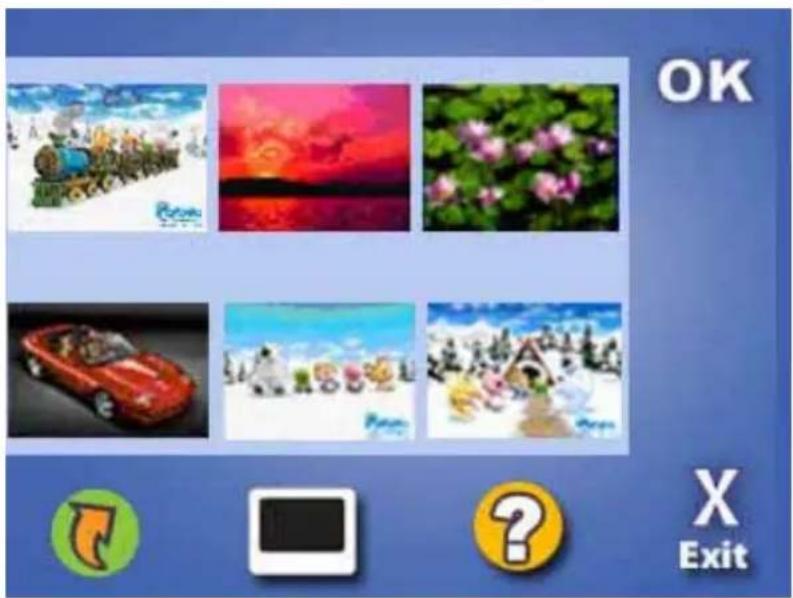
Press the Slideshow button ☐. The slideshow will start. To stop the slideshow, click anywhere on the screen.
NOTE: Photos must be loaded to the SD memory card from your computer. See the section entitled DOWNLOADING FILES TO THE MEMORY CARD for more information.
SETUP
To access the Setup feature on your NAV500:
- Switch the unit on and tap Setup in the Main Menu screen.
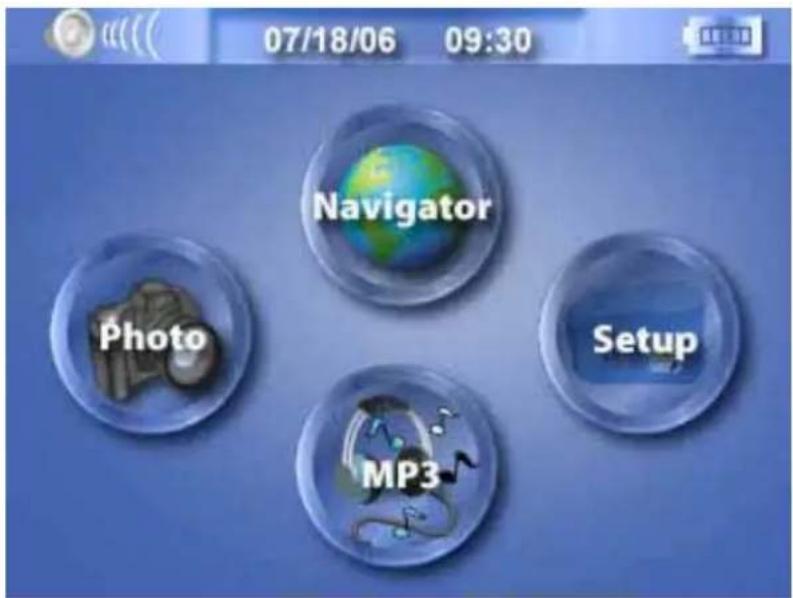
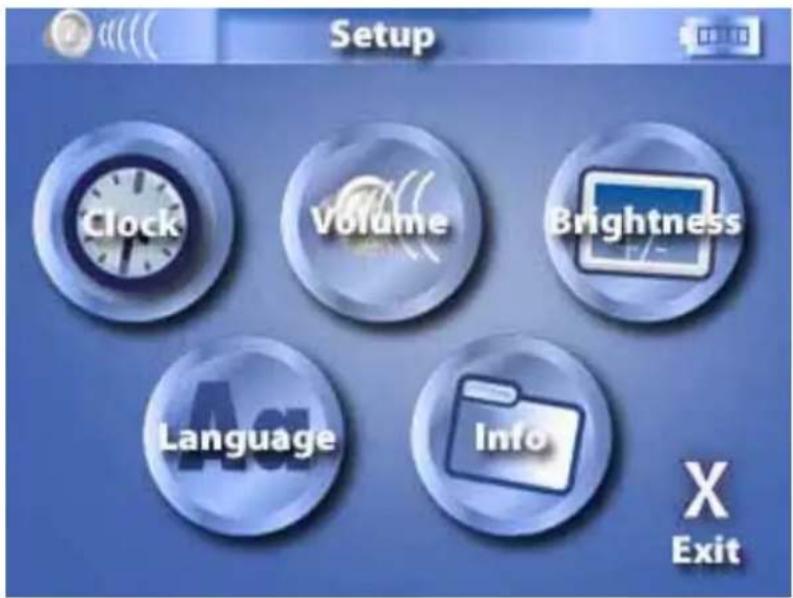
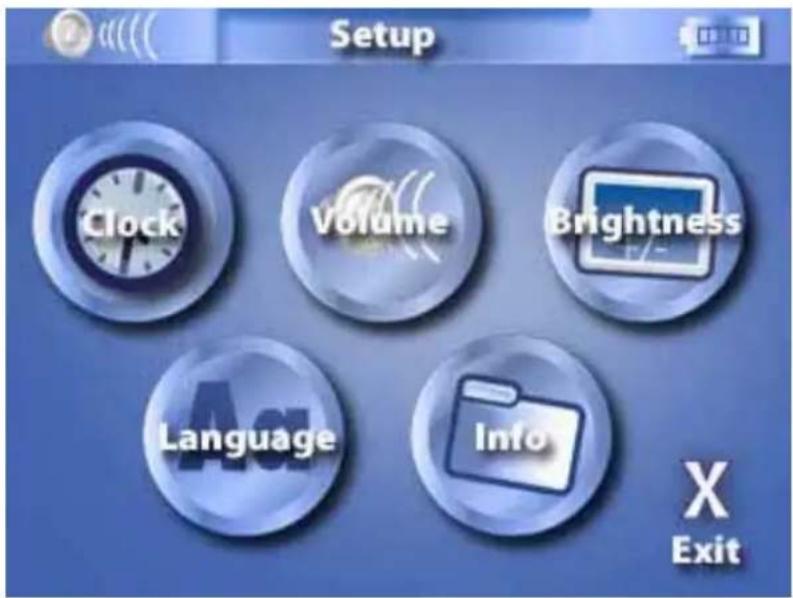
The Setup screen will now appear in the display:
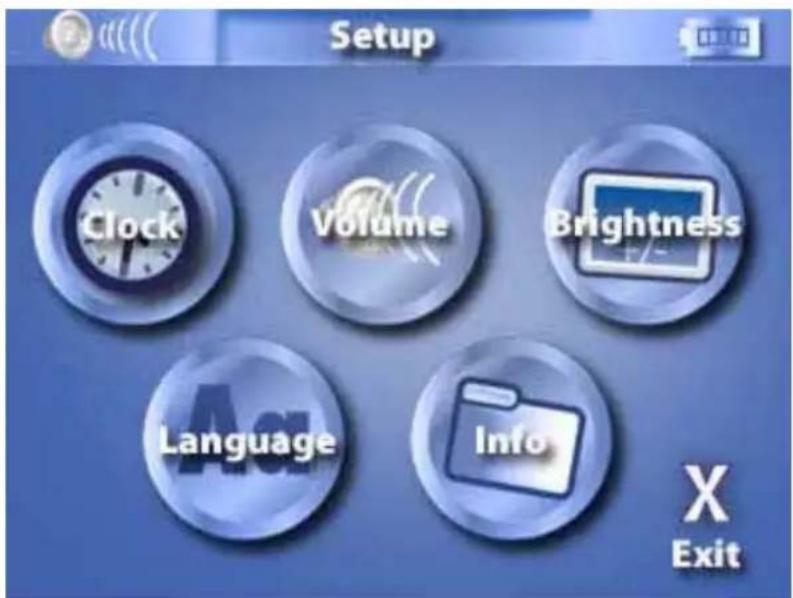
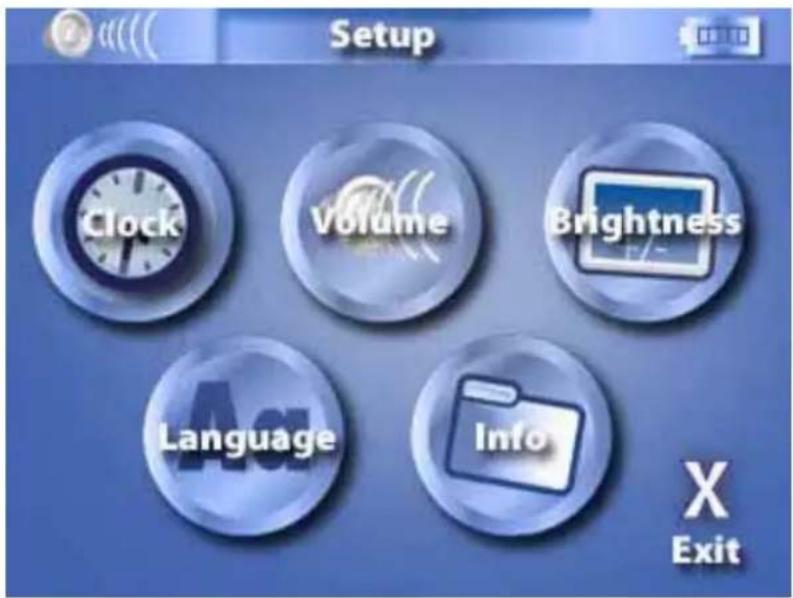
From this screen you can set:
Clock – Set the time/date
Volume – Set the default volume
Brightness – Calibrate the touch screen and adjust brightness and idle time.
Language – Select the default language
Info – View system information
Setting the time/date
- Choose Clock from the Setup screen.
The Clock screen will now appear in the display:
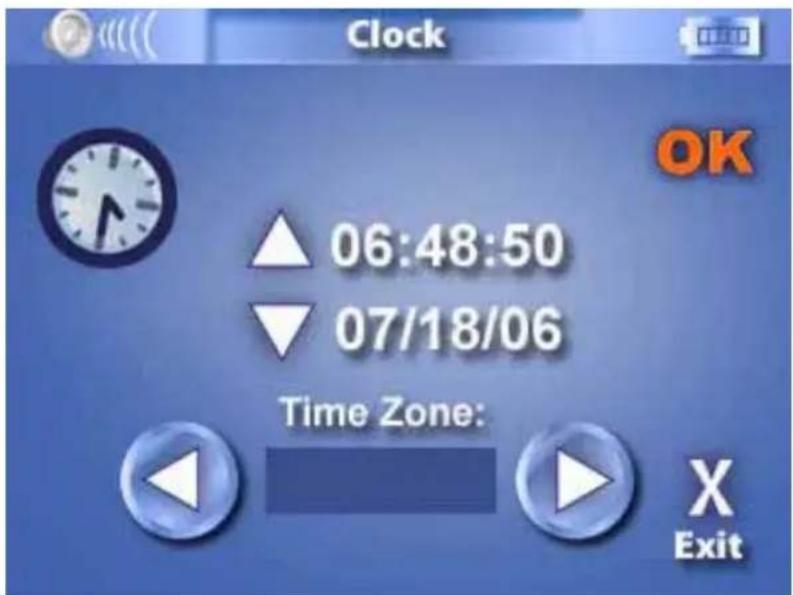
- Choose the Time Zone from the drop-down list. You can use either the touch screen or the directional keys to do this.
- To enter the Date and Time, highlight the item you wish to change and then use the up/down directional keys to increase or decrease their values. The current Time is also shown above for reference.
■ Once you have finished, press the OK button.
Setting the volume
- Choose Volume from the Setup screen.
The Volume screen will now appear in the display:
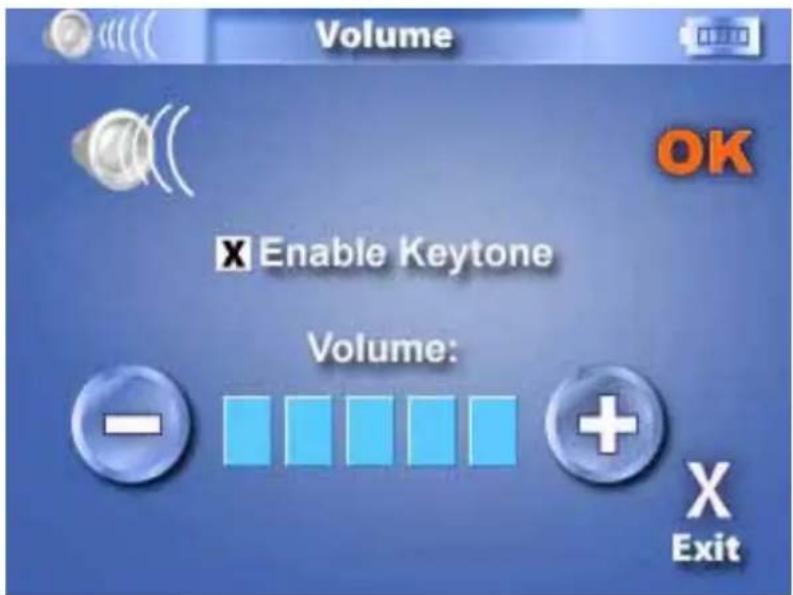
- Click the + or – buttons to increase or decrease the volume.
■ Alternatively, you can use the right/left directional keys to increase or decrease the volume. - Check the Enable Keytone option if you would like to hear a clicking sound each time you press a button.
■ Once you have finished, press the OK button.
Brightness options
- Choose Brightness from the Setup screen.
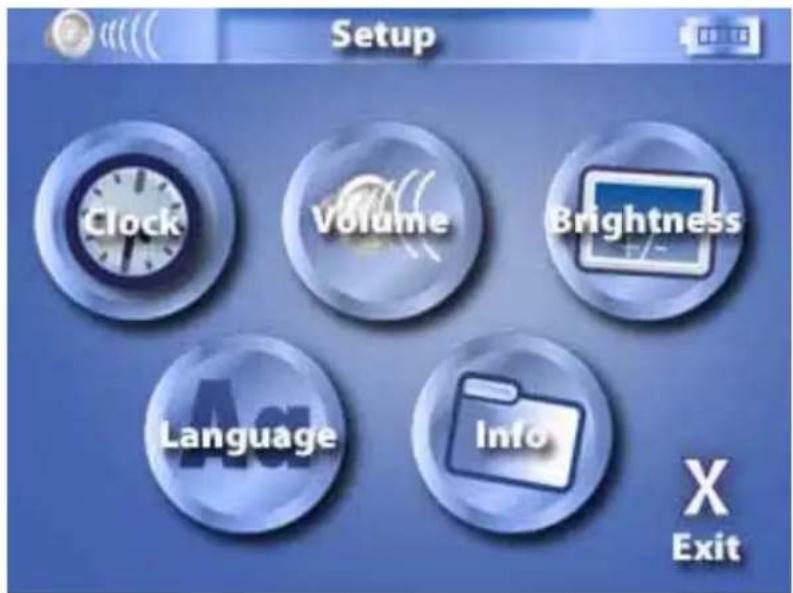
The Screen will now appear in the display:
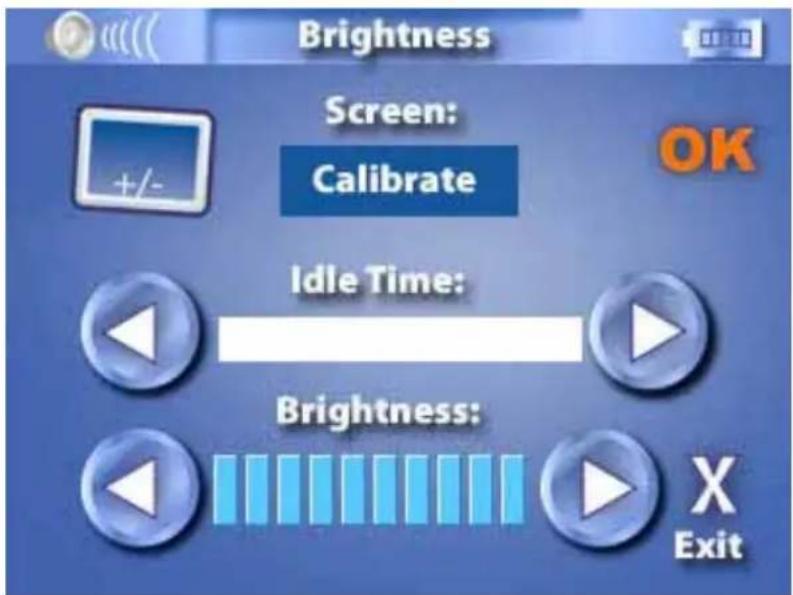
Calibrating the touch screen
- Click Calibration.
The Calibration screen will now appear in the display. You will be asked to go through a number of simple steps to calibrate the screen.
Adjusting the brightness
■ To adjust the brightness, click the + or - buttons
■ Alternatively, you can use the right/left directional keys to highlight Brightness, and then to increase or decrease the brightness.
■ Once you have finished, press the OK button.
Setting the Idle Time
The idle time feature will automatically switch off the display following a period of inactivity. For example if an idle time of 5 minutes is chosen, the display backlight will switch off if no buttons are pressed during that time.
Use the directional keys to highlight idle time or click it on the touch screen.
Use the right/left directional keys to choose a suitable idle time. When you are happy with all the Screen settings click OK.
NOTE: If you do not wish to use the idle time feature, choose "off".
Choosing the language
- Choose Language from the Setup screen.
The Language screen will now appear in the display:
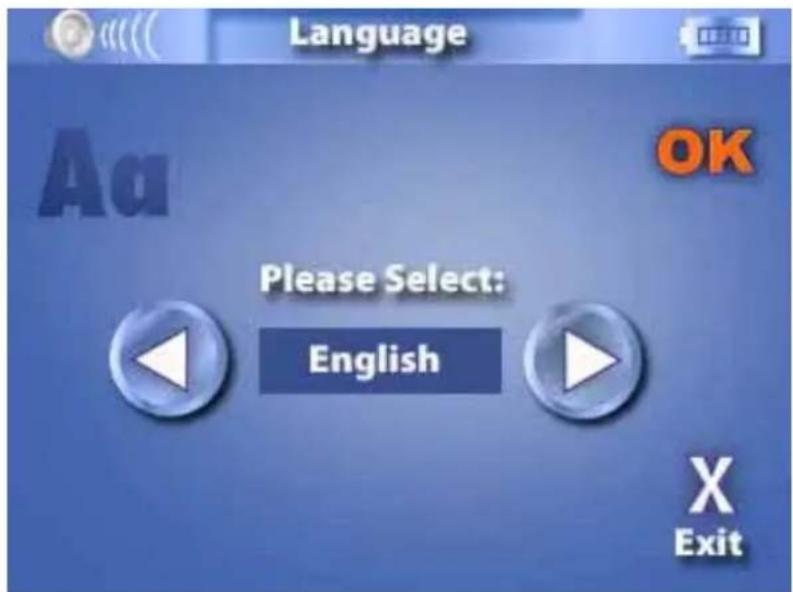
Click the right/left arrow buttons or use the right/left directional keys to choose a language from the list.
Once you have finished, press the OK button.
Info
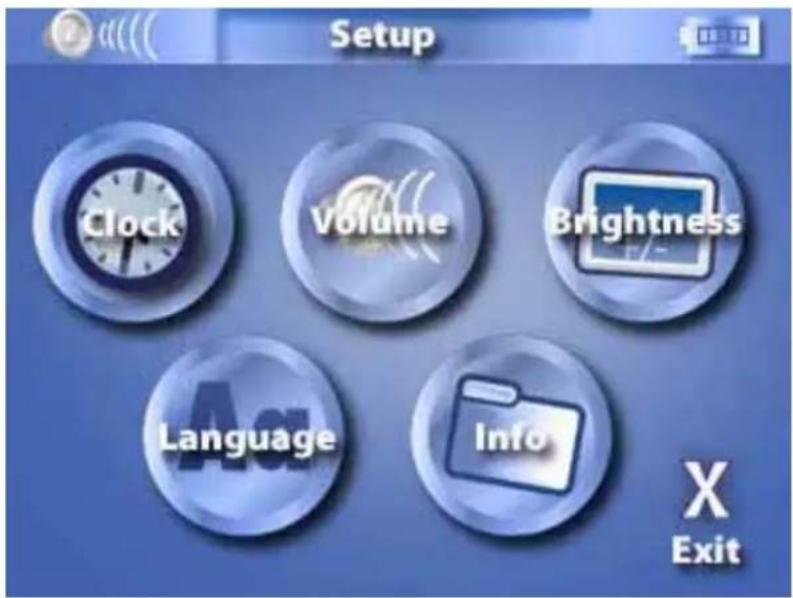
- Choose Info from the Setup screen.
The System Info screen will now appear in the display:
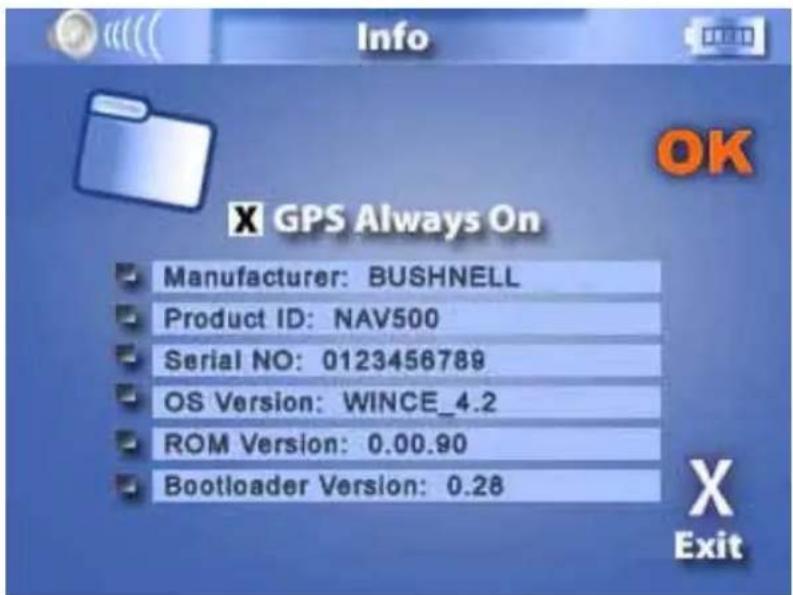
Here you can see your device's serial number, OS version and Bootloader version.
The GPS Always On option is checked by default. This will keep the GPS module running and the blue signal indicator blinking when the navigator is launched and after it is closed. If you de-selected this option it will require a longer time to initialize the GPS module the next time the navigator is launched. Click OK to exit this screen.
DOWNLOADING FILES TO THE MEMORY CARD
There are two ways to add music and photo files to the Memory Card. If your PC has a card reader attached, you can simply remove the Memory Card from the Nav500 unit and insert it into your card reader.
Then using Windows on your PC go to ‘My Computer’. This is usually accessed from the ‘Start’ menu or the desktop. Double click on the “Removable drive” that relates to your card reader.
You will see My Music and My Photos folders. You can copy and paste or drag-and-drop any music or photos into these folders from your computer hard drive or CD-ROM.
If your computer does not have a card reader you can still add photos and music files to your Memory Card by connecting the Nav500 via USB to your PC. You need to have Microsoft Active Sync (supplied on CD) installed first.
Simply connect the USB cable from the NAV500 to a spare USB port on your computer. Turn the NAV500 on.
Active Sync will detect your Nav500 device and will prompt you to select a method of synchronizing, you can select ‘Guest mode’.
You will now have Active sync running. You can click on the 'Explore' button. This shows you the data stored on the Nav500. If you double click on the folder named 'Memory Card' you will see My Music and My Photos folders. You can copy and paste or drag-and-drop any music or photos into these folders from your computer hard drive or CD-ROM.
NOTE: For more information about using ActiveSync, please see Activesync Help file.
CARE AND MAINTENACE
Keep away from extremely hot, cold or humid conditions.
Do not allow the NAV500 to get wet.
Avoid shocks or vibrations.
Only use the supplied stylus with the touch screen.
Do not open your NAV500. Any attempts to open this device will void the warranty.
Wipe the touch screen only with a lint-free cloth, slightly dampened, while the device is switched off.
Do not place objects on top of the NAV500.
WARNING:
Bushnell is committed to safe and responsible enjoyment of outdoors.
This device is intended as a navigation aide.
It is the sole responsibility of the driver of the vehicle to operate the motor vehicle in a safe manner. Information from the GPS unit can distract the operator of a motor vehicle.
It is unsafe to operate the controls of the GPS unit while operating a motor vehicle. If used in a motor vehicle, it must not be used by the operator of the motor vehicle. If it is used in a motor vehicle it must be mounted in a manner such that it does not distract the operator, does not interfere with the operator's field of view, and does not block or interfere with the air bags or other safety mechanisms of the motor vehicle.
The Global Positioning System (GPS) is operated by the government of the United States, which is solely responsible for its accuracy and maintenance. The system is subject to changes which could affect the accuracy and performance of all GPS equipment.
This device is intended as a supplemental navigation aide only. It must not be used for any purpose requiring precise measurement of location, direction, distance or velocity.
All map data sources contain some level of inaccuracies or incomplete data.
Bushnell strives to provide the most recent map information at a reasonable cost.
FCC Note:
This equipment has been tested and found to comply with the limits for a Class B digital device, pursuant to Part 15 of the FCC Rules. These limits are designed to provide reasonable protection against harmful interference in a residential installation. This equipment generates, uses and can radiate radio frequency energy and, if not installed and used in accordance with the instructions, may cause harmful interference to radio communications. However, there is no guarantee that interference will not occur in a particular installation. If this equipment does cause harmful interference to radio or television reception, which can be determined by turning the equipment off and on, the user is encouraged to try to correct the interference by one or more of the following measures:
a. Reorient or relocate the receiving antenna.
b. Increase the separation between the equipment and receiver.
c. Connect the equipment into an outlet on a circuit different from that to which the receiver is connected.
d. Consult the dealer or an experienced radio/TV technician for help
The shielded interface cable must be used with the equipment in order to comply with the limits for a digital device pursuant to Subpart B, of Part 15 of FCC Rules.
Specifications and designs are subject to change without any notice or obligation on the part of the manufacturer.
TROUBLESHOOTER
-
NAV500 will not switch on.
-
Make sure that the battery is properly charged.
• Make sure the hardware reset switch has not been moved. -
Bad reception.
-
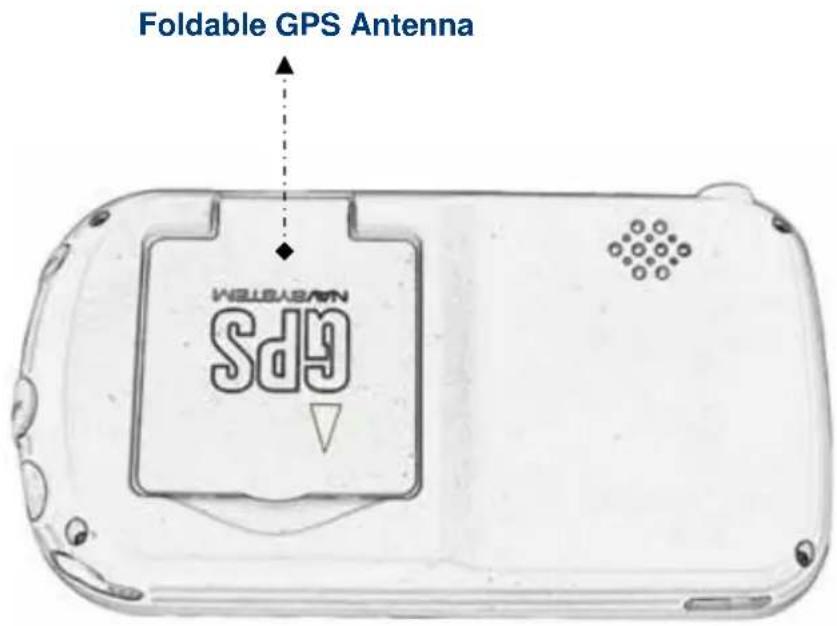
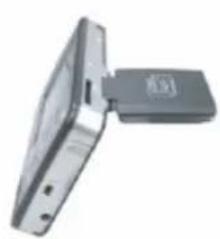
Unfold the foldable antenna (see below picture)
- Use an external antenna.
GPS Antenna
For best performance always keep GPS antenna parallel with the ground.
natural_image
Metallic mechanical component with a handle and mounting holes (no visible text or symbols)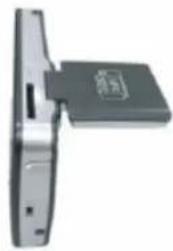
natural_image
Close-up of a metallic door handle with a black plastic clip and a small logo on the right (no visible text or symbols)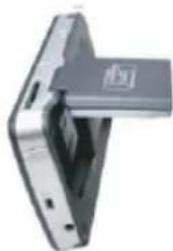
natural_image
Metal bracket with a gray handle and mounting holes (no visible text or symbols)- New Memory Card doesn't work or files have been deleted from my original Memory Card.
- Format card (only if new), then copy and paste files/folders from within the Memory Card folder on the NAV500 CD to your Memory Card.
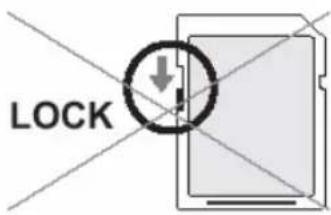
SD Memory Card
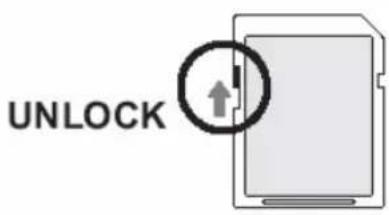
To ensure correct functionality of all features of this product always keep the SD memory card UNLOCKED.
-
Screen frozen, or NAV500 is behaving strangely
-
Do a soft reset. To do a soft reset, insert a thin object into the software reset button.
- If this does not solve the problem, then do hardware reset.
To do a hardware reset, slide the hardware reset switch to the opposite position, then return it to its original position.
- I cannot play my music on the NAV500.
- Make sure that all music is MP3, WMA, or WAV format.
-
My music appears to be playing, but I cannot hear it.
-
Ensure that the volume is not set to zero.
-
Make sure that the track plays correctly on your computer.
-
I cannot see my photos.
- Make sure that your images are jpg, gif, png or bmp formats.
Working Conditions and Design Limitations
- Do not remove the SD card while you are using the navigation function.
- If the red LED is flashing, the device needs to be recharged immediately.
- Please use the car charger when possible, and do not charge the device in extremely hot or cold conditions.
- Please do not use other chargers or adaptors, as these may damage your device and void the warranty.
- Please only use the supplied USB cable for connecting to a PC.
- Do not operate this device in extremely hot or cold conditions.
Design Limitations
- Please only use the supplied SD card
- If you need to format the SD card, please specify the FAT file system.
- Please only use jpg, gif, png and bmp images with the photo viewer.
- The MP3 player only supports mp3, wav and wma formats. The image files rotatable spec is 1024 x 768.
- Do not remove the SD card while using the photo viewer or MP3 functions.
● During charging, the LED will be orange until charging is complete, at which time it will change to green. If the charger is removed and
connected again, the LED will remain orange for approximately 30 minutes before changing to green.
- Before first use, the device needs to be charged for at least 8 hours.
- Before first use, please make sure that the hardware reset switch is in the correct position. Leave in this position from then on.
- To switch the device on, press the power button for one second. To switch off, hold the power button for 3 seconds.
- Do not allow the device to get damp or wet
- Only use the supplied stylus to avoid scratching the screen
The navigation information offered by this device is for reference only. As map and POI data may change, we cannot guarantee information on this device is always 100% up-to-date. We will endeavor to reflect the latest information available, users are advised to use with care and caution.
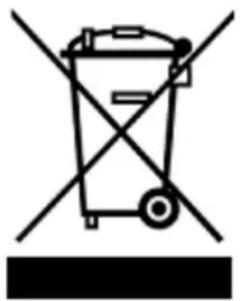
Disposal of Used Electrical & Electronic Equipment The meaning of the symbol on the product, its accessory or packaging indicates that this product shall not be treated as household waste. Please, dispose of this equipment at your applicable collection point for the recycling of electrical & electronic equipments waste. In the European Union and Other European countries which there are separate collection systems for used electrical and electronic product. By ensuring the correct disposal of this product, you will help prevent potentially hazardous to the environment and to human health, which could otherwise be caused by unsuitable waste handling of this product. The recycling of materials will help conserve natural resources. Please do not therefore dispose of your old electrical and electronic equipment with your household waste. For more detailed information about recycling of this product, please contact your local city office, your household waste e disposal service or the shop where you purchased the product.
natural_image
Symbol of a trash bin crossed with no text or numbers, representing waste sorting or disposal (no text present)
- Contents
- ACCESSING THE NAVIGATOR FUNCTION
- MP3 PLAYER
- Mp3 player button definitions
- Playing music
- Adjusting the volume
- Changing the order of tracks
- Repeating tracks
- Creating a play list
- PHOTO ALBUM
- Viewing photos
- Using the slideshow
- Accessing Photos
- SETUP
- Setting the time/date
- Setting the volume
- Brightness options
- Calibrating the touch screen
- Adjusting the brightness
- Setting the Idle Time
- Choosing the language
- Info
- DOWNLOADING FILES TO THE MEMORY CARD
- CARE AND MAINTENACE
- WARNING:
- FCC Note:
- TROUBLESHOOTER
- GPS Antenna
- SD Memory Card
- Working Conditions and Design Limitations
- Design Limitations
Brand : BUSHNELL
Model : NAV500
Category : Browser