E7 - Mobile Phone Gionee - Free user manual and instructions
Find the device manual for free E7 Gionee in PDF.


User questions about E7 Gionee
0 question about this device. Answer the ones you know or ask your own.
Ask a new question about this device
Download the instructions for your Mobile Phone in PDF format for free! Find your manual E7 - Gionee and take your electronic device back in hand. On this page are published all the documents necessary for the use of your device. E7 by Gionee.
USER MANUAL E7 Gionee
- For your safety....3
- Learn about the phone ....4
- Before using....5
- Getting started....6
- Communication....8
- Multimedia....9
- Connecting to networks and devices .....11
- Health and safety....13
1. For your safety
Read these simple guidelines. Not following them may be dangerous or illegal.

SWITCH OFF IN HOSPITALS
Follow any restrictions. Switch the device off near medical equipment. Do not use the device where blasting is in progress.
Please keep this cell phone away from children, as they could mistake it for a toy, and hurt themselves with it.
Don't try to modify the phone except by the professional.
Warning!
Only use the authorized spare parts, otherwise it may damage the phone and the warranty will be void. And it may be dangerous.

SWITCH OFF WHEN REFUELING
Don't use the phone at a refueling point. Don't use near fuel or chemicals.

SIM CARD IS PORTABLE
Keep your phone, phone parts and accessories out of children's reach

BATTERY
Please do not destroy or damage the battery, it can be dangerous and cause fire.
Please do not throw battery in fire to avoid danger
When battery cannot be used, please dispose in an environmental safe method
Do not try to dismantle the battery.
If the battery or the charger is broken or old, please stop using them. And replace with certified genuine battery
USE QUALITY EQUIPMENT
Use our authorized equipment to avoid danger

ROAD SAFETY COMES FIRST
Give full attention while driving; pull off the road or park before using your phone. Please follow traffic rules of local city/town

INTERFERENCE
All wireless devices may be susceptible to cause interference, which could affect performance.

SWITCH OFF IN AIRCRAFT
Wireless devices can cause interference in aircraft. It's not only dangerous but also illegal to use mobile phone in an aircraft.
2. Learn about the phone
| Button | Press | Press & hold |
| Power key (Top side) | Turns on/off the screen. | Opens a menu with options for “Turn on the airplane mode”“Power off” and so on. |
| Volume Up/Down (Right side) | When a call is in progress, Increases or decrease the call volume, When the phone is ringing, silence the ringer. On the Home screen when no calls in progress, Increase or decreases the ringtone volume, or sets the phone to be silent instead of ringing. other applications, controls the volume of music, spoken directions, and other audio. | Quickly increasing the ringtone volume to maximum or minimum. |
IMPORTANT
The battery of E7 mobile phone is fixed, not removable.
3. Before using
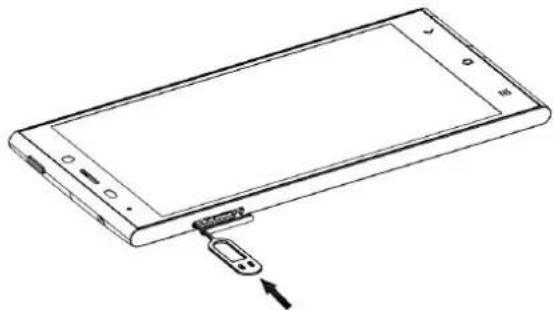
- Stick the ejection pin into the pinhole, the Micro-SIM Box will be out of the card slot.
- Insert the Micro-SIM card correctly in Micro-SIM Box.
- Push the Micro-SIM Box into the card slot.
natural_image
Line drawing of a smartphone with an attached USB port and cable (no text or symbols)Note1: The phone supports Hot Plug.
Note2: The Micro-SIM card is a small object; please keep the card out of the reach of children to avoid swallowing the card by accident. Do not touch the metal surface of Micro-SIM card and keep it away from electromagnetism to avoid loss and damage of the data. You will not be able to connect to the network if the Micro-SIM card is damaged.
Charger
- Connect the charger to the charger jack on the phone.
- Next connect the charger to a power socket, the charging starts, with the charging icon in an animated state.
- When the charging icon becomes static, it indicates that the battery is full.
- Disconnect the charger from the power socket and the phone.
Note: Slight heating during charging is normal. It indicates that the battery is full, when the charging icon becomes static.
4. Getting started
4.1 Turn on/off your phone
- Turn on the phone
Long press the power key to start up the cell phone.
- Turn off the phone
-
Long press the power key, a context menu will prompt, touch "Power off" to switch off the cell phone.
-
Long press the power key 10 seconds to reboot the cell phone when the handset got hang options.
4.2 Getting to know the Home screen
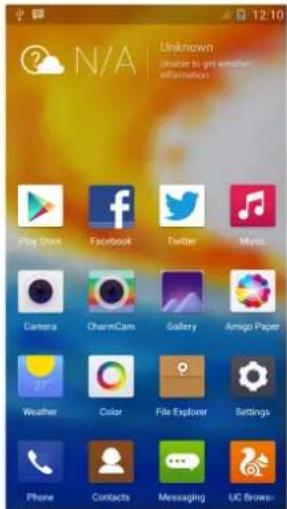
The Home screen is your starting point to access all the features on your phone. It displays application icons, and other features. You can customize the Home screen with different wallpaper and display the items you want.
text_image
N/A Unknown Unable to get another information Play Store Facebook Twitter Music Camera CharmCam Gallery Amigo Paper Weather Color File Explorer Settings Phone Contacts Messaging UC BrowserAt the top of the screen, the Status bar displays the time, information about the status of your phone, and icons for notifications that you've received.
4.3 Using the touch screen
The main way to control Android features is by using your finger to touch icons, buttons, menu items, the onscreen keyboard, and other items on the touch screen.
Touch: To act on items on the screen, such as application and settings icons, to type letters and symbols using the onscreen keyboard, or to press onscreen buttons, you simply touch them with your finger.
Drag: Touch & hold an item for a moment and then, without lifting your finger, move your finger on the screen until you reach the target position. You drag items on the Home screen to reposition them and you drag to open the Notification panel.
Swipe or slide: To swipe or slide, you quickly move your finger across the surface of the screen, without pausing when you first touch (so you don't drag an item instead). For example, you slide the screen up or down to scroll a list, and in some Calendar views you swipe quickly across the screen to change the range of time visible.
Double-tap: Tap quickly twice on a webpage, map, or other screen to zoom. For example, you can double-tap a section of a webpage in Browser to zoom that section to fit the width of the screen. In Maps, and in other applications, Double-tapping after pinching to zoom in
some applications, such as browser, reflows a column of text to fit the width of the screen.
Pinch: In some applications (Such as Maps, Browser, and Gallery) you can zoom in and out by placing two fingers on the screen at once and pinching them together (to zoom out) or spreading them apart (to zoom in).
Rotate the screen: On most screens, the orientation of the screen rotates with the phone as you turn it from upright to its slide and back again. You can turn this feature on and off.
4.4 Customizing the Home screen
To add items to the Home screen
Enter the main menu, touch & hold the icon of an application, then the application will be added to the Home screen.
To move an item on the Home screen
You can change the position for the applications. Touch & hold an item for a moment and then, without lifting your finger, move your finger on the screen until the main screen shows a thumbnail of the 5 screens. Touch & hold the item to the thumbnail of the screen that you want to move.
To remove an item from the Home screen
-
Touch & hold the item you want to remove. Don't lift your finger. The right of the application will appear "X" icon.
-
Touch the "X" to delete the application.
4.5 Connect to network
When you assemble your phone with a SIM card from your wireless service provider, your phone is configured to use your provider's mobile networks for voice calls and for transmitting data.
- Settings-->All settings-->Mobile networks-->Data connection; the name of the wireless service provider you're currently registered with is selected in the list.
4.6. Input text
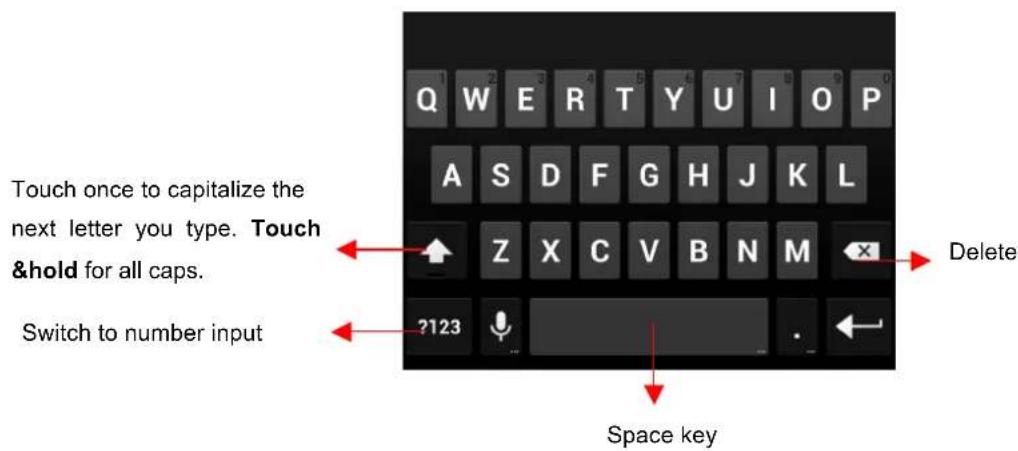
You can touch a text field where you want to enter text to open the keyboard.
text_image
Q W E R T Y U I O P A S D F G H J K L Z X C V B N M Switch to number input Delete Space keyTo enter text
- Touch a text field, the onscreen keyboard opens.
-
Touch the keys on the keyboard to type; the characters you've entered appear in a strip above the keyboard. With suggestions for the word you are typing to the right. Press space to enter the highlighted suggested word.
-
Use the Delete key to erase characters to the left of the cursor.
- When you're finished typing, Press Back to close the keyboard.
5. Communication
5.1 Make a call
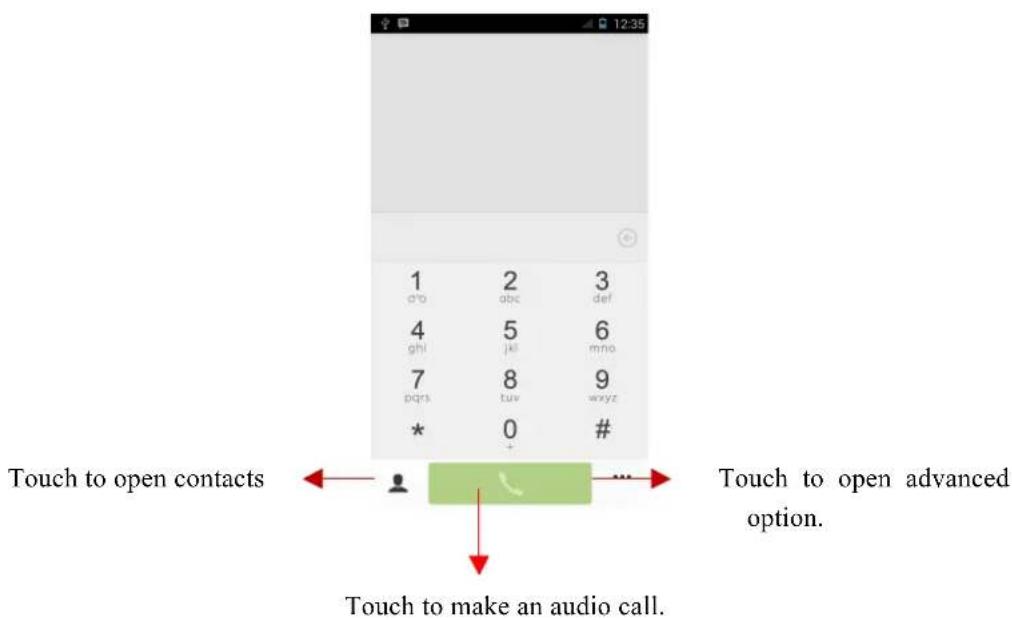
* Touch the phone icon on the Home screen.
* Enter the phone number you want to dial;
* Touch the phone icon to dial the number that you entered. You can select voice call.
text_image
1 2 3 0 abc def 4 5 6 ghi jkl mno 7 8 9 pqrs tuv wxyz * 0 # Touch to open contacts Touch to open advanced option. Touch to make an audio call.5.2 Messaging
You can use this phone to exchange text messages and multimedia messages with your friends on their mobile phones. The messages come to and from the same contact or phone number will into a single conversation, so you can see your entire message history with a person conveniently.
6. Multimedia
6.1 Camera
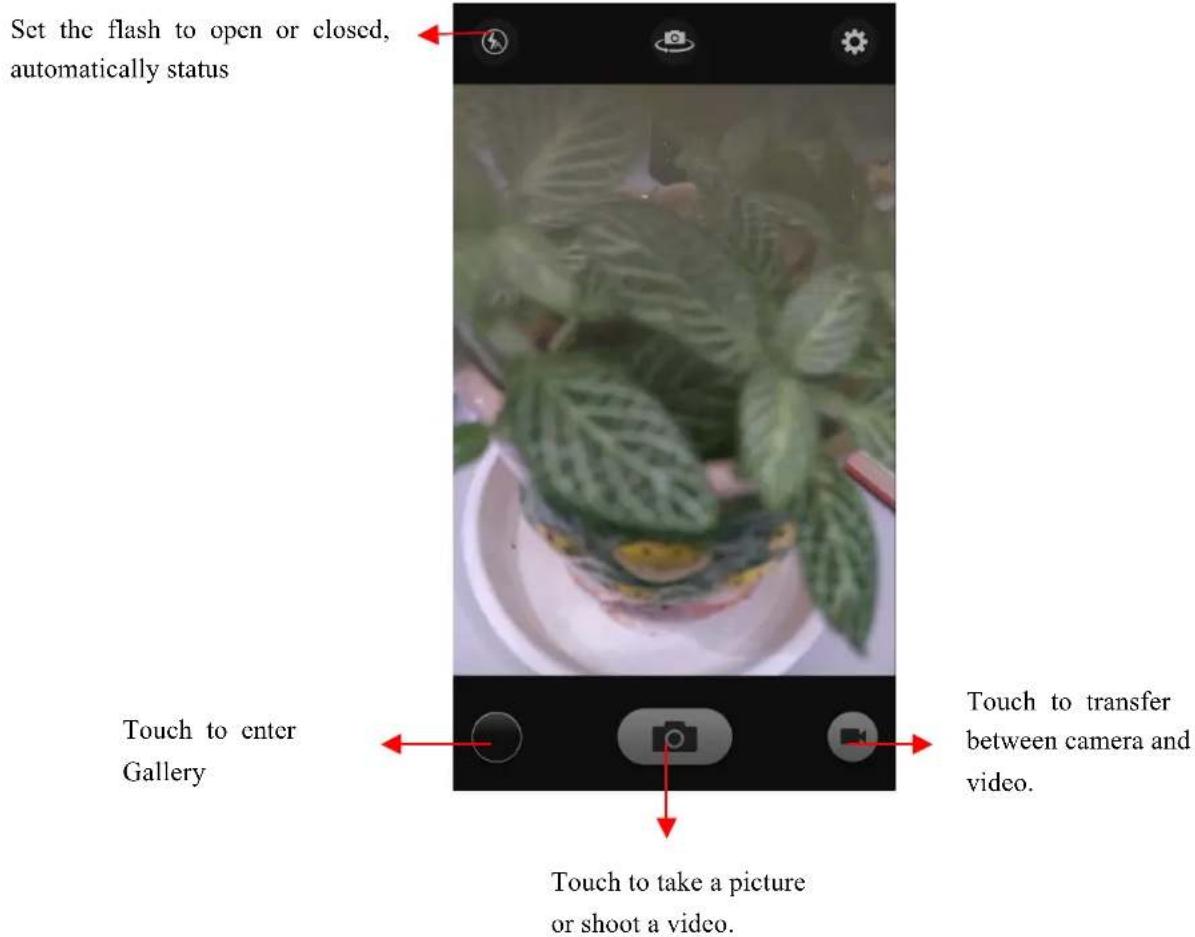
Camera is a combination camera and camcorder that you use to shoot and share pictures and videos.
6.1.1 Take a picture
text_image
Set the flash to open or closed, automatically status Touch to enter Gallery Touch to take a picture or shoot a video. Touch to transfer between camera and video.- Adjust your exposure and other settings if you wish. Or leave them on automatic.
● Frame your subject on screen.
● Touch the Shutter icon on screen.
6.1.2 To shoot a video
- If necessary, drag the control to the video position
- Adjust the quality and other settings if you wish. Or leave them on automatic.
- Point the lens to frame the scene where you want to start.
- Touch the Start Video icon. Camera starts shooting the video.
- Touch Stop video icon to stop shooting. An image from your most recent video is displayed as a thumbnail at the bottom Left
6.2 View albums
Touch the Gallery icon in the Launcher to view albums of your pictures and videos. Gallery presents the pictures and videos on your phone, including those you've taken with Camera and those you downloaded from the web or other locations.
You can do the following operations:
● To share pictures: you can share your pictures through MMS, Bluetooth, and so on.
● To delete pictures: You can delete the pictures you are viewing.
● To get details about the picture: You can view more details about the picture.
6.3 Music
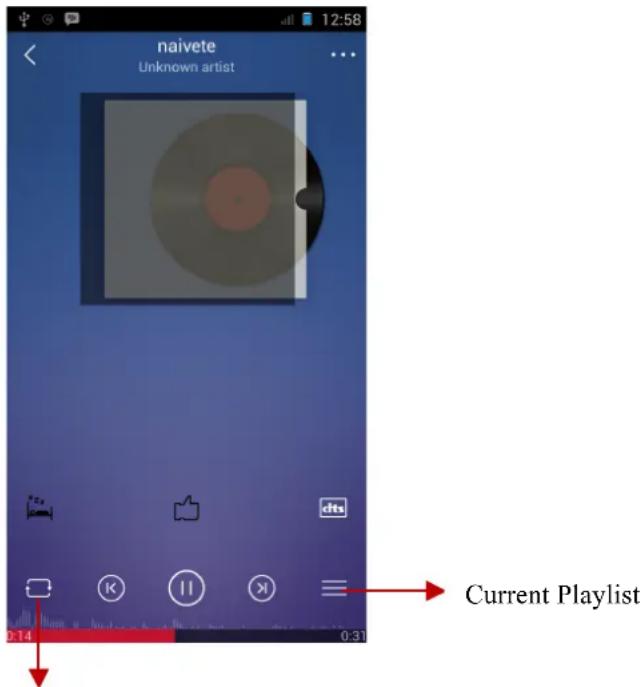
You use Music to organize and listen to music and other audio files that you transfer to your phone from your computer.
text_image
naivete Unknown artist Current PlaylistTouch to Single Play, the Repeating Playing, Random Playing or NO Repeat.
7. Connecting to networks and devices
Your phone can connect to a variety of networks and devices, including mobile networks for voice and data transmission, WLAN data networks, and Bluetooth devices, such as headsets. You can also connect your phone to a computer, to transfer files from your phone storage, and share your phone's mobile data connection via USB or as a portable WLAN hotspot.
7.1 WLAN
WLAN is a wireless networking technology that can provide internet access at distance of up to 100 meters, depending on the WLAN router and your surroundings. You can configure the WLAN as follow:
- Settings--> WLAN, check WLAN to turn it on.
- Enter WLAN. The phone scans for available WLAN networks and displays the names of those it finds. Secured networks are indicated with a Lock icon. If the phone finds a network, you connected previously, It connects to it.
- Touch a network to connect to it.
If the network is open, you are prompted to confirm that you want to connect to that network by touching connect.
If the network is secured, you're prompted to enter a password or other credentials
7.2 Bluetooth
Bluetooth is a short-range wireless communications technology that devices can use to exchange information over a distance of about 10 meters. The most common Bluetooth devices are headphones for making calls or listening to music, hands-free kits for cars, and other portable device, including laptops and cell phones.
7.2.1 To send a file
- Settings--> Bluetooth, check Bluetooth to turn it on.
- Enter File Explorer to select a file, Select Share--> Bluetooth.
- Touch Scan for devices, the phone will scan for and display the names of all available Bluetooth devices in range.
- Touch the names of the other device in the list to pair them. After paired the file will be sent.
7.2.2 To receive a file
- Settings--> Bluetooth, check Bluetooth to turn it on. Ensure your Bluetooth has been connected within visibility time
After paired, the phone will receive the file. The file you received will save be saved to the "Bluetooth" folder in the Phone Storage
7.2.3 To connect to a Handsfree device
- Settings--> Bluetooth, Select "Search for devices";
● Turn on the Handsfree device, Select the Handsfree device in the list to pair.
● After paired, you can use the Handsfree device to listen to music and receive call.
7.3 Connecting to a computer via USB
You can connect your phone to a computer with a USB cable, to transfer music, pictures, and other files between your phone and the computer.
When connecting your phone to a computer, you must follow your computer's instructions for connecting and disconnecting USB devices, to avoid damaging or corrupting the files on your phone.
You can't share your phone's data connection and phone's storage via USB cable at the same time. If you are using USB tethering, you must turn that off first.
7.3.1 To connect your phone to Interim USB debugging.
- Use the USB cable that came with your phone to connect the phone to a USB port on your computer.
- Touch USB storage in the screen that opens to confirm that you want to transfer files.
When the phone is connected as USB storage, the screen indicates that USB storage is in use and you receive a notification. You phone is mounted as a drive on your computer.
You can now copy files to or from the phone
During this time, you can't use applications that rely on the phone such as camera, Gallery, and Music.
7.3.2 To disable phone calls (Airplane mode)
Some locations may require you to turn off your phone's mobile, WLAN, and Bluetooth wireless connections. You can turn off all these wireless connections at once by placing your phone in Airplane mode.
- Press & hold the Power button
- Touch "Turn on airplane mode"
”
8. Health and safety
Please read these simple guidelines. Not following them may be dangerous or illegal.
SAR Compliance
- Your phone is designed not to exceed the limits of emission of radio waves recommended by international guidelines.
- SAR (specific absorption rate) is the measurement of body-absorbed RF quantity when the phone is in use. SAR value is ascertained according to the highest RF level generated during laboratory tests.
- The SAR value of the phone may depend on factors such as proximity to the network tower, use of accessories and other enhancements.
- The true SAR level during normal phone usage will be much lower than this level.
- The highest SAR value of this device at the head and body are 1.43w/kg and 0.889w/kg; respectively averaged over 1.5cm gap of human tissue.
SAR Recommendations
- Use a wireless hands-free system (headphone, headset) with a low power Bluetooth emitter.
- Please keep your calls short and use SMS whenever more convenient. This advice applies especially to children, adolescents and pregnant women
• Make sure the cell phone has a low SAR. - Prefer to use your cell phone when the signal quality is good.
- People having active medical implants should preferably keep the cell phone at least 15 cm away from the implant.
- Maintain a preferable distance of 15 ~mm from the device.
Safe Driving
- Do not use the phone while driving. When you have to use the phone, please use the personal hands-free kit.
- Please do not put the phone onto any passenger seat or any place from which it may fall down in case of vehicular collision or emergency braking.
During Flight
- Flight is influenced by interference caused by the phone. It is illegal to use a phone on the airplane. Please turn off your phone during a flight.
In Hospitals
- Your Phone's radio waves may interfere with the functioning of inadequately shielded medical devices. Consult a physician or the manufacturer of the medical device to determine whether they are adequately shielded from external Radio Frequency. Switch off your device when regulations posted instruct you to do so.
- To avoid potential interference with implanted medical devices such as a pacemaker or cardioverter defibrillator:
• Always keep your phone at least 15.3 centimeters (6 inches) from the medical device. - Do not carry the wireless device in a breast pocket.
- Turn off the phone if there is any reason to suspect that interference is taking place.
- Follow the manufacturer directions for the implanted medical device.
- If you have any questions about using your wireless device with an implanted medical device, consult your health care provider.
Unsafe Areas
- Please turn off your phone when you are close to a gas station or in the vicinity of any place where fuel and chemical preparations, or any other dangerous goods are stored.