AD-850 - Browser Adapt - Free user manual and instructions
Find the device manual for free AD-850 Adapt in PDF.


User questions about AD-850 Adapt
0 question about this device. Answer the ones you know or ask your own.
Ask a new question about this device
Download the instructions for your Browser in PDF format for free! Find your manual AD-850 - Adapt and take your electronic device back in hand. On this page are published all the documents necessary for the use of your device. AD-850 by Adapt.
USER MANUAL AD-850 Adapt
text_image
adapt® AD-850 4G-thermal GPS with Data-Log functionAD-850 Bluetooth GPS Receiver with Data Logger
User's Manual
Contents
Introduction 3
Product Features 3
Applications 4
- Inside the box 4
- Getting to know your device 4
- Automatic Power-Off Function and LED status 5
3.1 Automatic Power-Off Function 5
3.2 LED status 5
- Getting Started 6
4.1. Fully charged battery 6
4.2. Turn on Receiver 6
4.3. Connect to Bluetooth-Enabled Device 6
4.4. Connect to your Navigation Software 6
- PDA Configuration 6
5.1. Activate Bluetooth function of your PDA 7
5.2. Activate Bluetooth Manager & Establish New Connections 7
- Bluetooth Configuration setup with PC connection 8
- Data Logger Configuration setup with PC connection 13
7.1 Configuration Setting 15
7.2. Status 17
7.3. Read Logger data 18
7.4. Clear memory of data logger 19
7.5. Transfer data to Google Earth 20
- Specifications 23
8.1. GPS Performance 23
8.2. Data Logger Specifications 23
8.3. Bluetooth specification 23
8.4. External Interface 24
8.5. Physical Dimensions 24
8.6. Environmental Characteristics 24
8.7. Power Characteristics 24
- Troubleshooting 25
9.1. Poor GPS Signal 26
Introduction
Thank you for choosing the Adapt AD850, based on a 44 channel satellite search and an extremely high sensitivity (-159dBm) GPS chipset giving the most accurate position fix. Featuring a unique data logger function to track your journeys positions and routes using free Google Earth maps. The Adapt AD-850 comes compact and durable with a small removable and rechargeable battery, it is well suited for host system integration such as PDA, Smart phone, Laptop, PC and any other Bluetooth enabled device.
Product Features
- 44-channel and -159dBm high receiving sensitivity and fast position fix GPS chipset.
- Superior receiving sensitivity for urban canyon and foliage environment.
- Bluetooth interface connection for host systems
- Up to 10 meters Bluetooth operating distance
- Three colour LED display to indicate the battery status and Bluetooth connection
- Long battery operating time of more than 20 hours.
- Total data log recordings of 120000 positions. The AD-850 will record 41.6 days in continuous use if you select every 30 seconds to make a recording.
Applications
• PC, PDA and smart phone navigation
- Fleet management
• Automotive vehicle tracking
• Outdoor sports navigation
• Geographic surveying
1. Inside the box
- 1 unit of AD850
• 1 unit of Car Charger
• 1 unit of User Manual with CD User Manual - 1 x neck strap
• 2 year warranty card (www.adapt-mobile.com click on support)
2. Getting to know your device
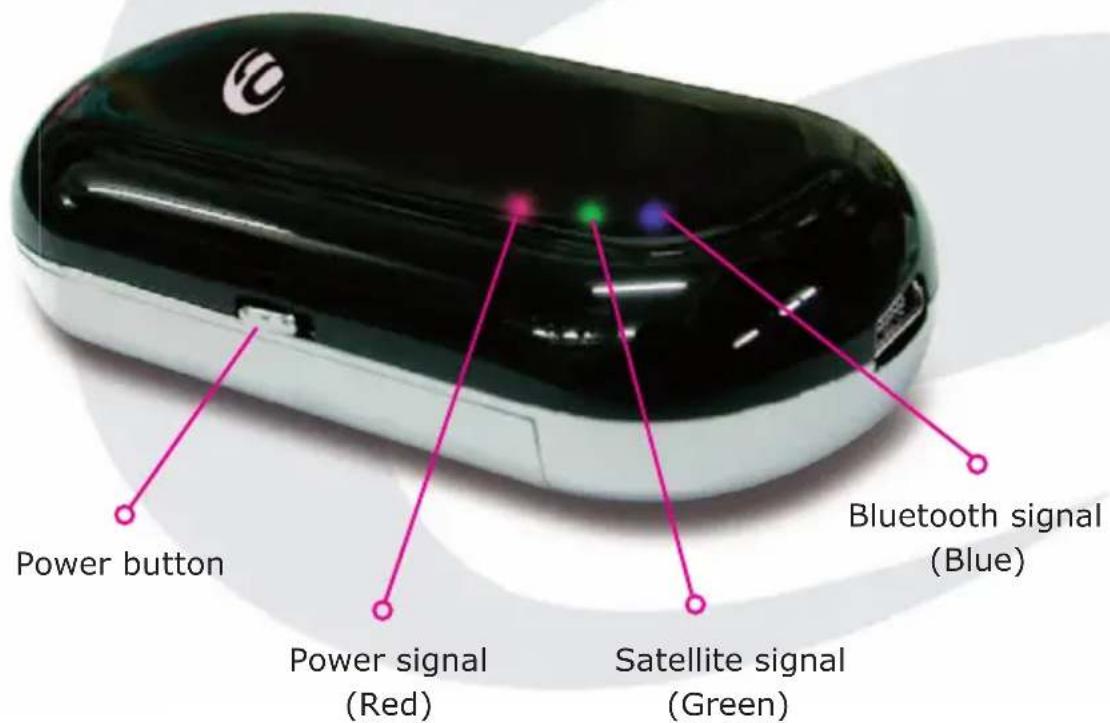
text_image
Power button Power signal (Red) Satellite signal (Green) Bluetooth signal (Blue)3. Automatic Power-Off Function
3.1 Automatic Power-Off Function
- When the Adapt AD-850 is turned on and there is no Bluetooth connection established (static blue LED), the AD850 will turn off the Bluetooth part automatically after 10 minutes to save power consumption. However, the GPS data logger (Green LED) will stay on to record your position data.
- When the Adapt AD-850 is linked with a Bluetooth device (flashing blue LED) but the battery is low (flashing Red LED), the AD850 will automatically turn off after 30 minutes to conserve power.
- When the Adapt AD-850 is powered with a low battery the AD850 will show a flashing Red LED and will be unable to connect to any Bluetooth devices. The AD850 will turn off after 5 minutes.
3.2 LED status
- Green LED
| Conditions | GPS fix | GPS non-fix |
| Data log disable Flash ON one time Flash dark one time for every 3 seconds for every 3 seconds | ||
| Data log enable Flash ON one time Flash dark one time for every 5 seconds for every 5 seconds | ||
| Data log enable and memory full | Flash ON two times for every 5 seconds for every 5 seconds | Flash dark two times for every 5 seconds |
• Red LED Charging and low battery status indicator
- Blue LED Static ON: No Bluetooth device linked Flashing: Link with PC or PDA
4. Getting Started
4.1. Fully charge the battery
Insert the battery. Charge the battery for at least eight hours before first use.
4.2. Turn on Receiver
Switch ON the Power Button (fig 1.0), GPS LED indicates green light, and the Bluetooth LED indicates blue flashing light.
4.3. Connect to Bluetooth-Enabled Device
From your Bluetooth-Enabled device open the Bluetooth application software to search for the AD850 and then connect it to your device. If connection is successful, the Bluetooth LED will blink twice every 3 seconds. (Pin code may be required during configuration. Code=0000)
4.4. Connect to your Navigation Software
Start the application. Make sure the application is set for the COM port that your Bluetooth-Enable device will use for serial communication. Now you should be ready to use your Navigation software. Refer to user documents that came with software. More confi gurations may be necessary.
5. PDA Configuration
5.1 Activate Bluetooth function of your PDA
Prior to activating the Bluetooth function of your PDA, make sure the device is equipped with Bluetooth function, and the driver software has been installed.
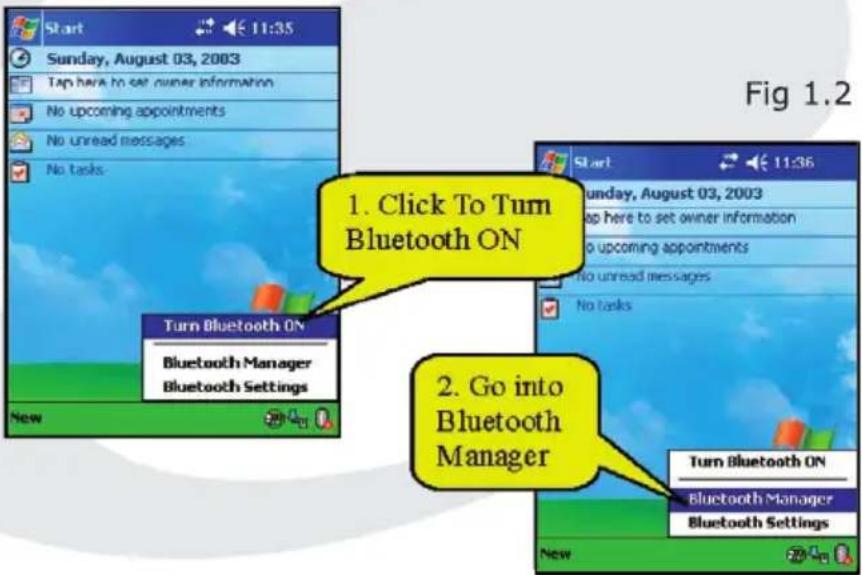
text_image
1. Click To Turn Bluetooth ON 2. Go into Bluetooth Manager5.2. Activate Bluetooth Manager & Establish New Connections.
(illustrations using HP iPAQ 4150 PDA)
First you must open the "Bluetooth Manager" on your pocket pc.
(See figure 1.2)
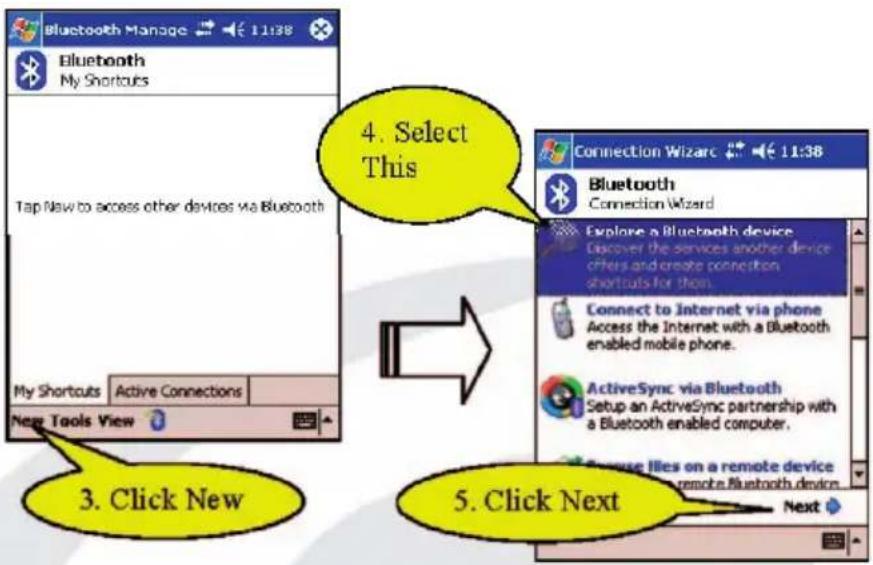
text_image
Bluetooth Manage 11:38 Bluetooth My Shortcuts Tap New to access other devices via Bluetooth My Shortcuts Active Connections New Tools View 4. Select This Connection Wizard 11:38 Bluetooth Connection Wizard Explore a Bluetooth device Discover the services another device others and create connection shortcuts for them. Connect to Internet via phone Access the Internet with a Bluetooth enabled mobile phone. ActiveSync via Bluetooth Setup an ActiveSync partnership with a Bluetooth enabled computer. 5. Click Next 3. Click New NextFig 1.3
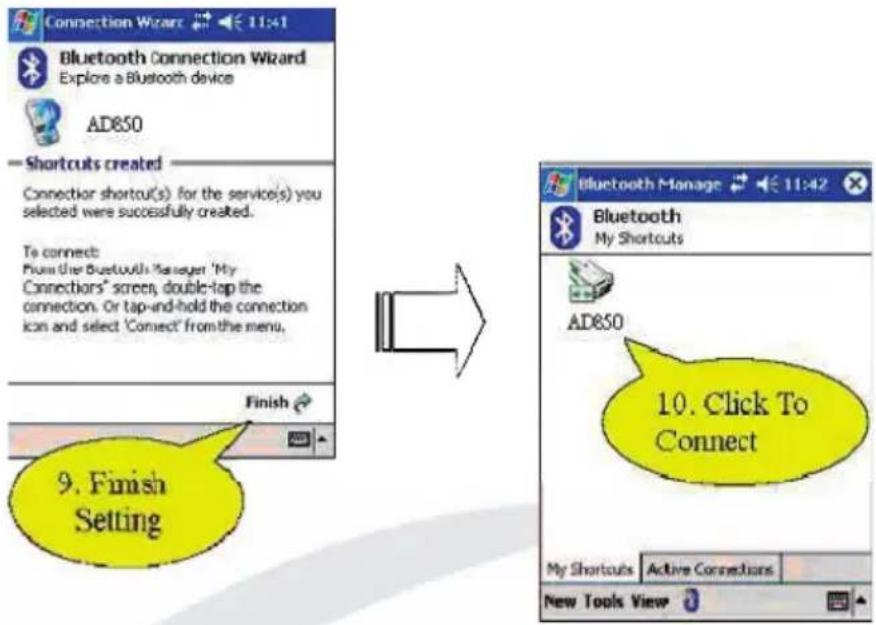
At this point, the Bluetooth GPS connection has been successfully activated when the Bluetooth LED fl ashes twice every 3 seconds on the AD850, indicating that Bluetooth GPS and the PDA connection are in progress.
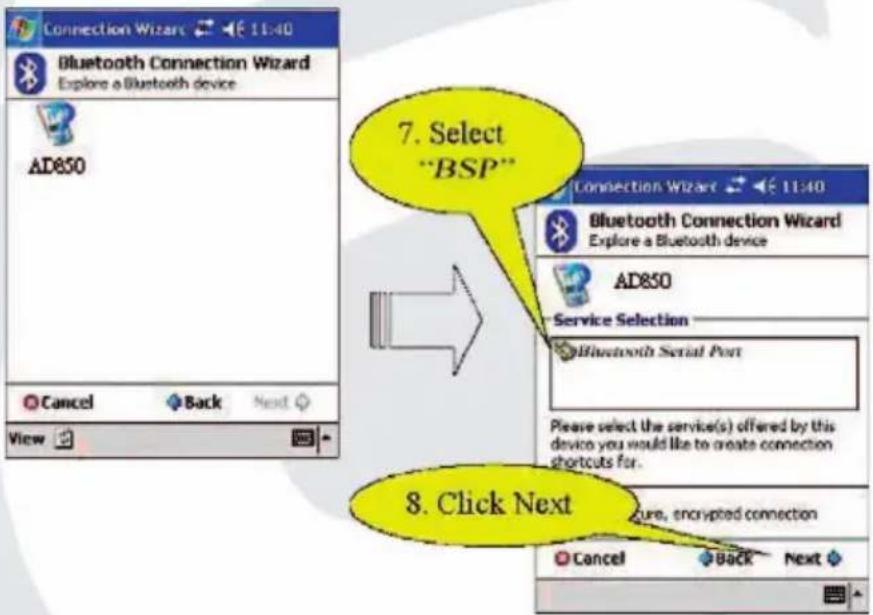
text_image
Connection Wizard Bluetooth Connection Wizard Explore a Bluetooth device AD850 Cancel Back Next View 7. Select "BSP" Bluetooth Connection Wizard Explore a Bluetooth device AD850 Service Selection Bluetooth Serial Port Please select the service(s) offered by this device you would like to create connection Region, encrypted connection Cancel Back NextFig 1.4
Fig 1.5
text_image
Connection Wizard Bluetooth Connection Wizard Explore a Bluetooth device AD650 —Shortcuts created Connector shortcut(s) for the service(s) you selected were successfully created. To connect: From the Bluetooth "Manager 'My Connectors' screen, double-tap the connection. Or tap-and-hold the connection icon and select 'Connect' from the menu, Finish 9. Finish Setting Bluetooth Manage Bluetooth My Shortcuts AD650 10. Click To Connect My Shortouts Active Connections New Tools ViewFig 1.5
6. Bluetooth confi guration setup with PC connection
Here is a sample to show you how to connect the AD-850 with your PC, also for software installation and a basic function test.
1) You must make sure that your PC has a Bluetooth interface in order to pair with the AD-850. If not you can purchase a Bluetooth adapter for your PC, please seek advice from your PC manufacturer for compatible Bluetooth adapters.
2) Check your Bluetooth manager to see if a Bluetooth Serial Port Profile like this exists:
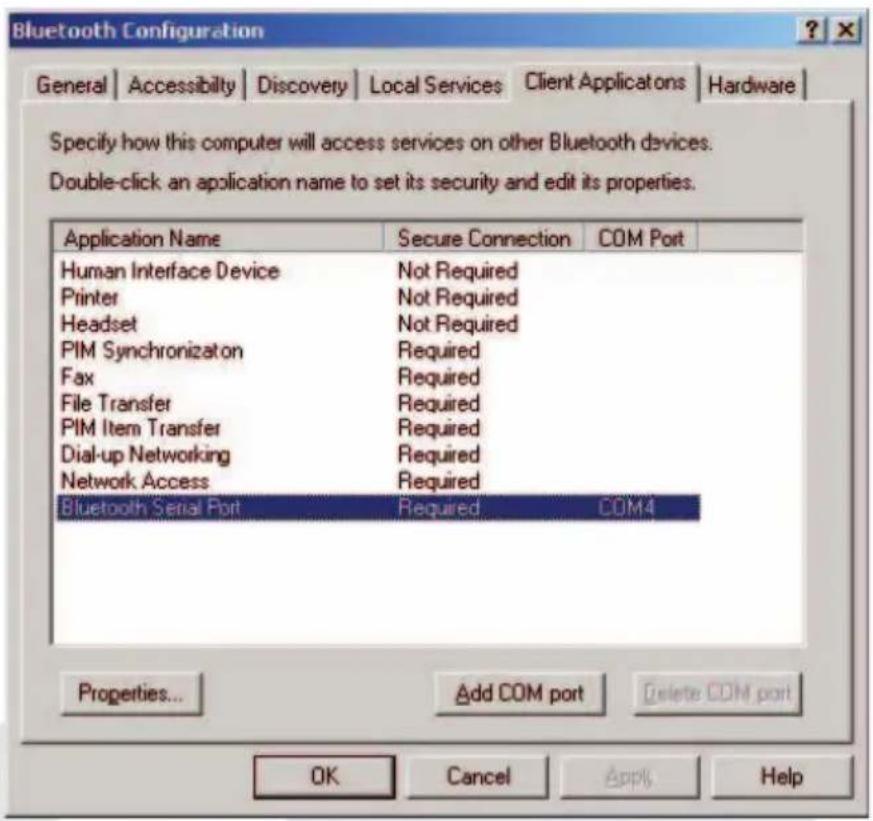
text_image
Bluetooth Configuration General | Accessibility | Discovery | Local Services | Client Applicatons | Hardware | Specify how this computer will access services on other Bluetooth devices. Double-click an application name to set its security and edit its properties. Application Name Secure Connection COM Port Human Interface Device Not Required Printer Not Required Headset Not Required PIM Synchronization Required Fax Required File Transfer Required PIM Item Transfer Required Dial-up Networking Required Network Access Required Bluetooth Serial Port Required COM4 Properties... Add COM port Delete COM port OK Cancel Apply HelpFig 1.6
Note: this sample is for your reference only. The screen may vary between different models of Bluetooth manager software.
3) If not found, please create a Bluetooth serial port.
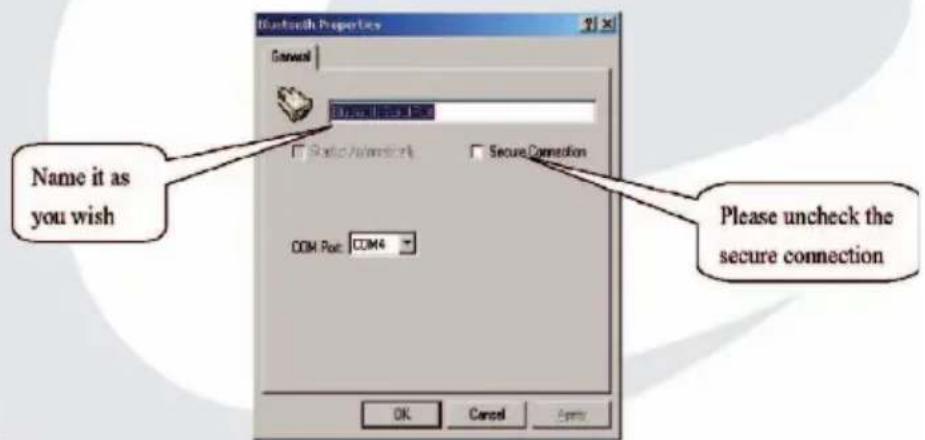
To configure a Bluetooth serial port do the following:
text_image
Bluetooth Properties General Windows (Internal: IIS) Static Automatic Secure Connection COM Port: COM4 Please uncheck the secure connection OK Cancel ApplyFig 1.7
4) If one already exists, then please check the content. Some Bluetooth devices will enable the secure connection. Make sure you uncheck the 'secure connection' box (see figure 1.7).
5) Power on your AD-850. If the battery is fully charged, you should see two LED lights: the static Blue LED means Bluetooth is activated and waiting for connection. Another static Green LED shows that GPS receiver has started and is acquiring positioning information.
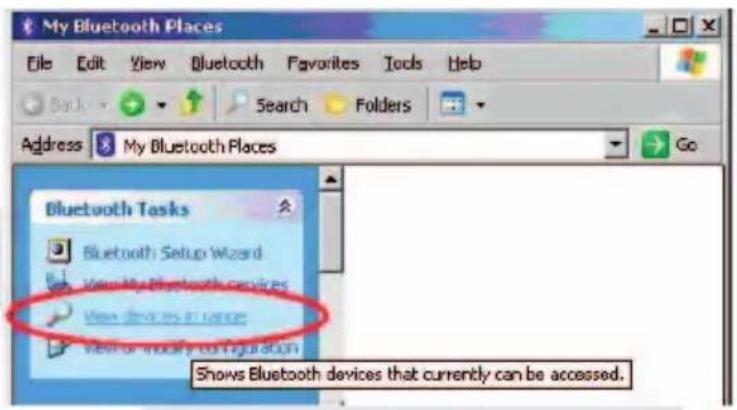
6) Open 'My Bluetooth Places', there will be no devices shown at first.
text_image
My Bluetooth Places File Edit View Bluetooth Favorites Tools Help Back Search Folders Address My Bluetooth Places Go Bluetooth Tasks Bluetooth Setup Wizard View My Bluetooth services View devices in range View or modify configuration Shows Bluetooth devices that currently can be accessed.Fig 1.8
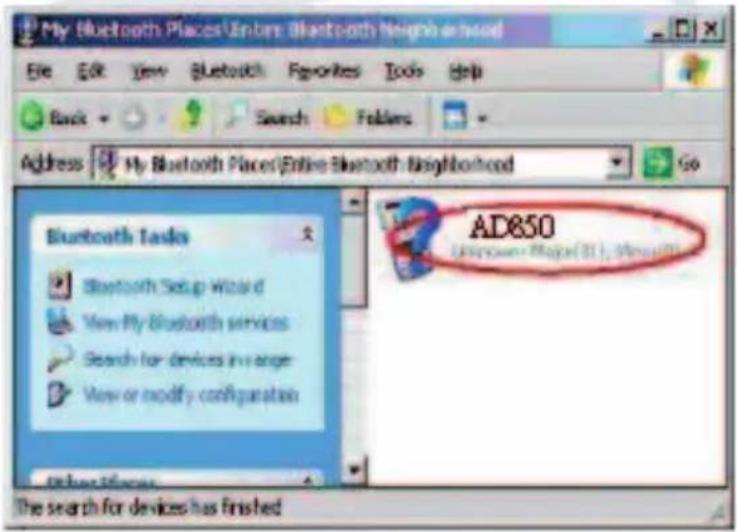
7) Click the [View devices in range] and you should find the AD-850 [Bluetooth GPS] as shown in Figure 1.9:
text_image
My Bluetooth Places\Entire Bluetooth Neighborhood File Edit View Bluetooth Favorites Tools Help Back Search Folders Address My Bluetooth Places\Entire Bluetooth Neighborhood Go Bluetooth Tasks Bluetooth Setup Wizard View My Bluetooth services Search for devices in range View or modify configuration AD850 Unknown: Major(31), Microsoft The search for devices has finishedFig 1.9
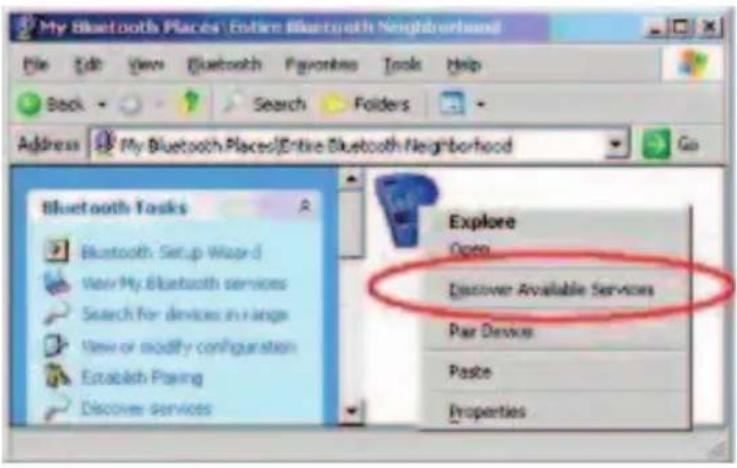
8) Right click on the icon, select 'Discover Available Services' (see figure 2.0)
text_image
My Bluetooth Places / Entire Bluetooth Neighborhood File Edit View Bluetooth Favorites Tools Help Back Search Folders Address My Bluetooth Places/Entire Bluetooth Neighborhood Go Bluetooth Tasks Bluetooth Setup Wizard View My Bluetooth services Search for devices in ranges View or modify configuration Establish Passing Discover services Explore Open Discover Available Services Par Device Paste PropertiesFig 2.0
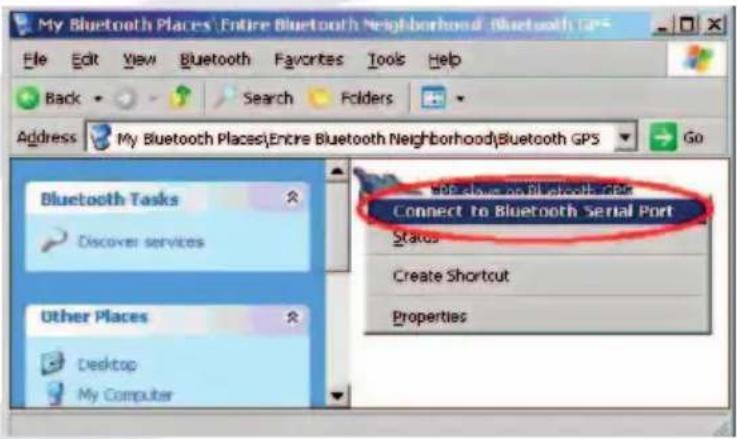
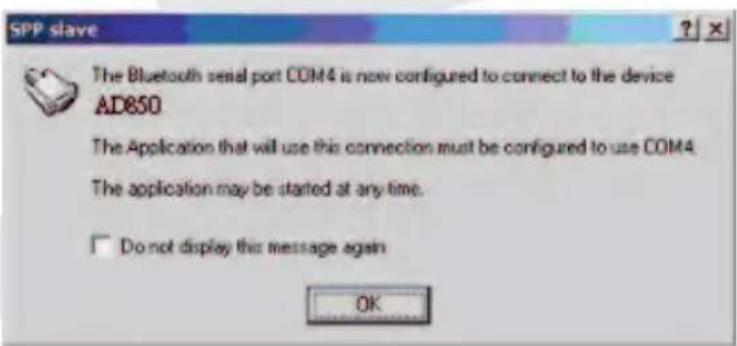
9) You should find the service SPP slave, right click and select 'Connect to Bluetooth Serial Port' (see figure 2.1):
text_image
My Bluetooth Places\Entire Bluetooth Neighborhood\Bluetooth GPS File Edit View Bluetooth Favorites Tools Help Back Search Folders Address My Bluetooth Places\Entire Bluetooth Neighborhood\Bluetooth GPS Go Bluetooth Tasks Connect to Bluetooth Serial Port Discover services Status Other Places Create Shortcut Desktop Properties My ComputerFig 2.1
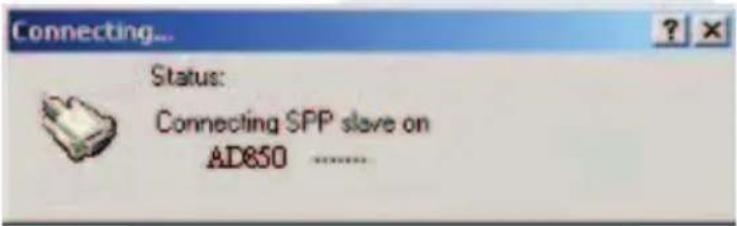
10) Then, the following message will be shown:
text_image
Connecting... Status: Connecting SPP slave on AD850 ......11) And the successful connection message will be shown:
text_image
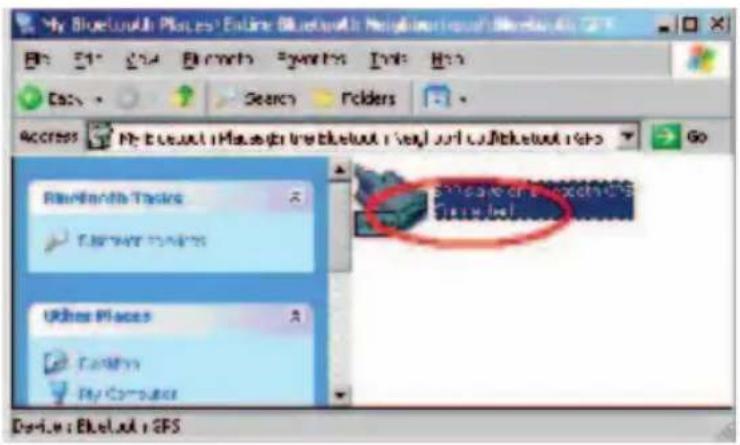
SPP slave The Bluetooth serial port COM4 is now configured to connect to the device AD850 The Application that will use this connection must be configured to use COM4 The application may be started at any time. □ Do not display this message again OK12) Back to the Bluetooth service view, you should see the icon changed to [Connected] (see figure 2.2)
text_image
My Bluetooth Places: Entire Bluetooth Neighborhoods Access My Event iMnages iNetBluetooth iNew and iNetBluetooth info Go Random Traffic Farmer Networks Other Places Farmin My ComputerFig 2.2
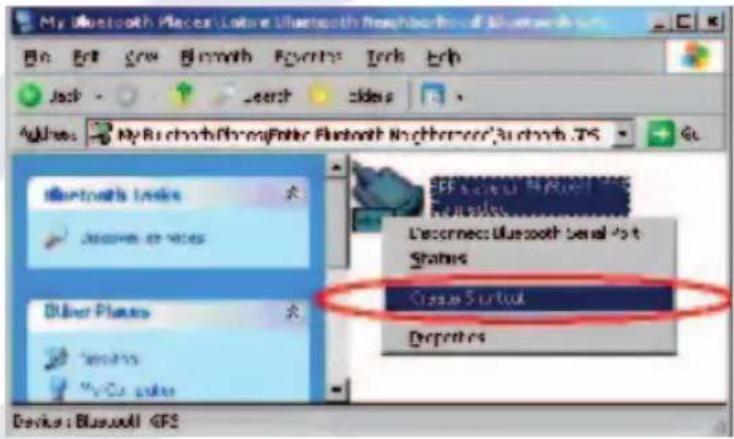
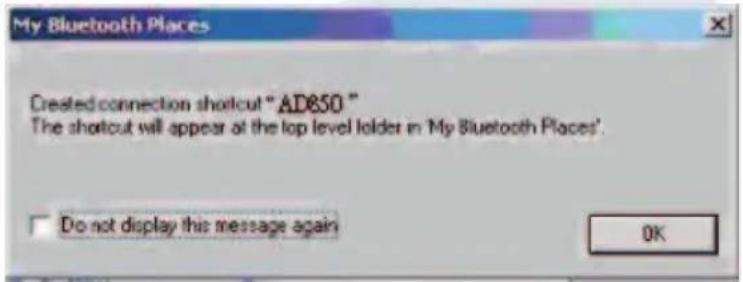
13) You can create a short-cut to allow for easy connection next time you pair the device with your Pc (see fi gure 2.3 and fi gure 2.4)
text_image
My Bluetooth Places: Lator Bluetooth Newborn/100 MHz File Edit Grow Breakthrough Features Tech Ech Jack Search Slides Address My Bluetooth YoungEnter Bluetooth Newborn/100 MHz .75 Bluetooth's Audio Connect us video Other Places Create Specific Properties Detects Bluetooth Serial port Shares Create Specific Properties Device: Bluetooth GPSFig 2.3
text_image
My Bluetooth Places Created connection shortcut "AD850" The shortcut will appear at the top level folder in 'My Bluetooth Places'. Do not display this message again OKFig 2.4
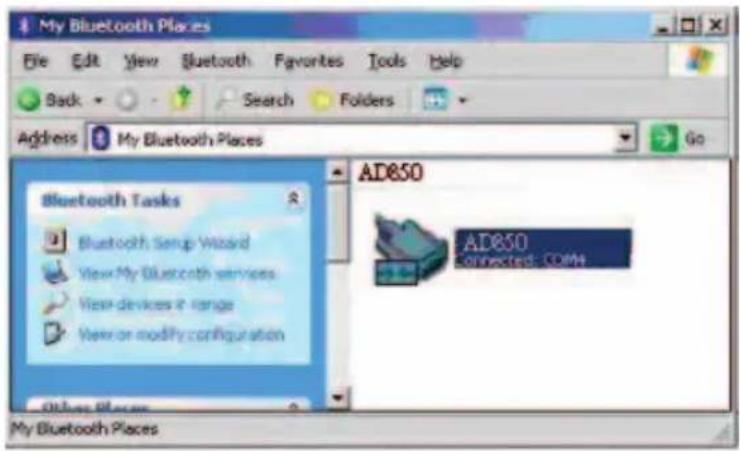
14) You will see the shortcut you have just created (fi gure 2.5):
text_image
My Bluetooth Places File Edit View Bluetooth Favorites Tools Help Back Search Folders Address My Bluetooth Places Go Bluetooth Tasks Bluetooth Setup Wizard View My Bluetooth services View devices in range View or modify configuration AD850 AD850 Connected: COMA Other Places My Bluetooth PlacesFig 2.5
7. Data Logger Configuration setup with PC connection
Here is a sample to show you how to read the data logger recorder from the AD850.
Note: Please make sure you are using the correct Bluetooth driver which is provided from your Bluetooth manufacturer. Some unpredicted problems could occur if you use the wrong driver for your Bluetooth dongle.
Put your AD850 next to the Bluetooth dongle/Pc within 30 cm range to prevent any interference from other Bluetooth device. If you have a special requirement for longer distance, please contact Adapt technical support for more help. www.adapt-mobile.com
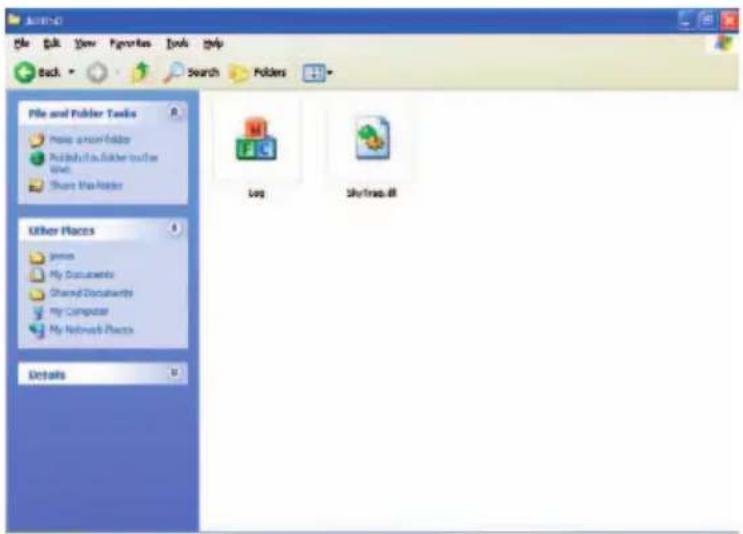
1) First, connect the AD850 to your PC with a Bluetooth interface. Please refer to Item 6 for more details. Copy all data logger program files from the CD to your PC into a directory. You will see this window in you PC (figure 2.6)
text_image
AutoCAD File Edit View Favorites Book Help Back Search Folders File and Folder Tools Movie icon folder Publishing a folder online Edit Share the folder Log Shytras-81 Other Places jogms My Documents Shared Documents My Computer My Network Places DetailsFig 2.6
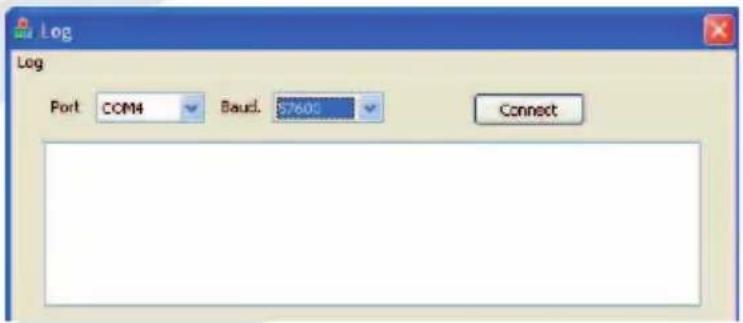
2) Double click the "Log" program.
text_image
Log Port COM4 Baud. S7605 ConnectFig 2.7
3) Select the correct port (which is provided by Bluetooth SPP link) and 57600 baud rate. Then click "Connect" (see figure 2.7)
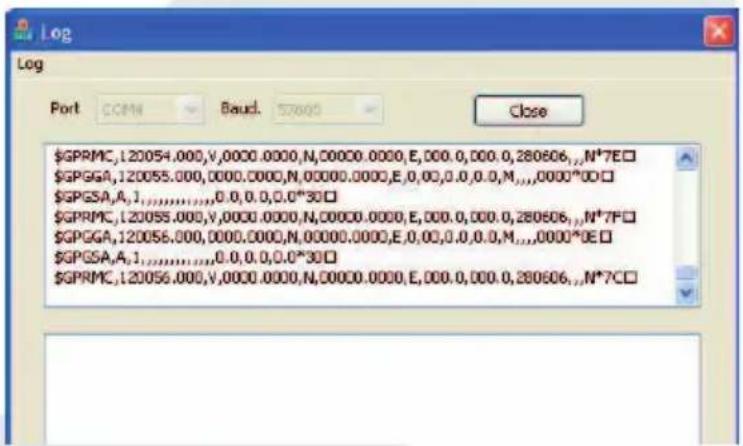
4) You will see the NMEA data. This means log program is linked successfully with the AD850. (see figure 2.8)
text_image
$GPRMC,120054.000,V,0000.0000,N,00000.0000,E,000.0,000.0,280606,,N*7E□ $GPGGA,120055.000,0000.0000,N,00000.0000,E,0.00,0.0,0.0,M,,,,,0000*OE□ $GPGSA,A,1,,,,,,,0.0,0.0,0.0*30□ $GPRMC,120055.000,V,0000.0000,N,00000.0000,E,000.0,000.0,280606,,N*7F□ $GPGGA,120056.000,0000.0000,N,00000.0000,E,0.00,0.0,0.0,M,,,,,0000*OE□ $GPGSA,A,1,,,,,,,0.0,0.0,0.0*30□ $GPRMC,120056.000,V,0000.0000,N,00000.0000,E,000.0,000.0,280606,,N*7C□Fig 2.8
7.1 Configuration Setting
1) Setting parameters for data logger.
2) Total record is 120000 recorders. If you select for every 30 seconds to take a recording, it will record 41.6 days continuous use.
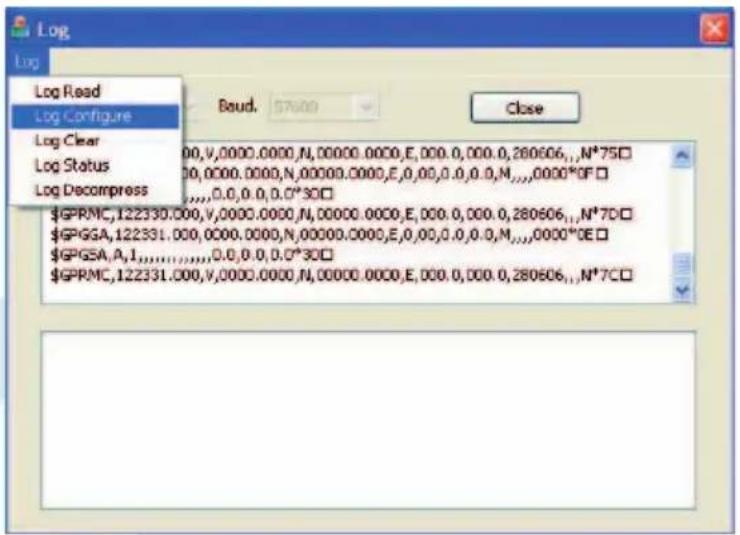
3) Select Log---Log Confi - gure (see fi gure 2.9)
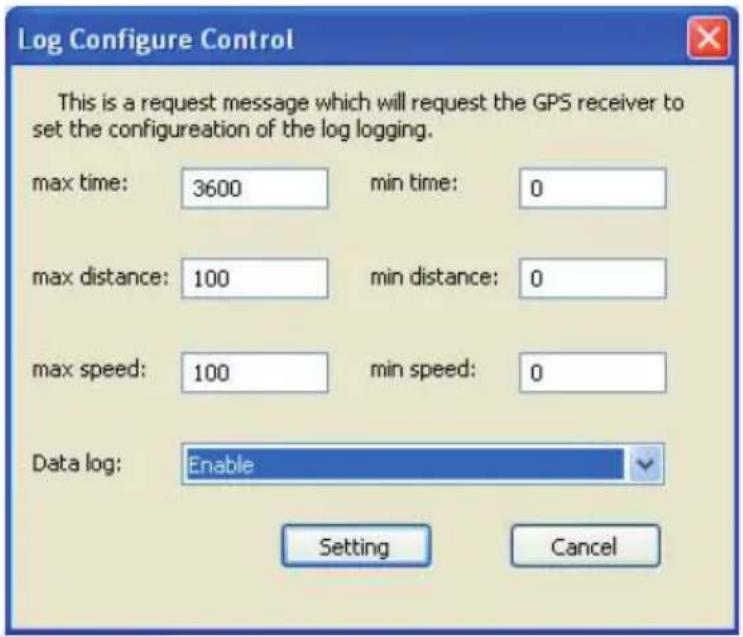
4) Max time: seconds, select the time for each position to be recorded (see figure 3.0)
5) Max distance: set the distance for each position to be recorded (see figure 3.0)
text_image
Log Log Read Log Configure Log Clear Log Status Log Decompress 00,0,0000.0000,N,00000.0000,E,000.0,000.0,280606,,N*75□ 00,0000.0000,N,00000.0000,E,0,00,0.0,0.0,N,,,,,0000*DF□ ,,,,,0.0,0.0,0.0*3D□ $GPRMC,122330.000,V,0000.0000,N,00000.0000,E,000.0,000.0,280606,,N*7D□ $GPGA,122331.000,0000.0000,N,00000.0000,E,0,0,0.0,0.0,N,,,,,0000*DE□ $GPGA,A,1,,,,,,, 0.0,0.0,0.0*3D□ $GPRMC,122331.000,V,0000.0000,N,00000.0000,E,0,0,0,1,285666,,N*7C□Fig 2.9
6) Max speed: set the speed at which each position is recorded (see figure 3.0)
7) Min time: set the minimum time to make a recording. Zero means record every second. (see figure 3.0)
8) Min distance: record time period. Zero means record for each movement (see figure 3.0)
9) Min speed: will not record if speed less than this setting. Zero means record for speed bigger than zero. (see figure 3.0)
10) Data Log: Enable/Disable, Enable or disable data log function, (see figure 3.0).
Note: you may want to do this to conserve the battery power. However, the data log function is very energy efficient and should not effect the battery period dramatically.
11) Default setting is as follows.
text_image
Log Configure Control This is a request message which will request the GPS receiver to set the configuration of the log logging. max time: 3600 min time: 0 max distance: 100 min distance: 0 max speed: 100 min speed: 0 Data log: Enable Setting CancelFig 3.0
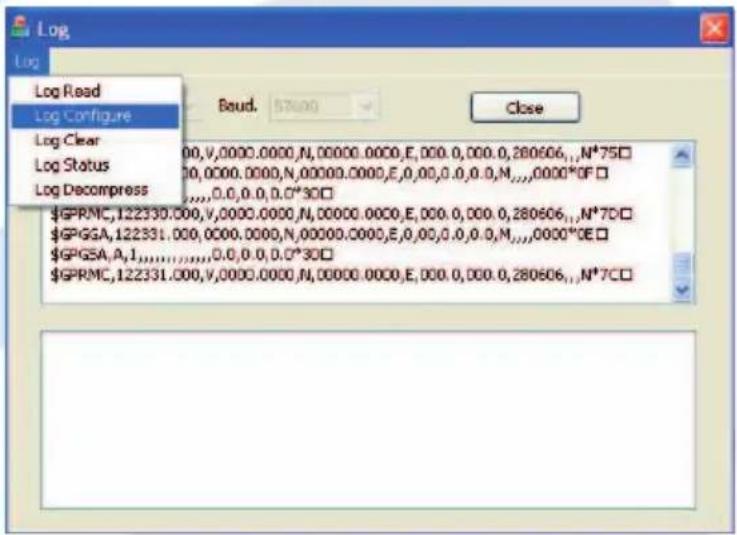
12) Click "Setting" button.
The 'Log Confi gure Control Successful' text will appear in the bottom table confi rming the control settings. (see fi gure 3.1)
text_image
Log Log Read Log Configure Baud. 57000 Close Log Clear Log Status Log Decompress $GPRMC,122330.000,V,0000.0000,N,00000.0000,E,000.0,000.0,280606,.,N*75□ $GP GGA,122331.000,0000.0000,N,00000.0000,E,0,0,0,0,0,M,,,0000*DF□ $GP GSA,A,1,......,0,0,0,0,0*3D□ $GPRMC,122331.000,V,0000.0000,N,00000.0000,E,000.0,000.0,280606,.,N*7C□Fig 3.1
7.2 Status
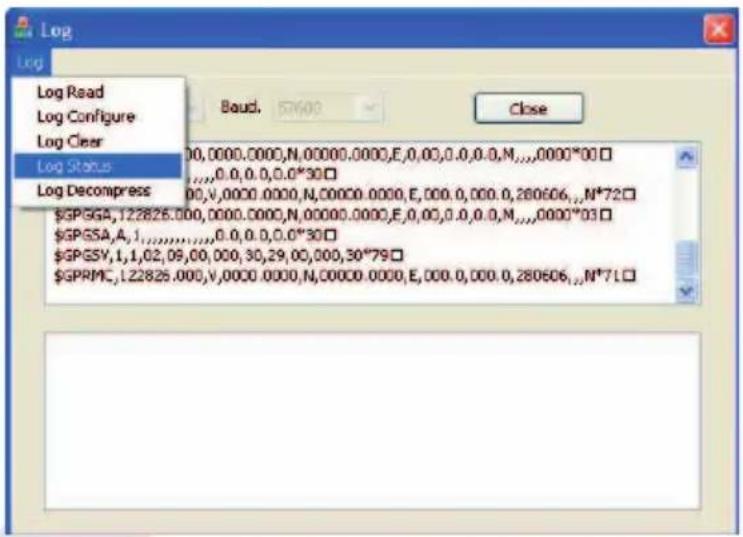
1) Read Status of data logger
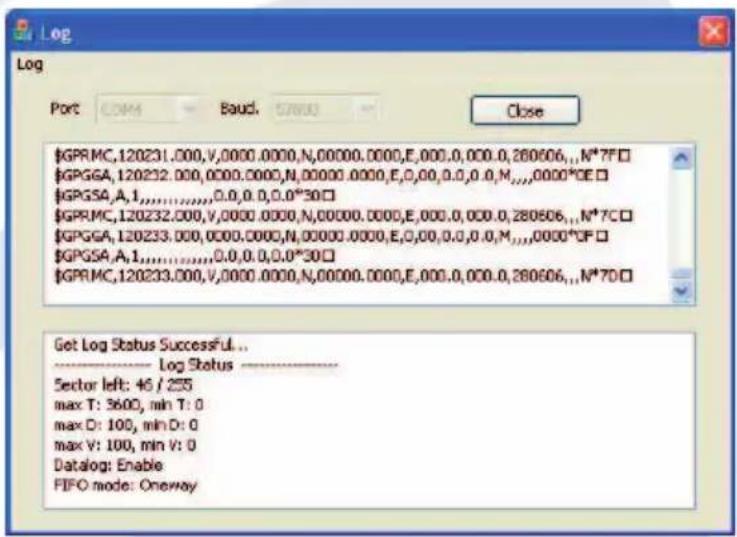
2) Select Log---Log Status (see figure 3.2)
text_image
Log Log Read Log Configure Log Clear Log Status Log Decompress Baud. 57600 Close $GP GGA,122825.000,0000.0000,N,00000.0000,E,0,00,0,0,0,N,...,0000*00 ,...,0,0,0,0,0*30 $GP GSA,A,1,...,0,0,0,0,0*30 $GP GSY,1,1,02,09,00,000,30,29,00,000,30*79 $GPRMC,L22825.000,V,0000.0000,N,00000.0000,E,000,0,000,0,280606,,N*71Fig 3.2
3) Sector Left: 253/255, total memory 255 sector, 253 is empty
text_image
$GPRMC,120231.000,V,0000.0000,N,00000.0000,E,000.0,000.0,280606,.,N*7F□ $GPGGA,120232.000,0000.0000,N,00000.0000,E,O,O,O,O,O,M,.,,0000*OE□ $GPSSA,A,1,.,.,.,.,.,.,.,.,.,.,.,.,.,.,.,.,.,.,.,.,.,.,.,.,.,.,.,.,.,.,.,.,.,.,.,.,.,.,.,.,.,.,.,.,.,.,.,.,.,.,.,.,.,.,.,.,.,.,.,.,.,,. $GPRMC,120232.000,V,0000.0000,N,00000.0000,E,000.0,000.0,280606,.,N*7C□ $GPGGA,120233.000,0000.0000,N,00000.0000,E,O,O,O,O,O,M,.,,,O,O,O,O,O,O,O,O,O,O,O,O,O,O,O,O,O,O,O,O,O,O,O,O,O,O,O,O,O,O,O,O,O,O,O,O,O,O,O,O,O,O,O,O,O,O,O,O,O,O,O,O,O,O,O,O,O,O,O,O,O,O,O,O,O,O,O,O,O,O,O,O,O,O,O,O,O,O,O,O,O,O,O,O,O,O,O,O,O,O,O,O,O,O,O,O,O,O,O,O,O,U, $GPSSA,A,1,.,.,.,.,.,.,.,.,.,.,.,.,.,.,.,.,.,.,.,.,.,.,.,.,.,.,.,.,.,.,.,.,.,.,%,. $GPRMC,120233.000,V,0000.0000,N,00000.0000,E,0O.O.O.O.O.O.O.O.O.O.O.O.O.O.O.O.O.O.O.O.O.O.O.O.O.O.O.O.O.O.O.O.O.O.O.O.O.O.O.O.O.O.O.O.O.O.O.O.O.O.O.O.O.O.O.O.O.O.O.O.O.O.O.O.O.O.O.O.O.O.O.O.O.O.O.O.O.O.O.O.O.O.O.O.O.O.O.O.O.O.O.O.O.O.O.O.O.O.O.O.O.U. Get Log Status Successful... ------------------------ Log Status --------------------------------------- Sector left: 46 / 255 max T: 360V, min T: 0 max D: 100, min D: 0 max V: 100, min V: 0 Catalog: Enable FIFO mode: One-way7.3 Read logger data
1) Read logger data form AD850.
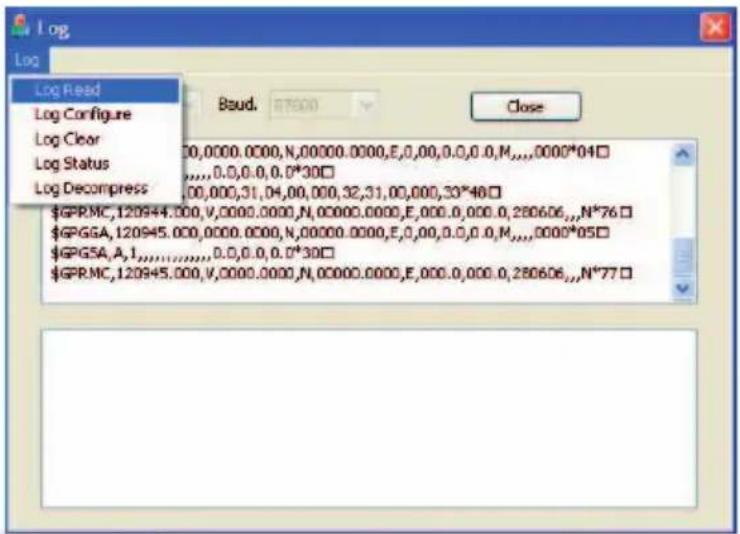
2) Select Log---Log Read (figure 3.3)
text_image
Log Log Read Log Configure Log Clear Log Status Log Decompress Baud. 87900 Close $GPR.MC,120944.000,V,0000.0000,N,00000.0000,E,0,00,0,0,0,M,...,0000*04□ $GPGGA,120945.000,0000.0000,N,00000.0000,E,0,00,0,0,0,M,...,0000*05□ $GPIGSA,A,1,...,......,0,0,0,0,0*30□ $GPR.MC,120945.000,V,0000.0000,N,00000.0000,E,0,00,0,0,0,M,...,N*77□Fig 3.2
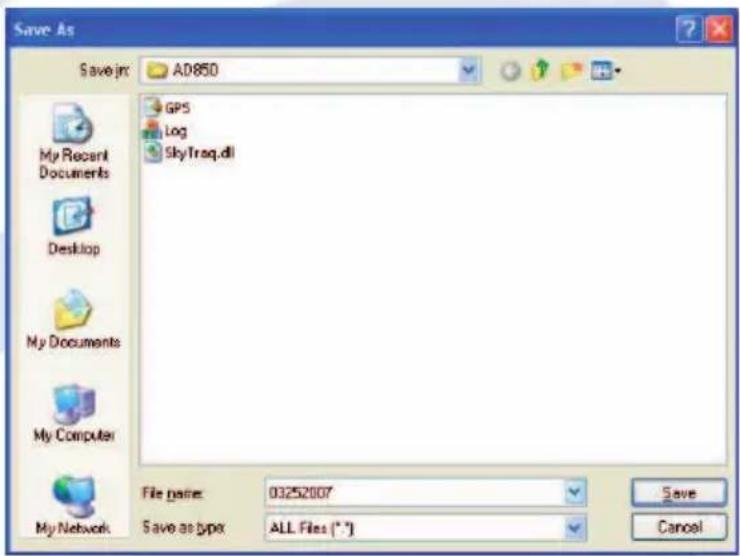
3) Type a fi le name for data logger record. Example: "03252007" (see fi gure 3.4)
text_image
Save As Save in: AD85D GPS Log SkyTraq.dll My Recent Documents Desktop My Documents My Computer My Network File path: 03252007 Save as type: ALL Files (*.*) Save CancelFig 3.4
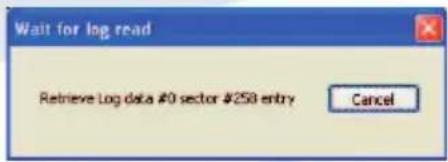
4) Wait for between 5-10 minutes depending on how many recordings you have. If you use the wrong Bluetooth driver in your PC, some problems may occur.
text_image
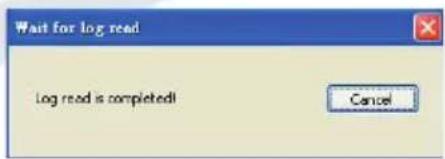
Wait for log read Retrieve Log data #0 sector #258 entry CancelOnce the reading is successful then a box will display 'log read is completed' as shown above.
text_image
Wait for log read Log read is completed! Cancel7.4 Clear memory of data logger
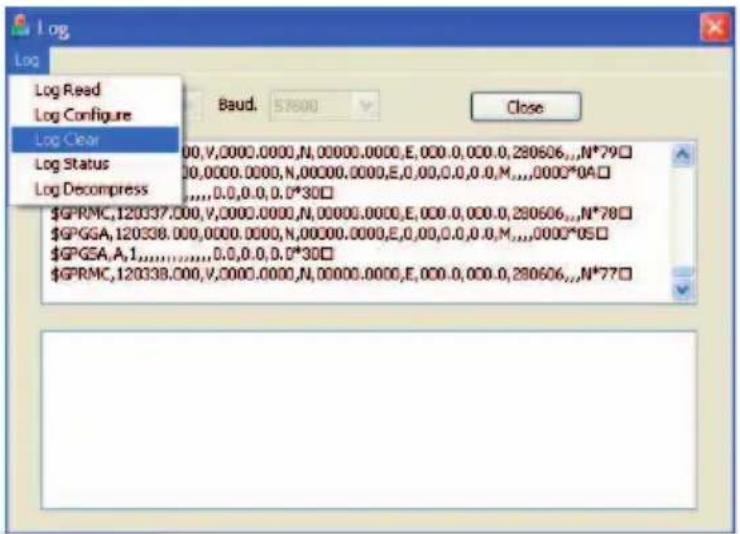
1) Select Log---Log Clear (see fig 3.5)
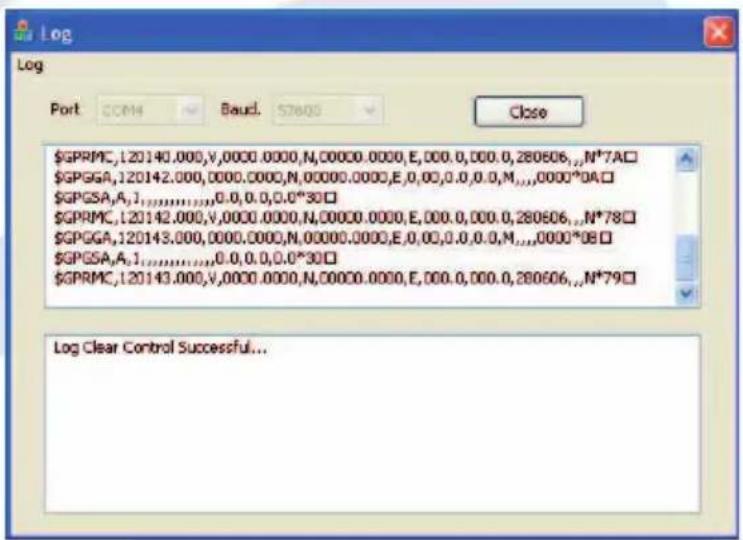
The box below will read 'log clear control successful' open completion of clearing the total log data.
text_image
Log Log Read Log Configure Log Clear Log Status Log Decompress Baud. 57600 Close $GPRMC,120337.000,V,0000.0000,N,00000.0000,E,000.0,000.0,290606,.,N*79□ $GPGGA,120338.000,0000.0000,N,00000.0000,E,000.0,0.0,M,.,,0000*0A□ $GPGSA,A,1,.,.,.,.,.,.,.,.,.,.,.,.,.,.,.,.,.,.,.,.,.,.,.,.,.,.,.,.,.,.,.,.,.,.,.,.,.,.,.,.,.,.,.,.,.,.,.,.,.,.,.,.,.,.,.,.,.,.,.,,. $GPRMC,120338.000,V,0000.0000,N,00000.0000,E,000.0,0.0.0.290606,.,N*77□Fig 3.5
text_image
$GPRMC,120140.000,V,0000.0000,N,00000.0000,E,000.0,000.0,280606,.,N*7A□ $GPGGA,120142.000,0000.0000,N,00000.0000,E,0.00,0.0,0.0,N...,0000*OA□ $GPGSA,A1,1,...,0.0,0.0,0.0*30□ $GPRMC,120142.000,V,0000.0000,N,00000.0000,E,000.0,000.0,280606,.,N*78□ $GPGGA,120143.000,0000.0000,N,00000.0000,E,0.00,0.0,0.0,M...,0000*OB□ $GPGSA,A1,...,0.0,0.0,0.0*30□ $GPRMC,120143.000,V,0000.0000,N,00000.0000,E,0.00,0.0,0.0,280606,.,N*79□ Log Clear Control Successful...7.5 Transfer data to Google Earth
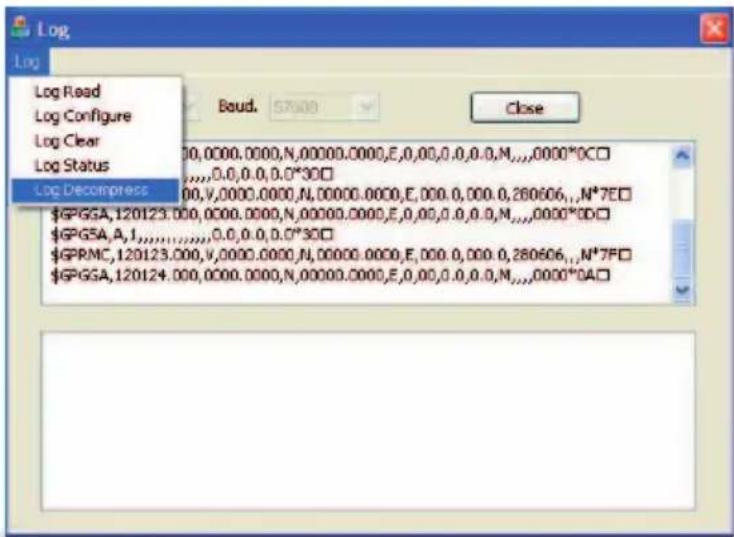
1) Select Log---Log Decompress (see fig 3.6)
text_image
Log Log Read Log Configure Log Clear Log Status Log Decompress Boud. 57000 Close $GPGGA,120123.000,0000.0000,N,00000.0000,E,0,00,0,0,0,M,...,0000*DC□ ,0,0,0,0,0,0*3D□ 0,0,V,0000.0000,N,00000.0000,E,000,0,000,0,280606,...,N*7FD $GPGGA,A,I,...,0,0,0,0,0*3D□ $GPRMC,120123.000,V,0000.0000,N,00000.0000,E,000,0,000,0,280606,...,N*7FD $GPGGA,120124.000,0000.0000,N,00000.0000,E,0,0,0,0,0,M,...,0000*DA□Fig 3.6
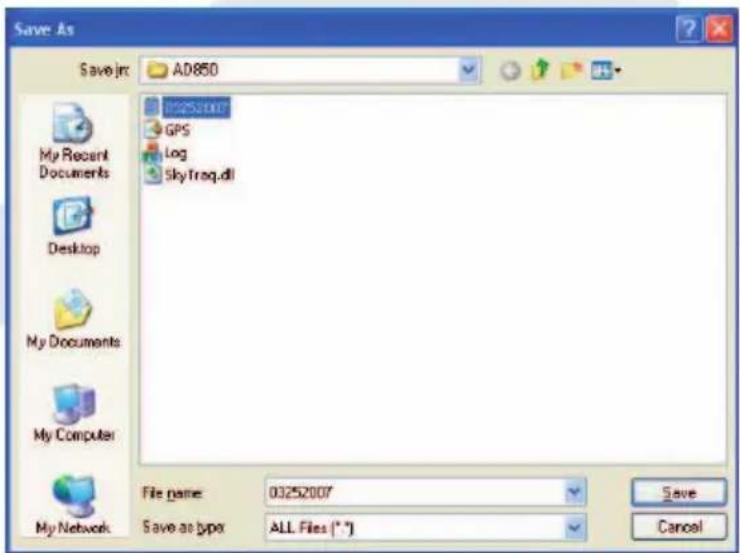
2) Select the data file which you read from AD850. Example:03252007.log. And Click Save. (see fig 3.7)
text_image
Save As Save In: AD850 My Recent Documents Desktop My Documents My Computer My Network GPS Log SkyTreq.dll File name: 03252007 Save as type: ALL Files (*.*) Save CancelFig 3.7
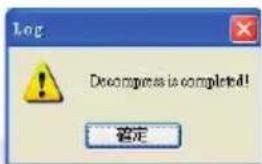
3) It will create a *.KML file in your directory. Example: 03252007.KML
4) Run Google Earth program. (www.google-earth.com to download the program.)
text_image
Log ! Decompress is completed! 确定5) Select
text_image
Google Earth File Edit View Tools Add Help Search Fly To Find Businesses Directions Fly to e.g., Hotels near JFK Places My Places Schlossing Select this finder and click on the 'Play' button below, to sta... Temporary Places Layers View: Core Primary Database Terrain Geographic Web start Google Earth © 2007 Europa Technologies Image NASA. Google Pointer: 38°57'33.80" N 95°15'55.74" W Streaming 100% Eye all 6835.70 mi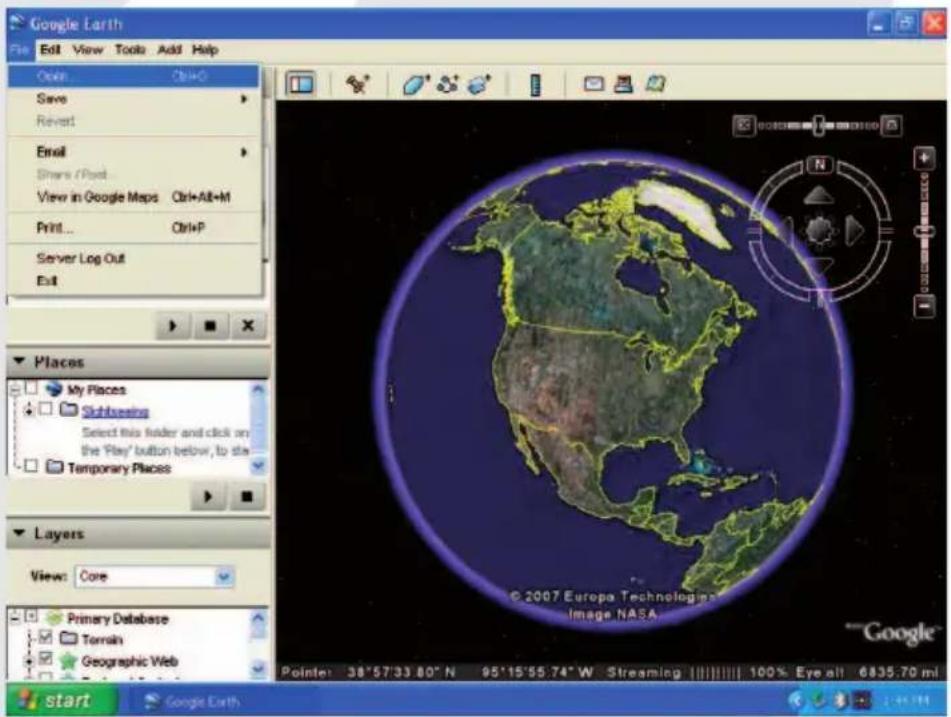
text_image
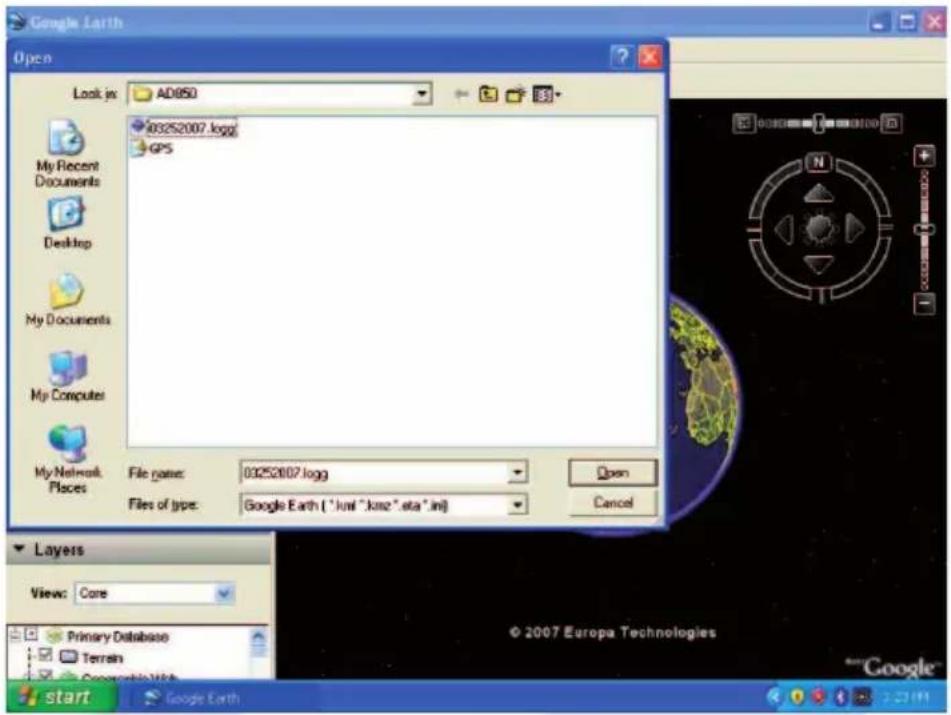
Google Earth File Edit View Tools Add Help Open Ctrl+O Save Revert Email Share / Post View in Google Maps Ctrl+Alt+M Print... Ctrl+P Server Log Out Exit Places My Places Sittinging Select this folder and click on the 'Play' button below, to sta Temporary Places Layers View: Core Primary Database Terrain Geographic Web start Google Earth © 2007 Europa Technologies Image NASA. Pointe: 38°57'33.80" N 95°15'55.74" W Streaming 100% Eye all 6835.70 ml6) The recorded path will show on Google Earth.
7) You can use trajectory to active or hide your path.
text_image
Google Earth Open Look in: AD050 My Recent Documents Desktop My Documents My Computers My Network Places File name: 03252007.logg Files of type: Google Earth ("kuni" "kazz" eta" ini) Open Cancel Layers View: Core Primary Database Terrain Georgetown start Google Earth © 2007 Europa Technologies Google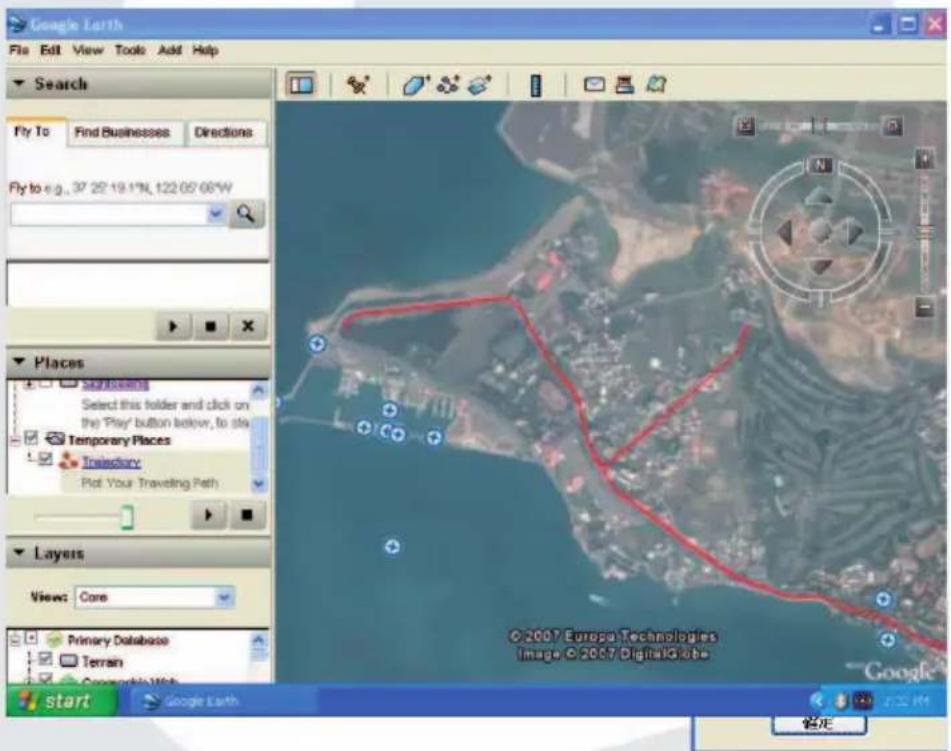
text_image
Google Earth File Edit View Tools Add Help Search Fly To Find Businesses Directions Fly to e.g., 37 25'19.1"N, 122 05'08"W Places Startboxing Select this folder and click on the 'Play' button below, to sta Temporary Places Trisledory Plot Your Traveling Path Layers Views Core Primary Database Terrain Copyright Web start Google Earth © 2007 Europa Technologies Image © 2007 DigitalGlobe Google 确定8. Specifications
8.1 GPS Performance
- Processed Channels : Track up to 44 satellites.
- Update rate : 1 second.
-
Acquisition time : Reacquisition, 0.1 sec., averaged
: Hot start, 1 sec., averaged Note 1
: Warm start, 38 sec., averaged
: Cold start, 42 sec., averaged -
Accuracy : Position, 5-10 m CEP Note 2
: Time, 1 microsecond synchronized GPS time
- Dynamic Conditions : Altitude, 18,000 meters (60,000 feet) max
: Velocity, 515 meters / second (1000 knots) max
: Acceleration, 4 G max
: Jerk, 20 meters / second cubic, max
-
Datum : WGS-84
-
Sensitivity : -159dBm
Note 1: Outdoor-clear sky situation
Note 2: Measured over 24 hours
8.2 B Data logger Specifications
- Up to 120K data records
- Log data export for Google Earth and track maker
- Programmable data log interval: time, distance, and velocity
- Log data download by Bluetooth wireless connection, 10 meters distance.
8.3 Bluetooth Specification
- Port type : compatible with Bluetooth 1.2 serial port profi le (SSP)
- Transmitter power : class 2
-
Transmission range : up to 10 meters
-
Frequency range : 2402 MHz \~ 2483.5 MHz
- Hopping channel : 79
- Modulation : GFSK
- Receiver sensitivity : -80dBm (typical)
8.4 External Interface
- Connection : Bluetooth 1.2 serial port profi le (SSP)
- Protocol : Default -- NMEA 0183 format with command set (GPGGA, GPGSA, GPGSV, GPVTG, GPRMC)
- Baud rate : 57600
8.5 Physical Dimension
Dimension : 77 (L) x 43 (W) x 17.6 (H) (mm) Weight : 55 g (with battery)
8.6 Environmental Characteristics
Operating temperature : -10 °C to +60 °C Storage temperature : -20 °C to +70 °C Battery charging temperature : 0°C to +40 °C Humidity range : 5% \~ 95% no condensing
8.7 Power Characteristics
Input voltage : 5V DC Battery : Rechargeable Li-ion battery Operating time : 20 hours at battery full charged condition
9. Troubleshooting
Error/Problem
Cause
Trouble
shooting
Can not find the Incorrect installation or Check if Bluetooth GPS
GPS device through low battery Receiver is installed
Bluetooth interface properly, and confirm the
battery level is suitable
(static Blue and Green LED
and no Red LED blinking)
Unable to connect
through Bluetooth
your PDA's user manual for
Configuration incorrect
to re-install. Or refer to
Please refer section 5.2
configuration.
Fail to open COM Port
or the COM port is
adopted by other
software.
Or check if there is any
Bluetooth manager is
not configured properly,
settings, close the
software that uses COM
ports and try again.
Please check your
Bluetooth manager
password protection.
(code - 0000)
No NMEA code
(GPS data flow)
mode if you stop input connect GPS receiver
for a few minutes. again.
Bluetooth interface will
be reset in such case.
(2) Wrong baud rate/
com port setting.
(3) Bluetooth
(1) Some PC/PDA will
enter the power saving
connect GPS receiver
again.
(2) Correct with right
baud rate & com port.
(3) Re-connect Bluetooth
interrupted
(1) Disable the power
saving mode, try to
device.
Error/Problem
Cause
Trouble
shooting
Unstable GPS signal (1) degraded by anti- place on car roof or sunlight fi lm with stick to windscreen receiver placed inside car
(2) some cases described in sec 8.1
Poor GPS signal (1) Solar Storm effect NA (2) Atmosphere turbulences
(3) SA ON by USA military.
Can link AD850 but Incorrect installation of Refer chapter 7 and 7.3 can't download data your Bluetooth driver in for more detail. your PC
9.1 Poor GPS Signal
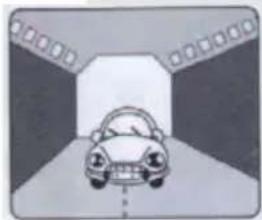
It is possible unable to receive GPS signal or signal low in these places:
natural_image
Illustration of a car driving toward a tunnel entrance with lane markings (no text or symbols)Inside the tunnel, GPS signal is blocked.

natural_image
Illustration of a car parked in front of a row of stacked rectangular blocks (no text or symbols)Covers above, GPS signal is blocked.

natural_image
Illustration of a car parked in a row inside a hallway (no text or symbols)Inside buildings, GPS signal is blocked.

natural_image
Illustration of a car parked in a narrow alleyway with tall buildings and trees (no text or symbols)Beside some buildings, GPS signal is disturbed.

natural_image
Cartoon character standing in a mountainous landscape with clouds (no text or symbols)In the forests, or too much overhead foliage can disturb the signal.
If you use the AD850 Bluetooth GPS Receiver inside the car, some anti-sun-light windscreen film will make the GPS signal decrease or can even cause a loss of signal.
GPS satellites are owned by the American military; sometimes they will tune-down the accuracy for some reason. In such cases, the GPS position may not fix exactly.
For any further questions or for help pairing your device please visit www.adapt-mobile.com and go to 'support'

natural_image
Abstract pink gradient background with curved white bands (no text or symbols)adapt®
www.adapt-mobile.com