
SocketScanS850 - Barcode Reader Socket Mobile - Free user manual and instructions
Find the device manual for free SocketScanS850 Socket Mobile in PDF.


| Product Type | Barcode Reader |
| Brand | Socket Mobile |
| Model | SocketScan S850 |
| Dimensions | 3.42 x 0.52 x 2.12 in (86.9 x 53.94 x 13.43 mm) |
| Weight | 1.7 oz (48.2 g) |
| Scanner Type | 2D Imager |
| Symbologies Supported | All major 1D and 2D barcodes |
| Wireless Technology | Bluetooth v2.1 + EDR with 56-bit data encryption |
| Wireless Range | 10 m (33 ft) line of sight |
| Battery Type | Rechargeable Lithium Ion (pre-installed) |
| Battery Life | ~10 hours or 10,000 scans |
| Charge Time | 4 hours for full charge |
| Operating Temperature | 32°F to 122°F (0°C to 50°C) |
| Antimicrobial Protection | Antimicrobial additive in all external surfaces |
| Status Indicators | Top LED (Bluetooth), Side LED (battery/scan), Beep and vibration feedback |
| Connection Modes | Basic Mode (HID), Application Mode (SPP), Application Mode (MFi-SPP) |
| Cleaning Instructions | Wipe with cloth dampened with isopropyl alcohol or water; do not immerse; do not use bleach |
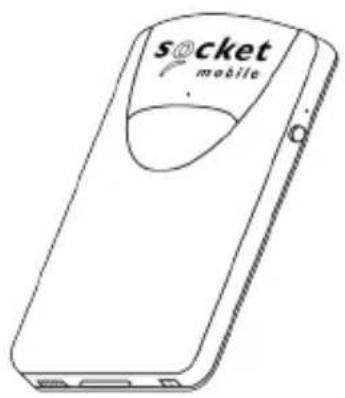
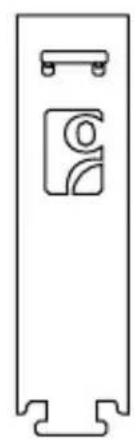
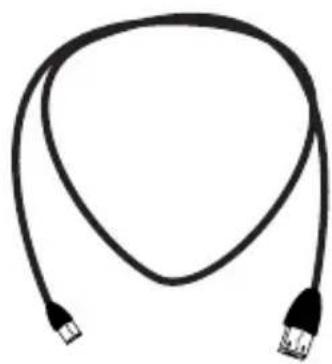
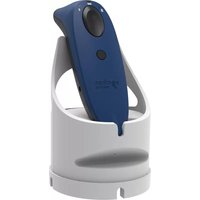
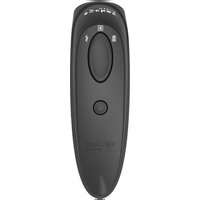
| Package Contents | SocketScan 800 Series, Universal Klip Case, USB Charging Cable |
| Warranty | 1 year from date of purchase (consumables: 90 days) |
| Compliance | FCC Class B, CE, RoHS, WEEE |
Frequently Asked Questions - SocketScanS850 Socket Mobile
User questions about SocketScanS850 Socket Mobile
0 question about this device. Answer the ones you know or ask your own.
Ask a new question about this device
Download the instructions for your Barcode Reader in PDF format for free! Find your manual SocketScanS850 - Socket Mobile and take your electronic device back in hand. On this page are published all the documents necessary for the use of your device. SocketScanS850 by Socket Mobile.
USER MANUAL SocketScanS850 Socket Mobile
natural_image
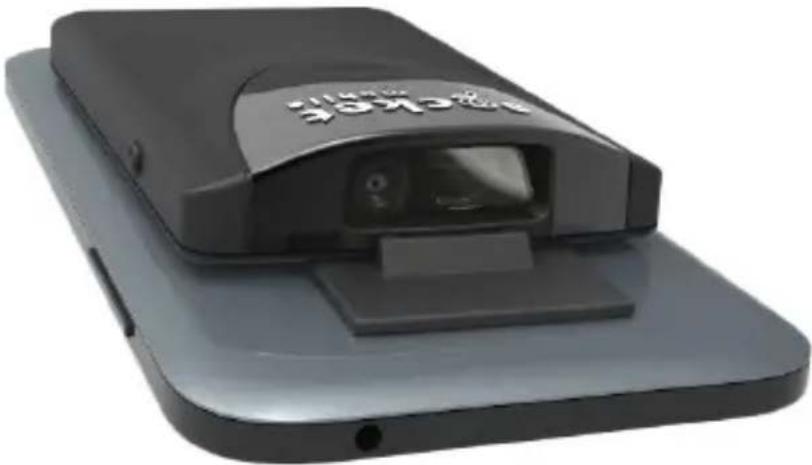
Top-down view of a black mobile phone with 'socket mobile' branding on the cover (no additional text or symbols visible)SOCKETSCAN™ 800 SERIES USERGUIDE
ATTACHABLE
natural_image
Exterior view of a black and gray smartphone device with a visible logo (no text or symbols on the device body)Bluetooth® wireless technology Cordless Barcode Scanner
www.socketmobile.com
PACKAGE CONTENTS
natural_image
Line drawing of a mobile phone with 'socket' branding on the cover (no additional text or symbols)800 Series
natural_image
Pure technical line drawing of a rectangular component with no text, numbers, or symbolsUniversal Klip Case
natural_image
Coiled black cable with two connectors (no text or symbols visible)USB Charging CableSocket
Thank you for choosing Socket Mobile! Let's get started!
© 2017 Socket Mobile, Inc. All rights reserved. Socket®, the Socket Mobile logo, SocketScan™, DuraScan™, Battery Friendly® are registered trademarks or trademarks of Socket Mobile, Inc. Microsoft® is a registered trademark of Microsoft Corporation in the United States and other countries. Apple®, iPad®, iPad Mini®, iPhone®, iPod Touch®, and Mac iOS® are registered trademarks of Apple, Inc., registered in the U.S. and other countries. The Bluetooth® Technology word mark and logos are registered trademarks owned by the Bluetooth SIG, Inc. and any use of such marks by Socket Mobile, Inc. is under license. Other trademarks and trade names are those of their respective owners.
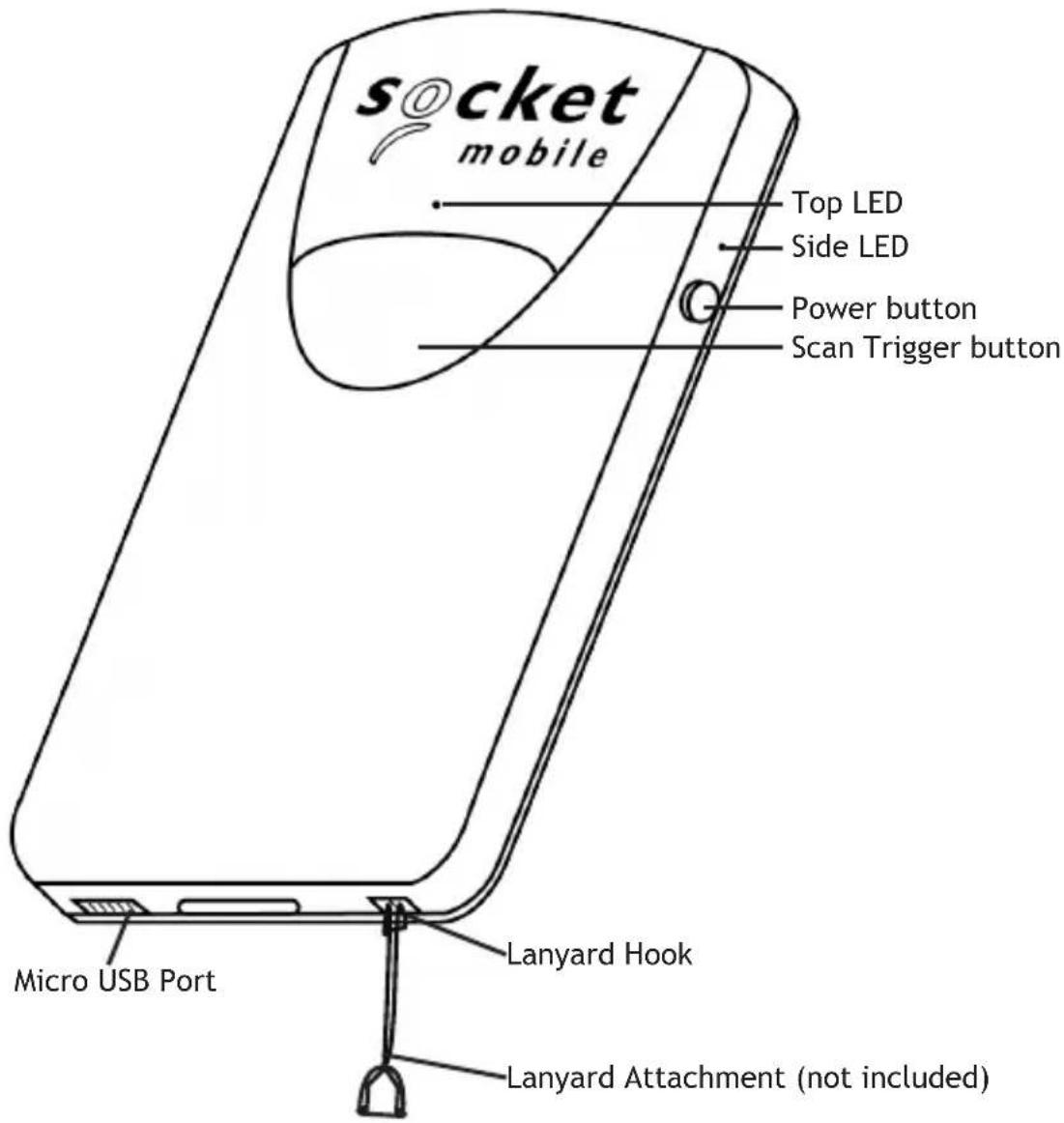
Socket Mobile's barcodes scanners can be wiped clean with a cloth dampened with isopropyl alcohol or water. Or, the barcode scanners can be wiped clean with a Sani-Cloth.
Warning: DO NOT IMMERSE IN WATER (scanner's mechanics could be damaged) DO NOT USE BLEACH FOR CLEANING (scanner's material property may be affected)
CHARGE THE SOCKETSCAN 800 SERIES
-
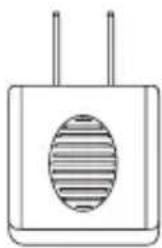
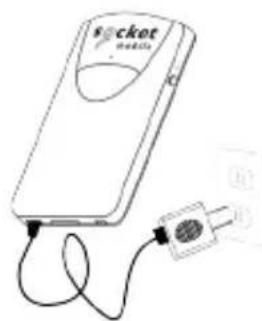
Insert charging cable into an AC charging adapter (not included - most smartphones and tablets come with AC Adapters that look something like this.)
-
Plug charging adapter (not included) into an outlet.
-
Insert Micro USB into the 800 Series USB port.
-
The 800 Series will beep twice indicating adequate power is being supplied to the unit.
natural_image
Simple line drawing of a rectangular electronic component with two leads and a circular internal feature (no text or symbols)
natural_image
Simple line drawing of a stopwatch with no text or symbols4 Hours
natural_image
Illustration of a Pocket Health device with connected cables and a plug (no text or symbols visible)Side LED status
- Red = Charging
- Green = Fully charged
Note: The SocketScan comes with a pre-installed rechargeable Lithium Ion battery, the initial full charging of the battery can take up to 4 hours.
Power On
Press and hold down the small power button on the side until the SocketScan beeps twice (low-high tone).
The SocketScan can connect to your device using one of the following mode:
Bluetooth Connection Profiles
| Bluetooth Mode Description | |
| Basic Mode (Default)Human Interface Device Profile | “NO” software installation needed.Connects to most devices.Good for barcodes containing small amounts of data.Scanner appears like a keyboard. |
| Application Mode (SPP)Serial Port Profile | Software installation required.More efficient data communications for barcodes containing lots of data. |
| Application Mode (MFi-SPP)Apple Specific Serial Profile | Apple MFi tested and certified.An app is required.If you have an application that supports Socket Mobile Scanners this is the mode you want to use. |
Connection Options Based on Operating Systems
| Operating Systems (OS) | Devices Blue- | tooth Basic Mode (HID) Support | Bluetooth Application Mode (SPP) Support | Bluetooth Apple Serial Specific (Application Mode (MFi-SPP)) |
| Android | Android 2.1 & later | Yes Yes No | ||
| Apple iOS | iPod, iTouch, iPhone, & iPad | Yes No Yes | ||
| Windows Mobile | Windows Mobile 6.x Yes Yes No | |||
| Windows PC | Windows 7, 8 Yes Yes No | |||
| Mac OS Mac OS X 10.4 to 10.X Mac Books, Mac Mini, & iMac | Yes No No | |||
Note: To switch from one mode to the other you must remove the pairing information (see unpairing procedure on page 16) from both devices - host computer and the SocketScan.
The SocketScan will unpair and automatically power off. The next time you power on the SocketScan, it will be discoverable.
Select the appropriate mode and pair with the second host device.

Connect Android Device in Basic Mode (HID)
- Power on the SocketScan. Make sure the SocketScan is discoverable (unpaired).
- Touch Home □Menu | Settings | Wireless & Networks | Bluetooth settings
- Make sure the device has Bluetooth "On". Scan for devices.
- In the list of found devices, select Socket CHS [xxxxxx]. Tap Pair.
- The SocketScan will connect to the Android device.
- The SocketScan will beep once after it has connected and is ready to scan barcodes.
Connect Apple iOS Device or Mac OS Device Basic Mode (HID)
In this mode the scanner works and behaves just like a keyboard.
Therefore, SocketScan will work with Safari, Notes, and any other applications that supports an active cursor.
-
Power on the SocketScan. Make sure the SocketScan is discoverable (unpaired).
-
Start a Bluetooth device search.
-
iOS: Tap Settings | General | Bluetooth. Turn on Bluetooth. A Bluetooth device search will begin.
-
Mac OS: Click System Preferences | Internet & Wireless | Bluetooth. In Bluetooth preferences, select the On checkbox. Click Set up New Device... A Bluetooth device search will begin.
-
In the device list, tap on CHS [xxxxxx]. Tap Pair.
-
The SocketScan will connect to the Apple device.
-
The SocketScan will beep once after it has connected and is ready to scan barcodes.

Connect Windows PC
Power on the SocketScan. Make sure the SocketScan is discoverable (unpaired).
- Use your computer's Bluetooth Settings to connect to the SocketScan.
- Open Devices and Printers and select "Add a device".
- In the device list, select Socket CHS [xxxxxx]. Click Next.
- If a passkey is requested, enter 0000 (four zeroes). Click OK. Or Pair Now.
- Follow the remaining screens to complete the wizard.
Note: On some computers the SocketScan will have to be configured as Basic Mode (HID) Peripheral. Please refer to the User Guide to see this special barcode.
The User Guide at Socket Mobile's support web page.
Note: For Windows Mobile refer to the User Guide at Socket Mobile's support web page.


connect Android & Windows Mobile Device Quickly:
SocketScan 10 software installation required.
- Power on the scanner and scan this barcode. The scanner will beep 3 times.

-
Turn Bluetooth on for your device. Go to Settings > Bluetooth. A Bluetooth Devices search will begin.
-
Tap Socket CHS[xxxxx] in the list of Devices found. After a few seconds the “Not Paired” status will change to “Connected” and the scanner’s Blue LED will blink every 3 seconds confirming the connection.

Connect Android device in Application Mode (SPP) using EZ
Pair
- Go to Google Play Store, search for "SocketScan".
- Download & install. Follow the on screen instructions.
Getting Started - Follow the on screen instructions.
- Tap on screen the ON SCREEN button.
- Tap on screen the 1D SCANNER button.
- Scan the barcode on the device screen. Wait a few seconds. The scanner will beep 3 times indicating it has accepted the command to connect to your device.
- When notified of a pairing request, swipe the notification icon down, then tap Pairing request.
- On the next screen, tap Pair.
- The scanner will beep once to indicate connected state and is ready to scan barcodes. Tap Back to close Socket EZ Pair.
- If you are connecting a scanner which is not registered, a scanner registration icon will appear on top of the screen. Swipe the icon down to open the registration screen. Follow the instructions to register your Scanner. Socket Mobile highly recommends that all customers register their products, but registration is optional.
Now you are ready to scan barcodes!

Connect Windows PC in Application Mode (SPP)
Note: Make sure you have administrative privileges.
- Download the latest SocketScan 10 software from Socket Mobile's support web page.
- Follow the on-screen instructions to install the software.
- In SocketScan 10 Settings, select an incoming Bluetooth serial COM port.
Note: If there is none please click Ports to create a new incoming COM port in Bluetooth settings.
- Click Finish.
- Restart your system.
To pair the SocketScan with the PC using EZ Pair:
- Power on the SocketScan. Make sure the SocketScan is discoverable (unpaired).
- Launch SocketScan 10 and click on the SocketScan 10 icon in the task tray. In the pop-up menu, click Socket EZ Pair.
- Scan the barcode on the screen to switch set your scanner in Application Mode (SPP). The SocketScan will beep 3 times.
- Click 1D Scanner (S800) or 2D Scanner (S850) accordingly.
- Scan the barcode that appears on the screen.
- The PC will automatically try to pair with the SocketScan. If prompted to allow the pairing, click Yes. If prompted for a passkey, enter 0000 (four zeroes).
- After the SocketScan connects, it will beep once. Close Socket EZ Pair.
- If you are connecting a scanner which is not registered, a SocketScan registration icon will appear on top of the screen. Follow the instructions to register your SocketScan. Socket Mobile highly recommends that all customers register their products, but registration is not necessary.
- The task tray icon will change to indicate the connection.
Now you are ready to scan barcodes.
Note: If you are unable to scan the barcode on screen, please refer to the alternative Bluetooth Method to connect the SocketScan in the User Guide at Socket Mobile's support web page.
Connect Apple device in iOS Mode
Please check with your scanner application vendor or visit www.socketmobile.com/appstore to confirm your Scanner-enabled application supports the SocketScan.
If you are using the SocketScan with an Apple iOS device and a Scanner-enabled Application that does not provide instructions how to connect with the SocketScan, please use the following steps.
- Power on the SocketScan. Make sure the SocketScan is discoverable (unpaired).
- To change the profile to iOS mode scan this barcode. The SocketScan will beep 3 times.
Use with iPad, iPod touch, and iPhones.
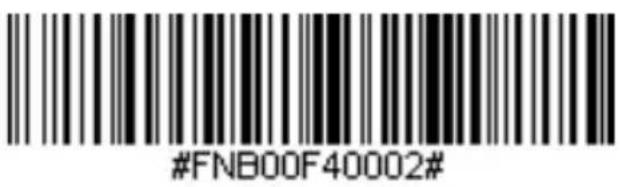
APPLICATION MODE (MFi-SPP)
- Turn Bluetooth on the Apple device. Go to Settings > Bluetooth. A Bluetooth Devices search will begin.
- Tap Socket CHS[xxxxxx] in the list of Devices found. After a few seconds the “Not Paired” status will change to “Connected” and the SocketScan Blue LED will blink every 3 seconds confirming the connection.
Note: The characters in brackets are the last 6 characters of the Bluetooth Address. The full Bluetooth address is printed on the Product label.
- Open the Scanner-enabled Application. The SocketScan will beep once indicating that it is connected to the appropriate application.
Now you are ready to scan barcodes.
Scanning Barcodes
After connecting the SocketScan to your device, open an application. Place the cursor where you want to enter the scanned data.
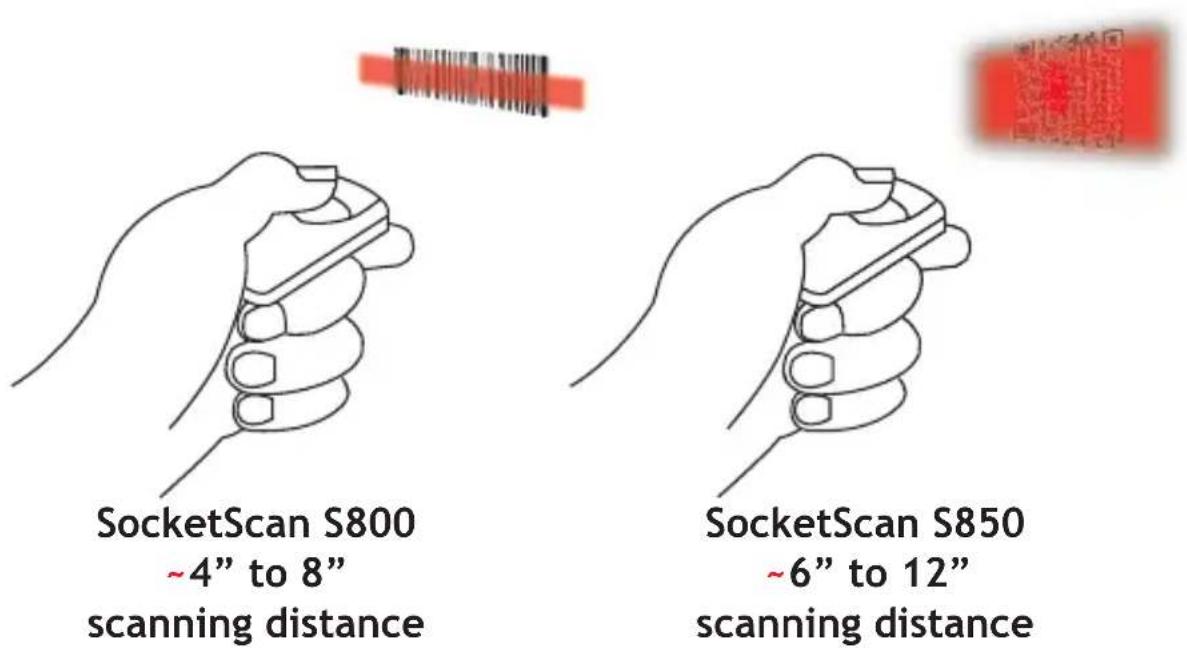
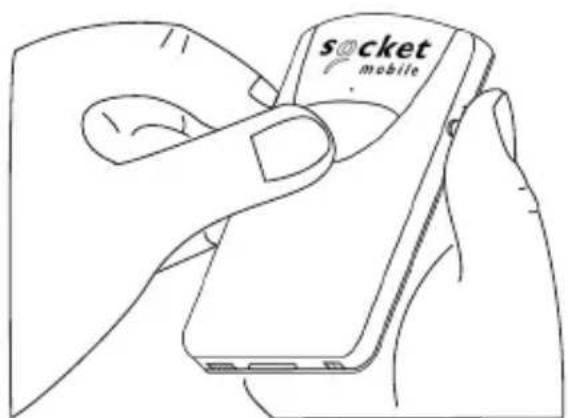
- Hold the SocketScan a few inches from the barcode.
- Aim, press and hold the trigger button.
By default, the SocketScan will beep, vibrate, and the side LED will flash green to confirm successful scan.
natural_image
Line drawing of a hand holding a smartphone with 'socket mobile' branding (no text or symbols on device)Note: This procedure will put the SocketScan in discoverable mode.
Step 1: Unpairing the SocketScan: Deleting the Bluetooth Pairing
If the SocketScan is paired with a device, unpair it before trying to connect to a different device.
a. Power on the SocketScan.
b. Press and hold down the trigger button.
c. Press and hold down the power button.
d. After 3 beeps, release both buttons.
The SocketScan will unpair and automatically power off. The next time you power on the SocketScan, it will be discoverable.
Step 2: Remove the SocketScan from the Bluetooth list on the host device
Important: Both steps above must be done to complete the unpairing.
Important! Make sure the SocketScan 800 Series is not connected to a host computer or device before scanning a command barcode!
| Bluetooth Connection Modes | |
| Basic Mode (HID) (default) Configures the SocketScan to Human Interface Device (HID) mode as a Keyboard class device | 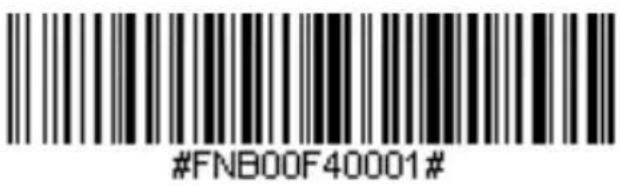 |
| Application Mode (SPP) Changes the SocketScan to Application Mode (SPP) |  |
| Application Mode (MFi-SPP) Changes the SocketScan to Basic Mode for iOS | 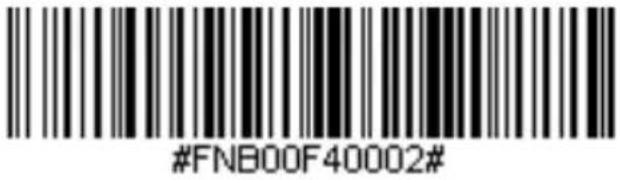 |
Important! Make sure the SocketScan 800 Series is not connected to a host computer or device before scanning a command barcode!
| Beep Settings | |
| Beep “ON” (Default)Enables SocketScan to beep to indicate successful scans |  |
| Beep “OFF”Disables SocketScan from beeping to indicate successful scans |  |
Important! Make sure the SocketScan 800 Series is not connected to a host computer or device before scanning a command barcode!
| Vibrate Settings | |
| Vibrate “ON” (Default)Enables SocketScan to vibrate to indicate successful scans | 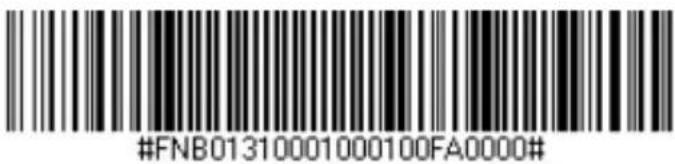 |
| Vibrate “OFF”Disables SocketScan from vibrating to indicate successful scans | 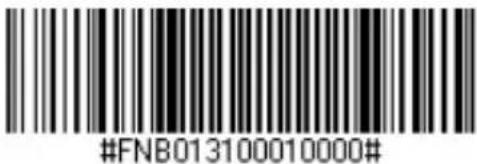 |
| Factory Default | |
| Factory ResetReverts all settings to factory defaults (The SocketScan will power off after scanning this barcode) | 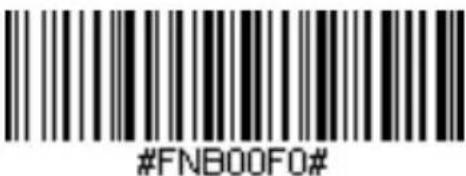 |
STATUS INDICATORS
| Status LED Activity | Meaning | |
| Top LED Bluetooth | 1 Blink (every second) | Bluetooth is On and not connected |
| 1 Blink (every 3 seconds) | SocketScan is connected to a device | |
| Side LED 1 Green | Blink (after the beam scan) | Data successfully scanned |
| Side LED Battery Status | Red Constant (while charging) | Battery is charging |
| Red Blinking 20% or less battery capacity remaining | ||
| Green Constant (while charging) | Battery is fully charged | |
| Beep Pattern Meaning | ||
| Low-High Tone Power On | ||
| High-Low Tone Power Off | ||
| High-High Tone An adequate USB charging port is detected | ||
| 1 Low Beep Keyboard Pop-up Enable - Basic Mode (HID) in iOS device only | ||
| 1 Beep SocketScan connected to device and ready to scan barcodes | ||
| 2 Beeps (same tone) | SocketScan disconnected from device | |
| 1 Beep Data successfully scanned | ||
| 1 Long Beep The SocketScan tried multiple times unsuccessfully to connect to the last device it paired with (After 5 minutes the SocketScan will power off) | ||
| 3 Beeps (with escalating tone) | SocketScan recognized the Command Barcode and implemented the change | |
| 3 Beeps (with escalating tone followed by a long tone) | This command barcode is not appropriate for this profile for your SocketScan (Verify the Command Barcode is valid and retry - scan did not work) | |
| Specifications S800 S850 | ||
| Dimensions 3.42 x 0.52 x 2.12 in. (86.9 x 53.94 x 13.43 mm) | ||
| Total Mass | 1.7 oz (48.2 g) | |
| Antimicrobial | Antimicrobial additive in all external surfaces | |
| Operating Temp | +32 to +122°F (0 to + 50°C) | |
| Battery Life | ~10 hours or 10,000 scans | |
| Charge Time | 4 hours fully charged | |
| Bluetooth Version | Bluetooth v2.1 + EDR with 56 bit data encryption | |
| Wireless Range | 10 m (33 ft) Line of sight | |
| Scanner Type | Imager (1D) Imager (2D) | |
| Symbologies | All major 1D barcodes | All major 1D & 2D bar-codes |
Technical Support & Product Registration:
http://support.socketmobile.com
Phone: 800-279-1390 +1-510-933-3020 (worldwide)
Warranty Checker:
www.socketmobile.com/support/warranty-checker
Socket Mobile Developer Program:
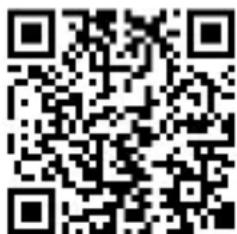
Learn more at: http://developer.socketmobile.com

This web link is also provided in the below QR Code. To open the web page, scan this QR Code using a QR Code Reader App in your device.
This equipment has been tested and found to comply with the limits for a Class B digital device, pursuant to Part 15 of the FCC Rules. These limits are designed to provide reasonable protection against harmful interference in a residential installation. This equipment generates, uses and can radiate radio frequency energy and, if not installed and used in accordance with the instructions, may cause harmful interference to radio communications. However, there is no guarantee that interference will not occur in a particular installation. If this equipment does cause harmful interference to radio or television reception, which can be determined by turning the equipment off and on, the user is encouraged to try to correct the interference by one of the following measures:
- Reorient or relocate the receiving antenna.
- Increase the separation between the equipment and receiver.
- Connect the equipment into an outlet on a circuit different from that to which the receiver is connected.
- Consult the dealer or an experienced radio/TV technician for help.
CANADIAN DOC STATEMENT
This digital apparatus does not exceed the Class B limits for radio noise for digital apparatus set out in the Radio Interference Regulations of the Canadian Department of Communications.
CE MARKING AND EUROPEAN UNION COMPLIANCE
Testing for compliance to CE requirements was performed by an independent laboratory. The unit under test was found compliant with all the applicable Directives, 2004/108/EC and 2006/95/EC.
This product is compliant to Directive 2002/95/EC.
WASTE ELECTRICAL AND ELECTRONIC EQUIPMENT
The WEEE directive places an obligation on all EU-based manufacturers and importers to take-back electronic products at the end of their useful life.
ROHS STATEMENT OF COMPLIANCE
This product is compliant to Directive 2002/95/EC.
NON-MODIFICATION STATEMENT
Changes or modifications not expressly approved by the party responsible for compliance.
For complete compliance information visit Socket Mobile's support web page under Series 8 Manuals - Regulatory Compliance.
LIMITED WARRANTY
Socket Mobile Incorporated (Socket) warrants this product against defects in material and workmanship, under normal use and service, for one (1) year from the date of purchase. Product must be purchased new from a Socket Authorized Distributor or Reseller. Used products and products purchased through non-authorized channels are not eligible for this warranty support.
Warranty benefits are in addition to rights provided under local consumer laws. You may be required to furnish proof of purchase details when making a claim under this warranty.
Consumables such as batteries, removable cables, cases, straps, and chargers: 90 day coverage only
For more warranty information, please visit: http://www.socketmobile.com/pdf/_WarrCopy_12Lang.pdf
NOTES
Extend Your Warranty...
Receive Priority Service, Personal Care, and Comprehensive Coverage
You only have 60 Days after your Socket Mobile device purchase to enroll in a SocketCare Service Program!
When purchasing a SocketCare program, please provide your device serial number from the label below:
For more detailed information visit our SocketCare web page.
- Bluetooth® wireless technology Cordless Barcode Scanner
- Thank you for choosing Socket Mobile! Let's get started!
- CHARGE THE SOCKETSCAN 800 SERIES
- Power On
- Connect Android Device in Basic Mode (HID)
- Connect Apple iOS Device or Mac OS Device Basic Mode (HID)
- Connect Windows PC
- Connect Android device in Application Mode (SPP) using EZ
- Pair
- Connect Windows PC in Application Mode (SPP)
- To pair the SocketScan with the PC using EZ Pair:
- Now you are ready to scan barcodes.
- Connect Apple device in iOS Mode
- APPLICATION MODE (MFi-SPP)
- Scanning Barcodes
- STATUS INDICATORS
- Technical Support & Product Registration:
- Warranty Checker:
- Socket Mobile Developer Program:
- CANADIAN DOC STATEMENT
- CE MARKING AND EUROPEAN UNION COMPLIANCE
- WASTE ELECTRICAL AND ELECTRONIC EQUIPMENT
- ROHS STATEMENT OF COMPLIANCE
- NON-MODIFICATION STATEMENT
- LIMITED WARRANTY
- Extend Your Warranty...
Brand : Socket Mobile
Model : SocketScanS850
Category : Barcode Reader