FiOS Quantum Gateway FiOS-G1100 - Router Verizon - Free user manual and instructions
Find the device manual for free FiOS Quantum Gateway FiOS-G1100 Verizon in PDF.


User questions about FiOS Quantum Gateway FiOS-G1100 Verizon
0 question about this device. Answer the ones you know or ask your own.
Ask a new question about this device
Download the instructions for your Router in PDF format for free! Find your manual FiOS Quantum Gateway FiOS-G1100 - Verizon and take your electronic device back in hand. On this page are published all the documents necessary for the use of your device. FiOS Quantum Gateway FiOS-G1100 by Verizon.
USER MANUAL FiOS Quantum Gateway FiOS-G1100 Verizon
natural_image
Black Verizon network device with 'verizon' logo and ventilation control buttons (no readable text beyond branding)01/ INTRODUCTION
1.0 Package 7 Contents
1.1 System Requirements
1.2 Features 7
1.3 Getting to Know Your Gateway
02/ CONNECTING YOUR GATEWAY
2.0 Setting Up 18
Your Gateway
2.1 Computer Network Configuration
2.2 Main Screen 30
24
03/ WIRELESS SETTINGS
3.0 Overview 36
3.1 Wireless Status 37
7 3.2 Basic Security Settings 40
3.3 Advanced Security Settings 46
3.4 Wireless MAC 50 Authentication
3.5 802.11 Mode 52
3.6 Other Advanced Wireless Options 54
3.7 Guest Wi-Fi Settings 58
04/ CONFIGURING MY NETWORK SETTINGS
4.0 Accessing My Network Settings 64
4.1 Using My Network Settings 65
05/
USING NETWORK CONNECTIONS
5.0 Accessing 69 Network Connections
5.1 Network 70 (Home/Office) Connection
5.2 Broadband Connection 77
5.3 Wireless 81 Access Point Connection
5.4 Broadband 85 Ethernet/Coax Connection
06/
CONFIGURING SECURITY SETTINGS
6.0 Firewall 93
6.1 Access Control 97
6.2 Port Forwarding 100
6.3 Port Triggering 102
6.4 DMZ Host 104
6.5 Remote 106 Administration
6.6 Static NAT 108
6.7 Security Log 109
07/
SETTING PARENTAL CONTROLS
7.0 Activating 119 Parental Controls
7.1 Rule Summary 121
08/
CONFIGURING ADVANCED SETTINGS
8.0 Using Advanced Settings 125
8.1 Utilities 126
8.2 DNS Settings 135
8.3 Network Settings 138
8.4 Routing 145
8.5 Date and Time 167
8.6 Configuration 172
Settings
09/
MONITORING YOUR GATEWAY
9.0 Gateway Status 181
9.1 Advanced Status 182
9.2 System Logging 183
9.3 Full Status/System 184 wide Monitoring of Connections
9.4 Traffic 185
Monitoring
9.5 Bandwidth 186
Monitoring
10/
TROUBLESHOOTING
10.0 Troubleshooting Tips 189
10.1 Frequently 195
Asked Questions
11/
SPECIFICATIONS
11.0 General 202
Specifications
11.1 LED Indicators 203
11.2 Environmental 203 Parameters
12/
NOTICES
12.0 Regulatory 207 Compliance Notices
01/
INTRODUCTION
1.0 Package Contents
1.1 System Requirements
1.2 Features
1.3 Getting to Know Your Gateway
The Verizon FiOS Quantum™ Gateway lets you transmit and distribute digital entertainment and information to multiple devices in your home/offi ce.
Your Gateway supports networking using coaxial cables, Ethernet, or Wi-Fi, making it one of the most versatile and powerful gateways available.
PACKAGE CONTENTS, SYSTEM REQUIREMENTS AND FEATURES
1.0/PACKAGE CONTENT
Your package contains:
• The FiOS Quantum Gateway
- Power adapter
• LAN Ethernet cable (yellow)
• WAN Ethernet cable (white)
- Quick Start Guide
1.1/SYSTEM REQUIREMENTS
System and software requirements are:
- A computer or other network device supporting Wi-Fi or wired Ethernet
- A web browser, such as Chrome™, Firefox®, Internet Explorer 8® or higher, or Safari® 5.1 or higher
12/FEATURES
Your Gateway features include:
- Support for multiple networking standards, including
- WAN - Gigabit Ethernet and MoCA 2.0 interfaces
- LAN - 802.11 b/g/n/ac, Gigabit Ethernet and MoCA 2.0 interfaces
- Integrated wired networking with 4-port Ethernet switch and Coax (MoCA)
- Ethernet supports speeds up to 1000 Mbps
- MoCA 2.0 and 1.1 enabled to support speeds up to 700 Mbps over coaxial cable
- Integrated wireless networking with 802.11b/g/n/ac access point featuring:
- Enabled 802.11b capable speeds (based on device)
- Enabled 802.11g capable speeds (based on device)
- Enabled 802.11n capable speeds (based on device)
- Enabled 802.11ac capable speeds (based on device)
- Enterprise-level security, including:
- Fully customizable firewall with Stateful Packet Inspection (SPI)
- Content filtering with URL-keyword based filtering, parental controls, and customizable filtering policies per computer
- Intrusion detection with Denial of Service protection against IP spoofing attacks, scanning attacks, IP fragment overlap exploit, ping of death, and fragmentation attacks
- Event logging
- MAC address filtering
- Static NAT
FEATURES AND GETTING TO KNOW YOUR GATEWAY
- Port forwarding
- Port triggering
- Access control
- Advanced wireless protection featuring WPA2/WPA Mixed Mode, WEP 64/128 bit encryption, and MAC address filtering
- Options, including:
- LAN IP and WAN IP address selection
- MAC address cloning
- IPv6 support
- QoS support (end to end layer 2/3) featuring: Differentiated Services (Diffserv), 802.1p/q prioritization, and pass-through of WAN-side DSCPs, Per Hop Behaviors (PHBs), and queuing to LAN-side devices
- Remote management and secured remote management using HTTPS
- Static routing
- VPN (VPN pass through only)
- I G M P
- Daylight savings time support
1.3/GETTING TO KNOW YOUR GATEWAY
1.3a/FRONT PANEL
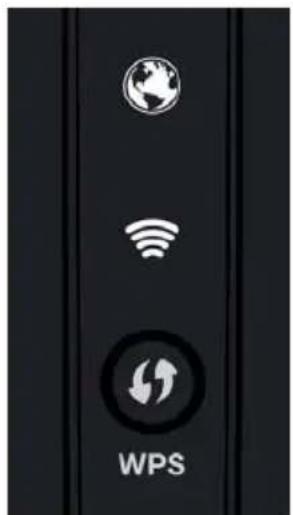
The front panel has two lighted indicators and a WPS (Wi-Fi Protected Setup) button.
The Power/Internet light will be on and solid when your Gateway is turned on, connected to the Internet, and functioning normally.
The Wireless light will be on when your Gateway Wi-Fi is turned on.
For additional information on the front lights and error indications, refer the Troubleshooting section in this Guide.
text_image
WPSThe WPS button is used to initiate Wi-Fi Protected Setup. This is an easy way to add WPS capable devices to your wireless network.
When WPS is initiated from your Gateway, the wireless light slowly flashes white for up to two minutes, allowing time to complete the WPS pairing process on your wireless device (also known as a wireless client).
When a device begins connecting to your Gateway using WPS, the wireless light rapidly flashes white for a few seconds, then turns solid white as the connection completes.
GETTING TO KNOW YOUR GATEWAY
If there is an error during the WPS pairing process, the wireless light fl ashes red rapidly for two minutes after the error occurs.
The WPS button can also be used to reboot the router. To perform a soft reboot, press and hold the WPS button for at least 10 seconds.
1.3b/SIDE PANEL
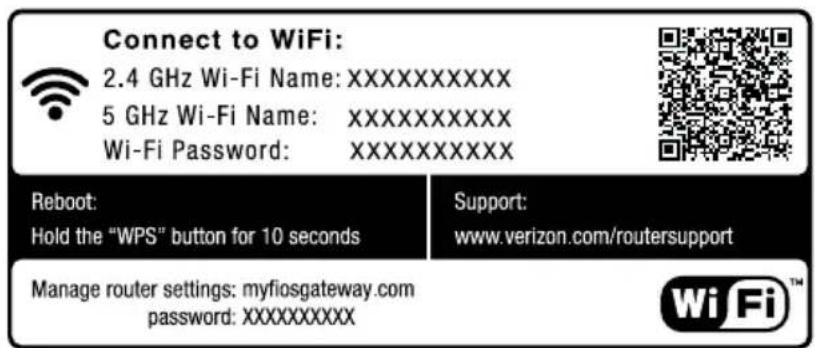
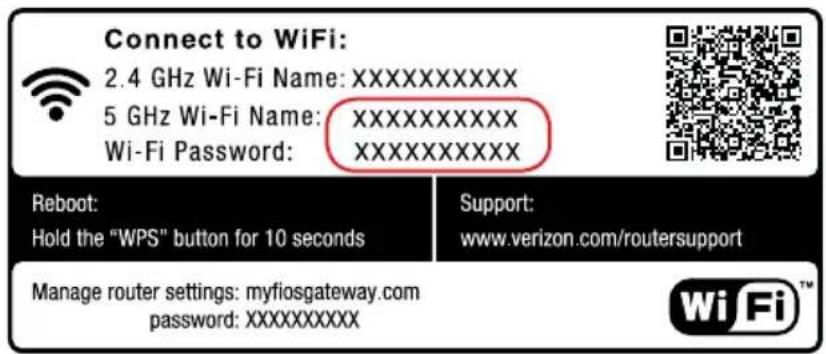
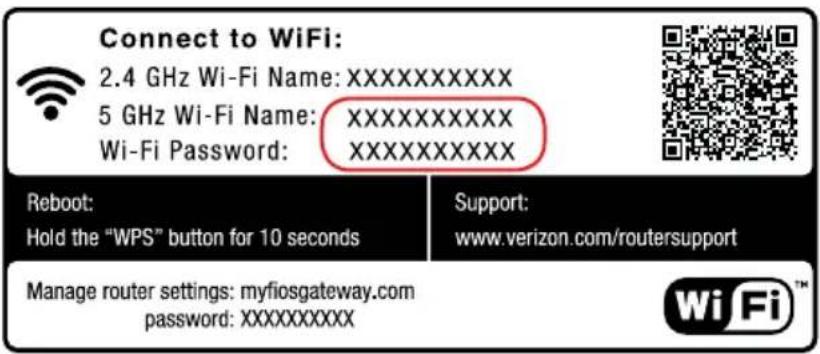
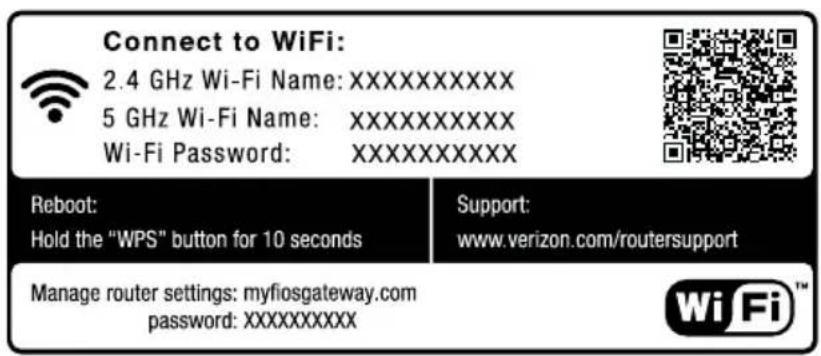
The side panel of your Gateway has a label that contains important information about your device, including the default settings for the Gateway's wireless network name (ESSID), wireless password (WPA2 key), local URL for accessing the Gateway's administrative pages, and Gateway administrator password. The label also contains a QR code that you can scan with your smartphone, tablet, or other camera-equipped Wi-Fi device to allow you to automatically connect your device to your Wi-Fi network without typing in a password (requires a QR code reading app with support for Wi-Fi QR codes).
text_image
Connect to WiFi: 2.4 GHz Wi-Fi Name:XXXXXXXXX 5 GHz Wi-Fi Name:XXXXXXXXX Wi-Fi Password:XXXXXXXXX Reboot: Hold the "WPS" button for 10 seconds Support: www.verizon.com/routersupport Manage router settings: myfiosgateway.com password:XXXXXXXXX1.3c/REAR PANEL
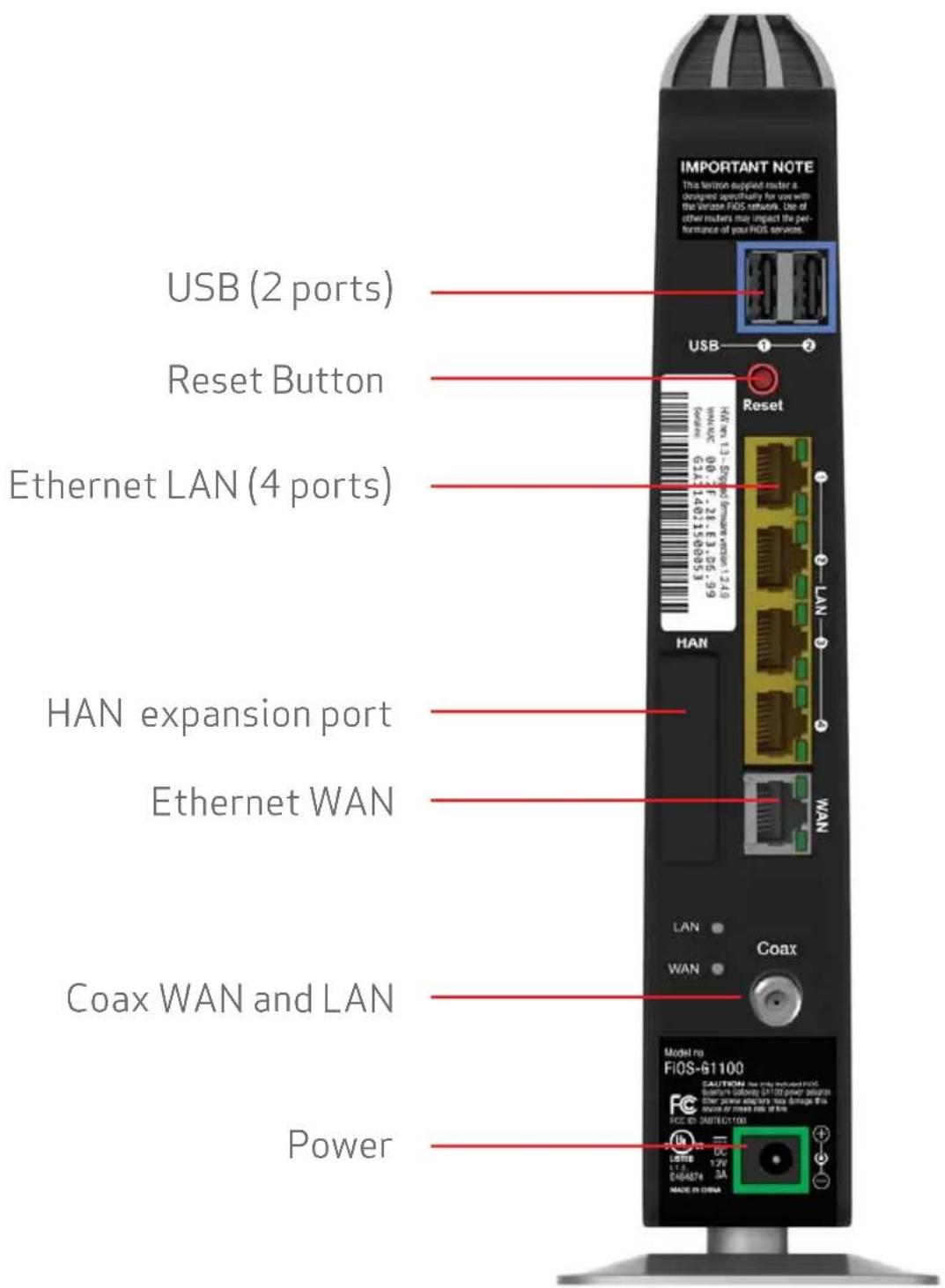
The rear panel of your Gateway has 8 ports; COAX, Ethernet LAN [4], Ethernet WAN, and USB [2]. The rear panel also includes a DC power jack and a reset button.
text_image
IMPORTANT NOTE This Verizon supplied router a designed specificity for use with the Verizon FiOS network. Use of other routers may impact the performance of your FiOS services. USB (2 ports) Reset Button Ethernet LAN (4 ports) HAN expansion port Ethernet WAN Coax WAN and LAN PowerGETTING TO KNOW YOUR GATEWAY
- USB - provides up to 500 mA at 5 VDC for attached devices. For example, you could charge a cell phone. In the future, with a firmware upgrade, the USB host functionality may be available for other devices, such as external storage and cameras. Firmware updates are performed automatically by Verizon.
- Reset Button - allows you to reset your Gateway to the factory default settings. To reset the Gateway, press and hold the Reset button for at least three seconds.
- Ethernet LAN - connects devices to your Gateway using Ethernet cables to join the local area network (LAN). The four Ethernet LAN ports are 10/100/1000 Mbps auto-sensing and can be used with either straight-through or crossover Ethernet cables.
• HAN Expansion Port - provides for future hardware upgrades to add support for Home Area Networking capabilities. - Ethernet WAN - connects your Gateway to the Internet using an Ethernet cable.
- Coax WAN and LAN - connects your Gateway to the Internet and/or to other MoCA devices using a coaxial cable.
Warning: The WAN Coax Port is intended for connection to Verizon FiOS only. It must not be connected to any exterior or interior coaxial wires not designated for Verizon FiOS.
• Power - connects your Gateway to an electrical wall outlet using the supplied power adapter.
Warning: The included power adapter is for home use only, supporting voltages from 100-240Vac. Do not use in environments with greater than 240Vac.
1.3d/MOUNTING THE GATEWAY TO A WALL
For optimum performance, the FiOS Quantum Gateway is designed to stand in a vertical upright position. Verizon does not recommend wall mounting the FiOS Quantum Gateway. However, if you wish to mount your Gateway, you can purchase a wall mount bracket from the Verizon FiOS Accessories Store at verizon.com/fiosaccessories.
If you are replacing an existing Verizon wall mounted router, you do not need to remove the mounting screws from the wall. The existing mounting screws will fit the new bracket.
To mount your Gateway to a wall:
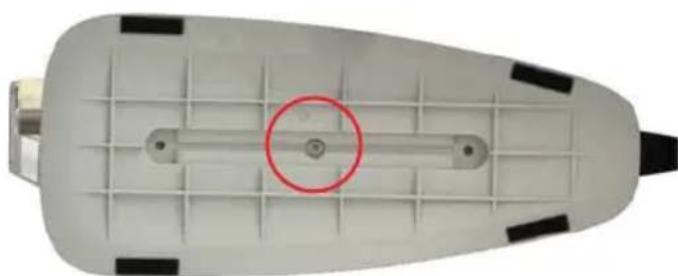
- Remove the foot by turning the Gateway upside down and removing the single screw that holds the foot to the Gateway.
natural_image
Top-down view of a white plastic tray with grid pattern and a red circle highlighting a central hole (no text or symbols)-
Slide the foot toward the front of the Gateway and pull the foot from the holes. You may need to wiggle the foot slightly.
-
You may use the wall mount bracket as a template for positioning the Gateway.
GETTING TO KNOW YOUR GATEWAY
-
Mark the mounting holes, then remove the wall mount bracket from the wall.
-
Drill holes for the screw anchors.
-
Insert the screw anchors in the holes in the wall, then insert the screws into the screw anchors and tighten the screws. Leave screws extended about 0.2 inches from the wall.
-
Verify the screws are positioned correctly by placing the wall bracket on the screws. Remove the wall bracket from the wall.
-
Place the Gateway on the wall bracket and slide the Gateway forward until it locks in place.
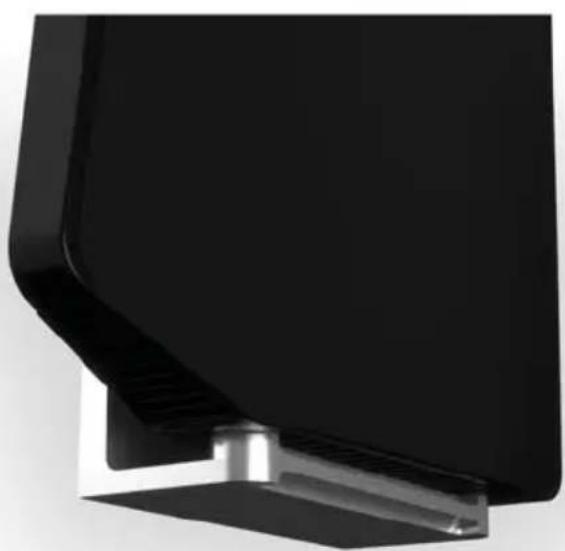
natural_image
Close-up of a black mechanical component with metallic base and mounting bracket (no visible text or symbols)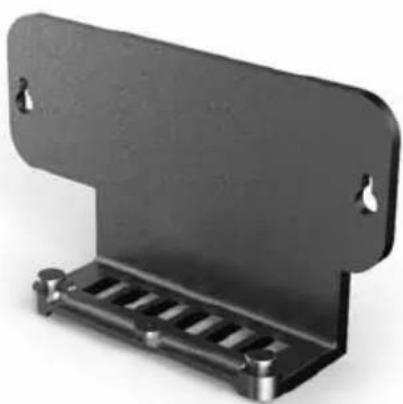
natural_image
Metal bracket with mounting holes and a row of slots (no text or symbols visible)-
To secure the Gateway, attach the bracket to the Gateway using the single screw you removed from the foot.
-
Slide the wall mount bracket with the attached Gateway on the screws, then slide the bracket down until it locks in place.
02/
CONNECTING YOUR GATEWAY
2.0 Setting Up Your Gateway
2.1 Computer Network Configuration
2.2 Main Screen
Connecting your Gateway and accessing its web-based Graphical User Interface (GUI) are both simple procedures.
Accessing the GUI may vary slightly, depending on your device's operating system and web browser.
2.0/SETTING UP YOUR GATEWAY
There are three basic steps to setting up your Gateway:
Step 1: Connect your Gateway to the Internet
Step 2: Connect your network device to your Gateway
Step 3: Configure your Gateway
Before you begin, if you are replacing an existing Gateway, disconnect it. Remove all old Gateway components, including the power supply. They will not work with your new Gateway.
2.0a/STEP 1 - CONNECT YOUR GATEWAY
- Remove your Gateway, Ethernet cables, and power adapter from the box.
- Locate your high-speed Internet (WAN) outlet. This would be the wall jack installed previously by Verizon. Note the type of jack may be either Ethernet or coaxial.
- Connect your Gateway to the Internet (WAN).
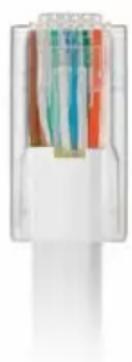
- If connecting the WAN using Ethernet, use the supplied white Ethernet cable and plug one end into the white Ethernet WAN port on the back of your Gateway. Plug the other end of the cable into the high-speed Ethernet wall jack.
natural_image
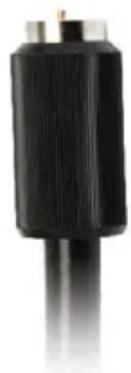
Close-up of a white electrical connector with colored wires (no visible text or symbols)- If connecting the WAN using coaxial cable, locate a coaxial cable and connect one end to the coax port on the back of your Gateway. Connect the other end of the coaxial cable to a coax wall jack.
Tighten the coaxial cables by hand until snug. The cables should not require a wrench.
natural_image
Close-up of a black cylindrical electronic component with metallic pins (no visible text or symbols)- Plug the power cord into the power port on the back of your Gateway and then into a power outlet. The Gateway automatically turns on as soon as power is plugged in.
Important: Wait until the Power/Internet light on the front of the Gateway stops flashing and is solid white. If the light turns red, check the troubleshooting steps in the Troubleshooting section of the user guide.

2.0b/STEP 2 - CONNECT YOUR DEVICE TO YOUR GATEWAY
If connecting a device using wired Ethernet (preferred for initial setup):
- Plug one end of the supplied yellow Ethernet cable into one of the four yellow Ethernet ports in the back of your Gateway. Alternatively, you can use your own Ethernet cable of any color to connect from the yellow Ethernet ports on the back of your Gateway to your device with an Ethernet connector.
- Plug the other end of the yellow Ethernet cable into the Ethernet port of your network device.
If connecting a wireless device:
- Access the Wi-Fi setting on your wireless device, then select your new Gateway using the wireless network name (ESSID) shown on the sticker located on the side of your Gateway.
- Enter the wireless password (WPA2 key) also shown on the sticker.
text_image
Connect to WiFi: 2.4 GHz Wi-Fi Name:XXXXXXXXX 5 GHz Wi-Fi Name:XXXXXXXXX Wi-Fi Password:XXXXXXXXX Reboot: Hold the "WPS" button for 10 seconds Support: www.verizon.com/routersupport Manage router settings: myfiosgateway.com password:XXXXXXXXX2.0c/STEP 3 - CONFIGURE YOUR GATEWAY:
- Open a web browser on the device connected to your Gateway network.
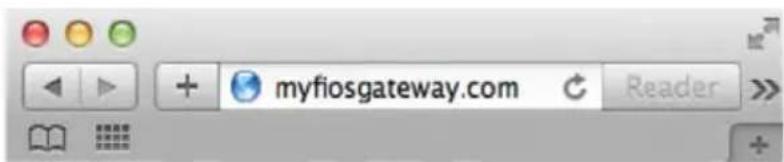
- In the browser address fi eld (URL), enter: myfiosgateway.com, then press the Enter key on your keyboard.
Alternately, you can enter: https://192.168.1.1
text_image
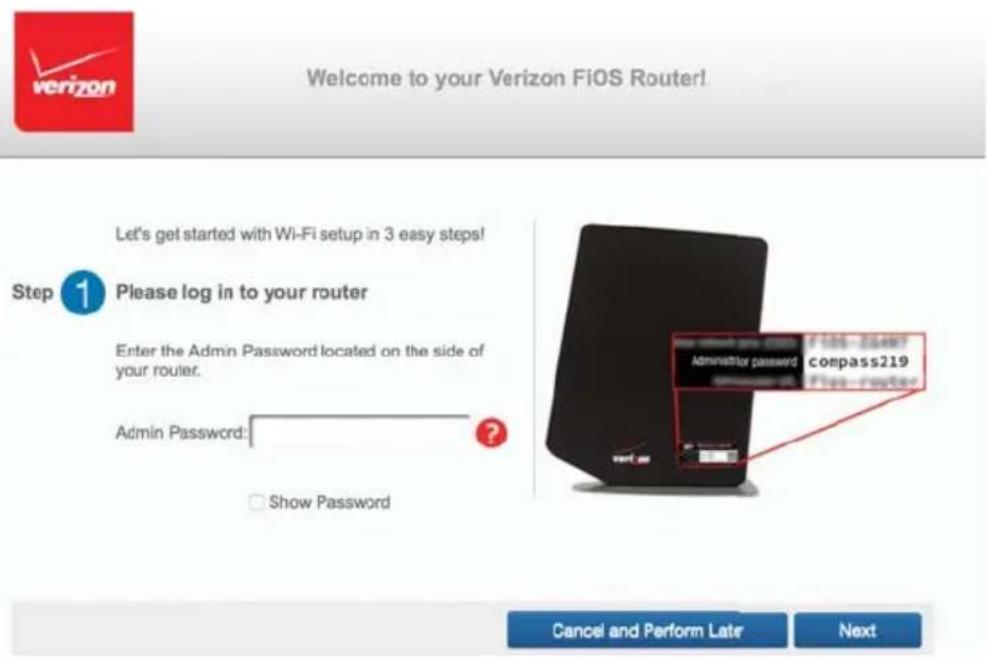
myfiosgateway.com ReaderThe first time you access your Gateway, an Easy Setup Wizard displays to help step you through the setup process.
text_image
Welcome to your Verizon FiOS Router! Let's get started with Wi-Fi setup in 3 easy steps! Step 1 Please log in to your router Enter the Admin Password located on the side of your router. Admin Password: ? Show Password Administrator password compass219 FIOS - START Fios - Router Cancel and Perform Later Next- In the Admin Password field, enter the password that is printed next to the Administrator Password on the label on the side of your Gateway.
text_image
Connect to WiFi: 2.4 GHz Wi-Fi Name:XXXXXXXXX 5 GHz Wi-Fi Name:XXXXXXXXX Wi-Fi Password:XXXXXXXXX Reboot: Hold the "WPS" button for 10 seconds Support: www.verizon.com/routersupport Manage router settings: myfiosgateway.com password:XXXXXXXXX- ClickNext. The Personalize Your Wi-Fi Settings screen displays. Click on the check box next to Setup your Guest Wi-Fi (Optional) to personalize your Guest Wi-Fi Name and Password.

Welcome to your Verizon FiOS Router!
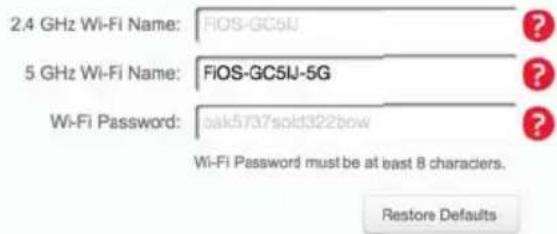
Step 2 Personalize Your Wi-Fi Settings
Your router is pre-configured with the Wi-Fi settings below. It has 2 different networks which you can use. You may use the default name or change the name to something easier to remember.
text_image
2.4 GHz Wi-Fi Name: FIOS-GC5U 5 GHz Wi-Fi Name: FIOS-GC5U-5G Wi-Fi Password: oak5737sold322bow Wi-Fi Password must be at east 8 characters. Restore DefaultsSetup and Enable Your Guest Wi-Fi (Optional)
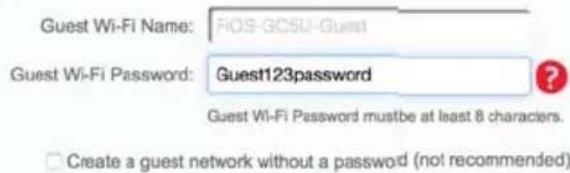
A Guest Wi-Fi network is a simple and secure (encrypted) secondary network. Users on this network have "Internet Only" access and will not be able to connect tc devices running on your Primary "Home" network. Keep your Primary "Home" network secure by creating a Guest Network just for your guests!
text_image
Guest Wi-Fi Name: FIOS-GC5U-Guest Guest Wi-Fi Password: Guest123password Guest Wi-Fi Password must be at least 8 characters. □ Create a guest network without a password (not recommended)
For your protection, your Gateway is pre-set at the factory to use WPA2/WPA mixed mode (Wi-Fi Protected Access) encryption for your wireless network. This is the best setting for most users and provides maximum security.
SETTING UP YOUR GATEWAY AND COMPUTER NETWORK CONFIGURATION
- Click Continue. The Apply to Save Your Wi-Fi Settings screen appears. You have an option of saving the Wi-Fi settings as an image on your device by clicking the Save as Picture button. After you click Save as Picture to save your Wi-Fi settings as an image, click Apply to save the Wi-Fi changes to your Gateway.
Important: If you are on a Wi-Fi device when setting up your Gateway, you will be disconnected from the Wi-Fi network when you change the Wi-Fi name or Wi-Fi password. When this occurs, your Gateway will detect this situation and prompt you to reconnect using the new settings.

Welcome to your Verizon FiOS Router!
Step 3 Click Apply To Save Your Wi-Fi Settings
2.4 GHz Wi-Fi Name: FiOS-GC5J
5 GHz Wi-Fi Name: FiOS-GC5J-5G
Wi-Fi Password: oak5737sold322bow
Guest Wi-Fi: Off
You can add devices in one simple step. If your new device has WPS, simply press the WPS button on the router & on your new device. They will automatically and securely connect.
Don't forget to download the MyFiOS App, which allows you to manage your router remotely, enable and manage parental controls, manage your guest network and provides additional ways to add devices.
You can download MyFiOS App from the Google Play Store or Apple App Store.

Available on the
App Store

GET IT OK Google play
Google play
The Congratulations! You're All Set Up screen displays once your Gateway verifies the final settings and has successfully connected to the Internet and is ready for use. You can click on Main Router Settings to access the Main screen of the Gateway or click on Start Browsing and you will be directed to the Verizon.com website.

Welcome to your Verizon FiOS Router!
Congratulations! You're All Set Up.
Start Browsing
Main Router Settings
If your Gateway is subsequently reset to the factory default settings, the settings printed on the label will again be in effect.
If your Gateway fails to connect, follow the troubleshooting steps in the Troubleshooting section of this guide.
2.1/COMPUTER NETWORK CONFIGURATION
Each network interface on your computer should either automatically obtain an IP address from the upstream Network DHCP server (default configuration) or be manually configured with a statically defined IP address and DNS address. We recommend leaving this setting as is.
2.1a/CONFIGURING DYNAMIC IP ADDRESSING
To configure a computer to use dynamic IP addressing:
WINDOWS 7/8
- In the Control Panel, locate Network and Internet, then select View Network Status and Tasks.
- In the View your active networks – Connect or disconnect section, click Local Area Connection in the Connections field. The Local Area Connection Status window displays.
- Click Properties. The Local Area Connection Properties window displays.
- Select Internet Protocol Version 4 (TCP/IPv4), then click Properties. The Internet Protocol Version 4 (TCP/IPv4) Properties window displays.
- Click the Obtain an IP address automatically radio button.
- Click the Obtain DNS server address automatically radio button, then click OK.
- In the Local Area Connection Properties window, click OK to save the settings.
- To configure Internet Protocol Version 6 (TCP/IPv6) to use dynamic IP addressing, repeat step 1 to 7. However for step 3, select Internet Protocol Version 6 (TCP/IPv6) in the Properties option (refer to IPv6 section for Gateway configuration).
MACINTOSH OS X
- Click the Apple icon in the top left corner of the desktop. A menu displays.
- Select System Preferences. The System Preferences window displays.
- Click Network.
- Verify that Ethernet, located in the list on the left, is highlighted and displays Connected.
- Click Assist Me.
- Follow the instructions in the Network Diagnostics Assistant.
2.1b/CONNECTING OTHER COMPUTERS & NETWORK DEVICES
You can connect your Gateway to other computers or set top boxes using an Ethernet cable, wireless connection (Wi-Fi), or coaxial cable.
ETHERNET
- Plug one end of an Ethernet cable into one of the open yellow Ethernet ports on the back of your Gateway.
- Plug the other end of the Ethernet cable into an Ethernet port on the computer.
- Repeat these steps for each computer to be connected to your Gateway using Ethernet. You can connect up to four.
CONNECTING A WI-FI DEVICE USING WPS
Wi-Fi Protected Setup (WPS) is an easier way for many devices to set up a secure wireless network connection. Instead of manually entering passwords or multiple keys on each wireless client, such as a laptop, printer, or external hard drive, your Gateway creates a secure wireless network.
In most cases, this only requires the pressing of two buttons – one on your Gateway and one on the wireless client. This could be either a built-in button or one on a compatible wireless adapter/card, or a virtual button in software. Once completed, this allows wireless clients to join your wireless network.
To initialize the WPS process, you can either press and release the WPS button located on the front of your Gateway or use the GUI and press the on-screen button.
You can easily add wireless devices to your wireless network using the WPS option if your wireless device supports the WPS feature.
To access WPS using the user interface:
- From the Main menu, select Wireless Settings, then select Wi-Fi Protected Setup (WPS).


MAIN

WIRELESS SETTINGS

MY NETWORK

TIREWALL

PARENTAL CONTROLS

ADVANCED

SYSTEM MONITORING
Main
Wireless Status
Basic Security Settings
Advanced Security Settings
Wi-Fi Protected Setup (WPS)
Logout

Wi-Fi Protected Setup (WPS)
Wi-Fi Protected Setup is an easy way to add wireless devices to your network. To use this feature, your wireless client device needs to support WPS
Warning: Wireless devices may briefly lose connectivity when turning WPS ON or OFF
Wi-Fi Protected Setup:


You have two alternate methods to add a wireless device to your network using WPS:

Push button configuration (preferred):
If your client device has a WPS button, press it and then click the button below to start WPS registration.

WPS
OR

PIN enrollment
If your client device has a WPS PIN, enter that number below (usually found on a sticker on the back of the device) and click "Register":
Client WPS PIN:
Register
Alternatively, if your client supports it, enter the router's PIN into the client device:
Enable Router's PIN 27342190
- Enable the protected setup by moving the selector to On.
-
Use one of the following methods:
-
If your wireless client device has a WPS button, press the WPS button on your Gateway, then click the WPS button on your wireless device (client) to start the WPS registration process.
- If your client device has a WPS PIN, locate the PIN printed on the client's label or in the client documentation.
COMPUTER NETWORK CONFIGURATION AND MAIN SCREEN
Enter the PIN number in the Client WPS PIN field. The Client WPS PIN field is located in the section B - PIN Enrollment on the user interface.
Click Register.
- Alternatively, you can enter the Gateway's PIN shown on this screen into the WPS user interface of your device, if this PIN mode is supported by your wireless device.
- After pressing the WPS button on your Gateway, you have two minutes to press the WPS button on the client device before the WPS session times out.
When the WPS button on your Gateway is pressed, the Wireless light on the front of your Gateway begins flashing white. The flashing continues until WPS pairing to the client device completes successfully. At this time, the Wireless light turns solid white.
If WPS fails to establish a connection to a wireless client device within two minutes, the Wireless light on your Gateway flashes red for two minutes to indicate the WPS pairing process was unsuccessful. After flashing red, the light returns to solid white to indicate that Wi-Fi is on.
CONNECTING A WI-FI DEVICE USING A PASSWORD
- Verify each device that you are connecting wirelessly (using Wi-Fi) has a built-in wireless or external wireless adapter.
-
Open the device's wireless settings application.
-
Select your Gateway's wireless network name (SSID) from the device's list of discovered wireless networks.
-
When prompted, enter your Gateway's wireless password (WPA2 key) into the device's wireless settings. Your Gateway's default wireless network name and wireless password are located are on the sticker on the side of your Gateway.
-
Verify the changes were implemented by using the device's web browser to access a site on the Internet.
-
Repeat these steps for every device that you are wirelessly connecting to your Gateway.
COAXIAL
-
Verify all coax devices are turned off.
-
Disconnect any adapter currently connected to the coaxial wall jack in the room where your Gateway is located.
-
Connect one end of the coaxial cable to the coaxial wall jack and the other end to the Coax port on your network device.
-
Power up the network device.
2.2/MAIN SCREEN
When you log into your Gateway, the page displays showing the Main navigation menu at the top of the page and your Gateway's Status, including Quick Links, My Network, and Verizon Zone display in the body of the page.


MAIN

WIRELESS SETTINGS

MY NETWORK

FIREWALL

PARENTAL CONTROLS

ADVANCED

SYSTEM MONITORING
Status

Router Status:
Ethernet Status: Connected
Connection Type: DHCP
IP Address: 71.177.239.99
Quick Links

Broadband Connection
User Guide
Change Wireless Settings
Change Admin Password
Port Forwarding
GNU General Public License
Verizon Help
Logout
My Network
Primary Network
Show More

htcPhone
Connection: 📋 Wireless 2.4G
Connection Type: 802.11g
IP Address: 192.168.1.37
Status: Inactive

iPhone
Connection: 📋 Wireless 5G
Connection Type: 802.11n
IP Address: 192.168.1.7
Status: Active

asus-pc
Connection: Ethernet
IP Address: 192.108.1.100
Status: Active
Guest Network

iPad
Connection: ▼ Wireless 2.4G
Connection Type: 802.11g
IP Address: 192.168.1.2
Status Active
Verizon Zone
Verizon.com
My Verizon Account
My Business Account
Support
Watch TV Online
2.2a/MENU
The Main menu links across the top of the page to the following configuration options and chapters:
• Wireless Settings - Chapter 3
• My Network - Chapter 5
- Firewall - Chapter 6
• Parental Controls - Chapter 7
• Advanced - Chapter 8
• System Monitoring - Chapter 9
2.2b/STATUS
This section displays the status of your Gateway's local network (LAN) and Internet connection (WAN).
BROADBAND CONNECTION
Broadband Connection displays the state of the broadband connection:
- Broadband interface: Ethernet or Coax
- Connected status: Connected or No Connection
- Connection Type: DHCP or Static
• WAN IP address: Address of the broadband connection
QUICK LINKS
Quick Links contains frequently accessed documentation, such as User Guide and Verizon Help, and settings, such as Change Wireless Settings, Change Admin Password, and Port Forwarding as well as Logout.
MY NETWORK
My Network displays the connection type, IP address, and status of all devices that have accessed or are currently connected to the network.
The icon associated with the device displays to signify the device is active or shaded gray to indicate the device has not been active for several minutes. You can view the individual settings of each device by clicking its icon.
VERIZON ZONE
The Verizon Zone contains links to various Verizon web sites and other informational links.
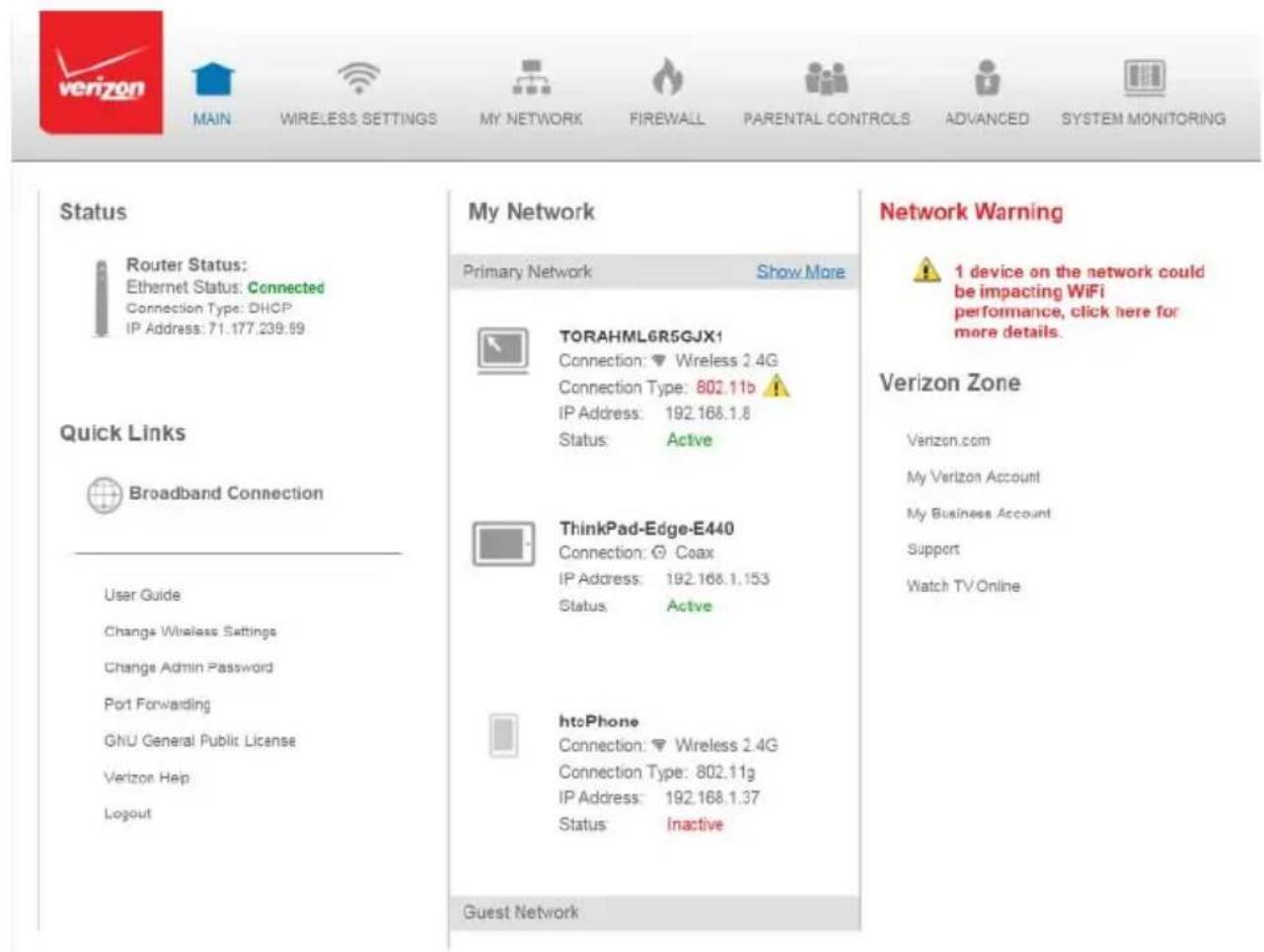
Note: You may see an alert when using an older 802.11b device indicating the Wi-Fi network performance maybe affected, as shown in the example below.
text_image
Status Router Status: Ethernet Status: Connected Connection Type: DHCP IP Address: 71.177.239.99 Quick Links Broadband Connection User Guide Change Wireless Settings Change Admin Password Port Forwarding GNU General Publik License Verizon Help Logout My Network Primary Network Show More TORAHML6R5GJX1 Connection: Wireless 2.4G Connection Type: 802.11b IP Address: 192.168.1.8 Status: Active ThinkPad-Edge-E440 Connection: Coax IP Address: 192.168.1.153 Status: Active htcPhone Connection: Wireless 2.4G Connection Type: 802.11g IP Address: 192.168.1.37 Status: Inactive Guest Network Network Warning 1 device on the network could be impacting WiFi performance, click here for more details. Verizon Zone Verizon.com My Verizon Account My Business Account Support Watch TV Online03/
WIRELESS SETTINGS
3.0 Overview
3.1 Wireless Status
3.2 Basic Security Settings
3.3 Advanced Security Settings
3.4 Wireless MAC Authentication
3.5 802.11 Mode
3.6 Other Advanced Wireless Options
3.7 Guest Wi-Fi Settings
Wireless networking enables you to free yourself from wires and plugs, making your devices more accessible and easier to use.
You can create a wireless network, including accessing and configuring wireless security options.
3.0/ OVERVIEW
Your Gateway provides you with wireless connectivity using the 802.11b, g, n, or ac standards. These are the most common wireless standards.
802.11b has a maximum data rate of 11 Mbps, 802.11g has a maximum data rate of 54 Mbps, 802.11n has a maximum data rate of 450 Mbps, and 802.11ac has a maximum data rate of 1300 Mbps.
802.11b and g standards operate in the 2.4 GHz range. 802.11n operates in both the 2.4 GHz and 5 GHz ranges. 802.11ac operates in the 5 GHz range.
Note: 802.11 b is a legacy mode and is not recommended. Even one 802.11b device connected to the network will slow your entire wireless network.
The wireless service and wireless security are activated by default. The level of security is preset to WPA2 encryption using a unique default WPA2 key (also referred to as a passphrase or password) pre-configured at the factory. This information is displayed on a sticker located on the side of your Gateway.
Your Gateway integrates multiple layers of security. These include Wired Equivalent Privacy (WEP), Wi-Fi Protected Access (WPA/WPA2), and fi rewall.
text_image
Connect to WiFi: 2.4 GHz Wi-Fi Name:XXXXXXXXX 5 GHz Wi-Fi Name:XXXXXXXXX Wi-Fi Password:XXXXXXXXX Reboot: Hold the "WPS" button for 10 seconds Support: www.verizon.com/routersupport Manage router settings: myfiosgateway.com password:XXXXXXXXX3.1/ WIRELESS STATUS
Use the Wireless Status feature to view the status of your Gateway's wireless network.
To view the status:
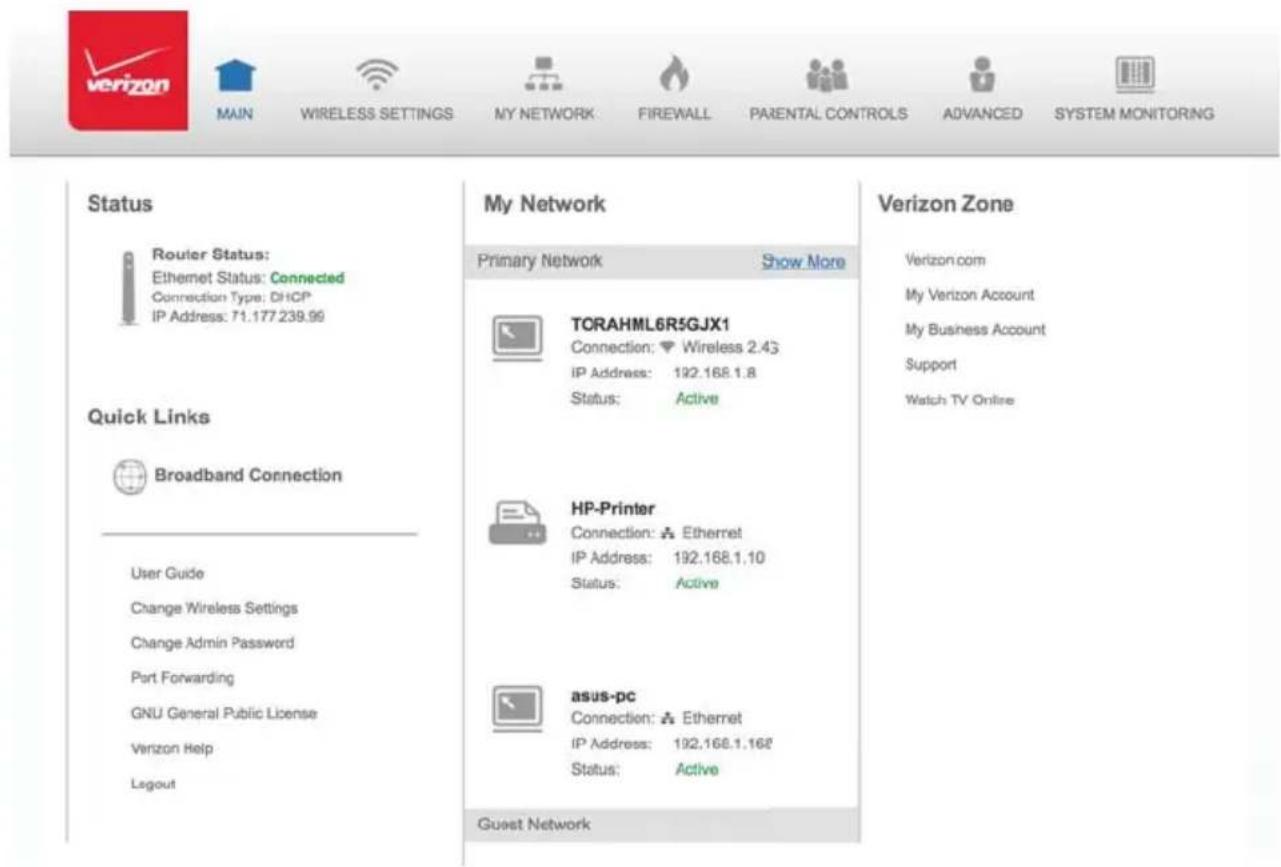
- Access the Main page. You can quickly view your Gateway's wireless status in the My Network column. This includes all devices that have recently accessed or are currently connected to the network.
text_image
Status Router Status: Ethernet Status: Connected Connection Type: DHCP IP Address: 71.177.239.99 Quick Links Broadband Connection User Guide Change Wireless Settings Change Admin Password Port Forwarding GNU General Public License Verizon Help Legout My Network Primary Network Show More TCRAHML6R5GJX1 Connection: Wireless 2.43 IP Address: 192.168.1.8 Status: Active HP-Printer Connection: Ethernet IP Address: 192.168.1.10 Status: Active asus-pc Connection: Ethernet IP Address: 192.168.1.168 Status: Active Guest Network Verizon Zone Verizon.com My Verizon Account My Business Account Support Watch TV Online- Select the Wireless Settings icon. The Wireless Status page displays additional wireless details.







Main
Wireless Status
Basic Security Settings
Advanced Security Settings
Wi-Fi Protected Setup (WPS)
Logout
2.4 GHz Wireless Status
| Radio Enabled: | Yes |
| SSID: | FIOS-GC5IJ |
| Channel: | Automatic |
| Security Enabled: | Yes |
| WEP 64-bit: | N/A |
| WPA2: | oak5737sold122bow |
| SSID Broadcast: | Enabled |
| MAC Authentication: | Disabled |
| Wireless Mode: | Compatibility Mode(802.11b/g/n) |
| WMM: | Enabled |
| Received Packets: | 538 |
| Sent Packets: | 566 |
5 GHz Wireless Status
| Radio Enabled: | Yes |
| SSID: | FIOS-GC5IJ-5G |
| Channel: | Automatic |
| Security Enabled: | Yes |
| WPA2: | cak5737solid322bow |
| SSID Broadcast: | Enabled |
| MAC Authentication: | Disabled |
| Wireless Mode: | N and AC Mode(802.11n/ac) |
| WMN: | Enabled |
| Received Packets: | 234 |
| Sent Packets: | 8798 |
-
On the Wireless Status page for either 2.4 GHz or 5 GHz, the following information displays:
-
Radio Enabled - displays whether the wireless radio is active. When the radio is not enabled, no wireless devices will be able to connect to the home network.
- SSID - displays the SSID (Service Set Identifier) shared among all devices on a wireless network. The SSID is the network name. All devices must use the same SSID.
- Channel - displays the channel the wireless connection is currently using.
- Security Enabled - displays the type of security active on the wireless connection as well as the security encryption key.
- SSID Broadcast - displays whether your Gateway is broadcasting its SSID. If activated, the SSID of your Gateway wireless network is broadcast wirelessly. If not activated, the SSID is hidden and the wireless clients must be manually configured to use the SSID.
- MAC Authentication - displays whether your Gateway is using MAC (Media Access Control) address authentication to allow wireless devices to join the network.
-
Wireless Mode - displays the types of wireless device that can join the network.
-
WMM - displays if WMM is enabled on your Gateway.
- Packets Received/Sent - displays the number of packets received and sent since the wireless capability was activated.
3.2/ BASIC SECURITY SETTINGS
You can configure the basic security settings for your Gateway's wireless network.
WIRELESS STATUS AND BASIC SECURITY SETTINGS


MAIN

WIRELESS SETTINGS

MY NETWORK

FIREWALL

PARENTAL CONTROLS

ADVANCED

SYSTEM MONITORING
Main
Wireless Status
Basic Security Settings
Advanced Security Settings
Gues! Wi-Fi Settings
Wi-Fi Protected Setup
(WPS)
Logout
Basic Security Settings
- Turn Wireless On
2.4 GHz Wireless:


5 GHz Wireless:


- Change the SSID setting to any name or code you want (SSID is the same thing as the name of your Wireless Network.)
2.4 GHz
SSID:
FiOS-GC5IJ
5 GHz SSID:
FiOS-GC5IJ-5G
- Channel
To change the channel of the frequency band at which the Router communicates, please enter it below. Then click apply to save your settings:
2.4 GHz
Channel:
Automatic

5 GHz
Channel:
Automatic

√ Keep my channel selection during power cycle.
To configure the basic security radio, SSID and channel settings:
- On the Wireless Setting page, select Basic Security Settings.
- To activate the wireless radio, click the On radio button.
- If desired, enter a new name for the wireless network in the SSID field or leave the default name that displays automatically.
- Select the channel you want the wireless radio to use to communicate or accept the default Automatic channel, then select the Keep my channel selection during power cycle check box to save your channel selection when your Gateway is rebooted.
To configure the basic Wi-Fi Security settings, select a Security option:
4. Wi-Fi Security
Securing your Wi-Fi traffic as it transmits through the air, we recommend you use WPA2 security, unless you experience compatibility issues.
| Risk Level | 2.4 GHz Security | 5 GHz Security |
| Low | WPA2 | WPA2 |
| Medium | WPA2/WPA mixed mode | WPA2/WPA mixed mode |
| High | WEP | |
| High | None | None |
WPA/WPA2 Mixed Mode
If WPA/WPA2 Mixed Mode (Wi-Fi Protected Access) was selected, the WPA Key page displays. Selecting WPA/WPA2 Mixed Mode allows the security mode to be automatically set by the gateway based on the security capabilities of the client device. WPA/WPA2 mixed mode is the default wireless security protocol.
To set the WPA/WPA2 Mixed Mode security:
- Enter the Pre-Shared Key as a wireless password.
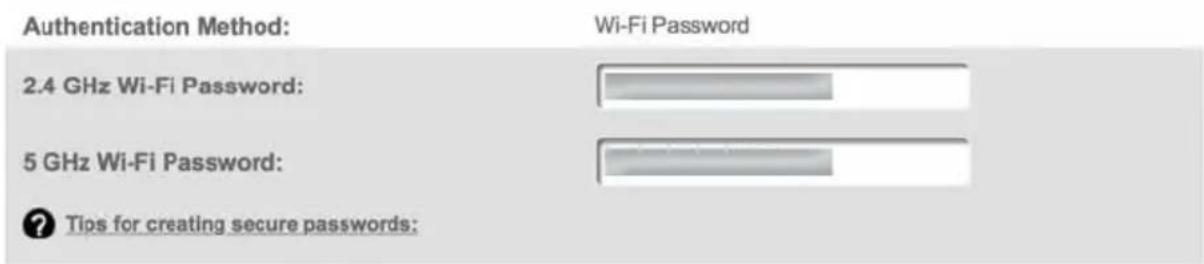
text_image
Authentication Method: Wi-Fi Password 2.4 GHz Wi-Fi Password: 5 GHz Wi-Fi Password: ? Tips for creating secure passwords:- To activate the group key update interval, select the Group Key Update Interval check box and set the interval time in seconds.
- Click Apply to save the changes.
WPA2
If WPA2 (Wi-Fi Protected Access II) was selected, the WPA2 page displays.
To set the WPA2 security:
- Enter the Pre-Shared Key.
Authentication Method:
Wi-Fi Password
2.4 GHz Wi-Fi Password:

5 GHz Wi-Fi Password:

? Tips for creating secure passwords:
- To activate the group key update interval, select the Group Key Update Interval check box and set the interval time in seconds.
- Click Apply to save the changes.
WEP
If WEP was selected, the WEP Settings page displays.
Warning: WEP provides a low level of security and is not recommended. Additionally, the WEP security setting will drop your Gateway's wireless performance to a maximum data rate of 54 Mbps, and will disable Wi-Fi Protected Setup (WPS). WEP should only be enabled if you have wireless client devices that don't support WPA or WPA2.
Select a WEP Password
- To create a 64/40 WEP Hex Password, you need to enter a combination of 10 digits. You can choose any letter from A-F or any number from 0-9. Sample HEX WEP Password: 0FB310FF28.
- To create a 64/40 WEP ASCII, you need to enter a combination of 5 ASCII characters. Sample ASCII WEP Password: hello.
- To create a 128/104 WEP Hex Password, you need to enter a combination of 26 digits. You can choose any letter from A-F or any number from 0-9. Sample HEX WEP Password: 0FB310FF280FB310FF28123456.
- To create a 128/104 WEP ASCII, you need to enter a combination of 13 ASCII characters. Sample ASCII WEP Password: hellohello123.
Password Tips:
Use a mix of letters and numbers. Don't use personal information that could be guessed or easily discovered (for example, names of family members, birthdates, phone numbers)
2.4 GHz Wi-Fi
Select a WEP Password:
64/40 bit

HEX

2.4 GHz Wi-Fi Password:

10 Digits Left
Note: Your Gateway's recommended wireless security encryption is set to WPA2. This is the factory default.
This section explains how to activate WEP (Wired Equivalent Privacy) wireless security. WEP is a signifi cantly less robust security compared to WPA or WPA2 and is not recommended. To set up WPA2 wireless security, refer to the WPA2 section.
To configure basic security to WEP:
- To turn on WEP (Wired Equivalent Privacy) security, click the WEP radio button.
- Select a WEP security level as 64/40 bit or 128/104 bit.
- Enter the key code. If using a HEX key, each character must be a letter from A to F or a number from 0 to 9. If the key is ASCII, each character can be either any ASCII or alphanumeric character.
If using 64/40 bit, enter 10 HEX or 5 ASCII/alphanumeric characters. If 128/104, enter 26 HEX or 13 ASCII/alphanumeric characters.
- Be sure to write down the wireless settings for future use. Other wireless devices that will be connected to your Gateway must be configured to use these settings to join your Gateway's wireless network.
- Click Apply to save changes.
3.3/ ADVANCED SECURITY SETTINGS
You can change your advanced wireless security settings, such as confi guring wireless encryption to help protect your network from unauthorized access or damage to your network devices; disable your SSID broadcast to secure your wireless traffic; stop your Gateway from broadcasting your SSID; set Wireless MAC Authentication to limit access to specific wireless devices; and change the wireless mode to limit or allow access to your wireless network based on the type of technology as well as other advanced wireless options.
To modify the security settings for either 2.4 GHz or 5 GHz:
- In the Wireless Settings page, select Advanced Security Settings.
Authentication Method:
Wi-Fi Password
2.4 GHz Wi-Fi Password:
oak5737sold322bow
5 GHz Wi-Fi Password:
oak5737sold322bow
? Tips for creating secure passwords:
3.3a/ LEVEL 1: SECURING YOUR NETWORK
In the Level 1 section, select the type of wireless security. Depending on your selection, one of the following pages displays.
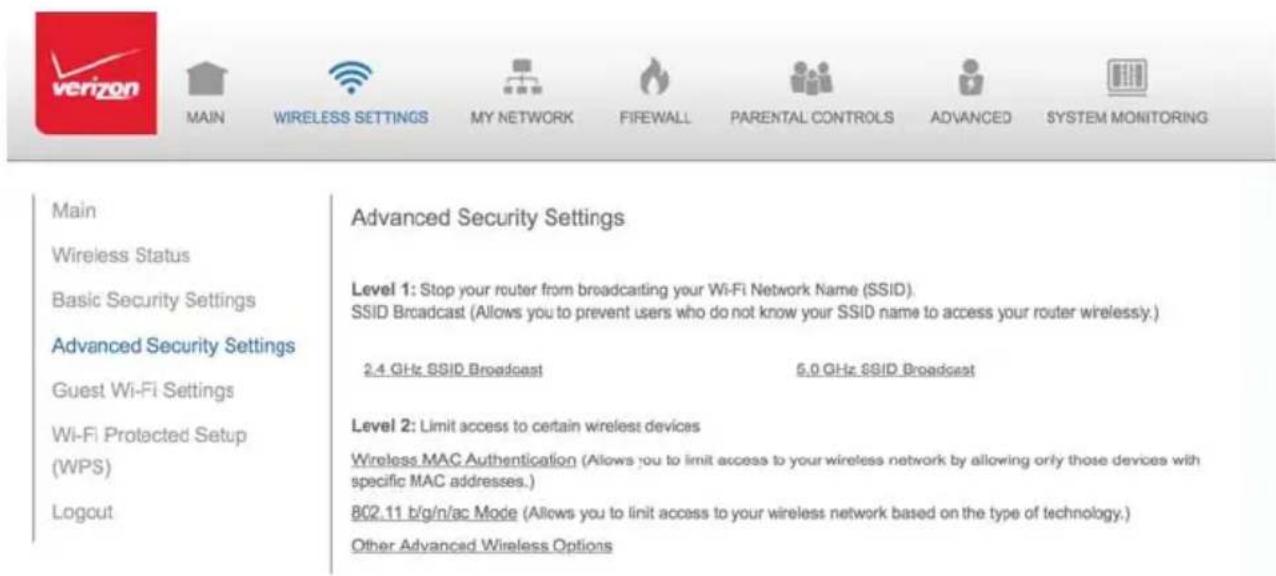
3.3b/ LEVEL 1: SSID BROADCAST
You can configure your Gateway's SSID broadcast capabilities to allow or disallow wireless devices from automatically using a broadcast SSID name to detect your Gateway wireless network.
To enable or disable SSID broadcast:
- In the Advanced Settings page, locate the Level 2 section.
text_image
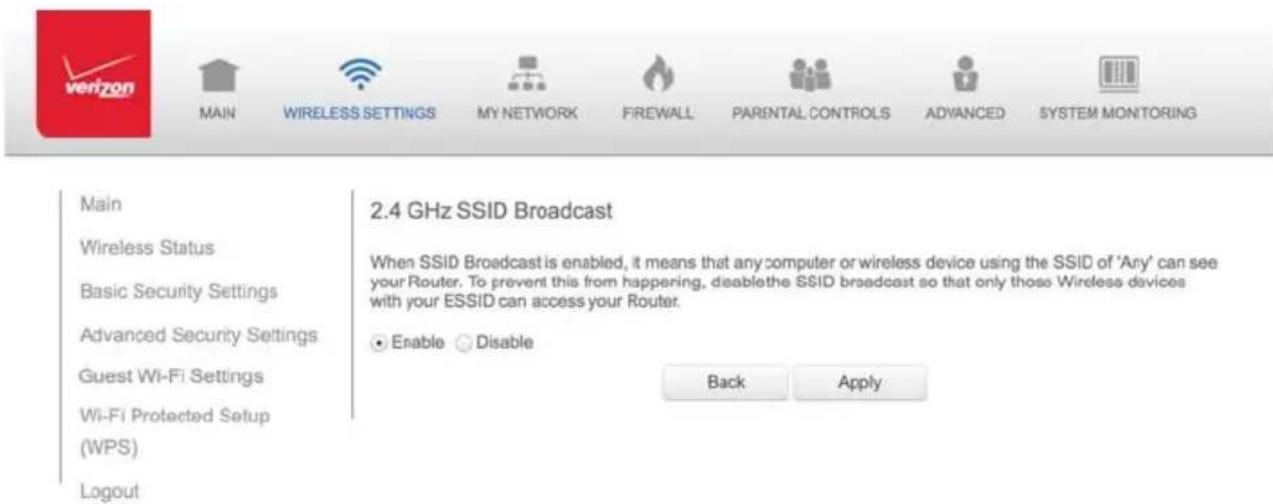
Main Wireless Status Basic Security Settings Advanced Security Settings Guest Wi-Fi Settings Wi-Fi Protected Setup (WPS) Logout Advanced Security Settings Level 1: Stop your router from broadcasting your Wi-Fi Network Name (SSID). SSID Broadcast (Allows you to prevent users who do not know your SSID name to access your router wirelessly.) 2.4 GHz SSID Broadcast 5.0 GHz SSID Broadcast Level 2: Limit access to certain wireless devices Wireless MAC Authentication (Allows you to limit access to your wireless network by allowing only those devices with specific MAC addresses.) 802.11 b/g/n/ac Mode (Allows you to limit access to your wireless network based on the type of technology.) Other Advanced Wireless Options- Click the 2.4 GHz SSID Broadcast or 5 GHz SSID Broadcast link for the wireless network you wish to modify. The following example uses the 2.4 GHz network. The display configuration looks basically the same for the 5 GHz network.
text_image
Main Wireless Status Basic Security Settings Advanced Security Settings Guest Wi-Fi Settings Wi-Fi Protected Setup (WPS) Logout MAIN WIRELESS SETTINGS MY NETWORK FIREWALL PARENTAL CONTROLS ADVANCED SYSTEM MONITORING 2.4 GHz SSID Broadcast When SSID Broadcast is enabled, it means that any computer or wireless device using the SSID of 'Any' can see your Router. To prevent this from happening, disable the SSID broadcast so that only those Wireless devices with your ESSID can access your Router. ● Enable ○ Disable Back Apply- To enable SSID broadcasting, click the Enable radio button. SSID broadcast is enabled by default. The SSID of the wireless network will be broadcast to all wireless devices.
- To disable SSID broadcasting, click the Disable radio button. The public SSID broadcast will be hidden from all wireless devices. You will need to manually configure additional wireless devices to join the wireless network.
- Click Apply to save the changes.
3.3c/ LEVEL 2: LIMIT ACCESS
You can configure your Gateway to limit access to your wireless network allowing access only to those devices with specific MAC addresses or based on the type of wireless technology used.
To limit access:
- In the Advanced Settings page, locate the Level 2 section.
Level 2: Limit access to certain wireless devices
Wireless MAC Authentication (Allows you to limit access to your wireless network by allowing only those devices with specific MAC addresses.)
802.11 b/g/n/ac Mode (Allows you to limit access to your wireless network based on the type of technology.)
Other Advanced Wireless Options
- To allow only devices with specific MAC addresses, click the Wireless MAC Authentication link. The Wireless MAC Authentication page displays. For additional details, refer to the Wireless MAC Authentication section.
- To limit access based on the type of technology, click the 802.11 b/g/n/ac Mode link. The 802.11 b/g/n/ac Mode page displays. For additional details, refer to the 802.11 b/g/n/ac Mode section.
- To access other advanced wireless options, click the Other Advanced Wireless Options link. The Other Advanced Wireless Options page displays. For additional details, refer to the Other Advanced Wireless Options section.
3.4/ WIRELESS MAC AUTHENTICATION
You can allow or deny access to your wireless network by specifying devices with specific MAC addresses.
To set wireless MAC authentication:
- On the Advanced Settings page, locate the Level 2 section and click the Wireless MAC Authentication link. The Wireless MAC Authentication page displays.
- To enable access control, select the Enable Access List check box.
- Select either:
- Accept all devices listed below – allows only the listed devices to access the wireless network.
Warning: This will block wireless network access for all devices not in the list. Only devices in the list will be able to connect to the wireless network.
- Deny all devices listed below – denies access to the listed devices. All other wireless devices will be able to access the wireless network if they use the correct wireless password.
WIRELESS MAC AUTHENTICATION


MAIN

WIRELESS SETTINGS

MY NETWORK

FIREWALL

PARENTAL CONTROLS

ADVANCED

SYSTEM MONITORING
Main
Wireless Status
Basic Security Settings
Advanced Security Settings
Wi-Fi Protected Setup (WPS)
Logout
Wireless MAC Authentication
To limit access to this Router using the MAC address of specific wireless devices, please follow the instructions below.
- Click the box next to 'Enable Access List'
If you want to limit access to a certain list of wireless devices:
- Click the box next to 'Accept alldevices listed below'
- Enter the MAC Address of first Wireless device and then click Add.
- Repeat the process for each Wireless device that you want to have access to the network.
- Verify that all devices were entered properly by reviewing the list at the bottom.
- Click Apply to save your settings.
If you want to allow access to any wireless device except for a certain group:
- Click the box next to 'Deny all devices listed below'.
- Enter the MAC Address of first Wireless device that you want denied and then click Add.
- Repeat the process for each Wireless device that you do NOT want to have access to the network.
- Verify that all devices were enered properly by reviewing the list at the bottom.
- Click Apply to save your settings.
2.4 GHz Wireless
Enable Access List
Accept all devices listed below
- Deny all devices listed below
Client MAC Address:
Add
Sample MAC Address: 00:20:e0:00:41:00
List:
AB:CD:EF:GH:IJ:KL
Remove
11:CD:EF:GH:IJ:KL
Remove
5.0 GHz Wireless
Enable Access List
Accept all devices listed below
- Deny all devices listed below
Client MAC Address:
Artel
Sample MAC Address: 00:20:e0:00:41:00
List:
33:CD:E:GH:U:KL
Remove
44:CD:E:GH:U:KL
Remove
Back
Apply
- Enter the MAC address of a device, then click Add.
- Repeat step 2 to add additional devices, as needed.
- To remove a specific device's MAC address, click the Remove button next to the specific MAC address.
- When all changes are complete, click Apply to save changes.
3.5/802.11 MODE
From the 802.11 Mode page, you can limit the wireless access to your network by selecting the 2.4 GHz and 5 GHz wireless communication standard (mode) best suited or compatible with the devices you allow access to your wireless network.


MAIN

WIRELESS SETTINGS

MY NETWORK

FIFEWALL

PARENTAL CONTROLS

ADVANCED

SYSTEM MONITORING
Main
Wireless Status
Basic Security Settings
Advanced Security Settings
Wi-Fi Protected Setup (WPS)
Logout
802.11 Mode
Access to the Router's network can be restricted to wireless devices using either 802.11b/g (11Mbps/54Mbps) or 802.11n (130 Mbps) wireless devices. Select the option that best applies to your wireless network. Then click Apply button to save your settings.
NOTE:
'Compatibility Mode' to support 802.1'bg & 802.11n.
"Legacy Mode" to support only 802.11g.
2.4 GHz Wireless Mode:
Compatibility Mode(802.11b/g/n)

5 GHz Wireless Mode:
N and AC Mode(802.11n/sc)

Back
Apply
To select the 802.11 Mode:
- On the Advanced Settings page, locate the Level 2 section and click the 802.11 Mode link. The 802.11 Mode page displays.
-
Select the 2.4 GHz Wireless Mode as follows:
-
Compatibility – This is the default mode setting, providing a good balance of performance and compatibility with existing wireless devices. 802.11b, g, and n devices can connect.
- Legacy – For older wireless devices. Only 802.11b and g devices can connect. 802.11b (legacy mode) will cause your wireless network to slow and is not recommended.
-
Performance – For newer wireless 802.11n devices only. No other devices can be used.
-
Select the 5 GHz Wireless Mode as follows:
-
N and AC Mode – This is the default setting. Both 802.11n and 802.11ac are available on the 5 GHz frequencies.
-
AC Only Mode – This provides maximum performance. 802.11ac devices will have exclusive use of the 5 GHz frequencies and 802.11n devices will not be able to connect at 5 GHz.
-
Click Apply to save the changes.
3.6/ OTHER ADVANCED WIRELESS OPTIONS
You can view additional wireless options.
Comment: Recommend leaving defaults as is unless otherwise directed.
To view the options:
- In the Advanced Settings page, locate the Level 2 section and click Other Advanced Wireless Options link. A warning message displays.
- Click Yes. The Other Advanced Wireless Options page displays.
Comment: The following example uses the 2.4 GHz network. The display configuration looks basically the same for the 5 GHz network.
OTHER ADVANCED WIRELESS OPTIONS


MAIN

WIRELESS SETTINGS

MY NETWORK

FIREWALL

PARENTAL CONTROLS

ADVANCED

SYSTEM MONITORING
Main
Wireless Status
Basic Security Settings
Advanced Security Settings
Wi-Fi Protected Setup (WPS)
Logout
2.4 GHz Advanced Wireless Options

Group Key Update Interval
3600
Seconds
Transmission Rate:
Auto
Channel Width:
20
Transmit Power:
100
%
CTS Protection Mode:
None
:
CTS Protection Type:
cts-only
+
Frame Burst - Max Number:
3
Frame Burst - Burst Time:
2
Beacon Interval:
100
ms
DTIM Interval:
1
ms
Fragmentation Threshold:
2346
RTS Threshold:
2347
MSDU Aggregation:
Enable
- Disable
MPDU Aggregation:
- Enable
Disahla
802.11n Guard Interval:
Dynamic
2.4 GHz WMM Settings
3. View the following options:
Caution: These settings should only be configured by experienced network technicians. Changing the settings could adversely affect the operation of your Gateway and your local network.
- Group Key Update Interval – time interval used to update the WPA shared key (used to generate the group key)
- Transmission Rate – displays status as Auto
- Channel Width – Controls the bandwidth of the wireless signal
• Transmit Power – adjusts the power of the wireless signal - CTS (Clear to Send) Protection Mode – allows mixed 802.11b/g/n/ac networks to operate at maximum efficiency
- CTS Protection Type - displays cts, which is only for mixed 802.11b/g/n/ac networks or rts_cts, which is for 802.11a/b/g networks
- Frame Burst - Max Number - allows packet bursting, which increases overall network speed
- Frame Burst - Burst Time - indicates the burst time of the frame bursts
- Beacon Interval – displays the time period of the beacon interval
- DTIM (Delivery Traffic Indication Message) Interval – provides a countdown mechanism, informing wireless network clients of the next window for listening to broadcast and multicast messages
- Fragmentation Threshold – increases the reliability of frame transmissions on the wireless network
OTHER ADVANCED WIRELESS OPTIONS
- RTS Threshold – controls the size of the data packet that the low level RF protocol issues to an RTS packet
- MSDU Aggregation – enables or disables MSDU aggregation
-
MPDU Aggregation – enables or disables MPDU aggregation
-
To access the WMM settings, click the WMM Settings link.
-
Click Apply to save changes.
3.6a/ WMM SETTINGS
You can prioritize the types of data transmitted over the wireless network using the advanced WMM settings.
Wireless QoS (WMM) can improve the quality of service (QoS) for voice, video, and audio streaming over Wi-Fi by prioritizing these data streams.
WMM Power Save can improve battery life on mobile Wi-Fi devices such as smart phones and tablets by fi ne-tuning power consumption.
WMM (Wi-Fi Multimedia) QoS and Power Save require a wireless client device which also supports WMM.
Note: The following example uses the 2.4 GHz network. The display configuration looks basically the same for the 5 GHz network.
To set the options:
- In the Advanced Wireless Options page, click WMM Settings link. A warning message displays.


MAIN

WIRELESS SETTINGS

MY NETWORK

FIREWALL

PARENTAL CONTROLS

ADVANCED

SYSTEM MONITORING
Main
Wireless Status
Basic Security Settings
Advanced Security Settings
Wi-Fi Protected Setup (WPS)
Logout
2.4 GHz Wireless QoS (WNM)
Wireless QoS (WMM):
Enabled
WMM Power Save:
Enabled
Apply
Cancel
- Click Yes. The WMM Settings page displays.
- To enable Wireless QoS (WMM), select the Enabled check box.
- To enable WMM Power Save, enable Wireless QoS (WMM) first, then enable WMM Power Save by selecting the Enabled check box.
- Click Apply to save changes.
3.7/ GUEST WI-FI SETTINGS
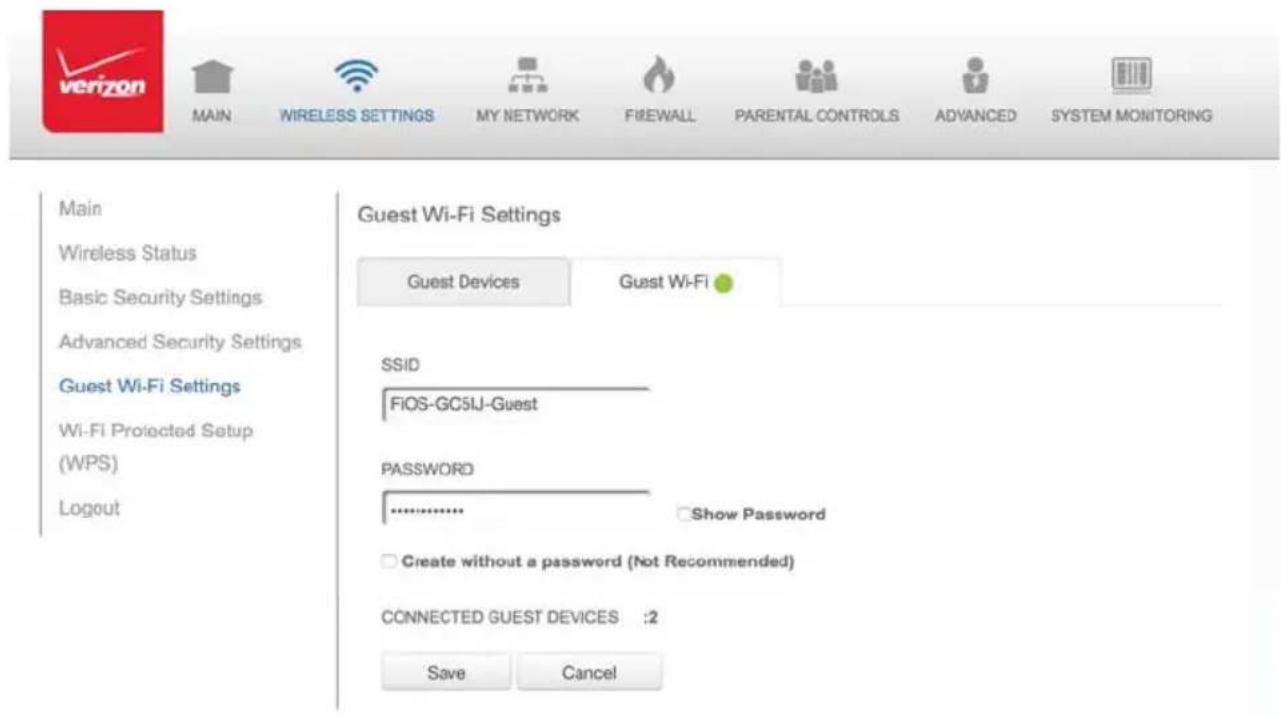
The Guest Wi-Fi network is designed to provide Internet connectivity to your guests but restricts access to your primary network and shared fi les. The primary network and the guest network are separated from each other through fi rewalls. You create one Guest Wi-Fi SSID and one password and use it for all guests. Guest Wi-Fi can be managed using either the Gateway's web interface, or via the Verizon MyFiOS app. The
guest network SSID does not change when you make a change to your primary network SSID.
The Gateway is shipped from the factory with Guest Wi-Fi turned off. The default SSID for Guest Wi-Fi is preconfi gured at the factory to the default wireless network name (ESSID) which is displayed on a sticker located at the side of the router followed by hyphen guest (-Guest). For example - if the router is shipped with a default SSID of "FiOS-ABCDE" then the default SSID for Guest Wi-Fi is "FiOS-ABCDE-Guest".
text_image
Main Wireless Status Basic Security Settings Advanced Security Settings Guest Wi-Fi Settings Wi-Fi Projected Setup (WPS) Logout Guest Wi-Fi Settings Guest Devices Guest Wi-Fi SSID FiOS-GC5IJ-Guest PASSWORD ................. Show Password Create without a password (Not Recommended) CONNECTED GUEST DEVICES :2 Save Cancel3.7a/ GUEST WI-FI
- From the Main menu, select Wireless Settings, then select Guest Wi-Fi Settings
- Select the Guest Wi-Fi tab
- Press the Edit button and enter a valid SSID and password
- Press Save to save changes

text_image
verizon MAIN WIRELESS SETTINGS MY NETWORK FIREWALL PARENTAL CONTROLS ADVANCED SYSTEM MONITORING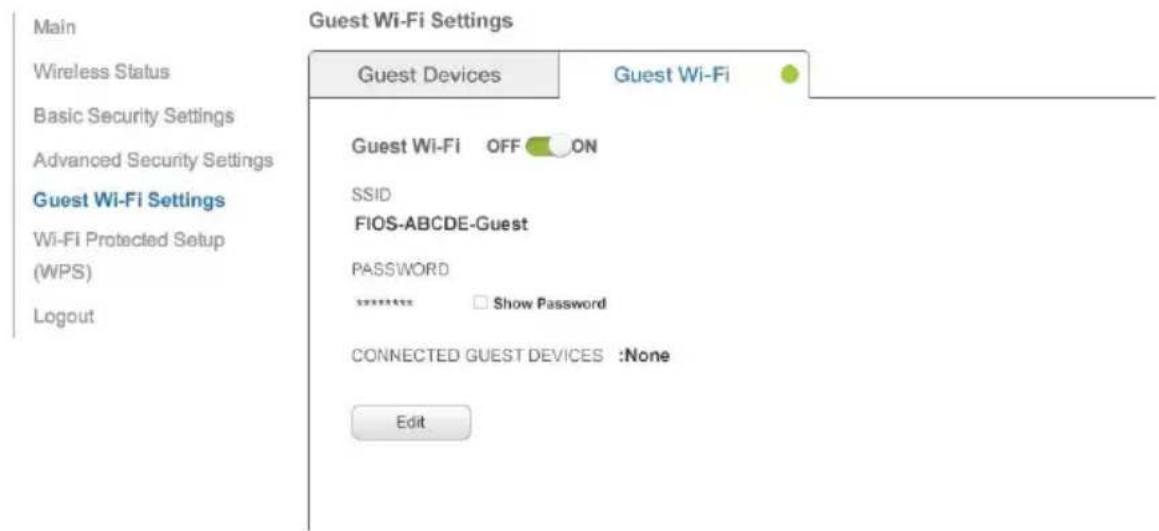
text_image
Main Wireless Status Basic Security Settings Advanced Security Settings Guest Wi-Fi Settings Wi-Fi Protected Setup (WPS) Logout Guest Wi-Fi Settings Guest Devices Guest Wi-Fi OFF ON SSID FIOS-ABCDE-Guest PASSWORD ********** Show Password CONNECTED GUEST DEVICES :None Edit- Toggle the Guest Wi-Fi button to ON
3.7b/ GUEST DEVICES
The devices on the Guest Wi-Fi network can be viewed on the Guest Devices page. If the admin toggles the button next to a device to OFF, that device will be blocked from accessing the Internet.

text_image
verizon MAIN WIRELESS SETTINGS MY NETWORK FIREWALL PARENTAL CONTROLS ADVANCED SYSTEM MONITORING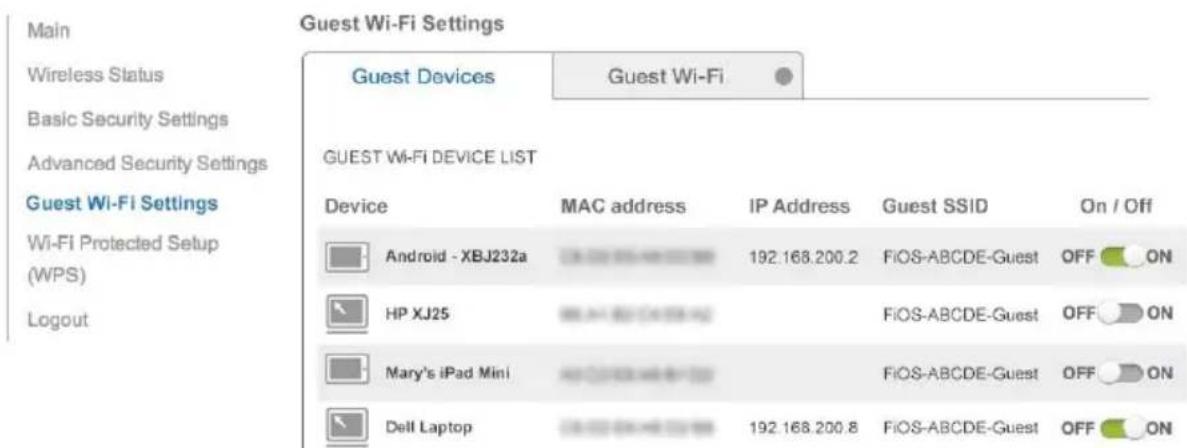
text_image
Main Guest Wi-Fi Settings Wireless Status Guest Devices Guest Wi-Fi Basic Security Settings Advanced Security Settings Guest Wi-Fi Device LIST Device MAC address IP Address Guest SSID On / Off Wi-Fi Protected Setup (WPS) Logout Android - XBJ232a 192.168.200.2 FiOS-ABCDE-Guest OFF ON HP XJ25 Hi-Fi Access FiOS-ABCDE-Guest OFF ON Mary's iPad Mini FiOS-ABCDE-Guest OFF ON Dell Laptop 192.168.200.8 FiOS-ABCDE-Guest OFF ON04/
CONFIGURING MY NETWORK SETTINGS
4.0 Accessing My Network Settings
4.1 Using My Network Settings
You can configure the basic network settings for your Gateway's network.
Caution: The settings described in this chapter should only be configured by experienced network technicians. Changes could adversely affect the operation of your Gateway and your local network.
4.0/ACCESSING MY NETWORK SETTINGS
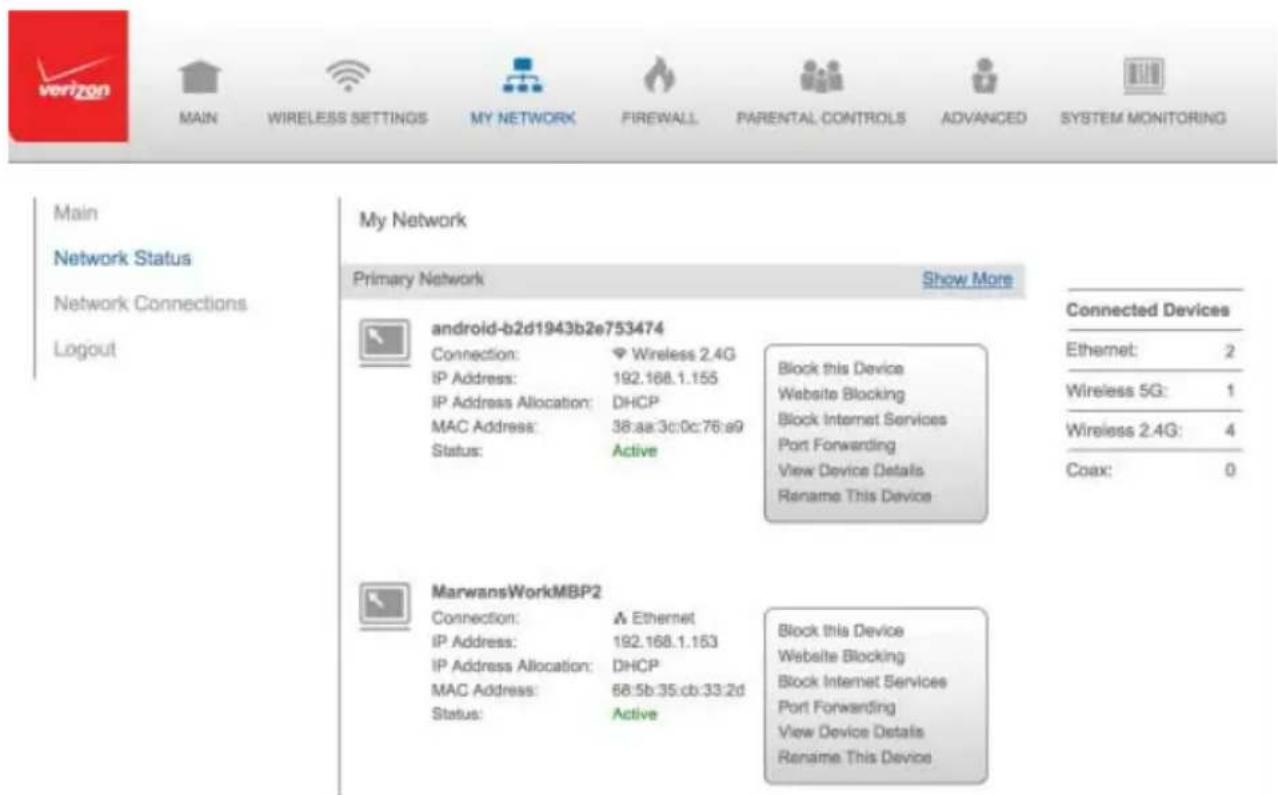
My Network allows you to view and manage your network connections and devices. You can block websites and Internet services, set port forwarding, view device details, and rename devices.
To view your network connections:
- On the Main page, select the My Network icon. The My Network page opens with our current status displayed.
text_image
Main Network Status Network Connections Logout My Network Primary Network Show More android-b2d1943b2e753474 Connection: ◆ Wireless 2.4G IP Address: 192.168.1.155 IP Address Allocation: DHCP MAC Address: 38:aa:3c:0c:76:a9 Status: Active Block this Device Website Blocking Block Internet Services Port Forwarding View Device Details Rename This Device Connected Devices Ethernet: 2 Wireless 5G: 1 Wireless 2.4G: 4 Coax: 0 MarwansWorkMBP2 Connection: ◆ Ethernet IP Address: 192.168.1.153 IP Address Allocation: DHCP MAC Address: 68:5b:35:cb:33:2d Status: Active Block this Device Website Blocking Block Internet Services Port Forwarding View Device Details Rename This Device4.1/USING MY NETWORK SETTINGS
You can access and configure common network parameters:
- Block this Device - Click Block this Device to quickly enable/disable a device from having Internet access.
Website Blocking - To block specific websites, click Website Blocking. The Parental Controls page displays.
For additional information about blocking websites, refer to Chapter 7 Setting Parental Controls.
- Block Internet Services - Internet services blocking prevents a device on your network from accessing specific services, such as receiving email or downloading files from FTP sites. Block Internet services by locating the device, then clicking Block Internet Services. The Access Control page displays.
For additional information on blocking Internet services, refer to the Access Control section in Chapter 6 Configuring Security Settings.
- Port Forwarding - Port Forwarding allows your network to be exposed to the Internet in specific limited and controlled ways. For example, you could allow specific applications, such as gaming, voice, and chat, to access servers in the local network. To access the Port Forwarding page, click Port Forwarding.
For additional information, refer to the Port Forwarding section in Chapter 6 Configuring Security Settings.
- View Device Details - Click View Device Details to display the Device Information page and view the selected device's information, such as IP Address, MAC address, Network Connection, Lease Type, Port Forwarding Services, and Windows Shared Folder as well as the Ping Test option. You can also click the device's icon in the Main page to display the Device Information page.
- Rename this Device - To change the name of a specific device, click Rename this Device. The Rename Device page displays.
If desired, enter the new device name and/or select a different icon. Click Apply to save changes. The My Network page will open with the new name and icon displayed.
05/
USING NETWORK CONNECTIONS
5.0 Accessing Network Connections
5.1 Network (Home/Office) Connection
5.2 Ethernet/Coax Connection
5.3 Wireless Access Point Connection
5.4 Broadband Ethernet/Coax Connection
Your Gateway supports various local area network (LAN) and wide area network (WAN), or Internet connections using Ethernet or coaxial cables.
You can configure aspects of the network and Internet connections as well as create new connections.
ACCESSING NETWORK CONNECTIONS
Caution: The settings described in this chapter should only be configured by experienced network technicians. Changes could adversely affect the operation of your Gateway and your local network.
5.0/ ACCESSING NETWORK CONNECTIONS
You can access your network connections and view the connections by connection type.
To access the network connections:
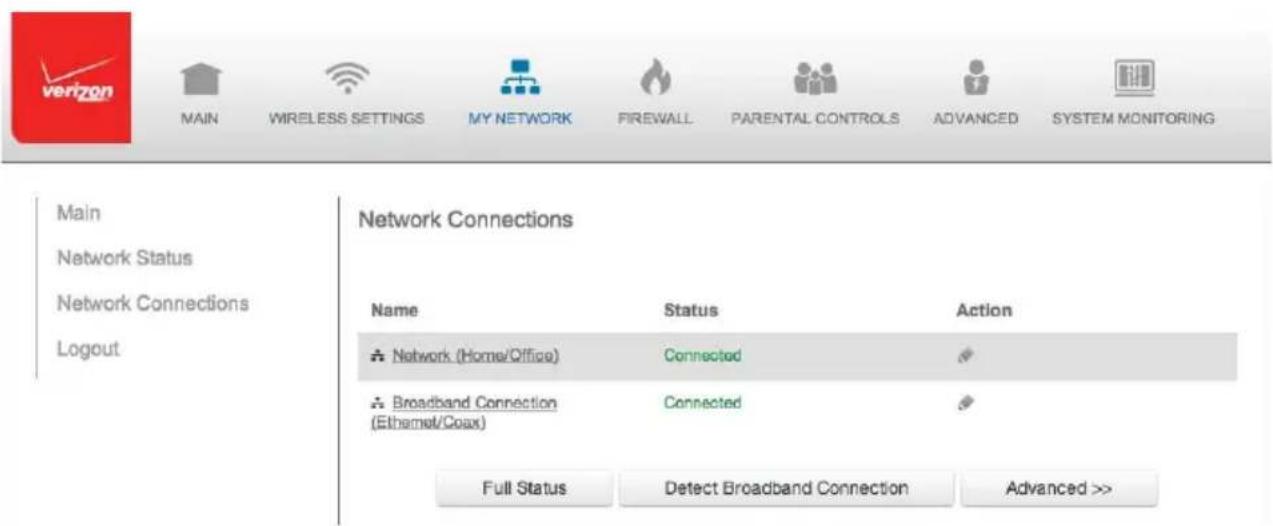
- Select My Network, then select Network Connections.
text_image
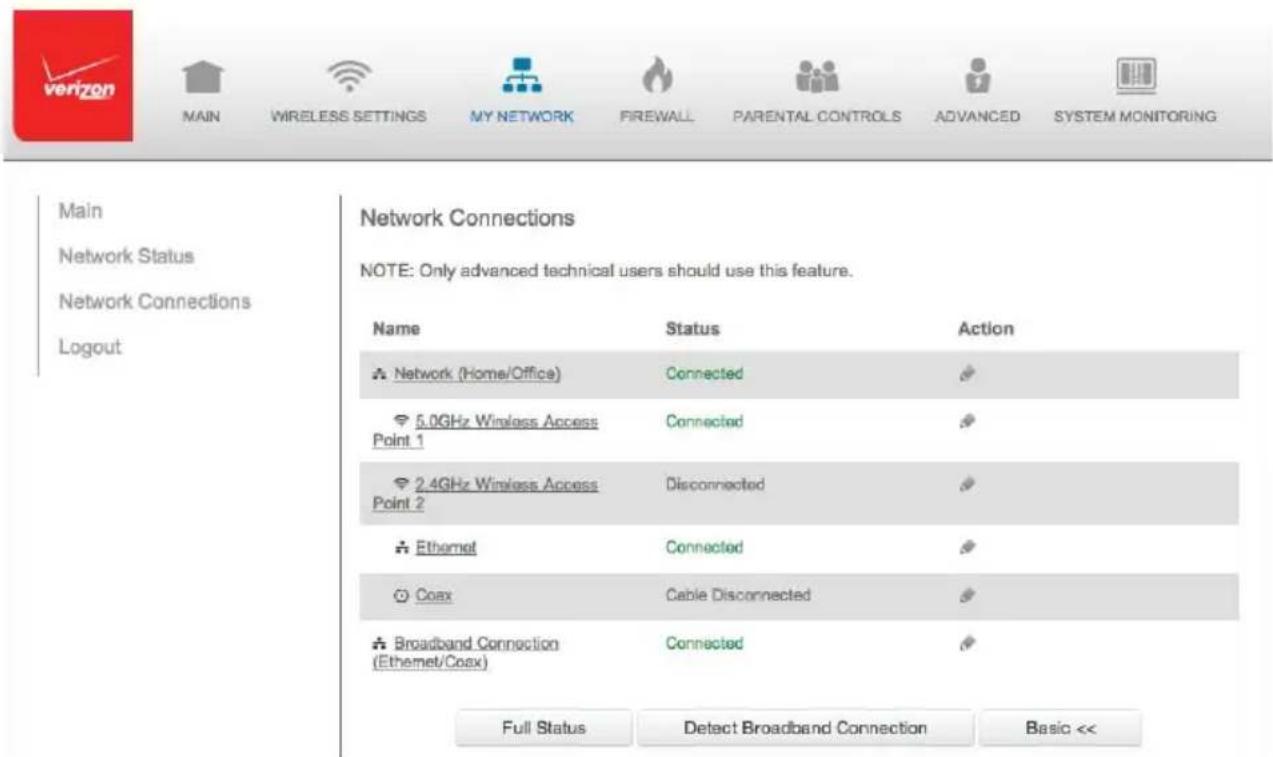
Main Network Status Network Connections Logout Network Connections Name Status Action Network (Home/Office) Connected Broadband Connection (Ethernet/Coax) Connected Full Status Detect Broadband Connection Advanced >>- To display all connection entries, click the Advanced button.
text_image
Main Network Status Network Connections Logout Network Connections NOTE: Only advanced technical users should use this feature. Name Status Action Network (Home/Office) Connected 5.0GHz Wireless Access Point 1 Connected 2.4GHz Wireless Access Point 2 Disconnected Ethernet Connected Coax Cable Disconnected Broadband Connection (Ethernet/Coax) Connected Full Status Detect Broadband Connection Basic <<- To view and edit the details of a specific network connection, click the hyperlinked name or the action icon. The following sections detail the types of network connections that you can view.
5.1/ NETWORK (HOME/OFFICE) CONNECTION
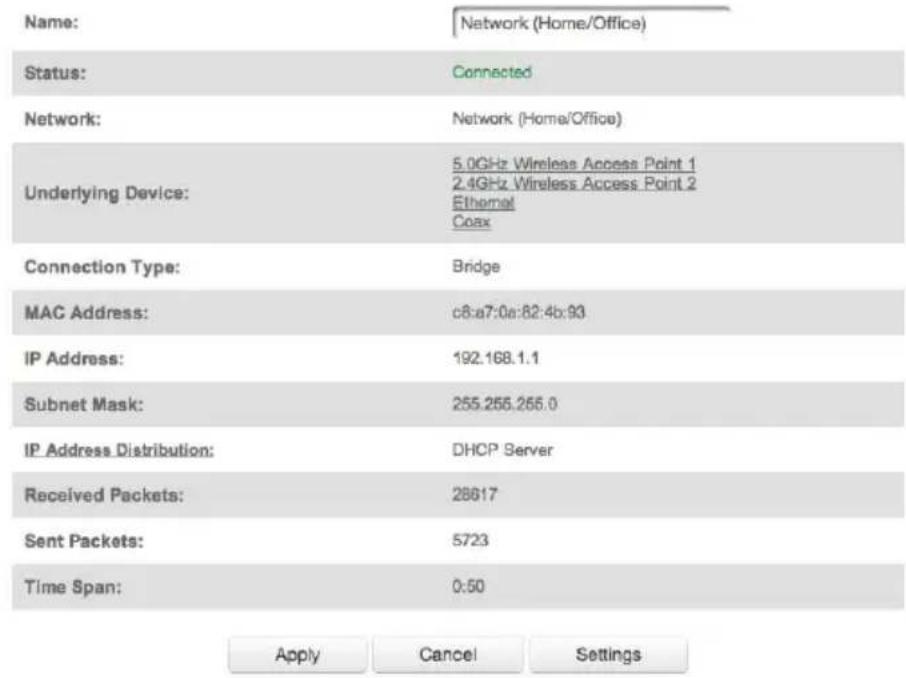
You can view the properties of your local network. This connection is used to combine several network interfaces under one virtual network. For example, you can create a home/offi ce network connection for Ethernet and other network devices.
NETWORK (HOME/OFFICE) CONNECTION
Note: When a network connection is disabled, the formerly underlying devices connected to it will not be able to obtain a new DHCP address from that Gateway network interface.
To view the connection:
- On the Network Connections page, click the Network (Home/Office) connection link. The Network (Home/Office) Properties page displays.

text_image
verizon MAIN WIRELESS SETTINGS MY NETWORK FIREWALL PARENTAL CONTROLS ADVANCED SYSTEM MONITORING
text_image
Main Network Status Network Connections LogoutNetwork (Home/Office) Properties
Note: Only advanced technical users should use this feature.
text_image
Name: Network (Home/Office) Status: Connected Network: Network (Home/Office) Underlying Device: 5.0GHz Wireless Access Point 1 2.4GHz Wireless Access Point 2 Ethemat Coax Connection Type: Bridge MAC Address: c8:a7:0a:82:4b:93 IP Address: 192.168.1.1 Subnet Mask: 255.255.255.0 IP Address Distribution: DHCP Server Received Packets: 28617 Sent Packets: 5723 Time Span: 0:50 Apply Cancel Settings-
To rename a network connection, enter the new network name in the Name fi eld.
-
Click Apply to save the changes.
CONFIGURING THE HOME/OFFICE NETWORK
To configure the network connection:
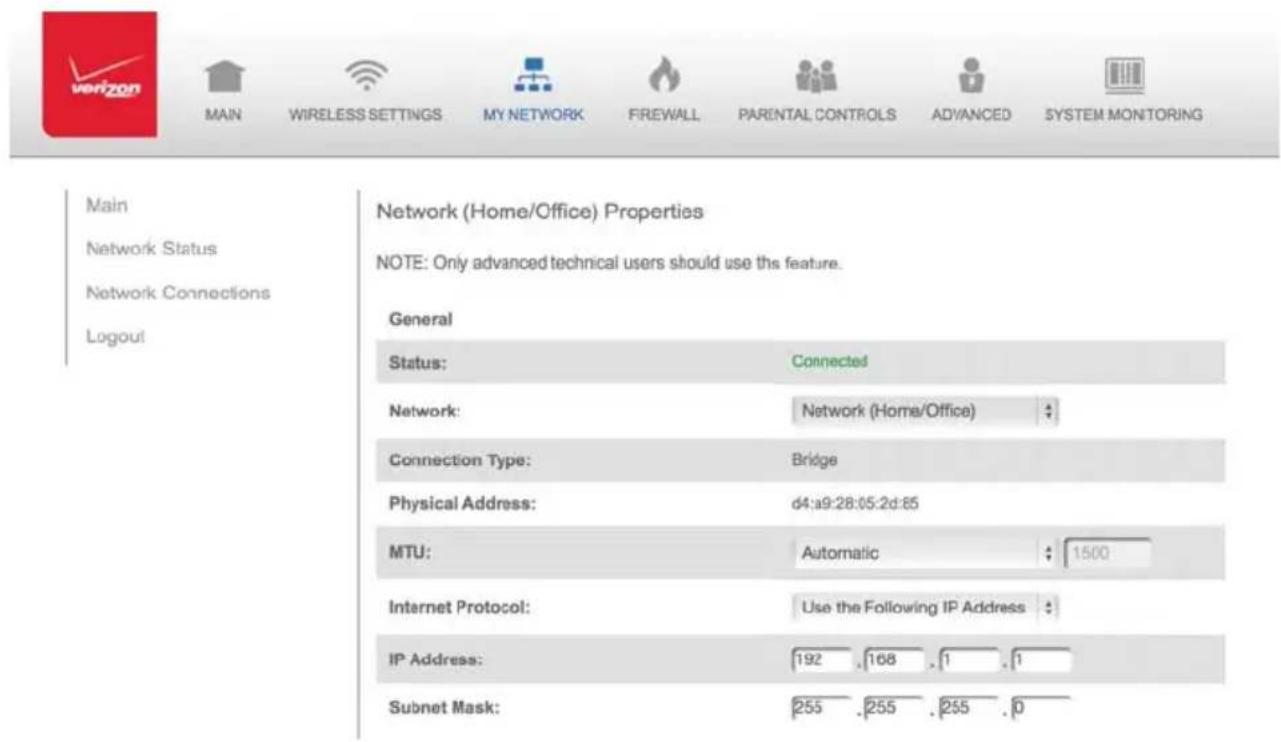
- In the Network (Home/Office) Properties page, click Settings. The configuration page displays.
text_image
Main Network Status Network Connections Logout Network (Home/Office) Properties NOTE: Only advanced technical users should use this feature. General Status: Connected Network: Network (Home/Office) Connection Type: Bridge Physical Address: d4:a9:28:05:2d:85 MTU: Automatic 1500 Internet Protocol: Use the Following IP Address IP Address: 192 .168 .1 .1 Subnet Mask: 255 .255 .255 .0- Configure the following sections, as needed.
GENERAL
In the General section, verify the following information:
- Status - displays the connection status of the network.
NETWORK (HOME/OFFICE) CONNECTION
- Network – displays the type of network connection.
- Connection Type - displays the type of connection.
• Physical Address - displays the physical address of the network card used for the network -
MTU - specifies the Maximum Transmission Unit (MTU) specifies the largest packet size permitted for Internet transmissions:
-
Automatic - sets the MTU at 1500
- Automatic by DHCP - sets the MTU according to the DHCP connection
- Manual - allows you to manually set the MTU
- Internet Protocol - in the internet protocol section, specify one of the following
- Use the Following IP Address - the network connection uses a permanent or static IP address and subnet mask address, provided by Verizon or experienced network technician.
BRIDGE
In the Bridge section of the Configure Network (Home/Office), you can configure the various LAN interfaces. By default, the Ethernet, Coax, and Wireless Access Point connections are included in the 'Network (Home/Office)' bridge.
Caution: Do not change these settings unless specifically instructed to by Verizon. Changes could adversely affect the operation of your Gateway and your local network.
Bridge
| Name | VLANs | Status | Action |
| Network (Home/Office) | Disabled | Connected | |
| Broadband Connection (Ethernet/Coax) | Disabled | Connected | |
| 5.0GHz Wireless Access Point 1 | Disabled | Disconnected | |
| 2.4GHz Wireless Access Point 2 | Disabled | Disconnected | |
| Ethernet | Disabled | Connected | |
| Coax | Disabled | Cable Disconnected |
Verify the following information:
- Status – displays the connection status of a specific network connection.
- Action – contains an icon that, when clicked, generates the next lower-level configuration page for the specific network connection or network device.
IP ADDRESS DISTRIBUTION
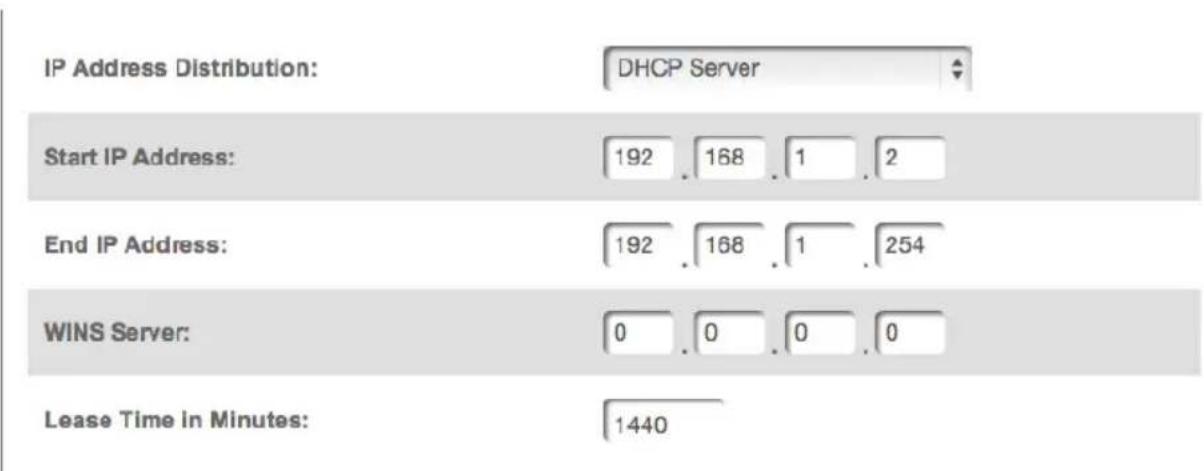
The IP Address Distribution section of the Properties settings is used to configure your Gateway's Dynamic Host Configuration Protocol (DHCP) server parameters.
NETWORK (HOME/OFFICE) CONNECTION
text_image
IP Address Distribution: DHCP Server Start IP Address: 192 . 168 . 1 . 2 End IP Address: 192 . 168 . 1 . 254 WINS Server: 0 . 0 . 0 . 0 Lease Time in Minutes: 1440Once enabled and configured, the DHCP server automatically assigns IP addresses to any network devices which are set to obtain their IP address dynamically.
If DHCP Server is enabled on your Gateway, configure the network devices as DHCP Clients. There are 2 basic options in this section: Disabled and DHCP Server.
To set up the Gateway's network bridge to function as a DHCP server:
- In the IP Address Distribution section, select the DHCP server. Once enabled, the DHCP server provides automatic IP assignments (also referred to as IP leases) based on the preset IP range defined below.
- Start IP Address – Enter the first IP address in the IP range that the Gateway will automatically begin assigning IP addresses from. Since your Gateway's IP address is 192.168.1.1, the default Start IP Address is 192.168.1.2.
- End IP Address – Enter the last IP address in the IP range that the Gateway will automatically stop the IP address allocation at. The maximum end IP address range that can be entered is 192.168.1.254.
- If Windows Internet Naming Service (WINS) is being used, enter the WINS server address.
- In the Lease Time in Minutes field, enter the amount of time a network device is allowed to connect to the Gateway with its currently issued dynamic IP address.
- Click Apply to save changes.
ROUTING
You can configure your Gateway to use static or dynamic routing.
- Static routing – specifies a fixed routing path to neighboring destinations based on predetermined metrics.
- Dynamic routing – automatically adjusts how packets travel on the network. The path determination is based on network/device reachability and status of network being traveled.
To configure routing:
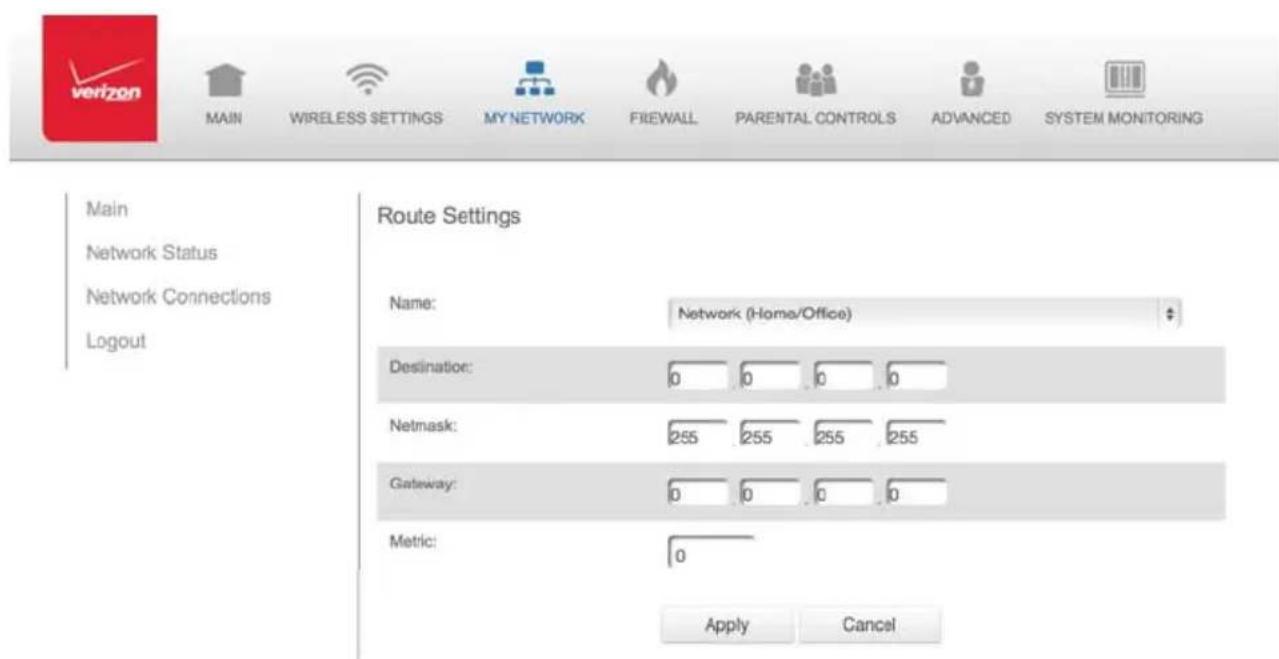
- In the Routing Table section, click Add New Route to display and modify the new route configuration page.
NETWORK (HOME/OFFICE) CONNECTION
text_image
Main Network Status Network Connections Logout Main WIRELESS SETTINGS MY NETWORK FIREWALL PARENTAL CONTROLS ADVANCED SYSTEM MONITORING Route Settings Name: Network (Home/Office) Destination: 0 0 0 0 Netmask: 255 255 255 255 Gateway: 0 0 0 0 Metric: 0 Apply CancelCOMPLETE NETWORK CONNECTION CONFIGURATION UPDATES
To save your changes click Apply.
5.2/ BROADBAND CONNECTION
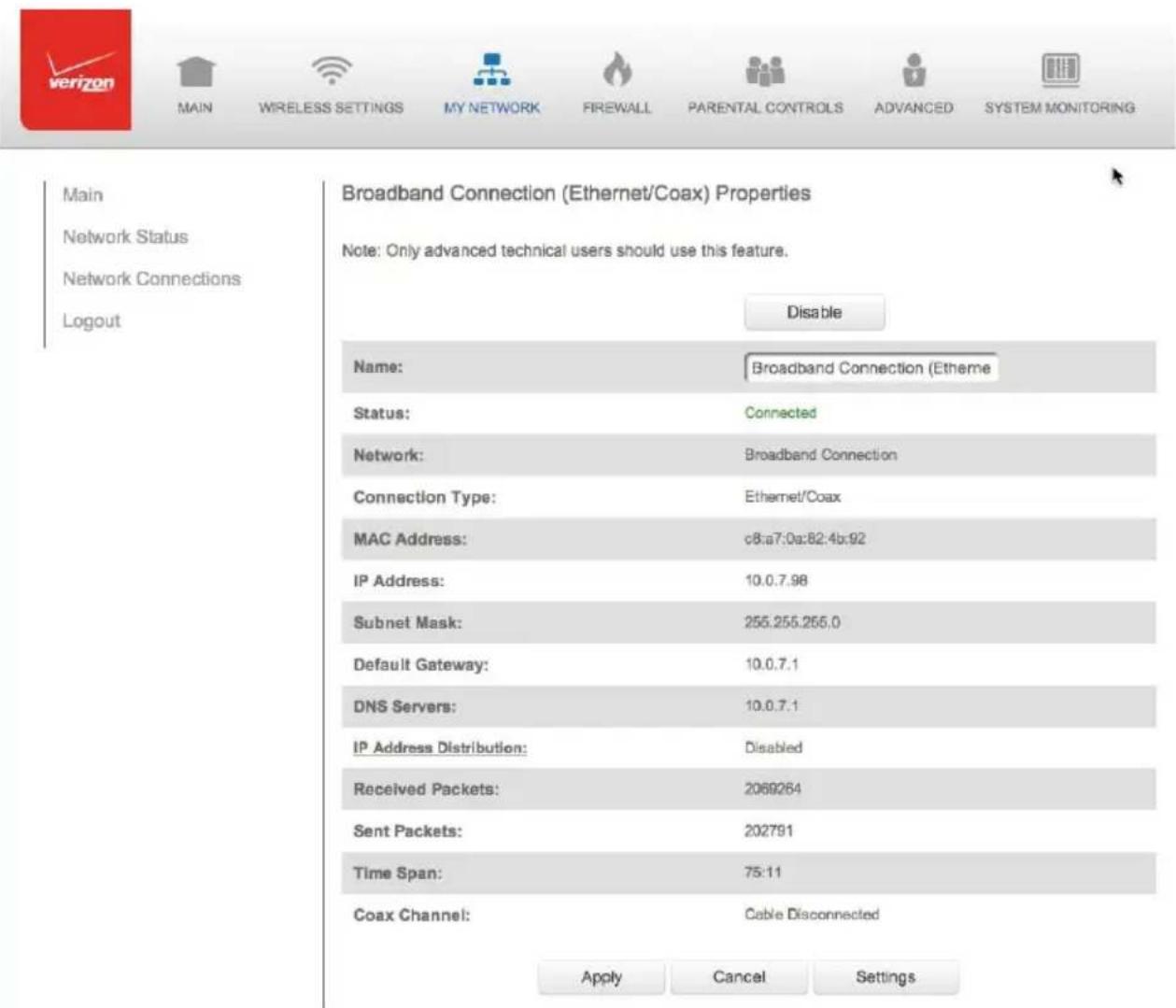
You can view the properties of your broadband connection (your connection to the Internet). This connection may be via either Ethernet or Coaxial cable.
To view the connection settings:
- In the Network Connections page, click the Broadband Connection (Ethernet/Coax) link.
text_image
Main Network Status Network Connections Logout Broadband Connection (Ethernet/Coax) Properties Note: Only advanced technical users should use this feature. Disable Name: Broadband Connection (Ethereme) Status: Connected Network: Broadband Connection Connection Type: Ethernet/Coax MAC Address: c8:a7:0a:82.4b:92 IP Address: 10.0.7.98 Subnet Mask: 255.255.255.0 Default Gateway: 10.0.7.1 DNS Servers: 10.0.7.1 IP Address Distribution: Disabled Received Packets: 2069264 Sent Packets: 202791 Time Span: 75:11 Coax Channel: Cable Disconnected Apply Cancel Settings- To rename the network connection, enter the new name in the Name fi eld.
- Click Apply to save changes.
5.2a/ CONFIGURING THE ETHERNET/COAX CONNECTION
To configure the connection:
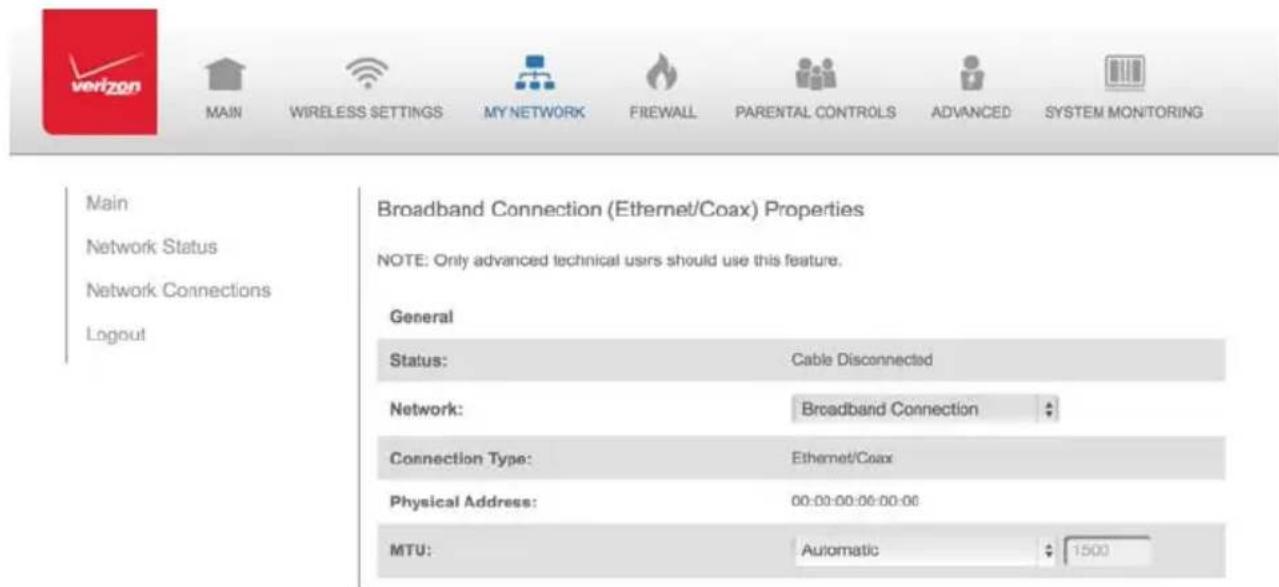
- In the Broadband Connection (Ethernet/Coax) Properties page, click Settings. The configuration page displays.
text_image
Main Network Status Network Connections Logout Broadband Connection (Ethernet/Coax) Properties NOTE: Only advanced technical users should use this feature. General Status: Cable Disconnected Network: Broadband Connection Connection Type: Ethernet/Coax Physical Address: 00:00:00:00:00:00 MTU: Automatic 1500- Configure the following settings, as needed.
GENERAL
Verify the following information:
- Status - displays the connection status of the network.
• Network - displays the type of network connection. - Connection Type - displays the type of connection.
• Physical Address - displays the physical address of the network card used for the network.
- MTU - specifies the largest packet size permitted for Internet transmissions:
- Automatic - sets the MTU (Maximum Transmission Unit at 1500)
- Automatic by DHCP - sets the MTU according to the DHCP connection
- Manual - allows you to manually set the MTU to be set.
COAX LINK
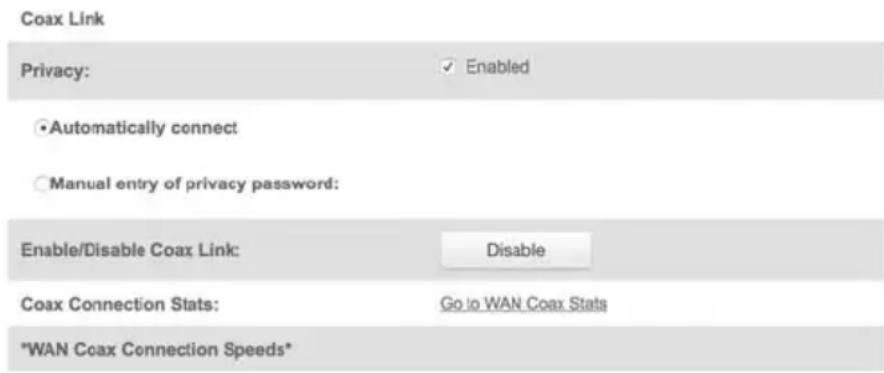
To set the Channel:
- Select the coax link channel as 1 to 3.
text_image
Coax Link Privacy: ✓ Enabled • Automatically connect ○ Manual entry of privacy password: Enable/Disable Coax Link: Disable Coax Connection Stats: Go to WAN Coax Stats "WAN Coax Connection Speeds"- Select the On or Off radio button in the Auto Detection field.
- To set privacy, select the Enabled check box. This causes all devices connected to the coaxial cable to use the same password. This is recommended.
- To set the password, enter the Coax Link password in the Password fi eld.
ETHERNET/COAX CONNECTION
- To enable or disable the Coax link, click Disable or Enable.
- To view the devices connected using the coaxial cable, click the Go to WAN Coax Stats link.
COMPLETE ALL ETHERNET/COAX CONNECTION CONFIGURATION UPDATES
To save your changes:
- Click Apply.
5.3/ WIRELESS ACCESS POINT CONNECTION
A Wireless Access Point network connection allows wireless devices to connect to the local area network (LAN) using the 2.4 GHz or 5 GHz Wi-Fi network.
Note: Once disabled, all wireless devices connected to that wireless network will be disconnected from the LAN network and Internet.
To view the connection:
- In the Network Connections page, click Advanced.


MAIN

WIRELESS SETTINGS

MY NETWORK

FREWALL

PARENTAL CONTROLS

ADVANCED

SYSTEM MONITORING
Main
Network Status
Network Connections
Logout
Network Connections
NOTE: Only advanced technical users should use this feature.
| Name | Status | Action |
| Network (Home/Office) | Connected | |
| WAN PPPoE | Disabled | |
| Ethernet | Connected | |
| Broadband | Cable Disconnected | |
| Wireless Access Print | Connected |
- Click 5 GHz Wireless Access Point 1 or 2.4 GHz Wireless Access Point 2.
WIRELESS ACCESS POINT CONNECTION


MAIN

WIRELESS SETTINGS

MY NETWORK

FIREWALL

PARENTAL CONTROLS

ADVANCED

SYSTEM MONITORING
Main
Network Status
Network Connections
Logout
2.4GHz Wireless Access Point 2 Properties
Note: Only advanced technical uses should use this feature.
Disable
Name:
2.4GHz Wireless Access Point 2
Status:
Connected
Network:
Network (Home/Office)
Connection Type:
Wireless 802.11 2.4GHz Access Point
MAC Address:
d4 a9:28:05:2d:88
IP.Address.Distribution:
Oicobind
Received Packets:
0
Sent Packets:
0
Time Span:
0:36
Apply
Cancel
Settings
- To disable the connection, click Disable.
- To rename the connection, enter a name in the Name field.
- Click Apply to save the changes.
- Reboot your Gateway.
5.3a/ CONFIGURING WIRELESS ACCESS POINT PROPERTIES
To configure the connection:
- In the Wireless Access Point Properties page, click Settings. The configuration page displays.


MAIN

WIRELESS SETTINGS

MY NETWORK

FREWALL

PARENTAL CONTROLS

ADVANCED

SYSTEM MONITORING
Main
Network Status
Network Connections
Logout
2.4GHz Wireless Access Point 2 Properties
NOTE: Only advanced technical users should use this feature.
General
Status:
Connected
Network:
Network (Home/Office)
Connection Type:
Wireless 802.11 2.4GHz Access Point
Physical Address:
d4:a9:28:05:2d:88
MTU:
Automatic

1501
Apply
Cancel
2. Verify the following information:
- Status - displays the connection status of the network.
- Network – displays the type of network connection.
- Connection Type - displays the type of connection.
• Physical Address - displays the physical address of the network card used for the network. - MTU - specifies the largest packet size permitted for Internet transmissions:
- Automatic - set the MTU (Maximum Transmission Unit) at 1500
- Automatic by DHCP - sets the MTU according to the DHCP connection
WIRELESS ACCESS POINT CONNECTION AND BROADBAND ETHERNET/COAX CONNECTION
- Manual - allows you to manually set the MTU
- Click Apply to save changes.
5.4/ BROADBAND ETHERNET/COAX CONNECTION
A Broadband Ethernet connection connects computers to your Gateway using Ethernet cables. The connections are either direct or use network hubs and switches.
A Coax connection connects devices, such as set-top boxes, to your Gateway using a coaxial cable.
Note: If disabling the connection, you must reboot your Gateway for the change to take effect.
To view the connection:
- In the Network Connections page, click the Broadband Connection (Ethernet/Coax) link.
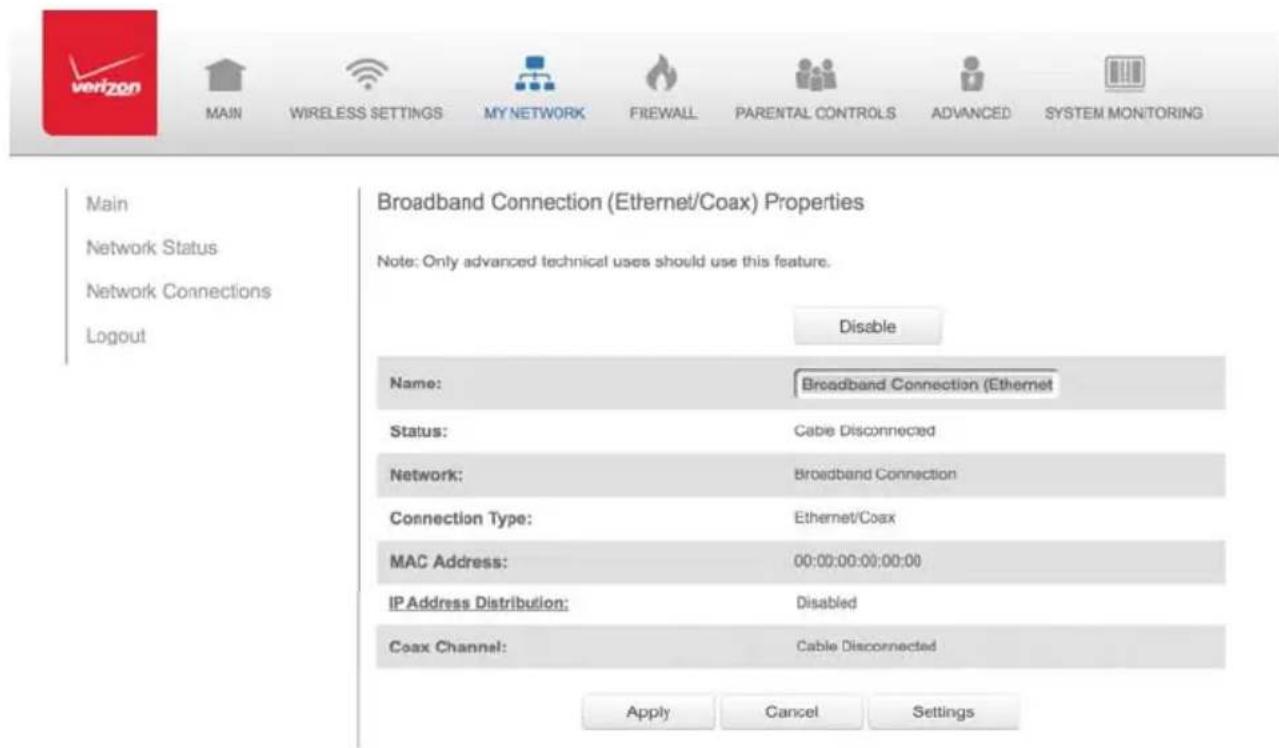
text_image
Main Network Status Network Connections Logout Broadband Connection (Ethernet/Coax) Properties Note: Only advanced technical uses should use this feature. Disable Name: Broadband Connection (Ethernet) Status: Cable Disconnected Network: Broadband Connection Connection Type: Ethernet/Coax MAC Address: 00:00:00:00:00:00 IP Address Distribution: Disabled Coax Channel: Cable Disconnected Apply Cancel Settings- To rename the network connection, enter the new name in the Name fi eld.
- Click Apply to save changes.
5.4a/ CONFIGURING THE ETHERNET/COAX CONNECTION
To configure the connection:
- In the Broadband Connection (Ethernet/Coax) Properties page, click Settings. The configuration page displays.
BROADBAND ETHERNET/COAX CONNECTION


MAIN

WIRELESS SETTINGS

MY NETWORK

FREWALL

PARENTAL CONTROLS

ADVANCED

SYSTEM MONITORING
Main
Network Status
Network Connections
Logout
Broadband Connection (Ethernet/Coax) Properties
NOTE: Only advanced technical users should use this feature.
General
Status:
Cable Disconnected
Network:
Broadband Connection
Connection Type:
Ethernet/Coax
Physical Address:
00:00:00:00:00:00
MTU:
Automatic
1500
Coax Link
Privacy:
Enabled
- Configure the following settings, as needed.
GENERAL
Verify the following information:
- Status - displays the connection status of the network
• Network - displays the type of network connection - Connection Type - displays the type of connection
• Physical Address - displays the physical address of the network card used for the network - MTU - specifies the largest packet size permitted for Internet transmissions:
- Automatic - set the MTU (Maximum Transmission Unit) at 1500
- Automatic by DHCP - sets the MTU according to the DHCP connection
- Manual - allows you to manually set the MTU
COAX LINK
- To set the Channel, select the coax link channel as 1 to 3.
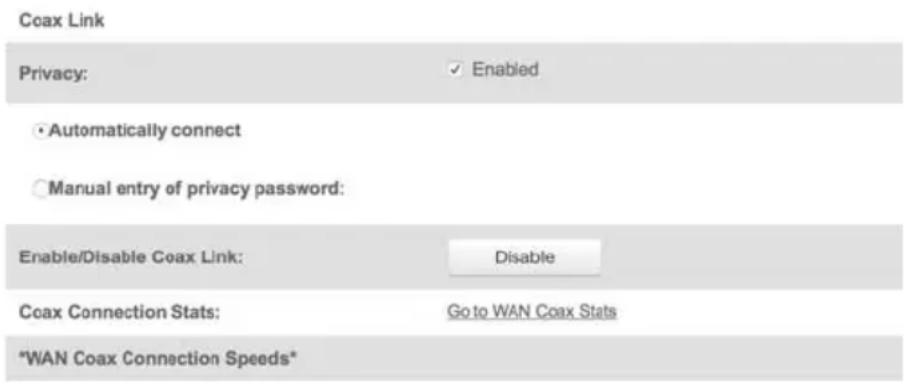
text_image
Coax Link Privacy: ✓ Enabled • Automatically connect ○ Manual entry of privacy password: Enable/Disable Coax Link: Disable Coax Connection Stats: Go to WAN Coax Stats *WAN Coax Connection Speeds*- Select the On or Off radio button in the Auto Detection field.
- To set privacy, select the Enabled check box. This causes all devices connected to the coaxial cable to use the same password. This is recommended.
- To set the password, enter the Coax Link password in the Password fi eld.
- To enable or disable the Coax link, click Disable or Enable.
- To view the devices connected using the coaxial cable, click the Go to WAN Coax Stats link.
INTERNET PROTOCOL
-
In the Internet Protocol section, specify one of the following:
-
No IP Address – the connection has no IP address. This is useful if the connection operates under a bridge.
- Obtain an IP Address Automatically – the network connection is required by Verizon to obtain an IP address automatically. The server assigning the IP address also assigns a subnet mask address, which can be overridden by entering another subnet mask address.
- Use the Following IP Address - the network connection uses a permanent or static IP address, then the IP address and subnet mask address.
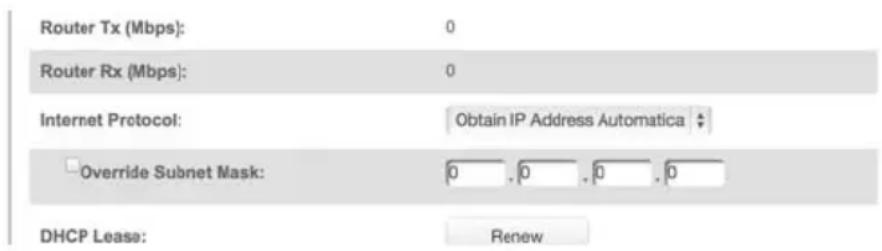
text_image
Router Tx (Mbps): 0 Router Rx (Mbps): 0 Internet Protocol: Obtain IP Address Automatica Override Subnet Mask: 0 . 0 . 0 . 0 DHCP Lease: Renew- To override the subnet mask, select the Override Subnet Mask check box, then enter the new subnet mask.
ROUTING MODE
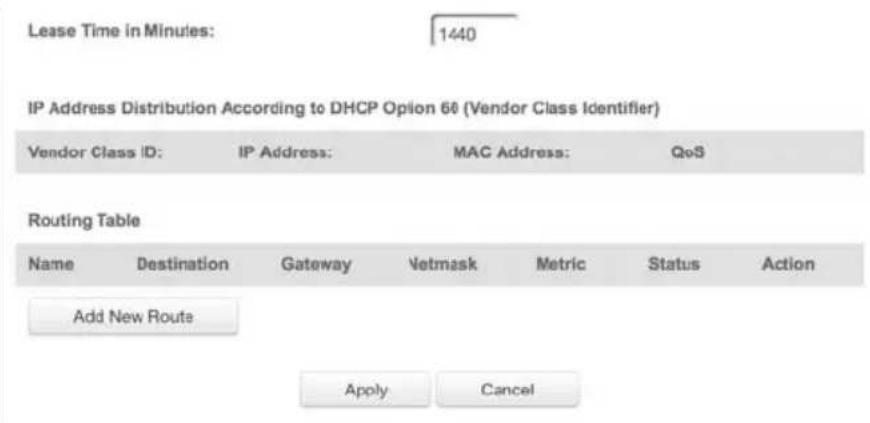
text_image
Lease Time in Minutes: 1440 IP Address Distribution According to DHCP Option 60 (Vendor Class Identifier) Vendor Class ID: IP Address: MAC Address: QoS Routing Table Name Destination Gateway Vetmask Metric Status Action Add New Route Apply CancelCOMPLETE ALL ETHERNET/COAX CONNECTION CONFIGURATION UPDATES
To save your changes:
- Click Apply.
06/
CONFIGURING SECURITY SETTINGS
6.0 Firewall
6.1 Access Control
6.2 Port Forwarding
6.3 Port Triggering
6.4 DMZ Host
6.5 Remote Administration
6.6 Static NAT
6.7 Security Log
Your Gateway's security suite includes comprehensive and robust security services, such as stateful packet inspection, fi rewall security, user authentication protocols, and password protection mechanisms.
These and other features help protect your computers from security threats on the Internet.
This chapter covers the following security features:
- Firewall - select the security level for the firewall.
- Access Control - restrict access from the local network to the Internet.
- Port Forwarding - enable access from the Internet to specified services provided by computers on the local network.
- Port Triggering - define port triggering entries to dynamically open the fi rewall for some protocols or ports.
- DMZ Host - allows a single device on your primary network to be fully exposed to the Internet for special purposes such as Internet Gaming.
- Remote Administration - enable remote configuration of your gateway from any Internet-accessible computer.
- Static NAT - allow multiple static NAT IP addresses to be designated to devices on the network.
• Security Log - view and configure the security log.
6.0/ FIREWALL
The fi rewall is the cornerstone of the security suite for your Gateway. It has been exclusively tailored to the needs of the residential or office user and is pre-configured to provide optimum security.
The firewall provides both the security and flexibility home and office users seek. It provides a managed, professional level of network security while enabling the safe use of interactive applications, such as Internet gaming and video conferencing.
Additional features, including surfi ng restrictions and access control, can also be confi gured locally through the user interface or remotely by a service provider.
The firewall regulates the flow of data between the local network and the Internet. Both incoming and outgoing data are inspected, then either accepted and allowed to pass through your Gateway or rejected and barred from passing through your Gateway, according to a fl exible and configurable set of rules. These rules are designed to prevent unwanted intrusions from the outside, while allowing local network users access to Internet services.
The fi rewall rules specify the type of services on the Internet that are accessible from the local network and types of services in the local network that are accessible from the Internet.
Each request for a service that the fi rewall receives is checked against the fi rewall rules to determine whether the request should be allowed to pass through the fi rewall. If the request is permitted to pass, all subsequent data associated with this request or session is also allowed to pass, regardless of its direction.
For example, when accessing a website on the Internet, a request is sent to the Internet for this site. When the request reaches your Gateway, the firewall identifies the request type and origin, such as HTTP and a specific computer in the local network. Unless your Gateway is configured to block requests of this type from this computer, the firewall allows this type of request to pass to the Internet.
When the website is returned from the web server, the fi rewall associates the website with this session and allows it to pass;
regardless HTTP access from the Internet to the local network is blocked or permitted.
It is the origin of the request, not subsequent responses to this request, which determines whether a session can be established.
6.0a/ SETTING FIREWALL CONFIGURATION
You can select a maximum, typical, or minimum security level to block, limit, or permit all traffic. The following table shows request access for each security level.
| Security Level | Internet RequestsIncoming Traffic c | Local Network RequestsOutgoing Traffic c |
| Maximum Blocked Limited | ||
| Typical Blocked Unrestricted | ||
| Minimum Unrestricted Unrestricted |
The request access is defined as:
- Blocked traffic - no access allowed, except as configured in Port Forwarding and Remote Access
- Limited - permits only commonly used services, such as email and web browsing
- Unrestricted - permits full access of incoming traffic from the Internet and allows all outgoing traffic, except as configured in Access Control
6.0b/ SPECIFYING GENERAL SETTINGS FOR IPV4 OR IPV6
To set your fi rewall configuration:
- From the Firewall General settings page click on desired IPv6 option to configure IPv6 security:


MAIN

WIRELESS SETTINGS

MY NETWORK

FIREWALL

PARENTAL CONTROLS

ADVANCED

SYSTEM MONITORING
Main
General
Access Control
Port Forwarding
Port Triggering
DMZ Host
Remote Administration
Static NAT
Security Log
Logout
General
IPv4 Settings
Maximum Security (High)
Inbound Policy: Reject.
Remote Administration settings will override the security inbound policy.
Outbound Policy: Reject.
Outbound access is allowed to the following services: DHCP, DNS, IMAP, SMTP, POP3, HTTPS, HTTP, FTP,
Telnet.
□Allow outbound Set Top Box traffic
• Typical Security (Medium)
Irbound Policy: Reject.
Remote Administration settings will override the security inbound policy.
Outbound Policy: Accept.
Minimum Security (Low)
Inbound Policy: Accept.
Outbound Policy: Accept.
IPv6 Settings
Maximum Security (High)
Inbound Policy: Reject.
Remote Administration settings will override the security inbound policy.
Outbound Policy: Reject.
Outbound access is allowed to the following services: DHCP, DNS, IMAP, SMTP, POP3, HTTPS, HTTP, FTP,
Telnet.
• Typical Security (Medium)
Inbound Policy: Reject.
Remote Administration settings will override the security inbound policy.
Cutbound Policy: Accept.
Minimum Security (Low)
Inbound Policy: Accept.
Outbound Policy: Accept.
Apply
Cancel
-
Select a security level by clicking one of the radio buttons. Using the Minimum Security setting may expose the local network to significant security risks, and should only be used for short periods of time to allow temporary network access.
-
Click Apply to save changes.
6.1/ ACCESS CONTROL
You can block individual computers on your local network from accessing specific services on the Internet. For example, you could block one computer from accessing the Internet, then block a second computer from transferring files using FTP as well as prohibit the computer from receiving incoming email.
Access control incorporates a list of preset services, such as applications and common port settings.
6.1a/ ALLOW OR RESTRICT SERVICES
To allow or restrict services:
- From the Firewall page, select Access Control. The Access Control page opens with the Allows and Blocked sections displayed. The Allowed section only displays when the firewall is set to maximum security.
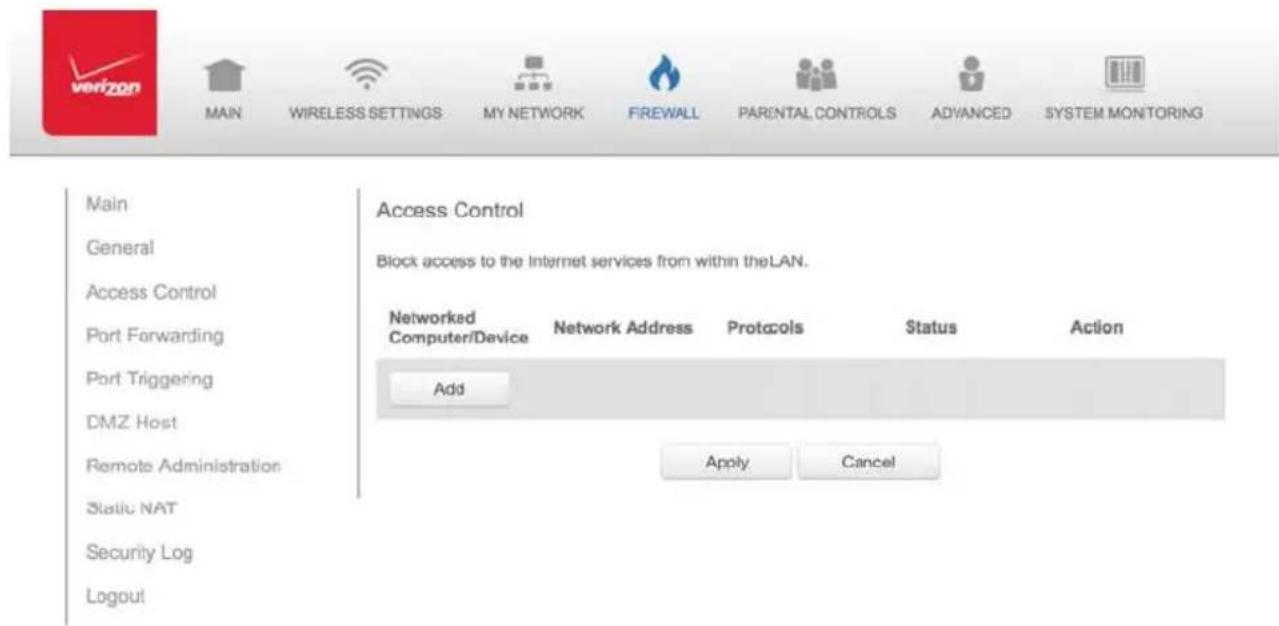
text_image
Main General Access Control Port Forwarding Port Triggering DMZ Host Remote Administration Static NAT Security Log Logout MAIN WIRELESS SETTINGS MY NETWORK FIREWALL PARENTAL CONTROLS ADVANCED SYSTEM MONITORING Access Control Block access to the Internet services from within the LAN. Networked Computer/Device Network Address Protocols Status Action Add Apply Cancel- To block a service, click Add. The Add Access Control Rule page displays.

text_image
Main General Access Control Port Forwarding Port Triggering DMZ Host Remote Administration Static NAT Security Log Logout Add Access Control Rule Networked Computer / Device Any Protocol Any When should this rule occur? Always Apply CancelACCESS CONTROL AND PORT FORWARDING
- To apply the rule to:
• All networked devices - select Any.
- Specific devices only - select User Defined, then click Add and create a network object.
- In the Protocol field, select the Internet protocol to be allowed or blocked.
If the service is not included in the list, select User Defined. The Edit Service page displays. Define the service, then click OK. The service is automatically added to the Add Access Control Rule section.
- Specify when the rule is active as Always or User Defined and click Add to create the schedule.
- Click Apply to save changes. The Access Control page displays a summary of the new access control rule.
6.1b/ DISABLE ACCESS CONTROL
You can disable an access control and enable access to the service without removing the service from the Access Control table. This can make the service available temporarily and allow you to easily reinstate the restriction later.
- To disable an access control, clear the check box next to the service name.
- To reinstate the restriction, select the check box next to the service name.
• To remove an access restriction, select the service and click Remove. The service is removed from the Access Control table.
6.2/ PORT FORWARDING
You can activate port forwarding to expose the network to the Internet in a limited and controlled manner. For example, enabling applications, such as gaming and voice, to work from the local network as well as allowing Internet access to servers within the local network.
To create port forwarding rules:
- From the Firewall page, select Port Forwarding. The Port Forwarding page opens with the current rules displayed.
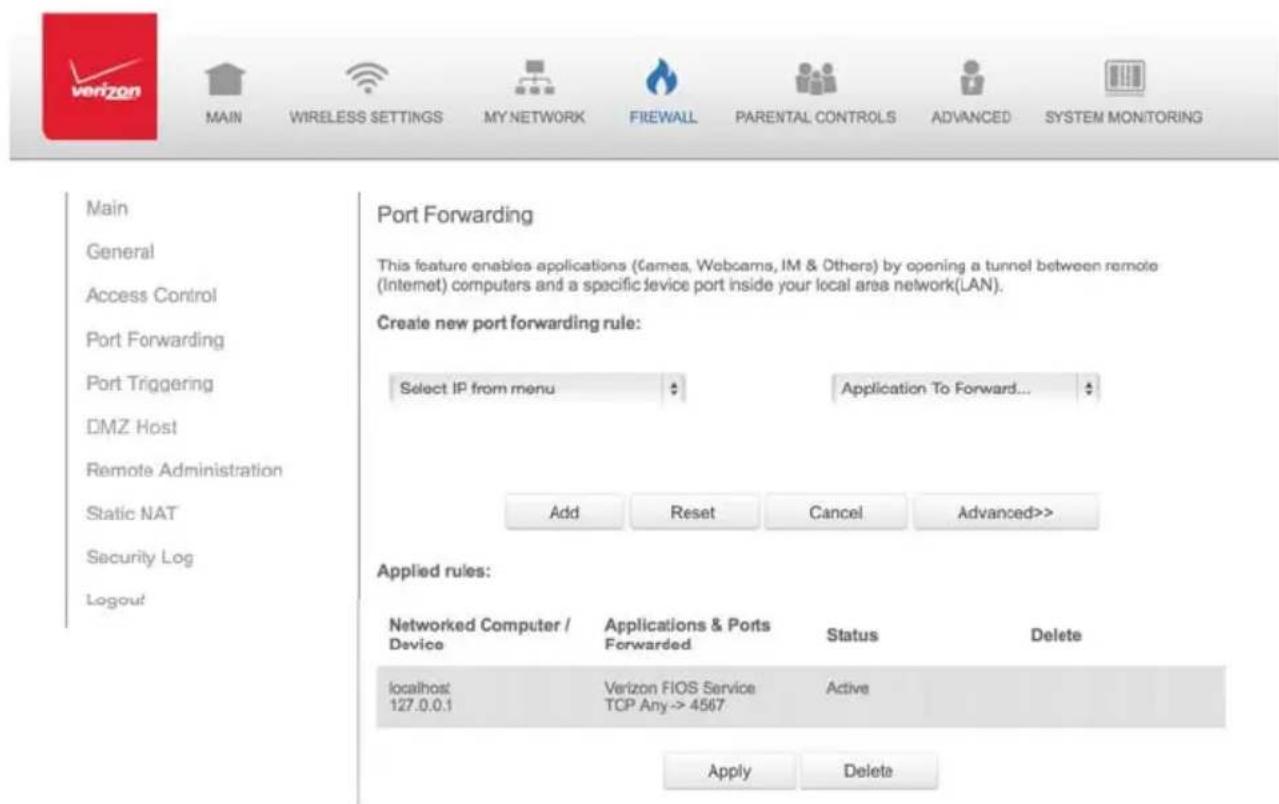
text_image
Main General Access Control Port Forwarding Port Triggering DMZ Host Remote Administration Static NAT Security Log Logout Port Forwarding This feature enables applications (Games, Webcams, IM & Others) by opening a tunnel between remote (Internet) computers and a specific device port inside your local area network(LAN). Create new port forwarding rule: Select IP from menu Application To Forward... Add Reset Cancel Advanced>> Applied rules: Networked Computer / Device Applications & Ports Forwarded Status Delete localhost: 127.0.0.1 Verizon FIOS Service TCP Any-> 4567 Active Apply DeletePORT FORWARDING AND PORT TRIGGERING
- To create a new rule, select the IP address in the Select IP from Menu drop down.
- Select the application in the Application to Forward drop down.
- Click Add. The rule displays in the Applied Rules section.
- Click Apply to save changes.
6.2a/ ADVANCED PORT FORWARDING RULES
You can configure advanced port forwarding rules.
To configure the rules:
- In the Port Forwarding page, select Advanced.

text_image
verizon MAIN WIRELESS SETTINGS MY NETWORK FIREWALL PARENTAL CONTROLS ADVANCED SYSTEM MONITORING
text_image
Main General Access Control Port Forwarding Port Triggering DMZ Host Remote Administration Static NAT Security Log LogoutPort Forwarding
This feature enables applications (Games, Webcams, IM & Others) by opening a tunnel between remote (Internet) computers and a specific device port inside your local area network(LAN).
Create new port forwarding rule:
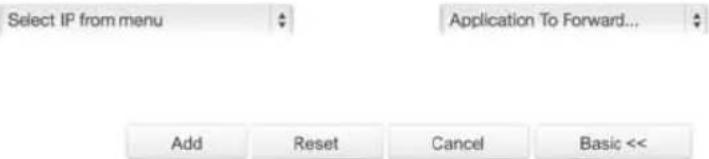
text_image
Select IP from menu Application To Forward... Add Reset Cancel Basic <<Applied rules:
| Networked Computer / Device | Applications & Ports Forwarded | Status | Delete |
| localhost 127.0.0.1 | Verizon FIOS Service TCP Any 4567 | Active | |
| Apply | Delete |
- If needed, to select a port to forward communication to, select an option in the Forward to Port list box.
- If a single port or range of ports is selected, a text box displays. Enter the port numbers.
- To schedule the rule, select either Always or User Defined in the Schedule list box.
- Click Add. The rule displays in the Applied Rules section.
- Click Apply to save changes.
Port triggering can be described as dynamic port forwarding. By setting port triggering rules, inbound traffic arrives at a specific network host using ports that are different than those used for outbound traffic. The outbound traffic triggers the ports where the inbound traffic is directed.
For example, a gaming server is accessed using UDP protocol on port 2222. The gaming server then responds by connecting the user using UDP on port 3333, when a gaming session is initiated.
In this case, port triggering must be used since it conflicts with the following default fi rewall settings:
- Firewall blocks inbound traffic by default.
- Server replies to your Gateway IP, and the connection is not sent back to the host since it is not part of a session.
PORT TRIGGERING AND REMOTE ADMINISTRATION
To resolve the conflict, a port triggering entry must be defined, which allows inbound traffic on UDP port 3333 only after a network host generated traffic to UDP port 2222. This results in your Gateway accepting the inbound traffic from the gaming server and sending it back to the network host which originated the outgoing traffic to UDP port 2222.
To configure port triggering:
1. Select Port Triggering.

text_image
verizon MAIN WIRELESS SETTINGS MY NETWORK FIREWALL PARENTAL CONTROLS ADVANCED SYSTEM MONITORING
text_image
Main General Access Control Port Forwarding Port Triggering DMZ Host Remote Administration Static NAT Security Log Logout Port Triggering Trigger opening of ports for incoming data. NOTE: Only advanced technical users should use this feature. Protocol Outgoing Trigger Ports Incoming Ports to Open Action ✓ Example Trigger TCP 100 - 200 ->300 -400 TCP 1 - 2 -> 3 - 4 # Add Apply Cancel- To add a service as an active protocol, click Add. The Edit Port Triggering Rule page displays.
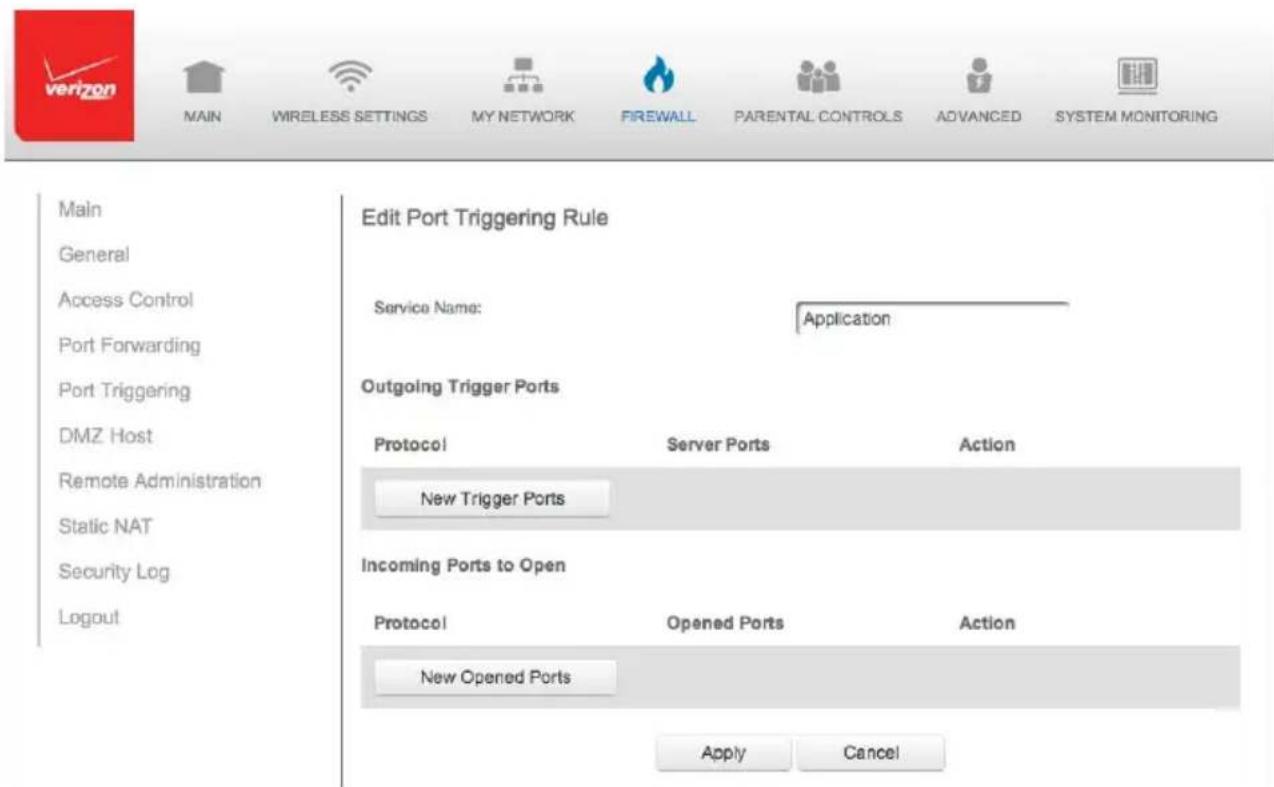
text_image
Main General Access Control Port Forwarding Port Triggering DMZ Host Remote Administration Static NAT Security Log Logout Edit Port Triggering Rule Service Name: Application Outgoing Trigger Ports Protocol Server Ports Action New Trigger Ports Incoming Ports to Open Protocol Opened Ports Action New Opened Ports Apply Cancel- Enter the service name then configure its inbound and outbound trigger ports. Click Apply to save User Defined changes. The Port Triggering page displays.
- Click Apply again to save all changes.
6.4/ DMZ HOST
DMZ Host allows a single device on your primary network to be fully exposed to the Internet for special purposes like Internet gaming.
Warning: Enabling DMZ Host is a security risk. When a device on your network is a DMZ Host, it is directly exposed to the Internet and loses much of the protection of the firewall. If it is compromised, it can also be used to attack other devices on your primary network.
Follow these steps to designate a device on your primary network as a DMZ Host:
- From the Firewall page, select DMZ Host
- Select Enable for the DMZ Host
- Enter the IP address of the device you want to designate as the DMZ Host
- Click Apply
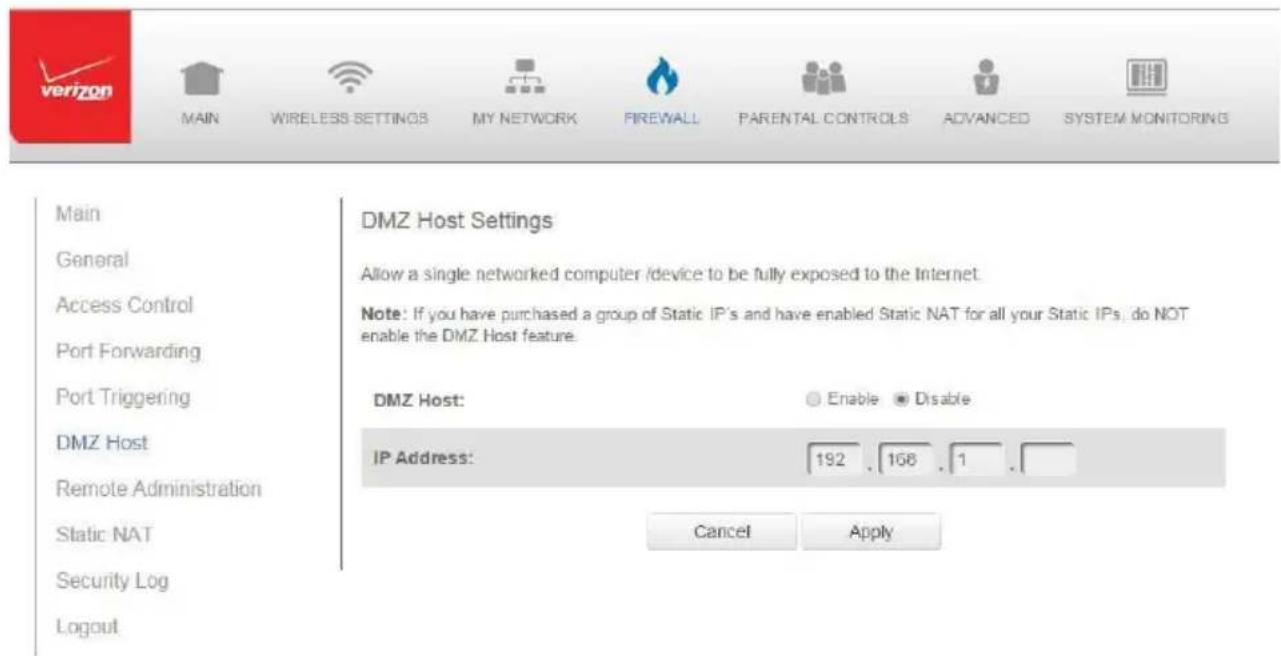
text_image
Main General Access Control Port Forwarding Port Triggering DMZ Host Remote Administration Static NAT Security Log Logout MAIN WIRELESS SETTINGS MY NETWORK FIREWALL PARENTAL CONTROLS ADVANCED SYSTEM MONITORING DMZ Host Settings Allow a single networked computer /device to be fully exposed to the Internet. Note: If you have purchased a group of Static IP's and have enabled Static NAT for all your Static IPs, do NOT enable the DMZ Host feature. DMZ Host: Enable Disable IP Address: 192 168 16.5/ REMOTE ADMINISTRATION
Caution: Enabling Remote Administration places your Gateway network at risk from outside attacks.
You can access and control your Gateway not only from within the local network, but also from the Internet using Remote Administration.
You can allow incoming access to the following:
- Web Management - used to obtain access to your Gateway's GUI and gain access to all settings and parameters through a web browser.
- Diagnostic Tools - used for troubleshooting and remote system management by a user or Verizon.
Web Management remote administration access may be used to modify or disable fi rewall settings. Local IP addresses and other settings can also be changed, making it diffi cult or impossible to access your Gateway from the local network. Remote administration access to SSH or Web Management services should be activated only when absolutely necessary.
Note: Encrypted remote administration is performed using a secure SSL connection and requires a SSL certificate. When accessing your Gateway for the first time using encrypted remote administration, a warning page opens with a certificate authentication message displayed. This is due to your Gateway SSL certificate being self-generated. When this message display under that circumstance, ignore the message and continue. Even though this message displays, the self-generated certificate is safe and provides a secure SSL connection.
REMOTE ADMINISTRATION AND STATIC NAT
To enable remote administration:
- Select Remote Administration.
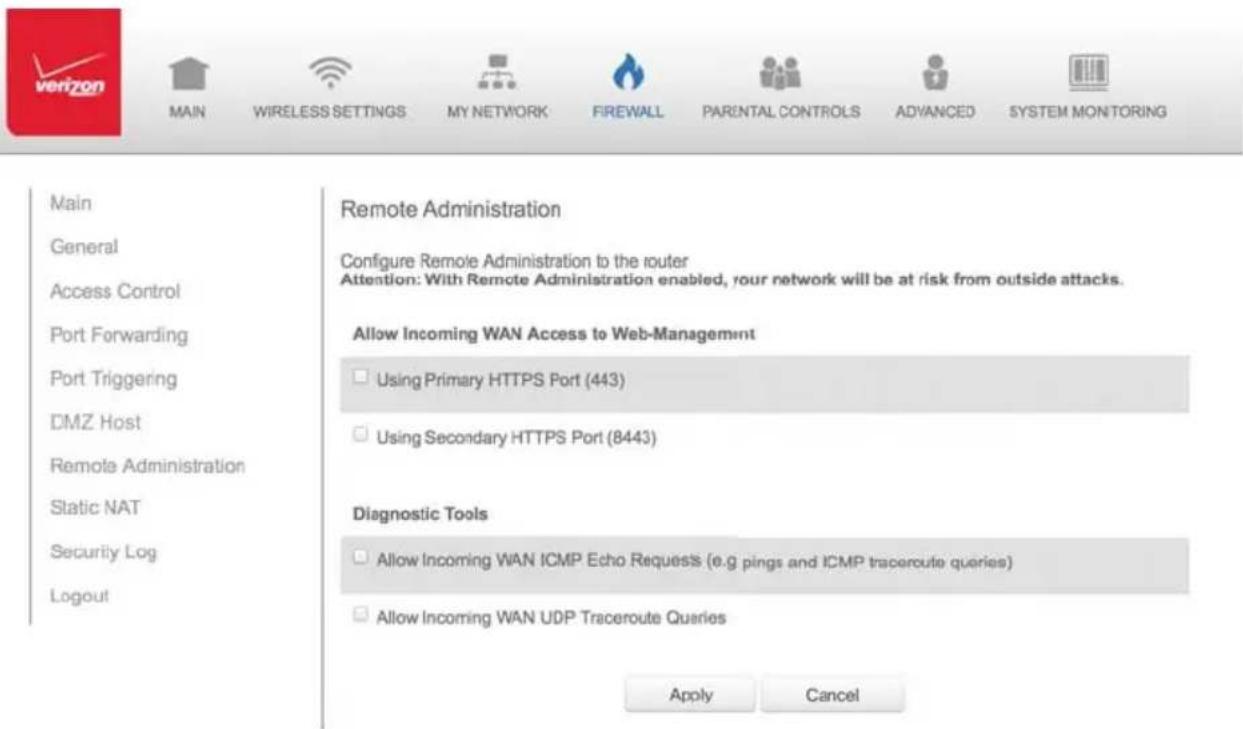
text_image
Main General Access Control Port Forwarding Port Triggering DMZ Host Remote Administration Static NAT Security Log Logout Main Remote Administration Configure Remote Administration to the router Attention: With Remote Administration enabled, your network will be at risk from outside attacks. Allow Incoming WAN Access to Web-Management Using Primary HTTPS Port (443) Using Secondary HTTPS Port (8443) Diagnostic Tools Allow Incoming WAN ICMP Echo Requests (e.g. pings and ICMP traceroute queries) Allow Incoming WAN UDP Traceroute Queries Apply Cancel- To enable access, select the check box.
- Click Apply to save changes.
- To remove access, clear the check box.
- Click Apply again to save changes.
6.6/STATIC NAT
Static NAT allows devices located behind a firewall that is configured with private IP addresses to appear to have public IP addresses to the Internet. This allows an internal host, such as a web server, to have an unregistered (private) IP address and still be accessible over the Internet.
To configure static NAT:
- Select Static NAT.
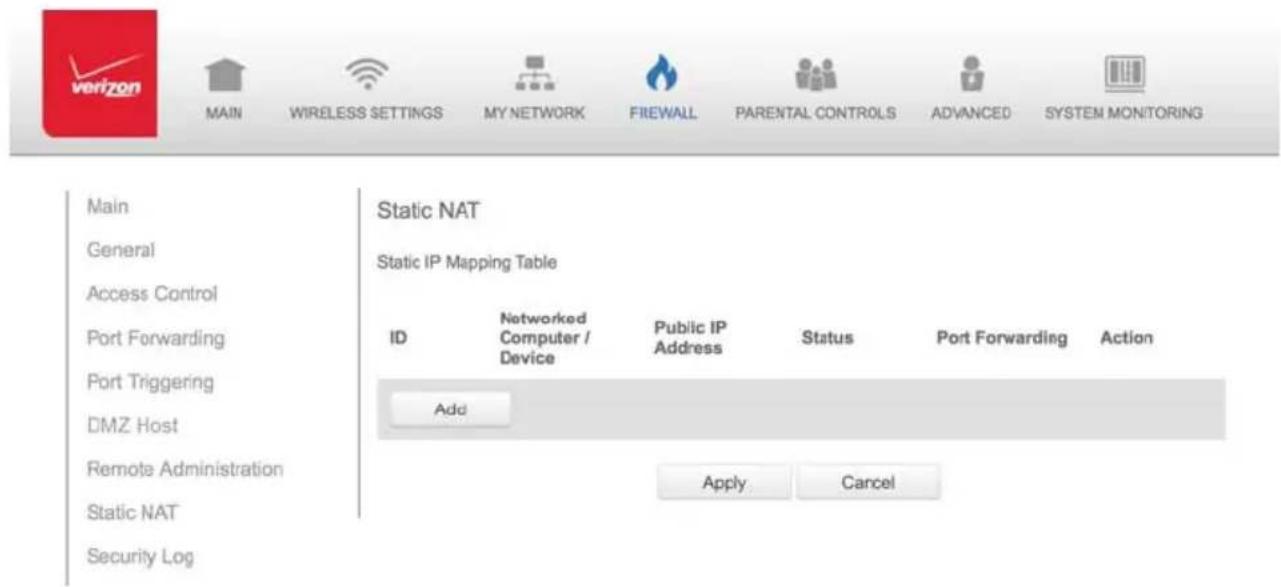
text_image
Main General Access Control Port Forwarding Port Triggering DMZ Host Remote Administration Static NAT Security Log Static NAT Static IP Mapping Table ID Networked Computer / Device Public IP Address Status Port Forwarding Action Add Apply Cancel- To create a static NAT, click Add. The Add NAT/NAPT Rule page displays.
STATIC NAT AND SECURITY LOG
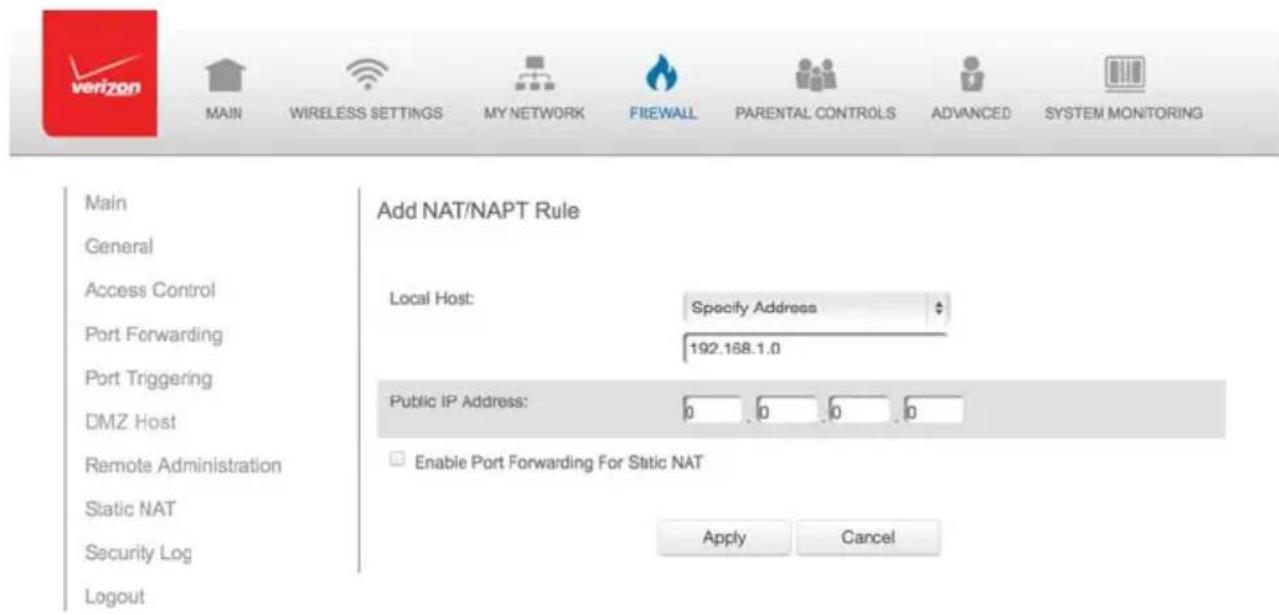
text_image
Main General Access Control Port Forwarding Port Triggering DMZ Host Remote Administration Static NAT Security Log Logout Add NAT/NAPT Rule Local Host: Specify Address 192.168.1.0 Public IP Address: 0 0 0 0 Enable Port Forwarding For Static NAT Apply Cancel- Select a source address in the Specify Address field or enter an IP address in the text box.
- Enter the public IP address.
- If using port forwarding, select the Enable Port Forwarding for Static NAT check box.
- Click Apply to save changes.
- Repeat these steps to add additional static IP addresses.
6.7/ SECURITY LOG
You can view events that your fi rewall has blocked by accessing the security log. Your Gateway reports events, such as attempts to establish inbound and outbound connections, attempts to authenticate at an administrative interface, such as your Gateway GUI, fi rewall configuration, and system start-up.
The security log reports the following information:
• Time - based on the date and time in your Gateway
• Event Type - consists of firewall information, firewall setup, and system log
- Log Level - describes the event that occurred, such as a fragmented packet or parental controls.
- Details - provide a reason the event occurred, such as a packet has been blocked because of parental controls.
You can modify the type of events that display in the security log. This does not modify the event itself. It simply changes the information that displays in the log.
6.7a/ EVENT TYPES
The security log records the following event types:
- Access control – a packet has been accepted/blocked due to an access control rule.
- Advance filter rule – a packet has been accepted/blocked due to an advanced filter rule.
- ARP - an ARP packet has been accepted.
- AUTH:113 request - an outbound packet for AUTH protocol has been accepted (for maximum security level).
- Broadcast/Multicast protection – a packet with a broadcast/multicast source IP has been blocked.
SECURITY LOG
- Default policy – a packet has been accepted/blocked according to the default policy.
- Defragmentation failed – the fragment has been stored in memory and blocked until all fragments have arrived and defragmentation can be performed.
- DHCP request – your Gateway sent a DHCP request (depends on the distribution).
- DHCP response - your Gateway sent a DHCP response (depends on the distribution).
- Echo/Chargen/Quote/Snork protection – a packet has been blocked due to Echo/Chargen/Quote/Snork protection.
- Firewall internal – from the firewall internal mechanism, event type is recorded and an accompanying explanation will be added.
- Firewall rules were changed – the rule set has been modified.
- Firewall status changed – the firewall status changed from up to down or vice versa, as specified in the event type description.
- First packet in connection is not a SYN packet – a packet has been blocked due to a TCP connection that started without a SYN packet.
- Fragmented packet – a fragment has been rejected.
- Fragmented packet, bad align – a packet has been blocked because, after defragmentation, the packet was badly aligned.
- Fragmented packet, header too big – a packet has been blocked because, after defragmentation, the header was too big.
-
Fragmented packet, header too small – a packet has been blocked because, after defragmentation, the header was too small.
-
Fragmented packet, no memory – a packet has been blocked because there is no memory for fragments.
- Fragmented packet, overlapped – a packet has been blocked because, after defragmentation, there were overlapping fragments.
- Fragmented packet, packet exceeds – a packet has been blocked because, after defragmentation, the packet exceeded.
- Fragmented packet, packet too big – a packet has been blocked because, after defragmentation, the packet was too big.
- FTP port request to 3rd party is forbidden – possible bounce attack – a packet has been blocked.
- ICMP flood protection – a broadcast ICMP (Internet Control Message Protocol) flood.
- ICMP protection - a broadcast ICMP message has been blocked.
- ICMP redirect protection – an ICMP redirected message has been blocked.
- ICMP replay - an ICMP replay message has been blocked.
- Illegal packet options – the options field in the packet's header is either illegal or forbidden.
- IP Version 6 – an IPv6 packet has been accepted.
- Malformed packet: Failed parsing – a packed has been blocked because it is malformed.
- Maximum security enabled service – a packet has been accepted because it belongs to a permitted service in the maximum security level.
SECURITY LOG
- Multicast IGMP connection – a multicast packet has been accepted.
- NAT Error: Connection pool is full - No connection created - a connection has not been created because the connection pool is full.
- NAT Error: Conflict mapping already exists – a conflict occurred because the NAT mapping already exists, so NAT failed.
- NAT Error: No free NAT IP - no free NAT IP, so NAT has failed.
- NAT out failed - NAT failed for this packet.
- Outbound Auth1X – an outbound Auth1X packet has been accepted.
- Packet invalid in connection – an invalid connection packet has been blocked.
- Parental controls – a package has been block because of parental controls.
- Passive attack on ftp-server: Client attempted to open Server ports – a packet has been blocked.
- Service – a packet has been accepted because of a certain service, as specified in the event type.
- Spoofing protection – a packet from the Internet with a source IP belong to the local network has been blocked.
- STP packet – STP (Spanning Tree Protocol) packet has been accepted/rejected.
- SynCookies protection – a SynCookies packet has been blocked.
-
Trusted device – a packet from a trusted device has been accepted.
-
UDP flood protection – a packed has been blocked, stopping a UDP flood.
- User authentication – a message arrived during login time, including both successful and failed authentication.
- Wildcard connection hooked – debug message regarding connection.
- Wildcard connection opened - debug message regarding connection.
- WinNuke protection – a WinNuke attack has been blocked.
To view the security log:
- Select Security Log.
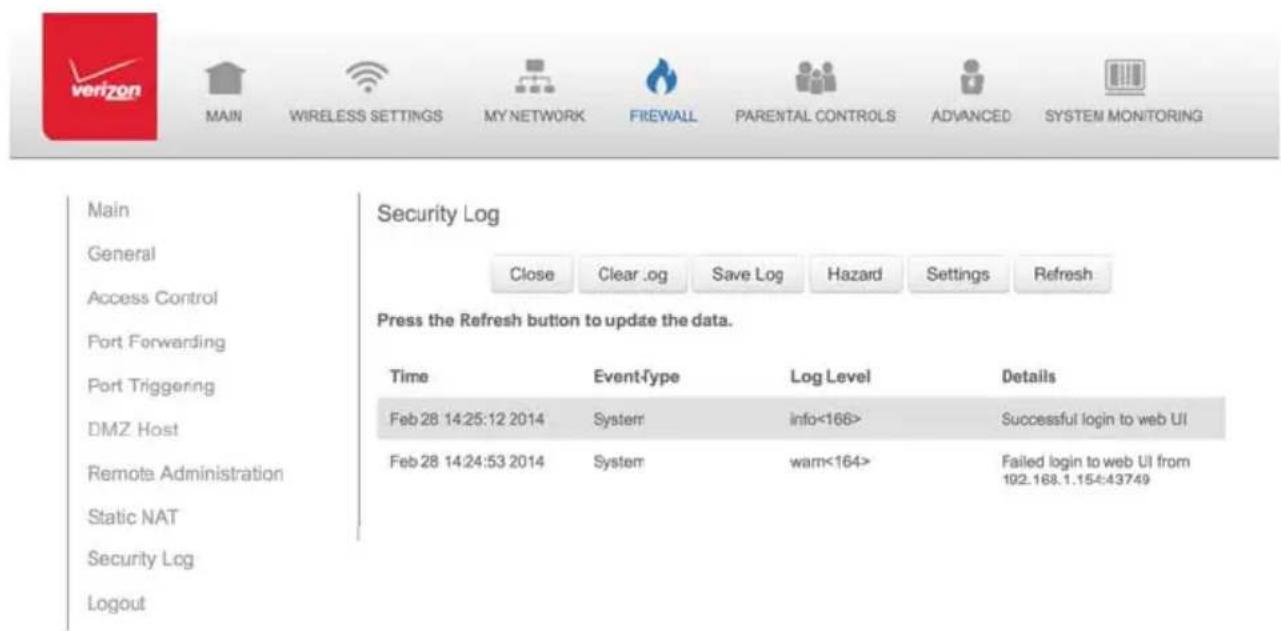
text_image
Main General Access Control Port Forwarding Port Triggering DMZ Host Remote Administration Static NAT Security Log Logout Security Log Close Clear .og Save Log Hazard Settings Refresh Press the Refresh button to update the data. Time Event-type Log Level Details Feb 28 14:25:12 2014 System info<166> Successful login to web UI Feb 28 14:24:53 2014 System warn<164> Failed login to web UI from 192.168.1.154:43749 Logout- To modify the types of events that display in the log, click Settings.
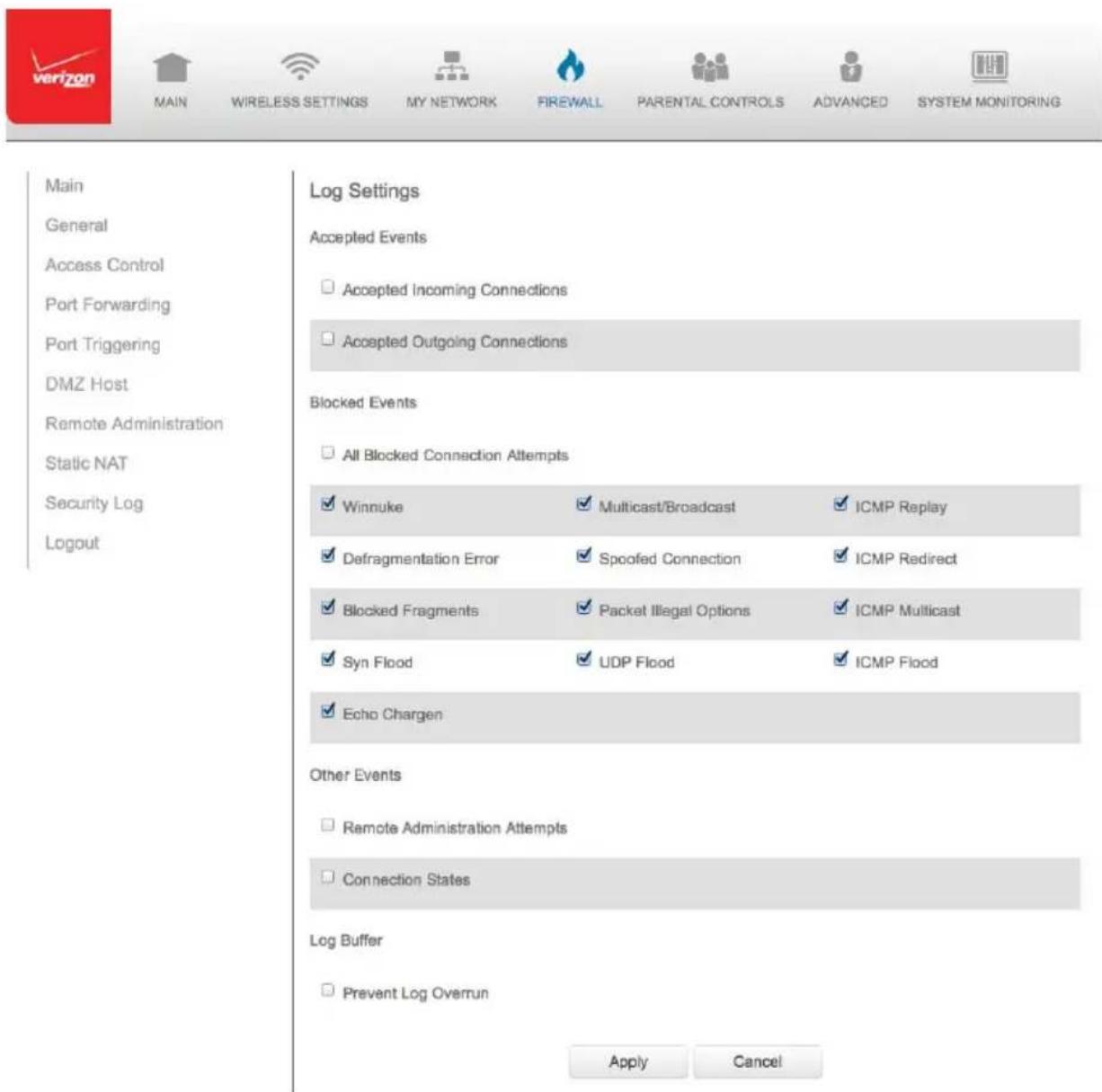
text_image
Main General Access Control Port Forwarding Port Triggering DMZ Host Remote Administration Static NAT Security Log Logout Log Settings Accepted Events □ Accepted Incoming Connections □ Accepted Outgoing Connections Blocked Events □ All Blocked Connection Attempts ✓ Winnuke ✓ Multicast/Broadcast ✓ ICMP Replay ✓ Defragmentation Error ✓ Spoofed Connection ✓ ICMP Redirect ✓ Blocked Fragments ✓ Packet Illegal Options ✓ ICMP Multicast ✓ Syn Flood ✓ UDP Flood ✓ ICMP Flood ✓ Echo Chargen Other Events □ Remote Administration Attempts □ Connection States Log Buffer □ Prevent Log Overrun Apply Cancel- In the Accepted Events section, select the type of activities that generates a log message:
- Accepted Incoming Connections – generates a log message for each successful attempt to establish an inbound connection to the local network.
- Accepted Outgoing Connections - generates a log message for each successful attempt to establish an outbound connection to the public network.
- In the Blocked Events section, select the type of blocked events you want logged.
- To log a message for each remote administration connection attempt, click the Remote Administration Attempts check box.
- To log the connection for handling by the firewall and application level Gateways, click the Connection States check box.
- Click Apply to save changes. The Security Log page displays.
07/
SETTING PARENTAL CONTROLS
7.0 Activating Parental Controls
7.1 Rule Summary
The abundance of harmful information on the Internet poses a serious challenge for employers and parents alike as they ask "How can I regulate what my employee or child does on the Internet?"
With that question in mind, your Gateway's Parental Controls were designed to allow control of Internet access on all locally networked devices.
7.0/ ACTIVATING PARENTAL CONTROLS
You can create a basic access policy for any computer or device on your Gateway network. Parental controls limit Internet access to specific websites based on a schedule that you create.
Access can be limited on specific websites or keywords embedded in a website. For example, you can block access to the ‘www.anysite.com’ as well as block any website that has the word ‘any’ in its site name.
To limit computer access:
- Select Parental Controls.
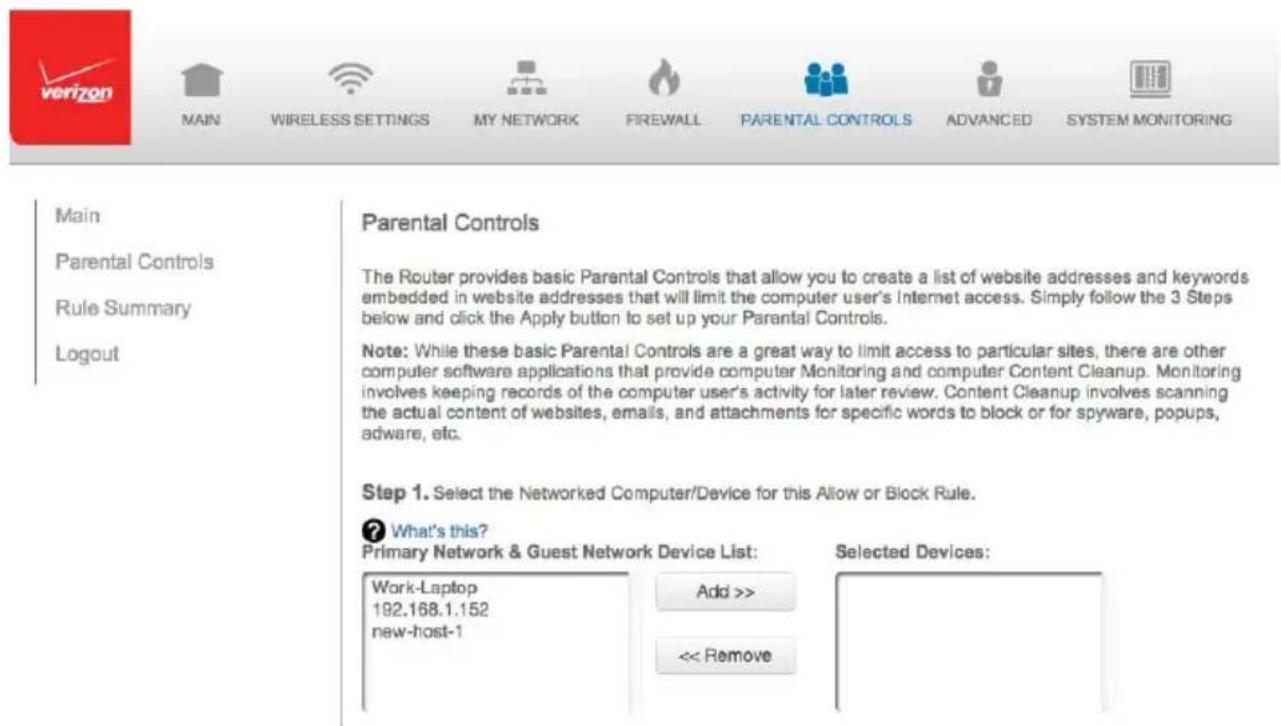
text_image
Main Parental Controls Rule Summary Logout Parental Controls The Router provides basic Parental Controls that allow you to create a list of website addresses and keywords embedded in website addresses that will limit the computer user's Internet access. Simply follow the 3 Steps below and click the Apply button to set up your Parental Controls. Note: While these basic Parental Controls are a great way to limit access to particular sites, there are other computer software applications that provide computer Monitoring and computer Content Cleanup. Monitoring involves keeping records of the computer user's activity for later review. Content Cleanup involves scanning the actual content of websites, emails, and attachments for specific words to block or for spyware, popups, adware, etc. Step 1. Select the Networked Computer/Device for this Allow or Block Rule. ? What's this? Primary Network & Guest Network Device List: Work-Laptop 192.168.1.152 new-host-1 Add >> << Remove Selected Devices:-
In Step 1 (optional), select the computers or device where you are limiting access in the Networked Computer/Device list box, then click Add. The devices display in the Selected Devices section.
-
To remove a device from the Selected Devices list box, select the device, then click Remove. The device displays in the Networked Computer/Device list box.
-
In Step 2, click one of the following options in the Limit Access By section:
-
Block the following Websites and Embedded Keywords within a Website – blocks the specified websites and websites with names contained the specified keyword.
- Allow the following Websites and Embedded Keywords within a Website – allows the specified websites and websites with names contained the specified keyword.
-
Block ALL Internet Access – will not allow the device to access the Internet.
-
Enter the name of the website or keyword, then click Add.
Step 2. Create the Parental Control Rules and Schedules.
Limit Access By: What's this?
- Block the following Websites and Embedded Keywords within a URL
Allow the following Websites and Embedded Keywords within a URL
○ Blocking ALL Internet Access
Website:
Example: www.example.com
Embedded keyword within a URL:
Example: "sample" within www.sample.com
Add >>
Remove
- To remove a website or keyword, select the word, then click Remove.
ACTIVATING PARENTAL CONTROLS AND RULE SUMMARY
- Create a schedule by selecting the days of the week when the rule will be active or inactive.
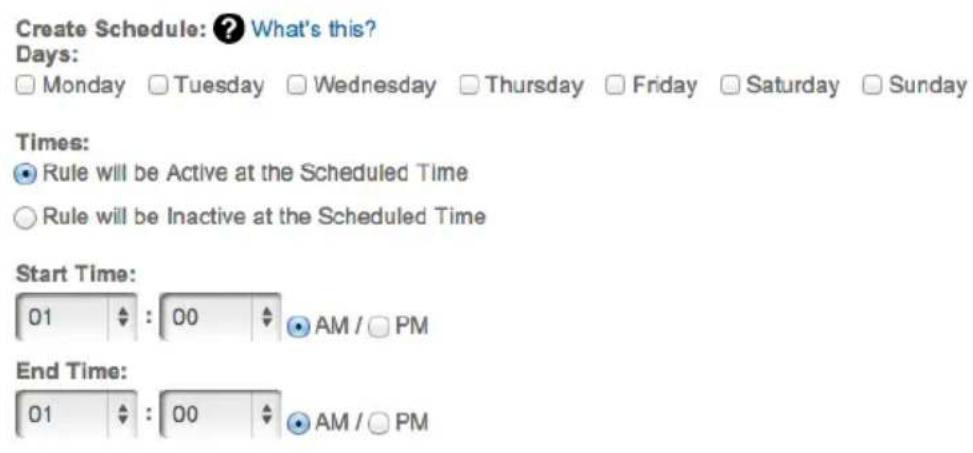
text_image
Create Schedule: ? What's this? Days: Monday Tuesday Wednesday Thursday Friday Saturday Sunday Times: ● Rule will be Active at the Scheduled Time ○ Rule will be Inactive at the Scheduled Time Start Time: 01 : 00 AM / □ PM End Time: 01 : 00 AM / □ PM- Set the time when the rule will be active or inactive, then specify the start time and end time.
- Create a rule name and description.
- Click Apply to save changes.
7.1/ RULE SUMMARY
You can view the rules created for your Gateway.
- To view the rule summary, select Rule Summary. The Rule Summary page opens with the rule name, description, and computer or device displayed.
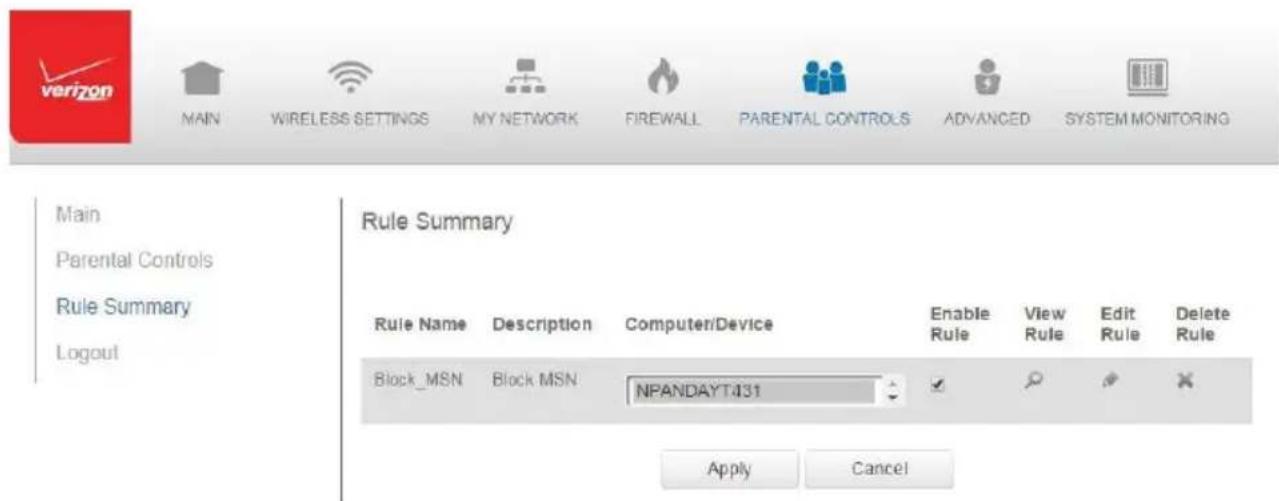
text_image
Main Parental Controls Rule Summary Logout Rule Summary Rule Name Description Computer/Device Enable Rule View Rule Edit Rule Delete Block_MSN Block MSN NPANDAYT131 Apply CancelYou can enable, view, edit, or delete the rule, refer to Scheduler Rules for additional setting details.
08/
CONFIGURING ADVANCED SETTINGS
8.0 Using Advanced Settings
8.1 Utilities
8.2 DNS Settings
8.3 Network Settings
8.4 Routing
8.5 Date and Time
8.6 Configuration Settings
Advanced settings cover a wide range of sophisticated configurations for your Gateway's firmware and network.
USING ADVANCED SETTINGS AND UTILITIES
Caution: Many of the settings described in this section should only be configured by experienced network technicians. Changes could adversely affect the operation of your Gateway and local network.
8.0/ USING ADVANCED SETTINGS
You can access the following settings:

Utilities

Date & Time

DNS Settings

Routing

Network Settings

Configuration Settings
To access the advanced settings:
- Select Advanced. A warning page displays, asking if you want to proceed.
- Click Yes. The Advanced page displays.
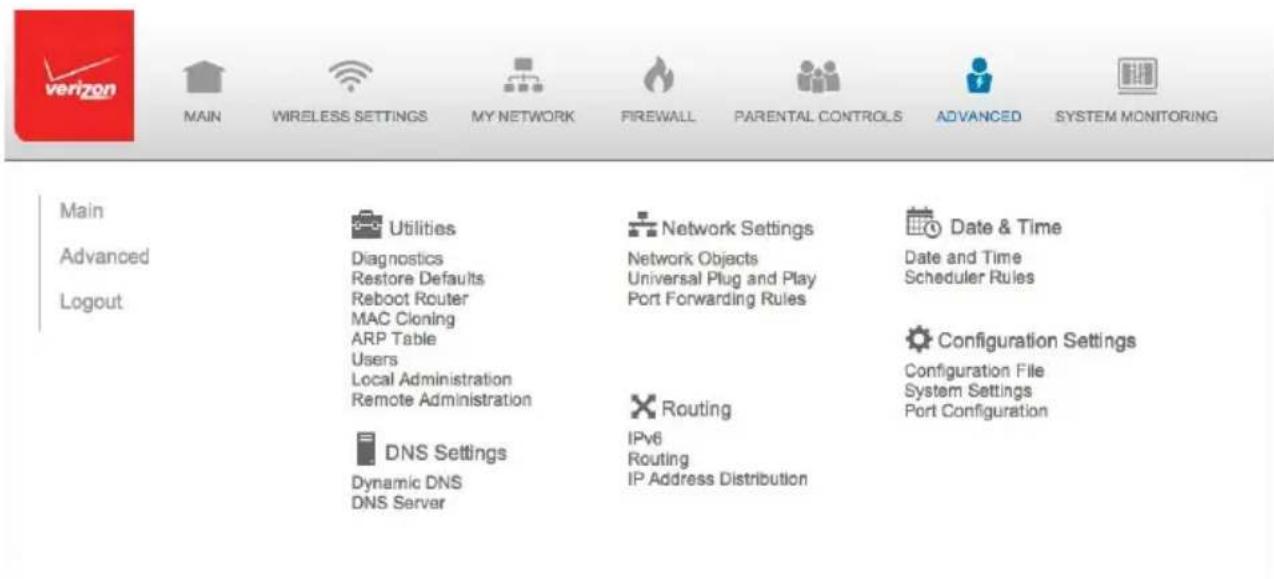
text_image
Main Advanced Logout Utilities Diagnostics Restore Defaults Reboot Router MAC Cloning ARP Table Users Local Administration Remote Administration DNS Settings Dynamic DNS DNS Server Network Settings Network Objects Universal Plug and Play Port Forwarding Rules Routing IPv6 Routing IP Address Distribution Date & Time Date and Time Scheduler Rules Configuration Settings Configuration File System Settings Port Configuration- Select a topic by clicking the topic name.
8.1/ UTILITIES
You can access the following advanced settings:
• Diagnostics – performs diagnostic tests
- Restore Defaults - resets your Gateway to it default settings
- Reboot Router – restarts your Gateway
• MAC Cloning - clones the MAC address
- ARP Table – displays active devices with their IP and MAC addresses
- Users – creates and manages remote users
• Quality of Service (QoS) - contact Technical Support for detailed information
- Local Administration – allows you to grant local SSH access
- Remove Administration – detailed in Chapter 6 Configuring Your Network Settings
8.1a/ DIAGNOSTICS
You can use diagnostics to test network connectivity.
To diagnose network connectivity:
- Select Diagnostics in the Advanced page.
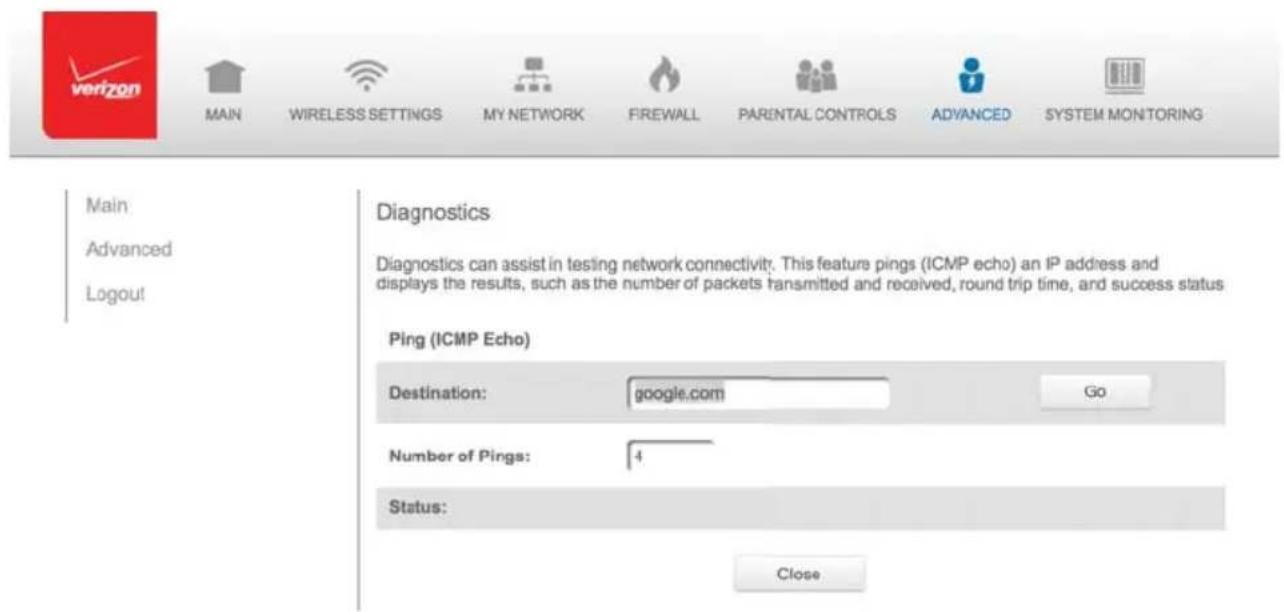
text_image
Main Advanced Logout Main Advanced Diagnostics Diagnostics can assist in testing network connectivity. This feature pings (ICMP echo) an IP address and displays the results, such as the number of packets transmitted and received, round trip time, and success status Ping (ICMP Echo) Destination: google.com Go Number of Pings: 4 Status: Close- To ping an IP address, enter the IP address or domain name in the Destination field and click Go.
The diagnostics will display the number of pings, status, packets sent, and round trip time.
If no diagnostic status displays, click Refresh in your web browser.
3. Click Close to exit the session.
8.1b/ RESTORE DEFAULTS
You can restore your configuration settings to your Gateway factory default settings. Restoring the default settings erases the current configuration, including user defined settings and network connections. All connected DHCP client must request new IP addresses. Your Gateway must restart.
Prior to restoring the factory defaults, you may want to save your current configuration to a file. This allows you to reapply your current settings and parameters to the default settings, as needed. For additional information, refer to the Configuration File section.
Note: When restoring defaults, the setting and parameters of your Gateway are restored to their default values. This includes the Administrator password. A user-specified password will no longer be valid.
To restore your Gateway's factory default settings:
- Select Restore Defaults in the Advanced page.
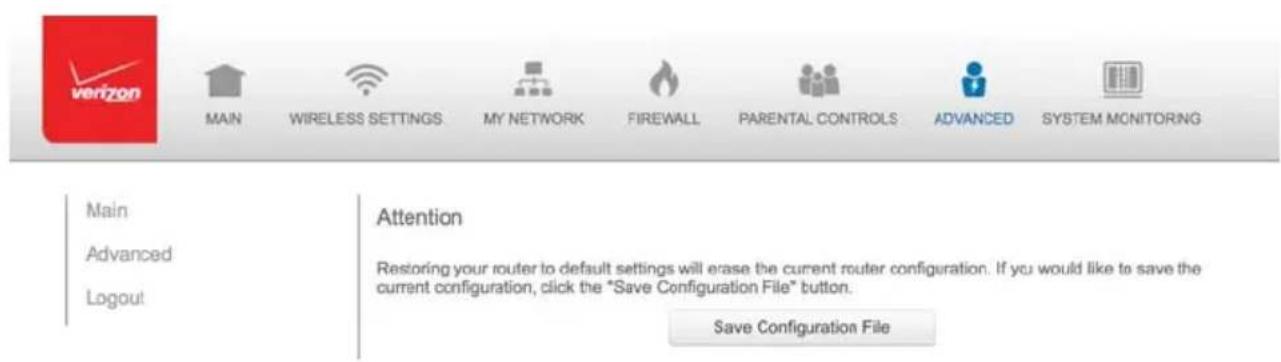
text_image
Main Advanced Logout MAIN WIRELESS SETTINGS MY NETWORK FIREWALL PARENTAL CONTROLS ADVANCED SYSTEM MONITORING Attention Restoring your router to default settings will erase the current router configuration. If you would like to save the current configuration, click the "Save Configuration File" button. Save Configuration File- To save your current configuration file, click Save Configuration File.
- To restore the factory default settings, click OK.
The factory default settings are applied and your Gateway restarts. Once complete, the Login page for the First Time Easy Setup Wizard displays.
8.1c/ REBOOT GATEWAY
You can reboot your Gateway using the Reboot Router feature as well as pressing and holding the WPS button on the front of the Gateway for at least 10 seconds.
To reboot your Gateway:
- Select Reboot Router in the Advanced page.

text_image
verizon MAIN WIRELESS SETTINGS MY NETWORK FIREWALL PARENTAL CONTROLS ADVANCED SYSTEM MONITORING
text_image
Main Advanced Logout Reboot Router Are you sure you want to reboot Wireless Broadband Router? OK Cancel- To reboot, click OK. Your Gateway reboots. This may take up to a minute.
- To access your Gateway user interface, refresh your web browser.
8.1d/ MAC CLONING
A MAC address is a hexadecimal code that identifies a device on a network. All networkable devices have a unique MAC address.
When replacing a network device on your Gateway, you can simplify the installation process by copying the MAC address of the existing device to your Gateway.
To copy the MAC address of the existing device:
- Select MAC Cloning in the Advanced page.
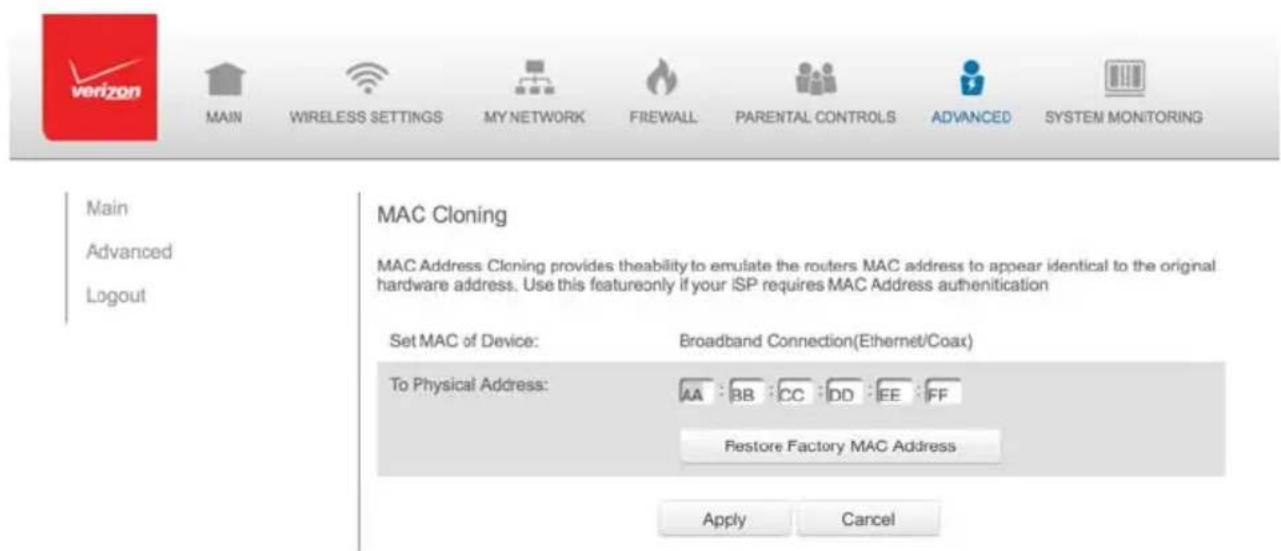
text_image
Main Advanced Logout MAIN WIRELESS SETTINGS MY NETWORK FREWALL PARENTAL CONTROLS ADVANCED SYSTEM MONITORING MAC Cloning MAC Address Cloning provides theability to emulate the routers MAC address to appear identical to the original hardware address. Use this featureonly if your ISP requires MAC Address authentication Set MAC of Device: Broadband Connection(Ethernet/Coax) To Physical Address: AA : BB : CC : DD : EE : FF Restore Factory MAC Address Apply Cancel- In the To Physical Address field, enter the MAC address of your new device.
- To locate the MAC address, refer to the documentation from the device manufacturer.
- Click Apply to save changes.
8.1e/ ARP TABLE
You can view the IP and MAC addresses of each DHCP connection.
To view the IP and MAC addresses:
1. Select ARP Table.

text_image
verizon MAIN WIRELESS SETTINGS MY NETWORK FIREWALL PARENTAL CONTROLS ADVANCED SYSTEM MONITORINGMain Advanced Logout
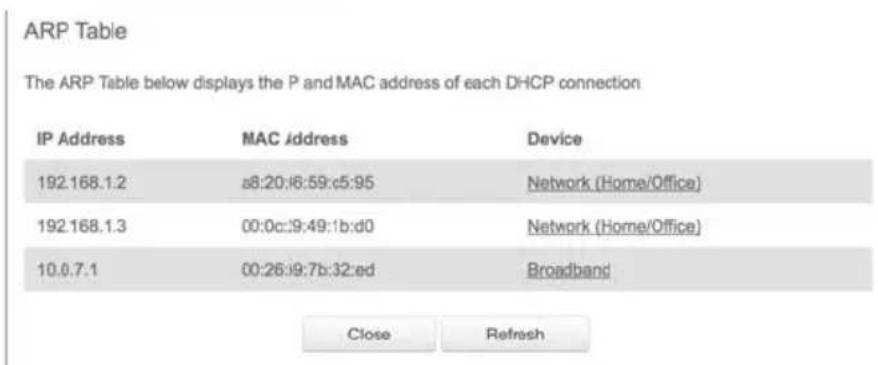
text_image
ARP Table The ARP Table below displays the P and MAC address of each DHCP connection IP Address MAC Address Device 192.168.1.2 s8:20:i6:59:c5:95 Network (Home/Office) 192.168.1.3 00:0c:i9:49:1b:d0 Network (Home/Office) 10.0.7.1 00:26:i9:7b:32:ed Broadband Close Refresh- Review the IP and MAC address for each device.
- When complete, click Close.
8.1f/USERS
You can view the users that can currently access your wireless network. In addition, you can modify their login password and name as well as manage the number of unsuccessful login attempts a user can enter before your Gateway temporarily denies all further login attempts by that user.
To view users:
- Select Users in the Advanced page.

text_image
Main Advanced Logout Users The User page provides the ability to edit router administrator settings. Login Configuration Maximum Unsuccessful Login Attempts: 5 Users Full Name User Name Permissions Action John Doe admin Administrator Apply Close- In the Login Configuration section, enter the maximum number of unsuccessful login attempts.
- To edit usernames and passwords, click the Edit icon in the Action column. The User Settings page displays.
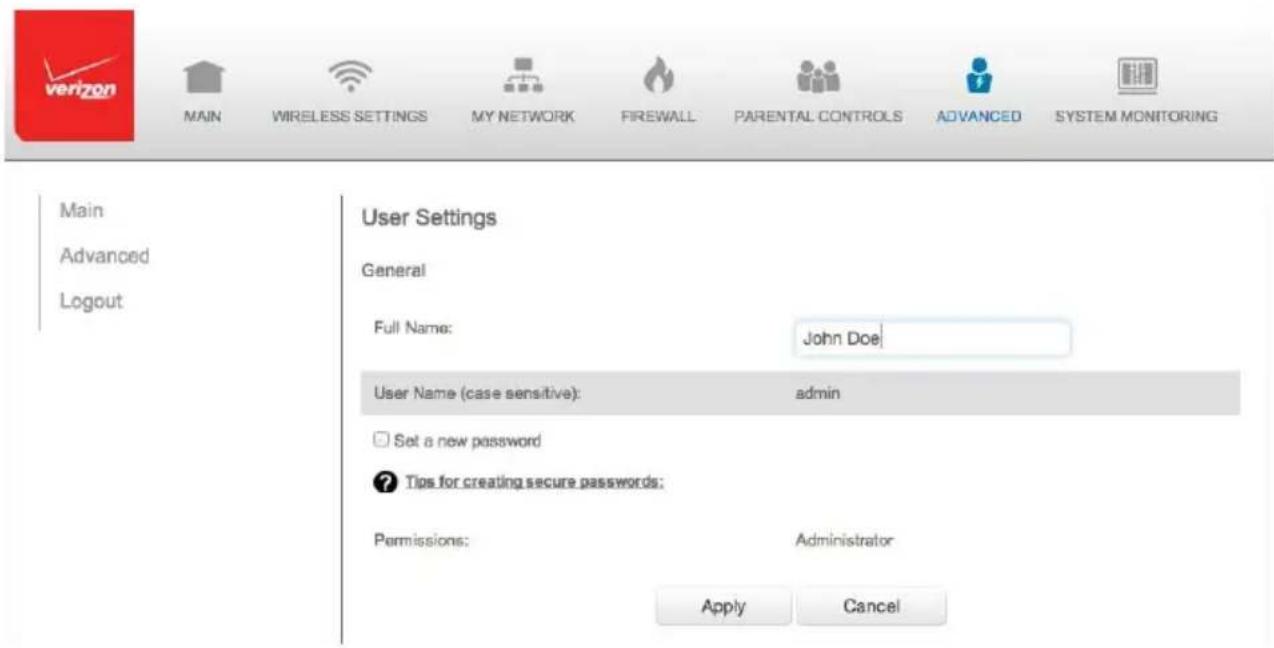
text_image
Main Advanced Logout User Settings General Full Name: John Doe User Name (case sensitive): admin Set a new password ? Tips for creating secure passwords: Permissions: Administrator Apply Cancel- To edit the username and set a new password, as needed.
- To add a new user, specify the following parameters:
• Full Name - name of the user.
- User Name – name the user enters to remotely access the home or office network. This field is case-sensitive.
- To set a new Password, select the Set a new password check box. The New Password fi elds display.
- Verify the level of access for the user in the Permissions fi eld.
- Click Apply to save changes. The Users page opens with the user information displayed.
- Click Apply again to save changes and exit.
You can grant local access on a specific port.
To grant access:
- Select Local Administration in the Advanced page.
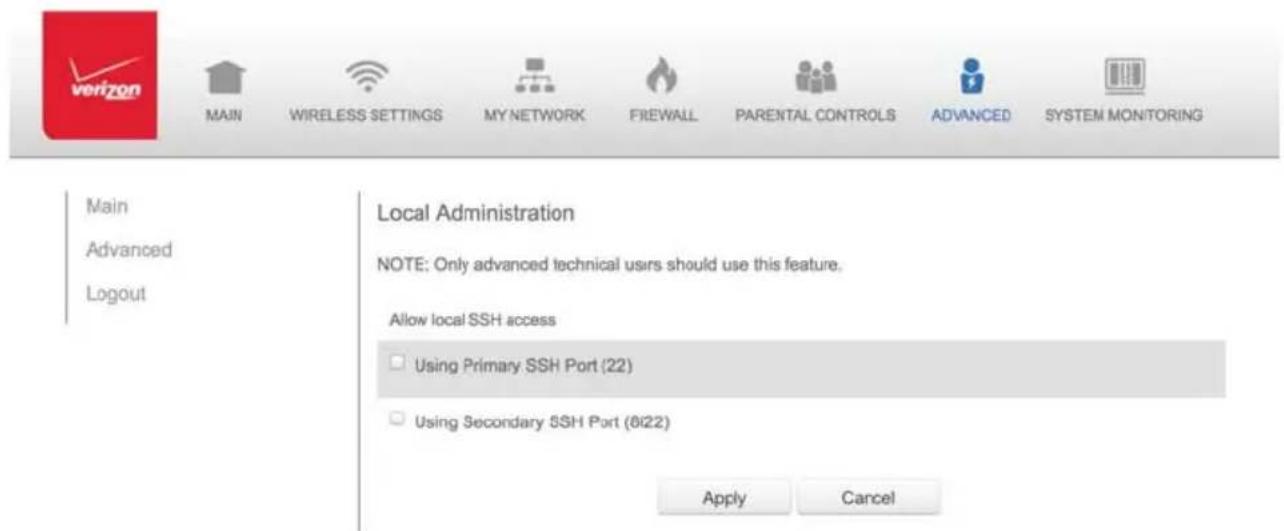
text_image
Main Advanced Logout MAIN WIRELESS SETTINGS MY NETWORK FIREWALL PARENTAL CONTROLS ADVANCED SYSTEM MONITORING Local Administration NOTE: Only advanced technical users should use this feature. Allow local SSH access Using Primary SSH Port (22) Using Secondary SSH Port (6122) Apply Cancel- To grant access, select the check box for the specific SSH access.
- Click Apply to save changes. Local access is granted.
- To remove access, clear the checkbox, then click Apply. No local access is granted.
8.1h/ REMOTE ADMINISTRATION
The Remote Administration parameters are detailed in Chapter 4 Configuring Your Network Settings.
8.2/ DNS SETTINGS
You can view and manage the DNS server host name and IP address as well as add a new computer. The DNS server does not require configuration.
8.2a/ DYNAMIC DNS
Typically, when connecting to the Internet, your router is assigned an unused public IP address from a pool, and this address changes periodically.
Dynamic DNS allows a static domain name to be mapped to the dynamic IP address, allowing a computer within your network to be more easily accessible from the Internet.
When using Dynamic DNS, each time the public IP address changes, the DNS database is automatically updated with the new IP address. In this way, even though the IP address changes often, the domain name remains constant and accessible.
To set up dynamic DNS:
- Select Dynamic DNS
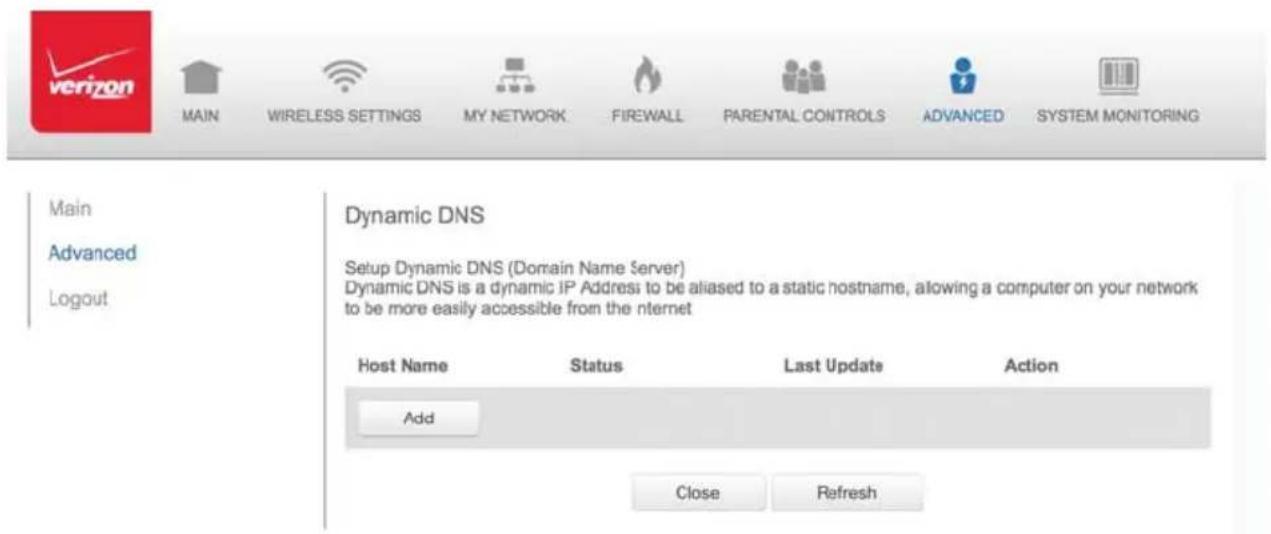
text_image
Main Advanced Logout Dynamic DNS Setup Dynamic DNS (Domain Name Server) Dynamic DNS is a dynamic IP Address to be aliased to a static hostname, allowing a computer on your network to be more easily accessible from the internet Host Name Status Last Update Action Add Close Refresh- To set up a new entry, click the Add button.
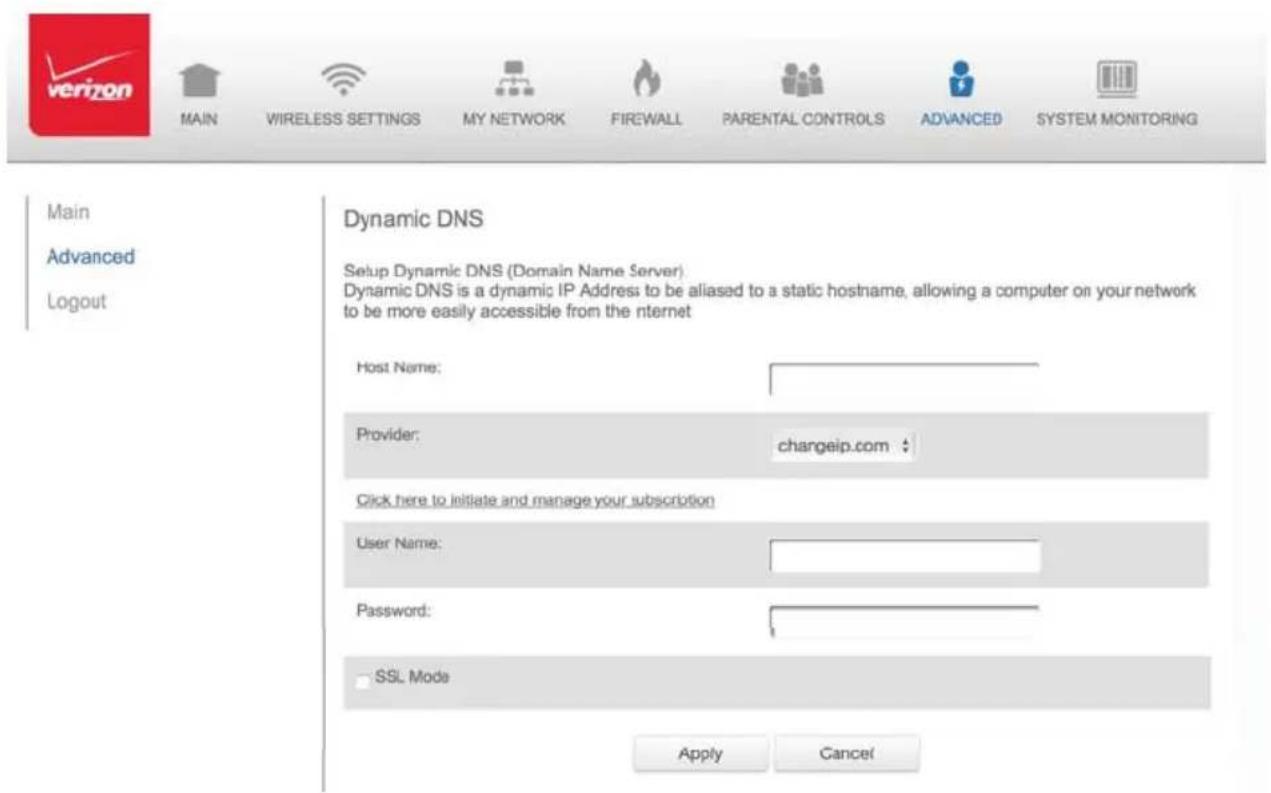
text_image
Main Advanced Logout Dynamic DNS Setup Dynamic DNS (Domain Name Server). Dynamic DNS is a dynamic IP Address to be aliased to a static hostname, allowing a computer on your network to be more easily accessible from the internet Host Name: Provider: changeip.com Click here to initiate and manage your subscription User Name: Password: SSL Mode Apply Cancel-
Configure the following parameters:
-
Host Name – enter the full domain name for your Dynamic DNS domain.
- Provider – select the Dynamic DNS account provider from the menu.
- User Name – enter your user name for your Dynamic DNS account.
- Password – enter the password for your Dynamic DNS account.
- SSL Mode – select if your Dynamic DNS service supports SSL.
Click Apply to save your changes.
To edit the host name or IP address:
- In the Action column, click the Edit icon. The DNS Entry page displays.
- Edit the settings.
- Click Apply to save the changes.
8.2b/ DNS SERVER
You can edit the host name and/or IP address, if the host was manually added to the DNS table. If not, you can only modify the host name.
To access the DNS server:
- Select DNS Server in the Advanced page.
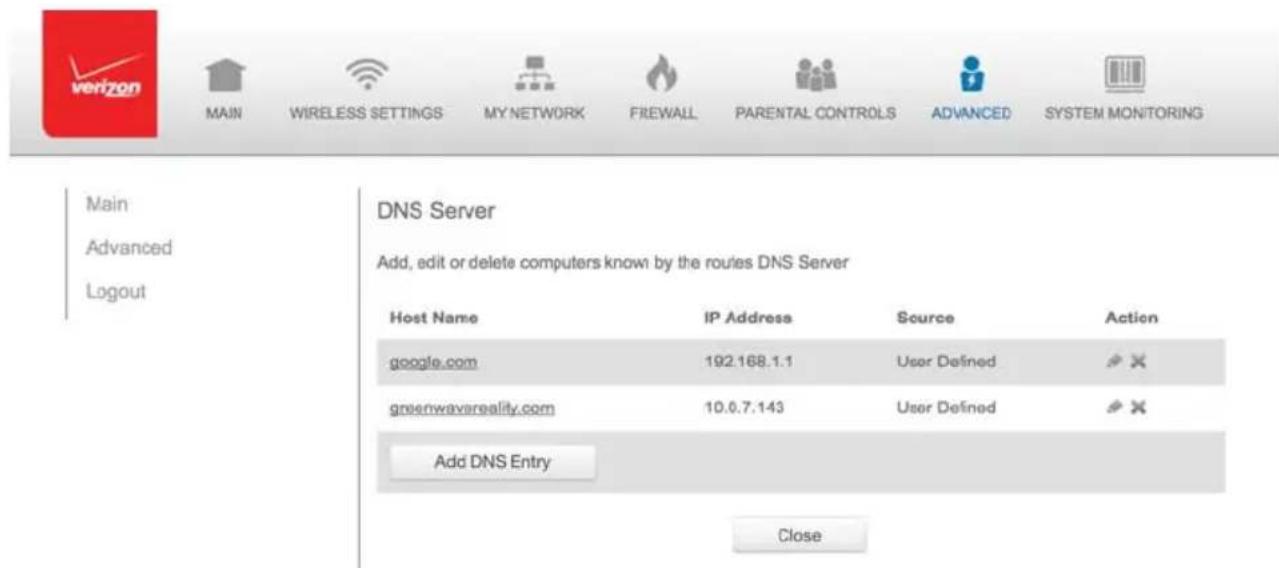
text_image
Main Advanced Logout DNS Server Add, edit or delete computers known by the routes DNS Server Host Name IP Address Source Action google.com 192.168.1.1 User Defined # greenwavareality.com 10.0.7.143 User Defined # Add DNS Entry Close- To view and add computers stored in the DNS table, click Add DNS Entry. The Add DNS Entry page displays.
- In the Host Name field, enter the name of the computer, then enter the IP address and click Apply to save changes. The DNS Server page displays.
- To edit the host name or IP address, click the Edit icon in the Action column. The DNS Entry page displays. Edit the host name and/or IP address, then click Apply to save changes.
- To remove a host from the DNS table, click the Delete icon in the Action column.
8.3/ NETWORK SETTINGS
You can configure the following network settings:
• Network Objects – define a group, such as a group of computers
- UPnP - checks the validity of all UPnP services and rules
- Port Forwarding Rules – displays port forwarding rules
8.3a/ NETWORK OBJECTS
Network objects define a group, such as a group of computers, on your Gateway network by MAC address, IP address, and/or host name.
The defined group becomes a network object. You can apply settings, such as configuring system rules, to all devices defined in the network object.
For example, instead of setting the same website fi ltering configuration individually to five computers one at a time, you can define the computers as a network object. Website fi ltering can then be simultaneously applied to all the computers.
You can use network objects to apply security rules based on host names, instead of IP addresses. This is useful since IP addresses change from time to time. In addition, you can define network objects according to MAC address to make the rule application more persistent against network configuration settings.
To define a network object:
- Select Network Objects in the Advanced page.
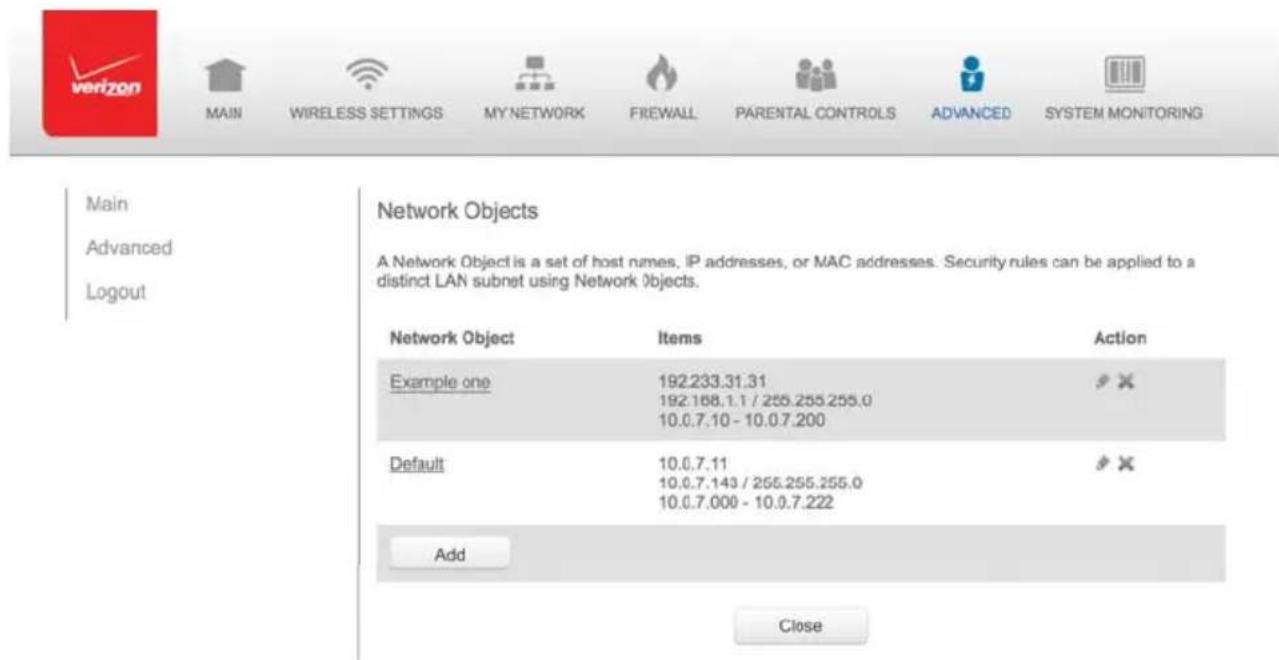
text_image
Main Advanced Logout Network Objects A Network Object is a set of host names, IP addresses, or MAC addresses. Security rules can be applied to a distinct LAN subnet using Network objects. Network Object Items Action Example one 192.233.31.31 # 192.168.1.1 / 255.255.255.0 10.0.7.10 - 10.0.7.200 Default 10.0.7.11 # 10.0.7.143 / 255.255.255.0 10.0.7.000 - 10.0.7.222 Add Close- To define a network object, click Add. The Edit Network Objects page displays.
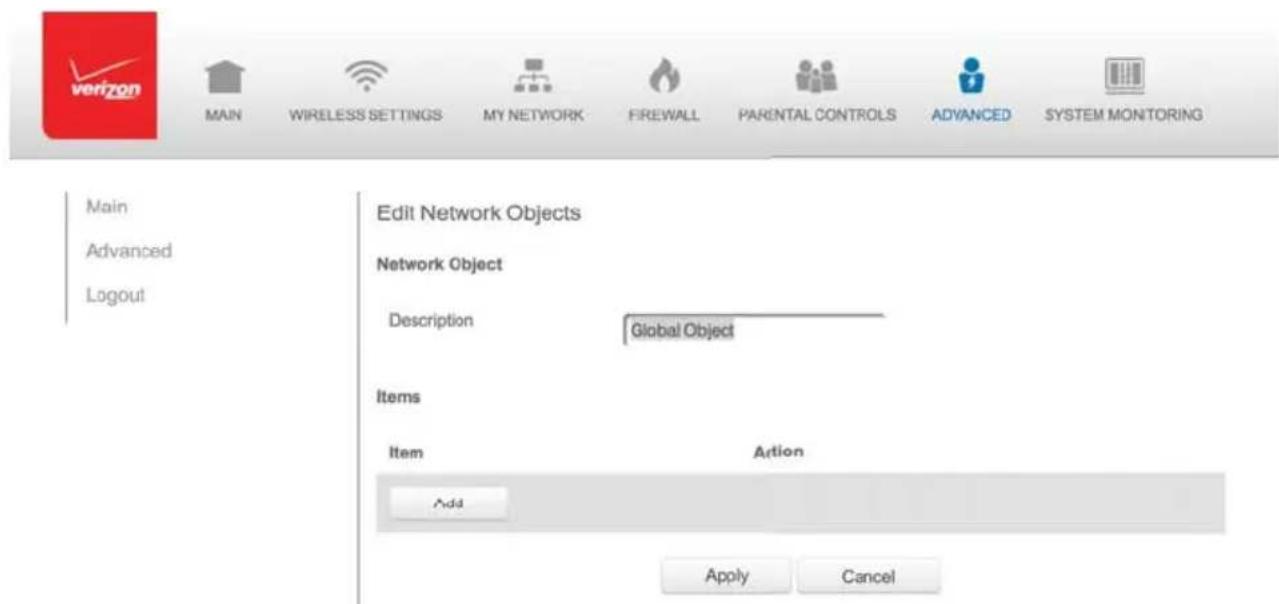
text_image
Main Advanced Logout Edit Network Objects Network Object Description Global Object Items Item Action Add Apply CancelNETWORK SETTINGS AND ROUTING
- In the Description field, enter a name for the network object.
- Click Add. The Edit Item page displays.
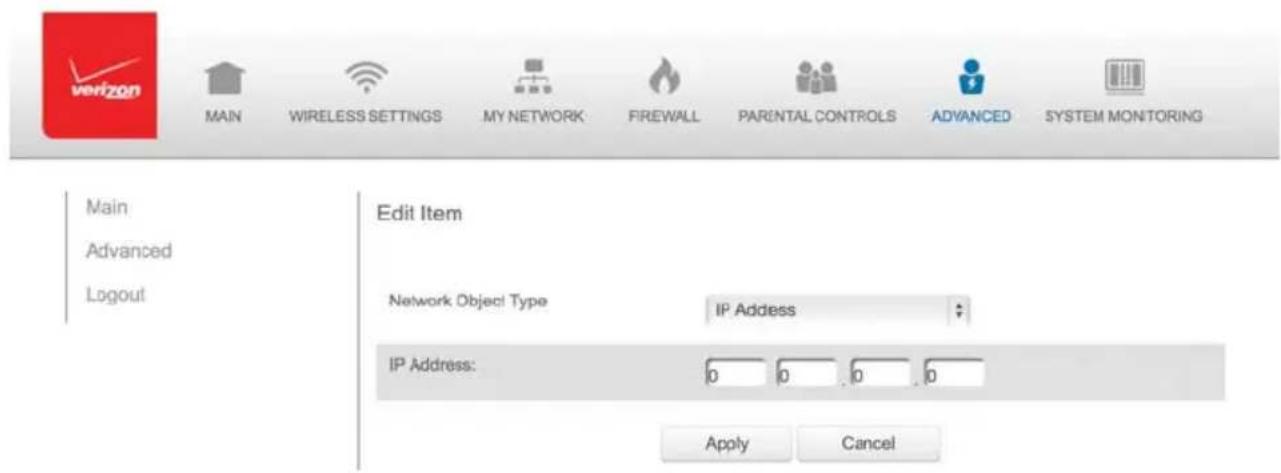
text_image
Main Advanced Logout Edit Item Network Object Type IP Address IP Address: 0 0 0 0 Apply Cancel- Select the type of network object as IP address, IP subnet, IP range, MAC address, host name, DHCP option, or protocol, and click Apply to save changes.
- Repeat the above steps to create additional network objects.
- When complete, click Apply to save changes.
8.3b/ UNIVERSAL PLUG AND PLAY
You can use Universal Plug and Play (UPnP) to support new devices without configuring or rebooting your Gateway.
In addition, you can enable the automatic cleanup of invalid rules. When enabled, this functionality verifies the validity of all UPnP services and rules every five minutes. Old and unused UPnP defined services are removed, unless a user-defined rule depends on it.
UPnP services are not deleted when disconnecting a computer without proper shutdown of the UPnP applications, such as messenger.
Services may often not be deleted and eventually this leads to the exhaustion of rules and services, and no new services can be defined. The cleanup feature locates the invalid services and removes them, preventing services exhaustion.
To access this setting:
- Select Universal Plug and Play in the Advanced page.
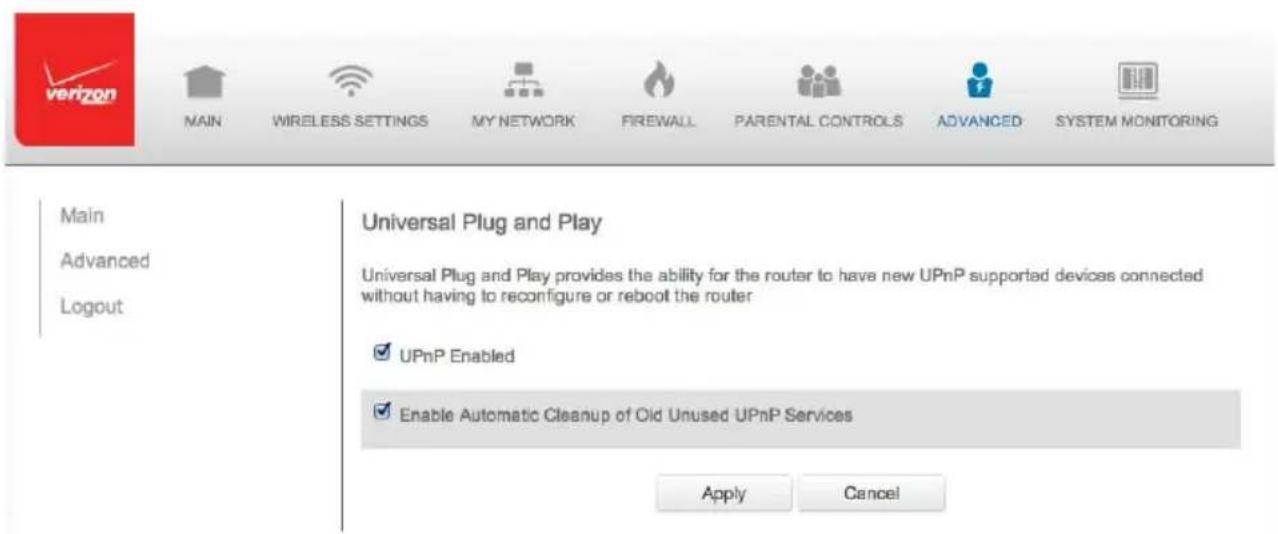
text_image
Main Advanced Logout MAIN WIRELESS SETTINGS MY NETWORK FIREWALL PARENTAL CONTROLS ADVANCED SYSTEM MONITORING Universal Plug and Play Universal Plug and Play provides the ability for the router to have new UPnP supported devices connected without having to reconfigure or reboot the router UPnP Enabled Enable Automatic Cleanup of Old Unused UPnP Services Apply Cancel- To enable UPnP and allow UPnP services to be defined on any network hosts, select the UPnP Enabled check box.
- To enable automatic cleanup of invalid rules, select Enable Automatic Cleanup of Old Unused UPnP Services check box.
- Click Apply to save changes.
8.3c/ PORT FORWARDING RULES
You can view, modify, and delete port forwarding rules.
To access the rules:
- Select Port Forwarding Rules in the Advanced page.

text_image
verizon MAIN WIRELESS SETTINGS MY NETWORK FIREWALL PARENTAL CONTROLS ADVANCED SYSTEM MONITORINGMain
Advanced
Logout
Port Forwarding Rules
Below is a list of currently configured Protocols that are implemented in the Wireless Broadband Router.
| Protocols | Ports | Action |
| FTP | TCP Any -> 21 | # X |
| HTTP | TCP Any -> 80 | # X |
| HTTPS | TCP Any -> 443 | # X |
| IMAP | TCP Any -> 143 | # X |
| L2TP | UDP Any -> 1701 | # X |
| Ping | ICMP Echo Request | # X |
| POP3 | TCP Any -> 110 | # X |
| SMTP | TCP Any -> 25 | # X |
| SNMP | UDP Any -> 161 | # X |
| Telnet | TCP Any -> 23 | # X |
| TFTP | UDP 1024 - 65535 -> 89 | # X |
| Traceroute | UDP 32769 - 65535 -> 33434 - 33523 | # X |
| Add | ||
| Close |
- To edit a protocol rule, click the Edit icon in the Action column. The Edit Service page displays.

text_image
verizon MAIN WIRELESS SETTINGS MY NETWORK FIREWALL PARENTAL CONTROLS ADVANCED SYSTEM MONITORINGMain Advanced Logout
Edit Service
Service Name:
PFR1
Service Description:
Port Forward Rule 1
Server Ports
Protocol
Server Ports
Action
TCP
100·200→300·400
9×
GRE
# ×
UDP
Any -> 69
×
Add Server Ports
Apply
Cancel
- Modify the Service Name and Service Description, as needed.
- To modify the current protocol, click the Edit icon in the Action column.
- To add server ports, click Add Server Ports.
- Click Apply to save changes.
8.4/ ROUTING
You can configure the following settings:
- IPv6 - enables IPv6 support.
- Routing - manages the routing and IP address distribution rules.
- IP Address Distribution - adds computers configured as DHCP clients to the network
8.4a/IPv6
Use the IPv6 feature settings to enable, disable, or configure an IPv6 Internet connection and IPv6 LAN settings.
- To configure your network to use the IPv6 Internet connection type. Select IPv6 from the Advanced page to display the IPv6 service options:


MAIN

WIRELESS SETTINGS

MY NETWORK

FIREWALL

PARENTAL CONTROLS

ADVANCED

SYSTEM MONITORING
Main
Advanced
Logout

Utilities
Diagnostics
Restore Defaults
Reboot Router
MAC Cloning
ARP Table
Users
Local Administration
Remote Administration

DNS Settings
DNS Server

Network Settings
Network Objects
Universal Plug and Play
Fort Forwarding Rules

Routing
IIV6
Fouting
IP Address Distribution

Firmware Upgrade
Firmware Upgrade
Firmware Restore

Date & Time
Date and Time
Scheduler Rules

Configuration Settings
Configuration File
System Settings
Port Configuration
- Select Enable under the Enable IPv6 Support option. (Once IPv6 is enabled the default setting will be IPv6 WAN as DHCPv6 and IPv6 LAN as Stateless).

text_image
verizon MAIN WIRELESS SETTINGS MY NETWORK FIREWALL PARENTAL CONTROLS ADVANCED SYSTEM MONITORING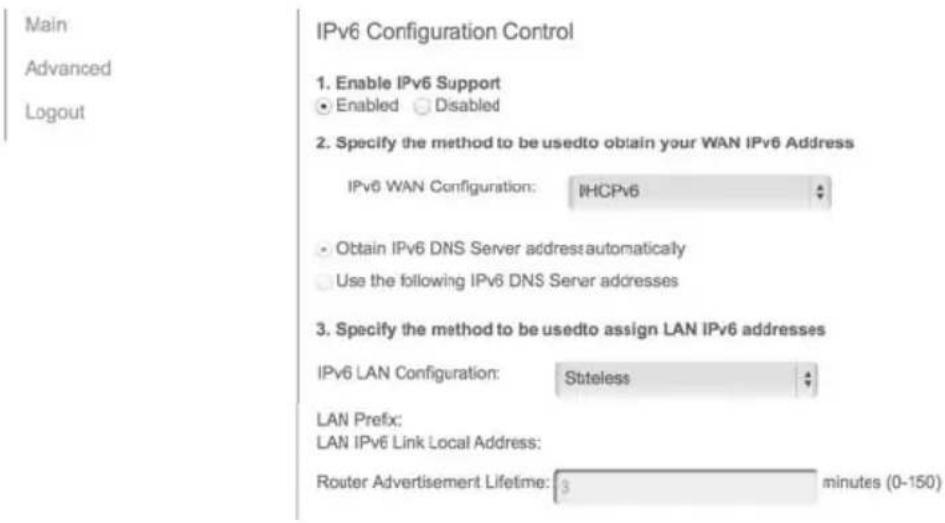
text_image
Main Advanced Logout IPv6 Configuration Control 1. Enable IPv6 Support • Enabled ✓ Disabled 2. Specify the method to be usedto obtain your WAN IPv6 Address IPv6 WAN Configuration: IHCPv6 • Obtain IPv6 DNS Server addressautomatically • Use the following IPv6 DNS Server addresses 3. Specify the method to be usedto assign LAN IPv6 addresses IPv6 LAN Configuration: Stateless LAN Prefix: LAN IPv6 Link Local Address: Router Advertisement Lifetime: 3 minutes (0-150)- Select the appropriate IPv6 connection method from the drop-down list, as shown below to specify the method to be used to obtain your WAN IPv6 Address.

text_image
2. Specify the method to be us None Static ✓ DHCPv6 IPv6 WAN Configuration:- Click Apply to have changes take effect.
Note: The Internet IPv6 service is required for this feature to work over the Internet.
- To disable the IPv6 service click on the "Disable" option as shown below and click Apply to have changes take effect.
IPv6 Configuration Control
- Enable IPv6 Support
- Enabled ○ Disabled
Once configured using valid IPv6 WAN and LAN configurations you should not see any errors when you click on the "Apply" button and the Main page will reflect the router's new IPv6 address as shown below.
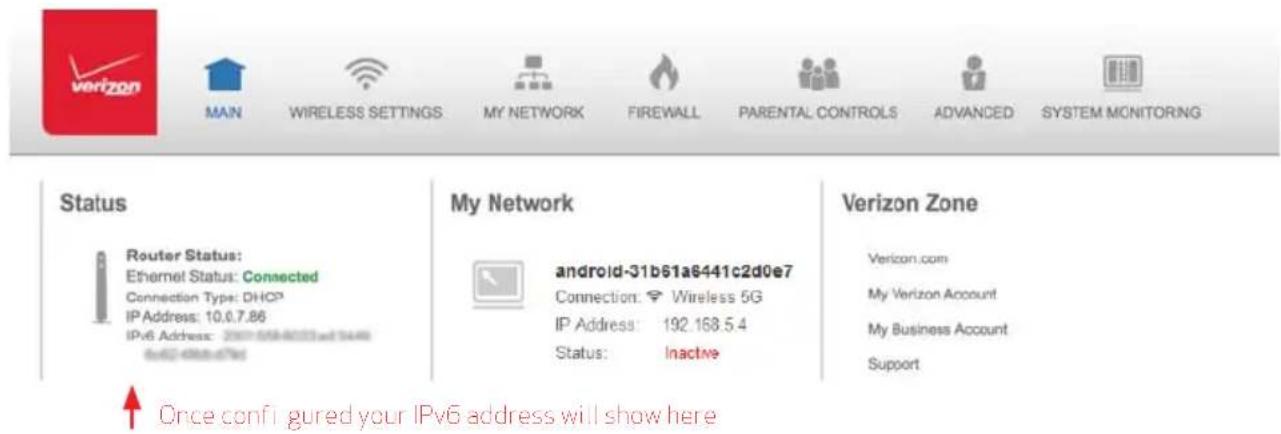
text_image
Status Router Status: Ethernet Status: Connected Connection Type: DHCP IP Address: 10.0.7.86 IPv6 Address: 2007-059-8033and3448 6x@4888a79e My Network android-31b61a6441c2d0e7 Connection: Wireless 5G IP Address: 192.168.5.4 Status: Inactive Once configured your IPv6 address will show here Verizon Zone Verizon.com My Verizon Account My Business Account SupportYou should also see the IPv6 address for all IPv6 supported devices on your local network displayed on the My Network page and under the Broadband Connection (Ethernet/Coax) Properties as shown on the two pages below.


MAIN

WIRELESS SETTINGS

MY NETWORK

FIREWALL

PARENTAL CONTROLS

ADVANCED

SYSTEM MONITORING
Main
Network Status
Network Connections
Logout
My Network

android-31b61a6441c2d0e7
Connection:
IP Address
IP Address Allocation
IPv6 Address
MAC Address:
Wireless 5G
192.1685.4
DHCP
5c 0a 5b 2c cc 20
Website Blocking
Block Internet Services
Port Forwarding
View Device Details
Rename This Device
Connected Devices
| Ethernet: | 1 |
| Wireless 5G: | 1 |
| Wireless 2.4G: | 0 |
| Coax: | 0 |


MAIN

WIRELESS SETTINGS

MY NETWORK

FREWALL

PARENTAL CONTROLS

ADVANCED

SYSTEM MONITORING
Main
Network Status
Network Connections
Logout
Broadband Connection (Ethernet/Coax) Properties
Note: Only advanced technical uses should use this feature.
Disable
Name:
Broadband Connection (Ethernet
Status:
Connected
Network:
Broadband Connection
Connection Type:
Ethernet/Coax
MAC Address:
d4:a9:28:05:2d:84
ID Address:
10 07 RA
IPv6 WAN Address:
IPv6 LAN Local Address:
IPv6 DNS Address 1:
IPv6 DNS Address 2:
Received Packets:
1051704
Sent Packets:
4135
Time Span:
72:45
Coax Channel:
Cable Disconnected
STATIC - WAN IPv6 ADDRESS CONNECTION
The IPv6 WAN Static configurations are IPv6 settings that you enter manually. These specific IPv6 addresses and settings are not expected to change frequently.
- To configure IPv6 WAN Static mode, select the Static option on the IPv6 Configuration Control Page as shown below:
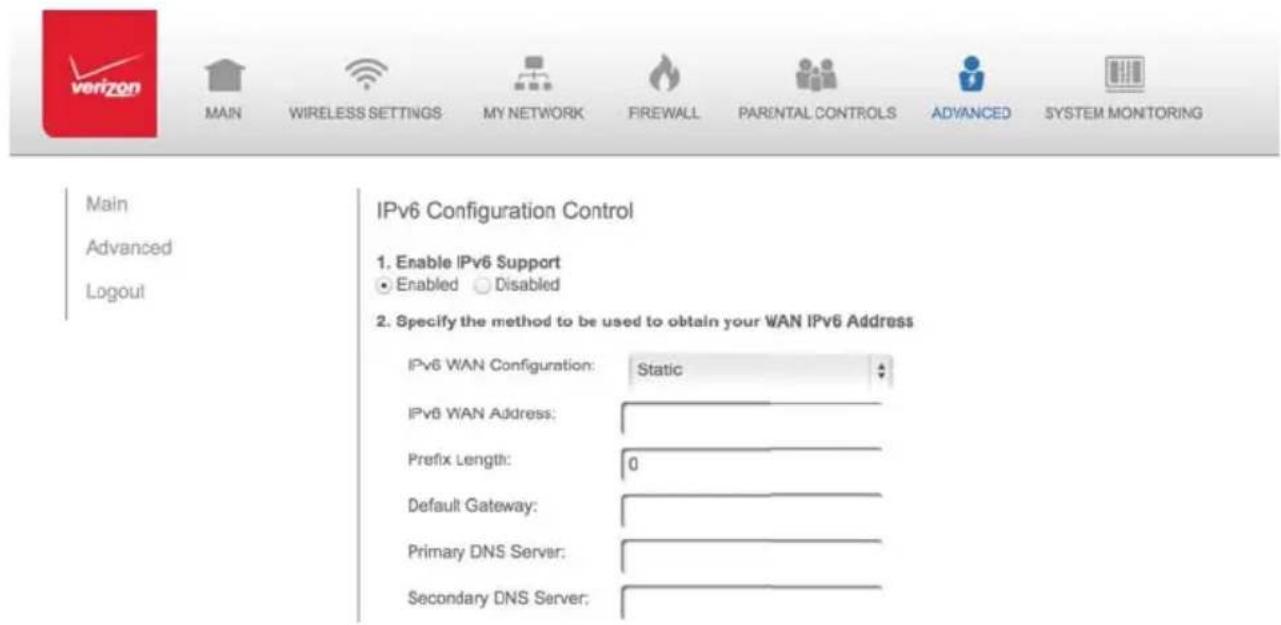
text_image
Main Advanced Logout Main Wireless Settings MY NETWORK Firewall PARENTAL CONTROLS ADVANCED SYSTEM MONITORING IPv6 Configuration Control 1. Enable IPv6 Support ● Enabled ○ Disabled 2. Specify the method to be used to obtain your WAN IPv6 Address IPv6 WAN Configuration: Static IPv6 WAN Address: Prefix Length: 0 Default Gateway: Primary DNS Server: Secondary DNS Server:- Specify the Static method to be used to obtain your WAN IPv6 Address by entering:
- IPv6 WAN Configuration (select Static) as shown in drop-down list and page below:
- Specify the method to be used to obtain your WAN IPv6 Address
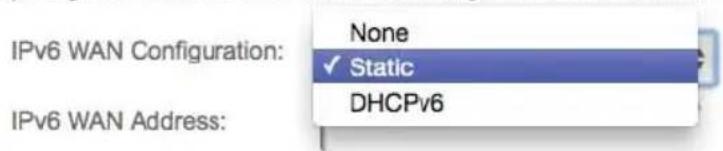
text_image
IPv6 WAN Configuration: None ✓ Static DHCPv6 IPv6 WAN Address:- IPv6 WAN Address
- Prefix Length (A numeric value between 16 and 128)
-
Default Gateway
• Primary DNS Server
• Secondary DNS Server -
After entering all appropriate IPv6 settings click Apply to have changes take effect.
STATIC - WAN IPv6 ADDRESS CONNECTION
- To configure IPv6 LAN Stateful mode with Static WAN, select the Stateful (DHCPv6) option on the IPv6 Configuration Control Page as shown below:
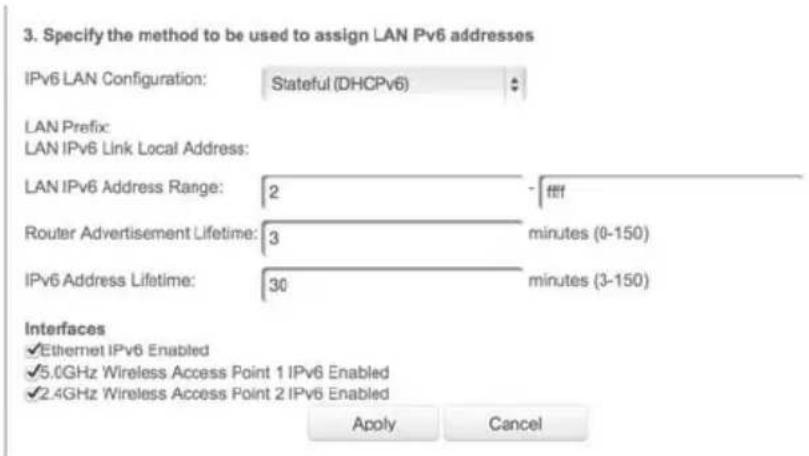
text_image
3. Specify the method to be used to assign LAN Pv6 addresses IPv6 LAN Configuration: Stateful (DHCPv6) LAN Prefix: LAN IPv6 Link Local Address: LAN IPv6 Address Range: 2 - tfff Router Advertisement Lifetime: 3 minutes (0-150) IPv6 Address Lifetime: 30 minutes (3-150) Interfaces ✓Ethernet IPv6 Enabled ✓5.0GHz Wireless Access Point 1 IPv6 Enabled ✓2.4GHz Wireless Access Point 2 IPv6 Enabled Apply Cancel- Specify the Stateful (DHCPv6) settings to be used to assign LAN IPv6 addresses by entering the following details:
- IPv6 LAN Configuration (select Stateful from the drop-down list) as shown in drop-down list and page below:
3. Specify the method to be used to assign LAN IPv6 addresses
IPv6 LAN Configuration:
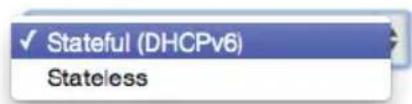
text_image
✓ Stateful (DHCPv6) Stateless• LAN Prefix x
• LAN IPv6 Link Local Address (automatically populated)
• LAN IPv6 Address Range (start and end)
- Router Advertisement Lifetime (minutes between 0-150)
• IPv6 Address Lifetime (minutes between 3-150)
- Interfaces - check one or more of the box(s) to apply IPv6 LAN settings to the selected interfaces:
- Ethernet/Coax IPv6 Enabled
- Wireless Access Point 1 IPv6 Enabled
-
Wireless Access Point 2 IPv6 Enabled
-
After entering all appropriate IPv6 settings click Apply to have changes take effect.
STATIC WAN WITH LAN IPv6 STATELESS SETTINGS:
-
To configure LAN IPv6 Stateless mode with Static WAN, select the Stateless option on the IPv6 Configuration Control Page as shown below:
-
Specify the settings to be used to assign LAN IPv6 addresses by entering the following details:
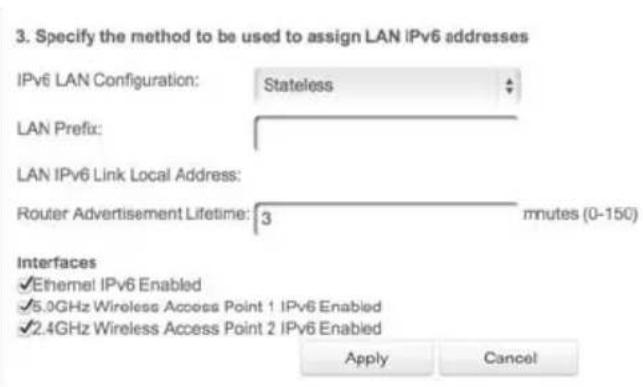
text_image
3. Specify the method to be used to assign LAN IPv6 addresses IPv6 LAN Configuration: Stateless LAN Prefix: LAN IPv6 Link Local Address: Router Advertisement Lifetime: 3 mnutes (0-150) Interfaces ✓Ethernet IPv6 Enabled ✓5.0GHz Wireless Access Point 1 IPv6 Enabled ✓2.4GHz Wireless Access Point 2 IPv6 Enabled Apply Cancel- IPv6 LAN Configuration (select Stateless from the dropdown list) as shown in drop-down list and page below:
- Specify the method to be used to assign LAN IPv6 addresses

text_image
IPv6 LAN Configuration: Stateful (DHCPv6) ✓ Stateless• LAN Prefix x
• LAN IPv6 Link Local Address (automatically populated)
- Router Advertisement Lifetime (minutes between 0-150)
- Interfaces - check one or more of the box(s) to apply IPv6 LAN settings to the selected interfaces:
- Ethernet/Coax IPv6 Enabled
- Wireless Access Point 1 IPv6 Enabled
-
Wireless Access Point 2 IPv6 Enabled
-
After entering all appropriate IPv6 settings click Apply to have changes take effect.
DHCPv6 - WAN IPv6 ADDRESS CONNECTION
The IPv6 WAN DHCPv6 configurations are IPv6 settings that you enter that will allow your IPv6 connection to be updated by the ISP as needed.
- To configure IPv6 WAN Stateful (DHCPv6) mode, select the Stateful (DHCPv6) option on the IPv6 Configuration Control Page as shown below:
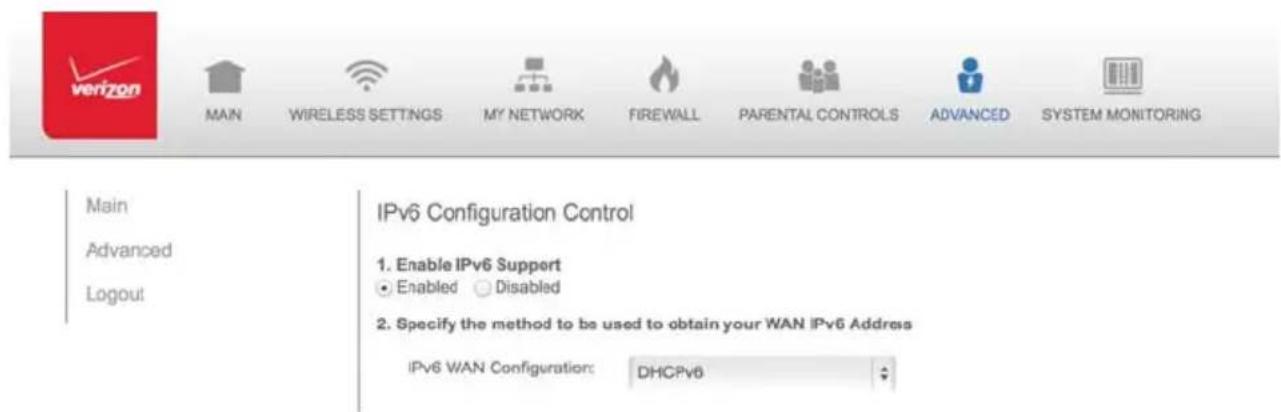
text_image
Main Advanced Logout Main WIRELESS SETTINGS MY NETWORK FIREWALL PARENTAL CONTROLS ADVANCED SYSTEM MONITORING IPv6 Configuration Control 1. Enable IPv6 Support ● Enabled ○ Disabled 2. Specify the method to be used to obtain your WAN IPv6 Address IPv6 WAN Configuration: DHCPv6- Specify the DHCPv6 method to be used to obtain your WAN IPv6 Address by entering:
- IPv6 WAN Configuration (select DHCPv6 from the drop-down list) as shown in drop-down list and page below:

text_image
2. Specify the method to be us None Static ✓ DHCPv6- Check to either 'Obtain IPv6 DNS Server address automatically', or to 'Use the following IPv6 DNS Server addresses'
- After entering all appropriate IPv6 settings click Apply to have changes take effect.
DHCPv6 WAN WITH LAN IPv6 STATEFUL (DHCPv6) SETTINGS:
- To configure IPv6 WAN Stateful (DHCPv6) mode, select the Stateful (DHCPv6) option on the IPv6 Configuration Control Page as shown below:
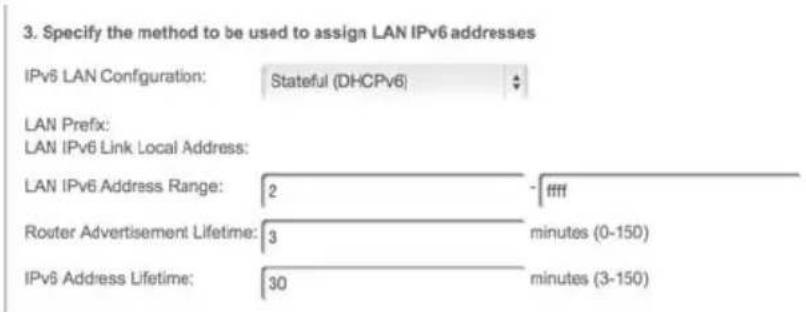
text_image
3. Specify the method to be used to assign LAN IPv6 addresses IPv6 LAN Configuration: Stateful (DHCPv6) LAN Prefix: LAN IPv6 Link Local Address: LAN IPv6 Address Range: 2 - ffff Router Advertisement Lifetime: 3 minutes (0-150) IPv6 Address Lifetime: 30 minutes (3-150)- Specify the Stateful (DHCPv6) settings to be used to assign LAN IPv6 addresses by entering the following details:
- IPv6 LAN Configuration (select Stateful from the dropdown list) as shown in drop-down list and page below:
3. Specify the method to be used to assign LAN IPv6 addresses
IPv6 LAN Configuration:
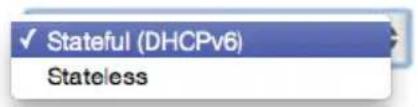
text_image
✓ Stateful (DHCPv6) Stateless• LAN Prefix x
• LAN IPv6 Link Local Address (automatically populated)
• LAN IPv6 Address Range (start and end)
- Router Advertisement Lifetime (minutes between 0-150)
• IPv6 Address Lifetime (minutes between 3-150)
- Interfaces - check one or more of the box(s) to apply IPv6 LAN settings to the selected interfaces:
- Ethernet/Coax IPv6 Enabled
- Wireless Access Point 1 IPv6 Enabled
- Wireless Access Point 2 IPv6 Enabled
- After entering all appropriate IPv6 settings click Apply to have changes take effect.
DHCPv6 WAN WITH LAN IPv6 STATELESS SETTINGS:
- To configure IPv6 LAN Stateless mode with DHCPv6 WAN, select the Stateless option on the IPv6 Configuration Control Page as shown below:
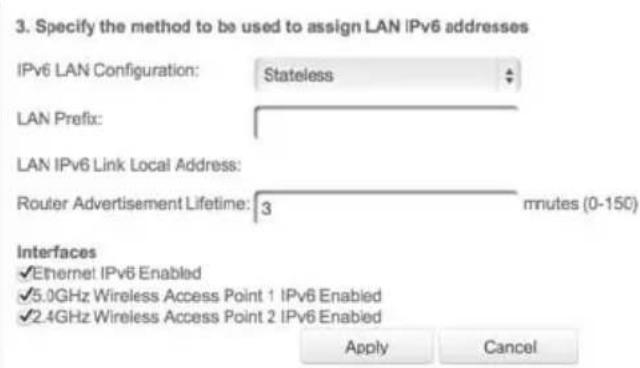
text_image
3. Specify the method to be used to assign LAN IPv6 addresses IPv6 LAN Configuration: Stateless LAN Prefix: LAN IPv6 Link Local Address: Router Advertisement Lifetime: 3 mnutes (0-150) Interfaces ✓Ethernet IPv6 Enabled ✓5.0GHz Wireless Access Point 1 IPv6 Enabled ✓2.4GHz Wireless Access Point 2 IPv6 Enabled Apply Cancel- Specify the Stateless settings to be used to assign LAN IPv6 addresses by entering the following details:
- IPv6 LAN Configuration (select Stateless from the dropdown list) as shown in drop-down list and page below:
3. Specify the method to be used to assign LAN IPv6 addresses

text_image
IPv6 LAN Configuration: Stateful (DHCPv6) ✓ Stateless• LAN Prefix (automatically populated)
• LAN IPv6 Link Local Address (automatically populated)
- Router Advertisement Lifetime (minutes between 0-150)
- Interfaces - check one or more of the box(s) to apply IPv6 LAN settings to the selected interfaces:
- Ethernet/Coax IPv6 Enabled
- Wireless Access Point 1 IPv6 Enabled
-
Wireless Access Point 2 IPv6 Enabled
-
After entering all appropriate IPv6 settings click Apply to have changes take effect.
LAN IPv6 CONFIGURATION WITHOUT AN IPv6 WAN CONNECTION:
- To configure IPv6 to use either the IPv6 LAN Stateful or Stateless mode without using an IPv6 Internet WAN connection, select the None option on the IPv6 Configuration Control Page as shown below:
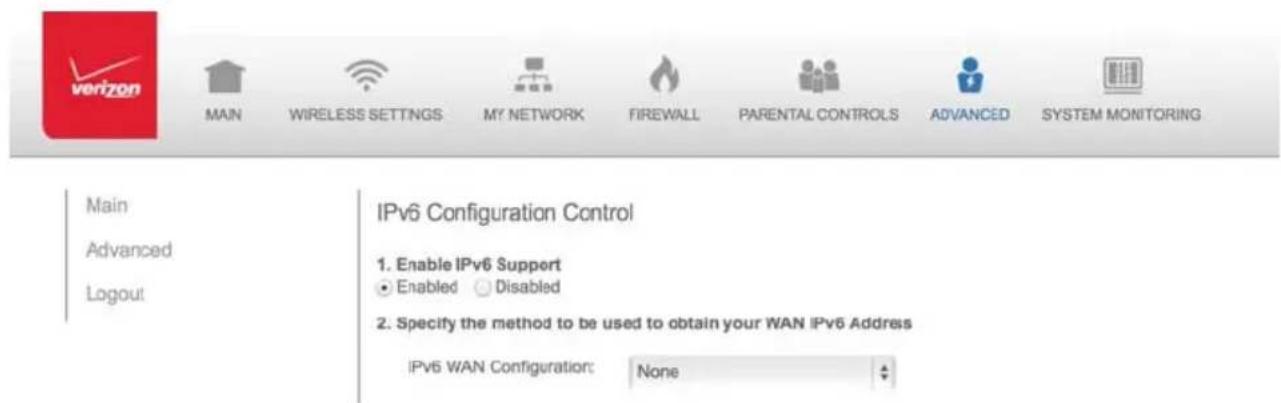
text_image
Main Advanced Logout Main Wireless Settings My NETWORK Firewall PARENTAL CONTROLS ADVANCED SYSTEM MONITORING IPv6 Configuration Control 1. Enable IPv6 Support ● Enabled ○ Disabled 2. Specify the method to be used to obtain your WAN IPv6 Address IPv6 WAN Configuration: None- After entering all appropriate IPv6 settings click Apply to have changes take effect.
LAN IPv6 STATEFUL (DHCPv6) WITH NO WAN SETTINGS:
- To configure IPv6 LAN Stateful mode with No WAN connection, select the Stateful option on the IPv6 Configuration Control Page as shown below:
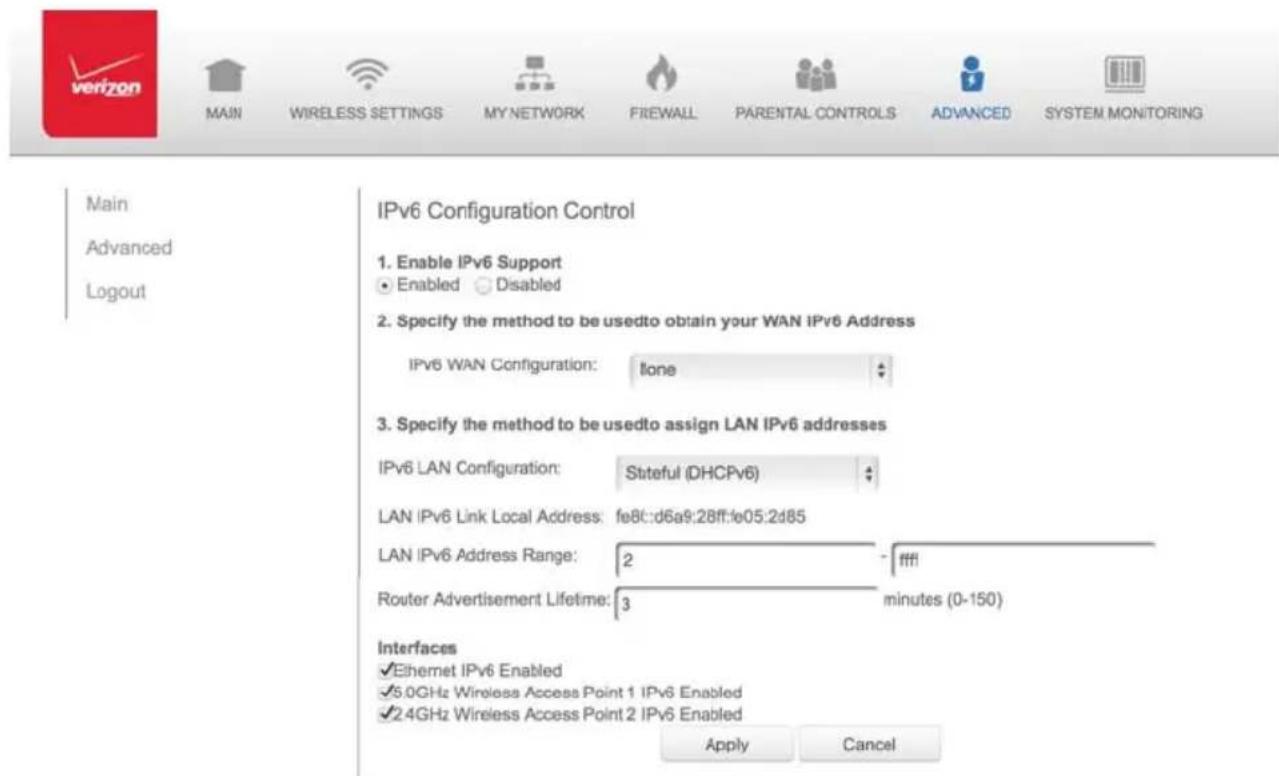
text_image
Main Advanced Logout Main IPv6 Configuration Control 1. Enable IPv6 Support ● Enabled ○ Disabled 2. Specify the method to be usedto obtain your WAN IPv6 Address IPv6 WAN Configuration: none 3. Specify the method to be usedto assign LAN IPv6 addresses IPv6 LAN Configuration: Stateful (DHCPv6) LAN IPv6 Link Local Address: fe8c:d6a9:28ff:fe05:2d85 LAN IPv6 Address Range: 2 - ffff Router Advertisement Lifetime: 3 minutes (0-150) Interfaces ✓ Ethernet IPv6 Enabled ✓ 5.0GHz Wireless Access Point 1 IPv6 Enabled ✓ 2.4GHz Wireless Access Point 2 IPv6 Enabled Apply Cancel- Specify the Stateful (DHCPv6) settings to be used to assign LAN IPv6 addresses by entering the following details:
- IPv6 LAN Configuration (select Stateful from the dropdown list) as shown in drop-down list and page below:
- Specify the method to be used to assign LAN IPv6 addresses
IPv6 LAN Configuration:
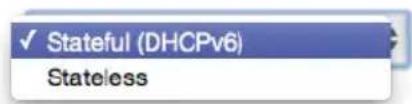
text_image
✓ Stateful (DHCPv6) Stateless• LAN IPv6 Link Local Address (automatically populated)
• LAN IPv6 Address Range (start and end)
• Router Advertisement Lifetime (minutes between 0-150)
- Interfaces - check one or more of the box(s) to apply IPv6 LAN settings to the selected interfaces:
- Ethernet/Coax IPv6 Enabled
- Wireless Access Point 1 IPv6 Enabled
-
Wireless Access Point 2 IPv6 Enable
-
After entering all appropriate IPv6 settings click Apply to have changes take effect.
LAN IPv6 STATELESS WITH NO WAN SETTINGS:
- To configure IPv6 LAN Stateless mode with No WAN connection, select the Stateless option on the IPv6 Configuration Control Page as shown below:
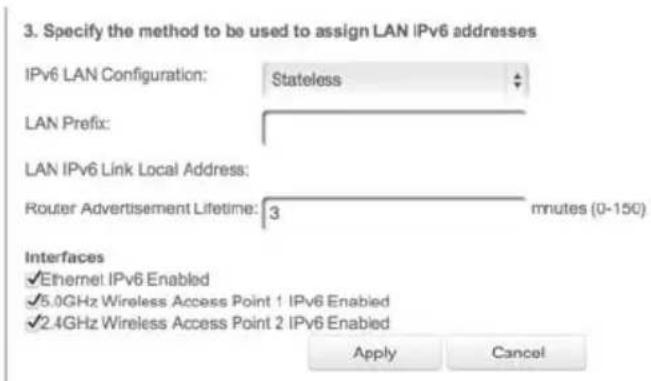
text_image
3. Specify the method to be used to assign LAN IPv6 addresses IPv6 LAN Configuration: Stateless LAN Prefix: LAN IPv6 Link Local Address: Router Advertisement Lifetime: 3 minutes (0-150) Interfaces ✓Ethernet IPv6 Enabled ✓5.0GHz Wireless Access Point 1 IPv6 Enabled ✓2.4GHz Wireless Access Point 2 IPv6 Enabled Apply Cancel- Specify the Stateless settings to be used to assign LAN IPv6 addresses by entering the following details:
3. Specify the method to be used to assign LAN IPv6 addresses
IPv6 LAN Configuration:
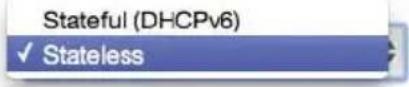
- IPv6 LAN Configuration (select Stateless from the drop-down list) as shown in drop-down list and page below:
• LAN IPv6 Link Local Address (automatically populated) - Router Advertisement Lifetime (minutes between 0-150)
-
Interfaces - check one or more of the box(s) to apply IPv6 LAN settings to the selected interfaces:
-
Ethernet/Coax IPv6 Enabled
- Wireless Access Point 1 IPv6 Enabled
-
Wireless Access Point 2 IPv6 Enable
-
After entering all appropriate IPv6 settings click Apply to have changes take effect.
8.4b/ ROUTING SETTINGS
You can view the routing and IP address distribution rules as well as add, edit, or delete the rules.
To view the rules:
- Select Routing in the Advanced page.
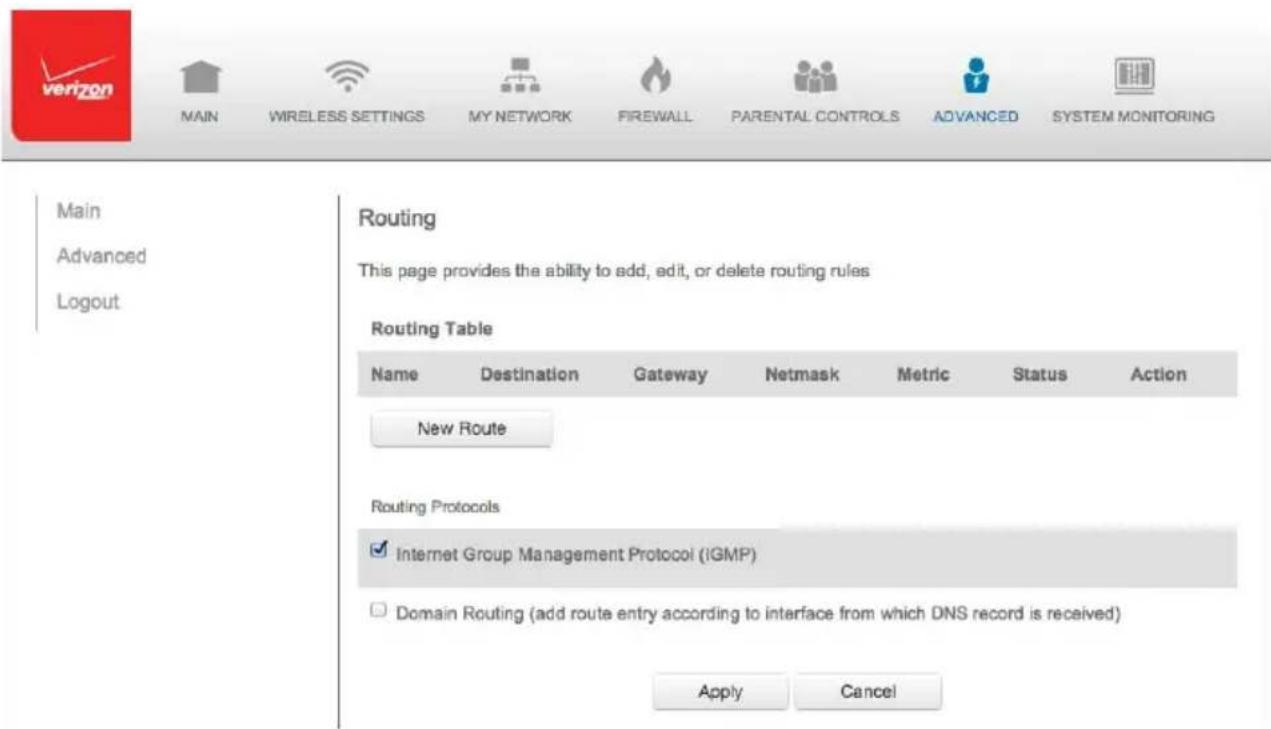
text_image
Main Advanced Logout Routing This page provides the ability to add, edit, or delete routing rules Routing Table Name Destination Gateway Netmask Metric Status Action New Route Routing Protocols ✓ Internet Group Management Protocol (iGMP) □ Domain Routing (add route entry according to interface from which DNS record is received) Apply Cancel2. To add a new Gateway, click Add New Route.
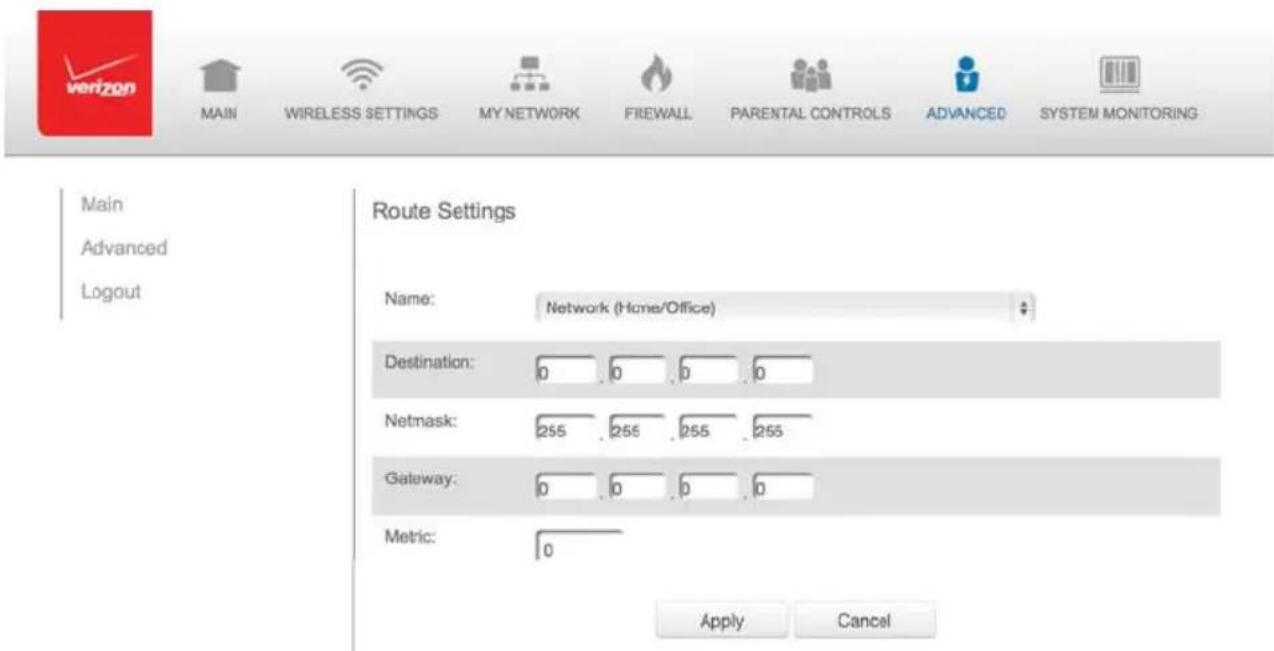
text_image
Main Advanced Logout Route Settings Name: Network (Home/Office) Destination: 0 0 0 0 Netmask: 255 255 255 255 Gateway: 0 0 0 0 Metric: 0 Apply Cancel-
Specify the following parameters:
-
Name – select the network type.
- Destination - enter the destination IP of the destination host, subnet address, network address, or default route. The destination for a default route is 0.0.0.0.
- Netmask – enter the network mask. This is used in conjunction with the destination to determine when a route is used.
- Gateway – enter the IP address of your Gateway.
-
Metric – enter a measurement preference of the route. Typically, the lowest metric is the most preferred route. If multiple routes exist to a specific destination network, the route with the lowest metric is used.
-
Click Apply to save changes.
8.4c/ IP ADDRESS DISTRIBUTION
You can easily add computers configured as DHCP clients to the network. The DHCP server provides a mechanism for allocating IP addresses to these hosts and for delivering network configuration parameters to the hosts.
For example, a client (host) sends a broadcast message on the network requesting an IP address for itself. The DHCP server then checks its list of available addresses and leases a local IP address to the host for a specific period of time and simultaneously designates this IP address
as taken. At this point, the host is configured with an IP address for the duration of the lease.
The host can renew an expiring lease or let it expire. If it renews a lease, the host receives current information about network services, as it did during the original lease, allowing it to update its network configurations to reflect any changes that occurred since the first connection to the network.
If the host wishes to terminate a lease before its expiration, it sends a release message to the DHCP server. This makes the IP address available for use by other hosts.
The DHCP server performs the following functions:
- Displays a list of all DHCP host devices connected to your Gateway
- Defines the range of IP addresses that can be allocated in the network
- Defines the length of time the dynamic P addresses are allocated
- Provides the above configurations for each network device and can be configured and enabled or disabled separately for each network device
- Assigns a static lease to a network computer to receive the same IP address each time it connects to the network, even if this IP address is within the range of addresses that the DHCP server may assign to other computer
- Provides the DNS server with the host name and IP address of each computer connected to the network
To view a summary of the services provided by the DHCP server:
- Select IP Address Distribution in the Advanced page.
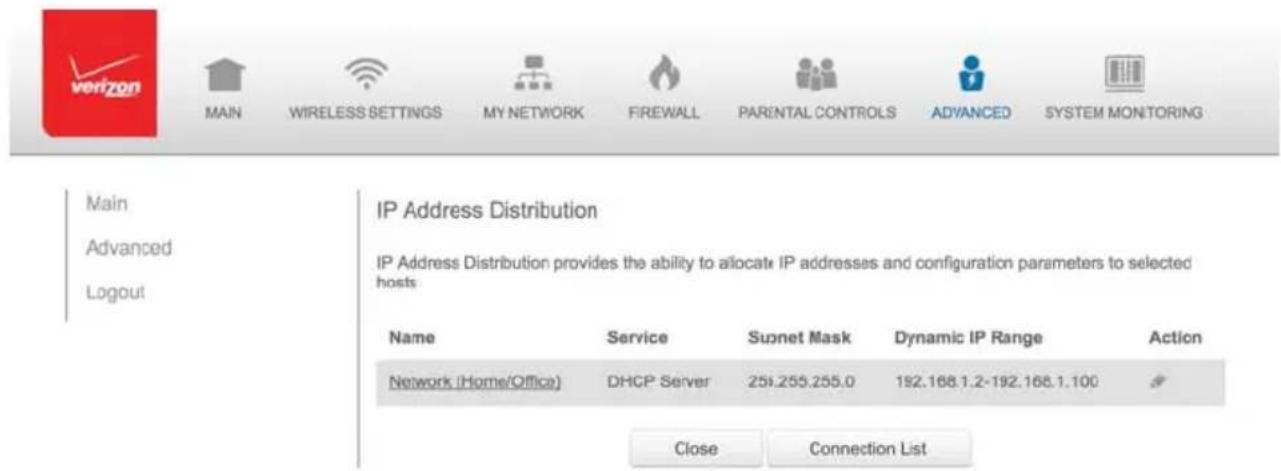
text_image
Main Advanced Logout IP Address Distribution IP Address Distribution provides the ability to allocate IP addresses and configuration parameters to selected hosts Name Service Sunet Mask Dynamic: IP Range Action Network (Home/Office) DHCP Server 259.255.255.0 192.168.1.2-192.168.1.100 Close Connection ListDHCP SERVER SETTINGS
You can edit the DHCP server settings for a device.
To edit the settings:
- On the IP Address Distribution page, click the Edit icon in the Action column. The DHCP Settings page opens with the device information displayed.
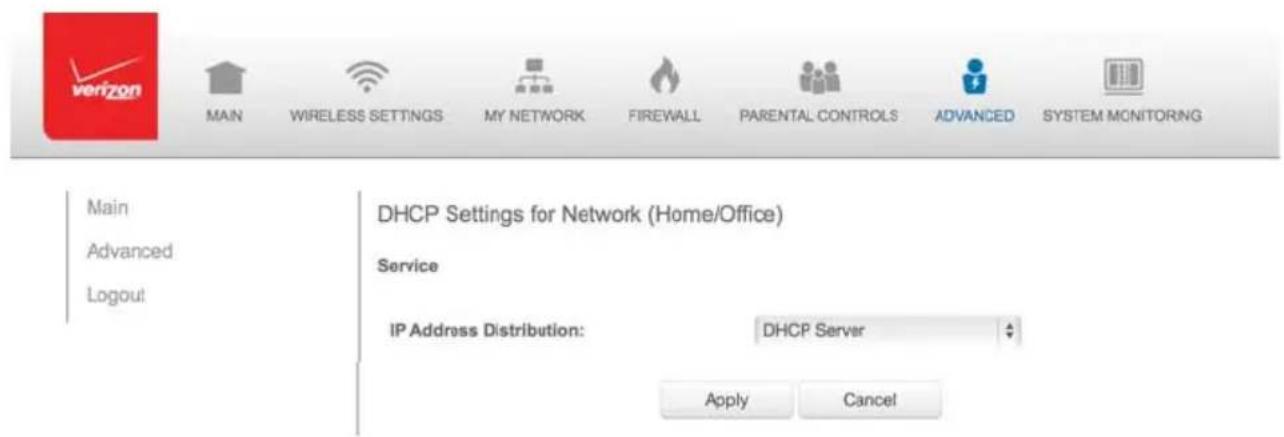
text_image
Main Advanced Logout WHIP WHIP WHIP WHIP WHIP WHIP WHIP WHIP WHIP WHIP WHIP WHIP WHIP WHIP WHIP WHIP WHIP WHIP WHIP WHIP WHIP WHIP WHIP WHIP WHIP WHIP WHIP WHIP WHIP WHIP WHIP WHIP WHIP WHIP- To enable the DHCP server, select DHCP Server in the IP Address Distribution fi eld.
Once enabled, the DHCP server provides automatic IP assignments (IP leases) based on the preset IP range defined below.
- To configure the DHCP server complete the following fields:
- Start IP Address – enter the first IP address that your Gateway will automatically begin assigning IP addresses from. Since your Gateway's default IP address is 192.168.1.1, the default start IP address should be 192.162.1.2.
- End IP Address – enter the last IP address that your Gateway will automatically stop the IP address allocation. The maximum end IP address range that can be entered is 192.168.1.254.
- WINS Server – determines the IP address associated with a network device.
- Lease Time in Minutes – assigns the amount of time in minutes that each device is assigned an IP address by the DHCP server when it connects to the network.
When the lease expires, the server determines if the computer has disconnected from the network. If it has, the server may reassign this IP address to a newly-connected computer.
- Provide Host Name if Not Specified by Client – when activated, your Gateway assigns a default name to the client, if the DHCP client has no host name.
4. Click Apply to save changes.
DHCP CONNECTIONS
You can view a list of the connections currently assigned and recognized by the DHCP server. In addition, you can add a new connection with a fixed IP address.
Note: The fixed IP address of a device is assigned to the MAC address of the network card installed on the network computer. If this network card is replaced, you must update the device entry in the DHCP Connections list with the MAC address of the new network card.
To view a list of computers:
- On the IP Address page, click Connection List.
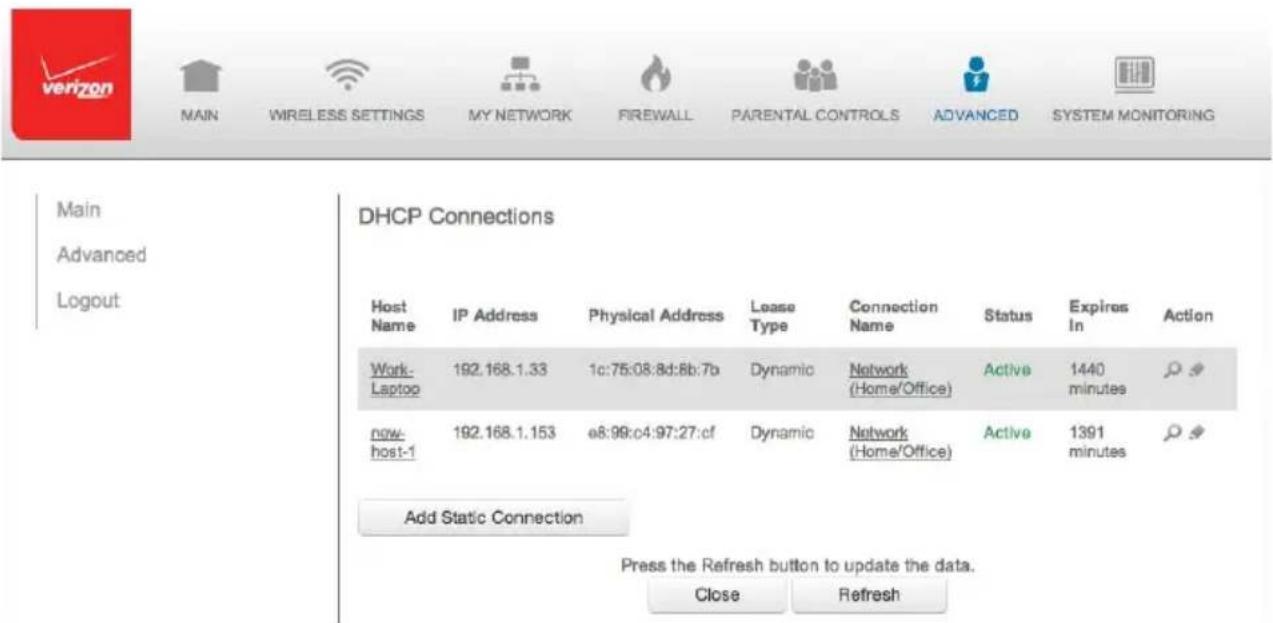
text_image
Main Advanced Logout DHCP Connections Host Name IP Address Physical Address Lease Type Connection Name Status Expires In Action Work- Laptop 192.168.1.33 1c:75:08:8d:8b:7b Dynamic Network (Home/Office) Active 1440 minutes now- host-1 192.168.1.153 e8:99:c4:97:27:cf Dynamic Network (Home/Office) Active 1391 minutes Add Static Connection Press the Refresh button to update the data. Close Refresh- To define a new Static Connection with a fixed IP address, click Add Static Connection.
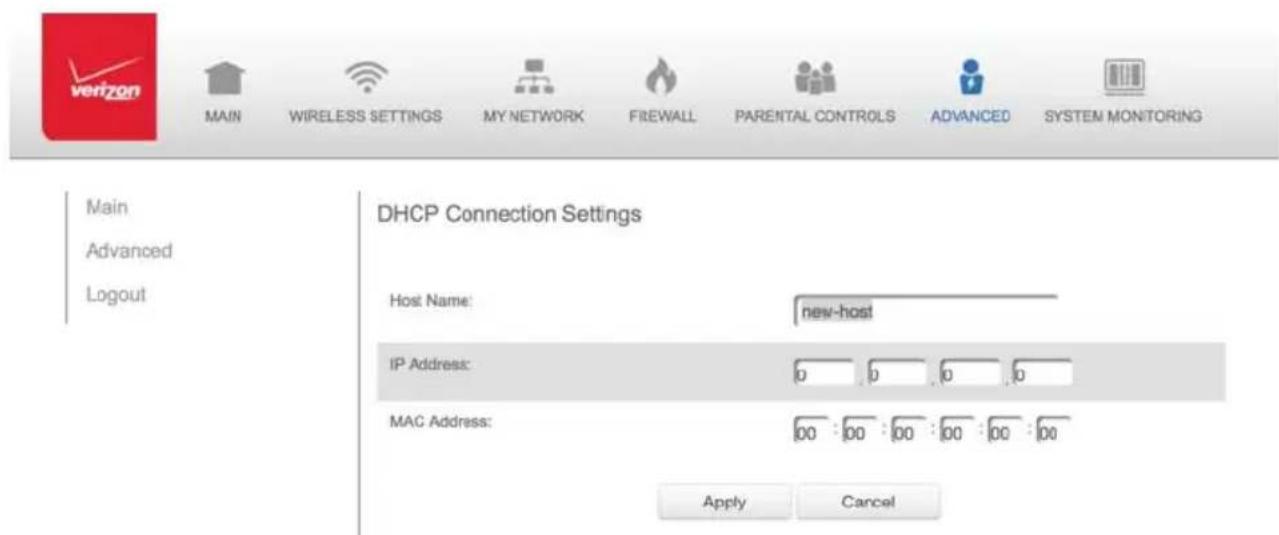
text_image
Main Advanced Logout DHCP Connection Settings Host Name: new-host IP Address: 0 0 0 0 MAC Address: 00 :00 :00 :00 :00 :00 Apply Cancel- Enter the host name.
- Enter the fixed IP address to be assigned.
- Enter the MAC address of the network interface of the computer used with this DHCP static connection.
- Click Apply to save changes.
8.5/ DATE AND TIME
You can configure the following settings:
- Date and Time Settings – sets the time zone and enables automatic time updates.
- Scheduler Rules – limits the activation of firewall rules to specific time periods.
8.5a/ DATE AND TIME SETTINGS
You can set the time zone and enable automatic time updates.
To configure the settings:
- Select Date and Time in the Advanced page.
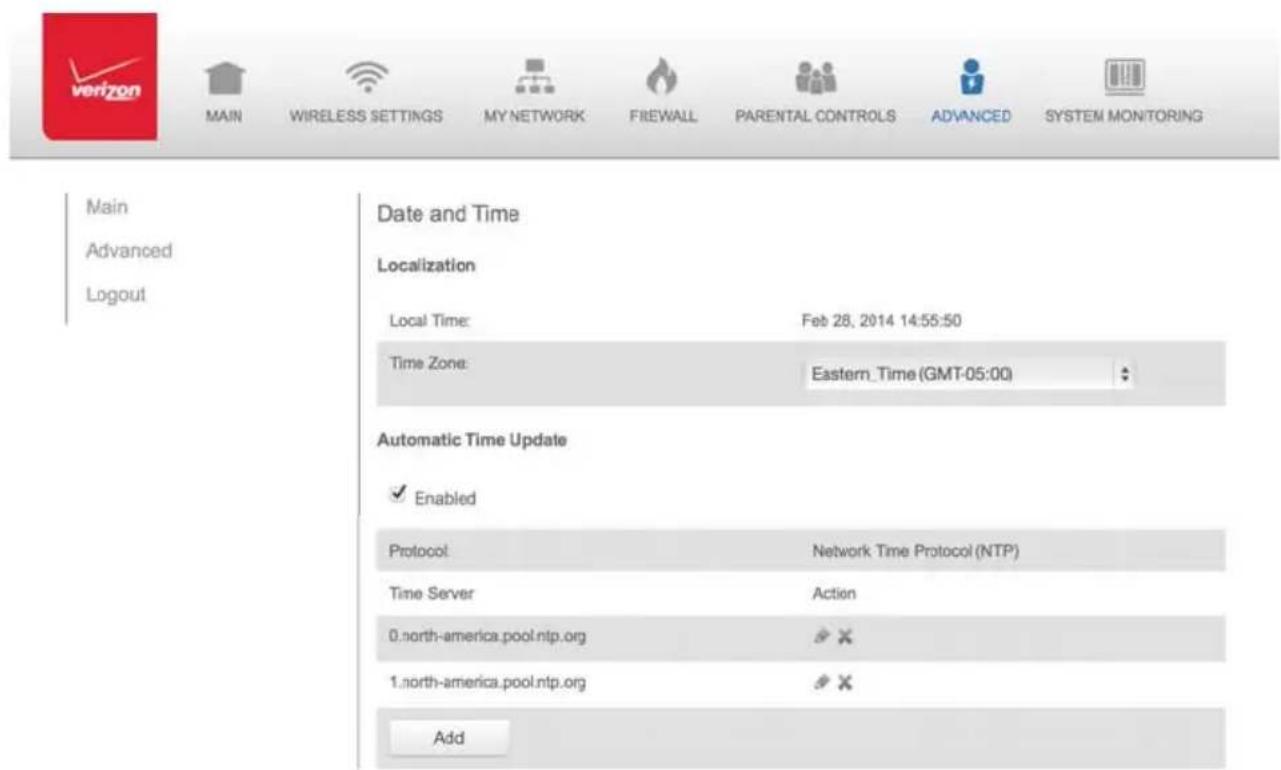
text_image
Main Advanced Logout Date and Time Localization Local Time: Feb 28, 2014 14:55:50 Time Zone: Eastern_Time (GMT-05:00) Automatic Time Update Enabled Protocol Network Time Protocol (NTP) Time Server Action 0.north-america.pool.ntp.org ✗ ✗ 1.north-america.pool.ntp.org ✗ ✗ Add- Select the local time zone. Your Gateway automatically detects daylight saving times for selected time zone.
- In the Automatic Time Update section, select the Enabled check to perform an automatic time update.
- Define the time server addresses by clicking Add. The Time Server Settings page displays.
DATE AND TIME
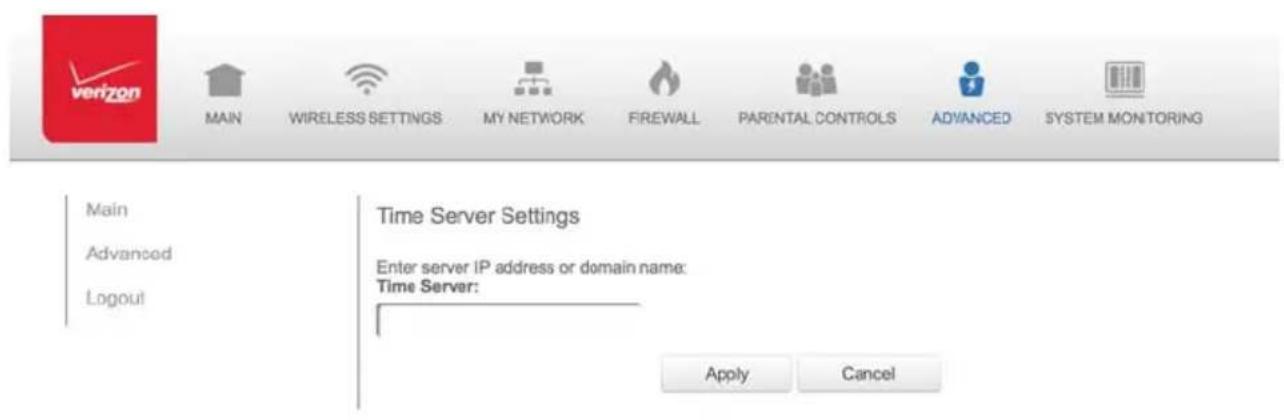
text_image
Main Advanced Logout Time Server Settings Enter server IP address or domain name: Time Server: Apply Cancel- Enter the IP address or domain name of the time server, then click Apply to save changes.
8.5b/ SCHEDULER RULES
Scheduler rules are used for limiting the activation of fi rewall rules to specific time periods. The time periods are either for days of the week or for hours of each day based on activity or inactivity.
To define a rule:
- Verify that the date and time of your Gateway is correct.
- Select Scheduler Rules in the Advanced page.


MAIN

WIRELESS SETTINGS

MY NETWORK

FREWALL

PARENTAL CONTROLS

ADVANCED

SYSTEM MONITORING
Main
Advanced
Logout
Scheduler Rules
Scheduler rules are used for limiting the activation of firewall rules to specific time periods, either for days of the week, or for hours of each day
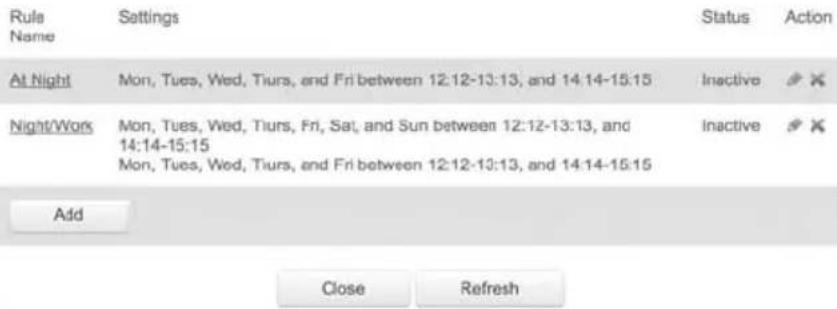
text_image
Rule Name Settings Status Action At Night Mon, Tues, Wed, Tiurs, and Fri between 12:12-13:13, and 14:14-15:15 Inactive ✗ ✗ Night/Work Mon, Tues, Wed, Tiurs, Fri, Sat, and Sun between 12:12-13:13, and 14:14-15:15 Inactive ✗ ✗ Mon, Tues, Wed, Tiurs, and Fri between 12:12-13:13, and 14:14-15:15 Add Close Refresh- Click Add. The Set Rule Schedule page displays.


MAIN

WIRELESS SETTINGS

MY NETWORK

FREWALL

PARENTAL CONTROLS

ADVANCED

SYSTEM MONITORING
Main
Advanced
Logout
Set Rule Schedule
Rule Name:
Scheduler Rule
Rule Settings
• Rule will be Active at the Scheduled Time
Rule will be Inactive at the Scheduled Time
Rule Schedule
Action
AuV Rute Schedule
Apply
Cancel
CONFIGURATION SETTINGS
- Enter the name of the rule.
- In the Rule Settings section, specify if the rule is active at the scheduled time or inactive at the scheduled time.
- Click the Add Rule Schedule. The Edit Rule Schedule page displays.

text_image
verizon MAIN WIRELESS SETTINGS MY NETWORK FIREWALL PARENTAL CONTROLS ADVANCED SYSTEM MONITORING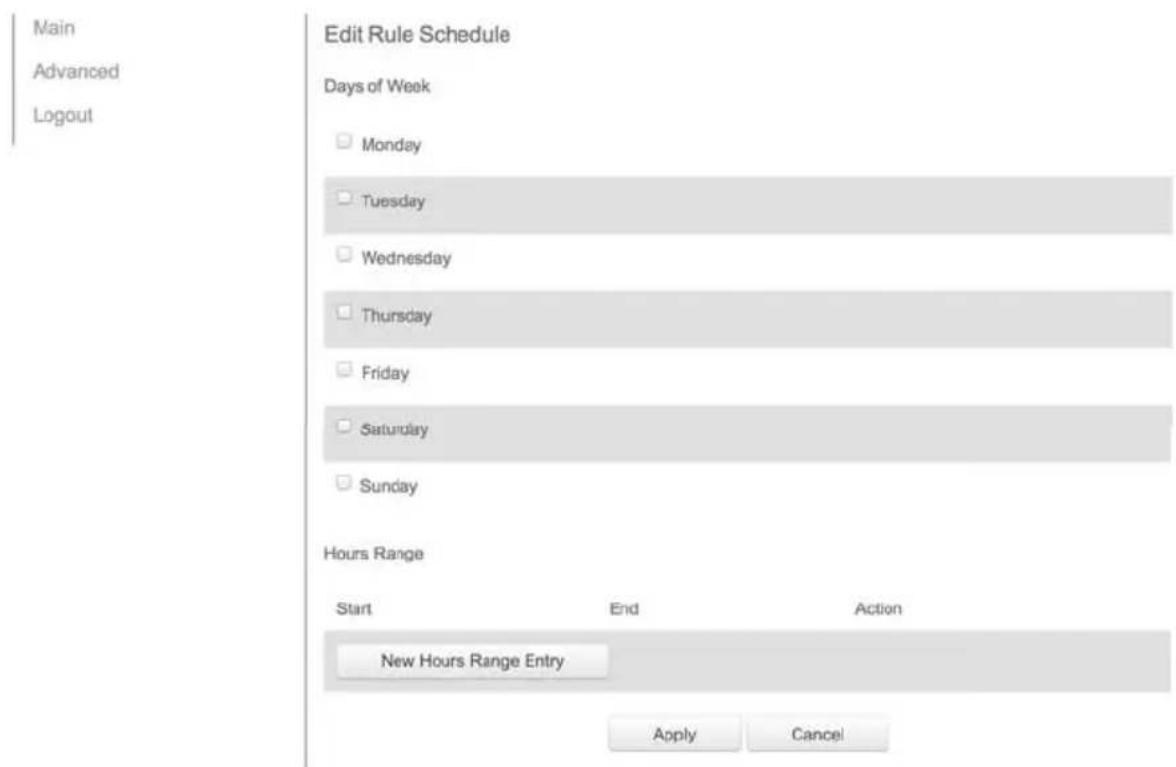
text_image
Main Advanced Logout Edit Rule Schedule Days of Week Monday Tuesday Wednesday Thursday Friday Saturday Sunday Hours Range Start End Action New Hours Range Entry Apply Cancel- Select the active or inactive days of the week.
-
To define a new active or inactive hourly range, click New Hours Range Entry.
-
Enter the start and end time, then click Apply to save changes.
- Click Apply again to save the rule schedule.
8.6/ CONFIGURATION SETTINGS
You can configure the following configuration settings:
- Configuration File – used for file backups and restoring configuration files
- System Settings – configures various system and management parameters
• Port Configuration - sets up Ethernet ports
8.6a/ CONFIGURATION FILE
You can use the Configuration File functionality to view, save, and load configuration files. These files are used to backup and restore the current configuration of your Gateway.
Only configuration files saved on a specific Gateway can be applied to that Gateway. You cannot transfer configuration files between Gateways.
Warning: Manually editing a configuration file can cause your Gateway to malfunction or become completely inoperable.
To save or load the configuration file:
- Select Configuration File.
CONFIGURATION SETTINGS
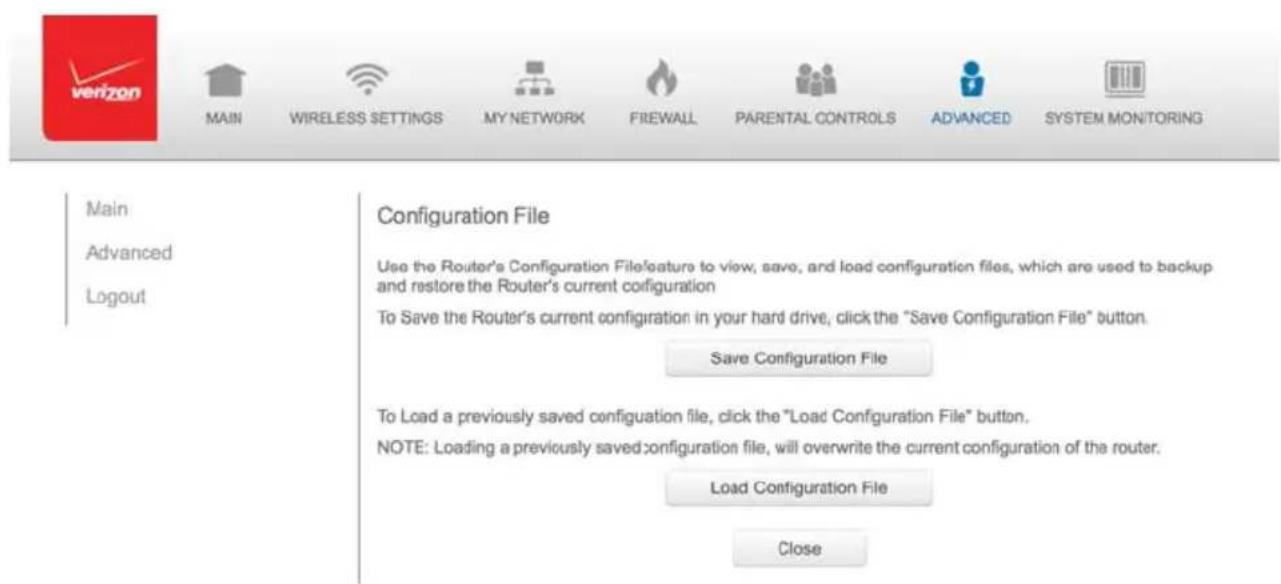
text_image
Main Advanced Logout Configuration File Use the Router's Configuration File feature to view, save, and load configuration files, which are used to backup and restore the Router's current configuration To Save the Router's current configuration in your hard drive, click the "Save Configuration File" button. Save Configuration File To Load a previously saved configuration file, click the "Load Configuration File" button. NOTE: Loading a previously saved configuration file, will overwrite the current configuration of the router. Load Configuration File Close- To save the current configuration to a file, click Save Configuration File. The configuration file is saved to you web browser's download folder.
- To load a previously saved configuration file, click Load Configuration File.
Browse to the location of the file, then click Apply to begin the configuration uploading process. Your Gateway will automatically restart with that configuration.
8.6b/ SYSTEM SETTINGS
You can configure various system and management parameters.
To configure system settings:
- Select System Settings in the Advanced page.
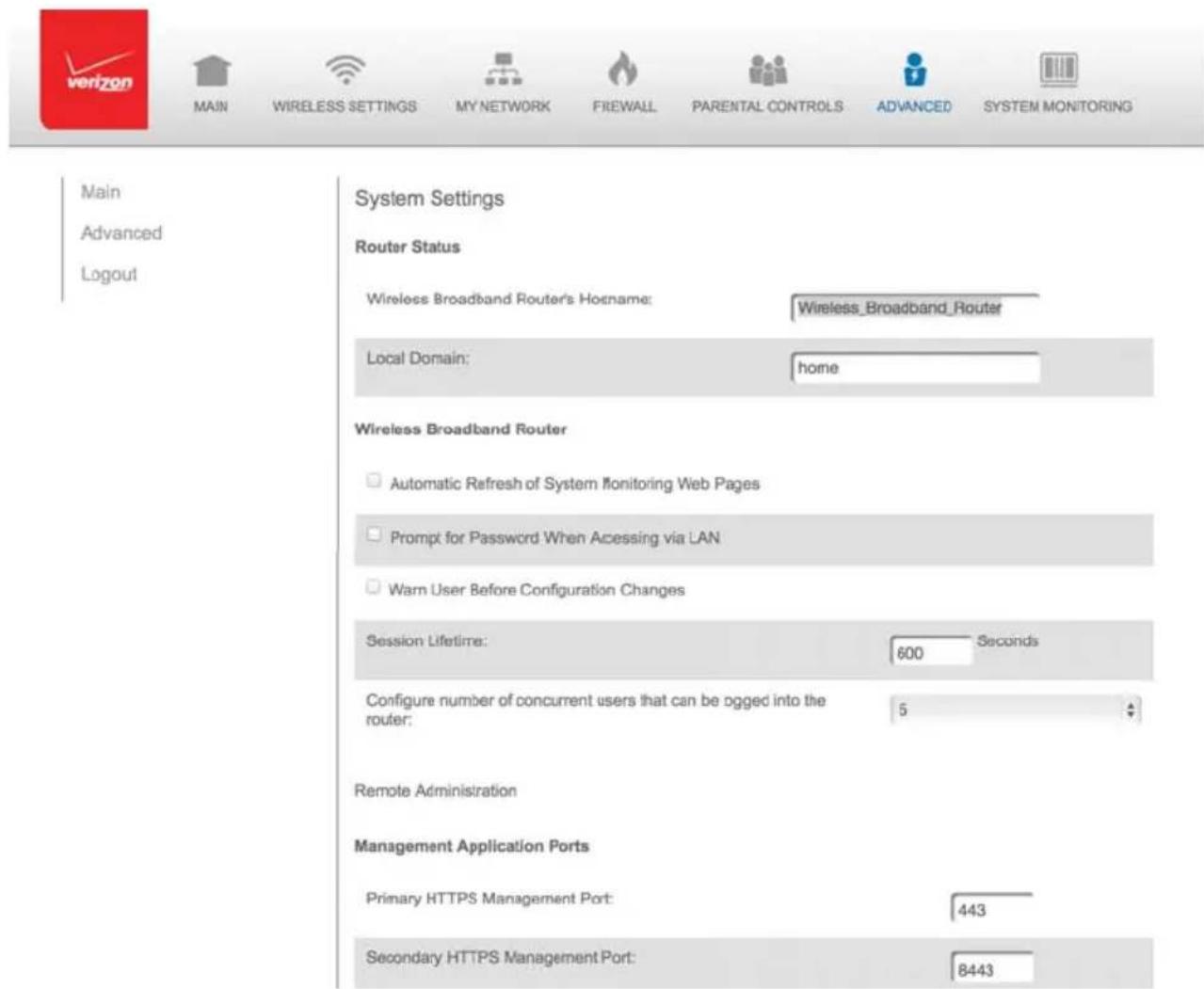
text_image
Main Advanced Logout System Settings Router Status Wireless Broadband Router's Hostname: Wireless_Broadband_Router Local Domain: home Wireless Broadband Router Automatic Refresh of System Monitoring Web Pages Prompt for Password When Acessing via LAN Warn User Before Configuration Changes Session Lifetime: 600 Seconds Configure number of concurrent users that can be ogged into the router: 5 Remote Administration Management Application Ports Primary HTTPS Management Port: 443 Secondary HTTPS Management Port: 8443-
In the Router Status section, configure the following:
-
Wireless Broadband Route's Hostname – enter the host name or URL address of your Gateway. Both names are the same.
-
Local Domain - view the local domain of the network.
-
In the Wireless Broadband Router section, configure the following by selecting the check box:
• Automatic Refresh of System Monitoring Web Pages – activates the automatic refresh of system monitoring web pages.
- Prompt for Password when Accessing via LAN – causes your Gateway to ask for a password when trying to connect to the network.
- Warn User Before Configuration Changes – activates user warnings before network configuration changes take effect.
In the Session Lifetime field, specify the length of time required before reentering a user name and password after your Gateway has been inactive.
In the Configure a Number of Concurrent Users field, select the number of users that can access your Gateway at any time.
- Select Remote Administration to configure the remote administration to your Gateway.
- In the Management Application Ports section, change the primary and secondary HTTP management ports.
- In the System Logging section, configure the following system log options:
- Enable Logging – activates system logging.
- Low Capacity Notification Enabled – activates low capacity notification. This works in conjunction with the Allowed Capacity before Email Notification and System Log Buffer Size.
- Allowed Capacity before Email Notification – specify the capacity before an email notification is sent.
- System Log Buffer Size – specify the size of the system log buffer.
- Remote System Notify Level – specify the type of information, such as none, error, warning, and information, received for remote system logging.
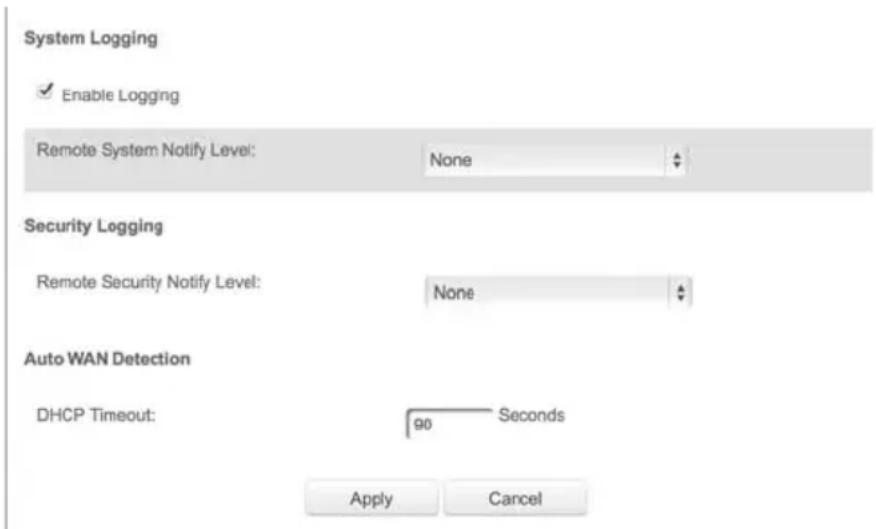
text_image
System Logging ✓ Enable Logging Remote System Notify Level: None Security Logging Remote Security Notify Level: None Auto WAN Detection DHCP Timeout: 90 Seconds Apply Cancel- In the Security Logging section, configure the following security logging options:
- Low Capacity Notification Enabled – activates low capacity notification. This works in conjunction with the Allowed Capacity before Email Notification and System Log Buffer Size.
CONFIGURATION SETTINGS
- Allowed Capacity before Email Notification – specify the capacity before an email notification is sent.
- System Log Buffer Size – specify the size of the system log buffer.
-
Remote System Notify Level – specify the type of information, such as none, error, warning, and information, received for remote system logging.
-
In the Auto WAN Detection section, specify the DHCP timeout.
- Click Apply to save changes.
8.6c/ ETHERNET PORT CONFIGURATION
Ethernet port configuration allows you to set up the Ethernet ports as either full- or half-duplex ports, at either 10 Mbps, 100 Mbps, or 1000 Mbps.
To configure the ports:
- Select Port Configuration in the Advanced page.
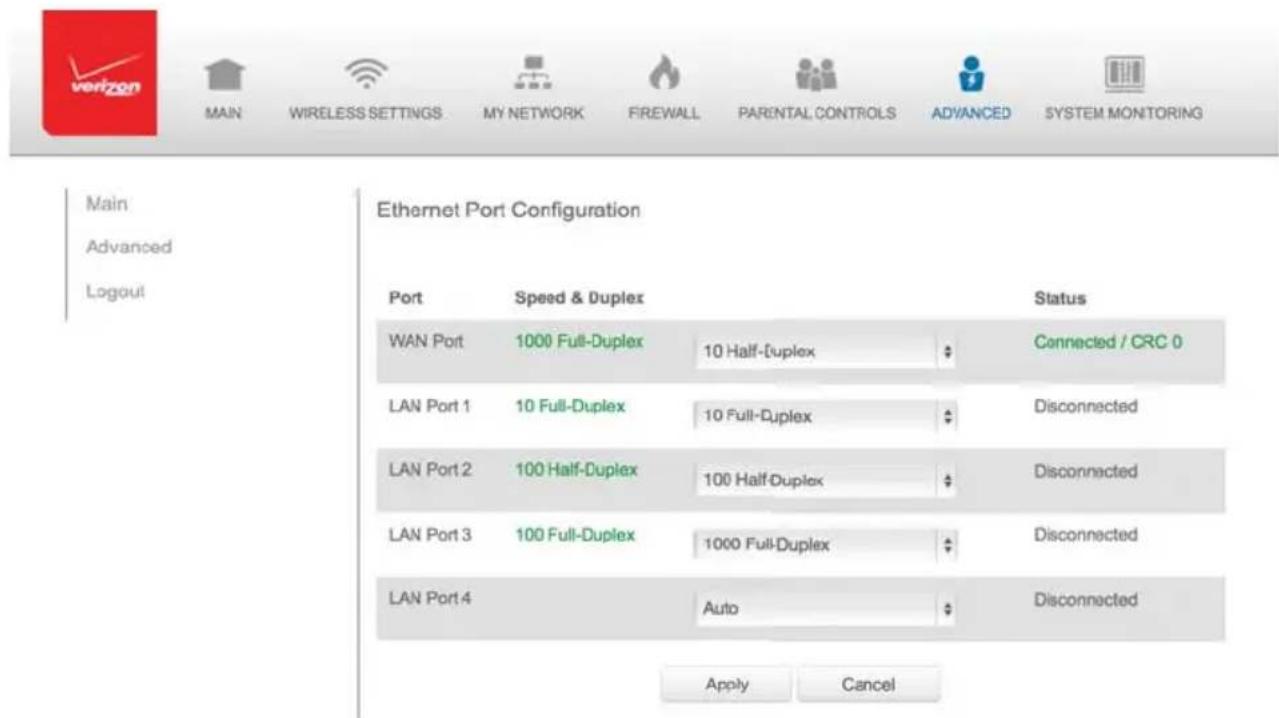
text_image
Main Advanced Logout Ethernet Port Configuration Port Speed & Duplex Status WAN Port 1000 Full-Duplex 10 Half-Duplex Connected / CRC 0 LAN Port 1 10 Full-Duplex 10 Full-Duplex Disconnected LAN Port 2 100 Half-Duplex 100 Half-Duplex Disconnected LAN Port 3 100 Full-Duplex 1000 Full-Duplex Disconnected LAN Port 4 Auto Disconnected Apply Cancel- To emulate the speed and duplex configuration of the port with which it's communicating, select Auto or select the port speed and duplicity.
- Click Apply to save changes.
09/
MONITORING YOUR GATEWAY
9.0 Gateway Status
9.1 Advanced Status
9.2 System Logging
9.3 Full Status/System wide Monitoring of Connections
9.4 Traffic c Monitoring
9.5 Bandwidth Monitoring
System Monitoring displays system information, including basic settings, system log, key network device parameters and network traffic statistics.
GATEWAY STATUS AND ADVANCED STATUS
9.0/ GATEWAY STATUS
You can view the basic settings of your Gateway.
To view the basic settings:
- Select System Monitoring in the Main menu. The Router Status page displays.


MAIN

WIRELESS SETTINGS

MY NETWORK

FIREWALL

PARENTAL CONTROLS

ADVANCED

SYSTEM MONITORING
Main
Router Status
Advanced Status
Logout
Router Status
| UI Version: | 1.0,18 |
| Firmware Version | 0.16.25 |
| Model Name: | FIOS-G1100 |
| Hardware Version: | 1.01 |
| Serial Number: | GN19-1159-00126 |
| Physical Connection Type: | Ethernet |
| Broadband Connection Type: | DHCP |
| Broadband Connection Status: | Connected |
| Broadband IP Address: | 10.0.7.50 |
| Subnet Mask: | 255.255.255.0 |
| Broadband MAC Address: | d4:a9:28:05:25:84 |
| Default Gateway: | 10.0.7.1 |
| DNS Server: | 10.0.7.1, 0.0.0.0 |
| Broadband IPv6 Address: | |
| Active Status (Router Has Been Active For): | 3 hours, 2 minutes |
| NATs Supported (Max): | 30,000 |
-
To refresh the page, click Refresh.
-
To continuously refresh the page, click Automatic Refresh On.
9.1/ ADVANCED STATUS
You can view the details and status of:
- System Logging
• Full Status/System wide Monitoring of Connections - Traffic c Monitoring
- Broadband Monitoring
To view the advanced status:
- Select Advanced Status. A warning page displays.
- Click Yes. The Advanced Status page displays.


MAN

WIRELESS SETTINGS

MY NETWORK

FIREWALL

PARENTAL CONTROLS

ADVANCED

SYSTEM MONITORING
Main
Router Status
Advanced Status
Logout
Advanced Status
Click on the link you wish to view
NOTE: Only advanced technical users should use this feature.
System Logging
Full Status/System wide Monitoring of Connections
Traffic Monitoring
Bandwidth Monitoring
- To view the details of the listed monitoring options, click the link.
SYSTEM LOGGING AND FULL STATUS/ SYSTEM WIDE MONITORING OF CONNECTIONS
9.2/ SYSTEM LOGGING
System logging provides a view of the most recent activity of your Gateway. In addition, you can view additional logs, such as the security, advanced, fi rewall, WAN, DHCP, and LAN DHCP.
To view the system log:
- In the Advanced Status page, click the System Logging link.

text_image
verizon MAIN WIRELESS SETTINGS MY NETWORK FIREWALL PARENTAL CONTROLS ADVANCED SYSTEM MONITORING| Main System Log Security Log Advanced Log Firewall Log WAN DHCP Log LAN DHCP Log Logout | System Log | |||||
| View Options | Close | Clear Log | Save Log | Refresh | ||
| Time | Event-Type | Log Level | Details | |||
| Feb 28 12:34:11 2014 | dhcpd | info<158> | DHCPACK on 192.168.1.154 to 68:5b:35:a9:5f:77 via br- lan | |||
| Feb 28 12:34:11 2014 | dhcpd | info<158> | DHCPREQUEST for 192.168.1.154 (192.168.1.1) from 68:5b:35:a9:5f:77 via br-lan | |||
| Feb 28 12:34:11 2014 | dhcpd | info<158> | Wrote 4 leases to leases file. | |||
| Feb 28 12:34:11 2014 | dhcpd | info<158> | Wrote 0 class decis to leases file. | |||
| Feb 28 12:34:11 2014 | named[19718] | info<142> | zone flos-router,home/IN; sending notifies (serial 2006122601) | |||
- To view a specific type of log event such as Security Log, WAN DHCP Log, etc., click the appropriate link in the menu in the left column.
- To update the data, click Refresh.
9.3/ FULL STATUS/SYSTEM WIDE MONITORING OF CONNECTIONS
You can view a summary of the monitored data collected for your Gateway.
To view your Gateway's full system status:
- In the Advanced Status page, click Full Status/System wide Monitoring of Connections.

text_image
verizon MAIN WIRELESS SETTINGS MY NETWORK FIREWALL PARENTAL CONTROLS ADVANCED SYSTEM MONITORINGMain
Router Status
Advanced Status
Logout
Full Status/System wide Monitoring of Connections
| Name | Network (Home/Office) | Broadband Connecton (Etherme/Coax) | 5.0GHz Wireless Access Point 1 | 2.4GHz Wireless Access Point 2 | Ethernet |
| Status | Connected | Disconnected | Connected | Connected | Connected |
| Network | Network (Home/Office) | Broadbaid Connecton | Network (Home/Office) | Network (Home/Office) | Network (Home/Office) |
| Underlying Device | 5.0GHz Wireless Access Point 1 2.4GHz wireless Access Point 2 Ethernet Coax | ||||
| Connection type | Bridge | Ethernet/Coax | Wireless 802.11 5.0GHz Access Point | Wireless 802.11 2.4GHz Access Point | Hardware Ethernet Switch |
| MAC Address | d4:a9:28:05:2d:65 | 00:00:00:00:00:00 | d4:a9:28:05:2d:67 | d4:a9:28:05:2d:68 | d4:a9:28:05:2d:65 |
| IP Address | 192.168.1.1 | 0.0.0.0 | |||
| Subnet Mask | 255.255.255.0 | 0.0.0.0 | |||
| Default Gateway | 0.0.0.00 |
- To modify the connection properties, click the individual connection links.
TRAFFIC MONITORING AND BANDWIDTH MONITORING
- To refresh the page, click Refresh.
- To continuously refresh the page, click Automatic Refresh On.
9.4/ TRAFFIC MONITORING
Your Gateway continually monitors traffic in the local area network and between the local network and the Internet. You can view up to the second statistical information about data received from and transmitted to the Internet as well as data received from and transmitted to computers in the local network.
To view the traffic monitoring data:
- In the Advanced Status page, select Traffic Monitoring.
| Main Router Status Advanced Status Logout | Traffic Monitoring | ||||||
| Name | Network (Home/Office) | Broadband Connection (Ethernet/Coax) | 5.0GHz Wireless Access Point 1 | 2.4GHz Wireless Access Point 2 | Ethernet | Coax | |
| Status | Connected | Disconnected | Connected | Connected | Connected | Connected | |
| Network | Network (Home/Office) | Broadband Connection | Network (Home/Office) | Network (Home/Office) | Network (Home/Office) | Network (Home/Office) | |
| Underlying Device | 5.0GHz Wireless Access Point 1 2.4GHz Wireless Access Point 2 Ethernet Coax | ||||||
| Connection type | Bridge | Ethernet/Coax | Wireless 802.11 5.0GHz Access Point | Wireless 802.11 2.4GHz Access Point | Hardware Ethernet Switch | Hardware MoCA | |
- To refresh the page, click Refresh.
- To continuously refresh the page, click Automatic Refresh On.
9.5/ BANDWIDTH MONITORING
You can view and monitor the recorded bandwidth usage measured in Kbps.
To view the bandwidth:
- In the Advanced Status page, select Bandwidth Monitoring.

text_image
verizon MAIN WIRELESS SETTINGS MY NETWORK FIREWALL PARENTAL CONTROLS ADVANCED SYSTEM MONITORINGMain
Router Status
Advanced Status
Logout
Bandwidth Monitoring
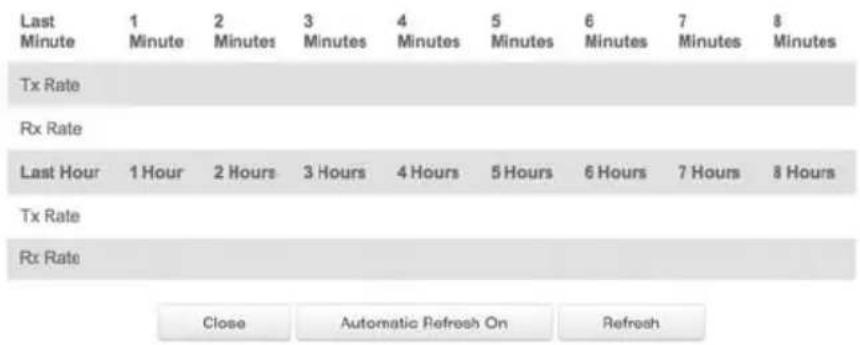
text_image
Last Minute 1 Minute 2 Minutes 3 Minutes 4 Minutes 5 Minutes 6 Minutes 7 Minutes 8 Minutes Tx Rate Rx Rate Last Hour 1 Hour 2 Hours 3 Hours 4 Hours 5 Hours 6 Hours 7 Hours 8 Hours Tx Rate Rx Rate Close Automatic Refresh On Refresh- To refresh the page, click Refresh.
- To continuously refresh the page, click Automatic Refresh On.
10/ TROUBLE SHOOTING
10.0 Troubleshooting Tips
10.1 Frequently Asked Questions
This chapter lists solutions for issues that may be encountered while using your Gateway as well as frequently asked questions.
Note: The advanced settings should only be configured by experienced network technicians to avoid adversely affecting the operation of your Gateway and your local network.
10.0/TROUBLESHOOTING TIPS
10.0a/ IF YOU ARE UNABLE TO CONNECT TO THE INTERNET:
- The first thing to check is whether your Gateway is powered on and it is connected to the Internet. Check the Power/Internet light on the front of the Gateway; 📋 if it is lit a solid white color, then the Gateway itself has successfully connected to the Internet, and the problem lies elsewhere. If the Power/Internet light is red, the Gateway is on but is unable to connect to the Internet. In that case, check the WAN cable (Ethernet or Coax) connecting your Gateway to the Internet to make sure it is properly connected on both ends.
- Be sure your wireless device is within range of your Wi-Fi Gateway, move it closer to see if your connection improves.
- Check your network device's Wi-Fi settings to be sure your device's Wi-Fi is on (enabled) and that you have the correct Wi-Fi network and password (if using a Wi-Fi password) as configured on your Gateway.
- Be sure you are connecting to the correct Wi-Fi network, check to be sure you are using your Gateway's ESSID. In some cases, if using a wireless password, you may need to enter the Wi-Fi password into your network device again to be sure your device accepts the password.
-
Check to be sure you are running the latest software for your network device.
-
Try turning your network device's Wi-Fi off and on and try to connect.
- If you have made any changes in your network settings and turning your network device's Wi-Fi off and on does not help, try to restart your network device.
- As a final tip you may need to turn your gateways' Wi-Fi settings from on to off, and back to on again and apply the changes.
10.0a/ ACCESSING YOUR GATEWAY IF YOU ARE LOCKED OUT
If your Gateway connection is lost while making configuration changes, a setting that locks access to your Gateway's GUI may have inadvertently been activated.
The common ways to lock access to your Gateway are:
- Scheduler - If a schedule has been created that applies to the computer over the connection being used, your Gateway will not accessible during the times set in the schedule.
- Access Control - If the access control setting for the computer is set to block the computer, access to your Gateway is denied.
To gain access, restore the default settings to your Gateway.
10.0b/ RESTORING YOUR GATEWAY'S DEFAULT SETTINGS
There are two ways to restore your Gateway's default settings. It is important to note that after performing either procedure, all previously save settings on your Gateway will be lost.
TROUBLESHOOTING TIPS
- Using the tip of a ballpoint pen or pencil, press and hold the Reset button on the back of your Gateway for three seconds.
- Access the GUI and navigate to the Advanced Settings page. Select the Restore Defaults option. After saving your configuration, if desired, click the Restore Defaults button. For additional details, refer to the Restore Defaults section of this guide.
10.0c/ LAN CONNECTION FAILURE
To troubleshoot a LAN connection failure:
- Verify your Gateway is properly installed, LAN connections are correct, and that the Gateway and communicating network devices are all powered on.
- Confirm that the computer and Gateway are both on the same network segment.
If unsure, let the computer get the IP address automatically by initiating the DHCP function, then verify the computer is using an IP address within the default range of 192.168.1.2 through 192.168.1.254.
If the computer is not using an IP address within the correct IP range, it will not connect to your Gateway.
- Verify the subnet mask address is set to 255.255.255.0.
10.0d/ TIMEOUT ERROR OCCURS WHEN ENTERING THE URL OR IP ADDRESS
Verify the following:
- All computers are working properly.
- IP settings are correct.
- Gateway is on and connected properly.
- Gateway settings are the same as the computer.
10.0e/ FRONT LIGHTED INDICATORS
Flash Speed
- Slow flash - Two times per second
- Fast flash – Four times per second
Power/Internet Light

- Slow flash white – Gateway is starting
- Solid white – Gateway is powered on and connected to the Internet
- Slow flash red – Gateway has malfunctioned
- Solid red – Unable to connect to the Internet
- Fast flash red – Gateway is overheating. Please verify your Gateway is upright and has sufficient ventilation
TROUBLESHOOTING TIPS AND FREQUENTLY ASKED QUESTIONS
Wireless Light

- Solid white - Wi-Fi is on
Additional Functions when pressing WPS button:
- Slow flash white – When the WPS button is pressed, the Wireless Light slowly flashes white, while waiting for a WPS device to connect. This can require up to two minutes.
- Fast flash white – When a device begins connecting to the Gateway using WPS, the Wireless Light fast flashes white for two seconds as establishing connection.
- Solid white – When a device successfully completes its WPS association to the Gateway, the Wireless Light returns to solid white.
- Fast flash red -If an error occurs during Wi-Fi Protected Setup, the Wireless Light flashes red rapidly for two minutes.
10.0f/ REAR LIGHTED INDICATORS
Flash Speed
- Slow flash - Two times per second
- Fast flash – Four times per second
WAN Ethernet
- Unlit – Indicates no Ethernet link
- Solid green – Indicates a network link
- Fast flash green – Indicates network activity. The traffic can be in either direction.
LAN Ethernet - Upper LED
- Unlit - Indicates no 1 Gbps link
- Solid green - Indicates 1 Gbps link
- Fast flash green – Indicates LAN activity. The traffic can be in either direction.
LAN Ethernet - Lower LED
- Unlit – Indicates no 10/100 Mbps link
- Solid green - Indicates 10/100 Mbps link
- Fast flash green – Indicates LAN activity. The traffic can be in either direction.
LAN Coax
- Unlit – Indicates no MoCA network connection to the device
- Solid green – Indicates network link
WAN Coax
- Unlit – Indicates no link to the upstream MoCA device
- Solid green – Indicates network link
10.1/ FREQUENTLY ASKED QUESTIONS
10.1a/ I'VE RUN OUT OF ETHERNET PORTS ON MY GATEWAY. HOW DO I ADD MORE COMPUTERS OR DEVICES?
Plugging in an Ethernet hub or switch expands the number of ports on your Gateway.
- Run a straight-through Ethernet cable from the Uplink port of the new hub to the Gateway.
Use a crossover cable if there is no Uplink port/switch on your hub, use a crossover cable.
- Remove an existing device from the yellow Ethernet port on your Gateway and use that port.
10.1b/ HOW DO I CHANGE THE PASSWORD ON MY GATEWAY GUI?
To change the password:
- On the Main screen, select Advanced, then select Users.
- In the Users page, select Admin. The User Settings page displays.
- In the General section, change the password.
10.1c/ IS THE WIRELESS OPTION ON BY DEFAULT ON MY GATEWAY?
Yes, your Gateway's wireless option is activated out of the box.
10.1d/ IS THE WIRELESS SECURITY ON BY DEFAULT WHEN THE WIRELESS OPTION IS ACTIVATED?
Yes, with the unique WPA2 (Wi-Fi Protected Access II) key that is printed on the sticker on the side of your Gateway.
10.1e/ WHICH CONNECTION SPEEDS DOES MY GATEWAY SUPPORT?
The Ethernet WAN Internet connection supports 10/100/1000 Mbps. The LAN Ethernet connections support 10/100/1000 Mbps. The 802.11ac wireless connection supports up to 1300 Mbps and the 802.11n supports up to 450 Mbps, depending on signal quality. The Coax (MoCA 2.0) connection supports 700 Mbps.
10.1f/ ARE MY GATEWAY'S ETHERNET PORTS AUTO-SENSING?
Yes. Either a straight-through or crossover Ethernet cable can be used.
10.1g/ CAN I USE AN OLDER WIRELESS DEVICE TO CONNECT TO MY GATEWAY?
Yes, your Gateway can interface with 802.11b, g, n, or ac devices. Your Gateway can be setup to handle only n wireless cards, g wireless cards, b wireless cards, or any combination of the three.
10.1h/ CAN MY WIRELESS SIGNAL PASS THROUGH FLOORS, WALLS, AND GLASS?
The physical environment surrounding your Gateway can have a varying effect on signal strength and quality. The denser the object, such as a concrete wall compared to a plaster wall, the greater the interference. Concrete or metal-reinforced structures experience a higher degree of signal loss than those made of wood, plaster, or glass.
10.1/ HOW DO I LOCATE THE IP ADDRESS THAT MY COMPUTER IS USING?
In Windows 7, click the Windows button and select Control Panel, then click View Network Status and Tasks. In the next window, click Local Area Connection. In the Local Area Network Connection Status window, click Details.
On Mac OS X, open System Preferences and click the Network icon. The IP address displays near the top of the screen.
10.1j/ MY COMPUTER CANNOT CONNECT TO THE INTERNET USING MOCA. WHAT SHOULD I DO?
A computer cannot be connected directly using a coaxial cable. It must go through a MoCA bridge to connect. The bridge converts the coax (MoCA) signal to an Ethernet signal the computer can understand. The FiOS Quantum Gateway has an integrated MoCA bridge.
First, check the connection and verify all cables are connected correctly. Then verify the Gateway is still connected and
check the Ethernet connection to the Gateway from the computer.
10.1k/ I USED DHCP TO CONFIGURE MY NETWORK. DO I NEED TO RESTART MY COMPUTER TO REFRESH MY IP ADDRESS?
No. In Windows 7, unplug the Ethernet cable or wireless card, then plug it back in.
10.1/ I CANNOT ACCESS MY GATEWAY GUI. WHAT SHOULD I DO?
If you cannot access the GUI, verify the computer connected to your Gateway is set up to dynamically receive an IP address.
10.1m/ I HAVE A FTP OR WEB SERVER ON MY NETWORK. HOW CAN I MAKE IT AVAILABLE TO USERS ON THE INTERNET?
For a web server, enable port forwarding for port 80 to the IP address of the server. Also, set up the web server to receive that port. Configuring the server to use a static IP address is recommended.
For a FTP server, enable port forwarding for port 21 to the IP address of the server. Also, set up the web server to receive that port. Configuring the server to use a static IP address is recommended.
10.1n/ HOW MANY COMPUTERS CAN BE CONNECTED THROUGH MY GATEWAY?
Your Gateway is capable of 254 connections, but we recommend having no more than 45 connections. As the number of connections increase, the available speed for each computer decreases.
11/
SPECIFICATIONS
11.0 General Specifications
11.1 LED Indicators
11.2 Environmental Parameters
The specifications for your FiOS Quantum Gateway are as follows.
This includes standards, cabling types and environmental parameters.
Note: The specifications listed in this chapter are subject to change without notice.
11.0/ GENERAL SPECIFICATIONS
Model Number: Model: FiOS-G1100
Standards: IEEE 802.3x, 802.3u
I E E E 8 0
IP: IP versions 4 and 6
MoCA: MoCA WAN: 1350 - 1675 MHz and 975 - 1025 MHz
MoCA LAN: 1125 - 1225 MHz
Speed: Wired WAN Ethernet: 10/100/1000 Mbps auto-sensing
Wired LAN Ethernet: 10/100/1000 Mbps auto-sensing
W i r e l e s
802.11b - up to 11 Mbps
802.11g - up to 54 Mbps
802.11n - up to 450 Mbps
802.11ac - up to 1300 Mbps
Cabling Type: Ethernet 10BaseT: UTP/STP Category 3 or 5
Ethernet 100BaseT: UTP/STP Category 5
Ethernet 1000BaseT: UTP/STP Category 5e
Firewall:
ICSA certifi ed
11.1/LED INDICATORS
Front Panel:
Power/Internet,
Wi-Fi
Rear Panel: WAN Coax, LAN Coax, WAN Ethernet, and
LAN
Ethernet
[4]
11.2/ ENVIRONMENTAL PARAMETERS
DIMENSIONS AND WEIGHT
FiOS Quantum Gateway (unit only)
Size: 3.63" width x 9.56" height x 8.50" depth
Weight: 1.56 lbs / 0.71 kg
Complete System (including packaging)
Size: 10.16" / 258 mm width x 3.78" / 96 mm height x 10.35" / 263 mm depth
Weight: 2.63 lbs / 1.19 kg
Power: External, 12V DC, 3.0A
Certifications: FCC Part 15, UL 60950-1
Operating Temperature: 10^ C to 40^ C ( 50^ F to 104^ F)
Storage Temperature: -20^ to 85^ ( -4^ to 185^ )
Operating Humidity: 8% to 95% (non-condensing)
Storage Humidity: 5% to 100% (non-condensing)
12/ NOTICES
12.0 Regulatory Compliance Notices
This chapter lists various compliance and modification notices, as well as the NEBS requirements and GPL.
12.0/REGULATORY COMPLIANCE NOTICES
12.0a/CLASS B EQUIPMENT
This equipment has been tested and found to comply with the limits for a Class B digital device, pursuant to Part 15 of the FCC Rules. These limits are designed to provide reasonable protection against harmful interference in a residential installation. This equipment generates, uses, and can radiate radio frequency energy and, if not installed and used in accordance with the instructions, may cause harmful interference to radio communications. However, there is no guarantee that interference will not occur in a particular installation.
If this equipment does cause harmful interference to radio or television reception, which can be determined by turning the equipment off and on, the user is encouraged to try to correct the interference by implementing one or more of the following measures:
• Reorient or relocate the receiving antenna
- Increase the separation between the equipment and receiver
- Connect the equipment to an outlet on a circuit different from the one to which the receiver is connected
- Consult the dealer or an experienced radio or television technician for help
12.0b/MODIFICATIONS
The FCC requires the user to be notified that any changes or modifications made to this device that are not expressly approved by Verizon may void the user's authority to operate the equipment.
Declaration of conformity for products marked with the FCC logo - United States only.
This device complies with Part 15 of the FCC Rules. Operation is subject to the following two conditions:
• This device may not cause harmful interference
- This device must accept any interference received, including interference that may cause unwanted operation
Note: To comply with FCC RF exposure compliance requirements, the antenna used for this transmitter must be installed to provide a separation distance of at least 28 cm from all persons and must not be co-located or operating in conjunction with any other antenna or transmitter.
For operation within the 5.15 \~ 5.25 GHz frequency range, this device is restricted to indoor environments. This device meets all the other requirements specified in Part 15E, Section 15.407 of the FCC Rules.
For questions regarding your product or the FCC declaration, contact:
Verizon
One Verizon Way
Basking Ridge, NJ 07920
Attn: FCC declaration
1-800-VERIZON (1-800-837-4966)
www.verizon.com/support
REGULATORY COMPLIANCE NOTICES
12.0c/NEBS REQUIREMENTS
The coaxial cable screen shield must be connected to the Earth at the building entrance per ANSI/NFPA 70, the National Electrical Code (NEC), in particular Section 820.93, "Grounding of Outer Conductive Shield of a Coaxial Cable," or in accordance with local regulation.
Warning! The WAN Coax Port is intended for connection to Verizon FiOS only. It must not be connected to any exterior or interior coaxial wires not designated for Verizon FiOS.
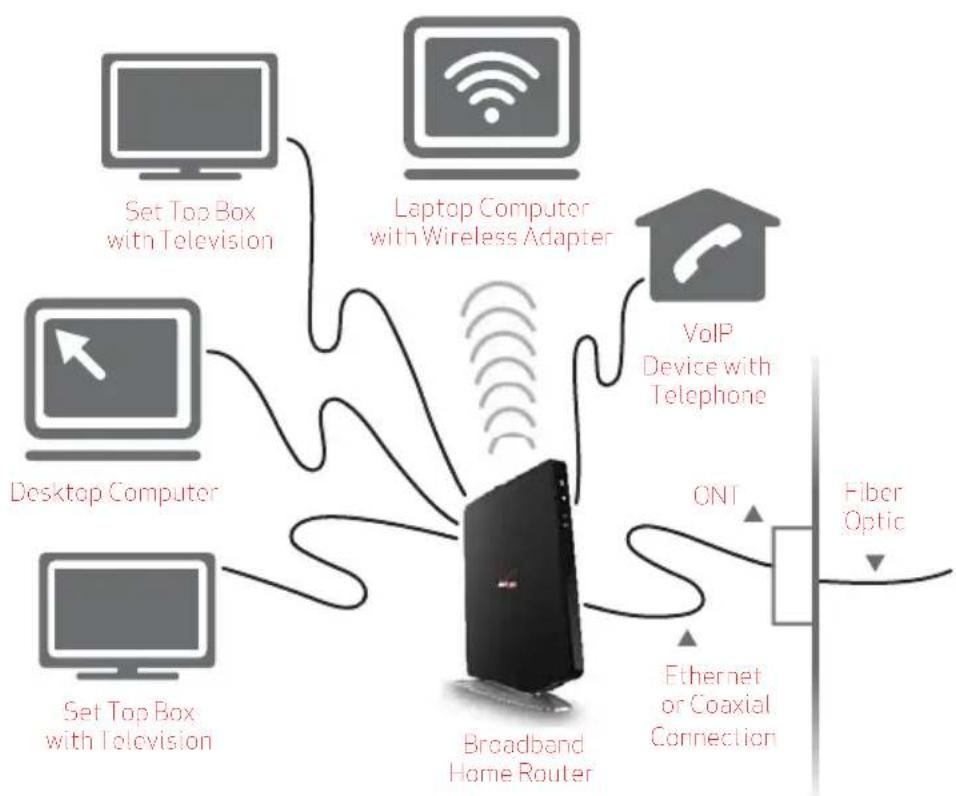
flowchart
graph TD
    A["Desktop Computer"] -->|Set Top Box with Television| B["Broadband Home Router"]
    C[" Laptop Computer with Wireless Adapter"] -->|Set Top Box with Television| B
    D[" VoIP Device with Telephone"] -->|ONT| E["Fiber Optic"]
    F[" Set Top Box with Television "] --> B
    G[" Ethernet or Coaxial Connection "] --> B
Typical Broadband Home Router Installation
Caution: The Broadband Home Router must be installed inside the home. The Router is not designed for exterior installation.
12.0d/ GENERAL PUBLIC LICENSE
This product contains certain software that is covered by open source licensing requirements. Copies of the licenses and a downloadable copy of the source code for the open source software that is used in this product are available on the following website:
http://verizon.com/opensource/
All open source software contained in this product is distributed WITHOUT ANY WARRANTY. All such software is subject to the copyrights of the authors and to the terms of the applicable licenses included in the download.
You may also obtain a copy of the source code for the open source software used in this product for a period of three years after your receipt of the product by sending a check for \$10, payable to VERIZON, to the address below:
Verizon
One Verizon Way
Basking Ridge, NJ 07920
Attn: Legal, Open Source Requests
Note: This information is provided for those who wish to edit or otherwise change such programs. You do not need a copy of any of such open source software source code to install or operate the device.