Viper V770 - Keyboard Patriot Memory - Free user manual and instructions
Find the device manual for free Viper V770 Patriot Memory in PDF.


User questions about Viper V770 Patriot Memory
0 question about this device. Answer the ones you know or ask your own.
Ask a new question about this device
Download the instructions for your Keyboard in PDF format for free! Find your manual Viper V770 - Patriot Memory and take your electronic device back in hand. On this page are published all the documents necessary for the use of your device. Viper V770 by Patriot Memory.
USER MANUAL Viper V770 Patriot Memory
text_image
GAMING KEYBOARD USER MANU
USER MANUAL

INTRODUCTION
natural_image
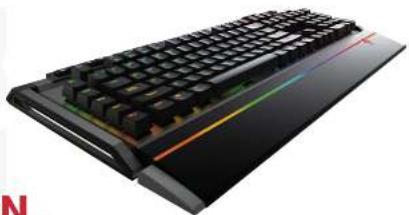
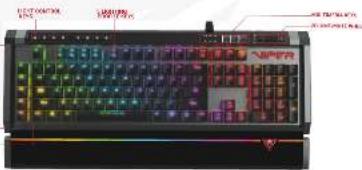
Close-up of a black computer keyboard with a rainbow-colored stripe on the handle (no text or symbols visible)Thank you for purchasing the Viper V770 gaming keyboard. The V770 uses quiet mechanical Kailh Red switches for smooth linear feel and quick response times. Each key can be customized to 16.8 million colors using the Viper software. The keyboard features a 109 key layout with N-key rollover and anti-ghosting functions, and has 108 programmable macro keys with 5 dedicated macro keys on the side. The onboard controls give you access to light effects, multi-media controls, lighting profiles and a dedicated volume/mute wheel.
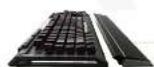
The V770 is built with an aluminum chassis and illuminated magnetic palm rest for durability and comfort during hours of game play. Backed by Patriot's award winning customer service and a two year warranty, the V770 is compatible with nearly every Windows® operating system, including Windows® 10, Mac® OS X, or higher.
The Viper software adds the ability to program macro, set up custom lighting profiles, and configure the keyboard's settings ( ^** Note Viper software is not compatible with MAC@OS).
SPECIFICATIONS
• 100% mechanical Kailh Red switches
• LED illuminated and removable magnetic palm rest
• Full spectrum RGB backlit keys
individually customizable with 16.8 million colors
• 108 programmable mac
- 5 dedicated macro keys
• Aircraft grade aluminum chassis
• USB pass through port
短途特
人和(盖)
10crns
(1)
(4)21
(1) 5%
(Mile: 70)
5104
(24)
表决结果:
四
• Audio pass through port
• Dedicated multimedia control keys
• Dedicated volume and mute wheel
• Dedicated light effect control keys
• Game mode
• N-key rollover anti-hosting
• 5. Profile control key
• 10 level LED reaction management
• Mult-level LED backlit dimmung
PACKAGE CONTENTS
• Viper V770 gaming keyboard
• Detachable magnetic palm rest
- Keycap removet
• 3.5mm Y-splitter
- Quick start guide
• Viner sticker

natural_image
Abstract red logo with white geometric shapes (no text or symbols)HARDWARE INSTALLATION
INSTALLATION
HARDWARE INSTALLATION
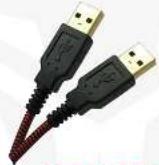
Connect the keyboard to two available USB ports on the computer. Wait 5-10 seconds for the keyboard to be recognized by the
computer
SOFTWARE INSTALLATION
Please download the Viper software from the product page at http://www.patriotmemory.com to be able to create and manage
macros, create lighting profiles, adjust latency, response time, and more.
Once downloaded, double-click on the software to start the installation. Follow the onscreen instructions to finish the process.
**Viper software is not compatible with Mac® OS

natural_image
Abstract red geometric logo with symmetrical white shapes on a grid background (no text or symbols)KEYBOARD SHORTCUTS
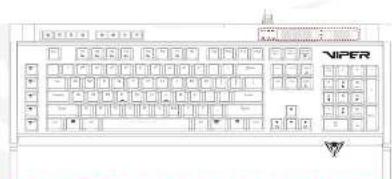
text_image
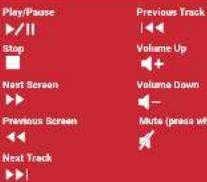
VIPER 1234567800000000000000000000000000000000000000000000000000000000000000000000000000000000000000000000000000MULTI-MEDIA KEYS AND VOLUME WHEEL
▶/|| |◀◀ ▶▶| ⚙️ - ▶+

text_image
BACKLIGHT RECORDING MODES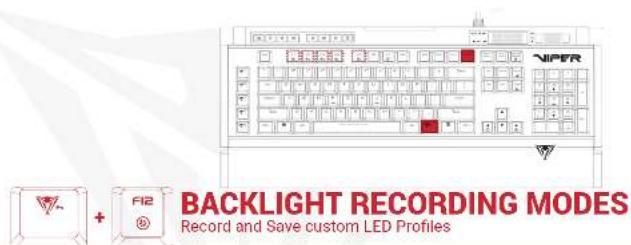
text_image
VIPER BACKLIGHT RECORDING MODES Record and Save custom LED Profiles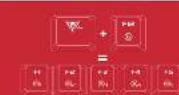
Press FN+F12 for F1-F5 to enter a blinking state in preparation to record a custom key configuration. Once in this blinking state, select any of the F1-F5 keys to assign a configuration.

Press any key in recording mode to illuminate it, making it part of your customized lighting profile.
i.e. if keys WASD were selected, WASD will be illuminated, indicating that these keys were recorded and assigned to the selected "F" key.

When recording is complete, then press EN+F12 again to save your customized profile.
Repeat the previous steps as needed to complete the recording of other customized profiles.
Press FN+F1 through F5 key to activate the custom profile desired.

text_image
LIGHTING EFFECTS Alt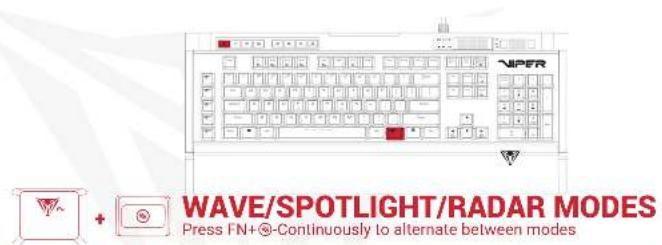
text_image
VIPER WAVE/SPOTLIGHT/RADAR MODES Press FN+◎-Continuously to alternate between modesFN+ -WAVE MODE
A wave of light will travel across the keyboard.
To change the direction of the wave pattern, press
based on the arrow key you select
Two patterns of light will travel across the key
Board Intersecting in the Middle - The LED Will shown color sequentially.
(1) 2017年1月1日

- 2017年1月1日
FN+X3-RADAR MODE
A pattern of light will revolve around the center of
the keyboard. To change the direction of the 14 der pattern press Efi + atow key
text_image
RIPPLE MODE Press FN+○-Continuously to alternate between mo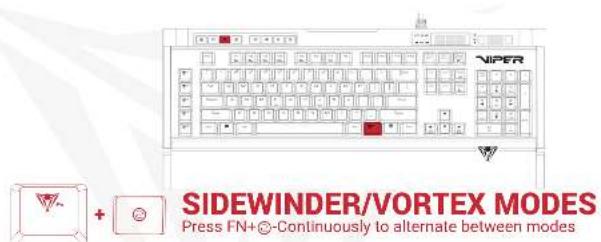
text_image
VIPER SIDEWINDER/VORTEX MODES Press FN+®-Continuously to alternate between modesFN+○-RIPPLE MODE
When pressing any key, the light pattern will be spread in all directions; displaying a "ripple" effect. Pressing FX+ repeatedly will scroll through the different LED colors.
The light pattern will win its way from the top left of the keyboard to the bottom.

FN+®X2-VORTEX MODE
The light pattern will wind its way from the top left of the keyboard to the center and then back again.

[Unreadable]
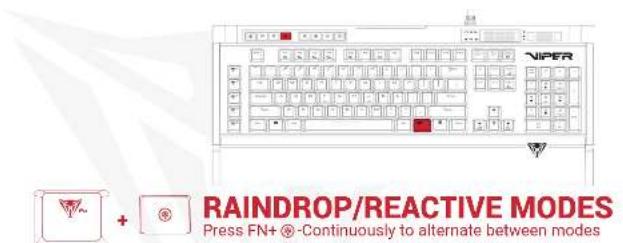
RAINDROP/REACTIVE MODES
Press FN+ ⊗-Continuously to alternate between modes
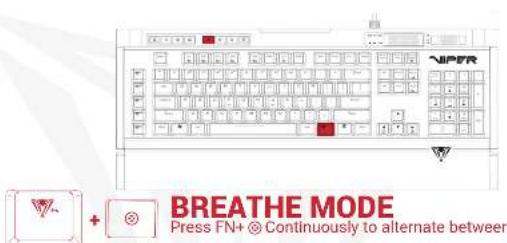
BREATHE MODE Press FN+ ⊙ Continuously to alternate between modes
FN+®-RAINDROP MODE
Keys on the keyboard will light up and fade randomly displaying a "raindrop" effect.

- 2017年

Von
The image is too blurry to recognize any text content.
[Table_Title]
2016年
1993
[Unreadable]
FN+®2X-REACTIVE MODE
Key will light up when pressed and fade. Pressing FN+@repeatedly will scroll through the different
LED colors. FN + Pg Up or Pg On will decrease or
Increase the interval of the face
[Unreadable]
W. 10
1
10.45%
[Unreadable]
The quick brown fox jumps over the lazy dog.
[Unreadable]
Figure 2.1
FN+®-BREATHE MODE
The entire keyboard brightens then fades. Pressing FN+ (repeatedly will scroll through the different LED colors. FN + Pg Up or Pg On will decrease or increase the interval of the fade.
[Unreadable due to extreme blurriness]
图 1
(1) 2017年1月1日
[Unreadable]
[Unreadable]
[Non-Text]
姓名:____
单位
[Unreadable]
[Unreadable]
The image is too blurry to recognize any text content.
[Unreadable]
[Unreadable]
[Non-Text]
m = 311
m = 311
m = 311
m = 311
m = 311
m = 311
m = 311
m = 311
m = 311
m = 311
m = 311
m = 311
m = 311
m = 311
m = 311
m = 311
m = 311
m = 311
m = 311
m = 311
m = 311
m = 311
m = 311
m = 311
m = 311
m = 311
m = 311
m = 311
m = 311
m = 311
m = 311
m = 311
m = 311
m = 311
[Non-Text]
[Non-Text]
[Non-Text]
[Non-Text]
[Non-Text]
[Non-Text]
[Non-Text]
m = 311
The image is too blurry to recognize any text content.
m = 311
[Unreadable]
[Non-Text]
The image is too blurry to recognize any text content.
The image is too blurry to recognize any text content.
m = 311
m = 311
m = 311
m = 311
m = 311
m = 311
m = 311
m = 311
m = 311
C
12
[Unreadable]
The image is too blurry to recognize any text content.
The image is too blurry to recognize any text content.
:
[Unreadable]
行号
[Non-Text]
[Non-Text]
m = 311
m = 311
m = 311
m = 311
m = 311
m = 311
m = 311
m = 311
m = 311
m = 311
m = 311
m = 311
m = 311
m = 311
m = 311
m = 311
m = 311
m = 311
m = 311
m = 311
m = 311
m = 311
m = 311
m = 311
m = 311
m = 311
m = 311
m = 311
m = 311
m = 311
m = 311
m = 311
m = 311
m = 311
m = 311
m = 311
m = 311
m = 311
m = 311
m = 311
m = 311
m = 311
m = 311
m = 311
m = 311
m = 311
m = 311
m = 311
m = 311
m = 311
m = 311
m = 311
m = 311
m = 311
m = 311
m = 311
m = 311
m = 311
m = 311
m = 311
m = 311
m = 311
[Non-Text]
[Non-Text]
[Non-Text]
[Non-Text]
[Non-Text]
[Non-Text]
[Non-Text]
m = 311
m = 311
m = 311
m = 311
m = 311
m = 311
m = 311
m = 311
m = 311
m = 311
m = 311
m = 311
m = 311
m = 311
m = 311
m = 311
m = 311
m = 311
m = 311
m = 311
m = 311
m = 311
m = 311
m = 311
m = 311
m = 311
m = 311
m = 311
m = 311
m = 311
m = 311
m = 311
m = 311
m = 311
m = 311
m = 311
m = 311
m = 311
m = 311
m = 311
m = 311
m = 311
m = 311
m = 311
m = 311
m = 311
m = 311
m = 311
m = 311
m = 311
m = 311
m = 311
m = 311
m = 311
m = 311
m = 311
m = 311
m = 311
m = 311
m = 311
m = 311
m = 311
m = 311
m = 311
m = 311
m = 311
m = 311
m = 311
m = 311
m = 311
m = 311
m = 311
m = 311
m = 311
m = 311
m = 311
m = 311
m = 311
m = 311
m = 311
m = 311
m = 311
m = 311
m = 311
m = 311
m = 311
m = 311
m = 311
[Non-Text]
[Non-Text]
[Non-Text]
[Non-Text]
[Non-Text]
[Non-Text]
[Non-Text]
m = 311
m = 311
m = 311
m = 311
[Non-Text]
[Non-Text]
[Non-Text]
[Non-Text]
[Non-Text]
[Non-Text]
[Non-Text]
[Non-Text]
[Non-Text]
[Non-Text]
[Non-Text]
[Non-Text]
[Non-Text]
[Non-Text]
[Non-Text]
[Non-Text]
[Non-Text]
[Non-Text]
[Non-Text]
[Non-Text]
[Non-Text]
[Non-Text]
[Non-Text]
[Non-Text]
[Non-Text]
[Non-Text]
text_image
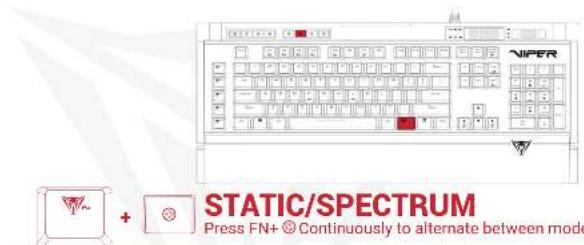
NIPER STATIC/SPECTRUM Press FN+ ◎ Continuously to alternate between modeFN+⊗-SPECTRUM MODE
The entire keyboard will gradually shift through the various colors. Pressing FN+ repeatedly will scroll through the different LED colors FN + Pg Up or Pg On will decrease or increase the interval of the fade.

(二) 1987
The quick brown fox jumps over the lazy dog.

[Unreadable]
JAWA-6 December 31, 2014
(1) 2017年1月1日
FN+ X2-STATIC MODE
The entire keyboard remains illuminated. Pressing
FN→ repeatedly will scroll through the different
LED color

[Unreadable]
(1)

[Unreadable]
In the way, Special

text_image
BRIGHTNESS Alt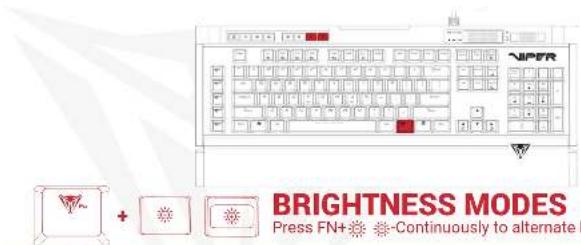
text_image
BRIGHTNESS MODES Press FN+ -Continuously to alternateBRIGHTNESS
Press FN+ increase the LED brightness.
FNr decreases the LED brightness to off



natural_image
Abstract red and white geometric logo resembling a stylized bird or trophy (no text or symbols)KEYBOARD SOFTWARE
text_image
NIPER LPG LPG LPG LPG LPG LPG LPG LPG LPG LPG LPG LPG LPG LPG LPG LPG LPG LPG LPG LPG LPG LPG LPG LPG LPG LPG LPG LPG LPG LPG LPG LPG LPG LPG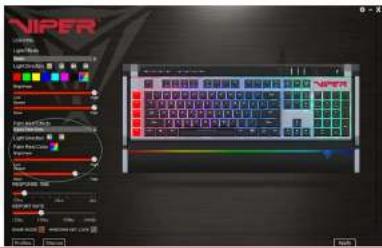
text_image
NIPER Control Panel Color Mode: Red Color Value: Green Color Scale: 100% Color Mode: Black Color Value: Blue Color Scale: Red Color Mode: Green Color Scale: Blue Color Mode: Red Color Value: Green Color Scale: Blue Color Mode: Red Color Value: Blue Color Mode: Red Color Value: Blue Color Mode: Red Color Value: Blue Color Mode: Red Color Value: Blue Color Mode: Red Color Value: Blue Color Mode: Red Color Value: Blue Color Mode: Red Color Value: Blue Color Mode: Red Color Value: Blue Color Mode: Red Color Value: Blue Color Mode: Red Color Value: Blue Color Mode: Red Color value: 100% Color value: 100% Color value: 100% Color value: 100% Color value: 100% Color value: 100% Color value: 100% Color value: 100% Color value: 100% Color value: 100% Color value: 100% Color value: 100% Color value: 100% Color value: -100% Color value: -100% Color value: -100% Color value: -100% Color value: -100% Color value: -100% Color value: -100% Color value: -100% Color value: -100% Color value: -100% Color value: -100% Color value: -100% Color value: -100%LIGHTING SETTINGS
Keyboard light effects
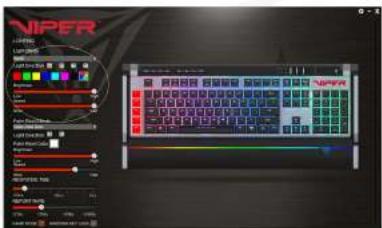
The V770's light effects can be set from the Viper software by selecting the effect from the drop down menu. Color selection, brightness, speed, and pattern direction can all be set, depending on the light effect, from the software. Click on Apply in the bottom right corner of the software to save settings
PALM REST LIGHT EFFECTS
The lighting effects for the palm rest are controlled exclusively through the Viper software and can be set up in the same manner as the keyboard lighting. Select the lighting effect from the drop down menu and set color selection, brightness, speed and pattern direction from the menu and click on Apply to save the settings.
text_image
VIPER 1.00 2.00 3.00 4.00 5.00 6.00 7.00 8.00 9.00 10.00 11.00 12.00 13.00 14.00 15.00 16.00 17.00 18.00 19.00 20.00 21.00 22.00 23.00 24.00 25.00 26.00 27.00 28.00 29.00 30.00 31.00 32.00 33.00 34.00 35.00 36.00 37.00 38.00 39.00 40.00 41.00 42.00 43.00 44.00 45.00 46.00 47.00 48.00 49.00 50.00 51.00 52.00 53.00 54.00 55.00 56.00 57.00 58.00 59.00 60.00 61.00 62.00 63.00 64.00 65.00 66.00 67.00 68.00 69.00 70.00 71.00 72.00 73.00 74.00 75.00 76.00 77.00 78.00 79.00 80.00 81.00 82.00 83.00 84.00 85.00 86.00 87.00 88.00 89.00 90.00 91.00 92.00 93.00 94.00 95.00 96.00 97.00 98.00 99.00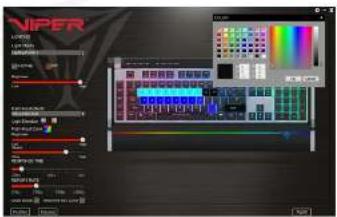
text_image
VIPER V-100 V-200 V-300 V-400 V-500 V-600 V-700 V-800 V-900 V-1000 V-1100 V-1200 V-1300 V-1400 V-1500 V-1600 V-1700 V-1800 V-1900 V-2000 V-2100 V-2200 V-2300 V-2400 V-2500 V-2600 V-2700 V-2800 V-2900 V-3000 V-3100 V-3200 V-3300 V-3400 V-3500 V-3600 V-3700 V-3800 V-3900 V-4000 V-4100 V-4200 V-4300 V-4400 V-4500 V-4600 V-4700 V-4800 V-4900 V-5000 V-5100 V-5200 V-5300 V-5400 V-5500 V-5600 V-5700 V-5800 V-5900 V-6000 V-6100 V-6200 V-6300 V-6400 V-6500 V-6600 V-6700 V-6800 V-6900 V-7000 V-7100 V-7200 V-7300 V-7400 V-7500 V-7600 V-7700 V-7800 V-7900 V-8000 V-8100 V-8200 V-8300 V-8400 V-8500 V-8600 V-8700 V-8800 V-8900 V-9000 V-9100 V-9200 V-9300 V-9400 V-9500 V-9600 V-9700 V-9800 V-9900 V-100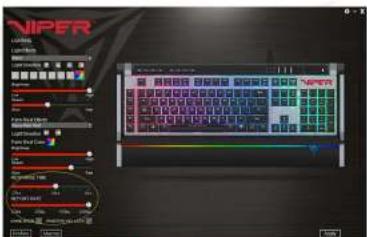
text_image
NIPER Control Panel NIPER Control Panel Color Control Panel Style Control Panel Color Control Panel Style Control Panel Color Control Panel Color Control Panel Color Control Panel Color Control Panel Color Control Panel Color Control Panel Color Control Panel Color Control Panel Color Control Panel Color Control Panel Color Control Panel Color Control Panel Color Control Panel Color Control Panel Color Control Panel Color Control Panel Color Control Panel Color Control Panel Color Control Panel Color Control Panel Color Control Panel Color Control Panel Color Control Panel Color Control Panel Color Control Panel Colors Control Panel Colors Control Panel Colors Control Panel Colors Control Panel Colors Control Panel Colors Control Panel Colors Control Panel Colors Control Panel Colors Control Panel Colors Control Panel Colors Control Panel Colors Control Panel Colors Control Panel Colors Control Panel Colors Control Panel Colors Control Panel Colors Control Panel Colors Control Panel Colors Control Panel Colors Control Panel Colors Control Panel Colors Control Panel Colors Control Panel Colors Control Panel Colors Control Panel ColorCUSTOM LIGHTING PROFILES
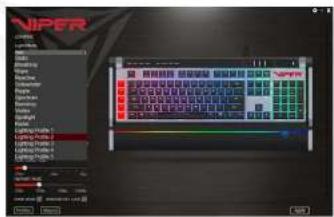
You may create custom lighting profiles by selecting one of the five Lighting Profiles from the drop down menu in Light Effects.
Check the box next to DIY to access custom color mode.
Select a key or select a group of keys and choose a color from the color pallet. Click OK, then Apply to change and save the key colors
RESPONSE TIME AND REPORT RATE
You may adjust the response time and report rate for the keyboard from the main menu. A lower response time will decrease reaction time, while a higher report rate will increase the frequency the keyboard communicates with the computer, decreasing reaction time.
text_image
VIPER Control Panel Control Panel Control Panel Control Panel Control Panel Control Panel Control Panel Control Panel Control Panel Control Panel Control Panel Control Panel Control Panel Control Panel Control Panel Control Panel Control Panel Control Panel Control Panel Control Panel Control Panel Control Panel Control Panel Control Panel Control Panel Control Panel Control Panel Control Panel Control Panel Control Panel Control Panel Control Panel Control Panel Control Panel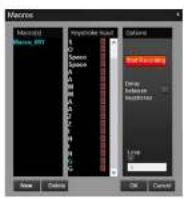
text_image
Macros Macrol(0) Micro_01 Micro_102 Keyhole Input 7 min 15 min 2 min 3 min 4 min 5 min 6 min 7 min 8 min 9 min 10 min 11 min 12 min 13 min 14 min 15 min 16 min 17 min 18 min 19 min 20 min Start Tracking Delay: between response Loop: OK Cancel New Delete OK CancelMACROS
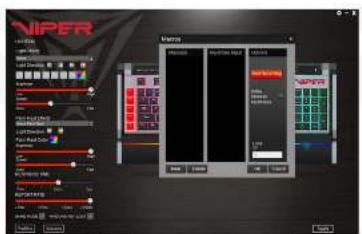
You may create and save 32 different macro scripts, of 47 characters in length that can be assigned to any key (except the Windows key) of the keyboard. The V770 has five additional dedicated macro keys for convenience.
Creating a macro-
Click on the Macros button from the main menu to open the macro editor.
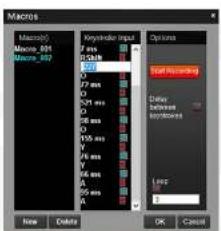
Click New to create a new macro. Double click on the macro to rename it. Click Start Recording to create your macro script. You may create scripts up to 47 characters long
Delay between keystrokes - You may add delays between acrilat keystrokes by checking the box next to Delay between keystrokes. Once you stop recording, you may edit delay time manually by double clicking on it.
Loop - By checking the box under Loop, you may assign the number of times a macro script run when you press macro key.
Saving a Macro
Once you have recorded a macro script, click OK to save and exit the macro editor.
Deleting a Macro
Open the macro editor, and select a macro from the macro list and click Delete.
KEY ASSIGNMENTS
Select a Lighting Profile and check the box on Keymap. This gives you access to the SELECTED KEY menu.
You may assign specific functions to each key through the SELECTED KEY menu.
- Single/Combine
- Macro
• Basic
• Acuance
SINGLE/COMBINE
This allows you to change the output value of a single key or combine two output values into a single keystroke.
Click a key you wish to change the value of or combine two values into (except for the Windows® key).
Click the Single/Combine tab from the SELECTED KEY menu.
Change the value of the keystroke in the single row or combine two values in the combine row.
Click Sawa, arabie 6445 MG08, click April
To trigger primal function double GAME 1200E and click Apply
MACRO
This allows you to assign macro scripts you have created and saved to specific keys.
Click a key you wish to assign a macro to on the keyboard image (except for the Windows® key)
Click on the Macro tab from the SELECTED KEY menu and choose the macro you wish to assign from the list
Click Save, enable GAME MODE, click Apple.
To restore original function disable GAME MOOC and click Apply
BASIC
This allows you to assign various Windows functions to various keys making them hot keys, including opening
multi-media functions, internet browser, file access, and more.
Click a key you wish to assign a basic function to on the keyboard image (except for the Windows® key).
Click on the Basic tab from the SELECTED KEY menu and choose the function you wish to assign from the list.
Click Sawa, applicable G4/HS MGOE click 4 apply
To return normal functions double GAME MORE, and clink Apply
ADVANCE
This allows you to browse various folders (i.e. music, photo), and assign functions to keys making them hot keys, including playing music, opening folder, start up function, and more. Click a key you wish to assign an advance function to on the keyboard Image (except for the Windows key). Click on the Advance tab from the SELECTED KEY menu and choose the function you wish to assign from the list. Click Save enable GAME MODE, click Apply. To restore original function disable GAME MODE, and click Apply
DISABLE KEYS
You may disable any number of keys by checking the Disable Keys box on the SELECTED KEY menu, saving, enabling GAME MODE, and clicking Apply.
text_image
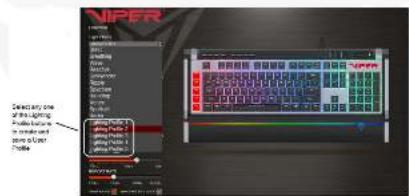
NIPER Select any one of the legacy and to consider it with a new control panel.Creating and Saving User Profiles
The Profiles function allows you to set up and save custom settings for different games, keyboard appearance, or performance, and access them easily.
You may create and save as many different user profiles as your hard disk space availability will allow. You will need one of the "Lighting Profile" buttons under the Lighting Effect menu to create and save specific user profiles. You may choose any one of the five "Lighting Profile" buttons for creating and saving user profiles.
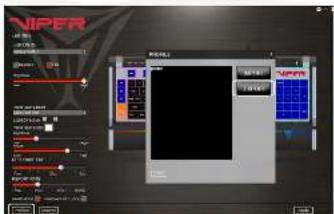
To create a user profile, follow the steps outlined above to custom color keys and select and assign macro scripts. You may also adjust the report rate or response times to your preference. Click Apply to save them to the keyboard's memory.
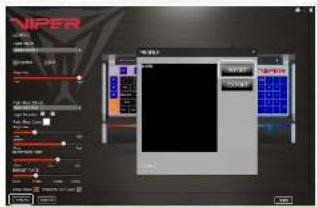
To save a user profile, click on the Profilee button in the lower left corner, then click on the EXPORT button to excess a folder you create on your PC's storage device.

text_image
File Edit View Insert File Name: C:\Users\My Documents\My Documents\My Documents\My Documents\My Documents\My Documents\My Documents\My Documents\My Documents\My Documents\My Documents\My Documents\My Documents\My Documents\My Documents\My Documents\My Documents\My Documents\My Documents\My Documents\My Documents\My Documents\My Documents\My Documents\My Documents\My Documents\My Documents\My Documents\My Documents\My Documents\My Documents\My Documents\My Documents\My Documents\nName Page1 Page2 Page3 Page4 Page5 Page6 Page7 Page8 Page9 Page10 Page11 Page12 Page13 Page14 Page15 Page16 Page17 Page18 Page19 Page20 Page21 Page22 Page23 Page24 Page25 Page26 Page27 Page28 Page29 Page30 Page31 Page32 Page33 Page34 Page35 Page36 Page37 Page38 Page39 Page40 Page41 Page42 Page43 Page44 Page45 Page46 Page47 Page48 Page49 Page50 Page51 Page52 Page53 Page54 Page55 Page56 Page57 Page58 Page59 Page60 Page61 Page62 Page63 Page64 Page65 Page66 Page67 Page68 Page69 Page70 Page71 Page72 Page73 Page74 Page75 Page76 Page77 Page78 Page79 Page80 Page81 Page82 Page83 Page84 Page85 Page86 Page87 Page88 Page89 Page90 Page91 Page92 Page93 Page94 Page95 Page96 Page97 Page98 Page99 Page100Name the profile and Save.
text_image
VIPER NEW YEAR 2017 NEW YEAR 2018 NEW YEAR 2019 NEW YEAR 2020 NEW YEAR 2021 NEW YEAR 2022 NEW YEAR 2023 NEW YEAR 2024 NEW YEAR 2025 NEW YEAR 2026 NEW YEAR 2027 NEW YEAR 2028 NEW YEAR 2029 NEW YEAR 2030 NEW YEAR 2031 NEW YEAR 2032 NEW YEAR 2033 NEW YEAR 2034 NEW YEAR 2035 NEW YEAR 2036 NEW YEAR 2037 NEW YEAR 2038 NEW YEAR 2039 NEW YEAR 2040 NEW YEAR 2041 NEW YEAR 2042 NEW YEAR 2043 NEW YEAR 2044 NEW YEAR 2045 NEW YEAR 2046 NEW YEAR 2047 NEW YEAR 2048 NEW YEAR 2049 NEW YEAR 2050 NEW YEAR 2051 NEW YEAR 2052 NEW YEAR 2053 NEW YEAR 2054 NEW YEAR 2055 NEW YEAR 2056 NEW YEAR 2057 NEW YEAR 2058 NEW YEAR 2059 NEW YEAR 2060 NEW YEAR 2061 NEW YEAR 2062 NEW YEAR 2063 NEW YEAR 2064 NEW YEAR 2065 NEW YEAR 2066 NEW YEAR 2067 NEW YEAR 2068 NEW YEAR 2069 NEW YEAR 2070 NEW YEAR 2071 NEW YEAR 2072 NEW YEAR 2073 NEW YEAR 2074 NEW YEAR 2075 NEW YEAR 2076 NEW YEAR 2077 NEW YEAR 2078 NEW YEAR 2079 NEW YEAR 2080 NEW YEAR 2081 NEW YEAR 2082 NEW YEAR 2083 NEW YEAR 2084 NEW YEAR 2085 NEW YEAR 2086 NEW YEAR 2087 NEW YEAR 2088 NEW YEAR 2089 NEW YEAR 2090 NEW YEAR 2091 NEW YEAR 2092 NEW YEAR 2093 NEW YEAR 2094 NEW YEAR 2095 NEW YEAR 2096 NEW YEAR 2097 NEW YEAR 2098 NEW YEAR 2099 NEW YEAR 2100To load a saved profile to the keyboard, simply click on Profiles in the lower left corner, and click IMPORT.
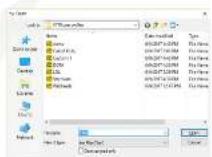
Double click on the profile you wish to load from your user profile folder and hit Open.
Once the selected profile has loaded onto the PROFILE window of the IMPORT/EXPORT screen, hit Apply. The profile is now loaded onto the keyboard memory.
text_image
GENERAL SETTINGS Alt —— —— Alt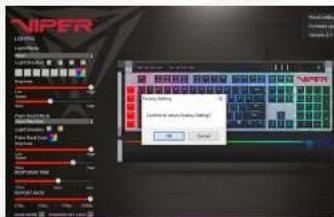
text_image
NIPER Control Panel Status Bar Control Panel Status Bar Control Panel Control Panel Control Panel Control Panel Control Panel Control Panel Control Panel Control Panel Control Panel Control Panel Control Panel Control Panel Control Panel Control Panel Control Panel Control Panel Control Panel Control Panel Control Panel Control Panel Control Panel Control Panel Control Panel Control Panel Control Panel Control Panel Control Panel Control Panel Control Panel Control Panel Control Panel Control Panel Control Panel Control PanelWINDOWS KEY LOCK
You may disable the Windows® key during game play by checking the box next to WINDOWS KEY LOOK and then clicking Apply.
FACTORY REST
To reset the keyboard to factory default settings, click on the setting icon in the upper right corner and then click Reset settings. The software will prompt you accordingly.
FCC and Legal:
This equipment has been tested and found to comply with the limits for a Class B digital device, pursuant to Part 15 of the FCC Rules. These limits are designed to provide reasonable protection against harmful interference in a residential installation. This equipment generates uses and can radiate radio frequency energy and, if not installed and used in accordance with the instructions, may cause harmful interference to radio communications.
However, there is no guarantee that interference will not occur in a particular installation. If this equipment does cause harmful interference to radio or television reception, which can be determined by turning the equipment off and on, the user is encouraged to try to correct the interference by one of the following measures:
• Reorient or relocate the receiving antenna.
- Increase the separation between the equipment and receiver.
- Connect the equipment into an outlet on a circuit different from that to which the receiver is connected.
- Consult the dealer or an experienced radio/TV technician for help.
FCC NOTICE:
This device complies with Part 15 of the FCC Rules. Operation is subject to the following two conditions:
1) This device may not cause harmful interference, and 2) This device must accept any interference received, including interference that may cause undesired operation.
FCC CAUTION:
- Any changes or modifications not expressly approved by the party responsible for compliance could void the user's authority to operate this equipment.
- This device and its antenna(s) must not be co-located or operating in conjunction with any other antenna or transmitter.

text_image
VIPER™ GAMINGRoHS COMPLIANT
FC
CE



The "P" Logo is a Registered Trademark of Patriot Memory, LLC