
G6609 - Mobile Phone HUAWEI - Free user manual and instructions
Find the device manual for free G6609 HUAWEI in PDF.


| Product Type | Mobile Phone |
| Brand | Huawei |
| Model | G6609 |
| Display | Color screen (size not specified) |
| SIM Card | Standard SIM |
| microSD Card Support | Up to 16 GB |
| Battery Type | Rechargeable lithium-ion (removable) |
| Charging | AC charger via dedicated port |
| Operating System | Proprietary (feature phone) |
| Keypad | QWERTY keyboard |
| Camera | Yes (resolution not specified) |
| Video Recording | Yes |
| FM Radio | Yes (requires headset as antenna) |
| Bluetooth | Yes |
| USB Connectivity | Mass storage mode |
| Messaging | SMS, MMS, Email |
| Phonebook | Store contacts on SIM or phone memory |
| Profiles | General, Meeting, Outdoor, Silent |
| Security | Phone code (default 1234), PIN/PUK |
| SAR (Head) | EU: 0.537 W/kg; US: 0.50 W/kg |
| SAR (Body) | EU: 0.614 W/kg; US: 1.41 W/kg |
| Cleaning | Use damp antistatic cloth; avoid chemicals |
| Operating Temperature | 0°C to 40°C |
| Battery Standby/Talk Time | Varies; replace when performance degrades |
Frequently Asked Questions - G6609 HUAWEI
User questions about G6609 HUAWEI
0 question about this device. Answer the ones you know or ask your own.
Ask a new question about this device
Download the instructions for your Mobile Phone in PDF format for free! Find your manual G6609 - HUAWEI and take your electronic device back in hand. On this page are published all the documents necessary for the use of your device. G6609 by HUAWEI.
USER MANUAL G6609 HUAWEI
Copyright © Huawei Technologies Co., Ltd. 2011. All rights reserved.
Trademarks and Permissions

HUAWEI, and are trademarks or registered
trademarks of Huawei Technologies Co., Ltd.
Other trademarks, product, service and company names mentioned are the property of their respective owners.
NO WARRANTY
THE CONTENTS OF THIS MANUAL ARE PROVIDED "AS IS". EXCEPT AS REQUIRED BY APPLICABLE LAWS, NO WARRANTIES OF ANY KIND, EITHER EXPRESS OR IMPLIED, INCLUDING BUT NOT LIMITED TO, THE IMPLIED WARRANTIES OF MERCHANTABILITY AND FITNESS FOR A PARTICULAR PURPOSE, ARE MADE IN RELATION TO THE ACCURACY, RELIABILITY OR CONTENTS OF THIS MANUAL.
TO THE MAXIMUM EXTENT PERMITTED BY APPLICABLE LAW, IN NO CASE SHALL HUAWEI TECHNOLOGIES CO., LTD BE LIABLE FOR ANY SPECIAL, INCIDENTAL, INDIRECT, OR CONSEQUENTIAL DAMAGES, OR LOST PROFITS, BUSINESS, REVENUE, DATA, GOODWILL OR ANTICIPATED SAVINGS.
Contents
1 Introduction.... 1
Removing the Back Cover....1
SIM Card....2
microSD Card....2
Charging the Battery....3
Your Phone 4
Keys and Functions....5
Screen Icons ....7
2 Getting Started 8
Phone Code....8
PIN and PUK 8
Automatically Switching Between Profiles 8
File Management....9
Other Applications....9
3 Voice Services 9
Making a Call....9
Answering a Call....10
4 Text Input 11
Changing the Text Input Mode....11
Using the FN Key 11
Entering Words....12
Entering Digits....12
Entering Symbols....12
5 Messaging 13
Creating and Sending a Text Message 13
Creating and Sending a Multimedia Message 13
6 Email 14
Creating an Email Account 14
Creating and Sending an Email 14
7 Contacts....15
Creating a Contact 15
Searching for a Contact....15
8 Multimedia 16
Camera 16
Media Player....17
Sound Recorder....18
FM Radio 18
Photo Editor 19
Ebook Reader 19
9 Connectivity....20
USB....20
Bluetooth....20
10 Warnings and Precautions....21
1 Introduction

All the figures in this guide are provided only for your reference. The actual appearance and display depends on your phone.
Removing the Back Cover

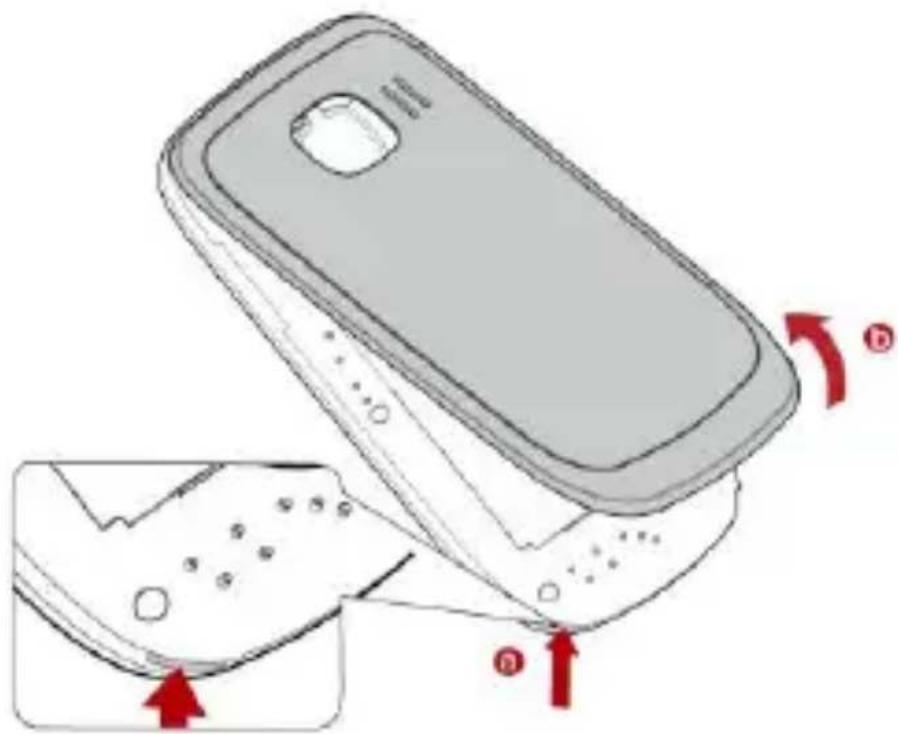
The section contains important information about how to remove the phone's back cover correctly. Follow the step-by-step guide carefully, or it may cause damage to the back cover.
The following figure shows how to remove the back cover.
-
In the lower left corner of the phone, use your finger to open a gap between the back cover and the phone carefully.
-
In the direction shown by the arrow indicator (b), use your hand to remove the entire back cover.
SIM Card
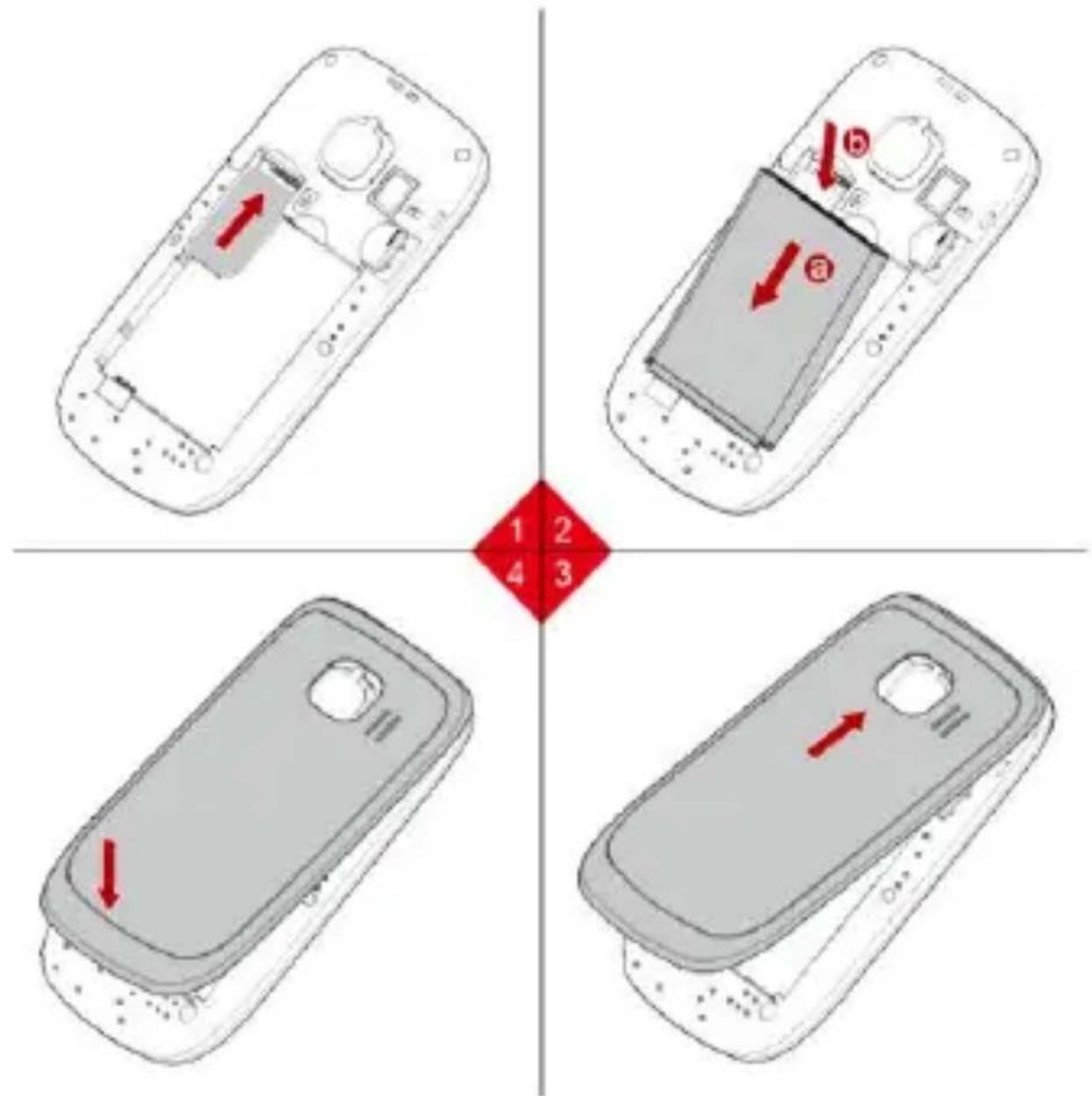
Insert your SIM card before using your phone. Remove the SIM card and the battery only after powering off your phone.
The following figures show the installation of the SIM card.
microSD Card
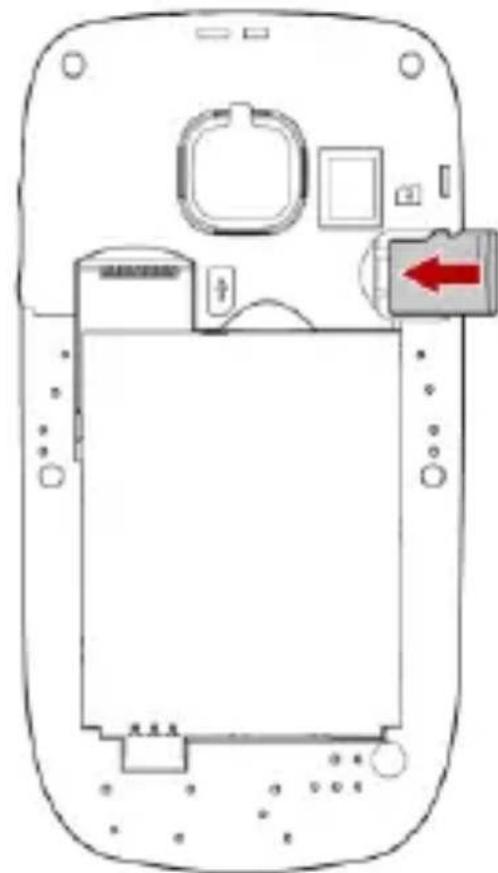
Your phone supports a microSD card with a capacity of up to 16 GB.
The following figure shows the installation of the microSD card.
natural_image
Diagram of a mobile phone casing showing internal components and a red arrow pointing to a device (no text or symbols present)Charging the Battery
-
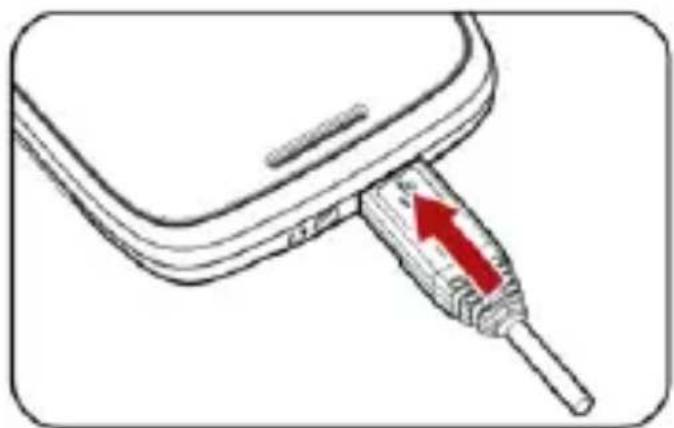
Connect the charger to an AC power socket.
-
Connect the charger to the charger jack on the phone.
natural_image
Diagram of a medical device with a red arrow pointing to a catheter tip (no text or symbols present)- Wait until the battery is fully charged.
During the charging, the charging icon is displayed in animation. When the charging icon becomes static, it indicates that the battery is fully charged.
- Disconnect the charger from the AC power socket.
- Disconnect the charger from the phone.
Your Phone
The following figure shows the appearance of your phone and it is for your reference only.
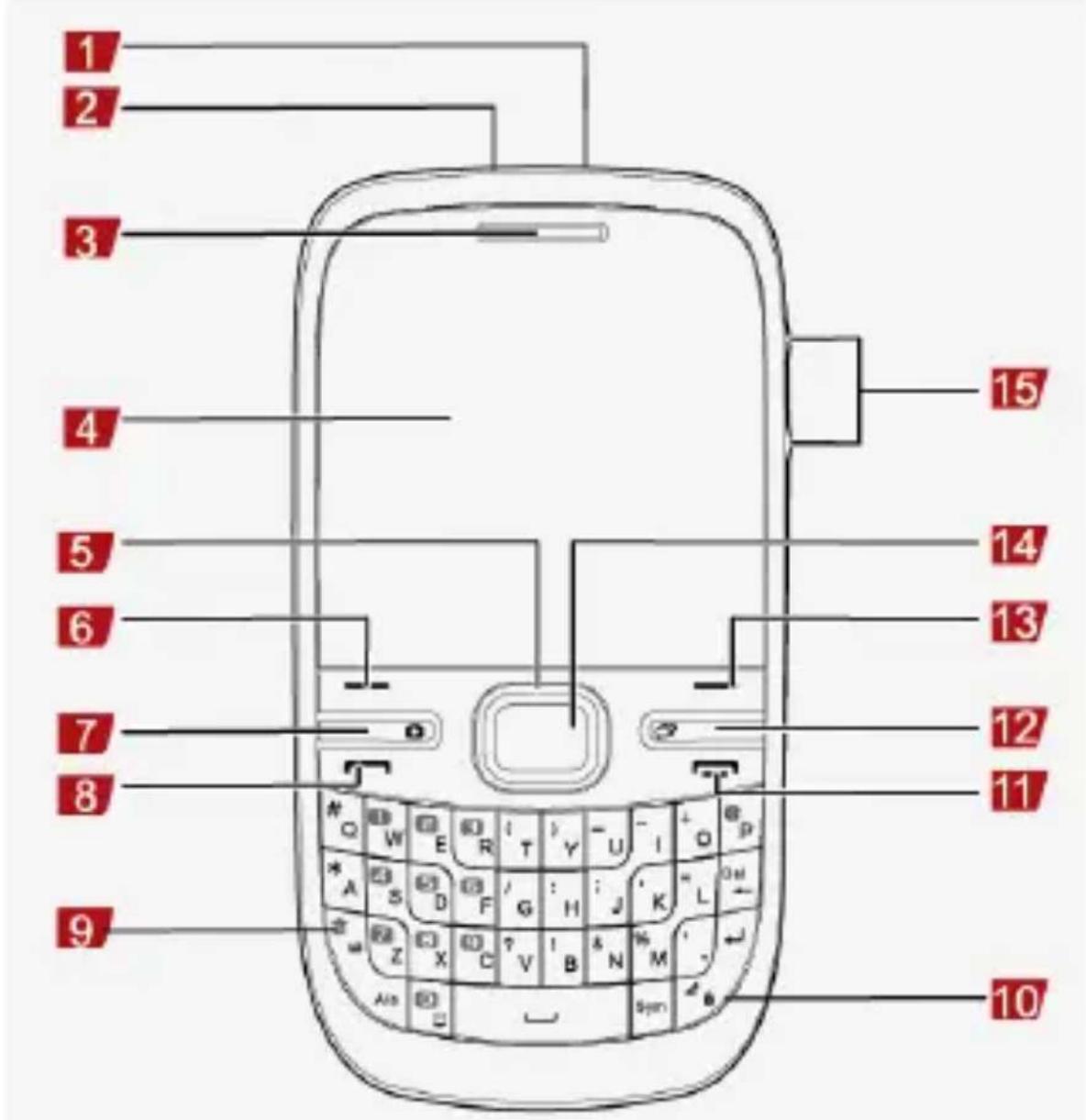
1 Headset jack
2 Charger jack /USB port
3 Earpiece
4 Screen
9 FN key
10 Keypad locked key
11 End/Power key
12 SNS


5 Navigation keys
6 Left soft key
7 Camera key
8 Call/Answer key


13 Right soft key
14 Confirm key
15 Volume/Scroll key
Keys and Functions

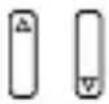
In this guide, the following icons indicate the navigation keys of
your phone: △, and. ◀
| Press ... | To ... |
 | Make a call.Answer an incoming call.View call logs in standby mode. |
 | Power on or power off the phone (by pressing and holding the key for about 3s).End a call or reject an incoming call.Return to the standby mode. |
 | Select the option displayed in the lower left corner of the screen. |
 | Select the option displayed in the lower right corner of the screen. |
 | Access Camera. |
 | Display the SNS services list. |
 | Confirm a selection. |
 | In standby mode, you can do as follows.Press the navigation keyortoaccess functions assigned to them.Press the navigation keyortoswitch between widgets, and then press to access it. |
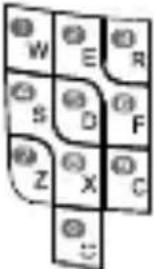 | Enter digits, letters, and icons.Call the voicemail in standby mode by pressing and holding the 1 key for about 3s.Speed-dial phone numbers in standby mode by pressing and holding the keys 2–9 for about 3s. |
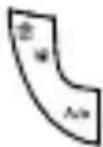 | Activate or deactivate the Meeting profile in standby mode by pressing and holding the upper part of the key for about 3s.Switch between the upper case and the lower case in text input mode by pressing the lower part of the key.Employ the FN key in text input mode by pressing the upper part of the key. |
 | Lock the keyboard in standby mode by pressing and holding the lower part of the key for about 3s.Move the cursor to the next line in text input mode by pressing the upper part of the key. |
Screen Icons
| Icon | Indicates ... |
 | Signal strength. |
 | The keyboard is locked. |
 | Battery power level. |
 | WLAN connected. |
 | General profile. |
 | Meeting profile. |
 | Outdoor profile. |
 | Silent profile. |
 | The Bluetooth function is enabled. |
 | The earphone is plugged in. |
 | Missed call(s). |
| [KXSD] | A new text message is received. |
 | A new multimedia message is received. |
 | A new email is received. |
 | An alarm is activated. |
 | A microSD card is inserted into the phone. |
2 Getting Started
Phone Code
The phone code is used to protect your phone from unauthorized use and restore factory settings. If the phone lock function is enabled, you need to enter the phone code every time you power on the phone. By default, the phone lock function is disabled.
The phone code is set to 1234 by default. You can select Menu > Settings > Security settings > Change password to change the phone code to any numeric string of four to eight digits.
Do remember your phone code. If you forget the phone code, please contact the service center.
PIN and PUK
The personal identification number (PIN) protects your SIM card from unauthorized use. The PIN unblocking key (PUK) can unlock the blocked PIN. Both the PIN and the PUK are delivered with the SIM card. For details, contact your service provider.
If you enter wrong PINs for a specified number of times consecutively, the phone asks you to enter the PUK.
If you enter wrong PUKs for a specified number of times consecutively, the SIM card becomes invalid permanently. In this case, contact your service provider for a new one.
Automatically Switching Between Profiles
You can set the phone to activate different profiles at different times. The phone can automatically switch between profiles according to your settings.
- Select Menu > User profiles > Profile auto switch.
-
Select a clock.
-
Set the status, time, and repetition days, and then assign a profile.
- Press (Done) to save the settings.
File Management
The File Manager manages the multimedia files saved in the phone memory or on the microSD card. Through the File Manager, you can view the sizes and creation dates of ebooks, images, photos, videos, and audios, and open the multimedia files.
Other Applications
• Calendar: to view dates and set events.
- Alarm: to set alarms.
• Calculator: to perform basic calculation.
• World Time: to view and set the world time.
- Java: to download and install java applications.
- Tasks: to view and add tasks.
- Currency converter: to set an exchange rate and perform currency conversion.
- Stopwatch: to time a process.
- Ebook reader: to read ebooks.
• Games: to play games.
3 Voice Services
Making a Call
-
In standby mode, enter the phone number.
-
To make an international call, enter the international long-distance code (+), country code or region code, area code, and phone number in sequence.
-
To call an extension number, enter the phone number, P or W, and extension number in sequence.
-
Press to dial the number.
-
Press to end the call.

- If you enter P between the phone number and the extension number, after the phone number is connected, the phone automatically dials the extension number.
- If you enter W between the phone number and the extension number, after the phone number is connected, the phone prompts you to choose whether to dial the extension number.
- You can also make a call through call logs, contacts, and messages.
- During a call, you can press volume.
or

to adjust the
Answering a Call
When there is an incoming call, you can do as follows:
- Press, or to answer the call.
- Press to mute the speaker, and then press again to reject the call.
- Press to reject the call.
- If the any-key answer function is enabled, you can press any key except and to answer the call.
4 Text Input
Changing the Text Input Mode
The indicator of the current text input mode is displayed in the upper

left corner of the screen. You can press the lower part of to change the text input mode.

- Press to delete the character on the left of the cursor. Press and hold for about 3s to clear all the characters.
- Press to enter a space.
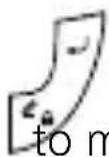
- Press the upper part of to move the cursor to the next line.
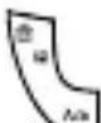
- Press the lower part of to switch to the upper case or the lower case.
Using the FN Key
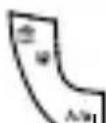
Press the upper part of and then press a key labeled with the number or symbol to enter the corresponding number or symbol labeled in the upper left part of the key.
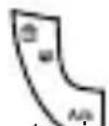
Press the upper part of twice consecutively, and then press keys labeled with numbers or symbols to enter corresponding numbers or symbols labeled in the upper left part of the keys continuously.
Entering Words
To enter a word, press the keys according to the spelling sequence of the word.
Entering Digits
- In "123" text input mode, you can directly press a number key labeled with the desired digit.
- In any text input mode except "123", press the upper part
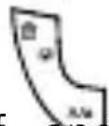
of, and then press the key labeled with the desired digit.
Entering Symbols
- Press to display the symbol list.

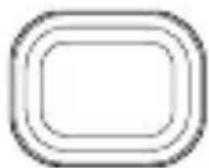
- Press to scroll to the desired symbol.
- Press ☐ to enter the symbol.

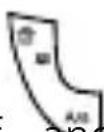
In any text input mode, press the upper part of , and then press the keys labeled with the commonly used symbols to enter the symbols.
5 Messaging

- Contact your service provider for the availability of the Multimedia Messaging Service (MMS) and the method of subscribing to the service.
- Open multimedia messages with caution. Objects in multimedia messages may contain viruses that can damage your phone, such as malicious software.
Creating and Sending a Text Message
- Select Menu > Messaging > Write message.
- Edit the text message.
- Press to add the recipient(s).
You can enter the phone number of the recipient(s) or add the recipient(s) through Contacts. - Press to send the message.
Creating and Sending a Multimedia Message
- Select Menu > Messaging > Write message.
- Select Options > Switch to MMS.
- Edit the content of the message.
You can press (Options), and then add pictures, sounds, videos, and the subject to multimedia messages. -
Select Options > Send to.
You can enter the phone number of the recipient(s) or add the recipient(s) through Contacts. -
Select Options > Send to send the multimedia message.
6 Email

- Contact your service provider for the availability of the email service and the method of subscribing to the service.
- Open emails with caution. Objects in emails may contain viruses that can damage your phone, such as malicious software.
Creating an Email Account
For the details about the settings of the email account, contact your email service provider.
If the email account you need has been configured by default, you can enter your user name and password to access the email. You can also activate mobile access to your account from email server web sites from your PC.
- Select Menu > Email.
If there is no email account, the phone will prompt you to create an email account. - Select the email server you need.
- Enter the email address and the password.
- Press to save the account.
Creating and Sending an Email
Before sending or receiving emails, you need to create and an email account.
- Select Menu > Email, and then select the desired email account.
-
Select Options > Write Email.
-
Select To to add the email address of a recipient.
- Select Subject to edit the email subject.
- Edit the content of the email.
You can also select Options > Add attachments to add attachments. A maximum of ten attachments can be added to an email.
- Select Options > Send to send the email.
7 Contacts
Creating a Contact
- Select Menu > Contacts > Add new contact.
- Select To SIM or To phone for saving the contact.
- Edit the contact.
- Press to save the contact.
Searching for a Contact
- Select Menu > Contacts.
- Enter the contact name, or the first several letters of a contact name.
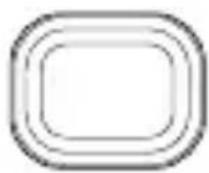
- Press to scroll to the desired contact.
8 Multimedia
Camera
Taking a photo
To take a photo, you can do as follows.
-
Select Menu > Camera.
-
Press to configure relevant settings.
-
Press ☐ to take a photo.
Recording a video
To record a video, you can do as follows.
-
Select Menu > Camera.
-
Press the lower navigation key to the recorder mode.
-
Press ☐ to configure relevant settings.
-
Press ☐ to start recording a video clip. During the recording, you can do as follows:
- Press to zoom in.
- Press to zoom out.
- Press or to pause or continue.
- Press to stop recording the video clip.
Media Player
Creating a Playlist
- Select Menu > Multimedia > Media player > Playlists.
- Select Options > New and then enter the playlist name.
- Select Options > Done to complete the creation of the new playlist.
Adding Media Files to a Playlist
- Select Menu > Multimedia > Media player > Playlists.
- Open the playlist to which you want to add media files.
- Select Options > Add to select media files.
- Select Options > Add marked to add the selected media files to the playlist.
Playing a media File
- Select Menu > Multimedia > Media player.
- Select a media file.
- Press to play the media file.
When the media file is being played, you can do as follows:
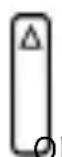
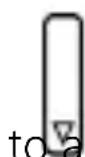
- Press or to adjust the volume.
- Press and hold the navigation key or to fast-forward or rewind the media file.
- Press the navigation key to pause or continue.
- Press the navigation key to stop playing the media file.
- When playing a video, press to access or exit the full-screen mode.
- Press ▼ to stop playing the media file and then 📄 to exit the media player.
Sound Recorder
-
Select Menu > Multimedia > Sound recorder.
-
Select Options > New record.
During the recording, press to pause or continue.
-
Press it. (Stop) to stop recording the audio clip and save
-
Press (Options), and then select from the following options.
• List: to view all the recorded audio clips.
• Play: to play the saved audio clip.
FM Radio
The headset cable functions as an antenna as well. To ensure good reception of radio programs, do not disconnect the headset from the phone or severely bend the headset cable.
-
Connect a compatible headset to the phone.
-
Select Menu > Multimedia > FM radio.
-
On the FM radio screen, you can do as follows:
- Press to record the program, and then press (Stop) to stop recording.
During the recording, you can press or to pause or continue.
- Press and to adjust the volume.
- Press the navigation key to switch between the tuning modes.
- Press the navigation key or to change channels or adjust the frequency by 0.1 MHz according to the tuning mode you have selected.
- Press the navigation key to switch on or off the FM radio.
- Press (Options) to view and set the channel list, tune, or configure other settings.
- Press (Back) to exit the FM radio screen and play the program in the background.
Photo Editor
- Select Menu > Multimedia > Photo editor.
- Select Photo artist or Image tiles.
- Edit the image.
You can adjust the image size and add text, a frame, or an icon to the image. - Select Options > Save as to save the image.
Ebook Reader
Your phone supports ebooks in .txt formats. You should store ebooks in the Ebook folder in the phone memory or on the microSD card.
-
Select Menu > Tools > Ebook reader.
-
Select an ebook.
-
Press (Options) for following options:
-
Clean up bookshelf: to clear up the bookshelf.
-
Global settings: to set the font size, scrolling type, scrolling speed, alignment, storage, or switch to the full screen mode.
-
Press (Back) to exit the ebook.
9 Connectivity
USB
After connecting your phone to the PC by using the USB cable, your phone can be used as a USB mass storage device. You can save files to the corresponding folders that are automatically created in the phone memory or on the microSD card.

Only Windows 2000, Windows XP, Windows Vista and Windows 7 operating systems are supported.
Bluetooth
Through Bluetooth, you can synchronize data between a PC and your phone, exchange data with other Bluetooth devices, and use a Bluetooth headset.
You can configure Bluetooth-related settings only after enabling the Bluetooth function.
Select Menu > Settings > Connectivity > Bluetooth > Power, and then select On to enable the Bluetooth function.
Using a Bluetooth Headset
No Bluetooth headset is delivered in the product package. If a Bluetooth headset is required, you can buy one yourself.
-
Select Search audio device to search for the Bluetooth headset.
-
After the search, press (Pair).
-
Enter the password for pairing the phone with the Bluetooth headset.
After the phone sets up a connection with the headset, the headset icon is displayed on the standby screen and you can use the headset.
Transferring Data
Select My device > Search new device to search for available Bluetooth devices, and then pair the phone with the desired device. After pairing, you can transfer data between the phone and the Bluetooth device.
When a Bluetooth device sets up a connection with the phone for the first time, you need to enter a pairing password for authentication.
10 Warnings and Precautions
This section contains important information pertaining to the operating instructions of your device. It also contains information about how to use the device safely. Read this information carefully before using your device.
Electronic Device
Power off your device if using the device is prohibited. Do not use the device when using the device causes danger or interference with electronic devices.
Medical Device
- Follow rules and regulations set forth by hospitals and health care facilities. Do not use your device when using the device is prohibited.
- Pacemaker manufacturers recommend that a minimum distance of 15 cm be maintained between a device and a pacemaker to prevent potential interference with the pacemaker. If you are
using a pacemaker, use the device on the opposite side of the pacemaker and do not carry the device in your front pocket.
Potentially Explosive Atmosphere
Power off your device in any area with a potentially explosive atmosphere, and comply with all signs and instructions. Areas that may have potentially explosive atmospheres include the areas where you would normally be advised to turn off your vehicle engine. Triggering of sparks in such areas could cause an explosion or a fire, resulting in bodily injuries or even deaths. Do not power on your device at refueling points such as service stations. Comply with restrictions on the use of radio equipment in fuel depots, storage, and distribution areas, and chemical plants. In addition, adhere to restrictions in areas where blasting operations are in progress. Before using the device, watch out for areas that have potentially explosive atmospheres that are often, but not always, clearly marked. Such locations include areas below the deck on boats, chemical transfer or storage facilities, and areas where the air contains chemicals or particles such as grain, dust, or metal powders. Ask the manufacturers of vehicles using liquefied petroleum gas (such as propane or butane) whether this device can be safely used in their vicinity.
Traffic Security
Observe local laws and regulations while using the device. In addition, if using the device while driving a vehicle, comply with the following guidelines:
- Concentrate on driving. Your first responsibility is to drive safely.
- Do not talk on the device while driving. Use hands-free accessories.
- When you have to make or answer a call, park the vehicle at the road side before using your device.
-
RF signals may affect electronic systems of motor vehicles. For more information, consult the vehicle manufacturer.
-
In a motor vehicle, do not place the device over the air bag or in the air bag deployment area. Otherwise, the device may hurt you owing to the strong force when the air bag inflates.
- Do not use your device while flying in an aircraft. Power off your device before boarding an aircraft. Using wireless devices in an aircraft may cause danger to the operation of the aircraft and disrupt the wireless telephone network. It may also be considered illegal.
Operating Environment
- Do not use or charge the device in dusty, damp, and dirty places or places with magnetic fields. Otherwise, it may result in a malfunction of the circuit.
- The device complies with the RF specifications when the device is used near your ear or at a distance of 1.5 cm from your body. Ensure that the device accessories such as a device case and a device holster are not composed of metal components. Keep your device 1.5 cm away from your body to meet the requirement earlier mentioned.
- On a stormy day with thunder, do not use your device when it is being charged, to prevent any danger caused by lightning.
- When you are on a call, do not touch the antenna. Touching the antenna affects the call quality and results in increase in power consumption. As a result, the talk time and the standby time are reduced.
- While using the device, observe the local laws and regulations, and respect others' privacy and legal rights.
- Keep the ambient temperature between 0^ C and 40^ C while the device is being charged. Keep the ambient temperature between 0^ C to 40^ C for using the device powered by a battery.
Prevention of Hearing Damage
Using a headset at high volume can damage your hearing. To reduce the risk of damage to hearing, lower the headset volume to a safe and comfortable level.
Safety of Children
Comply with all precautions with regard to children's safety. Letting the child play with your device or its accessories, which may include parts that can be detached from the device, may be dangerous, as it may present a choking hazard. Ensure that small children are kept away from the device and accessories.
Accessories
Use the accessories delivered only by the manufacturer. Using accessories of other manufacturers or vendors with this device model may invalidate any approval or warranty applicable to the device, result in the non-operation of the device, and cause danger.
Battery and Charger
- Unplug the charger from the electrical plug and the device when not in use.
- The battery can be charged and discharged hundreds of times before it eventually wears out. When the standby time and the talk time are shorter than the normal time, replace the battery.
- Use the AC power supply defined in the specifications of the charger. An improper power voltage may cause a fire or a malfunction of the charger.
- Do not connect two poles of the battery with conductors, such as metal materials, keys, or jewelries. Otherwise, the battery may be short-circuited and may cause injuries and burns on your body.
-
Do not disassemble the battery or solder the battery poles. Otherwise, it may lead to electrolyte leakage, overheating, fire, or explosion.
-
If battery electrolyte leaks out, ensure that the electrolyte does not touch your skin and eyes. When the electrolyte touches your skin or splashes into your eyes, wash your eyes with clean water immediately and consult a doctor.
- If there is a case of battery deformation, color change, or abnormal heating while you charge or store the battery, remove the battery immediately and stop using it. Otherwise, it may lead to battery leakage, overheating, explosion, or fire.
- If the power cable is damaged (for example, the cord is exposed or broken), or the plug loosens, stop using the cable at once. Otherwise, it may lead to an electric shock, a short circuit of the charger, or a fire.
- Do not dispose of batteries in fire as they may explode. Batteries may also explode if damaged.
- Danger of explosion if battery is incorrectly replaced. Recycle or dispose of used batteries according to the local regulations or reference instruction supplied with your device.
Cleaning and Maintenance
- The device, battery, and charger are not water-resistant. Keep them dry. Protect the device, battery, and charger from water or vapor. Do not touch the device or the charger with a wet hand. Otherwise, it may lead to a short circuit, a malfunction of the device, and an electric shock to the user.
- Do not place your device, battery, and charger in places where they can get damaged because of collision. Otherwise, it may lead to battery leakage, device malfunction, overheating, fire, or explosion.
- Do not place magnetic storage media such as magnetic cards and floppy disks near the device. Radiation from the device may erase the information stored on them.
- Do not leave your device, battery, and charger in a place with an extreme high or low temperature. Otherwise, they may not
function properly and may lead to a fire or an explosion. When the temperature is lower than 0^ C, performance of the battery is affected.
- Do not place sharp metal objects such as pins near the earpiece. The earpiece may attract these objects and hurt you when you are using the device.
- Before you clean or maintain the device, power off the device and disconnect it from the charger.
- Do not use any chemical detergent, powder, or other chemical agents (such as alcohol and benzene) to clean the device and the charger. Otherwise, parts of the device may be damaged or a fire can be caused. You can clean the device and the charger with a piece of damp and soft antistatic cloth.
- Do not dismantle the device or accessories. Otherwise, the warranty on the device and accessories is invalid and the manufacturer is not liable to pay for the damage.
Emergency Call
You can use your device for emergency calls in the service area. The connection, however, cannot be guaranteed in all conditions. You should not rely solely on the device for essential communications.
Certification Information (SAR)
This device meets guidelines for exposure to radio waves.
Your device is a low-power radio transmitter and receiver. As recommended by international guidelines, the device is designed not to exceed the limits for exposure to radio waves. These guidelines were developed by the independent scientific organization International Commission on Non-Ionizing Radiation Protection (ICNIRP) and include safety measures designed to ensure safety for all users, regardless of age and health.
The Specific Absorption Rate (SAR) is the unit of measurement for the amount of radio frequency energy absorbed by the body when using a device. The SAR value is determined at the highest certified
power level in laboratory conditions, but the actual SAR level of the device when being operated can be well below the value. This is because the device is designed to use the minimum power required to reach the network.
The SAR limit adopted by USA and Canada is 1.6 watts/kilogram (W/kg) averaged over one gram of tissue. The highest SAR value reported to the FCC and IC for this device type when tested for use at the ear is 0.50 W/kg, and when properly worn on the body is 1.41 W/kg.
The SAR limit also adopted by Europe is 2.0 W/kg averaged over 10 grams of tissue. The highest SAR value for this device type when tested at the ear is 0.537 W/kg, and when properly worn on the body is 0.614 W/kg.
Disposal and Recycling Information
natural_image
Symbol of a trash bin crossed with no text or numbers, representing waste sorting or disposal (no text present)
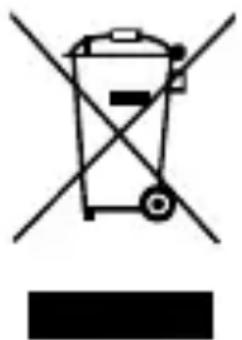
This symbol on the device (and any included batteries) indicates that they should not be disposed of as normal household garbage. Do not dispose of your device or batteries as unsorted municipal waste. The device (and any batteries) should be handed over to a certified collection point for recycling or proper disposal at the end of their life.
For more detailed information about the recycling of the device or batteries, contact your local city office, the household waste disposal service, or the retail store where you purchased this device.
The disposal of this device is subject to the Waste from Electrical and Electronic Equipment (WEEE) directive of the European Union. The reason for separating WEEE and batteries from other waste is to
minimize the potential environmental impacts on human health of any hazardous substances that may be present.
Reduction of Hazardous Substances
This device is compliant with the EU Registration, Evaluation, Authorisation and Restriction of Chemicals (REACH) Regulation (Regulation No 1907/2006/EC of the European Parliament and of the Council) and the EU Restriction of Hazardous Substances (RoHS) Directive (Directive 2002/95/EC of the European Parliament and of the Council). For more information about the REACH compliance of the device, visit the Web site www.huaweidevice.com/certification. You are recommended to visit the Web site regularly for up-to-date information.
FCC Statement
This equipment has been tested and found to comply with the limits for a Class B digital device, pursuant to Part 15 of the FCC Rules. These limits are designed to provide reasonable protection against harmful interference in a residential installation. This equipment generates, uses and can radiate radio frequency energy and, if not installed and used in accordance with the instructions, may cause harmful interference to radio communications. However, there is no guarantee that interference will not occur in a particular installation. If this equipment does cause harmful interference to radio or television reception, which can be determined by turning the equipment off and on, the user is encouraged to try to correct the interference by one or more of the following measures:
• Reorient or relocate the receiving antenna.
- Increase the separation between the equipment and receiver.
- Connect the equipment into an outlet on a circuit different from that to which the receiver is connected.
- Consult the dealer or an experienced radio/TV technician for help. This device complies with Part 15 of the FCC Rules. Operation is subject to the following two conditions: (1) this device may not
cause harmful interference, and (2) this device must accept any interference received, including interference that may cause undesired operation.
Warning: Changes or modifications made to this device not expressly approved by Huawei Technologies Co., Ltd. may void the FCC authorization to operate this device.
EU Regulatory Conformance
Hereby, Huawei Technologies Co., Ltd. declares that this device is in compliance with the essential requirements and other relevant provisions of Directive 1999/5/EC.
For the declaration of conformity, visit the Web site www.huaweidevice.com/certification.
C€0700
Notice: Observe the national local regulations in the location where the device is to be used. This device may be restricted for use in some or all member states of the European Union (EU).
Notice: This device may be operated in all member states of the EU.
France: Outdoor use limited to 10 mW e.i.r.p. within the band 2454-2483.5 MHz.
Italy: For private use, a general authorisation is required if WAS/RLAN's are used outside own premises. For public use, a general authorisation is required.
Luxembourg: General authorisation required for network and service supply.
Norway: This subsection does not apply for the geographical area within a radius of 20 km from the centre of Ny-Ålesund.
Version:04 NO.:6010833

- Copyright © Huawei Technologies Co., Ltd. 2011. All rights reserved.
- Trademarks and Permissions
- NO WARRANTY
- Contents
- Introduction.... 1
- Getting Started 8
- Voice Services 9
- Text Input 11
- Messaging 13
- Introduction
- Removing the Back Cover
- SIM Card
- microSD Card
- Charging the Battery
- Your Phone
- Q W E R T Y U I Q P
- Keys and Functions
- Screen Icons
- Getting Started
- Phone Code
- PIN and PUK
- Automatically Switching Between Profiles
- File Management
- Other Applications
- Voice Services
- Making a Call
- Answering a Call
- Text Input
- Changing the Text Input Mode
- Using the FN Key
- Entering Words
- Entering Digits
- Entering Symbols
- Messaging
- Creating and Sending a Text Message
- Creating and Sending a Multimedia Message
- Creating an Email Account
- Creating and Sending an Email
- Contacts
- Creating a Contact
- Searching for a Contact
- Multimedia
- Camera
- Taking a photo
- Recording a video
- Media Player
- Creating a Playlist
- Adding Media Files to a Playlist
- Playing a media File
- Sound Recorder
- FM Radio
- Photo Editor
- Ebook Reader
- Connectivity
- USB
- Bluetooth
- Using a Bluetooth Headset
- Transferring Data
- Warnings and Precautions
- Electronic Device
- Medical Device
- Potentially Explosive Atmosphere
- Traffic Security
- Operating Environment
- Prevention of Hearing Damage
- Safety of Children
- Accessories
- Battery and Charger
- Cleaning and Maintenance
- Emergency Call
- Certification Information (SAR)
- Disposal and Recycling Information
- Reduction of Hazardous Substances
- FCC Statement
- EU Regulatory Conformance
- C€0700
Brand : HUAWEI
Model : G6609
Category : Mobile Phone