
DPT-S1 - Tablet SONY - Free user manual and instructions
Find the device manual for free DPT-S1 SONY in PDF.


| Product Type | Digital Paper Device |
| Model | DPT-S1 |
| Display | 13.3 inch (338 mm) diagonal electrophoretic display, 1200 x 1600 pixels, 16-level gray scale |
| Touchscreen | Optical and electromagnetic induction hybrid touchscreen |
| Internal Memory | Approx. 4.0 GB total, approx. 2.8 GB user available |
| Document Storage Capacity | Approx. 2,800 PDF files (based on 1 MB per file) |
| External Storage | microSD/microSDHC slot (up to 32 GB), not compatible with microSDXC |
| Dimensions (W x H x D) | Approx. 233 x 310 x 6.8 mm (9 1/4 x 12 1/4 x 9/32 inches) |
| Weight | Approx. 358 g (12.6 oz) |
| Battery | Built-in rechargeable lithium-ion |
| Charging Time | Approx. 2.5 hours with supplied AC adapter; approx. 3.5 hours via computer USB |
| Battery Life (Wi-Fi Off) | Up to 3 weeks (typical usage); approx. 24,000 continuous page turns |
| Battery Life (Wi-Fi On) | Up to 2 weeks (with wireless standby on, auto sync off) |
| Wireless Connectivity | IEEE 802.11b/g/n, 2.4 GHz, WEP/WPA/WPA2 PSK, 802.1x EAP, WPS support |
| Operating Temperature | 5°C to 35°C (41°F to 95°F) |
| Stylus | Electromagnetic induction stylus with button and replaceable tip |
| File Transfer | USB 2.0 (drag and drop) and Wi-Fi network drive synchronization |
| Supported File Types | PDF (.pdf) compliant with PDF 1.7 (up to 1 GB per file) |
| System Requirements | Windows 7/8/8.1/10 (32/64-bit) or Mac OS X v10.11 (64-bit) for file transfer |
| Security | Device lock password (1-20 alphanumeric), internal memory encryption (6-20 alphanumeric) |
| Key Functions | Reading, handwriting/annotation, highlighting, sticky notes, bookmarks, zoom, page turn, thumbnail view, workspaces, note creation, web browser, screen transfer, ShareFile support |
| Supplied Accessories | AC adapter, USB cable, stylus, sleeve case, replacement tips (x1), tip puller, Quick Start Guide, Basic Operation Guide, User Guide |
| Spare Parts and Repair | Stylus replacement tips available; battery non-removable (contact Sony Support); service via Sony Support Center |
| Cleaning and Care | Clean with soft cloth (e.g., eyeglass cloth); do not use abrasive pads, alcohol, or benzene; keep away from water |
Frequently Asked Questions - DPT-S1 SONY
User questions about DPT-S1 SONY
0 question about this device. Answer the ones you know or ask your own.
Ask a new question about this device
Download the instructions for your Tablet in PDF format for free! Find your manual DPT-S1 - SONY and take your electronic device back in hand. On this page are published all the documents necessary for the use of your device. DPT-S1 by SONY.
USER MANUAL DPT-S1 SONY
Digital Paper System
User Guide
Software Version 1.5.50
![graph TD A["Handwritten"] --> B["Write things down"] B --> C["Thoughts will nigger"] C --> D["Results"] D --> E["Plan"] E --> F["Plan"] F --> G["Plan"] G --> H["Plan"] H --> I["Plan"] I --> J["Plan"] J --> K["Plan"] K --> L["Plan"] L --> M["Manager"] M --> N["Digitalization"] N --> O["DATA BASE"] O…](/content/2026/05/773812/images/f1e0e7a77a417ec44fca835da40032bd6be8753589652819b75cd13b83b9c378.jpg)
DPT-S1
Table of Contents
Getting Started
New Features and Functions .... 5
New Functions in Ver.1.5.50 5
Main Function Improvements in Ver.1.5.50 5
New Functions from Ver.1.3.... 5
Main Function Improvements from Ver.1.3 6
Welcome!......7
Features of the Digital Paper Device...... 7
About this User Guide....7
Battery 8
Charging the Digital Paper Device 8
Maximizing Battery Life 10
Power On/Off 10
Turning the Power On/Off (Shutdown).... 10
Parts and Controls 12
Overview 12
Buttons.... 13
Stylus.... 13
microSD Card Slot 14
Digital Paper Device Security 14
Basic Operations
Touchscreen Operations 16
[Home] Screen 17
[Home] Screen and Applications...... 17
On-Screen Keyboard 20
Transferring Documents (PDF)
Transferring Documents (PDF) from a
Computer.... 21
Transferring Documents (PDF) to the
Computer.... 22
Browsing Document Lists
Document Lists...... 23
Browsing Document List Pages...... 23
Tools.... 24
Browsing in Document View and Folder View 24
Displaying a Document Thumbnail...... 24
Finding a Document with a Keyword..... 24
Option Menu in Document Lists...... 25
Sending Documents to Network Drive.... 26
Opening Multiple Documents Simultaneously.... 27
Deleting Multiple Documents Simultaneously.... 28
Creating a New Folder 29
Option Menu for the Selected Documents and Folders.... 29
Reading
Reading Documents.... 30
Opening a Document 30
Turning a Page.... 30
Turning Pages Continuously 30
Changing the Page Turn Preference ..... 31
Navigating Pages.... 31
Using the Page Control Box.... 32
Thumbnail View 33
Zooming in the Display.... 34
Operating Tabs 35
Setting the Bookmark to On/Off 36
Searching Pages by Keyword 37
Using Menu Items.... 38
Using the [Workspace] Application.... 38
Registering a Workspace.... 38
Opening a Workspace 39
Saving a Workspace.... 39
Deleting/Renaming a Workspace...... 40
Writing
Handwriting/Annotating the Document...... 41
Using the Toolbar.... 41
Handwriting a Note on a Page 42
Moving/Copying/Pasting/Cutting 43
Highlighting Words on a Page 44
Using the Eraser.... 45
Undoing/Redoing the Previous Operation 46
Disabling Gestures.... 46
Adding a Sticky Note (Handwriting)...... 46
Adding a Sticky Note (Text) to a Page..... 47
Displaying Annotation List 48
Annotation Settings 51
Limit Editing Annotations 51
Configuring the Pen Button Settings ..... 51
Set Pen Grip Style 51
Performing Advanced Calibration ..... 52
Using PDF Forms ...... 53
Using the [Note] Application 54
Creating a New Note.... 54
Changing Filename of a Note...... 55
Inserting a New Page to the Last Page of Note 55
Inserting a Page in the Middle of the Note 55
Deleting a Note Page.... 56
Setting the Notebook Template.... 56
Adding Notebook Template.... 56
Selecting the Destination to Save the Note (Synchronization with Server) 56
Using Screen Transfer.... 57
Network
Setting up a Wi-Fi® Network.... 58
Preparing to Set Up a Wi-Fi Connection 58
Selecting a Connection Type 58
Using the Network Drive 64
Setting the Network Drive 64
Synchronizing the Digital Paper Device with the Network Drive 65
Opening a Synchronized Document in the Digital Paper Device.... 66
Deleting a Synchronized Document ..... 66
Using Menu Items.... 66
Browser 67
Browsing the Web 67
Zooming in on the Web.... 67
Downloading.... 67
Using Multiple Windows.... 68
Bookmarks and History...... 68
Enabling ShareFile 71
Using the ShareFile Application 71
Settings
Changing the Settings.... 72
Changing the Settings 72
General Setting 72
Wireless Network Settings.... 72
Server Settings 72
Application Preferences 73
Date & Time Settings 73
System Management.... 74
Initialization....74
About....75
Device Shutdown.... 75
Other Information
Troubleshooting.... 76
Troubleshooting Tips.... 76
Re-attaching the Stylus Holder 76
Replacing the Tip 76
Digital Paper Device.... 77
Wireless Connectivity.... 78
Reading Documents 79
Connecting to Your Computer 80
microSD Card 80
Precautions....81
Safety Information 81
Applications on the Digital Paper Device 82
Notes on microSD Cards.... 84
Legal Notice....85
Appendix 86
Specifications.... 86
Supported File Types 87
System Requirements...... 88
Limited Warranty and Service 89
Limited Warranty 89
Service 89
Getting Started
New Features and Functions
New Functions in Ver.1.5.50
In Ver.1.5.50, the functions below are added.
Added thumbnail view
2-page view is added to the Thumbnail view (page 33).
Using ShareFile
You can use the ShareFile application on the Digital Paper device (page 71).
Additional thick line function for stylus
An additional thick line has been added to the stylus in handwriting mode (page 42).
Adjusting the size of eraser
Allows you to change the size of the eraser (page 45).
Navigating pages while zoomed in
You can move to another page even while the display is zoomed in (page 34).
Navigating and Moving/Copying/Pasting/Cutting handwriting annotations
You can move/copy/paste/cut handwriting annotations and navigate using the stylus (page 43).
Changing the file name of a document/note
You can rename a document or note which is open in the device (page 38, 55).
Save destination for notes
You can specify a network drive folder as the save destination for new notes when using network drive (page 73).
Selecting a note template
Allows you to quickly select a different template when creating a new note. You can quickly create a new note when the template format is selected (page 54).
Main Function Improvements in Ver.1.5.50
Stylus support for PDF form
You can enter data into PDF forms using the stylus (page 53).
Proxy server settings
You can set a proxy server for each wireless LAN router (page 62).
Time Server (NTP Server) Support
Allows you to synchronize the clock using a Network Time Protocol (NTP) server (page 73).
Improved pen selection menu
The menu to select the line color and line thickness is easier to understand (page 42).
Advanced Calibration
Advanced Calibration for pen tip position is improved (page 52).
Device buttons disabled (handwriting)
The Back, Home, Menu, and Power buttons on the device are disabled when handwriting on the screen using the stylus (page 42).
New Functions from Ver.1.3
In Ver.1.3, the following functions have been added.
Toolbar
You can display the toolbar at all times outside the document (page 31).
The toolbar is displayed on the left side of the screen by default. You can change the toolbar position to the right side to suit your preference (page 73).
You can tap [Hide Toolbar] to hide the toolbar while you concentrate on reading (page 30).
Stylus button modes
The stylus button can be set to three possible modes: Highlight active, Eraser active, Button inactive (handwriting only) (page 45).
Handwriting while zoomed in
You can handwrite while the display is zoomed in (page 34).
Undo/redo function
The undo/redo icons have been added to the toolbar. You can undo/redo the previous operation such as handwriting or erasing (page 42).
Disabling Gestures
This function prevents you from accidentally turning pages, zooming in, etc., by touching the screen with your sleeve or hand while handwriting (page 46).
Creating notes within folders
You can create a new note by tapping [Create new note under current folder] in the document folder view (page 54).
Inserting (adding)/deleting pages
You can insert a new page (page 55) or delete the current page (page 56) in a Note.
Selecting note template
You can select a template or use your favorite PDF file as a template (page 56).
Preventing other people from deleting annotations
You can prevent annotations (writing, sticky notes, highlighting, bookmarks, etc.) from being edited or deleted by another person (page 51).
Duplicating a file
You can duplicate a file on the Document or Note list screens (page 29).
Creating/deleting a folder
You can create/delete a folder (page 25).
Tab List
The Tab List can be displayed by tapping the Tab List icon on the toolbar of an opened document (page 35).
Strengthening the device lock password
You can enter between 1 and 20 alphanumeric characters and symbols as your device lock password (page 14).
Internal memory encryption
You can secure your content further by choosing to encrypt the internal memory. When internal memory encryption is enabled, you must enter your memory encryption password after each restart (page 15).
PDF form support
You can enter data using various PDF Form elements (page 53).
Main Function Improvements from Ver.1.3
Navigating pages
The page navigation icons and the page indicator stay on the toolbar. You can move to another page easily (page 31).
Orientation
By tapping the orientation icon on the toolbar, you can rotate the screen easily (page 31).
Improvement of the red pen display
Lines are immediately displayed in gray after being drawn with the red pen (page 42).
Displaying the remaining battery
When the charge/battery status icon turns into a screen indicating that the battery level is too low appears (page 9).
Welcome!
Features of the Digital Paper Device
- Wide, slim and lightweight e-paper screen The flexible e-paper screen provides a large A4-size yet lightweight display.
- Supplied dedicated stylus for small letter writing The electromagnetic induction-type stylus enables easy writing of small characters.
- Hybrid touchscreen for writing with your finger or supplied stylus
The optical and electromagnetic induction touchscreen allows you to flip through pages or operate menus with a finger, as well as write characters or draw pictures with the supplied stylus.
- Carry thousands of personal documents anywhere you go
You can carry a large number of PDF files: easily transferred from your computer to the Digital Paper device.
The internal memory of the Digital Paper device can store about 2,800 files*. The Digital Paper device supports microSD memory cards of up to 32 GB to further increase data storage capacity.
* Based on 1 MB one file - Writing/drawing like that of a digital notebook You can use the supplied stylus to hand write notes or draw pictures with fine lines in a document. You can also highlight words and add bookmarks or sticky notes (handwritten or typed). You can select a folder and template when creating a new note. - Digital Paper device lock You can lock the Digital Paper device with a password of up to 20 alphanumeric characters. Documents cannot be read without inputting the device lock password, even if the Digital Paper device is turned on.
- High speed visual search by changing page view By displaying 2, 4, or 9 pages in one screen, you can search through many pages visually at high speed. An annotation icon is displayed on the pages that contain any kind of annotation, including sticky notes (handwritten or typed).
Moreover, by moving your finger in the direction to turn a page, then holding it, you can flip pages at high speed.
- Easy file transfer between the Digital Paper device and a computer via USB connection
By connecting the Digital Paper device to your computer with a USB cable, you can transfer files easily. Annotations on the Digital Paper device are embedded in a PDF file, and can be read and edited on your computer.
- Synchronization with a network drive via Wi-Fi connection
You can access a specific network drive, and then synchronize documents on the Digital Paper device with documents on the network drive.
About this User Guide
Please read the Quick Start Guide in this package and the Basic Operation Guide in the Digital Paper device to help you get started.
This User Guide provides detailed instructions on the operation of your Digital Paper device.
Note
- Screenshots in the User Guide may depict screens different from the device.
- Names of persons and documents in this guide are provided as examples only, and do not in any way represent any specific person or existing document.
Searching for a specific topic in this User Guide
Use the [Table of Contents] feature of your Digital Paper device to search for topics, and then tap a topic to jump to it.
While viewing this User Guide on your device, press the ≡ (Menu) button → tap [Table of Contents] to view the Table of Contents.
Jumping to a linked section in this User Guide
Tap the link indicated with a dotted underlined section title or # to jump to the page indicated. To return to the page you were previously viewing, tap [Go Back to Previous Page] in the page control box (page 32).
Battery
Charging the Digital Paper Device
The charge/battery status icon at the right side of the status bar shows the battery level (page 9). When the battery level becomes low, select either one of the methods below to charge the device.
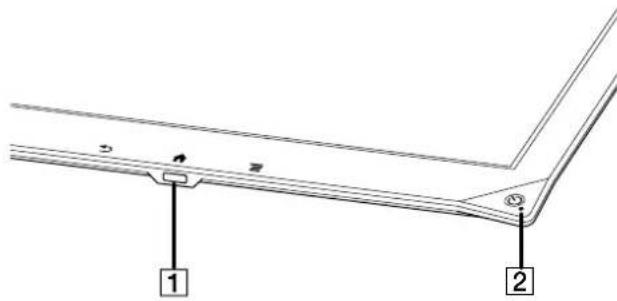
1 ✉ Micro USB connector 2 Charge indicator
Charging via an AC outlet
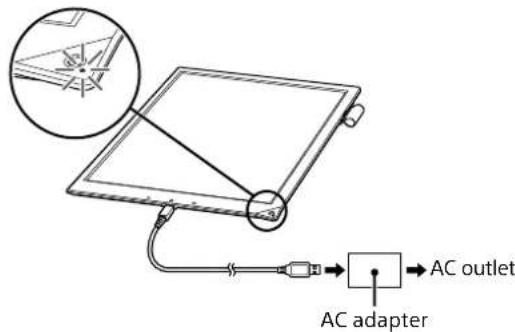
1 Connect one end of the supplied USB cable to the micro USB connector of your device, and the other end to the supplied AC adapter.
2 Connect the AC adapter to an AC outlet.
The icon turns into and the Charge indicator will light up red while charging. When charging is complete, the icon turns into and the indicator turns off.
Note
- Charge the device within the recommended temperature range of 5 °C to 35 °C (41 °F to 95 °F). If the room is too hot or cold, disconnect the USB cable from the device, adjust room temperature accordingly, then reconnect the USB cable to charge the device.
Tip
- It takes approximately 2.5 hours to fully charge the device when the battery is drained.
Charging via your computer
1 Power on your computer.
2 Connect the Digital Paper device to your computer with the supplied USB cable. The icon turns into and the Charge indicator will light up red while charging. When charging is complete, the icon turns into and the indicator turns off.
Note
- When connected to a computer and with [Screen Transfer] set to off (page 74), the device will be in transfer mode. It will continue to charge but cannot be operated.
3 When charging is complete, disconnect the USB cable from the device and your computer.
Note
- Your computer must be turned on to charge the Digital Paper device. The device will not be charged if your computer enters sleep mode, standby mode or hibernation. Keep your computer turned on with a stable and continuous power supply while charging the device.
- The ⏻ (Power) button cannot be used when the device is connected to your computer.
Tip
- It takes approximately 3.5 hours to fully charge the device when the battery is drained.
- The device will be charged through the computer when using the [Screen Transfer] function.
- Even if a dedicated application for the [Screen Transfer] function is not launched on your computer, the device will keep charging if [Screen Transfer] is on, and you can operate the device while it is charging.
Charge/Battery status icon
The charge/battery status icon shows the charging status or remaining battery level.
![graph TD A["1"] --> B["2"] --> C["3"] B --> D["Return to Viewer"] D --> E["Last Read"] E --> F["Read rate, current read"] F --> G["Read time, current read"] G --> H["Requirement, 200% read"] H --> I["Security read, current read"] I --> J["Send, current read"] J --> K["Send, current read"] K --> L["R…](/content/2026/05/773812/images/2a70a53405314c18e4817e4a5252b9723fb1ba2e595f28ec256527ac50cc6f43.jpg)
| Number Description |
| 1 Four bars in the battery icon indicate a fully charged or almost-fully charged battery.The number of bars decreases with battery consumption. Zero bars indicate that the battery has almost no remaining charge. |
| 2 The battery is fully charged. |
| 3 The battery is charging. |
Note
- When the charge/battery status icon turns into a screen indicating that the battery level is too low appears. In this case, tap [OK] and charge the device.
- When the charge/battery status icon turns into an edited document is saved and becomes read-only. Then a screen indicating that editing cannot be done appears. In this case, tap [OK] and charge the device.
Maximizing Battery Life
- Turn off (shutdown) (page 10) the device when it is not going to be in use for a prolonged period of time.
- Do not leave the device with the battery depleted for a prolonged period of time. Battery capacity may decrease (page 72).
- Use and store the device within the recommended temperature range of 5°C to 35°C (41°F to 95°F).
- Turn off the Wi-Fi function when no wireless communication is necessary (page 72). • Turn on [Wireless Standby] (page 72).
- Set [Auto Sync] to Off so as not to synchronize the Digital Paper device and network drive (page 72).
Battery life decreases in the following cases:
Document related operations:
- Frequent handwriting • Frequent annotation and keyword searches
- Displaying graphic-intensive documents or Web sites
Server Settings related operations:
- Setting [Auto Sync] to On
Wi-Fi related operations:
• Wi-Fi communications
- Displaying the [Wi-Fi Settings] screen continuously
- Setting [Wireless Standby] to Off microSD card related operations:
- Displaying a document in a microSD card
- Frequent insertion and removal of a microSD card
- Loading a large volume of content stored on a microSD card
Power On/Off
Turning the Power On/Off (Shutdown)
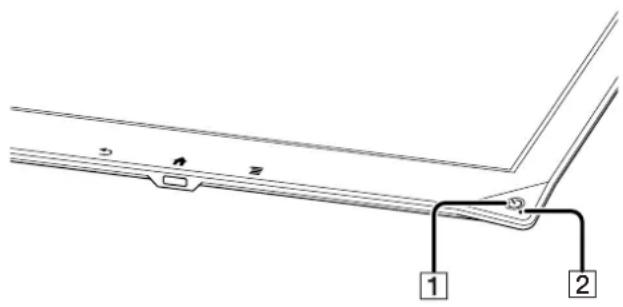
1 ⏻ (Power) button 2 Charge indicator
Turning on the power
1 Press the ⏻ (Power) button.
Note
- If the Charge indicator blinks red 3 times upon pressing the ⏻ (Power) button, it shows that the device battery is completely depleted. To charge the device, insert the supplied USB cable into the micro USB port and connect it to the supplied AC adapter, or connect the device to a computer using the USB cable.
Turning off the power (Shutdown)
1 Press and hold the ⏻ (Power) button for about 3 seconds. 2 Tap [Yes] to turn off the Digital Paper device.
Turning it off reduces battery consumption more than the sleep mode. Sony recommends that you turn off (shutdown) the device when it is not going to be in use for a prolonged period of time.
Tip
- You can also turn off the device from [Settings]. To turn off, tap [Settings] → [Device Shutdown] → [Yes] on the Home screen.
Sleep mode
To extend battery life and prevent unintentional operation of the touchscreen, set the Digital Paper device to sleep mode by pressing the ⏻ (Power) button. The standby screen appears. To wake the device, press the ⏻ (Power) button again.
Automatic power-saving
The Digital Paper device will enter sleep mode after about 1 hour of inactivity. After 3 days in sleep mode, it will turn off (shut down) automatically. The automatic power-saving cannot be turned off.
Parts and Controls
Overview
This section describes the parts and controls of the Digital Paper device.
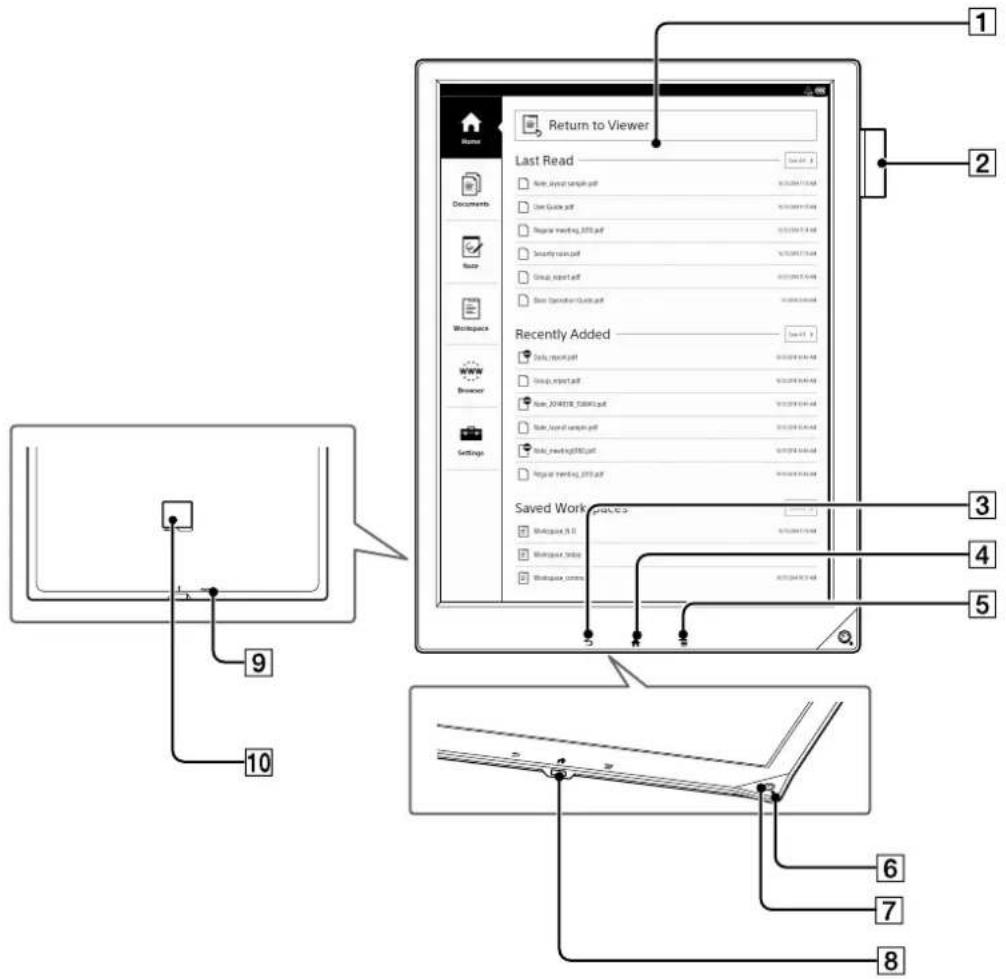
① Touchscreen 2 Stylus holder 3 (Back) button 4 (Home) button 5 [Menu) button 6 Charge indicator 7 ⏻ (Power) button
8 ✈ Micro USB connector 9 RESET button 10 microSD card slot
Supplied accessories
- AC adapter × 1
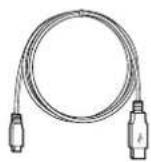
- USB cable × 1
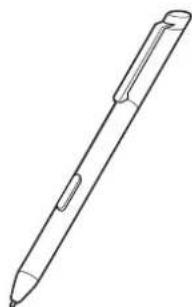
- Stylus × 1
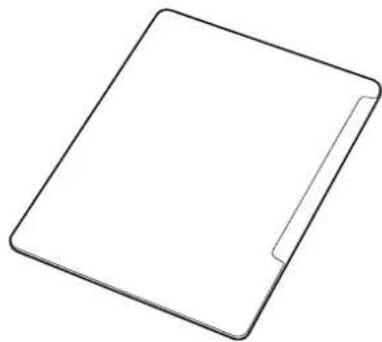
- Sleeve case × 1
- Replacement tips*

- Tip puller × 1
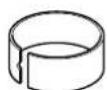
Tip
- The stylus tip wears out with use. Sony recommends that you replace the stylus tip when it wears down to 1.5 mm or less.
- Please check the information about supply accessories provided on Digital Paper device's product page. http://www.sony.com/digitalpapersupport
* For more details on the supplied replacement tip, refer to the Quick Start Guide.
Buttons
(Power)
Turns the device on/off, and sets it to sleep mode (page 10).
Home
Displays the [Home] screen.
(Back)
Returns to the previous screen, or returns to the document list from a document.
≡ (Menu)
Displays the usable option menu on each screen.
Stylus
The supplied stylus enables you to handwritten memos, highlight the documents, and annotate on the touchscreen.
While pressing the stylus button, trace text or highlight to erase from the touchscreen.*
* You can change the pen button settings in the settings menu (page 51).
Note
- Use only the supplied stylus. Use of another stylus may cause incorrect operation.
- When the stylus is not in use, place it in the stylus holder of the Digital Paper device. If the tip of the stylus is continually pressed in the holder, it may lose sensitivity.
microSD Card Slot
The microSD card slot is located on the back of the device. Hold the microSD card with the contacts facing down and the arrow pointing toward the microSD card slot, and then insert it until it clicks into place. The access indicator lights up in orange while the device is accessing the microSD card. Close the slot cover when using a microSD card. To format a microSD card, see page 74.
Note
- Do not remove the microSD card while the access indicator is lit. To remove a microSD card, push it in once, then slide it out slowly with your finger.
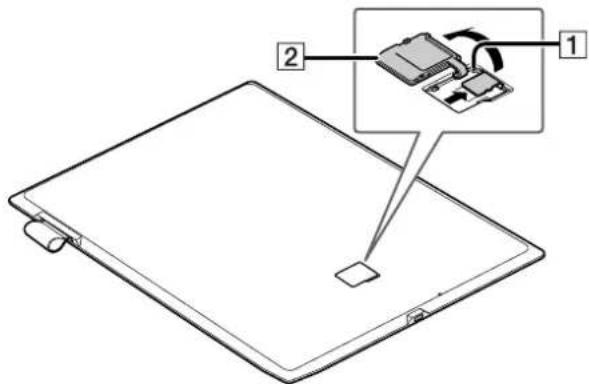
1 microSD access indicator
2 Slot cover
Digital Paper Device Security
You can lock the Digital Paper device or enable internal memory encryption for security.
Note
- Be sure to remember your password.
- Sony recommends that you use passwords that have a mix of 6 or more letters and numbers.
- Do not create passwords that other people could easily guess. Change your passwords periodically.
Locking the Digital Paper Device
You can help prevent others from viewing data in the device by locking it.
1 Press the (home) button and tap [Settings]. 2 Tap [System Management] → [Device Lock] → [Device Lock] → [Enable] → [OK]. 3 Enter your device lock password. You can enter between 1 and 20 alphanumeric characters and symbols as your device lock password.
4 Enter the password again to confirm and tap [OK].
When the device lock is on, the password entry screen is displayed after the device is turned on or when the device is woken from sleep mode. Enter your password and tap [OK] to release the device lock.
Note
- You cannot use the Tab key and Space key when entering the password. Caution regarding your password
- If you forget your password, the device must be shipped to the Sony Support Center to be unlocked. Please note that this will result in loss of all saved content and settings.
Internal Memory Encryption
You may secure your content further by choosing to encrypt the internal memory. After internal memory encryption is enabled, you must enter your memory encryption password when powering on the device.
1 Press the (home) button and tap [Settings]. 2 Tap [System Management] → [Internal Memory Encryption] → [Internal Memory Encryption] → [Enable] → [OK]. The device restarts. 3 Enter your password. You can enter between 6 and 20 alphanumeric characters and symbols as your memory encryption password. 4 Enter the password again to confirm and tap [OK].
Note
- All the data saved in the internal memory are deleted before memory encryption is enabled.
- Memory encryption results in 300 MB less available space in the internal memory. • You cannot encrypt a microSD card.
- If you forget your password, contact the Sony Support Center. In order to disable the internal memory encryption, all the content on the device will be deleted. The deleted data cannot be restored.
- You cannot use the Tab key and Space key when entering the password.
Tip
- When device lock and internal memory encryption are both enabled, upon startup you must enter your password for internal memory encryption as well as your password for device lock.
- Sony recommends that you create a backup in the computer for the documents you want to retain before encrypting internal memory.
Basic Operations
Touchscreen Operations
The touchscreen recognizes the following gestures. You can also use the supplied stylus for more precise touchscreen operation.
Operation with the stylus makes it easier to select small items or specific areas of text.
Tap
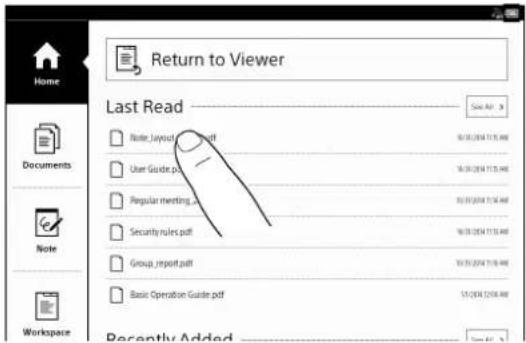
Gently tap the icons and menu items on the screen with the stylus or fingers to select and open them.
Tap and hold
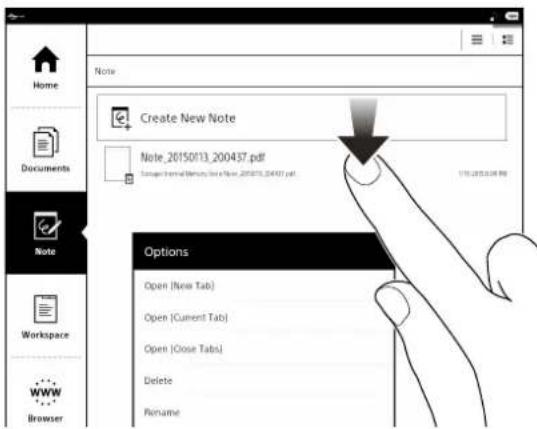
Tap and hold your finger to display a pop-up menu for available operations.
Swipe
Turn the page. You can slide an open document to the right or left to navigate to the previous/next page. To change the page flow direction for a document, press the (Menu) button → tap [Page Flow]. You can also navigate pages of document lists by swiping up or down.
![1. Downloading: When you click a download link, the item will be downloaded onto the device. Only the PDF files (.pdf) can be downloaded. 2. Tap [Yes] when the confirmation screen is displayed. Downloaded files are stored in [Documents]. 3. Tap * You can also tap and hold the link * tap [Save List]…](/content/2026/05/773812/images/8cf7be28a8c051c249b16ad5ce409c10b9952f77e609a3ea8c718b52142362d9.jpg)
Swipe and hold
Swipe and hold your finger on the touchscreen to turn multiple pages continuously.
Remove your finger to stop turning the pages (page 30).
Pinch in/out
Pinch in using two fingers to switch to thumbnail view when viewing a document in standard size.
With every pinch in the view will change from 2-page view ➤ 4-page view ➤ 9-page view (page 33).
Pinch out using two fingers to return to the previous size.
Pinch out using two fingers to zoom in when viewing the document in standard size.
Pinch in or press the Back button to return to the standard size (page 34).
![Downloading When you click a download list, the item will be downloaded onto the device. Only PDF files (.pdf) can be downloaded. 1. Tap the link on the Web page. 2. Tap [Yes] when the confirmation screen is displayed. Downloaded files are stored in [Documents]. Tip: You can also tap and hold the li…](/content/2026/05/773812/images/1d28f03738d569a447850189aba12562aed3d30d7e8dde4aaa17f64d3d435b27.jpg)
Tip
- When you tap a desired page in 2, 4, or 9 page view, it will display as one page.
Drag
Touch and drag your finger to reposition a zoomed-in page. The page is repositioned after you release your finger (page 34).
Note
- You cannot operate the device using your fingers if the stylus is touching the screen or is near the screen.
- [Disable Gestures] disables touch operations such as swipe page navigation or pinching in/out to change the page view (page 46).
[Home] Screen
[Home] Screen and Applications
Press the (Home) button to display the [Home] screen. The [Home] screen allows you to navigate between applications on the Digital Paper device.
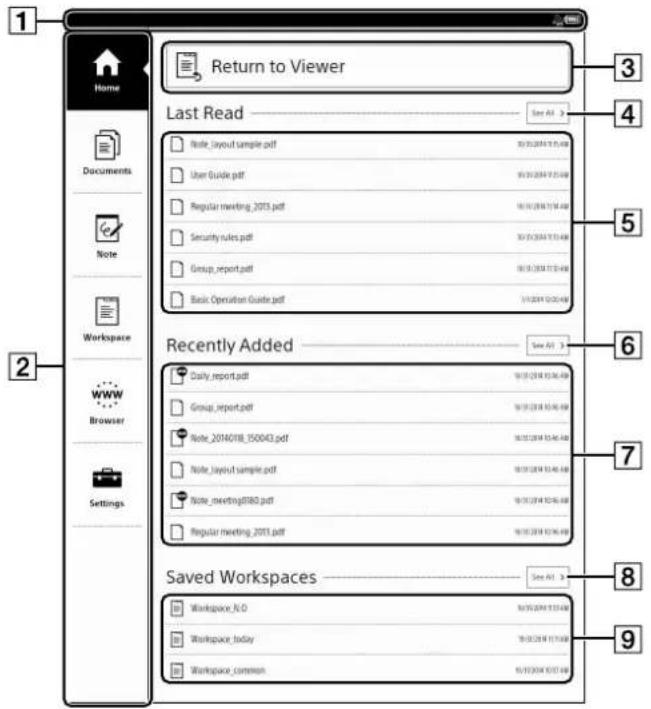
1 Status bar
Displays the status icons.
If you tap the Status bar, a screen-wide notification window of the current status of the device will be displayed. Tap again to return to the previous screen. (Page 18)
If a user name is set, it will be displayed under the status bar.
2 Applications
3 Return to Viewer
Returns to the document which was opened before switching to the [Home] screen.
4 Displays a list of all the recently opened documents over the entire screen.
5 Last read (up to 6 files are shown as per the order in which they were read) 6 Displays a list of all the recently added documents over the entire screen. 7 Recently Added (up to 6 files are shown as per the order in which they were read) 8 Displays a list of all the recently saved Workspaces 9 Saved Workspaces (up to 3 files are shown as per the order in which they were saved)
Tip
- The most recently opened documents are shown under [Last Read] column on the [Home] screen. Tap [Return to Viewer] to view the last read page.
- The most recently added documents are displayed under the [Recently Added] column on the [Home] screen.
Application
Tap each icon to switch to the following screen.
| Application Description | |
| [Home] Displays the | [Home] screen. |
| [Documents] Lists the | the documents in the Digital Paper device (page 23). |
| [Note] Lists the notes | (page 54). |
| [Workspace] Lists the | The Workspaces (page 38). |
| [Browser] Launches | the Web browser(page 67). |
| [Settings] Accesses | the Digital Paper device settings (page 72). |
Status bar
Various information such as Wi-Fi status, battery level, and downloading status are displayed as icons.
Description of status bar icons
| Icon | Indication |
| Connecting to a network. | |
| Wi-Fi network signal strength (page 58). | |
| Current battery level (page 9). |
| Icon | Indication |
| The icon appears when new system software is found. | |
| Downloading a document or software update. | |
| A download has completed.If downloading fails,will be displayed.This icon is also shown when system software download is complete. | |
| Updating database. | |
| Synchronization between Digital Paper device and network drive is in progress. | |
| Synchronization between the Digital Paper device and network drive has completed.If synchronization fails,will be displayed. |
Note
- Depending on the situation, not all icons will be displayed at once.
Displaying the notification window of the status bar: If you tap the status bar, a screen-wide notification window of the current status of the device will be displayed.
Tap the status bar again or press the (Back) button to return to the previous screen.
The notification window allows you to turn On/Off and configure the Wi-Fi function, and check the status of all operations on the notifications bar.
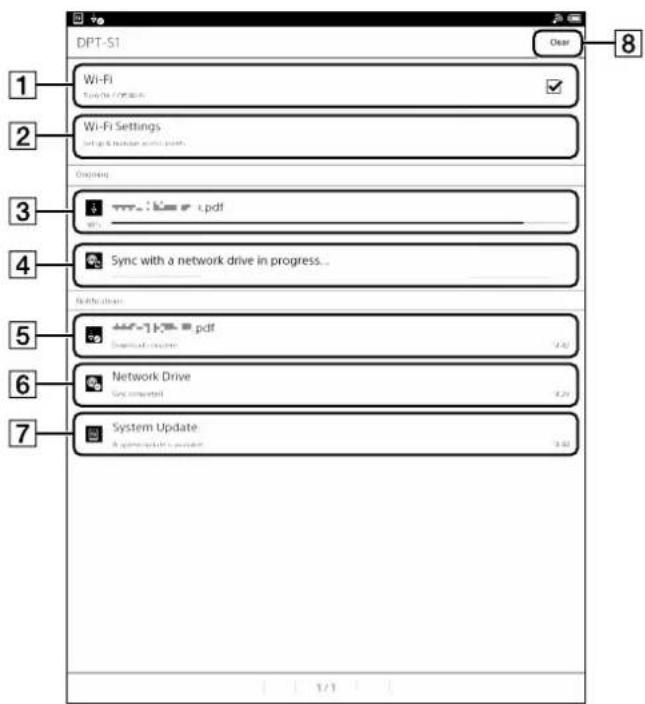
| Number | Description |
| 1 Turn [Wi-Fi] on/off (page 58). | |
| 2 Go to the [Wi-Fi Settings] screen (page 58). | |
| 3 Displays the status of items that are downloading from the Web.The progress bar indicates the progress/status of the download. | |
| 4 Displayed when the Digital Paper device and network drive are synchronizing. | |
| 5 An item that has been downloaded. Tap to open the downloaded document. | |
| 6 Displays the synchronization result. If synchronization fails, tap to check the contents of the error. | |
| 7 Displayed when a new software update is found. | |
| 8 [Clear] will only be displayed when there is some notification information.Tap [Clear] to clear the icon notifications on the status bar. | |
Clearing the icons of the status bar
When icons are shown on the status bar, tap the status bar to view the notification window and then tap [Clear] to clear all the icons.
Note
Depending on the status of the Digital Paper device, other items may also appear in the notification window.
Time display
If you press the menu button on the Home screen, time will be displayed for approximately five seconds on the left side of the status bar.
On-Screen Keyboard
The on-screen keyboard will be displayed automatically for the menus where text is to be entered.
Use the on-screen keyboard to perform actions such as changing the file name, writing a sticky note (text), inputting a search keyword, or entering text in the text field of PDF form.
On-screen keyboard layout![Downloading When you click a downloaded link, the item will be downloaded onto the device. Only PDF files (.pdf) can be downloaded. 1. Tap the link on the Web page. 2. Tap (Yes) when the confirmation screen is displayed. Downloaded files are stored in [Documents]. Tip: You can also tap and hold the…](/content/2026/05/773812/images/3c074a6e75ba5382687a2724de48041330e651a3ea231d2dfd2217a02f201ab7.jpg)
On-screen number keyboard layout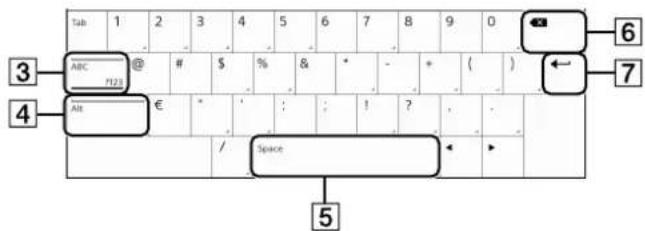
1 Keyboard history
2 Current word input box
3 [ABC]/[?123]
4 Shift key/[Alt] 5 Space 6 Backspace 7 Line feed icon
| To Do this | |
| Input text Tap the input area to input text. | |
| Delete a character Tap .X | |
| Insert line feed Tap | the key.the key is enabled only when multi-line input is available. |
| Switch the keyboard type | Tap [?123] to display the symbol keyboard. Tap [Alt] to switch to additional characters. Tap [ABC] to return to the alphabetical keys. |
| Capitalize letters Tap . Tap and hold to activate caps lock. To cancel, tap again. | |
| Enter a space | Tap the space key. |
| Enter a previously registered word | A list of words you registered to the keyboard history is displayed next to the current word input box. Tap the desired word to enter it. Tap and hold the current word input box to register the word in it to the keyboard history. (The word must be at least 3 letters.) |
| Move the cursor in the input area | Tap the location to which you want to move or tap ▶ or ▶. |
| Type extended characters | Tap and hold a key and select an extended character. |
Note
- The available types of keyboards and input methods differ depending on the application.
Tip
- To clear the keyboard history, press the Home button → tap [Settings] → [Initialization] → [Clear Keyboard History].
Transferring Documents (PDF)
Transferring Documents (PDF) from a Computer
You can drag and drop documents from your computer to the Digital Paper device.
Note
- Confirm whether [Settings] → [System Management] → [Screen Transfer] is turned off (page 74). If [Screen Transfer] is on, the computer will not be able to recognize the device and transfer the documents.
- You can transfer files other than those in PDF format, however, only PDF files (.pdf) will be displayed on the device. • A file of a maximum size of 1 GB can be transferred.
1 Connect the Digital Paper device to your computer with the supplied USB cable.
[This device is correctly recognized by the computer.] will be displayed on the device screen and the computer will show the device as an external device [DPT-S1].
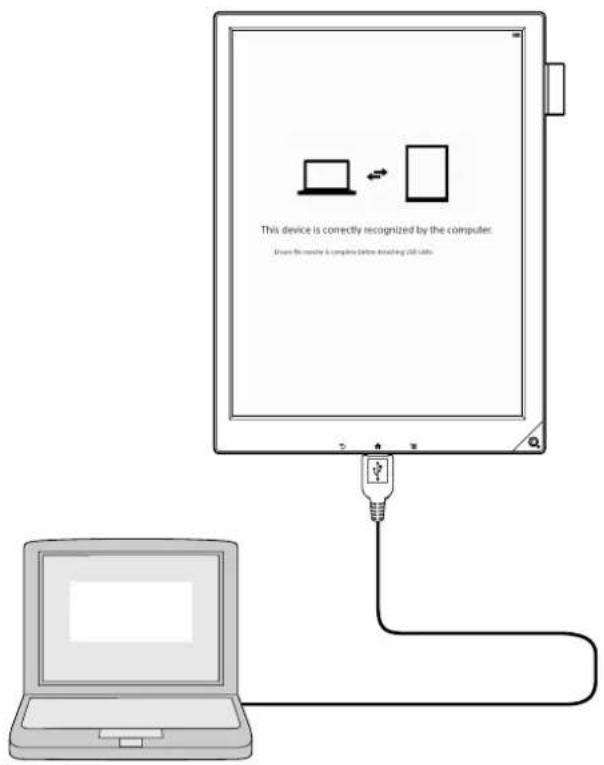
2 Add documents to the Digital Paper device from your computer.
For Windows users:
Click [Computer] or [My Computer] from the [Start] menu (for Windows 8/8.1, open computer from explorer) ▶ Double click [DPT-S1] drive ▶ Drag the document you want to transfer and drop it in the folder.
For Macintosh users:
Double click [DPT-S1] on the desktop → Drag the document you want to transfer and drop it in the folder.
If you create a folder in the Digital Paper device from your computer, that folder will be displayed under [Folders] in document list on the device. This is convenient when organizing the documents in the desired folders.
3 When the transfer is complete, end the connection on your computer and then disconnect the USB cable from the device and your computer.
The transferred documents will be displayed in [Documents] on the [Home] screen.
Transferring Documents (PDF) to the Computer
1 Connect the Digital Paper device to your computer with the supplied USB cable. [This device is correctly recognized by the computer.] will be displayed on the device screen and the computer will show the device as an external device [DPT-S1]. 2 As explained in Step 2 of "Transferring Documents (PDF) from a Computer" (page 21), double click the [DPT-S1] drive (or [DPT-S1]). 3 Drag the document you want to transfer and drop it into the folder on your computer. 4 When the transfer is complete, end the connection on your computer and then disconnect the USB cable from the device and your computer.
Note
Caution when transferring
- Removing the USB cable while the document is being transferred might corrupt the data.
Follow the procedure below when disconnecting the device from your computer.
For Windows users:
Use [Safely Remove Hardware] function before disconnecting the USB cable.
For Macintosh users:
Click the Eject icon, finish the removing procedure, then disconnect the USB cable.
Caution when deleting documents
- Do not delete the [database], [.dps_device_system], or [note_template] folder on the [DPT-S1] drive. When using a microSD card, do not delete the [PRIVATE/SONY/Digital_Paper] folder on the microSD card.
Caution when initializing
- Do not initialize the device or the microSD card from your computer.
If initialized from the computer, the documents in the documents list may not be displayed.
Initialize only using [Format Memory] on the device (page 75).
Other Precautions
- If you use certain special characters for a folder name or filename, the name may not be displayed correctly. • The character limit for filenames is 249 characters.
- Sony recommends that you create a backup of the contents of the device on your computer in case of accidental deletion or corruption due to operation error.
- When transferring important documents to the device, set a password for opening the documents. You can browse the documents on the device after entering the password.
- We will not be able to compensate for any data related to documents or sticky notes that might get deleted or damaged due to error in the device or computer, or due to failed download or transfer of the documents.
Tip
• For details on supported file formats, see page 87. - You can also transfer content via a microSD card. - To transfer data from your computer to a microSD card, insert the microSD card in the device, and drag and drop the required content to the microSD drive.
Browsing Document Lists
Document Lists
The files that can be accessed through the Digital Paper device are called 'documents'.
Tapping the [Documents] tab on the [Home] screen and then tapping the document name you want to open from the list of documents displayed on the device will display the [Document Display Screen].
The document lists also include the notes created on the device.
Browsing Document List Pages
The Digital Paper device organizes your documents into the [Documents] application.
Document list pages allow you to sort documents, as well as search for documents on the device.
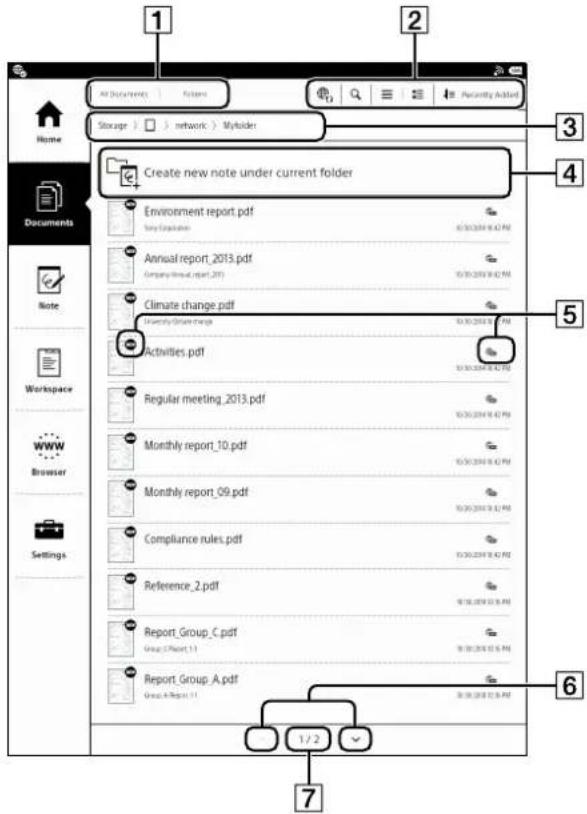
1 View change icons
The documents can be viewed in [All Documents] or [Folders] view.
2 Tool icons
3 Folder path view
Displays the current folder path.
You can tap the path to move to other folders.
4 [Create new note under current folder]
In [Folders] view, you can select a folder to create a new note in it.
In [All Documents] view, use [Create New Note] option to create a new note without selecting the folder. The newly created note is stored in the [Note] folder.
5 Status icons
6 Page navigation icons
7 Page indicator
Status icons
| Icon Description | |
| The item has not been opened. | |
| The item is stored on the microSD card. | |
| The item is synchronized with the network drive (page 64). | |
Navigating pages of the document list
You can turn the pages of the document list by swiping up and down.
| Navigation method Description | |
| Page indicator Display the current page. | |
| (page navigation icon) | View the previous item. |
| (page navigation icon) | View the next item. |
Tip
- Tap and hold the page navigation icon to turn pages continuously every 10 pages.
Tools
Below is a list of the tools available on the document list page.
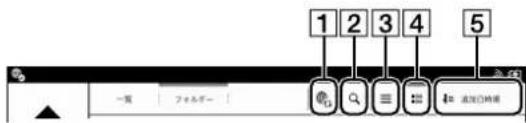
| Number | Tool icon | Description |
| 1 |  | Synchronizes documents with the Digital Paper device and network drive (page 65). |
| 2 |  | Finds content with a keyword (page 24). |
| 3 |  | Displays icon and file name in a line (page 24). |
| 4 |  | Displays the details of the document such as thumbnails (page 24). |
| 5 |  | Changes the sort order by file name, author name, recently added, etc. |
* Displayed only when documents on the network drive are displayed in folder view.
Browsing in Document View and Folder View
Document can be displayed as list or folder view.
1 Press the ⬆ (Home) button → tap [Documents].
2 Tap [All Documents] or [Folders].
• [All Documents] displays a list of content. - [Folders] displays a list of content with folder view.
Displaying a Document Thumbnail
Document lists can be displayed with thumbnail view.
1 Press the ⬆ (Home) button → tap [Documents].
2 Tap ≡ or ■.
≡ displays document lists with file type icons. ■ displays document lists with thumbnails.
Tip
- When you tap the document, the title and author name can be seen.
Finding a Document with a Keyword
You can find a specific document quickly with a keyword search.
1 Press the ⬆ (Home) button → tap [Documents]. 2 Tap
The keyword input area and the on-screen keyboard appear.
3 Input a search keyword and tap .
The view shows only the documents that satisfy the search criteria.
To exit the search result view, tap (close) at the top of the screen, or press the (Back) button.
Tip
- When you browse the document list in the folder view, you can search for the document within the folder and its sub-folder.
Option Menu in Document Lists
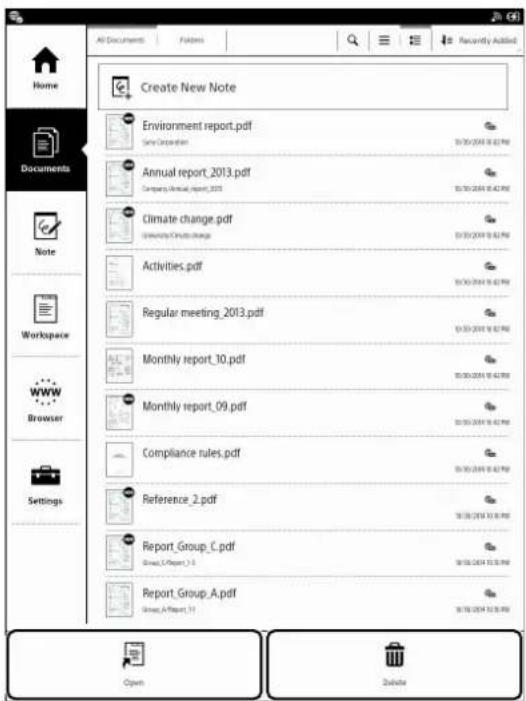
The [Open] and [Delete] options are available when you tap [Documents]→[All Documents] and press the ≡ (Menu) button.
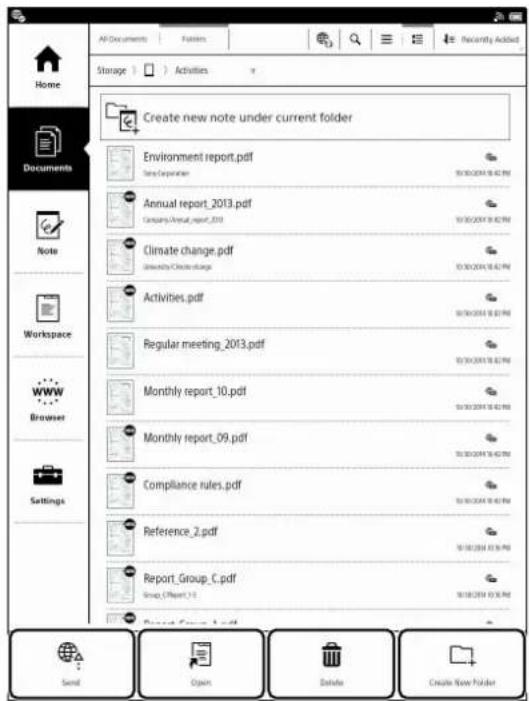
The [Send], [Open], [Delete], and [Create New Folder] options are available when you tap [Documents] → [Folders] and press the [Menu] button.
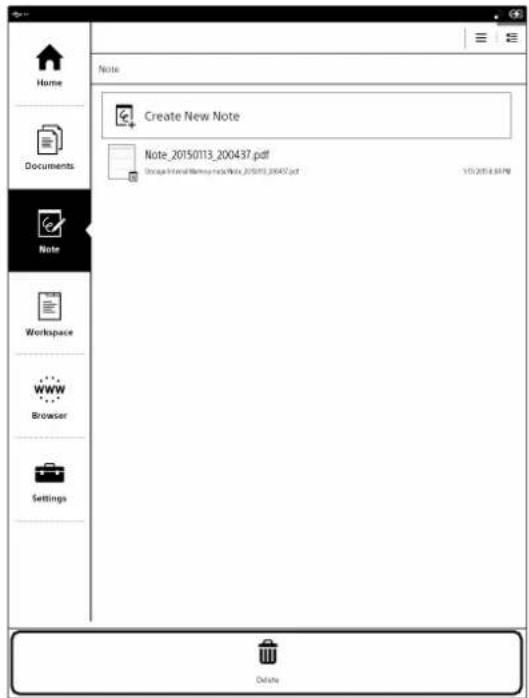
The [Delete] option is available when you tap [Note] and press the [Menu] button.
Note
- The [Send] option is available only when the network server is configured and the target folder is displayed.
Tip
- The document list also includes the notes created on this device.
Sending Documents to Network Drive
You can transfer a copy of a document from this device to another destination by selecting the folder of another user (or users) on the network drive. Once sent, the name of the document changes as follows: "Original document name_from_synchronized folder name_date_time.pdf".
1. Connect to a Wi-Fi network. 2. Press the (home) button and tap [Documents]. 3. Tap [All Documents] or [Folders]. 4. Tap and hold the document you want to send and tap [Send] from the option menu. The selection screen for selecting the destination is displayed. 5. Tap the destination to select the check box. Tap [Select All] to send the selected document to all destinations. 6. Tap [OK]. The confirmation screen is displayed. 7. Tap [Yes]. The document is sent to the hierarchy just below the specified destination folder.
Note
- If the destination folder has a document with the same name, then the file is overwritten.
Tip
- Alternatively, press the [Menu] button and tap [Send] while the document is displayed.
Sending Multiple Synchronized Documents Simultaneously
1. Connect to a Wi-Fi network. 2. Press the (home) button and tap [Documents]. 3. Tap [Folders] and select [Internal Memory] ▶ [network] at the path display of the folder. Tap the folder you want to send. 4. Press the [Menu] button and tap [Send]. A check box is displayed on the left side of the document.
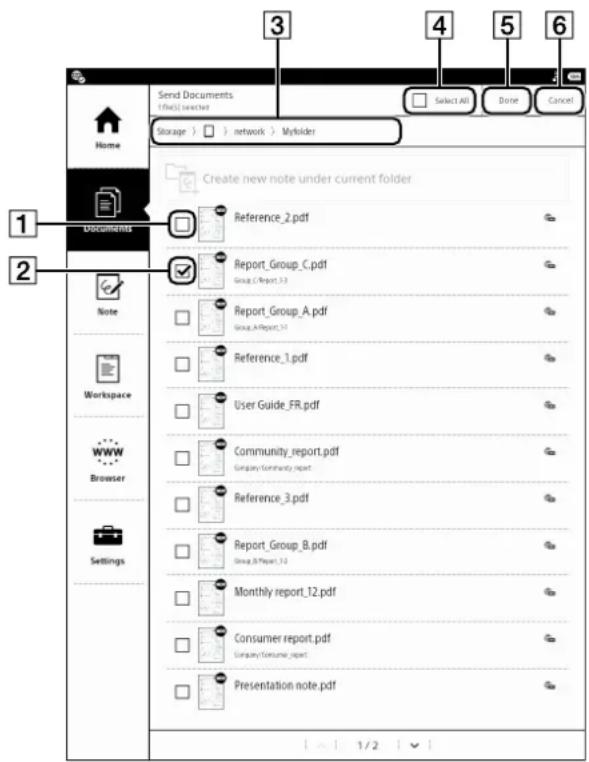
1 Check box Off 2 Check box On (target to send) 3 Folder path view 4 [Select All] 5 [Done] 6 [Cancel]
5 Tap the document you want to send to select the check box. If you want to select all the check boxes, tap [Select All]. 6 Tap [Done]. The selection screen for selecting the destination is displayed. 7 Tap the destination to select the check box. Tap [Select All] to send the selected document to all destinations. 8 Tap [OK]. The confirmation screen is displayed. 9 Tap [Yes].
Replying to a Document
You can reply to a document when the Digital Paper device can identify the sender from the name of the document (page 26). The replied document will be stored in the network drive. When the sender synchronizes with the network drive, the document will be replied.
1 Connect to a Wi-Fi Network. 2 Press the (home) button and tap [Documents]. 3 Tap [All Documents] or [Folders]. 4 Tap and hold the document you want to reply to and tap [Reply] in the option menu. The confirmation screen is displayed. 5 Tap [Yes].
Tip
- Alternatively, press the (Menu) button and tap [Send] while the document is displayed.
Opening Multiple Documents Simultaneously
When multiple documents are opened simultaneously, all the open documents (tabs) will close and only the files you select using the "open" function will open.
If you want to simultaneously open documents stored in different folders, saving the documents as a workspace with a specific name is convenient.
1 Press the ⬆ (Home) button → tap [Documents]. 2 Press the (Menu) button. 3 Tap [Open].
[Open documents after closing all currently open tabs. Do you continue?] is displayed on the confirmation screen.
4 Tap [Yes].
The check box is displayed at the left side of the document.
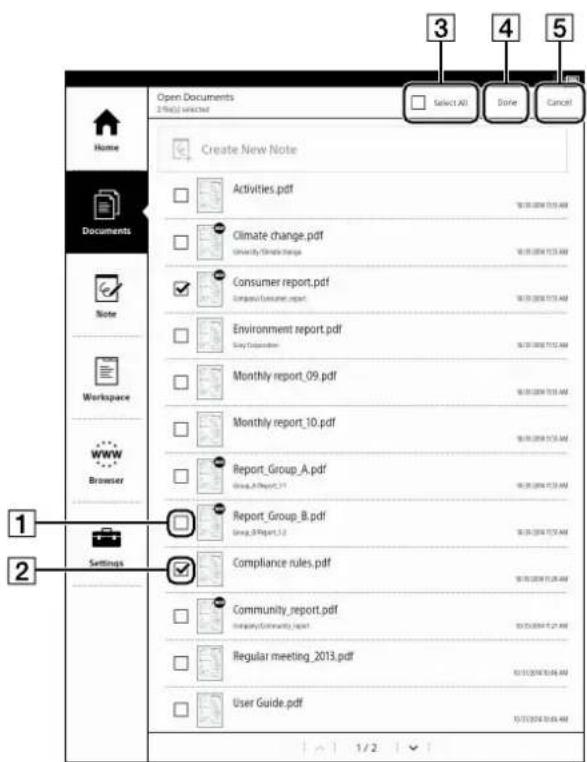
1 Check box Off 2 Check box On (target to open)
3 [Select All]
4 [Done]
5 [Cancel]
5 Tap a document you want to open. A checkmark will appear in its checkbox.
Tap [Select All] to set all checkboxes on.
6 Tap [Done].
The selected documents open and will be displayed in tabs.
Press the (Back) button to return to the document list.
Deleting Multiple Documents Simultaneously
You can delete multiple items at one time. This is convenient for clearing up space on the Digital Paper device.
The following instructions use the [Documents] application as an example.
The document list also includes the notes.
1 Press the ⬆ (Home) button → tap [Documents].
2 Press the (menu) button.
3 Tap [Delete].
Boxes appear next to the thumbnails or list entries.
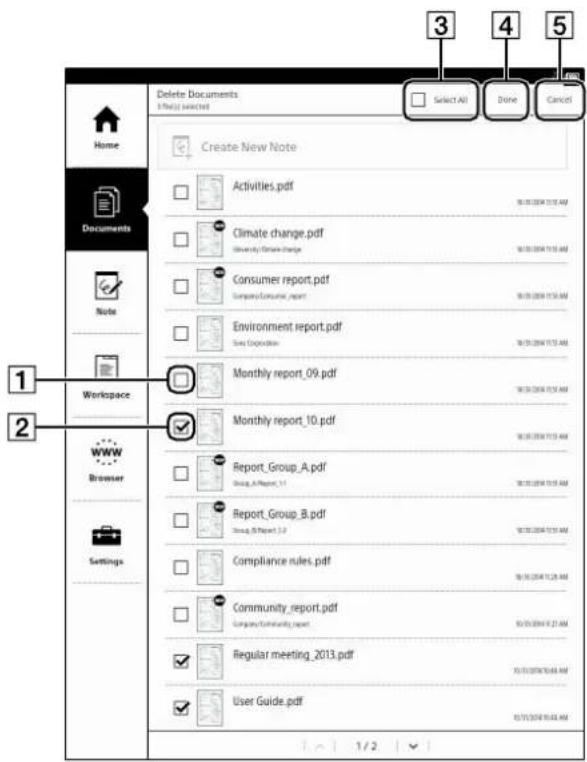
1 Check box Off
2 Check box On (target to delete)
3 [Select All]
4 [Done]
5 [Cancel]
4 Tap to check the items to delete.
Check the check box of [Select All] if you wish to delete all items.
5 Tap [Done].
The confirmation screen is displayed.
6 Tap [Yes].
The selected items are deleted from the device.
Note
- Sony recommends that you create a backup of all the documents that you want to save on your computer, before deleting the documents directly from the device.
Documents and folders deleted from the device cannot be recovered.
Creating a New Folder
1 Press the (home) button and tap [Documents]. 2 Tap [Folders]. The folder path is displayed on the top of the screen. 3 Go to the path where you want to create a new folder. 4 Press the (Menu) button and tap [Create New Folder]. A pop-up menu of [Create New Folder] is displayed. 5 Enter the folder name and tap [OK].
Option Menu for the Selected Documents and Folders
When the option menu is displayed in the documents or note list, you can perform actions such as opening documents or folders, and renaming or deleting a document.
1 Press the (home) button, then tap [Documents] or [Note]. 2 Tap and hold the document you want to edit. The option items appear.
| Options |
| Open (New Tab) |
| Open (Current Tab) |
| Open (Close Tabs) |
| Delete |
| Rename |
| Duplicate |
| Cancel |
Option Menu for Notes and Documents
| Option Description | |
| [Open (New Tab)] | opens the document or note in a new tab. |
| [Open (Current Tab)] | Opens the document or note in the current tab. |
| [Open (Close Tabs)] | Closes all tabs and opens the document or note. |
| [Delete] Deletes the | document or note. |
| [Rename] Renames | the document or note. |
| [Duplicate] Duplicates | es the document or note. |
| [Send] | Sends a copy of the document or note to the network drive from this device (page 26). This option is displayed only if the [Network Drive Settings] are complete. |
| [Reply] | Returns the document or note to the sender (page 27). This option is displayed if the [Network Drive Settings] are complete and this device can identify the sender from the document name. |
Option Menu for Folder
| Option Description | |
| [Delete] Deletes a folder. | |
Note
- Sony recommends that you create a backup of all the documents that you want to save on your computer, before deleting the documents directly from the device.
Reading
Reading Documents
Opening a Document
1 Press the (Home) button → tap [Documents]. The document list opens (page 23).
2 Tap a document.
The document opens.
You can also open a document by tapping and holding the document you want to open. For page navigation, see page 31.
Tip
- If you press the menu button and tap [Hide Toolbar] to hide the toolbar (full-screen) while the document is displayed, you can concentrate on reading it. The show toolbar/hide toolbar setting is retained until it is changed. • For Toolbar, see page 31.
- Hide the toolbar to expand the page to full screen to make it easier to read a letter-sized document.
Turning a Page
1 Swipe in the direction of the next page with your finger (move your finger) while the document is displayed.
![1 Downloading When you click a download list, the item will be downloaded onto the device. Only the PDF files (.pdf) can be downloaded. 2 Tap (Yes) when the confirmation screen is displayed. Downloaded files are stored in [Documents]. 3 Tap * You can also tap and hold the link ▪ tap (Save Link) to d…](/content/2026/05/773812/images/9bda23df7fd02da73294aca421390ba213656871888c0d761ede87fdf8e0fdf0.jpg)
When the [Page Flow] is set to [Right to Left] Swipe from right to left.
When the [Page Flow] is set to [Left to Right] Swipe from left to right.
Tip
- You can also turn the pages using the toolbar. For details, see "Navigating Pages" (page 31).
- To change the page flow, see "Changing the Page Turn Preference" (page 31).
Turning Pages Continuously
1 Swipe (move your finger) in the direction of the next page and hold the screen without lifting your finger while the document is displayed.
![Downloading When you click a download link, the item will be downloaded onto the device. Only PDF files (.pdf) can be downloaded. 1. Tap the link on the Web page. 2. Tap [Yes] when the confirmation screen is displayed. Downloaded files are stored in [Downloaded file]. Tip: You can also tap and hold…](/content/2026/05/773812/images/b9effc06da67096c73ef541a5cd3df2acb1cff5f8f4d20648bc4de741ec3cc21.jpg)
Documents of many pages can be flipped just like flipping through a book.
Lift your finger at the page you want to stop at to halt the continuous page turning.
Note
- When the display is zoomed, the page position shifts, making continuous page turning impossible.
Changing the Page Turn Preference
1 Press the (Menu) button and tap [Page Flow] while the document is displayed (except when zoomed).
The [Page Flow] pop-up appears.
2 Tap [Right to Left] or [Left to Right].
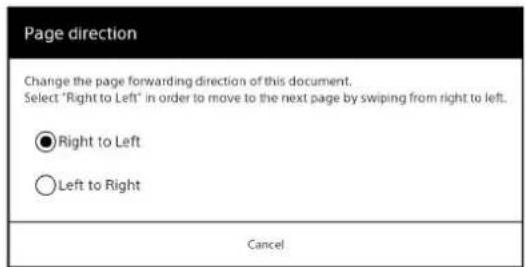
• [Right to Left]: Page turns when swiping from right to left.
• [Left to Right]: Page turns when swiping from left to right.
Navigating Pages
There are several ways to navigate pages.
![1 2 Downloading When you click a download link, the item will be downloaded onto the device. Only the PDF files (.pdf) can be downloaded. 1. Tap the link on the Web page. 2. Tap [Yes] when the confirmation screen is displayed. Downloaded files are stored in [Documents]. Tip: You can also tap and hol…](/content/2026/05/773812/images/be65893dd8147fade03444d81e093c3cc6d3d64cc5bf5701d624bf2171933cc9.jpg)
1 Toolbar Icon Display
Tapping this icon displays the toolbar vertically below it.
Once the toolbar is displayed, the icon changes to ✗.
2 Tab Panel Display
Tapping this area displays the tab panel.
Tap to hide the tab panel.
Toolbar/Tab Panel Display screen![1 Downloading When you click a download link, the item will be downloaded onto the device. Only the PDF files (.pdf) can be downloaded. 1 Tap the link on the Web page. 2 Tap [Yes] when the confirmation screen is displayed. Downloaded files are stored in [Documents]. Tip • You can also tap and hold t…](/content/2026/05/773812/images/98b88801d686e07707a281bd3d805aa969c569fbcc5b1bf9968aefb68abc09f6.jpg)
1 View/Hide toolbar
When the toolbar is hidden, the (toolbar) icon is displayed. When you tap this icon, it changes to and the toolbar is displayed.
2 Toolbar icon (page 41)
Use this toolbar to access the Tabs List, select attributes of the stylus, attach annotations, and bookmark or add/delete pages.
3 Orientation
Tap to rotate the screen from vertical position to horizontal.
4 Thumbnail views
Switching between 2 pages/4 pages/9 pages view (page 33).
5 Page navigation icons
Tap [<] or [>] to turn 1 page at a time.
Even when the [Disable Gestures] setting is on, you can use stylus or your finger to use the options of the toolbar.
6 Page indicator
Tap to display the page control box (page 32).
7 Tab panel (page 35)
Up to 3 tabs of open documents are displayed.
You can display a different document by tapping its tab.
Tip
- An open document can also be selected directly from the Tab List at the top of the toolbar (page 36).
8 Tap this area to add a bookmark (page 36)
You can turn the bookmark On/Off by using the Bookmark icon in the toolbar.
9 Pop-up menu (page 37)
Tapping and holding the text will display the highlight and search pop-up menu.
10 Touch operations
Swipe (page 16)
Zoom in/Zoom out (page 34)
Option Menu for Page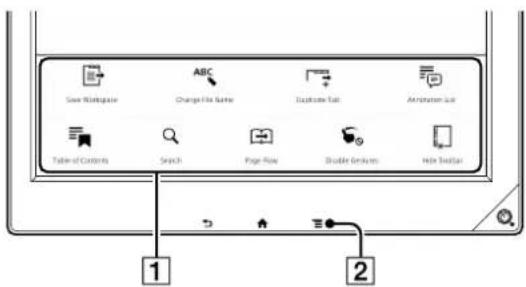
1 Option Menu (page 38)
Using the Page Control Box
1 Tap the page indicator while the document is displayed.
The page control box is displayed.
![The Sails.pdf Downloaded report.pdf Windows report.pdf 1 Downloading When you click a download link, the item will be downloaded onto the device. Only PDF files (.pdf) can be downloaded. 1 Tap the link on the Web page. 2 Tap [Yes] when the confirmation screen is displayed. Downloaded files are store…](/content/2026/05/773812/images/3e880e211c9adac11a8d5b06bc5017c52e3cbfc69f440ad7bdd4f6903ab07861.jpg)
1 [Go Back to Previous Page]
Message displayed when a different page is selected using a dot underlined link.
2 Page of document currently being displayed
3 Number input keypad
4 Slider
Move to the corresponding page by positioning the slider.
5 Total pages
Total number of pages in the document that is currently displayed.
2 Use the number input keypad to enter the page number.
3 Tap [OK].
Jumps to the specified page.
Thumbnail View
The thumbnail view is convenient for searching through a document that has many pages: similar to flipping through a book.
You can flip through consecutive pages (page 30) in the thumbnail view.
Once the corresponding page is displayed, you can tap that page to view it on the screen.
On a screen, you can display 2 pages/4 pages/9 pages thumbnails.
This preference is applied only to the document that is currently being displayed.
Displaying 2 pages/4 pages/9 pages thumbnail view by pinching in
1 Pinch in the screen (touch the screen with 2 fingers and bring them closer together) while the document is displayed in standard size.
With every pinch in, the view will change from 2-page view ➤ 4-page view ➤ 9-page view.
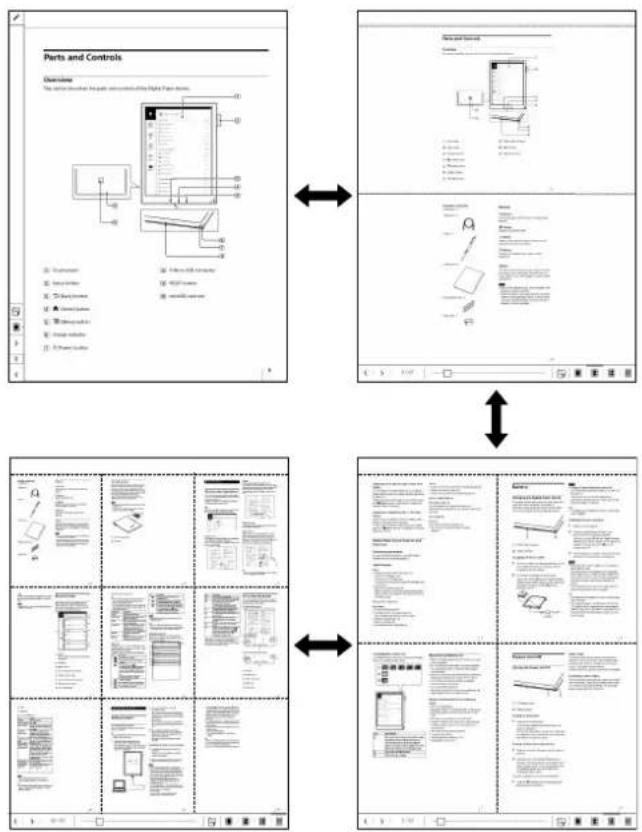
Tip
- If the following operations are carried out while the document is displayed in a 2-page view/4-page view/9-page thumbnail view, the display will return to the standard size:
—When pinch out is repeated
—When □ on bottom-right of the screen is tapped
—When any of the pages is tapped
Displaying 2-page view/4-page view/9-page thumbnail view using the toolbar
1 Tap the icon (Switching page view) while the document is displayed.
2 Tap the icon of corresponding thumbnail view.
Thumbnail icons when document is vertically displayed
| Icon Description | |
 | 1 page is displayed on a screen. |
| [2AIXD] | 2 pages are displayed on a screen. |
| [2CD3] | 4 pages are displayed on a screen. |
 | 9 pages are displayed on a screen. |
Thumbnail icons when document is horizontally displayed
| Icon Description | |
 | 1 page is displayed on a screen. |
 | 2 pages are displayed on a screen. |
 | 4 pages are displayed on a screen. |
 | 9 pages are displayed on a screen. |
Tip
- If you tap the toolbar in thumbnail view, the screen can be viewed horizontally or vertically. Example: 2-page thumbnail view
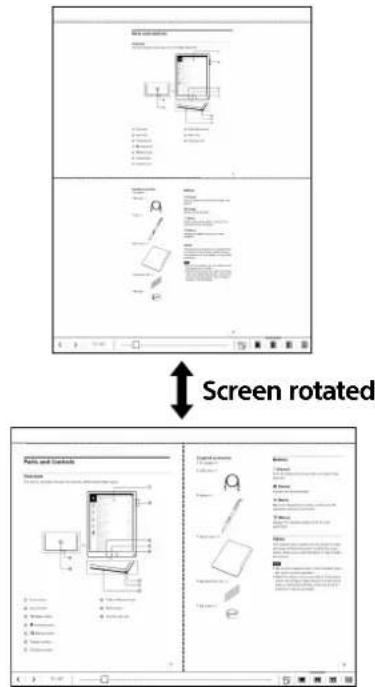
Zooming in the Display
1. Pinch out using two fingers when viewing the document in standard size.
The display zooms in and [Zoom] appears at the bottom of the screen.
Pinching in/out further zooms the display in/out.
![The confirmation screen is restored in [Documents]. Tap and hold the link, then tap [Save Link] to save the linked file. Download progress and result are shown. You can check download progress by the icon on the status bar, or open the notification panel to see the download progress. Currently downl…](/content/2026/05/773812/images/ef50d519affdbd085244b7594dcaa9556533a4412d7726965c475cf0ec9612fb.jpg)
1. Status indication of zoom
2. Drag your fingers to reposition.
Repositions the zoomed in screen.
Tip
- Press the (Back) button to return to default size.
Available operations while zooming in
Operations available in the toolbar while zooming in are as follows.
- Selecting the types of handwriting and lines (page 42)
- Selecting Eraser mode and the size of the eraser
- Undo/redo the previous operation
- Moving to another page
Navigating pages while zoomed in
You can turn pages retaining the display position and zoom ratio while the display is zoomed in.
To turn a page, tap the Page Turn Preference icon and enter the page number in the page control box.
Note
- If you turn the last page of the note, a page is added to the note while retaining the zoom ratio.
- Dragging your finger while the display is zoomed in repositions the display, and the page cannot be turned.
Tip
- If the toolbar icon and the toolbar are hidden (full-screen view), you can handwrite with the type of pen selected before zooming in the view.
- When the display is zoomed in, you cannot use the highlight function even if [Pen Button Settings] is set to [Highlight active] (page 44).
Only the eraser function is enabled.
• Display can be zoomed in approximately 2.5 times.
Operating Tabs
Tab operation allows you to browse multiple documents.
Tabs are not displayed in the preset default.
1 Tap the top of the screen while the document is displayed.
The tab panel appears.
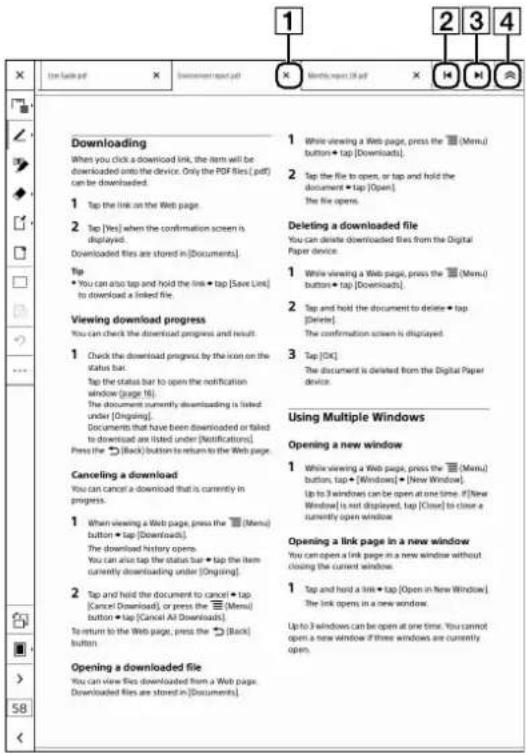
1 Tab close icon
Closes the opened document when tapped.
When the tab is closed, the right tab shifts to the left.
2 Left scroll icon Displays the document on the left tab. 3 Right scroll icon Displays the document on the right tab. 4 Tab panel close icon Closes the tab panel. Tap the tab panel display area to display the tab panel again.
Tip
• The document name is displayed on the tab. - A maximum of three tabs can be shown on the screen. - If you delete the document from your computer or remove the microSD memory card (when the document is saved in the microSD memory card) or delete the file while viewing a document, only tabs remain. Then, the message "Cannot display document. Cannot find file." is displayed. In this case, close the unnecessary tabs with the close tab icon.
Displaying the tab list
You can select a document from the tab list.
1 Tap (Tab List) on the toolbar.
Tab list appears.
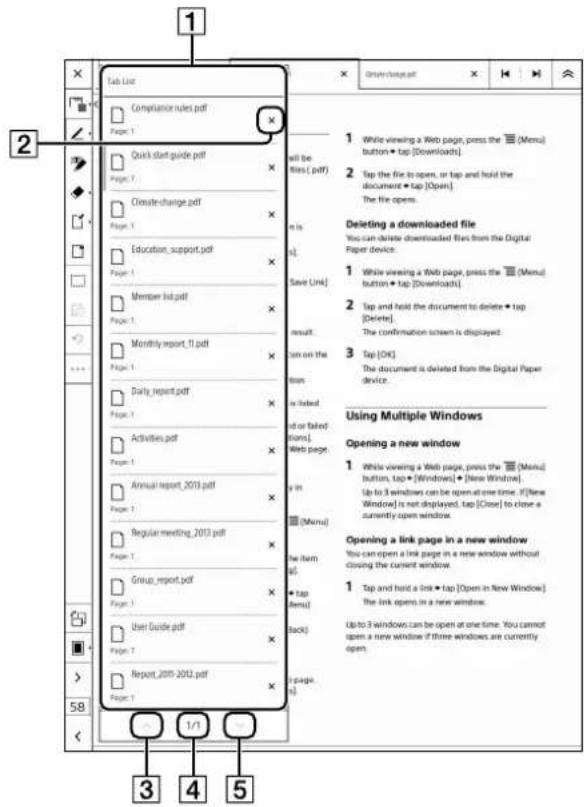
1 Tab List
2 Tab close icon
Closes the targeted tab.
3 Previous list view icon
4 Current page indicator
5 Next list view icon
2 Tap the document you want to open in the tab list.
The selected document is displayed on the screen.
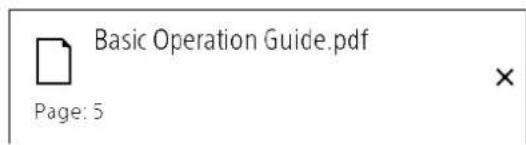
Tab list examples
File name and total number of pages of the document are displayed.
File names that are long and thus do not fit in the tab area may be displayed partially followed by ellipsis (...).
Adding a duplicate tab (copying the tab)
You can display a document as another tab.
The newly added tab will be placed to the right of the active tab.
With the same document displayed in different tabs, you can check different pages by switching between the tabs.
1 Press the (Menu) button and tap [Duplicate Tab].
The same document will be displayed in the newly added tab.
Page display is retained in both the tabs.
Tip
- As the same document is displayed in two tabs, the contents are the same.
Setting the Bookmark to On/Off
You can add a bookmark to a page.
1 Tap (bookmark) on the toolbar.
A bookmark appears on the top-right corner of the page.
![Downloading When you click a download link, the item will be downloaded onto the device. Only the PDF files (.pdf) can be downloaded. 1 Tap the link on the Web page. 2 Tap [Yes] when the confirmation screen is displayed. Downloaded files are stored in [Documents]. Tip • You can also tap and hold the…](/content/2026/05/773812/images/ee04537f15f8a8f440f37d1f0f1fcc39b06dc5e92a3d37b9bd395e558c4bf2e7.jpg)
1 Bookmark
Tip
- To delete a bookmark, tap (bookmark) on the toolbar or tap the displayed bookmark.
- To search for the bookmark in the currently open document, press the (Menu) button and tap [Annotation List] (page 48).
- If you switch the orientation of the screen, the position or size of the bookmark may change.
Removing a bookmark
1 Tap (bookmark) on the toolbar.
Tip
- Tap the bookmark to delete it.
Searching Pages by Keyword
You can select a string as keyword and search a document.
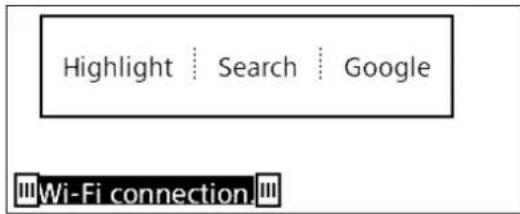
1 Tap and hold the first word of the string you want to search for.
The highlight bar appears.

2 Drag the edge of the highlight bar over other words to be searched.
3 Tap [Search] in the pop-up menu. A page that includes the keyword is displayed.
4 Tap or in the search box at the top of the screen.
The page turns to the previous/next page that contains the keyword.
To cancel, tap (close) in the top-right corner of the screen.
Tip
- End cursors are not displayed when selecting a link word.
- You can search for a keyword at the Google Web site. Select a keyword and tap [Google] in the popup menu. The [Browser] application will open to the Google Web site and search for the word. (A Wi-Fi network connection is necessary (page 58).) To return to a document, press the menu button → tap [Return to Viewer].
- Tap [Highlight] in the pop-up menu, as shown in Step 3, to highlight the selected string.
Search by typing a keyword using the on-screen keyboard.
1. Press the (Menu) button, tap [Search], and enter the keyword using the on-screen keyboard. Searched keywords appear outlined. Similar words from the same page will be displayed simultaneously. By pressing, similar words from the next page will be displayed in outlined characters.
Note
• Keyword search is not case sensitive.
Using Menu Items
Below is a list of option items available when you press the (Menu) button from the document viewer.
| Option Description | |
| [Send]* Transfers or | returns the currently open document from the device to the network drive (page 26). |
| [Save Workspace] S | saves the currently opened tabs as a new Workspace or overwrites the old one (page 38). |
| [Change File Name] | Changes the file name of the opened document. |
| [Duplicate Tab] Adds | a duplicate tab to the right of the currently active tab. |
| [Annotation List] Opens the annotation list (page 48). | |
| [Table of Contents] | Opens the table of contents.This item is not available for a file with no table of contents. |
| [Search] Searches for a keyword (or string) in an open document (page 37). | |
| [Page Flow] Changes the page flow of a document by setting the swipe direction for turning pages: either from right-to-left (default), or from left-to-right. | |
| [Disable Gestures]/[Enable Gestures] | Disables some finger touch gestures, such as swipe page navigation or pinching in/out to change the page view.Prevents you from accidentally touching the screen with your sleeve, etc.You can tap an item in the toolbar with your finger even when the gestures are disabled.Tap again to enable gestures. |
| [Hide Toolbar]/[Show Toolbar] | Turns toolbar on (show) or off (hide).When hiding the toolbar to switch to the full-screen, you can concentrate on reading. |
* If the [Network Drive Settings] are not set up, this item is not available and will not be displayed.
Using the [Workspace] Application
You can name and save the documents opened in multiple tabs as they are.
By preserving the current tab status and page location, a registered Workspace allows you to resume your work from the preserved tab status.
![graph TD A["Workspace ①"] --> B["Documents on the Digital Paper device"] C["Workspace ②"] --> B D["Workspace ③"] --> B B --> E["Document A"] B --> F["Document B"] B --> G["Document C"] B --> H["Document D"] B --> I["Document E"] B --> J["Document F"] B --> K["Document G"] B --> L["Document H"] B -->…](/content/2026/05/773812/images/42c666563e49489c82e0e1ad2470126191e2a5ad4fb12a3c2efe835d3c43f454.jpg)
Tip
- Individual documents remain the same: a document viewed in a Workspace is the same document file that is viewed by itself; therefore, any annotations added to a document in a Workspace exist when the document is opened outside the Workspace.
Registering a Workspace
You can save the currently open documents as a Workspace.
1 Press the (Menu) button on the display screen of the open document and tap [Save Workspace].
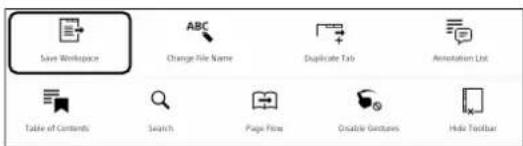
[Save as New] screen will be displayed.
![Downloading 1 While viewing a Web page, press the [Menu] button. When you click a download link, the item will be downloaded into the device. Only PDF files (.pdf) can be downloaded. 2 Tap the file to open, or tap and hold the document • tap (.com). 1 Save as New Workspace 2 Would you like to save a…](/content/2026/05/773812/images/94aa8ff7522d40319a066427aa75564bcd18462d3eec5b14cdb213851dd92c6a.jpg)
2 Tap the input area and enter the Workspace name using the on-screen keyboard, then tap [Yes].
The current status of the tabs and all open documents are saved as Workspace.
Opening a Workspace
1 Press the (home) button and tap [Workspace]. 2 Select a Workspace to open from the list of Workspaces. The confirmation pop-up menu will be displayed. 3 Tap [Yes].
Opening from [Saved Workspaces]
You can also open a workspace from [Saved Workspaces] on the Home menu. Up to 3 Workspaces are displayed in [Saved Workspaces]. If you want to display three or more workspaces, tap [See All] on the right-side of the screen.
Note
- When you open a workspace, all the current tabs will be closed and replaced by the selected workspace.
- To add a document to an open workspace, open the document and select [Overwrite] when saving the workspace. Follow the same procedure for deleting tabs.
Saving a Workspace
You can modify existing Workspaces by adding additional documents or notes.
1 Press the (Menu) button on the display screen of the open document and tap [Save Workspace].
The confirmation pop-up menu will be displayed.
2 Tap [Overwrite]/[Save As New].
• [Overwrite]: Overwrite and save the current workspace. - [Save As New]: Allows you to save the current workspace with a different name (e.g., the default name generated by the device). Change the workspace name, and tap [Yes] in the dialog box for [Save As New].
Deleting/Renaming a Workspace
1 Press the (home) button and tap [Workspace].
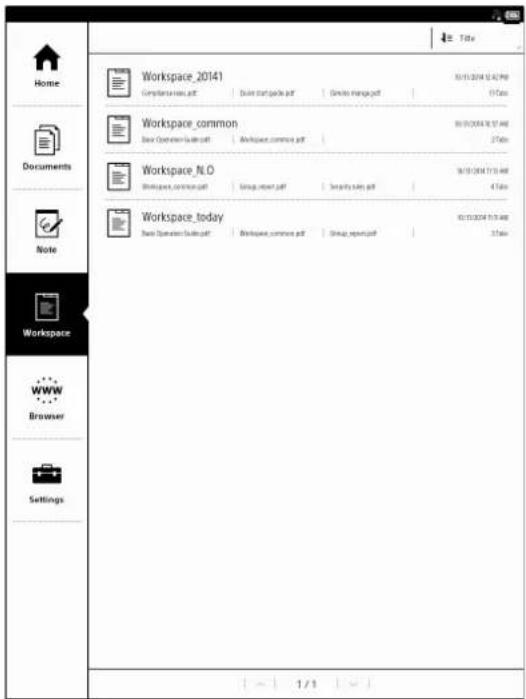
2 Tap and hold the Workspace you want to edit, then tap [Delete]/[Rename] from the options menu.
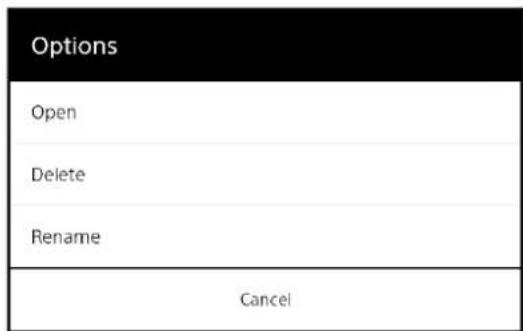
Note
- Even if you delete the Workspace, documents opened in the tab will not be deleted. The currently opened tabs are not closed by deleting a Workspace.
Writing
Handwriting/Annotating the Document
You can add various annotations* such as directly writing on the document, highlighting the text and adding sticky notes (text and handwriting).
* Annotations are markups which can be inserted in a PDF document.
Annotations in the Digital Paper device include handwriting, highlighting, adding sticky notes (handwriting or text), bookmarks.
The annotated documents will be saved automatically in the following cases:
- When closing a document or note
- When switching a tab
- When entering stand-by mode
Note
- The (Back) button, (Home) button, (Menu) button, and ⏻ (Power) buttons on the device are disabled when writing on the screen using the stylus.
These buttons are however enabled after a certain period of time when the stylus remains in contact with the screen for a long time.
- When the charge/battery status icon turns into a screen indicating that the battery level is too low is displayed.
In this case, tap [OK] and charge the device.
- When the charge/battery status icon turns into an edited document is saved and becomes read-only. Then a screen indicating that editing cannot be done appears.
In this case, tap [OK] and charge the device.
- For secured PDF files where annotating is forbidden in the advanced settings, "(Protected)" appears at the beginning of the file name on this device, the annotation icons on the toolbar are disabled, and annotations cannot be inserted.
To check for detailed information, refer to the User Guide for PDF Viewer.
Tip
- The document being edited will get saved when you enter the standby mode by pressing the Power button.
Using the Toolbar
You can use the icons on the Toolbar to add annotations.
The toolbar is set to hide by default. Tap to display the toolbar.
Once the toolbar appears, the icon changes from ✗ to ✘.
Tip
- The show toolbar/hide toolbar setting is retained until the toolbar icon is tapped again.
![1 Downloading When you click a download link, the item will be downloaded onto the device. Only the PDF files (.pdf) can be downloaded. 2 Tap (Yes) when the confirmation screen is displayed. Downloaded files are stored in [Documents]. 3 Tap • You can also tap and hold the link ▪ tap [Save Link] to d…](/content/2026/05/773812/images/7f623fa0093fe202b33b9ecc9bf54b56fd6ae25340fc3e66836998a301c52123.jpg)
1 Tab List icon (page 36) 2 Handwriting icon (page 42) 3 Highlight icon (page 44) 4 Eraser icon (page 45)
5 Sticky Note (Handwriting) icon (page 46)/Sticky Note (Text) icon (page 47) 6 Bookmark icon (page 36) 7 Select range icon (page 43) 8 Paste icon (page 44) 9 Undo/Redo icon (page 46)
Tip
- The following icons switch mode when tapped once, and change the function when tapped the second time.
Handwriting icon: Allows you to select the pen type Eraser icon: Allows you to select the size of eraser Sticky Notes icon: Allows you to select [Handwrite] and [Text]. For details, see the respective operation procedure.
Changing the toolbar position to right
The default setting for Toolbar position is [Left]. Left-handed people and others can change the position to [Right] if they wish.
1 Tap [Settings] → [Application Preferences] → [Documents] → [Toolbar Position] → [Right] (page 73).
Hiding the toolbar
If you choose to hide the toolbar, the screen will zoom in and display a full-screen view.
1 Press the (Menu) button and tap [Hide Toolbar] when viewing a document.
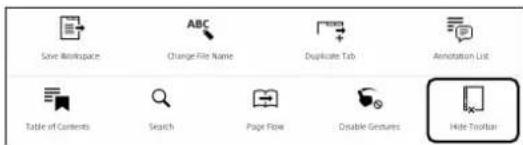
To unhide the toolbar, tap [Show Toolbar].
Handwriting a Note on a Page
You can use the stylus to draw directly on a page. Firmly place the palm of your hand on the screen and start writing in the same manner as that of writing using pen and paper.
1 Tap the (handwriting) icon on the toolbar to select the handwriting mode.
Tap the (Handwriting) icon once more to select the pen type from the displayed options. The selected pen type is retained until it is changed.
2 Handwrite with the stylus.
![1 While viewing a Web page, press the [Menu] button, then tap [Downloads]. 2 Tap the file to open it, or tap and hold the document, then tap [Open]. The file opens. Deleting a downloaded file You can delete downloaded files from the Digital Paper device. 1 While viewing a Web page, press the [Menu]…](/content/2026/05/773812/images/4f3d880337b8028e8f00270763f59ab851af807e776113631d03a8b3ad8340f6.jpg)
1 Blue/Fine 2 Blue/Medium 3 Blue/Bold 4 Red/Fine 5 Red/Medium 6 Red/Bold
- Lines drawn in red are displayed as gray lines on the screen of the device. However, red lines will be displayed on files transferred to a computer.
- You can use the stylus (handwrite) while resting your hands on the touchscreen.
Note
- Tap [Settings] → [System Management] → [Pen Settings] → [Pen Button Settings] to set how the stylus operates on a document with its stylus button held down (page 74). [Eraser active] is set by default. You can select [Highlight active] to highlight and [Button inactive (handwriting only)] to handwrite even while pushing the stylus button. You can select your favorite mode.
- The (Back), (Home), (Menu), and ⏻ (Power) buttons on the device are disabled when handwriting on the screen using the stylus. When the stylus remains in contact with the screen for a long time, these buttons however are enabled after a certain time period.
Tip
- To undo/redo handwriting, tap (Undo) or (Redo) on the toolbar.
- If the page is mistakenly flipped due to brushing your arm against the screen while writing on the screen, turn on the "Disable Gestures" function (page 46).
Turning the function on prevents accidental flipping of pages, making it easier to concentrate on writing.
Moving/Copying/Pasting/Cutting
You can move/copy/paste/cut the handwriting annotations by using the stylus.
You can copy/paste the handwriting annotations among different documents viewed through the Digital Paper device.
Moving a handwriting annotation
1 Tap (Select) on the toolbar and enclose the handwriting in a frame by dragging your stylus diagonally across the handwriting you want to move.
A dotted lined frame is displayed.
![User Style.pdf Environment report.pdf Windows report_36.pdf 1 While viewing a Web page, press the [Menu] button and tap (Downloads). 2 Tap the file to open, or tap and hold the document and tap (Open). The file opens. 3 Deleted a downloaded file You can delete downloaded files from the Digital Paper…](/content/2026/05/773812/images/917296cdf213559e49d953388b42376f8246df7fb67ab05f5e771ed33e9f6c86.jpg)
2 Place the stylus in the middle of the dotted-line-frame (☐) without touching the pop-up menu and drag the selected annotation to the desired location.
The dotted line frame follows the movement of the stylus.
3 Move the stylus away from the screen and tap [Done] in the pop-up menu.
Copying/Cutting a handwriting annotation
1 Tap (Select) on the toolbar and enclose the handwriting in a frame by dragging your stylus diagonally across the handwriting you want to copy or cut.
A dotted lined frame is displayed.
2 Tap [Copy] or [Cut] in the pop-up menu.
Tip
- You can select a broad area to delete handwriting by selecting [Cut].
Pasting a handwriting annotation
1 Tap (Paste) on the toolbar.
The handwriting annotation saved on the clipboard through the previous [Copy] or [Cut] operation is displayed in the middle of the screen.
2 Place the stylus inside the dotted line frame ( ) around the annotation to drag it to the desired location. Move the stylus away from the screen and tap [Done] in the pop-up menu.
Tip
- Annotations done by another author in documents, for which editing or deleting annotations by other authors is not allowed (page 51), cannot be moved, copied, or cut.
- The pasted annotation is attributed to the author who has pasted it.
- Only one copied or cut annotation is retained on the clipboard to enable repetitive pasting of the same annotation.
Note
- The handwriting annotations can only be selected or dragged using the stylus.
- The annotations cannot be moved, copied, pasted or cut when the screen is zoomed in.
Highlighting Words on a Page
You can use the stylus or your finger to highlight words directly on a page.
When using the stylus
1 Tap (Highlight) and stroke the section that you want to highlight.
The selected words are highlighted.
Note
- When [Pen Button Settings] in [Pen Settings] is set to [Highlight active], you can highlight while pushing the stylus button (page 74).
- The text in the scanned documents (images on the entire page) or the documents in which font information is not embedded cannot be highlighted.
Information is not embedded and cannot be highlighted.
• You cannot highlight handwritten comments. - You cannot highlight comments that do not contain text.
- To search for a highlighted word in the currently open document, press the [menu] button → tap [Annotation List] (page 48).
- To search for a highlighted word in the currently open document, press the [menu] button, then tap [Annotation List] (see page 48).
1 Tap and hold the first word of the section that you want to highlight.
1 Tap and hold the first word of the section that you want to highlight.
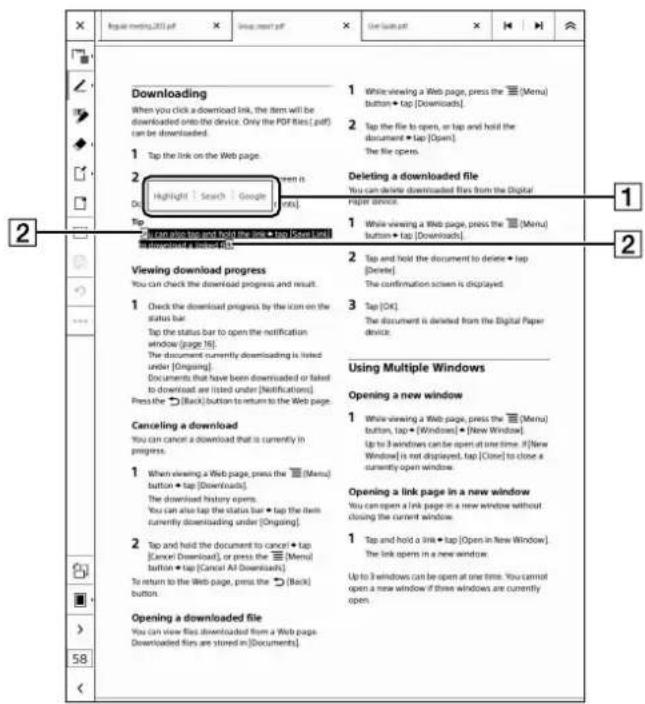
1 Pop-up menu 2 Highlight bar edge 2 Drag the edge of the highlight bar with your finger until you highlight all of the necessary text. 3 Tap [Highlight] from the pop-up menu. The text is highlighted.
- The text cannot be highlighted when the view is zoomed in.
- The text cannot be highlighted when the view is zoomed in.
- In highlight bar edge, the following operations are possible besides [Highlight] on pop-up menu:
- In the highlight bar edge, the following operations are possible besides [Highlight] on the pop-up menu:
[Search]: You can search the selected string/text in a document.
[Google]: You can search the selected string/text on Google through browser.
Using the Eraser
Erasing while pushing stylus button
1 While pushing the stylus button, move the stylus across the handwriting or highlight, then lift the stylus.
The handwriting or highlighted words will be erased. The handwriting will be erased per line segment.
![Regular incoming.pdf Downloading When you click a downloaded link, the item will be downloaded onto the device. Only the PDF files [pdf] can be downloaded. 1. Tap the link on the Web page. 2. Tap [Yes] when the confirmation screen is displayed. Downloaded files are stored in [Documents]. Tip: • You…](/content/2026/05/773812/images/031ae214ed14cf7935fdeff6b75746bc4a62b13b9e90cebbc14313291776eae0.jpg)
Selecting Eraser mode on the toolbar
You can switch to Eraser mode by tapping the ◆ (Eraser) icon on the toolbar.
The first tap on the Eraser icon switches the mode, and the second tap on the icon changes the size of the eraser.
Tap the Handwriting icon on the toolbar to return to Handwriting mode.
Note
- Sticky notes cannot be deleted using the eraser (pages 46, 47).
Changing the size of the eraser
In Eraser mode, tap (Eraser) on the toolbar using the stylus or your finger to select the size of the eraser from [Small], [Medium], and [Large].
Note
- Once the size of the eraser is changed, the mode is set to Eraser mode. Select the Handwriting icon to return to the pen mode.
- The eraser can be used by pushing the stylus button only when [Pen Button Settings] are set to [Eraser active] (page 74).
Tip
- A line can be erased by selecting just a part of the line, then moving the stylus away from the screen. In this device, unlike erasing a line drawn on paper using a pencil, you do not need to select the entire line to erase it.
Carefully select multiple lines to erase them all at once.
Example of erasing on real paper

Example of erasing with this device
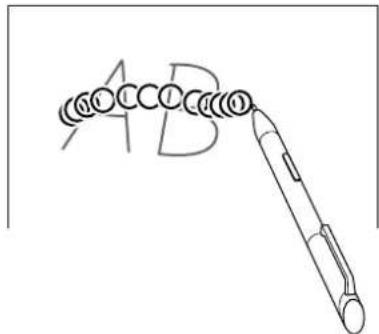
- An animated circle is set for the eraser animation by default. You can set the animated circle to OFF (page 74).
- Cut part of a line with [Cutting a handwriting annotation]'s range selection to separate the line into two parts.
Undoing/Redoing the Previous Operation
You can undo/redo the previous operation such as handwriting or erasing.
1 Tap (Undo) on the toolbar.
The previous operation such as handwriting or eraser is undone.
To redo the operation, tap (Redo).
Note
- You can undo/redo only the last operation; not operations performed before that.
- The undo/redo range depends on the timing that a change is embedded in the PDF. To undo/redo detailed changes, write on the screen by finely adjusting the timing of moving the stylus away from the screen.
- Deletion of a highlight or sticky notes cannot be undone.
Disabling Gestures
This function prevents you from accidentally turning pages, zooming in, etc., by touching the screen with your sleeve or hand while handwriting.
When gestures are disabled, operations such as turning a page by using swipe as well as changing the page view using Pinch in/Pinch out will be disabled.
1 Press the (Menu) button while the document is displayed, and tap [Disable Gestures].
To enable gestures, press the [Menu] button and tap [Enable Gestures].
Note
- When the gestures are disabled and the page view is switched to thumbnail view, gestures are enabled, and when the page view is switched back to one screen view from thumbnail view, the gestures remain disabled.
- To turn a page while the gestures are disabled, tap [<] or [>] on the toolbar.
Tip
- When gestures are disabled, you can perform toolbar and tab list operations and select an item in the option menu with your finger.
Adding a Sticky Note (Handwriting)
You can handwrite text or drawing as a sticky note on a page.
1 Tap the icon (Sticky Note (Handwriting)) or the icon (Sticky Note (Text)) on the toolbar.
When tapped on the Icon (Sticky Note (Text)), tap the same icon once more and then tap Sticky Note (Handwriting) under the sub menu.
(By tapping once on the Sticky Note icon, you can change the mode, and by tapping the icon second time, you can change to 'Handwriting' or 'Text' mode.)
2 Tap the place where you want to add the Sticky Note (Handwriting) by using the stylus.
The editing screen for the sticky note (handwriting) is displayed.
![1 Downloading When you click a download link, the item will be downloaded onto the device. Only the PDF files (.pdf) can be downloaded. 1 Tap the link on the Web page. 2 Tap (Yes) when the confirmation screen is displayed. Downloaded files are stored in [Documents]. Tip • You can also tap and hold t…](/content/2026/05/773812/images/e1dc1417a2bbebaea1aadc3a0bcea3f80435cf8ba2fd359ff1f77fd120fe0c12.jpg)
1 Sticky Note (Handwriting) icon 2 Handwriting icon (Blue/Fine) 3 Handwriting icon (Blue/Medium) 4 Handwriting icon (Red/Fine) 5 Handwriting icon (Red/Medium) 6 Eraser icon 7 [Save] 3 Tap the Handwriting and Eraser icons to draw a picture or write text with the stylus. 4 Tap [Save].
Note
- You cannot use [Bold line] in Sticky Note (Handwriting).
Tip
- The sticky note is embedded as an attached PDF file in the document. Therefore, the annotations created on this device can also be viewed on computer.
Editing a sticky note (handwriting)
1 Tap (Sticky Note (Handwriting)) on the page with your finger. The sticky note (handwriting) appears. When you tap a sticky note (handwriting) on the page with a stylus, ensure that the [Sticky Note (Handwriting)) icon on the toolbar is in the selected state.
2 Edit the sticky note (handwriting). 3 Tap [Save].
Deleting a sticky note (handwriting)
1 Display the sticky note (handwriting) and tap [Delete] → [YES].
Adding a Sticky Note (Text) to a Page
You can input a comment using the on-screen keyboard and add that comment as a sticky note to a page.
1 Tap the icon (Sticky Note (Handwriting)) or the icon (Sticky Note (Text)) on the toolbar. When tapped on [Sticky Note (Handwriting)], tap on the same icon once more and then tap [Sticky Note (Text)] under the sub menu. (By tapping the Sticky Note icon once, you can change the mode, and by tapping the icon a second time, you can change to [Handwriting] or [Text] mode.) 2 Tap the place where you want to add the (Sticky Note (Text)). The editing screen for the sticky note (text) and the on-screen keyboard are displayed.
![Regular morning 2015.pdf Group report.pdf The Guide.pdf Downloading When you click a download link, the item will be downloaded onto the device. Only the PDF files (.pdf) can be downloaded. 1 Tap the link on the Web page. 2 Tap [Yes] when the confirmation screen is displayed Downloaded files are sto…](/content/2026/05/773812/images/a08e3bd44a4d121e9c814759405ee3f3ef422c0f58abd924f39cd7b3c07d9ead.jpg)
1 Sticky Note (Text) Icon 2 [Save] 3 Input area 4 On-screen keyboard
3 Enter the text using the on-screen keyboard.
4 Tap [Save].
Tip
- Sticky notes (text) are embedded into PDF files as annotations. This enables you to search for strings of text within sticky notes (text) when using a computer or from the annotation list on the device.
Editing a sticky note (text)
1 Tap the (Sticky Note (Text)) icon on the page with your finger.
The editing screen appears.
Tip
- To display the editing screen with the stylus rather than your finger, select the Sticky Note (Text) icon on the toolbar before tapping the Sticky Note (Text) icon on the page.
2 Tap [Edit].
The on-screen keyboard appears.
3 Edit the text using the on-screen keyboard.
4 Tap [Save].
The sticky note (text) and on-screen keyboard close.
Deleting a sticky note (text)
1 Display the sticky note (text) and tap [Delete] ▶ [Yes].
Displaying Annotation List
You can search, filter, sort or view annotations (bookmarks, highlights, sticky notes (text), or sticky notes (handwriting)) in the current document.
1 Press the (Menu) button and tap on [Annotation List] while the document is displayed.
The annotation list appears on the left side of the screen and the preview of the displayed document is displayed on the right side.
Note
- A search is conducted in the current document to display the annotations list, so it may take a while depending on the number of annotations.
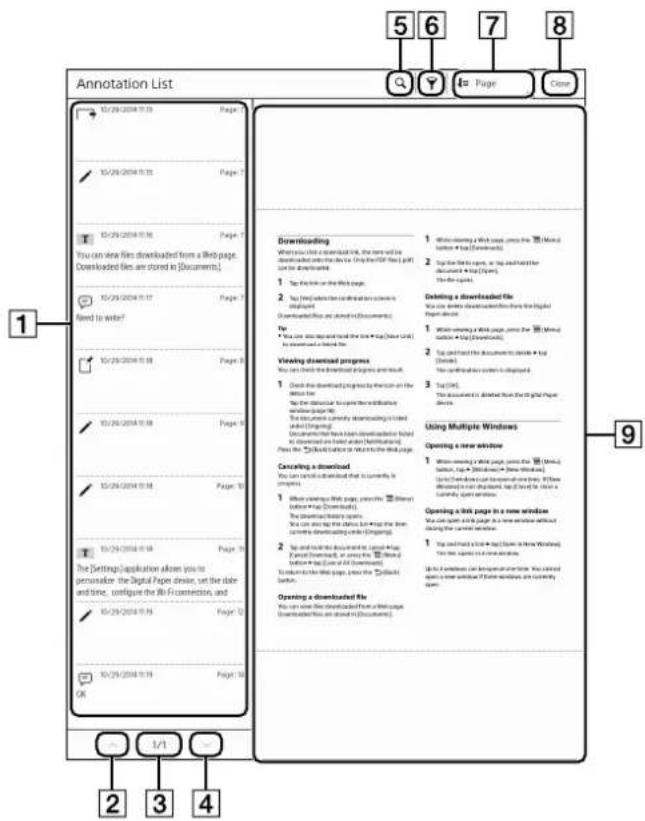
1 Annotation list 2 Previous list icon 3 Page indicator 4 Next list icon 5 Search icon 6 Filter icon 7 Sort icon 8 Tap to close the annotation list 9 Preview area
Tip
- When you tap and hold the previous list or next list icon, pages of the lists turn continuously. - Tap on the document in preview display (right side of the screen), or press the Back) button to return to the document.
Viewing pages with annotations in preview
1 Tap the annotation you want to view from the annotation list.
The page with the selected annotation is displayed in the preview area.
Returning to normal view from preview
1 Tap [Close] or the preview area to return from preview to normal view.
The annotation list closes, and the screen switches to normal view.
Annotation types
- Bookmark

2014/9/1 14:46 kenji maeda
Page: 36
- Handwriting

2014/9/1 14:46 kenji maeda
Page: 36
- Highlight

2014/9/1 14:52 kenji maeda
Page: 59
Preparing to Set Up
- Sticky Note (Text)

2014/9/1 14:49 kenji maeda
Page: 56
Check the report.
- Sticky Note (Handwriting)

2014/9/1 14:49 kenji maeda
Page: 57
Searching annotations by keyword
You can search annotations by entering a keyword.
Targeted items
The targeted item type is limited to 140 characters.
• Text on a page with a bookmark - Highlighted text • Annotation author name - Sticky note (text) text
1 Tap Q (Search).
2 Type a search keyword using the on-screen keyboard. 3 Tap of the on-screen keyboard.
The list of annotations matching the search keyword is displayed.
4 Tap the annotation.
The tapped annotation is displayed by reversing the black/white color in the preview.
When the page is changed by tapping, the previewed page changes.
Tap (Close) in the top-right corner of the screen to cancel the search.
Tip
- You can search the annotation by user name. You can search the annotations with a user name set on the device. Therefore, if a forwarded document has annotations that were added by multiple members, each user name can be filtered in this device.
Filtering by annotation type
You can filter the annotations by bookmark (displayed as [Page Flag]), handwriting, highlight, sticky note (text), or sticky note (handwriting).
1 Tap 🎨 (Filter).
The pop-up menu for annotation types is displayed. By default, all the check boxes are checked.
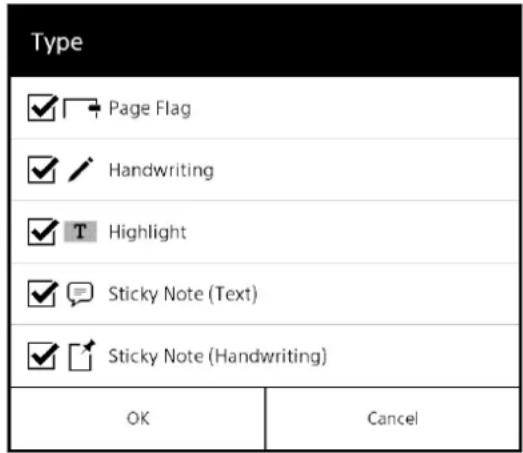
2 Remove the checks by tapping the check box of annotations types you do not want to display. 3 Tap [OK].
Sorting the annotations
You can sort the annotations by page order, name of the author who added the annotation, annotation type, or by date when the annotation are updated.
1 Tap ↓≡ (Sort).
A pop-up menu appears.
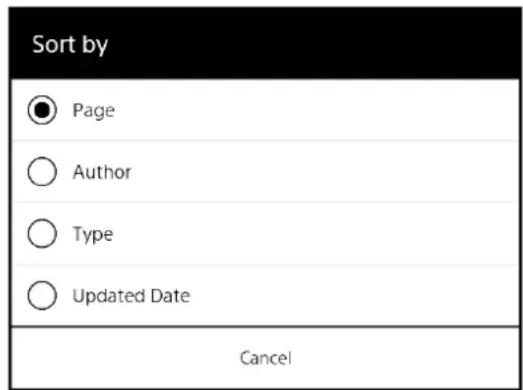
2 Select and tap the sort type.
Annotations appear sorted.
Tip
- After filtering, you can further refine the search by searching annotation list by keyword.
Annotation Settings
Limit Editing Annotations
User names can be set such that the created annotations (such as bookmark, handwritten, highlight, Sticky Note (Text), Sticky Note (Handwriting)) cannot be edited and deleted by other user names.
1 Press the (home) button and tap [Settings]. 2 Tap [Application Preferences] → [Documents] → [Limit Editing Annotations]. 3 Tap [On].
Note
- The settings of [Limit Editing Annotations] depend on individual Digital Paper device settings. Conditions to use this function are as given below: —User names must be set for any Digital Paper device where documents are handed over. —[Limit Editing Annotations] should be set to On for Digital Paper device on the receiving end.
Tip
- Please set the user name by going to [Settings] → [General Setting] → [User Name].
Configuring the Pen Button Settings
The default setting for when you hold the stylus button and trace the screen is set to Eraser. You can also change it to Highlight or Off (with handwriting).
1 Press the (home) button and tap [Settings]. 2 Tap [System Management] → [Pen Settings] → [Pen Button Settings]. 3 Tap on the operation for when the button is pressed.
Tip
- Handwriting icon must be selected to return to the Handwriting mode after changing to Eraser mode
from toolbar. However, if the stylus button is set to Eraser mode, the user can switch to Eraser mode only when the button is pressed while in the Handwriting mode.
Set Pen Grip Style
Pen Grip Style is set to right-handed (straight wrist) in the default settings.
You may change the grip style to right-handed, "Hooked" wrist/left-handed, straight wrist/left-handed, "Hooked" wrist.
Settings are applied as per the gripping hand.
1 Press the (home) button and tap [Settings]. 2 Tap [System Management] → [Pen Settings] → [Pen Grip Style]. 3 Select the grip style closest to your own grip style out of the 4 types of pen grip style and tap [OK].
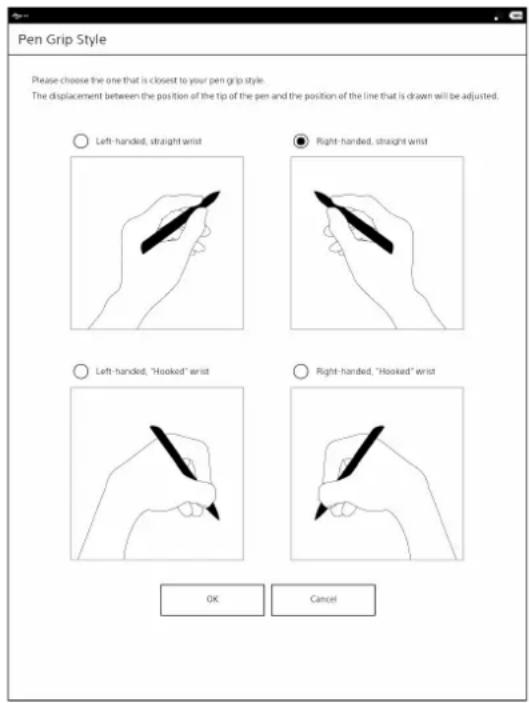
Note
- If the pen grip style is not matched to the user's, there may be a gap between the pen point position and the position of the written line. Please make sure to perform advanced calibration after setting Pen Grip Style.
Performing Advanced Calibration
You can rectify the gap in the position where the pen is aimed and the written position.
Since there are individual differences in the Pen Grip Styles, please adjust as per your own style.
1 Press the (home) button and tap [Settings].
2 Tap [System Management]→[Pen Settings]→[Advanced Calibration].
The trial writing screen is displayed.
3 Trace the dotted line of □ and × in the □ area in the center of the screen using the pen with your usual grip style.
The drawn line is not displayed on the dotted line when tracing.
The drawn line will be displayed after moving the pen away.
Moreover, a black line is displayed at the upper side of the □ area when tracing.
Advanced Calibration (Test Write)
Trace the dotted line with the pen.
Ignore any displacement between the dotted line and the line that is being drawn.
The displacement between the dotted line and the line that is being drawn will be calibrated in the next screen.
The calibration will be more accurate if the line is drawn while holding the pen with a grip and at an angle that is normally used.
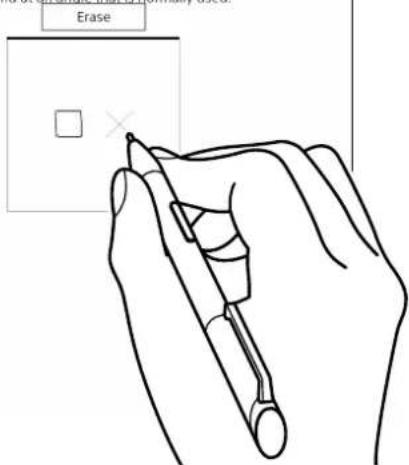
If you want to erase the line written here, tap [Erase]. Please trace on the dotted line in your usual writing style.
Since the differences in the lines written here are adjusted on the subsequent screen, do not worry about the difference between the dotted lines and the written lines.
4 Tap [Next].
![graph LR A["Cancel"] --> B["Next"]](/content/2026/05/773812/images/7773459fa259f626d1e4648df349323871e03bd8947829e26f7ef6e2b4490762.jpg)
The manual correction screen is displayed.
5 Move the written line by tapping the top-down-left-right arrow icons, adjusting it such that it matches the dotted line.
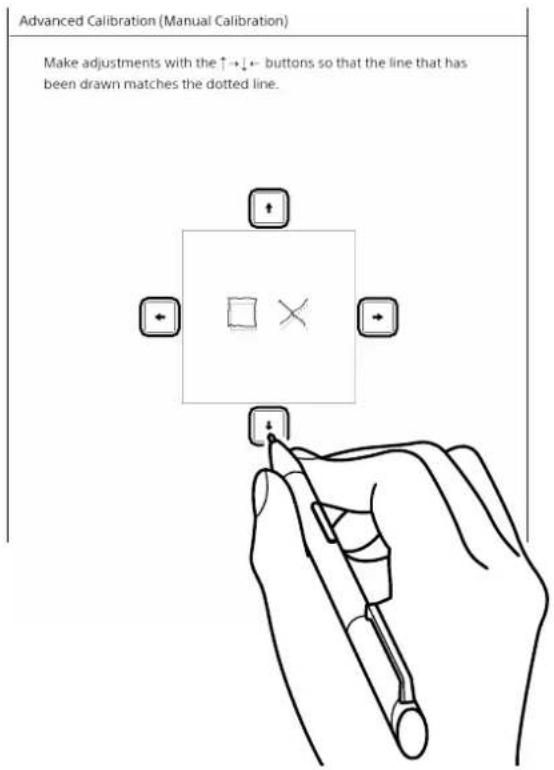
6 Tap [Next] when the position has more or less matched the dotted line.
![graph LR A["Back"] --> B["Next"]](/content/2026/05/773812/images/56609d7c6e3fe0027b89e8a2e567356a873f33fe041237e9eba87572e4a13072.jpg)
The confirmation screen is displayed.
7 Trace the dotted line again, similar to Step 3. In case you still feel that there is a gap between the dotted lines and the written lines, tap [Recalibrate] to return to the previous screen. The written line will be displayed on the confirmation screen, adjust the position again similar to Step 5. Once the position adjustment is complete, tap [Next] to trace the dotted line.
8 Tap [Save] when the dotted line and written line match.
![graph LR A["Recalibrate"] --> B["Save"]](/content/2026/05/773812/images/14341e03af07ac2a0945ee11ac0b7930aa9441eb652c79c813f51d45c58e274f.jpg)
Return to Pen Settings screen.
You can return to the Manual correction screen by tapping [Recalibrate] on the Confirmation screen. You can return to the trial writing screen by tapping [Back] and retry trial writing.
Note
- If the Pen Grip Style is changed after Advanced Calibration, the gap in the position where pen is aimed and the written position cannot be corrected, therefore you have to re-perform the Advanced Calibration.
Using PDF Forms
The Digital Paper device supports the following PDF forms, and input is possible by pen or touch (finger).
- Check box
- Radio button
- Drop down list
- List box
- Text field
Check box (☑) □
Tap to switch the check box to On/Off.
Radio button (◎) ○
Tap to select a radio button.
Drop down list/ List box
Tap to display the list.
Text field
Tap to display the text input box and on-screen keyboard.
Input text using the on-screen keyboard and tap [Save] to confirm the text input.
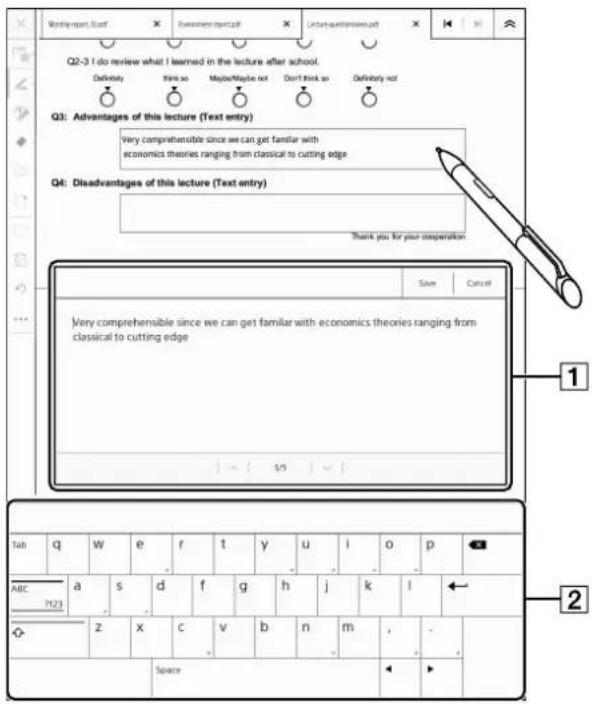
1 Text input box
2 On-screen keyboard
Tip
- This function is convenient for filling out questionnaires and tallying on the computer.
- Tap (ENTER) to insert a line feed in a text field where multiple lines can be input.
- If the text field view area is small, the text is not displayed on the PDF of the Digital Paper device. However, input values are saved in the text input box and will be recognized as text.
To confirm the input text, tap the text field to open the text input box.
Note
- In PDF files with security settings enabled, input is possible only for the PDF forms and annotations where input is allowed in the Advanced Settings. For details, please check the manual of the PDF Viewer used.
Using the [Note] Application
You can create a note.
Also, you can edit a note and insert/delete a page.
Creating a New Note
There are two methods to create a new note:
- Create a note from the list in [Note] or [Documents] tab.
- Create a note in a specified folder from [Documents].
Tip
- Newly created notes will be saved as a PDF.
- Only a list of notes is displayed from [Note] in the Home menu.
In the detailed display, the file path is displayed on the second line where you can confirm the saved location.
Creating from the [Note] or [Documents] list
1 Press the (Home) button and tap [Note] or tap the [All Documents] tab in [Documents]. The following screen is an example of a note list.
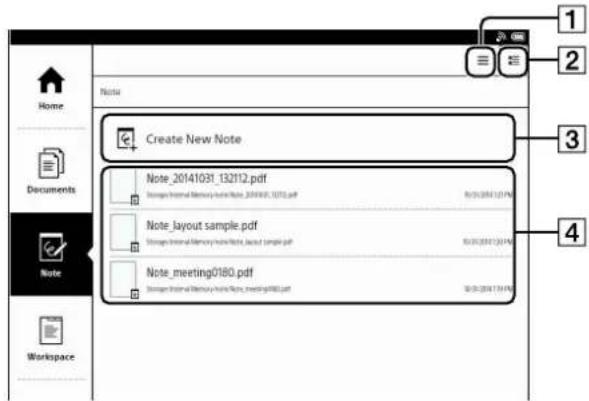
1 Displays only the icon and filename. 2 Displays the note details such as thumbnails. Displays the path of the note on the second line. 3 [Create New Note]
4 Displays the file list for notes. 2 Tap [Create New Note]. The Notebook Template selection screen is displayed. 3 Select the template to be used and tap [OK]. A new note of 1 page will be created.
Creating by specifying a folder from [Documents]
1 Press the (Home) button and tap the [Folders] tab in [Documents].
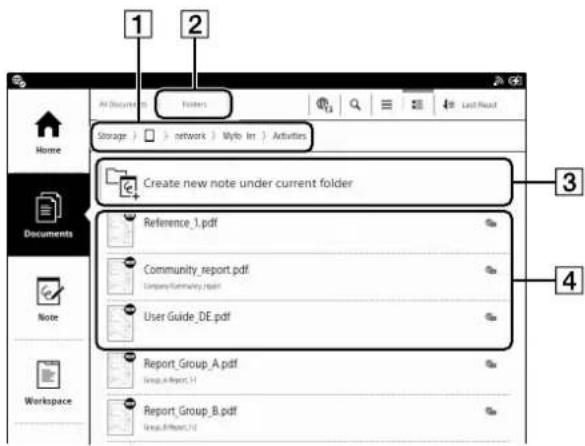
1 Folder path view 2 [Folders] tab 3 [Create new note under current folder] 4 Folders/Files list
2 Tap the folder where the note is to be saved.
You can go to other folders by tapping the displayed path of the folder.
If you want to create a new folder to save the note, press the (menu) button, and tap [Create New Folder] → enter a folder name and then tap [OK].
3 Tap [Create new note under current folder]. The Notebook Template selection screen is displayed.
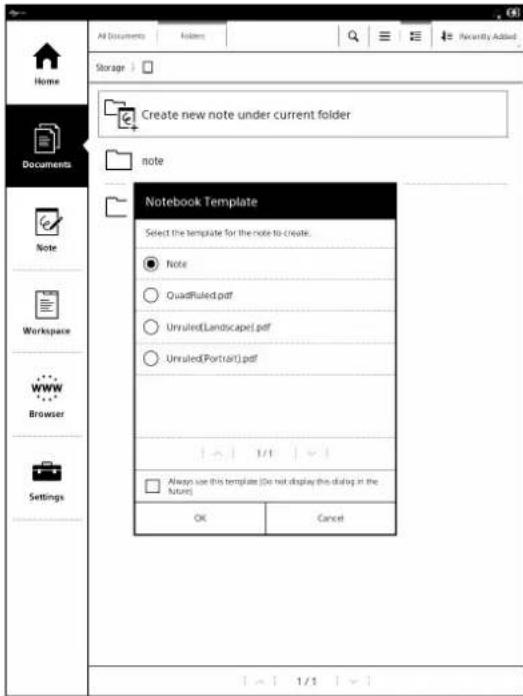
4 Select the template to be used and tap [OK]. A new note of 1 page will be created.
Tip
- If the check box for [Always use this template (Do not display this dialog in future)] is set to On on the template selection screen, the selected template is reflected in the settings and the template selection screen is not displayed from the next time onwards when creating a note.
- If you want to display the template selection screen, tap [Settings] → [Application Preferences] → [Note Template] from the application list, and select [Select a template every time (display a dialog when a new note is created)].
- You can also set the template as a fixed template from the Settings menu beforehand (page 56).
Changing Filename of a Note
A note is automatically named when created newly. However, you can later rename the note.
1 Open the note which you want to rename.
2 Press the (Menu) button and tap [Change File Name].
3 Enter the file name using the on-screen keyboard and tap [OK].
To change the file name from the notes list Tap & hold the note to change the file name, and tap [Rename] from Options menu.
Inserting a New Page to the Last Page of Note
1 Swipe the screen on the last page of the note or go to the last page from toolbar. 1 page is automatically added to the last page of note.
Inserting a Page in the Middle of the Note
1 Open the created note.
![graph TD A["Diagram"] --> B["Handwritten"] B --> C["Write things down"] C --> D["Thoughts will bigger"] D --> E["Results"] F["Plan"] --> G["Plan Sheet"] G --> H["IDEA"] I["Manager"] --> J["Digitalization"] J --> K["DATA BASE"] K --> L["SAVE!!"]](/content/2026/05/773812/images/ab603e0ce6ddcce2e4badd038d51fb54c837c0dac24ab266688ae0add26d8e6b.jpg)
2 Tap •••• (More)→ [Insert New Page] on the toolbar. A new page is inserted before the currently displayed page.
Deleting a Note Page
1 Tap ●●● (More) ▶ [Delete Current Page] on the toolbar. 2 "Delete current page?" Tap [Yes] on this screen. Currently displayed page will be deleted.
Note
- Be careful since the deleted page cannot be restored.
Setting the Notebook Template
You can set a template beforehand when creating a new note.
1 Press the (home) button and tap [Settings]. 2 Tap [Application Preferences] → [Notebook Template]. 3 Tap the template to be used.
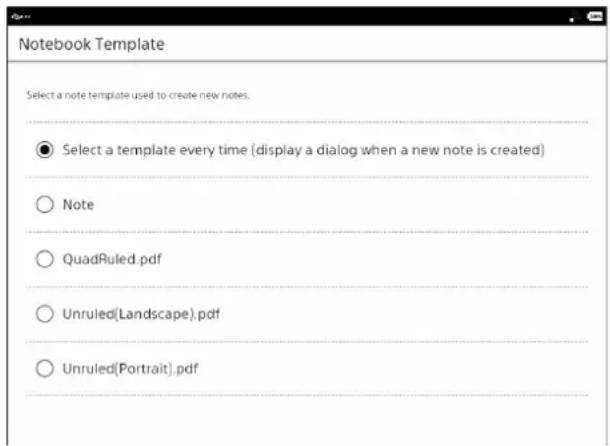
Note
- If you set the type of template to be used at this screen, the template format for new notes gets fixed.
Tip
- If you want to display the template selection screen each time a new note is created, tap [Display template option each time a note is created].
Adding Notebook Template
You can use your favorite PDF as a template.
1 Connect the Digital Paper device to your computer with the supplied USB cable. 2 Save the PDF to be used as a template in the [note_template] folder in the internal memory of the device. 3 Press the (home) button of the device and tap [Settings] → [Application Preferences] → [Note Template], then tap the saved PDF.
Note
- Turn off password security for the PDF file to be used as a template. If adding annotations to the template PDF file is not allowed, users cannot add annotations to the notes created from the template.
Tip
- When adding a new page to the note, the first page of PDF used as a template is added.
- You can also use the Notebook Templates by downloading them from the product page of Digital Paper device. http://www.sony.com/digitalpapersupport
Selecting the Destination to Save the Note (Synchronization with Server)
When creating a new note from the note list, if you specify the save destination as a folder from the network drive, then you can synchronize the created note (page 73).
Using Screen Transfer
You can project the screen of Digital Paper device on a computer.
By using this function you can work while sharing the screen of Digital Paper device on the monitor during group work or conferences.
Note
- The computer dedicated application and driver need to be installed when using the [Screen Transfer] function.
For details, check the information provided on Digital Paper device's product page.
http://www.sony.com/digitalpapersupport
![graph TD A["USB cable"] --> B["Display cable"] B --> C["Share"] style A fill:#f9f,stroke:#333 style B fill:#ccf,stroke:#333 style C fill:#cfc,stroke:#333](/content/2026/05/773812/images/0e112b9acf9f85b360f44c7251398287f679cc2ecdb34f69f4388cdd83130775.jpg)
1 Press the (home) button on the device, tap [Settings] → [System Management] → [Screen Transfer], and check the check box. 2 Connect the device to your computer using the supplied USB cable. 3 Start the dedicated application "DP Display Output" installed on your computer. Contents displayed on the Digital Paper device are displayed on the computer.
Note
- It may take some time to display the contents of Digital Paper device on your computer.
Tip
- The [Screen Transfer] function allows you to charge the device through your computer while operating the device.
- When transferring documents, change the [Screen Transfer] settings to Off and remove the USB cable once.
When the USB is connected to the computer again, [This device is correctly recognized by the
computer.] is displayed and transfer is possible. (Page 74)
Network
Setting up a Wi-Fi® Network
You must turn on the wireless LAN (Wi-Fi) network settings in the Digital Paper device to connect to the Wi-Fi network.
Tip
- Supported security methods are WEP, WPA/WPA2 PSK, and 802.1x EAP.
Wi-Fi status icons
The following icons in the status bar indicate the status of the Wi-Fi connection.
| Icon Status | |
| Wi-Fi is activated. The number of bars indicates the Wi-Fi signal strength. | |
| Wi-Fi is in standby mode (page 72). | |
| There is no Wi-Fi access point. | |
| The [Wi-Fi] setting is turned off. |
Preparing to Set Up a Wi-Fi Connection
Before connecting to a Wi-Fi access point, turn on [Wi-Fi] on the Digital Paper device.
1 Press the ⬆ (Home) button → tap [Settings] → [Wireless Network Settings].
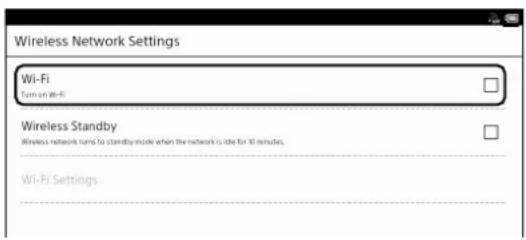
2 Tap [Wi-Fi] to check the check box.
A check indicates that [Wi-Fi] is turned on. Wi-Fi is turned on by default.
Tip
- Alternatively, you can tap the status bar, then tap [Wi-Fi] to turn on the Wi-Fi (page 18).
- Turn off [Wi-Fi] when it is not in use to extend the battery life of the device (page 72).
- Tap [Wireless Standby] and set the check box on to extend the battery-usage time (page 72).
Selecting a Connection Type
Depending on your Wi-Fi environment, connect to an access point via one of the following methods. The following questions will determine the most suitable case for setting the Wi-Fi network connection.
Home Hotspot and Office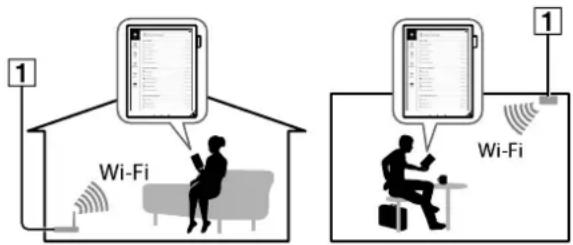
1 Internet
![graph TD A["1. Are you using a home or office Wi-Fi connection?"] -->|YES| B["2. Is your Wi-Fi router WPS* compatible?"] A -->|No| C["Case D"] B -->|YES| D["3. Does your Wi-Fi router have a WPS button?"] B -->|No| E["Case C"] D -->|YES| F["Case A"] D -->|No| G["Case B"]](/content/2026/05/773812/images/42d1448bcaf60dc6c883ffa3eb4496a31bddad82fa321e10dfe9bd0924ae8296.jpg)
* WPS: Wi-Fi Protected Setup
Note
- Customers shall be responsible for paying the applicable Internet connection and communication fees when using a Wi-Fi router.
- Wireless communication exposes risks to wiretapping, manipulation, and illegal invasion into the network.
Unless absolutely necessary, Sony recommends
that you use safe security methods (WPA/WPA2-PSK, etc.) and avoid non-secure or WEP access.
Case A
Connecting to a Wi-Fi router with a WPS button (page 59)
Case B
Connecting to a Wi-Fi router with WPS PIN input (page 59)
Case C
Connecting to a Wi-Fi router by selecting a network name (page 60)
Case D
Connecting to a public Wi-Fi network (page 60)
Other than case A to D (Manual setup)
Set up a Wi-Fi network connection manually when connecting to an access point for which the SSID is hidden (page 61).
Case A: Connecting to a Wi-Fi router with a WPS button
The Digital Paper device is compatible with WPS (Wi-Fi Protected Setup), which lets you easily make a Wi-Fi connection using the "WPS" button on your WPS-compatible Wi-Fi router.
1 Turn on [Wi-Fi] on the device (page 58).
2 Tap [Wi-Fi Settings].
3 Tap [WPS Push-Button Configuration] → [Start].
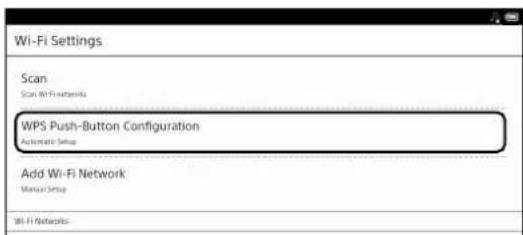
4 On your Wi-Fi router, press the "WPS"* button within 2 minutes.
The device automatically attempts to establish a Wi-Fi connection.
* The name of the button on your Wi-Fi router may vary.
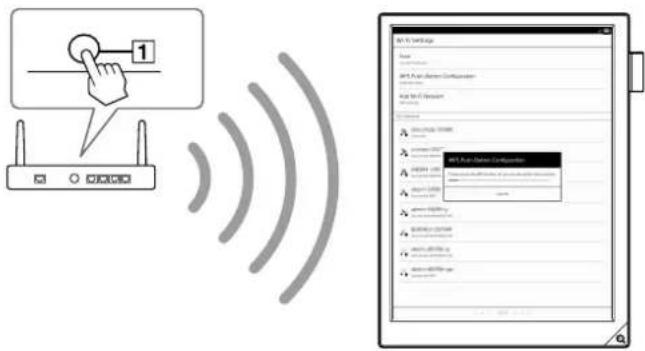
1 "WPS" button
5 After the setup completion screen appears, tap [OK].
You can check the Wi-Fi connection status by the Wi-Fi icon on the status bar (page 58).
For details on Wi-Fi settings, see page 63.
Case B: Connecting to a Wi-Fi router with WPS PIN input
If your WPS-compatible Wi-Fi router does not support push-button configuration, connect by using a PIN (Personal Identification Number).
1 Turn on [Wi-Fi] on the device (page 58).
2 Tap [Wi-Fi Settings].
3 Tap [Add Wi-Fi Network] → [WPS PIN Method] → [Start].
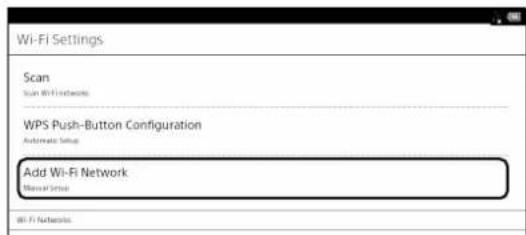
A PIN code will be shown on the screen of the device.
4 Enter the PIN code into your Wi-Fi router.
Refer to your Wi-Fi router's instruction manual for details.
5 Tap [OK] on the screen of the device.
After a moment, the device connects to the Wi-Fi network automatically.
You can check the Wi-Fi connection status by the Wi-Fi icon on the status bar (page 58).
For details on Wi-Fi settings, see page 63.
Case C: Connecting to a Wi-Fi router without WPS support
Connect to one of the available Wi-Fi networks listed.
Note
- Depending on the security method of the Wi-Fi router, a password may be required.
- For an access point that is secured by 802.1x EAP, additional settings are required. For details, see "Other than case A to D" (page 61).
1 Turn on [Wi-Fi] on the device (page 58).
2 Tap [Wi-Fi Settings].
3 Tap [Scan].
The available access points are listed under [WiFi Networks].
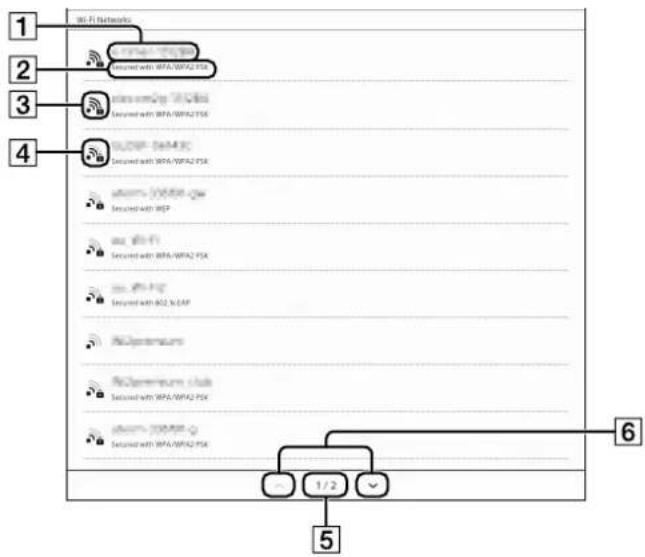
| Number Description | |
| 1 | Network SSID (Service Set Identifier) |
| 2 | Security method |
| 3 | Secured Wi-Fi network.When connecting to the network, enter the password. A password may also be called a WEP key, WPA key, encryption key, network key, etc. |
| 4 | Unsecured Wi-Fi network |
| 5 | Page indicator |
| 6 | Page turn icons |
4 Tap your Wi-Fi router's SSID in the [Wi-Fi Networks] list.
For details on the Wi-Fi router's SSID, refer to your Wi-Fi router's instruction manual.
5 If prompted for a password, tap the input area and enter the password using the on-screen keyboard.
Perform steps 5-7 in "Setting the proxy server" (page 62) when setting up the proxy server settings in every Wi-Fi router.
Tip
- You can confirm the password to be entered by turning on the [Show Password] settings.
6 Tap [Connect].
The device connects to the Wi-Fi network.
You can check the Wi-Fi connection status by the Wi-Fi icon on the status bar (page 58).
For details on Wi-Fi settings, see page 63.
Case D: Connecting to a public Wi-Fi network
Connect to one of the available public Wi-Fi networks.
Note
- Connecting to a public Wi-Fi network may require a user ID and password. For details, contact the homepage, etc., of the Wi-Fi service provider.
1 Turn on [Wi-Fi] on the device (page 58).
2 Tap [Wi-Fi Settings].
3 Tap [Scan]
The available access points are listed under [WiFi Networks].
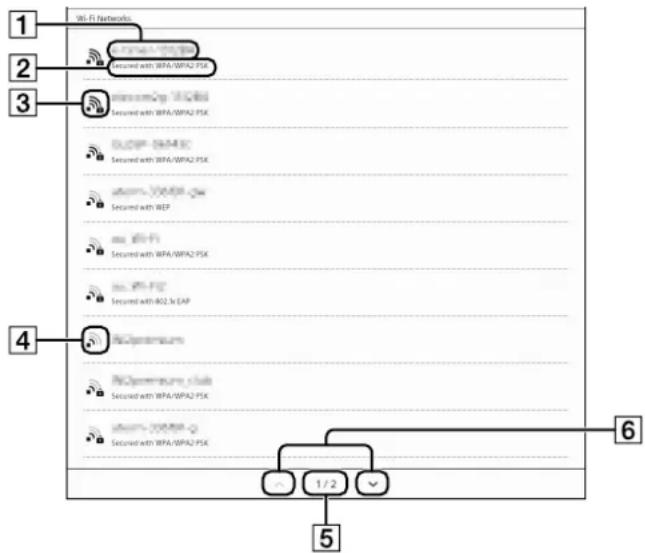
| Number Description | |
| 1 Network | SSID (Service Set Identifier) |
| 2 Security | method |
| 3 Secured | Wi-Fi network.When connecting to the network, enter the password. A password may also be called a WEP key, WPA key, encryption key, network key, etc. |
| 4 Unsecured Wi-Fi network | |
| 5 Page indicator | |
| 6 Page turn icons | |
4 Tap your Wi-Fi router's SSID in the [Wi-Fi Networks] list. 5 If prompted for a password, tap the input area and enter the password using the on-screen keyboard. 6 Tap [Connect].
The [Browser] application may start automatically to connect to a public access point. Otherwise, press the home button, then tap [Browser].
7 Follow the instructions shown on the [Browser] screen to complete the Wi-Fi connection.
You can check the Wi-Fi connection status by the Wi-Fi icon on the status bar (page 58).
For details on Wi-Fi settings, see page 63.
Other than case A to D: Manually connecting to an unlisted access point
When connecting to a Wi-Fi network in an office or group, check with the network administrator for details on installing the certification and proxy server settings.
When connecting to a Wi-Fi network at home, it is not necessary to install certification, or perform proxy server settings. See "Manually setting a Wi-Fi connection" (page 62).
Installing the certification
Transfer and install the CA certificate and user certificate from the computer to the Digital Paper device. It only requires the user certificate to use TLS under 802.1x EAP.
1 Connect the Digital Paper device to your computer using the supplied USB cable. Then transfer the CA certificate and user certification to the root folder of internal memory. To transfer the certification, see page 21. 2 Turn on [Wi-Fi] on the device (page 58). 3 Tap [Wi-Fi Settings]. 4 Press the ≡ (Menu) button → tap [Advanced]. 5 Tap [Install certificates].
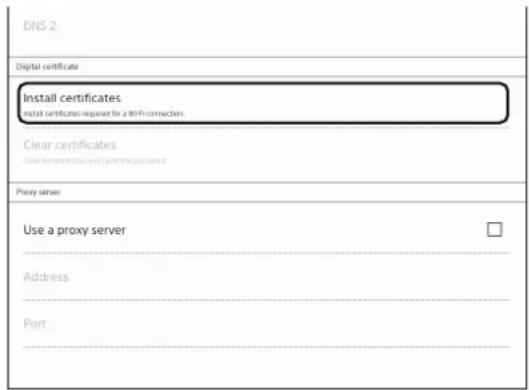
6 Tap the certificate that you want to install.
7 When selecting the user certificate, enter the password using the on-screen keyboard, then tap [OK]. 8 Enter the certification name using the on-screen keyboard, then tap [OK].
Press the (Back) button to close the settings.
Setting the proxy server
When connecting via proxy server, settings are necessary.
1 Turn on [Wi-Fi] on the device (page 58). 2 Tap [Wi-Fi Settings]. 3 Tap your Wi-Fi router's SSID in the [Wi-Fi Networks] list.
If you select a connected Wi-Fi network, tap [Edit these network settings].
4 If prompted for a password, tap the input area and enter the password using the on-screen keyboard.
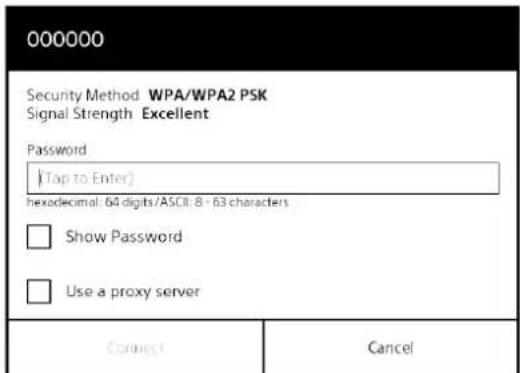
5 Tap [Use a proxy server]. The check box is checked.
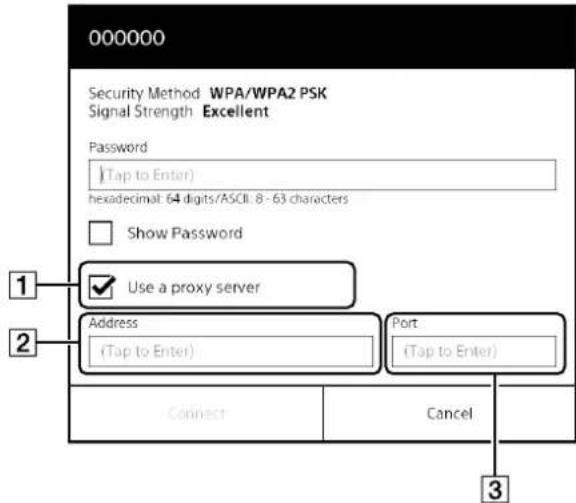
1 [Use a proxy server] 2 [Address] 3 [Port] 6 Tap [Address] and input a valid address of the proxy server using the on-screen keyboard. 7 Tap [Port] and input a valid port number using the on-screen keyboard. 8 Tap [Connect].
If you have selected a connected Wi-Fi network in Step 3, tap [Save].
Manually setting a Wi-Fi connection
1 Turn on [Wi-Fi] on the device (page 58). 2 Tap [Wi-Fi Settings]. 3 Tap [Add Wi-Fi Network].
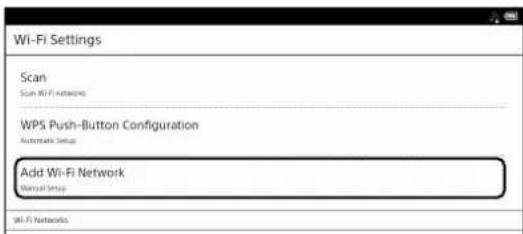
4 Tap [Manual Registration].
5 Register the settings.
The option items differ depending on the security method. For further setting information, contact the network administrator.
| Item Description | |
| [SSID] Enters the | SSID (Service Set Identifier), using the on-screen keyboard. |
| [Security Method] | Selects the security method corresponding to the Wi-Fi router. |
| [EAP method]* Selects the authentication method. | |
| [Phase 2 authentication]* | Selects Phase 2 authentication. |
| [CA certificate]* Selects the CA certificate. | |
| [User certificate]* | Selects the user certificate when [TLS] is selected in [EAP method]. |
| [Identity]* Enters the user ID using the on-screen keyboard. | |
| [Anonymous identity]* | Enters an anonymous user ID using the on-screen keyboard when [PEAP] is selected in [EAP method]. |
| [Password] When connecting to a secured Wi-Fi network, enter the password using the on-screen keyboard. A password may also be called a WEP key, WPA key, encryption key, network key, etc. It is not necessary to enter the password when [TLS] is selected in [EAP method]. | |
| [Show Password] | You can confirm the password to be entered by turning on the setting. |
| [Use a proxy server] | You can input the [Address] and [Port] by turning on the setting. |
* Appears only when [802.1x EAP] in [Security Method] is selected.
6 Tap [Save].
The Digital Paper device connects to the wireless network.
You can check the Wi-Fi connection status by the Wi-Fi icon on the status bar (page 58).
For details on Wi-Fi settings, see page 63.
General notes on Wi-Fi connectivity
- Tap the network SSID (network identifier) in the [WiFi Networks] list to view the connection information.
- Before setting the Wi-Fi network connection, refer to the instructions of the Wi-Fi router, and check the SSID and security method.
- You can configure up to 20 Wi-Fi network connections.
- The device does not support certain custom Wi-Fi network security systems. For details, refer to your Wi-Fi router's instruction manual.
- If you change the password of the connected Wi-Fi router, enter the new password and reconnect it.
- To use a static IP address, press the (Menu) button in [Wi-Fi Settings] → tap [Advanced] → tap [Use Static IP]. Select the option and enter the address. When the setting is completed, press the → (Back) button to return to [Wi-Fi Settings].
Do not change this setting unless instructed to by a network administrator, as the Wi-Fi network connection may not be established correctly.
- If the SSID is hidden on the Wi-Fi router, it will not be displayed in the [Wi-Fi Networks] list of the device. In this case, manually set up the Wi-Fi network.
- The access point may filter access by MAC address. Check the MAC address by pressing the (Home) button → tap [Settings] → [About] → [Device Information], then register the MAC address with the access point to establish a Wi-Fi connection.
- To check the network speed and security method for the connected Wi-Fi network, press the ≡ (Menu) button in [Wi-Fi Settings] → tap [Connection Information].
- An access point, once configured, can be connected to again simply by tapping it in the [Wi-Fi Networks] list and tapping [Connect].
Using the Network Drive
By using the WebDAV protocol, you can access a specific network drive to synchronize documents between the Digital Paper device and the network drive, or transfer documents from the device to the network drive. Connect to a Wi-Fi network beforehand (page 58).
Setting the Network Drive
You can set the log in information, On/Off of Auto Sync, and download destination. Check with the network administrator for setup information.
1 Press the ⬆ (Home) button → tap [Settings] → [Server Settings]. 2 Tap [Network Drive Settings]. 3 Tap [Server Settings] → tap the input area and enter each item using the on-screen keyboard.
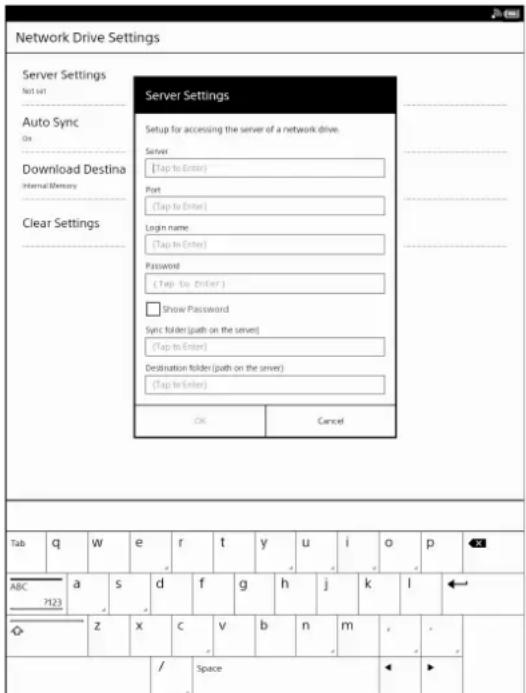
| Item Description | |
| [Server] Enters the URL of the network drive.* | 1 |
| [Port] Enters the port number.* | 2 |
| [Login name] Enters the username to log in the network drive. | |
| Item Description | |
| [Password] Enters | the password to log in the network drive. |
| [Sync folder (path on the server)] | Enters the sync folder (relative path*3) for the network drive. |
| [Destination folder (path on the server)] | Enters the destination folder (relative path*3) when transferring to the network drive. |
*1 Server name Enter the URL name beginning with "https:" or "http:". *2 Port Number (Reference) In general, when you access a server through "http:", specify 80 as the port number, and when you access a server through "https:", specify 443. When connecting to a WebDAV server, check with the server administrator for details. *3 Relative path under the server URL Specify the relative path of the folder under the server URL.
If the server configuration is as follows:![graph TD A["/ / Destination Folder"] --> B["/user1" sync folder"] A --> C["/user2""]](/content/2026/05/773812/images/83cf1d2bba6d5612b2d707ff58c98f374b0e3267551edc922b632b88afa34153.jpg)
- Input "/" to configure the Destination Folder.
- Input "/user1" to configure the sync folder.
4 Tap [OK] when the setting is finished. 5 Tap [Auto Sync], then select [On] or [Off].
When [Auto Sync] is set to [On], the Digital Paper device and network drive are synchronized about every 90 minutes.
6 Tap [Download Destination] and then select the download destination of the file synchronized with the network drive.
When setting [SD Card] as the destination, insert a microSD card beforehand.
Tip
- If you change [Server Settings] or [Download Destination], the previous synchronized documents
will be deleted. Before changing it, synchronize the documents in the Digital Paper device with the network drive.
Synchronizing the Digital Paper Device with the Network Drive
- A document added/refreshed/deleted and then synchronized in the Digital Paper device will be added/refreshed/deleted in the network drive.
- A document added and then synchronized in the network drive will be added in the Digital Paper device.
- If a document is refreshed or deleted in the network drive and then synchronized, the change will not be reflected in the Digital Paper device.
When refreshing or deleting a document, perform the action in the Digital Paper device.
1 Connect to the Wi-Fi network. 2 Press the ↑ (Home) button → tap [Documents]. 3 Tap [Folders] and select [Storage] in folder path view → select a network.
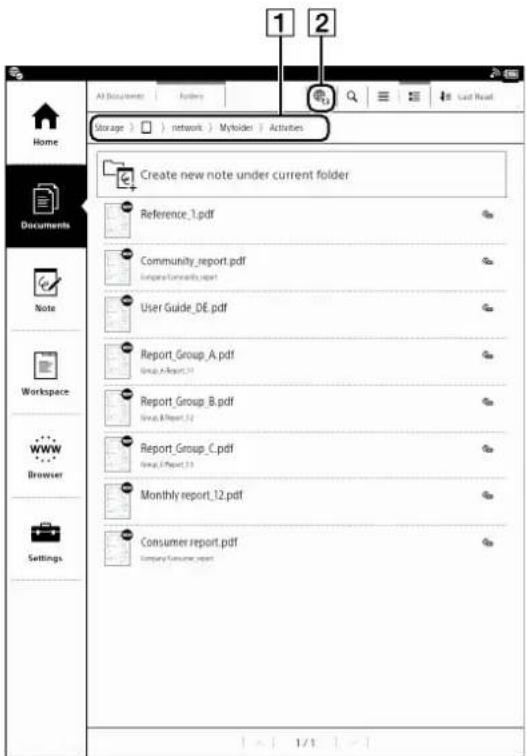
1 Folder path view
2 Sync icon
4 Tap (Sync).
The documents in the folders of the Digital Paper device and the network drive are synchronized. The status or result of synchronization is displayed in the status bar (page 18). To check for detailed information, tap the status bar to display the notification window.
Tip
- When [Auto Sync] is set to [On], the Digital Paper device and the network drive is synchronized automatically (page 64).
Note
- Folder names and file names are not case-sensitive for the synchronization.
(Example: "aaa.pdf" and "AAA.pdf" are considered to be the same file)
Therefore, in the synchronized folder of the network drive, do not create folders or files that are case-sensitive (upper/lower case).
- If you use the punctuation below for the folder name or file name, it may fail to synchronize.
":" (colon), ";" (semicolon), "/" (slash), "\" (backslash), "|" (pipe), "," (comma), "*" (asterisk), "?" (question mark), " " (quotation mark), "<", ">" (angle brackets)
Cancel the synchronization
1 Tap (Cancel Sync) during the synchronization.
To cancel auto synchronization, press the (Home) button → tap [Documents] → 📋 (Cancel Sync).
Opening a Synchronized Document in the Digital Paper Device
You can open a synchronized document from [Documents] in the Digital Paper device.
1 Press the ↑ (Home) button → tap [Documents].
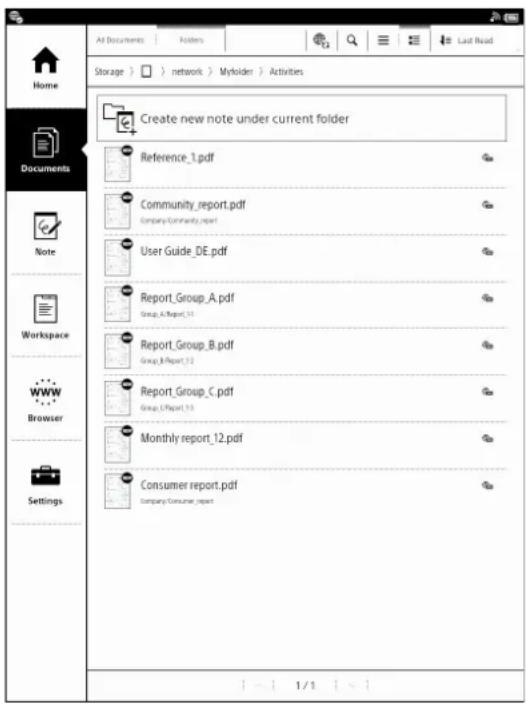
2 Tap the document you want to open.
The document opens.
For more details on opening a document, see page 30.
Tip
- You can open the document from [All Documents] and [Folders].
- For details on document lists, see page 23. For details on the page control, see page 31.
Deleting a Synchronized Document
When a synchronized document is deleted in the Digital Paper device, the document is deleted from the network drive the next time synchronization is performed.
1 Press the ⬆ (Home) button → tap [Documents].
2 Tap and hold the document you want to delete and tap [Delete] from the option menu. The confirmation screen is displayed.
3 Tap [Yes].
Tip
- When deleting multiple documents at one time, press the menu button → tap [Delete]. For details, see page 28.
- A document deleted and synchronized in the network drive will not be deleted in the Digital Paper device.
Using Menu Items
You can transfer or delete a document when you press the ☐Menu) button on the synchronized documents list.
For more details on the menu items, see page 25. Also, if you tap and hold a document to display the option menu, you can select how to open the document or rename it.
For more details on the option menu, see page 25.
Browser
The Digital Paper device has a Web browser that enables you to visit Web pages and download PDF files. Connect to the Wi-Fi network beforehand (page 58).
Browsing the Web
1 Connect to the Wi-Fi network. 2 Press the ⬆ (Home) button → tap [Browser]. 3 Navigate to a Web page.
- Tap 📋 (Bookmarks) → tap a Web page, or
- Tap the URL box and type the URL address using the on-screen keyboard, and tap [Go].
4 Browse the Web page.
- Swipe your finger or use the stylus on the touchscreen to scroll up/down a Web page.
- Tap and drag to move the view area.
- Press the (Back) button to return to the previous Web page.
Note
- You must agree to the terms and conditions before using the [Browser] application. Please read the terms and conditions carefully. When you tap [Accept], the [Browser] application opens.
Tip
- To return to your last read document, press the ≡ (Menu) button → tap [Return to Viewer].
Zooming in on the Web
- Pinch out to zoom in.
- Pinch in to zoom out.
- Double-tap to fit the page to the window size.
To exit zoom mode, pinch in or double tap again. If scrolled while in zoom mode, the zoom buttons are shown at the bottom-left of the screen.
Downloading
When you click a download link, the item will be downloaded onto the device. Only the PDF files (.pdf) can be downloaded.
1 Tap the link on the Web page.
Downloaded files are stored in [Documents].
Tip
- You can also tap and hold the link → tap [Save Link] to download a linked file.
Viewing download progress
You can check the download progress and result.
1 Check the download progress by the icon on the status bar.
Tap the status bar to open the notification window (page 18).
The document currently downloading is listed under [Ongoing].
Documents that have been downloaded or failed to download are listed under [Notifications].
To return to the Web page, press the (Back) button.
Canceling a download
You can cancel a download that is currently in progress.
1 While downloading a document, press the (Menu) button → tap [Downloads].
The download history opens.
You can also tap the status bar ➤ tap the item currently downloading under [Ongoing].
2 Tap and hold the document to cancel → tap [Cancel Download], or press the [menu] button → tap [Cancel All Downloads].
To return to the Web page, press the (Back) button.
Opening a downloaded file
You can view files downloaded from a Web page. Downloaded files are stored in [Documents].
1 While viewing a Web page, press the (Menu) button → tap [Downloads]. 2 Tap the file to open, or tap and hold the document → tap [Open]. The file opens.
Deleting a downloaded file
You can delete downloaded files from the Digital Paper device.
1 While viewing a Web page, press the (Menu) button → tap [Downloads]. 2 Tap and hold the document to delete → tap [Delete]. The confirmation screen is displayed. 3 Tap [OK]. The document is deleted from the Digital Paper device.
Using Multiple Windows
Opening a new window
1 While viewing a Web page, press the (Menu) button, tap ➤ [Windows] ➤ [New Window]. Up to 3 windows can be open at one time. If [New Window] is not displayed, tap [Close] to close a currently open window.
Opening a link page in a new window
You can open a link page in a new window without closing the current window.
1 Tap and hold a link ▶ tap [Open in New Window]. The link opens in a new window.
Up to 3 windows can be open at one time. You cannot open a new window if 3 windows are currently open.
Changing the browser window in view
When you have more than one browser window open, you can change the window in view.
1 While viewing a Web page, press the (Menu) button → tap [Windows]. 2 Select the window you want to view.
Closing the browser window
You can close browser windows.
1 When viewing a Web page, press the (Menu) button → tap [Windows]. 2 Tap [Close]. The window is closed.
Tip
- When all windows are closed, the browser home page is automatically opened.
Bookmarks and History
Bookmarking a Web page
You can bookmark your favorite Web pages to review them quickly.
1 Visit the Web page that you want to bookmark. 2 Add the current site to the bookmarks.
- Press the ≡ (Menu) button → tap [Add Bookmark], or
- Tap 📋 (Bookmarks) next to the URL box ➤ tap [Add bookmark...].
3 If you want to change the name, tap the input area under [Name] and enter a new name using the on-screen keyboard. 4 Tap [OK].
The current Web page is added to the bookmark list.
Opening a bookmarked Web page
You can quickly return to your favorite Web pages using bookmarks.
1 When viewing a Web page, tap (Bookmarks) next to the URL box.
The bookmark list opens.
2 Tap the Web page to open.
Editing a bookmark
You can change a bookmark name or address (URL) if necessary.
1 When viewing a Web page, tap (Bookmarks) next to the URL box. The bookmark list opens. 2 Tap and hold the bookmark to edit ➤ tap [Edit Bookmark]. 3 Tap the input area under [Name]/[Location] and change the name/URL using the on-screen keyboard. 4 Tap [OK].
To return to the Web page, press the (Back) button.
Deleting bookmarks
You can remove bookmarks from the bookmark list.
1 When viewing a Web page, tap (Bookmarks) next to the URL box. The bookmark list opens. 2 Tap and hold the bookmark to remove → tap [Delete Bookmark]. 3 Tap [OK].
The bookmark is removed from the list. To return to the Web page, press the (Back) button.
Opening a previously visited Web page
You can view a list of Web pages that you have previously visited.
1 When viewing a Web page, tap (Bookmarks) next to the URL box. 2 Tap [History].
A list of Web pages that you have previously visited opens.
3 Tap the document to open in the browser.
Deleting browsing history
You can remove entries from the browsing history.
1 When viewing a Web page, tap (Bookmarks) next to the URL box. 2 Tap [History].
A list of Web pages that you have previously visited opens.
3 Tap and hold the entry to remove from the list → tap [Remove from History].
To return to the Web page, press the (Back) button.
Tip
- You can delete all the browsing history by pressing the menu button and tapping [Clear History] in Step 3.
Browser Settings
You can change the following browser settings to your preference. When viewing a Web page, press the ≡ (Menu) button and tap [Settings] to change the settings.
| Setting Description | |
| [Default Zoom] Sets the default zoom ratio. [Medium] is set by default. | |
| [Open Pages in Overview] | Opens the page scaled to the window size. Enabled by default. |
| [Text Encoding] Sets the default text encoding.[Unicode (UTF-8)] is set by default. The browser supports the following encodings:• Latin-1 (ISO-8859-1)• Unicode (UTF-8) | |
| [Block Pop-up Windows] | Blocks pop-up windows. Enabled by default. |
| [Load Images] Loads images on a Web page. Enabled by default. | |
| [Auto-fit Pages] | Formats Web pages to the window size. Enabled by default. |
| [Enable JavaScript] | Enables JavaScript. Enabled by default. |
| [Set Home Page] | Sets the default Web page to display as the home page. |
| [Page Information] | Displays the details of a Web page. |
| [Clear Cache] | Empties the cache. |
| [Clear History] | Deletes the browsing history. |
| [Accept Cookies] | Accepts cookies from Web pages. Enabled by default. |
| [Clear All Cookie Data] | Removes all cookies. |
| [Remember Form Data] | Allows the browser to remember the search and form history. Enabled by default. |
| [Clear Form Data] | Empties the search and form history. |
| [Remember Passwords] | Allows the browser to remember entered passwords. Enabled by default. |
| [Clear Passwords] | Deletes passwords saved by the browser. |
| [Reset to Default] | Restores the default settings, and deletes all browser data. |
| [Points to note when using Internet Browser] | Displays the terms and conditions of use of the browser. |
To return to the Web page you were browsing, press the ↩ (Back) button.
Using Menu Items
Below is a list of option items available when you press the (Menu) button from a browser window.
| Option Description | |
| [Browse Home] Displays the home page (page 69). | |
| [Refresh]/ [Stop] | Refreshes the content displayed on a Web page. While refreshing, [Stop] will be displayed, and you can stop the refreshing. |
| [Forward] Advances to a previously viewed page. | |
| [Return to Viewer] | Closes the [Browser] application and returns to the last read page of your last read document. |
| [Windows] Opens the window list (page 68). | |
| [Add Bookmark] | Bookmarks a Web page (page 68). |
| [Page Information] | Opens the page information. |
| [Downloads] Opens the download history (page 67). | |
| [Settings] Changes the browser settings (page 69). | |
Using ShareFile
You can use the ShareFile application on the Digital Paper device.
For details about ShareFile, visit the following URL:
http://www.sharefile.com
Enabling ShareFile
1 Press the ⬆ (Home) button → tap [Settings]. 2 Tap [Application Preferences] → [Enable ShareFile]. 3 Select [Enable] and tap [OK]. The [ShareFile] icon appears on the [Home] screen and enables you to use ShareFile.
Using the ShareFile Application
1 Press the ⬆ (Home) button → tap [ShareFile].
The application launches, and the ShareFile screen is displayed.
Follow the instructions on the screen to operate ShareFile.
Note
- If you perform [Reset Device], the ShareFile setting returns to [Disable].
Settings
Changing the Settings
Changing the Settings
The [Settings] application allows you to personalize the Digital Paper device, set the date and time, configure the Wi-Fi connection, and other device settings.
General Setting
| Setting Description | |
| [User Name] Sets the user name to help identify the user of the Digital Paper device, and the author name of an annotation.The user name will be shown in the top-right corner of the [Home] screen.TipWhen [Limit Editing Annotations](page 51) is set to On, be sure to set the user name here. | |
Wireless Network Settings
| Setting Description | |
| [Wi-Fi] Turns Wi-Fi | on/off (page 58). |
| Setting Description | |
| [Wireless Standby] | Wireless standby helps avoid unnecessary battery consumption caused by wireless communication. If you do not perform any wireless operations for more than 10 minutes, the wireless feature automatically enters standby mode.NoteAccessing the [Browser] application from wireless standby mode takes more time than accessing when the Digital Paper device is connected to the wireless network.If you deactivate wireless standby, the Digital Paper device retains a wireless connection at all times, resulting in higher battery consumption. |
| [Wi-Fi Settings] Wi-Fi settings enable the Digital Paper device to use local Wi-Fi networks to connect to the Internet (page 58). | |
Server Settings
Network Drive Settings
| Setting Description | |
| [Server Settings] Sets | ts the network drive settings(page 64). Check with the network administrator for setup information.TipIf you change [Server Settings], the previous synchronized documents in the network drive will be deleted. Before changing, it is recommended to synchronize the documents in the Digital Paper device with the network drive. |
| [Auto Sync] Sets Auto | to Sync to [On] or [Off]. When [Auto Sync] is set to [On], the Digital Paper device and network drive are synchronized about every 90 minutes. |
| [Download Destination] | Sets the destination for synchronized documents downloaded from the browser. Select either [Internal Memory] or [SD Card].NoteIf you change the destination, the documents in the previous save destination will be deleted.Sony recommends that you synchronize the documents in the Digital Paper device with the network drive, before changing the save destination. |
| [Clear Settings] Deletes the network server settings.NoteIf you select [Clear Settings], all the files in the Digital Paper device synchronized with the network drive will be deleted. | |
Application Preferences
| Setting Description | |
| [Documents] Sets preferences for all documents.[Refresh Display]: Refreshes the display at each page turn.[Limit Editing Annotations]: Set to On if you want to limit the editing or erasing of annotations created under other user names.[Toolbar Position]: Sets the toolbar setting to left or right.TipThe toolbar is displayed at the left side of the screen by default. Left-handed people may prefer to display the toolbar at the right side of the screen. | |
| [Enable Web Browser] | Sets whether to enable the Web browser. |
| [Browser Settings] Sets the browser preferences. | |
| [Download Destination for Web Browser] | Sets the destination for files downloaded from the browser.Select [Internal Memory] or [SD Card]. |
| Setting Description | |
| [Notebook Template] | Selects a note template used when creating a new note. You can select only one template.TipYou can add your favorite PDF file as a template (page 56).You can set [Select a template every time (display a dialog when a new note is created)] and select a template from the list when creating a new note. |
| [Settings for Destination of Saving Note] | As a destination for saving a newly created note, you can specify a folder from the network drive.TipYou can specify the folder only when the use for the network drive has been set. |
| [Enable ShareFile] Sets whether to enable the ShareFile application. Select [Enable] to use the application from the [Home] screen. | |
Date & Time Settings
| Setting Description | |
| [Date] Sets the date. | |
| [Time] Sets the time. | |
| [24-Hour Format] Checks to display time in 24 hour-format. | |
| [Time Zone] Sets the time zone. | |
| [Time Server] Selects NTP Server used to match the clock of the Digital Paper device.[Public Time Server]: Publicly available NTP Server[Input the Server Address]: Any NTP Server (input the address manually)NoteSetup a Wi-Fi network beforehand(page 58). | |
Tip
- When the Wi-Fi connection is turned on, the Digital Paper device's time setting is adjusted automatically.
System Management
| Setting Description | |
| [Screen Transfer]* | When [Screen Transfer] is set to On, you can view the screen of the Digital Paper device on the computer display if the device is connected to the computer via USB cable.NoteNote that when sending documents from the computer and the Digital Paper device via USB cable, the connection can be established only when the [Screen Transfer] is set to Off.TipYou can operate the Digital Paper device while charging it via computer by using this function. |
| [Device Lock] You can set between 1 to 20 alphanumeric characters and symbols as a password to lock your device (page 14). | |
| [Internal Memory Encryption] | Encrypts the internal memory of the device.When the internal memory encryption is set to On, you must enter your memory encrypted password when turning On the device (page 15). |
| Setting Description | |
| [Pen Settings] [Pen | Grip Style]:Selects the style that is closest to the way you hold your stylus.[Advanced Calibration]:Adjusts positioning between the written line and the stylus tip (page 52).[Pen Button Settings]:Set [Highlight active]/[Eraser active]/ [Button inactive (handwriting only)] when the stylus button is pressed and dragged.If the button is set to Off, only handwriting is enabled even when the button is pressed.The initial settings are [Eraser active].[Eraser Animation]:Sets whether to display a circle as the range of erasing when using the eraser (page 45). |
| [Update Software] | Checks the software update information for the device. |
* A computer-specific application needs to be installed when using the [Screen Transfer] function. For details, please check the information provided on the Digital Paper device's product page. http://www.sony.com/digitalpapersupport
Initialization
| Setting Description | |
| [Reset Device] Form | ats the internal memory and resets all settings.NoteResetting initializes the internal memory.After formatting, the device will shut down. |
| [Reset Device to Use Solution Only] | Changes the device to Solution Only settings.NoteResetting initializes the internal memory.After formatting, the device will shut down. |
| [Clear Keyboard History] | Deletes words registered to the on-screen keyboard history. |
| [Format Memory] All | lows you to format the Digital Paper device's internal memory or the microSD card.NoteIf you have formatted the device or microSD card on your computer, the device may not be able to display transferred content. In this case, use the device's [Format Memory] function to reformat the device and your microSD card.Please note that the internal memory data will be deleted on formatting the internal memory and microSD memory card.TipBefore formatting, make sure to back up data you wish to keep to a computer. |
About
| Setting Description | |
| [Device Information] | Displays the device details including the memory capacity and MAC address in use. |
| [Legal Information] | Displays trademark and copyright information. |
| [Regulatory Information] | Displays the information below.The Declaration of Conformity (DoC) logo and the FCC Identifier (FCC ID) based on the FCC RulesThe VCCI mark based on RULES FOR VOLUNTARY CONTROL MEASURESThe marks and registration numbers of the radio wave and radio communication acts |
| [End User License Agreement] | Displays the terms and conditions on use of the device. |
Device Shutdown
Enables you to shut down (turn off) the device.
Other Information
Troubleshooting
Troubleshooting Tips
Troubleshooting tips may help you quickly resolve technical issues.
1 Charge the Digital Paper device completely.
2 Restart the device.
Press the ⏻ (Power) button to restart the device.
3 Reset the device.
Press the RESET button with a small pin or clip. Screen becomes static.
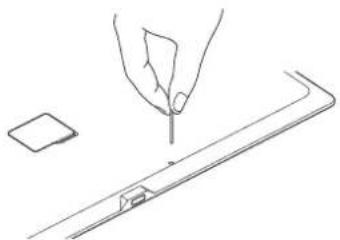
Press the ⏻ (Power) button to restart the device and display the [Home] screen.
Note
- Bookmarks, highlights, sticky notes or setting information may be deleted by resetting.
- Do not push the RESET button with a breakable point, such as the lead of a mechanical pencil. It can block the RESET button.
Re-attaching the Stylus Holder
If the stylus holder becomes detached, re-attach it as illustrated below.
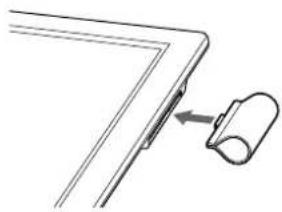
Replacing the Tip
The effectiveness of the supplied tip differs from that of the attached tip. Sony recommends replacing the tip when it becomes shorter than 1.5 mm (1/16 inch). Replacement tips and a tip puller are supplied with the Digital Paper device.
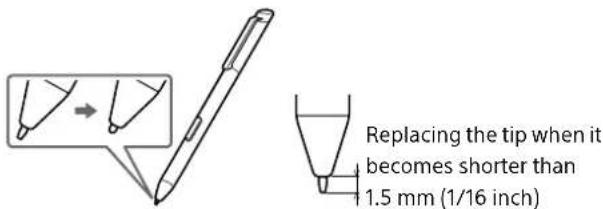
1 Pinch the tip firmly with the supplied tip puller, then pull it out squarely.
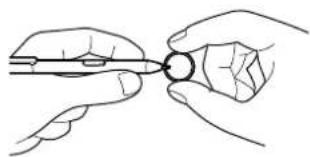
2 Check the orientation of the replacement tip, pinch it with the tip puller, then push it squarely into the stylus. 3 Push the tip firmly with your finger.
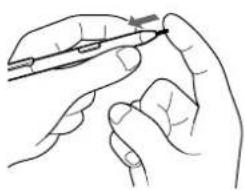
Note
- Keep out of reach of children, as the tip may be swallowed. If the stylus is in your mouth, the stylus tip or the button may fall out.
- Pressing on the tip with excessive pressure will wear it out more quickly.
Tip
- Replace the stylus tip periodically to prevent damage to the Digital Paper device and maintain smooth operation.
- If you have used the supplied replacement tips, new stylus tips are sold separately.
Digital Paper Device
Power On/Off
The Digital Paper device will not turn on.
- The device cannot be operated if connected to your computer and set to transfer data. Use the Safely Remove Hardware function of your computer, and then disconnect the USB cable from the device.
- Moisture condensation may have occurred. Wait for a few hours, then turn it on.
- If the battery is completely depleted, you may not be able to turn on the device.
Charge the device by connecting it to the supplied AC adapter or your computer via the supplied USB cable, and the device will turn on.
- If the device still does not turn on, press the ⏻ (Power) button.
- If the Charge indicator blinks red 3 times upon pressing the ⏻ (Power) button, it shows that the device battery is completely depleted.
To charge the device, insert the supplied USB cable into the micro USB port and connect it to the supplied AC adapter, or connect the device to a computer using the supplied USB cable.
- If the battery is completely depleted, it may take up to 5 minutes for the device to turn on.
The Digital Paper device automatically enters sleep mode or turns off.
- To conserve the battery's charge, the device includes automatic power saving modes. The device will enter sleep mode after 1 hour of inactivity. After 3 days* in sleep mode, it will shut down/power off automatically.
* If the battery's charge is low, the device may automatically turn off within 3 days.
Battery
Cannot charge the Digital Paper device.
- If you use equipment other than the supplied USB cable or AC adapter to charge the device, it may not charge correctly. We do not guarantee the performance and safety of the device. To charge the device, use only the supplied USB cable, or the supplied AC adapter (page 8).
- If you are charging from the USB port on your computer, make sure that the device is connected directly to the USB port with the supplied USB cable. If you connect the computer using a USB hub, we do not guarantee the performance of the device.
- The battery has not been given enough time to fully charge. Charge the device until the button changes to the button. (The charge icon does not indicate the remaining battery power while charging.)
- If you are charging from a USB port on your computer, your computer must be turned on to charge the device. The device will not be charged if your computer enters sleep mode, standby mode or hibernation. Keep your computer turned on with a stable and continuous power supply while charging the device.
- When you set [Screen Transfer] to On and charge the device by connecting the device to your computer via USB cable, check if the dedicated driver is installed onto the computer (page 57). The device cannot be charged through the computer if the installation of the driver is not completed.
- If your computer enters sleep mode while the device is connected and charging, the device battery's charge will gradually drain, the device will shut down and its battery will not charge. In this case, disconnect the USB cable from the device, wake the computer from sleep mode, then reconnect the USB cable to the device.
- Your computer may not be supplying sufficient power. If you connect the device to your laptop computer, maintain a stable and continuous power supply to the laptop computer while charging the device.
- Charge the device within the recommended temperature range of 5 °C to 35 °C (41 °F to 95 °F). If the room is too hot or cold, disconnect the USB cable from the device, adjust the room temperature, then reconnect the USB cable to charge the device.
Battery life seems short.
- The device may not have been fully charged. Make sure that you charge it until changes to .
- The operating temperature is below 5 °C (41 °F). This is due to the battery characteristics and not a malfunction.
- The device requires power while in sleep mode. If you are not planning to use the device, turn it off instead of leaving it in sleep mode.
- If you are not browsing on the Web, exit [Browser] by pressing the (Home) button.
- The device battery gradually discharges when not in use for a prolonged period of time. Before turning on the device after it has not been used for a long time, recharge it.
- Turn off the Wi-Fi function (page 58) when not using the network or turn on [Wireless Standby] (page 72).
- If you are charging the device during data transfer and the computer enters sleep mode, standby mode, or hibernation, the device will be unable to charge, and the battery may drain. Confirm that your computer turns on and charging is complete before you transfer documents.
- The hours of continuous battery-usage time specified in the catalog, Web site, and user guide are based on the assumed frequency of use. Hours of continuous battery-usage time will vary in accordance with the usage environment and the frequency of use.
High frequency of manual input (handwriting) particularly shortens the battery-usage time. (page 86)
Touchscreen
The Digital Paper device does not wake up or start immediately.
- When using the device in an environment that is too cold, the screen may change at a slower speed. Use the device within the recommended
temperature range of 5 °C (41 °F) to 35 °C (95 °F) to retain the normal state of the display.
The screen is not displayed.
- Restart the device (page 76).
Characters are not displayed.
- Some user-defined characters or special symbols may not be displayed.
The touchscreen responds slowly.
- If the touchscreen becomes dirty, it may not function correctly. Clean the touchscreen with a soft cloth, such as a cleaning cloth for eyeglasses.
Cannot pinch in or out.
- The touchscreen may not respond if things other than two fingers are in contact with the screen.
The stylus tip position and written line are offset.
- Check the pen grip style settings. Press the (Home) button, tap [Settings] → [System Management] → [Pen Settings] → [Pen Grip Style] to adjust the setting (page 51).
- Adjust the position of the stylus tip. Press the (Home) button, tap [Settings] → [System Management] → [Pen Settings] → [Advanced Calibration] to adjust the setting (page 52).
Wireless Connectivity
Wi-Fi connection
The Digital Paper device does not connect to the Wi-Fi network.
- Check the remaining battery level. When the battery level is too low, the network feature does not turn on. Charge the device for a few minutes, then try again.
- Make sure that Wi-Fi is turned on and check the signal strength of the access point.
- Tap [Wi-Fi Settings] → [Scan] to select an available access point.
- Make sure that the security method (WEP, WPA/WPA2 PSK, 802.1x EAP), the static IP address and the proxy settings are correct.
- Check that the access point supports the security method of the device. Also, check the encryption key of the access point.
- Public Wi-Fi networks may require a user ID and password. In this case, you must enter the correct user ID and password to establish a network connection.
- The access point has the MAC address filter enabled. To check the MAC address, press the (Home) button, then tap [Settings] > [About] > [Device Information]. Make sure that this MAC address is accepted by the access point.
- The Wi-Fi network settings of the access point are not correct. Adjust the settings as described in the manuals that came with the access point and in any information provided by the network administrator.
- The device is too far from the access point. Move it closer to the access point.
- Obstacles such as walls, metal, or concrete between the device and an access point may adversely affect the connection. Try moving the device to a different location.
- There is other equipment nearby using the 2.4 GHz frequency band (such as a cordless phone, a microwave oven, or Bluetooth computer equipment). Turn off the Wi-Fi function of other equipment, or move this device away.
- The Wi-Fi network service is temporarily not available or degraded. Check with the network administrator for the status.
Cannot find the access point in the Wi-Fi networks list.
- If the access point is set to not broadcast its SSID (Service Set Identifier) to users (stealth setting), the access point may not be shown on the Wi-Fi network list. Tap [Add Wi-Fi Network] and enter the SSID manually (page 62).
Network drive
Cannot find the destination.
- Check the network connection (page 78).
- There is a problem with the Destination folder (path on the server) or network drive. Check with the network administrator.
- When selecting [Reply], the Digital Paper device identifies the sender by the file name automatically. Check that the destination name included in the file name is in the Destination folder list (page 26).
Browser
A Web page is not displayed properly.
- The Wi-Fi network connection may have been interrupted. Make sure that Wi-Fi is turned on and set up correctly, check the signal strength of the access point, then refresh the Web page.
- Due to the vast range of standards and technologies used to design Web pages, it is not possible to guarantee that all pages will be displayed correctly.
- When you zoom in/out a Web page, the screen may be too bright to read. This is not a malfunction.
Reading Documents
Cannot open a document.
- The document may be an unsupported file type. For details on supported file types, see page 87.
[Return to Viewer] does not work, or the bookmark is missing.
- If the file status has changed (such as in the case below), data under [Return to Viewer] or notes may be deleted.
—A PDF file is edited.
Cannot find content on the Digital Paper device.
- If you have formatted the device on your computer, the device may not be able to display transferred content. In this case, use the device's [Format Memory] function to reformat the device (page 74).
- Do not delete the [database], [.dps_device_system], or [note_template] folder on the [DPT-S1] drive when the device is connected to the computer. When using a microSD card, do not delete the [PRIVATE/SONY/Digital_Paper] folder on the microSD card. If you edit the above folders, documents or notes may get deleted.
Cannot annotate documents
- When a document is protected (page 41) or opened as read-only, you cannot annotate, comment, edit, save, or delete the document.
- The document is opened as read-only in the following cases.
—The file is "read-only."
—For PDF files where annotating is set to forbidden in the security settings; (Protected) appears at the beginning of the PDF file name on the device and you cannot add any annotation on that file.
—The internal memory or the microSD card has less free space.
—The remaining battery charge is too low.
- The text in the scanned documents (images on the entire page) or the documents in which font information is not embedded cannot be highlighted.
Cannot edit or delete annotations
- When [Limit Editing Annotations] is set to On, you cannot edit or delete other users' annotations (page 51).
Cannot open sticky notes using the stylus
- To open a sticky note, tap it with your finger. Alternatively, set to the sticky note mode (Sticky Note (Handwriting)/Sticky Note (Text)) on the toolbar, then tap it with your finger or stylus.
Connecting to Your Computer
The computer does not detect the Digital Paper device.
- It may take a while for the computer to detect the device.
- Make sure that the device is connected directly to the USB port with the supplied USB cable. Do not use a USB hub.
- When [Settings] → [System Management] → [Screen Transfer] on the [Home] screen is turned on, the computer cannot recognize the device even if the USB cable is connected to the computer.
Turn off [Screen Transfer], remove the USB cable, and reconnect the device and the computer via USB cable. (page 74)
- Try connecting to a different USB port on the computer.
- Try disconnecting the device and connecting it again.
- Restart the device if the issue is not resolved with the above settings (page 76).
Cannot transfer content to the Digital Paper device.
- There may not be enough space on the internal memory of the device or the microSD card. Check [About] for the amount of free space on the internal memory (page 75). Delete some content to make some space on the device or memory card.
microSD Card
The Digital Paper device cannot detect a microSD card, or cannot open an item stored on a microSD card.
- If you have formatted the microSD card on the computer, the device may not be able to display transferred content. Use the device to format the microSD card (page 74).
- It may take a while for the device to detect the microSD card and load all files stored on it. Wait a little longer after inserting the microSD card into the card slot.
- Make sure that the microSD card is supported by the device (page 84).
- Make sure that the microSD card is inserted properly (page 14).
- Make sure that the gold contact point of the microSD card and the card slot are clean. If dirty or dusty, clean them carefully.
Cannot move a document to the microSD card.
- You cannot move a document directly from the internal memory to a microSD card. Connect the Digital Paper device to a computer, then move the document via the computer.
Precautions
Safety Information
Handling the Digital Paper device
- If the device causes interference to radio or television reception, turn the device off and move it away from the radio or television.
- Refrain from using the device according to the inflight announcements during take off or landing in an aircraft.
- When you put the device into a bag, make sure no objects with sharp or hard edges come into direct contact with the device.
- When you carry the device, it is recommended to use the supplied sleeve case.
- Do not drop, or put any heavy object on top of the device or apply a strong shock to the device. It may cause a malfunction or damage.
- Never subject the device to extremes of light, temperature, moisture or vibration.
- If part of the device that generates heat contacts your skin for a prolonged period, you may suffer from symptom of burn, such as redness, swelling, even if temperature is moderate. Avoid prolonged contact, especially if you have sensitive skin.
- Do not leave the device on an unstable surface.
- Do not poke people using the supplied stylus.
- Do not treat or use the supplied stylus roughly, such as bending it, or scratching the touchscreen with it.
- Use the supplied stylus only for touchscreen operations.
- Do not use the stylus if it is damaged or deformed.
- Do not subject the stylus to shock or vibration.
- Do not apply excessive pressure to the stylus tip or the stylus button during operation.
- Do not keep the stylus tip pressed while the stylus is not in use.
- Do not place the stylus near a magnet.
- If any object is placed on the touchscreen, it may cause a malfunction. When not in use, leave the device in sleep mode or turn it off.
- When using the device internationally, it is your responsibility to ensure that it is used in compliance with the following specifications:
- AC voltage — Wireless products regulations — Other safety regulations or requirements
- Be sure not to short-circuit the terminals of the device with metallic objects.
- Never leave the device exposed to high temperatures, such as in a car parked in the sun or under direct sunlight.
- Connect the AC adapter to an easily accessible AC outlet. Should you notice an abnormality in the AC adapter, disconnect it from the AC outlet.
Avoiding water and moisture
- Note that condensation may form temporarily in cases such as when the player is moved quickly from a low-temperature environment to a high-temperature environment or used in a room that has a heater just turned on. Condensation creates a phenomenon where moisture in the air adheres to surfaces such as metal panels, etc., and then changes to liquid. If condensation forms in the device, leave it turned off until the condensation disappears. If you use the device with condensation present, a malfunction may result.
- The Digital Paper device is not waterproof. Remember to follow the precautions below.
- Be careful not to drop the device into a sink or other container filled with water. - Do not use the device in humid locations or bad weather, such as in the rain or snow. - Do not get the device wet.
If you touch the device with wet hands or put it in a damp article of clothing, the device may get wet and this may cause a malfunction.
Charging the Digital Paper device
- Heat may build up in the device while charging, or if it is used for an extended period of time.
- Use the supplied USB cable or the AC adapter only. Do not use any other USB cable or AC adapter.
- Never wrap the device in anything when it is being charged. Heat build-up in the device may cause malfunction or damage.
- If the battery lasts only half the normal time even after being fully charged, it may be reaching the end of its life.
Cleaning the Digital Paper device
- Clean the device with a soft cloth, such as a cleaning cloth for eyeglasses. Make sure that there is no dust or dirt on the soft cloth, as the device may be damaged.
- Do not use any type of abrasive pad, scouring powder or solvent, such as alcohol or benzene, as it may mar the finish of the case.
- Wipe the stylus with a dry cloth when it gets dirty. Tapping or dragging on the touchscreen using a dirty stylus may damage the surface.
- Be sure to keep the device away from water or spills.
Regulatory information
This device displays the information below.
- The Declaration of Conformity (DoC) logo and the FCC Identifier (FCC ID) based on the FCC Rules
- The VCCI mark based on RULES FOR VOLUNTARY CONTROL MEASURES
- The marks and registration numbers of the radio wave and radio communication acts
You can display these marks or registration numbers. Tap [Settings] in the [Home] screen, then tap [About]
→ [Regulatory Information].
If you cannot display the marks or registration numbers due to a malfunction, contact the Sony Support Center.
End User License Agreement
- You can display the End User License Agreement from the [Settings].
Tap [Settings] in the [Home] screen, then tap [About] → [End User License Agreement].
Display
- The display is made of plastic film to be thin and lightweight. When the Digital Paper device is illuminated, distortion of the plastic film may occur. This is not a malfunction.
- Do not apply excessive pressure to the touchscreen. The color or brightness may become uneven, and may cause malfunction to the device.
- When using the device in a cold environment, the screen may change at a slower speed. This is not a malfunction.
Wi-Fi connectivity

- The Wireless LAN functionality has passed Wi-Fi certification and complies with the interoperability specifications established by WFA (Wi-Fi Alliance).
Wireless feature
- Turn off the wireless feature when you are in a location in which radio communications are prohibited. When you are in such a location, you must obtain permission from the appropriate authorities before enabling the wireless feature of this device.
- Turn off the wireless feature in health care facilities where any regulations posted in such areas instruct you to do so. Hospitals or health care facilities may be using equipment that could be affected by radio frequency (RF) energy which is generated by wireless communication.
- Do not use your device near medical equipment without first obtaining permission to do so.
- General notes on using the Wi-Fi (Wireless LAN) function.
In some countries or regions, use of Wi-Fi products may be restricted by local regulations (e.g., limited number of channels).
Applications on the Digital Paper Device
Disclaimer: In no event will SONY be liable for any financial damage, or loss of profits, including claims made by third parties, arising out of the use of the software supplied with this device.
Sony is not responsible for incomplete recording/downloading or damaged data due to problems of the device or computer.
- Copyright laws prohibit reproducing the software or the manual accompanying it in whole or in part, or renting the software without the permission of the copyright holder.
- Due to continued efforts to improve quality, software specifications may be changed without notice.
- Operation of this device with software other than that provided is not covered by the warranty.
- Depending on the types of text and characters, the text shown on the device may not be displayed properly. This is due to:
—The capacity of the device.
—The device is not functioning normally.
—Content information is written in a language or character set that is not supported by the device.
- We do not guarantee that all languages will be displayed properly on your device.
- User-created characters and some special characters may not be displayed.
Touchscreen
- Do not press the screen or screen frame strongly or rub the screen. When operating the Digital Paper device, touch it softly.
- You can use the stylus while resting your hands on the touchscreen. When the stylus is near the touchscreen, finger operation is inactive.
Digital Paper device Disposal Reference
The built-in rechargeable battery of the device is recyclable. Do not remove the battery yourself; consult the Sony Support Center.
For customers in the USA
FCC Compliance Statement
NOTE:
This equipment has been tested and found to comply with the limits for a Class B digital device, pursuant to Part 15 of the FCC Rules. These limits are designed to provide reasonable protection against harmful interference in a residential installation. This equipment generates, uses and can radiate radio frequency energy and, if not installed and used in accordance with the instructions, may cause harmful interference to radio communications.
However, there is no guarantee that interference will not occur in a particular installation. If this equipment does cause harmful interference to radio or television reception, which can be determined by turning the equipment off and on, the user is encouraged to try to correct the interference by one or more of the following measures:
• Reorient or relocate the receiving antenna.
- Increase the separation between the equipment and receiver.
- Connect the equipment into an outlet on a circuit different from that to which the receiver is connected.
- Consult the dealer or an experienced radio/TV technician for help.
You are cautioned that any changes or modifications not expressly approved in this manual could void your authority to operate this equipment.
Declaration of Conformity
Trade Name: SONY
Model No.: DPT-S1
Responsible Party: Sony Electronics Inc.
Address: 16535 Via Esprillo, San Diego, CA92127 U.S.A.
Telephone Number: 858-942-2230
This device complies with Part 15 of the FCC Rules.
Operation is subject to the following two conditions: (1) this device may not cause harmful interference, and (2) this device must accept any interference received, including interference that may cause undesired operation of the device.
- In order to comply with FCC radio-frequency radiation exposure guidelines for an uncontrolled exposure, this device and its antenna must not be co-located or operating in conjunction with any other antenna or transmitter.
FCC Radiation Exposure Statement
This equipment complies with FCC radiation exposure limits set forth for an uncontrolled environment and meets the FCC radio frequency (RF) Exposure Guidelines.
This equipment has very low levels of RF energy that are deemed to comply without testing of specific absorption ratio (SAR).
Notice for customers: the following information is only applicable to equipment sold in countries applying EU directives
This product has been manufactured by or on behalf of Sony Corporation, 1-7-1 Konan Minato-ku Tokyo, 108-0075 Japan. Inquiries related to product compliance based on European Union legislation shall be addressed to the authorized representative, Sony Deutschland GmbH, Hedelfinger Strasse 61, 70327 Stuttgart, Germany. For any service or
guarantee matters, please refer to the addresses provided in the separate service or guarantee documents.
Hereby, Sony Corp. declares that this equipment is in compliance with the essential requirements and other relevant provisions of Directive 1999/5/EC. For details, please access the following URL: http://www.compliance.sony.de/
CE
The validity of the CE marking is restricted to only those countries where it is legally enforced, which includes the countries in the EEA (European Economic Area).
Disposal of Old Electrical & Electronic Equipment
(Applicable in the European Union and other European countries with separate collection systems)
This symbol on the product or on its packaging indicates that this product shall not be treated as household waste. Instead it shall be handed over to the applicable collection point for the recycling of electrical and electronic equipment. By ensuring this product is disposed of correctly, you will help prevent potential negative consequences for the environment and human health, which could otherwise be caused by inappropriate waste handling of this product. The recycling of materials will help to conserve natural resources. For more detailed information about recycling of this product, please contact your local Civic Office, your household waste disposal service or the shop where you purchased the product.
Notes on microSD Cards
SD cards are made to standards and are commonly used as storage media for portable devices. microSD and microSDHC cards are members of the SD card family.
The device supports the following card types.
- microSD and microSDHC cards - Up to 32 GB
microSD cards of up to 32 GB have been tested to work with the device; however, not all microSD cards are guaranteed to work.
Precautions
- Insert into the correct slot with the card's label side up until it clicks into place.
- To avoid a choking hazard, keep the microSD card out of the reach of children.
- Do not touch the gold contact point of the microSD card.
- Do not disassemble or modify a memory card.
- Do not allow a memory card to get wet.
- Avoid the following to prevent data damage. Sony does not provide any guarantee for damaged data.
Remove a memory card or turn off the device while reading or writing data.
Operate the device in the location where static charge or electrical noise is present.
- Do not strike, bend, drop, disassemble, open, crush, deform, puncture, shred, microwave, incinerate or paint the microSD card.
- Do not use force, a thin stick or tweezers to remove the microSD card. If you cannot remove the microSD card, contact the Sony Support Center.
- Do not remove the microSD card or turn off the device while data on the memory card is being edited or accessed. Otherwise, edited data will not be saved.
- Do not insert a deformed microSD card into the device.
- If you change or erase a folder name via computer, or move a file to a folder other than "database", there is a possibility that data recorded in a memory card might be lost or become unreadable by this product.
- You can use a microSD card (less than 2 GB) and microSDHC card (less than 32 GB), but CPRM (Content Protection for Recordable Media) is not supported.
- microSDXC card is not supported. FAT (File Allocation Table) is supported.
- exFAT (Extended File Allocation Table) is not supported.
Formatting a microSD card
You can use the device to format a microSD card if necessary.
WARNING
Formatting the microSD card will delete all files stored on it.
1 Press the ⬆ (Home) button → tap [Settings] → [Initialization] → [Format Memory] → [SD Card].
2 Tap [Yes].
To cancel, tap [No].
It may take a few minutes to finish formatting the microSD card.
Cannot guarantee the data
Sony is not responsible for damaged (or deleted) data due to problems with the device or computer.
Backup
Sony recommends that you create a backup of the contents of the device in case of operation error or data corruption.
Legal Notice
The contents of each book pre-loaded on this product are copyrighted works, edited with the cooperation of the publisher.
Copyright laws prohibit copying the data of this product or the contents of this manual (illustrations, related documents, etc.) in whole or in part without the permission of the copyright holder. Additionally, use of the data of this product or the contents of this manual is not allowed without Sony's permission except for personal use.
- Sony and the Sony logo are either trademarks or registered trademarks of Sony Corporation.
- Microsoft, Windows, Windows Vista and Windows Media are trademarks or registered trademarks of Microsoft Corporation in the United States and/or other countries. Macintosh and Mac OS are trademarks of Apple Inc., registered in the U.S. and other countries.
- This DPT-S1 contains Adobe® Reader® Mobile software under license from Adobe Systems Incorporated, Copyright © 1995-2011 Adobe Systems Incorporated. All rights reserved. Adobe and Reader are trademarks of Adobe Systems Incorporated.
- This product includes software developed by the OpenSSL Project for use in the OpenSSL Toolkit. (http://www.openssl.org/) Copyright © 1998-2011 The OpenSSL Project. All rights reserved.
- Wi-Fi, the Wi-Fi CERTIFIED logo, WPA, WPA2 and Wi-Fi Protected Setup are trademarks or registered trademarks of Wi-Fi Alliance. Google is a trademark of Google Inc.
- Foxit PDF SDK Copyright © 2013, Foxit Corporation www.foxitsoftware.com, All rights reserved.
- Portions of this software are Copyright ©2005 The FreeType Project (www.freetype.org). All rights reserved.
- This software is based in part on the work of the Independent JPEG Group.
- ShareFile is a trademark of Citrix Systems, Inc. and/or one or more of its subsidiaries, and may be registered in the United States Patent and Trademark Office and in other countries. All other system names and product names appearing in this document are the registered trademarks or trademarks of their respective owners.
Further, the trademark™ and registered trademark® symbols are not indicated throughout this document.
Program © 2014 Sony Corporation
Documentation © 2014 Sony Corporation
Appendix
Specifications
The device's specifications are as follows.
Model name
DPT-S1
Basic information
| Display 338.0 mm (13.3 inch) diagonal electrophoretic display 1200 × 1600 pixel, 16-level gray scale | |
| Touchscreen The optical and electromagnetic induction touchscreen | |
| Internal memory capacity (for data storage)/User available capacity | Approx. 4.0 GB/Approx. 2.8 GB Depending on size of pre-loaded. Available memory capacity may vary. |
| Storable PDF file in the internal memory | Approx. 2,800 files*1 |
| Interface microSD card | slot* 2 , micro USB terminal |
Power source
| Battery Built-in rechargeable battery | ||
| Computer-based charging | Approx. 3.5 hours | |
| Supplied AC adapter-based charging | Approx. 2.5 hours | |
| Battery life (continuous page turn) | Maximum Battery | Wi-Fi Off: 3 weeks*3Wi-Fi On: 2 weeks*4 |
| Page turn A | Approx. 24,000 continuous page turns when reading only*5 | |
| Operating/Charging temperature | 5°C to 35°C (41°F to 95°F) | |
Wi-Fi*6
| Wireless standards IEEE 802.11b/g/n compliant | |
| Frequency band 2.4 GHz band | |
| Wireless security WEP | WPA/WPA2 PSK, 802.1x EAP |
| Connection type WPS | (Wi-Fi Protected Setup)/Manual setup |
| Wi-Fi authentication Supported | |
Dimensions/Mass
| Dimensions (w/h/d) | Approx. 233 × 310 × 6.8mm (9 1/4 × 12 1/4 × 9/32 inches)*7 |
| Mass Approx. 358 g (12.6 oz) | |
| USB cable length Approx. 1.5 m (59 1/8 inches) | |
| Supplied items | AC adapter, USB cable, Quick Start Guide, Basic Operation Guide*8,User Guide*8, Stylus, Sleeve case,Warranty card, Replacement tips,Tip puller |
Design and specifications are subject to change without notice.
*1 Based on assumption that each PDF file is approximately 1 MB. *2 You can use a microSD card (less than 2 GB) and microSDHC card (less than 32 GB), but CPRM (Content Protection for Recordable Media) is not supported. microSDXC card is not supported. FAT (File Allocation Table) is supported. exFAT (Extended File Allocation Table) is not supported.
*3 Using the Digital Paper device under the following conditions:
- Viewing text-based PDF documents for 60 minutes/day at the rate of approx. 2 minutes per page. Manual input using the stylus for 10 seconds per page while the indicated remaining battery life is between
Actual hours of continuous battery life will vary in accordance with the usage environment and equipment settings.
*4 Using the Digital Paper device under the following conditions:
- Viewing text-based PDF documents for 60 minutes/day at the rate of approx. 2 minutes per page; manual input using the stylus for 10 seconds per page
- Wireless standby On
- Auto Sync Off
- Synchronizing a document with the network drive twice a day • Transferring a document to the network drive once a week
Actual hours of continuous battery life will vary in accordance with the usage environment and equipment settings.
Continuous battery life may be reduced in locations with poor signal strength. Actual time used depends on the customer's communication usage environment and product settings.
*5 Using the Digital Paper device under the following conditions:
- Approx. 1.2 seconds/1 page, continuously turning pages
• Wi-Fi function Off
Actual hours of continuous battery life will vary in accordance with the status of the usage environment and equipment.
*6 The communication speed may vary depending on factors such as the distance and/or obstacles between communication devices, the signal strength, and line congestion.
DPT-S1 is for domestic use.
There may be restrictions on viewing or using some Web pages. Also, this device cannot display Flash content and is not compatible with video playback. Supported file format content can be downloaded. Some Web pages cannot be downloaded.
*7 External dimensions excluding stylus holder.
*8 Included with this device.
Supported File Types
The following files can be transferred to the Digital Paper device.
However, depending on the file size and format, it may not be possible to view some data. File extensions are shown in parentheses below.
Documents
- PDF files (.pdf)*
* Compliant with PDF 1.7 specifications.
The device does not support PDFs with extended features of Adobe extension level 1-8.
System Requirements
| Operating System* Details | |
| Microsoft Windows 10 (32/64 bit) | Windows 10 Home |
| Windows 10 Pro | |
| Windows 10 Enterprise | |
| Windows 10 Education | |
| Microsoft Windows 8.1 (32/64 bit) | Windows 8.1 Update |
| Windows 8.1 Pro Update | |
| Windows 8.1 Enterprise Update | |
| Microsoft Windows 8 (32/64 bit) | Windows 8 |
| Windows 8 Pro | |
| Windows 8 Enterprise | |
| Microsoft Windows 7 (32/64 bit) | Windows 7 Starter with Service Pack 1 or later |
| Windows 7 Home Premium with Service Pack 1 or later | |
| Windows 7 Professional with Service Pack 1 or later | |
| Windows 7 Enterprise with Service Pack 1 or later | |
| Windows 7 Ultimate SP1 | |
| Microsoft Windows Vista (32/64 bit) | Windows Vista Home Basic with Service Pack 2 or later |
| Windows Vista Home Premium with Service Pack 2 or later | |
| Windows Vista Business with Service Pack 2 or later | |
| Windows Vista Enterprise with Service Pack 2 or later | |
| Windows Vista Ultimate with Service Pack 2 or later | |
| Mac OS X OS X v10.11 (64 bit only) | |
* Operating systems that can recognize this device as an external storage device connected via USB.
The following system environments are not supported.
• Self-constructed computer
• Computer with a non-standard operating system - Computer with multiple operating systems (multi-boot)
Limited Warranty and Service
Limited Warranty
- This warranty card is included with the Digital Paper device. Please keep it for future reference.
- Please check the coverage period of the warranty card.
Service
Check the Digital Paper device itself first should a problem occur
See "Troubleshooting" (page 76).
In the event you cannot recover the Digital Paper device
Consult the Sony Support Center. Please provide the below information.
• Model name (Description on the back panel) - Serial number (Description in the microSD card slot cover) - Purchase date
Warranty repair period
Sony will repair the Digital Paper device based on stipulations of the warranty card. This device contains consumable parts - even if the warranty is still valid, repair service may be subject to fees for replacing such parts. Refer to the warranty card for details.
Please refer to the PC support site for additional details.
http://www.sony.com/digitalpapersupport

- DIGITAL PAPER SYSTEM
- TABLE OF CONTENTS
- GETTING STARTED
- BASIC OPERATIONS
- TRANSFERRING DOCUMENTS (PDF)
- BROWSING DOCUMENT LISTS
- READING
- WRITING
- NETWORK
- SETTINGS
- OTHER INFORMATION
- NEW FEATURES AND FUNCTIONS
- NEW FUNCTIONS IN VER
- ADDED THUMBNAIL VIEW
- USING SHAREFILE
- ADDITIONAL THICK LINE FUNCTION FOR STYLUS
- ADJUSTING THE SIZE OF ERASER
- NAVIGATING PAGES WHILE ZOOMED IN
- NAVIGATING AND MOVING/COPYING/PASTING/CUTTING HANDWRITING ANNOTATIONS
- CHANGING THE FILE NAME OF A DOCUMENT/NOTE
- SAVE DESTINATION FOR NOTES
- SELECTING A NOTE TEMPLATE
- MAIN FUNCTION IMPROVEMENTS IN VER
- STYLUS SUPPORT FOR PDF FORM
- PROXY SERVER SETTINGS
- TIME SERVER (NTP SERVER) SUPPORT
- IMPROVED PEN SELECTION MENU
- ADVANCED CALIBRATION
- DEVICE BUTTONS DISABLED (HANDWRITING)
- NEW FUNCTIONS FROM VER
- TOOLBAR
- STYLUS BUTTON MODES
- HANDWRITING WHILE ZOOMED IN
- UNDO/REDO FUNCTION
- DISABLING GESTURES
- CREATING NOTES WITHIN FOLDERS
- INSERTING (ADDING)/DELETING PAGES
- SELECTING NOTE TEMPLATE
- PREVENTING OTHER PEOPLE FROM DELETING ANNOTATIONS
- DUPLICATING A FILE
- CREATING/DELETING A FOLDER
- TAB LIST
- STRENGTHENING THE DEVICE LOCK PASSWORD
- INTERNAL MEMORY ENCRYPTION
- PDF FORM SUPPORT
- MAIN FUNCTION IMPROVEMENTS FROM VER
- NAVIGATING PAGES
- ORIENTATION
- IMPROVEMENT OF THE RED PEN DISPLAY
- DISPLAYING THE REMAINING BATTERY
- WELCOME
- FEATURES OF THE DIGITAL PAPER DEVICE
- ABOUT THIS USER GUIDE
- NOTE
- SEARCHING FOR A SPECIFIC TOPIC IN THIS USER GUIDE
- JUMPING TO A LINKED SECTION IN THIS USER GUIDE
- BATTERY
- CHARGING THE DIGITAL PAPER DEVICE
- CHARGING VIA AN AC OUTLET
- TIP
- CHARGING VIA YOUR COMPUTER
- CHARGE/BATTERY STATUS ICON
- MAXIMIZING BATTERY LIFE
- BATTERY LIFE DECREASES IN THE FOLLOWING CASES
- POWER ON/OFF
- TURNING THE POWER ON/OFF (SHUTDOWN)
- TURNING ON THE POWER
- TURNING OFF THE POWER (SHUTDOWN)
- SLEEP MODE
- AUTOMATIC POWER-SAVING
- PARTS AND CONTROLS
- OVERVIEW
- SUPPLIED ACCESSORIES
- BUTTONS
- (POWER)
- HOME
- (BACK)
- ≡ (MENU)
- STYLUS
- MICROSD CARD SLOT
- DIGITAL PAPER DEVICE SECURITY
- LOCKING THE DIGITAL PAPER DEVICE
- TOUCHSCREEN OPERATIONS
- TAP
- TAP AND HOLD
- SWIPE
- SWIPE AND HOLD
- PINCH IN/OUT
- DRAG
- [HOME] SCREEN
- [HOME] SCREEN AND APPLICATIONS
- STATUS BAR
- APPLICATIONS
- RETURN TO VIEWER
- DISPLAYS A LIST OF ALL THE RECENTLY OPENED DOCUMENTS OVER THE ENTIRE SCREEN
- APPLICATION
- CLEARING THE ICONS OF THE STATUS BAR
- TIME DISPLAY
- ON-SCREEN KEYBOARD
- TRANSFERRING DOCUMENTS (PDF) FROM A COMPUTER
- TRANSFERRING DOCUMENTS (PDF) TO THE COMPUTER
- OTHER PRECAUTIONS
- DOCUMENT LISTS
- BROWSING DOCUMENT LIST PAGES
- NAVIGATING PAGES OF THE DOCUMENT LIST
- TOOLS
- BROWSING IN DOCUMENT VIEW AND FOLDER VIEW
- DISPLAYING A DOCUMENT THUMBNAIL
- FINDING A DOCUMENT WITH A KEYWORD
- OPTION MENU IN DOCUMENT LISTS
- SENDING DOCUMENTS TO NETWORK DRIVE
- SENDING MULTIPLE SYNCHRONIZED DOCUMENTS SIMULTANEOUSLY
- REPLYING TO A DOCUMENT
- OPENING MULTIPLE DOCUMENTS SIMULTANEOUSLY
- DELETING MULTIPLE DOCUMENTS SIMULTANEOUSLY
- CREATING A NEW FOLDER
- OPTION MENU FOR THE SELECTED DOCUMENTS AND FOLDERS
- READING DOCUMENTS
- OPENING A DOCUMENT
- TURNING A PAGE
- TURNING PAGES CONTINUOUSLY
- CHANGING THE PAGE TURN PREFERENCE
- USING THE PAGE CONTROL BOX
- TAP [OK]
- THUMBNAIL VIEW
- DISPLAYING 2 PAGES/4 PAGES/9 PAGES THUMBNAIL VIEW BY PINCHING IN
- DISPLAYING 2-PAGE VIEW/4-PAGE VIEW/9-PAGE THUMBNAIL VIEW USING THE TOOLBAR
- ZOOMING IN THE DISPLAY
- AVAILABLE OPERATIONS WHILE ZOOMING IN
- OPERATING TABS
- DISPLAYING THE TAB LIST
- TAB LIST EXAMPLES
- ADDING A DUPLICATE TAB (COPYING THE TAB)
- SETTING THE BOOKMARK TO ON/OFF
- BOOKMARK
- REMOVING A BOOKMARK
- SEARCHING PAGES BY KEYWORD
- SEARCH BY TYPING A KEYWORD USING THE ON-SCREEN KEYBOARD
- USING MENU ITEMS
- USING THE [WORKSPACE] APPLICATION
- REGISTERING A WORKSPACE
- OPENING A WORKSPACE
- OPENING FROM [SAVED WORKSPACES]
- SAVING A WORKSPACE
- DELETING/RENAMING A WORKSPACE
- HANDWRITING/ANNOTATING THE DOCUMENT
- USING THE TOOLBAR
- CHANGING THE TOOLBAR POSITION TO RIGHT
- HIDING THE TOOLBAR
- HANDWRITING A NOTE ON A PAGE
- MOVING/COPYING/PASTING/CUTTING
- MOVING A HANDWRITING ANNOTATION
- COPYING/CUTTING A HANDWRITING ANNOTATION
- PASTING A HANDWRITING ANNOTATION
- HIGHLIGHTING WORDS ON A PAGE
- WHEN USING THE STYLUS
- TO SEARCH FOR A HIGHLIGHTED WORD IN THE CURRENTLY OPEN DOCUMENT, PRESS THE [MENU] BUTTON → TAP [ANNOTATION LIST] (PAGE 48)
- TAP AND HOLD THE FIRST WORD OF THE SECTION THAT YOU WANT TO HIGHLIGHT
- THE TEXT CANNOT BE HIGHLIGHTED WHEN THE VIEW IS ZOOMED IN
- IN HIGHLIGHT BAR EDGE, THE FOLLOWING OPERATIONS ARE POSSIBLE BESIDES [HIGHLIGHT] ON POP-UP MENU
- USING THE ERASER
- ERASING WHILE PUSHING STYLUS BUTTON
- SELECTING ERASER MODE ON THE TOOLBAR
- CHANGING THE SIZE OF THE ERASER
- EXAMPLE OF ERASING ON REAL PAPER
- EXAMPLE OF ERASING WITH THIS DEVICE
- UNDOING/REDOING THE PREVIOUS OPERATION
- ADDING A STICKY NOTE (HANDWRITING)
- EDITING A STICKY NOTE (HANDWRITING)
- DELETING A STICKY NOTE (HANDWRITING)
- ADDING A STICKY NOTE (TEXT) TO A PAGE
- EDITING A STICKY NOTE (TEXT)
- DELETING A STICKY NOTE (TEXT)
- DISPLAYING ANNOTATION LIST
- VIEWING PAGES WITH ANNOTATIONS IN PREVIEW
- RETURNING TO NORMAL VIEW FROM PREVIEW
- ANNOTATION TYPES
- SEARCHING ANNOTATIONS BY KEYWORD
- TARGETED ITEMS
- FILTERING BY ANNOTATION TYPE
- SORTING THE ANNOTATIONS
- ANNOTATION SETTINGS
- LIMIT EDITING ANNOTATIONS
- CONFIGURING THE PEN BUTTON SETTINGS
- SET PEN GRIP STYLE
- PERFORMING ADVANCED CALIBRATION
- USING PDF FORMS
- CHECK BOX (☑)
- RADIO BUTTON (◎) ○
- DROP DOWN LIST/ LIST BOX
- TEXT FIELD
- USING THE [NOTE] APPLICATION
- CREATING A NEW NOTE
- CREATING FROM THE [NOTE] OR [DOCUMENTS] LIST
- CREATING BY SPECIFYING A FOLDER FROM [DOCUMENTS]
- CHANGING FILENAME OF A NOTE
- INSERTING A NEW PAGE TO THE LAST PAGE OF NOTE
- INSERTING A PAGE IN THE MIDDLE OF THE NOTE
- DELETING A NOTE PAGE
- SETTING THE NOTEBOOK TEMPLATE
- ADDING NOTEBOOK TEMPLATE
- SELECTING THE DESTINATION TO SAVE THE NOTE (SYNCHRONIZATION WITH SERVER)
- USING SCREEN TRANSFER
- SETTING UP A WI-FI® NETWORK
- WI-FI STATUS ICONS
- PREPARING TO SET UP A WI-FI CONNECTION
- SELECTING A CONNECTION TYPE
- CASE A
- CASE B
- CASE C
- CASE D
- OTHER THAN CASE A TO D (MANUAL SETUP)
- CASE A: CONNECTING TO A WI-FI ROUTER WITH A WPS BUTTON
- CASE B: CONNECTING TO A WI-FI ROUTER WITH WPS PIN INPUT
- CASE C: CONNECTING TO A WI-FI ROUTER WITHOUT WPS SUPPORT
- CASE D: CONNECTING TO A PUBLIC WI-FI NETWORK
- TAP [SCAN]
- OTHER THAN CASE A TO D: MANUALLY CONNECTING TO AN UNLISTED ACCESS POINT
- INSTALLING THE CERTIFICATION
- SETTING THE PROXY SERVER
- MANUALLY SETTING A WI-FI CONNECTION
- REGISTER THE SETTINGS
- TAP [SAVE]
- GENERAL NOTES ON WI-FI CONNECTIVITY
- USING THE NETWORK DRIVE
- SETTING THE NETWORK DRIVE
- SYNCHRONIZING THE DIGITAL PAPER DEVICE WITH THE NETWORK DRIVE
- CANCEL THE SYNCHRONIZATION
- OPENING A SYNCHRONIZED DOCUMENT IN THE DIGITAL PAPER DEVICE
- DELETING A SYNCHRONIZED DOCUMENT
- BROWSER
- BROWSING THE WEB
- ZOOMING IN ON THE WEB
- DOWNLOADING
- VIEWING DOWNLOAD PROGRESS
- CANCELING A DOWNLOAD
- OPENING A DOWNLOADED FILE
- DELETING A DOWNLOADED FILE
- USING MULTIPLE WINDOWS
- OPENING A NEW WINDOW
- OPENING A LINK PAGE IN A NEW WINDOW
- CHANGING THE BROWSER WINDOW IN VIEW
- CLOSING THE BROWSER WINDOW
- BOOKMARKS AND HISTORY
- BOOKMARKING A WEB PAGE
- OPENING A BOOKMARKED WEB PAGE
- EDITING A BOOKMARK
- DELETING BOOKMARKS
- OPENING A PREVIOUSLY VISITED WEB PAGE
- DELETING BROWSING HISTORY
- BROWSER SETTINGS
- ENABLING SHAREFILE
- USING THE SHAREFILE APPLICATION
- CHANGING THE SETTINGS
- SERVER SETTINGS
- DEVICE SHUTDOWN
- TROUBLESHOOTING
- TROUBLESHOOTING TIPS
- RE-ATTACHING THE STYLUS HOLDER
- REPLACING THE TIP
- DIGITAL PAPER DEVICE
- THE DIGITAL PAPER DEVICE AUTOMATICALLY ENTERS SLEEP MODE OR TURNS OFF
- BATTERY LIFE SEEMS SHORT
- TOUCHSCREEN
- THE DIGITAL PAPER DEVICE DOES NOT WAKE UP OR START IMMEDIATELY
- THE SCREEN IS NOT DISPLAYED
- CHARACTERS ARE NOT DISPLAYED
- THE TOUCHSCREEN RESPONDS SLOWLY
- CANNOT PINCH IN OR OUT
- THE STYLUS TIP POSITION AND WRITTEN LINE ARE OFFSET
- WIRELESS CONNECTIVITY
- WI-FI CONNECTION
- THE DIGITAL PAPER DEVICE DOES NOT CONNECT TO THE WI-FI NETWORK
- CANNOT FIND THE ACCESS POINT IN THE WI-FI NETWORKS LIST
- NETWORK DRIVE
- CANNOT FIND THE DESTINATION
- A WEB PAGE IS NOT DISPLAYED PROPERLY
- CANNOT OPEN A DOCUMENT
- [RETURN TO VIEWER] DOES NOT WORK, OR THE BOOKMARK IS MISSING
- CANNOT FIND CONTENT ON THE DIGITAL PAPER DEVICE
- CANNOT ANNOTATE DOCUMENTS
- CANNOT EDIT OR DELETE ANNOTATIONS
- CANNOT OPEN STICKY NOTES USING THE STYLUS
- CONNECTING TO YOUR COMPUTER
- THE COMPUTER DOES NOT DETECT THE DIGITAL PAPER DEVICE
- CANNOT TRANSFER CONTENT TO THE DIGITAL PAPER DEVICE
- MICROSD CARD
- THE DIGITAL PAPER DEVICE CANNOT DETECT A MICROSD CARD, OR CANNOT OPEN AN ITEM STORED ON A MICROSD CARD
- CANNOT MOVE A DOCUMENT TO THE MICROSD CARD
- PRECAUTIONS
- SAFETY INFORMATION
- HANDLING THE DIGITAL PAPER DEVICE
- AVOIDING WATER AND MOISTURE
- CLEANING THE DIGITAL PAPER DEVICE
- REGULATORY INFORMATION
- END USER LICENSE AGREEMENT
- DISPLAY
- WI-FI CONNECTIVITY
- WIRELESS FEATURE
- APPLICATIONS ON THE DIGITAL PAPER DEVICE
- DIGITAL PAPER DEVICE DISPOSAL REFERENCE
- FOR CUSTOMERS IN THE USA
- FCC COMPLIANCE STATEMENT
- FCC RADIATION EXPOSURE STATEMENT
- NOTICE FOR CUSTOMERS: THE FOLLOWING INFORMATION IS ONLY APPLICABLE TO EQUIPMENT SOLD IN COUNTRIES APPLYING EU DIRECTIVES
- CE
- DISPOSAL OF OLD ELECTRICAL & ELECTRONIC EQUIPMENT
- NOTES ON MICROSD CARDS
- FORMATTING A MICROSD CARD
- WARNING
- TAP [YES]
- CANNOT GUARANTEE THE DATA
- BACKUP
- LEGAL NOTICE
- APPENDIX
- SPECIFICATIONS
- MODEL NAME
- SUPPORTED FILE TYPES
- DOCUMENTS
- LIMITED WARRANTY AND SERVICE
- LIMITED WARRANTY
- SERVICE
- CHECK THE DIGITAL PAPER DEVICE ITSELF FIRST SHOULD A PROBLEM OCCUR
- IN THE EVENT YOU CANNOT RECOVER THE DIGITAL PAPER DEVICE
- WARRANTY REPAIR PERIOD
Brand : SONY
Model : DPT-S1
Category : Tablet