Blacksys CF-100 - Dash cam Cammsys - Free user manual and instructions
Find the device manual for free Blacksys CF-100 Cammsys in PDF.


User questions about Blacksys CF-100 Cammsys
0 question about this device. Answer the ones you know or ask your own.
Ask a new question about this device
Download the instructions for your Dash cam in PDF format for free! Find your manual Blacksys CF-100 - Cammsys and take your electronic device back in hand. On this page are published all the documents necessary for the use of your device. Blacksys CF-100 by Cammsys.
USER MANUAL Blacksys CF-100 Cammsys
2ch Full HD Car DVR with brilliant image
Simultaneous recording from both front camera with Full HD resolution (1920x1080, 30fps) and rear camera with HD resolution (1280x720, 30fps) provides superb high quality videos.
BlackSys
www.blacksys.co.kr/en
Notice
This product helps you to use the recorded video as a reference in case of car accident. The recorded video by this product carries no legal binding force. CammSys will not be responsible for any legal conflict and damage caused by recorded or non-recorded video.
- For safety, do not operate this product while driving such action may result in injury or accident.
- An accident at very low speed or impact may not trigger emergency recording and could be recorded as a normal file.
- Recording may not be executed in case the product is defect caused by car accident or other reason.
- Recording can be distorted under the condition where brightness suddenly changes like passing through a tunnel, direct sunlight reflection during the day time or where light is not available at night time.
- All right to hardware, software and relevant data are reserved by CammSys Corp. and protected under copyright Law. In case of illegal copy and process, not only civil compensation but criminal punishment based on protection of intellectual property rights can be engaged.
- Do not use the product for other purpose rather than Car DVR.
- In case of recording other's voice without permission, you will be liable for legal responsibility.
- CammSys will not be held responsible for damage caused by negligence, careless and improper management of user.
Table of contents
02 Notice
04 Caution
04 …… Installation and Management
05 …… SD Card Use
05 ..... Use of Power
06 Main features
10 Name of the components
10 ...... Standard & Optional Components
11 ...... Front
11 .... Rear
12 ...... Left Side
12 ...... Right Side
13 Installation
13 …… Front Camera
15 .... Rear Camera
16 Function
16 …… Details on Video Record
17 …… LED and Voice guide
19 How to install PC Viewer
19 ...... Software installation & uninstallation
20 ...... Software installation
21 ...... Software uninstallation
22 …… PC Viewer Layout
23 ...... Basic use
24 ...... Configuration
25 How to update firmware
25 ...... firmware update
25 ...... How to download Firmware and Software
26 How to format SD card
26 …… PC format
26 …… Manual format
27 Technical Specification
28 Customer Service
29 Warranty
30 Warranty Card
Caution
Before use the product, check if operation and video recording goes well.

Installation and Management
- Keep the camera lens clean by preventing dust or foreign substance from coming into contact with the lens. Otherwise, this may result in video distortion. If another object is placed nearby it may be reflected in the window. So keep the area clear around the installed Camera.
- If installation location of the product is changed, it may not record properly even if it worked after initial installation. Therefore, install the product firmly and do not give an excessive shock or force to move the product.
- Continuous change of product location from the windshield may cause weakening of adhesive strength and the product can fall off in the end.
- Check that position of SD card is correct before inserting.
- In the case of using the power from the vehicle (DC fused power), please disconnect the power cable if you do not use the product for a long time. (It may cause discharge the battery.)
- Do not switch power off while firmware is upgrading. It may cause malfunctioning.
- Long term use of this product or in case of severe vibration may cause change in camera angle. Correct the angle or location of product on a flat location whilst parked.
- Do not use chemicals or detergents to clean the product. This can result in a malfunction.
- Never cause excessive shock to or inject a foreign substance into the product. Causing excessive force or shock or injecting a foreign substance into this product can cause malfunction.
- Avoid high temperature (direct sunlight) or high humidity during normal operation of product.
- Do not disassemble or repair this product. It can cause malfunction and such action will result in the product being void of all warranty/service provisions.
Caution

SD Card Use
√ Be sure to turn OFF the power and the LED is OFF before removing or inserting the SD card. Removing the SD card while product is in use can cause a malfunction.
- Use the authorized SD card which the manufacturer/distributor provided. If unauthorized SD cards are used, it may cause malfunctioning and loss of recorded Data.
- Do not disassemble or repair this product. It can cause malfunctioning and will void warrantee.
- SD card is an expendable supply. After a period of use, it may not be able to record data correctly. Please change the SD card to a new one. Data can be lost and damaged if data is kept in SD card for a long time.
- If you want to keep the videos, back up the data onto other storage devices such as HDD, CD and USB. Keeping the data in SD the card only, may cause data loss and damage.
- Check the recorded data of SD card in a regular basis and format to make sure of trouble free recording.

Use of Power
- This product is designed to be plugged into a cigar jack power only. In the case of using any other power source from the vehicle, consult with your local vehicle dealer. Please note this method is outside of manufacturer's responsibility under any circumstances and cannot be held liable for damage or injury.
- Use only the authorized cigar cable contained in the product box. Avoid connection of power supply without knowledge and experience. Avoid using DC fuse power cable for permanent power.
- Do not remove or insert SD card while power is turned on, it can cause serious error of the product. Make sure to turn OFF the power and LED is OFF before removing or inserting the SD card. Removing the SD card while product is in use it can cause damage of video file.
Main features
Full HD resolution for high quality video
F 1.8 lens with SONY Exmor sensor provides brighter and clear high quality Full HD images.
HD rear camera
720P HD resolution with 30fps
Normal Recording
Recording starts when ignition turned on and continuously recording video images and saving files per 1 minute. If memory is full, recording starts overwriting from the oldest file by deleting them in order.
Motion Detection in Parking Mode
When motion is detected during parking or stopping, recording get started for a certain time and if motion is not detected, recording is put on standby without recording. This mode stores only necessary videos, SD card memory is managed efficiently.
3D G-Sensor
3-axis G-Sensor detects vehicle impact, brake, acceleration and automatically record video images and store files in a separated folder to avoid overwriting.
Main features

PARKING

SUPER CAPACITY


2CH CAMERA

SECURITY LED

VOICE REC
Parking Mode Recording
Parking mode activates automatically when vehicle stops for a certain amount of time if DC fuse power cable is connected and any damage of vehicle can be recorded.
Super Capacity (backup battery)
Built-in super capacity secures safe storage of recorded data even when power supply is disconnected caused by unexpected accident or impact.
Front and Rear recording
Front with Full HD, Rear with HD resolution at 30 fps respectively.
LED Lighting
Security LED in front indicates that Car DVR is installed in this vehicle and it's always on while Car DVR is powered on. Rear LED with blue color indicates state of each function such as recording, GPS reception.
Voice Guide/Recording
Kind voice guide announces each action and state. Built-in microphone records voice and surround sound which helps situation analysis in case of video in accident.
Main features
130^ Angle of View
130° Diagonal angle of lens can record wider angle of view.
Dedicated PC viewer
BlackSys software(PC viewer) provides not only video playback and but video analysis.
Emergency Button Recording
User can record event manually with emergency button during driving, parking and accident. Recording total 30 sec. including 10 sec. before and 20 sec. after from the time of pressing emergency button is performed. The recorded video is stored in event folder.

Manual Format
Manual format is available without PC. (p.26)
Zoom in through PC viewer
Zoom in the important points of video through PC viewer.
Main features

GPS
Location and route information (Optional GPS)
Optional high-sensitive GPS(SiRF 4) records vehicle speed, route and location information which synchronizes with Google Map to display the driving path.

VIDEO OUT
Video Out (Optional Cable)
Video Out cable synchronizes with any media players for the real-time video monitoring.

DC FUSE
POWER CABLE
DC Fuse Power Cable (Optional Cable)
If DC fuse power cable is connected, recording is available during parking mode.
※ Long use recording through DC fuse power cable may cause discharge of battery and malfunctioning of product. So please unplug the cable in this case.
Name of the components
Actual components may be different with pictures and some components can be changed in case.
If package doesn't include below components, please contact a retail shop or company where product was sold.
Standard components
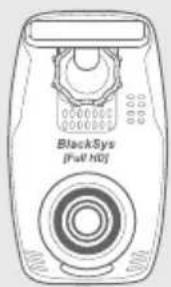
text_image
BlackSys (Full HD)Main unit
User's manual
Cable Holder
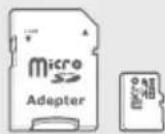
Micro SD Card
natural_image
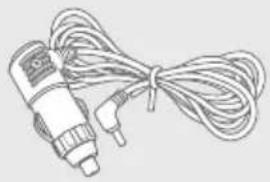
Line drawing of a handheld electrical plug with coiled wires (no text or symbols)Cigar Jack cable
Optional Components
natural_image
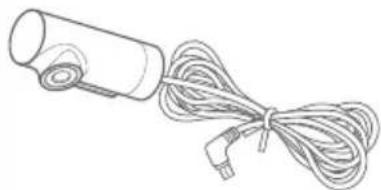
Line drawing of a handheld device with coiled cable and connector (no text or symbols)HD Rear Camera
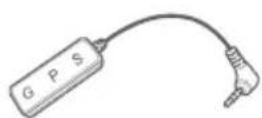
External GPS module
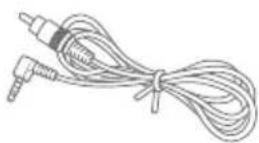
Video Out cable
natural_image
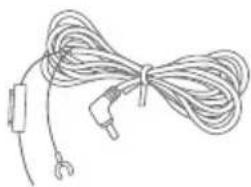
Simple line drawing of a cord with connectors and a clip, no text or symbols presentDC Fuse Power Cable
Name of the components
text_image
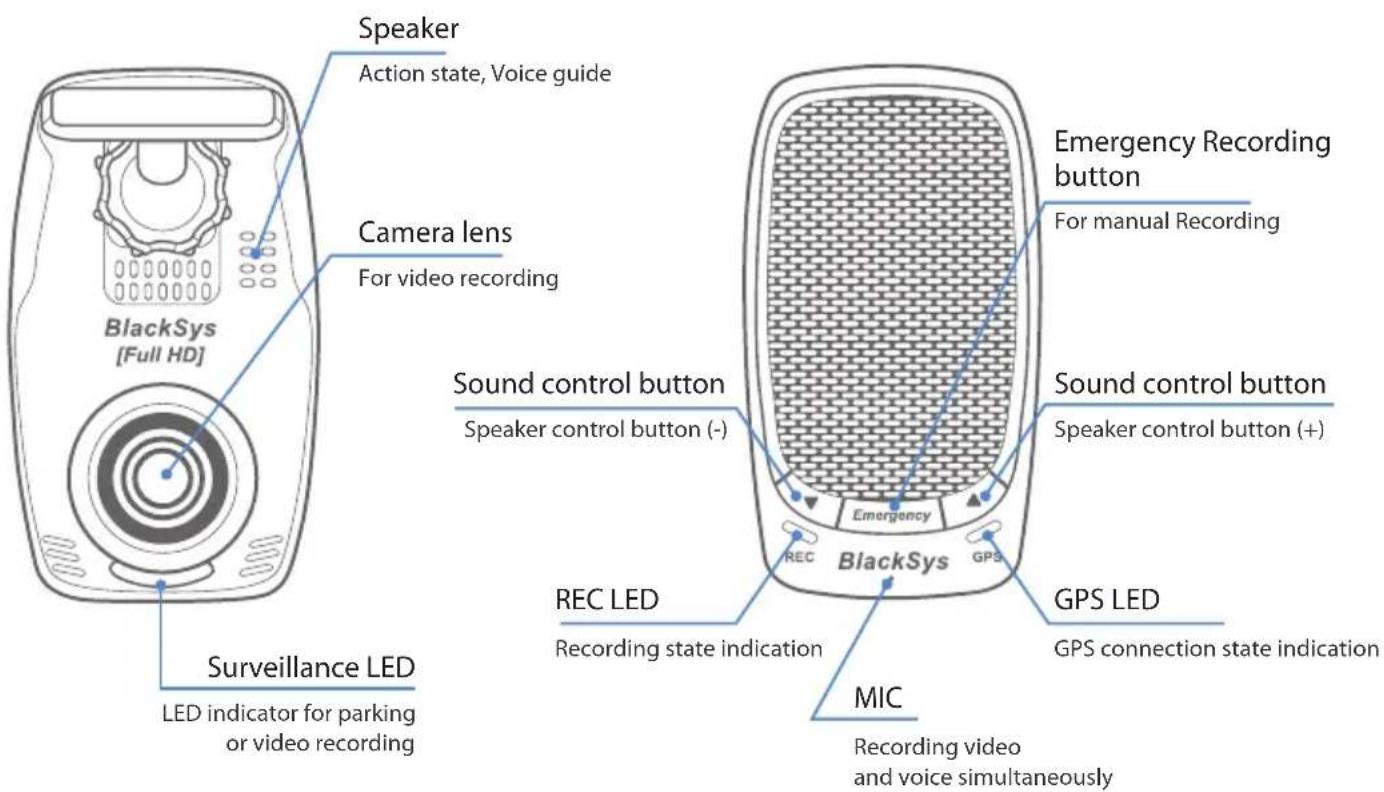
Speaker Action state, Voice guide Camera lens For video recording BlackSys [Full HD] Surveillance LED LED indicator for parking or video recording Sound control button Speaker control button (-) REC LED Recording state indication MIC Recording video and voice simultaneously Emergency Recording button For manual Recording Sound control button Speaker control button (+) BlackSys GPS Rec Emergency Rec GPS LED GPS connection state indicationName of the components
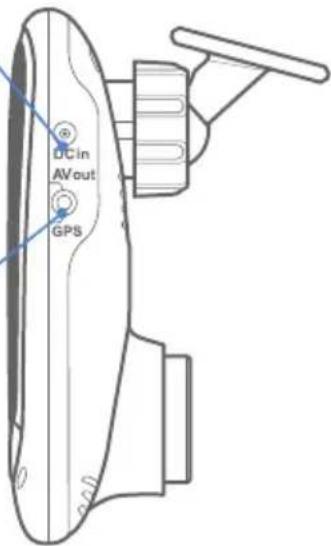
Power Terminal
For supplying power to the main unit
A/V Out Port
Video review by connecting to external device
GPS Port
For checking location and speed of vehicle through dedicated PC viewer
text_image
DC in AV out GPS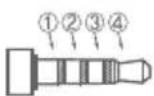
① GND
② AV OUT
③ GPS Data
④ Power
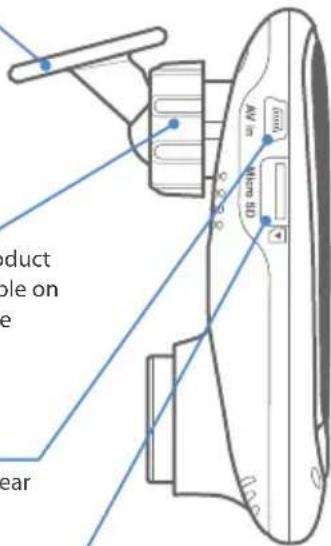
Holder
For attaching main unit to windshield
Clamping lever
For fixing holder to product and adjustment available on up/down, left/right side
Rear Camera connection port
Mini USB port for HD Rear Camera
Micro SD card slot
External Mirco SD card port
text_image
product ble on e earInstallation
text_image
BlackSys (Full HD)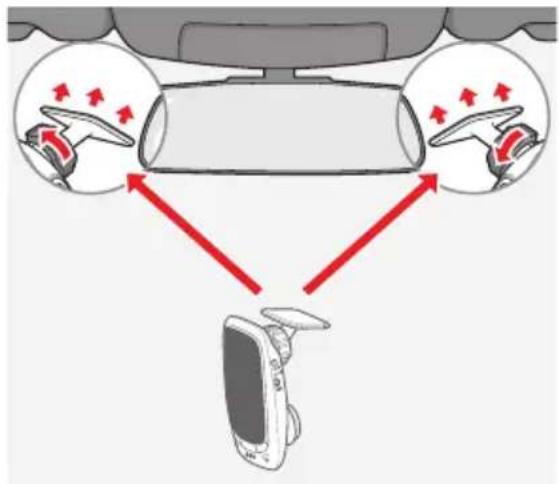
text_image
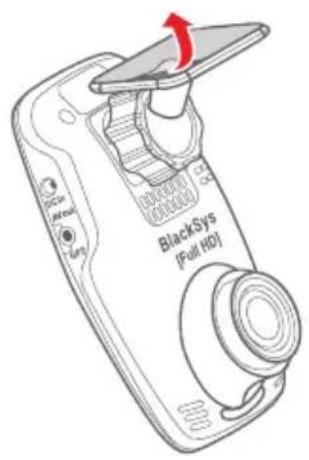
Diagram illustrating car steering wheel and steering wheel movement with red directional arrows indicating motion paths1. Attaching double-sided adhesive tape 2. Installing unit
Wipe up the foreign matters or moisture completely from the location of installation. Remove the release paper on double sided tape and attach it to the holder and remove the red adhesive protector.
Installation is recommended on the left/right of room mirror. Tightly fasten the adhesive of holder to the windshield by pushing it. Adjust the angle of camera to record forward and unit to be vertically installed. Finally, tighten the clamping lever.
Installation
text_image
Iulip us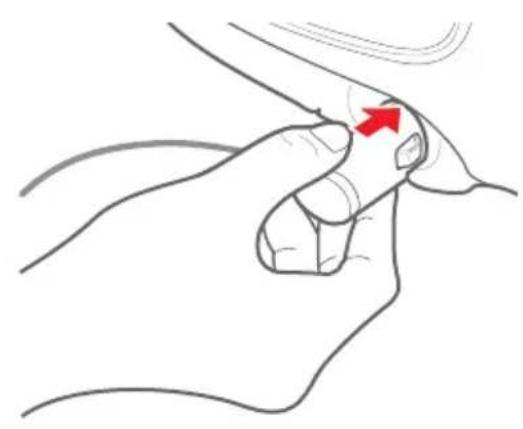
natural_image
Illustration of a hand holding a finger with a red arrow pointing to the thumb area (no text or symbols present)3. Power cable arrangement and connection 4. Power cable connection and check the LED state
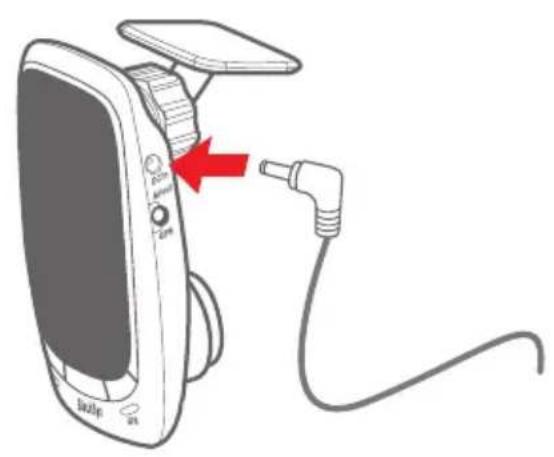
By using the cable holders, arrange the Cigar jack cable and connect it to the DC IN port(upper hole). If car navigation system is installed on the car, it is recommended to connect video out cable (option) to navigation system to adjust by checking the current view of the camera.
After inserting the Cigar jack cable (Power cable) into cigar jack, turn on the car ignition. If all LEDs of power status are on, installation is completed.
Installation
natural_image
Line drawing of a hairdryer device with attached cable and connector (no text or symbols)1. Rear Camera Installation
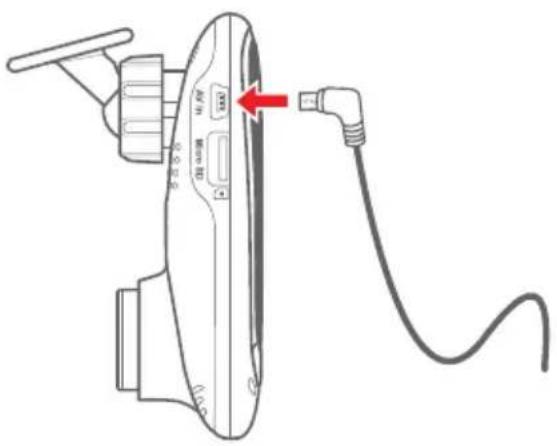
Connect cable of Rear Camera to the AV in port of Front Camera (main unit). Clean up the cable of Rear Camera from the location of installation.
text_image
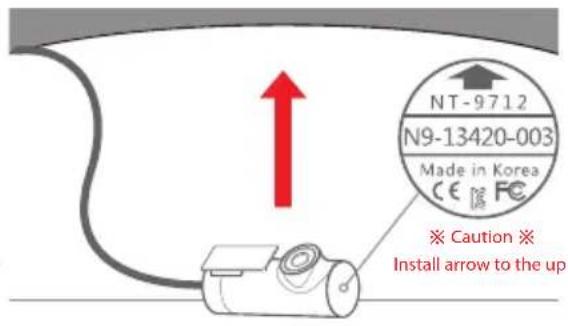
NT-9712 N9-13420-003 Made in Korea CE FC ※ Caution ※ Install arrow to the up2. Installation
Wipe up the foreign matters or moisture completely from the location of installation. Remove red cover in double sided tape and attach it to the rear windshield. Installation is recommended on the middle of rear windshield and holder should be forwarded to the left side.
※ Tinted windows may cause unclear image of video from rear camera. Avoid tinted window.
Function
Normal Recording file, Event Recording file and Parking mode Recording file are stored and if external SD card is full, overwriting gets started from the oldest file. Overwriting gets started from the oldest files in order, regular data back-up is required to save important data.
Normal Recording
- Recording starts when vehicle power is turned on and recorded data are stored in SD card. ("Normal" folder)
Parking Mode Recording
- 10 minutes after parking or stopping the car, if no motion is detected, it converts to Parking mode recording automatically. (In case of using DC fuse power cable or product is connected with a vehicle battery)
- If motion is detected consistently and driving is resuming, it converts Normal recording again.
- When it detects impact during Parking mode(Motion detection), the video file is stored in ("PARK" folder).
※ Long period of parking may cause discharge of a vehicle battery.
Last Scene Recording
- Though power supply is disconnected caused by accident or manually, last scene is recorded and stored by using built-in super capacity battery.
EVENT Recording
- If Acceleration sensor(G-Sensor) detects impact, sudden unintended acceleration and quick braking or manually pressing the event button during the car runs, it records 30 sec. of video to the ("EVENT" folder).(10 sec. before and 20 sec. after the event)
※ If power is disconnected within 2 min. after power is on, recorded file can be broken.
※ The less G-Sensor figure, the less shock sensitivity. (Initial settings come with 3 level. 1 is insensitive, 3 is medium, 5 is sensitive)
Function
※ Function can be changed according to product upgrade.
| Mode Button Voice guide | LED state | |||||
| REC GPS Parking | ||||||
| Power | ON X X |  | ||||
| OFF | X Car DVR is ending. |  |  | |||
| Recording start X | 1CH recordings are getting started. |  | [XSYG] | |||
| 2CH recordings are getting started |  |  | ||||
| TV OUT | Connected | X | X |  |  | |
| No connected | X | X |  |  | ||
| GPS | Connected | X | GPS is connected.(1 time if connected) |  |  | |
| No connected | X | - |  | | ||
| SD Card format | Format Mode | Keep pressing Emergency button over 8 sec. | Do you want to format SD CARD? |  | | |
| Format start | ▲ Button SD CARD is getting formatted. | - |  | |||
| Format cancel | ▼ Button SD CARD is not formatted. |  |  | |||
| FW update | Updating automatically if update file is existing in SD card. | Update is starting. | -  |  | ||
Function
| Mode Button Voice guide | LED state | |||||
| REC GPS Parking | ||||||
| EVENT Recording | Automatic | X Sound effect 1 |  | |||
| Manual Pressing Emergency button shortly | Sound effect 1 + Sound effect 2 |  | ||||
| Voice Recording | ON ▼ Keep pressing over 3 sec. Voice recording is starting. |  (3 times flickering) (3 times flickering) | ||||
| OFF ▼ Keep pressing over 3 sec. Voice recording is ending. |  (3 times flickering) (3 times flickering) | |||||
※ Motion Detection: motion is detected during Parking Mode, Parking LED is flickering per sec.
Error
※ CF-100 supports SD card from 16 to 32GB.
| Mode Button Voice guide | LED state | ||||
| REC GPS Parking | |||||
| No SD card X | Please insert SD CARD. |  |  |  | |
| SD card error | X | SD CARD cannot be read. |  |  |  |
| Camera error | X | Camera is out of order. |  |  |  |
| Low capacity memory card | X | SD CARD is not compatible. |  |  |  |
How to install PC Viewer
PC Viewer Installation
Insert SD card to the PC or download software from www.blacksys.co.kr > Support > Download and execute.
Once installation is completed, click CF-100 Player and execute it.

CF-100 Player
Uninstallation
- Control panel > Program uninstallation & change > Uninstall CF-100 Player
- C:\Program Files(x86)\WBlackSys\WCF-100 Player W Uninstall CF-100Player
- Execute Start > All program
CF-100 Player > Uninstall CF-100Player
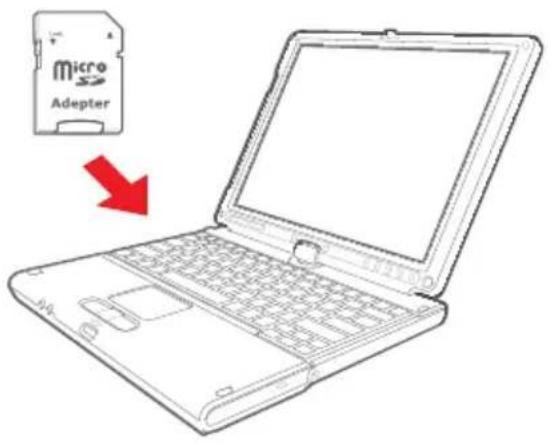
text_image
Micro AdepterRecommended System for PC viewer
- OS : Windows XP SP3, Vista(32bit), 7(32/64bit)
- H/W : Pentium 4 2.8GHz over / 1G RAM over
- Web browser : MS Internet Explore 8.0 over
- Direct X ver.: Direct X 9.0(JUNE2010) over
- Other : Windows.NET Framework 3.5 over
Software installation
- Execute download & Setup.exe 2. Installation preparation 3. Installation folder choice
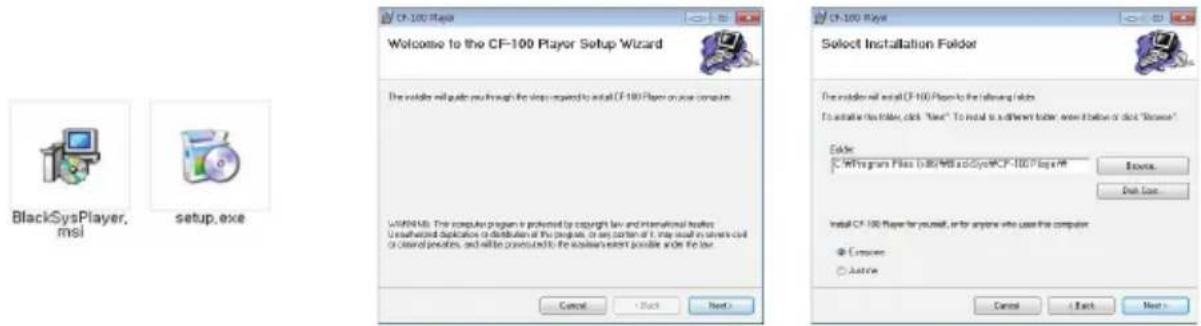
- Installation start 5. Installation in process 6. Installation completion
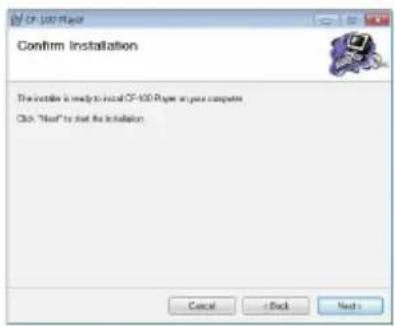
text_image
Confirm Installation The installed is ready to install OF-100 Paper on your computer. Click "Next" to select the installation.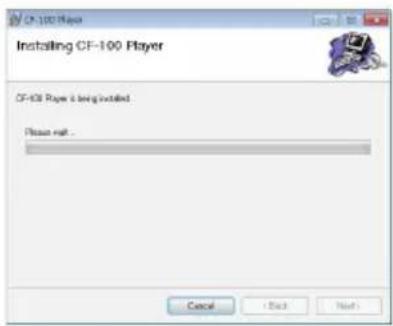
text_image
CF-100 Player Installing CF-100 Player CF-100 Player is being installed. Please wait... Cancel (Cash) Next!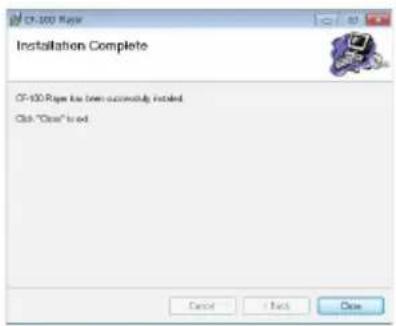
text_image
CF-100 Page has been successfully installed Click "Close" to addHow to install PC Viewer
Software uninstallation
-
Click Start
-
Click All program and search Uninstall CF-100Player
-
Chose CF-100Player > Uninstall CF-100Player


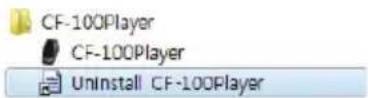
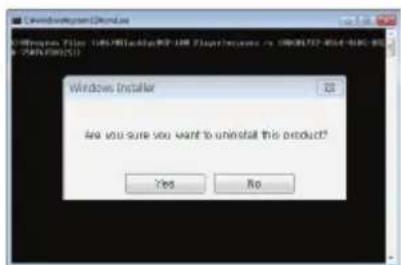
- Click [Yes] for uninstall
text_image
Windows Installer Are you sure you want to uninstall this product? Yes No- Uninstallation preparation
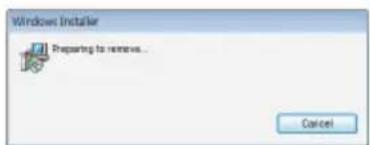
text_image
Windows Installer Preparing to remove... Cancel- Uninstallation in process
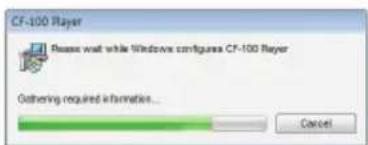
text_image
CF-100 Player Please wait while Windows configures CF-100 Player Gathering required information... CancelHow to install PC Viewer
text_image
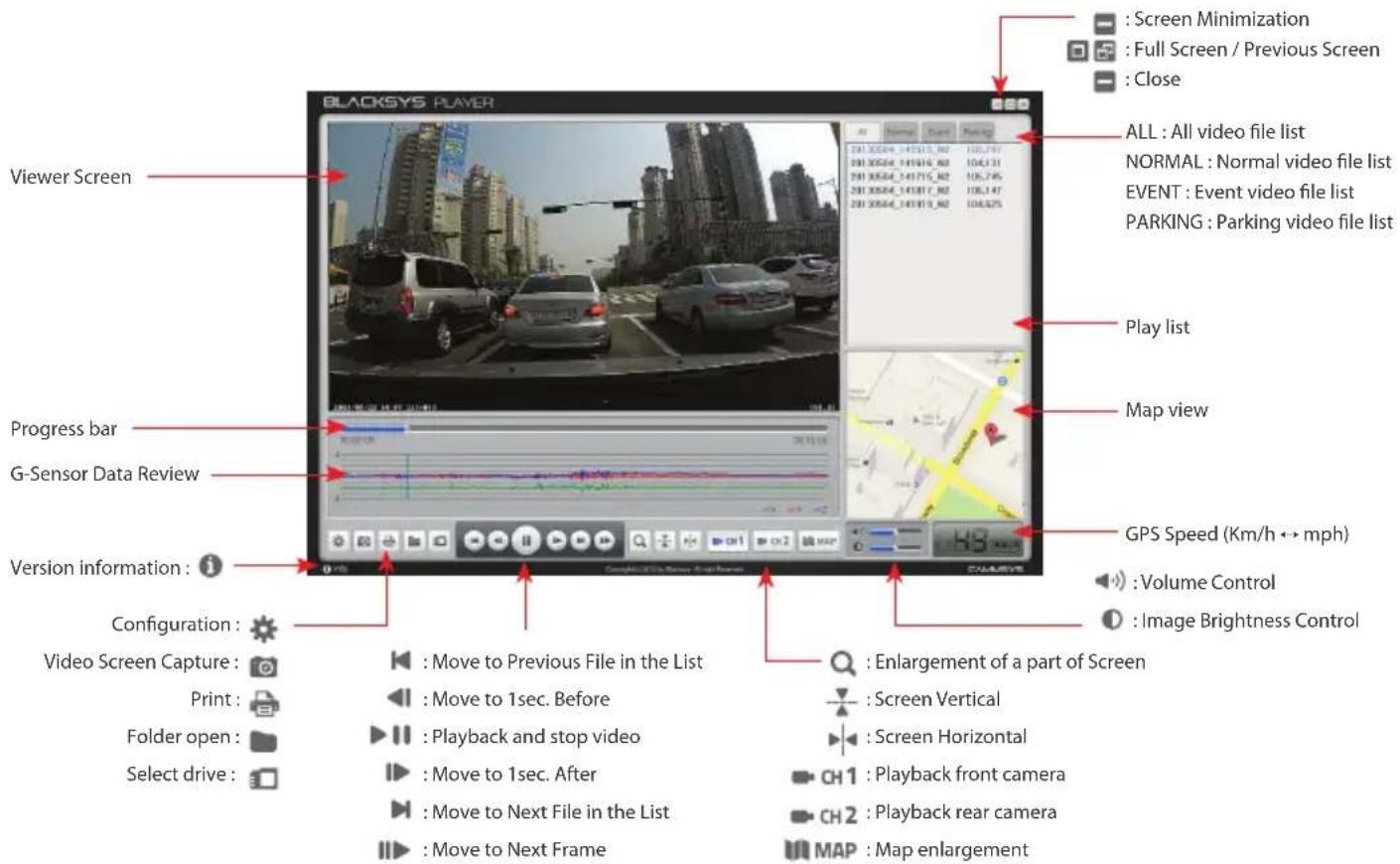
BLACKSYS PLAYER Viewer Screen ALL : All video file list NORMAL : Normal video file list EVENT : Event video file list PARKING : Parking video file list Play list Map view GPS Speed (Km/h ↔ mph) : Volume Control : Image Brightness Control Version information : 1 Configuration : Video Screen Capture : Print : Folder open : Select drive : Move to Previous File in the List Move to 1sec. Before Playback and stop video Move to 1sec. After Move to Next File in the List Move to Next Frame Enlargement of a part of Screen : Screen Vertical : Screen Horizontal CH1 : Playback front camera CH2 : Playback rear camera MAP : Map enlargement※ PC viewer enlargement(basic screen view): if scroll up mouse in front video while it's playing, video size enlarge 0.2 times each and total 2.8 times are available.(1 \~ 15 level) ※ PC viewer enlargement(full screen view): if scroll up mouse in front video while it's playing, video size can enlarge 0.2 times each and total 2.2 times are available.(1 \~ 12 level)
How to install PC Viewer
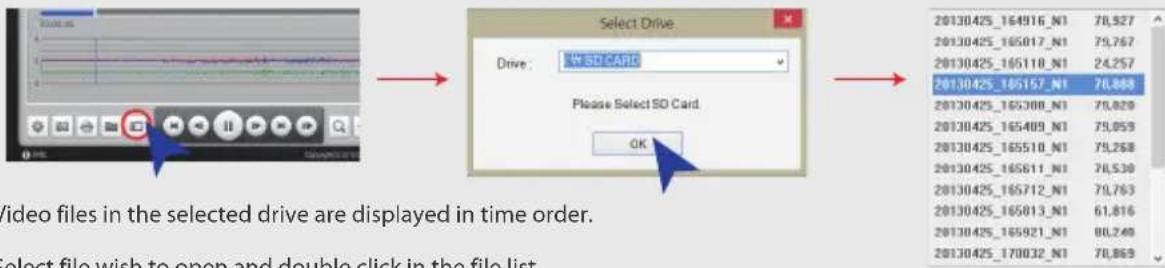
Drive open
• [ ] Select SD card wish to open and click "OK".
text_image
Select Drive Drive: 5W SD CARD Please Select SO Card. OK Video files in the selected drive are displayed in time order. Select file wish to open and double click in the file list.
or click play icon for the video play.
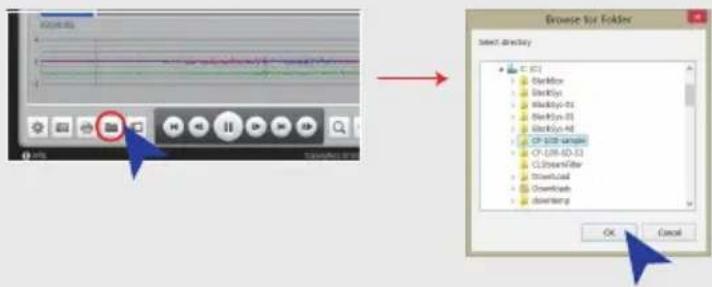
Folder open
• [ ] Select folder open icon and select folder wish to open in the folder search window. Click OK.
text_image
Browse for Folder Select directory C:\FC1 Backbox Backsys Backup-01 Backup-02 Backup-03 Backup-04 CP-050 sample CP-050-02-03 C:\UsersFilter Download Download OK CancelHow to install PC Viewer
text_image
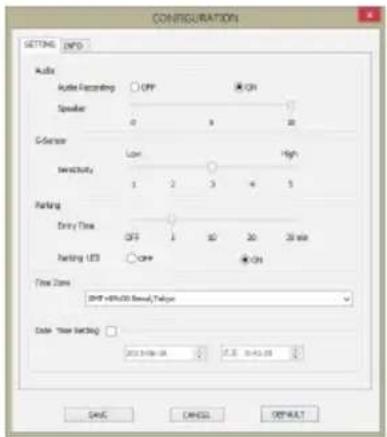
CONFIGURATION SETTING INFO Audio Audio Recording OFF ON Speaker 0 9 20 G-factor Low High Strength 1 2 3 4 5 Parking Entry Time OFF 1 10 20 20 min Parking LED OFF ON Time Zone (PHP=80.00 Normal) Talker Code: New Settings 2023-06-04 2.5 0:45:09 OK Cancel OFFSET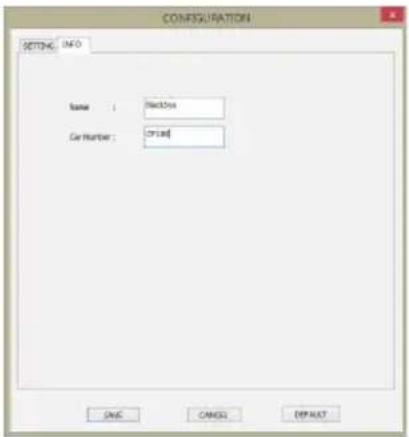
text_image
CONFIGURATION SETTING INFO Name : Elective Car Number : CP136 CNC Cancel DEFAULTSettings
| Audio Recording | : OFF / ON | U |
| Speaker | : 0-10 (Volume Control) | V |
| G-Sensor Sensitivity Control | : Low-High (1~5) | |
| Parking Entry time | : OFF/5min./10 min./20 min./30 min. | |
| Parking LED | : OFF / ON | |
| Time Zone | : GPS Time Zone setting | |
| Date & Time Setting | : ☑ Check V mark and set d/m/y/time/min/sec | |
| Save | : Save setting figures in SD card | |
| Default | : Change setting to default |
User
How to update firmware

Firmware update

Please follow the below process in case of updating firmware.
① Remove SD card from the unit.
- Turn off the ignition first and remove cigar jack cable from the unit.
② Access our webpage (www.blacksys.co.kr > Support > Download) and download the latest update file.
③ Connect SD card to PC and paste downloaded latest update file(CF100update.tar) to the root of removable disk.
④ Insert SD card which contains latest update file to the unit.
- Turn on the ignition and connect cigar jack cable to the unit.
⑤ All LEDs are on and upgrade gets started and once upgrade is completed, recording goes on automatically.
- Do not disconnect power cable while update is in process. It can cause malfunctioning.

How to download Firmware and Software
- Access our webpage (www.blacksys.co.kr > Support > Download) and download the latest update file.
- Complete Installation software to the PC.
※ Internet connection is required to download firmware and software.
※ Please check notice before upgrading firmware as firmware upgrade may change some functions of the product.
How to format SD card
Check the virus and format the SD card in a regular basis (twice a month at least) to avoid disadvantage caused by storage error such as non-recording and abnormal recording.

PC format
① Insert or connect SD card to PC.
② Click [Start] → [My Computer]
③ Place mouse pointer in [Portable USB drive] SD card and click the right button of mouse. then click the [Format].
④ Once click the [Start] button, format is started.
- FAT 32 format is required if SD card recognition and record error happen.
- Change SD card if PC doesn't recognize SD card or format is not able to be completed.
- If SD card contains other data, it can cause malfunctioning. Therefore, please remove it.
※ As SD card is expendable supply, manufacturer is not responsible for any data loss and damage. Also, manufacturer cannot guarantee the recorded data in SD card.

Manual format
Manual format is available without PC.
① To format press Emergency button for 8 sec. until voice guide "Do you want to format SD Card?" is announced.
② If press left [▲] button, voice guide "SD CARD is getting formatted" is announced and format gets started.
③ Once format is completed, it starts rebooting automatically and recording.
Technical Specification
※ Technical Specification can be changed without prior notice for product improvement.
| Model Name CF-100 | ||
| Camera | Lens Front: 2M Pixels / Rear: 1M Pixels | |
| Angle of View Front: 130° Rear: 120° | ||
| Sensitivity 1.0 LUX | ||
| Function | Video / Voice Encoding H.264(AVI) / PCM | |
| Resolution Front : 1920(H)x1080(V) Full HD, Rear : 1280(H)x720(V) HD | ||
| Recording Mode NORMAL (70% of memory space, 1min./file, 30 frame/s) | ||
| Option | EVENT (20% of memory space, 30sec./file, 30 frame/s) | |
| Auto Parking Mode (1min./file, 30frame/s) | ||
| Rec. Method In case SD Card is full, it deletes the oldest files in order | ||
| Voice Recording Built-in microphone records voice and surround sound | ||
| Format Micro SD Card Format | ||
| External GPS SiRF 4 (Option) | ||
| Shock Sensor Tri-axial shock detection G-Sensor | ||
| Memory Storage Memory Storage Micro SD Card (16G ~ 32G) | ||
| Rec. Frame Max. 30fps | ||
| Display | External Video Output NTSC (Composite) | |
| External Playback | PC Media player & PC Viewer | |
| Video Analysis | Video Analysis through PC Viewer software | |
| Temperature | Operation -20°C ~ 70°C | |
| Storage -30°C ~ 80°C | ||
| Power | Operation | DC 12V ~ 24V (±0.3V) / CIGAR JACK CABLE |
| Dimension(mm) | 58(w) X 100(L) X 34(H) | |
Customer Service
We don't take any responsibility for the data loss during the service. Please back up the date before applying for service.

text_image
82-70-4680-2595CammSys Customer Service
- Address : 6F Daeil B/D, 681-17, Yeoksam-dong, Gangnam-gu, Seoul, 135-081 Korea
- Opening hour: 09:00 \~ 18:00 (Mon. \~ Fri.)
- Closed: Saturday, Sunday, and Public Holiday
If you come to customer service center, service personnel will care for the service timely and properly.
For further information regarding customer service, please refer to www.blacksys.co.kr/en
Warranty
We provide product repair and replacement services within the warranty period in accordance with the consumer protection regulations (the Korea Fair Trade Commission Directive 2008-3)

Warranty period
• Product(main unit): 12 months from the purchase date(But, if purchase date is not clear, it can be applying 3 months warranty after manufacturing date)
- Accessory(expendable supply): 6 months including SD card.(In case of using DC fuse power cable, memory card life can be shorter than general use)
• Service parts holding period: 5 years after stopping sales
| Claim a service for trouble caused in a normal use condition | Type of Damage | Compensation standard | |
| Within Warranty Period After | Warranty Period | ||
| Claim a service for a main part within 10 days after purchase Replacement or refund Not applicable | |||
| Claim a service for a main part within 1 month after purchase Replacement or Free repair Not applicable | |||
| Claim a service for faulty unit Free repair Repair at cost | |||
| Repair is not available Replacement or refund | Replacement or refund after depreciation | ||
| Replacement is not available Refund at cost Applicable by bylaw | |||
| Claim a service for a main part within 1 month after unit exchange | Refund at cost | Applicable by bylaw | |
| Same defect over 3 times Replacement or refund Not applicable | |||
| Multi defect over 5 times Replacement or refund Not applicable | |||
| Lost by service center during repair service | Replacement or refund | Applicable by bylaw | |
| Claim a service for not holding service parts within service parts holding period | Trouble caused in a normal use condition | Replacement or refund | Not applicable |
| Customer's negligence or fault, Functional defect | Repair at cost | ||
| Damaged unit from distribution | Replacement | Not applicable | |
| Damaged unit from installation | Replacement | Not applicable | |
| Customer's negligence or fault, Functional defect | Repair is available | Replacement at cost | Applicable by bylaw |
| Repair is not available Repair at cost Repair at cost | |||
※ Warranty period is 12 months after purchase.
※ We provide product repair and replacement services within the warranty period in accordance with the consumer protection regulations. (the Korea Fair Trade Commission Directive 2008-3)
Warranty Card
| Model Name CF-100 | ||||
| Manufacturer | ||||
| Serial No. | ||||
| Purchase Date | ||||
| Warranty Period | 12 months from the purchase date (But, if purchase date is not clear, it can be applying 3 months after manufacturing date) | |||
| Customer Information | Name Tel. | |||
| Address | ||||
| Retail Shop Name Tel. | ||||
※ The warranty for the product is benefited by the details on the warranty card.
※ Warranty period is counted from the purchase date. So get the purchase date.
※ This warranty card is not reproduced.

FC CE

MEMO
CAMMSYS
Daeil Bldg 6F, 681-17, Yeoksam-dong, Gangnam-gu, Seoul, Korea
Tel. +82-70-4680-2595 / Fax. +82-70-8668-1161 / www.cammsys.net / www.blacksys.co.kr/en
m.0.5.1e