
NBW-10004N - Laptop DENVER - Free user manual and instructions
Find the device manual for free NBW-10004N DENVER in PDF.


| Product Type | Laptop |
| Processor | 1.83 GHz Quad Core |
| RAM | 2GB DDR3 |
| Internal Storage | 32GB Flash |
| Expandable Storage | Micro SD up to 32GB |
| Display | 10.1" LCD, 1024x600 |
| Operating System | Windows 10 |
| Wi-Fi | IEEE 802.11 b/g/n |
| Bluetooth | Yes |
| HDMI Output | Mini-HDMI |
| USB Ports | 2x USB 2.0 |
| Audio Jack | 3.5mm headphone |
| Speakers | 2x 1W built-in |
| Camera | Front 0.3MP |
| Microphone | Built-in |
| Touchpad | Yes |
| Keyboard | Full keyboard with numeric keypad |
| Battery | Rechargeable Li-poly 4000mAh |
| Power Adapter | DC 5V, 2.5A |
| Indicators | Charging (red), Caps Lock, Num Lock |
| Safety | Suitable for non-tropic areas below 2000m |
| Cleaning | Use a dry cloth; avoid liquids and chemicals |
| Battery Replacement | Must be done by authorized service; do not attempt yourself |
Frequently Asked Questions - NBW-10004N DENVER
User questions about NBW-10004N DENVER
0 question about this device. Answer the ones you know or ask your own.
Ask a new question about this device
Download the instructions for your Laptop in PDF format for free! Find your manual NBW-10004N - DENVER and take your electronic device back in hand. On this page are published all the documents necessary for the use of your device. NBW-10004N by DENVER.
USER MANUAL NBW-10004N DENVER
natural_image
White laptop with open Start screen displaying multiple Windows desktop icons (no visible text or symbols on screen)1. Important safety and handling information
- This product is suitable for use in non-tropic areas below 2,000 meters, which is indicated by the symbol found in product specifications.
- Do not drop, bend, puncture, insert foreign objects or place heavy objects on your device. Sensitive components inside might become damaged.
- Do not expose the device to extremely low or high temperatures or to any environment where the air is too cold, too hot, too humid or has too much dust. Keep device out of direct sunlight.
- Do not use the device in strong magnetic and electrostatic fields.
- Do not immerse your device in water or leave it in a location where it can get saturated with water or other liquids. In case water or other liquids come into contact with the device, shut it off immediately and do not turn it back on until it dries out completely.
- Do not clean the device with detergent or any cleaning product containing chemicals or other liquids in general to avoid causing damage and corrosion. If cleaning is necessary, use a dry cloth or paper towel.
- Our company will not be responsible for data loss due to intentional or accidental damage caused to the device, maintenance, or other reasons.
- Back up your important data frequently to avoid losing important information.
- Do not disassemble or modify your device. All internal repairs must be done by an authorized repair facility or technician. Attempting to open or modify your device will void the warranty.
- Replacing the internal battery with an incompatible battery or a battery produced by a different vendor may cause an explosion. Do not attempt to replace the original battery yourself. Contact an authorized repair facility or technician.
2. Device layout and key functions
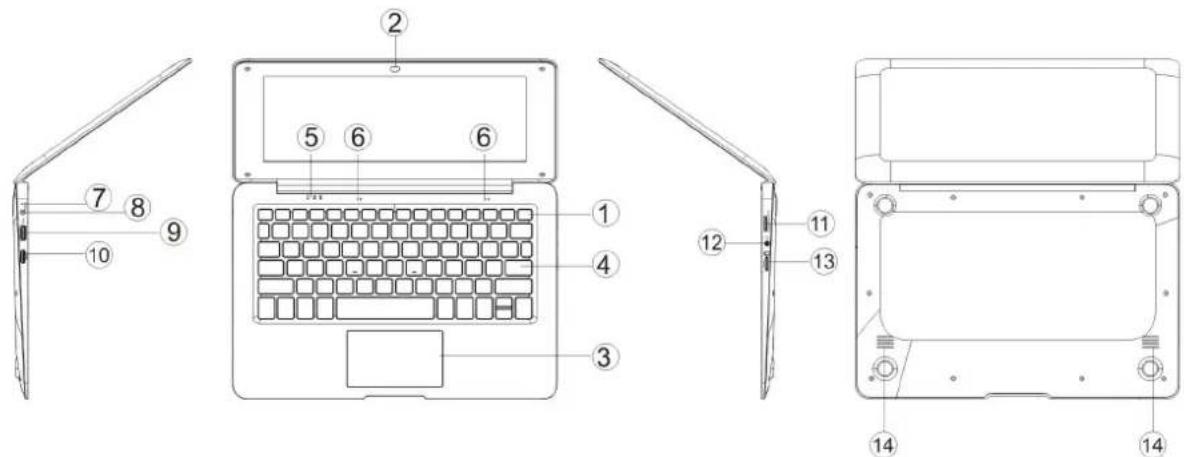
- Power button: Press it down to start or close the device.
You can also let the device enter dormancy through this button or wake from the dormancy mode. - Front camera: take pictures, shoot video.
- Touchpad: The device can be operated directly.
- Keyboard board: the device can be operated directly.
- Indicators: 1 charging indicator, red when charging connector adapter; 2 is the green light when the Caps Lock indicator Caps Lock; 3 is Num lock.
- Microphone: it can transmit audio signals to a device at work.
- Charge indicator: red light when plug adapter
- DC charging base: use the 5V / 2.5A charger included.
- USB Interface: You can insert U disk, mouse, keyboard directly.
- Mini-HDMI Interface: High-Definition Multimedia Interface.
- USB Interface: You can insert U disk, mouse, keyboard directly.
- Headphone jack: This jack device can transmit audio signals to the speakers or earphones.
- Micro SD card slot: built-in memory card reader slot that supports Micro SD format.
- Speakers: the built-in speaker lets you hear the sound of work without additional connected devices.
How to set system language
The display language is the language that Windows uses in wizards, dialog boxes, menus, Help and Support topics, and other items in the user interface. Some display languages are installed by default, and others require you to install additional language files. When you change the display language, it is changed for your user account and is not changed on the Welcome screen.
-
Open Regional and Language Options by clicking the Start button clicking Control Panel, clicking Clock, Language, and Region, and then clicking Regional and Language Options.
-
Click the Keyboards and Languages tab.
-
Under Display language, choose a language from the list, and then click OK.
Introduction to Desktop
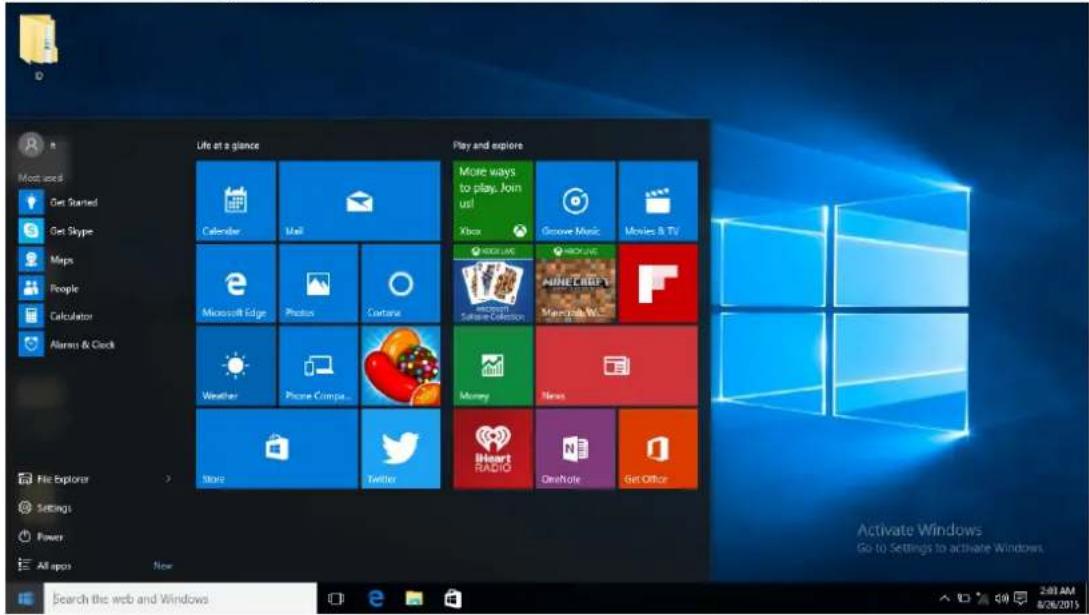
Windows 10 start image: On the start screen, you can see many programs fixed in the image. These application programs are displayed in the form of "magnet". As long as you click them, you can easily visit them.
You need to log on your Microsoft account before the application program completely runs.
Introduction to app Interface
Besides the application programs already fixed on the start screen, you can also start other application programs in all application programs, such as other software application programs attached to the device.
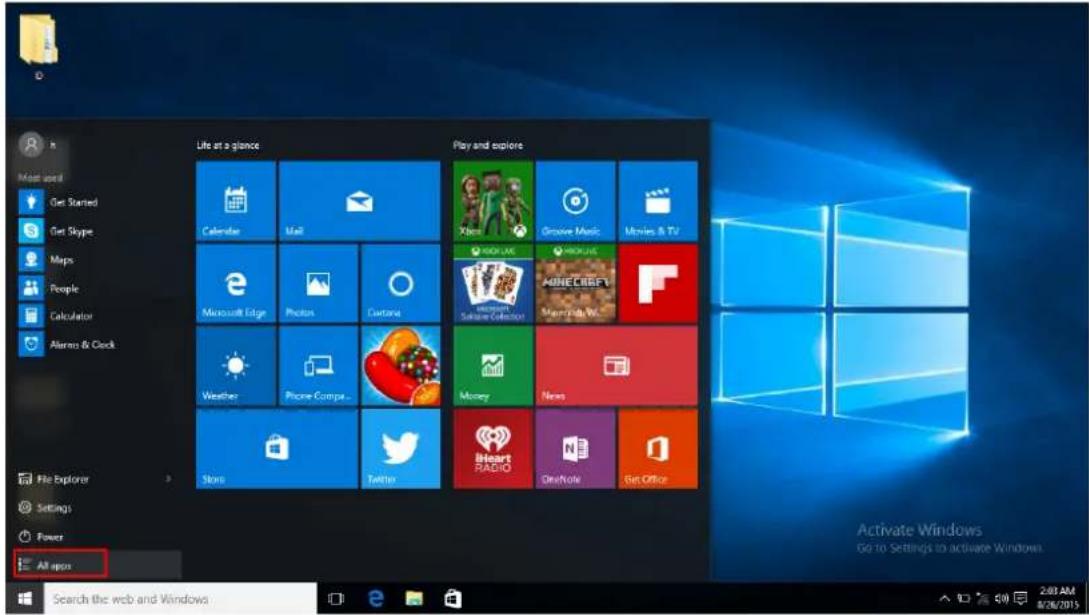
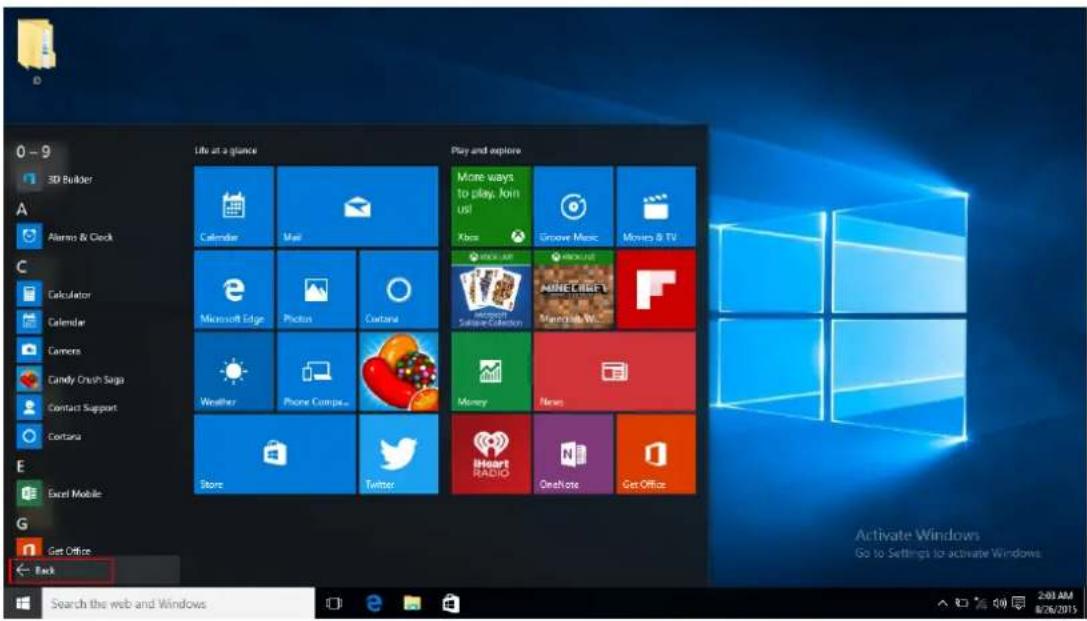
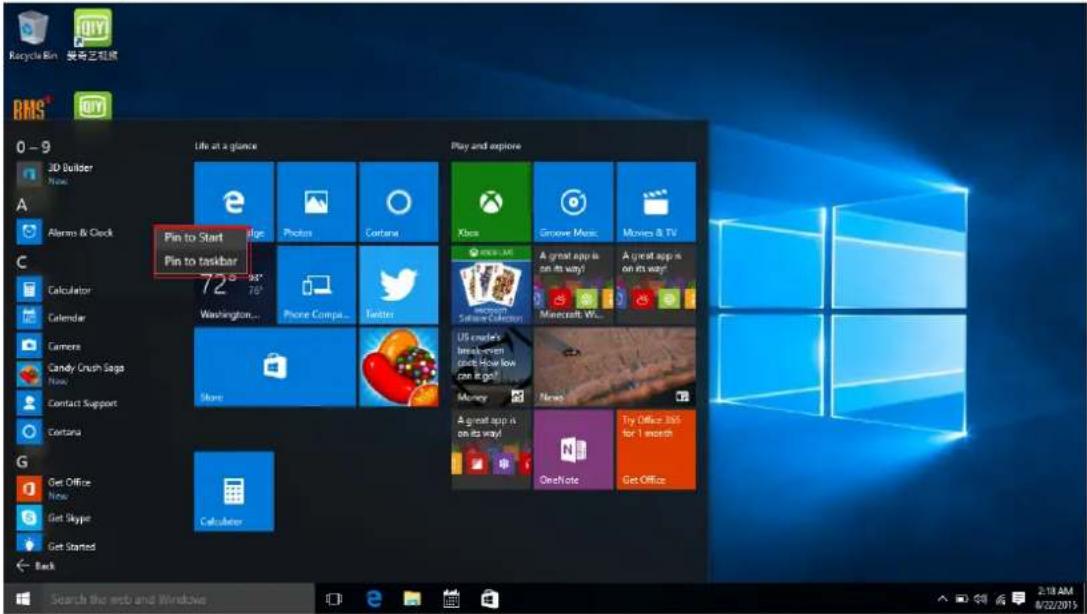
If you want to fix more application programs on the start interface or taskbar, see the operation in the figure below, (1) Click the properties icon(2) Right-Clicking the application (3) Click the Pin to start or pin to taskbar, as follow:
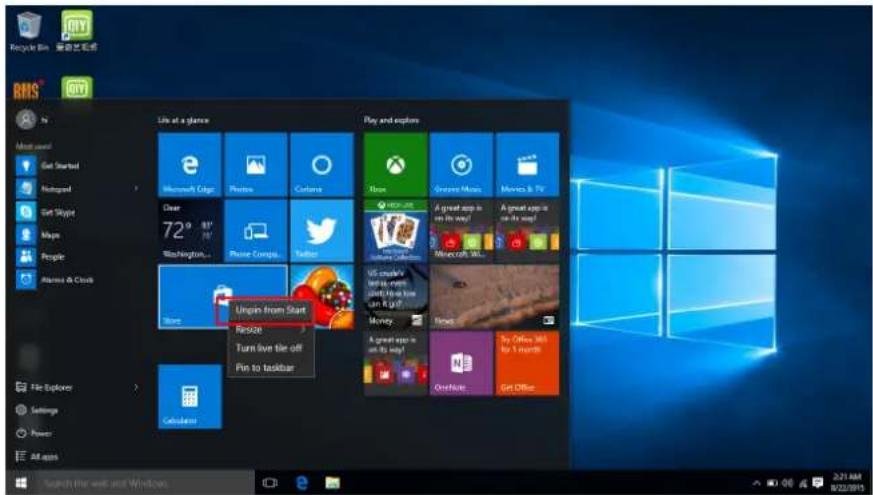
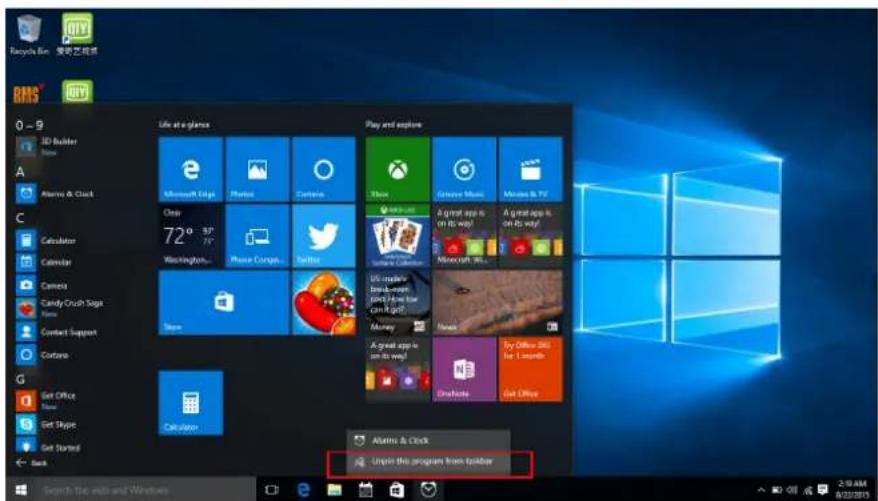
Conversely, if you want to cancel or delete a certain application in the start screen or taskbar, (1) Right-Clicking the application, (2) Click the "Unpin from Start" or "Unpin this program from taskbar"
Start Menu
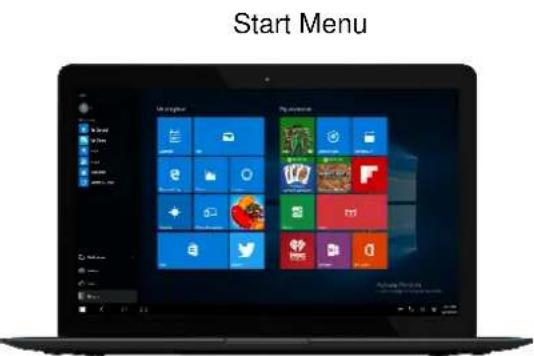
Under PC mode, press Start icon, Start Menu will appear.
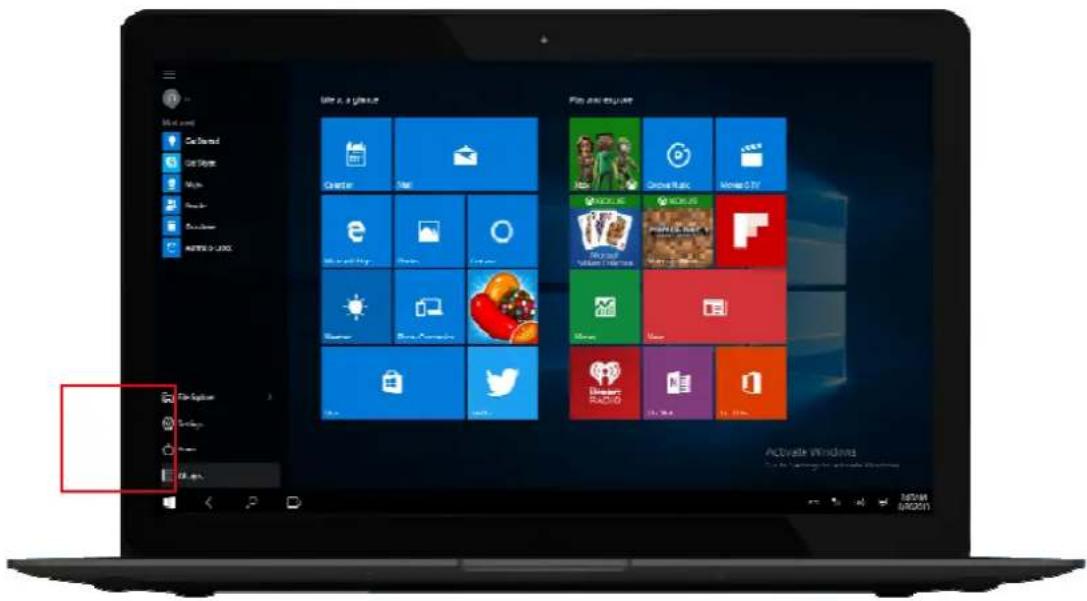
File Explorer, Settings, Power, and All apps
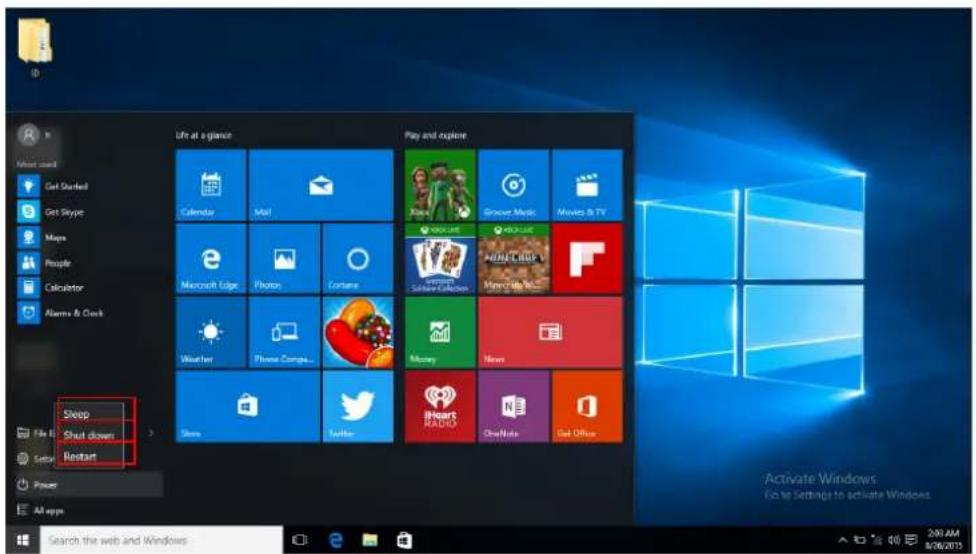
Can Sleep/Shut down/Restart the device.
Can let you search the files and application programs in the device.
Can let you set up
Shows installed apps.
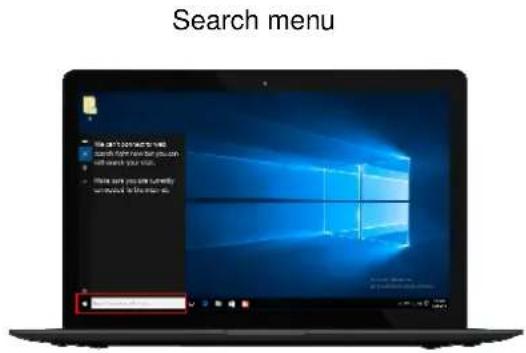
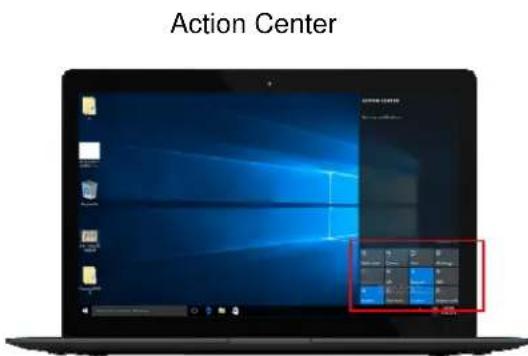
Action Center is a notification center also allows for quick settings like mode, Wi-Fi, Bluetooth etc.
4. Connecting to the Internet
a. Select the wifi icon 📋 bottom right corner of the screen , see following :
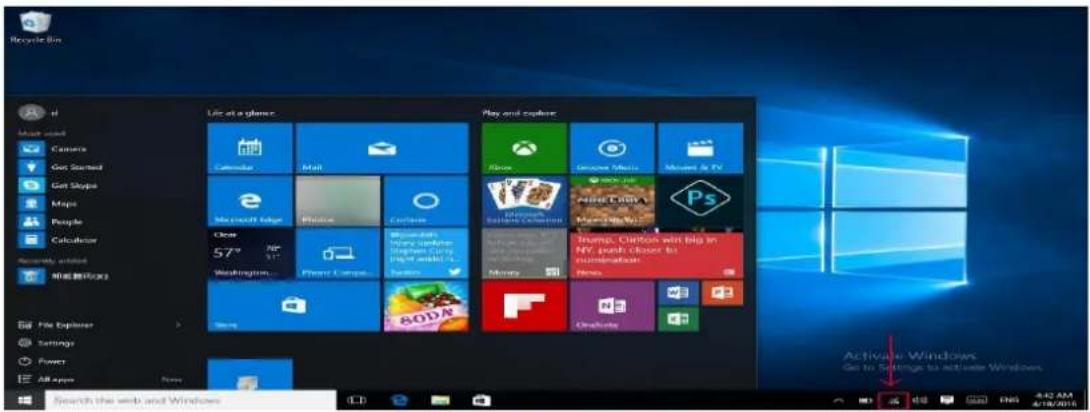
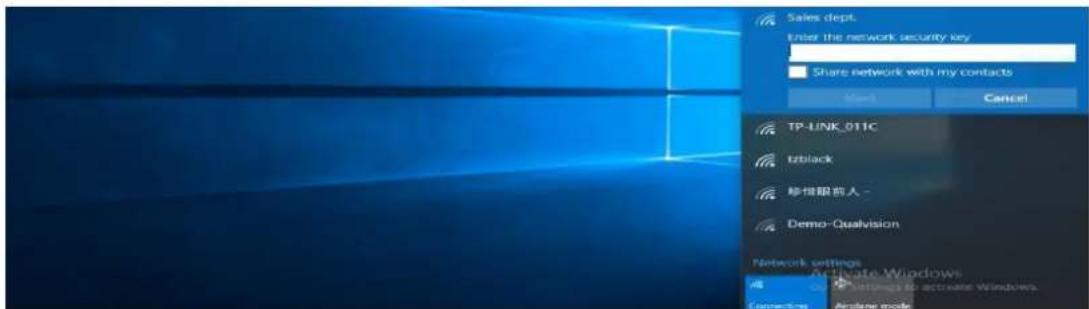
b. Select one of the wifi, input the password, click next, see following:
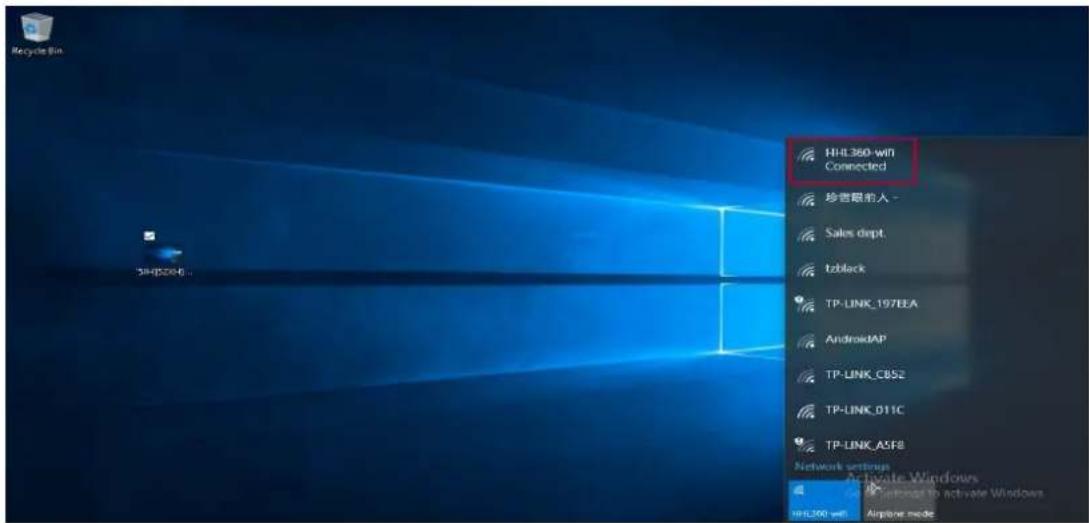
c. Then the system will connect to the network automatically, connecting successfully as below:
5. Multitasking operating interface
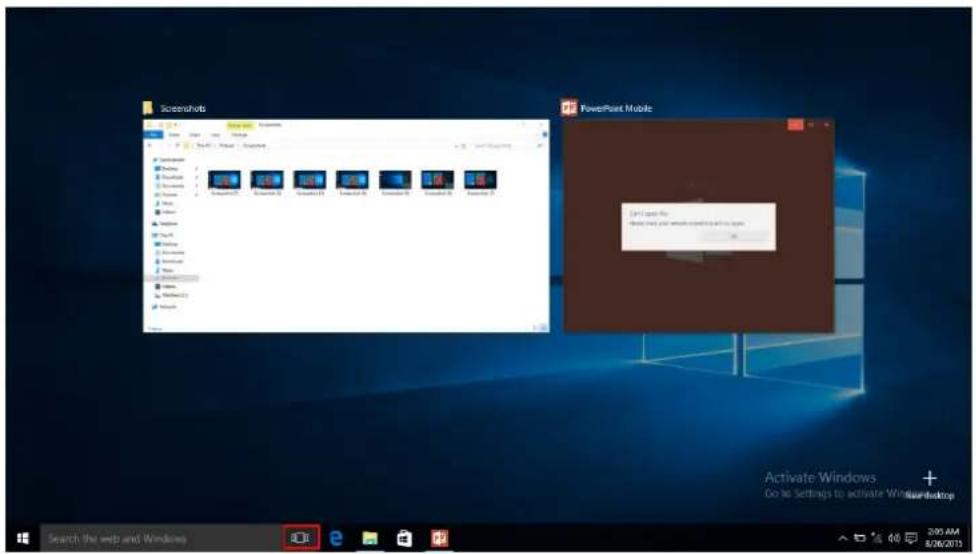
If you click the Task View, the running applications will be displayed. You can switch between applications.
6. Basic Operations
Sleep, Shut down and Restart
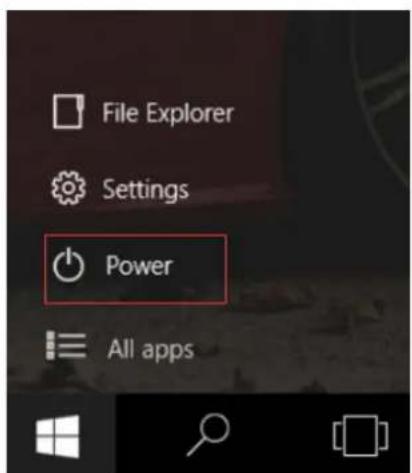
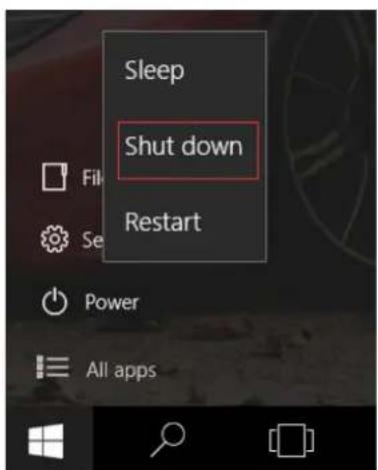
7. Specifications
Please visit www.denver-electronics.com. for the latest product information. Design, specifications, and manual are subject to change without notice.
| CPU 1.83GHz QUAD CORE | |
| RAM 2GB DDR3 | |
| Storage | 32GB flash built-in; micro SD card slot Storage (max.32GB supported) |
| Display 10.1" LCD Panel(1024x600) | |
| Wi-Fi Networking IE IEEE | 802.11 b/g/n |
| Audio Output 3.5mm headphone | |
| PC Interface | USB 2.0 high speed |
| Additional Features | Built-in microphoneCamera (Front 0.3MP)2x1W speaker, HDMI output & Bluetooth |
| Operating System Windows 10 | |
| Power | Rechargeable Li-poly battery power 4000mAhPower Adapter (DC 5V, 2.5A) |
ALL RIGHTS RESERVED, COPYRIGHT DENVER ELECTRONICS A/S
DENVER®
www.denver-electronics.com
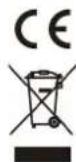
Electric and electronic equipment and included batteries contains materials, components and substances that can be hazardous to your health and the environment, if the waste material (discarded electric and electronic equipment and batteries) is not handled correctly.
Electric and electronic equipment and batteries is marked with the crossed out trash can symbol, seen below. This symbol signifies that electric and electronic equipment and batteries should not be disposed of with other household waste, but should be disposed of separately.
As the end user it is important that you submit your used batteries to the appropriate and designated facility. In this manner you make sure that the batteries are recycled in accordance with legislature and will not harm the environment.
All cities have established collection points, where electric and electronic equipment and batteries can either be submitted free of charge at recycling stations and other collection sites, or be collected from the households. Additional information is available at the technical department of your city.
Imported by:
DENVER ELECTRONICS A/S
Stavneagervej 22
DK-8250 Egaa
Denmark
www.facebook.com/denverelectronics
Hereby, Inter Sales A/S, declares that this device DENVER NBW-10004N is incompliance with the essential requirements and other relevant provisions of Directive 2014/53/EU..
A copy of the Declaration of Conformity may be obtained at
Inter Sales A/S
Stavneagervej 22
DK-8250 Egaa
Denmark
- Important safety and handling information
- Device layout and key functions
- How to set system language
- Introduction to Desktop
- Introduction to app Interface
- Start Menu
- Connecting to the Internet
- Multitasking operating interface
- Basic Operations
- Specifications
- ALL RIGHTS RESERVED, COPYRIGHT DENVER ELECTRONICS A/S
- DENVER®
Brand : DENVER
Model : NBW-10004N
Category : Laptop