
Lifestyle 30 - Hi-Fi System BOSE - Free user manual and instructions
Find the device manual for free Lifestyle 30 BOSE in PDF.


| Product Type | Home Theater System with 6-Disc CD Changer |
| Brand | Bose |
| Model | Lifestyle 30 |
| Category | Hi-Fi System |
| Music Center Dimensions (W x D x H) | 15.5" x 8.0" x 2.6" (39.4 cm x 20.3 cm x 6.6 cm) |
| Jewel Cube Speaker Dimensions (W x D x H) | 2.2" x 3.2" x 4.4" (5.6 cm x 8.1 cm x 11.2 cm) |
| Acoustimass Module Dimensions (W x D x H) | 23.3" x 7.5" x 14.0" (59.0 cm x 19.0 cm x 35.5 cm) |
| Music Center Weight | 5.9 lb (2.7 kg) |
| Jewel Cube Speaker Weight | 1 lb (0.5 kg) |
| Acoustimass Module Weight | 33 lb (15.0 kg) |
| Power Supply (Music Center) | 100-240V~ 50/60 Hz 25VA (depending on region) |
| Power Supply (Speaker System) | 120V~ 50/60 Hz 350W (USA/Canada) or 220-240V~ 50/60 Hz 350W (Europe/Australia) |
| Audio Inputs | 2 x Video (L/R), 1 x Aux (L/R), 1 x Tape (L/R) |
| Audio Outputs | Speaker Zone 1 & 2 (variable), Tape Out (fixed), Headphone (3.5mm mini jack) |
| Disc Capacity | 6 discs (CD) |
| Tuner Bands | AM/FM with 25 presets each |
| Speaker Configuration | 5 Jewel Cube speakers (front L/R, center, surround L/R) + Acoustimass module (subwoofer) |
| Remote Control Range | 65 ft (20 m) via radio frequency |
| Special Features | Videostage decoder, dual zone operation, enhanced bass for movies |
| Accessories Included | CD magazine, Test CD, AM/FM antennas, audio input cable, speaker cables, power cords, remote control, batteries |
| Cleaning Instructions | Use soft dry cloth for music center; damp cloth for speakers; no solvents, alcohol, or ammonia |
| Safety Certifications | Class B digital device, meets Canadian ICES-003, Class 1 laser product |
| Warranty | Limited 1-year transferable warranty |
Frequently Asked Questions - Lifestyle 30 BOSE
User questions about Lifestyle 30 BOSE
0 question about this device. Answer the ones you know or ask your own.
Ask a new question about this device
Download the instructions for your Hi-Fi System in PDF format for free! Find your manual Lifestyle 30 - BOSE and take your electronic device back in hand. On this page are published all the documents necessary for the use of your device. Lifestyle 30 by BOSE.
USER MANUAL Lifestyle 30 BOSE
The Bose® Lifestyle® 30 System
Owner's Guide
December 20, 2001
AM193147_03_V.pdf
Warning
To reduce the risk of fire or electric shock, do not expose this system to rain or moisture.
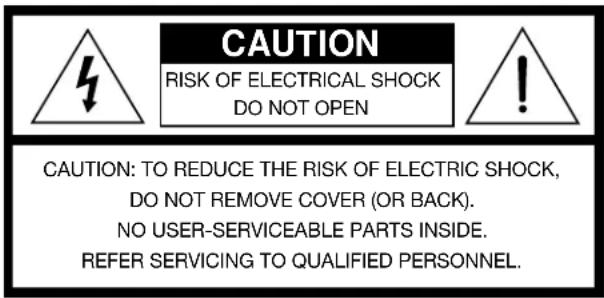
CAUTION:
For units with a polarized power plug, to prevent electric shock, match wide blade of plug to wide slot, insert fully.
These CAUTION marks are located on the back panel and bottom of your Lifestyle® music center and the bottom panel of your Acoustimass® module:

The lightning flash with arrowhead symbol, within an equilateral triangle, is intended to alert the user to the presence of uninsulated dangerous voltage within the system enclosure that may be of sufficient magnitude to constitute a risk of electric shock.

The exclamation point within an equilateral triangle, as marked on the system, is intended to alert the user to the presence of important operating and maintenance instructions in this owner's guide.
Class 1 laser product
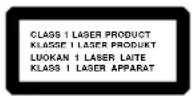
This compact disc player is classified as a CLASS 1 LASER product. The CLASS 1 LASER PRODUCT label is located on the bottom of the unit.
CAUTION: Use of controls or adjustments or performance of procedures other than those specified herein may result in hazardous radiation exposure. The compact disc player should not be adjusted or repaired by anyone except properly qualified service personnel.
Note: This system is not intended for use in moving vehicles.
Class B emissions limits
This Class B digital apparatus meets all requirements of the Canadian Interference-Causing Equipment Regulations.
Batteries
Please dispose of used batteries properly, following any local regulations. Do not incinerate.
Additional safety information
See the additional information on the Important Safety Instructions page enclosed with this owner's guide.
Please read this owner's guide
Please take the time to follow this owner's guide carefully. It will help you set up and operate your system properly, and enjoy all of its advanced features. Save your owner's guide for future reference.
-
Read these instructions – for all components before using this product.
-
Keep these instructions – for future reference.
-
Heed all warnings – on the product and in the owner's guide.
-
Follow all instructions.
-
Do not use this apparatus near water or moisture – Do not use this product near a bathtub, washbowl, kitchen sink, laundry tub, in a wet basement, near a swimming pool, or anywhere else that water or moisture are present.
-
Clean only with a dry cloth – and as directed by Bose® Corporation. Unplug this product from the wall outlet before cleaning.
-
Do not block any ventilation openings. Install in accordance with the manufacturer's instructions – To ensure reliable operation of the product and to protect it from overheating, put the product in a position and location that will not interfere with its proper ventilation. For example, do not place the product on a bed, sofa, or similar surface that may block the ventilation openings. Do not put it in a built-in system, such as a bookcase or a cabinet that may keep air from flowing through its ventilation openings.
-
Do not install near any heat sources, such as radiators, heat registers, stoves or other apparatus (including amplifiers) that produce heat.
-
Do not defeat the safety purpose of the polarized or grounding-type plug. A polarized plug has two blades with one wider than the other. A grounding-type plug has two blades and a third grounding prong. The wider blade or third prong are provided for your safety. If the provided plug does not fit in your outlet, consult an electrician for replacement of the obsolete outlet.
-
Protect the power cord from being walked on or pinched, particularly at plugs, convenience receptacles, and the point where they exit from the apparatus.
-
Only use attachments/accessories specified by the manufacturer.
-
Use only with the cart, stand, trip bracket or table specified by the manufacturer or sold with the apparatus. When a cart is used, use caution when moving the cart/apparatus combination to avoid injury from tip-over.
-
Unplug this apparatus during lightning storms or when unused for long periods of time – to prevent damage to this product.
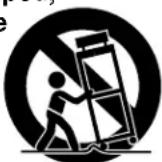
- Refer all servicing to qualified service personnel. Servicing is required when the apparatus has been damaged in any way: such as power-supply cord or plug is damaged; liquid has been spilled or objects have fallen into the apparatus; the apparatus has been exposed to rain or moisture, does not operate normally, or has been dropped – Do not attempt to service this product yourself. Opening or removing covers may expose you to dangerous voltages or other hazards. Please call Bose to be referred to an authorized service center near you.
- To prevent risk of fire or electric shock, avoid overloading wall outlets, extension cords, or integral convenience receptacles.
- Do not let objects or liquids enter the product – as they may touch dangerous voltage points or short-out parts that could result in a fire or electric shock.
- See product enclosure for safety related markings.
Information about products that generate electrical noise
If applicable, this equipment has been tested and found to comply with the limits for a Class B digital device, pursuant to Part 15 of the FCC rules. These limits are designed to provide reasonable protection against harmful interference in a residential installation. This equipment generates, uses, and can radiate radio frequency energy and, if not installed and used in accordance with the instructions, may cause harmful interference to radio communications. However, this is no guarantee that interference will not occur in a particular installation. If this equipment does cause harmful interference to radio or television reception, which can be determined by turning the equipment off and on, you are encouraged to try to correct the interference by one or more of the following measures:
- Reorient or relocate the receiving antenna.
- Increase the separation between the equipment and receiver.
- Connect the equipment to an outlet on a different circuit than the one to which the receiver is connected.
- Consult the dealer or an experienced radio/TV technician for help.
Note: Unauthorized modification of the receiver or radio remote control could void the user's authority to operate this equipment.
This product complies with the Canadian ICES-003 Class B specifications.
- Use proper power sources – Plug the product into a proper power source, as described in the operating instructions or as marked on the product.
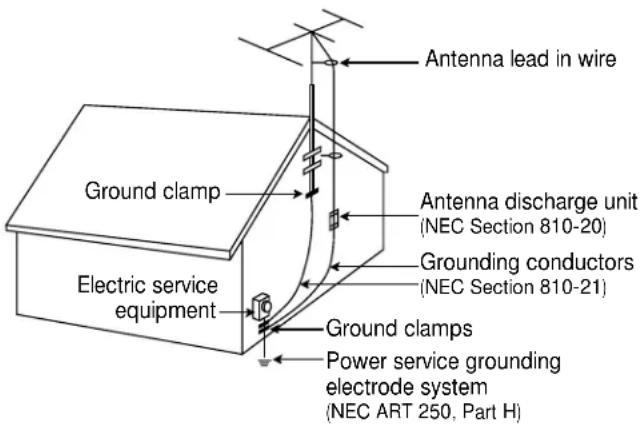
- Avoid power lines – Use extreme care when installing an outside antenna system to keep from touching power lines or circuits, as contact with them may be fatal. Do not install external antennas near overhead power lines or other electric light or power circuits, nor where an antenna can fall into such circuits or power lines.
- Ground all outdoor antennas – If an external antenna or cable system is connected to this product, be sure the antenna or cable system is grounded. This will provide some protection against voltage surges and built-up static charges. Section 810 of the National Electrical Code ANSI/NFPA No. 70 provides information with respect to proper grounding of the mast and supporting structure, grounding of the lead-in wire to an antenna discharge unit, size of grounding conductors, location of antenna-discharge unit, connection to grounding electrodes, and requirements for the ground electrode. Refer to the antenna grounding illustration on this page.
Antenna grounding
Example of antenna grounding as per National Electrical Code, ANSI/NFPA 70.
Note to CATV system installer
This reminder is provided to call the CATV system installer's attention to Article 820-40 of the NEC (of USA) that provides guidelines for proper grounding. In particular, it specifies that the cable ground shall be connected to the grounding system of the building, as close to the point of cable entry as is practical.
Where to find...
Setting Up
Before you begin 4
Unpack the carton 5
Select the locations for your Lifestyle ^® 30 system....6
Connect the speakers and music center....8
Connecting your home theater components to the Lifestyle® system ....10
Other connections 12
Connect the antennas 13
Set up the remote control.... 14
Set radio channel spacing on dual voltage systems 14
Operating Your Lifestyle ^® 30 System
Turn on your Lifestyle® 30 system 15
The music center display....15
The system controls 16
Other music center controls 17
The Lifestyle ^® 30 remote control 17
Listening to compact discs 18
Listening to the radio 20
Using the system with external components 21
Fine-tuning your system 22
Using two listening zones 23
Maintaining Your Lifestyle® 30 System
Changing the house code settings 25
Troubleshooting....26
Warranty period 27
Customer service 27
Taking care of your Lifestyle ^ 30 system 28
Product Information
Technical information 29
Accessories 29
Index 30
Bose® Corporation .... inside back cover
For your records
Serial numbers are located on the bottom of the music center and the bottom panel of the Acoustimass ^® module.
Lifestyle® music center serial number: ____
Acoustimass module serial number:
Dealer name: ____
Dealer phone: ____ Purchase date: ____
We suggest you keep your sales receipt and warranty card together with this owner's guide.
Before you begin
Thank you for purchasing the Bose ^® Lifestyle ^® 30 system. This remarkably compact system is a result of advanced technology developed by years of research. Technological innovations that make the Lifestyle ^® 30 system possible include the smallest CD changer now available for home use and Jewel Cube ^® speakers, one-half the size of the previous Acousti-mass ^® cube speakers.
To create speakers this small, the magnet inside is formed using the rare earth element neodymium and has ten times more energy (per unit volume) than conventional magnets. For high performance from such a small package, a port 3.8 inches (9.7 cm) long was designed in the shape of a nautilus shell and enclosed inside the tiny cube.
These, and numerous other innovations, bring you the Lifestyle® 30 system, offering superb sound, elegance, technology, and simplicity for music and home theater.
Your system includes:
- A Lifestyle ^® music center with built-in AM/FM radio and six-disc CD changer
- Powered Acoustimass speakers consisting of five Jewel Cube speakers and a hide-away Acoustimass module
- An easy-to-use remote control
- Inputs for two video sound sources, an auxiliary source, and a tape deck
- Capability for operating two listening zones
Bose Videostage ^® decoder technology enables the Lifestyle ^™ 30 system to reproduce the realism of movie sound especially for a home environment. When a movie soundtrack or CD is produced in a surround sound format, specially encoded sound is sent to any or all of the available speakers. Dialogue is usually sent to the front speakers. Sounds from the left or right side of the picture are sent to the left or right front speakers. Ambient sounds or special effects may be sent to the surround (rear) speakers. Bose Videostage circuitry automatically directs the sound to the correct speakers.
To select surround-encoded material, look for any of the terms Surround, Dolby Surround, and the double-D symbol ☐☐ DOLBY SURROUND * on tapes and discs, or the word “surround” preceding a TV broadcast.
When sound is recorded in stereo, but not surround-encoded, Videostage decoder technology directs it to the most appropriate speakers based on the signals received. When viewing older movies or listening to other monaural programs on your Lifestyle® 30 system, Videostage directs sound so it appears to come from the center of the TV screen.
You can listen to any program material in SURROUND (5-speaker) mode, although you will not hear sound from all five speakers all of the time. All monaural and most stereo materials are not directed to the surround speakers. Even with surround-encoded material there are times when no sounds are directed to the surround speakers. You can select the speaker mode that sounds best to you for each particular program.
Please take the time to follow this owner's guide carefully. It will help you set up and operate your Lifestyle® system, and enjoy all of its advanced features. Save your owner's guide for future reference.
CAUTION:
Remove and dispose of the three red manufacturer's shipping screws from the bottom of the Lifestyle® music center before setting up your system.
The shipping screws are for use by the manufacturer only. They are not re-installable.
Unpacking the carton
Carefully unpack your system. Save all packing materials for possible future use. The original packing materials provide the safest way to transport your Lifestyle® system. If any part of the product appears damaged, do not attempt to use the system. Notify Bose® customer service or your authorized Bose dealer immediately.
Use care when you remove the protective plastic film from the music center to avoid scratching the finish.
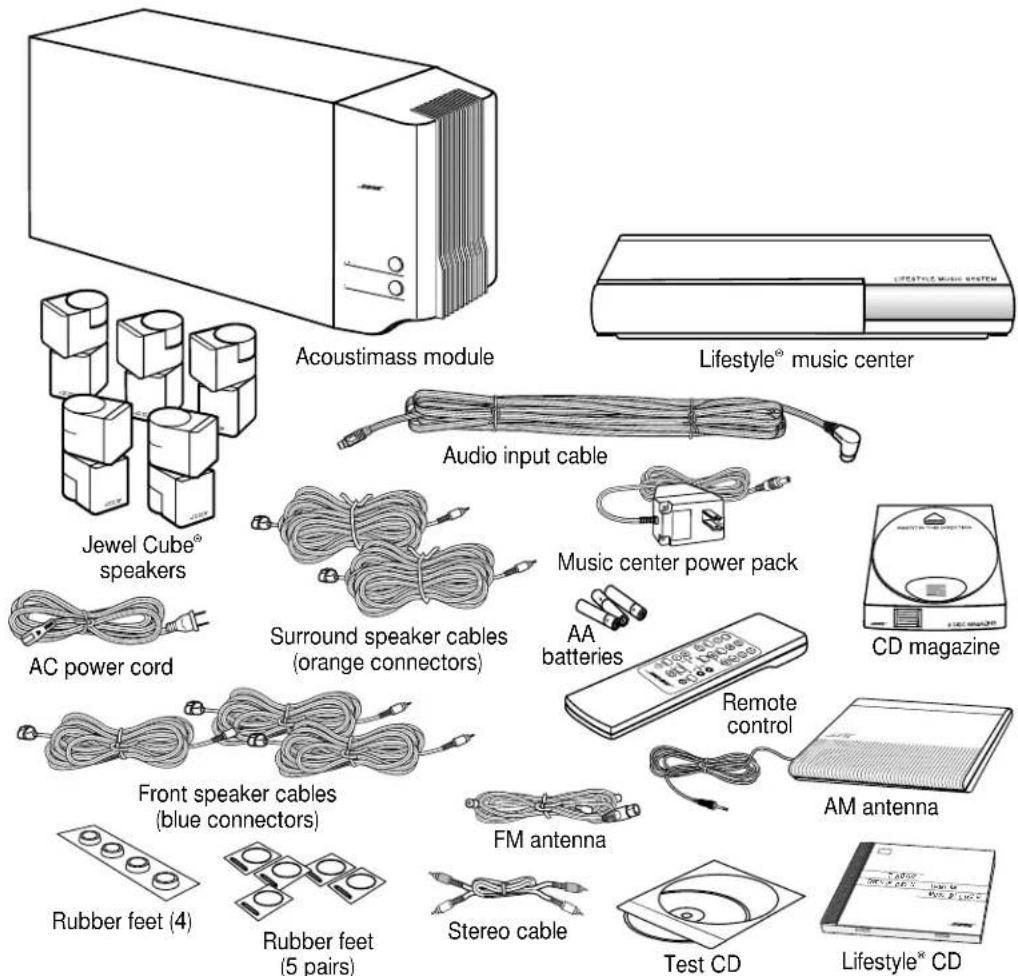
Check to be sure your Lifestyle® 30 system contains the parts identified in Figure 1.
Note: Find the serial numbers on the bottom panel of the Acoustimass ^® module and the bottom of the music center. Write them on your warranty card and in the spaces provided on page 3.
Figure 1
What comes with your Lifestyle® 30 system:
- Lifestyle ^n music center
• Music center power pack*
• 5 Jewel Cube speakers - 5 speaker cables (2 surround and 3 front)
- Acoustimass module
• 14 self-adhesive rubber feet (4 for the module and 5 pairs for the Jewel Cube speakers)
- AC power (mains) cord*
- Audio input cable
- Stereo cable
- Remote control
- 3 AA batteries
- FM antenna
- AM antenna
- CD magazine
- Lifestyle ^® CD and Test CD
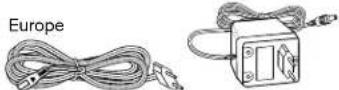
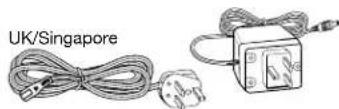
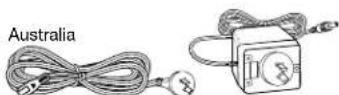
* Power cord and pack shown in Figure 1 are USA/Canada/Japan versions. Dual voltage systems include 1 power cord, 1 adapter , and 2 power packs.
The power cords and packs for Europe, UK/Singapore, and Australia are shown below.
CAUTION:
Choose a stable and level surface for your Jewel Cube speakers. Vibration can cause the speakers to move, particularly on very smooth surfaces. For stability, peel off the backing from the rubber feet and center them in the matching shapes on the bottom of each speaker.
Figure 2
Recommended front speaker locations
Select the locations for your Lifestyle® 30 system
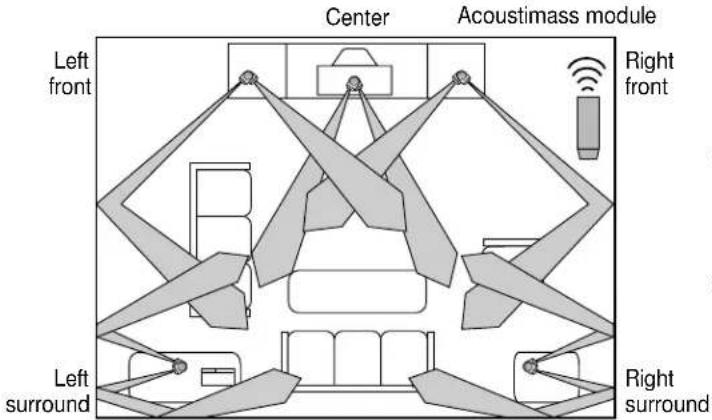
When you place your speakers according to the guidelines below, a combination of reflected and direct sound provides the audio atmosphere of a home theater. You may experiment with the placement and orientation of the Jewel Cube ^® speakers and Acoustimass ^® module to produce sound most pleasing to you. For the best surround effect, adjust the speakers so you cannot identify the exact sound source. It is preferable not to aim the cubes directly at the listener. For more discussion of speaker placement and room acoustics, see “Fine-tuning your system” on page 22.
Jewel Cube speaker locations
Follow these guidelines to select locations that provide the maximum home theater effect from your Lifestyle ^® 30 system (Figures 2 and 3). Place each of the Jewel Cube speakers 6-12 inches (15-30 cm) from the surface behind them.
Left and right front speakers
The sound from the left and right front speakers should seem to appear at the edge of the picture, so that the acoustic image is close to the size of the visual image (Figure 2).
- Place them on line with the horizontal center of the TV screen.
- Place each speaker up to 3 feet (1 m) from the edge of the TV screen.
We recommend a maximum distance of 3 feet (1 m) so that the sound does not become too separated from the picture. You may wish to vary this distance based on room conditions and personal preference. The front cables allow the cube speakers to be placed up to 20 feet (6.1 m) from the Acoustimass module. - Direct one cube of each speaker toward the center of the room (Figure 2). Direct the other cube toward a side wall to create reflected sound. (See the illustration of suggested reflected sound patterns in Figure 3.)
Note: The Jewel Cube speakers are magnetically shielded so you can place them close to the TV without affecting picture quality.
Center speaker
The sound from the center speaker should appear to come directly from the center of the picture (Figure 2). The center cable allows the center speaker to be placed up to 20 feet (6.1 m) from the Acoustimass module.
Note: Do not place the speaker on its side, as this diminishes performance by blocking the Jewel Cube ports.
- Place the speaker on line with the vertical center of the screen, above or below (whichever is closer to the screen), or the closest convenient location.
- Place the speaker in line with the front of the screen (not pushed to the back of the TV).
- Direct each of the cubes slightly away from center, to create a wider area of direct sound (Figure 3).
Note: If you put the speakers in a bookcase unit, be sure to place each one at the front edge of the shelf. Placing speakers in an enclosed space can change the tonal quality of the sound. This effect is minimized if the shelves are filled with books.
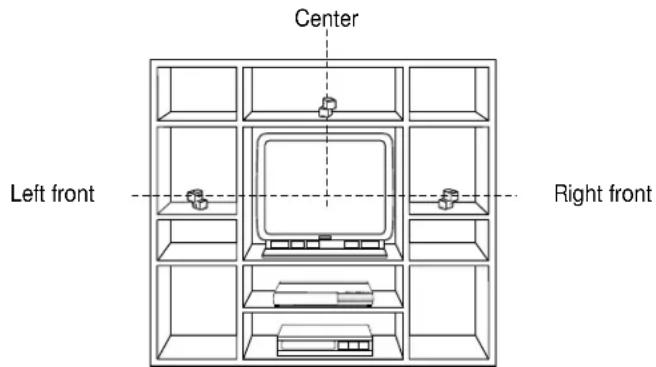
Figure 3
Speaker placement
Surround speakers
The surround (rear) speakers create an area of sound around the listener. Place them in the back half of your room. Direct the cubes so that you do not pinpoint the exact location of the sound source (Figure 3). The surround cables allow the speakers to be placed up to 50 feet (15.2 m) from the Acoustimass® module.
- Place the speakers at ear height or higher, if possible.
- Direct the cubes to reflect sound off one or more walls or vertical surfaces.
- Do not direct the sound straight at the listener.
Figure 4
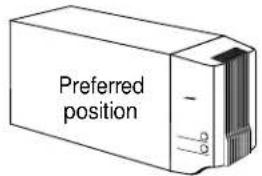
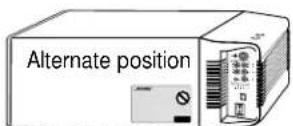
Acoustimass module positions
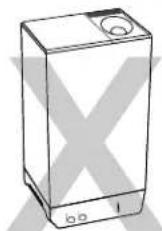
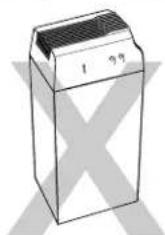
CAUTION:
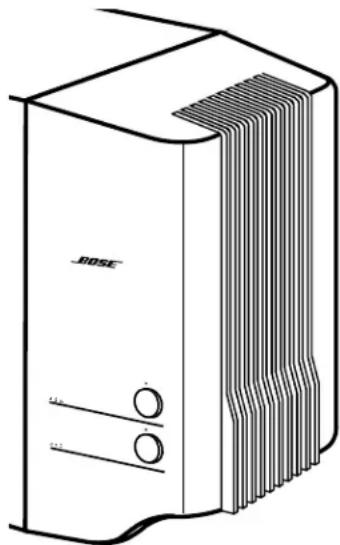
Do not cover the ventilation openings of the Acoustimass module. The slots on the end provide ventilation for the built-in electronic circuitry.
Acoustimass module
Follow these guidelines to select a location for the Acoustimass module.
CAUTION: To avoid interference with the TV picture, place the module at least 18 inches (45 cm) from the TV.
- Place the module along the same wall as the TV, or close to the same end of the room as the front speakers (see the example along the front wall in Figure 3).
- Select a position for the module (Figure 4). For proper ventilation, place it on the long edge, with the connectors facing the floor. An alternate position is on its largest side, with the bass and treble controls facing up. Do not place the module on either end, as shown by the last two views in Figure 4.
Note: Once you have selected a position for the module, place the four self-adhesive rubber feet near the corners of the bottom surface. The rubber feet provide increased stability and protection from scratches.
-
Select a convenient location – under a table, behind a sofa. Do not allow furniture or drapes to block the ventilation openings of the module.
-
Place it within reach of the audio input cable, speaker cables, and an electric outlet.
-
Aim the port (the round opening) into the room or along the wall to avoid blocking the port or creating too much bass.
-
For best bass performance, do not place the module so that the port is at equal distances from any two walls or from a wall and the ceiling.
Music center
Select a location for the music center.
CAUTION: Be sure the three shipping screws on the bottom of the music center have been removed before proceeding.
- Place the music center on a level surface. Allow enough room to lift the door and to access the headphone jack on the right side panel.
- Place the music center close enough to the sound sources (TV, VCR, etc.) to allow for cable length. If you need additional audio and/or video cables to connect all of your components, see your dealer or call Bose ^® customer service.
- Place the music center within 30 feet (9.1 m) of the Acoustimass module (the length of the audio input cable).
CAUTION:
Make sure all components are unplugged from the power outlet before you begin connecting the system.
Figure 5
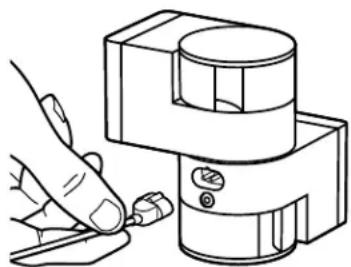
Speaker cable connection to the Jewel Cube speaker
natural_image
Line drawing of a hand using a tool to adjust or install a mechanical component (no text or symbols present)Connect the speakers and music center
Once you have selected locations for your speakers and music center, connect the system.
Connecting the Jewel Cube ^® speakers to the Acoustimass ^® module
-
Match each cable to the corresponding speaker location.
-
Front speaker cables have blue RCA connectors at one end, with L, R, or C molded into both the RCA connectors and the Jewel Cube connectors at the other end.
-
Surround speaker cables have orange RCA connectors at one end, with L or R molded into both the RCA connectors and the Jewel Cube connectors at the other end.
-
Insert the Jewel Cube connector of each cable fully into the jack on the rear of one of the five speakers (Figure 5). Match the ridge of the connector to the notch at the top of the jack.
-
Connect each cable to the corresponding jack on the Acoustimass module.
a. Plug the blue connectors into the matching left front, center, and right front jacks.
b. Plug the orange connectors into the matching left surround and right surround jacks.
To lengthen the cable, connect speaker wire with male phono (RCA) plugs on each end to your supplied speaker cable. Use a female-to-female adapter ("barrel" connector). Or, splice in 18-gauge (.75 mm²) or thicker cord (connecting + to + and - to -). To purchase extension wire, see your dealer, electronics store, or call Bose® customer service.
Connecting the Acoustimass module to the music center
Connect the module to the music center with the audio input cable (Figure 6).
- Plug the small black multi-pin connector (flat side facing up) into the jack marked SPEAKER ZONE 1 on the back of the music center.
- Insert the right-angle multi-pin connector on the other end of the audio input cable into the AUDIO INPUT jack on the module. Align the connector at the angle shown in Figure 6.
Note: Be sure that each connector is inserted completely into each jack.
- Extend the audio input cable as much as possible, since it includes an antenna for the remote control.
For information on connecting zone 2, see “Using two listening zones” on pages 23-24.
Figure 6
Connecting the speakers and the music center
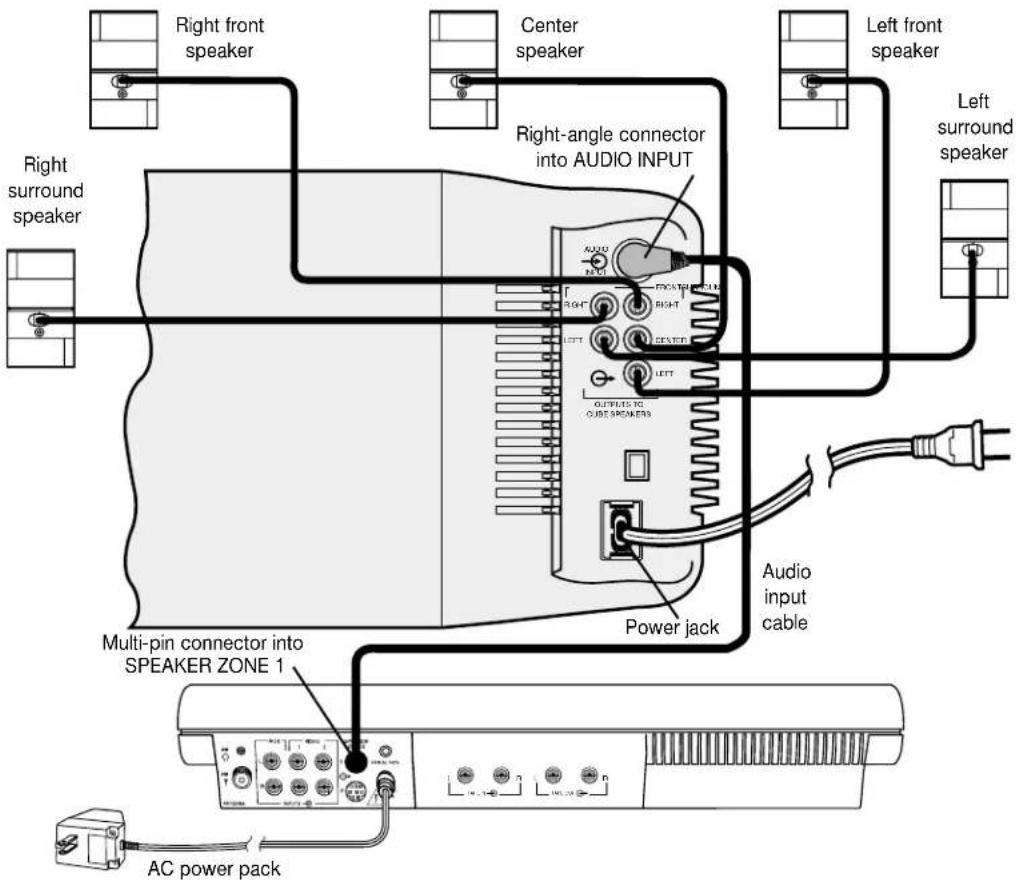
Figure 7
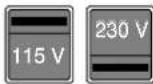
Dual voltage Acoustimass module: voltage selector switch settings
CAUTION:
Make sure the voltage selec- tor switch is set correctly.
Figure 8
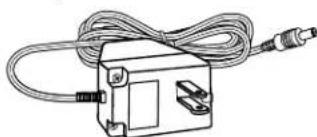
The AC power pack (model PS71 shown)
natural_image
Line drawing of an electrical component with coiled cable and connector (no text or symbols)CAUTION:
Be sure to use the correct power pack for your area. Using the wrong one may damage your music center.
Connecting the Acoustimass ^® module power cord
-
On a dual voltage Acoustimass module, the voltage selector switch is preset at the factory. If it is not set for the proper voltage, slide it to the correct setting (Figure 7). Use 115V for North America, and 230V for Europe and Australia. In Europe, use the adapter plug provided. If you are in doubt, contact your local electric utility for the appropriate voltage setting.
-
Plug the small end of the AC power (mains) cord into the module power jack.
Note: Do not plug the power cord into a power outlet until you complete all connections.
Connecting the music center power pack
The Lifestyle® music center comes with either a 100V, 120V, 230V, or 240V power pack. See Figures 1 and 8. Dual voltage models include both the PS71 and PS72 power packs.
Use only the Bose ^® power pack model specified for your area:
• Model PS71, 120V in North America
• Model PS72, 230V in Europe
• Model PS73, 100V in Japan
• Model PS74, 230V in UK or Singapore
• Model PS77, 240V in Australia
- Firmly insert the small connector on the end of the power pack cable into the AC power jack on the back of the Lifestyle® music center.
- Make sure that the power pack reaches an AC power (mains) outlet.
Note: Do not plug the power pack into a power outlet until you complete all connections.
Connecting your home theater components to the Lifestyle® system
There are many variations of equipment in a home theater. A basic home theater system might include a stereo or mono TV and stereo VCR with the Lifestyle® 30 system. Your home theater can include many other combinations of equipment, including cable TV box, laser-disc players, DVD players, CDI players, additional VCRs, and satellite decoders.
Note: A mono TV only serves as a display for the video, not as a source for the audio.
In order for the Lifestyle® system to provide home theater effects, the program material must be recorded in stereo or surround-encoded, and the device playing the material must be stereo. Look for the word “surround” on the tape, CD, or preceding the TV broadcast. To hear stereo or surround sound from encoded video tapes, you must have a stereo (HiFi) VCR. While not all VCRs are stereo devices, all CD, DVD, and CDI players and nearly all laserdisc players play in stereo format.
Note: Line level outputs from most VCRs or laserdisc players are fixed. If your VCR, laserdisc player, or other video sound source has fixed and variable outputs, use the fixed outputs.
Setting up the primary video sound source
The Lifestyle ^® music center has two sets of video sound inputs for the primary sources (Figure 10). If you set up your music center a distance from your TV, you may need extra long audio cables or extensions.
Note: Your Lifestyle® 30 system includes one 6-foot (1.8 m) stereo cable to connect the right (R) and left (L) audio outputs from a component to the music center inputs. Cables may also be supplied with your components. If needed, cables are available at many electronics stores, or call Bose® customer service. Most audio cables are color coded. Match red connectors to right (R) jacks and black or white connectors to left (L) jacks.
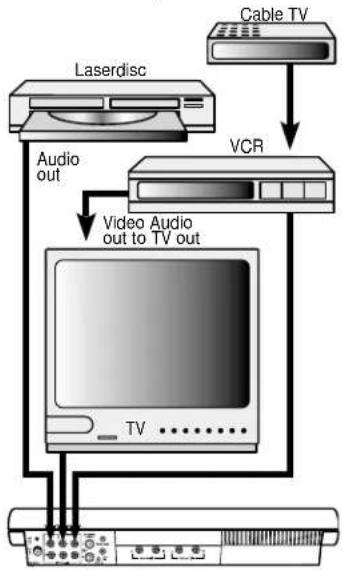
There are three basic methods for setting up your home theater. It is easiest to use a stereo TV as the switching center to select the sound source. The next easiest option is to use a stereo VCR as the switching center. The third option is to connect components directly to the Lifestyle ^® music center, and select the source from the Lifestyle ^® remote or control panel.
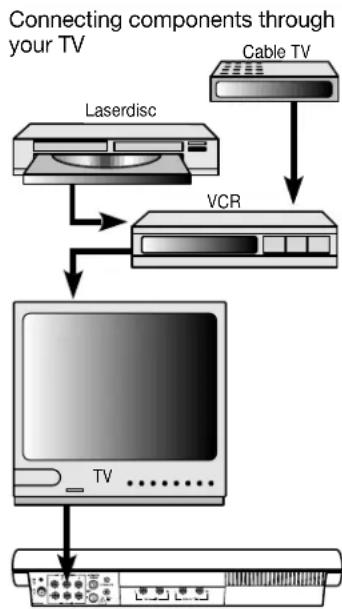
(1) To direct your video sound sources through your TV
If your stereo TV has fixed audio outputs (the audio signal level does not change), and it allows you to select the source of the signal (VCR, laserdisc, cable, etc.):
- Connect your home theater components (VCR, cable box, laserdisc player, etc.) to the appropriate TV inputs. See Figure 9.
- Connect the TV fixed audio outputs to the VIDEO 1 or 2 inputs of the music center.
- Turn the TV speakers off or the volume all the way down. (If there is an internal/external speakers switch, select external speakers. Do not connect any speakers to the TV.)
- Turn off any special TV settings such as expanded stereo, mega-bass, phantom, SAP. These settings prevent the proper processing of the surround sound through your Lifestyle® system.
- Set the TV balance control to the center of the dial or range.
- Set tone controls to flat or the middle position (neutral).
- Set the TV to the stereo position.
Note: If you connect the audio outputs from your TV to the music center, be sure to use the audio (L and R) and video outputs from the VCR to the TV. If the audio signal passes through two coaxial cable connections (like the connection from a cable TV box), in some cases the stereo or surround encoding may be lost.
Note: If necessary, as a second choice, you can use variable audio outputs from your stereo TV. Turn off or disconnect the TV's speakers and leave the volume control up – close to the maximum setting.
Figure 9
flowchart
graph TD
    A["Laserdisc"] --> B["VCR"]
    C["Cable TV"] --> B
    B --> D["TV"]
    D --> E["..."]
Figure 10
Music center connectors
Figure 11
flowchart
graph TD
    A["Laserdisc"] --> B["Video out to TV Audio out"]
    B --> C["TV"]
    D["Cable TV"] --> E["VCR"]
    E --> A
Figure 12
Connecting components to the music center inputs
flowchart
graph TD
    A["Laserdisc"] -->|Audio out| B["TV"]
    A -->|Video Audio out to TV out| C["VCR"]
    C --> D["Cable TV"]

(2) To direct your video sound sources through your VCR
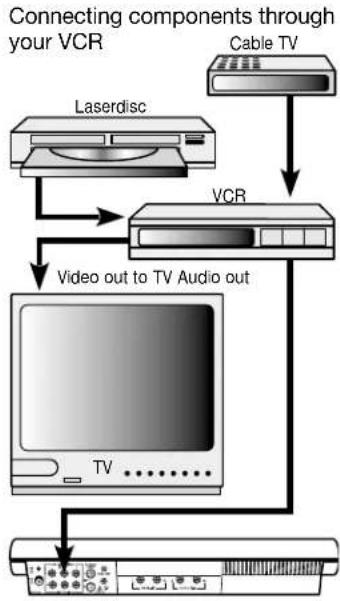
If your TV is not a stereo model, or does not have the appropriate outputs, connect your stereo VCR to the music center. Use the VCR as a tuner to select other connected sound sources. See Figure 11.
- Connect your home theater components to the appropriate VCR inputs.
- Connect the VCR video out signal to the TV through VIDEO IN or composite video input. You can also use the RF (coaxial or 75Ω) or antenna input.
- Turn the TV speakers off or the volume all the way down. (If there is an internal/external speakers switch, select external speakers. Do not connect any speakers to the TV.)
- Connect the VCR fixed audio outputs to the VIDEO 1 or 2 inputs of the music center.
Note: To ensure proper stereo or surround sound, connect the L and R audio outputs from your stereo VCR directly to your music center L and R VIDEO 1 or 2 inputs, as shown in Figure 11. If you prefer to connect the audio outputs from your TV to the music center, be sure to use the audio (L and R) and video outputs from the VCR to the TV. If the audio signal passes through two coaxial cable connections (like the connection from a cable TV box), in some cases the stereo or surround encoding may be lost.
(3) To connect components directly to the Lifestyle music center
If you cannot (or do not choose to) use your TV or VCR to select the sound sources, connect up to three sound sources directly to the Lifestyle® music center. For example, connect a VCR into VIDEO 1, a laserdisc to VIDEO 2, and a TV's fixed audio outputs to AUX on the music center. See Figure 12. By pressing VIDEO 1, VIDEO 2, or AUX on the remote control or SOURCE SELECT on the music center control panel, you choose which sound source to hear.
Note: Selecting VIDEO 1 or 2 on your Lifestyle® system automatically selects SURROUND (5-speaker) mode, and selecting AUX or TAPE automatically selects STEREO (2-speaker) mode. If you wish, you can change the speaker mode after you select the source.
About the video source
Your TV is the display for the video (picture) signal. Therefore, the video signal must be connected directly to the TV. The video signal should not be connected to the Lifestyle® music center.
Note: For assistance with video connections, see your video components manuals.
Note: There is no video signal input (usually a yellow-coded jack) on the music center. The music center VIDEO INPUT jacks are for audio from a video source.
Other connections
Use standard RCA audio cables to connect other components to your Lifestyle ^® system, matching the red connector to R (right), white (or black) connector to L (left).
You can use a Y-adapter (available at electronics stores) to connect a mono source. However, the left and right speakers then play the same monaural sound.
Tape deck
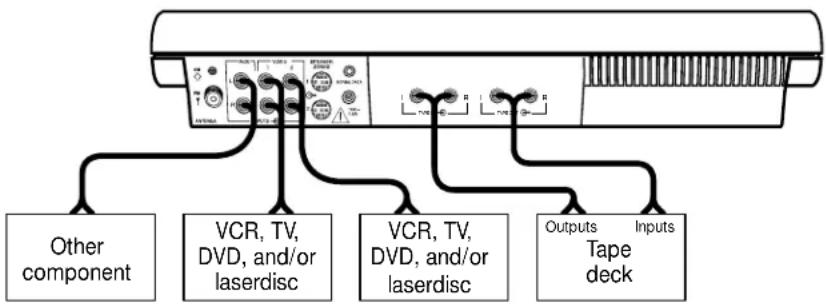
To use an external tape recorder (analog audio cassette, analog open reel, digital audio tape, or Digital Compact Cassette), connect the inputs (REC) of the tape deck to the music center TAPE OUT jacks. Connect the outputs (PLAY) from the tape deck to the music center TAPE IN jacks. See Figure 13.
CD changer, DVD player, or laserdisc player
To use one of these components, connect its audio outputs to the music center AUX INPUT jacks, matching the red plug to R (right) and black or white plug to L (left). See Figure 13.
Turntable
To connect a turntable, you need a phono preamplifier (with RIAA equalization). Consult your dealer for the appropriate model. Connect the audio outputs of the phono preamplifier to the music center AUX INPUT jacks, matching the red plug to R (right) and black or white plug to L (left).
Note: The Lifestyle® 30 system cannot turn a connected component on or off.
Figure 13
Connecting other components
flowchart
graph TD
    A["Device"] --> B["Other component"]
    A --> C["VCR, TV, DVD, and/or laserdisc"]
    A --> D["VCR, TV, DVD, and/or laserdisc"]
    A --> E["Outputs Inputs Tape deck"]
Connect the antennas
The rear panel of your Lifestyle® music center provides connections for the supplied AM and FM antennas (Figure 14). Unwind each antenna. Antennas provide better reception when their wires are not bundled.
Figure 14
The antenna connections
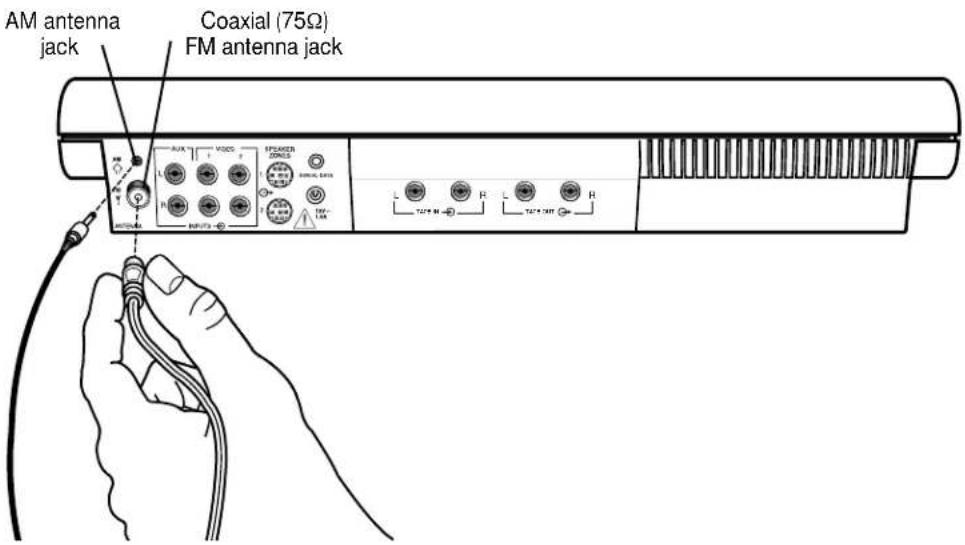
Figure 15
The FM antenna
FM antenna connections
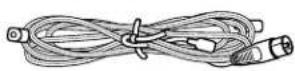
- Plug the FM antenna connector into the FM ANTENNA jack on the back of the music center.
- Spread out the antenna arms. Experiment with both the placement and the angle of this antenna to provide optimum FM reception.
Note: A central antenna or cable, or an outdoor FM antenna, may be used with the music center antenna connections. To install an outdoor antenna, consult a qualified installer. Follow all safety instructions.
Figure 16
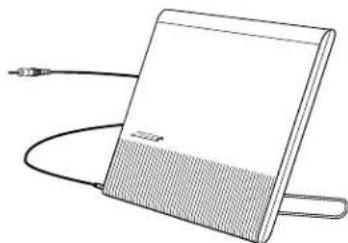
The AM antenna
natural_image
Line drawing of a rectangular electronic device with a coiled cable and connector (no text or symbols)AM antenna connections
- Plug the AM antenna connector into the AM ANTENNA jack on the back of the music center.
- Move the antenna as far as possible from the music center and other components, and at least four feet (1.2 m) from the Acoustimass® module. This prevents interference with AM reception.
- To stand the antenna up on a flat surface, extend the wire feet outward. Or, use the notch on the back of the antenna to hang it on a wall. For proper AM signal reception, be sure the antenna is in an upright position.
- You may want to adjust the antenna location or orientation as needed to receive distant stations.
Connecting to a cable radio signal
To connect your system to the FM signal available from some cable TV companies, contact your cable provider for assistance. The connection is made to the FM 75Ω EXTERNAL antenna connector on the back of the system.
CAUTION: Be certain that the installation includes a signal splitter so that only the FM band, not the cable TV band, is transmitted to the system. It is necessary to use a splitter that filters the signal to prevent any re-emissions of the TV spectrum through the system.
Set up the remote control
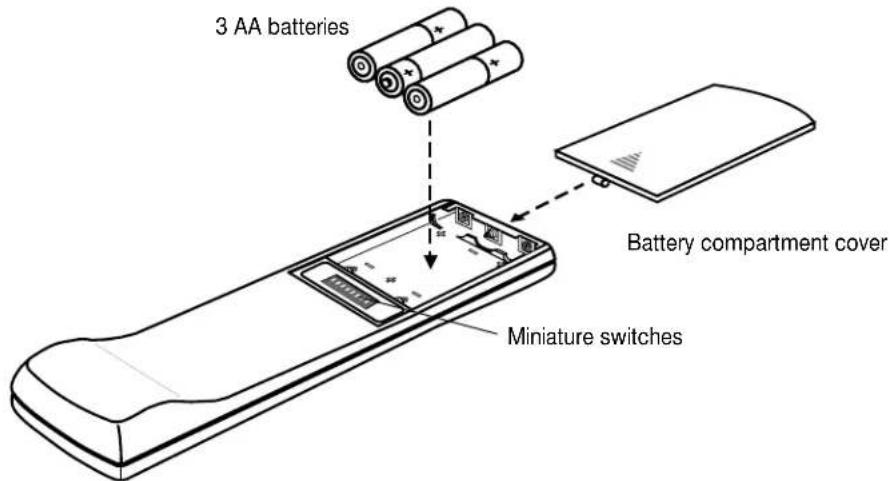
- Slide open the battery compartment on the back of the remote (Figure 17).
- Insert 3 AA or IEC-R6 1.5V batteries, or the equivalent, as shown. Match the + and - symbols on the batteries with the + and - markings inside the compartment.
- Slide the battery compartment cover back into place.
Replace the batteries when the remote control stops operating or its range seems reduced. Alkaline batteries are recommended.
Note: Do not change the settings of the factory-preset miniature switches. See "Changing the house code settings" on page 25 for information on how to prevent conflicts with other Lifestyle® systems.
Figure 17
Installing the remote control batteries
Set radio channel spacing on dual voltage systems
Dual voltage music centers (which include both 120V and 230V power packs) can be set for two types of AM and FM channel spacing.
• 10 kHz for AM and 200 kHz for FM (common to North America)
- 9 kHz for AM and 50 kHz for FM (common to Europe)
Your dual voltage music center is preset for North American spacing. Select the channel spacing most appropriate for your area.
To change between North American and European channel spacing:
- Turn the music center off.
- Press and hold the ERASE key (on the music center control panel) for three seconds.
The display flashes PROGRAM and indicates L for North American spacing or Euro for European spacing. - While holding the ERASE key, press SOURCE SELECT (on the music center control panel). The display flashes PROGRAM and the setting changes from US . Euro While holding ERASE, press SOURCE SELECT again to change from Eoro US
CAUTION:
Be sure the three shipping screws on the bottom of the music center have been removed before turning on the system.
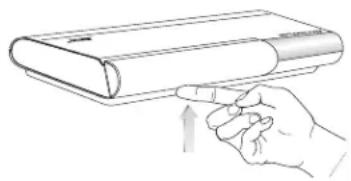
Figure 18
Opening the music center door
natural_image
Line drawing of a hand holding a rectangular object with an arrow pointing upward (no text or symbols)Turn on your Lifestyle® 30 system
Plug the Acoustimass ^® module power cord into an AC power (mains) outlet. Then plug in the music center power pack.
Note: Your speakers will not operate unless you complete all cable and power connections before turning on the music center.
You are ready to enjoy your new Lifestyle ^® system.
Refer to the information below about the music center display, and to the following pages for information on the music center controls and the Lifestyle ^® remote control.
To open the music center, press up gently on the bottom of the door (Figure 18).
- To play compact discs, follow the instructions on pages 18 and 19. To verify your system setup, listen to the instructions on the Test CD.
- To listen to the radio, follow the instructions on page 20.
- To use other components with your Lifestyle ^® system, see page 21.
- To use your system with two listening zones, see pages 23 and 24.
Turning the system on
- Press ON/OFF or any source key on the remote (CD, AM/FM, TAPE, VIDEO 1 or 2, AUX). Or, press ON/OFF or SOURCE SELECT on the music center.
- Pressing VIDEO selects SURROUND mode; pressing CD, AM/FM, TAPE, or AUX selects STEREO mode. Press SURROUND (5-speaker), STEREO+CENTER (3-speaker), or STEREO (2-speaker) to change the mode.
Adjusting the volume
- Use the VOLUME ▲ (up) or ▼ (down) keys to raise or lower the volume.
- Use the MUTE key on the remote control to silence the speakers in the zone controlled by that remote. Press MUTE again to restore volume to the muted speakers.
- Use the MUTE ALL key on the remote control to silence speakers in both zones. Press MUTE ALL to restore volume to the muted speakers. Or, press MUTE, VOLUME ▲, PLAY, or a source key to resume sound in the selected zone.
Turning the system off
- Press the ON/OFF key on the remote or the music center.
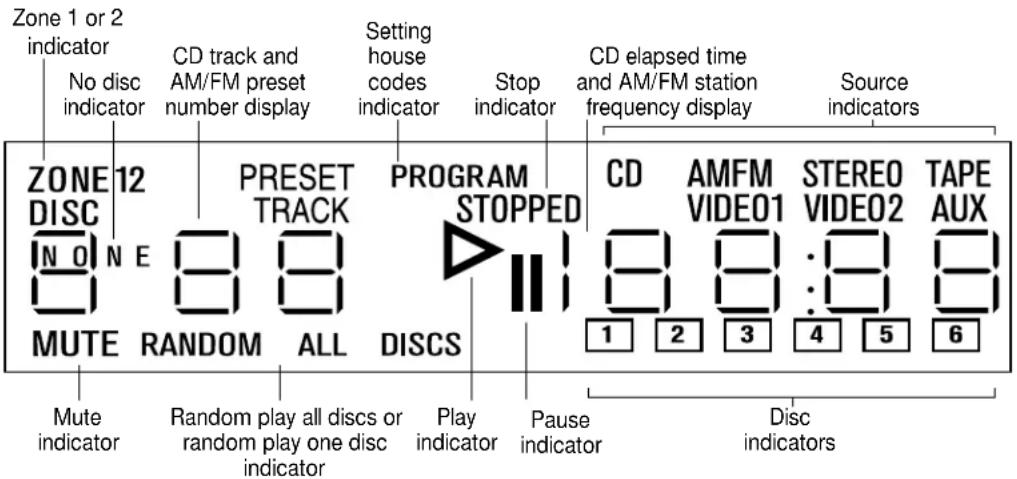
The music center display
This music center display provides information on the music center functions.
Figure 19
The music center display
The system controls
| Function | Music centerRe | |
| VIDEO 1 - Selects a video sound source connected to the VIDEO 1 inputs, and turns the system on. |  | |
| VIDEO 2 - Selects a video sound source connected to the VIDEO 2 inputs, and turns the system on. |  | |
| AUX - Selects a component connected to the AUX inputs, and turns the system on. |  | |
| CD - Selects the built-in CD changer and turns the system on. |  | |
| AM/FM - Selects the radio and turns the system on to the previously selected station. When the radio is on, switches between AM and FM. |  | |
| TAPE - Selects a tape deck or component connected to the TAPE inputs, and turns the system on. |  | |
| SOURCE SELECT - Turns the system on to the previously selected sound source. When on, changes the source in this sequence - CD, FM, AM, VIDEO 1, VIDEO 2, AUX, TAPE, CD... | 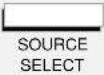 | |
| ■ STOP - Stops the CD player. After 20 minutes, the system shuts off. |  | |
| II PAUSE - Pauses play of the CD. After a 20-minute pause, changes to STOP. |  | ▶/II |
| ▶ PLAY - Begins play of the CD. |  | [STAX] |
| RANDOM (or ◀ SKIP plus SKIP ▶) - In CD mode, begins random play of all tracks on all discs. Pressed again, begins random play of tracks on the current disc. Pressed again, cancels random play. |  | 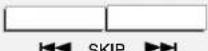 |
| ◀ SKIP - Selects the previous CD track, or the previous preset radio station. Held down, initiates scan (CD) or seek (tuner) function. |  | 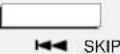 |
| ▶ SKIP - Selects the next CD track, or the next preset radio station. Held down, initiates scan (CD) or seek (tuner) function. |  | 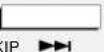 |
| NEXT DISC - Advances to play the next disc loaded in the CD magazine. |  |  |
| VOLUME ▲ \ ▼ - Raises or lowers the system volume. |  |  |
 | ||
| MUTE - Silences the speakers in the selected zone. Also restores volume to muted speakers in the selected zone. |  | |
| MUTE ALL - Silences all speakers currently playing. Also restores sound to speakers silenced by the MUTE ALL key. |  | |
| ON/OFF - Turns the system on and off. |  |  |
Note: To control the system from different listening zones, see "Using two listening zones" on pages 23-24.
Other music center controls
The music center function keys are described on the previous page. Use the following special music center keys to tune the radio, set station presets, and scan a CD (Figure 20).
TUNE ◀/▶ Lowers or raises the frequency setting of the radio (stations). In CD mode, initiates a fast scan of the current CD.
STORE or ERASE - Adds or removes radio station presets. For instructions, see page 20. Also used for changing channel spacing (page 14) and house codes (page 25).
Figure 20
The music center controls
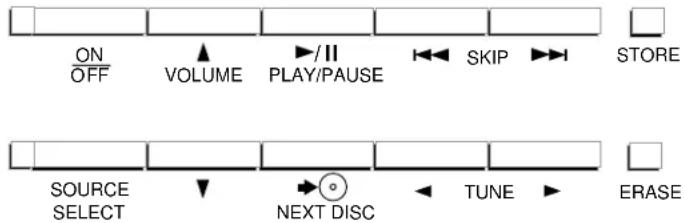
Figure 21
The remote control keys
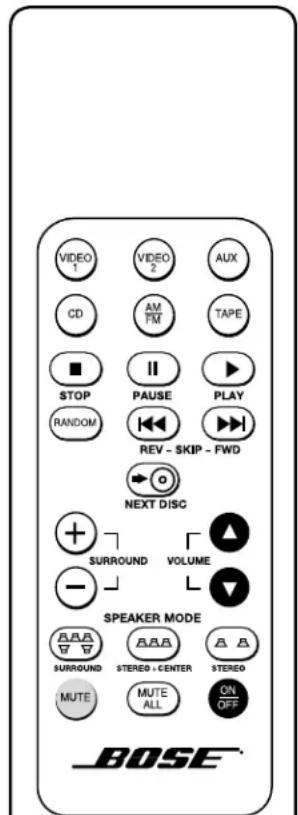
The Lifestyle® 30 remote control
For most types of home construction, your advanced radio-frequency remote control works from anywhere in your home. Its radio wave signals pass through walls and floors to reach the music center. To operate, simply press the desired key. You do not need to aim the remote at the music center.
Note: Some types of buildings create “dead spots” where the remote will not operate. Simply move the remote a foot or two and try again. You can also move the music center a few feet to a location with better remote response.
Figure 21 shows the layout of the remote control keys.
Special keys on the remote control select the speaker mode (2, 3, or 5 speakers), and adjust the surround (rear) volume and the center speaker volume.
SPEAKER MODE - Selects SURROUND (5-speaker), STEREO+CENTER (3-speaker), or STEREO (2-speaker) mode.
- When you press VIDEO, the system automatically selects SURROUND mode.
- For other sound sources (AM/FM, CD, AUX, TAPE), the system selects STEREO mode.
- Each time you change to another sound source, the system selects the factory-set speaker mode for that source (SURROUND for VIDEO, STEREO for all others).
- While the system is playing, you can change to any other speaker mode (SURROUND, STEREO+CENTER, STEREO).
SURROUND + /- - In SURROUND mode, raises or lowers the volume of the surround speakers. In STEREO+CENTER mode, raises or lowers the volume of the center speaker.
- Each time you select SURROUND mode, the surround and center speaker volumes return to the last settings used. Each time you select STEREO+CENTER mode, the center speaker volume returns to the last setting used.
- To return to the factory-set SURROUND or STEREO+CENTER volume, hold the SURROUND or STEREO+CENTER key for 10 seconds.
- While in STEREO mode, pressing SURROUND + selects SURROUND mode.
Listening to compact discs
Using the CD changer
Figure 22
Loading a CD
CAUTION:
Do not insert more than one disc into any slot. Forcing two discs into one slot could cause them to become stuck, and could damage the discs, the CD magazine, or the music center.
Figure 23
Ejecting a CD
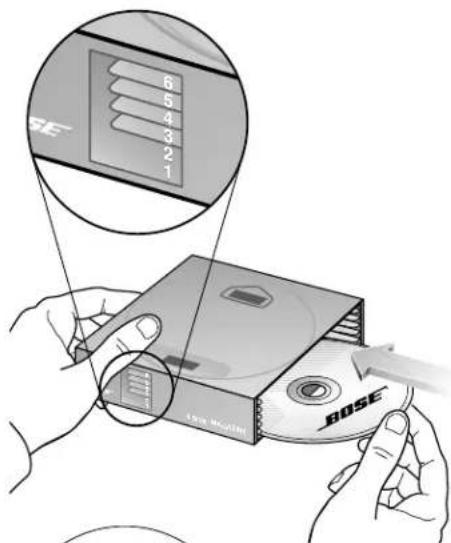
You can load up to six compact discs at a time.
Loading discs into the CD magazine
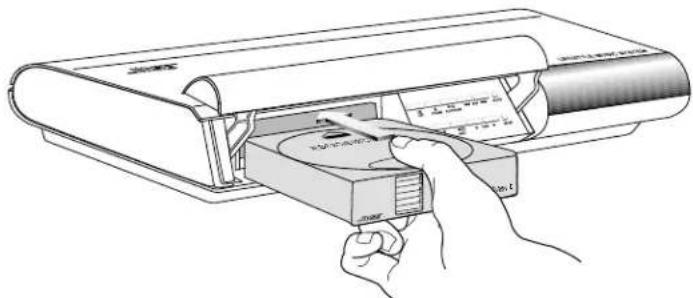
Hold the magazine, looking at the side with the arrow. Insert up to six discs, label side up (Figure 22). Take care to place only one disc in each slot. Note the slot numbers 1 through 6, from bottom to top, on the front edge window. These numbers correspond to the CD numbers on the display.
Note: If a disc is upside-down, it does not play. The display shows the word "disc" and flashes the box representing that disc.
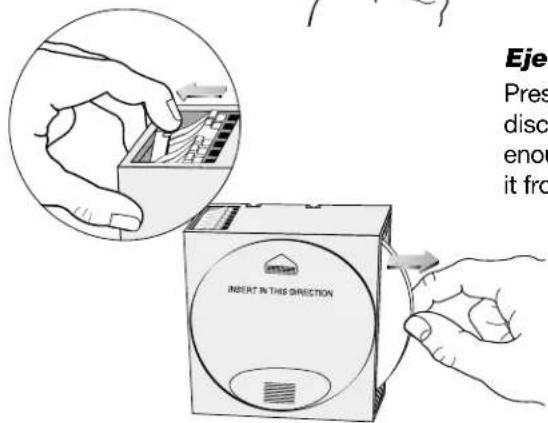
Ejecting discs from the CD magazine
Press the white lever that corresponds to the disc you want to eject. This ejects the disc far enough for you to grasp the edge and remove it from the magazine (Figure 23).
Loading the CD magazine into the music center
Open the music center door. Insert the CD magazine fully into the music center, following the direction of the arrow on the magazine (Figure 24).
Figure 24
Loading the CD magazine
Figure 25
The CD magazine EJECT button
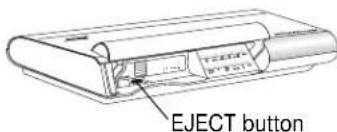
natural_image
Line drawing of a hand inserting a CD into a device (no text or symbols visible)Ejecting the CD magazine from the music center
Press the EJECT button, at the lower left of the magazine slot, to remove the magazine (Figure 25).
If a CD is playing, pressing the EJECT button stops the CD, replaces it in the magazine, and ejects the magazine.
Turning the system on and choosing the CD player
Press the CD key on the remote or press SOURCE SELECT on the music center until CD is selected. If the system is already on, use one of these keys to select the CD player. The CD indicator on the display lights. If a CD has been loaded, it begins to play.
Note: Selecting CD turns the system on in STEREO (2-speaker) mode. Press SURROUND (5-speaker) or STEREO+CENTER (3-speaker) to change the mode.
CD operations
If you want to Press
| Play or resume play of a CD PLAY, or▶ | ▶/II PLAY/PAUSE |
| Pause a CD PAUSE, or □ | ▶/II PLAY/PAUSE |
Stop a CD ■ STOP, or select another source
Go to next track SKIP (forward)
Go to beginning of current track SKIP (reverse) after 4 seconds of track play
Go to previous track SKIP within the first four seconds of the track
| After four seconds, press SKIP twice to go to the previous track. In RANDOM mode, skips to previous track played. | |
| Play another disc | NEXT DISCIn PLAY mode, selects discs in order, 1 through 6, then back to 1; in RANDOM mode, randomly selects another disc. The music center skips empty disc slots. |
| Scan a CD | Press and hold SKIP or TUNE or ▶ |
| Randomly play tracks on all discs | RANDOM, or SKIP plus (on the music center) |
| Randomly play tracks on one disc | RANDOM, or SKIP plus (on the music center), a second time |
| Cancel random play | RANDOM, or SKIP plus (on the music center), a third time; press ■ STOP; or select another source |
Figure 26
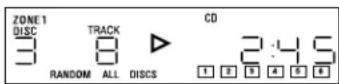
Display of CD playing in zone 1: Disc 3, track 8, 2 minutes and 45 seconds played, 6 CDs are loaded, and random play for all discs is selected
Note: To prevent excessive wear on the CD mechanism, unattended CD play or random play operations change to STOP after 24 hours. If you want to leave the music center playing unattended for longer than 24 hours, you can use the radio.
The music center display provides the following information about the CD changer functions (see sample display in Figure 26):
- Which CD is playing, paused, or stopped, or NONE if no disc is installed
• How much time the current CD has played
• Which track is playing
• If RANDOM ALL DISCS or RANDOM (one disc) is selected - Which slots have been scanned and have discs loaded
■ Numbers in boxes represent discs in slots. - Empty boxes indicate disc slots that have not yet been scanned by the music center.
- Blank spaces indicate empty slots (or discs that cannot be loaded).
- A flashing box indicates the disc is upside down or cannot be read.
Listening to the radio
Your Lifestyle ^® music center has a built-in AM/FM radio.
Turning the system on and choosing the radio
Press AM/FM (on the remote) or SOURCE SELECT (on the music center) to turn your system on to the most recently selected AM or FM station. Selecting AM/FM turns the system on in STEREO mode.
Note: If the system is on and the radio is already selected, the AM/FM key switches between AM and FM bands.
Tuning
Seeking the strongest stations
- Press and hold SKIP ▶ (forward) or ◀ (reverse) to start seeking. Release the key to stop at the next strong signal.
• To stop seeking sooner, briefly press SKIP or ■ STOP. - You can seek again without holding down the SKIP key. As soon as the first seek operation stops, briefly press the SKIP ▶r key
Note: If you hold a SKIP key down, the radio continues to seek without stopping at any station.
Switching between AM and FM
Press AM/FM to switch from one band to the other.
Manual tuning
To tune to a distant or weak station that the radio cannot seek, use TUNE ◀ or ▶ on the music center.
Setting a station preset
Your Lifestyle ^® music center can store up to 25 AM and 25 FM stations.
Note: To allow for different station preferences, you can reserve a group of preset numbers for each household member. Any station can be assigned to more than one preset number. Or, you can reserve different number groups for different types of stations. For easy reference, you may want to keep a written record of your presets.
- Lift the music center door.
- Select a radio station you want to store as a preset, either by tuning manually or by pressing and holding a SKIP key.
- Press the STORE key. The lowest available preset number flashes for three seconds, then is set and displayed.
- If you prefer a different preset number, while the number is flashing press either SKIP key to select another available preset number. The preset number is displayed.
Note: You cannot store a station in an already-occupied preset location without erasing that preset station first (see "Erasing a preset station" below). If you attempt to store more than 25 AM or 25 FM stations, the preset display flashes “--”.
Selecting a preset station
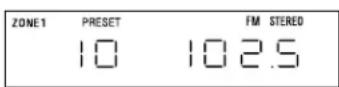
Once you have set station presets, press SKIP ▶ or ◀ to select the next or the previous preset station. See Figure 27 for a sample display of a preset FM station.
Figure 27
FM display showing a preset station
Erasing a preset station
- Lift the music center door.
- Select the preset station you want to erase.
- Press the ERASE key.
CAUTION:
The magnetic field from the Acoustimass ^® module is not an immediate risk to your video tapes, audio tapes, and other magnetic media. However, you should not store tapes directly on or near the Acoustimass module.
Using the system with external components
Follow the instructions on pages 10-12 for connecting components.
Turn on your component directly or by using its remote control. Use the VOLUME ▲ or ▼ key on the Lifestyle® remote control or music center to raise or lower the volume. Control all other functions at the source, referring to its owner's manual, if necessary. To begin, make sure the component is turned on and a tape, CD, DVD, laserdisc, etc. is loaded.
Note: The Lifestyle ^® 30 system cannot turn a connected component on or off.
Turning the system on and selecting the component
Press the TAPE, AUX, VIDEO 1, or VIDEO 2 key on the remote or press SOURCE SELECT on the music center until the desired component is selected. This turns your system on and selects the component connected to that input. If the system is already on, this key selects the component.
Note: Selecting TAPE or AUX turns the system on in STEREO (2-speaker) mode. Selecting VIDEO 1 or 2 turns the system on in SURROUND (5-speaker) mode. Press SURROUND (5-speaker), STEREO+CENTER (3-speaker), or STEREO (2-speaker) to change the mode.
The appropriate display indicator lights when the system is on and the component is selected.
Using a video sound source
Press VIDEO 1 or VIDEO 2 on the remote or SOURCE SELECT on the music center until VIDEO 1 or 2 appears on the display. This turns your system on in SURROUND mode and selects the video sound source connected to the VIDEO 1 or 2 jacks. If the system is already on, this key selects the component and SURROUND mode.
If your video component is connected to the music center AUX or TAPE jacks, press AUX or TAPE on the remote or SOURCE SELECT on the music center to select the component. This turns your system on in STEREO mode. Press SURROUND to select 5-speaker mode.
Using enhanced bass for movie soundtracks
Pressing VIDEO 1 or VIDEO 2 turns the system on in enhanced bass mode, a bass level specially designed for proper playback of movie soundtracks. Press VIDEO 1 or 2 again to alternate between enhanced bass for movies and standard bass for other listening.
Pressing AUX or TAPE turns the system on in standard bass mode. Press AUX or TAPE again to alternate between standard bass for other listening and enhanced bass for movies.
Note: You may not hear a difference between enhanced and standard bass when listening to movie soundtracks that do not have much very low bass content.
Using a tape deck
To record to a connected tape deck, play the source (AM/FM, CD, AUX, VIDEO 1 or 2) you want to tape. In a 2-zone system, play the source in zone 1. Set the tape deck to record.
Using headphones
Figure 28
Connecting headphones
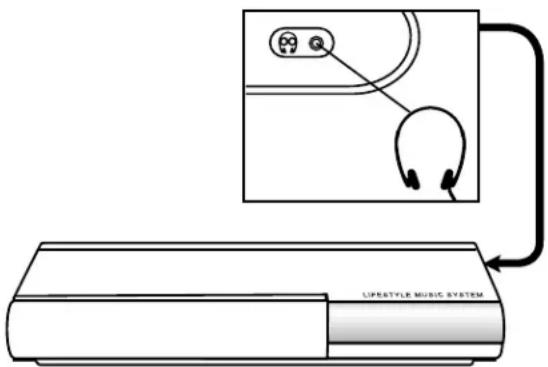
For headphone listening, use the stereo mini headphones jack on the side of the music center (Figure 28). While this jack accepts most headphone models, you can get an adapter at Bose ^® dealers and most electronics stores, if needed.
Connecting headphones silences the speakers connected to SPEAKER ZONE 1.
Figure 29
Bass and treble controls
natural_image
Line drawing of a Bose-branded industrial device with cooling fins and ventilation slots (no text or symbols)Fine-tuning your system
In most situations, following the speaker placement guidelines (see pages 6-7) provides excellent sound quality.
You do not need to adjust tone settings for changes in volume, since Bose ^® patented signal processing technology provides a natural tonal balance over the full range of volume settings.
If desired, you can further fine-tune your system as described below.
Adjusting speaker controls
The Lifestyle® 30 system TREBLE and BASS controls are located on the Acoustimass® module (Figure 29). They allow you to adjust the treble (high frequencies) and bass (low frequencies). In the normal setting, the dots on each control are in the 12 o'clock position. You can also locate the normal setting by feeling when the control settles into the notch at this position. Turn the controls clockwise to increase, and counterclockwise to decrease, the amount of treble or bass.
Compensating for room acoustics
The acoustics (sound qualities) of your room can affect the overall sound quality of any speaker system. In general, you can reduce many problems with acoustics by the cautious use of the TREBLE and BASS controls.
Too much or too little treble
Rooms with too few sound-absorbing furnishings, especially those with bare floors and walls, may sound overly shrill or "bright." Turning down the treble control (toward –) decreases treble sound.
Rooms with a lot of sound-absorbing furnishings, such as upholstered furniture, wall-to-wall carpet, or heavy drapes, may reduce the treble sound of your system. Moving speakers farther away from soft furnishings increases treble. You can increase treble sound by slightly turning up the treble control (toward +).
Too much or too little bass
You can decrease bass sound by turning down the bass control (toward -). To increase bass, turn up the bass control (toward +).
Acoustimass module placement affects the amount of bass you hear. Placing the module closer to the corner of the room will increase bass. Moving the module away from the corner will decrease bass.
Compensating for movie soundtracks
When a movie soundtrack is played in a motion picture theater, its bass is restored to the full level intended by the movie's sound designer. To perform the same way in your home, your Lifestyle® 30 system restores the bass to this level when you select VIDEO 1 or 2. In VIDEO, AUX, or TAPE mode, you can choose between standard and enhanced bass.
In VIDEO mode, the system turns on enhanced bass for movies. Press VIDEO 1 or 2 again to change to standard bass.
In AUX or TAPE mode, the system turns on in standard bass. Press AUX or TAPE again to change to enhanced bass for movies.
Figure 30
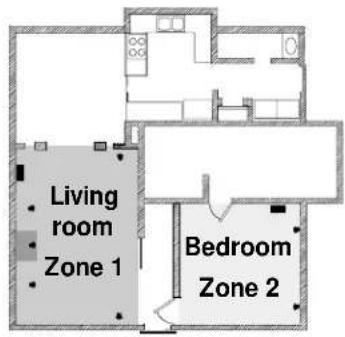
Example of two listening zones: the Lifestyle ^® 30 speakers in zone 1 and Acoustimass ^® powered speaker system in zone 2
Using two listening zones
The Lifestyle® 30 system can direct sound from one or two sound sources to two different listening areas at the same time. Each listening area, whether a room or a group of rooms, is referred to as a zone. By adding powered speakers and a second remote, you can establish two listening zones.
How zones work
- Zones 1 and 2 can play different sound sources at the same time – CD, AM/FM tuner, TAPE, VIDEO sound, or AUX.
- Both zones can listen to the same sound source at the same time.
- Only one radio station can be played at a time.
Setting up two zones
- The Lifestyle ^20 30 speakers are set up in zone 1.
- Any combination of rooms and floors in your home can be set up as zones.
- Use an appropriate Lifestyle ^® system cable to connect a second Bose ^® powered speaker system to the SPEAKER ZONE 2 jack on the back of the music center.
- You can also use special adapters to connect an existing stereo system.
- Use a second Lifestyle ^ system remote control to operate zone 2.
See your dealer or contact Bose for information on obtaining additional powered speakers, remote controls, cables, and adapters for connecting additional equipment.
Setting a second remote for zone 2
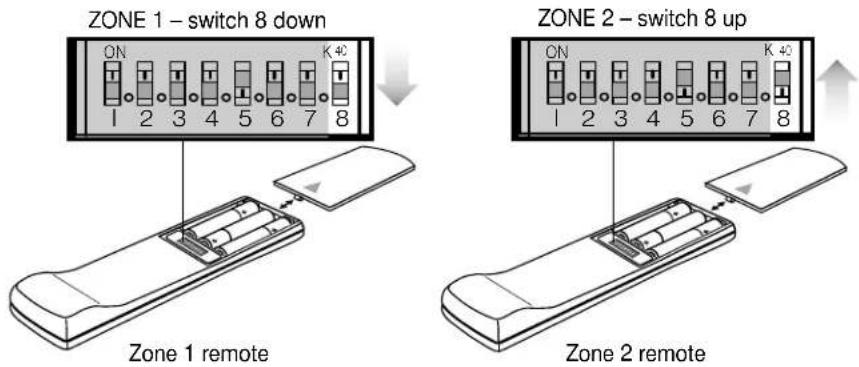
You need a second remote control, set to ZONE 2, to operate speakers connected to the ZONE 2 output.
To set your second remote to control speakers in the second zone, follow these steps:
- Open the remote control battery cover.
- Locate miniature switch 8 (Figure 31). If it is set down for ZONE 1, slide it up for ZONE 2, using a paper clip, ballpoint pen, or similar object.
- Make sure the house code switches (1, 2, 3, and 4) match those on your first remote. (See page 25 for more information on house codes.)
- Replace the battery cover.
Figure 31
Speaker code switch settings
Operating two listening zones
Controlling the zones from the remote controls
To control two zones you need to have remotes set to each zone. See instructions on page 23 for setting a second remote to zone 2.
- You can select and control sources in each zone by commands from its remote control.
- You can control the volume in each zone directly from its remote control.
- You can turn each zone on and off directly from its remote control.
- You can listen to the same source in both zones.
Controlling the zones from the music center control panel
Turning two zones on and off from the music center involves a sequence of actions.
- To turn zone 2 on from the music center, press and hold the ON/OFF key. Watch the display to see which zone is on or off. Release the key to keep the option shown.
Holding the ON/OFF key causes this repeating sequence:
zone 1 zone 2
First ON OFF
Second ON ON
Third OFF ON
- To turn the zones on or off from the music center when both zones are on, press the ON/OFF key for the following sequence:
zone 1 zone 2
ON ON
First press OFF ON
Second press OFF OFF
Third press ON OFF
Fourth press
Additional presses
OFF OFF
zone 1 repeats ON and OFF
- When zone 1 is on (even if zone 2 is also on), the music center keys control zone 1 only.
- When zone 2 is the only zone on, the music center keys control zone 2.
- If you press SOURCE SELECT for FM or AM while zone 2 is playing the other radio band, the band selected in zone 2 flashes on the display. If you do not want to change the band playing in zone 2, use SOURCE SELECT to choose another source within two seconds.
The music center display of zone information
- When zone 1 or both zones are on, the display shows zone 1 information.
- When only zone 2 is on, the display shows zone 2 information.
Changing the house code settings
Each Lifestyle ^® remote control uses a system of matching house codes to communicate with its corresponding music center. If your remote's commands ever conflict with those of another nearby Lifestyle ^® system, you can easily set a new house code for your system and its remote control(s) by following the procedures below.
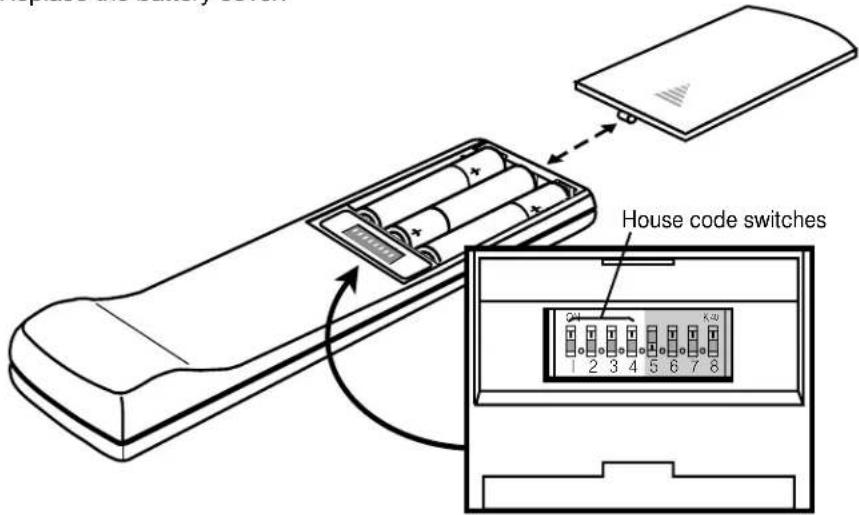
- Open the remote control battery cover and locate the miniature switches (Figure 32).
- To create a new code, change the position of any of switches 1, 2, 3, or 4 by moving them in the opposite direction from their current settings. Use a paper clip, ball point pen, or similar object.
Note: Do not change switches 5, 6, or 7 at this time. The manufacturer's standard setting is switch 5 up and switches 6 and 7 down.
- Replace the battery cover.
Figure 32
Miniature switches for setting house codes and zones
- Lift the music center door.
- Turn both zones off.
- Press and hold the STORE key. The display will begin to flash PROGRAM.
- While you hold the STORE key and the display is flashing, press any key on the remote control.
- The display stops flashing and momentarily shows PROGRAM to confirm recognition of a new house code.
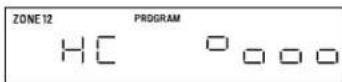
- The display verifies the house code by lighting four rectangles corresponding to the four switch positions (up or down). See the example in Figure 33.
Figure 33
Display confirming an example of house code setting (switch 1 up, switches 2, 3, and 4 down)
-
Release the STORE key. The system remains off.
-
If you have additional remote controls, change the switches to match those of the first remote control. It is not necessary to repeat steps 4-8.
Note: To verify your system's house code, press STORE while the system is off. The display confirms the settings of switches 1-4.
Troubleshooting
| Problem What to do | |
| System does not function at all is inserted securely into the Acoustimass® module, the power pack and power cord are plugged fully into operating AC wall outlets.Be sure to select a source (CD, AM/FM, etc.).If the system is not responding, press STORE, ERASE, and ON/OFF (on the music center) at the same time, to reset the system.Unplug the music center power pack for a minute, then reconnect it. This allows the unit to reset itself after a power surge or power interruption. | |
| No sound • Increase the volume. | Check to see if MUTE is lit on the display. If it is, press the MUTE button on the remote control to unmute the sound.Make sure the audio input cable is firmly seated in the music center SPEAKER ZONE 1 jack and the multi-pin connector on the other end is firmly seated in the Acoustimass module AUDIO INPUT jack.Check speaker connections.Turn the music center off for ten seconds, then on again, to restore communication between the music center and the speakers.Check the connections for any external components. Make sure to select the correct source for the desired input.Be sure the CD is placed correctly, label-side up, in the magazine, and the magazine is inserted properly in the music center.Disconnect any headphones.Connect the FM and AM antennas. |
| No sound from center speaker | Make sure the center cube cable is connected at both ends.Select STEREO+CENTER (3-speaker) or SURROUND (5-speaker) mode. |
| Too much sound • In STEREO from center speaker | +CENTER mode, press SURROUND — to decrease center speaker volume.Press and hold the STEREO+CENTER (3-speaker) mode key for 10 seconds to restore the factory preset center volume setting. |
| No sound from • Select SURROUND (5-speaker) mode.surround speakers • Press SURROUND +.Press and hold the SURROUND (5-speaker) mode key for 10 seconds to restore the factory preset surround volume setting.Make sure the video sound source is stereo and surround-encoded, and the component used (TV, VCR, DVD, or laserdisc player) is stereo. | |
| Surround speakers • In SURROUND mode, press SURROUND —Make sure that the left and right front speakers are connected to the front speaker jacks (blue) and the left and right surround speakers are connected to the surround speaker jacks (orange).Press and hold the SURROUND (5-speaker) mode key for 10 seconds to restore the factory preset surround volume setting. | |
| Remote control is inconsistent or does not work | Check batteries and their polarity (+ and -). See page 14.Operate the remote control closer to the music center.Move the remote (or the music center) a few feet to avoid an area of “dead spots.” See note on page 17.Make sure the audio input cable is firmly seated, uncoiled, and extended as much as possible.Make sure the remote control and music center house codes match. Follow steps 4-8 on page 25 to match the house code settings. |
| Unit turns on and off by itself, Lifestyle or behaves erratically | Change the house code setting to prevent signals from conflicting with another nearby® system. See page 25 for instructions on setting the house code. |
| Radio does not work | Make sure antennas are connected properly.Adjust antenna position to improve reception.AM antenna must be upright.Move antennas farther from TV or other electronic equipment.You may be in an area of weak signal coverage. |
| CD does not play | Check to see if the play symbol ▶ in the display is lit.After pressing the CD key, wait a few seconds before pressing PLAY.Make sure the magazine is properly inserted.Check to see if there is a disc in the magazine, label-side up. Display shows a flashing box for a disc that is label-side down or cannot be read.Eject the magazine and try loading the CD again.There may be dirt or dust on the CD. Clean the CD. See Figure 35.The disc may be defective. Try another disc.The music center cannot play a DVD disc.A display message “E01” indicates a mechanical error. Press STORE, ERASE, and ON/OFF (on the music center) at the same time, to reset the system. Or, unplug the music center, reconnect power, and try again. If “E01” reappears, call Bose® customer service (see inside back cover for listings). |
| FM sound is distorted | Adjust antenna position to reduce interference. |
| Sound is distorted | Make sure speaker cables are not damaged and the connections are secure.Reduce the output level from any external components connected to the music center. |
| No tape, CD, VCR, or TV sound | Check the connections.Make sure the component is turned on.Refer to the component owner’s manual. |
Warranty period
The Bose Lifestyle ^® 30 system is covered by a limited 1-year transferable warranty. Details of the warranty are provided on the warranty card that came with your system. Please fill out the information section on the card and mail it to Bose.
Customer service
For additional help in solving problems, contact Bose customer service. See the inside back cover for Bose Corporation customer service offices and phone numbers.
Figure 34
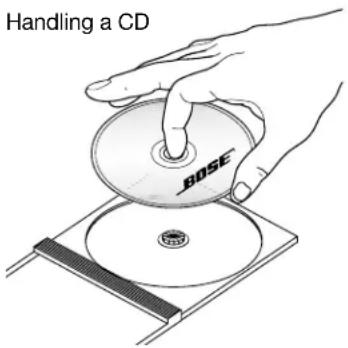
Figure 35
Cleaning a CD
natural_image
Illustration of hands holding a CD or DVD disc (no text or symbols visible)Taking care of your Lifestyle® 30 system
The only maintenance needed is cleaning the system and your compact discs, and replacing remote control batteries.
For information on replacing the remote control batteries see “Set up the remote control” on page 14.
Handling CDs
Handle discs by their edges to prevent fingerprints and scratches (Figure 34).
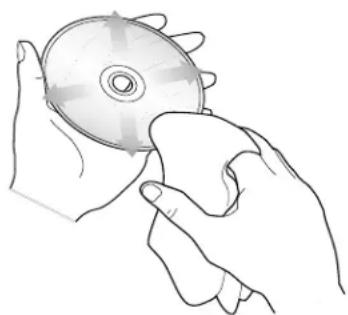
To remove stains or fingerprints from the surface of a disc, use a soft, lint-free, dry cloth. Wipe in straight movements from the center of the disc to the outside (Figure 35). Do not use any chemical products; they can damage the disc.
Do not write on, or attach labels to the surface of the disc.
To minimize exposure to dust and dirt, replace discs in their cases after use. Store each disc in its case, out of direct sunlight, high temperatures, and humidity.
Cleaning the music center
Use only a soft, dry cloth to clean the outside of the music center.
Do not use any solvents, chemicals, or cleaning solutions containing alcohol, ammonia, or abrasives. Do not allow liquids to spill into any openings. Do not use any sprays near the system.
Cleaning the speakers
Clean the surface of your speakers with a soft, damp cloth. You can use an ammonia-free window cleaner on a soft cloth to maintain the finish.
Do not use any sprays near the system. Do not use any solvents, chemicals, or cleaning solutions containing alcohol, ammonia, or abrasives. Do not allow liquids to spill into any openings.
The speaker grille panels require no special care, although you may vacuum them carefully, if necessary.
CAUTION: If liquids get into the product, turn the system off and allow it to air dry. Then turn it on again. If you notice any problems with its functioning, turn it off and contact Bose® customer service.
Transporting your music center
To transport your music center, follow these steps to lock down the CD mechanism.
- Eject the CD magazine.
- Make sure the music center is off (all zones).
- On the music center, press STORE, ERASE, and PLAY/PAUSE at the same time. Then release.
- Press and hold the EJECT button for 10 seconds. The CD elevator moves into locked down position.
- If you hear the elevator continue to move up and down, wait 10 seconds and then repeat steps 3 and 4.
The CD mechanism unlocks automatically the next time you select CD.
Technical information
Music center power pack power rating
USA/Canada: 120V\~60 Hz 25VA
Europe: 230V\~50 Hz 25VA
Australia: 240V\~50 Hz 25VA
Dual voltage: 120V\~60 Hz 25VA and
230V\~50 Hz 25VA
Speaker system power rating
USA/Canada: 120V\~50/60 Hz 350W
Europe/Australia: 220-240V\~ 50/60 Hz 350W
Dual voltage: 115/230V\~ 50/60 Hz 350W
Music center inputs
TAPE: 2Vrms, maximum
AUX, VIDEO: 2Vrms, maximum
FM antenna: 75Ω
AM antenna: 12×H
Power: 12V\~, 1.3A
Music center outputs
Variable audio: SPEAKER ZONES 1 and 2
Fixed audio: ZONE 1, ZONE 2, TAPE
Headphone: 32Ω minimum impedance
SERIAL DATA: for future use
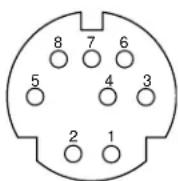
Zone connector pinout:
1: variable left audio
2: variable right audio
3: fixed left audio
4: fixed right audio
5: audio ground
6: +10V control line
7: SMART SPEAKER data
8: control line ground (and remote antenna)
Remote control range
65 feet (20 m)
Dimensions
Music center
15.5" W x 8.0" D x 2.6" H
(39.4 cm x 20.3 cm x 6.6 cm)
Jewel Cube ^® speaker
2.2" W x 3.2" D x 4.4" H
(5.6 cm × 8.1 cm × 11.2 cm)
Acoustimass® module
23.3" W x 7.5" D x 14.0" H
(59.0 cm x 19.0 cm x 35.5 cm)
Weights
Music center
5.9 lb (2.7 kg)
Jewel Cube speaker
1 lb (0.5 kg)
Acoustimass module
33 lb (15.0 kg)
Total shipping weight
60 lb (27.3 kg)
Finish
Music center
Aluminum
Jewel Cube speakers
Polymer, painted
Acoustimass module
Vinyl veneer, Polymer
Accessories
To find out about mounting brackets, stands, CD magazines, additional remote controls, and connecting additional Bose ^® powered loudspeakers, contact your Bose dealer. Or call Bose directly (see inside back cover for phone numbers).
A
accessories 29
Acoustimass ^® module 2-9, 13, 15, 21, 22, 26, 29
adapter plug 9
AM antenna 5, 13, 26, 29
AM/FM 4, 15-17, 20, 21, 26
antenna 5, 11, 13, 26, 27, 29
audio input cable 5, 7-9, 26
AUX 11, 16, 17, 21, 23, 29
auxiliary 4
B
BASS control 22
batteries 5, 14, 27, 28
c
cable 5-10, 12, 26, 27
cable radio signal 13
cable TV 10
CD 4, 5, 10, 12, 15-21, 23, 26-29
CD changer 4, 16, 18, 19
CD magazine 5, 18
center speaker 6, 26
cleaning 28
compact disc 15, 18
connections 8, 9, 11-13, 26, 27
controls 2, 7, 10, 16, 17, 22, 25, 29
cube speaker array 8, 29
cube speakers 6, 29
customer service 6, 8, 27
D
display 10, 11, 14, 15, 18-21, 24-27
dual voltage 5, 9, 14, 29
DVD 10, 12, 21, 26, 27
E
E01 27
eject button 18
enhanced bass 21, 22
ERASE 14, 17, 20
error message 27
external antenna 13
F
FM 75Ω EXTERNAL antenna connector 13
FM antenna 5, 13, 29
front speakers 4, 6, 7, 26
H
headphones 21, 26
house codes 14, 25
J
Jewel Cube ^® 4, 5, 6, 8, 29
L
laserdisc 10, 11, 26
laserdisc player 12
listening zone 8, 16, 23, 24
M
magazine 5, 16, 18, 26, 27
movie soundtracks 21
music center 2-5, 7-21, 23-29
MUTE 15, 16, 26
MUTE ALL 15, 16
N
NEXT DISC 16
0
ON/OFF 24
P
PAUSE 19
placement 6, 7, 13, 22
PLAY 12, 15, 16, 19, 27
port 7
power cord 5, 9, 15, 26
power pack 5, 9, 14, 15, 26, 29
powered speaker 22, 23, 26
preset radio station 15-17, 20
R
radio 2, 4, 15-17, 19, 20, 23, 24, 27
radio channel spacing 14
radio station presets 17
random mode 15, 16, 19
RANDOM 15, 16, 19
RCA extension cables 8
red collar 8
remote control 4, 5, 11, 14-17, 21-29
room compensation controls 22
rubber feet 5
s
safety information 2
serial numbers 3, 5
SKIP 16, 19, 20
SOURCE SELECT 16, 19-21
speaker cable 5-8, 27
speaker placement 6, 7, 22
station presets 17
STOP 16, 19, 20
STORE 17, 20, 25
SURROUND 4, 11, 15, 17, 26
surround 4-8, 10, 17, 26
surround (rear) speakers 4, 7, 8, 26
surround cables 8
switches 14, 23, 25
T
TAPE jacks 11, 12, 15-17, 21, 23, 29
tape 4
tape deck 4, 12, 16, 21
terminals 8
TREBLE control 22
troubleshooting 26
TUNE 17, 19, 20
tuner 16, 23
tuning 6, 20, 22
turntable 12
TV 4, 6, 7, 10-12, 26, 27
U
unpack 5
v
VCR 7, 10-12, 26, 27
ventilation 7
VIDEO 11, 15-17, 21, 23, 29
VIDEO SOUND jack 29
video sound 4, 12, 16, 21
Videostage ^® 4
voltage 2, 5, 9, 14, 29
voltage selector switch 9
VOLUME 15, 16, 21
volume 10, 11, 15-17, 21, 22, 26
W
warranty 3, 27, 28
z
zones 8, 9, 15, 16, 23-26, 29
USA
Bose Corporation, The Mountain
Framingham, MA 01701-9168
1-800-288-BOSE (1-800-288-2673)
Phone hours - ET (eastern time):
Weekdays 9 a.m. to 8 p.m.
Saturdays 9 a.m. to 3 p.m.
Canada
Bose Ltd., 1-35 East Beaver Creek Road
Richmond Hill, Ontario L4B 1B3
1-800-444-BOSE (1-800-444-2673)
Phone hours - ET (eastern time):
Weekdays 9 a.m. to 5 p.m.
European Office
Bose Australia, Inc., 1 Sorrell Street
Parramatta, N.S.W. 2150
TEL 02 204-6111 FAX 02 204-6122
Belgique/België
Bose N.V., Limesweg 2, B-3700 Tongeren
TEL 012-390800 FAX 012-390840
Danmark
Bose A/S, Industrivej 7, 2605 Brøndby
TEL 4343-7777 FAX 4343-7818
Deutschland
Bose Corporation India Private Limited
W-16, Greater Kailash-II
New Delhi 110 048
TEL (011) 648 4462 FAX (011) 648 4463
Ireland
Bose Corporation
Carrickmacross, Co Monaghan
TEL 042-61988 FAX 042-61998
Italia
Bose Limited, Unit G2
Trinity Trading Estate
Sittingbourne, Kent ME10 2PD
TEL 01795-475341 FAX 01795-427227
From other locations
Bose Customer Service, 1 New York Ave.
Framingham, MA 01701-9168 USA
- The Bose® Lifestyle® 30 System
- Owner's Guide
- December 20, 2001
- Warning
- CAUTION:
- Class 1 laser product
- Class B emissions limits
- Batteries
- Additional safety information
- Please read this owner's guide
- Information about products that generate electrical noise
- Antenna grounding
- Note to CATV system installer
- Where to find...
- Setting Up
- Operating Your Lifestyle ® 30 System
- Maintaining Your Lifestyle® 30 System
- Product Information
- For your records
- Before you begin
- Unpacking the carton
- Figure 1
- Select the locations for your Lifestyle® 30 system
- Jewel Cube speaker locations
- Left and right front speakers
- Center speaker
- Surround speakers
- Acoustimass module
- Music center
- Connect the speakers and music center
- Connecting the Jewel Cube ® speakers to the Acoustimass ® module
- Connecting the Acoustimass module to the music center
- Connecting the Acoustimass ® module power cord
- Connecting the music center power pack
- Connecting your home theater components to the Lifestyle® system
- Setting up the primary video sound source
- To direct your video sound sources through your TV
- To direct your video sound sources through your VCR
- To connect components directly to the Lifestyle music center
- About the video source
- Other connections
- Tape deck
- CD changer, DVD player, or laserdisc player
- Turntable
- Connect the antennas
- FM antenna connections
- AM antenna connections
- Connecting to a cable radio signal
- Set up the remote control
- Set radio channel spacing on dual voltage systems
- Turn on your Lifestyle® 30 system
- Turning the system on
- Adjusting the volume
- Turning the system off
- The music center display
- Other music center controls
- The Lifestyle® 30 remote control
- Listening to compact discs
- Using the CD changer
- Figure 22
- Figure 23
- Loading discs into the CD magazine
- Ejecting discs from the CD magazine
- Loading the CD magazine into the music center
- Figure 24
- Figure 25
- Ejecting the CD magazine from the music center
- Turning the system on and choosing the CD player
- CD operations
- If you want to Press
- Figure 26
- Listening to the radio
- Turning the system on and choosing the radio
- Tuning
- Seeking the strongest stations
- Switching between AM and FM
- Manual tuning
- Setting a station preset
- Selecting a preset station
- Erasing a preset station
- Using the system with external components
- Turning the system on and selecting the component
- Using a video sound source
- Using enhanced bass for movie soundtracks
- Using a tape deck
- Fine-tuning your system
- Adjusting speaker controls
- Compensating for room acoustics
- Too much or too little treble
- Too much or too little bass
- Compensating for movie soundtracks
- Figure 30
- Using two listening zones
- How zones work
- Setting up two zones
- Setting a second remote for zone 2
- Operating two listening zones
- Controlling the zones from the remote controls
- Controlling the zones from the music center control panel
- zone 1 zone 2
- The music center display of zone information
- Changing the house code settings
- Figure 32
- Figure 33
- Warranty period
- Customer service
- Taking care of your Lifestyle® 30 system
- Handling CDs
- Cleaning the music center
- Cleaning the speakers
- Transporting your music center
- Technical information
- Music center power pack power rating
- Speaker system power rating
- Music center inputs
- Music center outputs
- Remote control range
- Dimensions
- Weights
- Finish
- Accessories
- A
- B
- c
- D
- E
- F
- H
- J
- L
- M
- N
- 0
- P
- R
- s
- T
- U
- v
- W
- z
- USA
- Canada
- European Office
- Belgique/België
- Danmark
- Deutschland
- Ireland
- Italia
- From other locations
Brand : BOSE
Model : Lifestyle 30
Category : Hi-Fi System