
BR-925 - Hi-Fi System ONKYO - Free user manual and instructions
Find the device manual for free BR-925 ONKYO in PDF.


| Product Type | Hi-Fi System |
| Brand | Onkyo |
| Model | BR-925 |
| Dimensions (W x H x D) | 435 mm x 150 mm x 340 mm |
| Weight | 7.0 kg |
| Power Supply | AC 220-240 V, 50/60 Hz |
| Power Consumption | 150 W |
| Amplifier Output | 2 x 50 W RMS (4 ohms) |
| Supported Disc Formats | CD, CD-R/RW, MP3 CD |
| Tuner Bands | AM, FM |
| Audio Inputs | AUX (RCA), USB (front), Optical (Toslink) |
| Speaker Impedance | 4-16 ohms |
| Remote Control | Included (RI remote) |
| Clock/Timer | Yes, with sleep and wake timer |
| Headphone Output | Yes, 3.5 mm jack |
| Cleaning Instructions | Wipe with a soft, dry cloth. Do not use solvents. |
| Safety Notes | Keep away from water, heat sources, and magnetic fields. |
| Spare Parts Availability | Contact Onkyo authorized service centers |
| Manual Languages | English, French, German, Spanish, Italian, Dutch |
Frequently Asked Questions - BR-925 ONKYO
User questions about BR-925 ONKYO
0 question about this device. Answer the ones you know or ask your own.
Ask a new question about this device
Download the instructions for your Hi-Fi System in PDF format for free! Find your manual BR-925 - ONKYO and take your electronic device back in hand. On this page are published all the documents necessary for the use of your device. BR-925 by ONKYO.
USER MANUAL BR-925 ONKYO
Thank you for purchasing an Onkyo CD/HDD receiver.
Please read this manual thoroughly before making any connections and plugging it in.
Following the instructions in this manual will enable you to obtain optimum performance and listening enjoyment from your new CD/HDD receiver.
Please retain this manual for future reference.
Contents
Getting Started 2
Connections ......15
Turning On & First Time Setup ..22
Basic Operation....24
Playing & Listening
Playing CDs....28
Listening to the Radio......32
USB Device Playback......41
Playing External Components ..45
Recording (Transferring Data) ...46
Playing the HDD ....54
Clock and Timer 62
Advanced Setup 68
Others....70
WARNING:
TO REDUCE THE RISK OF FIRE OR ELECTRIC SHOCK, DO NOT EXPOSE THIS APPARATUS TO RAIN OR MOISTURE.
CAUTION:
TO REDUCE THE RISK OF ELECTRIC SHOCK, DO NOT REMOVE COVER (OR BACK). NO USER-SERVICEABLE PARTS INSIDE. REFER SERVICING TO QUALIFIED SERVICE PERSONNEL.

WARNING
RISK OF ELECTRIC SHOCK DO NOT OPEN
AVIS
RISQUE DE CHOC ELECTRIQUE NE PAS OUVRIR


The lightning flash with arrowhead symbol, within an equilateral triangle, is intended to alert the user to the presence of uninsulated “dangerous voltage” within the product’s enclosure that may be of sufficient magnitude to constitute a risk of electric shock to persons.

The exclamation point within an equilateral triangle is intended to alert the user to the presence of important operating and maintenance (servicing) instructions in the literature accompanying the appliance.
Important Safety Instructions
- Read these instructions.
- Keep these instructions.
- Heed all warnings.
- Follow all instructions.
- Do not use this apparatus near water.
- Clean only with dry cloth.
- Do not block any ventilation openings. Install in accordance with the manufacturer's instructions.
- Do not install near any heat sources such as radiators, heat registers, stoves, or other apparatus (including amplifiers) that produce heat.
- Do not defeat the safety purpose of the polarized or grounding-type plug. A polarized plug has two blades with one wider than the other. A grounding type plug has two blades and a third grounding prong. The wide blade or the third prong are provided for your safety. If the provided plug does not fit into your outlet, consult an electrician for replacement of the obsolete outlet.
- Protect the power cord from being walked on or pinched particularly at plugs, convenience receptacles, and the point where they exit from the apparatus.
-
Only use attachments/accessories specified by the manufacturer.
-
Use only with the cart, stand, tripod, bracket, or table specified by the manufacturer, or sold with the apparatus. When a cart is used, use caution when moving the cart/ apparatus combination to avoid injury from tip-over.
PORTABLE CART WARNING
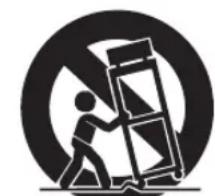
natural_image
Silhouette of a person climbing a ladder inside a circle with a diagonal line (no text or symbols)S3125A
-
Unplug this apparatus during lightning storms or when unused for long periods of time.
-
Refer all servicing to qualified service personnel. Servicing is required when the apparatus has been damaged in any way, such as power-supply cord or plug is damaged, liquid has been spilled or objects have fallen into the apparatus, the apparatus has been exposed to rain or moisture, does not operate normally, or has been dropped.
-
Damage Requiring Service
Unplug the apparatus from the wall outlet and refer servicing to qualified service personnel under the following conditions:
A. When the power-supply cord or plug is damaged,
B. If liquid has been spilled, or objects have fallen into the apparatus,
C. If the apparatus has been exposed to rain or water,
D. If the apparatus does not operate normally by following the operating instructions. Adjust only those controls that are covered by the operating instructions as an improper adjustment of other controls may result in damage and will often require extensive work by a qualified technician to restore the apparatus to its normal operation,
E. If the apparatus has been dropped or damaged in any way, and
F. When the apparatus exhibits a distinct change in performance this indicates a need for service.
- Object and Liquid Entry
Never push objects of any kind into the apparatus through openings as they may touch dangerous voltage points or short-out parts that could result in a fire or electric shock.
The apparatus shall not be exposed to dripping or splashing and no objects filled with liquids, such as vases shall be placed on the apparatus.
Don't put candles or other burning objects on top of this unit.
- Batteries
Always consider the environmental issues and follow local regulations when disposing of batteries.
- If you install the apparatus in a built-in installation, such as a bookcase or rack, ensure that there is adequate ventilation.
Leave 20 cm (8") of free space at the top and sides and 10 cm (4") at the rear. The rear edge of the shelf or board above the apparatus shall be set 10 cm (4") away from the rear panel or wall, creating a flue-like gap for warm air to escape.
-
Recording Copyright—Unless it's for personal use only, recording copyrighted material is illegal without the permission of the copyright holder.
-
AC Fuse—The AC fuse inside the unit is not user-serviceable. If you cannot turn on the unit, contact your Onkyo dealer.
-
Care—Occasionally you should dust the unit all over with a soft cloth. For stubborn stains, use a soft cloth dampened with a weak solution of mild detergent and water. Dry the unit immediately afterwards with a clean cloth. Don't use abrasive cloths, thinners, alcohol, or other chemical solvents, because they may damage the finish or remove the panel lettering.
4. Power WARNING
BEFORE PLUGGING IN THE UNIT FOR THE FIRST TIME, READ THE FOLLOWING SECTION CAREFULLY.
AC outlet voltages vary from country to country. Make sure that the voltage in your area meets the voltage requirements printed on the unit's rear panel (e.g., AC 230 V, 50 Hz or AC 120 V, 60 Hz).
The power cord plug is used to disconnect this unit from the AC power source. Make sure that the plug is readily operable (easily accessible) at all times.
5. Preventing Hearing Loss Caution
Excessive sound pressure from earphones and headphones can cause hearing loss.
6. Batteries and Heat Exposure Warning
Batteries (battery pack or batteries installed) shall not be exposed to excessive heat as sunshine, fire or the like.
- Never Touch this Unit with Wet Hands—Never handle this unit or its power cord while your hands are wet or damp. If water or any other liquid gets inside this unit, have it checked by your Onkyo dealer.
8. Handling Notes
- If you need to transport this unit, use the original packaging to pack it how it was when you originally bought it.
- Do not leave rubber or plastic items on this unit for a long time, because they may leave marks on the case.
- This unit's top and rear panels may get warm after prolonged use. This is normal.
- If you do not use this unit for a long time, it may not work properly the next time you turn it on, so be sure to use it occasionally.
- When you've finished using this unit, remove all discs and turn off the power.
9. Installing this Unit
• Install this unit in a well-ventilated location.
- Ensure that there's adequate ventilation all around this unit, especially if it's installed in an audio rack. If the ventilation is inadequate, the unit may overheat, leading to malfunction.
- Do not expose this unit to direct sunlight or heat sources, because its internal temperature may rise, shortening the life of the optical pickup.
- Avoid damp and dusty places, and places subject to vibrations from loudspeakers. Never put the unit on top of, or directly above a loudspeaker.
- Install this unit horizontally. Never use it on its side or on a sloping surface, because it may cause a malfunction.
- If you install this unit near a TV, radio, or VCR, the picture and sound quality may be affected. If this occurs, move this unit away from the TV, radio, or VCR.
10. Moisture Condensation
Moisture condensation may damage this unit. Read the following carefully:
Moisture may condense on the lens of the optical pickup, one of the most important parts inside this unit.
- Moisture condensation can occur in the following situations:
- The unit is moved from a cold place to a warm place.
- A heater is turned on, or cold air from an air conditioner is hitting the unit.
- In the summer, when this unit is moved from an air conditioned room to a hot and humid place.
- The unit is used in a humid place.
- Do not use this unit when there's the possibility of moisture condensation occurring. Doing so may damage your discs and certain parts inside this unit.
If condensation does occur, remove all discs and leave this unit turned on for two to three hours. By this time, the unit will have warmed up and any condensation will have evaporated.
This unit contains a semiconductor laser system and is classified as a “CLASS 1 LASER PRODUCT”. So, to use this model properly, read this Instruction Manual carefully. In case of any trouble, please contact the store where you purchased the unit.
To prevent being exposed to the laser beam, do not try to open the enclosure.
CAUTION:
CLASS 1M VISIBLE AND INVISIBLE LASER RADIATION WHEN OPEN. DO NOT VIEW DIRECTLY WITH OPTICAL INSTRUMENTS. THIS PRODUCT UTILIZES A LASER. USE OF CONTROLS OR ADJUSTMENTS OR PERFORMANCE OF PROCEDURES OTHER THAN THOSE SPECIFIED HEREIN MAY RESULT IN HAZARDOUS RADIATION EXPOSURE.
The label on the right is applied on the rear panel.
- This unit is a CLASS 1 LASER PRODUCT and employs a laser inside the cabinet.
- To prevent the laser from being exposed, do not remove the cover. Refer servicing to qualified personnel.
For British models
Replacement and mounting of an AC plug on the power supply cord of this unit should be performed only by qualified service personnel.
IMPORTANT
The wires in the mains lead are coloured in accordance with the following code:
Blue: Neutral
Brown: Live
As the colours of the wires in the mains lead of this apparatus may not correspond with the coloured markings identifying the terminals in your plug, proceed as follows: The wire which is coloured blue must be connected to the terminal which is marked with the letter N or coloured black.
The wire which is coloured brown must be connected to the terminal which is marked with the letter L or coloured red.
IMPORTANT
The plug is fitted with an appropriate fuse. If the fuse needs to be replaced, the replacement fuse must approved by ASTA or BSI to BS1362 and have the same ampere rating as that indicated on the plug. Check for the ASTA mark or the BSI mark on the body of the fuse. If the power cord's plug is not suitable for your socket outlets, cut it off and fit a suitable plug. Fit a suitable fuse in the plug.
For European Models
Declaration of Conformity
We, ONKYO EUROPE
ELECTRONICS GmbH
LIEGNITZERSTRASSE 6,
82194 GROEBENZELL,
GERMANY

declare in own responsibility, that the ONKYO product described in this instruction manual is in compliance with the corresponding technical standards such as EN60065, EN55013, EN55020 and EN61000-3-2, -3-3.
GROEBENZELL, GERMANY
ONKYO EUROPE ELECTRONICS GmbH
Features
HDD/Amplifier
- 80 GB Hard Disk Capacity for Storing Audio Files (Copies from CDs or a USB Mass Storage Device)
• Discrete Output Stage Circuitry
• Optimum Gain Volume Circuitry
• Dynamic Range Control
• Super Bass (On/Off) and Tone Control
Processing and Connection
- V L S C ( Vector Line ^1 a r Shaping Circuitry)
• Gracenote Database Capability
• Wolfson 2ch Audio D/A Converter - Audyssey EQ ^TM to Correct Room Acoustic Problems
• Audyssey Dynamic EQ ^TM*2 Loudness Correction - USB Port for iPod ^®*3 or USB Mass Storage Device
• Optical Digital Input
• 3 Audio Inputs and 2 Outputs - Subwoofer Pre Out
Others
- Plays Audio CDs, MP3s and WMA ^4 (via USB, CD-R, CD-RW ^5 ); AAC ^*6 and WAV Files (via USB)
• 4-Mode Timer (Play or Rec/Once or Every) - Headphone Jack
• Aluminium Top Panel and Volume Knob - RI-Dock Compatible Remote Control (iPod Control Capable)
*1 VLSC and the VLSC logo are registered trademarks of Onkyo Corporation.
Manufactured under license from Audyssey Laboratories. U.S. and foreign patents pending. Audyssey Dynamic EQ ^TM and Audyssey EQ ^TM are trademarks of Audyssey Laboratories.
*3 iPod is a trademark of Apple Inc., registered in the U.S. and other countries.
*4 Windows Media, and the Windows logo are trademarks, or registered trademarks of Microsoft Corporation in the United States and/or other countries.
*5 Make sure to use discs that have been finalized.
*6 The "AAC" logo is trademark of Dolby Laboratories.
Supplied Accessories
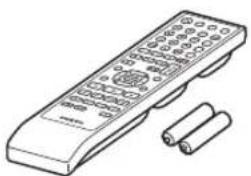
Make sure you have the following accessories:
natural_image
Line drawing of a remote control device with two cylindrical batteries (no text or symbols)Remote controller and two batteries (R6/AA)
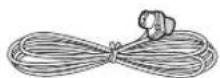
Indoor FM antenna
(Connector type varies from country to country.)
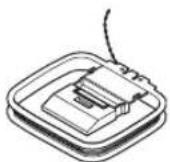
AM loop antenna
* In catalogs and on packaging, the letter at the end of the product name indicates the color. Specifications and operations are the same regardless of color.
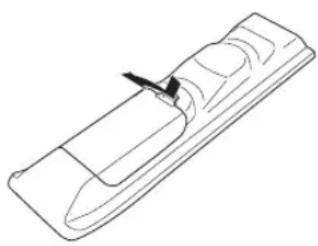
Installing the Batteries
1 Detach the battery cover by pressing the tab and pulling up the cover.
natural_image
Line drawing of a remote control panel with an arrow indicating the direction (no text or symbols)2 Insert two batteries (R6/AA) into the battery compartment.
Carefully follow the polarity diagram (positive (+) and negative (−) symbols) inside the battery compartment.
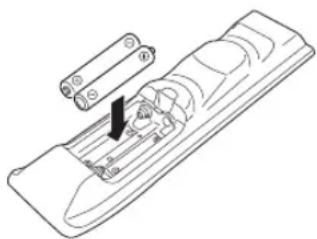
natural_image
Technical line drawing of a mechanical assembly with a component inserted (no text or symbols)3 After the batteries are installed and seated correctly, attach the compartment cover.
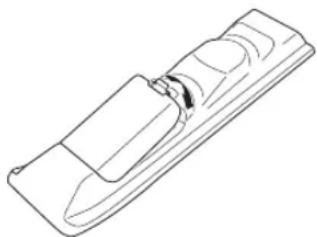
natural_image
Line drawing of a mechanical component or bracket (no text or symbols)Notes:
- If the remote controller doesn't work reliably, try replacing the batteries.
- Don't mix new and old batteries or different types of batteries.
- If you intend not to use the remote controller for a long time, remove the batteries to prevent damage from leakage or corrosion.
- Expired batteries should be removed as soon as possible to prevent damage from leakage or corrosion.
- When replacing the batteries, use R6/AA batteries. Onkyo recommend that you use manganese dry batteries.
- If rechargeable batteries are used, the remote controller may be inoperable.
Using the Remote Controller
When you operate the remote controller, point it at the CD/HDD receiver's remote control sensor, as shown below.
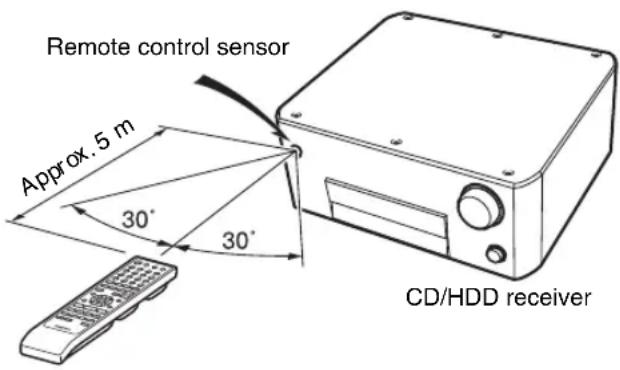
Notes:
- The remote controller may not work reliably if the CD/ HDD receiver is subjected to bright light, such as direct sunlight or inverter-type fluorescent lights. Keep this in mind when installing.
- If another remote controller of the same type is used in the same room, or the CD/HDD receiver is installed close to equipment that uses infrared rays, the remote controller may not work reliably.
- Don't put anything, such as a book, on the remote controller because the buttons may be pressed inadvertently, thereby draining the batteries.
- The remote controller may not work reliably if the CD/ HDD receiver is installed in a rack behind colored glass doors. Keep this in mind when installing.
- The remote controller will not work if there's an obstacle between it and the CD/HDD receiver's remote control sensor.
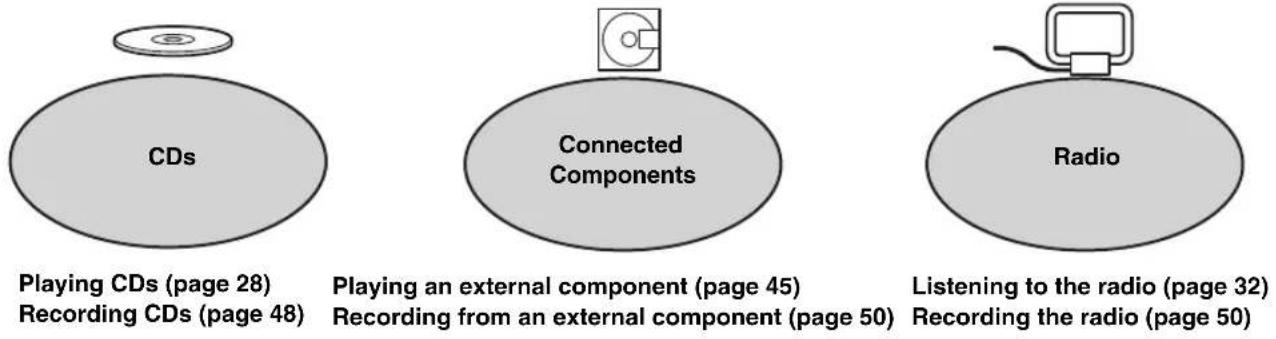
What You Can Do with the CD/HDD Receiver
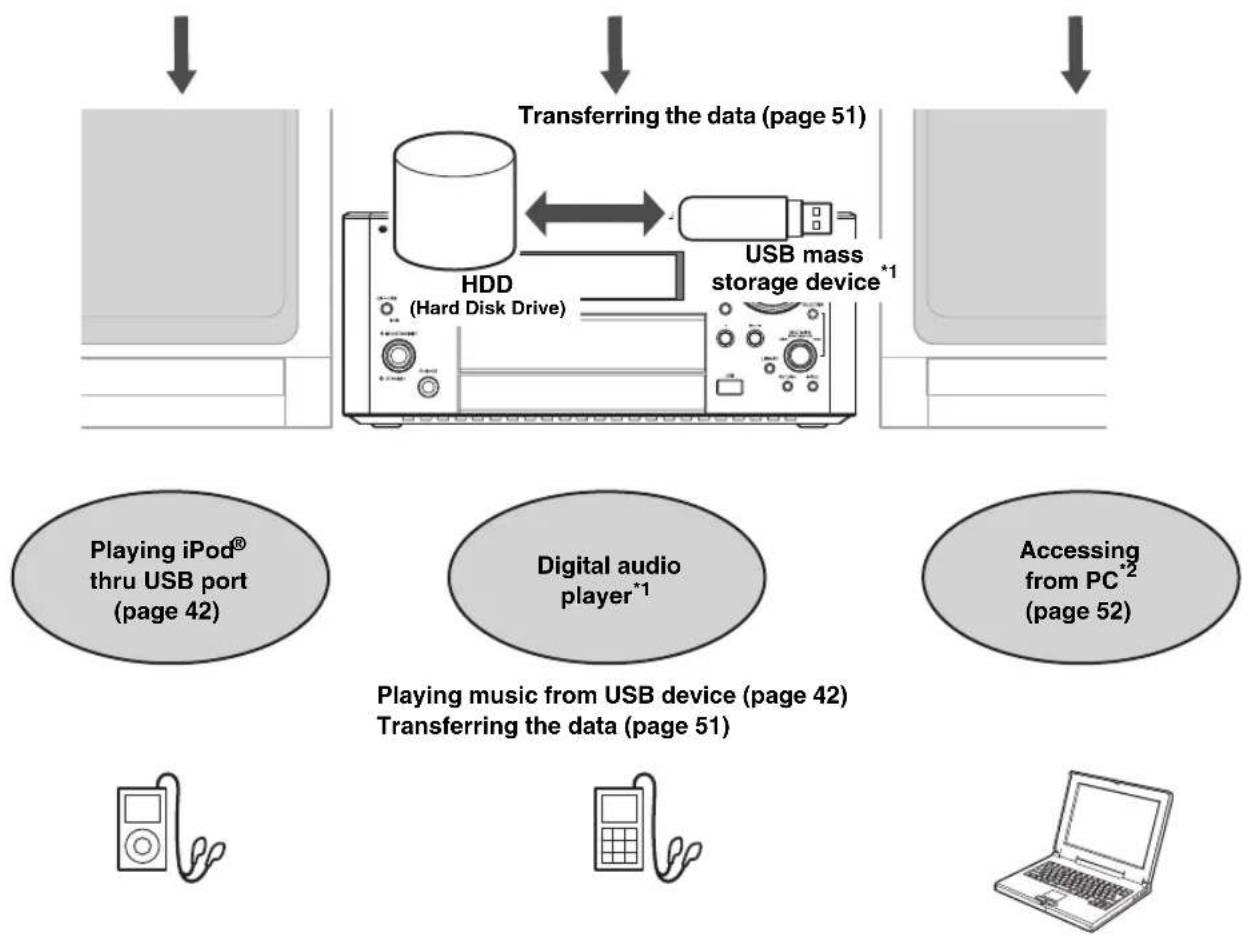
flowchart
graph TD
    A["Playing iPod® thru USB port (page 42)"] --> B["Transferring the data (page 51)"]
    C["Digital audio player*1"] --> D["Transferring the data (page 51)"]
    E["Playing music from USB device (page 42) Transferring the data (page 51)"] --> B
    F["Accessing from PC*2 (page 52)"] --> D
*1 Only for USB devices supporting the USB mass storage class.
*2 Only for personal computers with Microsoft Windows XP Service Pack 2, Service Pack 3, or Microsoft Windows Vista installed.
Handling the Hard Disk Drive (HDD)
The HDD is very sensitive to physical shock, vibration, and dust.
The CD/HDD receiver is designed to protect the data safely from physical shock, vibration, and dust. However, pay particular attention to the following points to prevent the recorded data from being lost.
- Do not apply physical shock.
- Do not move the CD/HDD receiver with power cord plugged.
- Do not use the CD/HDD receiver in vibratory or unstable place.
- Do not unplug or move the CD/HDD receiver during recording or playback.
- Do not attempt to replace the HDD or to add another one by yourself. A failure may occur.
- Do not install the CD/HDD receiver in a dusty place.
- Do not block any ventilation openings on the CD/HDD receiver. Heat may be built up, causing a failure.
- Do not use in a place with rapid temperature change (a change over 10^ per hour).
When there is the possibility of moisture condensation occurring, Onkyo recommend that you wait for approx. one hour after turning the power on before using the CD/HDD receiver.
Advice on data backup
The HDD may fail even in normal use, for example, a sudden data loss or failure caused by electrical service interruption. If the HDD fails for some reason, the data cannot be restored. Onkyo recommend that you backup the data stored in the CD/HDD receiver to your personal computer or commercially available USB hard disk drive periodically.
When getting repaired
When the HDD gets repaired, the data in the HDD of the CD/HDD receiver, including music data, setting data, cannot sometimes be reproduced. Before it gets repaired, note down the setting details preset in the CD/HDD receiver on paper. Also be sure to backup the data stored in the CD/HDD receiver. Please note that Onkyo will not be responsible for anything if the data should be erased or changed during the repair and normal use.
Getting Started
Important Safety Instructions ...... 2
Precautions 3
Features...... 5
Supplied Accessories.... 5
Before Using the CD/HDD Receiver 6
Installing the Batteries.... 6
Using the Remote Controller.... 6
What You Can Do with the CD/HDD Receiver..... 7
Handling the Hard Disk Drive (HDD)...... 8
Getting to Know the CD/HDD Receiver 10
Front Panel.... 10
Display.... 11
Rear Panel 12
Remote Controller 13
Connections
Connections 15
About Connections.... 15
Connecting Speakers.... 16
Connecting Antennas.... 17
Connecting Other Components.... 19
Connecting a Subwoofer.... 20
Connecting a Component with a Digital Audio
Output.... 20
Connecting a TV.... 20
Hooking Up to the Internet 21
Turning On & First Time Setup
Turning On the CD/HDD Receiver 22
First Time Setup.... 23
Setting the Clock with the AccuClock Function... 23
Basic Operation
Basic Operations.... 24
Selecting the Input Source 24
Adjusting the Volume 24
Using Headphones.... 24
Adjusting the Tone 25
Adjusting the Bass and Treble 25
Using the Super Bass Function.... 25
Using the Direct Function.... 25
Muting the Sound 25
Using Audyssey EQ™
and Audyssey Dynamic EQ™ 26
Operation of Music Data 27
USB Device.... 27
HDD....27
Playing & Listening
Playing CDs 28
Basic Operations of Playback 28
Playing Selected Tracks.... 29
Switching the Display 29
Retrieving Audio CD Information.... 30
Random Playback 31
Repeat Playback 31
Listening to the Radio 32
Tuning into AM/FM Radio Stations.... 32
Displaying Radio Information 33
Receiving RDS.... 33
Presetting FM Stations Automatically (Auto Preset).... 34
Presetting AM/FM Stations Manually 35
Selecting Preset Stations 36
Editing Presets 37
USB Device Playback 41
Compatible USB Devices 41
USB Device Folders and Files.... 41
Basic Operations of Playback.... 42
Playing Selected Tracks.... 43
Switching the Display 43
Repeat/Random Playback.... 44
Playing External Components.... 45
Playing External Components 45
Making an RI Connection with Onkyo
Components...... 45
Recording (Transferring Data)
Recording (Transferring Data).... 46
Compatible USB Devices 46
Preparation for Recording and Transferring ..... 46
Setting for Recording.... 47
Recording CDs 48
Recording from Tuner.... 50
Recording from Line Input 50
Transferring Data.... 51
Erasing Data from USB Device 53
Playing the HDD
Playing the HDD....54
Basic Operations of Playback.... 54
Playing Selected Tracks.... 55
Switching the Display 56
Various Playback Modes.... 57
Editing Tracks and Playlists in the HDD.... 58
Erasing Music Track or Album.... 58
Editing Track Information.... 58
Removing Tracks from the Playlist.... 60
Editing a Playlist Name.... 61
Clock and Timer
Setting the Clock 62
Setting AccuClock to Use a Specific Station ..... 62
Setting the Clock Manually.... 63
Using the Timers 64
Using the Sleep Timer 64
Using the Play Timer 65
Using the Record Timer.... 66
Advanced Setup
Advanced Setup.... 68
Network Configuration.... 68
Others
Disc Notes....70
playable Formats 72
Controlling External Components.... 73
Troubleshooting....74
Specifications 79
Trademark and Other Proprietary Notices 80
To reset the CD/HDD receiver, see page 74.
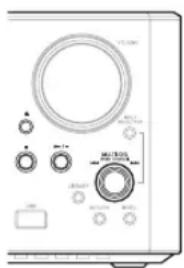
Front Panel
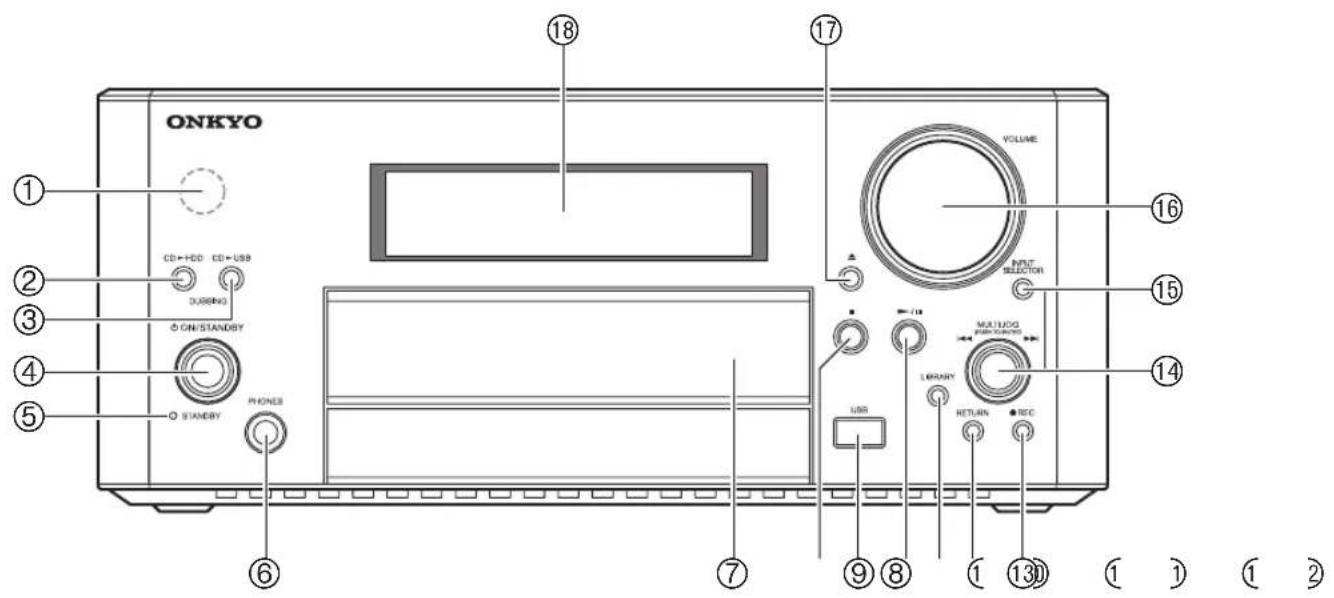
The page numbers in parentheses show where you can find the main explanation for each item.
① Remote control sensor (6) Receives control signals from the remote controller.
② CD ▶ HDD DUBBING button (48) Used to record a CD into HDD. When pressed, immediately starts recording all tracks.
③ CD ▶ USB DUBBING button (48) Used to record a CD into a digital audio player or USB storage device. When pressed, immediately starts recording all tracks.
④ ON/STANDBY button (22) Sets the CD/HDD receiver to On or Standby.
⑤ STANDBY indicator (22) Lights off when the power is on, and lights up in red in Standby mode.
⑥ PHONES jack (24) This stereo minijack is for connecting a pair of stereo headphones for private listening.
⑦ CD tray (28) The CD is loaded here.
⑧ Stop [■] button (28) Stops CD playback.
⑨ USB port (42) A USB mass storage device, such as a USB flash drive or MP3 music player, containing music files can be plugged in here and the music files can be selected and played through the CD/HDD receiver.
⑩ Play/Pause [▶/■] button (28) Starts CD playback. Pressing it during playback pauses playback.
⑪ LIBRARY button (28) Displays the list of tracks.
⑫ RETURN button Returns to the previous menu level.
⑬ ● REC button (49) Pressed to record into HDD, digital audio player, or USB storage device.
⑭ MULTI JOG dial (24, 28, 36) Selects a preset radio station or tracks of CD to be played. Selects an item for editing or setting. Pressed to confirm each setting.
⑮ INPUT SELECTOR button (24) Used to select the input source.
16 VOLUME control (24) This control is used to adjust the volume of the CD/HDD receiver to "Min", "1" through "41", "Max".
⑰ Open/Close [▲] button (28) Used to open and close the disc tray.
⑱ Display See “Display” on page 11.
Display
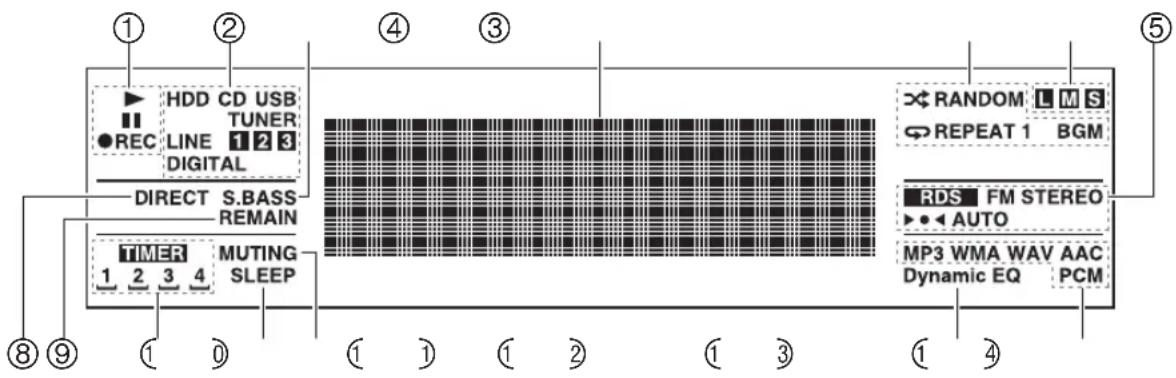
① Play, pause and Rec ▶/II/● REC indicators
Displays the playback and recording status.
② Input source indicators
Displays the input source for playback. During recording, the indicator of the destination flashes.
HDD: Hard disk drive.
CD: Audio CD or data CD.
USB: USB device.
TUNER: FM or AM.
LINE 1 to LINE3:
Connected components.
DIGITAL: Components connected via optical digital audio.
Lights up when the input signal is PCM. The indicator flashes if the input signal is digital but not PCM, or the CD/HDD receiver is in “unlocked” state (the cable is disconnected or the component is not turned on).
③ S.BASS indicator
Lights up when the Super Bass function is on.
④ Message area
Various information is displayed here, including radio preset numbers, tuning frequency, current time, volume level, sleep time, mode settings, and so on.
⑤ Playback mode indicators
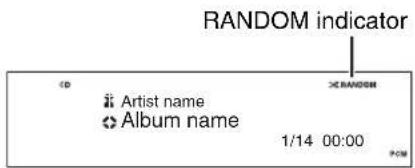
✗ RANDOM: Lights up when random playback is selected.
REPEAT: Lights up when repeat playback is selected for all tracks.
REPEAT 1: Lights up when repeat playback is selected for one track.
BGM: Lights up when BGM mode play-back is selected (see page 57).
⑥ Jump mode indicators
LMS: Lights up when jump mode is selected (see page 55).
⑦ Tuning indicators
AUTO:
Lights up when Auto Tuning is selected, and disappears when Manual Tuning is selected.
▶●◀:
Lights up when the CD/HDD receiver is tuned to a radio station.
FM STEREO:
Lights up when the CD/HDD receiver is tuned to a stereo FM station.
RDS:
Lights up when the CD/HDD receiver is tuned to a radio station that supports RDS (Radio Data System).
⑧ DIRECT indicator
Lights up when the Direct function is on.
⑨ REMAIN indicator
Lights up when the remaining track time is being displayed.
⑩ TIMER indicators
Show the status of the timers.
TIMER:
Lights up when a timer has been programmed.
1, 2, 3, 4:
Light up when a timer has been programmed.
□:
Lights up when a timer has been programmed for recording.
⑪ SLEEP indicator
Lights up when the Sleep function has been set.
⑫ MUTING indicator
Flashes while the CD/HDD receiver is muted.
⑬ Dynamic EQ indicator
Lights up when the Audyssey Dynamic EQ ^TM has been set.
⑭ File format indicators
Displays the format of playback and recording data.
Rear Panel
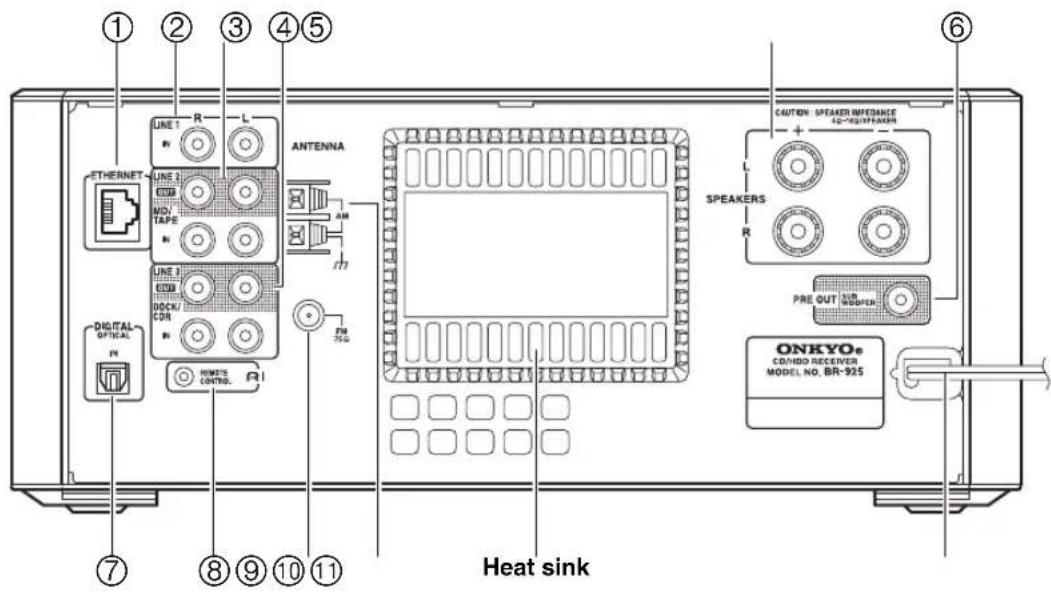
The page numbers in parentheses show where you can find the main explanation for each item.
① ETHERNET (21)
This socket is for connecting a broadband router using a commercially available LAN cable.
② LINE 1 IN (20)
These terminals are for connecting audio output of external devices such as TV or turntable with a built-in phono equalizer.
③ MD/TAPE (LINE 2) IN/OUT (19)
These analog audio inputs and outputs are for connecting a recorder with an analog input and output, such as a MiniDisc recorder or cassette deck.
④ DOCK/CDR (LINE 3) IN/OUT (19)
This analog audio input and output are for connecting an Onkyo RI Dock. The input and output can also be connected to a CD recorder or recording device.
⑤ SPEAKERS (16)
These terminal posts are for connecting speakers.
⑥ SUBWOOFER PRE OUT (20)
This jack is for connecting a powered active subwoofer.
⑦ OPTICAL DIGITAL IN (20)
This optical digital audio input can be used to connect a component with an optical digital output, such as a CD recorder, MD recorder, games console, satellite tuner, or personal computer. Use a commercially available optical digital audio cable (square) to make the connection.
⑧ RI REMOTE CONTROL (19)
This RI (Remote Interactive) jack can be connected to an RI jack on another Onkyo component. The CD/HDD receiver's remote controller can then be used to control that component. To use RI, you must make an analog audio connection (RCA) between the CD/HDD receiver and the other component.
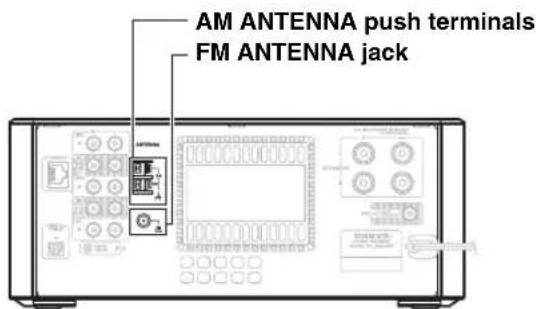
⑨ FM ANTENNA (17)
This jack is for connecting an FM antenna.
⑩ AM ANTENNA (17)
These push terminals are for connecting an AM antenna.
⑪ Power cord (22)
The power cord should be connected to a suitable power source (plug type varies from country to country).
See pages 15–21 for connection information.
Caution:
The heat sink is a device designed to disperse heat from within the CD/HDD receiver. Do not to place objects around the CD/HDD receiver and ensure that there is adequate ventilation all around the CD/HDD receiver. If the ventilation is inadequate, the CD/HDD receiver may overheat, leading to malfunction.
Remote Controller
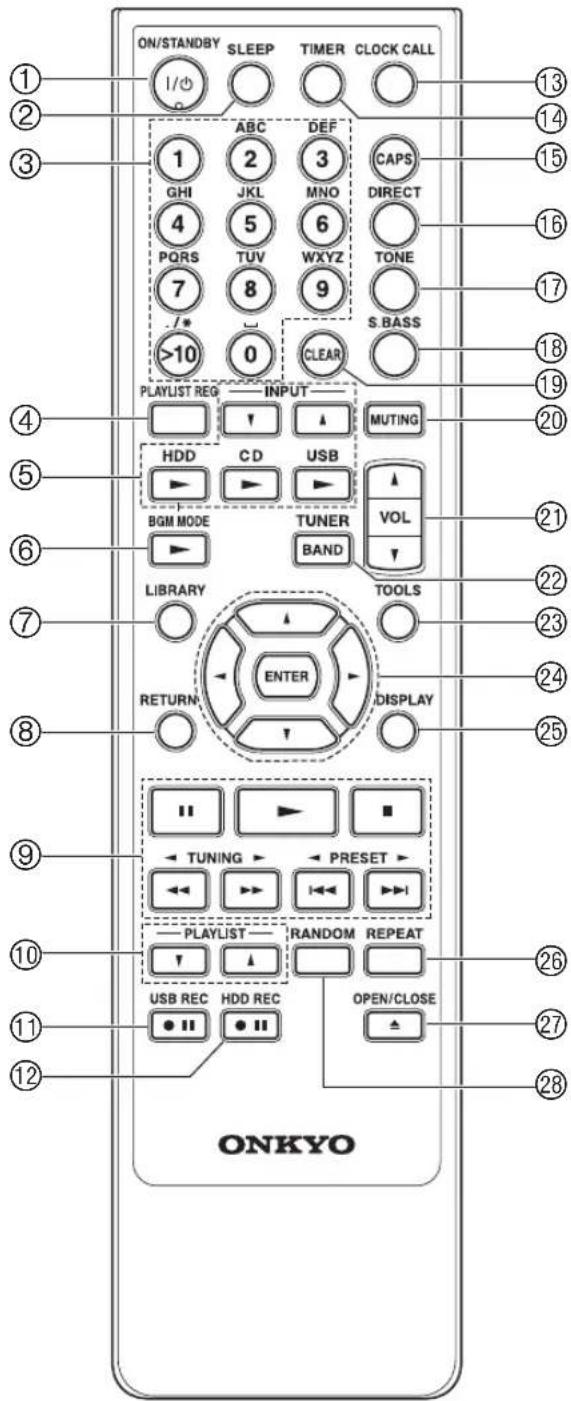
The page numbers in parentheses show where you can find the main explanation for each item.
① ON/STANDBY button (22)
This button is used to set the CD/HDD receiver to On or Standby.
② SLEEP button (64)
Used to set the Sleep timer, which turns off the CD/HDD receiver after a specified time.
③ Alphabetic letters/Symbol (/)Number (0 to >10) buttons (39, 58, 61)
Used to enter the name of the playlist, album, artist, track or radio presets.
Numeric: Used to select the track you want to play. Also used to set the clock manually and set the timers.
Used to register music files in HDD to the playlist.
⑤ Source selection buttons (24)
INPUT [▲]/[▼] buttons:
Used to switch the input source.
HDD ▶ button*:
Switches to HDD for playback.
CD ▶ button*:
Switches to CD for playback.
USB ▶ button*:
Switches to USB for playback.
* These buttons also work in the Standby mode.
⑥ BGM MODE ▶ button (57)
Used to play tracks in HDD* in BGM mode. This button also works in the Standby mode.
* Except for music files recorded from the FM/AM or external components.
⑦ LIBRARY button (28)
Displays the list of tracks.
⑧ RETURN button
Returns to the previous display.
⑨ Operation buttons (28, 32, 36, 73)
II: Pauses playback.
▶: Starts playback.
■: Stops playback.
Fast Reverse/Fast Forward [◀◀]/[▶▶] and TUNING [◀]/[▶] buttons:
Used to fast reverse or fast forward CD playback. Can also be used with an Onkyo RI Dock, CD recorder or MD recorder. Also used to tune the radio frequency.
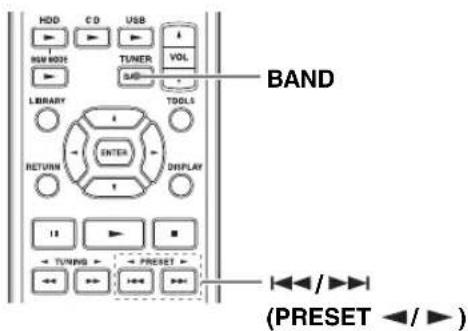
Previous/Next [I◄◄]/[►►I] and PRESET [◄]/[►] buttons
Used to select the previous or next track or radio preset. Can also be used with an Onkyo RI Dock, CD recorder or MD recorder. With an Onkyo cassette deck, they work as fast reverse and fast forward buttons.
⑩ PLAYLIST [▲]/[▼] buttons (57)
Plays the tracks on the playlist. Each time the button is pressed, the selected playlist is switched and playback starts.
⑪ USB REC [● II] button (49)
Used to record to your USB storage device.
⑫ HDD REC [● III] button (49)
Used to record to HDD.
⑬ CLOCK CALL button (63)
Calls up the clock to display the day and time.
This button also works in the Standby mode.
⑭ TIMER button (63, 64)
Used to set the timers and clock.
⑮ CAPS button (39)
Used to select the character group.
⑯ DIRECT button (25)
Used to switch to the Direct mode.
⑰ TONE button (25)
Used to adjust the bass and treble.
⑱ S.BASS button (25)
Sets the Super Bass function.
⑲ CLEAR button (40)
Used to delete the input letters.
⑳ MUTING button (25)
Mutes the output of the CD/HDD receiver.
②1 VOL [▲]/[▼] button (24)
Adjust the volume level.
②2 TUNER (BAND) button (36)
Selects AM or FM radio as the input source.
②3 TOOLS button
Used to display setting items.
⑳ Cursor ▲/▼/◄/► and ENTER buttons
Cursor:
Selects items by moving the cursor.
ENTER:
Used to confirm settings. Also used to start play-back of the selected track.
⑲ DISPLAY button (29, 73)
Used to change the information shown on the display. With an Onkyo RI Dock, it works as a backlight button.
②6 REPEAT button (31, 73)
Sets repeat playback. Can also be used with an Onkyo RI Dock. With an Onkyo cassette deck, it works as a reverse mode button.
⑳ OPEN/CLOSE [▲] button (28)
Used to open and close the disc tray.
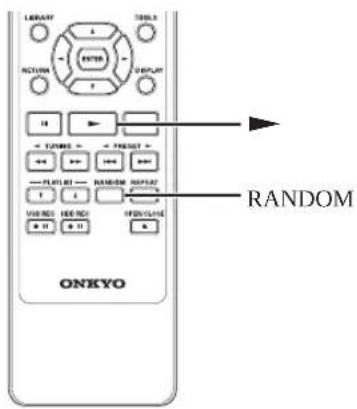
⑳ RANDOM button (31)
Used to select random playback.
About Connections
- Before making any connections, read the manuals supplied with your other components.
- Don't connect the power cord until you've completed and double-checked all connections.
Connection Color Coding
RCA-type audio connections are usually color-coded: red and white. Use red plugs to connect right-channel audio inputs and outputs (typically labeled "R"). Use white plugs to connect left-channel audio inputs and outputs (typically labeled "L").

- Push plugs in all the way to make good connections (loose connections can cause noise or malfunctions).
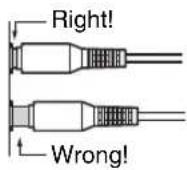
• To prevent interference, keep audio cables away from power cords and speaker cables.
- If the TV picture is distorted, or noise is heard in the output sound of the CD/HDD receiver, install the CD/HDD receiver as far as possible from the TV.
Optical Digital Input Terminal
The optical digital input terminal of the CD/HDD receiver is a type of terminal with cover. Insert the optical digital cable while pushing the cover inwards.
Notes:
- Plug or unplug the optical digital cable in straight direction.
- If you plug or unplug the cable slantingly, the cover may be damaged.
- Do not put anything on top of the CD/HDD receiver, as it may interfere with proper ventilation, leading to malfunction.
See the related pages for connection.
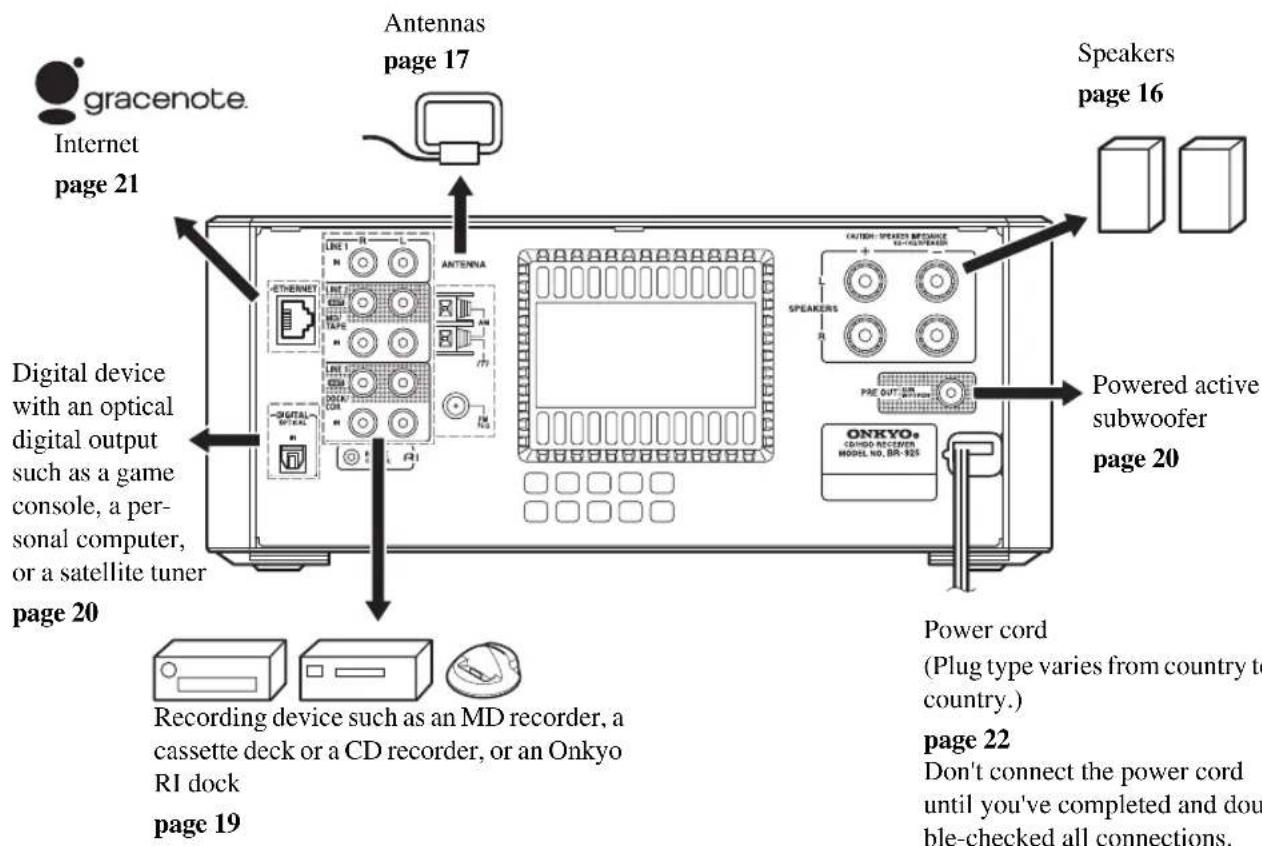
Connecting Speakers
- Connect the right speaker to the CD/HDD receiver's right (R) SPEAKERS terminals. Connect the left speaker to the left (L) SPEAKERS terminals.
- Connect the positive (+) terminal on each speaker to the corresponding positive (+) terminal on the CD/HDD receiver. Connect the negative (−) terminal on each speaker to the corresponding negative (−) terminal on the CD/HDD receiver. Use the red wires to connect the positive (+) terminals.
- Up to two speakers can be connected to the CD/HDD receiver.
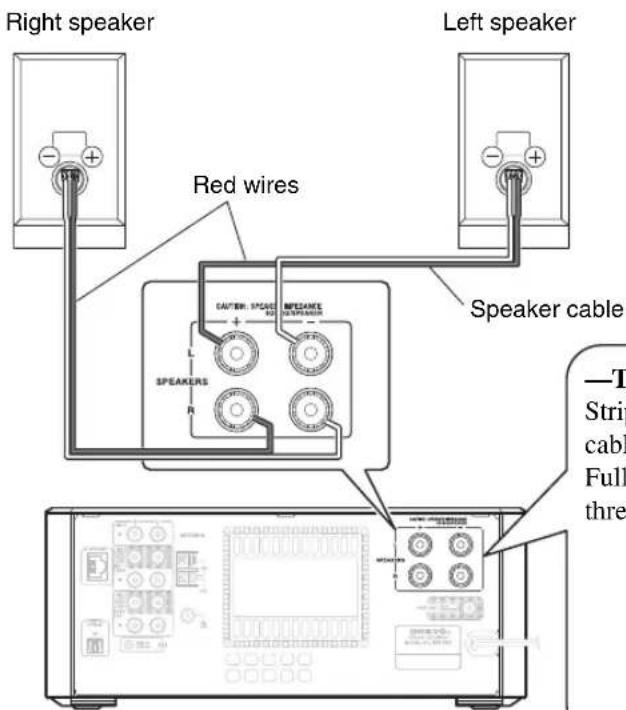
—Terminal posts—
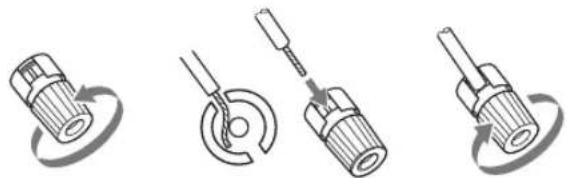
Strip about 15 mm of insulation from the ends of the speaker cables, and twist the bare wires tightly. Unscrew the terminal. Fully insert the bare wire, making sure that it's touching the threaded shaft in the center. Screw the terminal tight.
natural_image
Three-step diagram showing a screwdriver tool interacting with a circular component, no text or symbols present.- Connect only speakers with an impedance of between 4 and 16 ohms. Connecting a speaker with a lower impedance may damage the speaker.
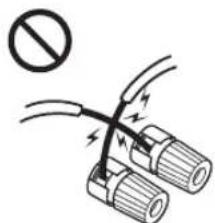
- Be careful not to short the positive and negative wires. Doing so may damage the CD/HDD receiver. Also, be careful not to touch the rear panel.
natural_image
Diagram showing a dislocation of material into two batteries with a lightning bolt, no text or symbols present- Twist the speaker cord sufficiently. The contact between bare wire and rear panel may cause a short circuit.
- Be careful not to confuse the positive and negative terminals, or L and R speakers during the connection. Doing so may result in unnatural sound.
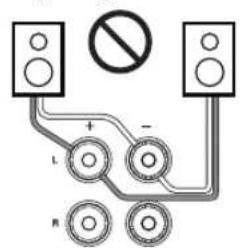
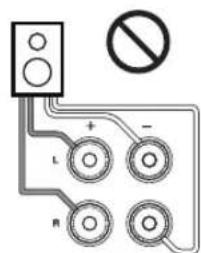
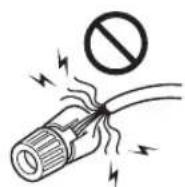
- Do not connect both speaker cables to the same L or R terminals (Fig. 1). Do not connect more than two speaker terminals to each speaker (Fig. 2).
Fig. 1 Fig. 2
Connecting Antennas
This section explains how to connect the supplied indoor FM antenna and AM loop antenna, and how to connect commercially available outdoor FM and AM antennas. The CD/HDD receiver won't pick up any radio signals without an antenna connected, so you must connect the antenna to use the tuner.
Connecting the Indoor FM Antenna
The supplied indoor FM antenna is for indoor use only.
1 Attach the FM antenna, as shown.
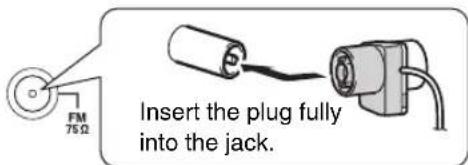
Once the CD/HDD receiver is ready for use, you'll need to tune into an FM radio station and adjust the position of the FM antenna to achieve the best possible reception.
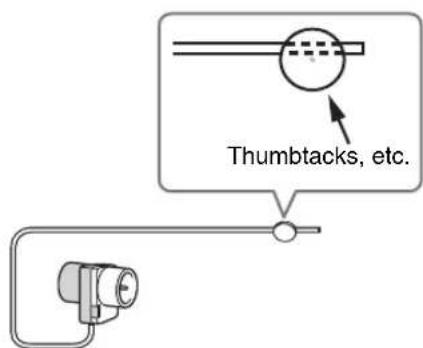
2 Use thumbtacks or something similar to fix the FM antenna into position.
Caution:
Be careful that you don't injure yourself when using thumbtacks.
If you cannot achieve good reception with the supplied indoor FM antenna, try a commercially available outdoor FM antenna instead (see page 18).
Connecting the AM Loop Antenna
The supplied indoor AM loop antenna is for indoor use only.
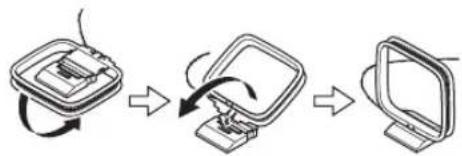
1 Assemble the AM loop antenna, inserting the tabs into the base, as shown.
flowchart
graph TD
    A["Device 1"] --> B["Device 2"]
    B --> C["Device 3"]
    C --> D["Device 4"]
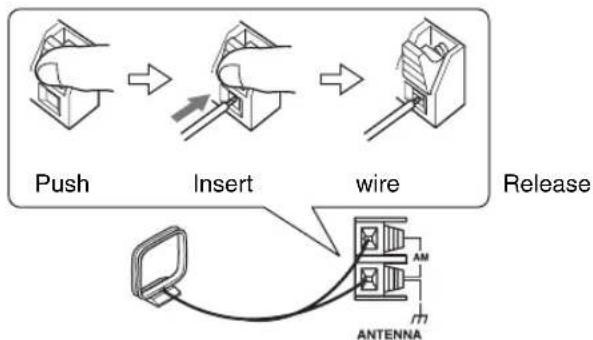
2 Connect both wires of the AM loop antenna to the AM ANTENNA push terminals, as shown.
(The antenna's wires are not polarity sensitive, so they can be connected either way around.)
Make sure that the wires are attached securely and that the push terminals are gripping the bare wires, not the insulation.
flowchart
graph LR
    A["Push"] --> B["Insert"]
    B --> C["wire"]
    C --> D["Release"]
    D --> E["Antenna"]
    E --> F["Computer"]
Once the CD/HDD receiver is ready for use, you'll need to tune into an AM radio station and adjust the position of the AM antenna to achieve the best possible reception.
Keep the antenna as far away as possible from the CD/HDD receiver, TV, speaker cables, and power cords.
If you cannot achieve good reception with the supplied indoor AM loop antenna, try using it with a commercially available outdoor AM antenna (see page 18).
Connecting an Outdoor FM Antenna
If you cannot achieve good reception with the supplied indoor FM antenna, try a commercially available outdoor FM antenna instead.
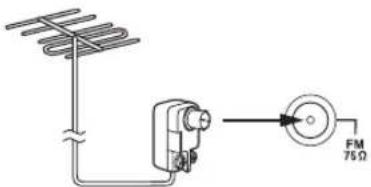
Notes:
- Outdoor FM antennas work best outside, but usable results can sometimes be obtained when installed in an attic or loft.
- For best results, install the outdoor FM antenna well away from tall buildings, preferably with a clear line of sight to your local FM transmitter.
- Outdoor antenna should be located away from possible noise sources, such as neon signs, busy roads, etc.
- For safety reasons, outdoor antenna should be situated well away from power lines and other high-voltage equipment.
- Outdoor antenna must be grounded in accordance with local regulations to prevent electrical shock hazards.
■Using a TV/FM Antenna Splitter
It's best not to use the same antenna for both FM and TV reception, as this can cause interference problems. If circumstances demand it, use a TV/FM antenna splitter, as shown.
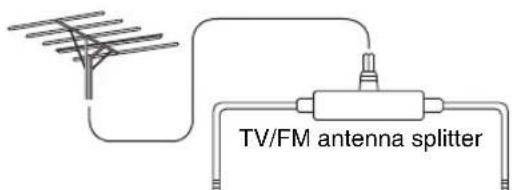
To CD/HDD receiver To TV (or VCR)
Connecting an Outdoor AM Antenna
If good reception cannot be achieved using the supplied AM loop antenna, an outdoor AM antenna can be used in addition to the loop antenna, as shown.
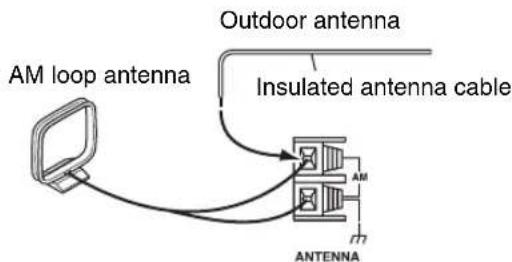
Outdoor AM antennas work best when installed horizontally outside, but good results can sometimes be obtained indoors by mounting horizontally above a window. Note that the AM loop antenna should be left connected.
Outdoor antenna must be grounded in accordance with local regulations to prevent electrical shock hazards.
Connecting Other Components
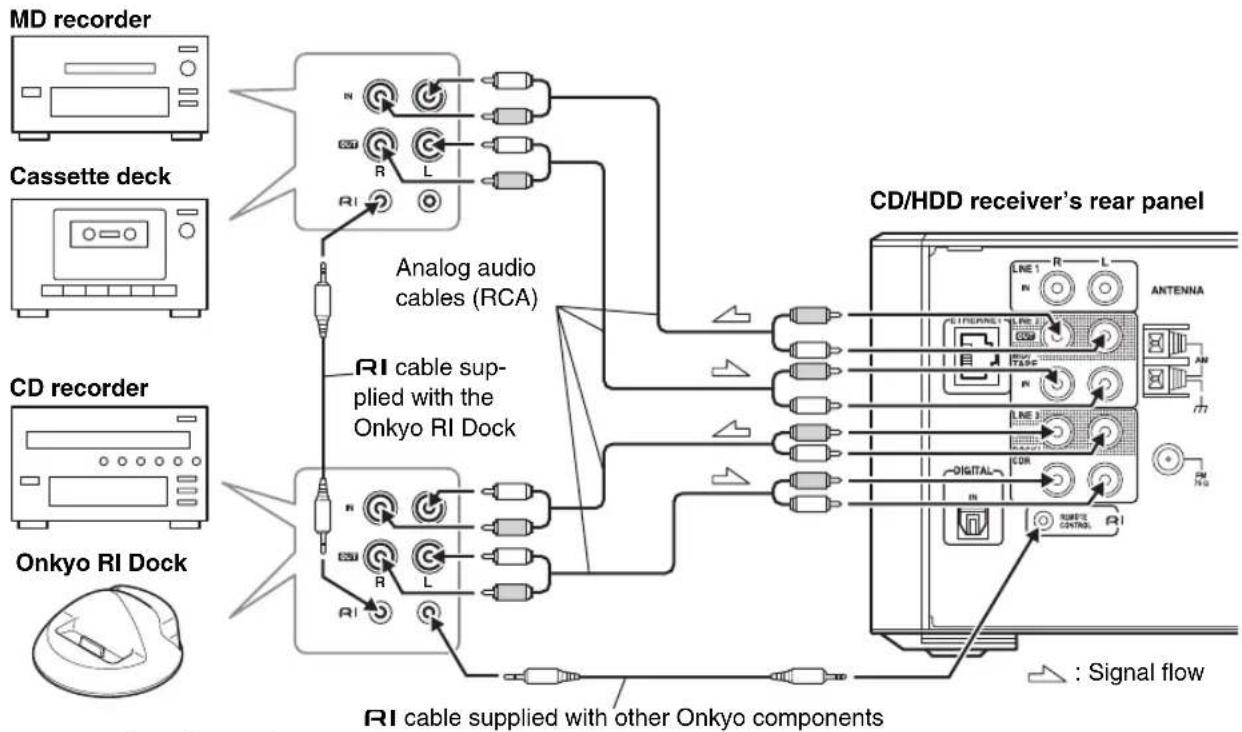
The following diagram shows how to connect other components (i.e., a cassette deck, an MD recorder, a CD recorder) and an Onkyo RI Dock (Remote Interactive Dock). If Audyssey EQ ^TM is active, you cannot perform recording (except for timer recording) to an external component. Deactivate Audyssey EQ ^TM when you want to record to an external component (see page 26).
Connecting an MD recorder or cassette deck
Connect the CD/HDD receiver's MD/TAPE OUT jacks to the INPUT (REC) jacks of the MD recorder or cassette deck. Connect the CD/HDD receiver's MD/TAPE IN jacks to the OUTPUT (PLAY) jacks of the MD recorder or cassette deck.
Connecting a CD recorder or an Onkyo RI Dock
Connect the CD/HDD receiver's DOCK/CDR OUT jacks to the AUDIO INPUT jacks of the CD recorder or Onkyo RI Dock.
Connect the CD/HDD receiver's DOCK/CDR IN jacks to the AUDIO OUTPUT jacks of the CD recorder or Onkyo RI Dock.
Connecting Onkyo RI Components
First connect each Onkyo component to the CD/HDD receiver with an analog audio cable (RCA) as described above. Next, make the necessary RI connections with an RI cable (see illustration below). Finally, change the Input Display to the corresponding component name (see page 45).
flowchart
graph TD
    A["MD recorder"] --> B["Analog audio cables (RCA)"]
    C["Cassette deck"] --> B
    D["CD recorder"] --> E["RI cable supplied with the Onkyo RI Dock"]
    F["Onkyo RI Dock"] --> E
    B --> G["CD/HDD receiver's rear panel"]
    E --> G
    G --> H["Antenna"]
    style A fill:#f9f,stroke:#333
    style C fill:#f9f,stroke:#333
    style D fill:#f9f,stroke:#333
    style F fill:#f9f,stroke:#333
    style G fill:#ccf,stroke:#333
    note right of G: "Signal flow"
    note left of G: "RI cable supplied with other Onkyo components"
What can you do with RI?
- Connecting an Onkyo RI-capable component to the CD/HDD receiver via RI cable allows you to control the component with the CD/HDD receiver's remote controller.
- When playback is started on the component connected via RI, the CD/HDD receiver will automatically select it as the input source.
- When you start playback on the component connected via RI, if the CD/HDD receiver is on Standby, it will automatically turn on. Similarly, when the CD/HDD receiver is set to Standby, all components connected via RI will also go on Standby.
Notes:
- No RI cable is included with the CD/HDD receiver. Use RI cables supplied with other Onkyo components.
- Use RI jacks for a combined use with RI-capable components.
- Some RI-capable components have two RI jacks. They're both the same, so you can use either one. The extra jack is for connecting additional RI-capable components.
Connecting a Subwoofer
The CD/HDD receiver has SUBWOOFER PRE OUT jack for connecting a powered active subwoofer (i.e., a subwoofer with a built-in amplifier).
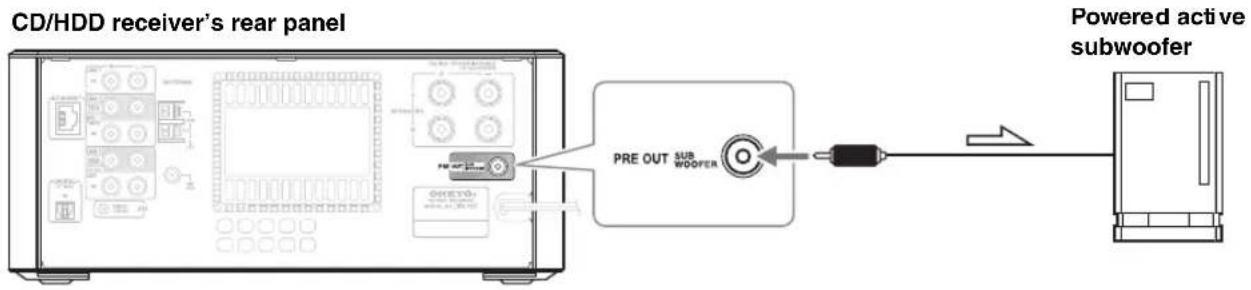

: Signal flow
Connecting a Component with a Digital Audio Output
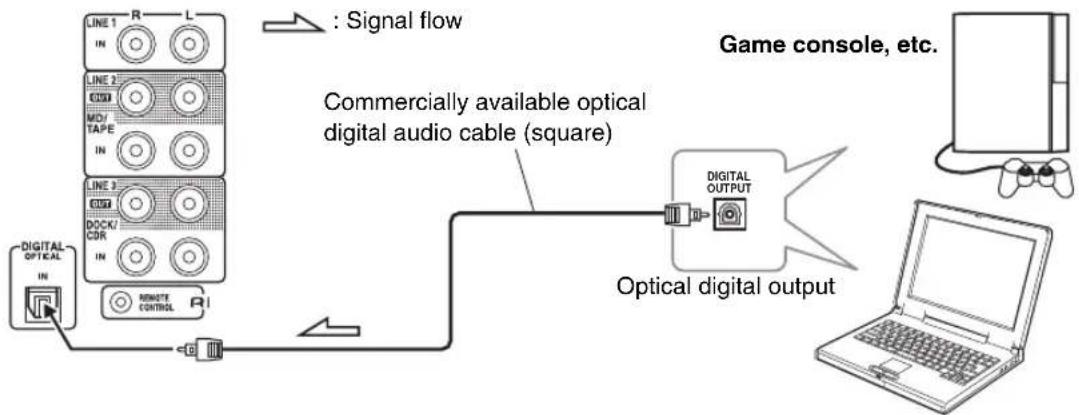
The following diagram shows how to connect a component with an optical digital audio output, such as a games console, satellite tuner, or personal computer. Connect the CD/HDD receiver's DIGITAL OPTICAL IN jack to an optical digital audio output on the other component.
You can change the Input Display for the OPTICAL DIGITAL IN to DIGITAL, CD-R/dig, GAME/dig, or PC/dig so that it matches the type of component that you connect (see page 45).
The CD/HDD receiver supports only a 16-bit PCM signal with a sampling rate of between 44.1 kHz and 48 kHz.
Some components require the settings of forced conversion to PCM.
flowchart
graph TD
    A["Game console, etc."] --> B["Optical digital output"]
    B --> C["Commercially available optical digital audio cable (square)"]
    C --> D["Signal flow"]
    D --> E["Digital output"]
    E --> F["Computer"]
Connecting a TV
Connect the CD/HDD receiver's LINE 1 IN jacks to the TV's audio output jacks.
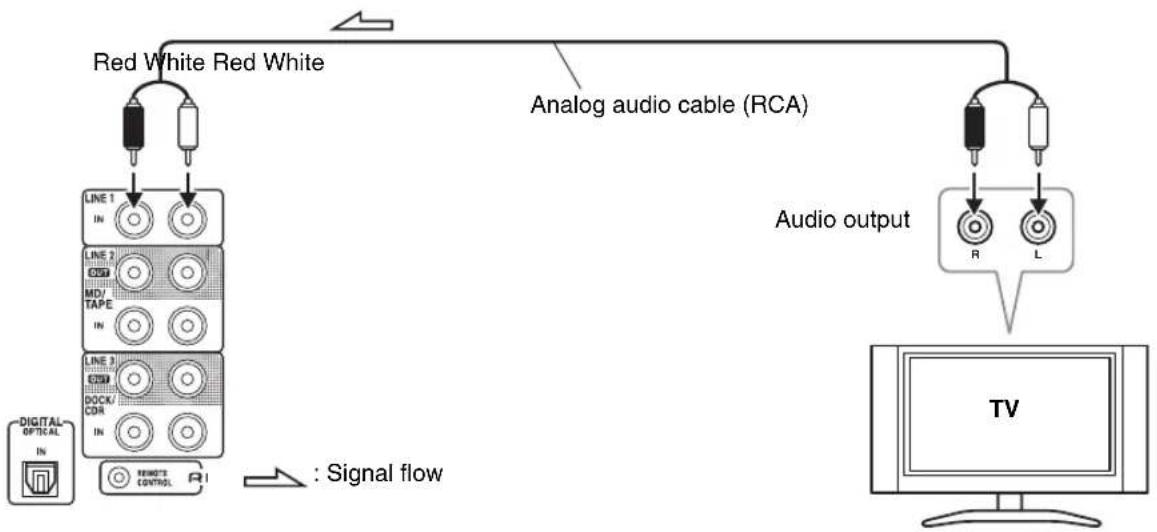
flowchart
graph TD
    A["Red White Red White"] --> B["Line 1 IN"]
    A --> C["Line 2 OUT"]
    A --> D["MD/TAPE IN"]
    A --> E["DOCK/CDN IN"]
    F["Analog audio cable (RCA)"] --> B
    F --> C
    F --> D
    G["Audio output"] --> H["R"]
    G --> I["L"]
    J["TV"] --> K["Monitor"]
    L["Digital Optical In"] --> M["Signal flow"]
    N["Remote Control"] --> M
Hooking Up to the Internet
The CD/HDD receiver is network-ready, which means you can hook it up to your home network with a standard Internet and the Gracenote® music recognition service is available. Gracenote® music recognition service is music CD database service constructed on servers located on the Internet. See page 80 for details.
In addition, while the PC is accessing the CD/HDD receiver, you can transfer the music files between the CD/HDD receiver and your PC via FTP. See page 52 for details.
The CD/HDD receiver is configured to automatically try to access the Internet upon completion of the hook up. If your connection is not successfully established, see page 68. A contract with an Internet Service Provider (ISP) is required to connect to the Internet. If you already have a broadband internet connection there is no need to take out another contract.
Network Requirements
■Ethernet Network
The CD/HDD receiver's Ethernet port supports 10Base-T. For best results, a 100Base-TX switched Ethernet network is recommended. Because wireless connections may be unreliable, wired connections are recommended.
Ethernet Router
A router manages the network, routing data and supplying IP addresses. Your router must support the following:
- NAT (Network Address Translation). NAT allows several networked computers to access the Internet simultaneously via a single Internet connection.
- DHCP (Dynamic Host Configuration Protocol). DHCP supplies IP addresses to network devices, allowing them to configure themselves automatically.
- A router with a 100Base-TX switch built-in is recommended.
Some routers have a modem built-in, and some ISPs require you to use specific routers. Please consult your ISP or computer dealer if you're unsure.
■CAT5 Ethernet cable
Use a shielded CAT5 Ethernet cable (straight-type) to connect the CD/HDD receiver to your home network.
■Internet Access
A narrowband Internet connection (e.g., 56K modem, ISDN) will not provide satisfactory results, so a broadband connection is strongly recommended (e.g., cable modem, xDSL modem, etc). Please consult your ISP or computer dealer if you're unsure.
Notes:
- The CD/HDD receiver uses DHCP to configure its network settings automatically. If you want to configure these settings manually, see page 69.
- The CD/HDD receiver does not support PPPoE settings, so if you have a PPPoE-type Internet connection, you must use a PPPoE-compatible router.
- Depending on your ISP, you may need to specify a proxy server. If your computer is configured to use a proxy server, use the same settings for the CD/HDD receiver (see page 69).
Connecting the CD/HDD receiver
To connect the CD/HDD receiver to your home network, plug one end of a shielded CAT5 Ethernet cable into the CD/HDD receiver's ETHERNET port, and plug the other end into a LAN port on your router or switch.
The following diagram shows how you can connect the CD/HDD receiver to your home network. In this example, it's connected to a LAN port on a router, which has a 4-port 100Base-TX switch built-in.
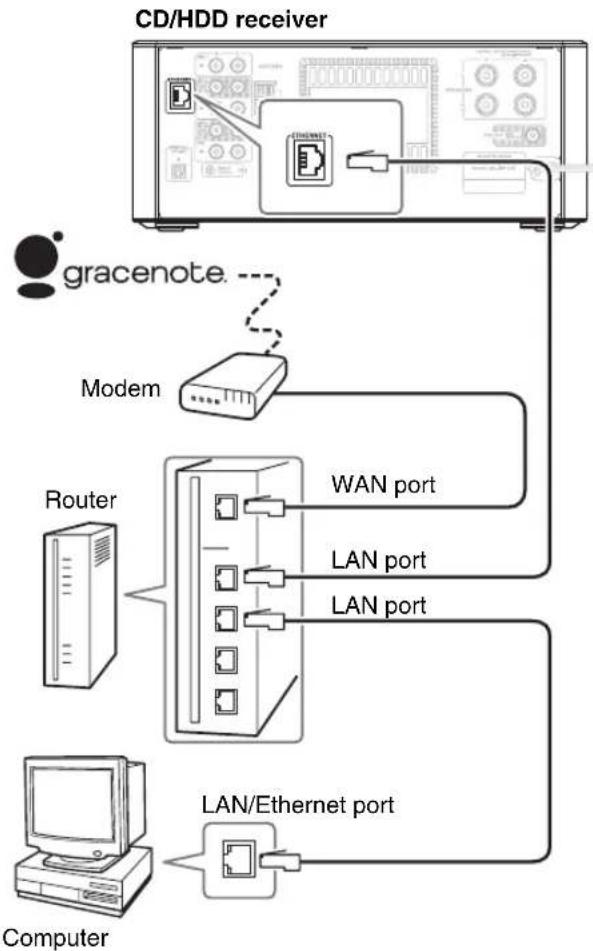
flowchart
graph TD
    A["CD/HDD receiver"] --> B["Modem"]
    B --> C["Router"]
    C --> D["LAN port"]
    C --> E["LAN port"]
    C --> F["LAN/Ethernet port"]
    G["Computer"] --> H["LAN/Ethernet port"]
    I["gracenote"] -.-> B
Music recognition technology and related data are provided by Gracenote®. Gracenote is the industry standard in music recognition technology and related content delivery. For more information visit www.gracenote.com.

gracenote.
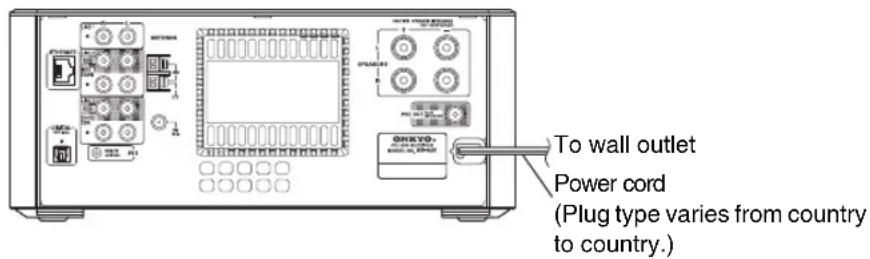
1
Plug the power cord into a suitable wall outlet.
The STANDBY indicator lights up after a while (several seconds). The CD/HDD receiver enters the Standby mode.
Notes:
- Before connecting the power cord, connect all of your speakers and AV components.
- Turning on the CD/HDD receiver may cause a momentary power surge that might interfere with other electrical equipment on the same circuit. If this is a problem, plug the CD/HDD receiver into a different branch circuit.
2
Press the [ON/STANDBY] button on the CD/HDD receiver or remote controller.
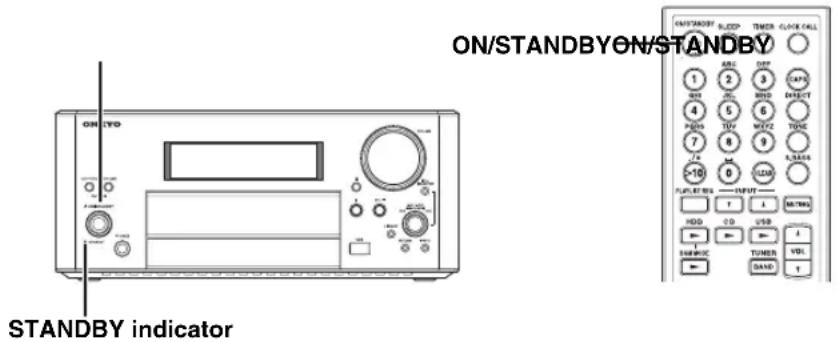
The STANDBY indicator goes off and the following screen appears on the display. Press the [ON/STANDBY] button again to set the CD/HDD receiver to Standby. The STANDBY indicator lights up.
ONHYO
Tip:
When you start playback on (or turn on) an Onkyo RI Dock, CD recorder, MD recorder, or cassette deck that's connected to the CD/HDD receiver with an RI cable and analog audio cable, the CD/HDD receiver turns on automatically. Similarly, when you set the CD/HDD receiver to On or Standby, the other component will also be set to On or Standby.
Setting the Clock with the AccuClock Function
To use the AccuClock function, the CD/HDD receiver must be able to receive RDS radio stations, which means an FM antenna must be connected. Be sure to connect an FM antenna before attempting to use this function (see page 17). The very first time you turn on the CD/HDD receiver, the AccuClock function automatically sets the CD/HDD receiver's clock based on the CT (Clock Time) information present in an RDS radio broadcast. While the clock is being set, "Wait..." appears on the display, as shown. Note that it may take up to 5 minutes to set the clock. When the clock has been set, the message "Clock Adjusted" scrolls across the display, then the day and time are displayed for a while, as shown.

The AccuClock function automatically updates the clock daily at 2 A.M., 3 A.M., and 2 P.M. If for some reason the clock cannot be set automatically, see “Setting AccuClock to Use a Specific Station” on page 62 and “Setting the Clock Manually” on page 63.
Turning Off the AccuClock Function
If you don't want AccuClock to automatically update the clock each day, you can turn it off as follows.
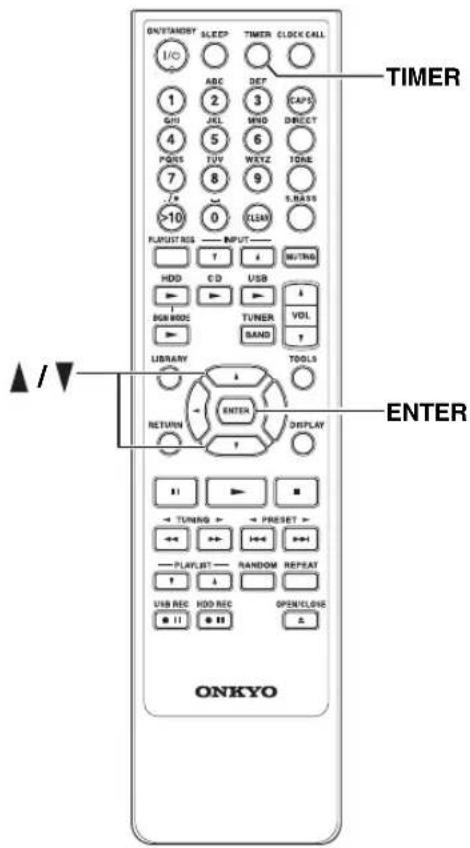
| 1 | Press the [TIMER] button. |
| 2 | Press [ENTER] with “Clock” selected.The sub-menu appears and the CD/HDD receiver enters clock setting mode. |
| 3 | Use the Up and Down [▲]/[▼] buttons to select “AccuClock”, and then press [ENTER]. |
| 4 | To turn off AccuClock, press the Up or Down [▲]/[▼] button until the asterisks disappear. |
| The asterisks indicate that the AccuClock function is on.The AccuClock function is off. To turn AccuClock back on again, press the Up or Down [▲]/[▼] button so that the asterisks are displayed. |
Note: The AccuClock function cannot be turned off until the clock has been set.
Selecting the Input Source
You can select HDD, CD, AM, FM, or a connected component (LINE 1, TAPE, DOCK, USB or DIGITAL) as the input source.
On the CD/HDD receiver, press the [INPUT SELECTOR] button repeatedly.
![ONKYO BR-925 - On the CD/HDD receiver, press the [INPUT SELECTOR] button repeatedly. - 1](/content/2026/05/770676/images/d53ff5e54c9db850db8e13dbfaab2460532fd7eb2a2ad061538c1771c6f21c5d.jpg)
The input sources are selected in the following order.
![ONKYO BR-925 - On the CD/HDD receiver, press the [INPUT SELECTOR] button repeatedly. - 2](/content/2026/05/770676/images/f67b22bc7b86b8bb18499b460c754fbb730ec7c52066d843a8dda3a21f562c31.jpg)
flowchart
graph TD
    HDD --> CD
    CD --> USB
    USB --> FM
    FM --> AM
    AM --> LINE
    LINE --> TAPE*
    TAPE* <--> DOCK*
    DOCK* <--> DIGITAL*
    DIGITAL* --> HDD
* Input Display can be changed (see page 45).
Tip:
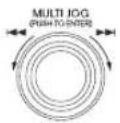
You can also use the CD/HDD receiver's MULTI JOG dial to switch the input source while any input source is displayed.
Adjusting the Volume
Turn the [VOLUME] control clockwise to increase the volume or counterclockwise to decrease it.
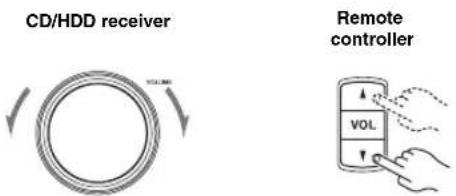
You can also use remote controller's VOL [▲]/[▼] button.
The default setting is "10". You can adjust the volume from MIN, 01 through 41 to MAX.
On the remote controller, press the INPUT [▲]/[▼] buttons repeatedly.
Each time you press these buttons, you can select the previous or next input source.
![ONKYO BR-925 - On the remote controller, press the INPUT [▲]/[▼] buttons repeatedly. - 1](/content/2026/05/770676/images/9a32a54b2f1b5ed9c1ec696dacfb209eaa74a3ebab829ca6b357dc589160ae70.jpg)
Using other buttons:
![ONKYO BR-925 - On the remote controller, press the INPUT [▲]/[▼] buttons repeatedly. - 2](/content/2026/05/770676/images/00aa609a66cf4aace186c0135d52236b8991f96654ace4c8b6c0cea4aedd7ffa.jpg)
HDD ▶ button*
Switches to HDD for playback.
CD ▶ button*
Switches to CD for playback.
USB ▶ button*
Switches to USB for playback.
TUNER (BAND) button
Selects AM or FM as the input source. If you press this button repeatedly, you can switch the radio band.
* These buttons also work in the Standby mode.
Using Headphones
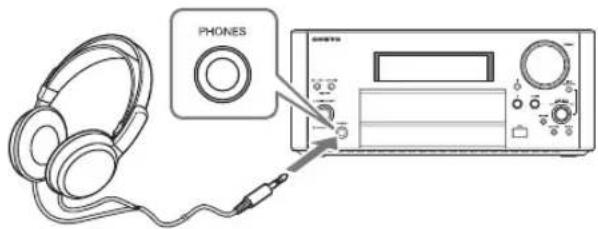
Turn down the volume, then connect your stereo headphones to the PHONES minijack.
You can adjust the volume and mute the sound, as explained earlier.
The speakers output no sound while the headphones are connected.
PHONES jack
Notes:
- Do not connect the audio output jack of any other device to the PHONES jack, because it may cause a malfunction of the device.
- When you use headphones, Onkyo recommend that you deactivate Audyssey EQ™. About Audyssey EQ™, see page 26.
You can use the following buttons on the remote controller to adjust the tone.
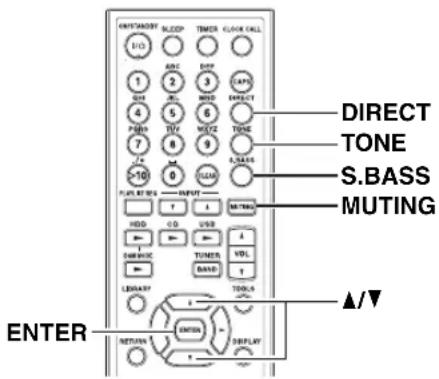
Adjusting the Bass and Treble
1
Remote controller
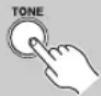
Press the [TONE] button to select "BASS:0".
2
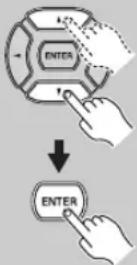
Use the Up and Down [▲]/[▼] buttons to adjust the bass.
The default setting is “±0”. You can adjust the bass and treble from -3 to +3.
Press [ENTER], and then use the Up and Down [▲]/[▼] buttons to adjust the treble.
Notes:
- If you press no buttons for 8 seconds, the previous display will appear automatically.
- If you press the [TONE] button while the Direct function is on, the Direct function will be turned off.
Using the Super Bass Function
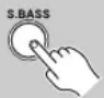
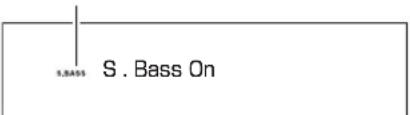
Press the [S.BASS] button.
The S.BASS indicator lights up.
To turn off the Super Bass function, press the [S.BASS] button again.
S.BASS indicator
Note:
If you press the [S.BASS] button while the Direct function is on, the Direct function will be turned off.
Using the Direct Function
Press the [DIRECT] button.
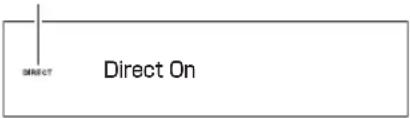
When the Direct function is on, the tone controls are bypassed, so you can enjoy a pure sound, and the DIRECT indicator lights up.
To turn off the Direct function, press the [DIRECT] button again.
When the Direct function is off, the tone controls can be used to adjust the sound.
DIRECT indicator
Muting the Sound
Press the [MUTING] button.
The output is muted and the MUTING indicator flashes on the display.
To unmute the CD/HDD receiver, press the [MUTING] button again.
MUTING indicator
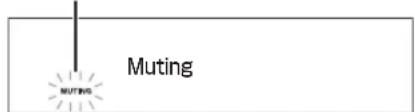
Tips:
While the CD/HDD receiver is muted:
- Turning the [VOLUME] control on the CD/HDD receiver or pressing the VOL [▲]/[▼] button on the remote controller will unmute the CD/HDD receiver.
- If you turn the CD/HDD receiver off, the next time you turn it on, the CD/HDD receiver will be unmuted.
Using Audyssey EQ™ and Audyssey Dynamic EQ™
Audyssey EQ™ optimizes the audio quality set for the recommended Onkyo speakers. The recommended speakers are D-112E and D-N10BX.
With Audyssey EQ ^TM enabled,
Audyssey Dynamic EQ ^TM becomes enabled by default. You can deactivate Audyssey Dynamic EQ by selecting "Off" in step 4 below. When Audyssey EQ ^TM is activated while the Direct function is on, the Direct function will be turned off.
Notes:
Audyssey Dynamic EQ™ allows you to maintain the proper octave-to-octave balance at any volume level in accordance with the preset speakers.
- In order to record with appropriate sound, Audyssey EQ™ is automatically deactivated during a recording. After the recording is finished, Audyssey EQ™ and Audyssey Dynamic EQ™ will resume as previously set.
1 TOOLS Press the [TOOLS] button.
2 Use the Up and Down [▲]/[▼] buttons to select "Audio", and then press [ENTER].
![ONKYO BR-925 - Use the Up and Down [▲]/[▼] buttons to select "Audio", and then press [ENTER]. - 1](/content/2026/05/770676/images/badd3d7b46d140883fa8c68dd215be58e25ccb29f758d6cdb14c92da0b8344d1.jpg)
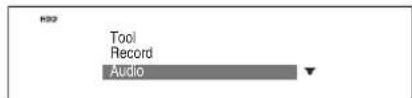
3 Press [ENTER] with "Audyssey EQ" selected.
![ONKYO BR-925 - Press [ENTER] with "Audyssey EQ" selected. - 1](/content/2026/05/770676/images/683f1d1f4b4204a717f580083fbd14c2cdca7399efc54b4e7c75ff60a61615dd.jpg)
![>Audio Audyssey EQ [Dynamic EQ]](/content/2026/05/770676/images/a9b1419f1ea530270a0a162a335d6b320ac50eeb402cb48e20f6b710d59ca7e0.jpg)
4 Use the Up and Down [▲]/[▼] buttons to select the speaker, and then press [ENTER].
![ONKYO BR-925 - Use the Up and Down [▲]/[▼] buttons to select the speaker, and then press [ENTER]. - 1](/content/2026/05/770676/images/ef82c0481d2047698e85494d692442cc53c2528f9689d0bd5d40c555a129d500.jpg)
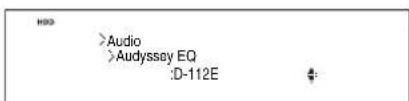
(The above is an example when D-112E is selected.)
"Complete!" will be displayed, and the setting is completed.
Audyssey Dynamic EQ™ becomes active and the Dynamic EQ indicator lights up.
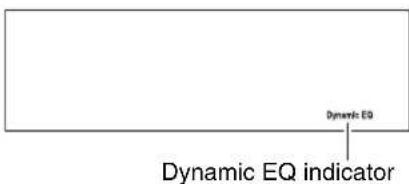
Deactivating Audyssey Dynamic EQ™
1 TOOLS Press the [TOOLS] button.
2 Use the Up and Down [▲]/[▼] buttons to select "Audio", and then press [ENTER].
![ONKYO BR-925 - Use the Up and Down [▲]/[▼] buttons to select "Audio", and then press [ENTER]. - 1](/content/2026/05/770676/images/0f06b775192103cf45997813f5dced545864b362e1971ea1244089b80b985bb6.jpg)
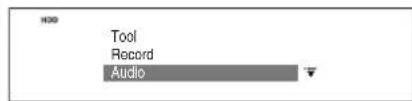
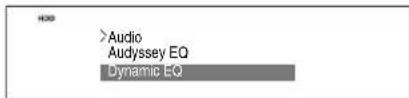
3 Use the Up and Down [▲]/[▼] buttons to select "Dynamic EQ", and then press [ENTER].
![ONKYO BR-925 - Use the Up and Down [▲]/[▼] buttons to select "Dynamic EQ", and then press [ENTER]. - 1](/content/2026/05/770676/images/436ee0310fa02211cb1e80e262d20fe6a3b264d2254ab029600e13dc002d76aa.jpg)
4 Use the Up and Down [▲]/[▼] buttons to select "Off", and then press [ENTER].
![ONKYO BR-925 - Use the Up and Down [▲]/[▼] buttons to select "Off", and then press [ENTER]. - 1](/content/2026/05/770676/images/ed752050583d3a014e3aada84d84707c839af5e7c044370fbea2108b8f7327c2.jpg)
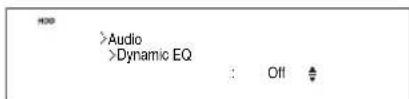
“Complete!” will be displayed, and the setting is completed.
Audyssey Dynamic EQ ^TM becomes deactive and the Dynamic EQ indicator goes off.
When the Direct function is on while
Audyssey Dynamic EQ ^TM is activated,
Audyssey Dynamic EQ ^TM will be deactivated. In this status, when the Direct function is turned off,
Audyssey Dynamic EQ ^TM will resume.
About Audyssey Dynamic EQ™
Audyssey Dynamic EQ solves the problem of deteriorating sound quality as volume is decreased by taking into account human perception and room acoustics. Dynamic EQ selects the correct frequency response moment-by-moment at any user-selected volume setting. The result is bass response and tonal balance that remains constant despite changes in volume. Dynamic EQ combines information from incoming source levels with actual output sound levels in the room, a prerequisite for delivering a loudness correction solution. Audyssey Dynamic EQ works in tandem with Audyssey EQ to provide well-balanced sound for every listener at any volume level.
This section explains how the CD/HDD receiver deals with the music data saved in the HDD and USB devices. When copying (recording) or deleting music data, you must first press the [LIBRARY] button on the CD/HDD receiver or remote controller to read the contents and display the list. Also, when editing the music information, you must start by selecting the track from the list.
USB Device
The list is displayed in the hierarchical structure of folders (artist names and album names) and files (tracks).
You can copy and erase the music data when a folder or file is selected. At this time, the folders or files displayed in the list are the target of copying or erasing. When all file/folder erase is executed by selecting the option "All Erase", all folders and files currently displayed in the list will be erased. When "one file/folder erase" is executed by selecting the option "1 Erase", one folder or file selected will be erased.
Example: Deleting an album
Select an album and execute "one file/folder" erase (1 Erase).
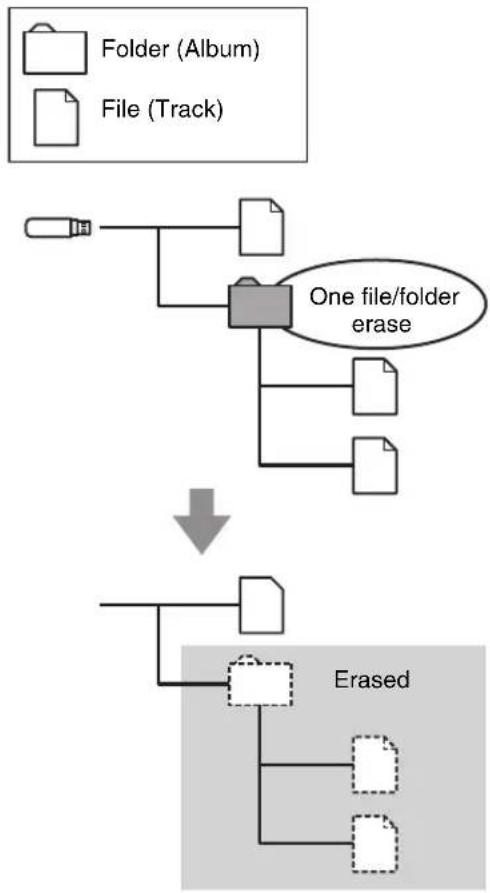
flowchart
graph TD
    A["Folder (Album)"] --> B["One file/folder erase"]
    C["File (Track)"] --> B
    B --> D["Erased"]
HDD
The list is displayed in a set of search categories such as the artist, album, and track.
Unlike the USB device, it is always necessary to read the track list for copying, erasing or editing. (The operation cannot be performed by selecting only artist or album.) When you want to erase all files in the HDD, first select "ALL" from Artist Category or Album Category to go to the track list, and then erase all files by selecting the option "All Erase".
However, for the files created by Tuner Recording or Line Recording, separately enter the Tuner recording category or the Line recording category, and then erase all files by selecting the option "All Erase" on the track list.
Example: Deleting an album
Select an album, select an arbitrary track, and then execute "all file erase" (All Erase).
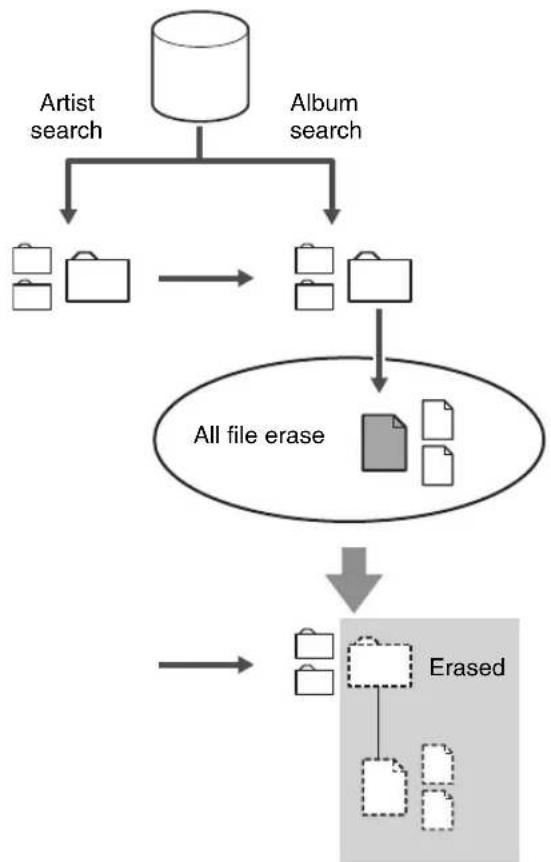
flowchart
graph TD
    A["Artist search"] --> B["All file erase"]
    C["Album search"] --> B
    B --> D["Erased"]
    D --> E["..."]
Basic Operations of Playback
The CD/HDD receiver can playback Audio CDs and CD-R/RW (data CDs) in which MP3/WMA/AAC/WAV files are recorded. For the supported formats, see page 70.
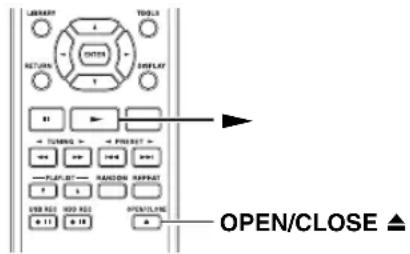
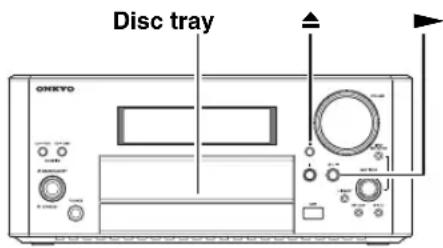
1
CD/HDD receiver
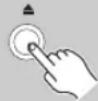
or
Remote controller
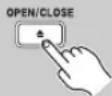
Load the CD.
1 Press the Open/Close [▲] button to open the disc tray.
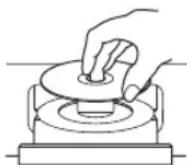
2 Place the CD on the tray with the label-side facing up.
Place 8 cm CDs in the center of the tray.
3 Press the Open/Close [▲] button to close the disc tray. For audio CDs, the CD/HDD receiver starts a search for CD information after the disc tray closed. See “Retrieving Audio CD Information” on page 30.


Accessing Gracenote
The information (title, album name, and so on) of the audio CD is displayed. When there is MP3/WMA/AAC/WAV file tag information, it is displayed in the same way. If no tag information is contained, Unknown Album or Unknown Artist is displayed.
Artist name Track name
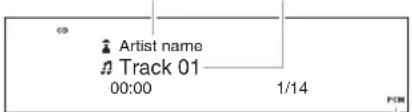
Format
2
CD/HDD receiver
or
Start playback.
Press the Play/Pause [▶/■] or Play [▶]button.
Remote controller
Tip:
When you press the remote controller's CD [▶] button, the CD/HDD receiver automatically selects an appropriate input source and starts playback of a track.
natural_image
Front view of a vintage electronic device with control knobs and a rotary dial (no visible text or symbols)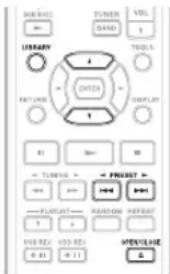
To pause playback:
Press the remote controller's Pause [■■] button or the CD/HDD receiver's Play/Pause [▶/■■] button. To resume playback, press the Play/Pause [▶/■■] button again.
To stop playback:
Press the Stop [■] button on the CD/HDD receiver or remote controller.
To select tracks:
Press the [LIBRARY] button to return to the track list, then press the Up and Down []/[] buttons to select a track.
To select the previous or next track:
Press the Previous/Next [1◄◄]/[►►1] buttons or turn the MULTI JOG dial on the CD/HDD receiver to select the previous or next track.
To fast forward or fast reverse:
Press the Fast Reverse/Fast Forward [◀◀]/[▶▶] buttons during playback or pause. Where you want to start playback, release the button.
To remove the CD:
Press the Open/Close [▲] button and remove the CD.
Playing Selected Tracks
1
Switch the input source to CD.
Press the INPUT [▲]/[▼] buttons. You can also use the [INPUT SELECTOR] button to select the input source.
2
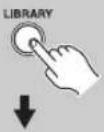
Select the track you want to play. 1 Press the [LIBRARY] button.
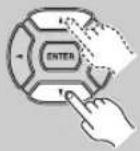
2 Use the Up and Down [▲]/[▼] buttons to select the track.
3
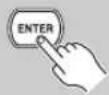
Press [ENTER] to start playback.
■Selecting Tracks by Number
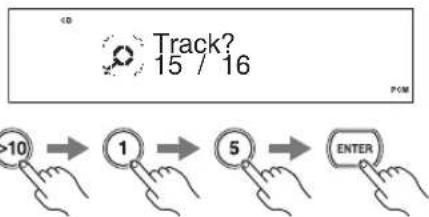
flowchart
graph LR
    A[">10"] --> B["1"]
    B --> C["5"]
    C --> D["ENTER"]
To select:
Track #5
Track #10
Track #15
Press:


Used to enter numbers over 10.
Switching the Display
You can switch the display by pressing the remote controller's [DISPLAY] button repeatedly.
During the list display
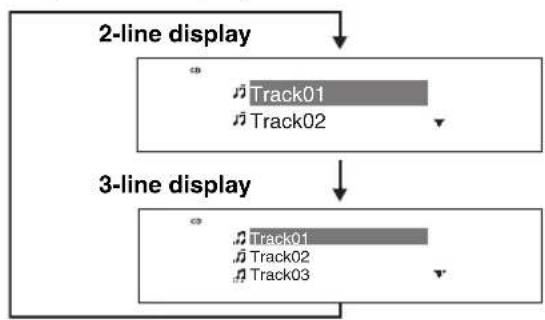
flowchart
graph TD
    A["2-line display"] --> B["Track01"]
    A --> C["Track02"]
    D["3-line display"] --> E["Track01"]
    D --> F["Track02"]
    D --> G["Track03"]
During stop
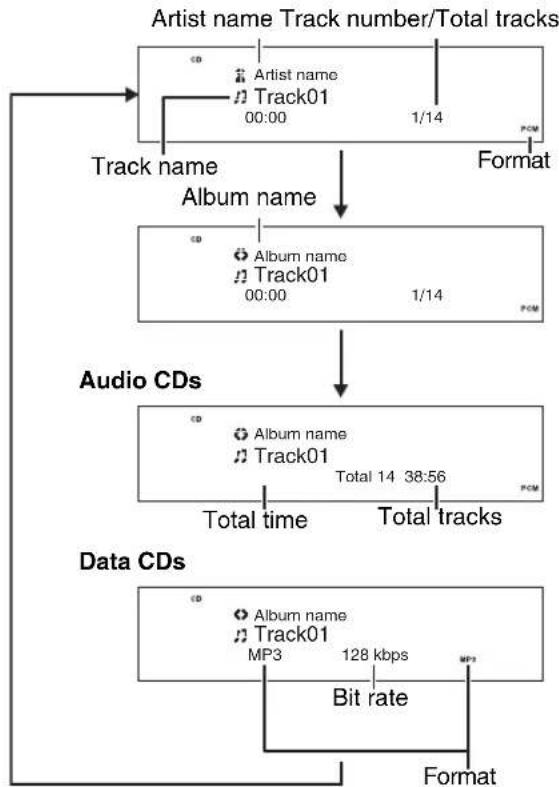
flowchart
graph TD
    A["Artist name Track number/Total tracks"] --> B["Track name"]
    B --> C["Album name"]
    C --> D["Audio CDs"]
    D --> E["Data CDs"]
    E --> F["Bit rate"]
    F --> G["Format"]
    B --> H["1/14 PCM"]
    C --> I["1/14 PCM"]
    D --> J["Total 14 38:56 PCM"]
    E --> K["MP3 128 kbps"]
    K --> L["Bit rate"]
    L --> M["Format"]
During playback and pause
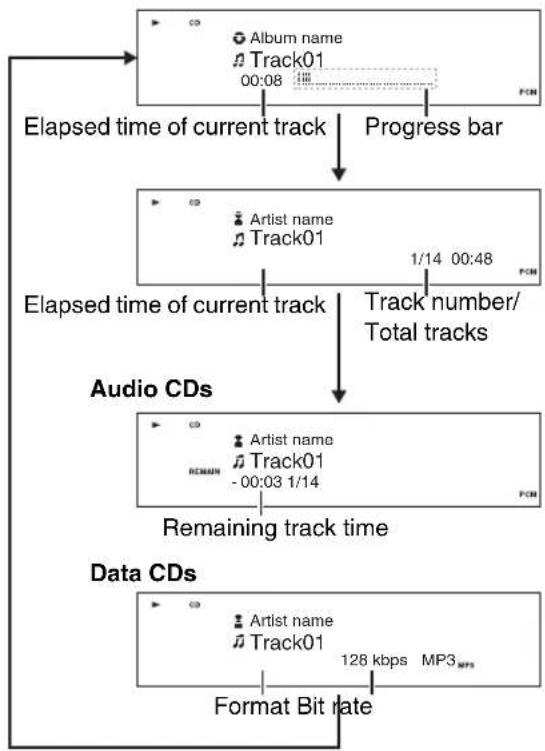
flowchart
graph TD
    A["Album name\nTrack01\n00:08"] --> B["Elapsed time of current track"]
    B --> C["Progress bar"]
    C --> D["Artist name\nTrack01"]
    D --> E["Track number/Total tracks"]
    E --> F["Audio CDs\nArtist name\nTrack01\n- 00:03 1/14"]
    F --> G["Remaining track time"]
    G --> H["Data CDs\nArtist name\nTrack01"]
    H --> I["Format Bit rate\n128 kbps MP3_MPS"]
Retrieving Audio CD Information
The CD/HDD receiver initially embeds the information on approximately 350,000 albums among the CD database provided by Gracenote® music recognition service*.
When an audio CD is set, the CD information is automatically searched in the registered information. If information is not registered in the CD/HDD receiver for such reasons as the CD is new, it can be searched through the Internet. (Internet connection is required.)
* Gracenote® Music Recognition Service is music CD database service constructed on servers located on the Internet. The CD/HDD receiver can connect the database and download useful information such as album titles, artist names, song titles, and more.
■Retrieving CD information automatically
1 | Switch the input source to CD. Press the INPUT [▲]/[▼] buttons. You can also use the [INPUT SELECTOR] button to select the input source. |  |
2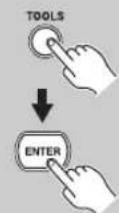 | Press the [TOOLS] button and then press [ENTER] with “Tool” selected. 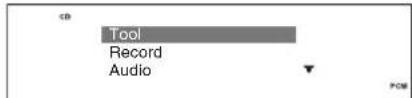 | |
3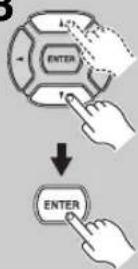 | Use the Up and Down [▲]/[▼] buttons to select “Gracenote Service”, and then press [ENTER]. 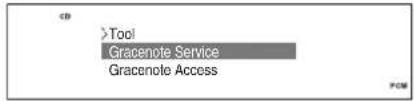 | |
4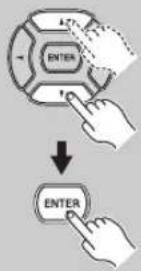 | Use the Up and Down [▲]/[▼] buttons to select “On”, and then press [ENTER]. 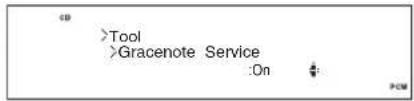 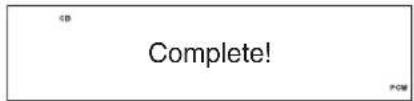 The CD/HDD receiver starts a search for CD information after the CD is loaded. If multiple candidates are searched, select the proper information and press the [ENTER]. The CD/HDD receiver starts a search for CD information after the CD is loaded. If multiple candidates are searched, select the proper information and press the [ENTER]. | |
■Retrieving CD information manually
If track information is wrong, you can retry the search manually.
1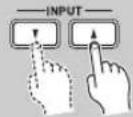 | Switch the input source to CD.Press the INPUT[▲]/[▼] buttons. You can also use the [INPUT SELECTOR] button to select the input source. |  |
2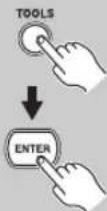 | Press the [TOOLS] button and then press [ENTER] with “Tool” selected.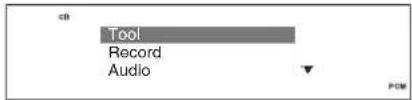 | |
| 3[IMAGE] | Use the Up and Down [▲]/[▼] buttons to select “Gracenote Access”, and then press [ENTER].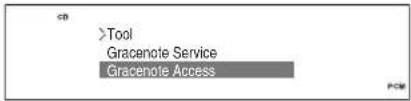 | |
4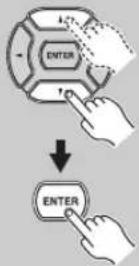 | Use the Up and Down [▲]/[▼] buttons to select “OK”, and then press [ENTER].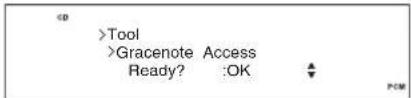 The CD/HDD receiver starts a search for CD information. If multiple candidates are searched, select the proper information and press the [ENTER]. To cancel the search, use the Up and Down [▲]/[▼] buttons to select “Cancel”, and then press [ENTER]. The CD/HDD receiver starts a search for CD information. If multiple candidates are searched, select the proper information and press the [ENTER]. To cancel the search, use the Up and Down [▲]/[▼] buttons to select “Cancel”, and then press [ENTER].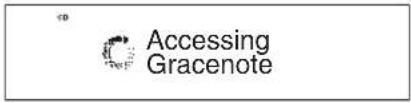 | |
2 Press the [TOOLS] button and then press [ENTER] with "Tool" selected.
3 Use the Up and Down [▲]/[▼] buttons to select "Gracenote Access", and then press [ENTER].
4 Use the Up and Down [▲]/[▼] buttons to select "OK", and then press [ENTER].
Music recognition technology and related data are provided by Gracenote®. Gracenote is the industry standard in music recognition technology and related content delivery. For more information visit www.gracenote.com.
![ONKYO BR-925 - Use the Up and Down [▲]/[▼] buttons to select "OK", and then press [ENTER]. - 1](/content/2026/05/770676/images/0f85c23f316cdbd21ee13b970b2474dda4b0cf8f9e853a757c37d342bfa2e130.jpg)
gracenote.
Random Playback
With random playback, all of the tracks on the disc are played in random order.
1
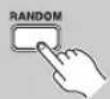
Press the [RANDOM] button repeatedly until the RANDOM indicator appears.
2
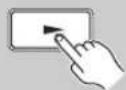
To start random playback, press the Play [▶] button.
The following display appears for three seconds.
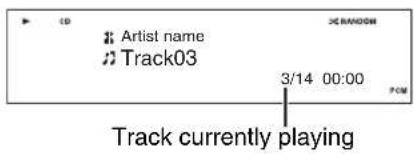
Cancelling Random Playback
- To cancel random playback, press the [RANDOM] button repeatedly until the RANDOM indicator disappears.
- Random playback is cancelled when turn off the CD/HDD receiver.
Repeat Playback
With repeat playback, you can play an entire CD repeatedly, play one track repeatedly. You can combine repeat playback with random playback to play all of the tracks repeatedly.
1
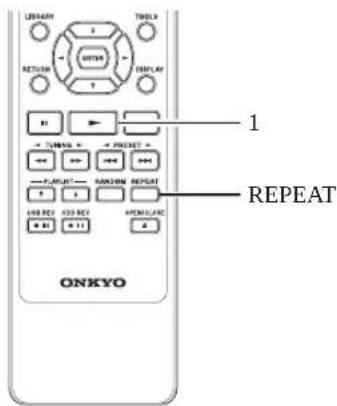
Press the [REPEAT] button repeatedly until the REPEAT or REPEAT 1 indicator appears.
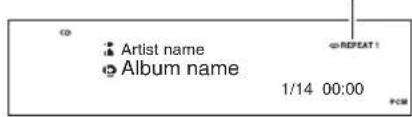
REPEAT or REPEAT 1 indicator
2
To start repeat playback, press the Play [▶] button.
The following display appears for three seconds.
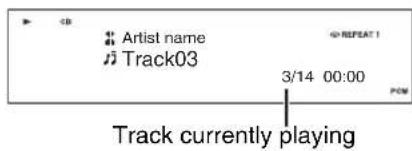
Cancelling Repeat Playback
- To cancel repeat playback, press the [REPEAT] button repeatedly until both the REPEAT and REPEAT 1 indicators disappear.
- Repeat playback is cancelled when you turn off the CD/HDD receiver.
Tuning into AM/FM Radio Stations
The CD/HDD receiver won't pick up any radio signals without an antenna connected, so you must connect the antenna to use the tuner (see page 17).
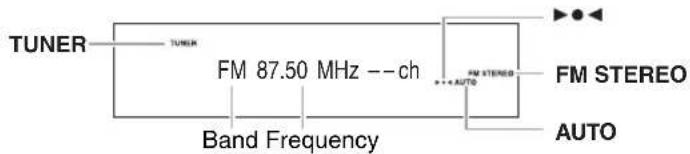
When tuned into a station, the Tuned indicator appears. When tuned into a stereo FM station, the FM STEREO indicator appears as well.
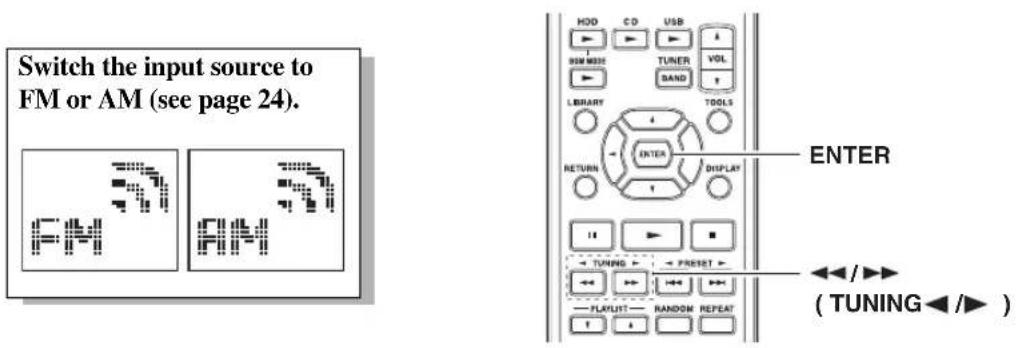
| 1 | Press the [ENTER] repeatedly to select the tuning mode. | |
| • Auto Tuning Mode | AUTO indicator | |
| The AUTO indicator appears and stereo radio reception is possible. |  | |
| • Manual Tuning Mode | ||
| The AUTO indicator is not displayed and radio reception will be in mono. | ||
| 2 | Use the Fast Reverse and Fast Forward [◀◀]/[▶▶] buttons to tune into a station. | |
| In Auto tuning mode, once a station is found, tuning stops automatically. | ||
| Radio Frequency can be changed in 0.05 MHz steps for FM and 9 kHz or 10 kHz steps for AM. | ||
| In Manual Tuning mode, the frequency stops changing when you release the button. | ||
| Press the button repeatedly to change the frequency one step at a time. | ||
Adjusting the Antennas
Adjusting and installing the FM antenna
Choose a location for the FM antenna while listening to an FM station.
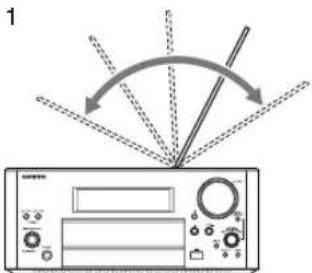
Change the direction of the antenna to achieve the best reception.
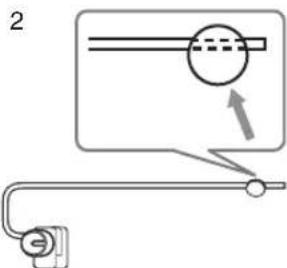
Affix the antenna with a thumbtack. (Do not push the thumbtack through the antenna.)
Caution:
Be careful not to prick your finger!
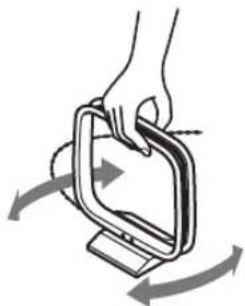
Adjusting the AM antenna
Adjust the location and position of the AM antenna while listening to an AM station to achieve the best reception.
natural_image
Illustration of a hand gripping a tablet device with directional arrows indicating rotation (no text or symbols)©
©
Presetting AM/FM Stations Manually
With the Preset Write function, you can manually preset individual AM and FM stations. Presets make it easy to select your favorite stations and eliminate the need to tune the radio manually each time you want to change stations. FM stations can also be preset automatically (see page 34).
About Presets
- You can store up to 40 stations as presets and this can be any combination of AM and FM stations. For example, 27 FM and 13 AM, or 18 FM and 22AM.
- Although AM and FM presets share the same numbers, they're selected independently. For example, preset #1 will store an AM station when the AM band is selected, and an FM station when the FM band is selected.
- Stations can be stored to presets in any order. For example, you could store preset #5 first, #1 second, and so on.
1
Tune into the station that you want to store as a preset.
2
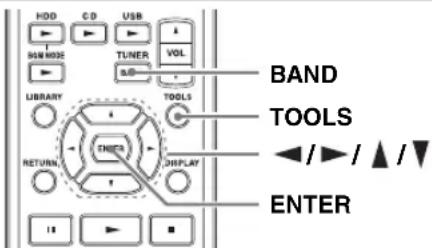
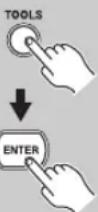
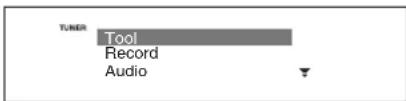
Press the [TOOLS] button and then press [ENTER] with "Tool" selected.
3
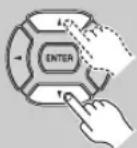
Use the Up and Down [q]/[w] buttons to select "Preset Write?", and then press [ENTER].
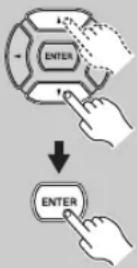
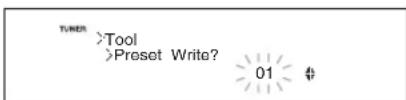
The preset number flashes. To cancel the Preset Write function at this point, press the [RETURN] button.
4
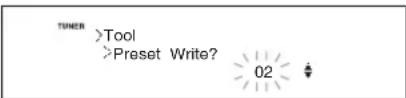
Use the Up and Down [q]/[w] buttons to select a preset.
5
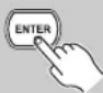
To store the station, press [ENTER].
If no station has yet been stored to the selected preset, “Complete!” appears and the station is stored.
![ONKYO BR-925 - To store the station, press [ENTER]. - 1](/content/2026/05/770676/images/d6518f491126b84b4506b27d1378809d546d3f896fdd20c634dd048d38e238d6.jpg)
Complete!
If a station has already been stored in the selected preset, the message "Over Write?" appears.
![ONKYO BR-925 - To store the station, press [ENTER]. - 2](/content/2026/05/770676/images/ba2970d7824cc72887ac16df6dd2a35ee7344276afa9c6e55d341ac392cd3e0b.jpg)
Tool
Preset Write?
Over Write? :Yes
![ONKYO BR-925 - To store the station, press [ENTER]. - 3](/content/2026/05/770676/images/feff4ef9e3b57806ae1ff263b983d5cc4d9ee50e9522b466a6433a781ada786b.jpg)
To overwrite the previously stored station, press the Up and Down [q]/[w] to select "Yes", and then press [ENTER]. To not overwrite the previously stored station, press the Up and Down [q]/[w] to select "No", and then press [ENTER]. If the message "Memory Full" appears, all 40 presets have been stored and you'll need to erase some presets before you can store any more stations (page 38).
![ONKYO BR-925 - To store the station, press [ENTER]. - 4](/content/2026/05/770676/images/88956c98d8e2016c32ba1d24af24620f90061780b9a91d9df638fc28e2bd3448.jpg)
Memory Full
6
Repeat steps 1 to 5 to preset more radio stations.
Note:
If the current FM station supports RDS and PS (Program Service Name), the station's name will be displayed instead of the frequency. (See page 33 for more on RDS.)
After Storing Presets You Can:
- Select them (see page 36)
- Name them for easy identification (see page 39)
• Copy them (see page 37) - Erase them (see page 38)
Selecting Preset Stations
You must store some presets before you can select them (see pages 34 and 35).
1
or
Use the [BAND] or INPUT [▲]/[▼] button to select "AM" or "FM".
The preset you selected the last time you listened to the radio will still be selected.
2
Use the Previous and Next [I◄◄]/[►►I] buttons to select a preset.
Press the Previous [1◄◄] button to select the previous preset. Press the Next
[▶▶] button to select the next preset.
Tip:
- You can also use the number buttons as shown in the examples below to select presets.
To select:
Preset #8
Preset #10
Preset #22
Press:
©
0
10
② ②

Used to enter numbers over 10.
You can also use the front panel controls.
1 Use the [INPUT] button to select "AM" or "FM".
2 Turn the MULTI JOG dial to select a preset.
Tuning into weak stereo FM stations
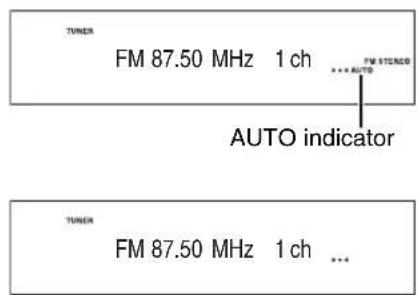
If the signal from a stereo FM station is weak, it may be impossible to get good reception. In this case, switch to Manual Tuning mode and listen to the station in mono.
Noise and sound interruption can be reduced.
When returning to Auto Tuning Mode, press the ENTER again. Normally, leave the AUTO indicator displayed.
The CD/HDD receiver automatically receives FM radio in stereo.
Editing Presets
Using the two basic functions of copying and deleting, you can copy a radio station preset to a channel to another channel, change a channel number, and delete an unnecessary channel.
Copying Presets
With the Preset Copy function, you can organize your presets in the order you want. When you copy a preset, its name is also copied.
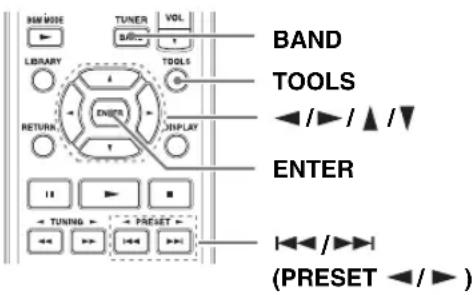
1
Select the preset you want to copy (see page 36).
2
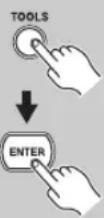
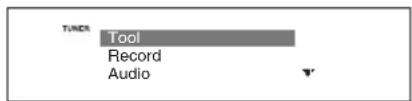
Press the [TOOLS] button and then press [ENTER] with "Tool" selected.
3
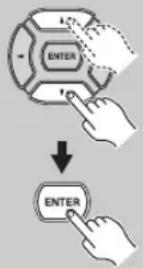
Use the Up and Down [▲]/[▼] buttons to select "PresetCopy?", and then press [ENTER].
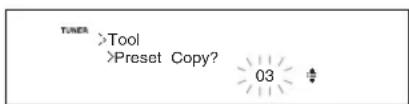
The number of the preset to be copied flashes.
4
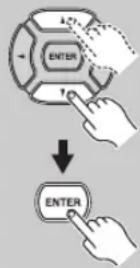
Use the Up and Down [▲]/[▼] buttons to select the destination preset, and then press [ENTER].
If no station has yet been stored in the destination preset, the station is copied and “Complete!” appears.
If a station has already been stored in the destination preset, the message "Over Write?" appears.
- To overwrite the previously stored station, use the Up and Down [▲]/[▼] to select "Yes", and then press [ENTER].
- To not overwrite the previously stored station, use the Up and Down [▲]/[▼] to select “No”, and then press [ENTER].
If the message “Memory Full” appears, all 40 presets have been stored and you’ll need to erase some presets before you can store any more stations (see page 38).
Tip:
If your favorite station is stored in preset #4 and you want to make it preset #6, first copy preset #4 to preset #6. To keep the station that's already stored in preset #6, you may want to copy it to an unused preset first. And then erase preset #4.
Erasing Presets
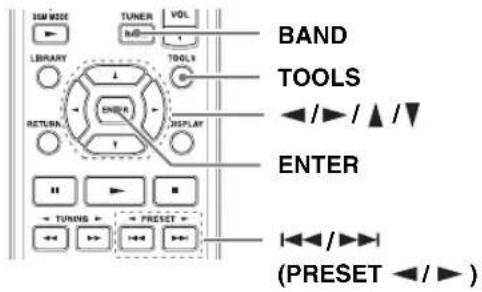
| 1 | Select the preset you want to erase (see page 36). |
2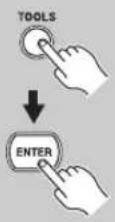 | Press the [TOOLS] button and then press [ENTER] with “Tool” selected.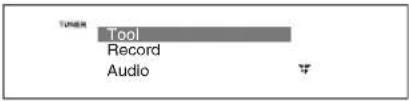 |
3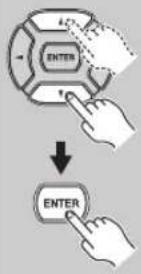 | Use the Up and Down [▲]/[▼] buttons to select “PresetErase”, and then press [ENTER].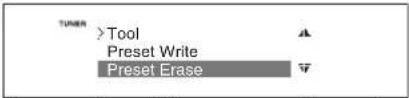 The number of the preset to be copied flashes. The number of the preset to be copied flashes. |
4 | Press [ENTER].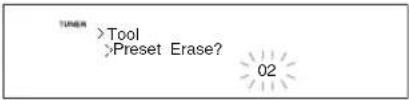 |
5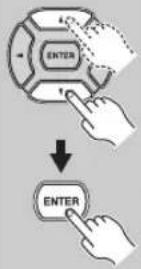 | The confirmation message “Erase OK?” appears.Use the Up and Down [▲]/[▼] buttons to select “Yes”, and then press [ENTER].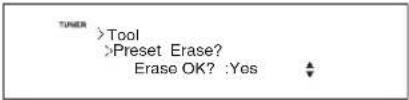 “Complete!” will be displayed, and the preset's name has been deleted.To cancel the erase operation, use the Up and Down [▲]/[▼] buttons to select “No”, and then press [ENTER]. “Complete!” will be displayed, and the preset's name has been deleted.To cancel the erase operation, use the Up and Down [▲]/[▼] buttons to select “No”, and then press [ENTER]. |
The confirmation message “Erase OK?” appears.
Naming Presets
You can name presets for easy identification using alphabetic, numeric, marks and symbols. The preset name may contain up to eight characters.
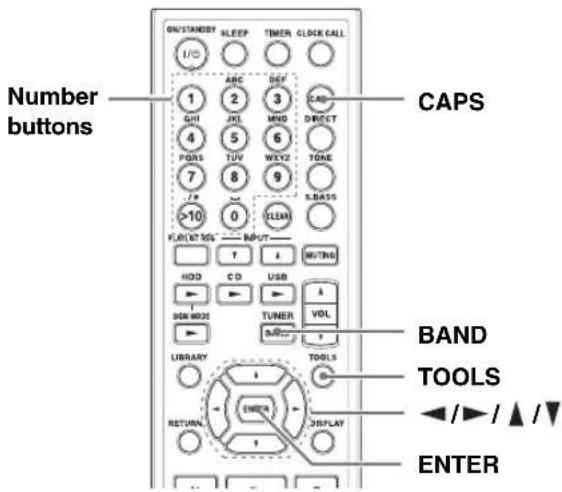
| 1 | Select the preset you want to name (see page 36). |
2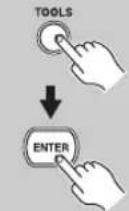 | Press the [TOOLS] button and then press [ENTER] with “Tool” selected.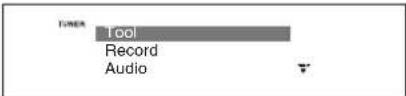 |
3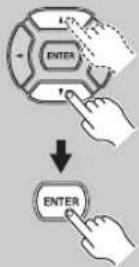 | Use the Up and Down [▲]/[▼] buttons to select “Name In”.The CD/HDD receiver enters the character input mode.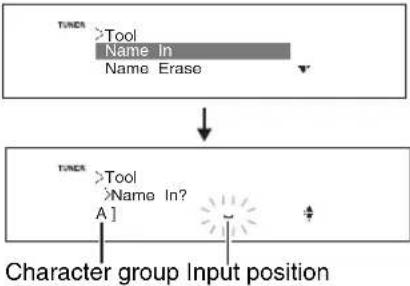 |
4 | Press the [CAPS] button repeatedly to select one of the following character groups:A] Uppercase lettersa] Lowercase letters1] Numbers and symbols£] Umlaut letters and symbols |
5
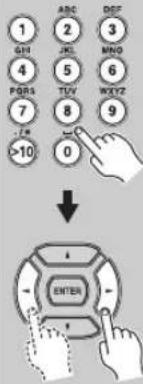
Selecting letters:
Press the number buttons repeatedly to select the available letters. For example, press the [2] button repeatedly to select: A, B, or C.
Press the [0] button repeatedly to select: 0 or (space)
After you select a desired character, move to the next input position by pressing the Left and Right [◀]/[▶] buttons.
Selecting numbers and symbols:
Use the number buttons to select numbers.
Press the [>10] button repeatedly to select: (space) ./ * -, ! ? & ' ()
After you select a desired character, move to the next input position by pressing the Left and Right [◀]/[▶] buttons.
Notes:
- Not all of the symbols can be entered by using the number buttons. Use the Up and Down [▲]/[▼] buttons to select from the full range of symbols.
- Up to 8 characters can be input. If you attempt to input ninth character, "Name Full" is displayed. Proceed to the next step.
Deleting/editing characters:
Inserting a new character:
Deleting preset's name:
See page 40.
To cancel the Name In function, press the [RETURN] button.
6
Press [ENTER] to finish entering.
"Complete!" will be displayed, and the preset has been named.
Available Characters
ABCDEFGHIJKLMNOPQRSTUVWXYZ abcdefghijklmnopqrstuvwxyz 0123456789
_ @ ' < > # \$ % & * = ; : + - / ( ) ? ! , ", . (space) (insert)#
ÄÄÄÄÄÄÄEÇÈÉËÏÏÏDÑÒÓÔÕÖX∅ÜÜÜÜYÞßäåäääæçèéëëiïïðñòóôõö÷øùüûüýþÿ¡¢£¤¥¡§"© ^a «¬-®°±23'µ¶',1°»¼ ½ ¾ ¿
Editing Characters
If the character input mode is not currently selected, perform steps 1 to 3 of “Naming Presets” on page 39.
1 Use the Left and Right [◀]/[▶] buttons to select a character to be changed or deleted.
The character flashes.
2 To change the character:
Follow the steps 4 and 5 of “Naming Presets” on page 39 to select a desired character.
To delete the character:
Press the [CLEAR] button.
3 Press [ENTER] to finish the change/deletion.
Pressing the [RETURN] button cancels the change/deletion and displays the previous display.
Inserting a New Character
If the character input mode is not currently selected, perform steps 1 to 4 of “Naming Presets” on page 39.
1 Use the Left and Right [◀]/[▶] buttons to select the character immediately after the insertion point.
That character flashes.
![TURER >Tool >Name In? A] DEAM](/content/2026/05/770676/images/13362452108f01621175206b929b5b9156e18412207761cbd85a0d0d2716f2e4.jpg)
2 Press the Up [▲] button to display .
![TUNER >Tool >Name In? A] DR HAM](/content/2026/05/770676/images/f7ae13b847bcef314c28bc82a2d3e85b997b39a8317174721b10b114a5a0afd2.jpg)
3 Enter a character to be inserted following step 5 of "Naming Presets" on page 39.
![TUNER >Tool >Name In? A] DREAM](/content/2026/05/770676/images/79d843f6b20f41dfc288ed87953a0cd2a69653b5527b5f8c63be55e9b4ffb3f7.jpg)
4 Press [ENTER] to finish the insertion.
Pressing the [RETURN] button cancels the insertion and displays the previous display.
Erasing a Preset's Name
1 Switch the input source to FM or AM (see page 24).
2 Press the Previous/Next [1◄◄]/[►►1] buttons to select the preset whose name you want to erase.
3 Press the [TOOLS] button and then press [ENTER] with "Tool" selected.
4 Use the Up and Down [▲]/[▼] buttons to select "Name Erase", and then press [ENTER].
5 Use the Up and Down [▲]/[▼] buttons to select "OK", and then press [ENTER].
“Complete!” will be displayed, and the preset name has been erased.
To cancel the Name Erase function, press the Up and Down [▲]/[▼] buttons to select “Cancel”, and then press [ENTER].
The iPod ^® , USB storage device, and digital audio player can be connected to the CD/HDD receiver via USB, and the tracks on them can be played. You can use the CD/HDD receiver's remote controller to carry out the basic operations. For the supported formats, see “Supported Formats” on page 72.
Compatible USB Devices
■iPod models
The CD/HDD receiver supports the following iPod models:
iPod touch
iPod classic
iPod with video*
iPod nano (3rd generation)
iPod nano (2nd generation)
iPod nano (1st generation)
* Only when the iPod with video is set to the music mode. Play-back cannot be made in the video mode.
■USB storage devices and digital audio players
The CD/HDD receiver supports the USB storage devices such as USB flash memory and USB hard disk drive, and also supports various kinds of digital audio players. However, they are limited to the devices that support the USB Mass Storage Class*.
* The USB Mass Storage Class is a standard established for connecting the large capacity memory devices (mass storage devices) to the USB port of a computer. Because the USB devices conforming to this standard are recognized as external memory devices without the need for special drivers or software, even a digital audio player can be handled in the same way as an external memory device.
Notes:
- While being connected to the CD/HDD receiver, the iPod or USB devices cannot be operated directly.
- For the functions of the iPod and USB devices, see their instruction manuals.
- When connecting the iPod, use a USB cable compatible with the iPod.
• Available functions or operation may vary depending on the software version of the iPod. Update the iPod software to the latest version before using. - Onkyo accepts no responsibility whatsoever for the loss or damage to data stored on the iPod or USB device when that device is used with the CD/HDD receiver. Onkyo recommend that you back up your important music files beforehand.
- To remove the USB devices, stop the playback and hold down the [STOP] button until “NO USB” appears.
- Playback may not be possible with some USB mass storage devices.
USB Mass Storage Device Requirements
- USB devices formatted with the FAT16 or FAT32 file system are supported.
- If the storage device has been partitioned, only music files in the first partition can be played.
• Each folder may contain up to 60,000 music files, and folders may be nested up to eight levels deep. - USB hubs and USB devices with hub functions are not supported.
USB Device Folders and Files
In the following structure of the folders (albums) and the files (tracks), if you do not select a track for playback, the files will be played in numerical order starting with file 1.
When you press the [LIBRARY] button, the folders and files are listed in the order of 1→B→E→G.
For the iPod models, the display is based on the track information stored in the iPod.
USB device 1st level 2nd level 3rd level 4th level
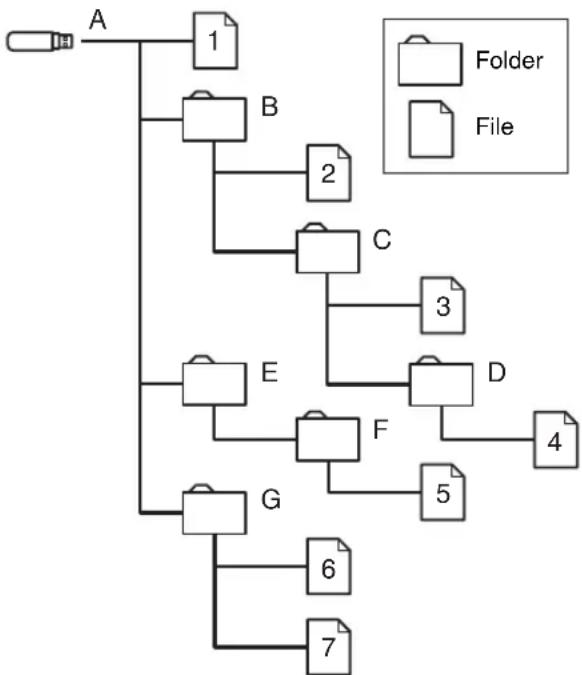
flowchart
graph TD
    A[" "] --> B["1"]
    A --> C["2"]
    A --> D["3"]
    A --> E["4"]
    A --> F["5"]
    A --> G["6"]
    A --> H["7"]
    B --> C
    C --> D
    D --> E
    E --> F
    F --> G
    G --> H
    style A fill:#f9f,stroke:#333
    style B fill:#ccf,stroke:#333
    style C fill:#cfc,stroke:#333
    style D fill:#fcc,stroke:#333
    style E fill:#cff,stroke:#333
    style F fill:#ffc,stroke:#333
    style G fill:#cfc,stroke:#333
    style H fill:#fcc,stroke:#333
Basic Operations of Playback
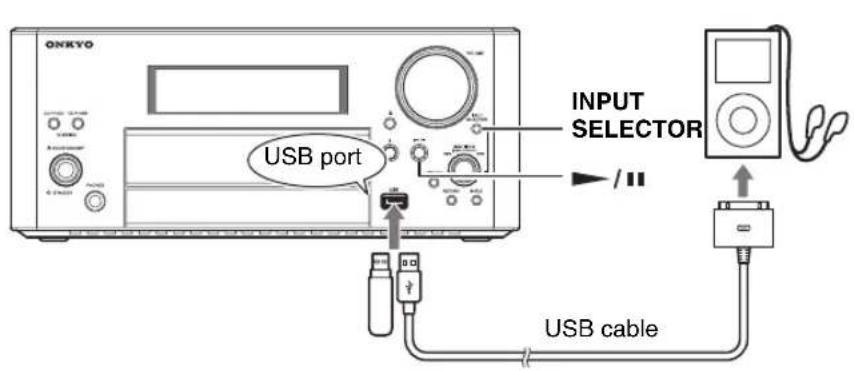
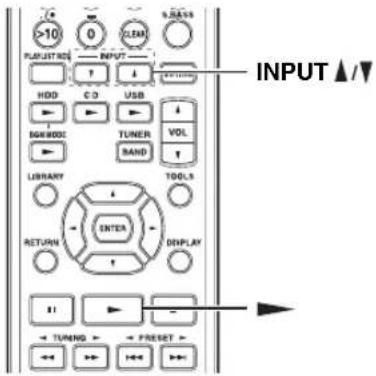
| 1 | Plug your USB device into the CD/HDD receiver's USB port.In the case of an iPod or digital audio player:1. Connect the USB cable to the connector of the iPod or digital audio player.2. Plug the USB cable into the CD/HDD receiver's USB port.The iPod or digital audio player automatically turns on. The CD/HDD receiver may take approximately one minute to recognize the iPod, so wait until the recognition is completed. | |
2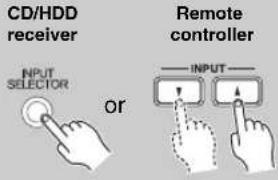 | Switch the input source to USB.Press the INPUT [▲]/[▼] buttons. You can also use the [INPUT SELECTOR] button to select the input source. | Artist name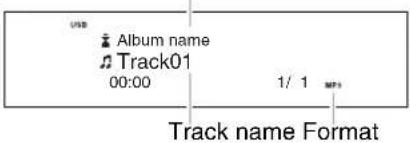 The track information appears on the display of the CD/HDD receiver. (ONKYO logo appears on the display of the iPod.) The track information appears on the display of the CD/HDD receiver. (ONKYO logo appears on the display of the iPod.) |
3CD/HDD receiver 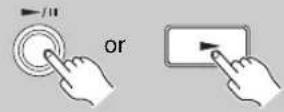 | Start playback.Press the Play/Pause [►-/■] or Play [►] button.Tip:When you press the remote controller's USB [►] button, the CD/HDD receiver automatically selects an appropriate input source and starts playback of a track. | 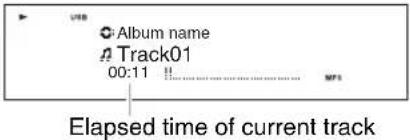 Playback starts with the first track of the first folder. Playback starts with the first track of the first folder. |
Removing the USB Device
1 Stop the playback and switch the input source to USB.
2 Hold down the Stop [■] button until "No USB" appears.
3 Disconnect the USB or USB cable from the CD/HDD receiver.
Do not disconnect the USB cable until you see the "No USB" message.
Playing Selected Tracks
1
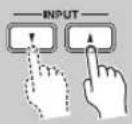
Switch the input source to USB.
Press the INPUT [▲]/[▼] buttons. You can also use the [INPUT SELECTOR] button to select the input source.
2
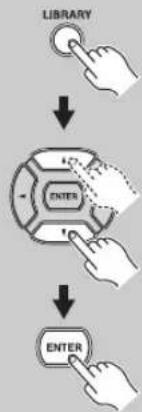
flowchart
graph TD
    A["LIBRARY"] --> B["ENTER"]
    B --> C["ENTER"]
Select the track you want to play.
In the case of iPod, select the track based on the information managed in the iPod.
1 Press the [LIBRARY] button.
2 Use the Up and Down [▲]/[▼] buttons to select a desired folder, and then press [ENTER].
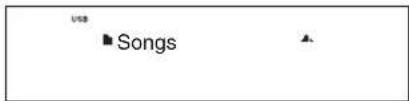
3 Use the Up and Down [▲]/[▼] buttons to select a desired track.
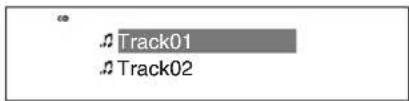
3
Press [ENTER] to start playback.
Switching the Display
You can switch the display by pressing the remote controller's [DISPLAY] button repeatedly.
During the list display
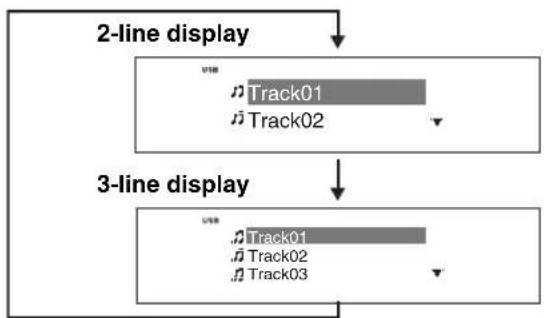
flowchart
graph TD
    A["2-line display"] --> B["Track01"]
    A --> C["Track02"]
    D["3-line display"] --> E["Track01"]
    D --> F["Track02"]
    D --> G["Track03"]
During stop
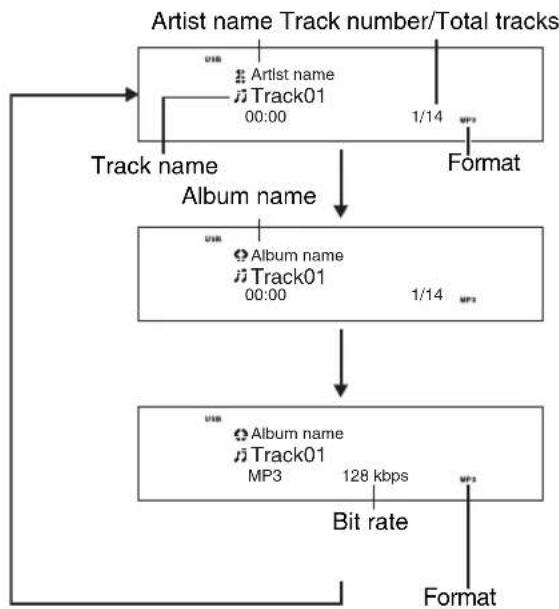
flowchart
graph TD
    A["Artist name Track number/Total tracks"] --> B["Track name"]
    B --> C["Album name"]
    C --> D["Album name"]
    D --> E["Track01 00:00"]
    E --> F["Bit rate"]
    F --> G["Format"]
    B --> H["1/14 MP3"]
    C --> I["1/14 MP3"]
    D --> J["MP3 128 kbps"]
    E --> K["MP3 128 kbps"]
During playback and pause
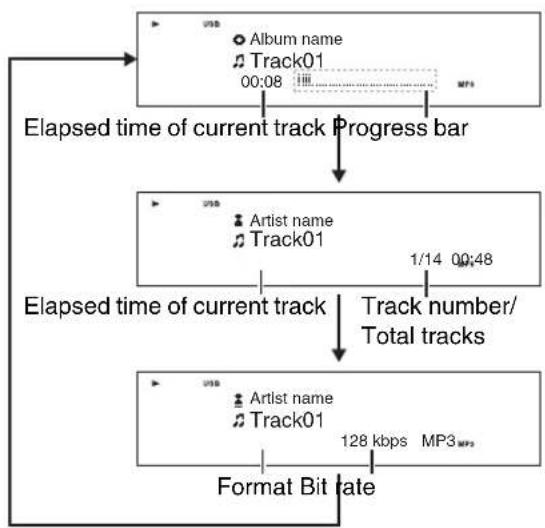
flowchart
graph TD
    A["Album name\nTrack01\n00:08"] --> B["Elapsed time of current track Progress bar"]
    B --> C["Artist name\nTrack01\n1/14 00:48"]
    C --> D["Elapsed time of current track\nTrack number/Total tracks"]
    D --> E["Artist name\nTrack01\n128 kbps MP3_mps"]
    E --> F["Format Bit rate"]
Repeat/Random Playback
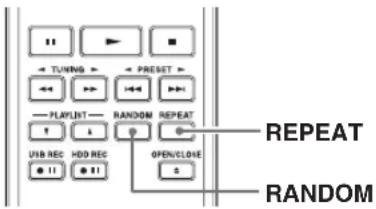
With random playback, the tracks recorded on the USB device are played in random order. With repeat playback, you can play a group of tracks repeatedly or play one track repeatedly.
See page 31 for details on repeat and random playback.
Press the [REPEAT] or [RANDOM] button repeatedly to set random or repeat playback.
Tips:
The range of tracks to be played in random and repeat playback varies depending on the devices connected.
For the USB devices except for the iPod, all tracks are played randomly or repeatedly.
For the iPod, tracks in the same folder as the selected track are played randomly or repeatedly.
Note:
If the USB device contains folders deeper than eight levels, the repeat/random playback is not performed for the tracks saved in the folders deeper than eight levels.
Playing External Components
Connect the external components correctly. See "Connecting Other Components" on page 19.
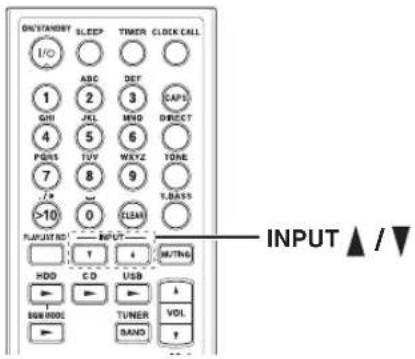
1
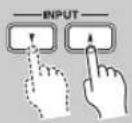
Switch the input source.
Press the INPUT [▲]/[▼] button to select LINE1, LINE2, or LINE3.
You can also use the CD/HDD receiver's [INPUT SELECTOR] button to select the input source.


2
Start playback.
For the playback operation, see the instruction manual of the external components connected.
Making an RI Connection with Onkyo Components
By making an RI (remote interactive) connection with an Onkyo RI-capable component and specifying the selector name of the component, the component can be controlled with the RI control interface, working with the CD/HDD receiver.
What can you do with RI?
You can use the CD/HDD receiver's remote controller to operate components with an RI connection. See "Controlling External Components" on page 73.
When you start playback on a component with an RI connection, the CD/HDD receiver automatically switches the input source (Direct Change).
While the CD/HDD receiver is in Standby mode, if you turn on the power or start the playback of the components with an RI connection, the CD/HDD receiver will automatically turn on. When the CD/HDD receiver is set to Standby mode, the components with an RI connection will also enter Standby mode (Auto Power ON/Standby).
1
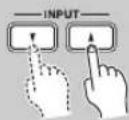
Switch the input source to a component you want to have interactive control.
Press the INPUT [▲]/[▼] buttons. You can also use the CD/HDD receiver's [INPUT SELECTOR] button to select the input source.
2
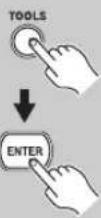
Press the [TOOLS] button and then press [ENTER] with "Tool" selected.
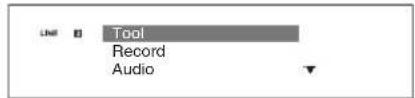
3
Press [ENTER] with "Name Select" selected.
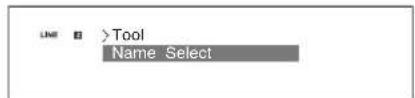
4
Press the Up and Down [▲]/[▼] to select a RI-capable components.
![ONKYO BR-925 - Press the Up and Down [▲]/[▼] to select a RI-capable components. - 1](/content/2026/05/770676/images/2dc542ca4f43c83754b7cdaf57531e45a2d88bf32e1a97276d9b3fb0b5c329b0.jpg)
![ONKYO BR-925 - Press the Up and Down [▲]/[▼] to select a RI-capable components. - 2](/content/2026/05/770676/images/d689e91b2797bc3a700a2571d6282e4f7baf7ebaadc6ff787e59ea8e255d8caa.jpg)
![ONKYO BR-925 - Press the Up and Down [▲]/[▼] to select a RI-capable components. - 3](/content/2026/05/770676/images/2be469173ae8a45c84ff181e43dae296d74ed3d879cc30e6e2b989e2d37e0b8c.jpg)
![ONKYO BR-925 - Press the Up and Down [▲]/[▼] to select a RI-capable components. - 4](/content/2026/05/770676/images/705459808c67ed4b3ea8e6f58ed87a25449b36ea9a0bec45e7313f02fd4dc553.jpg)
*1 This should be selected if you connect an audio processor such as the Onkyo UE-205. To cancel changing the selector name, press the [RETURN] button.
5
Press [ENTER].
"Complete!" will be displayed, and the selector name of the external component has been set. The external component can be controlled via RI.
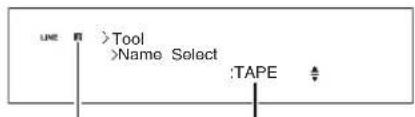
Selector indicator Selector name
You can record tracks into the CD/HDD receiver's HDD (hard disk drive). Also, you can transfer the music data stored in the CD/HDD receiver to your digital audio player and USB storage device, and make an FTP connection with your computer*. See “Transferring Data” on page 51.
* Only for personal computers with Microsoft Windows XP Service Pack 2, Service Pack 3, or Microsoft Windows Vista installed.
![ONKYO BR-925 - Press [ENTER]. - 2](/content/2026/05/770676/images/b3f602a530a5fe1db3cbcbc16a7864e6fea75cb6386fde5ed1509897777b6f9b.jpg)
flowchart
graph TD
    A["CDs"] -->|Recording CDs (page 48)| B["USB storage device"]
    C["Connected Components"] -->|Recording from an external component (page 50)| B
    D["Radio"] -->|Recording the radio (page 50)| E["Digital audio player"]
    B --> F["HDD (Hard Disk Drive)"]
    F --> B
Compatible USB Devices
■USB storage devices and digital audio players
The CD/HDD receiver supports the USB storage devices such as USB flash memory and USB hard disk drive, and also supports various kinds of digital audio players. However, they are limited to the devices that support the USB Mass Storage Class*.
* The USB Mass Storage Class is a standard established for connecting the large capacity memory devices (mass storage devices) to the USB port of a computer. Because the USB devices conforming to this standard are recognized as external memory devices without the need for special drivers or software, even a digital audio player can be handled in the same way as an external memory device.
Notes:
- For the functions of USB devices, see their instruction manuals.
- Recording and transferring cannot be performed between the CD/HDD receiver and the iPod. Only the playback can be performed.
- When the AC power adapter is attached to the digital audio player or the USB storage device, Onkyo recommend that you connect the AC power adapter to the domestic power supply. When using the batteries, check that the remaining battery level is sufficient. Please note that Onkyo is not responsible for the malfunctions, recording failures, or music data damages resulting from insufficient battery power.
- Onkyo accepts no responsibility whatsoever for the loss or damage to data stored on a USB mass storage device when that device is used with the CD/HDD receiver. Onkyo recommend that you back up your important music files beforehand.
- Recording may be slow depending on the USB device.
- If many tracks are stored in the USB flash memory (approx. 60,000 files or more), it may take some time for the recording operation.
- When you record to an SD memory card using a memory card reader/writer, you may not be able to record depending on the memory card because the access time is too slow.
USB Mass Storage Device Requirements
- USB devices formatted with the FAT16 or FAT32 file system are supported.
- If the storage device has been partitioned, only music files in the first partition can be played.
• Each folder may contain up to 60,000 music files, and folders may be nested up to eight levels deep. - USB hubs and USB devices with hub functions are not supported.
Preparation for Recording and Transferring
Perform the setting of the recording beforehand by referring to "Setting for recording" on the next page.
When you transfer the data to the digital audio player or the USB storage device, connect it to the USB port of the CD/HDD receiver.
For the details on how to use the USB device, see the instruction manual attached to the device.
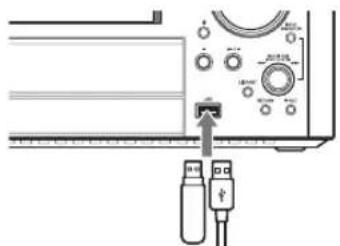
Notes:
- Do not connect the CD/HDD receiver's USB port to a USB port on your computer. Music on your computer cannot be played through the CD/HDD receiver in this way.
- In the process of transferring the data to the digital audio player or the USB storage device, do not disconnect the USB cable. Malfunction of the connection device or the CD/HDD receiver may occur.
- The recording speed varies depending on the recording format and bit rate.
Setting for Recording
Before starting the recording, set the format and bit rate.
Format is a data form of tracks to be recorded. Bit rate means the quantity of information for recording.
When the quantity of information increases, the sound quality becomes better, however the data volume becomes larger.
The data volume and available USB devices that can transfer the data depends on the format. Select a proper and optimum format.
| Format Extension Bit rate | Sampling frequency | ||
| MP3(MPEG-2AudioLayer-3) | *.mp3 | 128 kbps160 kbps192 kbps 256 kbps^*1 | 44.1 kHz |
| WMA ^*2 (WindowsMedia AudioV8.0) | *.wma | 128 kbps160 kbps192 kbps | 44.1 kHz |
| WAV*.wav—— | |||
*1 This is the default setting. However, 128 kbps is set in the case of the data transfer to the USB devices.
*2 Copyright protected WMA files cannot be recorded or transferred.
Note:
AAC files cannot be recorded to the CD/HDD receiver but only can be transferred via USB port (between HDD and USB devices).
1
Press the [TOOLS] button.
2
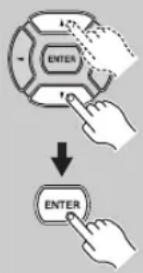
Use the Up and Down [▲]/[▼] buttons to select "Record", and then press [ENTER].
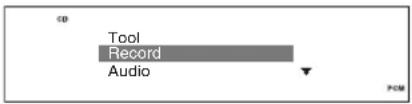
3
Use the Up and Down [▲]/[▼] buttons to select the record mode, and then press [ENTER].
When the destination of recording is USB device, select “USB Record Mode”. When the destination of recording is HDD, select “HDD Record Mode”.
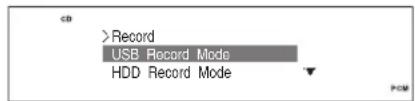
(The above is an example when USB Record Mode is selected.)
4
Press the Up and Down [▲]/[▼] buttons to perform the settings for recording.
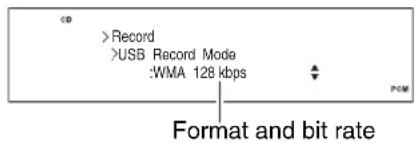
(The above is an example when WMA file and 128 kbps are selected.)
5
Press [ENTER].
“Complete!” will be displayed, and the settings for recording have been done.
Recording CDs
The CD/HDD receiver can record audio CDs into its HDD at a speed of 4X Max. In addition, recording into the USB devices is available. See “Setting for Recording” on page 47 for setting before the operation.
Recording All Tracks (CD Recording with One-touch Button)
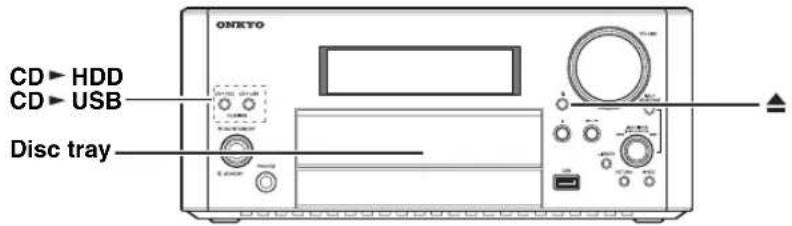
You can easily record an entire CD with the [CD ▶ HDD] button or the [CD ▶ USB] button.
| 1 |  | Load the CD you want to record.1. Press the Open/Close [▲] button to open the disc tray.2. Place the CD on the tray with the label-side facing up.Place 8 cm CDs in the center of the tray.3. Press the Open/Close [▲] button to close the disc tray. |
| 2 | CD/HDDreceiverCD ▶ HDDorCD ▶ USB | Start recording.Press the CD/HDD receiver's CD ▶ HDD or CD ▶ USB button.When recording onto the HDD, press the CD ▶ HDD button. When recording into a USB device, press the CD ▶ USB button.[IMAGE]Recording of all tracks on the audio CD starts. (The above is an example when the CD ▶ USB button is pressed.)When recording ends, the CD/HDD receiver automatically returns to its normal display. |
■Cancelling recording
Press the Stop [■] button on the CD/HDD receiver or remote controller.
Cancelling the recording halfway may take some time.
■Restriction on recording CDs
After a CD is recorded, the same CD cannot be continuously recorded for
a certain period of time to protect the copyright regardless of the recording time. The same CD can be recorded again approx. 74 minutes after its last time recording. If you attempt to record the CD again within approx. 74 minutes, the waiting time to the next available recording is displayed. (Example: "Wait COPY! 42 min")
When you use other CDs for recording, continuous recording is possible. It is also prohibited to record 16 or more CDs within approx. 74 minutes.
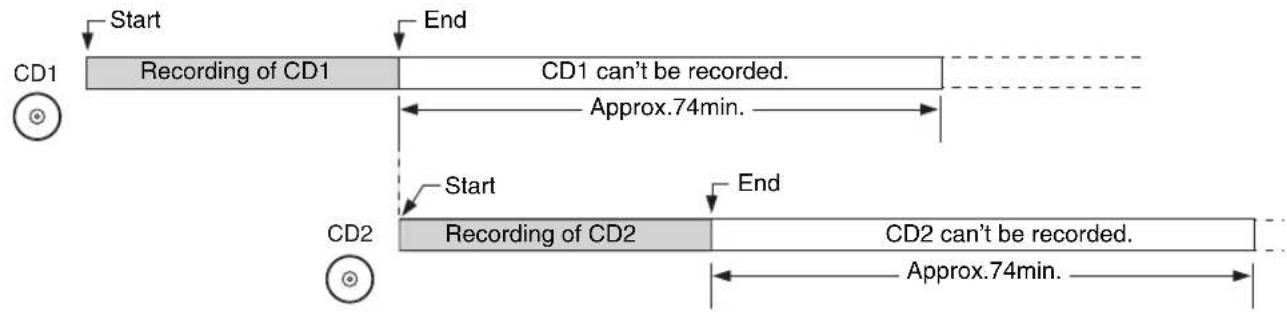
Recording Tracks One-by-one
You can select one track you want to record.
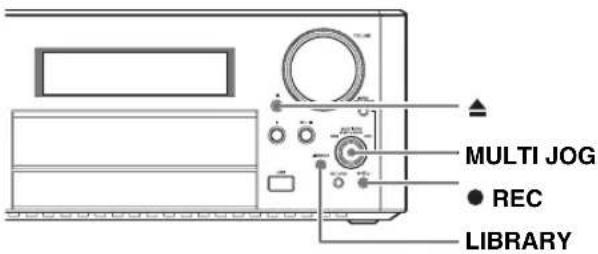
| 1 | Load the CD.When the CD has been loaded, switch the input source to CD. |
| 2 | Press the [LIBRARY] button.After the message “CD reading” appears, the list of tracks is displayed. |
| 3 | Turn the MULTI JOG dial to select a track you want to record. |
| 4 | Press the ● REC button.To cancel the recording, press the Stop [■] button or [RETURN] button. |
| 5 | Turn the MULTI JOG dial to select the destination of recording.______ _________________RECE 1HDD ____ _________________REC 1USBWhen recording onto the HDD, select “REC 1 HDD”. When recording into a USB device, select “REC 1 USB”. |
| 6 | Press the MULTI JOG dial.The confirmation message appears.______Ready?USB 164 MB free |
| 7 | Press the MULTI JOG dial.Recording starts.______1/1Track 03_______14%Destination of ____ FormatrecordingWhen recording ends, the CD/HDD receiver automatically returns to its normal display for CD operation. |
Recording Using the Remote Controller
You can use the remote controller for recording as below.
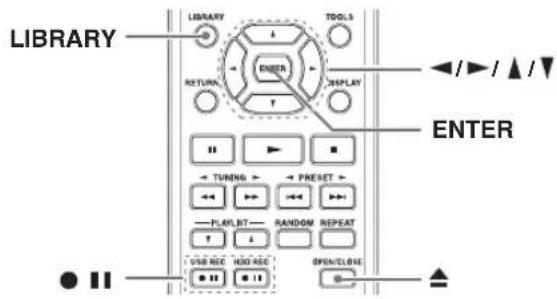
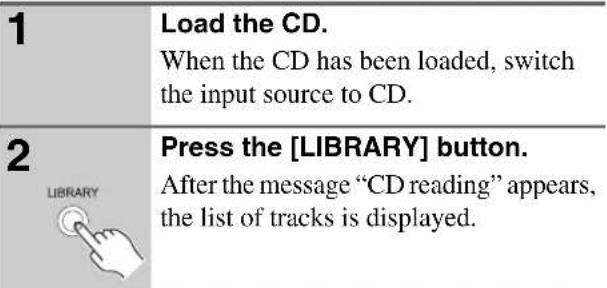 |
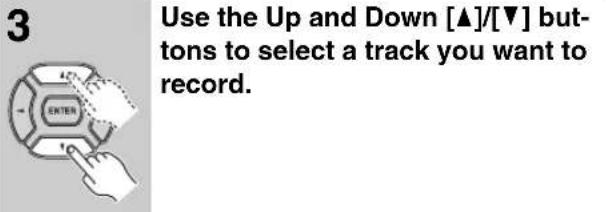 |
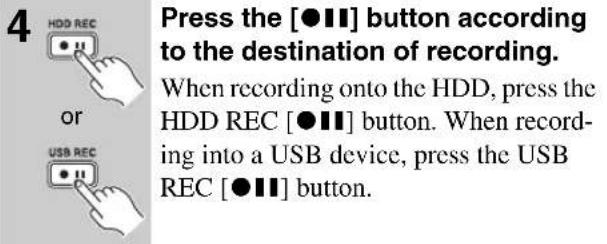 |
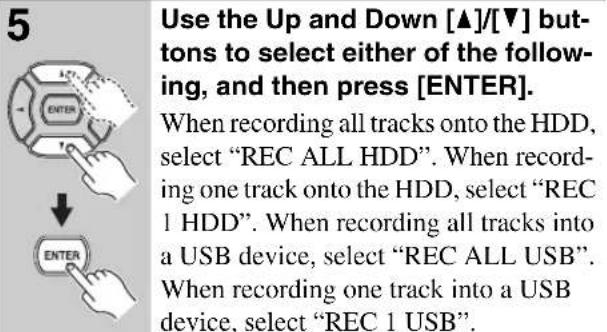 |
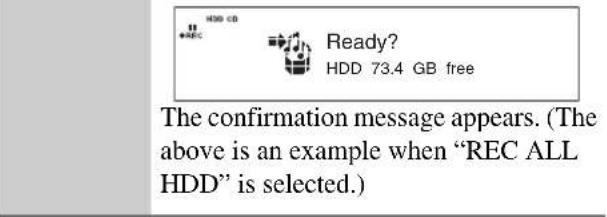 |
 |
Recording from Tuner
You can record broadcasting program.
1
Switch the input source.
Press the [BAND] button to select FM or AM. You can also use the [INPUT SELECTOR] button to select the input source.
2
Tune into the radio stations.
See “Tuning into AM/FM Radio Stations” on page 32 and “Selecting Preset Stations” on page 36.
3
Press the [●■] button according to the destination of recording.
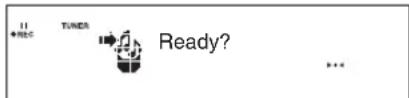
When recording onto the HDD, press the HDD REC [●■] button. When recording into a USB device, press the USB REC [●■] button.
4
![ONKYO BR-925 - Press the [●■] button according to the destination of recording. - 2](/content/2026/05/770676/images/1d8794f4fd709eb6eef745c3a569d351bedd7af15383f2b32cbacbba7fbd5bdb.jpg)
Start recording.
Press the Play [▶] button or [ENTER].
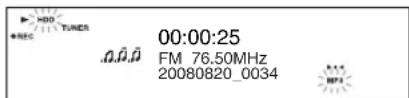
(The above is an example when the HDD REC [●■] button is pressed.)
5
Press the Stop [■] button to cancel the recording.
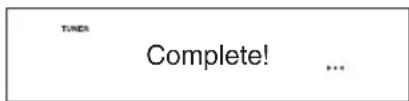
“Complete!” will be displayed, and the recording ends.
To pause recording, press the Pause [■■] button. To resume recording, press it again.
Tip:
The title of the recorded program is automatically consists of date, start time of recording, radio station name (its band and frequency if it is not preset).
Recording from Line Input
You can record audio from external components connected to LINE1, LINE2, or LINE3. You can't record audio from external components connected to DIGITAL OPTICAL IN.
1
Switch the input source.
Press the INPUT [▲]/[▼] buttons to select LINE1, LINE2, or LINE3. You can also use the CD/HDD receiver's [INPUT SELECTOR] button to select the input source.
2
Press the [●■] button according to the destination of recording.
When recording onto the HDD, press the HDD REC [●■] button. When recording into a USB device, press the USB REC [●■] button.
3
![ONKYO BR-925 - Press the [●■] button according to the destination of recording. - 1](/content/2026/05/770676/images/9106f8cc03f67f536165cdc7b1ad079c86cafced2ad3051e87221b8af983e33a.jpg)
Start the playback of the recording source.
When recording from a RI-capable component, the CD/HDD receiver automatically starts recording. Otherwise, first press the Start [▶] button or [ENTER] and then start the playback of the external component.
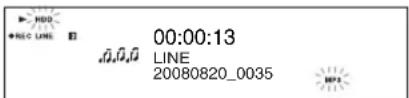
4
Press the Stop [■] button to cancel the recording.
“Complete!” will be displayed, and the recording ends.
During the recording from the RI-capable components, if the playback is paused or stopped, the CD/HDD receiver switches to the recording standby mode. Pressing the button again resumes the recording.
Tip:
The title of the recorded sound is automatically consists of date, start time of recording, input source name (if the input source name has been changed in the steps on page 45, the changed name is used).
Transferring Data
USB Connection
HDD USB
storage
Digital audio player
The CD/HDD receiver can transfer the data between its HDD (hard disk drive) and your USB device (digital audio player or USB storage device).
1
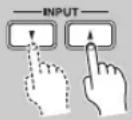
Switch the input source to the transfer source.
Press the INPUT [▲]/[▼] buttons to select HDD or USB.
2
Select a track or a track list of album, artist, etc. you want to transfer.
For selecting tracks, see step 2 in “Playing Selected Tracks” on the pages shown below:
When selecting tracks in the HDD, see page 55. When selecting tracks in the USB, see page 43.
3
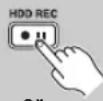
Press the [●■] button according to the transfer destination.
When transferring to the HDD, press the HDD REC [●■] button. When transferring to a USB device, press the USB REC [●■] button.
You can also use the ● REC button and MULTI JOG dial on the CD/HDD receiver.
4
![ONKYO BR-925 - Press the [●■] button according to the transfer destination. - 1](/content/2026/05/770676/images/a5cc92537382da6ae23b23f41941feec759ee4e09183274b6e5f631c6275dd4c.jpg)
Use the Up and Down [▲]/[▼] buttons to select either of the following, and then press [ENTER].
When transferring all tracks in the folder onto the HDD, select "HDD ALL COPY". When transferring one track onto the HDD, select "HDD COPY".
When transferring all tracks in the folder into a USB device, select “USB ALL COPY”. When transferring one track into a USB device, select “USB COPY”. You can also use the MULTI JOG dial on the CD/HDD receiver to select these items.
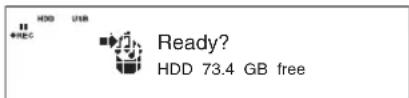
The confirmation message appears. (The above is an example when “HDD ALL COPY” is selected.)
5
![ONKYO BR-925 - Use the Up and Down [▲]/[▼] buttons to select either of the following, and then press [ENTER]. - 2](/content/2026/05/770676/images/d7a6ce95328bc926208049e1f5237518eb7070a5a599075ce756c228ad266071.jpg)
Press [ENTER].
Data transfer starts.
■Transferring favorite tracks at a time
If you want to record tracks from multiple albums or artists, first add these tracks to the playlist in advance, and then select the playlist to record the tracks at a time when recording. See “Creating and Playing the Playlist” on page 57.
1 Add tracks to the playlist.
2 Select a track in the playlist, and press [ENTER].
3 Press [● REC] on the CD/HDD receiver, and select "USB ALL COPY".
FTP Connection
HDD Personal computer
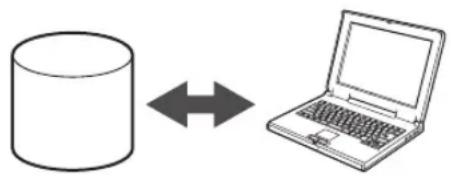
flowchart
graph LR
    A[" cylinder "] <--> B[" laptop "]
Via FTP connection, you can access the CD/HDD receiver from your computer and transfer the data from the HDD to computer and vice versa.
* Only for personal computers with Microsoft Windows XP Service Pack 2, Service Pack 3, or Microsoft Windows Vista installed.
Note:
Since the folder name and file name are treated as Unicode in the HDD, some folders and files may not be selected.
Before operating
- Set the IP address on the CD/HDD receiver by referring to “Entering DHCP Settings Manually” on page 69. If the IP address is not set, the FTP connection is not available.
- If a track is being played or recorded with the CD/HDD receiver, stop the operation.
 | Press the [TOOLS] button. |
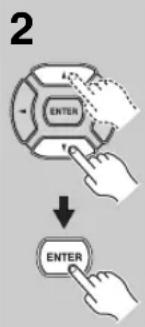 | Use the Up and Down [▲]/[▼] buttons to select “Network”, and then press [ENTER].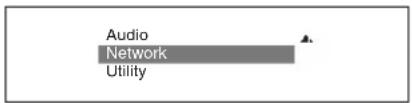 |
| 3 | Select “FTP” and then press [ENTER].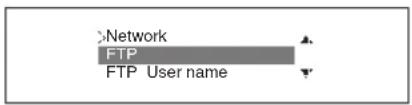 |
Press the [TOOLS] button.
Use the Up and Down [▲]/[▼] buttons to select "Network", and then press [ENTER].
| 4 | Select “Open?” and then press [ENTER].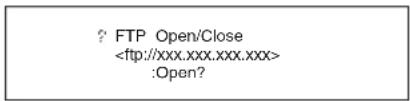 After “FTP Starting...” is displayed,“FTP Stop” appears. After “FTP Starting...” is displayed,“FTP Stop” appears. |
| 5 | Start Windows Explorer on your computer, access the CD/HDD receiver by specifying the IP address.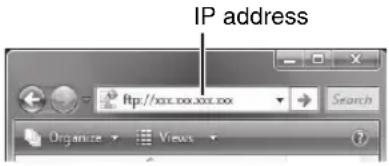 When Address Bar is not displayed on Windows Explorer, display Address Bar according to the Windows operation.If a username and password have been set in the CD/HDD receiver, also specify them when accessing. To check the username and password, press the [TOOLS] button, select “Network”, and then check the items “FTP Username” and “FTP Password”.Note:When accessing by using Internet Explorer, select “Open FTP Site in Windows Explorer” on the Page tab after the connection. When Address Bar is not displayed on Windows Explorer, display Address Bar according to the Windows operation.If a username and password have been set in the CD/HDD receiver, also specify them when accessing. To check the username and password, press the [TOOLS] button, select “Network”, and then check the items “FTP Username” and “FTP Password”.Note:When accessing by using Internet Explorer, select “Open FTP Site in Windows Explorer” on the Page tab after the connection. |
| 6 | Transfer the data.In the same way as the normal file operation, move the file between the CD/HDD receiver and the computer. |
| 7 | Close Windows Explorer. |
| 8 | Press [ENTER].The message “Now Updating...” appears and the CD/HDD receiver updates the database in the HDD.“Complete!” will be displayed and the data transfer has been completed. |
| 5 | Start Windows Explorer on your computer, access the CD/HDD receiver by specifying the IP address. |
Note:
Transfer the data.
Close Windows Explorer.
Press [ENTER].
Erasing Data from USB Device
The CD/HDD receiver can erase the music track or album stored on the USB device. For erasing music track or album from HDD, see “Erasing Music Track or Album” on page 58. Also see “Operation of Music Data” on page 27.
1
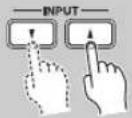
Switch the input source to USB.
Press the INPUT [▲]/[▼] buttons. You can also use the CD/HDD receiver's [INPUT SELECTOR] button to select the input source.
2
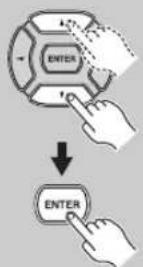
Select a track or album you want to erase.
- Press the [LIBRARY] button.
- Use the Up and Down [▲]/[▼] buttons to select the folder, and then press [ENTER].
- Use the Up and Down [▲]/[▼] buttons to select the track or album.
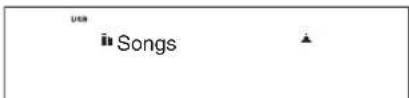
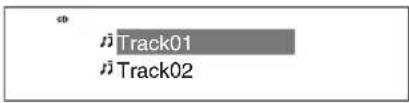
3
Press the [TOOLS] button and then press [ENTER] with "Tool" selected.
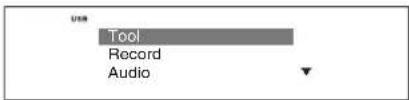
4
![ONKYO BR-925 - Press the [TOOLS] button and then press [ENTER] with "Tool" selected. - 2](/content/2026/05/770676/images/c430e2c4490bc52444e696c33822796a83a6273712ed32dabd0fe7c52ae366b0.jpg)
Use the Up and Down [▲]/[▼] buttons to select "Song Erase", and then press [ENTER].
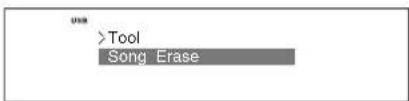
5
![ONKYO BR-925 - Use the Up and Down [▲]/[▼] buttons to select "Song Erase", and then press [ENTER]. - 2](/content/2026/05/770676/images/6332268ad894e3a5f8079bbf2ca4aa0a488180a3d82ef6fc48f881986a1dcece.jpg)
Erasing one track or one folder:
Use the Up and Down [▲]/[▼] buttons to select "1 Erase?", and then press [ENTER].
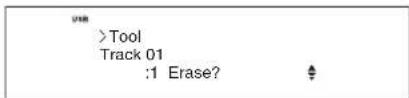
Erasing all items:
Use the Up and Down [▲]/[▼] buttons to select "All Erase?", and then press [ENTER]. All items displayed in step 2-3 are erased.
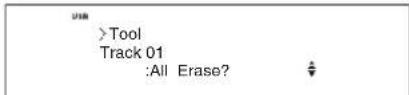
To cancel erasing, use the Up and Down [▲]/[▼] buttons to select "Cancel", and then press [ENTER].

The confirmation message "Erase OK?" appears.
Use the Up and Down [▲]/[▼] buttons to select "Yes", and then press [ENTER].
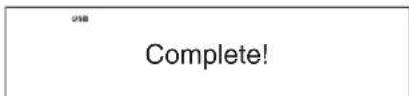
“Complete!” will be displayed, and the data has been erased.
Basic Operations of Playback
Switch the input source to HDD (see page 24).
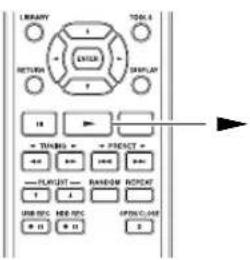
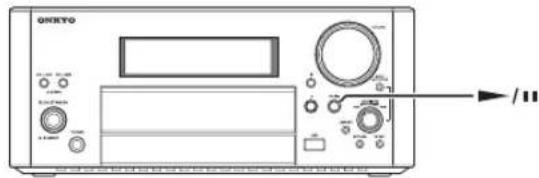
natural_image
Front view of a vintage OXKTO instrument with control knobs and display (no visible text or labels)1
CD/HDD receiver
or
Remote controller
Start playback.
Press the Play/Pause [▶/■] button or Play [▶] button.
The track you played or recorded the last time is played.
Tip:
When you press the remote controller's HDD [▶] button, the CD/HDD receiver automatically selects an appropriate input source and starts playback of a track.
Album name
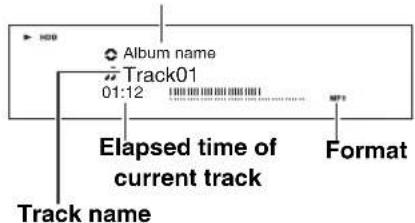
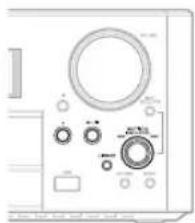
natural_image
Front view of a vintage electronic device with control knobs and a rotary dial (no visible text or symbols)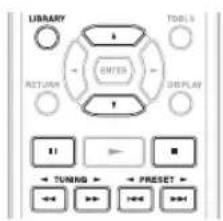
To pause playback:
Press the remote controller's Pause [■■] button or the CD/HDD receiver's Play/Pause [▶-/■■] button. To resume playback, press the Play/Pause [▶-/■■] button again.
To stop playback:
Press the Stop [■] button on the CD/HDD receiver or remote controller.
To select tracks:
Press the [RETURN] button to return to the track list, then press the Up and Down [▲]/[▼] buttons to select a track.
To select the previous or next track:
Press the Previous/Next [1◄◄]/[►►] buttons or turn the MULTI JOG dial on the CD/HDD receiver to select the previous or next track.
To fast forward or fast reverse:
Press the Fast Reverse/Fast Forward [◀◀]/[▶▶] buttons during playback or pause. Where you want to start playback, release the button.
Playing Selected Tracks
Among enormous recorded music files in the HDD of the CD/HDD receiver, you can easily search the desired one by artist name, album name, title, or playlist.
1
Switch the input source to HDD.
Press the INPUT [▲]/[▼] buttons. You can also use the CD/HDD receiver's [INPUT SELECTOR] button to select the input source.
2
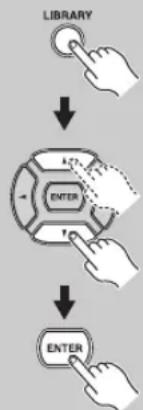
flowchart
graph TD
    A["LIBRARY"] --> B["ENTER"]
    B --> C["ENTER"]
Select the track you want to play.
1 Press the [LIBRARY] button.
2 Use the Up and Down [▲]/[▼] buttons to select the category you want to search, and then press [ENTER].
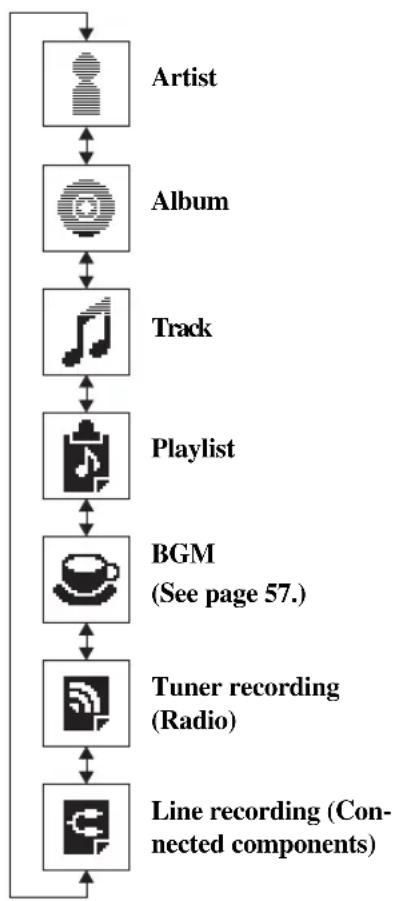
flowchart
graph TD
    A["Artist"] --> B["Album"]
    B --> C["Track"]
    C --> D["Playlist"]
    D --> E["BGM (See page 57.)"]
    E --> F["Tuner recording (Radio)"]
    F --> G["Line recording (Connected components)"]
3 Use the Up and Down [▲]/[▼] buttons to select the track.
3
Press [ENTER] to start playback.
Using Alphabetic Search
During the list display, you can search tracks in the alphabetic order by pressing the remote controller's number buttons.
Example: Searching items starting with C
1 Press the [2] button.
When there is an item starting with A, it is selected. If not, the search is continued in the order of B→C.
2 Press the button (repeatedly).
Press the button repeatedly until the target character is selected. Each time the button is pressed, the character to be searched switches in the order of A→B→C→A.
Note:
Alphabetic Search can only operate on the ARTIST list, ALBUM list, and TRACK list displayed by selecting each category of ARTIST, ALBUM, and TRACK from the library menu. It does not operate on other list screens.
Using Jump Mode
With the Jump Mode, you can quickly locate your favorite tracks even when the numerous data such as albums and artists are contained in the list. There are three modes: L (Large), M (Medium), and S (Small).
Normally, the selection item is shifted one by one. However, in the Jump Mode, some selection items are skipped in the list. The L (Large) mode has the largest skipping range, and S (Small) mode has the smallest.
To activate the Jump Mode:
During the list display, press the Left and Right [◀]/[▶] buttons to set the desired mode.
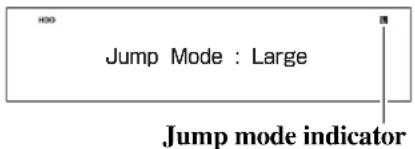
Notes:
- Some modes cannot be selected depending on the length of the list display.
- Even in the same mode, the skipping range varies depending on the length of the list (the range is adjusted automatically).
Switching the Display
You can switch the display by pressing the remote controller's [DISPLAY] button repeatedly.
During the list display
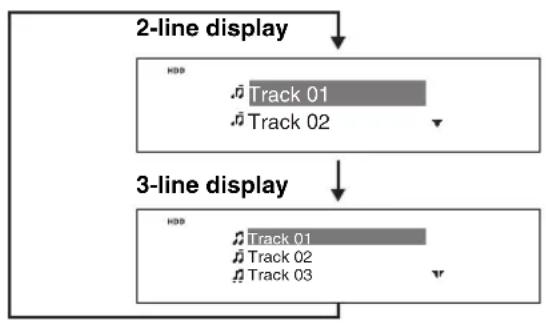
flowchart
graph TD
    A["2-line display"] --> B["Track 01"]
    A --> C["Track 02"]
    D["3-line display"] --> E["Track 01"]
    D --> F["Track 02"]
    D --> G["Track 03"]
During stop
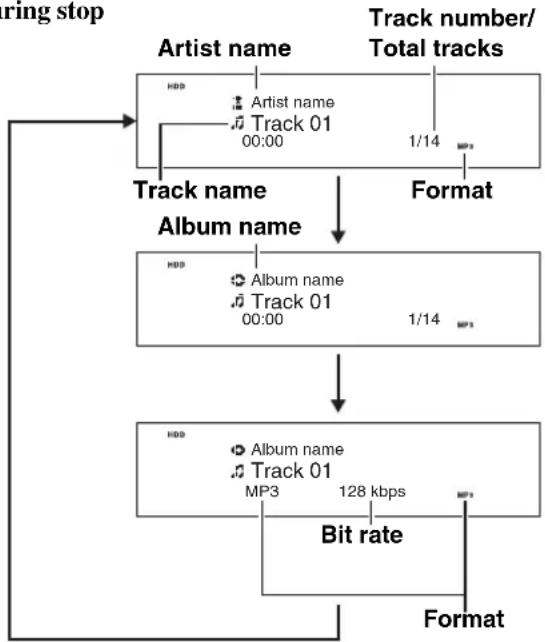
flowchart
graph TD
    A["Artist name"] --> B["Track 01"]
    B --> C["Track name"]
    C --> D["Album name"]
    D --> E["Bit rate"]
    E --> F["Format"]
    B --> G["1/14 MP3"]
    C --> H["Album name"]
    H --> I["Track 01"]
    I --> J["1/14 MP3"]
    J --> K["Bit rate"]
    K --> L["Format"]
    style A fill:#f9f,stroke:#333
    style B fill:#ccf,stroke:#333
    style C fill:#cfc,stroke:#333
    style D fill:#fcc,stroke:#333
    style E fill:#cff,stroke:#333
    style F fill:#ffc,stroke:#333
    style G fill:#fcc,stroke:#333
    style H fill:#cff,stroke:#333
    style I fill:#fcc,stroke:#333
    style J fill:#cff,stroke:#333
    style K fill:#ffc,stroke:#333
    style L fill:#fcc,stroke:#333
During playback and pause
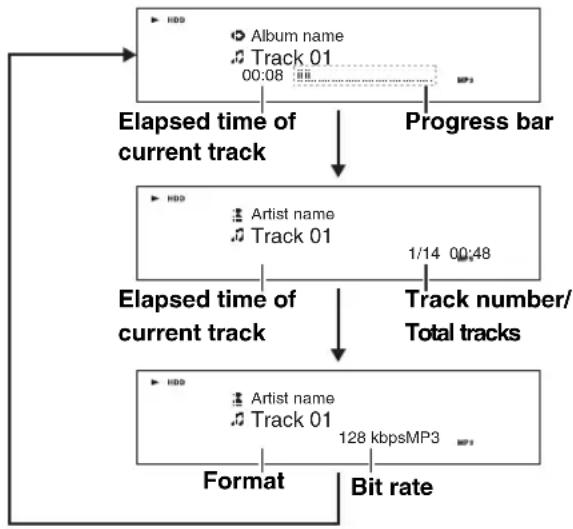
flowchart
graph TD
    A["Album name\nTrack 01\n00:08"] --> B["Elapsed time of current track"]
    B --> C["Artist name\nTrack 01"]
    C --> D["Elapsed time of current track"]
    D --> E["Track number/Total tracks"]
    E --> F["Format\n128 kbpsMP3 MP3"]
    F --> G["Bit rate"]
    G --> A
    H["Progress bar"] --> C
Various Playback Modes
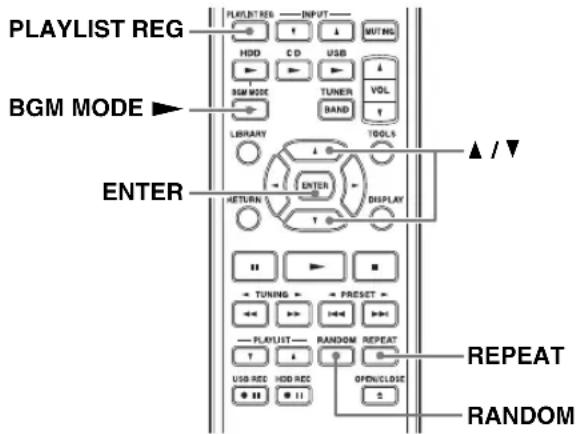
BGM Playback
The music files* recorded in the HDD can be played repeatedly in random order with one button. It is convenient when you want to play music as BGM.
* Except for the music files recorded from FM/AM or external components.
Press the BGM MODE [▶] button.
You can also press the [LIBRARY] button and select "BGM" to start BGM playback (see page 55).
Canceling BGM playback
To cancel BGM playback, press the BGM MODE [▶] button again.
Repeat/Random Playback
With random playback, selected tracks can be played in random order. With repeat playback, tracks or one track can be played repeatedly. See “Random Playback” and “Repeat Playback” on page 31.
Press the [RANDOM] button or the [REPEAT] button (repeatedly).
Tip:
The “REPEAT” indicator on the display means that all tracks in the current list (tracks, artist, album or playlist) are played repeatedly.
The “REPEAT 1” indicator means that only the selected track is played repeatedly.
Note:
During the random playback, you cannot operate the [LIBRARY] button and [RETURN] button, and cannot select tracks by specifying the track number. To perform these operations, cancel the random playback.
Creating and Playing the Playlist
You can select your favorite tracks in numerous music files in the HDD and add them to the playlist.
■Adding a track to the playlist
1
Select a track (in the HDD) you want to add to the playlist.
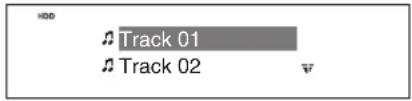
2
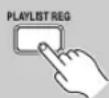
Press the [PLAYLIST REG] button.
Tips:
- You can create a playlist of up to 60,000 tracks.
- You can also press the [TOOLS] button and select “Add Playlist” to add the track.
- You can also use the CD/HDD receiver's REC button to add the track.
3
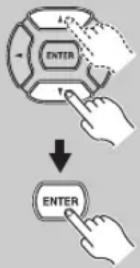
Use the Up and Down [▲]/[▼] buttons to select "PLAYLIST 1", and then press [ENTER].
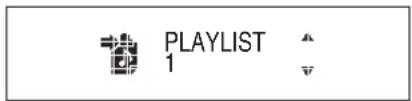
Tip:
When you select "PLAYLIST ALL" all tracks in the folder (album) are added.
4
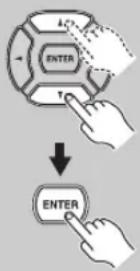
Use the Up and Down [▲]/[▼] buttons to select a desired playlist, and then press [ENTER].
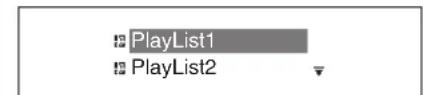
“Complete!” will be displayed, and the selected track has been added to the playlist.
■Playing the playlist
1 Press the remote controller's INPUT [▲]/[▼] buttons to switch the input source to HDD.
2 Press the PLAYLIST [▲]/[▼] buttons.
Each time the button is pressed, the CD/HDD receiver changes the playlist and starts playback.
Tip:
A playlist name can be changed afterwards. See “Editing a Playlist Name” on page 61.
Editing Tracks and Playlists in the HDD
The tracks saved in the HDD can be edited as follows.
- Erasing music track or album
- Editing track information
- Removing tracks from the playlist
- Editing a playlist name
Erasing Music Track or Album
You can erase music track or album in the HDD.
Note:
Once erased, the tracks cannot be recovered. Confirm the tracks again before actually erasing them. Also see "Operation of Music Data" on page 27.
1
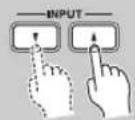
Switch the input source to HDD.
Press the INPUT [▲]/[▼] buttons. You can also use the CD/HDD receiver's [INPUT SELECTOR] button to select the input source.
2
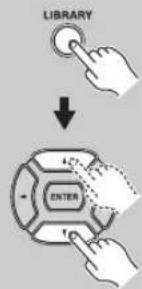
Select a track or album you want to erase.
Press the [LIBRARY] button and select the category you want to search such as artist, album, or track.
Tip:
Even when erasing an entire album, you need to select any track in the album.
3
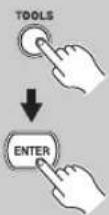
Press the [TOOLS] button and then press [ENTER] with "Tool" selected.
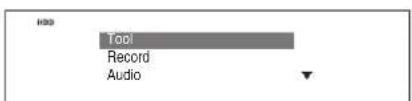
4
![ONKYO BR-925 - Press the [TOOLS] button and then press [ENTER] with "Tool" selected. - 2](/content/2026/05/770676/images/5e5e71a1d5208d9c1cc03b3c09805f4e85582c51fb97701667d3fccf845f50ee.jpg)
Use the Up and Down [▲]/[▼] buttons to select "Song Erase", and then press [ENTER].
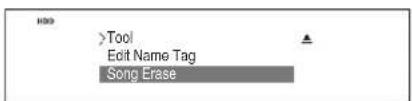
5
![ONKYO BR-925 - Use the Up and Down [▲]/[▼] buttons to select "Song Erase", and then press [ENTER]. - 2](/content/2026/05/770676/images/9abd1034a8929a82ff219d642f5e4c464b2492183f980437a807c7f17e05d3a7.jpg)
Erasing one track:
Use the Up and Down [▲]/[▼] buttons to select "1 Erase?", and then press [ENTER].
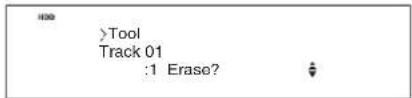
Erasing all tracks (an entire album): Use the Up and Down [▲]/[▼] buttons to select "All Erase?", and then press [ENTER].
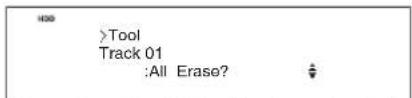
“Complete!” will be displayed, and the track or album has been deleted.
Editing Track Information
The track information (artist name, album name, title) recorded in the HDD can be edited. The CD/HDD receiver temporarily stores edited content in the buffer. When editing the same content repeatedly, you can easily paste the stored content. It is convenient for such cases as changing the artist name of multiple tracks into the same one.
1
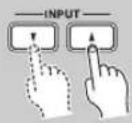
Switch the input source to HDD.
Press the INPUT [▲]/[▼] buttons. You can also use the CD/HDD receiver's [INPUT SELECTOR] button to select the input source.
2
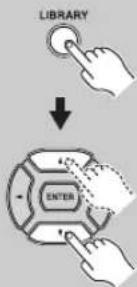
Select a track you want to edit.
Press the [LIBRARY] button and select the category you want to search such as artist, album, or track.
3
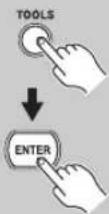
Press the [TOOLS] button and then press [ENTER] with "Tool" selected.
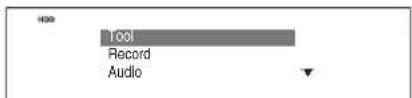
4
![ONKYO BR-925 - Press the [TOOLS] button and then press [ENTER] with "Tool" selected. - 2](/content/2026/05/770676/images/93631755826e292c52899252dbe0a54f89219d256292e2d93691db4cb65270c1.jpg)
Use the Up and Down [▲]/[▼] buttons to select "Edit Name Tag", and then press [ENTER].
![>Tool [Rename Playlist] Edit Name Taq](/content/2026/05/770676/images/663cb4a0c71c8a49ca87f4edd4a5ba3e3216c67d160b197baa271a873f409a92.jpg)
5
![ONKYO BR-925 - Press the [TOOLS] button and then press [ENTER] with "Tool" selected. - 4](/content/2026/05/770676/images/09467a418d92d1788e0c60d5df264f216236baa13558d765eb1ee55be823b97e.jpg)
Use the Up and Down [▲]/[▼] buttons to select "Name Edit?", and then press [ENTER].
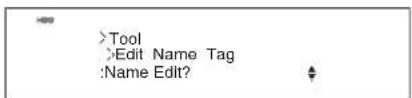
Tip:
When you want to edit the following items with the same content as last time, the content stored in the buffer can be pasted. Select one of the following:
"Artist Name Copy?" for editing artist name
"Album Name Copy?" for editing album name
"Artist&Album Copy?" for editing artist and album names
When “Complete!” is displayed, the input has been completed. If “Impossible” is displayed, input failed. Edit again in the following steps.
6
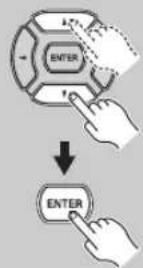
Use the Up and Down [▲]/[▼] buttons to select an item you want to edit, and then press [ENTER].
"Edit: Artist Name" for editing artist name
"Edit:Album Name" for editing album name
"Edit:Title Name" for editing track name
The CD/HDD receiver enters the character edit mode.
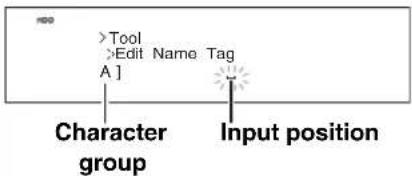
flowchart
graph LR
    A["Character group"] --> B["Input position"]
    B --> C[">Tool\n>>Edit Name Tag\nA"]]
    style A fill:#f9f,stroke:#333
    style B fill:#ccf,stroke:#333
7
Press the [CAPS] button repeatedly to select one of the following character groups:
Each time you press the button, the character group switches.
| A] Uppercase letters | |
| a] Lowercase letters | |
| 1] Numbers and symbols | |
| £] Umlaut letters and symbols | |
8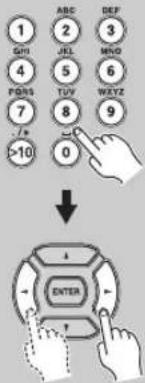 | Selecting letters:Press the number buttons repeatedly to select the available letters. For example, press the [2] button repeatedly to select: A, B, or C.Press the [0] button repeatedly to select: 0 or (space)After you select a desired character, move to the next input position by pressing the Left and Right [◀]/[▶] buttons.Selecting numbers and symbols:Use the number buttons to select numbers.Press the [>10] button repeatedly to select: (space)  ./*-, !? &' ()After you select a desired character, move to the next input position by pressing the Left and Right [◀]/[▶] buttons.Notes:Not all of the symbols can be entered by using the number buttons. Use the Up and Down [▲]/[▼] buttons to select from the full range of symbols.Up to 64 characters can be input.Deleting/editing characters:Inserting a new character:Deleting preset's name:See page 40.To cancel the Name Edit function, press the [RETURN] button. ./*-, !? &' ()After you select a desired character, move to the next input position by pressing the Left and Right [◀]/[▶] buttons.Notes:Not all of the symbols can be entered by using the number buttons. Use the Up and Down [▲]/[▼] buttons to select from the full range of symbols.Up to 64 characters can be input.Deleting/editing characters:Inserting a new character:Deleting preset's name:See page 40.To cancel the Name Edit function, press the [RETURN] button. |
9 | Press [ENTER] to finish editing.“Complete!” will be displayed, and the track information has been changed.Note:The message “Waiting...” may appear while the track information is being changed.For this change, it may take from several tens of seconds to a few minutes depending on the track file size. |
8
9
Note:
Available Characters
ABCDEFGHIJKLMNOPQRSTUVWXYZ abcdefghijklmnopqrstuvwxyz 0123456789
_ @ ' < > # \$ % & * = ; : + - / ( ) ? ! ' ", . (space) (insert)
ÀÁÄÄÄÄÆÇÈÉÊËÏÏÏÐÑÒÓÔÕÖ×∅ÙÚ
ÜÜYРβαάαäääæçèéêëiííïðñòóóöö÷øù
ú û ü y b y j c £ o ¥ i § " © a « ¬ - ® - ° ± 23' μ ¶ · , 1° »
1/4 1/2 3/4 i
Removing Tracks from the Playlist
Even when a track in the playlist is removed, the music file itself is not deleted.
1
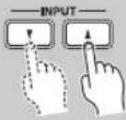
Switch the input source to HDD.
Press the INPUT [▲]/[▼] buttons. You can also use the CD/HDD receiver's [INPUT SELECTOR] button to select the input source.
2
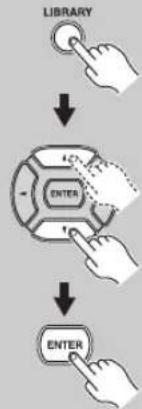
flowchart
graph TD
    A["LIBRARY"] --> B["ENTER"]
    B --> C["ENTER"]
Select the playlist.
1 Press the [LIBRARY] button.
2 Use the Up and Down [▲]/[▼] buttons to select "PLAYLIST", and then press [ENTER].
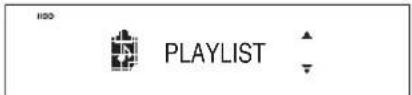
3 Use the Up and Down [▲]/[▼] buttons to select a desired playlist, and then press [ENTER].
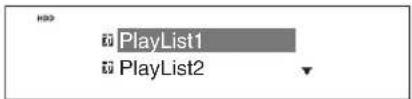
3
Use the Up and Down [▲]/[▼] buttons to select the track you want to remove.
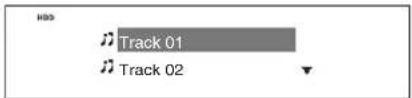
4
Press the [TOOLS] button and then press [ENTER] with "Tool" selected.
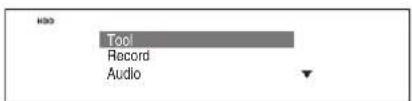
5
Use the Up and Down [▲]/[▼] buttons to select "Clear Playlist", and then press [ENTER].
![>Tool Clear Playlist [Rename Playlist]](/content/2026/05/770676/images/99ead3eaf21ff98284c6130239c9016ab0b27ab7da38b0782e440ee029d17015.jpg)
6
Removing one track:
Use the Up and Down [▲]/[▼] buttons to select "1 Clear?", and then press [ENTER].
![>Tool [Track 01 :1 Clear? ]](/content/2026/05/770676/images/e3b4bddfef8e4eb00b05f9b74f8de04512b3a6af37d21e0a67375ab586a66676.jpg)
Removing all tracks in the playlist:
Use the Up and Down [▲]/[▼] buttons to select "All Clear?", and then press [ENTER].
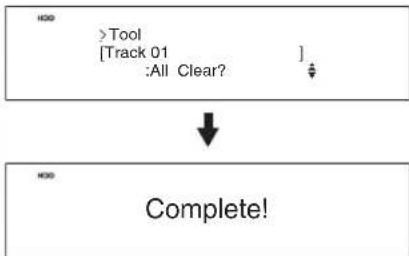
flowchart
graph TD
    A[">Tool\n[Track 01\n:All Clear?"]] --> B["↓"]
    B --> C["Complete!"]
"Complete!" will be displayed, and the track has been removed from the playlist.
Editing a Playlist Name
Although a playlist is initially named as PlayList 1, PlayList 2..., PlayList 23, the name can be changed as you like.
1
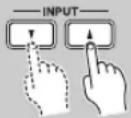
Switch the input source to HDD.
Press the INPUT [▲]/[▼] buttons. You can also use the CD/HDD receiver's [INPUT SELECTOR] button to select the input source.
2
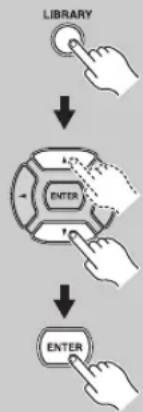
flowchart
graph TD
    A["LIBRARY"] --> B["ENTER"]
    B --> C["ENTER"]
Select the playlist.
1 Press the [LIBRARY] button.
2 Use the Up and Down [▲]/[▼] buttons to select "PLAYLIST", and then press [ENTER].
3 Use the Up and Down [▲]/[▼] buttons to select a desired playlist, and then press [ENTER].
3
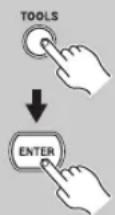
Press the [TOOLS] button and then press [ENTER] with "Tool" selected.
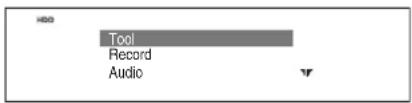
4
![ONKYO BR-925 - Press the [TOOLS] button and then press [ENTER] with "Tool" selected. - 2](/content/2026/05/770676/images/dcc5f528066318f8cdf5f9c80f3980afbae3504d239f89a4221e92f05844019a.jpg)
Use the Up and Down [▲]/[▼] buttons to select "Rename Playlist", and then press [ENTER].
The CD/HDD receiver enters the character input mode.
![ONKYO BR-925 - Use the Up and Down [▲]/[▼] buttons to select "Rename Playlist", and then press [ENTER]. - 1](/content/2026/05/770676/images/89be9343eaacc4f588b61baebe8147960c9bc1b90d2fd487cf9d7c8e8ffa4cde.jpg)
flowchart
graph TD
    A["Character group"] --> B["Input position"]
    B --> C[">Tool\n>>Edit Name Tag\nA"]
5
![ONKYO BR-925 - Use the Up and Down [▲]/[▼] buttons to select "Rename Playlist", and then press [ENTER]. - 2](/content/2026/05/770676/images/1b8c772c2ce6903a75b9294ab5ffc92a75acafeb23a16c5a5f9847fdd6f63b52.jpg)
Press the [CAPS] button repeatedly to select one of the following character groups:
Each time you press the button, the character group switches.
A] Uppercase letters
a] Lowercase letters
1] Numbers and symbols
![ONKYO BR-925 - 1] Numbers and symbols - 1](/content/2026/05/770676/images/c57fb21a35e973520e540b57f3185d686be10f76c8afb52cfb8aaa8646631bc3.jpg)
Umlaut letters and symbols
6
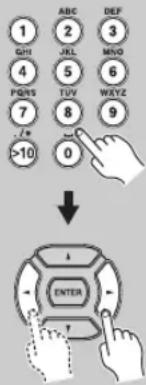
Selecting letters:
Press the number buttons repeatedly to select the available letters. For example, press the [2] button repeatedly to select: A, B, or C.
Press the [0] button repeatedly to select: 0 or (space)
After you select a desired character, move to the next input position by pressing the Left and Right [◀]/[▶] buttons.
Selecting numbers and symbols:
Use the number buttons to select numbers.
Press the [>10] button repeatedly to select: (space) ./ * - , ! ? & ' ()
After you select a desired character, move to the next input position by pressing the Left and Right [◀]/[▶] buttons.
Notes:
- Not all of the symbols can be entered by using the number buttons. Use the Up and Down [▲]/[▼] buttons to select from the full range of symbols.
- Up to 32 characters can be input.
Deleting/editing characters:
Inserting a new character:
Deleting preset's name:
See page 40.
To cancel the Rename Playlist function, press the [RETURN] button.
7
Press [ENTER] to finish editing.
“Complete!” will be displayed, and the playlist name has been changed.
Available Characters
ABCDEFGHIJKLMNOPQRSTUVWXYZ abcdefghijklmnopqrstuvwxyz 0123456789
_ @ ' < > # \$ % & * = ; : + - / ( ) ? ! ' ", . (space) (insert)
( \text{A} \text{A} \text{A} \text{A} \text{A} \text{A} \text{A} \text{E} \text{C} \text{E} \text{E} \text{E} \text{E} \text{E} \text{E} \text{E} \text{E} \text{E} \text{E} \text{E} \text{E} \text{E} \text{E} \text{E} \text{E} \text{E} \text{E} \text{E} \text{E} \text{U} \text{U} \text{U} \text{U} \text{U} \text{U} \text{U} \text{U} \text{U} \text{U} \text{U} \text{U} \text{U} \text{U} \text{U} \text{U} \text{U} \text{U} \text{U} \text{U} \text{u} \text{u} \text{u} \text{u} \text{u} \text{u} \text{u} \text{u} \text{u} \text{u} \text{u} \text{u} \text{u} \text{u} \text{u} \text{u} \text{u} \text{u} \text{u} \text{u} \text{U} \text{U} \text{U} \text{U} \text{U} \text{U} \text{U} \text{U} \text{U} \text{U} \text{U} \text{U} \text{U} \text{U} \text{U} \text{U} \text{U} \text{U} \text{U} \text{B}\beta\alpha\alpha\alpha\alpha\alpha\alpha\alpha\alpha\alpha\alpha\alpha\alpha\alpha\alpha\alpha\alpha\alpha\alpha\alpha\alpha\alpha\alpha\alpha\alpha\alpha\alpha\alpha\alpha\alpha\alpha\alpha\alpha\alpha\alpha\alpha\alpha\alpha\alpha\alpha\alpha\alpha\alpha\alpha\alpha\alpha\alpha\alpha\alpha\alpha\alpha\beta\beta\beta\beta\beta\beta\beta\beta\beta\beta\beta\beta\beta\beta\beta\beta\beta\beta\beta\beta\beta\beta\beta\beta\beta\beta\beta\beta\beta\beta\beta\beta\beta\beta\beta\beta\beta\beta\beta\beta\beta\beta\beta\beta\beta\beta\beta\beta\beta\beta\delta\not{\mathbb{T}}^{\mathrm{s}}^{\mathrm{s}}^{\mathrm{s}}^{\mathrm{s}}^{\mathrm{s}}^{\mathrm{s}}^{\mathrm{s}}^{\mathrm{s}}^{\mathrm{s}}^{\mathrm{s}}^{\mathrm{s}}^{\mathrm{s}}^{\mathrm{s}}^{\mathrm{s}}^{\mathrm{s}}^{\mathrm{s}}^{\mathrm{s}}^{\mathrm{s}}^{\mathrm{s}}^{\mathrm{s}}^{\mathrm{i}}^{\mathrm{i}}^{\mathrm{i}}^{\mathrm{i}}^{\mathrm{i}}^{\mathrm{i}}^{\mathrm{i}}^{\mathrm{i}}^{\mathrm{i}}^{\mathrm{i}}^{\mathrm{i}}^{\mathrm{i}}^{\mathrm{i}}^{\mathrm{i}}^{\mathrm{i}}^{\mathrm{i}}^{\mathrm{i}}^{\mathrm{i}}^{\mathrm{i}}^{\mathrm{i}}^{\mathrm{j}}^{\mathrm{j}}^{\mathrm{j}}^{\mathrm{j}}^{\mathrm{j}}^{\mathrm{j}}^{\mathrm{j}}^{\mathrm{j}}^{\mathrm{j}}^{\mathrm{j}}^{\mathrm{j}}^{\mathrm{j}}^{\mathrm{j}}^{\mathrm{j}}^{\mathrm{j}}^{\mathrm{j}}^{\mathrm{j}}^{\mathrm{j}}^{\mathrm{j}}^{\mathrm{j}}^{\mathrm{i}}^{\mathrm{i}}^{\mathrm{i}}^{\mathrm{i}}^{\mathrm{i}}^{\mathrm{i}}^{\mathrm{i}}^{\mathrm{i}}^{\mathrm{i}}^{\mathrm{i}}^{\mathrm{i}}^{\mathrm{i}}^{\mathrm{i}}^{\mathrm{i}}^{\mathrm{i}}^{\mathrm{i}}^{\mathrm{i}}^{\mathrm{i}}^{\mathrm{i}}^{\mathrm{n}}^{\mathrm{n}}^{\mathrm{n}}^{\mathrm{n}}^{\mathrm{n}}^{\mathrm{n}}^{\mathrm{n}}^{\mathrm{n}}^{\mathrm{n}}^{\mathrm{n}}^{\mathrm{n}}^{\mathrm{n}}^{\mathrm{n}}^{\mathrm{n}}^ {\prime}\mu_{1}\mu_{1}\mu_{1}\mu_{1}\mu_{1}\mu_{1}\mu_{1}\mu_{1}\mu_{1}\mu_{1}\mu_{1}\mu_{1}\mu_{1}\mu_{1}\mu_{1}\mu_{1}\mu_{1}\mu_{1}\mu_{1}\mu_{1}\mu_{1}\mu_{1}\mu_{1}\mu_{1}\mu_{1}\mu_{2}\mu_{2}\mu_{2}\mu_{2}\mu_{2}\mu_{2}\mu_{2}\mu_{2}\mu_{2}\mu_{2}\mu_{2}\mu_{2}\mu_{2}\mu_{2}\mu_{2}\mu_{2}\mu_{2}\mu_{2}\mu_{2}\mu_{2}\mu_{2}\mu_{2}\mu_{2}\mu_{2}\mu_{2}\mu_{3}\mu_{3}\mu_{3}\mu_{3}\mu_{3}\mu_{3}\mu_{3}\mu_{3}\mu_{3}\mu_{3}\mu_{3}\mu_{3}\mu_{3}\mu_{3}\mu_{3}\mu_{3}\mu_{3}\mu_{3}\mu_{3}\mu_{3}\mu_{3}\mu_{3}\mu_{3}\mu_{3}\mu_{3}\mu_{4}\mu_{4}\mu_{4}\mu_{4}\mu_{4}\mu_{4}\mu_{4}\mu_{4}\mu_{4}\mu_{4}\mu_{4}\mu_{4}\mu_{4}\mu_{4}\mu_{4}\mu_{4}\mu_{4}\mu_{4}\mu_{4}\mu_{4}\mu_{4}\mu_{4}\mu_{4}\mu_{4}\mu_{4}\mu_{5}\mu_{5}\mu_{5}\mu_{5}\mu_{5}\mu_{5}\mu_{5}\mu_{5}\mu_{5}\mu_{5}\mu_{5}\mu_{5}\mu_{5}\mu_{5}\mu_{5}\mu_{5}\mu_{5}\mu_{5}\mu_{5}\mu_{5}\mu_{5}\mu_{5}\mu_{6}\mu_ {6}, 0, 0, 0, 0, 0, 0, 0, 0, 0, 0, 0, 0, 0, 0, 0, 0, 0, 0, 0, 0, 0, 0, 0, 0, 0, 0, 0, 0, 0, 0, 0, 0, 0, 0,
Setting AccuClock to Use a Specific Station
The AccuClock function normally uses the FM station with the strongest signal to set the clock. However, if the clock cannot be set properly using that station, you can specify which FM station the AccuClock function should use. This must be an FM station that supports RDS CT (Clock Time) information.
| 1Remote controller[IMAGE] | Press the [TIMER] button. |
| 2[IMAGE] | Press [ENTER] with “Clock” selected.[IMAGE] |
3 | Use the Up and Down [▲]/[▼] buttons to select “AccuClock”, and then press [ENTER]. |
4 | Press [ENTER].The frequency flashes on the display.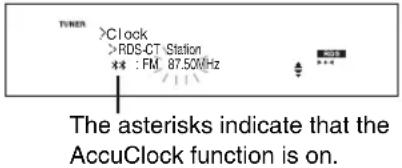 |
5 | Use the Fast Reverse and Fast Forward [◀◀]/[▶▶] buttons to tune into the FM station.Tip:If you press the [ENTER] button instead of using the Fast Reverse and Fast Forward [◀◀]/[▶▶] buttons, the CD/HDD receiver will automatically search for a suitable station.The RDS indicator appears when tuned into a station that supports RDS.The RDS indicator will flash while the CD/HDD receiver searches for a station and light up continuously when a station is found. |
6 | When you’ve selected the station, press [ENTER].While the clock is being set, “Wait...” flashes on the display. It may take a few minutes to set the clock. When the clock has been set, the message “Clock Adjusted” scrolls across the display, then the day and time are displayed for a while.Notes:If the clock is not set correctly, specify another FM station and try again or set the clock manually (see page 63).The AccuClock function automatically updates the clock every day. If you don’t want it to, you can turn off the Accu-Clock function (see page 23). |
Setting the Clock Manually
The time can be displayed in 24-hour format.
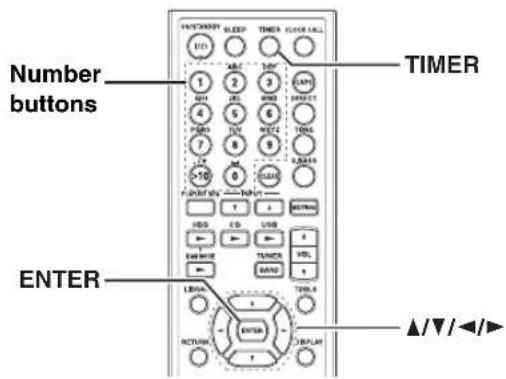
1
Press the [TIMER] button.
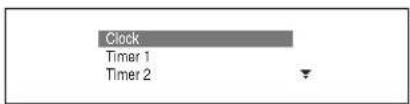
2
Press [ENTER] with "Clock" selected.
The sub-menu appears and the CD/HDD receiver enters clock setting mode.
![ONKYO BR-925 - Press [ENTER] with "Clock" selected. - 1](/content/2026/05/770676/images/c13951723c1646e7b9ccb7725a6199282e20db602613e23ac6d7dda89e7371c0.jpg)
3
![ONKYO BR-925 - Press [ENTER] with "Clock" selected. - 2](/content/2026/05/770676/images/0889de98faebbadc38374d4b46da8f59bf789bc1c8b3667a8d5d40fb961b9432.jpg)
Press [ENTER] with "Manual Adjust" selected.
The clock setting procedure starts.
4
![ONKYO BR-925 - Press [ENTER] with "Manual Adjust" selected. - 1](/content/2026/05/770676/images/5d714dea06a4f250a8a89f8a92fabe0957f51c0df86d68935bc8532cf865f896.jpg)
Use the Up and Down [▲]/[▼] buttons to set the year.
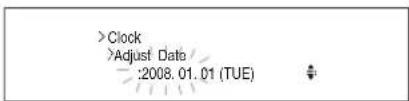
You can also use the remote controller's number buttons to enter the year.
5
![ONKYO BR-925 - Use the Up and Down [▲]/[▼] buttons to set the year. - 2](/content/2026/05/770676/images/fb145e6770a17e80991bb5768e3472614ddeb7b3c8adb2a48ed0b704a9485e0b.jpg)
Press [ENTER].
6
![ONKYO BR-925 - Press [ENTER]. - 1](/content/2026/05/770676/images/00e84e91cd274112a5c9218671db54e3dd7fbe6b017f54f4d1468b5b712a7676.jpg)
Use the Up and Down [▲]/[▼] buttons to set the date.
You can also use the remote controller's number buttons to enter the date.
7
![ONKYO BR-925 - Use the Up and Down [▲]/[▼] buttons to set the date. - 1](/content/2026/05/770676/images/acd188bc69e37a59df62d047905719d73838fcf4454d83672ee7e1779abe9bbc.jpg)
Press [ENTER].
The time setting procedure starts.
8
![ONKYO BR-925 - Press [ENTER]. - 1](/content/2026/05/770676/images/dd7c1eaa744eda3e262e11cdf3898acaae193f280c06edb7ee6328ed366d2011.jpg)
Use the remote controller's num- ber buttons to set the time.
Enter a four-digit number, hour(00-23) and minute(00-59). You can also use the Up and Down [▲]/[▼] buttons to enter the time.
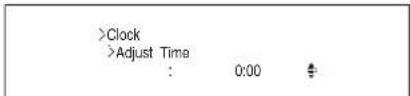
If you press the remote controller's [>10] button, you can move the clock forward/backward 12 hours.
9
Press [ENTER].
"Complete!" will be displayed and the clock is set.
Tip:
To cancel the clock setting, press the [RETURN] button repeatedly.
Displaying the Day and Time
To display the day and time, press the remote controller's [CLOCK CALL] button.
If the CD/HDD receiver is on Standby, the time is displayed for a certain time.
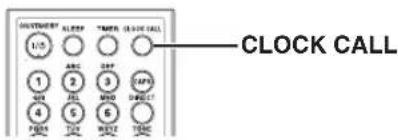
07:26 2008.01.01
The CD/HDD receiver has three timers: the sleep timer for turning the CD/HDD receiver off after a specified period, the play timer for automated playback, and the record timer for automated recording.
Up to four programmable timers are available for the play and record timers.
The timers can be used with other Onkyo components that are connected to the CD/HDD receiver via RI (see page 19 for hookup details).
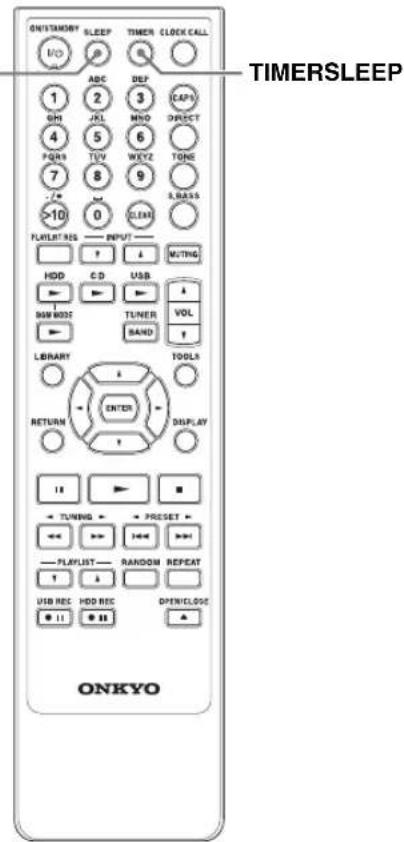
Using the Sleep Timer
With the sleep timer, you can set the CD/HDD receiver so that it automatically turns off after a specified period. This timer is convenient when you want to fall asleep while listening to music.
1
Press the [SLEEP] button repeatedly to select the required sleep time.
The SLEEP indicator and "Sleep 90 min" appear on the display, as shown. With the [SLEEP] button, you can set the sleep time from 90 to 10 minutes in 10 minute increments.
Sleep 90 min
SLEEP indicator
To set the sleep time in 1 minute increments from 99 to 1, use the Up and Down [▲]/[▼] buttons during the sleep time is displayed. The sleep time appears on the display for about 8 seconds, then the previous display reappears.
Checking the Remaining Sleep Time
To check the remaining sleep time, press the [SLEEP] button.
Note that if you press the [SLEEP] button while the remaining sleep time is 10 minutes or less, the sleep timer is canceled..
Canceling the Sleep Timer
To cancel the sleep timer, press the [SLEEP] button repeatedly until "Sleep Off" appears and the SLEEP indicator disappears.
Note:
During recording, the sleep timer can be set. When the sleep time period has expired during recording, the CD/HDD receiver will cancel the recording and enter the Standby mode.
Using the Play Timer
With the play timer, you can automatically turn on the CD/HDD receiver, start playback, and turn off the CD/HDD receiver at a specified time. This timer is convenient to use as a morning alarm.
Before setting the timer:
- You must set the clock before you can set the timers (page 62).
- Before setting a timer to turn on the radio, you must preset the station you want to use (see pages 34 and 35).
 | Press the [TIMER] button. |
 | Select a timer number.Use the Up and Down [▲]/[▼] buttonsto select Timer1, 2, 3, or 4 and thenpress [ENTER]. The Timer indicatorlights up and the selected timer numberflashes on the display.TIMER indicator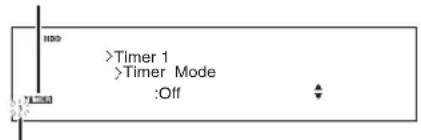 TIMER number TIMER number |
| 3 | Set the status of the timer.Use the Up and Down [▲]/[▼] buttonsto select “On”, and then press[ENTER]. |
| 4 | Set the type of the timer.Use the Up and Down [▲]/[▼] buttonsto select “Play”, and then press[ENTER]. |
| 5 | Select the source.Use the Up and Down [▲]/[▼] buttonsto select the source, and then press[ENTER].You can select the following sources: HDD, CD, USB, FM, AM, LINE,TAPE, DOCK, or DIGITALSelect a preset for FM or AM. |
Select a timer number.
TIMER indicator
| 6 | Set the day and time.Use the Up and Down [▲]/[▼] buttonsto select “Once” or“Every”, and thenpress [ENTER].Select “Once” for on-off operation.Select “Every” to perform the sameoperation every week. Use the Up andDown [▲]/[▼] buttons to set the dayand then press [ENTER].If you selected “Once”:Use the Up and Down [▲]/[▼] buttonsto select the day, and then press[ENTER].If you selected “Every”:Use the Up and Down [▲]/[▼] buttonsto select the day, “Everyday”, or “DaysSet”, and then press [ENTER].You can select the following:MON ⇔ TUE ⇔ WED THU ⇔ FRI↓ ↓SUN ⇔ Days Set Everyday ⇔ SATIf you selected “Days Set”, use the Upand Down [▲]/[▼] buttons to select thefirst day, and then press [ENTER]. Usethe Up and Down [▲]/[▼] buttons toselect the last day, and then press[ENTER]. You can select only consec-utive days. |
| 7 | Set the On time and Off time.Use the Up and Down [▲]/[▼] buttonsto select the time, and then press[ENTER]. You can also use the numberbuttons. |
| 8 | Use the Up and Down [▲]/[▼] but-tons to specify the CD/HDDreceiver’s volume level, and thenpress [ENTER].If you selected “Last”, the volume is setat the same level as the last playback. Ifyou selected “Mute”, the output ismuted. You can also set the volumefrom “01” through “41” to “Max”. |
| 9 | Press the [ON/STANDBY] buttonto set the CD/HDD receiver toStandby.Note:Be sure to set the CD/HDD receiver toStandby, otherwise the timed operationwill not work. |
Notes:
- When four timers have already been programmed, cancel one of the timers already set, and then set a new one.
- Some operation cannot be done about one minute before the On time of the timer.
See page 67 for canceling, changing, and deleting the play timer.
Using the Record Timer
With the record timer, you can automatically turn on the CD/HDD receiver, start recording, and turn off the CD/HDD receiver at a specified time. This timer is convenient when you want to record music or programs while you are out, or record late-night broadcasting programs.
Before setting the timer:
- You must set the clock before you can set the timers.
- Before setting a timer to turn on the radio, you must preset the station you want to use (see pages 34 and 35).
1 | Press the [TIMER] button. |
2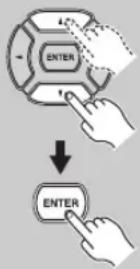 | Select a timer number.Use the Up and Down [▲]/[▼] buttonsto select Timer1, 2, 3, or 4 and thenpress [ENTER]. The Timer indicatorlights up and the selected timer numberflashes on the display.TIMER indicator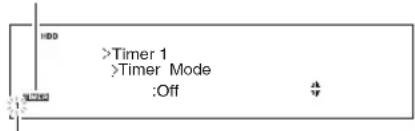 TIMER number TIMER number |
| 3 | Set the status of the timer.Use the Up and Down [▲]/[▼] buttonsto select “On”, and then press[ENTER]. |
| 4 | Set the type of the timer.Use the Up and Down [▲]/[▼] buttonsto select “Rec”, and then press[ENTER]. |
| 5 | Select the source you want to play.Use the Up and Down [▲]/[▼] buttonsto select the source and then press[ENTER].You can select the following sources:FM, AM, or LINESelect a preset for FM or AM. |
| 6 | Select the source you want to record.Use the Up and Down [▲]/[▼] buttonsto select the source, and then press[ENTER].You can select the following sources:HDD, USB, or TAPEWhen selecting an external component,you need to use an RI-capable component and set the Input Display name to match the type of component (seepage 45). |
Select a timer number.
TIMER indicator
| 7 | Set the day and time.Use the Up and Down [▲]/[▼] buttonsto select “Once” or “Every”, and thenpress [ENTER].Select “Once” for on-off operation.Select “Every” to perform the sameoperation every week. Use the Up andDown [▲]/[▼] buttons to set the dayand then press [ENTER].If you selected “Once”:Use the Up and Down [▲]/[▼] buttonsto select the day, and then press[ENTER].If you selected “Every”:Use the Up and Down [▲]/[▼] buttonsto select the day, “Everyday”, or “DaysSet”, and then press [ENTER].You can select the following:MON ⇔ TUE ⇔ WED THU ⇔ FRI↓ ↑SUN ⇔ Days Set Everyday ⇔ SATIf you selected “Days Set”, use the Upand Down [▲]/[▼] buttons to select thefirst day, and then press [ENTER]. Usethe Up and Down [▲]/[▼] buttons toselect the last day, and then press[ENTER]. You can select only consec-utive days. |
| 8 | Set the On time and Off time.Use the Up and Down [▲]/[▼] buttonsto select the time, and then press[ENTER]. You can also use the numberbuttons. |
| 9 | Set the volume.Use the Up and Down [▲]/[▼] buttonsto adjust the volume, and then press[ENTER]. |
| 10 | Press the [ON/STANDBY] buttonto set the CD/HDD receiver toStandby.Note:Be sure to set the CD/HDD receiver toStandby, otherwise the timed operationwill not work. |
Notes:
- When four timers have already been programmed, cancel one of the timers already set, and then set a new one.
- Some operation cannot be done about one minute before the On time of the timer.
- To ensure that the first few seconds of a program are recorded, set the On time slightly ahead of the program's start time (about one minute).
To hear what's being recorded during recording:
When the record timer starts from the Standby mode, the output of the CD/HDD receiver is muted. Press the [MUTING] button or VOL [▲]/[▼] button to unmute the CD/HDD receiver.
Canceling a Running Play/Record Timer
The play or record timer can be canceled during a process of timer playback or timer recording, without stopping the playback or recording.
1 Press the [TIMER] button.
2 Select the timer you want to cancel, and then press the [ENTER].
The timer setting display appears.
3 Select "Off" in the Timer Mode, and then press the [ENTER].
4 Press the [RETURN] button to return to the previous display.
Checking/Changing Timer Settings
1 Press the [TIMER] button.
2 Select the timer you want to check or change, and then press the [ENTER].
The timer setting display appears. Check the setting items while switching it by pressing the [ENTER] repeatedly. When the setting item you want to change is displayed, change it.
3 When the check is completed, press the [ENTER] to close.
Turning Off a Timer
Once a timer has been programmed, you can turn it off as necessary. For example, while you're on holiday, you may want to turn off the timer you use as an early morning alarm.
1 Press the [TIMER] button.
2 Select the timer you want to turn off, and then press the [ENTER].
The timer setting display appears.
3 Select "Off" in the Timer Mode, and then press the [ENTER].
The timer number of the selected timer disappears from the display.
When the last remaining timer was turned off, the "TIMER" indicator will also disappear.
Network Configuration
When your computer cannot be connected to the Internet, or you want to set the IP address manually, set the following network configuration. When setting it manually, input the values (alphanumeric characters) according to the setting of your broadband router currently in use. The necessary setting items vary depending on the Internet Service Provider (ISP). See the materials provided from your ISP for details.
| Setting item Description Example | ||
| IP Address | An Internet Protocol (IP) address is a numerical identification (logical address) that is assigned to computers and network devices connected to the network (TCP/IP network). | 192.168.xxx.xxx |
| Subnet Mask | In computer networks based on the Internet protocol suite, a subnet is a portion of the network's computers and network devices. A subnet mask can be used to specify which portion of the IP address should be used as the network number for the subnet. | 255.255.xxx.xxx |
| Gateway Address (Default gateway) | A default gateway is a node (a router) on a computer network that serves as an access point to another network. All internet traffic passes through the gateway.In homes, the gateway is usually the ISP-provided device that connects the user to the Internet, such as a DSL or cable modem. | 192.168.xxx.xxx |
| DNS Address (DNS server address) (primary) | The Domain Name System (DNS) associates various information with domain names. A DNS server is a special type of computer on the Internet used to support the DNS. ISPs give their customers the public IP address of the DNS server. | 192.168.xxx.xxx |
| Proxy | In computer networks, a proxy server acts an intermediate gateway between you and your Internet connection. The proxy server sends the requests of its clients by forwarding requests to other servers. The proxy server also provides network firewall, connection sharing, and caching technology for private networks. A client connects to the proxy server, requesting some service, such as a file, connection, web page, or other resource, available from a different server. The proxy server provides the resource by connecting to the specified server and requesting the service on behalf of the client. | proxy.xxx.ne.jp |
| DHCP (Dynamic host configuration protocol) | DHCP is a protocol used by networked devices (clients) to obtain the parameters necessary for operation in an Internet Protocol network. ISPs usually use DHCP so that customers can reduce system administration workload and join the Internet with minimum effort.In DHCP, a computer joins the network without having a pre-configured IP address. IP addresses are uniquely assigned to devices, then released and renewed these addresses as devices leave and re-join the network. | - |
Entering DHCP Settings Manually
You can enter DHCP settings such as the IP address, subnet mask, default gateway, or DNS server manually. Follow these steps when you want to assign the fixed IP address for network connection, or to assign the DNS server address specified by your ISP.
1 Press the [TOOLS] button.
2 Use the Up and Down [▲]/[▼] buttons to select "Network", and then press [ENTER].
3 Use the Up and Down [▲]/[▼] buttons to select "DHCP", and then press [ENTER].
4 Use the Up and Down [▲]/[▼] buttons to select "Manual", and then press [ENTER].
5 Use the Up and Down [▲]/[▼] buttons to select settings you want to enter, and then press [ENTER].
6 Enter the settings.
Use the number buttons to enter, and then press [ENTER] to save the settings.
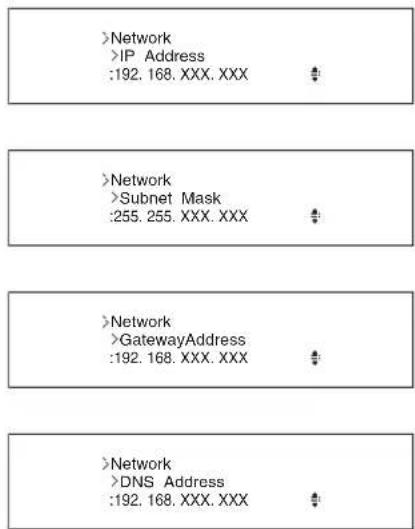
7 Press the [RETURN] button.
The confirmation message appears. Select "OK" in the "Save Setting?" message, and then press the [ENTER]. After the "Saving Settings" message is displayed, the screen returns to the menu list.
Setting the Proxy
Configure the Proxy setting when your ISP specifies it. If not specified, the Proxy setting is not necessary.
1 Press the [TOOLS] button.
2 Use the Up and Down [▲]/[▼] buttons to select "Network", and then press [ENTER].
3 Use the Up and Down [▲]/[▼] buttons to select "Proxy", and then press [ENTER].
4 Use the Up and Down [▲]/[▼] buttons to select "On", and then press [ENTER].
5 Use the Up and Down [▲]/[▼] buttons to select settings you want to enter, and then press [ENTER].
6 Enter the settings.
Use the number buttons to enter, and then press [ENTER] to save the settings.
![>Network >Proxy Port : 80 ‡ >Network >Proxy Address a] proxy. XXX.jp ‡ >Network >Proxy UserName a] proxy ‡ >Network >Proxy Password A] **** * ‡](/content/2026/05/770676/images/db164244e461154c9da15325db640bfda477ac3b9dc6c35e2de324db28dc682d.jpg)
7 Press the [RETURN] button.
The confirmation message appears. Select "OK" in the "Save Setting?" message, and then press the [ENTER]. After the "Saving Settings" message is displayed, the screen returns to the menu list.
Supported Discs
The CD/HDD receiver supports the following discs (8 cm and 12 cm).
| Disc Logo | Format or file type | ||
Audio CD WAV (PC)  | |||
| CD-R |  |  | Audio CD, MP3, WMA, AAC |
| CD-RW |  |  | Audio CD, MP3, WMA, AAC |
Notes:
- The CD/HDD receiver does not play discs that have not been finalized.
- The playback may not be possible depending on the disc characteristics or recording state of a CD-R/CD-RW disc.
- The PHOTO CD, data session of CD Extra disc, and super audio CD cannot be played.
- The CD-R/CD-RW with music CD and MP3 file mixed cannot be played.
Don't use discs with an unusual shape, such as those shown below, as you may damage the CD/HDD receiver.
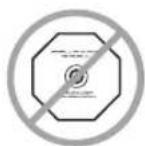
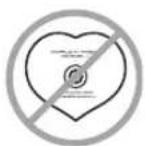
Tip:
For the CD recording format, see the instruction manual of your CD-R/RW drive or the disc burner.
Disc Content Organization
■Audio CD
Audio CDs contain tracks.
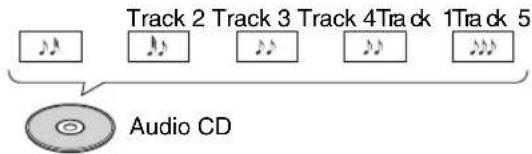
■Data CD
Data CDs contain MP3, WMA, AAC, or WAV files organized into folders.
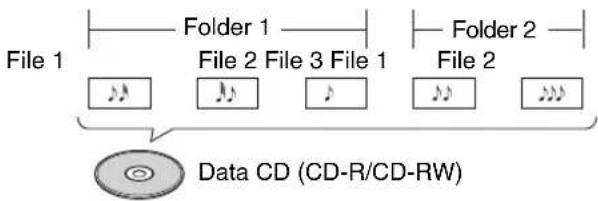
Precautions on DualDiscs
The CD/HDD receiver is designed to play discs in conformity with the CD standards. The DualDisc is a two-sided disc made up of a DVD-standard-compatible side and a music-specific side. However, the music-specific side is not compatible with the CD standards, so it may not be played with the CD/HDD receiver.
DualDisc is a trademark owned by the Recording Industry Association of America (RIAA).
Playback of Copy-protected Audio CDs
Some audio CDs use copy protection that doesn't conform to the CD standards. Since these are nonstandard discs, they may not play properly in the CD/HDD receiver.
Handling Discs
- Never touch the underside of a disc. Always hold discs by the edge, as shown.
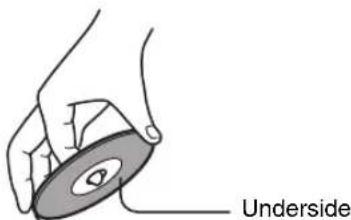
- Never attach adhesive tape or sticky labels, or write letters even on the label side, much less on the underside.
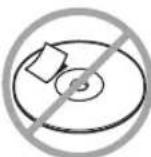
- Never scratch the CD surfaces.
Precautions on Rental Discs
Don't use discs that have residue from adhesive tape, rental discs with peeling labels, or discs with custom-made labels or stickers. Doing so may damage the CD/HDD receiver and you may not be able to remove the disc properly.
Cleaning Discs
- For best results, keep your discs clean. Fingerprints and dust can affect the sound quality and should be removed as follows. Using a clean soft cloth, wipe from the center outwards, as shown. Never wipe in a circular direction.
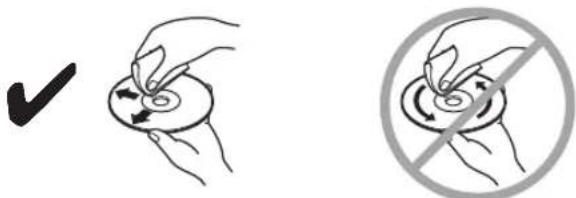
- To remove stubborn dust or dirt, wipe the disc with a damp soft cloth, and then dry it with a dry cloth.
- Never use solvent-based cleaning fluids, such as thinner or benzine, commercially available cleaners, or antistatic sprays intended for vinyl records, as they may damage the disc.
Storing Discs
- Don't store discs in places subject to direct sunlight or near heat sources.
- Don't store discs in places subject to moisture or dust, such as in a bathroom or near a humidifier.
• Always store discs in their cases and vertically. Stacking, or putting objects on unprotected discs may cause warping, scratches, or other damage.
playable Formats
Supported Formats
The CD/HDD receiver supports the following formats for playback.
WAV: (*.wav)
Sampling rate: 32 kHz, 44.1 kHz, 48 kHz
Data size: 16 bit, 24 bit
WMA: (*.wma)
Format: Windows Media ^® Audio V9.0 (Compliant with WMA9/9.1 standard audio bit streams encapsulated in ASF container and backward compatible with WMA4, WMA4.1, WMA7 & WMA8; CBR & VBR; Mono & Stereo)
Sampling rate: 8 kHz, 11.025 kHz, 16 kHz, 22.05 kHz, 32 kHz, 44.1 kHz, 48 kHz
Bit rate: 8-384 kbps and VBR
MP3: (*.mp3)
Format: MPEG-2 Audio Layer-3
Sampling rate: 8 kHz, 11 kHz, 12 kHz, 16 kHz, 22.05 kHz, 24 kHz, 32 kHz, 44.1 kHz, 48 kHz
Bit rate: 8-320 kbps and VBR
AAC: (*.m4a)
Format: MPEG-4 Audio
Sampling rate: 8 kHz, 11 kHz, 12 kHz, 16 kHz, 22.05 kHz, 24 kHz, 32 kHz, 44.1 kHz, 48 kHz
Bit rate: 8-192 kbps and VBR
- The playable format for the iPod is determined in accordance with the specifications of the iPod. However, contents recorded at the sampling rate of 32kHz cannot be played.
- Some types of AAC files may not be played.
- Music files which are copyright protected cannot be played.
- When a file created in unsupported sampling rate or bit rates is played, playback may be stopped or become intermittent, or loud noises or speaker damage may occur.
- Do not use each specified file extension for a file in a different format. The CD/HDD receiver tries to playback it and this may result in skipped playback, noises or failure.
- In the following cases, the elapsed time of playback may be different from the actual time.
- When a VBR (Variable Bit Rate) file is played
- When fast reverse or fast forward is performed
- The maximum time that can be displayed for a single file is 99 minutes and 59 seconds.
- The remaining time cannot be displayed.
- The following ID3 tags are supported: versions 1.0/1.1 and 2.2/2.3/2.4. Versions 2.5 and later are not supported. Normally, version 2.2/2.3/2.4 tags have priority and will be displayed.
- For ID3 version 2 tags, the tag information recognized will be those embedded in the beginning of the file. Onkyo recommend that you include only title, artist name, and album name information in ID3 tags. Com-
pressed, encrypted, and unsynchronized ID3 tags cannot be displayed.
- The ID3 tag information may be displayed in only 31 characters depending on the file.
- The CD/HDD receiver supports up to 500 files and folders per disc. Files and folders in excess of this cannot be played. Note that if the file and folder structure is very complicated, the CD/HDD receiver may not be able to read or play all of the files.
- With CD-ROM, CD-R, and CD-RW discs that contain many files and folders and files (not limited to music files), it may take a long time to read the disc. Onkyo recommend that you include only music files on your discs, use about 20 folders, and limit folder nesting to three levels deep.
• The Emphasis is not supported.
• Multisession discs are not supported.
■ Levels of Music Files and Playback Order
Albums (folders) or tracks recorded in a data CD or USB storage device are recognized in hierarchical structure, and played back in ascending order of 1 to 7 in the example below.
When an album contains sub albums, tracks in the sub albums have priority for playback. (Example: Because album B contains sub album C, track 3 will be played after track 2 instead of track 6 or 7.)
Depending on the disc burner used during recording of the music files, the tracks may not be played in the order shown in the figure.
Example of levels:
| Disc or USB device | 1st level | 2nd level | 3rd level | 4th level |
| A | 1 | |||
| Folder | ||||
| B | File | |||
| 2 | ||||
| C | ||||
| 3 | ||||
| E | D | |||
| F | ||||
| G | 5 | |||
| 6 | ||||
| 7 |
Note:
For the data CD with music files recorded, the CD/HDD receiver can display up to eight levels deep. Also, depending on the restrictions of your personal computer, the display may be limited.
Explanation of buttons for using the Onkyo MD recorder, cassette deck, CD recorder, or RI Dock, when connected to the MD/TAPE jack, DOCK/CDR jack or DIGITAL IN jack of the CD/HDD receiver.
• See page 19 for instructions on connecting the components.
- To control the MD recorder, the Input Display for the MD/TAPE jacks must be set to "MD" (see page 45).
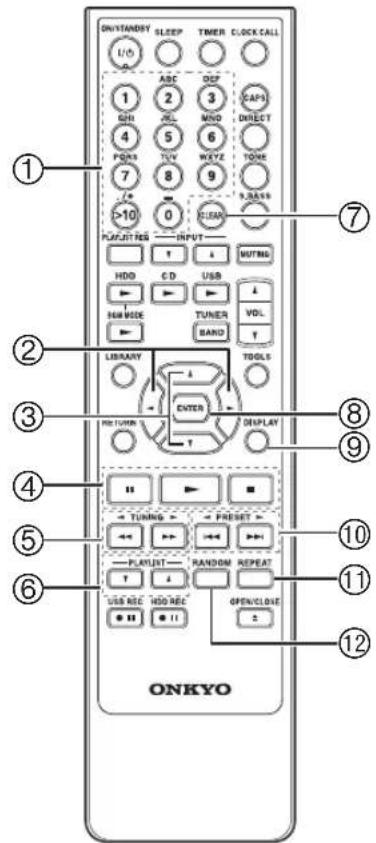
Example: Shows the case of 1:
the [RANDOM] button.
- When the cassette deck is connected to the MD/TAPE jack of the CD/HDD receiver and the input source is set to "TAPE", it works as a DOLBY NR button.
- When the CD recorder is connected to the DOCK/CDR IN/OUT jack of the CD/HDD receiver and the input source is set to “DOCK”, it works as a SHUFFLE button. However, the input source is set to “CD-R”, it works as a RANDOM button. In the same way, when the CD recorder is connected to the OPTICAL DIGITAL IN jack and the input source is set to “CD-R/dig”, it works as a RANDOM button.
| Jack MD/TAPE DOCK/CDR DIGITAL IN | ||||||
| Input source Button | TAPE MD DOCK CD-R CD-R/dig | |||||
| a | 1 ~ 9 1 ~ 9 1 ~ 9 1 ~ 9 | |||||
| 0 10/0 10/0 | 10/0 | |||||
| >10 | >10 | >10 | >10 | |||
| b | ◄/► | ALBUM ▲/▼ | ||||
| c | ▲/▼ | CURSOR ▲/▼ | ||||
| d | ► | ► | ► | ► | ► | ► |
| ■ | ■ | ■ | ■ | ■ | ■ | |
| II | ◄ | II | II | II | II | |
| e | ◄◄/►► | ◄◄/►► | ◄◄/►► | ◄◄/►► | ◄◄/►► | |
| f | PLAYLIST ▲/▼ | PLAYLIST ▲/▼ | ||||
| g | CLEAR | CLEAR | CLEAR | |||
| h | ENTER | ENTER | SELECT | ENTER ENTER | ||
| i | DISPLAY | DISPLAY | BACKLIGHT | DISPLAY | DISPLAY | |
| j | |◄◄/►►| | ◄◄/►► | |◄◄/►►| | |◄◄/►►| | |◄◄/►►| | |◄◄/►►| |
| k | REPEAT | REV MODE | REPEAT | REPEAT | REPEAT | REPEAT |
| l | RANDOM | DOLBY NR | RANDOM (PLAY MODE) | SHUFFLE* | RANDOM | RANDOM |
See the instruction manual for each connected component for details. For column items with no notation, buttons will not function when pressed.
If you have any trouble using the CD/HDD receiver, look for a solution in this section.
If you can't resolve the issue yourself, try resetting the CD/HDD receiver before contacting your Onkyo dealer.
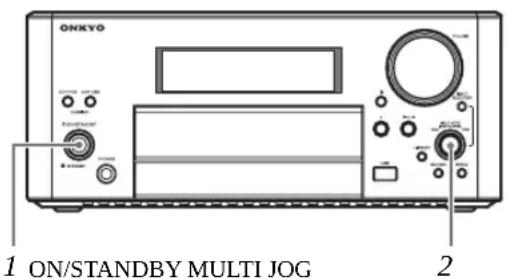
To reset the CD/HDD receiver, while holding down the [ON/STANDBY] button, turn the [MULTI JOG] dial.
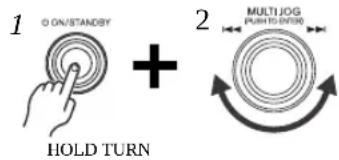
Power
Can't turn on the CD/HDD receiver.
- Make sure that the power cord is properly plugged into the wall outlet (see page 22).
- Unplug the power cord from the wall outlet, wait 5 seconds or more, then plug it in again.
It takes a time to start after the power is turned on from standby mode.
- It may take approx. 30 seconds for the CD/HDD receiver to start because it shall obtain the IP address automatically depending on the status of the CD/HDD receiver.
The CD/HDD receiver turns off unexpectedly.
- If the sleep timer has been set and the TIMER indicator is shown on the display, the CD/HDD receiver will turn off automatically after a specified period (see page 64).
- When timed playback or recording finishes, the CD/HDD receiver automatically switches to Standby mode.
- If the STANDBY indicator is flashing, the built-in amplifier protection circuit has been activated. This can happen if there's a short between the positive and negative wires of a speaker cable.
Audio
There's no sound.
- Make sure the speakers are connected correctly (see page 16).
- Make sure the CD/HDD receiver's volume control is not set to minimum (see page 24).
- Make sure the correct input source is selected (see page 24).
- Make sure the CD/HDD receiver is not muted (see page 25).
- While headphones are connected, the speakers output no sound (see page 24).
The sound quality is not good.
- Make sure the speaker cables are connected with the correct polarity (see page 16).
- Make sure all audio connecting plugs are pushed in all the way (see page 15).
- The sound quality can be affected by strong magnetic fields, such as that from a TV. Try moving any such devices away from the CD/HDD receiver.
- If you have any devices that emit high-intensity radio waves near the CD/HDD receiver, such as a cellular phone that's being used to make a call, the CD/HDD receiver may output noise.
- The CD/HDD receiver's precision drive mechanism may emit a faint hissing sound while reading discs during play-back or when searching for tracks. You may be able to hear this noise in extremely quiet environments. With some discs, the sound of disc rotation may become louder during recording.
Audio output is intermittent when the CD/HDD receiver is subjected to vibration.
- The CD/HDD receiver is not a portable device. Use it in a location that's not subject to shock or vibration.
- This may be due to dirty contacts. Clean the headphones plug. See your headphones' instruction manual for cleaning information. Also, make sure that the headphones cable is not broken or damaged.
- Audio performance will be at its best about 10 to 30 minutes after the CD/HDD receiver has been turned on and had time to warm up.
- Using cable ties to bundle audio cables with speaker or power cables may degrade the sound quality, so don't do it.
Headphone output is intermittent or there's no sound.
Audio performance
HDD Playback
Can't play a track.
- Audio sound recorded in an incorrect format cannot be played (see page 72).
Can't record a CD.
- Make sure the CD conforms to the official CD standard (see page 70).
- The CD/HDD receiver can record only audio CDs to the HDD.
- Make sure the disc is not damaged or dirty.
Can't record files from USB storage device.
- Up to 10,000 tracks can be recorded at a time. Delete tracks in the USB storage device to 10,000 or less, and then record them.
Can't record to digital audio player.
- The CD/HDD receiver can record only to the digital audio player that conforms to the USB mass storage class.
- The CD/HDD receiver may not be recordable to some MP3 players.
CD Playback
Playback jumps.
- The CD/HDD receiver is being subjected to vibration or the disc is scratched or dirty (see page 71).
The disc will not play.
- Make sure the loaded disc is supportable by the CD/HDD receiver (see page 70).
- Make sure the disc has been loaded correctly, with the label-side facing up.
- Check to see if the surface of the disc is dirty (see page 71).
- If condensation is suspected, turn on the CD/HDD receiver and leave it for 1 hour before playing any discs.
- Some CD-R/RW discs may not be playable (see page 70).
Can't play tracks in the order recorded on a CD.
- Cancel the repeat and random playback (see page 31).
Can't retrieve music file information.
- Music information of only audio CDs can be retrieved.
- For retrieving music information of audio CDs, Internet connection is required (see page 21).
- When the “Gracenote Service” is set to “Off”, you need to retrieve the music information manually.
It takes a long time for playback to start.
- It may take the CD/HDD receiver a while to read CDs that contain many tracks or files.
Can't play music files.
- Use only ISO 9660 Level 1, Level 2, or Joliet compliant discs.
- MP3 files without a “.mp3” or “.MP3” filename extension are not recognized. AAC files without a “.m4a” or “.M4A” filename extension are not recognized. WAVE files without a “.wav” or “.WAV” filename extension are not recognized. If the file extension is added to a file in a different format, the CD/HDD receiver tries to playback it and this may result in skipped playback, noises or failure.
- The CD-R/CD-RW with music CD and music file mixed cannot be played (see page 70).
Troubleshooting—Continued
Playback of audio CD with copy protection function (copy control function)
Noise or skip occurs during playback / Disc is not recognized and “NO DISC” is displayed / First track is not played / Music scan takes longer time than usual / Playback starts from halfway / Some parts cannot be played / Playback stops halfway / Display error occurs
- The audio CD has a copy protection function (copy control function). Some audio CDs use copy protection that doesn't conform to the official CD standard. Since these are nonstandard discs, they may not play properly in the CD/HDD receiver.
Tuner
Reception is noisy, stereo FM reception suffers from hiss, the Auto Preset function doesn't preset all stations, or the FM STEREO indicator doesn't light up when tuned to a stereo FM station.
- Check the antenna connections (see page 17).
- Change the position of the antenna (see page 32).
- Move the CD/HDD receiver away from a nearby TV or computer.
- Move power cords and speaker cables as far away as possible from the tuner's antenna.
• Cars or airplanes can cause noisy interference. - The radio signal will be weakened if it has to pass through a concrete wall before reaching the antenna.
- Try setting FM mode to mono (see page 36).
- When listening to an AM station, noise may be heard when you operate the remote controller.
- If none of the above improves the reception, install an outdoor antenna (see page 18).
If a power outage occurs or the power cable is disconnected:
- If the preset stations are lost, preset them again (see page 34).
- The clock and timer settings will be lost. Set the clock and timers again (see page 62).
Can't adjust the frequency of the radio.
- Use the Fast Reverse and Fast Forward [◀◀]/[▶▶] buttons to change the frequency of the radio (see page 32). RDS doesn't work.
- The FM station you are tuned to doesn't support RDS.
• Install an outdoor FM antenna (see page 18). - Change the position or direction of your outdoor FM antenna (see page 18).
- Move the FM antenna as far away as possible from fluorescent lights (see page 32).
External Components
Can't record to components connected to LINE 2 or LINE3.
- The CD/HDD receiver does not output signals from LINE 2 IN from LINE 2 OUT. In the same way, signals from LINE 3 IN are not output from LINE 3 OUT. This protects the CD/HDD receiver from malfunction or failure due to the loop between input and output.
- If Audyssey EQ™ is active, you cannot perform recording to an external component. Deactivate Audyssey EQ™ (see page 26).
Interactive control with other Onkyo RI-capable components is not working.
- Make sure the RI cables and analog audio cables are connected correctly (see page 19). Connecting only an RI cable won't work.
-
Make sure the Input Display matches the type of device that you’ve connected to the CD/HDD receiver (see page 45). No sound is heard from your turntable.
-
Make sure the turntable has a built-in phono equalizer.
- If the turntable doesn't have a phono equalizer built-in, you must provide one.
Record player cannot play.
- When a record player of MC cartridge type is used, a boosting transformer or head amplifier is required.
©
Others
Track number or playlist number is not displayed correctly.
- The number of tracks or the playlists is 1,000 or more, “-- -” is displayed.
Not operate normally.
- If the CD/HDD receiver is affected by static electricity or the like, it may operate abnormally. At this time, turn off the power, wait for one minute, and then turn on the power again. If it still does not operate, reset the CD/HDD receiver.
- When any warning message appears on the screen, follow the message.
When five-digit alphanumeric characters are displayed on the screen:
- The CD/HDD receiver has a self-diagnosis function to prevent a malfunction occurring, and displays five-digit alphanumeric characters on the screen when this function is on. In this case, please notify the call center of the characters.
Precautions on RI dock connection
- When changing the Input Selector from DOCK (RI dock) to another, be sure to stop the iPod.
Onkyo is not responsible for damages (such as CD rental fees) due to unsuccessful recordings caused by the unit's malfunction. Before you record important data, make sure that the material will be recorded correctly.
Disposal and transporting the CD/HDD receiver
Delete all the tracks or data in the hard disk drive before you disposed of the CD/HDD receiver or transport it. When you have set the network configuration, change the parameters beforehand. Please note that Onkyo will not be responsible for all possible damages and passive damages if the information should be tampered, leaked, changed, or disappeared.
The CD/HDD receiver contains a microcomputer for signal processing and control functions. In very rare situations, severe interference, noise from an external source, or static electricity may cause it to lockup. In the unlikely event that this should happen, unplug the power cord, wait at least 5 seconds, and then plug it again.
General
| Power Supply: AC 230 V, 50 Hz | |
| Power Consumption: 76 W | |
| Stand-by Power Consumption: 0.6 W | |
| Dimensions (W × H × D): | 295 × 128 × 313 mm |
| Weight: 7.6 kg (16.8 lbs.) |
Audio Inputs
| Analog Inputs: 3 (LINE1, DOCK/CDR IN, MD/TAPE IN) | |
| Digital Input: 1 (Optical) | |
Audio Outputs
| Analog Outputs: 2 (DOCK/CDR OUT, MD/TAPE OUT) | |
| Subwoofer Pre Output: 1 | |
| Speaker Outputs: 2 | |
| Phones: 1 | |
ETHERNET port
| ETHERNET Interface: 10Base-T |
USB port
| Plug: USB type A |
| Version: Hi-speed USB |
| Driver: USB Mass Storage Class |
Amplifier Section
| Power Output: | 2ch × 20 W (4 Ω, 1 kHz, 2ch driven, IEC) |
| THD (Total Harmonic Distortion): | 0.4% (1 kHz, 1 W) |
| Damping Factor: | 25 (8 Ω) |
| Input Sensitivity and Impedance: | 150 mV/50 kΩ (LINE1, DOCK/CDR IN, MD/TAPE IN) |
| Output Level and Impedance: | 150 mV/2.2 kΩ (DOCK/CDR OUT, MD/TAPE OUT) |
| Frequency Response: | 10 Hz–100 kHz/±3 dB (LINE1, DOCK/CDR, MD/TAPE) |
| Tone Control: | ±6 dB, 80 Hz (BASS)±8 dB, 10 kHz (TREBLE)+7 dB, 80 Hz (S.BASS) |
| Signal to Noise Ratio: | 100 dB (LINE1, DOCK/CDR, MD/TAPE, IHF-A) |
| Speaker Impedance: | 4 Ω–16 Ω |
Tuner Section
FM
| Tuning Frequency Range: | 87.50 MHz-108.0 MHz |
AM
| Tuning Frequency Range: 522 kHz–1611 kHz |
Preset Channel
| Number of preset stations: | 40 stations in total, including FM and AM |
CD
| Frequency Response: | 10 Hz–20 kHz |
| Audio Dynamic Range: | 95 dB |
| THD (Total Harmonic Distortion): | 0.007% |
| Wow and Flutter: Below threshold of measurability | |
| Audio Output/Impedance (Analog): | 1.3 V (rms)/2.2 kΩ |
Specifications and features are subject to change without notice.
* This product is manufactured under license from Dolby Laboratories.
* Microsoft and Windows are registered trademarks or trademarks of the Microsoft Corporation in the United States and other countries.
* The jPlayer MPEG Layer-3 audio coding technology is licensed from Fraunhofer IIS and Thomson Multimedia.
About Gracenote®
Music recognition technology and related data are provided by Gracenote®. Gracenote is the industry standard in music recognition technology and related content delivery.
For more information visit www.gracenote.com.
CD and music-related data from Gracenote, Inc., copyright© 2000-2008 Gracenote. Gracenote Software, copyright 2000-2008 Gracenote. This product and service may practice one or more of the following U.S. Patents: #5,987,525; #6,061,680; #6,154,773, #6,161,132, #6,230,192, #6,230,207, #6,240,459, #6,330,593, and other patents issued or pending. Services supplied and/or device manufactured under license for following Open Globe, Inc. United States Patent 6,304,523.
Gracenote and CDDB are registered trademarks of Gracenote. The Gracenote logo and logotype and the “Powered by Gracenote” logo are trademarks of Gracenote.

gracenote.
Gracenote® End User License Agreement
This application or device contains software from Gracenote, Inc. of Emeryville, California (“Gracenote”). The software from Gracenote (the “Gracenote Software”) enables this application to perform disc and/or file identification and obtain music-related information, including name, artist, track, and title information (“Gracenote Data”) from online servers or embedded databases (collectively, “Gracenote Servers”) and to perform other functions. You may use Gracenote Data only by means of the intended End-User functions of this application or device.
You agree that you will use Gracenote Data, the Gracenote Software, and Gracenote Servers for your own personal non-commercial use only. You agree not to assign, copy, transfer or transmit the Gracenote Software or any Gracenote Data to any third party. YOU AGREE NOT TO USE OR EXPLOIT GRACENOTE DATA, THE GRACENOTE SOFTWARE, OR GRACENOTE SERVERS, EXCEPT AS EXPRESSLY PERMITTED HEREIN.
You agree that your non-exclusive license to use the Gracenote Data, the Gracenote Software, and Gracenote Servers will terminate if you violate these restrictions. If your license terminates, you agree to cease any and all use of the Gracenote Data, the Gracenote Software, and Gracenote Servers. Gracenote reserves all rights in Gracenote Data, the Gracenote Software, and the Gracenote Servers, including all ownership rights. Under no circumstances will Gracenote become liable for any payment to you for any information that you provide. You agree that Gracenote, Inc. may enforce its rights under this Agreement against you directly in its own name.
The Gracenote service uses a unique identifier to track queries for statistical purposes. The purpose of a randomly assigned numeric identifier is to allow the Gracenote service to count queries without knowing anything about who you are. For more information, see the web page for the Gracenote Privacy Policy for the Gracenote service.
The Gracenote Software and each item of Gracenote Data are licensed to you “AS IS.” Gracenote makes no representations or warranties, express or implied, regarding the accuracy of any Gracenote Data from in the Gracenote Servers. Gracenote reserves the right to delete data from the Gracenote Servers or to change data categories for any cause that Gracenote deems sufficient. No warranty is made that the Gracenote Software or Gracenote Servers are error-free or that functioning of Gracenote Software or Gracenote Servers will be uninterrupted. Gracenote is not obligated to provide you with new enhanced or additional data types or categories that Gracenote may provide in the future and is free to discontinue its services at any time.
GRACENOTE DISCLAIMS ALL WARRANTIES EXPRESS OR IMPLIED, INCLUDING, BUT NOT LIMITED TO, IMPLIED WARRANTIES OF MERCHANTABILITY, FITNESS FOR A PARTICULAR PURPOSE, TITLE, AND NON-INFRINGEMENT. GRACENOTE DOES NOT WARRANT THE RESULTS THAT WILL BE OBTAINED BY YOUR USE OF THE GRACENOTE SOFTWARE OR ANY GRACENOTE SERVER. IN NO CASE WILL GRACENOTE BE LIABLE FOR ANY CONSEQUENTIAL OR INCIDENTAL DAMAGES OR FOR ANY LOST PROFITS OR LOST REVENUES.
ONKYO CORPORATION
Sales & Product Planning Div.: 2-1, Nisshin-cho, Neyagawa-shi, OSAKA 572-8540, JAPAN Tel: 072-831-8023 Fax: 072-831-8163
Suite 1, Gregories Court, Gregories Road, Beaconsfield, Buckinghamshire, HP9 1HQ UNITED KINGDOM Tel: +44-(0)1494-681515 Fax: +44(0)-1494-680452
ONKYO CHINA LIMITED
Unit 1&12, 9/F, Ever Gain PlazaTower 1, 88, Container Port Road, Kwai Chung, N.T., HONG KONG Tel: 852-2429-3118 Fax: 852-2428-9039 http://www.ch.onkyo.com/
http://www.onkyo.com/
Y0809-1