
Revo RL70 - Desktop computer ACER - Free user manual and instructions
Find the device manual for free Revo RL70 ACER in PDF.


User questions about Revo RL70 ACER
0 question about this device. Answer the ones you know or ask your own.
Ask a new question about this device
Download the instructions for your Desktop computer in PDF format for free! Find your manual Revo RL70 - ACER and take your electronic device back in hand. On this page are published all the documents necessary for the use of your device. Revo RL70 by ACER.
USER MANUAL Revo RL70 ACER
Original Issue: 11/2011
AcerSystem Desktop Computer
Model number: ____
Serial number: ____
Purchase date: ____
Place of purchase: ____
Visit http://registration.acer.com and discover the benefits of being an Acer customer.
Productivity Software
Work Great with Microsoft® Office 2010 -- Express your ideas, solve problems and simplify everyday projects with Office 2010.
Photo editing -- Easily edit and print your photos with Windows Live Photo Gallery. Then share them on Facebook, YouTube or Windows Live.
Search & Decide with Bing -- Find and organize the answers you need using Bing™, so you can make faster, more informed decisions.
Information for your safety and comfort
Safety instructions
Read these instructions carefully. Keep this document for future reference. Follow all warnings and instructions marked on the product.
Turning the product off before cleaning
Unplug this product from the wall outlet before cleaning. Do not use liquid cleaners or aerosol cleaners. Use a damp cloth for cleaning.
CAUTION for plug as disconnecting device
Observe the following guidelines when connecting and disconnecting power to the power supply unit:
Install the power supply unit before connecting the power cord to the AC power outlet.
Unplug the power cord before removing the power supply unit from the computer.
If the system has multiple sources of power, disconnect power from the system by unplugging all power cords from the power supplies.
CAUTION for accessibility
Be sure that the power outlet you plug the power cord into is easily accessible and located as close to the equipment operator as possible. When you need to disconnect power to the equipment, be sure to unplug the power cord from the electrical outlet.
Warnings
- Do not use this product near water.
- Do not place this product on an unstable cart, stand or table. If the product falls, it could be seriously damaged.
- Slots and openings are provided for ventilation to ensure reliable operation of the product and to protect it from overheating. These openings must not be blocked or covered. The openings should never be blocked by placing the product on a bed, sofa, rug or other similar surface. This product should never be placed near or over a radiator or heat register, or in a built-in installation unless proper ventilation is provided.
- Never push objects of any kind into this product through cabinet slots as they may touch dangerous voltage points or short-out parts that could result in a fire or electric shock. Never spill liquid of any kind onto or into the product.
- To avoid damage of internal components and to prevent battery leakage, do not place the product on a vibrating surface.
©
Product servicing
Do not attempt to service this product yourself, as opening or removing covers may expose you to dangerous voltage points or other risks. Refer all servicing to qualified service personnel.
Unplug this product from the wall outlet and refer servicing to qualified service personnel when:
- The power cord or plug is damaged, c
- Liquid was spilled into the product.
- The product was exposed to rain or water.
- The product has been dropped or the case has been damaged.
- The product exhibits a distinct change in performance, indicating a need for service.
- The product does not operate normally after following the operating instructions.

Note: Adjust only those controls that are covered by the operating instructions, since improper adjustment of other controls may result in damage and will often require extensive work by a qualified technician to restore the product to normal condition.

CAUTION: Danger of explosion if battery is incorrectly replaced. Replace only with the same or equivalent type recommended by the manufacturer. Dispose of used batteries according to the manufacturer's instructions.
Additional safety information
Your device and its enhancements may contain small parts. Keep them out of the reach of small children.
vi
Disposal instructions
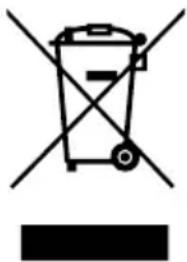
Do not throw this electronic device into the trash when discarding.
To minimize pollution and ensure utmost protection of the global environment, please recycle. For more information on the Waste from Electrical and Electronics Equipment (WEEE) regulations, visit
http://www.acer-group.com/public/Sustainability/sustainability01.htm
http://www.acer-group.com/public/Sustainability/sustainability04.htm
natural_image
Symbol of a trash bin crossed with no text or labels, accompanied by a black rectangular block below (no readable text or symbols)Mercury advisory
For projectors or electronic products containing an LCD/CRT monitor or display: Lamp(s) inside this product contain mercury and must be recycled or disposed of according to local, state or federal laws. For more information, contact the Electronic Industries Alliance at www.eiae.org. For lamp-specific disposal information, check www.lamprecycle.org

ENERGY STAR

ENERGY STAR
Acer's ENERGY STAR qualified products save your money by reducing energy cost and protecting the environment without sacrificing features or performance. Acer is proud to offer our customers products with the ENERGY STAR mark.
What is ENERGY STAR?
Products that are ENERGY STAR qualified use less energy and prevent greenhouse gas emissions by meeting strict energy efficiency guidelines set by the U.S. Environmental Protection Agency. Acer is committed to offer products and services worldwide that help customers save money, conserve energy and improve the quality of our environment. The more energy we can save through higher energy efficiency, the more we reduce greenhouse gases and the risks of climate change. More information refers to http://www.energystar.gov

Note: The statement above is applicable only to Acer system with an ENERGY STAR sticker.
©
©
©
©
©
Setting up your computer
The AcerSystem is a versatile and powerful system, supporting a mainstream performance CPU. The computer uses a state-of-the-art bus architecture, which improves system efficiency and helps the system support varied multimedia and software applications.
Your AcerSystem has standard I/O (input/output) interfaces such as USB 2.0 ports, and stereo microphone, line-in and line-out jacks (configuration may vary by models). The system can accommodate extra peripheral equipment through these I/O ports.
Your system can also support an optional high-speed fax/data modem or an additional LAN (local area network) card.
Furthermore, the system is compatible with Microsoft ^® Windows ^® or Linux-based operating systems.
Necessary to know before setup
Selecting a location
Selecting the optimum location for your computer:
- Do not place the system too close to other electrical equipment.
- Do not place the system in high-traffic areas or where the power cord or other cords may be stepped on.
- Avoid placing the system in any location that is excessively dusty or damp.

CAUTION: Please use the foot stand when placing your PC in the upright position.
Opening the package
Open the package carefully and keep all packing materials for later use.
Ensure that all items are present and in good condition. If any of the following items are missing or appear damaged, contact your dealer immediately:
- AcerSystem
-
Mouse (Wireless or USB)
-
Keyboard (Wireless or USB)
- Remote control

Note: Mouse, keyboard, wireless keyboard or remote control configuration may vary by selected models
- User's Guide and Starter poster
- Other user documentation and third-party software.
Connecting peripherals
After everything is connected, plug the power cord into the system and insert the other end into a power outlet.

Note: Don't connect the system power cord before connecting all peripherals to the system.
Starting your computer
After connecting all the peripheral equipment, start your computer according to the steps below:
1 Turn on all peripheral equipment, such as the monitor, printer, fax, speakers, etc.
2 Turn on the system. Once the start up process is complete, you can begin to use your computer.
Shutting down your computer
From the "Start" menu, select "Shut Down" and click OK.
In the event of a system crash, press and hold the power button on the front of the system for four seconds. After the system has shut down, turn off all peripheral devices.
©
©
©

Taking care of your computer
Please read the important instructions listed in this section. Following these instructions will help you maximize the durability of your computer.
Important tips
- Do not expose the computer to direct sunlight. Do not place it near sources of heat, such as a radiator.
- Do not expose the computer to temperatures below 0 °C (32°F), or above 35°C (95°F).
- Do not subject the computer to magnetic fields.
- Do not expose the computer to rain or moisture.
- Do not spill liquid on the computer.
- Do not subject the computer to heavy shock or vibration.
- Do not expose the computer to dust and dirt.
- Never place the system on uneven surfaces.
- Do not step on the power cord or place heavy objects on top of it. Carefully route the power cord and any cables away from personal traffic.
- When unplugging the power cord, do not pull on the cord itself but pull on the plug.
- The total ampere rating of the equipment plugged in should not exceed the ampere rating of the cord if you are using an extension cord. Also, the total current rating of all equipment plugged into a single wall outlet should not exceed the fuse rating.
Cleaning and servicing
To clean your computer and keyboard
1 Turn off the computer and unplug the power cord.
2 Use a soft cloth moistened with water and gently wipe the exterior of the computer and the keyboard. Do not use liquid or aerosol cleaners.
To clean your pointing device
To clean a regular mouse (with rubber ball)
1 Open the circular cover at the base of the mouse.
2 Take out the rubber ball and wipe it with a soft, damp cloth.
3 Put the ball back and replace the cover.
To clean an optical mouse
For users of an optical mouse, refer to the documentation that came with your mouse for maintenance instructions.
To clean your monitor
Make sure that you keep your screen clean. For cleaning instructions, refer to the documentation that came with your monitor.
When to contact a service technician
- If you dropped and damaged the computer
- If liquid has been spilled into the computer
- If the computer is not operating normally
- If a computer problem persists even after you have checked and applied the troubleshooting tips discussed in the "Frequently asked questions" section on page 6
- If your problem is not listed in the "Frequently asked questions" section on page 6
- If you want to replace or upgrade any of your computer's internal components
Asking for technical assistance
For technical assistance, contact your local dealer or distributor. You may also access the Web site (http://www.acer.com____) for information on how and where to contact the service centers available in your area.
Regulations and safety notices
FCC notice
This device has been tested and found to comply with the limits for a Class B digital device pursuant to Part 15 of the FCC rules. These limits are designed to provide reasonable protection against harmful interference in a residential installation. This device generates, uses, and can radiate radio frequency energy and, if not installed and used in accordance with the instructions, may cause harmful interference to radio communications.
However, there is no guarantee that interference will not occur in a particular installation. If this device does cause harmful interference to radio or television reception, which can be determined by turning the device off and on, the user is encouraged to try to correct the interference by one or more of the following measures:
- Reorient or relocate the receiving antenna.
- Increase the separation between the device and receiver.
- Connect the device into an outlet on a circuit different from that to which the receiver is connected.
- Consult the dealer or an experienced radio/television technician for help.
Notice: Shielded cables
All connections to other computing devices must be made using shielded cables to maintain compliance with FCC regulations. In compliance with FCC regulations, use shielded cables to connect to other computing devices. A dual-link cable is recommended for DVI output.
Notice: Peripheral devices
Only peripherals (input/output devices, terminals, printers, etc.) certified to comply with the Class B limits may be attached to this equipment. Operation with non-certified peripherals is likely to result in interference to radio and TV reception.
Caution
Changes or modifications not expressly approved by the manufacturer could void the user's authority, which is granted by the Federal Communications Commission, to operate this computer.
Operation conditions
This device complies with Part 15 of the FCC Rules. Operation is subject to the following two conditions: (1) this device may not cause harmful interference, and (2)
this device must accept any interference received, including interference that may cause undesired operation.
Notice: Canadian users
This Class B digital apparatus complies with Canadian ICES-003.
Declaration of Conformity for EU countries
Hereby, Acer, declares that this PC series is in compliance with the essential requirements and other relevant provisions of Directive 1999/5/EC.
Compliant with Russian regulatory certification

ME61
©
Notice for New Zealand
1 The grant of a Telepermit for any item of terminal equipment indicates only that Telecom has accepted that the item complies with minimum conditions for connection to its network. It indicates no endorsement of the product by Telecom, nor does it provide any sort of warranty. Above all, it provides no assurance that any item will work correctly in all respects with another item of Telepermitted equipment of a different make or model, nor does it imply that any product is compatible with all of Telecom's network services.
2 This equipment is not capable, under all operating conditions, of correct operation at the higher speeds for which it is designed. Telecom will accept no responsibility should difficulties arise in such circumstances.
3 Some parameters required for compliance with Telecom's Telepermit requirements are dependent on the equipment (PC) associated with this device. The associated equipment shall be set to operate within the following limits for compliance with Telecom's Specifications:
a There shall be no more than 10 call attempts to the same number within any 30 minute period for any single manual call initiation, and
b The equipment shall go on-hook for a period of not less than 30 seconds between the end of one attempt and the beginning of the next call attempt.
4 Some parameters required for compliance with Telecom's Telepermit requirements are dependent on the equipment (PC) associated with this device. In order to operate within the limits for compliance with Telecom's specifications, the associated equipment shall be set to ensure that automatic calls to different numbers are spaced such that there is not less than 5 seconds between the end of one call attempt and the beginning of another.
5 This equipment shall not be set up to make automatic calls to Telecom's 111 Emergency Service.
6 This device is equipped with pulse dialing while the Telecom standard is DTMF tone dialing. There is no guarantee that Telecom lines will always continue to support pulse dialing.
7 Use of pulse dialing, when this equipment is connected to the same line as other equipment, may give rise to bell tinkle or noise and may also cause a false answer condition. Should such problems occur, the user should NOT contact the telecom Fault Service.
8 This equipment may not provide for the effective hand-over of a call to another device connected to the same line.
9 Under power failure conditions this appliance may not operate. Please ensure that a separate telephone, not dependent on local power, is available for emergency use.
©
©

Acer America Corporation
333 West San Carlos St., San Jose
CA 95110, U. S. A.
Tel : 254-298-4000
Fax : 254-298-4147
www.acer.com

text_image
FCFederal Communications Commission Declaration of Conformity
This device complies with Part 15 of the FCC Rules. Operation is subject to the following two conditions: (1) this device may not cause harmful interference, and (2) this device must accept any interference received, including interference that may cause undesired operation.
The following local Manufacturer /Importer is responsible for this declaration:
Product: Personal Computer
Trade Name: Acer
Model Number: AcerSystem
SKU Number: XXX-xxx,
$$ \left(" x" = 0 \sim 9, a \sim z, A \sim Z \text { or Blank }\right) $$
Name of Responsible Party: Acer America Corporation
Address of Responsible Party: 333 West San Carlos St.
San Jose, CA 95110
U. S. A.
Contact Person: Acer Representative
Phone No.: 254-298-4000
Fax No.: 254-298-4147
©