
AT1931 - TV ACER - Free user manual and instructions
Find the device manual for free AT1931 ACER in PDF.


| Product Type | LCD Monitor with TV functions (AV, S-Video) |
| Brand | Acer |
| Model | AT1931 |
| Screen Size | 19 inches (48 cm) diagonal |
| Display Type | Active matrix TFT LCD |
| Native Resolution | 1280 x 1024 (SXGA) |
| Brightness | 300 cd/m² (typical) |
| Contrast Ratio | 700:1 (typical) |
| Response Time | 25 ms (Tr=15ms, Tf=10ms) |
| Viewing Angle | 170° horizontal / 170° vertical (CR > 10) |
| Display Colors | 16.7 million |
| Video Inputs | VGA (D-sub 15-pin), DVI-D, Composite (RCA yellow), S-Video (4-pin mini-DIN) |
| Audio Inputs | 3.5mm stereo jack (PC), RCA stereo (L/R) for AV |
| Built-in Speakers | 2 x 2W (8Ω) |
| Power Consumption | 55W (max) On; <5W in standby/off |
| Power Supply | External AC adapter (100-240V, 50/60Hz) to DC 12V/5A |
| VESA Mount | 100 x 100 mm (4 screws, M4 x 8mm) |
| Tilt Adjustment | -5° to +25° |
| Dimensions (W x H x D) | 423 x 422 x 172 mm (with base) |
| Net Weight | 6 kg (approx) |
| Gross Weight | 8.5 kg (approx) |
| Operating Temperature | 5°C to 40°C |
| Storage Temperature | -20°C to 60°C |
| Cleaning Instructions | Power off, unplug, use non-solvent cleaner on soft cloth, gently wipe screen |
| Safety Features | FCC Class B, DOC compliance; use surge protector; do not open unit |
Frequently Asked Questions - AT1931 ACER
User questions about AT1931 ACER
0 question about this device. Answer the ones you know or ask your own.
Ask a new question about this device
Download the instructions for your TV in PDF format for free! Find your manual AT1931 - ACER and take your electronic device back in hand. On this page are published all the documents necessary for the use of your device. AT1931 by ACER.
USER MANUAL AT1931 ACER
Chapter 1 Installation....2
Unpacking 2
Connecting the LCD Monitor and Base 2
Viewing Angle Adjustment....2
Detaching LCD Monitor from Its Stand....3
Interface for Arm Applications....3
Connecting the Display to your Computer 3
Connecting the AC Power....3
Connecting the Audio Cable 3
Connecting the AV and S-Video cable....3
Setting Up the LCD Monitor....4
Power Management System 4
Chapter 2 Display Controls....4
User Controls 4
Adjusting the Monitor's Display....5
Function Description 5
Chapter 3 Technical Information ....7
Specifications....7
Standard Timing Table....10
Troubleshooting 10
Preface
This manual is designed to assist users in setting up and using the LCD Monitor. Information in this document has been carefully checked for accuracy; however, no guarantee is given to the correctness of the contents. The information in this document is subject to change without notice. This document contains proprietary information protected by copyright. All rights are reserved. No part of this manual may be reproduced by any mechanical, electronic or other means, in any form, without prior written permission of the manufacturer.
FCC Statement Warning
This equipment has been tested and found to comply with the limits for a Class B digital device, pursuant to Part 15 of the FCC Rules. These limits are designed to provide reasonable protection against harmful interference in a residential installation. This equipment generates, uses, and can radiate radio frequency energy, and if not installed and used in accordance with the instruction, may cause harmful interference to radio communications. However, there is no guarantee that interference will not occur in a particular installation. If this equipment does cause harmful interference to radio or television reception, which can be determined by turning the equipment off and on, the user is encouraged to try to correct the interference by one or more of the following measures:
- Reorient or relocate the receiving antenna.
- Increase the separation between the equipment and the receiver.
- Connect the equipment into an outlet on a circuit different from that to which the receiver is connected.
- Consult the dealer or an experienced radio/TV technician for help.
Any changes or modifications not expressly approved by the manufacturers may void the user's authority to operate this equipment.
NOTE: A shielded-type signal cord is required in order to meet the FCC emission limits and also to prevent interference to the radio and television reception. It is essential that only the supplied signal cord be used.
Canadian DOC Notice

This Class B digital apparatus meets all requirements of the Canadian Interference-Causing Equipment Regulations.
Important Safety Instructions
Please read the following instructions carefully. This manual should be retained for future use.
- To clean LCD Monitor screen;
-- Power off LCD Monitor and unplug the AC Cord.
-- Spray a non-solvent cleaning solution onto a rag.
-- Gently clean the screen with dampened rag.
-
Do not place the LCD Monitor near a window. Exposing the monitor to rain water, moisture or sunlight can severely damage it.
-
Do not apply pressure to the LCD screen. Excess pressure may cause permanent damage to the display.
-
Do not remove the cover or attempt to service this unit by yourself. Servicing of any nature should be performed by an authorized technician.
-
Store LCD Monitor in a room with a room temperature of -20^ 60^ (or -4^ 140^ ). Storing the LCD Monitor outside this range could result in permanent damage.
-
If any of the following occurs, immediately unplug your monitor and call an authorized technician.
* Monitor to PC signal cable is frayed or damaged.
* Liquid spilled into LCD Monitor or the monitor has been exposed to rain.
* LCD Monitor or the case is damaged.
-
A certified line is required to connect this device to a power outlet. For a nominal current up to 6A and a device weight above 3 kg, a line not lighter than 1105VV-F, 3G, 0.75 mm ^2 must be used.
-
For use only with power supply LINEARITY LAD6019AB5 and Li-shin, LSE9901B1260.
Chapter 1 Installation
Unpacking
Before unpacking the LCD Monitor, prepare a suitable workspace for your Monitor and computer. You need a stable and clean surface near a wall power outlet. Make sure that LCD Monitor has enough space around it for sufficient airflow. Though the LCD Monitor uses very little power, some ventilation is needed to ensure that the Monitor does not become too hot.
After you unpack the LCD Monitor, make sure that the following items were included in the box:
* LCD Monitor * User's Manual
* 1.8M Monitor-to-PC VGA Cable * AC Adapter
* 1.8M Monitor-to-PC DVI-D Cable * 1.8M Power Cord
* 1.8M Stereo Jack Audio Cable * 1.8M S-Video Cable
* 1.8M RCA Jack Audio Video Cable
If you find that any of these items is missing or appears damaged, contact your dealer immediately.
Connecting the LCD Monitor and Base
When you open the box to take the base and put on the desk first. Then connect the LCD Monitor and base and screw it locked please. (See fig.1-1)
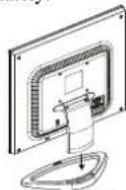
Figure 1-1
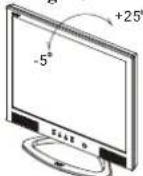
Figure 1-2
Viewing Angle Adjustment
The LCD Monitor is designed to allow users to have a comfortable viewing angle. The viewing angle can be adjusted from -5^ to +25^ . (See fig. 1-2).
Warning: Do not force the LCD Monitor over its maximum viewing angle settings as stated above. Attempting this will result in damaging the Monitor and Monitor stand.
Detaching LCD Monitor from Its Stand
Unscrew screws ① the swivel base support column and pull it from main body.
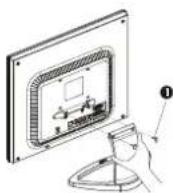
Figure 1-3
Interface for Arm Applications
Before installing to mounting device, please refer to Fig.1-3.
The rear of this LCD display has four integrated 4 mm, 0.7 pitches threaded nuts, as well as four 5 mm access holes in the plastic covering as illustrated in Figure 1-4. These specifications meet the VESA Flat Panel Monitor Physical Mounting Interface Standard (paragraphs 2.1 and 2.1.3, version 1, dated 13 November 1997).
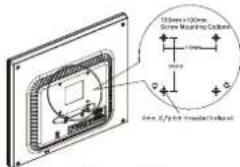
Figure 1-4
Note: Please using ∅ 4mm x 8mm (L) screw for this application
Connecting the Display to your Computer
-
Power off your computer.
-
Connect one end of the signal cable to the LCD Monitor's VGA port or DVI port.(See Fig 1-5)
-
Connect the other end of the signal cable to the VGA port or DVI port on your PC.
-
Make sure connection are secure.
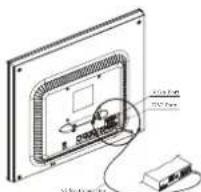
Figure 1-5
Attention: This device must be connected to an off-the-shelf video cable in order to comply with FCC regulations. A ferrite-core interface cable is included in the LCD Monitor package. This device will not be in compliance with FCC regulations when a non-ferrite-core video cable is used.
Connecting the AC Power
-
Connect the power cord to the AC adapter.(See Fig. 1-6)
-
Connect the AC adapter's DC output connector to the DC Power Jack of the monitor.
-
Connect the power cord to an AC power source.
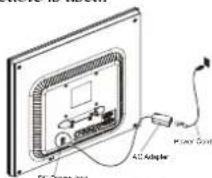
Figure 1-6
Warning: We recommend to install a "Surge Protector" device between the AC Adapter and the electrical wall outlet for adding protection against power surges to prevent the errects of sudden voltage variations from reaching the LCD Monitor. Sudden power surges may damage your monitor.
Connecting the Audio Cable
-
Connect the audio cable to the "LINE OUT" jack on your PC's audio card or to the front panel's "AUDIO OUT" jack of your CD ROM drive. (See Fig. 1-7)
-
Connect the other end of the audio cable to the LCD Monitor's "LINE IN" jack.
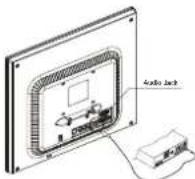
Figure 1-7
Connecting the AV and S-Video cable
-
Connect the AV cable to RCA Jack and follow the color and the other side connect to AV source.
-
Connect the S-Video cable from main body to AV source.
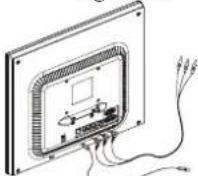
Figure 1-8
Setting Up the LCD Monitor
I. Make sure the AC power cord is connected to the LCD Monitor.
- Turn on the LCD Monitor's power switch, located on the bezel of the monitor.
Power Management System
This LCD Monitor complies with the VESA DPMS (version 1.0) Power Management guidelines. The VESA DPMS provides four power saving modes through detecting a horizontal or vertical sync. signal.
When the LCD Monitor is in power saving mode, the monitor screen will be blank and the power LED indicator will light yellow.
Chapter 2 Display Controls
User Controls
A brief description and the location of all LCD Monitor function controls and indicators:
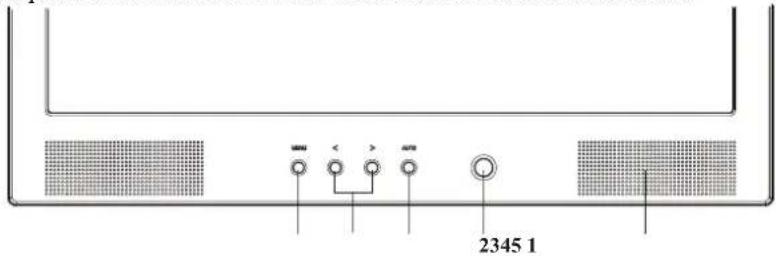
Figure 2-1
| 1 | Stereo Speakers | PC Audio Stereo output. |
| 2 | Soft Power Switch(DC Power-On Indicator) | 1. Press the soft power switch to switch the monitor ON/OFF.2. LED lights Blue color --- Power is ON.3. LED lights Yellow --- Monitor is in "Power Saving Mode".4. LED is off --- Power is OFF. |
| 3 | Auto | 1. Press the Auto Buttons Monitor will Auto-Adjusting.2. Press the Auto Buttons over 2 second the Monitor Searching next source. |
| 4 | Function Select and Adjustment Control Buttons | 1. Direct press either left or right control button can adjusting speaker Volume control.2. When press after Menu buttons then Press either left or right control button for OSD first menu (left side) function selection.3. When selection you want adjusting function then press Menu buttons again for OSD second menu (right side) function selection. You can Press the left button to decrease the OSD setting and press the right button to increase the OSD setting. |
| 5 | Menu | 1. Press the Menu will show OSD (On Screen Display) Function Menus table.2. When OSD (On Screen Display) Menus display press Menu Buttons will enable selection function. |
Adjusting the Monitor's Display
The monitor has four function control buttons to select among functions shown on OSD menu, designed for easy user-viewing environments.
OSD Function Menu
To access OSD Main menu, simply press one of the Function Select control buttons, and the menu diagram will pop up on the screen as shown on Fig. 2-2:
Continue pressing the Function Select buttons to scroll through the entire menu items, then press Adjustment Control buttons to adjust content of selected item.
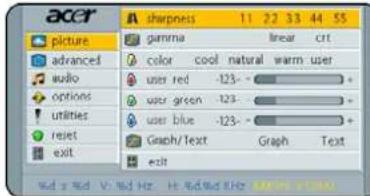
Figure 2-2
Function Description
Analog RGB / Digital RGB
 Picture Picture | ||
| Auto adjust | Press > button, auto adjust the display mode to its utmost performance according to VGA setting. | |
| Brightness Adjust the overall image and background screen brightness. | ||
| Contrast Adjust the image brightness in relation to the background. | ||
| H-position To move the picture image horizontally left or right. | ||
| V-position To move the picture image vertically up or down. | ||
| Phase To improve focus clarity an image stability. | ||
| Clock To increase or decrease the horizontal size of image. | ||
| Exit To exit the main menu. | ||
| Advanced | ||
| Sharpness Adjusts the picture sharpness. | ||
| Color You have 4 kinds of options. | ||
| Cool | This control adjusts the color temperature of the screen image, this item are preset by factory, you can not adjust these setting. The performance is bluer and brighter. | |
| Natural This performance is reddish and closer to paper white. | ||
| Warm This performance is yellowish and closer to paper white. | ||
| User | You can adjust the individual color intensity by yourself. Increase or decrease red, green or blue depending upon which is selected | |
| User red Increase or decrease red. | ||
| User green Increase or decrease green. | ||
| User blue Increase or decrease blue. | ||
| Exit To exit the main menu. | ||
 Audio Audio | ||
| Volume This features adjusts < to decrease volume and > to increase volume. | ||
| Base This features adjusts < to decrease base and > to increase base. | ||
| Treble This features adjusts < to decrease treble and > to increase treble. | ||
| ATTL This features adjusts < to decrease left speaker volume and > to increase left speaker volume. | ||
| ATTR This features adjusts < to decrease right speaker volume and > to increase right speaker volume. | ||
| Loudness This features choose on or off to get loudness. | ||
| Mute This features choose on or off to mute the sound. | ||
| Exit To exit the main menu. | ||
| Auto adjust | Press > button, auto adjust the display mode to its utmost performance according to VGA setting. | ||
| Brightness Adjust the overall image and background screen brightness. | |||
| Contrast Adjust the image brightness in relation to the background. | |||
| H-position To move the picture image horizontally left or right. | |||
| V-position To move the picture image vertically up or down. | |||
| Phase To improve focus clarity an image stability. | |||
| Clock To increase or decrease the horizontal size of image. | |||
| Exit To exit the main menu. | |||
| Advanced | |||
| A | Sharpness Adjusts the picture sharpness. | ||
| Color You have 4 kinds of options. | |||
| Cool This control adjusts the color temperature of the screen image, this item are preset by factory, you can not adjust these setting. The performance is bluer and brighter. | |||
| Natural This performance is reddish and closer to paper white. | |||
| Warm This performance is yellowish and closer to paper white. | |||
| User You can adjust the individual color intensity by yourself. Increase or decrease red, green or blue depending upon which is selected | |||
| User red Increase or decrease red. | |||
| User green Increase or decrease green. | |||
| User blue Increase or decrease blue. | |||
| Exit To exit the main menu. | |||
| Volume This features adjusts < to decrease volume and > to increase volume. | ||
| Base This features adjusts < to decrease base and > to increase base. | ||
| Treble This features adjusts < to decrease treble and > to increase treble. | ||
| ATTL | This features adjusts < to decrease left speaker volume and > to increase left speaker volume. | |
| ATTR | This features adjusts < to decrease right speaker volume and > to increase right speaker volume. | |
| Loudness This features choose on or off to get loudness. | ||
| Mute This features choose on or off to mute the sound. | ||
| Exit To exit the main menu. | ||
| Options | ||
| OSD To move the OSD image. | ||
| OSD H-position | To move the OSD image horizontally left or right. | |
| OSD V-position | To move the OSD image vertically up or down. | |
| Language You can choose one of the nine languages you need. | ||
| Exit To exit the main menu. | ||
| Utilities | ||
| OSD timeout | You can select how long the monitor waits after the last adjust of the key to shut off the OSD menu. The time setting choices are from 5 to 60 seconds. | |
| OSD background | You can select opaque or translucent to change OSD background. | |
| Source icon You can select on or off to display OSD icon. | ||
| Exit To exit the main menu. | ||
| Reset | ||
| Memory recall | Reset the currently highlight control to the factory setting. User must be using factory preset video mode to use this function. | |
| Exit To exit the menu. | ||
| Exit | To exit the OSD menu. | |
Composite Video / S-Video
| Picture | ||
| Brightness Adjust the overall image and background screen brightness. | ||
| Contrast Adjust the image brightness in relation to the background. | ||
| Saturation Adjusts the color saturation of the screen image. | ||
| Hue Adjusts the color hue of the screen image. | ||
| Sharpness Adjusts the picture sharpness. | ||
| Scaling Adjusts the picture size full screen or 16:9 screen. | ||
| Exit To exit the main menu. | ||
| Advanced | ||
| Sharpness Adjusts the picture sharpness. | ||
| Color You have 4 kinds of options. | ||
| Cool | This control adjusts the color temperature of the screen image, this item are preset by factory, you can not adjust these setting. The performance is bluer and brighter. | |
| Natural This performance is reddish and closer to paper white. | ||
| Warm This performance is yellowish and closer to paper white. | ||
| User | You can adjust the individual color intensity by yourself. Increase or decrease red, green or blue depending upon which is selected | |
| User red Increase or decrease red. | ||
| User green Increase or decrease green. | ||
| User blue Increase or decrease blue. | ||
| Exit To exit the main menu. | ||
| Audio | ||
| Volume This features adjusts < to decrease volume and > to increase volume. | ||
| Base This features adjusts < to decrease base and > to increase base. | ||
| Treble This features adjusts < to decrease treble and > to increase treble. | ||
| ATTL | This features adjusts < to decrease left speaker volume and > to increase left speaker volume. | |
| ATTR | This features adjusts < to decrease right speaker volume and > to increase right speaker volume. | |
| Loudness This features choose on or off to get loudness. | ||
| Mutc This features choose on or off to mute the sound. | ||
| Exit To exit the main menu. | ||
 Options Options | ||
| OSD To move the OSD image. | ||
| OSD H-position | To move the OSD image horizontally left or right. | |
| OSD V-position | To move the OSD image vertically up or down. | |
| Language You can choose one of the nine languages you need. | ||
| Exit To exit the main menu. | ||
| Utilities | ||
| OSD timeout | You can select how long the monitor waits after the last adjust of the key to shut off the OSD menu. The time setting choices are from 5 to 60 seconds. | |
| OSD background | You can select opaque or translucent to change OSD background. | |
| Source icon You can select on or off to display OSD icon. | ||
| Exit To exit the main menu. | ||
| Reset | ||
| Memory recall | Reset the currently highlight control to the factory setting. User must be using factory preset video mode to use this function. | |
| Exit To exit the menu. | ||
| Exit | To exit the OSD menu. | |
Options
| OSD To move the OSD image. | ||
| OSD H-position | To move the OSD image horizontally left or right. | |
| OSD V-position | To move the OSD image vertically up or down. | |
| Language You can choose one of the nine languages you need. | ||
| Exit To exit the main menu. | ||
| [IMAGE] Utilities | ||
| OSD timeout | You can select how long the monitor waits after the last adjust of the key to shut off the OSD menu. The time setting choices are from 5 to 60 seconds. | |
| OSD background | You can select opaque or translucent to change OSD background. | |
| Source icon You can select on or off to display OSD icon. | ||
| Exit To exit the main menu. | ||
| Reset | ||
| Memory recall | Reset the currently highlight control to the factory setting. User must be using factory preset video mode to use this function. | |
| Exit To exit the menu. | ||
| Exit | To exit the OSD menu. | |
Utilities
| OSD timeout | You can select how long the monitor waits after the last adjust of the key to shut off the OSD menu. The time setting choices are from 5 to 60 seconds. | |
| OSD background | You can select opaque or translucent to change OSD background. | |
| Source icon You can select on or off to display OSD icon. | ||
| Exit To exit the main menu. | ||
| Reset | ||
| Memory recall | Reset the currently highlight control to the factory setting. User must be using factory preset video mode to use this function. | |
| Exit To exit the menu. | ||
| Exit | To exit the OSD menu. | |
Chapter 3 Technical Information
Specifications
LCD Panel
Size 19" (48 cm)
Display Type Active matrix color TFT LCD
Resolution 1280 x 1024
Display Dot 1280 x (RGB) x 1024
Display Area (mm) 376.32 x 301.056 (H x V)
Display Color 16.7M
Brightness 300 cd/m ^2 (typical)
Contrast Ratio 700:1 (typical)
Response Time Ta=25°C Tr=15ms Tf=10ms
Lamp Voltage 700 Vrms (typical)
Lamp Current 7.0 mA rms. (typical)
Viewing Angle Vertical: -85^ +85^
Horizontal: -85^ +85^
Video
| Input Signal | Analog RGB 0.7Vpp | Digital TMDS |
| Input Impedance | 75 Ohm ± 2% | |
| Polarity | Positive, Negative | |
| Amplitude | 0 - 0.7 ± 0.05 Vpp | TMDS |
| Multi-mode Supported | Horizontal Frequency: 30 ~ 80 KHz | 30~64KHz |
| Vertical Frequency: 56 ~ 75 Hz | 56~75 Hz |
Audio
| Input Signal | 500mVrms |
| Audio Power Output | 1Wrms + 1Wrms Max |
| Speaker | 2W 8Ω x 2 |
Composite Signal and S-Video Signal Support
| Input Signal | Composite Video (NTSC/PAL) | S-Video Y/C (NTSC/PAL) |
| Input Impedance | 75 Ohm ± 2% | |
| Amplitude | 0 - 0.7 ± 0.05 Vpp |
Control
| Power switch (hard and soft types) | On/Off switch with LED indicator |
OSD
| Brightness | Digital |
| Contrast | Digital |
| Horizontal Position | Digital |
| Vertical Position | Digital |
| Phase | Digital |
| Clock | Digital |
| Display Mode Setup | Use EEPROM to save settings in memory |
| OSD Format | 20 characters x 9 rows |
Power Management
| Mode | Power Consumption* | AC Input | LED Color |
| On 55W maximum 240 VAC Green | |||
| Off 5W maximum 240 VAC Yellow | |||
| Soft switch off 5W maximum 240 VAC Dar | k | ||
| Disconnected 5W maximum 240 VAC | Yellow: Standby, Suspend, Off Dark: DC Power off | ||
* Meeting VESA DPMS requirements measured from AC Input end of AC adapter.
Sync Input
| Signal | Separate TTL compatible horizontal and vertical synchronizationDigital TMDS |
| Polarity Positive and negative | |
| Plug & Play | Supports VESA DDC1 and DDC2B functions |
External Connection
| Power Input (DC input) +12VDC / 5A min. input through AC/DC adapte | r | |
| VGA Cable 1.8M with 15- | pin D-sub connector, 1.8M with 24-pin DVI-D | |
| Audio Cable | 1.8M with Stereo Jack | |
| Audio Video Cable | 1.8M with Audio Video Jack (Red + White + Yellow) | |
| S-Video Cable | 1.8M with S-Video Jack | |
Environment
| Operating Condition: | Temperature | 5^ to 40^/41^ to 104^ |
| Relative Humidity | 20% to 80% | |
| Storage Condition: | Temperature | -20^ to 60^/-4^ to 140^ |
| Relative Humidity | 5% to 85% |
Power Supply (AC Input)
Input Voltage Single phase, 100 \~ 240VAC, 50 / 60 Hz
Input Current 1.5 A maximum
Size and Weight
Dimensions 423 (W) x 422 (H) x 172 (D) mm
Net Weight
6 ± 0.3 kg
Gross Weight
8.5 ± 0.3 kg
Pin Assignment
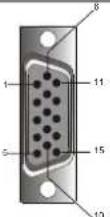 | Signal Signal | |||||
| PIN | Description | PIN | Description | PIN | Description | |
| 1 | Red | 6 | Red Rtn | 11 | NC | |
| 2 | Green | 7 | Green Rtn | 12 | SDA | |
| 3 | Blue | 8 | Blue Rtn | 13 | H. Sync. | |
| 4 | Digital GND | 9 | +5V | 14 | V. Sync. | |
| 5 | Digital GND | 10 | Hot Plug Detect | 15 | SCL | |
For Digital DVI-D connector
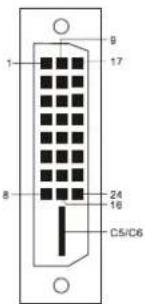 | Signal13 | Signal | Signal | |||
| PIN | Descrip14tion | PIN | Description | PIN | Description | |
| 1 | RX2-15 | 10 | RX1+ | 19 | Shield for TMDS Channel 0 | |
| 2 | RX2+ | 11 | Shield for TMDS Channel 1 | 20 | NC | |
| 3 | Shield for TMDS Channel 2 | 12 | NC | 21 | NC | |
| 4 | NC | 13 | NC | 22 | Shield for TMDS Channel clock | |
| 5 | NC | 14 | +5V | 23 | RXC+ | |
| 6 | SCL | 15 | Hot Plug Detect | 24 | RXC- | |
| 7 | SDA | 16 | IIPD | C5 | GND | |
| 8 | NC | 17 | RX0- | C6 | GND | |
| 9 | RX1- | 18 | RX0+ | |||
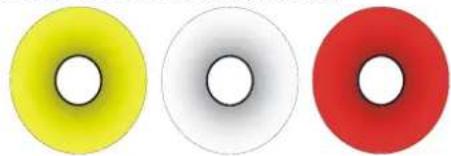
Composite Video: Monitor rear side RCA female (Yellow).
natural_image
Three donut-shaped objects in yellow, white, and red with black centers (no text or symbols)Yellow for Video
White and Red for Audio
AV-input
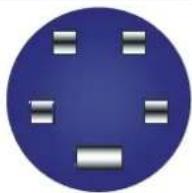
S-Video (Y/C): Monitor rear side 4 Pin Mini-DIN female.
S-Video
Standard Timing Table
If the selected timing is NOT included in table below, this LCD monitor will use the most suitable available timing.
| Resolution | H. Freq.(KHz) | V. Freq.(Hz) | Pixel Freq.(MHz) | H/V Sync.Polarity | Mode |
| 640 x 480 31.469 59.940 25.175 -/- VGA-480 | |||||
| 640 x 480 37.861 72.809 31.500 -/- VESA -480 - 72Hz | |||||
| 640 x 480 37.500 75.000 31.500 -/- VESA -480 - 75Hz | |||||
| 720 x 400 31.469 70.087 28.322 -/+ VESA-400-TEXT | |||||
| 800 x 600 37.879 60.317 40.000 +/+ VESA-600-60 Hz | |||||
| 800 x 600 48.077 72.188 50.000 +/+ VESA-600-72 Hz | |||||
| 800 x 600 46.875 75.000 49.500 +/+ VESA-600-75 Hz | |||||
| 1024 x 768 48.363 60.004 65.000 -/- XGA | |||||
| 1024 x 768 56.476 70.069 75.000 -/- VESA-768-70 Hz | |||||
| 1024 x 768 60.023 75.029 78.750 +/+ VESA-768-75 Hz | |||||
| 1280 x 1024 63.981 60.020 108 +/+ SXGA | |||||
| 1280 x 1024 79.976 75.025 135 +/+ SXGA |
Note: When the in put display mode is not 1280 x 1024, the image is smoothly expanded to 1280 x 1024 dots with the PW131 scaling engine. After expansion from 640x480, 720x400, 800x600, and 1024x768 resolution, the text may look not so sharp, and the Graphics may look not so proportional.
Troubleshooting
This LCD Monitor has pre-adjusted using factory standard VGA timings. Due to the output timing differences among various VGA cards in the market, users may initially experience an unstable or unclear display whenever a new display mode or new VGA card is selected.
Attention
This LCD Monitor Supports Multiple VGA Modes.
Refer to the Standard Timing Table for a listing of modes supported by this LCD Monitor.
PROBLEM Picture is unclear and unstable
The picture is unclear and unstable, please perform the following steps:
- Enter PC to "Shut Down Windows" status while you're in MS-Windows environment.
- Check the screen to see if there's any black vertical stripes appear. If there are, take advantage of the "Clock" function in OSD menu and adjust (by increment or decrement numbers) until those bars disappear.
- Move to "Phase" function in OSD menu again and adjust the monitor screen to its most clear display.
- Click "No" on "Shut Down Windows" and back to the normal PC operating environment.
PROBLEM There is no picture on LCD Monitor
If there's no picture on the LCD Monitor, please perform the following steps:
- Make sure the power indicator on the LCD Monitor is ON, all connections are secured, and the system is running on the correct timing. Refer to Chapter 3 for information on timing.
- Turn off the LCD Monitor and then turn it back on again. If there is still no picture, press the Adjustment Control button several times.
- If step 2 doesn't work, connect your PC system to another external CRT. If your PC system Functions properly with a CRT Monitor but it does not function with the LCD Monitor, the output timing of the VGA card may be out of the LCD's synchronous range. Please change to an alternative mode listed in the Standard Timing Table or replace the VGA card, and then repeat steps 1 and 2.
PROBLEM There is no picture on LCD Monitor
If you have chosen an output timing that is outside of the LCD Monitor's synchronous range (Horizontal: 30 \~ 80 KHz and Vertical: 56 \~ 75 Hz), the OSD will display a "Out of Range" message. Choose a mode that is supported by your LCD Monitor.
Also, if the signal cable is not connected to LCD monitor at all or properly, the monitor screen will display a message "No Input Signal".