Rossie - Uncategorized GFI System - Free user manual and instructions
Find the device manual for free Rossie GFI System in PDF.


User questions about Rossie GFI System
0 question about this device. Answer the ones you know or ask your own.
Ask a new question about this device
Download the instructions for your Uncategorized in PDF format for free! Find your manual Rossie - GFI System and take your electronic device back in hand. On this page are published all the documents necessary for the use of your device. Rossie by GFI System.
USER MANUAL Rossie GFI System
natural_image
Red industrial control box with three circular buttons and black knobs (no visible text or symbols)Table of Contents
| 1 Knobs and Buttons Page 1 | |
| 2 Footswitches and LEDs 2 | |
| 3 Expression Input 3 | |
| 4 Tap-Tempo Input 3 | |
| 5 Saving Presets 4 | |
| 6 Options 4 | |
| 7 Global Settings 5 | |
| 8 Algorithms 6-8 | |
| 9 Expression / Ramping Setup 9 | |
| 10 Factory Reset | 10 |
1. Knobs and Buttons

Every knob is also a button. The following operations can be done on each knob :
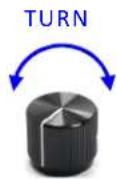
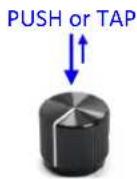
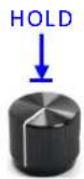
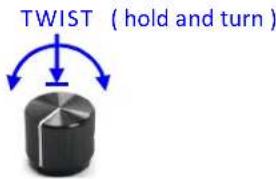
text_image
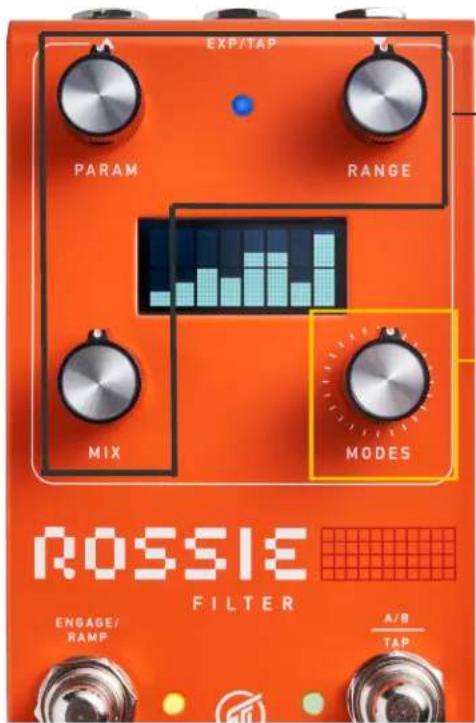
TWIST ( hold and turn ) ↓ ↑Here's a summary of what each knob and each switch does, this is just a quick reference, more detailed explanation will be given in the next chapter.
text_image
EXP/TAP PARAM RANGE MIX MODES ROSSIE FILTER ENGAGE/ RAMP A/B TAPKNOB 1, 2, and 3
- Turn - adjust primary parameters.
- Push - toggle expression mapping for the parameter.
- Hold - enter expression heel/toe value setup.
- Twist - Adjust secondary parameter (see table below).
KNOB 4
- Turn - select modes.
- Push - Enter OPTIONS menu.
- Hold - enter GLOBALS setting menu.
- Twist - Adjust secondary parameter (see table below).
| Modes | Primary Parameters Secondary Parameters | |||||
| knob 1 knob 2 knob 3 knob 1 knob 2 knob 3 | ||||||
| ENVELOPE FILTER | Sensitivity | Range | Mix | Up/Down | Q | Filter Type |
| STEP FILTER | Speed | Step Edit | Mix | Step size | Range | Filter Type |
| MANUAL FILTER | Frequency | Range | Mix | Taper | Q | Filter Type |
2. Footswitches and LEDs
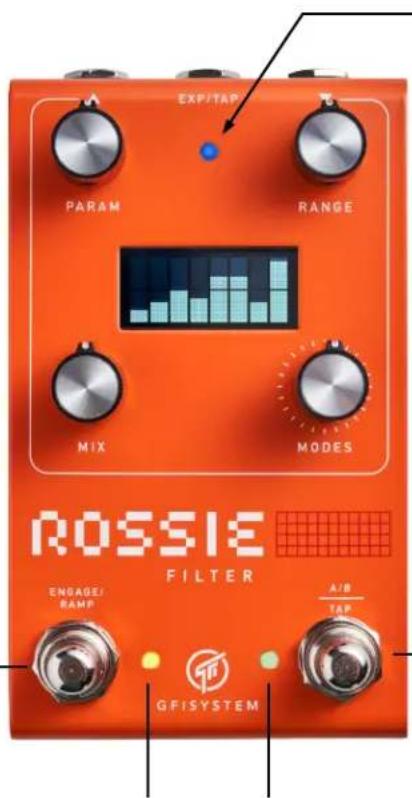
ENGAGE / RAMP SWITCH
TAP
-> bypass / engage
HOLD (when bypassed) for > 500 ms
-> engages momentarily
HOLD (when engaged) for > 500 ms
-> start parameter ramping.
text_image
EXP/TAP PARAM RANGE MIX MODES ROSSIE FILTER ENGAGE/ BAMP A/B TAP GFISYSTEMTEMPO LED
A/B - TAP SWITCH
TAP
-> change preset (A <-> B)
HOLD for 1 second
-> enter tap-tempo mode: when tempo LED stops blinking you may tap in the new tempo*.
* Tap-tempo is applicable only in Step Filter mode.
ON/OFF LED PRESET LED
Orange: Preset A, Green : Preset B
Momentary Operation
< when bypassed > \~ Holding the Engage/Ramp button down for at least 1/2 sec triggers momentary operation, i.e pedal will revert to bypassed state when footswitch is released.
Ramping
< when engaged > \~ Holding the button for at least 1/2 sec triggers ramping operation : a mapped parameters is ramped from its initial value to pre-configured final value, and stays at that final value for as long as the footswitch is held down. When switch is released the parameter gradually returns to its initial value.

A/B - TAP switch Priority.
Priority for the A/B-TAP footswitch can be reversed in Global setting (see page 6 for details).
MONO IN
text_image
INPUT OUTPUT TAP TEMPO EXPRESSION
MONO OUT
3. Expression Input
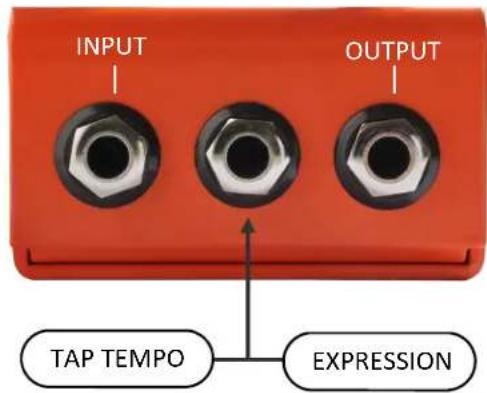
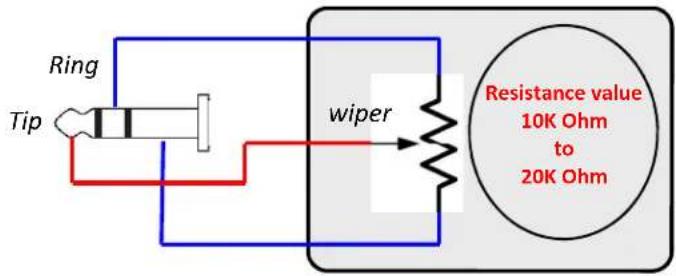
An expression pedal may be used to control any one of the primary parameters, alternatively a tap tempo pedal may be used to remotely send tap tempo signal to the pedal.
text_image
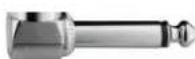
Ring Tip wiper Resistance value 10K Ohm to 20K OhmExpression Pedal requirement.
Some expression pedal on the market has its wiper connected to the Ring instead, this will not work with Rossie. Make sure you get the suitable type: Wiper-to-Tip.
Wiper resistance value should be 10 to 20 KOhm.
4. Tap Tempo Input
A tap-tempo pedal may be connected to the EXP/TAP input to remotely tap in the tempo. The switch contact must be 'Normally-Opened' (NO) type.
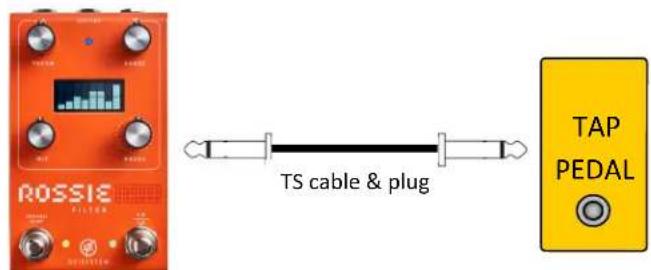
text_image
ROSSIE FILTER TS cable & plug TAP PEDAL
Auto detection
Upon power up Rossie will automatically detect the presence (or absence) of an expression pedal or a tap-tempo pedal. Therefore, after plugging/unplugging the external gear you need to recycle power to the Rossie to let it detect the changes.
- SAVING PRESETS
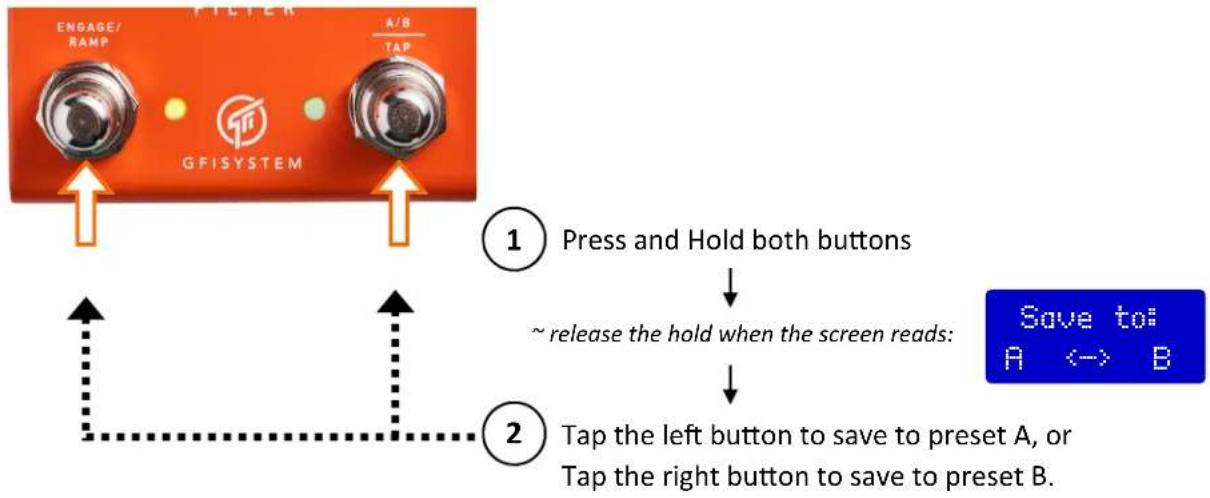
flowchart
graph TD
    A["GFISYSTEM"] -->|1 Press and Hold both buttons| B["Save to: A <-> B"]
    A -->|2 Tap the left button to save to preset A, or Tap the right button to save to preset B.]
    B --> C["->"]
    style A fill:#FFD700,stroke:#333
    style B fill:#66B2FF,stroke:#333

If, after entering the Preset-Save scene, you change your mind and would like to exit without saving any changes, you can do so by :
- Holding both buttons again for 2 seconds.
OR
- Doing nothing for 5 seconds, you will automatically return to the main scene.
- OPTIONS - options settings are specified on per/preset basis.

natural_image
Close-up of a rotary dial with 'MODES' label, no other text or symbols visibleTap the MODES button to enter Options menu.
Use the MODES knob/button to navigate around the menu.
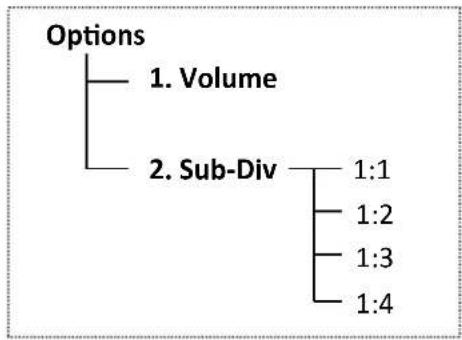
flowchart
graph TD
    A["Options"] --> B["1. Volume"]
    A --> C["2. Sub-Div"]
    C --> D["1:1"]
    C --> E["1:2"]
    C --> F["1:3"]
    C --> G["1:4"]
7. Global Setting
natural_image
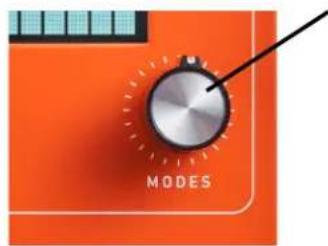
Close-up of a rotary dial with 'MODES' label, no other text or symbols visiblePress and hold the MODES button for 2 secs to enter Globals menu.
Use the MODES knob/button to navigate around the menu.
Globals
-
Tempo Preset : use tempo as saved in preset. Global : use global tempo.
-
Priority A/B : Changing preset is priority. Tap : Tap-tempo is priority.

The Priority setting determines how the A/B-Tap button behaves.
Priority set to A/B (default)
- Tapping the A/B-Tap button toggles between preset A and preset B.
- Holding the A.B-Tap button for 1 second enters tap-tempo mode where the button functions as tap-tempo button. The button reverts back its normal function as preset-change button after 2 seconds of non-activity on the button.
Priority set to Tap-Tempo
- Tapping the A/B-Tap button sets a new tempo.
- Holding the A/B-Tap button for 1 second toggles between preset A and preset B.
8. Algorithms
8.1 ENVELOPE FILTER
This is a highly flexible envelope-controlled filter that follows the dynamic of your picking. Direction of the filter sweep may be set to UP (standard envelope filter) or DOWN. Vast pallete of sound is readily accessible through a selection of four distinct filter types: lowpass, bandpass, highpass, and peaking.
PARAM knob - adjusts the sensitivity of the envelope detector. Set it to lower values when your guitar has higher pickup output level, and set it to higher values if the pickup has lower output level.
RANGE knob - adjusts the range of the frequency sweep.
MIX knob - adjusts the wet and dry mix.
Secondary parameters
Direction:
- Up
- Down
Q (filter bandwidth)
- Low
- Medium
- High
- Sharp
Higher setting gives more pronounced filtering
Filter Types:
- Lowpass
- Bandpass
- Highpass
- Peaking
8. Algorithms
8.2 STEP FILTER
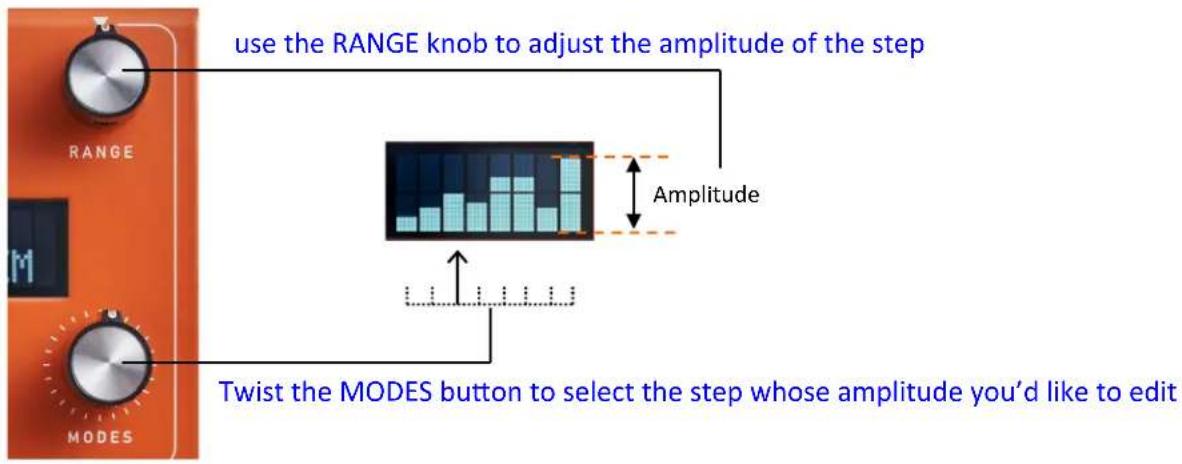
This is a dynamic filter where the resonance frequency is arpeggiated (stepped) continuously. The number of steps is selectable from 4 to 8, and the amplitude of each step is freely adjustable. Tempo of the stepping can be tapped, with four selectable subdivisions. Again, four distinct filter types are available to choose from.
text_image
use the RANGE knob to adjust the amplitude of the step Amplitude Twist the MODES button to select the step whose amplitude you'd like to editPARAM knob - adjusts the tempo of the stepping.
RANGE knob - adjusts the amplitude of the steps.
MIX knob - adjusts the wet and dry mix.
Secondary parameters
Number of steps:
• 4
• 5
· 6
• 7
• 8
- Random
Range
Adjusts the range of the frequency sweep.
Filter Types:
- Lowpass
- Bandpass
- Highpass
- Peaking

In 'Random' mode the number of steps is fixed to 8 and the amplitude of the steps are randomly modulated, this creates a nice 'jumpy' filter groove!
8. Algorithms
8.3 Manual Filter
This mode offers a set of filters whose resonance frequency is manually controlled via a knob or an expression pedal.

Rossie as a Wah pedal
- Map the expression pedal to the frequency parameter (Param knob).
- Set the desired Heel and Toe values.
- Select filter type to Lowpass or Bandpass.
- Select one of the Taper styles to your liking.
line
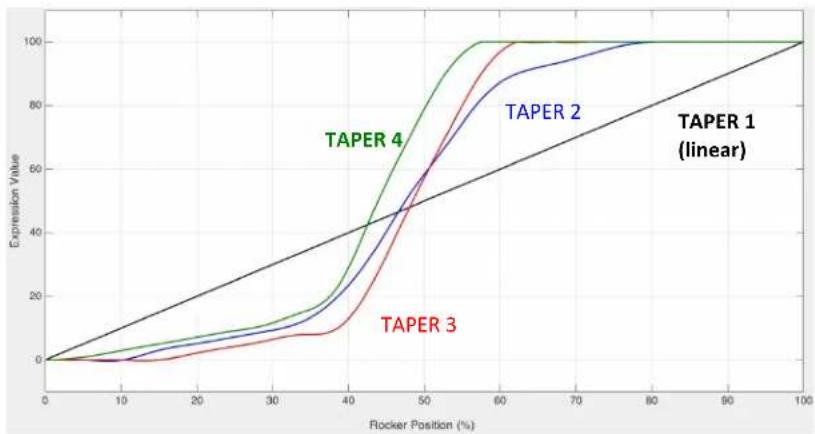
| Rocker Position (%) | TAPER 1 (linear) | TAPER 2 | TAPER 3 | | ------------------- | ---------------- | ------- | ------- | | 0 | 0 | 0 | 0 | | 10 | 10 | 5 | 2 | | 20 | 20 | 15 | 8 | | 30 | 30 | 25 | 15 | | 40 | 40 | 35 | 25 | | 50 | 50 | 50 | 40 | | 60 | 60 | 70 | 60 | | 70 | 70 | 85 | 80 | | 80 | 80 | 95 | 90 | | 90 | 90 | 98 | 95 | | 100 | 100 | 100 | 100 |The potentiometers in wah pedals have different taper characteristics, which determines the feel as the rocker sweeps through its sweep range.
Rossie provides 4 different taper styles to choose from. Choose one that feels best for the application at hand.
PARAM knob - adjusts the resonance frequency of the filter.
RANGE knob - adjusts the amplitude of the steps.
MIX knob - adjusts the wet and dry mix.
Secondary parameters
Taper:
- Taper 1
- Taper 2
- Taper 3
- Taper 4
Q (filter bandwidth)
- Low
- Medium
- High
- Sharp
Higher setting gives more pronounced filtering
Filter Types:
- Lowpass
- Bandpass
- Highpass
- Peaking
9. Expression / Ramping Setup
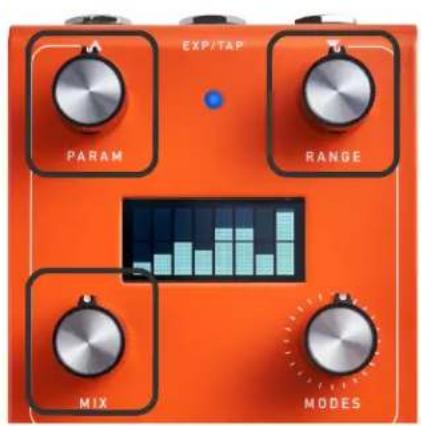
Up to 3 primary parameters may be mapped to the expression pedal / ramping function.
text_image
EXP/TAP PARAM RANGE MIX MODESPush the knob's button to toggle the parameter mapping.
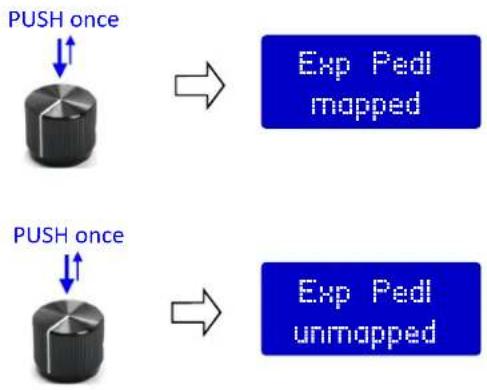
flowchart
graph TD
    A["PUSH once"] --> B["Arrow to Exp Pedl mapped"]
    C["PUSH once"] --> D["Arrow to Exp Pedl unmapped"]
Setting up the Heel and Toe values for expression pedal (and ramping function).
Suppose you want to map a parameter knob to the expression pedal or the ramping function :
- Turn the knob until you find the desired Heel value.
- Hold down the knob. After 2 seconds the screen will show the Heel / Toe information, keep
holding the knob down.
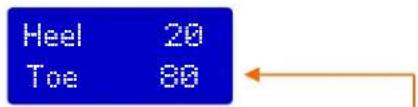
text_image
Heel 20 Toe 80- Now turn the knob (while still holding it down) to find the desired Toe value. When you find it, release the knob.
The parameter is now mapped to the expression pedal and ramping function. Rocking the expression pedal will sweep the mapped parameter to any value within the range specified by Heel and Toe values.
Heel position
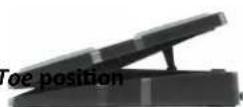
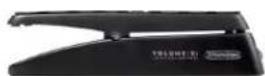


The Toe value set using the above procedure will also be the "end value" for the Ramping function.
Changes to the Heel and Toe values are automatically saved into the current preset.
10. Factory Reset
text_image
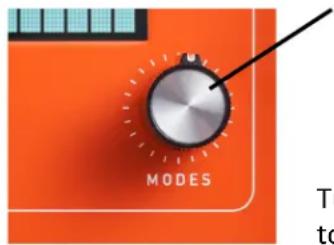
MODES To toPress and hold the MODES button while powering up the pedal.
Keep holding until the screen reads:
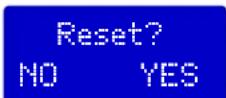
Turn the MODES knob to select No / Yes, then push the MODES button to confirm - if you select Yes factory reset will be performed and the pedal will then start as normal.
Specifications :
- Input impedance : 1 MOhm.
• Output impedance : 1K Ohm.
• DAC / ADC resolution : 24 bits. - Current consumption: \~110 mA.
• Weight : 0.6 Kg (1.6 lbs).
• Dimension : 12 (L) x 7.2 (W) x 5.5 (H) cm
• Power source : 9VDC (negative center).
Key Features :
- 2 presets.
• 3 select Filter algorithms. - Mono input and output.
• Expression pedal and tap-tempo input.
• Momentary action supported.
Visit the product page at our website for more demo videos, sound clips, FAQs, and updates.
This product is designed and manufactured by :
GFI

SYSTEM ^TM
Email : info@gfisystem.com (inquiry)
gfisys@gmail.com (support)
Web : www.gfisystem.com
GFI System