
MIM-H04AN - Uncategorized SAMSUNG - Free user manual and instructions
Find the device manual for free MIM-H04AN SAMSUNG in PDF.


| Product Type | Wi-Fi Kit for system air conditioners |
| Model | MIM-H04AN |
| Compatible Indoor Units | Up to 16 indoor units |
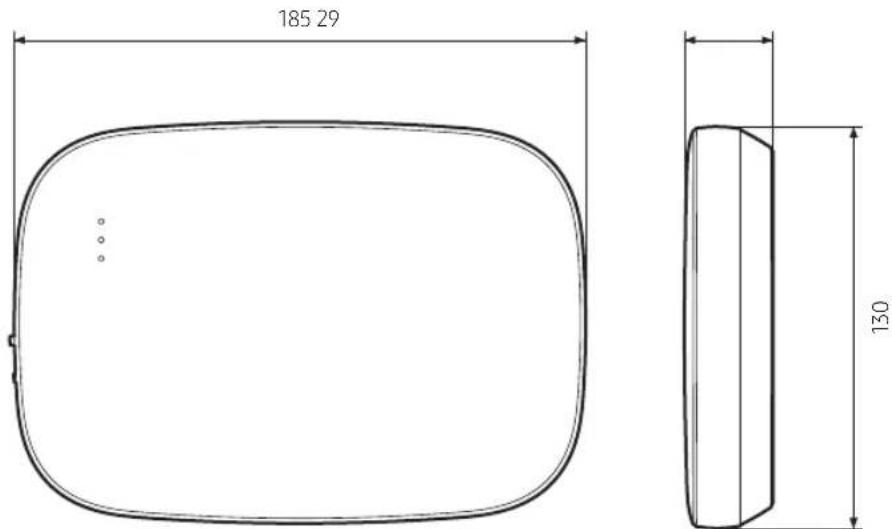
| Dimensions (W x H x D) | 185 x 130 x 29 mm |
| Weight | Approx. 200 g |
| Power Supply | 12 VDC from indoor unit via V1/V2 terminals |
| Communication Protocol | IEEE 802.11 b/g/n (MIM-H04), IEEE 802.11 a/b/g/n (MIM-H04E) |
| Frequency Range | 2.4 GHz (2412-2472 MHz), 5 GHz (5120-5725 MHz for MIM-H04E) |
| Max Transmitter Power | 17 dBm (2.4 GHz), 16 dBm (5 GHz) |
| Operating Temperature | 0 °C to 40 °C |
| Operating Humidity | 30% to 90% (relative) |
| Installation | Wall-mounted using supplied screws and back cover |
| Wiring | U-type terminals for power/communication cables (max 50 m) |
| Main Functions | Turn on/off, mode, temperature, fan speed, air flow, Wind-Free, motion detection, ionizer, filter reset |
| Monitoring | Desired/current temperature, filter warning, defrost status |
| App Control | SmartThings app (Android 6.0+/iOS 10.0+) |
| Software Update | Via Micro SD card (FAT16/FAT32, up to 32 GB) |
| Safety Certifications | CE, RoHS, complies with Radio Equipment Directive 2014/53/EU |
| Special Features | Automatic tracking of indoor units, AP mode for setup |
Frequently Asked Questions - MIM-H04AN SAMSUNG
User questions about MIM-H04AN SAMSUNG
0 question about this device. Answer the ones you know or ask your own.
Ask a new question about this device
Download the instructions for your Uncategorized in PDF format for free! Find your manual MIM-H04AN - SAMSUNG and take your electronic device back in hand. On this page are published all the documents necessary for the use of your device. MIM-H04AN by SAMSUNG.
USER MANUAL MIM-H04AN SAMSUNG
User & installation manual
Wi-Fi Kit 2.0 MIM-H04E / MIM-H04
• Thank you for purchasing this Samsung Product.
- Before operating this unit, please read this manual carefully and retain it for future reference.
SAMSUNG

Contents
Safety precautions 3
Checks before Installation 5
Accessories....5
External Dimensions....5
Installing the Wi-Fi Kit 6
Wi-Fi Kit installation 6
Checking the Wi-Fi Kit....11
Initializing the user data....12
Updating with a Micro SD card....12
SmartThings app 13
Checking the power connections 13
Setting up and connecting to a Wi-Fi access point using your smartphone 13
Downloading the SmartThings app and registering your Samsung account 14
Connecting the SmartThings app to your product....14
Starting the system air conditioner app 16
Controlling the air conditioner....16
Troubleshooting 17
Specifications 19
Open Source Announcement 19
Declaration of Conformity 20
Caution about 5GHz range radio equipment 22
Correct Disposal of This Product (Waste Electrical & Electronic Equipment)
(Applicable in countries with separate collection systems)
This marking on the product, accessories or literature indicates that the product and its electronic accessories (e.g. charger, headset, USB cable) should not be disposed of with other household waste at the end of their working life. To prevent possible harm to the environment or human health from uncontrolled waste disposal, please separate these items from other types of waste and recycle them responsibly to promote the sustainable reuse of material resources.
Household users should contact either the retailer where they purchased this product, or their local government office, for details of where and how they can take these items for environmentally safe recycling. Business users should contact their supplier and check the terms and conditions of the purchase contract. This product and its electronic accessories should not be mixed with other commercial wastes for disposal.
The lowest set temperature is limited to 20 degree in the UAE according to UAE.S 5010-5:2016.
Safety precautions
This installation manual explains how to install a Wi-Fi Kit to an indoor unit of Samsung system air conditioners.
Read the installation manual thoroughly before installing the Wi-Fi Kit.
(Refer to the appropriate manual for installing product or other optional parts.)
| WARNING | Hazards or unsafe practices that may result in severe personal injury or death. |
| CAUTION | Hazards or unsafe practices that may result in minor personal injury or property damage. |
WARNING
- Contact service center for installation.
- There is a risk of product malfunction, water leakage, electric shock or fire.
• Install the Wi-Fi Kit securely in a place that can withstand the weight of the product.
- If the installation location is not strong enough, Wi-Fi Kit may fall and be damaged.
- Connect the power with rated voltage when installing.
- If not, there is risk of fire or damage to the Wi-Fi Kit.
- Do not attempt to move or re-install the Wi-Fi Kit that is already installed.
- There is risk of electric shock and fire.
- Do not attempt to modify or repair the Wi-Fi Kit on your own.
- There is potential risk of product damage, electric shock or fire. When repair is needed, consult service center.
- Check if the installation was done properly according to the installation manual.
- If the Wi-Fi Kit is installed incorrectly, there is risk of electric shock or fire.
- Make sure that all wiring work is done by a qualified person complying with regional standards and instructions in this manual.
- If the installation is done by unqualified person, there is risk of product malfunction, electric shock or fire caused by incorrect installation.
- Contact the service center if you need to dispose the Wi-Fi Kit.
Safety precautions
CAUTION
- Do not install the product in a place where it is or might be exposed to inflammable gas leakage.
- There is risk of fire or explosion.
- Do not install the product in a place where it will be exposed to oil or vapor etc.
- If the product is used in a place where it is exposed to oil, vapor or sulphur dioxide, parts of the product may get damaged or product may function abnormally.
- Make sure that water does not get into the Wi-Fi Kit.
- There is risk of electric shock and fire.
- Make sure there is no tension to the cable during installation.
- Cable may get cut and cause fire.
• Install the product in a place with temperature between 0 °C\~39 °C with no direct sunlight. - If not, there is risk of electric shock or abnormal operation.
- Do not install the product in a place where special spray or acid/alkali solution is used.
- There is risk of electric shock or abnormal operation.
- Do not press the buttons with sharp objects.
- There is risk of electric shock or damaging the parts.
- Do not connect the power cable to the communication cable terminal.
- There is risk of fire.
- When installing the product in hospitals or other places, make sure that the product does not interrupt with other products.
- Abnormal operation may occur.
- This wireless device has a possibility of radio wave interference during operation.
Checks before Installation
Accessories
| Wi-Fi Kit Cable ties (2) Cable clamps (3) M4×16 screws (5) | |||
 |  |  |  |
| User & installation manual U-type terminals (6) | |||

CAUTION
- The Wi-Fi Kit must be installed by a certified technician.
- Before installation, be sure to cut off power.
- Follow applicable rules for electrical wiring. Make sure that the cables of the Wi-Fi Kit are installed inside a wall or covered to avoid being touched by the occupant.
External Dimensions
Unit: mm
Installing the Wi-Fi Kit
Wi-Fi Kit installation

- To ensure smooth operation, there should be no obstacle between the Wi-Fi Kit and wireless router that may interfere with communication. When the Wi-Fi Kit is too far from a router or there are potentially interfering elements between them, it may cause problems with the performance of the Wi-Fi Kit that cannot be resolved by customer services.
- Place the Wi-Fi Kit in an area where you can easily press the AP button for device verification.
- Do not install the Wi-Fi Kit in an area where it may be exposed to moisture or impact.
-
Operating temperature: 0-40 °C, Operating humidity: 30-90 % (relative)
-
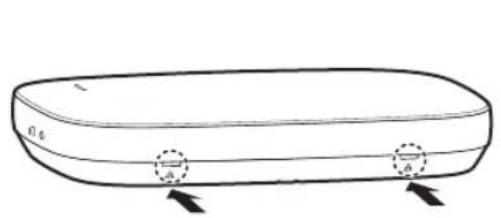
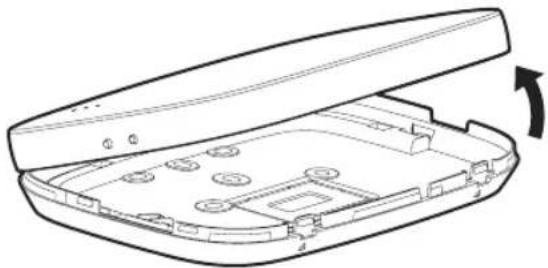
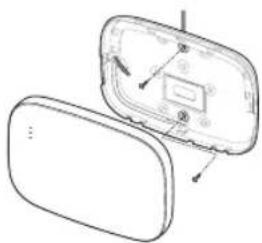
Use a flathead screwdriver to turn each of the square holes at the lower part of the Wi-Fi Kit and remove the back cover.
natural_image
Line drawing of a device casing with internal components and an arrow indicating rotation (no text or symbols)*Push both latches at the same time.

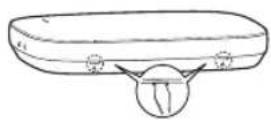
- Use a flathead screwdriver to turn the rectangular hole at the upper part of the fixing hook for easy removal.
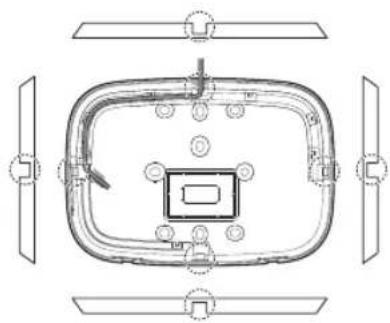
- Arrange the power and communication cables along the back cover.
natural_image
Technical line drawing of a rectangular electronic device with mounting holes and internal components (no text or symbols)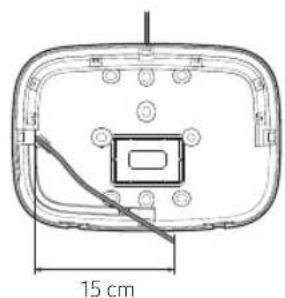
natural_image
Technical diagram of a rectangular electronic device with a central square component and a 15 cm dimension line (no text or symbols)If necessary, remove this part to secure more space for wiring.
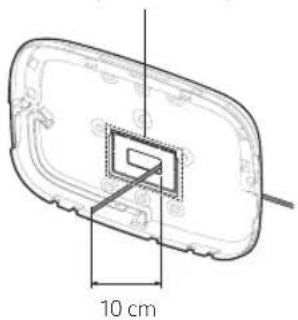
natural_image
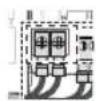
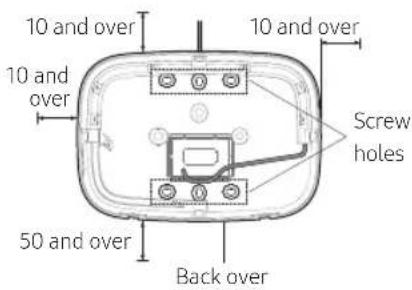
Technical line drawing of a rectangular electronic component with a 10 cm dimension label (no text or symbols beyond the scale)- Use two or more screws to fix the back cover to the wall. Connect the power cables (V1, V2) and communication cables (F1, F2) to the terminals on the back of the front cover while adjusting to a suitable length.
- When connecting the power cables to V1 and V2, fasten the PCB terminal screws (CN5) to a torque of 6 N·cm or less.
Screw size: M3 x 6
NOTE
- You can connect up to 16 indoor units to a Wi-Fi Kit.
Unit: mm
natural_image
Diagram of a device with an open lid and internal components, showing no text or symbols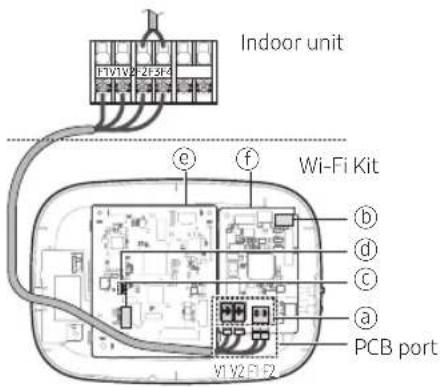
※Be sure to secure space of at least 10 mm (up/right/left) and 50 mm (down) around the back cover before fixing the back cover on the wall.
*Fix the screws to the screw holes.
*Do not over-tighten the PCB terminal.
| Item Contents Item Contents | |||
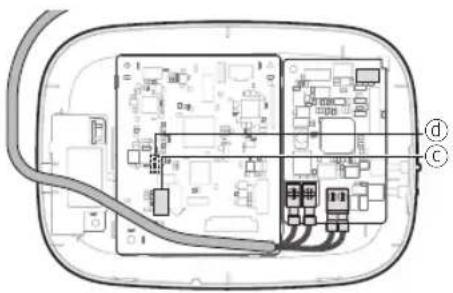
| a | Power/communication terminals | d | LED |
| b | Tracking/Reset button | e | Network PBA |
| c | Micro SD card slot | f | Interface module PBA |
- Assemble the Wi-Fi Kit again.
NOTE
- Insert the front cover to the upper grooves as shown in the figure. After assembly, make sure that there is no gap between the covers.
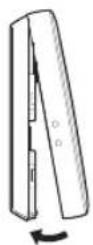



Installing the Wi-Fi Kit
Wi-Fi Kit wiring diagram
Connecting to a single outdoor unit (F1-F2)
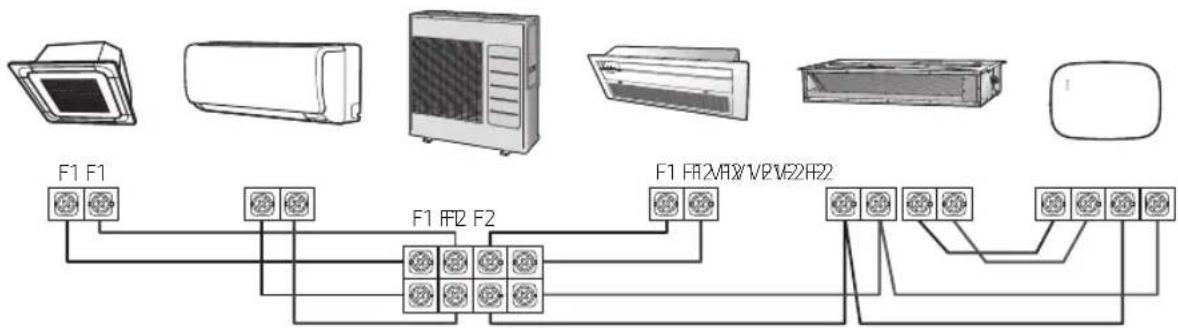
※For indoor units without V1 and V2 connection terminals, use the external control line 2 for SUB PBA (inside the indoor unit) for 12VDC power supply.
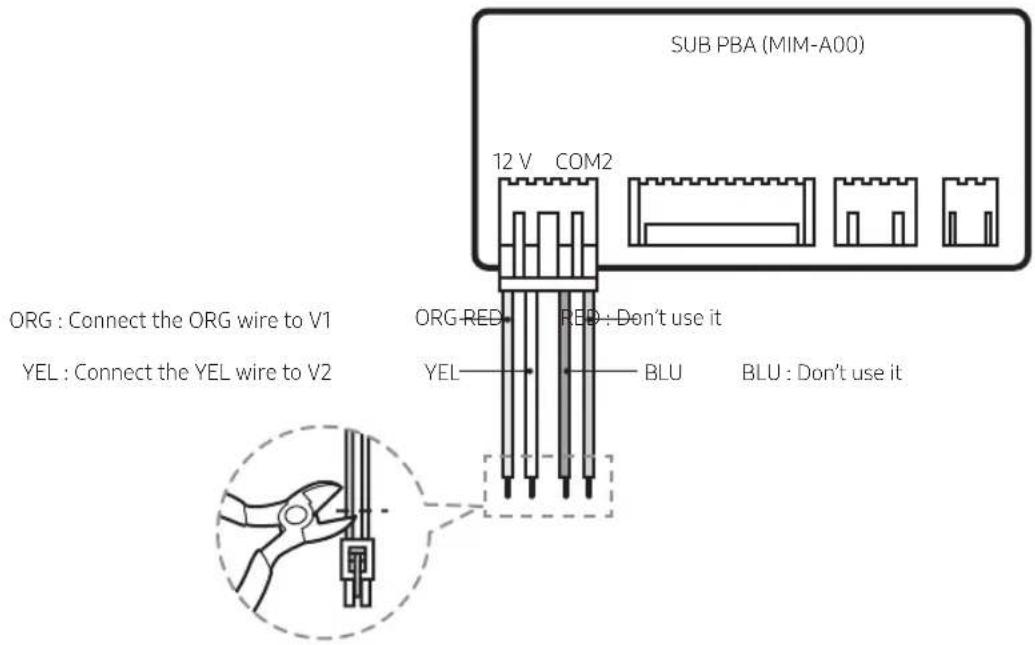
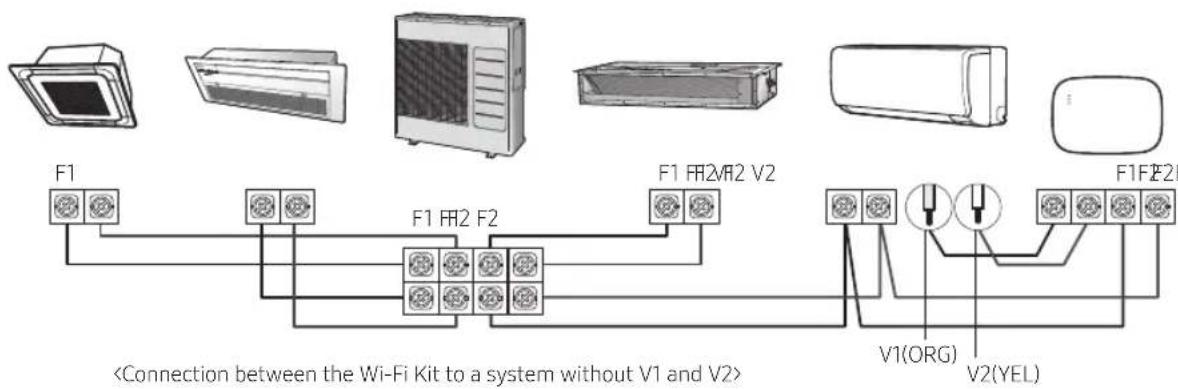

- When installing the Wi-Fi Kit, use proper electrical cables considering the size of the wiring hole on the wall.
- Upon wiring, use the provided U-type terminals (#16-22). When there are no terminals provided or #24 is used, you can use any U-type terminals that meet the specifications.
• Wi-Fi Kit communication and power cables
- When installing the Wi-Fi Kit, follow the wiring specifications for the U-type terminal.
- When installing the Wi-Fi Kit with a 4-wire PVC cable, first peel off the PVC edge (approx. 30 cm). (AWG22 recommended)
• U-type terminal specifications for the Wi-Fi Kit PCB
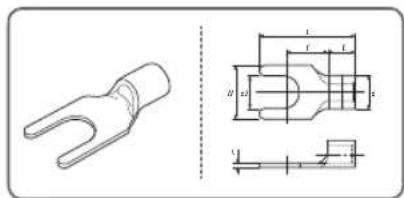
| Cable range | Rated size | Stud size | Default size (mm) | ||||||
| AWG | mm^2 | mm^2 | mm | t | d | E | F | W | L |
| 24-16 | 0.25-1.65 | 1.5 | 3-3.2 | 0.6-0.8 | 1.2-2.5 | 4-6 | 5-9 | 5-7 | 12-21.2 |
Max. length for communication/power cables: 50 m
- Fasten the PCB terminal with fixing screws to a torque of 6 N•cm or less. When you fasten the screw to a torque over 6 N•cm, it may cause damage to the screw thread.
Installing the Wi-Fi Kit
-
Activate the Wi-Fi Kit.
-
When power is supplied, all indicators on the Wi-Fi Kit illuminate until the system boots completely.
• After the system operates, tracking is performed automatically. -
Tracking
*Tracking: The Wi-Fi Kit detects connected indoor unit(s) and the indoor unit(s) detects the connection to the Wi-Fi Kit. Tracking is required to monitor or control the system air conditioner using the Wi-Fi Kit.
- The Wi-Fi Kit automatically performs tracking when activated. The ( ⏻ ) ( [IMAGE] ) indicators on the Wi-Fi Kit blink while in tracking.
- When no indoor unit is detected by tracking, the (💡) indicator blinks for 10 seconds and the Wi-Fi Kit attempts tracking again. In this case, make sure that the communication cables between the indoor and outdoor units are connected properly.
- When any change in the installation of indoor and outdoor units occurs, manually run the tracking by pressing the (SW3, ⓑ) button inside the Wi-Fi Kit.

- When tracking is completed but all the connected indoor units have the central control option disabled, the (💡) indicator illuminates for 10 seconds and the ⏻indicator blinks. Then the Wi-Fi Kit attempts the tracking again. In this case, check and change the central control option for indoor units. When the central control option is disabled, you cannot control indoor units via the Wi-Fi Kit.

- To control indoor units by using a mobile phone, wait until the tracking is completed and then connect the Wi-Fi Kit to a wireless router.
- The ( ⏻ ) indicator does not turn off until the Wi-Fi Kit is connected to a wireless router after tracking.
Checking the Wi-Fi Kit
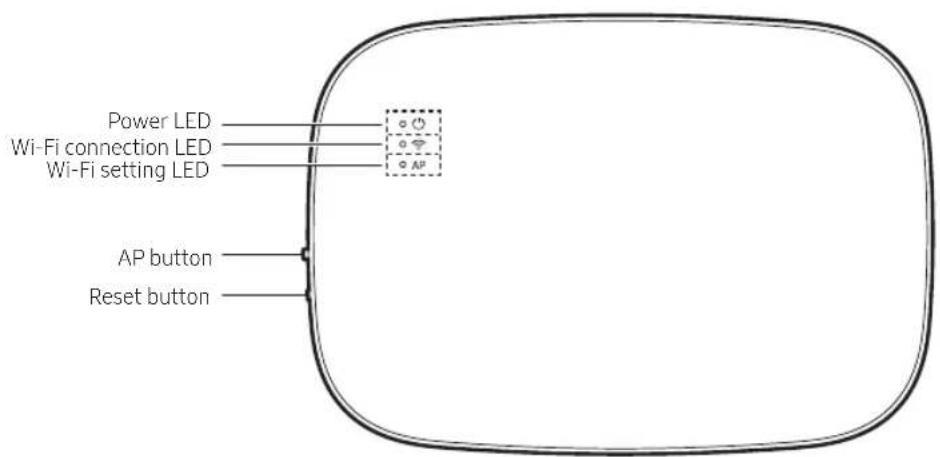
Items on the LED display
| Item LED | indication Power supply Wi-Fi connection | Wi-Fi setting | ||
| 1 | Initialized On On On | |||
| 2 | General On On Off | |||
| 3 | AP connected, Internet connection incomplete | On Blinking | Off | |
| 4 | Tracking completed, AP connection incomplete | On Off Off | ||
| 5 | Wi-Fi modem malfunctioning | Blinking | Blinking | Blinking |
| 6 | Searching AP (AP mode) | On | Off | On |
| 7 | Tracking units | Blinking | Blinking | Off |
| 8 | No unit tracked | Blinking | Off | Off |
| 9 | Inspection of the network PBA required | On Blinking | Blinking | |
| 10 | User authentication required (AP mode) | On Off | Blinking | |
| 11 | Downloading | Off On Off | ||
| 12 | Rescue mode | Blinking | On | Blinking |
* If the "Rescue mode" indication appears on the LED:
- Reset the Wi-Fi Kit using the "Reset" button, and check if "Rescue mode" turns off.
- If "Rescue mode" persists even though you tried resetting the Wi-Fi kit several times, contact a service center.
Installing the Wi-Fi Kit
Initializing the user data
- To initialize the user data on a Wi-Fi Kit, press the (SW3) button inside the Wi-Fi Kit for 5 seconds. All the indicators illuminate and the user data is deleted.
Updating with a Micro SD card
| Type Capacity | File system | |
| Micro SD Max | 4GB FAT16 | |
| Micro SDHC Max | 32GB FAT32 |
- Create a folder named "update" in the Micro SD card. Copy the latest software image and paste it into the folder created in the Micro SD card.

- Be sure to format the Micro SD card using FAT16 or FAT32 before creating the "update" folder.
- Insert the Micro SD card into the slot of the Wi-Fi Kit.
- Press the [Reset] button on the side of the Wi-Fi Kit.
- The indicator ( ⓓ ) on the Wi-Fi Kit blinks every 2 seconds during update.
- Once the update has been successful, the indicator promptly turns on and then turns off longer. (On: 0.2 second, Off: 2 seconds)
- The indicator blinks every 0.2 second when the update was not completed.
- When the update has completed normally, remove the Micro SD card and then press the [Reset] button.
-
Restarting the Wi-Fi Kit after an update failure will restore the software to the previous version. When the update failure persists, follow the instructions below:
-
File checking: Change the update image (file).
- Micro SD card checking: Replace the Micro SD card.
• PBA checking: Replace the network PBA.
SmartThings app
To use the SmartThings app, connect the product to the network in the sequence described below.
The images shown may differ depending on your smartphone model, OS version and manufacturer.
You need to set up the Wi-Fi access point only when connecting the product to a Wi-Fi network. Once the product is connected, you can use the SmartThings app via Wi-Fi, 3G, LTE or more wireless networks.
Checking the power connections
Check if the power is connected to the product and the access point.
Setting up and connecting to a Wi-Fi access point using your smartphone
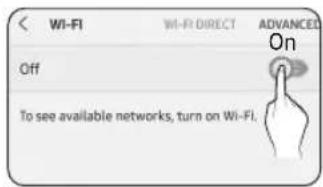
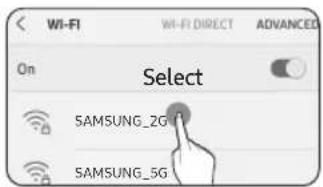
- To connect the product to a Wi-Fi network, turn on Wi-Fi at "Settings >Wi-Fi", and then select the access point to connect to
- Only alphanumeric characters are supported for wireless access point names (SSIDs). If an SSID has a special character, rename it before connecting to it.
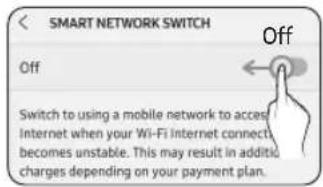
- Turning off "SMART NETWORK SWITCH" at "Settings > Wi-Fi" on your Smartphone
- If "SMART NETWORK SWITCH" or "Adaptive Wi-Fi" is turned on, you cannot connect to the network. Be sure to turn off these functions before connecting to the network.
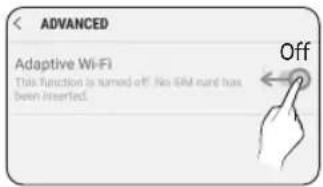

NOTE
- The setup may differ depending on your smartphone model, OS version and manufacturer.
- Checking the Internet connectivity
• After connecting to Wi-Fi, check that your smartphone is connected to the Internet.

NOTE
- A firewall may prevent your smartphone from connecting to the Internet. In this case, contact your Internet service provider for troubleshooting.
SmartThings app
Downloading the SmartThings app and registering your Samsung account
1. Downloading the SmartThings app
- Search for "SmartThings" on Play Store or App Store, and download the SmartThings app to your smartphone.
- If the SmartThings app is already installed on your smartphone, update it to the latest version.

NOTE
- For the tablets that are not supported by the SmartThings app and the smart phones that has an OS version earlier than the recommended versions, the SmartThings app may not be found.
- Android OS 6.0 or later (with at least 2 GB RAM) is recommended.
- Supported screen resolutions: 1280 x 720 (HD), 1920 x 1080 (FHD), 2560 x 1440 (WQHD)
- The SmartThings app is not compatible with some Apple devices including iPad and some smartphones.
- iPhone 6 or later with iOS 10.0 or later is supported.
- Supported screen resolutions: 1334x750, 1920x1080
- The SmartThings app may change without prior notice to improve product usability and performance.
2. Registering your Samsung account
- A Samsung account is required to use the SmartThings app. To create your Samsung account and log in to your account, follow the instructions displayed on the SmartThings app. You do not need to install an additional app.

NOTE
- If you already have a Samsung account, log in to the account. When your smartphone is a Samsung device and you have a Samsung account, your smartphone is automatically logged in to your account.
- If you log in from a smartphone produced for a different country, you need to log in with its country code when you create your Samsung account, and the SmartThings app may not be used on some smartphones.
Connecting the SmartThings app to your product
1. Selecting the product to connect to
1) After the Wi-Fi kit tracking is complete, run the SmartThings app.
2) After the SmartThings app is started, select "ADD NOW" when a pop-up window saying that a product to connect to is found appears.
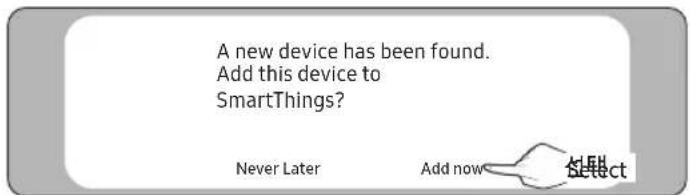
3) If the pop-up window does not appear, select "+" and then "Add Devices".
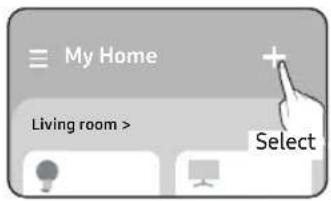
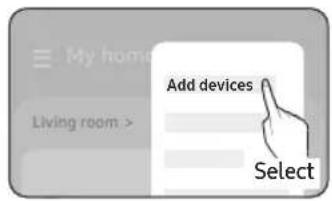
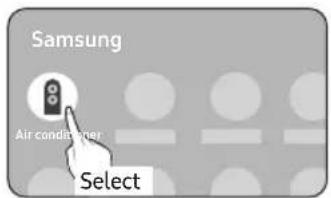
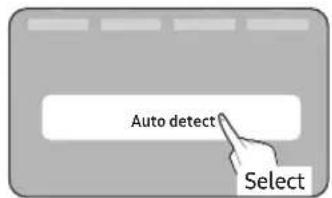
You can add a product you want to connect to by selecting it manually or by selecting "Auto detect".
- Select manually: Samsung > Air conditioner > System air conditioner
• Auto detect: [System a/c] Samsung
-
Connecting the SmartThings app to your product
-
Follow the instructions displayed on the SmartThings app to connect to your product.
- For information on how to use the SmartThings app, select the How To menu on the app.

NOTE
- If any pop-window appears on the top of the smartphone while connecting to your product, do not select it.
- If a pop-up window saying that the device is already registered appears during connecting to your product, get permission using "REQUEST PERMISSION" from a user already connected to the product, or create a new account using "REGISTER MY ACCOUNT" to independently connect to the product.
- If a Samsung account-related country error occurs during connecting to your product, log out of your current Samsung account, log in to your previous Samsung account, and then delete all devices that have been connected previously. Then, log in to your current Samsung account again, and then configure the settings.
- If a failure message appears while adding a device, see "Setting up and connecting to a Wi-Fi access point using your smartphone" on page 13. The connection may fail temporarily due to an installation location problem of the access point or other problems.
- If the number of added indoor units is incorrect after adding devices, run the tracking again and then try adding the devices again.
- For security protocols for wireless/wired access points, WPA-PSK and WPA2-PSK are recommended. For authentication methods, AES is recommended. New Wi-Fi authentication specifications and Wi-Fi non-standard authentication methods are not supported.
- If your Internet service provider permanently have registered the MAC address (a unique identification number) of your PC or modem, you may not be able to connect your product to the Internet. Contact your Internet service provider and ask how to connect devices other than your PC (such as an air conditioner and an air purifier) to the Internet.
Starting the system air conditioner app
Controlling the air conditioner
Below are functions that you can control or monitor using the Wi-Fi adapter.
| Category Function Description | ||
| Monitoring | Desired Temp Displays the desired temperature. | |
| Current Temp Displays the current temperature. | ||
| Filter warning An alert is generated after the filter time elapses. | ||
| Defrost Appears in the defrost state. | ||
| Control | Power supply Turn on or off the air conditioner. | |
| Operation mode Select the desired operation mode. | ||
| Temperature control Adjust the desired temperature. | ||
| Fan speed Adjust the desired fan speed. | ||
| Air flow direction Adjust the desired air flow direction. | ||
| Wind-Free Enables/disables the Wind-Free function. | ||
| Motion detection Enables/disables the motion detection function. | ||
| Ionizer Enables/disables the Ionizer function. | ||
| Reset Filter Upon a filter alert, you can initialize the filter reset time. | ||

NOTE
• Available features may differ depending on the model.
- Some features may not be available according to the specifications of the indoor unit.
- For more information about the SmartThings app, details can be found in SmartThings app.
Troubleshooting
Check the following before requesting a service from the Service Centre.
| Symptom Measure | ||
| The installed SmartThings app cannot access the air conditioner. | Make sure you have connected the air conditioner to a wireless router. | |
| I cannot log in with my Samsung account. | Try recovering your ID and password from the Samsung account page. | |
| Adding device(s) | A failure message appears while adding devices. | This may fail temporarily due to the distance from the router or some interferences. Try again later. |
| I found a failure message in 0 to 1 percent of device addition process. | You can add device units only in AP search state.Check that both the power LED and Wi-Fi setup LED are turned on. Otherwise, press and hold the AP button for over 5 seconds to activate the AP search.You cannot add any device without deleting it once the device has already been added to the SmartThings app. To add the connected device again, first remove it and then proceed with the process. | |
| I found a failure message in 99 percent of device addition process. | If you are using a Samsung smartphone, the server may not be connected temporarily. Turn off and on the power of the Wi-Fi Kit, launch the SmartThings app again, and then try adding a device again.If your phone is not a Samsung product, check that you have entered a wrong Wi-Fi password. Try adding devices again. | |
| The app displays an authorization failure before pressing the user agreement button. | Check whether there are any Wi-Fi Kits already added to the SmartThings app. When there are devices added, first remove them and try again. | |
| The app displays an authorization failure on the user agreement screen. | You must press the AP button within 1 minute. Try adding devices again. | |
| The screen requests to initialize the user account. | This happens when the user has already added devices. Follow the instructions provided in the SmartThings app. | |
| The power LED and Wi-Fi connection LED are blinking. | The communication between the Wi-Fi Kit and indoor/outdoor units is unstable. Check the communication cables for indoor and outdoor units or check the central control option for indoor units. | |
| After adding a device, the SmartThings app displays the disconnection event. | This happens when a device is being added to the server or it is temporarily disconnected from the router. End the SmartThings app and then launch it again. | |
Troubleshooting
| Symptom Measure | ||
| The controls of the SmartThings app do not operate. | Are all three LED indicators on the Wi-Fi Kit turned on? | Reset the Wi-Fi Kit and then check it again. |
| Does only appear on the display of the Wi-Fi Kit? | Make sure you have entered the correct Wi-Fi password when adding a device.Check the router status. | |
| Is the indicator blinking? | Check that the wireless router is connected to the Internet. | |
| Are all LED indicators on the Wi-Fi Kit blinking? | This indicates a Wi-Fi Kit malfunction. Contact the Samsung service centre. | |
| Is the indicator blinking? | The Wi-Fi Kit is not connected to the indoor unit(s) normally. Contact the Samsung service centre. | |
| The SmartThings app displays the error number, 628. | This indicates a communication error between the indoor unit(s) and Wi-Fi Kit. Check the connection of the communication cables (F1, F2). | |
| I have a multi-unit HVAC system, but I can only see either cooling or heating option on the indoor unit. | To avoid mixed control, the indoor unit options are automatically restricted to the outdoor unit's settings.Mixed control: Different modes are available for each indoor unit.To select a mode other than the current operation mode, turn off the indoor unit to display all operation modes to select.When there is a master indoor unit, change the operation mode of the master unit. | |
| The LED indicator remains in its initial state.(The LED state changes within 1 minute.) | Check the connection cable between the network PBA and the Interface module PBA.Even though the connection has no problem but a problem persists, replace the Wi-Fi Kit. | |
Specifications
MIM-H04E
| Wi-Fi | |
| Frequency Range Transmitter Power (Max) | |
| 2412 - 2472 MHZ 17 dBm | |
| 5120 - 5250 MHZ 16 dBm | |
| 5250 - 5350 MHZ 16 dBm | |
| 5470 - 5725 MHZ 16 dBm | |
* European Class A Warning :
This is a class A product. In a domestic environment this product may cause radio interference in which case the user may be required to take adequate measures.
* The product supports the IEEE802.11 a/b/g/n, Soft-AP communication protocol. (Samsung recommends IEEE802.11n.)
MIM-H04
| Wi-Fi | |
| Frequency Range Transmitter Power (Max) | |
| 2412 - 2472 MHZ 17 dBm | |
* The product supports the IEEE802.11 b/g/n, Soft-AP communication protocol. (Samsung recommends IEEE802.11n.)
Open Source Announcement
The software included in this product contains open source software. You may obtain the complete corresponding source code for a period of three years after the last shipment of this product by sending an email to mailto:oss.request@samsung.com.
It is also possible to obtain the complete corresponding source code in a physical medium such as a CD-ROM; a minimal charge will be required.
The following URL http://opensource.samsung.com/opensource/WIFIKIT_R18_TZ4/seq/0 leads to the download page of the source code made available and open source license information as related to this product. This offer is valid to anyone in receipt of this information.
Declaration of Conformity
| English | Hereby, Samsung Electronics, declares that the radio equipment type appliance is in compliance with Directive 2014/53/EU. The full text of the EU declaration of conformity is available at the following internet address: The official Declaration of conformity may be found at http://www.samsung.com, go to Support > Search Product Support and enter the model name. |
| Czech | Společnost Samsung Electronics tímto prohlašuje, že uvedené rádiové zařízení vyhovuje požadavkům směrnice 2014/53/EU. Úplné znění EU Prohlášení o shodě je k dispozici na následující internetové adrese: Oficiální prohlášení o shodě naleznete na webu http://www.samsung.com, kde klepněte na odkaz Podpora a do pole Hledat Podporu zadejte název modelu. |
| Danish | Samsung Electronics erklærer hermed, at denne type radioudstyrssapparat opfylder kravene og bestemmelserne i direktiv 2014/53/EU. Hele teksten i EU-overensstemmelseserklæringen findes på denne webadresse: Den officielle overensstemmelseserklæring kan findes på http://www.samsung.com. Gå til support > Søg efter produktsupport, og angiv modelnavnet. |
| German | Samsung Electronics erklärt hiermit, dass diese Vorrichtung vom Gerätetyp Funkgerät der Richtlinie 2014/53/EU entspricht. Der gesamte Text der EU-Konformitätserklärung ist unter der folgenden Internetadresse verfügbar: Die offizielle Konformitätserklärung ist unter http://www.samsung.com zu finden. Gehen Sie zu Support > Produktsupport durchsuchen und geben Sie den Modellnamen ein. |
| Estonian | Käesolevaga kinnitab Samsung Electronics, et raadioseadme tüüpi seade vastab direktiivile 2014/53/EL. EL-i vastavusdeklaratsiooni terve tekst on saadaval internetis järgmisel aadressil. Ametliku vastavusdeklaratsiooni leiate aadressilt http://www.samsung.com, avage menüü Tugi > Otsi toote tuge ja sisestage seejärel mudeli nimi. |
| Spanish | Por la presente, Samsung Electronics declara que este aparato de equipamiento de radio cumple con la Directiva 2014/53/UE. El texto completo de la declaración de conformidad con la UE está disponible en la siguiente dirección de Internet: La Declaración de conformidad oficial se puede encontrar en http://www.samsung.com, vaya a soporte > Búsqueda de soporte de productos e introduzca el nombre del modelo. |
| Greek | Με την παρούσα, η Samsung Electronics, δηλώνει ότι η συσκευή ραδιοεξοπλισμού συμμορφώνεται με την Οδηγία 2014/53/EE. Το πλήρες κείμενο της δήλωσης συμμόρφωσης με την ευρωπαϊκή οδηγία είναι διαθέσιμο στη διεύθυνση: Μπορείτε να βρείτε την επίσημη δήλωση συμμόρφωσης στην τοποθεσία http://www.samsung.com. Επιλέξτε Υποστήριξη > Αναζήτηση υποστήριξης προϊόντος και εισαγάγετε το όνομα μοντέλου. |
| French | Par la présente, Samsung Electronics déclare que cet appareil de type équipement radio est en conformité avec la Directive 2014/53/UE. Le texte intégral de la déclaration de conformité de l'UE est disponible à l'adresse Internet suivante : La Déclaration officielle de conformité se trouve sur http://www.samsung.com, rendez-vous sur la page d'assistance > Rechercher dans l'Assistance et saisissez un nom de modèle. |
| Italian | Samsung Electronics dichiara che l'apparecchiatura radio aderisce alla direttiva 2014/53/EU. Il testo integrale della dichiarazione di conformità EU è disponibile al seguente indirizzo: La dichiarazione ufficiale di conformità è disponibile su http://www.samsung.com, selezionare supporto> Cerca Supporto Prodotto e inserire il nome del modello. |
| Latvian | Samsung Electronics ar šo paziņo, ka šī radioiekārtas tipa ierice atbilst Direktīvas 2014/53/ES prasībām. Pilns ES atbilstības deklarācijas teksts ir pieejams šajā interneta adresē: Oficiālo atbilstības deklarāciju var atrast vietnē http://www.samsung.com, atverot Atbalsts > Meklēt produkta atbalstu un ievadot modela nosaukumu. |
| Lithuanian | Šiuo dokumentu „Samsung Electronics“ patvirtina, kad radijo įrangos tipo prietaisas atitinka direktyvos 2014/53/ES reikalavimus. Visą ES atitikties deklaracijos tekstą rasite apsilankę internetinėje svetainėje adresu:Oficiali atitikties deklaracija pateikiama svetainėje http://www.samsung.com, eikite į skirtuką Palaikymas >leškoti gaminio palaikymo ir įveskite modelio numerį. |
| Dutch | Samsung Electronics verklaart hierbij dat het type radiotoestel voldoet aan Richtlijn 2014/53/EU. De volledige tekst van de EG-Conformiteitsverklaring vindt u op deze website:De officiële Conformiteitsverklaring vindt u op http://www.samsung.com, ga naar Ondersteuning >Productondersteuning zoeken en voer de modelnaam in. |
| Hungarian | A Samsung Electronics ezennel kijelenti, hogy a rádiós berendezés típusú készülék megfelel a 2014/53/EK irányely előírásainak. Az EU megfelelőségi nyilatkozat teljes szövege az alábbi weboldalon olvasható: A hivatalos Megfelelőségi nyilatkozat a http://www.samsung.com honlapon olvasható, lépjen a Támogatás >Terméktámogatás keresése menūpontra, és adja meg a modell nevét. |
| Polish | Firma Samsung Electronics niniejszym oświadcza, że sprzęt radiowy jest zgodny z wymogami Dyrektywy 2014/53/UE. Pełny tekst europejskiej deklaracji zgodności jest dostępny na stronie internetowej:Treść oficjalnej deklaracji zgodności jest dostępna pod adresem http://www.samsung.com w menu Wsparcie >Szukaj, gdzie należy podać nazwę modelu. |
| Portuguese | Pelo presente, a Samsung Electronics declara que o aparelho tipo equipamento de rádio está em conformidade com a Diretiva 2014/53/UE. O texto integral da declaração de conformidade europeia está disponível no seguinte endereço da internet:A Declaração de conformidade oficial pode ser encontrada em http://www.samsung.com, vá a Suporte >Pesquisar Suporte do produto e insira o nome do modelo. |
| Slovenian | S tem družba Samsung Electronics izjavlja, da je radijska oprema skladna z Direktivo 2014/53/EU. Celotno besedilo izjave ES o skladnosti je na voljo na spodnjem internetnem naslovu:Uradno izjavo o skladnosti lahko najdete na naslovu http://www.samsung.com. Pojdite na podporo >Iskanje podpore za izdelek, nato vnesite ime izdelka. |
| Slovak | Spoločnosť Samsung Electronics týmto vyhlasuje, že zariadenie rádiového typu je v súlade so smernicou 2014/53/EÚ. Celé znenie Vyhlásenia o zhode EÚ je k dispozícii na nasledujúcej internetovej adrese:Oficiálne Vyhlásenie o zhode sa nachádza na lokalite http://www.samsung.com, prejdite na položky Podpora >Vyhladávanie podpory produktov a zadajte názov modelu. |
| Finnish | Samsung Electronics vakuuttaa, että radiolaite on direktiivin 2014/53/EU vaatimusten mukainen. EU-vaatimustenmukaisuusvakuutuksen täydellinen teksti on saatavilla seuraavassa Internet-osoitteessa:Virallinen vaatimustenmukaisuusvakuutus on osoitteessa http://www.samsung.com. Valitse Tuki >Etsi tuotetukea ja kirjoita mallinimi. |
| Swedish | Härmed deklarerar Samsung Electronics att denna anordning av radioutrustningstyp uppfyller direktivet 2014/53/EU. Den fullständiga texten i EU-deklarationen om överensstämmelse finns tillgänglig på följande internetadress: Den officiella deklarationen om överensstämmelse finns på http://www.samsung.com. Gå till stöd >Sök produktsupport och ange modellnamnet. |
| Bulgarian | С настоящия документ Samsung Electronics декларира, че уредът от тип радиооборудване е в съответствие с Директива 2014/53/EC. Целият текст на EC Декларацията за съответствие е наличен на следния интернет адрес: Официалната Декларация за съответствие можете да намерите на http://www.samsung.com, отидете на отидете на поддръжка >Търсене на поддръжка за продукт и въведете името на модела. |
| Romanian | Prin prezenta, Samsung Electronics declară faptul că aparatul de tip echipament radio respectă Directiva 2014/53/UE. Textul complet al declarației de conformitate UE este disponibil la una dintre următoarele adrese de internet: Declarația de conformitate oficială poate fi găsită la http://www.samsung.com, accesați asistența >Căutați asistența produsului și introduceți numele modelului. |
Declaration of Conformity
Caution about 5GHz range radio equipment
| English | "The 5 GHz WLAN function of this equipment may only be operated indoors. This equipment may be operated in all EU countries." |
| Czech | "Funkci sítě WLAN v pásmu 5 GHz tohoto zařízení je možné používat pouze v interiérech. Toto zařízení může být provozováno ve všech zemích EU." |
| Danish | "5 GHz WLAN-funktionen i dette udstyr må kun anvendes indendørs. Dette udstyr kan anvendes i alle EU-lande." |
| German | "Die 5 GHz-WLAN-Funktion dieses Geräts kann nur in Innenräumen betrieben werden. Dieses Gerät kann in allen EU-Ländern betrieben werden." |
| Estonian | "Selle seadme 5 GHz WLAN-i funktsiooni vöib kasutada ainult siseruumides. Seda seadet vöib kasutada köikides EL-i riikides." |
| Spanish | "La función WLAN de 5 GHz de este equipo solo puede utilizarse en interiores. Este equipo es apto para el funcionamiento en todos los países de la Unión Europea." |
| Greek | "H λειτουργία WLAN 5 GHz του παρόντος εξοπλισμού μπορεί να χρησιμοποιηθεί μόνο σε εσωτερικό χώρο. Ο παρών εξοπλισμός μπορεί να λειτουργήσει σε όλες τις χώρες της ΕΕ." |
| French | "La fonction WLAN 5 GHz de cet équipement ne peut être utilisée qu'à l'intérieur. Cet équipement peut fonctionner dans tous les pays de l'Union européenne." |
| Italian | "La funzione 5 GHz WLAN di questo apparecchio può essere utilizzata solo in ambienti interni. Questo apparecchio è adatto all'uso in tutti i paesi dell'UE." |
| Latvian | "Ši aprikojuma 5 GHz WLAN funkciju var lietot tikai iekštelpås. Šo aprikojumu var lietot visås ES valstis." |
| Lithuanian | "Šios įrangos 5 GHz WLAN funkcija gali būti naudojama tik patalpose. Galite šią įrangą naudoti visose ES šalyse." |
| Dutch | "De 5 GHz WLAN-functie van deze apparatuur mag alleen binnenshuis worden gebruikt. Dit apparaat mag worden gebruikt in alle landen in de EU." |
| Hungarian | "A készülék 5 GHz-es WLAN funkcióját csak beltéren lehet üzemeltetni. Ez a berendezés az EU összes országában működtethető." |
| Polish | "Z funkcji 5 GHz WLAN tego urządzenia można korzystać wyłącznie wewnątrz budynków. Z tego urządzenia można korzystać we wszystkich krajach Unii Europejskiej." |
| Portuguese | "A função WLAN de 5 GHz deste equipamento só pode ser utilizada num espaço interior. Este equipamento pode ser utilizado em todos os países da UE." |
| Slovenian | "Funkcijo WLAN (5 GHz) te opreme se lahko uporablja samo v notranjih prostorih. To opremo se lahko uporablja v vseh državah EU." |
| Slovak | "Funkcia 5 GHz bezdrôtovej siete LAN (WLAN) tohto zariadenia smie byť prevádzkovaná len v interiéroch. Toto zariadenie smie byť prevádzkované vo všetkých krajinách EÚ." |
| Finnish | "Tämän laitteen 5 GHz:n WLAN-toimintoa saa käyttää ainoastaan sisätiloissa. Tätä laitetta saa käyttää kaikissa EU-maissa." |
| Swedish | "Utrustningens 5 GHz WLAN-funktion får bara användas inomhus. Det är tillåtet att använda utrustningen i alla EU-länder." |
| Bulgarian | "5 GHz WLAN функцията на това оборудване може да се използва само на закрито. Това оборудване може да се използва във всички държави от ЕС." |
| Romanian | "Funcția 5 GHz WLAN a acestui echipament poate fi utilizată numai în spații interioare. Acest echipament poate fi utilizat în toate țările UE." |
| Norwegian | "5 GHz WLAN-funksjonen for dette utstyret kan bare brukes innendørs. Dette utstyret kan brukes i alle EU-land." |
| Turkish | Bu ekipmanin 5 GHz WLAN özelliği sadece kapalı alanlarda kullanılabilir. Bu ekipman tüm AB ülkelerinde kullanılabilir. |
| Russian | "Функцию WLAN 5 ГГц данного оборудования можно использовать только в помещении. Данное оборудование может использоваться во всех странах ЕС." |
| Ukrainian | "Функцію бездротової локальної мережі WLAN 5 ГГц цього обладнання можна використовувати лише в приміщенні. Це обладнання можна використовувати в усіх країнах ЄС." |
| Serbian | "Funkcija ove opreme za mrežu WLAN od 5 GHz može da se koristi samo u zatvorenom prostoru. Ova oprema može da se koristi u svim zemljama EU." |
| Croatian | "Funkcija ovog uređaja za mrežu WLAN od 5 GHz može se upotrebljavati samo u zatvorenom prostoru. Ovaj uređaj može se upotrebljavati u svim državama EU-a." |
SAMSUNG
Declaration of Conformity
Manufacturer
Samsung Electronics Co., Ltd.
Product details
Product : Wifi-Kit accessory for air-conditioner & heat pump
Model(s): MIM-H04N
Variant Model(s): MIM-H04, MIM-H04NDZ
Declaration & Applicable standards
We hereby declare, that the product above is in compliance with the essential requirements of the Radio Equipment Directive (2014/53/EU) by application of
EMC Safety
EN 301 489-1 V2.1.1 EN 60950-1:2006 +A11:2009 +A1:2010 +A12:2011+A2:2013
EN 301 489-17 V3.1.1 EN 62311:2008
EN 55032:2015
EN 55035:2017
Radio
EN 300 328 V2.1.1
and the Directive (2011/65/EU) on the restriction of the use of certain hazardous substances in electrical and electronic equipment by application of EN 50581:2012.
Signed on behalf of Samsung
Samsung Electronics QA Lab.
Blackbushe Business Park
Saxony Way, Yateley, Hampshire
GU46 6GG, UK
Sholdough
2019-03-12
(Place and date of issue)
Stephen Colclough – Director Regulatory Affairs
(Name and signature of authorized person)
SAMSUNG
Declaration of Conformity
Manufacturer
Samsung Electronics Co., Ltd.
Product details
Product : Wifi-Kit accessory for air-conditioner & heat pump
Model(s): MIM-H04EN
Variant Model(s) : MIM-H04E, MIM-H04RN
Declaration & Applicable standards
We hereby declare, that the product above is in compliance with the essential requirements of the Radio Equipment Directive (2014/53/EU) by application of
EMC Safety
EN 301 489-1 V2.1.1 EN 60950-1:2006 +A11:2009 +A1:2010 +A12:2011+A2:2013
EN 301 489-17 V3.1.1 EN 62311:2008
EN 55032:2015
EN 55035:2017
Radio
EN 300 893 V2.1.1
EN 300 328 V2.1.1
and the Directive (2011/65/EU) on the restriction of the use of certain hazardous substances in electrical and electronic equipment by application of EN 50581:2012.
Signed on behalf of Samsung
Samsung Electronics QA Lab.
Blackbushe Business Park
Saxony Way, Yateley, Hampshire
GU46 6GG, UK
2019-04-26
(Place and date of issue)
Sholdough
Stephen Colclough – Director Regulatory Affairs
(Name and signature of authorized person)



SAMSUNG




- User & installation manual
- Contents
- (Applicable in countries with separate collection systems)
- Safety precautions
- WARNING
- CAUTION
- Checks before Installation
- External Dimensions
- Installing the Wi-Fi Kit
- Wi-Fi Kit installation
- Wi-Fi Kit wiring diagram
- Initializing the user data
- Updating with a Micro SD card
- SmartThings app
- Checking the power connections
- Setting up and connecting to a Wi-Fi access point using your smartphone
- Downloading the SmartThings app and registering your Samsung account
- Downloading the SmartThings app
- Registering your Samsung account
- Connecting the SmartThings app to your product
- Selecting the product to connect to
- Starting the system air conditioner app
- Controlling the air conditioner
- Troubleshooting
- Specifications
- Open Source Announcement
- SAMSUNG
- Declaration of Conformity
- Manufacturer
- Product details
- Declaration & Applicable standards
- EMC Safety
- Radio
- Signed on behalf of Samsung
Brand : SAMSUNG
Model : MIM-H04AN
Category : Uncategorized