
T2210HD - Screen BENQ - Free user manual and instructions
Find the device manual for free T2210HD BENQ in PDF.


User questions about T2210HD BENQ
0 question about this device. Answer the ones you know or ask your own.
Ask a new question about this device
Download the instructions for your Screen in PDF format for free! Find your manual T2210HD - BENQ and take your electronic device back in hand. On this page are published all the documents necessary for the use of your device. T2210HD by BENQ.
USER MANUAL T2210HD BENQ
To connect the monitor to your PC 4
Adjusting your monitor ....5
Functions of the buttons and indicator 5
OSD icon list 5
Troubleshooting ....7
Specifications 8
21.5" Wide-Screen LCD monitor 8
1. Package contents
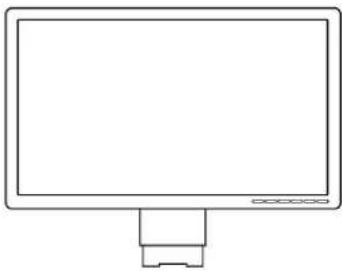 | 1. LCD Monitor |
 | 2. Monitor Base (the shape of base may vary according to the monitor model) |
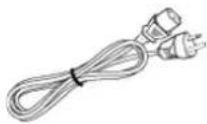 | 3. Power Cord (plug may vary according to the electrical standards for your area) |
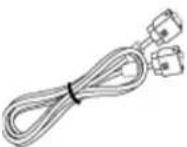 | 4. Analog Signal Cable |
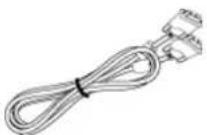 | 5. Digital Signal Cable (optional) |
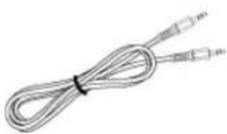 | 6. Audio Cable |
 | 7. Quick Installation Guide |
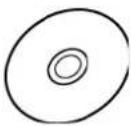 | 8. CD-ROM (contains user manual)[T400] Please install monitor drivers from the CD-ROM. The T2210HD driver is named "BENQT2200HD.inf", and the T2210HDA driver is named "BENQT2200HDA.inf". |
2. Installation
To connect the monitor to your PC
Make sure that the PC and monitor are unplugged.
- Connect the signal cable (VGA or DVI) to the monitor and the PC.
- Connect the audio cable to the monitor and the PC.
- Connect the separate power cable to the monitor and a grounded outlet.
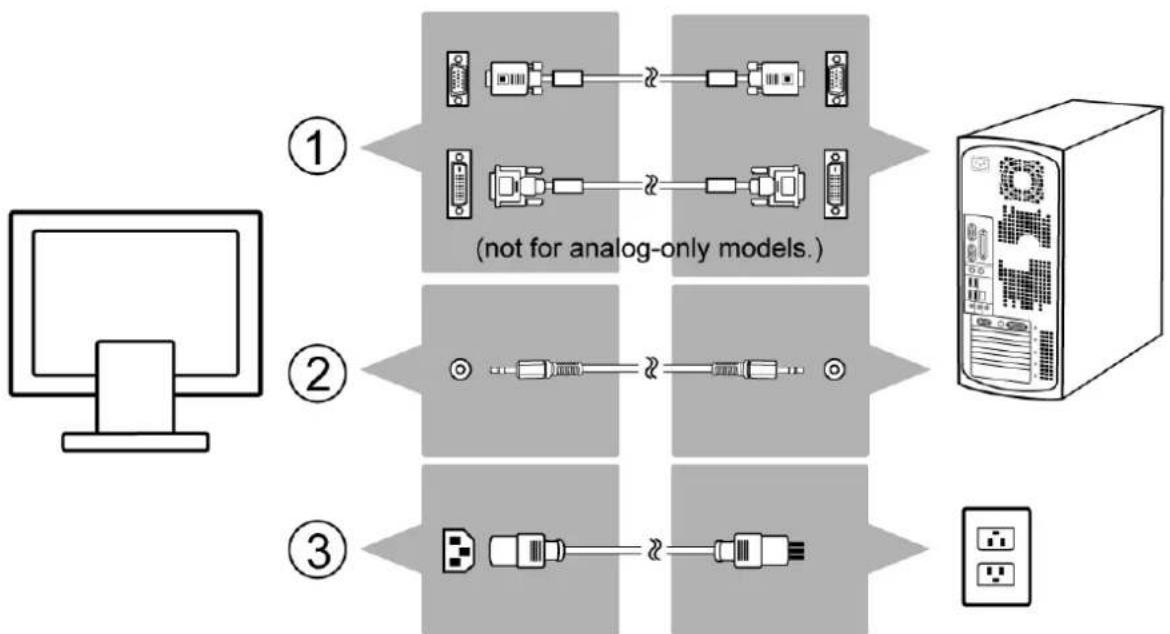
flowchart
graph LR
    A["Computer"] --> B["①"]
    B --> C["②"]
    C --> D["③"]
    D --> E["not for analog-only models."]
    style A fill:#f9f,stroke:#333
    style B fill:#ccf,stroke:#333
    style C fill:#cfc,stroke:#333
    style D fill:#fcc,stroke:#333
    style E fill:#ffc,stroke:#333
3. Adjusting your monitor
Functions of the buttons and indicator
| Item Function | |
| Enter | Enter OSD menu, select item, enter submenu, and confirm recall. |
| ▶ | 1. Positive adjustment, change within several selections.2. Hot key of "Brightness". |
| ◀ | 1. Minus adjustment, change within several selections.2. Hot key of "Contrast". |
| Exit | 1. Leave menu, cancel recall. (Settings will be saved automatically after adjustments are made.)2. Hot key of "Input Select". |
| Auto | Hot key of auto adjustment (for geometric settings only). |
OSD icon list
| Icon Function Description | ||
 | Auto Adjust * Optimize the picture performance automatically | |
 | Input Select | * Select the input from Analog and Digital Inputs* Factory default: Analog (VGA)Not for T2210HDA. |
 | Audio * Select "Volume" and "Mute" submenu | |
 | Luminance * Select "Brightness" and "Contrast" adjustment submenu | |
 | Geometry | * Select "H. Position", "V. Position", "Pixel Clock" and "Phase" adjustment submenu |
 | Color * Select color temperature or to set up user mode | |
 | OSD * Adjust the position and time of OSD menu on the screen | |
 | Language * Select your own preference of language of OSD menu | |
 | Recall * Reset monitor parameters back to factory preset value | |
 | Miscellaneous * Select "Miscellaneous" adjustment submenu | |
 | Brightness * Adjust the luminance of the screen | |
 | Contrast * Adjust the contrast level of the screen | |
 | H. Position * Shift the screen left or right | |
 | V. Position * Shift the screen up or down | |
 | Pixel Clock * Adjust the monitor internal sampling clock rate | |
 | Phase * Adjust the monitor internal signal phase | |
 | OSD H. Position * Shift the OSD left or right | |
 | OSD V. Position * Shift the OSD up or down | |
 | OSD Time * Set OSD display duration time | |
 | Sharpness * Adjust the sharp level of the screen | |
 | DDC/CI * Switch "DDC/CI" On or Off | |
 | Information * Show the display information | |
 | Volume * Adjust the level of the sound | |
 | Mute * Turn the sound to mute | |
 | DCR * Switch "DCR" On or Off | |
 | Display Mode * Switch "Display Mode": Aspect/Full | |
4. Troubleshooting
| Symptom Remedy | |
| *Blank Screen*Power indicator is off | Make sure the power cable is connected properly (see Installation on page 4).Make sure that the monitor was turned on using the power switch (see To connect the monitor to your PC on page 4). |
| Power indicator lights orange | Perhaps a power saving mode is active? Press any key on your keyboard or move the mouse. |
| Power indicator lights green | A screen saver may have activated automatically after a certain period of inactivity. Press any key on your keyboard or move the mouse. |
| "No Signal Detected!" message | Is the signal cable connected to the monitor and the PC's graphics port (see Installation on page 4)?Is the PC turned on (see your PC's documentation)? |
| *Display Problems*Image is displaced to the left/right or to the top/bottom | If the image appears normal but off-center, you can adjust it using the OSD functions. For further information, see "Auto Adjust" in the OSD icon list section. |
| Image is blurred | Check brightness and contrast settings (see "Luminance" in the OSD icon list section).Check the sharpness setting (see "Sharpness" in the OSD icon list section). |
| Color problems | If the colors are off (e.g., white is not really displayed as white etc.), you should adjust the color temperature (see "Color" in the OSD icon list section). |
| *Sound problems* | Is the audio cable connected to the monitor and the PC's audio out port?.Is the volume muted (see "Volume" and "Mute" in the OSD icon list section)? |
5. Specifications
21.5" Wide-Screen LCD monitor
| ItemT2210HD/T2210HDA | ||
| Panel | Display Size 476 | 64 (H) x 268.11 (V) mm |
| Pixel Pitch 0.248 | (H) x 0.248 (V) mm | |
| Monitor Display Colors 16.7M colors | ||
| Input Signal Frequency | Horizontal: 30 - 83 KHzVertical: 56 - 76 Hz | |
| Connector | Analog D-sub 15 | pin |
| Digital DVI 24 pin | (Not for T2210HDA) | |
| Tilt Tilt Angle -5° | - 20° | |
| Dimensions(W x H x D) | Net 516.4(W) x 3 | 86.7(H) x 211.6(D) mm |
| Weight Net 4.2 kg | ||
| Power | AC | AC 100-240V, 50-60 Hz |
| Consumption | Active: ≤ 52W / Standby: ≤ 2W | |