BY-PM700 PRO - Microphone BOYA - Free user manual and instructions
Find the device manual for free BY-PM700 PRO BOYA in PDF.


User questions about BY-PM700 PRO BOYA
0 question about this device. Answer the ones you know or ask your own.
Ask a new question about this device
Download the instructions for your Microphone in PDF format for free! Find your manual BY-PM700 PRO - BOYA and take your electronic device back in hand. On this page are published all the documents necessary for the use of your device. BY-PM700 PRO by BOYA.
USER MANUAL BY-PM700 PRO BOYA
text_image
QR code image containing encoded data, no visible human-readable textIntroduction
Thanks for choosing BOYA!
The BOYA BY-PM700 Pro is a desktop microphone with USB digital output and XLR analog output, compatible with Android devices, Windows/Mac computers, and analog audio devices. It provides a perfect audio solution for home studio recording, podcasting, voice over, video conference, and more.
The microphone features pattern selection, allowing you to select Stereo, Omnidirectional, Cardioid or Bidirectional pattern for different recording scenarios.
The 3.5mm headphone jack allows you to monitor and ensure the audio intelligibility during recording. With built in controls for headphone volume, gain and muting, you are in total control of your sound. An adjustable desktop stand allows you to place the microphone at the angle that's right for you.
Cautions
- Do not use the unit under water, don't expose it to rain. Please store it in a cool, dry place.
- Please use and store it in normal temperature. Do not move it from overheated to super-cooled condition frequently as well as keep away from heat sources such as heater, oven, or other devices that produce heat.
- When using and storing, please pay attention to dust and moisture.
- Be careful to violent collision.
Package Contents
• BY-PM700 Pro Microphone
• USB-A to USB-C Cable (3m)
• USB-C to USB-C Cable (2m)
- 5-Pin XLR Female to Dual 3-Pin XLR Male Y-Cable (0.5m)
Product Structure
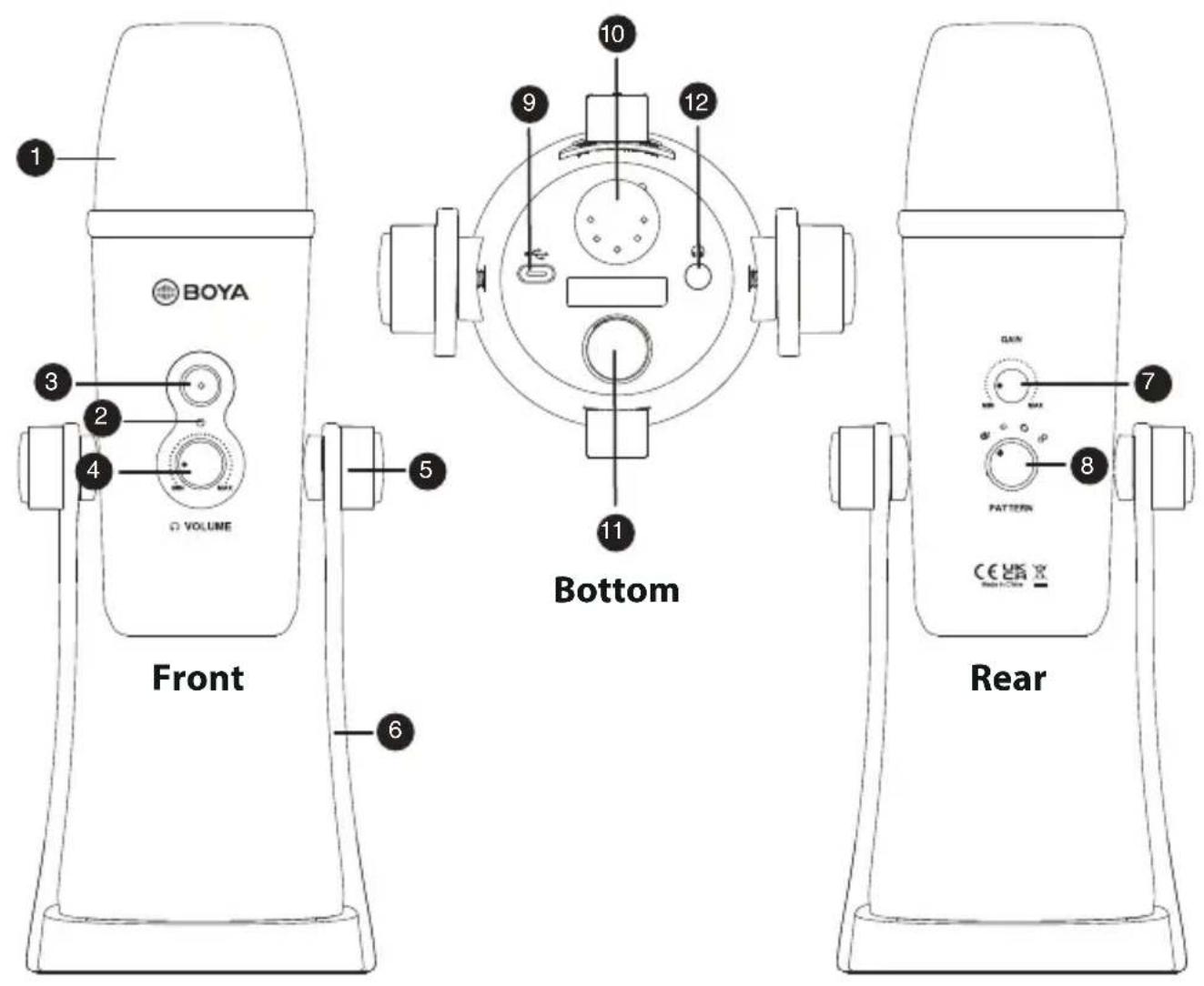
text_image
BOYA VOLUME 1 2 3 4 5 6 Bottom 10 9 11 12 7 GAIN MAX PATTERN CE VS X Rear- Tri-Capsule Array
- Power Indicator
-
Mute Button
-
Press to mute/unmute the microphone.
-
When LED indicator is red, the microphone is muted.
-
Headphone Volume Control
-
Locking Knobs
- Desk Stand
- Gain Control
- Pattern Selection
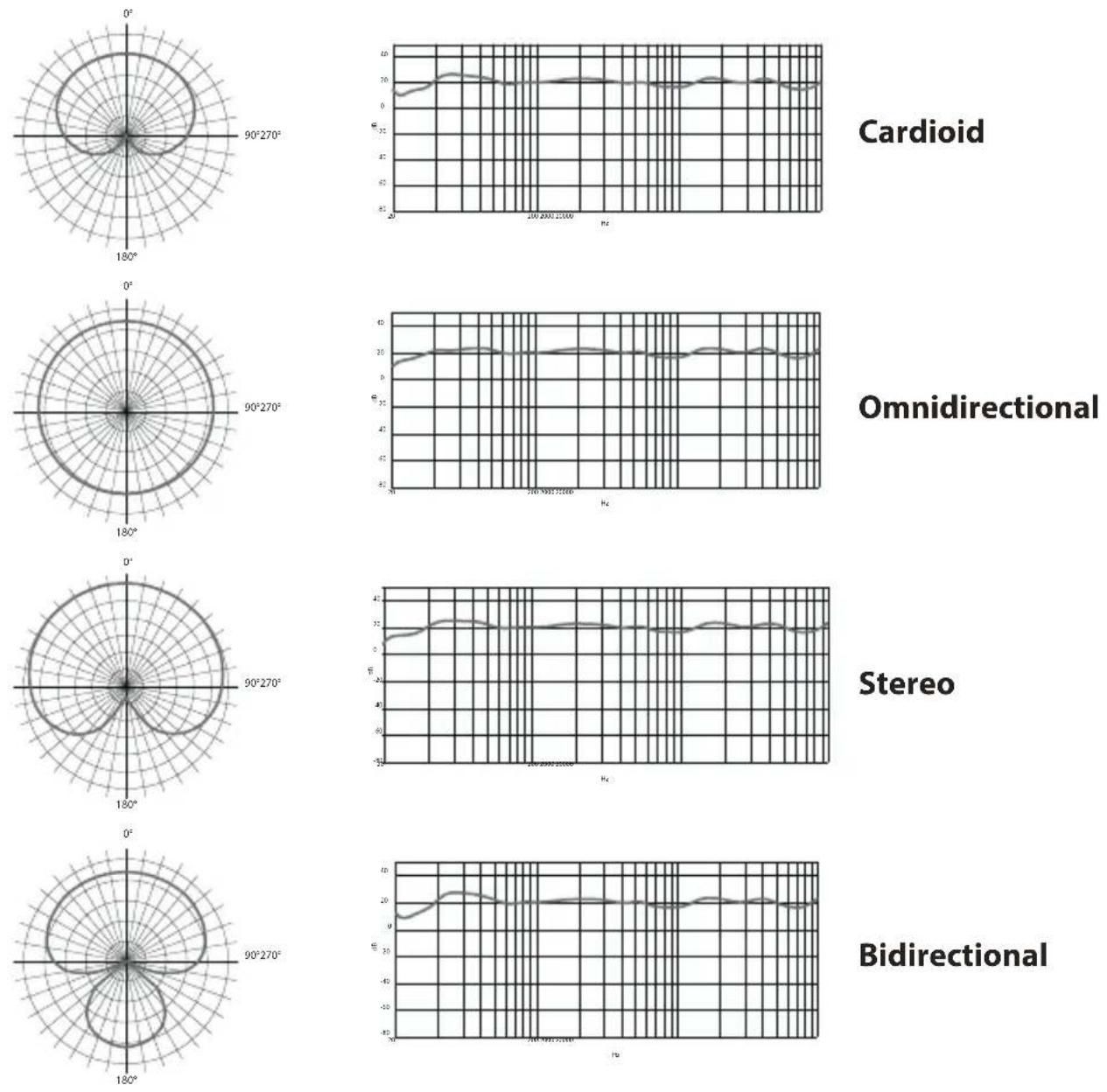
Stereopattern
Use the left and right channels to pick up sound, ideal for capturing a realistic sound image.
Omnidirectional Pattern
Pick up sound equally from all directions, capturing a natural blend of voice and ambiance with low sensitivity to wind and handling noise, as well as to vocal plosives.
Cardioid Pattern
Maximizes the rejection of sound coming from the sides and rear of the mic and can be used as a directional microphone to capture full, rich, and natural-sounding audio for podcast, speech, dialog, instrument etc.
∞Bi-directional Pattern
Pick up sound at the front and rear of the microphone, while sides sounds are not picked. It fits for capturing instruments, or recording an interview between two people.
- USB-C Port
- 5-Pin XLR Connector
- 5/8" Threaded Hole
- 3.5mm Headphone Output
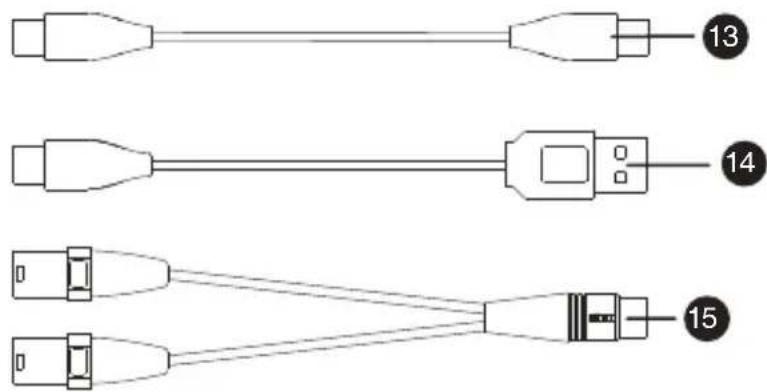
- USB-C to USB-C Cable
- USB-A to USB-C Cable
- 5-Pin XLR Female to Dual 3-Pin XLR Male Y-Cable
text_image
Diagram showing three types of Ethernet connectors with labeled pin numbers 13, 14, and 15 connected to a central port.Functions
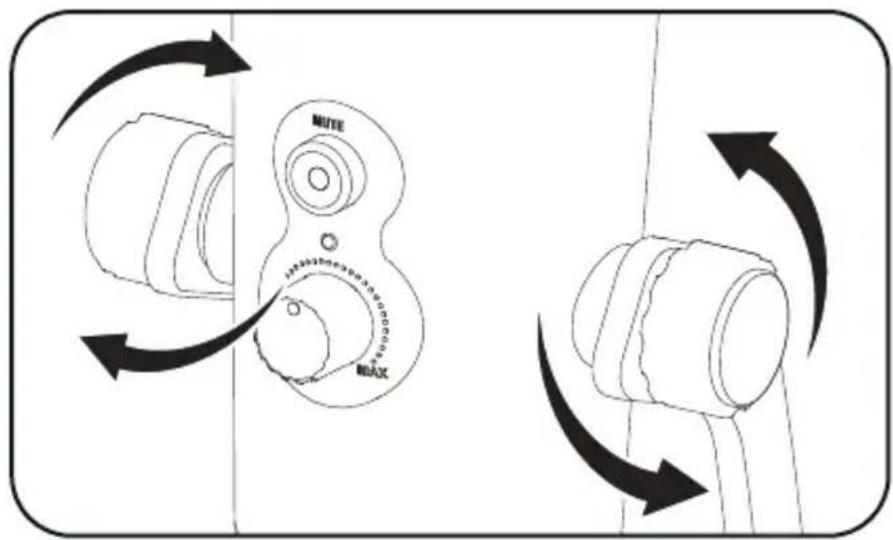
Angle Adjustment
Loosen the knobs of both sides anticlockwise.
Adjust the microphone at your desired angle, then tighten the knobs.
text_image
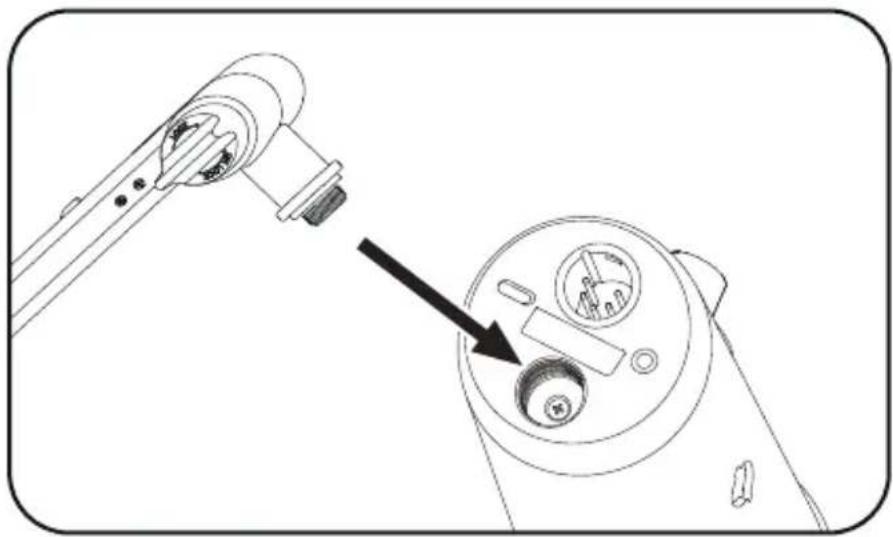
MUTE MAXMounting the BY-PM700 Pro to a boom arm
- Unscrew the locking knobs to remove the microphone from the desk stand.
- Mount the microphone to the boom arm through its 5/8" threaded hole.
natural_image
Technical diagram of a mechanical device with a close-up view showing internal components (no text or symbols)
Note:
the boom arm is not included.
How to Use
Using the USB digital output
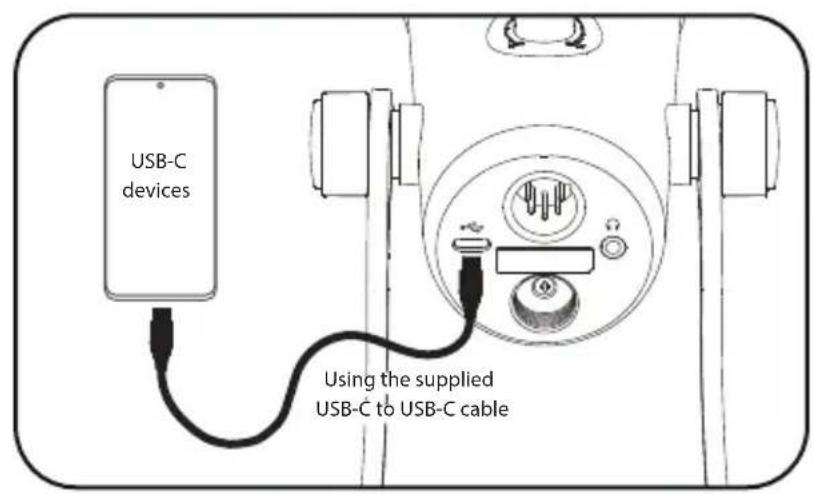
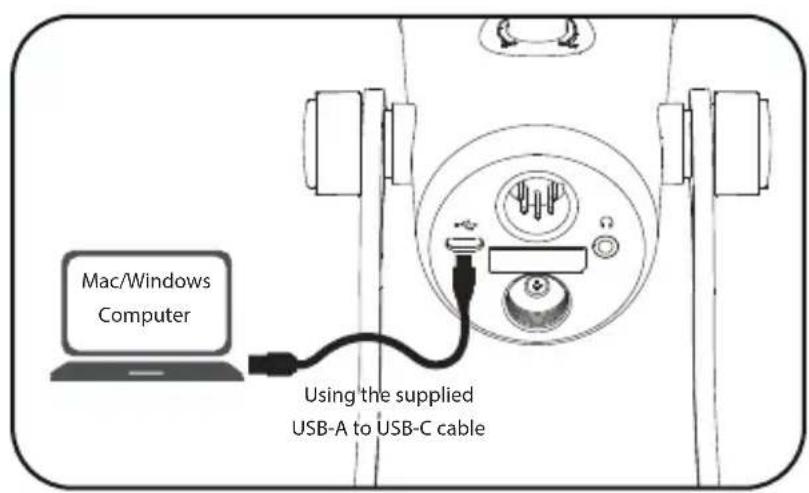
- Connect the microphone to your smartphone/computer
text_image
USB-C devices Using the supplied USB-C to USB-C cable
text_image
Mac/Windows Computer Using the supplied USB-A to USB-C cable
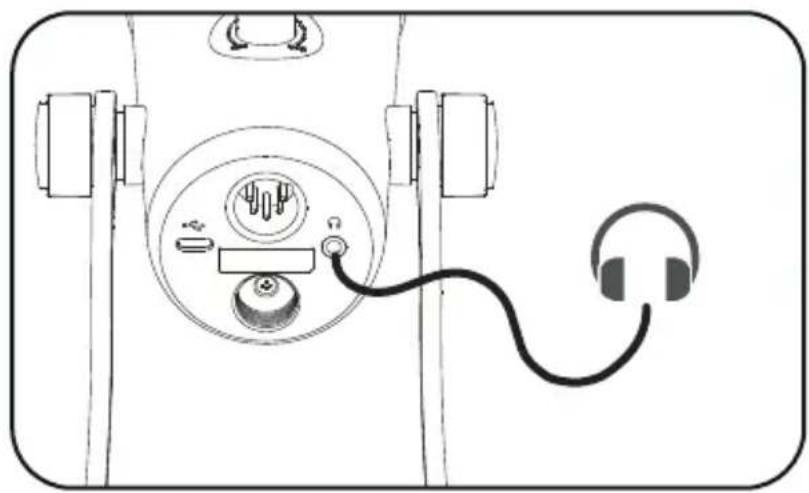
- Connect headphones for audio monitoring.
natural_image
Diagram of a device with a cable connecting two ports, showing internal components and connections (no text or symbols)-
Select the desired polar pattern and adjust the gain control and volume control knobs according to your needs.
-
You are ready to record.
Setup for Windows 10
- Connect the microphone to your computer using the supplied cable.
- Go to "Setting", choose "Sound".
- Select "Speaker BY-PM700 Pro" as the output device.
- Select "Microphone BY-PM700 Pro" as the input device.
Sound
Choose your output device
Speaker (BY-PM700 Pro)
Some apps are using custom output settings. You can personalize these in app volume and device preferences below.
Device properties
Volume

93

Troubleshoot
Input
Choose your input device
Microphone (BY-PM700 Pro)
Some apps are using custom input settings. You can personalize these in app volume and device preferences below.
Device properties
Test your microphone

The Ground Truth image displays a single, solid horizontal line, which is a stylistic or background element (like a ruled paper line). According to Rule 2, such lines must be ignored by the OCR result. The provided OCR content is "____", which consists of underscores. Underscores are not equivalent to a solid line and are not permitted under the “Stylistic/Background Lines (Ignore)” rule. Outputting underscores for a stylistic line is incorrect because it misinterprets the line as a fill-in-the-blank placeholder. Therefore, the OCR result is inconsistent with the Ground Truth.

Troubleshoot
Setup for Windows 7
- Connect the microphone to your computer using the supplied cable.
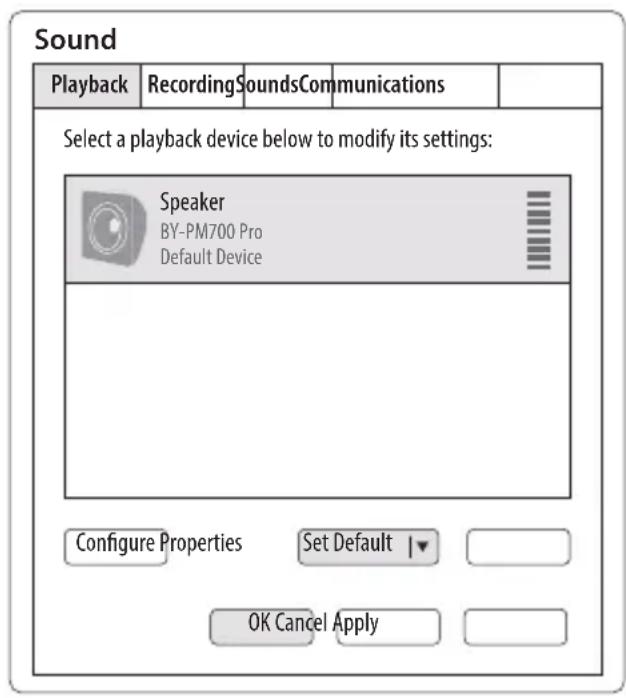
- Go to "Control Panel"-->"Hardware and Sound"--> "Sound".
- Select "Speaker BY-PM700 Pro" as the default device in "Sound", under the "Playback" menu.
- Select "Microphone BY-PM700 Pro" as the default device in "Sound", under the "Recording" menu.
text_image
Sound Playback Recording Sounds Communications Select a playback device below to modify its settings: Speaker BY-PM700 Pro Default Device Configure Properties Set Default OK Cancel Apply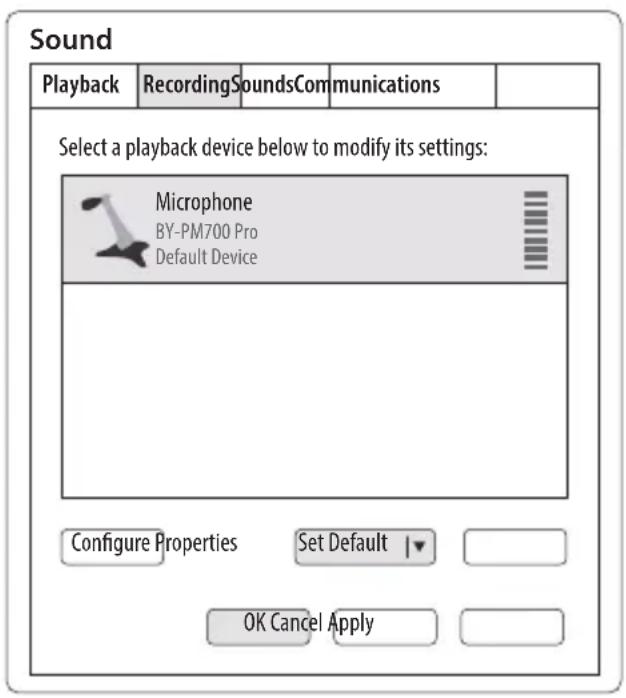
text_image
Sound Playback Recording Sounds Communications Select a playback device below to modify its settings: Microphone BY-PM700 Pro Default Device Configure Properties Set Default ▼ OK Cancel ApplySetup for Mac
- Connect the microphone to your computer using the supplied cable.
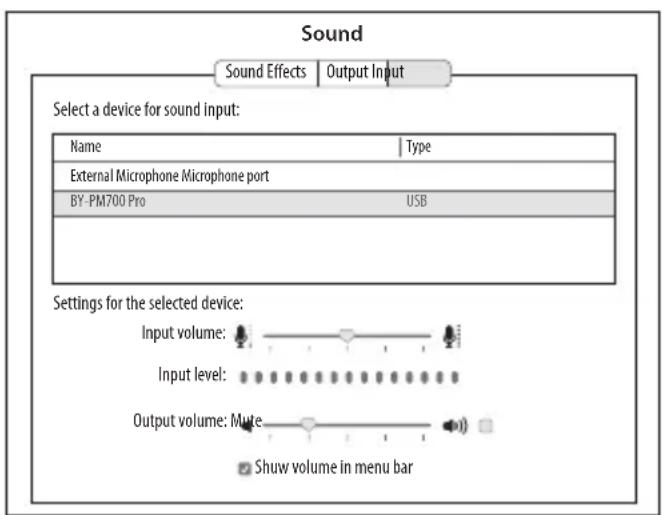
- Go to Apple Icon-->System Preferences-->Sound Icon.
- Select "BY-PM700 Pro" under the "Input" tab.
- Select "BY-PM700 Pro" under the "Output" tab.
text_image
Sound Sound Effects | Output Input Select a device for sound input: Name Type External Microphone Microphone port BY-PM700 Pro USB Settings for the selected device: Input volume: Input level: Output volume: Mute Show volume in menu bar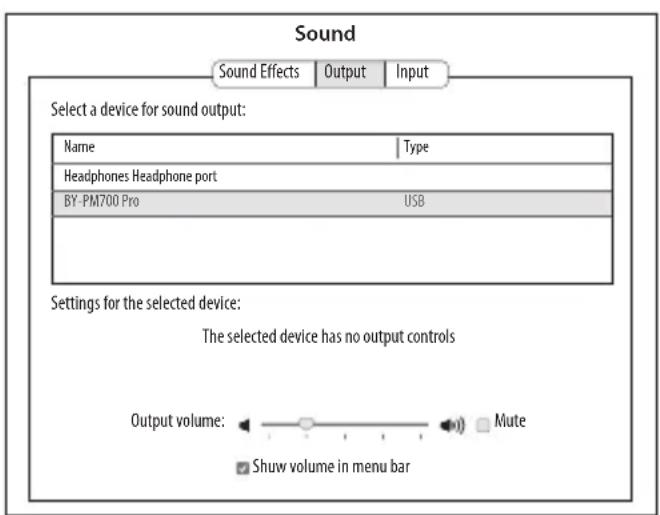
text_image
Sound Sound Effects Output Input Select a device for sound output: Name Type Headphones Headphone port BY-PM700 Pro USB Settings for the selected device: The selected device has no output controls Output volume: Mute Show volume in menu barUsing the XLR analog output
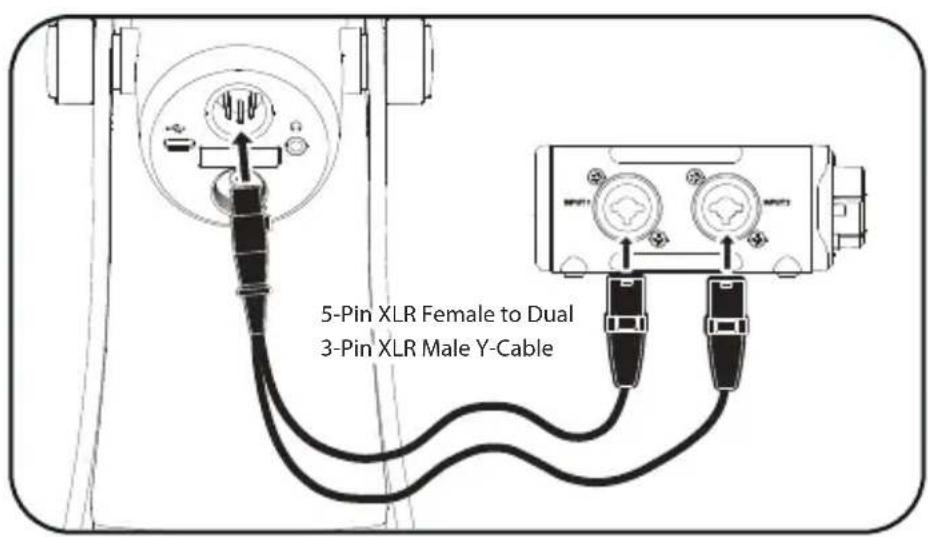
- Plug the supplied XLR Y-cable into the 5-pin connector of the microphone, then connect the other end of the cable to an audio interface or other analog audio devices.
- When using the XLR analog output, the BY-PM700 Pro should be powered by 12-48V phantom power. Please turn on the phantom power supply on the external device.
text_image
5-Pin XLR Female to Dual 3-Pin XLR Male Y-Cable
Note: When using the analog XLR output only, the 3.5mm headphone jack, volume control and mute button are not functional. It is recommended to monitor the audio via the external device.
Features
- Professional microphone with USB digital output and XLR analog output
- Universal compatibility with Android devices, Windows/Mac computers, analog audio devices
- Selectable Stereo, Omnidirectional, Cardioid and Bidirectional patterns for different scenarios
- 3.5mm headphone jack for latency-free monitoring
- Built-in controls for gain, headphone volume and muting
- 24bit/48kHz audio resolution
- Rugged metal construction
- Durable & detachable desk stand included
Specifications:
| Polar Pattern | Stereo, Omnidirectional, Cardioid, Bidirectional |
| Frequency Response | 20-20,000Hz |
| Sensitivity | -36dB |
| Power Consumption | 5V/80mA |
| Signal-to-Noise Ratio | 80dB |
| Maximum SPL | 120dB |
| Microphone's Gain Control | 0~54dB |
| Sampling Rate | 48 kHz |
| Bit Depth | 24 bit |
| Headphone Output Connector | 1/8"(3.5mm) jack |
| Audio Output Connector | USB-C, 5-Pin XLR |
| Dimensions | 295×112×116 mm |
| Weight | 1115g |
Polar Pattern Frequency Response
www.boya-mic.com
SHENZHEN JIAYZ PHOTO INDUSTRIAL., LTD.
The BOYA logo is a trademark which is registered and owned by Shenzhen Jiayz Photo Industrial., Ltd.
深圳市长丰影像器材有限公司