
37LG7000 - TV LG - Free user manual and instructions
Find the device manual for free 37LG7000 LG in PDF.


User questions about 37LG7000 LG
0 question about this device. Answer the ones you know or ask your own.
Ask a new question about this device
Download the instructions for your TV in PDF format for free! Find your manual 37LG7000 - LG and take your electronic device back in hand. On this page are published all the documents necessary for the use of your device. 37LG7000 by LG.
USER MANUAL 37LG7000 LG
LCD TV | PLASMA TV OWNER'S MANUAL
LCD TV MODELS
32LG70*
37LG70***
42LG70***
47LG70*部*部
52LG70***
PLASMA TV MODELS
50PG70***
60PG70**
Please read this manual carefully before operating your TV.
Retain it for future reference.
Record model number and serial number of the TV.
Refer to the label on the back cover and quote this information.
To your dealer when requiring service.
DVB
Digital Video Broadcasting
Trade Mark of the DVB Digital Video
Broadcasting Project (1991 to 1996)
ID Number(s): 5512:32LG7000
5511:37LG7000
5510:42LG7000
5530: 47LG7000
5509: 52LG7000
5245: 50PG7000
5244:60PG7000
C€0678
Plasma TV only

text_image
Energy ENERGY STARThis product qualifies for ENERGY STAR in the "factory default (Home mode)" setting and this is the setting in which power savings will be achieved.
Changing the factory default picture setting or enabling other features will increase power consumption that could exceed the limits necessary to qualify for Energy Star rating.
ACCESSORIES
Ensure that the following accessories are included with your TV. If an accessory is missing, please contact the dealer where you purchased the TV.
■ Image shown may differ from your TV

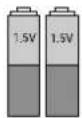
Owner's Manual Batteries

Power Cord
natural_image
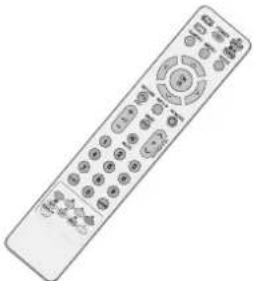
Line drawing of a remote control with multiple function keys and buttons (no text or symbols)Remote Control
This feature is not available for all models.

Polishing Cloth
Polishing cloth for use on
the screen.
* Lightly wipe any stains or fingerprints on the surface of the TV with the polishing cloth.
Do not use excessive force. This may cause scratching or discolouration.
PLASMA TV models
natural_image
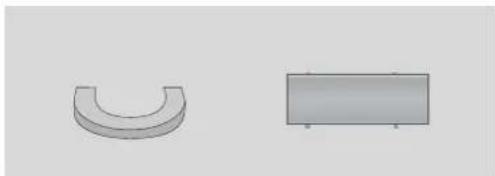
Two 3D geometric shapes: a curved U-shaped component and a rectangular block, both without any text or symbols.Cable management clip
Ferrite core (Refer to p.10)
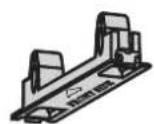
Protection cover (Refer to p.13)
LCD TV models
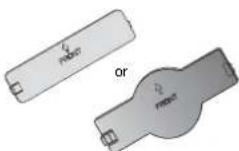
Protection Cover (Refer to p.13)
(32/37/42LG70* only)
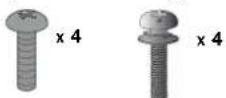
Bolts for stand assembly (Refer to p.8)
(32/37LG70** only)

1-screw for stand fixing (Refer to p.12)
CONTENTS
ACCESSORIES 1
PREPARATION
Front Panel Controls.... 4
Back Panel Information 6
Stand Installation....8
Swivel Stand 8
Please set it up carefully so the product doesn't fall over....9
Back Cover for Wire Arrangement 10
Desktop Pedestal Installation 12
Attaching the TV to a desk....12
Wall Mount: Horizontal Installation.... 13
Not Using the desk-type stand....13
Antenna Connection.... 14
EXTERNAL EQUIPMENT SETUP
HD Receiver Setup.... 15
DVD Setup.... 17
VCR Setup.... 20
Insertion of CI Module 22
Digital Audio Out Setup.... 23
Other A/V Source Setup.... 24
Usb in Setup.... 25
PC Setup.... 26
- Screen Setup for PC Mode 29
WATCHING TV / PROGRAMME CONTROL
Remote Control Key Functions 34
Turning on the TV.... 36
Programme Selection 36
Volume Adjustment 36
Quick Menu 37
On-Screen Menus Selection and Adjustment..... 38
Auto Programme Tuning.... 39
Manual Programme Tuning (In Digital Mode)..... 40
Manual Programme Tuning (In Analogue Mode) ... 41
Programme Edit 43
Booster.... 46
Software Update.... 47
Diagnostics 48
CI Information.... 49
Selecting the Programme Table.... 50
Input List.... 51
Simplink 52
Input Label 54
AV Mode.... 54
Simple manual 55
TO USE THE BLUETOOTH
Precautions when using the Bluetooth 56
Setting the Bluetooth.... 57
Set TV PIN....58
Bluetooth headset
- Connecting a new Bluetooth headset ....59
- Connecting to Bluetooth headset already registered.... 59
- Disconnecting the Bluetooth headset during use ...60
- When requesting to connect to TV from the Bluetooth headset....60
Managing Registered Bluetooth device.... 61
My Bluetooth Information. 62
Receiving photos through external Bluetooth device..63
TO USE THE USB DEVICE
When connecting the USB device.... 64
Photo List 65
Music List....69
EPG (ELECTRONIC PROGRAMME GUIDE) (IN DIGITAL MODE)
- Switch on/off EPG 72
- Select Programme 72
- Button Function in NOW/NEXT Guide Mode 73
- Button Function in 8 Day Guide Mode...... 73
- Button Function in Date Change Mode...... 73
- Button Function in Extended Description Box..74
- Button Function in Record/Remind Setting Mode 74
- Button Function in Schedule List Mode...... 74
PICTURE CONTROL
Picture Size (Aspect Ratio) Control.... 75
Preset Picture Settings
- Picture Mode-Preset.... 77
- Auto Colour Tone Control
(Warm/Medium/Cool)....78
Manual Picture Adjustment
- Picture Mode-User option.... 79
-Picture Mode-Expert Control 80
Picture Improvement Technology 81
Advanced - Film Mode/ Real Cinema.... 82
Advanced - Black(Darkness) Level 83
Advanced - Trumotion 84
TruMotion Demo....85
Eye Care....86
Picture Reset.... 87
Power Indicator 88
Image Sticking Minimization (ISM) Method...... 89
Power Saving Picture Mode.... 90
SOUND & LANGUAGE CONTROL
Auto Volume Leveler 91
Preset Sound Settings - Sound Mode.... 92
Sound Setting Adjustment -User Mode 93
SRS TruSurround XT 93
Clear Voice....94
Balance....95
TV Speakers On/ Off Setup 96
Selecting Digital Audio Out 97
Audio Reset....98
I/II
- Stereo/Dual Reception (In Analogue Mode Only)....99
- NICAM Reception (In Analogue Mode Only)... 100
- Speaker Sound Output Selection .... 100
On-Screen Menu Language/Country Selection .... 101
Language Selection (In Digital Mode only)..... 102
TIME SETTING
Clock Setup 103
Auto On/ Off Timer Setting 104
Auto Shut-off Setting 105
Time Zone Setup 106
Sleep Timer Setting 106
PARENTAL CONTROL / RATINGS
Set Password & Lock System.... 107
Block Programme 108
Parental Control 109
Key Lock.... 110
TELETEXT
Switch on/off.... 111
SIMPLE Text.... 111
TOP Text.... 111
FASTEXT.... 1 12
Special Teletext Functions.... 112
DIGITAL TELETEXT
Teletext within Digital Service.... 113
Teletext in Digital Service.... 113
APPENDIX
Troubleshooting 114
Maintenance 116
Product Specifications.... 117
Programming the Remote Control 119
IR Codes.... 121
External Control Device Setup 123
PREPARATION
FRONT PANEL CONTROLS
■ Image shown may differ from your TV.
Plasma TV Models
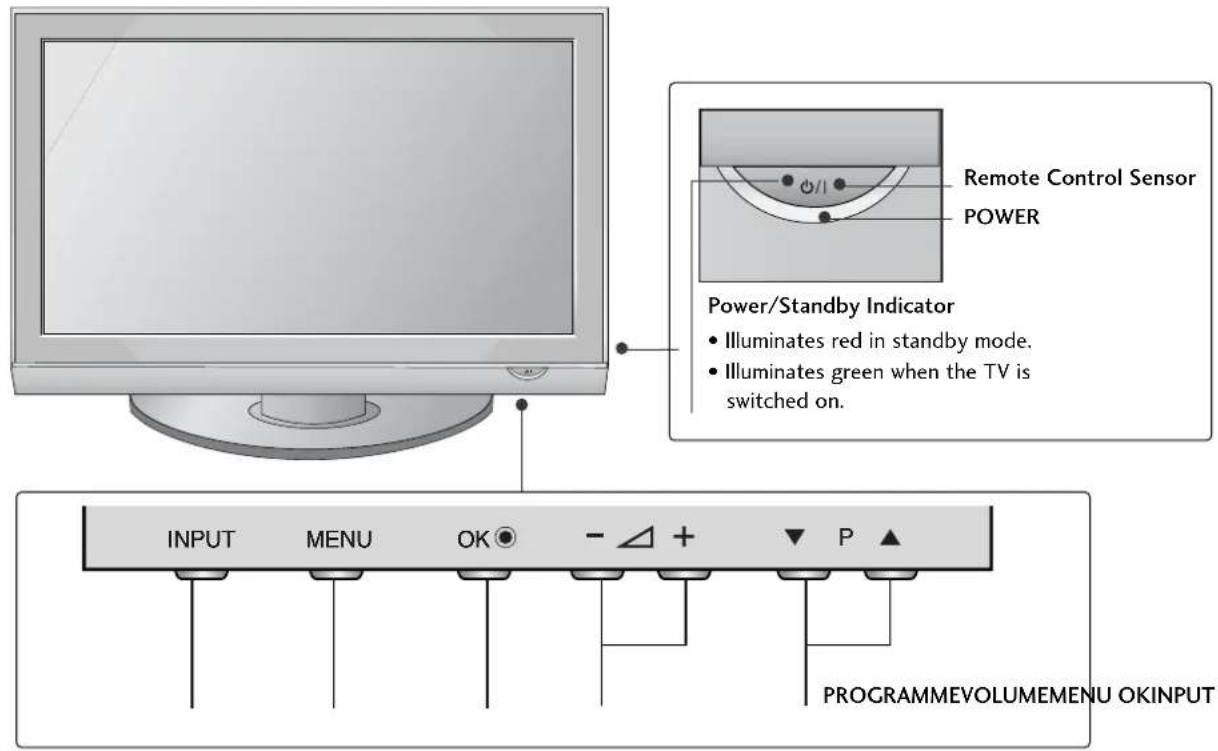
text_image
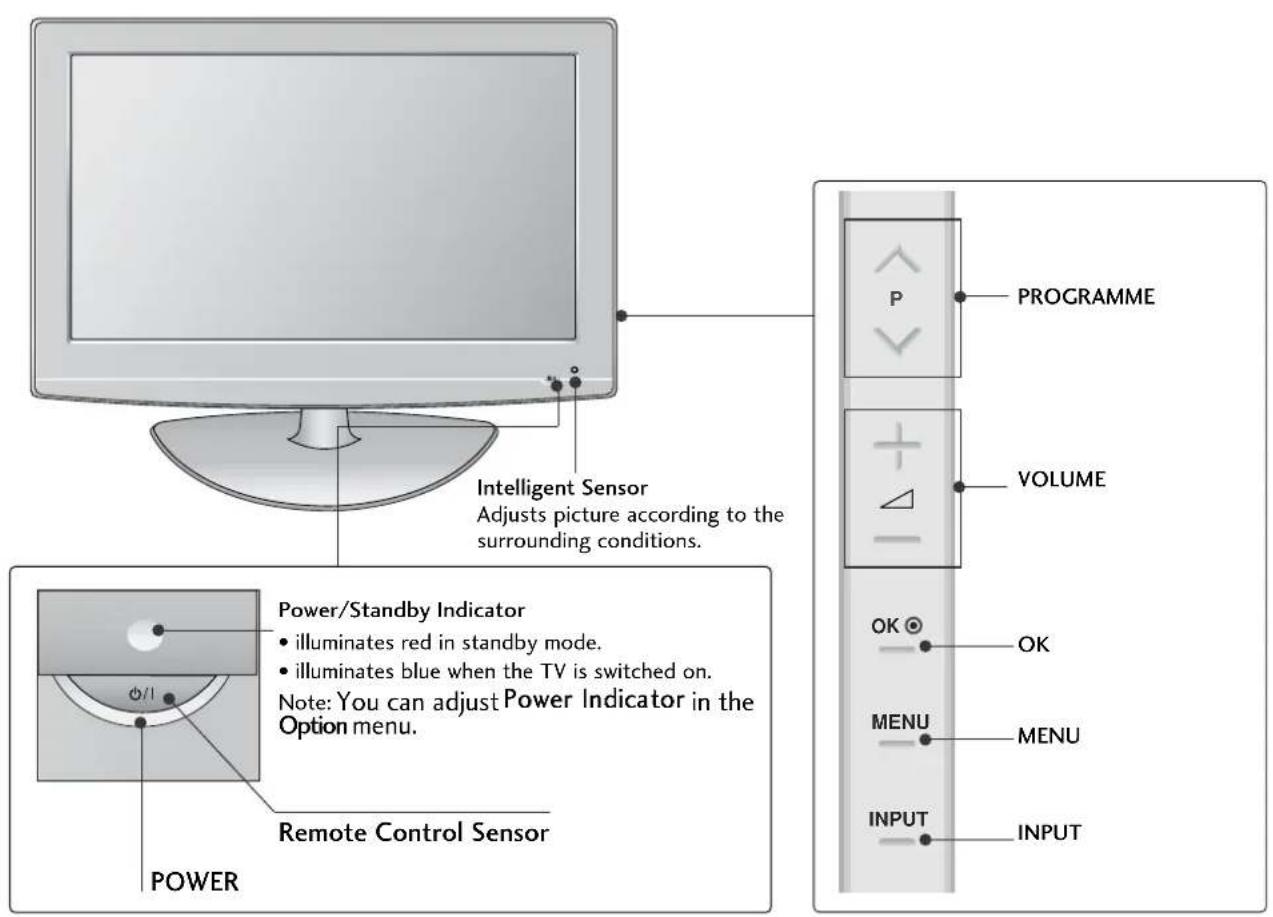
Remote Control Sensor POWER Power/Standby Indicator • Illuminates red in standby mode. • Illuminates green when the TV is switched on. INPUT MENU OK - △ + P ▲ PROGRAMMEVOLUMEMENU OKINPUTLCD TV Models
text_image
Intelligent Sensor Adjusts picture according to the surrounding conditions. Power/Standby Indicator • illuminates red in standby mode. • illuminates blue when the TV is switched on. Note: You can adjust Power Indicator in the Option menu. Remote Control Sensor POWER PROGRAMME VOLUME OK OK MENU MENU INPUT INPUTPREPARATION
BACK PANEL INFORMATION
■ Image shown may differ from your TV.
Plasma TV Models
text_image
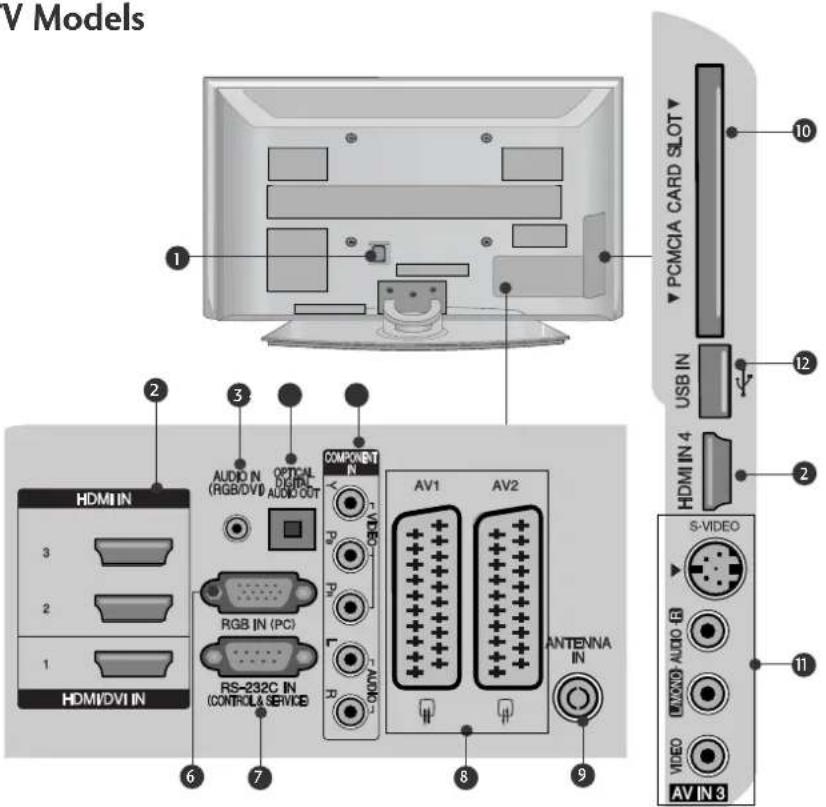
V Models 1 2 3 4 5 6 7 8 9 HDMI IN AUDIO IN (RGB/DVI) OPTICAL DIGITAL AUDIO OUT COMPONENT IN AV1 AV2 ANTENNA IN RGB IN (PC) RS-232C IN (CONTROL & SERVICE) PCMICA CARD SLOT PCMICA CARD SLOT USB IN HDMI IN 4 S-VIDEO AUDIO R VIDEO AV IN 31 Power Cord Socket This TV operates on an AC power. The voltage is indicated on the Specifications page. Never attempt to operate the TV on DC power.
② HDMI Input Connect a HDMI signal to HDMI IN. Or DVI(VIDEO)signal to HDMI/DVI port with DVI to HDMI cable.
3 RGB/DVI Audio Input Connect the audio from a PC or DTV.
4 OPTICAL DIGITAL AUDIO OUT Connect digital audio from various types of equipment. Note: In standby mode, these ports do not work.
5 Component Input Connect a component video/audio device to these jacks.
6 RGB Input Connect the output from a PC.
7 RS-232C IN (CONTROL & SERVICE) PORT Connect to the RS-232C port on a PC.
8 Euro Scart Socket (AV1/AV2) Connect scart socket input or output from an external device to these jacks.
9 Antenna Input Connect RF antenna to this jack.
10 PCMCIA (Personal Computer Memory Card International Association) Card Slot (This feature is not available in all countries.)
11 S-Video Input Connect S-Video out from an S-VIDEO device. Audio/Video Input Connect audio/video output from an external device to these jacks.
12 USB Input
LCD TV Models

text_image
Models HDMI IN 3 2 1(DVI) AUDIO IN (RGB/DVD) OPTICAL AUDIO OUT COMPONENT N AV1 AV2 RGB IN (PC) RS-232C IN (CONTROLS & SERVICE) ANTENNA IN S-VIDEO VIDEO LAMND AUDIO 8 AV IN 3 PCMICA CARD SLOT USB IN HDMI IN 4 2 10 12 11① Power Cord Socket
This TV operates on an AC power. The voltage is indicated on the Specifications page. Never attempt to operate the TV on DC power.
② HDMI Input
Connect a HDMI signal to HDMI IN.
Or DVI(VIDEO)signal to HDMI/DVI port with DVI to HDMI cable.
3 RGB/DVI Audio Input
Connect the audio from a PC or DTV.
4 OPTICAL DIGITAL AUDIO OUT
Connect digital audio from various types of equipment.
Note: In standby mode, these ports do not work.
5 Component Input
Connect a component video/audio device to these jacks.
6 RGB Input
Connect the output from a PC.
7 RS-232C IN (CONTROL & SERVICE) PORT Connect to the RS-232C port on a PC.
8 Euro Scart Socket (AV1/AV2)
Connect scart socket input or output from an external device to these jacks.
9 Antenna Input
Connect RF antenna to this jack.
10 PCMCIA (Personal Computer Memory Card International Association) Card Slot (This feature is not available in all countries.)
11 S-Video Input
Connect S-Video out from an S-VIDEO device. Audio/Video Input
Connect audio/video output from an external device to these jacks.
12 USB Input
PREPARATION
STAND INSTALLATION
■ Image shown may differ from your TV
When assembling the desk type stand, check whether the bolt is fully tightened. (If not tightened fully, the product can tilt forward after the product installation.) If you tighten the bolt with excessive force, the bolt can deviate from abrasion of the tightening part of the bolt.
32/37/42LG70\*\* only
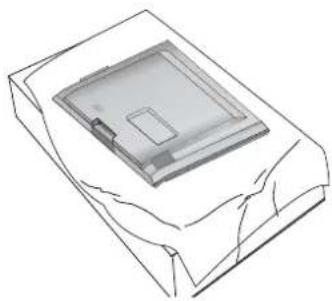
1 Carefully place the TV screen side down on a cushioned surface to protect the screen from damage.
natural_image
Isometric line drawing of a rectangular electronic component with a central square top (no text or symbols)2 Assemble the parts of the Stand Body with the Cover Base of the TV.
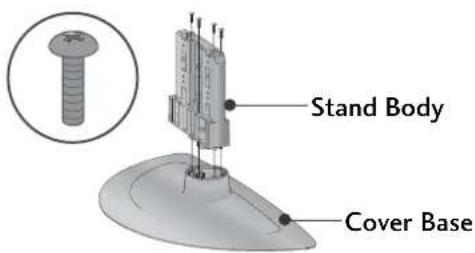
text_image
Stand Body Cover Base3 Assemble the TV as shown.
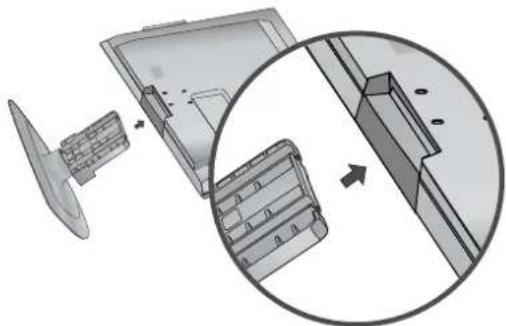
natural_image
Diagram showing a mechanical assembly with a fan and internal components, including a magnified inset view (no text or symbols)4 Fix the 4 bolts securely using the holes in the back of the TV.
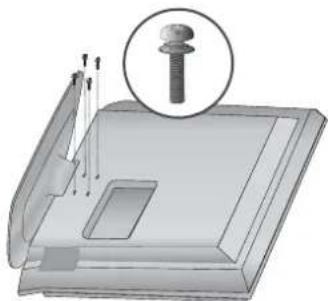
natural_image
3D mechanical assembly diagram showing a component with a bolt and pin, no text or symbols presentSWIVEL STAND
After installing the TV, you can adjust the TV set manually to the left or right direction by 20 degrees to suit your viewing position.
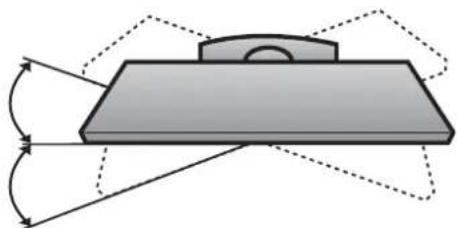
natural_image
Diagram of a mechanical component with angular motion arrows and dashed lines indicating rotation (no text or symbols)PLEASE SET IT UP CAREFULLY SO THE PRODUCT DOESN'T FALL OVER.
■ You should purchase necessary components to fix the TV to the wall on the market.
■ Position the TV close to the wall to avoid the possibility of it falling when pushed.
The instructions shown below are a safer way to set up the TV, which is to fix it to the wall, avoiding the possibility of it falling forwards if pulled. This will prevent the TV from falling forward and causing injury. This will also prevent the TV from damage. Ensure that children do not climb or hang from the TV.
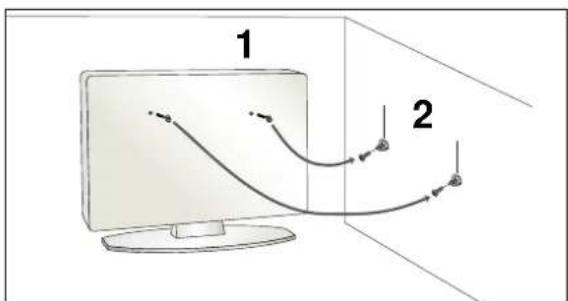
text_image
1 2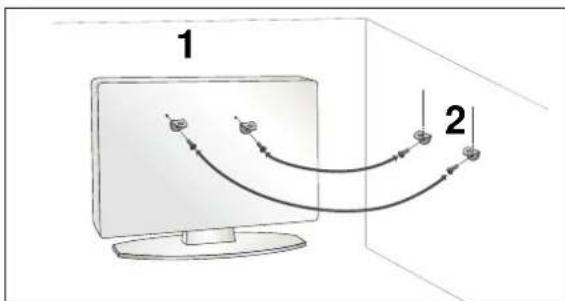
flowchart
graph TD
    A["1"] --> B["2"]
    style A fill:#f9f,stroke:#333
    style B fill:#bbf,stroke:#333
1 Use the eye-bolts or TV brackets/bolts to fix the product to the wall as shown in the picture. (If your TV has bolts in the eyebolts, loosen then bolts.)
* Insert the eye-bolts or TV brackets/bolts and tighten them securely in the upper holes.
2 Secure the wall brackets with the bolts on the wall. Match the height of the bracket that is mounted on the wall.
natural_image
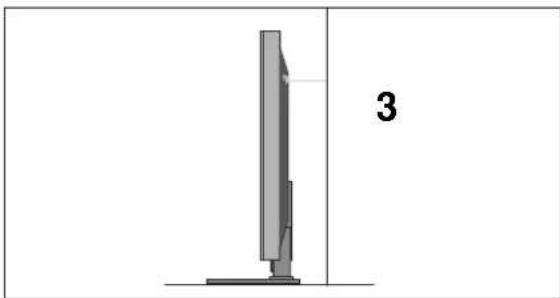
Diagram of a vertical computer monitor with a base, labeled '3' on the side (no text or symbols on the device itself)3 Use a sturdy rope to tie the product. It is safer to tie the rope so it becomes horizontal between the wall and the product.
NOTE
▶ When moving the TV undo the cords first.
▶ Use a platform or cabinet strong and large enough to support the size and weight of the TV.
▶ To use the TV safely make sure that the height of the bracket on the wall and on the TV is the same.
PREPARATION
BACK COVER FOR WIRE ARRANGEMENT
■ Image shown may differ from your TV.
Plasma TV models
1 Connect the cables as necessary.
To connect additional equipment, see the External equipment Setup section.
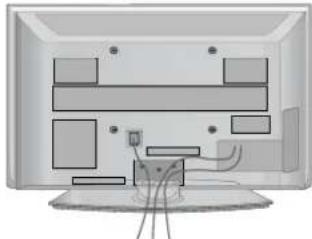
natural_image
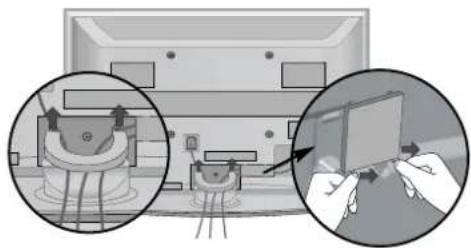
Illustration of a flat-screen TV with abstract wall panels and a central connector (no text or symbols)2 Install the CABLE MANAGEMENT CLIP as shown.
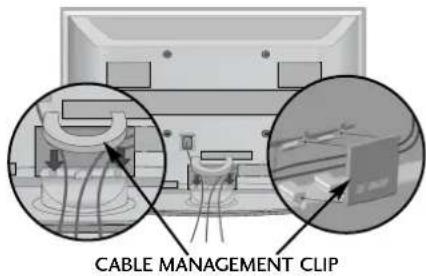
text_image
CABLE MANAGEMENT CLIPHow to remove the cable management clip
Hold the CABLE MANAGEMENT CLIP with both hands and pull it upward.
natural_image
Diagram showing two views of a device with arrows indicating motion, no text or symbols presentSeparate CABLE MANAGEMENT from TV by pressing two latches.
NOTE
▶ Do not use the CABLE MANAGEMENT CLIP to lift the TV.
- If the TV is dropped, you may be injured or the TV may be damaged.
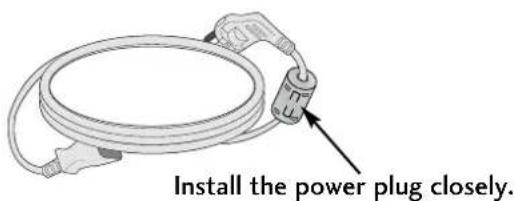
Use of ferrite core (50/60PG70\*\* Only)
Ferrite core can be used to reduce the electromagnetic wave when connecting the power cord.
The closer the location of the ferrite core to the power plug, the better it is.
text_image
Install the power plug closely.LCD TV models
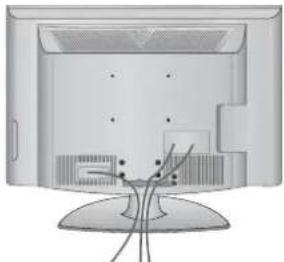
1 Connect the cables as necessary.
To connect additional equipment, see the External Equipment Setup section of the manual.
natural_image
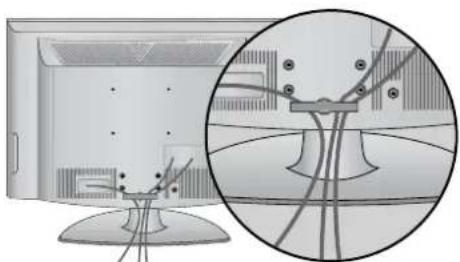
Illustration of a flat-screen TV with visible rear panel and cable connectors (no text or symbols)2 Open the CABLE MANAGEMENT CLIP as shown and manage the cables.

text_image
CABLE MANAGEMENT CLIP3 Fit the CABLE MANAGEMENT CLIP as shown.
natural_image
Illustration of a computer monitor with an inset close-up showing internal components (no text or symbols)PREPARATION
The TV can be installed in various ways such as on a wall, or on a desktop etc.
■ The TV is designed to be mounted horizontally.
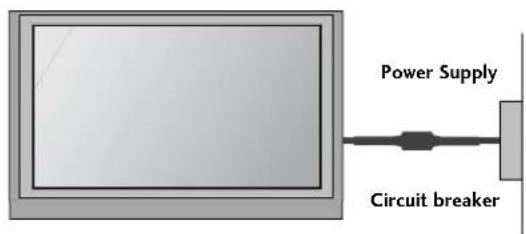
EARTHING
Ensure that you connect the earth wire to prevent possible electric shock. If grounding methods are not possible, have a qualified electrician install a separate circuit breaker.
Do not try to earth the TV by connecting it to telephone wires, lightening rods or gas pipes.
text_image
Power Supply Circuit breakerDESKTOP PEDESTAL INSTALLATION
For adequate ventilation allow a clearance of 4" (10cm) all around the TV.
natural_image
Illustration of a flat-screen computer monitor with a circular base (no text or symbols)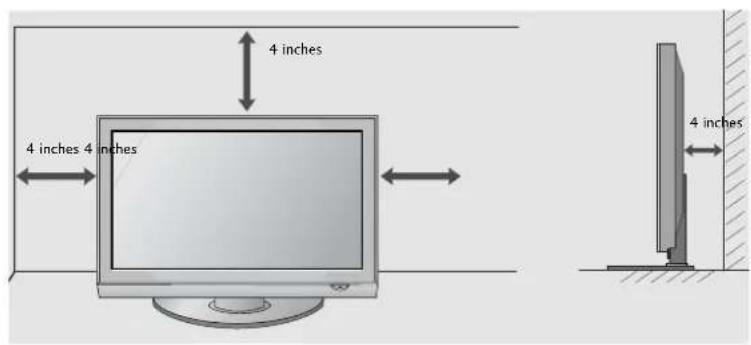
text_image
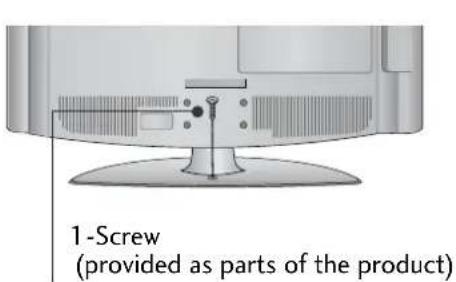
4 inches 4 inches 4 inches 4 inches 4 inchesATTACHING THE TV TO A DESK (32/37LG70 only)
The TV must be attached to desk so it cannot be pulled in a forward/backward direction, potentially causing injury or damaging the product. Use only an attached screw.
text_image
1-Screw (provided as parts of the product)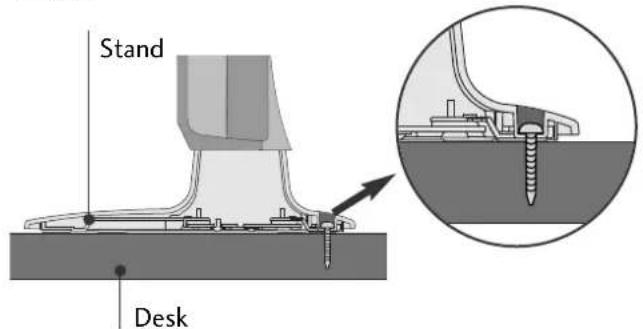
text_image
Stand Desk! WARNING
▶ To prevent TV from falling over, the TV should be securely attached to the floor/wall per installation instructions. Tipping, shaking, or rocking the machine may cause injury.
WALL MOUNT: HORIZONTAL INSTALLATION
For adequate ventilation allow a clearance of 4" (10cm) all around the TV. We recommend that you use a wall mount-ing bracket of LG brand when mounting the TV to a wall.
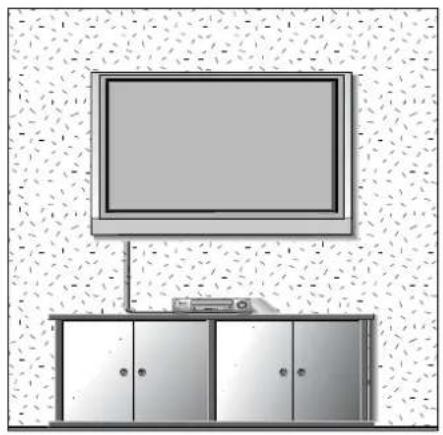
natural_image
Interior view of a room with a large TV mounted on a cabinet (no visible text or symbols)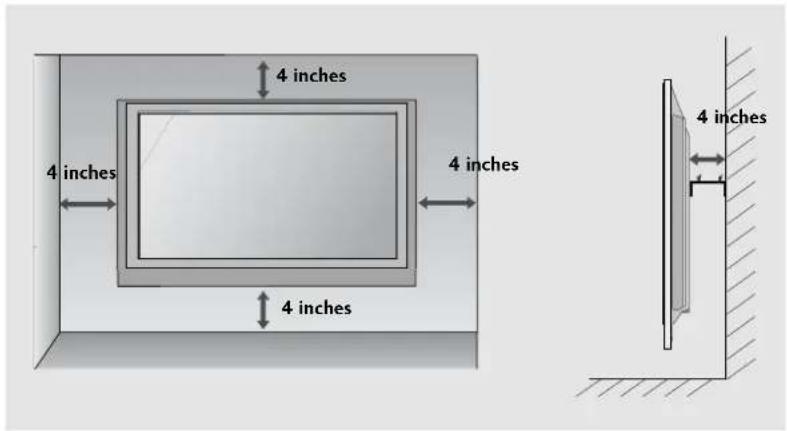
text_image
4 inches 4 inches 4 inches 4 inches 4 inches 4 inchesNOT USING THE DESK-TYPE STAND
Image shown may differ from your TV.
When installing the wall-mounted unit, use the protection cover for desk-type stand installation.
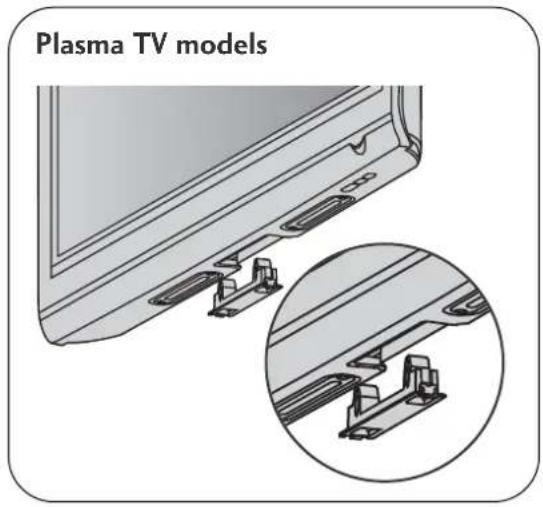
text_image
Plasma TV models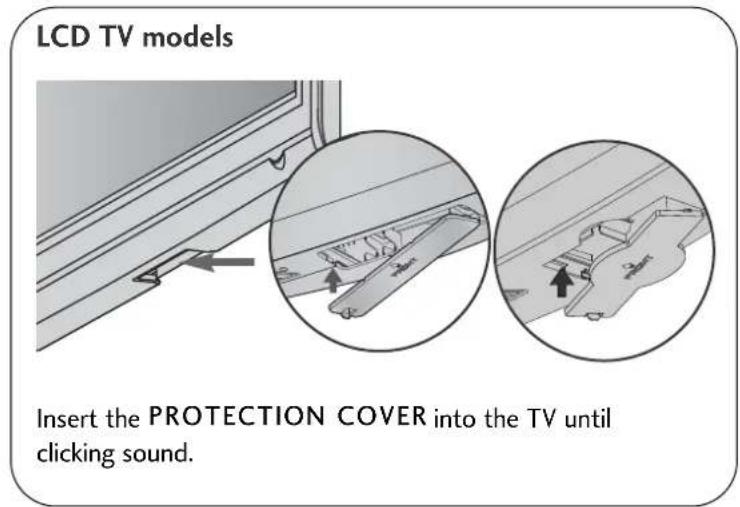
text_image
LCD TV models Insert the PROTECTION COVER into the TV until clicking sound.PREPARATION
■ To prevent damage do not connect to the mains outlet until all connections are made between the devices.
ANTENNA CONNECTION
■ For optimum picture quality, adjust antenna direction.
■ An antenna cable and converter are not supplied.
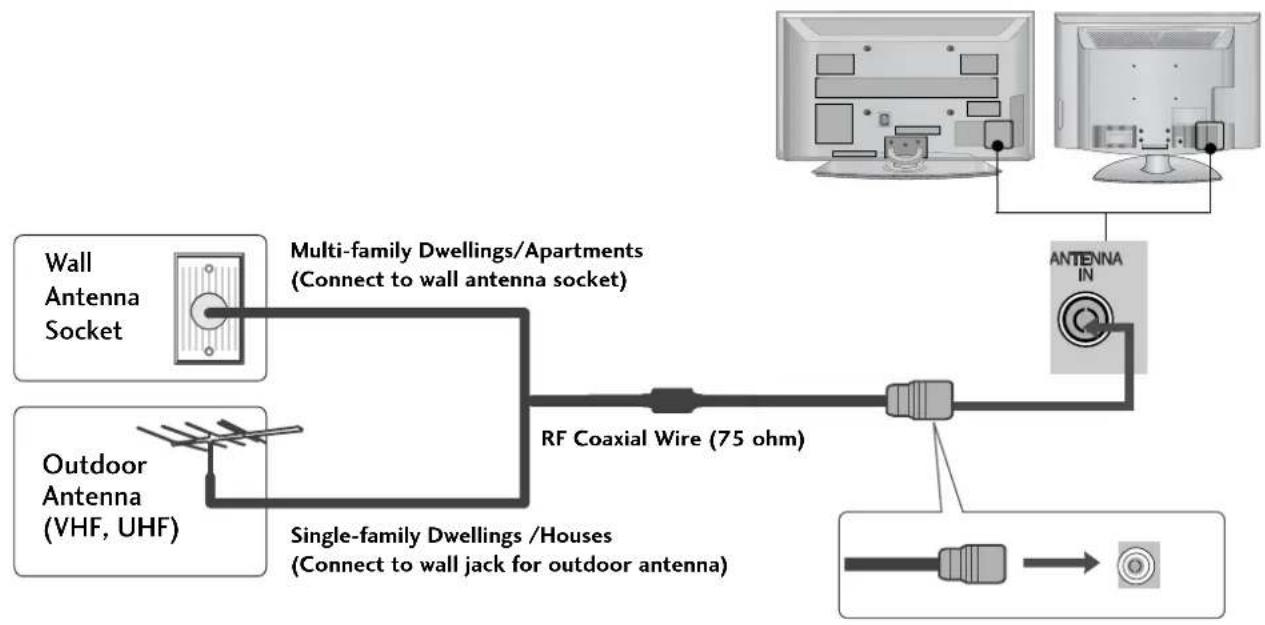
flowchart
graph LR
    A["Wall Antenna Socket"] --> B["Multi-family Dwellings/Apartments (Connect to wall antenna socket)"]
    C["Outdoor Antenna (VHF, UHF)"] --> D["Single-family Dwellings/Houses (Connect to wall jack for outdoor antenna)"]
    B --> E["RF Coaxial Wire (75 ohm)"]
    D --> E
    E --> F["Antenna IN"]

flowchart
graph LR
    A["Antenna"] --> B["UHF"]
    A --> C["VHF"]
    B --> D["Signal Amplifier"]
    C --> D
    D --> E["Antenna IN"]
In poor signal areas, to achieve better picture quality it may be necessary to install a signal amplifier to the antenna as shown above.
■ If signal needs to be split for two TVs, use an antenna signal splitter for connection.
EXTERNAL EQUIPMENT SETUP
■ To avoid damaging any equipment, never plug in any power cords until you have finished connecting all equipment.
■ This section on EXTERNAL EQUIPMENT SETUP mainly uses diagrams for the 50PG70** models.
■ Image shown may differ from your TV.
HD RECEIVER SETUP
This TV can receive Digital RF/Cable signals without an external digital set-top box. However, if you do receive Digital signals from a digital set-top box or other digital external device, refer to the diagram as shown below.
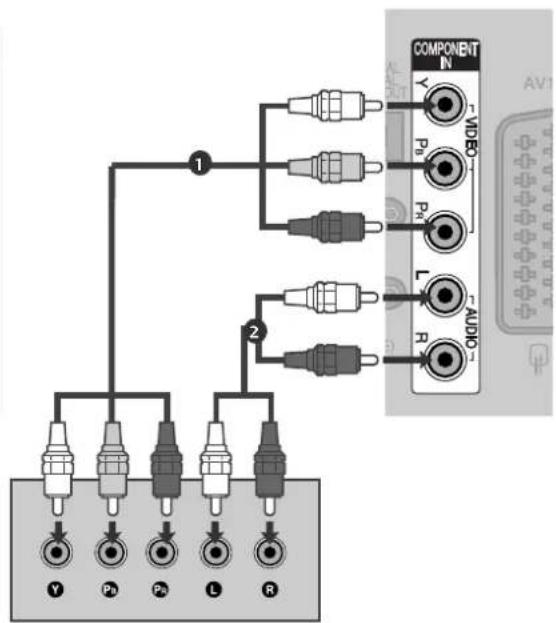
Connecting with a component cable
1 Connect the video outputs (Y, PB, PR) of the digital set top box to the COMPONENT IN VIDEO jacks on the TV.
2 Connect the audio output of the digital set-top box to the COMPONENT IN AUDIO jacks on the TV.
3 Turn on the digital set-top box.
(Refer to the owner's manual for the digital set-top box)
4 Select Component input source using the INPUT button on the remote control.
text_image
COMPONENT IN 1 2 Y Pn Pn L R V V Pb Pn L R AVT| Signal | Component | HDMI |
| 480i/576i | Yes | No |
| 480p/576p | Yes | Yes |
| 720p/1080i | Yes | Yes |
| 1080p | Yes(50/60Hz only) | Yes(24Hz/30Hz/50Hz/60Hz) |
EXTERNAL EQUIPMENT SETUP
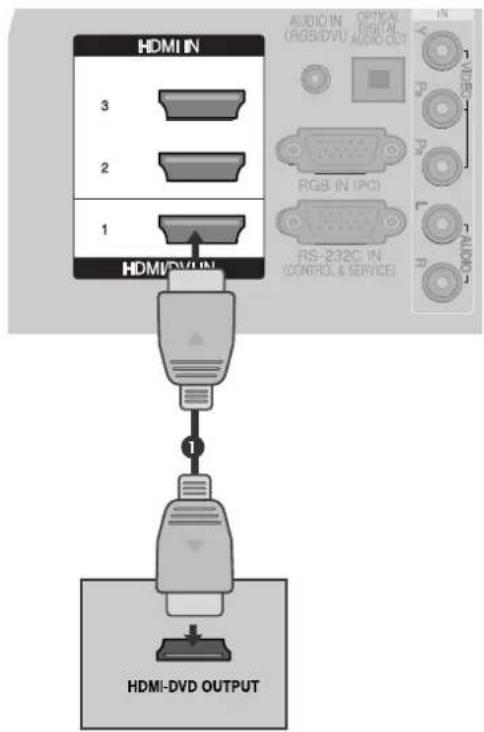
Connecting a set-top box with an HDMI cable
1 Connect the digital set-top box to HDMI/DVI IN 1, HDMI IN 2, HDMI IN 3 or HDMI IN 4 jack on the TV.
2 Turn on the digital set-top box. (Refer to the owner's manual for the digital set-top box)
3 Select HDMI1, HDMI2, HDMI3 or HDMI4 input source using the INPUT button on the remote control.
text_image
HDMI IN 3 2 1 HDMI/DVD IN AUDIO IN (RGS/DVI) OPTICAL DIGITAL AUDIO OUT RGB (IN (PC)) RS-232C IN (CONTROL & SERVICE) AUDIO R L R HDMI-DVD OUTPUTConnecting with an HDMI to DVI cable
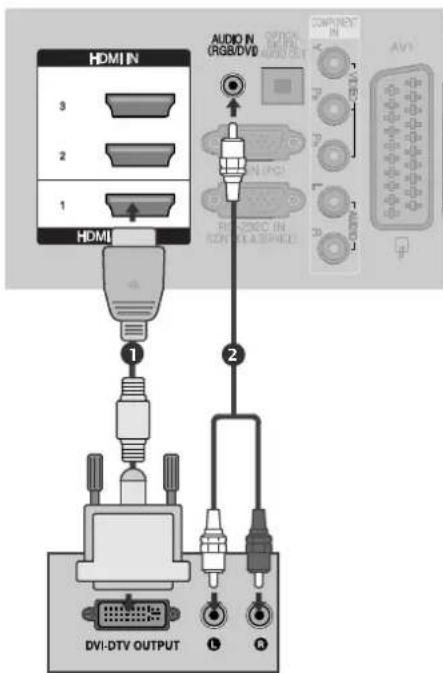
1 Connect the digital set-top box to HDMI/DVI IN 1 jack on the TV.
2 Connect the audio output of the digital set-top box to the AUDIO IN (RGB/DVI) jack on the TV.
3 Turn on the digital set-top box.(Refer to the owner's manual for the digital set-top box.)
4 Select HDMI1 input source using the INPUT button on the remote control.
text_image
HDMI IN 3 2 1 HDMI AUDIO IN (RGB/DVD) COMPONENT IN AVI R L R AVI 1 2 DVI-DTV OUTPUT L ADVD SETUP
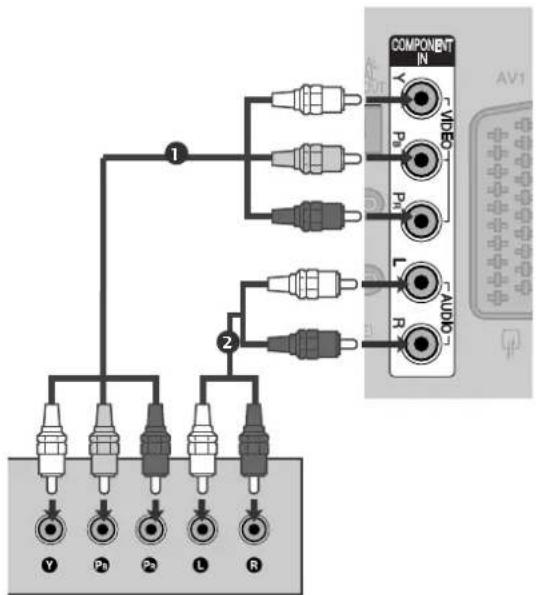
Connecting with a component cable
1 Connect the video outputs (Y, Pb, Pr) of the DVD to the COMPONENT IN VIDEO jacks on the TV.
2 Connect the audio outputs of the DVD to the COMPONENT IN AUDIO jacks on the TV.
3 Turn on the DVD player, insert a DVD.
4 Select Component input source using the INPUT button on the remote control.
5 Refer to the DVD player's manual for operating instructions.
text_image
COMPONENT IN Y VIDEO AV1 P1 P2 L R 1 2 Y P1 P2 L RComponent Input ports
To achieve better picture quality, connect a DVD player to the component input ports as shown below.
| Component ports on the TV | Y | P | _BPR |
| Video output ports on DVD player | Y | Pb | PR |
| Y | B-Y | R-Y | |
| Y | Cb | Cr | |
| Y | Pb | Pr |
EXTERNAL EQUIPMENT SETUP
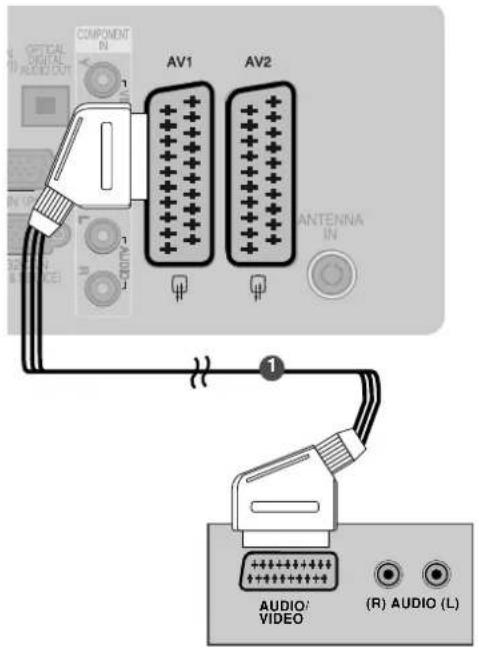
Connecting with a Euro Scart cable
1 Connect the Euro scart socket of the DVD to the AV1 Euro scart socket on the TV.
2 Turn on the DVD player, insert a DVD.
3 Select AV1 input source using the INPUT button on the remote control. If connected to AV2 Euro scart socket, select AV2 input source.
4 Refer to the DVD player's manual for operating instructions.
NOTE
▶ Any Euro scart cable used must be signal shielded.
text_image
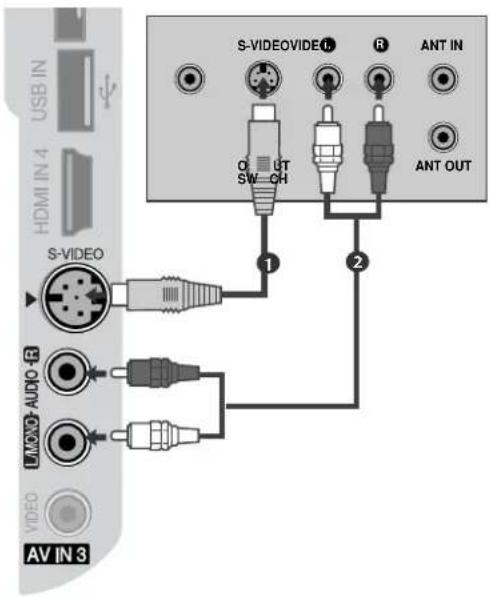
COMPONENT AV1 AV2 ANTENNA IN AUDIO/ VIDEO (A) AUDIO (L)Connecting with a S-Video cable
1 Connect the S-VIDEO output of the DVD to the SS--VIDEO input on the TV.
2 Connect the audio outputs of the DVD to the AUDIO input jacks on the TV.
3 Turn on the DVD player, insert a DVD.
4 Select AV3 input source using the INPUT button on the remote control.
5 Refer to the DVD player's manual for operating instructions.
text_image
USB IN HDMI IN 4 S-VIDEO VIDEO AV IN 3 S-VIDEO QT SW CH ANT IN ANT OUT 1 2Connecting the HDMI cable
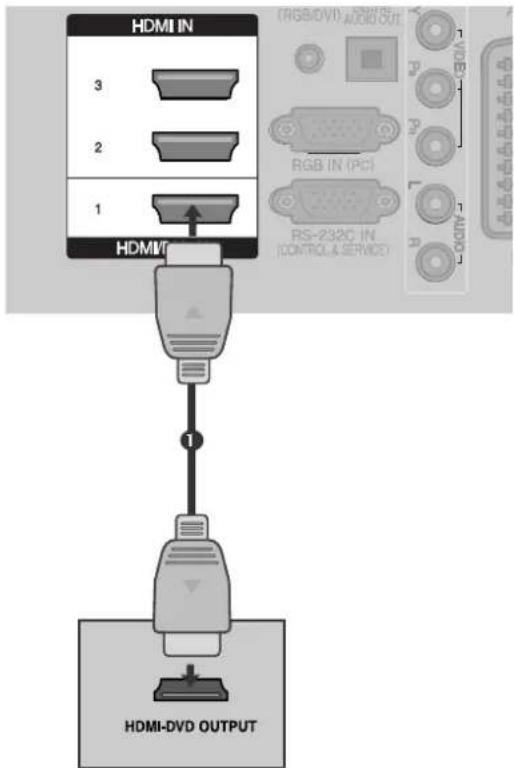
1 Connect the HDMI output of the DVD to the HDMI/DVI IN 1, HDMI IN 2, HDMI IN 3 or HDMI IN 4 jack on the TV.
2 Select HDMI1, HDMI2, HDMI3 or HDMI4 input source using the INPUT button on the remote control.
3 Refer to the DVD player's manual for operating instructions.
NOTE
The TV can receive video and audio signals simultaneously when using a HDMI cable.
▶If the DVD does not support Auto HDMI, you must set the output resolution appropriately.
text_image
HDMI IN 3 2 1 HDMI RGB IN (PCI) RS-232C IN (CONTROLL & SERVICE) HDMI-DVD OUTPUTEXTERNAL EQUIPMENT SETUP
VCR SETUP
■ To avoid picture noise (interference), allow adequate distance between the VCR and TV.
■ Typically a frozen still picture from a VCR. If 4:3 picture format is used for an extended period the fixed images on the sides of the screen may remain visible.
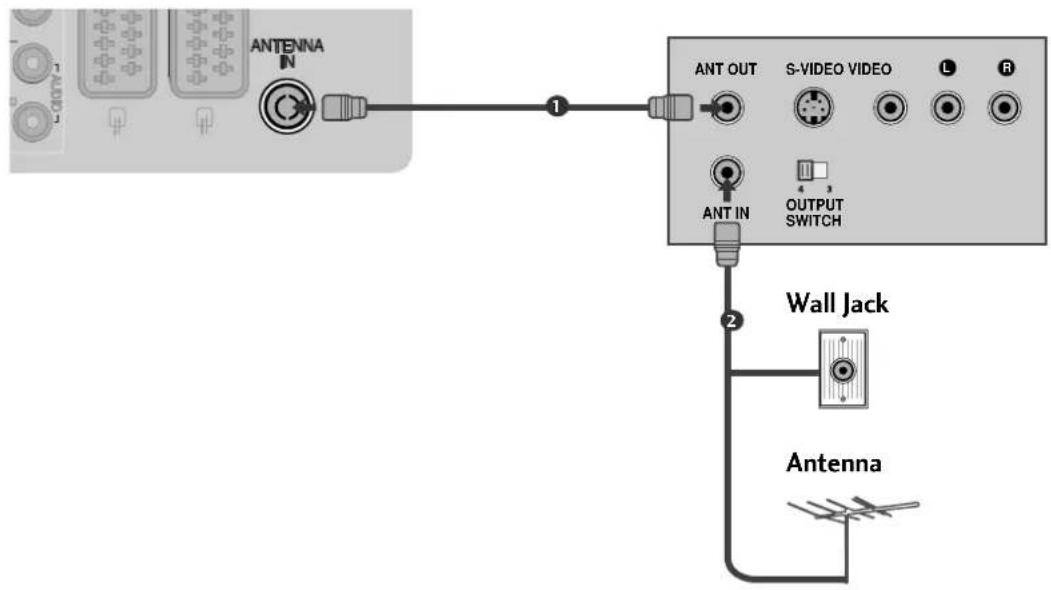
Connecting with a RF Cable
text_image
ANTENNA IN 1 ANT OUT S-VIDEO VIDEO L R ANT IN OUTPUT SWITCH 2 Wall Jack Antenna1 Connect the ANT OUT socket of the VCR to the ANTENNA IN socket on the TV.
2 Connect the antenna cable to the ANT IN socket of the VCR.
3 Press the PLAY button on the VCR and match the appropriate channel between the TV and VCR for viewing.
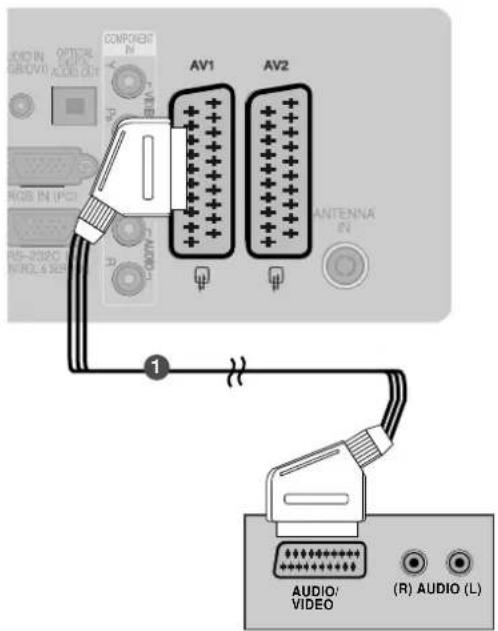
Connecting with a Euro Scart cable
1 Connect the Euro scart socket of the VCR to the AV1 Euro scart socket on the TV.
2 Insert a video tape into the VCR and press PLAY on the VCR. (Refer to the VCR owner's manual.)
3 Select AV1 input source using the INPUT button on the remote control.
4 If connected to AV2 Euro scart socket, select AV2 input source.
text_image
AV1 AV2 ANTENNA 1 AUDIO: VIDEO (R) AUDIO (L)NOTE
▶ Any Euro Scart cable used must be signal shielded.
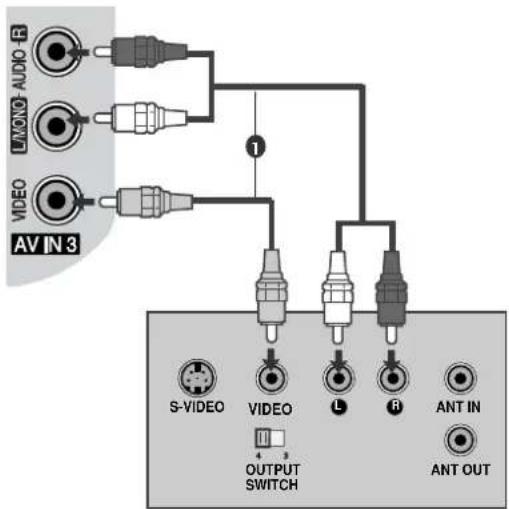
Connecting with a RCA cable
1 Connect the AUDIO/VIDEO jacks between TV and VCR. Match the jack colours (Video = yellow, Audio Left = white, and Audio Right = red)
2 Insert a video tape into the VCR and press PLAY on the VCR. (Refer to the VCR owner's manual.)
3 Select AV3 input source using the INPUT button on the remote control.
NOTE
If you have a mono VCR, connect the audio cable from the VCR to the AUDIO L/MONO jack of the TV.
text_image
AV IN 3 VIDEO L R OUTPUT SWITCH S-VIDEO VIDEO ANT IN ANT OUTEXTERNAL EQUIPMENT SETUP
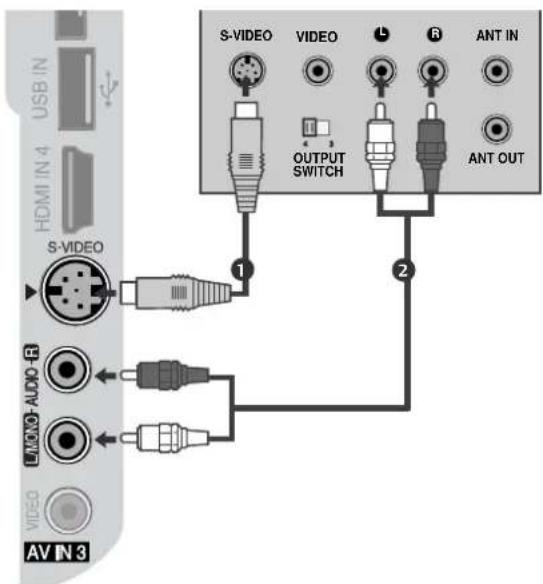
Connecting with a S-Video cable
1 Connect the S-VIDEO output of the VCR to the S -VIDEO input on the TV set. The picture quality is improved; compared to normal composite (RCA cable) input.
2 Connect the audio outputs of the VCR to the AUDIO input jacks on the TV.
3 Insert a video tape into the VCR and press PLAY on the VCR. (Refer to the VCR owner's manual.)
4 Select AV3 input source with using the INPUT button on the remote control.
text_image
HDMI IN 4 USB IN S-VIDEO AUDIO AUDIO-R AV IN 3 S-VIDEO VIDEO OUTPUT SWITCH R ANT IN ANT OUTNOTE
▶ If both S-VIDEO and VIDEO sockets have been connected to the S-VHS VCR simultaneously, only the S-VIDEO can be received.
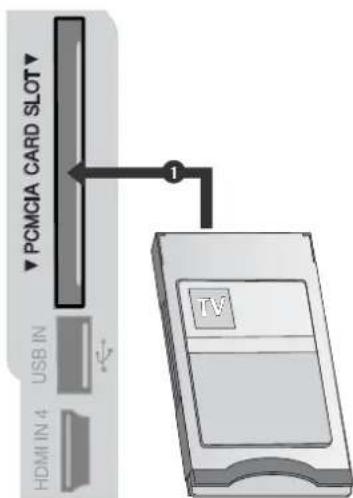
INSERTION OF CI MODULE
- To view the encrypted (pay) services in digital TV mode.
- This feature is not available in all countries.
1 Insert the CI Module to PCMCIA (Personal Computer Memory Card International Association) CARD SLOT of TV as shown.
For further information, see p.49.
text_image
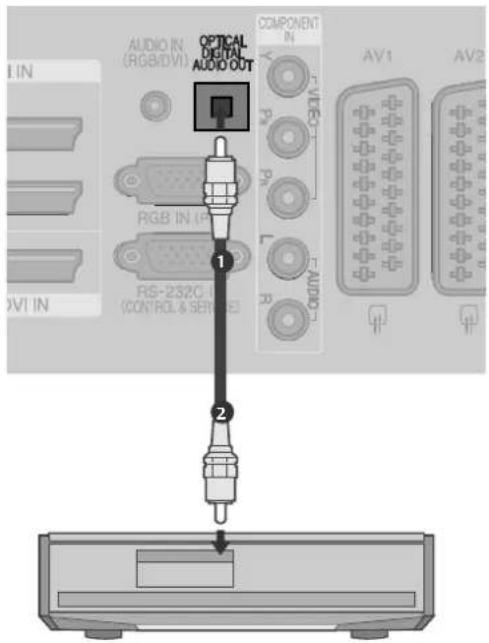
PCMCIA CARD SLOT USB IN HDMI IN 4 TVDIGITAL AUDIO OUT SETUP
Sending the TV's audio signal to external audio equipment via the Digital Audio Output (Optical) port.
1 Connect one end of an optical cable to the TV Digital Audio (Optical) Output port.
2 Connect the other end of the optical cable to the digital audio (Optical) input on the audio equipment.
3 Set the "TV Speaker option - Off" in the AUDIO menu.(▶p.96). Refer to the external audio equipment instruction manual for operation.

CAUTION
▶Do not look into the optical output port. Looking at the laser beam may damage your vision.
text_image
AUDIO IN (RGB/DVI) OPTICAL DIGITAL AUDIO OUT COMPONENT IN AV1 AV2 RGB IN (R RS-252C (CONTROL & SERVICE) 1 2EXTERNAL EQUIPMENT SETUP
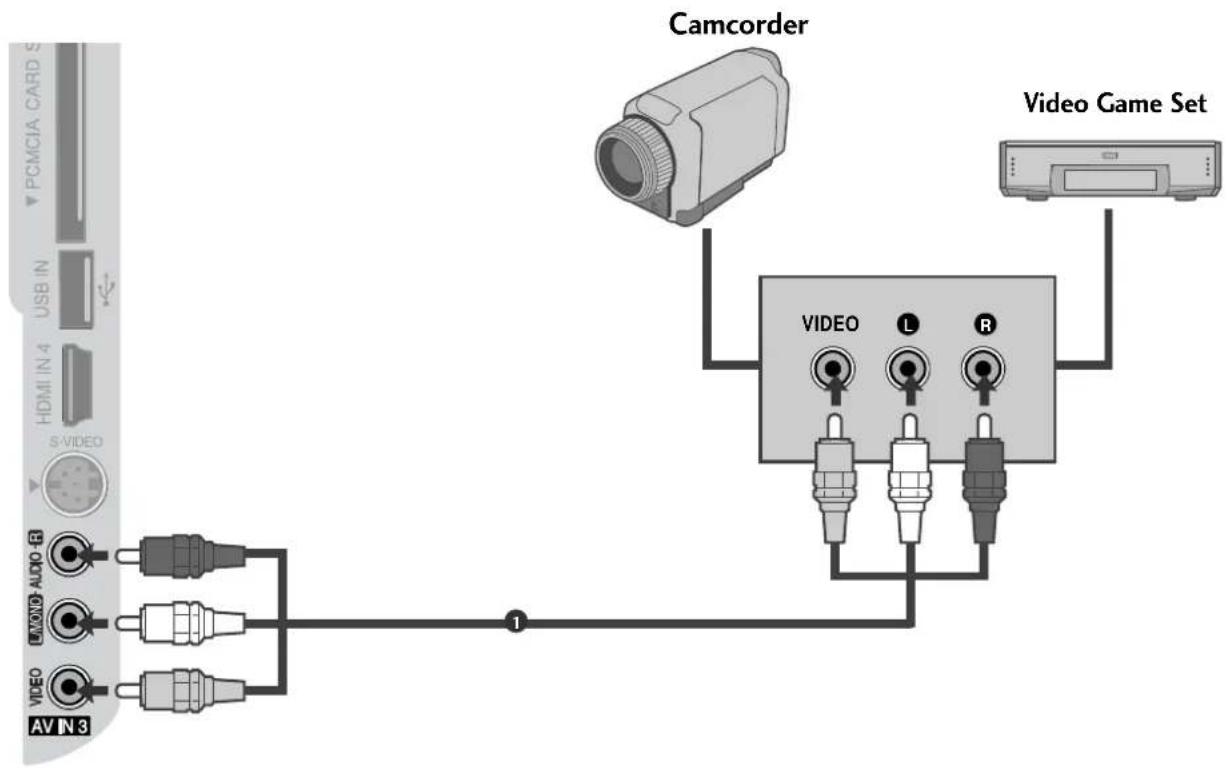
OTHER A/V SOURCE SETUP
text_image
PCMCIA CARD S USB IN HDMI IN 4 5-VIDEO AV IN 3 CAMCORDER VIDEO Game Set VIDEO L R 11 Connect the AUDIO/VIDEO jacks between TV and external equipment. Match the jack colours. (Video = yellow, Audio Left = white, and Audio Right = red)
2 Select AV3 input source with using the INPUT button on the remote control.
3 Operate the corresponding external equipment. Refer to external equipment operating guide.
USB IN SETUP
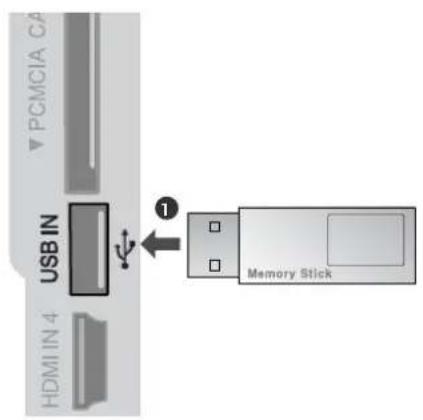
text_image
PCMGIA CA USB IN HDMI IN 4 1 Memory Stick1 Connect the USB device to the USB IN jacks on the side of TV.
2 After connecting the USB IN jacks, you use the USB function. (▶ p.64)
EXTERNAL EQIPMENT SETUP
PC SETUP
This TV provides Plug and Play capability, meaning that the PC adjusts automatically to the TV's settings.
Connecting with a D-sub 15 pin cable
1 Connect the RGB output of the PC to the RGB IN (PC) jack on the TV.
2 Connect the PC audio output to the AUDIO IN (RGB/DVI) jack on the TV.
3 Turn on the PC and the TV
4 Select RGB input source using the INPUT button on the remote control.

text_image
HDMI IN 2 2 1 HDMI/DVI IN AUDIO IN (RGB/DVI) OPTICAL WORK AUDIO R F 1 AUDIO RGB OUTPUTConnecting with a HDMI to DVI cable
1 Connect the DVI output of the PC to the HDMI/DVI IN1 jack on the TV.
2 Connect the PC audio output to the AUDIO IN (RGB/DVI) jack on the TV.
3 Turn on the PC and the TV.
4 Select HDMI1 input source using the INPUT button on the remote control.
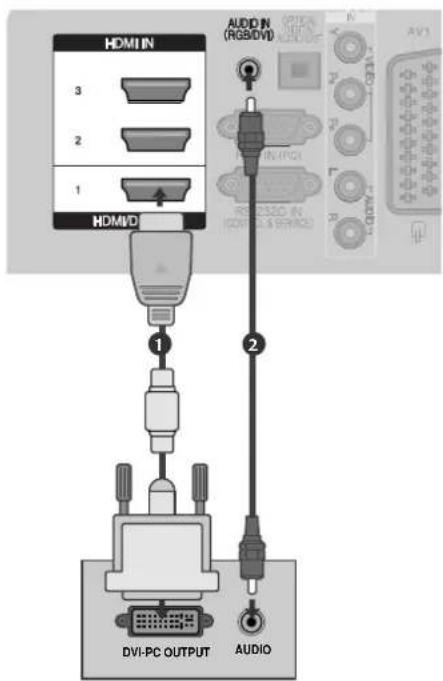
text_image
HDMI IN 3 2 1 HDMI/D 1 2 AUDIO (RGB/VD) RISER 100 RISER 100 RISER 100 DVI-PC OUTPUT AUDIOSupported Display Resolution
Plasma TV Models
RGB-PC, HDMI/DVI-PC mode
| Resolution | Horizontal Frequency(kHz) | Vertical Frequency(Hz) |
| 720x400 | 31.468 | 70.08 |
| 640x480 | 31.469 | 59.94 |
| 800x600 | 37.879 | 60.31 |
| 1024x768 | 48.363 | 60.00 |
| 1280x768 | 47.78 | 59.87 |
| 1360x768 | 47.72 | 59.80 |
| 1920x1080 | 66.587 | 59.934 |
| 1280x1024 | 63.98 | 60.02 |
| 1400x1050 | 65.317 | 59.979 |
HDMI/DVI-DTV mode
| Resolution | Horizontal Frequency(kHz) | Vertical Frequency(Hz) |
| 640x480 | 31.649 | 59.94 |
| 31.469 | 60 | |
| 720x480 | 31.47 | 59.94 |
| 31.50 | 60 | |
| 720x576 | 31.25 | 50.00 |
| 1280x720 | 37.50 | 50.00 |
| 44.96 | 59.94 | |
| 45.00 | 60 | |
| 1920x1080 | 28.125 | 50.00 |
| 33.72 | 59.94 | |
| 33.75 | 60 | |
| 27.00 | 24.00 | |
| 33.750 | 30 | |
| 56.25 | 50.00 | |
| 67.433 | 59.94 | |
| 67.50 | 60 |
LCD TV Models
RGB-PC, HDMI/DVI-PC mode
| Resolution | Horizontal Frequency(kHz) | Vertical Frequency(Hz) |
| 720x400 | 31.468 | 70.08 |
| 640x480 | 31.469 | 59.94 |
| 800x600 | 37.879 | 60.31 |
| 1024x768 | 48.363 | 60.00 |
| 1280x768 | 47.78 | 59.87 |
| 1360x768 | 47.72 | 59.80 |
| 1920x1080 | 66.587 | 59.934 |
| 1280x1024 | 63.98 | 60.02 |
| 1400x1050 | 65.317 | 59.979 |
HDMI/DVI-DTV mode
| Resolution | Horizontal Frequency(kHz) | Vertical Frequency(Hz) |
| 640x480 | 31.649 | 59.94 |
| 31.469 | 60 | |
| 720x480 | 31.47 | 59.94 |
| 31.50 | 60 | |
| 720x576 | 31.25 | 50.00 |
| 1280x720 | 37.50 | 50.00 |
| 44.96 | 50.94 | |
| 45.00 | 60 | |
| 1920x1080 | 28.125 | 50.00 |
| 33.72 | 59.94 | |
| 33.75 | 60 | |
| 27.00 | 24.00 | |
| 33.750 | 30 | |
| 56.25 | 50.00 | |
| 67.433 | 59.94 | |
| 67.50 | 60 |
NOTE
▶ To enjoy vivid picture and sound, connect a PC to the TV.
- Avoid keeping a fixed image on the set's screen for prolonged periods of time. The fixed image may become permanently imprinted on the screen; use a screen saver when possible.
▶ Connect the PC to the RGB (PC) or HDMI IN (or HDMI/DVI IN) port of the TV; change the resolution.
There may be interference relating to resolution, vertical pattern, contrast or brightness in PC mode. Change the PC mode to another resolution or change the refresh rate to another rate or adjust the brightness and contrast on the menu until the picture is clear. If the refresh rate of the PC graphic card can not be changed, change the PC graphic card or consult the manufacturer of the PC graphic card.
▶ The synchronization input waveform for Horizontal and Vertical frequencies are separate.
▶ Connect the signal cable from the monitor output port of the PC to the RGB (PC) port of the TV or the signal cable from the HDMI output port of the PC to the HDMI IN (or HDMI/DVI IN) port on the TV.
▶ Connect the audio cable from the PC to the Audio input on the TV. (Audio cables are not included with the TV).
▶ If using a sound card, adjust PC sound as required.
This TV uses a VESA Plug and Play Solution. The TV provides EDID data to the PC system with a DDC protocol. The PC adjusts automatically when using this TV.
▶ DDC protocol is preset for RGB (Analog RGB), HDMI (Digital RGB) mode.
▶ If required, adjust the settings for Plug and Play functionality
▶ If the graphic card on the PC does not output analogue and digital RGB simultaneously, connect only one of either RGB or HDMI IN (or HDMI/DVI IN) to display the PC output on the TV.
▶ If graphic card on the PC does output analog and digital RGB simultaneously, set the TV to either RGB or HDMI; (the other mode is set to Plug and Play automatically by the TV.)
▶ DOS mode may not work depending on the video card if you use a HDMI to DVI cable.
▶ If you use too long an RGB-PC cable, there may be interference on the screen. We recommend using under 5m of cable. This provides the best picture quality.
▶If connected HDMI(1080p, over 12bit) to HDMI jack on the side, screen may abnormal.
Screen Setup for PC mode
Screen Reset
Returns Position, Size and Phase to the factory default settings.
This function works in the following mode: RGB[PC].
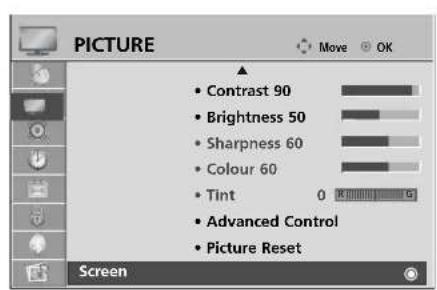
text_image
PICTURE Move OK Contrast 90 Brightness 50 Sharpness 60 Colour 60 Tint 0 Advanced Control Picture Reset Screen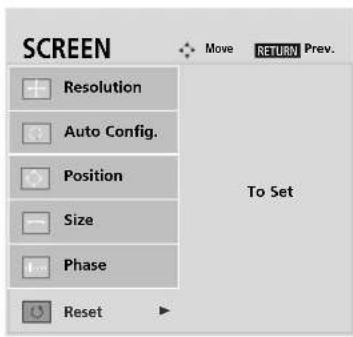
text_image
SCREEN Move RETURN Prev. Resolution Auto Config. Position Size Phase Reset To Set
Select PICTURE.
Select SCREEN.
Select Reset.
Select Yes.
Run Reset.
- Press the MENU button to return to normal TV viewing.
- Press the RETURN button to move to the previous menu screen.
EXTERNAL EQIPMENT SETUP
Adjustment for screen Position, Size, Phase
If the picture is not clear after auto adjustment and especially if characters are still trembling, adjust the picture phase manually.
This function works in the following mode: RGB[PC].
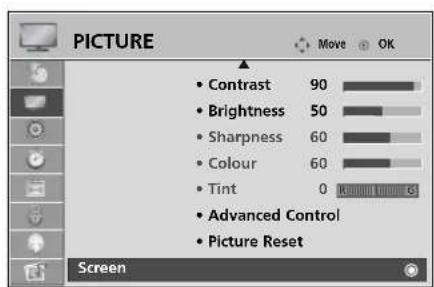
text_image
PICTURE Move OK Contrast 90 Brightness 50 Sharpness 60 Colour 60 Tint 0 Advanced Control Picture Reset Screen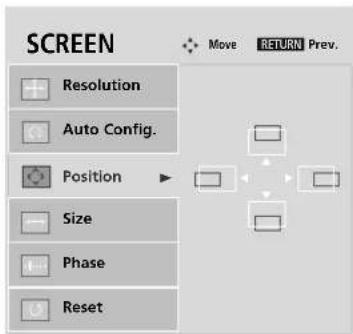
text_image
SCREEN Resolution Auto Config. Position Size Phase Reset Move RETURN Prev.
Select PICTURE.
Select SCREEN.
Select Position, Size or Phase.
Make appropriate adjustments.
- Press the MENU button to return to normal TV viewing.
- Press the RETURN button to move to the previous menu screen.
Selecting Resolution
To view a normal picture, match the resolution of RGB mode and selection of PC mode.
This function works in the following mode: RGB[PC]
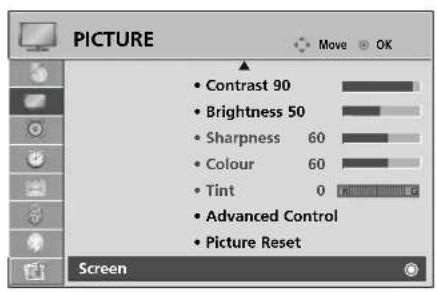
text_image
PICTURE • Contrast 90 • Brightness 50 • Sharpness 60 • Colour 60 • Tint 0 • Advanced Control • Picture Reset Screen
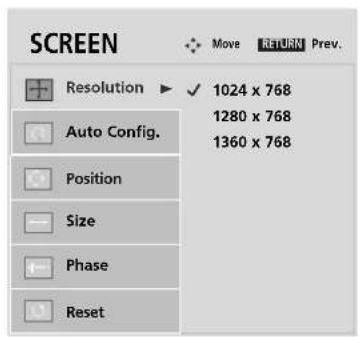
text_image
SCREEN Move Return Prev. Resolution ▶ 1024 x 768 Auto Config. Position Size Phase Reset 1280 x 768 1360 x 768
Select PICTURE.
Select SCREEN.
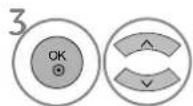
Select Resolution.

Select the desired resolution.
- Press the MENU button to return to normal TV viewing.
- Press the RETURN button to move to the previous menu screen.
EXTERNAL EQIPMENT SETUP
Auto Configure (RGB [PC] mode only)
Automatically adjusts picture position and minimizes image instability. After adjustment, if the image is still not correct, your TV is functioning properly but needs further adjustment.
Auto configure
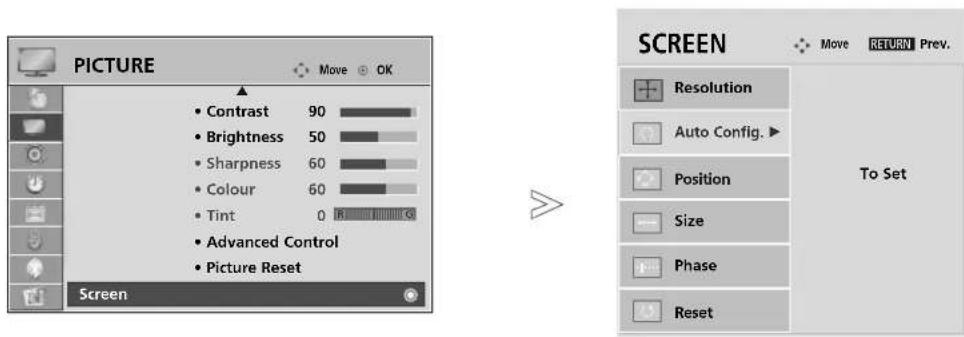
This function is for automatic adjustment of the screen position, clock, and phase The displayed image will be unstable for a few seconds while the auto configuration is in progress.
text_image
PICTURE Move OK Contrast 90 Brightness 50 Sharpness 60 Colour 60 Tint 0 Advanced Control Picture Reset Screen SCREEN Move RETURN Prev. Resolution Auto Config. ▶ Position Size Phase Reset To Set
Select PICTURE.
Select SCREEN
Select Auto Config..
Select Yes.

Run Auto Config..
- If the position of the image is still not correct, try Auto adjustment again.
-
If picture needs to be adjusted again after Auto adjustment in RGB (PC), you can adjust the Position, Size or Phase.
-
Press the MENU button to return to normal TV viewing.
- Press the RETURN button to move to the previous menu screen.
Initializing
(Reset to original factory settings)
This function operates in current mode.
To initialize the adjusted value.
When the Lock System menu is "OOn the message to enter the password appears.
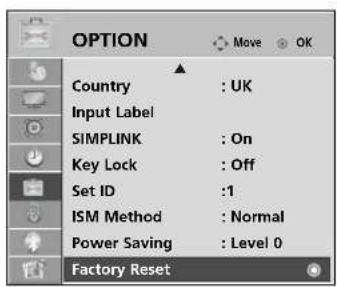
text_image
OPTION Country : UK Input Label SIMPLINK : On Key Lock : Off Set ID :1 ISM Method : Normal Power Saving : Level 0 Factory Reset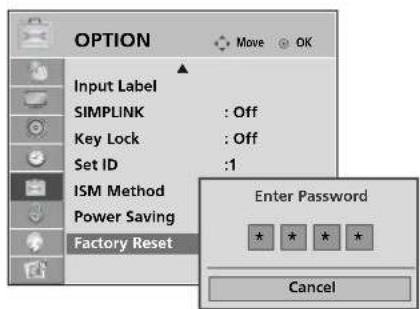
text_image
OPTION Move OK Input Label SIMPLINK : Off Key Lock : Off Set ID :1 ISM Method Power Saving Factory Reset Enter Password * * * * Cancel
Select OPTION.

Select Factory Reset.
- In Lock System "O n", if you forget your password, press '7', '7', '7', '7' on the remote control handset.
- Press the MENU button to return to normal TV viewing.
- Press the RETURN button to move to the previous menu screen.
WATCHING TV / PROGRAMME CONTROL
REMOTE CONTROL KEY FUNCTIONS
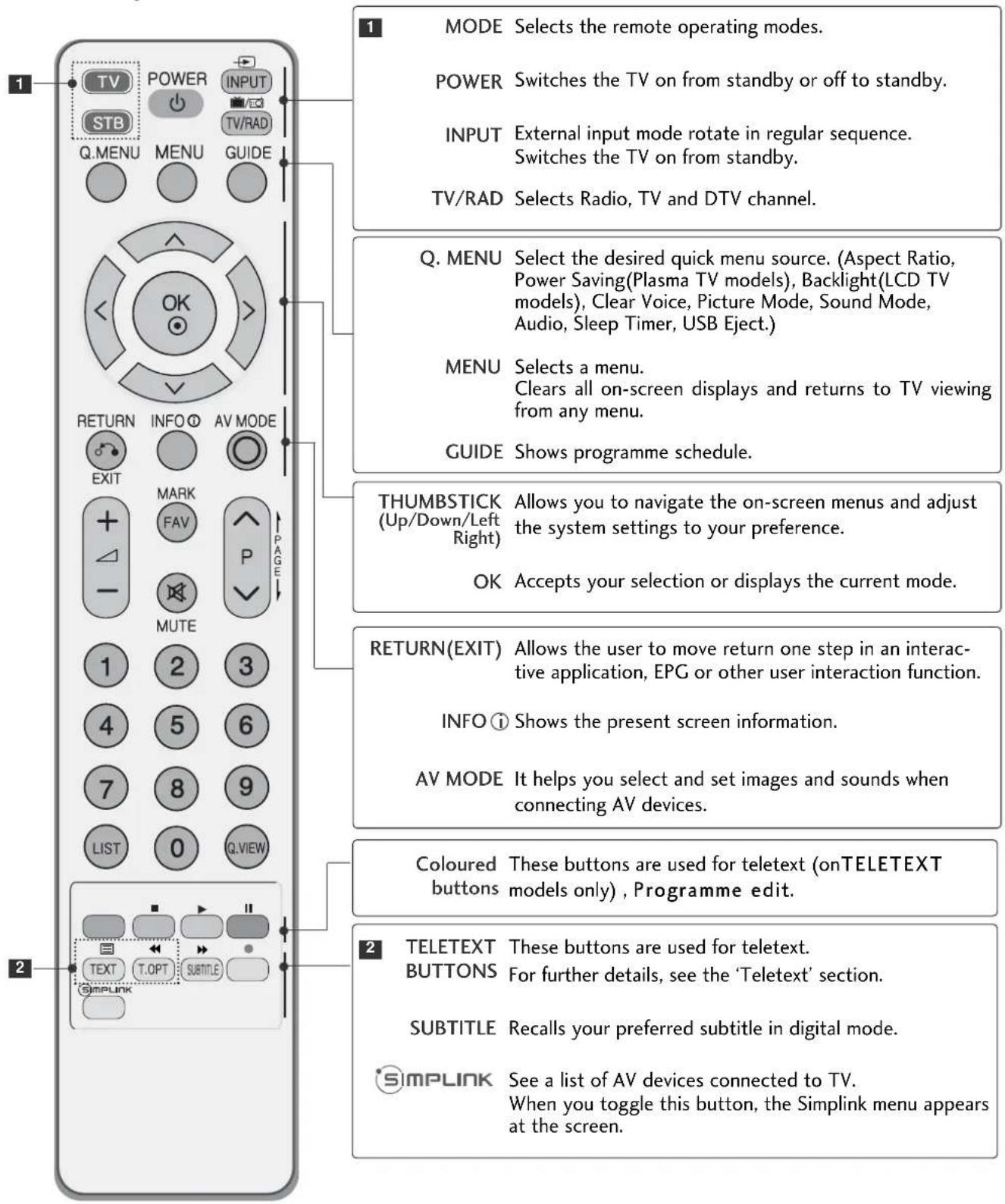
When using the remote control, aim it at the remote control sensor on the TV.
text_image
1 TV POWER INPUT STB Q.MENU MENU GUIDE RETURN INFO AV MODE EXIT MARK FAV P MUTE 1 2 3 4 5 6 7 8 9 LIST 0 Q.VIEW 2 MODE Selects the remote operating modes. POWER Switches the TV on from standby or off to standby. INPUT External input mode rotate in regular sequence. Switches the TV on from standby. TV/RAD Selects Radio, TV and DTV channel. Q. MENU Select the desired quick menu source. (Aspect Ratio, Power Saving(Plasma TV models), Backlight(LCD TV models), Clear Voice, Picture Mode, Sound Mode, Audio, Sleep Timer, USB Eject.) MENU Selects a menu. Clears all on-screen displays and returns to TV viewing from any menu. GUIDE Shows programme schedule. THUMBSTICK Allows you to navigate the on-screen menus and adjust the system settings to your preference. OK Accepts your selection or displays the current mode. RETURN(EXIT) Allows the user to move return one step in an interactive application, EPG or other user interaction function. INFO① Shows the present screen information. AV MODE It helps you select and set images and sounds when connecting AV devices. Coloured These buttons are used for teletext (onTELETEXT buttons models only), Programme edit. 2 TELETEXT These buttons are used for teletext. BUTTONS For further details, see the 'Teletext' section. SUBTITLE Recalls your preferred subtitle in digital mode. SIMPLINK See a list of AV devices connected to TV. When you toggle this button, the Simplink menu appears at the screen.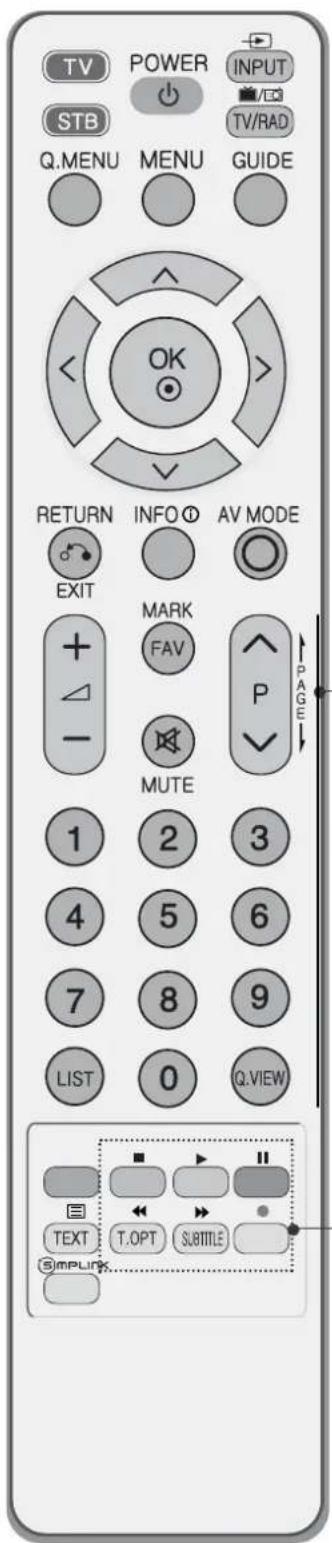
text_image
TV POWER INPUT STB Q.MENU MENU GUIDE OK RETURN INFO AV MODE EXIT MARK FAV P MUTE 1 2 3 4 5 6 7 8 9 LIST 0 Q.VIEW PAGE TEXT T.OPT SUBTITLE SimplinkVOLUME UP Adjusts the volume. /DOWN
MARK Check and un-check programmes in the USB menu.
FAV Displays the selected favourite programme.
MUTE Switches the sound on or off.
Programme Selects a programme. UP/DOWN
PAGE UP/DOWN Move from one full set of screen information to the next one.
0\~9 number Selects a programme. button Selects numbered items in a menu.
LIST Displays the programme table.
Q.VIEW Returns to the previously viewed programme.
SIMPLINK / Controls SIMPLINK or USB menu(Photo List and Music USB Menu List). control buttons
Installing Batteries
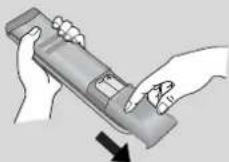
- Open the battery compartment cover on the back and install the batteries matching correct polarity (+with +,-with -).
■ Install two 1.5V AAA batteries. Do not mix old or used batteries with new ones. - Close cover.
WATCHING TV / PROGRAMME CONTROL
TURNING ON THE TV
- When your TV is turned on, you will be able to use its features.
1 Firstly, connect the power cord correctly. At this stage, the TV switches to standby mode.
2 In standby mode to turn TV on, press the ⏻/I, INPUT or P ▲ ▼ (or P) button on the TV or press the POWER, INPUT, P ∧ ∨ or NUMBER button on the remote control and the TV will switch on.
Initializing setup
If the OSD (On Screen Display) is displayed on the screen after turning on the TV, you can adjust the Language, Select Mode, Country, Time Zone, Auto programme tuning.
Note:
a. It will automatically disappear after approx. 40 seconds unless a button is pressed.
b. Press the RETURN button to change the current OSD to the previous OSD.
c. For those countries without confirmed DTV broadcasting standards, some DTV features might not work, depending on the DTV broadcasting environment.
d "Home" mode is the optimal setting for home environments, and is the TV's default mode.
e. "In Store" mode is the optimal setting for store environments. If a user modifies image quality data, "In Store" mode initializes the product to the image quality set by us after a certain period of time.
f. The mode (Home, In Store) can be changed by executing Factory Reset in the OPTION menu.
g. "In store" Mode is an optimal setting for displaying at stores. "In-Store" mode initializes the TV to set the image quality and operates "TruMotion Demo" after a certain period of time.(37/42/47/52LG70** only.)
PROGRAMME SELECTION
1 Press the P ^ ∨ or NUMBER buttons to select a programme number.
VOLUME ADJUSTMENT
1 Press the △ + or - button to adjust the volume.
If you wish to switch the sound off, press the MUTE button.
You can cancel this function by pressing the MUTE, △ + or - button.
QUICK MENU
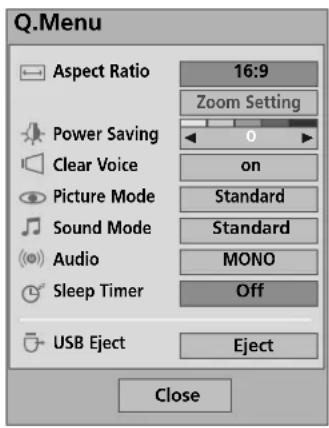
Your TV's OSD (On Screen Display) may differ slightly from that shown in this manual. Q.Menu (Quick Menu) is a menu of features which users might use frequently.
- Aspect Ratio: Selects your desired picture format. For Zoom Setting, select 14:9, Zoom1 and Zoom2 in Ratio Menu. After completing Zoom Setting, the display goes back to Q.Menu.
- Power Saving (Plasma TV Only): Adjusts screen brightness to reduce the power consumption of the TV.
- Backlight (LCD TV Only): Adjusts screen brightness. It returns to the default settings brightness by changing mode source.
-
Clear Voice : By differentiating the human sound range from others, it helps users listen to human voices better.
-
Picture Mode: Selects your desired Picture Mode.
- Sound Mode: It is a feature to automatically set the sound combination which it deems the best for the images being watched. Selects your desired Sound Mode.
• Audio : Selects the sound output. - Sleep Timer: Sets the sleep timer.
- USB Eject : Select "USB Eject" in order to eject USB device.
Plasma TV Models
text_image
Q.Menu Aspect Ratio 16:9 Zoom Setting Power Saving 0 Clear Voice on Picture Mode Standard Sound Mode Standard Audio MONO Sleep Timer Off USB Eject Eject CloseLCD TV Models

text_image
Q.Menu Aspect Ratio 16:9 Zoom Setting Backlight 0 Clear Voice on Picture Mode Standard Sound Mode Standard Audio MONO Sleep Timer Off USB Eject Eject Close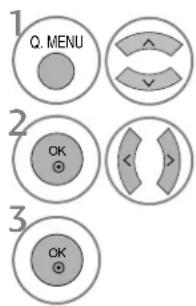
text_image
1 Q. MENU 2 OK 3 OKDisplay each menu.
Select your desired Source.
- Press the Q.MENU button to return to normal TV viewing.
- Press the RETURN button to move to the previous menu screen.
WATCHING TV / PROGRAMME CONTROL
ON SCREEN MENUS SELECTION AND ADJUSTMENT
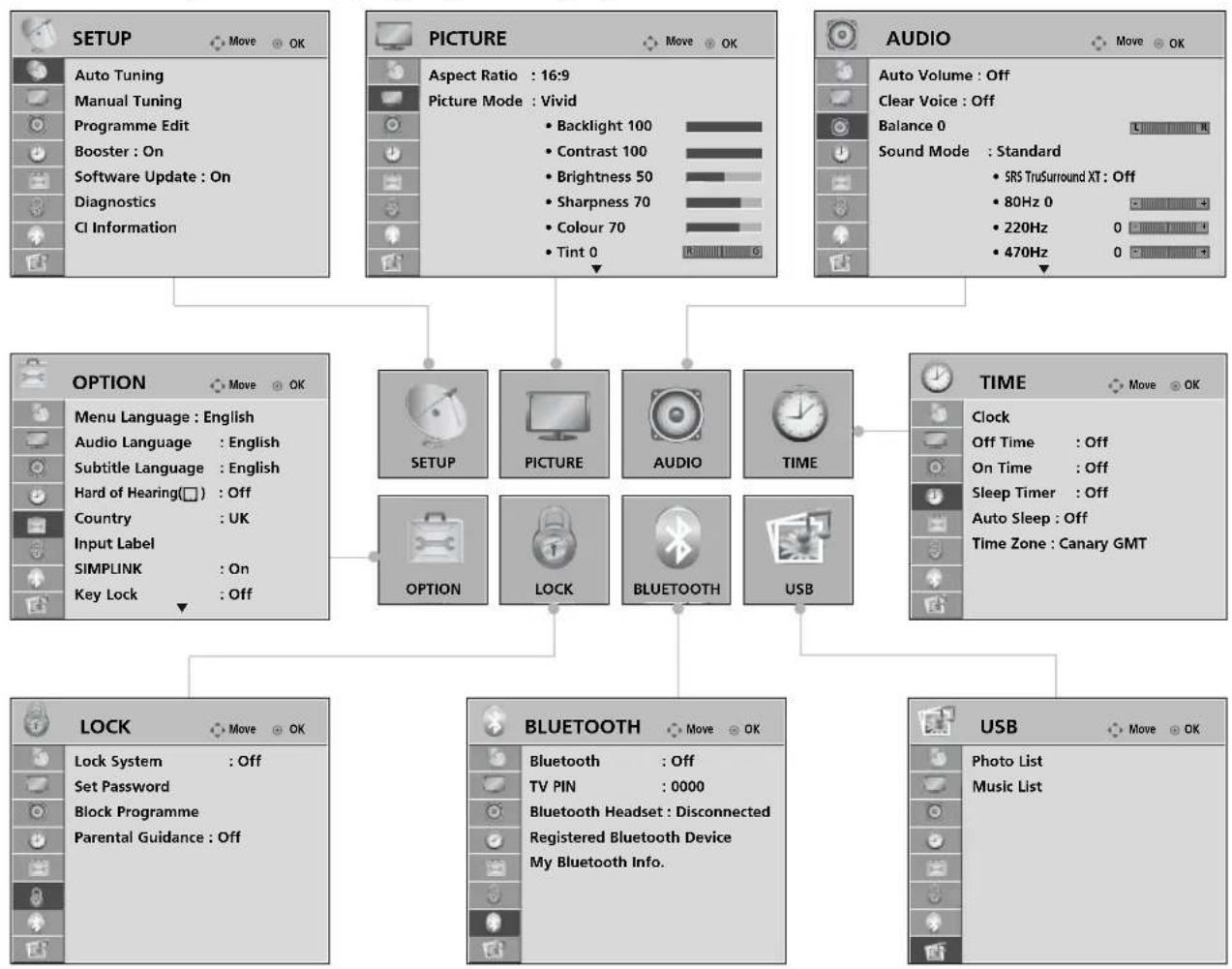
Your TV's OSD (On Screen Display) may differ slightly from that shown in this manual.
flowchart
graph TD
    A["SETUP"] --> B["Auto Tuning"]
    A --> C["Manual Tuning"]
    A --> D["Programme Edit"]
    A --> E["Booster : On"]
    A --> F["Software Update : On"]
    A --> G["Diagnostics"]
    A --> H["CI Information"]
    I["PICTURE"] --> J["Aspect Ratio : 16:9"]
    I --> K["Picture Mode : Vivid"]
    I --> L["Backlight 100"]
    I --> M["Contrast 100"]
    I --> N["Brightness 50"]
    I --> O["Sharpness 70"]
    I --> P["Colour 70"]
    I --> Q["Tint 0"]
    R["AUDIO"] --> S["Auto Volume : Off"]
    R --> T["Clear Voice : Off"]
    R --> U["Balance 0"]
    R --> V["Sound Mode : Standard"]
    R --> W["SRS TruSurround XT : Off"]
    R --> X["80Hz 0"]
    R --> Y["220Hz 0"]
    R --> Z["470Hz 0"]
    I --> AA["OPTION"]
    AA --> AB["Menu Language : English"]
    AA --> AC["Audio Language : English"]
    AA --> AD["Subtitle Language : English"]
    AA --> AE["Hard of Hearing(□) : Off"]
    AA --> AF["Country : UK"]
    AA --> AG["Input Label"]
    AA --> AH["SIMPLINK : On"]
    AA --> AI["Key Lock : Off"]

    J --> AJ["SETUP"]
    J --> AK["PICTURE"]
    J --> AL["AUDIO"]
    J --> AM["TIME"]

    K --> AN["OPTION"]
    K --> AO["LOCK"]
    K --> AP["BLUETOOTH"]
    K --> AQ["USB"]

    AL --> AR["TIME"]
    AR --> AS["Clock"]
    AR --> AT["Off Time : Off"]
    AR --> AU["On Time : Off"]
    AR --> AV["Sleep Timer : Off"]
    AR --> AW["Auto Sleep : Off"]
    AR --> AX["Time Zone : Canary GMT"]

    AN --> AY["LOCK"]
    AN --> AZ["BLUETOOTH"]
    AN --> BA["USB"]

    AO --> BB["Move OK"]

    AP --> BC["Move OK"]

    AD --> BD["Lock System : Off"]
    AD --> BE["Set Password"]
    AD --> BF["Block Programme"]
    AD --> BG["Parental Guidance : Off"]

    CA["Bluetooth Headset: Disconnected"] --> AD

Display each menu.
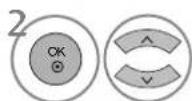
Select a menu item.
Move to the pop up menu.
- Press the MENU button to return to normal TV viewing.
- Press the RETURN button to move to the previous menu screen.
NOTE
▶ It is possible to use ISM Method and Power Saving in Plasma TV models only.
It is possible to use Backlight, Power Indicator, TruMotion, TruMotion Demo, Simple Manual in LCD TV models only.
▶ It is possible to use TruMotion, TruMotion Demo in 37/42/47/52LG70** models only.
▶ It is not possible to use CI Information and Booster in Analogue mode.
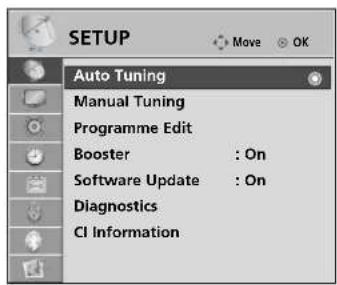
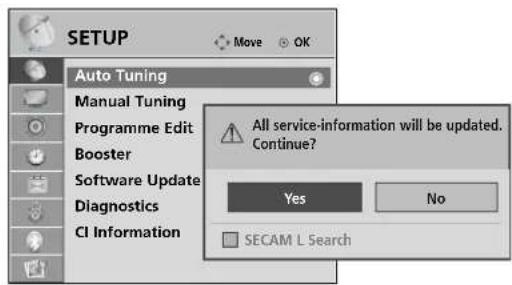
AUTO PROGRAMME TUNING
Use this to automatically find and store all available programmes.
When you start auto programming, all previously stored service information will be deleted.
text_image
SETUP Move OK Auto Tuning Manual Tuning Programme Edit Booster : On Software Update : On Diagnostics CI Information
text_image
SETUP Move OK Auto Tuning Manual Tuning Programme Edit Booster Software Update Diagnostics CI Information All service-information will be updated. Continue? Yes No SECAM L Search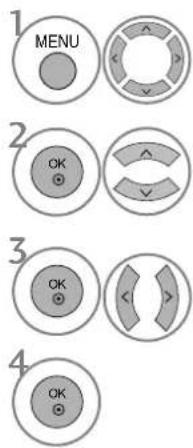
text_image
1 MENU 2 OK 3 OK 4 OKSelect SETUP.
Select Auto Tuning.
Select Yes.
Run Auto tuning.
- Use NUMBER buttons to input a 4-digit password in Lock System 'OQ.nn
-
If you wish to keep on auto tuning select YES using the < > button. Then, press the OK button. Otherwise select N O.
-
Press the MENU button to return to normal TV viewing.
- Press the RETURN button to move to the previous menu screen.
WATCHING TV / PROGRAMME CONTROL
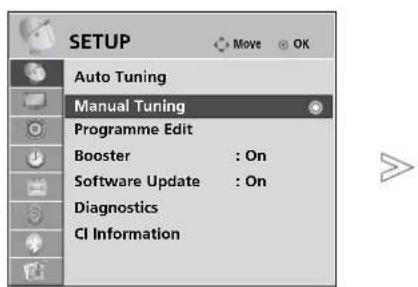
MANUAL PROGRAMME TUNING (IN DIGITAL MODE)
Manual Tuning lets you manually add a programme to your programme list.
text_image
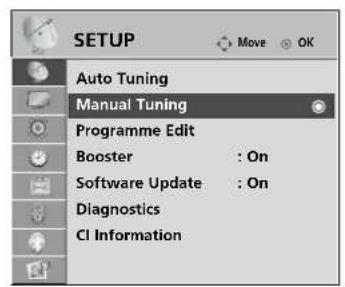
SETUP Auto Tuning Manual Tuning Programme Edit Booster : On Software Update : On Diagnostics CI Information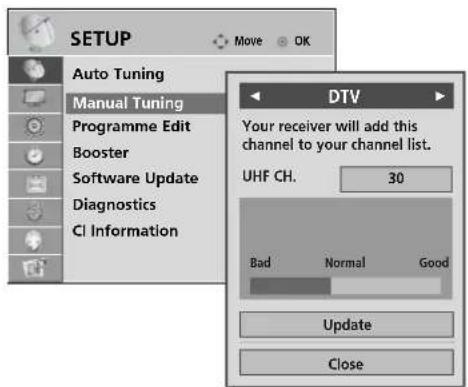
text_image
SETUP Auto Tuning Manual Tuning Programme Edit Booster Software Update Diagnostics CI Information Move OK DTV Your receiver will add this channel to your channel list. UHF CH. 30 Bad Normal Good Update Close
Select SETUP.
- Use NUMBER buttons to input a 4-digit password in Lock System 'OQ'nn
Select Manual Tuning
Select DTV.

Select the desired channel number.
- Press the MENU button to return to normal TV viewing.
- Press the RETURN button to move to the previous menu screen.
MANUAL PROGRAMME TUNING (IN ANALOGUE MODE)
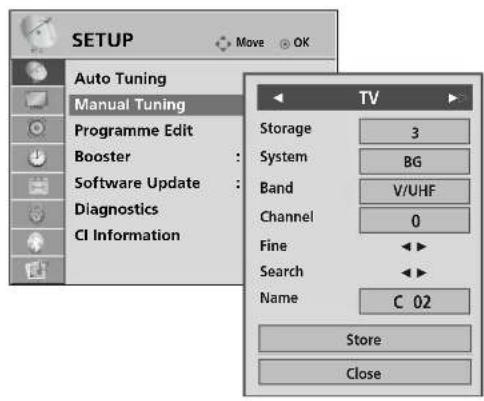
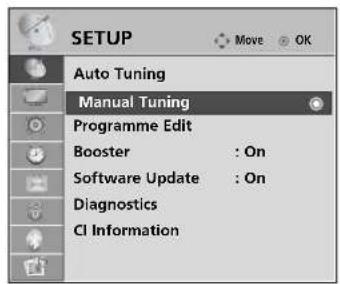
Manual Tuning lets you manually tune and arrange the stations in whatever order you desire.
text_image
SETUP Auto Tuning Manual Tuning Programme Edit Booster : On Software Update : On Diagnostics CI Information
text_image
SETUP Auto Tuning Manual Tuning Programme Edit Booster Software Update Diagnostics CI Information TV Storage 3 System BG Band V/UHF Channel 0 Fine Search C 02 Name Store Close
Select SETUP.
Select Manual Tuning.
Select TV.
or

Select the desired pro- gramme number on.
Select a TV system.
Select V/UHF or Cable.

or

Select the desired channel number.

Commence searching.
Select Store
- Press the MENU button to return to normal TV viewing.
-
Press the RETURN button to move to the previous menu screen.
-
Use NUMBER buttons to input a 4-digit password inLock System 'OQ.nn
• LL: SECAM L/L' (France)
BEGPAL B/G, SECAM B/G (Europe / East Europe / Asia / New Zealand / M.East / Africa / Australia)
II: PAL I/II (U.K. / Ireland / Hong Kong / South Africa)
DKKIPAL D/K, SECAM D/K (East Europe / China / Africa / CIS)
• To store another channel, repeat steps 4 to 9.
WATCHING TV / PROGRAMME CONTROL
text_image
SETUP Auto Tuning Manual Tuning Programme Edit Booster : On Software Update : On Diagnostics CI Information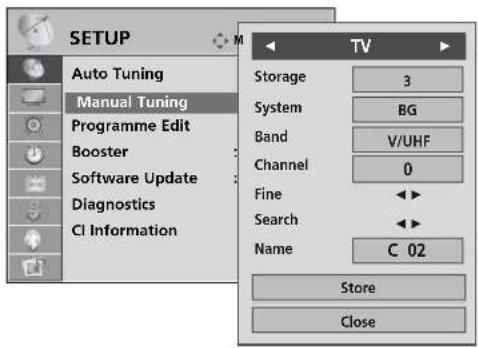
text_image
SETUP Auto Tuning Manual Tuning Programme Edit Booster Software Update Diagnostics CI Information TV Storage 3 System BG Band V/UHF Channel 0 Fine ◀◀ Search ◀◀ Name C 02 Store Close■ Assigning a station name
You can assign a station name with five characters to each programme number.

Select SETUP.
Select Manual Tuning.
Select TT.VV
Select Name.
Select the position and make your choice of the second character, and so on.
You can use an the alphabet A to Z, the number 0 to 9, +/ -, and blank.
Select Close

Select Store
■ Fine Tuning
Normally fine tuning is only necessary if reception is poor.

Select SETUP.
Select Manual Tuning.
Select TT.VV
Select Fine.

Fine tune for the best picture and sound.
Select Store
- Press the MENU button to return to normal TV viewing.
- Press the RETURN button to move to the previous menu screen.
PROGRAMME EDIT
When a programme number is skipped, it means that you will be unable to select it using P ∧ ∨ button during TV viewing.
If you wish to select the skipped programme, directly enter the programme number with the NUMBER buttons or select it in the Programme edit menu.
This function enables you to skip the stored programmes.
In some countries it is possible to move a programme number by using the YELLOW button only.
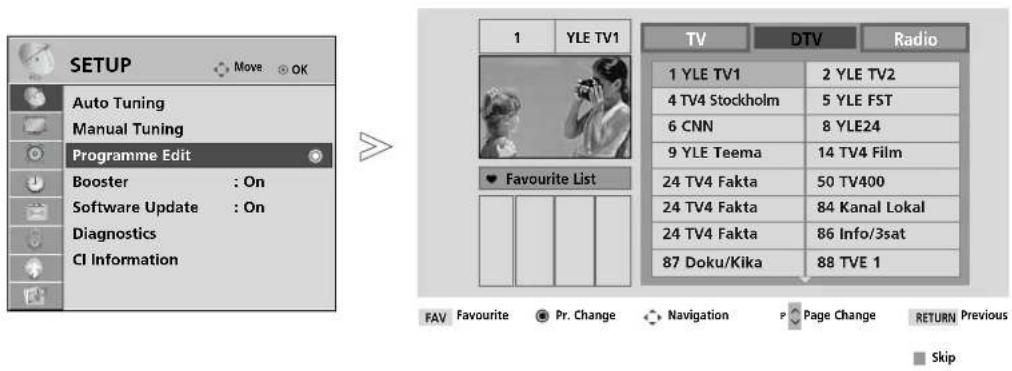
text_image
SETUP Move OK Auto Tuning Manual Tuning Programme Edit Booster : On Software Update : On Diagnostics CI Information 1 YLE TV1 Favourite List TV DTV Radio 1 YLE TV1 2 YLE TV2 4 TV4 Stockholm 5 YLE FST 6 CNN 8 YLE24 9 YLE Teema 14 TV4 Film 24 TV4 Fakta 50 TV400 24 TV4 Fakta 84 Kanal Lokal 24 TV4 Fakta 86 Info/3sat 87 Doku/Kika 88 TVE 1 FAV Favourite Pr. Change Navigation Page Change RETURN Previous Skip
Select SETUP.
Select Programme Edit.
Enter the Programme Edit

Select a programme to be stored or skipped.
- Use NUMBER buttons to input a 4-digit password in Lock System 'OQ.nn
- Press the MENU button to return to normal TV viewing.
- Press the RETURN button to move to the previous menu screen.
WATCHING TV / PROGRAMME CONTROL
(IN DTV/RADIO MODE)
■ Skipping a programme number

Select a programme number to be skipped.

Turn the skipped programme number to blue.

Release the skipped programme.
- When programmes are to be skipped, skipped programme shows in blue and these programmes will not be selected by the P ^P ∧ ∨ buttons during TV viewing.
- If you wish to select a skipped programme, directly enter the programme number with the NUMBER buttons or select it in the programme edit or EPG.
■ Selecting favourite programme
Select your favourite programme number.
- This will automatically include the selected programme into your favourite programme list.
IN TV MODE
This function enables you to delete or skip the stored programmes. You can also move some channels and use other programme numbers.
■ Auto Sort

Start Auto Sort.
- After activating Auto Sort once, you can no longer edit programmes.
■ Deleting a programme

Select a programme number to be deleted.
- The selected programme is deleted, all the following programmes are shifted up one

Turn the deleted programme number to red.

Release the deleted programme.
■ Moving a programme

Select a programme number to be moved.


Turn the moved programme number to YELLOW.

Release the moved programme.
■ Skipping a programme number

Select a programme number to be skipped.
- When a programme number is skipped it means that you will be unable to select it using the P ^ ∨ button during normal TV viewing.

Turn the skipped programme number to blue.
- If you wish to select a skipped programme, directly enter the programme number with the NUMBER buttons or select it in the programme edit or EPG.

Release the skipped programme.
■ Selecting a Favourite Programme

MARK FAV
Select your favourite programme number.
- The selected programme will be added to the favourite programme list.
WATCHING TV / PROGRAMME CONTROL
BOOSTER (IN DIGITAL MODE)
If reception is poor select Booster to On.
When the signal is strong, select "Off".
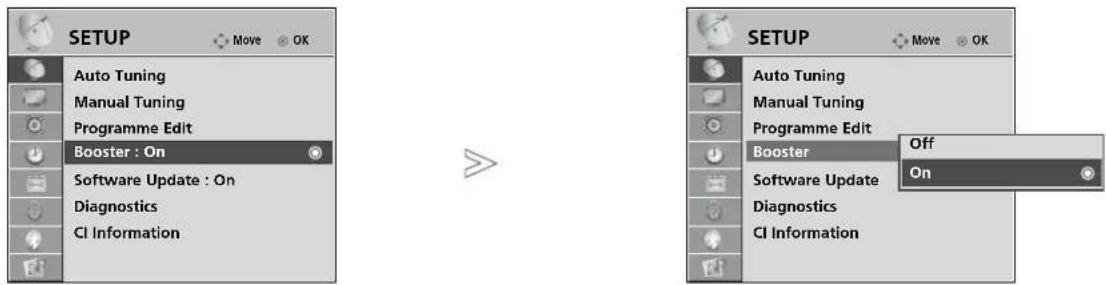
text_image
SETUP Auto Tuning Manual Tuning Programme Edit Booster : On Software Update : On Diagnostics CI Information SETUP Auto Tuning Manual Tuning Programme Edit Booster Software Update Diagnostics CI Information Off On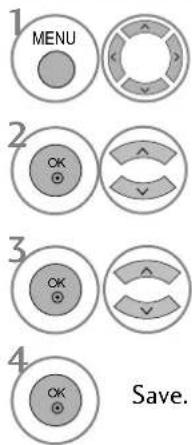
text_image
1 MENU 2 OK 3 OK 4 OK Save.Select SETUP.
Select Booster.
Select On or Off.
- Press the MENU button to return to normal TV viewing.
- Press the RETURN button to move to the previous menu screen.
SOFTWARE UPDATE
Software Update means software can be downloaded through the digital terrestrial broadcasting system.
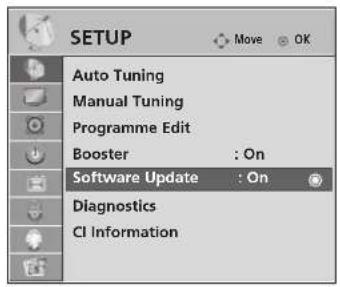
text_image
SETUP Auto Tuning Manual Tuning Programme Edit Booster : On Software Update : On Diagnostics CI Information
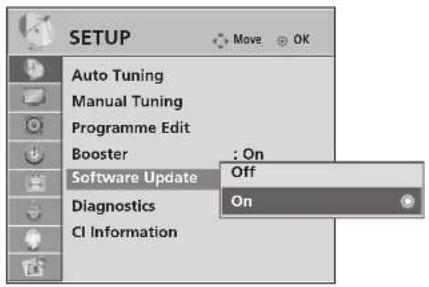
text_image
SETUP Auto Tuning Manual Tuning Programme Edit Booster : On Software Update Off Diagnostics On CI Information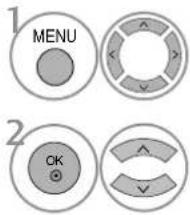
text_image
1 MENU 2 OKSelect SETUP.
Select Software Update.
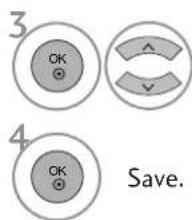
text_image
3 OK 4 OK Save.Select On or Off.
- If you select On, a user confirm message box will be displayed to notify that new software is found.
\* When setting "Software Update"
Occasionally, a transmission of updated digital software information will result in the following menu on the TV screen.
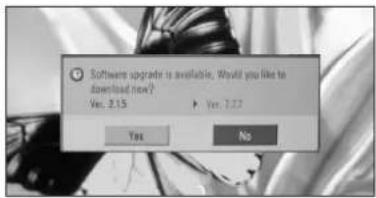
text_image
Software upgrade is available, Would you like to download now? Ver. 2.15 Yes No Ver. 2.22When the Software Update menu is "Off", the message to change it to "On" appears.
Select the YES using the < > button and you will see the following picture.
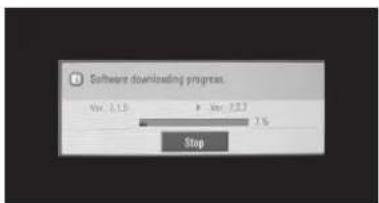
text_image
Software downloading progress. Var 3.10 Var 3.27 3% StopAfter the Software Update is complete, the System restarts.

text_image
Downloading has been completed. Reboarding now.When the power is turned off, downloading starts.
When the power is turned on while updating, the progress status is displayed.
- During Progress of a Software Update, please note the following:
• Power to the TV must not be interrupted.
• The TV must not be switched off.
• The antenna must not be disconnected. - After Software Update, you can confirm the updated software version in Diagnostics menu.
WATCHING TV / PROGRAMME CONTROL
DIAGNOSTICS
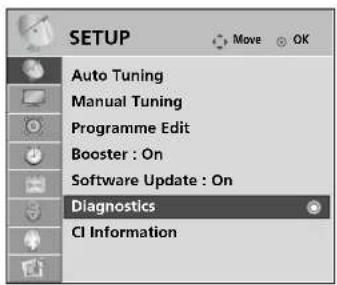
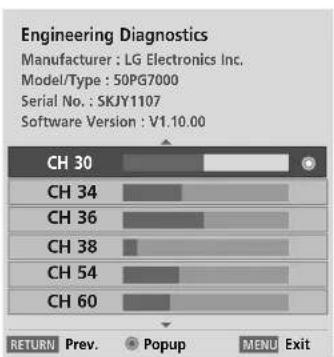
This function enables you to view information on the Manufacturer, Model/Type, Serial Number and Software Version.
This displays the information and signal strength of the tuned MUX. This displays the signal information and service name of the selected MUX.
text_image
SETUP Auto Tuning Manual Tuning Programme Edit Booster : On Software Update : On Diagnostics CI Information
text_image
Engineering Diagnostics Manufacturer : LG Electronics Inc. Model/Type : 50PG7000 Serial No. : SKJY1107 Software Version : V1.10.00 CH 30 CH 34 CH 36 CH 38 CH 54 CH 60 RETURN Prev. Popup MENU Exit
Select SETUP.
Select Diagnostics.
Display Manufacturer, Model/Type, Serial Number and Software Version.
Display the information of Channel.
- Press the MENU button to return to normal TV viewing.
- Press the RETURN button to move to the previous menu screen.
CI [COMMON INTERFACE] INFORMATION
This function enables you to watch some encrypted services (pay services). If you remove the CI Module, you cannot watch pay services.
When the module is inserted into the CI slot, you can access the module menu.
To purchase a module and smart card, contact your dealer. Do not repeatedly insert or remove a CI module from the TV. This may cause a malfunction. When the TV is turned on after inserting a CI Module, you may not have any sound output.
This may be incompatible with the CI module and smart card.
CI (Common Interface) functions may not be possible depending upon the country broadcasting circumstances.
![LG 37LG7000 - CI [COMMON INTERFACE] INFORMATION - 1](/content/2026/05/764842/images/fadd77205be3b5c6223c0213d62995c24e43861f66e0454280dee4c4f441500b.jpg)
text_image
SETUP Auto Tuning Manual Tuning Programme Edit Booster : On Software Update : On Diagnostics CI Information![LG 37LG7000 - CI [COMMON INTERFACE] INFORMATION - 2](/content/2026/05/764842/images/0490120f7c82b567973cdfa36092baf05d8fc3b6180548b3598e9dd27261efc6.jpg)
![LG 37LG7000 - CI [COMMON INTERFACE] INFORMATION - 3](/content/2026/05/764842/images/7ea71672b0faef27ef91468e47f9f3f9133bb83542776fb55bebbeb24588636a.jpg)
text_image
Viaccess Module Consultations Authorizations Module information Select the item- This OSD is only for illustration and the menu options and screen format will vary according to the Digital pay services provider.
- It is possible for you to change CI (Common Interface) menu screen and service by consulting your dealer.
![LG 37LG7000 - CI [COMMON INTERFACE] INFORMATION - 4](/content/2026/05/764842/images/24d3fb9438947f20c77ed451281fa172e48f67a825b4e27ec55261733bb451c5.jpg)
Select SETUP.
![LG 37LG7000 - CI [COMMON INTERFACE] INFORMATION - 5](/content/2026/05/764842/images/510a4d3aba8715fb19752158383f98bebdf6168295c068369020c206d01ad7ce.jpg)
Select CI Information.
![LG 37LG7000 - CI [COMMON INTERFACE] INFORMATION - 6](/content/2026/05/764842/images/37572a952fe45af45354f5a0ed07d09158eaffa5f5dbe8bc0e1eea58a10d1f9a.jpg)
Select the desired item: Module information, smart card information, language, or software download etc.
![LG 37LG7000 - CI [COMMON INTERFACE] INFORMATION - 7](/content/2026/05/764842/images/c6d93a12e80ce9e5f2a34add409f96fc3e78e89a213396657dda03de1bce8664.jpg)
- Press the MENU button to return to normal TV viewing.
- Press the RETURN button to move to the previous menu screen.
WATCHING TV / PROGRAMME CONTROL
SELECTING THE PROGRAMME TABLE
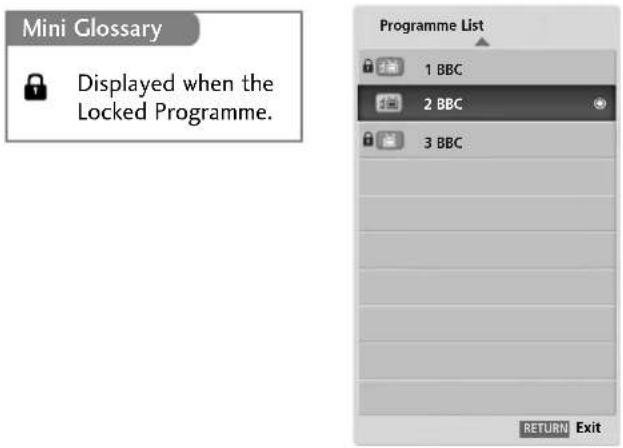
You can check which programmes are stored in the memory by displaying the programme table
text_image
Mini Glossary Displayed when the Locked Programme. Programme List 1 BBC 2 BBC 3 BBC RETURN Exit■ Displaying programme LIST

Display the Programme List.
- You may find some blue programmes. These have been set up to be skipped by auto programming or in the programme edit mode.
- Some programmes with the channel number shown in the programme LIST indicate there is no station name assigned.
■ Selecting a programme in the programme list

Select a programme.

From the programme you are currently watching, the mode will change from TV to DTV to Radio.
Switch to the chosen programme number.
■ Paging through a programme list
Turn the pages.

Return to normal TV viewing.
■ Displaying the favourite programme table
Display the Favourite Programme table.
INPUT LIST
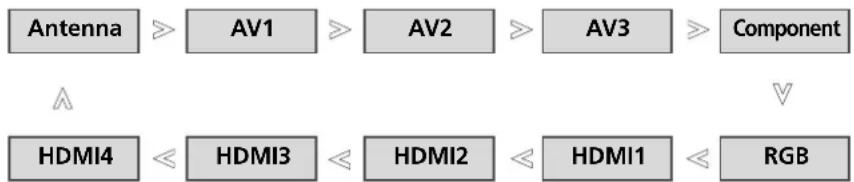
HDMI and AV1, 2 (SCART) can be recognized by a detect pin and thus enabled only when an external device approves voltage.
By using TV/RAD button, you can move from External Input to RF Input and to the last watched programme in DTV/RADIO/TV mode.
flowchart
graph LR
    A["Antenna"] --> B["AV1"]
    B --> C["AV2"]
    C --> D["AV3"]
    D --> E["Component"]
    F["HDMI4"] --> G["HDMI3"]
    G --> H["HDMI2"]
    H --> I["HDMI1"]
    I --> J["RGB"]
Select the input source.
- Antenna: Select it when watching the DTV/TV.
- AV1, AV2, AV3 : Select it when watching the VCR or external equipment.
- Component : Select it when using the DVD or the Digital set-top box depends on connector.
- RGB :Select it when using PC depends on connector.
- HDMI1, HDMI2, HDMI3, HDMI4 : Select it when using DVD, PC or Digital set-top box depend on connector.
WATCHING TV / PROGRAMME CONTROL

MPLINK
This function operates only with devices with the SIMPLINK logo. Please check the SIMPLINK logo.
This TV might not function properly when using it with other products with HDMI-CEC function.
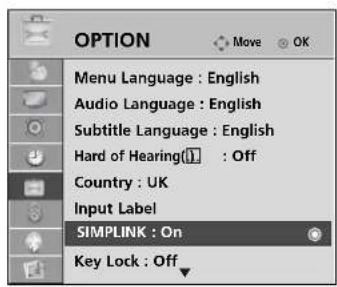
This allows you to control and play other AV devices connected to the display through HDMI cable without additional cables and settings.
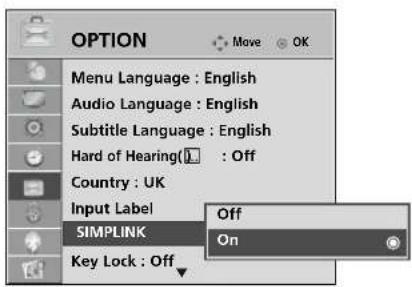
If you do not want SIMPLINK menu, select "Off".
SIMPLINK function is not supported by HDMI IN 4 input.
text_image
OPTION Menu Language : English Audio Language : English Subtitle Language : English Hard of Hearing(1) : Off Country : UK Input Label SIMPLINK : On Key Lock : Off
text_image
OPTION Menu Language : English Audio Language : English Subtitle Language : English Hard of Hearing(1) : Off Country : UK Input Label SIMPLINK Off On Key Lock : Off
Select OPTION.

Select SIMPLINK.
Select On or Off.
Save.
- Press the MENU button to return to normal TV viewing.
- Press the RETURN button to move to the previous menu screen.

NOTE
Connect the HDMI/DVI IN or HDMI IN terminal of the TV to the rear terminal (HDMI terminal) of the SIMPLINK device with the HDMI cable.
▶ After connecting the HDMI terminal for the home theatre with the SIMPLINK function using the above method, connect the DIGITAL AUDIO OUT terminal on the back of the TV to the DIGITAL AUDIO IN terminal on the back of the SIM-PLINK device with the OPTICAL cable.
▶ When operating an external device with SIMPLINK, press the TV button from the MODE buttons on the remote control.
▶ When you switch the Input source using the INPUT button on the remote control, you can stop the operation of a device controlled by SIMPLINK
▶ When you select or operate a media device with home theater function, the speaker automatically switches to home theater speaker (HT speaker).
SIMPLINK Functions
Disc playback
Control connected AV devices by pressing the ,OK, < > ▶, ■, || ◀◀ and ▶▶ buttons.(The ● button does not provide such functions.)
Direct Play
After connecting AV devices to the TV, you can directly control the devices and play media without additional settings.
Select AV device
Enables you to select one of the AV devices connected to the TV and operate it.
Power off all devices
When you switch off the TV, all connected devices are turned off.
Switch audio-out
Offers an easy way to switch audio-out.
Sync Power on
When you play the connected AV device, TV will automatically turn on.
**A device, which is connected to the TV through a HDMI cable but does not support SIMPLINK, does not provide this function.
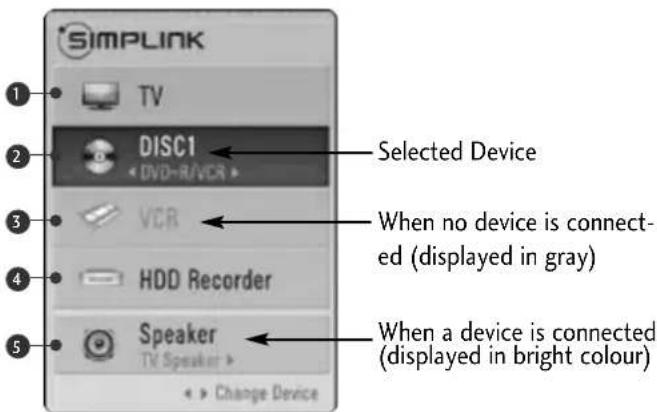
SIMPLINK Menu
Press the ^ ∨ < > button and then OK button to select the desired SIMPLINK source.
1 TV viewing : Switch to the previous TV programme regardless of the current mode.
2 DISC playback : Select and play connected discs. When multiple discs are available, the titles of discs are conveniently displayed at the bottom of the screen.
③ VCR playback : Play and control the connected VCR.
4 HDD Recordings playback : Play and control recordings stored in HDD.
5 Audio Out to Home theater/Audio Out to TV: Select Home theater or TV speaker for Audio Out.
text_image
SIMPLINK TV DISC1 • DVD-R/VCR Selected Device VCR When no device is connected (displayed in gray) HDD Recorder Speaker TV Speaker > • Change Device When a device is connected (displayed in bright colour)• Home theater: Only one supported at a time
• DVD, Recorder: Up to three supported at a time
• VCR: Only one supported at a time
WATCHING TV / PROGRAMME CONTROL
INPUT LABEL
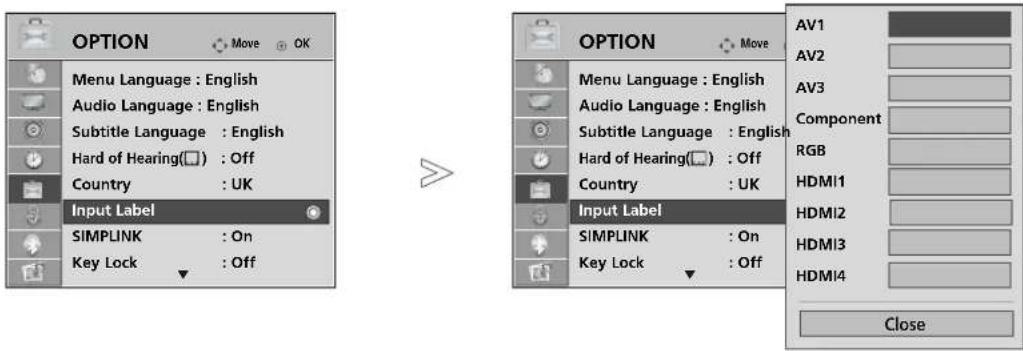
Selects a label for each input source.
text_image
OPTION Menu Language : English Audio Language : English Subtitle Language : English Hard of Hearing(□) : Off Country : UK Input Label SIMPLINK : On Key Lock : Off OPTION Menu Language : English Audio Language : English Subtitle Language : English Hard of Hearing(□) : Off Country : UK Input Label SIMPLINK : On Key Lock : Off AV1 AV2 AV3 Component RGB HDMI1 HDMI2 HDMI3 HDMI4 Close
Select OPTION.
Select Input Label.
Select the source.
Select the label.
- Press the MENU button to return to normal TV viewing.
- Press the RETURN button to move to the previous menu screen.
AV MODE
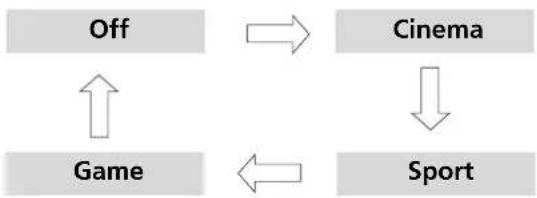
You can select the optimal images and sounds when connecting AV devices to external input.
flowchart
graph TD
    A["Off"] --> B["Cinema"]
    B --> C["Sport"]
    C --> D["Game"]
    D --> A
Press the AV MODE button repeatedly to select the desired source.
- If you select Cinema Mode in AV mode, Cinema mode will be selected both for Picture Mode and Sound Mode in PICTURE menu and AUDIO menu respectively.
- If you select "Off" in AV mode, the picture and image which you initially set will be selected.
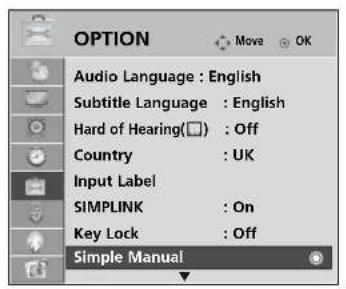
SIMPLE MANUAL(LCD TV ONLY)
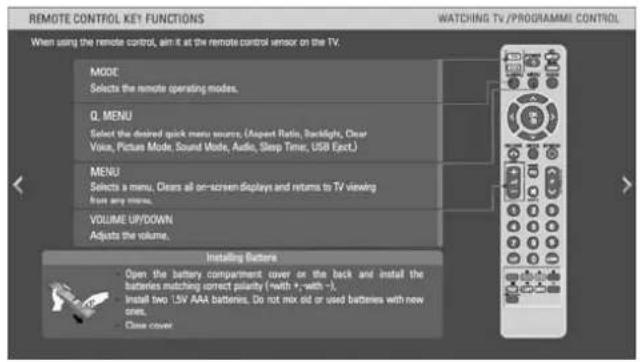
You can easily and effectively access the TV information by viewing a simple manual on the TV.
During the Simple Manual operation, audio will be muted.
text_image
OPTION Audio Language : English Subtitle Language : English Hard of Hearing(□) : Off Country : UK Input Label SIMPLINK : On Key Lock : Off Simple Manual
text_image
REMOTE CONTROL KEY FUNCTIONS WATCHING TV/PROGRAMME CONTROL When using the remote control, aim it at the remote control sensor on the TV. MODE Selects the remote operating modes. Q. MENU Select the desired quick menu source. (Aspect Ratio, Backlight, Clear Voice, Picture Mode, Sound Mode, Audio, Sleep Timer, USB Ext.) MENU Selects a menu. Clears all on-screen displays and returns to TV viewing from any more. VOLUME UP/DOWN Adjusts the volume. Installing Batteries Open the battery compartment cover or the back and install the batteries matching correct polarity ("with +,-with -"). Install two 1.5V AAA batteries. Do not mix old or used batteries with new ones. Close cover.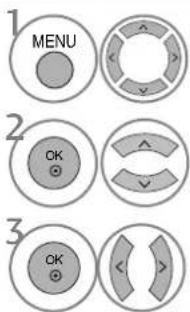
text_image
1 MENU 2 OK 3 OKSelect OPTION.
Select Simple Manual.
Select the part of the manual you want to see.
- Press the RETURN button to return to normal TV viewing.
TO USE THE BLUETOOTH
Bluetooth?
Bluetooth is a short distance networking technology using 2.4 GHz frequency to connect various types of information devices such as computer, cell phone and PDA, as well as digital appliances through wireless connection, without having to connect any cable, to enable data exchange.
With the Bluetooth communication function, you can connect the Bluetooth enabled wireless stereo headset or receive images from the Bluetooth enabled cell phone using this TV.
- Communication spec.: BLUETOOTH Specification version 2.0
• Output : BLUETOOTH Specification Power Class 2
• Maximum communication Range : Line of open sight approx. 10m(30ft)
• Frequency band : 2.4GHz band (2.400 GHz \~ 2.4835GHz) - Compatible BLUETOOTH Profile : A2DP(Advanced Audio Distribution Profile) OPP(Object Push Profile)
Precautions when using the Bluetooth
▶ Use within 10m(-45°\~45°) range.
If you use the device out of the range or within the range with obstacles, it can result in communication error.
▶ Communication error can occur depending on the surrounding device.
▶ Products using the same frequency of 2.4 GHz (Wireless LAN, microwave oven etc.), can cause communication error by using the same frequency bandwidth.
The device search time differs depending on the number of Bluetooth devices and the operating situation, and the probability of search increases with less number of devices.
Electromagnetic wave can be interfered with applicable wireless devices.
▶ Because applicable wireless devices have the possibility of electronic wave interference, they cannot provided services related to human life.
For the external Bluetooth device, you can only connect one headset at a time.
▶ You cannot receive the image while using the Bluetooth headset.
▶MP3 function is not supported.
For details of Bluetooth, refer to the user manual of the Bluetooth device.
QDID : B014281
SETTING THE BLUETOOTH
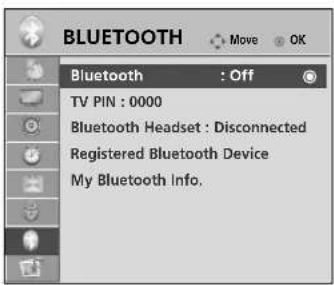
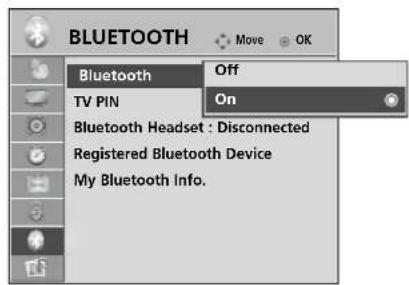
If you want to listen to the broadcasted sound using the Bluetooth headset or receive the jpeg images from an external device and view them on the TV, you can use the wireless communication without having to connect any cables.
You can use the BLUETOOTH menu by selecting "OO"nn
If you do not want to use the Bluetooth function, select "Off".
If it is connected to the external Bluetooth device, you can select "Off" after disconnecting the device.
text_image
BLUETOOTH Move OK Bluetooth : Off TV PIN : 0000 Bluetooth Headset : Disconnected Registered Bluetooth Device My Bluetooth Info.
text_image
BLUETOOTH Bluetooth Off TV PIN On Bluetooth Headset : Disconnected Registered Bluetooth Device My Bluetooth Info.
Select BLUETOOTH.
Select Bluetooth.
Select On or Off.
Save.
- Press the MENU button to return to normal TV viewing.
- Press the RETURN button to move to the previous menu screen.
TO USE THE BLUETOOTH
SET TV PIN
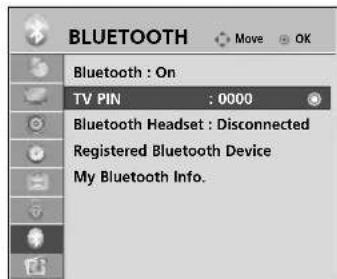
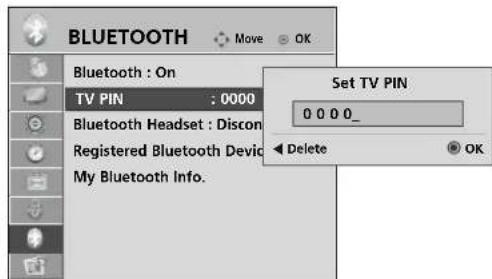
To accept connection from an external Bluetooth device or to connect to an external Bluetooth device.
For details on how to set the PIN of the external Bluetooth device, refer to the user manual of the applicable device.
Set TV PIN can support up to maximum of 10 digits.
text_image
BLUETOOTH Move OK Bluetooth : On TV PIN : 0000 Bluetooth Headset : Disconnected Registered Bluetooth Device My Bluetooth Info.
text_image
BLUETOOTH Move OK Bluetooth : On TV PIN : 0000 Set TV PIN 0 0 0 0 _ Bluetooth Headset : Discon Registered Bluetooth Devic My Bluetooth Info. Delete OK
Select BLUETOOTH.
Select TV PIN.
Select the desired PIN number.

- Press the MENU button to return to normal TV viewing.
- Press the RETURN button to move to the previous menu screen.
BLUETOOTH HEADSET
When you select the Bluetooth stereo headset, you can listen to the TV sound in the Bluetooth stereo headset through wireless communication.
You must pair it with any new Bluetooth device before the first use. For details, refer to the user manual of the applicable device. Maximum of 12 lists can be used.
When the unit is searching for the Bluetooth stereo headset, other buttons except for the "Stop" (OK button) do not work.
Connecting a new Bluetooth headset
You can only search for the new Bluetooth stereo headset only in the Disconnected condition.
When you run the search, it will show you the list of all Bluetooth stereo headsets responding.
After new Bluetooth device is searched, the PIN number is validated to connect the device. For details, refer to the user manual of the applicable device.
text_image
1 MENU 2 OK 3 OK GREENSelect BLUETOOTH.
Select Bluetooth Headset.
Search the Bluetooth headset.

text_image
4 1 2 3 1 5 6 7 8 9 5 ConnectSelect Bluetooth headset PIN number. Refer to the user manual of the applicable device for the PIN number.
Connect the Bluetooth headset.
Connecting to Bluetooth headset already registered
Bluetooth stereo headsets are listed in the order most recently used with the headset currently in use listed at the top. When connecting to the Bluetooth device already registered, you can select and connect directly without any PIN validation.
text_image
1 MENU 2 OK 3 OKSelect BLUETOOTH.
Select Bluetooth Headset.
text_image
4 OK < > 5 OK ConneMessage asking to connect the selected Bluetooth headset will be displayed. Select Yes or NNo
Connect the Bluetooth headset.
Select the desired Bluetooth headset.
- After connecting/using the Bluetooth stereo headset, the headset setting will Disconnected condition automatically when you turn off/on the power of the TV.
- After connecting the Bluetooth stereo headset, the TV speaker is switched to Mute condition and the sound will only be generated from the headset.
TO USE THE BLUETOOTH
Disconnecting the Bluetooth headset during use

Select BLUETOOTH.
Disconnect the Bluetooth headset.
Select Bluetooth Headset.
When requesting to connect to TV from the Bluetooth headset
When the Bluetooth menu is "On" and there is a connection request from the headset, this message is dispalyed.
It's only available for the headset in support of this feature.(Refer to the user manual of the applicable Bluetooth headset.)
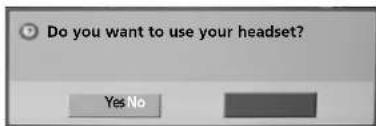
text_image
Do you want to use your headset? Yes No
Select Yes or NN.o
NOTE
LG recommends the following headset models. (Model name: MOTOROLA (HT820, S9), Jabra (BT620S, BT8010), Plantronics(Pulsar590), Nokia (BH-501), Sony (DR-BT30Q), Philips (HSB7100), Logitech (Freepulse-Wireless), Idobi (HP-910), LG(HBS250)). It might be audio delay according to the buffering memory size of headset.
▶ Only the stereo headset officially certified to be Bluetooth compatible can be searched and connected.
▶ Only the stereo headset that supports the A2DP (AV) function among the Bluetooth devices can be connected.
The stereo headset that supports only the HF (Hands Free) function among the Bluetooth devices cannot be connected.
If the PIN number saved in Bluetooth PIN setting is different from the PIN number described in the user manual of the stereo headset, the device will not be connected. For more details, refer to the user manual of the applicable device.
▶ If the surrounding environment of the TV is as follows, the device may not be searched or connected properly.
-If there is strong electromagnetic wave.
-If there are many Bluetooth devices.
-If the stereo headset is turned off, not in place or has an error.
-Because products such as microwave oven, wireless LAN, plasma light, gas range etc., use the same frequency range, it can cause communication error.
▶ Only one stereo headset can be connected at once.
▶ You cannot connect other Bluetooth device other than the stereo headset simultaneously.
▶ Connection that is lost due to the TV being turned off etc. will not be automatically recovered. Try connecting the applicable device again.
▶ Some operations can be slower while operating the headset.
Even if you choose simplink Home Theater after using the headset during Simplink operation, the unit will not automatically switch to Home Theater speakers.
▶ When the headset connection continuously fails, pair the device one more time.
MANAGING REGISTERED BLUETOOTH DEVICE
If there are no devices registered, Registered B/T Device menu will be deactivated and cannot be used.
When 12 devices are registered, you cannot register any more devices, and the external device will no longer be able to pair up with the TV. In this case, you should delete one (disconnect first if a device is connected to the TV) and then you can register another device
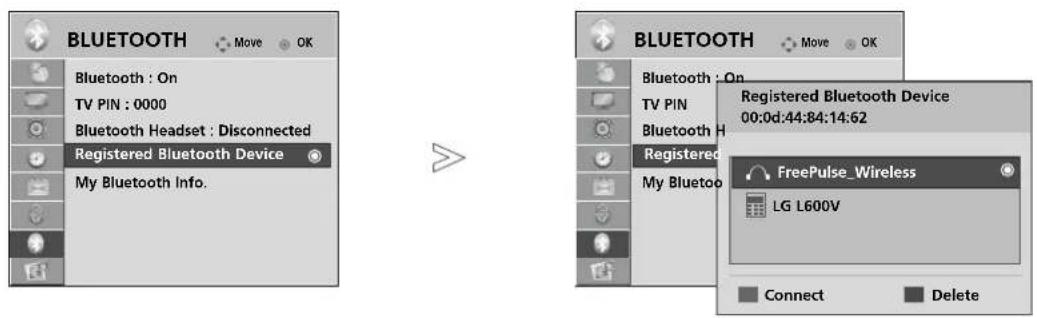
text_image
BLUETOOTH Move OK Bluetooth : On TV PIN : 0000 Bluetooth Headset : Disconnected Registered Bluetooth Device My Bluetooth Info. BLUETOOTH Move OK Bluetooth : On TV PIN Bluetooth H Registered My Bluetooth Registered Bluetooth Device 00:0d:44:84:14:62 FreePulse_Wireless LG L600V Connect Delete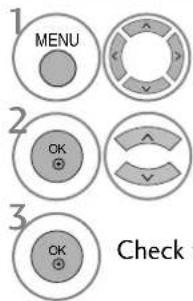
text_image
1 MENU 2 OK 3 OK CheckSelect BLUETOOTH.
Select Registered Bluetooth Device.
■ Connecting the registered Bluetooth stereo headset

Select the registered Bluetooth stereo headset you want.

Message asking to connect the selected Bluetooth device will be displayed.
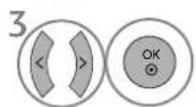
Select Yes or No.
■ Deleting registered Bluetooth device

Select the Bluetooth device you want.
Message asking to delete the selected Bluetooth device will be displayed.
Select Yes or No.
TO USE THE BLUETOOTH
MY BLUETOOTH INFORMATION
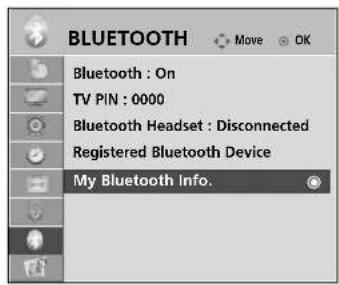
This function provides the My Bluetooth Information to the user.
"Edit" will be available when selecting "Bluetooth device- disconnected"
You can edit the My device name.
You can check the My device Address.
text_image
BLUETOOTH Move OK Bluetooth : On TV PIN : 0000 Bluetooth Headset : Disconnected Registered Bluetooth Device My Bluetooth Info.

text_image
BLUETOOTH Move OK Bluetooth : On TV PIN : 0000 Bluetooth Headset : Disconnected Registered Bluetooth My Bluetooth I My Device Name 6 0 P G 7 0 0 0 - Z B My Device Address 0 0 : 0 5 : c 9 : f f : 0 0 f : 0 7 Edit OK
Select BLUETOOTH.
Select My Bluetooth Info..
text_image
3 OK BLUEYou can use an the alphabet A to Z, the number 0 to 9, +/-, and blank.
Save.
- Press the MENU button to return to normal TV viewing.
- Press the RETURN button to move to the previous menu screen.
RECEIVING PHOTOS THROUGH EXTERNAL BLUETOOTH DEVICE
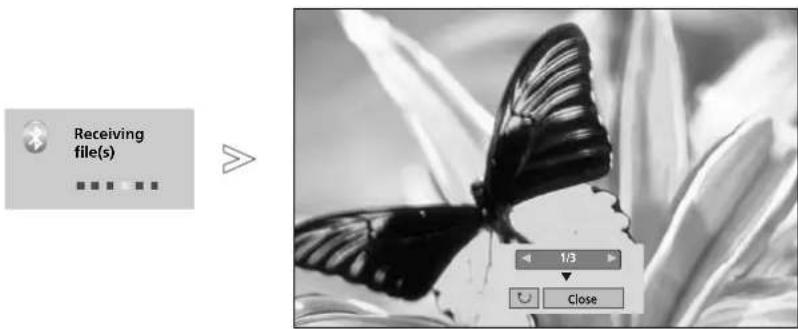
Send the photo from the external Bluetooth device. For details on how to send the photo from the external Bluetooth device, refer to the user manual of the applicable device.
text_image
Receiving file(s) 1/3 Close- When you select Close with the button, the OSD will disappear. And when you press the OK button again, it will appear again.

Select the desired photos.
(Rotate): Rotate photos.
■ Rotates the photo 90° clockwise upon OK button on ☑(Rotate).
- The maximum accumulated size of the image that can be received is 10MBytes.
- Only the OPP (Object Push Profile) method is supported among the method on sending the image through the Bluetooth cell phone.
- You cannot receive the image while using the Bluetooth stereo headset.
- When the external Bluetooth device is currently sending the photo, press the RETURN button to stop receiving the photo. In this all the photos already received will be deleted.
TO USE THE USB DEVICE
When connecting the USB device
When you connect a USB device, this screen is displayed, automatically.
"POP UP MENU" will not be displayed while the OSD including Menu, EPG or Schedule list is activated or while the Bluetooth Headset is connected.
In USB device, you can not add a new folder or delete the existing folder.
1 Connect the USB device to the USB IN jacks on the side of TV.
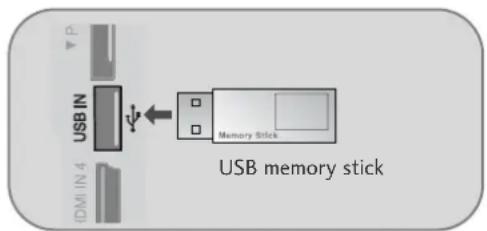
text_image
USB IN IDM IN 4 Memory Stick USB memory stick
Select PHOTO LIST or MUSIC LIST.


- It doesn't support USB HDD
• This TV Supports on JPEG and MP3.
When removing the USB device
Select the USB EJECT menu before removing the USB device.
Select USB Eject

Precautions when using the USB device
▶ Only a USB storage device is recognizable.
▶ If the USB storage device is connected through a USB hub, the device is not recognizable.
▶ A USB storage device using an automatic recognition programme may not be recognized.
▶ A USB storage device which uses its own driver may not be recognized.
The recognition speed of a USB storage device may depend on each device.
▶ Please do not turn off the TV or unplug the USB device when the connected USB storage device is working. When such device is suddenly separated or unplugged, the stored files or the USB storage device may be damaged.
▶ Please do not connect the USB storage device which was artificially maneuvered on the PC. The device may cause the product to malfunction or fail to be played. Never forget to use only a USB storage device which has normal music files or image files.
▶ Please use only a USB storage device which was formatted as a FAT32 file system provided with the Windows operating system. In case of a storage device formatted as a different utility programme which is not supported by Windows, it may not be recognized.
▶ Please connect power to a USB storage device which requires an external power supply. If not, the device may not be recognized.
▶ Please connect a USB storage device with cable is offered by USB maker. If connected with cable is not offered by USB maker or an excessively long cable, the device may not be recognized.
▶ Some USB storage devices may not be supported or operated smoothly.
▶ File alignment method of USB storage device is similar to Window XP and filename can recognize up to 100 English characters.
▶ Please up the important file because a data of USB device may be damaged. Data management is consumer's responsibility and in consequence the manufactures does not cover the product bearing data damage.
PHOTO LIST
The On Screen Display may be different from your TV. Images are an example to assist with the TV operation.
PHOTO(\*.JPEG) supporting file
Baseline: 7680x 4320
- You can play JPEG files only.
- Only baseline scan is supported among JPEG (SOF0, SOF1 only).
• Non-supported files are displayed in the form of bitmap.
Screen Components
Select USB.

Select Photo List.
① Moves to upper level file
② Current page/Total pages
③ Total number of marked photos
4 Usable USB memory
5 Corresponding buttons on the remote control
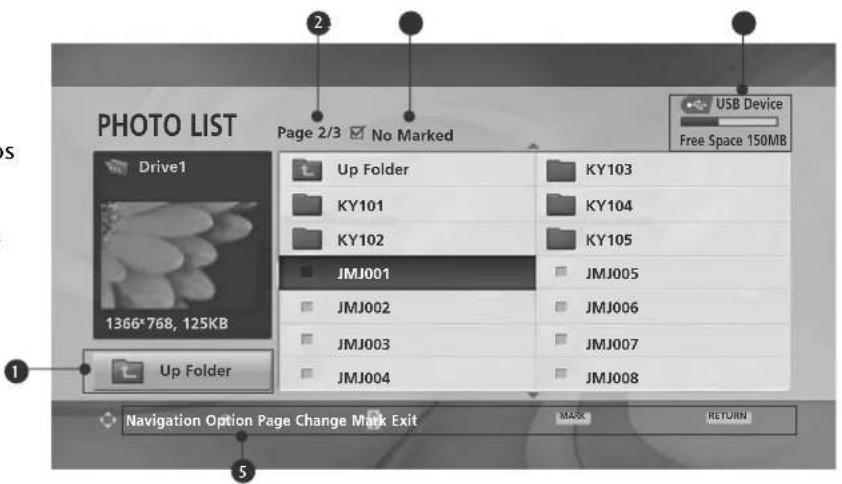
text_image
PHOTO LIST Page 2/3 No Marked USB Device Free Space 150MB Drive1 1366*768, 125KB Up Folder KY103 KY104 KY105 JMJ001 JMJ005 JMJ002 JMJ006 JMJ003 JMJ007 JMJ004 JMJ008 Up Folder Navigation Option Page Change Mark Exit MARK RETURNTO USE THE USB DEVICE
Photo Selection and PopUp Menu
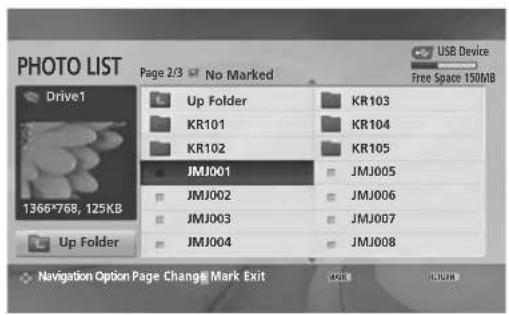
text_image
PHOTO LIST Page 2/3 No Marked Drive1 1366*768, 125KB Up Folder KR101 KR102 JMJ001 JMJ002 JMJ003 JMJ004 USB Device Free Space 150MB Navigation Option Page Change Mark ExitV
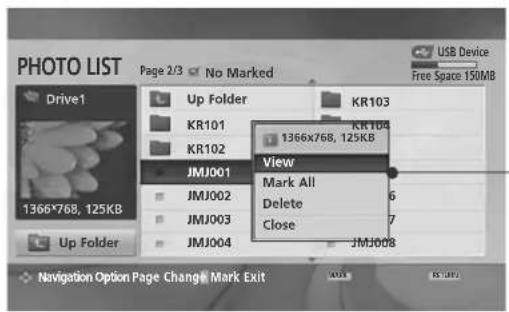
text_image
PHOTO LIST Page 2/3 No Marked Drive1 Up Folder KR103 KR101 KR104 KR102 JMJ001 1366x768, 125KB View Mark All Delete Close JMJ002 JMJ003 JMJ004 Up Folder JMJ008 USB Device Free Space 150MB Navigation Option Page Change Mark Exit▶ View : Display the selected item.
▶ Mark All : Mark all photos on the screen.
▶ Unmark All : Deselect all marked photos.
▶ Delete : Delete the selected photo item.
▶ Close : Close the pop-up menu.

Select the target folder or drive.

Select the desired photos.
Show the PopUp menu.
Select the desired PopUp menu.
- Use the P ^ ∨ button to navigation in the photo page.
- Use the MARK button to mark or unmark a photo. When one or more photos are marked, you can view individual photos or a slide show of the marked photos. If no photos are marked, you can view all photos individually or all photos in the folder in a slide show.
Set up the menu in Full-Sized Screen
You can change the settings to display photos stored on a USB device, on a full-sized screen. Detailed operations are available on full-sized photo view screen.
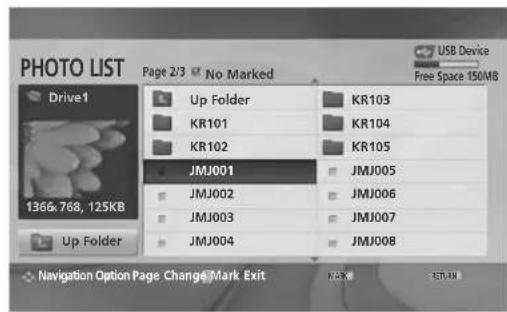
text_image
PHOTO LIST Page 2/3 No Marked Drive1 1366:768, 125KB Up Folder KR101 KR102 JMJ001 JMJ002 JMJ003 JMJ004 USB Device Free Space 150MB Navigation Option Page Change Mark ExitV
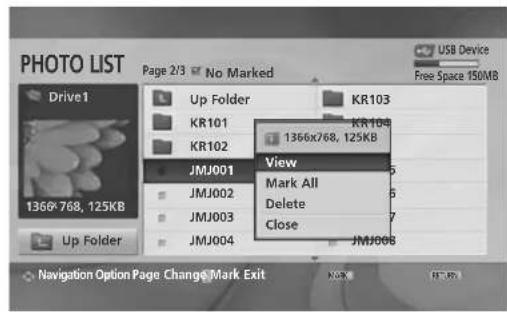
text_image
PHOTO LIST Page 2/3 No Marked Drive1 Up Folder KR103 KR101 KR108 KR102 1366x768, 125KB JMJ001 View Mark All 5 JMJ002 5 JMJ003 Delete 7 JMJ004 Close 7 Up Folder JMJ008 USB Device Free Space 150MB Navigation Option Page Change Mark Exit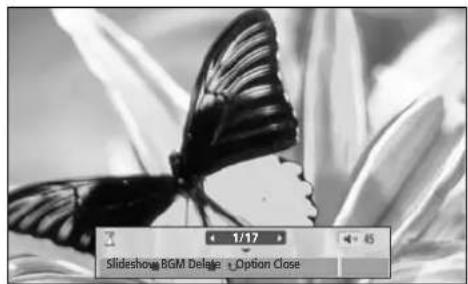
natural_image
Black and white photo of a butterfly on a flower, with no visible text or symbols in the main image area.The aspect ratio of a photo may change the size of the photo displayed on the screen in full size. Press the RETURN button to move to the previous menu screen.

Select the target folder or drive.

Select the desired photos.
Show the PopUp menu.
Select View
The selected photo is displayed in full size.
- Use the P ^2 ∧ ∨ button to navigation in the photo page.
TO USE THE USB DEVICE
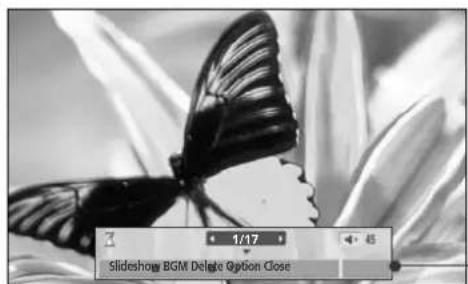
text_image
1/17 Slideshow BGM Delete Option Close
Select the Slideshow, BGM, 🤅 (Rotate), Delete, Option or Close
- Use < > button to select the previous or next photo.
- Use < > button to select and control the menu on the full-sized screen.
▶ Slideshow : When no picture is selected, all photos in the current folder are displayed during slide show. When selected, the selected photos are displayed during slide show.
■ Set the time interval of the slide show inOption.
▶ BGM : Listen to music while viewing photos in full size.
■ Set the BGM device and album in Option.
▶ (Rotate) : Rotate photos.
■ Rotates the photo 90° clockwise.
▶ Delete: Delete photos.
▶ Option : Set values for Slide Speed and Music Folder.
■ Use < > button and OK button to set values. Then go to OK and press OK to save the settings.
■ You cannot change Music Folder while BGM is playing.
▶ Close : Hide the menu on the full-sized screen.
■ To see the menu again on the full-sized screen, press OK button to display.
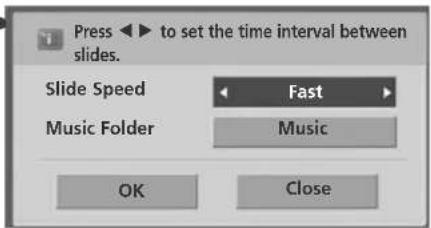
text_image
Press ▶ to set the time interval between slides. Slide Speed Fast Music Folder Music OK CloseMUSIC LIST
Purchased music files(*.MP3) may contain copyright restrictions. Playback of these files may not be supported by this model.
Music file on your USB device can be played by this unit.
The On Screen Display may be different from your TV. Images are an example to assist with the TV operation.
MUSIC (*.MP3) supporting file
Bit rate 32 \~ 320
- Sampling rate MPEG1 layer 3: 32 kHz, 44.1 kHz, 48 kHz.
Screen Components
Select USB.
Select Music List
① Moves to upper level file
② Current page/Total pages
③ Total number of marked musics
4 Usable USB memory
⑤ Corresponding buttons on the remote control
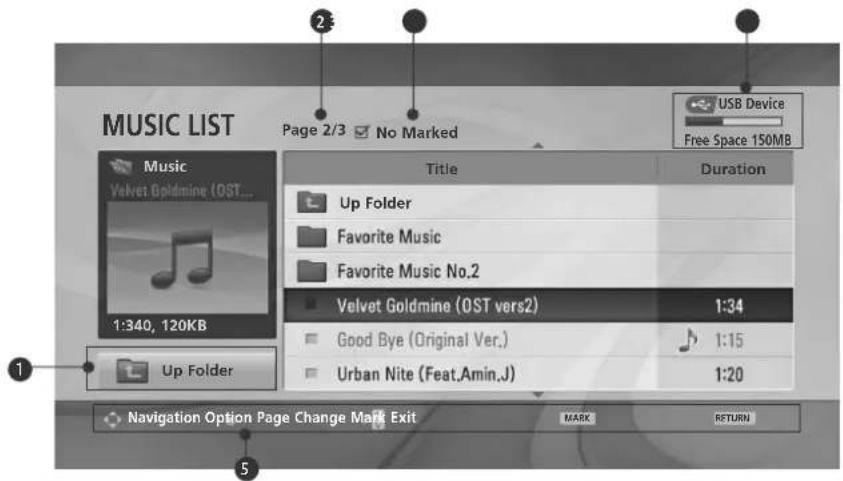
text_image
MUSIC LIST Page 2/3 No Marked USB Device Free Space 150MB Music Velvet Goldmine (OST... 1:340, 120KB) Up Folder Title Duration Up Folder Favorite Music Favorite Music No.2 Velvet Goldmine (OST vers2) 1:34 Good Bye (Original Ver.) 1:15 Urban Nite (Feat.Amin.J) 1:20 Navigation Option Page Change Mark Exit MARK RETURNTO USE THE USB DEVICE
Music Selection and PopUp Menu
As shown, up to 6 music titles are listed per page.
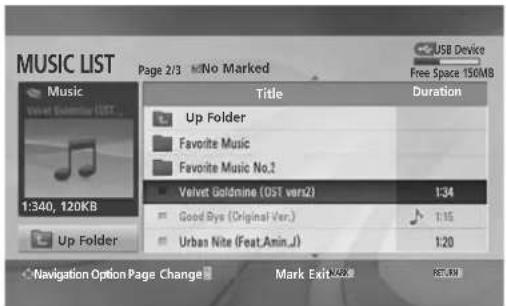
text_image
MUSIC LIST Page 2/3 No Marked Music 1:340, 120KB Up Folder Up Folder Favorite Music Favorite Music No.2 Velvet Goldmine (OST ver2) Good Bye (Original Ver.) Urban Nite (Feat.Anin.J) Duration 1:34 1:15 1:20 USB Device Free Space 150MB Navigation Option Page Change Mark ExitV
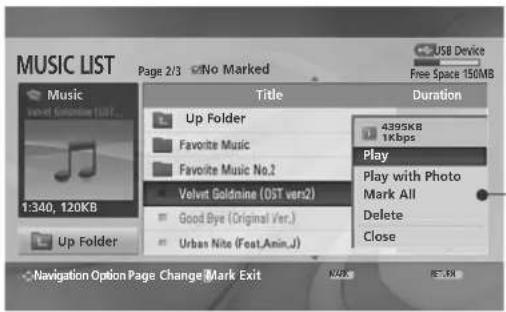
text_image
MUSIC LIST Page 2/3 No Marked USB Device Free Space 150MB Music Up Folder Favorite Music Favorite Music No.2 Velvet Goldmine (OST ver2) Good Bye (Original Ver.) Urban Nito (Fost.Anin_J) Duration 4395KB 1Kbps Play Play with Photo Mark All Delete Close 1:340, 120KB Up Folder Navigation Option Page Change Mark Exit▶ Play (During stop) : Play the selected musics. Once a music finishes playing, the next selected one will be played. When there are no selected musics to play, the next one in the current folder will be played. If you go to a different folder and press the OK button, the current music in playback will stop.
▶ Play Marked : Play the selected musics. Once a music finishes playing, the next selected one will be played automatically.
▶ Stop Play (During playback) : Stop the playing musics.
▶ Play with Photo : Start playing the selected musics and then move to the Photo List.
▶ Mark All: Mark all musics in the folder.
▶ Unmark All: Deselect all marked musics.
▶ Delete : Delete the selected musics.
▶ Close : Close the pop-up menu.
Select the target folder or drive.
Select the desired musics.
Show the PopUp menu.
Select the desired PopUp menu.
- Use the PP ∧ ∨ button to navigation in the music page.
- Use MARK button to mark or unmark a music. When one or more music files are marked, the marked musics will be played in sequence. For example, if you want to listen to only one music repeatedly, just mark the music only and play it. If no music is marked, all the music in the folder will be played in sequence.
If you don't press any button for a while during the playing, the play information box (as shown in the below) will float as a screen saver.
■ The 'Screen Saver'?
Screen saver is to prevent screen pixel damage due to an fixed image remaining on the screen for a extended period of time.
NOTE
▶ When music is playing, is displayed in back of the music title.
▶ A damaged or corrupted music does not play but displays 00:00 in playtime.
▶ A music downloaded from a paid service with copyright protection does not start but displays inappropriate information in playtime.
▶ If you press O○, K buttons, screen saver is stopped.
The PLAY(▶) Pause(II) ▪▶▶◀◀ buttons on the remote control are also available in this mode.
▶ You can use the ▶ button to select the next music and the ◀ button to select the previous music.
EPG (ELECTRONIC PROGRAMME GUIDE)(IN DIGITAL MODE)
This system has an Electronic Programme Guide (EPG) to help your navigation through all the possible viewing options.
The EPG supplies information such as programme listings, start and end times for all available services. In addition, detailed information about the programme is often available in the EPG (the availability and amount of these programme details will vary, depending on the particular broadcaster).
This function can be used only when the EPG information is broadcast by broadcasting companies
The EPG displays the programme details for next 8 days.

Shows the present screen information.

Displayed with a DTV Programme.

Displayed with a Radio Programme.

Displayed with a MHEG Programme.

Displayed with a Teletext Programme.

Displayed with a Subtitle Programme.

Displayed with a Scramble Programme.

Displayed with a Dolby Programme.
Switch on/off EPG

Switch on or off EPG.
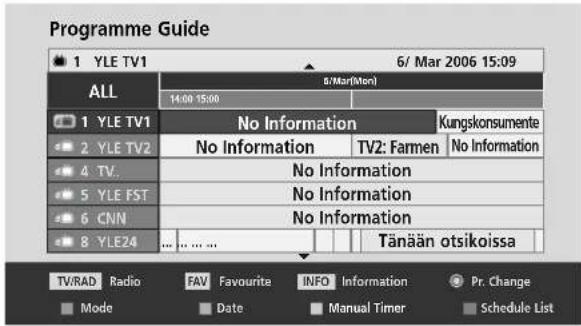
text_image
Programme Guide 1 YLE TV1 6/ Mar 2006 15:09 ALL 8/Mar(Mon) 14:00 15:00 1 YLE TV1 No Information Kungskonsumente 2 YLE TV2 No Information TV2: Farmen No Information 4 TV. No Information 5 YLE FST No Information 6 CNN No Information 8 YLE24 ... Tänään otsikoissa TV/RAD Radio FAV Favourite INFO Information Pr. Change Mode Date Manual Timer Schedule ListSelect a programme


Select desired programme.
Display the selected programme.
Button Function in NOW/NEXT Guide Mode




Change EPG mode.
Enter Timer Record/Remind setting mode.
Enter Timer Record/Remind list mode.
Change to the selected programme.
Select NOW or NEXT Programme.


Select the Broadcast Programme.
Page Up/Down.
Select TV or RADIO Programme.
Detail information on or off
Button Function in 8 Day Guide Mode



Change EPG mode.
Enter Date setting mode.
Enter Timer Record/Remind setting mode.
Enter Timer Record/Remind list mode.
Change to the selected programme.
Select NOW or NEXT Programme.



Select the Broadcast Programme.
Page Up/Down.
Select TV or RADIO Programme.
Detail information on or off
Button Function in Date Change Mode



Switch off Date setting mode.
Change to the selected date.
Select a date.


Switch off Date setting mode.
Switch off EPG.
EPG (ELECTRONIC PROGRAMME GUIDE)(IN DIGITAL MODE)
Button Function in Extended Description Box


Text Up/Down.
Enter Timer Record/Remind setting mode.

The detail information on or off.

or

Switch off EPG.
Button Function in Record/Remind Setting Mode
- This function is available only when recording equipment that use pin8 recording signalling has been connected to the DTV-OUT(AV2) terminal, using a SCART cable.

Change to Guide or Timer list mode.

Save Timer Record/Remind.

Select Type, Service, Date or Start/End time.

Function setting.
Button Function in Schedule List Mode

Add new Manual Timer setting mode.

Enter Schedule List editing mode.

Delete the selected item.

Change to Guide mode.

Select Schedule List.
PICTURE CONTROL
PICTURE SIZE (ASPECT RATIO) CONTROL
You can watch the screen in various picture formats; 16:9, Just Scan,
Original, 4:3, 14:9 and Zoom1/2.
If a fixed image is displayed on the screen for a long time, that fixed image may become imprinted on the screen and remain visible.
You can adjust the enlarge proportion using ∧ ∨ button.
This function works in the following signal.
Select Aspect Ratio.
Select the desired picture format.
- You can also adjust Aspect Ratio in the PICTURE menu.
- For Zoom Setting, select 14:9, Zoom1 and Zoom2 in Ratio Menu. After completing Zoom Setting, the display goes back to Q.Menu.
• 16:9
The following selection will allow you to adjust the picture horizontally, in linear proportion, to fill the entire screen(useful for viewing 4:3 formatted DVDs).
natural_image
Close-up of a ball on a textured surface (no text or symbols visible)- Just Scan
Following Selection will lead to you view the picture of best quality without loss of original picture in high resolution image.
Note : If there is noise in original Picture, You can see the noise at the edge.
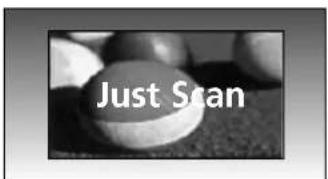
text_image
Just Scan- Original
When your TV receives a wide screen signal it will automatically change to the picture format broadcast.

text_image
Original• 4:3
The following selection will allow you to view a picture with an original 4:3 aspect ration, gray bars will appear on both the left and right of the screen.
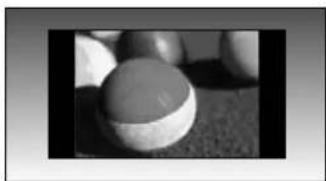
natural_image
Black and white photo of a ball on a surface, no visible text or symbolsPICTURE CONTROL
• 14:9
You can view a picture format of 14:9 or a general TV programme in the 14:9 mode. The 14:9 screen is viewed in the same way as in 4:3, but is magnified to the left and right.
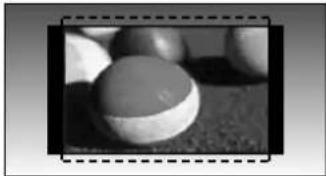
natural_image
Black and white photo of a round stone ball resting on a surface (no text or symbols visible)- Zoom1
The following selection will allow you to view the picture without any alteration, while filling the entire screen. However, the top and bottom of the picture will be cropped.
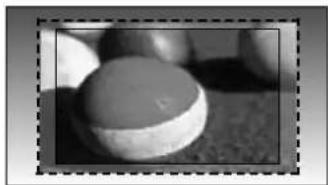
natural_image
Close-up of a round, smooth object with a smooth top, possibly a button or ball (no visible text or symbols)- Zoom2
Choose Zoom 2 when you wish the picture to be altered, both horizontally extended and vertically cropped. The picture adopting a compromise between alteration and screen coverage.
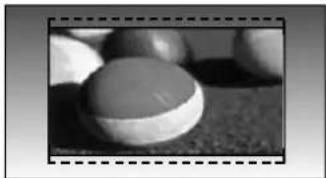
natural_image
Black and white photo of a ball on a surface, no visible text or symbols
NOTE
▶ You can only select 4:3, 16:9 (Wide), 14:9, Zoom 1/2 in Component, HDMI mode.
▶ You can only select 4:3, 16:9 (Wide) in RGB mode only.
▶ In HDMI/Component (over 720p) mode, Just Scan is available.
PRESET PICTURE SETTINGS
Picture Mode-Preset
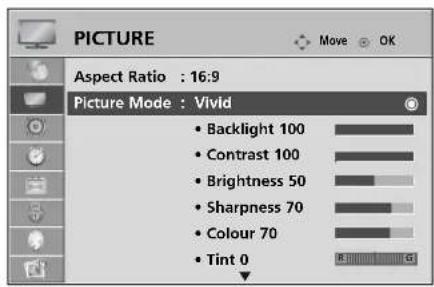
text_image
PICTURE Aspect Ratio : 16:9 Picture Mode : Vivid • Backlight 100 • Contrast 100 • Brightness 50 • Sharpness 70 • Colour 70 • Tint 0
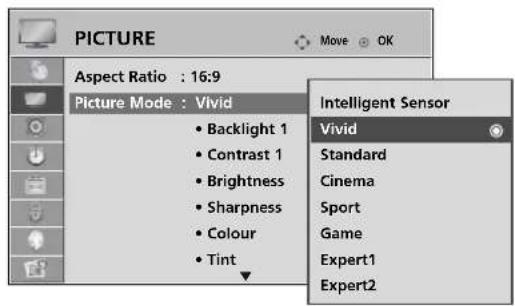
text_image
PICTURE Aspect Ratio : 16:9 Picture Mode : Vivid Backlight 1 Contrast 1 Brightness Sharpness Colour Tint Intelligent Sensor Vivid Standard Cinema Sport Game Expert1 Expert2
Select PICTURE.
Select Picture Mode.
Select Intelligent Sensor(LCD TV only), Vivid, Standard, Cinema, Sport or Game.
- Picture Mode adjusts the TV for the best picture appearance. Select the preset value in the Picture Mode menu based on the programme category.
- When the Intelligent sensor function is on, the most suitable picture is automatically adjusted according to the surrounding conditions. (LCD TV only)
- You can also adjust Picture Mode in the Q. Menu.
-
Intelligent Sensor: Adjusts picture according to the surrounding conditions. (LCD TV only)
-
Press the MENU button to return to normal TV viewing.
- Press the RETURN button to move to the previous menu screen.
PICTURE CONTROL
Auto Colour Tone Control (Warm/Medium/Cool)
Choose one of three automatic colour adjustments. Set to warm to enhance hotter colours such as red, or set to cool to see less intense colours with more blue.
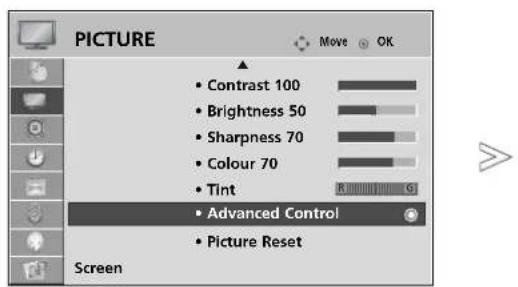
text_image
PICTURE • Contrast 100 • Brightness 50 • Sharpness 70 • Colour 70 • Tint • Advanced Control • Picture Reset Screen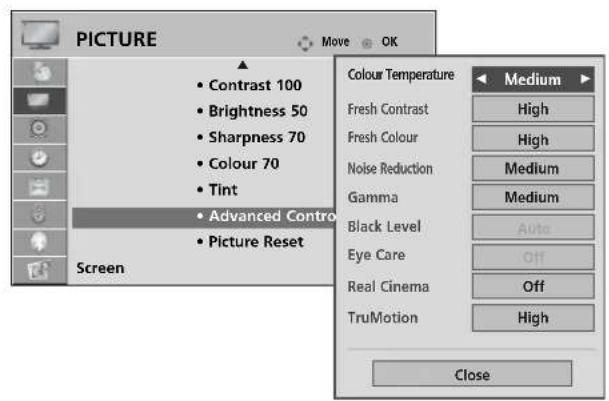
text_image
PICTURE • Contrast 100 • Brightness 50 • Sharpness 70 • Colour 70 • Tint • Advanced Control • Picture Reset Screen Move OK Colour Temperature • Medium Fresh Contrast • Fresh Colour Noise Reduction • Gamma • Black Level Eye Care Real Cinema TruMotion • High High Medium Medium Auto Off Off High Close
Select PICTURE.
Select Advanced Control.
Select Colour Temperature.

Select either Cool, Medium or Warm.
- Press the MENU button to return to normal TV viewing.
- Press the RETURN button to move to the previous menu screen.
MANUAL PICTURE ADJUSTMENT
Picture Mode-User option
- Backlight (LCD TV Only) To control the brightness of the screen, adjust the brightness of LCD panel.
- Contrast Adjusts the difference between light and dark levels in the picture.
- Brightness Increases or decreases the amount of white in the picture.
- Sharpness
Adjusts the level of crispness in the edges between the light and dark areas of the picture. The lower the level, the softer the image.
• Colour Adjusts intensity of all colours. - Tint Adjusts the balance between red and green levels.
It is not available to use this function in "Intelligent Sensor(LCD TV only)".
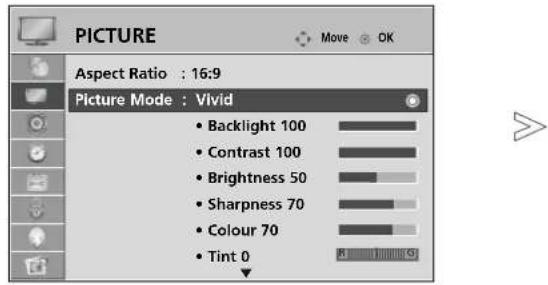
text_image
PICTURE Move OK Aspect Ratio : 16:9 Picture Mode : Vivid • Backlight 100 • Contrast 100 • Brightness 50 • Sharpness 70 • Colour 70 • Tint 0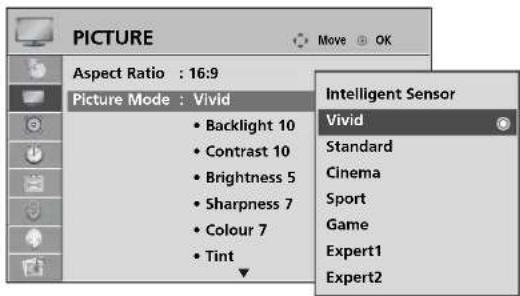
text_image
PICTURE Aspect Ratio : 16:9 Picture Mode : Vivid Backlight 10 Contrast 10 Brightness 5 Sharpness 7 Colour 7 Tint Intelligent Sensor Vivid Standard Cinema Sport Game Expert1 Expert2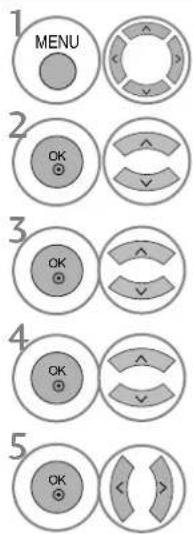
text_image
1 MENU 2 OK 3 OK 4 OK 5Select PICTURE.
Select Picture Mode.
Select Vivid, Standard, Cinema, Sport or Game
Select Backlight(LCD TV only), Contrast, Brightness, Sharpness, Colour or Tint.
Make appropriate adjustments.
- Press the MENU button to return to normal TV viewing.
- Press the RETURN button to move to the previous menu screen.
NOTE
▶ You cannot adjust colour, sharpness and tint in the RGB-PC mode.
PICTURE CONTROL
Picture Mode-Expert Control
By segmenting categories, Expert1 and Expert2 provide more categories which users can set as they see fit, offering the optimal picture quality for users.
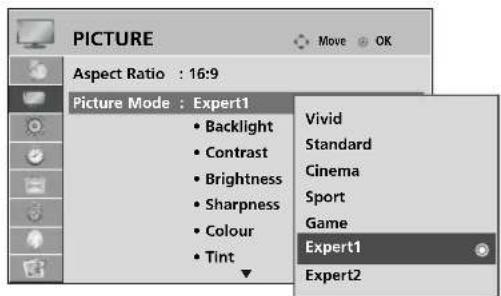
text_image
PICTURE Move OK Aspect Ratio : 16:9 Picture Mode : Expert1 Backlight Contrast Brightness Sharpness Colour Tint Vivid Standard Cinema Sport Game Expert1 Expert2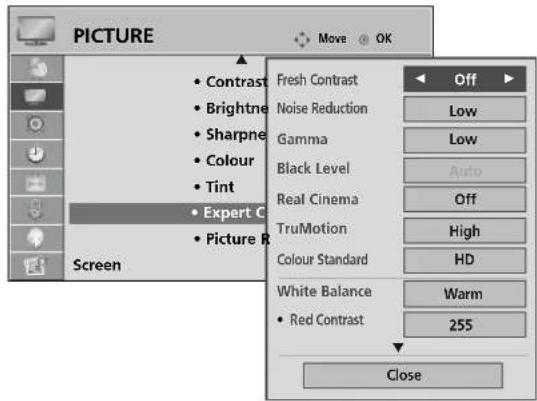
text_image
PICTURE • Contrast • Brightness • Sharpness • Colour • Tint • Expert C • Picture R Screen Fresh Contrast Noise Reduction Gamma Black Level Real Cinema TruMotion Colour Standard White Balance • Red Contrast Off Low Low Auto Off High HD Warm 255 Close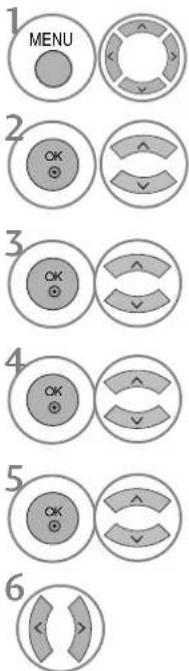
text_image
1 MENU 2 OK 3 OK 4 OK 5 OK 6Select PICTURE.
Select Picture Mode.
Select Expert1 or Expert2.
Select Expert Control.
Select your desired Source.
Make appropriate adjustments.
- Press the MENU button to return to normal TV viewing.
- Press the RETURN button to move to the previous menu screen.
PICTURE IMPROVEMENT TECHNOLOGY
Fresh Contrast
Optimizes the contrast automatically according to the brightness of the reflection.
Fresh Colour
Adjusts the colour of the reflection automatically to reproduce as close as possible natural colours.
Noise Reduction
Removes interference up to the point where it does not damage the original picture.
Gamma.
High gamma values display whitish images and low gamma values display high contrast images.
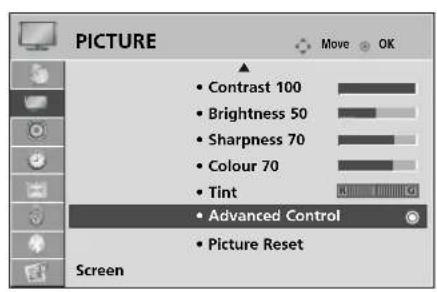
text_image
PICTURE • Contrast 100 • Brightness 50 • Sharpness 70 • Colour 70 • Tint • Advanced Control • Picture Reset Screen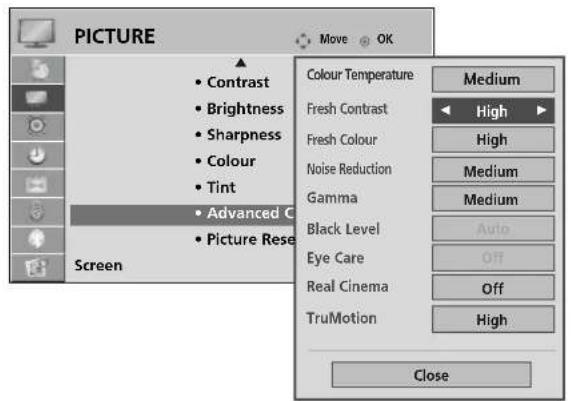
text_image
PICTURE Move OK • Contrast • Brightness • Sharpness • Colour • Tint • Advanced C • Picture Rese Screen Colour Temperature Medium Fresh Contrast High Fresh Colour High Noise Reduction Medium Gamma Medium Black Level Auto Eye Care Off Real Cinema Off TruMotion High Close
text_image
1 MENU 2 OK 3 OKSelect PICTURE.
Select Advanced Control.
Select Fresh Contrast, Fresh Colour, Noise Reduction or Gamma.
Select your desired Source.
- Press the MENU button to return to normal TV viewing.
- Press the RETURN button to move to the previous menu screen.
PICTURE CONTROL
ADVANCED - FILM MODE/ REAL CINEMA(37/42/47/52LG70\* Only)
To set the TV up for the best picture quality for viewing films.
This feature operates only in TV, AV and Component 480i/576i/1080i mode(Film Mode only).
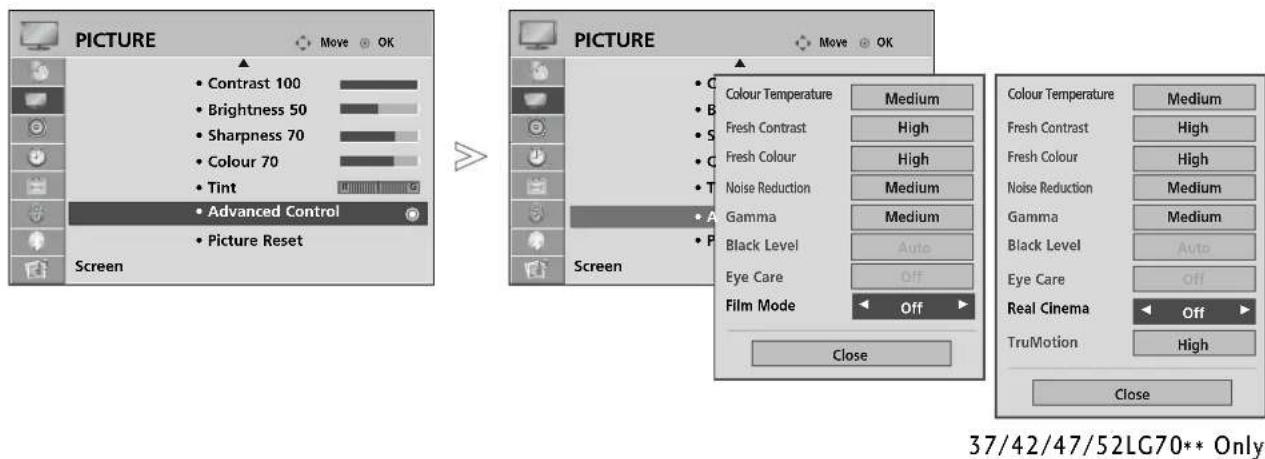
text_image
PICTURE Move OK Contrast 100 Brightness 50 Sharpness 70 Colour 70 Tint Advanced Control Picture Reset Screen PICTURE Move OK Colour Temperature Medium Fresh Contrast High Fresh Colour High Noise Reduction Medium Gamma Medium Black Level Auto Eye Care Off Film Mode Off Close Colour Temperature Medium Fresh Contrast High Fresh Colour High Noise Reduction Medium Gamma Medium Black Level Auto Eye Care Off Real Cinema Off TruMotion High Close 37/42/47/52LG70** Only
Select PICTURE.
Select Advanced Control.
Select Film Mode(or Real Cinema(37/42/47/52LG70** Only)).
Select On or Off.
- Press the MENU button to return to normal TV viewing.
- Press the RETURN button to move to the previous menu screen.
When you view a film this function adjusts the TV to best picture quality.
This function works in the following mode: AV (NTSC-M), HDMI or Component.
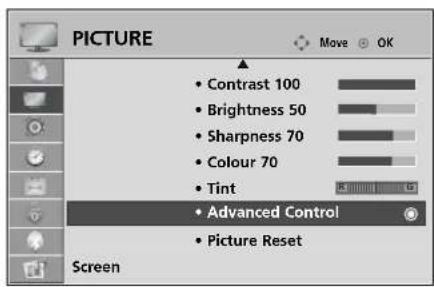
text_image
PICTURE • Contrast 100 • Brightness 50 • Sharpness 70 • Colour 70 • Tint • Advanced Control • Picture Reset Screen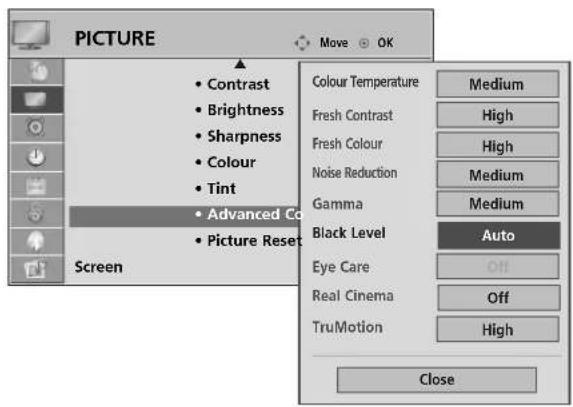
text_image
PICTURE Move OK • Contrast • Brightness • Sharpness • Colour • Tint • Advanced Co • Picture Reset Screen Colour Temperature Medium Fresh Contrast High Fresh Colour High Noise Reduction Medium Gamma Medium Black Level Auto Eye Care Off Real Cinema Off TruMotion High Close
Select PICTURE.
Select Advanced Control.
Select Black Level.
Select Low or High.
- Low: The reflection of the screen gets darker.
• High : The reflection of the screen gets brighter. -
Auto : Realizing the black level of the screen and set it to High or Low automatically.
-
Press the MENU button to return to normal TV viewing.
- Press the RETURN button to move to the previous menu screen.
PICTURE CONTROL
ADVANCED - TRUMOTION(37/42/47/52LG70\* Only)
It is used for the best picture quality without any motion blur or judder when you enter a quick image or Film Source.
This feature is disable in RGB-PC,HDMI-PC mode.
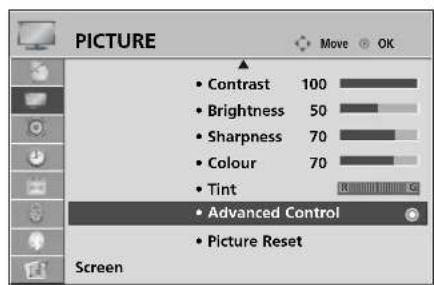
text_image
PICTURE • Contrast 100 • Brightness 50 • Sharpness 70 • Colour 70 • Tint • Advanced Control • Picture Reset Screen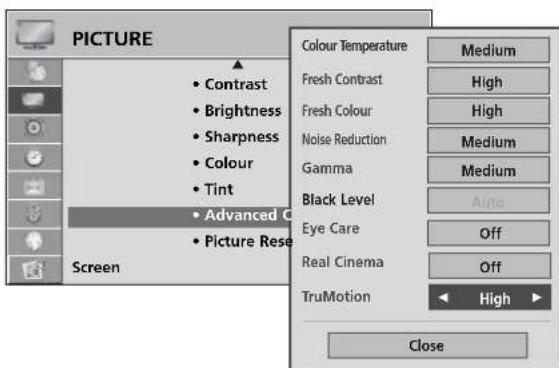
text_image
PICTURE • Contrast • Brightness • Sharpness • Colour • Tint • Advanced C • Picture Rese Screen Colour Temperature Medium Fresh Contrast High Fresh Colour High Noise Reduction Medium Gamma Medium Black Level Alto Eye Care Off Real Cinema Off TruMotion High Close
Select PICTURE.
Select Advanced Control.
Select TruMotion.
• High
Provides smoother picture movement.
- Low
Provides smooth picture movement. Use this setting for standard use.
- Off
Use this setting when "High" and "Low" setting result in noise.
Select Off, Low or High.
- If you enable "TruMotion", noise may appear on the screen.
-
If this occurs, set "TruMotion" to "Off".
-
Press the MENU button to return to normal TV viewing.
- Press the RETURN button to move to the previous menu screen.
TRUMOTION DEMO (37/42/47/52LG70\* Only)
Use it to see the difference between TruMotion Demo on and TruMotion Demo off. It's not available to use this function in RGB[PC], HDMI[PC] mode.
If you select TruMotion Demo during operating bluetooth headset, bluetooth headset is disconnected.
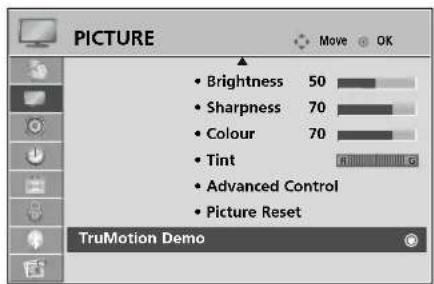
text_image
PICTURE • Brightness 50 • Sharpness 70 • Colour 70 • Tint • Advanced Control • Picture Reset TruMotion Demo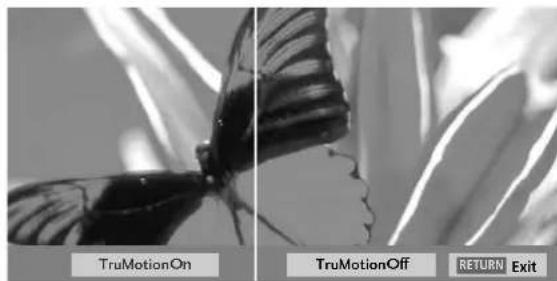
text_image
TruMotionOn TruMotionOff RETURN Exit■ Image shown may differ from your TV.
text_image
1 MENU 2 OK 3 OKSelect PICTURE.
Select TruMotion Demo.
- Press the RETURN button to return to normal TV viewing.
PICTURE CONTROL
EYE CARE (LCD TV ONLY)
It helps you adjust brightness when the screen is too bright to prevent dazzling.
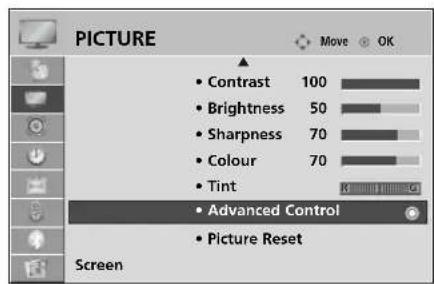
text_image
PICTURE • Contrast 100 • Brightness 50 • Sharpness 70 • Colour 70 • Tint • Advanced Control • Picture Reset Screen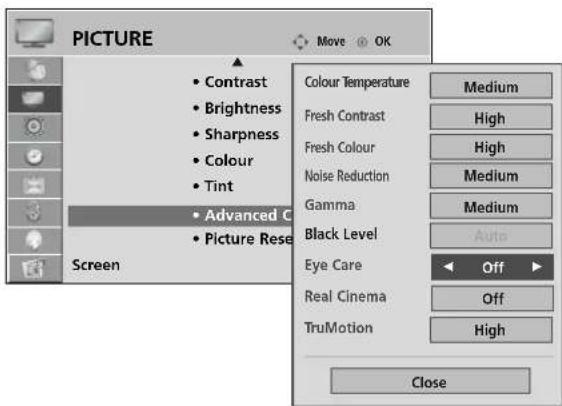
text_image
PICTURE • Contrast • Brightness • Sharpness • Colour • Tint • Advanced C • Picture Rese Screen Move OK Colour Temperature Medium Fresh Contrast High Fresh Colour High Noise Reduction Medium Gamma Medium Black Level Auto Eye Care Off Real Cinema Off TruMotion High Close
Select PICTURE.
Select Advanced Control.
Select Eye Care.
Select O nor Off.
- Press the MENU button to return to normal TV viewing.
- Press the RETURN button to move to the previous menu screen.
PICTURE RESET
Settings of the selected picture modes return to the default factory settings.
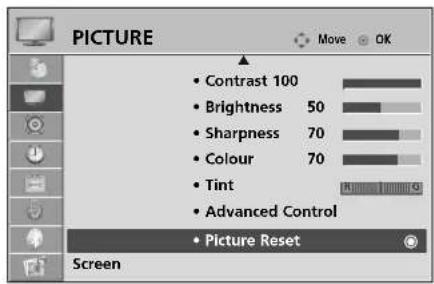
text_image
PICTURE • Contrast 100 • Brightness 50 • Sharpness 70 • Colour 70 • Tint • Advanced Control • Picture Reset Screen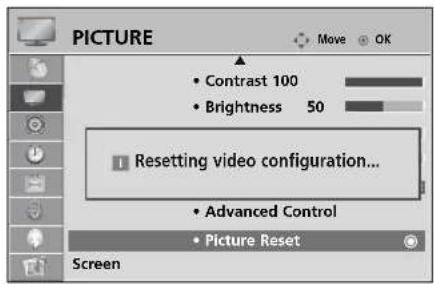
text_image
PICTURE • Contrast 100 • Brightness 50 Resetting video configuration... • Advanced Control • Picture Reset Screen
Select PICTURE.
Select Picture Reset.
Initialize the adjusted value.
- Press the MENU button to return to normal TV viewing.
- Press the RETURN button to move to the previous menu screen.
PICTURE CONTROL
POWER INDICATOR (LCD TV ONLY)
It helps you adjust the brightness of moving LED and sound when power is turned on.
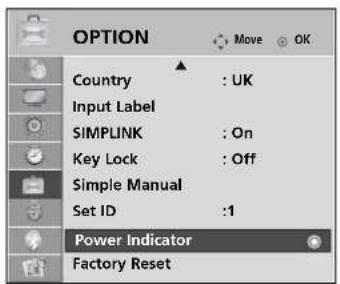
text_image
OPTION Country : UK Input Label SIMPLINK : On Key Lock : Off Simple Manual Set ID :1 Power Indicator Factory Reset
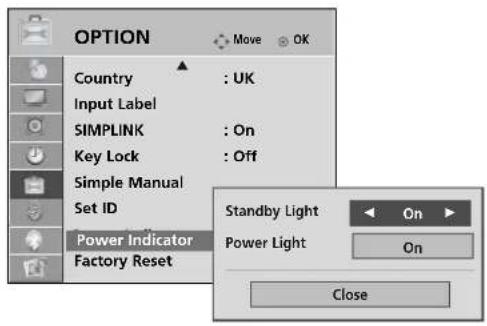
text_image
OPTION Country : UK Input Label SIMPLINK : On Key Lock : Off Simple Manual Set ID Power Indicator Factory Reset Standby Light On Power Light On Close
Select OPTION.
Select Power Indicator.
Select Standby Light or Power Light.
Select your desired Source.
- Press the MENU button to return to normal TV viewing.
- Press the RETURN button to move to the previous menu screen.
IMAGE STICKING MINIMIZATION (ISM) METHOD (PLASMA TV ONLY)
A frozen or still picture from a PC/Video game displayed on the screen for prolonged periods will result in a ghost image remaining even when you change the image. Avoid allowing a fixed image to remain on the screen for prolonged periods.
White Wash
White wash removes permanent images from the screen.
Note: An excessive permanent image may be impossible to clear entirely with White Wash.
Orbiter
Orbiter may help prevent ghost images. However, it is best not to allow any fixed image to remain on the screen. To avoid a permanent image on the screen, the screen will move every 2 minutes.
Inversion
This function inverts the panel colour of the screen. The panel colour is automatically inverted every 30 minutes.
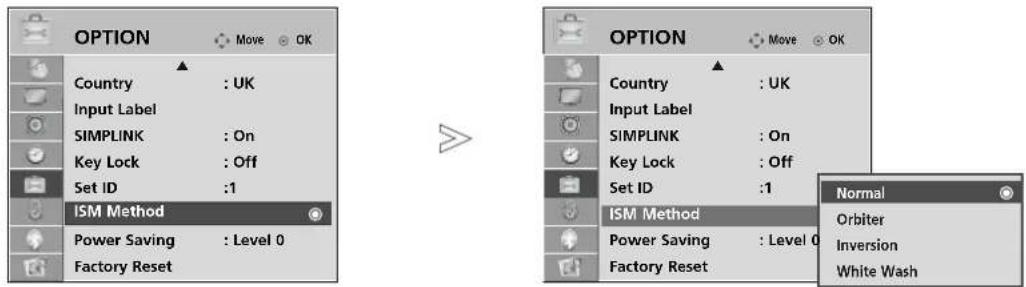
text_image
OPTION Country : UK Input Label SIMPLINK : On Key Lock : Off Set ID :1 ISM Method Power Saving : Level 0 Factory Reset OPTION Country : UK Input Label SIMPLINK : On Key Lock : Off Set ID :1 ISM Method Power Saving : Level 0 Factory Reset Normal Orbiter Inversion White Wash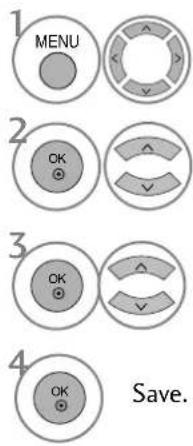
text_image
1 MENU 2 OK 3 OK 4 OK Save.Select OPTION.
Select ISM Method.
Select Normal, Orbiter, Inversion or White Wash.
- Press the MENU button to return to normal TV viewing.
- Press the RETURN button to move to the previous menu screen.
PICTURE CONTROL
POWER SAVING PICTURE MODE (PLASMA TV ONLY)
This function allows you to reduce the power consumption of the TV.
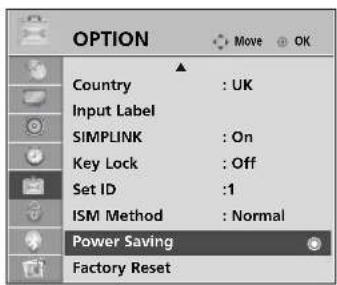
text_image
OPTION Country : UK Input Label SIMPLINK : On Key Lock : Off Set ID : 1 ISM Method : Normal Power Saving Factory Reset
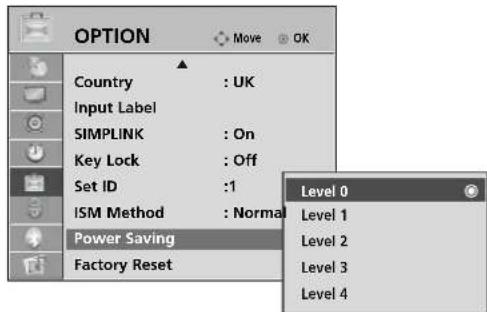
text_image
OPTION Country : UK Input Label SIMPLINK : On Key Lock : Off Set ID :1 ISM Method : Normal Power Saving Factory Reset Level 0 Level 1 Level 2 Level 3 Level 4
Select OPTION.
Select Power Saving.

Select Level 0, Level 1, Level 2, Level 3 or Level 4.
Save.
NOTE
The default factory setting complies with the Energy star requirements and is adjusted to the comfortable level to be viewed at home. You can increase the brightness of your screen by adjusting the Power Saving Level or by setting the Picture Mode.
- Press the MENU button to return to normal TV viewing.
- Press the RETURN button to move to the previous menu screen.
SOUND & LANGUAGE CONTROL
AUTO VOLUME LEVELER
AVL automatically remains on the same level of volume if you change programmes

text_image
AUDIO Auto Volume : On Clear Voice : Off Balance 0 Sound Mode : Standard • SRS TruSurround XT : Off • 80Hz 0 • 220Hz 0 • 470Hz 0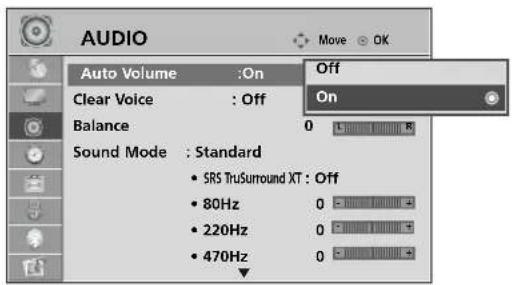
text_image
AUDIO Auto Volume : On Clear Voice : Off Balance 0 L R Sound Mode : Standard • SRS TruSurround XT : Off • 80Hz 0 • 220Hz 0 • 470Hz 0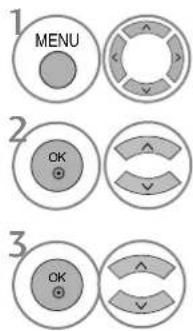
text_image
1 MENU 2 OK 3 OKSelect AUDIO.
Select Auto Volume.
Select O or Off.
- Press the MENU button to return to normal TV viewing.
- Press the RETURN button to move to the previous menu screen.
SOUND & LANGUAGE CONTROL
You can select your preferred sound setting; Standard, Music, Cinema, Sport or Game and you can also adjust the frequency of the equalizer.
Sound Mode lets you enjoy the best sound without any Special adjustment as the TV sets the appropriate sound options based on the programme content.
Standard, Music, Cinema, Sport and Game are preset for optimum sound quality at the factory.
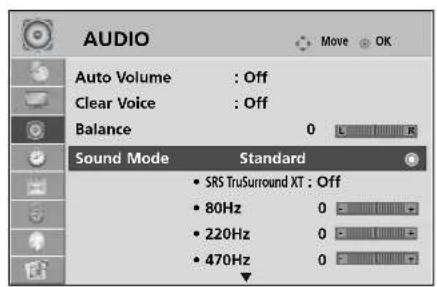
text_image
AUDIO Auto Volume : Off Clear Voice : Off Balance 0 Sound Mode Standard • SRS TruSurround XT : Off • 80Hz 0 • 220Hz 0 • 470Hz 0
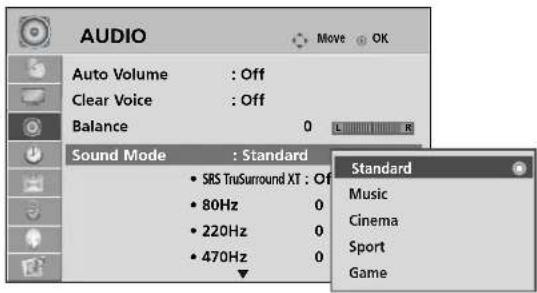
text_image
AUDIO Auto Volume : Off Clear Voice : Off Balance 0 L R Sound Mode : Standard • SRS TruSurround XT : Off • 80Hz 0 • 220Hz 0 • 470Hz 0 Standard Music Cinema Sport Game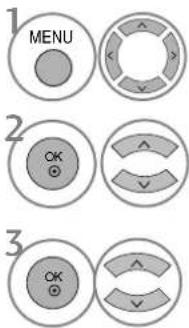
text_image
1 MENU 2 OK 3 OKSelect AUDIO.
Select Sound Mode.
Select Standard, Music, Cinema, Sport or Game.
- You can also adjust Sound Mode in the Q. Menu.
- Press the MENU button to return to normal TV viewing.
- Press the RETURN button to move to the previous menu screen.
SOUND SETTING ADJUSTMENT -USER MODE
Adjusting the audio equalizer.
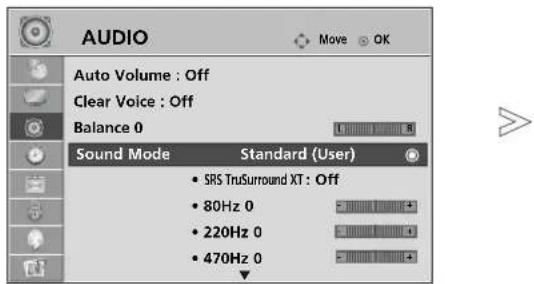
text_image
AUDIO Auto Volume : Off Clear Voice : Off Balance 0 Sound Mode Standard (User) • SRS TruSurround XT : Off • 80Hz 0 • 220Hz 0 • 470Hz 0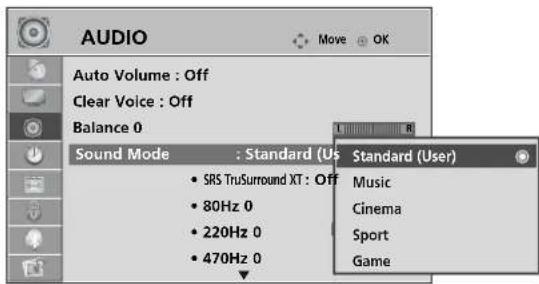
text_image
AUDIO Auto Volume : Off Clear Voice : Off Balance 0 Sound Mode : Standard (Us • SRS TruSurround XT : Off • 80Hz 0 • 220Hz 0 • 470Hz 0 Standard (User) Music Cinema Sport Game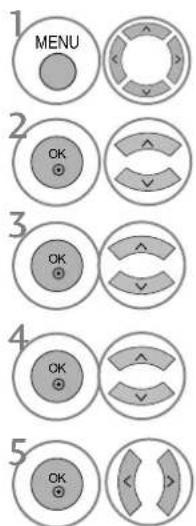
text_image
1 MENU 2 OK 3 OK 4 OK 5Select AUDIO.
Select Sound Mode.
Select Standard, Music, Cinema, Sport or Game.
Select a frequency band.
Set the desired sound level.
SRS TRUSURROUND XT
text_image
1 MENU 2 OK 3 OKSelect AUDIO.
Select SRS TruSurround XT.
Select O○ or Off.
SRS TruSurround XT Select this option to sound realistic.
SRS(●) is a trademark of SRS Labs, Inc.
TruSurround XT technology is incorporated under license from SRS Labs, Inc.
SOUND & LANGUAGE CONTROL
CLEAR VOICE
By differentiating the human sound range from others, it helps users listen to human voices better.
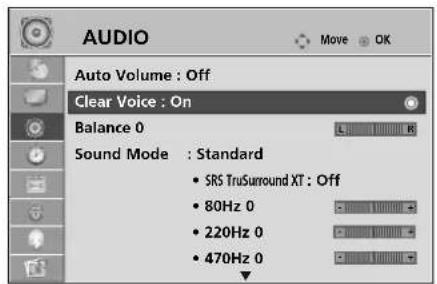
text_image
AUDIO Auto Volume : Off Clear Voice : On Balance 0 Sound Mode : Standard • SRS TruSurround XT : Off • 80Hz 0 • 220Hz 0 • 470Hz 0
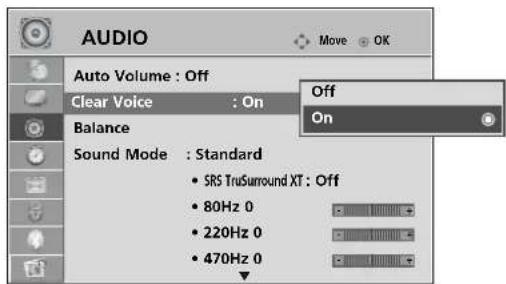
text_image
AUDIO Auto Volume : Off Clear Voice : On Balance Sound Mode : Standard • SRS TruSurround XT : Off • 80Hz 0 • 220Hz 0 • 470Hz 0 Off On
Select AUDIO.
Select Clear Voice.
Select On or Off.
- If you select "On" for Clear Voice, SRS TruSurround XT feature will not work.
- Press the MENU button to return to normal TV viewing.
- Press the RETURN button to move to the previous menu screen.
BALANCE
You can adjust the sound balance of the speakers to preferred levels.
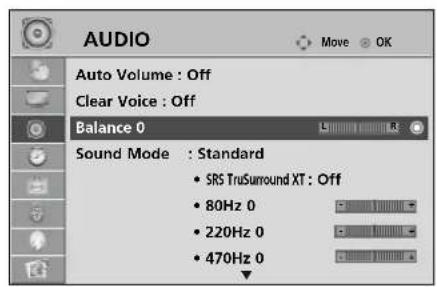
text_image
AUDIO Auto Volume : Off Clear Voice : Off Balance 0 Sound Mode : Standard • SRS TruSurround XT : Off • 80Hz 0 • 220Hz 0 • 470Hz 0
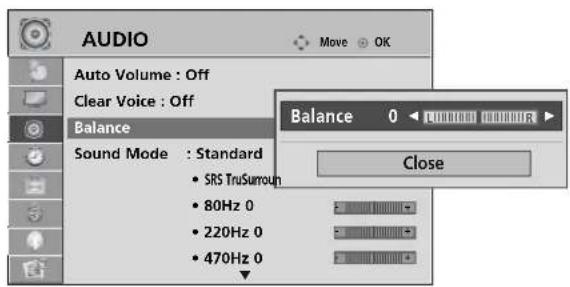
text_image
AUDIO Auto Volume : Off Clear Voice : Off Balance Sound Mode : Standard • SRS TruSurround • 80Hz 0 • 220Hz 0 • 470Hz 0 Balance 0 ← 🎯→ 🎯→ Close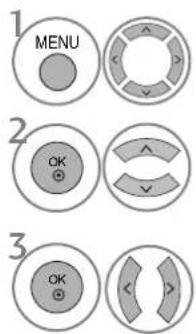
text_image
1 MENU 2 OK 3 OKSelect AUDIO.
Select Balance.
Make desired adjustment.
- Press the MENU button to return to normal TV viewing.
- Press the RETURN button to move to the previous menu screen.
SOUND & LANGUAGE CONTROL
You can adjust the TV internal speaker status.
In AV1, AV2, AV3, COMPONENT, RGB and HDMI1 with HDMI to DVI cable, the TV speaker can be operational even when there is no video signal.
If you wish to use an external Hi-Fi system, turn off the TV internal speakers.
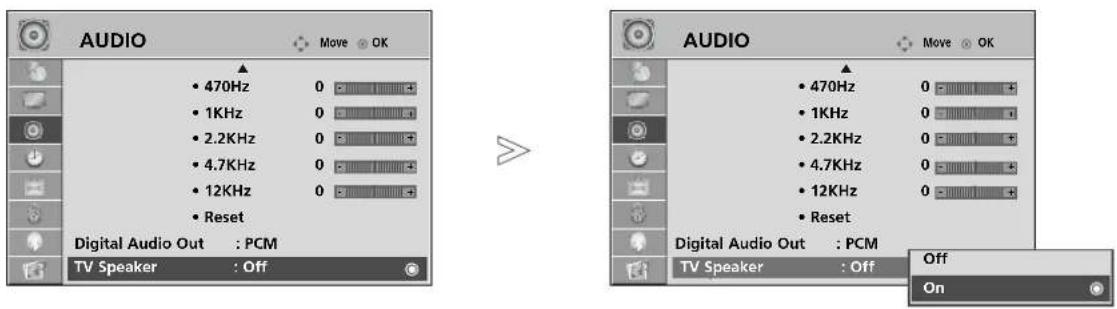
text_image
AUDIO • 470Hz 0 • 1KHz 0 • 2.2KHz 0 • 4.7KHz 0 • 12KHz 0 • Reset Digital Audio Out : PCM TV Speaker : Off AUDIO • 470Hz 0 • 1KHz 0 • 2.2KHz 0 • 4.7KHz 0 • 12KHz 0 • Reset Digital Audio Out : PCM TV Speaker : Off Off On
Select AUDIO.
Select TV Speaker.

Select O ☐ or Off.
- Press the MENU button to return to normal TV viewing.
- Press the RETURN button to move to the previous menu screen.
SELECTING DIGITAL AUDIO OUT
This function allows you to select your preferred Digital Audio Output.
The TV can only output DOLBY Digital if a channel is broadcast with Dolby Digital audio.
When Dolby digital is available, selecting Dolby Digital in the Digital Audio Out menu will set SPDIF output to Dolby Digital
If Dolby Digital is selected in the digital audio out menu when dolby digital is not available, SPDIF output will be PCM.
Even if both Dolby Digital and Audio language have been set in a channel which broadcast Dolby Digital Audio, only Dolby Digital will be played.
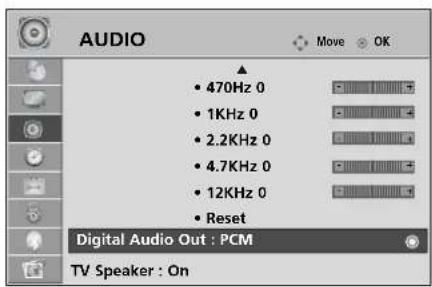
text_image
AUDIO • 470Hz 0 • 1KHz 0 • 2.2KHz 0 • 4.7KHz 0 • 12KHz 0 • Reset Digital Audio Out : PCM TV Speaker : On
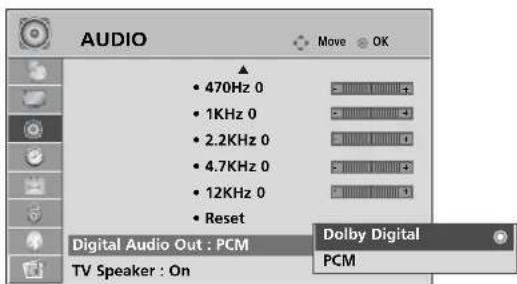
text_image
AUDIO • 470Hz 0 • 1KHz 0 • 2.2KHz 0 • 4.7KHz 0 • 12KHz 0 • Reset Digital Audio Out : PCM TV Speaker : On Move OK Dolby Digital PCM
Select AUDIO.
Select Digital Audio Out.
Select Dolby Digital or PCM.
DOLBY.
Manufactured under license from Dolby Laboratories. "Dolby" and the double-D symbol are trademarks of Dolby Laboratories.
- There is a possibility that when HDMI mode, some DVD players do not make SPDIF sound. At that time, set the output of the digital audio of the DVD player to PCM.
- Press the MENU button to return to normal TV viewing.
- Press theRETURN button to move to the previous menu screen.
SOUND & LANGUAGE CONTROL
AUDIO RESET
Settings of the selected Sound Mode return to the default factory settings.
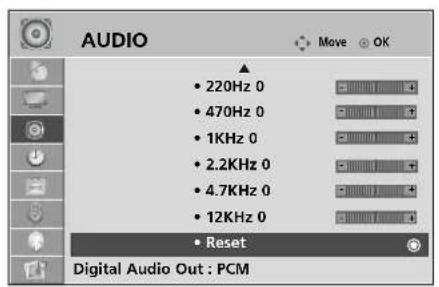
text_image
AUDIO • 220Hz 0 • 470Hz 0 • 1KHz 0 • 2.2KHz 0 • 4.7KHz 0 • 12KHz 0 • Reset Digital Audio Out : PCM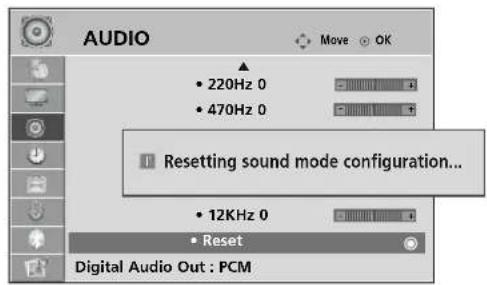
text_image
AUDIO 220Hz 0 470Hz 0 Resetting sound mode configuration... 12KHz 0 Reset Digital Audio Out : PCM
Select AUDIO.
Select Reset.
Initialize the adjusted value.
- Press the MENU button to return to normal TV viewing.
- Press the RETURN button to move to the previous menu screen.
I/II
Stereo/Dual Reception (In Analogue Mode Only)
When a programme is selected, the sound information for the station appears with the programme number and station name.
text_image
1 Q. MENU 2 OKSelect Audio.
Select the sound output.
| Broadcast | On Screen Display |
| Mono | MONO |
| Stereo | STEREO |
| Dual | DUAL I, DUAL II, DUAL I+II |
■ Mono sound selection
If the stereo signal is weak in stereo reception, you can switch to mono. In mono reception, the clarity of sound is improved.
■Language selection for dual language broadcast
If a programme can be received in two languages (dual language), you can switch to DUAL I, DUAL II or DUAL I+II.
DUAL I Sends the primary broadcast language to the loudspeakers.
DUAL II Sends the secondary broadcast language to the loudspeakers.
DUAL I+II Sends a separate language to each loudspeaker.
SOUND & LANGUAGE CONTROL
NICAM Reception (In Analogue Mode Only)
If the TV is equipped with a receiver for NICAM reception, high quality NICAM (Near Instantaneous Companding Audio Multiplex) digital sound can be received.
Sound output can be selected according to the type of broadcast received.
1 When NICAM mono is received, you can select NICAM MONO or FM MONO.
2 When NICAM stereo is received, you can select NICAM STEREO or FM MONO. If the stereo signal is weak, switch to FM MONO.
3 When NICAM dual is received, you can select NICAM DUAL I, NICAM DUAL II or NICAM DUAL I+II or FM MONO.
Speaker Sound Output Selection
In AV, Component, RGB and HDMI mode, you can select output sound for the left and right loud-speakers.
Select the sound output.
L+R: Audio signal from audio L input is sent to the left loudspeaker and audio signal from audio R input is sent to the right loudspeaker.
L+L: Audio signal from audio L input is sent to left and right loudspeakers.
R+R: Audio signal from audio R input is sent to left and right loudspeakers.
ON-SCREEN MENU LANGUAGE / COUNTRY SELECTION
The installation guide menu appears on the TV screen when it is switched on for the first time.
Select your desired language.
Select your country.
* If you want to change Language/ Country selection
Select OPTION.
Select Menu Language or Country.
Select your desired language or country.
Save.
- Press the MENU button to return to normal TV viewing.
- Press the RETURN button to move to the previous menu screen.
NOTE
▶ If you do not finish the set-up Installation Guide by pressing RETURN or if you time out on the OSD (On Screen Display) the installation menu will continuously appear until the set up is completed whenever the TV is switched on
If you select the wrong local country, teletext may not appear correctly on the screen and some problems may occur during teletext operation.
The CI (Common Interface) function may not be applied based on country broadcasting circumstances.
▶ DTV mode control buttons may not function based on country broadcasting circumstances.
In country that Digital broadcasting regulation isn't fixed, some DTV function may not work depending on digital broadcasting circumstances.
The Country Setting "UK" should only be activated in UK.
SOUND & LANGUAGE CONTROL
LANGUAGE SELECTION (IN DIGITAL MODE ONLY)
The Audio function allows selection of a preferred language.
If audio data in a selected language is not broadcast, the default language audio will be played.
Use the Subtitle function when two or more subtitle languages are broadcast. If subtitle data in a selected language is not broadcast, the default language subtitle will be displayed.
When the languages you selected as the primary for Audio Language and Subtitle Language are not supported, you can select language in secondary category.

Select OPTION.
Select Audio Language or Subtitle Language.
Select your desired language.
Save.

Select OPTION.
Select Hard of Hearing(☐).
Select OOn Off.
- Press the RETURN button to move to the previous menu screen.
< Audio Language Selection >
▶ When two or more audio languages are broadcast, you can select the audio language.
Select Audio

Select an audio language.
Audio Language OSD Information
| Display | Status |
| N.A | Not Available |
| MPEG | MPEG Audio |
| Dolby Digital Audio | |
| Audio for “Visual Impaired” | |
| Audio for “Hearing Impaired” |
< Subtitle Language Selection >
▶ When two or more subtitle languages are broadcast, you can select the subtitle language with the SUBTITLE button on the remote control.
▶ Press the button to select a subtitle language.
| Subtitle Language OSD Information | |
| Display | Status |
| N.A | Not Available |
| Teletext Subtitle | |
| Subtitle for “Hard of Hearing” | |
- The audio/subtitles can be displayed in a simpler form with 1 to 3 characters broadcast by the service provider.
- When you select supplementary Audio (Audio for "Visual/Hearing Impaired") the TV may output a part of the Main audio.
TIME SETTING
CLOCK SETUP
The clock is set automatically when receiving a digital signal. (You can set the clock manually only if the TV has no DTV signal.)
You must set the time correctly before using on/off timer function.
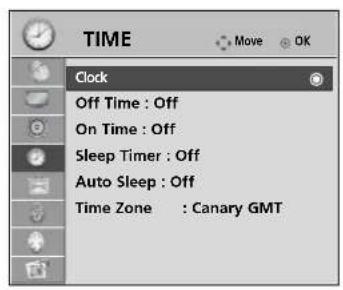
text_image
TIME Clock Off Time : Off On Time : Off Sleep Timer : Off Auto Sleep : Off Time Zone : Canary GMT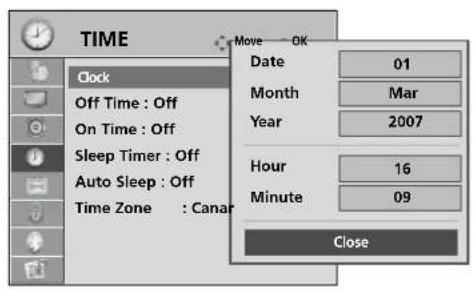
text_image
TIME Clock Off Time : Off On Time : Off Sleep Timer : Off Auto Sleep : Off Time Zone : Canar Move OK Date 01 Month Mar Year 2007 Hour 16 Minute 09 Close
Select TIME.
Select Clock.
Select either the year, date, or time option.
Set the year, date, and time options.
- Press the MENU button to return to normal TV viewing.
- Press the RETURN button to move to the previous menu screen.
TIME SETTING
AUTO ON/OFF TIMER SETTING
The Off time function automatically switches the TV to standby at a preset time.
Two hours after the TV is switched on by the on time function it will automatically switch back to standby mode unless a button has been pressed.
The Off time function overrides the On timer function if both are set to the same time.
The TV must be in standby mode for the On timer to work.
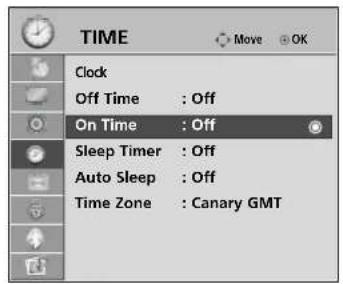
text_image
TIME Clock Off Time : Off On Time : Off Sleep Timer : Off Auto Sleep : Off Time Zone : Canary GMT
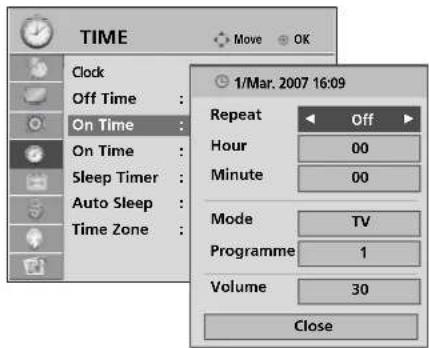
text_image
TIME Clock Off Time : On Time : On Time : Sleep Timer : Auto Sleep : Time Zone : 1/Mar. 2007 16:09 Repeat Off Hour 00 Minute 00 Mode TV Programme 1 Volume 30 Close
Select TIME.
Select Off Time or On Time.
Select Repeat.

Select Off, Once, Daily, Mon \~ Fri, Mon \~ Sat, Sat \~ Sun or Sun.
Set the hour.
Set the minutes.
- To cancel On/Off Time function, select Off.
- For On Time function only
Select Mode.
Select TTVDTV or Radio.

Set the programme.
Adjust volume level at switch-on.
- Press the MENU button to return to normal TV viewing.
- Press the RETURN button to move to the previous menu screen.
AUTO SHUT-OFF SETTING
If the TV is switched on and there is no input signal, it will switch off automatically after 10 minutes.
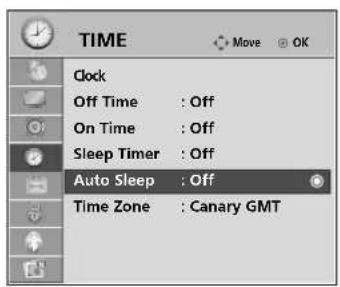
text_image
TIME Clock Off Time : Off On Time : Off Sleep Timer : Off Auto Sleep : Off Time Zone : Canary GMT
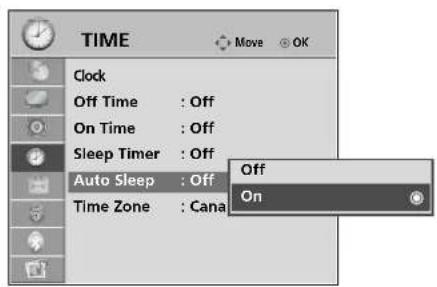
text_image
TIME Clock Off Time : Off On Time : Off Sleep Timer : Off Auto Sleep : Off Time Zone : Cana Off On
Select TIME.
Select Auto Sleep.
Select Off or OQ nm
- Press the MENU button to return to normal TV viewing.
- Press the RETURN button to move to the previous menu screen.
TIME SETTING
TIME ZONE SETUP
When you select a Time Zone city, the TV time is set by the time offset information based on Time Zone and GMT (Greenwich Mean Time) which is received with the broadcast signal and the time is set automatically by a digital signal.

Select TIME.
Select Time Zone.
Select your viewing area time zone.
Confirm it.
SLEEP TIMER SETTING
You do not have to remember to switch the TV off before you go to sleep.
The sleep timer automatically switches the TV to standby after the preset time has elapsed.
Select Sleep Timer.
Select Off, 10, 20, 30, 60, 90, 120, 180 or 240 Min.
- When you switch the TV off, the preset sleep timer is cancelled.
- You can also adjust Sleep Timer in the TIME menu.
PARENTAL CONTROL / RATINGS
SET PASSWORD & LOCK SYSTEM
Enter the password, press '0', '0', '0', '0' on the remote control handset.
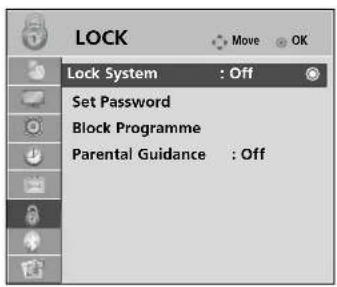
text_image
LOCK Move OK Lock System : Off Set Password Block Programme Parental Guidance : Off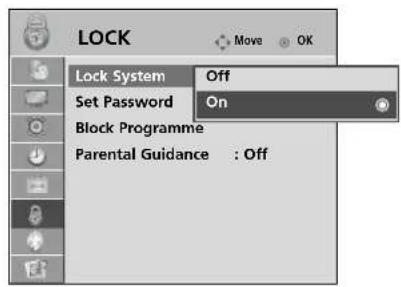
text_image
LOCK Lock System Off Set Password On Block Programme Parental Guidance : Off
Select LOCK.
- If you forget your password, press '7', '7', '7', '7' on the remote control handset.
Select Lock System.
Select O○.nn
Set the password.
Input a 4-digit password. Be sure to remember this number! Re-enter new password for confirm.
- Press the MENU button to return to normal TV viewing.
- Press the RETURN button to move to the previous menu screen.
PARENTAL CONTROL / RATINGS
BLOCK PROGRAMME
Blocks any programmes that you do not want to watch or that you do not want your children to watch.
It is available to use this function in Lock System "On".
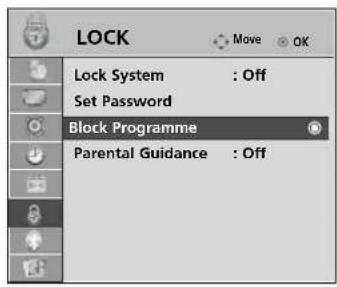
text_image
LOCK Lock System : Off Set Password Block Programme Parental Guidance : Off
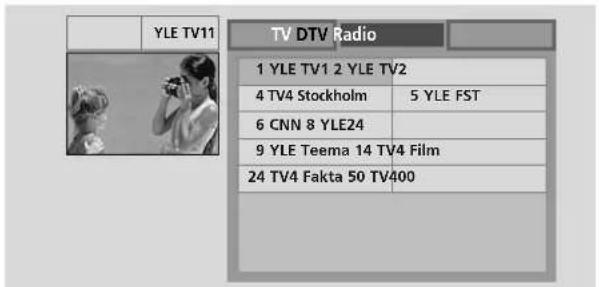
text_image
YLE TV11 TV DTV Radio 1 YLE TV1 2 YLE TV2 4 TV4 Stockholm 5 YLE FST 6 CNN 8 YLE24 9 YLE Teema 14 TV4 Film 24 TV4 Fakta 50 TV400Pr. Change
Navigation
P Page Change
Return Previous
Block/Unblock

Select LOCK.
Select Block Programme.
Enter the Block Programme.
Select a programme to be locked.
- Press the MENU button to return to normal TV viewing.
- Press the RETURN button to move to the previous menu screen.
PARENTAL CONTROL
This function operates according to information from the broadcasting station. Therefore if the signal has incorrect information, this function does not operate.
A password is required to gain access to this menu.
This set is programmed to remember which option it was last set to even if you switch the set off.
Prevents children from watching certain adult's TV programmes, according to the ratings limit set.
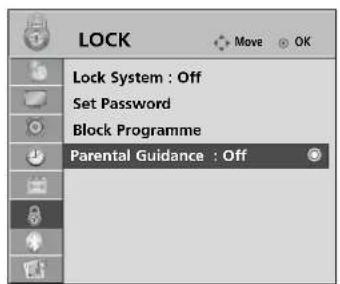
text_image
LOCK Lock System : Off Set Password Block Programme Parental Guidance : Off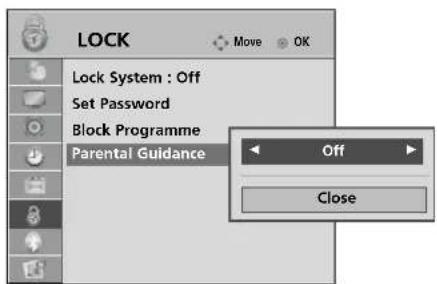
text_image
LOCK Lock System : Off Set Password Block Programme Parental Guidance Off Close
Select LOCK.
Select Parental Guidance.
Make appropriate adjustments.
Save.
- Press the MENU button to return to normal TV viewing.
- Press the RETURN button to move to the previous menu screen.
PARENTAL CONTROL / RATINGS
KEY LOCK
The TV can be set so that the remote control is required to control it. This feature can be used to prevent unauthorized viewing.
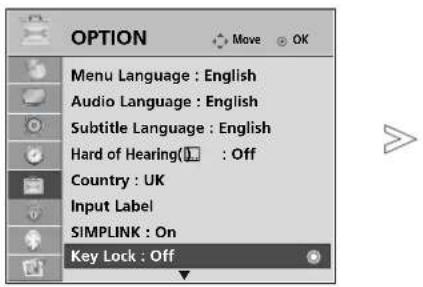
text_image
OPTION Menu Language : English Audio Language : English Subtitle Language : English Hard of Hearing(☐) : Off Country : UK Input Label SIMPLINK : On Key Lock : Off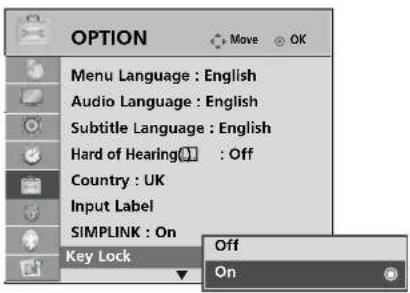
text_image
OPTION Menu Language : English Audio Language : English Subtitle Language : English Hard of Hearing(1) : Off Country : UK Input Label SIMPLINK : On Key Lock Off On
Select OPTION.
Select Key Lock.

Select On or Off.
Save.
- In Key Lock 'On', if the TV is turned off, press the ⏻ / I, INPUT, P ▲ or ▼(or P ∧ ∨) button on the TV or POWER, INPUT, P ∧ ∨ or NUMBER buttons on the remote control then the set will be turned on.
-
With the Key Lock On, the display ' 🔑 Key Lock On' appears on the screen if any button on the front panel is pressed while viewing the TV.
-
Press the MENU button to return to normal TV viewing.
- Press the RETURN button to move to the previous menu screen.
TELETEXT
This feature is not available in all countries.
Teletext is a free service broadcast by most TV stations which gives up-to-the-minute information on news, weather, television programmes, share prices and many other topics.
The teletext decoder of this TV can support the SIMPLE, TOP and FASTEXT systems. SIMPLE (standard tele-text) consists of a number of pages which are selected by directly entering the corresponding page number. TOP and FASTEXT are more modern methods allowing quick and easy selection of teletext information.
SWITCH ON/OFF
Press the TEXT button to switch to teletext. The initial page or last page viewed appears on the screen.
Two page numbers, TV station name, date and time are displayed on the screen headline. The first page number indicates your selection, while the second shows the current page displayed.
Press the TEXT button to switch off teletext. The previous mode reappears.
SIMPLE TEXT
■ Page selection
① Enter the desired page number as a three digit number with the NUMBER buttons. If during selection you press a wrong number, you must complete the three digit number and then re-enter the correct page number.
2 The P ∧ ∨ button can be used to select the preceding or following page.
TOP TEXT
The user guide displays four fields-red, green, yellow and blue at the bottom of the screen. The yellow field denotes the next group and the blue field indicates the next block.
■ Block / group / page selection
① With the blue button you can progress from block to block.
② Use the yellow button to proceed to the next group with automatic overflow to the next block.
③ With the green button you can proceed to the next existing page with automatic overflow to the next group. Alternatively the P ∧ button can be used.
4 The red button returns to the previous selection. Alternatively the P√ button can be used.
■ Direct page selection
As with SIMPLE teletext mode, you can select a page by entering it as a three digit number using the NUMBER buttons in TOP mode.
TELETEXT
FASTEXT
The teletext pages are colour coded along the bottom of the screen and are selected by pressing the corresponding coloured button.
Page selection
① Press the T.OPT button and then use ∧ ∨ button to select □ menu. Display the index page.
2 You can select the pages which are colour coded along the bottom line with corresponding coloured buttons.
③ AS with SIMPLE teletext mode, you can select a page by entering its three digit page number with the NUMBER buttons in FASTEXT mode.
4 The P ∧ ∨ button can be used to select the preceding or following page.
SPECIAL TELETEXT FUNCTIONS
■ Press the T. OPT button and then use ∧ ∨ button to select theText Option menu.

REVEAL
Select this menu to display concealed information, such as solutions to riddles or puzzles.

UPDATE
Displays the TV picture on the screen while waiting for a new teletext page. The display will appear at the top left hand corner of the screen. When the updated page is available then display will change to the page number. Select this menu again to view the updated teletext page.

TIME
When viewing a TV programme, select this menu to display the time at the top right hand corner of the screen. In the teletext mode, press this button to select a sub page number. The sub page number is displayed at the bottom of the screen. To hold or change the sub page, press the RED/GREEN, or NUMBER buttons.

■HOLD
Stops the automatic page change which will occur if a teletext page consists of 2 or more sub pages. The number of sub pages and the sub page displayed is, usually, shown on the screen below the time. When this menu is selected the stop symbol is displayed at the top left-hand corner of the screen and the automatic page change is inactive.
DIGITAL TELETEXT
*This function works in UK only.
The TV gives you access to digital teletext which is greatly improved in various aspects such as text, graphics etc. This digital teletext can access special digital teletext services and specific services which broadcast digital teletext.
You should select off in the subtitle language menu to display teletext by pressing the SUBTITLE button.
TELETEXT WITHIN DIGITAL SERVICE
1 Press the numeric or P button to select a digital service which broadcasts digital teletext. To know which are digital teletext services, refer to the EPG service list.
2 Follow the indications on digital teletext and move onto the next step by pressing TEXT, OK, ^ < >, RED, GREEN, YELLOW, BLUE or NUMBER buttons and etc..
3 To change digital teletext service, select a different service by the numeric or P button.
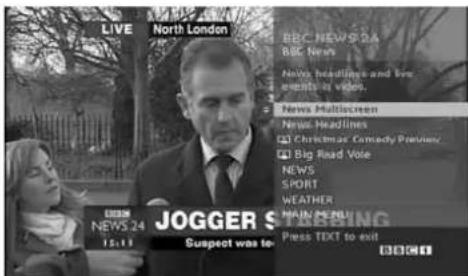
text_image
LIVE North London BBC NEWS 2A BBC News News headlines and live events in video. News Multiscreen News Headlines QQ Christmas Comedy Preview QQ Big Road Vote NEWS SPORT WEATHER MAIN ROLLING Press TEXT to exit JOGGER S Suspect was to- 15:11TELETEXT IN DIGITAL SERVICE
1 Press the numeric or P button to select a certain service which broadcasts digital teletext.
2 Press the TEXT or coloured button to switch on teletext.
3 Follow the indications on digital teletext and move onto the next step by pressing OK, ^ ∨ < >, RED, GREEN, YELLOW, BLUE or NUMBER buttons and so on.
4 Press the TEXT or colour button to switch off digital tele-text and return to TV viewing.
Some services may allow you to access text services by pressing the RED button.
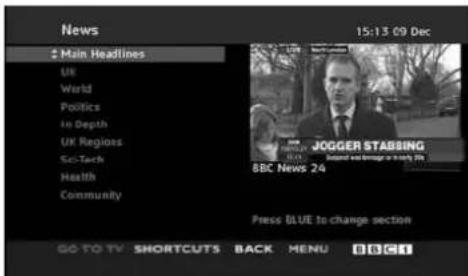
text_image
News 15:13 09 Dec ‡ Main Headlines UK World Politics In Depth UK Regions Sci-Tech Health Community BBC News 24 Press BLUE to change section GO TO TV SHORTCUTS BACK MENU BBC1APPENDIX
TROUBLESHOOTING
| The TV does not operate properly. | |
| The remote control does not work | Check to see if there is any object between the TV and the remote control causing an obstruction. Ensure you are pointing the remote control directly at the TV.Ensure that the batteries are installed with correct polarity (+ to +, - to -).Ensure that the correct remote operating mode is set : TV, STB etc.Install new batteries. |
| Power is suddenly turned off | Is the sleep timer set?Check the power control settings. Has the Power supply been interrupted.Is Auto sleep activated on this station? |
| The video function does not work. | |
| No picture & No sound | Check whether the TV is switched on.Try another channel. The problem may be with the broadcast.Is the power cord inserted correctly into the mains?Check your antenna direction and/or location.Test the mains outlet by plugging another TV into the same outlet. |
| Picture appears slowly after switching on | This is normal, the image is muted during the TV startup process. Please contact your service centre, if the picture has not appeared after five minutes. |
| No or poor colour or poor picture | Adjust Colour in menu option.Allow a sufficient distance between the TV and the VCR.Try another channel. The problem may be with the broadcast.Are the video cables installed properly?Activate any function to restore the brightness of the picture. |
| Horizontal/vertical bars or picture shaking | Check for local interference such as an electrical appliance or power tool. |
| Poor reception on some channels | Station or cable channel experiencing problems, tune to another station.Station signal is weak, reposition the antenna to receive weaker stations.Check for sources of possible interference. |
| Lines or streaks in pictures | Check antenna (Change the position of the antenna). |
| No picture when connecting HDMI | Check HDMI cable over version 1.3.If the HDMI cables don’t support HDMI version 1.3, it can cause flickers or no screen display. In this case use the latest cables that support HDMI version 1.3. |
The audio function does not work.
| Picture OK & No sound | Press the △ + or --button.Sound muted? Press MUTE button.Try another channel. The problem may be with the broadcast.Are the audio cables installed properly? |
| No output from one of the speakers | Adjust Balance in menu option. |
| Unusual sound from inside the TV | A change in ambient humidity or temperature may result in an unusual noise when the TV is switched on or off and does not indicate a fault with the TV. |
| No sound when connecting HDMI or USB | Check HDMI cable over version 1.3.Check USB cable over version 1.1.*This feature is not available for all models. |
There is a problem in PC mode. (Only PC mode applied)
| The signal is out of range (Invalid format) | ■ Adjust resolution, horizontal frequency, or vertical frequency.■ Check the input source. |
| Vertical bar or stripe on background & Horizontal Noise & Incorrect position | ■ Use Auto configure or adjust clock, phase, or H/V position. (Option) |
| Screen colour is unstable or single colour | ■ Check the signal cable.■ Reinstall the PC video card. |
There is a problem with PICTURE settings.
| When the user changes the picture settings, the TV automatically converts back to the initial settings after a certain period of time. |
APPENDIX
MAINTENANCE
Early malfunctions can be prevented. Careful and regular cleaning can prolong the life of your new TV.
Caution: Be sure to switch the power off and unplug the power cord before you begin any cleaning.
Cleaning the Screen
1 A good way to keep the dust off your screen for a while is to wet a soft cloth in a mixture of lukewarm water and a little fabric softener or dish washing detergent. Wring the cloth until it is almost dry, and then use it to wipe the screen.
2 Ensure there is no excess water on the screen. Allow any water or dampness to evaporate before switching on.
Cleaning the Cabinet
■ To remove dirt or dust, wipe the cabinet with a soft, dry, lint-free cloth.
■ Do not to use a wet cloth.
Extended Absence
CAUTION
▶ If you expect to leave your TV dormant for prolonged periods (such as a holiday), unplug the power cord to protect against possible damage from lightning or power surges.
PRODUCT SPECIFICATIONS
| MODELS | 32LG70** | 37LG70** | 42LG70** | ||
| 32LG7000-ZA | 37LG7000-ZA | 42LG7000-ZA | |||
| Dimensions(Width x Height x Depth) | with stand | 797 x 597 x 227.3 mm31.3 x 23.5 x 8.9 inches | 918.6 x 684.8x 293.4mm36.2x 26.9 x 11.6 inches | 1026.2 x 734 x 293.4 mm40.4 x 28.8 x 11.5 inches | |
| without stand | 797x 558.6x 100.5mm31.3 x 21.9 x 3.9 inches | 918.6x 635.8x 111.7mm36.2x 25 x 4.4 inches | 1026.2 x 687.9 x 111.8 mm40.4 x 27.0 x 4.4 inches | ||
| Weight | with stand | 13.0kg / 28.7 lbs | 18.5kg / 40.8 lbs | 22.1kg / 48.7 lbs | |
| without stand | 11.5kg /25.4 lbs | 15.8 kg / 34.8lbs | 19.4 kg / 42.8lbs | ||
| Power requirementPower Consumption | AC100-240V~ 50/60Hz180W | AC100-240V~ 50/60Hz180W | AC100-240V~ 50/60Hz230W | ||
| MODELS | 47LG70 ** | 52LG70 ** | |||
| 47LG7000-ZA | 52LG7000-ZA | ||||
| Dimensions(Width x Height x Depth) | with stand | 1140.4 x 820.1 x 342.9 mm44.8 x 32.2 x 13.5 inches | 1284.4 x 898.6 x 342.9 mm50.5 x 35.3 x 13.5 inches | ||
| without stand | 1140.4 x 764.8 x 129.0 mm44.8 x 30.1 x 5.0 inches | 1284.4 x 844.6 x 129.5 mm50.5 x 33.2 x 5.1 inches | |||
| Weight | with stand | 29.8 kg / 65.7lbs | 39.5 kg / 87.1 lbs | ||
| without stand | 25.1 kg / 55.3 lbs | 34.8kg / 76.7lbs | |||
| Power requirementPower Consumption | AC100-240V~ 50/60Hz300W | AC100-240V~ 50/60Hz350W | |||
| Television SystemProgram CoverageExternal Antenna Impedance | PAL/SECAM B/G/D/K, PAL I/II, SECAM L/L'VHF: E2 ~ E12, UHF: E21 ~ E69, CATV: S1 ~ S20, HYPER: S21 ~ S4775 Ω | ||||
| Environment condition | Operating TemperatureOperating Humidity | 0 ~ 40°C / 32 ~ 104°FLess than 80% | |||
| Storage TemperatureStorage Humidity | -20 ~ 60°C / -4 ~ 140°FLess than 85% | ||||
■ The specifications shown above may be changed without prior notice for quality improvement.
APPENDIX
| MODELS | 50PG70** | 60PG70** | |
| 50PG7000-ZB | 60PG7000-ZB | ||
| Dimensions(Width x Height x Depth) | with stand | 1235.6 x 849.3 x 364.1 mm | 1455 x 985 x 414 mm |
| 48.6 x 33.4x 14.3inches | 57.3 x 38.8 x 16.3 inches | ||
| without stand | 1235.6 x 792.8 x 79.6 mm | 1455 x 924.8 x 84.1 mm | |
| 48.6x 31.2 x 3.1 inches | 57.3 x 36.4 x 3.3 inches | ||
| Weight | with stand | 45.65 kg / 100.6 lbs | 62.4kg / 137.6 lbs |
| without stand | 41.7kg / 91.9lbs | 54.9 kg / 121.0 lbs | |
| Power requirement | AC100-240V~ 50/60Hz | AC100-240V~ 50/60Hz | |
| Power Consumption | 520W | 700W | |
| Television SystemProgram CoverageExternal Antenna Impedance | PAL/SECAM B/G/D/K, PAL I/II, SECAM L/L'VHF: E2 ~ E12, UHF: E21 ~ E69, CATV: S1 ~ S20, HYPER: S21 ~ S4775 Ω | ||
| Environment condition | Operating Temperature | 0 ~ 40°C / 32 ~ 104°F | |
| Operating Humidity | Less than 80% | ||
| Storage Temperature | -20 ~ 60°C / -4 ~ 140°F | ||
| Storage Humidity | Less than 85% | ||
■ The specifications shown above may be changed without prior notice for quality improvement.
PROGRAMMING THE REMOTE CONTROL
The remote control is a multi brand or universal remote. It can be programmed. to operate most remote controlled devices from other manufacturers.
Note that the remote control may not control all models from other brands.
Programming a code into a remote mode
1 Testing your remote control.
To find out whether your remote control can operate other components without programming, turn on a component such as a STB and press the corresponding mode button (such as aSTB) on the remote control, while pointing at the component. Test the POWER and P buttons to see if the component responds correctly. If the component does not operate correctly, the remote control requires programming to operate the device.
2 Switch on the component to be programmed, then press the corresponding mode button (such as STB) on the remote control. The remote control button of the desired device is illuminated.
3 Press the MENU and MUTE buttons simultaneously, the remote control is ready to be programmed with the code.
4 Enter a code number using the number buttons on the remote control. Programming code numbers for the corresponding component can be found on the following pages. If the code is correct, the device will turn off.
5 Press the MENU button to store the code.
6 Test the remote control functions to see if the component responds correctly. If not, repeat from step 2.
HDSTB
| Brand Codes Brand Codes Brand Codes | |||||||||||||
| ALPHASTAR DSR 123 | HOUSTON TRACKER | 033 | 037 | 039 | 051 | PROSAT | 072 | ||||||
| AMPLICA 050 | 057 | 104 | RCA | 066 | 106 | ||||||||
| BIRDVIEW 051 126 129 | HUGHES | 068 | REALISTIC | 043 | 074 | ||||||||
| CHANNEL MASTER 013 014 015 018 | JANIEL | 060 | 147 | SAMSUNG | 123 | ||||||||
| 036 055 | JERROLD | 061 | SATELLITE SERVICE CO | 028 | 035 | 047 057 | |||||||
| CHAPARRAL 008 009 012 077 | KATHREIN | 108 | 085 | ||||||||||
| CITOH 054 | LEGEND | 057 | SCIENTIFIC ATLANTA | 032 | 138 | ||||||||
| CURTIS MATHES | 050 | 145 | LG | 001 | SONY | 103 | |||||||
| DRAKE | 005 | 006 | 007 010 | LUTRON | 132 | STARCAST | 041 | ||||||
| 011 | 052 | 112 116 | LUXOR | 062 | 144 | SUPER GUIDE | 020 | 124 | 125 | ||||
| 141 | MACOM | 010 | 059 | 063 | 064 | TEECOM | 023 | 026 | 075 | 087 | |||
| DX ANTENNA | 024 | 046 | 056 076 | 065 | 088 | 090 | 107 | 130 | |||||
| ECHOSTAR | 038 | 040 | 057 058 | MEMOREX | 057 | 137 | |||||||
| 093 | 094 | 095 096 | NEXTWAVE | 028 | 124 | 125 | TOSHIBA 002 127 | ||||||
| 097 | 098 | 099 100 | NORSAT | 069 | 070 | UNIDEN | 016 | 025 | 042 043 | ||||
| 122 | PACE SKY SATELLITE | 143 | 044 | 045 | 048 049 | ||||||||
| ELECTRO HOME 089 | PANASONIC | 060 | 142 | 078 | 079 | 080 086 | |||||||
| EUROPLUS | 114 | PANSAT | 121 | 10 | 135136 | ||||||||
| FUJITSU | 017 | 021 | 022 027 | PERSONAL CABLE | 117 | VIEWSTAR | 115 | ||||||
| 133 | 134 | PHILIPS | 071 | WINEGARD | 128 | 146 | |||||||
| GENERAL INSTRUMENT | 003 | 004 | 016 029 | PICO | 105 | ZENITH | 081 | 082 | 083 | 084 | |||
| 031 | 059 | 101 | PRESIDENT | 019 | 102 | 091 | 120 | ||||||
| HITACHI | 139 | 140 | PRIMESTAR | 030 | 110 | 111 | |||||||
IR CODES
1. How to Connect
■ Connect your wired remote control to the Remote Control port on the TV.
2. Remote Control IR Codes
■ Output waveform
Single pulse, modulated with 37.917KHz signal at 455KHz
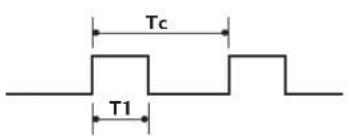
text_image
Tc T1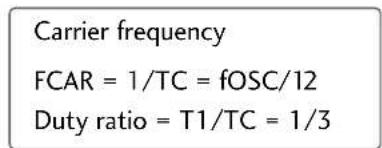
text_image
Carrier frequency FCAR = 1/TC = fOSC/12 Duty ratio = T1/TC = 1/3■ Configuration of frame
1st frame

text_image
Lead code Low custom code High custom code Data code Data code C0 C1 C2 C3 C4 C5 C6 C7 C0 C1 C2 C3 C4 C5 C6 C7 D0 D1 D2 D3 D4 D5 D6 D7 D0 D1 D2 D3 D4 D5 D6 D7Repeat frame

text_image
Repeat code TfLead code

text_image
9 ms 4.5 ms- Repeat code

text_image
0.55 ms 9 ms 2.25 msBit description
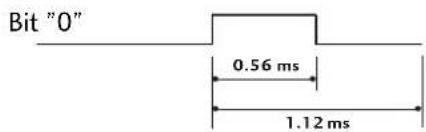
text_image
Bit "0" 0.56 ms 1.12 ms
text_image
Bit "1" 0.56 ms 2.24 ms■ Frame interval: Tf
The waveform is transmitted as long as a key is depressed.

text_image
Tf Tf Tf=108ms @455KHzAPPENDIX
| Code (Hexa) | Function | Note |
| 08 | POWER | R/C BUTTON (POWER ON/OFF) |
| 0B | INPUT | R/C BUTTON |
| f0 | TV/RADIO | R/C BUTTON |
| 45 | Q.MENU | R/C BUTTON |
| 43 | MENU | R/C BUTTON |
| AB | GUIDE | R/C BUTTON |
| 07 | Left (✗) | R/C BUTTON |
| 06 | Right (✗) | R/C BUTTON |
| 40 | Up (✗) | R/C BUTTON |
| 41 | Down (✗) | R/C BUTTON |
| 44 | OK(○) | R/C BUTTON |
| 28 | RETURN | R/C BUTTON |
| AA | INFO 1 | R/C BUTTON |
| 30 | AV MODE | R/C BUTTON |
| 02 | △+ | R/C BUTTON |
| 03 | △-- | R/C BUTTON |
| 00 | P ^ | R/C BUTTON |
| 01 | P √ | R/C BUTTON |
| 1E | FAV | R/C BUTTON |
| 09 | MUTE | R/C BUTTON |
| 10 ~ 19 | Number Key 0~9 | R/C BUTTON |
| 53 | LIST | R/C BUTTON |
| 1A | Q.VIEW | R/C BUTTON |
| 72 | RED Key | R/C BUTTON |
| 71 | GREEN Key | R/C BUTTON |
| 63 | YELLOW Key | R/C BUTTON |
| 61 | BLUE Key | R/C BUTTON |
| 20 | TEXT | R/C BUTTON |
| 21 | T.Option | R/C BUTTON |
| 39 | SUBTITLE | R/C BUTTON |
| BD | ●(Record) | R/C BUTTON |
| 7E | SIMPLINK | R/C BUTTON |
EXTERNAL CONTROL DEVICE SETUP
RS-232C Setup
Connect the RS-232C (serial port) input jack to an external control device (such as a computer or an A/V control system) to control the product's functions externally.
Connect the serial port of the control device to the RS-232C jack on the product back panel.
Note: RS-232C connection cables are not supplied with the product.
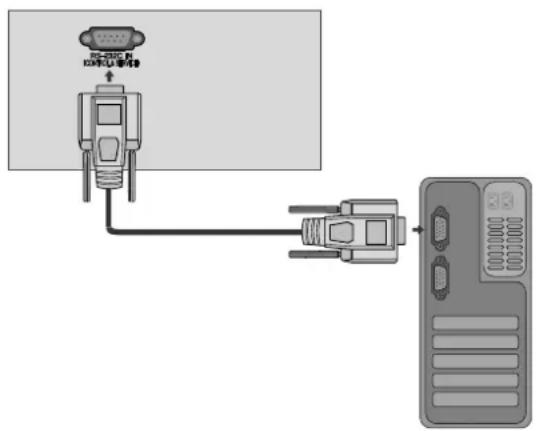
text_image
Diagram showing connection between a device with an VGA and connected to a mobile phone, labeled in Chinese.Type of Connector; D-Sub 9-Pin Male
| No. | Pin | Name |
| 1 | No | connection |
| 2 RXD | (Receive data) | |
| 3 TXD | (Transmit data) | |
| 4 DTR | (DTE side ready) | |
| 5 GND | ||
| 6 DSR | (DCE side ready) | |
| 7 RTS | (Ready to send) | |
| 8 CTS | (Clear to send) | |
| 9 No Connection | ||
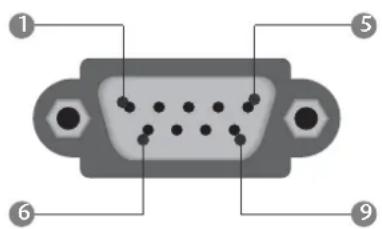
text_image
1 5 6 9RS-232C Configurations
7-Wire Configurations (Standard RS-232C cable)
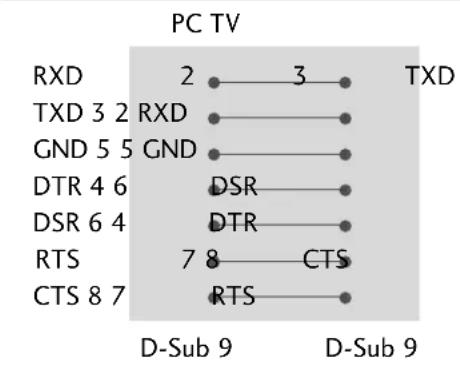
line
PC TV | Label | Value | |---|---| | RXD | 2 | | TXD 3 2 | RXD | | GND 5 5 | GND | | DTR 4 6 | DSR | | DSR 6 4 | DTR | | RTS | 7 | | CTS 8 7 | RTS | TXD D-Sub 9 D-Sub 93-Wire Configurations(Not standard)
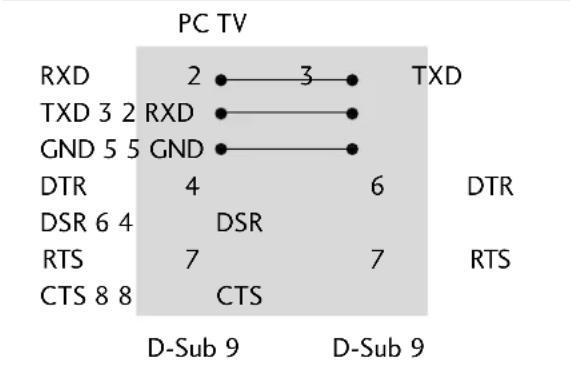
line
PC TV | Protocol | PC TV | | :--- | :--- | | RXD | 2 | | TXD 3 2 | RXD | | GND 5 5 | GND | | DTR | 4 | | DSR 6 4 | DSR | | RTS | 7 | | CTS 8 8 | CTS | | D-Sub 9 | D-Sub 9 | TXD 6 | DTR 7 | RTSAPPENDIX
Set ID
Use this function to specify a set ID number.
Refer to 'Real Data Mapping'.▶ p.128
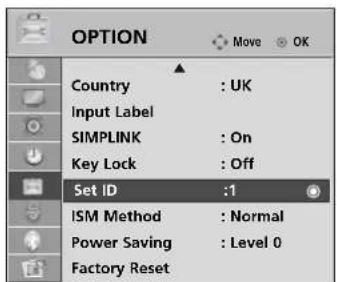
text_image
OPTION Country : UK Input Label SIMPLINK : On Key Lock : Off Set ID :1 ISM Method : Normal Power Saving : Level 0 Factory Reset
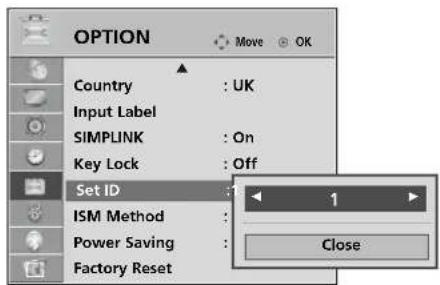
text_image
OPTION Country : UK Input Label SIMPLINK : On Key Lock : Off Set ID : 1 ISM Method : Power Saving : Factory Reset Close
Select OPTION.
Select Set ID.
Adjust Set ID to choose the desired TV ID number. The adjustment range of SET ID is 1\~99.
- Press RETURN to move to the previous menu screen.
Communication Parameters
■ Baud rate : 9600 bps(UART)
■ Data length : 8 bits
■ Parity : None
■ Stop bit : 1 bit
■ Communication code : ASCII code
■ Use a crossed (reverse) cable.
Command Reference List
| COMMAND 1 | COMMAND 2 | DATA (Hexadecimal) | |
| 01. Power k a 00 ~ 01 | |||
| 02. Aspect Ratio k c Refer to p. 126 | |||
| 03. Screen Mute k d 00 ~ 01 | |||
| 04. Volume Mute k e 00 ~ 01 | |||
| 05. Volume Control k f 00 ~ 64 | |||
| 06. Contrast k g 00 ~ 64 | |||
| 07. Brightness | k | h | 00 ~ 64 |
| 08. Colour | k | i | 00 ~ 64 |
| 09. Tint | k | j | 00 ~ 64 |
| 10. Sharpness | k k 00 ~ 64 | ||
| 11. OSD Select | k | l | 00 ~ 01 |
| 12. Remote control lock mode | k | m | 00 ~ 01 |
| 13. Balance | k t 00 ~ 64 | ||
| 14. Colour Temperature | k | u | 00 ~ 02 |
| 15. Abnormal Status | k | z | 00 ~ a |
| 16. ISM Method | j | p | Refer to p. 127 |
| 17. Power Saving | j | q | 00 ~ 04 |
| 18. Auto Configuration | j | u 01 | |
| 19. Equalize | j | v | Refer to p. 128 |
| 20. Tune Command | m | a | Refer to p. 128 |
| 21. Channel Add/Skip | m | b | 00 ~ 01 |
| 22. Key | m | c Key C ode | |
| 23. Control Back Light | m | g | 00 ~ 64 |
| 24. Input select (Main) | x | b | Refer to p. 129 |
* When setting the 15 \~ 24, a menu does not appear on screen.
Transmission / Receiving Protocol
Transmission
[Command1][Command2][ ][Set ID][ ][Data][Cr]
* [Command 1] : First command to control the TV.
(j, k, m or x)
* [Command 2] : Second command to control the TV.
* [Set ID] : You can adjust the set ID to choose desired monitor ID number in option menu. Adjustment range is 1 \~ 99.
When selecting Set ID '0', every connected set is controlled.
Set ID is indicated as decimal (1\~99) on menu and as Hexa decimal (0x0\~0x63) on transmission/receiving protocol.
* [DATA] : To transmit command data.
Transmit 'FF' data to read status of command.
* [Cr] : Carriage Return ASCII code '0x0D'
* [ ] : ASCII code 'space (0x20)'
OK Acknowledgement
[Command2][ ][Set ID][ ][OK][Data][x]
* The set transmits ACK (acknowledgement) based on this format when receiving normal data. At this time, if the data is data read mode, it indicates present status data. If the data is data write mode, it returns the data of the PC computer.
Error Acknowledgement
[Command2][ ][Set ID][ ][NG][Data][x]
* The set transmits ACK (acknowledgement) based on this format when receiving abnormal data from non-viable functions or communication errors.
Data 00: Illegal Code
APPENDIX
01. Power (Command: k a)
▶ To control Power On/Off of the set.
Transmission
[k][a][ ][Set ID][ ][Data][Cr]
Data 00: Power Off 01: Power On
Ack
[a][ ] [Set ID][ ][OK/NG][Data][x]
▶ To show Power On/Off.
Transmission
[k][a][ ][Set ID][ ][FF][Cr]
Ack
[a][ ] [Set ID][ ][OK/NG][Data][x]
* Similarly, if other functions transmit 'OxFF' data based on this format, Acknowledgement data feed back presents status about each function.
* OK Ack., Error Ack. and other message may display on the screen when TV is power On.
02. Aspect Ratio (Command: k c) (Main Picture Size)
▶ To adjust the screen format. (Main picture format) You can also adjust the screen format using the Aspect Ratio in the Q.MENU. or PICTURE menu.
Transmission
[k][c][ ][Set ID][ ][Data][Cr]
▶ To select screen mute on/off.
Transmission
[k][d][ ][Set ID][ ][Data][Cr]
Data 00 : Screen mute off (Picture on) 01 : Screen mute on (Picture off)
Ack
[d][ ][Set ID][ ][OK/NG][Data][x]
04. Volume Mute (Command: k e)
▶ To control volume mute on/off. You can also adjust mute using the MUTE button on remote control.
Transmission
[k][e][ ][Set ID][ ][Data][Cr]
Data 00 : Volume mute on (Volume off) 01 : Volume mute off (Volume on)
Ack
[e][ ] [Set ID][ ][OK/NG][Data][x]
05. Volume Control (Command: k f)
▶ To adjust volume. You can also adjust volume with the VOLUME buttons on remote control.
Transmission
[k][f][ ][Set ID][ ][Data][Cr]
Data Min : 00 \~ Max : 64 * Refer to 'Real data mapping 1': See page 128.
Ack
[f][ ][Set ID][ ][OK/NG][Data][x]
06. Contrast (Command: k g)
▶ To adjust screen contrast. You can also adjust contrast in the PICTURE menu.
Transmission
[k][g][ ][Set ID][ ][Data][Cr]
Data Min : 00 \~ Max : 64 * Refer to 'Real data mapping 1'. See page 128.
Ack
[g][ ][Set ID][ ][OK/NG][Data][x]
07. Brightness (Command: k h)
▶ To adjust screen brightness. You can also adjust brightness in the PICTURE menu.
Transmission
[k][h][ ][Set ID][ ][Data][Cr]
Data Min : 00 \~ Max : 64 * Refer to 'Real data mapping 1'. See page 128.
Ack
[h][ ][Set ID][ ][OK/NG][Data][x]
- Colour (Command: k i)
▶ To adjust the screen colour. You can also adjust colour in the PICTURE menu.
Transmission
[k][i][ ][Set ID][ ][Data][Cr]
Data Min : 00 \~ Max : 64 * Refer to 'Real data mapping 1'. See page 128.
Ack
[i][ ][Set ID][ ][OK/NG][Data][x]
09. Tint (Command: k j)
▶ To adjust the screen tint.
You can also adjust tint in the PICTURE menu.
Transmission
[k][j][ ][Set ID][ ][Data][Cr]
Data Red: 00 \~ Green: 64
* Refer to 'Real data mapping 1'. See page 128.
Ack
[j][ ][Set ID][ ][OK/NC][Data][x]
10. Sharpness (Command: k k)
▶ To adjust the screen sharpness.
You can also adjust sharpness in the PICTURE menu.
Transmission
[k][k][ ][Set ID][ ][Data][Cr]
▶ To select OSD (On Screen Display) on/off when controlling remotely.
Transmission
[k][l][ ][Set ID][ ][Data][Cr]
Data 00 : OSD off
01 : OSD on
Ack
[l][ ][Set ID][ ][OK/NG][Data][x]
12. Remote control lock mode (Command: k m)
▶ To lock the front panel controls on the monitor and remote control.
Transmission
[k][m][ ][Set ID][ ][Data][Cr]
Data 00: Lock off
01 : Lock on
Ack
[m][ ][Set ID][ ][OK/NC][Data][x]
* If you are not using the remote control, use this mode. When main power is on/off, external control lock is released.
13. Balance (Command: k t)
▶ To adjust balance.
You can also adjust balance in the AUDIO menu.
Transmission
[k][t][ ][Set ID][ ][Data][Cr]
▶ To adjust colour temperature. You can also adjust Colour Temperature in the PICTURE menu.
Transmission
[k][u][ ][Set ID][ ][Data][Cr]
Data 00: Medium 01: Cool 02: Warm
Ack
[u][ ][Set ID][ ][OK/NG][Data][x]
15. Abnormal State (Command: k z)
▶ To recognize an abnormal state.
Transmission
[k][z][ ][Set ID][ ][FF][ ][Cr]
Data FF : Read
Ack
[z][ ][Set ID][ ][OK/NC][Data][x]
Data 00: Normal (Power on and signal exist)
01: No signal (Power on)
02: Turn the TV off by remote control
03: Turn the TV off by sleep time function
04: Turn the TV off by RS-232C function
05: 5V down
06: AC down
07: Turn the TV off by Fan Alarm function
08: Turn the TV off by Off time function
09: Turn the TV off by Auto sleep function
a: Turn the TV off by AV board detection.
* This function is "read only".
16. ISM Method (Plasma TV only)
(Command: j p)
▶ To control the ISM method. You can also adjust ISM Method in OPTION menu.
Transmission
[j][p][ ][Set ID][ ][Data][Cr]
Data 01: Inversion
02: Orbiter
04: White wash
08: Normal
Ack
[p][ ] [Set ID][ ] [OK/NG][Data][x]
APPENDIX
17. Power Saving (Plasma TV only) (Command: j q)
▶ To reduce the power consumption of the TV. You can also adjust Low Power in OPTION menu.
Transmission
[j][q][ ][Set ID][ ][Data][Cr]
Data Min :00 \~ Max :04 (*transmit by hexadecimal code)
Ack
[q][ ][Set ID][ ][OK/NG][Data][x]
18. Auto Configure(Command: j u)
▶ To adjust picture position and minimize image shaking automatically. It works only in RGB (PC) mode.
Transmission
[j][u][ ][Set ID][ ][Data][Cr]
Data 01: To set
Ack
[u][ ][Set ID][ ][OK/NG][Data][x]
19. Equalize(Command: j v)
▶ To adjust equalize.
Transmission
[j][v][ ][Set ID][ ][Data][Cr]
MSB
LSB
| 0 | 0 | 0 | 0 | 0 | 0 | 0 | 0 |
| Frequency | Data | ||||||
| 7 | 6 | 5 | Frequency | 4 | 3 | 2 | 1 | 0 |
| 0 | 0 | 0 | 80Hz | 00000 ~10010 | ||||
| 0 | 0 | 1 | 220Hz | |||||
| 0 | 1 | 0 | 470Hz | |||||
| 0 | 1 | 1 | 1KHz | |||||
| 1 | 0 | 0 | 2.2KHz | |||||
| 1 | 0 | 1 | 4.7KHz | |||||
| 1 | 1 | 0 | 12KHz | |||||
Ack
[v][ ][Set ID][ ][OK/NG][Data][x]
20. Tune Command (Command: m a)
▶ Select channel to following physical number.
Transmission
[m][a][ ][Set ID][ ][Data0][ ][Data1][ ][Data2][Cr]
Data00 : High channel data
Data01 : Low channel data
ex. No. 47 -> 00 2F (2FH) No. 394 -> 01 88 (188H), DTV No. 0 -> Don't care
Data020x00 : ATV Main
0x10 : DTV Main
Channel data range
Analogue - Min: 00 \~ Max: 63 (0\~99)
Digital - Min: 00 \~ Max: 3E7 (0\~999)
Ack
[a][ ] [Set ID][ ] [OK/NG][Data][x]
Data Min: 00 \~ Max: FF
21. Channel Add/Skip(Command: m b)
▶ To set skip status for the current Programme.
Transmission
[m][b][ ][Set ID][ ][Data][Cr]
▶ To send IR remote key code.
Transmission
[m][c][ ][Set ID][ ][Data][Cr]
Data Key code - Refer to page 122.
Ack
[c][ ][Set ID][ ][OK/NG][Data][x]
23. Control Back Light (Command: m g) (LCD TV only)
▶ To Cont rol t he back light.
Transmission
[m][g][ ][Set ID][ ][Data][Cr]
Data : data Min: 00 \~ Max: 64 (* transmit by Hexadecimal code)
Ack
[g][ ][Set ID][ ][OK/NG][Data][x]
24. Input select (Command: x bb) (Main Picture Input)
▶ To select input source for main picture.
Transmission
[x][b][ ][Set ID][ ][Data][Cr]
Data Structure
MSB
LSB
| 0 | 0 | 0 | 0 | 0 | 0 | 0 | 0 |
| External Input | Input Number | ||||||
| External Input | Data | |||
| 0 | 0 | 0 | 0 | DTV |
| 0 | 0 | 0 | 1 | Analogue |
| 0 | 0 | 1 | 0 | AV |
| 0 | 1 | 0 | 0 | Component |
| 0 | 1 | 0 | 1 | RGB-PC |
| 1 | 0 | 0 | 1 | HDMI/DTV-PC |
| Input Number | Data | |||
| 0 | 0 | 0 | 0 | Input1 |
| 0 | 0 | 0 | 1 | Input2 |
| 0 | 0 | 1 | 0 | Input3 |
| 0 | 0 | 1 | 1 | Input4 |
Ack
[b][ ][Set ID][ ][OK/NG][Data][x]
APPENDIX
Open source software notice
The following GPL executables and LGPL/MPL libraries used in this product are subject to the GPL2.0/LGPL2.1/MPL1.1 License Agreements:
GPL EXECUTABLES:
- Linux kernel 2.6
- busybox
LGPL LIBRARIES:
• glibc
MPL LIBRARIES:
- Nanox
LG Electronics offers to provide source code to you on CD-ROM for a charge covering the cost of performing such distribution, such as the cost of media, shipping and handling upon e-mail request to LG Electronics at: Opensource@lge.com
This offer is valid for a period of three(3) years from the date of the distribution of this product by LG Electronics.
You can obtain a copy of the GPL, LGPL and MPL licenses at next pages.
Also you can obtain the translation of GPL, LGPL licenses from http://www.gnu.org/licenses/old-licenses/gpl-2.0-translations.html, http://www.gnu.org/licenses/old-licenses/lgpl-2.1-translations.html.
- This software is based in part on the work of the Independent JPEG Group.
- This software includes the libpng, PNG reference library.
- This software includes the Zlib compression library, developed by Jean-loup Gailly and Mark Adler. Copyright (C) 1995-2005 Jean-loup Gailly and Mark Adler
OPEN SOURCE LICENSE
GNU GENERAL PUBLIC LICENSE
Version 2, June 1991
Copyright (C) 1989, 1991 Free Software Foundation, Inc., 51 Franklin Street, Fifth Floor, Boston, MA 02110-1301 USA Everyone is permitted to copy and distribute verbatim copies of this license document, but changing it is not allowed.
Preamble
The licenses for most software are designed to take away your freedom to share and change it. By contrast, the GNU General Public License is intended to guarantee your freedom to share and change free software--to make sure the software is free for all its users. This General Public License applies to most of the Free Software Foundation's software and to any other program whose authors commit to using it. (Some other Free Software Foundation software is covered by the GNU Lesser General Public License instead.) You can apply it to your programs, too.
When we speak of free software, we are referring to freedom, not price. Our General Public Licenses are designed to make sure that you have the freedom to distribute copies of free software (and charge for this service if you wish), that you receive source code or can get it if you want it, that you can change the software or use pieces of it in new free programs; and that you know you can do these things.
To protect your rights, we need to make restrictions that forbid anyone to deny you these rights or to ask you to surrender the rights. These restrictions translate to certain responsibilities for you if you distribute copies of the software, or if you modify it.
For example, if you distribute copies of such a program, whether gratis or for a fee, you must give the recipients all the rights that you have. You must make sure that they, too, receive or can get the source code. And you must show them these terms so they know their rights.
We protect your rights with two steps: (1) copyright the software, and (2) offer you this license which gives you legal permission to copy, distribute and/or modify the software.
Also, for each author's protection and ours, we want to make certain that everyone understands that there is no warranty for this free software. If the software is modified by someone else and passed on, we want its recipients to know that what they have is not the original, so that any problems introduced by others will not reflect on the original authors' reputations.
Finally, any free program is threatened constantly by software patents. We wish to avoid the danger that redistributors of a free program will individually obtain patent licenses, in effect making the program proprietary. To prevent this, we have made it clear that any patent must be licensed for everyone's free use or not licensed at all.
The precise terms and conditions for copying, distribution and modification follow.
GNU GENERAL PUBLIC LICENSE
TERMS AND CONDITIONS FOR COPYING, DISTRIBUTION AND MODIFICATION
- This License applies to any program or other work which contains a notice placed by the copyright holder saying it may be distributed under the terms of this General Public License. The "Program", below, refers to any such program or work, and a "work based on the Program" means either the Program or any derivative work under copyright law: that is to say, a work containing the Program or a portion of it, either verbatim or with modifications and/or translated into another language. (Hereinafter, translation is included without limitation in the term "modification".) Each licensee is addressed as "you".
Activities other than copying, distribution and modification are not covered by this License; they are outside its scope. The act of running the Program is not restricted, and the output from the Program is covered only if its contents constitute a work based on the Program (independent of having been made by running the Program). Whether that is true depends on what the Program does.
- You may copy and distribute verbatim copies of the Program's source code as you receive it, in any medium, provided that you conspicuously and appropriately publish on each copy an appropriate copyright notice and disclaimer of warranty; keep intact all the notices that refer to this License and to the absence of any warranty; and give any other recipients of the Program a copy of this License along with the Program.
You may charge a fee for the physical act of transferring a copy, and you may at your option offer warranty protection in exchange for a fee.
- You may modify your copy or copies of the Program or any portion of it, thus forming a work based on the Program, and copy and distribute such modifications or work under the terms of Section 1 above, provided that you also meet all of these conditions:
a) You must cause the modified files to carry prominent notices stating that you changed the files and the date of any change.
b) You must cause any work that you distribute or publish, that in whole or in part contains or is derived from the Program or any part thereof, to be licensed as a whole at no charge to all third parties under the terms of this License.
c) If the modified program normally reads commands interactively when run, you must cause it, when started running for such interactive use in the most ordinary way, to print or display an announcement including an appropriate copyright notice and a notice that there is no warranty (or else, saying that you provide a warranty) and that users may redistribute the program under these conditions, and telling the user how to view a copy of this License. (Exception: if the Program itself is interactive but does not normally print such an announcement, your work based on the Program is not required to print an announcement.)
These requirements apply to the modified work as a whole. If identifiable sections of that work are not derived from the Program, and can be reasonably considered independent and separate works in themselves, then this License, and its terms, do not apply to those sections when you distribute them as separate works. But when you distribute the same sections as part of a whole which is a work based on the Program, the distribution of the whole must be on the terms of this License, whose permissions for other licensees extend to the entire whole, and thus to each and every part regardless of who wrote it.
Thus, it is not the intent of this section to claim rights or contest your rights to work written entirely by you; rather, the intent is to exercise the right to control the distribution of derivative or collective works based on the Program.
In addition, mere aggregation of another work not based on the Program with the Program (or with a work based on the Program) on a volume of a storage or distribution medium does not bring the other work under the scope of this License.
- You may copy and distribute the Program (or a work based on it, under Section 2) in object code or executable form under the terms of Sections 1 and 2 above provided that you also do one of the following:
a) Accompany it with the complete corresponding machine-readable source code, which must be distributed under the terms of Sections 1 and 2 above on a medium customarily used for software interchange; or,
b) Accompany it with a written offer, valid for at least three years, to give any third party, for a charge no more than your cost of physically performing source distribution, a complete machine-readable copy of the corresponding source code, to be distributed under the terms of Sections 1 and 2 above on a medium customarily used for software interchange; or,
c) Accompany it with the information you received as to the offer to distribute corresponding source code. (This alternative is allowed only for noncommercial distribution and only if you received the program in object code or executable form with such an offer, in accord with Subsection b above.)
The source code for a work means the preferred form of the work for making modifications to it. For an executable work, complete source code means all the source code for all modules it contains, plus any associated interface definition files, plus the scripts used to control compilation and installation of the executable. However, as a special exception, the source code distributed need not include anything that is normally distributed (in either source or binary form) with the major components (compiler, kernel, and so on) of the operating system on which the executable runs, unless that component itself accompanies the executable.
If distribution of executable or object code is made by offering access to copy from a designated place, then offering equivalent access to copy the source code from the same place counts as distribution of the source code, even though third parties are not compelled to copy the source along with the object code.
-
You may not copy, modify, sublicense, or distribute the Program except as expressly provided under this License. Any attempt otherwise to copy, modify, sublicense or distribute the Program is void, and will automatically terminate your rights under this License. However, parties who have received copies, or rights, from you under this License will not have their licenses terminated so long as such parties remain in full compliance.
-
You are not required to accept this License, since you have not signed it. However, nothing else grants you permission to modify or distribute the Program or its derivative works. These actions are prohibited by law if you do not accept this License. Therefore, by modifying or distributing the Program (or any work based on the Program), you indicate your acceptance of this License to do so, and all its terms and conditions for copying, distributing or modifying the Program or works based on it.
-
Each time you redistribute the Program (or any work based on the Program), the recipient automatically receives a license from the original licensor to copy, distribute or modify the Program subject to these terms and conditions. You may not impose any further restrictions on the recipients' exercise of the rights granted herein. You are not responsible for enforcing compliance by third parties to this License.
-
If, as a consequence of a court judgment or allegation of patent infringement or for any other reason (not limited to patent issues), conditions are imposed on you (whether by court order, agreement or otherwise) that contradict the conditions of this License, they do not excuse you from the conditions of this License. If you cannot distribute so as to satisfy simultaneously your obligations under this License and any other pertinent obligations, then as a consequence you may not distribute the Program at all. For example, if a patent license would not permit royalty-free redistribution of the Program by all those who receive copies directly or indirectly through you, then the only way you could satisfy both it and this License would be to refrain entirely from distribution of the Program.
If any portion of this section is held invalid or unenforceable under any particular circumstance, the balance of the section is intended to apply and the section as a whole is intended to apply in other circumstances.
It is not the purpose of this section to induce you to infringe any patents or other property right claims or to contest validity of any such claims; this section has the sole purpose of protecting the integrity of the free software distribution system, which is implemented by public license practices. Many people have made generous contributions to the wide range of software distributed through that system in reliance on consistent application of that system; it is up to the author/donor to decide if he or she is willing to distribute software through any other system and a licensee cannot impose that choice.
This section is intended to make thoroughly clear what is believed to be a consequence of the rest of this License.
-
If the distribution and/or use of the Program is restricted in certain countries either by patents or by copyrighted interfaces, the original copyright holder who places the Program under this License may add an explicit geographical distribution limitation excluding those countries, so that distribution is permitted only in or among countries not thus excluded. In such case, this License incorporates the limitation as if written in the body of this License.
-
The Free Software Foundation may publish revised and/or new versions of the General Public License from time to time. Such new versions will be similar in spirit to the present version, but may differ in detail to address new problems or concerns.
Each version is given a distinguishing version number. If the Program specifies a version number of this License which applies to it and "any later version", you have the option of following the terms and conditions either of that version or of any later version published by the Free Software Foundation. If the Program does not specify a version number of this License, you may choose any version ever published by the Free Software Foundation.
- If you wish to incorporate parts of the Program into other free programs whose distribution conditions are different, write to the author to ask for permission. For software which is copyrighted by the Free Software Foundation, write to the Free Software Foundation; we sometimes make exceptions for this. Our decision will be guided by the two goals of preserving the free status of all derivatives of our free software and of promoting the sharing and reuse of software generally.
NO WARRANTY
- BECAUSE THE PROGRAM IS LICENSED FREE OF CHARGE, THERE IS NO WARRANTY FOR THE PROGRAM, TO THE EXTENT PERMITTED BY APPLICABLE LAW. EXCEPT WHEN OTHERWISE STATED IN WRITING THE COPYRIGHT HOLDERS AND/OR OTHER PARTIES PROVIDE THE PROGRAM "AS IS" WITHOUT WARRANTY OF ANY KIND, EITHER EXPRESSED OR IMPLIED, INCLUDING, BUT NOT LIMITED TO, THE IMPLIED WARRANTIES OF MERCHANTABILITY AND FITNESS FOR A PARTICULAR PURPOSE. THE ENTIRE RISK AS TO THE QUALITY AND PERFORMANCE OF THE PROGRAM IS WITH YOU. SHOULD THE PROGRAM PROVE DEFECTIVE, YOU ASSUME THE COST OF ALL NECESSARY SERVICING, REPAIR OR CORRECTION.
- IN NO EVENT UNLESS REQUIRED BY APPLICABLE LAW OR AGREED TO IN WRITING WILL ANY COPYRIGHT HOLDER, OR ANY OTHER PARTY WHO MAY MODIFY AND/OR REDISTRIBUTE THE PROGRAM AS PERMITTED ABOVE, BE LIABLE TO YOU FOR DAMAGES, INCLUDING ANY GENERAL, SPECIAL, INCIDENTAL OR CONSEQUENTIAL DAMAGES ARISING OUT OF THE USE OR INABILITY TO USE THE PROGRAM (INCLUDING BUT NOT LIMITED TO LOSS OF DATA OR DATA BEING RENDERED INACCURATE OR LOSSES SUSTAINED BY YOU OR THIRD PARTIES OR A FAILURE OF THE PROGRAM TO OPERATE WITH ANY OTHER PROGRAMS), EVEN IF SUCH HOLDER OR OTHER PARTY HAS BEEN ADVISED OF THE POSSIBILITY OF SUCH DAMAGES.
END OF TERMS AND CONDITIONS
How to Apply These Terms to Your New Programs
If you develop a new program, and you want it to be of the greatest possible use to the public, the best way to achieve this is to make it free software which everyone can redistribute and change under these terms.
To do so, attach the following notices to the program. It is safest to attach them to the start of each source file to most effectively convey the exclusion of warranty; and each file should have at least the "copyright" line and a pointer to where the full notice is found.
This program is free software; you can redistribute it and/or modify it under the terms of the GNU General Public License as published by the Free Software Foundation; either version 2 of the License, or (at your option) any later version.
This program is distributed in the hope that it will be useful, but WITHOUT ANY WARRANTY; without even the implied warranty of MERCHANTABILITY or FITNESS FOR A PARTICULAR PURPOSE. See the GNU General Public License for more details.
You should have received a copy of the GNU General Public License along with this program; if not, write to the Free Software Foundation, Inc., 51 Franklin Street, Fifth Floor, Boston, MA 02110-1301 USA.
Also add information on how to contact you by electronic and paper mail.
If the program is interactive, make it output a short notice like this when it starts in an interactive mode:
Gnomovision version 69, Copyright (C) year name of author Gnomovision comes with ABSOLUTELY NO WARRANTY; for details type `show w'. This is free software, and you are welcome to redistribute it under certain conditions; type `show c' for details.
The hypothetical commands `show w' and `show c' should show the appropriate parts of the General Public License. Of course, the commands you use may be called something other than `show w' and `show c'; they could even be mouse-clicks or menu items--whatever suits your program.
You should also get your employer (if you work as a programmer) or your school, if any, to sign a "copyright disclaimer" for the program, if necessary. Here is a sample; alter the names:
Yoyodyne, Inc., hereby disclaims all copyright interest in the program 'Gnomovision' (which makes passes at compilers) written by James Hacker.
This General Public License does not permit incorporating your program into proprietary programs. If your program is a subroutine library, you may consider it more useful to permit linking proprietary applications with the library. If this is what you want to do, use the GNU Lesser General Public License instead of this License.
GNU LESSER GENERAL PUBLIC LICENSE
Version 2.1, February 1999
Copyright (C) 1991, 1999 Free Software Foundation, Inc. 51 Franklin Street, Fifth Floor, Boston, MA 02110-1301 USA Everyone is permitted to copy and distribute verbatim copies of this license document, but changing it is not allowed.
[This is the first released version of the Lesser GPL. It also counts as the successor of the GNU Library Public License, version 2, hence the version number 2.1.]
Preamble
The licenses for most software are designed to take away your freedom to share and change it. By contrast, the GNU General Public Licenses are intended to guarantee your freedom to share and change free software--to make sure the software is free for all its users.
This license, the Lesser General Public License, applies to some specially designated software packages--typically libraries--of the Free Software Foundation and other authors who decide to use it. You can use it too, but we suggest you first think carefully about whether this license or the ordinary General Public License is the better strategy to use in any particular case, based on the explanations below.
When we speak of free software, we are referring to freedom of use, not price. Our General Public Licenses are designed to make sure that you have the freedom to distribute copies of free software (and charge for this service if you wish); that you receive source code or can get it if you want it; that you can change the software and use pieces of it in new free programs; and that you are informed that you can do these things.
To protect your rights, we need to make restrictions that forbid distributors to deny you these rights or to ask you to surrender these rights. These restrictions translate to certain responsibilities for you if you distribute copies of the library or if you modify it.
For example, if you distribute copies of the library, whether gratis or for a fee, you must give the recipients all the rights that we gave you. You must make sure that they, too, receive or can get the source code. If you link other code with the library, you must provide complete object files to the recipients, so that they can relink them with the library after making changes to the library and recompiling it. And you must show them these terms so they know their rights.
We protect your rights with a two-step method: (1) we copyright the library, and (2) we offer you this license, which gives you legal permission to copy, distribute and/or modify the library.
To protect each distributor, we want to make it very clear that there is no warranty for the free library. Also, if the library is modified by someone else and passed on, the recipients should know that what they have is not the original version, so that the original author's reputation will not be affected by problems that might be introduced by others.
Finally, software patents pose a constant threat to the existence of any free program. We wish to make sure that a company cannot effectively restrict the users of a free program by obtaining a restrictive license from a patent holder. Therefore, we insist that any patent license obtained for a version of the library must be consistent with the full freedom of use specified in this license.
Most GNU software, including some libraries, is covered by the ordinary GNU General Public License. This license, the GNU Lesser General Public License, applies to certain designated libraries, and is quite different from the ordinary General Public License. We use this license for certain libraries in order to permit linking those libraries into non-free programs.
When a program is linked with a library, whether statically or using a shared library, the combination of the two is legally speaking a combined work, a derivative of the original library. The ordinary General Public License therefore permits such linking only if the entire combination fits its criteria of freedom. The Lesser General Public License permits more lax criteria for linking other code with the library.
We call this license the "Lesser" General Public License because it does Less to protect the user's freedom than the ordinary General Public License. It also provides other free software developers Less of an advantage over competing non-free programs. These disadvantages are the reason we use the ordinary General Public License for many libraries. However, the Lesser license provides advantages in certain special circumstances.
For example, on rare occasions, there may be a special need to encourage the widest possible use of a certain library, so that it becomes a de-facto standard. To achieve this, non-free programs must be allowed to use the library. A more frequent case is that a free library does the same job as widely used non-free libraries. In this case, there is little to gain by limiting the free library to free software only, so we use the Lesser General Public License.
In other cases, permission to use a particular library in non-free programs enables a greater number of people to use a large body of free software. For example, permission to use the GNU C Library in non-free programs enables many more people to use the whole GNU operating system, as well as its variant, the GNU/Linux operating system.
Although the Lesser General Public License is Less protective of the users' freedom, it does ensure that the user of a program that is linked with the Library has the freedom and the wherewithal to run that program using a modified version of the Library.
The precise terms and conditions for copying, distribution and modification follow. Pay close attention to the difference between a "work based on the library" and a "work that uses the library". The former contains code derived from the library, whereas the latter must be combined with the library in order to run.
GNU LESSER GENERAL PUBLIC LICENSE TERMS AND CONDITIONS FOR COPYING, DISTRIBUTION AND MODIFICATION
- This License Agreement applies to any software library or other program which contains a notice placed by the copyright holder or other authorized party saying it may be distributed under the terms of this Lesser General Public License (also called "this License"). Each licensee is addressed as "you".
A "library" means a collection of software functions and/or data prepared so as to be conveniently linked with application programs (which use some of those functions and data) to form executables.
The "Library", below, refers to any such software library or work which has been distributed under these terms. A "work based on the Library" means either the Library or any derivative work under copyright law: that is to say, a work containing the Library or a portion of it, either verbatim or with modifications and/or translated straightforwardly into another language. (Hereinafter, translation is included without limitation in the term "modification".)
"Source code" for a work means the preferred form of the work for making modifications to it. For a library, complete source code means all the source code for all modules it contains, plus any associated interface definition files, plus the scripts used to control compilation and installation of the library.
Activities other than copying, distribution and modification are not covered by this License; they are outside its scope. The act of running a program using the Library is not restricted, and output from such a program is covered only if its contents constitute a work based on the Library (independent of the use of the Library in a tool for writing it). Whether that is true depends on what the Library does and what the program that uses the Library does.
- You may copy and distribute verbatim copies of the Library's complete source code as you receive it, in any medium, provided that you conspicuously and appropriately publish on each copy an appropriate copyright notice and disclaimer of warranty; keep intact all the notices that refer to this License and to the absence of any warranty; and distribute a copy of this License along with the Library.
You may charge a fee for the physical act of transferring a copy, and you may at your option offer warranty protection in exchange for a fee.
- You may modify your copy or copies of the Library or any portion of it, thus forming a work based on the Library, and copy and distribute such modifications or work under the terms of Section 1 above, provided that you also meet all of these conditions:
a) The modified work must itself be a software library.
b) You must cause the files modified to carry prominent notices stating that you changed the files and the date of any change.
c) You must cause the whole of the work to be licensed at no charge to all third parties under the terms of this License.
d) If a facility in the modified Library refers to a function or a table of data to be supplied by an application program that uses the facility, other than as an argument passed when the facility is invoked, then you must make a good faith effort to ensure that, in the event an application does not supply such function or table, the facility still operates, and performs whatever part of its purpose remains meaningful.
(For example, a function in a library to compute square roots has a purpose that is entirely well-defined independent of the application. Therefore, Subsection 2d requires that any application-supplied function or table used by this function must be optional: if the application does not supply it, the square root function must still compute square roots.)
These requirements apply to the modified work as a whole. If identifiable sections of that work are not derived from the Library, and can be reasonably considered independent and separate works in themselves, then this License, and its terms, do not apply to those sections when you distribute them as separate works. But when you distribute the same sections as part of a whole which is a work based on the Library, the distribution of the whole must be on the terms of this License, whose permissions for other licensees extend to the entire whole, and thus to each and every part regardless of who wrote it.
Thus, it is not the intent of this section to claim rights or contest your rights to work written entirely by you; rather, the intent is to exercise the right to control the distribution of derivative or collective works based on the Library.
In addition, mere aggregation of another work not based on the Library with the Library (or with a work based on the Library) on a volume of a storage or distribution medium does not bring the other work under the scope of this License.
- You may opt to apply the terms of the ordinary GNU General Public License instead of this License to a given copy of the Library. To do this, you must alter all the notices that refer to this License, so that they refer to the ordinary GNU General Public License, version 2, instead of to this License. (If a newer version than version 2 of the ordinary GNU General Public License has appeared, then you can specify that version instead if you wish.) Do not make any other change in these notices.
Once this change is made in a given copy, it is irreversible for that copy, so the ordinary GNU General Public License applies to all subsequent copies and derivative works made from that copy.
This option is useful when you wish to copy part of the code of the Library into a program that is not a library.
- You may copy and distribute the Library (or a portion or derivative of it, under Section 2) in object code or executable form under the terms of Sections 1 and 2 above provided that you accompany it with the complete corresponding machine-readable source code, which must be distributed under the terms of Sections 1 and 2 above on a medium customarily used for software interchange.
If distribution of object code is made by offering access to copy from a designated place, then offering equivalent access to copy the source code from the same place satisfies the requirement to distribute the source code, even though third parties are not compelled to copy the source along with the object code.
- A program that contains no derivative of any portion of the Library, but is designed to work with the Library by being compiled or linked with it, is called a "work that uses the Library". Such a work, in isolation, is not a derivative work of the Library, and therefore falls outside the scope of this License.
However, linking a "work that uses the Library" with the Library creates an executable that is a derivative of the Library (because it contains portions of the Library), rather than a "work that uses the library". The executable is therefore covered by this License. Section 6 states terms for distribution of such executables.
When a "work that uses the Library" uses material from a header file that is part of the Library, the object code for the work may be a derivative work of the Library even though the source code is not. Whether this is true is especially significant if the work can be linked without the Library, or if the work is itself a library. The threshold for this to be true is not precisely defined by law.
If such an object file uses only numerical parameters, data structure layouts and accessors, and small macros and small inline functions (ten lines or less in length), then the use of the object file is unrestricted, regardless of whether it is legally a derivative work. (Executables containing this object code plus portions of the Library will still fall under Section 6.)
Otherwise, if the work is a derivative of the Library, you may distribute the object code for the work under the terms of Section 6. Any executables containing that work also fall under Section 6, whether or not they are linked directly with the Library itself.
- As an exception to the Sections above, you may also combine or link a "work that uses the Library" with the Library to produce a work containing portions of the Library, and distribute that work under terms of your choice, provided that the terms permit modification of the work for the customer's own use and reverse engineering for debugging such modifications.
You must give prominent notice with each copy of the work that the Library is used in it and that the Library and its use are covered by this License. You must supply a copy of this License. If the work during execution displays copyright notices, you must include the copyright notice for the Library among them, as well as a reference directing the user to the copy of this License. Also, you must do one of these things:
a) Accompany the work with the complete corresponding machine-readable source code for the Library including whatever changes were used in the work (which must be distributed under Sections 1 and 2 above); and, if the work is an executable linked with the Library, with the complete machine-readable "work that uses the Library", as object code and/or source code, so that the user can modify the Library and then relink to produce a modified executable containing the modified Library. (It is understood that the user who changes the contents of definitions files in the Library will not necessarily be able to recompile the application to use the modified definitions.)
b) Use a suitable shared library mechanism for linking with the Library. A suitable mechanism is one that (1) uses at run time a copy of the library already present on the user's computer system, rather than copying library functions into the executable, and (2) will operate properly with a modified version of the library, if the user installs one, as long as the modified version is interface-compatible with the version that the work was made with.
c) Accompany the work with a written offer, valid for at least three years, to give the same user the materials specified in Subsection 6a, above, for a charge no more than the cost of performing this distribution.
d) If distribution of the work is made by offering access to copy from a designated place, offer equivalent access to copy the above specified materials from the same place.
e) Verify that the user has already received a copy of these materials or that you have already sent this user a copy.
For an executable, the required form of the "work that uses the Library" must include any data and utility programs needed for reproducing the executable from it. However, as a special exception, the materials to be distributed need not include anything that is normally distributed (in either source or binary form) with the major components (compiler, kernel, and so on) of the operating system on which the executable runs, unless that component itself accompanies the executable.
It may happen that this requirement contradicts the license restrictions of other proprietary libraries that do not normally accompany the operating system. Such a contradiction means you cannot use both them and the Library together in an executable that you distribute.
- You may place library facilities that are a work based on the Library side-by-side in a single library together with other library facilities not covered by this License, and distribute such a combined library, provided that the separate distribution of the work based on the Library and of the other library facilities is otherwise permitted, and provided that you do these two things:
a) Accompany the combined library with a copy of the same work based on the Library, uncombined with any other library facilities. This must be distributed under the terms of the Sections above.
b) Give prominent notice with the combined library of the fact that part of it is a work based on the Library, and explaining where to find the accompanying uncombined form of the same work.
-
You may not copy, modify, sublicense, link with, or distribute the Library except as expressly provided under this License. Any attempt otherwise to copy, modify, sublicense, link with, or distribute the Library is void, and will automatically terminate your rights under this License. However, parties who have received copies, or rights, from you under this License will not have their licenses terminated so long as such parties remain in full compliance.
-
You are not required to accept this License, since you have not signed it. However, nothing else grants you permission to modify or distribute the Library or its derivative works. These actions are prohibited by law if you do not accept this License. Therefore, by modifying or distributing the Library (or any work based on the Library), you indicate your acceptance of this License to do so, and all its terms and conditions for copying, distributing or modifying the Library or works based on it.
-
Each time you redistribute the Library (or any work based on the Library), the recipient automatically receives a license from the original licensor to copy, distribute, link with or modify the Library subject to these terms and conditions. You may not impose any further restrictions on the recipients' exercise of the rights granted herein. You are not responsible for enforcing compliance by third parties with this License.
-
If, as a consequence of a court judgment or allegation of patent infringement or for any other reason (not limited to patent issues), conditions are imposed on you (whether by court order, agreement or otherwise) that contradict the conditions of this License, they do not excuse you from the conditions of this License. If you cannot distribute so as to satisfy simultaneously your obligations under this License and any other pertinent obligations, then as a consequence you may not distribute the Library at all. For example, if a patent license would not permit royalty-free redistribution of the Library by all those who receive copies directly or indirectly through you, then the only way you could satisfy both it and this License would be to refrain entirely from distribution of the Library.
If any portion of this section is held invalid or unenforceable under any particular circumstance, the balance of the section is intended to apply, and the section as a whole is intended to apply in other circumstances.
It is not the purpose of this section to induce you to infringe any patents or other property right claims or to contest validity of any such claims; this section has the sole purpose of protecting the integrity of the free software distribution system which is implemented by public license practices. Many people have made generous contributions to the wide range of software distributed through that system in reliance on consistent application of that system; it is up to the author/donor to decide if he or she is willing to distribute software through any other system and a licensee cannot impose that choice.
This section is intended to make thoroughly clear what is believed to be a consequence of the rest of this License.
-
If the distribution and/or use of the Library is restricted in certain countries either by patents or by copyrighted interfaces, the original copyright holder who places the Library under this License may add an explicit geographical distribution limitation excluding those countries, so that distribution is permitted only in or among countries not thus excluded. In such case, this License incorporates the limitation as if written in the body of this License.
-
The Free Software Foundation may publish revised and/or new versions of the Lesser General Public License from time to time. Such new versions will be similar in spirit to the present version, but may differ in detail to address new problems or concerns.
Each version is given a distinguishing version number. If the Library specifies a version number of this License which applies to it and "any later version", you have the option of following the terms and conditions either of that version or of any later version published by the Free Software Foundation. If the Library does not specify a license version number, you may choose any version ever published by the Free Software Foundation.
- If you wish to incorporate parts of the Library into other free programs whose distribution conditions are incompatible with these, write to the author to ask for permission. For software which is copyrighted by the Free Software Foundation, write to the Free Software Foundation; we sometimes make exceptions for this. Our decision will be guided by the two goals of preserving the free status of all derivatives of our free software and of promoting the sharing and reuse of software generally.
NO WARRANTY
-
BECAUSE THE LIBRARY IS LICENSED FREE OF CHARGE, THERE IS NO WARRANTY FOR THE LIBRARY, TO THE EXTENT PERMITTED BY APPLICABLE LAW. EXCEPT WHEN OTHERWISE STATED IN WRITING THE COPYRIGHT HOLDERS AND/OR OTHER PARTIES PROVIDE THE LIBRARY "AS IS" WITHOUT WARRANTY OF ANY KIND, EITHER EXPRESSED OR IMPLIED, INCLUDING, BUT NOT LIMITED TO, THE IMPLIED WARRANTIES OF MERCHANTABILITY AND FITNESS FOR A PARTICULAR PURPOSE. THE ENTIRE RISK AS TO THE QUALITY AND PERFORMANCE OF THE LIBRARY IS WITH YOU. SHOULD THE LIBRARY PROVE DEFECTIVE, YOU ASSUME THE COST OF ALL NECESSARY SERVICING, REPAIR OR CORRECTION.
-
IN NO EVENT UNLESS REQUIRED BY APPLICABLE LAW OR AGREED TO IN WRITING WILL ANY COPYRIGHT HOLDER, OR ANY OTHER PARTY WHO MAY MODIFY AND/OR REDISTRIBUTE THE LIBRARY AS PERMITTED ABOVE, BE LIABLE TO YOU FOR DAMAGES, INCLUDING ANY GENERAL, SPECIAL, INCIDENTAL OR CONSEQUENTIAL DAMAGES ARISING OUT OF THE USE OR INABILITY TO USE THE LIBRARY (INCLUDING BUT NOT LIMITED TO LOSS OF DATA OR DATA BEING RENDERED INACCURATE OR LOSSES SUSTAINED BY YOU OR THIRD PARTIES OR A FAILURE OF THE LIBRARY TO OPERATE WITH ANY OTHER SOFTWARE), EVEN IF SUCH HOLDER OR OTHER PARTY HAS BEEN ADVISED OF THE POSSIBILITY OF SUCH DAMAGES.
END OF TERMS AND CONDITIONS
How to Apply These Terms to Your New Libraries
If you develop a new library, and you want it to be of the greatest possible use to the public, we recommend making it free software that everyone can redistribute and change. You can do so by permitting redistribution under these terms (or, alternatively, under the terms of the ordinary General Public License).
To apply these terms, attach the following notices to the library. It is safest to attach them to the start of each source file to most effectively convey the exclusion of warranty; and each file should have at least the "copyright" line and a pointer to where the full notice is found.
This library is free software; you can redistribute it and/or modify it under the terms of the GNU Lesser General Public License as published by the Free Software Foundation; either version 2.1 of the License, or (at your option) any later version.
This library is distributed in the hope that it will be useful, but WITHOUT ANY WARRANTY; without even the implied warranty of MERCHANTABILITY or FITNESS FOR A PARTICULAR PURPOSE. See the GNU Lesser General Public License for more details.
You should have received a copy of the GNU Lesser General Public License along with this library; if not, write to the Free Software Foundation, Inc., 51 Franklin Street, Fifth Floor, Boston, MA 02110-1301 USA
Also add information on how to contact you by electronic and paper mail.
You should also get your employer (if you work as a programmer) or your school, if any, to sign a "copyright disclaimer" for the library, if necessary. Here is a sample; alter the names:
Yoyodyne, Inc., hereby disclaims all copyright interest in the library 'Frob' (a library for tweaking knobs) written by James Random Hacker.
MOZILLA PUBLIC LICENSE
Version 1.1
[EMPTY]
1. Definitions.
1.0.1. "Commercial Use" means distribution or otherwise making the Covered Code available to a third party.
1.1. "Contributor" means each entity that creates or contributes to the creation of Modifications.
1.2. "Contributor Version" means the combination of the Original Code, prior Modifications used by a Contributor, and the Modifications made by that particular Contributor.
1.3. "Covered Code" means the Original Code or Modifications or the combination of the Original Code and Modifications, in each case including portions thereof.
1.4. "Electronic Distribution Mechanism" means a mechanism generally accepted in the software development community for the electronic transfer of data.
1.5. "Executable" means Covered Code in any form other than Source Code.
1.6. "Initial Developer" means the individual or entity identified as the Initial Developer in the Source Code notice required by Exhibit A.
1.7. "Larger Work" means a work which combines Covered Code or portions thereof with code not governed by the terms of this License.
1.8. "License" means this document.
1.8.1. "Licensable" means having the right to grant, to the maximum extent possible, whether at the time of the initial grant or subsequently acquired, any and all of the rights conveyed herein.
1.9. "Modifications" means any addition to or deletion from the substance or structure of either the Original Code or any previous Modifications. When Covered Code is released as a series of files, a Modification is:
A. Any addition to or deletion from the contents of a file containing Original Code or previous Modifications.
B. Any new file that contains any part of the Original Code or previous Modifications.
1.10. "Original Code" means Source Code of computer software code which is described in the Source Code notice required by Exhibit A as Original Code, and which, at the time of its release under this License is not already Covered Code governed by this License.
1.10.1. "Patent Claims" means any patent claim(s), now owned or hereafter acquired, including without limitation, method, process, and apparatus claims, in any patent Licensable by grantor.
1.11. "Source Code" means the preferred form of the Covered Code for making modifications to it, including all modules it contains, plus any associated interface definition files, scripts used to control compilation and installation of an Executable, or source code differential comparisons against either the Original Code or another well known, available Covered Code of the Contributor's choice. The Source Code can be in a compressed or archival form, provided the appropriate decompression or de-archiving software is widely available for no charge.
1.12. "You" (or "Your") means an individual or a legal entity exercising rights under, and complying with all of the terms of, this License or a future version of this License issued under Section 6.1.
For legal entities, "You" includes any entity which controls, is controlled by, or is under common control with You. For purposes of this definition, "control" means (a) the power, direct or indirect, to cause the direction or management of such entity, whether by contract or otherwise, or (b) ownership of more than fifty percent (50%) of the outstanding shares or beneficial ownership of such entity.
2. Source Code License.
2.1. The Initial Developer Grant.
The Initial Developer hereby grants You a world-wide, royalty-free, non-exclusive license, subject to third party intellectual property claims:
(a) under intellectual property rights (other than patent or trademark) Licensable by Initial Developer to use, reproduce, modify, display, perform, sublicense and distribute the Original Code (or portions thereof) with or without Modifications, and/or as part of a Larger Work; and
(b) under Patents Claims infringed by the making, using or selling of Original Code, to make, have made, use, practice, sell, and offer for sale, and/or otherwise dispose of the Original Code (or portions thereof).
(c) the licenses granted in this Section 2.1(a) and (b) are effective on the date Initial Developer first distributes Original Code under the terms of this License.
(d) Notwithstanding Section 2.1(b) above, no patent license is granted: 1) for code that You delete from the Original Code; 2) separate from the Original Code; or 3) for infringements caused by: i) the modification of the Original Code or ii) the combination of the Original Code with other software or devices.
2.2. Contributor Grant.
Subject to third party intellectual property claims, each Contributor hereby grants You a world-wide, royalty-free, non-exclusive license
(a) under intellectual property rights (other than patent or trademark) Licensable by Contributor, to use, reproduce, modify, display, perform, sublicense and distribute the Modifications created by such Contributor (or portions thereof) either on an unmodified basis, with other Modifications, as Covered Code and/or as part of a Larger Work; and
(b) under Patent Claims infringed by the making, using, or selling of Modifications made by that Contributor either alone and/or in combination with its Contributor Version (or portions of such combination), to make, use, sell, offer for sale, have made, and/or otherwise dispose of: 1) Modifications made by that Contributor (or portions thereof); and 2) the combination of Modifications made by that Contributor with its Contributor Version (or portions of such combination).
(c) the licenses granted in Sections 2.2(a) and 2.2(b) are effective on the date Contributor first makes Commercial Use of the Covered Code.
(d) Notwithstanding Section 2.2(b) above, no patent license is granted: 1) for any code that Contributor has deleted from the Contributor Version; 2) separate from the Contributor Version; 3) for infringements caused by: i) third party modifications of Contributor Version or ii) the combination of Modifications made by that Contributor with other software (except as part of the Contributor Version) or other devices; or 4) under Patent Claims infringed by Covered Code in the absence of Modifications made by that Contributor.
3. Distribution Obligations.
3.1. Application of License.
The Modifications which You create or to which You contribute are governed by the terms of this License, including without limitation Section 2.2. The Source Code version of Covered Code may be distributed only under the terms of this License or a future version of this License released under Section 6.1, and You must include a copy of this License with every copy of the Source Code You distribute. You may not offer or impose any terms on any Source Code version that alters or restricts the applicable version of this License or the recipients' rights hereunder. However, You may include an additional document offering the additional rights described in Section 3.5.
3.2. Availability of Source Code.
Any Modification which You create or to which You contribute must be made available in Source Code form under the terms of this License either on the same media as an Executable version or via an accepted Electronic Distribution Mechanism to anyone to whom you made an Executable version available; and if made available via Electronic Distribution Mechanism, must remain available for at least twelve (12) months after the date it initially became available, or at least six (6) months after a subsequent version of that particular Modification has been made available to such recipients. You are responsible for ensuring that the Source Code version remains available even if the
Electronic Distribution Mechanism is maintained by a third party.
3.3. Description of Modifications.
You must cause all Covered Code to which You contribute to contain a file documenting the changes You made to create that Covered Code and the date of any change. You must include a prominent statement that the Modification is derived, directly or indirectly, from Original Code provided by the Initial Developer and including the name of the Initial Developer in (a) the Source Code, and (b) in any notice in an Executable version or related documentation in which You describe the origin or ownership of the Covered Code.
3.4. Intellectual Property Matters
(a) Third Party Claims.
If Contributor has knowledge that a license under a third party's intellectual property rights is required to exercise the rights granted by such Contributor under Sections 2.1 or 2.2, Contributor must include a text file with the Source Code distribution titled "LEGAL" which describes the claim and the party making the claim in sufficient detail that a recipient will know whom to contact. If Contributor obtains such knowledge after the Modification is made available as described in Section 3.2, Contributor shall promptly modify the LEGAL file in all copies Contributor makes available thereafter and shall take other steps (such as notifying appropriate mailing lists or newsgroups) reasonably calculated to inform those who received the Covered Code that new knowledge has been obtained.
(b) Contributor APIs.
If Contributor's Modifications include an application programming interface and Contributor has knowledge of patent licenses which are reasonably necessary to implement that API, Contributor must also include this information in the LEGAL file.
(c) Representations.
Contributor represents that, except as disclosed pursuant to Section 3.4(a) above, Contributor believes that Contributor's Modifications are Contributor's original creation(s) and/or Contributor has sufficient rights to grant the rights conveyed by this License.
3.5. Required Notices.
You must duplicate the notice in Exhibit A in each file of the Source Code. If it is not possible to put such notice in a particular Source Code file due to its structure, then You must include such notice in a location (such as a relevant directory) where a user would be likely to look for such a notice. If You created one or more Modification(s) You may add your name as a Contributor to the notice described in Exhibit A. You must also duplicate this License in any documentation for the Source Code where You describe recipients' rights or ownership rights relating to Covered Code. You may choose to offer, and to charge a fee for, warranty, support, indemnity or liability obligations to one or more recipients of Covered Code. However, You may do so only on Your own behalf, and not on behalf of the Initial Developer or any Contributor. You must make it absolutely clear than any such warranty, support, indemnity or liability obligation is offered by You alone, and You hereby agree to indemnify the Initial Developer and every Contributor for any liability incurred by the Initial Developer or such Contributor as a result of warranty, support, indemnity or liability terms You offer.
3.6. Distribution of Executable Versions.
You may distribute Covered Code in Executable form only if the requirements of Section 3.1-3.5 have been met for that Covered Code, and if You include a notice stating that the Source Code version of the Covered Code is available under the terms of this License, including a description of how and where You have fulfilled the obligations of Section 3.2. The notice must be conspicuously included in any notice in an Executable version, related documentation or collateral in which You describe recipients' rights relating to the Covered Code. You may distribute the Executable version of Covered Code or ownership rights under a license of Your choice, which may contain terms different from this License, provided that You are in compliance with the terms of this License and that the license for the Executable version does not attempt to limit or alter the recipient's rights in the Source Code version from the rights set forth in this License. If You distribute the Executable version under a different license You must make it absolutely clear that any terms which differ from this License are offered by You alone, not by the Initial Developer or any Contributor. You hereby agree to indemnify the Initial Developer and every Contributor for any liability incurred by the Initial Developer or such Contributor as a result of any such terms You offer.
3.7. Larger Works.
You may create a Larger Work by combining Covered Code with other code not governed by the terms of this License and distribute the Larger Work as a single product. In such a case, You must make sure the requirements of this License are fulfilled for the Covered Code.
- Inability to Comply Due to Statute or Regulation.
If it is impossible for You to comply with any of the terms of this License with respect to some or all of the Covered Code due to statute, judicial order, or regulation then You must: (a) comply with the terms of this License to the maximum extent possible; and (b) describe the limitations and the code they affect. Such description must be included in the LEGAL file described in Section 3.4 and must be included with all distributions of the Source Code. Except to the extent prohibited by statute or regulation, such description must be sufficiently detailed for a recipient of ordinary skill to be able to understand it.
- Application of this License.
This License applies to code to which the Initial Developer has attached the notice in Exhibit A and to related Covered Code.
- Versions of the License.
6.1. New Versions.
Netscape Communications Corporation ("Netscape") may publish revised and/or new versions of the License from time to time. Each version will be given a distinguishing version number.
6.2. Effect of New Versions.
Once Covered Code has been published under a particular version of the License, You may always continue to use it under the terms of that version. You may also choose to use such Covered Code under the terms of any subsequent version of the License published by Netscape. No one other than Netscape has the right to modify the terms applicable to Covered Code created under this License.
6.3. Derivative Works.
If You create or use a modified version of this License (which you may only do in order to apply it to code which is not already Covered Code governed by this License), You must (a) rename Your license so that the phrases "Mozilla", "MOZILLAPL", "MOZPL", "Netscape", "MPL", "NPL" or any confusingly similar phrase do not appear in your license (except to note that your license differs from this License) and (b) otherwise make it clear that Your version of the license contains terms which differ from the Mozilla Public License and Netscape Public License. (Filling in the name of the Initial Developer, Original Code or Contributor in the notice described in Exhibit A shall not of themselves be deemed to be modifications of this License.)
7. DISCLAIMER OF WARRANTY.
COVERED CODE IS PROVIDED UNDER THIS LICENSE ON AN "AS IS" BASIS, WITHOUT WARRANTY OF ANY KIND, EITHER EXPRESSED OR IMPLIED, INCLUDING, WITHOUT LIMITATION, WARRANTIES THAT THE COVERED CODE IS FREE OF DEFECTS, MERCHANTABILITY, FIT FOR A PARTICULAR PURPOSE OR NON-INFRINGEMENT. THE ENTIRE RISK AS TO THE QUALITY AND PERFORMANCE OF THE COVERED CODE IS WITH YOU. SHOULD ANY COVERED CODE PROVE DEFECTIVE IN ANY RESPECT, YOU (NOT THE INITIAL DEVELOPER OR ANY OTHER CONTRIBUTOR) ASSUME THE COST OF ANY NECESSARY SERVICING, REPAIR OR CORRECTION. THIS DISCLAIMER OF WARRANTY CONSTITUTES AN ESSENTIAL PART OF THIS LICENSE. NO USE OF ANY COVERED CODE IS AUTHORIZED HEREUNDER EXCEPT UNDER THIS DISCLAIMER.
8. TERMINATION.
8.1. This License and the rights granted hereunder will terminate automatically if You fail to comply with terms herein and fail to cure such breach within 30 days of becoming aware of the breach. All sublicenses to the Covered Code which are properly granted shall survive any termination of this License. Provisions which, by their nature, must remain in effect beyond the termination of this License shall survive.
8.2. If You initiate litigation by asserting a patent infringement claim (excluding declaratory judgment actions) against Initial Developer or a Contributor (the Initial Developer or Contributor against whom You file such action is referred to as "Participant") alleging that:
(a) such Participant's Contributor Version directly or indirectly infringes any patent, then any and all rights granted by such Participant to You under Sections 2.1 and/or 2.2 of this License shall, upon 60 days notice from Participant terminate prospectively, unless if within 60 days after receipt of notice You either: (i) agree in writing to pay Participant a mutually agreeable reasonable royalty for Your past and future use of Modifications made by such Participant, or (ii) withdraw Your litigation claim with respect to the Contributor Version against such Participant. If within 60 days of notice, a reasonable royalty and payment arrangement are not mutually agreed upon in writing by the parties or the litigation claim is not withdrawn, the rights granted by Participant to You under Sections 2.1 and/or 2.2 automatically terminate at the expiration of the 60 day notice period specified above.
(b) any software, hardware, or device, other than such Participant's Contributor Version, directly or indirectly infringes any patent, then any rights granted to You by such Participant under Sections 2.1(b) and 2.2(b) are revoked effective as of the date You first made, used, sold, distributed, or had made, Modifications made by that Participant.
8.3. If You assert a patent infringement claim against Participant alleging that such Participant's Contributor Version directly or indirectly infringes any patent where such claim is resolved (such as by license or settlement) prior to the initiation of patent infringement litigation, then the reasonable value of the licenses granted by such Participant under Sections 2.1 or 2.2 shall be taken into account in determining the amount or value of any payment or license.
8.4. In the event of termination under Sections 8.1 or 8.2 above, all end user license agreements (excluding distributors and resellers) which have been validly granted by You or any distributor hereunder prior to termination shall survive termination.
9. LIMITATION OF LIABILITY.
UNDER NO CIRCUMSTANCES AND UNDER NO LEGAL THEORY, WHETHER TORT (INCLUDING NEGLIGENCE), CONTRACT, OR OTHERWISE, SHALL YOU, THE INITIAL DEVELOPER, ANY OTHER CONTRIBUTOR, OR ANY DISTRIBUTOR OF COVERED CODE, OR ANY SUPPLIER OF ANY OF SUCH PARTIES, BE LIABLE TO ANY PERSON FOR ANY INDIRECT, SPECIAL, INCIDENTAL, OR CONSEQUENTIAL DAMAGES OF ANY CHARACTER INCLUDING, WITHOUT LIMITATION, DAMAGES FOR LOSS OF GOODWILL, WORK STOPPAGE, COMPUTER FAILURE OR MALFUNCTION, OR ANY AND ALL OTHER COMMERCIAL DAMAGES OR LOSSES, EVEN IF SUCH PARTY SHALL HAVE BEEN INFORMED OF THE POSSIBILITY OF SUCH DAMAGES. THIS LIMITATION OF LIABILITY SHALL NOT APPLY TO LIABILITY FOR DEATH OR PERSONAL INJURY RESULTING FROM SUCH PARTY'S NEGLIGENCE TO THE EXTENT APPLICABLE LAW PROHIBITS SUCH LIMITATION. SOME JURISDICTIONS DO NOT ALLOW THE EXCLUSION OR LIMITATION OF INCIDENTAL OR CONSEQUENTIAL DAMAGES, SO THIS EXCLUSION AND LIMITATION MAY NOT APPLY TO YOU.
10. U.S. GOVERNMENT END USERS.
The Covered Code is a "commercial item," as that term is defined in 48 C.F.R. 2.101 (Oct. 1995), consisting of "commercial computer software" and "commercial computer software documentation," as such terms are used in 48 C.F.R. 12.212 (Sept. 1995). Consistent with 48 C.F.R. 12.212 and 48 C.F.R. 227.7202-1 through 227.7202-4 (June 1995), all U.S. Government End Users acquire Covered Code with only those rights set forth herein.
11. MISCELLANEOUS.
This License represents the complete agreement concerning subject matter hereof. If any provision of this License is held to be unenforceable, such provision shall be reformed only to the extent necessary to make it enforceable. This License shall be governed by California law provisions (except to the extent applicable law, if any, provides otherwise), excluding its conflict-of-law provisions. With respect to disputes in which at least one party is a citizen of, or an entity chartered or registered to do business in the United States of America, any litigation relating to this License shall be subject to the jurisdiction of the Federal Courts of the Northern District of California, with venue lying in Santa Clara County, California, with the losing party responsible for costs, including without limitation, court costs and reasonable attorneys' fees and expenses. The application of the United Nations Convention on Contracts for the International Sale of Goods is expressly excluded. Any law or regulation which provides that the language of a contract shall be construed against the drafter shall not apply to this License.
12. RESPONSIBILITY FOR CLAIMS.
As between Initial Developer and the Contributors, each party is responsible for claims and damages arising, directly or indirectly, out of its utilization of rights under this License and You agree to work with Initial Developer and Contributors to distribute such responsibility on an equitable basis. Nothing herein is intended or shall be deemed to constitute any admission of liability.
13. MULTIPLE-LICENSED CODE.
Initial Developer may designate portions of the Covered Code as "Multiple-Licensed". "Multiple-Licensed" means that the Initial Developer permits you to utilize portions of the Covered Code under Your choice of the NPL or the alternative licenses, if any, specified by the Initial Developer in the file described in Exhibit A.
EXHIBIT A -Mozilla Public License.
The contents of this file are subject to the Mozilla Public License Version 1.1 (the "License"); you may not use this file except in compliance with the License. You may obtain a copy of the License at http://www.mozilla.org/MPL/
Software distributed under the License is distributed on an "AS IS" basis, WITHOUT WARRANTY OF ANY KIND, either express or implied. See the License for the specific language governing rights and limitations under the License.
The Original Code is ____.
The Initial Developer of the Original Code is ____. Portions created by ____ are Copyright (C) ____ ____. All Rights Reserved.
Contributor(s): ____.
Alternatively, the contents of this file may be used under the terms of the ____ license (the "[____] License"), in which case the provisions of [____] License are applicable instead of those above. If you wish to allow use of your version of this file only under the terms of the [____] License and not to allow others to use your version of this file under the MPL, indicate your decision by deleting the provisions above and replace them with the notice and other provisions required by the [____] License. If you do not delete the provisions above, a recipient may use your version of this file under either the MPL or the [____] License."
[NOTE: The text of this Exhibit A may differ slightly from the text of the notices in the Source Code files of the Original Code. You should use the text of this Exhibit A rather than the text found in the Original Code Source Code for Your Modifications.]