Fitgo FW 15 Square - Smartphone MaxCom - Free user manual and instructions
Find the device manual for free Fitgo FW 15 Square MaxCom in PDF.


User questions about Fitgo FW 15 Square MaxCom
0 question about this device. Answer the ones you know or ask your own.
Ask a new question about this device
Download the instructions for your Smartphone in PDF format for free! Find your manual Fitgo FW 15 Square - MaxCom and take your electronic device back in hand. On this page are published all the documents necessary for the use of your device. Fitgo FW 15 Square by MaxCom.
USER MANUAL Fitgo FW 15 Square MaxCom
Entry level Heart Rate Watch
text_image
03 35 12:45 1:294 8 1.8 KM 17:07 MON PMFW15 SQUARE
Please read the manual before use.
◆ The information in this document won't be modified or extended in accordance with any notice.
◆ The watch should be charged 1.5 hours at least before use.
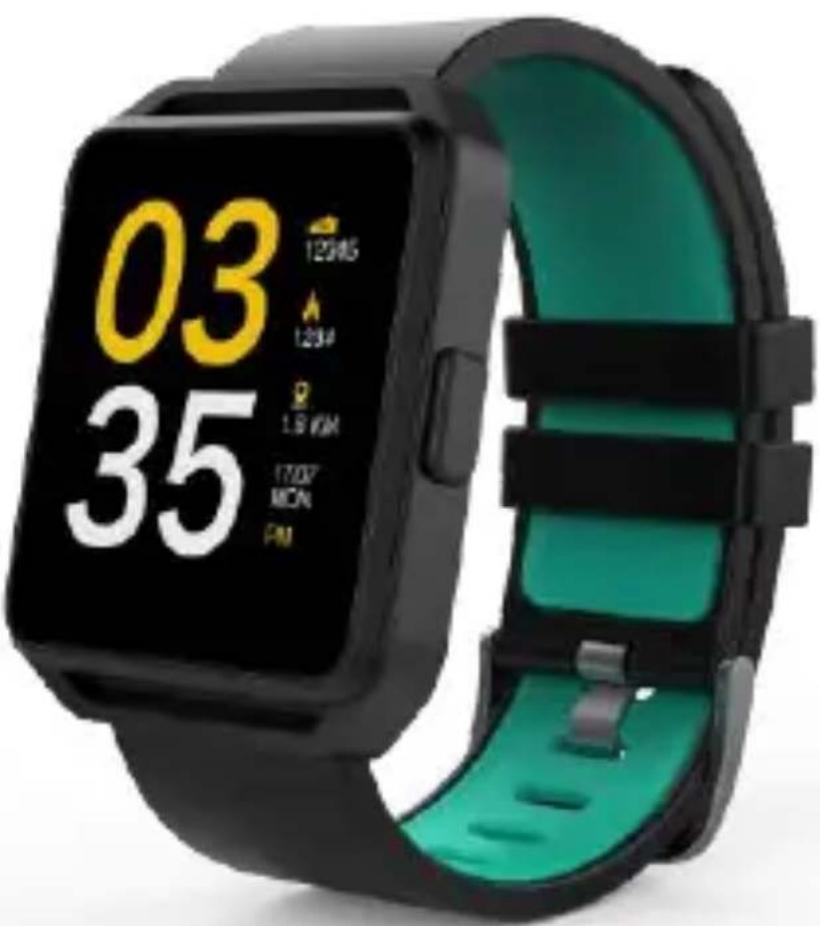
FW15 is an entry level smart watch with heart rate detection, it comes with 1.54" Full IPS touch screen and dual colors strap for your option to be more fashionable, it gets notifications of SMS, Facebook, Twitter, WhatsApp and Skype making calls and receiving calls. It helps monitoring your sleep quality, counting steps, calories and distance.
1. Product specification
◆ Model: FW15 SQUARE
◆ CPU: MTK2502D ARM7 260MHz
◆ Memory: RAM 4MB+ ROM 4MB
◆ Capacitive touch screen 1.54" 240*240 pixel
Bluetooth version 4.0
◆ Function: Heart Rate, BT Call, Anti-lost, Alarm clock, Pedometer, Sleep monitor, Sedentary reminder, Notification (G-mail, Facebook, Skype, WhatsApp and so on)
◆ Battery Lithium-ion 3.7V 230mAh
Compatibility
◆ Android 4.4 and above
◆ Iphone 5 above and IOS 8.0 and above
2.Product details:
2.1 Product details
text_image
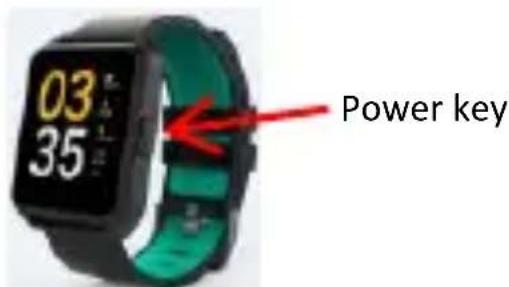
03 35 Power keyMicro USB
natural_image
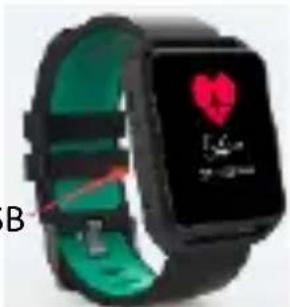
Smartwatch with green strap and heart logo on display (no readable text or symbols)Power Key: Long press to power on/off; short press to awake/turn off screen; Back to main menu
Micro USB: Open the plug gently and connect with USB cable to charge.
Touch screen: Each function (main menu) will be shown and displayed on capacitive touch screen.
2.2 Products quick into
You can enter into next page by sliding screen up, and return to last page by sliding screen down;enter into the sub-menu after clicking selected function, and return to upper menu after sliding from left to right.
2.3 Clock Display
text_image
23 35 1234G 1234 1.00 KM 170Y MON PM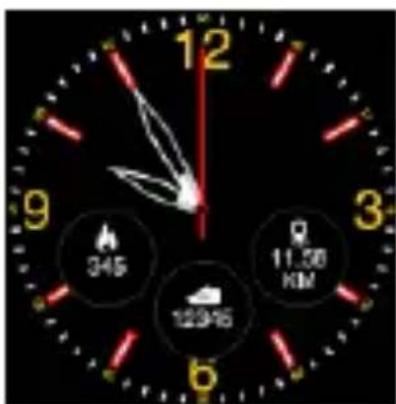
text_image
12 9 3 6 345 12345 11.50 KM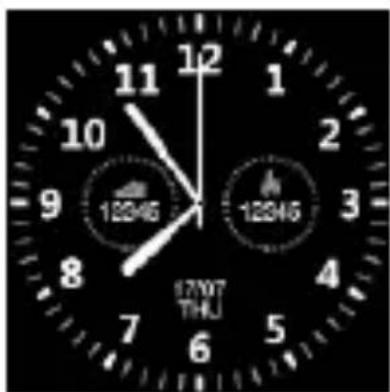
text_image
12046 12046 17/07 THUSetting method:
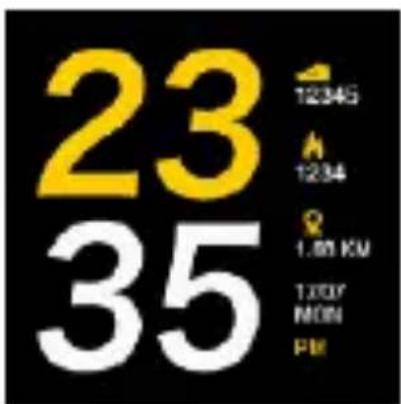
Method 1: Power on, when the watch in clock mode, please long press middle
screen and slide to left/right to set different clock face as you like.
Method 2: Power on, Main menu: settings--clock—clock type, choose the clock
mode as you like.
3. Product quick use
3.1 Download and install
You have to download and install the " HitFit " App from APP Store or Google Play
Store;

3.2 Connection and Synchronize data
3.2.1 Bluetooth connection
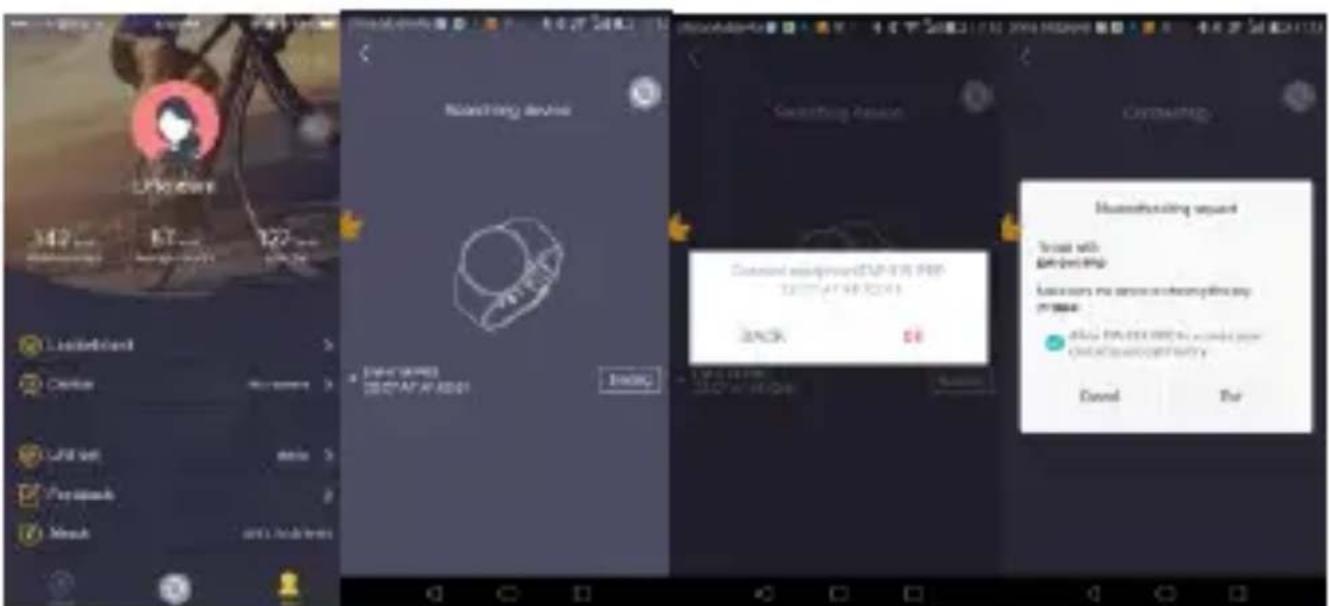
3.2.1.1 For Android:
Open HitFit -- Click "Me" in bottom -- "Add device" --Searching Device.
Click OK and Click Pair to bind watch as below.
text_image
Screenshot of a mobile app interface showing three panels: 'Mobile device selection', 'Searching session', and 'Manualizing session' with a confirmation dialog.3.2.1.2 For IOS:
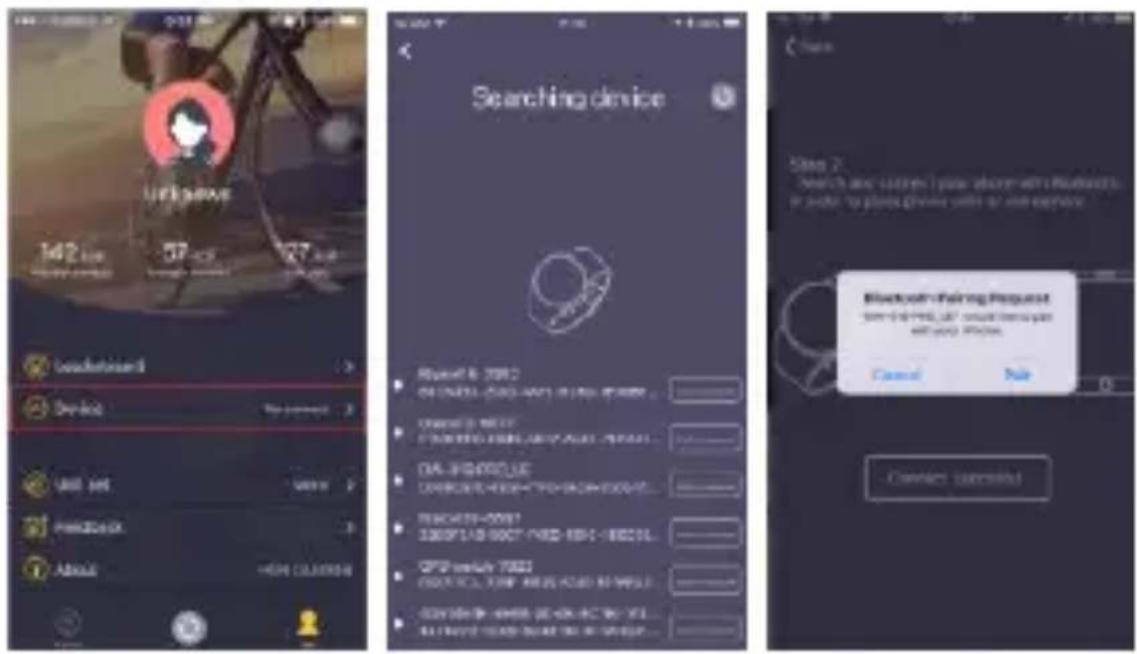
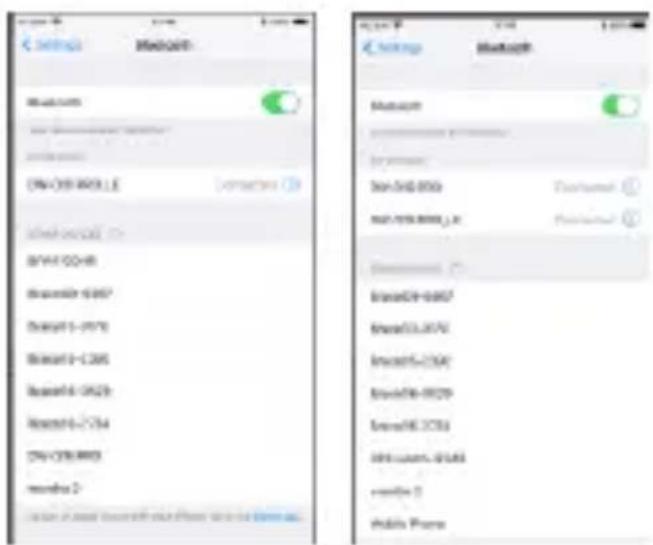
Connect step 1: Open HitFit app, "Add device" on "Me" screen to search Bluetooth devices nearby, find watch name SC-165SW and pair it in app as below show.
text_image
UserSpace 162 sec 57 sec 27 sec Touchscreen Device My connection USB OFF OK PASSBACK ABOUT HIGH COLDING Searching device Bluetooth calling Request with the WiFi, all, should be returned and your phone. Cancel Help Connect ConnectionConnect step 2: Go Iphone Setting--Bluetooth, find watch name SC-165SW and pair it, now the Bluetooth menu interface displays two SC-165SW are connected as below pictures show:
text_image
< Settings > 100% > 100%>< Settings > 100%>< Device Name>< Device Name: Windows 12.1.1.1 Device Name: Windows 12.1.1.1 Device Name: Windows 12.1.1.1 Device Name: Windows 12.1.1.1 Device Name: Windows 12.1.1.1 Device Name: Windows 12.1.1.1 Device Name: Windows 12.1.1.1 Device Name: Windows 12.1.1.1 Device Name: Device Name: Windows 12.1.1.1 Device Name: Windows 12.1.1.1 Device Name: Windows 12.1.1.1 Device Name: Windows 12.1.1.1 Device Name: Windows 12.1.1.1 Device Name: Windows 12.1.1.1 Device Name: Windows 12.1.1.1 Device Names: Device Names: Device Names: Device Names: Device Names: Device Names: Device Names: Device Names: Device Names: Device Names: Device Names: Device Names: Device Names: Device Names: Device Names: Device Names: Device Names: Device Names: Device Names: Device Names: Device Names: Device Names: Device Names: Device Names: Device Names: Device Names: Device Names: Device Names: Device Names: Device Names: Device Names: Device Names: Device Names: Device Names: device Names: device Names: device Names: device Names: device Names: device Names: device Names: device Names: device Names: device Names: device Names: device Names: device Names: device Names: device Names: device Names: device Names: device Names: device Names: device Names: device Names: device Names: device Names: device Names: device Names: device Names: device Names: device Names: device Names: device Names: device Names: device Names: device Names: device NAMES: device Names: device Names: device Names: device Names: device Names: device Names: device Names: device Names: device Names: device Names: device Names: device Names: device Names: device Names: device Names: device Names: device Names: device Names: device Names: device Names: device Names: device Names: device Names: device Names: device Names: device Names: device Names: device Names: device Names: device Names: device Names: device Names: device Names: device Names: device Defaults:After connected successfully, the blue green double colors icon will show
on smart watch.
3.2.2 Synchronizing data
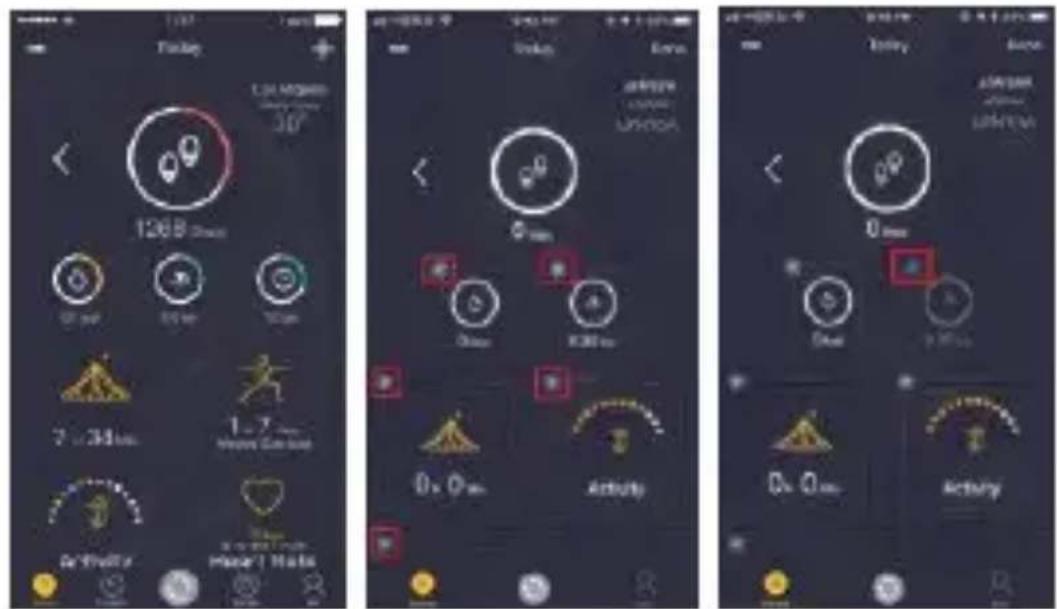
Go your smart phone and open the " HitFit " App. Press " " to sync data, your data will be shown on App.
By click the icon “+” in top right corner, you can delete the item by click icon “×”, after delete, it won’t show on app, you can click “+” to add back.
text_image
Three smartphone screenshots showing weather management interface with icons for lighting, weather, activity, and time controls.Notice :
Please don't shut off the Bluetooth notify service when you are clearing software by background or close background application software. It will affect the sync function between watch and phone if shut it.
Remark: The Personalize dial function on “Me” Page- “Device” not work on this model.
3.3 Base function
3.3.1 Message

Sync phone message(Please noted that it only support Android phones)
3.3.2 Call logs

You can check your phone call records after you connect with the Bluetooth.
Shown all records including missed call, dialed calls and received call; You can check the date, time and phone number of the missed call after you choose it, but only can call this number.
3.3.3 Heart rate

Wear the watch on, click the heart rate testing interface, during the test the heart rate light on back casing will flash, the data will show after 15-60 seconds.
3.3.4 BT

Pair devices from smart watch
3.3.5 Remote notifier

When there is SMS, incoming messages from Skype and other applications on the connected phone, the watch will alert you to read them.
3.3.6 Remote camera

Use phone camera take photos, but remote by watch, it need switch on the camera
of phone in advance.
3.3.7 Anti-lost

Watch seek phone.
3.3.8 Pedometer

It can be adopted as a tool to avoid insufficient or excessive exercise by measuring calories or calories consumption based on collected data, such as number of steps, distance, time, etc. to control exercise.
3.3.9 Sleep monitor

Show your sleep quality base on your sleep times.
3.3.10 Sedentary remind

You can set a time to remind you up to do exercise, we suggest the time could be one hours.
3.3.11 Music

After connected with the Bluetooth, You can control mobile phone to play music and adjust the volume, voice will come out from mobile phone.
4. Notice
4.1 Full charge before use, the charge time need 1.5 hours.
4.2 Use the accessory USB cable, or your android phone accessories.
4.3 Bluetooth will disconnect when exceed the distance, after switch on the Find my device, the smart search function can't be use before reconnect with Bluetooth.
4.4 Please reconnect with BT if it's disconnected occasionally (Please connect by manually if the Bluetooth disconnect over 5 minutes). Please agree the phone book Sync otherwise there is no phone book.
4.5 When playing the music, some of music's name can shown and some can't, it is normal, because android phone are different.
5. Common trouble shooting
Please refer below key function for any problems with the watch, if the problem is still unsolved, please contact with our dealer or serviceman appointed.
5.1 Unable to switch on
The time of press the power button too short, please keep it more than 3 seconds.
Low power, please charge it.
5.2 Shut down automatically
Low power, please charge the watch
5.3 Using time too short.
Battery is not full, please make sure it is full power (full charge need 1.5 hours at least).
During Heart-rate monitor, the power will go off soon if test a lot.
5.4 Unable to charge.
The battery's life will be reduce after few years, please check if the battery are workable.
Change a new charger if it is unworkable.
Please check if the USB slot connecting well, if not, please try again.
5.5 No caller's name when incoming call
Forgot to choose upload the phone book when connected with BT, or unselected keep upload the phone book.
Forgot to sync the phone book when reconnected, please pair the device and connect BT again.
5.6 Bad phone call voice.
Watch and phone are separated too far, please be more close; Bad signal of BT.
Package contains: 1 Smart Watch, 1 User manual, 1 USB charging cable