
RZ-BA10 - Digital decoder LG - Free user manual and instructions
Find the device manual for free RZ-BA10 LG in PDF.


| Product Type | Digital Decoder (PDP Tuner) |
| Brand | LG |
| Model | RZ-BA10 |
| Power Supply | AC mains, 5A fuse (BS 1363) |
| Antenna Input | 75 Ω coaxial (ANT IN) |
| Video Inputs | Component (Y Pb Pr), S-Video, Composite (via SCART/AV), RGB-PC (VGA/SVGA/XGA) |
| Audio Inputs | RCA L/R, S-Video audio, PC audio |
| Outputs | RGB output, Audio out (RCA), SCART (AV1/AV2) |
| Control Cable | 25-15/9 pin for monitor connection |
| Remote Control | Infrared, uses 2× AAA batteries |
| On-Screen Display | Multi-language (English, etc.) |
| TV Systems | PAL B/G, PAL I, PAL D/K, SECAM B/G, SECAM D/K, SECAM L/L' |
| Channel Tuning | Auto and Manual, up to 100 programmes |
| Sound | NICAM, Dolby Virtual, Stereo/Dual, Equalizer |
| Special Features | Child Lock, Auto Sleep, Sleep Timer, PIP (optional), Teletext (SIMPLE/TOP/FASTEXT) |
| Picture Modes | Dynamic, Standard, Mild, User; Aspect Ratios: 16:9, 4:3, Zoom 1/2 |
| PC Compatibility | VGA (640x480), SVGA (800x600), XGA (1024x768 compressed) |
| Dimensions (approx.) | Not specified; typical PDP tuner size |
| Weight | Not specified |
| Manual Language | English (and others via email translation) |
Frequently Asked Questions - RZ-BA10 LG
User questions about RZ-BA10 LG
0 question about this device. Answer the ones you know or ask your own.
Ask a new question about this device
Download the instructions for your Digital decoder in PDF format for free! Find your manual RZ-BA10 - LG and take your electronic device back in hand. On this page are published all the documents necessary for the use of your device. RZ-BA10 by LG.
USER MANUAL RZ-BA10 LG
natural_image
Solid blue background with a small red vertical artifact in the top-left corner (no text or symbols)
LG
Please read this owner's manual carefully before operating the PDP Tuner.
Retain it for future reference.
Record model number and serial number of the PDP Tuner
See the label attached on the back of the PDP Tynes and quote this information to your dealer
Tuner and quote this information to your dealer when you require service.
Model number Serial number :
POP TURNER
P/NO:3828VA0292A ©
(MP00MA, 067G TX, 373-026H)
natural_image
Illustration of a metallic ruler with measurement markings, set against a golden circular background (no text or symbols)
natural_image
Interior view of a modern library or library with bookshelves and decorative windows (no visible text or symbols)LG Plasma Colour Display
What is a Plasma Display?
If voltage is inputted to gas in glass panels, ultraviolet rays is outputted and fused with a fluorescent substance. At this moment, light is emitted. A Plasma Display is a next generation flat Display using this phenomenon.
160° - Wide angle range of vision
A Plasma Display provides more than 160° angle range of vision so that you can get a picture without distortion from any direction.
Easy installation
A Plasma Display is much lighter and smaller than other same class products so that you can install the Plasma Display at the desired place.
Big screen
The screen of a Plasma Display is 40/42" so that you can get vivid experience as if you are in a theatre.
Multimedia Plasma Display
A Plasma Display can be connected with a computer so that you can use it as a screen for conference, game, internet and so on.

natural_image
Interior view of a modern office or library with bookshelves and ceiling lighting (no visible text or symbols)
Contents
First step
Safety Instructions....4
Composition
Controls of the PDP Tuner 8
Controls of the remote control....10
Composition of the Plasma Display 12
Connection
Connecting antenna 14
Watching VCR 16
Watching external AV source....18
Watching DVD 19
Connecting PC as a monitor 20
Function checking in PC mode 23
Adjusting in PC mode....24
Outputting PC signal 27
Using the remote control 28
Basic function
Turning on the Plasma Display 29
Selecting the on screen language....30
Function checking in TV mode....31
Station setting
Auto programme tuning....32
Manual programme tuning 34
Assigning a station name 36
Fine tuning....37
Programme edit....38
Calling the programme table 40
Picture & Sound
Picture adjustment....41
Picture format 42
Sound adjustment....43
Enjoying Stereo / Dual....44
NICAM reception 45
Special function
Child lock....46
Auto sleep....47
Sleep timer 48
PIP operation (option)......49
Teletext (option) 50
Others
Troubleshooting check list....53
Safety Instructions
Indoor Installation

WARNING
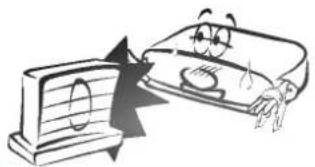
Do not place the PDP Tuner in direct sunlight or near heat sources such as heat registers, stove and so on.
- This may cause a fire.
natural_image
Cartoon illustration of a computer monitor and a document with eyes, showing a hand pointing at it (no text or symbols present)NOTES
Disconnect from the mains and remove all connections before moving.
natural_image
Simple line drawing of a lightning bolt striking a plug (no text or symbols)Outdoor Installation

WARNING
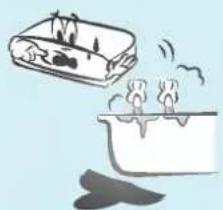
Do not use the PDP Tuner in damp place such as a bathroom or any place where it is likely to get wet.
- This may cause a fire or could give an electric shock.
natural_image
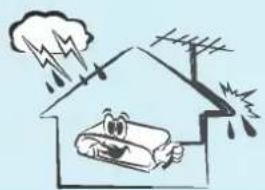
Illustration of a stove with flames and smoke rising from its side (no text or symbols)Bend antenna cable between inside and outside building to prevent rain from flowing in.
- This may cause water damaged inside the PDP Tuner and could give an electric shock.
natural_image
Cartoon illustration of a house with a sad face and lightning, showing rain and smoke (no text or symbols)
natural_image
Plain gray rectangular shape with rounded corners, no text or symbols visible.WARNING
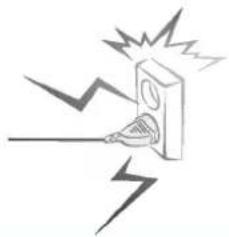
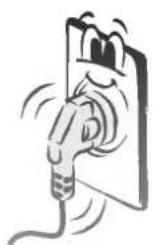
The plug should fit into the power outlet completely.
- This may cause a fire.
NOTES
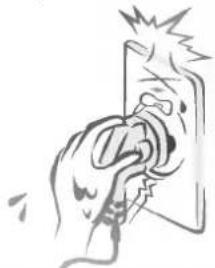
Never touch the power plug with a wet hand
- This may cause an electric shock.
natural_image
Hand inserting a plug into a socket with a lightning bolt (no text or symbols)* Safety instructions have two kinds of information, and each meaning of it is as below.

The violation of this instruction may cause serious injuries and even death.

The violation of this instruction may cause light injuries or damage of the product.
⚠️ Take care of danger that may happen under specific condition.
NOTES
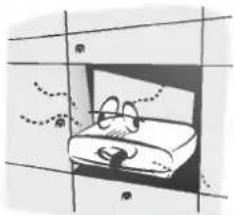
Do not place the PDP Tuner in a built-in installation such as a book-case or rack.
- Ventilation required.
natural_image
Illustration of a bed with a magnifying glass, no text or symbols presentWhen installing the PDP Tuner on a table, be careful not to place the edge of its stand.
- This may cause the PDP Tuner to fall, causing serious injury to a child or adult, and serious damage to the PDP Tuner.

natural_image
Simple line drawing of a car with wheels and a headboard, no text or symbols presentNOTES
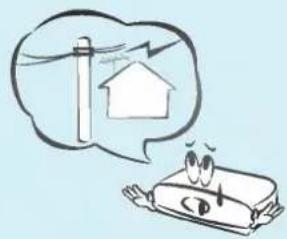
Do not place an outside antenna in the vicinity of overhead power lines or other electric light or power circuits.
- This may cause an electric shock.
natural_image
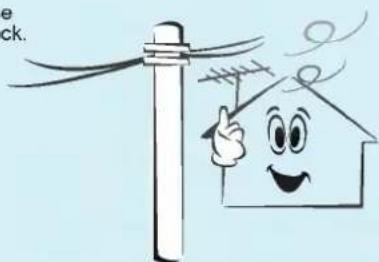
Illustration of a car with a thought bubble showing a house and wind turbine (no text or symbols)There should be enough distance between an outside antenna and power lines to keep the former from touching the latter even when the antenna falls.
- This may cause an electric shock.
natural_image
Cartoon illustration of a smiling house with a power line and smoke, no text or symbols presentNOTES
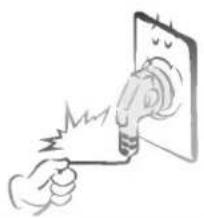
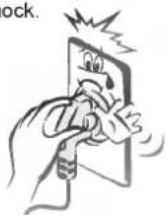
Do not pull the cord but the plug when unplugging.
- This may cause a fire.
natural_image
Illustration of a hand using a light bulb to test electrical shock (no text or symbols)Eusure the power cord doesn't trail across any hot objects like a heater.
- This may cause a fire or an electric shock.
natural_image
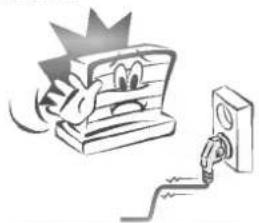
Cartoon illustration of a computer monitor with a surprised face and a plug inserted, symbolizing electrical circuitry (no text or symbols present)Do not plug when the power cord or the plug is damaged or the connecting part of the power outlet is loose.
- This may cause a fire or an electric shock.
Safety Instructions
natural_image
Simple gray arrow pointing right from a vertical bar (no text or symbols)WARNING
Do not placing anything containing liquid on top of the PDP Tuner.
- This may cause a fire or could give an electric shock.

natural_image
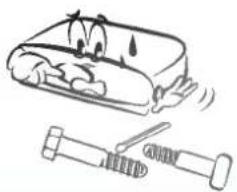
Illustration of a car with two potted plants on its side, no text or symbols presentDo not insert any object into the exhaust vent.
- This may cause a fire or could give an electric shock.
natural_image
Cartoon illustration of a sad, broken object with a hammer and screw nearby (no text or symbols)
natural_image
Simple diagram with a vertical rectangle and a triangular pointer on a light blue background (no text or symbols)WARNING
Do not use water the PDP Tuner while cleaning.
- This may cause damaged the PDP Tuner or could give an electric shock.
natural_image
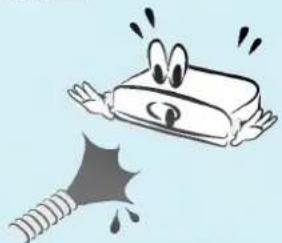
Cartoon illustration of a surprised computer with arms and legs, emitting exhaust smoke (no text or symbols)In case of smoke or strange smell from the PDP Tuner, switch it off ,unplug it from the wall outlet and contact your dealer or service center.
- This may cause a fire or could give an electric shock.

natural_image
Cartoon illustration of a person falling with a wavy line, no text or symbols present
natural_image
Simple gray arrow pointing right from a vertical bar, with three dots on the left (no text or symbols)WARNING
Do not attempt to service the PDP Tuner yourself. Contact your dealer or service center.
- This may cause damaged the PDP Tuner or could give an electric shock.

natural_image
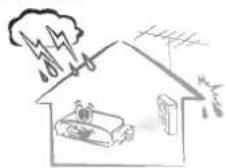
Cartoon illustration of a smiling phone with a starburst effect and pliers nearby (no text or symbols)During a lightning thunder, unplug the PDP Tuner from the wall outlet and don't touch an antenna cable.
- This may cause damaged the PDP Tuner or could give an electric shock.
WARNING in U.K. only
* This set is supplied with a BS 1363 approved 5 amp mains plug, fused at 5 amp. When replacing the fuse always use a 5 amp BS 1362, BSI or ASTA approved type. Never use this plug with the fuse cover omitted. To obtain a replacement fuse cover contact your dealer or "LG Electronics U.K. Ltd." If the type of plug supplied is not suitable for the mains sockets in your home, then the plug should be removed and a suitable type fitted. A mains plug removed from the mains lead of this set must be destroyed. A mains plug with bared wires is hazardous if inserted in a mains socket. Do not connect either wire to the earth pin, marked with the letter E or with the earth symbol = or coloured green or green and yellow. If any other plug is fitted, use a 5 amp fuse, either in the plug, or at the distribution board. The wires in this mains lead are coloured in accordance with the following codes: BLUE: NEUTRAL, BROWN: LIVE As the colours of the wires in the mains lead of this set may not correspond with the coloured marking identifying the terminals in your plug, proceed as follows: The wire which is coloured blue must be connected to the terminal which is marked with the letter N or coloured black. The wire which is coloured brown must be connected to the terminal which is marked with the letter L or coloured red.
WARNING
Do not place heavy objects on the PDP Tuner.
- This may cause serious injury to a child or adult.

natural_image
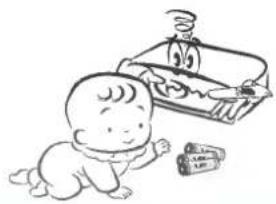
Cartoon illustration of a character with glasses and a tie, appearing to hit or feel frustrated (no text or symbols present)Dispose of used batteries carefully to protect a child from eating them.
- In case that it eats them, take it to see a doctor immediately.
natural_image
Cartoon illustration of a baby next to a steaming machine (no text or symbols)NOTES
Unplug this product from the wall outlet before cleaning. Do not use liquid cleaners or aerosol cleaners.
- This may cause damaged the PDP Tuner or could give an electric shock.

natural_image
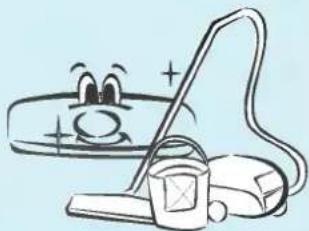
Cartoon illustration of a smiling book character holding a phone to an electrical outlet (no text or symbols)Contact the service center once a year to clean the internal part of the PDP Tuner.
- Accumulated dust can cause mechanical failure.
natural_image
Illustration of a cartoon character wearing a vacuum cleaner and cleaning a pipe (no text or symbols)NOTES
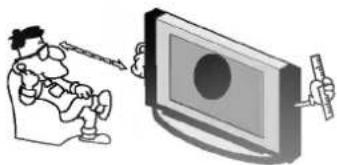
The distance between eyes and the screen should be about 5 \~ 7 times as long as diagonal length of the screen.
- If not, eyes will strain.
natural_image
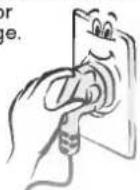
Illustration of a person using a computer monitor to interact with a handheld device (no text or symbols present)Unplug the PDP Tuner from the wall outlet when it is left unattended and unused for long periods of time.
- Accumulated dust may cause a fire or an electric shock from deterioration or electric leakage.
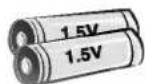
Only use the specified batteries.
- This make cause damaged the remote control or could give an electric shock.
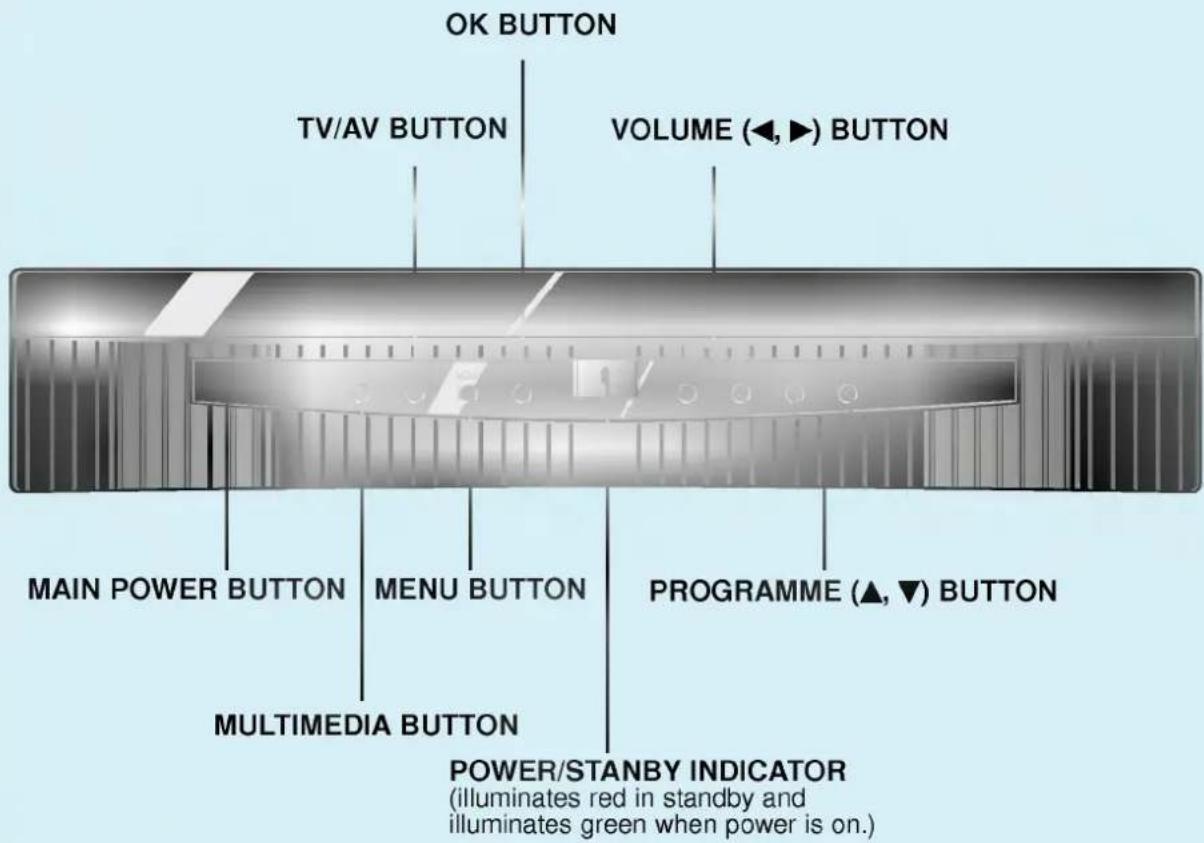
Controls of the PDP Tuner

Accessories
natural_image
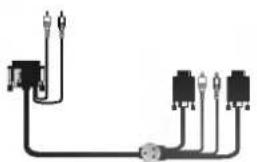
Pure electrical circuit lines without any symbolsControl cable (25-15/9 pin)
Owner's Manual
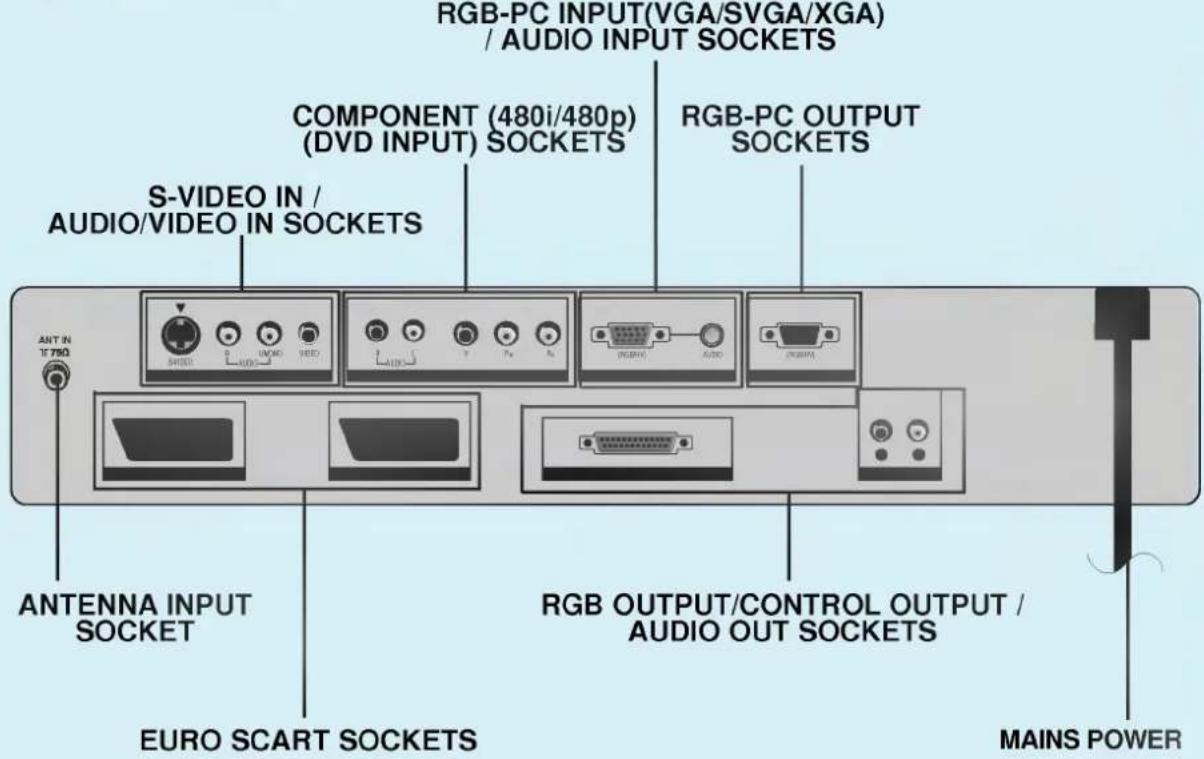
This PDP Tuner operates on an AC mains supply. Never apply DC power to the PDP Tuner.
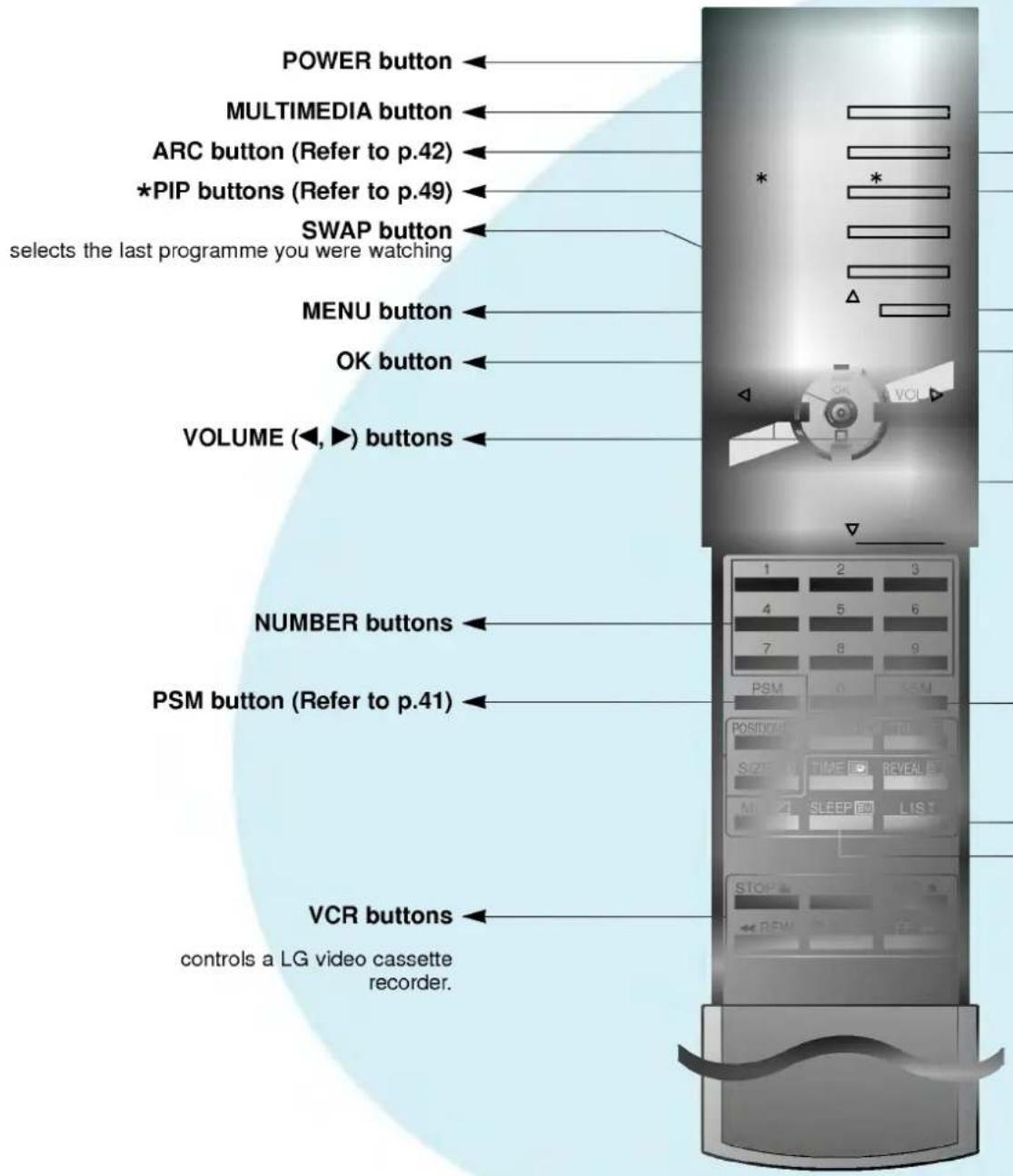
Controls of the remote control
- When using the remote control aim it at the remote control sensor of the Plasma Display.
- This remote control is the one offered when purchasing an LG plasma display monitor.

natural_image
Solid teal-colored horizontal bar with no text or symbols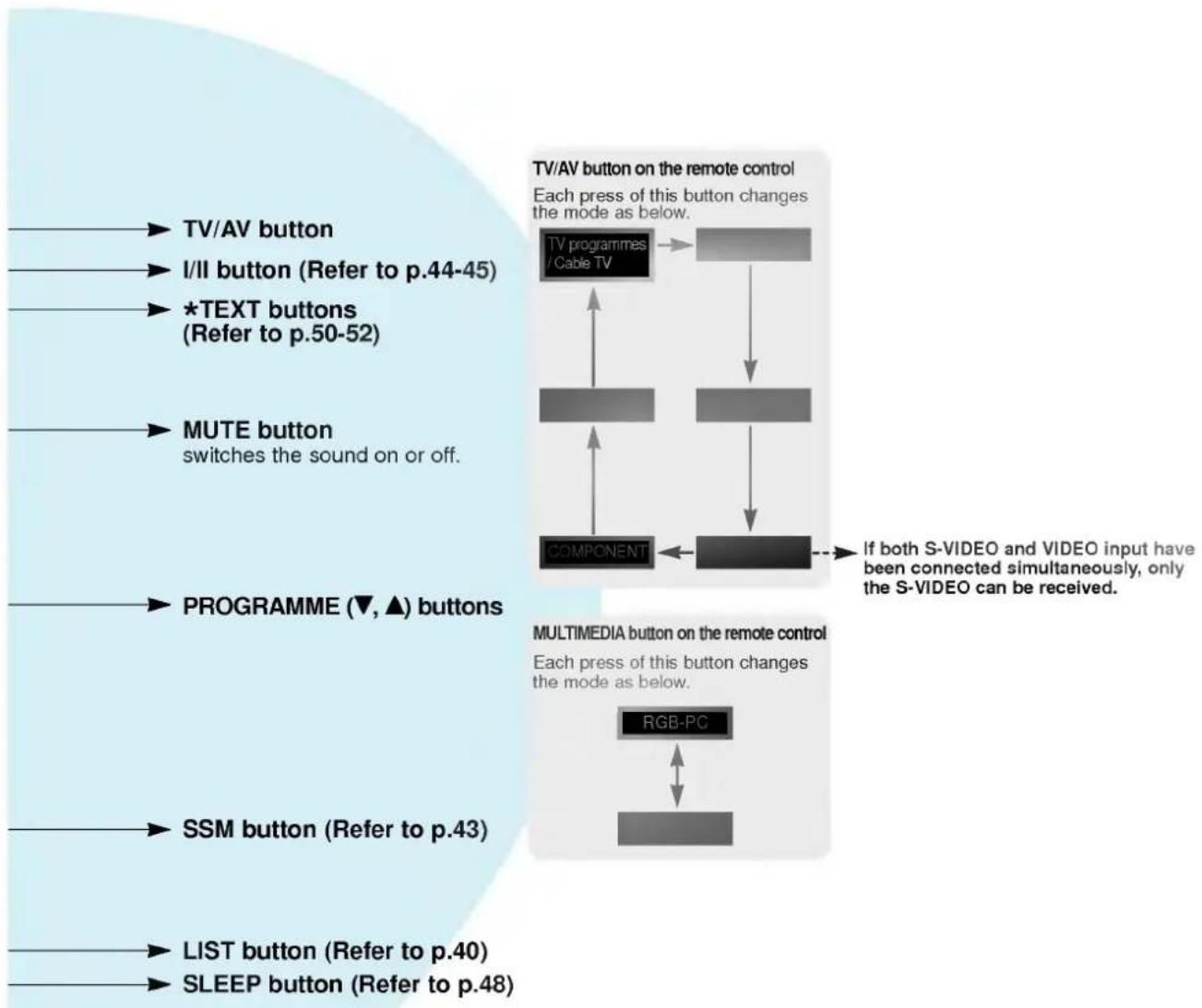
flowchart
graph TD
    A["TV/AV button"] --> B["I/II button (Refer to p.44-45)"]
    B --> C["*TEXT buttons (Refer to p.50-52)"]
    C --> D["MUTE button switches the sound on or off."]
    D --> E["PROGRAMME (▼, ▲) buttons"]
    E --> F["SSM button (Refer to p.43)"]
    F --> G["LIST button (Refer to p.40)"]
    G --> H["SLEEP button (Refer to p.48)"]

    I["TV/AV button on the remote control"] --> J["Each press of this button changes the mode as below."]
    J --> K["TV programmes / Cable TV"]
    K --> L["COMPONENT"]
    L --> M["If both S-VIDEO and VIDEO input have been connected simultaneously, only the S-VIDEO can be received."]
    M --> N["MULTIMEDIA button on the remote control"]
    N --> O["Each press of this button changes the mode as below."]
    O --> P["RGB-PC"]
    P --> Q["..."]
Composition of the Plasma Display
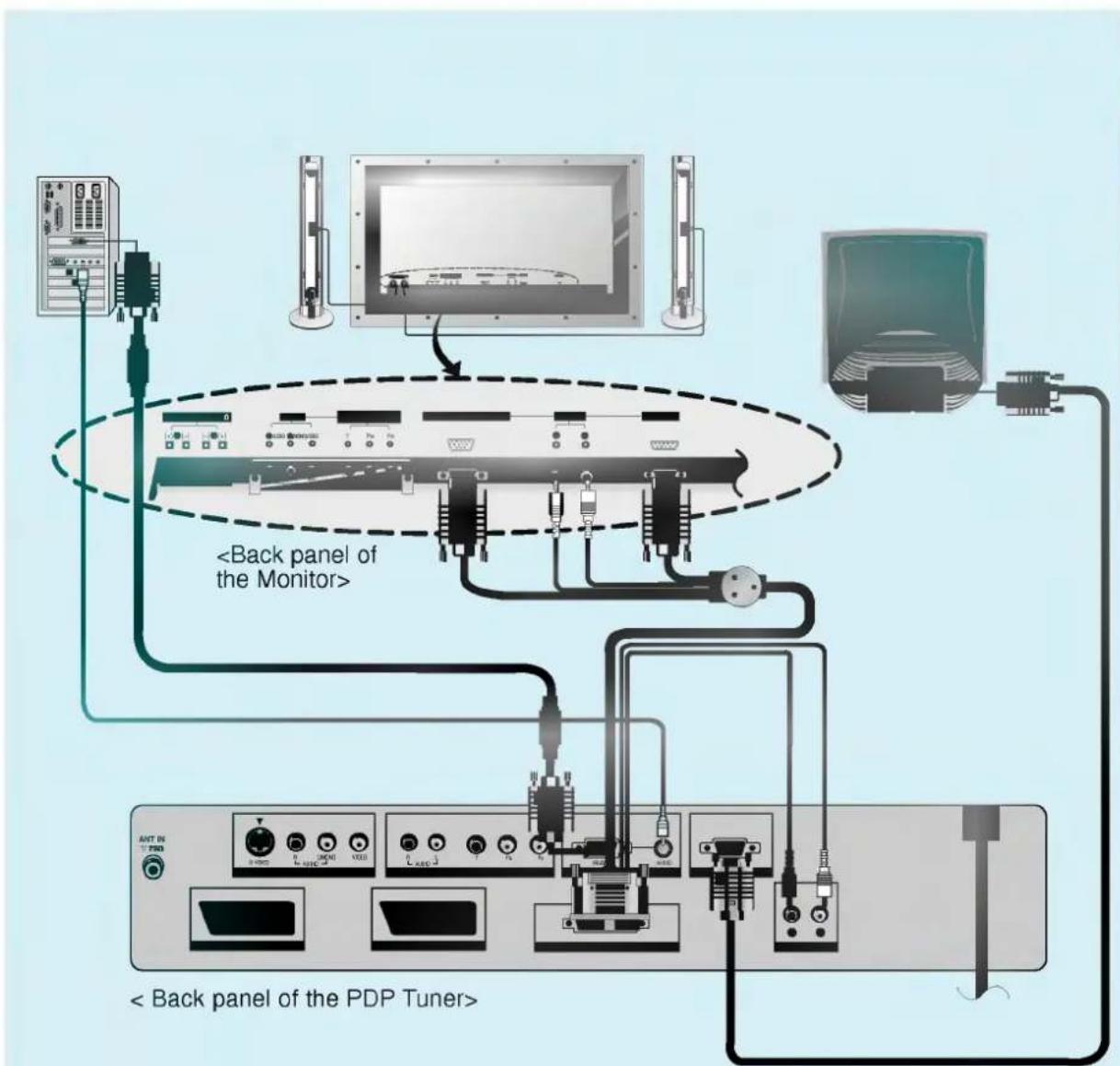
- If the Monitor is connected with the PDP Tuner and the latter is switched on, the connecting ports of the Monitor doesn't operate.
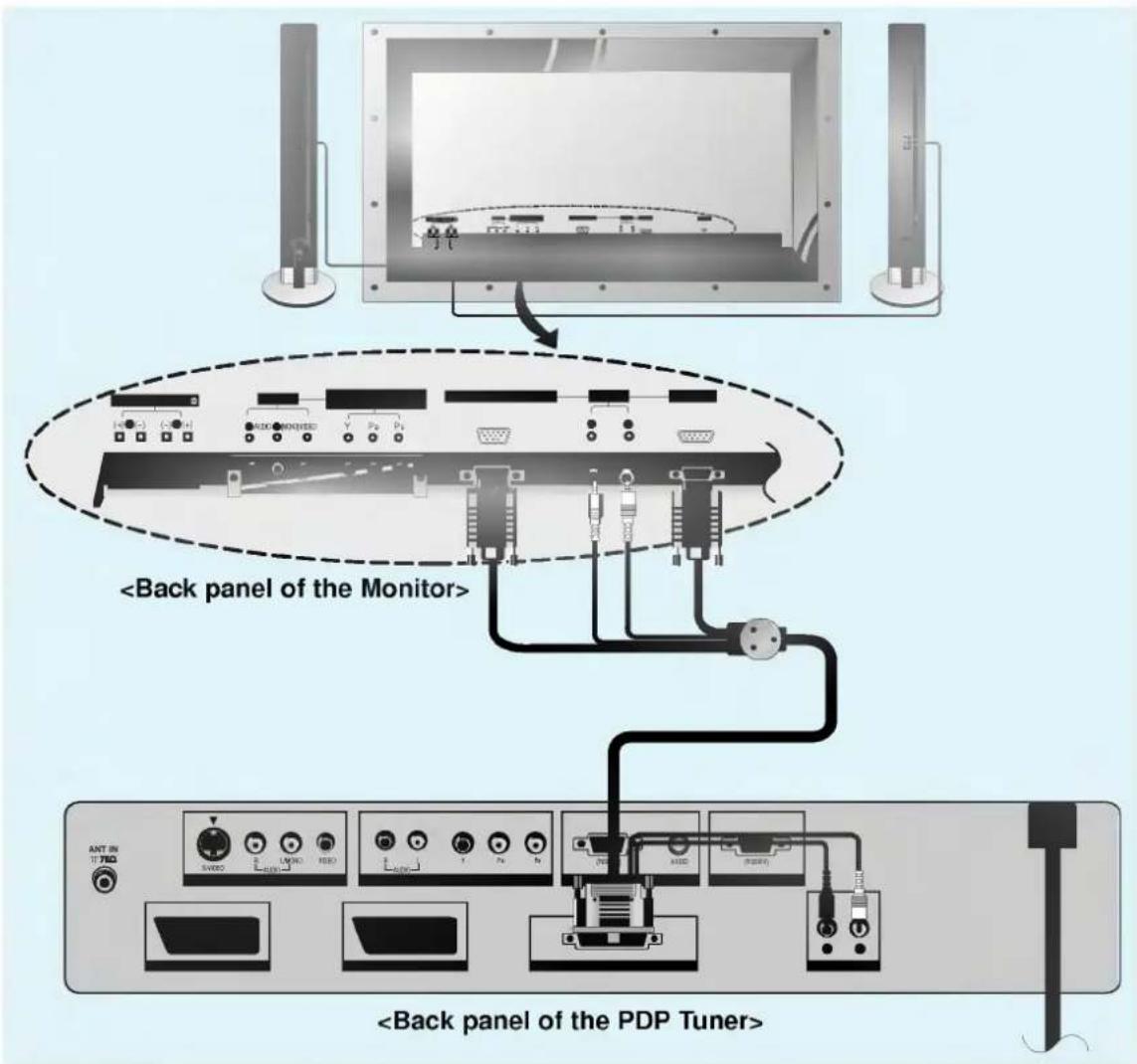
- Connect the Monitor with the PDP Tuner by using the control cable (25-15/9 pin).
- Connect the Speaker cable with matching the polarity.
- Connect the power cord.

How to connect Speakers and Monitor
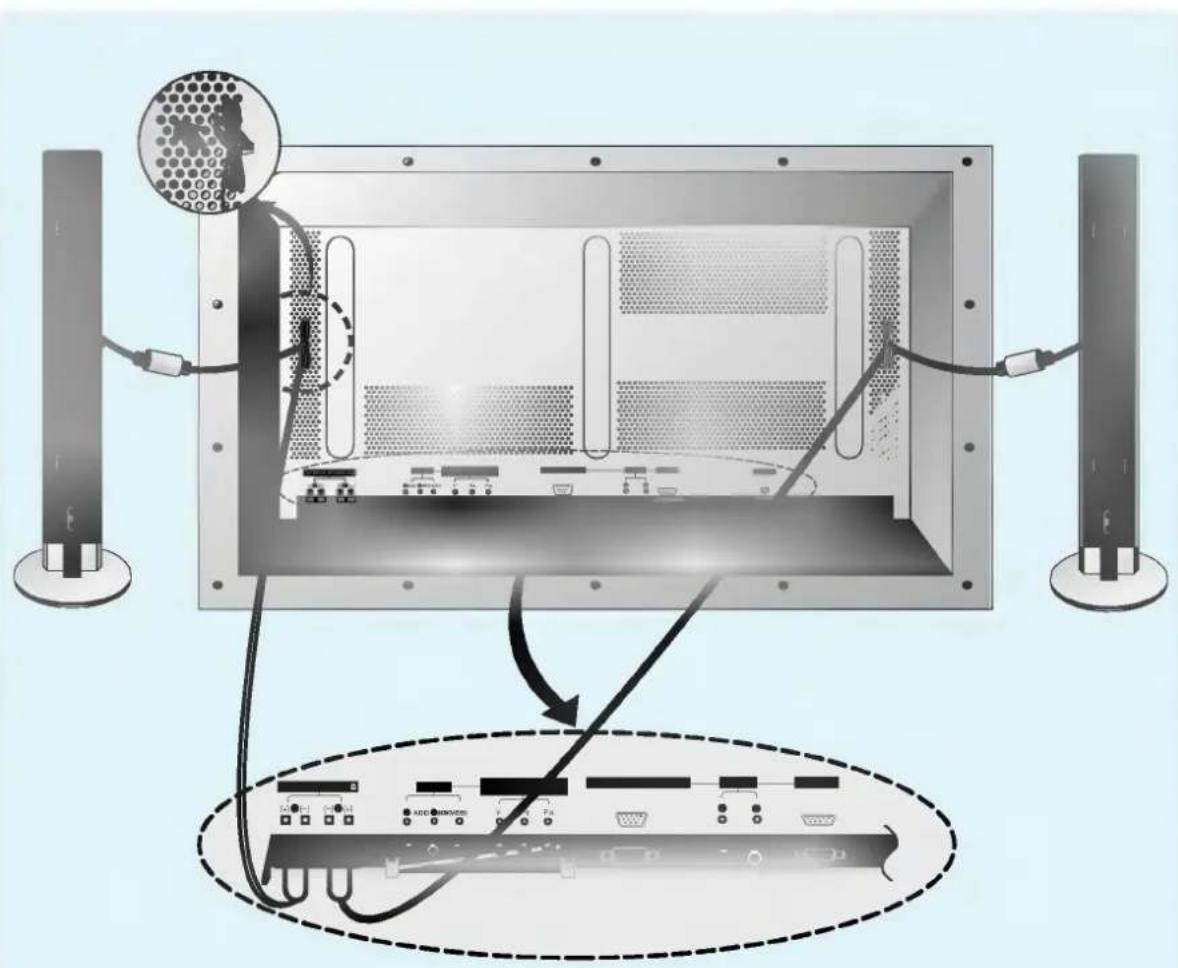
- Switch the Monitor off first and connect the Speaker cables as the picture above. Be sure to match the polarity and left/right.
(Speakers can also be assembled with the Monitor. For further information refer to 'Speaker & Speaker stand owner's manual.) - After connecting the Speaker cables in the desired length you can arrange them with the supplied holders as the picture above. Fix the holders in the holes on the back panel of the Monitor in the arrow direction. Once the holders are fixed they can't be pulled out. Decide the position for holders carefully before fixing.
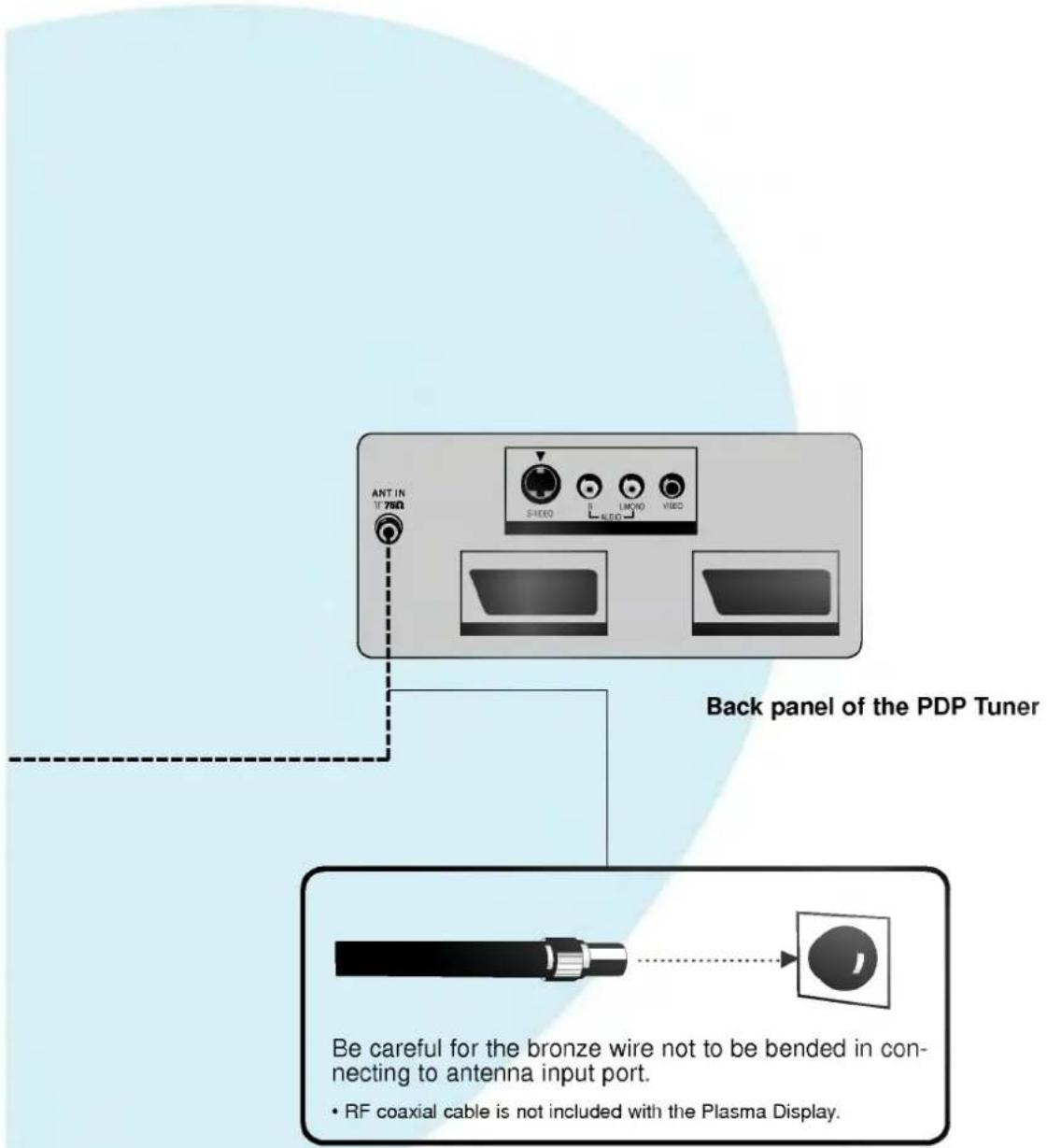
Connecting antenna
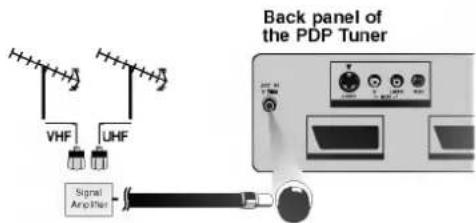
- Connect the Plasma Display with various external equipments after connecting the Monitor with the PDP Tuner and the Speakers.

natural_image
Illustration of a modern multi-story building with trees and solar panels, enclosed in an oval frame (no text or symbols)Apartments (conneting to wall antenna socket)
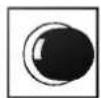
wall antenna socket
RF coaxial wire (75 ohm)
VHF antenna
UHF antenna
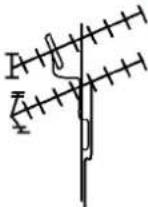
outdoor
antenna
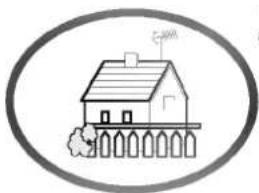
natural_image
Simple line drawing of a house with a chimney and fence, enclosed in an oval frame (no text or symbols)Private house (conneting to wall outdoor antenna)

Tips
- In poor signal area, purchase a signal amplifier to get better picture quality.
- If antenna is split to two Plasma Display sets, use "signal splitter" for better connection.
- If antenna is installed properly, contact your dealer.
Watching VCR
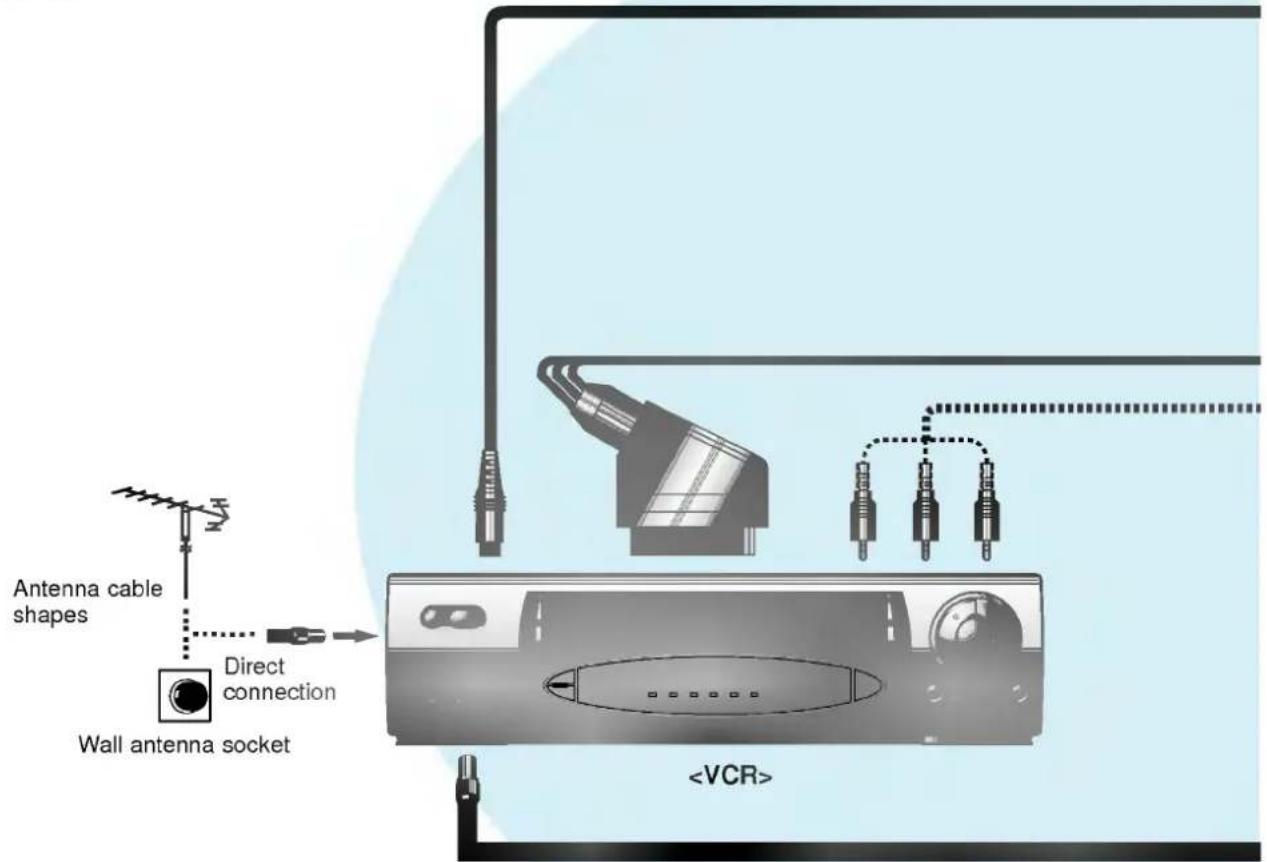
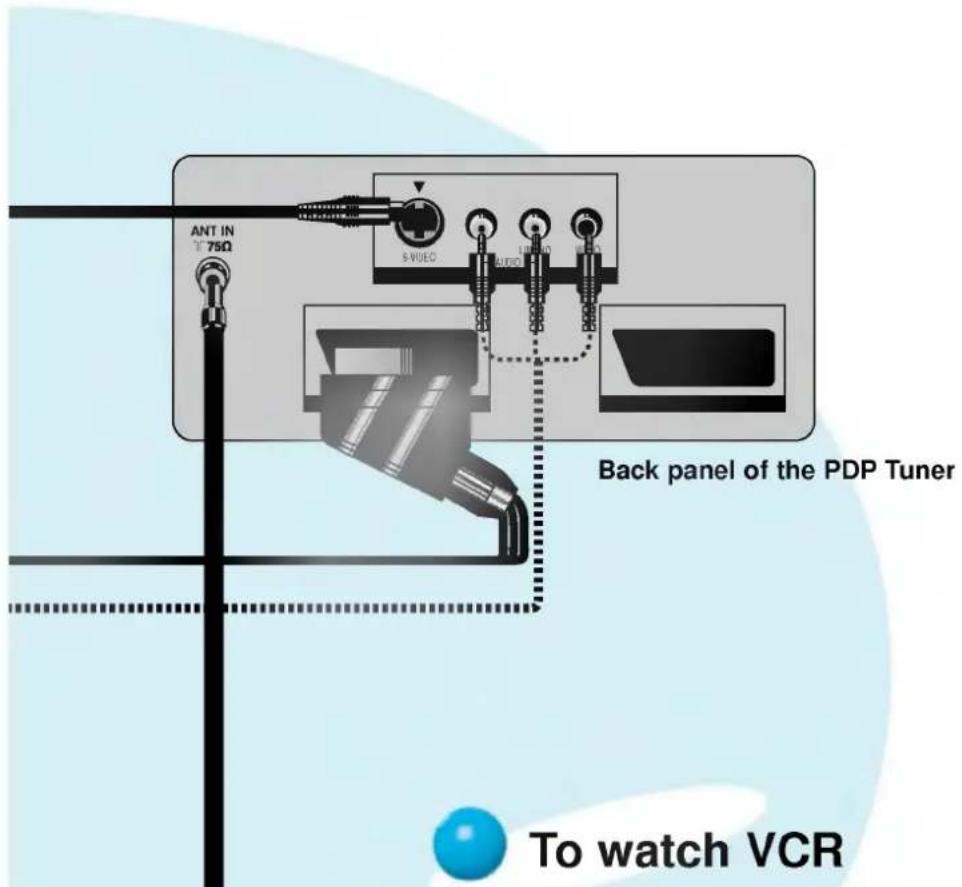
- When connecting the Plasma Display with external equipments, match the colours of connecting ports (Video - yellow, Audio(L) - white, Audio(R) - red).
- If you have a mono VCR, connect the audio cable from the VCR to the AUDIO(L/MONO) input of the Plasma Display.
- When connecting a S-VIDEO input, the picture quality will be far improved.

Tips
- You can watch VCR only when the Plasma Display programme is matched with programme switch of VCR.
- Press the ▲ / ▼ buttons or number buttons to return to normal TV viewing.
- You can record programmes received through ANT IN using the Euro scart socket (AV1) of the PDP Tuner.
You can also record signal received through AV1, AV2 and AV3 using the Euro scart socket (AV2) of the PDP Tuner.

To watch VCR
Turn the Plasma Display on and select the programme you want.
1 Press TV/AV button on the remote control to select AV 1, AV 2 or AV 3 (only for S-VIDEO). (Select AV 3 if AV 3 is connected. If both S-VIDEO and VIDEO sockets have been connected to the S-VHS VCR simultaneously, only the S-VIDEO can be received.)

2 Insert a video tape into the VCR and press the PLAY button on the VCR.
Watching external AV source
- When connecting the Plasma Display with external equipments, match the colours of connecting ports.
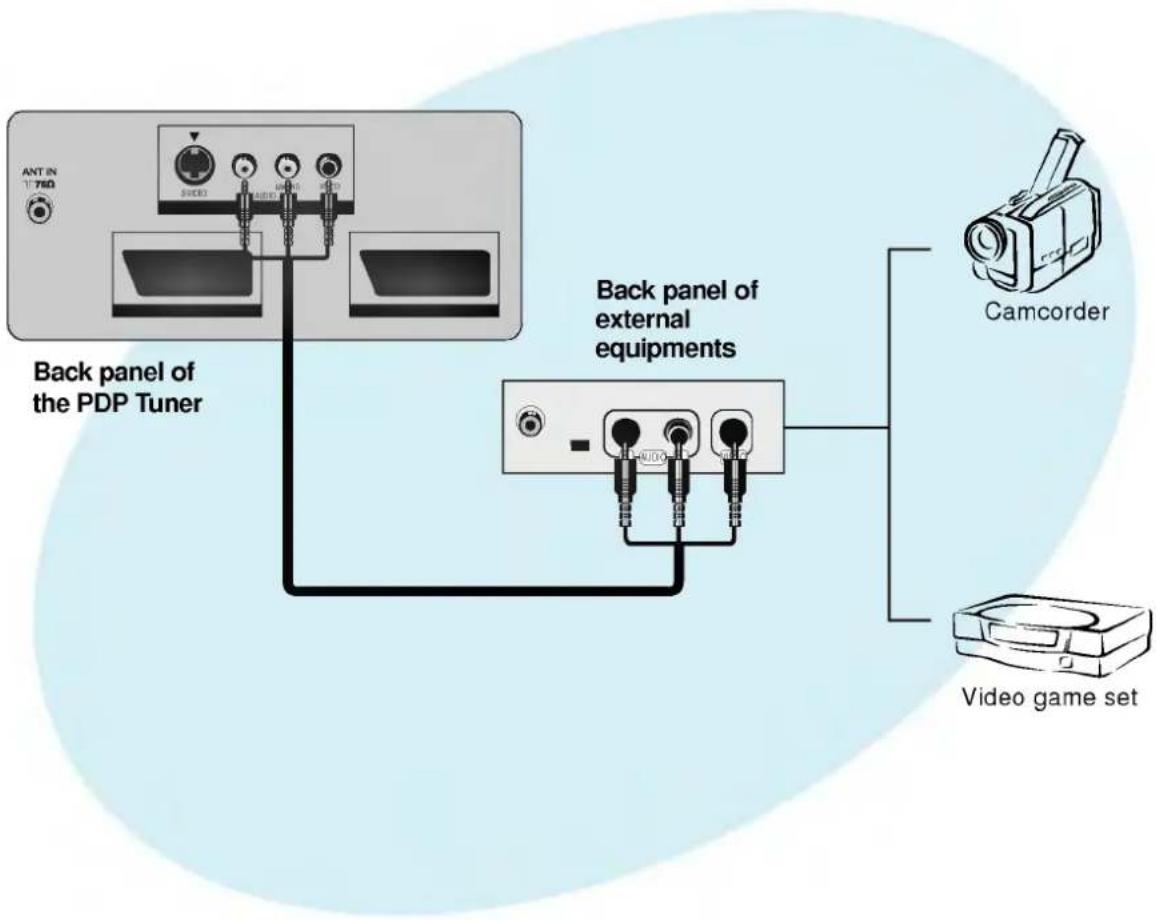
1 Press TV/AV button on the remote control to select AV 3.
2 Operate the corresponding external equipments.
Watching DVD
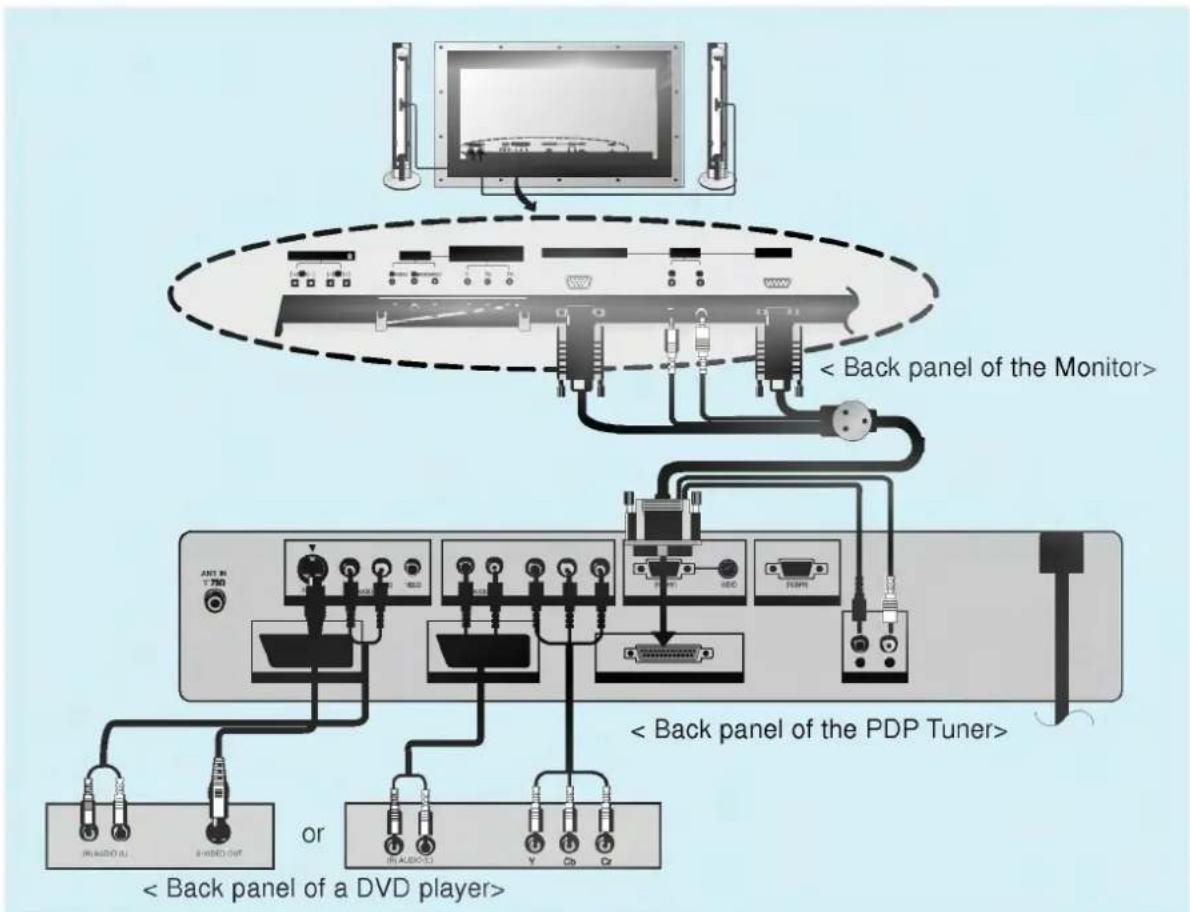
- In case of connecting the Monitor with a DVD player directly, you should disconnect the PDP Tuner or switch the PDP Tuner off.

How to connect
- COMPONENT input is set as 480i or 480p mode.
- Connect component video inputs to Y, P_B , P_R and audio inputs to right and left Audio ports.

How to use
- Press MULTIMEDIA button on the remote control to select COMPONENT.
- Try this after turning on the DVD player.
- Component Input ports
You can get better picture quality if you connect DVD player with component input ports as below.
| Component ports of the Plasma Display | Y | |
| Video output ports of DVD player. | Y | Pb |
| Y | B-Y | |
| Y | Cb |
Connecting PC as a monitor

Connecting with PC dicectly
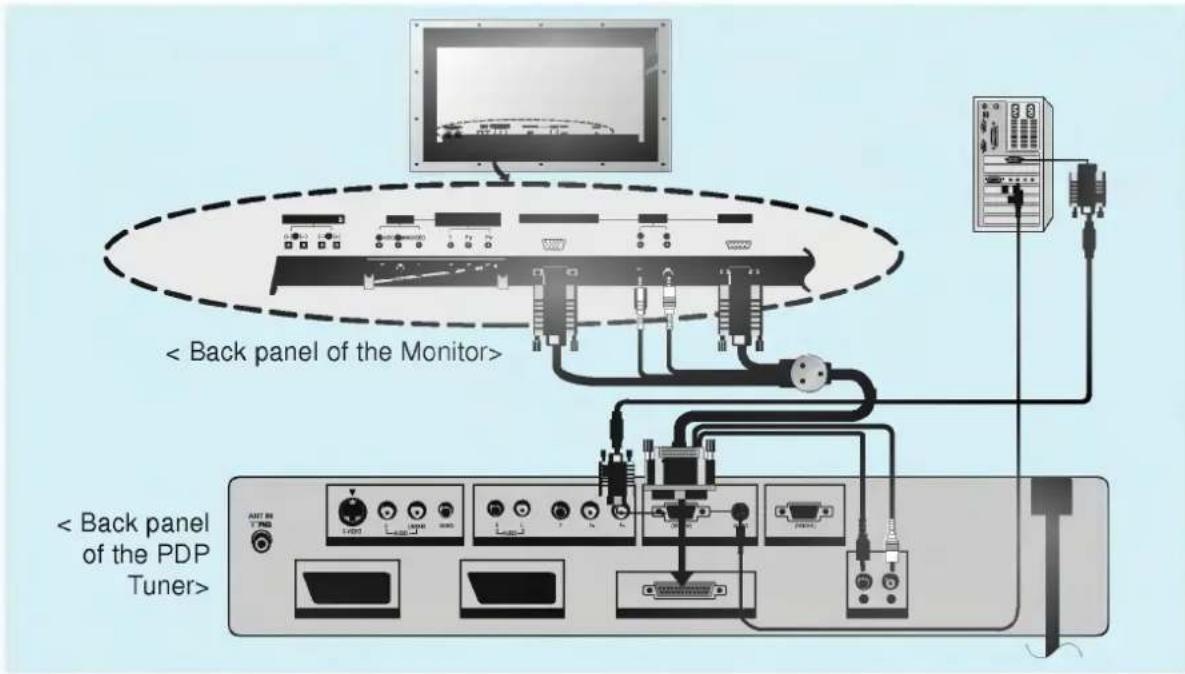
- You should disconnect the Monitor from the PDP Tuner or switch the PDP Tuner off to use the Monitor as a PC monitor only.
- Set the video mode of PC to VGA/SVGA/XGA to obtain the best picture quality for the Monitor.
- If the resolution of PC is over XGA, there will be no picture on the Monitor.
- Connect the signal cable from the monitor output port of the PC to the RGB INPUT(VGA/SVGA/XGA) port of the Monitor.
- Connect the audio cable from the PC to the Audio ports of the Monitor. (Audio cables not included with the Plasma Display)
• In case of using a sound card adjust PC sound properly.
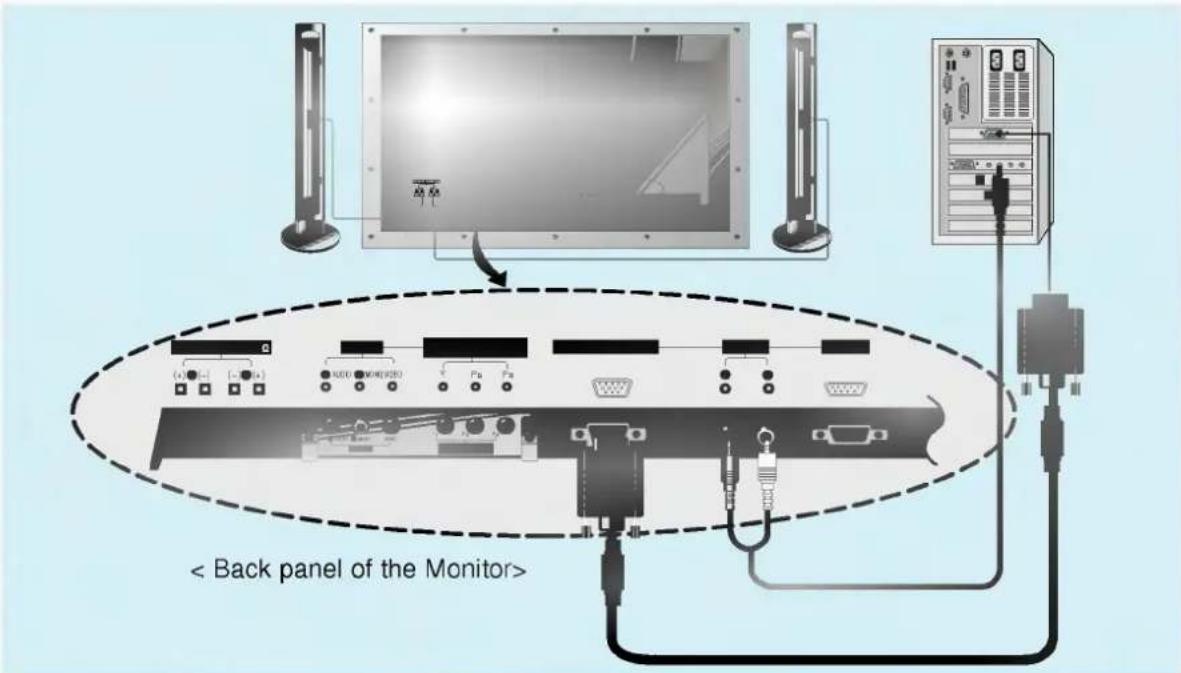
- Press POWER button on the PC and press ON/OFF button on the Monitor. After this press ♂/I button on the Monitor or press POWER button on the remote control.
- Press MULTIMEDIA button on the remote control to select RGB-PC.
- Set the resolution of PC under XGA (1024x768). (Refer to page 22.)
Tips
- If still picture is on the screen for a long period time, Screen Burn!
- If the resolution of PC is over XGA, connect to the RGB INPUT(VGA/SVGA/XGA) port of the Monitor after changing the resolution of PC under XGA.
- If picture isn't displayed properly by connecting a non-standard PC, contact your dealer for more information.

Connecting through the PDP Tuner
- Press the ▲ / ▼ buttons or number buttons on the remote control, or the ▲ / ▼ on the PDP Tuner to return to normal TV viewing.
- Connect the signal cable from the monitor output port of the PC to the RGB-PC INPUT (VGA/SVGA/XGA) port of the PDP Tuner.
- Connect the audio cable from the PC to the Audio ports of the PDP Tuner. (Audio cables are not included with the Plasma Display)

MULTIMEDIA

- Turn on the PC
- Turn on the Monitor and the PDP Tuner after connecting the former with the latter and the Speakers. (Refer to p.29)
- Press MULTIMEDIA button on the remote control or on the PDP Tuner to select RGB-PC.
- Set the resolution of PC under XGA (1024x768).
Connecting PC as a monitor

Displayable Monitor Specification
| Resolution | Horizontal Frequency (KHz) | Vertical Frequency (Hz) |
| 640x400 | 37.861 | 85.08 |
| 720x400 | 31.469 | 70.08 |
| 640x480 (VGA) | 31.469 | 59.94 |
| 35.000 | 66.66 | |
| 37.861 | 72.80 | |
| 37.500 | 75.00 | |
| 43.269 | 85.00 | |
| 800x600 (SVGA) | 35.156 | 56.25 |
| 37.879 | 60.31 | |
| 48.077 | 72.18 | |
| 46.875 | 75.00 | |
| 53.674 | 85.06 | |
| 832x624 | 49.725 | 74.55 |
| 1024x768 (Compressed XGA) | 48.363 | 60.004 |
| 56.476 | 70.069 | |
| 60.023 | 75.029 |
Function checking in PC mode
- Make sure to select RGB-PC before operating.

①
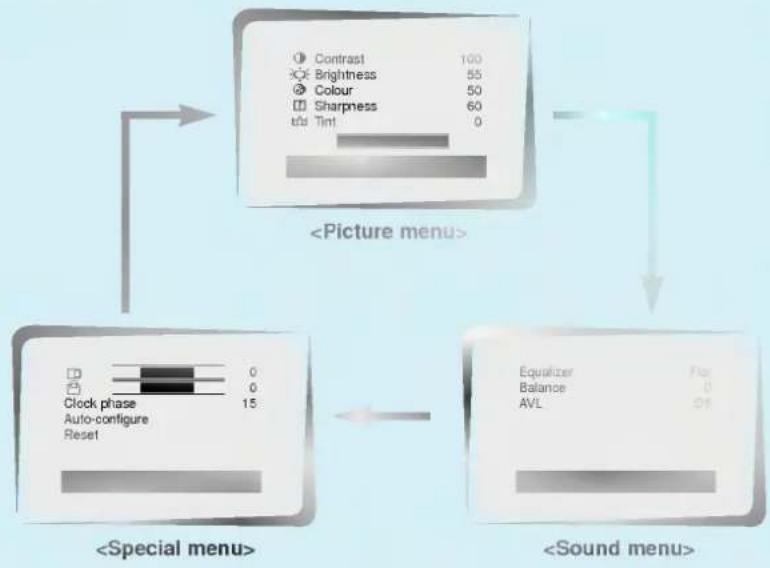
Repeatedly press the MENU button.
flowchart
graph TD
    A["<Picture menu>"] --> B["<Special menu>"]
    B --> C["<Sound menu>"]
    A --> D["Contrast 100, Brightness 55, Colour 50, Sharpness 60, Tint 0"]
    B --> E["Clock phase 15, Auto-configure Reset 0, Balance 0, AVL Off"]
    C --> F["Equalizer Fan"]
②
Press the ▲ /▼ button to select a menu item.
• The selected menu item changes from white to purple.
③
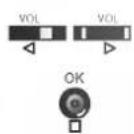
Press the ◀ / ▶ button to change the setting of a menu item or OK button to display the sub menu.
- Press the TV/AV button to exit.
Adjusting in PC mode
- Only adjust auto configure, horizontal / vertical position and clock phase in 16:9 picture format.

Auto configure
- This function is for the automatic adjustment of the screen position and clock phase.

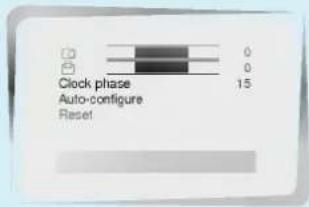
Repeatedly press the MENU button to select the special menu.

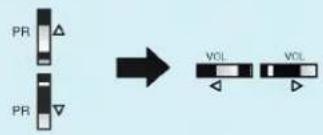
Press the ▲ / ▼ button to select Autoconfigure and then press the ◀ / ▶ button.
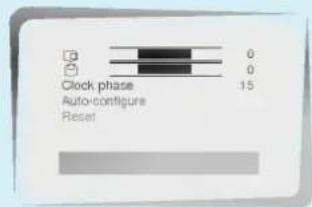

Press the OK button.

- If picture needs to be adjusted more after auto adjustment, adjust your Monitor's position and clock phase manually.

Adjusting horizontal / vertical position

Repeatedly press the MENU button to select the special menu.

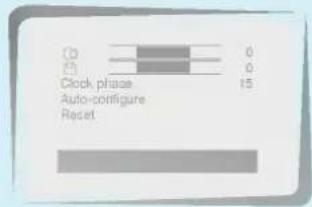

Press the ▲ / ▼ button to select ☐ or ☐.
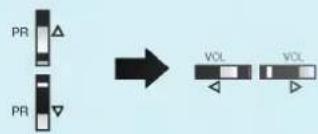
- Select ☐ for horizontal position adjustment.
- Select ☐ for vertical position adjustment.
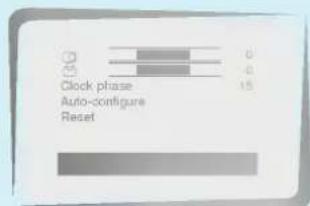

Press the ◀ / ▶ button to adjust until you get desired horizontal or vertical position and then press the OK button.
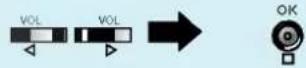
Adjusting in PC mode

Adjusting clock phase
- In case that picture isn't clear after auto adjustment and especially that characters are trembling, adjust phase manually.
1
Repeatedly press the MENU button to select the special menu.

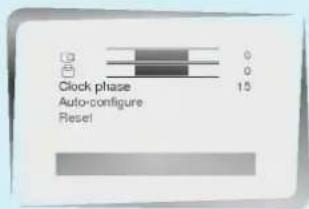
②
Press the ▲ / ▼ button to select Clock phase.
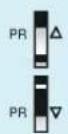
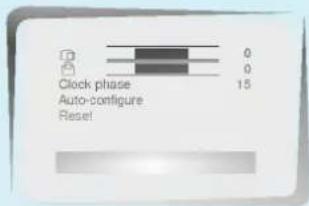
③
Press the ◀/▶ button to adjust phase and then press the OK button.



Initializing
- To initialize the adjusted value, select Reset with the ▲ / ▼ button and then press the ◀ / ▶ button.
Outputting PC signal
- You can watch the same picture as on the Monitor through a different monitor simultaneously. (RGB-PC signal is output.)
Using the remote control
natural_image
Illustration of hands holding a payment terminal (no text or symbols visible)
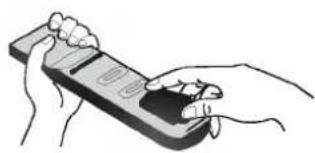
- Open the battery compartment cover on the back side and insert the batteries with correct polarity.
- Apply two 1.5V alkaline batteries of AAA type. Don't mix the used batteries with new batteries.
• Install the batteries with the correct polarities.
Notes for using the remote control
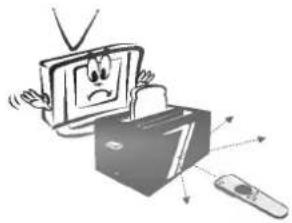
Make sure these are no objects between the remote control and its sensor.
Don't place the remote control near a heater or damp place. Strong impact on the remote control may cause operation failure.
Signal from the remote control may be disturbed by sun light or other strong light. In this case, turn the set to other direction.
natural_image
Cartoon illustration of a sad computer with a frowning face and a box, accompanied by a remote (no text or symbols)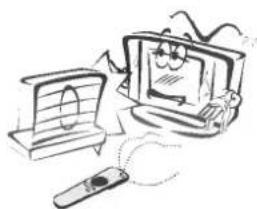
natural_image
Cartoon illustration of a computer monitor with a screen, connected to a remote device (no text or symbols present)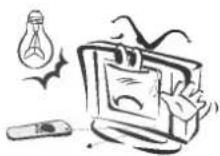
Turnin
- When using the remote control, aim it at its sensor on the Monitor.
①
Connect antenna cable and power cord correctly.
②
Press the ON/OFF button on the PDP Tuner and press the ON/OFF button on the Monitor. At this moment, the Plasma Display is switched to standby mode. Press the PROGRAMME (▲ / ▼), TV/AV, MULTIMEDIA button on the PDP Tuner or on the remote control, or the POWER button on the remote control and the Plasma Display will be switched on.
#
With the PDP Tuner on
1
If the Plasma Display is turned off with the POWER button on the remote control or the /1 button on the Monitor
- Press the ▲ / ▼, TV/AV, MULTIMEDIA button on the PDP Tuner or on the remote control, or press the POWER button on the remote control to turn on the Plasma Display.
②
If the Plasma Display is turned off with the ON/OFF button on the Monitor
- Press the ON/OFF button on the Monitor to turn on the Plasma Display.
③
If the Plasma Display is turned off with the remote control and also the ON/OFF button on the Monitor
- Press the ON/OFF button on the Monitor and then press the ▲ / ▼, TV/AV, MULTIMEDIA button on the PDP Tuner or on the remote control, or press the POWER button on the remote control to turn on the Plasma Display.
[Non-Text]
If the PDP Tuner is turned off
- Turn on the PDP Tuner with the ON/OFF button on PDP Tuner and turn on the Plasma Display with any of the three ways above.

Tips
- Selecting channels
Press the ▲ / ▼ or number buttons.
In case of selecting programmes with number buttons, press one or two numbers. ex.) Programme 7 → 7 or 07 - Adjusting volume level
Volume(▶) button increases the level of sound and volume(◀) button decreases the level of sound.
Selectin
① Repeatedly press the MENU button to select the station menu.

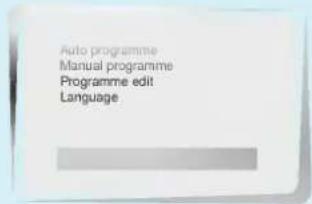
2 Press the ▲ / ▼ button to select Language and then press the OK button.
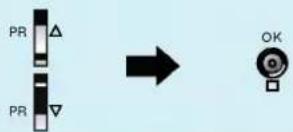
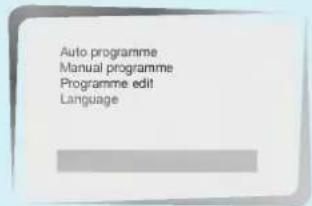
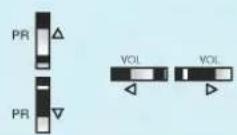
Press the ▲ / ▼ or ◀ / ▶ button to select the desired language.
Press the TV/AV button to return to normal TV viewing.

Tips
- You can select your desired language only in TV mode.
Functi
natural_image
Completely blank or uniformly gray image with no visible text, symbols, or discernible features.MENU
1) Repeatedly press the MENU button.

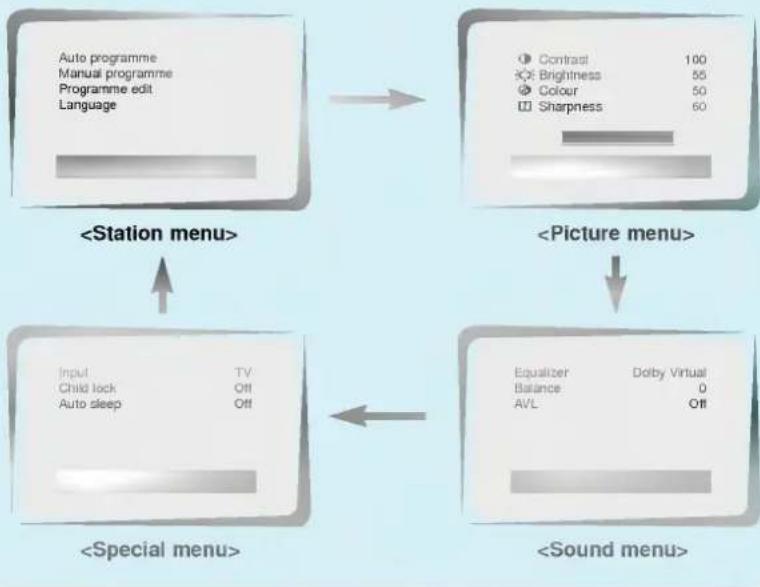
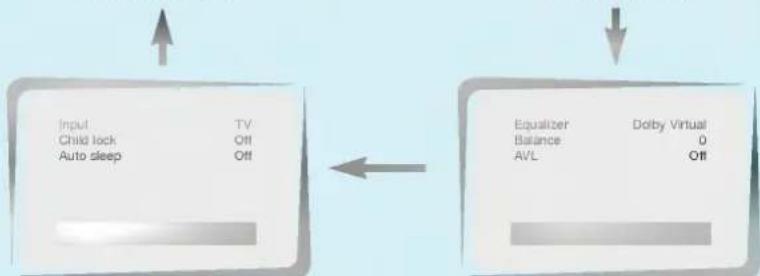
Press the ▲ / ▼ button to select a menu item.
• The selected menu item changes from white to purple.

3 Press the ◀/▶ button to change the setting of a menu item or OK button to display the sub menu.
- Press the TV/AV button to return to the normal TV viewing.

Tips
- In the AV and COMPONENT modes, the station menu is not displayed.
- In the teletext mode, menus are not displayed.
Aut
- All stations that can be received are stored by this method. It is recommended that you use auto programme during installation of this Plasma Display.
1
Repeatedly press the MENU button to select the station menu.

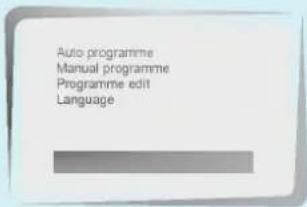
2
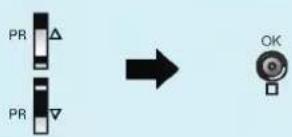
Press the ▲ / ▼ button to select Auto programme and then press the OK button.
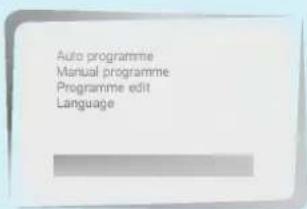
3
Press the ▲ / ▼ button to select System. Select a TV system with the ◀ / ▶ button.
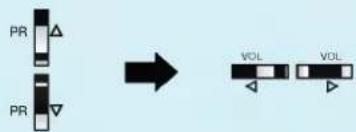
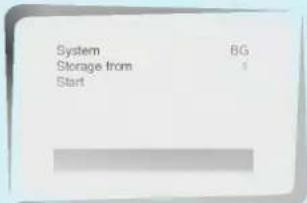
• L : SECAM L/L' (France)
• BG : PAL B/G, SECAM B/G (Europe/East Europe)
• I : PAL I/II (U.K./Ireland)
• DK : PAL D/K, SECAM D/K (East Europe)

Press the ▲ / ▼ button to select Storage from.
Select the beginning programme number with the ◀/▶ button.
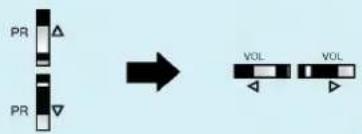
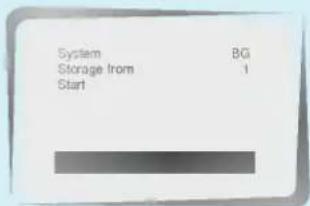
- You can also select the beginning number with the number buttons. Any number under 10 is entered with a numeric '0' in front of it, i.e. '05' for 5.

Press the ▲ / ▼ button to select Start and then press the OK button.
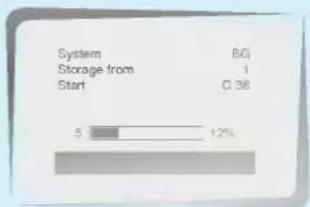
- All receivable stations are stored. To stop auto programming, press the MENU button. When auto programming is completed, the Programme edit menu appears on the screen. See the 'Programme edit' section to edit the stored programme.

Press the TV/AV button to return to normal TV viewing.

Tips
- If the programmed station has poor quality sound, select the system again in the Manual programme menu.
Man
- Manual programme lets you manually tune and arrange the stations in whatever order you desire. Also you can assign a station name with five characters to each programme number.
1) Repeatedly press the MENU button to select the station menu.

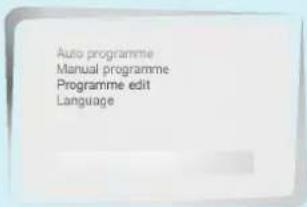
2 Press the ▲ / ▼ button to select Manual programme and then press the OK button.
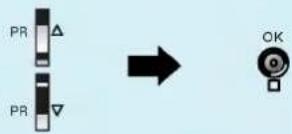
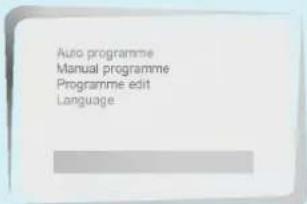
3) Press the ▲ / ▼ button to select system. Select a TV system with the ◀ / ▶ button.
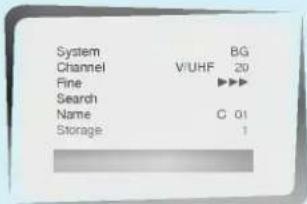
• L : SECAM L/L' (France)
• BG : PAL B/G, SECAM B/G (Europe/East Europe)
• I : PAL I/II (U.K./Ireland)
• DK : PAL D/K, SECAM D/K (East Europe)

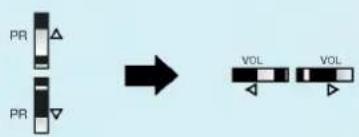
Press the ▲ / ▼ button to select Channel. Press the ◀ / ▶ button to select V/UHF or Cable as required.
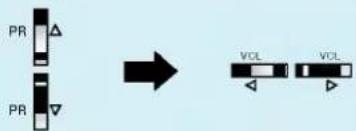
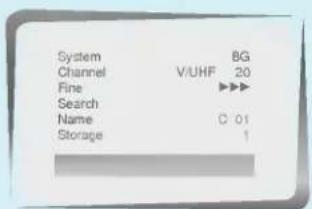
- If possible, select the programme number (1 to 69) directly with the number buttons. Any number under 10 is entered with a numeric '0' in front of it, i.e. '05' for 5.

Press the ▲ / ▼ button to select Search. Press the ◀ / ▶ button to commence searching. If a station is found the search will stop.
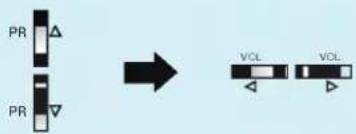
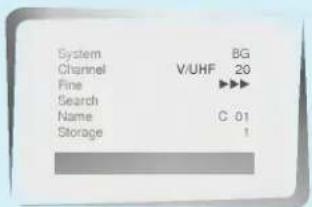
If this station is the one required, press the ▲ / ▼ button to select Storage. Select the desired programme number (0 to 99) with the ◀ / ▶ button.
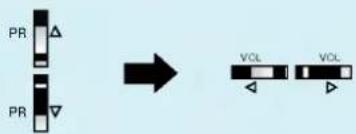
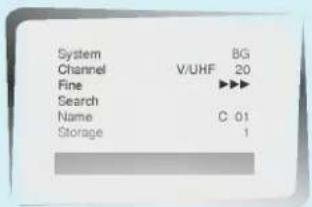
- You can also select the programme number with the number buttons. Any number under 10 is entered with a numeric '0' in front of it, i.e. '05' for 5.

Press the OK button to store it.

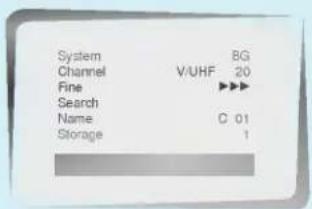

Press the TV/AV button to return to normal TV viewing.
• To store another station, repeat steps 3 to 7.
Ass
1 Repeat the 'Manual programme tuning' steps 1 to 2. (Refer to page 34)
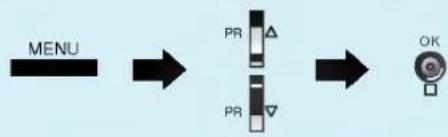
flowchart
graph LR
    A["MENU"] --> B["PR △"]
    B --> C["PR ▼"]
    C --> D["OK"]
Press the ▲ / ▼ button to select Name.
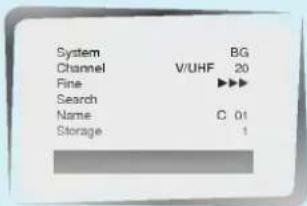
3 Press the ▶ button. You can use a blank, +,-, the numeric 0 to 9 and the alphabet A to Z.
- With the ◀ button you can select in the opposite direction.
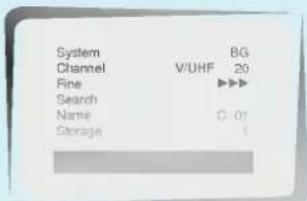
4 Select the next position by pressing the OK button and then take your choice of the second character, and so on.

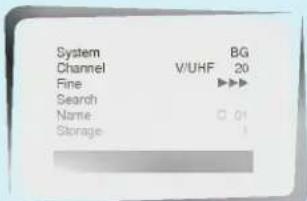
Repeat the 'Manual programme tuning' steps 6 to 8. (Refer to page 35)

flowchart
graph LR
    A["PR Block"] --> B["VOL"]
    C["PR Block"] --> D["VOL"]
    B --> E["OK"]
    D --> E
    E --> F["TV/AV"]

natural_image
Simple line drawing of a smiling face on a light blue background (no text or symbols)- Normally fine tuning is only necessary if reception is poor.

Repeat the 'Manual programme tuning' steps 1 to 2. (Refer to page 34)
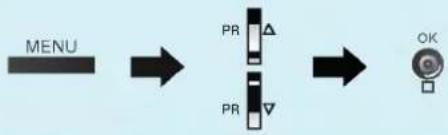
flowchart
graph LR
    A["MENU"] --> B["PR △"]
    B --> C["PR ▼"]
    C --> D["OK"]
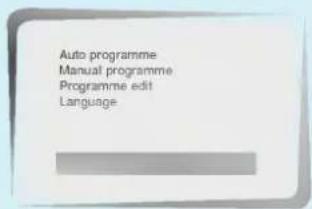

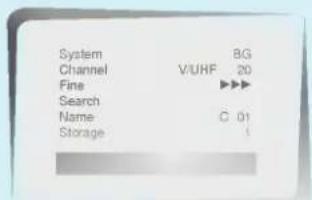
Press the ▲ / ▼ button to select Fine.
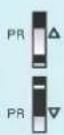
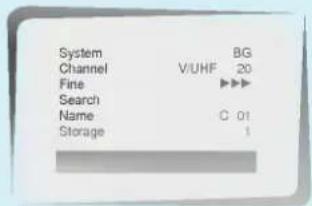

Press the ◀ / ▶ button to fine tune for the best picture and sound.

Repeat the 'Manual programme tuning' steps 6 to 8. (Refer to page 35)

flowchart
graph LR
    A["PR Block"] --> B["VOL"]
    B --> C["OK"]
    C --> D["TV/AV"]
- The finely tuned programme will be indicated by yellow number during programme selection.

natural_image
Simple line drawing of a smiling computer monitor on a teal background (no text or symbols)- This function enables you to delete or skip the stored programmes. Also yo can move some stations to other programme numbers or insert a blank station data into the selected programme number.
1
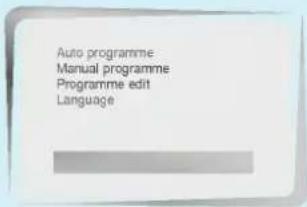
Repeatedly press the MENU butto to select the station menu.
2
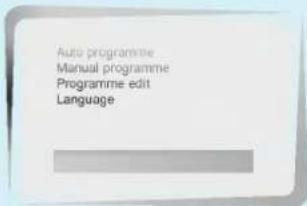
Press the ▲ / ▼ button to select Programme edit and then press the OK button.
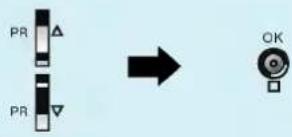
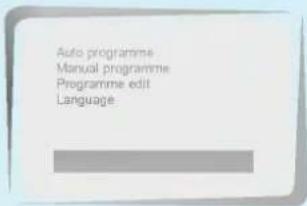
The image is too blurry to recognize any text content.
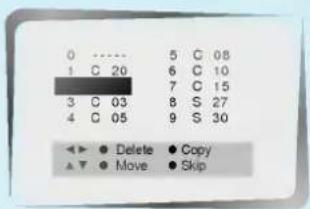
Deleting a programme
③
- Select a programme to be deleted with the ▲ / ▼ or ◀ / ▶ button.
- Press the RED button twice.
The selected programme is deleted, all the following programmes are shifted up one position.
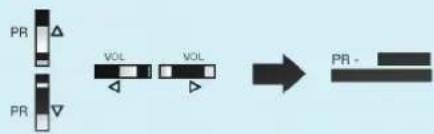
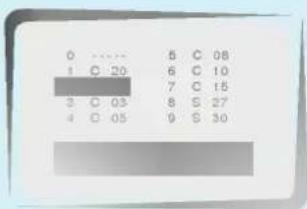

Copying a programme

- Select a programme to be copied with the ▲ / ▼ or ◀ / ▶ button.
- Press the GREEN button. All the following programmes are shifted down one position.
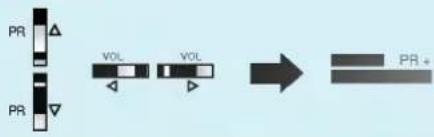

Moving a programme

- Select a programme to be moved with the ▲ / ▼ or ◀ / ▶ button.
- Press the YELLOW button.
- Move the programme to the desired programme number with the ▲ / ▼ button.
- Press the YELLOW button again to release this function.

flowchart
graph LR
    A["PR"] --> B["VOL"]
    B --> C["SWAP"]
    C --> D["PR"]
    D --> E["SWAP"]
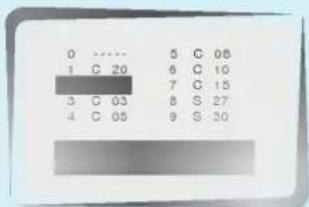

Skipping a programme number

- Select a programme to be skipped with the ▲ / ▼ or ◀ / ▶ button.
- Press the BLUE button. The skipped programme turns to blue.
- Press the BLUE button again to release the skipped programme.
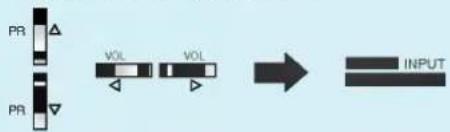
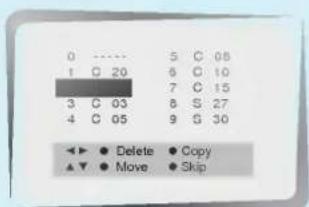
- When a programme number is skipped it means that you will be unable to select it using the ▲ / ▼ button during normal TV viewing. If you want to select the skipped programme, directly enter the programme number with the NUM-BER buttons or select it in the programme edit or table menu.

Press the TV/AV button to return to normal TV viewing.

Callin
- You can check the programme stored in the memory by displaying the programme table.


Press the LIST button to display the programme table menu. One programme table contains ten programmes as below.
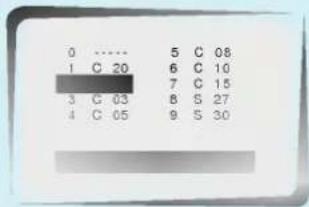
- You may find some blue programmes. They have been set up to be skipped by auto programming or in the programme edit mode.
- Some programmes with the channel number shown in the programme table indicate there is no station name assigned.

Selecting a programme in the programme table
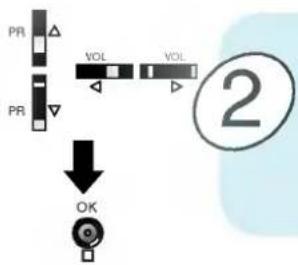
Select a programme with the ▲ / ▼ or ◀ / ▶ button. Then press the OK button. The Plasma Display switches to the chosen programme number.

Paging through a programme table
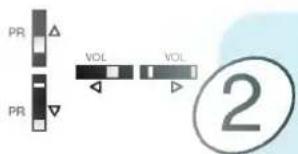
There are 10 programme table pages in which contain 100 programmes. Pressing the ▲ / ▼ or ◀ / ▶ button repeatedly turns the pages.

Press the TV/AV button to return to normal TV viewing.

- You can adjust picture contrast, brightness, colour intensity, sharpness and tint (COMPONENT, RGB-PC mode or NTSC input only) to the levels you prefer.

Repeatedly press the MENU button to select the picture menu.

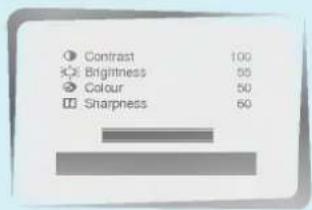

Press the ▲ / ▼ button to select the desired picture item and then press the ◀ / ▶ button to make appropriate adjustments.
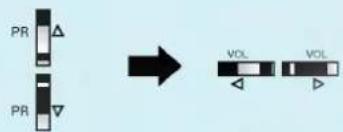
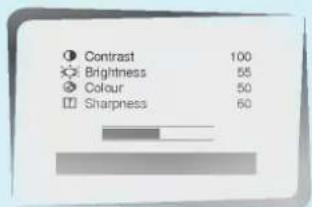

Press the OK button to store it for the picture User.

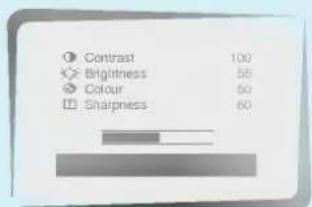
- To recall your preferred setting, press the PSM button until the desired picture (Dynamic, Standard, Mild or User) appears. The picture Dynamic, Standard and Mild are programmed for good picture reproduction at the factory and cannot be changed.

Press the TV/AV button to return to normal TV viewing.


natural_image
Simple line drawing of a smiling face on a light background, no text or symbols present- You can watch Plasma Display in various picture formats; 16:9 (Wide), 4:3 (Standard), Zoom 1 or Zoom 2.

ARC (Aspect Ratio Control)
Repeatedly press the ARC button to select your desired picture format.
• 16:9
You can enjoy the cinema (the picture format of 16:9) or general Plasma Display programme through the 16:9 mode.
The screen 16:9 is viewed just like that but the screen 4:3 is magnified to the left and right so that the screen 16:9 is full.
• 4:3
This picture format is 4 to 3 of general Plasma Display.
- Zoom 1
You can enjoy the cinema in a vast screen through the Zoom mode. The screen 4:3 is magnified to the upper/lower sides so that the screen 16:9 is full. The bottom and top of the picture may be lost.
You can move the screen up/down with ▲ / ▼ button.
- Zoom 2
You can enjoy a larger magnified screen in this mode. The screen Zoom 2 is viewed just like that but the screen 16:9 is magnified more and more to the left and right so that the screen Zoom 2 is full.
- Zoom
Only when receiving over SVGA (800X600), you can select Zoom.
You can move the screen up/down or left/right with ▲ / ▼ or ◀ / ▶ button.

Tips
- When you switch the Plasma Display to standby or off, the picture format is reset to the 16:9.
- In COMPONENT and RGB-PC VGA mode, this function only the 16:9 and the 4:3 works.
- Only when receiving RGB-PC signal (over 800 x 600) in RGB-PC mode, you can select Zoom.
Sound adjustment
Manufactured under license from Dolby Laboratories. "Dolby" "Pro Logic" and the double-D symbol are trademarks of Dolby Laboratories.
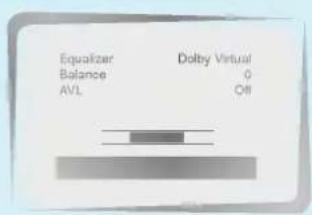
- You can select your preferred sound setting; Dolby Virtual, Flat, Music, Movie or Speech and you can also adjust the sound frequency of equalizer and balance. If you switch AVL to on, the set will automatically keeps on an equal volume level even if you change programmes. The optional woofer sound stresses and emphasizes bass.

Repeatedly press the MENU button to select the sound menu.
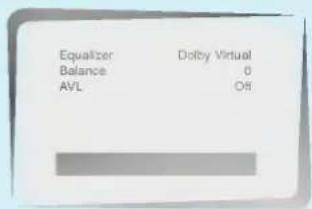

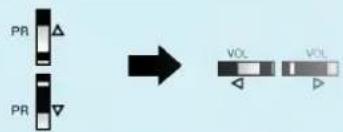
Press the ▲ / ▼ button to select the desired sound item and then press the ◀ / ▶ button to make desired adjustments.

Equalizer

Press the OK button in Equalizer to set the Equalizer User.
a. Select User by pressing the ▲ / ▼ button.
b. Select a sound band by pressing the ◀ / ▶ button.
c. Make appropriate sound level with the ▲ / ▼ button.
d. Press the OK button to store it for the sound User.
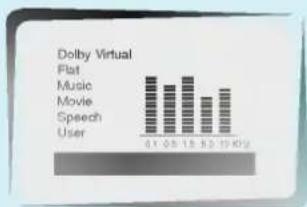
bar
Dolby Virtual | Category | Value | |---|---| | Flat | 10 | | Music | 9 | | Movie | 8 | | Speech | 7 | | User | 6 |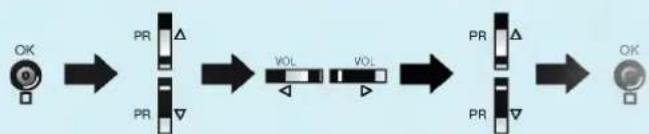
flowchart
graph LR
    A["OK"] --> B["PR"]
    B --> C["VOL"]
    C --> D["PR"]
    D --> E["OK"]
- To recall your preferred setting, press the SSM button until the desired sound (Dolby Virtual, Flat, Music, Movie, Speech or User) appears. The sound Dolby Virtual, Flat, Music, Movie and Speech are programmed for good sound reproduction at the factory and cannot be changed.

Press the TV/AV button to return to normal TV viewing.

En
- When a programme is selected, the sound information for the station appears after the programme number and station name disappear.
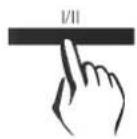
On Screen Display
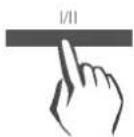
Press the I/II button to received broadcast state.
Broadcast
On screen Display
Mono
MONO
Stereo
STEREO
Dual
DUAL I
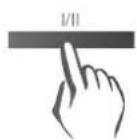
Mono sound selection
In stereo reception if the stereo signal is weak, you can switch to mono by pressing the I/II button twice. In mono reception the depth of sound is improved. To switch back to stereo, press the I/II button twice again.
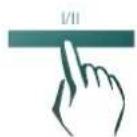
Language selection for dual language broadcast
If a programme received in two languages (dual language), you can switch to DUAL I, DUAL II or DUAL I II by pressing the I/II button repeatedly.
• DUAL I sends the primary broadcast language to the loudspeakers.
• DUAL II sends the secondary broadcast language to the loudspeakers.
• DUAL I II sends a separate language to each loudspeaker.

natural_image
Simple line drawing of a smiling TV with a logo, no text or symbols present- If your Plasma Display is equipped with the PDP Tuner for NICAM reception, the high quality NICAM (Near Instantaneous Companding Audio Multiplex) digital sound can be received.
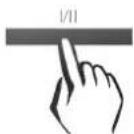
Sound output can be selected according to the type of received broadcast as follows by pressing the I/II button repeatedly.
- When NICAM mono is received, you can select NICAM MONO or FM MONO.
- When NICAM stereo is received, you can select NICAM STEREO or FM MONO. If the stereo signal is weak, switch to FM mono.
- When NICAM dual is received, you can select NICAM DUAL 1, NICAM DUAL II, NICAM DUAL 1 II, or MONO. When FM mono is selected the display MONO appears on the screen.
Sound output selection in AV mode
In AV mode, you can select output sound for the left and right loudspeakers.
Repeatedly press the I/II button to select the sound output.
- L+R: Audio signal from audio L input is sent to left loud-speaker and audio signal from audio R input is sent to right loud-speaker.
- L+L: Audio signal from audio L input is sent to left and right loud-speakers.
- R + R : Audio signal from audio R input is sent to left and right loud-speakers.

natural_image
Simple line drawing of a smiling TV with a small screen, set against a plain teal background (no text or symbols)- The Plasma Display can be set so that the remote control is needed to control it. This feature can be used to prevent unauthorized viewing.

Repeatedly press the MENU button to select the special menu.

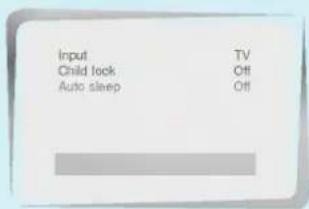

Press the ▲ / ▼ button to select Child lock.
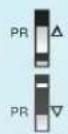
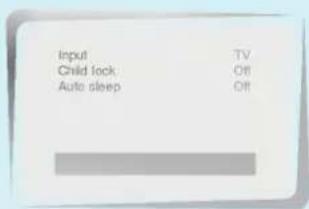

Press the ◀ / ▶ button to select On.
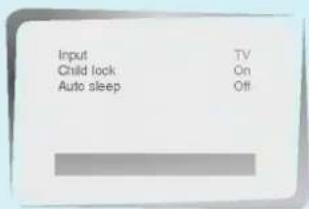
- With the lock on, the display Child lock on appears on the screen if any button on the Monitor or on the PDP Tuner is pressed while viewing the Plasma Display.

Press the TV/AV button to return to normal TV viewing.


natural_image
Simple line drawing of a TV set with a smiling face, no text or symbols present- If you select Auto sleep On, the Plasma Display will automatically switch itself to standby mode approximately ten minutes after a TV station stops broadcasting or no input signal.

Repeatedly press the MENU button to select the special menu.

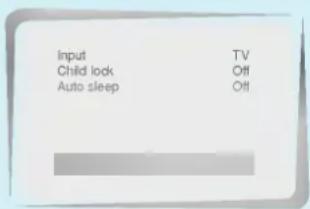

Press the ▲ / ▼ button to select Auto sleep.
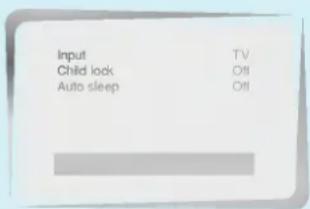

Press the ◀ / ▶ button to select On.
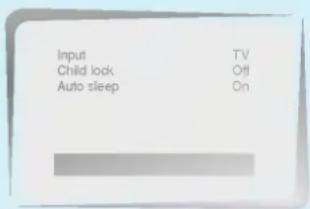

Press the TV/AV button to return to normal TV viewing.

natural_image
Simple line drawing of a computer monitor with a smiling face, set against a teal background (no text or symbols)- You don't have to remember to switch the Plasma Display off before you go to sleep. The sleep timer automatically switches the Plasma Display to standby after the preset time elapses
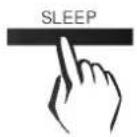
Press the SLEEP button to set sleep time. Each time you press this button setting time is changed as below.
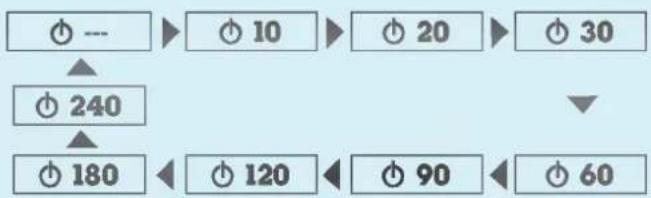
flowchart
graph TD
    A["⊕ ---"] --> B["⊕ 10"]
    B --> C["⊕ 20"]
    C --> D["⊕ 30"]
    A --> E["⊕ 240"]
    E --> F["⊕ 180"]
    F --> G["⊕ 120"]
    G --> H["⊕ 90"]
    H --> I["⊕ 60"]
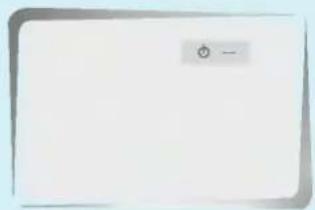
- To release sleep time setting, press the SLEEP button repeatedly to select ⏻ ---.

Tips
• To view the remaining sleep time, press the SLEEP button once.
- When you switch the Plasma Display off, the Plasma Display releases the pre-set sleep time.
PI
- PIP (Picture in Picture) is an optional function.
PIP displays a picture within a picture in the TV and AV modes.
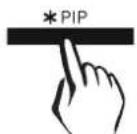
Press the *PIP button to switch on the sub picture.
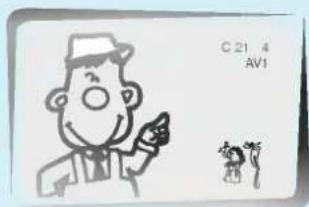
Press the *PIP button again to switch it off.

Adjusting PIP mode
- Input mode selection for sub picture
Press the INPUT button to select the input mode for the sub picture.
Each time this button is pressed, each input mode for the sub picture is displayed as below.

flowchart
graph LR
    TV --> AV1
    AV1 --> AV2
    AV2 --> AV3
    AV3 -->|Feedback| TV
- Swapping between main and sub pictures
Press the SWAP button to exchange the main and sub picture.

• Programme selection for sub picture
Press the PR+/- button to select a programme for the sub picture.
The sub picture programme selection is available only when the main picture is AV mode and at the same time the sub picture is TV mode.
- Sub picture size
Repeatedly press the SIZE button to select the desired sub picture size.
The sub picture appears as below.
1/16 size of the main picture

- Sub picture position change
Press the POSITION button to repeatedly until the desired position is achieved The 1/16 picture moves clock wise.

natural_image
Simple line drawing of a smiling TV with a small screen, set against a teal gradient background (no text or symbols)- Teletext (or TOP text) is an optional function, therefore only the Plasma Display with the teletext system can receive the teletext broadcast.
- Teletext is a free service broadcast by most TV stations which gives up-to-the-minute information on news, weather, television programmes, share prices and many other topics.
- The teletext decoder of this Plasma Display can support the SIMPLE, TOP and FASTEXT systems. SIMPLE (standard teletext) consists of a number of pages which are selected by directly entering the corresponding page number. TOP and FASTEXT are more modern methods allowing quick and easy selection of teletext information.

Press the *TEXT button to switch to teletext.
- The initial page or last page appears on the screen. Two page numbers, TV station name, date and time are displayed on the screen headline. The first page number indicates your selection, while the second shows the current page displayed.
Press the *TEXT button to switch off teletext.

SIMPLE text
Page selection
- Enter the desired page number as a three digit number with the NUMBER buttons. If during selection you press a wrong number, you must complete the three digit number and then reenter the correct page number.
- The ▲ / ▼ button can also be used to select the preceding or following page.
Programming a colour button in LIST mode
If the Plasma Display is in SIMPLE text, TOP text or FASTEXT mode, press the ☑ button to switch to LIST mode.
Four teletext page numbers of your choice can be colour coded and easily selected by pressing the corresponding coloured button on the remote control.
- Press a coloured button.
- Using the NUMBER buttons, select the page you wish to programme.
- Press the OK button. Then the selected page is stored as the selected page number with blinking once. From now on, you can select this page with the same coloured button.
- The three other coloured buttons are programmed in this way.

TOP text (option)
The user guide displays four fields-red, green, yellow and blue at the bottom of the screen. The yellow field denotes the next group and the blue field indicates the next block.
Block / group / page selection
- With the blue button you can progress from block to block.
- Use the yellow button to proceed to the next group with automatic overflow to the next block.
- With the green button you can proceed to the next existing page with automatic overflow to the next group. (Alternatively the ▲ button can be used.)
- The red button permits to return to previous selection. (Alternatively the ▼ button can be used.)
Direct page selection
Corresponding to the SIMPLE text mode, you can select a page by entering it as a three digit number using the NUMBER buttons in TOP mode.

FASTEXT
The teletext pages are colour coded along the bottom of the screen and are selected by pressing the corresponding coloured button.
Page selection
- Press the ☐ button to select the index page.
- You can select the pages which are colour coded along the bottom line with the same coloured buttons.
- Corresponding to the SIMPLE text mode, you can select a page by entering its three digit page number with the NUMBER buttons in FASTEXT mode.
- The ▲ / ▼ button can also be used to select the preceding or following page.

natural_image
Simple line drawing of a smiling face on a light blue background with a teal gradient background (no text or symbols)
Special teletext functions

REVEAL
Press this button to display concealed information, such as solutions of riddles or puzzles.
Press this button again to remove the information from the display.

SIZE
Selects double height text.
Press this button to enlarge the top half of the page.
Press this button again to enlarge the bottom half of the page.
Press this button again to return to the normal display.

UPDATE
Displays the TV picture on the screen while waiting for the new teletext page.
The display X will appear at the top left hand corner of the screen. When the updated page is available then display X will change to the page number.
Press this button to view the updated teletext page.

HOLD
Stops the automatic page change which will occur if a teletext page consists of 2 or more sub pages. The number of sub pages and the sub page displayed is, usually, shown on the screen below the time. When this button is pressed the stop symbol is displayed at the top left-hand corner of the screen and the automatic page change is inhibited.
To continue press this button again.

MIX
Displays the teletext pages superimposed on the TV picture.
To switch the TV picture off press this button again.

TIME
When viewing a TV programme, press this button to display the time at the top right hand corner of the screen. Press this button again to remove the display. In the teletext mode, press this button to select a sub page number. The sub page number is displayed at the bottom of the screen. To hold or change the sub page, press the RED/GREEN, ▲ / ▼ or NUMBER buttons.
Press again to exit this function.
natural_image
Abstract 3D geometric shape with smooth surfaces and no visible text or symbolsTroubleshooting check list
No picture & No sound
- Check whether the Plasma Display is turned on.
- Check the power cord.
- Plug another product's power cord into the wall outlet where the Plasma Display's power cord was plugged in.
Picture OK & No sound
- Try another programme.
- Press the VOLUME (▶) button.
The remote control doesn't work
- Check to see if there is any object between the Plasma Display and the remote control causing obstruction.
- Check to see if the batteries are installed with the correct polarities. (Refer to p.28)
- Replace new batteries. (Refer to p.28)
No colour or Poor colour
- Try another programme.
- Adjust picture items in the picture menu. (Refer to p.41)
Lines or streaks in picture
- Check aerial (Change the direction of the antenna).
- Do fine tuning.
Spots or trembling in picture
- Check aerial (Change the direction of the antenna).
natural_image
Abstract gray shape on light blue background (no text or symbols)Troubleshooting check list
Vertical bars or stripes in picture
- Check for local interference (Refer to p.14)
Poor picture
- Keep a certain distance between the Monitor and the VCR.
- Activate any function to restore the brightness of the picture. (If still picture is on the screen for more than 5 minutes, the screen gets dark.)
Poor stereo sound
- Check the kind of input signal and select MONO or STEREO with the I/II button. (Refer to p.44)
No output from one of the Speakers
- Adjust Balance in the sound menu. (Refer to p.43)
Strange sound from the Plasma Display
- The reason strange sound comes from the Plasma Display when turning the Plasma Display on or off is due to the signals being input or output to the PDP panel. This strange noise does not mean that the Plasma Display is faulty.

natural_image
Simple line drawing of a TV with a smiling face, set against a plain teal background (no text or symbols)| Composition | Connection | Basic function | Station setting | Picture & Sound | Special function |
- LG Plasma Colour Display
- What is a Plasma Display?
- 160° - Wide angle range of vision
- Easy installation
- Big screen
- Multimedia Plasma Display
- Contents
- First step
- Composition
- Connection
- Basic function
- Station setting
- Picture & Sound
- Special function
- Others
- Safety Instructions
- WARNING
- NOTES
- WARNING in U.K. only
- Controls of the PDP Tuner
- Accessories
- Controls of the remote control
- Composition of the Plasma Display
- How to connect Speakers and Monitor
- Connecting antenna
- Tips
- Watching VCR
- To watch VCR
- Watching external AV source
- Watching DVD
- How to connect
- How to use
- - Component Input ports
- Connecting PC as a monitor
- Connecting with PC dicectly
- Connecting through the PDP Tuner
- Function checking in PC mode
- Adjusting in PC mode
- Auto configure
- Adjusting horizontal / vertical position
- Adjusting clock phase
- 1
- ②
- ③
- Initializing
- Outputting PC signal
- Using the remote control
- Notes for using the remote control
- Turnin
- Selectin
- Functi
- 1) Repeatedly press the MENU button.
- Press the ▲ / ▼ button to select a menu item.
- Press the ◀/▶ button to change the setting of a menu item or OK button to display the sub menu.
- Aut
- 2
- 3
- Press the ▲ / ▼ button to select Storage from.
- Press the ▲ / ▼ button to select Start and then press the OK button.
- Press the TV/AV button to return to normal TV viewing.
- Man
- Ass
- The image is too blurry to recognize any text content.
- Deleting a programme
- Copying a programme
- Moving a programme
- Skipping a programme number
- Callin
- Selecting a programme in the programme table
- Paging through a programme table
- ARC (Aspect Ratio Control)
- • 16:9
- • 4:3
- - Zoom 1
- - Zoom 2
- - Zoom
- Sound adjustment
- Equalizer
- En
- On Screen Display
- Mono sound selection
- Language selection for dual language broadcast
- Sound output selection in AV mode
- PI
- Adjusting PIP mode
- SIMPLE text
- Page selection
- Programming a colour button in LIST mode
- TOP text (option)
- Block / group / page selection
- Direct page selection
- FASTEXT
- Special teletext functions
- REVEAL
- SIZE
- UPDATE
- HOLD
- MIX
- TIME
- Troubleshooting check list
- No picture & No sound
- Picture OK & No sound
- The remote control doesn't work
- No colour or Poor colour
- Lines or streaks in picture
- Spots or trembling in picture
- Vertical bars or stripes in picture
- Poor picture
- Poor stereo sound
- No output from one of the Speakers
- Strange sound from the Plasma Display
Brand : LG
Model : RZ-BA10
Category : Digital decoder