
Roma - Mouse HAMA - Free user manual and instructions
Find the device manual for free Roma HAMA in PDF.


Pick your language and provide your email: we'll send you a specifically translated version.
| Product Type | Mouse |
| Brand | Hama |
| Model | Roma |
| Interface | USB (wired) |
| Sensor Type | Optical |
| Number of Buttons | 3 (left, right, scroll wheel) |
| Scroll Wheel | Yes |
| Cable Length | 1.5 m |
| Dimensions (W x H x D) | 60 x 100 x 30 mm |
| Weight | 100 g |
| Color | Black |
| Operating Systems Compatibility | Windows, Mac OS, Linux |
| Power Supply | USB bus-powered |
| Resolution (DPI) | 800 / 1200 / 1600 (switching) |
| Cleaning | Wipe with dry cloth |
| Safety Notes | Keep away from liquids and heat sources |
| Repairability | Not user-serviceable; contact Hama support |
| Package Contents | Mouse, user manual |
Frequently Asked Questions - Roma HAMA
How do I connect the Hama Roma mouse to my computer?
Plug the USB cable into an available USB port on your computer. The mouse will be automatically recognized and no driver installation is required for basic functions.
Why is my mouse cursor not moving smoothly?
Ensure the mouse is on a flat, non-reflective surface. Clean the optical sensor and the mouse pad if used. Check that the USB connection is secure. For better tracking, try a different surface.
How do I clean the Hama Roma mouse?
Unplug the mouse before cleaning. Use a soft, dry cloth to wipe the exterior. For stubborn dirt, slightly dampen the cloth with water and wipe gently. Avoid liquids entering the openings.
Is the Hama Roma mouse compatible with Mac OS?
Yes, the mouse works with Mac OS (including macOS) without additional drivers. Basic functions (left/right click, scroll) are supported.
Does the mouse require any special drivers?
No, the mouse uses standard HID drivers built into Windows, Mac OS, and Linux. Plug and play functionality ensures immediate use.
How can I adjust the mouse sensitivity?
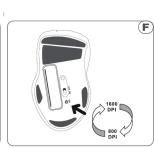
The Hama Roma may have a DPI button (if indicated in specs). Press it to cycle through preset resolutions (e.g., 800, 1200, 1600 DPI). Alternatively, adjust cursor speed in your operating system's mouse settings.
What should I do if the mouse stops working?
Try plugging into a different USB port. Restart your computer. Check for physical damage to the cable. If the issue persists, contact Hama customer support.
Is the mouse suitable for gaming?
The Hama Roma is designed for general office and home use. For casual gaming, it may suffice, but it lacks advanced features like high polling rate or extra buttons found in gaming mice.
What is the warranty period for the Hama Roma mouse?
Hama typically offers a 2-year warranty on their mice. Retain your purchase receipt for warranty claims.
Can I use the mouse with a USB hub?
Yes, but for reliable performance, connect directly to a computer USB port. Some hubs may cause intermittent issues due to power limitations.
User questions about Roma HAMA
0 question about this device. Answer the ones you know or ask your own.
Ask a new question about this device
No questions yet. Be the first to ask one.
Download the instructions for your Mouse in PDF format for free! Find your manual Roma - HAMA and take your electronic device back in hand. On this page are published all the documents necessary for the use of your device. Roma by HAMA.
USER MANUAL Roma HAMA

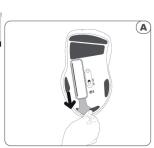
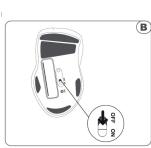
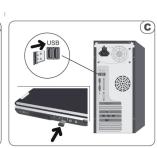
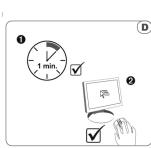

1045328769man, cn, da, sl, py, py, f, h, tu, b, ni, pi, py, py, tu, sb, py, jr, tristal 2
2016.12 11:16


Manual assistant
Powered by Anthropic
Waiting for your message
Product information
Brand : HAMA
Model : Roma
Category : Mouse