
Vegas Pro 10.0 - Software SONY - Free user manual and instructions
Find the device manual for free Vegas Pro 10.0 SONY in PDF.


| Product Type | Video Editing Software |
| Brand | Sony |
| Model | Vegas Pro 10.0 |
| Category | Software |
| Compatible Operating Systems | Windows 7, Windows Vista, Windows XP (64-bit and 32-bit) |
| Minimum Processor | 2 GHz Intel Core 2 Duo or AMD equivalent |
| Minimum RAM | 2 GB (4 GB recommended) |
| Hard Disk Space Required | 1 GB for program installation |
| Graphics Card | NVIDIA GeForce 8 series or higher, AMD Radeon HD 3000 series or higher |
| Sound Card | Windows-compatible sound card with ASIO driver support |
| Optical Drive | DVD burner for disc creation |
| Main Functions | Multi-track video editing, audio mixing, effects, color grading, and DVD/Blu-ray authoring |
| Supported Video Formats | AVI, MOV, MPEG-2, MPEG-4, WMV, AVCHD, H.264, XAVC, and more |
| Supported Audio Formats | WAV, AIFF, MP3, AAC, AC3, OGG, and more |
| User Interface | Customizable workspace with dockable windows |
| Update Policy | Free updates from Sony until next major version |
| Product Registration | Required for support and updates |
| License Type | Commercial software, single user license |
| Physical Media | DVD-ROM or digital download |
| Package Dimensions | 19 x 13.5 x 1.5 cm (for DVD box) |
| Package Weight | 0.2 kg (for DVD box) |
| Cleaning and Maintenance | Keep disc clean and stored in a dry place; for digital version, no physical maintenance required |
| Safety Precautions | Avoid excessive screen time; take breaks every 30 minutes |
| Spare Parts and Repairability | Not applicable; software can be reinstalled from original media or download |
| General Information | Professional-grade NLE software used by filmmakers and video editors |
Frequently Asked Questions - Vegas Pro 10.0 SONY
User questions about Vegas Pro 10.0 SONY
0 question about this device. Answer the ones you know or ask your own.
Ask a new question about this device
Download the instructions for your Software in PDF format for free! Find your manual Vegas Pro 10.0 - SONY and take your electronic device back in hand. On this page are published all the documents necessary for the use of your device. Vegas Pro 10.0 by SONY.
USER MANUAL Vegas Pro 10.0 SONY
natural_image
Close-up of a black rectangular optical device with a central lens and concentric rings (no text or symbols visible)VEGAS™ PRO
User Manual
What's new in version 10.0
Video
- Stereoscopic 3D editing and 3D Blu-ray Disc burning. For more information, see Stereoscopic 3D Editing on page 143 and Burning a Blu-ray Disc on page 422.
- Improved support for closed captions:
• You can now preview captions using overlays in the Video Preview window and Trimmer window.
- Added support for import, rendering, and print to tape of Line 21 CEA608 closed captions.
- Added support for reading ATSC and SCTE closed captions in MPEG-2 video. When you render to MPEG-2 format, captioning markers are encoded in ATSC format.
- When rendering to XDCAM HD/HD422, CEA608 data is uplifted to CEA708 format so that CEA608 and CEA708 captions are available when playing via HD SDI.
• You can now export closed captioning for DVD Architect, YouTube, RealPlayer, QuickTime, and Windows Media Player.
- You can now import closed captioning from the following file types: Scenarist Closed Caption (.scc), RealPlayer (.rt), SubRip Subtitles (.srt), Windows Media Player (.smi), Transcript or QuickTime (.txt), CPC MacCaption Files (.mcc), and DVD Architect Subtitles (.sub).
For more information, see Closed Captioning on page 309.
- New video plug-in SDK.
• Image stabilization for video clips. For more information, see Stabilizing video clips on page 203.
• Genlock controls for synchronizing AJA video device output to a reference signal when previewing or printing to tape.
For more information about previewing video from an AJA video device, see Configuring an AJA Io Express, XENA 2K, LH, LHe, LHi, LS, or LSe SDI card on page 445.
For more information about printing video from an AJA video device to tape, see Printing to a tape deck connected to an SDI card on page 405.
- Added support for 50p and 60p projects, capture, and print to tape.
Project templates:
• HD 720-50p (1280x720, 50 fps)
• HD 720-60p (1280x720, 59.94 fps)
AVI rendering templates:
- HD 720-50p YUV
- HD 720-60p YUV
Audio
- Input busses allow you to record from external devices with effects, mix external audio sources with your project, use external effects processors with your tracks and busses, and provide input monitoring. For more information, see Using input bus channel strips on page 238.
• Real-time rendering. For more information, see Rendering in real time on page 401.
• Audio event effects. For more information, see Using audio effects on page 253.
• Record Broadcast Wave Format (.bwf) metadata when recording audio. For more information, see Audio tab on page 451. - Updated audio track headers with output meters. For more information, see Audio track header on page 66.
• VU meters in the Mixing Console window.
Workflow
• You can now group tracks in the track list. For more information, see Grouping tracks on page 168.
- New multicamera editing features:
- Preview the full frame on an external monitor.
- Choose takes for time selections.
- Expand a multicamera track to multiple tracks.
For more information, see Working with Multicamera Video on page 137.
- Improved usability of the Trimmer and Video Preview windows with the addition of transport controls. For more information, see Using the Trimmer window on page 128 and Understanding the Video Preview window on page 369.
-
Press Alt+Down Arrow during playback to move the edit cursor to the playback cursor location for editing or recording.
• Device Explorer improvements: -
You can now right-click a clip in the Device Explorer window and choose Open in Trimmer or Import and Add to Project to choose how you want to import clips.
• You can now drag clips from the Device Explorer to the Project Media or Trimmer window.
For more information, see Using the Device Explorer on page 60.
- You can now change the location for creating prerendered files from the Print to Tape Wizard. For more information, see Printing video to tape on page 402.
- New Microsoft Image Mastering API (IMAPI) disc drivers for DVD and Blu-ray Disc burning. For more information, see CD Settings tab on page 458.
Formats
• Improved support for GPU-accelerated AVC rendering using the Sony AVC plug-in.
NVIDIA GPUs
GPU-accelerated AVC rendering requires a CUDA-enabled GPU and NVIDIA drive 185.xx or later with a GeForce GT 2xx Series or newer GPU.
For more information about CUDA-enabled GPUs, please see http://www.nvidia.com/object/cuda_learn_products.html.
ATI GPUs
OpenCL GPU-accelerated rendering requires an OpenCL-enabled GPU and AMD Radeon Catalyst driver 11.2. If using an ATI FirePro GPU, FirePro unified driver 8.773 or later is required.
For more information about OpenCL-enabled GPUs, please see http://www.amd.com/us/products/desktop/graphics/Pages/desktop-graphics.aspx.
GPU-accelerated rendering performance will vary depending on your specific hardware configuration. If you have an older CPU and a newer GPU, rendering using the GPU may improve render times.
- Support for reading timecode in AVCHD and SD MPEG-2 files written by cameras that support timecode, such as Sony NXCAM cameras.
• Improved performance when reading MXF, QuickTime AVC, and QuickTime AVC/H.264 video. - Support for reading and rendering CineForm AVI and QuickTime files (including Neo3D) when you have a CineForm product installed (version 5.1 or later).
- Added support for reading MVC video.
- Added support for rendering MVC video with the Sony AVC/MVC plug-in.
• Added support for reading MPO (multiple picture object) 3D still images and sweep panorama images. - Support for reading 3D AVC video created by the 3D Bloggie HD camera.
Welcome
After Vegas ^® Pro software is installed and you start it for the first time, the registration wizard appears. This wizard offers easy steps that allow you to register the software online with Sony Creative Software Inc. Alternatively, you can register online at https://www.sonycreativesoftware.com/reg/software at any time.
Registration assistance
Registration assistance is available online at http://www.sonycreativesoftware.com/reg/faq or by fax at (608) 250-1745.
Customer service/sales
For a detailed list of customer service options, we encourage you to visit http://www.sonycreativesoftware.com/support/custserv.asp. Use the following numbers for telephone support during normal weekday business hours:
| Telephone/Fax | Country |
| (800) 577-6642 (toll-free) | US, Canada, and Virgin Islands |
| (608) 203-7620 | for all other countries |
| (608) 250-1745 (Fax) All countries | |
Technical support
For a detailed list of technical support options, we encourage you to visit http://www.sonycreativesoftware.com/support/default.asp. To listen to your support options by telephone, please call (608) 256-5555.
About your rights in Vegas Pro software
Vegas Pro software is licensed to you under the terms of the End User License Agreement you entered into with Sony Creative Software Inc.
About your privacy
Sony Creative Software Inc. respects your privacy and is committed to protecting personal information. Your use of the software is governed by the Software Privacy Policy. Please review its contents carefully as its terms and conditions affect your rights with respect to the information that is collected by the software. For your reference, a copy of the Software Privacy Policy is located at http://www.sonycreativesoftware.com/corporate/privacy.asp.
Proper use of software
Vegas Pro software is not intended and should not be used for illegal or infringing purposes, such as the illegal copying or sharing of copyrighted materials. Using Vegas Pro software for such purposes is, among other things, against United States and international copyright laws and contrary to the terms and conditions of the End User License Agreement. Such activity may be punishable by law and may also subject you to the breach remedies set forth in the End User License Agreement.
Legal notices
ACID, ACIDized, ACIDplanet.com, ACIDplanet, the ACIDplanet logo, ACID XMC, Artist Integrated, the Artist Integrated logo, Beatmapper, Cinescore, CD Architect, DVD Architect, Jam Trax, Perfect Clarity Audio, Photo Go, Sound Forge, Super Duper Music Looper, Transparent Technology, Vegas, Vision Series, and Visual Creation Studio are the trademarks or registered trademarks of Sony Creative Software Inc. in the United States and other countries.
PlayStation is a registered trademark and PSP is a trademark of Sony Computer Entertainment Inc.
HDV and HDV logo are trademarks of Sony Corporation and Victor Company of Japan, Limited (JVC).
All other trademarks or registered trademarks are the property of their respective owners in the United States and other countries.
Sony Creative Software Inc. may have patents, patent applications, trademarks, copyrights, or other intellectual property rights covering subject matter in this document. Except as expressly provided in any written license agreement from Sony Creative Software Inc., the furnishing of this document does not give you any license to these patents, trademarks, copyrights, or other intellectual property.
Apple Macintosh Audio Interchange File Format (AIFF) file format
Apple ^® Macintosh ^® Audio Interchange ^™ File Format (AIFF) is a trademark of Apple, Inc. in the United States and other countries.
Apple QuickTime
Apple® QuickTime® application is a trademark of Apple, Inc. in the United States and other countries.
ATRAC
"ATRAC," "ATRAC3," "ATRAC3plus," "ATRAC Advanced Lossless," and the ATRAC logo are trademarks of Sony Corporation.
http://www.sony.net/Products/ATRAC3/
AVCHD
AVCHD and AVCHD logo are trademarks of Matsushita Electric Industrial Co., Ltd and Sony Corporation.
Boost Software
Boost Software License - Version 1.0 - August 17th, 2003
Permission is hereby granted, free of charge, to any person or organization obtaining a copy of the software and accompanying documentation covered by this license (the "Software") to use, reproduce, display, distribute, execute, and transmit the Software, and to prepare derivative works of the Software, and to permit third-parties to whom the Software is furnished to do so, all subject to the following:
The copyright notices in the Software and this entire statement, including the above license grant, this restriction and the following disclaimer, must be included in all copies of the Software, in whole or in part, and all derivative works of the Software, unless such copies or derivative works are solely in the form of machine-executable object code generated by a source language processor.
THE SOFTWARE IS PROVIDED "AS IS", WITHOUT WARRANTY OF ANY KIND, EXPRESS OR IMPLIED, INCLUDING BUT NOT LIMITED TO THE WARRANTIES OF MERCHANTABILITY, FITNESS FOR A PARTICULAR PURPOSE, TITLE AND NON-INFRINGEMENT. IN NO EVENT SHALL THE COPYRIGHT HOLDERS OR ANYONE DISTRIBUTING THE SOFTWARE BE LIABLE FOR ANY DAMAGES OR OTHER LIABILITY, WHETHER IN CONTRACT, TORT OR OTHERWISE, ARISING FROM, OUT OF OR IN CONNECTION WITH THE SOFTWARE OR THE USE OR OTHER DEALINGS IN THE SOFTWARE.
DeckLink
DeckLink™ is a trademark of Blackmagic-Design Pty. Ltd.
Dolby, Dolby Digital AC-3, and AAC encoding
This product contains one or more programs protected under international and U.S. copyright laws as unpublished works. They are confidential and proprietary to Dolby Laboratories. Their reproduction or disclosure, in whole or in part, or the production of derivative works therefrom without the express permission of Dolby Laboratories is prohibited. Copyright 1992 - 2008 Dolby Laboratories. All rights reserved.
Dolby ^® , the double-D symbol, AC-3 ^® , and Dolby Digital ^® are registered trademarks of Dolby Laboratories. AAC ^™ is a trademark of Dolby Laboratories.
élastique Pro
Portions of this product use zplane élastique Pro V2 audio time-stretching technology.
FLAC/Ogg File Formats
©2008, Xiph.org Foundation
Neither the name of the Xiph.org Foundation nor the names of its contributors may be used to endorse or promote products derived from this software without specific prior written permission.
This software is provided by the copyright holders and contributors "as is" and any express or implied warranties, including, but not limited to, the implied warranties of merchantability and fitness for a particular purpose are disclaimed. In no event shall the foundation or contributors be liable for any direct, indirect, incidental, special, exemplary, or consequential damages (including, but not limited to, procurement of substitute goods or services; loss of use, data, or profits; or business interruption) however caused and on any theory of liability, whether in contract, strict liability, or tort (including negligence or otherwise) arising in any way out of the use of this software, even if advised of the possibility of such damage.
Gracenote
CD and music-related data from Gracenote, Inc., copyright © 2000-2008 Gracenote. Gracenote Software, copyright 2000-2008 Gracenote. This product and service may practice one or more of the following U.S. Patents: #5,987,525; #6,061,680; #6,154,773, #6,161,132, #6,230,192, #6,230,207, #6,240,459, #6,330,593, and other patents issued or pending. Services supplied and/or device manufactured under license for following Open Globe, Inc. United States Patent 6,304,523.
Gracenote and CDDB are registered trademarks of Gracenote. The Gracenote logo and logotype, MusicID, and the "Powered by Gracenote" logo are trademarks of Gracenote.
i.Link
i.LINK ^® is a registered trademark of Sony Electronics, used only to designate that a product contains an IEEE 1394 connector. All products with an IEEE 1394 connector may not communicate with each other.
JPEG
This software is based in part on the work of the Independent JPEG Group.
Macromedia Flash
Macromedia and Flash are trademarks or registered trademarks of Macromedia, Inc. in the United States and/or other countries.
Main Concept encoder
Main Concept* plug-in is a trademark of registered trademark of Main Concept, Inc. in the United States or other countries. All rights reserved.
Microsoft DirectX programming interface
Portions utilize the Microsoft® DirectX® programming interface. Copyright © 1999 – 2004 Microsoft Corporation. All rights reserved.
Microsoft Windows Media
Portions utilize Microsoft Windows Media® Technologies. Copyright © 1999 – 2007 Microsoft Corporation. All rights reserved.
MPEGLA and MPEG 2
USE OF THIS PRODUCT IN ANY MANNER THAT COMPLIES WITH THE MPEG-2 STANDARD IS EXPRESSLY PROHIBITED WITHOUT A LICENSE UNDER APPLICABLE PATENTS IN THE MPEG-2 PATENT PORTFOLIO, WHICH LICENSE IS AVAILABLE FROM MPEG-LA, LLC, 250 STEELE STREET, SUITE 300, DENVER, COLORADO 80206.
Manufactured under license from MPEG-LA.
OpenEXR
Copyright © 2006, Industrial Light & Magic, a division of Lucasfilm Entertainment Company Ltd. Portions contributed and copyright held by others as indicated. All rights reserved.
Redistribution and use in source and binary forms, with or without modification, are permitted provided that the following conditions are met:
• Redistributions of source code must retain the above copyright notice, this list of conditions and the following disclaimer.
- Redistributions in binary form must reproduce the above copyright notice, this list of conditions and the following disclaimer in the documentation and/or other materials provided with the distribution.
• Neither the name of Industrial Light & Magic nor the names of any other contributors to this software may be used to endorse or promote products derived from this software without specific prior written permission.
THIS SOFTWARE IS PROVIDED BY THE COPYRIGHT HOLDERS AND CONTRIBUTORS "AS IS" AND ANY EXPRESS OR IMPLIED WARRANTIES, INCLUDING, BUT NOT LIMITED TO, THE IMPLIED WARRANTIES OF MERCHANTABILITY AND FITNESS FOR A PARTICULAR PURPOSE ARE DISCLAIMED. IN NO EVENT SHALL THE COPYRIGHT OWNER OR CONTRIBUTORS BE LIABLE FOR ANY DIRECT, INDIRECT, INCIDENTAL, SPECIAL, EXEMPLARY, OR CONSEQUENTIAL DAMAGES (INCLUDING, BUT NOT LIMITED TO, PROCUREMENT OF SUBSTITUTE GOODS OR SERVICES; LOSS OF USE, DATA, OR PROFITS; OR BUSINESS INTERRUPTION) HOWEVER CAUSED AND ON ANY THEORY OF LIABILITY, WHETHER IN CONTRACT, STRICT LIABILITY, OR TORT (INCLUDING NEGLIGENCE OR OTHERWISE) ARISING IN ANY WAY OUT OF THE USE OF THIS SOFTWARE, EVEN IF ADVISED OF THE POSSIBILITY OF SUCH DAMAGE.
PNG file format
Copyright © 2004. World Wide Web Consortium (Massachusetts Institute of Technology, European Research Consortium for Informatics and Mathematics, Keio University). All rights reserved. This work is distributed under the W3C Software License in the hope that it will be useful, but WITHOUT ANY WARRANTY; without even the implied warranty of MERCHANTABILITY or FITNESS FOR A PARTICULAR PURPOSE.
http://www.w3.org/Consortium/Legal/2002/copyright-software-20021231.
Real, RealMedia, RealAudio, and RealVideo applications
2009 RealNetworks, Inc. Patents Pending. All rights reserved. Real*, Real Media*, RealAudio*, RealVideo*, and the Real logo are trademarks or registered trademarks of RealNetworks, Inc. in the United States and other countries.
Sony AVC
THIS PRODUCT IS LICENSED UNDER THE AVC PATENT PORTFOLIO LICENSE FOR THE PERSONAL AND NON-COMMERCIAL USE OF A CONSUMER TO (i)ENCODE VIDEO IN COMPLIANCE WITH THE AVC STANDARD ("AVC VIDEO") AND/OR (ii)DECODE AVC VIDEO THAT WAS ENCODED BY A CONSUMER ENGAGED IN A PERSONAL AND NON-COMMERCIAL ACTIVITY AND/OR WAS OBTAINED FROM A VIDEO PROVIDER LICENSED TO PROVIDE AVC VIDEO. NO LICENSE IS GRANTED OR SHALL BE IMPLIED FOR ANY OTHER USE. ADDITIONAL INFORMATION MAY BE OBTAINED FROM MPEG LA, L.L.C. SEE HTTP://MPEGLA.COM
Steinberg Media Technologies
VST ^® is a registered trademarks of Steinberg Media Technologies GmbH.
ASIO™ is a trademark of Steinberg Media Technologies GmbH.
Tagged Image File Format (TIFF)
Adobe Tagged Image™ File Format is a registered trademark of Adobe Systems Incorporated in the United States and other countries. All rights reserved.
Targa file format
The Targa™ file format is a trademark of Pinnacle Systems, Inc.
Thomson Fraunhofer MP3
MPEG Layer-3 audio coding technology licensed from Fraunhofer IIS and Thomson.
Supply of this product does not convey a license nor imply any right to distribute content created with this product in revenue generating broadcast systems (terrestrial, satellite, cable and/or other distribution channels), streaming applications (via internet, intranets and/or other networks), other content distribution systems (pay-audio or audio on demand applications and the like) or on physical media (compact discs, digital versatile discs, semiconductor chips, hard drives, memory cards and the like). An independent license for such use is required. For details, please visit: http://mp3licensing.com.
Sony Creative Software Inc.
8215 Greenway Blvd.
Suite 400
Middleton, WI 53562
USA
The information contained in this manual is subject to change without notice and does not represent a guarantee or commitment on behalf of Sony Creative Software Inc. in any way. All updates or additional information relating to the contents of this manual will be posted on the Sony Creative Software Inc. Web site, located at http://www.sonycreativesoftware.com. The software is provided to you under the terms of the End User License Agreement and Software Privacy Policy, and must be used and/or copied in accordance therewith. Copying or distributing the software except as expressly described in the End User License Agreement is strictly prohibited. No part of this manual may be reproduced or transmitted in any form or for any purpose without the express written consent of Sony Creative Software Inc.
Copyright © 2011. Sony Creative Software Inc.
Program Copyright © 2011. Sony Creative Software Inc. All rights reserved.
Table of Contents
Introduction....19
Welcome....19
System requirements....19
Technical support....19
Installing Vegas Pro software 19
Getting help 20
Online help ......20
Interactive tutorials ....20
Help on the Web 20
Overview 21
Main window 21
Toolbar 22
Time Display 22
Ruler 22
Marker bar 22
Command bar 23
CD layout bar 23
Track list 23
Timeline 23
Transport bar controls 24
Status bar 24
Scrub control 24
Window docking area and floating window docks 25
Saving and recalling window layouts - Ctrl+Alt+D or Alt+D 33
Cursor indications 33
Using a control surface 33
Audio signal flow....34
Video signal flow 35
Getting Started 37
Creating projects....37
Starting a new project 37
Setting video properties based on a media file 38
Working with rotated projects 39
Saving a project 40
Renaming a project (using Save As) 40
Getting media files ....41
Previewing a media file ....41
Using the Project Media window 42
Importing media 46
Working with AVCHD video 50
Adding media to the timeline 51
Project references in rendered media files 53
Capturing video 54
Capturing from an SDI card 55
Capture Preferences 57
Using the Device Explorer 60
Previewing clips 60
Choosing the folder where you want to import clips 60
Importing clips 61
Working with events 61
Understanding files and events 61
Moving events along the timeline 62
Working with tracks....64
Using the timeline 64
Using the track list 65
Nesting projects 67
Playing back and previewing....68
Playing your project 68
Scrubbing 69
Previewing in media player 71
Prerendering video previews 71
Rendering a project....71
Publishing a project....71
Using the Media Manager....73
Creating a new media library 73
Opening a media library....73
Adding media files to a library....74
Removing media files from a library 75
Tagging media files 75
Creating a tag 75
Applying a tag to a media file 76
Removing a tag from a media file 77
Deleting a tag from a library 77
Merging subtags 77
Arranging tags in the tag tree 77
Editing tag names or images 77
Viewing or creating palettes 78
Saving tags and properties to media files 79
Tagging for loop developers 79
Backing up your media libraries 80
Opening a reference library 80
Searching for media files 81
Searching using a keyword....81
Searching using tags 82
Sorting search results 82
Viewing previous searches 82
Using advanced search options 83
Previewing media 84
Media relationships 84
Adding media to your project....85
Resolving offline media files 85
Customizing the Media Manager window 86
Resizing columns 86
Moving columns 86
Showing or hiding columns 86
Adding custom columns 86
Editing a column's contents 86
Showing thumbnails 87
Using the Properties pane 87
Setting Media Manager options....88
General tab 88
Media Library tab 88
Thumbnails tab 89
About tab 89
Using the Media Manager with multiple computers 89
Basic Editing Techniques....91
Getting around....91
Moving the cursor 91
Changing focus 91
Making selections....92
Selecting multiple events 92
Selecting a time range 93
Looping playback....94
Selecting events and a time range 95
Selecting tracks 95
Selecting groups of composited tracks 95
Editing events....96
Copying events 96
Cutting events 97
Pasting events 98
Duplicating events 100
Inserting empty events and time 100
Trimming events 101
Splitting events 103
Slipping and sliding events 105
Detecting and repairing audio and video synchronization problems 106
Deleting events 107
Applying post-edit ripples....107
Applying a post-edit ripple manually....107
Applying a post-edit ripple automatically 108
Shuffling events 108
Crossfading events....109
Using automatic crossfades 109
Manually setting a crossfade 109
Changing crossfade curves 110
Sliding a crossfade 110
Using undo and redo 110
Using undo 110
Using redo 111
Clearing the edit history 111
Adding project markers and regions....112
Working with markers 112
Working with regions 113
Working with command markers 115
Working with CD layout markers 118
Working with the marker tool 118
Using an external audio editing program 119
Setting up an audio editing program 119
Opening an audio editor from Vegas Pro software 119
Advanced Editing Techniques.... 121
Snapping events....121
Turning snapping on and off 121
Snapping to the grid 122
Snapping to markers 122
Snapping to events on other tracks 122
Quantizing to frames 122
Using the event snap offset 123
Pitch shifting audio events 123
Editing from the timeline 123
Editing in the Event Properties dialog 124
Time compressing/stretching events 124
Working with takes 125
Adding takes 125
Selecting takes 126
Previewing and selecting takes 126
Deleting takes....126
Displaying take information in events 126
Working with take names ....127
Using the Trimmer window....128
Opening a file in the Trimmer 129
Choosing Trimmer preview options 129
Choosing multichannel/multistream options 130
Moving frame by frame in the Trimmer window 130
Making selections in the Trimmer 130
Adding selections to the timeline 130
Using the Trimmer History list ....131
Adding and saving regions and markers to a media file 132
Opening a file in an external audio editor from the Trimmer .....133
Creating a subclip 133
Selecting a subclip in its parent media ....134
Opening files in the Trimmer by default 134
Removing red eye from still images....134
Using the Edit Details window .....134
Viewing the Edit Details window .....135
Customizing the Edit Details window 136
Working with Multicamera Video.... 137
Shooting multicamera video....137
Capturing multicamera video....137
Synchronizing multicamera video clips 138
Adjusting alignment using audio waveforms 138
Adjusting alignment using video 138
Creating multicamera events 139
Editing multicamera video....139
Enabling multicamera editing mode 139
Previewing multiple takes 139
Choosing takes 140
Expanding a multicamera track to multiple tracks ....141
Turning off multicamera editing mode 141
Stereoscopic 3D Editing....143
Setting up your stereoscopic 3D project....143
Setting up stereoscopic 3D previews....146
Synchronizing stereoscopic 3D events on the timeline....146
Aligning left- and right-eye views and adjusting depth 148
Rendering a stereoscopic 3D project....149
Working with XDCAM Video.... 153
XDCAM EX workflow 153
XDCAM and XDCAM HD workflow....155
Setting up an XDCAM device 156
Using the XDCAM Explorer window 157
Importing XDCAM discs....159
Editing XDCAM clips on the timeline....161
Creating and editing a project 161
Setting up your project for multichannel audio 162
Replacing proxy-resolution clips with full-resolution media (conforming media) ..... 163
Exporting video to an XDCAM disc 164
Exporting video from the timeline 164
Exporting a rendered file 166
Working with Tracks 167
Managing tracks 167
Inserting an empty track 167
Duplicating a track 167
Deleting a track 167
Naming or renaming a track 167
Organizing tracks 168
Reordering tracks 168
Grouping tracks 168
Changing track color 169
Changing track height 170
Using the track list 171
Using the volume fader (audio only) 171
Using the pan slider (audio only) 171
Using the multipurpose slider (audio only) 174
Assigning audio tracks to assignable effects chains 174
Assigning audio tracks to busses 175
Adjusting bus send levels 175
Adjusting the composite level (video only) 176
Selecting the compositing mode 176
Bypassing motion blur envelopes (video only) 176
Using track motion (video only) 176
Phase inverting a track (audio only) 176
Muting a track 177
Soloing a track 178
Setting default track properties....179
Track automation envelopes 179
Using audio bus tracks 179
Adding envelopes to an audio bus track 179
Adding effects to audio bus tracks 179
Muting or soloing an audio bus track 179
Resizing audio bus tracks 180
Using video bus tracks....180
Adding keyframes to the video bus track 180
Adding envelopes to the video bus track 180
Adding effects to video bus tracks 180
Muting the video output ....180
Bypassing video effects and envelopes 180
Resizing video bus tracks 180
Rendering to a new track....181
Using Automation 183
Showing or hiding automation controls....183
Track automation ....183
Mute automation (audio and video) 183
Volume or pan automation (audio only) 184
Assignable effects automation (audio only) 185
Bus automation (audio only) 186
Adding or removing track effect automation 187
Composite level automation (video only) 188
Fade-to-color automation (video only) 188
Adding a motion blur envelope ....189
Adding a video supersampling envelope ....190
Working with track envelopes 190
Hiding track envelopes 193
Removing track envelopes ....193
Using the Envelope Edit tool ....193
Locking envelopes to events 195
Automating 5.1 surround projects ....195
Automation recording modes ....195
Recording automation settings 195
Editing sections of your recorded settings in Touch mode ....196
Overwriting recorded settings in Latch mode 196
Editing individual envelope points or keyframes ....196
Setting the automation recording mode for a track 197
Working with Events.... 199
Setting event switches ....199
Mute 199
Lock....199
Loop 199
Invert phase (audio only) 200
Normalize (audio only) 200
Maintain aspect ratio (video only) 201
Reduce interlace flicker (video only) 201
Resample (video only) 201
Accessing event properties....201
Adjusting audio channels 202
Setting audio streams....202
Copying and pasting event attributes 202
Stabilizing video clips 203
Using audio event envelopes (ASR) 204
Setting an audio event's volume 204
Setting an event's fade in and out 205
Using video event envelopes....206
Using opacity envelopes 206
Using velocity envelopes 207
Grouping events....208
Creating a new group 208
Adding an event to an existing group 208
Removing events from a group 208
Clearing a group 209
Selecting all members of a group 209
Suspending grouping temporarily 209
Cutting, copying, or deleting grouped events 209
Using the Mixer 211
Using the Mixer window 211
Viewing the Mixer window 211
Using the Mixer toolbar 211
Using the Mixer Preview fader 212
Using busses....213
Adding busses to a project 214
Deleting busses from a project 214
Routing a bus to another bus 214
Routing busses to hardware 215
Working with busses 215
Assigning audio tracks to busses 216
Using assignable effects chains....217
Assigning audio tracks to assignable effects chains 218
Routing assignable effects chains to busses 218
Automating busses and assignable effects....218
Viewing bus tracks 218
Adding track envelopes 218
Modifying track envelopes 218
Using the Mixing Console 219
Understanding the Mixing Console window....219
The Mixing Console toolbar ....220
The Channel List pane 221
The View pane ....221
Channel strips 222
Adding track, assignable FX, and bus channels .....225
Using audio track channel strips ....225
Renaming audio tracks 225
Adding or editing track (insert) effects 225
Adjusting bus or assignable effects send levels 226
Change a track's input or output device 227
Monitoring track levels with VU/PPM meters 227
Monitoring track levels with peak meters 228
Changing a track's automation mode 228
Muting or soloing a track 229
Inverting a track's phase 229
Arming a track for recording or toggle input monitoring ....230
Adjusting track panning or volume 230
Using bus channel strips....232
Renaming a bus 232
Adding or editing bus (insert) effects 232
Adjusting bus send levels 233
Changing a bus's output device 233
Monitoring bus levels with VU/PPM meters 234
Monitoring bus levels with peak meters 235
Muting or soloing a bus 235
Adjusting bus panning or volume 236
Changing pre/post routing ....237
Using input bus channel strips....238
Adding or deleting input busses 238
Configuring input bus channel strips 239
Using FX send (assignable effects) channel strips ....244
Renaming an assignable effect chain 244
Adding or editing effects 244
Adjusting assignable effects input levels 245
Changing an effects chain's output device 245
Monitoring assignable effects levels with VU/PPM meters .....245
Monitoring output levels with peak meters 246
Muting or soloing an assignable effects chain....247
Adjusting assignable effects panning or volume 247
Using input busses with hardware-based effects 248
Monitoring an external source without mixing it with your project....249
Creating a Cue (Headphone) Mix with the Mixing Console....250
Adding Audio Effects 253
Using audio effects 253
Using plug-in chains 253
Creating a plug-in chain 254
Adding plug-ins to a plug-in chain 254
Saving customized plug-in presets 256
Arranging the order of plug-ins 256
Bypassing plug-ins on the chain 257
Removing plug-ins from a chain 257
Saving plug-in chains 257
Editing saved plug-in chains 258
Organizing your plug-ins 259
Automating effects parameters....259
Applying non-real-time event effects....259
Bypassing all audio effects 260
Recording Audio....261
Setting up your equipment....261
Basic setup 261
Setup with mixer 261
Setup with digital multitrack 262
Preparing to record 262
Arming the track for recording 263
Using the metronome 263
Recording 263
Recording into an empty track 263
Recording into a time selection 264
Recording into an event 264
Recording into an event with a time selection 265
Triggering from MIDI timecode 265
Recording using an input bus 266
Working with multiple recorded takes 268
Specifying where recordings are stored....268
Changing where recorded files are stored when arming a track 268
Changing where recorded files are stored when starting to record 268
Changing where recorded files are stored in the Project Properties dialog 268
Monitoring audio levels 268
Using record input monitoring 269
Working with 5.1 Surround....271
What is 5.1 surround? 271
Setting up surround hardware....271
Setting up surround projects ....272
Routing to hardware in the mixer 273
Assigning audio to the LFE channel 274
Adjusting volume ......274
Adjusting track volume 274
Adjusting assignable effects send or bus send levels 275
Adjusting channel levels ....275
Panning audio ....276
Panning tracks....276
Panning mixer controls 276
Using the Surround Panner window 277
Automating panning....280
Turning on panning keyframes 280
Adding panning keyframes 281
Working with keyframes 282
Rendering surround projects ....283
Creating a DVD or Blu-ray Disc with DVD Architect Pro software .....285
Using Advanced Video Features.... 287
Cropping video 287
Cropping 289
Bézier masks 289
Rotating 290
Adding animation 290
Working with still images....291
Creating still images for use in Vegas Pro software 291
Capturing a timeline snapshot 292
Creating a slide show 292
Creating text and titles ....293
Adding text and titles with the ProType Titler ....293
Inserting text with the Text plug-in ....293
Creating titles from images 293
Fading titles 294
Resampling video 295
Using Edit Decision Lists (EDL)....296
Creating an EDL 296
Opening an EDL 296
Working in DV format 297
Selecting source media 297
Setting project properties 297
Selecting templates ....297
Eliminating out-of-range colors ....298
Working in HDV format 299
Capturing HDV clips 299
Creating Proxy Files for High-Definition Editing 299
Editing HDV video on the timeline 300
Working with RED ONE camera files 301
Modifying R3D decode properties 302
Modifying project video properties....303
Modifying media file properties 305
Editing properties for an audio file 306
Editing properties for a video file 306
Setting timecode media properties 308
Setting custom stream properties 308
Closed Captioning 309
Adding closed captioning to video files....309
Importing or rendering closed captions in an MXF or MPEG-2 file 309
Importing or rendering Line 21 closed captions 310
Importing or printing captions when using HD SDI 311
Importing closed captions from a closed captioning file 311
Synchronizing captions with video 312
Adding or editing closed caption markers on the timeline 312
Captioning markup reference and examples 313
Displaying closed captions in the Video Preview or Trimmer window 316
Exporting closed captions 316
Editing multiple captions with the Edit Details window 317
Adding captions to Windows Media Video (WMV) files 318
Adding captions line-by-line 318
Adding captions from a script 318
Displaying captions 320
Using Video Effects, Compositing, and Masks 321
Using video effects....321
Adding a video effects plug-in 322
Working with video effects plug-in chains 324
Modifying a video effects plug-in 326
Saving custom plug-in settings as a preset 326
Using keyframe animation with plug-ins 326
Using generated media 327
Adding a generated media event 328
Editing a generated media event 328
Duplicating a generated media event 328
Compositing....329
Understanding the parent/child track relationship 329
Selecting compositing modes 330
Using a 2-to-1 transform plug-in to customize compositing .... 333
3D compositing....333
Single-track 3D motion ....334
Composited group 3D motion ....335
Applying a stereoscopic 3D camera ....336
Changing editing options ....336
Examples of various 3D compositing scenarios ....337
Creating masks....339
Creating image masks 339
Creating video masks 340
Bézier masks 341
Fine-tuning masks 343
Using the Mask Generator 344
Chroma keying 345
Adding Video Transitions and Motion 347
Understanding basic transitions .....347
Cuts 347
Crossfades 347
Using transition effects....348
Adding a transition 348
Adding a transition to the end of an event 348
Adding a transition to all selected events ....349
Adding a transition progress envelope 350
Understanding track layers 350
Converting a cut to a transition 351
Converting a crossfade or transition to a cut 351
Previewing a transition 352
Modifying a transition 352
Saving custom settings as a preset 353
Using keyframe animation....354
Understanding the keyframe controller ....355
Adding keyframes 355
Deleting keyframes ....356
Navigating in the keyframe controller 356
Modifying keyframes 356
Creating keyframe presets 358
Working with keyframes in the timeline 358
Sample uses for keyframe animation....360
Animating event panning and cropping 360
Animating video effects plug-ins 361
Animating generated text 362
Adding track motion ....363
Controlling track motion 363
Using the track motion shortcut menu 364
Changing editing options 364
Using keyframes in track motion 365
Creating a picture-in-picture effect 367
Animating the overlay 368
Previewing and Analyzing Video 369
Understanding the Video Preview window 369
Using the Video Preview window shortcut menu 370
Optimizing the Video Preview window 370
Adjusting preview quality and resolution 370
Prerendering video 371
Building dynamic RAM previews 372
Using split-screen previewing 372
Previewing affected and unprocessed video 373
Showing the video at the cursor position and the contents of the clipboard 373
Changing the selection for displaying split-screen views 373
Identifying safe areas 374
Viewing the grid 374
Viewing closed captions 374
Isolating color channels 374
Monitoring video with scopes....375
Displaying chrominance using the vectorscope monitor 375
Displaying luminance using the waveform monitor 376
Displaying color levels and contrast using the histogram monitor 377
Displaying RGB components with RGB parade monitor 378
Adjusting video scope settings 379
Previewing in a player....380
Using an external monitor....380
Configuring an external monitor 380
Previewing video on a secondary Windows display 381
Viewing on an external monitor via IEEE-1394 381
Viewing on an external monitor via SDI 383
Saving, Rendering, and Printing Projects.... 385
Saving a project....385
Renaming or creating a copy of a project (using Save As) 385
Autosaving a project 386
Rendering a project....387
Rendering still-image sequences 390
Rendering multichannel audio files....390
Rendering surround projects....392
Rendering MPEG format 392
Using default MPEG templates 393
Creating custom MPEG templates 394
Viewing MPEG-2 files on a computer 394
Rendering projects for use in DVD Architect Pro....395
AC-3 audio (.ac3) 395
PCM audio (.wav or .w64) 395
NTSC MPEG video (.m2p, .mp2, .mpg, .mpeg, .mpv) ....395
PAL MPEG video (.m2p, .mp2, .mpg, .mpeg, .mpv) 395
Rendering projects for Blu-ray Disc. 396
AC-3 audio (.ac3) 397
PCM audio (.wav or .w64) 397
AVC video 397
MPEG-2 video 397
Customizing the rendering process 399
Customizing the Render As settings 399
Saving custom settings as a template 400
Deleting a template 400
Copying rendering templates between computers or user accounts ....400
Rendering in real time....401
Exporting a movie to a PSP™....401
Printing video to tape ....402
Printing video to tape from the timeline 402
Printing HDV video to tape 407
Printing to tape using Video Capture 409
Burning Discs 411
Understanding track-at-once and disc-at-once CD burning .....411
Track-at-once 411
Disc-at-once (Single Session or Red Book) 411
Understanding tracks and indices....411
Setting up to burn audio CDs....412
Viewing the ruler and time display 412
Setting project properties ....412
Setting preferences ....412
Importing CD Architect files ....412
Creating audio CD layout projects ....412
Adding media as CD tracks to a new project 413
Marking tracks in an existing project 413
Working with tracks and indices 415
Navigating to and selecting tracks and indices 415
Moving track and index markers 415
Renaming track and index markers ....415
Deleting track and index markers ....415
Editing markers using the Edit Details window ....416
Copying a track list from the Edit Details window 416
Burning audio CDs....417
Burning single tracks (track-at-once) 417
Burning a disc (disc-at-once) 418
Burning video CDs 419
Burning a multimedia CD 420
Burning a Blu-ray Disc....422
Burning a DVD from the timeline 423
Using Scripting 425
Running a script 425
Adding scripts to the Scripting menu....426
Using Vegas Pro extensions 426
Creating a script 426
Editing an existing script 426
Create custom button images for scripts....427
Vegas Pro command-line options 427
Customizing Vegas Pro Software 429
Changing the Vegas Pro color scheme....429
Displaying frame numbers 430
Changing the ruler format....430
Creating a ruler offset 431
Changing grid spacing 432
Using the Time Display window 432
Changing the time display settings 432
Changing the time display colors 432
Setting the time display to monitor MIDI timecode 433
Working with project properties....434
Video tab 434
Audio tab 434
Ruler tab 435
Summary tab 436
Audio CD tab 436
Using the toolbar 437
Hiding and displaying the toolbar 437
Reordering toolbar buttons 437
Adding buttons to the toolbar 437
Removing buttons from the toolbar 437
Saving and recalling window layouts 438
Loading default window layouts 438
Saving a window layout 438
Loading a saved layout 439
Adding a layout to the View > Window Layouts submenu .....439
Removing a layout from the View > Window Layouts submenu .....439
Deleting a layout from your computer 439
Customizing keyboard shortcuts....440
Editing or creating new shortcuts 440
Saving a keyboard mapping ....440
Deleting a keyboard mapping ....440
Importing or renaming a keyboard mapping ....440
Resetting the default keyboard mapping ....441
Setting preferences ....441
General tab 441
Video tab 444
Preview Device tab ....445
Audio tab 451
Audio Device tab 453
MIDI tab 455
VST Effects tab ....455
Editing tab 455
Display tab 457
CD Settings tab 458
Sync tab 458
External Control & Automation tab 459
Using Hardware Controllers 463
Using a control surface ....463
Connecting your control surface ....463
Configuring Vegas Pro software to use your control surface 464
Configuring or customizing your control surface 464
Using your control surface 464
Using a Mackie Control Universal with Vegas Pro ....465
Hardware setup 465
Using the Mackie Control Universal ....469
Using a Frontier TranzPort....481
Viewing the control mappings ....481
Adjusting track or bus volume 481
Adjusting track or bus panning ....482
Editing a track's input device ....482
Editing a track or mixer control's output device ....482
Using a PreSonus FaderPort ....482
Viewing the control mappings ....482
Adjusting track or bus volume 483
Adjusting track or bus panning ....483
Starting recording 483
Using a generic control surface....484
Customizing your control mappings 484
Loading a control mapping file 484
Configuring a generic control surface....485
Using a joystick 486
Using the Microsoft SideWinder Force Feedback 2 joystick .... 486
Using the Logitech Wingman joystick 487
Using the Gravis Eliminator Precision Pro joystick 487
Using a Multimedia Controller....488
Contour ShuttlePro default settings 488
Contour ShuttleXpress default settings 489
Navigating the timeline with a ShuttlePro or ShuttleXpress 489
Navigating the timeline with a PowerMate or other controller 489
Editing events with a ShuttlePro or ShuttleXpress 490
Troubleshooting.... 491
Troubleshooting resources....491
Common questions....491
Why are some of my DirectX plug-ins not working correctly? 491
Why do I hear gaps in my audio playback? 491
Why do mono events increase 6 dB when panning a track hard? 492
Why do buffer underruns occur during a test or real write to a CD? 492
Why can't I work with footage captured using an MJPEG card? 492
Trouble-free video: software solutions....493
Trouble-free video: hardware solutions 493
Video subsystem 493
Hard disk 493
CPU and RAM (memory) 494
Audio proxy files (.sfap0) 494
Timecode....495
SMPTE timecode types 495
Timecode in Vegas Pro software 496
Troubleshooting DV hardware issues 496
Glossary 497
Keyboard Shortcuts.... 511
Index......i
Introduction
Welcome
Vegas® Pro software is an innovative and advanced multitrack media-editing system. Vegas Pro software was designed to create an efficient audio/video production environment without sacrificing the quality and processing power that you expect from Sony Creative Software Inc. Whether it's the standard and familiar Microsoft® Windows® navigation commands or the clean and uncluttered interface, you'll find Vegas Pro software to be a tool that will be mastered in minutes. Beneath the unique and customizable interface, you'll find a product that is both powerful and flexible.
System requirements
In order to use Vegas Pro software, your computer must satisfy the following minimum specifications:
• Microsoft® Windows® XP 32-bit SP3, Windows Vista® 32-bit or 64-bit SP2, or Windows 7 32-bit or 64-bit
• 2 GHz processor (multicore or multiprocessor CPU recommended for HD or stereoscopic 3D)
• 400 MB hard-disk space for program installation
• 1 GB RAM (2 GB recommended)
- OHCI compatible i.LINK® connector*/IEEE-1394DV card (for DV and HDV capture and print-to-tape)
• USB 2.0 connection (for importing from AVCHD, XDCAM EX, NXCAM, or DVD camcorders)
• Windows-compatible sound card
• DVD-ROM drive (for installation from a DVD only)
• Supported CD-recordable drive (for CD burning only)
• Supported DVD-R/-RW/+R/+RW (for DVD burning only)
• Supported BD-R/-RE drive (for Blu-ray Disc™ burning only)
• Microsoft .NET Framework 3.0 (included on application disc)**
• Apple® QuickTime 7.1.6 or later
You must provide your registration information to Sony Creative Software Inc., a US company, in order to activate the software. Product requires online registration within 30 days.
*i.LINK is a registered trademark of Sony Electronics, used only to designate that a product contains an IEEE 1394 connector. All products with an IEEE 1394 connector may not communicate with each other.
**.NET 3.0 adds functionality to .NET 2.0. After installing the .NET Framework 3.0, versions 2.0 and 3.0 will be displayed in the Windows Add or Remove Programs listing. Do not attempt to uninstall version 2.0; it is required by version 3.0.
Technical support
The Web site at http://www.sonycreativesoftware.com/support/default.asp has technical support, reference information, program updates, tips and tricks, user forums, and a knowledge base.
Installing Vegas Pro software
- Place the Vegas Pro application disc in the drive. The setup screen appears if AutoPlay is enabled for your DVD drive. If DVD AutoPlay is not enabled, click the Start button and choose Run. In the Run dialog that appears, type the DVD drive's letter and add:\setup.exe. Click OK to start the installation.
- Click Install, and follow the on-screen prompts to install the appropriate version of Vegas Pro for your computer.
Getting help
You can access two varieties of help within Vegas Pro:
• Online help
• Interactive tutorials
Online help
To access online help, choose Contents and Index from the Help menu or press F1.
The online help window has four tabs that you can use to find the information that you need.
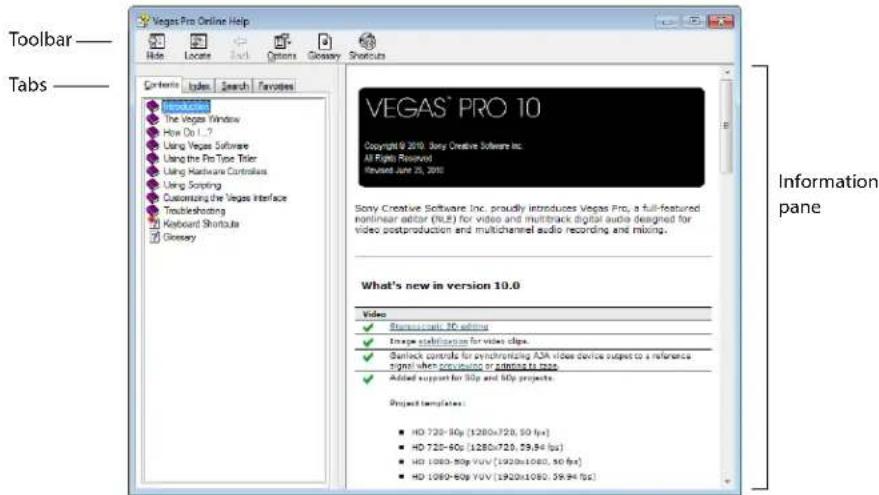
| Tab | Description |
| Contents | Provides a list of available help topics. Click a closed book ➕ to open the pages, and then click on a topic page ?. |
| Index | Provides a complete listing of the help topics available. Scroll through the list of available topics or type a word in the Type in the keyword to find box to quickly locate topics related to that word. Select the topic and click the Display button. |
| Search | Allows you to type a keyword and display all of the topics in the online help that contain the keyword you have entered. Type a keyword in the Type in the word(s) to search for box and click the List Topics button. Select the topic from the list and click the Display button. |
| Favorites | Allows you to keep topics that you revisit often in a separate folder. To add a topic to your favorites, click the Add button on the Favorites tab. |
Interactive tutorials
You can learn more about many of the features in Vegas Pro by using the interactive tutorials installed with the software.
By default, the tutorials display upon startup of the application. However, you can access them at any time from the Help menu by choosing Interactive Tutorials.
Tip: To turn off automatic display of the tutorials, clear the Show at Startup check box at the bottom of the tutorial window.
Help on the Web
Additional help and information is available on the Sony Creative Software Inc. Web site. From the Help menu, choose Sony on the Web to view a listing of Web pages pertaining to Vegas Pro software and Sony Creative Software Inc. The software starts your system's Web browser and attempts to connect to the appropriate page on the Sony Creative Software Inc. site.
Overview
Vegas Pro software is designed to be an easy-to-use program with many tools that provide power and flexibility when creating and working with multimedia files. Many operations, menu items, and shortcut keys are consistent with other popular Microsoft Windows software applications.
The following sections provide a graphical tour of the Vegas Pro workspace.
Main window
This is the window that appears when the software is opened. The work area is subdivided into three primary areas: the track list, the timeline (track view), and the window docking area. You can resize the track list, timeline, and window docking area by dragging the dividers between them.
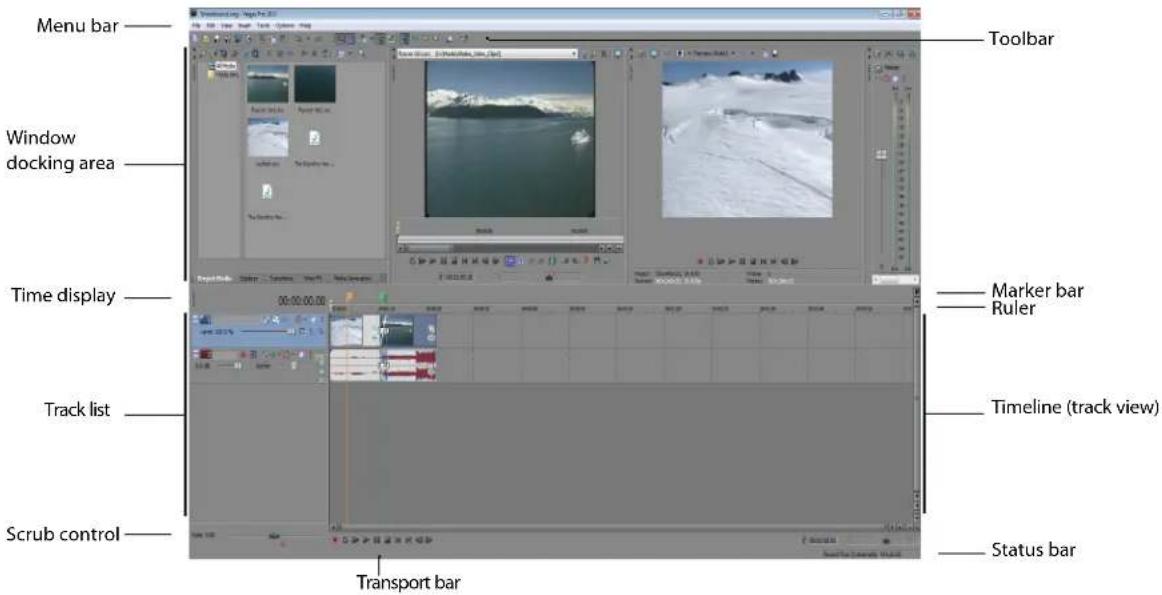
Tip: If you prefer to work with the timeline at the top of the window and the docking area at the bottom of the window, clear the Display timeline at bottom of main window check box on the Display tab of the Preferences dialog.
Toolbar
The toolbar allows you to quickly access the most commonly used functions and features. From the Options menu, choose Customize Toolbar to specify which buttons are displayed.
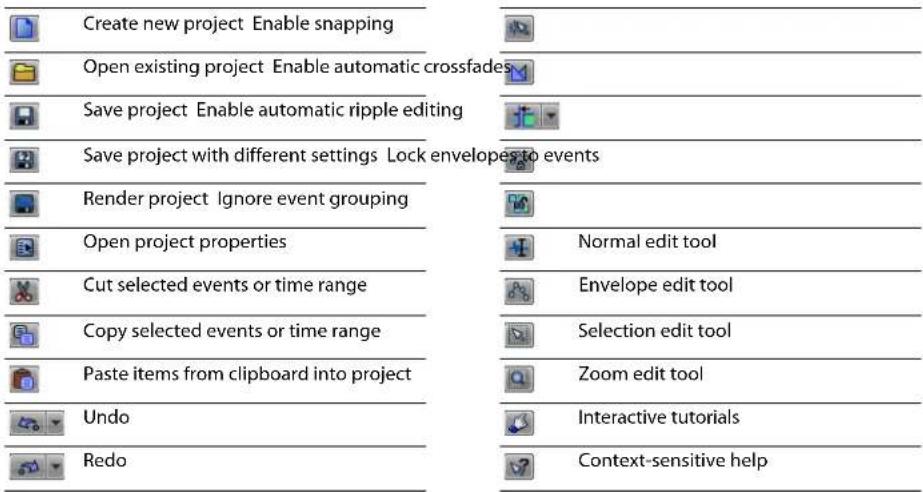
Time Display
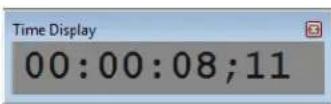
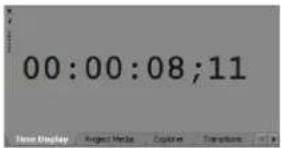
The Time Display window reflects the cursor's position on the timeline, MTC input, MTC output, or MIDI clock output time. You can customize time display settings, including what time the window displays and which colors are used in the display. For more information, see Using the Time Display window on page 432.
You can move the Time Display window from its docked position above the track list to float on the workspace or dock in the window docking area.
Docked position Floating window
Docked in window docking area
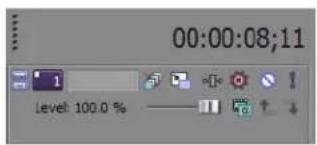
Ruler
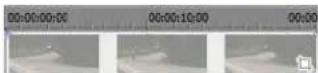
The ruler is the timeline for your project. You can specify how the ruler measures time: seconds, measures and beats, frames, etc. For more information, see Changing the ruler format on page 430.
Marker bar
The marker bar is the area where you can place, name, and position markers and regions along the project's timeline. These informational tags can serve as cues or reminders highlighting important events in your project. For more information, see Adding project markers and regions on page 112.

Command bar
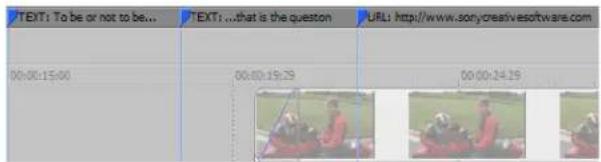
The command bar displays when you add a command to your project. Commands add metadata to media files to create effects such as closed captioning. For more information, see Adding project markers and regions on page 112.
CD layout bar
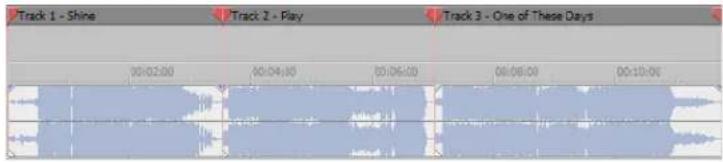
The CD layout bar displays tracks and indices in an audio CD layout project for disc-at-once (DAO) CD burning. For more information, see Creating audio CD layout projects on page 412.
Track list
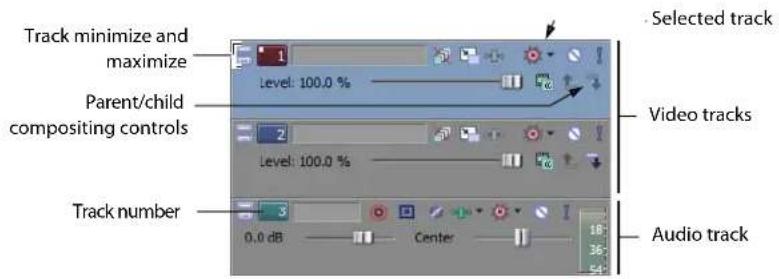
This area identifies the track order in your project and contains controls used to determine track compositing and mixing. For more information, see Using the track list on page 65.
Timeline
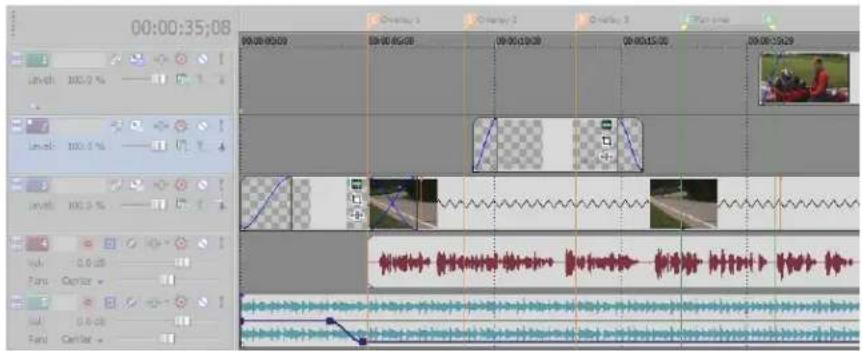
All arranging and editing is done in the timeline (track view). This area contains all of a project's events. For more information, see Using the timeline on page 64.
Transport bar controls
The transport bar contains the playback and cursor positioning buttons frequently used while working on and previewing your project.

Record into track

Loop playback

Play from beginning of project

Play project from cursor position

Pause project playback

Stop playback

Move cursor to start of project

Move cursor to end of project

Move cursor to previous frame

Move cursor to next frame
Tip: Click and hold the Previous Frame and Next Frame buttons to move the cursor multiple frames.
Status bar
The status bar is located at the bottom of the main program window and displays information about roughly how much space is left on your computer to record audio (Record Time). During the rendering processes, the left side of the status bar also contains information about the progress of the render.
Record Time (2 channels): 16:25:05
The Video Preview window also has its own status bar that displays project specific information. For more information, see Understanding the Video Preview window on page 369.
Scrub control
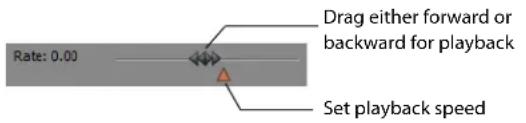
The scrub control is used to play your project forward or backward for editing purposes. You can adjust the playback speed by setting the speed control marker located beneath the scrub control. For more information, see Scrubbing on page 69.
Window docking area and floating window docks
By default, the window docking area is located in the upper half of the Vegas Pro workspace. This area allows you to keep frequently used windows available but out of the way while you are working with a project. Windows can be docked next to each other, subdividing the docking area, or they can be docked in a stack in the window docking area or in a separate floating docking window. When stacked, each window has a tab at the bottom with its name on it. Click the window's tab to bring it to the top.
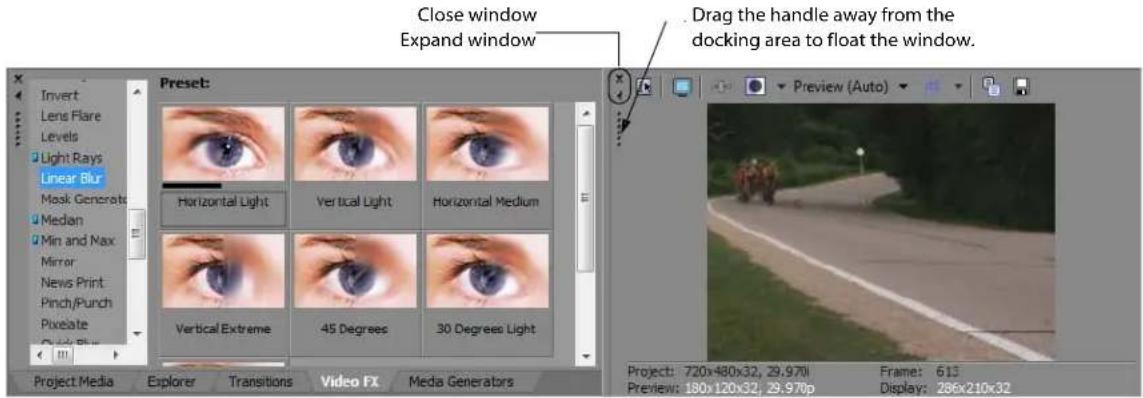
• To dock a window, drag it to the docking area.
- Drag the handle on the left side of a docked window to remove a window from the docking area and float it.
• To prevent a window from docking when you drag it, hold the Ctrl key.
- To expand a docked window so it fills the docking area, click the Maximize button (▲). Click again to restore the window to its previous size.
• To remove a window from the docking area or a floating dock, click the Close button (☒).
Display tips:
- To display the window docking area in the bottom half of the Vegas Pro workspace, clear the Display timeline at bottom of main window check box on the Display tab of the Preferences window.
- To display the tabs at the top of the window docking area rather than the bottom, select the Position tabs at top of docked windows check box on the Display tab of the Preferences window.
- To hide the window docking area, select the Automatically hide docking area check box on the Display tab of the Preferences window.
• For more information, see Display tab on page 457.
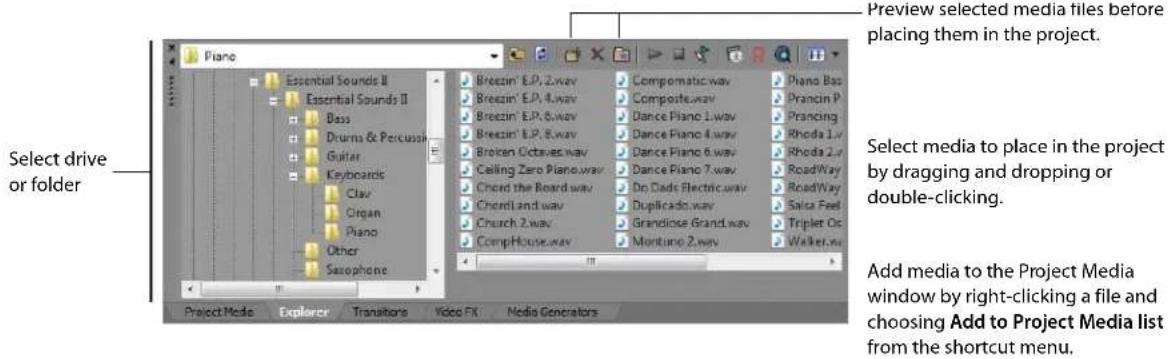
Explorer window - Alt+1
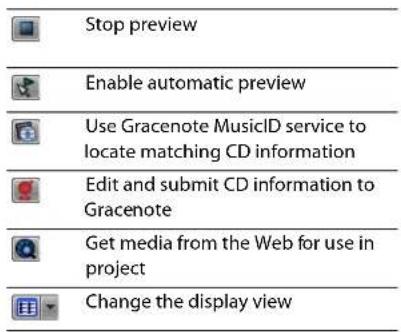
The Explorer window is similar to the Microsoft Windows Explorer. Use the Explorer window to select media files to drag to the project timeline or add to the Project Media window. You can also use the Explorer to perform common file management tasks such as creating folders, renaming files and folders, and deleting files and folders. Use the Start Preview (▶) and Auto Preview (◀) buttons to preview files before adding them to the project.
| Move up the folder list to the next highest folder |
| Refresh the current view |
| Create a new folder |
| Delete selected file(s) |
| Add selected file to My Favorites list in address bar |
| Start preview |
Trimmer window - Alt+2
The Trimmer window is a good place to edit any media file. When a media file is placed in the Trimmer window, you can place portions of the file on separate tracks by dragging and dropping. For more information, see Using the Trimmer window on page 128.
![City Pan.avi [E:\Media\Video Clips\] 01:24:18:00 01:24:19:00 01:24:20:00 01:24:18:33 00:30:00;17](/content/2026/05/763079/images/87c2c8580b1c4a934fe53a8af02be65a9d5e92ffc612c840ca80a3485d9e594d.jpg)
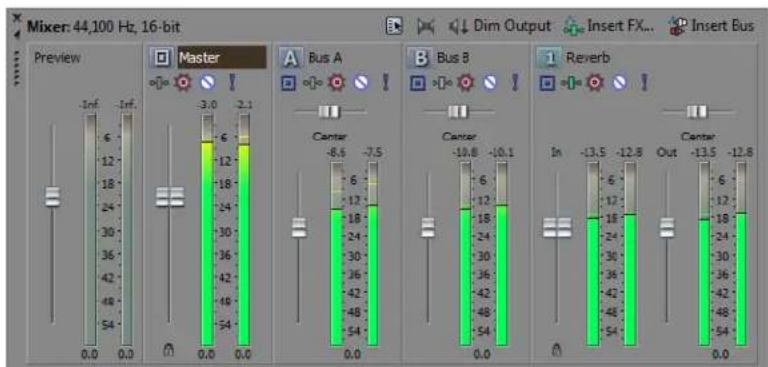
Mixer window - Alt+3
The Mixer window gives you access to your project's audio properties, bus assignments, output levels, and plug-in chains. For more information, see Using the Mixer window on page 211.
bar
Mixer: 44,100 Hz, 16-bit | Category | Value | |---|---| | Master | -3.0 | | Bus A | -6.5 | | Bus B | -7.5 | | Reverb | -10.8 | | | | | | | | | | | | | | | | | | | | | | | | | | | | | | | | | | | | | | | | | | | | | | | | | | | | | | | | | | | | | | | | | | | | | | | | | | | | | | | | | | | | | | | | | | | | | | | | | | | | | | | | -Inf. | 6 | | Inf. | 12 | | Inf. | 18 | | Inf. | 24 | | Inf. | 30 | | Inf. | 36 | | Inf. | 42 | | Inf. | 48 | | Inf. | 54 | 0.0 | 0.0 | 0.0 | 0.0 | 0.0 | 0.0 | 0.0 | 0.0 | 0.0 | 0.0 | 0.0 | 0.0 | 0.0 | 0.0 | 0.0 | 0.0 | 0.0 | 0.0 | 0.0 | 0.0 | 0.0 | 0.0 | 0.0 | 0.0 | 0.0 | 0.6 12 18 24 30 36 42 48 54 6.6 12 18 24 30 36 42 48 54 6.6 12 18 24 30 36 42 48 54 6.6 12 18 24 30 36 42 48 54 6.6 12 18 24 30 42 48 54 6.6 12 18 24 30 36 42 48 54 6.6 12 18 24 30 36 42 48 54 6.6 12 18 24 30 36 42 48 54Video Preview window - Alt+4
This window displays a project's video during project editing and playback. For more information, see Previewing and Analyzing Video on page 369.
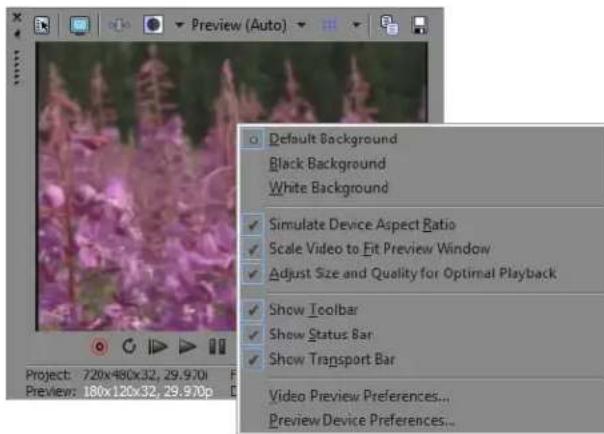
Video appears during project playback or as the cursor is moved during editing.
Right-click to change Video Preview settings.
Project Media window - Alt+5
The Project Media window helps you organize the media files you're using in a project. The information about these files is displayed in a highly flexible database that can be instantly sorted. You can also use the Project Media window to apply effects and plug-ins to media files and set the specific properties of these files. For more information, see Using the Project Media window on page 42.
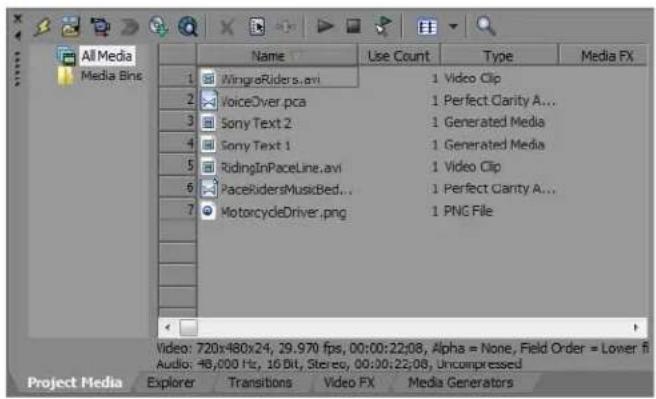
Edit Details window - Alt+6
This window serves as a highly detailed and customizable database of all of the events in a project. The database can be organized and sorted according to a large number of attributes. For more information, see Using the Edit Details window on page 134.

Transitions window - Alt+7
The Transitions window contains all of the transitions available. The thumbnails display animated examples of each transition. You can drag transitions from this window to replace the crossfade between two video events or to replace the fade-in or fade-out region of a video event. For more information, see Understanding basic transitions on page 347.
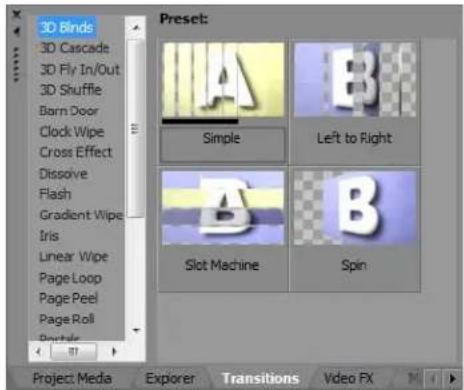
Video FX window - Alt+8
The Video FX window contains the video effects available. The thumbnails display animated examples of each plug-in preset. You can drag plug-ins from this window to an event, track, or to the Video Preview window (video output effects). For more information, see Using video effects on page 321.
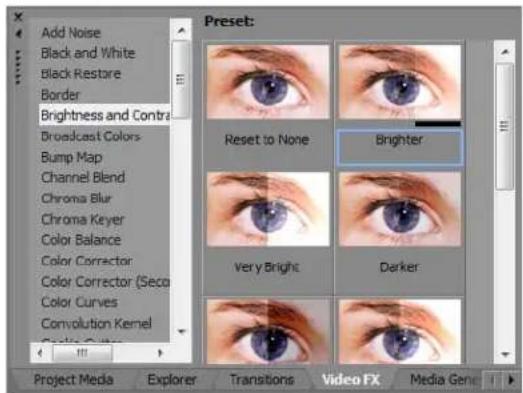
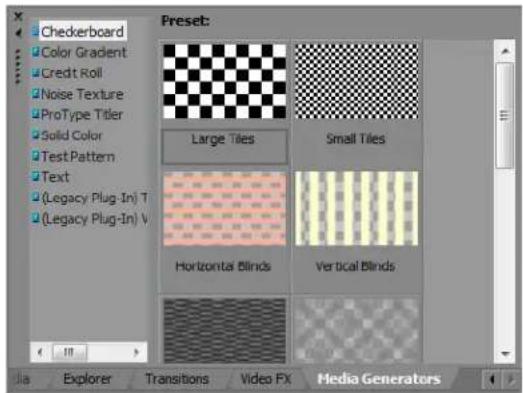
Media Generators window - Alt+9
The Media Generators window contains the different media generators provided. Media generators make it easy to create events containing text, credit rolls, test patterns, color gradients, and solid color backgrounds. You can drag a media generator to the timeline to create a new generated media event. For more information, see Using generated media on page 327.
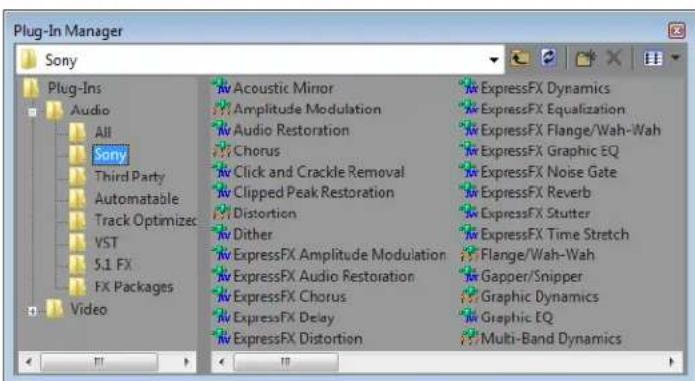
Plug-In Manager window - Ctrl+Alt+1
This window organizes all of the plug-ins available, including video and audio effects, media generators, and transitions. The plugins, which are organized in a folder structure, can be dragged into the project. For more information, see Using audio effects on page 253 or Using video effects on page 321.
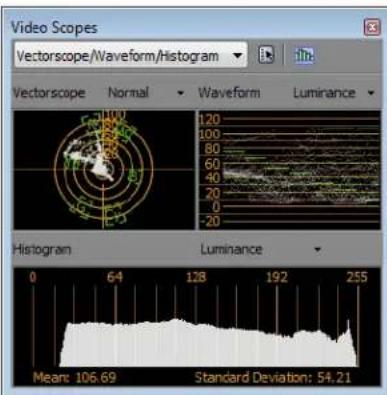
Video Scopes window - Ctrl+Alt+2
This window allows you to monitor your broadcast video for image problems.
Use the scopes to analyze the your video and adjust accordingly with the Brightness and Contrast, Broadcast Colors, Color Corrector, Color Corrector (Secondary), and Levels plug-ins before rendering.
For more information, see Monitoring video with scopes on page 375.
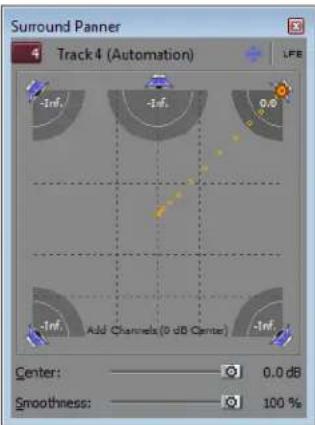
Surround Panner window - Ctrl+Alt+3
This window allows you to control panning in a 5.1 surround project. You can also display the Surround Panner window by double-clicking the surround panner on a track or mixer control. For more information, see Working with 5.1 Surround on page 271.
Media Manager window - Ctrl+Alt+4
This window displays the Media Manager™, which you can use to search for, manage, and tag your media files. For more information, see Using the Media Manager on page 73.
![Media Manager Search Match All Quick text search Tags: Percussion Keyboard Guitar Other Guitar Electric Guitar Advanced: ACID Type: Loop Tempo (bpm): 50 to 120 Search Results Default ? Clear Electric Guitar tag Name Rating 1 PB Delay Wah 01.wav ★★★★★★ 2 PB Delay Wah 02.wav ★★★★★★ 3 PB Delay Wah 03.wav ★★★★★★ 4 PB Electric Slide A 01.wav ★★★★★★ 5 PB Electric Slide A 02.wav ★★★★★★ 6 PB Electric Slide A 03.wav ★★★★★★ 7 PB Electric Slide A 04.wav ★★★★★★ 8 PB Electric Slide A 05.wav ★★★★★★ 9 PB Electric Slide A 06.wav ★★★★★★ 10 PB Electric Slide A 07.wav ★★★★★★ 11 PB Electric Slide A 08.wav ★★★★★★ 74 items found out of 84 total items Properties Last Mc 5/11/1999 Name PB Delay W. Path G:\Media\Lc Tags ACID Rock 2.0 Cont ACID[R] Rock[TM] Alternative Cinematic/Soundtrac Classic Rock Electric Guitar Funk Fusion Guitar Guitar Rock Other Guitar](/content/2026/05/763079/images/dbc161c6285352d998496148bdcc3a10e5e027bc2c398f83ecfa10d7eb4b3f0d.jpg)
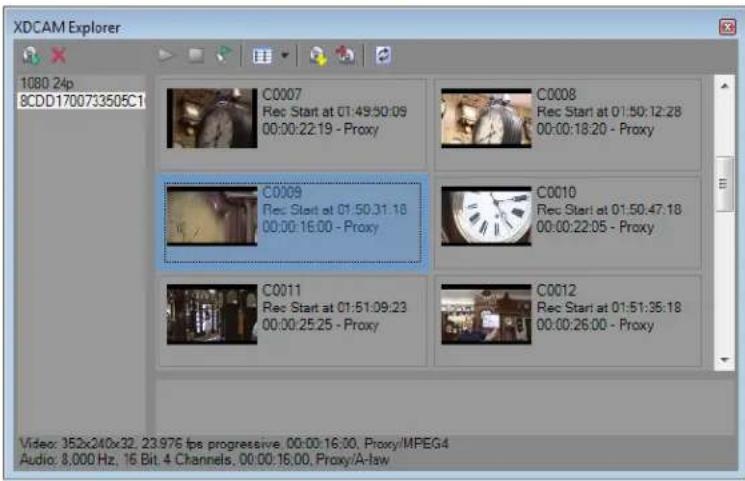
XDCAM Explorer window - Ctrl+Alt+5
This window displays the XDCAM Explorer window, which you can use to locate, import, and export XDCAM clips. For more information, see Working with XDCAM Video on page 153.
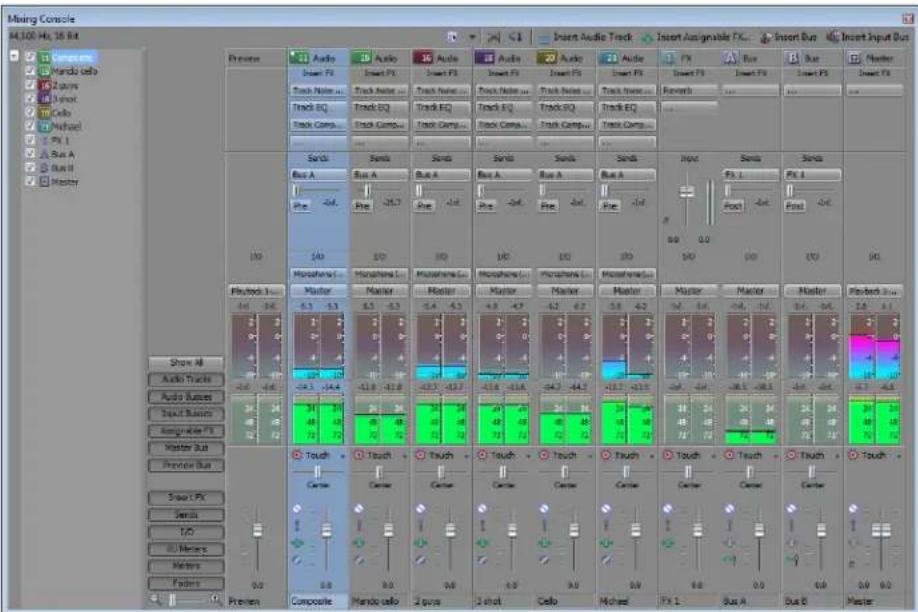
Mixing Console window - Ctrl+Alt+6
This window displays the Mixing Console, which provides an integrated view of all tracks and busses in your project using the appearance of a traditional hardware-based mixer. For more information, see Using the Mixing Console on page 219.
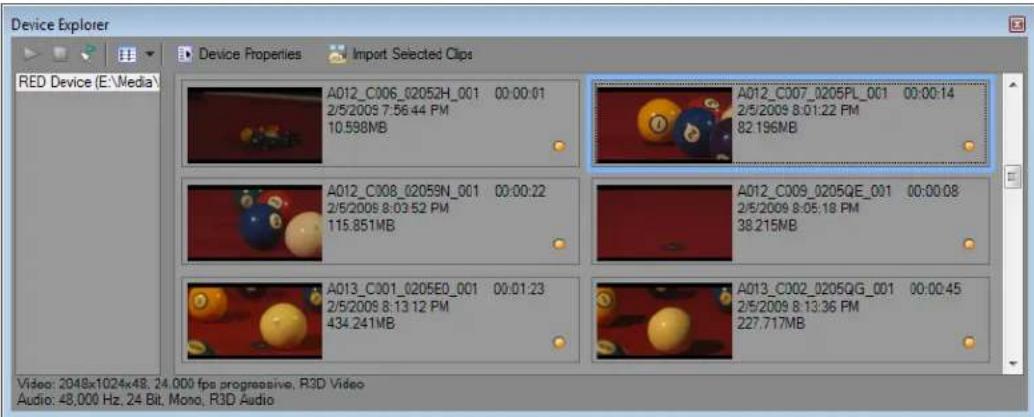
Device Explorer window - Ctrl+Alt+7
The Device Explorer window allows you to browse and import clips from AVCHD, XDCAM EX, NXCAM, and RED ONE devices; CompactFlash-based memory recording units such as the HVR-MRC1; and hard-disk-based recording units such as the HVR-DR60. For more information, see Using the Device Explorer on page 60.
Saving and recalling window layouts - Ctrl+Alt+D or Alt+D
A window layout stores the sizes and positions of all windows and floating window docks in the Vegas Pro workspace. You can store up to ten window layouts so you can quickly recall customized layouts for specific editing tasks. For more information, see Saving and recalling window layouts on page 438.
Cursor indications
The cursor changes depending on which functions are available.
| Cursor | Indicates | Modifier | Description |
| [1000] | Standard | none | This is the standard arrow cursor that means events can be dragged. |
| [1001] | Trim | none | Position the cursor over the edge of an event and drag to trim the event shorter or longer. |
| [1002] | Slip Trim | Alt | Position the cursor over the edge of an event, press Alt, and drag to trim. The media within the event moves with the edge. This is useful to preserve the beginning or end of an event while trimming. |
 | Stretch | Ctrl | Position the cursor over the edge of an event, press Ctrl, and drag the edge to stretch or compress it. This makes the media in the event play slower or faster. |
| [1003] | Slip | Alt | Press Alt and drag on the middle of a clip to move the media within the event without moving the event itself. |
| [1004] | Trim Adjacent | Ctrl+Alt | Position the cursor over the boundary between two adjacent events, press Ctrl+Alt, and drag. Both events are edge trimmed simultaneously. |
| [1005] | Slide | Ctrl+Alt | Position the cursor over the middle of an event, press Ctrl+Alt, and drag to simultaneously trim both ends. |
| [1006] | Slide Crossfade | Ctrl+Alt | Position cursor over a crossfade, press Ctrl+Alt, and drag on a crossfade to move it. |
Using a control surface
A control surface is a hardware device that uses knobs, faders, and buttons to control user interface elements that are normally controlled with a mouse. Using a control surface lends a tactile feel to your editing sessions.
Unlike keyboard shortcuts—which determine the shortcut's behavior based on the portion of the Vegas Pro window that has focus—a control surface's mapped functions work no matter what part of the application has focus.
You can use one Mackie® Control Universal or up to five generic control surfaces with Vegas Pro software. For more information about setting up a control surface, see External Control & Automation tab on page 459.
Audio signal flow
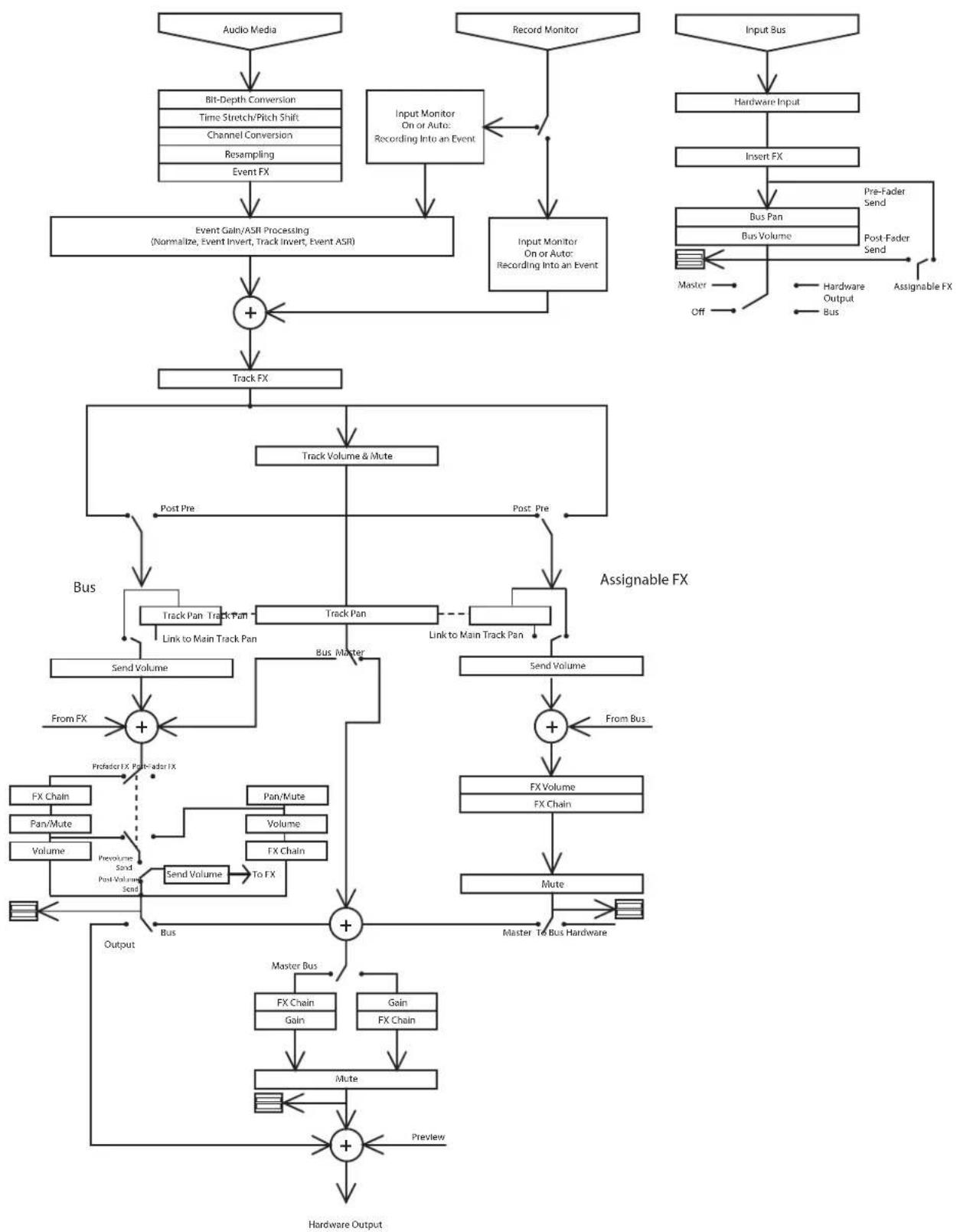
flowchart
graph TD
    A["Audio Media"] --> B["Bit-Depth Conversion"]
    B --> C["Time Stretch/Pitch Shift"]
    C --> D["Channel Conversion"]
    D --> E["Resampling Event FX"]
    E --> F["Event Gain/ASR Processing (Normalize, Event Invert, Track Invert, Event ASR)"]
    F --> G["+"]
    G --> H["Track FX"]
    H --> I["Track Volume & Mute"]
    I --> J["Post Pre"]
    J --> K["Track Pan Track Pan"]
    K --> L["Send Volume"]
    L --> M["+"]
    M --> N["Output"]
    M --> O["Prevent"]
    O --> P["FX Chain"]
    O --> Q["Pan/Mute"]
    O --> R["Volume"]
    R --> S["Send Volume"]
    S --> T["To FX"]
    T --> U["+"]
    U --> V["Output"]
    U --> W["Master Bus"]
    U --> X["FX Chain Gain"]
    U --> Y["Gain FX Chain"]
    U --> Z["Mute"]
    Z --> AA["+"]
    AA --> AB["Hardware Output"]

    AC["Input Bus"] --> AD["Hardware Input"]
    AD --> AE["Insert FX"]
    AE --> AF["Bus Pan"]
    AF --> AG["Bus Volume"]
    AG --> AH["Post-Fader Send"]
    AH --> AI["Master → Hardware Output → Bus"]
    AI --> AJ["Askable FX"]

    subgraph Assignable FX
        AK["Send Volume"] --> AL["+"]
        AL --> AM["From FX"]
        AN["Link to Main Track Pan"] --> AO["+"]
        AP["Link to Main Track Pan"] --> AQ["+"]
        AR["Send Volume"] --> AS["+"]
        AT["From Bus"] --> AU["FX Volume FX Chain"]
        AV["Mute"] --> AW["Master To Bus Hardware"]
    end

    subgraph Bus
        AX["Track Pan Track Pan"] --> AY["Send Volume"]
        AZ["Track Pan"] --> BA["+"]
        BB["Track Pan"] --> BC["+"]
        BD["Track Pan"] --> BE["+"]
        BF["Track Pan"] --> BG["+"]
        BH["Track Pan"] --> BI["+"]
        BJ["Track Pan"] --> BK["+"]
        BL["Track Pan"] --> BM["+"]
        BN["Track Pan"] --> BO["+"]
        BP["Track Pan"] --> BQ["+"]
        BR["Track Pan"] --> BS["+"]
        BT["Track Pan"] --> BU["+"]
        BV["Track Pan"] --> BW["+"]
        BX["Track Pan"] --> BY["+"]
        BZ["Track Pan"] --> CA["+"]
        CB["Track Pan"] --> DA["+"]
        DB["X"] --> DBX["X"]
    end
Video signal flow
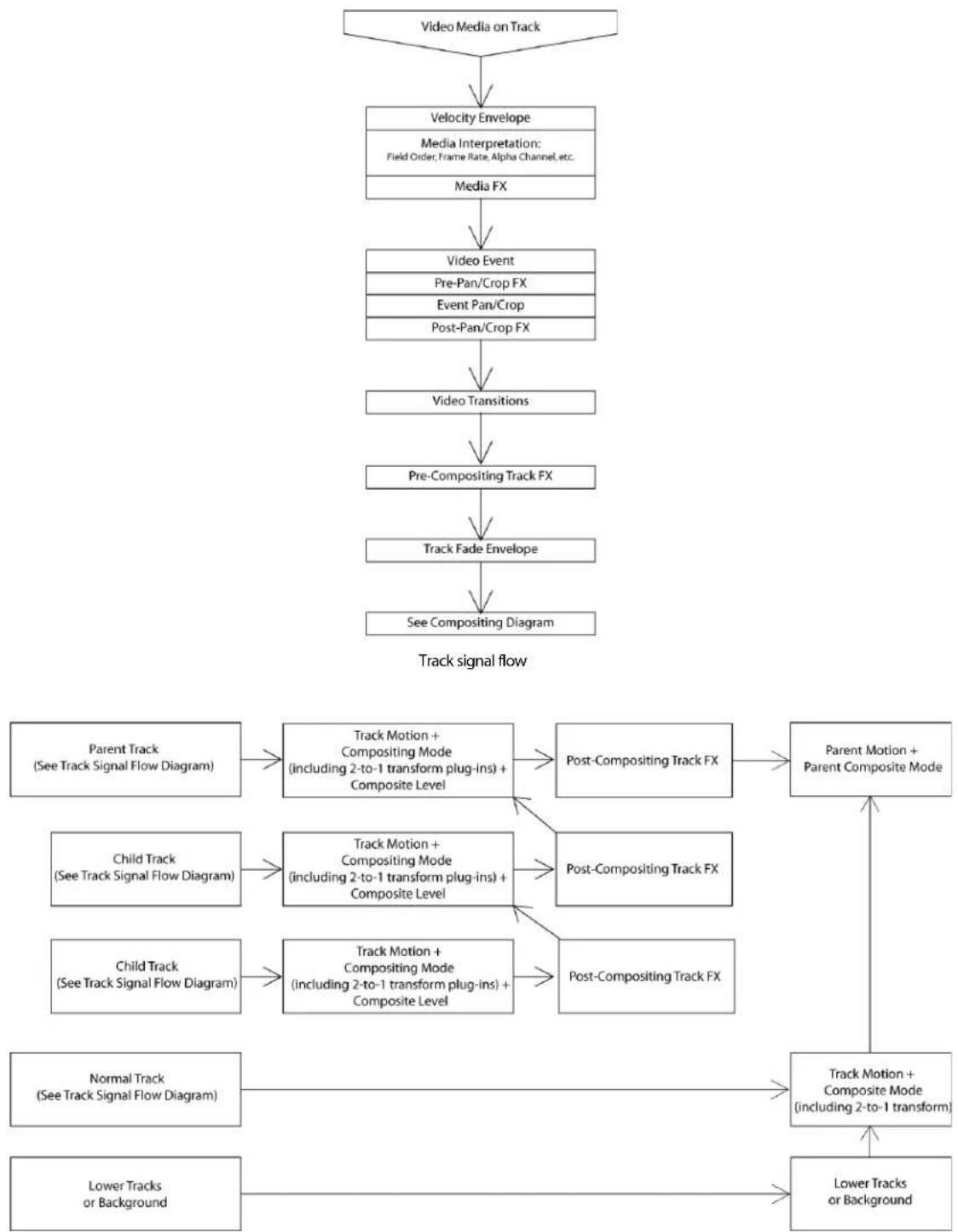
flowchart
graph TD
    A["Video Media on Track"] --> B["Velocity Envelope"]
    B --> C["Media FX"]
    C --> D["Video Event"]
    D --> E["Pre-Pan/Crop FX"]
    E --> F["Event Pan/Crop"]
    F --> G["Post-Pan/Crop FX"]
    G --> H["Video Transitions"]
    H --> I["Pre-Compositing Track FX"]
    I --> J["Track Fade Envelope"]
    J --> K["See Compositing Diagram"]

    L["Parent Track\n(See Track Signal Flow Diagram)"] --> M["Track Motion + Compositing Mode\n(including 2-to-1 transform plug-ins) + Composite Level"]
    M --> N["Post-Compositing Track FX"]
    N --> O["Parent Motion + Parent Composite Mode"]

    P["Child Track\n(See Track Signal Flow Diagram)"] --> Q["Track Motion + Compositing Mode\n(including 2-to-1 transform plug-ins) + Composite Level"]
    Q --> R["Post-Compositing Track FX"]

    S["Child Track\n(See Track Signal Flow Diagram)"] --> T["Track Motion + Compositing Mode\n(including 2-to-1 transform plug-ins) + Composite Level"]
    T --> U["Post-Compositing Track FX"]

    V["Normal Track\n(See Track Signal Flow Diagram)"] --> W["Track Motion + Composite Mode\n(including 2-to-1 transform)"]
    W --> X["Lower Tracks or Background"]

    Y["Lower Tracks or Background"] --> Z["Track Motion + Composite Mode\n(including 2-to-1 transform)"]
Composited track signal flow
Getting Started
Vegas® Pro software is a new way of creating multimedia productions. Whether you are an experienced multimedia author or a budding novice, the powerful features and capabilities of Vegas Pro software are organized to increase your creativity and productivity. The following chapter summarizes the software's basic functions and operations.
Creating projects
The process of creating a multimedia production can be a complicated undertaking, involving hundreds of shots, takes, voiceovers, music beds, audio tracks, and special effects. Organization is a critical issue in this process. In the software, organization is handled by a small project file (.veg) that saves information about source file locations, edits, cuts, insertion points, transitions, and special effects. This project file is not a multimedia file, but is instead used to create (render) the final file when editing is finished.
Because Vegas Pro software edits a project file and not the original source files, you can edit without worrying about corrupting your source files. This not only gives you a strong sense of security, but it also gives you the freedom to experiment.
Starting a new project
- From the File menu, choose New. The New Project dialog appears.
Note: The first time you run the software, a new project will automatically be started for you.
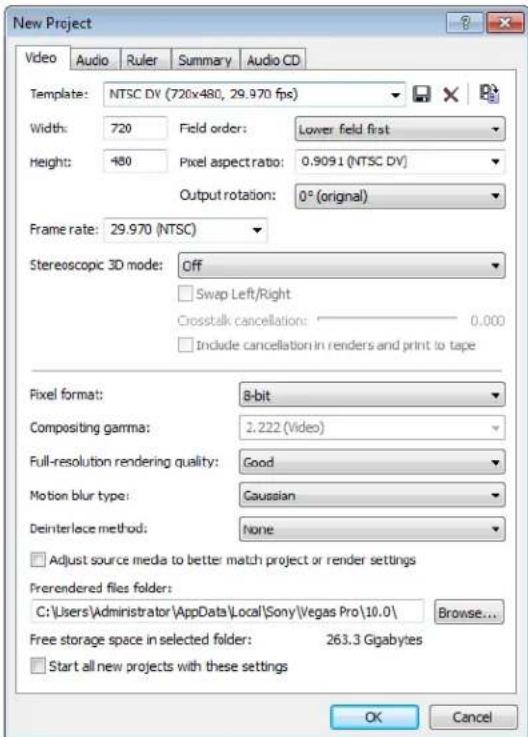
- Enter your project settings on the various tabs.
For more information, see Working with project properties on page 434.
• The Video tab allows you to select the video format and other video parameters.
• The Audio tab allows you to set up the basic audio settings.
• The Ruler tab allows you to choose the way the ruler is delineated (beats, seconds, etc.).
• The Summary tab allows you to enter any relevant information and reminders about your project.
• The Audio CD tab allows you to enter information for burning audio CDs.
Tip: The easiest way to set the often-complex properties on the Video tab is to select a template that matches your media (for example, NTSC DV (720x480, 29.970 fps)).
- Click OK.
- From the File menu, choose Save. Type a name, browse for a location, and click Save to save your project (.veg file).
You can change project settings at any time while working on a project. From the File menu, choose Properties to change any of these settings.
Setting video properties based on a media file
You can automatically set your project video properties to match an existing video file.
- From the File menu, choose Properties.
- On the Video tab of the Project Properties dialog, click the Match Media Settings button (R).
- Browse for a media file that has the settings you wish you use for the project.
- Click Open.
The frame size, frame rate, pixel aspect ratio, and field order of this file are automatically detected and the project properties are set to match.
Tip: To save this information for future use, type a name in the Template box and click the Save Template button (☐). If your projects typically use these settings, select the Start all new projects with these settings check box.
- Click OK to save the new project properties.
Working with rotated projects
The use of rotated displays—monitors that display vertical media—has become increasingly popular: you can see them in kiosks, presentations, and even on the nightly news. If you have a project that you'd like to display in a rotated format, Vegas Pro makes it easy.
-
Create a new project. For more information, see Starting a new project on page 37.
-
Set your project properties as needed, and then choose a setting from the Output rotation drop-down list to indicate the orientation of your destination display device. If you want to display your project in portrait (tall) mode, choose 90° clockwise or 90° counterclockwise.
In the example to the left, the video was shot with the camera tripod rotated 90 degrees. However, because neither the project or the media has been rotated, the video is displayed sideways within the standard landscape frame.
After choosing 90° clockwise from the Output rotation drop-down list, the Video Preview window is rotated (see example to the left). Because the media hasn't been rotated yet, it doesn't match the project orientation and is letterboxed within the frame.
-
Add your media files to your project. For more information, see Getting media files on page 41.
-
Edit the properties for each of your media files to set its rotation as needed:
a. Right-click a media file in the Project Media window and choose Properties from the shortcut menu. The Media Properties dialog is displayed.
b. Choose a setting from the Rotation drop-down list to indicate the direction you want to rotate your media.
After choosing 90° clockwise from the Rotation drop-down list, the media is rotated, and the video fills the frame.
c. Click OK to close the Media Properties dialog and save your changes.
Tip: To rotate multiple files quickly, select them in the Project Media window, right-click a selected file, and then choose Rotate 90° Clockwise or Rotate 90° Counterclockwise from the shortcut menu.
-
Drag your clips from the Project Media window to the timeline to create events.
-
Edit your project as needed.
-
Render your project to any supported rendering format. For more information, see Rendering a project on page 387.
In the Render As dialog, select the Use project output rotation setting check box if you want to use the Output rotation setting from the Project Properties dialog for your rendered file. When the check box is cleared, the media is rotated according to its Media Properties setting, but the project itself is unrotated—you can use this setting to proof your project on an unrotated display.
Tip: To render a portrait-oriented file for viewing on a computer, you can create a rendering template that matches the proportions of your project:
a. Right-click the Video Preview window and ensure Simulate Device Aspect Ratio is selected.
b. Next, adjust the size of the Video Preview window to a comfortable preview frame size and note the Display dimensions in the lower-right corner of the Video Preview window.
c. From the File menu, choose Render As, choose the desired rendering format from the Save as type drop-down list, and then choose a rendering template that's close to the frame size you noted in step b.
d. Click the Custom button, and then use the Video tab in the Custom Template dialog to adjust the frame size to match the dimensions you noted in step b.
e. Save your template for later use.
f. Clear the Use project output rotation setting check box and render your file.
Saving a project
When you save your work, it is saved in a project file. Project files are not rendered media files.
- From the File menu, choose Save.
The first time you save a project, the Save As dialog appears. In subsequent saves, the dialog is bypassed, your existing file name is retained, and your project is updated to include any implemented changes.
- Select the drive and folder where you want to store the project.
- Type the project name in the File Name box.
- Click Save.
Tip: Select the Copy and trim media with project check box to save the project file and copies of the media files to a common location. For more information, see Renaming or creating a copy of a project (using Save As) on page 385.
Renaming a project (using Save As)
After you have been working with your project, you can use the Save As command in the File menu to save a copy of a project with a new name. This is useful for backing up different versions of a project.
For more information, see Renaming or creating a copy of a project (using Save As) on page 385.
Getting media files
You can add media from a variety of sources to your project. You can add audio and video files, record audio into a track, capture video from a video camera, or extract music from your own CD. You can also create media such as text overlays, backgrounds, and credit rolls from within the software. For more information, see Using generated media on page 327.
Vegas Pro software supports a wide range of media file types. There are multiple ways to locate and add files to your Vegas Pro project, as discussed in the following sections.
Notes:
- To have pulldown fields automatically removed when opening 24 fps progressive-scan DV video files, select the Allow pulldown removal when opening 24p DV check box on the General tab of the Preferences dialog. To open your 24p DV video files as 29.97 fps interlaced video (60i), clear this check box.
- When you add an ACID loop to the timeline, it is automatically stretched to match the project tempo as specified on the Ruler tab of the Project Properties dialog. If you want to ignore tempo information, clear the Import audio at project tempo check box on the Audio tab of the Preferences dialog. For more information on project properties, see Working with project properties on page 434. For more information on preferences, see Setting preferences on page 441.
- When you add a multichannel audio file (.wav/.wav64, .avi, .mxf, ATRAC, and BWF) to your project, the audio is added across tracks. For example, if you import a four-channel WAV file, the audio will be added to four adjacent tracks. For control over which channels are used by each event, right-click a multichannel audio event, choose Channels from the shortcut menu, and choose a command from the submenu. For more information, see Adjusting audio channels on page 202.
- When you add a multistream audio file to your project, you can choose which stream you want to use by right-clicking the event, choosing Stream from the shortcut menu, and then choosing a stream from the submenu.
- 5.1-channel audio from DVD camcorders will be downmixed to stereo when importing into a stereo project. When importing into a 5.1 surround project, audio will be added to separate tracks for the center, front, rear, and LFE channels.
- If Vegas Pro cannot read frames in a video event, they will be displayed in red in the timeline. Those frames will be black in the Video Preview window and the rendered output.
Previewing a media file
You can preview files before placing them in your project. The Explorer window has a mini-transport bar with Play (▶), Stop (☐), and Auto Preview (☑) buttons. When you preview a file, its stream is sent to the Mixer window's preview bus (for audio files) or to the Video Preview window (for video files).
Tip: You can use the same mini-transport bar buttons in the Project Media window to preview files in the Project Media list.
- Select a file in the Explorer window.
- Click the Play button (▶) to listen to the file.
- Click the Stop button (☐) or select a different file to stop previewing the file.
Tip: To automatically preview selected files, click the Auto Preview button (★) on the Explorer window's transport bar.
Note: Video is previewed in the Trimmer window. If you want to preview video in the Video Preview window, right-click the Trimmer window and clear the Show Video Monitor command.
Using the Project Media window
Media files, both video and audio, tend to be the largest files on your hard drive. It is therefore not always easy to move them around and impractical to store multiple copies of these files. You can add media files to the Project Media window to organize them before any editing begins. Once you begin working on a project, all files you add to the timeline are automatically included in the Project Media list. From the View menu, choose Project Media to open this window if it is not already visible.
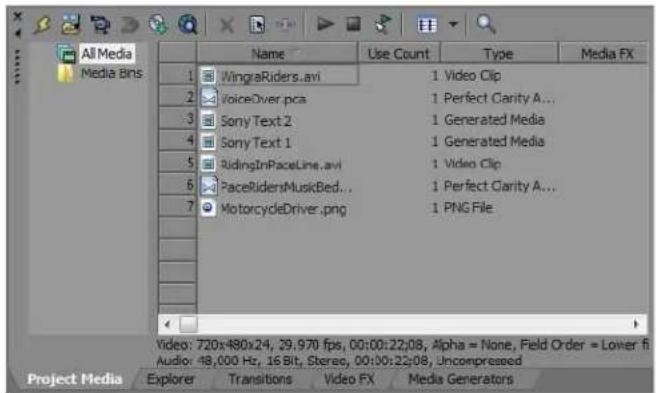
Using Project Media views
You can control the information that is displayed in the Project Media window by clicking the Views button (图标) and selecting a view. The purpose of each view is explained below.
| View | Description |
| List | Displays a simple listing of the file name of each file in the Project Media window. |
| Detailed | Displays all the properties for each file. The information is presented in a table format.You can customize the information displayed:Reorder columns (fields) by dragging the column label to a new position.Hide a column by dragging the column label off of the Project Media window. To display a hidden column, right-click the Project Media window, chooseViewfrom the shortcut menu, and choose the column name from the submenu.Sort the files in the Project Media list according to a category by clicking the column label for that category.Use theCommentsfield to add your own annotations to a file's entry in the Project Media list. Double-click the field to enter text. This information is saved with the project and is not saved with the media file itself. |
| Thumbnail | Displays the first frame of a video file. |
Adding media to the Project Media list
You can add media to the Project Media list without adding it to the timeline by importing the file.
For more information, see Importing media on page 46.
Adding media to the Project Media list from the Explorer window
- Navigate to and select a file to add to the Project Media list. You can use Ctrl or Shift to select multiple media files.
- Right-click the file and choose Add to Project Media list from the shortcut menu. The selected file is added to the Project Media window.
Replacing media in the Project Media window
You can replace a file in the Project Media window with a different file. When changing the media file that an event contains, every occurrence of the event on the timeline is updated with the new media file contents.
- Right-click a file in the Project Media window.
- Choose Replace from the shortcut menu.
- In the Replace Media File dialog, browse for and select the file that you want to replace the current file.
- Click Open. The selected file replaces the old file in the Project Media list, and any events in the timeline containing the old file are updated to contain the new media file.
Getting images
You can bring images directly into the software from your scanner. The images are added to the Project Media list as JPEG image files.
Note: In order to get pictures from a scanner, you might need to install a driver for your device. Refer to the software that was included with your device or the manufacturer's Web site.
- Make sure your device is on and connected to your computer.
- In the Project Media window, click the Get Photo button (▶). The software is started for the device.
-
Use the device software to get an image and send it to Vegas Pro software. Once the image has been sent, the Scanned Files dialog appears.
-
Click Rename to give the new image a more meaningful name.
-
Click Delete to cancel the process of adding the image.
-
Click Done. The new JPEG file is added to the Project Media window.
Extracting audio from a CD
You can extract tracks from a CD and add them to the Project Media window as .wav files.
Important: Vegas Pro software is not intended for, and should not be used for, illegal or infringing purposes, such as the illegal copying or sharing of copyrighted materials. Using Vegas Pro software for such purposes is, among other things, against United States and international copyright laws and contrary to the terms and conditions of the End User License Agreement. Such activity may be punishable by law and may also subject you to the breach remedies set forth in the End User License Agreement.
- Insert the audio CD.
- In the Project Media window, click the Extract Audio from CD button (☐). The Extract Audio from CD dialog appears.
![Extract Audio from CD Action: Read by track Tracks to extract: Track Type Start End Leng 01 Shine Audio 00:02.00 03:34.70 03:32.7 02 Play Audio 03:34.70 07:05.27 03:30.3 03 One of These Days Audio 07:05.27 11:50.17 04:44.6 04 White Audio 11:50.17 15:32.58 03:42.4 05 Synergy Audio 15:32.58 19:25.26 03:52.4 06 100 Unnamed Things Audio 19:25.26 23:30.21 04:04.7 07 City of Stars and Light Audio 23:30.21 27:54.15 04:23.6 08 Postcards Audio 27:54.15 31:44.27 03:50.1 09 Nora Audio 31:44.27 36:07.16 04:22.6 Drive: [E:] SONY DVD RW Dw-Q120A PYS3 Speed: Max Configure... Eject Selected length: 03:32.70 OK Cancel Refresh Play MusicID CD info.](/content/2026/05/763079/images/a8f3883de22e6c47339bb35f3f8af4094ef7b1b6454b4a3cce4e1d69f2bf42ee.jpg)
-
From the Action drop-down list, choose the method you want to use for extracting the CD audio:
-
Read by track Use this option to choose the tracks you want to extract from the CD.
- Read entire disc Use this option to automatically extract all tracks on the disc. The entire CD is extracted into one new file in the Project Media window.
-
Read by range Use this option to extract audio from a specified range of time.
-
If you chose either the Read by track or Read by range option, specify the tracks or range to extract:
-
For Read by track, click the tracks you want to extract in the Tracks to read list. Use the Ctrl or Shift keys to select more than one track. Each track is extracted into a separate file in the Project Media window.
- For Read by range, enter a time in the Range start field and either the Range end or Range length fields. The range of audio is extracted into one new file in the Project Media window.
Note: If you want to extract multiple tracks to a single file, choose Read by track from the Action drop-down list to select your tracks, and then choose Read by range from the Action drop-down list. The appropriate time range for the tracks you selected will automatically be inserted and the time range will be extracted to a single file.
- From the Drive drop-down list, choose the drive containing the audio CD from which you want to extract.
- Click the MusicID button if you want to obtain CD information using Gracenote® MusicID.
If CD information is not available, you can click the CD Info button to display a dialog box where you can edit the CD information and submit it for inclusion in the Gracenote Media Database.
- From the Speed drop-down list, choose the speed at which you want to extract the audio. If you experience any problems extracting audio, you can try decreasing the selected speed, or you can click Configure to adjust the Audio extract optimization setting.
Note: To eject the CD at any time prior to beginning the extraction process, click the Eject button.
- Click OK. The Save As dialog appears.
- Select a name and location for the new .wav file.
- Click Save to begin extracting the audio.
The track is extracted and a progress meter is displayed to indicate the percent complete. When extraction is complete, the new .wav file appears in the Project Media window.
Adding a still-image sequence
If you've exported a video clip as a still-image sequence using another application (a 3D-rendering application, for example), the sequence can be added to the Project Media window and treated as a single media file. Each image in the sequence will be displayed for one frame in the event.
- Click the Import Media button (☐) in the Project Media window. The Import Media dialog appears.
- Choose the folder where the sequence you want to open is stored.
- Select the first image in the sequence (or the image you want to start the event).
- Select the Open still-image sequence check box.
- In the Range field, enter the number of the last image you want to open. For example, if you'd selected AnimationOne_00001.tga in step 3, you could enter 120 in this box to create a new image sequence using AnimationOne_00001.tga to AnimationOne_00120.tga.
- Click Open. The still-image sequence is added to the Project Media window.
Sorting media with bins
The detailed view of the Project Media window helps you sort your media files using their attributes, but for more control, you can create bins. Bins are folders within projects that you can use to organize your media files.
Media bins are virtual folders that are saved with your project. They do not affect the way media is saved on your computer.
Creating bins
Right-click the parent bin where you want to create a new bin and choose Create New Bin from the shortcut menu.
Adding media to a bin
- Browse your existing bins to find the media file you want to move. The All Media Folder contains all media files in your project.
- Drag a file from the right-hand pane to a bin.
Searching media bins
- Right-click in the Project Media window and choose Search Media Bins from the shortcut menu. The Search Media Bins dialog is displayed.
- Use the drop-down lists in the Search Media Bins dialog to set your search conditions and click the Search button. The selected bin and all sub-bins will be searched.
- Click the Search Results icon to view the matching files.
Tip: Right-click the Search Results icon and choose Save as Bin from the shortcut menu to save the results of your search as a new media bin.
Automatically adding recorded files to a media bin
Select a media bin if you want to automatically add your recorded audio to a media bin.
Deleting media from a bin
- Select a media file.
- Press Delete on your keyboard.
- If the All Media Folder is selected, the file will be removed from your project.
- If a media bin is selected, the file is removed from the bin, but remains part of your project. The file is still available in the All Media Folder.
Configuring 24p pulldown removal
Right-click a DV AVI file in the Project Media window and choose File Format Properties from the shortcut menu to edit file settings from the file format plug-in associated with the media file type.
For 24p NTSC DV AVI files with 2-3 pulldown, you can use this dialog to configure removal of pulldown fields.
In most cases, you will not need to edit pulldown removal settings. However, if the settings were not properly set in the DV header when your video was captured, you can fine-tune pulldown removal without recapturing your video.
-
Right-click an AVI file in the Project Media window and choose File Format Properties from the shortcut menu. The AVI/DV Media Properties dialog appears.
This command is not available for non-24p NTSC video or for 24p NTSC video using 2-3-3-2 pulldown. -
Select the Enable 2-3 pulldown removal check box.
Note: You can clear this check box if you want to override pulldown removal for individual files when the Enable pulldown removal when opening 24p DV check box is selected on the General tab of the Preferences dialog.
- Choose a setting from the Starting frame timecode offset drop-down list to indicate what timecode numbers represent which frame in the video sequence.
For example, if you have an NTSC DV file with 2-3 pulldown created on a Sony JH3 HDCAM deck, the default settings for timecode offset use 0 for the Starting frame timecode offset.
If you have changed the timecode offsets on the deck (or if you have material with pulldown from another source) you will have to experiment with the settings to determine the correct offset.
4. Check for interlacing:
a. In the Project Properties dialog, choose a NTSC DV 24p template from the Template drop-down list.
b. Choose the Best (Full) setting in the Video Preview window to show full frames.
c. Step though the clip and look for interlace lines in moving objects or backgrounds.
d. If you see interlace lines, repeat from step 3 and choose a different offset value.
e. When no interlace lines appear, the offset is set correctly.
Pairing two media files as a stereoscopic 3D subclip
If you have two files that have synchronized timecode — such as video shot on a 3D camera that creates separate left- and right-eye clips — you don't need to align the audio and video. Just select the clips in the Project Media window and choose Pair as Stereoscopic 3D Subclip from the shortcut menu.
If you view the clip properties for the new subclip, you'll see that the Stereoscopic 3D Mode is set to Pair with next stream.
For more information, see Stereoscopic 3D Editing on page 143.
Importing media
Importing media allows you to add media to the Project Media list for use in your project without adding it to the timeline. Vegas Pro supports the importing of a wide variety of file formats, including AAF and broadcast wave, which are discussed separately below.
- From the File menu, choose Import, and then choose Media from the submenu. The Import dialog appears.
Tip: You can also click the Import Media button (☐) in the Project Media window.
- Navigate to and select a media file to add to the Project Media list. You can use Ctrl or Shift to select multiple files.
Tips:
- To limit the files displayed in the dialog, choose a file type from the Files of Type drop-down list or enter *. and an extension in the File name box. For example, enter *.wav to display all wave files in the current folder, or enter *guitar*.wav to display all wave files that have the word guitar in the file name.
-
If you select an image from a still-image sequence, you can select the Open still-Image sequence check box to import all images in the sequence as a single entry in the Project Media window. In the Range box, enter the number of the last image you want to open. For example, if you'd selected AnimationOne_00001.tga in step 2, you could enter 120 in this box to create a new Project Media entry using AnimationOne_00001.tga to AnimationOne_00120.tga.
-
Click Open. The media file is added to the Project Media list.
Importing and exporting AAF files
You can use AAF (Advanced Authoring Format) files to exchange projects between applications. For example, if your postproduction facility uses a tool other than Vegas Pro software, you could provide your project as an AAF file.
Creating an AAF file
If you intend to export your project as an AAF file, note the following usage guidelines and plan your project accordingly:
• Audio and video cuts are preserved.
• Track-based audio gain and panning are preserved when saving or importing AAF files.
Select the AAF Export - Use clip-based audio envelope check box on the General tab of the Preferences dialog if you want to combine track and event gain envelopes and save them as clip-based gain envelopes in the AAF file. When the check box is cleared, track envelopes are saved as track envelopes, and event envelopes are saved as clip envelopes.
When exchanging AAF with another application, refer to its documentation to determine whether audio gain and panning changes are supported.
• Muted audio tracks are not included in the AAF file.
- When you import an AAF file, the track- and clip-based gain envelopes are combined and imported as track envelopes.
• Audio and video effects are ignored.
• All video transitions are exported as AAF Video Dissolve transitions.
• All audio crossfades are exported as AAF Mono Audio Dissolve transitions.
• Time-stretched video is exported using the AAF "Video Speed Control" effect.
- Time-stretched audio is not supported: audio events that are time stretched will play at their original speed, and time is added to the track to represent the stretched duration; audio events that are time compressed will play at the original speed, but the event is trimmed to match the compressed event length.
- Any track that has mono and stereo audio will be ignored; the AAF format does not allow mono and stereo audio on a single track.
- Still images will be exported as 1,080,000 frames (the AAF specification does not allow media with a length and frame rate of 0).
- Track order in your exported AAF will not match your Vegas Pro project: in the Vegas Pro track model, the first track represents the foreground; in the AAF specification, the first track represents the background.
- Audio is exported using frame units when the AAF Export - Use frame unit for audio check box is selected on the General tab of the Preferences dialog. Clear the check box if you want to use sample units for exported audio (use this setting only if your project contains audio only or if you know the application that will import your AAF supports frame units for video and sample units for audio).
- From the File menu, choose Save As. The Save As dialog appears.
- Select the drive and folder where you want to store the project.
- Type a name in the File Name box.
-
From the Save as type drop-down list, choose Edit Protocol Compliant AAF File (*.aaf) or Avid Legacy AAF File (*.aaf).
-
Select the Embed WAVE/AIFC Media check box if you want to embed audio that uses the wave or AIFC codec with your AAF file.
This check box is available only if Edit Protocol Compliant AAF File is selected from the Save as Type drop-down list.
Note: Only individual audio files that use the wave or AIFC codec will be embedded. Audio streams from video files of audio that does not use the wave or AIFC codec will not be embedded.
-
Type a name for the file and browse for a destination.
-
Click Save.
Importing an AAF file into the current project
If you intend to import an AAF file into your current Vegas Pro project, note the following usage guidelines and plan your project accordingly:
• Audio and video cuts are preserved.
• Track-based audio gain and panning are preserved when saving or importing AAF files.
When you import an AAF file, the track- and clip-based gain envelopes are combined and imported as track envelopes.
When exchanging AAF with another application, refer to its documentation to determine whether audio gain and panning changes are supported.
• All video transitions are imported as crossfades.
• Audio and video effects are ignored.
- The AAF Video Speed Control effect is preserved and mapped to the Playback rate setting in the imported event's properties. For more information, see Editing in the Event Properties dialog on page 124.
- If you import an AAF file that has embedded wave or AIFC audio, the files will be extracted to the same folder as the AAF file when you import the project.
- From the File menu, choose Import, and then choose AAF from the submenu. The Import dialog is displayed.
- Choose the folder where the project you want to open is stored:
Choose a drive and folder from the Look in drop-down list.
—or—
Choose a folder from the Recent drop-down list to quickly select a folder from which you have previously opened files.
- Select a file in the browse window or type a name in the File name box.
- Click Open. The AAF file is imported into the current project.
Importing an AAF file into a new Vegas Pro project
If you intend to import an AAF file into a Vegas Pro project, note the following usage guidelines and plan your project accordingly:
• Audio and video cuts are preserved.
• Track-based audio gain and panning are preserved when saving or importing AAF files.
When you import an AAF file, the track- and clip-based gain envelopes are combined and imported as track envelopes.
When exchanging AAF with another application, refer to its documentation to determine whether audio gain and panning changes are supported.
• All video transitions are imported as crossfades.
• Audio and video effects are ignored.
• The AAF Video Speed Control effect is preserved and mapped to the Playback rate setting in the imported event's properties.
- If you import an AAF file that has embedded wave or AIFC audio, the files will be extracted to the same folder as the AAF file when you import the project.
- From the File menu, choose Open. The Open dialog is displayed.
-
Choose the folder where the project you want to open is stored:
-
Choose a drive and folder from the Look in drop-down list.
—or— -
Choose a folder from the Recent drop-down list to quickly select a folder from which you have previously opened files.
-
Select a file in the browse window or type a name in the File name box.
- Click Open. If you have not saved the current project, you will be prompted to save your changes.
Importing Broadcast Wave Format files
You can use Broadcast Wave Format (.bwf) files to exchange audio between audio editors or broadcasting platforms.
Broadcast Wave Format files are similar to standard .wav files, but they contain additional metadata including timestamps that tell the software where to add audio on the Vegas Pro timeline.
Tip: You can also add Broadcast Wave Format files to your project by dragging them from the Explorer window to the timeline. However, if you drag a .bwf file to the timeline, events are created where you drop the file. Using the Import Broadcast Wave dialog ensures that events are arranged according to the timestamps in the file.
- From the File menu, choose Import, and then choose Broadcast Wave from the submenu. The Import Broadcast Wave dialog is displayed.
-
Choose the folder where the project you want to open is stored:
-
Choose a drive and folder from the Look in drop-down list.
—or— -
Choose a folder from the Recent drop-down list to quickly select a folder from which you have previously opened files.
-
Select the files you want to open in the browse window.
Information about the selected files is displayed at the bottom of the Import Broadcast Wave dialog.
- From the Arrange drop-down list, choose a setting to indicate how you want to arrange audio events on the timeline:
| Setting | Description |
| Add across tracks | A separate track is created for each .bwf file you import. |
| Add across time | All selected .bwf files are added to a single track. |
Note: Audio from multichannel.bwf files is always added across tracks, regardless of the Arrange setting. For example, if you import a four-channel.bwf file, the audio will be added to four adjacent tracks. For control over which channels are used by each event, right-click a multichannel audio event, choose Channels from the shortcut menu, and choose a command from the submenu. For more information, see Adjusting audio channels on page 202.
- If you chose Add across tracks in step 4, choose a setting from the Order tracks drop-down list to indicate how you want to arrange the tracks in the track list:
| Setting | Description |
| By timestamp | Sorts tracks chronologically using the timestamp in each file. You can display a file's timestamp at the bottom of the Import Broadcast Wave dialog by selecting a file. |
| Alphabetically by filename | Sorts tracks alphabetically using the names of the files you import. |
- Choose a setting from the Positioning drop-down list to indicate where imported audio will be added to the timeline.
| Setting | Description |
| Use ruler time | Adds each imported file to the Vegas Pro timeline at the exact position indicated by its timestamp. For example, if you import a .bwf file with a timestamp of 00:00:30;00, the media would be added to the timeline at the thirty-second mark on the ruler. |
| Relative to cursor | Adds each imported file to the Vegas Pro timeline and offsets the timestamp value by the cursor position. For example, if you position the cursor at 00:00:10;00 before importing a .bwf file with a timestamp of 00:00:30;00, the media would be added to the timeline at the forty-second mark on the ruler. |
- Click Open. The selected files are imported and added to the timeline of the current project.
Importing video from a DVD camcorder
You can use Vegas Pro software to import video from a finalized Sony® DVD Handycam® camcorder disc.
Important:
- Before importing video, you'll need to finalize the disc. For information about finalizing a disc, refer to your camcorder's documentation.
-
5.1-channel audio will be downmixed to stereo when importing into a stereo project. When importing into a 5.1 surround project, audio will be added to separate tracks for the center, front, rear, and LFE channels.
-
Place the DVD you want to import in your computer's DVD drive or connect your camcorder to your computer via USB.
Important: The Sony Handycam USB driver that is included with DVD-based camcorders can prevent Vegas Pro from recognizing a USB-connected camera. If you use the Add/Remove Programs Control Panel to uninstall the "Sony DVD Handycam USB driver" component, Vegas Pro will be able to connect to the camera and import video.
- From the File menu, choose Import, and then choose DVD Camcorder Disc from the submenu. The Import DVD Camcorder Disc dialog is displayed.
- From the Source drop-down list, choose the disc that contains the video you want to import.
- The Destination box displays the folder where the video will be imported. Click the Browse button if you want to choose a different folder.
- Click the OK button to start importing video.
After importing is complete, the video from the disc is added to the Project Media window. Each chapter is imported as a separate file. You can then add the imported video to your project just like any other media file.
Working with AVCHD video
You can edit files recorded with AVCHD camcorders just like any other supported media type on the timeline.
This section will guide you through the process of using AVCHD video in your Vegas Pro project.
Note: 5.1-channel audio will be downmixed to stereo when importing into a stereo project. When importing into a 5.1 surround project, audio will be added to separate tracks for the center, front, rear, and LFE channels.
- Shoot your video with a Sony AVCHD camcorder.
- Use the Device Explorer to browse and import clips (.m2ts files) from your camera to your local hard drive. For more information, see Using the Device Explorer on page 60.
- Start a new Vegas Pro project, and set your project properties to the format that most closely matches your desired output format. For more information, see Modifying project video properties on page 303.
For example, if you intend to burn the video to an NTSC DVD, choose NTSC DV (720x480, 29.970 fps) from the Template dropdown list on the Video tab of the Project Properties dialog. If you want to create a 4.8 Mbps high-definition Windows Media Video file, choose HDV 720-24p (1280x720, 23.976 fps). - Add the AVCHD files that you copied in step 2 to your project. For more information, see Getting media files on page 41.
- Drag your clips from the Project Media window to the timeline to create events.
- Edit your project as needed. For more information, see Editing events on page 96.
- Render your project to any supported rendering format. For more information, see Rendering a project on page 387.
Note: If you want to render to AVCHD format and export the rendered file to an AVCHD camera, use the following steps:
a. Verify that your Vegas Pro project is set to 5.1 surround mode.
b. In the Render As dialog, choose Sony AVC from the Save as type drop-down list.
c. Use the AVCHD NTSC 5.1 Surround or AVCHD PAL 5.1 Surround rendering template.
d. If you choose to use the Custom Template dialog to customize your rendering template, leave all settings at their default values except for the Bit rate control. The default Bit rate setting should work for most applications.
e. To save the rendered file to your camera, you'll need to use the software that was supplied with your camera.
Tip: If you have a supported video card, Vegas Pro can use your GPU to improve AVC rendering performance. You can turn GPU-accelerated encoding on or off by adjusting the Encode mode setting on the Video tab of the Custom Settings dialog for a Sony AVC rendering template. Choose Automatic or Render using GPU if available to render using the GPU, or choose Render using CPU only to turn off GPU-accelerated encoding.
NVIDIA GPUs
GPU-accelerated AVC rendering requires a CUDA-enabled GPU and NVIDIA drive 185.xx or later. We recommend using a GeForce GT 2xx Series or newer GPU.
For more information about CUDA-enabled GPUs, please see http://www.nvidia.com/object/cuda_learn_products.html.
ATI GPUs
GPU-accelerated AVC rendering requires an OpenCL-enabled GPU and Catalyst driver 11.2 or later. We recommend using an ATI Radeon HD 57xx or newer GPU.
For more information about OpenCL-enabled GPUs, please see http://www.amd.com/us/products/desktop/graphics/Pages/desktop-graphics.aspx.
Adding media to the timeline
Media files can be added to your project from the Explorer or Project Media windows by double-clicking them or by dragging them. Either method places the media file in an event in its entirety in the timeline.
Dragging a media file to the timeline
You can create a new track by dragging a media file to a blank area on the timeline and dropping it in place. Tracks can contain multiple events, so you can place different events next to each other on a track.
Note: Video and audio events cannot be placed on the same track.
- Locate a media file in the Explorer or Project Media window.
- Drag the media file to the timeline.
An event for the media file appears where you released the mouse.
Dragging multiple media files to the timeline
- Select multiple media files in the Explorer or Project Media window. Select a range of adjacent media files by pressing Shift and clicking the first and last files in the range or select files that are not adjacent by pressing Ctrl and clicking individual files.
- Right-click and drag the files to the timeline.
- When you release the mouse, a shortcut menu appears. Select a placement option from the menu.
- Add Across Time

- Add Across Tracks
- Add As Takes

You will see one event on the track. The other events are listed as takes "beneath" the topmost event.
For more information, see Working with takes on page 125.
- Video Only and Audio Only allow you to isolate either the video or audio, and add that stream from a multimedia file either across tracks, across time, or as takes.
Tip: A left-click drag-and-drop automatically inserts files across time. However, you can cycle through placement modes by right-clicking (without releasing the left mouse button) while performing the drag-and-drop operation.
Double-clicking a media file
This method places the event at the cursor's position in the selected track. If the selected track is a video track, and you double-click an audio event (or vice versa), a new track is created for the event. Once an event is placed, you can move it from one track to another or change its position on the timeline.
Inserting a video file with associated audio
Media files with video frequently include associated audio. When you insert a media file into the timeline, the associated audio is automatically inserted into a separate audio track below the video track. The two associated events are grouped together and behave as a single unit when moved or otherwise edited. You can ungroup the events to move them independently.
For more information, see Clearing a group on page 209.
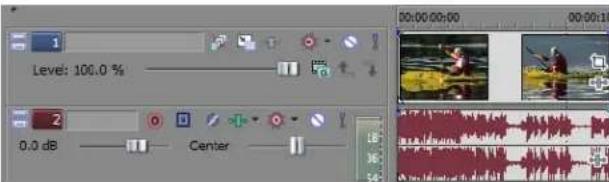
Two events that contain the video (top) and audio (bottom) streams from a single multimedia video file. Each event is inserted on a separate track.
Inserting layered PSD files
You can add layered PSD files to the Vegas Pro timeline, so each layer of the file is created as an event on its own track. These events are just like other events in Vegas Pro software. For example, you could use track motion to move layers individually, use parent tracks to group and move layers together, use track effects to animate just one layer of the graphic, or you could replace a layer with a video.
Notes:
- Photoshop layer styles and layer masks are not supported. In Photoshop, add an empty layer above these layers, make only those layers visible, and choose Merge Visible. The new layer will be visible when added to the Vegas Pro timeline.
- Photoshop layer groups and adjustment layers are not supported.
-
Photoshop layer blending modes, opacity, and names are not transferred to Vegas Pro compositing modes, track opacity, and track names.
-
Select a layered PSD file in the Explorer or Project Media window.
- Right-click and drag the file to the timeline.
- When you release the mouse button, a shortcut menu is displayed. Choose Add Across Tracks to import the PSD layers across tracks in the timeline.
The PSD layers, including the composite layer, are now available as streams. You can change an event's stream by right-clicking an event, choosing Stream from the shortcut menu, and then choosing the stream you want to use for the event.
Tip: You can also add layered PSD files to the timeline from the Trimmer. Right-click the media file and make sure Use All Streams and Channels is selected. Right-click and drag a time selection to the timeline. When you release the mouse button, choose Add Across Tracks from the submenu.
Automatically crossfading inserted events
When inserting multiple events across time, the events (both video and audio) can be set to automatically crossfade. Two options must be enabled in order to create crossfades automatically when adding multiple events. First, verify that a check mark appears next to Automatic Crossfades in the Options menu. Second, from the Options menu, choose Preferences, and on the Editing tab, select Automatically overlap multiple selected media when added. For more information, see Using automatic crossfades on page 109.
Project references in rendered media files
When your project uses media that was rendered with an embedded project path reference, you can easily open the source project in the associated application if you need to edit the media later. Recent versions of ACID, Sound Forge, and Vegas Pro software allow you to save the project path reference when you render files.
For example, imagine that you have an audio file on the Vegas Pro timeline that was rendered from an ACID project. In previewing your Vegas Pro project, you discover that you'd accidentally rendered your ACID project with a critical track muted. You could simply right-click the event on the Vegas Pro timeline and choose Edit Source Project from the shortcut menu to reopen your ACID project, unmute the track, and then rerender it.
The project information in the rendered file is a reference to a project file only. If you modify the project file after rendering, the project data will no longer match the rendered file. To edit a project using a path reference, the project file and all media must be available on your computer.
Tip: For more information on saving project path references in rendered files, see Rendering a project on page 387.
Editing a referenced project
- Perform one of the following actions:
• Right-click a media file in the Explorer window.
• Right-click a media file in the Project Media window.
• Right-click an event on the timeline.
- From the shortcut menu, choose Edit Source Project. An ACID, Vegas Pro, or Sound Forge window will open with the source project.
To edit a source project using a computer other than the computer where the project was created, the editing computer must meet the following requirements:
- The software that was used to create the project must be installed and the project file extension (.acd, .acd-zip, .veg, or .frg) must be registered on the editing computer.
• The editing computer must have the same version (or later) of the software that was used to create the project. - The project file must exist on the editing computer using the same file path as on the computer where the project was created.
-
The project's source media must exist on the editing computer. If the media files do not use the same file path as on the computer where the project was created, you will be prompted to choose a new folder or replacement files.
-
Edit the project as necessary.
- Render the edited project using the same name as the original media file and close the editing application.
If you're editing an existing track, your project will automatically be updated to use the latest rendered media file.
Capturing video
You can use the Video Capture application installed with Vegas Pro software to capture video clips from your DV or HDV video camera or via your SDI card and add them to the Project Media window. You can also specify a different third-party capture application for video capture.
Tip: Capturing video can be demanding on your computer's resources. To avoid potential problems, we offer the following suggestions:
- Defragment your hard drive. Click the Start button in the task bar and choose Programs. From the Programs submenu, choose Accessories, followed by System Tools and then Disk Defragmenter.
- Don't use other software applications or screen savers while capturing video.
Notes:
- If you are using a DVD-based video camera, you can use the Import DVD Camcorder Disc dialog to import your video into your Vegas Pro project. For more information, see Importing video from a DVD camcorder on page 49.
-
If you are using an XDCAM camera, you can use the XDCAM Explorer window to import XDCAM clips from a camera or deck. For more information, see Working with XDCAM Video on page 153.
-
From the File menu, choose Capture Video or click the Capture Video button (☐) in the Project Media window. The Capture Video window appears.
-
Choose the option you want to use for capturing video:
-
Select the DV radio button if you want to capture DV or Video for Windows clips using the video capture application specified on the Video tab of the Preferences window.
- Select the HDV or SDI radio button if you want to capture SDI/HDV clips using the internal Vegas Pro video capture application.
Tip: If you always capture from the same device, select the Always use the selected method check box, and you won't be prompted to choose a capture method again. You can change the method later using the Video tab of the Preferences window.
- Click OK. The specified video capture application starts.
-
Capture your video.
-
For more information on capturing DV clips with the Video Capture application, see the Vegas Pro online help. To access help, choose Contents and Index from the Help menu.
• For more information on capturing HDV clips, see Capturing HDV clips on page 299. - For more information on capturing clips from a tape deck via an SDI (Serial Digital Interface) card, see Capturing from an SDI card on page 55.
After you have captured your video, Video Capture adds the files to the Project Media window. If any captured clips go offline, you can recapture the clips using your video capture application. Right-click an offline file in the Project Media window and choose Recapture from the shortcut menu.
Capturing from an SDI card
If you have a supported SDI card, you can use the card to capture video and print to tape from the timeline.
The following procedure will guide you through the process of capturing clips from an SDI card.
Before you begin capturing video, use the Capture Preferences dialog to configure your SDI card. For more information, see Capture Preferences on page 57.
Important:
- Blackmagic Design DeckLink HD Extreme/Intensity Pro/HD Extreme 3D and AJA Io Express, XENA 2K, LH, LHe, LHi, LS, and LSe cards are supported.
- HDMI capture is supported on the Blackmagic Design DeckLink HD Extreme/Intensity Pro/HD Extreme 3D, AJA Io Express, and AJA XENA LHi cards.
- Vegas Pro does not support analog video inputs for SDI cards. However, Vegas Pro does support component video output for external preview.
- For the latest information about supported hardware, please see our Web site at http://www.sonycreativesoftware.com/vegaspro/io#sdi.
Capturing a single clip or entire tape
Tip: Connect your deck and power it on before starting Vegas Pro software.
- Use the transport controls below the Video Preview window to cue your video.
- If you want to encode your video during capture, you can choose a setting from the Encoding drop-down list. Depending on your input format, the available encoding formats are as follows:
| Input | Encoding |
| HDV | MPEG-2 Transport Stream |
| SD SDI | 8-bit YUV AVI |
| IMX MXF | |
| HD SDI | 8-bit YUV AVI |
| HD 422 MXF | |
| 10-bit SDI | 10-bit YUV AVI |
-
The Capture folder box displays the path to the folder where your video will be saved. You can click the Browse button to choose a different folder.
-
Click the Start Capture button (☐) to start capturing.
-
Click the Stop button (☐) or press Esc to end the capture procedure.
Your clip is saved to the folder specified in the Capture folder box and is also added to the Project Media list, from which you can add it to the timeline.
If you've configured your capture device to capture multiple channels of audio, the audio will be added across tracks when you add the clip to the timeline. You can open the clips in the Trimmer window to choose which channels you want to use.
Tip: Connect your deck and power it on before starting Vegas Pro software.
- Use the transport controls below the Video Preview window to cue your tape.
- Click the Clip Edit tab on the right side of Video Capture window and log your clips:
a. In the Clip Name box, type the file name you want to use to save the clip.
b. In the Tape Name box, type the name of the tape that contains the clip.
c. In the Timecode In box, type the timecode value that corresponds to the beginning of the clip, or click the Mark Timecode In button ( ) to use the current frame if you're cueing with the controls on your deck.
d. In the Timecode Out box, type the timecode value that corresponds to the end of the clip, or click the Mark Timecode Out button ( ) to use the current frame.
Tip: Select the Calculate Length button (☐) next to the Timecode in, Timecode out, or Length box to prevent editing of that setting and calculate its value based on the other two timecode values.
e. Click the Add Clip to Log button (✗) to add the clip to the Clip Log.
f. Repeat steps 2a through 2e for each clip you want to capture.
- If you want to encode your video during capture, you can choose a setting from the Encoding drop-down list. Depending on your input format, the available encoding formats are as follows:
| Input | Encoding |
| HDV | MPEG-2 Transport Stream |
| SD SDI | 8-bit YUV AVI |
| IMX MXF | |
| HD SDI | 8-bit YUV AVI |
| HD 422 MXF | |
| 10-bit SDI | 10-bit YUV AVI |
- The Capture folder box displays the path to the folder where your video will be saved. You can click the Browse button to choose a different folder.
- Click the Clip Log tab on the right side of Video Capture window.
- Click the Capture Clips button (☐) and choose a command from the drop-down list to start capturing clips to the folder specified on the Disk Management tab of the Capture Preferences dialog.
| Command | Description |
| Capture all clips | Captures all clips in the log. If a clip has already been captured, it will be recaptured. |
| Capture selected clips | Captures all selected clips in the log. Hold Shift or Ctrl to select multiple clips. |
| Capture offline clips | Captures all clips with a status of Offline in the log. |
The captured clips are also added to the Project Media list, and you can add them to the timeline.
If you've configured your capture device to capture multiple channels of audio, the audio will be added across tracks when you add the clip to the timeline. You can open the clips in the Trimmer window to choose which channels you want to use.
Tips:
- Click the Save Clip Log button (☐) to save the current clip log as an XML file if you want to save your clip log for capture or recapture at a later time.
- Click the Open Clip Log button (☐) and browse to a saved clip log to load a previously saved clip log.
Capture Preferences
You can use the Capture Preferences window to set options for capturing video from an SDI or HDV device.
- From the File menu, choose Capture Video, or click the Capture Video button (☑) in the Project Media window. The Capture Video dialog is displayed.
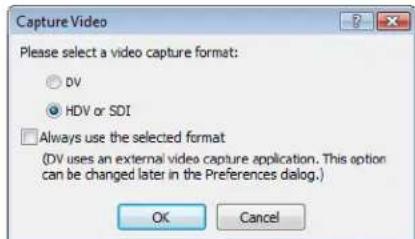
-
Select the HDV or SDI radio button and click OK. The Capture window is displayed.
-
Click the Capture Preferences button (in the Capture window to open the Capture Preferences dialog.
General tab
| Item | Description |
| Stop device on loss of focus | Stops the selected capture device when focus is switched away from the capture application. |
| Show video when device is stopped | Displays the current frame when the selected capture device is stopped. |
| Show video when device is fast-forwarding and rewinding | Displays video in the capture preview window when you fast-forward or rewind the device. |
| Add new clips to project media | Select this check box if you want to add captured clips to the Project Media window when capturing is complete. |
| Simulate device pixel aspect ratio | Displays square pixels in the Video Preview window even if thePixel aspect ratio setting in the Project Properties dialog is using nonsquare pixels. |
| Fail on dropped frames | Select this check box if you want to stop capturing if a dropped frame is detected. |
| When capture fails, stop batch capture | Select this check box if you want to stop an SDI batch capture if a dropped frame is detected. |
| Enable HDV scene detection | Select this check box if you want to create multiple files if scene changes are detected. When the check box is cleared, HDV clips will be captured to a single file. |
| Preroll | Type a value in the box to specify the number of seconds of preroll Video Capture should use for SDI batch capture.When you click theCapture Clips button [icon]on the Clip Log tab, Video Capture will seek to a point prior to yourTimecode insetting determined by the number of seconds you enter in thePrerollbox. Video Capture will begin playback at the preroll location, and switch to capture when it reaches the timecode you specified in theTimecode inbox. |
| Maximum RAM buffer size | Drag the slider to allocate a portion of your system memory as a buffer. During capture, this buffer is used to prevent dropped frames if your hard disk is unable to write a frame. |
| MPEG video quality | When capturing to compressed formats, you can drag the slider to adjust performance. When you drag the slider to the left, you can increase performance by decreasing video quality. When you drag the slider to the right, higher-quality video is captured, and more processing power is required.Note:Quality settings affect various types of material differently. With some experimentation, you may find that certain types of scenes can be captured at lower quality settings with little or no apparent loss of quality. Other material may need the highest possible setting to achieve the desired quality level. |
Device tab (for IEEE 1394 HDV devices)
| Item Description | |
| Device type | Choose IEEE 1394/MPEG2-TS Device. |
| Device Choose your HDV camera. | |
| Video Choose a setting from the drop-down list to specify the desired video format. | |
| Details | Displays information regarding the capture device specified in the Device drop-down list. |
Device tab (for AJA Io Express, XENA 2K, LH, LHe, LHi, LS, or LSe SDI cards)
| Item Description | |
| Device type | Choose AJA Video Device. |
| Device Choose your device. | |
| Input | Choose SDI or HDMI. |
| Video format | Choose a setting from the drop-down list to specify the desired video format. |
| Audio format | Choose a setting from the drop-down list to specify the desired number of channels for capturing SDI-embedded audio.Important: Multichannel audio capture is available only if supported by your camera or deck. |
| Use progressive segmented frame (psf) video formats | Select this check box if your project properties are set to a progressive-scan format and you want to capture from a device that stores and transfers progressive-scan frames by dividing fields. |
| Use 10-bit encoding | Select this check box if you want to capture 10-bit source material for increased color resolution. Source material with gradients in the background can benefit from 10-bit encoding.When you use 10-bit video in your project, choose 32-bit floating point (video levels) from thePixel formatsetting on the Video tab of the Project Properties tab.When the check box is not selected, the captured video will use 8-bit encoding. |
| Timecode source | Choose a setting from the drop-down list to specify the desired timecode source.•9-Pin Remote Estimates timecode using the 9-pin RS422 cable from the deck. This format is more prone to errors and requires more preroll than RP-188.•RP-188Uses SMPTE RP 188 timecode embedded in the video.Important: RP-188 is recommended when capturing HD video. |
| Timecode offset (frames) | If video capture is not frame accurate, drag the slider to adjust timecode. |
Device tab (for Blackmagic Design DeckLink HD Extreme, Intensity Pro, or HD Extreme 3D SDI cards)
| Item Description | |
| Device type | Choose Blackmagic Design DeckLink. |
| Device Choose your device. | |
| Video | Choose a setting from the drop-down list to specify the desired video format. |
| Audio | Choose a setting from the drop-down list to specify the desired number of channels for capturing SDI-embedded audio.Important: Multichannel audio capture is available only if supported by your camera or deck. |
| Use 10-bit encoding | Select this check box if you want to capture 10-bit source material for increased color resolution. Source material with gradients in the background can benefit from 10-bit encoding.When you use 10-bit video in your project, choose 32-bit floating point (video levels) from thePixel formatsetting on theVidootab of the Project Properties window.When the check box is not selected, the captured video will use 8-bit encoding. |
| Timecode source | Choose a setting from the drop-down list to specify the desired timecode source.•9-Pin RemoteEstimates timecode using the 9-pin RS422 cable from the deck. This format is more prone to errors than VITC or HANC.VITCUses SMPTE 12M timecode embedded in the video.HANCUses SMPTE RP 188 timecode embedded in the video. |
| Timecode offset (frames) | If video capture is not frame accurate, type a value in the box or use the spin control to adjust timecode. |
Using the Device Explorer
The Device Explorer allows you to browse and import clips from AVCHD, XDCAM EX, NXCAM, and RED ONE devices; CompactFlash-based memory recording units such as the HVR-MRC1; and hard-disk-based recording units such as the HVR-DR60.
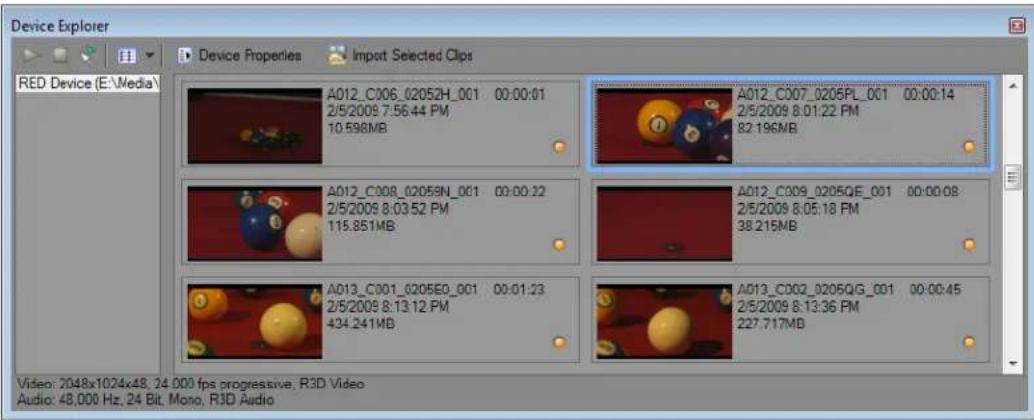
- From the View menu, choose Device Explorer to display the Device Explorer window.
- Connect your camera to a USB 2.0 port on your computer. The camera is displayed on the left side of the Device Explorer window.
Tip: If you want to use clips from a folder on your computer, right-click the left pane of the Device Explorer window and choose Browse from the shortcut menu.
Previewing clips
Select your camera on the left side of the Device Explorer window. The camera's clips are displayed on the right side of the window, and clips that have not yet been imported are indicated with a new clip icon (☐).
If the Auto Preview button (☑) is selected, you can click a clip in the Device Explorer to audition it in the Video Preview window. You can stop the preview by clicking the Stop Preview button (☐), or you can turn off the preview feature by deselecting the Auto Preview button.
Note: Video is previewed in the Trimmer window. If you want to preview video in the Video Preview window, right-click the Trimmer window and clear the Show Video Monitor command.
When the Auto Preview button is not selected, click the Start Preview button (▶) to start preview.
Choosing the folder where you want to import clips
-
Select your camera on the left side of the Device Explorer window and click the Device Properties button (☐).
The Device Properties dialog is displayed, and the Capture Folder box shows the path to the folder where imported clips will be saved. -
Click the Browse button to display the Capture Folders dialog. This dialog displays the available folders for saving your imported video:
-
Select a folder's check box to save your imported video in that folder.
- Click the Add Folder button (💡) and browse to a folder to add a new folder.
- Select a folder in the list and click the Delete button (✗) to remove it from the list.
Importing clips
- Select your camera on the left side of the Device Explorer window. The camera's clips are displayed on the right side of the window, and clips that have not yet been imported are indicated with a new clip icon (☐).
-
Click the Import button (💡) to import clips to the Project Media window:
-
If clips are selected in the Device Explorer window, only the selected clips are imported (you can hold Ctrl while clicking to select multiple clips).
• If no clips are selected in the Device Explorer window, all new clips are imported.
Tip: Right-click a clip in the Device Explorer window and choose Open in Trimmer or Import and Add to Project to choose how you want to import clips.
- You can then use the Project Media window to organize your clips and add the imported video to your project just like any other media file.
For more information, see Using the Project Media window on page 42.
For more information about AVCHD and XDCAM EX workflows, see Working with AVCHD video on page 50 and XDCAM EX workflow on page 153.
For more information about RED ONE workflows, see Working with RED ONE camera files on page 301.
Note: 5.1-channel audio will be downmixed to stereo when importing into a stereo project. When importing into a 5.1 surround project, audio will be added to separate tracks for the center, front, rear, and LFE channels.
Tip: You can also drag a clip from the Device Explorer directly to the Project Media window, Trimmer, or timeline. Vegas Pro begins importing the clip when you release the mouse, and an event is created on the timeline when importing is finished.
Working with events
Events are the most basic objects in a project. An event is something that happens in time, has a specific duration, and can be video or audio.
Understanding files and events
The objects you work with are referred to as media files and events.
- Files are objects that are stored on your hard disk. In Vegas Pro software, you will work with media files, such as music and video files. These files are neither operated on nor changed. You can access files from the Vegas Pro Explorer window.
- Events are periods of time on the timeline that act as windows into media files, either whole or in part. When you drag a media file onto the timeline, you automatically create an event that contains that file's contents. An event can contain video, audio, still images, or generated media. The event window can contain only a small portion of a much larger media file. A single media file can be used repeatedly to create any number of different events, since each event can be trimmed independently.
| 0 | 1 | 2 | 3 | 4 | 5 | 6 | 7 | 8 | 9 |
The original media file.
| 0 | 1 | 2 | 3 | 4 | 5 | 6 | 7 | 8 | 9 |
An event trimmed from the original media file.

The event as it appears in the Vegas Pro timeline.
Audio events are created from audio files on your computer (for example, .wav and .mp3) or can be a part of a video file (for example, .avi). You can change many characteristics of an audio event, such as speed, volume, and equalization. Audio events can be mixed with other audio events.
Video events are created from video files captured to your computer (typically AVI, MOV, QT) or images (BMP, JPEG, PNG, or TGA). You can change many characteristics of a video event, such as speed, color, and size. Video events can overlay other video events and are visual elements that appear on top of a background video, image, or color.
Moving events along the timeline
You can move events along the timeline individually or as a group. Events can overlap each other or be placed on top of each other. You can crossfade overlapping events automatically or with envelopes.
Moving an event
You can move an event along the timeline within a track or move it to a different track.
- Drag the event along the timeline.
If you move the event along the original track's timeline, the event's appearance (color) remains the same.
However, you can move the event to a different track. When you do, the event appears as a simple outline and you will see its original track and position on the timeline. Once you release the mouse, the event assumes the new timeline position and track color.
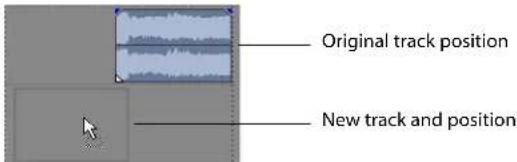
- Release the mouse to place the event.
Moving multiple events
You can move multiple events along the timeline within a track or move them to a different track. Selected events do not need to be within the same track. Use the Ctrl key, the Shift key, or the Selection Edit Tool (☐) to select multiple events and drag them. To select all events on the track after a given event, right-click the event and choose Select Events to End. For more information, see Selecting multiple events on page 92.
Moving events by small increments
To move an event more precisely, click the event and press 4 or 6 on the numeric keypad to nudge it by small increments. The amount of movement caused by each nudge is determined by how far the timeline is zoomed in or out. You can also click the event and press 1 or 3 on the numeric keypad to nudge the event by frames.
Moving grouped events
Groups allow you to move multiple events within their tracks as a single unit. While you can create your own groups as needed, groups are automatically created for you when video files with associated audio (for example, .avi) are added to a project. When you add these video files, the audio portion of the video file is inserted into the timeline as a separate audio event. The video and audio events are grouped and can be moved as a single unit within their respective tracks.
To move grouped events, drag any event in the group to a new position. For more information, see Grouping events on page 208.
Working with tracks
A project consists of multiple audio and video tracks. The timeline is the view in which all events appear. The track list provides information about the track and contains controls that affect all events in the track.
Using the timeline
Numerous options are provided for viewing and navigating in the timeline.
Scrolling and zooming
There are several ways to scroll and zoom in the timeline.
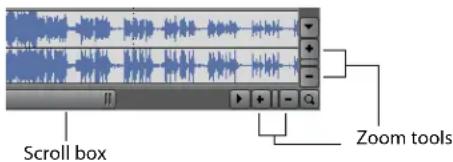
- Click the scroll bar arrows or drag the scroll bars to move up and down the tracks or to move forward and back along the timeline.
- Click the Zoom buttons (+| -) to reveal more or less of the timeline.
- Drag the edge of the scroll box, found on the scroll bar, to zoom.
- Press the Up Arrow and Down Arrow keys to zoom in and out along the timeline.
- Click the Zoom Edit Tool (Q) button or, from the Edit menu, choose Editing Tool and then choose Zoom. In this mode, drag on the timeline to draw a rectangle that defines the zoom region.
Tip: You can also access the Zoom Edit Tool from the lower-right corner of the timeline (a).
Mouse wheel control is also supported. The default behavior of the wheel is to zoom horizontally.
• Shift+wheel scrolls horizontally (through time).
• Ctrl+wheel scrolls vertically.
• Ctrl+Shift+wheel moves the cursor in small increments.
- Ctrl+Shift+Alt+wheel moves the cursor in one-frame increments.
- Clicking the mouse wheel turns auto-panning on and off.
Zooming directly controls the accuracy of your editing. Each video event has thumbnail representations of the frames within the event. Depending on how far you have zoomed in on a video event, a thumbnail can represent the entire event or a single frame in the event.
Tip: You can choose to display frame numbers, time, or timecode on video event thumbnails. For more information, see Displaying frame numbers on page 430.
Changing track height
You can change the height of individual tracks by dragging their borders in the track list. In the example below, the main video track is fairly large to show the details of the scene while the two tracks above it, which are overlays, have been resized to a shorter height. For more information, see Changing track height on page 170.
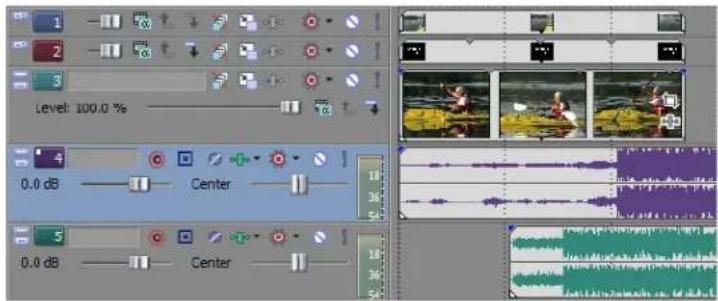
Using the track list
This section describes the different controls in the track header of each track. Some controls are specific to either video or audio tracks.
Video track header

| Button or Control Name | Description | |
| Make compositing child | Creates a parent/child compositing relationship with the track above. Used when creating masks. For more information, see Understanding the parent/child track relationship on page 329. | |
| Track number and color | Track numbers and colors help organize a multitrack project. For more information, see Managing tracks on page 167. | |
| Minimize track height | Minimizes track height. For more information, see Changing track height on page 170. | |
| Maximize track height | Maximizes track height. For more information, see Changing track height on page 170. | |
| Expand track keyframes | Displays track keyframes on the timeline. For more information, see Working with keyframes in the timeline on page 358. | |
| Bypass motion blur | Bypasses motion blur envelope for a track. For more information, see Using video bus tracks on page 180. | |
| Track motion | Track motion is used to move a video track across a background. Picture-in-picture effects and scrolling title sequences are two simple cases where this tool is important. For more information, see Adding track motion on page 363. | |
| Track FX | Adds track effects plug-ins. For more information, see Using video effects on page 321. | |
| Automation Settings | Toggles automation on or off. When this button is selected, trim controls are displayed for composite level automation and fade-to-color automation. For more information, see Using Automation on page 183. | |
| Mute | Temporarily suspends playback of the track so that you can focus on other tracks. For more information, see Muting a track on page 177. | |
| Solo | Isolates a track for playback by muting the other tracks. For more information, see Soloing a track on page 178. | |
| Video | Track name (scribble strip) | Allows you name a track. To name a track, double-click the scribble strip and type the track's name. For more information, see Naming or renaming a track on page 167. |
| Level: 100.0 % | Composite level slider | Determines the opacity/transparency of the video track. Drag the slider to control the transparency or blending of the track. Left is 100% transparent and right is 100% opaque. You can also double-click the label to enter a specific numeric percentage. |
| Compositing mode | Determines how the transparency in a video track is generated. For more information, see Selecting compositing modes on page 330. | |
Audio track header
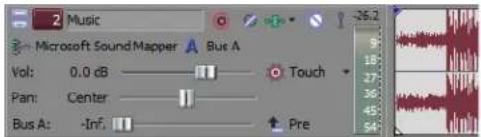
| Button or Control | Name | Description |
| 2 | Track number and color | Track numbers and colors help organize a multitrack project. For more information, see Managing tracks on page 167. |
| Minimize track height | Minimizes track height. For more information, see Changing track height on page 170. | |
| Maximize track height | Maximizes track height. For more information, see Changing track height on page 170. | |
| Music | Track name (scribble strip) | Allows you name a track. To name a track, double-click the scribble strip and type the track's name. For more information, see Naming or renaming a track on page 167. |
| Arm for Record | Prepares a track for recording. You can record directly into audio tracks. A track is ready when you see the recording meter appear on it. For more information, see Preparing to record on page 262. | |
| Invert Track Phase | Inverts the audio track at its baseline, in effect reversing its polarity. For more information, see Phase inverting a track (audio only) on page 176. | |
| Track FX | Adds track effects plug-ins. For more information, see Using audio effects on page 253. | |
| Mute | Temporarily mutes playback of the track so that you can focus on other tracks. For more information, see Muting a track on page 177. | |
| Solo | Isolates a track for playback by muting the other tracks. For more information, see Soloing a track on page 178. | |
| Record Input | Toggles input monitoring and allows you to choose a recording device. For more information, see Preparing to record on page 262. | |
| Bus Assignment | Assigns an audio track to a specific output bus. This option is available for projects being mixed for multiple stereo busses. For more information, see Assigning audio tracks to busses on page 216. | |
| Vol: 0.0 dB | Volume fader | Controls the audio track volume relative to the other tracks. Drag the fader left or right to adjust the volume. For more information, see Using the volume fader (audio only) on page 171. |
| Automation Settings | Toggles automation on or off. When this button is selected, trim controls are displayed for track volume, panning, assignable effects send levels, and bus send levels. For more information, see Using Automation on page 183. | |
| Pan: Center | Pan slider | Controls the overall panning of the track. Drag the slider left or right to adjust panning. For more information, see Using the pan slider (audio only) on page 171. |
| Bus A: Inf. | Multipurpose slider | Controls several features, including bus send levels, and assignable effects send levels. Select what the slider controls by clicking the label. Each item's slider position is independent from the others. For more information, see Using the multipurpose slider (audio only) on page 174. |
| Pre | Pre/Post Volume Send | Click to toggle pre- and post-volume send mode for bus sends and assignable effects sends. For more information, see Assigning audio tracks to assignable effects chains on page 174 and Assigning audio tracks to busses on page 175. |
Nesting projects
With Vegas Pro software, you can simplify and organize complex projects by adding multiple projects to the timeline of a single Vegas Pro project. Using project nesting, you can:
• Create a single element that can be used in multiple locations or projects. If you update the project, it is updated everywhere.
• Create a complex composited element that can be used as a single media event in multiple locations or projects.
- Create a transition across multiple events by placing the events in a nested project and applying the transition to the nested events project.
• Create a musical composition with its own tempo and bus structure that can be used in another project.
• Create an individual project for each scene in a video and place those projects in a master project. You can apply color correction to each project individually, and then apply color correction to the master project as well.
- Use master projects to deliver a single project in multiple formats without time- and disk-consuming intermediate renders: for example, you could add your 24p, 16:9 HD (high-definition) project to a master project to reformat the project as widescreen SD (standard definition) for DVD, letterboxed SD for VHS, 4:3 pan-and-scan SD, or 25p.
Use one of the following methods to nest an existing project in your current timeline:
- From the Windows® Explorer or the Explorer window, drag a Vegas Pro project file (.veg) to the timeline. The project is added to the timeline where you drop it.
• From the File menu, choose Import and then choose Media to browse to the .veg file you want to nest.
Using any of the methods above, the Vegas Pro project file is also added to the Project Media window. After a nested project is in the timeline, you can edit its events just as you would any other event in your project.
Notes:
- The output from the nested project's master bus is used to create the audio event. If you nest a 5.1 surround project, the audio event will be a stereo downmix of the surround master bus.
• Audio events from nested projects cannot be edited in a sound editor. - The audio from a nested project will require that a proxy file be built. To avoid building proxy files, delete audio from nested projects and use the master project to create your audio.
- Markers and regions in the nested project are displayed in the timeline as media markers in the event.
- Prerendered video from a project will be used when that project is nested in another project's timeline.
- You can edit a nested project by right-clicking the event in the timeline and choosing Edit Source Project from the shortcut menu. A new Vegas Pro window will open to allow you to edit the project.
Playing back and previewing
You can play back your project in two ways: directly from the timeline from within the software or by mixing the entire project to a preview file.
Playing your project
The transport bar allows you to play back your entire project or portions of your project based on a time selection or the current cursor position. For more information, see Transport bar controls on page 24.
If your project includes video, make sure the Video Preview window is displayed for playback: from the View menu, choose Video Preview or press Alt+6.
Playing an entire project
- Click the Play From Start button (▶) to begin playback at the beginning of the project.
- Click the Stop button (☐) to stop playback.
Most of the time, you will only want to preview a small portion of the project to perfect a section. You can do this by creating a time selection.
Playing a time selection
- Place the mouse pointer above the ruler on the marker bar. The mouse pointer changes to include a left/right arrow cursor (A).
- Drag to select the time region. To increase or decrease the time selection, drag its start and end points. The time selection is highlighted and the loop bar appears above the ruler on the timeline.
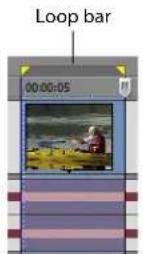
- Click the Play button (▶) to begin playback. Only the non-muted tracks and events within the time selection play back.
- Click the Loop Playback button (C) to continually play back the events within the time selection. Click the button again to toggle this feature off.
- Click the Stop button (☐) to stop playback.
By looping the playback, you can repeatedly watch the same section of the project over and over as you make changes to filters and effects in real time. You can define selection areas automatically, depending on what you would like to preview.
For more information, see Selecting a time range on page 93 and Cursor placement, loop region, and time selection commands on page 513.
Playback reference
The following table describes all the transport bar buttons and their keyboard equivalents. You can use these playback functions at any time while working in your project.
Note: The use of many multimedia keyboards is also supported for controlling playback.
| Button | Keyboard Function | |
| Ctrl+R Begin recording into record-enabled tracks | ||
| Q Turn on/off loop playback during time selection playback | ||
| Shift+Space Begin playback from the start of the project | ||
| Space Begin playback from cursor position | ||
| Enter Pause playback, cursor stops and holds at pause position | ||
| Space or Esc | Stop playback, cursor stops and returns to prior cursor position | |
| Ctrl+Home | Place cursor at the beginning of project | |
| Ctrl+End | Place cursor at the end of the project | |
Tip: You can use the Spacebar key to stop or pause playback, depending on your preference. From the Options menu, choose Preferences, and on the General tab, select Make spacebar and F12 Play/Pause Instead of Play/Stop to change the setting.
Scrubbing
Scrubbing is a type of timeline playback that gives you precise control over the speed and direction of playback. Both linear and logarithmic scale scrubbing are allowed by selecting or clearing the Use linear scrub range check box on the General tab of the Preferences dialog. For more information, see General tab on page 441.
The use of multimedia controllers is supported for scrubbing.
For more information on using the software with multimedia controllers, see Using Hardware Controllers on page 463.
Tip: Choose a setting from the JKL / shuttle speed drop-down list on the Editing tab of the Preferences dialog to control the scrub speed and range when using the keyboard or multimedia controllers. For more information, see Editing tab on page 455.
Four methods of scrubbing are provided.
Scrubbing with the playhead
The playhead (☐) above the timeline can be dragged back and forth to shuttle forward or backward from the cursor position to locate an edit point.
Drag playhead to scrub
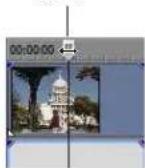
Tips:
- Set in and out points while dragging the playhead by pressing the I and O keys.
- The playhead is also available in the Trimmer window.
Scrubbing with the scrub control slider
The scrub control slider can be dragged back and forth. The farther from the center that the slider is dragged, the faster the playback, both forward and in reverse. Below the slider is a small yellow marker that can be used to set the normal rate playback speed. This is the speed at which the project plays when you click the Play button on the transport bar.

Scrubbing on the timeline
A project can be scrubbed by positioning the mouse pointer over the timeline cursor at a location that is not over any events and pressing Ctrl. The cursor changes to a speaker icon. Now, when you left-click, the cursor icon changes again to a pan/scrub icon. Drag the mouse left or right to scrub the timeline.
Press Ctrl over timeline cursor
Left-click and drag to scrub
Tip: You can also choose to enable timeline scrubbing when the mouse is positioned over events. From the Options menu, choose Preferences, and select Allow Ctrl+drag cursor style scrub over events on the General tab.
Scrubbing with the keyboard
Three letters (JKL) are used as a keyboard scrub control.
Keyboard scrub letters

Reverse

Pause

Forward
Note: Choose a setting from the JKL / shuttle speed drop-down list on the Editing tab of the Preferences dialog to control the scrub speed and range.
Press J for reverse and L for forward playback. Press K to pause playback.
70 | CHAPTER 2
There are several ways to adjust playback speed:
- Adjust the JKL / shuttle speed selection on the Editing tab of the Preferences dialog.
- Hold K while pressing J or L to emulate a shuttle knob mode. Press K+J to turn the knob to the left or K+L to turn the knob to the right. Press K again or Space to return to normal mode.
Previewing in media player
A project can be previewed in a media player by mixing and rendering the project according to the project's properties and playing back using the media player associated with the file type you select.
- From the Tools menu, choose Preview in Player. The Preview dialog appears.
- Select the file type from the drop-down list.
- Click OK to begin the mixing and rendering process. A progress dialog appears indicating the percent complete of the new file.
Note: You can cancel the preview by clicking the Cancel button on the status bar.
When mixing is completed, the associated media player opens and begins playback.
Prerendering video previews
Playing a project using the transport controls can instantly show how a project is progressing, but it does not actually render your project in its final form. The preview you see in the Video Preview window might be different from your final project in a number of ways: frame size, frame rate, and quality. In most cases, the Video Preview window is all you need for checking the timing of events in your project. Eventually, however, you might need to output a full-quality preview of a section of your project. To do this, from the Tools menu, choose Selectively Prerender Video.
For more information, see Prerendering video on page 371.
Rendering a project
Rendering refers to the process of creating a new media file from a Vegas Pro project. The project file is not affected (overwritten, deleted, or altered) during the rendering process. You can return to the original project to make edits or adjustments and render it again.
More detailed instructions for rendering to a specific format appear later in this manual.
For more information, see Saving, Rendering, and Printing Projects on page 385.
Publishing a project
From the File menu, choose Publish and then follow the on-screen instructions to choose a publishing provider and save your the current project to the Web so you can share it with others.
Using the Media Manager
This chapter covers the management and tagging of your media files in Vegas ^® Pro software using the Media Manager ^™ feature.
Creating a new media library
You can create multiple media libraries as necessary to organize your media. Each media library is maintained by the Media Manager software as a separate database that stores information about the media contained within it. You might want to use separate libraries, for example, to distinguish media from different computers or to create separate libraries for multiple users of a single computer.
Tip: For very large media collections, using multiple media libraries can improve performance.
- If the Media Manager window isn't already visible, choose Media Manager from the View menu.
- In the Media Manager window, click the Media Library Actions button (💡) and choose New Media Library from the menu. The New Media Library dialog appears.
- In the Name box, type the name you want to use to identify the library.
- The Folder box displays the path to the folder where the library will be created. Click Browse to choose a different location.
- Click the Create button to create the new library.
Opening a media library
The Media Manager window displays the contents of the current media library. You can open a different library at any time.
Important: When you open a media library, the Media Manager tool creates a transaction log file. This file is created in the same folder as the .medialib file and uses the same base name as the .medialib file. For example, the transaction log file for default.medialib would be default_log.ldf.
Do not delete these log files. Doing so will prevent you from opening the associated library. When the Media Manager tool closes, it automatically removes the log file. If the application terminates inappropriately, close all running Vegas Pro windows, restart the Vegas Pro software, and close the application to clear the log file.
- In the Media Manager window, click the Media Library Actions button ( ) and choose Open Media Library from the menu. The Open Media Library dialog appears.
- Choose the folder where the library you want to open is stored:
• Choose a drive and folder from the Look in drop-down list.
• Use the bar on the left side of the window to browse to a folder.
-
Select a library from the list.
-
Click the Open button to open the selected library. The name of the current library is displayed in the upper-right corner of the Search Results pane:
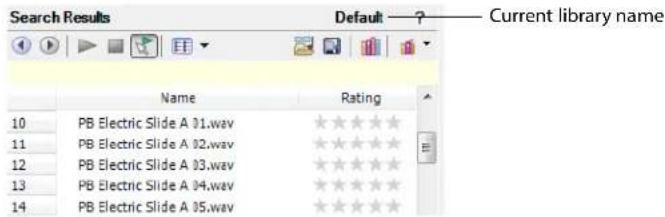
Adding media files to a library
Before you can search or organize your media files, you'll need to add them to a media library.
If you have the Sound Series Loops & Samples™ reference library loaded when you search your computer for media, media from existing Sony Loops and Samples or Loops for ACID™ collections will inherit tags and custom properties from the reference library. Use the Reference Library drop-down list in the Media Manager Options dialog to determine which library is opened when you click the Switch to Reference Library button (💡). For more information on Media Manager options, see Setting Media Manager options on page 88.
Notes:
- The Sound Series Loops & Samples reference library is not installed by default, but you can install it from the Vegas Pro application disc or download it from the Sony Creative Software Inc. Web site (http://www.sonycreativesoftware.com/utilities).
-
If the Save media-usage relationships in active media library check box is selected on the General tab of the Vegas Pro Preferences dialog, you can add individual files to a library by previewing the files in the Vegas Pro Explorer window.
-
Click the Add Files to Media Library button (☐). The Add Files to Media Library dialog appears.
- Choose the folders that will be searched for media:
a. If it isn't displayed automatically, click the Add Folder button (☐) to display the Browse for Folder dialog.
b. Select the folder you want to search.
c. Click OK.
Tips:
- If you want to change an item in the folder list, select it and click the Browse button (_) in the Folders column.
-
If you want to remove a folder from the list, select it and click the Remove Folder button (✗).
-
Repeat step 2 for each folder you want to search.
- Select the Include subfolders check box if you want to search folders within the selected folders.
- Select the Audio, Video, Images, or MIDI check boxes to indicate the types of media you want to add. Clear a check box to exclude that type of media file.
Files that contain audio and video streams will be added if either or both of the Audio or Video check boxes are selected.
-
Specify whether you want to search for new files or all files:
-
Select the New files only radio button if you want to search only for new media files. Files that already exist in the media library will be skipped.
-
Select the All files radio button if you want to search for all media files in the specified folder. New media files will be added, and files that already exist in the media library will be searched to determine whether their properties have changed.
-
Select the Add tags and custom properties from files check box if you want to add tags and custom columns saved in the media files to your library. For more information about tagging media, see Tagging media files on page 75. For information about adding custom columns to the Search Results pane, see Adding custom columns on page 86.
- Select the Use file and folder names to apply tags automatically check box if you want to automatically tag files based on the file path.
For example, when this check box is selected, a loop saved in the d:\loops\drums\hi-hats\ folder would have the tags Drums and Hi-Hats applied when it is added to the library. Some synonyms (and variant spellings) will be resolved using a tag thesaurus. If you need to modify the thesaurus, you can edit the TagThesaurus.xml file, which is created in your My Documents\Sony Media Libraries folder the first time the application starts.
Note: Changing the selection of the Add tags and custom properties from files and Use file and folder names to apply tags automatically check boxes also changes the settings in the Media Manager Options dialog.
- Click the Search button to start adding files to the library.
74 | CHAPTER 3
- Click the Close button when you're finished.
A tag is automatically added to the Tag tree when you search. The tag name will include the date and time of the search, and all files that were added or updated in the library are marked with this tag.
Removing media files from a library
You can remove a reference to a media file from a library without affecting the media file itself.
- Select files in the Search Results pane to choose the files you want to delete:
• To select a single file, click the file.
• To select multiple consecutive files, click the first file, hold the Shift key, and then click the last item.
• To select multiple files that are not consecutive, hold the Ctrl key and click each file.
-
Right-click a selected file and choose Remove from Library from the shortcut menu (or press the Delete key on your keyboard). A confirmation dialog is displayed.
-
Click OK to remove the selected files from the library.
Tagging media files
Tagging helps you classify your media files. For example, if you wanted to keep track of loops played by a specific instrument, you could create a tag with the name of the instrument and apply it to the appropriate loops. Similarly, you could create tags for genres, moods, seasons, client names, locations, scenes, performer names, and so on.
When you create a new library, a default tag tree is displayed in the Tags pane. You can create your own tags to customize the tags for your needs. Tags are the fastest way to search a media library, and they require very little disk space.
Tags are saved in your media library. If a media file exists in multiple libraries, tagging the media file in one library has no effect on the other libraries unless you save the tags to the files and use the Add Files to Media Library dialog to update tags and custom properties for all files.
Tip: If you want to see which tags are associated with a file as you're adding or removing tags, drag the Tags column in the Search Results pane to the left so you can see the Name and Tags columns at the same time.
Creating a tag
Adding tags creates new tags in the current library only.
- Click the New Tag button (💡) to add a new tag to the tree.
If a tag is selected, the new tag will be added below the selected tag. If no tag is selected, the new tag will be added to the bottom of the tag tree. - Type a name for the tag.
- Press Enter.
- If you want to change the icon used to display the tag, right-click it and choose Edit from the shortcut menu to display the Tag Editor dialog.
- If you want to change the tag's location, drag it to a new location in the tag tree.
Applying a tag to a media file
You tag media by dragging a tag from the tag tree to a media file in the Search Results pane (or by dragging a media file to a tag) when the Apply Tag Mode button (✗) is selected.
Notes:
- If you want to see which tags are associated with a file as you're adding or removing tags, use the Properties pane in the Search Results pane (or drag the Tags column in the Search Results pane to the left so you can see the Name and Tags columns at the same time). For more information, see Using the Properties pane on page 87.
-
Tags are saved in your media library. If a media file exists in multiple libraries, tagging the media file in one library has no effect on the other libraries unless you save the tags to the files and use the Add Files to Media Library dialog to update tags and custom properties for all files.
-
Select media files to tag in the Search Results pane:
• To select a single file, click the file.
• To select multiple consecutive files, click the first file, hold the Shift key, and then click the last item.
• To select multiple files that are not consecutive, hold the Ctrl key and click each file.
-
Click the Apply Tag Mode button (☐) in the Search pane.
-
Drag a tag from the tag tree to the selected file(s).
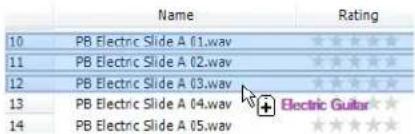
Tip: You can also right-click a selection in the Search Results pane and choose Apply Tag from the shortcut menu to add a tag to all selected media. The Tag Chooser dialog will be displayed. Select the tag you want to add, and then click the OK button.
When you add a subtag to a media file, the tag's hierarchical position in the tag tree is applied implicitly.
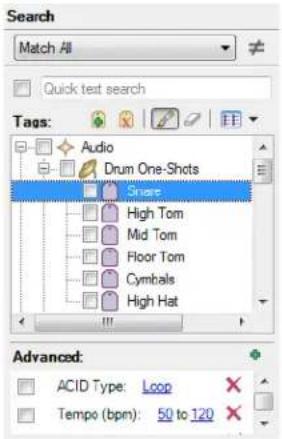
In this example, adding the "Snare" tag to a media file would mean that a search for "Audio," "Drum One-Shots," or "Snare" would find your tagged media. If the user rearranged the tag tree so that the "Snare" tag did not appear below the "Audio" and "Drum One-Shots" tags, searching for "Audio" or "Drum One-Shots" would not find your tagged media.
If you add all three tags to your media file, a search for "Audio," "Drum One-Shots," or "Snare" would find your tagged media even if the tag tree had been rearranged, though this behavior is not always desirable.
Removing a tag from a media file
You remove tags from media by dragging a tag from the tag list to a media file in the Search Results pane (or by dragging a media file to a tag) when the Remove Tag Mode button (☐) is selected.
Tip: If you want to see which tags are associated with a file as you're adding or removing tags, use the Properties pane in the Search Results pane (or drag the Tags column in the Search Results pane to the left so you can see the Name and Tags columns at the same time).
- Select media files in the Search Results pane:
• To select a single file, click the file.
• To select multiple consecutive files, click the first file, hold the Shift key, and then click the last item.
• To select multiple files that are not consecutive, hold the Ctrl key and click each file.
-
Click the Remove Tag Mode button (☐) in the Search pane.
-
Drag a tag from the tag tree to the selected file(s). The tag is removed from the file(s).
Deleting a tag from a library
Deleting the selected tag(s) affects the current library only.
- In the Search pane, select the tag(s) to be removed:
• To select a single tag, click the tag.
• To select multiple consecutive tags, click the first tag, hold the Shift key, and then click the last tag.
• To select multiple tags that are not consecutive, hold the Ctrl key and click each tag.
-
Click the Delete Selected Tag button (✗) to delete the tag from the current library. A confirmation dialog is displayed.
-
Click OK to remove the selected tags from the library.
The tag is removed from the library and from all media files in the library. However, if the tag had been saved to the media file, it will be added to the library again the next time the file is added to the library if the Add tags and custom properties from files check box is selected in the Add Files to Media Library dialog.
Merging subtags
Merging tags combines a selected tag with its subtags and removes the subtags from your library permanently.
To merge a tag with its subtags, right-click the tag and choose Merge Subtags into Selected Tag from the shortcut menu.
All subtags are combined with the main tag, and the subtags are removed from the library. All media formerly associated with the subtags is associated with the main tag.
Arranging tags in the tag tree
Tags are displayed in a tree view in the Media Manager window. You can organize tags hierarchically: click the Expand button (+) in the Search pane to expand a list, or click the Collapse button (=) in the Search pane to hide an expanded list.
You can drag, copy, and paste tags within the list to arrange them and create parent and child tags.
You can also display tags in a palette view by clicking the Change Tags View button (☐).
Editing tag names or images
- Double-click a tag (or right-click a tag and choose Edit from the shortcut menu) to display the Tag Editor dialog.
- In the Tag name box, type the name you want to display for the tag.
- Select a thumbnail image to choose the icon that will be displayed for the tag in the Search pane and in the Search Results pane when the tag is added to a media file.
- Click the OK button to apply your changes and close the Tag Editor dialog.
Viewing or creating palettes
The palette view provides another way of working with tags that can be useful for more focused searching. You can use a palette to concentrate on a portion of the current tag tree.
In the palette view, tags are displayed as a grid of buttons instead of the standard hierarchical tag tree.
-
Click the Change Tags View button (☐) to toggle the display of the tag tree and palette view.
-
Click the down arrow next to the button to choose a saved palette or create a new palette.
Creating a palette
- Click the down arrow next to the Change Tags View button (☑) and choose New Palette from the menu. The New Palette dialog is displayed.
- In the Name box, type the name you want to use to identify the palette.
- In the Rows box, specify the number of rows of buttons you want to display in the palette.
- In the Columns box, specify the number of columns of buttons you want to display in the palette.
- Click OK to create the palette. The palette is displayed as a grid with empty buttons.
Assigning palette buttons
- Perform either of the following actions to display the Tag Chooser dialog:
• Click an empty palette button. -
Click an existing button and choose Choose Tag from the shortcut menu.
-
Select the tag you want to assign to the button.
-
Click the OK button.
Clearing a button
Right-click a palette button and choose Clear from the shortcut menu.
Deleting a saved palette
- Right-click a palette button and choose Delete Current Palette from the shortcut menu.
- Click the OK button when prompted to delete the palette from your library.
Saving tags and properties to media files
Saving tags and properties to files makes all your tagging work portable: if tags are saved to files, those tags will be preserved in the files and can be added to the library by selecting the Add tags and custom properties from files check box in the Add Files to Media Library dialog.
Saving tags to files affects only the current media library and libraries that you create after saving the tags. If you have multiple libraries, you can add embedded tags and custom columns to existing libraries by opening the desired library and rescanning your media folders with the Add tags and custom properties from files check box selected in the Add Files to Media Library dialog. Embedded file properties are also updated when you preview or add media to a project.
Follow these steps to save tag information in your media file(s):
- Perform a search to find the files you want to tag.
- In the Search Results pane, select media files for which you want to save tags and properties:
• To select a single file, click the file.
• To select multiple consecutive files, click the first file, hold the Shift key, and then click the last item.
• To select multiple files that are not consecutive, hold the Ctrl key and click each file.
- Click the Save Tags and Properties to File(s) button (☐) in the top right corner of the Search Results pane. Information about tags associated with the file or information that you edited in the Search Results pane is saved to the selected files.
Tagging for loop developers
If you develop collections of loops and samples, you want to make sure you tag your media so users can find your loops easily and so your tagging is consistent with other existing collections.
- Make a copy of the media library named Sony Tag Tree for Library Development.medialib. This file is saved in your My Documents\Sony Media Libraries folder by default.
- Open the copy of the library.
- Add the loop collection you want to tag to the library.
- Apply the appropriate tags from the tag tree to your media files.
- Use existing tags whenever possible to ensure your collection is consistent with other collections in the Sound Series Loops & Samples family.
- When adding new tags, try to add them within the existing tag tree. For example, if you wanted to create a tag for a bowed upright bass, consider adding it below the existing Basses tag:
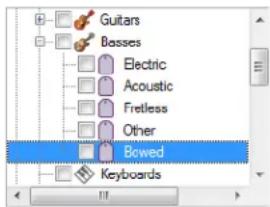
- When adding tags, consider how the user will search for media. In the previous example, adding the tag Bowed to a media file means that the user will find that file whether searching for Basses or Bowed. If a user's tag tree is rearranged so that Bowed is not a subtag of Basses, a search for the Basses tag will not find the file.
- If you add both tags, a search for Basses or Bowed will find the file regardless of whether Bowed is a subtag of Basses. This could result in inaccurate search results.
• Each tag contains a globally unique identifier (GUID) that preserves information about the tag and its location within the tag tree. For example, if you saved the Bowed tag to a media file, the file Bowed tag would be added to a user's media library when the file is added. If the Basses tag did not exist in the user's library, it would also be created. -
Because tags have unique identifiers, tag information and location is preserved. In the previous example, the Bowed tag would be added to the correct location in the user's media library even if the user had translated all the tag names to a different language or otherwise renamed the Basses tag. In this case, the new tag would be added, but higher-level tags that were renamed by the user would be unaffected.
-
Save the tags to your media files:
a. Delete the Scan [date / time] tags from the tag tree.
b. If you've searched the collection, click Clear to remove all search criteria and ensure all media files are displayed in the Search Results pane.
c. Select all files in the Search Results pane.
d. Click the Save Tags and Properties to Files button (☐).
Tip: You can also right-click a selected file and choose Save Tags and Properties to Files from the shortcut menu.
- Distribute your media files. You can optionally include the .medialib file.
Backing up your media libraries
Media Manager software automatically saves your library as you make changes, so you don't need to tell the application explicitly to save your library as you're working.
However, you can create a backup of the current library as a restore point or as a template to create new libraries.
Note: When you back up your library, the Media Manager automatically performs database management that can reclaim free space and improve performance.
- Click the Media Library Actions button (◀) and choose Back Up Media Library from the menu. The Back Up Media Library dialog is displayed.
- Choose a drive and folder from the Save in drop-down list, or use the browse window to locate the folder where you want to save your backup.
- In the File name box, type the name you want to use to identify the library.
- Click the Save button.
To restore the backup at a later time, open the backup file.
Opening a reference library
A reference library contains information about media from a vendor.
When the Sony Sound Series Loops & Samples reference library is installed and set as the active reference library in the Media Manager Options dialog, tags and custom properties from the reference library will be applied to media from existing Sony Sound Series Loops & Samples or Loops for ACID collections when you add media to your library.
Note: The Sony Sound Series Loops & Samples reference library is not installed by default, but you can install it from the application CD or download it from the Sony Creative Software Inc. Web site (http://www.sonycreativesoftware.com/utilities). After installing the library, go to the Media Manager Options dialog and choose the reference library from the Reference library drop-down list.
You can also use a reference library to search media files that aren't part of your collection. For example, if you're unable to find the perfect loop for an ACID or Vegas project in your own collection, you could use the Sony Sound Series Loops & Samples reference library to search the entire Sony Sound Series Loops & Samples catalog and purchase a new loop library.
Tip: You can use the Media Reference Library drop-down list in the Media Manager Options dialog to determine which library is opened when you click the Switch to Media Reference Library button ( ).
- Click the Switch to Media Reference Library button (☐). The reference library specified in the Media Manager Options dialog is opened. For more information, see Setting Media Manager options on page 88.
Note: Media in a reference library is displayed in gray text to indicate that the files are not available on your computer.
- Find the media you're looking for with a standard or advanced search. For more information, see Searching for media files on page 81.
- Tag media from the reference library as needed. For more information, see Tagging media files on page 75.
- When you select a file in a reference library, the Product Information pane displays information about the selected file and a link you can use to purchase the media.
Searching for media files
You can use the Media Manager tool to search the current media library for media files using keywords or tags.
Tips:
- You can use the Search results limit box in the Media Manager Options dialog to determine the maximum number of media files you'd like to have returned in the results of your searches. Increasing the Search results limit setting increases the amount of time required to search a library and can significantly decrease performance if set excessively high.
- When performing complex searches, consider creating temporary tags to classify the results. If you apply a tag to the files found by a complex search, you can return to those files easily by searching on the tag. The Media Manager tool can search for tags more quickly than it can perform keyword or advanced searches.
Searching using a keyword
- Select the Quick text search check box in the Search pane and type a keyword (or keywords) in the edit box.
Tip: You can separate search terms using quotation marks and other operators. If quotes or wildcard characters are not applied, an asterisk (*) is automatically added before and after each search term.
- Press Enter.
The Media Manager tool searches your media files and displays the results in the Search Results pane on the right side of the window. Any file that contains your keywords in the file name or attributes is displayed (tags are not searched as keywords). Your search terms are displayed in the yellow bar below the Search Results toolbar.
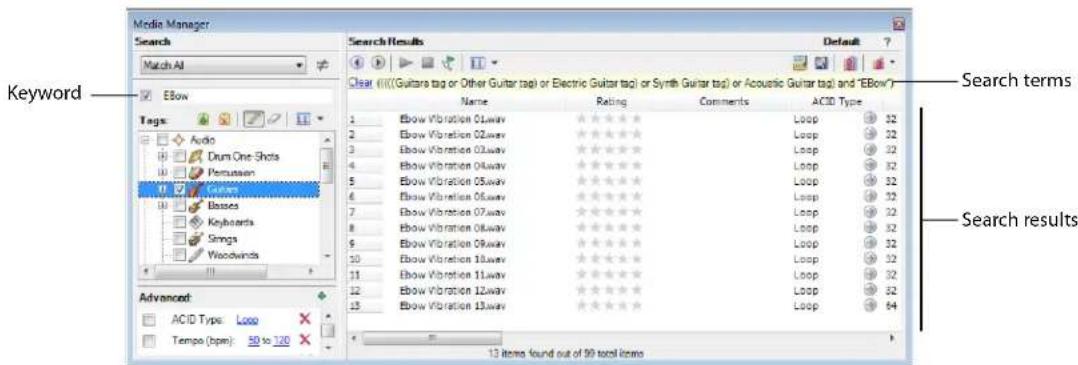
- You can refine the search results using any of the following methods:
• Select tag check boxes.
• Use the Advanced search controls. For more information, see Using advanced search options on page 83.
- Choose Match Any from the Match Any/Match All drop-down list to display all media that matches any of your keyword, tag, or advanced search criteria. Using this option in the search displayed in step 2, the Search Results pane would display all files that contain the keyword "EBow" OR the "Guitar" tag.
- Choose Match All from the Match Any/Match All drop-down list to display only media that matches all of your keyword, tag, and advanced search criteria. Using this option in the search displayed in step 2, the Search Results pane would display all files that contain the keyword "EBow" AND the "Guitar" tag.
- Click the View items not matching search criteria button (≠) to display only items that do not match your keyword, tag, and advanced search criteria.
Searching using tags
In the Search pane, select the check box for each tag you want to find. The Media Library searches your media files and displays the results in the Search Results pane on the right side of the window.
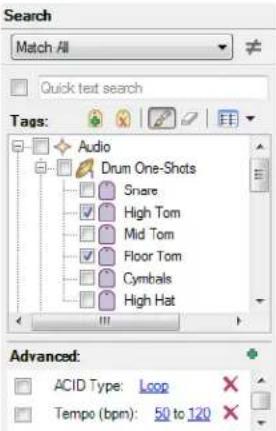
Choose Match Any from the Match Any/Match All drop-down list if you want to display all media that contains any keyword, tag, or advanced search criteria. In the example above, the Search Results pane would display all files that contain the tag "High Tom" OR the tag "Floor Tom."
Choose Match All from the Match Any/Match All drop-down list if you want to display only media that includes all keyword, tag, and advanced search criteria. In the preceding example, the Search Results pane would display only files with tags "High Tom" AND "Floor Tom."
Note: If you have check boxes selected for parent and child tags, those tags will be treated as an OR relationship regardless of whether Match Any or Match All is selected.
Click the View items not matching search criteria button (≠) to display only items that do not match your keyword, tag, and advanced search criteria.
Sorting search results
Click a column heading to sort the results in ascending or descending order based on that column.
Viewing previous searches
Click the Previous Search button (④) in the top left corner of the Search Results pane to navigate through your recent searches and update the contents of the Search Results pane.
After viewing previous searches, click the Next Search button (▶) in the top left corner of the Search Results pane to navigate back to your current search.
82 | CHAPTER 3
Using advanced search options
If your media library contains many files and you're searching for a very specific media file, the Advanced section of the Search pane can help you zero in on exactly the file you want.
If you want to perform an advanced search to refine the results of a previous search, start by creating a quick search or tag-based search and then perform the following steps.
Tips:
- You can use the Search Results Limit box in the Media Manager Options dialog to determine the maximum number of media files you'd like to have returned in the results of your searches. Increasing the Search Results Limit setting increases the amount of time required to search a library and can significantly decrease performance if set excessively high.
- When performing complex searches, consider creating temporary tags to classify the results. If you apply a tag to the files found by a complex search, you can return to those files easily by searching on the tag. The Media Manager tool can search for tags more quickly than it can perform keyword or advanced searches.
1. Add your search criteria:
a. Click the Add New Search Criteria button (◆) in the Search pane. The Search Criteria Chooser is displayed.
b. Double-click an item in the Search Criteria Chooser or drag it to the Advanced section of the Search pane.
Tips:
- If an item in the Search Results pane displays an arrow button (③), you can click it to find related media. For example, clicking the button in the following example adds an item to the Advanced section to help you find other media with a beat count of 16.
- You can also drag a column heading from the Search Results pane to the Advanced section of the Search pane.
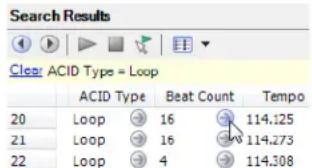
- Set parameters for each of your search criteria. If the item displays an edit box, type the parameter you want to search for. If the item is displayed as a hyperlink, click the value to display a control you can use to set the value.
- Choose whether you want to display files that match any or all of your search criteria:
- Choose Match Any from the Match Any/Match All drop-down list if you want to display all media that matches any of your keyword, tag, or advanced search criteria.
- Choose Match All from the Match Any/Match All drop-down list if you want to display only media that matches all of your search criteria.
- Select the check boxes for the advanced search criteria you want to include in your search, or clear a check box to exclude that item.
Previewing media
You can use the transport controls in the Media Manager window to preview media files.
- Select files in the Search Results pane to choose the files you want to preview:
• To select a single file, click the file.
• To select multiple consecutive files, click the first file, hold the Shift key, and then click the last item.
• To select multiple files that are not consecutive, hold the Ctrl key and click each file.
- Start playback:
• If the Auto Preview button (☑) is selected, playback will begin automatically.
• If the Auto Preview button is not selected, click the Start Preview button (▶) to begin playback.
If you have multiple files selected, they will be played back sequentially. Each file's icon will change to a play icon (▶) during playback.
- Click the Stop Preview button (☐) to stop the preview, or turn off the preview feature by deselecting the Auto Preview button.
If the file is offline, you'll be prompted to locate the file or choose a replacement.
Tip: To preview a media file in its associated media player, right-click the file and choose Open with
Media relationships
When you're searching or browsing the contents of your media library, you might be overwhelmed by the amount of media you've amassed. How can you possibly remember how and where you've used your media? No problem. The Media Manager tool takes care of the details.
Media relationships are maintained only when the Save media-usage relationships in active media library check box is selected on the General tab of the Vegas Pro Preferences dialog.
- Right-click a media file in the Search Results pane.
- Choose Find Related Items from the shortcut menu, and then choose a command from the submenu:
| Command | Description |
| Used with | Displays all media files that use the selected media. |
| Previewed with | Displays all media that has been previewed in a project containing the selected media. |
| Rendered to | Displays all media files that were created from the selected media file using the Render As command. |
| Rendered from | Displays the original media files that were used to create the selected media file if the file was created using the Render As command. |
| Chopped to | Displays all media files that were created from the selected file using the Chop to New Track command in ACID software. |
| Chopped from | Displays the original media file that was used to create the selected media file if the file was created using the Chop to New Track command in ACID software. |
| Rendered track to | Displays all media files that were created from the selected file using the Render to New Track command. |
| Rendered track from | Displays the original media files that were used to create the selected media file if the file was created using the Render to New Track command. |
Media files matching the selected command are displayed in the Search Results pane.
- Click the Previous Search button (☐) to return to the previous contents of the Search Results pane.
Adding media to your project
After you've added media to your library, tagged it, and searched for specific files or related media, you've probably found just the right piece of media for your current project.
You can add media to your project from the Search Results pane by performing any of the following actions:
• Dragging a file from the Search Results pane to the project timeline. The file is added wherever you drop it.
Tip: You can also drag files from the Search Results pane to the Windows desktop, a folder, or to another application that is an OLE (object linking and embedding) drop target.
- Double-clicking a media file in the Search Results pane (if the Double-click in Search Results pane adds media to project check box is selected in the Media Manager Options dialog). The file is added to the track list.
- Right-clicking a media file in the Search Results pane and choose Add to Project from the shortcut menu. The file is added to the track list.
If the file is offline, you'll be prompted to locate the file or choose a replacement. For more information, see Resolving offline media files on page 85.
Resolving offline media files
An offline media file is a file that is no longer available to the Media Manager. Media can be classified as offline if you eject removable storage after adding a file to your library or change a file's name or location.
- Add media to your project or preview media files. If any of the files are not accessible, the Resolve Offline Media dialog appears with a listing of offline files and their status:
| Icon | Status | Description |
| Offline | The file listed in the Offline File column cannot be found. The status will be Offline if you did not search or browse for a replacement file. | |
| Probable Match | The file listed in the Offline File column will be replaced by the file listed in the Replacement File column. A status of Probable Match indicates that the Media Manager tool found a likely replacement file when you clicked Smart Search. | |
| Found | The file listed in the Offline File column will be replaced by the file listed in the Replacement File column. A status of Found indicates that you chose the file you want to use after clicking the Browse button. |
- Select the files you want to resolve:
• To select a single file, click the file.
• To select multiple consecutive files, click the first file, hold the Shift key, and then click the last item.
• To select multiple files that are not consecutive, hold the Ctrl key and click each file.
-
Specify how you want to resolve the selected files:
-
Click the Smart Search button to search quickly and allow the Media Manager tool to suggest the replacement file.
- Click the Browse button to choose a specific replacement file.
- Click the Leave Offline button to leave the file offline. The file will not be added to your project.
-
Click the Remove button to remove the file from the media library. The file will not be added to your project. The original media file is not deleted.
-
Repeat step 3 for each file in the list.
-
Click the OK button to preview the files or add the files to your project and update the media library with the replacement files.
Customizing the Media Manager window
Much of what you see in the Media Manager window can be customized to suit your preferences.
Resizing columns
You can resize the columns in the Search Results pane by dragging the splitter between columns to the desired size. To resize a column automatically, double-click a splitter.
| Name | Rating | |
| 1 | Ebow Vibration 01.wav | ★★★★★ |
| 2 | Ebow Vibration 02.wav | ★★★★★ |
| 3 | Ebow Vibration 03.wav | ★★★★★ |
Moving columns
To move a column in the Search Results pane to a different location, drag the column header to the desired location. A red indicator shows where the column will be dropped.
| ACID Type | Beat Count | Tempo | Root Note |
| Loop 32 | 98.037/ | C3 | |
| Loop 32 | 83.414 | B3 |
Showing or hiding columns
- Right-click the column headings and choose Column Chooser from the shortcut menu.
- Drag the columns you want to see from the Column Chooser dialog to the Search Results pane.
- To hide a column, right-click a column heading and choose Remove this Column from the shortcut menu.
Adding custom columns
You can add custom columns to the Search Results pane to store additional information about media files. When you add custom columns, they are added to the current library only.
For example, if you wanted to keep track of which removable hard drive contained a media file, you could create a custom Drive Number column to assign any numeric rating to a media file. You could then use the Advanced section of the Search pane to search using the Drive Number value.
When adding media to a library, you can choose to add this information by selecting the Add tags and custom columns from files check box in the Add Files to Media Library dialog.
- Right-click the column headings and choose Custom Columns from the shortcut menu. The Custom Columns dialog appears.
- Click the Add New Column button (+) to add a custom column. A new entry is added to the list.
- In the Name box, type the name you'd like to display as a column heading.
- Select the Type box and choose Text or Integer from the drop-down list to indicate whether you'll store text or numeric data in the column.
- If you want to remove a custom column, select an entry in the list and click the Delete Selected Columns button (✗). The column and all data stored in the column is removed from the library.
- Click the OK button. The column is added to the media library, and the Search Results pane is scrolled to the right to display your new column.
Editing a column's contents
Some columns in the Search Results pane can be edited. When an entry in the Search Results pane is selected, click a box to make it editable. You can then type new information in the box.
Changing a column's contents affects only the entry in the current media library. Click the Save Tags and Properties to Files button (☐) to save the properties with the media file.
Showing thumbnails
If you're working with videos or still-images, the thumbnail view helps you see the files that match your search criteria.
To switch to thumbnail view, click the down arrow next to the Change Search Results View button (☐) and choose Thumbnail.
You can drag the slider at the bottom of the Search Results pane to adjust the size of the thumbnails.
When you select a file, the thumbnail is magnified. You can change the zooming behavior on the Thumbnail tab of the Media Manager Options dialog.
You can choose which frame you want to use as a thumbnail for video files:
- Right-click a thumbnail in the Search Results pane and choose Choose Thumbnail from the shortcut menu. The Thumbnail Chooser dialog is displayed.
- Drag the slider in the Thumbnail Chooser dialog to set the frame you want to use.
- Click the OK button.
Using the Properties pane
The Properties pane displays extended information about the selected file in the Search Results pane. You can view and edit file attributes and view a listing of all tags that have been applied to the file.
Note: Properties that are editable are displayed in black.
Right-click a file in the Search Results pane and choose Show Properties Pane from the shortcut menu to toggle the display of the window.
Setting Media Manager options
Use the Media Manager Options dialog to set options for working with the Media Manager tool.
To display the Media Manager Options dialog, click the Media Library Actions button (💡) and choose Options from the menu.
General tab
| Preference | Description |
| Reference library | Choose the library you want to load when you click the Switch to Reference Library button ( [IMAGE]) in the upper right corner of the Search Results pane. For more information about using reference libraries, see Opening a reference library on page 80. |
| Search results limit | Type the maximum number of media files you’d like to have returned in the results of your searches.Note: Increasing the Search results limit setting increases the amount of time required to search a library and can significantly decrease performance if set excessively high. |
| Double-click in Search Results pane adds media to project | Select this check box if you want to add files to the current project by double-clicking a file in the Search Results pane. |
| Shut down database service on exit | Select this check box if you want to stop the database service when you close Vegas Pro software.Note: Stopping the service can conserve system resources when you aren’t using any applications that use the Media Manager tool. However, the application will take longer to start when the check box is selected. |
| Add tags and custom properties from files | Select this check box if you want to add tags and custom columns saved in the media files to your library. For more information about tagging media, see Tagging media files on page 75. For information about adding custom columns to the Search Results pane, see Adding custom columns on page 86. |
| Use file and folder names to apply tags automatically | Select this check box if you want to automatically tag files based on the file path. For example, when this check box is selected, a loop saved in the d:\loops\drums\hi-hats\ folder would have the tags Drums and Hi-Hats applied when it is added to the library. Some synonyms (and variant spellings) will be resolved automatically. If you need to modify the pattern-matching, you can edit the AutoTagPatterns.xml file, which is created in your My Documents\Sony Media Libraries folder the first time the application starts. |
Media Library tab
| Preference | Description |
| Delete | Click this button to remove information about media relationships from your database. Media relationships are maintained only when the Save media-usage relationships in active media library check box is selected on the General tab of the Vegas Pro Preferences dialog. |
| Update | Click this button to scan the media files in your library and compare them to the files on disk to look for updated media properties. If the values stored in the media library and the files on disk do not match, the Media Manager will prompt you to choose the values you want to keep. Select the Ignore file dates when checking for changes check box if you want to scan all files. When the check box is cleared, only files that have been modified since the last update will be scanned. You can also use the Update button to check your media library for offline files. |
Thumbnails tab
Thumbnail (*.sftb) files are used to represent image and video files in the Media Manager. Use the Thumbnails tab to edit settings for saving and using thumbnails.
| Preference | Description |
| Thumbnail Caching | Choose a setting from the drop-down list to indicate how you want to store thumbnails for image and video files.Store thumbnails in common folder Choose this setting if you want to store all thumbnails in a single folder. When you store thumbnails in a common location, you can view media thumbnails even if the media is not available (if you store media on a removable drive or network folder, for example).Store thumbnails with media files Choose this setting if you want to store thumbnails each media file's thumbnails in the same folder as the media. When you store thumbnails with media files, adding media files from a removable drive or network folder can be much faster because the Media Manager does not need to generate thumbnail files for each media file.Store thumbnails in common folder and with media files Choose this setting if you want to duplicate thumbnail files in a common folder and with the media. When you add media files, the Media Manager will not need to generate thumbnails for media files that already have thumbnails in the media folder; existing thumbnail files are copied to the common folder.Do not store thumbnails Choose this setting if your disk space is limited and you do not want to store thumbnails. Thumbnails will be generated as needed. |
| Common Thumbnail Folder | Displays the path to the common thumbnail folder. Click Browse to choose a different folder. |
| Limit Common Folder Size | Select this check box and type a value in the box if you want to limit the amount of storage used for thumbnail files.Click the Empty button to clear all thumbnails from the common location. |
| Enable Thumbnail Zoom | Select this check box if you want to zoom thumbnails when you select them in the Search Results pane. |
| Delay before zooming thumbnails | Type a value in the box to set the delay before a thumbnail image is zoomed when you select it. |
| Smooth thumbnail zooming | Select this check box if you want to animate thumbnail zooming. |
About tab
Use the About tab to view information on the version of the Media Manager that is currently installed. This information can be useful when troubleshooting issues with the Media Manager.
Using the Media Manager with multiple computers
If you have multiple computers in your production environment, you can easily share media libraries.
The following guidelines will help you make the most of your media libraries in a multicomputer setup:
• Save your media in shared folders where all necessary users have access.
- Use common drive letters or UNC (universal naming convention) paths for the folders where your media files and libraries are stored on all computers.
For example, your media files could be in a shared folder called \studio_a\media ("studio_a" is the computer name, and "media" is the name of the shared folder), or you could map the shared folder "media" to drive letter M for all computers.
- After tagging your media or otherwise changing properties, save the metadata to the media files by clicking the Save Tags and Properties to Files button (☐). Saving this information in the files makes the information more portable across computers.
Basic Editing Techniques
Vegas® Pro projects are multitrack compilations of events that occur over time. The events in your project are references (pointers) to source media files. Vegas Pro software is a nondestructive editor, so editing events in your project does not alter the source media files in any way.
Getting around
When editing and playing back the project, the cursor identifies where you are along the project's timeline.
Moving the cursor
Use the following keyboard commands to move the cursor in the timeline.
| Description | Keys | Description | Keys |
| Go to beginning of project | Ctrl+Home or W | Move left/right to marker(s) | Ctrl+Left/Right Arrow |
| Go to end of project | Ctrl+End or E | Move to marker # | 0-9 keys (not numeric keypad) |
| Go to beginning of selection or view (if no selection) | Home | Move left/right to event edit points including fade edges (see figure below) | Ctrl+Alt+Left/Right Arrow |
| Go to end of selection or view (if no selection) | End | Nudge cursor on timeline | Left or Right Arrow |
| Move right by grid marks | Page Down | Move left/right one frame | Alt+Left/Right Arrow |
| Move left by grid marks | Page Up | Move left/right one frame | Ctrl+Alt+Shift+Mouse wheel |
| Go to | Ctrl+G | Center in view | \ |
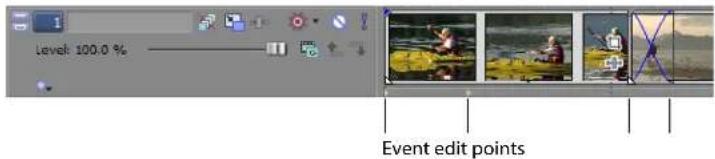
Changing focus
Focus is used to describe which objects have the attention of a program. For example, when you click a file in the Project Media window, that window has focus. To instantly switch the program's focus to the timeline (track view), press Alt+0 or, from the View menu, choose Focus to Timeline.
In Vegas Pro software, it matters which track has focus when you perform a task. For example, when you double-click a media file in the Explorer, it is inserted into the track that has focus. You can click a track on its track number to make it the focus track. A blinking white line under the track number and shading in the track list indicates a track has focus.
Making selections
You have the flexibility to select one or more events, a time range, or events and a time range. All selection options can apply to a single track or to multiple tracks.
To select an event, click it.
Selecting multiple events
You can select multiple events in your project using several methods.
Tips:
• Once you have selected multiple events, you can group them together. For more information, see Grouping events on page 208.
- You can select multiple video events, multiple audio events, or a combination of both video and audio events. However, you can only use commands and operations that apply to both types of events for selections composed of both audio and video events.
Selecting nonadjacent events
- Hold the Ctrl key.
- Select the events by clicking them.
To deselect an event, simply click it again to toggle the event selection on or off.
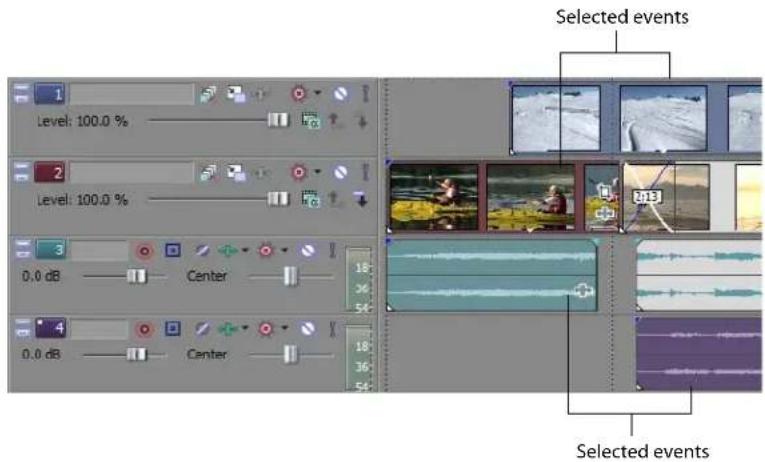
Selecting a range of events
- Hold the Shift key.
- Click the first event that you want to select.
- Click the last event that you want to select.
All events between the first and last selected events are highlighted and selected.
Tip: Click the right mouse button while holding the left mouse button switch from rectangular selection, time selection, and track selection.
Selecting a block of events
- Click the Selection Edit Tool button (☐).
- Position the cursor in a corner of the area that you want to select.
- Click and hold the left mouse button.
- Drag the cursor to the opposite corner of the area you want to select. A rectangle is drawn on the workspace. All events within this rectangle are selected.
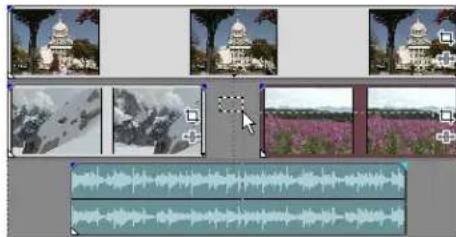
natural_image
Sequence of video editing software interface showing building, landscape, flower, and audio waveform outputs (no text or symbols on images)Hold the left mouse button and right-click to toggle through the three types of selection boxes: free, vertical, or horizontal.
Tip: You can include or exclude events from a selection area by pressing Ctrl and clicking an event. To deselect all events, click anywhere in the workspace outside of the selected events.
Selecting all events to the end of the track
- Right-click an event. A shortcut menu appears.
- From the shortcut menu, choose Select Events to End. All events on the track after the selected event are selected.
Tip: To move large blocks of events, you can use Select Events to End with events selected on different tracks. Press Ctrl and click to select events on different tracks, and then right-click to access the shortcut menu.
Selecting all events that refer to a specific media file
Right-click a file in the Project Media window and choose Select Timeline Events from the shortcut menu. All events that use the selected media file in the active take are selected.
Hold Ctrl or Shift while choosing Select Timeline Events from the shortcut menu to add the events to the current selection.
Selecting a time range
Time selections are indicated by a shaded box and a bar that appears on the top of the timeline. You can use the time selection bar for playing back a smaller portion of your project or to apply cross-track edits.
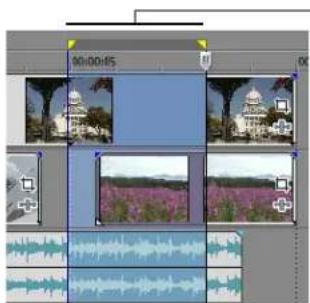
Iime selection
Only the events within the time selection are affected by edits or played back.
Note: Unless an event is locked, a selected time range affects all events, or portions of events, that occur within the range.
Dragging to select a time range
- Position the mouse pointer above the ruler (on the marker bar). The mouse pointer changes to a left/right arrow cursor (←→).
- Drag to select a region. All events, or portions of events within the region are highlighted.
- Drag the yellow handles on either end of the time selection to increase or decrease your time range selection.
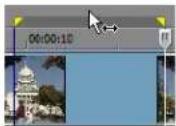
Tip: You can move the entire selection range by dragging the time selection bar.
Selecting a time range during playback
- Click the Play (▶) or the Play From Start (▶) button to begin playback.
- Press I where you want the time selection to begin.
- Press O where you want the time selection to end.
- Click the Stop button (☐) to stop playback.
Using shortcuts for time selections
These shortcuts can speed up the process of making precise time selections.
| Description Shortcut | |
| Set time selection duration equal to an event's duration | Double-click the event |
| Extend selection to the end of the currently selected event edge | Ctrl+Shift+Alt+Right Arrow |
| Extend selection to the beginning of the currently selected event edge | Ctrl+Shift+Alt+Left Arrow |
| Drag a time selection on an event without selecting/deselecting the event | Ctrl+Shift+drag on the event |
Tip: Press Backspace to recall the last five time selection areas.
Looping playback
If you want to play back the time range, click Play (▶) to play only the events within the time range. Click the Loop Playback button (○) or press Q to toggle loop playback on and off. Vegas Pro software continually plays back the portion of the timeline within the time selection when loop playback is toggled on.
Selecting events and a time range
Selecting a time range does not automatically select events. Excluding locked events, all items within the time range play back and are affected by Edit menu commands. However, you can select specific events to edit, and then select a time range.
- Select the events you wish to edit. For more information, see Selecting multiple events on page 92.
- Place the mouse pointer above the ruler (on the marker bar). The mouse pointer changes to a left/right arrow cursor (←).
- Drag to select the region. Notice that events that were not initially selected in step 1 remain unselected (not highlighted).
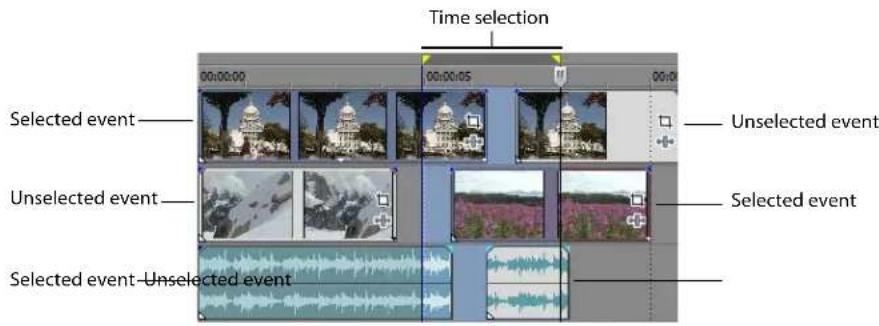
Selecting tracks
Click a track header to select it. Hold Ctrl or Shift to select multiple tracks.
Selecting groups of composited tracks
Click the vertical bar below a parent track to select a group of composited tracks. For example, clicking the area marked A in the following track list selects tracks 1 through 6. Clicking the area marked B selects tracks 4 through 6.
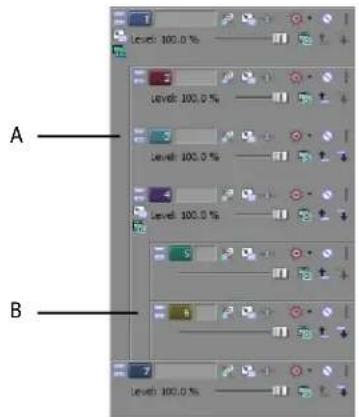
You can copy events, or portions of events, to the clipboard and paste them into your project. You can copy a single event or multiple events. Copying preserves the original event information, edits, and other modifications.
Tip: When the Cut, copy, and delete grouped events check box on the Editing tab of the Preferences dialog is selected, cutting, copying, or deleting an event will affect all events in the same group. If you need to delete a single event, you can choose Ignore Event Grouping from the Options menu to temporarily ignore grouping.
- Select the events to be copied. For more information, see Selecting multiple events on page 92.
- Select a time range, if applicable.
- Click the Copy button (☐).
Copying selected events
When copied, selected events are reproduced and placed on the clipboard. Time information is also placed on the clipboard.
| Events before copy | Clipboard contents | Events after copy |
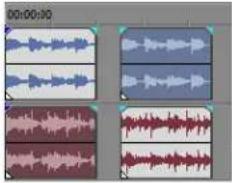 | The original events are not affected and do not change. |
Copying a time selection
Events within the time selection and across all tracks are reproduced and placed on the clipboard. Time information is also placed on the clipboard.
| Events before copy | Clipboard contents | Events after copy |
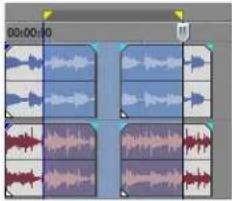 | The original events are not affected and do not change. |
Copying a time selection and events
Events and portions of selected events within the time selection are reproduced and placed on the clipboard. Time information is also placed on the clipboard.
| Events before copy | Clipboard contents | Events after copy |
 | The original events are not affected and do not change. |
Cutting events
Cutting events removes them from their respective tracks, but places the cut information (events and time) on the clipboard. Once on the clipboard, you can paste the information into your project.
Tips:
- When the Cut, copy, and delete grouped events check box on the Editing tab of the Preferences dialog is selected, cutting, copying, or deleting an event will affect all events in the same group. If you need to delete a single event, you can choose Ignore Event Grouping from the Options menu to temporarily ignore grouping.
-
You can apply a ripple edit after cutting. For more information, see Applying post-edit ripples on page 107.
-
Select events or a time range. For more information, see Making selections on page 92.
- Click the Cut button (☐).
Cutting selected events
When cut, selected events are removed from the timeline and placed on the clipboard. Time information is also placed on the clipboard.
| Events before cut | Clipboard contents | Events after cut | Events after cut in post-edit ripple mode |
 |  |  |  |
Cutting a time selection
Events within the time selection are reproduced and placed on the clipboard. Time information is also placed on the clipboard. When cutting a time selection, auto ripple mode affects the position of material on all tracks or affected tracks after the cut.
| Events before cut | Clipboard contents | Events after cut | Events after cut in post-edit ripple mode |
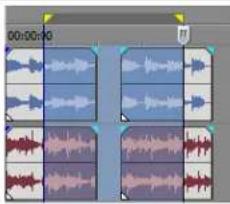 | 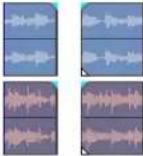 | 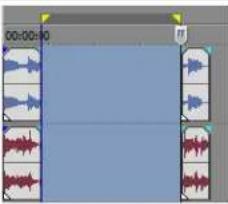 | 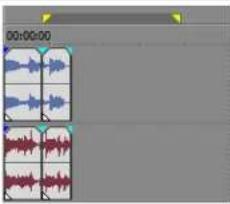 |
Cutting a time selection and events
Events and portions of selected events within the time selection are reproduced and placed on the clipboard. Time information is also placed on the clipboard. When cutting a combination of time selection and event selection, post-edit ripple mode affects the position of material on all tracks or the tracks of selected events after the cut.
| Events before cut | Clipboard contents | Events after cut | Events after cut in post-edit ripple mode |
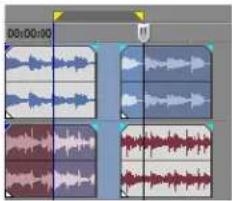 | 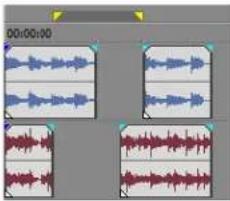 | 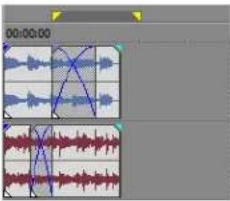 |
Pasting events
Once information is copied to the clipboard, you can choose a variety of ways to paste the clipboard items. Items are always pasted from the cursor's position along the timeline.
Tip: When the Cut, copy, and delete grouped events check box on the Editing tab of the Preferences dialog is selected, cutting, copying, or deleting an event will affect all events in the same group. If you need to delete a single event, you can choose Ignore Event Grouping from the Options menu to temporarily ignore grouping.
When post-edit ripple mode is enabled, material is pushed down the track to make room for pasted material. The exact behavior of the ripple depends on what is being pasted, and the type of ripple edit you chose to perform. If one or more events are pasted, only those tracks where pasted material appears are ripple edited.
Tip: You can apply a ripple edit after pasting. For more information, see Applying post-edit ripples on page 107.
- Move the cursor to the desired location on the timeline.
- Click either the track number or within the track where you want to paste the event. This track is the focus track; there can be only one focus track at a time.
Note: If you are pasting multiple events from different tracks, new tracks are automatically created as needed.
3. Click the Paste button (☐).
Clipboard events are pasted at the cursor position on the track. Existing track events can be overlapped with newly pasted information.
Using paste repeat
Use paste repeat to specify how many times clipboard events are pasted at the cursor position on the selected track and to specify the space between pasted events.
- Copy a selection to the clipboard.
- From the Edit menu, choose Paste Repeat. The Paste Repeat dialog is displayed.
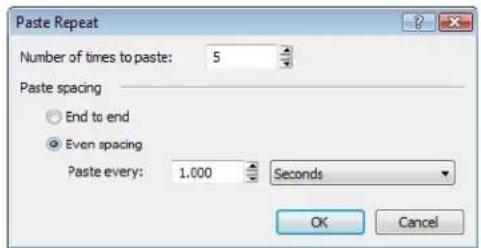
-
Specify the number of times to paste the clipboard contents and the space between successive copies.
-
Click OK.
Using paste insert
When using paste insert, clipboard events are placed at the cursor position on the selected track and existing events on all tracks are moved further down the timeline by the total length of pasted information. This action differs from post-edit ripple mode because pasting in post-edit ripple mode affects only the tracks in which material is pasted, while paste insert affects all tracks in the project.
- Copy a selection to the clipboard.
- From the Edit menu, choose Paste Insert.
Clipboard contents Events before paste insert Events after paste insert
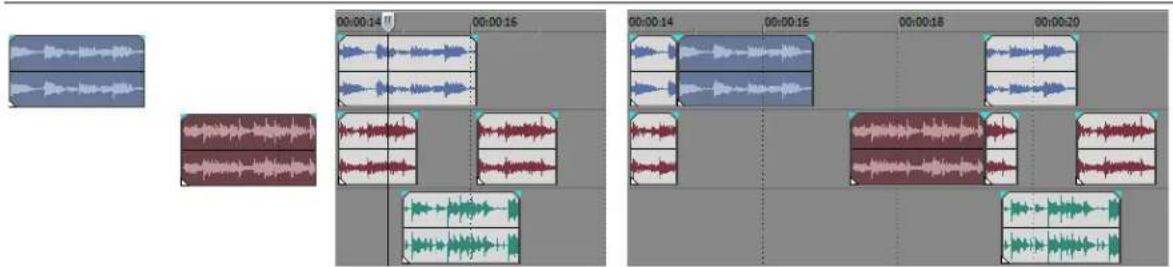
Events on all tracks (not just tracks with pasted material) are pushed down the timeline.
Punching-in and crossfading events
You can insert events into the middle of (on top of) existing events without altering the timing of the project. When the inserted event ends, the original event continues playing as if it had never stopped.
You can choose the duration of crossfades for punched-in audio events.
- From the Options menu, choose Preferences. The Preferences dialog is displayed.
- Click the Editing tab.
- Select Quick fade length of audio events. Specify a duration for each transition.
Events that have previously been inserted or punched-in are not affected by this change. The concept of punching in and out only applies when you are inserting an event that is shorter than the event that it is being inserted into. In the following illustration, every frame is numbered so that you can see how the original event continues after the inserted event ends, as if it continued to play underneath the original.
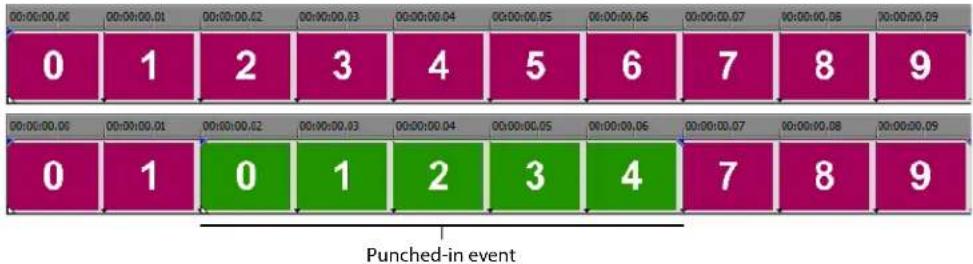
heatmap
| Row | Column 1 | Column 2 | Column 3 | Column 4 | Column 5 | Column 6 | Column 7 | Column 8 | Column 9 | |---|---|---|---|---|---|---|---|---|---| | 0 | 0 | 1 | 2 | 3 | 4 | 5 | 6 | 7 | 8 | | 1 | 0 | 1 | 0 | 1 | 2 | 3 | 4 | 7 | 8 | | 2 | 0 | 1 | 0 | 1 | 2 | 3 | 4 | 7 | 8 | | 3 | 0 | 1 | 0 | 1 | 2 | 3 | 4 | 7 | 8 | | 4 | 0 | 1 | 0 | 1 | 2 | 3 | 4 | 7 | 8 | | 5 | 0 | 1 | 0 | 1 | 2 | 3 | 4 | 7 | 8 | | 6 | 0 | 1 | 0 | 1 | 2 | 3 | 4 | 7 | 8 | | 7 | 0 | 1 | 0 | 1 | 2 | 3 | 4 | 7 | 8 | | 8 | 0 | 1 | 0 | 1 | 2 | 3 | 4 | 7 | 8 | | 9 | 0 | 1 | 0 | 1 | 2 | 3 | 4 | 7 | 8 | Punched-in eventDuplicating events
Duplicating is a combination of copying and pasting in one action. The process is like moving the event to a new position while leaving a copy behind.
- Press Ctrl.
- Drag the event you want to duplicate to the place where you want the new event to be positioned.
Inserting empty events and time
You can insert events into the timeline that do not have any contents and are not references to any media files. Empty events are useful as placeholders in the timeline that can be filled with media or recorded into at a later time. In either case, the new media is added to the empty event as a take. To add an empty event to a track, choose Empty Event from the Insert menu.
You can also make space in a project by inserting a length of time across all tracks. To insert a period of time into the timeline, choose Time from the Insert menu.
Trimming events
This section describes simple ways to trim events.
Tip: You can apply a ripple edit after trimming an event. For more information, see Applying post-edit ripples on page 107.
Trimming an event
During the trimming process for a video event, both the last thumbnail image on the event and the Video Preview window show the last frame in the event, allowing you to edit events very accurately.
-
Move the cursor over the edge of the event. The cursor changes when properly positioned (↔).
-
Drag the edge of the event to trim it.
Because a multimedia file often has both a video and an audio component, both events are trimmed (or extended) as a group unless you ungroup them or temporarily suspend grouping by clicking the Ignore Event Grouping button. For more information, see Grouping events on page 208.
Trimming grouped events at the same time
Trimming an event beyond its end
You can trim an event beyond its end, extending it as a result. Once extended, the event loops as a default. A notch indicates where the looped event repeats.
Alternately, you can turn looping off and make the last frame of an event's media repeat for the duration of the event (a freeze frame). A notch appears at the point in the event where the video ends and the freeze frame begins. For more information, see Loop on page 199.
Trimming adjacent events
You can trim adjacent events simultaneously. Press Ctrl+Alt while dragging the common edge between two adjacent events. The trim adjacent cursor appears (←→).
Press Ctrl+Alt over the boundary between two events...
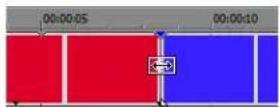
...and drag left...
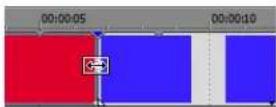
...or right to trim both events at once.
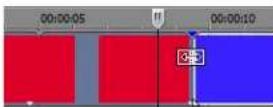
Trimming a time selection
Trimming events removes all media outside the time selection. The removed information is not placed on the clipboard. Trimming is different from cutting in that the events within the time selection are preserved.
- Select a time range. For more information, see Selecting a time range on page 93.
- Press Ctrl+T or, from the Edit menu, choose Trim.
The material outside the time selection (across all tracks) is removed from the project. However, the time information (space) between events is not removed.
| Events before trim | Clipboard contents | Events after trim |
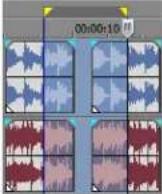 | Trimmed information is not placed on the clipboard. | 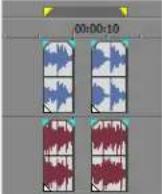 |
Trimming a time and event selection
- Select the events to be trimmed.
- Select a time range. For more information, see Selecting events and a time range on page 95.
- Press Ctrl+T or, from the Edit menu, choose Trim.
Only the portion of selected events outside the time selection is trimmed. Unselected events remain. The time information (space) between events is not removed.
| Events before trim | Clipboard contents | Events after trim |
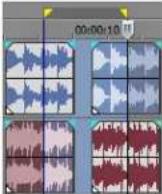 | Trimmed information is not placed on the clipboard. | 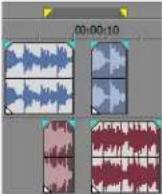 |
Edge trimming events using the keyboard
With this method, you can quickly jump through your project and adjust cuts until they're perfectly synchronized. If you have an external multimedia controller, it's even easier.
- If you want downstream events to ripple as you trim, click the Auto Ripple button (☐) to turn on Auto Ripple mode.
- Select the event you want to trim.
- Press 7 or 9 on the numeric keypad to move the cursor to the event edge you want to trim. 7 selects the beginning of an event or moves to the previous event edge. 9 selects the end of the event or moves to the next event edge. A red bracket is displayed to indicate which event edge will be trimmed.
Note: You can also perform this step using the bracket ([ or ]) keys.
-
Use the 1, 3, 4, and 6 keys on the numeric keypad to trim the current event edge:
-
Press 1 to trim one video frame left, or press 3 to trim one video frame right (or hold Ctrl+Shift+Alt while rolling the mouse wheel).
- Press 4 to trim one pixel left, or press 6 to trim one pixel right (or hold Ctrl+ Shift while rolling the mouse wheel). Depending on the current zoom level, the trim duration will vary.
Note: Pressing 5 on the numeric keypad exits edge-trimming mode. If you are not in edge-trimming mode, 1, 3, 4, and 6 on the numeric keypad to nudge events on the timeline by frame (1 and 3) or by pixel (4 and 6).
- Repeat steps 3 and 4 as necessary.
Splitting events
You can create multiple, independently functioning events from a single event by splitting it. Splitting creates a new ending point for the original event and creates a starting point for the newly created event.
Splitting an event does not alter the original media. The original media file's information is there, but is omitted for playback based on where the event's starting or ending point occurs on the timeline.
When split, the two new events are flush against one another. The two events can be moved independently.
One event
Split position
Two events after split
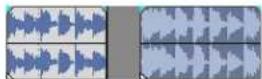
The two new events
can be moved
independently.
Splitting an event
- Select the events to be split. For more information, see Making selections on page 92.
- Place the cursor at the timeline position where the split will occur.
- From the Edit menu, choose Split, or press S.
The selected events are split at the cursor position.
Splitting all events at the cursor
All events are split at the cursor's position (unless an event is locked). The split occurs across all tracks (if no events are selected).
Events before splitting Events after splitting
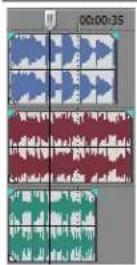
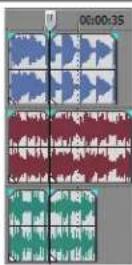
Splitting selected events
Only the selected events are split at the cursor's position.
Events before splitting Events after splitting
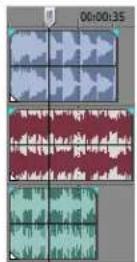
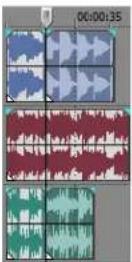
Splitting a time selection
Unless locked, all events within the time selection are split at the starting and ending points of the time range, meaning that two splits are made. The split occurs across all tracks.
Events before splitting Events after splitting
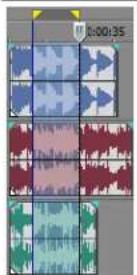
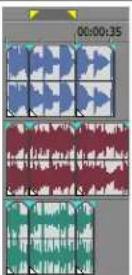
Splitting a time selection across selected events
Only selected events within the time selection are split at the starting and ending points of the time range.
Events before splitting Events after splitting
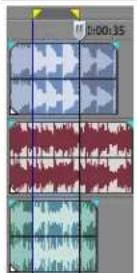
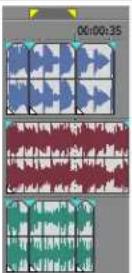
Splitting and trimming events
Hold Ctrl+Alt+Shift and click an event to split the event. Hold Ctrl+Alt+Shift and drag an event to split it at the point you click and trim the event in the direction you drag. The cursor changes to the split-trim cursor ( ).
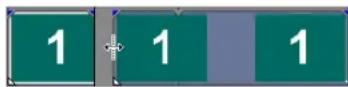
Tip: Holding the Shift key temporarily overrides snapping if it is enabled. Release the Shift key while dragging to snap the event to available snap points.
Slipping and sliding events
To help you picture what happens when you slip and slide events, think of an event as a window to a media file. The window can display the entire media file or a small section. When the window displays only a portion of the media file, you can move either the window or the underlying media to adjust the media that is played by an event:
- When you slip an event, your event maintains its place on the timeline, but the media file moves in the direction you drag.
- When you slide an event, the media file maintains its place on the timeline, but the event moves in the direction you drag.
Tip: You can also slip or slide grouped events (at the same time) or slide a crossfade between two events. For more information, see Grouping events on page 208 or Sliding a crossfade on page 110.
Shifting the contents of (slipping) an event
Press Alt while dragging an event. The slip cursor appears ( ).
As you drag the event, the contents of the event shift, but the event does not move. You can use this technique when you want to maintain an event's length and position, but have the event play a different section of the source media file.
Slip-trimming an event
Press Alt while dragging the right or left edge of an event. The slip-trim cursor appears (←).
As you drag the event edge, the media moves with the event edge.
Tips:
- Press Alt+Shift while dragging any portion of an event to slip-trim the right edge. The left edge of the event remains fixed on the timeline, and the media is slipped past the left edge of the event. This slip mode is useful when you want to slip an event without changing its last frame.
- Press Ctrl+Alt+Shift and drag an event to split it at the point you click and trim the event in the direction you drag.
- To slip all of an event's takes when slipping media, make sure Slip All Takes is selected in the Options menu.
Sliding an event
Press Ctrl+Alt while dragging an event. The slide cursor appears (←→).
As you drag, the relative position of the media remains fixed on the track, and the event position changes. You can use this technique when you want to maintain an event's length, but have the event play a different section of the source media file at a different point in your project.
For more information, see Applying post-edit ripples on page 107.
Tip: You can apply a ripple edit after slip-trimming or sliding an event.
| 0 | 1 | 2 | 3 | 4 | 5 | 6 | 7 | 8 | 9 |
The original media file.

The event on the timeline with original frames.

Slipping the event two frames to the right.

Slip-trimming the event two frames to the right.

Sliding the event two frames to the right.
Detecting and repairing audio and video synchronization problems
When audio and video events are not aligned, Vegas Pro software will highlight the events in the timeline so you can see synchronization problems at a glance.
The software determines whether events are synchronized by comparing grouped and overlapping events:
- An event in a group is compared to other events in the same group (of the opposite media type) that were created from the same media, and the events with the most overlap are used to calculate synchronization. If no events overlap, the closest events are used to calculate synchronization.
- An event that is not in a group is compared to events (of the opposite media type) that were created from the same media, and the events with the most overlap are used to calculate synchronization. If no events overlap, no synchronization offset is displayed.
Note: The amount of offset is displayed when the Active Take Information option is selected on the View menu. Very small offsets that are below the resolution of the timeline might be displayed as 0.00. Set the project time format to samples to see the offset amount.
To restore synchronization, right-click the audio or video event you want to synchronize, choose Synchronize from the shortcut menu, and then choose a command from the submenu:
| Command | Description |
| By Moving | Moves the event you clicked so it is synchronized to its corresponding audio or video event. |
| By Slipping | Slips the contents of the event you clicked so the audio and video are synchronized. The events do not move, but the contents of the event you right-click are shifted forward or backward to restore synchronization. |
Deleting events
Deleting an event removes it from its track. Multiple events can be deleted and time selections can be used to modify the process. Ripple editing also applies to delete actions. Deleting operates exactly like a cutting operation, but the removed information is not placed on the clipboard. For more information, see Cutting events on page 97.
- Select the events to be deleted.
- Press Delete.
Applying post-edit ripples
You can apply a post-edit ripple that affects either the edited track(s), the track(s) and certain project elements, or everything in the timeline. The power lies in the fact that you can apply this post-edit ripple to a wide variety of editing tasks, such as trimming, crossfading, cutting, pasting, and deleting events. You can also choose to apply your ripple edits manually or automatically.
You can ripple the contents of the timeline following an edit after performing these tasks:
- Trimming, slip-trimming, and sliding events
• Time compressing/stretching events - Cutting events
- Pasting events
- Deleting events
Ripple editing also affects how material is added from the Trimmer window. For more information, see Using the Trimmer window on page 128.
The original four events
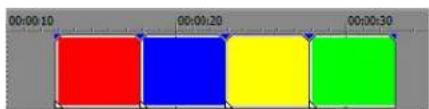
Trimming the second event
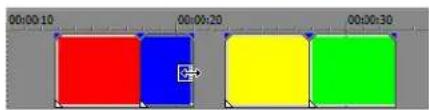
After applying a post-edit ripple, the third and fourth events close the gap
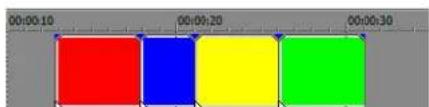
A quick and easy method is also provided for shuffling a sequence of events on a track. Decide that the third event in a series should really be the second instead? You can drag the event to a new position and instruct the software to shuffle the events into their new order.
Applying a post-edit ripple manually
- Perform one of edits discussed above. Above the timeline, an arrow indicates where the post-edit ripple will occur and the direction the affected events will move.
- From the Edit menu, choose Post-Edit Ripple, and choose a command from the submenu:
• Affected Tracks ripples only the tracks where you performed the edit.
- Affected Tracks, Bus Tracks, Markers, and Regions ripples the tracks where you performed the edit and ripples any keyframes or envelopes on those tracks. This command also ripples any markers, regions, CD layout markers, and command markers in the project.
- All Tracks, Markers, and Regions ripples all tracks and all keyframes and envelopes on those tracks. This command also ripples any markers, regions, CD layout markers, and command markers in the project.
The timeline is rippled after the edit according to the option you choose.
Tip: You can press F after an edit to ripple the affected tracks, or you can press Ctrl+F to ripple markers, keyframes, and envelopes, too. To ripple everything after an edit, press Ctrl+Shift+F.
Applying a post-edit ripple automatically
- Click the arrow button next to the Auto Ripple button (▲) and choose a ripple type:
• Affected Tracks ripples only the tracks where you performed the edit.
- Affected Tracks, Bus Tracks, Markers, and Regions ripples the tracks where you performed the edit and ripples any keyframes or envelopes on those tracks. This command also ripples any markers, regions, CD layout markers, and command markers in the project.
• All Tracks, Markers, and Regions ripples all tracks and all keyframes and envelopes on those tracks. This command also ripples any markers, regions, CD layout markers, and command markers in the project.
- Perform one of edits discussed above. Above the timeline, an arrow indicates where the post-edit ripple will occur, the direction the affected events will move, and the distance the events will move.
- The timeline is rippled after the edit according to the ripple type you choose.
Shuffling events
A quick way to change the order of a sequence of events in a track is provided. Right-click and drag an event to a new location in the track and choose Shuffle Events from the shortcut menu that appears. The events are shuffled into the new order.
The original four events
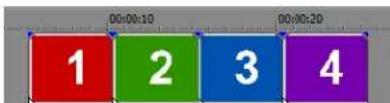
Right-click and drag event 3 between events 1 and 2
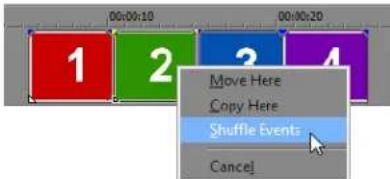
The four events after the shuffle
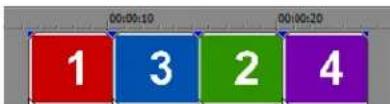
Crossfading events
You are allowed to crossfade between two events on the same track. For audio events, crossfading fades out one audio event's volume while another event's volume fades in. For video events, crossfading creates a transition between two events, one fading out while the other fades in. Lines appear indicating how and when the event's volume or transparency is being affected.
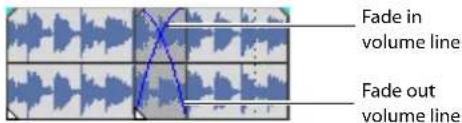
Using automatic crossfades
The automatic crossfade feature turns the overlapping portions of two events into a smooth crossfade. This feature is turned on as a default. Click the Automatic Crossfades button (M) or press Ctrl+Shift+X to turn automatic crossfades on and off.
Events before crosstade
Events after crosstade
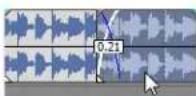
Drag one event to overlap the other
An option is provided for creating automatic crossfades when you add multiple media files to a track. For more information, see Automatically crossfading inserted events on page 52.
Manually setting a crossfade
An automatic crossfade is not inserted if a shorter event is placed on top of and within the same time frame of a longer event. In this case, the longer event begins playing, then the shorter event plays, and then the longer event resumes playing at the timeline position. You can manually create a crossfade to fade in and out of the shorter event.
- Place the mouse pointer on one of the shorter event's handles. The envelope cursor appears (←→).
- Drag the handle to the desired position.
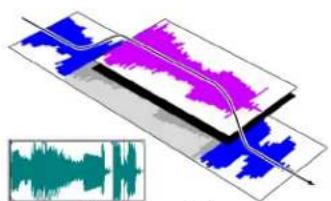
Events without crossfade
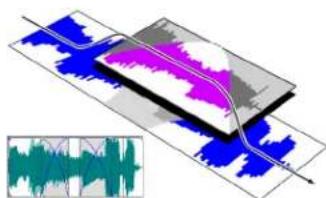
natural_image
Diagram of a layered electronic or optical device with blue, magenta, and gray regions, showing signal traces (no text or symbols)Events with manual crossfade
This is a fast and effective method of inserting a voiceover on top of a background music track (although the music fades out completely) or to replace a bad section of audio. For more information, see Punching-in and crossfading events on page 100.
Changing crossfade curves
You can change the crossfade curves that are used to fade in and out between two events.
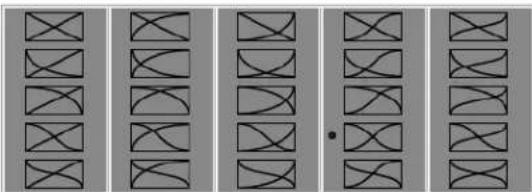
natural_image
Grid of abstract geometric patterns with interlocking rectangular shapes, no text or symbols presentRight-click a crossfade to choose a different crossfade curve.
- Right-click anywhere in the crossfade region to display a shortcut menu.
- From the shortcut menu, choose Fade Type, and choose the desired fade type from the submenu.
Tip: If you use the same crossfade curve frequently, you can set it as a default for all new audio or video crossfades on the Editing tab of the Preferences dialog. For more information, see Editing tab on page 455.
Sliding a crossfade
You can slide a crossfade between two events without affecting the total length of the two overlapping events. This process is similar to sliding and slipping events.
For more information, see Slipping and sliding events on page 105.
Press Ctrl+Alt while dragging the overlapping area between two events. The slide crossfade cursor appears (✗).
As you drag, the relative position of the media remains fixed on the track, and the crossfade position changes, effectively trimming the edge of the event in the direction you drag. You can use this technique when you want to maintain the length of two combined events but want the transition to occur earlier or later.
I wo events with a crossfade.

Sliding the crossfade to the left...

...and to the right.

Using undo and redo
You are given unlimited undo and redo functionality while working on your project, even to the extent of being able to undo changes made before the last time a project was saved (but not closed). While you are working with a project, an undo history of the changes that you have performed is created. Each time you undo something, that change is placed in the redo history.
When you close the project or exit the software, both the undo and redo histories are cleared.
Using undo
Pressing Ctrl+Z or clicking the Undo button (◀) reverses the last edit performed. Repeatedly using the keyboard command or toolbar button continues undoing edits in reverse order, from most recent to oldest. In addition, you can undo the last edit by choosing it from the Edit menu.
Undoing a series of edits
You can undo a series of edits by using the drop-down list on the Undo button.
-
Click the arrow to the right of the Undo button (☐).
-
From the drop-down list, choose the edit that you want to undo. Items above it (subsequent edits) are selected automatically. Your project is restored to the state prior to those edits.
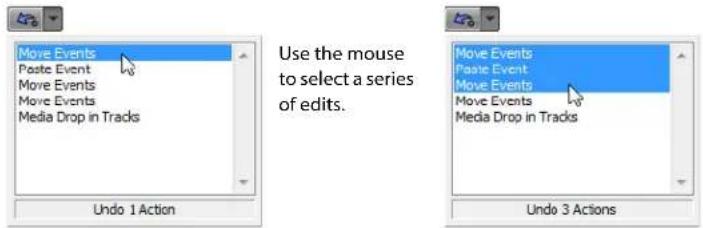
When you undo an edit or a series of edits, they are added to the redo history. This feature allows you to restore your project to a previous state.
Tip: From the Edit menu, choose Undo All to undo all edits in the history. All edits are undone and added to the redo history.
Using redo
Pressing Ctrl+Shift+Z or clicking the Redo button ( ) redoes the last undo performed. Repeatedly using the keyboard command or toolbar button continues redoing undos in reverse order, from most recent to oldest. In addition, you can redo the last edit by choosing it from the Edit menu.
Redoing a series of edits
You can view the redo history by clicking the arrow on the right side of the Redo button (☐). The top item in the list that appears is the most recent undo edit. If you redo a specific edit that appears farther down the list, all subsequent edits above it are redone as well.
When you redo an edit or a series of edits, they are added to the undo history again. The redo history is cleared when a new edit is performed.
Clearing the edit history
You can clear both undo and redo histories without closing your project or exiting the software. Once the histories have been cleared, a new edit history is created as you continue working on the project. While clearing the edit history is not usually necessary, it can free up disk space. To clear the edit history, choose Clear Edit History from the Edit menu.
Adding project markers and regions
Several types of project markers are provided that identify parts of your project, serve as cues, and provide additional functionality:
- Markers are points that you mark along the project's timeline. They are typically used to mark locations in the project for later reference or to mark timing cues.
- Regions are ranges of time that you mark along the timeline. Regions identify ranges of time for your reference and can function as permanent time selections.
- Command markers are markers that enable metadata in streaming media files. These markers can be used to display headlines or captions, link to Web sites, or perform any other function you define. For more information, see Adding captions to Windows Media Video (WMV) files on page 318.
In addition, these markers can be used to embed Scott Studios data information, which is used extensively in broadcasting.
- CD layout markers are markers that indicate tracks and indices for an audio CD layout. These marks are used to create tracks and index points when burning an audio CD.
For more information, see Understanding tracks and indices on page 411.
Tip: You can use ripple editing to automatically move markers and regions as you edit in the timeline. For more information, see Applying post-edit ripples on page 107.
Working with markers
Markers are useful for identifying and navigating to specific locations in longer projects. As you place markers in your project, they are automatically numbered (up to 99) in the order that they are placed. Markers appear as orange tags above the ruler. You can name them and reposition them along the project's timeline.
If you choose to save markers in your rendered MPEG-2 file, DVD Architect® Pro will read those markers as chapter markers. Ensure the Render I-frames at markers check box is selected before rendering (in the Render As dialog, choose MainConcept MPEG-2 from the Template drop-down list, and then click the Custom button. In the Custom Template dialog, select the Video tab and select the Render I-frames at markers check box).
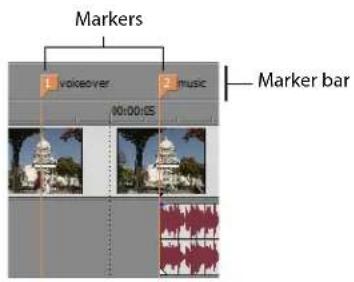
Right-click the marker bar
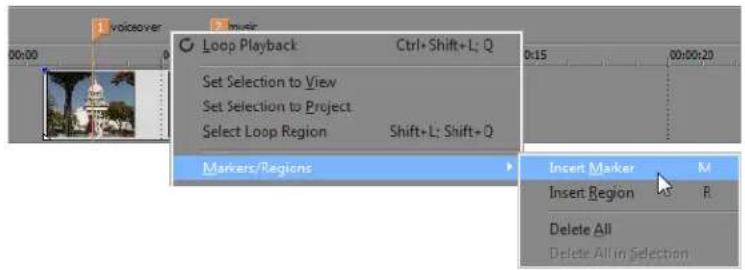
Inserting a marker at the cursor
- Position the cursor where you want to place the marker.
- From the Insert menu, choose Marker, or press M.
- Type a name for the marker and press Enter. If you do not want to name the marker, simply press Enter.
Inserting a marker during playback
During playback, press M. The marker appears on the marker bar. You can name the marker after it has been set.
Naming (or renaming) a marker
- Place the mouse pointer on the marker you want to name or rename. The pointer changes to a hand icon (lm).
- Right-click to display a shortcut menu.
- From the shortcut menu, choose Rename. A text box opens next to the marker.
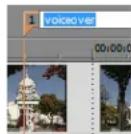
- Type the marker name.
- Press Enter to set the marker's name.
You can also double-click an existing name or double-click the space just to the right of a marker to rename it.
Moving markers
You can reposition a marker by dragging it on the marker bar.
Navigating to markers
You can jump the cursor to any marker on the timeline by clicking the marker. You can also jump to a marker by pressing the number keys along the top of the keyboard (not the numeric keypad).
Tip: Jump the cursor to the next or previous marker by pressing Ctrl+Right Arrow or Ctrl+Left Arrow.
Deleting markers
- Place the mouse pointer on the marker that you want to delete. The pointer changes to a hand icon (☐).
- Right-click to display a shortcut menu.
- From the shortcut menu, choose Delete. The marker is removed from your project.
The tags are not renumbered as you remove them. For example, if you have five markers in your project and delete markers 3 and 4, the remaining markers will be listed as 1, 2 and 5. However, as you add markers again, Vegas Pro software begins numbering the missing sequence first, in this case 3 and 4, then 6, 7, and 8.
Deleting all markers and regions
- Right-click the marker bar.
- From the shortcut menu, choose Markers/Regions, and choose Delete All from the submenu.
Working with regions
Regions identify ranges of time and provide a way to subdivide your project. A region is defined as the area between two region markers that share the same number. Regions can function as semi-permanent time selections. You can view region information in the Explorer by clicking the arrow next to the View button (回) and selecting Region View.
Inserting regions
- Make a time selection. For more information, see Selecting a time range on page 93.
- From the Insert menu, choose Region, or press R.
- Type a name for the region and press Enter. If you do not want to name the region, simply press Enter. Region tags are displayed at the beginning and end points of the time selection.
Region Region Right-click the marker bar start end
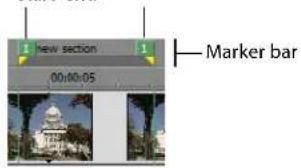
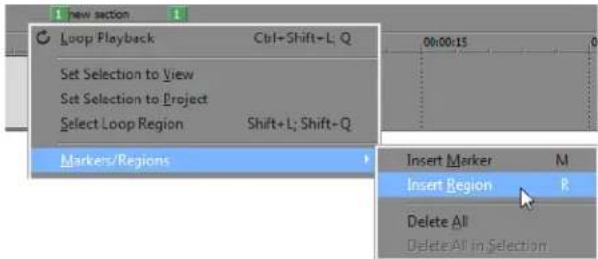
Moving regions
Drag a region tags to reposition it. To move both region tags (start and end tags) at once, hold Alt while dragging a region tag.
Naming regions
- Place the mouse pointer on the left region tag you want to name or rename. The pointer changes to a hand icon (lm).
- Right-click to display a shortcut menu.
- From the shortcut menu, choose Rename. A text box appears next to the region tag.
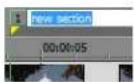
- Type the region's name.
- Press Enter or click anywhere in the timeline to set the name.
Selecting regions
You can select the events, across all tracks, within the region for editing or playing back.
- Right-click one of the region tags to display a shortcut menu.
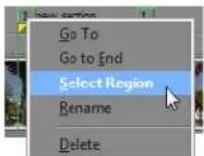
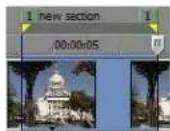
Selected region
- From the shortcut menu, choose Select Region.
Tip: You can also select a region by pressing a number on your keyboard (not the numeric keypad) or by double-clicking a region marker.
Navigating to regions
You can move the cursor to the start or end of a region by clicking either region marker. You can press Ctrl+Right Arrow or Ctrl+Left Arrow to move the cursor to the next or previous region markers.
Right-click a region marker to display a shortcut menu that allows you to navigate to the beginning (Go to Start) or the end (Go to End) of a region.
Deleting regions
- Place the mouse pointer on the region marker's starting or ending point. The pointer changes to a hand icon (km).
- Right-click to display a shortcut menu.
- From the shortcut menu, choose Delete. The region is removed from your project.
The tags are not renumbered as you remove them. For example, if you have five regions in your project and delete region 3 and 4, the remaining regions are listed at 1, 2 and 5. However, as you add regions again, Vegas Pro software begins numbering the missing sequence first, in this case 3 and 4, and then 6, 7, and 8.
Deleting all regions and markers
- Right-click the marker bar.
- From the shortcut menu, choose Markers/Regions, and choose Delete All from the submenu.
Working with command markers
Command markers add interactivity to a multimedia presentation streamed over the Internet by inserting metadata into streaming media files. As your video plays, any number of other actions can be programmed to occur. These commands are a part of the Microsoft ^® Windows Media ^® and RealMedia ^® streaming formats. Most frequently, these actions add text or open a related Web site where the viewer can find more information about the topic at hand. The specific commands available vary depending on the final format of your project.
Note: Windows Media Player 9 will ignore metadata commands unless the Run script commands when present check box is selected on the Security tab of the player's Preferences dialog. Be sure to instruct your audience to select this check box before playing your file.
You can use command markers to add captions to your project. For more information, see Adding captions to Windows Media Video (WMV) files on page 318.
Command markers can also indicate when an instruction (function) will occur in a WAV file being used in a radio broadcast environment (Scott Studios data). The following two sections define the markers for both streaming media and Scott Studios files.
Note: While streaming media files can be played on any hard drive or CD drive, they require a special streaming media server (provided by your Internet service provider) to stream properly across the Internet.
Defining streaming media commands
In a streaming media file, command markers can be used to display headlines, show captions, link to Web sites, or any other function you define. Several command types are included that you can add to a streaming media file. Some command types are exclusive to either the Windows Media or the RealMedia player.
| Command | Player type | Description |
| URL | Windows Media and RealMedia | Indicates when an instruction is sent to the user's Internet browser to change the content being displayed. With this command, you enter the URL that displays at a specific time during the rendered project's playback. |
| Text | Windows Media | Displays text in the captioning area of the Windows Media Player located below the video display area. You enter the text that will display during playback.Note:To view captions during playback in Windows Media Player 9, choose Captions and Subtitles from the Windows Media Player Play menu, and then choose On if Available from the submenu. |
| WMClosedCaption | Windows Media | Displays the entered text in the captioning window that is defined by an HTML layout file. |
| WMTextBodyText | Window Media | Displays the entered text in the text window that is defined by an HTML layout file. |
| WMTextHeadline | Windows Media | Displays the entered text in the headline window that is defined by an HTML layout file. |
| Title | RealMedia | Displays the entered text on the RealPlayer's title bar.Note:When rendering Windows Media files, title information is based on the settings on the Summary tab of the Project Properties dialog or the Index/Summary tab of the Custom Template dialog. The summary information from the Project Properties dialog will be used if information has been specified in both places.To view this information during playback, choose Now Playing Options from the Windows Media Player View menu and select the items you want to display. |
| Author | RealMedia | Displays the entered text (Author's name) when a user selects About This Presentation from the RealPlayer's shortcut menu.Note:When rendering Windows Media files, author information is based on the settings on the Summary tab of the Project Properties dialog or the Index/Summary tab of the Custom Template dialog. The summary information from the Project Properties dialog will be used if information has been specified in both places.To view this information during playback, choose Now Playing Options from the Windows Media Player View menu and select the items you want to display. |
| Copyright | RealMedia | Displays the entered copyright information when a user selects About This Presentation from the RealPlayer's shortcut menu.Note:When rendering Windows Media files, copyright information is based on the settings on the Summary tab of the Project Properties dialog or the Index/Summary tab of the Custom Template dialog. The summary information from the Project Properties dialog will be used if information has been specified in both places.To view this information during playback, choose Now Playing Options from the Windows Media Player View menu and select the items you want to display. |
Defining Scott Studios data commands
For .wav files using Scott Studios data, command markers can be used to define information about the file.
| Command | Description |
| SCOTT EOM | Calculates when the next queued clip starts playing in a Scott Studios system. For more information, refer to your Scott Studios documentation. |
| SCOTT Cue In | Set the beginning of a file in a Scott Studios System without performing destructive editing. For more information, refer to your Scott Studios documentation. |
Defining closed captioning commands
| Command | Description |
| 608CC1 | Used for primary-language closed captions.In theCommentbox, type the closed caption control commands.Tips:If you type captioning text in theCommentbox and do not specify captioning markup, a pop-on caption is created.You can use your keyboard to create standard text and punctuation. To insert special characters and punctuation, use the Character Map (Start > All Programs > Accessories > System Tools > Character Map).For more information about closed captioning, seeAdding closed captioning to video files on page 309. |
| 608CC3 | Used for secondary-language closed captions.In theCommentbox, type the closed caption control commands. |
Inserting command markers
Command markers appear as blue tags on the command bar, which is above the marker bar.
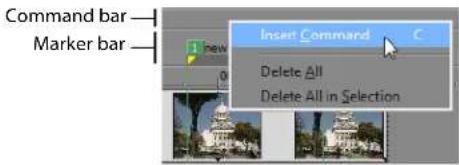
Right-click to place a command marker on the command bar.
- Position the cursor where you want to place the command marker.
- From the Insert menu, choose Command, or press C.
- Complete the Command Properties dialog:
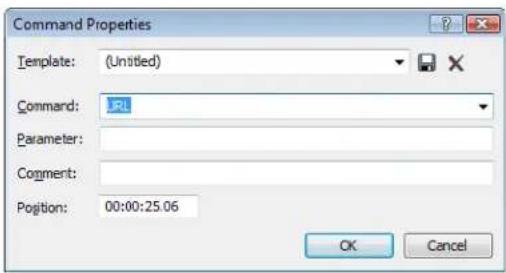
- If desired, choose a custom template from the Template drop-down list. For more information, see Saving command properties as a custom template on page 118.
- Choose the type of command from the Command drop-down list.
• In the Parameter box, type parameters to define the behavior of the command.
• Type your own notes or comments in the Comments box.
- Specify the timing of the command in the Position box. Otherwise, command markers are automatically set to the current cursor position.
- Click OK. The new command marker appears on the command bar.
Editing command properties
Double-click any command marker to open the Command Properties dialog and edit its contents. You can also right-click a command marker and choose Edit from the shortcut menu.
Saving command properties as a custom template
If you plan to use a command more than once, you can save command properties as a template. You can then reuse the command properties by choosing the template from the Template drop-down list.
- Create a command and complete the Command Properties dialog.
- Type a name for the template in the Template box.
- Click the Save Template button (☐).
Note: Your metadata command templates are saved in the cmdtemp.xml file. You can edit this file directly to modify your templates. This file is stored in the following folders:
- Windows XP: C:\Documents and Settings\
\Application Data\Sony\Vegas Pro\10.0 - Windows Vista or Windows 7: C:\Users\
\AppData\Roaming\Sony\Vegas Pro\10.0
The Application Data folder is not visible unless the Show hidden files and folders radio button is selected on the View tab of the Windows Folder Options control panel.
Deleting command markers
- Place the mouse pointer on the command marker. The pointer changes to a hand icon ( d^(m) ).
- Right-click to display a shortcut menu.
- From the shortcut menu, choose Delete. The command marker is removed from your project.
Working with CD layout markers
Markers on the CD layout bar indicate the locations of tracks and indices in an audio CD layout project. These markers are discussed in a later chapter.
For more information, see Understanding tracks and indices on page 411.
Working with the marker tool
You can use the marker tool to navigate the marker bars and edit multiple selected markers.
- Click the Marker Tool button (P) in the top-right corner of the timeline.
-
Select the markers you want to edit:
-
Press the Left Arrow/Right Arrow keys to move to the previous/next marker in the active bar (marker/region bar, CD layout bar, or command bar).
- Press Shift+Left Arrow/Right Arrow keys to extend the selection to the previous/next marker.
- Press Shift while clicking two marker tags to select all markers between the two tags.
-
Press Ctrl while clicking marker tags to select or deselect individual markers.
-
Edit your markers:
• Dragging any selected marker will move all selected markers in the active bar as a group.
- Pressing Delete will remove all selected markers in the active bar.
The marker tool is inactive when you change focus to another portion of the Vegas Pro window.
Using an external audio editing program
Vegas Pro software is a nondestructive editing environment, which means that the original source files remain unchanged by any editing done in the software. Destructive (constructive) edits that modify the actual source media file can be done in a separate application such as Sound Forge ^® software from Sony Creative Software Inc. By setting up a separate audio editor, you can quickly access the program from Vegas Pro software via the Tools menu or by pressing Ctrl+E.
Setting up an audio editing program
If you already have Sound Forge software loaded on your computer when you installed Vegas Pro software, the installation should have detected it and made it your default audio editing program. However, if you do not have Sound Forge software or want to specify a different audio editor, you can do so in the Preferences dialog.
- From the Options menu, choose Preferences. The Preferences dialog appears.
- In the Preferences dialog, click the Audio tab.
- Click the Browse button to the right of the Preferred audio editor box. The Preferred Audio Editor dialog appears.
- From this dialog, navigate to the application to use for editing audio files.
- Select the application's executable icon (.exe) and click Open to set the application as your default audio editor.
The application's path displays in the Preferred audio editor box.
Opening an audio editor from Vegas Pro software
All events in your project are references to media files on a storage device. When you edit an audio event in an audio editor, you can choose to open the original media file or a copy of the file.
Opening a file in an audio editor
You can directly edit the media file to which an audio event is referenced. Any changes you make and save in the audio editor are permanent and are reflected in the event in your project.
- Select the event to be edited.
- From the Tools menu, choose Audio, and choose Open in Audio Editor from the submenu.
Your selected audio editing application opens the event's referenced media file. Make the necessary changes and save the file in the audio editor. If you keep the media file's name and location the same, its event is updated immediately in your project. However, if you change the media file's name or location (by using Save As), you must import the edited (new) file into Vegas Pro software.
Opening a copy of a file in an audio editor
You can also create a copy of an audio file and open it in an audio editor. Opening a copy of a file has the advantage of preserving the original file unchanged. The modified copy is inserted into the event as a take and is automatically added to the Project Media window.
- Select the event to be edited.
- From the Tools menu, choose Audio, and choose Open Copy in Audio Editor from the submenu.
When you are finished editing, save the file. "Take X" is added to the end of the file name to distinguish it from the original and adds it to the project as a take. If you save it to a new file (by using Save As), you must manually add it as a take into the project. For more information, see Working with takes on page 125.
Advanced Editing Techniques
This chapter builds on the techniques that were introduced in the last chapter. Ripple editing, pitch shifting, and takes are just three of the more advanced editing topics that are covered in this chapter.
Snapping events
Vegas® Pro software is preset to snap events into place as you drag them.
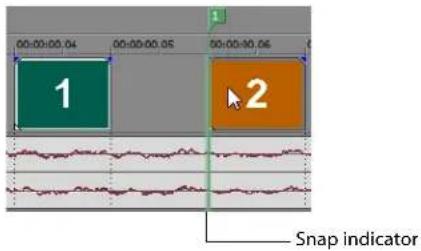
Events can snap to another event's edges, to the cursor position, a marker or region, the grid, or to a time selection. As you move an event along the timeline, its edge automatically aligns to designated snap points.
As you drag items along the timeline, an indicator is displayed to show snap points. When you snap to an event, the snap indicator is displayed in the appropriate track. If you snap to the cursor, a marker/region, time selection, or the grid, the snap indicator is displayed across the height of the timeline.
Tips:
- Hold the Shift key to temporarily override snapping.
- You can edit snap indicator colors on the Display tab of the Preferences dialog. For more information, see Display tab on page 457.
Turning snapping on and off
You can quickly turn snapping on and off by clicking the Enable Snapping button (☑). You can also selectively turn snapping options on and off in the Options menu. When snapping is enabled, events will snap to the following points:
• Other events' edges
The cursor
• Time selection edges
• First and last event edges, when dragging multiple events
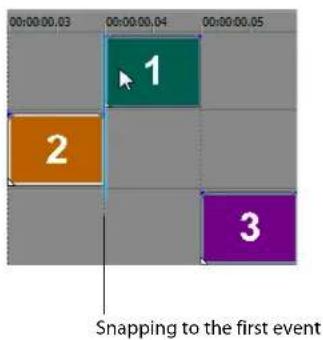
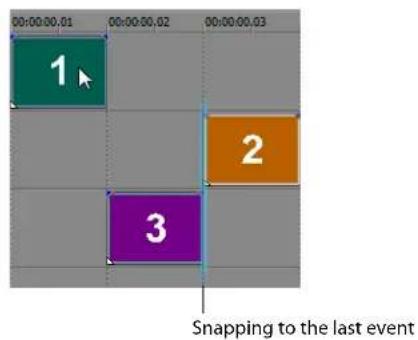
You can also choose to snap events to grid lines or to markers.
Snapping to the grid
When snapping is enabled, you can also choose to have elements in the timeline snap to the vertical grid lines in the timeline.
From the Options menu, choose Snap to Grid (or press Ctrl+F8) to toggle snapping to grid lines.
Tip: To change the spacing of the grid, choose Grid Spacing from the Options menu and choose a setting from the submenu.
Snapping to markers
When snapping is enabled, you can also choose to have elements in the timeline snap to markers in the timeline.
From the Options menu, choose Snap to Markers (or press Shift+F8) to toggle snapping for all marker types:
- Markers
- Regions
• CD track regions
• CD index markers
• Command markers
If the Event Media Markers command is selected on the View menu, you can also use media markers as snap points when you click in an event or edge-trim an event. For more information, see Editing events on page 96.
Note: If a media file's frame rate does not match your project frame rate, you will not be able to snap to media markers (or other snap points that do not occur on a frame boundary) when Quantize to Frames is selected on the Options menu.
Snapping to events on other tracks
When snapping is enabled, you can also choose to have elements in the timeline snap to the ends of events on other tracks.
From the Options menu, choose Snap to All Events (or press Ctrl+Shift+F8) to toggle snapping to event edges across tracks.
Quantizing to frames
The Quantize To Frames command in the Options menu takes snapping one step further. With this feature enabled, edits are forced to occur on project frame boundaries. This setting is independent of grid and marker snapping.
When Quantize to Frames is turned on, the following actions will always occur on frame boundaries:
- Moving events
Note: If Quantize to Frames is on while dragging an audio event and the selection group contains video, the movement is quantized so the first video event is quantized (instead of the audio event). If there is no video in the selection group, the audio event will become quantized.
• Positioning the cursor
- Making selections
- Placing markers and regions
Notes:
- If you drag to a snap point that does not occur on a frame boundary when Quantize to Frames is enabled, the snap indicator is displayed as a dashed line to indicate that the snap point will be quantized to the nearest frame boundary.
- Edits that do not occur on frame boundaries can produce an undesirable visual result. For example, if you split two events and move them together to create a cut, splits that are not at frame boundaries can produce a short dissolve in your rendered video.
- Select the Do not quantize to frames for audio-only edits check box on the Editing tab of the Preferences dialog to prevent audio-only edits from being quantized even when Quantize to Frames is enabled.
Using the event snap offset
Each event in your project has a snap offset flag that can be moved along the length of the event. The flag is the white triangle that is located in the lower-left corner of each event. This flag allows you to designate where snapping occurs. This is useful if you need to align the snap with a beat in the event instead of the edge.
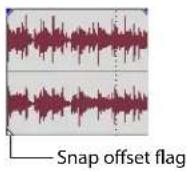
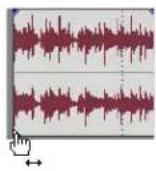
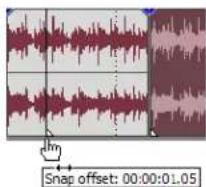
- Place the mouse pointer on the snap offset triangle. The pointer changes to a hand icon ( ).
- Drag the snap offset flag to the new position in the event. As the flag moves, a time display appears. This time display indicates where the snap offset flag occurs in time in the event.
- Release the mouse to set the snap offset flag.
Pitch shifting audio events
A pitch shift is a way to raise or lower the pitch of an audio event. The semitone range is -24 to 24. Twelve semitones equal one octave, so you can increase or decrease the pitch of an event within a two-octave range. Within each semitone is a finer pitch adjustment called cents. There are one hundred cents in one semitone.
Original event

Event with pitch shift of 12 or one octave speeds up
Event with pitch shift of -12 or one octave slows down
Editing from the timeline
- Select an event.
- Use the = and - keys on your keyboard (not the numeric keypad) to adjust pitch:
| Key | Result |
| = | Raise pitch one semitone. |
| Ctrl+= | Raise pitch one cent. |
| Shift+= | Raise pitch one octave. |
| Ctr+Shift+= | Reset pitch. |
| - | Lower pitch one semitone. |
| Ctrl+- | Lower pitch one cent. |
| Shift+- | Lower pitch one octave. |
| Ctr+Shift+- | Reset pitch. |
If the Active Take Information option is selected on the View menu, the event's pitch shift is displayed in the bottom-left corner of the event. If the media has a known root note, the new root is displayed in parentheses:
Editing in the Event Properties dialog
- Right-click the event and choose Properties from the shortcut menu.
- On the Audio Event tab, choose a setting from the Method drop-down list to specify how you want to pitch-shift the event, or choose None if you want to preserve the event pitch.
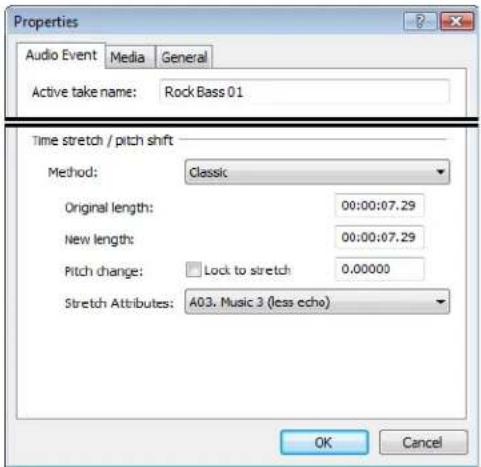
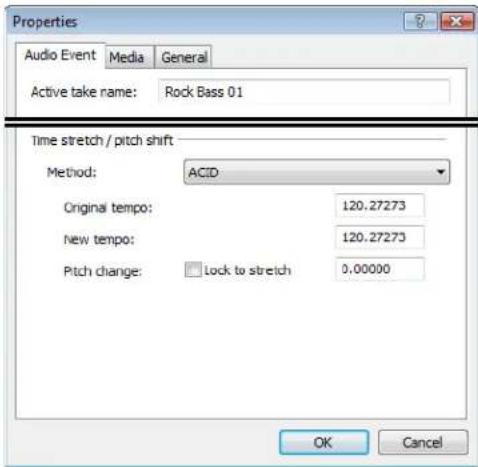
- If you selected Classic from the Method drop-down list, indicate the new event length and amount of pitch shifting you want to apply:
a. Type the desired event length in the New length box.
b. Type the desired pitch shift (in semitones) in the Pitch change box.
If you want to change the event length without changing pitch, type 0 in the box.
If you want the pitch to be determined by the amount of time stretching, select the Lock to stretch box. For example, doubling an event's length will raise its pitch by one octave.
c. Choose a setting from the Stretch Attributes drop-down list to specify how you want to divide and crossfade the file to prevent artifacts. Depending on your source material, you might need to experiment with different crossfade types.
- If you selected ACID from the Method drop-down list, indicate the new event tempo and the amount of pitch shifting you want to apply:
a. Type the desired event length in the New tempo box.
b. Type the desired pitch shift (in semitones) in the Pitch change box.
If you want to change the event length without changing pitch, type 0 in the box.
If you want the pitch to be determined by the new event tempo, select the Lock to stretch box. For example, doubling an event's tempo will raise its pitch by one octave.
- Click OK.
Time compressing/stretching events
Time stretching and compressing events is the process of using the same amount of source media to fill a shorter or longer event. While this can be done to both video and audio events, the two cases are fundamentally different.
Press Ctrl and drag the edge of the event toward the center of the event to compress (shorten) it or drag the edge out away from the center to stretch (lengthen) it.
You can see the results of the time compression or stretching by viewing the properties of the event. Right-click the event and choose Properties from the shortcut menu. Time compressing/stretching an audio event affects the Time stretch/pitch shift settings, while Time compressing/stretching a video event affects the Playback rate setting.
Tip: You can time compress/stretch several events at once by grouping them first. You can also apply a ripple edit after time compressing or stretching events. For more information, see Grouping events on page 208 or Applying post-edit ripples on page 107.
Time stretching video allows you to fill a given duration with a set amount of actual video, sometimes called fit-to-fill. For example, if you have a five-second video event and you want this event to fill an eight-second slot, press Ctrl and drag the edge of the event to eight seconds. The resulting video is in slow motion, but the contents (footage) remain the same. If you had used a velocity envelope to slow the video to the same rate, the event would also be in slow motion, but its duration would remain unchanged at five seconds. Stretched video has a zigzag line between thumbnails. Video can also be compressed (sped up and shortened in length) by using this method.
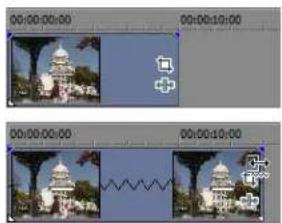
natural_image
Two video editing frames showing a building with domes and a wavy line overlay (no text or symbols)When stretching video events or slowing video down, a set number of frames are extended across a period of time. For example, if you take source footage at 30 frames in a second and slow it so that only 15 source frames run during that same second, an additional 15 frames must be created to maintain the project's 30 fps frame rate. Simply duplicating frames is the easiest way to do this. A more sophisticated method is to resample the frames of an event, allowing Vegas Pro software to interpolate and redraw these intervening frames. For more information, see Resample (video only) on page 201 and Resampling video on page 295.
Working with takes
A take is a version of a scene or audio recording, as in "Scene 10, Take 7", which means the seventh time that scene number ten has been shot. A number of takes can be included in the same location (event) of the project. You can then rapidly switch between these separate takes to see which one fits into the project the best. Although this is what takes are designed for, you can actually use any media files you want as a take, even completely different sounds or scenes. Since an event is just a container of a specific length and at a specific location, the actual content (media file) is easily changed.
Tip: To slip all of an event's takes when slipping media, make sure Slip All Takes is selected in the Options menu.
Adding takes
You can add multiple media files to the timeline at the same time to a single event as takes. You can also add regions within media files as takes. For more information, see Adding regions as takes on page 132.
Adding media files to the timeline as takes
- Locate the media files that you want to insert as takes in the Explorer and select them. Select a range by pressing Shift and clicking the first and last file in the range, or select nonadjacent files by pressing Ctrl and clicking the various clips individually.
- Right-click and drag one of the selected clips in the group to the timeline.
- From the shortcut menu, choose Add as Takes.
Tip: To add either just the audio or just the video portions of files as takes, choose Video Only: Add Video as Takes or Audio Only: Add Audio as Takes from the shortcut menu.
Adding takes to existing events
You can add media files to existing events as takes.
- Right-click a media file in the Explorer and drag it to an existing event.
- From the shortcut menu, choose Add as Takes.
Selecting takes
When you add an event with multiple takes, a single event is inserted into a track. The length of the event is set according to the last clip that was selected. This last clip is set as the active take.
- Right-click an event with multiple takes.
- From the shortcut menu, choose Take, and choose Next Take or Previous Take from the submenu. Alternately, choose the name of the take from the list at the bottom of the submenu.
Tip: Click an event and press T to select the next take or Shift+T to select the previous take.
Previewing and selecting takes
You can preview the takes for a given event.
- Select an event containing multiple takes.
- Right-click to display a shortcut menu or, from the Edit menu, choose Take to display a submenu.
- Choose Choose Active... from the submenu. The Take Chooser dialog appears.
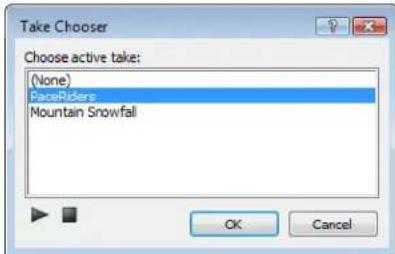
- Select the take that you want to preview and use the Play (▶) and Stop (☐) buttons within the dialog.
- To use a take, select it and click OK. The selected take is now the active take.
Deleting takes
You can delete individual takes from an event at any time.
- Right-click an event with multiple takes.
- From the shortcut menu, choose Take, and choose Delete Active from the submenu to immediately remove the active take. Alternately, choose Delete to open a dialog with a list of all of the takes contained in this event.
Displaying take information in events
From the View menu, choose Active Take Information to display the current take information on events in the timeline.
Pitch shifted audio events will display the amount of pitch shift in the bottom-left corner of the event. If the media has a known root note, the new root is displayed in parentheses:
Stretched audio events will display a percentage in the lower-right corner of the event to indicate the stretched playback rate. If the media has a known tempo, the effective playback tempo (after stretching) is listed in parentheses after the stretch amount.
Audio and video events that are not synchronized will be highlighted in the timeline, and the amount of offset will be displayed. Very small offsets that are below the resolution of the timeline might be displayed as 0.00. Set the project time format to samples to see the offset amount.
Working with take names
Displaying take names on events
Take names can be displayed on the events in the timeline. From the View menu, choose the Active Take Information option.

Without take name With take name
Changing take names
Changing the name of a take does not affect the source media file in any way. Typically, you might want to change an event's name after recording multiple takes into a track or event. For more information, see Working with multiple recorded takes on page 268.
- Select the take to be renamed. For more information, see Selecting takes on page 126.
- Right-click the event to display a shortcut menu.
- From the shortcut menu, choose Properties. The Properties dialog opens.
- Type the new name in the Active take name box.
- Click OK to set the new take name.
Using the Trimmer window
The Trimmer allows you to work with and edit one media file at a time. The entire file is opened into the Trimmer, in contrast to events on the timeline that might only contain a portion of the actual source file.
The main function of the Trimmer window is to allow you to trim a media file and place portions of it on a track. You can also add regions and markers to a file, preview the media file, or open it in an external audio editing program.
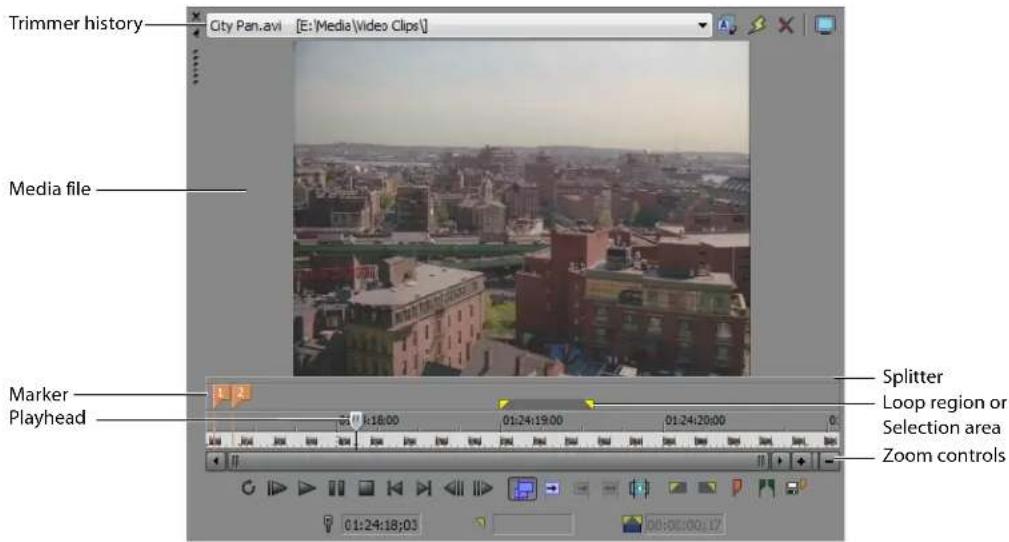
Notes:
- The ruler, scrollbar, and zoom controls may not be visible if there is not enough space to display them. Drag the horizontal splitter between the video monitor and the Trimmer timeline to adjust the height of the timeline.
- When the scrollbar is hidden, you cannot zoom in or out on the waveform.
- When the Trimmer window is too narrow to display all buttons on the toolbar, the hidden buttons can be found in the More Buttons drop-down list.

Sort Trimmer History

Clear Trimmer History

Remove Current Media from Trimmer History

Trimmer on External Monitor

Loop Playback

Play from Start

Play

Pause

Stop

Go to Start

Go to End

Previous Frame

Next Frame

Enable Timeline Overwrite

Add Media from Cursor

Add Media up to Cursor

Fit to Fill

Create Subclip

Set In Point

Set Out Point

Insert Marker

Insert Region

Save Markers/Regions
Tip: Click and hold the Previous Frame and Next Frame buttons to move the cursor multiple frames.
You can open any number of files in the Trimmer at the same time, selecting the one you currently want to work on from the Trimmer history drop-down list.
Tips:
- If you open a multichannel audio file in the Trimmer, you can choose which channels you want to display in the Trimmer window. Right-click the waveform display, choose Channels from the shortcut menu, and then choose a command from the submenu.
- If you open a multistream audio file in the Trimmer, you can choose which stream you want to display in the Trimmer window. Right-click the waveform display, choose Stream from the shortcut menu, and then choose a stream from the submenu.
- If you want to edit in the Trimmer window without updating the Video Preview window, right-click the media file in the Trimmer window and clear the Show Video In Preview Window command.
From the View menu, choose Trimmer or press Alt+2 to display the Trimmer window, if it is not already visible. You can dock the Trimmer window in the window docking area or float it over the work area. For more information, see Window docking area and floating window docks on page 25.
Opening a file in the Trimmer
- Right-click an event. A shortcut menu appears.
- Choose Open in Trimmer.
You can also drag files to the Trimmer from the Explorer or the Project Media windows.
Tip: If you want to open the original media file that was used to create a subclip in the Trimmer, right-click a subclip in the Project Media window and choose Open Parent Media in Trimmer from the shortcut menu.
Double-clicking a file to open it in the Trimmer
You can set the software to open a file in the Trimmer when you double-click the file in the Project Media or Explorer windows.
- From the Options menu, choose Preferences.
- Click the General tab.
- Choose Double click on media file loads into Trimmer instead of tracks.
Choosing Trimmer preview options
When you're editing in the Trimmer, you can choose to display video in the Video Preview window or in a video monitor within the Trimmer.
- If you want to display the Trimmer cursor position in the Video Preview window, right-click the media file in the Trimmer window and verify Show Video Monitor is not selected. Right-click the media file again and select Show Video in Preview Window.
When you click to position the cursor in the Trimmer window, the frame at the cursor position will be displayed in the Video Preview window, and the transport controls in the Trimmer window will play the current file in the Video Preview window.
- If you want to display a dedicated video monitor in the Trimmer window, right-click the media file in the Trimmer window and select Show Video Monitor. When the video monitor is on, you can right-click the media file in the Trimmer window and select Show Video Frames to toggle video frames in the Trimmer window.
- If you want to display the Trimmer cursor position on an external monitor, select the Trimmer on External Monitor button (☐).
Tip: If an external monitor is enabled for the Trimmer and the Video Preview window, focus will determine which source is sent to the external monitor. Click in the Trimmer window to send its video to your external monitor. Click the timeline or track list to send its video to your external monitor.
Choosing multichannel/multistream options
When you're working with multichannel or multistream audio in the Trimmer, you can choose whether you want to add multichannel/multistream audio to the timeline when creating events.
Right-click the audio waveform in the Trimmer and select Use All Streams and Channels to allow Vegas Pro to determine which audio streams and channels to use:
- Multichannel audio from MXF files will be added to the timeline if the Import MXF as multichannel check box on the General tab of the Preferences dialog is selected. When the check box is cleared, audio from MXF files will be imported as stereo, but you can access the other channels by right-clicking the event and choosing Channels from the shortcut menu.
- When using surround AC3 or Windows Media, the stereo downmix stream will be used when adding media to a stereo project. When adding media to a 5.1 surround project, the stereo stream will be used.
• In other cases, all streams and all channels will be added to the timeline.
When Use All Streams and Channels is not selected, only the stream and channels displayed in the Trimmer will be added to the timeline.
Moving frame by frame in the Trimmer window
As you navigate through a video file in the Trimmer, the exact frame that the cursor is over in time is displayed as in a thumbnail image under the cursor. When using the left and right arrow keys, this allows you to edit with frame accuracy.
You can also click the Previous Frame (◀) and Next Frame (▶) buttons to navigate frames in the Trimmer window.
Tip: Click and hold the Previous Frame and Next Frame buttons to move the cursor multiple frames.
Making selections in the Trimmer
After you have opened a media file in the Trimmer, you can select a segment of it and place it in your project. Make a time selection to select a segment in the Trimmer in the same way you do in the project timeline. For more information, see Selecting a time range on page 93.
You can make a selection during playback by using the keyboard. Press I or [ to mark the start of the selection, and press O or ] to mark the end.
If you know the exact timecode of the point where you want to begin and end a time selection, you can type it into the boxes at the lower right corner of the Trimmer window.
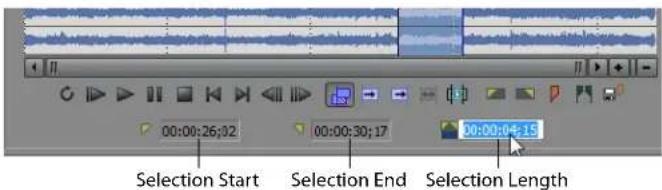
Double-click to type a value.
Tip: Press Backspace to recall the last five time selection areas in the Trimmer.
Adding selections to the timeline
You can use the Trimmer window to do traditional two-point, three-point and four-point editing. These editing techniques allow you to add smaller sections of files to the timeline.
Post-edit ripple mode affects how a selection is added to the timeline from the Trimmer. When the Auto Ripple button (☑) is selected, adding a selection from the Trimmer selection affects the position of later events on the track. When not in post-edit ripple mode, adding a selection from the Trimmer has no effect on the position of other events. For more information, see Editing events on page 96.
Adding selections at the cursor (three-point editing)
- Open a media file in the Trimmer.
- Make a time selection in the Trimmer.
- Select the track in the timeline where the selection will be added.
Tip: You can also select two points in the timeline and a single point in the Trimmer to perform three-point editing. In this mode, ripple editing is not applied. For more information, see Applying post-edit ripples on page 107.
- Position the cursor in the timeline at either the start or end point where you want to add the selection.
-
Add the selection to the timeline in one of the following ways:
-
Click the Add Media from Cursor button (☐) or press A to insert the event after the cursor.
- Click the Add Media up to Cursor button (☐) or press Shift+A to insert the event before the cursor.
Alternately, you can drag the selection from the Trimmer to the timeline.
Drag from the I rimmer to a project track.
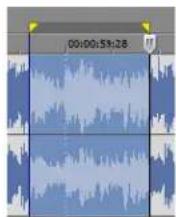
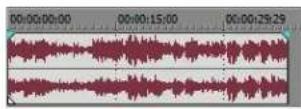
Using a Trimmer selection to fill a timeline selection (four-point editing)
- Open a media file in the Trimmer.
- Select the portion of the file that you want to use.
- Select the portion of the timeline where you want to use the Trimmer selection.
- Click the Fit to Fill button (☐). The Trimmer selection is time-compressed or stretched to fill the timeline selection.
Overwriting timeline events with the Trimmer selection
The standard behavior of the Trimmer is to perform punch-in edits on the timeline: when you add media to the timeline, the events created by the Trimmer are laid over existing events on the timeline. You can delete or move the events you create with the Trimmer without changing the underlying events.
If you want to replace the contents of the timeline when creating events from the Trimmer, select the Enable Timeline Overwrite button (☐). When Enable Timeline Overwrite is selected, ripple editing is not available. For more information, see Applying post-edit ripples on page 107.
Using the Trimmer History list
The drop-down list at the top of the Trimmer lists files and events that have been opened in the Trimmer.
Cable car turnaround in San Francisco.mp4 [E:\Media\Video Clips]
To open a recently used file, choose its file name from the Trimmer History drop-down list.
To sort the list, click the Sort Trimmer History button (A). The files in the drop-down list are sorted in alphabetical order. To sort in reverse alphabetical order, hold the Ctrl key while clicking on the Sort Trimmer History button.
Tip: By default, the Trimmer History list displays file name followed by file path. You can choose to display file path first by clearing the Show trimmer history with file name first, then folder check box on the General tab of the Preferences dialog. For more information, see General tab on page 441.
To clear the list, click the Clear Trimmer History button (✗). All files in the drop-down list are removed.
To remove a single file from the list, click the Remove Current Media from Trimmer History button (✗). The media file is removed from the drop-down list and the Trimmer window is blank.
Adding and saving regions and markers to a media file
The Trimmer allows you to add markers and regions to a media file in the same way that you add them to your project. You can also click the Insert Marker (P) and Insert Region (P) buttons in the Trimmer window to add markers and regions.
Media file markers and regions are different from project markers and regions. The difference between the two is that project markers and regions affect a project, while media file markers and regions are embedded in, and saved with, a media file.
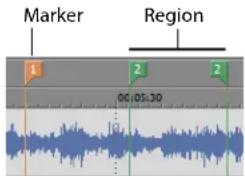
The markers and regions you add in the Trimmer are only temporary. You must save them by clicking the Save Markers/Regions button (in the Trimmer window if you want to use them again after you close the project. After the markers and regions are added and saved to the media file, they are available when you open the media file in an audio editor program or in the Trimmer.
Note: You cannot save markers to read-only media files. Change a file's properties to make the file writable before saving markers.
Automatically saving Trimmer markers and regions with media files
- From the Options menu, choose Preferences.
- On the General tab, select Automatically save trimmer markers and regions with media file.
Adding regions as takes
Once regions are saved with a media file, either in the Trimmer window or in another application, you can add the regions as takes to the timeline from the Explorer window. In the Explorer window, click the arrow next to the View button and select Region View from the drop-down list. A single media file can contain a number of separate regions. You can select these regions individually or as groups and insert them as takes into the timeline. This is especially useful when loop-recording numerous takes to a single file. For more information, see Working with takes on page 125.
Viewing media markers and regions in events
From the View menu, choose Event Media Markers to toggle the display markers (including XDCAM essence marks) and regions that are saved in a media file. These markers are displayed in the timeline in events that refer to the media file.
Media markers and regions cannot be edited within the event. However, when you edit the markers in markers and regions in the Trimmer window or in an external audio editor, the event will reflect your changes.
Media markers in Trimmer Media markers in event
![kayak2.avi [E:\Media\Video Clips] 00:00:00:00 00:00:05:00 00:00:00:00 00:00:07:21](/content/2026/05/763079/images/41683d9d2136145e995d552ae151985326004fa19310051dfd727a4e0d9020f5.jpg)
natural_image
Two video frames showing people in water: one with a person in kayaking, the other with a person in a boat on water (no text or symbols visible)Tips:
- From the View menu, choose Event Media Markers, and then choose Show Marker Labels from the submenu to toggle the display of marker labels in events.
- When media markers are displayed, you can use them as snap points for positioning the cursor and for edge-trimming if Snap to Markers is selected on the Options menu. If a media file's frame rate does not match your project frame rate, frame quantization will occur after the snap if Quantize to Frames is selected on the Options menu.
Opening a file in an external audio editor from the Trimmer
The Trimmer allows you to open your selected audio editing application (for example, Sound Forge) to perform permanent edits to the media file. After you make the necessary changes and save the file in the audio editor, the event is automatically updated. Make sure that the media file's name and location remain the same. For more information, see Using an external audio editing program on page 119.
To open the audio editor from the Trimmer, right-click the audio waveform and select Open in Audio Editor.
Creating a subclip
- Create a selection in the Trimmer window.
- Click the Create Subclip button (☐). The Create Subclip dialog appears.
Tip: You can also right-click an event in the timeline and choose Create Subclip from the shortcut menu.
- In the Name box, type the name you want to use to identify the subclip in the Project Media window. By default, the file name is used with a subclip number appended.
- Select the Reverse check box if you want the subclip to be played backward when you add it to your project.
- Click OK to create the subclip. You can then create events from subclip via the Project Media window.
Selecting a subclip in its parent media
- Right-click a subclip in the Project Media window and choose Open in Trimmer from the shortcut menu.
- Right-click the media file in the Trimmer window and choose Select Parent Media from the shortcut menu. The subclip's original media file is opened in the Trimmer, and the portion of the media that represents the subclip is selected.
Tip: If you want to open the original media file that was used to create the subclip in the Trimmer, right-click an event on the timeline (or a subclip in the Project Media window) and choose Open Parent Media in Trimmer from the shortcut menu.
Opening files in the Trimmer by default
You can automatically load files into the Trimmer window by selecting the Double-click on media file loads into Trimmer instead of tracks check box on the General tab in the Preferences dialog. For more information, see General tab on page 441.
When this check box is selected, no events are created when you double-click a media file in the Explorer window or Project Media window. Instead, the Trimmer is displayed to allow you to choose a portion of the file you want to use.
Removing red eye from still images
- Right-click a still image on the timeline (or in the Project Media window) and choose Red Eye Reduction from the shortcut menu.
- Click the center of the red eye and drag to create a selection around the red portion of the eye.
- Click the Zoom In (+) and Zoom Out (−) buttons to change the magnification of the image, or roll the mouse wheel forward or backward to zoom around the cursor position.
Tip: For keyboard shortcuts to help you navigate in the Red Eye Reduction window, see Red eye reduction commands on page 515.
- Drag to position the selection box over the portion of the eye you want to correct.
- Drag the borders of the selection box to adjust its size. Vegas Pro automatically adjusts the portion of the image in the selection box to remove red eye.
Tip: Right-click a selection box and choose Delete from the shortcut menu to remove it.
- Readjust the selection box as needed, and repeat this procedure for each red eye in the image.
Note: If an image is used multiple times in your project, removing the red eyes once will affect all instances of the image.
Using the Edit Details window
The Edit Details window displays a database for all of the media in your project. It shows information about how the files are being used and allows you to modify many of those properties. You can sort, add or change information, rearrange columns, and edit items in the project.
This window provides an alternate method for working with events, audio CD track list items, command markers, markers, and regions after they are placed in your project.
You can dock the Edit Details window in the window docking area or float it on the workspace. For more information, see Window docking area and floating window docks on page 25.
Viewing the Edit Details window
To view the Edit Details window, choose Edit Details from the View menu or press Alt+4. The Show drop-down list allows you to view categorized project information. You can edit most entries by double-clicking them or by right-clicking them to display a shortcut menu.
Right-click an entry to display a shortcut menu, or double-click an entry to edit it.
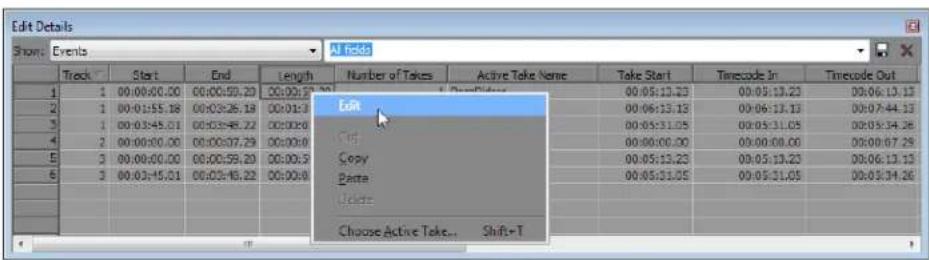
Use the scroll bar to view other columns in the window.
Audio CD track list
The Audio CD track list category displays information about the track and index markers placed on the CD layout bar. This information is used to burn audio CDs. For more information, see Understanding tracks and indices on page 411.
Commands
The Commands category displays information about commands that are placed along the project's timeline. This category displays four columns: the command's position along the timeline, the command type, its parameters, and any comments that were entered when the command marker was placed in your project. Right-click a command entry to display a shortcut menu. For more information, see Working with command markers on page 115.
Events
The Events category displays information about all of the events in your project. You can sort any of the information by clicking a column's header. The number of columns in the Events category requires that you use the scroll bar to view them all.
The following table explains each column in the Events category and describes its function.
| Column | Description | Edit function |
| Track | Displays the track number where the event is located. | Move the event to a different location by entering a different track number. For more information, see Moving an event on page 62. |
| Start | Displays when on the timeline the event starts playback. | Enter a different value to cause the event to begin playback sooner or later in the project. For more information, see Moving events along the timeline on page 62. |
| End | Displays when on the timeline the event ends playback. | Enter a different value to cause the event to end playback sooner or later in the project. For more information, see Moving events along the timeline on page 62. |
| Length | Displays the total length of the event. | Enter a different value to increase or decrease the event's playback time. |
| Number of Takes | Displays the amount of recorded takes contained in the event. | Display only (cannot be edited). |
| Active Take Name | Displays the event's current take name. | Enter a different name for the current take. For more information, see Changing take names on page 127. |
| Take Start | Displays the offset into the source media file when the placed event begins playback. | Enter a different value to cause the take to playback sooner or later from the source media file. |
| Timecode In | Displays the media file timecode at the start of the event. | Display only (cannot be edited). |
| Timecode Out | Displays the media file timecode at the end of the event. | Display only (cannot be edited). |
| File Path | Displays the path of the event's media file. | Enter a new media file reference path for the event to use. |
| Tape Name | Displays the name of the source media tape name. | Change the tape name here or in the properties dialog for the media file. For more information, see Modifying media file properties on page 305. |
| Select | Displays whether the event is selected in the project. | Toggle the event's selection by clicking the check box. A check mark in the box indicates that the event is selected. For more information, see Making selections on page 92. |
| Mute | Displays whether the event is muted. | Toggle the event's mute switch by clicking the check box. A check mark in the box indicates that the event is muted. For more information, see Mute on page 199. |
| Loop | Displays whether the event is looped for playback. | Toggle the event's loop switch by clicking the check box. A check mark in the box indicates that the event is looped for playback. For more information, see Loop on page 199. |
| Lock | Displays whether the event is locked. | Toggle the event's lock switch by clicking the check box. A check mark in the box indicates that the event is locked. For more information, see Lock on page 199. |
| Normalize | Displays whether the event is normalized. | Toggle the event's normalize switch by clicking the check box. A check mark in the box indicates that the event is normalized. For more information, see Normalize (audio only) on page 200. |
| Snap Offset | Displays when in the event the snap offset is positioned. | Enter a different value to change the snap offset position in the event. For more information, see Using the event snap offset on page 123. |
Markers
The Markers category displays information about markers on the project's timeline. This category displays two columns: the marker's position on the timeline and the marker's name.
Regions
The Regions category displays information about regions on the project's timeline. This category displays four columns: the region's start position, end position, length, and name.
Selected Events
The Selected Events category is visually identical to the Events category except that the Edit Details window only displays information about events that are selected in your project.
Customizing the Edit Details window
You can arrange and delete columns from each category and save the changes to a personal template. One template is available from which you can create your own display options.
- From the Show drop-down list, choose the category that you want to customize.
- Drag a column's header to the new position. The cursor changes to a column icon (☐) as you move the column. If you want to remove the column from the display, drag the icon off the Edit Details window. Release the mouse to drop the column in its new position.
- The Template drop-down name changes to "Untitled." Type a new name in the Template drop-down.

- Click the Save button (☐) on the Edit Details window to save the custom display.
Tip: You can delete a custom display by selecting it from the template drop-down list and clicking the Delete button (✗).
Working with Multicamera Video
Vegas® Pro makes it easy to work with video from multiple cameras right from the timeline. You can capture and edit video for a single scene from multiple cameras or for a single scene shot multiple times from one camera. Multicamera work is generally completed in the following steps:
- Shooting video
- Capturing video from cameras
- Synchronizing video
- Creating multicamera events
- Editing multicamera video
The following sections cover information and tips for each step in the process.
Shooting multicamera video
When shooting multicamera video, there are a few key components to consider before getting started:
- If possible, use the same make and model of camera and the same settings. Otherwise, you might need to do significant color correction in order to match the appearance between cameras.
• If possible, provide a single timecode source to all cameras.
With synchronized timecode, Vegas Pro can lay out multicamera media in perfect synchronization. Otherwise, you'll need to manually adjust the alignment between clips.
Unsynchronized timecode between two cameras—even of the same type—drifts as much as a second per hour. Likewise, date/time stamps also drift and can only be used for approximate layout. If you only need two cameras on your shoot, be aware that some Sony cameras (for example, HVR-V1) can synchronize timecode (using a feature called "TC Link") over i.LINK®.
- Set the date and time in each camera. The closer these are, the better the approximate layout will be. Even if you're using a master timecode source, you should set the date/time as a backup.
Before or after each scene, record a synchronization point. It is preferable to use a video slate board for this purpose, but you can also employ a loud and visible hand clap. You can also use a flash from a still camera, but you must disable any red-eye reduction, as this can cause multiple flashes. A fast camera flash combined with a fast shutter speed can be problematic as well.
Regardless of the synchronization method you choose, it must be visible by all cameras.
If you forget to record a synchronization point, you'll have to align the clips in Vegas Pro using another reference point, such as something consistent in the audio or video. Be aware that in distant shots, the audio captured by the camera's microphone will be delayed from the video (1 frame for every 11.5 meters).
- At least one of the cameras should be recording the audio you'll use for the final edit. Alternatively, if you're using dual-system sound, you can record audio on another device altogether. If you are shooting a musical performance, you might even be using the studio-recorded audio track. If you record audio on multiple cameras, you'll be able to switch between it along with the video if you choose.
Capturing multicamera video
You can use the Video Capture application included with Vegas Pro to capture recordings from each camera in your multicamera shoot just as you would normally. For more information, see Capturing video on page 54.
However, when you capture multicamera video, it is especially important to give each tape (or disc) a unique name; Vegas Pro uses this information to create a track for each camera. Before you begin the capture process, enable scene detection in the capture application so each segment becomes a separate clip. For more information on enabling scene detection in the Video Capture application, see the Vegas Pro online help.
Synchronizing multicamera video clips
In order to effectively edit multicamera footage within Vegas Pro, you must have your video clips synchronized. The best place to do this is the timeline, using the same Vegas Pro editing tools as you would for any video project.
- Start a new project or open an existing project to which you want to add the multicamera video. For more information, see Starting a new project on page 37.
- From the Options menu, choose Quantize to Frames if it is not already selected. For more information, see Quantizing to frames on page 122.
- From the Options menu, choose Ignore Event Grouping to turn it off. For more information, see Suspending grouping temporarily on page 209.
-
Select your clips in the Project Media window. For more information, see Using the Project Media window on page 42.
-
Add your clips to the timeline:
-
For clips with synchronized timecode, choose Multicamera from the Tools menu, and then choose Lay Out Tracks Using Media Timecode from the submenu.
- For clips without synchronized timecode, choose Multicamera from the Tools menu, and then choose Lay Out Tracks Using Media Date/Time Stamp from the submenu.
The result is a pair of tracks for each camera, with events aligned based on the timecode or date/time stamp of each clip. If your scenes were captured with synchronized timecode, your clips should be in perfect alignment. Otherwise, you'll need to adjust the alignment to synchronize the clips. The goal is to align the clips in time so the synchronization points you recorded occur at the same timeline position for all clips.
Adjusting alignment using audio waveforms
If you used a slate or a loud clap for your synchronization point, you can align the events to within a frame of each other using the audio waveforms.
- Use the zoom controls (+||-) at the bottom-right corner of the timeline to zoom in on the waveform.
- Drag a track's border to make the tracks taller and view large waveforms.
- Use Shift+Up Arrow to magnify the waveforms if necessary.
- Click the event and press 1 or 3 on the numeric keypad to nudge the event by frames to the left or right, respectively.
Adjusting alignment using video
You can also align your events using the video.
Note: These steps require snapping to be enabled, so if you have not already done so, turn snapping on by clicking the Enable Snapping button (✗). For more information, see Snapping events on page 121.
- Solo the video track.
- Position the cursor at the synchronization point and drag over the event's snap offset so it snaps to the cursor. For more information, see Using the event snap offset on page 123.
- Repeat these steps for each clip.
- Drag the cursor to a snap point, and then snap the other clips to the cursor.
Creating multicamera events
Vegas Pro uses takes for multicamera editing. While the multicamera editing feature can be used with any multitake video event, Vegas Pro makes it easy to build multitake events for multicamera editing.
For more information on the takes feature in Vegas Pro, see Working with takes on page 125.
- When Vegas Pro creates multitake events from your camera tracks, the take order will match the track order. As a result, it's a good idea to first reorder your tracks if you have a particular order you prefer (wide shot, medium shots, handheld).
- Once all of your cameras are laid out across tracks, synchronized, and ordered to your satisfaction, select the tracks from which you want to create a multicamera track (or press Ctrl+A to select all tracks).
- From the Tools menu, choose Multicamera, and choose Create Multicamera Track from the submenu. Vegas Pro builds a set of tracks containing a series of events, with takes representing each of the cameras. Vegas Pro creates a new event for each time a camera was started and stopped, as well as empty "(no camera)" takes for video events where cameras were missing.
Important: If you have envelopes, effects, or motion applied to the original camera tracks, these will be lost during this operation.
Editing multicamera video
Once you have synchronized multitake events, you can use multicamera editing mode to choose takes and switch cameras. This can be done while Vegas Pro is paused for cuts at precise points (such as certain timecodes or beat markers), or it can be done live during playback. Playback continues even when a take is chosen.
Tip: When multicamera editing mode is active, video envelopes, effects, and motion are bypassed in the Video Preview window to preserve your playback frame rate.
Enabling multicamera editing mode
To edit multicamera video in Vegas Pro, you must enable the multicamera editing mode. From the Tools menu, choose Multicamera, and choose Enable Multicamera Editing from the submenu.
Previewing multiple takes
In multicamera editing mode, the Video Preview window switches into multicamera mode, with a multicamera tiled view showing the contents of all takes simultaneously. The active take is highlighted with a colored border.
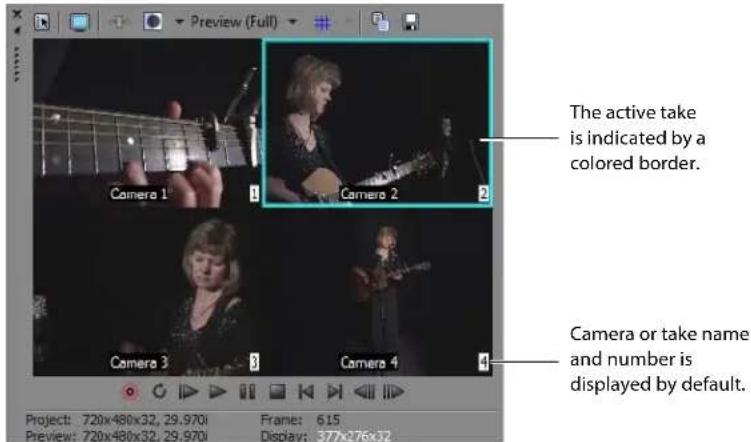
Notes:
- Vegas Pro software can preview many takes at once in multicamera mode, but your computer performance will limit the playback frame rate.
- If you have multiple video tracks and/or overlapping video events, the topmost multitake event is displayed in the Video Preview window. Single-take events, such as title overlays, are ignored. When there are multiple video tracks, the topmost event is the one on the topmost track. When there are overlapping events on the same track, the topmost event is the one to the right.
Toggling the display of camera/take name and number information in the Video Preview window
The camera and take name and number information display in the Video Preview window by default. You can toggle the display of this information from the Video tab of the Preferences window.
Tip: You can also toggle the display of take names on events in the timeline. From the View menu, choose Active Take Information.
- From the Options menu, choose Preferences, and click the Video tab.
- To turn off display of take name information, clear the Display take names check box. To turn off display of take number information, clear the Display take numbers check box.
Setting the active take indicator color
You can select the color that borders the active take in the Video Preview window.
- From the Options menu, choose Preferences, and click the Video tab.
- Click the Active take indicator color swatch to display a color picker, where you can choose any color using the RGBA or HSLA controls. Click the Change Color Space button (☐) to switch between RGB and HSL color modes, or click the Pick Color from Screen button (↗) to sample a color from your screen. Click OK to return to the Video tab, and then click OK to save your preference changes.
Previewing the full frame on an external monitor
You can choose to preview the full frame on an external monitor while in multicamera mode. This allows you to see the final output without leaving multicamera mode.
From the Tools menu, choose Multicamera, and then choose Show Full Frame in External Monitor to toggle this option on or off.
For more information about previewing video on an external monitor, see Using an external monitor on page 380.
Choosing takes
There are several methods you can use for choosing takes, such as pressing number or numeric keypad keys or by clicking the takes in the Video Preview window. When you choose a take, Vegas Pro switches the active take for the multicamera event.
Note: Holding the Ctrl key while calling a take will create a crossfade instead of a cut, with the alignment and duration determined by the Cut-to-overlap conversion settings (Amount and Alignment) in the Editing tab of the Preferences window. For more information, see Editing tab on page 455.
In the Video Preview window, camera changes are displayed as the active take indicator moving across takes. When multicamera mode is off, you'll see camera changes in the video output.
To change takes, Vegas Pro splits the event at the call point and switches the active take.
Note: Empty takes (those marked with "(no camera)") cannot be chosen.
Recutting sections
You can change the take used for an entire time selection. When possible, events using the same take are merged. If a take is not available for part of the time selection, those events are unchanged.
Expanding a multicamera track to multiple tracks
Vegas Pro software can expand a multicamera track to multiple component tracks.
- Select a multicamera track in the track list.
- From the Tools menu, choose Multicamera, and choose Expand to Multiple Tracks from the submenu.
- You are prompted to either keep unused takes as muted events or delete them. If you keep unused takes as muted events, you can recreate your multicamera track later. Click Yes to keep unused takes or No to delete them.
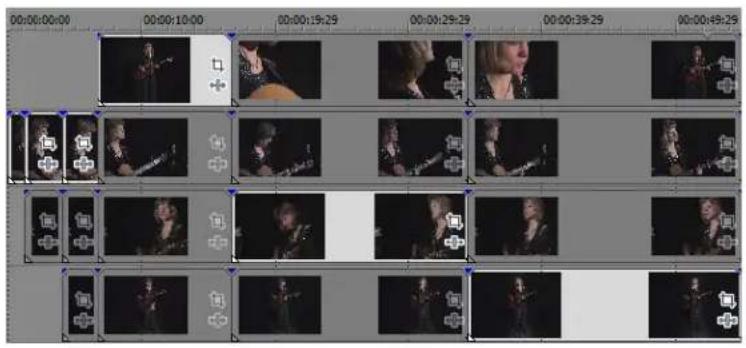
Expanded multicamera track with unused takes kept as muted events.
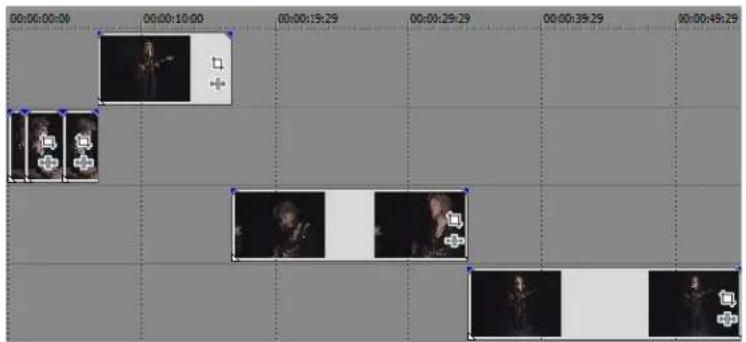
Expanded multicamera track with deleted unused takes.
Turning off multicamera editing mode
From the Tools menu, choose Multicamera, and choose Enable Multicamera Editing from the submenu to turn off multicamera editing mode once you have completed your multicamera editing. In normal editing mode, the output displays only the active take for each event. If necessary, use traditional Vegas Pro editing tools to refine the edit. You can re-enable the multicamera editing mode and do further take selection at any time.
Stereoscopic 3D Editing
You can use Vegas® Pro to edit stereoscopic 3D (S3D) projects without any add-ons or additional tools.
Editing a stereoscopic 3D project is just like editing a standard Vegas Pro project and requires minimal adjustment to your workflow:
- Start a new project and set your project properties to choose a stereoscopic 3D mode. For more information, see Creating projects on page 37 and Setting up your stereoscopic 3D project on page 143.
- Set up your Video Preview window and external monitor (optional). For more information, see Setting up stereoscopic 3D previews on page 146.
- Add media to the timeline. For more information, see Adding media to the timeline on page 51.
- Synchronize and pair events on the timeline (when working with separate left and right video streams) or set stereoscopic 3D media properties if necessary. For more information, see Synchronizing stereoscopic 3D events on the timeline on page 146.
- Align the left- and right-eye views and adjust video depth. For more information, see Aligning left- and right-eye views and adjusting depth on page 148.
- Render your project. For more information, see Rendering a stereoscopic 3D project on page 149.
Setting up your stereoscopic 3D project
The Video tab in the Project Properties dialog allows you to configure options for working in 3D.
By default, the project's Stereoscopic 3D mode, Swap Left/Right, and crosstalk cancellation settings will also be used when previewing and rendering your project, but you can override the project settings if necessary.
-
From the File menu, choose Properties. The Project Properties dialog is displayed.
-
Choose a setting from the Stereoscopic 3D mode drop-down list.
| Setting | Description |
| Off | Choose this setting when creating a 2D project. |
| Side by side (half) | Choose this setting when your project will contain left- and right-eye views in a single frame.Left- and right-eye views are displayed as half of the available horizontal resolution.In this example, the left-eye image is tinted blue, and the right-eye image is tinted red: |
| Side by side (full) | Choose this setting when your project will contain left- and right-eye views in a single frame.Left- and right-eye views are displayed using the full horizontal resolution.In this example, the left-eye image is tinted blue, and the right-eye image is tinted red: |
| Setting Description | |
| Top/bottom (half) | Choose this setting when your project will contain left- and right-eye views stacked in a single frame.Left- and right-eye views are displayed as half of the available vertical resolution.In this example, the left-eye image is tinted blue, and the right-eye image is tinted red: |
| Top/bottom (full) | Choose this setting when your project will contain left- and right-eye views stacked in a single frame.Left- and right-eye views are displayed using the full vertical resolution.In this example, the left-eye image is tinted blue, and the right-eye image is tinted red: |
| Anaglyphic (red/cyan)Anaglyphic (amber/blue)Anaglyphic (green/magenta) | Choose an anaglyphic setting when your project will contain left- and right-eye views in a single frame. |
| Line alternate | Choose this setting when your project will be displayed on a line-alternate 3D monitor.Left- and right-eye views are interlaced using half of the available vertical resolution.In this example, the left-eye image is tinted blue, and the right-eye image is tinted red: |
| Checkerboard | Choose this setting when your project will be displayed on a DLP-based 3D monitor.Left- and right-eye views are tiled using half of the available horizontal and vertical resolution.In this example, the left-eye image is tinted blue, and the right-eye image is tinted red: |
| Left onlyRight only | Choose the Left only or Right only setting for editing on a 2D monitor or if you're creating separate projects for the left- and right-eye outputs.In this example, the left-eye image is tinted blue, and the right-eye image is tinted red: |
| Blend | Choose this setting to blend the left- and right-eye images. This setting is useful when adjusting events. |
| Difference | Choose this setting when performing vertical adjustments to minimize vertical disparity. |
- Select the Swap Left/Right check box if you need to switch the left- and right-eye pictures. This setting is useful if you're using a line-alternate display that displays the right eye on top, if you're using magenta/green anaglyphic glasses, or to create cross-eye free-view 3D.
- Drag the Crosstalk cancellation slider if you experience image bleed-through. For example, if you see right-eye images in your left eye, you can adjust the Crosstalk cancellation slider to compensate.
When your project's Stereoscopic 3D mode is set to Side by side, Top/bottom, Line alternate, or Checkerboard mode, crosstalk cancellation is active only when the Full-resolution rendering quality drop-down list is set to Good or Best. When using anaglyphic modes, crosstalk cancellation is active for any quality level.
- Select the Include cancellation in renders and print to tape check box if you want to use the Crosstalk cancellation setting in your final rendered output. Clear the check box if you want to use crosstalk cancellation for previewing only.
Setting up stereoscopic 3D previews
You can use the Video tab in the Preferences dialog to choose the stereoscopic 3D format that will be used to view your 3D project in the Video Preview window. For example, you could choose Anaglyphic (red/cyan) from the Stereoscopic 3D mode drop-down list to preview your project using anaglyphic 3D glasses.
If you want to preview your project on a 3D television or monitor, you can use the Preview Device tab in the Preferences dialog to configure a 3D display for previewing your project.
- If you're using an NVIDIA graphics card that supports 3D Vision technology and a 3D Vision monitor, choose the Stereoscopic 3D Graphics Card setting from the Device drop-down list in the Preview Device tab and choose Left and Right from the Stereoscopic 3D mode drop-down list.
- If you're using an NVIDIA graphics card that supports 3D Vision technology and a 3D-capable HDTV, choose the Stereoscopic 3D Graphics Card setting from the Device drop-down list in the Preview Device tab and use the Stereoscopic 3D mode drop-down list to choose the method your monitor uses to display stereoscopic 3D content — typically Side by side (half) or Line alternate. Be sure to set the 3D mode in your television's setup menu and the Vegas Pro Preview Device tab.
- If you're using a 3D television connected to your computer via a IEEE 1394 (FireWire) connection, choose the OHCI Compliant IEEE 1394/DV setting from the Device drop-down list in the Preview Device tab and use the Stereoscopic 3D mode drop-down list to choose the method your television uses to display stereoscopic 3D content.
During playback, select the Video Preview on External Monitor button (☐) in the Video Preview window to enable your 3D display. You can turn off external preview by pressing Alt+Shift+4 or by clicking the secondary display and pressing Esc.
For more information about setting up your specific hardware, see Preview Device tab on page 445.
Synchronizing stereoscopic 3D events on the timeline
When shooting stereoscopic 3D using a pair of cameras, it is important to record a synchronizing event. Some users clap or snap their fingers in front of the cameras; others use a flash from a still camera, a pet-training clicker, or a professional slate.
Tips:
- If you're working with multistream 3D files or files that contain both images in each frame, you don't need to align events. When you add multistream media to a stereoscopic 3D project, the first stream will be used and paired with the next stream.
If you need to change the mode for a media file or swap the left/right images, you can use the Media tab of the Media Properties dialog. For more information, see Modifying media file properties on page 305.
- If you have two files that have synchronized timecode — such as video shot on a 3D camera that creates separate left- and right-eye clips — you don't need to align the audio and video. Just select the clips in the Project Media window and choose Pair as Stereoscopic 3D Subclip from the shortcut menu. The first stream will be used and paired with the next stream.
If you need to change the mode for a media file or swap the left/right images, you can use the Media tab of the Media Properties dialog. For more information, see Modifying media file properties on page 305.
- If you want to add stereoscopic 3D depth to tracks using 3D compositing, you can use the Stereoscopic 3D Camera controls on the Track Motion dialog. For more information, see 3D compositing on page 333.
Supported multistream formats:
• Dual-stream AVI or QuickTime files
• 3D AVC files created by 3D Bloggie HD cameras
• MPO (multiple picture object) 3D still images
• CineForm Neo3D 5.1 or later (a CineForm product or the free Neo player is required to read Cineform Neo3D files)
• Two separate files paired as described in this topic
-
Add your media to the timeline using Add Across Tracks mode so the video for the left and right eyes is on separate tracks. In the following example, the left-eye track is above the right-eye track.
-
Use one of the following methods to align the audio and video so the video output is synchronized.
- If you used a slate or a loud clap for your synchronization point, you can align the events to within a frame of each other using the audio waveforms:
a. Roughly align the audio waveforms by dragging events in the timeline.
b. Use the Zoom controls at the bottom-right corner of the timeline to zoom in on the waveform.
c. Verify Quantize to Frames is enabled because you want video frames to be aligned even if the audio is slightly out of alignment.
d. Drag a track's border to make the tracks taller and view large waveforms.
e. Use Shift+Up Arrow to magnify the waveforms if necessary.
f. Click the event you want to move and press 1 or 3 on the numeric keypad to nudge the event by frames to the left or right.
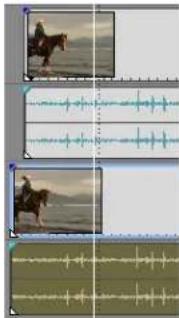
• Synchronizing a video event:
Note: These steps require snapping to be enabled, so if you have not already done so, turn snapping on by clicking the Enable Snapping button (✗). For more information, see Snapping events on page 121.
a. Solo the video track.
b. Position the cursor at the synchronization point and drag the event's snap offset so it snaps to the cursor. For more information, see Using the event snap offset on page 123.
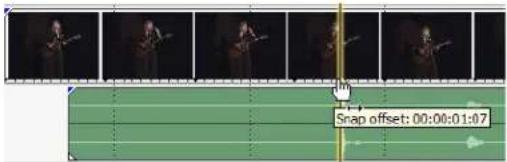
c. Repeat steps a and b for each clip.
d. Drag the cursor to a snap point, and then snap the other clips to the cursor.
If the cameras were not genlocked together (shooting at the same cadence) you may find one to be up to half a frame ahead of the other. Unless your scene has lots of fast motion, this is acceptable; just be sure to get them as close as possible on the timeline.
- Verify alignment:
a. Drag the Level slider on the top track to set its opacity to 50 percent.
b. Find a portion of the video with good movement and verify the motion is the same in both clips and that one clip does not lead the other.
If the cameras were not genlocked together (shooting at the same cadence), you may find that one clip is up to half a frame ahead of the other. Unless your scene has lots of fast motion, this is acceptable.
- Select both video events, right-click one of the events, and choose Pair as Stereoscopic 3D Subclip.
One video event is deleted from the timeline, the active take for the event is set to the new multistream subclip, and a new multistream clip is added to the Project Media window. If you view the clip properties for the new subclip, you'll see that the Stereoscopic 3D Mode is set to Pair with next stream.
- Delete the audio and video tracks you created in step 1.
After synchronizing the events, you will have a paired stereoscopic subclip in the Project Media window. You can drag these clips to the timeline as stereoscopic 3D media.
Tip: If your camera rig used mirrors or inverted cameras and produced flipped or rotated images that were not corrected in camera, you can correct the clip with the Stereoscopic 3D Adjust plug-in. For more information, see Aligning left- and right-eye views and adjusting depth on page 148.
Aligning left- and right-eye views and adjusting depth
It is very important that stereoscopic 3D video have differences between the views only in horizontal displacement. Any vertical or rotational misalignment will detract from the viewing experience and may even cause viewer discomfort. Also, it is important to limit the amount and direction of horizontal offset to create comfortable depth.
For example, when shooting with parallel-axis cameras, all of the action is usually in front of the screen, and you need to use horizontal image translation to push most of it behind the screen.
Use the 3D glasses in combination with viewing the output without the glasses to create good alignment and depth settings. You usually want all of the action behind the screen plane, only crossing the screen plane for dramatic or special effect. However, make sure never to create divergence, where the left-eye picture would appear more than 2.5 inches to the left of the right-eye picture on the largest screen where your movie will be shown.
For example, if the largest screen to be used is 16:9 with a 106-inch diagonal, the width is 87 percent of the diagonal, or about 92 inches. With 1920x1080 content, 2.5 inches is only 52 pixels, so make sure your distant objects are never more than 52 pixels apart.
You can use the Stereoscopic 3D Adjust plug-in to adjust horizontal offset, vertical offset, keystoning, and rotation. This plug-in can be applied at the event level, track level, or video output level. For more information about applying video effects, see Using video effects on page 321.
You can use the plug-in's controls as follows:
| Item | Description |
| Horizontal Offset | Drag the slider to adjust the horizontal alignment of the left- and right-eye views to set the perceived position of the video relative to screen depth. |
| Vertical Offset | If left- and right-eye views are not aligned vertically, drag the slider to correct the offset. |
| Zoom | If left- and right-eye views are not zoomed identically, drag the slider to correct the offset. |
| Keystone | Drag the slider to correct for image keystoning. Image keystoning occurs when the left- and right-eye cameras are not parallel. |
| Rotation | Drag the slider to correct for camera tilt in the left- and right-eye views. |
| Auto Correct | Click to analyze video and automatically calculate values for Vertical Offset, Zoom, Keystone, and Rotation. |
| Flip Horizontal | Choose a setting from the drop-down list to flip the image for horizontally inverted cameras. |
| Flip Vertical | Choose a setting from the drop-down list to flip the image for vertically inverted cameras. |
| Automatic Crop | Select this check box if you want to automatically crop the left- and right-eye views during adjustment to prevent black borders created by the plug-in's adjustments. |
| Crop | When the Automatic Crop check box is cleared, you can drag this slider to adjust image cropping. |
Tips:
- 3D depth adjustment is a complex process and is out of the scope of this document. For more information, please review a reference such as 3D Movie Making: Stereoscopic Digital Cinema from Script to Screen by Bernard Mendiburu.
- When you're working with a stereoscopic 3D project, a separate check box is displayed in the Video FX window for the left- and right-eye video: 📋 Stereoscopic 3D Adjust. By limiting an effect to the left or right eye only, you can use multiple instances of a plug-in with different settings for each eye.
Rendering a stereoscopic 3D project
When you render your project, the Stereoscopic 3D mode setting from the Video tab in the Project Properties dialog is used by default.
If you want to use a different rendering format (to deliver separate left- and right-eye masters, for example, or to create multiple versions of your project), you can change the rendering mode.
Supported 3D rendering formats:
- CineForm Neo3D (requires CineForm NeoHD, Neo4k, or Neo3D 5.1 or later). You can create a custom QuickTime or AVI render template that uses CineForm as your video format. Rendering with this template will create a Neo3D file that can be used by any application that supports the CineForm stereoscopic 3D format.
-
Two separate files. You can create two custom templates and use the Project tab in the Custom Settings dialog to set the Stereoscopic 3D mode for one template to Left Only and the other to Right Only. You can then render the files separately or use Tools > Scripting > Batch Render to render the left- and right-eye files.
-
From the File menu, choose Render As to display the Render As dialog.
- Choose a drive and folder from the Save in drop-down list, or use the browse window to locate the folder where you want to save your file.
- Type a name in the File name box, or select a file in the browse window to replace an existing file.
- Choose a file type from the Save as Type drop-down list.
- Click the Custom button to create a new template.
- In the Custom Settings dialog, click the Project tab.
- From the Stereoscopic 3D mode drop-down list, choose the setting that you want to use for rendering your project.
Choose Use project settings if you want to use the setting from the Video tab in the Project Properties dialog, or choose another mode if you want to override the project setting when rendering.
| Setting | Description |
| Use project settings | Uses the setting from theVideo tab in the Project Properties dialog. |
| Side by side (half) | Choose this setting when your project will contain left- and right-eye views in a single frame.Left- and right-eye views are displayed as half of the available horizontal resolution.YouTube 3DYouTube 3D uses frame-compatible video, so you can create a custom render template using a format that is compatible with YouTube, such as XDCAM EX, Windows Media Video, or MainConcept MPEG-2. For the custom template, set the stereoscopic 3D mode toSide by side(half)and select theSwap Left/Rightcheck box because YouTube 3D defaults to this layout.When you upload your video to YouTube, addyt3d:enable=trueas a tag to enable 3D viewing. Also addyt3d:aspect=16:9 (oryt3d:aspect=4:3) to set the viewing frame aspect ratio.DVD, Blu-ray Disc, and 3D Blu-ray DiscYou can burn a standard Blu-ray Disc or DVD in side-by-side format and play it on any Blu-ray Disc or DVD player. When the player is connected to a recent 3D TV, you can use the TV's menu to put it into side-by-side mode and enjoy 3D playback.If your project is destined for professional Blu-ray 3DTMreplication, Vegas Pro can prepare content in full HD per-eye format by rendering two separate files (seeLeft onlyandRight onlybelow), which can be read by an MVC encoder such as the Dualstream 3D encoder (http://www.sonycreativesoftware.com/blurayencoding) and authored using a tool such as Blu-print (http://www.sonycreativesoftware.com/bluprint). |
| Side by side (full) | Choose this setting when your project will contain left- and right-eye views in a single frame.Left- and right-eye views are displayed using the full horizontal resolution. |
| Top/bottom (half) | Choose this setting when your project will contain left- and right-eye views stacked in a single frame.Left- and right-eye views are displayed as half of the available vertical resolution. |
| Top/bottom (full) | Choose this setting when your project will contain left- and right-eye views stacked in a single frame.Left- and right-eye views are displayed using the full vertical resolution. |
| Anaglyphic (red/cyan)Anaglyphic (amber/blue)Anaglyphic (green/magenta) | Choose an anaglyphic setting when your project will contain left- and right-eye views in a single frame. |
| Line alternate | Choose this setting when your project will be displayed on a line-alternate 3D monitor.Left- and right-eye views are interlaced using half of the available vertical resolution. |
| Checkerboard | Choose this setting when your project will be displayed on a DLP-based 3D monitor.Left- and right-eye views are tiled using half of the available horizontal and vertical resolution. |
| Left onlyRight only | Choose theLeft onlyorRight onlysetting if you're creating separate renders for the left- and right-eye outputs.Tip: You can use the Batch Render script to automate the process. Create two custom rendering templates: for one template, set the stereoscopic 3D mode toLeft onlyand set the other template's stereoscopic 3D mode toRight only.Then chooseTools >Scripting>Batch Render,select your format and select the check box for your two templates, set the destination folder and file name, and clickOK.Vegas Pro will render each file with the name of the template appended to the file name. |
| Blend | Choose this setting to blend the left- and right-eye images. This setting is useful when adjusting events. |
| Difference | Choose this setting when performing vertical adjustments to minimize vertical disparity. |
-
Select the Swap Left/Right check box if you need to switch the left- and right-eye pictures. This setting is useful if you're using a line-alternate display that displays the right eye on top, if you're using magenta/green anaglyphic glasses, or to create cross-eye free-view 3D.
-
Drag the Crosstalk cancellation slider if you experience image bleed-through. For example, if you see right-eye images in your left eye, you can adjust the Crosstalk cancellation slider to compensate.
When your project's Stereoscopic 3D mode is set to Side by side, Top/bottom, Line alternate, or Checkerboard mode, crosstalk cancellation is active only when the Full-resolution rendering quality drop-down list is set to Good or Best. When using anaglyphic modes, crosstalk cancellation is active for any quality level.
- Save your template for future use:
a. Type a name in the Template box to identify your rendering template.
b. Click the Save Template button (☐).
c. Click OK to return to the Render As dialog.
- Click Save to render your project using your new template.
Working with XDCAM Video
Vegas® Pro software provides all the tools you need to edit proxy and full-resolution HD and SD XDCAM MXF files natively, with no transcoding required. Vegas Pro supports all HD and SD XDCAM compression types, all frame rates, all aspect ratios, multichannel audio, and essence marks. All proxy and full-resolution XDCAM source file types can be mixed in a single timeline, edited, and transferred back to XDCAM via i.LINK, network FTP, or SDI.
The following sections provide workflows for efficient editing of video from an XDCAM EX camera or an XDCAM/XDCAM HD camera or deck.
XDCAM EX workflow
The following topic provides a workflow for efficient editing of video from an XDCAM EX camera.
XDCAM EX differs from XDCAM/XDCAM HD in several key areas.
- XDCAM EX cameras record to SxS flash memory rather than optical disc.
• XDCAM EX cameras record full-HD video to MPEG-2 (MP4) format. - XDCAM EX video is not visible in the XDCAM Explorer window. Use the Device Explorer window to import clips from an XDCAM EX device. For more information, see Using the Device Explorer on page 60.
-
When editing XDCAM EX video, you'll edit full-resolution MXF files. Proxies are not available.
-
Shoot your video with your XDCAM EX camera.
-
Transfer your clips from your camera to your computer.
a. Install the SxS device driver.
b. Connect your camera (or card reader) to your computer with a USB cable.
c. Your camera will prompt you to Connect USB Now? Choose Execute.
d. Use the Device Explorer window to import clips from your XDCAM EX device to the Project Media window. For more information, see Using the Device Explorer on page 60.
Note: Previous versions of Vegas Pro required you to convert XDCAM EX clips to MXF format before editing.
This conversion is no longer required, but the workflow is still supported. If you want to wrap your XDCAM EX clips in MXF format, use XDCAM EX Clip Browsing Software.
-
Drag your captured clips from the Project Media window to the timeline to create events.
-
Edit your project as needed.
-
Render your project for your destination format. You can also render to XDCAM EX format by choosing XDCAM EX (*.MP4) from the Save as type drop-down list in the Render As dialog.
Note: The following notes apply when rendering XDCAM EX format files:
- Only embedded XML metadata is included with rendered files. Embedded XML metadata supports markers and regions; title, author, and description summary information; recording date/time; and timecode in/out.
- When you intend to transfer files back to SxS media, select the Write segmented files if output exceeds 4 GB check box on the Video tab of the Custom XDCAM EX Settings dialog (click the Custom button in the Render As dialog and then click the Video tab). When this check box is selected, large files will be segmented at 4 GB for compatibility with the SxS file format.
- XDCAM EX supports smart rendering across the following formats when the source and destination MPEG-2 video match in frame size, bit rate, profile, and level:
• SP 18.3 Mbps CBR 1280x720p to/from XDCAM EX and HDV HD-1
- SP 25 Mbps CBR 1440x1080i to/from XDCAM EX, XDCAM HD, and HDV HD-2
• HQ 35 Mbps VBR 1440x1080 to/from XDCAM EX and XDCAM HD
• HQ 35 Mbps VBR 1280x720p to/from XDCAM EX
• HQ 35 Mbps VBR 1920x1080 to/from XDCAM EX
The Enable no-recompress long-GOP rendering check box on the General tab of the Preferences dialog must be selected to enable smart rendering.
XDCAM and XDCAM HD workflow
You can use MXF files just like any other supported media type. The following sections provide a workflow for efficient editing.
Note: The XDCAM deck is not available for external monitor or print to tape via iLink® while in XDCAM Media Drive mode. Click the Safely Remove Hardware icon (💡) in the Windows system tray and choose your XDCAM device from the menu to disconnect the device. You can then switch to AV/C mode and reconnect to enable external monitor and print to tape functionality.
The basic workflow for working with XDCAM is as follows:
- Set up your XDCAM device.
The first step in working with XDCAM is to set up your computer to communicate with your XDCAM camera or deck. You can use FTP (file transfer protocol) or i.LINK to transfer between your computer and device. For specific information on setting up your device and installing any necessary drivers, see its documentation. Your device must be properly installed and recognized on your computer before it can be used with Vegas Pro.
For information on setting up your device to work with Vegas Pro, see Setting up an XDCAM device on page 156.
- Import video from the XDCAM disc.
Next, you need to transfer video from your XDCAM disc to your computer for editing. Depending on your project and requirements, you can transfer full-resolution files, proxy-resolution files, or both. For more information, see Importing XDCAM discs on page 159.
- Edit the video on the timeline.
Editing XDCAM video is identical to editing DV on the timeline. You can choose whether you want to edit full- or proxy-resolution files on the timeline. For more information, see Editing XDCAM clips on the timeline on page 161.
- Replace proxy files with full-resolution versions (optional).
If you're using proxy files for timeline editing, replace the clips with full-resolution versions before rendering or exporting back to XDCAM disc. For more information, see Replacing proxy-resolution clips with full-resolution media (conforming media) on page 163.
- Export video back to an XDCAM disc.
If you're planning to render your movie to a different format, render just as you would any other project.
If you want to export your movie to an XDCAM disc, you can either export the current project or export a rendered MXF file. For more information, see Exporting video to an XDCAM disc on page 164.
Note: The XDCAM deck is not available for external monitor or print to tape via iLink® while in XDCAM Media Drive mode. Click the Safely Remove Hardware icon in the Windows system tray and choose your XDCAM device from the menu to disconnect the device. You can then switch to AV/C mode and reconnect to enable external monitor and print to tape functionality.
Setting up an XDCAM device
Use the following procedure if you need to set up an XDCAM deck or camera for transferring clips, replacing proxy files with full-resolution clips, or exporting video to an XDCAM device.
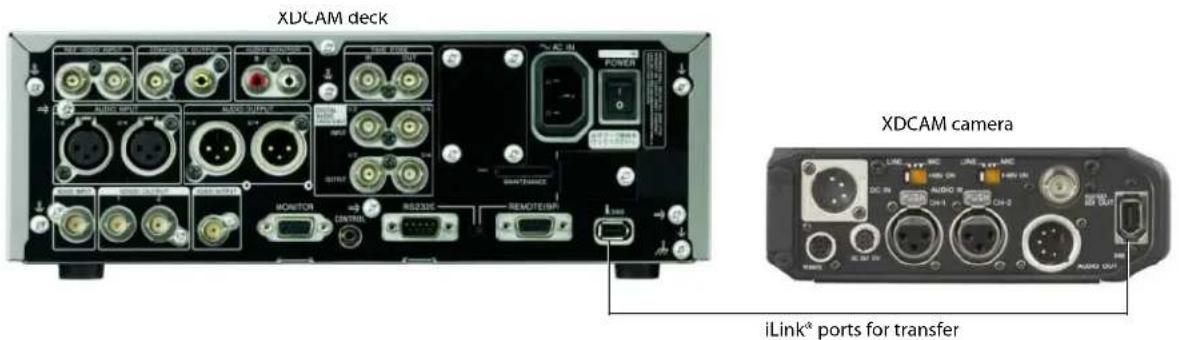
Note: The XDCAM deck is not available for external monitor or print to tape via iLink® while in XDCAM Media Drive mode. Click the Safely Remove Hardware icon (💡) in the Windows system tray and choose your XDCAM device from the menu to disconnect the device. You can then switch to AV/C mode and reconnect to enable external monitor and print to tape functionality.
-
Click the Device button in the Export Video to XDCAM Disc or Import XDCAM Disc dialog. The XDCAM Device Settings dialog is displayed.
-
To display the Export Video to XDCAM Disc dialog, click the Export Video to Sony XDCAM Disc button (icon) in the XDCAM Explorer window.
• To display the Import XDCAM Disc dialog, click the Import XDCAM Disc button (☐) in the XDCAM Explorer window.
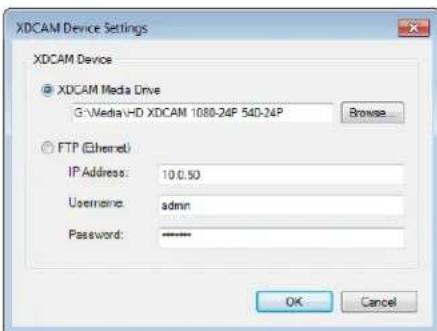
- Choose the XDCAM device where you want to import/export clips.
- Select the XDCAM Media Drive (i.LINK) radio button if your XDCAM camera or deck is connected directly to your computer via an IEEE-1394 cable. In this mode, your camera or deck is accessible much like an external drive. Click the Browse button and choose the drive letter of the camera or deck.
Note: Choose the drive letter of the camera or deck only; do not navigate into the folders on the disc.
- Select the FTP (Ethernet) radio button if your camera or deck is connected to your network.
Type the camera or deck's IP address in the IP Address box.
In the Username box, type admin.
In the Password box, type the device/model number of your camera or deck. For example, if you're exporting clips to a PDW-1500 deck, type PDW-1500.
Tip: The XDCAM deck is not available for external monitor or print to tape via iLink® while in XDCAM Media Drive mode. Using FTP transfers allows you to export to a remote device and or use the device's i.LINK connection in AV/C mode for external monitor previewing.
3. Click OK.
Note: For information about using your camera or deck, refer to its documentation.
Using the XDCAM Explorer window
From the View menu, choose XDCAM Explorer (or press Ctrl+Alt+F5) to display the XDCAM Explorer window, which you can use to locate, import, and export XDCAM clips.
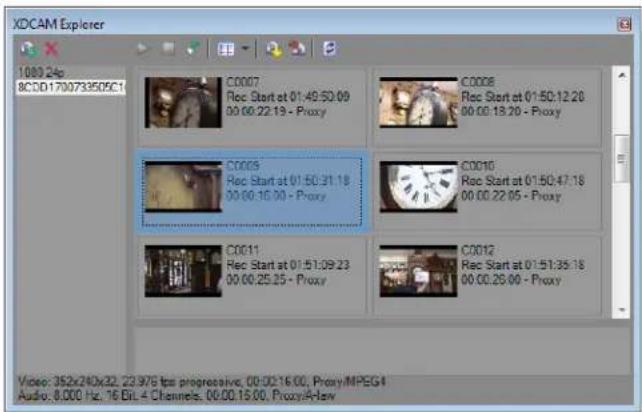
| Item | Name | Description | |
| Disc List | Displays a list of all XDCAM discs from which you've imported clips. Select a disc name to display its clips in the right side of the window.The imported disc is not associated with the current project. Imported discs are available in the XDCAM Explorer window until you delete them from your computer.Right-click a disc and chooseRenamefrom the shortcut menu to change a disc's name.For example, if you've written "Joe's Tire Spot" on your XDCAM disc, you can type that name so you don't have to try to identify the disc in the XDCAM Explorer window using its 32-digit identifier. | ||
| Contents Pane | Displays the clips from the selected disc.Full-resolution clips are labeledFull, and proxy files are labeled Proxy.If you've transferred proxy files only, you can right-click a proxy file and chooseImport Full Resolution Filesfrom the shortcut menu to transfer the full-resolution version of the proxy clip to your computer. Files are imported to the same folder where you transferred the proxy files.If you've transferred metadata only without transferring clips, no thumbnail is displayed. Right-click a metadata entry and chooseImport Full Resolution Files or Import Proxy Filesfrom the shortcut menu.If the disc contains edit lists that you created on your deck or camera, they are displayed at the bottom of the contents pane. Click the down arrow next to theViewsbutton(回)and choose Edit Lists from the menu to show or hide edit lists. | ||
| Import XDCAM Disc | Click to import clips from an XDCAM disc. You can choose to import proxy-resolution clips, full-resolution clips, or both. For more information, seeImporting XDCAM discs on page 159. | ||
| Delete Selected XDCAM Disc from Capture Folder | Select a disc in the left pane and click this button to delete the disc's clips from your computer. | ||
| Play Clip | Click to play the selectedclip. | ||
| Item | Name | Description | |
| Stop | Click to stop playback. | ||
| Auto Preview | Automatically preview media files when you click them in the XDCAM Explorer window. | ||
| Views | Click the down arrow and choose a command from the menu to change the way clips are displayed in the XDCAM Explorer. | ||
| All Essence Marks Displays a separate thumbnail for each essence marker in a clip. | |||
| Shot Marks 1 & 2 Displays a separate thumbnail for each shot marker in a clip. | |||
| Clips Displays a single thumbnail for each clip. | |||
| Custom Displays the Custom Essence Mark Filter dialog. Select the check box for each essence mark you want to display as thumbnails, and then click OK to close the dialog. | |||
| Edit Lists | If you've created an edit list on your camera or deck, you can display those edit lists in the XDCAM Explorer. Edit lists are displayed in the lower half of the XDCAM Explorer. | ||
| Right-click an edit list and choose Add to Current Project Using Proxy Files or Add to Current Project Using Full Resolution Files from the shortcut menu to add the edit list to the timeline at the cursor position. | |||
| Conform XDCAM Media in Current Project | Click to replace proxy-resolution files with full-resolution files before rendering your project or exporting your video to an XDCAM disc. | ||
| If the full-resolution clips are not available on your computer, the Conform XDCAM Media in Current Project dialog is displayed. Insert the specified disc and click Continue to import the full-resolution clips to your computer. | |||
| If you need to choose a different XDCAM device or import method, click the Device button. For more information, see Setting up an XDCAM device on page 156. | |||
| Clips are imported if necessary, and the events on the timeline are updated to use the full-resolution files. | |||
| Export Video to XDCAM Disc | Click to transfer video to an XDCAM disc in a camera or deck. | ||
| You can choose to render the current project to MXF or export an already-rendered MXF file. For more information, see Exporting video to an XDCAM disc on page 164. | |||
| Refresh XDCAM Discs by Examining Capture Folders | Click to examine capture folders for files that have been added since the application was started. You can use this button to view files that you copy manually from an XDCAM disc to your computer. | ||
Importing XDCAM discs
You can use the XDCAM Explorer window to import full- or proxy-resolution clips from XDCAM discs to your computer for editing.
Tips:
- If you delete XDCAM clips from your computer, those clips will appear offline in your projects. You can reimport the clips by right-clicking the clips in the Project Media window and choosing Recapture from the shortcut menu.
- The XDCAM deck is not available for external monitor or print to tape via iLink ^® while in XDCAM Media Drive mode. Click the Safely Remove Hardware icon (💡) in the Windows system tray and choose your XDCAM device from the menu to disconnect the device. You can then switch to AV/C mode and reconnect to enable external monitor and print to tape functionality.
-
Use the Device Explorer window to import clips from an XDCAM EX camera. For more information, see Using the Device Explorer on page 60.
-
From the View menu, choose XDCAM Explorer to display the XDCAM Explorer window if it isn't already visible.
- Click the Import XDCAM Disc button (☐) in the XDCAM Explorer window. The Import XDCAM Disc dialog is displayed.
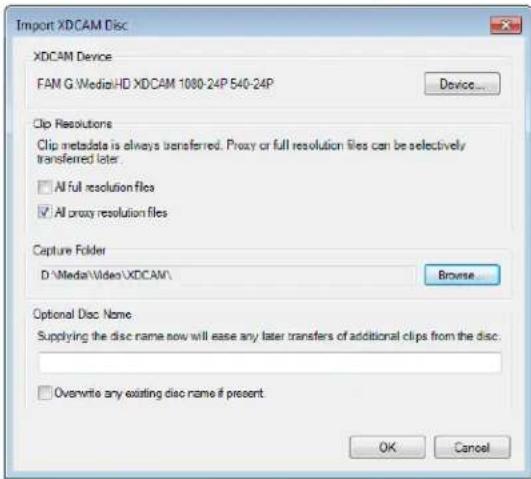
- The XDCAM Device box displays the current XDCAM camera or deck.
If you need to choose a different XDCAM device or import method, click the Device button. For more information, see Setting up an XDCAM device on page 156.
Note: For information about using your camera or deck, refer to its documentation.
- In the Clip Resolutions box, select check boxes to indicate which clips you want to import:
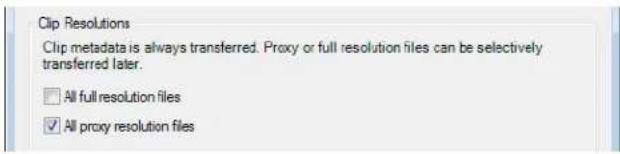
Tip: Proxy files are much smaller than the full-resolution versions. If you're working on a system with limited disk space or processing power, you can edit the smaller proxy files on the timeline and replace the proxies with full-resolution files before rendering.
Proxy editing is ideal for storyboarding or rough-cut editing.
• Clear both check boxes if you want to import clip information (metadata) only without importing clips.
You can import clips later by right-clicking a clip in the XDCAM Explorer and choosing Import Full Resolution Files or Import Proxy Files from the shortcut menu.
- Select the All full resolution files check box to import full-resolution clips.
- Select the All proxy resolution files check box to import low-resolution clips for quick timeline editing and preview. If you're working on a system with limited disk space or processing power, you can edit the smaller proxy files on the timeline and replace the proxies with full-resolution files before rendering.
- The Capture Folder box displays the path to the folder where clips will be imported. Click the Browse button to choose a folder.

Tip: You can also copy XDCAM discs to the capture folder manually. Simply copy the files and folders to the specified capture folder (preserving the XDCAM disc folder folder/file structure). The next time you start Vegas Pro, the disc will be available in the XDCAM Explorer window.
- Type a name in the Optional Disc Name box if you want to assign a friendly name to the disc.
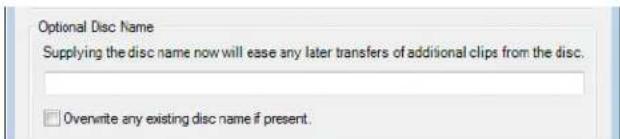
For example, if you've written "Joe's Tire Spot" on your XDCAM disc, you can type that name so you don't have to try to identify the disc in the XDCAM Explorer window using its 32-digit identifier.
-
Click the OK button to start importing clips. The disc label is added to the left pane in the XDCAM Explorer window, and the clips are displayed in the right pane. For more information, see Using the XDCAM Explorer window on page 157.
-
You're ready to start editing your XDCAM clips on the timeline.
Notes:
- Select the Import MXF as multichannel check box on the General tab of the Preferences dialog if you want to import MXF files from XDCAM cameras and decks with multichannel audio. When the check box is cleared, audio from MXF files will be imported as stereo, but you can access the other channels by right-clicking the event and choosing Channels from the shortcut menu.
- The imported disc is not associated with the current project. Imported discs are available in the XDCAM Explorer window until you delete them from your computer.
- Imported clips are not added to the Project Media window. Drag a clip to the timeline to add it to your project or right-click a clip and choose Add to Project Media List from the shortcut menu.
Editing XDCAM clips on the timeline
Creating and editing a project
You can use MXF files just like any other supported media type on the timeline. Depending on your workflow, you might want to use proxy or full-resolution files on the timeline.
Tip: Proxy files are much smaller than the full-resolution versions. If you're working on a system with limited disk space or processing power, you can edit the smaller proxy files on the timeline and replace the proxies with full-resolution files before rendering.
Proxy editing is ideal for storyboarding or rough-cut editing.
- Import the clips from your XDCAM camera or deck to your local hard drive. For more information, see Importing XDCAM discs on page 159.
- Select an imported XDCAM disc on the left side of the XDCAM Explorer window. The imported clips are displayed in the right pane.
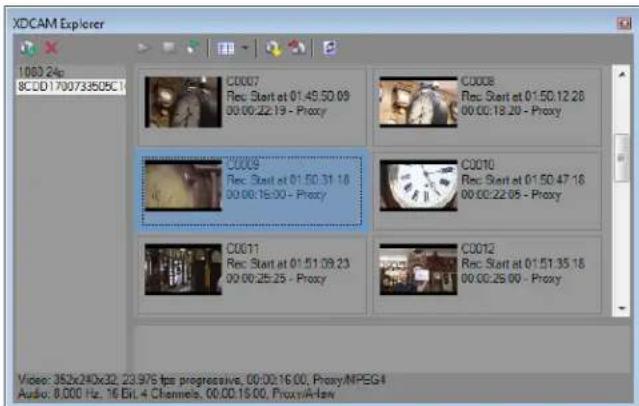
If the disc contains edit lists that you created on your deck or camera, they are displayed at the bottom of the contents pane. Click the down arrow next to the Views button (E) and choose Edit Lists from the menu to show or hide edit lists.
- Drag clips from the XDCAM Explorer window to the timeline if you want to create events, or drag them to the Project Media window to add to your project without creating events.
Right-click an edit list and choose Add to Current Project Using Proxy Files or Add to Current Project Using Full Resolution Files from the shortcut menu to add the edit list to the timeline at the cursor position.
Note: Essence marks from the MXF files are displayed as named media markers (media markers are visible in the timeline events and in the Trimmer window). Choose View > Event Media Markers > Show Markers to toggle their display.
-
Edit your project as needed.
-
If you're working with proxy-resolution clips, replace them with full-resolution clips before rendering your project or exporting it to an XDCAM disc:
a. Click the Conform XDCAM Media in Current Project button (in) in the XDCAM Explorer window.
b. If the full-resolution clips are not available on your computer, the Conform XDCAM Media in Current Project dialog is displayed.
c. Insert the specified disc.
If the events on the timeline have been trimmed, you can select the Trim clips to used regions when possible check box (available only in file-access mode) to import only the portions of the media files required for the events.
If you need to choose a different XDCAM device or transfer method, click the Device button. For more information, see Setting up an XDCAM device on page 156.
d. Select the Trim clips to used regions when possible check box (available only in file-access mode) if you want to trim full-resolution clips to import only the portions used in your project.
Note: Some XDCAM decks might require updated firmware to support trimming clips when connecting via Ethernet (FTP).
e. Click Continue to import the full-resolution clips.
f. Repeat steps 5c and 5d as needed.
Clips are imported to your computer if necessary, and the events on the timeline are updated to use the full-resolution files.
- You can now render your project or export it to an XDCAM deck or camera.
Setting up your project for multichannel audio
If you imported your XDCAM clips with the Import MXF as multichannel check box selected on the General tab of the Preferences dialog, your MXF files will be imported with multichannel audio. When you add the clip to the timeline, the audio channels will be added across tracks.
The example below shows an MXF clip with six-channel audio. To take advantage of multichannel mapping in Vegas Pro, set up your project to map each audio channel to a separate bus.
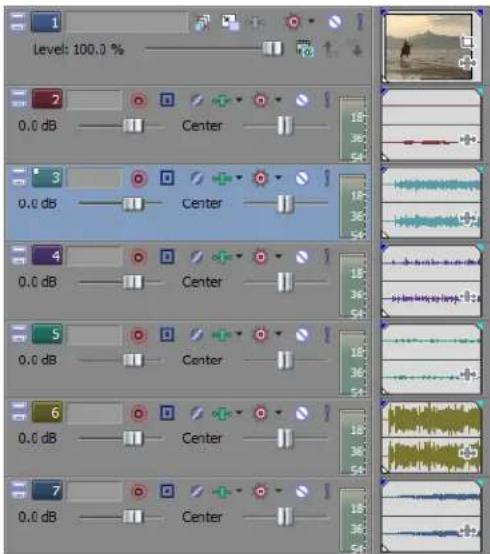
-
From the Insert menu, choose Audio Bus (or click the Insert Bus button) in the Mixer window) to create a bus in the Mixer window. Because we're working with six-channel audio, we'll add three stereo busses.
-
Now click the bus button (☐) on each track to assign the channels to busses.
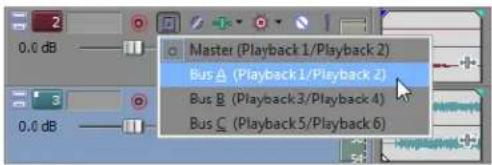
We'll assign channels one and two to Bus A, channels three and four to Bus B, and channels five and six to Bus C.
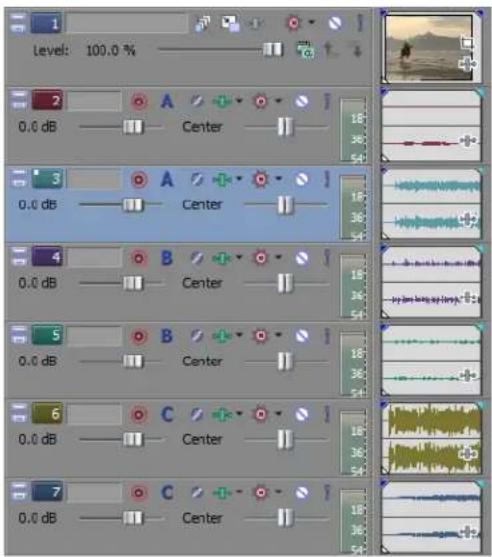
Alternatively, you could create one bus per channel.
We'll use this channel mapping when you render your video or export it to an XDCAM camera or deck.
For more information, see Exporting video to an XDCAM disc on page 164.
Replacing proxy-resolution clips with full-resolution media (conforming media)
If you're working with proxy-resolution clips, replace them with full-resolution clips before rendering your project or exporting it to an XDCAM disc:
- Click the Conform XDCAM Media In Current Project button (P) in the XDCAM Explorer window.
- If the full-resolution clips are not available on your computer, the Conform XDCAM Media in Current Project dialog is displayed.
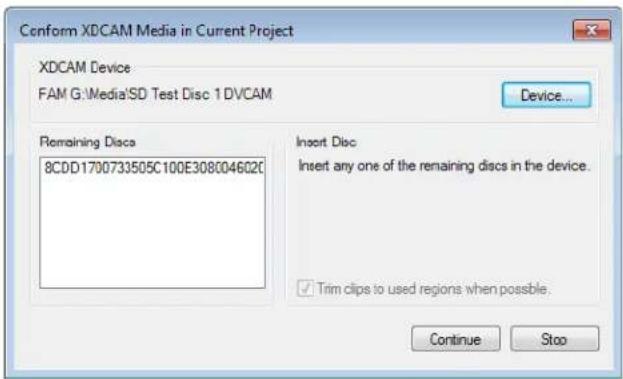
- Insert the specified disc.
If the events on the timeline have been trimmed, you can select the Trim clips to used regions when possible check box to import only the portions of the media files required for the events. This option is not available when connecting to an XDCAM deck or camera via file access mode (i.Link).
If you need to choose a different XDCAM device or transfer method, click the Device button. For more information, see Setting up an XDCAM device on page 156.
- Click Continue to import the full-resolution clips.
- Repeat steps 3 and 4 as needed.
- Clips are imported to your computer if necessary, and the events on the timeline are updated to use the full-resolution files.
Exporting video to an XDCAM disc
From the Tools menu, choose Export Video to XDCAM Disc (or click the Export Video to XDCAM Disc button (in the XDCAM Explorer window) to save your project to a disc in an XDCAM camera or deck.
Exporting video from the timeline
Use this procedure to export the current project to an XDCAM disc.
Important: If you are exporting a rendered file to an XDCAM disc, the file must precisely conform to the target disc format, or the export will fail.
- If you want to export only a portion of your project, create a time selection that includes the section of your project.
- From the Tools menu, choose Export Video to XDCAM Disc (or click the Export Video to XDCAM Disc button) in the XDCAM Explorer window). The Export Video to XDCAM Disc dialog is displayed.
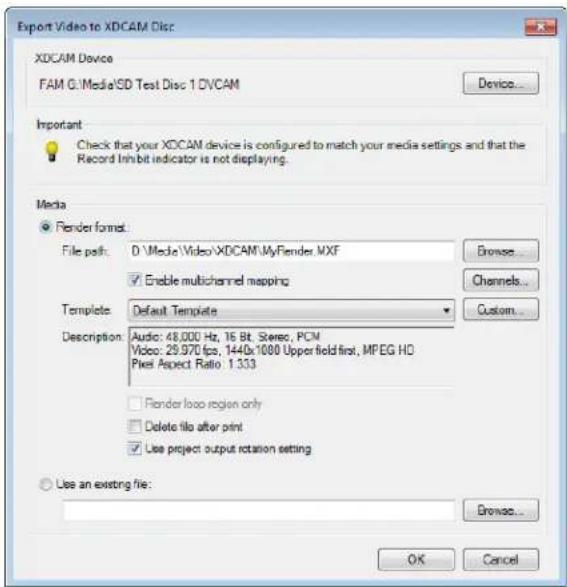
- The XDCAM Device box displays the current XDCAM camera or deck.
If you need to choose a different XDCAM device or transfer method, click the Device button. For more information, see Setting up an XDCAM device on page 156.
Note: For information about using your camera or deck, refer to its documentation.
- Choose render settings:
a. Select the Render format radio button.
b. In the File path box, type the path to the file you want to render, or click the Browse button to browse to the folder you want to use and then type a file name.
This path is used to render an MXF file to your hard drive before transferring to your XDCAM device. You can delete the file after the transfer is complete.
c. Select the Enable multichannel mapping check box if you want to map render multiple channels of audio.
You can click the Channels button if you want to map the busses in your project to channels in the rendered file. If you don't specify a channel mapping, Vegas Pro will not render a multichannel file.
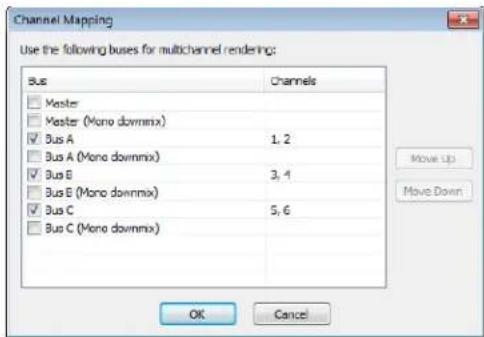
In the Channel Mapping dialog, select the check box for each bus you want to include in the rendered file. Each stereo bus will be saved to two channels in the rendered file. If you want to save a bus to a single channel, select the (Mono downmix) check box for that bus.
If you want to change order of the busses in the channel mapping, select the bus and click the Move Up or Move Down button.
Click OK to close the Channel Mapping dialog and return to the Export Video to XDCAM Disc dialog. For more information, see Setting up your project for multichannel audio on page 162.
d. From the Template drop-down list, choose the setting that matches your destination disc.
Information about the selected rendering template is displayed in the Description box.
If you choose Default Template, the number of channels will match the number of channels specified in the Channel Mapping dialog.
e. Select the Render loop region only check box if you want to export only the portion of your project that you selected in step 1.
f. Select the Delete file after print check box if you want to delete the rendered file from your hard drive after exporting it to disc. If the export fails, the rendered file remains on disk so you can adjust your XDCAM device settings and export again without having to render again.
g. Select the Use project output rotation setting check box if you're rendering a rotated project and want to use the Output rotation setting from the Project Properties dialog for your rendered file.
When the check box is cleared, the media is rotated according to its Media Properties setting, but the project itself is unrotated—you can use this setting to proof your project on an unrotated display.
- Click OK. Your project is rendered and transferred to your camera or deck.
Exporting a rendered file
Use this procedure when you have a rendered MXF file that you want to save to an XDCAM disc.
Important: If you are exporting a rendered file to an XDCAM disc, the file must precisely conform to the target disc format, or the export will fail.
- From the Tools menu, choose Export Video to XDCAM Disc (or click the Export Video to XDCAM Disc button) in the XDCAM Explorer window). The Export Video to XDCAM Disc dialog is displayed.
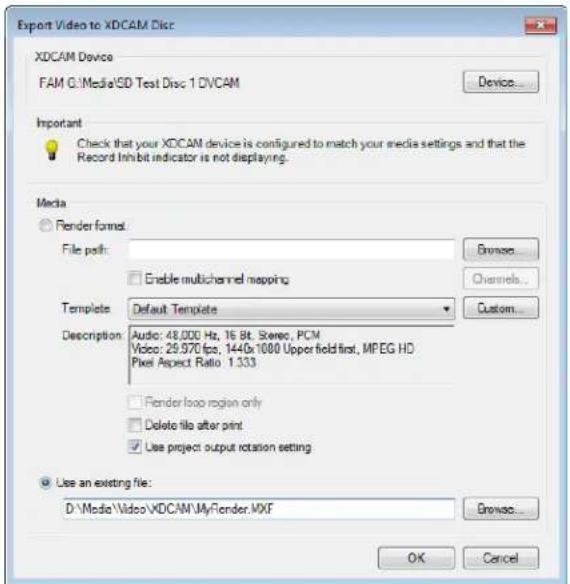
- The XDCAM Device box displays the current XDCAM camera or deck.
If you need to choose a different XDCAM device or transfer method, click the Device button. For more information, see Setting up an XDCAM device on page 156.
Note: For information about using your camera or deck, refer to its documentation.
- Choose the file you want to export:
a. Select the Use an existing file radio button.
b. In the File path box, type the path to the file you want to print, or click the Browse button to choose the file you want to print.
- Click OK. The selected file is transferred to your camera or deck.
Working with Tracks
Tracks contain the media events on the timeline of a project. There are two types of tracks in a Vegas ^® Pro project: video and audio. Each type of track has its own features and controls. While tracks can be organized and mixed in any order, track hierarchy can be important in determining the final output for video. Because tracks are containers for events, effects that are applied to a track apply to every event in that track.
Managing tracks
Once you have added a track to your project, you can perform basic editing tasks on it such as duplicating, deleting, and renaming.
Inserting an empty track
Tracks are created for you when you drag events to empty spaces in the timeline. You can also add empty (eventless) tracks to a project. You can record into these tracks or use them as placeholders for specific media that you will add later. For example, you might want to create an empty track and then record a voiceover directly into a project.
- Right-click in the timeline or the track list to display a shortcut menu.
- Choose Insert Audio Track or Insert Video Track.
You can also add an empty track from the Insert menu by choosing Audio Track or Video Track. An empty track is added at the bottom of the track list.
Duplicating a track
You can duplicate a track in your project including all of the events contained on it. When you duplicate a track, the duplicate is placed directly below the original track. You can duplicate one track or select multiple tracks to duplicate.
- Click the track that you want to duplicate. To select multiple tracks, click each one while pressing Shift to select adjacent tracks or Ctrl to select nonadjacent tracks.
- Right-click and choose Duplicate Track from the shortcut menu.
Deleting a track
You can delete a track from your project and all of the events contained on it. You can delete one track or select multiple tracks to delete.
- Select the track that you want to delete. To select multiple tracks, click each one while pressing Shift to select a range of adjacent tracks or Ctrl to select discontinuous tracks.
- From the Edit menu, choose Delete.
Tip: You can also delete a track by selecting it and pressing Delete.
Naming or renaming a track
Every track in your project has a scribble strip where you can type a name for the track. If the scribble strip is not visible, you might need to increase the height or width of the track by dragging the track's edge to reveal it. For more information, see Changing track height on page 170.
- Double-click the scribble strip. Any existing name is highlighted on the strip.
- Type the new track name.
- Press Enter to save the track's name.
Organizing tracks
Vegas Pro software is flexible in how tracks can be organized. You can arrange, group, and resize tracks to fit your particular needs.
Reordering tracks
When you create tracks, they are arranged in the order that they were added. It is a simple process to reorder tracks to fit your needs. You can reorder one or more tracks at a time.
Note: Track hierarchy can be critical in video compositing. For more information, see Compositing on page 329.
- In the track list, place the mouse pointer on the track that you want to move.
- Drag the track to the new position in the track list.
Tip: When moving a track, you might want to place the mouse pointer on the track number when dragging. This helps avoid accidental modifications to other track list controls.
Grouping tracks
You can use track groups to organize similar tracks and hide them from view when you're not working on them. This can make the track list and timeline less cluttered and easier to work with, especially in large projects.
You can reorder track groups in the track list the same way you reorder tracks. Simply drag a track group header to a new position in the track list.
Creating track groups
- Select two or more tracks to group together. Press Shift to select multiple adjacent tracks. Nonadjacent tracks cannot be grouped together.
- Right-click one of the tracks, choose Track Group, and then choose Group Selected Tracks.
The tracks are grouped together. Click the Collapse/Expand Track Group button in the track group header to close and expand the tracks in the group.
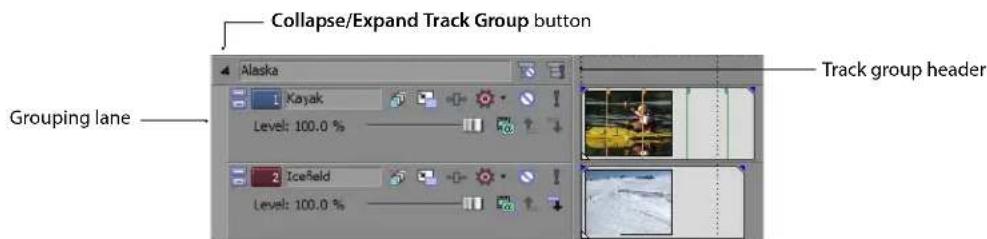
When a track group is collapsed, dark gray bars indicate the length and location of events in the collapsed tracks.

Note: If you select a parent or child video track to be added to a track group, all associated parent/child tracks will also be added to the group to preserve the compositing relationship. For more information, see Compositing on page 329.
Important: When you collapse a track group, tracks and events in the group are not locked. Edits made elsewhere in the project may affect tracks and events in the collapsed track group.
Adding tracks to existing track groups
Drag one or more tracks into a track group to add the selected tracks to the group.
Removing tracks from groups
Drag one or more tracks out of a track group to remove the selected tracks from the group. You can also right-click one or more selected tracks in a group, choose Track Group, and then choose Ungroup Selected Tracks to remove tracks from a group.
Clearing track groups
- Click the track group header to select all tracks in the group.
- Right-click the track group header and choose Ungroup Selected Tracks to ungroup all tracks in the group.
Tip: You can also right-click the grouping lane and choose Ungroup Selected Tracks from the shortcut menu to clear the track group.
Selecting all tracks in a group
Click a track group header or grouping lane to select all tracks in the group.
Renaming track groups
Every track group in your project has a scribble strip where you can type a name for the track group.
- Double-click the scribble strip. Any existing name is highlighted on the strip.
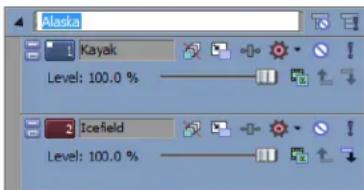
- Type the new track group name.
- Press Enter to save the track group's name.
Changing track color
When you add a track, it is automatically assigned a color. This color is easily changed. This feature is useful if you want to use color to organize similar tracks.
- In the track list, right-click a track to display a shortcut menu.
- From the shortcut menu, choose Track Display Color, and choose a color from the submenu.
Tip: To change the available colors, use the Display tab in the Preferences dialog.
Changing track height
You can control track height by dragging the bottom edge of a track in the track list. You can also change track height by clicking the buttons on the track list.
Action Button Resulting Track Height
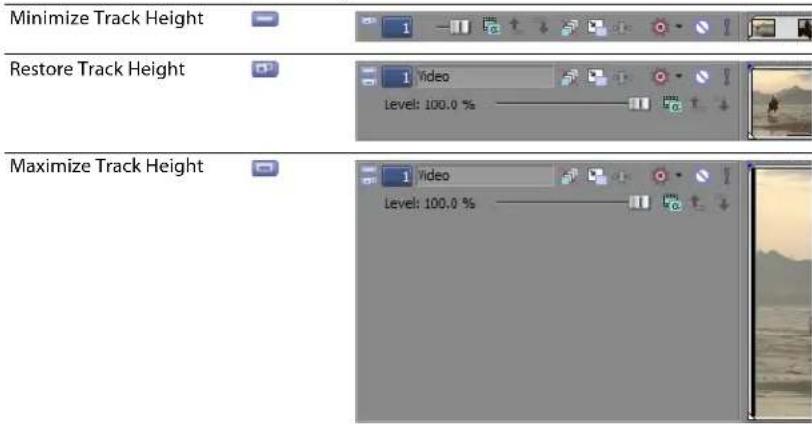
You can also use several different keyboard shortcuts to change all track heights at once:
- Press Ctrl+Shift+Down Arrow or Ctrl+Shift+Up Arrow to change the height of all tracks in your project at once.
- Press the grave accent key (') to minimize all tracks. Press the key again to restore the tracks to their previous height. When you restore tracks to their previous height, tracks that were previously minimized are not restored. You can restore these tracks by clicking the Restore Track Height button (☐) on the track header.
- Press Ctrl+grave accent key (') to make all tracks the default height.
Resizing a track
You can resize a track by dragging its bottom or right border. Place the mouse pointer at the bottom of the track. The cursor turns into an up/down arrow ( 12 ). Drag up or down and release the mouse to set the desired track size. You can resize the width of the track list in a similar way.
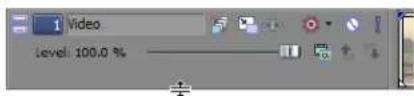
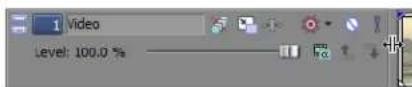
Drag to change track height... ...or to change track list width.
Using the track list
Each track in your project has its own controls, faders, and sliders that are contained in the track list on the left side of the track. You can work with these controls to affect the events on the track.
The controls in the track list can function as trim controls or automation controls for track volume, panning, assignable effects send, and bus send levels. Adjusting the trim control affects the level of the entire track.
When a track does not use envelopes (or when the track automation mode is set to Off), the trim level is added to the track fader. For example, setting the track volume fader to +3 dB and the trim control to -3 dB produces a gain of 0 dB.
When a track uses envelopes, the trim level is added to the envelope so your envelope is preserved, but with a boost or cut applied. For example, setting the trim control to -3 dB has the same effect as decreasing every envelope point by 3 dB.
To adjust trim levels, deselect the Automation Settings button (💡) in the track header. When the Automation Settings button is selected, the volume fader, pan slider, and multipurpose slider adjust automation settings.
Using the volume fader (audio only)
The fader in the track header can function as a trim control that adjusts the overall volume of the track, or it can adjust track volume automation settings. For more information, see Volume or pan automation (audio only) on page 184.
The trim level is added to the volume automation settings so your envelope is preserved, but with a boost or cut applied. For example, setting the trim control to -3 dB has the same effect as decreasing every envelope point by 3 dB.
-
Deselect the Automation Settings button (💡) in the track header.
-
Drag the Vol fader to control how loud a track is in the mix. If multiple tracks are selected, all selected tracks are adjusted.
As you drag the fader, the volume level displays to the left of the fader. Double-click the fader to set it to 0.0 dB, or double-click the current volume value to enter a specific number.
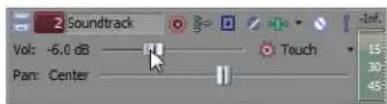
Drag to change volume.
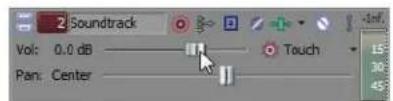
Double-click the fader to set to 0.0 dB.
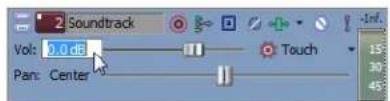
Double-click the current level to enter a value.
Tip: Press Ctrl while dragging or use the mouse wheel for finer control of the fader. You can also move the fader by using the right or left arrow keys.
Volume envelopes allow you to automate track volume changes. For more information, see Volume or pan automation (audio only) on page 184.
Using the pan slider (audio only)
The Pan slider in the track header can function as a trim control that adjusts the overall panning of the track, or it can adjust track panning automation settings. For more information, see Volume or pan automation (audio only) on page 184.
The trim level is added to the pan automation settings so your panning envelope is preserved, but with an offset applied. For example, setting the trim control to -9% left has the same effect as moving every envelope point 9% to the left.
Note: This procedure applies to stereo panning only. For information about panning 5.1 surround projects, see Panning audio on page 276.
Tip: If you do not see this slider on a track, increase the track height. For more information, see Resizing a track on page 170.
Adjusting track panning trim levels
- Deselect the Automation Settings button (☐).
- Drag the Pan slider to control the position of the track in the stereo field. Dragging to the left will place the track in the left speaker more than the right, and dragging to the right will place the track in the right speaker.
You can hold Ctrl while dragging the slider to adjust the setting in finer increments, or double-click the slider to return it to 0. If multiple tracks are selected, all selected tracks are adjusted.
Adjusting the track panning automation level
When you select the Automation Settings button (☑), the Pan slider handle is displayed with an automation icon (☐), and you can use the control to edit pan automation. For more information, see Volume or pan automation (audio only) on page 184.
Changing the pan mode
Right-click the slider handle and choose a pan type to change the behavior of the Pan slider.
Note: The selected panning mode is also used for track-level pan envelopes. For more information, see Volume or pan automation (audio only) on page 184.
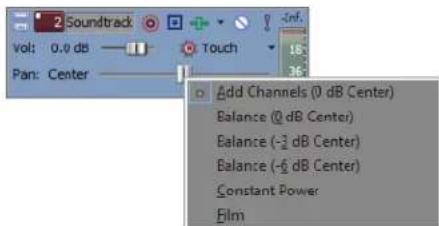
| Item | Description | |
| Add Channels | This mode is most useful for panning stereo files. As you pan across the stereo field, the stereo image appears to move across the speakers. As you pan toward either side, the signal from the opposite channel is added to the channel you are panning toward until at the extreme both channels are sent to a single channel at full volume.This mode uses a linear panning curve.Important: You can introduce clipping when channels are added. Monitor the meters in the Mixer and adjust the track volume accordingly. | |
| Item | Description | |
| Balance (0 dB Center) | In a stereo project, this mode can help you adjust the relative signal levels of the channels in stereo source material. As you pan from the center to either side, the opposite channel begins at the specified center value (0 dB -3 dB, or -6 dB), and decays to -infinity. The signal in the side you are panning toward progresses from the specified center value (0 dB, -3 dB, or -6 dB) to 0 dB. | |
| Balance (-3 dB Center) | ||
| Balance (-6 dB Center) | This panning mode uses a linear panning curve. | |
| For example, when you pan fully right, the right channel is played at 0 dB and the left channel is not audible. As you pan to the center, each channel is attenuated to the specified center value (0 dB -3 dB, or -6 dB). As you pan to the left, the left channel is played at 0 dB, and the right channel is not audible. | ||
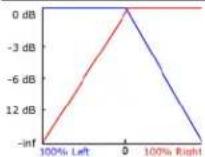 | With the Balance (0 dB center) setting, no gain or cut is applied when you're panned to the center, which can make the center seem louder. | |
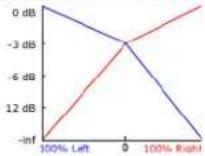 | With the Balance (-3 dB center) setting, a -3 dB cut is applied when you're panned to the center. | |
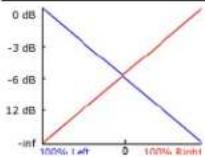 | With the Balance (-6 dB center) setting, a -6 dB cut is applied when you're panned to the center. | |
| Panning in a 5.1 surround project follows the same rules: as you pan from the center to any channel in a 5.1 surround project, the signal in the channel you are panning toward progresses from the specified center value to 0 dB. The signal in the channel you are panning away from begins at the specified center value and decays to -infinity. | ||
| Constant Power | This mode is most useful for panning monaural source material. In this mode, sound will maintain its volume when you pan across channels. | |
| If you pan a stereo file 100% R, only the right channel of your media file is played, and this channel is sent to both output channels. If you continue to pan to the left, the left channel is gradually added to the output, and the right channel is gradually faded out until only the left channel will be heard through both output channels when the slider is at 100% L. | ||
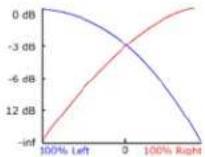 | ||
| If you pan a file fully right midway between the front and rear channels in a 5.1 surround project, only the right channel of your media file is played, and this channel is sent to the right-front and -rear output channels. If you pan to the left, the left channel is gradually added to the output, and the right channel is gradually faded out until only the left channel is sent to the left-front and -rear output channels. | ||
| Item | Description | |
| Film | This mode allows you to pan between pairs of adjacent speakers in 5.1 surround projects using a constant power model. This mode is optimized for theater-style speaker placement. In stereo projects, Film mode functions identically to Constant Power.As you drag the pan point to the center speaker, the sound becomes diffused through the front and rear speakers. When the track is panned fully to the center speaker, there is no output from the front and rear speakers.Dragging the pan point to the center of the surround panner sends the signal to all speakers.Note:If you're panning fully to a single speaker, you might notice that some signal is mixed to the opposite speaker. This is because the ideal placement for surround speakers does not match the representation in the surround panner. For example, panning to the front-left speaker produces a low-level signal in the rear-left speaker.This is because your front-left speaker should be positioned 30^ left of center and the speaker in the surround panner is located 45^ left of center. To produce a true 45^ left-of-center pan, the signal is panned between the front- and rear-left speaker. | |
Using the multipurpose slider (audio only)
This slider controls bus send levels and assignable effects send levels. The options for the multipurpose slider depend on what your project contains (for example, busses and assignable effects). You can select what the slider controls by clicking the slider label. Each item's slider position is independent from the others.
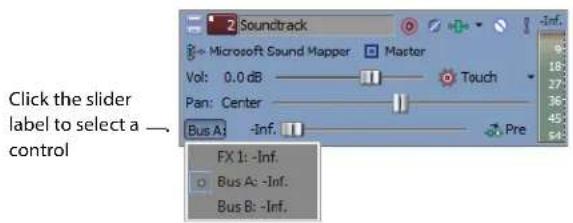
Tips:
- If you do not see this slider on a track, increase the track height. For more information, see Resizing a track on page 170.
- You can move the slider by pressing Shift+the right or left arrow keys.
Assigning audio tracks to assignable effects chains
Assignable effects chains are made up of one or more plug-ins that are used to add audio effects to a track's signal. You can adjust the level of a track that is sent to an assignable effects chain using the multipurpose slider in the track list. The multipurpose slider can function as a trim control that adjusts the overall assignable effects send level for the track, or it can adjust assignable effects automation settings. For more information, see Adjusting assignable effects automation levels on page 185.
- Deselect the Automation Settings button (☐).
- Click the label on the multipurpose slider to display a drop-down list.
- Choose the assignable effects chain that the track will use.
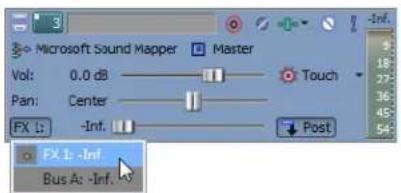
- Drag the slider to adjust the level of the track sent to the assignable effects chain.
Note: Assignable effect sends are post-volume by default. To change to pre-volume, click the Pre/Post Volume Send button (↑ Pre).
Assigning audio tracks to busses
If your project contains multiple busses, you can assign a track to a specific bus.
-
Click the Bus button (☐) in the track list to display a drop-down list of available busses. This button appears only if the project contains multiple busses. For more information, see Adding busses to a project on page 214.
-
From the drop-down list, choose the bus for the track's output.
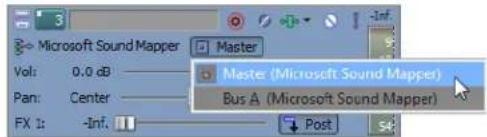
Select a bus for playback
Adjusting bus send levels
When a track is routed to a bus, you can control the level of tracks sent to the bus using the multipurpose slider. The multipurpose slider in the track header can function as a trim control that adjusts the overall send level of the track, or it can adjust bus send automation settings. For more information, see Adjusting bus automation levels on page 186.
-
Deselect the Automation Settings button (☐).
-
Click the label on the multipurpose slider and choose a bus from the menu.
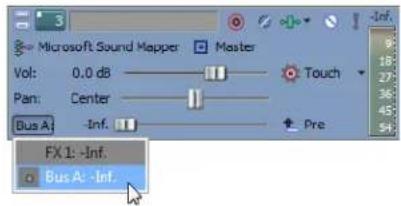
- Drag the fader to control the level of the track sent to each of the additional busses that you have created. Dragging the fader to the left cuts the volume; dragging to the right boosts the volume.
You can hold Ctrl while dragging a fader to adjust the setting in finer increments, or double-click the fader to return it to 0 dB. If multiple tracks are selected, the trim level of all selected tracks is adjusted.
Note: Bus sends are pre-volume by default. To change to post-volume, click the Pre/Post Volume Send button (↑ Pre).
For more information, see Adjusting a bus send level on page 216 or Assigning audio tracks to assignable effects chains on page 218.
Adjusting the composite level (video only)
The Level slider in the track header determines the opacity of the video track. The slider can function as a trim control that adjusts the overall opacity of the track, or it can adjust track composite level automation settings. For more information, see Adjusting the composite level automation settings on page 188.
The trim level is added to the composite level automation settings so your envelope is preserved, but with a boost or cut applied. For example, setting the trim control to -3 percent has the same effect as decreasing every envelope point by 3 percent.
- Deselect the Automation Settings button (☐).
- Drag the slider to control the transparency or blending of each track. Left is 100 percent transparent and right is 100 percent opaque. You can also double-click the percent to enter a specific value.
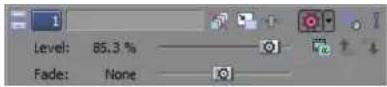
Selecting the compositing mode
Click the Parent Overlay Mode or Compositing Mode button and choose a mode from the menu to determine how the transparency in a video track is generated. Since lower tracks show through higher tracks, it is the compositing mode of the higher track that determines how much of the lower track shows though. The compositing mode of the lowest video track adjusts its transparency against the background.
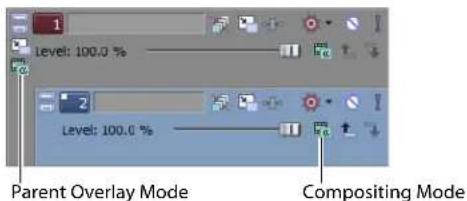
For more information, see Compositing on page 329.
Bypassing motion blur envelopes (video only)
If you applied a motion blur envelope to your video bus track, this envelope affects all tracks. You can select specific tracks to bypass this envelope by clicking a track's Bypass Motion Blur button 📄. For more information on motion blur envelopes, see Adding a motion blur envelope on page 189.
Using track motion (video only)
Use the Track Motion button (☐) to move a video track over another track (that is, picture-in-picture). For more information on adding track motion, see Adding track motion on page 363.
Phase inverting a track (audio only)
The Invert Track Phase button Ⓞ inverts the audio track at its baseline, in effect reversing its polarity. Inverting a track, while creating little audible difference, is occasionally useful for matching transitions when mixing audio on separate tracks or fine-tuning a crossfade.
You can also phase invert an audio event. If an event on a track is inverted and you invert the track, the event is doubly-inverted (restored to its original state). For more information, see Invert phase (audio only) on page 200.
Muting a track
The Mute button (☐) in the track list temporarily suspends playback of the track so that you can focus on another track. When a track is muted, it appears grayed out on the timeline. You can mute more than one track at a time. The Mute button can mute a track or change its mute automation state. For more information, see Mute automation (audio and video) on page 183.
Note: Muting a track mutes its main output and post-fader sends only unless the Track prefader sends listen to mute check box on the Audio tab of the Preferences dialog is selected.
To mute a track, deselect the Automation Settings button (💡). Next, click the Mute button.
To mute several tracks, select the tracks and click the Mute button on any of the selected tracks. Click the Mute button again to restore the tracks.
Tip: Press Ctrl and click the Mute button to mute only the selected track (and restore any other muted tracks). If the selected track is already muted, press Ctrl and click the Mute button to restore all tracks.
When you have multiple levels of parent and child tracks, clicking the Mute button on a parent track mutes the parent track and its compositing children.
In the sample track list, muting track 1 will mute tracks 1 through 6. Muting track 4 will mute tracks 4 through 6.
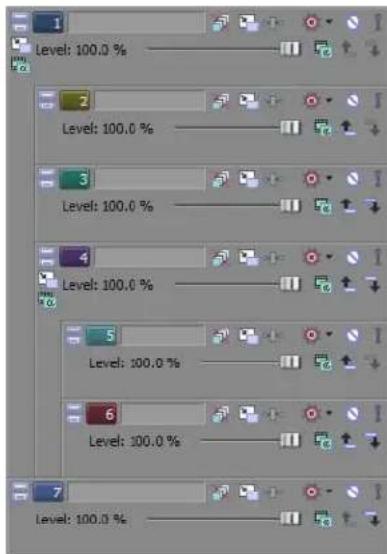
Muting all audio or video tracks
You can mute either all audio or all video tracks in a project. From the Options menu, choose Mute All Audio or Mute All Video.
Muting a track group
Click the Mute Track Group button (☐) in a track group header to temporarily suspend playback of all tracks in the group. Muting a track group overrides soloed tracks in the group.
Click the Mute Track Group button again to restore the track group for playback.
Soloing a track
The Solo button (1) in the track list isolates a track's events for playback. This allows you to focus on a track's contents without the distraction of other tracks. You can solo more than one track at a time.
To solo a track, click the Solo button on that track. To solo several tracks, select the tracks and click the Solo button on any of the selected tracks. Click the Solo button again to restore the track(s) for playback.
Tip: Press Ctrl and click the Solo button (1) to solo only the selected track (and restore any other soloed tracks). If the selected track is already soloed, press Ctrl and click the Solo button to restore all tracks.
When you have multiple levels of parent and child tracks, clicking the Solo button on a parent track solos the parent track and its compositing children. Other nonsoloed tracks at the same compositing level are bypassed.
In the sample track list, soloing track 1 will solo tracks 1 through 6. Soloing track 4 will solo tracks 4 through 6. Tracks 2 and 3 are bypassed, and tracks 1 and 7 play normally.
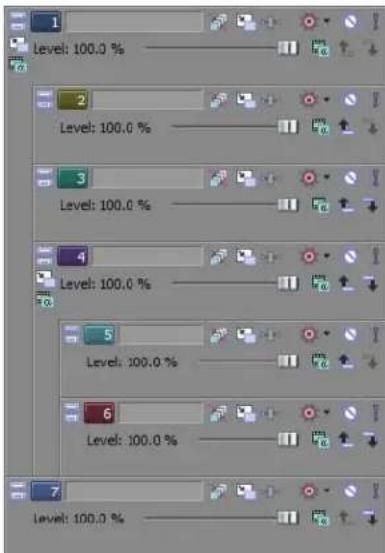
Soloing a track group
Click the Solo Track Group button (☐) in a track group header to isolate all tracks in the group for playback. Soloing a track group overrides muted tracks in the group.
Click the Solo Track Group button again to restore the track group for playback.
Setting default track properties
You can use the settings of a selected track to determine the default settings for all new tracks in your project. Properties that can be set appear in the Set Default Track Properties dialog.
-
Set up a track in your project with the properties to use as default settings for new tracks.
-
Right-click the track number and choose Set Default Track Properties. The Set Default Track Properties dialog appears.
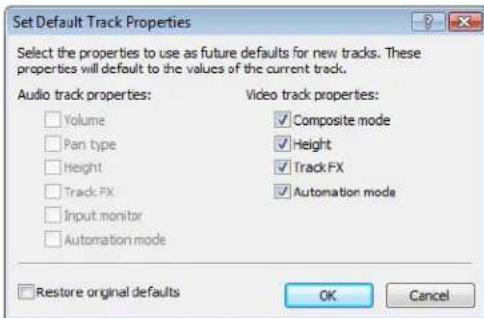
-
Select the check boxes that you want to set as defaults.
-
Click OK.
Any new tracks created in the project will have these defaults. To return to the original settings for new tracks, select the Restore original defaults check box in the Set Default Track Properties dialog.
Track automation envelopes
Track automation envelopes allow you to control volume, audio panning, opacity, and fade to color effects of a particular track over time. For more information, see Working with track envelopes on page 190.
Using audio bus tracks
From the View menu, choose Audio Bus Tracks to toggle the display of audio bus tracks at the bottom of the timeline. An audio bus track exists for each bus or assignable effects chain in your project and serves as a timeline representation of each bus or assignable effects chain.
You can use bus tracks to automate volume, panning, and effect parameters using envelopes. For more information, see Bus automation (audio only) on page 186.
Adding envelopes to an audio bus track
Adding volume, panning, and effect automation envelopes to a bus track is just like adding an envelope to a standard track. For more information, see Composite level automation (video only) on page 188.
Adding effects to audio bus tracks
Click the Bus FX button (⊕) in the bus track header to add or edit bus effects. If there are no effects on the bus, clicking this button displays the Plug-In Chooser. If an audio bus already has effects assigned, clicking this button displays the Audio Plug-In window.
Clicking this button has the same effect as clicking the button on a bus control in the Mixer window or the Video Preview window.
If the bus effects chain includes plug-ins with automatable parameters, the Bus FX button is displayed with a drop-down arrow button (H).
Muting or soloing an audio bus track
Click the Mute (☐) or Solo (!) button in the bus track header to mute or solo a bus.
Clicking these buttons on a bus track has the same effect as clicking the buttons on a bus control in the Mixer window.
Resizing audio bus tracks
You can drag the horizontal splitter between the track list and bus tracks to increase or decrease the space allocated to bus tracks. Perform any of the following actions to resize individual bus tracks:
- Drag a bus track's bottom border to set its height.
- Click the Minimize button (☐) to minimize a track vertically.
- Click the Maximize button (☐) to zoom in vertically so a bus track fills the lower portion of the timeline.
• After minimizing or maximizing a bus track, click either button again to return a bus track to its previous height. - Press Ctrl+Shift+Up Arrow/Down Arrow when the bus track area has focus to resize all bus tracks at once.
Using video bus tracks
From the View menu, choose Video Bus Track to toggle the display of the video bus track at the bottom of the timeline. A single bus track exists as a timeline representation of the main video output.
You can use bus tracks to animate video output effects using keyframes, add motion blur envelopes, or video supersampling envelopes.
Adding keyframes to the video bus track
Adding keyframes to the video bus track is just like working with any other video track. Use video bus track keyframes to animate video output effects. For information on adding keyframes, see Using keyframe animation on page 354.
Adding envelopes to the video bus track
You can add fade-to-color, motion blur amount, and video supersampling envelopes to the video bus track to affect your video output. For more information, see Working with track envelopes on page 190.
Adding effects to video bus tracks
Click the Video Output FX button (→) in the bus track header to add or edit video output effects. If there are no video output effects, clicking this button displays the Plug-In Chooser. If you've already set up video output effects, clicking the button displays the Video Output FX window.
Muting the video output
Click the Mute button (☐) in the bus track header to mute all video output.
Bypassing video effects and envelopes
Click the Bypass FX and Envelopes button (✗) in the bus track header to bypass all video output effects and bus track envelopes.
Resizing video bus tracks
You can drag the horizontal splitter between the track list and bus tracks to increase or decrease the space allocated to bus tracks. Perform any of the following actions to resize individual bus tracks:
- Drag a bus track's bottom border to set its height.
- Click the Minimize button (☐) to minimize a track vertically.
- Click the Maximize button (☐) to zoom in vertically so a bus track fills the lower portion of the timeline.
• After minimizing or maximizing a bus track, click either the Minimize or Maximize button again to restore a bus track to its previous height. - Press Ctrl+Shift+Up Arrow/Down Arrow when the bus track area has focus to resize all bus tracks at once.
Rendering to a new track
Rendering or mixing multiple tracks to a single track can be a good method of decreasing the complexity of a project and speeding up future renders. The original tracks and their events are unaffected when you render (mix) to a single track.
Typically, you would use this feature when you are finished refining a few tracks and want to combine them. When you render multiple tracks, any envelope or track effects that you have applied are rendered into the new track. The original source files remain unaffected and the new track(s) are saved to a new file.
When working with DV files, select a DV template to avoid any loss of quality. For more information, see Working in DV format on page 297.
Note: Every video render that uses compression results in a loss of quality from the original source material. To minimize loss of quality, minimize the number of video renders that use compression.
- Click the Solo button (1) for the tracks that you want to mix down. If no tracks are soloed, the rendered track will match the Master Bus output. Create a time selection if you want to mix down a portion of your project.
Video tracks will be rendered into a single video track, and audio tracks will be rendered into a single stereo audio track. - From the Tools menu, choose Render to New Track or press Ctrl+M. The Render to New Track dialog appears.
- Complete the dialog as follows:
• From the Save in drop-down list, select the drive or folder to save the new media file.
• Type a file name in the File name box.
• From the Save as type drop-down list, choose the file format (for example, .wav for audio or .avi for video).
- From the Template drop-down list, choose a format from the template list. Alternately, click Custom to set custom rendering settings. For more information, see Customizing the rendering process on page 399.
- Select Render loop region only if you only want to render the time selection area.
- Select Stretch video to fill output frame size (do not letterbox) to adjust the aspect ratio so the output frame is filled on all edges. When the check box is cleared, the current aspect ratio is maintained and black borders are added to fill the extra frame area (letterboxing).
- Click Save to render to a new track.
As the tracks are being rendered (mixed down), a small dialog appears displaying the progress of the render. A status bar also appears in the lower-left portion.

Tip: You can cancel the rendering process by clicking the Cancel button on the status bar.
After the new track is rendered, it appears at the top of the timeline. If you render the entire project, you can delete (or mute) the other tracks from the project, since they are all contained on the new track.
Using Automation
Automation allows you to control audio and video levels, panning, and effect parameter automation over time. You can create fades, apply stereo panning, and vary effect parameters throughout your project. Automation is represented on the Vegas® Pro timeline as an envelope or set of keyframes. You can create automation by adding envelopes or keyframes to your tracks (including bus tracks), or you can record automation parameters by adjusting controls in the Vegas Pro interface (or on a control surface) during playback.
Important: Gain, level, and panning controls can adjust automation (dynamic) settings, or they can function as trim (nonautomated) controls.
The trim setting is added to the automation settings so your envelope or keyframe values are preserved, but with an offset applied. For example, setting an audio track's trim control to -3 dB has the same effect as decreasing every envelope point by 3 dB.
If your automation is not behaving as expected, you might have applied a trim value that is offsetting your automation settings.
When a control is set to adjust trim levels, its handle is displayed as a (☐). When a control is set to adjust automation levels, it is displayed with an automation icon (☐).
Showing or hiding automation controls
The controls in the track list can function as trim controls or automation controls for track volume, panning, assignable effects send, and bus send levels. Adjusting the trim control affects the level of the entire track.
To display trim controls in the track header, select the Automation Settings button (☐).
Track automation
Track automation will always affect all events on the track. This means that any event envelopes will be calculated after the track automation.
Tip: Choose a fade type from the Audio default drop-down list on the Editing tab of the Preferences dialog to set the default fade type that will be used when you add volume and panning envelopes. This setting is used only when you create new envelopes—when you add a point to an existing envelope, the new point always uses the same fade type as the preceding envelope point. Also, this setting is not used for event envelopes.
Mute automation (audio and video)
Mute automation changes a track's mute state throughout your project. Mute automation is either on or off with no fade between. If you want to use fades, apply volume automation.
When you apply mute automation to a track, it's possible to have a track that is muted and soloed simultaneously. The mute state overrides the solo state:
- If a track's Solo button is selected, the track is included in the solo group, but it will be muted whenever the mute automation is set to mute the track.
- If the track's Mute button is selected, the track is muted regardless of the mute automation settings.
Adding or removing mute automation
- Select a track.
- From the Insert menu, choose Audio Envelopes or Video Envelopes, or right-click in the track list and choose Insert/Remove Envelope from the shortcut menu.
- From the submenu, choose Mute. A check mark is displayed next to the command, and an envelope is added to the timeline.
- You can adjust the automation by editing the envelope in the timeline or by using the Mute button (☐) in the track header when the Automation Settings button (☐) is selected.
Adjusting mute automation settings
- Select the Automation Settings button (💡). The Mute button is displayed with an automation icon (💡).
- Click the Mute button to change the track's mute automation state.
The button behaves differently depending on the track automation recording mode:
- When the track automation mode is set to Off, the button mutes the entire track.
- When the track has a mute envelope and the track automation mode is set to Read, the button changes state to reflect the envelope setting during playback but cannot be adjusted.
- When the track has a mute envelope and the track automation mode is set to Touch or Latch, the button edits the envelope setting at the cursor position.
If you click the Mute button (☐) during playback, the behavior varies depending on the selected automation recording mode. For more information, see Automation recording modes on page 195.
Volume or pan automation (audio only)
You can change a track's volume or position in the stereo field throughout a project using automation envelopes.
Adding or removing volume or pan automation
- Select an audio track.
- From the Insert menu, choose Audio Envelopes, or right-click in the track list and choose Insert/Remove Envelope from the shortcut menu.
- From the submenu, choose Volume or Pan. A check mark is displayed for the automation types that are used on the selected track.
Note: Panning envelopes will use the current panning mode for the Pan slider in the track list.
- If you want to change the track's volume or pan setting throughout the track, edit the envelope in the timeline.
Adjusting volume or pan automation settings
- If you want to change volume or pan settings by recording automation, select the Automation Settings button (☐). The fader/slider handle is displayed with an automation icon (☐) in automation mode.
- Drag the Vol fader to control how loud a track is in the mix or drag the Pan slider to control the position of the track in the stereo field.
The fader and the slider behave differently depending on the track automation recording mode:
- When the track automation mode is set to Off, the fader adjusts the volume of the entire track and the slider pans the entire track. In this mode, the automation control acts as a second trim control.
- When the track has a volume envelope and the track automation mode is set to Read, the fader/slider will follow the envelope during playback but cannot be adjusted.
- When the track automation mode is set to Touch or Latch, the fader/slider edits the envelope setting at the cursor position. If the track does not have a volume/pan envelope, an envelope will be added when you adjust the fader/slider.
If multiple tracks are selected, all selected tracks are adjusted.
If you adjust the fader/slider during playback, the behavior varies depending on the selected automation recording mode. For more information, see Automation recording modes on page 195.
Assignable effects automation (audio only)
You can use assignable effects automation to vary the level of a track sent to an assignable effects chain.
Adding or removing assignable effects automation
Before you can add an assignable effects envelope, you'll need to add an assignable effects chain to your project. For more information, see Creating an assignable effects plug-in chain on page 254.
- Select an audio track.
- From the Insert menu, choose Audio Envelopes, or right-click in the track list and choose Insert/Remove Envelope from the shortcut menu.
- From the submenu, choose the effects chain where you want to send the selected track. A check mark is displayed for each assignable effects chain that is automated for the selected track.
Adjusting assignable effects automation levels
- Select the Automation Settings button (☐). The fader handle is displayed with an automation icon (☐) in automation mode.
- Click the label on the multipurpose slider and choose an assignable effects chain from the menu.
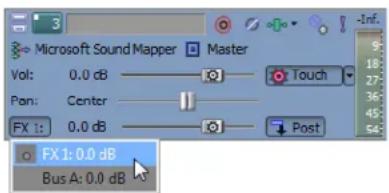
- Drag the FX fader to control the level of the track sent to each of the assignable FX chains that you have created.
The fader behaves differently depending on the track automation recording mode:
- When the track has an assignable effects envelope and the track automation mode is set to Off, the fader adjusts the send level of the entire track. In this mode, the automation control acts as a second trim control.
- When the track has an assignable effects envelope and the track automation mode is set to Read, the fader will follow the envelope during playback but cannot be adjusted.
- When the track has an assignable effects envelope and the track automation mode is set to Touch or Latch, the fader edits the envelope setting at the cursor position. If the track does not have an envelope, one will be created when you adjust the fader.
If multiple tracks are selected, all selected tracks are adjusted.
If you adjust the fader during playback, the behavior varies depending on the selected automation recording mode. For more information, see Automation recording modes on page 195.
Tips:
- FX sends are post-volume by default. To change to pre-volume, right-click the FX fader and choose Pre Volume from the shortcut menu.
- If you want to apply track panning (including pan position and panning mode) to FX sends, right-click the FX fader and choose Link to Main Track Pan from the shortcut menu. When Link to Main Track Pan is not selected, the track sends a center-panned stereo signal using the track's current panning mode.
- Select the Use legacy track send gain check box on the Audio page of the Preferences dialog if you want to configure audio track sends to behave as they did in Vegas Pro 7.0 and earlier. When the check box is selected, you can open projects created with earlier versions of Vegas Pro and be assured they will sound the same as they did in earlier versions of Vegas Pro.
Bus automation (audio only)
You can use bus automation envelopes to vary the level of a track sent to a bus.
Adding or removing a bus automation envelope
Before you can add a bus envelope, you'll need to specify the number of busses for your project.
- Select an audio track.
- From the Insert menu, choose Audio Envelopes, or right-click in the track list and choose Insert/Remove Envelope from the shortcut menu.
- From the submenu, choose the bus where you want to send the selected track. A check mark is displayed for each bus send level that is automated for the selected track.
Adjusting bus automation levels
-
Select the Automation Settings button (☐). The fader handle is displayed with an automation icon (☐) in automation mode.
-
Click the label on the multipurpose slider and choose a bus from the menu.
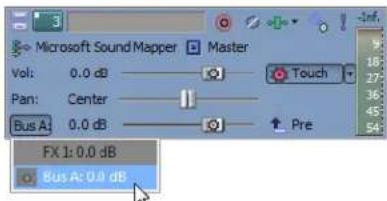
- Drag the fader to control the level of the track sent to each of the assignable FX chains that you have created. Dragging the fader to the left cuts the volume; dragging to the right boosts the volume.
The fader behaves differently depending on the track automation recording mode:
- When the track automation mode is set to Off, the fader adjusts the send level of the entire track. In this mode, the automation control acts as a second trim control.
- When the track has a bus envelope and the track automation mode is set to Read, the fader will follow the envelope during playback but cannot be adjusted.
- When the track has a bus envelope and the track automation mode is set to Touch or Latch, the fader edits the envelope setting at the cursor position. If the track does not have an envelope, one will be created when you adjust the fader.
If multiple tracks are selected, all selected tracks are adjusted.
If you adjust the fader during playback, the behavior varies depending on the selected automation recording mode. For more information, see Automation recording modes on page 195.
Tips:
- Bus sends are pre-volume by default. To change to post-volume, right-click the bus fader and choose Post Volume from the shortcut menu.
- If you want to apply track panning (including pan position and panning mode) to bus sends, right-click the bus fader and choose Link to Main Track Pan from the shortcut menu. When Link to Main Track Pan is not selected, the track sends a center-panned stereo signal using the track's current panning mode.
Adding or removing track effect automation
If a plug-in supports automation, you can dynamically adjust effect parameters over time.
Adding or removing effect automation envelopes
If a plug-in supports automation, you can use envelopes to adjust effect parameters over time. The appearance of the plug-in in the Plug-In Chooser window indicates whether the plug-in supports automation. Plug-ins with a red icon (✗) support automation, while plug-ins with a blue icon (*) do not. In addition, you can quickly locate plug-ins that support automation in the Automatable subfolder.
- Click the Track FX button (⊕) on a track to open the Audio Plug-In window.
If no track effects exist, clicking the Track FX button displays the Plug-In Chooser. Use the Plug-In Chooser to create an effect chain including an automatable plug-in.
-
Click the Configure FX Automation button (💡) to display the FX Automation Chooser.
-
Click a plug-in at the top of the FX Automation Chooser. A list of the effect's automatable parameters appears.
-
Select the check box for each parameter that you want to control with an envelope. You can use the Select All and Select None buttons to quickly change your selections to all or none of the parameters.
Note: If you're working with a 5.1 surround project, you can select the Enable check boxes to determine which channels will be affected by the plug-in. An automation envelope is added to the timeline for each selected channel so you can enable or bypass the plug-in during the project. If you want to use distinct plug-in settings for each channel (separate EQ settings for the front and surround speakers, for example), you can add multiple instances of the plug-in to the track effects chain and select the Enable check boxes for the channels you want each instance of the plug-in to affect.
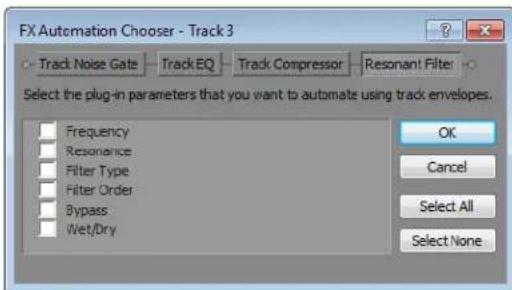
- Click OK to close the FX Automation Chooser.
Envelopes are displayed on the track for parameters that you selected in the FX Automation Chooser. To control which effect parameter envelopes are displayed on the track, click the arrow adjacent to the Track FX button (→) and choose an envelope from the menu.
Tip: Press E to toggle through the display of all effect parameter automation envelopes.
Adjusting effect automation settings
You can adjust automated effect parameters by editing the envelopes in the timeline or by recording automation with the controls in the Audio Plug-In Window.
If you've enabled the Bypass parameter for a plug-in, you can click the Bypass button in the plug-in's banner to toggle the Bypass envelope at the cursor position.

Note: When you automate an effect's frequency parameter, such as the frequency parameters in the track EQ effect, you might notice that the frequency changes are more apparent when moving through the lower frequencies. This is because frequency scales in track EQ and other plug-ins use a logarithmic scale, but effect automation uses linear interpolation. To make the automated frequency changes sound more natural, change the fade curve types to change the interpolation rates between envelope points. For high-to-low frequency sweeps, use a fast fade curve; for low-to-high frequency sweeps, use a slow curve. For more information, see Changing envelope fade curves on page 192.
Composite level automation (video only)
You can use the composite level automation envelopes to adjust the opacity of a track over time.
Adding or removing composite level automation
- Select a video track.
- From the Insert menu, choose Video Envelopes, or right-click in the track list and choose Insert/Remove Envelope from the shortcut menu.
- Choose Track Composite Level from the submenu or shortcut menu.
- You can adjust the envelope by editing the envelope in the timeline or by adjusting the slider in the track header when the Automation Settings button (☐) is selected.
Adjusting the composite level automation settings
-
Select the Automation Settings button (☐). The slider handle is displayed with an automation icon (☐) in automation mode.
-
Drag the slider to control the transparency or blending of each track. Left is 100 percent transparent and right is 100 percent opaque. You can also double-click the percent to enter a specific value.
- When the track automation mode is set to Off, the slider adjusts the send level of the entire track. In this mode, the automation control acts as a second trim control.
- When the track has a composite level envelope and the track automation mode is set to Read, the slider will follow the envelope during playback but cannot be adjusted.
- When the track has a composite level envelope and the track automation mode is set to Touch or Latch, the slider edits the envelope setting at the cursor position. If the track does not have an envelope, one will be created when you adjust the slider.
If multiple tracks are selected, all selected tracks are adjusted. If you adjust the slider during playback, the behavior varies depending on the selected automation recording mode. For more information, see Automation recording modes on page 195.
Fade-to-color automation (video only)
Fade-to-color automation is used to fade a track between two colors. It can be used to fade a track to or from black, and if applied to the top video track, you can fade the entire project.
Adding fade-to-color envelopes
The fade color is chosen by moving the envelope towards the top or bottom of the track. You can add points to automate the fade.
- Select a video track.
- From the Insert menu, choose Video Envelopes, or right-click in the track list and choose Insert/Remove Envelope from the shortcut menu.
- Choose Track Fade to Color from the submenu or shortcut menu.
If the track already contains a fade-to-color envelope, it will be removed. If the track does not contain a fade-to-color envelope, it will be added with a setting of No Color (0%) for the duration of the track.
- If you want to change the fade-to-color setting throughout the track, edit the envelope in the timeline.
- If you want to change the fade-to-color envelope by recording automation, select the Automation Settings button (💡) in the track header to display automation controls. The Fade slider is available only in automation mode.
- Drag the Fade slider.
The slider behaves differently when you change the track automation recording mode:
- When the track automation mode is set to Off, the slider adjusts the fade level of the entire track.
- When the track automation mode is set to Read, the slider will follow the envelope during playback but cannot be adjusted.
- When the track automation mode is set to Touch or Latch, the slider edits the envelope setting at the cursor position.
For more information about track automation recording modes, see Automation recording modes on page 195.
Setting fade colors
The default fade colors are determined by the Track fade top and Track fade bottom controls on the Video tab of the Preferences dialog. For more information, see Video tab on page 444.
- To change the top or bottom color for a track, right-click the track header and choose Fade Colors from the shortcut menu.
- Choose Top or Bottom from the submenu. A color picker is displayed.
- Use the color picker to specify the new color.
- Click OK.
Adding a motion blur envelope
Motion blur can help you make computer-generated animation look more realistic. For example, if you use track motion or event pan/crop to move a clip across the frame, each frame is displayed clearly when no motion blur is applied. Turning on motion blur adds a motion-dependent blur to each frame to create the appearance of smooth motion in the same way a fast-moving subject is blurred when you take a photograph with a slow shutter speed.
Note: Motion blur significantly increases your rendering time. Adjust the envelope to apply motion blur only where necessary.
- Right-click the video bus track, choose Insert/Remove Envelope from the shortcut menu, and then choose Motion Blur Amount from the submenu.
- Add and adjust envelope points as necessary to set the time interval that will be used for blurring. Increasing the value emphasizes the blur effect. For example, setting the envelope to 0 means no blurring will occur; setting the envelope to 1 second means that each frame will be blurred for one-half second before and after the frame.
- The motion blur envelope affects all tracks. To bypass motion blur for a track, select the Bypass Motion Blur button (回) in the track header.
- To change blur type, choose a setting from the Motion blur type drop-down list on the Video tab in the Project Properties dialog. This setting determines the shape of the blur and the opacity of the frames.
Adding a video supersampling envelope
Video supersampling can improve the appearance of computer-generated animation by calculating intermediate frames between the project's frame rate, allowing you to create smoother motion blurring or motion from sources such as track motion, event pan/crop, transitions, or keyframable effects.
Note: The effect of video supersampling is less apparent with video that contains fast motion, and supersampling cannot improve the appearance of existing video.
- Right-click the video bus track, choose Insert/Remove Envelope from the shortcut menu, and then choose Motion Blur Subsampling from the submenu.
- Add and adjust envelope points as necessary to indicate how many frames will be calculated between frames (using the project's frame rate) to create the blur.
Note: Video supersampling significantly increases your rendering time. For example, when you set the video supersampling envelope to 2, Vegas Pro software renders twice as many frames as it would without supersampling. Adjust the envelope to apply supersampling only where necessary.
Working with track envelopes
Envelopes represent volume, audio panning, opacity, and fade to color automation settings in the timeline.
| Track Type | Envelope type | Description | Color |
| Audio | Volume | Controls track volume. | Blue |
| Audio | Bus send volume | Controls track level sent to bus. | Lilac |
| Audio | Assignable effects send volume | Controls track level sent to assignable effects control. | Green |
| Audio | Pan | Controls the position of a track in the stereo field (pan). | Red |
| Video | Composite level | Controls track opacity/transparency. | Blue |
| Video | Fade to color | Controls fading of a track to color. Designate a top and bottom color by right-clicking the track, choosing Fade Colors from the shortcut menu, and choosing Top or Bottom from the submenu. | Red |
| Video bus | Motion blur | Adds a motion-dependent blur to each frame to smooth computer-generated animation. | Lilac |
| Video bus | Video supersampling | Calculates intermediate frames between the project frame rate to create smooth motion blurring. | Rust |
Adding envelope points
Once you add an envelope to a track, you can add points to it. These points are used to edit the envelope line in order to automate the control.
- Place the mouse pointer on the envelope's line. The pointer changes to a hand icon (💡).
- Right-click and choose Add Point from the shortcut menu or double-click to add an envelope point. A square point appears on the envelope line.
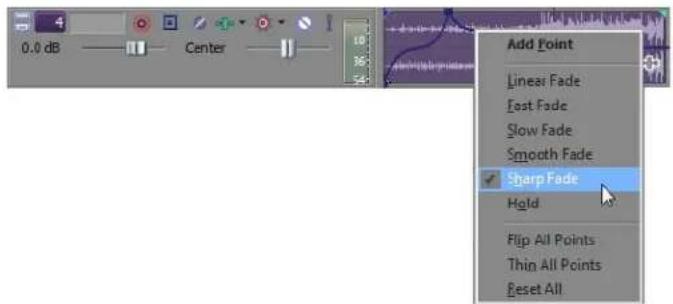
Tip: You can use ripple editing to automatically move envelope points as you edit in the timeline. For more information, see Applying post-edit ripples on page 107.
Drawing envelope points
To create an envelope quickly, you can draw freehand envelope curves in the timeline.
- With the Normal Edit (E) or Envelope (S) tool active, hover over an envelope.
- Hold Shift, and then click and drag over the envelope. As you drag, a trail of envelope points is created.
- Release the mouse button when you're finished drawing.
If the Smooth and thin automation data after recording or drawing check box is selected on the External Control & Automation tab of the Preferences dialog, the number envelope points will be reduced when you release the mouse.
Unthinned envelope
Thinned envelope
Thinning envelope points
Thinning envelope points decreases the number of points on an envelope while retaining the envelope's overall settings. Right-click an envelope and choose Thin All Points from the shortcut menu to thin the entire envelope.
To apply thinning to a section of the envelope, create a time selection, right-click the envelope, and then choose Thin Selected Points from the shortcut menu.
Note: Thinning is intended to reduce the number of envelope points created through automation recording and will have little or no effect if you create envelopes by adding and editing points manually.
Deleting envelope points
You can delete a point by right-clicking it and choosing Delete from the shortcut menu. If you want to delete all envelope points, right-click a point and choose Reset All from the shortcut menu.
Moving envelope points
Once you have added envelope points, you can raise and lower them to different levels along the timeline, or you can adjust the envelope's location along the timeline by dragging it right or left. You can move one point at a time, even during playback and check the results in real time. If snapping is enabled, the envelope point snaps to time divisions as you drag. Hold Shift while dragging to override snapping.
Tip: You can move multiple envelope points at once using the Envelope Edit tool. For more information, see Using the Envelope Edit tool on page 193.
- Place the mouse pointer on an envelope point. The pointer changes to a hand icon (☐).
- Drag the point to the desired position. As you move an envelope point, a ToolTip displays both the point's location on the timeline and its decibel level/percent pan.

- Click the Play (▶) or Play From Start (▶) button to play the project and check the timing of the envelope.
Tip: You can also set the value of the point by right-clicking an envelope point and choosing a setting from the shortcut menu.
Changing envelope fade curves
You can set the type of fade curve used after each envelope point: linear, fast, slow, smooth, or sharp. You can select either a point or a portion of the envelope to set the fade curve. If you select a portion of the envelope, the fade curve is applied to that envelope segment. If you select a point, the fade curve is applied to the segment of the envelope after the selected point.
- Right-click a point or a portion of the envelope to display a shortcut menu.
- From the shortcut menu, choose the curve type.
Tip: If you use the same fade curve frequently, you can set it as a default all new audio or video envelopes. For more information, see Editing tab on page 455.
Applying envelope fades within a time selection
When you drag an envelope within a time selection, all envelope points within the selection are adjusted, and a fade can be applied to the beginning and end of the selection to smooth the transition.
- Create a time selection.
- Drag an envelope point or segment within the selection. All envelope points within the selection are adjusted as you drag, and fades are applied to the beginning and end of the selection. Additional envelope points are created as necessary.
Selected envelopes
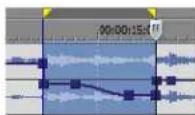
Fades are applied to the beginning and end of the selection. Additional envelope points are created as necessary.
By default, fades are centered on the beginning and end of the time selection. You can modify or turn off this setting on the Editing tab in the Preferences window.

Clear the Time selection envelope fades (ms) check box if you want to edit envelope points individually.
Type a value in the edit box (or use the spin control) to specify the length of the fades that will be created.
Choose a setting from the Alignment drop-down list to indicate where the fade should be applied:
| Setting | Description |
| Outside | Fades are applied before and after the time selection. |
| Centered | Fades are centered on the beginning and end of the time selection. |
| Inside | Fades are applied to the beginning and end of the time selection. |
Hiding track envelopes
After you have set your envelopes on the tracks, you can hide them from the timeline. Hiding track envelopes does not affect playback. The points that you set still automate the controls, even though the envelopes are not visible.
- From the View menu, choose either Audio Envelopes or Video Envelopes. A submenu appears. Envelopes that are currently displayed are selected in the submenu.
- From the submenu, choose an envelope name. All envelopes in your project of that type no longer appear in the timeline.
Tip: From the View menu, choose Show Envelopes (or press Ctrl+Shift+E) to toggle the display of all envelopes in the timeline.
If you've added effect automation envelopes to a track, the track can get cluttered. Click the down arrow next to the Track FX button (→) and choose an envelope from the drop-down list to select which envelope you want to display.
Removing track envelopes
When an envelope is removed, the events on the track no longer have automated control and the envelope line no longer displays.
- Select the track(s) from which you want to remove envelopes.
- From the Insert menu, choose either Audio Envelopes or Video Envelopes. A submenu appears. Envelopes that are currently displayed are selected.
- From the submenu, click an envelope name. The envelope of that type is removed from the selected track.
Alternatively, right-click an empty area of a track, choose Insert/Remove Envelope from the shortcut menu, and choose an envelope type from the submenu to remove that envelope.
Note: When you remove a track envelope from a track and then add it again, all points are reset.
Using the Envelope Edit tool
You can also edit envelope points using the Envelope Edit tool. To use this tool, click the Envelope Edit Tool button (☐). The advantage of switching to this tool to edit envelopes is that events cannot be moved when this tool is selected, thereby protecting them from changes. This effectively locks all of the events and effects in a project while you modify envelopes.
Selecting and adjusting envelope points
- Select the Envelope Edit Tool button (☐).
- Click within a track to select it.
- Drag along the timeline to select envelope points.
- Drag the selected envelope points to a new position.
To deselect envelope points, click anywhere in the event that is not part of the envelope.
Cutting, copying, and pasting envelope points
-
Select the Envelope Edit Tool button (8%).
-
Select the envelope points you want to cut or copy:
a. Create a time selection that contains the envelope points you want to cut or copy.
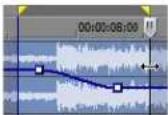
b. Click the envelope you want to cut or copy.
Tip: If the envelope isn't displayed, you can right-click the track, choose Show Envelopes from the shortcut menu, and then choose an envelope from the submenu.
-
From the Edit menu, choose Cut or Copy.
-
Select the envelope where you want to paste the envelope points:
a. Click within a track to select it.
b. Insert an audio or video envelope if needed.
c. Click to select the envelope where you want to paste the selected points.
d. Click to position the cursor where you want the envelope to start.
- From the Edit menu, choose Paste. The envelope points are pasted on the track.
Copying an envelope to another track
- Select the Envelope Edit Tool button (8%).
- Select the envelope you want to copy:
a. Double-click above the time ruler to create a selection that matches the length of your project.
b. Click the envelope you want to copy.
Tip: If the envelope isn't displayed, you can right-click the track, choose Show Envelopes from the shortcut menu, and then choose an envelope from the submenu.
- From the Edit menu, choose Copy.
- Select the envelope where you want to paste the envelope points:
a. Click within a track to select it.
b. Insert an audio or video envelope if needed.
c. Click to select the envelope where you want to paste the selected points.
d. Click the Go to Start button ( 🔊) if you want the envelope to appear exactly as it was in the original track, or click to position the cursor where you want the envelope to start.
- From the Edit menu, choose Paste. The envelope is pasted on the track.
The original envelope...
...and the newly pasted copy.
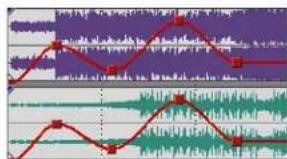
Locking envelopes to events
Track envelopes extend for the length of a track and are independent of the events on the track. This means that the envelope remains in place when you move the events in the track. However, track envelopes can be set to move with the underlying events, thus preserving the timing of envelope points in relation to events.
To lock all of the envelopes in a project to the events in which they occur, click the Lock Envelopes to Events button (💡) or, from the Options menu, choose Lock Envelopes to Events. You can turn this feature off by clicking the button again.
The original event
Moving the event with Lock Envelopes to Events turned on
Moving the event with Lock Envelopes to Events turned off
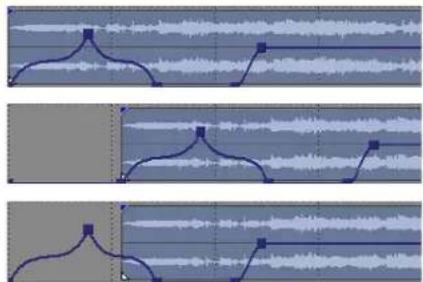
natural_image
Three-panel sequence showing waveform patterns with no visible text or symbolsAutomating 5.1 surround projects
In a 5.1 surround project, you can automate the center channel's volume and surround panning using keyframes.
For more information, see Working with 5.1 Surround on page 271.
Automation recording modes
Automation recording allows you to edit envelope and keyframe settings by using the controls in the Vegas Pro interface. When combined with a control surface, you can create fades and adjust control parameters with a level of control that only a tangible control can provide.
Automation recording is available for the following settings:
• Audio track envelopes (using the controls in the track header).
• Audio track effect parameters for automatable effects (using the controls in Audio Plug-In window).
• Surround panning keyframes.
• Video track envelopes (using the controls in the track header).
• Video track effect parameters (using the controls in Video Track FX window).
• Parent track overlay mode plug-in settings (using the controls in Parent Track Overlay window).
• Track-level mask generator plug-in settings (using the controls in Video Mask FX window).
Note: If you want to thin envelope points after recording automation, you can select the Smooth and thin automation data after recording check box on the External Control & Automation tab of the Preferences dialog or right-click the envelope and choose Thin Points from the shortcut menu.
Recording automation settings
-
Add an envelope or automatable/keyframeable effect to a track.
For automatable audio track effects, you must add and effect automation envelope for each parameter you want to automate. -
Select the Automation Settings button (☐) in the track header.
-
Click the down arrow next to the Automation Settings button and choose Automation Write (Touch) or Automation Write (Latch) from the menu.
| Automation Recording Mode | Track Icon | Description |
| Automation Write (Touch) | Envelope points or keyframes are created only while a control is being adjusted. When you stop adjusting the control, automation recording stops and the existing envelope points/keyframes are unaffected. | |
| Automation Write (Latch) | Envelope points or keyframes are created when you change a control setting, and recording continues until you stop playback. When you stop adjusting the control, the control's current setting overwrites the existing envelope points/keyframes. |
- Click to position the cursor in the timeline, and click the Play button (▶) to start playback.
- Adjust the control that corresponds to the envelope point or keyframe you want to adjust.
During playback, adjusting a control will create envelope points or keyframes at the cursor position. As long as you're adjusting the control, new envelope points/keyframes will be created for each change of the play cursor's position.
- Click the Stop button (☐) to end playback and stop recording automation.
Editing sections of your recorded settings in Touch mode
In Touch recording mode, envelope points or keyframes are created only while a control is being adjusted. When you stop adjusting the control, automation recording stops and the existing envelope points/keyframes are unaffected.
Use Touch mode for touching up sections of your recorded automation settings.
- Select the Automation Settings button (💡) in the track header.
- Click the down arrow next to the Automation Settings button and choose Automation Write (Touch) from the menu. The icon in the track header is displayed with an automation icon (💡).
- Click to position the cursor in the timeline, and click the Play button (▶) to start playback.
- When you're ready to start editing, adjust the control that corresponds to the envelope point or keyframe you want to adjust. Envelope points/keyframes are updated at the cursor position, and when you stop adjusting the control, the original settings are preserved.
- Click the Stop button (☐) to end playback and stop recording automation.
Overwriting recorded settings in Latch mode
In Latch mode, envelope points or keyframes are created when you change a control setting, and recording continues until you stop playback. When you stop adjusting the control, the control's current setting overwrites the existing envelope points/keyframes.
Use Latch mode to overwrite automation settings with new values.
- Select the Automation Settings button (☐) in the track header.
- Click the down arrow next to the Automation Settings button and choose Automation Write (Latch) from the menu. The icon in the track header is displayed with an automation icon (C).
- Click to position the cursor in the timeline, and click the Play button (▶) to start playback.
- When you're ready to start editing, adjust the control that corresponds to the envelope point or keyframe you want to adjust. Envelope points/keyframes are updated at the cursor position until you stop playback.
- Click the Stop button (☐) to end playback and stop recording automation.
Editing individual envelope points or keyframes
Editing individual envelope points or keyframes gives you fine control over your recorded settings.
-
Select the Automation Settings button (💡) on the track you want to edit.
-
Click the down arrow next to the Automation Settings button and choose Automation Write (Touch) or Automation Write (Latch) from the menu.
-
Select the parameter you want to edit:
-
For a track envelope, select the Envelope Edit tool (which) and click the envelope point you want to edit. You can right-click a point and choose Properties from the shortcut menu to display an effect's property page.
-
For a keyframe, click the Expand/Collapse Track Keyframes button (☐) to expand track keyframe rows, and then double-click a keyframe to open its property page. For more information, see Using video effects on page 321.
-
Adjust the control that corresponds to the envelope point or keyframe you want to adjust. The selected envelope point/keyframe is edited, and all others are unaffected.
For track envelopes, you can also edit the envelope directly in the timeline.
Setting the automation recording mode for a track
- Select the Automation Settings button (☐) in the track header.
- Click the down arrow next to the Automation Settings button and choose a command from the menu to choose the automation mode.
| Mode | Track Icon | Description |
| Off | Automated parameters are ignored during playback.When you switch to Off mode, the control setting from the cursor position is used as a static setting, and the envelope/keyframe is dimmed to indicate that it is unavailable. | |
| Read | The envelope/keyframe value is applied during playback, and the control reflects the envelope/keyframe settings at the cursor position.Adjustments to the control are not recorded. | |
| Automation Write (Touch) | The envelope/keyframe value is applied during playback, and the control follows the envelope/keyframe settings during playback and when you position the cursor.Envelope points or keyframes are created only while a control is being adjusted. When you stop adjusting the control, automation recording stops and the existing envelope points/keyframes are unaffected. | |
| Automation Write (Latch) | The envelope/keyframe value is applied during playback, and the control follows the envelope/keyframe settings during playback and when you position the cursor.Envelope points or keyframes are created when you change a control setting, and recording continues until you stop playback. When you stop adjusting the control, the control's last setting overwrites the existing envelope points/keyframes. |
Working with Events
Events are windows into media files in a project and are the most basic unit of editing in Vegas® Pro software. Media files that are inserted into the timeline are automatically contained within an event. Trimming and editing an event does not affect the source media file in any way.
Setting event switches
Event switches are important functions that are used to determine the basic behavior of events. You can set switches for a single event or multiple events at the same time.
- Right-click an event.
- From the shortcut menu, choose Switches, and choose the desired switch from the submenu.
Active switches have a check mark next to them. Choose an active switch on the menu to turn it off.
Tip: You can also set switches in the Edit menu, in the Edit Details window, or by right-clicking an event and choosing Properties.
Mute
Use the Mute switch to mute an event. This prevents the event from playing back.
Muted events on muted tracks are darkened on the timeline to indicate their muted state. In the following example, the middle events are muted:
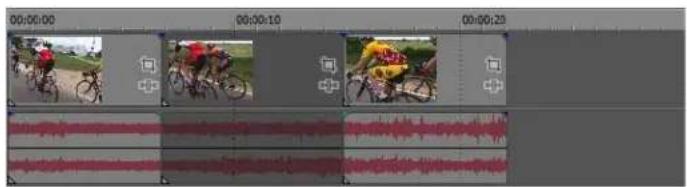
Lock
The Lock switch locks an event to prevent it from being moved or edited.
Loop
You can loop an event so that you can extend it along the timeline by dragging the right edge of the event. Notches appear in the top of the event to mark where the media in the event ends and then repeats.
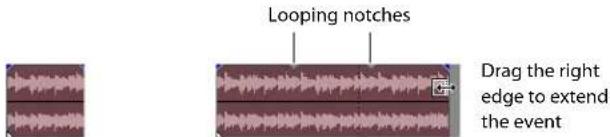
Selected event Selected event after before loop loop is applied
For video events, turning off the Loop switch makes the last frame repeat for the duration of the event beyond its original length, creating a freeze frame effect (as in the middle example below). The Loop switch is enabled for the event in the last example below.

The original three frame clip.

Looping is off. The elongated event repeats (freezes) the final frame.

Looping is on. The entire event repeats.
Invert phase (audio only)
This switch inverts the audio event at its baseline, in effect reversing its polarity. Inverting an event, while creating no audible difference, is occasionally useful for matching transitions when mixing audio on separate tracks or fine-tuning a crossfade.
You can also phase invert a track. If a track is inverted and you invert an event on the track, the event is doubly-inverted (restored to its original state). For more information, see Phase inverting a track (audio only) on page 176.
Normalize (audio only)
You can normalize an event to maximize its volume, based on the waveform's highest peak, without clipping the event during playback.
Selected event Selected event after before normalize normalize is applied
Recalculating the normalization
When you normalize an event, the event is analyzed and the volume is raised based on the waveform's highest peak and then adjusts the rest of the event accordingly. If you have adjusted the edge of an event to exclude the (formerly) highest waveform peak, you might want to recalculate the event's normalization.
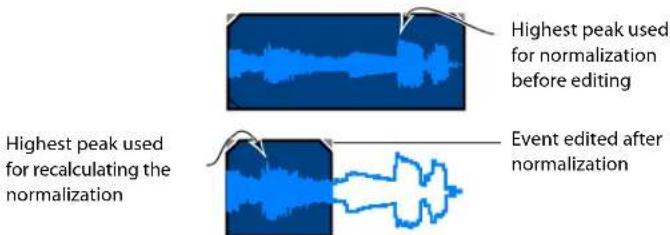
- Right-click the event to display a shortcut menu.
- From the shortcut menu, choose Properties. The Properties dialog opens.
3. Click Re-calculate to normalize the event again.
Tip: You can set the maximum decibel level used to calculate the event during normalization. For more information, see Audio tab on page 451.
Maintain aspect ratio (video only)
Video and image files of various sizes and formats can be included in a single project. The project itself can have a different frame size aspect ratio from the source media files. This is not a problem, but you must specify how these differences are handled. If the length-to-width ratio of the source media and the project's frame size are the same (for example, source media at 320x240 and project frame size of 640x480), no aspect ratio distortion occurs. If the ratios are not the same, the source material might become distorted (stretched or compressed). By maintaining the aspect ratio of the original, the video is kept from becoming distorted by letterboxing or pillarboxing around the edges. This is the default setting.
Reduce interlace flicker (video only)
This switch can be useful in cases where the source material didn't originate as video and contains extremely high spatial or temporal frequencies. When you watch the rendered (interlaced) output on video of this sort of media, you might see flickering or crawling edges if this switch is not applied.
Resample (video only)
Resampling allows Vegas Pro software to interpolate frames in an event when the frame rate of a media file is significantly different from the project's frame rate. Resampling can solve some interlacing problems and other jittery output problems. For more information, see Resampling video on page 295.
Three options are provided for event-level resampling:
- Smart resample: Only resamples the event when the event frame rate does not match the project output frame rate. This can occur either because the event has a velocity envelope or because the frame rate of the original media is different than the project frame rate. Smart resample is the standard setting.
• Force resample: Always resamples the event, regardless of its frame rate or the project's frame rate. - Disable resample: Does not resample the event.
Accessing event properties
The properties of an event are automatically determined based on the properties of the source media file. In addition to the event switches (mute, loop, etc.) described in the previous section, event properties include playback and undersample rates for video and pitch shifting for audio.
- Right-click an event to display a shortcut menu.
- From the shortcut menu, choose Properties. The Properties dialog appears.
The first tab in the dialog, either Audio Event or Video Event, contains the properties that are exclusively related to your Vegas Pro project. The second tab, the Media tab, contains many properties that are an inherent part of the media file itself.
In addition to the event switches discussed in this chapter, event properties on the Audio Event/Video Event tab include the following:
- For video events, the Playback rate box sets the rate of playback. For example, a playback rate of 1 plays at normal speed, while a playback rate of 0.5 plays at half speed. For more information, see Time compressing/stretching events on page 124.
- For video events, the Undersample rate box allows you to simulate a lower frame rate. For example, an undersample rate of 0.5 plays the event at half its original frame rate. Each frame plays twice as long as in the original media file, creating a strobe effect.
- For audio events, the Time stretch/pitch shift section of the dialog allows you to change the pitch, duration, or both pitch and duration of an audio event. For more information, see Pitch shifting audio events on page 123.
Adjusting audio channels
Vegas Pro software allows you to perform audio channel conversion nondestructively. You can mix channels, convert to mono, swap channels in a stereo file, or choose the channel that you want to use in a multichannel file.
- Select an event and choose Channels from the Edit menu (or right-click an event and choose Channels from the shortcut menu). A submenu is displayed.
- Choose a command from the submenu to specify how to treat the channels in your file.
| Item | Description |
| For events that use multichannel audio | |
| Channel x | Treats the event as a mono file using the audio from the channel you choose. |
| Channels x/y | Treats the event as a stereo file using the audio from the channels you choose. |
| For events that use stereo audio | |
| Both | Treats the event as a normal stereo file. |
| Left Only | Creates a mono event using only the left channel of your media file. |
| Right Only | Creates a mono event using only the right channel of your media file. |
| Combine | Creates a mono event by mixing the channels of your media file. After mixing the channels, the amplitude is divided by two to prevent clipping. |
| Swap | Exchanges the right and left channels in a stereo file. |
You can also pan from one channel to the other using either the multipurpose slider or a pan envelope. For more information, see Using the pan slider (audio only) on page 171.
Setting audio streams
When you add a multistream audio file to your project, you can choose which stream you want to use in the event.
- Select an audio event and choose Stream from the Edit menu (or right-click an event and choose Stream from the shortcut menu). A submenu is displayed.
- Choose a command from the submenu to choose the stream you want to use.
Copying and pasting event attributes
You've set up one event exactly the way you want it, and now you want to apply the same attributes to another event. A quick way to copy the attributes of one event and paste them onto another is provided.
You can copy and paste multiple event attributes, including:
• Properties, including audio pitch shift and video playback rate
- Switches
• Video event plug-ins
- Cropping
-
Click the event with the attributes you wish to copy and click the Copy button (💡).
-
To paste the event attributes to multiple events, select the events.
-
Right-click an event and choose Paste Event Attributes from the shortcut menu. The attributes are pasted onto the selected event(s).
Stabilizing video clips
From the Tools menu, choose Video, and then choose Stabilize Media to analyze and remove camera shake from the selected video events.
-
Select the event you want to stabilize. You can also select clips in the Project Media window.
-
From the Tools menu, choose Video, and then choose Stabilize Media (or right-click an event and choose Stabilize Media from the shortcut menu). The Stabilize Media dialog is displayed.
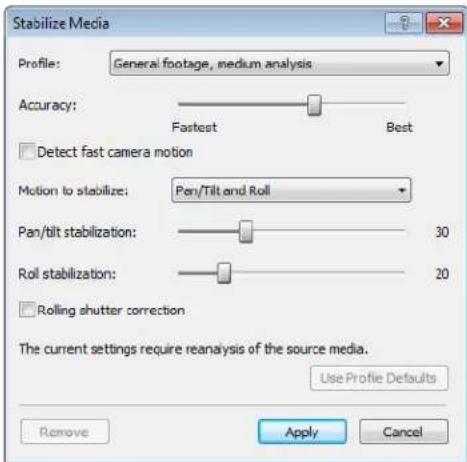
- Choose a setting from the Profile drop-down list that describes the video you want to stabilize, and adjust the controls in the dialog as needed:
| Item | Description |
| Accuracy | Drag this slider to adjust the accuracy of motion detection.In most cases, the profile's default setting will provide a good balance of accuracy and processing power. Increasing the setting can produce more accurate stabilization if needed. |
| Detect fast camera motion | Select this check box to indicate that the clip contains fast camera movement.This setting is useful in situations when the camera is moving quickly, such as when you're filming from a fast-moving vehicle. This type of clip requires more analysis than typical handheld camera shake. |
| Motion to stabilize | Choose a setting from the drop-down list to indicate the type of motion you want to stabilize.Pan/Tilt Removes camera shake.Pan/Tilt and Roll Removes camera shake and smooths rotation.Pan/Tilt, Roll, and Zoom Removes camera shake and smooths rotation and unwanted zoom effects. |
| Pan/tilt stabilization | Drag this slider to adjust the amount of pan/tilt (X/Y) stabilization you want to apply. A setting of 0 means that no pan/tilt stabilization is applied; a setting of 100 means that the plug-in will attempt to remove all pan/tilt motion. |
| Roll stabilization or Roll/zoom stabilization | When Pan/Tilt and Roll is selected in the Motion to stabilize drop-down list, you can drag this slider to smooth camera rotation. When you drag the slider fully to the left, no rotation smoothing is applied. When you drag the slider fully to the right, the plug-in will attempt to smooth all rotation.When Pan/Tilt, Roll, and Zoom is selected in the Motion to stabilize drop-down list, you can drag this slider to smooth camera rotation and zooming. |
| Rolling shutter correction | Select this check box if you want to correct skewing (during horizontal motion) or stretching/compression (during vertical motion) due to rolling shutter. |
| Use Profile Defaults | Click to reset all controls to the default settings for the selected profile. |
- Click Apply. The video is analyzed, and a subclip is added to the Project Media window for the stabilized media. If the event has been trimmed, you can choose to stabilize the full-length clip or the trimmed portion of the clip.
Tip: To remove stabilization, right-click an event (or a clip in the Project Media window) and choose Stabilize Media from the shortcut menu. In the Stabilize Media dialog, click the Remove button.
Using audio event envelopes (ASR)
You can apply envelopes to individual events. Envelopes, also known as ASRs (attack, sustain, and release), give you the ability to control an audio event's fade-in, fade-out, and overall volume level.
Notes:
- Event envelopes only affect an event. Track envelopes affect the entire track. For more information, see Composite level automation (video only) on page 188.
- If you want to display fade lengths in selected events, select the Event Fade Lengths option on the View menu.
When you add an event to your project, handles are added that are used to set the envelope. As you use these handles on audio events, a volume envelope appears indicating how the event is being affected.
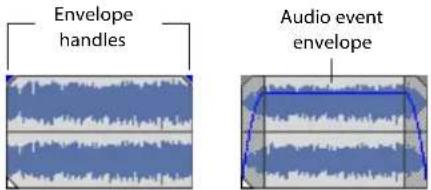
Setting an audio event's volume
When you place the mouse pointer at the top of the event, the pointer changes to a hand cursor ( f ) that you can use to lower the event's overall volume.
- Place the mouse pointer at the top of the event.
- When you see the envelope cursor (☐), drag the volume envelope to the desired level. As you drag, the event's decibel level is displayed.
You can make fine adjustments by holding Ctrl or clicking the right mouse button while dragging the envelope.
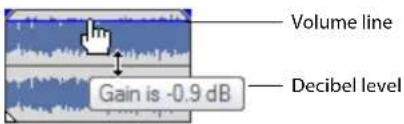
Note: When you have multiple events selected, the gain of all selected events is adjusted simultaneously.
Setting an event's fade in and out
The event handles allow you to change an audio event's fade in and out volume. You can also change the type of curve that the event uses to control the volume's fade in or out.
-
Place the mouse pointer on a handle (upper corners of the event). The pointer changes to the envelope cursor (→).
-
Click the corner of the event and drag to create a fade.
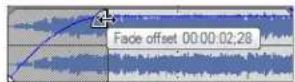
To remove a fade, drag the end of the fade curve back to the edge of the event.
Changing an event's fade curve
You can set the shape of the fade curve (fast, linear, slow, smooth, or sharp) that an event uses to raise or lower the volume over time. To access the different fade curves, right-click anywhere in the event's fade-in or fade-out region and choose Fade Type from the shortcut menu.
Right-click to select the fade curve type
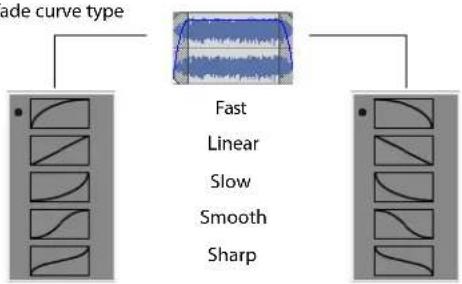
flowchart
graph TD
    A["Mode curve type"] --> B["Top Section"]
    B --> C["Fast"]
    B --> D["Linear"]
    B --> E["Slow"]
    B --> F["Smooth"]
    B --> G["Sharp"]
Tip: If you use the same fade curve frequently, you can set it as a default for all new audio event envelopes. For more information, see Editing tab on page 455.
Using video event envelopes
Video envelopes allow you to control an event's opacity or velocity over time. Envelopes appear as lines on an event. With a velocity envelope, you have the added control of being able to create and edit envelope points.
Note: Event envelopes only affect an event. Track envelopes affect the entire track. For more information, see Composite level automation (video only) on page 188.
Using opacity envelopes
Opacity envelopes set the overall opacity and allow you to fade video events in and out. This affects the transparency of the event in relation to background events on lower tracks. These background events can be other video events or background colors.
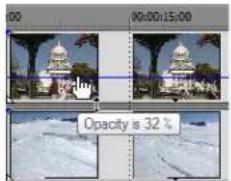
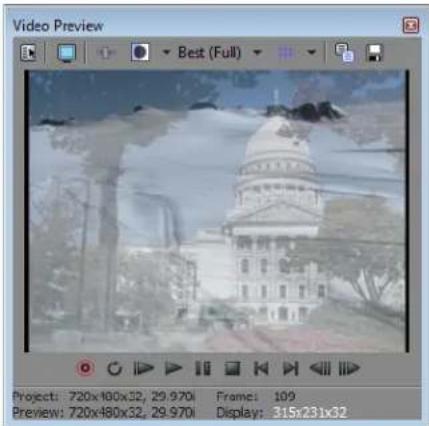
Setting a video event's opacity
When you place the mouse pointer at the top of the event, the pointer changes to a hand cursor (☐) that you can use to lower the event's overall opacity.
- Place the mouse pointer at the top of the event.
- When you see the envelope cursor ( ^1m ), drag the opacity envelope to the desired level. As you drag, the event's opacity level is displayed.
You can make fine adjustments by holding Ctrl or clicking the right mouse button while dragging the envelope.
Note: When you have multiple events selected, the opacity of all selected events is adjusted simultaneously.
Setting an event's fade in and out
The event handles allow you to change a video event's fade in and out. You can also change the type of curve that the event uses to control the fade in or out.
- Place the mouse pointer on a handle (upper corners of the event). The pointer changes to the fade offset cursor (→).
- Click the corner of the event and drag to create a fade.
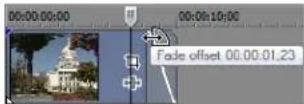
You can make fine adjustments by holding Ctrl or clicking the right mouse button while dragging the fade curve.
Changing an event's fade curve
You can set the shape of the fade curve (fast, linear, slow, sharp, or smooth) that an event uses to increase or decrease the opacity over time. To access the different fade curves, right-click anywhere in the event's fade-in or -out region and choose Fade Type from the shortcut menu.
Tip: If you use the same fade curve frequently, you can set it as a default for all new video event envelopes. For more information, see Editing tab on page 455.
Using velocity envelopes
You can use velocity envelopes to change the speed of a video event over time. To view a velocity envelope, right-click the event, choose Insert/Remove Envelope, and then choose Velocity from the submenu.
- Right-click an event, choose Insert/Remove Envelope, and then choose Velocity from the submenu. The velocity envelope appears on the event as a blue line.
- To increase the speed, drag the envelope up. To slow the video down, drag the envelope down.
You can make fine adjustments by holding Ctrl or clicking the right mouse button while dragging the envelope.
Adding velocity envelope points
When combined with points, envelopes can be used to animate velocity changes.
- Double-click the envelope where you want to add a point.
-
Drag the point to adjust it. The time and velocity level of the point are displayed as you drag.
-
Right-click the envelope between two points to choose a fade type (linear, fast, slow, smooth, or sharp) to set the shape of the curve.
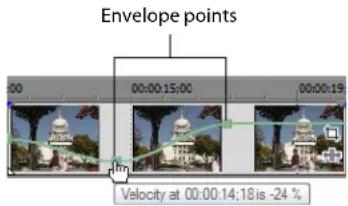
Tip: To delete a point, right-click the point and choose Delete.
Making a video play at twice its normal speed makes the duration of the video half as long. Likewise, slowing a video down makes it longer (with 0% being an infinite freeze frame). For example, if you decrease the speed of a ten-second video event by 50%, only five seconds of video play (played over the course of the ten-second event), meaning that only half as much actual footage from the original event plays. On the other hand, if the speed is increased 200%, the ten seconds of content play in only five seconds. The remaining five seconds of the event are filled either with a freeze of the last frame or with ten additional seconds of video content from the longer file.
You might want to resample the frame rate of an event that has been significantly slowed. To resample an event, right-click the event and choose Properties. Then, on the Video Event tab, select the Resample check box. For more information, see Resampling video on page 295.
Using the Envelope Edit Tool
While you can edit envelopes using the Normal Edit tool (⊕), you can limit your editing to envelopes only by clicking the Envelope Edit Tool button (⊕). You cannot move, trim, or otherwise modify events with this tool, which allows you to edit envelope points without making any other unwanted changes. For more information, see Using the Envelope Edit tool on page 193.
Removing a velocity envelope
To remove a velocity envelope and all of its settings, right-click the event, choose Insert/Remove Velocity Envelope, and then choose Velocity from the submenu.
Grouping events
You are allowed to group events together within tracks or across separate tracks.
Once you create a group, you can move all the events in the group within their tracks as a unit and apply event-specific edits at the same time. You can still edit properties of individual events within a group without affecting the other events in a group.
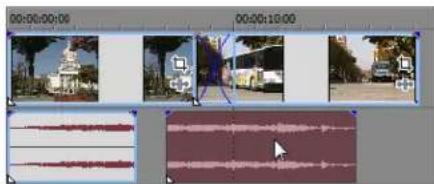
Dragging one event in a group moves all events in the group.
Note: When the Cut, copy, and delete grouped events check box on the Editing tab of the Preferences dialog is selected, cutting, copying, or deleting an event will affect all events in the same group.
Creating a new group
Grouping is useful when you want to preserve timing of events and move events together along the timeline.
- Select the events you want to group.
- From the Edit menu, choose Group, and choose Create New from the submenu.
Adding an event to an existing group
- Right-click an event in the existing group, choose Group from the shortcut menu, and choose Select All from the submenu to select all of the members of the group.
- Press Ctrl and click the event to be added to the group.
- Right-click the event, choose Group from the shortcut menu, and choose Create New from the submenu.
Note: Events can only be in one group at a time. Adding an event to an existing group essentially clears the old group and creates a new one that includes all of the selected events.
Removing events from a group
You can remove individual events from a group without affecting the other members of the group. An event you remove from the group is not deleted from the project and remains on the timeline.
Note: When the Cut, copy, and delete grouped events check box on the Editing tab of the Preferences dialog is selected, cutting, copying, or deleting an event will affect all events in the same group.
- Right-click the event you want to remove from the group.
- From the shortcut menu, choose Group, and choose Remove From from the submenu. The event is removed from the group. The rest of the grouped events remain intact.
Clearing a group
You can ungroup all events by clearing the entire group. Clearing a group does not remove events from your project.
- Right-click one of the members of the group.
- From the shortcut menu, choose Group, and choose Clear from the submenu.
Selecting all members of a group
While grouped events move together within their tracks, selecting one member of a group does not automatically select every member of that group.
- Right-click one of the members of the group.
- From the shortcut menu, choose Group, and choose Select All from the submenu.
With all events in a group selected, you can move the group to other tracks, or cut and paste the group to a new location.
Suspending grouping temporarily
You can temporarily suspend the grouping behavior of all groups (including video media files with included audio streams) by clicking the Ignore Event Grouping (button).
Cutting, copying, or deleting grouped events
Note: When the Cut, copy, and delete grouped events check box on the Editing tab of the Preferences dialog is selected, cutting, copying, or deleting an event will affect all events in the same group.
- Select the events you want to cut or delete.
- From the Edit menu, choose Group, and choose Cut All, Copy All, or Delete All from the submenu. The selected events and any events that are grouped with the selected events are deleted or copied/cut to the clipboard.
Using the Mixer
The Mixer window is where you control the project's busses and assignable effects chains.
Using the Mixer window
The Mixer is a dockable window where you can control audio busses and assignable effects chains within your project and adjust the outgoing signal's volume and routing.
Viewing the Mixer window
The Mixer window appears in the window docking area by default when you first start Vegas® Pro software. However, you can drag the Mixer within the workspace at any time to float it.
To hide/view the Mixer window, choose Mixer from the View menu or press Alt+3.
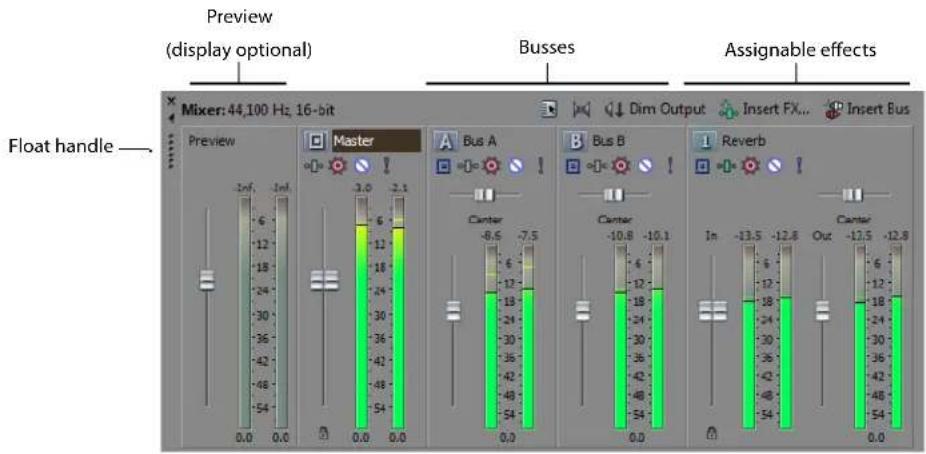
Using the Mixer toolbar
The Mixer's toolbar allows you to access project properties, add busses, and add assignable effects chains to the Mixer.
| Button | Description |
| The Project Audio Properties button accesses the Audio tab of the Project Properties dialog. For more information, see Audio tab on page 434. | |
| The Downmix Output button downmixes your audio from 5.1 surround to stereo or from stereo to mono so you can ensure your mix will sound the way you intended it, even when your audience's hardware has fewer channels than the original mix. The button represents the current playback mode:5.1 surround outputStereo outputMono output | |
| The Dim Output button attenuates the volume of all busses that are routed to hardware outputs by 20 dB. Click again to restore original volume. | |
| The Insert Assignable FX button adds an assignable effects chain to your project. You can route tracks to the assignable effects chain. For more information, see Assigning audio tracks to assignable effects chains on page 218. |
Button Description

The Insert Bus button adds a bus to your project. You can route tracks or assignable effects chains to the bus. For more information, see Assigning audio tracks to busses on page 216.
Using the Mixer Preview fader
The Preview fader allows you to adjust the volume and monitor output levels of media files when you preview them from the Explorer or Project Media windows, or play them back from the Trimmer window. The Preview fader also controls the metronome volume.
Viewing/hiding the Preview fader
The Preview fader is hidden as a default to make more room for other busses and assignable effects chains. To view or hide the Preview fader, simply right-click anywhere within the Mixer and choose Show Preview fader from the shortcut menu.
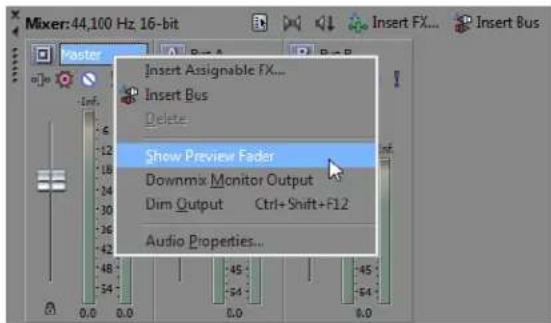
Adjusting the Preview fader
You can adjust the Preview fader while you are previewing a media file from the Explorer window. Drag the fader up or down, or press Ctrl while dragging to move in smaller increments. Double-click the fader to reset it.
You can select a preferred meter resolution at which the Preview fader displays the media file's volume level. For more information, see Changing bus meter resolution on page 215. You can also adjust the Preview fader to correct clipping in the same way you adjust a bus. For more information, see Adjusting a bus for clipping on page 216.
Using busses
A bus is a master control for the audio-signal mix of one or more tracks. You can assign tracks to play back on a specific bus.
However, to assign a track to a bus, you must have more than one bus in your project. Each project has a Master bus as a default, but you can add up to 25 additional busses to the Mixer window. A bus is the last stage in the signal's flow through Vegas Pro software. For more information, see Audio signal flow on page 34.
You can configure each bus to use a specific hardware output.
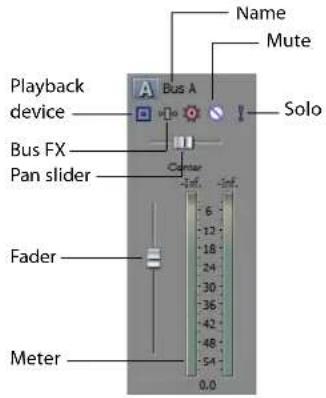
Bus control
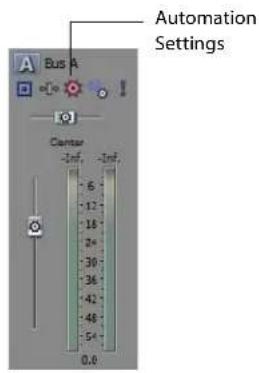
Bus control showing automation controls
| Item | Description |
| Automation settings | The controls in the bus control list can function as trim controls or automation controls for bus volume, panning, and muting.Click the button and verifyShow Automation Controlsis not selected if you want the bus control to function as a trim control. Adjusting a trim control affects the entire track.Click the button and chooseShow Automation Controlsto adjust automation settings. For more information, seeUsing Automation on page 183. |
| Mute | Prevents playback of the bus.WhenShow Automation Controlsis selected, theMutebutton is displayed with an automation icon( ),and you can use the button to edit mute automation on the bus's bus track. For more information, seeMuting abus on page 216. |
| Solo | Plays only the output of that bus. For more information, seeSoloing abus on page 216. |
| Fader | Adjusts the bus's volume on two stereo channels.WhenShow Automation Controlsis selected, the thumb is displayed with an automation icon( ), and you can use the fader to edit volume automation on the bus's bus track. For more information, seeAdjusting bus volume on page 215.Tip:Right-click the thumb and choose Pre FX or Post FX from the shortcut menu to specify whether the bus level is applied before or after the bus effects chain. |
| Name | Name of the bus. Double-click the name to edit it. For more information, seeRenaming abus on page 216. |
| Pan | Drag to ajust the overall panning of the track.WhenShow Automation Controlsis selected, the thumb is displayed with an automation icon( ), and you can use the slider to edit pan automation on the bus's bus track. |
| Playback device | Allows you to select the device that the bus uses for playback. |
| Bus FX | Displays the Bus FX window and allows you to adjust the audio effects plug-ins. |
| Meter | Displays the playback level of the bus. For more information, seeChanging bus meter resolution on page 215. |
Adding busses to a project
You can add up to 25 busses at any time during the development of your project.
Adding a bus
Click the Insert Bus button (☐) on the Mixer window.
Adding multiple busses
- Click the Project Audio Properties button (☐) on the Mixer window. The Project Properties window is displayed with the Audio tab selected.
- In the Number of stereo busses box, enter the desired number of busses (up to 25) to appear in the Mixer window.
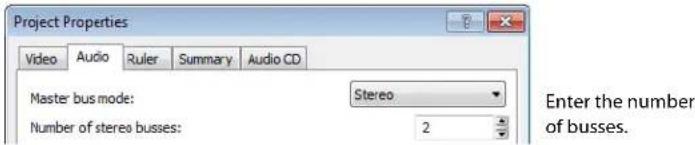
- Click OK to add the specified number of busses and close the Project Properties window. The new busses appear in the Mixer window.
Deleting busses from a project
You can remove busses from your project at any time. When you remove a bus from a project, any tracks assigned to it are reassigned to the Master bus.
Deleting a bus
Right-click the bus to be deleted in the Mixer window and choose Delete from the shortcut menu.
Deleting multiple busses
- Click the Project Audio Properties button (in) on the Mixer window. The Project Properties window is displayed with the Audio tab selected.
- In the Number of stereo busses box, enter the desired number of busses to appear in the Mixer window.
- Click OK. All tracks assigned to a deleted bus are reassigned to the Master bus in the Mixer window.
Routing a bus to another bus
If you have multiple busses, you can use bus-to-bus routing to create subgroups.
- Add busses to your project.
- In the Mixer window, click the Playback Device Selector button on the bus you want to route and choose a bus from the menu.
• The button is displayed as a ☐ when a bus is routed to the master bus.
• The bus letter is displayed (A, B, and so on) when a bus is routed to another bus.
• The button is displayed as a -when a bus is routed to a hardware output.
Routing busses to hardware
You can assign busses to use specific hardware for output. When you installed the software, it automatically detected the hardware available for output on your computer. For more information, see Audio tab on page 451.
- From the Options menu, choose Preferences and click the Audio Device tab.
- From the Audio device type drop-down list, choose Windows Classic Wave Driver or an ASIO™ driver.
Note: If you select Microsoft Sound Mapper in the Audio device type drop-down list on the Audio Device tab, you will not be able to assign the bus to a different device.
-
Click OK to close the Preferences window.
-
In the Mixer window, click the Playback Device Selector button on the bus you want to route.
-
Choose a hardware device from the menu.
• The button is displayed as a ☐ when a bus is routed to the master bus.
• The bus letter is displayed (A, B, and so on) when a bus is routed to another bus.
• The button is displayed as a ☐ when a bus is routed to a hardware output.
Note: You can map multiple busses to a single sound card.
Working with busses
Busses in the Mixer window are fully independent and can be adjusted separately. You can adjust the bus volume, change the bus meter resolution, and adjust the bus fader to eliminate clipping.
Adjusting bus volume
You can adjust a bus's volume during project playback by dragging the fader. The fader on a stereo bus is split so that you can adjust the levels of the two stereo channels independently.
The fader can function as a trim control that adjusts the overall level of the bus, or it can adjust volume automation settings on the bus track. Click the Automation Settings button [icon] and verify Show Automation Controls is not selected if you want the fader to function as a trim control.
The faders are locked (ganged) so that the left and right channels of stereo files move together. Click the Lock/Unlock Fader Channels button 📄 to unlock or lock the faders. You can also press Shift while dragging a fader to temporarily override a fader's locked or unlocked state.
Tip: Double-click a fader to reset it to 0.0 dB. If you have set each channel independently, double-click either the left or right fader to have the other fader match the other's volume setting.
If you want to adjust volume automation settings on the bus's bus track, click the Automation Settings button (💡) and select Show Automation Controls. The fader handle is displayed with an automation icon (💡) in automation mode. For more information, see Adjusting volume or pan automation settings on page 185.
You can adjust the volume of several busses simultaneously by selecting the busses and adjusting any of their faders. If you select an assignable effect along with the busses, the output fader of the assignable effect moves along with the bus volume faders.
Changing bus meter resolution
You can select a meter resolution at which a bus displays the signal levels that are being mixed. When you change the meter resolution on this control, the other meters (assignable effects and preview) automatically change to match.
To change bus meter resolution, right-click a meter and choose a meter resolution from the shortcut menu.
Adjusting a bus for clipping
If the volume level is set too high, it can cause clipping. The clipping displays in red at the top of the meter with the clipping value displayed in decibels (dB). Adjust the fader and click the red clipping value to reset the meter. Continue to adjust the fader and reset the meter until you eliminate the clipping.
You can set the meter to remember and display the highest and lowest levels by right-clicking and selecting Hold Peaks and Hold Valleys.
Muting a bus
Muting allows you to temporarily suspend playback of the bus. When a bus is muted, the word Muted appears at the bottom of the meter. You can mute more than one bus at a time.
The Mute button can mute the bus, or it can adjust mute automation on the bus's bus track. To mute the bus, click the Automation Settings button (💡) and verify Show Automation Controls is not selected. Click the Mute button (💡) to mute the bus, and click it again to restore playback.
To adjust mute automation, click the Automation Settings button (💡) and select Show Automation Controls. The Mute button is displayed with an automation icon (💡) in automation mode. Click to turn mute automation on, or click it again to turn mute automation off. For more information, see Adding or removing mute automation on page 184.
Soloing a bus
Soloing isolates a bus's playback so that you can focus on a specific output. You can solo more than one bus at a time. To solo the bus, click the Solo button (1). Click the button again to turn off soloing.
Renaming a bus
Every bus in the Mixer window has an editable name.
- Double-click the bus name.
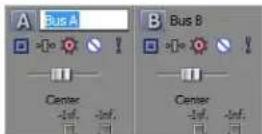
-
Type a new name.
-
Press Enter to save the name.
Panning a bus
Like volume, the pan slider in the track header can function as a trim control that adjusts the overall panning of the track, or it can adjust track panning automation settings. For more information, see Adding or removing volume or pan automation on page 184.
Assigning audio tracks to busses
If your project contains multiple busses, you can assign a track to a specific bus. For more information, see Assigning audio tracks to busses on page 175.
Adjusting a bus send level
You can adjust the level of a track sent to a bus by using the multipurpose slider in the track list. For more information, see Adjusting bus send levels on page 175.
Using assignable effects chains
Assignable effects allow you to send various levels of multiple tracks to a single audio effect chain. Like busses, these controls reside in the Mixer window and support plug-in chains. In addition, you can route assignable effects outputs to project busses.
Click the Insert Assignable FX button (4) in the Mixer window to add an assignable effects chain to your project. For more information, see Adding Audio Effects on page 253.
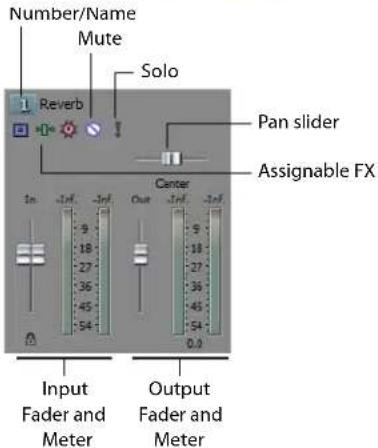
Assignable effects
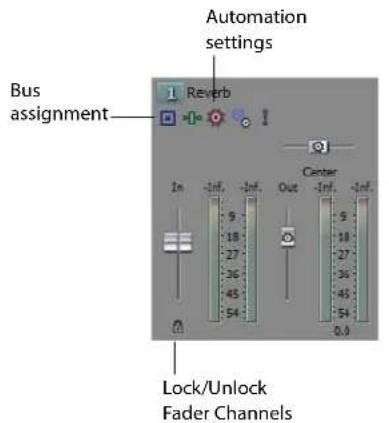
Assignable effects showing automation controls
| Item | Description |
| Number/Name | Number and name of assignable effects. Double-click the name to edit it. |
| Automation Settings | The controls in the assignable effects control list can function as trim controls or automation controls for output level, panning, and muting.Click the button and verify Show Automation Controls is not selected if you want the bus control to function as a trim control. Adjusting a trim control affects the entire track.Click the button and choose Show Automation Controls to adjust automation settings. For more information, see Using Automation on page 183. |
| Mute | Prevents the assignable effects chain from processing the track's signal.When Show Automation Controls is selected, the button is displayed with an automation icon ( ), and you can use the button to edit mute automation on the chain's bus track. |
| Solo | Plays only the output of that assignable effects chain. |
| Assignable FX | Displays the Assignable FX window and allows you to adjust the plug-in settings. |
| Bus Pan | Drag to adjust the overall panning of the assignable effects chain.When Show Automation Controls is selected, the thumb is displayed with an automation icon ( ), and you can use the slider to edit pan automation on the chain's bus track. |
| Bus assignment | Allows to you assign the assignable effects chain to a bus. |
| Input Fader | Adjusts the input volume. |
| Output Fader | Adjusts the output volume.When Show Automation Controls is selected, the thumb is displayed with an automation icon ( ), and you can use the fader to edit volume automation on the chain's bus track. |
| Meter | Displays the incoming and outgoing signal level to the assignable effects chain. |
| Lock/Unlock Fader Channels | Locks the faders so the left and right channels of stereo files always move together. Click again to unlock the faders. |
Tip: To use the output fader to control the wet/dry mix of the assignable effects chain, set each plug-in to 100% wet. Use the output (effects return) fader to balance the dry track signal with the wet plug-in signal.
You can work with assignable effects controls in much the same way you work with busses. Use the same methods described earlier in this chapter for adjusting volume, adjusting for clipping, muting, soloing, and renaming. For more information, see Working with busses on page 215.
Assigning audio tracks to assignable effects chains
You can adjust the level of a track that is sent to an assignable effects chain using the multipurpose slider in the track list. For more information, see Assigning audio tracks to assignable effects chains on page 174.
Routing assignable effects chains to busses
When you add assignable effects to your project, you can assign them to a specific bus for output. The bus mixes the assignable effects chain's plug-ins along with any tracks that may be routed to the same bus. For more information, see Audio signal flow on page 34.
This option is only available if the project contains multiple busses.
- Click the Bus button (☐) on the assignable effect control. A menu displays all the busses in your project.
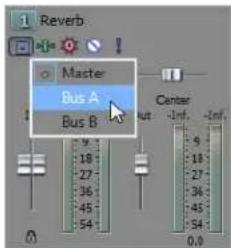
- Choose the bus to which you want to route the assignable effects chain.
The assignable effects chain displays the letter of the bus to which it is routed.
Automating busses and assignable effects
You can automate busses and assignable effect chains in the timeline. You can view each of these controls on bus tracks at the bottom of the timeline and to add envelopes to automate functions such as volume, pan, and assignable effect chain input/output levels.
You can also add envelopes to automate effect parameters for plug-ins that support automation.
Viewing bus tracks
From the View menu, choose Show Bus Tracks or press U. The bus tracks appear at the bottom of the timeline. A bus track appears for each bus or assignable effect chain in your project.
Adding track envelopes
Right-click the track header in the track list, choose Insert/Remove Envelope from the shortcut menu, and choose the appropriate envelope type from the submenu. For more information, see Adding or removing track effect automation on page 187.
Modifying track envelopes
You can modify a track envelope for a bus or assignable effect in the same way you do with any other track. For more information, see Working with track envelopes on page 190.
Using the Mixing Console
The Mixing Console provides an integrated view of all tracks and busses in your Vegas® Pro project using the appearance of a traditional hardware-based mixer. You can use the Mixing Console to mix your project in much the same way you work with a hardware-based mixer.
Understanding the Mixing Console window
From the View menu, choose Mixing Console to toggle the display of the Mixing Console window.
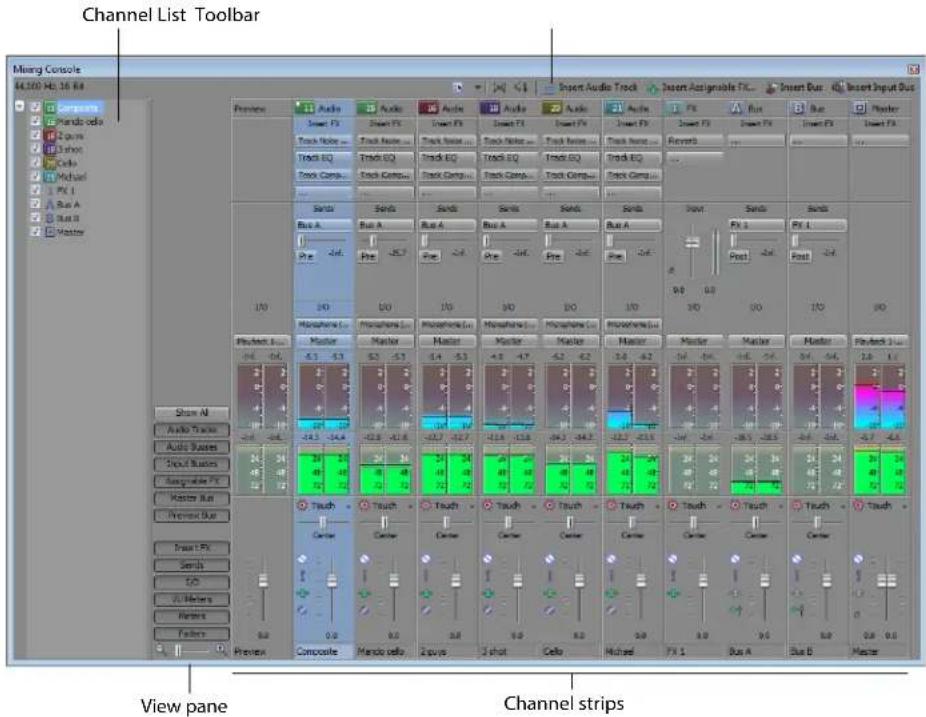
The Mixing Console window is explained in the following sections.
The Mixing Console toolbar
The Mixing Console toolbar is displayed at the top of the Mixing Console window and allows you to quickly configure the window's display; downmix audio; dim the output; or add tracks, assignable effects, or busses.
| Item | Description | ||
| Properties and Layout | Click the Properties and Layout button ( ) to open the Audio tab in the Project Properties dialog, or click the down arrow and choose a command from the menu: | ||
| Audio Properties | Displays the Audio tab in the Project Properties dialog. | ||
| Show Channel List | Displays or hides the Channel List on the left side of the Mixing Console window.Select a channel strip's check box to display it in the Mixing Console, or clear a check box to hide a channel strip without removing it from your project. | ||
| Channel Width | Choose a setting to indicate whether you want to view narrow, medium (default), or wide channel strips in the Mixing Console window. | ||
| Show Channels | Choose a command to configure which channel strips are displayed in the Mixing Console window.Show All Channels: Displays all channel strips in the Mixing Console.Show Audio Tracks: Shows or hides audio track channel strips. For more information, see Using audio track channel strips on page 225.Show Audio Busses: Shows or hides auxiliary bus channel strips. For more information, see Using bus channel strips on page 232.Show Input Busses: Shows or hides input bus channel strips. For more information, see Using input bus channel strips on page 238.Assignable FX Busses: Shows or hides assignable FX channel strips. For more information, see Using FX send (assignable effects) channel strips on page 244.Master Bus: Shows or hides the Master bus channel strip.Preview Bus: Shows or hides the Preview bus channel strip. | ||
| Show Control Regions | Choose a command to configure which portions of the channel strips are displayed in the Mixing Console window.Show All Control Regions: Displays all control regions.Insert FX Control Region: Shows or hides the Insert FX control region.Send Control Region: Shows or hides the Sends control region.I/O Control Region: Shows or hides the I/O control region.VU Meters Control Region: Shows or hides the VU/PPM control region.Peak Meters Control Region: Shows or hides Peak Meters.Faders Control Region: Shows or hides volume faders.Show Region Labels: Shows or hides labels in each portion of the channel strips. | ||
| Show Region Labels | Choose this command to show or hide control region labels in channel strips. | ||
| Meter Layout | Choose Meter Layout, and then choose a command from the submenu to reset clip indicators; set the display range; or display labels, peaks, or valleys in the channel meters. | ||
| Downmix Output | Downmixes your audio from 5.1 surround to stereo or from stereo to mono so you can ensure your mix will sound the way you intended it—even when your audience's hardware has fewer channels than the original mix.The button represents the current playback mode: | ||
| 5.1 surround output | |||
| Stereo output | |||
| Mono output | |||
| Dim Output | Attenuates the volume of all busses that are routed to hardware outputs by 20 dB so you can check your mix at a lower level (or answer the phone). Click again to restore volume. | ||
| Insert Audio Track | Adds an audio track to your project. For more information, see Using audio track channel strips on page 225. | ||
| Item Description | ||
| Insert Assignable FX | Creates an assignable FX chain that you can route to one or more tracks in your project.To delete an assignable FX chain, right-click the assignable FX channel strip and choose Delete from the shortcut menu.For more information, see Using FX send (assignable effects) channel strips on page 244. | |
| Insert Bus | Adds a bus to your project. The Audio tab in the Project Properties dialog is updated to reflect the new number of busses.To delete a bus, right-click the channel strip for the bus and choose Delete from the shortcut menu.For more information, see Using bus channel strips on page 232. | |
| Insert Input Bus | Adds an input bus to your project.To delete a bus, right-click the channel strip for the bus and choose Delete from the shortcut menu.For more information, see Using input bus channel strips on page 238. | |
The Channel List pane
The Channel List pane is displayed on the left side of the Mixing Console window.
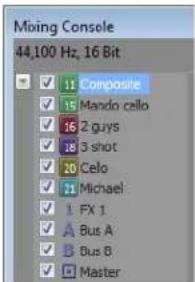
To show or hide the window, click the down arrow next to the Properties and Layout button (☐) and choose Show Channel List from the menu (or right-click the Mixing Console window and choose Show Channel List from the shortcut menu).
The top of the Channel and Group List pane displays a listing of all tracks, busses, and assignable effects chains in your project. Select a channel's check box to include it in the Mixing Console display, or clear a check box to hide the channel without removing it from your project.
Clicking a track, bus, or assignable effects chain in the Channel List pane selects that channel. You can hold Ctrl or Shift to select multiple channels to perform ganged edits.
The View pane
The View pane is displayed on the left side of the Mixing Console window. If the Channel List pane is visible, the View pane is displayed between the Channel List pane and the Channels pane.
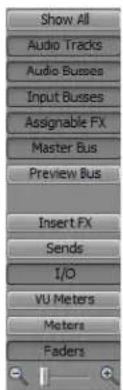
You can use the buttons in this pane to show or hide components in the Mixing Console.
| Item | Description |
| Show All | Click to show channel strips for all tracks, busses, and assignable effects chains. |
| Audio Tracks | Click to show or hide channel strips for audio tracks. |
| Audio Busses | Click to show or hide channel strips for audio busses. |
| Input Busses | Click to show or hide channel strips for input busses. |
| Assignable FX | Click to show or hide channel strips for assignable effects chains. |
| Master Bus | Click to show or hide the channel strip for the Master bus. |
| Preview Bus | Click to show or hide the channel strip for the Preview bus. |
| Insert FX | Click to show or hide the insert effects control region in channel strips. |
| Sends | Click to show or hide the sends control region in channel strips. |
| I/O | Click to show or hide the I/O control region in channel strips. |
| VU Meters | Click to show or hide the VU/PPM control region in channel strips. |
| Meters | Click to show or hide the peak meters control region in channel strips. |
| Faders | Click to show or hide the Faders control region in channel strips. |
| Channel Width | Drag the slider toward the Zoom Out Track and Bus Width button (icon) to decrease the width of channel strips, or drag toward the Zoom In Track and Bus Width button (icon) to increase channel strip widths. |
Channel strips
Tracks, busses, and assignable effects chains are displayed as channel strips in the Mixing Console.
Tips:
- If you want to change the order in which tracks are displayed, you can click the channel label and drag a channel strip to a new location. Busses and assignable effects chains cannot be reordered.
• Hover over a fader and roll your mouse wheel to change its setting. - To edit a fader value quickly, you can double-click the displayed value to type a new value.
- Hold Ctrl while dragging a fader to move it in fine increments.
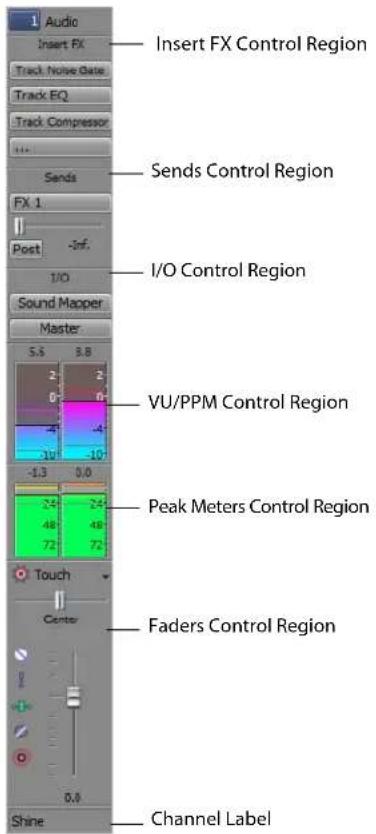
| Item | Description |
| Insert FX Control Region | The Insert FX control region displays the insert effects chain for a track or bus. |
| Sends Control Region | The Sends control region displays controls for routing tracks to busses or assignable effects chains. For assignable effects chains, the Sends control region also displays an input fader and meter. |
| I/O Control Region | The I/O control region allows you to choose the recording input for a track or route a channel to a bus or hardware output. |
| VU/PPM Control Region | The VU/PPM control region displays volume unit (VU) and peak program (PPM) meters to help you determine the perceived loudness of your signal. Peak program meters provide faster response times to volume increases than VU meters.Tip:To change the range of all VU meters in the Mixing Console, right-click a meter and choose a range from the shortcut menu. |
| Peak Meters Control Region | The Peak Meters control region displays peak meters you can use to monitor instantaneous levels during playback and determine the loudest level in your audio signal.Tip:To change the range of all meters in the Mixing Console, drag the Meter Range slider in the View pane (or right-click a meter and choose a range from the shortcut menu). |
| Item Description | |
| Faders Control Region | The Faders control region allows you to control a channel's gain.·Audio track channels display controls for the track automation mode, arm for record, input monitor mode, mute, solo, pan, track gain, and phase.·Bus channels display controls for the bus automation mode, mute, solo, pan, bus gain, and pre/post fader effects processing.·Assignable effects channels display controls for the bus automation mode, mute, solo, pan, bus gain, and pre/post fader effects processing.If the Peak Meters control region is not visible, the Faders control region also displays a peak meter. |
| Channel Label | The Channel Label displays the name of the track or bus. Double-click to edit the name. |
Adding track, assignable FX, and bus channels
In its default configuration, the Mixing Console displays a channel for each track, bus, and assignable effects chain in your project. You can use the buttons on the Mixing Console Toolbar to add tracks, assignable effects chains, or busses to your project:
| Item | Description | |
| Insert Audio Track | Adds an audio track to your project. For more information, see Using audio track channel strips on page 225. | |
| [D3X0] | Insert Assignable FX | Creates an assignable FX chain that you can route to one or more tracks in your project.To delete an assignable FX chain, right-click the assignable FX channel strip and choose Delete from the shortcut menu.For more information, see Using FX send (assignable effects) channel strips on page 244. |
 | Insert Bus | Adds a bus to your project. The Audio tab in the Project Properties dialog is updated to reflect the new number of busses.To delete a bus, right-click the channel strip for the bus and choose Delete from the shortcut menu.For more information, see Using bus channel strips on page 232. |
 | Insert Input Bus | Adds an input bus to your project.To delete an input bus, right-click the channel strip for the bus and choose Delete from the shortcut menu.For more information, see Using input bus channel strips on page 238. |
Using audio track channel strips
A separate channel strip is displayed for each audio track in your project. Each channel strip mirrors controls that are displayed in the track header.
To show or hide audio track channel strips, click the Audio Tracks button in the View pane.
Renaming audio tracks
To rename a track, double-click the track label at the bottom of the channel strip and type a new name in the box (or press F2 to rename the selected track). The channel strip in the Mixing Console and the track header are updated when you press Enter.
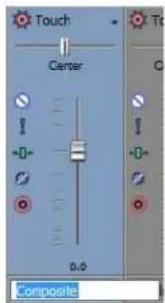
Adding or editing track (insert) effects
When the Insert FX control region is visible, each track displays its effects chain at the top of the channel strip.
To show or hide the Insert FX control region, click the Insert FX button in the View pane.
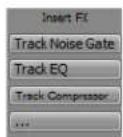
Each effect is displayed as a button. You can hover over the button to see a ToolTip that displays the full plug-in and preset name.
Tip: When the Insert FX control region isn't visible, you can click the Track FX button (→) in the Faders control region to display the Audio Plug-In window for the track's effects chain.
Adding a plug-in
Click the Add New Insert FX button (....) and then choose a new plug-in from the menu to add a new plug-in to the effects chain.
Editing effects settings
Click an effect's button to display the Audio Plug-In window, where you can adjust the plug-in's settings.
When you right-click an effect's button, a shortcut a menu is displayed:
- Choose Show
to open the Audio Plug-In window, where you can adjust the plug-in's controls. - Choose Bypass
to temporarily bypass a plug-in.
When an effect is bypassed, its button is displayed in red text.
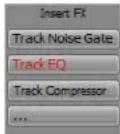
- Choose Remove
to remove a plug-in from the track effects chain. - Choose Presets, and then choose a setting from the submenu to load a new preset.
- To replace the current plug-in, right-click the effect's button, and then choose a new plug-in from the menu. Plug-ins are organized in submenus by type (EQ, Dynamics, Reverbs, etc.).
Adjusting bus or assignable effects send levels
When the Sends control region is visible, each track displays controls you can use to route the track to busses and assignable effects chains.
To show or hide the Sends control region, click the Sends button in the View pane.
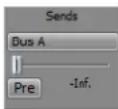
When the Automation Settings button (💡) in the Faders control region is not selected, click the Active Send button and choose a bus or assignable effects chain from the menu, and then drag the fader to adjust the send level.
When the Automation Settings button (💡) in the Faders control region is selected, the fader handle is displayed as with an automation icon (💡), and you can use it to edit send volume automation on the track.
Note: The trim level is added to the automation settings so your envelope is preserved, but with a boost or cut applied. For example, setting the trim control to -3 dB has the same effect as decreasing every envelope point by 3 dB.
Tip: To adjust the size of the Sends control region, you can drag the bottom divider to make more or fewer sends visible.
Bus sends are pre-volume (and pre-mute) by default. To change to post-volume (and post-mute), click the Pre/Post button to switch to Post Volume Send mode.
Change a track's input or output device
When the I/O control region is visible, each track displays controls you can use to set the track's input device (for recording) and output device.
To show or hide the I/O control region, click the I/O button in the View pane.
To choose the recording input for the track, click the Input button and choose a port from the menu.
To route a track to a bus, click the Output button and choose a bus from the menu.
Monitoring track levels with VU/PPM meters
When the VU/PPM Meters control region is visible, you can display volume unit (VU) and peak program (PPM) meters to help you determine the perceived loudness of your audio signal (peak program meters provide faster response times to volume increases than VU meters).
To show or hide the VU/PPM Meters control region, click the VU Meters button in the View pane.
Right-click the meter and choose a setting from the shortcut menu (or hover over the meter and roll your mouse wheel) to change the resolution and display options.
| Item | Description | |
| Show VU/PPM | Use this command to show or hide meters for individual channels. | |
| Reset Clip | Clears clipping indicators. | |
| Traditional VU | The traditional VU meter is displayed with a scale of -10 dB to +2 dB. 0 dB on the VU meter equals 4 dBu. | |
| Extended VU | The extended VU meter is displayed with a scale of -30 dB to +8 dB. 0 dB on the VU meter equals 4 dBu. | |
| Logarithmic VU | Displays the meters in a logarithmic scale (like the Sound Forge peak meters) instead of the linear scales traditionally associated with VU meters. | |
| UK PPM | The UK peak program meter (also known as a BBC meter) is a Type II meter and is displayed with a scale of 1 to 7, which corresponds to a range of -12 to 12 dBu: | |
| UK Marks | dBu | |
| 7 | 12 | |
| 6 | 8 | |
| 5 | 4 | |
| 4 | 0 | |
| 3 | 4 | |
| 2 | 8 | |
| 1 | -12 | |
| EBU PPM | The EBU peak program meter is a Type II meter and is displayed with a scale of -12 to +12, which corresponds to -12 dBu to 12 dBu. 0 on the EBU PPM equals 0 dBu.The EBU PPM and UK PPM respond identically to increases in volume, but the EBU PPM decays more slowly. | |
| DIN PPM | The DIN peak program meter is a Type I meter and is displayed with a scale of -50 dB to +5 dB, which corresponds to -44 dBu to 11 dBu. 0 dB on the DIN PPM equals 6 dBu. | |
| Nordic PPM | The Nordic peak program meter is a Type I meter and is displayed with a scale of -42 dB to +12 dB, which corresponds to -42 dBu to 12 dBu. 0 dB on the Nordic PPM equals 0 dBu. | |
| Show Labels | Toggles the meter level labels on and off. | |
| Show Peaks | Toggles peak level indicators on the top of the meter. | |
| Item | Description | |
| Hold Peaks | When selected, the highest peak levels are represented by a thin line on the meter. | |
| Hold Valleys | When selected, the lowest peak levels are represented by a thin line on the meter. | |
| Vintage Mode | When Vintage Mode is selected, the VU meters use a different calculation method to simulate the response of analog VU meters. | |
Monitoring track levels with peak meters
When the Meters control region is visible, each track displays meters you can use to monitor track levels.
To show or hide the Meters control region, click the Meters button in the View pane.
Note: If the Meters control region is not visible, peak meters are displayed in the Faders control region.
Right-click the meter and choose a setting from the shortcut menu (or hover over the meter and roll your mouse wheel) to change the resolution and display options.
Tip: Right-click the peak meters and choose Show Peak Meter to show or hide meters for individual channels.
Changing a track's automation mode
When the Faders control region is visible, each track displays controls you can use to adjust track panning, volume and muting. The controls can adjust static (trim) or automation levels. Use the Automation Settings button (☐) at the top of the Faders control region to choose the automation mode and turn automation on or off.
To show or hide the Faders control region, click the Faders button in the View pane.
To change a track's automation recording mode, click the down arrow next to the Automation Settings button (💡) and choose a setting from the menu.
The track controls behave differently depending on the track's automation recording mode:
- When the track automation mode is set to Off (☑), the control adjusts the level of the entire track. In this mode, the automation control acts as a second trim control.
- When the track has a volume or pan envelope and the track automation mode is set to Read (☐), the control will follow the envelope during playback but cannot be adjusted.
- When the track automation mode is set to Touch (播放) or Latch (播放), the control edits the envelope setting at the cursor position. If the track does not have an envelope, an envelope will be added when you adjust the control.
Click the button (so the Automation Settings button is not selected) if you want the Fader control region controls to function as trim controls. Adjusting a trim control affects the entire track. When the Automation Settings button is selected, you can use the buttons to edit pan, volume, and mute automation for the track.
Muting or soloing a track
When the Faders control region is visible, each track displays Mute (☒) and Solo (☐) buttons.
To show or hide the Faders control region, click the Faders button in the View pane.
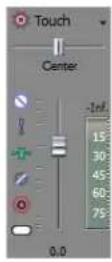
Muting a track
When the Automation Settings button (☐) is not selected, you can click the Mute button (☐) to prevent a track from being played in the mix. Click the Mute button on additional tracks to add them to the mute group. To unmute a track, click the Mute button again.
When the Automation Settings button (💡) is selected, the Mute button is displayed with an automation icon (💡), and you can use the button to edit mute automation.
Soloing a track
Click the Solo button (1) to mute all unselected tracks. Click the Solo button on additional tracks to add them to the solo group. To remove a track from the solo group, click its Solo button again.
Inverting a track's phase
When the Faders control region is visible, each track displays an Invert Track Phase button (☐).
To show or hide the Faders control region, click the Faders button in the View pane.
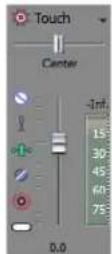
Click the Invert Track Phase button (☐) to reverse the phase of all events on an audio track.
Although inverting data does not make an audible difference in a single file, it can prevent phase cancellation when mixing or crossfading audio signals.
Select multiple tracks to invert several tracks simultaneously.
Note: If the Invert event switch is selected, inverting the phase of the track will return the event to its original phase.
Arming a track for recording or toggle input monitoring
When the Faders control region is visible, each track displays an Arm for Record button (☐) and an Input Monitor Mode button (☐) you can use to turn record input monitoring on or off.
To show or hide the Faders control region, click the Faders button in the View pane.
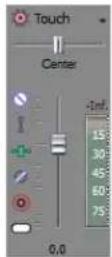
Arming tracks for recording
Select the Arm for Record buttons (☐) on the tracks where you want to record. Arming a track enables it for recording.
When a track is armed, the track meter displays the track's level. If input monitoring is not on, the meter displays the level of your input source. If input monitoring is turned on, the meter shows the level of the input source plus the track effects chain.
Toggling record input monitoring
Click the Input Monitor Mode button (☐) and choose a command from the menu.
Note: This button is available only when you're using a low-latency audio device that supports input monitoring.
To turn on input monitoring, click the Input Monitor Mode button (☐) and choose and then choose Input Monitor Mode: On (☐) or Input Monitor Mode: Auto (☐) from the menu. During recording, your signal will be played back with the current track effects chain, but a dry (unprocessed) signal is recorded.
When On (☐) is selected, the behavior is similar to Auto mode, but you will always hear the input monitor during recording—monitoring is not toggled on and off when recording in to a selected event.
When Auto is selected, you will hear the input monitor signal when playback is stopped and during recording. If you're recording into selected events, you'll hear the input monitor signal only when the cursor passes over the selected events.
Important: Your ability to monitor effects in real time is dependent on your computer's performance. Effect automation envelopes are bypassed during record monitoring.
Adjusting track panning or volume
When the Faders control region is visible, each track displays a Pan slider and a Volume fader.
To show or hide the Faders control region, click the Faders button in the View pane.
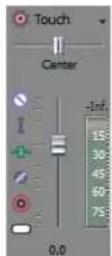
Adjusting panning
When the Automation Settings button (☐) is not selected, you can drag the Pan slider to control the position of the track in the stereo field: dragging to the left will place the track in the left speaker more than the right, and dragging to the right will place the track in the right speaker.
You can hold Ctrl while dragging the slider to adjust the setting in finer increments, or double-click the slider to return it to 0.
When the Automation Settings button (☐) is selected, the Pan slider handle is displayed with an automation icon (☐), and you can use it to edit pan automation.
Note: The trim level is added to the pan automation settings so your panning envelope is preserved, but with an offset applied. For example, setting the trim control to 9% left has the same effect as moving every envelope point 9% to the left.
Adjusting volume
When the Automation Settings button (💡) is not selected, you can drag the Volume fader to control the overall (trim) volume of the track.
You can hold Ctrl while dragging the slider to adjust the setting in finer increments, or double-click the slider to return it to 0.
When the Automation Settings button (☐) is selected, the Volume fader handle is displayed with an automation icon (☐), and you can use it to edit volume automation.
Note: The trim level is added to the volume automation settings so your envelope is preserved, but with a boost or cut applied. For example, setting the trim control to -3 dB has the same effect as decreasing every envelope point by 3 dB.
Using bus channel strips
A separate channel strip is displayed for each bus in your project.
To show or hide channel strips for busses, click the Busses button in the View pane.
Renaming a bus
To rename a bus, double-click the label at the bottom of the channel strip and type a new name in the box (or press F2 to rename the selected bus). The channel strip in the Mixing Console is updated when you press Enter.
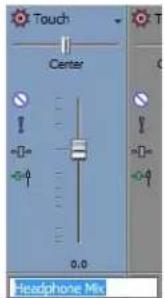
Adding or editing bus (insert) effects
When the Insert FX control region is visible, each bus displays its effects chain at the top of the channel strip.
To show or hide the Insert FX control region, click the Insert FX button in the View pane.
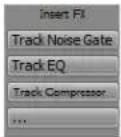
Each effect is displayed as a button. You can hover over the button to see a ToolTip that displays the full plug-in and preset name.
Tip: When the Insert FX control region isn't visible, you can click the Bus FX button (+) in the Faders control region to display the Audio Plug-In window for the bus effects chain.
Adding a plug-in
Click the Add New Insert FX button (....) and then choose a new plug-in from the menu to add a new plug-in to the effects chain.
Editing effects settings
Click an effect's button to display the Audio Plug-In window, where you can adjust the plug-in's settings.
When you right-click an effect's button, a shortcut a menu is displayed:
- Choose Show
to open the Audio Plug-In window, where you can adjust the plug-in's controls. - Choose Bypass
to temporarily bypass a plug-in.
When an effect is bypassed, its button is displayed in red text.
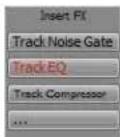
- Choose Remove
to remove a plug-in from the effects chain. - Choose Presets, and then choose a setting from the submenu to load a new preset.
• To replace the current plug-in, right-click the effect's button, and then choose a new plug-in from the menu. Plug-ins are organized in submenus by type (EQ, Dynamics, Reverbs, etc.).
Adjusting bus send levels
When the Sends control region is visible, each bus displays controls you can use to route the bus to assignable effects chains or to busses that are routed to hardware outputs.
To show or hide the Sends control region, click the Sends button in the View pane.
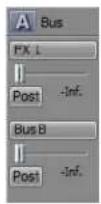
When the Automation Settings button (☐) in the Faders control region is not selected, click the Channel Send button and choose a bus or assignable effects chain from the menu, and then drag the fader to adjust the send level.
When the Automation Settings button (☐) in the Faders control region is selected, the fader handle is displayed with an automation icon (☐), and you can use it to edit send volume automation on the bus track.
Note: The trim level is added to the automation settings so your envelope is preserved, but with a boost or cut applied. For example, setting the trim control to -3 dB has the same effect as decreasing every envelope point by 3 dB.
Tip: To adjust the size of the Sends control region, you can drag the bottom divider to make more or fewer sends visible.
Bus sends are post-volume (and post-mute) by default. To change to pre-volume (and pre-mute), click the Pre/Post button to switch to Pre-Volume Send mode.
Changing a bus's output device
When the I/O control region is visible, each bus displays controls you can use to set the bus's output device. To show or hide the I/O control region, click the I/O button in the View pane.
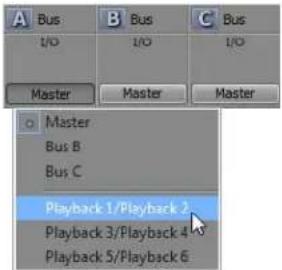
To choose an output device, click the Output button and choose a bus or hardware output from the menu.
Important: When you route busses to hardware outputs, the outputs from those busses will not be included in the mix when you render your project.
Monitoring bus levels with VU/PPM meters
When the VU/PPM Meters control region is visible, you can display volume unit (VU) and peak program (PPM) meters to help you determine the perceived loudness of your audio signal (peak program meters provide faster response times to volume increases than VU meters).
To show or hide the VU/PPM Meters control region, click the VU Meters button in the View pane.
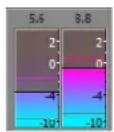
Right-click the meter and choose a setting from the shortcut menu (or hover over the meter and roll your mouse wheel) to change the resolution and display options.
| Item | Description | |
| Show VU/PPM | Use this command to show or hide meters for individual channels. | |
| Reset Clip | Clears clipping indicators. | |
| Traditional VU | The traditional VU meter is displayed with a scale of -10 dB to +2 dB. 0 dB on the VU meter equals 4 dBu. | |
| Extended VU | The extended VU meter is displayed with a scale of -30 dB to +8 dB. 0 dB on the VU meter equals 4 dBu. | |
| Logarithmic VU | Displays the meters in a logarithmic scale (like the Sound Forge peak meters) instead of the linear scales traditionally associated with VU meters. | |
| UK PPM | The UK peak program meter (also known as a BBC meter) is a Type II meter and is displayed with a scale of 1 to 7, which corresponds to a range of -12 to 12 dBu: | |
| UK Marks | dBu | |
| 7 | 12 | |
| 6 | 8 | |
| 5 | 4 | |
| 4 | 0 | |
| 3 | 4 | |
| 2 | 8 | |
| 1 | -12 | |
| EBU PPM | The EBU peak program meter is a Type II meter and is displayed with a scale of -12 to +12, which corresponds to -12 dBu to 12 dBu. 0 on the EBU PPM equals 0 dBu.The EBU PPM and UK PPM respond identically to increases in volume, but the EBU PPM decays more slowly. | |
| DIN PPM | The DIN peak program meter is a Type I meter and is displayed with a scale of -50 dB to +5 dB, which corresponds to -44 dBu to 11 dBu. 0 dB on the DIN PPM equals 6 dBu. | |
| Nordic PPM | The Nordic peak program meter is a Type I meter and is displayed with a scale of -42 dB to +12 dB, which corresponds to -42 dBu to 12 dBu. 0 dB on the Nordic PPM equals 0 dBu. | |
| Show Labels | Toggles the meter level labels on and off. | |
| Show Peaks | Toggles peak level indicators on the top of the meter. | |
| Hold Peaks | When selected, the highest peak levels are represented by a thin line on the meter. | |
| Hold Valleys | When selected, the lowest peak levels are represented by a thin line on the meter. | |
| Vintage Mode | When Vintage Mode is selected, the VU meters use a different calculation method to simulate the response of analog VU meters. | |
Monitoring bus levels with peak meters
When the Meters control region is visible, each bus displays meters you can use to monitor output levels.
To show or hide the Meters control region, click the Meters button in the View pane.
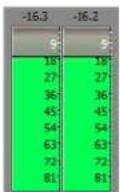
Note: If the Meters control region is not visible, peak meters are displayed in the Faders control region.
Right-click the meter and choose a setting from the shortcut menu (or hover over the meter and roll your mouse wheel) to change the resolution and display options.
Tip: Right-click the peak meters and choose Show Peak Meter to show or hide meters for individual channels.
Muting or soloing a bus
When the Faders control region is visible, each bus displays Mute (☐) and Solo (☐) buttons.
To show or hide the Faders control region, click the Faders button in the View pane.
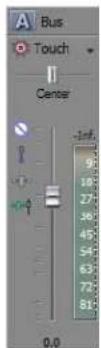
Muting a bus
When the Automation Settings button (💡) is not selected, you can click the Mute button (💡) to prevent a bus from being played in the mix. Click the Mute button on additional busses to add them to the mute group. To unmute a bus, click the Mute button again.
When the Automation Settings button (☑) is selected, the Mute button is displayed with an automation icon (☐), and you can use the button to edit mute automation on the bus track.
Soloing a bus
Click the Solo button (1) to mute all unselected busses. Click the Solo button on additional busses to add them to the solo group. To remove a bus from the solo group, click its Solo button again.
Adjusting bus panning or volume
When the Faders control region is visible, each bus displays a Pan slider and a Volume fader.
Tip: The Pan slider is displayed only when a bus is routed to the master bus or an auxiliary bus. It is not available when the bus is routed directly to a hardware output.
To show or hide the Faders control region, click the Faders button in the View pane.
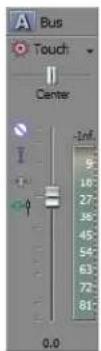
Adjusting panning
When the Automation Settings button (☐) is not selected, you can drag the Pan slider to control the position of the bus in the stereo field: dragging to the left will place the bus in the left speaker more than the right, and dragging to the right will place the bus in the right speaker.
You can hold Ctrl while dragging the slider to adjust the setting in finer increments, or double-click the slider to return it to 0.
When the Automation Settings button (☐) is selected, the Pan slider handle is displayed with an automation icon (☐), and you can use it to edit pan automation on the bus track.
Note: The trim level is added to the pan automation settings so your panning envelope is preserved, but with an offset applied. For example, setting the trim control to 9 percent left has the same effect as moving every envelope point 9 percent to the left.
Adjusting volume
When the Automation Settings button (💡) is not selected, you can drag the Volume fader to control the overall (trim) volume of the bus.
You can hold Ctrl while dragging the slider to adjust the setting in finer increments, or double-click the slider to return it to 0.
When the Automation Settings button (💡) is selected, the Volume fader handle is displayed with an automation icon (💡), and you can use it to edit volume automation on the bus track.
Note: The trim level is added to the volume automation settings so your envelope is preserved, but with a boost or cut applied. For example, setting the trim control to -3dB has the same effect as decreasing every envelope point by 3dB .
Changing pre/post routing
The Pre/Post-Fader Send button in the Sends control region and the Pre/Post Fader Insert FX button (←+) in the Faders control region work together to determine the signal flow for your busses.
The Pre/Post Fader Insert FX button allows you to indicate whether the insert FX chain is affected by the channel's gain fader. When set to Post Fader Insert FX (→), the FX chain is affected by the channel's gain. When set to Pre Fader Insert FX (→), the FX chain is not affected by the channel's gain fader, which is essential on the master bus when using plug-ins that dither the audio for final rendering.
The Pre/Post Fader Send button allows you to create cue mixes that are not affected by the gain (or mute/pan) stages of the bus or track.
- When Pre Fader Insert FX (→) and Pre Fader Send are selected, your audio signal flows as follows: bus effects — bus send — bus pan — bus volume.
- When Pre Fader Insert FX (→) and Post Fader Send are selected, your audio signal flows as follows: bus effects — bus pan — bus volume — bus send.
- When Post Fader Insert FX (→) and Pre Fader Send are selected, your audio signal flows as follows: bus send — bus pan — bus volume — bus effects.
- When Post Fader Insert FX (→) and Post Fader Send are selected, your audio signal flows as follows: bus pan — bus volume — bus effects — bus send.
Using input bus channel strips
You can use input busses to input, process, record, and mix external audio sources with your Vegas Pro project. Following are some examples of how you can use input busses in your projects:
• Use an input bus as a recording input, allowing you to apply effects and record a wet signal.
• Use an input bus as a mixer input for an external device, such as a synthesizer.
- Use an input bus as a return for hardware-based effects. For more information, see Using input busses with hardware-based effects on page 248.
• Use an input bus to monitor a source such as a talkback microphone. For more information, see Monitoring an external source without mixing it with your project on page 249.
Adding or deleting input busses
From the Insert menu, choose Input Bus (or click the Insert Input Bus button (in the Mixing Console window) to add an input bus to your project.
Note: You can add up to 26 input busses, and you can change the number of busses at any time.
Adding an input bus
From the Insert menu, choose Input Bus to add an input bus to your project.
Tip: If the Mixing Console Window is visible, click the Insert Input Bus button (☐).
Renaming an input bus
To rename a bus, double-click the label at the bottom of the channel strip and type a new name in the box (or press F2 to rename the selected bus). The channel strip in the Mixing Console is updated when you press Enter.
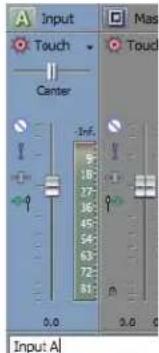
Tip: Delete all characters in a custom bus name to reset a custom bus name to its default.
Deleting an input bus
Right-click an input bus channel strip and choose Delete from the shortcut menu, or select an input bus channel strip in the Mixing Console window and press the Delete key.
Configuring input bus channel strips
Renaming an input bus
To rename an input bus, double-click the label at the bottom of the channel strip and type a new name in the box (or press F2 to rename the selected bus). The channel strip in the Mixing Console is updated when you press Enter.
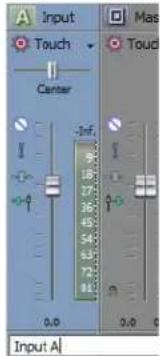
Adding or editing input bus (insert) effects
When the Insert FX control region is visible, each input bus displays its effects chain at the top of the channel strip.
To show or hide the Insert FX control region, click the Insert FX button in the View pane.
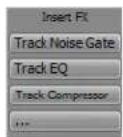
Each effect is displayed as a button. You can hover over the button to see a ToolTip that displays the full plug-in and preset name.
Tips:
- When the Insert FX control region isn't visible, you can click the Edit Insert FX Chain button (⊕) in the Faders control region to display the Audio Plug-In window for the bus effects chain.
- Input bus insert effects are always applied pre-fader.
Adding a plug-in
Click the Add New Insert FX button (....) and then choose a new plug-in from the menu to add a new plug-in to the effects chain.
Editing effects settings
Click an effect's button to display the Audio Plug-In window, where you can adjust the plug-in's settings.
When you right-click an effect's button, a shortcut a menu is displayed:
- Choose Show
to open the Audio Plug-In window, where you can adjust the plug-in's controls. - Choose Bypass
to temporarily bypass a plug-in.
When an effect is bypassed, its button is displayed in red text.
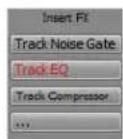
- Choose Remove
to remove a plug-in from the effects chain. - Choose Presets, and then choose a setting from the submenu to load a new preset. The current preset is indicated by a check mark.
- To replace the current plug-in, right-click the effect's button, and then choose a new plug-in from the menu. Plug-ins are organized in submenus by type (EQ, Dynamics, Reverbs, etc.).
Adjusting input bus send levels
When the Sends control region is visible, each bus displays controls you can use to route the input bus to assignable effects chains or to busses that are routed to hardware outputs. A bus cannot send to a bus that is directly or indirectly routed to the Master bus.
To show or hide the Sends control region, click the Sends button in the View pane.
When the Automation Settings button (💡) in the Faders control region is not selected, click the Channel Send button and choose a bus or assignable effects chain from the menu, and then drag the fader to adjust the send level.
When the Automation Settings button (💡) in the Faders control region is selected, the fader handle is displayed with an automation icon (💡), and you can use it to edit send volume automation on the bus track.
Note: The trim level is added to the automation settings so your envelope is preserved, but with a boost or cut applied. For example, setting the trim control to -3 dB has the same effect as decreasing every envelope point by 3 dB.
Tip: To adjust the size of the Sends control region, you can drag the bottom divider to make more or fewer sends visible.
Bus sends are post-volume (and post-mute) by default. To change to pre-volume (and pre-mute), click the Pre/Post button to switch to Pre-Volume Send mode.
Changing an input bus's input or output port
When the I/O control region is visible, each bus displays controls you can use to set the bus's input and output device.
To show or hide the I/O control region, click the I/O button in the View pane.
Choosing an input device
To choose an output device, click the Input button and choose a port from the menu.
Choosing an output device
To choose an output device, click the Output button and choose a bus or hardware output from the menu, or choose Output Off. Setting the output to Output Off is useful when you're using an input bus as a recording input and want to monitor the bus through the track or when using an input bus as a talkback mic.
Important: When you route busses to hardware outputs, the outputs from those busses will not be included in the mix when you render your project.
If you want to use an input bus as a track input, click the Record Input button on the track header, choose Input Busses from the menu, and choose an input bus from the submenu.
Monitoring input bus levels with VU/PPM meters
When the VU/PPM Meters control region is visible, you can display volume unit (VU) and peak program (PPM) meters to help you determine the perceived loudness of your audio signal (peak program meters provide faster response times to volume increases than VU meters).
To show or hide the VU/PPM Meters control region, click the VU Meters button in the View pane.
Right-click the meter and choose a setting from the shortcut menu (or hover over the meter and roll your mouse wheel) to change the resolution and display options.
| Item | Description | |
| Show VU/PPM | Use this command to show or hide meters for individual channels. | |
| Reset Clip | Clears clipping indicators. | |
| Traditional VU | The traditional VU meter is displayed with a scale of -10 dB to +2 dB. 0 dB on the VU meter equals 4 dBu. | |
| Extended VU | The extended VU meter is displayed with a scale of -30 dB to +8 dB. 0 dB on the VU meter equals 4 dBu. | |
| Logarithmic VU | Displays the meters in a logarithmic scale (like the Sound Forge peak meters) instead of the linear scales traditionally associated with VU meters. | |
| UK PPM | The UK peak program meter (also known as a BBC meter) is a Type II meter and is displayed with a scale of 1 to 7, which corresponds to a range of -12 to 12 dBu: | |
| UK Marks | dBu | |
| 7 | 12 | |
| 6 | 8 | |
| 5 | 4 | |
| 4 | 0 | |
| 3 | 4 | |
| 2 | 8 | |
| 1 | -12 | |
| EBU PPM | The EBU peak program meter is a Type II meter and is displayed with a scale of -12 to +12, which corresponds to -12 dBu to 12 dBu. 0 on the EBU PPM equals 0 dBu.The EBU PPM and UK PPM respond identically to increases in volume, but the EBU PPM decays more slowly. | |
| DIN PPM | The DIN peak program meter is a Type I meter and is displayed with a scale of -50 dB to +5 dB, which corresponds to -44 dBu to 11 dBu. 0 dB on the DIN PPM equals 6 dBu. | |
| Nordic PPM | The Nordic peak program meter is a Type I meter and is displayed with a scale of -42 dB to +12 dB, which corresponds to -42 dBu to 12 dBu. 0 dB on the Nordic PPM equals 0 dBu. | |
| Show Labels | Toggles the meter level labels on and off. | |
| Show Peaks | Toggles peak level indicators on the top of the meter. | |
| Hold Peaks | When selected, the highest peak levels are represented by a thin line on the meter. | |
| Hold Valleys | When selected, the lowest peak levels are represented by a thin line on the meter. | |
| Vintage Mode | When Vintage Mode is selected, the VU meters use a different calculation method to simulate the response of analog VU meters. | |
Monitoring input bus levels with peak meters
When the Meters control region is visible, each input bus displays meters you can use to monitor output levels.
To show or hide the Meters control region, click the Meters button in the View pane.
Note: If the Meters control region is not visible, peak meters are displayed in the Faders control region.
Right-click the meter and choose a setting from the shortcut menu (or hover over the meter and roll your mouse wheel) to change the resolution and display options.
Tip: Right-click the peak meters and choose Show Peak Meter to show or hide meters for individual channels.
Muting or soloing an input bus
When the Faders control region is visible, each input bus displays Mute (○) and Solo (■) buttons.
To show or hide the Faders control region, click the Faders button in the View pane.
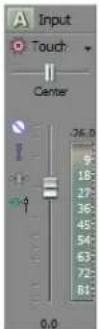
Muting an input bus
When the Automation Settings button (💡) is not selected, you can click the Mute button (💡) to prevent an input bus from being played in the mix. Click the Mute button on additional input busses to add them to the mute group. To unmute an input bus, click the Mute button again.
When the Automation Settings button (💡) is selected, the Mute button is displayed with an automation icon (💡), and you can use the button to edit mute automation on the bus track.
Soloing an input bus
Click the Solo button (☐) to mute all unselected input busses. Click the Solo button on additional input busses to add them to the solo group. To remove an input bus from the solo group, click its Solo button again.
Adjusting input bus volume or panning
When the Faders control region is visible, each input bus displays a Pan slider and a Volume fader.
Note: The Pan slider is displayed only when an input bus is routed to the master bus or an auxiliary bus. It is not available when the input bus is routed directly to a hardware output.
To show or hide the Faders control region, click the Faders button in the View pane.
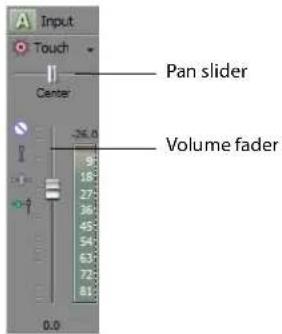
Adjusting panning
When the Automation Settings button (☐) is not selected, you can drag the Pan slider to control the position of the bus in the stereo field. Dragging to the left will place the bus in the left speaker more than the right, and dragging to the right will place the bus in the right speaker.
You can hold Ctrl while dragging the slider to adjust the setting in finer increments, or double-click the slider to return it to 0.
When the Automation Settings button (☐) is selected, the Pan slider handle is displayed with an automation icon (☐), and you can use it to edit pan automation on the bus track.
Note: The trim level is added to the pan automation settings so your panning envelope is preserved, but with an offset applied. For example, setting the trim control to 9 percent left has the same effect as moving every envelope point 9 percent to the left.
Adjusting volume
When the Automation Settings button 📄 is not selected, you can drag the Volume fader to control the overall (trim) volume of the bus.
You can hold Ctrl while dragging the slider to adjust the setting in finer increments, or double-click the slider to return it to 0.
When the Automation Settings button (☐) is selected, the Volume fader handle is displayed with an automation icon (☐), and you can use it to edit volume automation on the bus track.
Note: The trim level is added to the volume automation settings so your envelope is preserved, but with a boost or cut applied. For example, setting the trim control to -3 dB has the same effect as decreasing every envelope point by 3 dB.
Changing input bus pre/post routing
Insert effects on input busses are always pre fader. The FX chain is not affected by the channel's gain fader.
The Pre/Post Fader Send button allows you to create cue mixes that are not affected by the gain (or mute/pan) stages of the bus or track.
- When Pre Fader Send is selected, your audio signal flows as follows: bus effects — bus send — bus pan — bus volume.
• When Post Fader Send is selected, your audio signal flows as follows: bus effects — bus pan — bus volume — bus send.
Using FX send (assignable effects) channel strips
A separate channel strip is displayed for each FX send (assignable effects chain) in your project.
To show or hide channel strips for assignable effects, click the FX Sends button in the View pane.
Renaming an assignable effect chain
To rename an assignable effects chain, double-click the label at the bottom of the channel strip and type a new name in the box (or press F2 to rename the selected assignable effects chain). The channel strip in the Mixing Console is updated when you press Enter.
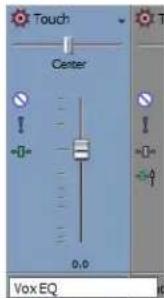
Adding or editing effects
When the Insert FX control region is visible, each assignable effects chain displays its effects at the top of the channel strip. To show or hide the Insert FX control region, click the Insert FX button in the View pane.
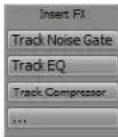
Each effect is displayed as a button. You can hover over the button to see a ToolTip that displays the full plug-in and preset name.
Adding a plug-in
Click the Add New Insert FX button (....) and then choose a new plug-in from the menu to add a new plug-in to the effects chain.
Editing effects settings
Click an effect's button to display the Audio Plug-In window, where you can adjust the plug-in's settings.
When you right-click an effect's button, a shortcut a menu is displayed:
- Choose Show
to open the Audio Plug-In window, where you can adjust the plug-in's controls. - Choose Bypass
to temporarily bypass a plug-in.
When an effect is bypassed, its button is displayed in red text.
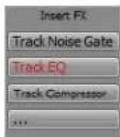
- Choose Remove
to remove a plug-in from the effects chain. - Choose Presets, and then choose a setting from the submenu to load a new preset.
- To replace the current plug-in, right-click the effect's button, and then choose a new plug-in from the menu. Plug-ins are organized in submenus by type (EQ, Dynamics, Reverbs, etc.)
Adjusting assignable effects input levels
When the Sends control region is visible, each assignable effects chain displays controls you can use to adjust and monitor the input volume of the effects chain.
To show or hide the Sends control region, click the Sends button in the View pane.
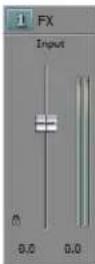
Changing an effects chain's output device
When the I/O control region is visible, each assignable effects chain displays controls you can use to set the chain's output device.
To show or hide the I/O control region, click the I/O button in the View pane.
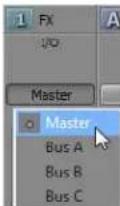
To choose an output device, click the Output button and choose a bus from the menu.
Monitoring assignable effects levels with VU/PPM meters
When the VU/PPM Meters control region is visible, you can display volume unit (VU) and peak program (PPM) meters to help you determine the perceived loudness of your audio signal (peak program meters provide faster response times to volume increases than VU meters).
To show or hide the VU/PPM Meters control region, click the VU Meters button in the View pane.
Right-click the meter and choose a setting from the shortcut menu (or hover over the meter and roll your mouse wheel) to change the resolution and display options.
| Item Description | ||
| Show VU/PPM | Use this command to show or hide meters for individual channels. | |
| Reset Clip | Clears clipping indicators. | |
| Traditional VU | The traditional VU meter is displayed with a scale of -10 dB to +2 dB. 0 dB on the VU meter equals 4 dBu. | |
| Extended VU | The extended VU meter is displayed with a scale of -30 dB to +8 dB. 0 dB on the VU meter equals 4 dBu. | |
| Logarithmic VU | Displays the meters in a logarithmic scale (like the Sound Forge peak meters) instead of the linear scales traditionally associated with VU meters. | |
| Item | Description | |
| UK PPM | The UK peak program meter (also known as a BBC meter) is a Type II meter and is displayed with a scale of 1 to 7, which corresponds to a range of -12 to 12 dBu: | |
| UK Marks | dBu | |
| 7 | 12 | |
| 6 | 8 | |
| 5 | 4 | |
| 4 | 0 | |
| 3 | 4 | |
| 2 | 8 | |
| 1 | -12 | |
| EBU PPM | The EBU peak program meter is a Type II meter and is displayed with a scale of -12 to +12, which corresponds to -12 dBu to 12 dBu. 0 on the EBU PPM equals 0 dBu.The EBU PPM and UK PPM respond identically to increases in volume, but the EBU PPM decays more slowly. | |
| DIN PPM | The DIN peak program meter is a Type I meter and is displayed with a scale of -50 dB to +5 dB, which corresponds to -44 dBu to 11 dBu. 0 dB on the DIN PPM equals 6 dBu. | |
| Nordic PPM | The Nordic peak program meter is a Type I meter and is displayed with a scale of -42 dB to +12 dB, which corresponds to -42 dBu to 12 dBu. 0 dB on the Nordic PPM equals 0 dBu. | |
| Show Labels | Toggles the meter level labels on and off. | |
| Show Peaks | Toggles peak level indicators on the top of the meter. | |
| Hold Peaks | When selected, the highest peak levels are represented by a thin line on the meter. | |
| Hold Valleys | When selected, the lowest peak levels are represented by a thin line on the meter. | |
| Vintage Mode | When Vintage Mode is selected, the VU meters use a different calculation method to simulate the response of analog VU meters. | |
Monitoring output levels with peak meters
When the Meters control region is visible, each assignable effects chain displays meters you can use to monitor output levels.
To show or hide the Meters control region, click the Meters button in the View pane.
Note: If the Meters control region is not visible, peak meters are displayed in the Faders control region.
Right-click the meter and choose a setting from the shortcut menu (or hover over the meter and roll your mouse wheel) to change the resolution and display options.
Tip: Right-click the peak meters and choose Show Peak Meter to show or hide meters for individual channels.
Muting or soloing an assignable effects chain
When the Faders control region is visible, each assignable effects chain displays Mute (💡) and Solo (💡) buttons.
To show or hide the Faders control region, click the Faders button in the View pane.
Muting an assignable effects chain
When the Automation Settings button (☐) is not selected, you can click the Mute button (☐) to prevent an assignable effects chain bus from being played in the mix. Click the Mute button on additional chains to add them to the mute group. To unmute a chain, click the Mute button again.
When the Automation Settings button (💡) is selected, the Mute button is displayed with an automation icon (💡), and you can use the button to edit mute automation on the bus track.
Soloing an assignable effects chain
Click the Solo button (1) to mute all unselected assignable effects chains and busses. Click the Solo button on additional assignable effects chains or busses to add them to the solo group. To remove a chain from the solo group, click its Solo button again.
Adjusting assignable effects panning or volume
When the Faders control region is visible, each bus displays a Pan slider and a Volume fader.
To show or hide the Faders control region, click the Faders button in the View pane.
Adjusting panning
When the Automation Settings button (☐) is not selected, you can drag the Pan slider to control the position of the bus in the stereo field: dragging to the left will place the bus in the left speaker more than the right, and dragging to the right will place the bus in the right speaker.
You can hold Ctrl while dragging the slider to adjust the setting in finer increments, or double-click the slider to return it to 0.
When the Automation Settings button (☐) is selected, the Pan slider handle is displayed with an automation handle (☐), and you can use it to edit pan automation on the bus track.
Note: The trim level is added to the pan automation settings so your panning envelope is preserved, but with an offset applied. For example, setting the trim control to 9% left has the same effect as moving every envelope point 9% to the left.
Adjusting volume
When the Automation Settings button (💡) is not selected, you can drag the Volume fader to control the overall (trim) volume of the bus.
You can hold Ctrl while dragging the slider to adjust the setting in finer increments, or double-click the slider to return it to 0.
When the Automation Settings button (💡) is selected, the Volume fader handle is displayed with an automation icon (💡), and you can use it to edit volume automation on the bus track.
Note: The trim level is added to the volume automation settings so your envelope is preserved, but with a boost or cut applied. For example, setting the trim control to -3 dB has the same effect as decreasing every envelope point by 3 dB.
Using input busses with hardware-based effects
Plug-ins are great, but there are times when you may want the sound of a specific piece of hardware for your tracks. This section will show you how to use auxiliary busses and input busses to send a track to an external processor.
- Connect your effects processor to your audio interface:
a. Connect the input of your effects processor to an output from your sound card (for this example, we'll use LineOut 1). b. Connect the output of your effects processor to an input on your sound card (for this example, we'll use Inst 1).
-
Add a bus to your project. This bus will be used as a destination to send a track to your effects processor.
-
Configure your bus to send its output to your effects processor:
In the I/O control region of the bus's channel strip, click the Output button and choose the output that is connected to your effects processor's input (LineOut 1/LineOut 2 for this example).
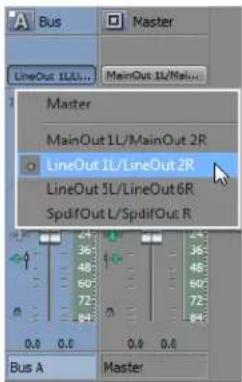
This auxiliary bus provides a signal path to your effects processor's input.
-
Add an input bus to your project. This input bus will receive the signal from your effects processor.
-
Configure your input bus to take its input from the effects processor and send its output to your main mix:
a. In the I/O control region of the input bus's channel strip, click the Input Source button and choose the sound card input that is connected to your effects processor's output (Inst 1 for this example).
b. Click the Output button and choose the output where you want to send your processed signal. We'll send this signal to the master bus so it is included with your main mix and will be included when performing a real-time render.
This input bus provides a signal path from your effects processor's output to your project.
- Send your track to the effects processor:
Click the bus button on the track header and choose the bus you created in step 2.
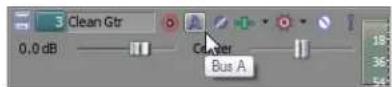
The bus button on the track header lets you send the track's audio to your effects processor.
- Click Play (▶)
When you play your project, the track is sent to your auxiliary bus, into the effects processor, out of the effects processor into the input bus, and out to the master bus.
- When you're ready to render your project, you can use real-time rendering to include the output from your effects processor with your project. For more information, see Rendering in real time on page 401.
Monitoring an external source without mixing it with your project
You may not want every signal that goes through the Mixing Console to be mixed with your project. For example, you could set up a cue (talkback) microphone to communicate between the control room and recording booth.
This section will show you how to use an input bus to set up a cue microphone.
-
Add an input bus to your project.
-
Connect a microphone to an input on your sound card (for this example, we'll use Mic/Inst 1).
-
In the recording booth, connect a pair of powered speakers or a headphone amplifier to an output on your sound card (for this example, we'll use LineOut 3L/LineOut 4R).
-
Set up your input bus:
a. In the I/O control region of the input bus channel strip, click the Input Source button and choose the sound card input where your cue microphone is connected.
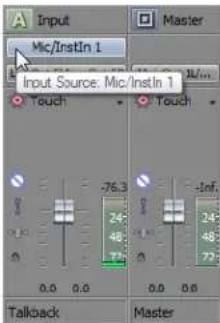
b. Click the Output button and choose the sound card output where your speaker or headphone amplifier is connected.
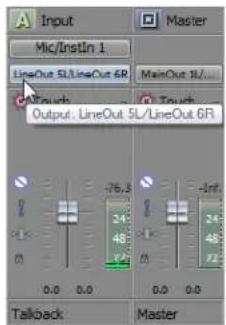
When you speak into the cue microphone, its output is sent to the recording booth without being mixed into your project output.
Creating a Cue (Headphone) Mix with the Mixing Console
When you're recording, you'll often need to create separate monitor mixes: the performer in the recording booth may need a slightly different mix than you're listening to in the control room. The flexibility of the Mixing Console makes it easy to create custom cue mixes.
When you start a new project, all audio tracks are routed to the master bus. Let's assume that you're using the master bus for your main mix. If you have a sound card with multiple hardware outputs, you can create alternative mixes that you can send to hardware outputs without changing your main mix.
- First, go to the Audio Device tab in the Preferences dialog and ensure you have a multiple-output device selected in the Audio device type drop-down list. For more information, see Audio Device tab on page 453.
- On the Audio tab of the Preferences dialog, clear the Track prefader sends listen to mute check box. For more information, see Audio tab on page 451.
- If the Mixing Console isn't already visible, choose Mixing Console from the View menu.
- First, let's click the Insert Bus button (sp) in the Mixing Console window to create a new bus for our alternative mix.
- By default, the bus is named Bus A. Let's double-click the bus label in the mixer window and type "Mark's Headphones" in the box to give our bus a more descriptive name.
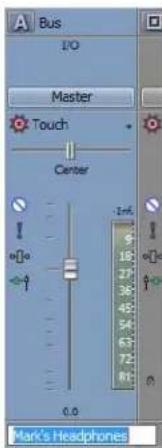
- Now we need to route our headphone bus to one of our sound card's outputs.
a. In the Mixing Console, click the Output button in the I/O control region on the cue mix bus. A menu is displayed that lists all of our sound card's outputs.
Tip: To show or hide the I/O control region, click the I/O button in the View pane.
b. Choose the output where you want to send the headphone mix.
c. Connect the performer's headphones to the selected output.
- Now we need to create our headphone mix.
a. If the Sends control region isn't already visible, click the Sends button in the View pane. Notice that each track now has a send for Mark's Headphones (Bus A).
If you have multiple busses in your project, you can adjust the height of the Sends control region until all sends are visible, or you can click the Channel Send button for each track and choose Mark's Headphones (Bus A) from the menu.
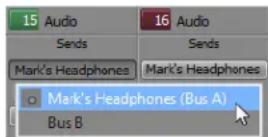
b. Click the Pre/Post in each track's Sends control region to select Pre Volume Send mode. When bus sends are pre-volume, the cue mix is independent of the main mix.
c. Drag the fader on each track's channel strip to adjust the level of the track that is sent to the headphone mix bus. If multiple tracks are selected, you can adjust their bus-send levels at the same time.
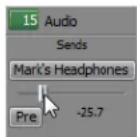
Right-click the bus send fader in the track header in the main application window and choose Link to Main Track Pan from the shortcut menu. When this command is selected, track panning is applied to bus sends (including pan position and panning mode). When Link to Main Track Pan is not selected, the track sends a center-panned stereo signal using the track's current panning mode.
If you want to exclude a track from the headphone mix, just set its send to -Inf.
You can use the channel strip for the headphone mix bus in the Mixing Console window to adjust the level of the headphone mix, add effects to the mix, or mute and solo the mix. For more information, see Using bus channel strips on page 232.
If you need to create multiple mixes, you can add up to 26 busses to the Mixing Console window and repeat the procedure described in this section.
Adding Audio Effects
You can use audio effects, or plug-ins, to improve the quality of the audio in a production or to create special artistic effects. Vegas® Pro software supports a variety of DirectX® and VST plug-in effects from both Sony Creative Software Inc. and third-party vendors.
Using audio effects
There are four ways to use audio plug-ins: event effects, track effects, bus effects, and assignable effects. You can access these plugins by clicking the Event FX, Track FX, Bus FX, or Assignable FX buttons (→). The combination of these various methods of applying audio effects is important to the final mix of a project. For more information, see Audio signal flow on page 34.
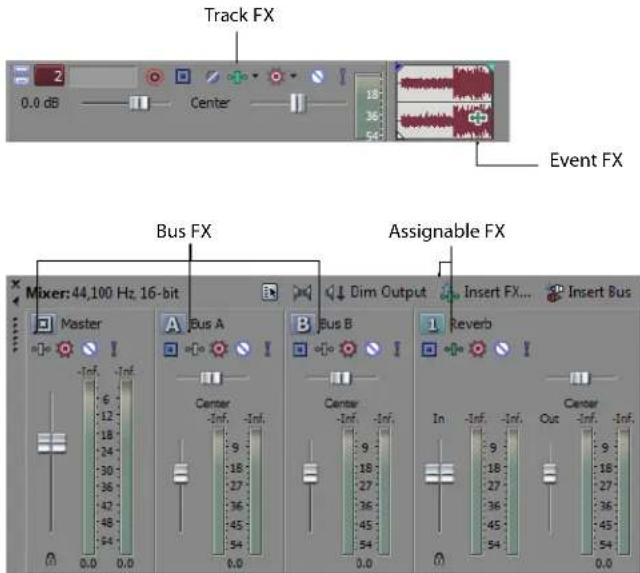
• Event effects are applied to events on the timeline.
• Track effects are applied to all events in a single track.
- Bus effects are applied to a bus (including the Master bus). When you add plug-ins to a bus, the tracks that are assigned to the bus are processed by the plug-ins. Since multiple tracks can be assigned to a single bus, using bus-level audio effects is an efficient method of applying carefully customized chains of audio effects to multiple tracks. If plug-ins are assigned at the track level, the track's signal flows through the track's plug-ins before the bus plug-ins.
- Assignable effects allow you to send various levels of multiple tracks to a single effect chain. Like busses, these controls reside in the Mixer window and support plug-in chains. In addition, assignable effects outputs can be routed to busses. Click the Insert Assignable FX button (✗) in the Mixer window to add an assignable effect chain to your project. For more information, see Using assignable effects chains on page 217.
Using plug-in chains
A plug-in chain is a sequence of plug-ins to be applied to events, tracks, busses, or assignable effects. A plug-in chain can contain one or more plug-ins. The same plug-in can be added to a chain more than once.

After the plug-in chain is created, the audio is processed by each plug-in in order. The plug-ins are cumulative so, in some cases, you may want to rearrange their order to achieve the desired effect.
Notes:
• To add effects quickly, you can drag plug-ins and plug-in packages from the Plug-In Manager window to an audio or video track header.
- If you're working with a 5.1 surround project, you can use distinct plug-in settings for each channel (separate EQ settings for the front and surround speakers, for example) using effect automation. Add multiple instances of the plug-in to the track effects chain and select the Enable check boxes in the FX Automation Chooser for the channels you want each instance of the plug-in to affect.
Important: Be aware that using non-in-place audio plug-ins (such as Time Stretch, Pitch-Shift without preserving duration, and some Vibrato settings) will cause audio to play out of synchronization with the waveform display in the timeline and with other tracks. If an effects chain includes non-in-place plug-ins, the effects chain icon will be yellow (→).
When input monitoring is on during audio recording, plug-in chains that cannot be used for live monitoring are automatically bypassed and have red icons (✗).
Creating a plug-in chain
Audio tracks have a built-in plug-in chain with three default plug-ins applied as a default. For bus effects and assignable effects, however, you must first create a plug-in chain.
Creating a bus effects plug-in chain
- Click the Bus FX button (⊕) on a bus in the Mixer window. The Plug-In Chooser dialog appears.
- Select a plug-in and click OK. The Audio Plug-In window appears with your selected plug-in as the first in the new plug-in chain.
- Adjust the settings for the plug-in to create the desired effect and click the Close button (☒) in the upper-right corner to close the window.
Creating an assignable effects plug-in chain
- Click the Insert Assignable FX button (☐) on the Mixer window. The Plug-In Chooser dialog appears.
- Select a plug-in and click OK. The Audio Plug-In window appears with your selected plug-in as the first in the new plug-in chain.
- Adjust the settings for the plug-in to create the desired effect and click the Close button (☒) in the upper-right corner to close the window. The new assignable effect control appears in the Mixer window.
Adding plug-ins to a plug-in chain
There are two ways to add plug-ins to a chain: via the Plug-In Chooser dialog and via the Audio Plug-In window.
Adding plug-ins via the Plug-In Chooser dialog
You can access the Plug-In Chooser dialog from the track, bus, or assignable effects chain to which you are adding the plug-in.
- Click the Event FX, Track FX, Bus FX, or Assignable FX button (☐). The Audio Plug-In window appears.


- Click the Plug-In Chain button (→) on the window. The Plug-In Chooser dialog appears. Plug-ins already in the chain appear at the top of the dialog.
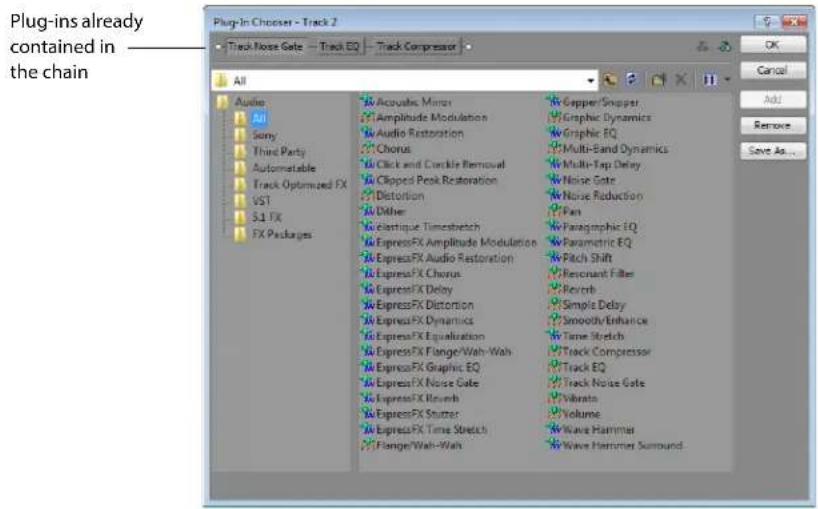
- Select a plug-in and click Add.
- Repeat step three to add as many plug-ins as you need to create the desired effect.
- Click OK to close the Plug-in Chooser dialog. The plug-in chain appears just below the title bar in the Audio Plug-In window.
Adding plug-ins via the Plug-In Manager
The Plug-In Manager is a dockable window that allows you to view and choose plug-ins to be added to an event, track, bus, or assignable effects chain.
- If the Plug-In Manager is not displayed, press Ctrl+Alt+1.
- In the Plug-In Manager, navigate to the Audio folder and select one of the FX folders.
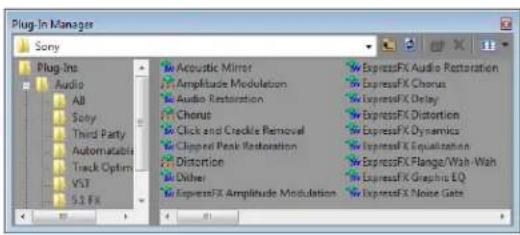
- Drag a plug-in to an event, track, bus, or assignable effects chain.
Tip: You can select multiple plug-ins and add them at the same time by dragging them to the desired location.
- Confirm that the plug-ins were added by clicking the Event FX, Track FX, Bus FX or Assignable FX button to view the Audio Plug-In window. You can customize the settings for the effects at this time.
Saving customized plug-in presets
Each plug-in has a number of presets that you can use to set the behavior of the plug-in. However, you can also adjust the controls for the plug-in manually to create custom settings. You can then save the effect settings as a new preset.
- Click the Event FX, Track FX, Bus FX or Assignable FX button (☐). The Audio Plug-In window appears.
- In the plug-in chain at the top of the window, click the plug-in you want to customize.
- Adjust the settings for the effect.
- Type a preset name in the Preset box.
- Click the Save button (☐) to save the preset.
Tip: You can delete a saved preset by selecting it from the list and clicking the Delete button (✗).
Arranging the order of plug-ins
Plug-ins are cumulative during playback. Because of this cumulative effect, you may need to arrange plug-ins in a certain order so that one plug-in's processing does not adversely affect the next plug-in on the chain. There is no right or wrong way to order plug-ins, but some plug-ins work better when arranged in a particular order.
You can arrange the order of plug-ins in a chain in the Audio Plug-In window or the Plug-In Chooser dialog.
Arranging the plug-in order in the Audio Plug-In window
- Click the Event FX, Track FX, Bus FX, or Assignable FX button (⊕). The Audio Plug-In window appears.
- On the plug-in that you want to move, right-click and choose Move Left or Move Right from the shortcut menu. Alternately, drag a plug-in to a new position.
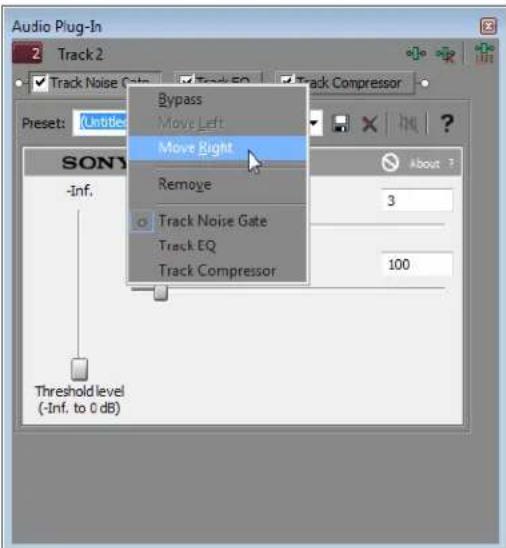
- When the chain's plug-ins are in the order that you want, click the Close button (✗) in the upper-right corner to close the window.
Arranging the plug-in order from the Plug-In Chooser dialog
- Click the Event FX, Track FX, Bus FX, or Assignable FX button (⊕). The appropriate Audio Plug-In window appears.
- Click the Plug-In Chain button (☐). The Plug-In Chooser dialog appears with the plug-in chain displayed at the top.
- Drag a plug-in to a new location in the chain, or select a plug-in and click either the Move Plug-In Left (50) or Move Plug-In Right (40) button.
- Click OK to close the Plug-In Chooser dialog.
Bypassing plug-ins on the chain
You can bypass plug-ins on the chain by clearing the check box on a specific plug-in or by right-clicking the plug-in and choosing Bypass from the shortcut menu. The plug-in remains bypassed until you enable it again. Bypassing a plug-in prevents it from being processed on the mixer, track, or bus.
Effect enabled

Effect bypassed
To enable the plug-in again, select its check box or choose Bypass from the shortcut menu.
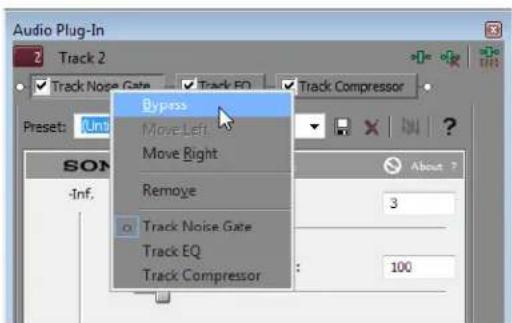
You can bypass plug-ins from the Audio Plug-In window or from the Plug-In Chooser dialog.
Removing plug-ins from a chain
You can remove plug-ins from a chain in either the Audio Plug-In window or the Plug-In Chooser dialog.
Removing a plug-in from the chain in the Audio Plug-In window
- Click the Event FX, Track FX, Bus FX, or Assignable FX button (●). The Audio Plug-In window appears.
- Select the plug-in that you want to remove.
- Click the Remove Selected Plug-In button (✗).
Removing a plug-in from the chain in the Plug-In Chooser dialog
- Click the Event FX, Track FX, Bus FX, or Assignable FX button (☐). The Audio Plug-In window appears.
- Click the Plug-In Chain button (☐). The Plug-In Chooser dialog appears with the plug-in chain displayed at the top.
- Select the plug-in that you want to remove and click Remove to remove it from the chain.
- Click OK to close the Plug-In Chooser dialog.
Saving plug-in chains
You can save and edit the plug-in chains that you add to tracks or busses or create as assignable effects chains. Saved chains retain the order of plug-ins and the settings that you have applied. These chains are stored as effect packages for use in future projects. If you use the same plug-in chains regularly, saving them as packages is faster and more consistent than recreating the chain manually.
Once you save a chain as a package, you can use it as either an event, track, bus or assignable effects plug-in chain. Saved plug-in chain packages appear in the Plug-In Chooser dialog.
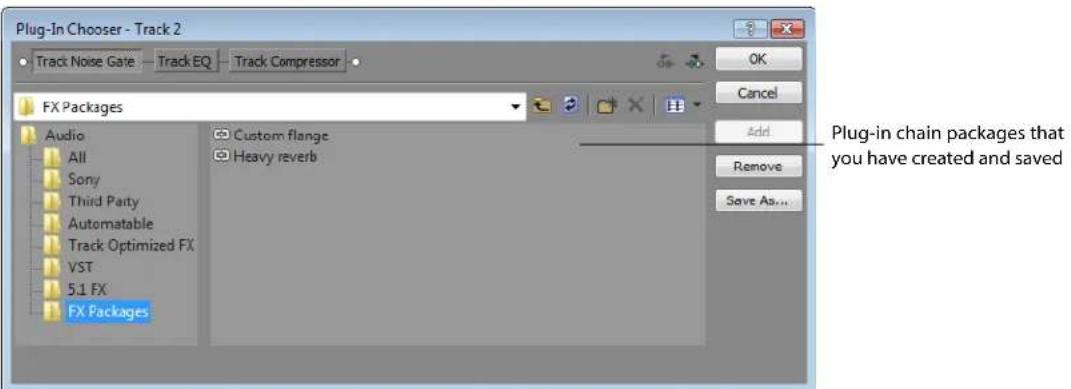
- Click the Event FX, Track FX, Bus FX or Assignable FX button (☐). The Audio Plug-In window appears.
- Click the Plug-In Chain button (☐). The Plug-In Chooser dialog appears with the plug-in chain displayed at the top.
- Click Save As. The Save Plug-in Package dialog appears.
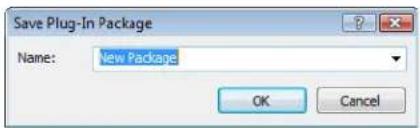
-
Type a name for the package.
-
Click OK or press Enter to save the package.
Editing saved plug-in chains
You can add, delete, or rearrange plug-ins in a saved package at any time. You can then save your changes to the package, or enter a new name to save the chain as a new package.
- Click the Event FX, Track FX, Bus FX or Assignable FX button (→). The appropriate FX window (Audio Plug-In or Video Track FX) appears.
- Click the Plug-In Chain button (☐). The Plug-In Chooser dialog appears with the package in the chain area.
- Add, delete, rearrange, or change the settings of plug-ins in the package chain.
- In the Plug-In Chooser dialog, click Save As to save the modified package.
- To save the package with a new name, type a name in the Name box. To save the changes to the existing package, choose the name of the package from the Name drop-down list.
- Click OK or press Enter to save the new settings.
Organizing your plug-ins
Within the Plug-In Chooser dialog, you can create folders to organize the plug-ins. This can help you organize large numbers of plug-ins on your system. You can create folders and then drag plug-ins to the folders.
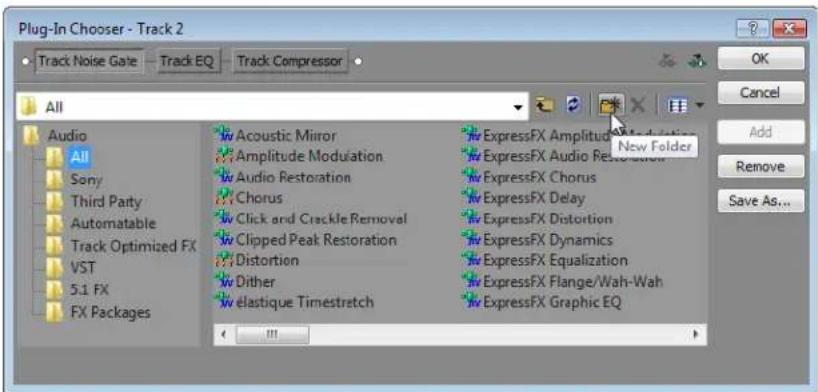
Automating effects parameters
Automation allows you to control audio and video levels, panning, and effect parameter automation over time. You can create fades, apply stereo panning, and add effects that come and go as you please. Automation is represented on the Vegas Pro timeline as an envelope or set of keyframes. You can create automation by adding envelopes or keyframes to your tracks (including bus tracks), or you can record automation parameters by adjusting controls in the Vegas Pro interface (or on a control surface) during playback. For more information, see Using Automation on page 183.
Applying non-real-time event effects
Non-real-time event effects are a different method of applying audio effects. In all other cases, event editing is nondestructive, meaning that edits and effects are applied to events in real time and not to the source media files, which remain unaltered. There may be times, however, when you want to create a permanent file using an effect or effects. This may be useful in a very complicated project or when a slower computer cannot process the effects quickly enough for a real-time preview.
By applying non-real-time event effects, you can make a new copy of a media file with the effects applied to it. This new media file is saved and added to the project as a take.
- Select an audio event.
- From the Tools menu, choose Audio, and choose Apply Non-Real-Time Event FX from the submenu.
- In the Plug-In Chooser dialog, add plug-ins to create a plug-in chain. For more information, see Adding plug-ins via the Plug-In Chooser dialog on page 254.
- Click OK.
- In the Take window, adjust the settings for the plug-ins to create the desired effect.
- Preview the effect by clicking the Preview button (▶) in the Take window.

- Click OK.
- In the Apply Non-Real-Time Event FX dialog, click Save to save the newly processed media file. The new media file is saved and added to the project as a take.
Bypassing all audio effects
From the Options menu, choose Bypass All Audio FX to omit all audio effects (track, bus, and assignable effects) during playback.
Bypassing effects allows you to quickly compare your project with and without effects and conserve processing power to avoid playback problems.
When effects are bypassed, you can choose whether bypassed effects remain open. When the Keep bypassed FX running check box on the General tab of the Preferences dialog is selected, effects remain open so you can bypass/enable effects with no pause for A/B testing. When the check box is cleared, effects are fully bypassed, conserving processing power.
Recording Audio
Vegas® Pro software can record audio into multiple mono or stereo audio tracks while simultaneously playing back existing audio and video tracks. You are limited only by the performance of your computer system and audio hardware. Audio is recorded to a media file on your computer and into an event on the timeline. You can record into an empty track, a time selection, an event, or a combination of time and event selection. Audio output from your computer during recording is not necessarily recorded with the new audio.
Recording does not alter any of the source media files in your project. Even when recording into an existing event, you are not overwriting the data in that event. Instead, the data is recorded into a new take for that event and saved to a media file on your hard drive.
Setting up your equipment
There are numerous ways to connect your equipment to your system. Refer to your equipment's documentation for specific setup instructions. The following are some possible general configurations.
Basic setup
This setup includes a simple microphone and speaker that are connected to the computer's sound card. With a more sophisticated microphone, you would typically want to use a preamplifier for input to the sound card.
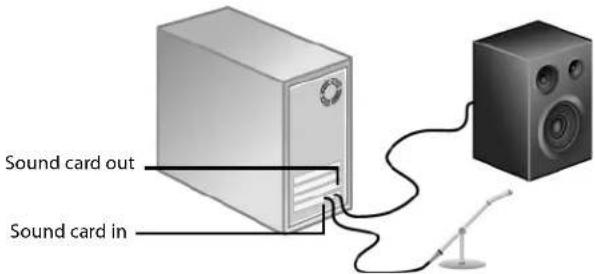
Setup with mixer
This setup includes a mixer where the speaker and microphone connect. The mixer is then connected to the computer's sound card. Mixers usually have pre-amps built into them. This diagram does not show you an instrument or a physical preamplifier, such as a rack-mounted component. The reason for this omission is because these types of setups vary widely based on your mixer, instrument, and pre-amp type. Refer to your components' documentation for specific setup configurations.
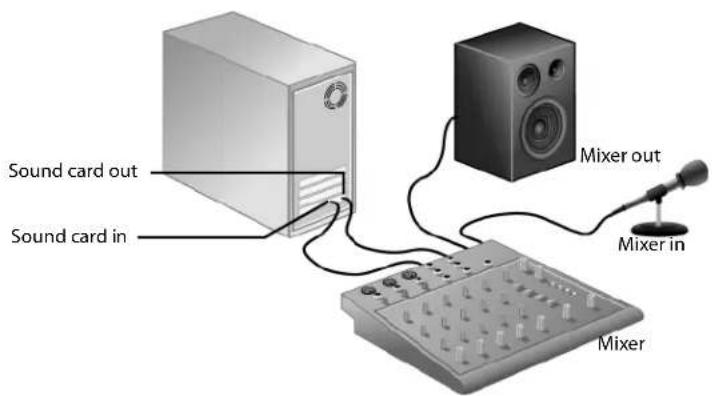
Setup with digital multitrack
This setup includes a digital multitrack recorder with an optional MIDI synchronization component. Usually you would have a mixer, a microphone, etc. connected to these components. Your particular setup will vary depending on your equipment. Refer to your components' documentation for specific setup configurations.
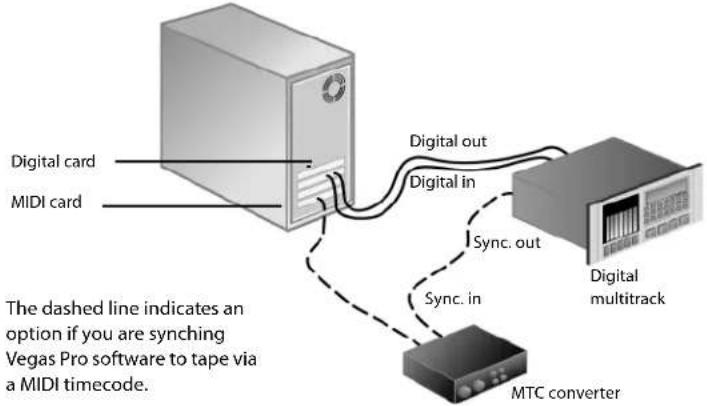
Synchronizing MIDI timecode
Vegas Pro software can generate (output) MIDI timecode to synchronize external devices with project playback or can be triggered by MIDI timecode generated by an external device. To output MIDI, from the Options menu, choose Timecode, and choose Generate MIDI Timecode from the submenu. To allow Vegas Pro software to be triggered by an external MIDI device, choose Trigger from MIDI Timecode from the same submenu. For more information, see Triggering from MIDI timecode on page 265 and Sync tab on page 458.
Preparing to record
Before you record, you must arm the tracks into which you will record the new audio. You must also select the recording settings for the tracks. You have the additional options of using a metronome or turning off playback during recording.
You can record into an empty track, a time selection, an event, or a combination of time and event selection. You can also record multiple takes for an event so you can maintain multiple versions of an event that you can play back and edit.
Tips:
- Select a media bin before recording if you want to automatically add your recorded audio to a media bin. To save track effects with your recorded files, create an effects package of the track effect settings and apply the chain to the event as a non-real time event effect.
- To save track effects with your recorded files, create an effects package of the track effect settings and apply the chain to the event as a non-real time event effect.
- Press Alt+Down Arrow during playback to move the edit cursor to the playback cursor.
- When the Record Broadcast Wave check box is selected on the Audio tab of the Preferences dialog, Vegas Pro records Broadcast Wave Format (.bwf) metadata when recording .wav files. You can view this information on the General tab of the Properties dialog for an event. For more information, see Audio tab on page 451 and Modifying media file properties on page 305.
Included in the .bwf metadata is a Time reference value. This item tracks where on the timeline the file was recorded. When you import a recorded .bwf file, it is added to the timeline at the same location it was originally recorded.
The originator (Vegas) and originator reference (a unique ID number), are also recorded.
Important: When input monitoring is on during audio recording, track effect chains that may delay the audio signal are displayed in yellow (●). Chains that cannot be used for live monitoring are automatically bypassed and are displayed in red (×).
Arming the track for recording
Whether recording into an existing track, an empty track, a selected event, or a time selection, you must prepare a track for recording. You can arm multiple tracks prior to recording.
Click the Arm for Record button (○) in the track header.
After a track is armed, a record meter appears in the track header. Depending on your hardware, a record gain fader may also appear.
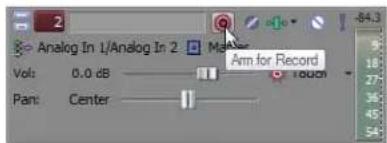
Arm the track first.
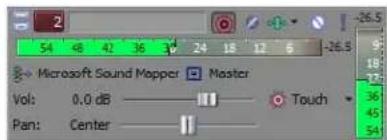
Track is ready for recording using the Sound Mapper.
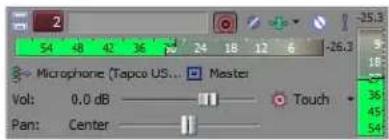
Track is ready for recording from a specific device.
Using the metronome
A built-in metronome marks time to help with the timing and tempo when recording a performance. The metronome's sound is not mixed in the final rendering of the project. Use the Preview fader in the Mixer window to control the metronome volume. For more information, see Using the Mixer Preview fader on page 212.
To use the metronome, from the Options menu, choose Metronome.
Tip: You can customize the sound of the metronome in the Audio tab of the Preferences dialog. For more information, see Audio tab on page 451.
Recording
You can record into an empty track, a time selection, an event, or a combination of time and event selection. The recording is added to the timeline as new take and saves it to a media file on your hard drive.
Triggering recording from MIDI timecode is also supported.
Recording into an empty track
- Select a track. Alternately, to record to a new track, choose Audio Track from the Insert menu.
- Place the cursor on the timeline where you want to begin recording.
- Arm the track by clicking the Arm for Record button (☐) on the track.
If this is the first time you arm a track for recording in this project, you will be prompted to identify the location where the new audio files will be saved. For more information, see Arming the track for recording on page 263.
- Start recording by clicking the Record button (☐) on the transport bar.
Depending on the recording selection, a waveform is created along the timeline as you record into the armed track(s).
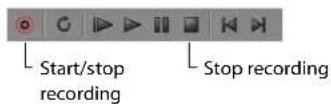

Recorded waveform
-
Stop recording by clicking the Record button (☐) again or the Stop button (☐) on the transport bar.
-
A small dialog opens displaying the name and location of the file or files that were just created. Click Done to return to the main workspace.
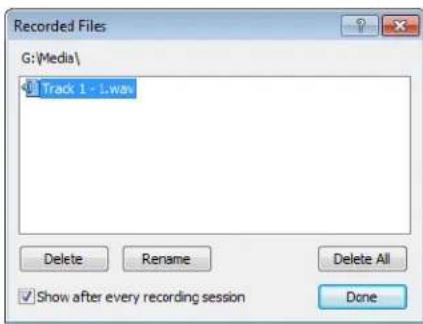
| Item Description | |
| Delete button Removes the selected file. | |
| Rename button Changes the name of the selected file. | |
| Delete All button Removes all files listed in the dialog. | |
| Done button | Closes the dialog and returns you to the timeline. |
| Show after every recording session check box | When this check box is selected, Vegas Pro software displays this dialog after each recording session. |
Note: The Recorded Files dialog does not appear if you are triggering from MIDI timecode, as this would interrupt the synchronizing. Instead, files are automatically named and saved according to your preferences.
Recording into a time selection
By making a time selection, you specify where along the timeline to record. The time selection also determines how long the software records. Any selected events that occur within the time selection are split and the recorded data is placed into the time selection.
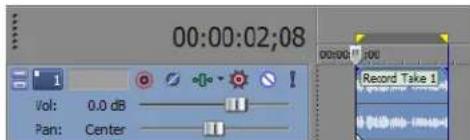
Recorded waveform
The event's waveform is displayed as it is recorded and automatically stops recording when the cursor reaches the end of the time selection.
Recording into an event
By recording into an event, you automatically create a new take containing the recorded material that is the same duration as the selected event. The edges of the selected event serve as the punch-in and -out points that are used for recording. Recording into an event allows you to establish a pre-roll before recording, which gives you time to prepare before recording starts.
Because the entire recording is saved to the media file (not just the material between the edges of the take), you are not limited to the recorded material contained in the length of the new take. You can adjust the edges of the event or slip the contents of the event if necessary. For more information, see Shifting the contents of (slipping) an event on page 105.
The existing event that you record into is not affected or deleted. Instead, the event now contains two media files, each listed as a separate take in the event. For more information, see Working with multiple recorded takes on page 268.
- Place the cursor before the event to allow for pre-roll.
- Press Ctrl and click the event to select it.
Tip: You can record into multiple events by pressing Ctrl and making selections.
- Click the Arm for Record button (☐) on the event's track. When recording into multiple selected events, arm their respective tracks at this time.
- Click the Record button (☐) on the transport bar to begin recording.
- Click the Record button (☐) again or the Stop button (☐) on the transport bar to stop recording.
Recording into an event with a time selection
Recording into a time selection allows for a pre- and post-roll during recording. The time selection is adjustable to increase or decrease the pre- and post-roll duration. During recording, the selected event's edges serve as the punch-in and -out points. You can create multiple punch-in and -out points by selecting more events within the time selection.
You may need to split an existing event into three pieces so that you can select a smaller portion of the event to record into. For more information, see Splitting events on page 103.
- Click the Arm for Record button (☐) on the desired track(s).
- Select the event to record into.
Tip: You can record into multiple events by pressing Ctrl and making your selections.
- On the marker bar, drag a time selection. You can adjust the time selection by dragging the selection bar's starting and ending points. Make the time selection start before the event for a pre-roll.
- Click the Record button (☐) on the transport bar to begin recording.
If input monitoring is turned on, the track's original audio is played until the cursor reaches the selected event. When the cursor plays through the selected event, you'll hear your recording input, and the track's original audio is played again when the cursor moves past the selected event.
Using pre-roll
The previous technique allows you to define the playback region with a time selection and sets the punch-in and punch-out points in the recording to the event boundaries. When you click the Record button, playback begins at the beginning of the time selection. The event is then filled with the newly recorded material. The audio file that is recorded to your hard disk is the full duration of the time selection. The event only contains a portion of the full recorded performance and can therefore be trimmed (both shorter and longer) and repositioned within the event.
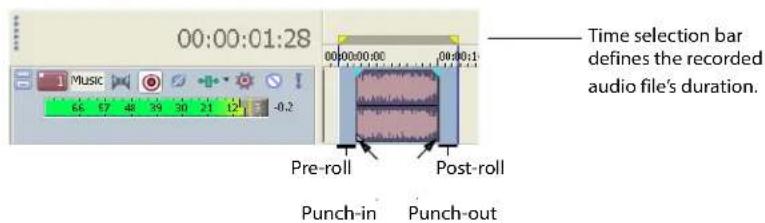
Triggering from MIDI timecode
Recording can be triggered and synchronized by an external MIDI device that outputs (generates) MIDI timecode (MTC). When triggering from MIDI timecode, you should have your audio devices connected together via a master digital word clock. The word clock keeps the audio hardware locked together, eliminating the need for the software to constantly vary its playback rate to stay synchronized. The incoming timecode is only used for an absolute time reference. For more information, see Sync tab on page 458.
- From the Options menu, choose Preferences and go to the Sync tab.
- From the Trigger from MIDI Timecode settings drop-down list, select the device that you want to trigger Vegas Pro software.
- Click OK. The Preferences dialog closes.
-
Click the Arm for Record button (☐) on the desired tracks.
-
Right-click the time display and choose MIDI Timecode In. The time display now shows the timecode being generated from your MIDI device. The top of the display reads MTC Input Waiting.
-
Begin generating MTC from your MIDI device. The top of the time display now reads MTC Input Locked, the time updates from the MIDI device, and recording automatically begins. Typically, there is a short delay between when you begin generating MTC and synchronization.
Recording using an input bus
When you use an input bus to record audio, you can include input bus effects with the recorded signal.
For example, imagine that you need to record an electric guitar with an amplifier-modeling plug-in.
Scenario 1: Plug your guitar into your sound card's instrument input and choose that input as your recording input.
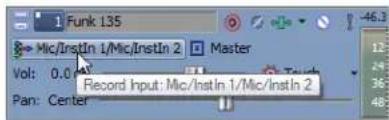
In this scenario, you could then add your amplifier-modeling plug-in as a track effect and record with input monitoring on. Your guitar would be recorded directly (without the plug-in), and the plug-in would be processed each time you play or render your project. This method allows you to adjust the plug-in settings as you work on your project.
Scenario 2: Set up an input bus that uses your amplifier-modeling plug-in as an insert effect, and choose that input bus as your recording input.
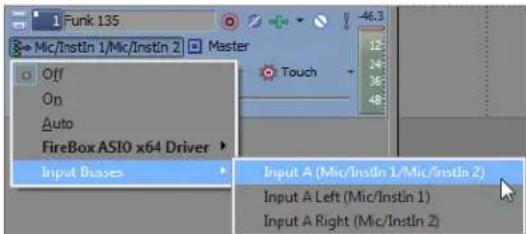
In this scenario, your amplifier-modeling plug-in is cooked into the recorded signal. This method allows you to record your processed signal but doesn't allow you to change your amplifier settings without rerecording the guitar part.
-
Add an input bus to your project. For more information, see Adding an input bus on page 238.
-
Set up your input bus:
a. Click the Add New Insert FX button (....) in the Insert FX control region of the input bus channel strip to add plugins to your input bus.
b. In the I/O control region of the input bus channel strip, click the Input Source button and choose the sound card input you want to record.
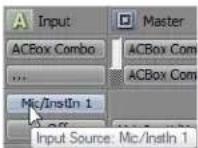
c. Click the Output button in the I/O control region of the input bus channel strip and choose Off. The bus output is left off so we can monitor the input through the track.
- Set your track to record from your input bus:
a. Click the Record Input button, choose Input Busses from the menu, and choose your input bus.
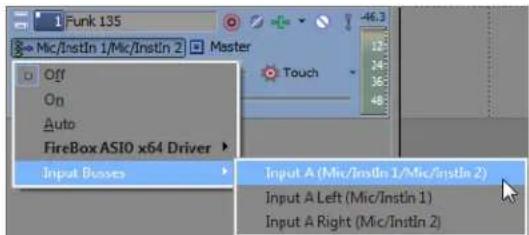
b. Click the Record Input button and choose Input Monitor Mode: On or Input Monitor Mode: Auto so you can hear your input signal during recording.
- When Auto (☐) is selected, you will hear the input monitor signal when playback is stopped and during recording. If you're recording into selected events, you'll hear the input monitor signal only when the cursor passes over the selected events.
- When On (☐) is selected, the behavior is similar to Auto mode, but you will always hear the input monitor during recording. Monitoring is not toggled on and off when recording into a selected event.
Important: Your ability to monitor effects in real time is dependent on your computer's performance. Effect automation envelopes are bypassed during record monitoring.
- Position the cursor where you want to start recording.
- Select the Arm for Record button (☐) on the track where you want to record. Arming a track enables it for recording.
When a track is armed, the track meter displays the track's level. If input monitoring is not on, the meter displays the level of your input source. If input monitoring is turned on, the meter shows the level of the input source plus the track effects chain.
- Click the Record button (☐) on the Transport bar to start recording.
- To stop recording, click the Record button again or click the Stop button (☐) on the Transport bar. The Recorded Files dialog is displayed.
- Use the Recorded Files dialog to confirm the file name and location of your recorded audio. Click Delete or Delete All if you do not want to save the recorded files, or click Rename to change the file's name.
- Click Done to close the Recorded Files dialog. Your recorded file is displayed as a new event in the timeline.
Working with multiple recorded takes
Clicking the Loop Playback button (C) on the transport bar enables you to continually create takes during recording. Takes are different versions of a recorded event that you can quickly switch between to choose the best one. Each take within an event references a different source media file.
During recording with loop playback enabled, the time selection continually repeats and starts recording a new take until you stop recording. You can preview, select, rename, and delete takes. For more information, see Working with takes on page 125.
Specifying where recordings are stored
When you record, the event appears on the timeline while its media source file is written to your hard drive. The first time you arm a track to record in a project, you are prompted to identify the location where the recordings will be stored.
Changing where recorded files are stored when arming a track
- Press Shift and click the Arm for Record button (☐) on a track. The Project Recorded Files Folder dialog appears.
- Browse for the location where you want to save recorded files.
- Click OK.
Changing where recorded files are stored when starting to record
- Press Shift and click the Record button (☐) on the transport bar. The Project Recorded Files Folder dialog appears.
Tip: You can also press Ctrl+Shift+R to specify the location for recorded files when starting to record.
- Browse for the location where you want to save recorded files.
- Click OK.
Changing where recorded files are stored in the Project Properties dialog
- From the File menu, choose Properties. The Project Properties dialog appears.
- Click the Audio tab to display the project's audio properties.
- Click Browse. The Recorded Files Folder dialog appears.
- Browse for the location where you want to save recorded files.
- Click OK.
Tip: You can select Start all new projects with these settings in the Project Properties dialog to store recorded media source files to the same location in every new project.
Monitoring audio levels
While you're recording, a responsive meter is provided in the track header to monitor the incoming signal level of the selected recording device. It is important that you record with the highest signal possible without clipping.
A reading of 0 dB is the maximum for a digital signal. Clipping occurs when the incoming signal is too high to be represented as a digital value. The result is distortion in the recording. A clipped signal will be indicated by a red clip warning at the top of the meters.
Right-click the meters and choose a command from the shortcut menu to adjust the display of the meters.
Using record input monitoring
If you're using an ASIO audio device and you want to hear your recording signal with real-time track effects, you can turn on input monitoring.
To turn on input monitoring, click the Record Device Selector button (▶ or ▶) and choose Input Monitor from the menu, and then choose Auto or On from the submenu. During recording, your signal will be played back with the current track effects chain, but a dry (unprocessed) signal is recorded.
When Auto is selected, you will hear the input monitor signal when playback is stopped and during recording. If you're recording into selected events, you'll hear the input monitor signal only when the cursor passes over the selected events.
When On is selected, the behavior is similar to Auto mode, but you will always hear the input monitor during recording—monitoring is not toggled on and off when recording in to a selected event.
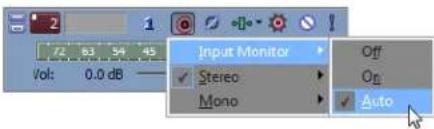
Note: Your ability to monitor effects in real time is dependent on your computer's performance. Effect automation envelopes are bypassed during record monitoring.
Working with 5.1 Surround
Vegas® Pro software allows you to create 5.1-channel mixes to prepare audio for DVD-Video or 5.1-channel music projects.
What is 5.1 surround?
5.1 surround is a standard format consisting of three speakers across the front and two speakers in the rear. The ".1" is a sixth channel called low-frequency effects (LFE) that enhances the bass levels in the mix.
5.1 surround includes five main channels...
...and a sixth channel for low-frequency effects.
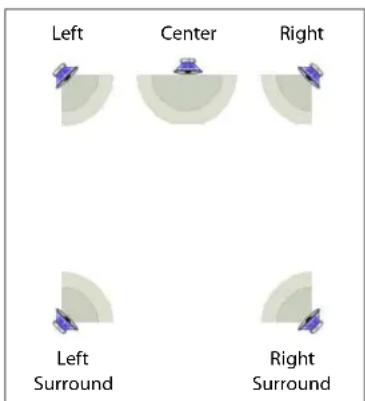
The LFE channel is commonly used in motion pictures to enhance low audio frequencies for effects such as explosions or crashes. Audio in this channel is commonly limited to a range from about 25 Hz to 120 Hz. Unlike the five primary channels, the LFE channel adds no directional information. Depending on the speaker setup and audio levels, the sound assigned to the LFE channel may be routed among the five main speakers or to an additional subwoofer.
Setting up surround hardware
Before you create surround projects, you should set up your system to provide 5.1 surround playback. To play a 5.1 surround project, you must have an appropriate speaker setup such as:
• Six powered speakers
• Six passive speakers with a six-channel amplifier
Your system must also have an appropriate sound card setup such as:
• 5.1-compatible sound card
• Sound card with three stereo outputs
• Three stereo sound cards
There are several ways to set up your system, depending on the sound card and speaker setup you are using.
| Six powered speakers | Six passive speakers with a six-channel amplifier | |
| 5.1-compatible sound card | Connect powered speakers to your sound card's outputs as indicated by your sound card's documentation. | Connect your sound card's front, rear, and center/subwoofer outputs to the appropriate inputs on a six-channel amplifier/home theater receiver. Connect front, rear, center, and LFE speakers to the amplifier. |
| Sound card with three stereo outputs | Connect powered speakers to your sound card's outputs where you have routed each of the pairs of channels. The left channel of the Center/LFE pair is the center channel; the right channel is the LFE channel. | Connect your sound card's outputs to the appropriate inputs on a six-channel amplifier/home theater receiver. Connect front, rear, center, and LFE speakers to the amplifier. |
| Three stereo sound cards | Connect powered speakers to your sound cards' outputs where you have routed each of the pairs of channels. The left channel of the Center/LFE pair is the center channel; the right channel is the LFE channel. | Connect your sound card's outputs to the appropriate inputs on a six-channel amplifier/home theater receiver. Connect front, rear, center, and LFE speakers to the amplifier. |
Setting up surround projects
You can configure a Vegas Pro project to use 5.1 surround in the Project Properties dialog. You can also choose to apply a low-pass filter for the LFE channel. Applying a low-pass filter approximates the bass-management system in a 5.1 decoder and ensures that you're sending only low-frequency audio to the LFE channel.
- From the File menu, choose Properties.
- Click the Audio tab.
- From the Master bus mode drop-down list, choose 5.1 surround.
-
To limit the audio sent to the LFE channel, do the following:
-
Select the Enable low-pass filter on LFE check box and enter a value in the Cutoff frequency for low-pass filter box. The low-pass filter isolates the audio sent to the LFE channel by limiting it to frequencies lower than the value entered in the Cutoff frequency for low-pass filter box.
- Choose a setting from the Low-pass filter quality drop-down list to determine the sharpness of the filter's rolloff curve. Best produces the sharpest curve.
Note: Before rendering your surround project, check your surround authoring application's documentation to determine its required audio format. Some encoders require a specific cutoff frequency and rolloff, while other encoders require that no filter be applied before encoding.
5. Click OK.
The track list and Mixer window switch to 5.1 surround mode. The Master bus becomes the Surround Master bus, which contains faders for each of the six surround channels. Surround panners appear on tracks and mixer controls. Tracks routed to mixer controls (busses or assignable effects) do not have surround panners; panning for these tracks takes place on the mixer control.
Track list in 5.1 surround mode
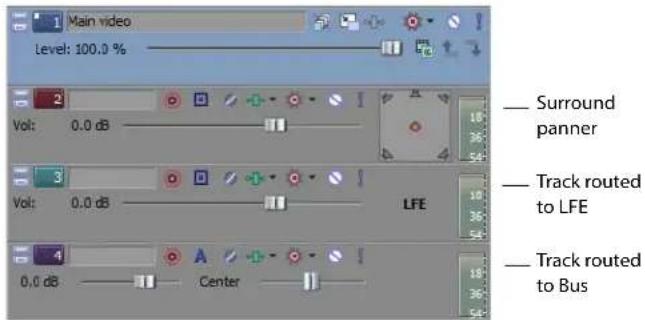
Mixer in 5.1 surround mode
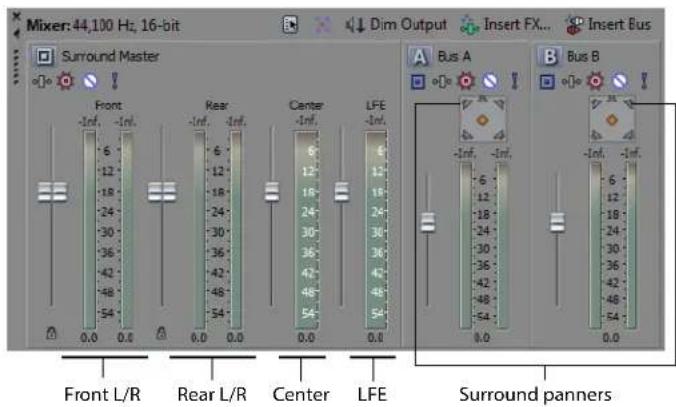
Routing to hardware in the mixer
You must route the surround audio to the correct output in the mixer.
- From the Options menu, choose Preferences.
- Click the Audio Device tab.
- From the Audio device type drop-down list, choose an audio device type other than Microsoft Sound Mapper (such as Windows Classic Wave Driver).
-
Choose the playback devices for the six surround channels:
-
From the Default Stereo and Front playback device drop-down list, choose the appropriate device for the front left and right surround channels.
- From the Default Rear playback device drop-down list, choose the appropriate device for the rear left and right surround channels.
-
From the Default Center and LFE playback device drop-down list, choose the appropriate device for the center and LFE surround channels.
-
Click OK.
Overriding the default device routing
By setting up the device routing in the Audio tab of the Preferences dialog, you have set the defaults for surround routing. However, you can override the default device routing at any time using the Surround Master bus in the Mixer window.
- In the Mixer window, click the Audio Device Selector button (☐) on the Surround Master bus. A menu of surround channels (Front L/R, Rear L/R, and Center/LFE) appears.
- In the submenu, match a surround pair with the appropriate output.
- Repeat steps one and two to match each surround pair to the appropriate output.
Assigning audio to the LFE channel
Once the project is in 5.1 surround mode, you must decide whether a track will provide the "5" (surround panning) or the "1" (LFE channel) in 5.1 surround. Initially, all tracks in a surround project are set to provide surround panning, but you can assign a track to the LFE channel instead.
You can assign an individual track to the LFE channel or you can route the track to a mixer control (bus or assignable effect chain) and assign the mixer control to the LFE channel.
To assign audio to the LFE channel, right-click the surround panner on the track header or mixer control and choose LFE Only from the shortcut menu. The track or mixer control is assigned to the LFE channel.
Right-click the surround panner and choose LFE Only...
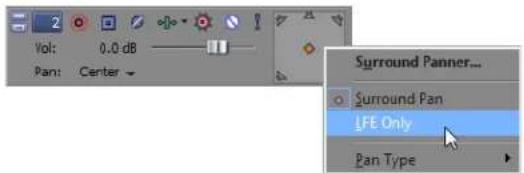
...to assign the track or mixer control to the LFE channel.
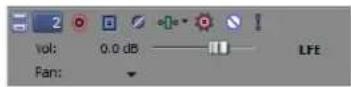
To change a track or mixer control back to surround panning, right-click the LFE indicator and choose Surround Pan from the shortcut menu.
Note: Before rendering your surround project, check your surround authoring application's documentation to determine its required audio format with respect to the LFE channel. For more information, see Setting up surround projects on page 272.
Adjusting volume
Adjusting track volume for 5.1 surround projects behaves almost identically to stereo projects. The controls in the track headers and Mixer window can function as trim controls that adjust the overall volume of the track, bus, or assignable effects chain, or they can adjust volume automation settings. For more information, see Track automation on page 183.
Adjusting track volume
You can adjust track volume using the Vol fader in the track header the same way you do in stereo projects.
Deselect the Automation Settings button (💡) on the track header if you want to adjust trim levels.
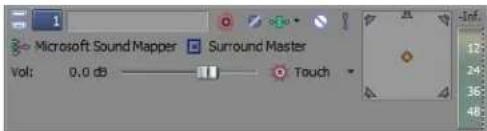
Track header in trim mode
Select the Automation Settings button if you want to adjust volume automation. The fader handle is displayed as with an automation icon (☐) in automation mode.
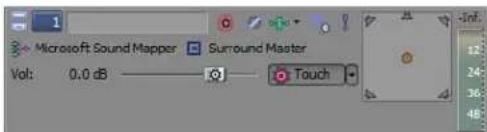
Track header in automation mode
Adjusting assignable effects send or bus send levels
You can adjust send levels for busses or assignable effects chains using the multipurpose fader in the track header. Click the fader label and choose an assignable effects chain or bus from the menu. The fader in the track header can function as a trim control that adjusts the overall send level of the track, or it can adjust send level automation settings.
Deselect the Automation Settings button (💡) on the track header if you want to adjust trim levels.
Select the Automation Settings button if you want to adjust volume automation. The fader handle is displayed with an automation icon (☐) in automation mode.
Adjusting channel levels
Use the Surround Master bus control in the Mixer window to adjust the individual levels of the 5.1 channels. The faders in the track bus control can function as trim controls that adjust the overall level of each channel, or you can automate the master volume of the Surround Master bus (individual channel levels cannot be automated).
Click the Automation Settings button (💡) in the bus control or bus track and verify Show Automation Controls is not selected if you want to adjust trim levels.
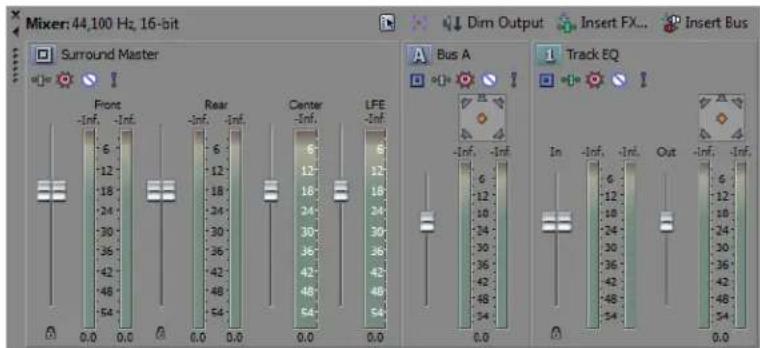
Mixer controls in trim mode
Select Show Automation Controls if you want to adjust volume automation. The fader handle is displayed with an automation icon (☐) in automation mode. (
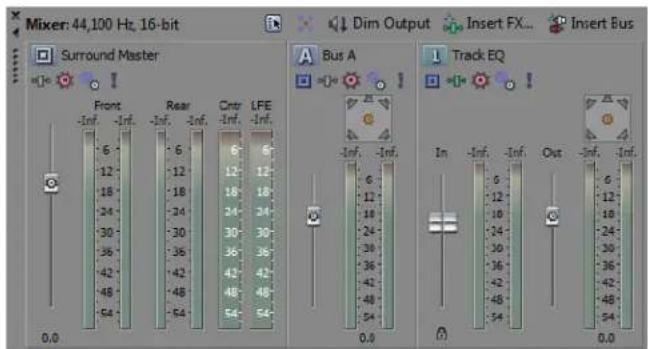
Mixer controls in automation mode
Panning audio
You can pan audio in a 5.1 surround project in two ways:
- Pan tracks individually using the Surround Panner window.
- Route tracks to mixer controls (busses, assignable effect chains) and pan the mixer controls using the Surround Panner window.
Panning tracks
- Deselect the Automation Settings button (💡) on the track you want to pan.
- Double-click the surround panner on the track you wish to pan. The Surround Panner window appears.
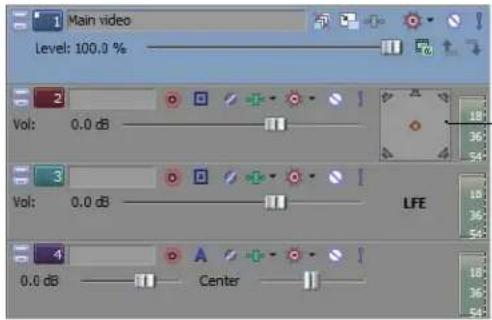
Double-click to display the Surround Panner window
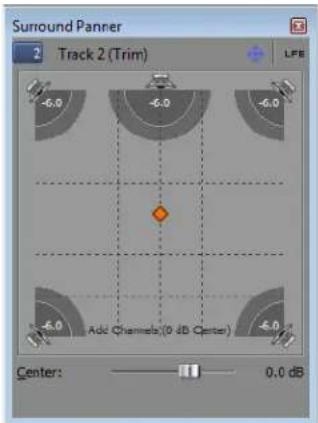
- Adjust the panning settings. For more information, see Using the Surround Panner window on page 277.
- Close the Surround Panner window.
Tip: You can also use the surround panner in the track header to pan your track.
Panning mixer controls
You can choose to route tracks to busses or other mixer controls (such as assignable effect chains) and pan them as a group rather than panning each track individually.
Note: When you route a track to a bus, stereo (two-channel) output is sent to the mixer control and the mixer control sends 5.1 (six-channel) output to the Surround Master bus.
- Add a bus or assignable effect chain to the project. For more information, see Using the Mixer on page 211.
- Route tracks to the bus or assignable effect chain. For more information, see Using the Mixer on page 211.
-
Click the Automation Settings button (💡) on the mixer control you want to pan and verify Show Automation Controls is not selected.
-
Double-click the surround panner on the mixer control to display the Surround Panner window.
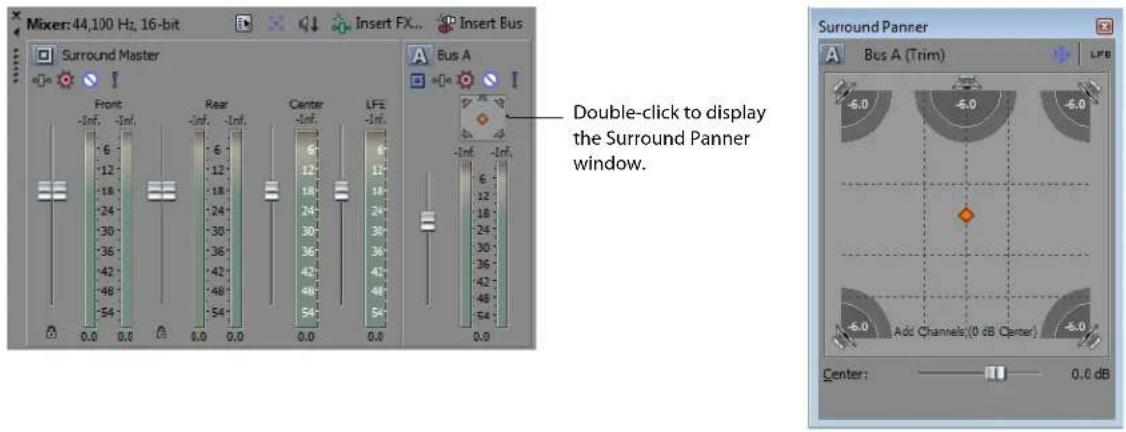
- Adjust the panning settings. For more information, see Using the Surround Panner window on page 277.
- Close the Surround Panner window.
Tip: You can also use the surround panner on the mixer control to pan your track.
Using the Surround Panner window
Whether you're adjusting track panning or mixer control panning, you use the same controls in the Surround Panner window. View the Surround Panner window by double-clicking a surround panner on a track header or mixer control. Once the Surround Panner window is open, you can dock it in the workspace. For more information, see Window docking area and floating window docks on page 25.
Tip: You can also choose Surround Panner from the View menu to display the Surround Panner window. Once the Surround Panner window is displayed, double-click the surround panner for a track or mixer control to view its pan settings.
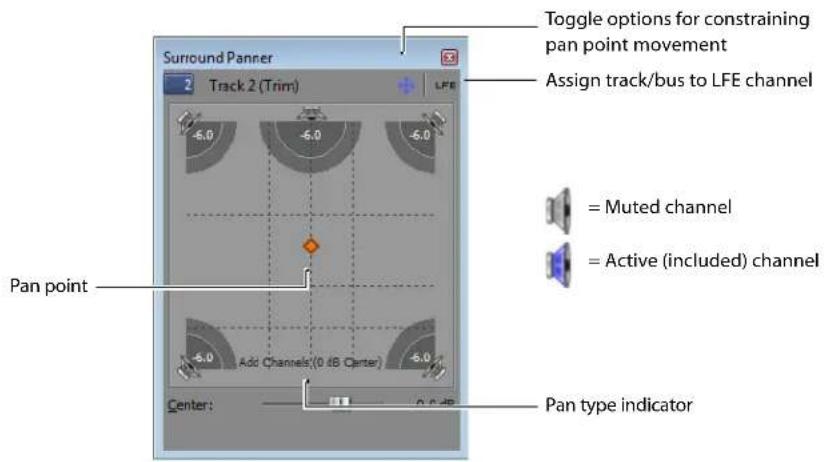
- Click the speaker icons to mute or include channels.
Muting a channel ensures that no audio bleeds through a channel. For example, you might want to mute all but the center channel when you're panning dialogue to the center channel.
Tip: Ctrl+ click a speaker icon to solo the channel.
- Drag the pan point to position the sound within the sound field. For more information, see Moving the pan point on page 278.
- Click the center speaker icon to include the center channel and drag the Center fader to apply a gain to the center channel.
Applying a gain to the center channel may make dialogue more present in the mix.
Note: When automating panning using keyframes, you cannot automate the gain applied using the Center fader. For more information, see Automating panning on page 280.
Moving the pan point
A variety of methods are provided to help you position the pan point in the Surround Panner window.
| Method | Description |
| Click to toggle through three options for constraining pan point motion as you drag: Move Freely (←), Move Left/Right Only (←), and Move Front/Back Only (↓). | |
| Double-click | Double-clicking the pan point resets it to the center front of the surround panner.Double-clicking in the Surround Panner window moves the pan point to the double-click location. |
| Ctrl+drag | Makes fine adjustments. |
| Shift+drag | Constrains motion to a line through the center of the surround panner. |
| Alt+drag | Constrains motion to a constant radius from the center of the surround panner. |
| Shift+Alt+drag | Constrains motion to the maximally inscribed circle (a constant radius at the greatest possible distance from the center of the surround panner). |
| Arrow keys | Moves front/back/left/right. |
| Ctrl+Arrow keys | Makes fine adjustments. |
| Page Up/Page Down | Moves front/back. |
| Shift+Page Up/Page Down | Moves left/right. |
| Numeric keypad 1-9 | Jumps to a corner, edge, or center of the surround panner. |
| Ctrl+Numeric keypad 1, 3, 7, 9 | Jumps to a location on the maximally inscribed circle (a constant radius at the greatest possible distance from the center of the surround panner). |
| Mouse wheel | Moves front/back. |
| Shift+mouse wheel | Moves left/right. |
| Ctrl+mouse wheel | Makes fine front/back adjustments. |
| Ctrl+Shift+mouse wheel | Makes fine left/right adjustments. |
Choosing pan types
When you pan a track or mixer control, you can choose among several pan types to determine how to pan the audio. The current pan type appears at the bottom of the Surround Panner window.
Right-click the Surround Panner window and choose a pan type from the shortcut menu:
| Item | Description | |
| Add Channels | This mode is most useful for panning stereo files. As you pan across the stereo field, the stereo image appears to move across the speakers. As you pan toward either side, the signal from the opposite channel is added to the channel you are panning toward until at the extreme both channels are sent to a single channel at full volume.This mode uses a linear panning curve.Important: You can introduce clipping when channels are added. Monitor the meters in the Mixer and adjust the track volume accordingly. | |
| Item | Description | |
| Balance (0 dB Center) | In a stereo project, this mode can help you adjust the relative signal levels of the channels in stereo source material. As you pan from the center to either side, the opposite channel begins at the specified center value (0 dB -3 dB, or -6 dB), and decays to -infinity. The signal in the side you are panning toward progresses from the specified center value (0 dB, -3 dB, or -6 dB) to 0 dB. | |
| Balance (-3 dB Center) | ||
| Balance (-6 dB Center) | This panning mode uses a linear panning curve. | |
| For example, when you pan fully right, the right channel is played at 0 dB and the left channel is not audible. As you pan to the center, each channel is attenuated to the specified center value (0 dB -3 dB, or -6 dB). As you pan to the left, the left channel is played at 0 dB, and the right channel is not audible. | ||
| With the Balance (0 dB center) setting, no gain or cut is applied when you're panned to the center, which can make the center seem louder. | |
| With the Balance (-3 dB center) setting, a -3 dB cut is applied when you're panned to the center. | |
| With the Balance (-6 dB center) setting, a -6 dB cut is applied when you're panned to the center. | |
| Panning in a 5.1 surround project follows the same rules: as you pan from the center to any channel in a 5.1 surround project, the signal in the channel you are panning toward progresses from the specified center value to 0 dB. The signal in the channel you are panning away from begins at the specified center value and decays to -infinity. | ||
| Constant Power | This mode is most useful for panning monaural source material. In this mode, sound will maintain its volume when you pan across channels. | |
| If you pan a stereo file 100% R, only the right channel of your media file is played, and this channel is sent to both output channels. If you continue to pan to the left, the left channel is gradually added to the output, and the right channel is gradually faded out until only the left channel will be heard through both output channels when the slider is at 100% L. | ||
| ||
| If you pan a file fully right midway between the front and rear channels in a 5.1 surround project, only the right channel of your media file is played, and this channel is sent to the right-front and -rear output channels. If you pan to the left, the left channel is gradually added to the output, and the right channel is gradually faded out until only the left channel is sent to the left-front and -rear output channels. | ||
| Item | Description | |
| Film | This mode allows you to pan between pairs of adjacent speakers in 5.1 surround projects using a constant power model. This mode is optimized for theater-style speaker placement. In stereo projects, Film mode functions identically to Constant Power.As you drag the pan point to the center speaker, the sound becomes diffused through the front and rear speakers. When the track is panned fully to the center speaker, there is no output from the front and rear speakers.Dragging the pan point to the center of the surround panner sends the signal to all speakers.Note:If you're panning fully to a single speaker, you might notice that some signal is mixed to the opposite speaker. This is because the ideal placement for surround speakers does not match the representation in the surround panner. For example, panning to the front-left speaker produces a low-level signal in the rear-left speaker.This is because your front-left speaker should be positioned 30^ left of center and the speaker in the surround panner is located 45^ left of center. To produce a true 45^ left-of-center pan, the signal is panned between the front- and rear-left speaker. | |
Using the grid to monitor panning
The grid in the Surround Panner window helps you to visualize how your panning will sound. The grid's spacing changes to match the current pan type.
The vertical lines represent the points where the left-to-right signal ratio is 6 dB, 0 dB, and -6 dB respectively: at the far-left line, the left channel is 6.0 dB louder than the right channel.
The horizontal lines represent the points where the front-to-rear signal ratio is 6 dB, 0 dB, and -6 dB respectively. As you adjust the Center fader, the lines move forward or backward to compensate for the center-channel gain.
Note: The grid assumes that you're using a correctly set-up surround system (matched speakers and ideal positioning). Variations in your monitoring system will cause inconsistencies between the graph and perceived output.
Automating panning
You can automate panning on a track or mixer control by adding keyframes. Keyframes are similar to envelope points in that they specify a settings state at a point in time. However, unlike envelope points, keyframes appear just below the track to which they apply.
To add panning keyframes to a mixer control, you must first view the mixer control in timeline. From the View menu, choose Show Bus Tracks to view the bus track at the bottom of the timeline. For more information, see Viewing bus tracks on page 218.
Turning on panning keyframes
Before adding individual keyframes, you must first turn on the panning keyframes for the track or bus track.
- Select the track or bus track for which you want to automate panning.
- From the Insert menu, choose Audio Envelopes, and choose Surround Pan Keyframes from the submenu.
An additional row appears below the track with a single keyframe positioned at the beginning of the project. This single keyframe represents the current panning settings for the track.
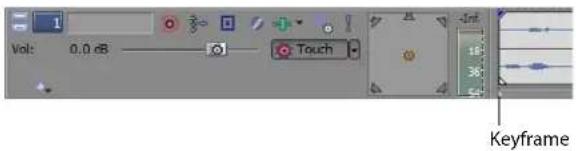
Adding panning keyframes
With panning keyframes turned on, you can add keyframes at any location along the track or bus track.
- Position the cursor where you want to begin panning the track.
- Select the Automation Settings button (☐) on the track you want to pan.
- Double-click the surround panner to display the Surround Panner window.
- Adjust the panning settings. For more information, see Using the Surround Panner window on page 277.
Note: You cannot automate muting/including channels.
- Close the Surround Panner window.
A keyframe with the pan settings you created appears below the track at the cursor position.
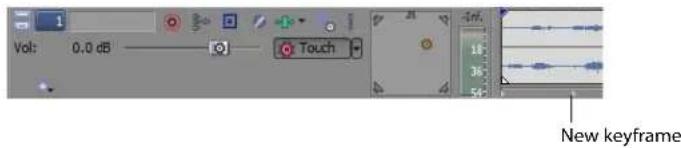
Tip: You can also add keyframes by double-clicking the keyframe row or by right-clicking the row and choosing Add Point from the shortcut menu. Once you've added the keyframe, double-click it to adjust panning settings in the Surround Panner window.
As you add keyframes to a track or bus track, the Surround Panner window shows the path of the panning keyframes. The Smoothness slider controls the smoothness of the interpolation path between the keyframes. For more information, see Adjusting the Smoothness slider on page 282.
Note: The Smoothness slider only displays at the bottom of the Surround Panner when you have inserted two or more keyframes on the track.
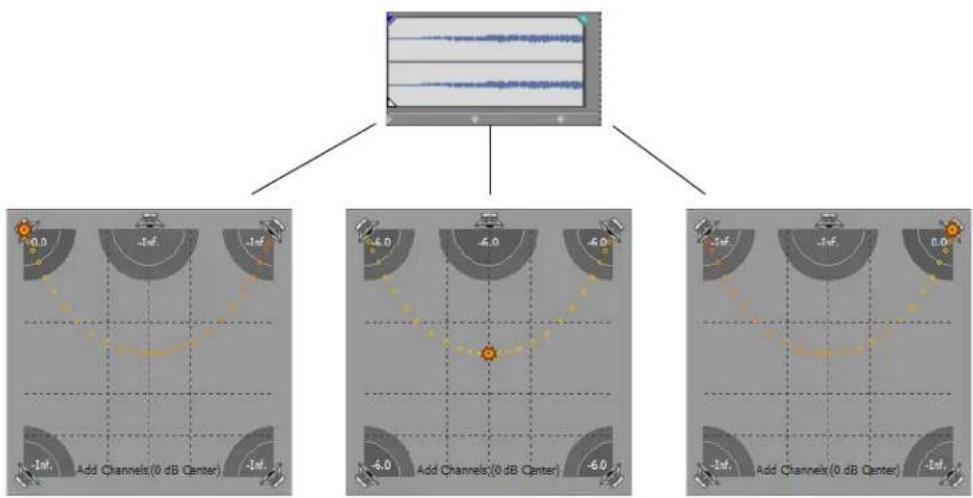
flowchart
graph TD
    A["Input"] --> B["Add Channels (0 dB Center)"]
    A --> C["Add Channels (0 dB Center)"]
    A --> D["Add Channels (0 dB Center)"]
    B --> E["Feed Rate: -Inf."]
    C --> F["Feed Rate: -Inf."]
    D --> G["Feed Rate: -Inf."]
    style A fill:#f9f,stroke:#333
    style B fill:#ccf,stroke:#333
    style C fill:#ccf,stroke:#333
    style D fill:#ccf,stroke:#333
The Surround Panner window shows the path of the panning keyframes.
Working with keyframes
After you add keyframes, you can work with them in much the same way as envelope points. For more information, see Composite level automation (video only) on page 188.
Moving keyframes
Drag a keyframe to a new position below its track.
Duplicating keyframes
Hold Ctrl and drag a keyframe to a new position below its track.
Editing keyframes
- Double-click a keyframe to open the Surround Panner window.
- Adjust the panning settings as desired and close the window.
Changing keyframe interpolation curves
To control how the pan is interpolated between keyframes, right-click a keyframe and choose an interpolation curve type from the shortcut menu. Keyframe interpolation curves control how the pan occurs over time. The keyframe color changes according to the interpolation curve you have chosen.
| Keyframe Interpolation curve Description | ||
| Hold | No interpolation takes place. The keyframe's settings are maintained until the next keyframe. | |
| Linear | Panning is interpolated in a linear path. | |
| Fast | Panning is interpolated in a fast logarithmic path. | |
| Slow | Panning is interpolated in a slow logarithmic path. | |
| Smooth | Panning is interpolated along a smooth, natural curve. | |
Adjusting the Smoothness slider
If you have two or more keyframes, the Smoothness slider at the bottom of the Surround Panner controls the perceived motion of sound within the sound field among three or more keyframes. When you drag the Smoothness slider to 0, Vegas Pro software interpolates the changes between keyframes along a linear path. As you increase the smoothness value, the path between keyframes grows more curved and smooth.
- Double-click a keyframe. The Surround Panner window appears.
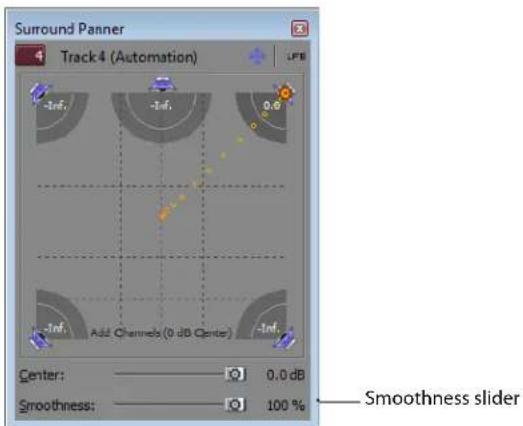
- Drag the Smoothness slider to adjust the smoothness of the spatial interpolation path leading up to this keyframe.
Three keyframes with ...and the same three keyframes smoothness=100... with smoothness=0.
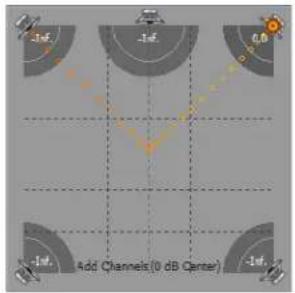
Locking keyframes to events
If you want keyframes to move with an event when it is moved along the timeline, choose Lock Envelopes to Events from the Options menu.
Hiding keyframes
-
Select the track for which you want to hide keyframes.
-
From the View menu, choose Show Audio Envelopes, and choose Surround Pan Keyframes from the submenu.
Deleting keyframes
Right-click a keyframe and choose Delete from the shortcut menu.
Rendering surround projects
Rendering a surround project creates six monaural files (AIFF, ATRAC, WAV/W64, or PCA) or a single 5.1-channel file (AC-3, WAV/W64, WMA, and WMV) that your authoring application can use to create DVD-Video or 5.1-channel music projects.
Note: Before rendering your surround project, check your surround authoring application's documentation to determine its required audio format. Some encoders require a specific low-pass filter cutoff frequency and rolloff, and your encoder may require that no filter be applied before encoding. Use the Audio tab of the Project Properties dialog to configure a low-pass filter. For more information, see Setting up surround projects on page 272.
- From the File menu, choose Render As. The Render As dialog appears.
- From the Save in drop-down list, choose the drive and folder where the file will be saved.
- Enter a new name for the project in the File name box.
-
From the Save as type drop-down list, choose the desired file format.
-
From the Template drop-down list, choose the multiple mono template, or choose an appropriate 5.1-channel template if the selected file type supports it.
Tips:
- When you render a 5.1 surround project to AIFF (.aif), Perfect Clarity Audio (.pca), Wave64 (.w64), or Wave (.wav) formats, you can save each of the surround master busses to a separate file by choosing the multiple mono setting from the Template drop-down list. For example, if you'd typed My Film.wav in the File name box, the following files would be rendered: My Film Right.wav, My Film Right Surround.wav, My Film LFE.wav, My Film Left.wav, My Film Left Surround.wav, and My Film Center.wav.
- When you render a 5.1 surround project to WAV or WAV64 format using the 48,000 Hz, 16 Bit, 5.1, PCM or 48,000 Hz, 32 Bit, 5.1, PCM template, you can create a single 5.1 channel file. The rendered file contains channel-mapping information so that Vegas Pro will preserve surround panning information when adding these files to 5.1 surround projects.
Legacy Sony applications (and third-party applications) may not be able to read these 5.1-channel files. In this case, you can render a single six-channel file by selecting the Enable multichannel mapping check box and creating a channel mapping using the Surround Master outputs.
- For more information about rendering multichannel audio and setting up multichannel mapping, see Rendering multichannel audio files on page 390
- Select the Render loop region only check box if you want to save only the portion of the project that is contained within the loop region. Loop Playback does not need to be selected on the workspace for this option to work.
- If the selected file type supports it, you can select the Save project markers with media file check box to include markers, regions, and command markers in the rendered media file. If the information cannot save in your media file, it will create an .sfl file (using the same base name as your media file).
- Click Save. A dialog is displayed to show rendering progress.
- When rendering is complete, click the Open button to play the file with its associated player, or click Open Folder to open the folder where you saved the file.
Rendering the surround project SampleProject.wav...
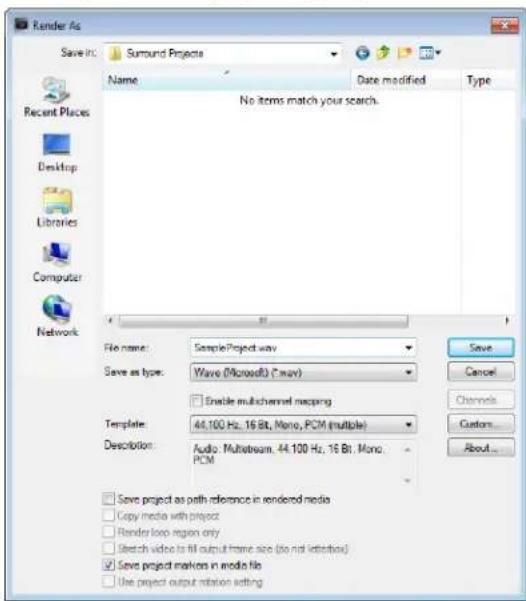
...results in six .wav files.
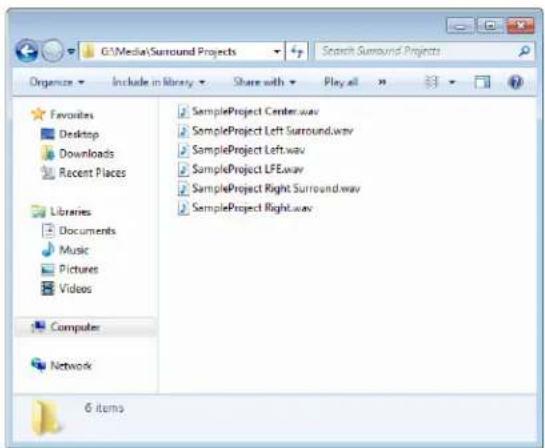
Creating a DVD or Blu-ray Disc with DVD Architect Pro software
If you have DVD Architect™ Pro software, you can create menu-based projects, music compilations, picture slide shows, or a single-movie DVD that will play back automatically in your DVD or Blu-ray Disc™ player.
DVD Architect Pro software includes support for many file types and can convert your media to the formats required as needed. However, for best performance (decreased disc preparation time and recompression), render your files in the appropriate format using Vegas Pro.
For more information, see Rendering projects for use in DVD Architect Pro on page 395 and Rendering projects for Blu-ray Disc on page 396.
Using Advanced Video Features
While simple to learn, Vegas® Pro software is a powerful application with many advanced features. This chapter covers some of the advanced video features of this powerful tool.
Cropping video
With the Event/Pan Crop window, you can resize media in a video event or selectively crop media without resizing. The Stretch to fill frame drop-down list allows you to resize the media to fill the output frame (when Yes is selected), or to crop out a portion of the media without resizing (when No is selected).
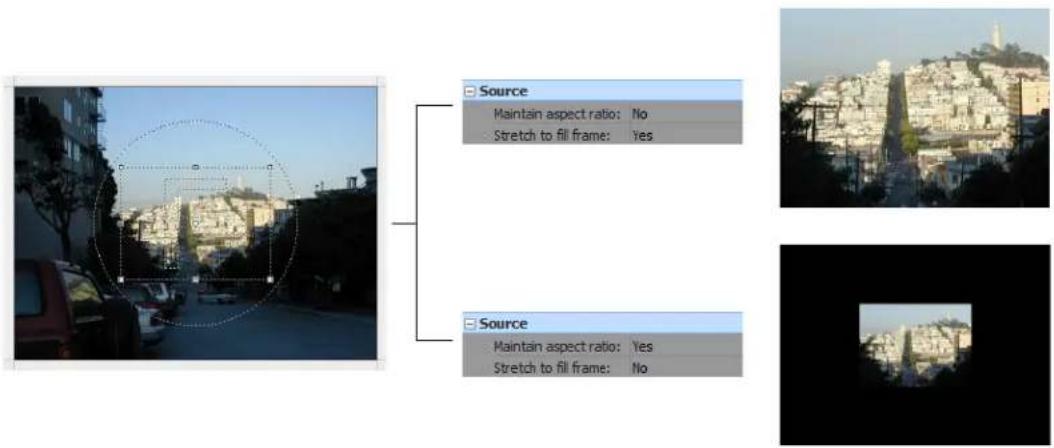
When keyframes are added, you can use this window to create scrolling, panning, or zooming effects.
Tip: If you apply plug-ins to an event with panning or cropping, you can choose whether to process the plug-ins before or after the panning or cropping. For more information, see Processing plug-ins on events with panning or cropping on page 325.
Open the Event Pan/Crop window by clicking the Event Pan/Crop button (☐) on the event.
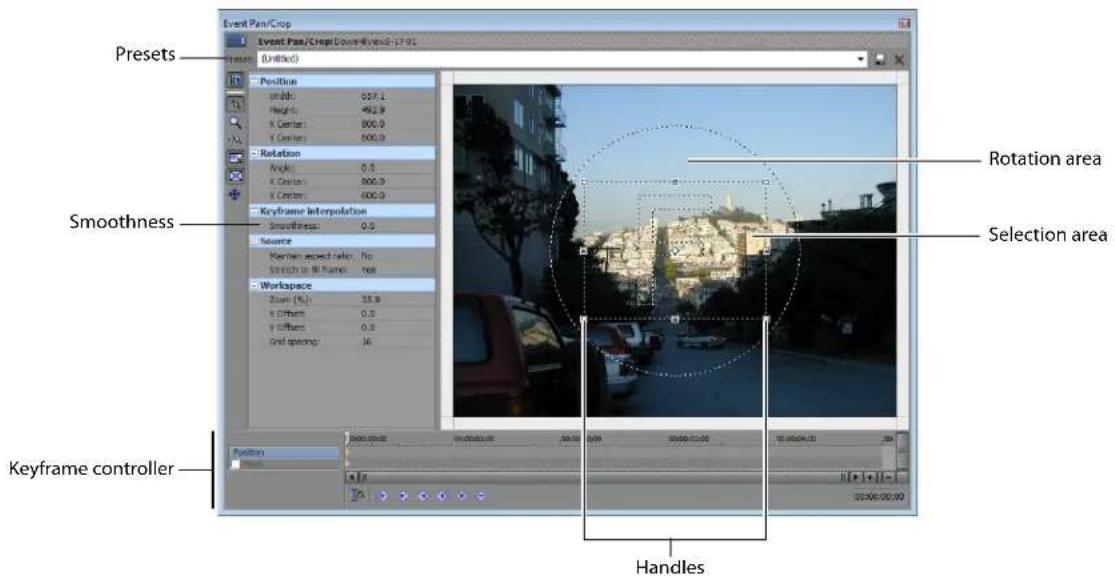

Show Properties Lock Aspect Ratio


Normal Edit Tool Size About Center


Zoom Edit Tool Move Freely or Move in X or Y only


Enable Snapping
Note: If any controls shown in the figure above are not visible, enlarge the Event Pan/Crop window by dragging the lower right corner until all controls are revealed.
The Smoothness control and the keyframe controller are used when adding keyframe animation to create panning, zooming, or scrolling effects. For more information, see Animating event panning and cropping on page 360.
Tip: Use the Default Pan/Crop smoothness control on the Editing tab of the Preferences dialog to set the default Smoothness value for new keyframes.
Cropping
Cropping is the process of removing the outside edges from an image or video, thereby re-framing the subject. In the following example, the Event Pan/Crop window on the left has been used to create a selection area around the subject, removing extraneous information from the outside of the video. This creates a zoom effect that is similar to zooming in with a camcorder. The Video Preview window on the right displays the event after cropping.
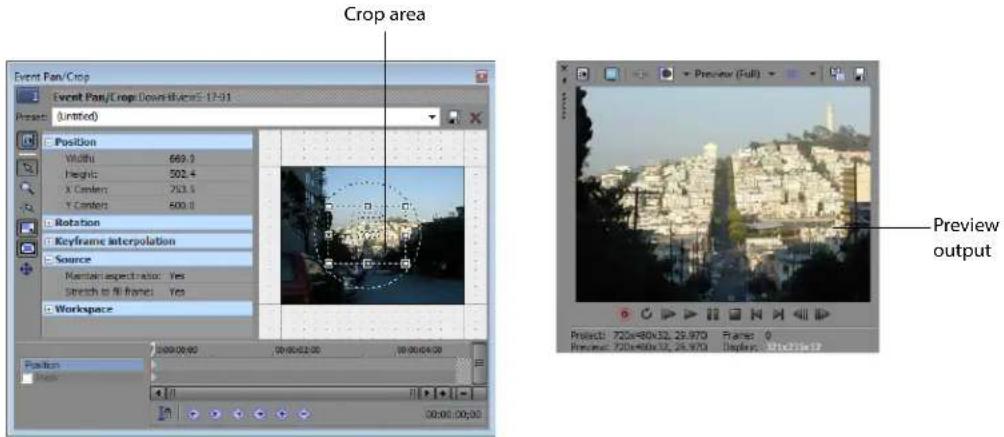
- Click the Event Pan/Crop button (☐) on the event.
- Drag the handles (small boxes) located around the perimeter of the selection area to change the size.
- Move the mouse to middle of the selection area until the cursor changes to a move icon ( ). Drag the selection area to reposition it.
Be aware of the following as you crop a video event:
• To keep the selection area centered as you resize, select the Size About Center button (☐).
• To maintain the proportion of the selection area, select the Lock Aspect Ratio button (☐).
• To prevent distortion of the source media file, ensure that Maintain aspect ratio is set to Yes.
• To restore the selection area to full frame, right-click the image and choose Restore from the shortcut menu.
• To set the selection area to a standard aspect ratio proportion, choose a preset from the Preset drop-down list.
- When using photographs or other media that is not the same frame aspect as your video, you'll see black bars on the sides or above and below the image. To create a crop rectangle that matches the project frame aspect, right-click the image and choose Match Output Aspect from the shortcut menu.
-
The cropping occurs instantly and the results are updated in the Video Preview window. Cropping applies to the entire event and can be animated with keyframes. For more information, see Using keyframe animation on page 354.
-
If you want to create an animated crop or zoom, use the keyframe controller at the bottom of the Event Pan/Crop window to establish distinct zoom settings throughout the duration of the event.
During playback, intermediate frames are interpolated to create smooth motion. Expand the Keyframe interpolation heading on the left side of the window and drag the Smoothness slider to adjust the interpolation.
Tip: Use the Default Pan/Crop smoothness control on the Editing tab of the Preferences dialog to set the default Smoothness value for new keyframes.
Bézier masks
You can use the Event Pan/Crop dialog to create masks using Bézier curves. For more information, see Bézier masks on page 341.
Rotating
You can also rotate the selection area in the Event Pan/Crop window. If you rotate the entire frame, the background behind the video shows through. Position, size, and rotation can all be animated with keyframes. For more information, see Using keyframe animation on page 354.
- Click the Event Pan/Crop button (☐) on the event.
- Resize and move the selection area as desired.
- Move the mouse outside the selection area until it becomes a rotate icon (☐). Drag to rotate the selection area. Alternately, you can enter precise rotation values in the Angle (degrees) box.
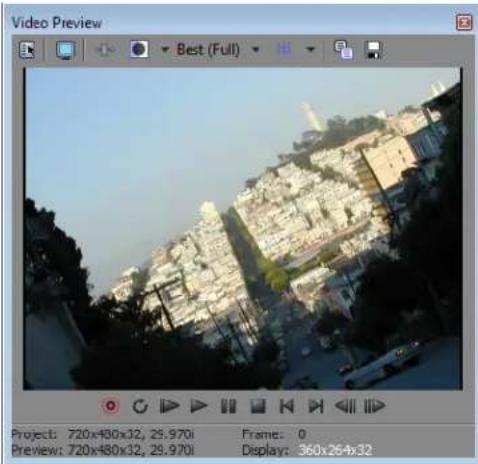
natural_image
Video preview window showing a cityscape with buildings and trees, no readable text or symbols in the main image area.Adding animation
Keyframe animation dramatically increases the variety of panning, zooming, and rotating effects you can create using the Event Pan/Crop window. A later chapter provides examples of zooming in on a still image and using pan-and-scan techniques. For more information, see Animating event panning and cropping on page 360.
Working with still images
You can use still images for a number of purposes including slide shows, overlay graphics, and titles. You can insert still images into projects just like any other media files. The default length for a still image event when it is first added to a track is five seconds (this is an adjustable preference), but this duration can be modified by dragging the edges to create a still image event of any length. Images cannot be looped, but share many characteristics with video files, including transparency. In addition, you can use many of the same tools on image events that you can on video events, such as track motion, panning and cropping, and video effects plug-ins.
Creating still images for use in Vegas Pro software
Many image formats can be imported, including BMP, GIF, JPG, PNG, TIFF (requires QuickTime™), PSD (flattened), and TGA. If you have the option to create PNG files in your graphics software, this is the recommended file type. PNG files use lossless compression and can also include alpha channel information, which is one of the cleanest methods of creating transparency for overlays. an alpha channel can automatically be detected, if present, in PNG files.
Note: The alpha channel may not be automatically detected in TGA images. Right-click a TGA image in the Project Media window or an event on the timeline and choose Properties. Then, in the Media Properties dialog, select the type of alpha channel from the list.
If you know your media file has an alpha channel and it is not detected properly, right-click the media file in the Project Media window or an event on the timeline and choose Properties from the shortcut menu. Then, in the Media tab, select the appropriate alpha channel type from the Alpha channel drop-down list. Premultiplied is the recommended setting. You can save this setting so that the alpha channel is properly detected on other media files with the same properties. For more information, see Setting custom stream properties on page 308.
Correcting images for DV pixel aspect ratios
For best results when importing still images, create images that account for the pixel aspect ratio of your desired output format. Vegas Pro software does a good job stretching images to fit the output format, but some distortion occurs if the pixel aspect ratio for the source format does not match the destination format.
To calculate pixel aspect ratio correction, use this formula:
Output frame pixel width X Output format pixel aspect ratio = Still image pixel width
For example, this is the formula for NTSC DV format:
720 (DV screen frame pixel width) X .9091 (DV pixel aspect ratio)= 655 (pixel width)
Use these figures as a guide when creating images:
• Full frame, pixel-aspect-corrected still images for use in NTSC DV projects are 655x480.
• Full frame, pixel-aspect-corrected still images for use in PAL DV projects are 787x576.
Automatically cropping still images added to the timeline
Vegas Pro software can automatically crop still images you add to the timeline to match the project frame size.
Automatic crop setting turned off Portrait still image with pillarboxing
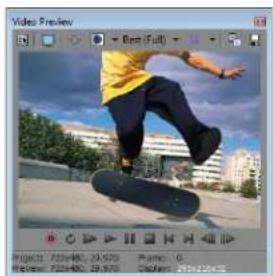
natural_image
Person skateboarding on a city street with buildings in the background (no visible text or symbols)Automatic crop setting turned on Portrait still image cropped to fill frame
To enable this feature, select the Automatically crop still images added to the timeline check box on the Editing tab in the Preferences dialog. For more information, see Editing tab on page 455.
You can use the Event Pan/Crop window to adjust the cropping after you have added a still image to the timeline and the software has automatically cropped the image. For more information, see Cropping on page 289.
Capturing a timeline snapshot
You can create still images of a single frame of your project. Once saved, the snapshot can be used just like any other still image.
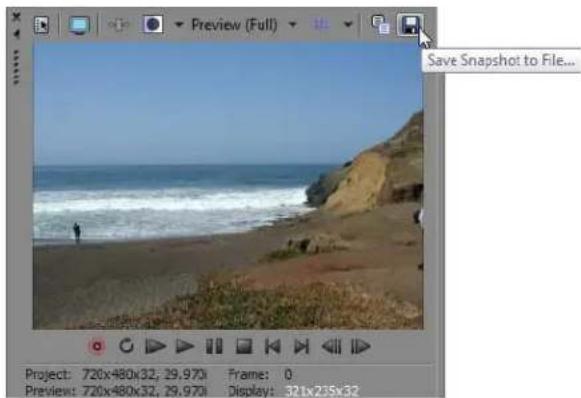
- Position the cursor on the frame of the project you wish to capture as a still image.
Tip: You can change the size of the image by using the Preview Quality button. Choose Auto or Full to capture the frame at its full resolution, or choose Half or Quarter to capture a smaller image.
- Click the Save Snapshot to File button (☐) on the Video Preview window. The Save Snapshot to File dialog appears.
- Select a file format and type a name for the new still image file.
- Click Save. The image is added to the Project Media window.
Creating a slide show
A slide show composed of still images and an accompanying soundtrack can be an excellent way to show off your pictures. You can insert multiple images to instantly create a slide show, complete with crossfades.
Importing high-resolution still images and using panning, cropping, and track motion tools can add interest to an otherwise static slide show. For more information, see Cropping video on page 287 and Adding track motion on page 363.
- In the Options menu, verify that Automatic Crossfades is selected.
-
From the Options menu, choose Preferences. Adjust the following settings on the Editing tab:
-
Enter the length for the still images in the New still image length box.
• Select Automatically overlap multiple selected media when added. -
Enter the length of the automatic overlap in the Amount box in the Cut-to-overlap conversion section of the dialog.
-
Click OK. The Preferences dialog closes.
- Select all of the images you want to use in the Explorer.
- Right-click and drag these files to the timeline.
- From the shortcut menu, choose Add Across Time.
If you want, you can replace the crossfades between images by dragging transitions to the crossfade regions at a later time. For more information, see Using transition effects on page 348.
Note: When using photographs or other media that is not the same frame aspect as your video, you'll see black bars on the sides or above and below the image. To create a crop rectangle that matches the project frame aspect, right-click the image and choose Match Output Aspect from the shortcut menu.
Creating text and titles
Most video projects include titles and credits. There are several ways to add text to your project: you can use the included plug-ins for static text and scrolling credits, or you can use an external image-editing program to create images with text on them.
Adding text and titles with the ProType Titler
With the ProType Titler, you can create static text, animated text effects with splined paths, per-character animation, and advanced curves. Add shadows, glows, blurs, and gradients for unique text treatments.
- From the View menu, choose Media Generators to display the Media Generators window.
- In the left pane, select the ProType Titler plug-in. The available presets are displayed in the right pane.
- Drag a preset to a position on the timeline to create a generated media event.
Tip: If you want text to appear as an overlay, add it to a track above the video you want to overlay and use a transparent background. For more information about compositing video tracks, see Compositing on page 329.
- Use the ProType Titler plug-in controls to edit the appearance of your text.
You can use animation in the ProType Titler to create scrolling and crawling credits.
For more information about the ProType Titler, see the Vegas Pro Online Help.
Inserting text with the Text plug-in
- From the View menu, choose Media Generators to display the Media Generators window.
- In the left pane, select the Text plug-in. The available presets are displayed in the right pane.
- Drag a preset to a position on the timeline to create a generated media event.
Tip: If you want text to appear as an overlay, add it to a track above the video you want to overlay and use a transparent background. For more information about compositing video tracks, see Compositing on page 329.
- Use the Text plug-in controls to edit the appearance of your text.
Creating titles from images
Title images can be created in almost any editing program. The following general procedure explains how to create titles with a transparent background.
Tip: You can use track motion to animate titles created from still images. For more information, see Adding track motion on page 363.
- Start your image-editing application.
- Create a new image and set the dimensions of the new image to be the same as the frame size for the project. For more information, see Correcting images for DV pixel aspect ratios on page 291.
- Make the default canvas (background) transparent.
- Select the Text tool and type the text for your title.
Note: Size and position your titles carefully to fit within the Title Safe Area or the titles may extend beyond the edges of your television. For more information, see Identifying safe areas on page 374.
- Save the file as a PNG, PSD, or TGA file (PNG is recommended). Make sure that you save the alpha channel information, which is used for transparency.
-
Add the image as an event to the track above the track containing the background.
-
Click the Compositing Mode button (☐) to set the title track to Source Alpha (default).
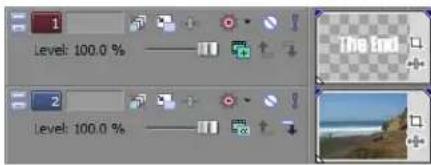
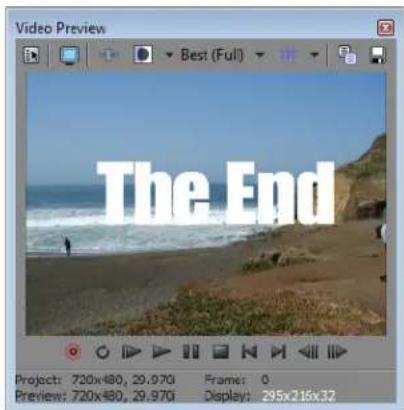
Notes:
- If your title is saved as a TGA image, the alpha channel may not be detected automatically. Use the Media Properties dialog and choose a new setting from the Alpha channel drop-down list. For more information, see Modifying media file properties on page 305.
- If your image does not have an alpha channel, you can use the Chroma Keyer to filter the image and key out the background. For more information, see Chroma keying on page 345.
Fading titles
Another common technique is to fade a still title in and out. You can create this effect by using an opacity envelope on a title event. For more information, see Using opacity envelopes on page 206.
You can also create multiple title images and then use crossfades or custom transitions between them. For more information, see Using transition effects on page 348.
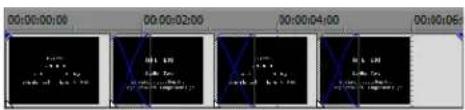
Resampling video
Resampling allows Vegas Pro software to interpolate frames in an event when the frame rate of a media file is lower than the project's frame rate. With resampling, the intervening frames are interpolated from the source frames, much like a crossfade between the original frames.
You can instruct Vegas Pro software to resample the video of a single video event or to resample the entire project at the time of final rendering:
- To resample an event, right-click a video event and choose Properties from the shortcut menu. In the Video Event tab of the Properties dialog, choose the Smart resample, Force resample, or Disable resample radio button. For more information, see Resample (video only) on page 201.
- To resample the project, choose Render As from the File menu. In the Render As dialog, click the Custom button to access custom rendering settings. Select the Resample the frame rate of all video check box. For more information, see Customizing the rendering process on page 399.
The original media file looks something like this over three frames.
natural_image
Three red basketball illustrations arranged diagonally (no text or symbols)
To convert these three frames into nine frames for a faster frame rate, Vegas Pro software must generate the intervening frames.



Without resampling, the intervening frames are simply the previous frame repeated.



With resampling, the intervening frames are interpolated from the source frames. It is similar to a crossfade effect between the original frames.
Resampling at either the event or project level perform the same function. There are few cases where resampling may be particularly important:
- When the frame rate of the source media for an event is slower than the project's frame rate. For example, when you are using a source media file that has a 10 fps rate in a 29.97 fps rate project, resampling is recommended.
- When changing the speed of a video event. For example, when slowing a clip to 30% using a velocity envelope, resampling is recommended.
• When creating vertically scrolling titles.
When any of the previous situations are true, there are only ten frames of source material for every second of project time. When the project is rendered, there must be roughly thirty frames in each second. The frames must be created between the source media frames, sometimes known as padding. The easiest way to do this is to simply duplicate the previous frame. This can result in less than smooth video playback. Resampling allows Vegas Pro software to interpolate the intervening frames more smoothly.
Using Edit Decision Lists (EDL)
Vegas Pro Edit Decision Lists (EDL) are text lists of all of the media files used, where they are placed, and how they are trimmed. Vegas Pro EDLs are not the same as those used in traditional linear editing suites and are not intended as a project interchange for other editing applications.
Creating an EDL
- From the File menu, choose Save As. The Save As dialog appears.
- From the Save as type list choose EDL Text File (.txt).
- Enter a name for the file and browse for a destination.
- Click Save.
You can open EDLs created in another application in order to work with a rough copy of a project. For example, you could create an EDL from a project in a third-party editing application and then import the project into Vegas Pro software via the EDL. For best results, save the EDL file and source media files in a single folder before opening the EDL.
Opening an EDL
- From the File menu, choose Open.
- Locate the EDL file, select it, and click the Open button. If you are working on another project, you are prompted to save your work before a new project is opened.
Note: EDLs do not contain any information about the location of source media. Therefore, the EDL file should be saved in the same directory as the source media. If it is not, or if media is stored in a number of different locations, you are prompted to relink these files when the EDL is imported.
Because of the significant differences between editing applications, third-party EDL files may not bring all of the project data into Vegas Pro software. Among other differences, events are inserted into the timeline on a single track, all transition effects are replaced with crossfades, and only four audio tracks can be imported.
Working in DV format
Vegas Pro software is optimized for DV editing. If your project is destined for tape or television, the DV format is an excellent choice. The DV codec installed with Vegas Pro provides video with excellent image quality, even over multiple generations, and provides audio that is better than CD-quality. If you start with well-shot DV footage and stay within the DV format throughout the editing process, you can output broadcast-quality video programs. This section provides guidelines for working in the DV format.
Selecting source media
Wherever possible, use DV source video clips. You can capture video from DV cameras and decks using an IEEE-1394 card with no quality loss. You can also convert analog footage to DV using a media converter or by passing the video through a DV camcorder.
Setting project properties
Set your project to match the DV format of your final output. This provides a true WYSIWYG view of the project when you use an external monitor for previewing. This also prevents you from stretching output or changing field order unnecessarily. You can match the project settings to a video source file by using the Match Media Settings button (播放) in the Project Properties dialog. For more information, see Setting video properties based on a media file on page 38 and Modifying project video properties on page 303.
Selecting templates
Always select a DV template when performing any of the following tasks in a DV project:
• Prerendering video (For more information, see Prerendering video on page 371.)
- Rendering to a new track (For more information, see Rendering to a new track on page 181.)
• Printing video to tape from the timeline (For more information, see Printing video to tape from the timeline on page 402.)
- Rendering a project (For more information, see Rendering a project on page 387.)
When prerendering video or rendering to a new track, a DV template not only optimizes playback performance, but also helps you avoid needless recompression of DV footage. DV material is recompressed only when necessary. Cuts-only DV sequences are not recompressed when you output the project to DV from the timeline or in Video Capture.
The DV templates are designed to provide high quality, pixel aspect-correct, DV-compliant renders when rendering a project or printing to tape from the timeline. Do not select an uncompressed setting when choosing rendering or print-to-tape options. An uncompressed setting produces a large file that will not print back to DV tape from Video Capture or from the timeline.
Eliminating out-of-range colors
The DV format allows color values to exceed broadcast NTSC and PAL color level standards. If you have a scene whose colors are too hot, or if you want to be sure that your video stays within legal broadcast levels, apply the Broadcast Colors effect to specific events or the entire project.
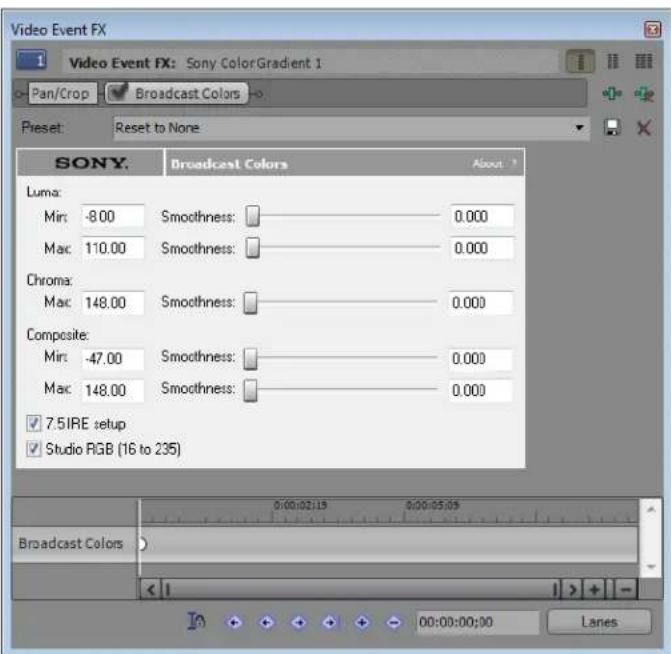
Be aware that applying the Broadcast Colors effect results in recompression of the video. As a result, render times can increase significantly when the effect is applied to the entire project.
Working in HDV format
HDV cameras record high-definition video to standard DV tapes using a highly compressed variation of the MPEG-2 format. Because of this compression, you can capture HDV clips at data rates that are no higher than DV capture.
You can use HDV files just like any other supported media type on the timeline.
Capturing HDV clips
If you have an HDV camera, you can use Vegas Pro software to capture your clips as MPEG-2 transport streams.
Tip: If you will be delivering your project in standard definition (SD) via DVD or DV tape, you can use the camera's built-in downconversion (if available) to convert your HDV video to the DV format. Use the camera's Options menu to set the camera to output DV, and you can capture and edit video in the same way that you normally use DV in Vegas Pro projects. For more information, see Working in DV format on page 297.
- Enable the Video Capture application:
a. From the Options menu, choose Preferences.
b. Click the Video tab.
c. Clear the Use external video capture application check box.
d. Click the OK button.
-
From the File menu, choose Capture Video (or click the Capture Video button (in the Project Media window) to start the Video Capture application.
-
Configure your HDV device in Video Capture:
a. Click the Prefs button (in the Capture window to open the Capture Preferences dialog.
b. Click the Device tab.
c. From the Device type drop-down list, choose IEEE 1394/MPEG2-TS Device.
d. From the Device drop-down list, choose your HDV camera.
- Capture your clip:
a. Use the transport controls below the Video Preview window to cue your tape.
b. Click the Start Capture button (☐) to start capturing.
c. Press the Play button on your camcorder.
d. Click the Stop button (☐) (or press Esc) to end the capture procedure.
Your clip is saved to the folder specified on the Disk Management tab of the Capture Preferences dialog. This path is displayed in the Capture folder box in the Video Capture window.
Note: Select the Enable HDV scene detection check box on the General tab of the Capture Preferences dialog if you want to create multiple files if scene changes are detected. When the check box is cleared, HDV clips will be captured to a single file.
- You're ready to start editing on the timeline. For more information, see Editing HDV video on the timeline on page 300.
Creating Proxy Files for High-Definition Editing
If you're working on a system with limited processing power, converting to a lower-resolution format will streamline the editing process and allow you to preview your project.
- Capture or import your high-definition clips. For more information, see Capturing HDV clips on page 299.
- Start a new project.
- Add your high-definition clips to the timeline.
- Render your clips to an appropriate proxy format.
You can verify a template's codec by looking at the Video format drop-down list on the Video tab of the Custom Template dialog.
If you're performing frame rate or frame size conversion, ensure the Video rendering quality is set to Best on the Project tab of the Custom Template dialog.
| Destination | Proxy Format |
| HDCAM over HD-SDI | Render an .avi file that uses the Sony YUV codec. The frame rate and frame size should match your HDCAM master. |
| Digital Betacam or XDCAM over SD-SDI match your master. | Render an .avi file that uses the Sony YUV codec. The frame rate and frame size should |
| 24p DVD | Render an .avi file that uses one of the following codecs:• Sony YUV (offers the highest quality, but requires a high-performance drive array).• Sony NTSC DV Widescreen (use the NTSC DV Widescreen 24p (2-3-3-2) pulldown .avi template). |
| Windows Media HD | Render an MPEG-2 file using one of the following templates. Choose the template that matches your HDV source:• HDV 720-25p.• HDV 720-30p.• HDV 1080-50i.• HDV 1080-60i. |
- After rendering is complete, you're ready to start editing on the timeline. For more information, see Editing HDV video on the timeline on page 300.
Tips:
- If you don't want to convert all clips in their entirety, create regions to indicate the portions of the captured HDV clips that you want to convert to a proxy format, and then render the regions to the desired format.
- Remember that Vegas Pro software supports multiple instances. You can use one instance of the application to render your proxy files while you continue editing in another instance.
-
Using DVD Architect software, you can create a DVD that contains an SD version of your project and place an HD Windows Media version in the Extras folder on the disk. When you browse to the Extras folder via Windows Explorer, you can play the HD version and output it to your computer's display, a home theater, or a projector.
-
If you're working with proxy files and you plan to render to a format that supports high-definition video, replace the proxy clips with the original high-definition clips before rendering your project or printing to tape.
a. Right-click the proxy file in the Project Media window.
b. Choose Replace from the shortcut menu.
c. Browse to the MPEG-2 transport stream that corresponds to the proxy file, and then click Open.
If your destination format is standard definition, you don't need to replace the proxy clips before rendering.
Editing HDV video on the timeline
You can use native HDV footage (called transport streams) files just like any other supported media type on the timeline.
- Import the clips from your HDV camera to your local hard drive. For more information, see Capturing HDV clips on page 299.
- Drag your captured clips from the Explorer or Project Media window to the timeline to create events.
- Edit your project as needed. For more information, see Editing events on page 96.
- Render your project or print to tape. For more information, see Saving, Rendering, and Printing Projects on page 385.
Working with RED ONE camera files
RED ONE™ cameras record 4K footage as REDCODE™ RAW (.r3d) files that you can add directly to the Vegas Pro timeline and edit like any other supported media type.
- Use the Device Explorer to browse and import clips from your RED ONE camera's memory card or hard drive to your local hard drive. For more information, see Using the Device Explorer on page 60.
- Set your project properties to match the format of your final output.
• To output a 2K still-image sequence, use the 2K 16:9 24p (2048x1152, 23.976 fps) template.
• To output a 4K still-image sequence, use the 4K 16:9 24p (4096x2304, 23.976 fps) template.
• To output to Blu-ray Disc™, use the HD 1080-24p (1920x1080, 23.976 fps) template.
For more information on rendering still-image sequences, see Rendering still-image sequences on page 390. For more information on burning Blu-ray Discs, see Burning a Blu-ray Disc on page 422.
- Drag the clips from the Explorer or Project Media window to the timeline to create events.
Note: The RED ONE camera creates new "rollover" files for a clip each time a file reaches 2 GB on disk. For example, a 10-minute clip recorded in 4K will be approximately 20 GB on disk, divided among 10 .r3d files. You can drag any one of these files to the timeline to place the entire clip on the timeline.
- Edit your project as needed. For more information, see Editing events on page 96.
Modifying R3D decode properties
You can modify the decode properties of your RED ONE camera files in the R3D Decode Properties window. These settings are applied nondestructively to the raw .r3d file as metadata.
Note: The decode properties are stored in a .SfDecProp file that is saved using the same base name as the clip. Do not edit the contents of this file.
To access this window for one or more .r3d files, select the files in the Project Media window, right-click them, and choose File Format Properties from the shortcut menu.
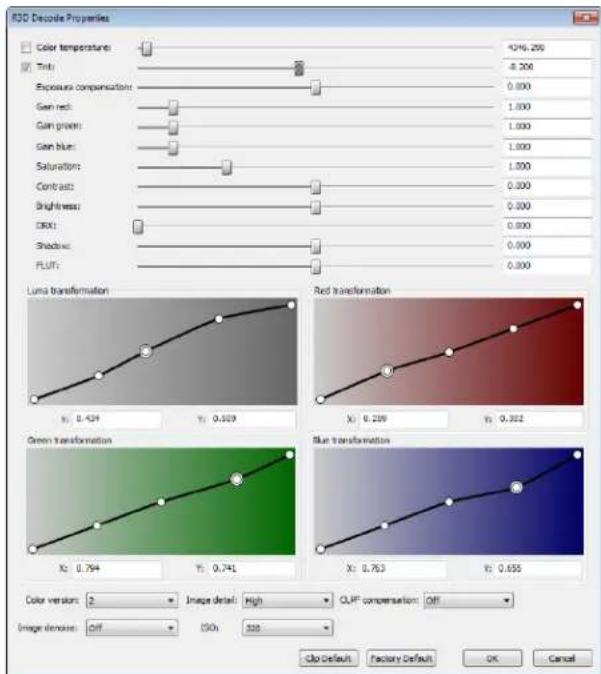
Modifying properties for multiple files
- When multiple files are selected, check boxes appear for slider settings that do not match across all selected files. When you drag the slider or type a new value, the check box is automatically selected, and the new value is applied to all selected files when you click OK. Clear the check box to leave the setting unchanged for the selected files.
- If values already match for a slider setting, no check box is displayed, and any changes made to the setting are applied to all selected files.
- If values do not match for a drop-down setting, the setting is blank. If you choose a value for a blank drop-down setting, that value is applied to all selected files.
Restoring default values
• Double-click a slider (☐) to restore the setting to the clip default.
- Click the Clip Default button to restore all settings to the clip default.
- Click the Factory Default button to restore all settings to the default settings of the camera.
For more information about the settings in the R3D Decode Properties window, refer to your RED ONE camera documentation or http://www.red.com/support. These settings map directly to settings on the RED ONE camera.
Modifying project video properties
You can access project video properties by clicking the File menu and choosing Properties or by clicking the Project Video Properties button 📄 on the Video Preview window. Many of these settings are identical to the settings found on the Project tab of the Custom Template dialog. Final render properties set up in the Custom Template dialog override the following Project Properties settings. For more information, see Working with project properties on page 434.
These properties control all of the default settings for your project. Without making any changes, these are also the settings that are used to create a final rendered movie file.
| Item | Description |
| Template | Select a preset template from this drop-down list to automatically configure the remaining video controls in this dialog. Many popular formats are included, but you should consult your hardware manuals if you have any questions. You can also save your own custom template. |
| Match Media Settings | Click the Match Media Settings button (💡) to set your project properties to match the properties of a media file of your choosing. |
| Width/Height | Use the values in these boxes to set the frame size of your final movie. The maximum frame size for AVI, MPEG, QuickTime, RealMedia, Windows Media, and still-image output is 2048x2048.Note:The maximum frame size is 4096x4096. |
| Field order | Choose an option from this drop-down list to set the field order:None (progressive scan) Select this option for video to be viewed on a computer monitor.Upper field first Select this option for video that will be viewed on a television.Lower field first Select this option for DV output or if Upper field first produces jittery or shaky output. |
| Pixel aspect ratio | Choose the pixel aspect ratio for the final movie's destination from this drop-down list. For more information, see Pixel Aspect Ratio on page 504. |
| Output rotation | Choose a setting from the drop-down list to rotate your project's output. Use output rotation to edit projects for display in portrait (rather than landscape) or inverted orientation.Tip:If you want to rotate a media file's orientation, you can use the Rotation drop-down list on the Media Properties dialog. For more information, see Editing properties for a video file on page 306.For more information about working with rotated projects, see Working with rotated projects on page 39. |
| Frame rate | Choose a frame rate for the final movie's destination from this drop-down list. For more information, see Frame Rate (Video) on page 502. |
| Stereoscopic 3D mode | Choose a setting from the drop-down list to create a stereoscopic 3D project, or choose Off to create a 2D project.By default, the project's Stereoscopic 3D mode, Swap Left/Right, and crosstalk cancellation settings will also be used when previewing and rendering your project, but you can override the project settings if necessary.For more information about setting up a stereoscopic 3D project, see Setting up your stereoscopic 3D project on page 143. |
| Item Description | |
| Pixel format | Choose a setting from the drop-down list to indicate whether you want to perform video processing (compositing, scaling, previewing, rendering, and most video plug-ins) using 8-bit or 32-bit, floating-point arithmetic.8-bit Performs video processing using 8-bit arithmetic and in the video (studio RGB, or 16-235) color space.32-bit floating point (video levels) Performs video processing using 32-bit arithmetic and in the video color space.32-bit floating point (full range) Performs video processing using 32-bit arithmetic and in the full-range color space.The 32-bit floating point settings allow greater precision for processing video, but require significantly more processing power than working with 8-bit video.Tips:32-bit floating point (video levels) is recommended when working with 10-bit YUV input/output or when using xvYCC/x.v.Color media.When using 8-bit input/output, the 32-bit floating point (video levels) setting can prevent banding from compositing that contains fades, feathered edges, or gradients.Video plug-ins and media generators that do not support floating-point processing are indicated by a blue icon (*) in the Plug-In Manager and Plug-In Chooser with this icon in the Video FX and Media Generators windows.If you're creating a 32-bit project, you can increase performance during editing and playback by using the 8-bit setting and switching to 32-bit floating point (video levels) before rendering. |
| Compositing gamma | When you choose 32-bit floating point (full range) from the Pixel format drop-down list, you can choose a compositing gamma value:1.000 (Linear) The default setting when you choose 32-bit floating point (full range) from the Pixel format drop-down list.2.222 (Video) Processing in 8-bit video is always performed using a setting of 2.222. Choose this setting when you want to ensure maximum compatibility with projects created in previous version of Vegas Pro software. |
| Full-resolution rendering quality | Choose a rendering quality level from this drop-down list. For most projects, Good is the recommended setting. If you have critical material where nothing but the highest quality rendering will do, select Best. Note that rendering time may increase dramatically as large amounts of extra processing is required for the Best setting. |
| Motion blur type | Some effects and transitions can involve motion or animation. This list allows you to select whether the frames are blurred slightly to create the illusion of motion on individual frames. This can make computer generated animation appear more smooth and natural. Gaussian is the best choice in most situations where blurring is required. |
| Deinterlace method | This drop-down list provides several options relating to interlacing. Source video from a television is interlaced. When Vegas Pro software renders effects, it needs to deinterlace the two fields that make up a frame. You can choose the exact method used in this list:None The fields are left interlaced.Blend Contents are used from both fields, which is a good choice for high-detail, low-motion material.Interpolate A single field is used at a time, which is good for low-detail, high-motion material. |
| Item | Description |
| Adjust source media to better match project or render settings | Select this check box if you want Vegas Pro to scale images or adjust interlacing to allow media files to work better with your project.This setting will correct for the following types of inconsistencies:DV media will be cropped for 320x240 Internet renders to prevent letterboxing.DV widescreen media will be cropped in HD projects.HD media will be cropped in DV widescreen projects.486-line media will be cropped in 480-line projects.480-line media will be padded in 486-line projects.When the check box is cleared, source media files are processed with their native settings. |
| Prerendered files folder | Displays the path where prerendered files are stored. The Browse button allows you to select a new location to store prerendered files. For more information, see Prerendering video on page 371. |
| Free storage space in selected folder | Displays the available disk space where prerendered files are stored. |
| Start all new projects with these settings | Select this check box to always use these settings for new projects. |
Modifying media file properties
Vegas Pro software tries to automatically detect the properties of your media files. In most cases, these properties do not need to be modified, but there are times when you may need manual control over some of these attributes, depending on the type of file and your specific hardware configuration.
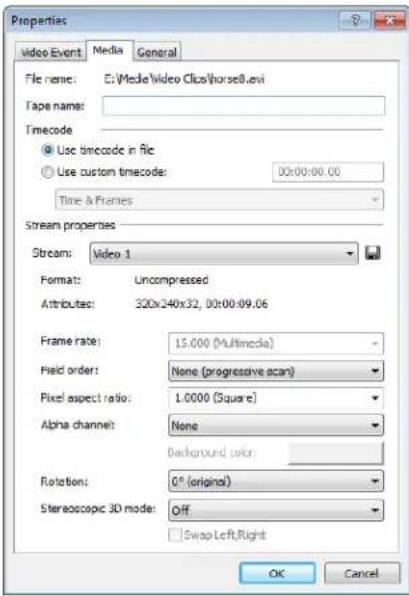
- Right-click a file in the Project Media window or an event on the timeline and, from the shortcut menu, choose Properties, or select a file in the Project Media window and click the Properties button (☑).
- Modify the parameters on the Media tab as needed. For more information, see Editing properties for an audio file on page 306 and Setting custom stream properties on page 308.
- Click OK.
Editing properties for an audio file
The following settings are available for audio files.
Tip: You can also view the properties for the media file associated with an event. Right-click the event, choose Properties from the shortcut menu, and click the Media tab.
Item Description
| File name Displays the current media file name and location. | |
| Tape name | This can be used to display the name of the tape from which you recorded the audio. The name can be edited here or in the corresponding field in the Edit Details window. |
| Stream | If a file contains multiple streams, you can use this control to select the stream for which you want view properties. |
| Attributes | Displays the file's sample rate, bit-depth, number of channels, and length. |
| Format | Displays the compression format of the file. |
Editing properties for a video file
The following settings are available for video files:
Tip: You can also view the properties for the media file associated with an event. Right-click the event, choose Properties from the shortcut menu, and click the Media tab.
Item Description
| File name Displays the current media file name and location. | |
| Tape name | This can be used to display the name of the tape from which you captured the video. The name can be edited here or in the corresponding field in the Edit Details window. |
| Use timecode in file | Select this radio button to accept the default timecode settings. |
| Use custom timecode | Select this radio button to specify a beginning value for the timecode. |
| Stream | If a file contains multiple streams, you can use this control to select the stream for which you want view properties. |
| Attributes | Displays the frame size, in pixels (x,y). color depth, and length of the file. |
| Format | Displays the compression format of the file. |
| Field order | Choose a setting from the drop-down list to change the field order of the file. Consult your capture/video output card's manual for the proper field order. · None (progressive scan): Select this option when viewing the video on a computer. This option ignores interlacing. · Upper field first: Select this option (also called odd or field A) for video that will be viewed on a television. · Lower field first: Select this option (also called even or field B) for DV output or if Upper field first produces jittery or shaky output or if your hardware manual specifies lower field first. |
| Pixel aspect ratio | Choose a setting from the drop-down list to change the pixel aspect of the file. This setting will depend on your capture/video output card. Consult your capture/video output card's manual for the proper settings. |
| Item Description | ||
| Alpha channel | Choose a setting from the drop-down list to change the alpha channel information for the file.If the alpha channel in an image is not detected, choose the correct type of alpha channel from this drop-down list. If you're unsure, try the Premultiplied setting first.Undefined: Video provides no alpha channel information. This setting ignores any alpha channel information in the file.None: Video has no alpha channel or there is an alpha channel but it's completely opaque (solid).Straight (unmatted): Transparency information is maintained in only the alpha channel. Alpha information must be applied to the RGB channels before compositing.Premultiplied: The standard method of handling alpha information. Transparency information is maintained in the alpha and RGB channels, and the image is ready for compositing. No RGB component exceeds the alpha value.Premultiplied (dirty): Similar to Premultiplied, but RGB components may exceed the alpha. This setting is used mainly for images created by 3D applications involving compositing of 3D images over a non-solid color image background. | |
| Rotation | Choose a setting from the drop-down list to rotate a media file's orientation. For more information, see Working with rotated projects on page 39. | |
| Stereoscopic 3D mode | Choose a setting from the drop-down list to choose the stereoscopic 3D mode for the media file. | |
| Off | Choose this setting for 2D media or to treat a multistream video as 2D. | |
| Pair with next stream | Choose this setting for multistream 3D video, such as video from paired files CineForm Neo3D files, or files from a 3D camera. | |
| Side by side (half) | Choose this setting when your video contains left- and right-eye views in a single frame.Left- and right-eye views are displayed as half of the available horizontal resolution. | |
| Side by side (full) | Choose this setting when your video contains left- and right-eye views in a single frame.Left- and right-eye views are displayed using the full horizontal resolution. | |
| Top/bottom (half) | Choose this setting when your video contains left- and right-eye views stacked in a single frame.Left- and right-eye views are displayed as half of the available vertical resolution. | |
| Top/bottom (full) | Choose this setting when your video contains left- and right-eye views stacked in a single frame.Left- and right-eye views are displayed using the full vertical resolution. | |
| Line alternate | Choose this setting when your video contains interlaced 3D video.Left- and right-eye views are interlaced using half of the available vertical resolution. | |
| Swap Left/Right | Select this check box if you need to switch the left- and right-eye pictures. This setting is useful if you're using a line-alternate display that displays the right eye on top, if you're using magenta/green anaglyphic glasses, or to create cross-eye free-view 3D. | |
Setting timecode media properties
These properties appear in the Timecode section of the Media tab:
• The Use timecode in file radio button is the default setting, where the media file's timecode is used.
- The Use custom timecode radio button allows you to set the media file's timecode manually.
- If you have selected the Use Custom timecode radio button, a drop-down list contains the available timecode formats. SMPTE Drop (29.97 fps, Video) for example, is the timecode format for NTSC DV. Changing the timecode format does not change the source media file in any way. It merely changes how the file is measured in time. For more information, see Timecode on page 495.
Setting custom stream properties
Media files are opened with a set of default values based on the media file type. When you change any of the values for a media file, these changes are saved for that file in the current project only. If you want to change the default settings for a particular type of video file whenever that type of file is used, click the Save settings to video profiles for future auto-detection button (☐) to the right of the Stream list. This adds an entry to a file called vegas video profiles.ini that can be referenced for future use.
The following properties appear in the Stream properties section of the Media tab:
- If the file has more than one stream of the given type, you can choose the particular stream for which you want to view properties from the Stream drop-down list.
• The Attributes, Format, and Frame rate boxes display basic information about the file. - Choose an option from the Field order drop-down list to control how the video field order is handled on a television monitor. Choose None (Progressive) for video to be viewed on a computer monitor. For DV output, choose Lower Field First. If the output is jittery or shaky, or your hardware's manual specifies it, choose Upper Field First.
- While you can choose a different value from the Pixel aspect ratio drop-down list, this value should always match the source video's properties.
- The option selected in the Alpha channel drop-down list determines how transparency is handled in a file. The default alpha channel setting for most video files is None. PNG image files can have an alpha channel that is automatically detected. The options in this drop-down list are described below.
| Alpha channel option | Description |
| Undefined | Because the image format provides no alpha channel information, this setting ignores any alpha channel information in the file. |
| None | Either there is no alpha channel or there is an alpha channel but it's completely opaque (solid). |
| Straight (unmatted) | Transparency information is maintained in only the alpha channel. Alpha information must be applied to the RGB channels before compositing. |
| Premultiplied | The standard method of handling alpha information. Transparency information is maintained in the alpha and RGB channels, and the image is ready for compositing. No RGB component exceeds the alpha value. |
| Premultiplied (dirty) | Similar to Premultiplied, but RGB components may exceed the alpha value. This option is used mainly for images created by 3D applications involving compositing of 3D images over a non-solid color image background. |
Closed Captioning
Vegas® Pro software supports adding closed captions to video files and rendering those files as XDCAM HD and XDCAM HD422 MXF files. You can also add captions to video files and render as Windows Media Video for use in Windows Media Player.
Adding closed captioning to video files
Closed captions help make your video productions accessible to a wider audience. Closed captions are widely used by viewers who are deaf or hard of hearing, those who are learning to read, or who are learning a second language.
Closed captions can be turned on or off by the viewer (unlike open captions, which are always displayed). Closed captions display spoken dialogue and sound effects as on-screen text.
Notes:
• Vegas Pro supports CEA608 captions and CEA708 containers containing CEA608 captions. CEA708 captioning is not supported.
- When rendering to XDCAM HD/HD422, CEA608 data is uplifted to CEA708 format so that CEA608 and CEA708 captions are available when playing via HD SDI. CEA608 CC1 is uplifted to CEA708 Service 1, and CEA608 CC3 is uplifted to CEA708 Service 2. Please note that caption positions can be slightly different after uplifting to CEA708.
- When you render to a format that does not support embedded captioning markers, an .scc file is created using the base name of the rendered media file.
Importing or rendering closed captions in an MXF or MPEG-2 file
Importing closed captions
Vegas Pro supports closed captioning embedded in XDCAM HD/XDCAM HD422 MXF and MPEG-2 files. ATSC and SCTE formats are supported when reading captions in MPEG-2 files.
When you add media to the timeline or Trimmer, embedded captioning markers are displayed as media markers.
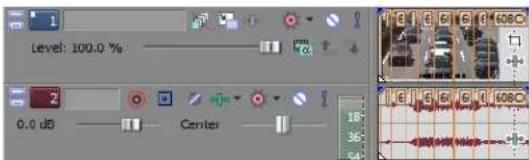
Markers are aligned with the start of captioning for paint-on captions or with the display time for pop-up style captions.
When the captioning markers are read, Vegas Pro creates an .scc file in the media file's folder using the same base name as the media file. The .scc file is used when you use the media in the future so the application doesn't need to scan the media again.
When you're finished editing your project, you can promote the embedded captioning markers to the timeline.
- Select events with captions.
- From the Tools menu, choose Scripting, and then choose Promote Media Closed Captioning.
The markers appear as command markers on the timeline, and you can move and edit the markers as needed:
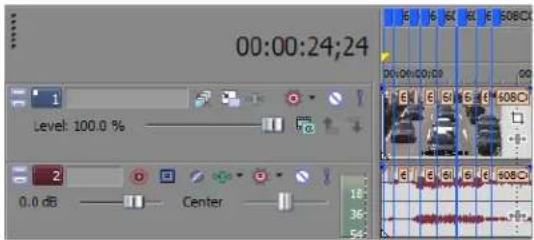
Rendering captions
You can export captions in rendered media and in standalone .scc files.
- When you render to XDCAM HD/XDCAM HD422 MXF formats, captioning markers are embedded in the media file. An .scc file is also created using the base name of the rendered media file.
- When you render to MPEG-2 format, captioning markers are encoded in ATSC format.
- When you render to a format that does not support embedded captioning markers, an .scc file is created using the base name of the rendered media file.
Importing or rendering Line 21 closed captions
Importing Line 21 captions
Vegas Pro reads embedded Line 21 captions when you import a media file with a frame size of 720x486 pixels (or taller) and a frame rate of 29.97 fps.
When you add media to the timeline or Trimmer, embedded captioning markers are displayed as media markers.
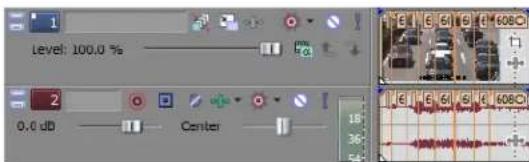
Markers are aligned with the start of captioning for paint-on captions or with the display time for pop-up style captions.
When the captioning markers are read, Vegas Pro creates an .scc file in the media file's folder using the same base name as the media file. The .scc file is used when you use the media in the future so the application doesn't need to scan the media again.
When you're finished editing your project, you can promote the embedded captioning markers to the timeline:
- Select events with captions.
- From the Tools menu, choose Scripting, and then choose Promote Media Closed Captioning.
The markers appear as command markers on the timeline, and you can move and edit the markers as needed:
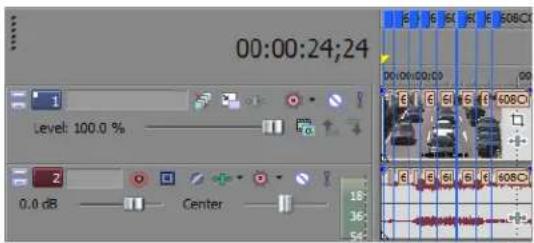
Rendering Line 21 captions
Line 21 captions are supported during rendering when using a frame size of 720x486 pixels (or taller) and a frame rate of 29.97 fps.
Note: Encoding Line 21 captions for DVD is not supported. MPEG-2 video for DVD cannot exceed 480 lines of resolution. DVD Line 21 captions are embedded as metadata in the MPEG-2 video stream and are not supported.
Importing or printing captions when using HD SDI
Importing closed captions over HD SDI
Vegas Pro reads embedded VANC closed captioning when capturing video over HD SDI.
- During capture, Vegas Pro creates an .scc file in the media file's folder using the same base name as the captured file.
• If capturing to XDCAM HD422 format, closed captions are also embedded in the captured file.
Printing closed captions to tape over HD SDI
When you print to tape over HD SDI, closed captions are included as VANC data.
Importing closed captions from a closed captioning file
If your media does not contain embedded captioning markers, you can import markers from an external file. The following file types are supported:
- Scenarist Closed Caption (.scc)
Tip: If an .scc file matches the media file name, the captions will be read automatically when you load a file.
For example, if your video file is wildflowers.avi, naming your captioning file wildflowers.avi.scc will allow Vegas Pro to read the captions automatically.
• RealPlayer Captioning Files (.rt)
- SubRip Subtitles (.srt)
• Windows Media Player Captioning Files (.smi)
- Transcript or QuickTime Captioning Files (.txt)
• CPC MacCaption Files (.mcc)
Tip: If an .mcc file does not contain CEA608 captions, its CEA708 captions will be converted to CEA608 pop-up captions. Service 1 captions will be imported as 608CC1 captions, and Service 2 captions will be imported as 608CC3 captions.
• DVD Architect Subtitles (.sub)
-
From the File menu, choose Import, and then choose Closed Captioning from the submenu.
-
In the Open dialog, browse to the file you want to use and click Open.
The markers appear as command markers on the timeline, and you can move and edit the markers as needed.
Tip: Captioning markers will be placed according to the timecode in the captioning file. If needed, you can adjust marker positions by applying a timeline ruler offset before importing the closed captioning.
Synchronizing captions with video
After you import captions, you may need to adjust timing to synchronize the markers with your video.
- Use the procedure described earlier in this chapter to import captions.
- Position your video events as desired in the timeline.
- From the View menu, choose Edit Details to display the Edit Details window.
- From the Show drop-down list, choose Commands. Your captioning commands are now displayed in the Edit Details window.
- In the timeline, position the cursor where you want to start inserting captions.
- Select a row in the Edit Details list to select the first caption you want to insert.
- Click the Play button (▶) to start playback.
- When you're ready to insert your first caption, press Ctrl+K. The first caption is inserted at the cursor position, the Position setting is updated, and the next caption is selected.
- Press Ctrl+K to insert each subsequent caption.
Adding or editing closed caption markers on the timeline
You can edit closed caption markers on the timeline to adjust caption start times, delete caption markers, edit their contents, or add new markers.
• To add a new marker, click to position the cursor on the timeline and then choose Command from the Insert menu (or press C).
Tip: To create a pop-on caption quickly, type your caption text in the Comment box in the Command Properties dialog. Caption markup is added automatically. You can use [BR] to indicate a line break.
• To move a marker, drag the marker tag on the timeline.
• To delete a marker, right-click it and choose Delete from the shortcut menu.
• To edit a marker, double-click the marker tag.
Use the Command Properties dialog to edit the marker.
| Item | Description |
| Command | Choose 608CC1 for primary-language captions.Choose 608CC3 for secondary-language captions.Notes:Vegas Pro also supports 608CC2 and 608CC4 commands for the CC2/CC4 channels.When rendering to XDCAM HD/HD422, CEA608 data is uplifted to CEA708 format so that CEA608 and CEA708 captions are available when playing via HD SDI. CEA608 CC1 is uplifted to CEA708 Service 1, and CEA608 CC3 is uplifted to CEA708 Service 2). |
| Parameter | Displays the marker's captioning text. [BR] indicates a line break. |
| Comment | Type closed caption control commands here.Commands must conform to standard caption markup, and command strings are case and space sensitive. For more information about captioning markup, see Captioning markup reference and examples on page 313.Tip: You can use your keyboard to create standard text and punctuation. To insert special characters and punctuation, use the Character Map (Start > All Programs > Accessories > System Tools > Character Map).For minor edits, you can ignore the markup and edit the displayed text. If you change the length of the text, be aware of the following:{R14In00Wh} means Row 14, Indent 00, White text.Row (two digits) ranges from 01 to 15.Indent (two digits) ranges from 00 to 28 but only in multiples of 4.{TabOff1} means Tab offset 1. Possible values (one digit) are 1, 2, or 3.Important: For each row, indent (In) plus tab offset (TabOff) plus the number of content characters cannot exceed 32. |
| Position | Type the time you want the command to occur in your project. |
Captioning markup reference and examples
Pop-On Caption
A pop-on caption is displayed on the screen as a single element and is cleared or replaced with a new caption. Pop-on captions are most often used for prerecorded captioning.
{RCL}{ENM}{R14In00Wh}{TabOff1}First Row{R15In00Wh}{TabOff1}Second Row{EDM}{EOC}
Tip: If you type captioning text in the Comment box of the Command Properties dialog and do not specify captioning markup, a pop-on caption is created.
Roll-Up Caption
A roll-up caption scrolls onto and off the screen two or three lines at a time and is most often used for live captioning.
{RU2}{CR}{R15In00Wh}{TabOff1}First Row
—or—
{RU3}{CR}{R14In00Wh}{TabOff1}First Row{R15In00Wh}{TabOff1}Second Row
—or—
{RU4}{CR}{R13In00Wh}{TabOff1}First Row{R14In00Wh}{TabOff1}Second Row{R15In00Wh}{TabOff1}Third Row
Paint-On Caption
A paint-on caption appears on screen one letter at a time and displayed like a pop-on caption. Paint-in captions are most often used at the beginning of a program.
{RDC}{R14In04Wh}{TabOff3}First Row{R15In04Wh}{TabOff3}Second Row
Captioning Markup
| Caption Markup | Description | Usage Notes |
| {RCL} | Resume Caption Loading | Starts a pop-on caption. |
| {RDC} | Resume Direct Captioning | Starts a paint-in caption. |
| {RU2} | Roll-Up Captions-2 Rows | Starts a two-line roll-up caption. |
| Caption Markup Description Usage Notes | ||
| {RU3} Roll-Up Captions-3 Rows Starts a three-line roll-up caption. | ||
| {RU4} Roll-Up Captions-4 Rows Starts a four-line roll-up caption. | ||
| {EDM} Erase Displayed Memory Cleans the display. Required to remove roll-up and paint-on captions from the screen. | ||
| {ENM} Erase Nondisplayed Memory Cleans buffered captions from memory. | ||
| {EOC} End of Caption In pop-up captions, EOC ends the current caption and displays the next caption. | ||
| {FlashOn} | Flash On | Causes the caption to blink until new foreground attributes are set. |
| {TabOff1} | Tab Offset 1 | For each row, indent (In) plus tab offset (TabOff) plus the number of content characters cannot exceed 32. |
| {TabOff2} | Tab Offset 2 | |
| {TabOff3} | Tab Offset 3 | |
| {Backspace} | Backspace | Used for live captioning. |
| {DelEndRow} | Delete to End of Row | Used for live captioning. |
| {CR} | Carriage Return | |
| {RyyWh} | Row yy [00 to 15], White Text | |
| {RyyWhU} | Row yy [00 to 15], White Underlined | |
| {RyyGr} | Row yy [00 to 15], Green Text | |
| {RyyGrU} | Row yy [00 to 15], Green Underlined | |
| {RyyBI} | Row yy [00 to 15], Blue Text | |
| {RyyBIU} | Row yy [00 to 15], Blue Underlined | |
| {RyyCy} | Row yy [00 to 15], Cyan Text | |
| {RyyCyU} | Row yy [00 to 15], Cyan Underlined | |
| {RyyRd} | Row yy [00 to 15], Red Text | |
| {RyyRdU} | Row yy [00 to 15], Red Underlined | |
| {RyyYI} | Row yy [00 to 15], Yellow Text | |
| {RyyYIU} | Row yy [00 to 15], Yellow Underlined | |
| {RyyMa} | Row yy [00 to 15], Magenta Text | |
| {RyyMaU} | Row yy [00 to 15], Magenta Unde rlined | |
| {RyyWhl} | Row yy [00 to 15], White Italics | |
| {RyyWhIU} | Row yy [00 to 15], White Italics Underlined | |
| {RyylnxxWh} | Row yy [00 to 15], Indent xx [00|04|08|12|16|20|24|28], White Text | For each row, indent (In) plus tab offset (TabOff) plus the number of content characters cannot exceed 32. |
| {RyylnxxWhU} | Row yy [00 to 15], Indent xx [00|04|08|12|16|20|24|28], White Underlined | |
| {WhTxt} | White Text | |
| {WhUTxt} | White Underlined | |
| {GrTxt} | Green Text | |
| {GrUTxt} | Green Underlined | |
| {BITxt} | Blue Text | |
| {BIUTxt} | Blue Underlined | |
| {CyTxt} | Cyan Text | |
| {CyUTxt} | Cyan Underlined | |
| {RdTxt} | Red Text | |
| {RdUTxt} | Red Underlined | |
| {YITxt} | Yellow Text | |
| {YIUTxt} | Yellow Underlined | |
| {MaTxt} | Magenta Text | |
| {MaUTxt} | Magenta Underlined | |
| {ITxt} | Italicized Text | |
| {IUTxt} | Italicized Underlined | |
| {BgWh} Background White | ||
| {BgWhSemi} Background Semitransparent White | ||
| {BgGr} Background Green | ||
| {BgGrSemi} Background Semitransparent Green | ||
| {BgBl} Background Blue | ||
| {BgBI Semi} Background Semitransparent Blue | ||
| {BgCy} Background Cyan | ||
| {BgCySemi} Background Semitransparent Cyan | ||
| {BgRd} Background Red | ||
| {BgRdSemi} Background Semitransparent Red | ||
| {BgYl} Background Yellow | ||
| {BgYISemi} Background Semitransparent Yellow | ||
| {BgMa} | Background Magenta | |
| {BgMaSemi} | Background Semitransparent Magenta | |
| {BgBlk} | Background Black | |
| {BgBlkSemi} | Background Semitransparent Black | |
| {BgTran} | Background Transparent | |
| {BlkTxt} Black Text | ||
| {BlkUTxt} | Black Underlined | |
| {StdCharSet} | Standard Character Set | You can use the character set commands to switch between character sets in your captions. For example, if you needed to display Korean characters in an English-captioned program, you could use {KORCharSet} to display Korean characters and then use {StdCharSet} to switch back to English captions. |
| {DSzCharSet} | Double Size Character Set | |
| {1PCharSet} | First Private Character Set | |
| {2PCharSet} | Second Private Character Set | |
| {CHNCharset} | People's Republic of China Character Set | |
| {KORCharSet} | Korean Character Set | |
| {1RgCharSet} | First Registered Character Set | |
| {TH} | Time Holder | Not used when creating new captions.When you're working with existing captions, captioning data can be transferred ahead of the display time, and {TH} can be used to adjust the display time. |
Displaying closed captions in the Video Preview or Trimmer window
You can preview your captions by using overlays in the Video Preview window.
Tip: Overlay settings from the Video Preview window are also applied to the video monitor in the Trimmer window.
-
Click the down arrow next to the Overlays button (##) and choose a setting from the menu to turn on the caption type that you want to preview.
-
Play your project.
Exporting closed captions
Some Webcasting formats require that captions be saved in an external file. After creating your captions, you can export them to several formats.
- Create and edit your captions as described in this chapter.
- From the Tools menu, choose Scripting, and then choose a command from the submenu.
| Item | Description |
| Export Closed Captioning for DVD Architect | Creates a subtitle (.sub) file that can be used by DVD Architect software. The .sub file contains timecode values and text that will be used to create subtitle events in DVD Architect. |
| Export Closed Captioning for QuickTime | Creates a text (.txt) and .smil file for each subtitle service. The text file contains the captions and formatting, and the .smil file contains information that defines how captions will display on the media file.The .smil file links to a .mov file that uses the same base name as your exported captions file by default. You can edit the file to refer to the desired media file name.Tip:If you're using QuickTime Pro, you can create a QuickTime text track to embed captions in your video file. |
| Export Closed Captioning for RealPlayer | Creates a RealText (.rt) and .smil file for each subtitle service. The RealText file contains the captions and formatting, and the .smil file contains information that defines how captions will display on the media file.The .smil file links to a .rm file that uses the same base name as your exported captions file by default. You can edit the file to refer to the desired media file name. |
| Export Closed Captioning for Windows Media Player | Creates a .smi and .asx file for each subtitle service. The .smi file contains the captions and formatting, and the .asx file contains information that defines how captions will display on the media file.The .asx file links to a .wmv file that uses the same base name as your exported captions file by default. You can edit the file to refer to the desired media file name. |
| Export Closed Captioning for YouTube | Creates an .srt file that can be used for YouTube captions and by some DVD authoring software.For information about adding subtitles to your YouTube videos, please see http://www.youtube.com/t/captions_about. |
- Use the Save dialog to specify a file name and folder for your captions file, and then click Save.
Editing multiple captions with the Edit Details window
The Edit Details window allows you to see all of your project's captions at once for quick editing.
You can even edit multiple captions at once. For example, if you wanted to change your 608CC1 (primary language) captions to 608CC3 (secondary language), perform the following steps.
- From the View menu, choose Edit Details to display the Edit Details window if it isn't already visible.
- In the Edit Details window, choose Commands from the Show drop-down list. Your closed caption markers are displayed.
- Select the captions you want to edit:
a. Hold Shift and click in the Command column for the first caption you want to change.
b. Hold Shift and click in the Command column for the last caption you want to change.
All captions between the first- and last-selected rows are selected.
-
Right-click the Command column for any selected caption and choose Edit from the shortcut menu.
-
Type a new value in the box — in this case, you'd type 608CC3 — and press Enter.
All selected captions are changed to 608CC3.
Adding captions to Windows Media Video (WMV) files
Captions makes your final video accessible to a wider audience. You can use text commands to add captions line-by-line to a Windows Media® Video (WMV) file, or for longer projects, you can add captioning from a script.
Adding captions line-by-line
- Position the cursor where you want the caption text to appear.
- From the Insert menu, choose Command. The Command Properties dialog appears.
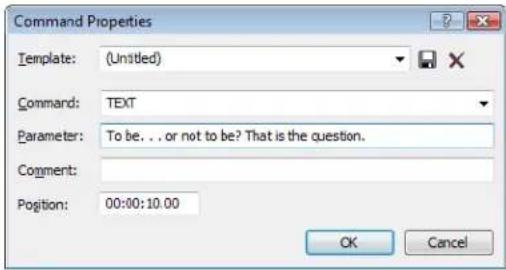
- From the Command drop-down list, choose Text.
- In the Parameter box, enter the closed captioning text you want to display.
- Click OK.
- Repeat steps 1-5 for each line of closed captioning text you want to add.
- Render your file in Windows Media Video format. For more information, see Rendering a project on page 387.
Tip: Take steps to ensure that the captions are displayed when the video is played. For more information, see Displaying captions on page 320.
Adding captions from a script
Using a script to generate captions involves several steps. First, you must copy and paste the lines from the script into a spreadsheet. You can create the spreadsheet from scratch (using the steps that follow) or use the sample shell (Vegas Captioning Shell.txt) provided in the Sample Projects folder on the Vegas Pro application disc. You can open this tab-delimited shell with a spreadsheet application or, in the absence of a spreadsheet application, any text editor.
When the spreadsheet is complete, you can copy and paste the lines into the Edit Details window. You can set the position for each line of captioning during playback.
Creating a script spreadsheet
- Create a four-column, tab-delimited spreadsheet.
- In the first column, enter 00:00:00:00 in each of the cells as a placeholder. You will set the actual position of each line during playback.
- In the second column, enter TEXT in each of the cells to specify the command type.
- In the third column, enter the text that you want to display as a caption. Enter each line in its own cell.
Tip: If you have a script, you can copy and paste individual lines into the cells.
- In the fourth column, enter a label to identify your captions. An entry such as Line 001 can help you sort the captions once you paste them into your Vegas Pro project.
| A | B | C | D | |
| 1 | 00.00.00.00 | TEXT | But, soft! What light through yonder window breaks? | Line 001 |
| 2 | 00.00.00.00 | TEXT | It is the east, and Juliet is the sun. | Line 002 |
| 3 | 00.00.00.00 | TEXT | Arise, fair sun, and kill the envious moon, | Line 003 |
| 4 | 00.00.00.00 | TEXT | Who is already sick and pale with grief, | Line 004 |
| 5 | 00.00.00.00 | TEXT | That thou her maid art far more fair than she: | Line 005 |
| 6 | 00.00.00.00 | TEXT | Be not her maid, since she is envious; | Line 006 |
| 7 | 00.00.00.00 | TEXT | Her vestal livery is but sick and green | Line 007 |
| 8 | 00.00.00.00 | TEXT | And none but fools do wear it; cast it off. | Line 008 |
| 9 | 00.00.00.00 | TEXT | It is my lady, O, it is my love! | Line 009 |
| 10 | 00.00.00.00 | TEXT | O, that she knew she were! | Line 010 |
| 11 | 00.00.00.00 | TEXT | Line 011 |
Note: The final caption is displayed in the Microsoft® Windows Media® Player until the end of the video. To clear the final caption sooner, add a final command with no text (as shown above).
Copying and pasting captions into Vegas Pro software
- Select the cells in the spreadsheet and copy them.
- Switch to Vegas Pro software and choose Edit Details from the View menu. The Edit Details window appears.
- From the Show drop-down list, choose Commands.
- Right-click the gray box in the upper-left corner and choose Paste from the shortcut menu. The spreadsheet data is pasted into the Edit Details window.
- Click the column header for the Comments column. This sorts the captions by line number.
Right-click to paste the spreadsheet Click the Comments column header to contents into the Edit Details window. sort the captions by line number.
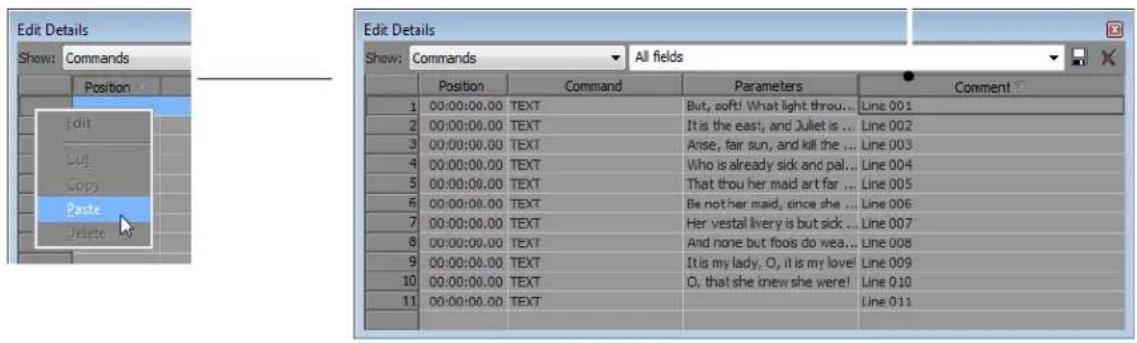
Setting caption timing
- Position the cursor shortly before where you want the first caption to occur.
- Select the row for the first caption in the Edit Details window.
- Click the Play button (▶) to start playback.
- When playback reaches the place where the first caption should occur, press Ctrl+K. The first caption is inserted at the cursor position, updates the Position setting in the Edit Details window, and selects the next caption.
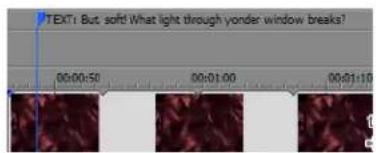
-
Press Ctrl+K to insert each subsequent caption.
-
Render your file in Windows Media Video format. For more information, see Rendering a project on page 387.
Displaying captions
You can use one of two methods for displaying the captions when the video is played:
- Instruct your audience to turn on captions:
In Windows Media Player 8: from the View menu, choose Now Playing Tools, and then choose Captions from the submenu.
In Windows Media Player 9 and 10: from the Play menu, choose Captions and Subtitles, and then choose On if Available from the submenu.
In Windows Media Player 11 and 12: from the Play menu, choose Lyrics, captions, and subtitles, and then choose On if available from the submenu.
- Create an HTML page with the Windows Media Player embedded in it. See the online help for a sample HTML page.
Using Video Effects, Compositing, and Masks
Video plug-ins in Vegas® Pro software include effects and generators. Effects cover a broad range of electronic modifications that can be used to improve substandard video or artistically enhance a production. Generators can be used to create custom video events such as credit rolls or gradient overlays.
A variety of options are provided in compositing video and using masks. Compositing involves mixing visual elements together into a final output. Multiple compositing modes are provided from which to choose. Masks, which are used extensively in television and movies, are an important part of creating overlays. Together, these professional tools can help you polish your productions.
Note: The compositing model in Vegas Pro 6.0 and later differs significantly from the Vegas Pro 4.0 model. To reproduce the Vegas Pro 4.0 parent/child masking behavior, set the compositing mode of the parent track to Multiply, and then apply the Mask Generator plug-in as a track effect on the parent track.
Using video effects
A great variety of video effects plug-ins are provided that are ready for you to drag-and-drop onto your projects, media files, tracks, and events. Previews of the different effect presets appear in the Video FX window. In addition to the presets, each plug-in has individual controls that allow you to customize the effects in precise detail. You can also animate video effects using keyframes. For more information, see Using keyframe animation on page 354.
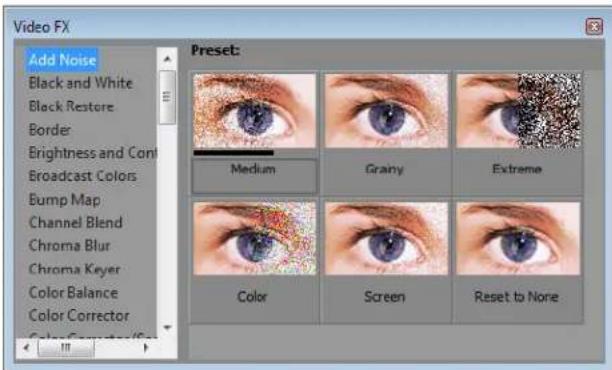
The mix of video effects applied at different levels (to events, tracks, files, etc.) is important to the final mix of a project. For more information, see Video signal flow on page 35.
In general, effects are applied in the following order:
• To files in the Project Media window
• To events
• To tracks
• To the project (video output effects)
Adding a video effects plug-in
You can apply video effects to video events, tracks, source media files (via the Project Media window), or to an entire video project. You can add a plug-in by selecting it in the Plug-In Chooser dialog, or you can drag-and-drop the plug-in from the Video FX or Plug-Ins windows.
Notes:
- Not all video plug-ins are capable of multithreaded rendering. Plug-ins that do not support multithreaded rendering are displayed with a yellow icon (💡) in the Plug-In Manager and Plug-In Chooser windows and with this icon ☐ in the Video FX window.
- Video plug-ins and media generators that do not support floating-point processing are indicated by a blue icon (☑) in the Plug-In Manager and Plug-In Chooser with this icon in the Video FX and Media Generators windows.
Adding a plug-in using the Plug-In Chooser
- Click the Video FX button (⊕) in one of the following locations (see the illustration):
• Media FX are applied before a media file is inserted into an event on the timeline. Every occurrence of this media file in a project has the effect applied to it. Media effects can be applied only to video files.
• Event FX are applied to events on the timeline.
• Track FX are applied to the output of a particular track.
• Video Output FX are applied to the final output and affect every event in a project.
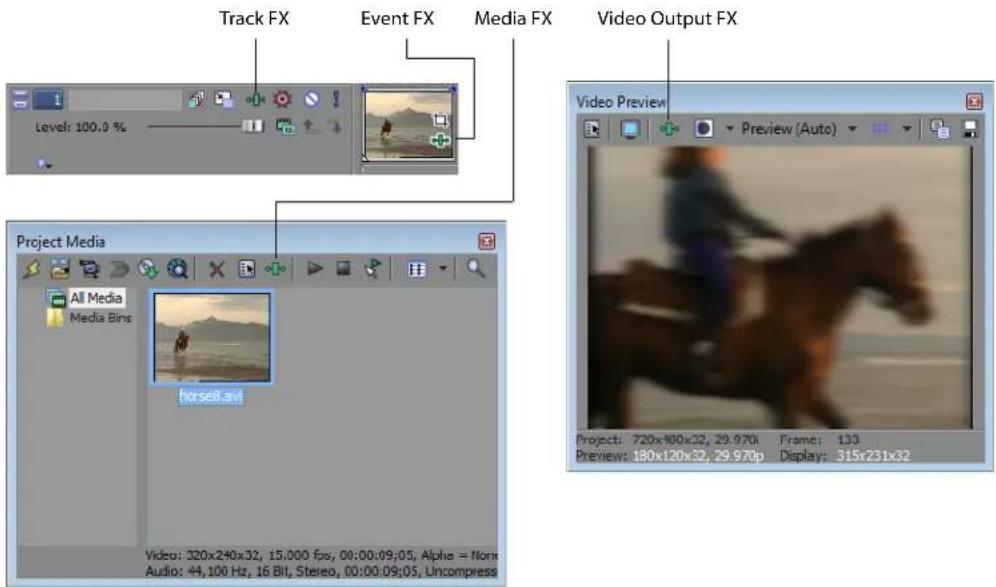
- In the Plug-In Chooser dialog, select the effect that you would like to apply and click OK.
- Modify the effect in the Video FX window and close the window when you are finished. For help on the different controls in the Video FX window, click the Plug-In Help button (1) to access online help.
Adding a plug-in from the Video FX or Plug-In Manager window
- If the Video FX or Plug-In Manager window is not currently visible, choose either Video FX or Plug-In Manager from the View menu to view the appropriate window.
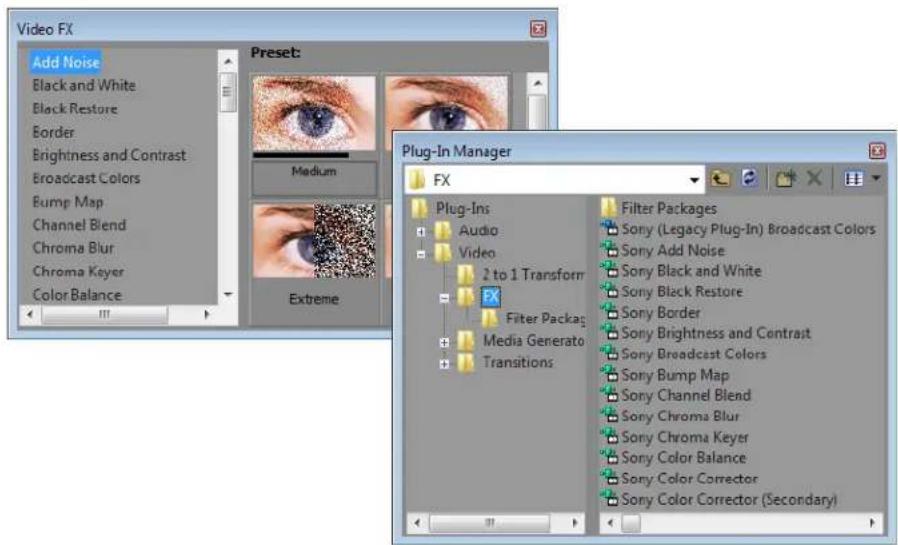
- Drag a plug-in from the window to one of the following locations:
• File in the Project Media window
• Event
- Track list or empty section of a track
• Video Preview window (video output effects)
- Modify the effect in the Video FX window and close the window when you are finished. For help on the different controls in the Video FX window, click the Plug-In Help button (☐) to access online help.
Working with video effects plug-in chains
You can apply plug-ins in chains of two or more for even greater flexibility. A plug-in chain is a sequence of all of the plug-ins to be applied to a media file, event, track, or project. The same plug-in can be added to a chain more than once. Use the same steps to add additional plug-ins to a chain as you use to add a single plug-in. For more information, see Adding a video effects plug-in on page 322.
After you apply a plug-in chain, the video is processed by each plug-in in order. The plug-ins are cumulative so, in some cases, you may want to rearrange their order to achieve the desired effect.
To view and work with a plug-in chain, click the Video FX button (+0-) for the event, track, Project Media window file, or Video Preview window to open the Video FX window.
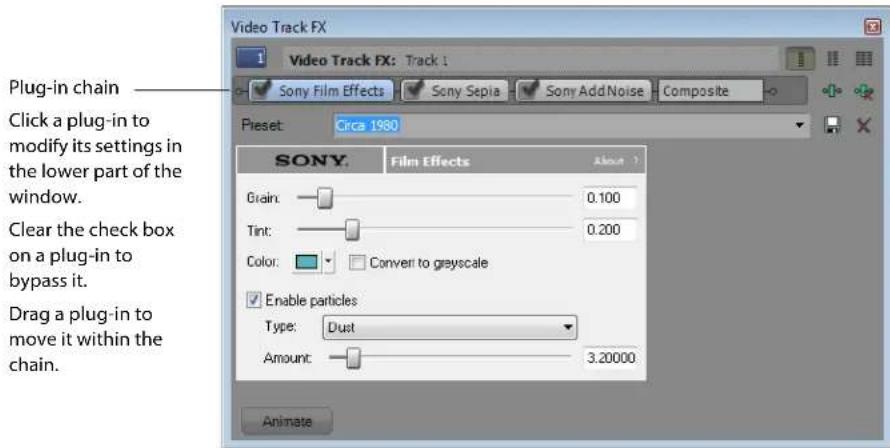
Bypassing plug-ins
Video effects plug-ins can also be temporarily bypassed (turned off) by deselecting them (clearing the check box on the plug-in). Since the effects are rendered very quickly in the Video Preview window, turning a plug-in on and off allows you to see the results of the plug-in on your project.
Tip: When you're working with a stereoscopic 3D project, a separate check box is displayed in the Video FX window for the left- and right-eye video: 📋 Stereoscopic3D Adjust. By limiting an effect to the left or right eye only, you can use multiple instances of a plug-in with different settings for each eye.
Changing the plug-in order
Video effects plug-ins are applied in the order that they appear in the chain. You can change this order by dragging a plug-in to a new location in the chain. Alternately, you can click the Plug-In Chain button (→) in the Video FX window and reorder the plug-ins in the Plug-In Chooser dialog.
![Plug-in chain Shift Plug-In Left/Right Plug-In Chooser - Video Track FX Film Effects Sepia Add Noise FX FX Filter Packages Filter Packages Sony [Legacy Plug-In] Broadcast Colors Sony Add Noise Sony Black and White Sony Black Restore Sony Border Sony Brightness and Contrast OK Cancel Add Remove Save As...](/content/2026/05/763079/images/26afef829ca6eb12f8b923131ae36bb4524e03b379ebcba4e93dbfff01b2424c.jpg)
In the following illustration, you can see how the order of plug-ins is important.
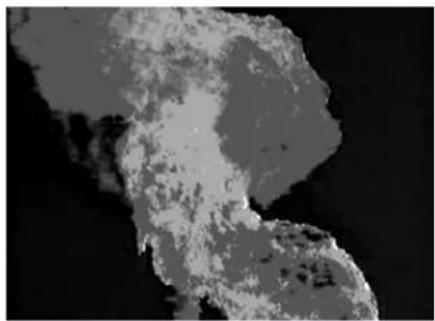
natural_image
Grayscale aerial or satellite view of a coastal region with visible landmasses and water bodies (no text or symbols)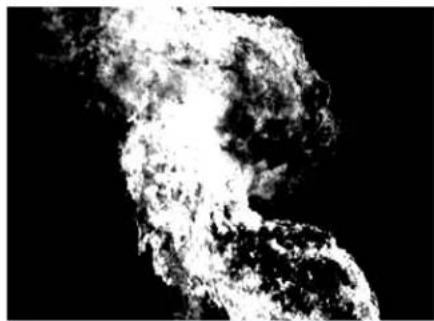
natural_image
Black and white abstract image with irregular shapes and textures, no visible text or symbols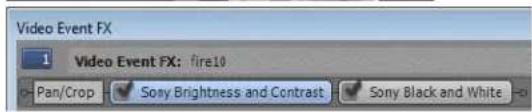
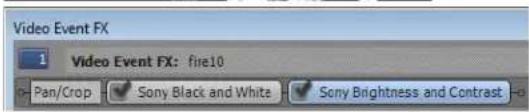
The goal of the above example is to use video effects plug-ins to create a very high-contrast mask out of a video clip of fire. In the image on the left, a Brightness and Contrast plug-in is applied first and then a Black and White plug-in. In the image on the right, the Black and White plug-in was applied first, removing the color, and then the Brightness and Contrast plug-in was applied. The mask created by the second example is much cleaner, even though all of the settings of the two plug-ins are identical.
Processing plug-ins on events with panning or cropping
When you add a plug-in to a video event that has panning or cropping applied to it, you have the choice of processing the plug-in before or after the pan/crop. For example, you might want to apply a Radial Blur plug-in before the video is cropped and then a Noise plug-in is applied after the cropping is complete.
You can choose whether an effect is applied pre- or post-pan/crop by arranging the Pan/Crop button in the plug-in chain at the top of the Video FX window.

Here, the Deform plug-in is applied before the pan/crop.
The Glow and Color Curves plug-ins are applied after the pan/crop.
Removing a plug-in
- Click the Video FX button (e-mail) on the event, track, Project Media window file, or Video Preview window that has the plug-in applied to it. The Video FX window appears.
- Click the plug-in that you want to remove.
- Click the Remove Selected Plug-In button.

Modifying a video effects plug-in
Video effects plug-ins are highly customizable. You can select from a variety of presets or adjust the settings for custom effects. You can also save custom settings to be used again as a new preset.
- Click the Video FX button 🎨 on the event, track, Project Media window file, or Video Preview window that has the plug-in applied to it. The Video FX window appears.
- Select a preset from the Preset drop-down list or adjust the parameters as needed. For help on the different controls in the Video FX window, click the Plug-In Help button (☐) to access online help.
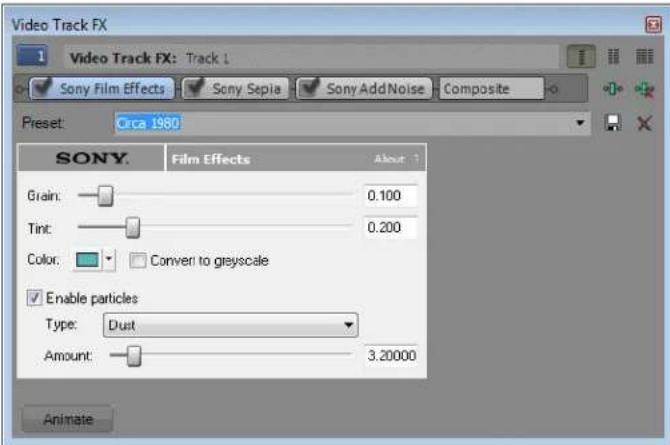
Changes you make are automatically updated in the Video Preview window, using the current cursor position as the example. To see the effect as applied to the video in motion, create a time selection (looped region) and preview in loop playback.
Saving custom plug-in settings as a preset
- Click the Preset text box. The name of the current preset is highlighted.
- Type a new name for the preset and click the Save button (☐).
Tip: To use a saved custom preset, simply choose it from the drop-down list.
Using keyframe animation with plug-ins
You can use keyframe animation to control a plug-in over time. Keyframes are added to the keyframe controller at the bottom of the Video FX window. Since a number of plug-ins can be added to a single event, track or project, click the plug-in's button in the chain and modify the particular attributes and keyframe controller for that plug-in. For more information, see Using keyframe animation on page 354 and Animating video effects plug-ins on page 361.
Using generated media
Generated media plug-ins are a special class of plug-in that creates virtual media files contained in events on the timeline. These virtual files are stored in the Project Media window, where their properties can be viewed and modified.
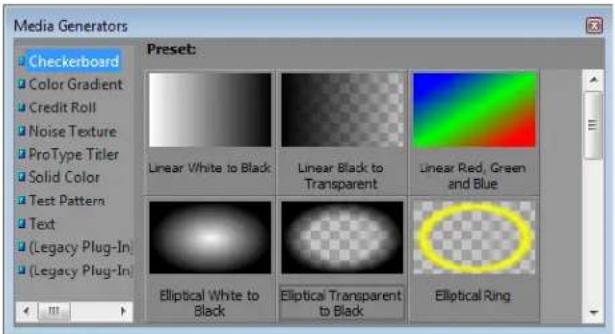
Generated media provide an easy way to add text, backgrounds, or test patterns to your project. You can view the generators by choosing Media Generators from the View menu to display the Media Generators window.
Generated media events can be animated using keyframes. For more information, see Using keyframe animation on page 354 and Animating generated text on page 362.
| Generated media | Description |
| Checkerboard | Creates checked and striped patterns. |
| Color Gradient | Creates gradient colored events to be used behind overlays, as masks, or for fades. |
| Credit Roll | Creates events that format your text into credits. Text can be formatted within the Video Event FX dialog in Vegas Pro software, or pasted into this dialog from a word processing program. |
| Noise Texture | Creates realistic-looking textures. |
| ProType Titler | Create animated text effects with splined paths, per-character animation, and advanced curves.Add shadows, glows, blurs, and gradients for unique text treatments. Supports Unicode and TrueType fonts, as well as OpenType fonts with kerning pairs, alternate styles, bidirectional text, ligatures, custom kerning, and more.For more information, see Adding text and titles with the ProType Titler on page 293. |
| Solid Color | Creates solid colored events to be used behind overlays or for fades. |
| Test Pattern | Creates standard test patterns that can be used to calibrate your video output stream. Many studios and broadcast facilities require a color bar pattern at the beginning of your video so that engineers can calibrate their equipment. |
| Text | Creates events containing text for titles or simple credits. Text can be formatted with color, shadows, and other effects.For more information, see Inserting text with the Text plug-in on page 293. |
For help on a specific plug-in, click the Plug-In Help button ( ? ) in the Video Media Generators window to access online help.
Adding a generated media event
- Position the cursor where you want to create the event.
- Select the media generator you want to use:
- From the View menu, choose Media Generators to display the Media Generators window. Select a generator in the left pane. The thumbnail images in the right pane represent each of the existing presets for the selected generator. Hover your mouse pointer over a preset to see an animated example, and drag the preset you want to use to the timeline.
—or—
- From the Insert menu, choose Generated Media. The Plug-In Chooser is displayed. Select the plug-in you want to use and click OK.
The Video Media Generators dialog appears.
- In the Video Media Generators dialog, type values in the Frame size and Length boxes to specify the size and duration of the generated media.
- Use the controls in the Video Media Generators dialog to adjust the plug-in's settings.
Tips:
- To create a generated media event quickly, drag a preset thumbnail from the Media Generators tab to the timeline. A new event is created where you drop the thumbnail using the preset's parameters.
- A generated media event is ten seconds long as a default. However, you can trim the event to any length. For more information, see Trimming an event on page 101.
Editing a generated media event
- Click the Generated Media button on an event. The Video Media Generators dialog appears.
-
Use the controls in the Video Media Generators dialog to adjust the plug-in's settings.
-
Click the Match Event Length button ( ) to set the length of the generated media to match the length of the event.
- Click the Media Properties button ( ) to edit information about the generated media, such as the frame size, frame rate, field order, pixel aspect, and rotation.
- Click the Replace Plug-In button ( ) to change the media generator for the current event.
• Use the lower portion of the Video Media Generators dialog to choose a new preset or adjust the plug-in's settings.
Duplicating a generated media event
You can duplicate generated media events using copy and paste commands, by holding Ctrl while dragging an event to a new position on the timeline, or by dragging generated media from the Project Media window to the timeline.
When you duplicate a generated media event, a dialog is displayed with two options:
- Create a new copy of the source media The new event is created using the same settings as the original event. Each event can be edited independently.
- Create a reference to the original media The new event uses the same source media as the original generated media event. Any change to either event affects both events.
Compositing
Compositing is the process of mixing visual elements together into a final output. In Vegas Pro software, this means mixing tracks together vertically. Masks, generated text, and chroma keying all involve compositing. Understanding how compositing works is important to understanding these and many other video track mixing techniques.
Understanding the parent/child track relationship
The key to understanding overlays, masks, transparency, and compositing is to understand the parent/child relationship between tracks. In general terms, the parent track is the highest track in a group of tracks (often only two) and the behavior of the child tracks (that is, how they are composited together) is determined by the parent track.
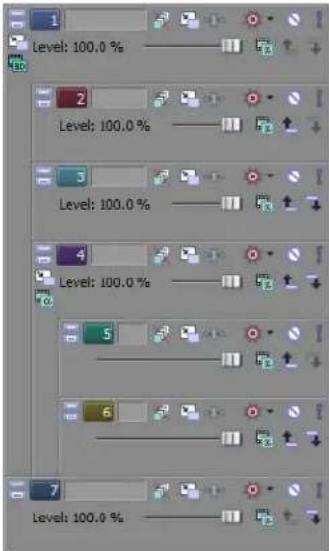
You can also produce complex compositing by creating nested parent/child groups with compositing parents and children at various levels.
When you have multiple levels of parent and child tracks, clicking the Make Compositing Child button (→) moves the track in one level and clicking the Make Compositing Parent button (→) moves out one level.
Hold Ctrl while clicking the Make Compositing Child button to move a track and all its child tracks in one level.
The following three examples demonstrate different compositing relationships.
The first example shows two independent tracks. The top track contains a generated text event that has a transparent background. The second track therefore shows through the transparent areas in the Video Preview window. Since the second track does not have any transparent areas, any tracks below it would be completely obscured.
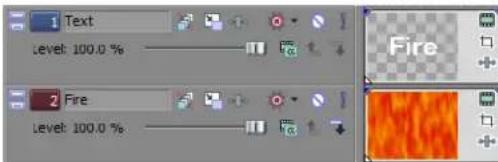

In the second example, track two is the child track of track one (the parent track), and the compositing mode of track one is set to Mask. This parent/child relationship was set up by clicking the Make Compositing Child button (☐) in the track list for track two. This makes the text in track one act as a mask over track two, allowing the fire to show through the mask (that is, the text). The region outside of the text is still transparent, but there is nothing below these tracks, so it appears black.
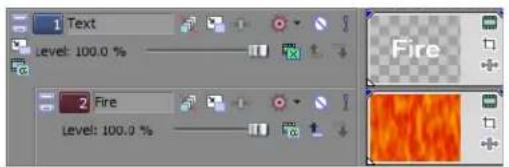

In the third example, a generated media event was added to the track below the first two tracks, which are already paired in a parent/child relationship. The color gradient event in track three shows through the transparent area of the top two paired tracks.
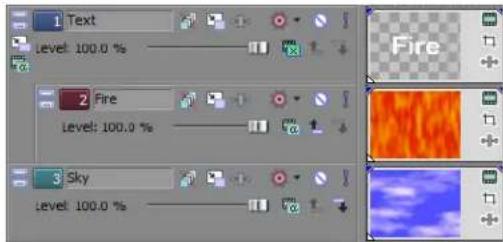
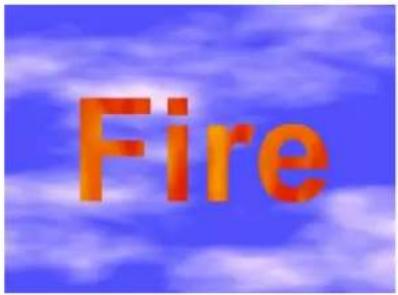
Selecting compositing modes
The Compositing Mode button (☐) determines how the transparency in a video track is generated. Because lower tracks show through higher tracks, it is the compositing mode of the higher track that determines how much of the lower track shows though.
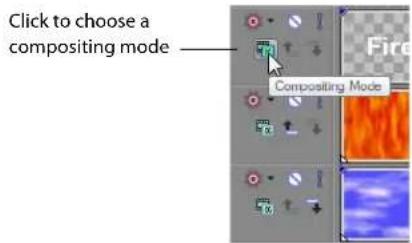
Note: The compositing mode of the lowest video track is a special case. Selecting a mode for the lowest track affects its transparency against a black background.
To select a compositing mode, click the Compositing Mode button and choose a mode from the menu that appears, or choose Custom to customize compositing with a 2-to-1 transform plug-in.
The sample below uses a generated text event that is partially transparent. For more information, see Using generated media on page 327.
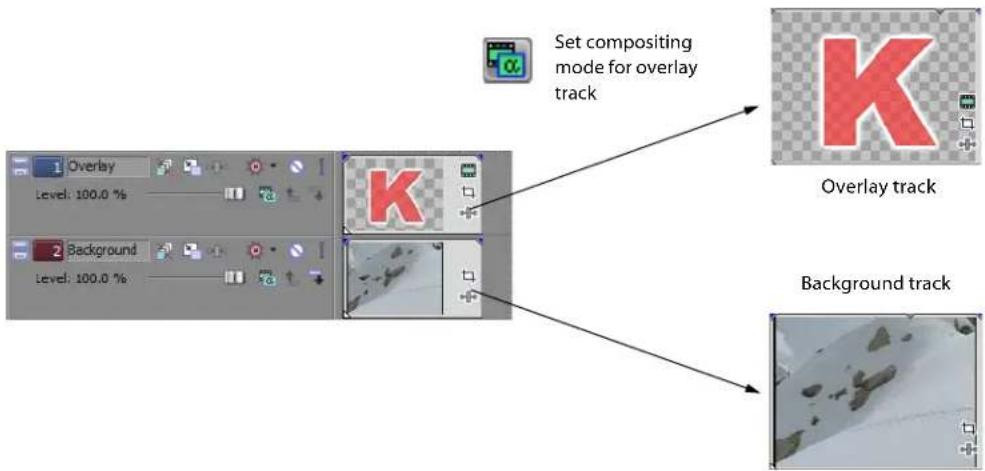
The following table shows how these two sample tracks are blended using each of the compositing modes.
Compositing mode Sample Description
Add Adds the overlay color values to the background.
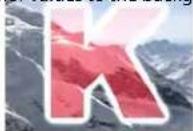
Subtract Subtracts the overlay color values from the background.

Multiply (Mask)

Source Alpha Uses the alpha channel to determine transparency in the overlay.

Cut Cuts out the overlay color values from the background.

Screen Multiplies the inverse of the overlay color values with the background

| Compositing mode Sample | Description | |
| Overlay |  | Heightens contrast by using Multiply mode on darker colors and Screen mode on lighter colors. |
| Hard Light |  | Adds overlay colors as if the overlay were lit by a bright, focused spotlight. |
| Dodge |  | Brightens the background based on the overlay color values. |
| Burn |  | Darkens the background based on the overlay color values. |
| Darken |  | Compares the overlay and background pixel by pixel and selects the darker color value for each pixel. |
| Lighten |  | Compares the overlay and background pixel by pixel and selects the lighter color value for each pixel. |
| Difference |  | Compares the overlay and background pixel by pixel and subtracts the darker color value from the lighter color to generate a new color value (difference). |
| Difference Squared |  | Remaps color values along a parabolic curve. The color values of the layers in the composite group are subtracted, and then the subtracted values are squared.The resulting image will have less extreme changes in color values as the colors approach black (RGB 0,0,0) and more extreme changes in color values as colors approach white (RGB 255,255,255). |
Adjusting opacity with the composite level slider
You can precisely control the transparency or blending of the overlay with the composite level slider. Left is transparent and right is 100 percent opaque. You can also double-click the current value to enter a specific numeric percentage.
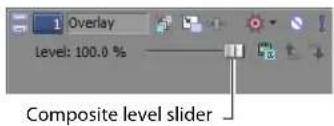
Using a 2-to-1 transform plug-in to customize compositing
Click the Parent Composite Mode (☐) or Composite Mode button and choose Custom from the menu to use plug-ins to control how the parent track modifies the tracks in its composite group.
The included Displacement Map, Height Map, and Bump Map plug-ins can create interesting lens, mirror, water, fire, and other light-bending effects. These plug-ins are explained below:
- Displacement Map: Uses the parent image as a guide to offset the pixels in the composited child tracks along the horizontal and vertical axes. The X and Y offsets are independently encoded in the image color channels.
- Height Map: Uses the parent image as a guide to offset the pixels in the composited child tracks. The gradient of the image in the parent track is used to determine the amount of offset for the image displayed at that location, much like how light bends through a lens.
- Bump Map: Uses the parent image as a guide to add texture and lighting to the composited child tracks. The texture of the bump map is applied to the composited child tracks: light sections of the map represent high areas, and dark sections represent low areas.
3D compositing
With 3D compositing, you can move video tracks anywhere in space to simulate realistic motion and lighting.
With 2D compositing (and in previous versions of Vegas Pro software), you can move video or images along the X or Y axes, and you can rotate video along the Z axis. With 3D compositing, you can move or rotate along the X, Y, or Z axes to create distance, depth, and perspective.
There are two basic rules to 3D compositing:
- When you have a 2D track in the track list, 3D tracks below that track are rendered in 3D and then composited as a 2D image.
- A 2D track at the root level (flush to the left of the track list) acts as a barrier to interaction between 3D tracks.
In the following examples, both text tracks have been rotated in 3D: the "hot" track is rotated toward the user, and the "cool" track is rotated away from the user.
In the first example, the two tracks intersect along their rotation axis. In the second example, adding a 2D track above the "cool" track causes it to be rotated in 3D and composited as a 2D image so the "hot" text is displayed above it without intersecting.
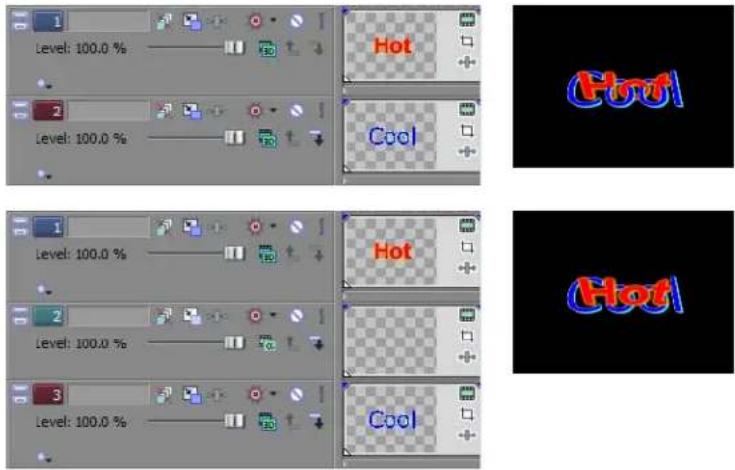
Single-track 3D motion
- Click the Track Motion button (☐) on the track that contains the overlay that you want to animate. The Track Motion window is displayed.
- From the Compositing Mode drop-down list, choose 3D Source Alpha.
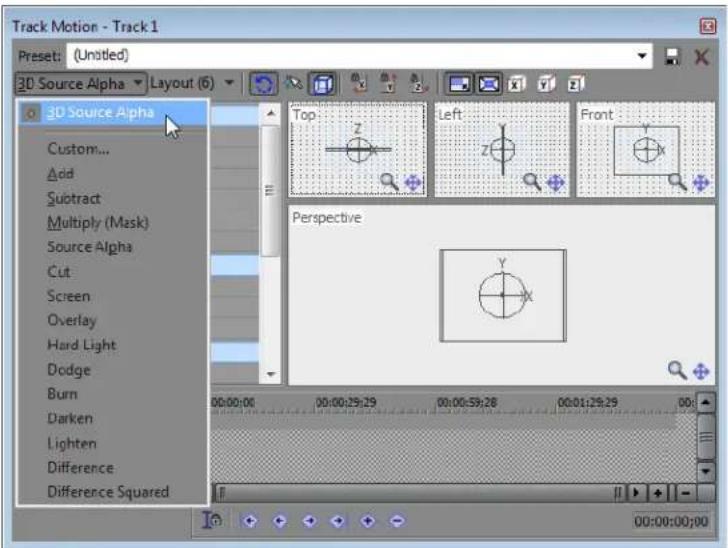
- Choose a setting from the Layout drop-down list to choose the workspace display that you want to use. The Layout setting allows you to see your track from various points of view.
- Adjust the selection area to change the viewable area of the track and its position in space. Guides are displayed in bold to indicate how the track will be moved or rotated:
Moving closer to or farther from viewer. Drag across corners to flip the track.
Dragging the track.
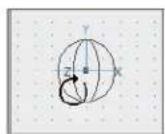
Rotating left to right around the Y axis.
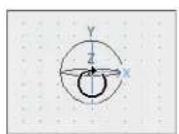
Rotating forward or backward around the X axis.
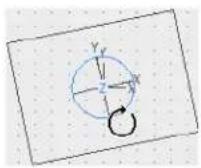
Rotating around the Z axis.
- Use the buttons at the top of the dialog to allow or prevent movement or scaling. For more information, see Changing editing options on page 336.
Tip: Right-click the workspace to display a shortcut menu that displays commands to restore, center, or flip the selection box. You can also force the box to match the source media's aspect ratio or your project's output aspect ratio. Matching the output aspect ratio can prevent black bars from appearing when you use source media (such as photographs) that does not match your project's aspect ratio.
- The 3D track motion occurs instantly, and the results are updated in the Video Preview window.
- Use the keyframe controller at the bottom of the Track Motion window to establish distinct track motion settings throughout the duration of the track.
During playback, immediate frames are interpolated to create smooth motion. Expand the Keyframe Interpolation heading on the left side of the window and drag the Smoothness slider to adjust the interpolation. For more information, see Using keyframe animation on page 354.
Composited group 3D motion
-
Click the Make Compositing Child button (☑) on the tracks you want to group to create a compositing group. For more information, see Understanding the parent/child track relationship on page 329.
-
Click the Parent Composite Mode button (☐) on the parent track and choose 3D Source Alpha.
-
Click the Parent Motion button (☐) on the parent track. The Track Motion window is displayed.
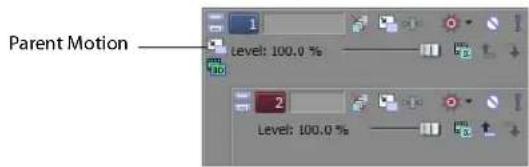
Parent track motion affects the parent track and all child tracks.
In the sample track list below, parent track motion on track 1 will affect tracks 1 through 6.
Parent track motion applied to track 4 will affect only tracks 4 through 6.
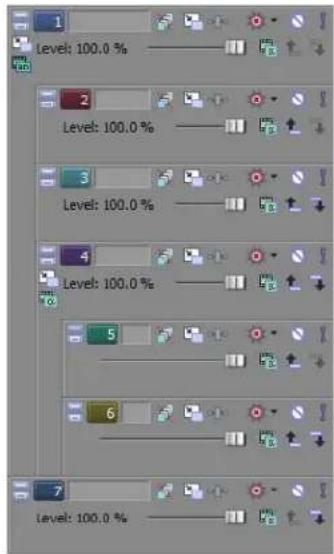
-
Choose a setting from the Layout drop-down list to choose the workspace display you want to use. The Layout setting allows you to see your track from various points of view.
-
Adjust the selection area to change the viewable area of the track and its position in space. Guides are displayed in bold to indicate how the track will be moved or rotated:
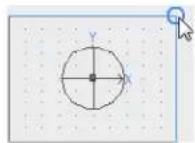
Moving closer to or farther from viewer. Drag across corners to flip the track.
Dragging the track.
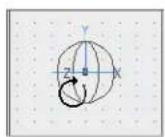
Rotating left to right around the Y axis.
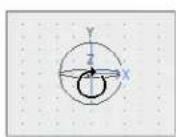
Rotating forward or backward around the X axis.
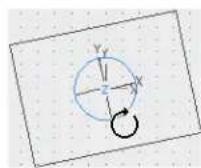
Rotating around the Z axis.
- Use the buttons at the top of the dialog to allow or prevent movement or scaling. For more information, see Changing editing options on page 336.
Tip: Right-click the workspace to display a shortcut menu that displays commands to restore, center, or flip the selection box. You can also force the box to match the source media's aspect ratio or your project's output aspect ratio. Matching the output aspect ratio can prevent black bars from appearing when you use source media that does not match your project's aspect ratio.
- The 3D track motion occurs instantly, and the results are updated in the Video Preview window.
- Use the keyframe controller at the bottom of the Track Motion window to establish distinct track motion settings throughout the duration of the track.
During playback, immediate frames are interpolated to create smooth motion. Expand the Keyframe interpolation heading on the left side of the window and drag the Smoothness slider to adjust the interpolation. For more information, see Using keyframe animation on page 354.
Applying a stereoscopic 3D camera
The Stereoscopic 3D Camera controls allow you to add stereoscopic depth to 3D track compositing elements.
- Set up your project as a stereoscopic 3D project. For more information, see Setting up your stereoscopic 3D project on page 143.
- Add 2D media to the timeline.
- Click the Track Motion button (☐). The Track Motion window is displayed.
- From Compositing Mode drop-down list, choose 3D Source Alpha.
- Click the Expand button (+) next to the Stereoscopic 3D Camera heading on the left side of the Track Motion window. The Lens Separation and Depth Adjust controls are displayed.
- Use the Lens Separation and Depth Adjust controls to set the depth of your media:
| Item | Description |
| Lens Separation | Type a value in the box (or click the down arrow button ⬇ to display a slider you can drag) to set the distance between the lenses in your virtual stereoscopic 3D camera.The setting represents a percentage of the frame width. For presentation on a 40-inch HDTV, the value typically would not exceed 7 percent. For theatrical projection, the value typically would not exceed 0.5 percent. |
| Depth Adjust | Type a value in the box (or click the down arrow button ⬇ to display a slider you can drag) to displace the left-and right-eye images to set the depth of your 3D image. You usually want all of the action behind the screen plane, only crossing the screen plane for dramatic or special effect. However, make sure never to create divergence, where the left-eye picture would appear more than 2.5 inches to the left of the right-eye picture on the largest screen where your movie will be shown.A value of 0 represents screen depth; positive values push action behind screen depth, and negative values push action in front of screen depth. |
Changing editing options
Use the toolbar at the top of the Track Motion window to change your editing options.
| Icon | Command | Description |
| Enable Rotation | Select this button if you want to be able to rotate, or spin, the video.When the button is not selected, video is locked so you can move it along the X, Y, or Z axis, but the event will not rotate. | |
| Enable Snapping to Grid | Select this button if you want your editing to snap to the grid. | |
| Edit in Object Space | Select this button if you want to edit in the object's space rather than the camera's space.For example, if a video object is rotated, its X axis may not correspond to the X axis of the of the Video Preview window. Selecting the Edit in Object Space button in conjunction with the Prevent Movement buttons allows you to move the object along its own X, Y, and Z axes. | |
| Prevent Movement (X) | Select this button if you want to prevent horizontal movement of the track. | |
| Prevent Movement (Y) | Select this button if you want to prevent vertical movement of the track. | |
| Prevent Movement (Z) | Select this button if you want to prevent movement of the track along the Z axis (closer to or farther from the viewer). | |
| Lock Aspect Ratio | Select this button if you want the selection box to retain its aspect ratio during resizing.When the button is not selected, the height and width can be resized independently. | |
| Icon Command Description | ||
| Scale About Center | Select this button if you want the selection box to retain its center point when you resize the box by dragging its edges.When the button is not selected, the opposite side of the selection box will remain anchored when you drag the edges to resize it. | |
| Prevent Scaling (X) | Select this button if you want to lock the horizontal dimension of the selection box. | |
| Prevent Scaling (Y) | Select this button if you want to lock the vertical dimension of the selection box. | |
| Prevent Scaling (Z) | Select this button if you want to lock the Z-axis dimension of the selection box. | |
Examples of various 3D compositing scenarios
In the following examples, track two (blue-and-yellow checkerboard) is rotated forward in 3D space, track 4 (green-and-gray checkerboard) is rotated backward in 3D space, and track 3 (red-and-white checkerboard) is a 2D track.
Track 1 is used to rotate tracks 2 through 4 so you can see the compositing interaction.
In the first example, the 2D track is a compositing child to track 2. The 2D child is inserted in the composited output at a depth of zero on the Z axis, and tracks 2 and 4 intersect in 3D space.
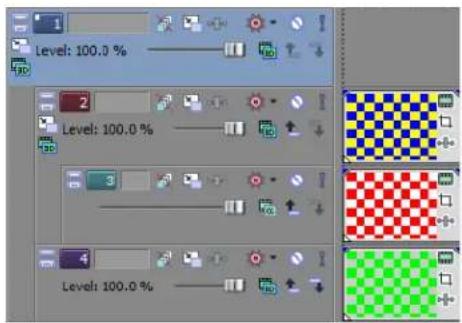
natural_image
Abstract geometric star-like shape with green, blue, and yellow stripes against black background (no text or symbols)In the next example, clicking the Make Compositing Parent button (▲) on track 3 forces the track below (at the same compositing level) to be rendered in 3D and composited as a 2D image.
Track 4 (green-and-gray checkerboard) now has the appearance of depth—the checkerboard tapers to a vanishing point—but is inserted in the composited output as a 2D image at a depth of zero on the Z axis. Track 2 is still rotated in 3D space.
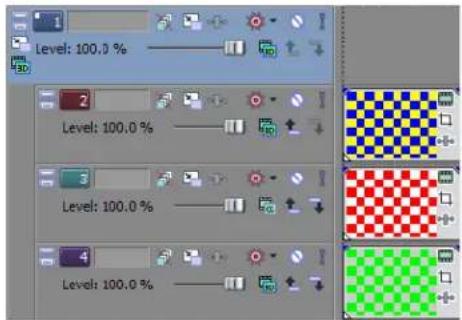
natural_image
Abstract 3D geometric shape with blue, yellow, red, and green checkered pattern against black background (no text or symbols)In the next example, clicking the Make Compositing Parent button (☑) on track 3 again forces the track below (at the same compositing level) to be rendered in 3D and composited as a 2D image. However, in this case, the 3D rotation that was applied as parent motion on track 1 is not applied to tracks 3 and 4.
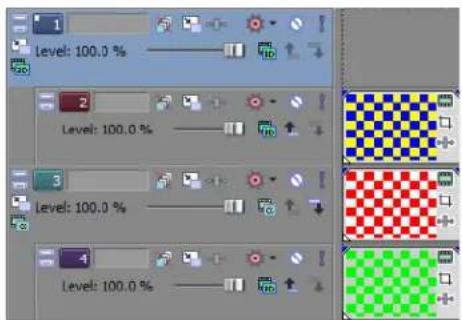
natural_image
Abstract geometric pattern with red and white checkerboard shapes and a diagonal blue-yellow stripe (no text or symbols)In the next example, all tracks are compositing parents. The 3D track on track 2 is on top, the 2D track in track 3 is composited below track 2, and the 3D track in track 4 is composited below tracks 3 and 4.
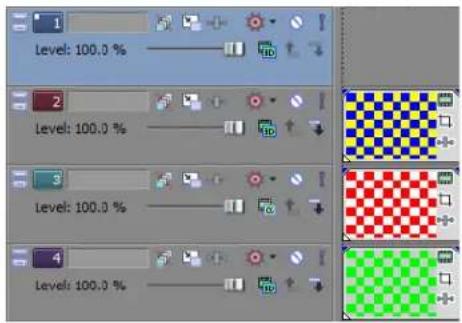
natural_image
Abstract geometric pattern with blue, yellow, and red checkerboard shapes on a green background (no text or symbols)Creating masks
Masks are used to create overlays, limit the effects of a filter, and to create transparent titles. In their simplest form, masks work by making a particular color in an image or video transparent. More complex effects can be created with gradients (smoothly blending transparent areas together) and by altering the sensitivity of the mask.
Creating image masks
You can use media generated by Vegas Pro software to create simple masks. You can also create masks from just about any image file.
Masks created using color gradient generated media events
- Create an image of a solid white circle on a black background in any paint program. This will be the mask.
- Add the mask image file as an event into the top-most track on the timeline.
- Insert a video event just below the mask track. This is the background video behind the mask and is the event that is masked.
-
Click the Make Compositing Child button (☐) located in the track list of the background video (lower) track. This makes the lower track the child of the mask track (the parent track).
-
Click the Compositing Mode button (☐) on the mask track and choose Multiply (Mask) from the menu.
In the following example, the white circle is a .bmp image file. Black is 100% opaque and white is completely transparent.
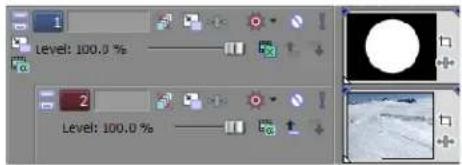
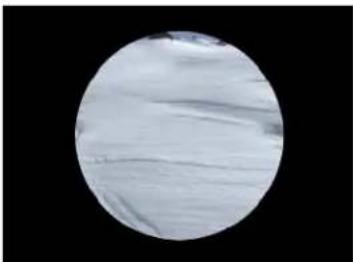
natural_image
Circular cropped image showing a textured surface with faint linear patterns against a black background (no text or symbols)Masks can also be partially transparent. By using gradients and grayscale images, you can achieve smooth blending. Black is still 100% transparent and white is opaque, but the grays in between are only partially opaque.
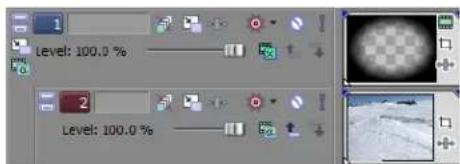
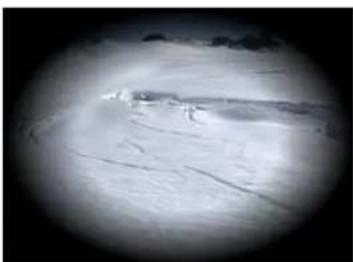
natural_image
Black-and-white fisheye view of a snowy landscape with snow-covered ground and distant mountains (no text or symbols visible)The effects of the masks are very clear in these examples, but this is not how they would actually be used in a real production. Masks are commonly used to isolate a portion of the video from an effect. Masks do not need to be black and white, or grayscale, nor do they need to be still images.
Tip: It is best to use images that are the same size as your project's frame size. You may also need to change the pixel aspect ratio of an image file to get it to display correctly. For more information, see Correcting images for DV pixel aspect ratios on page 291 and Modifying media file properties on page 305.
Creating video masks
You can also use video files to create masks, although the process can be more complicated than using an image as a mask. The key to any mask is contrast. You can increase the difference between the light and dark areas of a video file using video effects plug-ins.
- Insert the video that you want to use as a mask into a video track.
- Drag a Black and White plug-in from the Video FX window to the event to remove the color. For more information, see Adding a video effects plug-in on page 322.
- Drag a Brightness and Contrast plug-in from the Video FX window to the event.
- Adjust the Brightness and Contrast to create the mask. Watch the Video Preview window for a real-time preview of the mask. Adjust the effect so that parts of the video are completely black (opaque) and other parts are completely white (transparent). This can often mean increasing the contrast while decreasing the brightness.
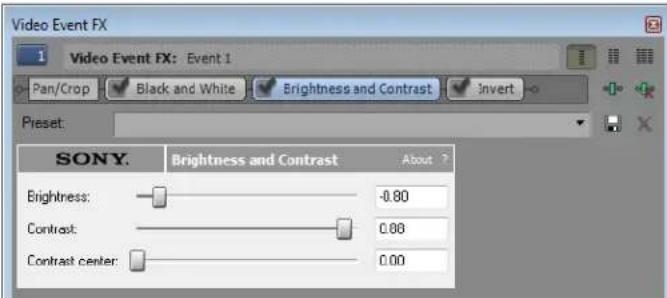
- If necessary, mask areas can be inverted (reversing the black and white areas) with an Invert plug-in or by selecting the Invert check box in the Mask Generator window. For more information, see Using the Mask Generator on page 344.
Original color event
Black and White plug-in
Brightness and Contrast plug-in
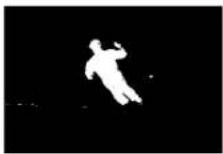
Invert plug-in
After you have created the mask, place it in the highest track. Add another video event to another track below the mask and click the Make Compositing Child button (💡) on that track. Any video that appears in a lower track below the Parent mask track and its Child shows through the areas outside of the mask. The entire setup is pictured in the following illustration.
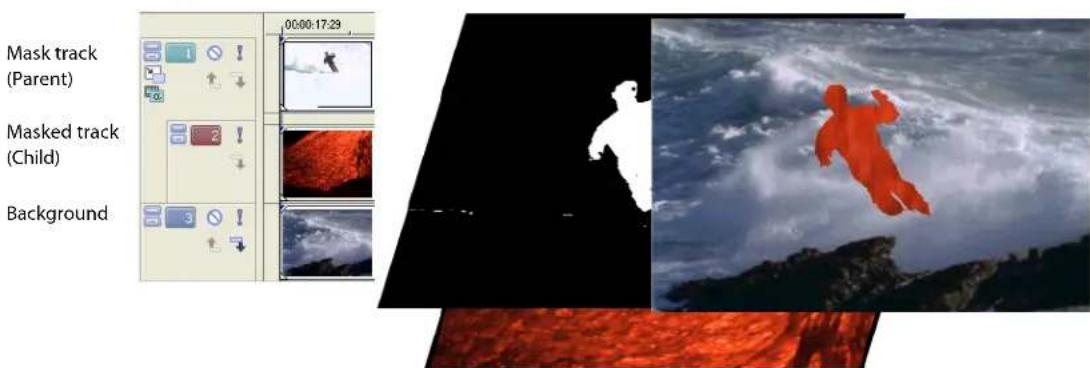
Bézier masks
You can use the Event Pan/Crop dialog to create masks using Bézier curves.
Use the controls in the Path heading on the left side of the Event Pan/Crop dialog to create masks using Bézier curves. Each event can contain multiple Bézier masks.
When you use a single setting for the duration of an event, you are masking the contents of the event. You can add keyframes to change the shape, size, or position of the mask to create an animated effect.
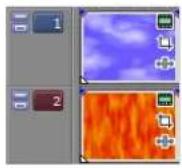
Tracks
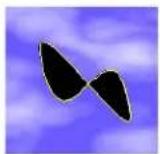
Mask
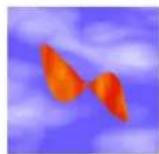
Output
Creating a Bézier mask
- From the Tools menu, choose Video, and choose Video Event Pan/Crop (or click the Event Pan/Crop button (☐) on the event). The Event Pan/Crop window is displayed.
- Select the Mask row in the keyframe controller. When the Mask row is selected, Bézier curve-drawing tools are displayed so you can create your mask.
- Select the Mask check box to apply the mask so you can see the results of your masking in the Video Preview window, or clear the check box to bypass the mask.
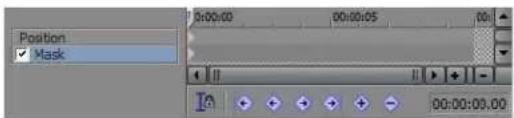
- Select the Anchor Creation tool (☐) on the left side of the Event Pan/Crop window and click in the workspace to create a mask. See the following table for a description of the tool's behavior.
Tip: Right-click the curve, choose Initialize Tangents, and choose a command from the submenu to smooth the path (or portions of the path) to help you get started with your editing.
Editing the path
Use the tools on the left edge of the Event Pan/Crop window to edit your mask.
| Icon | Tool | Description |
| Normal EditAnchor Creation | Use to select and edit control points and tangents.Click a point to select it, or drag to move the point.Hold Ctrl while clicking to select/deselect multiple points.Hold Alt and click a segment to select all points on the path. The pointer is displayed as a ▶.Hold Alt+Shift while clicking an anchor point to invert the selection state of each anchor on the path. The pointer is displayed as a ▶.Drag a segment between two anchor points to modify the tangents on each side of the segment. The pointer is displayed as a ▶.Hold Ctrl while clicking an existing point in a closed path to show or hide the tangents. The pointer is displayed as a ▶.Drag a tangent control to manipulate the curve. Both sides of the tangent control move about the anchor point. The pointer is displayed as a ▶.Hold Ctrl while dragging a tangent control to split the halves of the control and adjust them independently or join the two halves of the control if the tangent was previously split.Use to create control points.Click to create an anchor point. Drag before releasing the mouse button to modify the tangents of the new point.Click the first or last point of an open path to close the path. The tool is displayed as a ◆. Drag before releasing the mouse button to move the entire path.Click between two anchor points to create a new point. The tool is displayed as a ◆..If all paths are closed, click to create a new path. | |
| Anchor Deletion | Use to remove control points. | |
| Split Tangent | Use to adjust control point tangents.Click a point to display tangent controls, or click the center of a tangent control to reset it.Drag center of the tangent control to manipulate the curve. Both sides of the tangent control move about the anchor point. The pointer is displayed as a ▲.Drag the point at either end of the tangent control to manipulate that half of the curve. The pointer is displayed as a ▲.Hold Shift while dragging a tangent control to split the halves of the control and adjust them independently or join the two halves of the control if the tangent was previously split. |
Setting path options
- Select a path with the Normal Edit tool (☐).
-
Expand the Path heading on the left side of the window to set options for the selected path.
-
Choose a setting from the Mode drop-down list to choose the selected path's masking behavior.
• Positive The area inside the path is visible in your video output.
- Negative The area outside the path is visible in your video output. The area inside the path is transparent.
• Disabled The path is bypassed.
-
Select the Anti alias box and choose Yes or No from the drop-down list to indicate whether you want to apply an anti alias filter to smooth the edges of the path.
-
Select the Opacity box and type a value in the box (or click the down arrow to display a slider) to set the opacity of the area inside the path.
-
Select the Feather type box and choose a setting from the drop-down list to fade the edges of the path.
• In Feathering is applied to the inside edge of the path.
• Out Feathering is applied to the outside edge of the path.
• Both Feathering is applied to both sides of the path.
• None No feathering is applied.
- Select the Feather % box and type a value in the box (or click the down arrow to display a slider) to set the amount of feathering that is applied to the path.
Fine-tuning masks
Depending on the source material, creating a clean mask can be a tricky exercise. There are a few tools and tricks you can use to fine tune a mask.
- Solo the track Click the Solo button (1) in the track list to isolate the masked track. This allows you to concentrate exclusively on the mask.
- Toggle effects Turn individual plug-ins on and off to isolate effects in a plug-in chain. Keep in mind that the order of the plug-ins in the chain is important in determining the final composited output.

- Isolate channels Isolate individual color channels in the Video Preview window by clicking the Overlays button (##). Click the arrow on the button to select the specific channel to be isolated and whether to display this channel in grayscale only. Then click the main button to toggle the channel display on and off. The Alpha as Grayscale option isolates the alpha channel mask and displays it in grayscale. For more information, see Understanding the Video Preview window on page 369.
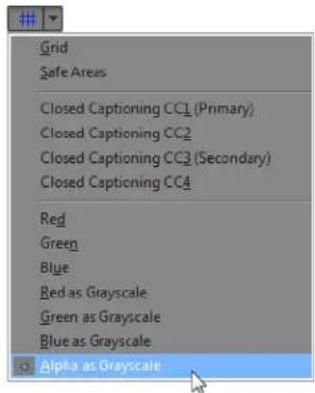
Using the Mask Generator
The Mask Generator is a plug-in that controls the transparency of events to be used as masks when you use events that are not grayscale. Apply the plug-in to an event (or a track) in the same way as any other plug-in: just drag-and-drop. The Mask Generator plug-in can be found in the Video FX window (from the View menu, choose Video FX).
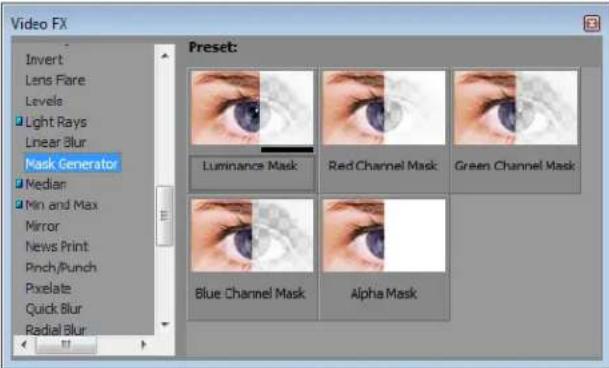
How the Mask Generator works
The following illustration demonstrates some of the effects of the Mask Generator. The background image is the original mask. There are five ellipses on the mask: white, red, green, blue and an invisible alpha channel. Note especially the checkered ellipse in the lower left of the mask; this is the alpha channel. You can base the alpha channel on a color or define the alpha channel in a graphics program that supports alpha channel creation. Masks with alpha channels must be saved in a format that supports this method of transparency, such as PNG or TGA. As in this example, the alpha channel may be invisible in the actual mask.
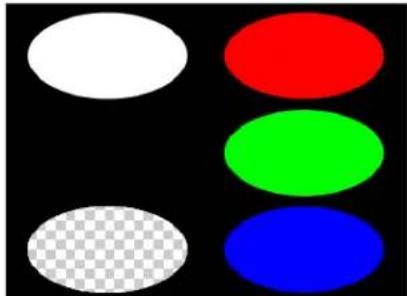
natural_image
Color swatch image with white, red, green, and blue oval shapes on black background (no text or symbols)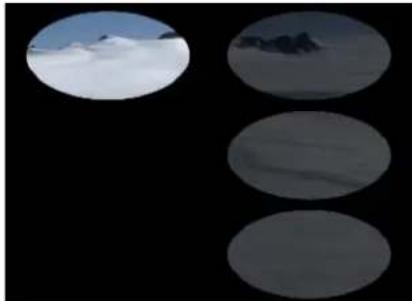
natural_image
Three oval frames showing snowy landscape under blue sky, no text or symbols presentLuminance
Mask track
(Parent)
Masked track
(Child)
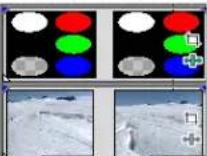
natural_image
Two oval-shaped objects against a black background, no text or symbols visibleBlue
The top-right example uses luminance to determine the transparency in the mask. The white area is completely transparent. Since white is made up of 100% values of red, green, and blue (255,255, and 255), those three colors are all 33% transparent as well. In the lower-right example, blue is the selected transparent index. The blue area is 100% transparent and so are all areas that have a value of 255 for blue (0,0,255), including white (255,255,255).
Chroma keying
Chroma keying or bluescreening is a special case of overlay transparency. A color key is a specific color or a range of similar colors in an image that are made transparent, allowing a background video to show through. The idea is to take a video subject and film it against a solid, uniform background color. It is critical that the color be smooth and uniformly lit with no shadows, and that the color chosen for the background not be used in the subject.
The most important factors in successful blue screening happen during shooting, well before the footage is imported into Vegas Pro software. Compression of the source video is also an important consideration. While almost all video is compressed in some way, highly compressed video does not key well because colors can be smeared together and edges tend to not be very sharp.
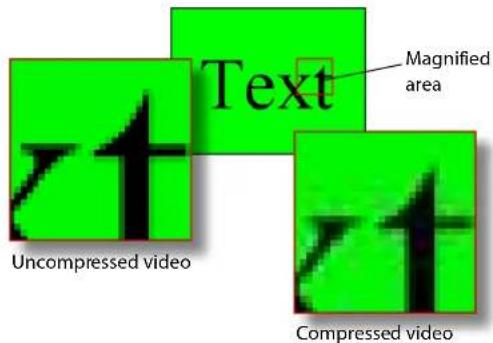
If your source footage is good and the captured video file is also of high quality, color keying is an easy process.
- Insert a video with a blue (or any solid colored) background into a track. This is the overlay video.
- Insert the background video that will show through the blue areas into the next lower track.
Note: You do not need to set the lower track as a child track when using the Chroma Keyer plug-in as you would with a mask.
- Click the overlay video (foreground, higher track) to select it.
- Drag a Chroma Keyer plug-in from the Video FX window onto the overlay video. The Video Event FX window displays.
- Click the down arrow to the left of the Split Screen View button (☐) on the Video Preview window and choose FX Bypassed. This will bypass the effect of the Chroma Keyer plug-in until you are ready to view the effect.
- In the Video Event FX window, click the Pick Color from Screen button (✗). The cursor changes to an eyedropper icon.
- Draw (click and drag) a small rectangular selection area around the color(s) to key out. Although you can select the color range from just about anywhere, the Video Preview window is the best location.
natural_image
Three-panel image showing a domed building under blue sky, with two side-by-side photos of clouds below (no text or symbols)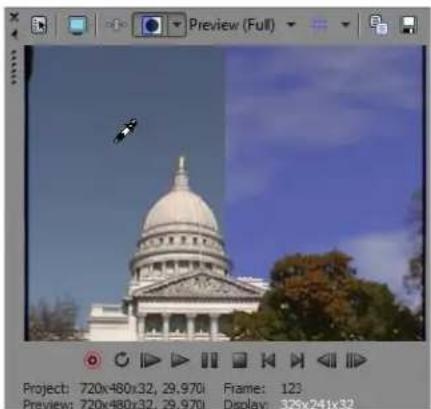
natural_image
Exterior view of the U.S. Capitol Building under a clear blue sky, with a rocket flying overhead (no signage or text in the scene)Note: Other effects that can change the color of the event should be bypassed when using the Pick Color from Screen tool.
- Click the Split Screen View button (☐) on the Video Preview window to restore the video effects. The Video Preview window shows the result of the Chroma Keyer plug-in.
natural_image
Exterior view of the U.S. Capitol Building under a blue sky with clouds (no signage or text visible)When a subject is filmed against a solid colored background in a studio, you can key out the background color using the Mask Generator or the Chroma Keyer plug-in. You can select a wider range of colors using the Chroma Keyer plug-in, making it the perfect tool for less-than-perfect blue screens.
This procedure selects a small range of colors to use as a key. In the example above, the blue sky around the dome is far from uniform and it would be difficult to key it out with a traditional blue screen key. The color is uniform enough, however, that a range of blues can be selected directly from the preview image. Use the controls at the bottom of the dialog box to determine the sensitivity of the colors selected. Since the filter selects a range of colors, it is a good idea to try to select a relatively small range of similar colors. Drawing a color selection area that spans both blue and red colors would make very large sections of an overlay transparent.
Tip: It is possible to use multiple Chroma Keyer plug-ins on a single event, keying out the blues with one and the reds with the other, without keying out any colors between blue and red.
Adding Video Transitions and Motion
Want something other than a cut or crossfade between video events? Vegas® Pro software provides a wide variety of transitions you can add to your project. This chapter also covers track motion and keyframe animation, which allows you to automate video effects, media generators, cropping, panning, and more.
Understanding basic transitions
Transitions occur between two video events. Most professional productions, on television or on the big screen, use only two types of transitions. The first is a simple cut, where one scene immediately cuts to the other without delay or effects. The other is a fade, otherwise known as a crossfade or a dissolve.
Cuts
A cut is actually not a transition. Instead, the last frame from an event is immediately followed by the first frame of the next event. This is what happens with two adjacent events on the timeline, either in the same track or in different tracks. This can also happen when an event is punched into another (with fade edge edits turned off).
Adjacent events Events on different tracks Punch-in events
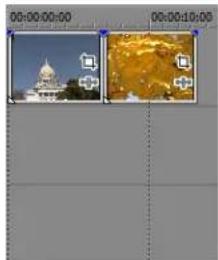
natural_image
Video editing software interface showing two video frames with a building and a golden landscape (no text or symbols)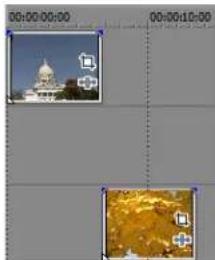
natural_image
Two video editing frames showing a building and a golden landscape (no text or symbols visible)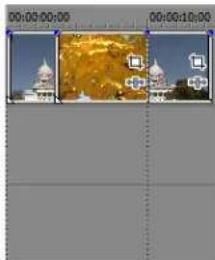
natural_image
Video editing timeline interface showing three video frames with building silhouettes and a golden tunnel effect (no text or symbols)Crossfades
You can fade one event out and fade into the next event by simply overlapping the two. The duration of the transition is determined by the amount of overlap. For more information, see Crossfading events on page 109.
Using transition effects
Transition effects are more complex than a simple cut or crossfade. You can replace a crossfade with a transition and then customize the transition to meet your needs.
Tip: Select the Event Fade Lengths option on the View menu to display fade lengths between selected and nonselected events in the timeline. You can use this display as a quick indicator of a transition's length.
Adding a transition
- Insert a video event onto the timeline.
- Insert another event so that it overlaps the first to create an automatic crossfade.
- In the Transitions window, browse for a transition effect. If the Transitions window is not visible, choose Transitions from the View menu.
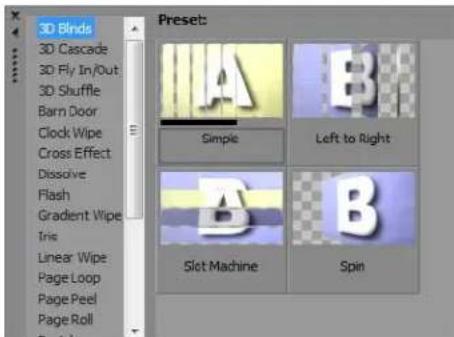
- Drag the effect onto the crossfade between the two events.
Note: The duration of a transition is automatically determined by the amount of overlap between the two events. As with other events, you can control the precise duration of a transition by dragging the edges in and out. You can also slide a transition for more precise control. For more information, see Sliding a crossfade on page 110.
The original crosstade...
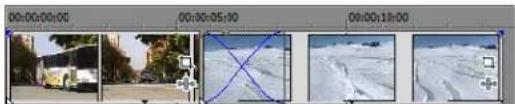
natural_image
Sequence of four video frames showing a bus, camera, snowy landscape, and snowboard on a road (no text or symbols)...and the new transition effect.
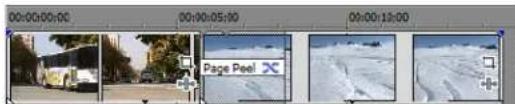
Tips:
- Some transitions also have their own shortcut keys. On the numeric keypad, press / to insert a crossfade, * to insert a dissolve, and - to insert a linear wipe. Hold Ctrl while pressing / to convert the transition to a cut at the cursor position.
- Select the Event Fade Lengths option on the View menu to display fade lengths between selected and nonselected events in the timeline. You can use this display as a quick indicator of a transition's length.
Adding a transition to the end of an event
Typically, a transition occurs between two events on a track, but you can also use transitions to fade to and from the background, whether that is an underlying image, video, or background color. For example, you can drag a Clock Wipe transition to the end of a video event and have the wipe go from the video event to black.
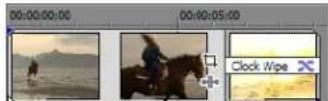
Adding a transition to all selected events
If you tend to use the same transitions often, you can save yourself some time by adding a transition to all selected events at once.
- Select the events where you want to add the transition.
- From the View menu, choose Transitions to display the Transitions window.
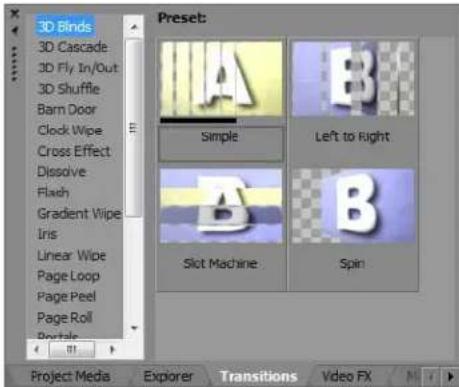
- Select a transition from the list on the left side of the window. The thumbnail images on the right side of the window represent each of the existing presets for the selected transition. Hover your cursor over a preset to see an animated example.
- After you've found the setting that you want to use, drag it to the position where you want it to occur on the timeline.
- The Video Event FX dialog is displayed to allow you to edit the transitions settings, and a transition icon (✗) is displayed in the timeline to show you where the transition takes place. You can also click this icon to edit the transition's settings.
Dropping on existing cuts, crossfades, or transitions
- If you drop the preset on an existing transition, only transitions within the selection will be changed. Cuts and crossfades are preserved.
- If you drop the preset on an existing crossfade, only crossfades and transitions within the selection will be changed. Cuts are preserved.
• If you drop the preset on an existing cut, all cuts, crossfades, and transitions within the selection will be changed.
Dropping on event edges
- If you drop the preset on a transition that is at the beginning or end of an event (but does not span two events), only single-event transitions that occur on the same end of the event within the selection will be changed.
- If you drop the preset on an event fade-in or -out, event fade-ins/outs and single-event transitions that occur on the same end of the event within the selection will be changed.
- If you drop the preset on an event edge with no fade, all other event edges, event fade-ins/outs, and single-event transitions that occur on the same end of the event within the selection will be changed.
Note: To change the length of the transition for cuts that are converted to transitions, use the Cut-to-overlap conversion settings on the Editing tab of the Preferences dialog.
Adding a transition progress envelope
Normally, a transition progresses from 0 to 100% in a linear fashion over the length of the transition. A transition progress envelope gives you complete control over a transition: you can hold, reverse, and repeat individual transitions.
- Right-click a transition.
- From the shortcut menu, choose Insert/Remove Envelope, and then choose Transition Progress from the submenu. An envelope is added to your transition.
- Add points and adjust the fade curves as desired. For more information, see Using the Envelope Edit tool on page 193.
In the following example, the transition starts, progresses to 50%, reverses direction, and then finishes.
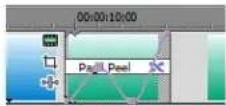
Understanding track layers
If you want, you can view and modify transitions in an A/B roll mode. Right-click the track header and choose Expand Track Layers from the shortcut menu to expand the track to reveal three layers within the main track. These layers are called the A roll, the B roll, and the transition roll.
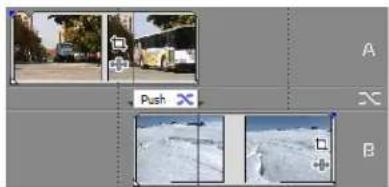
natural_image
Screenshot of a video editing interface showing three video thumbnails with different frame controls (no readable text or symbols)A roll
Transition roll
B roll
The concept of an A/B roll is fundamentally different from the multitrack philosophy. Every track is in some way mixed (composited) into the final output in a multitrack system, but events are not mixed on the A/B roll. Instead, either the A roll or the B roll is playing, with the two trading places during a transition. You could mix the two for as long as you want with a transition, but they do not blend without an intervening transition. Transitions move from one roll and into the other. This could be from A to B or from B to A. The direction of the transition is automatically set. The small arrows on the side of the transition event indicate this direction.
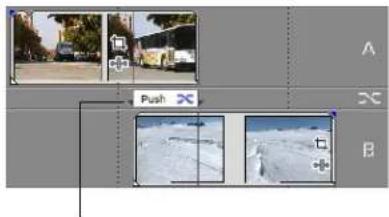
Transition direction arrow
As the sequence below shows, the video output can shift from the A to the B and back to A many times during a production, but there is only one video output from any particular roll at a time. This means that the A and B rolls are not composited.
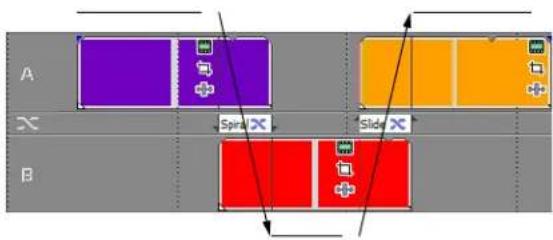
flowchart
graph TD
    A["Block A"] -->|Spiral| B["Block B"]
    B -->|Slide| A
    style A fill:#f9f,stroke:#333
    style B fill:#bbf,stroke:#333
Converting a cut to a transition
The transition between two events that are adjacent to each other on the same track is instantaneous and is called a cut. However, if the first event is trimmed back from the end and the second event is trimmed back from the beginning (in other words, both have enough media to overlap), you can transform the cut into a transition effect using this extra media.
- Right-click the line between two adjacent events at the cut position.
- From the shortcut menu, choose Transition and then choose the transition that you want to insert (for example, Insert Sony Iris).
You can also drag a transition to the cut from the Transitions window.
The duration of the newly inserted transition event is determined by the Cut-to-overlap conversion time set in the Editing tab of the Preferences dialog. To access this dialog, choose Preferences from the Options menu.
This event's media is longer than the trim.
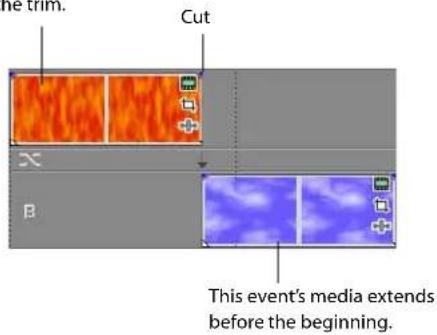
After the conversion, both events are longer and extend into the transition.
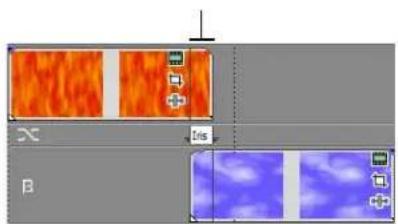
natural_image
Two abstract color swatches with orange and blue textures, no text or symbols presentNotes:
- There must be enough media in the respective events to cover the transition (for example, the end of the first event must not be the end of the media file).
- You can also convert cuts between audio events to crossfades. Click the cut and press / on the numeric keypad to create a crossfade. There must be enough media on either side of the cut to create the crossfade.
Converting a crossfade or transition to a cut
- Click to position the cursor within the transition.
- Hold Ctrl while pressing the / key on your numeric keypad.
The transition will convert to a cut, using the Cut-to-overlap conversion settings on the Editing tab of the Preferences dialog to determine where the cut occurs.
Previewing a transition
The easiest way to preview a transition is to set the loop region to the duration of the transition and then loop the playback. This allows you to adjust the transition while it is playing and make changes in real time.
- Double-click the transition. This automatically creates a time selection equal to the length of the transition.
-
Click the Loop Playback button (C) to turn loop playback on. The selection area bar is dark blue when loop playback is turned on.
-
Click the Play button (▶).
To preview complicated transitions, you may want to build a dynamic RAM preview or prerender the effect. For more information, see Building dynamic RAM previews on page 372 or Prerendering video on page 371.
Modifying a transition
All of the transitions include several presets that create standard transitions. If a preset doesn't meet your needs, you can customize a transition to suit your taste.
Tip: You can also animate the parameters of a transition with keyframes. For more information, see Using keyframe animation on page 354.
- Click the Transition Properties button (✗) on the transition or right-click the transition and choose Transition Properties from the shortcut menu. The Video Event FX window appears.
- Change the parameters. Changes update in real time in the Video Preview window. For help on the different controls in the Video FX window, click the Plug-In Help button (☐) to access online help.
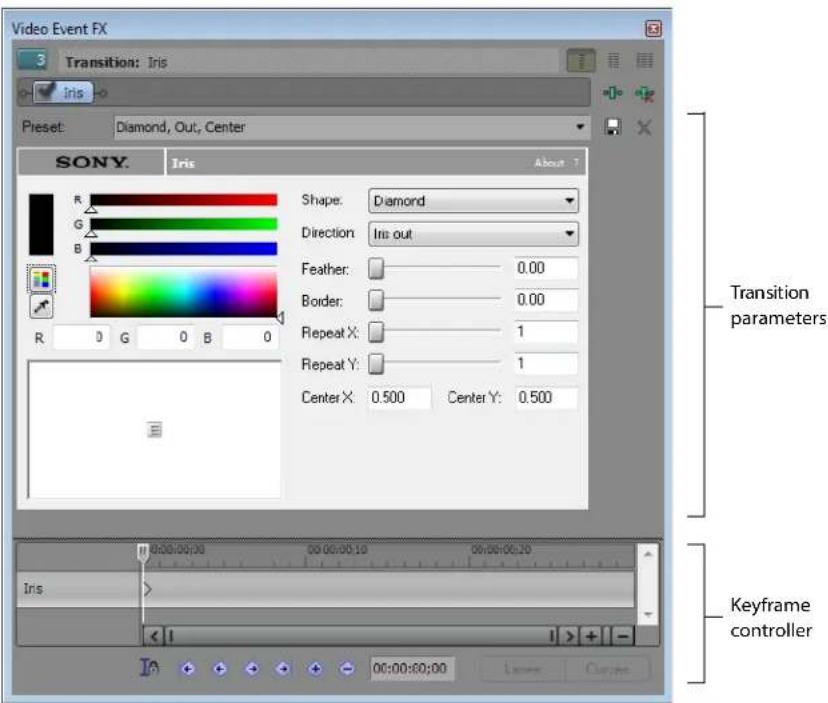
Saving custom settings as a preset
After you modify a transition, you can save your settings as a preset for use at a later time. You can apply presets by choosing them from the Preset drop-down list.
- Modify the settings in the window to create your desired transition effect. For help on the different controls in the window, click the Plug-In Help button (☐) to access online help.
- Click the name in the Preset drop-down list. The current text is highlighted.
- Enter a name for the new preset.
- Click the Save Preset button (☐).
You can save any additional changes to the custom preset by clicking the Save Preset button.
Using keyframe animation
Keyframe animation is a technique that computer artists use to quickly make complex animated sequences. Instead of drawing every frame of a title scrolling in from top to bottom by hand, an animator simply has to set a starting and ending position for the animation and let the computer interpolate the intermediate frames. The animation pictured on the right has three keyframes: a starting, middle, and ending keyframe. More complex animations use more keyframes.
While keyframing motion may be the most obvious use for keyframe animations, just about any parameter of an effect can be animated with keyframes. Keyframe animation techniques are used in many areas, including transition effects, video effects, event panning and cropping, generated media, and track motion. You can animate color, brightness, transparency, motion, size, perspective, and many other parameters with keyframes.
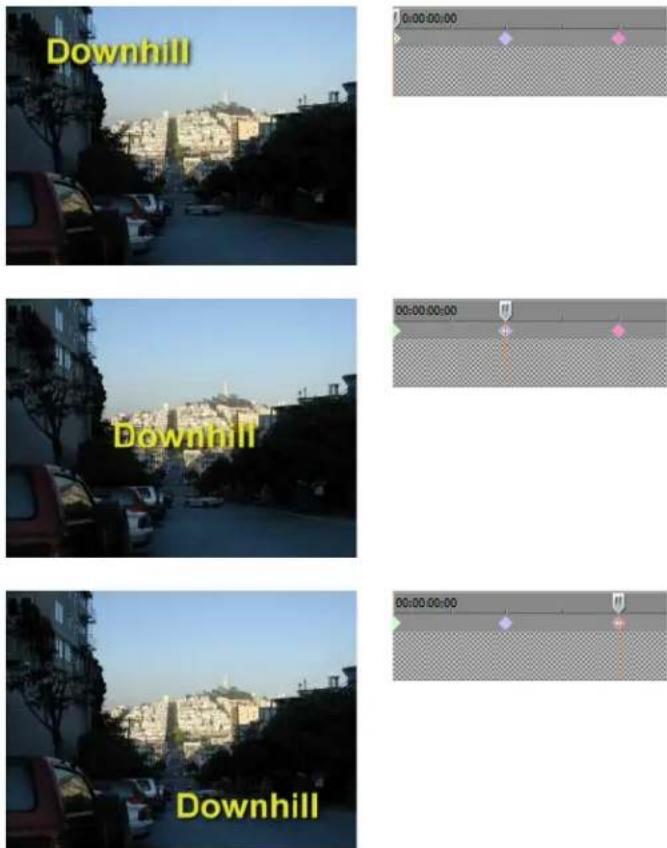
These three frames show the progression of a title across three keyframes.
Understanding the keyframe controller
The keyframe controller appears at the bottom of the Video FX window (used for transitions, effects, and generated media), the Track Motion window, and the Event Pan/Crop window.
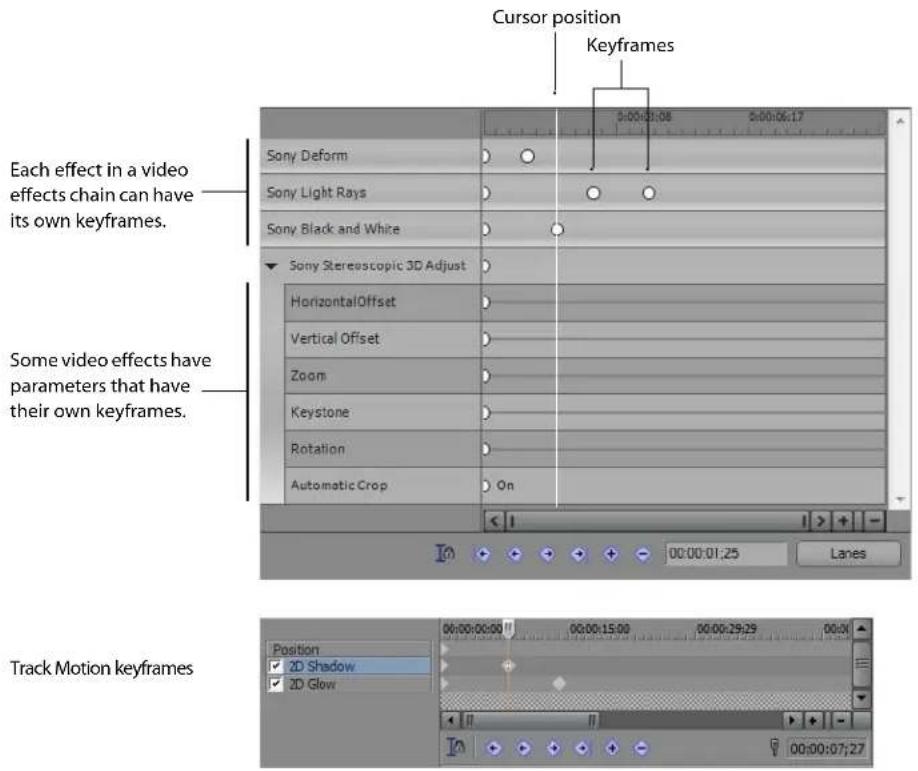
| Sync Cursor Sync the keyframe cursor with the timeline cursor. | |
| First Keyframe Go to the first keyframe | |
| Previous Keyframe Go to the previous keyframe. | |
| Next Keyframe Go to the next keyframe. |
| Last Keyframe Go to the last keyframe. |
| Create Keyframe Create a keyframe at the cursor position. |
| Delete Keyframe Delete the selected keyframe. |
The cursor position is marked by a flashing line on the controller. This position can also be automatically updated on the timeline, with the Video Preview window also updating in real time to reflect changes. Click the Sync Cursor button (Ja) on the keyframe controller to sync the keyframe cursor with the timeline cursor.
Adding keyframes
Every effect has a starting keyframe at the beginning (left side) of the keyframe controller. This sets the initial parameters for the effect. In order to animate the effect, you must add another keyframe to the effect and change some of the parameters. When you first add a new keyframe, it has the same settings (for the transition, effect, pan/crop, etc.) as the first keyframe. You can then modify the settings of the new keyframe to create the animation from the first keyframe settings to the second.
- Click the keyframe controller timeline to move the cursor where you want to add a keyframe. The current position is marked by a blinking cursor.
- Click the Create Keyframe button (◆).
- Modify the settings in the window for the new keyframe as desired.
Tip: You can also add a new keyframe by positioning the cursor in the keyframe controller and changing any parameters in the window. A keyframe is added with the new settings at the cursor position.
Deleting keyframes
- Select a keyframe in the keyframe controller.
- Click the Delete Keyframe button (◆).
Navigating in the keyframe controller
Use the keyframe navigation buttons (First, Previous, Next, and Last) to quickly jump to a keyframe. Alternately, press Ctrl+Left Arrow or Ctrl+Right Arrow to move to the previous or next keyframe.
Modifying keyframes
After you create your keyframes, you can move them, copy and paste them, and change the interpolation curves between them.
Moving keyframes
You can move a keyframe within the keyframe controller by dragging it to a new position. For track-level keyframes, you can also move the keyframes in the timeline. For more information, see Working with keyframes in the timeline on page 358.
Copying and pasting keyframes
Keyframes on the controller can be copied, pasted, and duplicated.
- Right-click a keyframe.
- From the shortcut menu, choose Copy.
- Right-click the keyframe controller at the position where you want to paste the keyframe.
- From the shortcut menu, choose Paste.
Duplicating keyframes
- Right-click and drag a keyframe to a new position.
- From the shortcut menu, choose Copy. A duplicate keyframe is created at the new position.
You can also duplicate a keyframe by holding the Ctrl key while dragging it.
Changing the interpolation curve
The interpolation curve determines the rate at which Vegas Pro software animates between two keyframe settings. You can right-click a keyframe to choose a different shape for the interpolation curve. The shortcut menu provides six options: Linear, Smooth, Fast, Slow, Sharp, and Hold. Selecting Hold from the shortcut menu prevents any animation from being interpolated between two keyframes.
For video effects, the line between keyframes indicates which interpolation curve is being used.
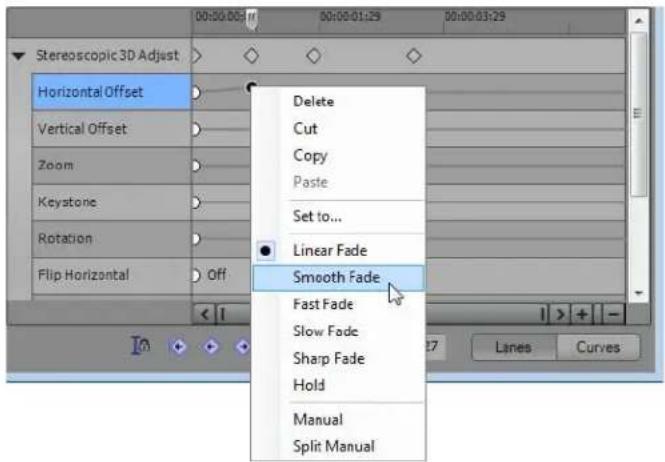
For event pan/crop and track motion keyframes, the color of the keyframe indicates which interpolation curve is being used.
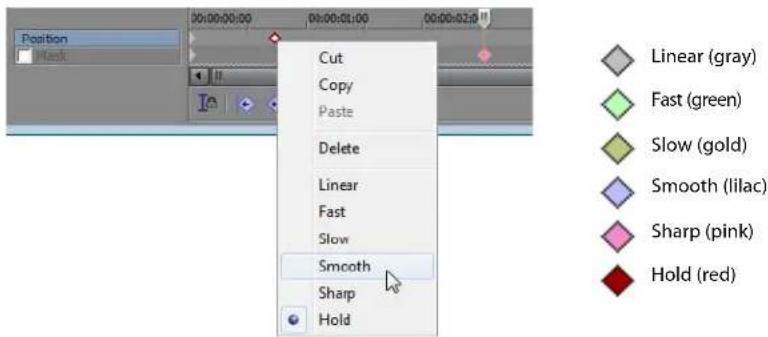
In the Curves view of the video effects keyframe controller, you can manually adjust a keyframe's spline curves. Click the Lanes and Curves buttons to toggle between the Lanes and Curves views.
Note: The Curves view is not available for event pan/crop and track motion keyframes.
Right-click a keyframe and choose Manual from the shortcut menu to display the spline curve handles. Drag the handles to adjust the curve.
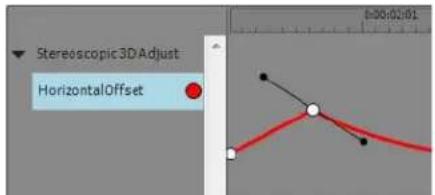
Right-click a keyframe and choose Split Manual from the shortcut menu to independently adjust the curve on each side of the keyframe.
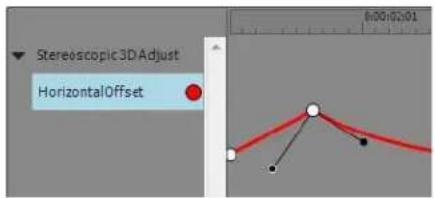
Changing the relative spacing of keyframes
You can change the relative positions of the keyframes as a group. This can be useful if you need to change the overall length of an animated sequence or if you need to copy a set of keyframes to another event that has a different duration than the original.
- Click on the first keyframe, hold the Shift key, and click on the last keyframe in the sequence to select all of the keyframes.
- Hold Alt and drag the first or last keyframe to scale the keyframes.
When copying keyframes from longer events to shorter events, you must temporarily lengthen the duration of the shorter event so that all of the keyframes appear on the keyframe controller. Once you have pasted the keyframes, you can rescale the keyframes using the above procedure, and then resize the event to its original length.
Creating keyframe presets
The 2D and 3D track motion dialogs allow you to create, save, and recall keyframe presets. Keyframe presets save the settings of the selected keyframe row at the cursor position.
Notes:
- Presets for the Position, 2D Shadow, and 2D Glow keyframe rows are saved separately.
- Presets for 2D and 3D track motion are saved separately. Presets you create in the 2D Track Motion window will not be available in the 3D Track Motion window.
Saving a preset
- Adjust your Position, 2D Shadow, or 2D Glow settings as desired to create a keyframe.
- Type a name in the Preset box.
- Click the Save Preset button (☐).
Notes:
- Presets for the Position, 2D Shadow, and 2D Glow keyframe rows are saved separately.
- Presets for 2D and 3D track motion are saved separately: presets you create in the 2D Track Motion window will not be available in the 3D Track Motion window.
Recalling a preset
- Click in the Position, 2D Shadow, and 2D Glow keyframe row to select a row and position the cursor where you want to apply the preset.
- Choose a setting from the Preset drop-down list.
If no keyframe exists at the cursor position, one is created using the settings from the preset. If a keyframe exists at the cursor position, the keyframe's settings are replaced with the settings from the preset.
Deleting a preset
Click the Delete Preset button (✗) to delete the current preset.
Working with keyframes in the timeline
You can move and modify track keyframes in the timeline. These keyframes are used in the following three track-level effects:
• Track effects plug-in (For more information, see Adding a video effects plug-in on page 322.)
• Track motion (For more information, see Adding track motion on page 363.)
• Mask generator plug-in on a parent compositing track (For more information, see Using the Mask Generator on page 344.)
Viewing and moving track keyframes
Once you have added keyframes to one of these track-level effects, the track keyframes appear at the bottom of the track on the timeline. Click the Expand Track Keyframes button (☐) to view the keyframes.
You can drag a keyframe on the track in the same way you would in the keyframe controller. To move several keyframes at once, use the Envelope Edit tool 📄 to select and drag multiple keyframes.
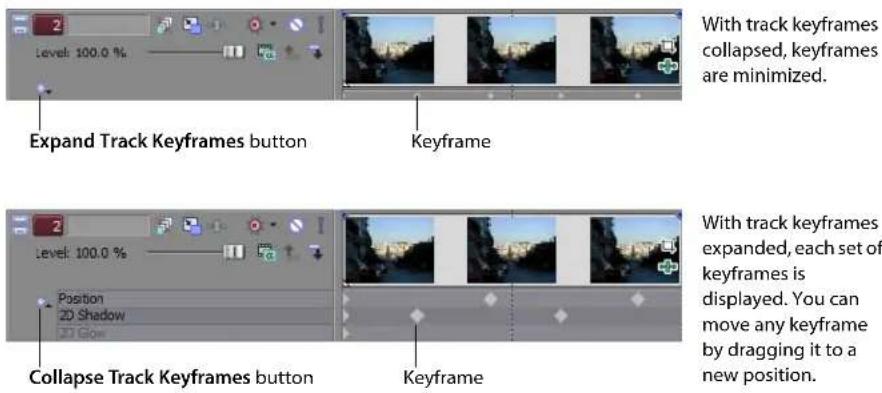
Tip: You can use ripple editing to automatically move track keyframes as you edit in the timeline. For more information, see Applying post-edit ripples on page 107.
Adding new track keyframes
You can add new track keyframes to an existing track-level effect by double-clicking the track keyframe area.
Editing track keyframes
Double-click a track keyframe to open the associated window and adjust the settings. To change a keyframe interpolation curve, right-click the keyframe and choose a curve type from the shortcut menu.
Locking track keyframes to events
When track keyframes are locked, you can move events along the track and the keyframes move along with them. Only keyframes that occur within the selected events move.
Select the Lock Envelopes to Events button (☐) to lock track keyframes to the events on the track.
Hiding track keyframes
If the timeline becomes too cluttered, you can hide track keyframes from view. From the View menu, choose Show Video Envelopes, and choose Track Keyframes from the submenu to hide track keyframes.
Sample uses for keyframe animation
The following section provides several examples of how keyframe animation can be used with features such as event panning and cropping, video effects plug-ins, and generated text events.
Animating event panning and cropping
You can combine event panning and cropping tools with keyframe animation to create several special effects. For more information, see Cropping video on page 287.
Zooming In on a still image
By using keyframe animation in the Event Pan/Crop window, you can zoom in and out on a still image. In this example, four keyframes are used to zoom in on a street scene in a photograph and zoom back out again. A generated color gradient event masks the edges of the image during the zoom to enhance the effect. For more information, see Using generated media on page 327.
- Click the Event Pan/Crop button (☐) on the still image event.
- Click the keyframe controller to position the cursor for the second keyframe.
- Click the Add Keyframe button (⊕). Resize and move the selection area to zoom in on a portion of the image.
- Click the keyframe controller to position the cursor for the third keyframe.
- Click the Add Keyframe button (☐). Resize and move the selection area to zoom in on a different portion of the image.
- Click in the keyframe controller near the end of the event to place the final keyframe.
- Click the Add Keyframe button (◆).
- Right-click in the selection area and choose Restore from the shortcut menu. The selection area is zoomed out to include the full image for the last keyframe.
- Preview the event in the Video Preview window. Adjust the settings in the Event Pan/Crop window as you preview the zoom effect.
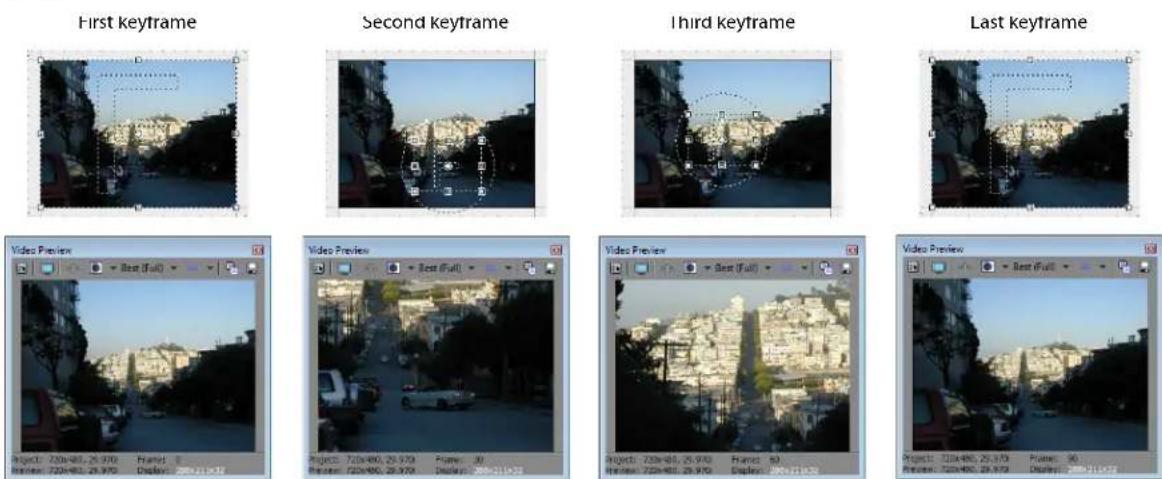
Using pan-and-scan
Another way to use keyframe animation in the Event Pan/Crop window is panning, or pan-and-scan. Pan-and-scan is a technique commonly used when film is converted for television. Movie screens and film are usually wider (\~2.35:1) than television (\~1.33:1). When you transfer the film to video, you have four choices: (1) squash the film horizontally to fit, distorting it in the process; (2) crop it, possibly losing information on the sides; (3) letter box it so the top and bottom have black areas and the picture is shorter overall; and (4) pan-and-scan. Pan-and-scan is a variation of cropping, where someone goes through the movie and moves the crop area back and forth to follow the action or subject.
-
Click the Event Pan/Crop button (☐) on the event. The Event Pan/Crop window appears.
-
Confirm that the Stretch to fill frame check box is selected.
-
Right-click the selection area and choose Match Output Aspect from the shortcut menu.
-
Select a starting position, size, and angle of rotation for the crop rectangle. This is the start position (first keyframe).
-
Click in the keyframe controller and press Ctrl+End. This moves the cursor to the end of the event.
-
Click the Create Keyframe button (☐). A new keyframe appears in the keyframe controller at the end of the event.
-
Change the position, size, and angle of rotation. This is the final position (last keyframe).
-
Preview the event. Add and adjust keyframes as needed to create the desired effect. You can adjust both temporal and spatial interpolation for each keyframe:
- Temporal interpolation (how the pan occurs over time) is controlled by the keyframe interpolation curve type. Experiment with temporal interpolation by right-clicking a keyframe to change the interpolation curve type (hold, linear, fast, slow, smooth) and previewing the result. For more information, see Changing the interpolation curve on page 356.
- Spatial interpolation (how the pan occurs within the video image) is controlled by the Smoothness setting of each keyframe. A smoothness value of 0 makes the movement linear from one keyframe to the next. A higher smoothness value makes the path of the pan more curved. Select a keyframe and change the Smoothness value to adjust spatial interpolation.
Animating video effects plug-ins
You can use keyframe animation to smoothly and gradually apply an effect to an event. This example uses the Add Noise plug-in. The Add Noise plug-in adds static or noise to a video sequence. When added to a simple solid-colored background with a monochrome setting and animated, a pattern is produced that is similar to a television that is not tuned to any station.
- Add an Add Noise plug-in to an event. For more information, see Adding a video effects plug-in on page 322.
The Video FX window is displayed.
-
Click the Animate button to display the keyframe controller at the bottom of the window.
-
Add two keyframes to the event for a total of three including the one at the beginning. New keyframe attributes are copied from the previous keyframe.
-
Click the first keyframe to select it. Drag the Noise level slider to 0.
-
Click the last keyframe to select it. Drag the Noise level slider to 0.
-
Click the second keyframe to select it. From the Preset drop-down list, select Grainy.
-
Hold Ctrl and drag the second keyframe to duplicate it. Position this new keyframe between the second and final keyframes.
The effect is off at the first keyframe and smoothly transitions to a grainy effect at the second keyframe, at which point the effect remains constant until the third keyframe. Then the effect gradually fades out until it reaches a minimum value at the last keyframe.
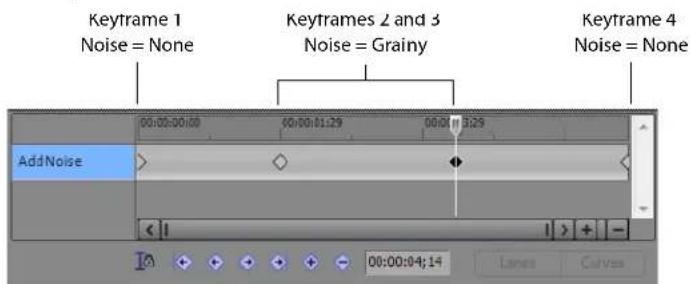
The results of gradually transitioning into an effect using keyframe animation.
Animating generated text
You can add a generated text event to a project by dragging a text generator from the Media Generator window. For more information, see Using generated media on page 327. You can then animate the text by adding keyframes.
Not all attributes of generated text media can be animated using keyframes, however. You cannot, for example, morph one text message into a different one. Some aspects can be easily and smoothly animated using the keyframe controller, such as text, color, transparency, leading, tracking, and position.
Other aspects of generated text do not allow interpolated keyframe animation. For example, if you set the text to "One" initially and then at five seconds change it to "Two", the text will suddenly jump to the new value at the five second keyframe. This behavior is different from the behavior of other keyframe animation techniques.
In this example, keyframes are used to make a title appear one letter at a time across the screen.
- Drag a text generator from the Media Generator window to the timeline.
- Right-click the new event and choose Edit Generated Media.
- Type the first letter of the title, for example "T".
- Click the keyframe controller at the 1.000 second mark and type the second letter, for example "y". The title now reads "Ty". A new keyframe appears in the keyframe controller at the 1.000 second mark.
- Proceed down the keyframe controller to 2.000 and type the letter "p".
- Proceed down the keyframe controller repeating this process until the title is finished: "Typing".
- Preview the event in the Video Preview window. The word "Typing" appears one letter per second until finished.
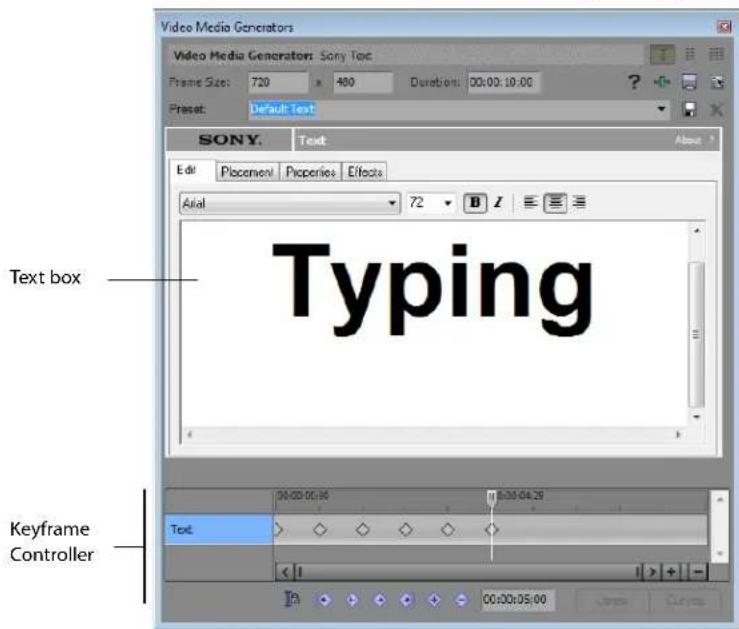
Adding track motion
The Track Motion window (accessible by clicking the Track Motion button 📋 on any video track) is used to move a video track across a background. This background can be a solid color, another video event, or an image. Picture-in-picture effects and scrolling title sequences are two simple cases where this tool is important.
The gray area in the center of the window (covered by the blue/gray rectangle) represents the actual screen or area that is visible in the movie. The area outside of the main screen, which is filled with dotted lines, is the general workspace. The video you are moving can be positioned off of the visible screen and then animated onto and across the screen. The dots are markers to help position the video window. If snapping is enabled, these serve as snapping points.
The main window allows you to control the placement, size, and orientation of the overlay video through time. The blue and gray rectangular overlay in the middle represents the video on the track. The selection box in the workspace is used to represent the orientation of the track.
You can also use 3D compositing to move tracks through space. For more information, see 3D compositing on page 333.
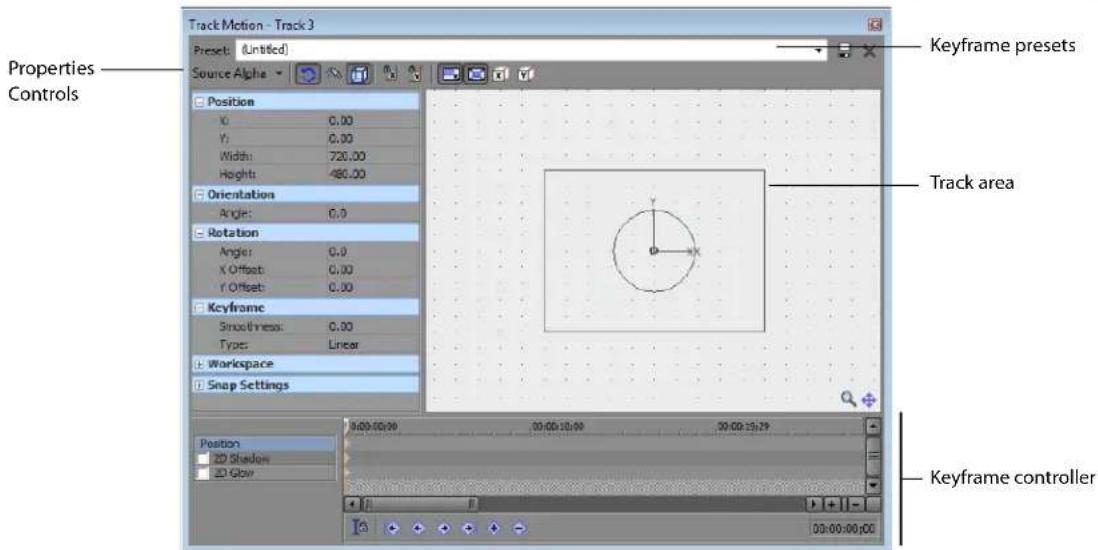
Controlling track motion
- Click the Track Motion button 📋 on the track that contains the overlay that you want to animate. The Track Motion window is displayed.
- Adjust the selection area to change the viewable area of the track and its position in space. Guides are displayed in bold to indicate how the track will be moved or rotated:
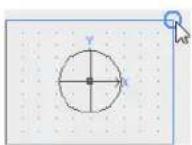
Moving closer to or farther from viewer. Drag across corners to flip the track.
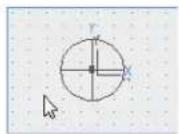
Dragging the track.
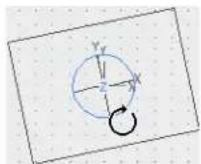
Rotating around the Z axis.
- Use the buttons at the top of the dialog to allow or prevent movement or scaling. For more information, see Changing editing options on page 364.
-
The track motion occurs instantly, and the results are updated in the Video Preview window.
-
Use the keyframe controller at the bottom of the Track Motion window to establish distinct track motion settings throughout the duration of the track.
During playback, immediate frames are interpolated to create smooth motion. Expand the Keyframe interpolation heading on the left side of the window and drag the Smoothness slider to adjust the interpolation. For more information, see Using keyframe animation on page 354.
Tip: Use the Default Track Motion smoothness control on the Editing tab of the Preferences dialog to set the default Smoothness value for new keyframes.
Using the track motion shortcut menu
When you right-click anywhere in the Track Motion window, a shortcut menu appears:
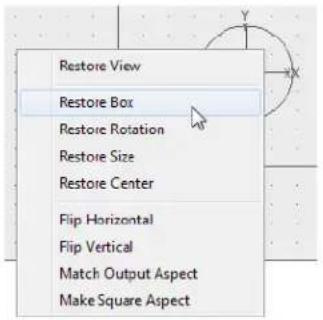
- Restore View returns the workspace display to its original state.
- Restore Box returns the overlay to its original state (size, rotation, and position).
- Restore Rotation returns the overlay to its unrotated state.
- Restore Size returns the overlay to its original size.
- Restore Center moves the overlay to the center of the frame.
- Flip Horizontal flips the overlay backwards or left to right.
• Flip Vertical flips the overlay upside-down.
• Match Output Aspect sets the aspect ratio to the frame value.
• Make Square Aspect sets selection box to a square aspect.
Changing editing options
Use the toolbar at the top of the Track Motion window to change your editing options.
| Icon | Command | Description |
| Enable Rotation | Select this button if you want to be able to rotate, or spin, the video.When the button is not selected, video is locked so you can move it horizontally or vertically, but the track cannot be rotated. | |
| Enable Snapping to Grid | Select this button if you want your editing to snap to the grid. | |
| Edit in Object Space | Select this button if you want to edit in the object's space rather than the camera's space.For example, if a track is rotated, its X axis may not correspond to the X axis of the of the Video Preview window. Selecting the Edit in Object Space button in conjunction with the Prevent Movement buttons allows you to move the object along its own X and Y axes. | |
| Prevent Movement (X) | Select this button if you want to prevent horizontal movement of the track. | |
| Prevent Movement (Y) | Select this button if you want to prevent vertical movement of the track. | |
| Lock Aspect Ratio | Select this button if you want the selection box to retain its aspect ratio during resizing.When the button is not selected, the height and width can be resized independently. | |
| Scale About Center | Select this button if you want the selection box to retain its center point when you resize the box by dragging its edges.When the button is not selected, the opposite side of the selection box will remain anchored when you drag the edges to resize it. | |
| Prevent Scaling (X) | Select this button if you want to lock the horizontal dimension of the selection box. | |
| Prevent Scaling (Y) | Select this button if you want to lock the vertical dimension of the selection box. |
Using keyframes in track motion
Keyframes are what create the motion in the track motion feature. You can create, modify, and remove keyframes in the keyframe controller in the same way as with any other feature that uses keyframes. In addition, for track motion and 3-D track motion, you can use keyframe presets to save and recall the settings of the selected keyframe row at the cursor position. For more information, see Using keyframe animation on page 354.
The keyframe controller in the Track Motion window has three attributes that can be animated: position, shadow, and glow. Each effect can be animated independently. The shadow and glow effects can be turned on and off. Each effect has its own set of controls that appear on the left-hand side of the window. You can access these controls by clicking the respective item on the keyframe controller.
Tip: If any controls described in this section are not visible on the screen, enlarge the Track Motion window by dragging the lower right corner until all controls are revealed.
Position
You can control the position of the overlay in the main window by dragging the selection box or editing the controls on the left side of the window. However, the Position, Orientation, and Rotation controls in the window are invaluable when you need precision in resizing, moving, or rotating the overlay.
The Smoothness box allows you to modify the smoothness of the interpolation curve among three or more keyframes.
You can use the Workspace controls to adjust the magnification and viewable area of the workspace. Use the Snap Settings controls to adjust the grid in the workspace.
| Position | |
| X: | -97.30 |
| Y: | -11.06 |
| Width: | 720.00 |
| Height: | 480.00 |
| Orientation | |
| Angle: | -32.1 |
| Rotation | |
| Angle: | 0.0 |
| X Offset: | 0.00 |
| Y Offset: | 0.00 |
| Keyframe | |
| Smoothness: | 100.00 |
| Type: | Linear |
| Workspace | |
| Zoom (%): | 50.00 |
| X Offset: | 396.00 |
| Y Offset: | 5,148.00 |
| Snap Settings | |
| Grid Spacing: | 40 |
| Rotation: | 15 |
2D Shadow
This creates a simple drop shadow that appears under the entire window or only under the opaque (nontransparent) parts of the overlay. You can control the size and offset of the shadow as well as the shadow color. A shadow is especially effective under a picture-in-picture window or to emphasize text and titles. Use the Eyedropper tool to select a specific color from anywhere on the screen.
The shadow effect creates a drop shadow under an object, window, or title. A shadow is especially effective under a picture-in-picture window.
- Select the 2D Shadow row in the keyframe controller. When the 2D Shadow row is selected, shadow controls are displayed in the Track Motion dialog.
Select the 2D Shadow check box to apply the shadow so you can see the results of your shadow in the Video Preview window, or clear the check box to bypass the shadow.
- Use the 2D Shadow controls on the left side of the window to set the color and appearance of the shadow:
- Blur Type a number in the box or click the down arrow button (☑) to display a slider you can use to soften the edge of the shadow. Set to 0 for a hard edge, or increase the setting to feather the edge of the shadow.
- Intensity Type a number in the box or click the down arrow button (☑) to display a slider you can use to establish the transparency of the shadow's blurred edge. Decrease the setting for a translucent shadow, or increase the setting for a more opaque shadow.
- Color Click the down arrow next to the color swatch to display a color picker. Use the sliders or edit boxes in the color picker to set the shadow color, or use the Pick Color from Screen tool (✗) to sample a color from your screen.
- Adjust the size position of the shadow by dragging the box in the workspace or using the Position, Orientation, and Rotation controls on the left side of the window. For more information about manipulating the selection box, see Controlling track motion on page 363.
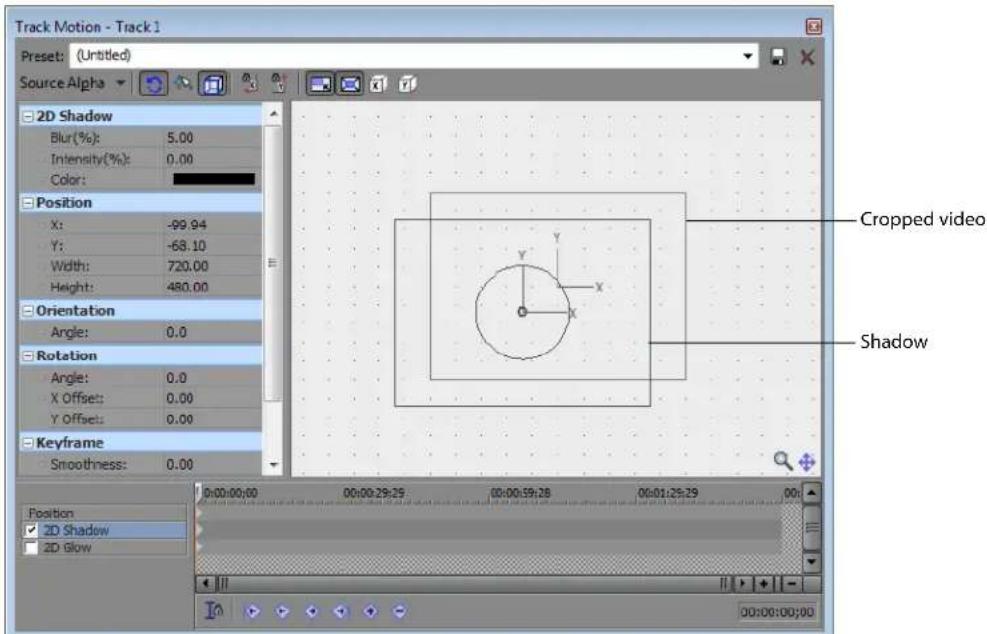
- To animate the shadow, click in the 2D Shadow row of the Keyframe Controller to set the cursor to a later time and adjust the shadow settings.
2D Glow
Glow is a bright haze surrounding an overlay. In general, light colors are used for glow effects, but you can emphasize bright text on complex backgrounds by using a very small black glow, with little or no feathering, and 100% intensity.
- Select the 2D Glow row in the keyframe controller. When the 2D Glow row is selected, glow controls are displayed in the Track Motion dialog.
Select the 2D Glow check box to apply the glow so you can see the results of your shadow in the Video Preview window, or clear the check box to bypass the glow.
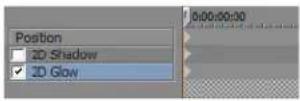
-
Use the 2D Glow controls on the left side of the window to set the color and appearance of the glow:
-
Blur Type a number in the box or click the down arrow button ⏻ to display a slider you can use to soften the edge of the glow effect. Set to 0 for a hard edge, or increase the setting to feather the edge of the glow.
- Intensity Type a number in the box or click the down arrow button (☑) to display a slider you can use to establish the transparency of the glow's blurred edge. Decrease the setting for a translucent glow, or increase the setting for a more opaque glow.
-
Color Click the down arrow next to the color swatch to display a color picker. Use the sliders or edit boxes in the color picker to set the glow color, or use the Pick Color from Screen tool (↗) to sample a color from your screen.
-
Adjust the size position of the glow by dragging the box in the workspace or using the Position, Orientation, and Rotation controls on the left side of the window. For more information about manipulating the selection box, see Controlling track motion on page 363.
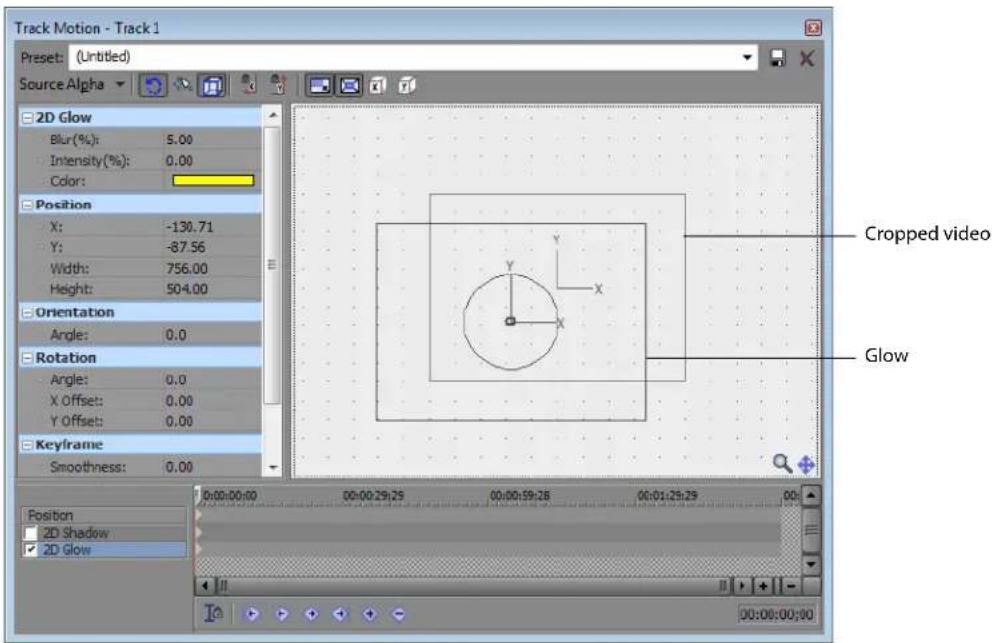
- To animate the glow, click in the 2D Glow row of the Keyframe Controller to set the cursor to a later time and adjust the glow settings.
Creating a picture-in-picture effect
Picture-in-picture is an easy effect to reproduce using track motion.
- Insert the background video into a track.
- Insert the overlay video into another track just above the background video track.
- Click the Track Motion button (☐) on the upper overlay track.
- In the Track Motion window, position and resize the track area.
The illustration below shows some of the relevant parts of this procedure. Note the shadow cast by the overlay video. This is added by selecting the 2D Shadow check box on the keyframe controller. The Video Preview window displays the results.
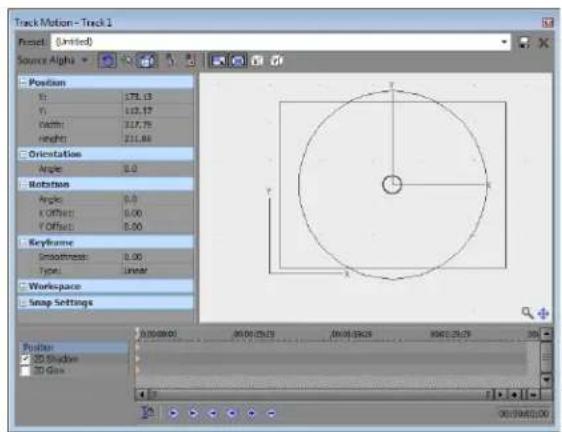
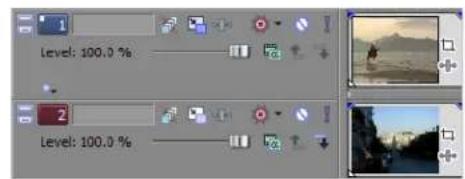
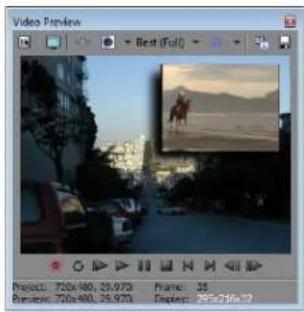
Tip: While overlay picture-in-picture windows are often completely opaque, you can fade them in and out using opacity envelopes. For more information, see Using opacity envelopes on page 206.
Animating the overlay
You can animate many aspects of an overlay using the keyframes at the bottom of the Track Motion window.
- Insert a video event onto the timeline.
- Click the Track Motion button (☐) in the track list.
- In the Track Motion window, resize the overlay by dragging the handles at the edges of the overlay.
- Drag the middle of the overlay to position it. This will be the size and position for the start of the animation.
- Click the timeline of the keyframe controller at a later time to move the cursor to that position.
Tip: With the Sync Cursor button (IA) enabled, you can also navigate to a new position on the main timeline. The cursor is automatically moved on the keyframe controller to the same location.
- Reposition the overlay. A new keyframe is automatically added to the keyframe controller at the new cursor position. When you preview the video, the position of the overlay interpolates between the two keyframes with a smooth animation.
Previewing and Analyzing Video
As you work in Vegas® Pro software, you can preview your video by using the Video Preview window or by connecting to an external monitor. You can optimize previews by adjusting preview quality, prerendering video, or building a dynamic RAM preview. The Video Preview window also provides features such as safe area overlays, grid overlays, and isolated color channel displays to further enhance your productivity.
Understanding the Video Preview window
The workspace for editing video can get quite crowded, so the Video Preview window can be configured in a number of ways to make it more useful. The Video Preview window can be used on a separate monitor or Windows display (if your video hardware supports this feature), docked at the bottom of the workspace, or floated freely on the screen.
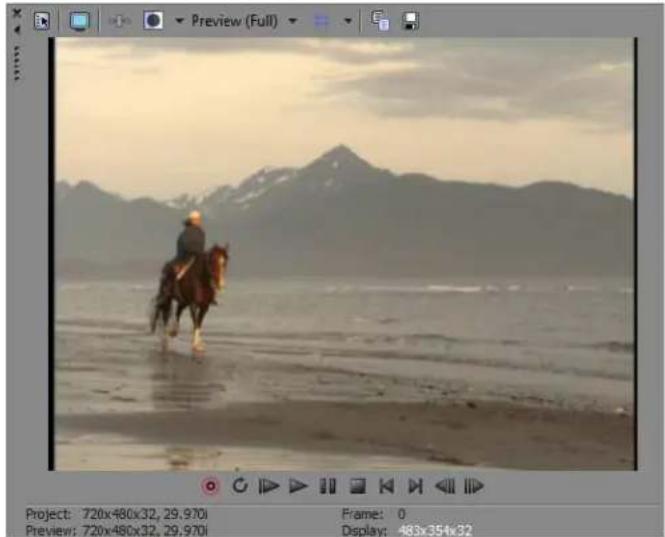
natural_image
Person riding a horse on a beach with mountain range in background (no text or symbols visible)Button Description
| Project Video Properties | Displays the project's properties. For more information, see Modifying project video properties on page 303. | |
| Preview on External Monitor | Sends the preview out to an external monitor. This only functions if your hardware supports this feature. For more information, see Preview Device tab on page 445. | |
| Video Output FX | Opens the Video Output FX window for adding video effects plug-ins for the entire project. For more information, see Using video effects on page 321. | |
| Split-Screen View | Turns split-screen previews on or off. Split-screen previews allow you to split the preview window so you can see your affected and unaffected video or your video and the contents of your clipboard at the same time. | |
| Best (Full) | Preview Quality | Changes the preview resolution and display size. You can choose a lower resolution to drop fewer frames during playback. Choose an Auto option to display the preview at the current Video Preview window size; choose a Full option to display the preview at project size.Note: If your project properties are set to either the Blend or Interpolate deinterlace method, you will not see the effects of deinterlacing in Draft and Preview quality preview modes. Deinterlacing only occurs in the Good and Best quality preview modes. |
| Overlays | Options include safe areas, grids, closed captions, and individual channels. | |
| Button | Description | |
| Copy Snapshot to Clipboard | Copies the current frame to the clipboard.You can change the size of the image using thePreview Qualitybutton. ChooseAutoor Fullto capture the frame at its full resolution, or chooseHalfor Quarterto capture a smaller image. | |
| Save Snapshot to File | Saves the current frame as an image file.You can change the size of the image using thePreview Qualitybutton. ChooseAutoor Fullto capture the frame at its full resolution, or chooseHalfor Quarterto capture a smaller image.The Save Snapshot to File dialog is displayed to allow you to choose the format and location where you want to save the file. The file is automatically added to the Project Media window.For more information, seeCapturing a timeline snapshoton page 292. |
The Video Preview window also displays a transport bar similar to the transport bar on below the project timeline. For more information, see Transport bar controls on page 24.
Using the Video Preview window shortcut menu
Right-click the Video Preview window to adjust the following options.
| Item | Description |
| Default Background | Sets the background color for the window. |
| Black Background | |
| White Background | |
| Simulate Device Aspect Ratio | Displays the output in square pixels. This can prevent distortion of the preview when using sources with rectangular pixels. This does not affect the final render. |
| Scale Video to Fit Preview Window | Scales the video to fill the Video Preview window. This setting is used for previewing only. |
| Adjust Size and Quality for Optimal Playback | Emphasizes frame rate during playback. When this option is not selected, video quality is emphasized, and the frame rate will be reduced if necessary. |
| Show Toolbar | Toggles the toolbar at the top of the window. |
| Show Status Bar | Toggles the information display at the bottom of the window. |
| Show Transport Bar | Toggles the transport bar at the bottom of the window. |
| Video Preview Preferences | Displays the Video tab of the Preferences dialog, allowing you to configure video preview settings. |
| Preview Device Preferences | Displays the Preview Device tab of the Preferences dialog, allowing you to configure an external monitor. |
Optimizing the Video Preview window
Timing and synchronization are critical aspects of any multimedia production. Because complex multimedia projects are challenging for any computer, a number of tools are provided to maintain real-time playback even though the computer may not be able to process the data quickly enough.
Note: If you want to emphasize frame rate during preview, right-click in the Video Preview window and select Adjust Size and Quality for Optimal Playback from the shortcut menu. When this option is not selected, video quality is emphasized, and the frame rate will be reduced if necessary.
Adjusting preview quality and resolution
You can adjust the resolution of the Video Preview window and the quality of the preview rendering in order to improve playback. Lower-resolution previews are less clear but allow more frames to be displayed per second. This may be particularly important with projects that use overlays, transitions, and effects. Click the Preview Quality button and choose a setting from the menu to change the quality and resolution for rendering your video preview.
The Auto setting will adjust the frame size to fit the Video Preview window size. The Full setting processes frames at the project frame size. The Half setting processes frames at half the project frame size. The Quarter setting processes frames at one-quarter of the project's frame size. For example, if you have an NTSC (720x480) project, Half creates a 360x240 preview; Quarter creates a 180x120 preview.
Tip: Choosing a Quarter or Half setting can improve playback performance when previewing high-definition source material.
If you want to display square pixels in the Video Preview window even if the Pixel aspect ratio setting in the Project Properties dialog is using nonsquare pixels (DV), right-click the display and choose Simulate Device Aspect Ratio from the shortcut menu.
If you want the preview to fill the Video Preview window, right-click the display and choose Scale Video to Fit Preview Window from the shortcut menu.
Tip: Try setting the preview quality to Preview > Full and enabling Scale Video to Fit Preview Window.
This setting is used for previewing only and has no effect on the final rendered video. Decreasing the preview resolution can allow the Vegas Pro Video Preview window to display a higher frame rate, especially for complex projects that contain overlays, transitions, and effects.
Note: To view the effects of the deinterlacing method you chose in your project properties, you will need to use the Good or Best quality preview mode. The Draft and Preview quality preview modes do not deinterlace.
Prerendering video
There are times where nothing but a full, high-quality preview will do. In these cases, Vegas Pro software can take the time necessary to selectively render only the portions of your project that need extra processing. These sections are prerendered and short files are created to use for previews. The prerendering can take anywhere from a few seconds to a few minutes, depending on the length and complexity of the video.
Once these temporary files have been created, they are used whenever those sections of the project are played back, increasing playback quality and performance. As long as no changes are made to the events in the prerendered sections, the newly created files continue to be used for previews, even if changes are made to other sections of the project.
- To prerender a portion of the project, create a selection containing the portion you want to prerender.
- From the Tools menu, choose Selectively Prerender Video. The Prerender Video dialog appears.
- Select the type of prerender file to create in the Prerender as drop-down list. Click Custom to configure any custom compression options.
Notes:
- You'll need to choose a rendering template that inserts pulldown fields to create a standard DV file if your project properties are set to 24p or if you selected the Allow pulldown removal when opening 24p DV check box on the General tab of the Preferences dialog. Use the NTSC DV 24p (Inserting 2-3-3-2 pulldown) template if you intend to use the file on the Vegas Pro timeline.
-
If you cleared the Allow pulldown removal when opening 24p DV check box before adding your media and your project properties are not set to 24p, your 24p video is read as 29.97 fps interlaced video (60i), so you can choose whichever NTSC DV or PAL DV template suits your project requirements.
-
To preview just a portion of the project, verify that Render loop region only is selected. To create a prerender of the entire project, clear this check box.
- Select the Stretch video to fill output frame size (do not letterbox) check box when you are rendering to an output format with a slightly different aspect ratio than your project settings. This will prevent black bars from appearing on the top and bottom or the sides of the output.
- Click OK. A progress bar displays the progress of the render.
When prerendering is complete, bars appear at the top of the timeline indicating the sections that have been prerendered.
Prerendered sections
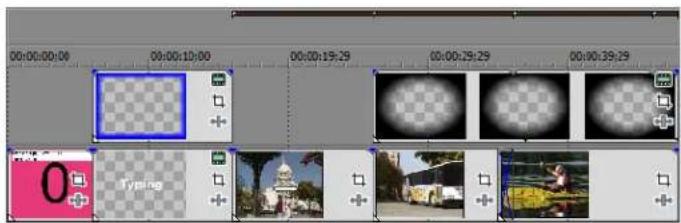
As a default, these preview files are saved when a project is closed. To delete these files when you close the project, from the Options menu, choose Preferences and, on the General tab, clear the Save active previews on project close check box.
You can set the location of these preview files by clicking the Project Video Properties button (☑) and choosing a Prerendered files folder in the Project Properties dialog. Ideally, this folder should be on a different physical drive from where Windows is installed. You can delete prerendered preview files from your hard disk by choosing Clean Up Prerendered Video from the Tools menu.
Note: Each prerendered section will consist of no more than 10 seconds (approximately 40 megabytes). Because selective prerendering creates multiple files, minor editing on the timeline will not invalidate all of your prerendered video—only the sections you modify will need to be rerendered.
Building dynamic RAM previews
Video frames are automatically dropped when previewing if the computer can't keep up with processing demands. This means that you may not be seeing all video frames as you preview your project. If you prefer not to prerender your project, there is another option for improving previews of selected portions of a project. A portion of your RAM is dedicated to cache video frames that Vegas Pro software cannot render in real time.
A cache of 16 MB is automatically maintained for dynamic RAM previews. To change the cache amount, choose Preferences from the Options menu and change the Dynamic RAM Preview Max value on the Video tab.
Note: Although not all frames appear in previews of a project, all frames are included when you render a file. For more information, see Rendering a project on page 387.
You can make a time selection and add each frame in the selection to the cache. Once the frames are cached, all video frames can display in a selection.
- Select a region containing the frames you want to cache.
- From the Tools menu, choose Build Dynamic RAM Preview.
Vegas Pro software plays through the time selection and builds the cache frame by frame.
Using split-screen previewing
Click the Split Screen View button (☐) in the Video Preview window to turn split-screen previews on or off.
Split-screen previews allow you to split the Video Preview window so you can see your affected and unaffected video or your video and the contents of the clipboard at the same time. Use split-screen previews to fine-tune video effects or to match colors for color correction.
Note: The Video Preview window temporarily enters split-screen preview mode when you slip-trim a video event. This temporary split-screen mode allows you to see the event's first and last frame as you trim. You can toggle this preview mode by selecting or deselecting the Video Event Edge Frames option on the View menu.
Previewing affected and unprocessed video
-
Click the down arrow next to the Split Screen View button (☐) and choose FX Bypassed from the menu.
-
Select the Split Screen View button (☐). The cursor is displayed as a +.
-
Choose a preset selection or drag in the Video Preview section to create a selection. This selection will display the unprocessed video. In the following example, the Add Noise plug-in was applied to the event, and the selection displays the original video.
Tip: Double-click in the Video Preview window to select the full window, or drag again to replace the existing selection.
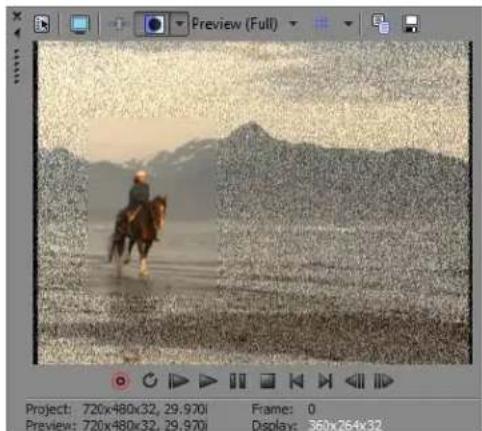
natural_image
Rider riding a horse through a misty landscape with mountains in the background (no text or symbols visible)Showing the video at the cursor position and the contents of the clipboard
-
Position the cursor on the timeline and click the Copy Snapshot button (播放) in the Video Preview window to copy a frame to the clipboard.
-
Position the cursor at another point on the timeline.
-
Click the down arrow next to the Split Screen View button (☐) and choose Clipboard from the menu.
-
Select the Split Screen View button (☐).
-
Choose a preset selection or drag in the Video Preview section to create a selection. This selection will display the contents of the clipboard.
Tip: Double-click in the Video Preview window to select the full window, or drag again to replace the existing selection.
Changing the selection for displaying split-screen views
Click the down arrow next to the Split Screen View button (☐) and choose Select Right Half, Select Left Half, or Select All to indicate which portion of the Video Preview window you want to use to display unprocessed video or the contents of the clipboard.
When the Split Screen View button (☐) is selected, the cursor is displayed as a drag rectangle in the Video Preview window to create a custom selection.
Identifying safe areas
The Video Preview window displays the entire video frame data. However, most television monitors do not display all of this data. Previewing the video on a television monitor is the only way to verify what frame information will display. You should also note that individual television monitors vary in what they display. While there is no substitute for previewing on a television, safe areas are a good method of estimating the extent of the masking.
- Click the down arrow next to the Overlays button (##▼) and choose Safe Areas.
- Click the Overlays button to toggle the safe areas display on or off. The display shows two areas:
• The safe action area is the frame area that is visible on a television screen.
• The safe title area is a suggested area to limit the extent of titles. It is always smaller than the safe action area.
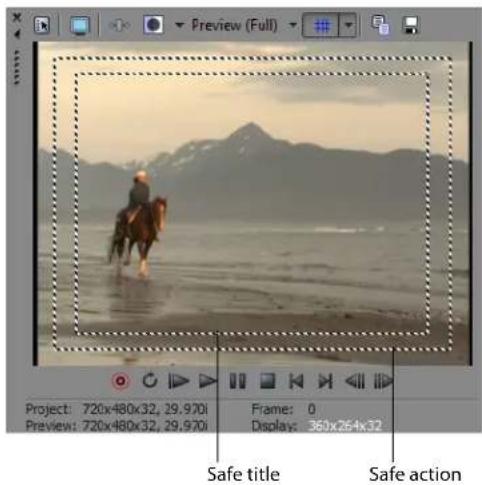
Tip: To customize safe area sizes, choose Preferences on the Options menu, and on the Video tab, enter the Action safe area and Title safe area values as a percent of the frame size. For more information, see Video tab on page 434.
Viewing the grid
The Video Preview window can display vertical and horizontal lines over your video. You can use the grid to help you align objects. To view the grid, click the down arrow next to the Overlays button (##) and choose Grid.
Set the grid spacing using the Horizontal grid divisions and Vertical grid divisions settings on the Video tab in the Preferences dialog.
Viewing closed captions
If you're working with a video that contains closed captions, you can preview your captions by using overlays in the Video Preview window.
Click the down arrow next to the Overlays button (##) and select CC1, CC2, CC3, or CC4 to turn on the caption type that you want to preview.
Isolating color channels
The Video Preview window allows you to select a specific channel to be isolated and whether the channel should be displayed in grayscale only. To display a channel, click the down arrow next to the Overlays button (##) and choose a color channel.
Note: Use the Alpha as Grayscale setting to isolate the Alpha channel mask and display it in grayscale.
Monitoring video with scopes
From the View menu, choose Video Scopes to toggle the display of the Video Scopes window.
Broadcast video uses a narrower range of color than the RGB you see on your computer. When you broadcast a project that contains out-of-range colors, you can introduce image problems or even noise into the audio stream.
Use the scopes to analyze the your video and adjust accordingly with the Brightness and Contrast, Broadcast Colors, Color Corrector, Color Corrector (Secondary), and Levels plug-ins before rendering.
Choose a setting from the drop-down list to choose which scope you want to display.
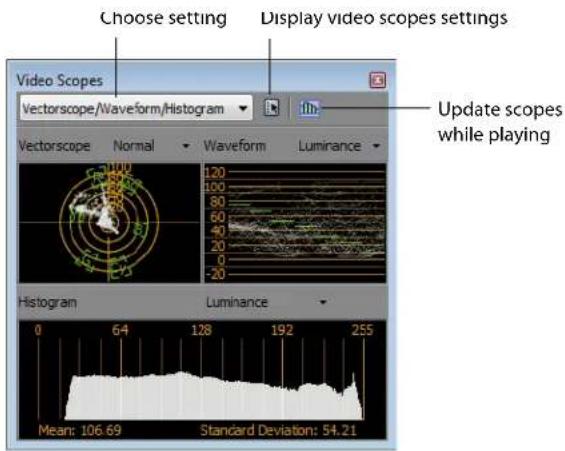
Note: If your video hardware will add a 7.5 IRE setup, click the Settings button (in) and select the 7.5 IRE Setup check box in the Video Scopes Settings dialog. Black will be displayed as 7.5 in the waveform monitor. If your video hardware does not add a 7.5 setup, clear the check box, and black will be displayed as 0.
Displaying chrominance using the vectorscope monitor
The vectorscope monitor in the Video Scopes window allows you to monitor the chrominance (color content) of your video signal. The monitor plots hue and saturation on a color wheel.
The vectorscope displays targets for broadcast-legal saturations of red (R), magenta (Mg), blue (B), cyan (Cy), green (G), and yellow (YI). Individual colors in your video signal are displayed as dots in the vectorscope. A dot's distance from the center of the scope represents its saturation, and the angle of the line from the dot to the center of the scope represents its hue.
For example, if an image has a blue cast, the distribution of dots in the vectorscope will be concentrated toward the blue portion of the color wheel. If the image includes out-of-range blue values, vectorscope display will extend beyond the blue target.
You can use the vectorscope to calibrate color between scenes. Without calibration, you may see noticeable color differences between scenes from multicamera shoots.
- From the View menu, choose Video Scopes to toggle the display of the Video Scopes window.
- Choose Vectorscope from the drop-down list.
-
Position the cursor in the frame you want to analyze. If the Update Scopes While Playing button (m) is selected, you can monitor your video during playback.
-
The vectorscope monitor displays the chrominance of the video signal:
Frame Vectorscope display of frame
natural_image
Person riding a horse on a beach with mountain in the background (no text or symbols visible)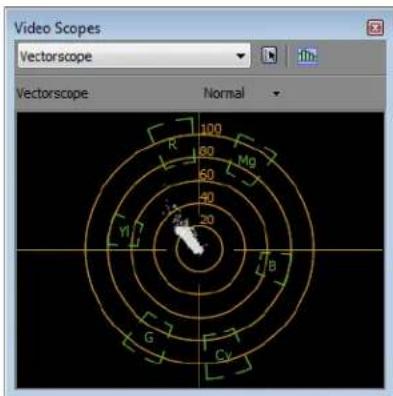
- Hover over a portion of the monitor to display the chroma value at the pointer position:
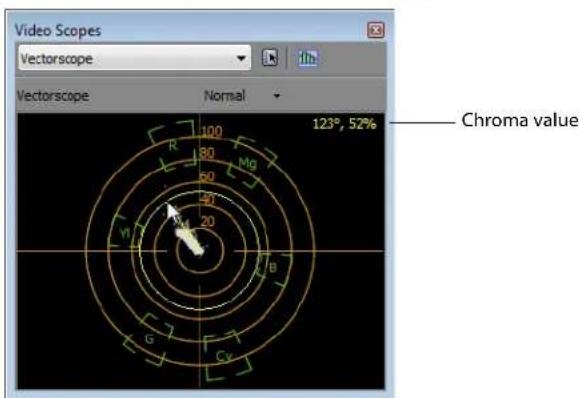
Displaying luminance using the waveform monitor
The waveform monitor in the Video Scopes window allows you to monitor the luminance (brightness or Y component) of your video signal. The monitor plots luminance on the vertical axis and the width of the current frame on the horizontal axis.
If you want to include chroma (color or C component) information in the waveform monitor, choose Composite from the drop-down list at the top of the monitor window. When you choose Luminance, chroma information is omitted.
- From the View menu, choose Video Scopes to toggle the display of the Video Scopes window.
- Choose Waveform from the drop-down list.
-
Position the cursor in the frame you want to analyze. If the Update Scopes While Playing button (m) is selected, you can monitor the waveform during playback.
-
The waveform monitor displays the luminance of the video signal:
Frame
natural_image
Person riding horses across a calm sea with distant mountains under a hazy sky (no text or symbols visible)Waveform display of frame
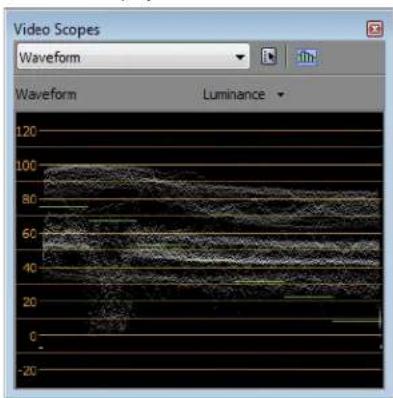
- Hover over a portion of the monitor to display the luma value at the pointer position:
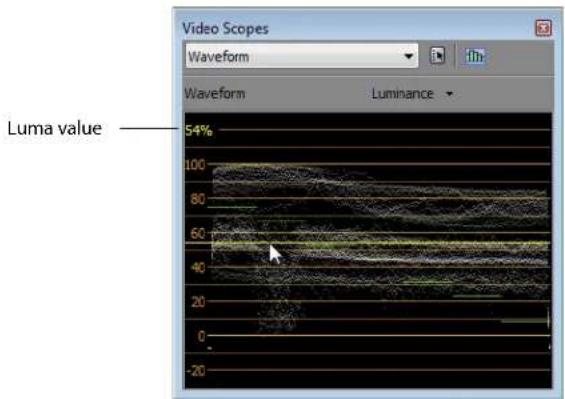
Displaying color levels and contrast using the histogram monitor
The histogram monitor in the Video Scopes window allows you to monitor color levels and contrast of your video. Use the histogram before rendering your project to find and correct out-of-range values that could cause problems on the destination playback device.
The bar graph plots the number of pixels that exist for each color intensity. For example, when using the Blue setting, the vertical axis represents the number of pixels, and the horizontal axis represents the RGB color range from 0,0,0 to 0,0,255.
To get acquainted with the histogram, use an external monitor to preview your video and watch the video output and histogram as you use plug-ins to modify the colors.
- From the View menu, choose Video Scopes to toggle the display of the Video Scopes window.
- Choose Histogram from the drop-down list.
- Choose a histogram type from the menu:
• Luminance: charts the luminance or brightness of colors in your video.
• Red: charts the red tones in your video.
• Green: charts the green tones in your video.
• Blue: charts the blue tones in your video.
• Alpha: charts the alpha channel (transparency) in your video.
• Luminance/R/G/B: stacks luminance and RGB charts.
-
Position the cursor in the frame you want to analyze. If the Update Scopes While Playing button (m) is selected, you can monitor your video during playback.
-
Use the histogram to evaluate the colors in your video. The Mean value indicates the average intensity of all pixels in the graph, and the Standard Deviation value indicates the average percentage by which pixels in the graph vary from the Mean value.
-
Use plug-ins such as Brightness and Contrast, Broadcast Colors, and Levels to adjust the color. For more information, see Using video effects on page 321.
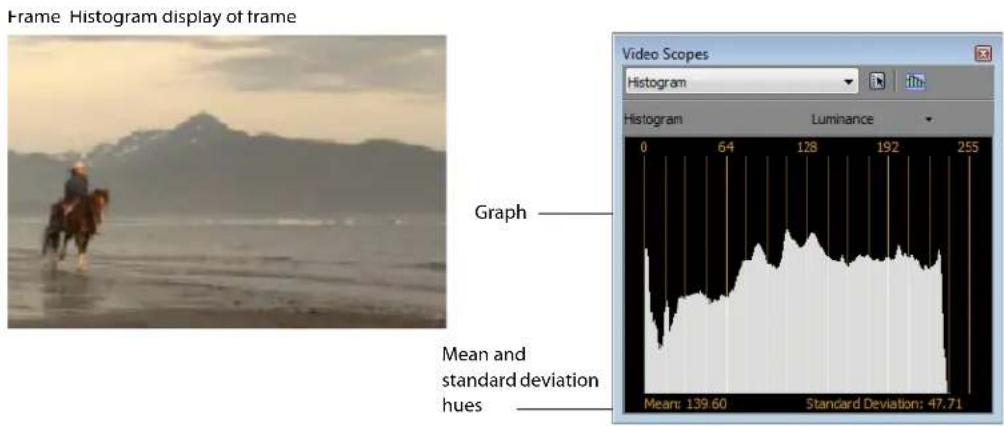
Displaying RGB components with RGB parade monitor
The RGB parade monitor in the Video Scopes window displays waveforms for the red, green, and blue components of your video signal. The monitor plots RGB values from 0-255 on the vertical axis and three times on the horizontal axis.
The parade monitor helps you determine whether the individual RGB components of your video signal are within limits and whether the total video signal is clipping.
- From the View menu, choose Video Scopes to toggle the display of the Video Scopes window.
- Choose RGB Parade from the drop-down list.
- Position the cursor in the frame you want to analyze. If the Update Scopes While Playing button (the) is selected, you can monitor your video during playback.
- The waveform monitor displays the RGB values of the video signal. Hover over the monitor to display the RGB value at the pointer position:
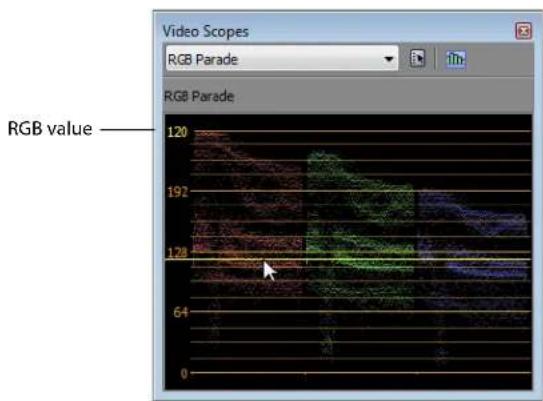
Adjusting video scope settings
Click the Settings button (☐) in the Video Scopes window to set your display options. These options adjust the display of data in the Video Scopes window and have no effect on your data.
7.5 IRE setup
If your video hardware will add a 7.5 IRE setup, you can configure the Video Scopes window so the display will be consistent with an external scope connected to a device that adds 7.5 IRE setup.
NTSC video in the United States adds 7.5 IRE setup to convert black to 7.5 IRE. Consumer video hardware typically does not add 7.5 IRE setup, and most professional hardware allows you to turn 7.5 IRE setup on or off. PAL video and NTSC video in Japan do not add setup.
Refer to your video hardware documentation to determine whether your hardware adds 7.5 IRE setup.
- Click the Settings button (☐) in the Video Scopes window.
- Select the 7.5 IRE Setup check box in the Video Scopes Settings dialog.
Black will be displayed as 7.5 in the waveform monitor. If your video hardware does not add 7.5 setup, clear the check box.
Studio RGB display
RGB values on your computer can range from 0 to 255. Studio RGB values range from 16 to 235. If you want to limit the display of the Video Scopes window to studio RGB standards, perform the following steps:
- Click the Settings button (☐) in the Video Scopes window.
- Select the Studio RGB (16 to 235) check box in the Video Scopes Settings dialog.
Whether you need to use the Studio RGB (16 to 235) setting depends on the codec you will use to render your video before printing to tape. Suggested settings follow. Refer to the codec's documentation to determine whether the Studio RGB (16 to 235) check box should be selected.
| Codec | Studio RGB Setting |
| Sony DV | On |
| Microsoft ^ DV | Off |
| Matrox ^ DV | Off |
| MainConcept ^TM DV | Off |
| Canopus ^ | On |
| Apple ^ QuickTime ^TM DV | Off |
You can render using a third-party DV codec by choosing a specific codec from the Video format drop-down list on the Video tab of the Custom Template dialog.
Previewing in a player
You can create a full-quality preview that automatically plays in the appropriate media player. You can preview the entire project or select a portion.
- To preview a portion of the project, create a selection containing the portion you want to preview.
- From the Tools menu, choose Preview in Player. The Preview in Player dialog appears.
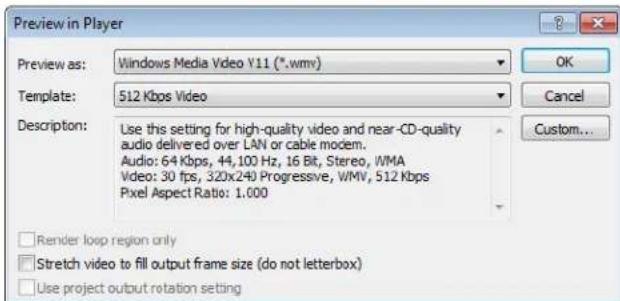
- Select the type of preview file to create. Select a template or click Custom to configure any compression options.
- To preview just a portion of the project, verify that Render loop region only is selected. To create a preview of the entire project, clear this check box.
- Click OK.
A progress bar displays the progress of the render. When finished, the file automatically plays in the appropriate media player.
Using an external monitor
You can feed video directly from the timeline to a television monitor or secondary Windows display. With this feature, you can free up valuable space in the Vegas Pro window by viewing a full-screen preview of your project on a different display, or you can make your final editing decisions on a broadcast monitor (which differs significantly from a computer monitor) before printing the project to tape.
This feature supports video output only; audio is not output to the external monitor.
Notes:
- If you intend to deliver your project in an interlaced format, previewing on a computer monitor is not a substitute for previewing on an interlaced broadcast monitor.
- Vegas Pro software allows you to use one external video device at a time. The external monitor display will be unavailable during video capture.
- When using an external video monitor, you need to enable external-monitor preview each time you start Vegas Pro. This change was made to prevent the possibility of hiding the main Vegas Pro window behind the secondary display when monitors are improperly configured.
Configuring an external monitor
Prior to previewing on an external monitor, you'll need to configure your system to use this feature. From the Options menu, choose Preferences and then click the Preview Device tab to configure an external monitor. Your video will be sent to this device when you click the Preview on External Monitor button (☐) in the Video Preview window. For more information, see Setting preferences on page 441.
Previewing video on a secondary Windows display
If your Windows desktop is extended across multiple displays, you can use one of those displays to preview the timeline with no A/V synchronization drift—perfect for ADR and foley work.
Important: If you intend to deliver your project in an interlaced format, previewing on a computer monitor is not a substitute for previewing on an interlaced broadcast monitor.
Windows secondary display preview requirements:
- A multiple-output graphics card that supports 3D acceleration (or multiple graphics cards: you could install AGP and PCI video cards in your system, for example).
You can also use the Windows Secondary Display device on a computer with a single monitor. When you enable the external monitor, the video preview will fill your screen. - A CRT, LCD, or projector connected to your computer's secondary video output.
If you have a video card with DVI outputs, you can use a DVI-to-HDMI converter to connect to an HDMI monitor. - The Extend my Windows desktop onto this monitor check box must be selected on the Settings tab of the Display Properties dialog (Start > Settings > Control Panel > Display).
Notes:
- Vegas Pro software allows you to use one external video device at a time. The external monitor display will be unavailable during video capture.
- When using an external video monitor, you need to enable external-monitor preview each time you start Vegas Pro. This change was made to prevent the possibility of hiding the main Vegas Pro window behind the secondary display when monitors are improperly configured.
Follow the steps below to set up your preview:
-
Use the Preview Device tab in the Preferences dialog to configure the display you want to use as a video preview monitor. For more information, see Preview Device tab on page 445.
-
Select the Preview on External Monitor button (☐) in the Video Preview window.
You can turn off external preview by pressing Alt+Shift+4 or by clicking the secondary display and pressing Esc.
Tip: Video is sent to your secondary display and the Video Preview window at the same time. If you experience dropped frames, try clearing the Display frames in Video Preview window during playback check box on the Preview Device tab of the Preferences dialog.
Viewing on an external monitor via IEEE-1394
You can send video directly from the timeline to a television monitor. With this feature, you can make your final editing decisions on a broadcast monitor (which differs significantly from a computer monitor) before printing the project to tape.
IEEE-1394/FireWire/i.Link external monitor requirements:
• OHCI-compliant IEEE-1394 DV card
• DV camcorder or DV-to-analog converter box
Note: Vegas Pro software allows you to use one external video device at a time. The external monitor display will be unavailable during video capture.
While configuring your computer for DV external monitor previewing is not difficult, the setup may require some troubleshooting. The Vegas Pro forum is a good resource for peer-to-peer system troubleshooting:
http://www.sonycreativesoftware.com/forums
Setting up an external monitor
The diagram below shows the preferred setup for sending video from the timeline to an external television monitor.
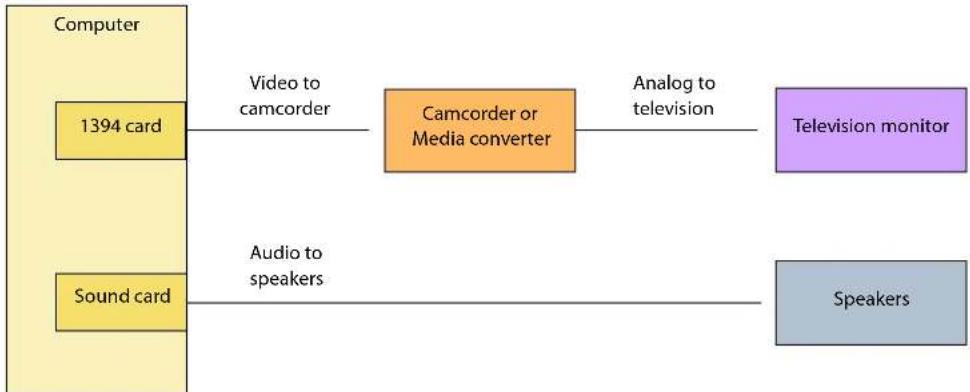
flowchart
graph LR
    A["Computer"] -->|Video to camcorder| B["Camcorder or Media converter"]
    B -->|Analog to television| C["Television monitor"]
    A -->|Audio to speakers| D["Sound card"]
    D -->|Audio to speakers| B
The video is converted to DV format and is sent through the IEEE-1394 card to the DV device (camcorder or DV-to-analog media converter). The DV device sends analog output to the television monitor.
Use the Preview Device tab in the Preferences dialog to configure your IEEE-1394 card.
Note: The DV device must support pass-through in order to use an external monitor. Some PAL camcorders do not support this feature.
Previewing audio
External monitor previewing differs in one respect from printing to tape from the timeline: no audio is sent through the preview device. As shown in the illustration above, the audio is routed to the sound card and then on to the mixer (if present) and speakers. This allows you to mix your audio on better speakers than are typically found in television monitors.
Before printing to tape, you might want to preview the audio through the television monitor speakers to ensure a good TV mix. You can use the print-to-tape feature to send the full video and audio to the external monitor. Follow the steps for printing to tape from the timeline but do not set the camcorder to record. Both the video and audio are sent through the 1394 card to the external monitor. For more information, see Printing video to tape from the timeline on page 402.
Enabling external monitor preview
- Use the Preview Device tab in the Preferences dialog to configure the display you want to use as a video preview monitor. For more information, see Preview Device tab on page 445.
- Select the Video Preview on External Monitor button (☐) in the Video Preview window.
You can turn off external preview by pressing Alt+Shift+4.
Tip: Video is sent to the external monitor and the Video Preview window at the same time. If you experience dropped frames, try clearing the Display frames in Video Preview window during playback check box on the Preview Device tab of the Preferences dialog. For more information, see Preview Device tab on page 445.
Optimizing preview quality
Keep in mind that complex effects and/or transitions may not play back in real time from the timeline. What effects can and cannot be played back depends on the speed of your computer. You may want to prerender more complex portions of a project. For more information, see Prerendering video on page 371.
Note: The compression settings used to create the prerendered video must be identical to your captured files for timeline playback to work.
Viewing on an external monitor via SDI
You can send video directly from the timeline to a video monitor connected to a supported SDI card.
Important: Blackmagic Design DeckLink HD Extreme/Intensity Pro/HD Extreme 3D and AJA Io Express, XENA 2K, LH, LHe, LHi, LS, and LSe cards are supported.
For the latest information about supported hardware, please see our Web site at http://www.sonycreativesoftware.com/vegaspro/io#sdi.
Notes:
- Vegas Pro software allows you to use one external video device at a time. The external monitor display will be unavailable during video capture.
-
When using an external video monitor, you need to enable external monitor preview each time you start Vegas Pro software. This change was made to prevent the possibility of hiding the main Vegas Pro window behind the secondary display when monitors are improperly configured.
-
Use the Preview Device tab in the Preferences dialog to configure your SDI card. For more information, see Preview Device tab on page 445.
-
Select the Video Preview on External Monitor button (☐) in the Video Preview window.
You can turn off external preview by pressing Alt+Shift+4.
Tip: Video is sent to the external monitor and the Video Preview window at the same time. If you experience dropped frames, try clearing the Display frames in Video Preview window during playback check box on the Preview Device tab of the Preferences dialog. For more information, see Preview Device tab on page 445.
Saving, Rendering, and Printing Projects
Vegas® Pro software allows you to save and render projects into many different multimedia formats. When you render your Vegas Pro project, the project itself is not altered, but rather can be rendered in any number of different formats.
This chapter explains saving a project and using the Save As and Render As functions. In addition, you will find reference information for the rendering options available. This chapter also describes the different options for delivering your projects, such as printing to tape.
Saving a project
A Vegas Pro project is saved as a small .veg file. This file contains all of the information needed to recreate your project: source file locations, trimming, track and bus plug-ins, volume and panning envelopes, bus assignments, assignable effects settings, etc. This is not the same as creating a final media file, which is done with the Render As command.
Note: The option is also provided of saving a project as an Edit Decision List (EDL). For more information, see Creating an EDL on page 296.
- From the File menu, choose Save.
The first time a project is saved, the Save As dialog appears. In subsequent saves, the Save As dialog is bypassed, your existing file name is retained, and your project is updated to include any changes.
- Select Vegas Project File (.veg) from the Save as type list.
- Select the drive and folder where you want to store the project.
- Type the project name in the File name box.
- Click Save.
Renaming or creating a copy of a project (using Save As)
After you have been working with your project, you can use the Save As command in the File menu to create a copy of the small project file with a different name. Since multimedia projects can be very complex, and since Vegas Pro project files are so small, saving a number of different versions of a project is a low-risk way to try new techniques.
- From the File menu, choose Save As. The Save As dialog appears.
- Select the drive and folder where you want to store the project.
- Type a new name in the File name box.
- From the Save as Type drop-down list, choose the format in which you want to save the project.
| Extension | Format Name | Description |
| .veg | Vegas Pro project | This option saves the references to media files used in the project. Also saved is project information, track effects, envelopes, bus assignments, and output properties. The .veg file does not combine events into a single file. |
| .txt | EDL text file | This option creates a text version of event placements in the timeline. This text description can then be imported into a database or text application for modification or other purposes. |
| .aaf | Edit Protocol Compliant AAF File | These options create AAF (Advanced Authoring Format) files that you can use to exchange projects between applications. For example, if your postproduction facility uses a tool other than Vegas Pro software, you could provide your project as an AAF file. |
| .aaf Avid Legacy AAF File | ||
- Select the Copy media with project check box if you want to create copies of each of the project's media files in the same location as the project file. This allows you to collect all of a project's assets in a single location.
- Click the Save button.
- If you selected the Copy media with project check box, a dialog is displayed to allow you to specify how you want to copy media files:
- Select the Copy source media radio button to copy the entire source media files to your project folder.
Note: Any project media files from folders outside the project folder are copied to the project folder. Media files that are saved in folders below the project folder are not copied.
- Select the Create trimmed copies of source media radio button and enter a value in the Extra head and tail box to reduce the number and size of media files necessary to represent your project.
Your project will be scanned to determine how much of each media file is being used and those regions will be rendered to new media files. The amount of time specified in the Extra head and tail setting will be added before and after the media file to allow subsequent edits. All events are then updated to point to the new files. Finally, inactive takes are removed from the project, and the project is saved.
Note: The newly rendered files will match the source files' properties as closely as possible:
- Audio/video events are saved in a new AVI file. You can trim DV AVI, uncompressed AVI, Sony YUV AVI, and CineForm AVI files. Because of the lossy nature of other video formats, those video files will not be trimmed, but will simply be copied to the project folder.
- Audio-only events will be rendered to the Wave format if under 2 GB (or Wave64 if over 2 GB), and DV files will be rendered as DV AVI files.
Autosaving a project
A backup copy of your project is automatically saved every five minutes. If your system crashes, you are prompted to open the backup file the next time you start the program.
Backup files are saved in the location specified in the Temporary files folder box on the General tab of the Preferences dialog. Files are saved with the .autosave.veg extension and are deleted when you close Vegas Pro software.
If you prefer not to autosave your project, you can clear the Enable autosave check box on the General tab of the Preferences dialog.
Vegas Pro software also creates .veg.bak files in your project folder when you save a project to allow you to return to the project's last-saved state. Creation of .veg.bak files is independent of autosaving.
Rendering a project
Rendering refers to the process of converting a project into a single new multimedia file and formatting it for the desired playback method: media player, Internet streaming media, CD-ROM, video tape, etc. The project file is not overwritten, deleted, or altered during the rendering process. You can return to the original project to make edits or adjustments and render it again later.
Rendering a video file can take quite a bit of time, depending on the complexity of your project, the speed of your CPU, and the final format you have selected. For longer projects, you might want to plan to render your movie overnight or when you are not using your computer.
If you've prerendered your project, those prerendered sections can be used for your final render when the destination formats match.
When you render video to any of the following formats, unedited video frames are passed through without recompression:
DV AVI
DV MXF
• IMX MXF (IMX 24p MXF is not supported for no-recompress rendering)
HD MXF
• MPEG-2 (for files such as those from HDV and DVD camcorders)
• XDCAM EX supports smart rendering across the following formats:
• SP 18.3 Mbps CBR 1280x720p to/from XDCAM EX and HDV HD-1
• SP 25 Mbps CBR 1440x1080i to/from XDCAM EX, XDCAM HD, and HDV HD-2
• HQ 35 Mbps VBR 1440x1080 to/from XDCAM EX and XDCAM HD
• HQ 35 Mbps VBR 1280x720p to/from XDCAM EX
• HQ 35 Mbps VBR 1920x1080 to/from XDCAM EX
Notes:
- In order to perform rendering without recompression, the width, height, frame rate, field order, profile, level, and bit rate of the source media, project settings, and rendering template must match. Frames that have effects, compositing, or transitions applied will be rendered.
You can clear the Enable no-recompress long-GOP rendering check box on the General tab of the Preferences dialog to turn the feature off. For more information, see General tab on page 441.
- When you route busses to hardware outputs, the outputs from those busses will not be included in the mix when you render your project.
-
For specific information on 5.1 surround projects, see Rendering surround projects on page 283.
-
From the File menu, choose Render As. The Render As dialog is displayed.
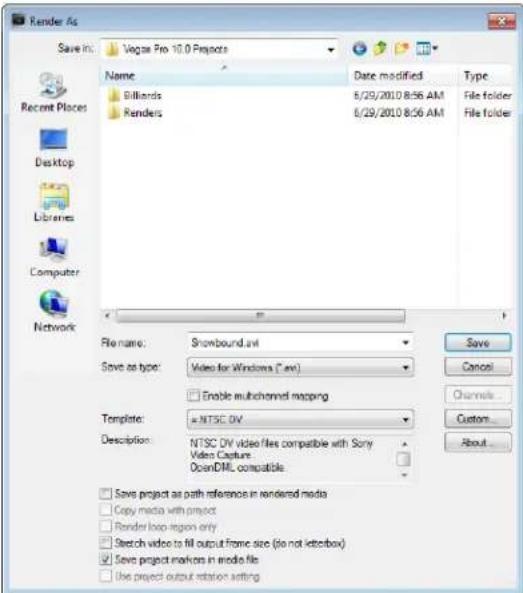
- Select the drive and folder from the Save in drop-down list, or use the browse window to locate the folder where you want to save your file.
- Type a name in the File name box, or select a file in the browse window to replace an existing file.
- Choose a file type from the In the Save as type drop-down list.
- If you're rendering to .wav, .w64, .avi, or .mxf format, you can select the Enable multichannel mapping check box to render a file with multiple audio channels. For more information, see Rendering multichannel audio files on page 390.
- Choose a template from the Template drop-down list to specify the parameters that should be used for rendering your file, or click the Custom button to create a new template. For more information, see Customizing the rendering process on page 399.
Tips:
- Templates that match your project settings (frame size, pixel aspect ratio, and frame rate) are displayed with an equal sign (=) in the drop-down list.
- When you render a 5.1 surround project to AIFF (.aif), Perfect Clarity Audio (.pca), Wave64 (.w64), or Wave (.wav) formats, you can save each of the surround master busses to a separate file by choosing the multiple mono setting from the Template drop-down list. For example, if you'd typed My Film.wav in the File name box, the following files would be rendered: My Film Right.wav, My Film Right Surround.wav, My Film LFE.wav, My Film Left.wav, My Film Left Surround.wav, and My Film Center.wav.
- When you render a 5.1 surround project to Wave or Wave64 format, you can render a single six-channel file by selecting the Enable multichannel mapping check box and creating a channel mapping using the Surround Master outputs.
Note: You'll need to choose a rendering template that inserts pulldown fields to create a standard DV file if your project properties are set to 24p or if you selected the Allow pulldown removal when opening 24p DV check box on the General tab of the Preferences dialog. Use the NTSC DV 24p (inserting 2-3-3-2 pulldown) template if you intend to bring the file back into the timeline as source material.
- Select the Save project as path reference in rendered media check box to save the path to your Vegas Pro project in the rendered file. Saving the project path allows you to easily return to the source project if you use your rendered file in another project. The check box will be unavailable if you haven't saved your project or if you're rendering using a third-party file-format plug-in. For more information, see Project references in rendered media files on page 53.
Notes:
- The project information in the rendered file is a reference to a project file only. If you modify the project file after rendering, the project data will no longer match the rendered file. To edit a project using a path reference, the project file and all media must be available on your computer.
-
The check box will be unavailable if you haven't saved your project or if you're rendering using a third-party file-format plug-in.
-
Select the Render loop region only check box to render only the portion of your project within the loop region. Loop Playback does not need to be selected for this option to work.
-
Select the Stretch video to fill output frame size (do not letterbox) check box when you are rendering to an output format with a slightly different aspect ratio than your project settings. This will prevent black bars from appearing on the top and bottom or the sides of the output.
-
If the selected file type supports it, you can select the Save project markers in media file check box to include markers, regions and command markers in the rendered media file.
Note: If the selected file type cannot save markers internally, Vegas Pro will save the metadata to an external file with an .sfl extension (using the same base name as your media file).
-
Click Save. A dialog is displayed to show the progress of the render. You can cancel the rendering process by clicking the Cancel button in the dialog box. You can also view the progress of the render or cancel the render using the status bar in the lower-left corner of the window.
-
When rendering is complete, click the Open button to play the file with its associated player, or click Open Folder to open the folder where you saved the file.
Rendering still-image sequences
- If you want to render only a portion of your project, create a time selection and/or solo the tracks you want to include in the still-image sequence.
- From the File menu, choose Render As. The Render As dialog appears.
- In the File name box, type the base file name you want to use for rendered images. Files will be numbered automatically using this file name.
- Choose Image Sequence from the Save as Type drop-down list.
- Choose an image format from the Template drop-down list.
- Select the Render loop region only check box if you want to save only the portion of the project that is contained within the loop region. The Loop Playback button (☐) does not need to be selected for this option to work.
- Select the Stretch video to fill output frame size (do not letterbox) check box when you are rendering to an output format with a slightly different aspect ratio than your project settings. This will prevent black bars from appearing on the top and bottom or the sides of the output.
- Select the Use project output rotation setting check box if you're rendering a rotated project and want to use the Output rotation setting from the Project Properties dialog for your rendered file.
When the check box is cleared, the media is rotated according to its Media Properties setting, but the project itself is unrotated. You can use this setting to proof your project on an unrotated display. - Click the Save button. A dialog is displayed to show rendering progress.
When rendering is complete, you can click the Open Folder button to open the folder where you saved the files.
Rendering multichannel audio files
If you want to render a single audio file with multiple audio channels, you can render to one of the following formats:
• WAV/WAV64 (For information about rendering 5.1 channel WAV/WAV64 files, see Rendering surround projects on page 283.)
• AVI
MXF
Note: MXF files require a video stream.
| Render format | Number of channels |
| DV MXF | Always contains 4 audio channels.You can use the Channels drop-down list on the Audio tab of the Custom Template dialog to choose how many channels will be filled with audio. For example, if you choose 2 from the Channels drop-down list, the rendered file will contain 4 audio channels: two channels will contain audio, and two channels will contain silence. |
| IMX MXF | Always contains 8 audio channels.You can use the Channels drop-down list on the Audio tab of the Custom Template dialog to choose how many channels will be filled with audio. For example, if you choose 2 from the Channels drop-down list, the rendered file will contain 8 audio channels: two channels will contain audio, and six channels will contain silence. |
| HD MXF | Can contain 2 or 4 audio channels.You can use the Channels drop-down list on the Audio tab of the Custom Template dialog to choose how many channels will be rendered. For example, if you choose 2 from the Channels drop-down list, the rendered file will contain only 2 audio channels. |
Note: WMV/WMA, AC-3, and ATRAC support multichannel surround formats; channel mapping is not supported. For more information, see Rendering surround projects on page 283.
- Create your project.
- In the Mixer window, add a bus for each channel (or channel pair) you want to include in your rendered file.
For example, if you wanted to create a six-channel .wav file, you could set up your mixer with three or six busses. If you use three busses, the left and right channels of each bus will be saved to a separate channel. If you use six busses, you can save the mono downmix from each bus as a separate channel.
Note: If you're working with a 5.1 surround project, you can map the six channels from the Surround Master bus to six output channels.
- Assign tracks to busses to map the audio in your project to the desired channel.
- From the File menu, choose Render As to display the Render As dialog.
- Choose a drive and folder from the Save in drop-down list, or use the browse window to locate the folder where you want to save your file.
- Type a name in the File name box, or select a file in the browse window to replace an existing file.
- Choose a file type from the Save as type drop-down list.
- Select the Enable multichannel rendering check box.
- Click the Channels button if you want to map the busses in your project to channels in the rendered file. If you don't specify a channel mapping, Vegas Pro will not render a multichannel file.
a. In the Channel Mapping dialog, select the check box for each bus you want to include in the rendered file. Each stereo bus will be saved to two channels in the rendered file. If you want to save a bus to a single channel, select the (Mono downmix) check box for that bus.
b. If you want to change order of the busses in the channel mapping, select the bus and click the Move Up or Move Down button.
c. Click OK to close the Channel Mapping dialog and return to the Render As dialog.
Tip: Channel mapping is also available when printing to tape from the timeline, rendering to a new track, and exporting video to an XDCAM disc.
- Choose a template from the Template drop-down list to specify the parameters that should be used for rendering your file, or click the Custom button to create a new template.
Notes:
- If you choose a rendering template that specifies more channels than you have set up in the Channel Mapping dialog, the additional channels will be rendered as silence.
-
If you choose a template that specifies fewer channels than you have set up in the Channel Mapping dialog, the setting from the template will be used. Additional mapped channels will be ignored.
-
Select the Save project as path reference in rendered file check box if you want to save the path to your Vegas Pro project in the rendered file. Saving the project path allows you to easily return to the source project if you use your rendered file in another project.
Notes:
- The project information in the rendered file is a reference to a project file only. If you modify the project file after rendering, the project data will no longer match the rendered file. To edit a project using a path reference, the project file and all media must be available on your computer.
-
The check box will be unavailable if you haven't saved your project or if you're rendering using a third-party file-format plug-in.
-
Select the Render loop region only check box if you want to save only the portion of the project that is contained within the loop region. Loop Playback does not need to be selected for this option to work.
-
Select the Stretch video to fill output frame size (do not letterbox) check box when you are rendering to an output format with a slightly different aspect ratio than your project settings. This will prevent black bars from appearing on the top and bottom or the sides of the output.
- If the selected file type supports it, you can select the Save project markers in media file check box to include markers, regions, and command markers in the rendered media file.
- Click the Save button. A dialog is displayed to show rendering progress.
- When rendering is complete, click the Open button to play the file with its associated player, or click Open Folder to open the folder where you saved the file.
Rendering surround projects
Rendering a surround project creates six monaural files (AIFF, ATRAC, WAV/W64, or PCA) or a single 5.1-channel file (AC-3, WAV/W64, WMA, and WMV) that your authoring application can use to create DVD-Video or 5.1-channel music projects. For more information, see Rendering surround projects on page 283.
Rendering MPEG format
Use the MainConcept plug-in to render MPEG files for Video CDs, Super Video CDs, and DVDs. The plug-in includes templates that will work well for most of your encoding needs, and you can create custom templates if you have special encoding requirements.
Notes:
- Vegas Pro software does not create SVCDs or DVDs, but you can use the MPEG plug-in to render files for your SVCD/DVD-creation application. Consult the application's documentation to determine the file requirements before rendering.
- If you choose to save markers in your rendered MPEG-2 file, DVD Architect Pro will read those markers as chapter markers. Ensure the Render I-frames at markers check box is selected before rendering (in the Render As dialog, choose MainConcept MPEG-2 from the Template drop-down list, and then click the Custom button. In the Custom Template dialog, select the Video tab and select the Render I-frames at markers check box).
Important: MPEG video requires frame widths that are divisible by 16 and frame heights that are divisible by 2. Noncompliant frame dimensions can cause unpredictable results or system instability.
Using default MPEG templates
| Template | Use for | Description |
| MPEG-1 Templates | ||
| VCD NTSC | Use this template to create an NTSC Video CD-compliant MPEG-1 file. | Audio is a 224 kbps, 44.1 kHz MPEG-1 layer 2 stream. |
| NTSC is used in the United States, North and Central America, parts of South America, and Japan. | Video is 29.97 fps with a frame size of 352x240 pixels. | |
| VCD PAL | Use this template to create a PAL Video CD-compliant MPEG-1 file. PAL is used in Europe and much of Asia. | Audio is a 224 kbps, 44.1 kHz MPEG layer 2 stream. |
| Video is 25 fps with a frame size of 352x288 pixels. | ||
| MPEG-2 Templates | ||
| SVCD NTSC | Use this template to create an NTSC Super Video CD (SVCD) compliant MPEG-2 file. | Audio is a 224 kbps, 44.1 kHz MPEG layer 2 stream. |
| Video is 29.97 fps with a frame size of 480x480 pixels. | ||
| SVCD PAL | Use this template to create a PAL SVCD-compliant MPEG-2 file. | Audio is a 224 kbps, 44.1 kHz MPEG layer 2 stream. |
| Video is 25 fps with a frame size of 480x576 pixels. | ||
| DVD NTSC | Use this template to create an MPEG-2 file with an NTSC DVD-compliant video stream and an MPEG layer 2 audio stream. | Audio is a 224 kbps, 48 kHz MPEG layer 2 stream. |
| Video is 29.97 fps with a frame size of 720x480 pixels. | ||
| DVD PAL | Use this template to create a PAL DVD-compliant MPEG-2 file. | Audio is a 224 kbps, 44.1 kHz MPEG layer 2 stream. |
| Video is 25 fps with a frame size of 720x576 pixels. | ||
| DVD NTSC video stream | Use this template to create an NTSC DVD-compliant MPEG-2 video elementary stream file. The rendered file will have the extension .m2v. | Video is 29.97 fps with a frame size of 720x480 pixels. |
| You must render your audio separately in a format compliant with your specific DVD-authoring software. Consult your DVD-authoring software documentation to determine the supported audio formats. | ||
| DVD PAL separate streams | Use this template to create separate to create separate PAL DVD-compliant video and audio elementary files. The video file will use an .m2v extension, and the audio file will use an .mpa extension. | Audio is a 224 kbps, 44.1 kHz MPEG layer 2 stream. |
| Video is a 25 fps .m2v file with a frame size of 720x576 pixels. | ||
| DVD Architect NTSC video stream | Use this template to create an NTSC video stream for use in DVD Architect Pro (you'll need to render your audio stream separately). | Video is 29.97 fps with a frame size of 720x480 pixels. |
| DVD Architect NTSC Widescreen video stream | Use this template to create a 24 fps, progressive-scan, DVD-compliant, video-only, widescreen MPEG-2 file for use in DVD Architect Pro. | No audio. |
| Video is 23.976 fps with a frame size of 720x480. | ||
| DVD Architect PAL video stream | Use this template to create a PAL video stream for use in DVD Architect Pro (you'll need to render your audio stream separately). | Video is 25 fps with a frame size of 720x576 pixels. |
| DVD Architect PAL Widescreen video stream | Use this template to create a widescreen PAL video stream for use in DVD Architect Pro (you'll need to render your audio stream separately). | Video is 25 fps with a frame size of 720x576 pixels. |
| HDV 720-25p | Use this template to create HDV MPEG-2 transport streams (.m2t). | Audio is a 384 Kbps, 48 kHz, MPEG layer 2 stream. |
| Video is 25 fps with a frame size of 1280x720. | ||
| HDV 720-30p | Use this template to create HDV MPEG-2 transport streams (.m2t). | Audio is a 384 Kbps, 48 kHz, MPEG layer 2 stream. |
| Video is 29.97 fps with a frame size of 1280x720. | ||
| Template Use for Description | ||
| HDV 1080-50i Use this template to create HDV MPEG-2 transport streams (.m2t). | Audio is a 384 Kbps, 48 kHz, MPEG layer 2 stream.Video is 25 fps (interlaced) with a frame size of 1440x1080. | |
| HDV 1080-60i Use this template to create HDV MPEG-2 transport streams (.m2t). | Audio is a 384 Kbps, 48 kHz, MPEG layer 2 stream.Video is 29.97 fps (interlaced) with a frame size of 1440x1080. | |
| Blu-print 1080-24p | Use this template to create high-definition MPEG-2 files for authoring Blu-rayTM discs using Blu-printTM software. | No audio.Video is 23.976 fps (progressive-scan) with a frame size of 1920x1080. |
| Blu-print 1080-60i | Use this template to create high-definition MPEG-2 files for authoring Blu-rayTM discs using Blu-printTM software. | No audio.Video is 29.976 fps (interlaced) with a frame size of 1920x1080. |
Creating custom MPEG templates
In the Render As dialog, choose MainConcept MPEG-1 or MainConcept MPEG-2 from the Save as Type drop-down list and click the Custom button if you want to create your own MPEG encoding templates.
For information about the active page in the Custom Template dialog, click the Help button ( ? ).
Important: Custom templates have many available options, and consequently, a lot of room for error. Verify your file requirements before creating a template. If you're using third-party DVD-burning software, for example, refer to the application's documentation to determine the application's file requirements.
Viewing MPEG-2 files on a computer
MPEG-2 files require an MPEG-2 decoder in order to view them in Windows Media Player and other applications. The Windows operating system does not include an MPEG-2 decoder, but you can download MPEG-2 decoders at http://www.vcdhelp.com. Sony Creative Software Inc. does not endorse or support any third-party MPEG-2 decoders.
Rendering projects for use in DVD Architect Pro
If you have DVD Architect™ Pro software, you can avoid unnecessary transcoding or recompression by using Vegas Pro to render your media files in the appropriate formats prior adding them to your DVD Architect Pro project.
Note: The Sony Creative Software Inc. AC-3 and MainConcept MPEG-2 encoders provide templates that will produce files that do not require recompression (unless the file size is too large to fit on a DVD).
AC-3 audio (.ac3)
| Sample Rate | Bit Rate | Channels |
| 48,000 Hz | 192 Kbps (64 Kbps to 640 Kbps | Stereo is supported) |
| 48,000 Hz | 448 Kbps (64 Kbps to 640 Kbps | 5.1 surround is supported) |
PCM audio (.wav or .w64)
| Sample Rate | Bit Depth | Channels | Compression |
| 48,000 Hz | 16, 20, or 24 bit | Stereo | Uncompressed |
| 96,000 Hz | 16, 20, or 24 bit | Stereo | Uncompressed |
NTSC MPEG video (.m2p, .mp2, .mpg, .mpeg, .mpv)
If you're using the MainConcept MPEG-2 encoder in Vegas Pro software, use the DVD Architect NTSC video stream or DVD Architect 24p NTSC video stream template to render your video stream. You'll need to render your audio stream separately according to the parameters listed in the AC-3 audio or PCM audio headings above.
If you're rendering with a different application, the following settings will produce a compliant NTSC MPEG-2 video stream.
| Frame Size | Frame Rate (fps) | Aspect Ratio | Maximum Group of Pictures | Maximum Bit Rate |
| 720x480 | 29.97 or 23.976 + 2-3 pulldown | 4:3 | 36 | 9.8 Mbps |
| 704x480 | 29.97 or 23.976 + 2-3 pulldown | 4:3 | 36 | 9.8 Mbps |
| 352x240 | 29.97 or 23.976 + 2-3 pulldown | 4:3 | 36 | 9.8 Mbps |
| 352x480 | 29.97 or 23.976 + 2-3 pulldown | 4:3 | 36 | 9.8 Mbps |
| 720x480 | 29.97 or 23.976 + 2-3 pulldown | 16:9 | 36 | 9.8 Mbps |
| 720x480 | 29.97 or 23.976 + 2-3 pulldown | 16:9 | 36 | 9.8 Mbps |
Note: The MainConcept MPEG-2 encoder in Vegas Pro renders with the Low Delay flag turned off. If you're rendering with a different encoder, ensure Low Delay is turned off.
PAL MPEG video (.m2p, .mp2, .mpg, .mpeg, .mpv)
If you're using the MainConcept MPEG-2 encoder in Vegas Pro software, use the DVD Architect PAL video stream or DVD Architect PAL Widescreen video stream template to render your video stream. You'll need to render your audio stream separately according to the parameters listed in the AC-3 audio or PCM audio headings above.
If you're rendering with a different application, the following settings will produce a compliant PAL MPEG-2 video stream.
Note: The MainConcept MPEG-2 encoder in Vegas Pro renders with the Low Delay flag turned off. If you're rendering with a different encoder, ensure Low Delay is turned off.
| Frame Size | Frame Rate | Aspect Ratio | Maximum Group of Pictures | Maximum Bit Rate |
| 704x576 | 25 fps | 4:3 | 30 | 9.8 Mbps |
| 352x576 | 25 fps | 4:3 | 30 | 9.8 Mbps |
| 352x288 | 25 fps | 4:3 | 30 | 9.8 Mbps |
| 704x480 | 25 fps | 16:9 30 | 9.8 Mbps |
Rendering projects for Blu-ray Disc
You can burn Blu-ray Disc projects to BD recordable discs using the BDMV format:
- A 25 GB single-layer BD recordable disc can store approximately 3 hours, 42 minutes of AVC video (15 Mbps) or 2 hours, 15 minutes of MPEG-2 video (25 Mbps).
- A 50 GB dual-layer BD recordable disc can store approximately 7 hours, 25 minutes of AVC video (15 Mbps) or 4 hours, 31 minutes of MPEG-2 video (25 Mbps).
You can also burn high-definition video to a DVD for playback in a Blu-ray Disc player using the BDMV format:
- A 4.7 GB single-layer DVD recordable disc can store approximately 1 hour, 17 minutes of 8 Mbps AVC or MPEG-2 video, 40 minutes of 15 Mbps AVC video, or 26 minutes of 25 Mbps MPEG-2 video.
• An 8.5 GB dual-layer DVD recordable disc can store approximately 2 hours, 20 minutes of 8 Mbps AVC or MPEG-2 video, 1 hour, 10 minutes of 15 Mbps AVC video, or 46 minutes of 25 Mbps MPEG-2 video.
Notes:
- Not all Blu-ray Disc players can read DVD media. The PlayStation® 3 treats DVD media with Blu-ray content as a data disc. In order to play your media, you'll need to navigate to the BDMV folder on the disc and select the stream you want to play. Interactivity—including menus, chapter markers, subtitle tracks, and alternative audio tracks—is not available.
- If you want to create a stereoscopic 3D project, you can burn a standard Blu-ray Disc or DVD in side-by-side format and play it on any Blu-ray Disc or DVD player. When the player is connected to a recent 3D TV, you can use the TV's menu to put it into side-by-side mode and enjoy 3D playback.
If your goal is the higher-end Blu-ray 3D™ format, Vegas Pro can prepare content in full HD per-eye format by rendering two separate files (using Left only and Right only modes), which can be read by an MVC encoder such as the Dualstream 3D encoder (http://www.sonycreativesoftware.com/blurayencoding) and authored using a tool such as Blu-print (http://www.sonycreativesoftware.com/bluprint).
For more information about working with stereoscopic 3D projects, see Stereoscopic 3D Editing on page 143.
AC-3 audio (.ac3)
| Sample Rate Bit Rate Channels |
| 48,000 Hz 192 Kbps (64 Kbps to 640 Kbps Stereo is supported) |
| 48,000 Hz 192 Kbps (64 Kbps to 640 Kbps 5.1 surround is supported) |
PCM audio (.wav or .w64)
| Sample Rate Bit Depth Channels Compression |
| 48,000 Hz 16 or 24 bit Stereo Uncompressed |
| 96,000 Hz 16 or 24 bit Stereo Uncompressed |
AVC video
If you're using Vegas Pro software, you can use the AVCHD rendering templates to render a compliant video file including 5.1 surround AC-3 audio.
| Template Name | Frame Size | Frame Rate | Aspect Ratio | Maximum Bit Rate |
| AVCHD NTSC 5.1 Surround | 1440x1080 | 29.970 fps | 16:9 | 40 Mbps |
| AVCHD PAL 5.1 Surround | 1440x1080 | 25 fps | 16:9 | 40 Mbps |
If you're rendering with a different application, the following settings will produce compliant AVC media.
| Frame Size | Frame Rate (fps) | Aspect Ratio | Maximum Bit Rate |
| 720x480 | 29.970 interlaced | 4:3 | 40 Mbps |
| 720x480 | 29.970 interlaced | 16:9 | 40 Mbps |
| 720x576 | 25 interlaced | 4:3 | 40 Mbps |
| 720x576 | 25 interlaced | 16:9 | 40 Mbps |
| 1280x720 | 59.940 | 16:9 | 40 Mbps |
| 1280x720 | 50 | 16:9 | 40 Mbps |
| 1280x720 | 24.000 | 16:9 | 40 Mbps |
| 1280x720 | 23.976 | 16:9 | 40 Mbps |
| 1440x1080 | 29.970 interlaced | 16:9 | 40 Mbps |
| 1440x1080 | 25 interlaced | 16:9 | 40 Mbps |
| 1440x1080 | 24.000 | 16:9 | 40 Mbps |
| 1440x1080 | 23.976 | 16:9 | 40 Mbps |
| 1920x1080 | 29.970 interlaced | 16:9 | 40 Mbps |
| 1920x1080 | 25 interlaced | 16:9 | 40 Mbps |
| 1920x1080 | 24.000 | 16:9 | 40 Mbps |
| 1920x1080 | 23.976 | 16:9 | 40 Mbps |
MPEG-2 video
If you're using Vegas Pro software, you can use the Blu-ray rendering templates to render your video stream. You'll need to render your audio stream separately according to the parameters listed in the AC-3 audio or PCM audio headings above.
| Template Name | Frame Size | Frame Rate (fps) | Aspect Ratio | Maximum Group of Pictures | Maximum Bit Rate |
| Blu-ray 1920x1080-24p, 25 Mbps video stream | 1920x1080 | 23.976 | 16:9 | 24 | 40 Mbps |
| Blu-ray 1920x1080-50i, 25 Mbps video stream | 1920x1080 | 25 | 16:9 | 25 | 40 Mbps |
| Template Name | Frame Size | Frame Rate (fps) | Aspect Ratio | Maximum Group | of Pictures | Maximum Bit Rate |
| Blu-ray 1920x1080-60i, 25 Mbps video stream | 1920x1080 | 29.970 | 16:9 30 40 Mbps | |||
| Blu-ray 1440x1080-24p, 25 Mbps video stream | 1440x1080 | 23.976 | 16:9 24 40 Mbps | |||
| Blu-ray 1440x1080-50i, 25 Mbps video stream | 1440x1080 | 25 16:9 | 25 40 Mbps | |||
| Blu-ray 1440x1080-60i, 25 Mbps video stream | 1440x1080 | 29.970 | 16:9 30 40 Mbps | |||
| Blu-ray 1440x1080-24p, 8 Mbps video stream | 1440x1080 | 23.976 | 16:9 24 40 Mbps | |||
| Blu-ray 1440x1080-50i, 8 Mbps video stream | 1440x1080 | 25 16:9 | 25 40 Mbps | |||
| Blu-ray 1440x1080-60i, 8 Mbps video stream | 1440x1080 | 29.970 | 16:9 30 40 Mbps | |||
If you're rendering with a different application, the following settings will produce compliant MPEG-2 video stream.
| Frame Size | Frame Rate (fps) | Aspect Ratio | Maximum Group | Maximum Bit Rate of Pictures |
| 720x480 | 29.970 interlaced | 4:3 | 30 | 40 Mbps |
| 720x480 | 29.970 interlaced | 16:9 | 30 40 Mbps | |
| 720x576 | 25 interlaced | 4:3 | 25 | 40 Mbps |
| 720x576 | 25 interlaced | 16:9 | 25 | 40 Mbps |
| 1280x720 | 59.940 | 16:9 | 60 40 Mbps | |
| 1280x720 | 50 | 16:9 | 50 40 Mbps | |
| 1280x720 | 24.000 | 16:9 | 24 40 Mbps | |
| 1280x720 | 23.976 | 16:9 | 24 40 Mbps | |
| 1440x1080 | 29.970 interlaced | 16:9 | 30 | 40 Mbps |
| 1440x1080 | 25 interlaced | 16:9 | 25 | 40 Mbps |
| 1440x1080 | 24.000 | 16:9 | 24 | 40 Mbps |
| 1440x1080 | 23.976 | 16:9 | 24 | 40 Mbps |
| 1920x1080 | 29.970 interlaced | 16:9 | 30 | 40 Mbps |
| 1920x1080 | 25 interlaced | 16:9 | 25 | 40 Mbps |
| 1920x1080 | 24.000 | 16:9 | 24 | 40 Mbps |
| 1920x1080 | 23.976 | 16:9 | 24 | 40 Mbps |
Customizing the rendering process
Every media file format has different variables and controls. You can use a template to automatically configure a particular format for a particular destination.
You can also choose to create custom settings for your render by clicking Custom. Once you have customized the settings, you can create your own template so that you can reuse the custom settings at a later time.
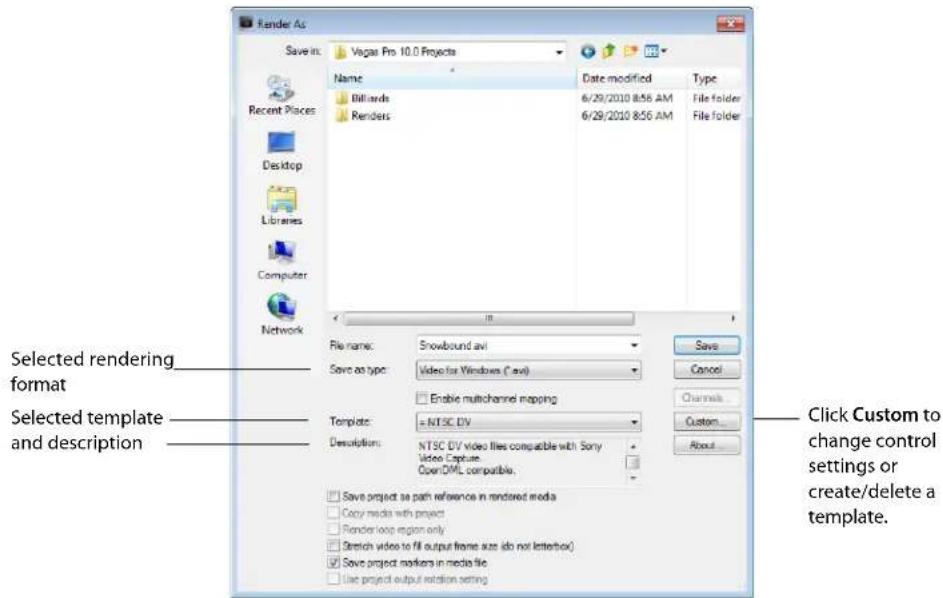
Customizing the Render As settings
- From the File menu, choose Render As.
- In the Render As dialog, choose the format (for example, Video for Windows (.avi)).
- Click Custom. The Custom Template dialog appears.
Note: Built-in templates cannot be edited.
- Adjust the settings in each of the tabs as desired.
Note: When determining bit rates, 1K=1024.
- Click OK to close the Custom Template dialog.
- Enter a name and location for the new file and click Save.
Saving custom settings as a template
You can save customized rendering settings for future use. One of the most important reasons to save a new template is to save the specific compression codec used to create the final media file, since this is not predetermined by the project properties.
- Modify the parameters in the Custom Template dialog.
Note: When determining bit rates, 1K=1024.
- In the Template drop-down list, enter a name for the new template.
Note: Built-in templates cannot be edited.
- Click the Save Template button (☐).
To use the new template in the future, choose it from the Template list in the Save As dialog.
Deleting a template
- Use the Render As dialog to specify a location and name for the file you want to save.
- Click the Custom button to open the Custom Template dialog.
- Choose a template from the Template drop-down list.
- Click the Delete Template button (✗).
Note: Built-in templates cannot be deleted.
- Click OK to return to the Render As dialog.
Copying rendering templates between computers or user accounts
You can make your customized rendering templates available on another computer or user account by copying .sft2 files to the appropriate location in the new account or computer.
Rendering templates are stored in the following folders:
- Windows XP: C:\Documents and Settings\
\Application Data\Sony\Render Templates\ - Windows Vista or Windows 7: C:\Users\
\AppData\Roaming\Sony\Render Templates\
Notes:
- The Application Data folder is not visible unless the Show hidden files and folders radio button is selected on the View tab of the Windows Folder Options control panel.
- You can find a plug-in's name by clicking the About button in the Render As dialog.
To make a template available on another computer or user account, copy the .sft2 file to the same location in another account.
For example, to make JSmith's custom wave template available for the AJones user account in Windows XP, copy the appropriate .sft2 file from this folder:
C:\Documents and Settings\JSmith\Application Data\Sony\Render Templates\wave
to this folder:
C:\Documents and Settings\AJones\Application Data\Sony\Render Templates\wave
Tip: If you're copying templates from an older Sony Creative Software application, templates are saved as .sft files in the following folder: C:\Documents and Settings\
Rendering in real time
Real-time rendering is a playback mode that renders your project to .wav format. Real-time rendering allows you to include the output from an external input source such as an effects processor with your project. For more information, see Using input busses with hardware-based effects on page 248.
Notes:
- When you start real-time rendering, any track that is armed for recording will be unarmed. You cannot arm a track for recording or start recording in real-time rendering mode.
- When rendering a project that does not use external audio hardware, real-time rendering and normal rendering will produce the same output. Real-time rendering will take longer to complete, allowing you to monitor the rendered file as it is created.
-
If the metronome is enabled for playback, it will not be included in the rendered output. For more information, see Using the metronome on page 263.
-
From the File menu, choose Real-Time Render.
-
Choose a drive and folder from the Save in drop-down list, or use the browse window to locate the folder where you want to save your file.
Important: When using real-time rendering, render you project to a local hard drive. Rendering to a network folder or removable drive can result in gapping.
-
Type a name in the File name box, or select a file in the browse window to replace an existing file.
-
Click Save to start rendering your project from the beginning of the timeline.
Exporting a movie to a PSP™
If you want to render your project to Sony AVC/AAC format and transfer it to a USB-connected PSP™ (PlayStation® Portable) system, you can do this using the Vegas Pro Export to PSP™ feature.
Notes:
- PSP firmware version 2.0 or higher is required to use this feature. To check your firmware version, choose Settings > System Settings > System Information on the PSP™. For the latest firmware, go to http://us.playstation.com (in the United States) or http://www.playstation.com (outside the United States).
- Full-screen and high-bit-rate rendering templates require the latest PSP™ firmware for playback.
-
If you're using high-resolution video, choose Best from the Full-resolution rendering quality drop-down list on the Video tab of the Project Properties dialog before exporting your movie to prevent resizing artifacts.
-
Click in the timeline to position your cursor on the frame you want to use to represent your movie. This image will be displayed as a thumbnail on the PSP™ navigation system.
- Connect the USB cable and AC adapter to the PSP ^™ system and place it in USB mode.
- From the Tools menu, choose Export to PSP™ (PlayStation®Portable). The Export to PSP™ (PlayStation®Portable) dialog is displayed.
Note: If you want to render an AVC video without transferring to a PSP™, use the Render As dialog and choose Sony AVC/AAC (*.mp4) from the Save as Type drop-down list.
-
The Title box displays the title of your project from the Summary tab of the Project Properties dialog. This title will be displayed on the PSP ^™ system.
Editing the title in the Export to PSP™ (PlayStation®Portable) dialog will also update the Project Properties dialog. -
The File path box displays the folder and file name that will be used to render your movie.
Click the Refresh button if you need to rescan the device.
- Choose a setting from the Template drop-down list to specify the settings that will be used to save your file.
You can choose to encode with QVGA, QVGA widescreen, PSP™ full-screen, or standard-definition NTSC frame aspect.
- Both QVGA settings create 320x240 video, but the widescreen templates use anamorphic widescreen encoding, which is properly decoded on the PSP™ system.
• The PSP ^™ full-screen templates create 480x270 video to match the PSP ^™ screen resolution.
• The SD NTSC templates create 720x480 video to match a standard-definition NTSC screen.
Notes:
- The settings for the selected template are displayed in the Description box.
-
The 512 Kbps QVGA and PSP™ full-screen templates are useful when you want to minimize file size, and the 896- and 1128-Kbps templates will produce higher-quality video, especially in scenes with high-motion video.
-
Select the Render loop region only check box if you only want to render a portion of your project. If the check box is cleared, the entire project will be rendered to a new file.
- Select the Stretch video to fill output frame size (do not letterbox) check box if you want to reformat your video so it fills the output frame size listed in the Description box. When the check box is cleared, the current aspect ratio is maintained and black borders are added to fill the extra frame area (letterboxing). This option is useful when the desired output format does not match the frame aspect ratio of your project.
- Select the Use project output rotation setting check box if you're rendering a rotated project and want to use the Output rotation setting from the Project Properties dialog for your rendered file. When the check box is cleared, the media is rotated according to its Media Properties setting, but the project itself is unrotated. You can use this setting to proof your project on an unrotated display.
- Click OK. Your movie file (
.mp4) and thumbnail file ( .thm) are created and transferred to the appropriate folder on the PSP™ system.
Printing video to tape
Vegas Pro software provides two methods for printing your final movie to tape: you can print to tape directly from the Vegas Pro timeline, or you can use the Video Capture application to print an existing rendered file to DV tape.
Printing video to tape from the timeline
You can print either a portion of your project or the entire video right from the project timeline to a camera or deck. Your project is examined, any complex portions are prerendered, and then printed to tape all in one action. For more information, see Prerendering video on page 371.
Important:
- Prerendered files can require significant drive space. On the Video tab of the Project Properties dialog, select a Prerendered files folder on an a/v-capable drive with ample free space. DV requires approximately 228 MB per minute.
- HDMI print to tape is supported on the Blackmagic Design DeckLink HD Extreme/Intensity Pro/HD Extreme 3D, AJA Io Express, and AJA Xena LHi cards.
- For the latest information about supported hardware, please see our Web site at http://www.sonycreativesoftware.com/vegaspro/io#sdi.
Printing to a DV device
- If you want to print only a portion of your project, create a time selection that includes the section of your project.
-
From the Tools menu, choose Print Video to Tape. The Device Setup dialog is displayed.
-
Use the Device Setup dialog to configure your camera or deck:
a. From the Device type drop-down list, choose OHCI-Compliant IEEE 1394/DV.
b. From the Video drop-down list, choose the setting that matches your destination format.
Important: You'll need to choose a rendering template that inserts pulldown fields to create a standard DV file if your project properties are set to 24p or if you selected the Allow pulldown removal when opening 24p DV check box on the General tab of the Preferences dialog. Use the NTSC DV 24p (inserting 2-3-3-2 pulldown) template if you intend to bring the file back into the timeline as source material.
If you cleared the Allow pulldown removal when opening 24p DV check box before adding your media and your project properties are not set to 24p, your 24p video is read as 29.97 fps interlaced video (60i), so you can choose whichever NTSC DV or PAL DV template suits your project requirements.
c. From the Audio drop-down list, choose the setting that matches your destination format.
d. If necessary, drag the Record engage delay slider to specify the number of frames it takes your camera or deck to switch from Record Pause to Record mode. If you're missing frames from the beginning of your file after printing to tape, increase the setting. If you see duplicated frames at the beginning of your video, decrease the setting.
e. Click the Next button. The Render Settings dialog is displayed.
- Use the Render Settings dialog to choose the format you want to use to print your video to tape.
a. Select the Enable multichannel mapping check box if you're working with multichannel source files and need to specify which channels to use in the stereo file when printing to tape. Click the Channels button to choose which channels you want to render.
For example, if your video source contained 6-channel audio, you could route each channel's track to a separate bus.
Then, when printing to tape, you could click the Channels button and choose which bus should be printed to tape.
For more information about rendering multichannel audio and setting up multichannel mapping, see Rendering multichannel audio files on page 390.
Note: Multichannel audio is not supported when printing to a DV device.
b. Select the Use project output rotation setting check box if if you're rendering a rotated project and want to use the Output rotation setting from the Project Properties dialog for your rendered file. For more information, see Working with rotated projects on page 39.
When the check box is cleared, the media is rotated according to its Media Properties setting, but the project itself is unrotated. You can use this setting to proof your project on an unrotated display.
c. Select the Render loop region only check box if you want to print only the portion of your project that you selected in step 1.
d. Select the Prerender audio to proxy file check box if you want to prerender the audio portion of your project before printing to tape.
The Prerendered files folder box displays the path to the folder where prerendered files are saved. Video files are saved to this folder so that you don't need to rerender the project every time you view it.
If you want to change the location of the folder, click the Browse button and choose a new location. Changing the setting here will update the setting on the Video tab of the Project Properties dialog.
e. Click Next. The Leader and Trailer dialog is displayed.
- Use the Leader and Trailer dialog to set up the data that will be printed before and after your project:
a. Select the Add test pattern leader check box if you want to print a test pattern before your video.
b. From the Test pattern style drop-down list, choose a test pattern type and video format.
c. Type a value in the Duration box to determine the length of the test pattern.
d. Select the Play 1 kHz tone with test pattern check box to add an audio test tone that will play along with the test pattern.
e. Select the Add black leader check box and type a value in the Duration box if you want to print black frames before your video.
f. Select the Add black trailer check box and type a value in the Duration box if you want to print black frames after your video.
g. Click Next. The Device Control dialog is displayed.
- Use the Device Control dialog to indicate whether Vegas Pro software will have control of your DV recorder and how you want to print to tape:
| Setting | Description |
| Manual | Select this radio button if the application is unable to obtain device control of your deck.You will need to cue the tape and press the Record button on your deck before recording. |
| Crash Recording | Select this radio button if the application can perform basic device control of your deck.You will need to cue the tape to the location where you want to begin printing. The device's timecode location is displayed in theDevice timecodebox.When you clickFinish, recording will begin automatically and will stop after reaching the end of the selection or project. |
| Auto Edit | Select this radio button if your deck supports Auto Edit/Insert Edit mode.Important:When using Auto Edit mode, use a striped tape to ensure continuous timecode over the portion of the tape where you plan to record.a.Select thePreview onlycheck box if you want to preview your print-to-tape operation without engaging the deck's record head.UsePreview onlymode to double-check and adjust yourStart printing at timecode setting as needed.b.The Start printing atbox displays the current device timecode location. You can cue the tape or type a value to indicate where you want to begin recording. TheEnd atbox displays the frame where recording will end (much like punch-in audio recording).c.When you clickNext, the Select Channels page is displayed.d.On the Select Channels page, select a radio button to choose which channels you want to print to tape.Write all rendered channelsSelect this radio button to print video and all audio channels to tape.Write only selected channelsSelect this radio button if you want to choose which channels you want to print to tape. Select the check box for each channel you want to print. |
-
Click Finish. If you have not already prerendered, portions of your project that cannot be rendered and printed to tape in real time will be selectively prerendered.
-
If you're using Manual mode, a dialog will be displayed after rendering is finished. You can specify a delay time in the Delay playback countdown timer box and select the Beep each second during countdown check box if you want to count down before sending video to your device.
• If you're using Crash Recording mode, your DV recorder will start and begin recording after rendering is finished. - If you're using Auto Edit mode, recording will begin and end automatically at the specified timecode positions.
Printing to a tape deck connected to an SDI card
- If you want to print only a portion of your project, create a time selection that includes the section of your project.
- From the Tools menu, choose Print Video to Tape. The Device Setup dialog is displayed.
- Use the Device Setup dialog to configure your camera or deck:
a. From the Device type drop-down list, choose AJA Video Device or Blackmagic Design DeckLink.
b. From the Output drop-down list, choose SDI or HDMI (if your devices supports HDMI output).
c. From the Video drop-down list, choose the setting that matches your destination format.
Important: You'll need to choose a rendering template that inserts pulldown fields to create a standard DV file if your project properties are set to 24p or if you selected the Allow pulldown removal when opening 24p DV check box on the General tab of the Preferences dialog. Use the NTSC DV 24p (inserting 2-3-3-2 pulldown) template if you intend to bring the file back into the timeline as source material.
If you cleared the Allow pulldown removal when opening 24p DV check box before adding your media and your project properties are not set to 24p, your 24p video is read as 29.97 fps interlaced video (60i), so you can choose whichever NTSC DV or PAL DV template suits your project requirements.
d. From the Audio drop-down list, choose the setting that matches your destination format.
e. Select the Use progressive segmented frame (psf) video formats check box if your project properties are set to a progressive-scan format and you want to preview on a device that stores and transfers progressive-scan frames by dividing fields (AJA SDI cards only).
f. Select the Use 10-bit encoding check box if you want to print 10-bit source material for increased color resolution. Source material with gradients in the background can benefit from 10-bit encoding.
When you use 10-bit video in your project, choose 32-bit floating point (video levels) from the Pixel format setting on the Video tab of the Project Properties tab.
g. If necessary, drag the Record engage delay control to specify the number of frames it takes your camera or deck to switch from Record Pause to Record mode. If you're missing frames from the beginning of your file after printing to tape, increase the setting. If you see duplicated frames at the beginning of your video, decrease the setting.
h. Choose a setting from the Genlock drop-down list if you want to synchronize your video output with a reference signal (AJA SDI cards only).
| Setting | Description |
| Video In | Synchronizes to the SDI input whenSDIis selected in theOutputdrop-down list or synchronizes to the HDMI output whenHDMIis selected in theOutputdrop-down list. |
| Ref In | Synchronizes to an external reference input signal. |
| Free Run | Ignores all input signals and uses internal timing. |
i. Click the Next button. The Render Settings dialog is displayed.
- Use the Render Settings dialog to choose the format you want to use to print your video to tape.
a. Select the Enable multichannel mapping check box if you want to render a file with multiple audio channels.
For more information about rendering multichannel audio and setting up multichannel mapping, see Rendering multichannel audio files on page 390.
b. Select the Use project output rotation setting check box if if you're rendering a rotated project and want to use the Output rotation setting from the Project Properties dialog for your rendered file. For more information, see Working with rotated projects on page 39.
When the check box is cleared, the media is rotated according to its Media Properties setting, but the project itself is unrotated. You can use this setting to proof your project on an unrotated display.
c. Select the Render loop region only check box if you want to print only the portion of your project that you selected in step 1.
d. Select the Prerender audio to proxy file check box if you want to prerender the audio portion of your project before printing to tape.
The Prerendered files folder box displays the path to the folder where prerendered files are saved. Video files are saved to this folder so that you don't need to rerender the project every time you view it.
If you want to change the location of the folder, click the Browse button and choose a new location. Changing the setting here will update the setting on the Video tab of the Project Properties dialog.
e. Click Next. The Leader and Trailer dialog is displayed.
- Use the Leader and Trailer dialog to set up the data that will be printed before and after your project:
a. Select the Add test pattern leader check box if you want to print a test pattern before your video.
b. From the Test pattern style drop-down list, choose a test pattern type and video format.
c. Type a value in the Duration box to determine the length of the test pattern.
d. Select the Play 1 kHz tone with test pattern check box to add an audio test tone that will play along with the test pattern.
e. Select the Add black leader check box and type a value in the Duration box if you want to print black frames before your video.
f. Select the Add black trailer check box and type a value in the Duration box if you want to print black frames after your video.
g. Click Next. The Device Control dialog is displayed.
- Use the Device Control dialog to indicate whether Vegas Pro software will have control of your deck:
| Setting | Description |
| Manual | Select this radio button if the application is unable to obtain device control of your deck.You will need to cue the tape and press the Record button on your deck before recording. |
| Crash Recording | Select this radio button if the application can perform basic device control of your deck.You will need to cue the tape to the location where you want to begin printing. The device's timecode location is displayed in theDevice timecodebox.When you clickFinish, recording will begin automatically and will stop after reaching the end of the selection or project. |
| Auto Edit | Select this radio button if your deck supports Auto Edit/Insert Edit mode.Important:When using Auto Edit mode, use a striped tape to ensure continuous timecode over the portion of the tape where you plan to record.a.Select thePreview onlycheck box if you want to preview your print-to-tape operation without engaging the deck's record head.UsePreview onlymode to double-check and adjust yourStart printing at timecode setting as needed.b.The Start printing atbox displays the current device timecode location. You can cue the tape or type a value to indicate where you want to begin recording. TheEnd atbox displays the frame where recording will end (much like punch-in audio recording).c.When you clickNext, the Select Channels page is displayed.d.On the Select Channels page, select a radio button to choose which channels you want to print to tape.Write all rendered channelsSelect this radio button to print video and all audio channels to tape.Write only selected channelsSelect this radio button if you want to choose which channels you want to print to tape. Select the check box for each channel you want to print. |
-
Click Finish. If you have not already prerendered, portions of your project that cannot be rendered and printed to tape in real time will be selectively prerendered.
-
If you're using Manual mode, a dialog will be displayed after rendering is finished. You can enter a delay time in the Delay box and select the Beep check box if you want to count down before sending video to your deck.
• If you're using Crash Recording mode, your deck will begin recording after rendering is finished. - If you're using Auto Edit mode, your deck will begin recording after rendering is finished and recording will begin and end automatically at the specified timecode positions.
Printing HDV video to tape
From the Tools menu, choose Print Video to HDV Tape to print your project to an HDV camera or deck.
Printing to HDV tape from the timeline
Use this procedure when you're creating an HDV project on the timeline and need to render a MPEG2 transport stream and print it to HDV tape.
- Load your HDV project. For more information, see Working in HDV format on page 299.
- If you want to print only a portion of your project, create a time selection that includes the section of your project.
- From the Tools menu, choose Print Video to HDV Tape. The HDV Print to Tape - Device page is displayed.
- Choose your HDV camera or deck from the Device drop-down list.
-
Click Next. The HDV Print to Tape - Select Format/File page is displayed.
-
Choose render settings:
a. Select the Render format radio button.
b. In the File path box, type the path to the file you want to render, or click the Browse button to browse to the folder you want to use and then type a file name.
c. From the Template drop-down list, choose the setting that matches your destination format. This list will include only formats that are supported by the selected device.
Information about the selected rendering template is displayed in the Description box.
d. Select the Render loop region only check box if you want to print only the portion of your project that you selected in step 2.
e. Select the Delete file after print check box if you want to delete the rendered file after the print-to-tape operation is finished.
f. Select the Use project output rotation setting check box if you're rendering a rotated project and want to use the Output rotation setting from the Project Properties dialog for your rendered file. For more information, see Working with rotated projects on page 39.
When the check box is cleared, the media is rotated according to its Media Properties setting, but the project itself is unrotated. You can use this setting to proof your project on an unrotated display.
-
Click Next. The HDV Print to Tape - Device Control page is displayed.
-
Use the Device Control dialog to indicate whether Vegas Pro software will have control of your HDV recorder and how you want to print to tape:
- Select Manual if your HDV device is not OHCI-compliant or if the application is unable to obtain device control of your HDV recorder. You will need to cue the tape and press the Record button on your HDV recorder before recording.
- Select Crash Recording if you are using an OHCI-compliant IEEE-1394 HDV device and the application is able to obtain device control of your HDV recorder.
You will need to cue the tape to the location where you want to begin printing. The device's timecode location is displayed in the Device timecode box.
When you click Finish, recording will begin automatically and will stop after reaching the end of the selection or project.
- Click Finish. Your project will be rendered to the file you specified in step 6.
- If you're using Manual mode, a dialog will be displayed after rendering is finished. You can specify a delay time in the Delay playback countdown timer box and select the Beep each second during countdown check box if you want to count down before sending video to your device.
- If you're using Crash Recording mode, your HDV recorder will start and begin recording after rendering is finished.
Printing a rendered file to HDV tape
Use this procedure when you have a rendered MPEG-2 transport stream that you want to print to HDV tape.
Important: If you are printing a rendered file to HDV tape, the file must precisely conform to the target HDV device and file type requirements, or the print-to-tape operation will fail. Rendering using the provided HDV MPEG-2 render templates—unmodified in any way—is required to successfully print to HDV tape.
- Load your HDV project. For more information, see Working in HDV format on page 299.
- If you want to print only a portion of your project, create a time selection that includes the section of your project.
- From the Tools menu, choose Print Video to HDV Tape. The HDV Print to Tape - Device page is displayed.
- Choose your HDV camera or deck from the Device drop-down list.
-
Click Next. The HDV Print to Tape - Select Format/File page is displayed.
-
Choose the file you want to print:
a. Select the Use an existing file radio button.
b. In the File path box, type the path to the file you want to print, or click the Browse button to choose the file you want to print.
-
Click Next. The HDV Print to Tape - Device Control page is displayed.
-
Use the Device Control dialog to indicate whether Vegas Pro software will have control of your HDV recorder and how you want to print to tape:
-
Select Manual if your HDV device is not OHCI-compliant or if the application is unable to obtain device control of your HDV recorder. You will need to cue the tape and press the Record button on your HDV recorder before recording.
- Select Crash Recording if you are using an OHCI-compliant IEEE-1394 HDV device and the application is able to obtain device control of your HDV recorder.
You will need to cue the tape to the location where you want to begin printing. The device's timecode location is displayed in the Device timecode box.
When you click Finish, recording will begin automatically and will stop after reaching the end of the selection or project.
-
Click Finish.
-
If you're using Manual mode, a dialog will be displayed before printing begins. You can specify a delay time in the Delay playback countdown timer box and select the Beep each second during countdown check box if you want to count down before sending video to your device.
- If you're using Crash Recording mode, your HDV recorder will start and begin recording after you click the Finish button.
Printing to tape using Video Capture
- If you have not already done so, connect your video camera to your video capture card using the cable provided with the card.
- In the Project Media window, click the Capture Video button (☐). The Video Capture application starts.
Note: If your video camera is properly connected, the Video Preview window in the center of the application area should display "Device connected."
- Follow the instructions for printing to tape provided in the Video Capture online help. To access online help, click the Help menu within the Video Capture application, and choose Contents and Index. The Video Capture online help file opens.
Burning Discs
You created your project in Vegas ^® Pro software, and now you are ready to write the project to a CD, DVD, or Blu-ray Disc. With the CD-burning capabilities of Vegas Pro software, you can place and arrange audio files to produce professional audio CDs. You can burn CDs for multiple- or single-track projects and build audio CD layouts automatically or manually. You can also create video CDs that can be played in many home DVD players and on computers with a CD-ROM drive and VCD player software, and multimedia CDs that can be played in any computer with the appropriate player. You can also burn DVDs and Blu-ray Discs that can be played in a DVD or Blu-ray player or on any computer with a DVD or Blu-ray drive.
Understanding track-at-once and disc-at-once CD burning
Two ways are provided for recording audio to a CD-R disc: track-at-once and disc-at-once.
Track-at-once
Track-at-once writing records individual tracks to the disc and results in a partially recorded disc. However, the CD-R disc remains unplayable on most systems until you close the disc. The advantage of track-at-once writing is that you can record tracks onto the disc as you finish them versus waiting until you have finished your whole album. Track-at-once writing burns the entire project as a single track.
Disc-at-once (Single Session or Red Book)
Disc-at-once writing is the most common burning method in the music industry. This writing mode is used when creating a master disc to be sent to a disc manufacturer for mass replication. Disc-at-once works just as it sounds. Multiple tracks of audio are written to the CD in one recording session.
Understanding tracks and indices
You are ready to burn a CD. If you plan to use track-at-once to record a single track, you can proceed right on to writing the entire project to a CD. However, you are more likely to set up tracks—and perhaps indices—within your project and burn several tracks at once.
Tracks distinguish songs in the project and have a starting and ending point. Tracks are used to indicate to the CD-R device where to mark the beginning and ending of a track during the writing process.
Indices are single markers that subdivide a track. Indices are useful for navigating to specific areas within a track. For example, a sound effects CD may have one track of breaking glass. The track is then indexed to allow navigation to a specific glass-breaking effect within the track. However, be aware that not all CD players allow navigation to indices.
Tracks and indices are identified in a track list, which is a chronological text list of all tracks and indices defined in the audio CD project.
Setting up to burn audio CDs
You can set the project properties and adjust preferences to better accommodate writing audio CDs. The ruler and time display are set up for you automatically.
Viewing the ruler and time display
The ruler and time display are automatically changed to audio CD time for you when you mark CD tracks in a project.
Audio CD time formats are as follows:
| Display | Format |
| Ruler | hh:mm:ss (hours:minutes:seconds) orhh:mm:ss:ff (hours:minutes:seconds:frames, with fps=75) when zoomed in tightly |
| Time display | tt+mm:ss:ff (track number +/- minutes:seconds:frames, with fps=75) |
Setting project properties
Click the Properties button (D) to access project properties. On the Audio CD tab, you can set the Universal Product Code/Media Catalog Number (UPC/MCN) or set the number for the first track on the CD. For more information, see Audio CD tab on page 436.
Setting preferences
From the Options menu, choose Preferences to access the Preferences dialog. On the CD Settings tab, you can set several options related to your CD/DVD drive(s) and CD burning. For more information, see CD Settings tab on page 458.
You can also enter the number of seconds added between tracks when adding Project Media window files as CD tracks. In the same Preferences dialog, click the Editing tab, and enter a value in the Default time between CD tracks box.
Finally, you may want to turn off the Quantize to Frames command in the Options menu. When quantizing to frames is active, your edits are limited to the starting edge of frame boundaries. In a CD layout project, you can turn this feature off to allow greater precision in editing and track placement. For more information, see Quantizing to frames on page 122.
Importing CD Architect files
You can use Vegas Pro software to open projects created in CD Architect™ software.
- From the File menu, choose Open. The Open dialog appears.
- Browse to the location of the project file.
- In the Files of type drop-down list, select CD Architect 4 Project Files (.cdp).
- Select the file.
- Click Open.
Creating audio CD layout projects
Several ways are provided to create an audio CD layout project. If you have a set of audio files you wish to burn to a CD, you can add the files as tracks to a new audio CD layout project. Or, if you want to burn an audio CD from an existing project, you can mark the tracks in your project either automatically or manually.
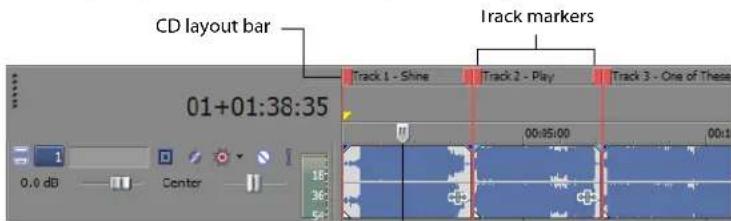
Adding media as CD tracks to a new project
You have a collection of completed audio files that you want to write to a CD. An audio CD layout project can quickly be assembled from sound files in the Project Media window. You can add the tracks one at a time, or use the Project Media window to sort them into track order and add them all at once.
- Create a new project.
- Add all the media to be included in the project to the Project Media window. For more information, see Using the Project Media window on page 42.
-
To add all tracks at once, use the following steps to sort the files into track order:
-
In the Project Media window, click the arrow on the Views button (E) and choose Detailed from the menu. The Project Media window changes to Detailed view.
• In the Comment column, enter the track number for each media file (01, 02, etc.). - Click the Comment column header to sort the list into track order.
-
Select the sorted files in the Project Media window.
-
Right-click a media file (or the selected media files) and choose Add as CD Track from the shortcut menu.
The files are added to a new track and the audio CD tracks are marked on the CD layout bar. The name of the media file is used to name each track. If necessary, you can edit the information for the new audio CD tracks using the markers on the CD layout bar or using the Edit Details window. For more information, see Working with tracks and indices on page 415.
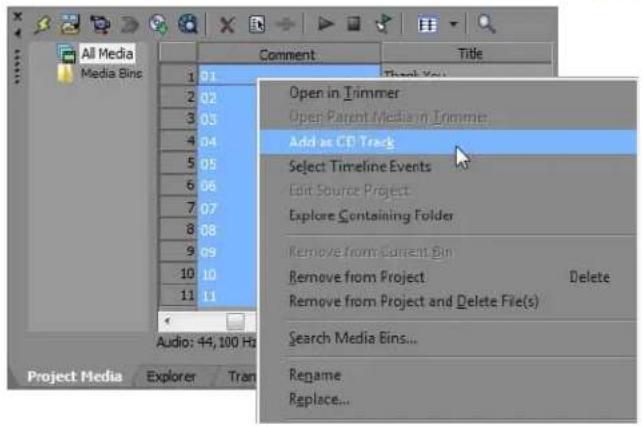
Marking tracks in an existing project
Once you have laid out your audio project with the appropriate pauses, you can mark tracks and indices either automatically or manually.
Note: In DAO CD burning, Vegas Pro software burns from the beginning of the timeline to the last track marker, regardless of the location of the first track marker. Material before the first marker is included as a hidden track on the disc (if your drive supports burning this material).
Adding pauses
Each audio CD track in your project should have a two-second pause following it. This default setting is based on the Red Book specification for audio CDs. The exception to this standard is a continuous recording, such as a live concert CD. For a continuous recording, you can omit the pauses after tracks for continuous playback. For more information, see Red Book specification on page 505.
Note: The Red Book specification also requires a two-second pause at the beginning of an audio CD. If the first track in your project begins before the two-second mark, a ruler is added offset to ensure the project begins with the required two-second pause.
If you use the Add as CD Track command to add tracks from the Project Media window, the appropriate pauses are added automatically. However, if you are laying out your project manually, you must create these pauses between audio CD tracks.
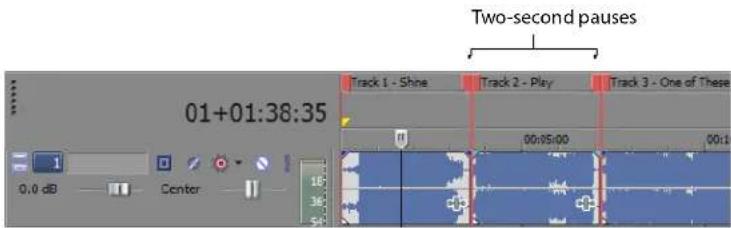
- Position the cursor where you want to insert the pause.
- From the Insert menu, choose Time. The Insert Time dialog is displayed.
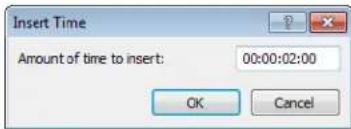
- Enter two seconds in the Amount of time to insert box.
- Click OK. Two seconds are inserted in the timeline at the cursor position.
Marking tracks automatically
Vegas Pro software can examine the events in your project and mark the audio CD tracks for you. Once the tracks are marked, you can adjust them manually if necessary. For more information, see Moving track and index markers on page 415.
- Lay out your project with two-second pauses between tracks.
- From the Tools menu, choose Lay Out Audio CD from Events.
The new audio CD track markers appear on the CD layout bar above the timeline. The name of the media file for each event is used to name the tracks.
Marking tracks manually
You can make a time selection and then mark that selection as an audio CD track.
- Make a time selection that includes the audio for the new track.
- From the Insert menu, choose Audio CD Track Region. The markers for the new audio CD track appear on the CD layout bar.
Marking indices
You can create an index marker in much the same way as you create track markers.
- Position the cursor where you want the index mark to appear.
- From the Insert menu, choose Audio CD Track Index. The new index marker appears on the CD layout bar.
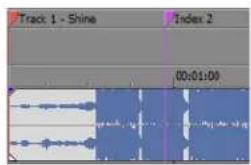
Working with tracks and indices
Once you have marked your tracks and indices, you can edit, move, rename, or delete them as needed.
Navigating to and selecting tracks and indices
Several shortcuts are provided for navigating to and selecting audio CD tracks on the CD layout bar.
• Double-click a track marker to select the track.
• Press. (period) to jump the cursor to the next track or index marker.
- Press, (comma) to jump the cursor to the previous track or index marker.
- Press Ctrl+. (period) to jump the cursor to the next track marker (index markers are skipped).
- Press Ctrl+, (comma) to jump the cursor to the previous track marker (index markers are skipped).
- Add Shift to any of these keystrokes to select rather than jump. For example, press Ctrl+Shift+. (period) to select from the cursor position to the next track marker.
The shortcut keystrokes can be used to jump the cursor while working on a project or during playback.
Moving track and index markers
Track and index markers function just like markers and regions in Vegas Pro software. (For more information, see Adding project markers and regions on page 112.) You can drag a track or index marker to move it along the CD layout bar. Alternately, you can use the Edit Details window to make precise adjustments.
Tip: Move both the starting and ending markers for a track by pressing Alt and dragging either of the markers.
Renaming track and index markers
- Right-click a marker and choose Rename from the shortcut menu that appears.
- Type a new name for the marker and press Enter.
Deleting track and index markers
You can delete a single track or index marker by right-clicking it and choosing Delete from the shortcut menu. To delete all markers at once, right-click the CD layout bar and choose Delete All from the shortcut menu.
Editing markers using the Edit Details window
The Edit Details window provides a way to adjust the settings for a track or index.
- From the View menu, choose Edit Details. The Edit Details window displays.
-
From the Show drop-down list, choose Audio CD Track List. The track settings display.
-
Double-click a setting to edit it:
• In the Position column, adjust the track starting position or index position.
• In the End column, adjust the track ending position.
• In the Length column, adjust the track length.
• in the Name column, enter the name of the track or index.
• In the Prot column, select the check box to apply copy protection to the track.
- In the Emph column, select the check box to enable a simple noise reduction process that is implemented by a CD player. For more information, see Emphasis on page 501.
• In the ISRC column, enter the ISRC number for the track (if used).
Copying a track list from the Edit Details window
You can use the Edit Details window to copy your track list and paste it into another application.
- Click the gray box in the upper-left corner of the Edit Details window to select all the cells.
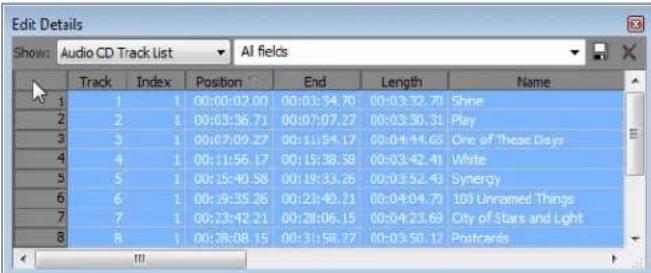
- Press Ctrl+C to copy the cells.
- Switch to another application and paste the information into a document or spreadsheet.
Burning audio CDs
You can burn either single tracks (track-at-once) or the entire disc (disc-at-once).
Burning single tracks (track-at-once)
You can burn your Vegas Pro project as a single track (track-at-once). Once you have burned all your tracks to the CD, you must close the disc before it can be played.
Burning a track-at-once CD
- From the Tools menu, choose Burn Disc, and choose Track-at-Once Audio CD from the submenu. The Burn Track-at-Once Audio CD dialog displays the length of the current file and the amount of time remaining on the disc in your CD recorder.
-
Choose a setting from the Action drop-down list:
-
Burn audio begins recording audio to your CD when you click the Start button. You will need to close the disc before it can be played in an audio CD player.
- Test, then burn audio performs a test to determine whether your files can be written to the CD recorder without encountering buffer underruns. Recording begins after the test if it is successful.
- Test only performs a test to determine whether your files can be written to the CD without encountering buffer underruns. No audio is recorded to the CD.
- Close disc closes your disc without adding any audio when you click the Start button. Closing a disc allows your files to be played on an audio CD player.
-
Erase RW disc erases your rewritable CD when you click the Start button.
-
Select your burning options:
-
Buffer underrun protection: Select this check box if your CD recorder supports buffer underrun protection. Buffer underrun protection allows a CD recorder to stop and resume burning.
- Erase RW disc before burning: If you're using a rewritable CD, select this check box to erase the CD before you begin burning.
- Close disc when done burning: Select this check box to close the CD after burning. Closing a disc allows your files to be played on an audio CD player.
- Eject disc when done: Select this check box to eject the CD automatically when burning has completed.
-
Burn selection only: Select this check box to burn only the audio within the loop region.
-
From the Drive drop-down list, choose the CD drive that you want to use to burn your CD.
- From the Speed drop-down list, choose the speed at which you want to burn. Max will use your drive's fastest possible speed; decrease the setting if you have difficulty burning.
- Click the Start button.
Warning: Clicking the Cancel button after the disc-writing process has begun will render your disc unusable.
- When the writing process is complete, a confirmation message displays. Click OK to clear the message.
Closing a track-at-once CD
- From the Tools menu, choose Burn Disc, and choose Track-at-Once Audio CD from the submenu. The Create CD dialog appears.
- Click the Close Disc button.
- When the disc is closed, a confirmation message displays. Click OK to clear the message.
Burning a disc (disc-at-once)
- From the Tools menu, choose Burn Disc, and choose Disc-at-Once Audio CD from the submenu. The Burn Disc-at-Once Audio CD dialog appears.
- From the Drive drop-down list, use the CD drive that you want to use to burn your CD.
- From the Speed drop-down list, choose the speed at which you want to burn. Max will use your drive's fastest possible speed; decrease the setting to prevent the possibility of buffer underruns.
- Select the Buffer underrun protection check box if your CD recorder supports buffer underrun protection. Buffer underrun protection allows a CD recorder to stop and resume burning.
Note: Buffer underrun protection can create a disc that can be played in CD players, but may contain a bit error where burning stopped and restarted. Consider clearing this check box when creating a premaster disc.
- Choose a radio button in the Burn mode box:
• Burn CDs begins recording audio to your CD immediately.
- Test first, then burn CDs performs a test to determine whether your files can be written to the CD recorder without encountering buffer underruns. No audio is recorded to the CD during the test, and recording begins after the test if it is successful.
- Test only (do not burn CDs) performs a test to determine whether your files can be written to the CD recorder without encountering buffer underruns. No audio is recorded to the CD.
- Select the Render temporary image before burning check box if you want to render your CD project to a temporary file before recording. Prerendering can prevent buffer underruns if you have a complex project that cannot be rendered and burned in real time.
Note: The rendered temporary file will remain until you modify your project or exit. If an image file exists when you open the Burn Disc-at-Once Audio CD dialog, the check box is displayed as Use existing rendered temporary image.
- Select the Automatically erase rewritable discs check box if you're burning to rewritable media and want to erase the disc before burning.
- Select the Eject when done check box if you want the CD to eject automatically when burning has completed.
- Click OK to start burning.
Burning video CDs
Video CDs can be played in many home DVD players and on computers with a CD-ROM drive and VCD player software.
- From the Tools menu, choose Burn Disc and choose Video CD from the submenu. The Burn Video CD dialog appears.
![Burn Video CD Burn drive: [F:\SONY CIVD RW DRU-5104 1.0c] Burn speed: 24.0x Burn mode Buffer underru protection Automatically erase rewritable discs Eject when done Burn CDs Test first, then burn CDs Test only (do not burn CDs) Render format: File paths: C:\Documents and Settings\SPfeiffer\My Documents\cut 1 with fac Browse... Format: MainConcept MPEG-1 (*.mpg) Template: VCD NTSC Description: Audio 224 fps, 44,100 Hz, Layer 2 Video: 29.97 fps, 352x240 Use this setting to create an NTSC VCD-compliant MPEG-1 file. Render loop region only Estimated size: 1.82MB Stretch video to fill output frame size (do not letterbox) Free space: 25.73GB Use project output rotation setting Use an existing file: File paths: Browse... OK Cancel](/content/2026/05/763079/images/0c42b440cf21077a0ab52850c4fbd98eee49e5db6f976821bd94686824b2c13c.jpg)
- From the Burn drive drop-down list, use the CD drive that you want to use to burn your Video CD.
- From the Burn speed drop-down list, choose the speed at which you want to burn. Max will use your drive's fastest possible speed; decrease the setting to prevent the possibility of buffer underruns.
- Select the Buffer underrun protection check box if your CD recorder supports buffer underrun protection. Buffer underrun protection allows a CD recorder to stop and resume burning.
Note: Buffer underrun protection can create a disc that can be played in CD players, but may contain a bit error where burning stopped and restarted. Consider clearing this check box when creating a premaster disc.
- Select the Automatically erase rewritable discs check box if you're burning to rewritable media and want to erase the disc before burning.
- Select the Eject when done check box if you want the CD to eject automatically when burning has completed.
- Choose a radio button in the Burn mode area:
• Burn CDs begins recording the video file to your CD immediately.
- Test first, then burn CDs performs a test to determine whether your file can be written to the CD recorder without encountering buffer underruns. The file is not recorded to the CD during the test, and recording begins after the test if it is successful.
-
Test only (do not burn CDs) performs a test to determine whether your file can be written to the CD recorder without encountering buffer underruns. The file is not recorded to the CD.
-
Choose the movie file you want to use:
• If you want to render the current project, select the Render format radio button.
a. Edit the contents of the File path box to specify the name and location of your rendered file.
b. Choose a template from the Template drop-down list to specify the parameters that should be used for rendering your file, or click the Custom button to create a new template.
c. Select the Render loop region only check box if you want to use only a portion of your project. If the check box is cleared, the entire project will be rendered and saved to the Video CD.
d. Select the Stretch video to fill output frame check box if you want your video to be reformatted so it fills the output frame size listed in the Description box. When the check box is cleared, the current aspect ratio is maintained and black borders are added to fill the extra frame area (letterbox). This option is useful when the desired output format does not match the frame aspect ratio of you project.
e. Select the Use project output rotation setting check box if you're rendering a rotated project and want to use the Output rotation setting from the Project Properties dialog for your rendered file.
When the check box is cleared, the media is rotated according to its Media Properties setting, but the project itself is unrotated—you can use this setting to proof your project on an unrotated display.
For more information, see Working with rotated projects on page 39.
- If you want to use an already-rendered MPEG file, select the Use an existing file radio button, and enter the path to the file in the File path box (or click the Browse button to locate the file).
-
Click OK.
-
Your movie is recorded to the CD. When recording is finished, you can select the Save movie file check box to keep the MPEG file that was rendered, or you can clear the check box to delete the file.
- Click Finish.
Burning a multimedia CD
From the Tools menu, choose Burn Disc and choose Multimedia CD from the submenu to render your project and burn it to a data CD. The rendered project can be played in any computer with the appropriate player.
- From the Tools menu, choose Burn Disc, and choose Multimedia CD from the submenu. The Burn Multimedia CD dialog appears.
![Burn Multimedia CD Burn drive: [E] SONY DVD RW DRU-510A 1.0c Burn speed: 24.0x Burn node Buffer underrun protection Automatically erase rawritable discs Eject when done Burn CDs Test first, then burn CDs Test only (do not burn CDs) Render format: File path: C:\Documents and Settings\SPfeiffer\My Documents\cut 1 with fad Browse... Format: Video for Windows (*.avi) Template: NTSC DV Widescreen Description: Audio: 48,000 Hz, 16 Bit, Stereo, PCM Uncompressed. Video: 29.97 fps, 720x480, Lower field first. Pixel Aspect Ratio: 1.212. OpenDML compatible. Widescreen NTSC DV video files compatible with Sony Video Capture. Render loop region only Estimated size: 40.24MB Stretch video to fill output frame size (do not letterbox) Free space: 25.73GB Use project output rotation setting Use an existing file: File path: Browse... Play movie inside Web page Include movie player installer: Browse... OK Cancel](/content/2026/05/763079/images/9930fc9fb7eca9737f254b117818f48704981073936094c81ff3db9370c6c7a7.jpg)
-
From the Burn drive drop-down list, use the CD drive that you want to use to burn your multimedia CD.
-
From the Burn speed drop-down list, choose the speed at which you want to burn. Max will use your drive's fastest possible speed; decrease the setting to prevent the possibility of buffer underruns.
- Select the Buffer underrun protection check box if your CD recorder supports buffer underrun protection. Buffer underrun protection allows a CD recorder to stop and resume burning.
Note: Buffer underrun protection can create a disc that can be played in CD players, but may contain a bit error where burning stopped and restarted. Consider clearing this check box when creating a premaster disc.
- Select the Automatically erase rewritable discs check box if you're burning to rewritable media and want to erase the disc before burning.
- Select the Eject when done check box if you want the CD to eject automatically when burning has completed.
- Choose a radio button in the Burn mode area:
• Burn CDs begins recording the media file to your CD immediately.
- Test first, then burn CDs performs a test to determine whether your file can be written to the CD recorder without encountering buffer underruns. The file is not recorded to the CD during the test, and recording begins after the test if it is successful.
- Test only (do not burn CDs) performs a test to determine whether your file can be written to the CD recorder without encountering buffer underruns. The file is not recorded to the CD.
- Choose the movie file you want to use:
• If you want to render the current project, select the Render format radio button.
a. Edit the contents of the File path box to specify the name and location of your rendered file.
b. Choose a template from the Template drop-down list to specify the parameters that should be used for rendering your file, or click the Custom button to create a new template.
c. Select the Render loop region only check box if you want to use only a portion of your project. If the check box is cleared, the entire project will be rendered and saved to the multimedia CD.
d. Select the Stretch video to fill output frame check box if you want your video to be reformatted so it fills the output frame size listed in the Description box. When the check box is cleared, the current aspect ratio is maintained and black borders are added to fill the extra frame area (letterbox). This option is useful when the desired output format does not match the frame aspect ratio of you project.
e. Select the Use project output rotation setting check box if you're rendering a rotated project and want to use the Output rotation setting from the Project Properties dialog for your rendered file.
When the check box is cleared, the media is rotated according to its Media Properties setting, but the project itself is unrotated—you can use this setting to proof your project on an unrotated display.
For more information, see Working with rotated projects on page 39.
- If you want to use an already-rendered MPEG file, select the Use an existing file radio button, and enter the path to the file in the File path box (or click the Browse button to locate the file).
- Select the Play movie inside Web page check box if you want to create an HTML file that will automatically play your movie when the CD is inserted.
- Select the Include movie player installer check box if you want to include movie player software with your CD. Click the Browse button to locate the movie player's installation program.
- Click OK.
- Your movie is recorded to the CD. When recording is finished, you can select the Save movie file check box to keep the MPEG file that was rendered, or you can clear the check box to delete the file.
- Click Finish.
Burning a Blu-ray Disc
From the Tools menu, choose Burn Disc and choose Blu-ray Disc from the submenu to render your project and burn it to a Blu-ray Disc. Stereoscopic 3D projects will be burned to 3D Blu-ray Disc.
The rendered project can be played in a Blu-ray Disc player or on any computer with a Blu-ray Disc drive.
Vegas Pro burns Blu-ray BDMV format to BD-R, BD-RE, and DVD recordable media.
Important: Not all Blu-ray players can read DVD media. The PlayStation®3 treats DVD media with Blu-ray content as a data disc. In order to play your media, you'll need to navigate to the BDMV folder on the disc and select the stream you want to play.
Tips:
- A 25 GB single-layer BD recordable disc can store approximately 3 hours, 42 minutes of AVC video or 2 hours, 15 minutes of MPEG-2 video (25 Mbps).
- A 50 GB dual-layer BD recordable disc can store approximately 7 hours, 25 minutes of AVC video (15 Mbps) or 4 hours, 31 minutes of MPEG-2 video (25 Mbps).
- A 4.7 GB single-layer DVD recordable disc can store approximately 1 hour, 17 minutes of AVC or MPEG-2 video (8 Mbps).
- An 8.5 GB dual-layer DVD recordable disc can store approximately 2 hours, 20 minutes of AVC or MPEG-2 video (8 Mbps).
- You can store large amounts of standard-definition MPEG-2 video on a BD disc.
-
You can create your own rendering templates if you need to adjust the bit rates. For more information, see Customizing the rendering process on page 399.
-
From the Tools menu, choose Burn Disc and choose Blu-ray Disc from the submenu. The Burn Blu-ray Disc dialog is displayed.
- Select a radio button to choose what you want to do:
• Render image and burn: renders your current project as a Blu-ray compliant file and burns it to disc.
• Render image only: renders your current project as a Blu-ray compliant file that you can burn at a later time.
• Burn existing image file: burns an already-rendered file to Blu-ray Disc.
- If you selected the Render image and burn or Render image only radio button, choose your rendering settings:
Tip: For more information about the media settings required to create compliant media files, see Rendering projects for Blu-ray Disc on page 396.
a. Choose a setting from the Video format drop-down list to indicate whether you want to burn AVC or MPEG-2 video.
b. Choose a setting from the Video template drop-down list to specify the parameters that should be used for rendering your video stream.
Video for Blu-ray Discs can use MPEG-2 or AVC encoding:
• The Vegas Pro Blu-ray MPEG-2 video templates have an average bit rate of 25 Mbps.
• The Vegas Pro Blu-ray AVC video templates have an average bit rate of 15 Mbps.
• The Vegas Pro Blu-ray MVC video templates for stereoscopic 3D project have an average bit rate of 10 Mbps.
• If you're burning to DVD media, Vegas Pro provides 8 Mbps AVC and MPEG-2 video templates.
c. Choose a setting from the Audio format drop-down list to indicate whether you want to burn AC-3 or wave (PCM) audio.
d. Choose a setting from the Audio template drop-down list to specify the parameters that should be used for rendering your audio stream.
AC-3 audio for Blu-ray Discs uses Dolby Digital 2.0- or 5.1-channel encoding at 192 Kbps or 448 Kbps respectively.
Wave64 (PCM) audio for Blu-ray Discs can use any of the following formats:
• 48 kHz, 16 or 24-bit, stereo or 5.1 surround (available only for 5.1 surround projects)
• 96 kHz, 16 or 24-bit, stereo or 5.1 surround (available only for 5.1 surround projects)
Important: When burning a surround project to DVD with PCM audio, use 48 kHz, 16- or 24-bit audio only.
e. Select the Render loop region only check box if you want to use only a portion of your project. If the check box is cleared, the entire project will be rendered and saved to the disc.
f. Select the Use project output rotation setting check box if you're rendering a rotated project and want to use the Output rotation setting from the Project Properties dialog for your rendered file.
When the check box is cleared, the media is rotated according to its Media Properties setting, but the project itself is unrotated—you can use this setting to proof your project on an unrotated display. For more information, see Working with rotated projects on page 39.
g. Select the Insert chapter points at markers check box if you want to use markers from the timeline as chapter points in your rendered file.
h. Select the Stretch video to fill output frame check box if you want to reformat your video so it fills the output frame size listed in the Description box. When the check box is cleared, the current aspect ratio is maintained, an black borders are added to fill the extra frame area (letterbox). This option is useful when the desired output format does not match the frame aspect ratio of your project.
- If you selected the Render image and burn or Render image only radio button, the File path box displays the folder and file that will be used to render your project.
If you selected the Burn existing image file radio button, type the path to the file you want to burn in the File path box (or click the Browse button to locate the file).
- Select recording options for your Blu-ray drive:
a. Choose a drive from the Burn drive drop-down list to specify the drive you want to use.
b. From the Burn speed drop-down list, choose the speed at which you want to record. Max will record using the fastest speed possible with your drive; decrease the speed if you have difficulty recording.
c. Select the Eject when done check box if you want to eject the disc automatically when burning has completed.
- Click OK to start rendering your image file and burning your disc.
Burning a DVD from the timeline
You can render your project and burn it to the DVD. The rendered project can be played in a DVD player or on any computer with a DVD drive.
- From the Tools menu, choose Burn Disc, and then choose DVD from the submenu to display the Burn DVD Disc dialog.
-
Choose a setting from the Video format drop-down list to specify the parameters that should be used for rendering your video stream.
The Audio format box displays the parameters that should be used for rendering your audio stream. -
Select recording options for your DVD burner:
a. Choose a drive from the Burn drive drop-down list to specify the drive you want to use.
b. From the Burn speed drop-down list, choose the speed at which you want to record. Max will record using the fastest speed possible with your drive; decrease the speed if you have difficulty recording.
c. Select the Eject when done check box if you want to eject the disc automatically when burning has completed.
- Click OK to start rendering your image file and burning your disc.
Using Scripting
Using the scripting features, Vegas® Pro software becomes an even more powerful and flexible tool. You can use scripting to streamline repetitive tasks, integrate with external applications, and implement customized features.
To use scripting, you'll need to install the Microsoft® .NET Framework. This component is available from the Microsoft Windows® Update site. (Choose Windows Update from the Start menu.)
You can find the scripting API (application programming interface) and sample scripts in the Extras folder of the Vegas Pro application disc or on our Web site: http://www.sonycreativesoftware.com/download/devkits.
For more information about scripting, check out the Vegas Pro scripting forum: http://www.sonycreativesoftware.com/forums/ShowTopics.asp?ForumID=21.
Note: To use scripts that were created for Vegas Pro 4.0 software, you'll need to revise the script's namespace from SonicFoundry.Vegas to Sony.Vegas. For example, the line that includes "import SonicFoundry.Vegas;" should be changed to "import Sony.Vegas;" before running the script.
Warning: Scripts can pose a security risk to your computer. A script has the power to delete files, read files, write files, execute programs, access the Internet, access files on your network, and so on. Always examine the contents of a script before running it. If you don't understand the script, do not run it unless it comes from a trusted source. In general, take the same precautions you would take for any program you download from the Internet or receive in an e-mail attachment.
Running a script
- From the Tools menu, choose Scripting, and then choose Run Script from the submenu. The Run Script dialog appears.
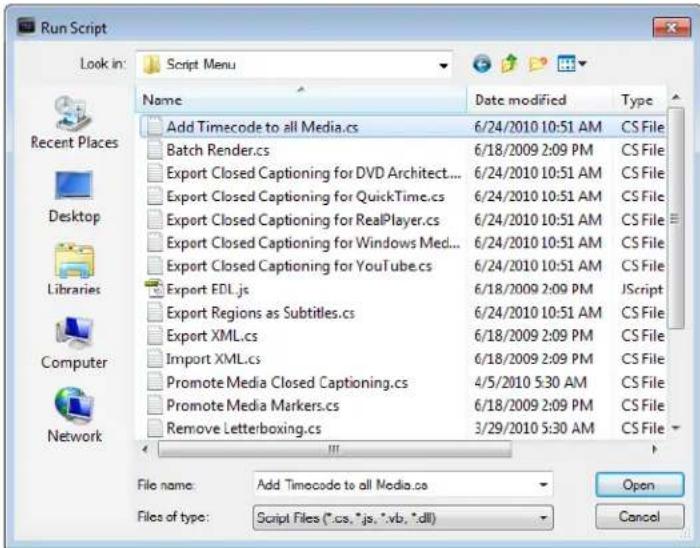
- Browse to the script file (.cs, .js, .vb, or .dll) you want to run.
- Select the file and click the Open button. The script runs.
Adding scripts to the Scripting menu
When you start the program, Vegas Pro software looks at the Script Menu folder in the Vegas Pro program folder to determine which scripts appear in the Scripting submenu. This folder is C:\Program Files\Sony\Vegas Pro 10.0\Script Menu by default.
- Add or delete scripts in the Script Menu folder to change the contents of the submenu.
Tip: To prevent duplication of script files, you can use shortcuts in the Script Menu folder.
- From the Tools menu, choose Scripting, and then choose Rescan Script Menu Folder to update the menu.
Using Vegas Pro extensions
Vegas Pro extensions are compiled scripts that are available under the Extensions submenu in the View, Edit, or Tools menus. These extensions are loaded when Vegas Pro starts and remain loaded as long as the program is running. Extensions can respond to changes in project data, control playback, and display a nonmodal interface.
You can use the Customize Toolbar dialog to add Vegas Pro extensions to the toolbar, or use the Customize Keyboard dialog to assign keyboard shortcuts to Vegas Pro extensions.
• For more information on the Customize Toolbar dialog, see Adding buttons to the toolbar on page 437.
• For more information on the Customize Keyboard dialog, see Customizing keyboard shortcuts on page 440.
Vegas Pro extensions are saved in the following folders:
- Windows XP: C:\Documents and Settings\
\My Documents\Vegas Application Extensions - Windows Vista and Windows 7: C:\Users\
\Documents\Vegas Application Extensions
For more information about creating Vegas Pro extensions, refer to the scripting API (application programming interface) in the Extras folder of the Vegas Pro application disc or on our Web site at http://www.sonycreativesoftware.com/download/devkits.
Creating a script
Vegas Pro scripting uses the Microsoft .NET framework. You can write scripts in C#, JScript, or Visual Basic .NET.
For more information on C#, see http://msdn.microsoft.com/en-us/library/kx37x362.aspx.
For more information on JScript, see http://msdn.microsoft.com/en-us/library/72bd815a(vs.71).aspx.
For more information on Visual Basic .NET, see http://msdn.microsoft.com/en-us/library/aa903378.aspx.
Editing an existing script
All you need to edit a script is a simple text editor (and a working knowledge of JScript or Visual Basic .NET scripting). The scripts that are included are fully commented to help you find and edit the parameters you need.
- Create a copy of the script (.vb or .js) file you want to edit, assigning a descriptive name to the copy.
- Open the new copy of the script in your text editor.
- Edit the script as needed. The comments in the script will help you find the parameters you need to edit.
Comments are indicated with double forward slashes: //.
For example, the AddEffectToAllMedia.js script includes the following lines:
// This is the full name of the effect plug-in you want to add.
var plugInName = "Sony Timecode";

// This is the name of the preset you want. Set this to null if you
// want the default preset.
var presetName = "SMPTE Drop (29.97 fps)";
The default script applies the Sony Timecode plug-in to all video media in your project using the SMPTE Drop (29.97 fps) preset. If you wanted to apply the Broadcast Colors plug-in's Extremely Conservative - 7.5 Setup preset to all audio media, you could edit the script as follows (changes appear in red):
// This is the full name of the effect plug-in you want to add.
var plugInName = "Sony Broadcast Colors";

// This is the name of the preset you want. Set this to null if you
// want the default preset.
var presetName = "Extremely Conservative - 7.5 Setup";
The pluginName variable should use the plug-in name that is displayed in the Plug-In Chooser. The presetName variable should use the preset name that is displayed in the Preset box in the FX window.
4. Save the script.
Create custom button images for scripts
If you want to display custom icons for scripts in the Scripting menu and toolbars, you can add .png files to your Script Menu folder.
- Create a 32-bit PNG file with the icon you want to use. Icons must be 16x16 pixels, and transparency is supported.
- Save the PNG file in your Script Menu folder (typically C:\Program Files\Sony\Vegas Pro 10.0\Script Menu) using the same name as the script the icon should represent.
For example, to assign a custom icon to the HelloWorld.js script, the icon should be saved as HelloWorld.js.png. - Customize the toolbar as needed, and the custom icons will be displayed in the Scripting menu (and in any toolbars that include the script) toolbar the next time you start the application.
Vegas Pro command-line options
You can use the following commands to start Vegas Pro from the command line, open projects, start scripts, pass arguments to scripts, or start Vegas Pro extensions.
NOLOGO
Starts Vegas Pro without displaying the application splash screen.
Example: Vegas100.exe /NOLOGO
OPEN
Starts Vegas Pro and opens the specified media file or project.
Examples:
Vegas100.exe /OPEN "E:\Video\Wildflowers 001.avi"
—or—
Vegas100.exe /OPEN "E:\Vegas Projects\24p widescreen.veg"
RUNSCRIPT
Starts Vegas Pro and runs the specified script.
Examples:
Vegas100.exe /RUNSCRIPT "C:\CustomScripts\ScriptName.cs"
—or—
Vegas100.exe /SCRIPT "C:\CustomScripts\ScriptName.cs"
SCRIPTARGS
Starts Vegas Pro and passes the specified arguments to a script.
Example: Vegas100.exe /SCRIPTARGS "