
DVD Architect Studio 4.5 - Software SONY - Free user manual and instructions
Find the device manual for free DVD Architect Studio 4.5 SONY in PDF.


| Product Type | DVD Authoring Software |
| Software Version | 4.5 |
| Platform | Windows (XP/Vista/7) |
| Language Supported | English, French, German, Spanish, Italian, Japanese |
| Installation Size | Approximately 300 MB |
| System Requirements (Minimum) | 1 GHz processor, 512 MB RAM, 1 GB free hard disk space, DVD burner |
| Key Features | Menu creation, video editing, subtitle support, chapter markers, audio tracks, slideshow creation, preview |
| Input Formats | MPEG-2, AVI, WMV, MP4, MOV, JPEG, BMP, WAV, MP3 |
| Output Formats | DVD-Video (VOB), Blu-ray (BDAV), AVCHD |
| Video Resolution | Up to 1920x1080 (HD) |
| Audio Formats | Dolby Digital, PCM, MPEG Audio |
| Menu Templates | Over 100 pre-designed menus |
| Maintenance | Keep software updated via official Sony website; uninstall unused versions to free space |
| Safety | Only download from official sources to avoid malware; do not share license keys |
| Spare Parts and Repairability | Not applicable for software; reinstall if corrupted; contact support for activation issues |
Frequently Asked Questions - DVD Architect Studio 4.5 SONY
User questions about DVD Architect Studio 4.5 SONY
0 question about this device. Answer the ones you know or ask your own.
Ask a new question about this device
Download the instructions for your Software in PDF format for free! Find your manual DVD Architect Studio 4.5 - SONY and take your electronic device back in hand. On this page are published all the documents necessary for the use of your device. DVD Architect Studio 4.5 by SONY.
USER MANUAL DVD Architect Studio 4.5 SONY
DVD Architect Studio
Quick Start Manual
After DVD Architect Studio software is installed and you start it for the first time, the registration wizard appears. This wizard offers easy steps that allow you to register the software online with Sony Creative Software Inc. Alternatively, you may register online at http://www.sonycreativesoftware.com at any time.
Registration assistance
If you do not have access to the Internet, registration assistance is available during normal weekday business hours. Please contact our Customer Service department by dialing one of the following numbers:
Telephone/Fax Country
1-800-577-6642 (toll-free) US, Canada, and Virgin Islands
+608-204-7703 for all other countries
1-608-250-1745 (Fax) All countries
Customer service/sales
For a detailed list of customer service options, we encourage you to visit http://www.sonycreativesoftware.com/support/custserv.asp. Use the following numbers for telephone support during normal weekday business hours:
Telephone/Fax Country
1-800-577-6642 (toll-free) US, Canada, and Virgin Islands
+608-204-7703 for all other countries
1-608-250-1745 (Fax) All countries
Technical support
For a detailed list of technical support options, we encourage you to visit http://www.sonycreativesoftware.com/support/default.asp. To listen to your support options by telephone, please call 608-256-5555.
About your rights in DVD Architect Studio software
DVD Architect Studio software is licensed to you under the terms of the End User License Agreement you entered into with Sony Creative Software Inc.
About your privacy
Sony Creative Software Inc. respects your privacy and is committed to protecting personal information. Your use of the software is governed by the Software Privacy Policy. Please review its contents carefully as its terms and conditions affect your rights with respect to the information that is collected by the software. For your reference, a copy of the Software Privacy Policy is located at
http://www.sonycreativesoftware.com/corporate/privacy.asp.
Proper use of software
DVD Architect Studio software is not intended and should not be used for illegal or infringing purposes, such as the illegal copying or sharing of copyrighted materials. Using DVD Architect Studio software for such purposes is, among other things, against United States and international copyright laws and contrary to the terms and conditions of the End User License Agreement. Such activity may be punishable by law and may also subject you to the breach remedies set forth in the End User License Agreement.
Legal notices
ACID, ACIDized, ACIDplanet.com, ACIDplanet, the ACIDplanet logo, ACID XMC, Artist Integrated, the Artist Integrated logo, Beatmapper, Cinescore, CD Architect, DVD Architect, Jam Trax, Perfect Clarity Audio, Photo Go, Sound Forge, Super Duper Music Looper, Transparent Technology, Vegas, Vision Series, and Visual Creation Studio are the trademarks or registered trademarks of Sony Creative Software Inc. in the United States and other countries. All other trademarks or registered trademarks are the property of their respective owners in the United States and other countries.
Apple Macintosh Audio Interchange File Format (AIFF) file format
Apple ^® Macintosh ^® Audio Interchange ^™ File Format (AIFF) is a trademark of Apple, Inc. in the United States and other countries.
Apple QuickTime
Apple® QuickTime® application is a trademark of Apple, Inc. in the United States and other countries.
Dolby, Dolby Digital AC-3, and AAC encoding
This product contains one or more programs protected under international and U.S. copyright laws as unpublished works. They are confidential and proprietary to Dolby Laboratories. Their reproduction or disclosure, in whole or in part, or the production of derivative works therefrom without the express permission of Dolby Laboratories is prohibited. Copyright 1992 - 2008 Dolby Laboratories. All rights reserved.
Dolby Digital 5.1 Creator technology is not intended for use in content creation for commercial or broadcast distribution, or content that displays Dolby trademarks and logos. Only Approved Dolby Digital Professional Encoders may be used for content that is commercially distributed or carries the Dolby Digital trademark and logo.
Dolby ^® , the double-D symbol, AC-3 ^® , and Dolby Digital ^® are registered trademarks of Dolby Laboratories. AAC ^™ is a trademark of Dolby Laboratories.
Macromedia Flash
Macromedia and Flash are trademarks or registered trademarks of Macromedia, Inc. in the United States and/or other countries.
Microsoft DirectX programming interface
Portions utilize Microsoft® DirectX® technologies. Copyright © 1999 – 2008 Microsoft Corporation. All rights reserved.
Microsoft Windows Media 9
Portions utilize Microsoft Windows Media Technologies. Copyright © 2008 Microsoft Corporation. All rights reserved.
PNG file format
Copyright © 2008. World Wide Web Consortium (Massachusetts Institute of Technology, European Research Consortium for Informatics and Mathematics, Keio University). All rights reserved. This work is distributed under the W3C Software License in the hope that it will be useful, but WITHOUT ANY WARRANTY; without even the implied warranty of MERCHANTABILITY or FITNESS FOR A PARTICULAR PURPOSE. http://www.w3.org/Consortium/Legal/2002/copyright-software-20021231.
Targa file format
The Targa ^™ file format is a trademark of Pinnacle Systems, Inc.
Tagged Image File Format (TIFF)
Adobe Tagged Image™ File Format is a registered trademark of Adobe Systems Incorporated in the United States and other countries. All rights reserved.
Thomson Fraunhofer MP3
MPEG Layer-3 audio coding technology licensed from Fraunhofer IIS and Thomson.
Supply of this product does not convey a license nor imply any right to distribute content created with this product in revenue generating broadcast systems (terrestrial, satellite, cable and/or other distribution channels), streaming applications (via internet, intranets and/or other networks), other content distribution systems (pay-audio or audio on demand applications and the like) or on physical media (compact discs, digital versatile discs, semiconductor chips, hard drives, memory cards and the like).
An independent license for such use is required. For details, please visit: http://mp3licensing.com.
Sony Creative Software Inc.
1617 Sherman Avenue
Madison, WI 53704
USA
The information contained in this manual is subject to change without notice and does not represent a guarantee or commitment on behalf of Sony Creative Software Inc. in any way. All updates or additional information relating to the contents of this manual will be posted on the Sony Creative Software Inc. web site, located at http://
www.sonycreativesoftware.com. The software is provided to you under the terms of the End User License Agreement and Software Privacy Policy, and must be used and/or copied in accordance therewith. Copying or distributing the software except as expressly described in the End User License Agreement is strictly prohibited. No part of this manual may be reproduced or transmitted in any form or for any purpose without the express written consent of Sony Creative Software Inc.
Copyright © 2008. Sony Creative Software Inc.
Program Copyright © 2008. Sony Creative Software Inc. All rights reserved.
Table of Contents
Introduction 5
Welcome to DVD Architect Studio software! 5
System requirements....5
Installing DVD Architect Studio software....5
Using online help....6
Online help 6
Show Me How tutorials ....7
Help on the Web ....7
Learning the DVD Architect Studio Workspace 9
Main window....9
Main window components ....9
Toolbar 10
Project Overview window (Ctrl+Alt+1).... 10
Workspace (Alt+0) 11
Editing toolbar (Alt+1) 11
Text toolbar (Alt+2) 12
Window Docking Area (F11).... 12
Explorer window (Alt+3) 12
Themes window (Alt+4) 13
Buttons window (Alt+5) 13
Backgrounds window (Alt+6) 14
Compilation window (Alt+7) 14
Properties window (Alt+8) 15
Timeline window (Alt+9) 16
Playlists window (Ctrl+Alt+2) 17
Getting Started....19
How it works.... 19
Preparing files for DVD Architect Studio software 19
Starting a new project 20
Opening an existing project.... 21
Choosing your media files.... 21
Previewing media files 21
Adding files to your project 21
Setting the DVD start item 22
Setting the DVD introduction (first play) media 22
Setting your project properties 22
Disc properties 23
Summary tab information 23
Optimizing your project.... 23
Saving your project 24
Creating a Menu-Based DVD....25
Building menus 25
Adding a submenu 25
Inserting pages 26
Adding pages 26
Deleting pages 26
Changing page order 26
Editing menu page properties.... 26
Adding titles.... 27
Inserting a picture compilation 27
Inserting a music/video compilation 27
Inserting a single-movie title 27
Working with graphics 28
Inserting a graphic 28
Editing graphics properties 28
Inserting and editing text 28
Inserting text on a menu or page 28
Setting a menu's title text object 28
Formatting text 29
Editing text 29
Moving text 29
Inserting buttons 29
Using color sets.... 30
Editing a color set 30
Applying color sets 31
Editing objects.... 31
Resizing an object 31
Making selected objects same height or width 31
Viewing and editing media properties 32
Moving and arranging objects 32
Changing the position of an object 32
Aligning objects in a menu 32
Centering objects 33
Adjusting object spacing 33
Deleting objects 34
Enabling snapping.... 34
Snapping to the grid 34
Snapping to other objects 34
Snapping to safe areas 34
Button properties.... 35
Copying and pasting attributes.... 35
The Navigation tool.... 36
Working with themes 36
Applying themes 36
Choosing a theme 37
Deleting a theme 37
Creating a Music/Video Compilation 39
Adding a music/video compilation to a menu.... 39
Adding audio and/or video.... 39
Replacing an audio file 40
Adding and editing images 40
Inserting images 40
Replacing an image 41
Setting image stretching or scaling 41
Rotating an image 41
Adding and editing text.... 41
Adding text 41
Formatting text 42
Moving text 42
Deleting text 42
Music/Video compilation properties. 42
Creating a Picture Compilation 43
Adding a picture compilation to a menu.... 43
Adding and editing images 44
Inserting images 44
Replacing an image 44
Setting image stretching or scaling 44
Rotating an image 45
Setting display duration 45
Adding and editing text.... 45
Adding text 45
Formatting text 45
Moving text 46
Deleting text 46
Picture compilation properties 46
Creating Playlists....47
Adding a playlist to a menu 47
Adding a playlist without a link. 47
Adding titles to a playlist 48
Deleting titles from a playlist 48
Rearranging titles in a playlist 48
Renaming a playlist 48
Playlist properties.... 48
Creating a Single-Movie DVD or Title....49
Adding a movie title to a menu.... 49
Setting in and out points.... 49
Working with scene/chapter markers.... 50
Inserting scene/chapter markers 50
Renaming scene/chapter markers 50
Repositioning scene/chapter markers 50
Deleting scene/chapter markers 50
Loading scene/chapter markers 51
Saving scene/chapter markers 51
Changing the video or audio file 51
Previewing Projects 53
Preview window 53
Preview toolbar 54
Previewing your project.... 54
Preparing and Burning Your DVD 55
Preparing your project 55
Burning your prepared project 56
Index ....i
Chapter 1: Introduction
Welcome to DVD Architect Studio software!
DVD Architect Studio™ software has everything you need to create and burn professional DVDs on your computer. You'll be creating picture slideshows, single-movie DVDs, music/video compilations, and menu-based DVDs on your computer in no time!
System requirements
- Microsoft® Windows® XP or Windows Vista™
- 800 MHz processor
- 60 MB hard-disk space for program installation
- 256 MB RAM
- Microsoft Windows-compatible sound card
- DVD-ROM drive (for installation from a DVD only)
- Supported DVD-R/-RW/+R/+RW drive (for DVD burning only)
- Microsoft DirectX® 9.0c or later (included on application disc)
- Microsoft .NET Framework 2.0 (included on application disc)
Note: You must provide your registration information to Sony Creative Software Inc. to activate the software.
Installing DVD Architect Studio software
- Insert the DVD-ROM. The setup screen appears (if DVD-ROM AutoPlay is enabled).
If DVD-ROM AutoPlay is not enabled, click the Start button and choose Run. In the Run window that appears, type the DVD-ROM drive's letter and add:\setup.exe. Click OK to start the installation. - Click Install. The installation process begins.
- Follow the screen prompts and enter the necessary information when required.
- At the last screen prompt, click Finish to conclude the installation.
Note: Windows Installer is used for all versions of Windows. Windows Installer is installed and then you are asked to restart your system.
Using online help
For the most extensive information about DVD Architect Studio software, please refer to the help. You can access two types of help within the application:
• Online help
• Show Me How tutorials
Online help
To access online help, choose Contents and Index from the Help menu or by press F1.
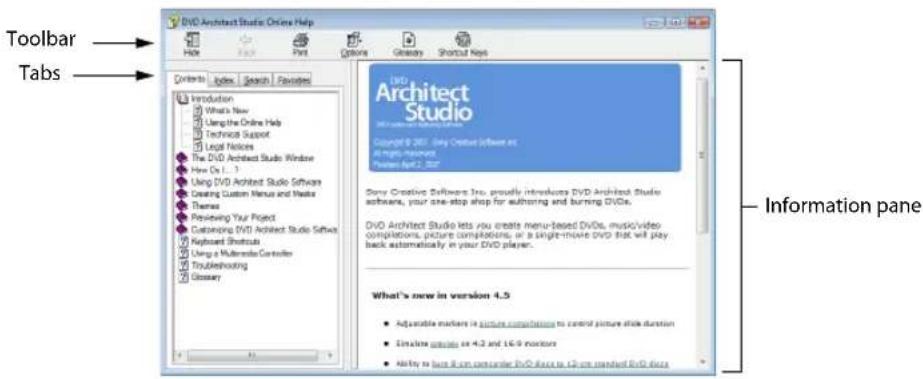
The following table describes the four tabs of the Online Help window.
Tab Description
| Contents | Provides a list of available help topics. Click a closed book to open the pages, and then click on a topic page? |
| Index | Provides a complete listing of the help topics available. Scroll through the list of available topics or type a word in the Type in the keyword to find box to quickly locate topics related to that word. Select the topic and click the Display button. |
| Search | Allows you to enter a keyword and display all of the topics in the online help that contain the keyword you have entered. Type a keyword in the Type in the word(s) to search for box and click the List Topics button. Select the topic from the list and click the Display button. |
| Favorites | Allows you to keep topics that you revisit often in a separate folder. To add a topic to your favorites, click the Add button on the Favorites tab. |
Show Me How tutorials
You can learn more about many of the features in DVD Architect Studio by using the interactive Show Me How tutorials installed with the software.
By default, Show Me How tutorials display upon startup of the application. However, you can access them at any time from the Help menu by choosing Show Me How.
Tip: To turn off automatic display of the Show Me How tutorials, clear the Show at Startup check box at the bottom of the tutorial window.
Help on the Web
Additional help and information is available on the Sony Creative Software Inc. Web site. From the Help menu, choose Sony on the Web, and choose the desired location from the submenu. Your Web browser starts and attempts to connect to the appropriate page on the Sony Web site.
Chapter 2
Learning the DVD Architect Studio Workspace
DVD Architect Studio™ software is designed to make it easy to create a professional-looking DVD. Many of the editing operations, commands and shortcut keys are common to other popular software applications, as well as other Sony Creative Software Inc. applications.
Main window
When you start the application, the main window appears.
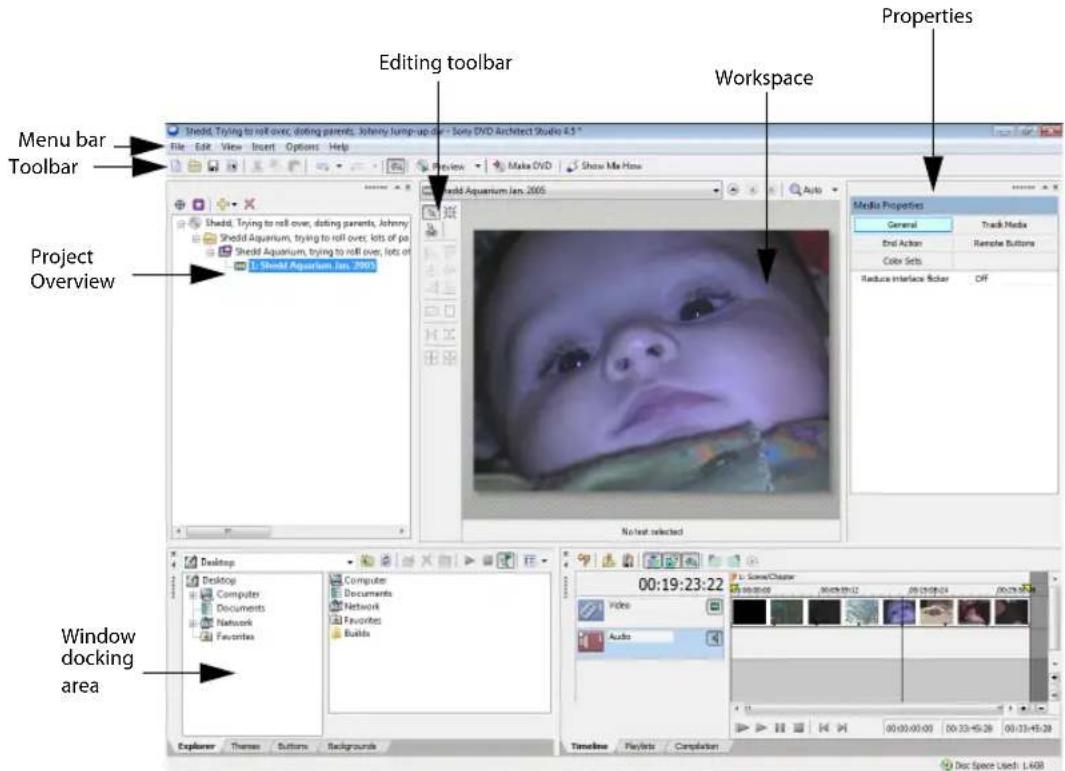
Main window components
The work area is divided into four primary areas and described in the following table:
Component Description
| Project Overview window Where you assemble your project and can see the big pictures. |
| Workspace Where you edit menus and pages. |
| Properties window Where you edit properties for media and objects in your project. |
| Window Docking area Where you find media, themes, buttons and backgrounds, and perform timeline editing on the titles in your project. |
Toolbar
The main toolbar allows you to quickly access the most commonly used functions and features. To specify which buttons are displayed, choose Customize Toolbar from the Options menu. To toggle display of the main toolbar, choose Toolbar from the View menu.
| [WDWD] | New Project: Creates a new Undo: Reverses the last project. command performed. |
| [H027] | Open Project: Opens an Redo: Reverses an Undo existing project. command. |
| [OKK] | Save Project: Saves the Enable Snapping: Enables current project. snapping to grid lines. |
| [KACD] | Properties: Opens project Preview: Shows or hides the properties. Preview window. |
 | Cut: Cuts selected events or Make DVD: Opens the Make DVD time range. wizard. |
| [S1CD] | Copy: Copies selected events Show Me How: Activates Show or time range. Me How. |
 | Paste: Pastes items from clipboard into project. |
Project Overview window (Ctrl+Alt+1)
The Project Overview window provides a high-level view of the menus and titles in your project. You can use this window to arrange the menus and titles in your project and add or delete titles.
To toggle the display of the window, choose Project Overview from the View menu.
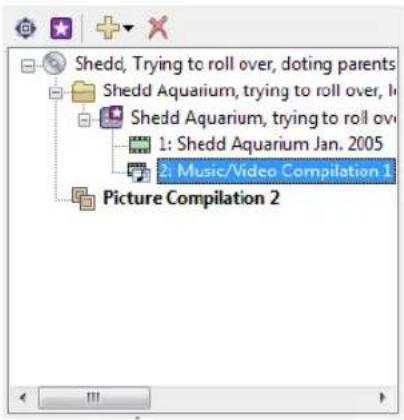
| Toggle Display of End Actions: Displays or hides end actions. | Insert Object: Show or hides the Insert Object drop-down list. | ||
| Set DVD Start: Sets the selected menu or title as the DVD Start item. | Delete Object: Deletes the selected title or menu. |
Workspace (Alt+0)
The workspace is the portion of the DVD Architect Studio window where you design your project. The workspace represents the currently selected menu or object.
To set input focus to the workspace, choose Focus to Workspace from the View menu.
Editing toolbar (Alt+1)
The editing toolbar allows you to edit object that you select in the workspace. To toggle display of this toolbar in the workspace, choose Editing Toolbar from the View menu.
| Selection Tool: Selects and moves objects. objects to the bottom edge of the object that has focus. | Align Bottom: Aligns all selected | |
| Sizing Tool: Selects and resizes objects. objects the same width as the object that has focus. | Make Same Width: Makes all selected | |
| Navigation Tool: Verifies and edits which buttons will be activated when you press Up, Down, Left, or Right buttons on the DVD player remote control. | Make Same Height: Makes all selected objects the same height as the object that has focus. | |
| Align Left: Aligns all selected objects to left edge of object objects so an equal amount of that has focus. horizontal space exists between objects. | Space Across: Adjusts the selected | |
| Align Top: Aligns all selected objects to the top edge of the objects so an equal amount of vertical object that has focus. space exists between objects. | Space Down: Adjusts the selected | |
| Align Horizontal Center: Aligns all selected objects to the horizontal center of the object that has focus. | Horizontal Centering: Aligns selected objects to the horizontal center of the screen. | |
| Align Vertical Center: Aligns all selected objects to the vertical center of the object that has focus. | Vertical Centering: Aligns selected objects to the vertical center of the screen. | |
| Align Right: Aligns all selected objects to the right edge of the object that has focus. |
Text toolbar (Alt+2)
The text bar allows you to edit various properties for text that you select in the workspace. To toggle the display of the text bar, choose Text bar from the View menu.
 | Font: Allows you to choose the typeface that will be used right ed for text. |  | Justify Right: Aligns text to text box. |
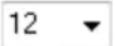 | Font Size: Allows you to choose the size (in points) of the typeface that will be used for text. |  | Justify Top: Aligns text to top edge of text box. |
 | Bold: Sets text in bold typeface. Aligns text to vertical |  | Justify Vertical Center: center of text box. |
 | Italic: Sets text in italic typeface. to bottom edge of text |  | Justify Bottom: Aligns text box. |
 | Shadow: Allows you to select position, color, and blurring Allows you to set of a shadow behind text. foreground color for text. |  | Font Foreground Color: |
 | Justify Left: Aligns text to left edge of text box. text box editable. |  | Edit Text: Makes selected |
 | Justify Center: Aligns text in center of text box. |
Window Docking Area (F11)
You can dock (anchor) windows around the edges of the DVD Architect Studio window to keep frequently used windows available, but out of the way, while you are working with a project.
You can dock several windows in the same area of the screen and the windows will be layered. Click a window's tab to bring it to the top.
Explorer window (Alt+3)
The Explorer window is similar to the Windows® Explorer. Use the Explorer window to select media files to drag to the workspace or Project Overview window. From the View menu, choose Explorer to show or hide the Explorer window.
Use the Start Preview ▶ and Auto Preview 🏠 buttons to preview files before adding them to the project. If you have the Auto Preview button selected, any video or graphic file you click in the Explorer will automatically display in the workspace.
Themes window (Alt+4)
The Themes window is used to apply a theme to your menu-based project. From the View menu, choose Themes to show or hide the Themes window.
A theme is a style sheet for your DVD menu page. Each theme can contain a background image, button type, layout style, button behaviors, text style, and embedded navigation behaviors.
You can apply themes to specific menu pages as you work. Each new page you add to that menu will default to using the same theme.
DVD Architect Studio software includes some themes for you to use, and you can also create your own themes and apply them to your projects. For more information, see Applying themes on page 36.
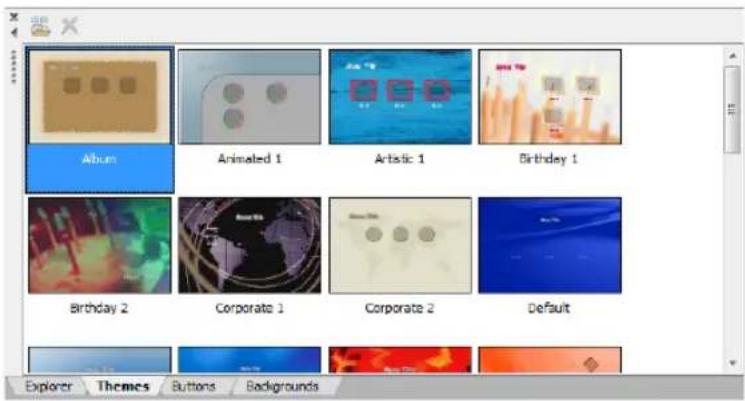

Apply Theme: Allows you to
apply themes to specific menu delete your own custom themes.
pages as you work.
Delete Theme: Allows you to
Buttons window (Alt+5)
The Buttons window displays buttons that are available from installed themes and from your DVD Architect Studio installation. From the View menu, choose Buttons to show or hide the Buttons window.
You can use the Buttons window to add new buttons to your menus, replace existing buttons, or remove frames from existing buttons.
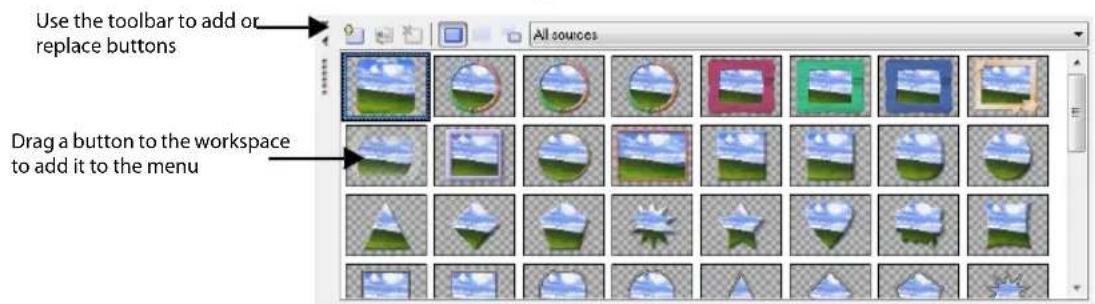
| Insert Button:Adds the selected button (with no link) buttons with frames in the Buttons to the current menu. window. | Show Framed Buttons:Shows only | |
| Replace Button:Replaces the selected button in the workspace with the selected button in the Buttons window. | Show Non-Framed Buttons:Shows only buttons without frames in the Buttons window. | |
| Remove Frame:Removes the frame from the selected button with or without frames in the in the workspace. Buttons window. | Show All Buttons:Shows buttons |
Backgrounds window (Alt+6)
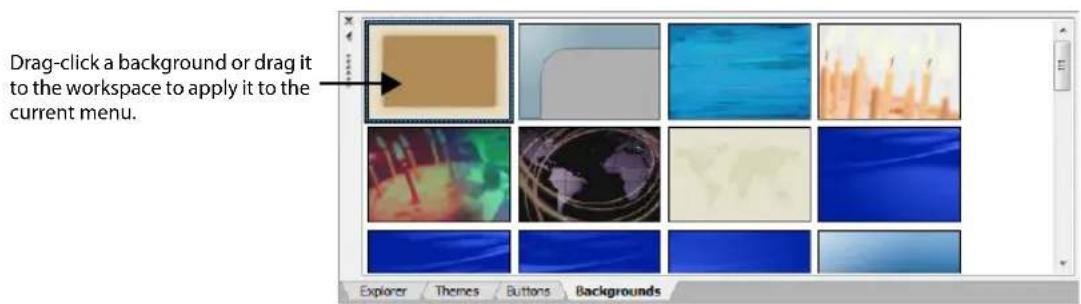
The Backgrounds window displays menu backgrounds that are available from installed themes and from your DVD Architect Studio installation. From the View menu, choose Backgrounds to show or hide the Backgrounds window.
You can use the Backgrounds window to add a background to a menu page or change an existing background.
Compilation window (Alt+7)
The Compilation window displays a listing of the items in a music/video compilation or picture compilation. From the View menu, choose Compilation to show or hide the Compilation window.
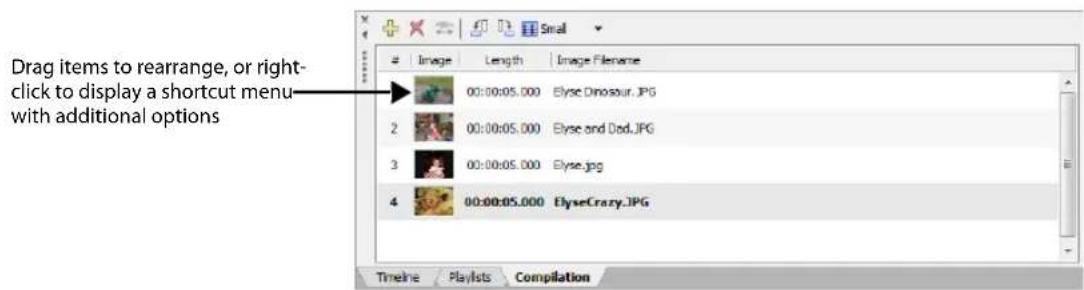
You can use this window to arrange the items in a compilation, set image stretching or scaling, rotate an image, or set a picture's display duration.
 | Insert Item:Adds images to a picture compilation or audio or video to a music/video compilation. |  | Rotate Counterclockwise:Rotates the image counter-clockwise. |
 | Delete Items:Removes images from a picture compilation or audio from a music/video compilation. |  | Rotate Clockwise:Rotates the image clockwise. |
 | Fit Compilation to Audio:Automatically adjusts the duration of all slides to match the length of the audio file. |  | Thumbnail Size:Displays small, medium, or large thumbnail images. |
Properties window (Alt+8)
The Properties window includes controls that you can use to edit nearly every detail of your project. From the View menu, choose Properties to show or hide the Properties window.
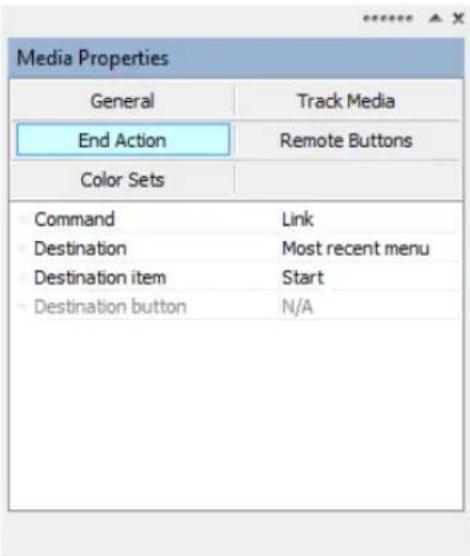
The contents of the Properties window change depending on the current selection. For example, if you have a menu open in the workspace, you can edit menu page properties and button properties. If you have a title open in the Timeline window, you can edit information about the media file.
Property Description
| Graphics Edits the position, size, and appearance of graphical elements on a menu or compilation. |
| Button Edits the action and appearance of the selected menu button. |
| Menu Page Adjusts the length, background media, end actions, and remote control button behavior for the selected page. |
| Subtitle Adjusts subtitle text positions and adjusts which color set is used to draw subtitle text. |
Property Description
| Media Adjusts the end actions and remote control button behavior for the selected media file. |
| Picture Adjusts the end actions and remote control button behavior for the Compilation selected picture compilation. |
| Music/Video Adjusts the end actions and remote control button behavior for the Compilation selected music/video compilation. |
| Playlist Adjusts the settings for each item in a playlist or to set the end action for the selected playlist. |
| Video Event Chooses the media file that will be used for events on the additional video tracks and adjusts color settings and cropping. |
Timeline window (Alt+9)
The Timeline window is a chronological representation of a video, picture compilation, music/video compilation, or the background media for a menu. From the View menu, choose Timeline to show or hide the Timeline window.
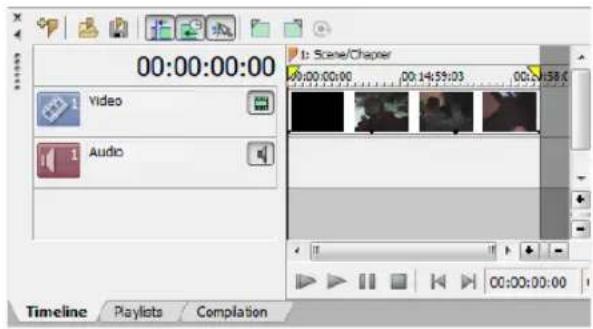
The timeline displays your main audio
and video tracks, chapter markers, and transport controls you can use to preview your media within the DVD Architect Studio workspace.

Insert Scene/Chapter
Marker: Inserts a scene timeline snapping. chapter marker.

Enable Timeline Snapping: Enables

Load Markers: Loads markers
from a file. the title to the cursor position.

Set In Point: Sets the in point for

Save Markers: Saves markers
to a file. the title to the cursor position.

Set Out Point: Sets the out point for

Auto Ripple: Toggles Auto
Ripple mode.

Set Loop Point: Sets the loop point to indicate the point where looped playback begins.

Quantize to Frames: Forces events and markers to frame boundaries.
Playlists window (Ctrl+Alt+2)
You can use playlists to play a sequence of movies, chapter markers, music/video compilations, or picture compilations. A playlist can contain only titles that are part of the DVD project, which are played from start to finish, and an end action determines what happens at the end of the playlist. From the View menu, choose Playlists to show or hide the Playlists window.
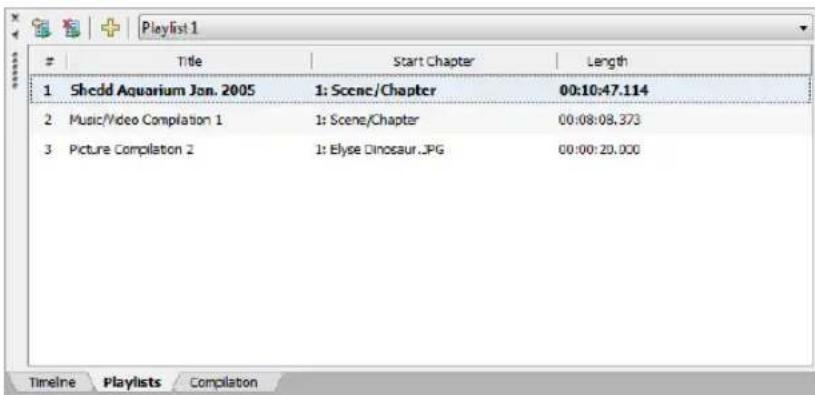

Insert Playlist: Adds a new playlist to your project.
Current playlist From the drop-down list, choose the playlist that you want to display.

Delete Playlist: Removes the current playlist from your item list project
Playlist Lists the titles in the playlist.

Insert Playlist Items: Displays the Select Title dialog where you can add titles to the current playlist.
Chapter 3: Getting Started
This chapter details what you need to know to start authoring your DVD using DVD Architect Studio™ software.
How it works
The basic process for creating a DVD is essentially the same regardless of the type of project you choose to create. These steps listed below are discussed in more detail in the following sections:
- Start a new project and specify the type of project you want to create (menu based, music/video compilation, picture compilation, or single movie).
- Choose and add your media.
- Preview your project.
- Save your project.
- Prepare and burn your DVD.
Preparing files for DVD Architect Studio software
To ensure that your DVD preparation and burning process goes smoothly, you should attempt to save your media files in the supported formats prior to bringing them into your DVD Architect Studio project. DVD Architect Studio software supports a wide variety of file formats, but some will require transcoding or recompression by the DVD preparation process, lengthening the amount of time needed to complete this operation, and possibly resulting in degradation of quality.
The following files will not require recompression if encoded with proper parameters:
- AC-3 audio (.ac3)
- P C M a u d i o ( . w a v )
• NTSC MPEG video (.m2p, .mp2, .mpg, .mpeg)
• PAL MPEG video (.m2p, .mp2, .mpg, .mpeg)
Note: The Sony Creative Software Inc. Dolby Digital AC-3 Studio and MainConcept™ MPEG-2 encoders provide templates that, if used without any modifications, result in files that do not require any recompression (unless the file size is too large to fit on a DVD).
Starting a new project
You can design a DVD as simple or as complex as you'd like, consisting of stills, video, and audio. Organization of these components is an important piece of the creation process. In the software, organization is handled by a project file (*.dar) that saves the relevant information about source file locations, insertion points, chapters, text, and more. This project file is not a multimedia file, but is instead used to create the final product when your editing is finished.
- From the File menu, choose New. The New Project dialog is displayed.
- On the General tab, click the type of project that you want to create:
Type of project Description
 | Menu Based | Produces a DVD that displays a menu when played in a DVD player. Users can move through the menu items and select what they'd like to view. You can use any kind of media to a menu-based DVD. In addition, you can add multiple menus and titles (music/video compilations, picture compilations, and movies). For more information, see Creating a Menu-Based DVD on page 25. |
 | Music/Video Compilation | Produces a DVD containing a compilation of audio files. You can choose a still image or video to associate with each audio file. Music/Video compilations contain no menus, but users can skip forward and backward through audio tracks using their DVD remote control. For more information, see Creating a Music/Video Compilation on page 39. |
 | Picture Compilation | Produces a DVD that displays a slideshow of still images. You can choose one background audio track to play while the pictures are displayed. Picture compilations contain no menus, but users can skip forward and backward through pictures using their DVD remote control. For more information, see Creating a Picture Compilation on page 43. |
 | Single Producers a DVD containing a single movie. Single movies contain no Movie menus or other media (aside from introductory video/audio, if desired). For more information, see Creating a Single-Movie DVD or Title on page 49. | |
- Choose the appropriate video setting from the Project video format drop-down list. This format is used for video that must be recompressed and for all menus in your project.
- Choose the appropriate audio setting from the Project audio format drop-down list. This format will be used for audio files that require recompression.
- If your projects typically use these settings, select the Start all new projects with these settings check box.
Note: The project settings you chose in the New Project dialog can be changed at any time while you are working on a project, with the exception of the type of project you chose to create. To change any of these settings, choose Properties from the File menu.
- Click the Summary tab, and complete the information in the fields as desired. This information is saved with the project.
Opening an existing project
- From the File menu, choose Open. The Open dialog is displayed.
- Locate and select the project (.dar) file you want to open.
- Click the Open button.
Tip: If media files cannot be located when you open a project, you can choose to leave the media offline and continue to edit your project. If you restore the source media file at a later time, the project will open normally.
Choosing your media files
You can use the Explorer window to find and add media files to your project.
Previewing media files
You can preview media files from the Explorer window any time before adding them to your project. To do so, simply click once on the file to select it, and then click the Start
Preview button ▶. To stop the preview, click the Stop Preview button □.
You can enable automatic previewing of selected files by clicking the Auto Preview
button . When this option is enabled, any file you select in the Explorer window is automatically previewed. To stop the preview, click the Stop Preview button. To turn off this option, click the Auto Preview button again.
Adding files to your project
Once you've located a file you want to use, add it to the project using one of the following methods:
- Double-click the file.
- Drag the file to the DVD Architect Studio workspace.
- Drag the file to a menu in the Project Overview window.
- Drag a file from the Explorer window to the root folder in the Project Overview window. Dragging a file to the root folder adds the media to your project without creating a button on a menu.
You can use this unassociated media as a transition between menus via end
actions or as a destination for button actions or the Menu button on the remote control.
Note: If you have a display device that is susceptible to burn-in (such as a rear-projection television), do not use static text or bright static graphics in any scene that will be displayed on screen for an extended period of time.
Setting the DVD start item
The DVD start item is the item that plays by default when your disc is played in a DVD player.
- Select an object in the Project Overview window.
- Click the Set DVD Start Item button ★. The start item is displayed as a □ if it is an object and as a □ if it is a menu.
Setting the DVD introduction (first play) media
Use the Insert Introduction Media button 📋 to choose a media file that you want to use as your DVD start item.
You could use introduction media to add copyright information or a corporate logo that is displayed before your DVD content begins.
- Select an object in the Project Overview window.
- Click the Insert Introduction Media button 📋. The Introduction Media is displayed as a 📝 in the Project Overview window.
Setting your project properties
When you start a new project, you select various properties for the project. However, if you need to view those properties or make changes to them while you're working on the project, you can do so at any time by choosing Properties from the File menu. The Project Properties dialog is displayed, containing two tabs: Properties and Summary.
If your projects typically use the same settings, select the Start all new projects with these settings check box at the bottom of the dialog.
Disc properties
-
From the File menu, choose Properties.
-
Click the Properties tab and adjust the following settings under Disc Properties as needed:
• Vide of format
- Audio format
• Target media size
- Last prepare folder
- Extras folder
• D i s c L a b e l s
Summary tab information
The boxes on the Summary tab provide a place to enter information about the project, if desired. This information is stored with the DVD Architect Studio project.
Click the OK button to save any changes.
Optimizing your project
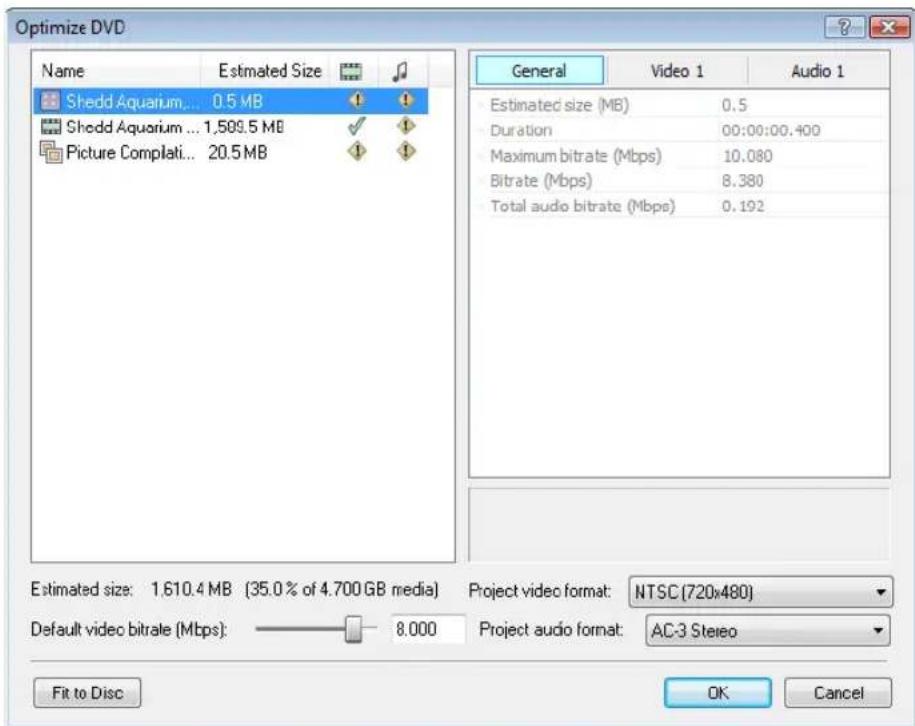
To display the Optimize DVD dialog, choose Optimize DVD from the File menu. You can use this dialog to optimize your project before burning to identify and correct potential problems or to force recompression to specific formats. Using the Optimize DVD dialog, you can perform the following actions:
• View the estimated project and individual media file sizes.
• View and change project and file format settings.
- Verify which media files will require recompression during the DVD preparation process:
√ (green) indicates a file is compliant (requires no recompression).
( yellow ) indicates a file requires recompression.
(green) indicates some files are compliant and some require recompression.
(1) (red) indicates you have specified to force recompression.
Note: If a media file's format does not match the project format, the media file will be re-encoded during the preparation process. For example, if your media file is 4:3 MPEG-2 and your DVD Architect Studio project is 16:9, the file will be re-encoded.
To determine the best file format settings for your use, see Preparing files for DVD Architect Studio software on page 19.
Saving your project
When you save your work, it is saved in a project file (*.dar). Project files are not rendered media files.
- From the File menu, choose Save.
Note: The first time you save a project, the Save As dialog appears. In subsequent saves, the dialog is bypassed, your existing file name is retained, and your project is updated to include any implemented changes.
- Select the drive and folder where you want to store the project.
- Type the project name in the File Name box.
- Click the Save button.
Chapter 4
Creating a Menu-Based DVD
With DVD Architect Studio™ software, you can create simple or complex menu-based DVDs that link to submenus, music/video compilations, picture compilations, playlists, or movies. Whenever you add submenus or media files to your menus, a button is automatically added to the current menu. The button can be a graphic, text link, or both, and each menu can contain up to 36 navigation objects (18 in a widescreen project). Viewers navigate the menus and titles with their DVD remote control to view the content of the DVD and select content for viewing.
You can apply a theme to your menus to achieve a consistent appearance and layout, or you can customize the appearance of each menu and its objects individually. For more information, see Applying themes on page 36.
Building menus
When a user places the DVD in a DVD player or drive, a main menu is displayed. The main menu contains links to submenus or titles (music/video compilations, picture compilations, or media files) when the user selects them. When you start the software and select a menu-based project, a default main menu page is displayed for you. You can begin assembling your main menu using the existing appearance and layout, or you can edit the appearance of the main menu using themes or by adding your own background image/video, text, and audio. You can begin adding submenus and media whenever you're ready!
Adding a submenu
You can add any number of submenus to a DVD project to organize your content.
- Double-click a menu in the Project Overview window (or navigate in the workspace) to open the menu you want to edit.
- From the Insert menu, choose Submenu. A new menu is created below the current menu, and a button is added to the current menu as a link to the submenu.
Note: You can edit the button by selecting it and making changes to the Button Properties pane in the Properties window. For more information, see Button properties on page 35.
- Double-click the submenu in the Project Overview window (or double-click the submenu's button in the workspace) to edit the layout and add titles (such as movies, music, or compilations) or playlists.
Inserting pages
Adding pages
You can add pages to a menu if you have more content than will fit on one menu. For example, your main menu could be two pages long, if necessary.
-
Double-click a menu in the Project Overview window (or navigate in the workspace) to open the menu you want to edit.
-
From the Insert menu, choose Page. An arrow button is added to the current menu as a link to the page.
-
Double-click the page in the Project Overview window (or double-click the arrow button in the workspace) to edit the layout and add media.
Deleting pages
-
Double-click a menu in the Project Overview window (or navigate in the workspace) to open the menu you want to edit.
-
From the Edit menu, choose Delete Page.
Changing page order
-
Double-click a menu in the Project Overview window (or navigate in the workspace) to open the menu you want to edit.
-
From the Edit menu, choose Page Order, and then choose Move Forward or Move Back to move the current menu forward or backward.
Editing menu page properties
The Menu Page Properties pane in the Properties window allows you to adjust the length, background media, end actions, and remote control button behavior for the selected page.
The Properties window displays different controls depending on the current selection.
Adding titles
The buttons and graphics displayed on a menu are called objects. Some of these objects, such as graphics and static text, are used for design purposes, and others, such as buttons, are used for navigation purposes. Each full-screen menu can hold up to 36 button; widescreen menus can hold up to 18 buttons.
Media such as videos, music/video compilations, and picture compilations are called titles. When you add a title to your project, an object is automatically created on your menu.
Use the Button Properties controls to edit button settings. For more information, see Button properties on page 35.
Inserting a picture compilation
From the Insert menu, choose Picture Compilation or click the Insert Picture
Compilation button 📋 in the Project Overview window to add a picture compilation to your menu or page. For more information on picture compilations, see Creating a Picture Compilation on page 43.
Inserting a music/video compilation
From the Insert menu, choose Music/Video Compilation or click the Insert Music/
Video Compilation button in the Project Overview window to add a music/video compilation to your menu or page. For more information on music/video compilations, see Creating a Music/Video Compilation on page 39.
Inserting a single-movie title
From the Insert menu, choose Media or click the Insert Media button 📋 in the Project Overview window to add a single-movie title to your menu or page. For more information on adding movies, see Creating a Single-Movie DVD or Title on page 49.
Note: Once you have inserted a single-movie title and added chapter markers, you can automatically create a scene selection menu based on your markers.
Working with graphics
You can add an image or video to serve as a design element for a menu or page. If you add a video to a menu, it will automatically begin playback when the user accesses the menu.
Note: Graphics are for design purposes only and cannot be used for navigation.
Inserting a graphic
- From the Insert menu, choose Graphic. The Insert Graphic dialog is displayed.
- Locate and select the file you want to use.
- Click the OK button. The image or video is added to your menu.
Editing graphics properties
The Graphics Properties pane in the Properties window allows you to adjust the position, size, and appearance of graphical elements on a menu or compilation.
The Properties window displays different controls depending on the current selection.
Inserting and editing text
Inserting text on a menu or page
- From the Insert menu, choose Text. A text box is placed on the current menu or page.
- Type your desired text.
- Drag the text box to position it on the menu or page.
Setting a menu's title text object
A title object is used when you apply themes to a menu. The title object will also be used as the menu's title in the Project Overview window if the menu has not been renamed. After renaming a menu in the Project Overview window, changing the title object will set the object that will be used for themes, but it will not rename the menu.
Right-click a text object and choose Title Object from the shortcut menu to use the selected text as the menu's title object.
Formatting text
- Select a text box with the selection tool, sizing tool, or navigation tool. The text bar below the menu displays the text settings.

Tip: From the View menu, choose Text Bar to display or hide the text bar.
- Choose a font from the drop-down list to set the typeface for your text.
- Choose a font size from the drop-down list. Choose Auto to have the text automatically adjust to fit the size of the text box.
- Click the Bold B, Italic I, or Shadow S buttons to toggle your font effects as desired.
- To apply a shadow, click the down arrow next to the Shadow button. A pop-up window is displayed to allow you to set the position, color, and blurring of the shadow text.
- Set your text justification options as desired. For more information, see Text toolbar (Alt+2) on page 12.
- Click the down arrow next to the color swatch button to display the color picker, where you can set the red, green, blue, and alpha channels for your text.
Editing text
- Select a text box in the current menu.
- From the Edit menu, choose Edit Text (or press F2). The text becomes editable.
- Edit the text as necessary.
- Press F2 to commit your text changes.
Moving text
- Select a text box with the selection tool ↗.
- Move the selected text by dragging the text box.
Inserting buttons
Navigation buttons help users move through your DVD menus and pages. As you create menus and pages, navigation buttons are automatically created for you. For example, if the main menu is selected when you add a submenu, a button link to the new menu is added to the main menu, and a button link to the main menu is added to the new menu.
If you delete the default navigation buttons, you can create new buttons by choosing a command from the Insert menu:
| Button | Command Description |
 | Back Button Allows navigation to the main menu. |
| [w76Y] | Next Button Allows navigation to the next page. |
 | Previous Button Allows navigation to the previous page. |
 | Empty Button Allows you to add an empty button as a placeholder. You can edit the button's properties later. |
Note: The Back Button, Next Button, and Previous Button commands are available only if the target menu or page exists.
You can use the Button Properties controls in the Properties window to edit the button image used and its link properties. For more information, see Button properties on page 35.
Using color sets
Each menu page or title in your DVD Architect Studio project can have up to four color sets with four colors each. Each color set includes a fill color, outline/background color, anti-alias color, and transparent color. By choosing different color sets, you can display button highlighting using one color set to indicate that the button is selected and a different color set to indicate that it has been activated, or you can assign distinct colors to subtitle events. If the window isn't already visible, choose Properties from the View menu and click the + button next to the Color Sets heading to expand the controls.
Editing a color set
- On the Graphics Properties, Menu Page Properties, Button Properties, Subtitle Properties, Media and Event Properties, Music/Video Compilation Properties, Picture Compilation Properties, or Playlist Properties pane, click the Color Sets button.
- Click the button next to the color set you want to edit.
- Choose a setting from the Color Set X drop-down list to indicate whether you want the color set to be available to your entire project (Project wide) or only the currently selected menu or title (Custom).
- Select the Mode box, click the ▼ button, and choose a setting from the drop-down list to specify the colors in your color set.
-
Select the color you want to edit.
-
Click the drop-down arrow next to the selected color swatch to display a color picker, where you can edit the selected color. Click the button to switch between RGB and HSL color modes.
Note: If you choose an out-of-gamut color while using the color picker, then a warning is displayed. Click the color swatch below the warning to correct the color.
Applying color sets
You can apply color sets to buttons using the Selected button colors, Active button colors and Inactive button colors drop-down lists in the Menu Page Properties pane.
To apply color sets to subtitles, select the events you want to change, click the Subtitle Event button in the Media and Subtitle pane and choose a color set from the Colors drop-down list.
Editing objects
You can use the Properties window to adjust most settings for the items in your menus. From the View menu, choose Properties to display the window if it isn't already visible.
Resizing an object
- Select a button, graphic, or text box with the sizing tool ☒.
- Click the Transformations button on the Properties window, and drag the object's handles or type values in the X size and Y size boxes to achieve the desired size.
- If you do not want an image to be stretched when you change the height or width, select the Maintain aspect ratio box, click the ▼ button, and choose Yes.
Tip: If you are resizing a text box and you want the text to automatically adjust to fit the box, choose Auto from the Font Size drop-down list.
Making selected objects same height or width
- Select the objects you want to adjust. Hold Ctrl or Shift to select multiple objects.
-
While holding the Ctrl or Shift key, select the object whose size you want to copy.
-
Click the Make Same Width ☐ or Make Same Height ☐ button. All selected objects are adjusted so they match the object that has focus (the last object you selected).
Note: If you resize an object in one direction only, the object will not resize if Maintain aspect ratio is set to Yes on the Transformations page of the Properties window because the image cannot be resized in one direction and still maintain its aspect ratio. You can turn off the Maintain aspect ratio setting or resize the object in both directions.
Viewing and editing media properties
The Media Properties pane in the Properties window allows you to display information about the selected media file.
The Properties window displays different controls depending on the current selection.
Moving and arranging objects
You have many options for moving, arranging, and aligning objects on your menus manually or automatically. Snapping features give you more precise control over the movement and alignment of your objects.
Changing the position of an object
- Select a button, graphic, or text box with the selection tool, sizing tool, or navigation tool
- On the Menu Page Properties pane of the Properties window, click General.
- Drag an object in the workspace or type values in the X position and Y position boxes to set the object's center point.
The X and Y coordinates are based on the frame size of your project. For example, if you're creating an NTSC project with a frame size of 720x480, (0,0) is the top-left corner of the frame, and (720,480) is the lower-right corner.
Tips: Hold Shift while dragging to defeat horizontal snapping. Hold Ctrl while dragging to defeat vertical snapping. Hold Alt while dragging to constrain to horizontal or vertical motion.
Aligning objects in a menu
- Select the with the selection tool, sizing tool, or navigation tool.
- Select the objects you want to align. You can select multiple objects at once using the Shift key for consecutive files or the Ctrl key for nonconsecutive files.

-
While holding the Ctrl or Shift key, select the object to which you want to align the selected objects.
-
Click a button on the left edge of the workspace:
| Tool | Name Description | on |
| Align Left Aligns | all selected objects to the left edge of the last-selected object. | |
| Align Horizontal Center | Aligns all selected objects to the horizontal center of the last-selected object. | |
| Align Right Aligns | all selected objects to the right edge of the last-selected object. | |
| Align Top Aligns | all selected objects to the top edge of the last-selected object. | |
| Align Vertical Center | Aligns all selected objects to the vertical center of the last-selected object. | |
| Align Bottom | Aligns all selected objects to the bottom edge of the last-selected object. |
Centering objects
- Select the selection tool, sizing tool, or navigation tool.

-
Select the objects you want to align. You can select multiple files at once using the Shift key for consecutive files or the Ctrl key for nonconsecutive files.
-
Click a button on the left edge of the workspace:
- The Horizontal Centering button moves the selected objects to the horizontal center of the screen.
- The Vertical Centering button ☐ moves the selected objects to the vertical center of the screen.
Adjusting object spacing
- Select the selection tool, sizing tool, or navigation tool.

-
Select the objects you want to adjust. You can select multiple files at once using the Shift key for consecutive files or the Ctrl key for nonconsecutive files. You must have at least three objects selected to adjust the objects' vertical or horizontal spacing.
-
Click a button on the left edge of the workspace:
- The Space Across button ⌘ adjusts the selected items so an equal amount of horizontal space exists between objects.
- The Space Down button ☒ adjusts the selected items so an equal amount of vertical space exists between objects.
Deleting objects
- Select the selection tool, sizing tool, or navigation tool.
- Select the objects you want to delete. You can select multiple files at once using the Shift key for consecutive files or the Ctrl key for nonconsecutive files.
- From the Edit menu, choose Delete. The objects are deleted from the menu and from your project.

Enabling snapping
To use snapping, choose Enable Snapping from the Options menu. Once snapping is enabled, there are several options to which objects can snap:
- The grid in the workspace.
• The borders of other objects.
• Title and action safe areas.
Tip: To temporarily override horizontal snapping, hold the Shift key. To temporarily override vertical snapping, hold the Ctrl key.
Snapping to the grid
Once snapping is enabled, choose Snap to Grid from the Options menu to allow objects to snap to the workspace's grid. To show or hide the grid, choose Workspace Overlays from the View menu, and then choose Show Grid from the submenu.
Note: To change the color or spacing of the grid, choose Grid Settings from the Options menu.
Snapping to other objects
Once snapping is enabled, choose Snap to Objects from the Options menu to allow objects to snap to other objects on the menu.
Snapping to safe areas
Once snapping is enabled, choose Snap to Safe Areas from the Options menu to allow objects to snap to the title safe or action safe areas.
The title safe area indicates the region within which titles will always be visible on a television monitor. To show or hide this area, choose Workspace Overlays from the View menu, and then choose Show Title Safe Area from the submenu.
The action safe area indicates the region within which motion will always be visible on a television monitor. To show or hide this area, choose Workspace Overlays from the View menu, and then choose Show Action Safe Area from the submenu.
Button properties
The Button Properties pane in the Properties window allows you to change the appearance, behavior, and navigation settings for the selected button.
The Properties window displays different controls depending on the current selection.
Copying and pasting attributes
Would you like to be able to quickly apply settings from one item in your project to another? Well, now you can with the paste attributes feature. You can paste one or all of the following attributes:
- Button Frame
- Text Properties
- Size
-
Size and Position
-
Double-click a menu in the Project Overview window (or navigate in the workspace) to open the menu that has the object that you want to copy.
- Select the object or objects with the selection tool, sizing tool, or navigation tool.
- From the Edit menu, choose Copy.
- Double-click a menu in the Project Overview window (or navigate in the workspace) to open the menu that has the object that you would like to edit.
- Select a button, text box, or graphic with the selection tool, sizing tool, or navigation tool
- From the Edit menu, choose Paste Attributes, and then one of the following items from the submenu:
Item Description
| Button Replaces the button frame and associated mask of the selected objectFrame with the attributes from the button you copied. | ||
| Text | Replaces text properties of the selected object with the attributes from | |
| Properties | the text you copied. | |
| Note: The actual text is not replaced. | ||
| Size | Changes the size of the selected object with the size of the object you copied. | |
| Size and Position | Changes the size and position of the selected object with the size and position of the object you copied. | |
The Navigation tool
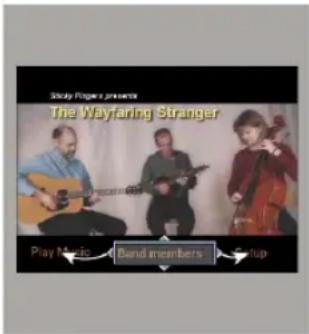
Navigation controls determine which button is selected when you use the Up, Down, Left, and Right buttons on your DVD remote control.
- Double-click a menu in the Project Overview window (or navigate in the workspace) to open the menu you want to edit.
-
From the Edit menu, choose Editing Tool, and then choose Navigation Tool
-
Select a button in the workspace. Arrows are displayed to indicate the current navigation.
Note: White arrows represent autolinked navigation while blue arrows represent links that have been manually set.
- Drag the navigation anchors to edit a button's navigation.
Working with themes
A theme is a style sheet for your DVD menu page. Each theme will include all pertinent information about the menu, including layout parameters (e.g. button sizes, positioning, and spacing), font and text parameters, and graphics and audio information.
Applying themes
You can apply a theme to an entire project when you start the project, or you can apply themes to specific menu pages as you work. You use the Themes window at the bottom of the workspace to select and apply the themes. Once you apply a theme to a menu, the properties of the menu immediately change to those defined in the theme.
Note: To undo the application of a theme, click the Undo button ↗.
Several themes are included for you to use in your projects. You can also create your own themes by editing an existing theme.
Choosing a theme
- Double-click a menu in the Project Overview window (or navigate in the workspace) to open the menu you want to edit.
- Double-click a theme in the Themes window to apply it to the selected menu.
Deleting a theme
- In the Themes window, select the theme that you would like to delete.
- Click the Delete Theme button ✗. A warning dialog is displayed asking you to confirm your theme deletion.
- Click the Yes button to continue.
Chapter 5
Creating a Music/Video Compilation
You can use DVD Architect Studio™ software to create a music/video compilation DVD or add a music/video compilation to a menu in a menu-based project. A music/video compilation is a collection of audio and/or video files that can be played in a DVD player. When you create your music/video compilation, you can specify an image and text to display while each audio and/or video file is playing.
Note: Your music/video compilation is limited to 99 scene/chapter markers. Scene/Chapter markers allow users to navigate through your songs and are automatically inserted for the first 99 songs. These markers cannot be deleted or renamed. Users can allow the compilation to play normally, or they can navigate forward and backward through the first 99 songs in your compilation. If you have more than 99 songs in your compilation, users will need to use the Fast Forward button on the remote control to navigate past song 99.
If you're creating a music/video compilation DVD, you already know how to start a project and locate your media (see Getting Started on page 19).
Adding a music/video compilation to a menu
If you want to add a music/video compilation to a menu in an existing menu-based project, the process is easy.
- Double-click a menu in the Project Overview window (or navigate in the workspace) to open the menu from which you want to link to the music/video compilation.
- From the Insert menu, choose Music/Video Compilation 🔊. A button is added to the menu as a link to the compilation.
- Double-click the music/video compilation's button to begin assembling your compilation.
Adding audio and/or video
Add audio and/or video to your compilation by doing the following:
- Use the Explorer window to locate and select audio and/or video files and drag them to
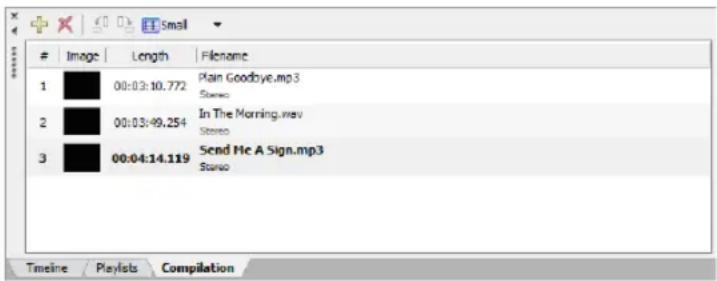
the Compilation window. You can select multiple files at once using the Shift key for consecutive files or the Ctrl key for nonconsecutive files. Files are added to the compilation list wherever you drop them.
- Use the Explorer window to locate audio and/or video files. Double-click on a file to add it to the bottom of the list in the Compilation window.
Note: If you want the song name automatically inserted on the slide for each song, choose Auto-Insert Track Title from the Options menu. Otherwise, you can manually add the text to each slide. For more information, see Adding text on page 41.
Replacing an audio file
There are several ways to replace a song's audio:
- Right-click a song in the Timeline or the Compilation window and choose Set Audio from the shortcut menu. The Set Audio dialog displays. Select a new song and click the Open button. The audio is replaced with your new selection.
- Drag an audio file from the Explorer window or Microsoft Windows® Explorer onto an existing song in the Compilation window. The existing song is replaced with the new file.
- Drag an audio file from the Explorer window or Microsoft Windows Explorer and drop it on a song in the Timeline window.
Adding and editing images
Inserting images
You can choose an image or video for each song in your compilation. The image or video will display on screen while the song is playing.
Note: If you have a display device that is susceptible to burn-in (such as a rear-projection television), do not use static text or bright static graphics in any scene that will be displayed on screen for an extended period of time.
There are several ways to add an image or video to a song:
- Select a song. In the Explorer window, double-click an image. The image is added to the selected song.
- Select a song. From the Edit menu, choose Slide Video/Image, and then choose Set from the submenu. The Set Video/Image dialog is displayed. Select an image and click the Open button. The image or video is added to the song.
- Select an image in the Explorer window and drag it to a song.
- Right-click a song and choose Set Video/Image from the shortcut menu. The Set Video/Image dialog is displayed. Select an image and click the Open button. The image or video is added to the song.
Replacing an image
- Right-click the image you want to replace and choose Set Video/Image from the shortcut menu. The Set Video/Image dialog is displayed.
- Select a replacement image and click the Open button.
Setting image stretching or scaling
You can use the tools at the bottom of the Compilation window to rotate a song's image or set the stretch type that will be used to scale the image.
- Select a song in the Compilation window.
- On the Music/Video Compilation Properties pane, click the Slide button.
-
Click Stretch type, click the ▼ button and choose one of the following stretch types:
-
Letterbox — the image is displayed without scaling, and black letterboxing bars are added above and below or on the sides as needed.
- Zoom to fit — the image is magnified to fill the screen.
- Stretch to fit — the image is stretched to fill the screen. This may cause distortion in the image.
Rotating an image
-
Select a song in the Compilation window.
-
To rotate the image, click the Rotate counterclockwise 📁 or Rotate clockwise 🔊 button.
Adding and editing text
Adding text
You can add text to be displayed while each song or video is playing.
Note: If you want the song name automatically inserted for each song, choose AutoInsert Track Title from the Options menu.
- Select an item in the Compilation window.
- From the Insert menu, choose Text. A text box is added to the workspace.
- Type your text in the text box.
Formatting text
- Select an item in the Compilation window.
- If necessary, click the selection tool or sizing tool in the editing toolbar to make it the active tool.
- In the workspace, click the text box and use the text bar to edit your text properties:
-
Set the text properties in the text bar as desired:
-
Choose a font from the drop-down list to set the typeface for your text.
- Choose a font size from the drop-down list. Choose Auto to have the text automatically adjust to fit the size of the text box.
- Click the Bold B, Italic I, or Shadow S buttons to toggle your font effects as desired.
- Set your text justification options as desired. For more information, see Text toolbar (Alt+2) on page 12.
- Click the down arrow next to the color swatch button to display the color picker, where you can set the red, green, blue, and alpha channels for your text.
Moving text
- Select an item in the Compilation window.
- If necessary, click the selection tool in the editing toolbar to make it the active tool.
- In the workspace, drag the text box to the desired location, or click Transformations in the Properties window to type a new location for the text box in the X position and Y position boxes.
Deleting text
- Select an item in the Compilation window.
- If necessary, click the selection tool in the editing toolbar to make it the active tool.
- In the workspace, select the text box you want to delete.
- From the Edit menu, choose Delete.
Music/Video compilation properties
The Button Properties pane in the Properties window allows you to adjust the end actions and remote control button behavior for the selected music/video compilation. The Properties window displays different controls depending on the current selection.
Chapter 6
Creating a Picture Compilation
You can use DVD Architect Studio™ software to create a picture compilation DVD or add a picture compilation to a menu in a menu-based project.
Note: Your compilation is limited to 99 scene/chapter markers. Scene/ Chapter markers allow users to navigate through your pictures and are automatically inserted for the first 99 pictures. These markers always occur at the beginning of the picture, and cannot be deleted or renamed. Users can allow the compilation to play normally, or they can navigate forward and backward through the first 99 pictures in your compilation. If you have more than 99 pictures in your compilation, users will need to use the Fast Forward button on the remote control to navigate past slide 99.
If you're creating a picture compilation DVD, you already know how to start a project and locate your media (see Getting Started on page 19).
Tip: If you want the file name of your images to be automatically inserted on a slide, make sure the Auto-Insert Slide Text option is enabled on the Options menu before you add pictures to your compilation. If you do not want any text to appear on your slides, make sure this option is disabled before you add pictures to your compilation. If this option is enabled or disabled after you have started adding pictures, it only applies to the pictures added from that point.
Adding a picture compilation to a menu
If you want to add a picture compilation to a menu in an existing menu-based project, the process is easy.
- Double-click a menu in the Project Overview window (or navigate in the workspace) to open the menu from which you want to link to the picture compilation.
- From the Insert menu, choose Picture Compilation. A button is added to the menu as a link to the compilation.
- Double-click the compilation's button to begin assembling your compilation.
Adding and editing images
Inserting images
There are several ways to add images to your compilation:
- Use the Explorer window to locate and select image files and drag them to the Compilation window. You can select multiple files at once using the Shift key for consecutive files or the Ctrl
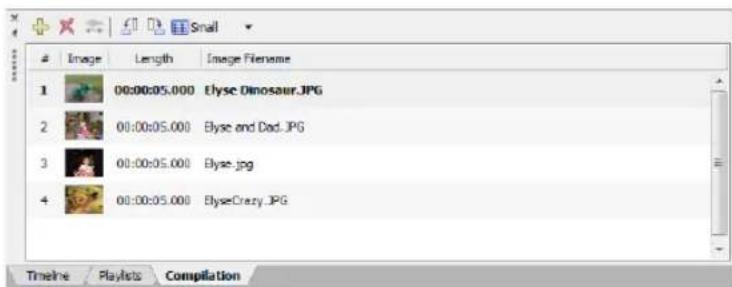
key for nonconsecutive files. Files are added to the compilation list wherever you drag them.
- Use the Explorer window to locate image files. Double-click on a file to add it to the bottom of the list in the Slideshow Properties area.
Replacing an image
There are several ways to replace a slide image:
- Select a slide in the Compilation window. From the Edit menu, choose Slide Image and then choose Set. The Set Image dialog displays. Select a new image and click the Open button. The image is replaced with your new selection.
- Right-click a slide in the list and choose Set Image from the shortcut menu. The Set Image dialog displays. Select a new image and click the Open button. The image is replaced with your new selection.
- Drag a file from the Explorer window onto an existing slide in the compilation. The image is replaced with the dragged file.
Setting image stretching or scaling
In the Compilation window, you can rotate an image or set the stretch type that will be used to scale the image.
-
Select an image in the Compilation window.
-
On the Picture Compilation Properties pane, click the Slide button.
-
Click Stretch type, click the ▼ button and choose one of the following stretch types:
- Letterbox — the image is displayed without scaling, and black letterboxing bars are added above and below or on the sides as needed.
- Zoom to fit — the image is magnified to fill the screen.
- Stretch to fit — the image is stretched to fill the screen. This may cause distortion in the image.
Rotating an image
- Double-click a picture compilation in the Project Overview window (or navigate in the workspace) to open the picture compilation that you want to edit.
- Select an image in the Compilation window.
- Click the Rotate counterclockwise or Rotate clockwise button.
Setting display duration
- Double-click a picture compilation in the Project Overview window (or navigate in the workspace) to open the picture compilation that you want to edit.
- Select an image in the Compilation window.
- On the Picture Compilation Properties pane, click the Slide button.
- Click Length and type the length of time you want each slide to display or click the button and drag the slider.
Note: If you've added background audio and you want the length of your slideshow to match the length of your background audio, click the Fit compilation to audio button. Based on the length of your audio, the length of time each slide is displayed is automatically adjusted.
Adding and editing text
Adding text
You can add text to each slide of your compilation.
Note: If you want the image file name automatically inserted on each slide, choose Auto-Insert Slide Text from the Options menu.
- In the Compilation window, select the slide to which you want to add text.
- From the Insert menu, choose Text. A text box is added in the workspace.
- Type your text in the text box.
Formatting text
- Select the image containing the text you want to format.
- If necessary, click the selection tool or sizing tool . in the editing toolbar to make it the active tool.
-
In the workspace, click the text box and use the text bar to edit your text properties:
-
Choose a font from the drop-down list to set the typeface for your text.
- Choose a font size from the drop-down list. Choose Auto to have the text automatically adjust to fit the size of the text box.
- Click the Bold B, Italic I, or Shadow S buttons to toggle your font effects as desired.
- Set your text justification options as desired. For more information, see Text toolbar (Alt+2) on page 12.
- Click the down arrow next to the color swatch button to display the color picker, where you can set the red, green, blue, and alpha channels for your text.
Moving text
- Select the image containing the text you want to move.
- If necessary, click the selection tool in the editing toolbar to make it the active tool.
- In the workspace, drag the text box to the desired location, or click Transformations in the Properties window to type a new location for the text box in the X position and Y position boxes.
Deleting text
- Select the image containing the text you want to delete.
- If necessary, click the selection tool in the editing toolbar to make it the active tool.
- In the workspace, select the text box you want to delete.
- From the Edit menu, choose Delete.
- To resize the graphic, click the sizing tool on the editing toolbar and drag any of the handles to resize the graphic, or click the Transformations button on the Graphics Properties pane to type a new size for the graphic box in the X size and Y size boxes.
Picture compilation properties
The Picture Compilation Properties pane in the Properties window allows you to adjust the end actions and remote control button behavior for the selected picture compilation.
The Properties window displays different controls depending on the current selection.
Chapter 7: Creating Playlists
A playlist contains a user-defined sequence of movies, scene/chapter markers, music/video compilations, or picture compilations. Playlists do not increase the size of your DVD.
Note: DVD Architect Studio™ software allows up to 255 playlists, each containing no more than 255 items.
Adding a playlist to a menu
- Double-click a menu in the Project Overview window (or navigate in the workspace) to open the menu you want to edit.
- From the Insert menu, choose Playlist 📋. The Select Titles dialog is displayed.
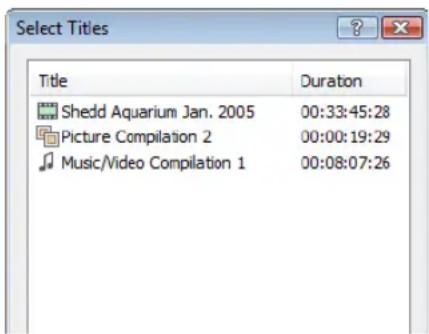
- In the Select Titles dialog, choose the titles that you want to include in your playlist, and then click OK. A button is added to the current menu as a link to the playlist.
- To control which starting chapter, audio track, and subtitle track are played when each title is played, use the Playlist Properties pane. For more information, see Playlist properties on page 48.
Adding a playlist without a link
You have the ability to add a playlist to your project without adding a menu link. You can use this method to build your playlist and then you can add buttons to your project when you are ready to link to the playlist.
- Click the Playlist button 📋 on the Project Overview window toolbar.
- In the Select Titles dialog, choose the titles that you want to include in your playlist, and then click OK.
- To control which starting chapter, audio track, and subtitle track are played when each title is played, use the Playlist Properties. For more information, see Playlist properties on page 48.
Adding titles to a playlist
- Double-click a playlist in the Project Overview window (or choose a playlist from the drop-down list at the top of the Playlists window) to open the playlist you want to edit.
- Add titles to your playlist by completing the following steps:
a. Click the Insert Playlist Items button + in the Playlists window toolbar to display the Select Titles dialog.
b. Choose the titles that you want to include in your playlist.
c. Click OK. The titles are added to the end of your playlist.
- To control which chapter, audio track, and subtitle track are played when each title is played, use the Playlist Properties. For more information, see Playlist properties on page 48.
Deleting titles from a playlist
- In the Playlists window, select the titles that you want to delete.
- From the Edit menu, choose Delete. The items are deleted from the playlist.
Rearranging titles in a playlist
You can quickly rearrange the titles in the Playlists window by selecting the title that you would like to move, dragging it and then dropping it to another position in the Playlists window.
Renaming a playlist
- Right-click a playlist in the Project Overview window and choose Rename from the shortcut menu.
- Type a new name in the edit box.
- Press Enter.
Playlist properties
The Playlist Properties pane in the Properties window allows you to adjust settings for each item in a playlist or to set the end action for the selected playlist.
The Properties window displays different controls depending on the current selection.
Chapter 8
Creating a Single-Movie DVD or Title
You can use DVD Architect Studio™ software to create a single-movie DVD or add a single-movie title to a menu in a menu-based project.
If you're creating a single-movie project, you already know how to start a project and locate your media (see Getting Started on page 19).
Adding a movie title to a menu
If you want to add a single-movie title to a menu in an existing menu-based project, the process is easy.
- Double-click a menu in the Project Overview window (or navigate in the workspace) to open the menu from which you want to link to the movie.
- From the Insert menu, choose Media. The Insert Media dialog is displayed.
- Locate and select the file you want to use.
- Click the OK button. A button is added on the menu as a link to the video.
- Double-click the movie's button to open the video file.
After you've chosen your media file, you can use the Timeline window to set in and out points and add chapter markers.
Setting in and out points
You can set in and out points if you don't want to burn your entire video file to DVD. When preparing your DVD, the software will trim the video to include only the portion between these points.
-
Double-click a title in the Project Overview window (or navigate in the workspace) to open the video.
-
Position the cursor on the timeline where you want the video to begin.
-
Click the Set In Point
button A yellow triangle is placed on
the timeline to mark the in point. Chapter 1 represents the point at which playback will begin. When you change the in point, the first chapter marker will be updated to match the in point.
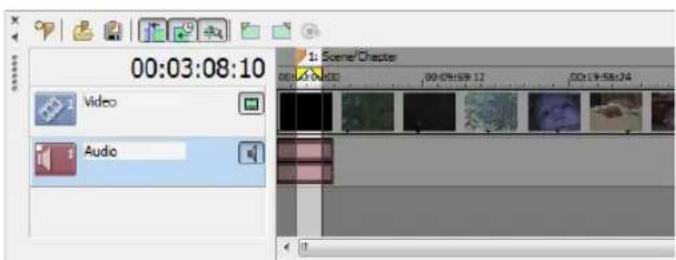
-
Position the cursor on the timeline where you want the video to end.
-
Click the Set Out Point button □. A yellow triangle is placed on the timeline to mark the out point.
Working with scene/chapter markers
Inserting scene/chapter markers
You can place scene/chapter markers in your video file for viewers to use as navigation points. The markers allow them to move to certain portions of the video and begin playback. You can also use the markers to create scene selection menus and link to chapter markers with end actions.
Note: There is a limit of 99 scene/chapter markers in a project.
- Double-click a title in the Project Overview window (or navigate in the workspace) to open the video.
- Position the cursor on the timeline where you want to place the marker.
- Click the Insert Scene/Chapter button ✪. An orange marker is placed on the timeline to mark the chapter.
Note: Scene/Chapter markers must be at least one second apart.
Renaming scene/chapter markers
- Right-click the marker on the timeline and choose Rename Chapter from the shortcut menu.
- Type a new name in the edit box.
- Press Enter.
Repositioning scene/chapter markers
To change the position of marker, drag the marker on the timeline to the new location.
Deleting scene/chapter markers
To delete a marker, right-click the marker on the timeline and choose Delete Marker from the shortcut menu. You can also right-click the timeline on the marker bar and choose Delete All Markers from the shortcut menu to clear all existing markers.
Loading scene/chapter markers
Click the Load Markers button 📋 to clear existing markers and reload any marker changes you made in the file with a video editor such as Sony Vegas® software.
Saving scene/chapter markers
Use the Save Markers button 📄 to save all markers to your media file. If you do not save your markers, the marker information is saved only in the project file.
Changing the video or audio file
The Media Properties pane in the Properties window allows you to change the video or audio files used for a movie or movie object.
The Properties window displays different controls depending on the current selection.
Chapter 9: Previewing Projects
You can preview your project before you begin the DVD preparation process. The most common method for previewing is from within the DVD Architect Studio™ window. In this method, you can simulate how your project will look on a television screen and how it will perform in a DVD player.
Preview window
The Preview window allows you to preview your DVD Architect Studio project on a simulated television screen with a virtual remote control.
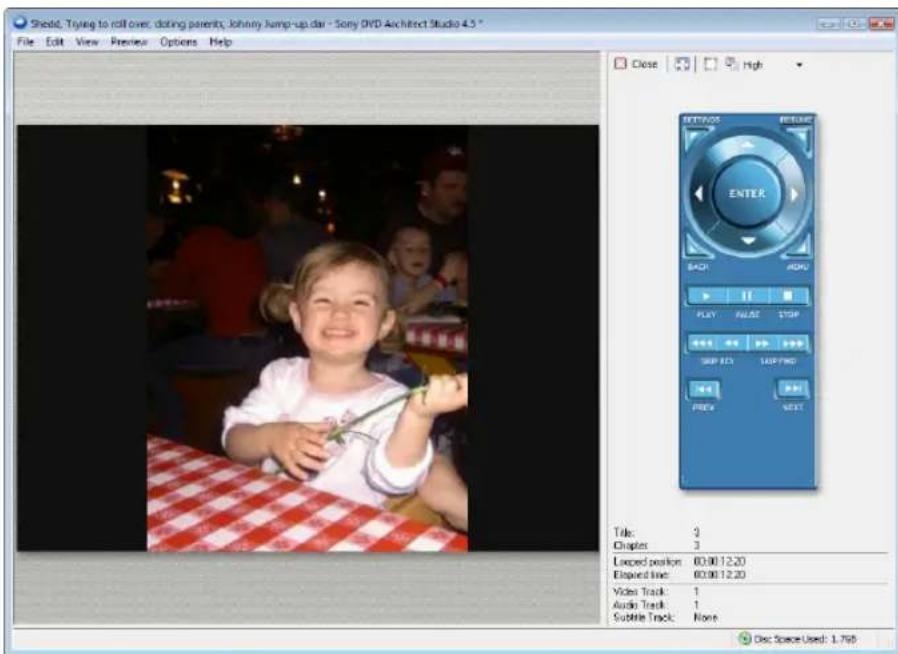
Preview toolbar
| [HTOA] | Close Preview: Closes Copy to Clipboard: Allows the preview window. you to copy to the clipboard. | |
| [CKGW] | Stretch Preview to Window: Stretches the DVD to the full viewing window. | Preview Quality: Allows you to change the preview quality. |
| [SAK3] | View Safe Areas: Allows you to view the safe areas lines. | |
Previewing your project
- To display the preview window, click the down arrow next to the Preview button
| Preview ▼ on the main toolbar to choose a preview mode: | |
| Preview DescriptionMode | |
| Preview Starts the preview with the current page. | |
| Current | |
| Preview Disc Starts the preview at the beginning of your disc (including any introductory media). |
- Use the Preview Quality button to set your playback quality.
Note: Decreasing the preview quality can allow you to preview your project when your computer cannot render the project in real time.
- If you want to verify whether any of your objects are outside the title and action safe areas, click the View Safe Areas button ☐. The grids for the Title Safe and Action Safe areas display while your project is previewing. If you see clipping during the preview, you can make corrections in your project.
- Use the buttons on the remote control to navigate and play your project.
- To end the preview and return to the main window, click the Close button ✗.
Chapter 10: Preparing and Burning Your DVD
Once you've finished building your project using DVD Architect Studio™ software and are satisfied with the results you see after previewing, then you're ready to begin the final stage: preparing and burning your DVD project.
Preparing your project
During the prepare process, DVD Architect Studio software develops the files and structure necessary to burn your DVD, without actually starting the burning process.
- Click the Make DVD button 📄. The Make DVD wizard is displayed.
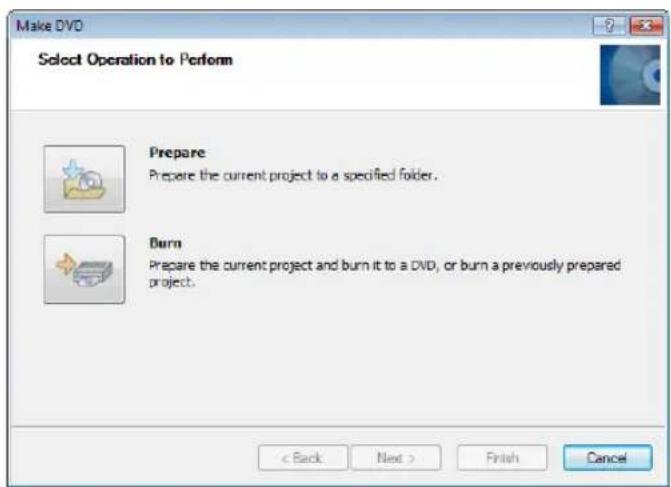
-
Click the Prepare DVD button. The Make DVD - Select Prepare Folder page is displayed.
-
In the Prepare to folder box, type the path to the folder where you want to prepare your project, or click Browse to choose a folder.
Note: You can only prepare to a folder that is empty or to a folder that have previously prepared to.
- If you've previously prepared the project, the Smart prepare section will display the estimated percentage of the project that has not been changed, which can be reused. If you want to turn off smart prepare and prepare the entire project, perform the following steps:
a. Click the Advanced button. The Smart Prepare Options dialog is displayed.
b. Clear the Enable smart prepare check box.
c. Click the OK button to continue.
Tip: Smart prepare technology can drastically reduce project preparation times if you need to edit a portion of your project. When you reprepare your project, only the portions of the project that have changed will be prepared.
-
Click Next.
-
The files in your project are analyzed to ensure that they are ready for burning and a message list is displayed with the results. You can also view the final size of your project.
a. Review the messages and make any necessary adjustments:
Message Type Description
| Informational Produces a valid DVD and does not require any action. | |
| Warning Produces a valid DVD and does not require any action. | |
| Error Produces an invalid DVD and must be resolved. |
b. Click the Optimize button to display the Optimize DVD dialog where you can make changes to individual media file and project settings (often allowing you to resolve warnings or errors). For more information, see Optimizing your project on page 23.
- Click the Next button.
- The subtitle and menu highlight mask files in your project are analyzed to ensure that they are ready for burning and a message list is displayed with the results. Review the messages and make any necessary adjustments.
- Click the Finish button. Your project is rendered to the folder you specified.
- The application displays a dialog box indicating that the prepare completed successfully; click the OK button to continue.
Burning your prepared project
During the burning process, an existing prepared project is burned to disc. For information on preparing a project for burning, see Preparing your project on page 55.
Warning: If you have a display device that is susceptible to burn-in (such as a rear-projection television), do not use static text or bright static graphics in any scene that will be displayed on screen for an extended period of time.
- Click the Make DVD button 🙏. The Make DVD wizard is displayed.
-
Click the Burn button.
-
On the Select Prepare Folder page, choose the location where you want to prepare your project or the location of an already-prepared project that you want to burn.
Note: You can only prepare to a folder that is empty or to a folder that have previously prepared to.
-
Click the Next button.
-
If you selected the Current project radio button in step 3, DVD Architect Studio software displays a list of messages about your project and estimates the project's final size on the Review Message List page.
a. Review the messages and make any necessary adjustments:
Message Type Description
| Informational Produces a valid DVD and does not require any action. | |
| Warning Produces a valid DVD and does not require any action. | |
| Error Produces an invalid DVD and must be resolved. |
b. Click the Optimize button to display the Optimize DVD dialog where you can make changes to individual media file and project settings (often allowing you to resolve warnings or errors). For more information, see Optimizing your project on page 23.
-
Click the Next button.
-
Choose the burn settings:
a. In the Volume name box, type the name of your disc.
b. From the Device drop-down list, choose your DVD burner or ISO Image Writer.
c. Perform one of the following actions:
If Then
| You chose your DVD burner | In theSpeeddrop-down list, choose your burning speed. |
| You chose ISO Image Writer | In theFile namefield, click thebutton, to browse to the location where you would like to save the file. |
d. If you're using a -RW disc, then you can select one of the Erase mode radio buttons to erase the disc before burning.
Option Description
| Do not erase Does not erase the contents of the disc. |
| Quick erase Erases only the table of contents. |
| Full erase Erases all data from the disc. |
e. Select the Burn DVD radio button if you want to burn your project, or select the Test only button to perform a test burn without activating your burner's laser.
- Click the Finish button to start burning.
- If you are preparing a dual-layer disc, the Choose Layer Break Behavior page is displayed to allow you to choose if you want to choose a layer break or if you would like the software to choose a break for you.
a. Select one of the following options:
Option Description
| Choose a layer break point The software will choose a layer break for you. automatically | |
| Prompt me to choose a layer After the project is prepared, the software will break point only if the break interrupt the burning process to prompt you to must be placed within a title choose a layer break point if a break point cannot be placed at the beginning of a title. | |
| Prompt me to choose the layer After the project is prepared, the software will break point interrupt the burning process to prompt you to choose a layer break point. |
b. Click the Finish button. DVD Architect Studio software prepares the project.
- If you are burning a dual-layer disc from a prepared project, the Select Layer Break page is displayed to assist you with where to place the layer break.
Note: All media after the selected layer break will be placed on the second layer.
Note: The Select Layer Break page will be displayed only if you did not choose the Choose a layer break point automatically radio button in step 9 or if the software is unable to find a preferred layer break point.
a. At the top of the page, select a setting from the drop-down list to indicate whether you want the preferred layer break points or all available layer break points to be displayed. Break points are determined by chapters in your titles:
- A preferred layer break point occurs at the beginning of a title. These chapter markers are preferred because they will not result in a visible pause when the DVD player changes layers.
- If no preferred layer break points are available, you can choose to display all possible layer break points. If you choose a nonpreferred break point, viewers may notice a pause when the DVD player changes layers.
- If no layer break points are available, you can close the wizard and add a chapter marker manually. The wizard will suggest a title and approximate location.
- If layer break points are not available in suitable locations, try rearranging the titles in the Project Overview window. By changing the title order, you may be able to achieve that layer break at a more desirable location.
b. Select the layer break point that you want to use.
- The application displays a dialog box prompting you to burn another disc.
Index
A
Action safe area, 3 5
Adding
audio or video to music compilation, 3 9
files to project, 2 1
media, 2 7
music compilation to menu, 2 7
pages, 2 6
single movie object to menu, 2 7
submenus, 2 5
Adjusting
object spacing, 3 3
Aligning objects, 3 2
Applying
color sets, 3 1
themes, 3 6
Arranging objects, 3 2
Audio
adding to a music compilation, 3 9
Audio file
music compilation, 4 0
B
Backgrounds window, 1 4
Burning
your DVD, 5 5
your project, 5 6
Button properties, 3 5
Buttons
inserting, 2 9
navigation, 3 6
Navigation tool, 3 6
Buttons window, 1 3
C
Centering objects, 3 3
Changing position of object, 3 2
Choosing media files, 2 1
adding to project, 2 1
previewing, 2 1
Color sets, 3 0
applying, 3 1
editing, 3 0
Compilation
adding images, 4 4
adding text, 4 5
deleting text, 4 6
formatting text, 4 5
moving text, 4 6
replacing images, 4 4
rotating images, 4 5
Compilation window, 1 4
Copying and pasting attributes, 3 5
D
Deleting
objects, 3 4
pages, 2 6
scene/chapter markers, 5 0
text from music compilation, 4 2
text from picture compilation, 4 6
Disc properties, 2 3
DVD
menu-based, 2 5
music compilation, 3 9
picture compilation, 4 3
playlists, 4 7
preparing and burning, 5 5
setting introduction media, 2 2
single movie, 4 9
start item, 2 2
E
Editing
formatting text, 2 9
Editing color sets, 3 0
Editing objects, 3 1
making same height or width, 3 1
resizing, 3 1
Editing text, 2 9
Editing toolbar, 1 1
Explorer window, 1 2
F
Files
adding to project, 2 1
choosing, 2 1
preparing for DVD Architect Studio, 1 9
previewing, 2 1
recompression, 2 3
First play media, 2 2
Formatting text, 29, 42
Formatting text in compilation, 4 5
G
Graphic
inserting in menu, 2 8
properties, 2 8
Grid
snapping to, 3 4
|
Images
adding to picture compilation, 4 4
inserting in music compilation, 40
replacing, 41, 44
rotating, 41, 45
setting image stretching or scaling, 4 4
setting stretching or scaling, 4 1
stretch type, 4 4
In point
setting, 4 9
Inserting
a graphic, 2 8
buttons, 2 9
images in music compilation, 40
scene/chapter markers, 50
text, 2 8
Installing DVD Architect, 5
Introduction media, 2 2
L
Loading scene/chapter markers, 5 1
M
Main toolbar, 10
Main window overview, 9
components, 9
toolbar, 1 0
Media
adding, 2 7
first play, 2 2
introduction, 2 2
Media files
adding to project, 2 1
choosing, 2 1
previewing, 2 1
recompression, 2 3
Menu page properties, 2 6
Menu-based DVD, 2 5
adding movie title, 4 9
adding music/video compilation, 3 9
adding picture compilation, 4 3
adding playlists, 4 7
Menus
adding music compilation, 2 7
adding pages, 2 6
adding single movie object, 2 7
adding submenus, 2 5
adding titles, 2 7
aligning objects, 3 2
applying themes, 3 6
arranging objects, 3 2
building, 2 5
button properties, 3 5
changing page order, 2 6
color sets, 3 0
copying and pasting attributes, 3 5
deleting pages, 2 6
editing objects, 3 1
inserting a graphic, 2 8
inserting and editing text, 2 8
inserting buttons, 2 9
inserting picture compilation, 27
media properties, 3 2
moving objects, 3 2
Navigation tool, 3 6
properties, 2 6
setting title object, 2 8
Movie title
adding to a menu, 4 9
Moving
objects, 3 2
text, 2 9
text in picture compilation, 4 6
Moving text, 4 2
Music compilation, 3 9
adding audio or video, 3 9
adding text to track, 4 1
adding to menu, 2 7
deleting text, 4 2
formatting text, 4 2
inserting images, 4 0
moving text, 4 2
properties, 4 2
replacing audio file, 4 0
replacing images, 4 1
rotating images, 4 1
setting image stretching or scaling, 4 1
Music/Video compilation
adding to a menu, 3 9
N
Navigation
buttons, 3 6
tool, 3 6
Navigation tool, 3 6
New project, 20
0
Objects
adjusting spacing, 3 3
aligning, 3 2
arranging, 3 2
centering, 3 3
changing position, 3 2
deleting, 3 4
editing, 3 1
making same height or width, 3 1
moving, 3 2
resizing, 3 1
snapping, 3 4
Online help
accessing, 6
icon, 6
via the web, 7
Opening projects, 2 1
Optimizing projects, 2 3
Out point
setting, 4 9
P
Pages
adding, 2 6
deleting, 2 6
inserting buttons, 2 9
inserting text, 2 8
Picture compilation, 4 3
adding images, 4 4
adding text, 4 5
adding to a menu, 4 3
adding to menu, 2 7
deleting text, 4 6
formatting text, 4 5
moving text, 4 6
properties, 4 6
replacing images, 4 4
rotating images, 4 5
setting display duration, 4 5
Playlists, 4 7
adding titles to, 4 8
adding to menu, 4 7
adding without link, 4 7
deleting titles, 4 8
properties, 4 8
rearranging titles, 4 8
renaming, 4 8
Playlists window, 17
Position
changing, 3 2
Preparing and burning your DVD, 5 5
Preparing files for DVD Architect Studio, 1 9
Preparing your project, 5 5
Previewing
media files, 2 1
projects in DVD Architect, 5 4
Project
adding files, 2 1
burning, 5 6
choosing files, 2 1
opening existing, 2 1
optimizing, 2 3
preparing, 5 5
previewing, 5 4
properties, 2 2
saving, 2 4
starting a new, 20
summary information, 2 3
Project Overview Window, 10
Project properties, 22, 23
setting or changing, 2 2
summary information, 2 3
Project workspace, 1 1
Properties
button, 3 5
menu page, 2 6
music compilation, 4 2
Picture compilation, 4 6
Playlist, 4 8
video or audio, 5 1
Properties window, 1 5
R
Replacing audio
files, 4 0
Replacing images in compilation, 4 4
Resizing objects, 3 1
Rotating images in picture compilation, 4 5
S
Safe areas
snapping to, 3 4
Saving
a project, 2 4
scene/chapter markers, 5 1
Scene/Chapter markers, 50
deleting, 5 0
inserting, 50
loading, 5 1
renaming, 5 0
repositioning, 50
saving, 5 1
Setting
DVD start item, 2 2
first play media, 2 2
image stretching or scaling, 4 1
in and out points, 4 9
Show Me How, 7
Single movie, 4 9
Single movie object
adding to menu, 2 7
Snapping, 3 4
to action safe area, 3 5
to grid, 3 4
to other objects, 3 4
to safe areas, 3 4
to title safe area, 3 4
Spacing
adjusting, 3 3
Stretch type, 4 4
Submenus
adding, 2 5
System requirements, 5
T
Technical support
telephone number, 5
Text
adding to music compilation, 4 1
adding to picture compilation, 4 5
deleting, 42, 46
editing, 2 9
formatting, 29, 42, 45
inserting, 2 8
moving, 29, 42, 46
Text toolbar, 1 2
Themes, 3 6
applying, 3 6
choosing, 3 7
deleting, 3 7
Themes window, 1 3
Timeline window, 1 6
Title safe area, 3 4
Toolbar
editing, 1 1
main, 10
text, 1 2
Tracks
replacing, 40
Tutorials, 7
V
Video or audio properties, 5 1
W
Web site
accessing help, 7
Window
Background, 1 4
Buttons, 1 3
Timeline, 1 6
Window Docking Area, 1 2
Backgrounds window, 1 4
Buttons window, 1 3
Compilation window, 1 4
Explorer window, 1 2
Playlists window, 1 7
Properties, 1 5
Themes window, 1 3
Timeline window, 1 6
Workspace, 1 1
editing toolbar, 1 1
text toolbar, 1 2
- DVD Architect Studio
- Registration assistance
- Customer service/sales
- Technical support
- About your rights in DVD Architect Studio software
- About your privacy
- Proper use of software
- Legal notices
- Apple Macintosh Audio Interchange File Format (AIFF) file format
- Apple QuickTime
- Dolby, Dolby Digital AC-3, and AAC encoding
- Macromedia Flash
- Microsoft DirectX programming interface
- Microsoft Windows Media 9
- PNG file format
- Targa file format
- Tagged Image File Format (TIFF)
- Thomson Fraunhofer MP3
- Table of Contents
- Creating a Menu-Based DVD....25
- Creating Playlists....47
- Creating a Single-Movie DVD or Title....49
- Previewing Projects 53
- Preparing and Burning Your DVD 55
- Index ....i
- Chapter 1: Introduction
- Welcome to DVD Architect Studio software!
- System requirements
- Installing DVD Architect Studio software
- Using online help
- Online help
- Show Me How tutorials
- Help on the Web
- Chapter 2
- Learning the DVD Architect Studio Workspace
- Main window
- Main window components
- Toolbar
- Project Overview window (Ctrl+Alt+1)
- Workspace (Alt+0)
- Editing toolbar (Alt+1)
- Text toolbar (Alt+2)
- Window Docking Area (F11)
- Explorer window (Alt+3)
- Themes window (Alt+4)
- Buttons window (Alt+5)
- Backgrounds window (Alt+6)
- Compilation window (Alt+7)
- Properties window (Alt+8)
- Timeline window (Alt+9)
- Insert Scene/Chapter
- Enable Timeline Snapping: Enables
- Load Markers: Loads markers
- Set In Point: Sets the in point for
- Save Markers: Saves markers
- Set Out Point: Sets the out point for
- Auto Ripple: Toggles Auto
- Set Loop Point: Sets the loop point to indicate the point where looped playback begins.
- Quantize to Frames: Forces events and markers to frame boundaries.
- Playlists window (Ctrl+Alt+2)
- Title Start Chapter Length
- Chapter 3: Getting Started
- How it works
- Preparing files for DVD Architect Studio software
- Starting a new project
- Opening an existing project
- Choosing your media files
- Previewing media files
- Adding files to your project
- Setting the DVD start item
- Setting the DVD introduction (first play) media
- Setting your project properties
- Disc properties
- Summary tab information
- Optimizing your project
- Saving your project
- Chapter 4
- Creating a Menu-Based DVD
- Building menus
- Adding a submenu
- Inserting pages
- Adding pages
- Deleting pages
- Changing page order
- Editing menu page properties
- Adding titles
- Inserting a picture compilation
- Inserting a music/video compilation
- Inserting a single-movie title
- Working with graphics
- Inserting a graphic
- Editing graphics properties
- Inserting and editing text
- Inserting text on a menu or page
- Setting a menu's title text object
- Formatting text
- Editing text
- Moving text
- Inserting buttons
- Using color sets
- Editing a color set
- Applying color sets
- Editing objects
- Resizing an object
- Making selected objects same height or width
- Viewing and editing media properties
- Moving and arranging objects
- Changing the position of an object
- Aligning objects in a menu
- Centering objects
- Adjusting object spacing
- Deleting objects
- Enabling snapping
- Snapping to the grid
- Snapping to other objects
- Snapping to safe areas
- Button properties
- Copying and pasting attributes
- The Navigation tool
- Working with themes
- Applying themes
- Choosing a theme
- Deleting a theme
- Chapter 5
- Creating a Music/Video Compilation
- Adding a music/video compilation to a menu
- Adding audio and/or video
- Image Length Filename
- Replacing an audio file
- Adding and editing images
- Inserting images
- Replacing an image
- Setting image stretching or scaling
- Rotating an image
- Adding and editing text
- Adding text
- Deleting text
- Music/Video compilation properties
- Chapter 6
- Creating a Picture Compilation
- Adding a picture compilation to a menu
- Image Length Image Fiename
- Setting display duration
- Picture compilation properties
- Chapter 7: Creating Playlists
- Adding a playlist to a menu
- Adding a playlist without a link
- Adding titles to a playlist
- Deleting titles from a playlist
- Rearranging titles in a playlist
- Renaming a playlist
- Playlist properties
- Chapter 8
- Creating a Single-Movie DVD or Title
- Adding a movie title to a menu
- Setting in and out points
- Working with scene/chapter markers
- Inserting scene/chapter markers
- Renaming scene/chapter markers
- Repositioning scene/chapter markers
- Deleting scene/chapter markers
- Loading scene/chapter markers
- Saving scene/chapter markers
- Changing the video or audio file
- Chapter 9: Previewing Projects
- Preview window
- Preview toolbar
- Previewing your project
- Chapter 10: Preparing and Burning Your DVD
- Preparing your project
- Burning your prepared project
- Index
- A
- B
- C
- D
- E
- F
- G
- |
- L
- M
- N
- 0
- P
- R
- S
- T
- V
- W
Brand : SONY
Model : DVD Architect Studio 4.5
Category : Software