
IPS234T - Screen LG - Free user manual and instructions
Find the device manual for free IPS234T LG in PDF.


User questions about IPS234T LG
0 question about this device. Answer the ones you know or ask your own.
Ask a new question about this device
Download the instructions for your Screen in PDF format for free! Find your manual IPS234T - LG and take your electronic device back in hand. On this page are published all the documents necessary for the use of your device. IPS234T by LG.
USER MANUAL IPS234T LG
Please read this manual carefully before operating your set and retain it for future reference.
IPS LED MONITOR MODEL
IPS224T
IPS234T
CONTENTS
3 ASSEMBLING AND PREPARING
3 Unpacking
4 Parts and buttons
5 Setting up the Monitor set
5 - Attaching the Stand Base
5 - Detaching the Stand Base
6 - Mounting on a table
6 - Using the cable holder
8 - Mounting on a wall
9 USING THE MONITOR SET
9 Connecting to a PC
9 - D-SUB connection
9 - DVI-D connection
11 CUSTOMIZING SETTINGS
12 Customizing Settings
12 - Menu Settings
13 - PICTURE
14 - COLOR
15 - DISPLAY
16 - OTHERS
17 MY KEY Setting
18 FUNC. Setting
18 - PICTURE MODE
19 - SUPER ENERGY SAVING
20 - DUAL DISPLAY
20 - DUAL WEB
21 - MY KEY SETTING
22 TROUBLESHOOTING
24 SPECIFICATIONS
24 IPS224T
25 IPS234T
26 Preset Modes (Resolution)
26 Indicator
27 PROPER POSTURE
27 Proper posture for using the Monitor set.
ASSEMBLING AND PREPARING
Unpacking
Check your product box for the following items. If there are any missing accessories, contact the local dealer where you purchased your product. The illustrations in this manual may differ from the actual product and accessories.
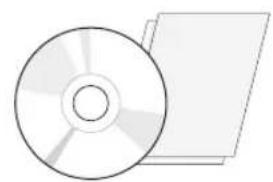
natural_image
Illustration of a CD or DVD disc and its corresponding blank card (no text or symbols)CD(Owner's Manual) / Card
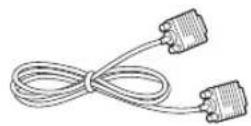
D-SUB Cable
(This cable is not included in all countries.)

DVI-D Cable
(This cable is not included in all countries.)
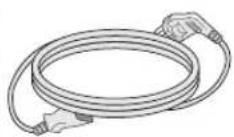
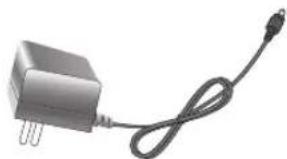
Power Cord AC-DC Adapter AC-DC Adapter
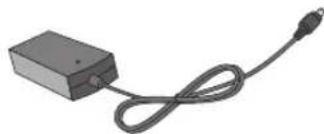
natural_image
Simple black rectangular device with a coiled cable and connector, no text or symbols visible( Depending on the country ) ( Depending on the country )
natural_image
Exterior view of a gray industrial power adapter with a black cable (no text or symbols visible)
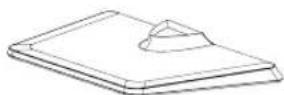
Stand Body Stand Base

CAUTION
- Do not use any unapproved accessories to ensure the safety and product life span.
- Any damages or injuries by using unapproved accessories are not covered by the warranty.

NOTE
- The accessories supplied with your product may vary depending on the model.
- Product specifications or contents in this manual may be changed without prior notice due to upgrade of product functions.
Parts and buttons
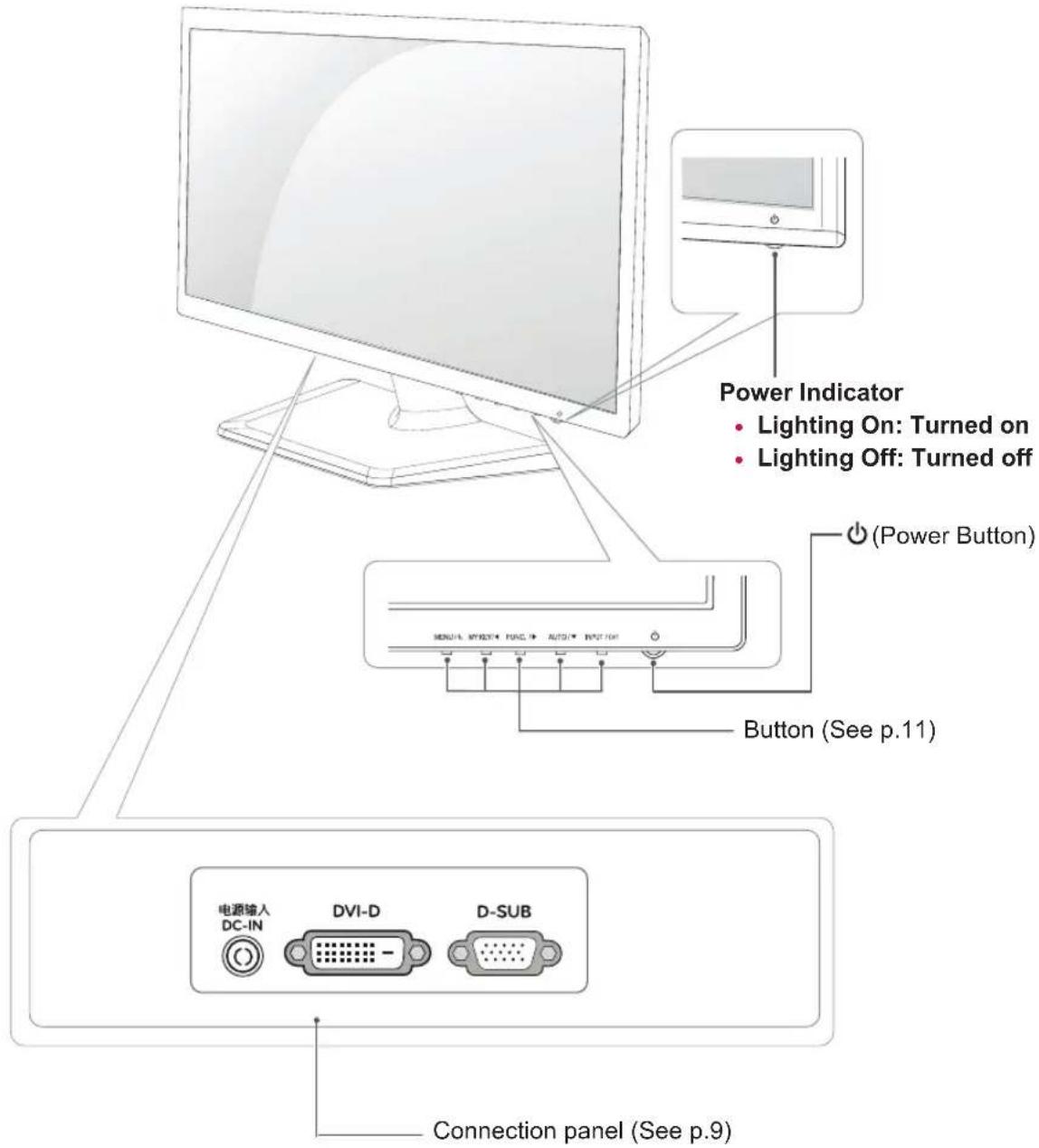
text_image
Power Indicator • Lighting On: Turned on • Lighting Off: Turned off (Power Button) Button (See p.11) 电源输入 DC-IN DVI-D D-SUB Connection panel (See p.9)Setting up the Monitor set
Attaching the Stand Base
1 Place the Monitor set with the screen side down on a flat and cushioned surface.

CAUTION
Lay a foam mat or soft protective cloth on the surface to protect the screen from damage.
2 1 Attach the Stand Body to the monitor set.
2 Attach the Stand Base.
3 Tighten the screw to the right with a coin.
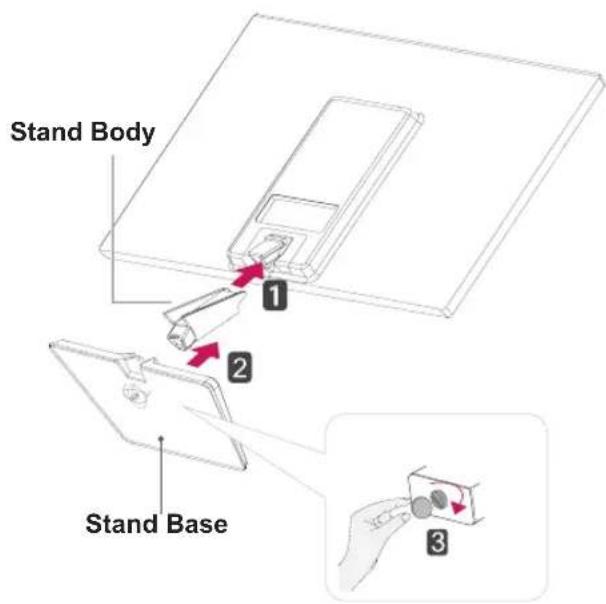
text_image
Stand Body 1 2 Stand Base 3Detaching the Stand Base
1 Place the Monitor set with the screen side down on a flat and cushioned surface.
2 1 Pull out the Stand Body and Stand Base from the monitor set.
2 Turn the screw to the left with a coin.
3 Pull out the Stand Base.
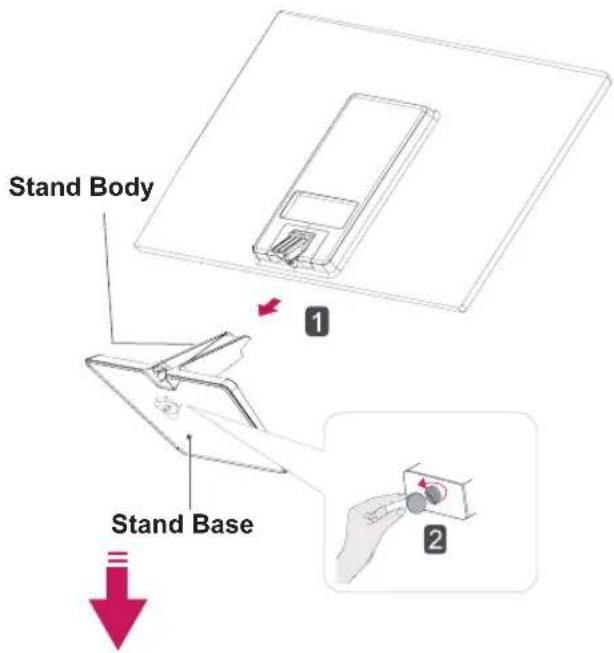
text_image
Stand Body Stand Base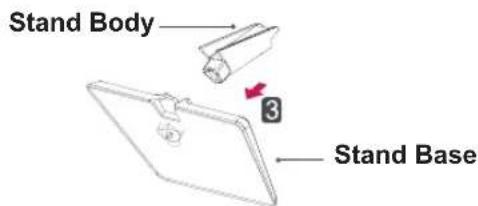
text_image
Stand Body Stand BaseMounting on a table
1 Lift and tilt the Monitor set into its upright position on a table.
Leave a 10 cm (minimum) space from the wall for proper ventilation.
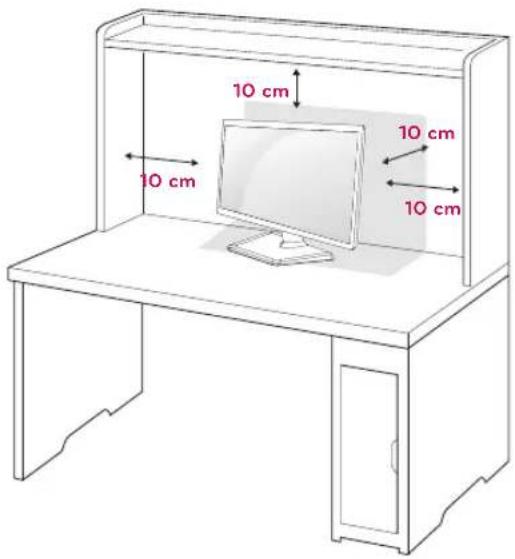
text_image
10 cm 10 cm 10 cm 10 cm2 Connect the AC-DC Adapter and Power Cord to a wall outlet.
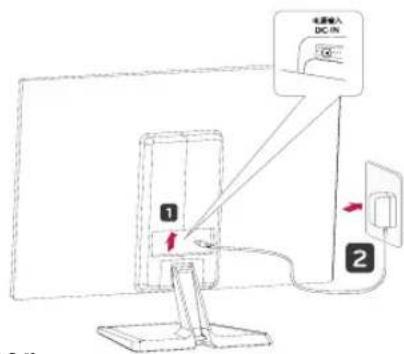
3 Press (Power) button on the bottom switch panel to turn the power on.

CAUTION
Unplug the power cord before moving the Monitor to another location. Otherwise electric shock may occur.
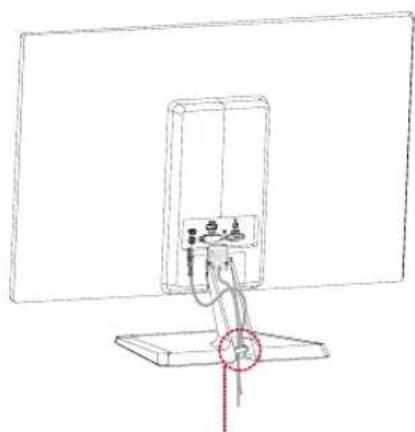
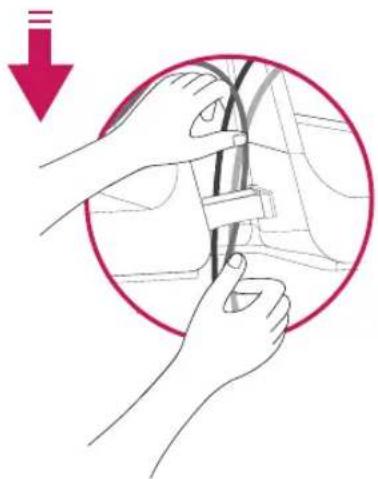
Using the cable holder
natural_image
Line drawing of a simple electrical device with wires and components, mounted on a stand (no text or symbols)Cable holder
natural_image
Illustration of hands connecting cables inside a circular frame, with a red downward arrow indicating motion (no text or symbols)
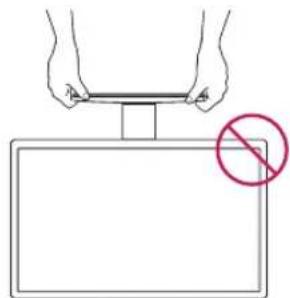
WARNING
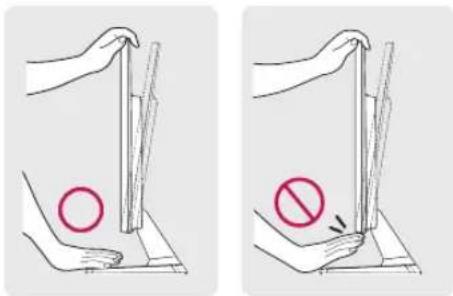
When you adjust the angle, do not hold the bottom of the Monitor set frame as shown on the following illustration, as may injure your fingers.
text_image
Diagram illustrating two methods of removing a circle and an arrow, showing hand positioning and prohibition symbols.Do not touch or press the screen when adjusting the angle of the monitor.
natural_image
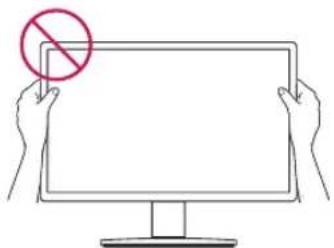
Line drawing of two hands holding a blank computer monitor with a red prohibition symbol (no text or labels)Do not hold this set like below picture.Monitor screen can detach from stand base and injure your body.
natural_image
Illustration of hands holding a small object above a rectangular plate with a red prohibition symbol (no text or labels)
NOTE
Tilt from +20 to -5 degrees up or down to adjust the angle of the Monitor set to suit your view.
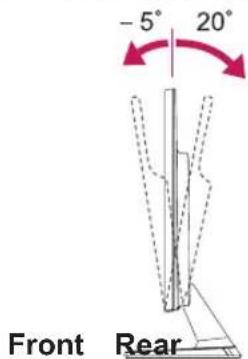
text_image
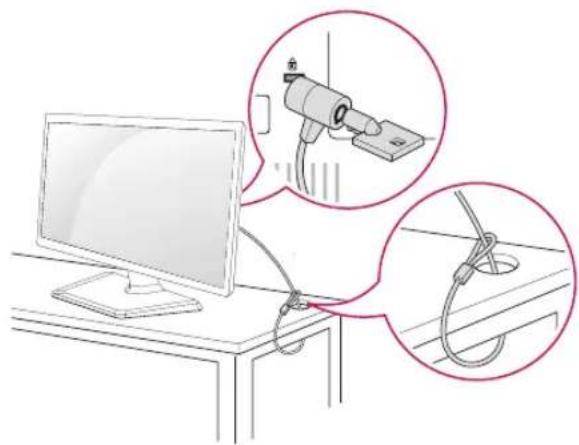
-5° 20° Front RearUsing the Kensington security system
The Kensington security system connector is located at the back of the Monitor set. For more information of installation and using, refer to the manual supplied with the Kensington security system or visit http://www.kensington.com.
Connect the Kensington security system cable between the Monitor set and a table.
natural_image
Illustration of a computer monitor connected to a cable with two magnified insets showing cable installation details (no text or symbols present)
NOTE
The Kensington security system is optional. You can obtain it from most electronics stores.
Mounting on a wall
For proper ventilation, allow a clearance of 10 cm on each side and from the wall. Detailed instructions are available from your dealer, see the optional Tilt Wall Mounting Bracket Installation and Setup Guide.
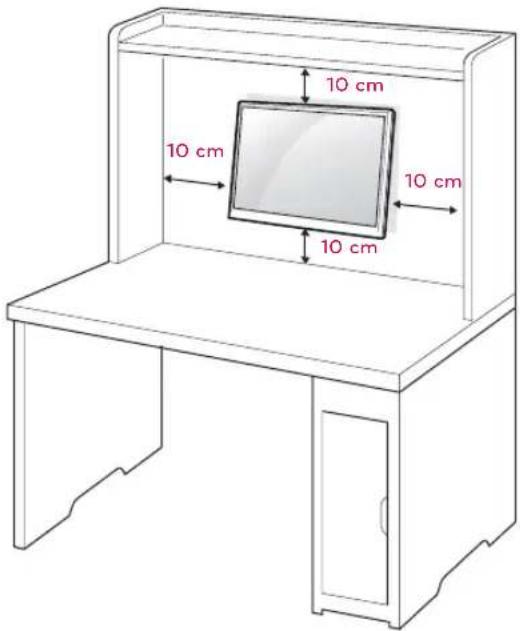
text_image
10 cm 10 cm 10 cm 10 cmIf you intend to mount the Monitor set to a wall, attach Wall mounting interface (optional parts) to the back of the set.
When you install the Monitor set using a wall mounting interface (optional parts), attach it carefully so it will not drop.
1 Please, Use the screw and wall mount interface in accordance with VESA Standards.
2 If you use screw longer than standard, the monitor might be damaged internally.
3 If you use improper screw, the product might be damaged and drop from mounted position. In this case, LG Electronics is not responsible for it.
4 VESA compatible.
5 Please use VESA standard as below.
• 784.8 mm (30.9 inch) and under
* Wall Mount Pad Thickness : 2.6 mm
* Screw : Φ 4.0 mm x Pitch 0.7 mm x Length 10 mm
• 787.4 mm (31.0 inch) and above
* Please use VESA standard wall mount pad and screws.
| Model | IPS224TIPS234T |
| VESA (A x B) 75 x 75 | |
| Standard screw M4 | |
| Number of screws 4 |

CAUTION
- Disconnect the power cord first, and then move or install the Monitor set. Otherwise electric shock may occur.
- If you install the Monitor set on a ceiling or slanted wall, it may fall and result in severe injury.
- Use only an authorized LG wall mount and contact the local dealer or qualified personnel.
- Do not over tighten the screws as this may cause damage to the Monitor set and void your warranty.
- Use only screws and wall mounts that meet the VESA standard. Any damages or injuries by misuse or using an improper accessory are not covered by the warranty.

NOTE
- Use the screws that are listed on the VESA standard screw specifications.
- The wall mount kit will include an installation manual and necessary parts.
- The wall mount bracket is optional. You can obtain additional accessories from your local dealer.
- The length of screws may differ depending on the wall mount. Be sure to use the proper length.
- For more information, refer to the instructions supplied with the wall mount.
USING THE MONITOR SET
Connecting to a PC
- Your Monitor set supports Plug & Play ^* .
*Plug & Play: A PC recognizes a connected device that users connect to a PC and turn on, without device configuration or user intervention.
D-SUB connection
Transmits analog video from your PC to the Monitor set. Connect the PC and the Monitor set with the supplied D-sub 15 pin signal cable as shown in the following illustrations.
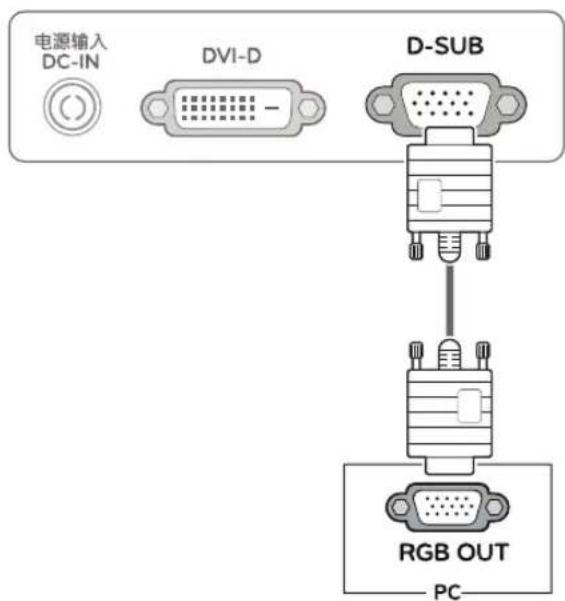
text_image
电源输入 DC-IN DVI-D D-SUB RGB OUT PC
NOTE
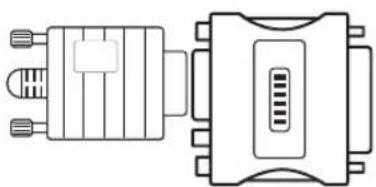
- When using a D-Sub signal input cable connector for Macintosh
natural_image
Technical line drawing of a dual-port connector (no text or symbols)- Mac adapter
For Apple Macintosh use, a separate plug adapter is needed to change the 15 pin high density (3 row) D-SUB VGA connector on the supplied cable to a 15 pin 2 row connector.
DVI-D connection
Transmits a digital video signal from your PC to the Monitor set. Connect the PC and the Monitor set with a DVI cable as shown in the following illustrations.
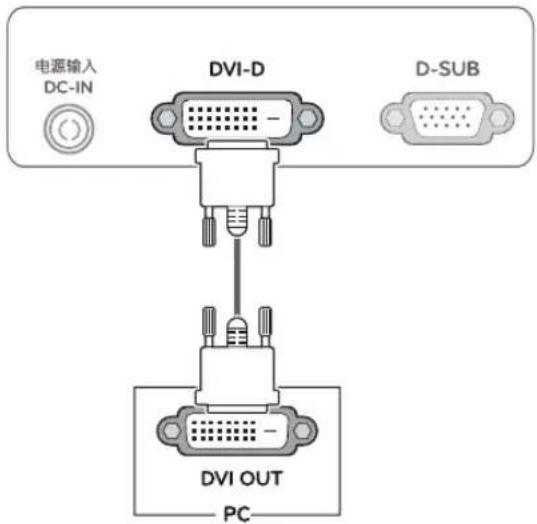
text_image
电源输入 DC-IN DVI-D D-SUB DVI OUT PC
CAUTION
- Connect the signal input cable and tighten it by turning the screws clockwise.
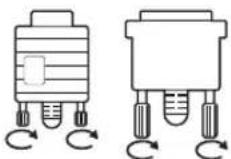
- Do not press the screen with your finger for a long time as this may result in temporary distortion on the screen.
- Avoid displaying a fixed image on the screen for a long period of time to prevent image burn. Use a screensaver if possible.

NOTE NOTE
- When you want to use two PC in our Monitor, please connect the signal cable(D-SUB/DVI-D) respectively in Monitor set.
- If you turn the Monitor set on while it is cold, the screen may flicker. This is normal.
- Some red, green, or blue spots may appear on the screen. This is normal.
Self Image Setting Function
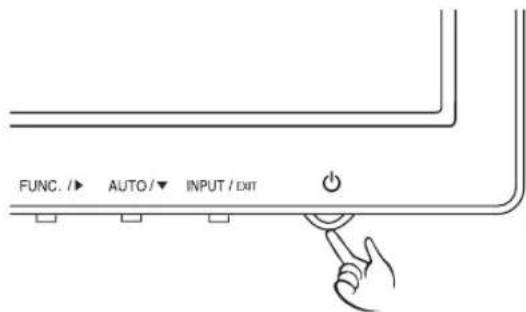
Press the power button on the bottom panel to turn the power on. When monitor power is turned on, the "Self Image Setting" Function is executed automatically. (Only supported in Analog Mode)
text_image
FUNC. /► AUTO /▼ INPUT / EXIT
- "Self Image Setting" Function.
This function provides the user with optimal display settings. When the user connects the monitor for the first time, this function automatically adjusts the display to optimal settings for individual input signals. (Only supported in Analog Mode)
• 'AUTO' Function.
When you encounter problems such as blurry screen, blurred letters, screen flicker or tilted screen while using the device or after changing screen resolution, press the AUTO function button to improve resolution. (Only supported in Analog Mode)
CUSTOMIZING SETTINGS
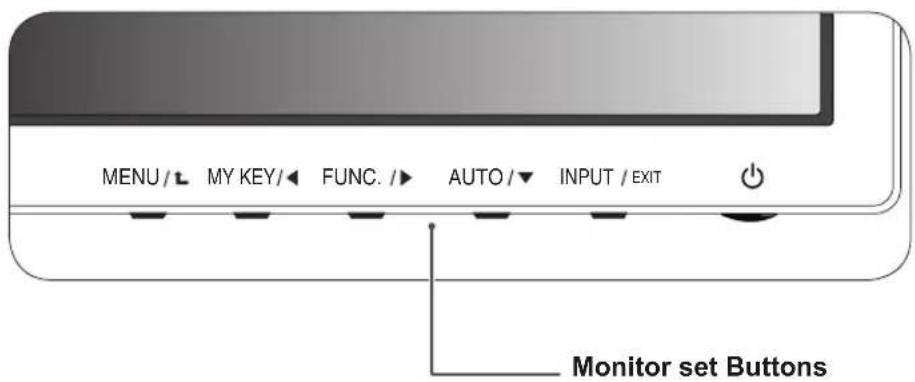
1 Press the desired button on the bottom of the Monitor set.
2 Change the value of the menu item by pressing the buttons on the bottom of the Monitor set.
To return to the upper menu or set other menu items, use the up arrow ( ) button.
3 Select EXIT to leave the OSD menu.
text_image
MENU / L MY KEY / ◀ FUNC. / ▶ AUTO / ▼ INPUT / EXIT Monitor set Buttons| Button Description | ||
| MENU / ⬆ | Accesses the main menus.(See p.12) | |
| OSD LOCKED/ UNLOCKED | This function allows you to lock the current control settings, so that they cannot be inadvertently changed.Press and hold the MENU button for several seconds.The message "OSD LOCKED" should appear.You can unlock the OSD controls at any time by pushing the MENU button for several seconds. The message "OSD UNLOCKED" should appear. | |
| MY KEY/◀ | Use this button to enter MY KEY menu.For more information.(See p.17) | |
| FUNC./▶ | Use this button to enter PICTURE MODE, SUPER ENERGY SAVING, DUAL DISPLAY, DUAL WEB,MY KEY SETTING menus.(See p.18) | |
| AUTO / ▼ | When adjusting your display settings, always press the AUTO button on the MONITOR SETUP OSD. (Only supported in Analog Mode) | |
| The best display mode 1920 x 1080 | ||
| INPUT / EXIT | You can choose the input signal.When two input signals are connected, you can select the input signal (D-SUB/DVI) you want.When only one signal is connected, it is automatically detected. The default setting is D-SUB. | |
| EXIT | ||
| Exit the OSD(On Screen Display). | ||
| ◀ (Power Button) | Turns the power on or off. | |
| Power Indicator The power indicator stays red if the display is running properly (On Mode). If the display is in Sleep Mode, the power indicator blinks red. | ||
Customizing Settings
Menu Settings
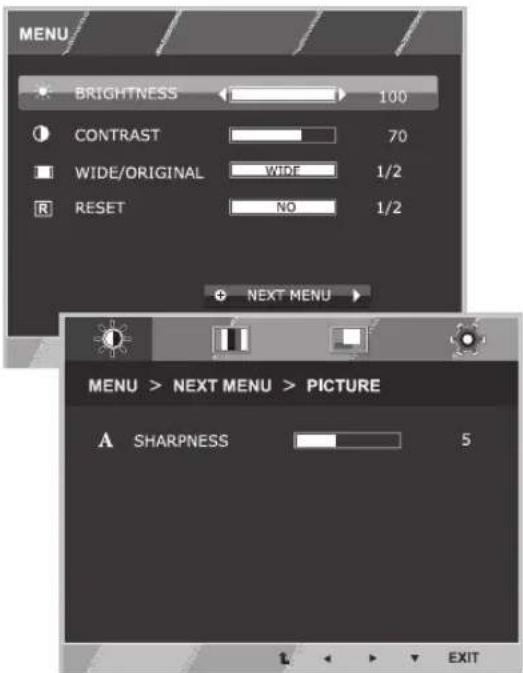
1 Press MENU button on the bottom of the Monitor set to display the MENU OSD.
2 Set the options by pressing the ◀ or ▶ or ▼ buttons.
3 Select the "NEXT MENU" button to enter the more option settings.
4 Select EXIT to leave the OSD menu.
To return to the upper menu or set other menu items, use the up arrow ( ) button.
text_image
MENU BRIGHTNESS 100 CONTRAST 70 WIDE/ORIGINAL WIDE 1/2 RESET NO 1/2 NEXT MENU MENU > NEXT MENU > PICTURE A SHARPNESS 5 EXITEach option is explained below.
| MENU | Analog | Digital | Description |
| BRIGHTNESS | ● | ● | To adjust the brightness, contrast of the screen |
| CONTRAST | ● ● | ||
| WIDE/ORIGINAL | ● | ● | WIDE |
| Switch to full screen mode according to input image signal. | |||
| ORIGINAL | |||
| Change the input image signal ratio to original.* This function works only if input resolution is lower than Monitor set ratio (16:9). | |||
| RESET | ● | ● | Restore all factory default settings. Press the◀ , ▶ buttons to reset immediately. |
| MENU > NEXT MENU Analog Digital Description | ||||
| PICTURE | SHARPNESS • • | To adjust the clearness of the screen . | ||
| COLOR GAMMA | • • | To customize the color of the screen | ||
| DISPLAY HORIZONTAL | • To adjust the position of the screen | |||
| OTHERS LANGUAGE | • | • | To customize the screen status for a user's operating environment | |
• Analog: D-SUB(Analog signal) input.
• Digital: DVI-D(Digital signal) input.
PICTURE
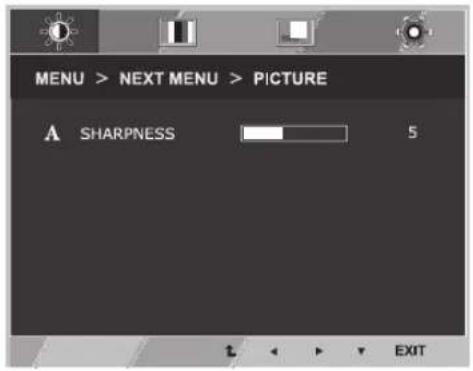
1 Press MENU button on the bottom of the Monitor set to display the MENU OSD.
2 Select the "NEXT MENU" button to enter the more option settings.
3 Enter to PICTURE by pressing the ▼ button.
4 Set the options by pressing the ◀ or ▶ or ▼ buttons.
5 Select EXIT to leave the OSD menu.
To return to the upper menu or set other menu items, use the up arrow (↑) button.
text_image
MENU > NEXT MENU > PICTURE A SHARPNESS 5 EXITEach option is explained below.
| MENU > NEXT MENU > PICTURE | Description |
| SHARPNESS To adjust the clearness of the screen. | |
COLOR
1 Press MENU button on the bottom of the Monitor set to display the MENU OSD.
2 Select the "NEXT MENU" button to enter the more option settings.
3 Select COLOR by pressing the ▶ button.
4 Enter to COLOR by pressing the ▼ button.
5 Set the options by pressing the ◀ or ▶ or ▼ buttons.
6 Select EXIT to leave the OSD menu.
To return to the upper menu or set other menu items, use the up arrow ( ) button.
text_image
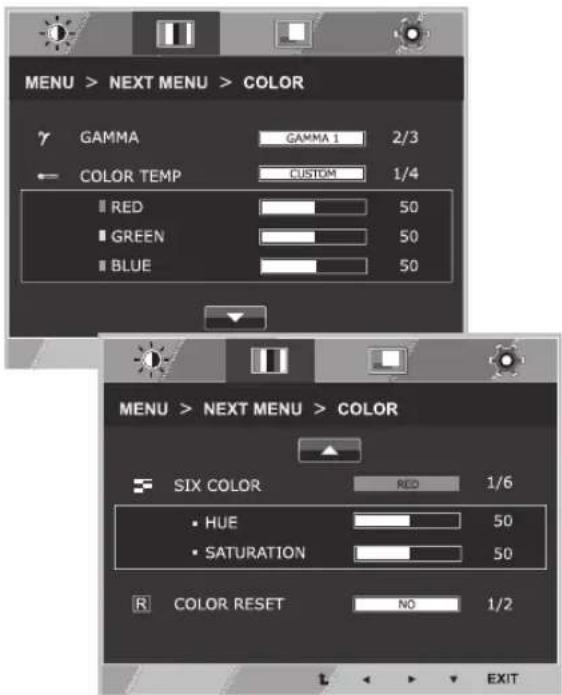
MENU > NEXT MENU > COLOR γ GAMMA GAMA 1 2/3 ← COLOR TEMP CUSTOM 1/4 ■ RED 50 ■ GREEN 50 ■ BLUE 50 MENU > NEXT MENU > COLOR ■ SIX COLOR RED 1/6 • HUE 50 • SATURATION 50 R COLOR RESET NO 1/2 EXITEach option is explained below.
| MENU > NEXT MENU > COLOR Description | |
| GAMMA Set your own gamma value. : GAMMA 0, GAMMA 1, GAMMA 2 on the monitor, high gamma values display whitish images and low gamma values display blackish images. | |
| COLOR TEMP CUSTOM | |
| RED:Set your own red color levels.GREEN:Set your own green color levels.BLUE:Set your own blue color levels. | |
| Select the screen color.WARM:Set the screen to warm color temperature (more red).MEDIUM:Set the screen to medium color temperature.COOL:Set the screen to cool color temperature (more blue). | |
| SIX COLOR Sets and stores the hue | and saturation for six colors(RED/ GREEN/BLUE/ CYAN/MAGENTA/YELLOW) to satisfy the color requirements of a user. |
| HUE Adjusts the screen hue. | |
| SATURATION Adjusts the color sharpness on the screen. Lower values make the color sharpness weaker and colors lighter while higher values make the color sharpness stronger and colors dark. | |
| COLOR RESET Resets the color settings to the factory default settings for the current input device. | |
DISPLAY
1 Press MENU button on the bottom of the Monitor set to display the MENU OSD.
2 Select the "NEXT MENU" button to enter the more option settings.
3 Select DISPLAY by pressing the ▶ button.
4 Enter to DISPLAY by pressing the ▼ button.
5 Set the options by pressing the ◀ or ▶ or ▼ buttons.
6 Select EXIT to leave the OSD menu.
To return to the upper menu or set other menu items, use the up arrow (↑) button.
text_image
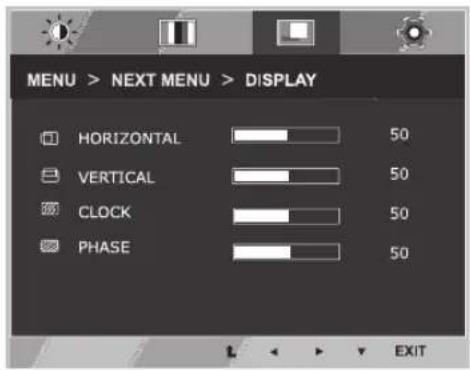
MENU > NEXT MENU > DISPLAY HORIZONTAL 50 VERTICAL 50 CLOCK 50 PHASE 50 EXITEach option is explained below.
| MENU > NEXT MENU > DISPLAY | Description |
| HORIZONTAL To move image left and right. | |
| VERTICAL To move image up and down. | |
| CLOCK To minimize any vertical bars or stripes visible on the screen background.The horizontal screen size will also change. | |
| PHASE To adjust the focus of the display. This item allows you to remove any horizontal noise and clear or sharpen the image of characters. | |
OTHERS
1 Press MENU button on the bottom of the Monitor set to display the MENU OSD.
2 Select the "NEXT MENU" button to enter the more option settings.
3 Select OTHERS by pressing the ▶ button.
4 Enter to OTHERS by pressing the ▼ button.
5 Set the options by pressing the ◀ or ▶ or ▼ buttons.
6 Select EXIT to leave the OSD menu.
To return to the upper menu or set other menu items, use the up arrow ( ) button.
text_image
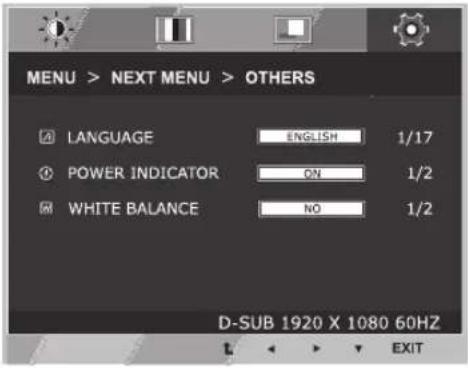
MENU > NEXT MENU > OTHERS LANGUAGE ENGLISH 1/17 POWER INDICATOR ON 1/2 WHITE BALANCE NO 1/2 D-SUB 1920 X 1080 60HZ EXITEach option is explained below.
| MENU > NEXT MENU > OTHERS | Description |
| LANGUAGE To choose the language | in which the control names are displayed. |
| POWER INDICATOR | Use this function to set the power indicator on the bottom side of the monitor to ON or OFF.If you set OFF, it will go off.If you set ON at any time, the power indicator will automatically be turned on. |
| WHITE BALANCE | If the output of the video card is different the required specifications,the color level may deteriorate due to video signal distortion. Using this function, the signal level is adjusted to fit into the standard output level of the video card in order to provide the optimal image.Activate this function when white and black colors are present in the screen. |
MY KEY Setting
1 Press MY KEY button on the bottom of the Monitor set to display the MY KEY OSD.
2 Set the options by pressing the ◀or▶or▼buttons.
3 Select EXIT to leave the OSD menu.
text_image
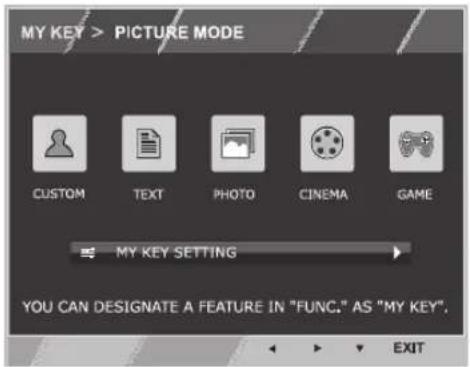
MY KEY > PICTURE MODE CUSTOM TEXT PHOTO CINEMA GAME MY KEY SETTING YOU CAN DESIGNATE A FEATURE IN "FUNC." AS "MY KEY". EXIT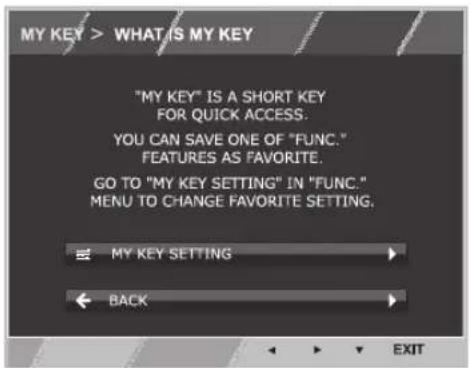
text_image
MY KEY > WHAT IS MY KEY "MY KEY" IS A SHORT KEY FOR QUICK ACCESS. YOU CAN SAVE ONE OF "FUNC." FEATURES AS FAVORITE. GO TO "MY KEY SETTING" IN "FUNC." MENU TO CHANGE FAVORITE SETTING. ← MY KEY SETTING ← BACK → EXITEach option is explained below.
| MY KEY Description | |
| MY KEY SETTING MY KEY is short | key. You can select one of FUNC. (PICTURE MODE, SUPER ENERGY SAVING, DUAL DISPLAY, DUAL WEB) as your favorite feature. |
| BACK Select BACK to return MY KEY menu. | |
FUNC. Setting
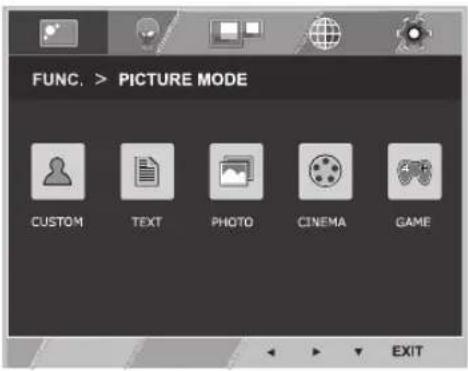
PICTURE MODE
1 PressFUNC. button on the bottom of the Monitor set to display the FUNC. OSD.
2 Enter toPICTURE MODE by pressing the ▼ button.
3 Set the options by pressing the ◀ or ▶ buttons.
4 Select EXIT to leave the OSD menu. To return to the upper menu or set other menu items, use the up arrow(▲)button.
text_image
FUNC. > PICTURE MODE CUSTOM TEXT PHOTO CINEMA GAME EXITEach option is explained below.
| PICTURE MODE | Description |
| CUSTOM | It is a mode that the user can adjust each element. It can adjust the color mode of the Main Menu. |
| TEXT It is a mode that the screen is adjusted to the best for the textworks. | |
| PHOTO It is a mode that the screen is adjusted to the best to view pictures. | |
| CINEMA It is a mode that the screen is adjusted to the best to view the videos. | |
| GAME It is a mode that the screen is adjusted to the best to play a game. | |
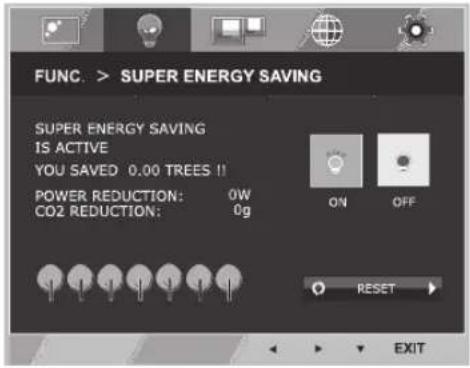
SUPER ENERGY SAVING
1 Press FUNC. button on the bottom of the Monitor set to display the FUNC. OSD.
2 Select SUPER ENERGY SAVING by pressing the button.
3 Enter to SUPER ENERGY SAVING by pressing the ▼ button.
4 Set the options by pressing the ◀ or ▶ or ▼ buttons.
5 Select EXIT to leave the OSD menu. To return to the upper menu or set other menu items, use the up arrow (↑) button.
text_image
FUNC. > SUPER ENERGY SAVING SUPER ENERGY SAVING IS ACTIVE YOU SAVED 0.00 TREES!! POWER REDUCTION: 0W CO2 REDUCTION: 0g ON OFF RESET EXITEach option is explained below.
| SUPER ENERGY SAVING Description | |
| ON | Enables SUPER ENERGY SAVING you can save energy with this energy- efficient function |
| OFF Disables SUPER ENERGY SAVING. | |
| RESET Resets the values of total energy consumption reduction and CO2 emission reduction estimates. | |

NOTE
• TOTAL POWER REDUCTION: How much power is saved while using the monitor.
• TOTAL CO2 REDUCTION: Change the TOTAL POWER REDUCTION to CO2.
• SAVING DATA(W/h)
| 546 mm(21.5 inch) | 584 mm(23 inch) | |
| SUPER SAVING 6 | W/h 7 W/h |
- Saving Data depends on the Panel. So, those values should be different from each panel and panel vendor.
- LG calculated these values by using "broadcast video signal" (including broadcast video: IEC 62087)
- SUPER SAVING refers to how much power can be saved using the SUPER ENERGY SAVING function.
* Before using below functions, please install DUAL PACKAGE programme.
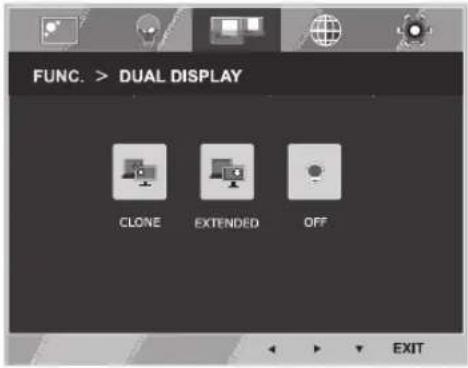
DUAL DISPLAY
1 Press FUNC. button on the bottom of the Monitor set to display the FUNC. OSD.
2 Select DUAL DISPLAY by pressing the ▶ button.
3 Enter to DUAL DISPLAY by pressing the ▼ button.
4 Set the options by pressing the ◀ or ▶ buttons.
5 Select EXIT to leave the OSD menu. To return to the upper menu or set other menu items, use the up arrow (↑) button.
text_image
FUNC. > DUAL DISPLAY CLONE EXTENDED OFF EXITEach option is explained below.
| DUAL DISPLAY Description | |
| CLONE By selecting CLONE, user can use secondary monitor as done mode of primary monitor. | |
| EXTENDED By selecting EXTENDED, user can use secondary monitor as extended mode of primary monitor. | |
| OFF If select OFF,DUAL DISPLAY is off. |
* Before using below functions, please install DUAL PACKAGE programme.
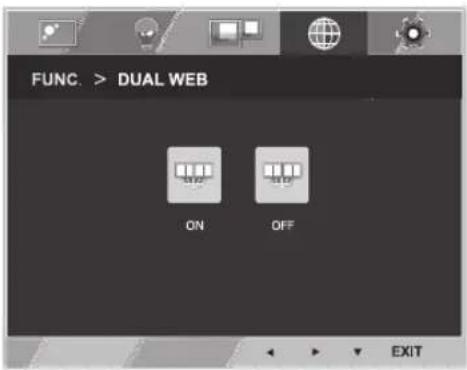
DUAL WEB
1 Press FUNC. button on the bottom of the Monitor set to display the FUNC. OSD.
2 Select DUAL WEB by pressing the ▶ button.
3 Enter to DUAL WEB by pressing the ▼ button.
4 Set the options by pressing the ◀ or ▶ buttons.
5 Select EXIT to leave the OSD menu. To return to the upper menu or set other menu items, use the up arrow (↑) button.
text_image
FUNC. > DUAL WEB ON OFF EXITEach option is explained below.
| DUAL WEB Description | |
| ON Help user to browse web ef | efficiently by dividing in half. Help to arrange and move windowson screen. Help user to control dividedwindows ratio. |
| OFF If select OFF,DUAL WEB is off. | |

NOTE
- When monitor goes to power saving mode with pc saving option-> Pressing any button -> OSD appear and user should press dual button -> User can bring back to normal mode.
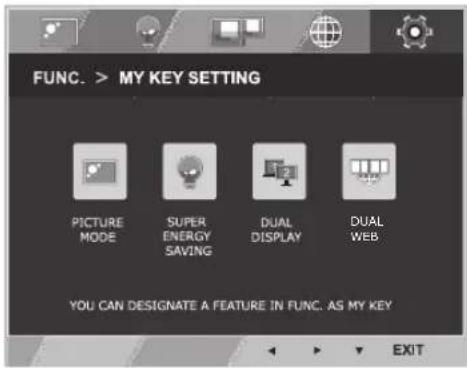
MY KEY SETTING
1 Press FUNC. button on the bottom of the Monitor set to display the FUNC. OSD.
2 Select MY KEY SETTING by pressing the ▶ button.
3 Enter to MY KEY SETTING by pressing the ▼ button.
4 Set the options by pressing the ◀ or ▶ buttons.
5 Select EXIT to leave the OSD menu. To return to the upper menu or set other menu items, use the up arrow (▲) button.
text_image
FUNC. > MY KEY SETTING PICTURE MODE SUPER ENERGY SAVING DUAL DISPLAY DUAL WEB YOU CAN DESIGNATE A FEATURE IN FUNC. AS MY KEY EXITEach option is explained below.
| MY KEY SETTING Description | |
| PICTURE MODE PICTURE | MODE adjust the Monitor set for the best picture appearance. |
| SUPER ENERGY SAVING | Enables SUPER ENERGY SAVING you can save energy with this energy-efficient function. |
| DUAL DISPLAY User can use | CLONE or EXTENDED in another monitor. |
| DUAL WEB Help user to browse web efficiently by dividing in half and some other convenience in browsing dual pages. | |
TROUBLESHOOTING
Check the following before calling for service.
| No image appears | |
| Is the power cord of the display connected? | Check and see if the power cord is connected properly to the power outlet. |
| Is the power indicator light on? | Press the Power button. |
| Is the power on and the power indicator Red? | Adjust the brightness and the contrast. |
| Is the power indicator flickering? | If the display is in power saving mode, try moving the mouse or pressing any key on the keyboard to bring up the screen.Try to turn on the PC. |
| Do you see an "OUT OF RANGE" message on the screen? | This message appears when the signal from the PC (video card) is out of horizontal or vertical frequency range of the display. See the 'Specifications' section of this manual and configure your display again. |
| Do you see a "NO SIGNAL" message on the screen? | When the monitor is on "No-Signal" in 5 minutes, the monitor goes to DPM mode. |
| Do you see a "OSD LOCKED" message on the screen? | |
| Do you see “OSD LOCKED” when you push MENU button? | • You can secure the current control settings, so that they cannot be inadvertently changed. You can unlock the OSD controls at any time by pushing the MENU button for several seconds: the message “OSD UNLOCKED” will appear. |
| Display image is incorrect | |
| Display Position is incorrect. | Press the AUTO button to automatically adjust your display image to the ideal setting. |
| On the screen background, vertical bars or stripes are visible. | Press the AUTO button to automatically adjust your display image to the ideal setting. |
| Any horizontal noise appearing in any image or characters are not clearly portrayed. | Press the AUTO button to automatically adjust your display image to the ideal setting.Check Control Panel ▶ Display ▶ Settings and adjust the display to the recommended resolution or adjust the display image to the ideal setting. Set the color setting higher than 24 bits (true color). |

CAUTION
- Check Control Panel ▶ Display ▶ Settings and see if the frequency or the resolution were changed. If yes, readjust the video card to the recommend resolution.
- If the recommended resolution (optimal resolution) is not selected, letters may be blurred and the screen may be dimmed, truncated or biased. Make sure to select the recommend resolution.
- The setting method can differ by computer and O/S (Operation System), and resolution mentioned above may not be supported by the video card performance. In this case, please ask to the computer or the video card manufacturer.
| Display image is incorrect | |
| The screen color is mono or abnormal. | Check if the signal cable is properly connected and use a screwdriver to fasten if necessary.Make sure the video card is properly inserted in the slot.Set the color setting higher than 24 bits (true color) atControl Panel▶ Settings. |
| The screen blinks. | Check if the screen is set to interlace mode and if yes, change it to the recommend resolution. |
| Do you see an "Unrecognized monitor, Plug&Play (VESA DDC) monitor found" message? | |
| Have you installed the display driver? | Be sure to install the display driver from the display driver CD (or diskette) that comes with your display. Or, you can also download the driver from our web site: http://www.lg.com.Make sure to check if the video card supports Plug&Play function. |
SPECIFICATIONS
IPS224T
| Display Screen Type | 54.6 cm (21.5 inch) | Flat Panel Active matrix-TFT LCDAnti-Glare coatingVisible diagonal size: 54.6 cm |
| Pixel Pitch 0.247 mm x | 0.247 mm (Pixel Pitch) | |
| Sync Input Horizontal Frequency | 30 kHz to 83 kHz (Automatic) | |
| Vertical Frequency | 56 Hz to 75Hz (D-SUB, DVI-D) | |
| Input Form Separate Sync. Digital | ||
| Video Input Signal | Input 15 pin D-SUB Connector /DVI-D Connector (Digital) | |
| Input Form RGB Analog (0.7 Vp-p/ 75 ohm), Digital | ||
| Resolution Max | D-SUB(Analog) : 1920 x 1080 @ 60 HzDVI(Digital) : 1920 x 1080 @ 60 Hz | |
| Recommend VESA 1920 x 1080 @ 60 Hz | ||
| Plug & Play DDC 2B(Analog,Digital) | ||
| Power Consumption | On Mode : 25 W(Typ.)Sleep Mode ≤ 0.3 WOff Mode ≤ 0.3 W | |
| Power Input | 19 V--- 1.2 A | |
| AC-DC Adapter | Type ADS-40SG-19-3 19025G, manufactured by SHENZHEN HONOR ELECTRONIC or Type ADS-40FSG-19 19025GPG-1, manufactured by SHENZHEN HONOR ELECTRONIC or Type ADS-40FSG-19 19025GPBR-1, manufactured by SHENZHEN HONOR ELECTRONIC or Type ADS-40FSG-19 19025GPI-1, manufactured by SHENZHEN HONOR ELECTRONIC or Type ADS-40FSG-19 19025GPCU-1, manufactured by SHENZHEN HONOR ELECTRONIC or Type LCAP21, manufactured by LIEN CHANG ELECTRONIC ENTERPRISE or Type LCAP26-A, manufactured by LIEN CHANG ELECTRONIC ENTERPRISE or Type LCAP26-E, manufactured by LIEN CHANG ELECTRONIC ENTERPRISE or Type LCAP26-I, manufactured by LIEN CHANG ELECTRONIC ENTERPRISE or Type LCAP26-B, manufactured by LIEN CHANG ELECTRONIC ENTERPRISE | |
| OUTPUT: 19 V--- 1.3 A | ||
| Dimensions (Width x Height x Depth) | With Stand 50.9 cm x 38.7 cm x 18.1 cm | |
| Without Stand | 50.9 cm x 31.3 cm x 5.5 cm | |
| Weight | 2.8 kg | |
| Tilt Range | -5° to 20° | |
| Environmental conditions | Operating Temperature Operating Humidity | 10°C to 35 °C10 % to 80 % |
| Storage Temperature Storage Humidity | -20°C to 60 °C5 % to 90 % non-Condensing | |
| Stand Base Attached ( ), Detached (O) | ||
| Power cord Wall-outlet type | ||
Product specifications shown above may be changed without prior notice due to upgrade of product functions.
SPECIFICATIONS
IPS234T
| Display Screen Type | 58.4 cm (23 inch) Flat | Panel Active matrix-TFT LCDAnti-Glare coatingVisible diagonal size: 58.4 cm |
| Pixel Pitch 0.265 mm x | 0.265 mm (Pixel Pitch) | |
| Sync Input Horizontal Frequency 30 kHz to 83 kHz (Automatic) | ||
| Vertical Frequency 56Hz to 75Hz (D-SUB, DVI-D) | ||
| Input Form Separate Sync. Digital | ||
| Video Input Signal Input 15 pin D-SUB Connector /DVI-D Connector (Digital) | ||
| Input Form RGB Analog (0.7 Vp-p/ 75 ohm), Digital | ||
| Resolution Max D-SUB(Analog) : 1920 x 1080 @ 60 HzDVI(Digital) : 1920 x 1080 @ 60 Hz | ||
| Recommend VESA 1920 x 1080 @ 60 Hz | ||
| Plug & Play DDC 2B(Analog,Digital) | ||
| Power Consumption On Mode : 27 W(Typ.)Sleep Mode ≤ 0.3 WOff Mode ≤ 0.3 W | ||
| Power Input 19 V--- 1.6 A | ||
| AC-DC Adapter Type ADS-40SG-19-3 19032G, manufactured by SHENZHEN HONOR ELECTRONIC or Type ADS-40FSG-19 19032GPG-1, manufactured by SHENZHEN HONOR ELECTRON or Type ADS-40FSG-19 19032GPBR-1, manufactured by SHENZHEN HONOR ELECTRON or Type ADS-40FSG-19 19032GPI-1, manufactured by SHENZHEN HONOR ELECTRON or Type ADS-40FSG-19 19032GPCU-1, manufactured by SHENZHEN HONOR ELECTRONIC or Type LCAP21A, manufactured by LIEN CHANG ELECTRONIC ENTERPRISE or Type LCAP26A-A, manufactured by LIEN CHANG ELECTRONIC ENTERPRISE or Type LCAP26A-E, manufactured by LIEN CHANG ELECTRONIC ENTERPRISE or Type LCAP26A-I, manufactured by LIEN CHANG ELECTRONIC ENTERPRISE or Type LCAP26A-B, manufactured by LIEN CHANG ELECTRONIC ENTERPRISE | ||
| OUTPUT: 19 V--- 1.7 A | ||
| Dimensions (Width x Height x Depth) With Stand 54.4 cm x 40.6 cm x 18.1 cm | ||
| Without Stand 54.4 cm x 33.2 cm x 5.5 cm | ||
| Weight 3.1 kg | ||
| Tilt Range -5° to 20° | ||
| Environmental conditions Operating Temperature Operating Humidity 10°C to 35 °C10 % to 80 % | ||
| Storage Temperature Storage Humidity -20°C to 60 °C5 % to 90 % non-Condensing | ||
| Stand Base Attached ( ), Detached (O) | ||
| Power cord Wall-outlet type | ||
Product specifications shown above may be changed without prior notice due to upgrade of product functions.
Preset Modes (Resolution)
IPS224T/IPS234T
| Display Modes (Resolution) | Horizontal Frequency(kHz) | Vertical Frequency(Hz) | Polarity(H/V) | ||||
| 720 x 400 | 31.468 | 70 | -/+ | ||||
| 640 x 480 | 31.469 | 60 | -/- | ||||
| 640 x 480 | 37.500 | 75 | -/- | ||||
| 800 x 600 | 37.879 | 60 | +/+ | ||||
| 800 x 600 | 46.875 | 75 | +/+ | ||||
| 1024 x 768 | 48.363 | 60 | -/- | ||||
| 1024 x 768 | 60.023 | 75 | +/+ | ||||
| 1152 x 864 | 67.500 | 75 | +/+ | ||||
| 1280 x 1024 | 63.981 | 60 | +/+ | ||||
| 1280 x 1024 | 79.976 | 75 | +/+ | ||||
| 1680 x 1050 | 65.290 | 60 | -/+ | ||||
| 1920 x 1080 | 67.500 | 60 | +/+ | Recommend Mode | |||
Indicator
| Mode LED Color | |
| On Mode Red | |
| Sleep Mode Blinking Red | |
| Off Mode Off |
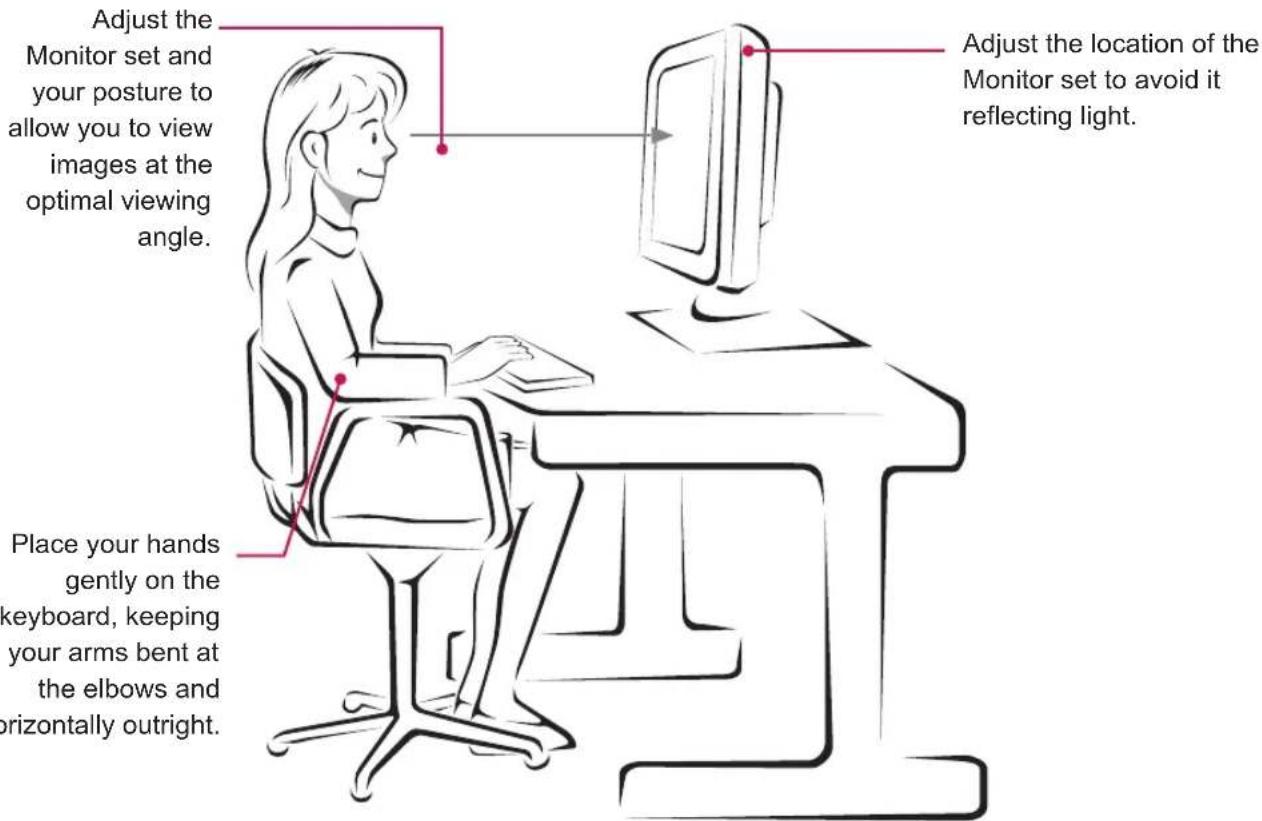
PROPER POSTURE
Proper posture for using the Monitor set.
text_image
Adjust the Monitor set and your posture to allow you to view images at the optimal viewing angle. Place your hands gently on the keyboard, keeping your arms bent at the elbows and orizontally outright. Adjust the location of the Monitor set to avoid it reflecting light.Place your hands gently on the keyboard, keeping your arms bent at the elbows and horizontally outright.

text_image
LGMake sure to read the Safety Precautions before using the product.
Keep the Owner's Manual (CD) in an accessible place for future reference.
The model and serial number of the SET is located on the back and one side of the SET.
Record it below should you ever need service.
MODEL
SERIAL
ENERGY STAR is a set of power-saving guidelines issued by the U.S.Environmental Protection Agency(EPA).

As an ENERGY STAR Partner LGE U. S. A., Inc. has determined that this product meets the ENERGY STAR guidelines for energy efficiency.