
43LK5000PSA - TV LG - Free user manual and instructions
Find the device manual for free 43LK5000PSA LG in PDF.


User questions about 43LK5000PSA LG
0 question about this device. Answer the ones you know or ask your own.
Ask a new question about this device
Download the instructions for your TV in PDF format for free! Find your manual 43LK5000PSA - LG and take your electronic device back in hand. On this page are published all the documents necessary for the use of your device. 43LK5000PSA by LG.
USER MANUAL 43LK5000PSA LG
Please read this manual carefully before operating your set and return it for future reference.
ESPAÑOL
natural_image
Illustration of various electronic components including a monitor, battery pack, cable, and key (no text or symbols present)
text_image
ENGLISH: Road Safety and Reference. Due to environmental government regulations about imports and battery destruction in Colombia, TVs will not include the batteries for the remote control. ESPAÑOL: User Segurified y Consultas Por regulatoriones de tipo ambiental respecto a la importación y fabricación de batteries en Colombia, los defectores no result a tracr incluidas las plas del control remoce.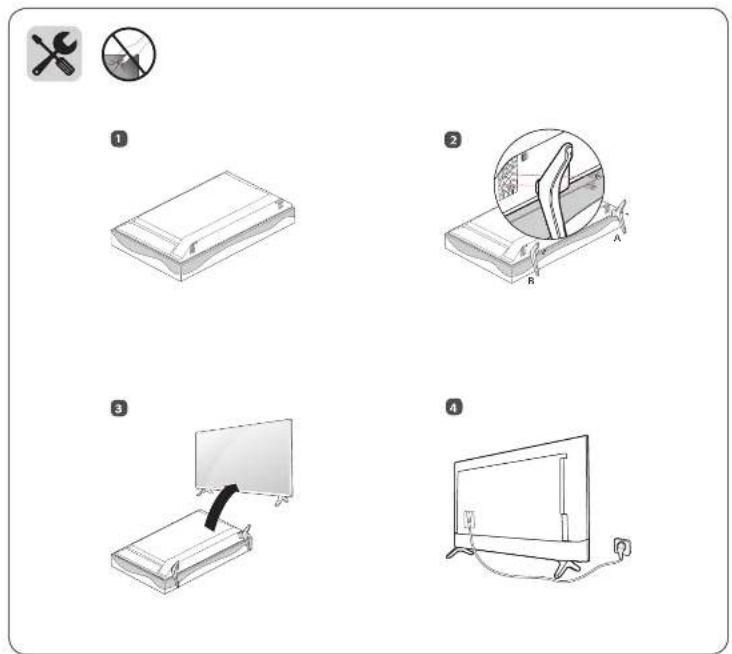
text_image
Illustration showing four different household electronics components with numbered labels and icons
text_image
LG LPGs On Screen
flowchart
graph LR
    A["Device with left arm"] --> B["Insertion"]
    B --> C["Place to foot"]
    C --> D["Insertion to leg"]
    D --> E["Insertion to foot"]
text_image
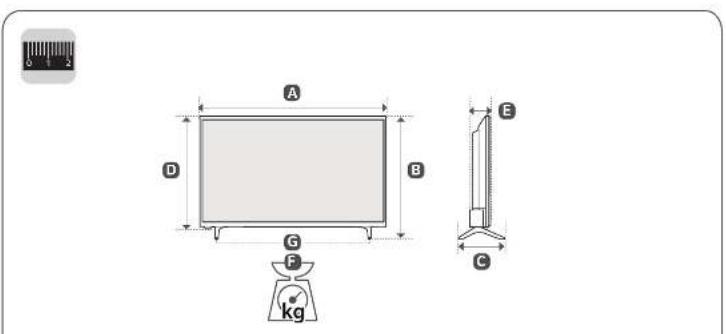
A B D G F kg E C| MODELS | A | B | C | D | E | F | FG | Current value /Power consumptionCorriente de consumo /Consumo de potencia | |||||||
| (mm) | (√g) | ||||||||||||||
| 32.K500HPSA32.K500HPSA | 728 | 728 | 475 | 475.182 | 4 | 183.4 | 436.436 | 77.8 | 77.8 | 8.50 | 50.49 | 4 | 0 | 0.87 A/25 W 0.87 A/25 W | |
| 45.K500HPSA45.K500HPSA | 970 | 970 | 624 | 624.219 | 5 | 219.5 | 559.569 | 77.8 | 77.8 | 8.94 | 8.6 | 0 | 0 | 1.06 A/67 W 1.06 A/67 W | |
| 28.K420H-PD28.K420H-PD | 635 | 635.427 | 477 | 182.41824 | 3 | 387.387 | 77.8 | 77.8 | 4.0 | 3.5 | 3.0 | 0.64 A/29 W 0.64 A/29 W | |||
Power requirement / Alimentación requerida
OWNER'S MANUAL
Safety and Reference
LED TV*
* LG LED TVs are LCD TVs with LED backlighting.
Please read this manual carefully before operating your TV and retain it for future reference.
32LK500BPSA
43LK5000PSA
28LK430B-PD
32LK500BPDA
43LK5000PDA
28LK430V-PD
Important Safety Instruction
- Read these instructions.
- Keep these instructions.
- Heed all warnings.
- Follow all instructions.
• Do not use this apparatus near water. -
Clean only with dry cloth.
-
Do not block any ventilation openings. Install in accordance with the manufacturer's instructions.
- Do not install near any heat sources such as radiators, heat registers, stoves, or other apparatus (including amplifiers) that produce heat.
- Do not defeat the safety purpose of the polarized or grounding-type plug. A polarized plug has two blades with one wider than the other. A grounding type plug has two blades and a third grounding prong. The wide blade or the third prong are provided for your safety. If the provided plug does not fit into your outlet, consult an electrician for replacement of the obsolete outlet.
- Protect the power cord from being walked on or pinched particularly at plugs, convenience receptacles, and the point where they exit from the apparatus.
• Only use attachments/accessories specified by the manufacturer. - Use only with the cart, stand, tripod, bracket, or table specified by the manufacturer, or sold with the apparatus. When a cart is used, use caution when moving the cart/apparatus combination to avoid injury from tip-over.

- Unplug this apparatus during lightning storms or when unused for long periods of time.
- Refer all servicing to qualified service personnel. Servicing is required when the apparatus has been damaged in any way, such as power-supply cord or plug is damaged, liquid has been spilled or objects have fallen into the apparatus, the apparatus has been exposed to rain or moisture, does not operate normally, or has been dropped.
Warning! Safety instructions
CAUTION
RISK OF ELECTRIC SHOCK DO NOT OPEN

CAUTION : TO REDUCE THE RISK OF ELECTRIC SHOCK, DO NOT REMOVE COVER (OR BACK). NO USER-SERVICEABLE PARTS INSIDE. REFER TO QUALIFIED SERVICE PERSONNEL.

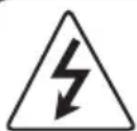
This symbol is intended to alert the user to the presence of uninsulated "dangerous voltage" within the product's
enclosure that may be of sufficient magnitude to constitute a risk of electric shock to persons.

This symbol is intended to alert the user to the presence of important operating and maintenance (servicing)
instructions in the literature accompanying the appliance.
WARNING : TO REDUCE THE RISK OF FIRE AND ELECTRIC SHOCK, DO NOT EXPOSE THIS PRODUCT TO RAIN OR MOISTURE.
• TO PREVENT THE SPREAD OF FIRE, KEEP CANDLES OR OTHER ITEMS WITH OPEN FLAMES AWAY FROM THIS PRODUCT AT ALL TIMES.
- Do not place the TV and/or remote control in the following environments:
- Keep the product away from direct sunlight.
- An area with high humidity such as a bathroom
- Near any heat source such as stoves and other devices that produce heat.
- Near kitchen counters or humidifiers where they can easily be exposed to steam or oil.
- An area exposed to rain or wind.
- Do not expose to dripping or splashing and do not place objects filled with liquids, such as vases, cups, etc. on or over the apparatus (e.g., on shelves above the unit).
- Near flammable objects such as gasoline or candles, or expose the TV to direct air conditioning.
- Do not install in excessively dusty places.
Otherwise, this may result in fire, electric shock, combustion/explosion, malfunction or product deformation.
- Ventilation
- Install your TV where there is proper ventilation. Do not install in a confined space such as a bookcase.
- Do not install the product on a carpet or cushion.
- Do not block or cover the product with cloth or other materials while unit is plugged in.
• Take care not to touch the ventilation openings. When watching the TV for a long period, the ventilation openings may become hot.
- Protect the power cord from physical or mechanical abuse, such as being twisted, kinked, pinched, closed in a door, or walked upon. Pay particular attention to plugs, wall outlets, and the point where the cord exits the device.
- Do not move the TV whilst the Power cord is plugged in.
- Do not use a damaged or loosely fitting power cord.
- Be sure do grasp the plug when unplugging the power cord. Do not pull on the power cord to unplug the TV.
- Do not connect too many devices to the same AC power outlet as this could result in fire or electric shock.
- Disconnecting the Device from the Main Power
- The power plug is the disconnecting device. In case of an emergency, the power plug must remain readily accessible.
- Do not let your children climb or cling onto the TV. Otherwise, the TV may fall over, which may cause serious injury.
- Outdoor Antenna Grounding (Can differ by country):
- If an outdoor antenna is installed, follow the precautions below. An outdoor antenna system should not be located in the vicinity of overhead power lines or other electric light or power circuits, or where it can come in contact with such power lines or circuits as death or serious injury can occur.
Be sure the antenna system is grounded to provide some protection against voltage surges and built-up static charges. Section 810 of the National Electrical Code (NEC) in the U.S.A. provides information with respect to proper grounding of the mast and supporting structure, grounding of the lead-in wire to an antenna discharge unit, size of grounding conductors, location of antenna discharge unit, connection to grounding electrodes and requirements for the grounding electrode.
Antenna grounding according to the National Electrical Code, ANSI/NFPA 70
- Grounding (Except for devices which are not grounded.)
- TV with a three-prong grounded AC plug must be connected to a three-prong grounded AC outlet. Ensure that you connect the earth ground wire to prevent possible electric shock.
- Never touch this apparatus or antenna during a lightning storm. You may be electrocuted.
- Make sure the power cord is connected securely to the TV and wall socket if not secured damage to the Plug and socket may occur and in extreme cases a fire may break out.
- Do not insert metallic or inflammable objects into the product. If a foreign object is dropped into the product, unplug the power cord and contact the customer service.
- Do not touch the end of the power cord while it is plugged in. You may be electrocuted.
-
If any of the following occur, unplug the product immediately and contact your local customer service.
-
The product has been damaged.
- If water or another substance enters the product (like an AC adapter, power cord, or TV).
- If you smell smoke or other odors coming from the TV
- When lightning storms or when unused for long periods of time.
Even the TV is turned off by remote control or button, AC power source is connected to the unit if not unplugged in.
- Do not use high voltage electrical equipment near the TV (e.g., a bug zapper). This may result in product malfunction.
- Do not attempt to modify this product in any way without written authorization from LG Electronics. Accidental fire or electric shock can occur. Contact your local customer service for service or repair. Unauthorized modification could void the user's authority to operate this product.
- Use only an authorized attachments / accessories approved by LG Electronics. Otherwise, this may result in fire, electric shock, malfunction, or product damage.
-
Never disassemble the AC adapter or power cord. This may result in fire or electric shock.
-
Handle the adapter carefully to avoid dropping or striking it. An impact could damage the adapter.
- To reduce the risk of fire or electrical shock, do not touch the TV with wet hands. If the power cord prongs are wet or covered with dust, dry the power plug completely or wipe dust off.
- Batteries
- Store the accessories (battery, etc.) in a safe location out of the reach of children.
- Do not short circuit, disassemble, or allow the batteries to overheat. Do not dispose of batteries in a fire. Batteries should not be exposed to excessive heat.
- Moving
- When moving, make sure the product is turned off, unplugged, and all cables have been removed. It may take 2 or more people to carry larger TVs. Do not press or put stress on the front panel of the TV. Otherwise, this may result in product damage, fire hazard or injury.
- Keep the packing anti-moisture material or vinyl packing out of the reach of children.
- Do not allow an impact shock, any objects to fall into the product, and do not drop anything onto the screen.
- Do not press strongly upon the panel with a hand or a sharp object such as a nail, pencil, or pen, or make a scratch on it. It may cause damage to screen.
- Cleaning
- When cleaning, unplug the power cord and wipe gently with a soft/dry cloth. Do not spray water or other liquids directly on the TV. Do not clean your TV with chemicals including glass cleaner, any type of air freshener, insecticide, lubricants, wax (car, industrial), abrasive, thinner, benzene, alcohol etc., which can damage the product and/or its panel. Otherwise, this may result in electric shock or product damage.
Preparing
- When the TV is turned on for the first time after being shipped from the factory, initialization of the TV may take approximately one minute.
• Image shown may differ from your TV. - Your TV's OSD (On Screen Display) may differ slightly from that shown in this manual.
- The available menus and options may differ from the input source or product model that you are using.
• New features may be added to this TV in the future. - The device must be easily accessed to a location outlet near the access. Some devices are not made by turning on / off button, turning off the device and unplugging the power cord.
- The items supplied with your product may vary depending upon the model.
- Product specifications or contents of this manual may be changed without prior notice due to upgrade of product functions.
- For an optimal connection, HDMI cables and USB devices should have bezels less than 10 mm thick and 18 mm width.
- Use an extension cable that supports USB if the USB cable or USB flash drive does not fit into your TV's USB port.
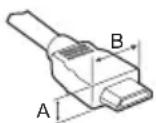
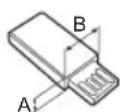
* A ≤ 10 mm
* B ≦ 18 mm
-
Use a certified cable with the HDMI logo attached. If you do not use a certified HDMI cable, the screen may not display or a connection error may occur.
• Recommended HDMI cable types (3 m or less) -
High-Speed HDMI Cable
- High-Speed HDMI Cable with Ethernet
Optional Extras
Optional extras can be changed or modified for quality improvement without any notification. Contact your dealer for buying these items. These devices work only with certain models.
The model name or design may be changed due to the manufacturer's circumstances or policies.
Wall Mounting Bracket
(Depending upon model)
Make sure to use screws and wall mounts that meet the VESA standard. Standard dimensions for the wall mount kits are described in the following table.
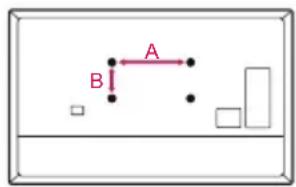
text_image
A B!| Model 32LK50* 43LK50* 28LK43* | |||
| VESA (A x B) (mm) 100 x 100 200 x 200 100 x 100 | |||
| Standard screw M4 M6 M4 | |||
| Number of screws 4 4 4 | |||
| Wall mount bracket (optional) | LSW140B | LSW240BMSW240 | RW120 |
Lifting and moving the TV
When moving or lifting the TV, read the following to prevent the TV from being scratched or damaged and for safe transportation regardless of its type and size.
- It is recommended to move the TV in the box or packing material that the TV originally came in.
- Before moving or lifting the TV, disconnect the power cord and all cables.
- When holding the TV, the screen should face away from you to avoid damage.
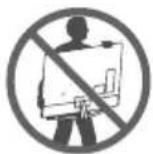
- Hold the top and bottom of the TV frame firmly. Make sure not to hold the transparent part, speaker, or speaker grille area.
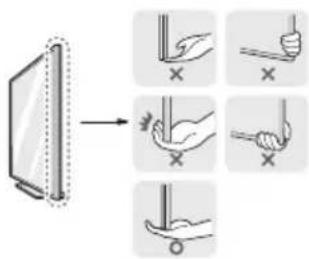
text_image
Diagram illustrating a step-by-step procedure for using a tool to adjust the screen, with hand gestures and cross marks indicating action.• Use at least two people to move a large TV.
- When transporting the TV by hand, hold the TV as shown in the following illustration.
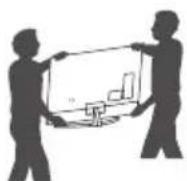
- When transporting the TV, do not expose the TV to jolts or excessive vibration.
- When transporting the TV, keep the TV upright; never turn the TV on its side or tilt towards the left or right.
- When handling the TV, be careful not to damage the protruding buttons.

- Avoid touching the screen at all times, as this may result in damage to the screen.
- Do not place the product on the floor with its front facing down without padding. Failure to do so may result in damage to the screen.
- Do not move the TV by holding the cable holders, as the cable holders may break, and injuries and damage to the TV may occur. (Depending upon model)
- When attaching the stand to the TV set, place the screen facing down on a cushioned table or flat surface to protect the screen from scratches.
Mounting on the Table
1 Lift and tilt the TV into its upright position on a table.
- Leave a 10 cm (minimum) space from the wall for proper ventilation.
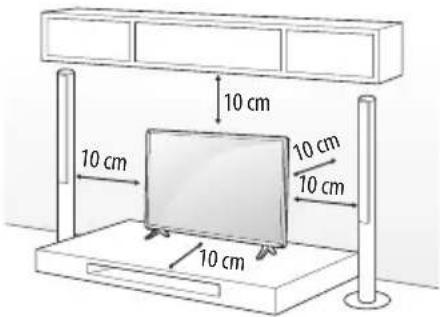
text_image
10 cm 10 cm 10 cm 10 cm 10 cm(Depending upon model)
2 Connect the power cord to a wall outlet.

- Do not apply foreign substances (oils, lubricants, etc.) to the screw parts when assembling the product. (Doing so may damage the product.)
- If you install the TV on a stand, you need to take actions to prevent the product from overturning. Otherwise, the product may fall over, which may cause injury.
- Do not use any unapproved items to ensure the safety and lifespan of the product.
- Any damages or injuries by using unapproved items are not covered by the warranty.
• Make sure that the screws are fastened tightly. (If they are not fastened securely enough, the TV may tilt forward after being installed.) - Do not fasten the screws with excessive force otherwise they may be worn out and become loose.
Securing TV to the Wall
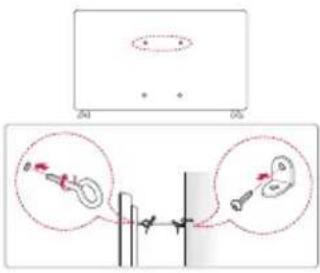
text_image
Diagram showing a mechanical or electrical setup with labeled components and two circular insets highlighting specific parts.(Depending upon model)
1 Insert and tighten the eye-bolts or TV brackets and bolts on the back of the TV.
- If there are bolts inserted at the eye-bolts position, remove the bolts first.
2 Mount the wall brackets with the bolts to the wall. Match the location of the wall bracket and the eye-bolts on the rear of the TV.
3 Connect the eye-bolts and wall brackets tightly with a sturdy rope or cable. Make sure to keep the rope parallel to the flat surface.
- Use a platform or cabinet that is strong and large enough to support the TV securely.
- Brackets, bolts, and ropes are optional. You can obtain additional accessories from your local dealer.
Mounting to the Wall
An optional wall mount can be used with your LG Television. Consult with your local dealer for a wall mount that supports the VESA standard used by your TV model. Carefully attach the wall mount bracket at the rear of the TV. Install the wall mount bracket on a solid wall perpendicular to the floor. If you are attaching the TV to other building materials, please contact qualified personnel to install the wall mount. Detailed instructions will be included with the wall mount. We recommend that you use an LG brand wall mount. The LG wall mount is easy to adjust or to connect the cables. When you do not use LG's wall mount bracket, use a wall mount bracket where the device is adequately secured to the wall with enough space to allow connectivity to external devices. If you are using a non-adjustable mount, attach the mount to the wall. Attach the cables to the TV first, then attach the TV to the mount.
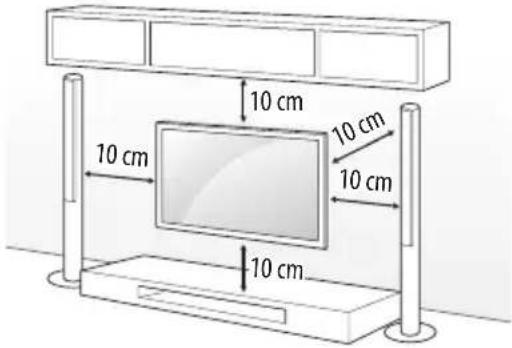
text_image
10 cm 10 cm 10 cm 10 cm(Depending upon model)

- Remove the stand before installing the TV on a wall mount by performing the stand attachment in reverse.
- For more information of screws and wall mount bracket, refer to the Separate Purchase.
- If you intend to mount the product to a wall, attach VESA standard mounting interface (optional parts) to the back of the product. When you install the set to use the wall mounting bracket (optional parts), fix it carefully so as not to drop.
- When mounting a TV on the wall, make sure not to install the TV by hanging the power and signal cables on the back of the TV.
- Do not install this product on a wall if it could be exposed to oil or oil mist. This may damage the product and cause it to fall.
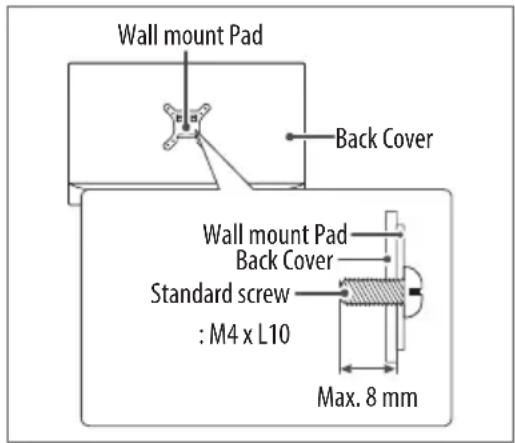
- Screw length from outer surface of back cover should be under 8 mm. (For 28LK43*)
text_image
Wall mount Pad Back Cover Wall mount Pad Back Cover Standard screw : M4 x L10 Max. 8 mmConnections
You can connect various external devices to the TV. For more information on external device's connection, refer to the manual provided with each device.
Antenna/Cable
Connect an antenna, cable, or cable box to watch TV while referring to the following. The illustrations may differ from the actual items and an RF cable is optional.
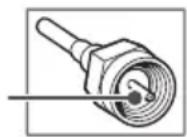
• Make sure not to bend the copper wire of the RF cable.
Copper wire
- Complete all connections between devices, and then connect the power cord to the power outlet to prevent damage to your TV.
- To improve the picture quality in a poor signal area, purchase a signal amplifier.
• Use a signal splitter to use 2 TVs or more. - If the antenna is not installed properly, contact your dealer for assistance.
Other connections
Connect your TV to external devices. For the best picture and audio quality, connect the external device and the TV with the HDMI cable.
HDMI
- HDMI Audio Supported Format (Depending upon model): AC3 (Max bit rate: 640 Kbps), Dolby Digital / Dolby Digital Plus (32 kHz, 44.1 kHz, 48 kHz), PCM (32 kHz, 44.1 kHz, 48 kHz)
External Devices
Supported external devices are: Blu-ray player, HD receivers, DVD players, VCRs, audio systems, USB storage devices, PC, gaming devices, and other external devices.
- The external device connections shown may differ slightly from illustrations in a manual.
- Connect external devices to the TV regardless about the order of the TV port.
- If you record a TV program on a Blu-ray/DVD recorder or VCR, make sure to connect the TV signal input cable to the TV through a DVD recorder or VCR. For more information about recording, refer to the manual provided with the connected device.
- Refer to the external equipment's manual for operating instructions.
- If you connect a gaming device to the TV, use the cable supplied with the gaming device.
- In PC mode, there may be noise associated with the resolution, vertical pattern, contrast or brightness. If noise is present, change the PC output to another resolution, change the refresh rate to another rate or adjust the brightness and contrast on the PICTURE menu until the picture is clear.

- Do not drop the product or let it fall over when connecting external devices. Otherwise, this may result in injury or damage to the product.
- When connecting external devices such as video game consoles, make sure the connecting cables are long enough. Otherwise, the product may fall over, which may cause injury or damage the product.
Using Button
You can operate the TV functions, using the button.
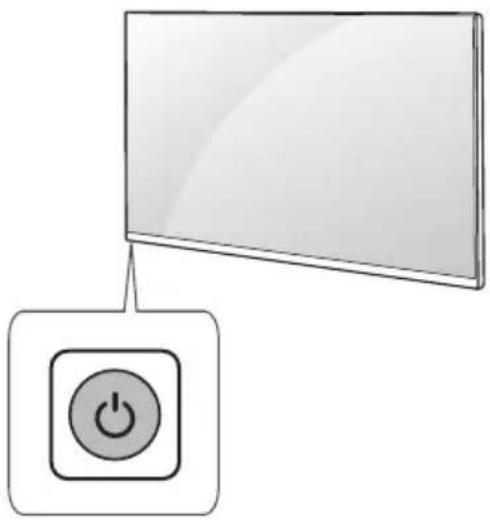
natural_image
Illustration of a monitor connected to a power button icon (no text or symbols)Basic functions

Power On / Off (Press)
Using Remote Control
(Depending upon model)
The descriptions in this manual are based on the buttons on the remote control. Please read this manual carefully and use the TV correctly. To install batteries, open the battery cover, replace batteries (1.5 V AAA) matching the and ends to the label inside the compartment, and close the battery cover. To remove the batteries, perform the installation actions in reverse. This remote uses infrared light. When in use, it should be pointed in the direction of the TV's remote sensor.
Make sure to point the remote control toward the remote control sensor on the TV.
text_image
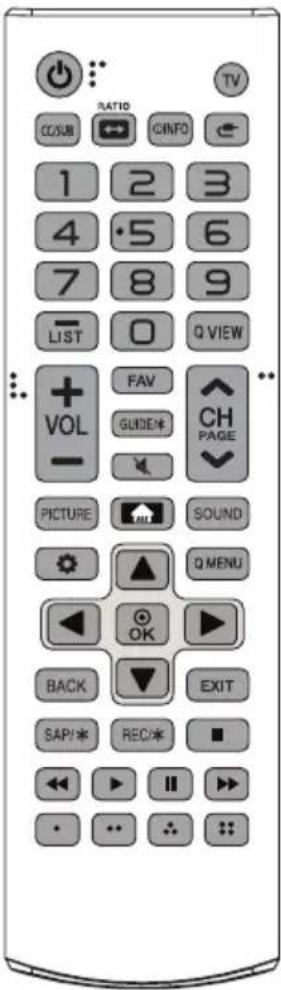
TV RATIO CCSUB INFO 1 2 3 4 5 6 7 8 9 LIST Q VIEW + FAV CH VOL GUIDE PAGE PICTURE SOUND Q MENU OK BACK EXIT SAP/※ REC/※ ■ << ▶ II >> • •• •• ••(Some buttons and services may not be provided depending upon models or regions.)
(POWER) Turns the TV on or off.
TV Returns to the last TV channel.
CC/SUB Activates or deactivates the subtitles.
Activates your preferred subtitle in digital mode. (Depending upon country)
RATIO Resizes an image.
①INFO Shows information on the current program.
(INPUT) Changes the input source.
Number buttons Enters numbers.
—(DASH) Inserts a dash between numbers such as 2-1 and 2-2.
LIST Accesses the saved channel list.
Q.VIEW Alternates between the two last channels selected (pressing repeatedly).
+ vAdjusts the volume level.
FAV Accesses your favorite channel.
GUIDE/* Displays the program event according to time scheduler. (Depending upon model)
(MUTE) Mutes all sounds.
^CHSrolls through the saved channels.
^PADEv Moves to the previous or next screen.
PICTURE Changes the picture mode.
(HOME) Accesses the Home menu.
SOUND Changes the sound mode.
Settings) Accesses the Settings menu.
Q.MENU Accesses the quick menu.
Navigation buttons (up/down/left/right) Scrolls through menus or options.
- Selects menus or options and confirms your input.
BACK Returns to the previous screen.
EXIT Clears all on-screen displays and returns to TV viewing.
SAP/* Enables SAP (Secondary Audio Program) Feature.
(Depending upon model)
REC/* Starts to record and displays record menu. (Only Time Machine ^Ready supported model) (Depending upon model)
Control buttons (■ Controls media contents.
- , - , These access special functions in some menus.

- Do not mix new batteries with old batteries. This may cause the batteries to overheat and leak.
- Failure to match the correct polarities of the battery may cause the battery to burst or leak, resulting in fire, personal injury, or ambient pollution.
- This apparatus uses batteries. In your community there might be regulations that require you to dispose of these batteries properly due to environmental considerations. Please contact your local authorities for disposal or recycling information.
- Batteries inside or inside the product shall not be exposed to excessive heat such as sunshine, fire or the like.
Settings
(Depending upon country)
To use Energy Saving feature
(Settings) PICTURE Energy Saving
Saves electric power by adjusting screen brightness.
• Off Turns off the Energy Saving.
- Minimum / Medium / Maximum Applies the pre-set Energy Saving.
- Screen Off Screen is turned off and only sound is played. Press any button except Power button on the remote control to turn the screen back on.
To select Picture Mode
(Settings) PICTURE Picture Mode
Select the picture mode optimized for the viewing environment or the program.
- Vivid Heightens contrast, brightness and sharpness to display vivid images.
- Standard Displays images in standard levels of contrast, brightness and sharpness.
- Eco The Energy Saver feature changes settings on the TV to reduce power consumption.
- Cinema / Game Displays the optimum picture for a movie or a game.
- Soccer Optimized picture mode for football matches. The pitch and kits are presented in vibrant colors, with crystal-clear images even for fast movements.
- Depending upon input signal, the available range of picture modes may differ.
To set advanced control
(Settings) PICTURE Picture Mode Advanced Control
For each picture mode, the screen can be calibrated; or for a special screen, picture settings can be adjusted. Select the desired Picture Mode.
- Dynamic Contrast Adjusts the contrast to the optimal level according to the image's brightness.
- Dynamic Color Adjusts colors to make the image appear in more natural colors.
- Gamma Sets the gradation curve according to the output of picture signal in relation to the input signal.
- Depending upon input signal or other picture settings, the range of detailed items for adjustment may differ.
Setting the Picture Mode
Settings PICTURE Picture Mode
This feature allows you to adjust the selected picture mode in detail.
- Backlight Controls the level of screen brightness by adjusting the backlight. The closer to 100, the brighter the screen. Decrease the Backlight to reduce energy consumption.
- Contrast Adjusts the contrast of the bright and dark areas of the picture. The closer to 100, the higher the contrast.
- Brightness Adjusts the overall screen brightness. The closer to 100, the brighter the screen.
- Sharpness Adjusts the sharpness of the image. The closer to 50, the sharper and clearer the image.
- Color Tones down or up the colors displayed on the screen. The closer to 100, the deeper the color.
- Tint Adjusts the color balance between red and green displayed on the screen. The closer to Red 50, the more red the color will be. The closer to Green 50, the more green the color will be.
- Color Temp. Adjusts the overall tone of the screen as desired. In Expert mode, detailed fine-tuning can be set via Gamma method, etc.
- Depending upon input signal or other picture settings, the range of detailed items for adjustment may differ.
To set additional picture options
(Settings) PICTURE Picture Mode Picture Option
Adjusts detailed setting for images.
- Noise Reduction Eliminates noise in the picture.
- MPEG Noise Reduction Eliminates noise generated while creating digital picture signals.
- Black Level Adjusts the brightness and contrast of the screen to suit the black level of the input picture by using the blackness (black level) of the screen.
• Real Cinema Optimizes the screen for movie viewing. - Depending upon input signal or other picture settings, the range of detailed items for adjustment may differ.
Initializing picture settings
(Settings) PICTURE Picture Mode Picture Reset
Initializes picture settings that the user customizes.
Each picture mode is reset. Select the desired picture mode to reset.
Setting the Screen Size
Settings PICTURE Aspect Ratio
Selects the screen aspect ratio.
• 16:9 Displays an aspect ratio of 16:9.
- Just Scan Displays video images in the original size without removing parts of the edge of the image. (This function works in DTV/Component/HDMI (720p / 1080i / 1080p) Mode.)
- If you select Just Scan, you may see image noises at the edge of the original signal.
- Set By Program Depending upon the input signal, screen aspect ratio changes to 4:3 or 16:9.
• 4:3 Displays an aspect ratio of 4:3.
- Zoom Resizes the image to fit the screen width. The top and bottom parts of the image may be cut off.
- Viewing content from an external device or, for an extended period of time, having fixed text such as the program name or using an aspect ratio of 4:3 may result in image sticking.
• Available picture size may differ depending upon the input signal.
Selecting Sound Mode
Settings AUDIO Sound Mode
Adjusts TV audio to an optimal level based on a selected sound mode.
- Standard Optimizes the sound for all types of content.
• News Optimizes the sound for news.
• Music Optimizes the sound for music.
• Cinema Optimizes the sound for cinemas.
• Soccer Optimizes the sound for sports.
• Game Optimizes the sound for gameplay.
Using the Sound Effect function
(Settings) AUDIO Sound Effect
The user can select various sound effects.
- Treble Controls the dominant sounds in the output. When you turn up the treble, it will increase the output to the higher frequency range.
- Bass Controls the softer sounds in the output. When you turn up the bass, it will increase the output to the lower frequency range.
• Balance Adjust the volume of the left and right speakers. - Reset Reset the sound effect settings.
To set Auto Volume
(Settings) AUDIO Auto Volume
Sets Auto Volume to On and volume output from channel to channel is automatically adjusted for convenient TV watching when clicking through different channels.
To set up the channels automatically
(Settings) CHANNEL Auto Tuning
Memorizes automatically the channels being broadcast.
- The channels will not be memorized properly if the antenna/cable is not installed correctly.
- Auto Tuning memorizes the channels that are currently being broadcast.
- If Lock is turned on, a pop-up window will appear asking for password.
- DTV Audio Supported Codec (Depending upon model): MPEG, Dolby Digital / Dolby Digital Plus (32 kHz, 44.1 kHz, 48 kHz)
To set up the channels at manually
(Settings) CHANNEL Manual Tuning
Adjusts channels manually and saves the results. For digital broadcasting, signal strength, etc. can be checked.
Editing the channels
(Settings) CHANNEL Channel Edit
Edits the saved channels.
To set the system color
(Depending upon country)
(Settings) CHANNEL System Color
Adjusts ATV or CATV system color setting.
To set current time
Settings TIME Clock
Checks or changes the time while watching TV.
To turn on/off the TV
Settings TIME Off Time / On Time
You can set the Power On/Off time for the TV.
- Select Off if you are not going to set On Time / Off Time.
- To set On Time / Off Time, set the current time correctly.
- When the TV is turned on using the On Time function, it will be turned off automatically if no buttons are touched within 120 minutes.
To use Sleep Timer
Settings TIME Sleep Timer
Turns off the TV after a prescribed number of minutes.
• To deactivate the Sleep Timer, select Off.
To set Time Zone
(Depending upon country)
(Settings) TIME Time Zone
TV time is set Peru GMT -5 when time is set automatically by a digital signal.
To set the password
(Settings) LOCK Set Password
Set or change the TV password.
• The initial password is set to 0000.
To set Lock System
(Depending upon country)
(Settings) LOCK Lock
Permits only specific programs by blocking channels or external input. At first, set Lock to On.
- Block Channel Blocks the channels that contain inappropriate contents for children by pressing the Green button. The Lock icon appears in back of the blocked channels. The channels can be selected but the screen is blank and the audio is muted.
- Parental Guidance This function operates according to information from the broadcaster. Therefore if the signal has incorrect information, this function does not operate. This prevents children from watching certain adult TV channels according to the ratings limit set. Enter a password to watch a blocked channel. Ratings differ by country.
• Input Block Blocks the selected input.
To set Language
(Depending upon country)
(Settings)OPTION Language
You can select the language of the menu displayed on the screen and the digital sound broadcasting.
- Menu Language Selects a language for the display text.
- Audio Language [In Digital mode Only] Selects the desired language when watching digital broadcasting containing several voice languages.
- Subtitle Language [In Digital mode Only] Use the Subtitle function when two or more subtitle languages are broadcast.
- If subtitle data in a selected language is not broadcast, the default language subtitle will be displayed.
To set the caption
(Depending upon country)
(Settings) OPTION Caption
View captions when the TV station provides captioned programming. Program captions work only on digital/analog broadcasts or external input.
Change Caption to On and select caption settings.
- Mode
CC 1-4 (Closed Captioning) /
Text 1-4 Displays the audio portion of a TV program as text on the TV screen. CC1 is the most common mode in use.
Digital This is only available for the digital broadcasting system.
To select the country
(Depending upon country)
(Settings) OPTION Country
Sets the country that the TV uses.
- TV settings are changed according to the broadcast environment of the selected country.
- If the country setting is changed, the Auto Tuning information screen may appear.
To update the software
(Settings) OPTION System Info.
Selects USB Software Update or FW Version. The firmware will download and install. Upon completion of the update, your LG TV will restart.
• USB Software Update Updates software via USB device.
- FW Version Checks the software version and Product/Service information.
To specify Factory Reset
(Settings) OPTION Factory Reset
Returns to initial default mode by deleting all optional setup. Once initialization is completed, the TV will turn off and on by itself.
- When Lock is in place, a pop-up window appears and asks for password.
• Do not turn off the power during initialization.
To change the TV Mode
Settings OPTION Mode Setting
Selects Home Mode or Store Mode.
- When in use in home, please select Home Mode.
• Store Mode is for store display.
To select external input
Selects external input.
Press the 📄 (Input) button or ⬣ (HOME) → INPUT
To remove the USB device
Q.MENU=USB Device
Once the message that the USB device was removed is displayed, remove the device from the TV.
• After selecting to remove USB device, the USB storage device cannot be read. Remove the USB storage device and then reconnect it.
Warning when using USB storage devices
- USB storage devices with a built-in auto recognition program or its own driver may not work.
• Some USB storage devices may not work or may work improperly. - Use only those USB storage devices formatted with FAT32 or NTFS File System provided by Windows.
- For external USB HDD, use devices with less than 5V-rated voltages and 500 mA-rated current.
- It is recommended to use USB flash drive with 32 GB or less and USB HDD with 1 TB or less.
- If a USB HDD with power-saving function does not work properly, turn the power off and on. For more information, refer to the user manual of USB HDD.
- Data in the USB storage device can be damaged so back up important files in other devices. Data maintenance is the user's responsibility. The manufacturer is not responsible for data loss.
My Media Supported Files
- Supported subtitle formats: .srt (SubRip), .ssa/.ass (SubStation Alpha), .smi (SAMI), .sub (SubViewer ^1 , MicroDVD, DVSubtitleSystem, SubIdx (VobSub)), .txt (TMPlayer)
1: SubViewer1.0 & 2.0 only
Supported Video Formats
• Maximum: 1920 x 1080 @ 30p (Only Motion JPEG 640 x 480 @ 30p)
• H.264 BP LV 4.0 (Not support for FMO, ASO & redundant slice)
| Extension Codec | ||
| *.asf, *.wmv | Video MPEG2, MPEG4, XviD, H.264, VC1, WMV3 | |
| *.wma Audio | Window | Media Audio standard |
| *.avi | Video | MPEG2, MPEG4, XviD, H.264, VC1, WMV3, MJPG |
| Audio | HE-AAC, AAC, E-AC3, AC3, LPCM, ADPCM, MP3 | |
| *.ts | Video MPEG2, H.264 | |
| Audio HE-AAC, AAC, E-AC3, AC3, MP3 | ||
| *.mpg, *.mpeg | Video MPEG1, MPEG2 | |
| Audio AC3, MP3 | ||
| *.mp4 | Video MPEG4, XviD, H.264, MJPG | |
| Audio AAC, MP3 | ||
| *.mkv | Video | H.264, MPEG1, MPEG2, MPEG4, XviD, VC1, WMV3 |
| Audio HE-AAC, AC3, MP3, LPCM | ||
Supported Audio Formats
| File Format | Item Info | |
| *.mp3 | Bit rate 32 Kbps ~ 320 Kbps | |
| Sample freq. 32 kHz ~ 48 kHz | ||
| Support MPEG1 Layer2, MPEG1 Layer3 | ||
| *.m4a, *.aac | Bit rate 24 Kbps ~ 384 Kbps | |
| Sample freq. 8 kHz ~ 48 kHz | ||
| Support AAC, HEAAC | ||
| *.wma | Bit rate 128 Kbps ~ 320 Kbps | |
| Sample freq. 8 kHz ~ 48 kHz | ||
| Support WMA | ||
Supported Photo Formats
| File Format Format Resolution | ||
| *.jpg | Available File Type | Baseline, Progressive |
| Color depth 24-bit | ||
| Picture Size | Minimum: 64 (W) x 64 (H)Maximum (Normal Type):15360 (W) x 8640 (H)Maximum (Progressive Type):1024 (W) x 768 (H) | |
Troubleshooting
Cannot control the TV with the remote control.
- Check if anything such as tape has been placed over the receiver.
- Check if there is any obstacle between the product and the remote control.
- Replace the batteries with new fresh ones.
No image display and no sound is produced.
• Check if the product is turned on.
- Check if the power cord is connected to a wall outlet.
- Check if there is a problem in the wall outlet by connecting other products.
The TV turns off suddenly.
- Check the power control settings. The power supply may be interrupted.
- Check if the auto-off function is activated on the settings related time.
- If there is no signal while the TV is on, the TV will turn off automatically after 15 minutes of inactivity.
Abnormal Display
- If the TV feels cold to the touch, there may be a small flicker when it is turned on. This is normal; there is nothing wrong with TV. Some minute dot defects may be visible on the screen, appearing as tiny red, green, or blue spots. However, they have no adverse effect on the TV's performance. Avoid touching the LCD screen or holding your finger(s) against it for long periods of time. Doing so may produce some temporary distortion effects on the screen.
- This panel is an advanced product that contains millions of pixels. In a very few cases, you could see fine dots on the screen while you're viewing the TV. Those dots are deactivated pixels and do not affect the performance and reliability of the TV.
- Displaying a still image for a prolonged period of time may cause an image sticking. Avoid displaying a fixed image on the TV screen for a extended length of time.
Generated Sound
- Cracking noise A cracking noise that occurs when watching or turning off the TV is generated by plastic thermal contraction due to temperature and humidity. This noise is common for products where thermal deformation is required.
- Electrical circuit humming/panel buzzing A low level noise is generated from a high-speed switching circuit, which supplies a large amount of current to operate a product. It varies depending upon the product. This generated sound does not affect the performance and reliability of the product.
Specifications
Product specifications may be changed without prior notice due to upgrade of product functions.
(Depending upon country)
| Broadcasting specifications | |||
| Model 32LK500BPSA, | 43LK5000PSA, 28LK430B-PD 32LK500BPDA, 43LK5000PDA, 28LK430V-PD | ||
| Television system NTSC-M, P | AL-M/N, ISDB-T NTSC-M, PAL-M/N, DVB-T2 | ||
| Program coverage | ATV VHF 2-13, UHF 14-69, CATV 1-135 | ||
| DTV | VHF 2-13, UHF 14-69 | ||
| External antenna impedance 75 Ω | |||
| Environment condition | |
| Operating Temperature 0 °C to 40 °C | |
| Operating Humidity Less than 80 % | |
| Storage Temperature -20 °C to 60 °C | |
| Storage Humidity Less than 85 % | |
- The energy information provided on the product is shown in accordance with the applicable regulations of each respective country (Depending upon the country).
- The Energy consumption was measured in accordance with IEC 62087.
- The actual energy consumption depends on the usage environment (The content watched, TV settings, etc.).
HDMI-DTV supported mode
| Resolution | Horizontal Frequency (kHz) | Vertical Frequency (Hz) |
| 640 x 480p | 31.47 | 59.94 |
| 31.50 | 60.00 | |
| 720 (1440) x 480i | 15.73 | 59.94 |
| 15.75 | 60.00 | |
| 720 x 480p | 31.47 | 59.94 |
| 31.50 | 60.00 | |
| 720 (1440) x 576i 15.63 | 50.00 | |
| 720 x 576p 31.25 | 50.00 | |
| 1280 x 720p | 37.50 | 50.00 |
| 44.96 | 59.94 | |
| 45.00 | 60.00 | |
| 1920 x 1080i | 28.13 | 50.00 |
| 33.72 | 59.94 | |
| 33.75 | 60.00 | |
| 1920 x 1080p | 26.97 | 23.976 |
| 27.00 | 24.00 | |
| 33.72 | 29.97 | |
| 33.75 | 30.00 | |
| 56.25 | 50.00 | |
| 67.43 | 59.94 | |
| 67.50 | 60.00 |
HDMI-PC supported mode
| Resolution | Horizontal Frequency (kHz) | Vertical Frequency (Hz) |
| 720 x 400 31.469 | 70.08 | |
| 640 x 480 31.469 | 59.94 | |
| 800 x 600 37.879 | 60.31 | |
| 1024 x 768 48.363 | 60.00 | |
| 1280 x 720 45.00 | 60.00 | |
| 1360 x 768 47.712 | 60.015 | |
| 1366 × 768^1 | 47.712 59.79 | |
| 1280 × 1024^2 | 63.981 60.02 | |
| 1920 × 1080^2 | 67.50 60.00 |
1 For 32LK50*, 28LK43*
2 For 43LK50*
Component port connecting information
| Component ports on the TV Y P | B | PR |
| Video output ports on DVD player | Y | P_B | P_R |
| Y B-Y | R-Y | ||
| Y Cb | Cr | ||
| Y Pb | Pr |
Component supported mode
| Resolution | Horizontal Frequency (kHz) | Vertical Frequency (Hz) |
| 720 (1440) x 480i | 15.73 | 59.94 |
| 15.75 | 60.00 | |
| 720 x 480p | 31.47 | 59.94 |
| 31.50 | 60.00 | |
| 720 (1440) x 576i 15.6B | 50.00 | |
| 720 x 576p 31.25 50.00 | ||
| 1280 x 720p | 37.50 | 50.00 |
| 44.96 | 59.94 | |
| 45.00 | 60.00 | |
| 1920 x 1080i | 28.13 | 50.00 |
| 33.72 | 59.94 | |
| 33.75 | 60.00 | |
| 1920 x 1080p | 56.25 | 50.00 |
| 67.43 | 59.94 | |
| 67.50 | 60.00 | |
Licenses
Supported licenses may differ by model.

The terms HDMI and HDMI High-Definition Multimedia Interface, and the HDMI Logo are trademarks or registered trademarks of HDMI Licensing Administrator, Inc. in the United States and other countries.
Manufactured under license from Dolby Laboratories. Dolby, Dolby Vision, Dolby Audio, Dolby Atmos, and the double-D symbol are trademarks of Dolby Laboratories.
Regulatory
WARNING!
Never place a television set in an unstable location. A television set may fall, causing serious personal injury or death. Many injuries, particularly to children, can be avoided by taking simple precautions such as:
• Using cabinets or stands recommended by the manufacturer of the television set.
• Only using furniture that can safely support the television set.
- Ensuring the television set is not overhanging the edge of the supporting furniture.
- Not placing the television set on tall furniture (for example, cupboards or bookcases) without anchoring both the furniture and the television set to a suitable support.
- Not placing the television set on cloth or other materials that may be located between the television set and supporting furniture.
• Educating children about the dangers of climbing on furniture to reach the television set or its controls.
If your existing television set is being retained and relocated, the same considerations as above should be applied.
Symbols
| ~ | Refers to alternating current (AC). |
| —— | Refers to direct current (DC). |
| Refers to class II equipment. | |
| Refers to stand-by. | |
| Refer to “ON” (power). | |
| Refers to dangerous voltage. |

LG
Life's Good
The model and serial numbers of the TV are located on the back and on one side of the TV. Record them below should you ever need service.
Model
Serial No. ____