
StarBoard Link EZ2 - Interactive whiteboard HITACHI - Free user manual and instructions
Find the device manual for free StarBoard Link EZ2 HITACHI in PDF.


| Product Type | Interactive Whiteboard |
| Brand | Hitachi |
| Model | StarBoard Link EZ2 |
| Screen Size (Diagonal) | 77 inches |
| Resolution | 1920 x 1080 (Full HD) |
| Touch Technology | Infrared (10-point touch) |
| Connectivity | USB 2.0 (x2), VGA, HDMI, Audio Jack 3.5mm |
| Power Supply | 100-240V AC, 50/60Hz, 5W (max) |
| Dimensions (W x H x D) | 65.0 x 45.0 x 2.0 inches |
| Weight | 22.0 lbs (10 kg) |
| Operating Temperature | 5°C to 40°C (41°F to 104°F) |
| Included Accessories | Stylus pen (x2), Mounting kit, USB cable, User manual |
| Software Compatibility | Windows 7/8/10, macOS 10.12+, StarBoard Software |
| Warranty | 2 years limited |
| Cleaning | Clean with dry microfiber cloth; avoid liquid cleaners |
| Safety Certification | CE, FCC, RoHS |
Frequently Asked Questions - StarBoard Link EZ2 HITACHI
User questions about StarBoard Link EZ2 HITACHI
0 question about this device. Answer the ones you know or ask your own.
Ask a new question about this device
Download the instructions for your Interactive whiteboard in PDF format for free! Find your manual StarBoard Link EZ2 - HITACHI and take your electronic device back in hand. On this page are published all the documents necessary for the use of your device. StarBoard Link EZ2 by HITACHI.
USER MANUAL StarBoard Link EZ2 HITACHI
Read this User's Guide and carefully retain it for future reference.
Before using this product, carefully read and fully understand the safety instructions. Store this User's Guide nearby for ease of reference.
Notices
Reproduction or reprinting, without permission, of this User's Guide or any part thereof is prohibited.
The contents of this User's Guide are subject to change without prior notice.
Every effort has been made to ensure that this User's Guide is complete and correct. However, should any questionable points, mistakes, etc., come to your attention, please inform the vendor.
Hitachi Solutions, Ltd. assumes no responsibility for losses resulting from or related to the use of this product. Refer to "4. Appendix 4.6 Product Warranty Policy" at the end of this User's Guide for details on the warranty and liabilities.
Precautions Regarding Disposal
At time of disposal, handle this product as industrial waste according to all applicable laws and regulations.
Special Instructions
This manual contains explanations relating to accessories that are sold separately, as well as the product itself.
Disclaimers
Hitachi Solutions, Ltd. assumes no liability and makes no warranty, either express or implicit, regarding the contents of this User's Guide.
Also, the company makes no warranty as to the product's suitability, merchantability or fitness for a particular intended use.
All products of Hitachi Solutions, Ltd. described in this User's Guide are presently for sale or are site-licensed.
Users who purchased the aforesaid product(s) will bear the costs of all required services, repairs, and damages resulting from defects in this product, and will bear the costs of direct or indirect damages (including the loss of profits or required information) that resulted from the product defects.
Moreover, Hitachi Solutions, Ltd. retains the right to revise this User's Guide and to modify the contents thereof, without any obligation to notify anyone.
Product Assurance Provisions
This product is limited to use in the country where the user bought this product.
For warranty details, refer to "4. Appendix 4.6 Product Warranty Policy" at the end of this User's Guide.
This first edition of the user's guide (SBLE2-ML120201) is for the following products:
AH00322: StarBoard Link EZ2
AH00180: Electronic Pen
Windows is a trademark of Microsoft Corporation (U.S.) and in other countries.
Mac and Mac OS are trademarks of Apple Inc., registered in the U.S. and other countries.
Other trademarks and product names are trademarks and/or registered trademarks of their respective holders
Manual Creation Dates
February 2012 first edition SBLE2-ML120201
All Rights Reserved. Copyright (c) 2012, Hitachi Solutions, Ltd.
Introduction
Thank you very much for purchasing Hitachi Solutions's StarBoard Link EZ2 (henceforth referred to as "StarBoard").
This User's Guide has been created for people who already have a working knowledge of personal computers (henceforth referred to as "PC").
Please make sure that you understand the contents of this User's Guide and use the software correctly.
We hope that you make the most of this product.
Safe Handling
Markings and Symbols
Various markings and symbols are used in this User's Guide and on this product, to ensure the safe and correct use of this product and to prevent personal injury and property damage. These symbols and their meanings are as explained below. Understand the information well before reading the body of the User's Guide.

This is a Safety Warning symbol. This symbol will appear to raise the attention of the user to existing risks that may cause harm to people. To avoid any chances of injuries or possibly death, DO NOT IGNORE the safety instructions that follow this symbol.

WARNINGS
This warning will appear where there exists a risk of death or fatal injuries.

CAUTIONS
This warning will appear where there exists a risk of moderate or light injuries.
NOTICE
This warning will appear where there exists a risk of damage to property.

This symbol draws attention to cautions (including warnings).

This symbol indicates something prohibited.

This symbol indicates something that must be done.
Safe Precautions
Required Precautions
(1) Precautions Regarding Operation
| !WARNINGS | |
 | Do not make modifications.Do not make any adjustments, repairs, or modifications not given in this User's Guide as doing so may lead to personal injury or damage to the product. |
 | Do not open or remove cover of this product.Failure to comply may lead to personal injury or damage to the product. Refer internal inspections, adjustments, and repairs to your dealer or support center. |
 | Do not place objects on top of this product.If a foreign object falls on top of or inside this product, it may lead to personal injury or damage to the product. |

CAUTIONS

| NOTICE | |
 | Make sure that the silver surfaces of the reflective bars do not become dirty or scratched.Scratches or dirt on the silver surfaces of the reflective bars may prevent them from detecting coordinates correctly. |
 | When connecting to the PC, use the bundled USB extension cable.If you use a USB extension cable other than bundled one, it may cause malfunction. |
 | Do not place heavy objects on, pull on, or subject the USB cable to excess heat.Failure to comply may result damage to the USB cable. |
 | Always grasp the plug of the USB cable when connecting or disconnecting.Pulling on the USB cable may result in scratching or damage to the cable. |
(2) Dealing with Trouble
| CAUTIONS | |
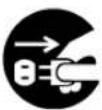 | What to do in case of emission of smoke, strange odor, or strange noiseIf an abnormal condition such as emission of smoke, strange odor, or strange noise happens to occur for some reason, immediately disconnect the product's USB cable from the PC.Confirm that the smoke or strange odor is no longer being emitted and contact a support center to request repairs.Continued operation without repair may result in fire. |
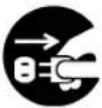 | What to do if the product breaks or the USB cable is damagedIf this product breaks or the USB cable becomes damaged for some reason, immediately disconnect the USB cable from the PC and contact a support center.Continued operation without repair may result in emission of a strange odor or smoke. |
(3) Precautions Regarding Handling
| !WARNINGS | |
 | Do not touch this product if you hear thunder.Failure to comply may result in electric shock. |
| CAUTIONS | |
 | Do not use batteries other than those specified.Failure to comply may result in fire, personal injury, and/or soiling of the surrounding area due to batteries bursting or leaking fluid. |
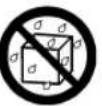 | Do not splash with water or chemical compounds.Do not place this product in a location subject to contact with water droplets or place any containers containing water or other chemical compounds on top of or nearby this product.Failure to comply may result in damage or fire if water or chemical compounds get inside this product. |
| NOTICE | |
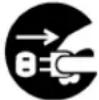 | Disconnect the USB cable during extended periods of non-use.For safety reasons, disconnect the USB cable if the product is not going to be used for an extended period of time. Failure to comply may result in malfunction. |
 | Handle the connection cable properly.Improper handling of the connection cable such as jamming it against a wall, undue bending, pulling, or twisting may result in overheating or damage due to exposure of the conductive core, electrical short, or severing of the cable. |
(4) Precautions Regarding Moving the Product
| NOTICE | |
 | Always disconnect the USB cable from the PC when moving this product.Failure to comply may result in damage to the USB cable and/or the product itself. |
 | Do not subject to shock of impact.This product is a precision instrument. Excessive shock of impact may hinder further operation.Take extreme care when moving this product. |
(5) Precautions Regarding Setup Environment
| WARNINGS | |
 | Do not place in a location with flammable or corrosive gas.Placing this product in a location where there is flammable or corrosive gas may result in fire or damage to this product.There is a particular danger of explosion in the case of flammable gas.Do not place in a location with flammable or corrosive gas. |
 | Install this product on a flat surface.Installing this product on an uneven surface such as bumpy or curved surfaces may cause the product to operate improperly or fall over, resulting in personal injury or product malfunction. |
 CAUTIONS CAUTIONS | |
 | Do not touch internally mounted parts.Directly toughing internally mounted parts inside this product may result in personal injury or damage to this product. |
 | Do not place in locations subject to excess moisture, dust, smoke, or steam.Placement in a location such as next to a kitchen or a humidifier may result in fire or damage to this product. |
 | Do not use this product near water.If water somehow gets inside this product, immediately disconnect the USB cable and contact a support center.Continued use may result in fire or damage to this product. |
| NOTICE | |
 | Do not use this product in locations subject to high temperature or high humidity.This product's usage environment conditions:Temperature: 5°C – 35°CHumidity: 20%RH – 80%RH (no condensation) |
 | Do not set up in locations subject to vibration and/or shock of impact.Vibration and/or shock of impact may harm internal components of this product, resulting in damage to it. Do not set up this product in a location subject to vibration or shock of impact. |
 | Do not set up this product near a high-voltage line or power source.If this product is set up near high-voltage lines or power sources, it might receive interference. |
 | Do not set up in a location subject to direct sunlight or near a heater.Failure to comply may result in deformation of or damage to this product. |
(6) Precautions Regarding Disposal
| NOTICE | |
 | At time of disposal, handle this product as industrial waste according to all applicable laws and regulations.When disposing of this product, the user should follow all laws and regulations of the locality in which it is being used. |
Careful thought was given to the cautions on this device and in this User's Guide. However, unanticipated circumstances might occur. When operating this product, users themselves must exercise caution as well as follow instructions.
! WARNINGS
| Warnings Contents Page(s) | |
| Install this product on a vertical surface.Do not install this product on a slanting surface or ceiling. Otherwise, the equipment might fall, possibly resulting in injury, or the impact might cause product failure. | P.2-1 |
| If magnets are not used to install this product, fix it in place with screws.Otherwise, the equipment might fall, possibly resulting in injury, or the impact might cause product failure. | P.2-1 |
CAUTIONS
| Cautions Contents Page(s) | |
| Do not strike the whiteboard or wall forcefully with the stylus pen, bend it, or apply an excessive load to it.Failure to comply may result in damage to the stylus pen or personal injury. | P.3-3 |
| Be sure to install batteries correctly.Do not install batteries with positive and negative terminals reversed, or use batteries other than the type specified. It will cause pen malfunctions and excess heat, or burns to the hand. | P.3-6 |
| Be sure to provide insulation during disposal.Be sure to insulate the positive and negative terminals of the battery using cellophane tape, or similar material when disposing of batteries. Disposing of batteries without insulating them may lead to overheating, bursting, or ignition due to shorting, resulting in personal injury or fire. Furthermore, be sure to follow all local rules and regulations regarding proper battery disposal. | P.3-6 |
NOTICE
| Notice Contents Page(s) | |
| - Select a level and stable position.- Do not set it up near equipment that might generate electromagnetic waves or radio frequencies, such as radio transmitters, televisions, copying machines or air conditioners.- Avoid locations that are dusty, that are subject to extremely high or low temperatures or humidity, or that are exposed to direct sunlight. | P.2-1 |
| The gap between the cursor and your finger (or pen) will become big in the lower 13cm (5 inches) of the digitizer.If you want to reduce the gap, place the digitizer keeping a minimum space of 13cm (5 inches) from the upper part of the centre of the projection area. | P.2-6 |
| Use an input tool with a thickness of least 7 mm.When inputting to this product, use a tool that is at least 7 mm. If a pen or similar tool with a thickness of less than 7 mm is used, the input will be unstable.Also, do not use tools with a sharp tip, such as a ballpoint pen. If such a tool is used incorrectly, it could damage the surface of the board. | P.3-1 |
| Using infrared and compact cameras, this product captures the image (shadow) of a pen or finger and detects the corresponding coordinate position. Do not operate near lighting that will obstruct the capture of the image.- Locations where the surface or side of the projection area are exposed to direct sunlight.- Locations in which there are light fittings with many light bulbs or infrared rays directly above the projection area. | P.2-10P.4-4 |
Contents
1. Introduction.... 1-1
1.1 Preparations ...... 1-1
1.1.1 Product Outline 1-1
1.1.2 Features 1-1
1.2 Parts Check 1-2
1.2.1 StarBoard.... 1-2
1.2.2 Stylus Pen (option).... 1-3
1.2.3 Electronic Pen (option).... 1-3
1.3 Role of Each Part...... 1-4
1.3.1 StarBoard.... 1-4
1.3.2 Electronic Pen (option).... 1-5
2. Assembly and Setup 2-1
2.1 Installing the StarBoard Software....2-2
2.2 Installing the Devices (Using the Installation Wizard) 2-2
2.3 Installing the Devices (When the installation wizard is not used) 2-3
2.3.1 Projection from the Projector 2-3
2.3.2 Installing the Reflective Bars 2-4
2.3.3 Installing the Digitizer.... 2-7
2.3.4 Connecting the USB Cable 2-8
2.3.5 Adjusting the Sensor 2-10
2.3.5.1 Sensor Adjustment Procedure (Windows version).... 2-10
2.3.5.2 Sensor Adjustment Procedure (Mac version) 2-12
2.3.6 Positioning Alignment 2-14
3. How to Use.... 3-1
3.1 How to Use Touch Mode 3-1
3.1.1 Character Input 3-1
3.1.2 PC Operation.... 3-2
3.2 Electronic Pen Input and Finger Input 3-4
3.2.1 Switching Input Methods (Windows).... 3-4
3.2.2 Switching Input Methods (Mac) 3-5
3.3 How to User the Electronic Pen.... 3-6
3.3.1 Inserting the Battery.... 3-6
3.3.2 Using the Electronic Pen 3-7
3.3.3 Basic Operations of the Electronic Pen 3-8
3.3.4 Customizing the Electronic Pen.... 3-8
3.4 Start Method ...... 3-9
3.4.1 Start Method (Windows version).... 3-9
3.4.2 Start Method (Mac version) 3-10
4. Appendix 4-1
4.1 Troubleshooting.... 4-1
4.2 Regularly Auto Sensor Adjustment (For Windows).... 4-4
4.2.1 Sensor Auto Adjustment Procedure.... 4-4
4.3 System Specifications 4-6
4.4 Proper Care and Cleaning 4-7
4.5 Replaceable Parts.... 4-7
4.6 Product Warranty Policy 4-8
1. Introduction
1.1 Preparations
This chapter describes the preparations to be made before using StarBoard.
First-time users of StarBoard should read through this chapter.
1.1.1 Product Outline
In order to use the StarBoard Link EZ2, a digitizer and reflective bars are installed on an existing whiteboard or flat wall surface. After setting up the provided software on a PC that is connected to a projector, you can use your finger to operate the projected PC screen, or import characters or images drawn on the projection area in real time to the PC.
1.1.2 Features
- You can use your finger or the pen to operate the PC
You can use your finger or a pen to operate the PC screen projected onto the board with the projector. There are two optional pens available, the stylus pen and electronic pen. When the term “pen” is used in this User’s Guide, it means “electronic pen.”
- You can write directly onto the PC screen
After installing the provided StarBoard Software onto a PC, you can use your finger or the pen to write characters or images directly onto the PC screen. The input characters or drawn images are imported as digital data in real time into the PC, where they can be saved or printed.
- Compatible with PowerPoint presentations
Characters or images can be written into presentations created with Microsoft PowerPoint, which significantly improves the expressive power of the presentations.
- You can also write on video images (For Windows)
Characters or images can be written onto captured video image displays.
This makes it easy to use video materials in lessons or presentations.
1.2 Parts Check
After unpacking, make sure that all the following parts are present.
1.2.1 StarBoard
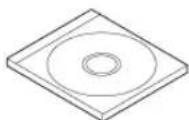
[1] Parts
| No. | Name Qty | |
| (1) | Digitizer 1 | |
| (2) | USB extension cable 1 | |
| (3) | Cable holder 1 | |
| (4) | Reflective bars 4 | |
| (5) | Corner piece 2 | |
| (6) | Joint piece 1 | |
| (7) | Wood screws 17 | |
| (8) | Machine screws 2 | |
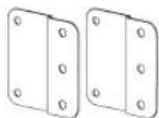
| (9) | Wall mount bracket 2 | |
| (10) | StarBoard Software DVD-ROM | 1 |
| (11) | StarBoard Software Startup Guide | 1 |
| (12) | StarBoard Link EZ2 Startup Guide | 1 |
| (13) | Warranty Sheet | 1 |
(1)
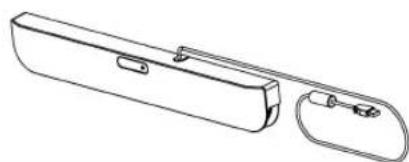
natural_image
Line drawing of a rectangular device with a handle and a separate curved component (no text or symbols)(2)
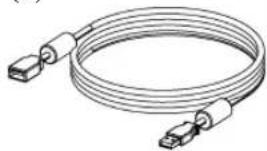
natural_image
Coiled cable with connectors, no visible text or symbols(3)
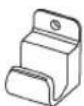
(4)
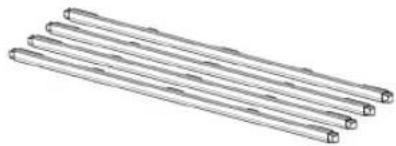
natural_image
Pure illustration of six parallel cylindrical rods with no text or symbols(5)
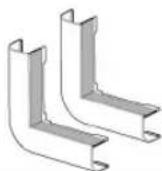
(6)
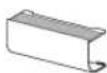
(7)
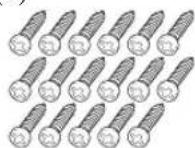
(8)

(9)
(10)
(11)
(12)
(13)
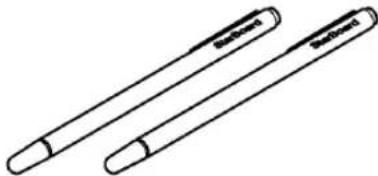
1.2.2 Stylus Pen (option)
[1] Parts
| No. | Name Qty | |
| (1) | Stylus pen 2 |
(1)
natural_image
Two parallel cylindrical pens with different tip designs (no text or symbols)1.2.3 Electronic Pen (option)
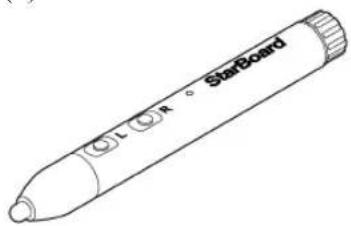
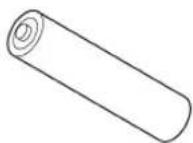
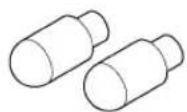
[1] Parts
| No. | Name Qty | |
| (1) | Electronic pen 1 | |
| (2) | AAA alkaline battery 1 | |
| (3) | Spare pcn tip 2 |
(1)
(2)
(3)
1.3 Role of Each Part
1.3.1 StarBoard
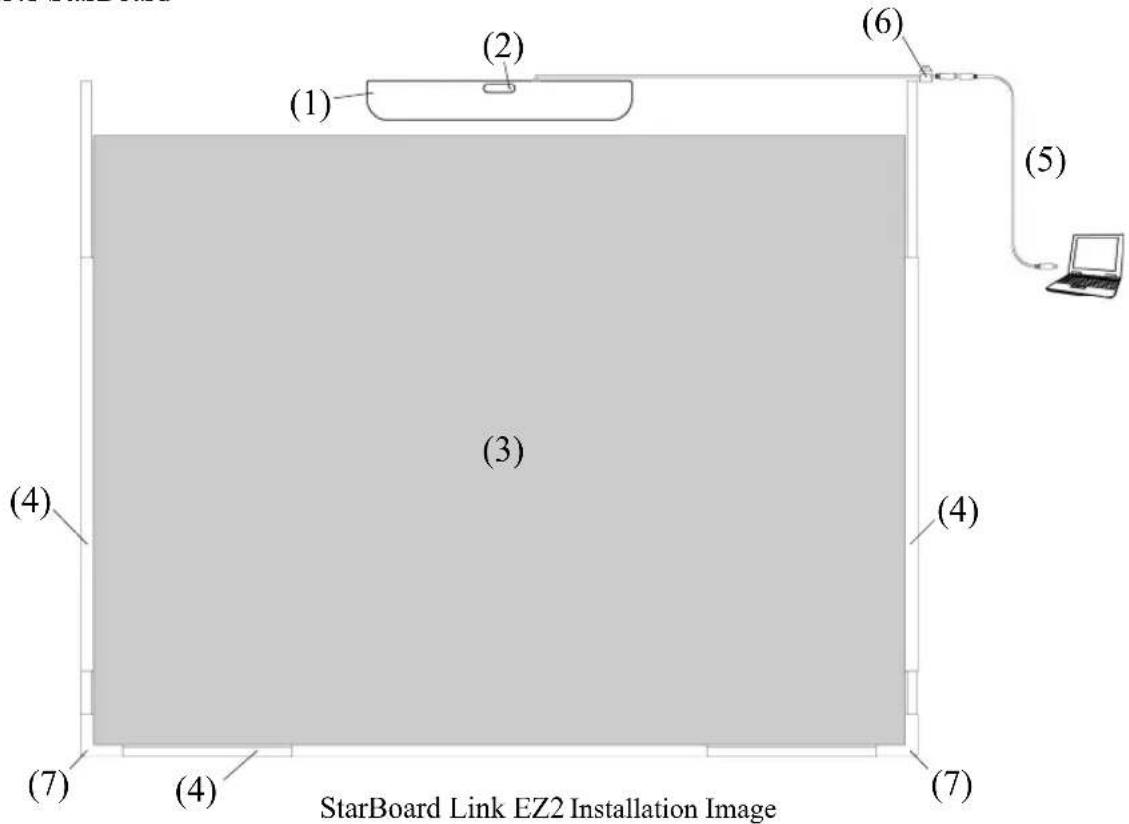
(1) Digitizer
Receives information regarding characters or images drawn with the pen or the user's finger, and transmits this data to the PC.
(2) Status LED
The connection status is displayed by the color and lighting status of the LED.
Lit green: Normal
Flashing orange: Recognizing StarBoard
Lit orange: Error has occurred
(3) Projection area/Input area
Characters or images drawn in this area are imported into the PC. When using the
StarBoard Link EZ2, make sure that the image projected from the projector is kept within this area.
(4) Reflective Bars
Reflects light. Used to capture pen or finger operations.
(5) USB Cable
Used to connect the StarBoard with the PC.
(6) Cable Holder
Used to fix the USB cable in place.
(7) Corner piece
To be used to connect the reflective bars together.
1.3.2 Electronic Pen (option)
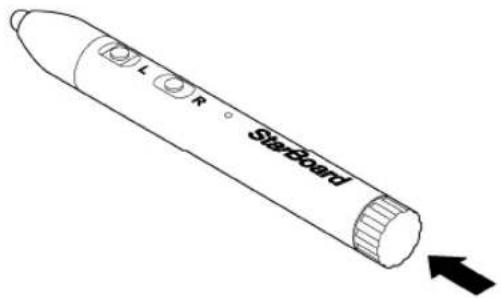
(1) Battery cover Open the cover when inserting or replacing the battery. Refer to page 3-6 in this User's Guide for details.
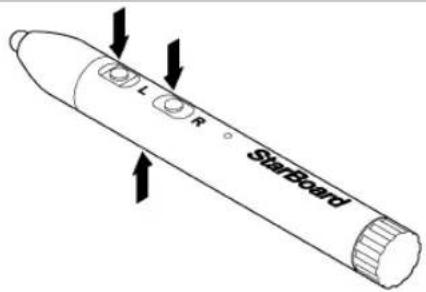
(2) Side buttons Mouse Operations assigned to these buttons.Refer to page 3-8 in this User's Guide for details.
2. Assembly and Setup
Be sure to follow the precautions below when installing the StarBoard.
Important
Use on a flat surface.
This product is designed so that stable input is achieved when used on a flat surface. Do not use on an uneven or curved surface.

WARNINGS
Install this product on a vertical surface.
Do not install on a slanted surface or ceiling. Failure to comply may cause the stand to fall, resulting in personal injury, or may cause damage to this product due to shock of impact from the board falling.
If magnets are not used to install this product, fix it in place with screws.
Failure to comply may cause the stand to fall, resulting in personal injury, or may cause damage to this product due to shock of impact from the board falling.
NOTICE
- Select a level and stable position.
- Do not set it up near equipment that might generate electromagnetic waves or radio frequencies, such as radio transmitters, televisions, copying machines or air conditioners.
- Avoid locations that are dusty, that are subject to extremely high or low temperatures or humidity, or that are exposed to direct sunlight.
2.1 Installing the StarBoard Software
Before Starting to Connect Equipment
Install the StarBoard Software on your PC before starting to connect equipment. The equipment might not operate correctly if it is connected without the software being installed.
About PC Earth
Depending on your PC, an incorrect operation might be caused by PC noise via the USB cable. If this happens, verify that the earth of your PC's power supply cable is connected.
If the earth is not connected, it might cause an incorrect operation.
2.2 Installing the Devices (Using the Installation Wizard)
- For Windows users, run "Start" → "All Programs" → "StarBoard Link EZ Setup Wizard".
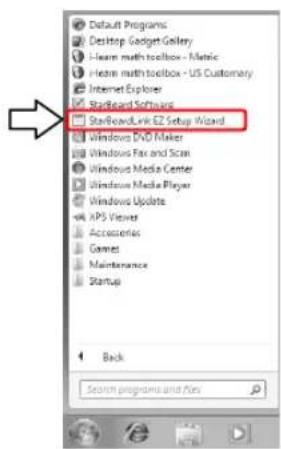
- For Mac users, run "Go" → "Applications" → "StarBoard Link EZ Setup Wizard".
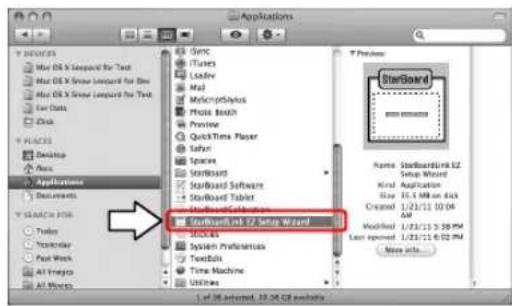
For the next steps in the device installation, follow the instructions in the installation wizard. The StarBoard will be available for use when the wizard procedures are completed.
If you have moved the StarBoard Link EZ2 to a different installation location, run the "StarBoard Link EZ Setup Wizard" again.
2.3 Installing the Devices (When the installation wizard is not used)
If this product is being used in an environment in which the installation wizard cannot be used, refer to the procedure below to install the devices.
2.3.1 Projection from the Projector
Project the computer screen usindg the projector.
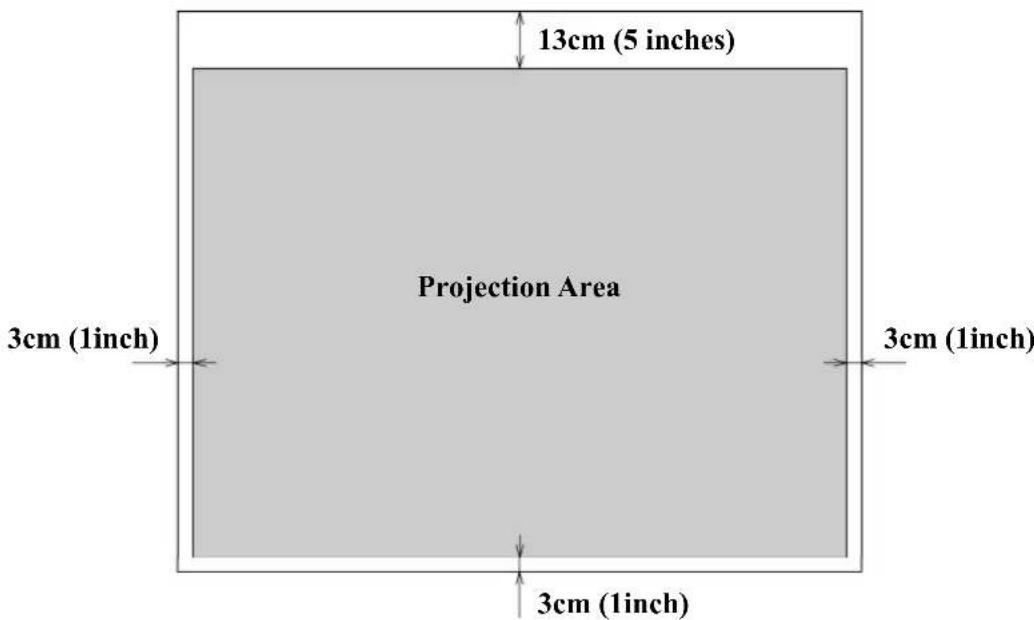
To install the StarBoard, ensure the following clearance is maintained around the projection area.
However, the StarBoard detectable sizes are as shown below.
(Aspect ratio 4:3) 60-77 inches, 87-90 inches
(Aspect ratio 16:10) 60-72 inches, 82-90 inches
2.3.2 Installing the Reflective Bars
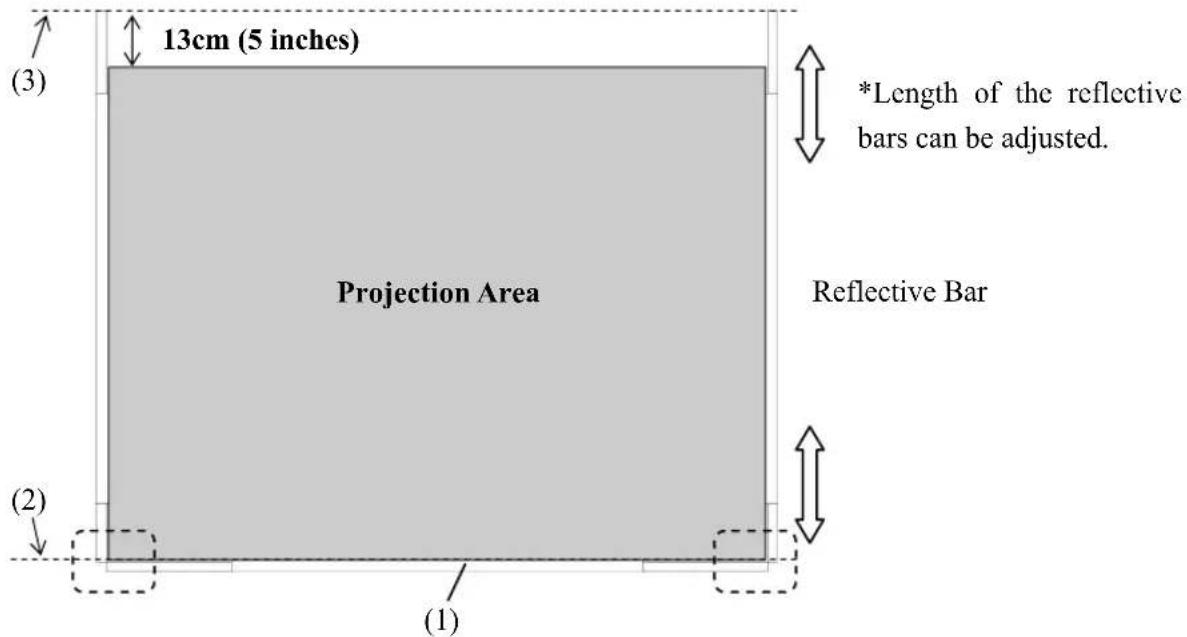
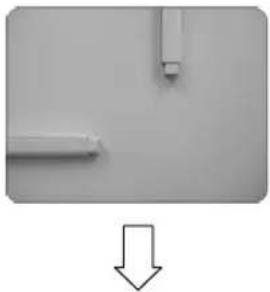
(1) Attach the reflective bars to the bottom side of the installation surface in accordance with the width of the projection area. Attach so that the silver surface of the reflective bars is facing inwards, and so there are no gaps.
(2) The bottom of left and right reflective bar attach to get to the bottom surface of the projection area.
(3) Attach the reflective bars so that the higher part can cover 5 inches (1 digitizer height and 2 inches) of space above the top edge of the projection area.
natural_image
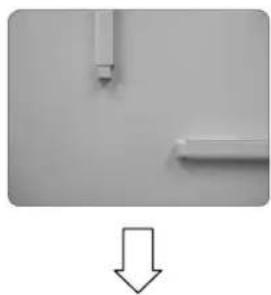
Close-up of a white plastic tool with a downward arrow indicator (no text or symbols)* Make sure the silver surfaces of the reflective bars being connected by their corners.
natural_image
Close-up of two white cylindrical objects with a downward arrow below, no visible text or symbols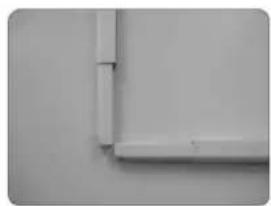
natural_image
Close-up of a white plastic door or panel with a small rectangular cutout and a small hole, against a plain background (no text or symbols visible)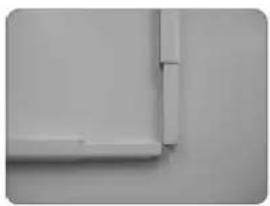
natural_image
Close-up of a white plastic panel with a coiled edge and a small rectangular cutout (no text or symbols visible)Fixing Screws
When installing onto a wall where magnets cannot be used, fix the reflective bars with wood screws. (Use three wood screws for each reflective bar.)
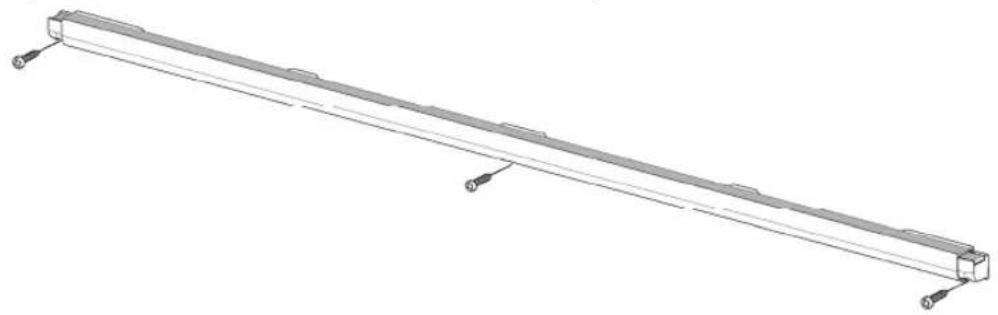
natural_image
Technical line drawing of a long rectangular mechanical component with mounting holes and a central shaft (no text or symbols)(4) Attach the corner piece to the lower left and lower right corners of the reflective bars.
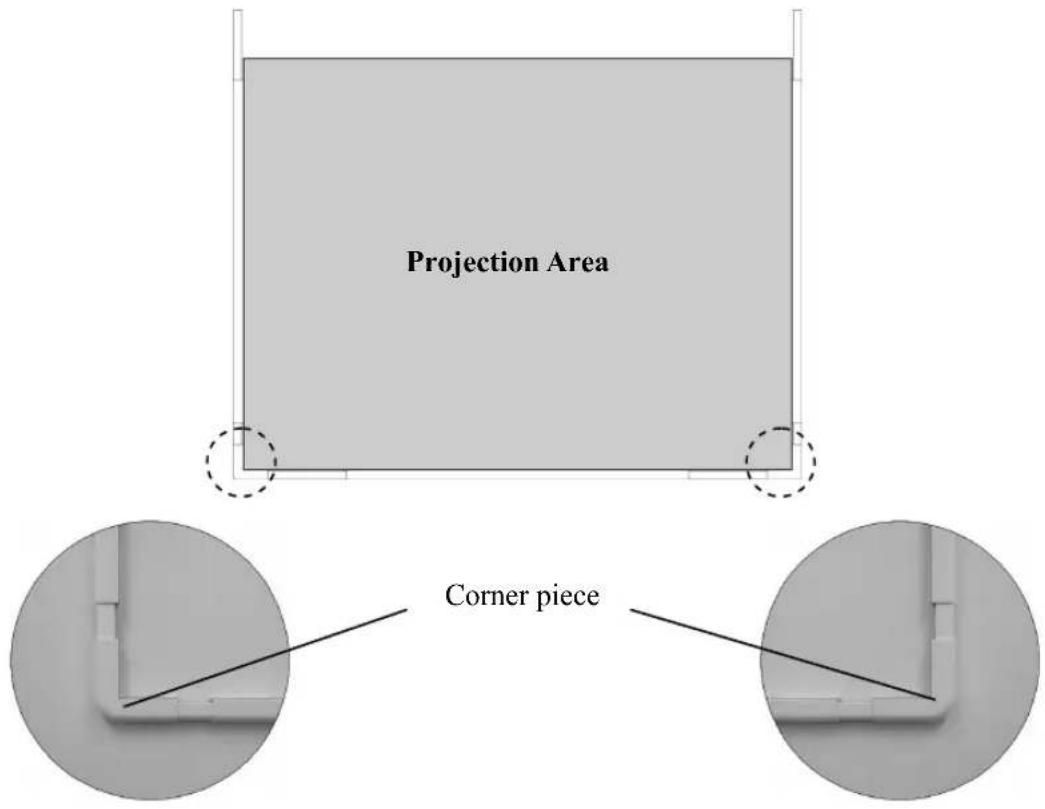
*If the projection size is larger than 82 inches, use 2 reflective bars on the bottom side. Use joint piece to connect two reflective bars.
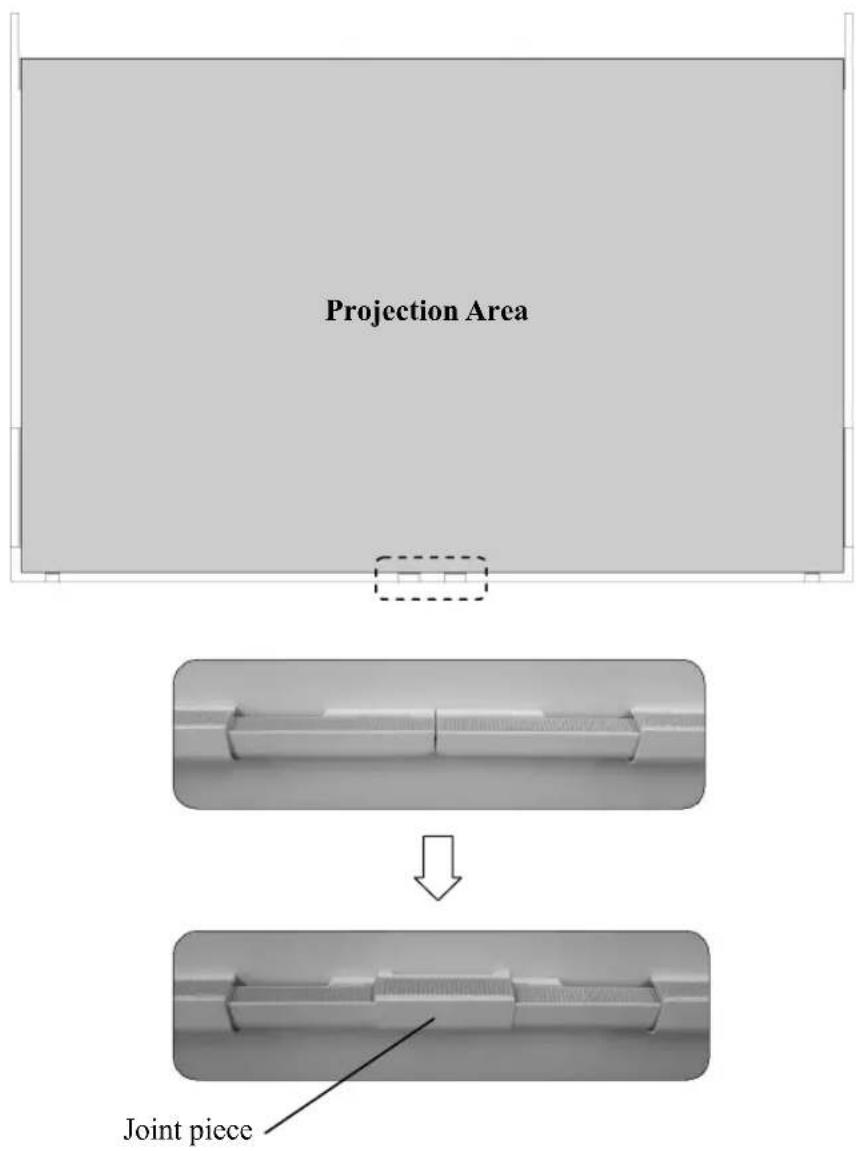
NOTICE
The gap between the cursor and your finger (or pen) will become big in the lower 13cm (5 inches) of the digitizer.
If you want to reduce the gap, place the digitizer keeping a minimum space of 13cm (5 inches) from the upper part of the centre of the projection area.
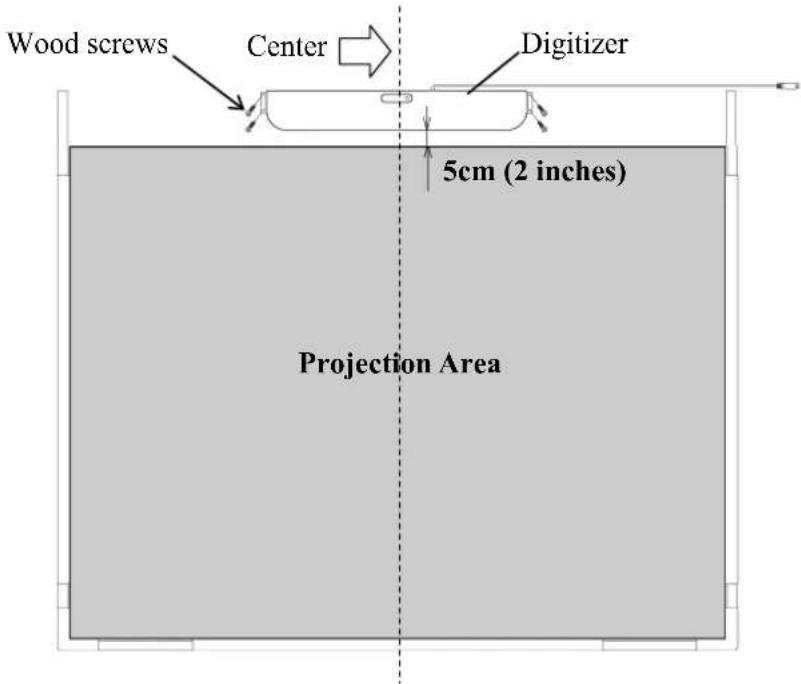
2.3.3 Installing the Digitizer
- Installing with Magnets
Align the center of the digitizer with the center of the projection area, 5cm (2 inches) above the projection area, and install so it is parallel with the edge of the projection area.
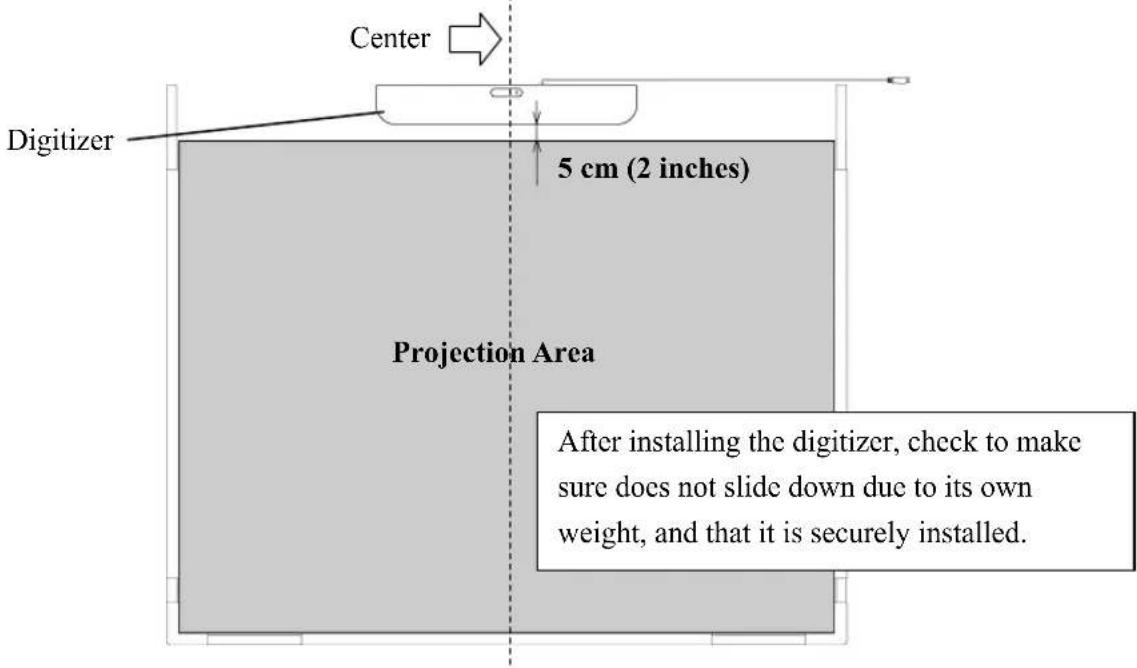
- Installing to walls where magnets cannot be used.
(1) Fix the wall mount bracket on the back of the digitizer, with 2 machine screws.
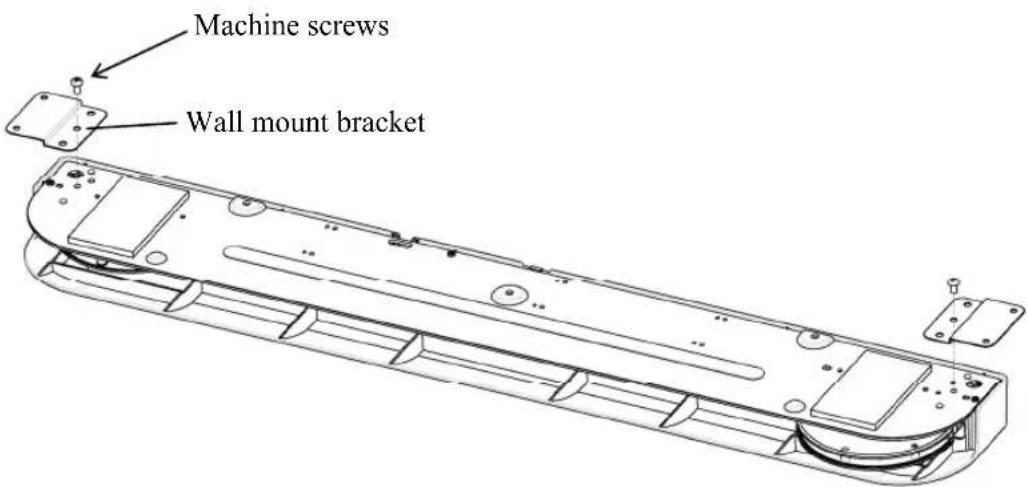
(2) Align the center of the digitizer with the center of the projection area, 5 ~cm (2 inches) above the projection area, and install so it is parallel with the edge of the projection area.
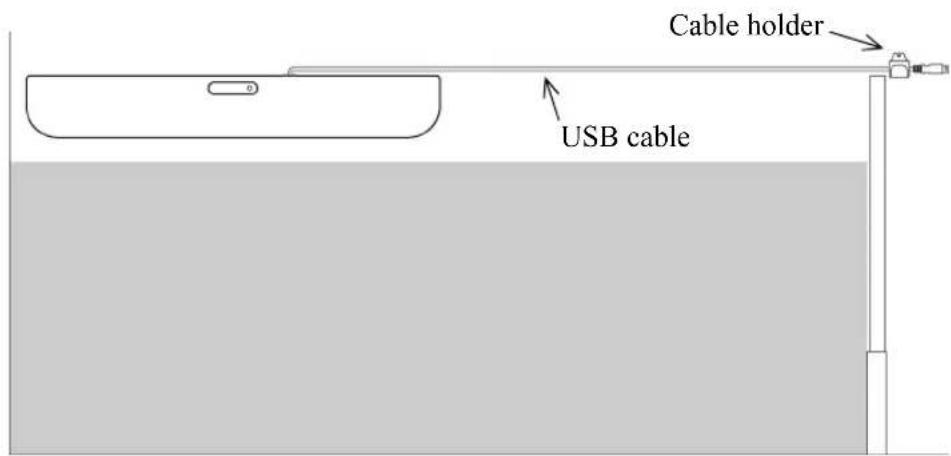
2.3.4 Connecting the USB Cable
(1) Install the cable holder, and then hook the USB cable into the holder to fix it in place.
*Attach the cable holder outside the reflective bars.
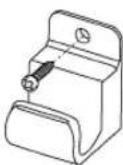
Fixing Screws
When installing onto a wall where magnets cannot be used, fix the cable holder with wood screws.
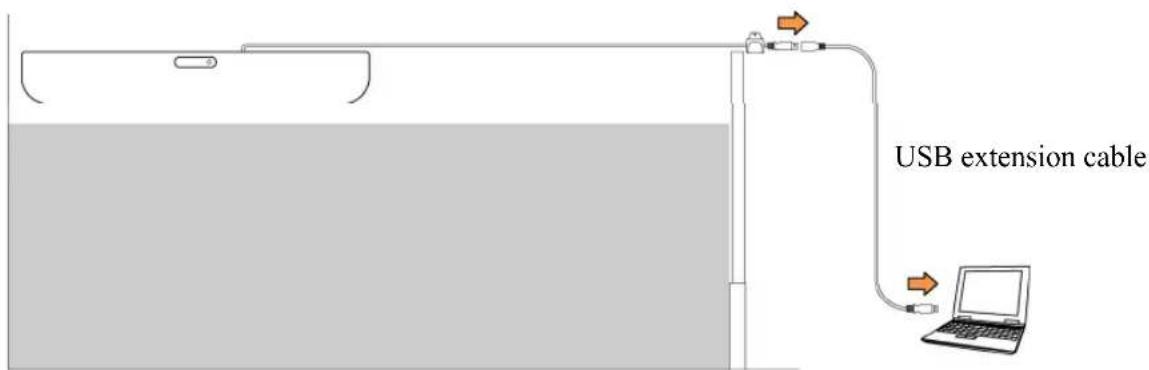
(2) Connect the bundled USB extension cable to the computer.
2.3.5 Adjusting the Sensor
NOTICE
Using infrared and compact cameras, this product captures the image (shadow) of a pen or finger and detects the corresponding coordinate position. Do not operate near lighting that will obstruct the capture of the image.
- Locations where the surface or side of the projection area are exposed to direct sunlight.
- Locations in which there are light fittings with many light bulbs or infrared rays directly above the projection area.
- Items to Check Before Making Sensor Adjustments
The following error may appear while using this product.
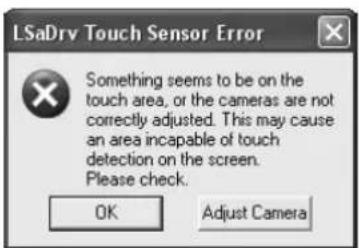
(Windows)
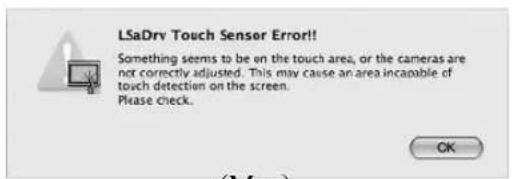
(Mac)
The window may be displayed hidden behind another window.
Check the following items if this error appears.
- There are no obstacles preventing the light from reaching the projection area, or silver surface of the reflective bars.
- There is no dirt on the silver surface of the reflective bars.
If the problem is not corrected despite making the above checks, In the operating system you are using, perform adjustment in accordance with "Sensor Adjustment Procedure" shown in Section 2.3.5.1 in the case of Windows and 2.3.5.2 in the case of Mac OS.
2.3.5.1 Sensor Adjustment Procedure (Windows version)
[1] Press the "Adjust Camera" button on the "LSaDrv Touch Sensor Error" dialog box displayed on the PC screen.
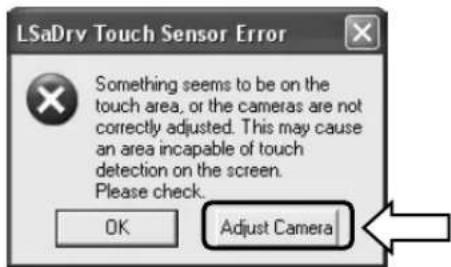
Manual Startup
In order to manually run the sensor adjustment wizard, open "My Computer" and execute "LscamWiz.exe" located under "C Drive" (*) → "Program Files" → "Hitachi Software Engineering" → "FX-DUODriver".
(*)This folder path may be changed since it depends on your Windows installation.
[2] "Camera Adjustment Wizard Start" window appears. Press "All Adjust."
![LSaDrv Camera Adjustment Wizard [03004999943] - Start Start: step1: L-Camera height -> step2: L-Camera optical axis -> step3: L-Camera sensitivity → step4: R-Camera height -> step5: R-Camera optical axis -> step6: R-Camera sensitivity -> Finish Stating camera adjustment. Press "Next" button. All Adjust L R < Back Next > Cancel LSaDrv Camera Adjustment Wizard [03004999943] - STEP5: R-Camera optical axis Wait a moment... 2: L-Camera optical axis -> step3: L-Camera sensitivity 5: R-Camera optical -> step6: R-Camera sensitivity -> Finish Find timing axis, press 'Adjust' button. R Adjust shift (5.2.2-2) < Back Next > Cancel](/content/2026/05/762026/images/7bc0e802c06746d848f2578f6b6f1fbb9515ddd37a09e3b562d252fe8c297872.jpg)
[3] Press "Finish"
![LSaDrv Camera Adjustment Wizard [03004999943] - Finish Start: -> step1: L-Camera height -> step2: L-Camera optical axis -> step3: L-Camera sensitivity -> step4: R-Camera height -> step5: R-Camera optical axis -> step6: R-Camera sensitivity -> Finish Image sensor parameters have been adjusted. Press "Finish" button to save parameters and exit wizard. L R < Back Finish>](/content/2026/05/762026/images/92e95c61a4988d56cffa1f7eca3db190b96b4ddc9c4b38638dd264658b5c01f9.jpg)
This completes sensor adjustment.
After making adjustments, check that input can be performed normally.
2.3.5.2 Sensor Adjustment Procedure (Mac version)
[1] Press the "OK" button on the "LSaDrv Touch Sensor Error" dialog box displayed on the Mac screen.
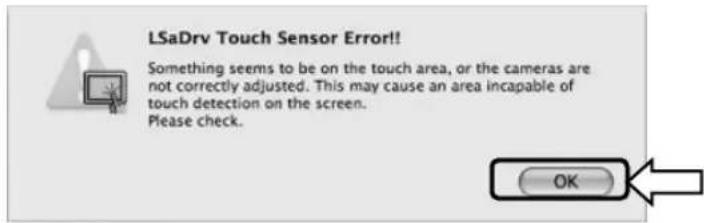
[2] Start the sensor adjustment wizard.
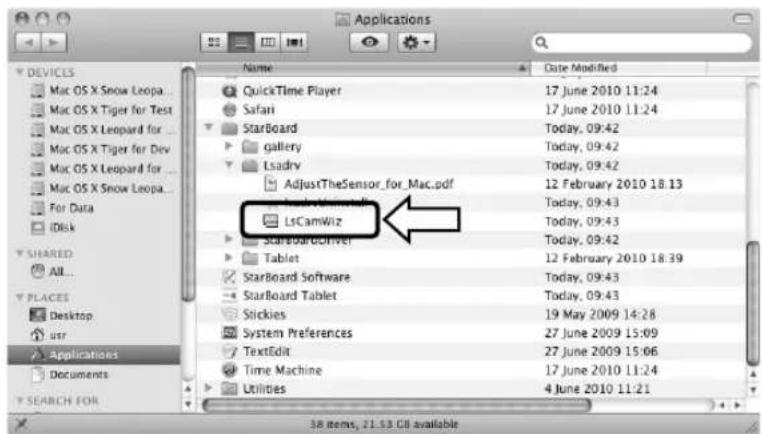
Start "Go" → "Applications" → "StarBoard" → "Lsadrv" folder → "LsCamWiz."
[3] The sensor adjustment wizard starts. Click the "All adjust" button.
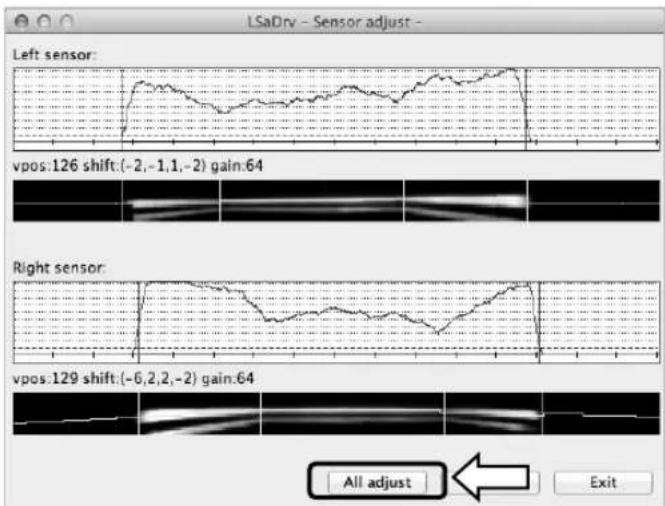
line
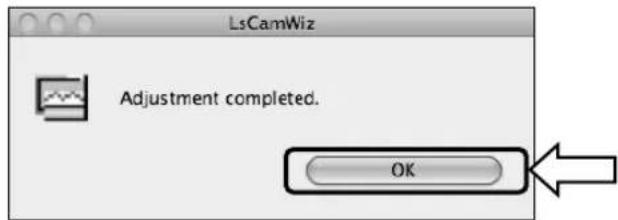
| Sensor Type | Shift (Shift) | Gain | |-------------|---------------|------| | Left sensor | -2, -1, 1, -2 | 64 | | Right sensor | -6, 2, 2, -2 | 64 |[4] "Adjustment completed" will be shown after sensor adjustment. Press "OK" to close the dialog.
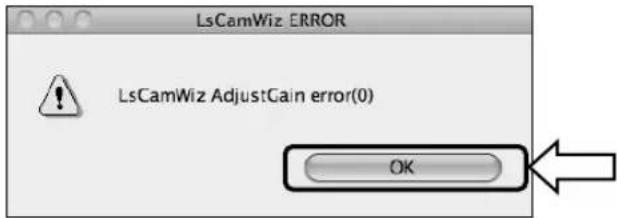
If an error such as the following appears, click the "OK" button and then perform adjustment again while referring to Section 2.3.5. If adjustment is still not successful, the StarBoard unit may be defective.
[5] If adjustment was successful, click the "Exit" button.
* Note that just clicking the button does not complete the adjustment process.
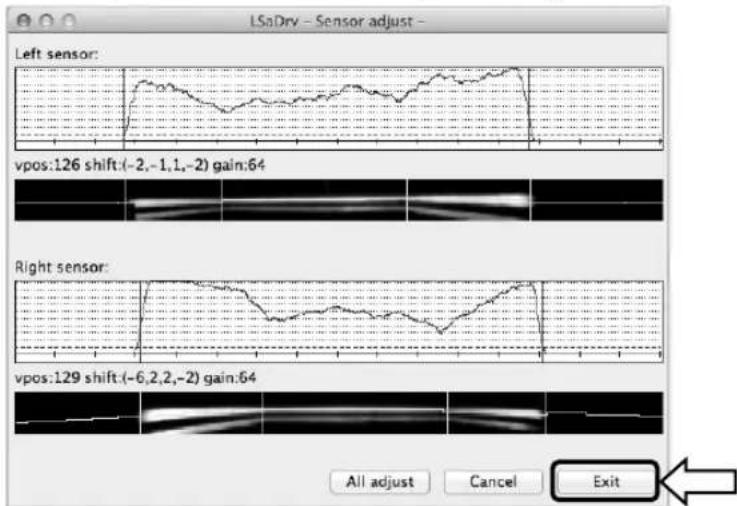
[6] To save the adjustment result, click the "Yes" button.
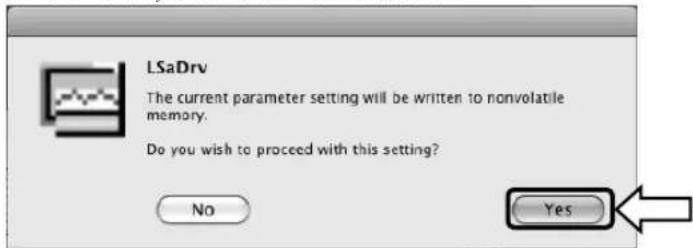
This completes sensor adjustment.
2.3.6 Positioning Alignment
Select "MENU" on the StarBoard Software toolbar → "Settings" → "StarBoard" → "Calibrate" → "OK". and then perform position alignment.
3. How to Use
3.1 How to Use Touch Mode
This section gives a basic description of how to use the board in touch mode.
3.1.1 Character Input
To input characters, use your finger or the stylus pen (sold separately).
NOTICE
Use an input tool with a thickness of least 7 mm.
When inputting to this product, use a tool that is at least 7 mm. If a pen or similar tool with a thickness of less than 7 mm is used, the input will be unstable.
Also, do not use tools with a sharp tip, such as a ballpoint pen. If such a tool is used incorrectly, it could damage the surface of the board.
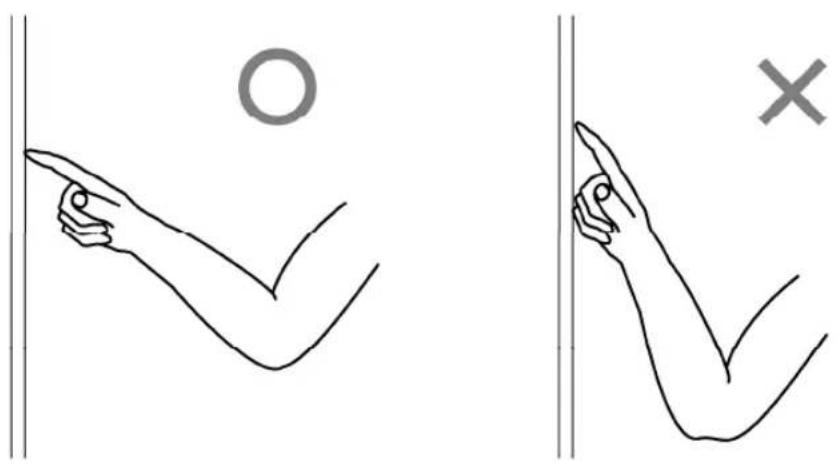
- Using your finger
Touch the projection area with your finger extended. Do not allow any other part of your body to touch or come near the projection area, as doing so may cause incorrect operation.
- Using the stylus pen and Electronic pen
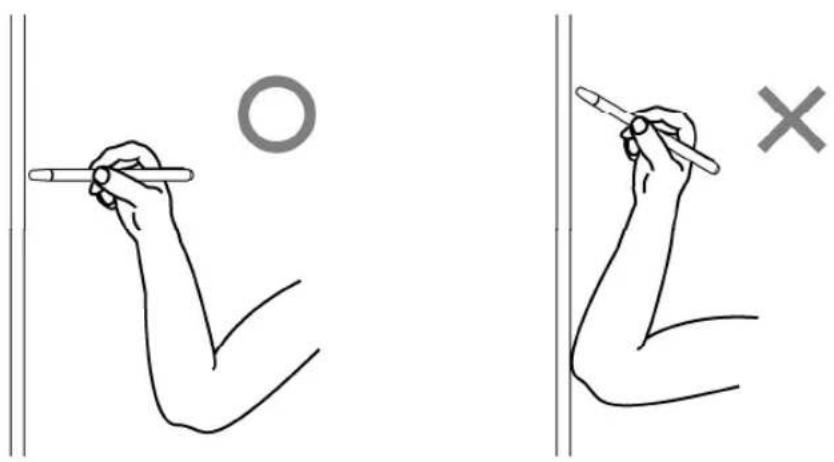
Use the pen on the projection area with your body kept sufficiently away, so that your palm and elbow do not touch the projection area. If your hand or elbow touches the projection area, or you are within 1cm of the projection area it might cause an incorrect operation.
3.1.2 PC Operation
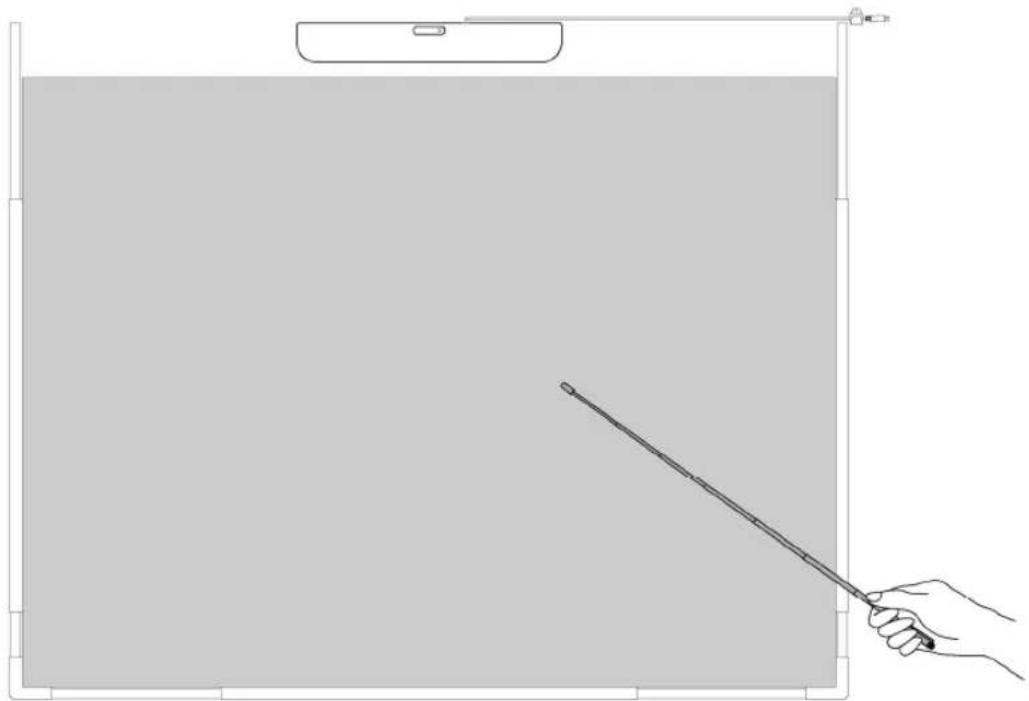
When performing PC operations by pointing or giving presentations without inputting characters, it is convenient to extend the stylus pen and use it as a pointer.
natural_image
Line drawing of a hand holding a pointer at the tip of a blank screen (no text or symbols)CAUTION
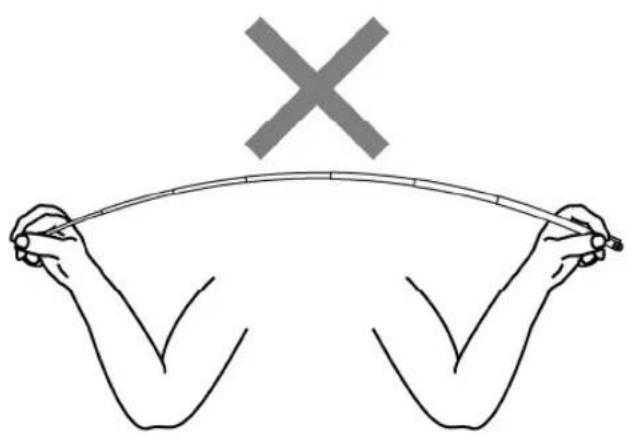
Do no strike the whiteboard or wall forcefully with the stylus pen, bend it, or apply an excessive load to it.
Failure to comply may result in damage to the stylus pen or personal injury.
Important
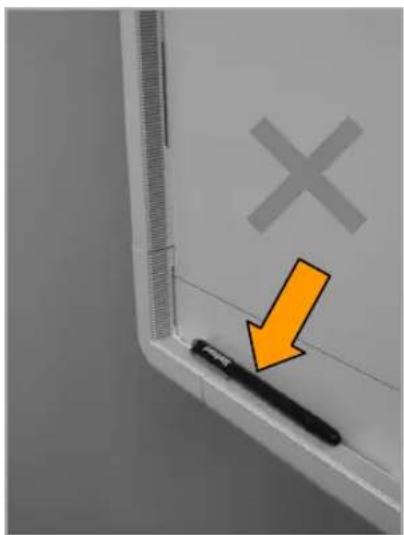
Do not place the stylus pen onto the reflective bar.
Doing so may cause a sensor error or mistaken detection to occur.
3.2 Electronic Pen Input and Finger Input
You can select the following input methods for use with StarBoard Link EZ2.
| Input Method Input Condition | ||
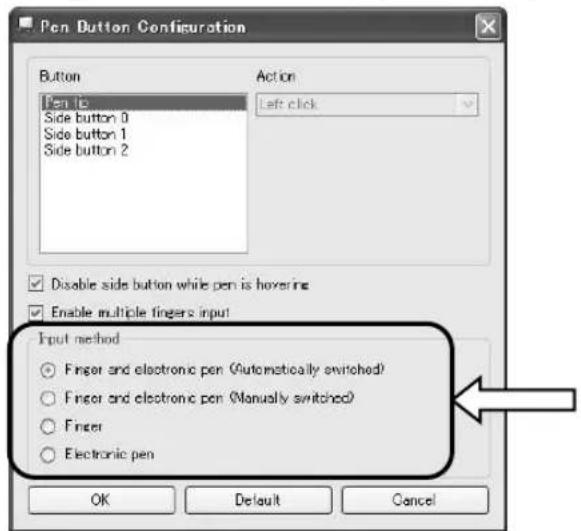
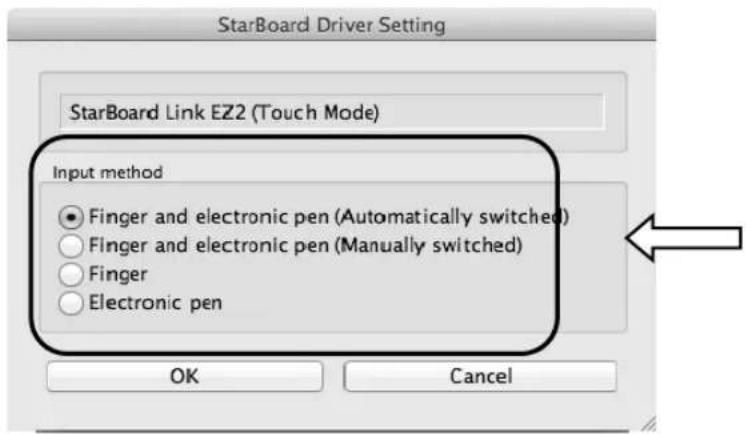
| Finger and electronic pen (automatic switching)(Note: Initial setting) | When the projection area is touched with the electronic pen, input switches to electronic pen input.In pen input mode, if the projection area is touched for a short length of time using your finger, input switches to finger input. | |
| Finger and electronic pen (manual switching) | The finger/pen switching buttons are displayed at the left and right edges of the screen. | Electronic pen input |
 | Finger input | |
| Finger | Input can only be performed by finger. If the electronic pen is used, it is used in the same way as a finger. | |
| Electronic Pen | Input is only performed using the electronic pen.Finger input cannot be performed. | |
3.2.1 Switching Input Methods (Windows)
[1] In the StarBoard Software toolbar, select "MENU" → "Settings" → "StarBoard" → "StarBoard Settings", and then press "Configure pen buttons...".
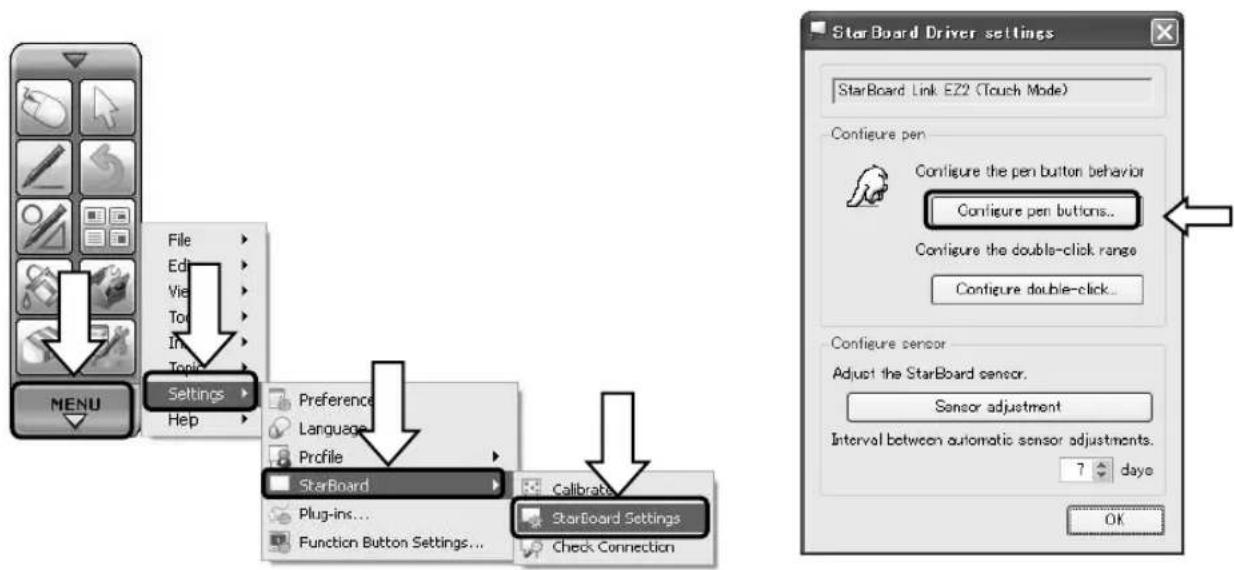
[2] Select the input method you want to use from "Input method", and press the "OK" button.
3.2.2 Switching Input Methods (Mac)
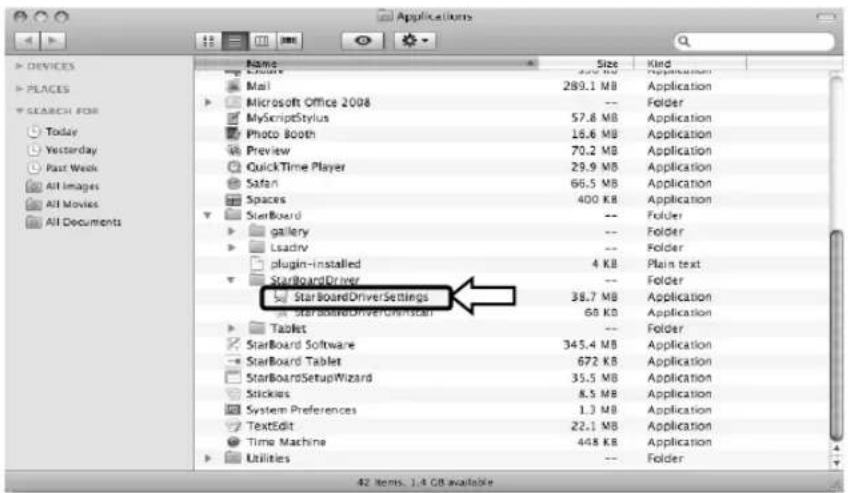
[1] Launch "Go" → "Applications" → "StarBoard" → "StarBoardDriver" → "StarBoardDriverSettings".
[2] Select the input method that you want to use from "Input method", and press the "OK" button.
3.3 How to User the Electronic Pen
This section gives a basic description of how to use the electronic pen (option).
3.3.1 Inserting the Battery
Perform the preparations for using the electronic pen.
| CAUTION |
| Be sure to install batteries correctly.Do not install batteries with positive and negative terminals reversed, or use batteries other than the type specified. It will cause pen malfunctions and excess heat, or burns to the hand. |
| Be sure to provide insulation during disposal.Be sure to insulate the positive and negative terminals of the battery using cellophane tape, or similar material when disposing of batteries. Disposing of batteries without insulating them may lead to overheating, bursting, or ignition due to shorting, resulting in personal injury or fire. Furthermore, be sure to follow all local rules and regulations regarding proper battery disposal. If within the EU, be sure to follow Batteries Directive.[Batteries directive (2006/66/EC)] |
[1] Insert the battery into the electronic pen.
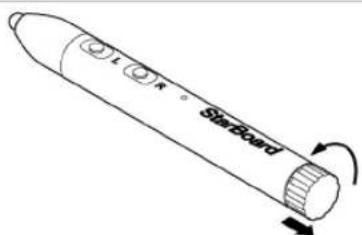
(1) Rotate the battery cover 14 counter-clockwise, and pull it to remove it.
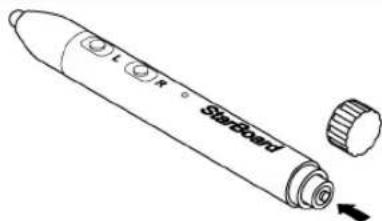
(2) As shown in the figure, insert the AAA alkaline battery so that the + side faces the outside.
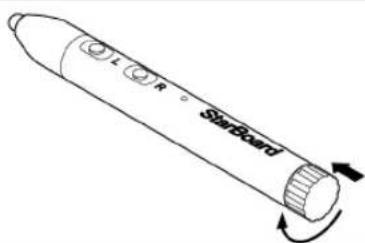
(3) Press the battery cover on, and rotate it clockwise 14 turn to fix it in place. (Be careful not to over tighten the cover, as doing so may damage it.)
3.3.2 Using the Electronic Pen
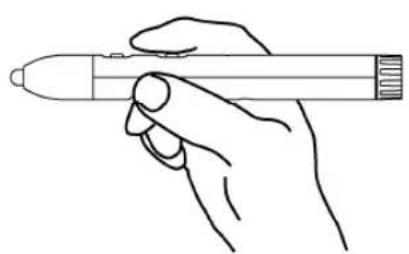
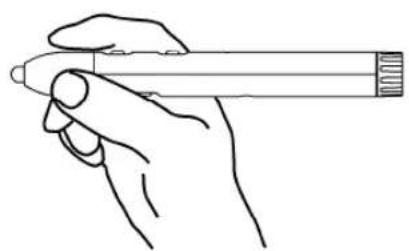
To use the electronic pen to draw characters or images, place the tip of the electronic pen on the projection area and then move the pen. When you release the tip of the electronic pen from the projection area, the writing is complete. Be careful of the following two points when using the electronic pen.
(1) When drawing with the electronic pen, keep the pen as perpendicular as possible to the projection area, and apply pressure to the tip of the pen so it is pressed against the projection area.
(2) A miniature transmitter is embedded in the tip of the electronic pen. If you hold the transmitter area of the electronic pen while drawing characters or images, the drawing data from the electronic pen might not be transmitted correctly. If the characters or images drawn on the projection area are not imported correctly into the PC, change your grip on the electronic pen and then verify that they are displayed correctly.
natural_image
Line drawing of a hand holding a pen (no text or symbols)
natural_image
Line drawing of a hand holding a pen (no text or symbols)
Blocking of the Infrared Beam
Electronic pen operations are detected when the digitiser reads the infrared beams that are generated by the pen. If the beam between the electronic pen and the digitiser is blocked, normal input becomes impossible. Avoid blocking them during use.
3.3.3 Basic Operations of the Electronic Pen
In the default settings of the electronic pen, the pen tip button is set to the left button of the mouse in Windows and the main button click in Mac. You can use the pen tip button to perform the following mouse operations while Windows or Mac is running.
The following xxxx/xxxx description is for functions and operations in a Windows environment or Mac environment.
- Left click / Primary mouse button click
Push the pen tip onto the projection area with sufficient force, and then quickly move the pen away.
- Double click / Primary mouse button Double click
Push the pen tip onto the projection area with sufficient force, and then quickly move the pen away two times in the same spot.
- Drag / Drag
Push the pen tip onto the projection area with sufficient force, and without releasing it from the projection area, move it from one point to another.
3.3.4 Customizing the Electronic Pen
The electronic pen has one pen tip button and three side buttons. Mouse actions can be assigned to these four buttons.
The default button settings are shown in the following table.
| Function Button Name | ||
| Windows * Mac | ||
| Pen tip Left click Primary mouse button click | ||
| L (Side button No. 0) | Left double click | Primary mouse button Double click |
| R (Side button No. 1) Right click Secondary Button click | ||
| C (Side button No. 2) Hides/displays the StarBoard Software Toolbar | Hides/displays the StarBoard Software Toolbar | |
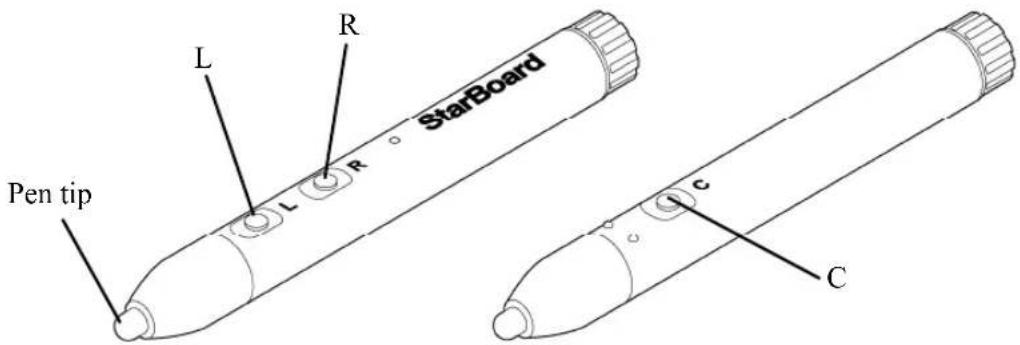
* The assignment of the side button can be changed by selecting "MENU" on the StarBoard Software toolbar → "Settings" → "StarBoard" → "StarBoard Settings" → "Configure pen buttons" (This function can only be changed in Windows.)
3.4 Start Method
3.4.1 Start Method (Windows version)
(1) Connect the USB cable of digitizer to the PC.
(2) Turn on the power switch of the projector.
(3) Turn on the power switch of the PC to start Windows.
(4) Adjust the position of the projector so that the Windows screen projected by the projector is within the input area (refer to page 1-4 of this User's Guide).
(5) Select "Start" → "All Programs" → "StarBoard Software", or double-click the StarBoard icon on the desktop.
If the "No connection" icon in below appears on the Tasktray, it means that the StarBoard Link EZ2 is not connected. Make sure that the StarBoard Link EZ2 and the PC are properly connected.
| Connected | No | Connection |
 |  | |
If the StarBoard is properly connected, the icon changes to "Connected" as above. If the icon does not change despite correcting the connection, there may be some other problem. For details, refer to "4. Appendix Troubleshooting" on page 4-1 of this User's Guide.
(6) Run "LsCamWiz.exe" located under "My Computer" → "C Drive" (*)→ "Program Files" → "Hitachi Software Engineering" → "FX-DUODriver", and adjust the sensor according to the instructions on pages 2-10.
(*)This folder path may be changed since it depends on your Windows installation.
If the positions of the pen tip and cursor are out of alignment, select "MENU" on the StarBoard Software toolbar → "Settings" → "StarBoard" → "Calibrate," and then perform position alignment.
Important
Run the “StarBoard Link EZ Setup Wizard” when operated for the first time, and whenever the board is moved.
Not doing so may cause operation errors.
3.4.2 Start Method (Mac version)
(1) Connect the USB cable of digitizer to the computer.
(2) Turn on the power switch of the projector.
(3) Turn the computer power switch on to startup Mac.
(4) Adjust the position of the projector so that the Mac screen projected by the projector is within the input area (refer to page 1-4 of this User's Guide).
(5) Select "Go" → "Applications" → "StarBoard Software" to start StarBoard Software.
(6) Select "MENU" on the StarBoard Software toolbar → "Settings" → "StarBoard" → "Check Connection," and then check the connection.
If the "StarBoard is not connected" message appears, StarBoard Software has not detected the StarBoard Link EZ2. Check whether the StarBoard Link EZ2 and PC are connected properly.
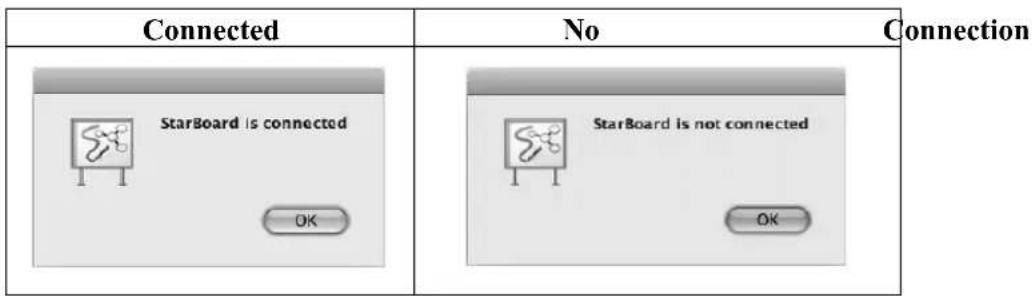
If they are connected properly, the "StarBoard is connected" message appears. If the indication does not change even though you have checked the connection, there is likely to be some problem. For details, see "4. Appendix Troubleshooting" on page 4-1 in this user's guide.
(7) Start "Go" → "Applications" → "Lsadrv" → "LsCamWiz," and then adjust the sensor in accordance with the procedure on page 2-10.
If the positions of the pen tip and cursor are out of alignment, select "MENU" on the StarBoard Software toolbar → "Settings" → "StarBoard" → "Calibrate," and then perform position alignment.
Important
Run the “StarBoard Link EZ Setup Wizard” when operated for the first time, and whenever the board is moved.
Not doing so may cause operation errors.
4. Appendix
4.1 Troubleshooting
Before assuming the product is broken, be sure to check adjustments, proper handling procedures, the possibility of faulty cable connections, etc.
Recognition-Related Problems
| Problem What | to check What to do | |
| The StarBoard does not recognise input. | Is the USB cable connected to the PC? | Connect the USB cable to the PC. |
| Is the status LED (page 1-4) lit green? | Check the USB cable connection. | |
| Did you start the system in the correct sequence? | Start the system in the correct sequence. (For details on starting the system, see page 3-9 of this User's Guide.) | |
| In case that USB cable extended as bellow, it may result in unstable of product working.•USB extension cable other than bundled one•Bus-powered USB hub•USB extender | When connecting to the PC, use the bundled USB extension cable. If you need to extend USB cable, use self-powered USB hub. | |
| StarBoard Software files may be broken or installation may not be complete correctly. | Uninstall the StarBoard Software and then re-install it. (For details on installing StarBoard Software, see the StarBoard Software Installation Guide.) | |
| Other than the above Contact a support center. | ||
| Touch Sensor Error (Something is blocking light from reaching the board surface or reflective tape. Or sensor adjustment is not properly. StarBoard can not detect the input.) | Is something blocking light from the projection area or silver surfaces of the reflective bars? | Remove the blockage. |
| Are the silver surfaces of the reflective bars dirty? | Use a soft brush to clean the silver surfaces of the reflective bars. | |
| Are the digitizer/reflective bards installed correctly? | Use the installation wizard to check the installation condition of the devices. (2.2 Installing the Devices ->Page 2-2 in this User's Guide) Alternatively, follow the procedures in 2.3 Installing the Devices (When the Installation Wizard is not used) on pages 2-3 to 2-14 of this User's Guide. | |
| Other than the above Adjust the sensor. (See page 2-10 of this User's Guide.) | ||
Recognition-Related Problems
| Problem What | to check What to do | |
| Touch Sensor Error (USB error) | The controller must be reset and the system restarted. | Disconnect the USB cable and reconnect it. If this does not solve the problem, restart the PC. |
| In case that USB cable extended as bellow, it may result in unstable of product working.• USB extension cable other than bundled one• Bus-powered USB hub• USB extender | When connecting to the PC, use the bundled USB extension cable. If you need to extend USB cable, use self-powered USB hub. | |
| Touch Sensor Error (Insufficient USB bandwidth) | Is a high-speed USB device connected to the USB host controller used to connect the StarBoard? | Be sure to connect the StarBoard and any high-speed USB devices to separate USB host controllers. In case that PC only has one USB host controller, use self-powered USB hub. |
Input-Related Problems
| Problem What | to check What to do | |
| The input position does not match. | Has position alignment been performed properly? | Perform proper position alignment. |
| Other than the above Contact a support center. | ||
| The position cannot be aligned properly. | Have the StarBoard and projector been placed in the proper orientation? | Adjust the position of the StarBoard and the projector. If undue correction is performed, it may not be possible to align the position properly. |
| Is the PC screen being projected inside the StarBoard's input area? | Make sure the PC screen projection is contained within the StarBoard's input area.(For details on the input area, see page 1-4 of this User's Guide.) | |
| StarBoard Software files may be broken or installation may not be complete correctly. | Uninstall the StarBoard Software and then re-install it.(For details on installing StarBoard Software, see the StarBoard Software Installation Guide.) | |
| Other than the above Contact a support center. | ||
Input-Related Problems
| Problem What | to check What to do | |
| The electronic pen does not work. | This may be due to faulty contact of electronic pen batteries. | Remove the batteries from the electronic pen and re-install them. |
| Are batteries used up? | Replace the batteries.(For details on battery replacement, see page 3-6 of this User's Guide.) | |
| StarBoard Software files may be broken or installation may not be complete correctly. | Uninstall the StarBoard Software and then re-install it.(For details on installing StarBoard Software, see the StarBoard Software Installation Guide) | |
| Is there a nearby light source with a wavelength close to that of the electronic pen?(Illumination from fluorescent lighting or similar source) | Check by turning off the lights in the room. If the StarBoard operates normally, change the location in which it is installed or change the lighting fixtures. | |
| Other than the above | Restart Windows/Mac OS or StarBoard Software. | |
| Contact a support center. | ||
| Check if the same problem arises when using another electronic pen. If operations are normal when using another electronic pen, the original pen is the problem. | ||
| Electronic pen operation is unstable or stops. | Is a remote controller for AV equipment being operated while using the pen? | Stop operating the remote controller. |
| The battery charge of the electronic pen may be low. | Replace the batteries.(For details on battery replacement, see page 3-6 of this User's Guide.) | |
| StarBoard Software files may be broken or installation may not be complete correctly. | Uninstall the StarBoard Software and then re-install it.(For details on installing StarBoard Software, see the StarBoard Software Installation Guide.) | |
| Other than the above | Restart Windows/Mac OS or StarBoard Software. | |
| Check if the same problem arises when using another electronic pen. If operations are normal when using another electronic pen, the original pen is the problem. |
4.2 Regularly Auto Sensor Adjustment (For Windows)
While using StarBoard, auto sensor adjustment will execute regularly. To use StarBoard comfortably this function is recommended to use.
You cannot use this Adjustment for Mac.
NOTICE
Using infrared and compact cameras, this product captures the image (shadow) of a pen or finger and detects the corresponding coordinate position. Do not operate near lighting that will obstruct the capture of the image.
- Locations where the surface or side of the projection area are exposed to direct sunlight.
- Locations in which there are light fittings with many light bulbs or infrared rays directly above the projection area.
4.2.1 Sensor Auto Adjustment Procedure
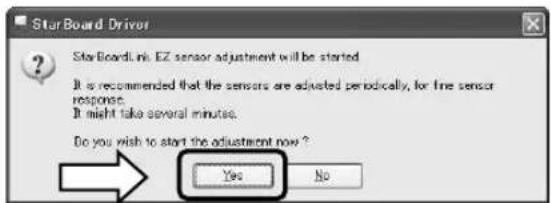
[1] Confirmation message of auto sensor adjustment will be displayed after 7 days as default passed from first connect of StarBoard to PC. If you press "Yes", auto sensor adjustment program will execute. If you press "No", this will not execute.
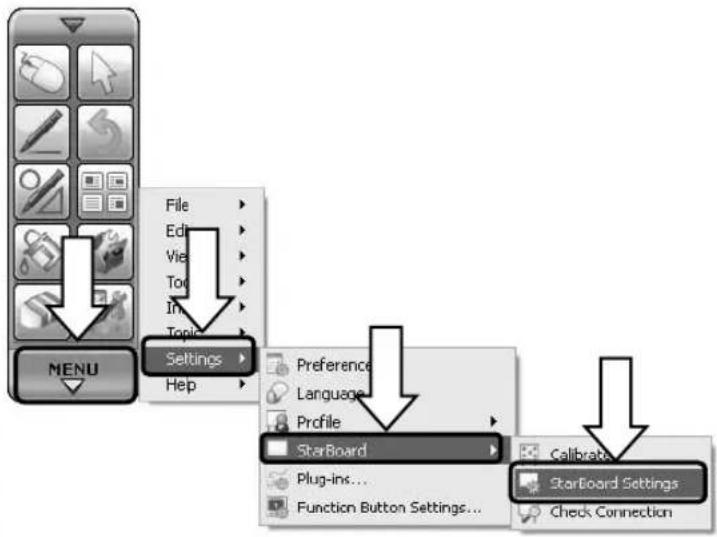
Manual execute /Change of auto execute interval of the sensor adjustment
Manual execute
For the manual execute, select "MENU" – "Settings" – "StarBoard" – "StarBoard Settings" and press [1] "Sensor adjustment" in the StarBoard toolbar.
Change of auto execute interval of the sensor adjustment
For the auto execute interval of the sensor adjustment select from 0 to 30
by [2] button. If you select "0", auto execute is disable.
![StarBoard Driver settings StarBoard Link EZ2 (Touch Mode) Configure pen Configure the pen button behavior Configure pen buttons... Configure the double-click range Configure double-click... Configure sensor Adjust the StarBoard sensor. Sensor adjustment Interval between automatic sensor adjustments. 7 px OK [1] [2]](/content/2026/05/762026/images/c3793a8928547ff1ebbaf2420edbaa9bc7eb5f74005e86e06f53963bffd32b02.jpg)
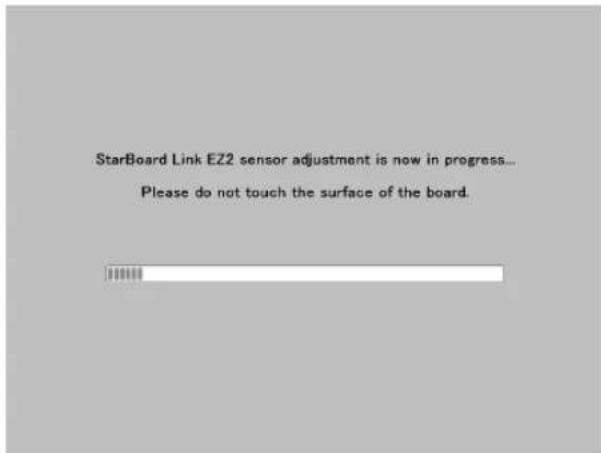
[2] Sensor adjusting screen will be displayed during auto adjustment. Do not touch the board surface until auto adjustment completed.
[3] Following window will be displayed when sensor auto adjustment finished. Press "OK".
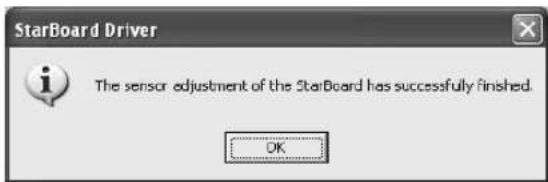
This is all of auto sensor adjustment.
Confirm the normal input after adjustment
* In case of adjustment error, following window will be displayed. Press “Retry” to auto sensor adjustment program execute again.
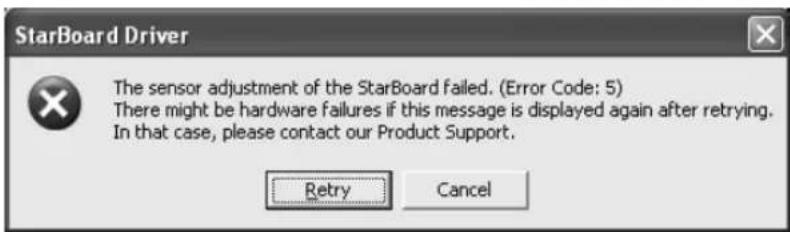
If this message displayed again, StarBoard may have some problem. Please Contact our support.
4.3 System Specifications
| Item Specification | |
| Model name | StarBoard Link EZ2 |
| Detection method | Infrared image sensor system*1 |
| Digitiser resolution | 0.05mm |
| Sampling rate | Approx. 100 points/second when using (USB1.1 Full Speed) |
| Interface | USB 1.1 (cable length:6m) |
| Effective screen size | 60 – 77 inches, 87 – 90 inches (for 4:3 aspect ratio)60 – 72 inches, 82 – 90 inches (for 16:10 aspect ratio) |
| Dimensions | Digitizer: 510mm(W)×75.5mm(H)×41mm(D)Reflective bars: 826 – 1480mm(W)×23mm(H)×21mm(D) |
| Weight | Approx. 1.5kg (Digitizer 0.8kg, reflective bars 0.7kg/4 bars) |
| Power consumption | 5V 500mA |
| Operating requirements | +5°C – 35°C (Humidity: 20 – 80% RH, without condensation) |
| Storage requirements | -10°C – +45°C (Humidity: 20 – 80% RH, without condensation) |
| Electronic pen (option) | Communication system: Infrared (Carrier wavelength: 56 kHz, IR wavelength: 940 nm)*2Side switches: 3Power supply: AAAExpected battery life: Approx. 80 hours of continuous use*3(alkaline battery )Size: 149 mm ×φ17 mmWeight: Approx. 20 g (not including batteries) |
| Standards, etc. VCCI Class A, FCC Class B, CE | |
*1 Using infrared and compact cameras, this product captures the image (shadow) of a pen or finger and detects the corresponding coordinate position. Do not operate near lighting that will obstruct the capture of the image. This includes:
- Locations where the surface or side of the projection area are exposed to direct sunlight.
- Locations in which there are light fittings with many light bulbs or infrared rays directly above the projection area.
Depending on installation conditions or sensor property, position detection may be off by about 20 mm.
*2 The electronic pen uses infrared light having the same frequency (approx. 940 nm).
Do not operate this product in a location where other equipment (fluorescent lighting, plasma displays, passive sensors, etc.) may emit a similar frequency.
*3 The expected battery lifetime may vary depending on initial battery conditions, humidity, and the operating environment.
4.4 Proper Care and Cleaning
Clean the StarBoard periodically so that you may use it for a long time to come.
(1) Digitizer Cleaning
- When cleaning the digitizer, use a soft cloth dampened with a diluted neutral cleansing agent that does not contain a polishing compound.
- Never use a solvent such as thinner.
- Note that rubbing or striking the StarBoard surface with a finger nail or other hard object may result in scratching.
(2) Cleaning the silver surfaces of the reflective bars
- Use a soft brush to clean the silver surfaces of the reflective bars.
- Do not use water or liquids.
- Note that rubbing or striking the silver surfaces of the reflective bars with nails or hard objects may result in scratching. The product may not work correctly if scratched.
(3) Cleaning the Magnets
- Use a soft cloth dampened with water or alcohol to remove dirt from the magnet sections of the digitizer/reflective bars.
- Do not use cleaners etc. that contain surfactant, as doing so will reduce the retaining force of the magnets.
(4) Cleaning the electronic pen
- To clean the electronic pen, use a diluted neutral cleansing agent that does not contain a polishing compound. Do not apply the neutral cleansing agent directly, but rather dampen a soft wet cloth with a mixture of water and the cleaner, and wipe. Never use a solvent such as thinner.
- Do not allow the pen tip to get wet.
4.5 Replaceable Parts
(1) Stylus pen
(2) AAA alkaline battery
(3) Spare pen tip
For details on obtaining them, contact your dealer or a support center.
4.6 Product Warranty Policy
-
During the free warranty service period, if a malfunction occurs during normal use, the malfunction will be corrected without charge, according to the provisions of the warranty. Furthermore, if the customer registration card accompanying the warranty is not returned to our company, the customer information will not be registered; so free repairs might be unavailable. After receiving this product, please immediately fill out and return this customer registration card.
-
The warranty coverage is listed in the following table:
| Product Name | Part Name | Warranty Coverage |
| StarBoard Link EZ2 | Digitiser + | |
| USB extension cable + | ||
| Reflection frame | + | |
| Stylus Pen (Option) | Stylus Pen - | |
| Electric Pen (Option) | Electric Pen + | |
| AAA alkaline battery - | ||
| Spare Pen Tips | - |
(Explanatory note): + → Covered by warranty (However, this excludes abrasion, physical damage, and loss)
- → Not covered by warranty
-
Please refer to the warranty sheet for this product's warranty service period.
-
Even during the warranty period, there will be a repair charge in the following cases:
(1) If the registration card accompanying the warranty is not returned to our company.
(2) If the warranty is not presented.
(3) If specified fields on the registration card accompanying the warranty are not completed, or if the wording has been changed without authorisation.
(4) The warranty applies only to the original purchasers. (It does not apply to a third party to whom the customer resold this product.)
(5) In the event of a malfunction or damage resulting from the customer's improper handling (e.g., a fall, impact, etc., caused by the customer during transportation or movement).
(6) In the event of problems resulting from handling contrary to the handling and precautions mentioned in this user's guide.
(7) In the event of failure or damage resulting from abnormal voltages, pollution or other natural disasters (e.g., fire, earthquake, and lightning).
(8) In the event of a malfunction in this product caused by the connection to this product of equipment other than the equipment specified by our company.
(9) In the event that there is no abnormality in this product, but a defect in a part other than this product was detected or remedied.
(10) In the event of ordinary wear and tear, wear, deterioration, etc., of consumables, even during normal use.
- If this product malfunctions, review the contents of this user's guide. If the problems remain irreparable, contact the dealer. The dealer will determine whether or not the product must be repaired, so please contact them. If the customer sends the product to our company without RMA (Return Merchandise Authorisation) number, it might not be covered by warranty.
- As a rule, the customer is responsible for shipping charges required to send all or part of the product for repair, etc. Our company will assume responsibility for the return shipping to the customer.
- This warranty does not cover labour fees for repair-associated equipment assembly or disassembly.
- Incidental damage caused by the failure of this product (e.g., loss of profit that should have resulted from the use of this product) is outside the scope of this warranty.
- The aforementioned provisions define this warranty, and they supersede those of all express or implied warranties that include legal defect liability.
- This warranty is limited to use of this product within the country where the user bought this product.
- Notices
- Precautions Regarding Disposal
- Special Instructions
- Disclaimers
- Product Assurance Provisions
- Introduction
- Safe Handling
- Markings and Symbols
- WARNINGS
- CAUTIONS
- NOTICE
- Safe Precautions
- Required Precautions
- Precautions Regarding Operation
- Dealing with Trouble
- Precautions Regarding Handling
- Precautions Regarding Setup Environment
- Precautions Regarding Disposal
- ! WARNINGS
- Contents
- Introduction.... 1-1
- Assembly and Setup 2-1
- How to Use.... 3-1
- Appendix 4-1
- Introduction
- Preparations
- Product Outline
- Features
- Parts Check
- StarBoard
- Stylus Pen (option)
- Electronic Pen (option)
- Role of Each Part
- Electronic Pen (option)
- Assembly and Setup
- Important
- Installing the StarBoard Software
- Before Starting to Connect Equipment
- About PC Earth
- Installing the Devices (Using the Installation Wizard)
- Installing the Devices (When the installation wizard is not used)
- Projection from the Projector
- Installing the Reflective Bars
- Fixing Screws
- Installing the Digitizer
- - Installing with Magnets
- Connecting the USB Cable
- Adjusting the Sensor
- Sensor Adjustment Procedure (Windows version)
- Manual Startup
- Sensor Adjustment Procedure (Mac version)
- Positioning Alignment
- How to Use
- How to Use Touch Mode
- Character Input
- Use an input tool with a thickness of least 7 mm.
- PC Operation
- CAUTION
- Electronic Pen Input and Finger Input
- Switching Input Methods (Windows)
- Switching Input Methods (Mac)
- How to User the Electronic Pen
- Inserting the Battery
- Using the Electronic Pen
- Blocking of the Infrared Beam
- Basic Operations of the Electronic Pen
- Customizing the Electronic Pen
- Start Method
- Start Method (Windows version)
- Run the “StarBoard Link EZ Setup Wizard” when operated for the first time, and whenever the board is moved.
- Start Method (Mac version)
- Appendix
- Troubleshooting
- Regularly Auto Sensor Adjustment (For Windows)
- Sensor Auto Adjustment Procedure
- Manual execute /Change of auto execute interval of the sensor adjustment
- Manual execute
- Change of auto execute interval of the sensor adjustment
- System Specifications
- Proper Care and Cleaning
- Digitizer Cleaning
- Cleaning the silver surfaces of the reflective bars
- Cleaning the Magnets
- Cleaning the electronic pen
- Replaceable Parts
- Product Warranty Policy
Brand : HITACHI
Model : StarBoard Link EZ2
Category : Interactive whiteboard