
DR-S2.2 - Blu-ray player ONKYO - Free user manual and instructions
Find the device manual for free DR-S2.2 ONKYO in PDF.


| Product Type | DVD Receiver / Blu-ray Player |
| Dimensions (W x H x D) | 435 x 101 x 428 mm (17 1/8 x 4 x 16 1/8 in.) |
| Weight | 8.8 kg (19.4 lb) |
| Power Supply | AC 120 V, 60 Hz (North America) / AC 230-240 V, 50 Hz (Europe) |
| Power Consumption | 170 W |
| Amplifier Output (FTC) | 40 W per channel into 6 ohms, 2 channels driven, 1 kHz, 5% THD |
| Amplifier Output (DIN) | 35 W per channel into 6 ohms |
| Audio Decoders | DTS & Dolby Digital |
| Video DAC | 27 MHz / 10-Bit |
| Progressive Scan | Supported (North American model) |
| Disc Compatibility | DVD, Video CD, Audio CD, CD-R/RW, MP3 CD |
| Tuner | FM/AM with 30 presets |
| Remote Control | Full function RI-compatible learning remote |
| Audio Inputs/Outputs | 4 analog inputs, 2 analog outputs, 1 optical digital input, 1 coaxial digital input, 1 optical digital output |
| Video Inputs/Outputs | 2 composite video inputs, 1 composite video output, 2 S-Video inputs, 2 S-Video outputs, component video output (except Europe), SCART (Europe) |
| Subwoofer Preout | Yes (1 output) |
| Speaker Configuration | 5.1 channels (front L/R, center, surround L/R, subwoofer) |
| Memory Backup | Built-in memory backup system (no batteries required) |
| IPM (Intelligent Power Management) | Auto on/off with TV power |
| Regional Code | Varies by model (e.g., Region 1 for US/Canada) |
Frequently Asked Questions - DR-S2.2 ONKYO
User questions about DR-S2.2 ONKYO
0 question about this device. Answer the ones you know or ask your own.
Ask a new question about this device
Download the instructions for your Blu-ray player in PDF format for free! Find your manual DR-S2.2 - ONKYO and take your electronic device back in hand. On this page are published all the documents necessary for the use of your device. DR-S2.2 by ONKYO.
USER MANUAL DR-S2.2 ONKYO
Before Using Your DVD Receiver 2
DVD Receiver
DR-S2.2
Instruction Manual
Getting Started
Setup
Basic Operation
Thank you for purchasing the Onkyo DVD Receiver.
Please read this manual thoroughly before making connections and turning on the power.
Following the instructions in this manual will enable you to obtain optimum performance and listening enjoyment from your new DVD Receiver.
Please retain this manual for future reference.
Advanced Operation
WARNING:
TO REDUCE THE RISK OF FIRE OR ELECTRIC SHOCK, DO NOT EXPOSE THIS APPLIANCE TO RAIN OR MOISTURE.
CAUTION:
TO REDUCE THE RISK OF ELECTRIC SHOCK, DO NOT REMOVE COVER (OR BACK). NO USER-SERVICEABLE PARTS INSIDE. REFER SERVICING TO QUALIFIED SERVICE PERSONNEL.
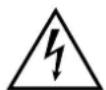
WARNING RISK OF ELECTRIC SHOCK DO NOT OPEN
AVIS RISQUE DE CHOC ELECTRIQUE NE PAS OUVRIR


The lightning flash with arrowhead symbol, within an equilateral triangle, is intended to alert the user to the presence of uninsulated "dangerous voltage" within the product's enclosure that may be of sufficient magnitude to constitute a risk of electric shock to persons.

The exclamation point within an equilateral triangle is intended to alert the user to the presence of important operating and maintenance (servicing) instructions in the literature accompanying the appliance.
Important Safeguards
- Read Instructions – All the safety and operating instructions should be read before the appliance is operated.
- Retain Instructions – The safety and operating instructions should be retained for future reference.
- Heed Warnings – All warnings on the appliance and in the operating instructions should be adhered to.
- Follow Instructions – All operating and use instructions should be followed.
- Cleaning – Unplug the appliance from the wall outlet (the mains) before cleaning. The appliance should be cleaned only as recommended by the manufacturer.
- Attachments – Do not use attachments not recommended by the appliance manufacturer as they may cause hazards.
- Water and Moisture – Do not use the appliance near water – for example, near a bath tub, wash bowl, kitchen sink, or laundry tub; in a wet basement; or near a swimming pool; and the like.
-
Accessories – Do not place the appliance on an unstable cart, stand, tripod, bracket, or table. The appliance may fall, causing serious injury to a child or adult, and serious damage to the appliance. Use only with a cart, stand, tripod, bracket, or table recommended by the manufacturer, or sold with the appliance. Any mounting of the appliance should follow the manufacturer's instructions, and should use a mounting accessory recommended by the manufacturer.
-
An appliance and cart combination should be moved with care. Quick stops, excessive force, and uneven surfaces may cause the appliance and cart combination to overturn.
PORTABLE CART WARNING
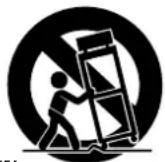
S3125A
-
Ventilation – Slots and openings in the cabinet are provided for ventilation and to ensure reliable operation of the appliance and to protect it from overheating, and these openings must not be blocked or covered. The openings should never be blocked by placing the appliance on a bed, sofa, rug, or other similar surface. The appliance should not be placed in a built-in installation such as a bookcase or rack unless proper ventilation is provided. There should be free space of at least 20 cm (8 in.) and an opening behind the appliance.
-
Power Sources – The appliance should be operated only from the type of power source indicated on the marking label. If you are not sure of the type of power supply to your home, consult your appliance dealer or local power company.
-
Grounding or Polarization – The appliance may be equipped with a polarized alternating current line plug (a plug having one blade wider than the other). This plug will fit into the power outlet only one way. This is a safety feature. If you are unable to insert the plug fully into the outlet, try reversing the plug. If the plug should still fail to fit, contact your electrician to replace your obsolete outlet. Do not defeat the safety purpose of the polarized plug.
-
Power-Cord Protection – Power-supply cords (mains leads) should be routed so that they are not likely to be walked on or pinched by items placed upon or against them, paying particular attention to cords (leads) at plugs, convenience receptacles, and the point where they exit from the appliance.
- Outdoor Antenna (Aerial) Grounding – If an outside antenna (aerial) or cable system is connected to the appliance, be sure the antenna (aerial) or cable system is grounded so as to provide some protection against voltage surges and built-up static charges. Article 810 of the National Electrical Code, ANSI/NFPA 70, provides information with regard to proper grounding of the mast and supporting structure, grounding of the lead-in wire to an antenna- (aerial-) discharge unit, size of grounding conductors, location of antenna- (aerial-) discharge unit, connection to grounding electrodes, and requirements for the grounding electrode. See FIGURE 1.
- Lightning – For added protection for the appliance during a lightning storm, or when it is left unattended and unused for long periods of time, unplug it from the wall outlet (the mains) and disconnect the antenna (aerial) or cable system. This will prevent damage to the appliance due to lightning and power-line surges.
- Power Lines – An outside antenna (aerial) system should not be located in the vicinity of overhead power lines or other electric light or power circuits, or where it can fall into such power lines or circuits. When installing an outside antenna (aerial) system, extreme care should be taken to keep from touching such power lines or circuits as contact with them might be fatal.
- Overloading – Do not overload wall outlets, extension cords (leads), or integral convenience receptacles as this can result in a risk of fire or electric shock.
- Object and Liquid Entry – Never push objects of any kind into the appliance through openings as they may touch dangerous voltage points or short-out parts that could result in a fire or electric shock. Never spill liquid of any kind on the appliance.
- Servicing – Do not attempt to service the appliance yourself as opening or removing covers may expose you to dangerous voltage or other hazards. Refer all servicing to qualified service personnel.
-
Damage Requiring Service – Unplug the appliance form the wall outlet (the mains) and refer servicing to qualified service personnel under the following conditions:
A. When the power-supply cord (mains lead) or plug is damaged,
B. If liquid has been spilled, or objects have fallen into the appliance,
C. If the appliance has been exposed to rain or water,
D. If the appliance does not operate normally by following the operating instructions. Adjust only those controls that are covered by the operating instructions as an improper adjustment of other controls may result in damage and will often require extensive work by a qualified technician to restore the appliance to its normal operation,
E. If the appliance has been dropped or damaged in any way, and
F. When the appliance exhibits a distinct change in performance – this indicates a need for service. -
Replacement Parts – When replacement parts are required, be sure the service technician has used replacement parts specified by the manufacturer or have the same characteristics as the original part. Unauthorized substitutions may result in fire, electric shock, or other hazards.
- Safety Check – Upon completion of any service or repairs to the appliance, ask the service technician to perform safety checks to determine that the appliance is in proper operation condition.
- Wall or Ceiling Mounting – The appliance should be mounted to a wall or ceiling only as recommended by the manufacturer.
- Heat - The appliance should be situated away from heat sources such as radiators, heat registers, stoves, or other appliances (including amplifiers) that produce heat.
- Liquid Hazards – The appliance shall not be exposed to dripping or splashing and no objects filled with liquids, such as vases shall be placed on the appliance.
Precautions
For U.S. model
The laser is covered by a housing which prevents exposure during operation or maintenance. However, this product is classified as a Laser Product by CDRH (Center for Devices and Radiological Health) which is a department of the Food and Drug Administration. According to their regulations 21 CFR section 1002.30, all manufactures who sell Laser Products must maintain records of written communications between the manufacturer, dealers and customers concerning radiation safety. If you have any complaints about instructions or explanations affecting the use of this product, please feel free to write to the address on the back page of this manual. When you write us, please include the model number and serial number of your unit.
In compliance with Federal Regulations, the certification, identification and the period of manufacture are indicated on the rear panel.
FCC INFORMATION FOR USER
CAUTION:
The user changes or modifications not expressly approved by the party responsible for compliance could void the user's authority to operate the equipment.
NOTE:
This equipment has been tested and found to comply with the limits for a Class B digital device, pursuant to Part 15 of the FCC Rules. These limits are designed to provide reasonable protection against harmful interference in a residential installation. This equipment generates, uses and can radiate radio frequency energy and, if not installed and used in accordance with the instructions, may cause harmful interference to radio communications. However, there is no guarantee that interference will not occur in a particular installation. If this equipment does cause harmful interference to radio or television reception, which can be determined by turning the equipment off and on, the user is encouraged to try to correct the interference by one or more of the following measures:
- Reorient or relocate the receiving antenna.
- Increase the separation between the equipment and receiver.
- Connect the equipment into an outlet on a circuit different from that to which the receiver is connected.
- Consult the dealer or an experienced radio/TV technician for help.
Note to CATV system installer:
This reminder is provided to call the CATV system installer's attention to Article 820-40 of the NEC, ANSI/NFPA 70, which provides guidelines for proper grounding and, in particular, specifies that the cable ground shall be connected to the grounding system of the building, as close to the point of cable entry as practical.
FIGURE 1:
EXAMPLE OF ANTENNA (AERIAL) GROUNDING AS PER NATIONAL ELECTRICAL CODE, ANSI/NFPA 70
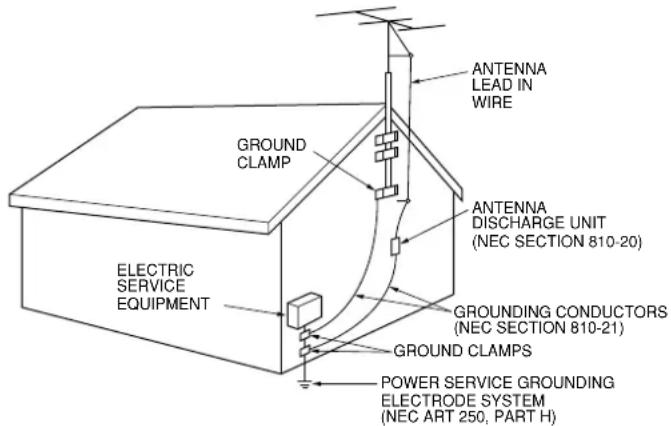
NEC - NATIONAL ELECTRICAL CODE
S2898A
For Canadian model
This class B digital apparatus complies with Canadian ICES-003.
For models having a power cord with a polarized plug:
CAUTION: TO PREVENT ELECTRIC SHOCK, MATCH WIDE BLADE OF PLUG TO WIDE SLOT, FULLY INSERT.
Replacement and mounting of an AC plug on the power supply cord of this unit should be performed only by qualified service personnel.
IMPORTANT
The wires in the mains lead are coloured in accordance with the following code:
Blue: Neutral
Brown: Live
As the colours of the wires in the mains lead of this apparatus may not correspond with the coloured markings identifying the terminals in your plug, proceed as follows:
The wire which is coloured blue must be connected to the terminal which is marked with the letter N or coloured black.
The wire which is coloured brown must be connected to the terminal which is marked with the letter L or coloured red.
IMPORTANT
A 5 ampere fuse is fitted in this plug. Should the fuse need to be replaced, please ensure that the replacement fuse has a rating of 5 amperes and that it is approved by ASTA or BSI to BS1362. Check for the ASTA mark or the BSI mark on the body of the fuse.
IF THE FITTED MOULDED PLUG IS UNSUITABLE FOR THE SOCKET OUTLET IN YOUR HOME THEN THE FUSE SHOULD BE REMOVED AND THE PLUG CUT OFF AND DISPOSED OF SAFELY. THERE IS A DANGER OF SEVERE ELECTRICAL SHOCK IF THE CUT OFF PLUG IS INSERTED INTO ANY 13 AMPERE SOCKET.
If in any doubt, please consult a qualified electrician.
CAUTION:
VISIBLE LASER RADIATION WHEN OPEN AND INTERLOCK FAILED OR DEFEATED. DO NOT STARE INTO BEAM.
CAUTION:
THIS PRODUCT UTILIZES A LASER. USE OF CONTROLS OR ADJUSTMENTS OR PERFORMANCE OF PROCEDURES OTHER THAN THOSE SPECIFIED HEREIN MAY RESULT IN HAZARDOUS RADIATION EXPOSURE.
This unit contains a semiconductor laser system and is classified as a "CLASS 1 LASER PRODUCT." So, to use this model properly, read this Instruction Manual carefully. In case of any trouble, please contact the store where you purchased the unit. To prevent being exposed to the laser beam, do not try to open the enclosure.
For European model
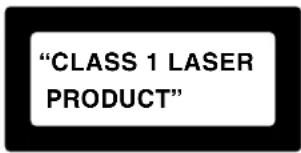
This label on the rear panel states that:
- This unit is a CLASS 1 LASER PRODUCT and employs a laser inside the cabinet.
- To prevent the laser from being exposed, do not remove the cover. Refer servicing to qualified personnel.
1. Regional Restriction Codes (Region Number)
Regional restriction codes are built into DVD Receivers and DVD videos for each sales region. If the regional code of the DVD Receiver does not match one of the regional codes on the DVD video, playback is not possible.
The regional number can be found on the rear panel of the DVD Receiver. (e.g. 📄 for Region 1)
2. About This Manual
This manual explains the basic procedures for operating the DVD Receiver. Some DVD videos do not support the full potential of the DVD technology. Your DVD Receiver may therefore not respond to all operating commands. Refer to instruction notes on discs. A "mark" may appear on the TV screen during operation. It means that the operation is not permitted by the DVD Receiver or the disc.
3. Recording Copyright
Recording of copyrighted material for other than personal use is illegal without permission of the copyright holder.
4. AC Fuse
The fuse is located inside the chassis and is not user-serviceable. If power does not come on, contact your Onkyo authorized service center.
5. Power
WARNING
BEFORE PLUGGING IN THE UNIT FOR THE FIRST TIME, READ THE FOLLOWING SECTION CAREFULLY.
The voltage of the available power supply differs according to country or region. Be sure that the power supply voltage of the area where the unit will be used meets the required voltage (AC 120V 60Hz or AC 230-240V 50Hz) written on the rear panel.
6. Do not touch the unit with wet hands
Do not handle the unit or power cord (mains lead) when your hands are wet or damp. If water or any other liquid enters the case, take the unit to an authorized service center for inspection.
7. Location of the unit
- Place the unit in a well-ventilated location.
Take special care to provide plenty of ventilation on all sides of the unit especially when it is placed in an audio rack. If ventilation is blocked, the unit may overheat and malfunction. - Do not expose the unit to direct sunlight or heating units as the unit's internal temperature may rise and shorten the life of the pickup.
- Avoid damp and dusty places and places directly affected by vibrations from the speakers. In particular, avoid placing the unit on or above one of the speakers.
- Be sure the unit is placed in a horizontal position. Never place it on its side or on a slanted surface as it may malfunction.
- When you place the unit near a TV, radio, or VCR, the playback picture may become poor and the sound may be distorted. In this case, place the unit away from the TV, radio, or VCR.
8. Care
From time to time you should wipe the front and rear panels and the cabinet with a soft cloth. For heavier dirt, dampen a soft cloth in a weak solution of mild detergent and water, wring it out dry, and wipe off the dirt. Following this, dry immediately with a clean cloth. Do not use rough material, thinners, alcohol or other chemical solvents or cloths since these could damage the finish or remove the panel lettering.
9. Notes on Handling
- When shipping the unit, use the original shipping carton and packing materials. For maximum protection, repack the unit as it was originally packed at the factory.
- Do not use volatile liquids, such as insect spray, near the unit. Do not leave rubber or plastic products in contact with the unit for a long time. They will leave marks on the finish.
- The top and rear panels of the unit may become warm after a long period of use. This is not a malfunction.
- When the unit is not in use, be sure to remove the disc and turn off the power.
- If you do not use the unit for a long period, the unit may not function properly in the future. Turn on and use the unit occasionally.
10. To Obtain a Clear Picture
The unit is a high technology, precision device. If the optical pick-up lens and disc drive parts are dirty or worn down, the picture quality becomes poor. To obtain a clear picture, we recommend regular inspection and maintenance (cleaning or parts replacement) every 1,000 hours of use depending on the operating environment. For details, contact your nearest dealer.
11. Notes on Moisture Condensation
Moisture condensation damages the unit. Please read the following carefully.
• What is moisture condensation?
Moisture condensation occurs, for example, when you pour a cold drink into a glass on a warm day. Drops of water form on the outside of the glass. In the same way, moisture may condense on the optical pick-up lens inside the unit, one of the most crucial internal parts of the unit.
- Moisture condensation occurs in the following cases.
- When you bring the unit directly from a cold place to a warm place.
- When you use the unit in a room where you just turned on the heater, or a place where the cold wind from the air conditioner directly hits the unit.
– In summer, when you use the unit in a hot and humid place just after you move the unit from an air conditioned room. - When you use the unit in a humid place.
- Do not use the unit when moisture condensation may occur. If you use the unit in such a situation, it may damage discs and internal parts. Remove the disc, connect the power cord (mains lead) of the unit to the wall outlet (the mains), turn on the unit, and leave it for two or three hours. After a few hours, the unit will have warmed up and evaporated any moisture. Keep the unit connected to the wall outlet (the mains) and moisture condensation will seldom occur.
Important Safeguards/Precautions/Table of Contents 2/3/5
Getting Started
Features 6
Supplied Accessories 7
Notes on Discs 8
Index to Parts and Controls 10
Preparing the Remote Controller 15
Connecting to a TV (Other than European model).... 16
Connecting to a TV (European model).... 17
Connecting Speakers (North American and South American model) 18
Connecting Speakers (Other models).... 19
Positioning Speakers 20
Connecting to Audio/Video Equipment.... 21
RI Connection for the Onkyo MD Recorder or Cassette Tape Deck.... 23
Making Antenna (Aerial) Connections 24
Setup
Connecting the Power/Turning on the DVD Receiver 26
Setting Up the DVD Receiver 27
Speaker Setup 29
Basic Operation
Getting Started Using Your DVD Receiver 34
Listening to the Radio 38
Playing the Connected Source 40
Various Functions Common to all the Sources 42
Enjoying the Sound Effects 44
Advanced Operation
Still Frame/Slow Play 51
Locating a Specific Title/Folder/Chapter/Track/Location 52
Repeat Play 54
Random Play 55
Playing in a Favourite Order 56
Selecting the Camera Angle 60
Selecting the Audio/Subtitle Language 61
Viewing Disc Information.... 62
Customizing the Function Settings 64
Recording Using the Connected Equipment 77
Controlling other components connected to the DVD Receiver.... 78
Other
Troubleshooting 84
Specifications 87
■ Receiver Features
● 40 watts per channel into 6 ohms (FTC)
● 35 watts per channel into 6 ohms (DIN)
● 45 watts per channel into 6 ohms (EIAJ)
● 96 kHz/24-Bit DAC System
● DTS* & Dolby** Digital Decoders
● Acoustic Control
● 2 Digital Inputs/1 Output
- Subwoofer Preout
● 4 Audio Inputs/2 Outputs
● 2 S-Video Inputs/2 Outputs
- Theater-Dimensional***
● 30 FM/AM Random Presets
● IPM (Intelligent Power Management)
■ DVD/CD Player Features
● DTS, Dolby Digital, and PCM Compatible
● Component-Video Output (Other than European model)
● SCART connector (European model)
● Progressive Scan (North American model)
● 27 MHz/10-Bit Video DAC
● Plays DVDs, MP3 CDs, CD-Rs, CD-RWs, Video CDs and Audio CDs
● High-Resolution On-screen Display
● Program Memory Playback
- Auto Last Play
● Dual-Wavelength Optical Pickup
● Sand-Blasted Aluminum Front Panel
■ Other Features
● Full Function RI-compatible Remote Control
● Preprogrammed Learning Remote Control
* Manufactured under license from Digital Theater Systems, Inc. US Pat. No.5,451,942 and other worldwide patents issues and pending, "DTS" and "DTS Digital Surround" are trademarks of Digital Theater Systems, Inc. ©1996 Digital Theater Systems, Inc. All Rights reserved.
** Manufactured under license from Dolby Laboratories. "Dolby", "Pro Logic" and the double-D symbol are trademarks of Dolby Laboratories. Confidential Unpublished Works. ©1992-1997 Dolby Laboratories All rights reserved.
*** "Theater-Dimensional" and □□□□□□□□□□□□□□□□□□□□□□□□□□□□□□□□□□□□□□□□□□□□□□□□□□□□□□□□□□□□□□□□□□□□□□□□□□□□□□□□□□□□□□□□□□□□□□□□□□□□□
Memory Preservation
This unit does not require memory preservation batteries. A built-in memory power backup system preserves the contents of memory during power failures and even when the POWER switch is set to OFF (European and some Asian models) or when the power cord is unplugged. The power cord must be plugged and the POWER switch must be set to ON (European and some Asian models) in order to charge the backups system. The memory preservation period after the unit has been turned off varies depending on climate and placement of the unit. On average, memory contents are protected over a period of a few weeks after the time the unit has been turned off. This period is shorter when the unit is exposed to a very humid climate.
Declaration of Conformity
We, ONKYO EUROPE
ELECTRONICS GmbH INDUSTRIESTRASSE 20 82110 GERMERING, GERMANY

declare in own responsibility, that the ONKYO product described in this instruction manual is in compliance with the corresponding technical standards such as EN60065, EN55013, EN55020 and EN61000-3-2, -3-3.
GERMERING, GERMANY
ONKYO EUROPE ELECTRONICS GmbH
Supplied Accessories
Make sure your box contains everything listed below.
If any pieces are missing, contact your nearest Onkyo service station.
The number of accessories is indicated in brackets.
![Remote controller (RC-484M) [1] Batteries (size AA/R6/UM3) [2]](/content/2026/05/762021/images/0bb82cf408fa0f5ba4f40d956327008488dd19f76be17fb7b45bbdcb0f1dc8c1.jpg)
![Speaker Label [1] 1 2 3](/content/2026/05/762021/images/64fd7d4a4f5a44a83eeff05856f56bd5d72f2be0a10bf8e217e7a25e31f45372.jpg)
![FM antenna (aerial) [1] (North American and South American models) (Other models)](/content/2026/05/762021/images/e5fe66d176a34d25b61e302d1688b2def48f15c528b9af9d229d0a33da10496b.jpg)
![AM loop antenna (aerial) [1]](/content/2026/05/762021/images/cf853011b722c1d77546da617a35bce5f07287adcc30525254656bcb2c741604.jpg)
![(European models) SCART cable [1] (Other models) Audio/video connection cable [1] S video connection cable [1]](/content/2026/05/762021/images/5c73571a450f3982aef71b8e6bf47e456ac747af98354630e0d6f803f91f620a.jpg)
![FM outdoor antenna (aerial) adapter [1]* * Not supplied for USA and European models](/content/2026/05/762021/images/e90745e543e1bab565cdc4efbea690c8c2a74d0c01894be39c49ccef4f0bb6d3.jpg)
This section shows you how to handle, clean, and store discs.
playable Discs
This DVD Receiver can playback the following discs.
| Disc mark | |||
| DVD videos |  | ||
| VIDEO CDs |  | ||
| Audio CDs |  |  |  |
*1 This unit can play CD-R and CD-RW discs recorded in CD Audio or Video CD format, or with MP3 audio files. However, there may be some discs that cannot be played back with this unit. The causes of this impossibility include incompletion of disc finalization and the recording characteristics of the recorder as well as the properties, damage or stain of the disc in use and stain or condensation on the pickup lens of this unit. For details, please refer to the instruction manual of the recorder.
- You cannot playback discs other than those listed above.
- You cannot play discs such as CD-ROM, DVD-RAM, DVD-RW, DVD-Audio, Photo CD, CD-G etc., even if the marks in the above table are labeled on those discs.
- This DVD Receiver uses the PAL/NTSC color system, and cannot playback DVD videos recorded in any other color system (SECAM, etc.).
- Avoid using heart-shaped or octagonal discs. Playing irregularly shaped discs may damage the internal mechanism of the DVD Receiver.

- Do not use discs that have residue from adhesive tape, rental discs that have peeling labels, or discs that have custom labels or stickers. Otherwise, you may not be able to eject the discs or the DVD Receiver may become inoperative.
About VIDEO CDs
This DVD Receiver supports VIDEO CDs equipped with the PBC (Version 2.0) function. (PBC is the abbreviation of Playback Control.)
You can enjoy two playback variations depending on the type of disc.
- VIDEO CD not equipped with PBC function (Version 1.1) Sound and movies can be played on this DVD Receiver in the same way as an audio CD.
- VIDEO CD equipped with PBC function (Version 2.0) In addition to operation of the VIDEO CD not equipped with the PBC function, you can enjoy playback with interactive software and search function using the menu displayed on the TV screen (Menu Playback). Some of the functions described in this Instruction Manual may not work with some discs.
MP3 compatibility information
- The CD-ROM must be ISO9660 compatible.
- Files should be MPEG1 Audio Layer 3 format, 44.1 or 48kHz, fixed bit-rate. Incompatible files will not play and "UNPLAYABLE" will be displayed.
- This DVD Receiver is not compatible with variable bit-rate (VBR) files. Be sure to make MP3 CD with fixed bit-rate setting.
- This system only plays tracks that are named with the file extension “.mp3” or “.MP3”.
- This system is not compatible with multi-session discs. If you try an play a multi-session disc, only the first session will be played.
- Use CD-R or CD-RW media for recording your MP3 files. The disc must be finalized in order to play.
- Audio encoded at 128kbps should sound close to regular audio CD quality. Although this system will play lower bit-rate MP3 tracks, the sound quality becomes noticeably worse at lower bit-rates.
- Only the first 8 characters of folder and track names (excluding the “.mp3” extension) are displayed.
- This system can recognize a maximum of 250 folders and 250 tracks. Discs containing more than 250 folders or tracks will not play.
Notes on Copyright
It is forbidden by law to copy, broadcast, show, broadcast on cable, play in public, and rent copyrighted material without permission.
DVD videos are copy protected, and any recordings made from these discs will be distorted.
This product incorporates copyright protection technology that is protected by method claims of certain U.S. patents and other intellectual property rights owned by Macrovision Corporation and other rights owners. Use of this copyright protection technology must be authorized by Macrovision Corporation, and is intended for home and other limited viewing uses only unless otherwise authorized by Macrovision Corporation. Reverse engineering or disassembly is prohibited.
Handling Discs
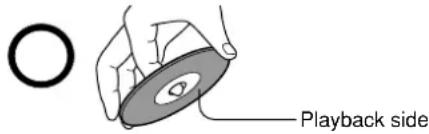
- Do not touch the playback side of the disc.
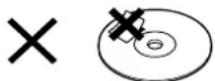
- Do not attach paper or tape to discs.
Cleaning Discs
- Fingerprints and dust on the disc cause picture and sound deterioration. Wipe the disc from the center outwards with a soft cloth. Always keep the disc clean.
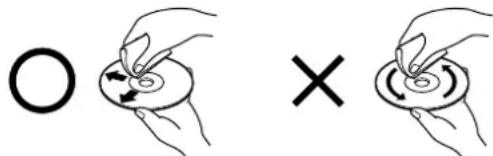
- If you cannot wipe off the dust with a soft cloth, wipe the disc lightly with a slightly moistened soft cloth and finish with a dry cloth.
- Do not use any type of solvent such as thinner, benzine, commercially available cleaners or antistatic spray for vinyl LPs. It may damage the disc.
Storing Discs
- Do not store discs in a place subject to direct sunlight or near heat sources.
- Do not store discs in places subject to moisture and dust such as a bathroom or near a humidifier.
- Store discs vertically in a case. Stacking or placing objects on discs outside of their case may cause warping.
Differences in Disc Composition
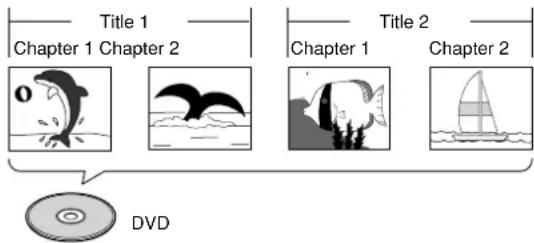
DVD
All discs are divided up into smaller, more manageable sections so that you can find specific content more easily. DVDs are divided into one or more titles. Each title may be further divided into several chapters. Occasionally, a chapter may contain index points, effectively dividing the chapter up into several parts, too.
■Video CD/CD
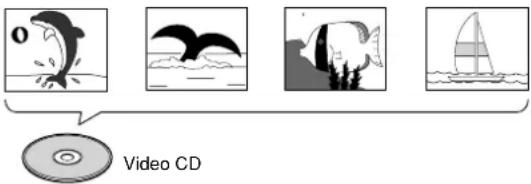
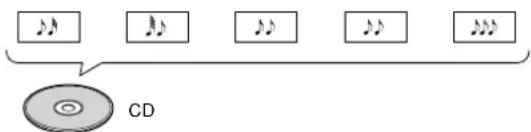
Video CDs and CDs are divided into a number of tracks. In rare cases, a track may contain a number of index points, effectively dividing the track up into several parts.
Track 1 Track 2 Track 3 Track 4
Track 2 Track 4 Track 3 Track 1 Track 5
MP3
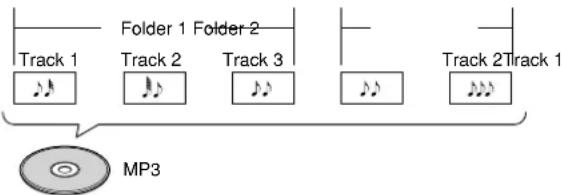
MP3 (MPEG1 Audio Layer 3) is a compressed audio file format. Files are recognized by their file extension ".mp3" or ".MP3". Folders that contain MP3 files are automatically numbered F_001, F_002, etc. Tracks within folders are automatically numbered T_001, T_002, etc.
For operational instructions, refer to the page indicated in brackets.
■Front panel
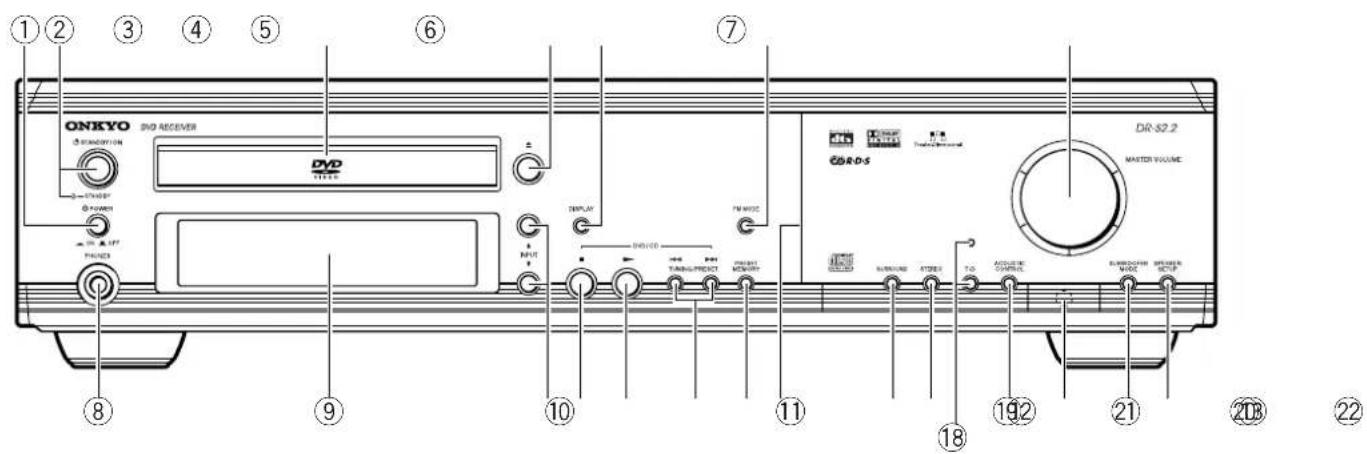
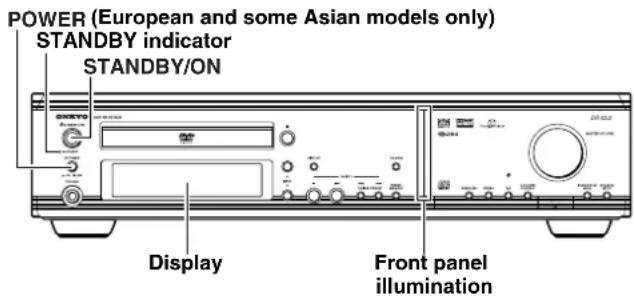
① (European and some Asian models only) POWER switch [26]
Turns on the main power supply for the DVD Receiver. The DVD Receiver enters standby state. Pressing the switch again to the off position (■ OFF) shuts down the main power supply into the DVD Receiver.
Before turning on the power, make sure all cables are properly connected.
② STANDBY/ON button, STANDBY indicator [26, 37]
When STANDBY/ON button is pressed to ON (while the POWER switch is set to ON on the European and some Asian models), the DVD Receiver turns on. The STANDBY indicator turns off and the display lights up. Pressing the button again returns the DVD Receiver to the standby state. This state turns off the display, disables control functions.
③ Disc tray [34]
When loading a disc, place discs in the disc tray with the label side facing up.
④ ▲ button [34, 37]
Press to open and close the disc tray.
⑤ DISPLAY button [62, 63]
Press to change the information being displayed.
⑥ FM MODE button [38]
Press to switch the reception mode between stereo and monaural.
⑦ MASTER VOLUME control [42]
The MASTER VOLUME dial is used to control the volume level.
⑧ PHONES jack [42]
This is a standard stereo jack for connecting stereo headphones.
⑨ Display [11]
⑩ INPUT ▲/▼ buttons [38, 39, 40]
Press to select the input source.
⑪ ■ button [37]
Press to stop playback. Pressing once enables playback to resume from a point shortly before the location where it was stopped. Pressing twice causes the disc to return to the beginning of the disc when playback starts again.
⑫ ▶ button [34, 37]
Press to start or resume playback.
⑬ TUNING/PRESET ◀◀/▶▶ buttons [36, 38, 39]
Press to go back or advance to previous chapters/tracks. Also, use these buttons to change the tuner frequency.
⑭ PRESET MEMORY button [38, 39]
Press to assign the radio station that is currently tuned in to a preset channel or delete a previously preset station.
⑮ Front panel illumination
Press to select a surround mode.
⑰ STEREO button [48]
Press to change the listening mode to "Stereo".
⑱ T-D button, indicator [47]
Press to activate Theater-Dimensional mode. T-D indicator illuminates in Theater-Dimentional mode. T-D indicator goes off when other mode is selected.
⑲ ACOUSTIC CONTROL button [50]
Press to change the acoustic mode to boost the super bass/high frequency sounds.
20 Remote control sensor [15]
Point the remote control toward the remote sensor to operate the DVD Receiver.
②1 SUBWOOFER MODE button [31]
Press to select the subwoofer mode.
②2 (North American and South American model) SPEAKER A/B button [29, 42]
Press to switch the speaker systems in use between A and B.
(Other models)
SPEAKER SETUP button [30]
Press to select the optimum speaker configuration.
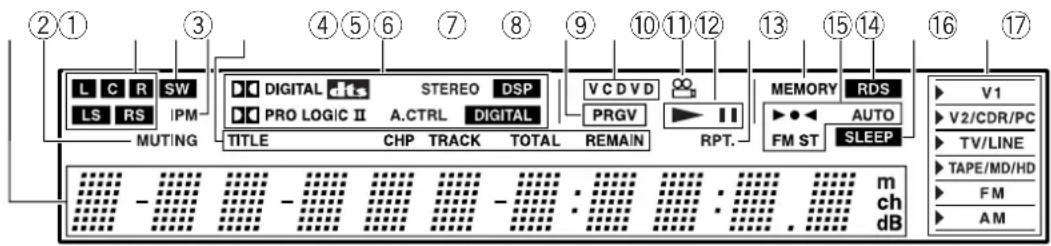
① Multipurpose display
② MUTING indicator [42]
Flashes when the mute function is active.
③ Speaker setup indicators [29, 30]
Indicate the speaker configuration.
④ SW indicator [31]
Lights up when the subwoofer mode is set to SW Mode 1, 2 or 3.
⑤ IPM (Intelligent Power Management) indicator [22]
Lights up when the IPM function is active.
⑥ TITLE, CHP, TRACK, TOTAL, REMAIN indicators [62, 63]
Indicate display mode of the current chapter of DVD or track number of Video CD or CD.
⑦ Source/Listening mode indicators [40, 45]
One of source indicators lights to show the format of the current source. In addition, one of the listening mode indicators lights according to the current listening mode.
⑧ PRGV indicator [67]
Lights up when the DVD Receiver is set to progressive-scan video.
⑨ Inserted disc indicator [34]
Indicates the type of current disc that is loaded.
⑩ Angle indicator [60]
Lights up while playing a scene recorded with multiple angles.
⑪ ▶, II indicators [34]
Illuminates in play or pause mode.
⑫ RPT. indicator [54]
Illuminates during repeat playback. Also RPT. indicator illuminates during A-B repeat playback.
⑬ MEMORY indicator [38]
Lights up when the MEMORY button is pressed in the radio station preset operation.
⑭ ▶●◀, AUTO, FM ST indicators [38]
Indicate the reception mode.
⑮ RDS indicator (European models only) [39]
Lights up when a RDS station is received.
⑯ SLEEP indicator [43]
Lights up when the sleep timer is active.
⑰ Input source indicators [38, 40]
Show current input source.
■ Remote controller
Explanations on this page are for controlling the DVD Receiver. The supplied remote controller is a useful tool to help you operate of your home theater.
To operate other components, see "Operating the Onkyo MD Recorder/CD Recorder/Cassette Tape Deck/Hard Disk Recorder With the Supplied Remote Controller" on page 41 and "Controlling other components connected to the DVD Receiver" on pages 78-83.
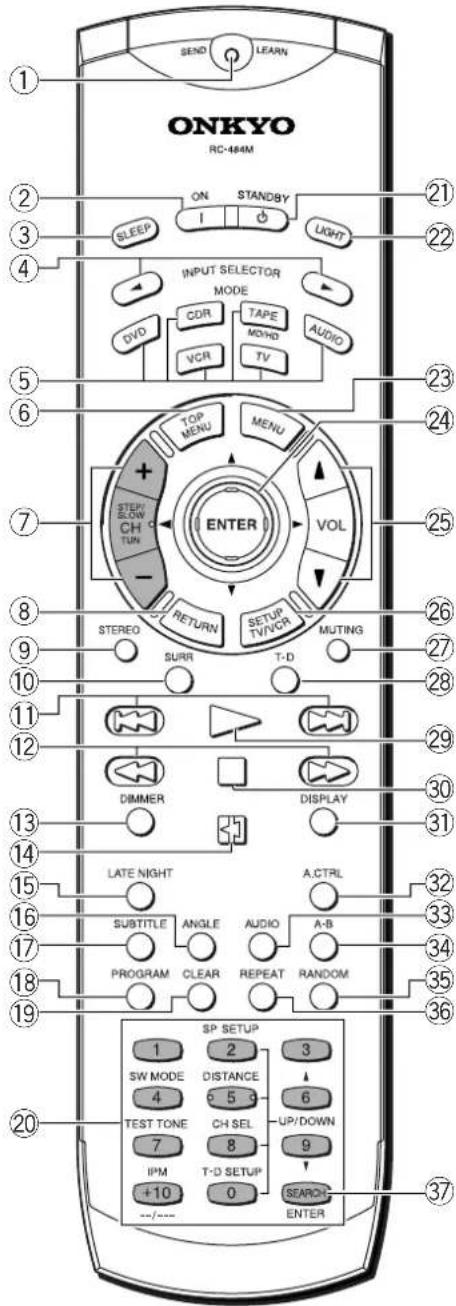
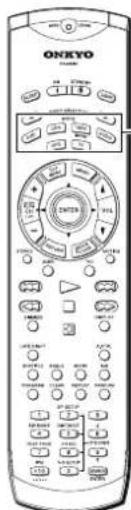
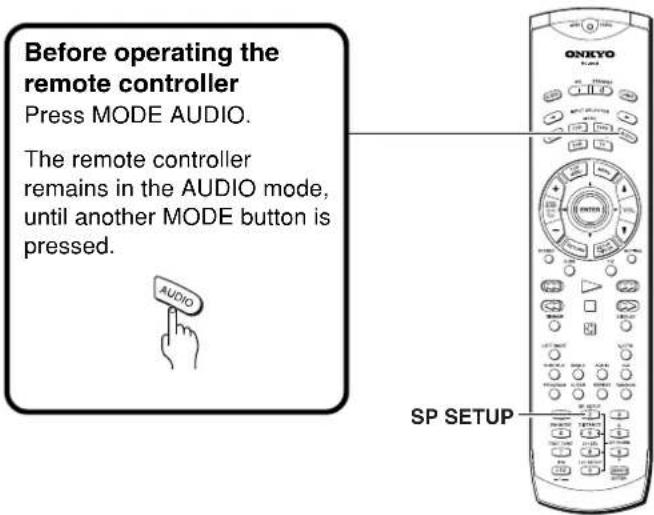
To control the DVD Receiver, press MODE DVD or MODE AUDIO first. Press MODE DVD to operate DVD section, or MODE AUDIO to operate receiver section. Functions of graied buttons in the illustration vary depending on the mode.
① SEND/LEARN indicator [15, 81, 83] Lights red when sending a signal.
② ON button [27] Turns on the DVD Receiver.
③ SLEEP button [43] For setting the sleep timer.
④ INPUT SELECTOR ◀/▶ buttons [39, 40] Press to select the input source.
⑤ MODE buttons [15, 41, 78, 80, 82, 83] For selecting the component to be operated by the remote controller.
⑥ TOP MENU button [35, 53] Press to call up the top menu programmed on the DVD. Depending on the DVD, the top menu may be identical to the DVD menu.
⑦ (MODE AUDIO is selected) CH +/- buttons [39] For selecting a tuner preset channel.
(MODE DVD is selected) STEP/SLOW +/- buttons [41]
Press STEP/SLOW +/- during playback to view still frame. Press and hold STEP/SLOW +/- during playback to view slow playback. In still frame, press STEP/SLOW + to advance DVDs and Video CDs frame by frame and STEP/SLOW - to back up a few frames at a time (DVD only).
⑧ RETURN button [35, 64] Use to go one menu back (current settings are maintained). Use RETURN when you do not want to change the option setting in a menu.
⑨ STEREO button [48] Press to change the listening mode to "Stereo".
⑩ SURR button [48] Press to select the surround mode.
⑪ |◀◀/▶▶| buttons [35, 36] During playback of DVD, CD and Video CD, press ◀◀ to go back to a previous chapter/track and ▶▶▶ to advance to the next chapter/track.
⑫◀◀/▶▶ buttons [36] During playback of DVD and Video CD, press ▶▶ to perform fast forward scanning or ◀◀ to perform fast reverse scanning of DVD and Video CD. When a CD or MP3 is loaded, audio scanning is performed.
⑬ DIMMER button [43] For adjusting the brightness of the front display.
⑭ button [34, 51] Press to pause playback of a disc. Press again to resume playback.
⑮ LATE NIGHT button [50]
Press to change the late night setting.
⑯ ANGLE button [60]
Some DVDs are recorded with various camera angle playback options. Press ANGLE repeatedly to display different camera angles.
⑰ SUBTITLE button [61]
Press repeatedly to select one of the subtitle languages programmed on a DVD or to turn the subtitles off.
⑱ PROGRAM button [53, 56, 57, 58]
You can program titles, chapters, or tracks to play back in a desired order. Programs can be a maximum of 24 steps.
⑲ CLEAR button [53, 54, 57]
Works in conjunction with a number of player functions. Use to cancel repeat and random playback, and to edit programs.
⑳ (When MODE DVD is selected)
Number buttons (1-9, +10, 0) [35, 52, 78]
Use to perform direct title/folder and chapter/track searches, and to input numerical values.
SEARCH button [52]
Press to perform a title/folder, chapter/track or elapsed time search.
(When MODE AUDIO is selected)
SW MODE button [31]
Press to select the subwoofer mode.
TEST TONE button [33, 49]
Outputs a test tone for setting speaker levels.
IPM (Intelligent Power Management) button [22]
Activates the IPM function.
SP SETUP button [29, 30]
Press to select the optimum speaker configuration.
DISTANCE button [32]
For setting the distances for each speaker.
CH SEL button [33, 49]
Selects a speaker for changing the speaker output level.
T-D SETUP [47]
For setting the T-D parameters.
UP/DOWN ▲/▼ [32, 33, 47, 49]
Press to adjust the value.
②1 STANDBY button [37]
Put the DVD Receiver in standby.
② LIGHT button
Illuminates the buttons. This button is useful when using the remote controller in dark locations. When pressed, the buttons on the remote controller light green.
②3 MENU button [35, 53]
Use to display or close the DVD menu or MP3 Navigator screen.
②4 Cursor (◄/►/▲/▼/ENTER) [27, 34, 53, 64]
Use to move through the options on menu screens. Press to enter settings.
⑲ VOL ▲/▼ buttons [42]
For adjusting the volume.
②6 SETUP button [27, 64]
Press when the DVD Receiver is in either play or stop mode to open and close the Setup screen.
② MUTING button [42]
Activates the mute function.
⑳ T-D button [47]
Press to activate Theater-Dimensional mode.
⑲ button [34, 37, 52]
Press to start or resume playback.
③0 ■ button [35, 37]
Press to stop playback. Pressing once enables playback to resume from a point shortly before the location where it was stopped. Pressing twice causes the disc to return to the beginning of the disc when playback starts again.
③1 DISPLAY button [62, 63]
Press to change the information being displayed.
③2 A.CTRL button [50]
Press to change the acoustic mode to boost the super bass/high frequency sounds.
③3 AUDIO button [61]
Press repeatedly to select one of the audio languages programmed on a DVD. For Video CD, CD and MP3, each press changes the audio output as follows.
$$ \boxed {\rightarrow \text { Stereo } \rightarrow 1 / L (\text { Left }) \rightarrow 2 / R (\text { Right })} $$
③4 A-B button [54]
Press at the beginning and end of the section you want to repeat or to mark a location you want to return to.
35 RANDOM button [55]
Press to play chapters/tracks in random order.
③6 REPEAT button [54]
Use to set the repeat mode.
③7 ENTER button [81-83]
Press to program the commands of remote controller for other devices into the remote controller.
■Rear panel
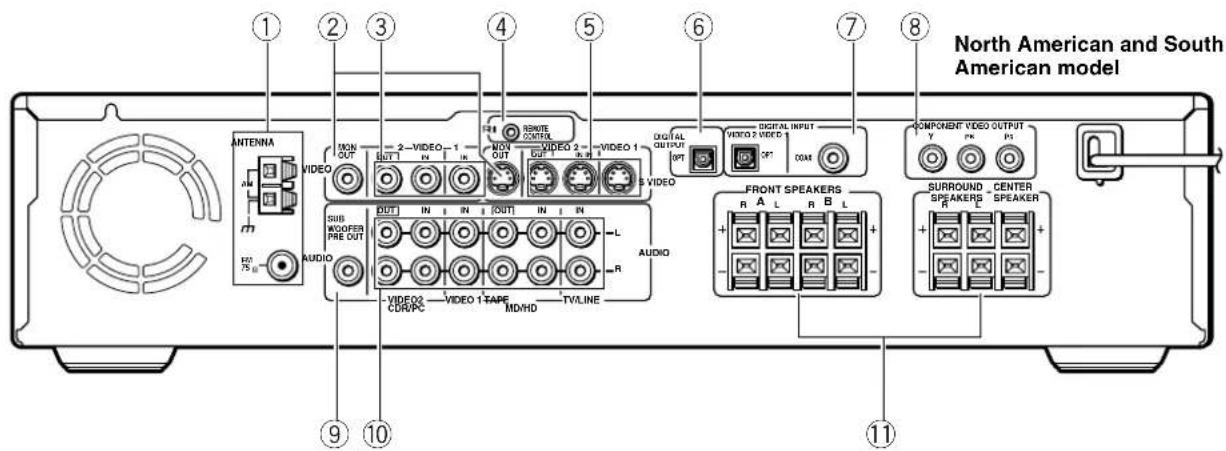
Shapes of jacks vary depending on the area which it was purchased.
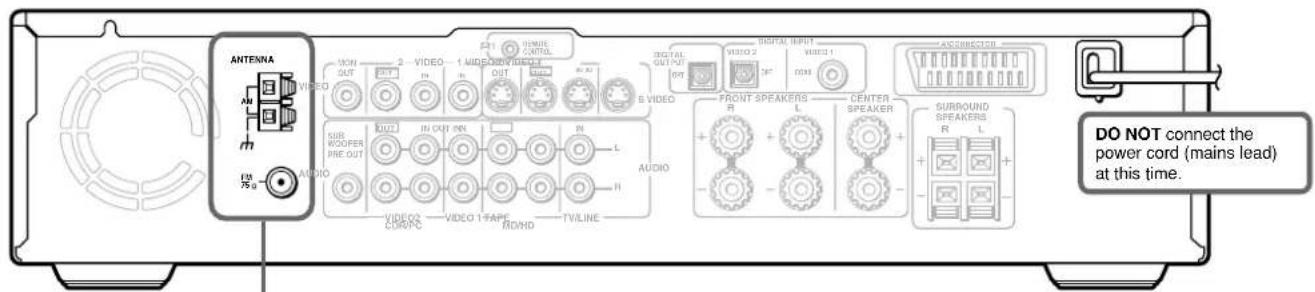
① ANTENNA terminals [24, 25]
These terminals are for connecting the FM antenna and AM antenna.
② MON OUT jacks [16, 17]
The monitor output includes both RCA type and S video configurations. This output is for connecting television monitor or projector.
③ VIDEO (VIDEO 1 IN / VIDEO 2 IN/OUT) jacks [21]
There are 2 video inputs and 1 outputs. Connect LD players, VCRs or other video components to the video inputs. The video output channel can be used to connect video tape recorder for making recordings.
④ RI REMOTE CONTROL connector [23]
Connect the Onkyo components that have RI connectors such as a CD player, and cassette tape deck using the RI cables provided with them. When these components are interconnected, they can be controlled from the remote controller provided with the DVD Receiver.
After connecting the RI connectors, check the operation of the remote controller buttons for use in controlling other components.
⑤ S VIDEO (VIDEO 1 IN / VIDEO 2 IN/OUT) jacks [21]
There are 2 video inputs and 1 output. Connect LD players, VCRs or other video components to the video inputs. The video output channel can be used to be connected to video tape recorder for making recordings.
⑥ DIGITAL OUTPUT OPT jack [21, 22]
This jack is for connecting MD recorder, CD recorder, hard disk recorder or other component with optical fiber cable.
⑦ DIGITAL INPUT (VIDEO 1 COAX, VIDEO 2 OPT) jacks [21]
These are the digital audio inputs. There are 1 digital input with optical jacks and 1 with a coaxial jack. The inputs accept digital audio signals from MD players, hard disk recorders, CD players, or other digital source component.
⑧ (European models)
AV CONNECTOR terminal [17]
Use a 21-pin SCART cable to connect to a TV or monitor compatible with this type of connection. Both audio (2 channel stereo) and video (Video, S-video, and RGB) signals are output from the AV CONNECTOR.
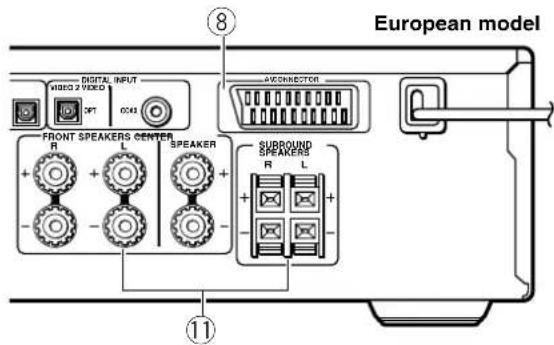
(Other models)
COMPONENT VIDEO OUTPUT Y/P\_B/P\_R jacks [16]
If your TV or monitor has component video inputs, you can produce a higher quality picture on your TV or monitor by connecting to the component video outputs on this unit.
⑨ SUB WOOFER PRE OUT jack [18, 19]
This terminal is for connecting an active subwoofer.
10 AUDIO L/R (TV/LINE IN / TAPE/MD/HD IN/OUT / VIDEO 1 IN / VIDEO 2/CDR/PC IN/OUT) jacks [16, 17]
These are the analog audio inputs and outputs. There are 4 audio inputs and 2 audio outputs. The audio inputs and outputs require RCA type connectors.
When connecting a VCR or other video component, make sure you connect the audio and video leads together (i.e., both to VIDEO 1).
⑪ (North American and South American model) FRONT SPEAKERS A/B, SURROUND SPEAKERS and CENTER SPEAKER terminals [18]
FRONT SPEAKERS A system: To enjoy surround sound. Speaker terminals are provided for the front left, front right, center, surround left and surround right speakers.
FRONT SPEAKERS B system: To enjoy stereo sound. Speaker terminals are provided for the front left and front right.
(Other models)
FRONT SPEAKERS, CENTER SPEAKER and SURROUND SPEAKERS terminals [19]
Speaker terminals are provided for the front left, front right, center, surround left and surround right speakers. Speaker outputs are compatible with banana plug connectors.
Preparing the Remote Controller
Inserting the Batteries
① Detach the battery cover.
② Insert the two size AA/R6/UM3 batteries.
Be sure to match the + and - ends of the batteries with the diagram inside the battery compartment.
③ Attach the battery cover.
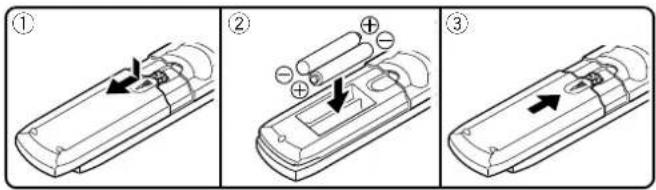
Notes
- Do not mix new batteries with old batteries or different kinds of batteries.
- To avoid corrosion, remove the batteries if the remote controller is not to be used for a long time.
- Remove dead batteries immediately to avoid damage from corrosion. If the remote controller does not operate smoothly, replace both batteries at the same time.
- The life of the supplied batteries is about six months but this varies depending on usage.
Pointing the remote controller in the right direction
Point the remote controller toward the remote control sensor.
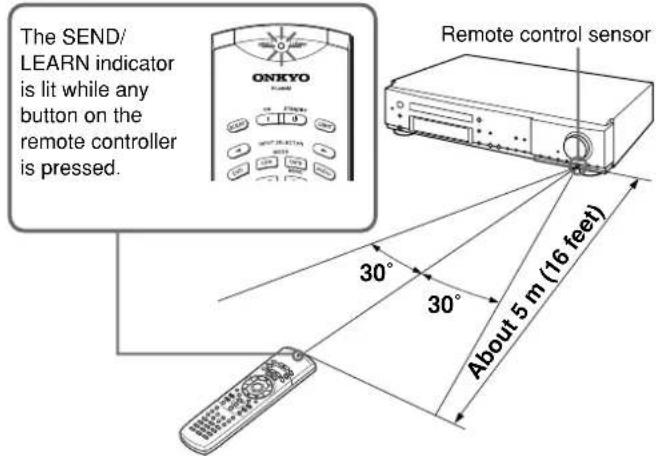
Notes
- Place the unit away from strong light such as direct sunlight or inverted fluorescent light which can prevent proper operation of the remote controller.
- Using another remote controller of the same type in the same room or using the unit near equipment which uses infrared rays may cause operational interference.
- Do not put any object (such as a book) on the remote controller. The buttons of the remote controller may be pressed by mistake and drain the batteries.
- Make sure the audio rack doors do not have colored glass. Placing the unit behind such doors may prevent proper remote controller operation.
- If there is any obstacle between the remote controller and the remote control sensor, the remote controller will not operate.
Switching the remote controller function modes
Some buttons on the remote controller have two or more functions. To set the functionality of these buttons, press one of the six MODE (DVD, CDR, TAPE/MD/HD, AUDIO, VCR, TV) buttons in advance.
The function mode remains the same until another MODE button is pressed.
(Details about the functions and the related function modes are explained in each section.)
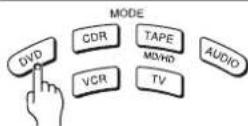
Press MODE DVD first before operating the built-in DVD player.
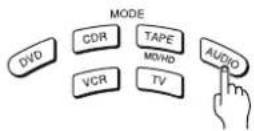
Press MODE AUDIO first before operating the speaker setting and sound related operations.
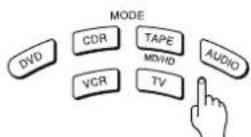
Press MODE CDR first before operating the RI-connected Onkyo CD recorder (see pages 21, 23 and 41)
Press MODE TAPE/MD/HD first before operating the RI-connected Onkyo MD recorder, cassette tape deck or hard disk recorder (see pages 21, 23 and 41).
Press MODE VCR or MODE TV first before operating your VCR or TV.
To operate the TV with the supplied remote controller, you need to let the remote controller learn the TV remote control signals (see pages 78 and 79).
Connecting to a TV (Other than European model)
Before connecting
• Refer also to the instruction manual of the TV.
- When you connect the DVD Receiver to the TV, be sure to turn off the power and unplug both the units from the mains before making any connections.
- Connect the DVD Receiver to the TV directly. If you connect the DVD Receiver to a VCR, TV/VCR combination, or video selector, the playback picture may be distorted as DVD videos are copy protected.
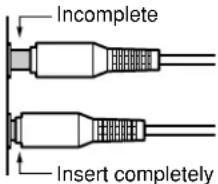
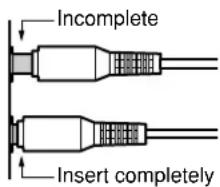
- Connect the plugs securely.
- Note that one audio/video connection cable and one S video connection cable are supplied.
■Connecting to a TV (or projector)
Using the supplied audio/video connection cable, make audio connections from the TV/LINE IN L and R jacks to the corresponding audio output jacks on the TV. In the same manner, make video connections from the VIDEO MON OUT jack to the corresponding video input jack on the TV. If your TV has a S video input jack and/or component video input jacks, make S video connection to the S VIDEO MON OUT jack using supplied S video connection cable and/or make component video connection to the COMPONENT VIDEO OUTPUT jacks using component video connection cable (not supplied). These connections allow you to enjoy higher quality picture playback. Be sure not to disconnect VIDEO MON OUT.
Notes
- Actual labels for component video inputs may vary depending on the TV manufacturer (ex. Y/CB/CR, Y/B-Y/R-Y, etc.).
- In some TVs, the color levels of the playback picture may be reduced slightly or the tint may change. In such a case, adjust the TV for optimum performance.
Be sure to set the digital output setting after connection using the Setup Navigator explained in "Setting Up the DVD Receiver" starting on page 27 or the function setting menu explained in "Customizing the Function Settings" starting on page 64.
Note
The signal that comes in from S VIDEO IN is sent to S VIDEO OUT. The signal that comes in from VIDEO IN is sent to VIDEO OUT.
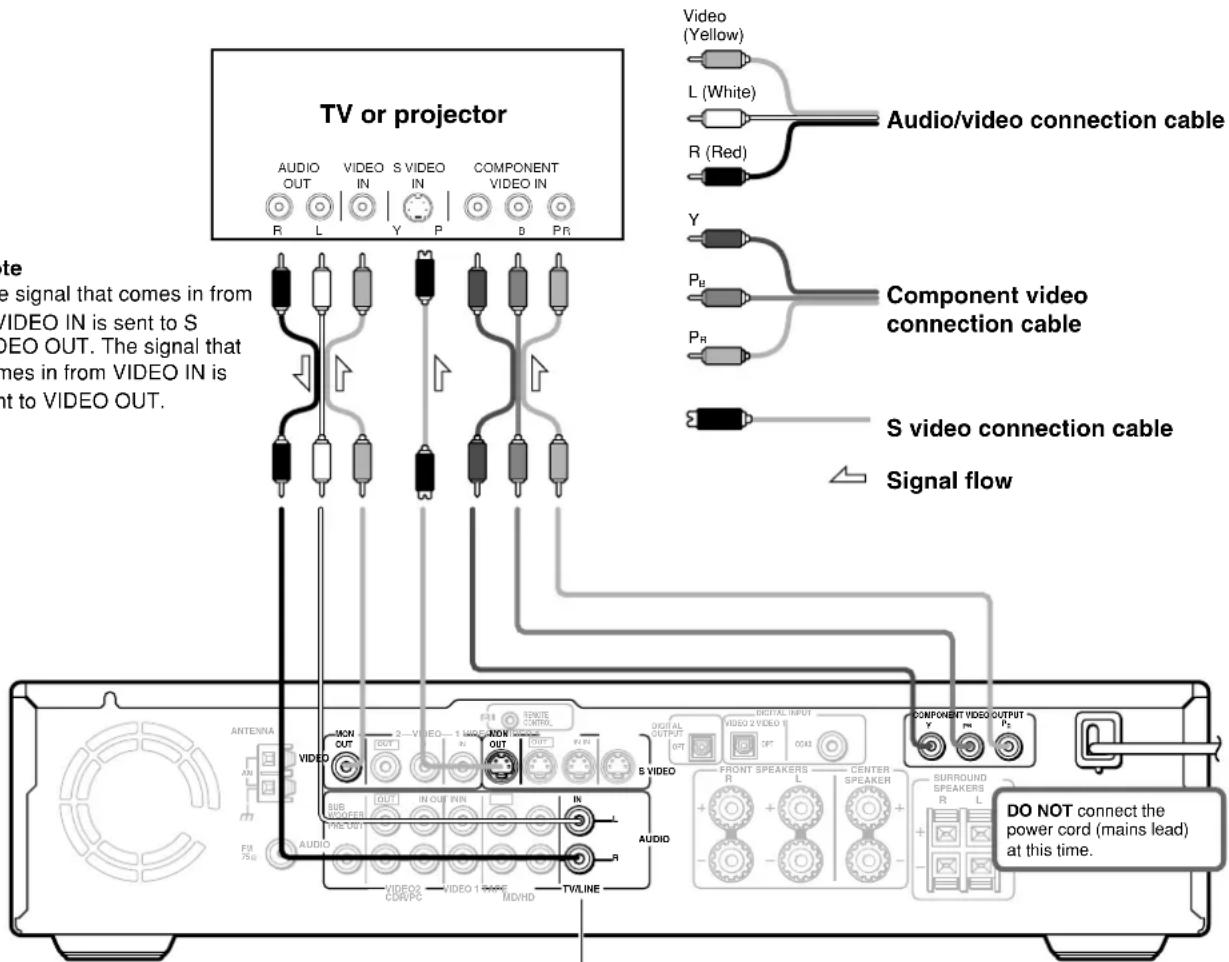
See "Turning the unit on/off with the TV's power switch — IPM function" on page 22 for Inteligent Power Management (IPM) function.
Connecting to a TV (European model)
Before connecting
• Refer also to the instruction manual of the TV.
- When you connect the DVD Receiver to the TV, be sure to turn off the power and unplug both the units from the mains before making any connections.
- Connect the DVD Receiver to the TV directly. If you connect the DVD Receiver to a VCR, TV/VCR combination, or video selector, the playback picture may be distorted as DVD videos are copy protected.
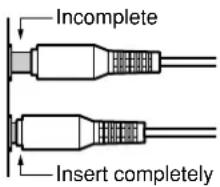
- Connect the plugs securely.
■Connecting to a TV Using the SCART Cable
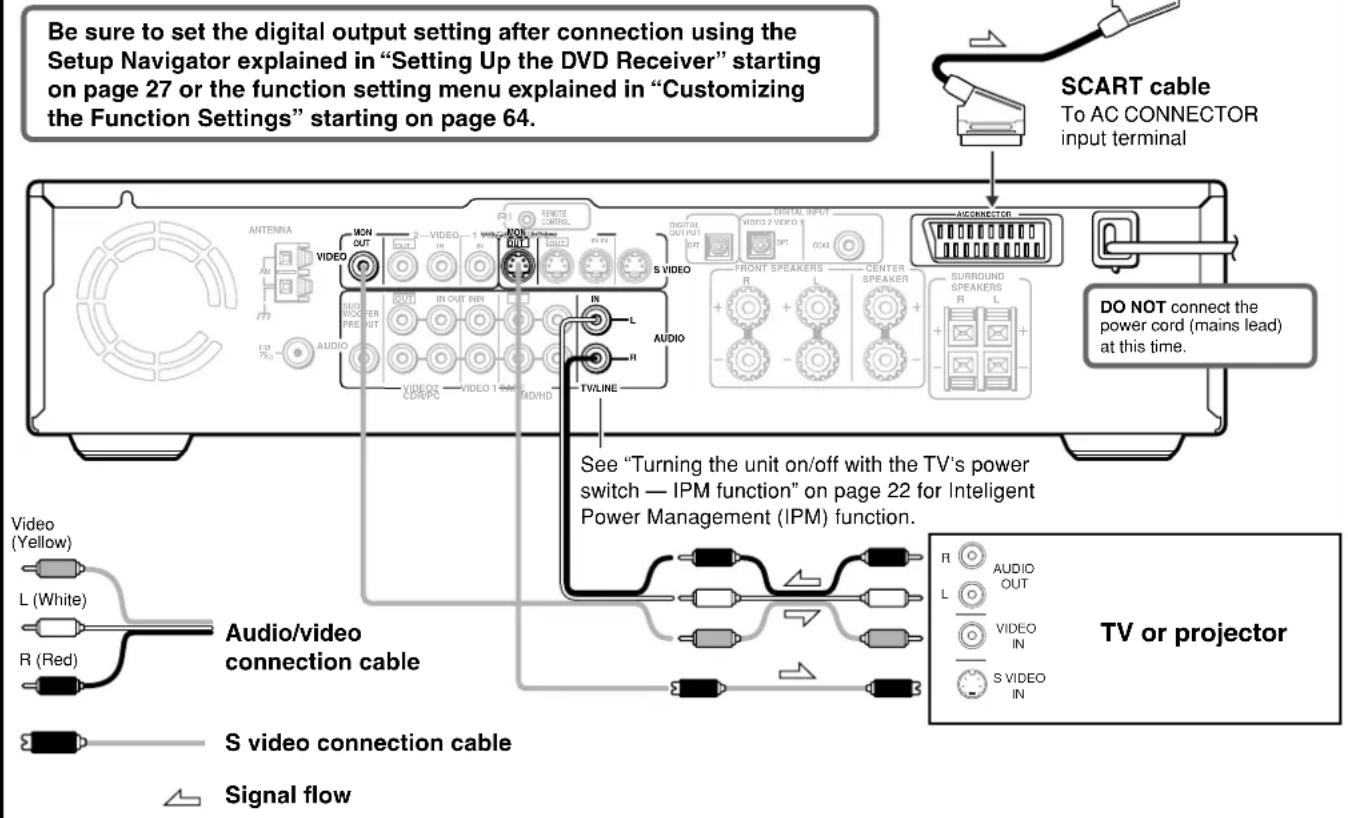
Connect the DVD Receiver and your TV using the supplied SCART cable.
If the TV is compatible with S video signals
After completing the steps on page 26, set "Video Out" to "S Video" using the menu explained in "Customizing the Function Settings" starting from page 64. See page 67 for direct information.
If an RGB monitor is connected to the DVD Receiver
After completing the steps on page 26, set "Video Out" to "RGB" using the menu explained in "Customizing the Function Settings" starting from page 64. See page 67 for direct information.
■Connecting to a TV usinf the Audio/Video connection cable or S video connection cable
If the TV or monitor does not have an AV CONNECTOR input terminal, make video connection using audio/video connection cable. If your TV has an S video input jack, make the S video connection. The S video connection will provide higher quality picture playback. Be sure not to disconnect VIDEO MON OUT.
Connecting Speakers (North American and South American model)
Before connecting
- Refer also to the instruction manuals of the speakers.
- This DVD Receiver is designed to reproduce optimum sound quality when speakers with the impedances specified below are connected. Please check the following information and choose speakers with appropriate impedances for the connections.
Front speakers: 6 ohms min. per speaker
Center speaker: 6 ohms min.
Surround Speakers : 6 ohms min. per speaker
- Attach supplied speaker labels to speaker cables to connect speakers correctly.
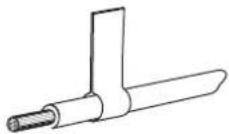
- To prevent damage to circuits, never short-circuit the positive (+) and negative (−) speaker wires.
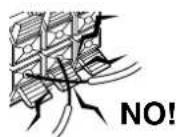
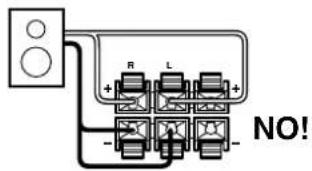
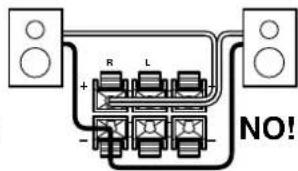
- Do not connect the speaker cable to the L and R connectors at the same time and do not connect more than one speaker to the same speaker connectors.
Connecting to SPEAKERS A
The main speaker system is SPEAKERS A. Follow the illustration on the right.
How to connect to the speaker connectors
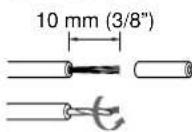
Strip 10 mm (3/8") from the end of each cord, then twist the exposed wires tightly.
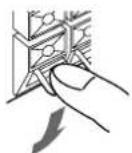
Press and hold the lever.
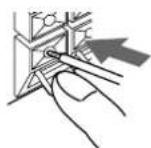
Insert the stripped end of the cord. By releasing the lever, the lever is replaced.
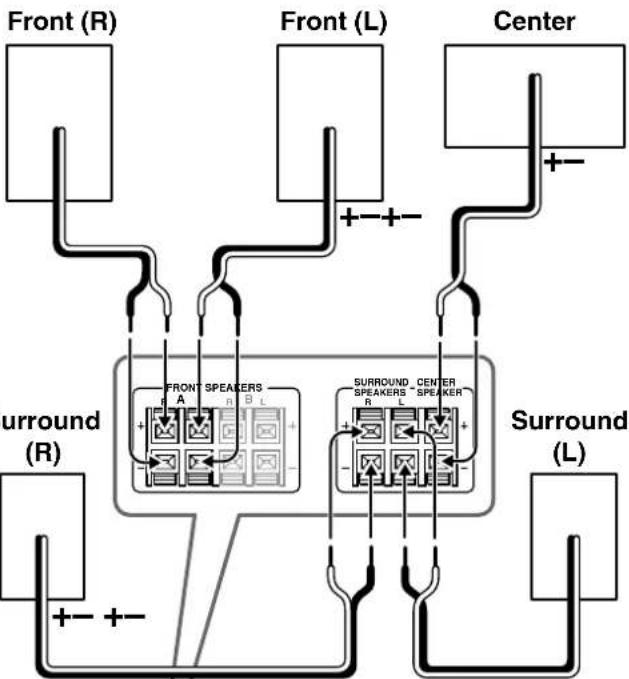
flowchart
graph TD
    A["Front (R)"] --> B["Surround (R)"]
    C["Front (L)"] --> D["Surround (L)"]
    E["Center"] --> F["Surround (L)"]
    B --> G["FRONT SPEAKERS"]
    D --> H["SURROUND CENTER SPEAKERS"]
    G --> I["+"]
    H --> J["-"]
    I --> K["+"]
    J --> L["+"]
    K --> M["+"]
    L --> N["+"]
    M --> O["+"]
    N --> P["+"]
    O --> Q["+"]
    P --> R["+"]
    Q --> S["+"]
    R --> T["+"]
    S --> U["+"]
    T --> V["+"]
    U --> W["+"]
    V --> X["+"]
    W --> Y["+"]
    X --> Z["+"]
    Y --> AA["+"]
    Z --> AB["+"]
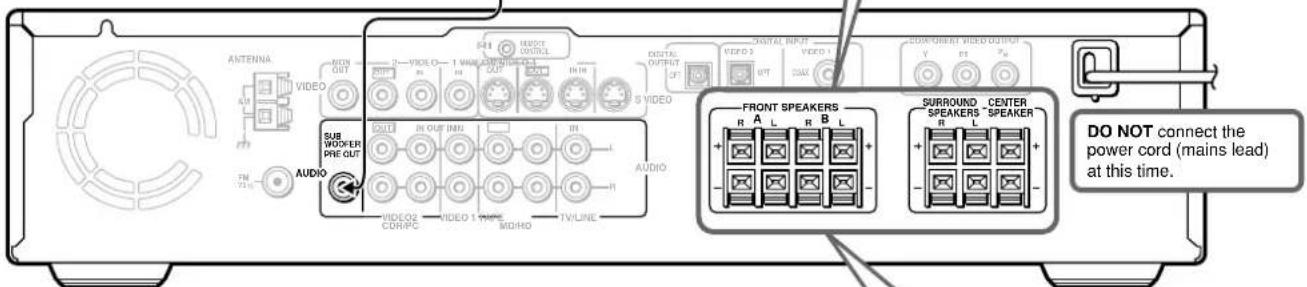
Connecting to SPEAKERS B
To place the additional speaker system (for the second room), make the SPEAKERS B connection on the right.
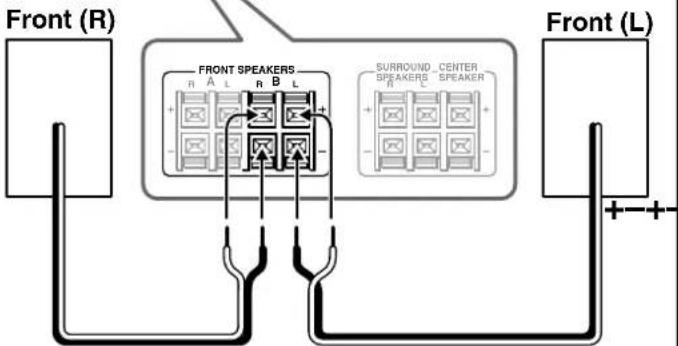
Connecting Speakers (Other models)
Before connecting
- Refer also to the instruction manuals of the speakers.
- This DVD Receiver is designed to reproduce optimum sound quality when speakers with the impedances specified below are connected. Please check the following information and choose speakers with appropriate impedances for the connections.
Front speakers: 6 ohms min. per speaker
Center speaker: 6 ohms min.
Surround Speakers : 6 ohms min. per speaker
- Attach supplied speaker labels to speaker cables to connect speakers correctly.
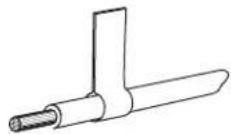
- To prevent damage to circuits, never short-circuit the positive (+) and negative (−) speaker wires.
- Do not connect the speaker cable to the L and R connectors at the same time and do not connect more than one speaker to the same speaker connectors.
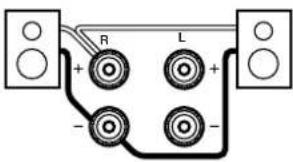
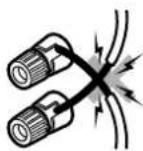
NO!
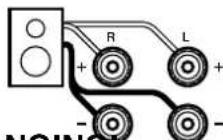
NO!NO!
Connecting to SPEAKERS
How to connect to the FRONT SPEAKER terminals
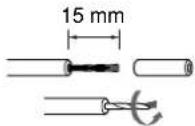
Strip 15 mm from the end of each cable, then twist the exposed wires tightly.

Loosen the screw.
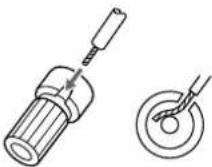
Fully insert the end of the cable.
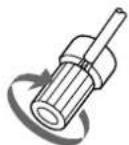
Tighten the screw,
How to connect to the SURROUND SPEAKERS and CENTER SPEAKER terminals
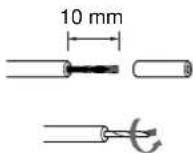
Strip 10 mm from the end of each cable, then twist the exposed wires tightly.
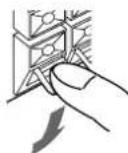
Press and hold the lever.
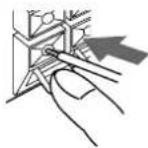
Insert the stripped end of the cord.
By releasing the lever, the lever is replaced.
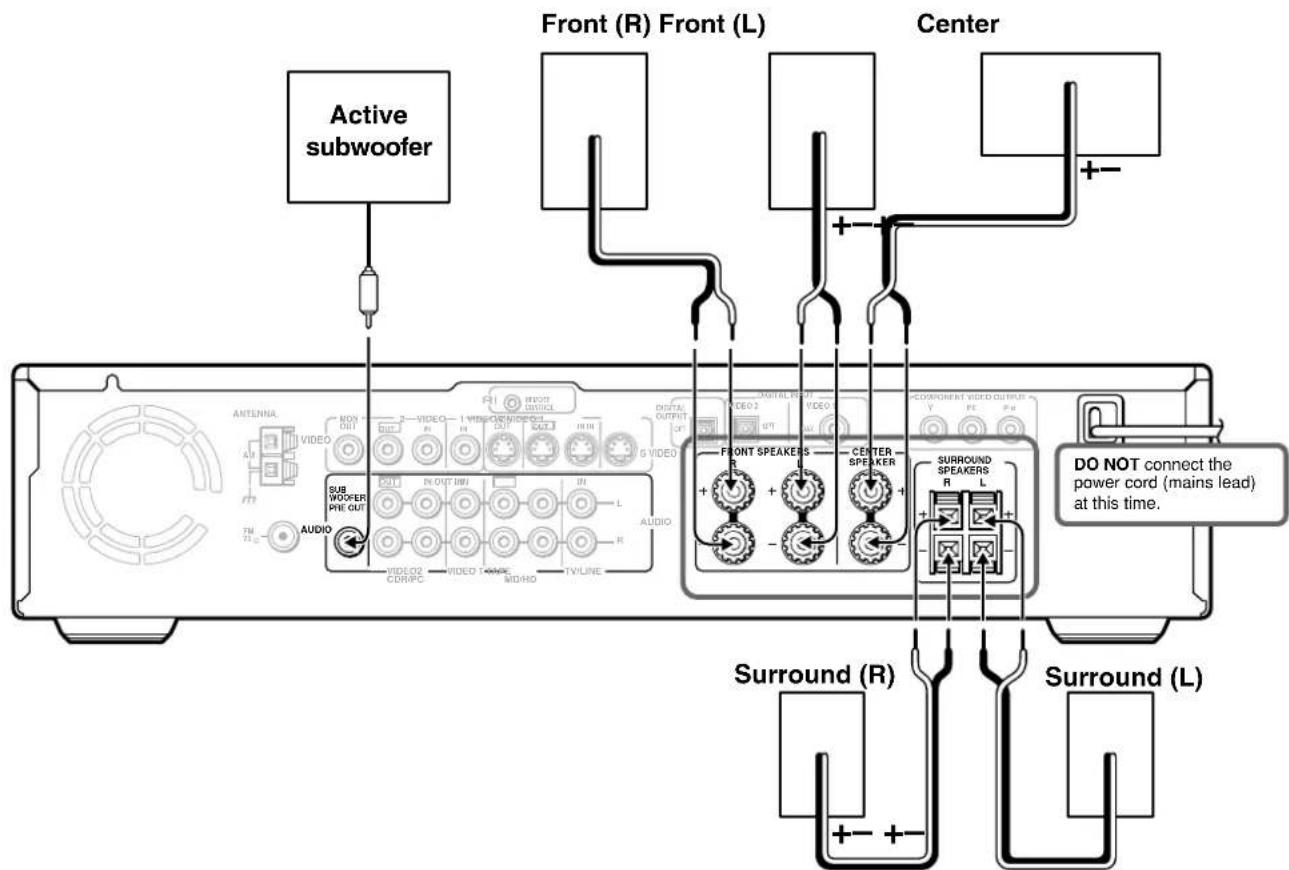
flowchart
graph TD
    A["Active subwoofer"] --> B["Subwoofer P/E OUT"]
    B --> C["Antenna"]
    C --> D["Video"]
    D --> E["OUT"]
    E --> F["VIDEO"]
    F --> G["IN OUT"]
    G --> H["IN IN"]
    H --> I["VIDEO"]
    I --> J["VIDEO"]
    J --> K["VIDEO"]
    K --> L["VIDEO"]
    L --> M["TV LINE"]
    M --> N["Audio"]
    N --> O["VIDEO"]
    O --> P["VIDEO"]
    P --> Q["VIDEO"]
    Q --> R["VIDEO"]
    R --> S["TV LINE"]

    T["Front (R) Front (L)"] --> U["Digital OUTPUT"]
    U --> V["VIDEO 2"]
    V --> W["OUT"]
    W --> X["VIDEO"]
    X --> Y["IN OUT"]
    Y --> Z["IN IN"]
    Z --> AA["VIDEO"]
    AA --> AB["VIDEO"]
    AB --> AC["VIDEO"]
    AC --> AD["TV LINE"]

    AE["Center"] --> AF["COMPONENT VIDEO OUTPUT"]
    AF --> AG["V"]
    AG --> AH["FE"]
    AH --> AI["PH"]

    AJ["Surround (R)"] --> AK["SURROUND SPEAKERS R L"]
    AK --> AL["+"]
    AL --> AM["-"]
    AM --> AN["SUROUND SPEAKERS R L"]

    AO["Surround (L)"] --> AP["SURROUND (R)"]
    AP --> AQ["+"]
    AQ --> AR["-"]
    AR --> AS["SUROUND (L)"]

    AT["DO NOT connect the power cord (mains lead) at this time."] --> AU["+"]
    AU --> AV["-"]
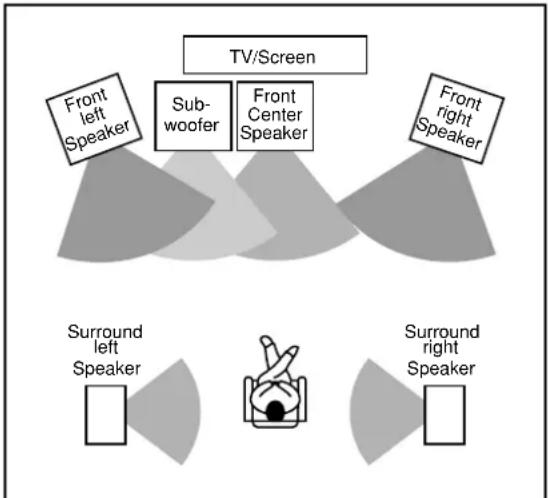
■Standard speaker placement of the speakers system (standard speaker placement of the SPEAKERS A system for North American and South American model)
Speaker placement plays an important role in the reproduction of Surround sound. The placement of the speakers varies depending on the size of the room and the wall coverings used in the room. The illustration below shows an example of a layout for standard speaker placement. Refer to this example when you position the speakers in order to experience the best of Surround sound.
For ideal Surround effects, all speakers should be installed.
If a center speaker or subwoofer is not connected, the sound from the unused channel is properly distributed to the connected speakers in order to reproduce the best Surround sound possible.
Front
The center speaker reproduces a richer sound image by enhancing the perception of the sound's source and movement.
The left, right, and center speakers should face the seated listener and be placed at ear level.
Surround
The surround speakers reproduce the feel of a moving sound while creating the sensation of being in the middle of the action.
Place the left and right surround speakers 1 meter (3 feet) above the listener's ear level and facing toward the sides of the room, making sure that the listener is within the speakers' dispersion angle.
Subwoofer
Install a subwoofer with a built-in power amplifier for powerful bass sounds.
The placement of the subwoofer does not affect the final quality of the sound image much, therefore, you can install it wherever it is convenient.
flowchart
graph TD
    A["TV/Screen"] --> B["Front left Speaker"]
    A --> C["Subwoofer"]
    A --> D["Front Center Speaker"]
    A --> E["Front right Speaker"]
    F["Surround left Speaker"] --> G["Speaker icon"]
    H["Surround right Speaker"] --> I["Speaker icon"]
Refer to the speakers' instruction manuals for details.
■For North American and South American models
Two speaker systems (FRONT SPEAKERS A and FRONT SPEAKERS B) can be connected to the DVD Receiver. For example, you can place the FRONT SPEAKERS A system in the main room, and the FRONT SPEAKERS B system in a second room.
The configuration of the FRONT SPEAKERS A system
The FRONT SPEAKERS A system consists of the front left, center, and right speakers, surround left and right speakers, and subwoofer.
You can reproduce the sounds such as Dolby surround and DTS surround.
The configuration of the FRONT SPEAKERS B system
The FRONT SPEAKERS B system consists of the front left and right speakers.
You can reproduce only monaural and stereo sounds.
Connecting to Audio/Video Equipment
Before connecting
- Refer also to the instruction manual of each component to be connected.
- When you connect the DVD Receiver to audio/video equipment, be sure to turn off the power and unplug all the units from the mains before making any connections.
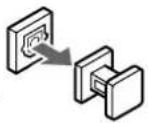
- About the DIGITAL INPUT (OPT) and DIGITAL OUTPUT (OPT) connectors
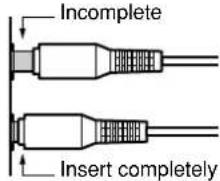
Remove the protective caps before making connections. When not in use, be sure to replace them.
- About the VIDEO 1 and VIDEO 2 jacks/connectors
The video input/output connections are also necessary even if you make the S video input/output connections.
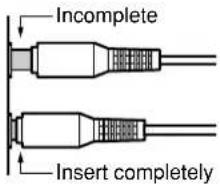
- Connect the plugs securely.
- Note that one audio/video connection cable and one S video connection cable are supplied (if not used in the connection on the opposite page).
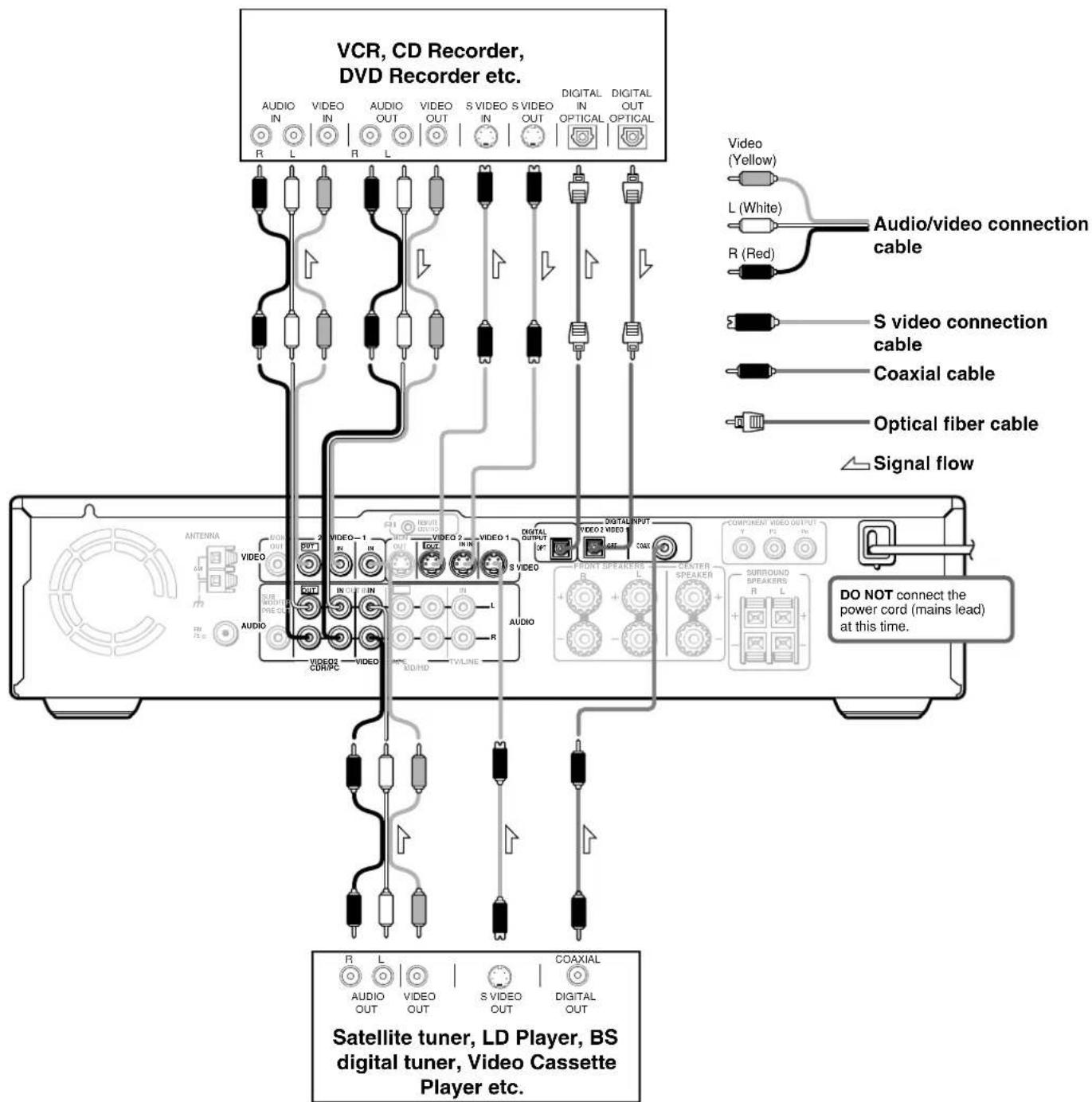
Connecting to Audio/Video Equipment
Before connecting
- Refer also to the instruction manual of each component to be connected.
- When you connect the DVD Receiver to audio/video equipment, be sure to turn off the power and unplug all the units from the mains before making any connections.
- Connect the plugs securely.
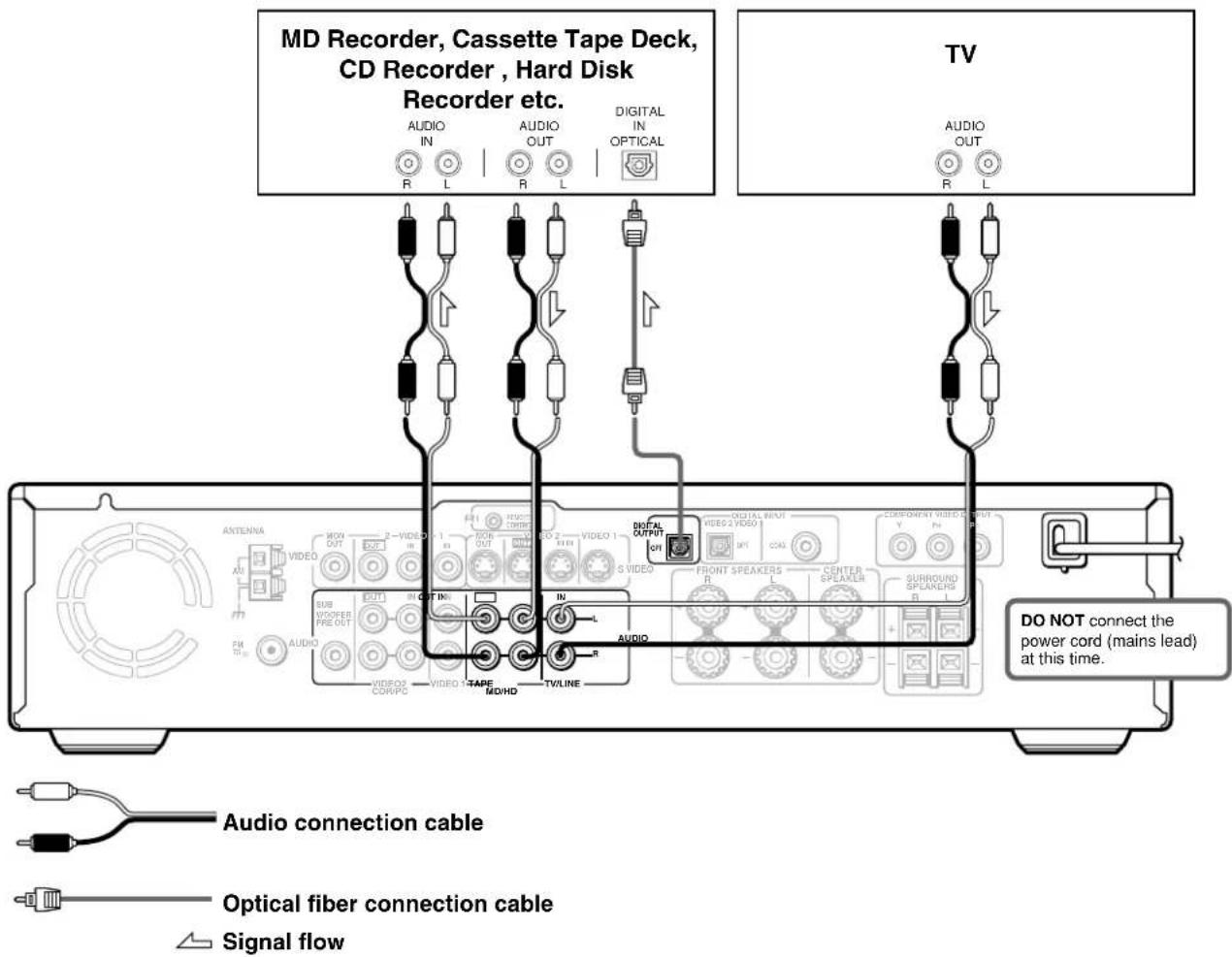
■Turning the unit on/off with the TV's power switch — IPM function
The DVD Receiver is equipped with the (IPM) system. Just turn on your TV's power switch and, in about 5 seconds, the DVD Receiver turns on automatically. If you turn off the TV's power switch, IPM indicator flashes on the display and the DVD Receiver automatically turns off in about 5 minutes.
To activate the IPM function
1 Connect the audio output of your TV's audio output to the DVD Receiver's TV/LINE IN L/R jacks (refer to pages 16 and 17). Even when connected with SCART cable, audio connection to TV/LINE IN L/R jacks is needed (European model).
2 Press IPM on the remote controller repeatedly until "IPM On" appears on the display. The IPM indicator lights up on the display.

Notes
- The IPM system may not function properly with some TV sets.
- When using monaural TV, connect the audio output of the TV to the DVD Receiver's TV/LINE IN L jack.
- When the TV is turned off while the DVD Receiver selects other input source, the DVD Receiver does not turn off.
RI Connection for the Onkyo MD Recorder or Cassette Tape Deck
The supplied remote controller has the following extended functions in addition to operating the DVD Receiver:
- Operating the TV and VCR (see pages 78-80)
- Operating the RI connected Onkyo MD recorder, CD Recorder, Hard Disk Recorder or cassette tape deck (see page 41).
The RI cable which is needed to make the RI connection is supplied with the Onkyo MD recorder, CD Recorder, Hard Disk Recorder or cassette tape deck.
If you start playing back the MD Recorder, CD Recorder, Hard Disk Recoder or cassette tape deck after making the RI connection, the DVD Receiver automatically changes its input source to TAPE/MD/HD — Direct Change function.
Onkyo MD recorder/HD recorder/cassette tape deck
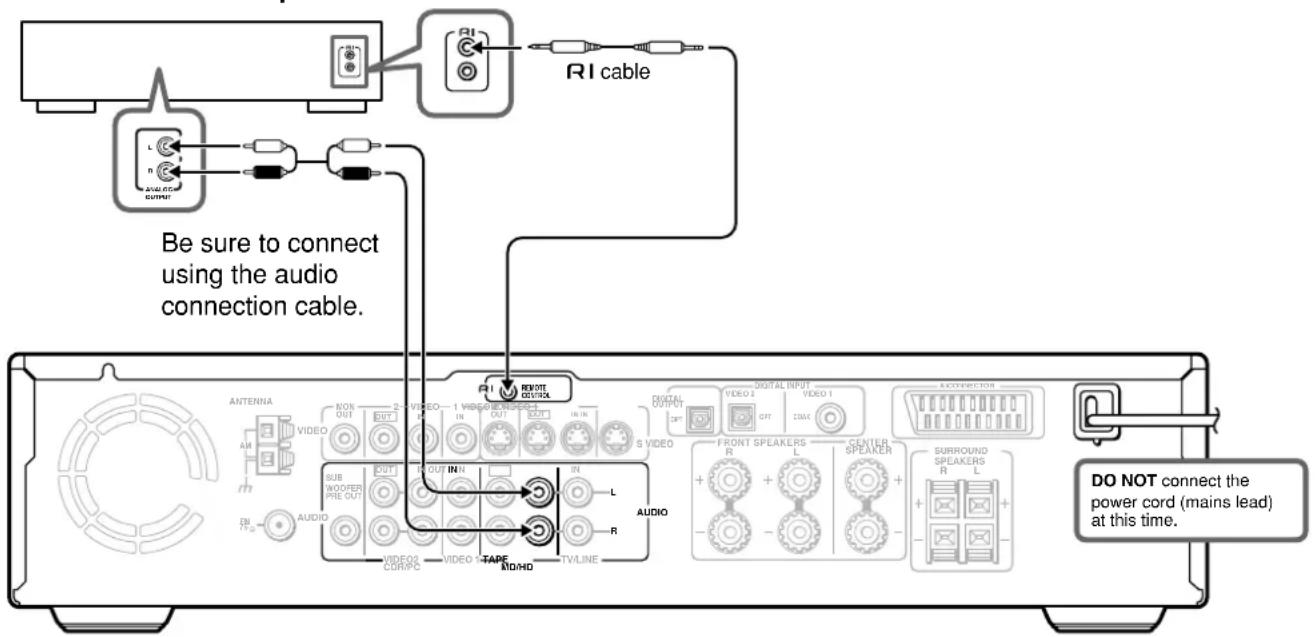
flowchart
graph TD
    A["Antenna"] --> B["Video"]
    B --> C["Sub W/O/PER PHE OUT"]
    C --> D["VIDEO CURP/C"]
    D --> E["TV/DVD OUT IN"]
    E --> F["IN"]
    F --> G["REVOE CONTROL"]
    G --> H["VIDEO 1"]
    H --> I["TV/DVD OUT IN"]
    I --> J["IN"]
    J --> K["REVOE CONTROL"]
    K --> L["VIDEO 2"]
    L --> M["FRONT SPEAKERS R"]
    M --> N["SURROUND SPEAKERS L"]
    N --> O["EXCOVIRECTION"]
    O --> P["VIDEO 1"]
    P --> Q["SURROUND SPEAKERS L"]
    Q --> R["EXCOVIRECTION"]
    R --> S["VIDEO 2"]
    S --> T["FRONT SPEAKERS L"]
    T --> U["SURROUND SPEAKERS L"]
    U --> V["EXCOVIRECTION"]
    V --> W["VIDEO 1"]
    W --> X["SURROUND SPEAKERS L"]
    X --> Y["EXCOVIRECTION"]
    Y --> Z["VIDEO 2"]
    Z --> AA["SURROUND SPEAKERS L"]
    AA --> AB["EXCOVIRECTION"]
    AB --> AC["VIDEO 1"]
    AC --> AD["SURROUND SPEAKERS L"]
    AD --> AE["EXCOVIRECTION"]
    AE --> AF["VIDEO 2"]
    AF --> AG["SURROUND SPEAKERS L"]
    AG --> AH["EXCOVIRECTION"]
Notes
- If the connected component has two RI connectors, you can use either one to connect to the DVD Receiver. The other one can be used to daisy chain with another component.
- Do not connect the Onkyo MD recorder, Hard Disk Recorder and cassette tape deck with the RI cable at the same time. This may lead to unexpected operation.
- Connect the plugs securely.
- Be sure to connect to the RI connectors using the RI cable.
- The connections on pages 21 and 22 are needed even if RI connection is made.
- Do not connect the DVD Receiver's RI connector to any component other than an Onkyo product. It may cause malfunction.
Making Antenna (Aerial) Connections
Connecting the Supplied FM and AM Indoor Antennas (Aerials)
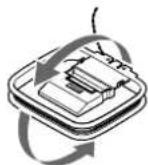
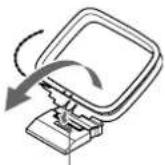
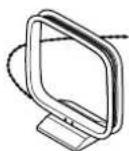
AM indoor antenna (aerial)
FM indoor antenna (aerial)
(North American and South American models)
(Other models)
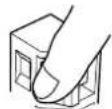
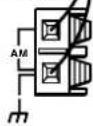
Press up and hold the lever.
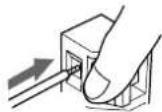
Insert the end of the cord.
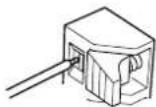
Release the lever to secure the connection.
ANTENNA


■ Adjusting the position of the FM indoor antenna (aerial)
While listening to an FM program (see page 38), extend the antenna (aerial) and move it in various directions until the clearest signal is received, then secure the antenna (aerial) with push pins in the position with the least distortion.
■ Adjusting the position of the AM indoor antenna (aerial)
While listening to an AM program (see page 38), set the antenna (aerial) in the direction and position where you receive the clearest sound. Put it as far away as possible from the unit, TVs, speaker cables, and power cords (mains leads).
Note
Insert one end of the AM antenna (aerial) cord to either of the AM antenna (aerial) connectors and the other end to the other connector. There is no difference between one end of the AM antenna (aerial) cord and the other end, unlike the speaker cords which have positive and negative poles.
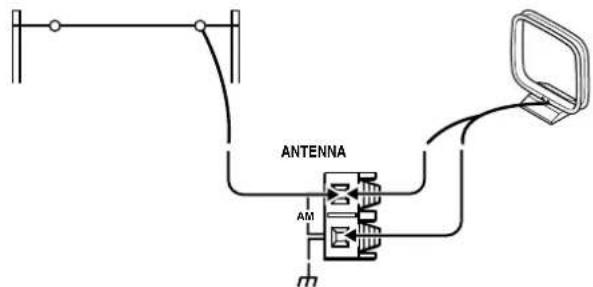
Connecting an AM Outdoor Antenna (Aerial)
An outdoor antenna (aerial) will be more effective if it is stretched horizontally above a window or outside.
Leave the supplied AM indoor antenna (aerial) connected.
Note
To avoid the risk of lightning and electrical shock, grounding is necessary. Follow item 14 of the "Important Safeguards" on page 2 when you install an outdoor antenna (aerial).
Outdoor antenna (aerial)
AM indoor antenna (aerial)
Connecting an FM Outdoor Antenna (Aerial)
If the FM reception is not very clear with the supplied antenna (aerial), connect an FM outdoor antenna (aerial) instead of the indoor FM antenna (aerial).
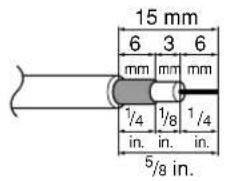
Connecting coaxial cable to a 75/300 ohm antenna (aerial) adapter\*
① Strip the end of the coaxial cable.
② With your fingernail or a small screwdriver, press the stoppers outward and remove the cover.
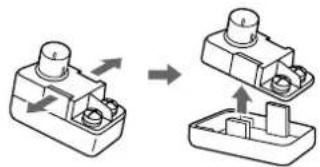
natural_image
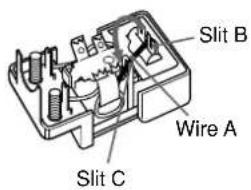
Diagram showing two mechanical components with arrows indicating assembly or transformation (no text or symbols)③ Remove the transformer wire A from slit B and insert it into slit C.
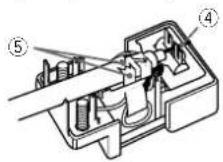
④ Insert the end of the cable. ⑤ Clamp it in place with pliers.
⑥ Reinstall the cover.
FM outdoor antenna (aerial)
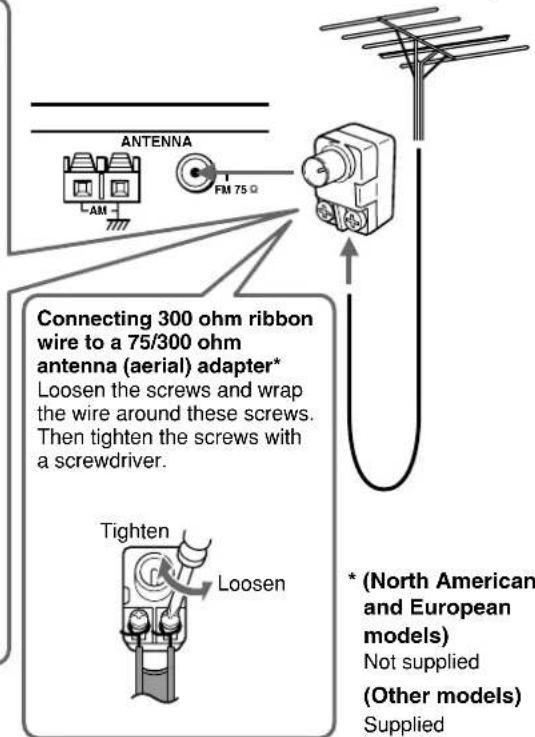
Notes
• Install the antenna (aerial) well away from tall buildings and in an area where FM stations can directly be received.
- Keep the antenna (aerial) away from noise sources (neon signs, busy roads, etc.).
- It is dangerous to put the antenna (aerial) close to power lines. Keep it well away from power lines, transformers, etc.
- To avoid the risk of lightning and electrical shock, grounding is necessary. Follow item 14 of the "Important Safeguards" on page 2 when you install the outdoor antenna (aerial).
■ Directional linkage
Do not use the same antenna (aerial) for both FM and TV (or VCR) reception since the FM and TV (or VCR) signals can interfere with each other. If you must use a common FM/TV (or VCR) antenna (aerial), use a directional linkage type splitter.
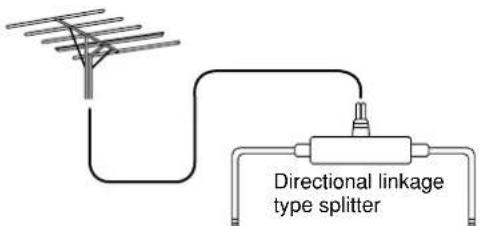
To DVD Receiver To TV (or VCR)
Connecting the Power/ Turning on the DVD Receiver
Before connecting
- Make sure that all the connections from pages 15 to 25 are complete (the connection to the TV is required).
- Turning on the DVD Receiver may cause a momentary power surge, which might interfere with other electrical equipment such as computers. If this happens, use a wall outlet on a different circuit.
(European and some Asian models)
- The DVD Receiver is shipped with the main power (POWER) switch in the on position (ON). When the power cord is plugged in for the first time, the DVD Receiver will automatically enter the standby state (same condition after step 2 below).
1
Connect the power cord to a wall outlet.
(Other than European and some Asian models)
The DVD Receiver enters the standby mode and the STANDBY indicator lights up.
2
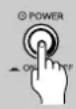
(European and some Asian models only)
Press POWER to switch on the main power to put the DVD Receiver in the standby mode.
The STANDBY indicator lights up.
- The buttons on the remote controller do not operate if the POWER switch is set to OFF.
- To switch off the main power, press POWER again.
3
STANDBY/ON
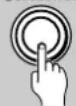
Press STANDBY/ON on the DVD Receiver or ON on the remote controller to turn on the DVD Receiver.
The light and display on the DVD Receiver's front panel light. At the same time, the STANDBY indicator goes off.
- To put the DVD Receiver in the standby mode, press STANDBY/ON on the DVD Receiver, or STANDBY on the remote controller. Be sure to set the volume to minimum before putting the DVD Receiver in the standby mode for the next use to avoid sudden loud sound reproduction.
- While in the STANDBY mode, the DVD Receiver can receive signals from the remote controller. However, if you press POWER on the DVD Receiver to switch off the main power, the remote controller cannot be used to turn on the DVD Receiver.
- Setting the STANDBY button to standby does not shut off the power completely.
■Setting the TV System (Other than North American model)
The default setting of the DVD Receiver is AUTO, and unless you notice that the picture is distorted when playing some discs, you should leave it set to AUTO.
If you experience picture distortion with some discs, set the TV system to match your country or region's system. Doing this, however, may restrict the kinds of disc you can watch. The table below shows what kinds of disc are compatible with each setting (AUTO, PAL and NTSC).
| Disc Output format | ||||
| Type | Format | Position of TV SYSTEM mode | ||
| NTSC PAL | AUTO | |||
| DVD | NTSC | NTSC | MOD. PAL | NTSC |
| PAL | —— | PAL | PAL | |
| Video CD | NTSC | NTSC | MOD. PAL | NTSC |
| PAL | NTSC PAL | PAL | ||
| CD, No disc | NTSC PAL | NTSC or PAL | ||
1 Switch the DVD Receiver into standby.
2 Hold down ▶▶then press STANDBY/ON until the display indicates the new setting to switch the TV system.
The TV system changes as follows:
AUTO → NTSC
NTSC → PAL
PAL→AUTO
Note that you have to switch the player into standby before each change.
About MOD. (Modulation) PAL
- SHRINK
Most models of the newly developed countdown PAL TV system detect 50 Hz (PAL)/60 Hz (NTSC) and automatically switch vertical amplitude, resulting in a display without vertical shrinkage.
- If your PAL TV does not have a V-Hold control, you may not be able to view NTSC disc because the picture may roll. If the TV has a V-Hold control, adjust it until the picture stops rolling. On some TVs, the picture may shrink vertically, leaving black bands at the top and bottom of the screen. This is not a malfunction; it is caused by the NTSC PAL conversion.
Setting Up the DVD Receiver
The Setup Navigator has been designed to simplify the process of getting the DVD Receiver ready to perform. Designed as a series of on-screen multiple-choice questions, the Setup Navigator automatically sets the video, and language settings according to how the questions are answered. Once this procedure is complete, it will be possible to begin using the DVD Receiver to enjoy DVDs. The procedure on this page describes the operations necessary to function within the Setup Navigator screens. A detailed description of the contents of each question that appears on the screen can be found on the following pages.
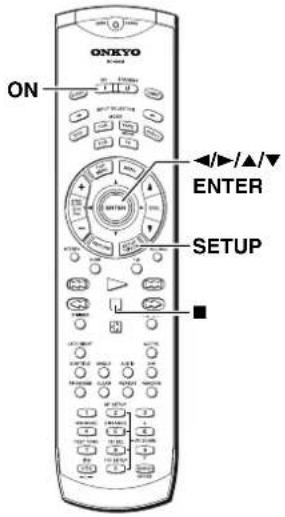
Using the Setup Navigator
1 | Press ON (STANDBY/ON on the front panel).If there's already a disc loaded and it starts to play, press ■ to stop it. |
2 | Press SETUP.When SETUP is pressed for the first time, the following screen appears. Though the Setup Navigator may be used more than once, this screen only appears the first time SETUP is pressed.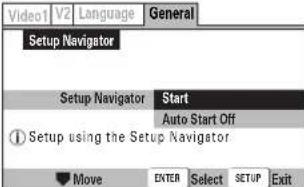 |
 | Use the cursor buttons (▲/▼) to make a selection.If you are going to use the Setup Navigator, it is not necessary to change the setting on the first screen. Please proceed to the next step.If you do not want to set up the DVD Receiver using the Setup Navigator, use the cursor button (▼) to select [Auto Start Off] at this time.The Setup Navigator function may still be used at a later time in manual Setup screen menu operation (page 64). |
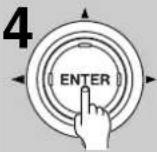 | Press ENTER.The selection is entered and the next Setup Navigator screen appears.Use steps 3 and 4 as a basis for entering selections on the all of the Setup Navigator screens described on the following pages. |
■When setting up for the first time
Some DVDs start playing automatically when loaded in the DVD Receiver. Because the Setup Navigator cannot be used if a disc is playing, it is recommended to set up the DVD Receiver using the Setup Navigator before loading a DVD for the first time. If a DVD has been loaded, be sure to press ■ before proceeding.
■To change the answer to a prior question
Use the cursor button (◀) to return to previous screens. Please note, however, that you cannot go forward using the cursor button (▶), so it will be necessary to answer all the questions that occur after the screen that was returned to.
■To exit the Setup Navigator
Press SETUP while on any of the screens to exit the Setup Navigator. Please note that if the Setup Navigator is exited before all the questions are answered, no settings are changed.
Note
On-screen information (i) appears to clarify the functions and explain the options available.
Using the Setup Navigator
■Setting the OSD Language (On-Screen Display Language)
The [OSD Language] screen establishes the OSD language, or on-screen display language, which refers to the language that is used by the DVD Receiver in menus and on-screen messages. Additionally, the language that is established at this setting will also be used for the default audio and subtitle language.
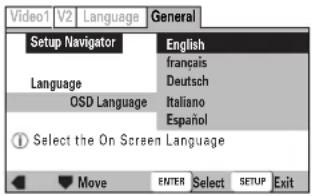
Settings: English (Factory setting)
français
Deutsch
Italiano
Español
Asian models only
English (Factory setting)
汉语
Notes
- The languages that can be selected may be different from those shown above.
- In addition to setting the [OSD Language], the audio and subtitle language are also set at this time. If you wish to change the audio or subtitle language to a different language, make changes in the Setup screen Language menu [Audio Language] and [Subtitle Language] as needed (pages 71, 72).
■Setting the TV screen size
The [TV Type] screen establishes the size, or more appropriately the width to height ration of your television or monitor. The width-to-height ratio of conventional TVs is 4:3, while the width-to-height ratio of wide screen and high-definition TVs is 16:9. This width-to-height ratio is called the aspect ratio.
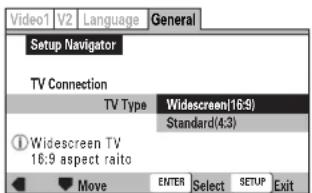
Settings: Widescreen (16:9) (Factory setting) Standard (4:3)
Note
There are two screen formats that can be used to display wide-screen format DVDs: letter box and pan & scan. When [Standard (4:3)] is selected in the Setup Navigator, the letter box screen format is automatically selected. To switch the preference to the pan & scan format, make changes in the Setup screen Video 1 menu [TV Screen] setting (page 66).
■Confirming the settings
The [Exit Setup Navigator] is the final screen in the Setup Navigator.
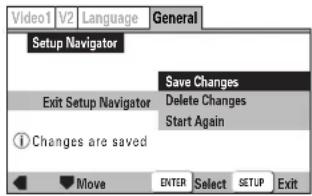
Settings: Save Changes (Factory setting)
Select to have the DVD Receiver make all of the necessary video and language settings according to your responses in the Setup Navigator.
Delete Changes
Select to exit the Setup Navigator without changing any of the system settings.
Start Again
Select to return to the [OSD Language] screen of the Setup Navigator and do the settings again.
■To change other player settings in the Setup screen menus
The procedure for changing the settings in the Setup screen menus is described on page 64.
(North American and South American model)
You need to set up the speaker configuration for the speaker system connected to the FRONT SPEAKERS A connectors (see this page.) (There is no speaker configuration setup for the FRONT SPEAKERS B system.)
(Other then North American and South American models)
You need to set up the speaker configuration for the speaker system connected to the SPEAKERS connectors (see page 30.)
Notes
- Speaker setup cannot be done if;
- Headphones are connected (see page 43), or
- The FRONT SPEAKERS B system is On (North American and South American model only, see page 42).
- It is not necessary to set the parameters again once you have completed the setup unless you change the speaker configuration.
Selecting the number of speaker channels (North American and South American model)
See following page for other than North American and South American model.
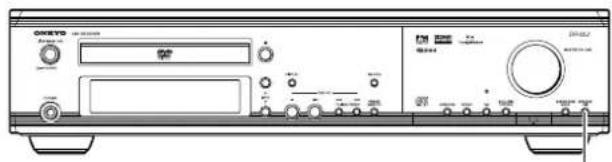
SPEAKER A/B
1 Unit only

Press SPEAKER A/B to select "Speaker A."
Speaker A
Note
"Speaker B" also appears by pressing the button repeatedly, though, this setting is reserved for future applications. Therefore, be sure to select "Speaker A."
2
Remote controller
Press SP SETUP repeatedly to select the number of channels for the SPEAKERS A system.
Speaker configuration indicators indicate current speaker configuration.

Pressing the button repeatedly within three seconds changes the number of channels as follows (the corresponding speaker configuration is described in parentheses):
Speaker 5ch
(Front left, center, and right, plus surround left and right speakers)
Speaker 2ch
(Front left and right speakers)
↓
Speaker 3ch
(Front left, center, and right speakers)
Speaker 4ch
(Front left and right, plus surround left and right speakers)


The normal display resumes in three seconds.
Speaker configuration indicator at the upper left corner shows the current speaker configuration.
Notes
- The listening mode will automatically be set to "Stereo" (see page 48) once you set or reset the number of channels.
- To check the present setting while the normal display is displayed, press SPEAKER SETUP once. To change the setting, press the button repeatedly within three seconds.
Selecting the number of speaker channels (other than North American and South American model)
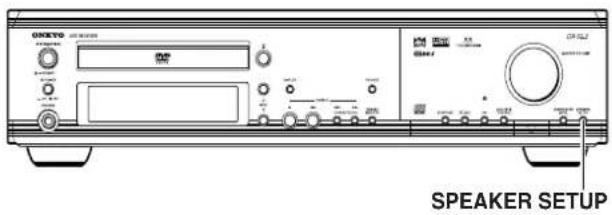
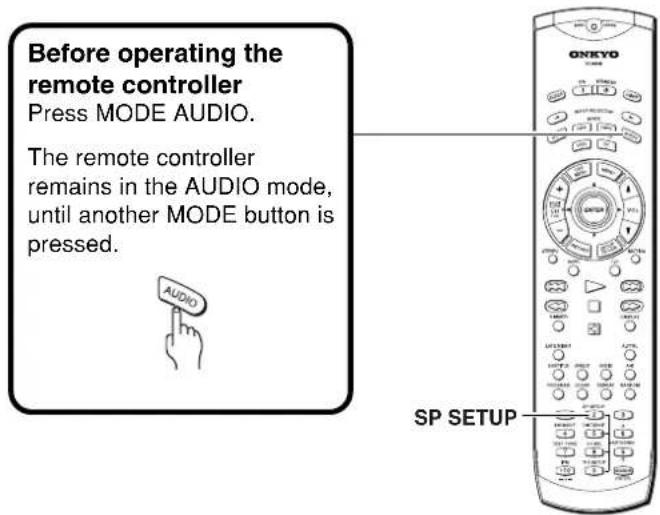
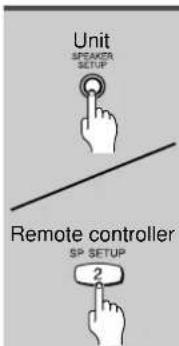
Press SPEAKER SETUP repeatedly to select the number of channels for the SPEAKERS system.
Speaker configuration indicators indicate current speaker configuration,

Pressing the button repeatedly within three seconds changes the number of channels as follows (the corresponding speaker configuration is described in parentheses):
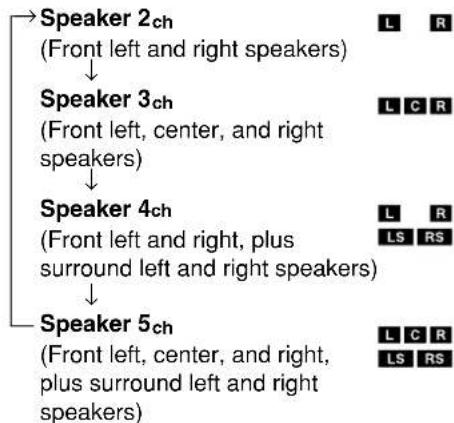
flowchart
graph TD
    A["Speaker 2ch (Front left and right speakers)"] --> B["Speaker 3ch (Front left, center, and right speakers)"]
    B --> C["Speaker 4ch (Front left and right, plus surround left and right speakers)"]
    C --> D["Speaker 5ch (Front left, center, and right, plus surround left and right speakers)"]
The normal display resumes in three seconds.
Speaker configuration indicator at the upper left corner shows the current speaker configuration.
Note
To check the present setting while the normal display is displayed, press SPEAKER SETUP once. To change the setting, press the button repeatedly within three seconds.
Selecting the Subwoofer mode
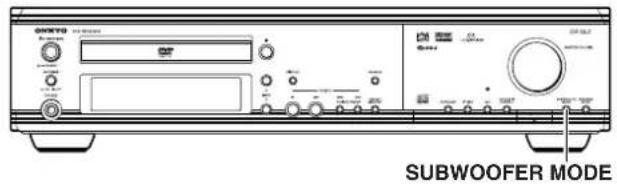
Before operating the remote controller
Press MODE AUDIO.
The remote controller remains in the AUDIO mode, until another MODE button is pressed.
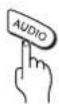
SW MODE
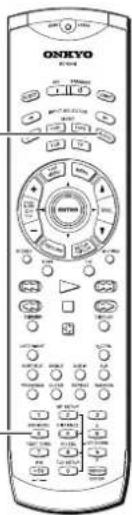
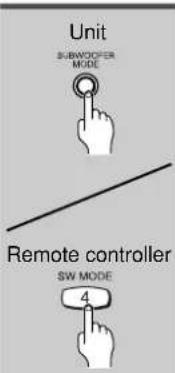
Press SUBWOOFER MODE on the unit or SW MODE on the remote controller.
SW indicator lights up when SW Mode 1, SW Mode 2 or SW Mode 3 is selected.

With the first press of the button, you can check the present setting. Then each press of the button changes the subwoofer mode as follows (a tip on how to select the right subwoofer mode is in parentheses):
(When small—with limited bass signal handling—front speakers are connected)
(When large-wideband-front speakers are connected)
↓
(When large-wideband speakers are connected to all channel)
(When no subwoofer is connected)
SW Mode 1
SW Mode 2
SW Mode 3
SW Off
The initial setting varies depending on the area which it was purchased.
North American and South American model: SW Mode 1
Other models: SW Mode 2
The normal display resumes in three seconds.
Setting the Distance From the Listening Position to Each Speaker
Before starting the procedure below, measure the distances from each speaker to the listening position.
For pair speakers such as front left and right speakers, the distance from the listening position to one speaker should be the same as the distance to the other.
In the procedure below, select the values which approximate the actual distances.
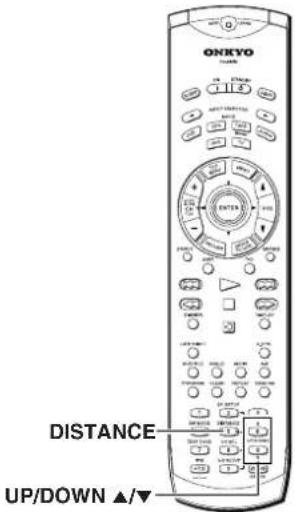
1Remote controller only | Press DISTANCE.The distance entry display for the front left and right speakers appears. |
| Front12ft3.6" | |
2 | Press UP/DOWN ▲/▼ to select the front left and right speaker distance. |
| Front14ft4.2"You can select a distance between 0.3 m and 9 m (1 ft. and 30 ft.). | |
3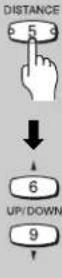 | Press DISTANCE, then press UP/DOWN ▲/▼ repeatedly to select the center speaker distance. |
| Centr11ft3.3"You cannot enter the following distances:Distances longer than the distance set for the front speakers.Distances shorter than the distance obtained by subtracting "1.5 m (5 ft.)" from the distance entered for the front speakers. | |
| NoteIf you selected a speaker configuration with no center speaker on the previous page, this step will be skipped. |
4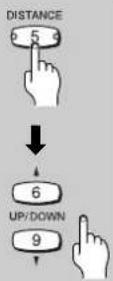 | Press DISTANCE, then press UP/DOWN ▲/▼ repeatedly to select the surround left and right speaker distance. |
| Sur r 11 ft33 | |
| You cannot enter the following distances:• Distances longer than the distance set for the front speakers.• Distances shorter than the distance obtained by subtracting “4.5 m (15 ft.)” from the distance entered for the front speakers. | |
| NoteIf you selected a speaker configuration with no surround speakers on the previous page, this step will be skipped. | |
5 | Press DISTANCE.The normal display resumes. |
Adjusting Each Speaker's Relative Volume Balance – Test Tone
Adjust each speaker's relative volume balance so that the volumes of all speakers' test tones sound equal at the listening position.
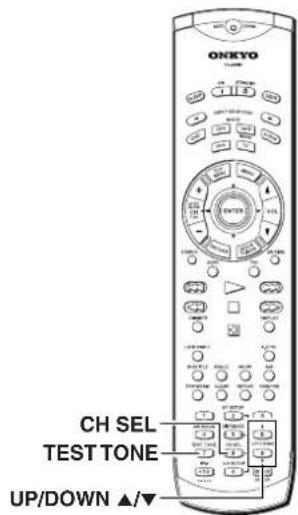
Press TEST TONE.
Each speaker emits the test tone (pink noise) and the display shows the speaker emitting the test tone in the following order:
Left → Center
(Front left ch.) (Center ch.) ↑ ↓
Subwfr Right
(Subwoofer) (Front right ch.) ↑ ↓
Surr L ← Surr R
(Surround left ch.) (Surround right ch.)

Note
No test tone will be emitted from the speaker which is not included in the speaker configuration on pages 29-31 even if it is actually connected.
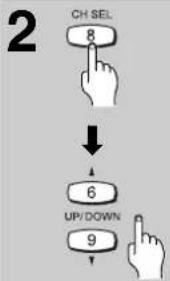
flowchart
graph TD
    A["CH SEL 8"] --> B["6"]
    B --> C["UP/DOWN 9"]
Press CH SEL repeatedly to select the speaker, then press UP/DOWN ▲/▼ to adjust the volume level.
The volume level can be adjusted between -12dB and +12dB.
3
When you have completed the adjustment by repeating step 2, press TEST TONE.
The test tone stops and the normal display resumes.
Note
Even if you don't press TEST TONE, the test tone will stop after two minutes.
Getting Started Using Your DVD Receiver
Before you can start to enjoy the digital audio and video on DVDs, be sure that you have either performed the Setup Navigator procedure described in the previous section or made the necessary settings in the Setup screen menus as outlined in the next section to set up the player to correspond to your home system. Having made these settings, you are now ready to start using the player to enjoy DVDs, Video CDs, CDs and MP3s.
■About the DVD, VCD, CD and MP3 marks in the pages related to disc operation
DVD means the function or title is related to DVD-Video operation. VCD means the function or title is related to Video CD operation. CD means the function or title is related to audio CD operation. MP3 means the function or title is related to MP3 operation.
DVD VCD CD MP3
Playing DVDs, Video CDs, CDs and MP3s
1
Press ▲.
The disc tray comes out.
2
Load a disc.
Load a disc with the label side facing up, using the disc tray guide to align the disc.
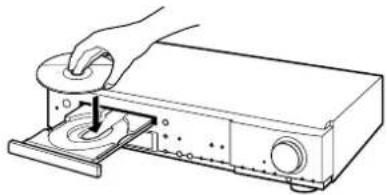
natural_image
Line drawing of a hand using a rotary knob to press a device into a rack (no text or symbols)3

Press ▶.
- The disc tray closes, and playback begins.
- MP3 only: It may take a few seconds for the DVD Receiver to locate the track on the disc, depending on the complexity of the file structure.
- Depending on the disc, a menu may be displayed. If a menu is displayed, proceed to step 4.
- To pause playback, press 📋. To resume playback, press 📋 or ▶.
Inserted disc indicator (DVD, CD, VCD)
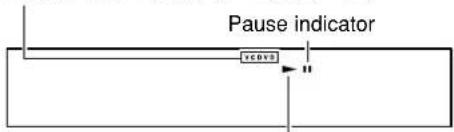
Play indicator
4
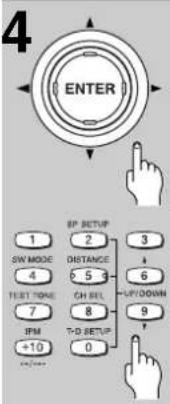
Select the item you want to view.
- When a DVD is loaded:
Select the item with the cursor buttons (◀/▶/▲/▼) or the number buttons then press ENTER. - When a Video CD is loaded:
Use the number buttons to select the item.
Notes
- The TV screen size is factory set to present the wide screen format (16:9 aspect ratio). If you have a standard TV screen (4:3 aspect ratio), this setting can be changed to match your TV screen size in the Video 1 menu (pages 28, 66).
- Do not move the DVD Receiver during playback. Doing so may damage the disc.
- Use ▲ on the DVD Receiver to open and close the disc tray. Do not touch the disc tray while it is moving. Doing so may cause the DVD Receiver to malfunction.
- Do not press down on the disc tray or put any objects other than playable discs on the disc tray. Doing so may cause the DVD Receiver to malfunction.
- In many instances, a menu screen appears when playback of a movie is complete. Prolonged display of an on-screen menu may damage your television set, permanently etching that image onto its screen. To avoid this, be sure to press ■ once the movie is complete.
■When an operation is prohibited
There are times when you are using the DVD Receiver and attempt to perform an operation, but for some reason it cannot be performed. When this occurs, one of the two following icons appears on the screen.

The operation is prohibited by the DVD Receiver.

The operation is prohibited by the programming on the disc.
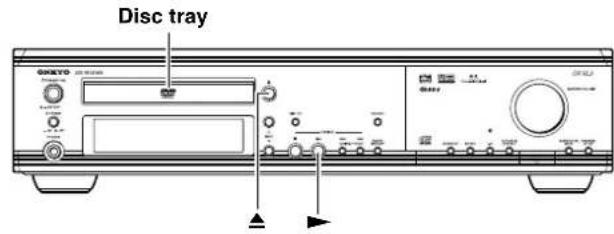
DVD VCD
When a Menu Screen is Displayed
Menu screens are displayed for DVDs that have menu screens or Video CDs that include Playback Control (PBC). DVDs often contain extra information that can be accessed in the DVD menu and sometimes makes navigating DVD menu screens as enjoyable as watching the feature presentation.
Example: When a DVD that has menu screens is loaded
Example: When a Video CD that has Playback Control is loaded
■To navigate a menu screen
- Although individual DVD titles may differ, when a menu screen is displayed, use the cursor buttons (◀/▶/▲/▼) and ENTER on the remote control. The cursor buttons are used to move around the options on the screen and ENTER is used for selection.
- Occasionally, the number buttons may also be used to make selections. If this is possible, using number buttons serves to directly select an option on a menu screen. Only number buttons are used to make selections on Video CD menu screens.
- When the Video CD has more than one menu, pages can be advanced to or returned to with ◀◀◀ or ▶▶◀.
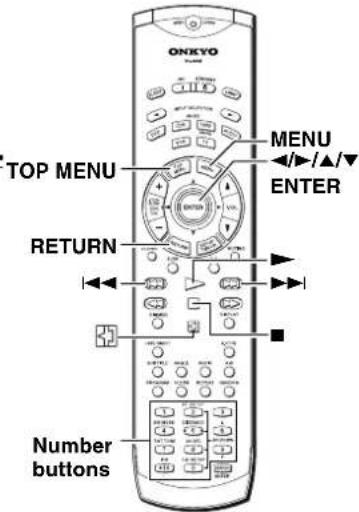
DVD VCD
To Open or Return To the DVD or Video CD Menu Screen
Although this differs depending on the disc, pressing MENU, TOP MENU, or RETURN during DVD playback or RETURN during Video CD playback displays the menu screen. Refer to the DVD or Video CD disc jacket and accompanying documentation for more information.
■To play Video CDs without displaying menu screens
Video CDs with Playback Control (PBC) display a menu screen when play is started. It is possible, however, to play back Video CDs without displaying menu screens. When a Video CD with PBC is loaded, press ■, and then the number button of the track you want to play.
DVD VCD CD MP3
Chapter (Track) Skip Forward/Skip Back
Remote controller
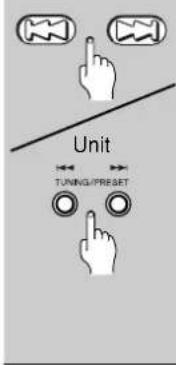
Advancing to the next chapter (track)
Press ▶▶.
Press to skip forward to the next chapter (track).
Skipping back to the previous chapter (track)
Press ◀◀.
- Press once to skip back to the start of the chapter (track) currently playing.
- Press twice to skip back to the start of the previous chapter (track).
DVD VCD CD MP3
Forward and Reverse Scanning
Remote controller
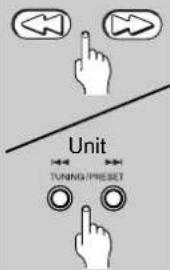
Fast forward and reverse scanning
Press and hold ◀◀/▶▶ (|◀◀/▶▶| on the front panel) during playback to scan forwards or backwards.
While "▶▶1" or "◀◀1" is displayed on-screen blinking, release the button to resume normal playback.
Variable speed scanning (Remote controller only)
1 Press (but don't hold) ▶▶ or ◀◀ during playback to start scanning. "▶▶ 1" or "◀◀ 1" appears on screen.
2 Depending on the type of disc playing, you can increase the scanning speed by pressing ▶▶ or ◀◀.
The scan speed is shown on-screen.
DVDs have three scanning speeds;
$$ 1 \leftrightarrow 2 \leftrightarrow 3 $$
CD and Video CDs have two scanning speeds;
$$ 1 \leftrightarrow 2 $$
MP3 have only one scanning speed.
3 Press ▶ to resume normal playback.
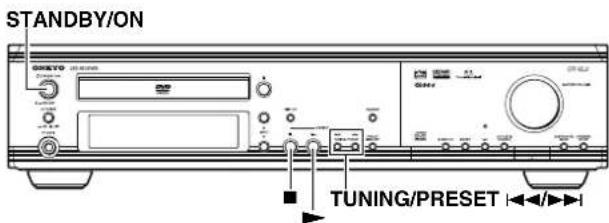
DVD VCD
Resuming playback from where you stopped
Use the resume feature to restart playback from the point that the disc was stopped last time.
This features cannot be used with MP3s and CDs.
Press ■ once.
The display shows "STOP" then "RESUME", and the stop position is memorized.
• The resume position remains memorized as long as the disc is in the DVD Receiver — even if you switch the power off.
- Pressing ■ twice causes the disc to return to the beginning when ▶ is pressed again. The display shows the disc type (DVDs or Video CDs).
Press ▶.
Playback starts from the resume position.
Notes
- The actual restart position may be slightly before or after the resume position.
- The memorized resume position is erased when you open the disc tray, or change the Parental Lock Level setting (page 75) or On-screen Display (OSD) setting (page 70).
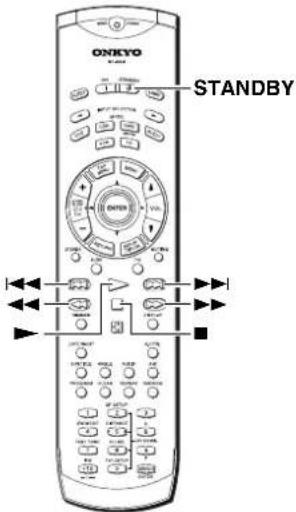
DVD VCD CD MP3
Stopping Playback and Switching Power Off
1Remote controller/  | Press ■.Playback stops. |
2 | Press ▲. The disc tray comes out. |
| 3 | Remove the disc.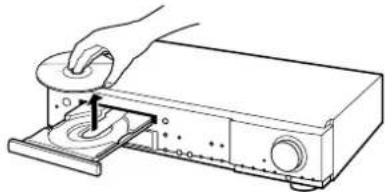 |
 | Press STANDBY/ON (STANDBY on the remote controller).The disc tray goes back in. |
There are two ways to select radio stations:
- Manual tuning
- Presetting radio stations then selecting the preset channels
Tuning Manually
| 1 Unit[IMAGE] | Press INPUT ▲/▼ repeatedly to select the band (FM or AM).e.g. When FM is selected.[IMAGE]NoteYou can also select the band with the remote controller. See next page. |
| 2 Unit only[IMAGE] | Press and hold TUNING/PRESET|◄◄/►►| for about 0.5 seconds.Appears when a broadcast is received.[IMAGE]When the band is FMAuto tuning starts. The frequency changes in 50 kHz steps.When a broadcast is received, scanning stops and the frequency flashes in the display.When the band is AMThe frequency changes as follows:– (North American and South American models)In 10 kHz steps– (Other models)In 9 kHz stepsWhen you release the button, the frequency stops changing and flashes in the display. |
| 3 [IMAGE] | While the frequency is flashing (for about 5 seconds), press TUNING/PRESET |◄◄/►►| to change the frequency.[IMAGE]The frequency changes each time you press TUNING/PRESET |◄◄/►►I.You can change the frequency as long as the frequency in the display is flashing. Each press of either button causes the frequency to flash for about 5 seconds. |
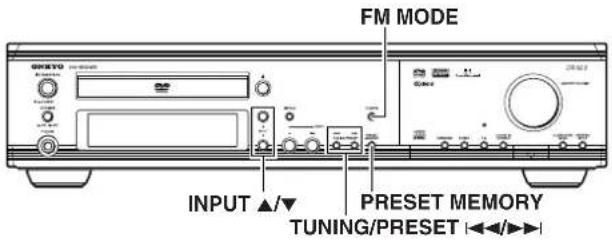
Tuning in a weak frequency (only for FM stations)
When you tune in a stereo FM station, the FM ST indicator lights up if the signal is sufficiently strong.

If the signal is weak, you may not be able to tune to the station. In this case, press FM MODE. The FM ST indicator and AUTO goes off. Then select the station to which you want to listen. (At this time, the station will be in mono and interstation noise will be heard.)

Presetting Radio Stations
You can preset up to 30 stations.
| 1 | Tune in the radio station you wish to preset (see steps in the left column of this page). |
2 Unit only  | Press PRESET MEMORY.The MEMORY indicator lights and the preset number starts flashing in the display. |
3  | While the MEMORY indicator is lit (for about 8 seconds), press TUNING/PRESET ◀◀/▶▶ to select the preset number. |
4  | Press PRESET MEMORY.The radio station is registered to the preset channel.To register another preset station, repeat steps 1 to 4. |
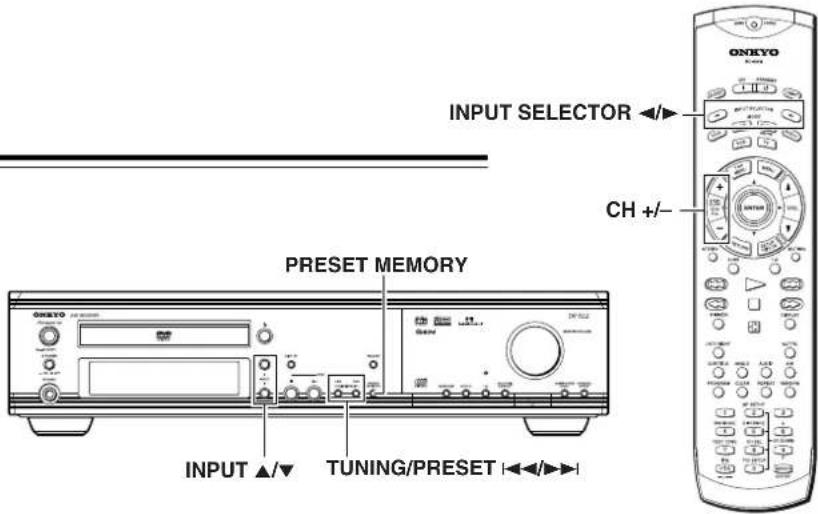
Selecting Preset Stations
Before selecting preset stations, you need to preset the radio stations. See "Presetting Radio Stations" on the previous page.
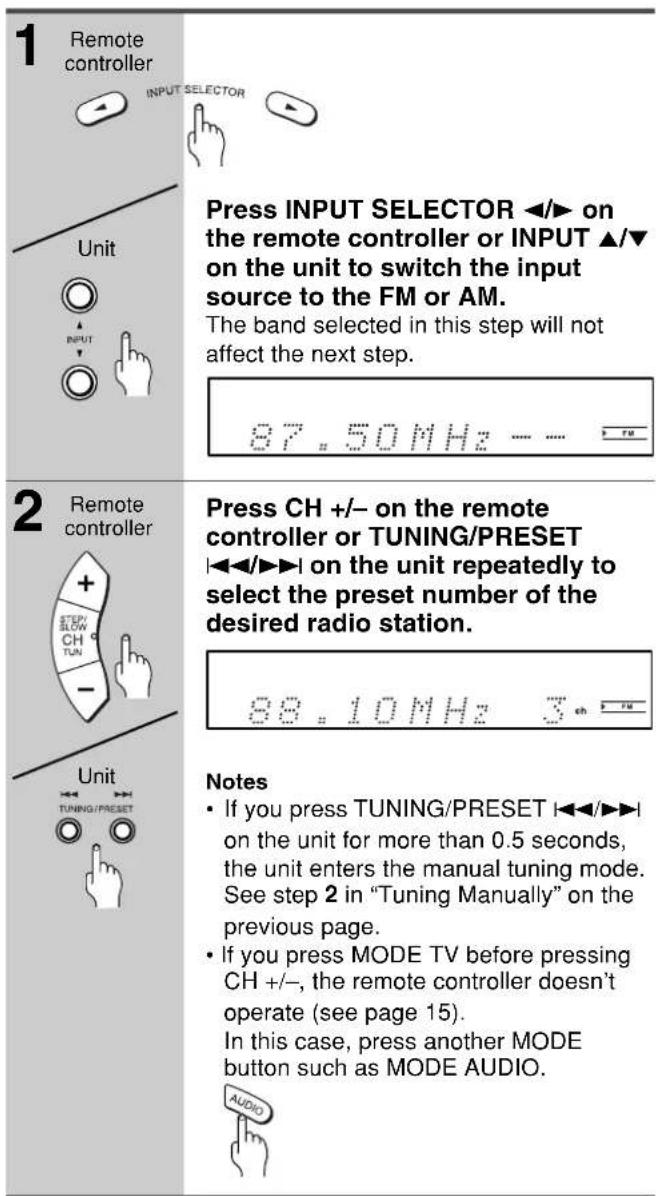
Erasing a Preset Station
| 1 | Select the preset channel you wish to erase (see steps in the left column of this page). |
| 2Unit only[IMAGE] | Press PRESET MEMORY.“Erase?” appears in the display.[IMAGE] |
| 3[IMAGE] | While “Erase?” is displayed (for about 8 seconds), press PRESET MEMORY again.The selected preset channel will be erased. |
Receiving RDS (European models only)
When an RDS (Radio Data System) station broadcasting PS (Program Service Name) information is received, the RDS indicator lights up and the name of the station is displayed. (RDS reception is only available in areas where RDS broadcasts are available.)
natural_image
Simple diagram with a black square and starburst lines pointing to it, no text or symbols present.Various Functions While Listening to Radio Programs
To use the following functions, see page 42.
- Turning on/off the SPEAKERS A/SPEAKERS B Systems (North American and South American models only)
- Adjusting the Volume
- Muting the Sound
- Listening Through Headphones
- Controlling the Brightness of the display on the DVD Receiver
• Using the Sleep Timer
Enjoying the Sound Effects While Listening to Radio Programs
See page 44.
Playing the Connected Source
INPUT SELECTOR ◀/▶
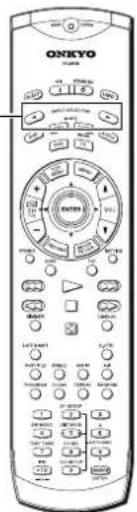
This section shows you how to play the sources connected to the DVD Receiver.
You may need to see "Connecting to a TV" on pages 16, 17 and "Connecting to Audio/Video Equipment" on pages 21 and 22 while following the steps in this section.
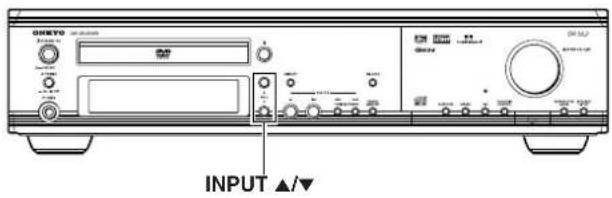
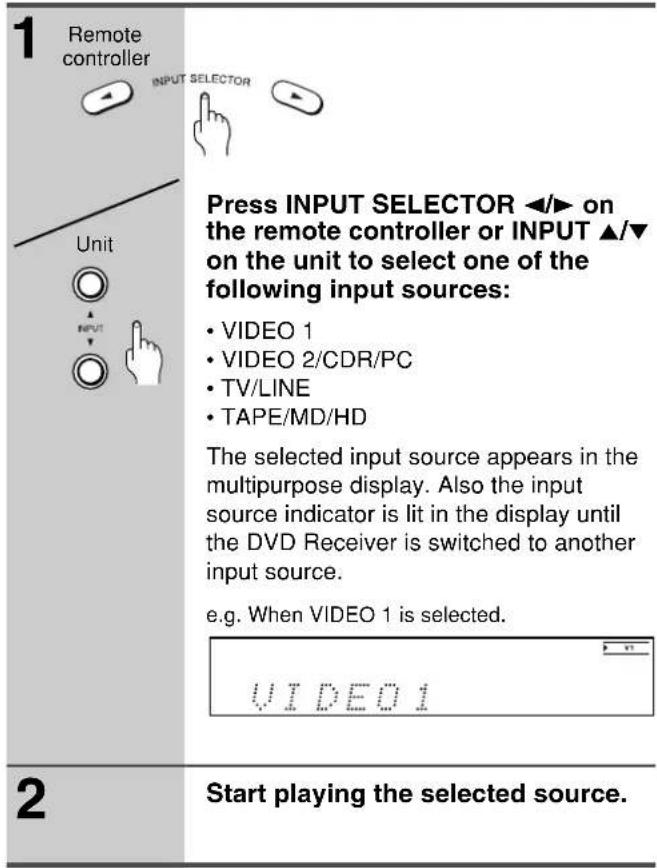
■ About digital sound
If the equipment is digitally connected to the DVD Receiver, the sound from the digital input will automatically be selected and reproduced instead of the analog sound as explained below.
- When the VIDEO 1 source is selected, the digital sound from the DIGITAL INPUT VIDEO 1 COAX jack is reproduced.
- When the VIDEO 2 source is selected, the digital sound from the DIGITAL INPUT VIDEO 2 OPT jack is reproduced.
When the digital sound is reproduced, the DIGITAL indicator lights up in the display. According to the received sound system, the ☐DIGITAL or DTS indicator lights up.
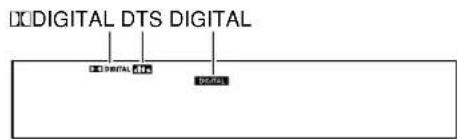
Note
The DVD Receiver only reproduces DOLBY DIGITAL, DTS, and PCM sound formats from connected equipment.
■ Enjoying the picture with the sound of another source
Play the VIDEO 2 source and select TV/LINE, TAPE/MD/HD, FM or AM. Then you can enjoy the VIDEO 2 picture and the sound from the selected input source at the same time.
Various Functions While Playing the Connected Source
To use the following functions, see page 42.
- Turning on/off the SPEAKERS A/SPEAKERS B Systems (North American and South American models only)
- Adjusting the Volume
- Muting the Sound
• Listening Through Headphones - Controlling the Brightness of the display on the DVD Receiver
• Using the Sleep Timer
Enjoying the Sound Effects While Playing the Connected Source
Operating the Onkyo MD Recorder/CD Recorder/Cassette Tape Deck/Hard Disk Recorder With the Supplied Remote Controller
■ Operating the Onkyo CD recorder, MD recorder, cassette tape deck or hard disk recorder to the DVD Receiver with the RI cable (see page 23)
Point the remote controller toward the DVD Receiver when you want to operate this equipment.
CD recorder
ON On/Standby
STANDBY Standby/On
▶ Play
■Stop/Cancel

Pause
↓↓Down
Up
◀◀Fast Reverse
▶▶ Fast Forward
REPEAT Repeat mode
RANDOM Random play
DISPLAY Change display
PROGRAM Program
CLEAR Clear
Press MODE TAPE/MD/HD first.

The initial setting for input is TAPE. Holding MODE TAPE/MD/HD for about 2 seconds switches the input setting as follows: TAPE → MD, MD → HD, HD → TAPE
MD recorder
ON On/Standby
STANDBY Standby/On
▶ Play
■Stop/Cancel

Pause
↓Down
▶▶Up
◀ Fast Reverse
▶▶Fast Forward
REPEAT Repeat mode
RANDOM Random play
DISPLAY Change display
PROGRAM Program
CLEAR
Clear
Reverse play (Reverse tape deck only)
Rewind
▶▶Fast forward
Hard Disk Recorder
ON On
STANDBY Standby
▶Play/Pause
■Stop/Cancel
↓↓Down
Up
REPEAT Repeat mode
RANDOM Random play
DISPLAY Change display
- You can use graied buttons in the illustration to control the DVD Receiver in any mode.
- Some buttons may not work properly.
Turning on/off the SPEAKERS A/ SPEAKERS B Systems (North American and South American models only)
You can turn on or off the speaker systems connected to the FRONT SPEAKERS A and B connectors individually.
Note
When you select "SPEAKER A+B", the SPEAKER A system reproduces stereo sound automatically. (The listening mode is set to "Stereo.")
When you select "SPEAKER A", the listening mode returns to the previous mode.
■ Operating with the unit
Press SPEAKER A/B repeatedly.
Each press of the button changes the On/Off mode as follows:
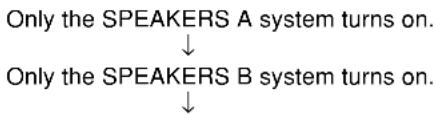
flowchart
graph TD
    A["Only the SPEAKERS A system turns on."] --> B["↓"]
    C["Only the SPEAKERS B system turns on."] --> D["↓"]
Both the SPEAKERS A and B systems turn on.
Adjusting the Volume
The volume of the front left and right, center, surround left and right, and subwoofer speakers will be adjusted at the same time.
When headphones are connected (see next page), you can adjust the volume of the sound through the headphones.
■ Operating with the remote controller
Press VOL ▲/▼.
■ Operating with the unit
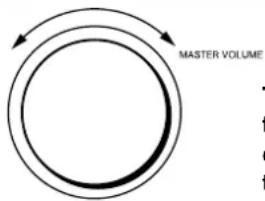
flowchart
graph TD
    A["Start"] --> B{Volume}
    B --> C["Master Volume"]
    C --> D["End"]
Turn MASTER VOLUME clockwise to increase the volume, or counterclockwise (anticlockwise) to decrease the volume.
Muting the Sound
Remote controller only

Press MUTING.
“Muting” appears in the multipurpose display for about three seconds. Also the MUTING indicator flashes in the display during the muting mode.
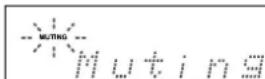
To restore the sound, press MUTING again.
Tip
If you turn off the unit during muting, and turn it on again, the sound will be restored.
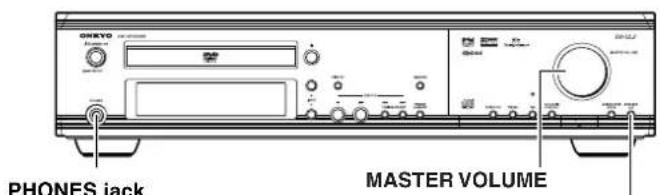
SPEAKER A/B (North American and South American models only)
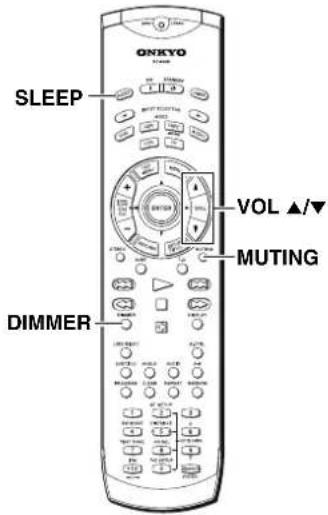
Listening Through Headphones
Connect the plug of the stereo headphones to the PHONES jack on the DVD Receiver.
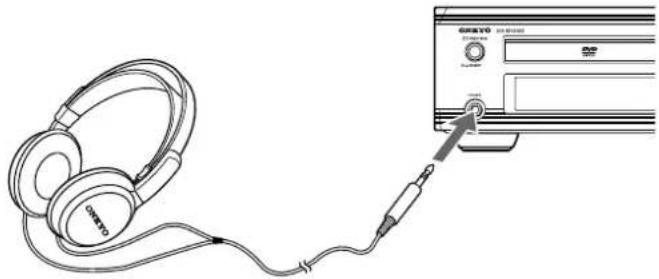
natural_image
Line drawing of a pair of headphones connected to a CD-ROM drive (no text or symbols)Notes
- The speakers will not reproduce sound while headphones are connected.
- The listening mode is set to "Stereo" after connecting the headphones to the PHONES jack.
- When you disconnect the headphones, the listening mode returns to the previous mode.
Controlling the Brightness of the display on the DVD Receiver
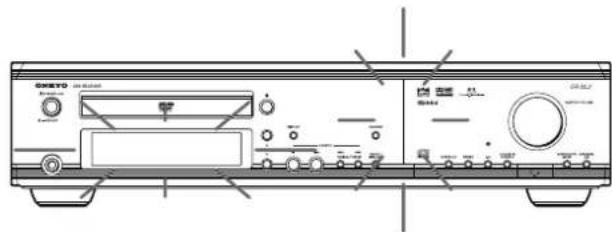
Remote controller only

Press DIMMER.
Each press of the button changes the brightness as follows:
The display becomes less bright. ↓ The display is dimmed. ↓ The display is dimmed, and the front panel illumination goes off. ↓ The display resumes the original brightness and the front panel illumination turns on.
Using the Sleep Timer
Remote controller only

Press SLEEP.
"Sleep 90min" appears in the multipurpose display for about 5 seconds, which means the DVD Receiver will turn off and enter standby mode in 90 minutes. Also the SLEEP indicator is lit in the display while the sleep timer is On.

Each press of the button makes the remaining time shorter by 10 minutes.
■ Checking the remaining time
Press SLEEP while the Sleep Timer is On.
If you press SLEEP while the remaining time is displayed, the remaining time is reduced by 10 minutes.
■ Canceling the Sleep Timer
Press SLEEP repeatedly until the SLEEP indicator goes off.
Enjoying the Sound Effects
The surround sound of the DVD Receiver enables you to enjoy the presence of a movie theater or concert hall in your room.
Before using any sound effect, make sure the Speaker Setup configurations have been set (see pages 29-33).
The speaker configuration is very important for the surround sound. See “Connecting Speakers” on pages 18, 19 and “Positioning Speakers” on page 20.
Following are the sound systems the DVD Receiver can reproduce.
■ DOLBY DIGITAL Surround and DTS (Digital Theater System) Surround
Recommended speaker setup
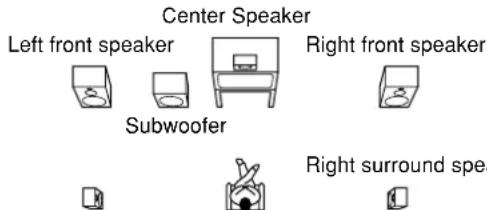
This 5.1 channel digital surround format enables you to individually play five full-range (20Hz–20kHz) channels (left and right front, center, and two surround channels) plus an LFE (Low Frequency Effect) channel for the low-range effect sound. It will create a realistic sound like that heard in theaters and concert halls.
DOLBY DIGITAL Surround
DVD videos that have the DIPARV MARK are recorded using this system.
To playback DOLBY DIGITAL Surround sound from connected equipment, you must make the digital connection in addition to the above speaker configuration.
DTS Surround
DVD videos and audio CDs that have the mark are recorded using this system.
To playback DTS Surround sound from connected equipment such as an LD player, you must make the digital connection in addition to the above speaker configuration.
Notes on DTS Surround
- If you play a DTS Surround encoded disc with the DVD Receiver, or a DTS encoded disc using a digitally connected player, you may hear a noise for a short while until the DTS decoder of the DVD Receiver recognizes the DTS encoded signal and starts operating. This is not a malfunction.
- If you play a DTS Surround source in fast reverse or fast forward, pause, or skip a chapter or track, noise may be heard. This is not a malfunction.
- Even when playback of the DTS Surround source stops and the DTS signal transmission ends, the DVD Receiver remains in DTS mode and the DTS indicator remains lit. This is to prevent noise when you pause, fast forward, fast reverse, or skip a chapter or track of the playback source. Therefore, if the source switches from the DTS signal to a PCM (2 channel digital stereo) signal immediately, the PCM signal may not be played. In such a case, stop playback for about three seconds, then resume playback.
- Some CD players (if connected to the DVD Receiver) and LD players may be unable to play DTS Surround sources correctly even if you connect the player to the DVD Receiver digitally. In such a case, the digital signals (such as the output level, sampling frequency, frequency response, etc.) processed by the DVD Receiver cannot be recognized as DTS data by the DVD Receiver and you may hear noise instead of the proper sound.
■ DOLBY PRO LOGIC II Surround
This is a 5-channel surround system of a new generation, casting a bridge between the previous 4-channel (Left/Right Front, Center and monaural surround channels) Pro Logic surround and 5.1-channel Dolby Digital surround. Dolby Pro Logic II provides the Movie mode optimized for viewing movies and the Music mode optimized for listening to music. In the Movie mode, the surround channel, which has been monaural and based on narrow band, is reproduced in stereo so that the feeling of movement in the played movies is more enhanced. In the Music mode, the surround channel reproduces natural sound field even with 2-channel music sources.
The Movie mode allows you to enjoy VHS and DVD software carrying the ☐DOLBY SURROUND marking as well as some of TV broadcast programs. The Music mode allows you to enjoy stereo music from CD, etc.
■ Onkyo's original Digital Signal Processing (DSP) modes
The DVD Receiver offers the following special Onkyo sound effects for sources other than Dolby Digital and DTS sounds.
Orchestra
This mode is suitable for classical and opera music. The center channel is cut and the surround channels are emphasized to widen the stereo image. It simulates a natural reverberation as created in a large hall.
Unplugged
This mode is suitable for acoustic instrumental sounds, vocals, and jazz music. By emphasizing the front stereo image, it simulates the acoustics in front of the stage.
Studio-Mix
This mode is suitable for rock and popular music. Lively sounds with a powerful acoustic image will make you feel as if you are in a club.
TV Logic
This mode offers the realistic acoustics of a TV program being aired in the TV studio. It enhances the entire surround sound and clarity of conversation.
All Ch St (All Channel Stereo)
This mode is useful for background music. The front and surround channels will create a stereo image.
■ Theater-Dimensional (T-D)\* mode

□ □
Theater-Dimensional
The ideal home theater is realized by the multichannel sound reproduction with the complete speaker configuration and speaker positioning described on page 20. However, sometimes it is difficult to meet all those conditions. In reality, you may only have front speakers, or not be able to place the surround speakers in position.
Even if your speaker system is not complete, you can enjoy the multichannel surround sound by using the Theater-Dimensional mode. Theater-Dimensional mode sets the output channels to generate the most suitable virtual surround reproduction according to the number of the speaker channels set in "Speaker Setup" on page 29 or 31.
The importance of the speaker setup
Calibrating each speaker's sound pressure is essential for home theater sound reproduction. The same thing can be said for virtual surround sound reproduction. Especially level matching and the time alignment of the two speakers that reproduce virtual surround signals becomes an even more important factor than with normal multichannel reproduction.
For the DVD Receiver, the calibration for the multichannel reproduction (see speaker distance setting on page 32 and test tone adjustment on page 33) provides the most appropriate level matching.
Notes
- For the input sources which include the surround channel signals like the multichannel DOLBY DIGITAL and DTS surround sounds, the virtual processing is applied to those surround channel signals.
- For the 2 channel input sources, the surround channel elements are automatically extracted with the DOLBY PRO LOGIC processing before the virtual processing is applied.
- For the monaural or front 3 channel stereo sources, the virtual surround effect does not work since those input sources do not include the surround channel signals.
* Theater-Dimensional is a virtual surround technology developed by Onkyo. This technology is approved by Dolby Laboratories for the virtual surround processing of the Virtual Dolby Digital and Virtual Dolby Surround products.
The Input Sources and Available Listening Modes
The available listening modes varies depending on the sound type of the input source. The table below shows the correlation between the input source types and listening modes.
(× marked listening modes can be chosen with a particular type of a source.)
| Input Source Signals | Analog/PCM D | Dolby Digital DTS | |
| Possible sourcesListening Modes | Audio cassette, audio CD,VIDEO CD, Record,FM broadcast,AM broadcast | DVD video, LD,Digital (satellite) broadcast | DVD video, audio CD, LD |
| Stereo × × | × | ||
| Theater-Dimensional × | × | × | |
| DOLBY DIGITAL × | |||
| DTS × | |||
| PL II Movie/PL II Music × | × | * | |
| Orchestra × | |||
| Unplugged × | |||
| Studio-Mix × | |||
| TV Logic × | |||
| All Ch Stereo × | |||
* PL II Movie/Music can be selected only when the source is 2-channel.
Note
The listening mode is set to "Stereo" when the PCM sound whose sampling frequency is higher than 48kHz is played. Such high-resolution sounds are reproduced from sources such as DVD video.
Checking the Sound System of the Playing Source
The DVD Receiver will automatically detect the sound system when DOLBY DIGITAL Surround (DOLBY DIGITAL), DTS Surround (RMS), or PCM/MP3 DIGITAL (2 channel digital stereo) is played back. The corresponding sound system indicator lights in the DVD Receiver's display.
DOLBY DIGITAL DTS DIGITAL (PCM/MP3)

Choosing Theater-Dimensional Mode
Theater-Dimensional mode is the technology which controls the characteristics of the sounds reaching the listener's left and right ears, therefore, there is a sweet spot where you can best experience the Theater-Dimensional effects. You need to adjust the location of the sweet spot and these other factors for the best possible Theater-Dimensional effect.
■ Listening angle
("Lisng. Angle" appears in the display.)
Left speaker Right speaker
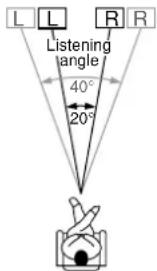
The longer the distance between the two speakers is, the wider the angle is.
The listening angle is the angle at the listening position where the two lines from the left and right speakers meet.
You need to adjust the listening angle in the following cases:
- If you set "Speaker 2ch" or "Speaker 3ch" in "Speaker Setup" on pages 29 and 30.
Consider the listening angle as being formed from the left and right front speakers since the virtual surround signals are output from the front speakers. - If you cannot place the surround speakers in the correct position.
- Place each surround speaker on top of or on the outer side of each front speaker of the same side.
- Consider the listening angle as being formed from the left and right surround speakers since the virtual surround signals are output from the surround speakers.
Set "Lisng. Angle" to one of the following settings, which you feel is most effective (the listening angles in parentheses are the ideal degrees):
- Normal (30°)
- Wide (40°)
- Narrow (20°)
■ Virtual Surround Level
("V. Surr Level" appears in the display.)
This parameter adjusts the virtual surround level.
Set "V. Surr Level" to one of the following 7 values, which you feel is most effective: -3, -2, -1, 0, 1, 2, and, 3
■ Dialog mode
("Dialog Mode" appears in the display.)
The dialog in the film may sound less clear because of the music or other sounds depending on the movie or scene.
In such a case, set "Normal" to "Enhance." (The factory setting is "Normal" which is the normal mode.)
Notes
- This function emphasizes the dialog in the center channel since the dialog sound, in most films, is allocated to the center channel. Therefore, if the dialog is not in the center channel, the sound will not be enhanced.
- Depending on the type of source, this mode is not very effective.
■ Activating Theater-Dimensional mode
See "The Input Sources and Available Listening Modes" on page 45.
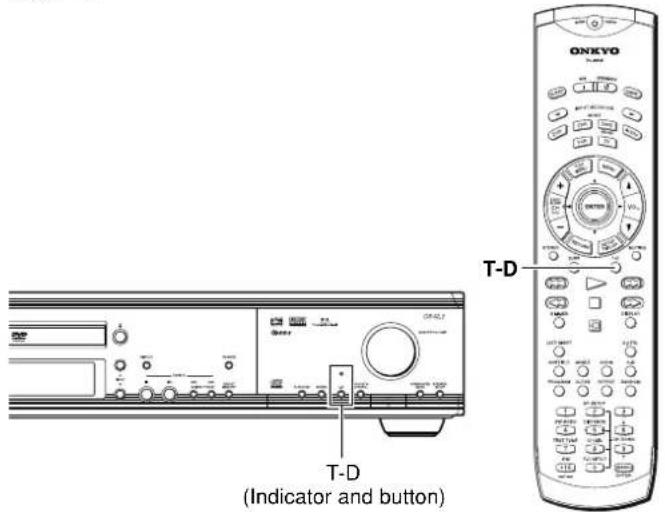
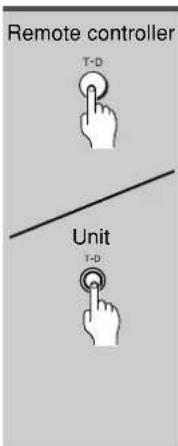
Press T-D.
"Theater-Dimensional" scrolls across in the display and the Theater-Dimensional indicator on the unit lights.
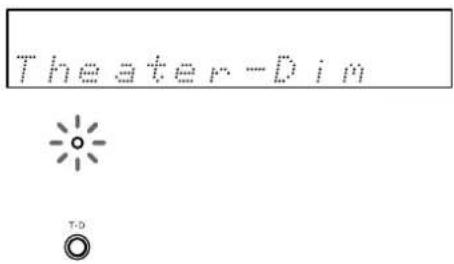
Notes
• Theater-Dimensional mode cannot be activated if;
- Headphones are connected,
- SPEAKERS B system is On (North American and South American models only), or
- The source is PCM sound with a sampling frequency higher than 48kHz.
- Theater-Dimensional mode will be canceled and the T-D indicator goes off when:
- Another listening mode is chosen, or
- The input source is switched to a type of source which Theater-Dimensional mode cannot process.
■ Adjusting Theater-Dimensional mode
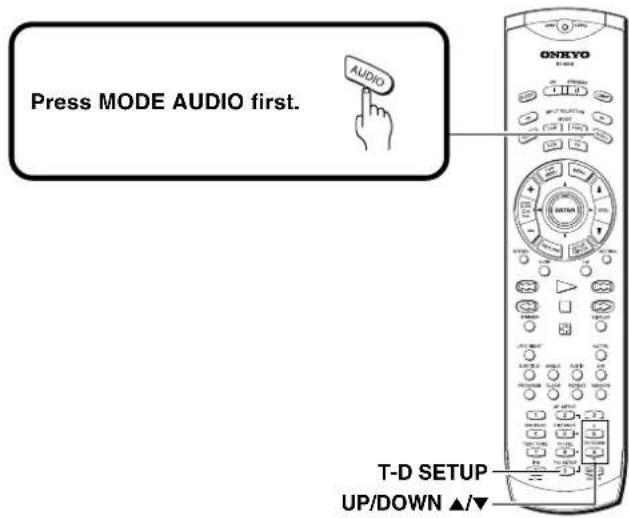
| 1 | Activate Theater-Dimensional (see the steps in the left column of this page). |
| 2Remote controller onlyT-D SETUP | Press T-D SETUP repeatedly to select the Theater-Dimensional item (see on the previous page).Lisng. AngleEach press of the button changes the item as follows:→Lisng. Angle↓V. Surr Level↓Dialog Mode↓The normal display resumes. |
| 3 | Press UP/DOWN ▲/▼ to select the setting of the item.To change the setting of another item, repeat steps 2 and 3.To end the Theater-Dimensional setup, press T-D SETUP repeatedly until the normal display resumes. |
Using Dolby Pro Logic II/ Onkyo's Original DSP Modes
See "The Input Sources and Available Listening Modes" on page 45.
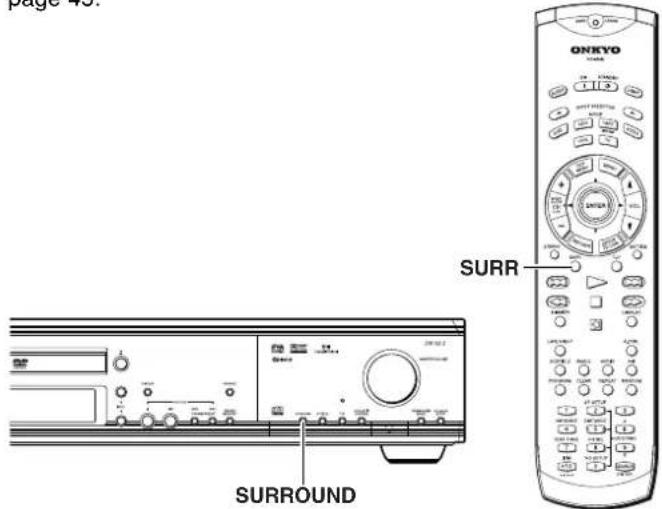
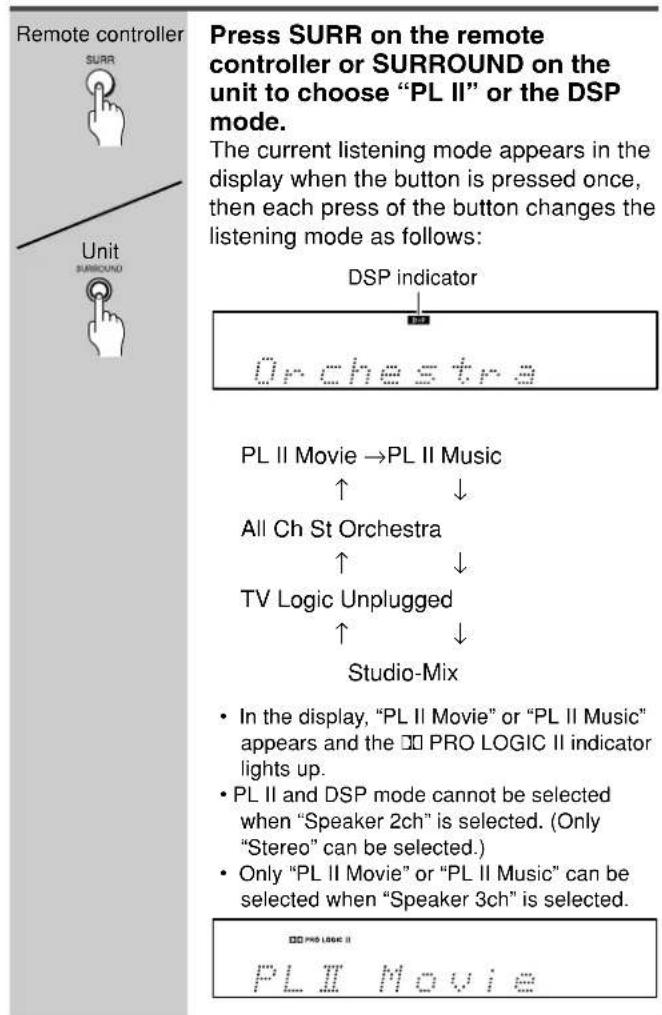
Changing the Sound to Stereo
See "The Input Sources and Available Listening Modes" on page 45.
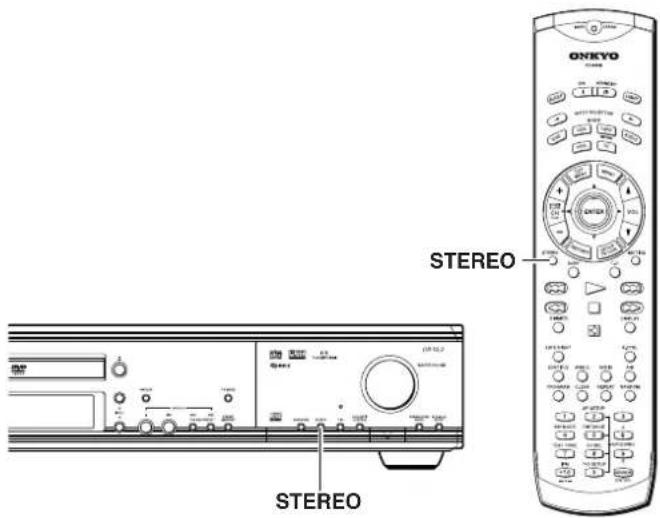
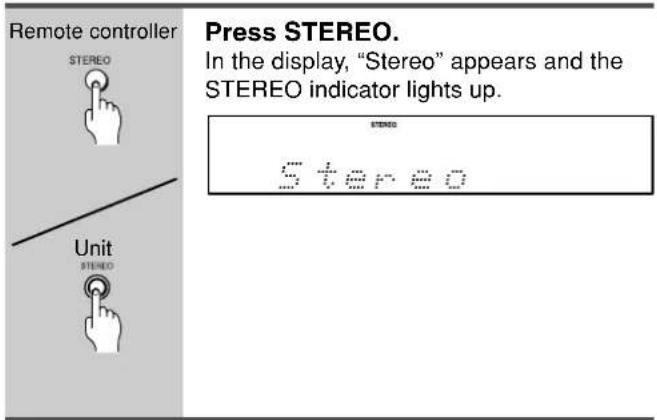
Adjusting Each Speaker's Relative Volume Balance Temporarily
You can readjust each speaker's relative volume balance according to your preference while listening to the sound.
The adjusted values will return to the values set on page 33 when the DVD Receiver enters standby mode, or the main power is switched off unless you save the values.
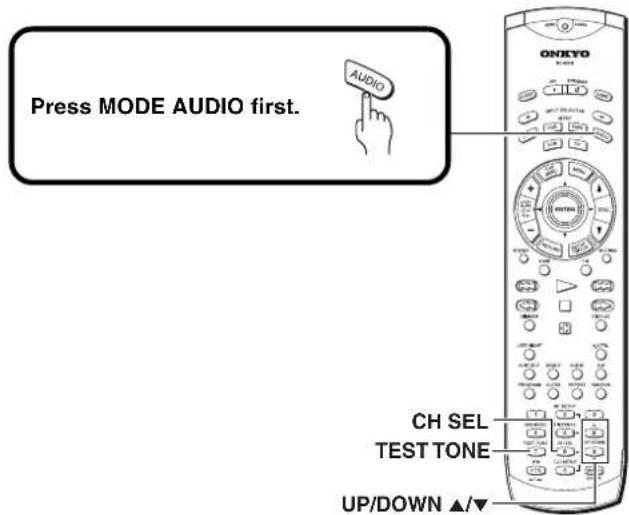
1
Remote controller
(Checking each speaker's relative volume balance)
While playing the source, press CH SEL repeatedly.
Each press of the button changes the speaker which outputs the sound and the selected speaker appears in the display in the following order:
Left (Front left ch.)
Center (Center ch.)
Right (Front right ch.)
Surr R (Surround right ch.)
Surr L (Surround left ch.)
Subwfr (Subwoofer)
Speaker volume adjustment mode off

Note
Any speaker that is not included in the speaker configuration on pages 29-31 is not selected even if it is actually connected.
2
(Adjusting each speaker's relative volume balance)
Press CH SEL repeatedly to select the speaker, then press UP/DOWN ▲/▼ to adjust the volume level.
The volume level can be adjusted between -12dB and +12dB.
Repeat this step to change another speaker's volume balance.
■ Saving the adjusted values
Remote controller only
Press TEST TONE.
Using the LATE NIGHT/FRONT EFFECT Function
- The LATE NIGHT function operates when the sound is DOLBY DIGITAL Surround. If you play a movie at low volume at night, set this function to "Low" or "High" to narrow the dynamic range of the sound and make it easier to hear.
- The FRONT EFFECT function operates with DSP modes other than All Ch St. If you use one of the DSP sound effects with a source containing acoustic reverberation, the sound may become unclear because of too much reverberation. In such case, set this function to "Off." The DSP sound effect will not add additional reverberation to the sound output to the three front speakers.
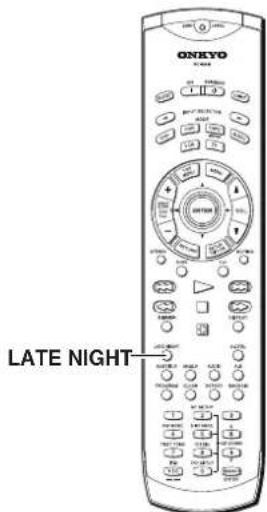
Remote controller only

Press LATE NIGHT.
The current setting appears in the display. To change the setting, press the button repeatedly while the current setting is displayed.
- When the button is pressed while DOLBY DIGITAL Surround sound is being reproduced
"L-Night Low," "L-Night High," or "L-Night Off" can be selected.
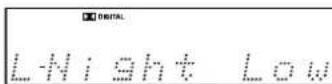
- When the button is pressed while one of the DSP sound effects is being used "F-Effect Off" or "F-Effect On" can be selected.
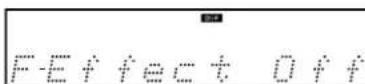
Note
The LATE NIGHT effect is determined by each DOLBY DIGITAL sound source. Some sources may produce little or no effect.
Boosting the Super Bass Sounds/High Frequency Sounds
You can enjoy more dynamic sounds by boosting the super bass/high frequency sounds, even with decreased volume.
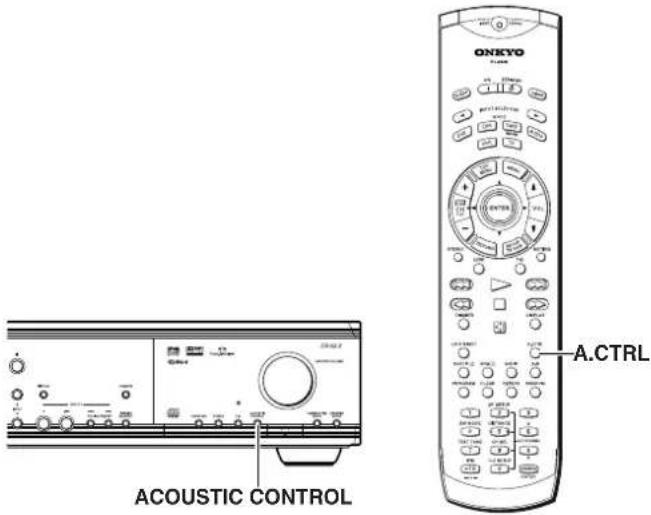
Remote controller
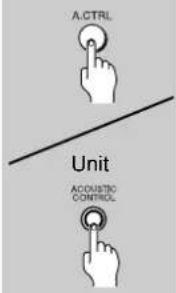
Press A.CTRL on the remote controller or ACOUSTIC CONTROL on the unit.
Each press of the button changes the acoustic mode as follows:
"A. Ctrl 1" appears in the display and the A.CTRL indicator turns on. The super bass sounds are boosted. ↓ "A. Ctrl 2" appears in the display and the A.CTRL indicator turns on. The super bass sounds are further reinforced and the high frequency sounds are also reinforced. ↓ "A. Ctrl Off" appears in the display and the A.CTRL indicator goes off.

Still Frame/Slow Play
The video images on DVD and Video CD can be viewed as a still frame, played back at slow speeds and even advanced frame by frame.
DVD VCD
Viewing a still frame
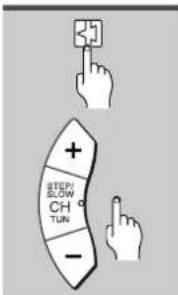
Press STEP/SLOW +/-
When viewing a DVD, if the paused picture shakes, select the [Field] setting in the Setup screen Video 2 menu [Still Picture] setting as described in the section on page 70.
■Frame by frame advance playback: Viewing one frame at a time
You can't use frame review with Video CDs.
1 Press , STEP/SLOW +/-.
2 Press STEP/SLOW +/-.
STEP/SLOW +: The picture advances one frame each time the button is pressed.
STEP/SLOW -: The picture backs up a DVD a few frames each time the button is pressed.
■To return to normal playback
When viewing a still frame playback, pressing or restores normal playback operation.
Notes
- There is no sound when viewing still frames or slow playback, or when advancing one frame at a time.
- Still frame, slow play, or frame advance playback may not be possible with certain titles. In this case, the 🔔 mark is displayed.
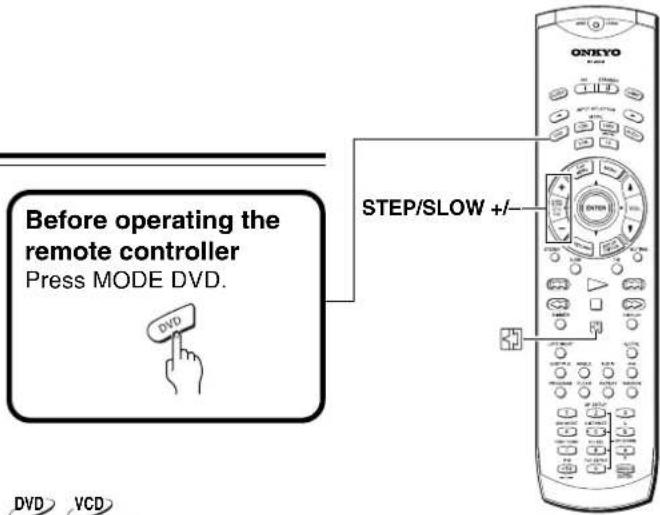
DVD VCD
Viewing slow playback
You can't use slow reverse play with Video CDs.
During still frame playback, press and hold STEP/SLOW +/- during playback.
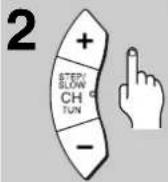
Press STEP/SLOW +/- repeatedly to change the slow-motion speed.
There are four forward slow-motion play speeds (STEP/SLOW +):

There are two reverse slow-motion play speeds (STEP/SLOW –):
Slow 1 ↔ Slow 2
■ To return to normal playback
When viewing a slow playback, pressing ▶ restores normal playback operation.
Locating a Specific Title/Folder/Chapter/Track/Location
DVD VCD CD MP3
Searching for a Title, Folder, Chapter, Track, or Location on a Disc
This DVD Receiver offers different ways of accessing the information on a DVD, Video CD, CD or MP3. Using SEARCH, you can search for titles or chapters on a DVD, tracks on a Video CD, CD or folders or tracks on a MP3 and even select the point in time to start playback.
1

Press SEARCH repeatedly to select the type of search.
The type of search changes which each press as follows.
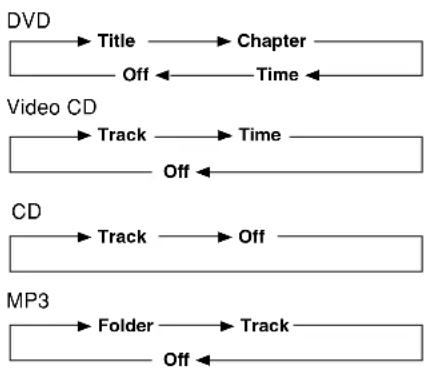
flowchart
graph LR
    A["DVD"] --> B["Title"] --> C["Chapter"]
    C --> D["Off"] <--_E["Time"]
    F["Video CD"] --> G["Track"] --> H["Time"]
    H --> I["Off"]
    J["CD"] --> K["Track"] --> L["Off"]
    L --> M["Off"]
    N["MP3"] --> O["Folder"] --> P["Track"]
    P --> Q["Off"]
2
Press the number button(s) of the desired title, chapter or track or of the specific time where you would like to begin playback.
• To select number 3, press 3.
• To select number 10, press 1 and 0.
• To select number 87, press 8 and 7.
When performing a time search:
• To select 21 minutes, 43 seconds, press 2, 1, 4, and 3.
- To select 1 hour, 14 minutes, press 7, 4, 0, and 0.
3

Press ▶.
Playback of the selected title, folder, chapter or track starts. When a time search is performed, playback begins at the appointed time.
Notes
- For some discs, selection can be made using the top menu on the DVD. In this case, press TOP MENU to display the menu screen and then make your selection.
- With some DVDs, the search operation may not be possible and may stop shortly after being performed. In this case, the 🔒 mark is displayed.
- Time search is not possible with CDs and MP3s.
- When performing DVD or Video CD time search, playback may start from a slightly different time than that specified.
- Time search is not possible during when the disc is stopped.
- Search using time search is not possible during PBC playback of Video CDs.
■To perform a direct title or chapter/track search using the number buttons
- Press the number buttons while the disc is stopped to select a title or track number.
- Press the number buttons while the disc is playing to select a chapter or track number.
• To select number 3, press 3.
• To select number 10, press +10 and 0.
• To select number 37, press +10, +10, +10 and 7.
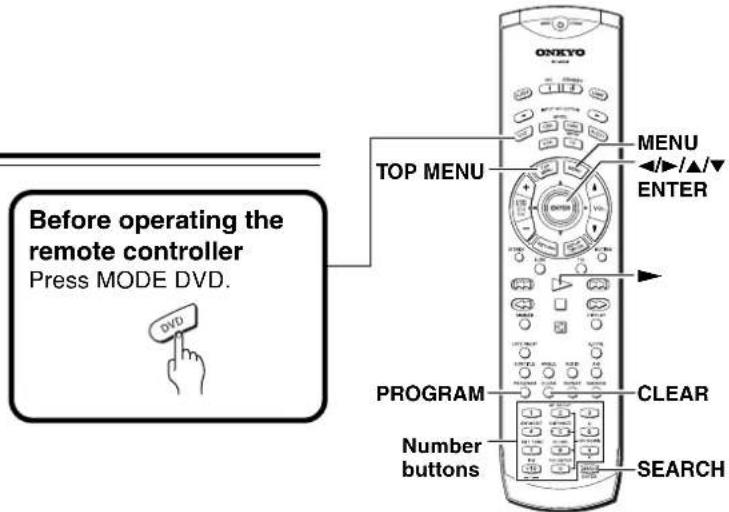

Using the MP3 Navigator
Use the MP3 Navigator to make searching for the track(s) you want to play easier. You can also use it to add or clear tracks from the program list.
1
Load a CD-R/CD-RW containing MP3 tracks.
2
Press MENU to enter the MP3 Navigator screen.
The left side of the screen shows a list of folders containing MP3 tracks.
Total number of Track
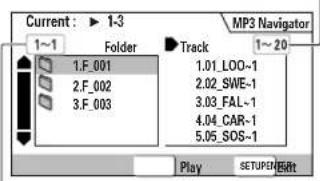
Total number of Folder
If you display the MP3 Navigator when a disc is playing, the currently playing folder and track numbers are shown at the top left of the screen.
On the right side is a list of MP3 tracks from the first title in the list.
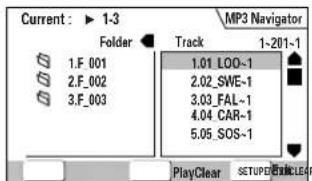
■ Navigate using the following controls:
| Cursor buttons (◀/▶) | Select folder and tracks from the current screen. |
| Cursor buttons (▲/▼) | Select the previous/next of folders and tracks. To move rapidly up or down a long list of folders or tracks, press and hold the Cursor buttons (▲/▼). |
| ENTER | Play the currently selected folder or track. MP3 tracks that are unplayable on this system are automatically skipped and the display shows “UNPLAYABLE”. |
| MENU | Exit the MP3 Navigator |
| PROGRAM | Add the currently selected track to the program list. (Tracks in the program list are marked √.)Pressing PROGRAM repeatedly will add the track to the program list repeatedly.See “Programming MP3s” on page 58 for how to use program play. |
| CLEAR | Clear the currently selected track from the program list. |
Repeat Play
You can repeat an entire title, folder, chapter or track, or just a part.
DVD VCD CD MP3
Repeating a Disc, Title, Folder, Chapter or Track
Press REPEAT repeatedly.
Each time you press REPEAT, the repeat mode changes as follows:
(Characters in parenthesis appears in the front panel display.)
DVD
Repeat Chapter (REPEAT CHP) → Repeat Title (REPEAT TTL) → Repeat Off (Previous display)
VCD CD
Repeat Track (REPEAT TRK) → Repeat Disc (REPEAT DSC) → Repeat Off (Previous display)
MP3
Repeat Track (REPEAT TRK) → Repeat Folder (REPEAT FLD) → Repeat Disc (REPEAT DSC) → Repeat Off (Previous display)
RPT. indicator lights up.

■To repeat a program
Press REPEAT once during program playback to repeat the program.
■To cancel repeat play
Press CLEAR. Playback continues, but the repeat function is canceled.
Note
If you press ◀◀/▶▶ during track repeat or chapter repeat, the repeat mode is cancelled.
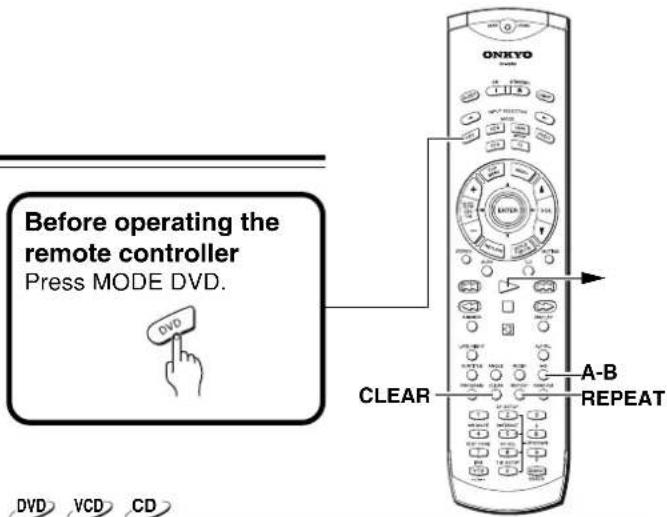
Repeating a Specific Segment
Repeat play of a specified section
Press A-B at the beginning and end of the section you want to repeat.
- First time you press A-B, "Memory (REPEAT A)" appears on screen (display). When A-B is pressed a second time, the disc returns to the location where A-B was pressed first and plays the selected section repeatedly.
- You can only perform A-B repeat within the same title, chapter, or track.
RPT. indicator lights up.

Return to a specified location on a disc
1 Press A-B at the desired location.
2 When you want to return to the specified location, press ▶.
■To cancel A-B repeat play
Press CLEAR. Playback continues, but the repeat function is canceled.
■To clear the specified location
Press CLEAR to cancel repeat play or to clear the specified location that was set using A-B.
Notes
- With some DVDs, there may be times when repeat playback is not possible. In these cases, the 🔒 mark will appear on the screen.
- With Video CDs, repeat play is not possible when the menu is displayed (PBC playback). To perform repeat play, start playback without displaying a menu by pressing the track number to be repeated when the disc is stopped, and then press REPEAT.
- You cannot use A-B repeat when listening to an MP3.
- If you switch camera angle during repeat play, repeat play is cancelled
Random Play
Play titles, chapters, or tracks on a disc in random order.
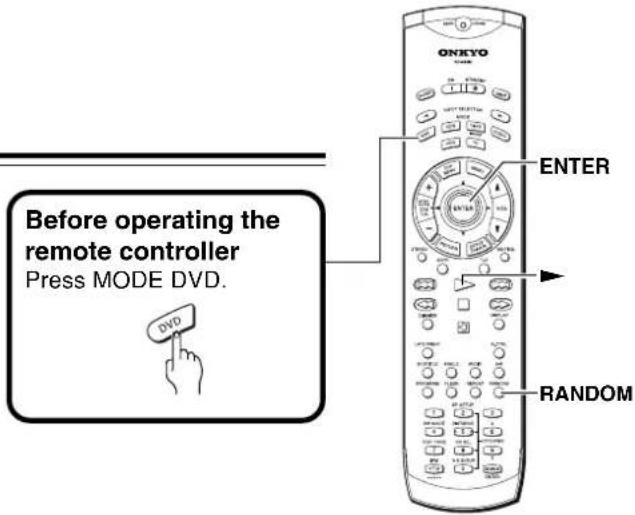
DVD VCD CD MP3
Playing in Random Order
DVD
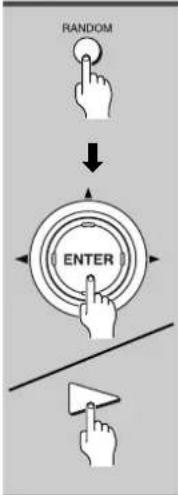
flowchart
graph TD
    A["Hand icon"] --> B["Random input"]
    B --> C["↓"]
    C --> D["ENTER"]
    D --> E["Arrow pointing to the button"]
    E --> F["Arrow pointing to the line"]
Random playback of chapters within one title
Press RANDOM once, then press ENTER or ▶.
"Random Chapter" appears on the screen, and chapters within the title will be played back in random order.
Random playback of titles
Press RANDOM twice, then press ENTER or ▶.
"Random Title" appears on the screen, and titles will be played back in random order.
"RDM" appears in the display.
■To change titles or chapters during random play
- Press ▶▶ or RANDOM and the next randomly selected title or chapter starts playing.
- Press ◀◀◀ and playback of the current title or chapter starts again from the beginning.
■To stop random play
Press CLEAR. This returns you to normal playback of chapters in order from the chapter currently playing.
Notes
- Random play of programmed chapters is not possible.
- Random playback may not be possible with some DVDs.
- Repeat playback of random playback is not possible. In these cases, the 🔔 mark will appear on the screen.
VCD CD MP3
Random playback of tracks
Press RANDOM.
"Random" appears on the screen, "RDM" appears in the display, and playback begins.
■To change tracks during random play
- Press ▶▶I or RANDOM and the next randomly selected track starts playing.
- Press ◀◀◀ and playback of the current track starts again from the beginning.
■To stop random play
Press CLEAR. This returns you to normal playback of tracks in order from the track currently playing.
Notes
- With Video CDs, random play is not possible during playback when the menu is displayed (PBC playback). To perform random play, start playback without displaying a menu by pressing a track number button while in the stop mode, and then press RANDOM.
- Random play of programmed tracks is not possible
- Repeat playback of random playback is not possible. In these cases, the 🔔 mark will appear on the screen.
Playing in a Favorite Order
The titles and chapters within a title on a DVD and similarly MP3, CD and Video CD tracks can be arranged to play in the order you want.
With this player, it is possible to make a program as you watch a DVD or Video CD or while listening to an MP3 or a CD.
DVD
Programming DVDs
A program with a maximum of 24 steps can be memorized.
Press PROGRAM.
The Program screen appears.
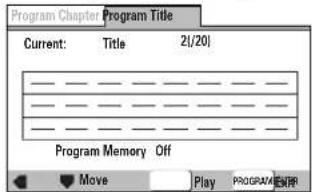
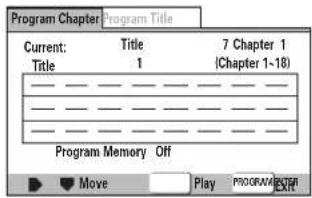
"PROGRAM" appears in the display.
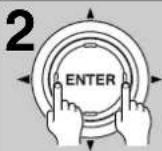
Use the cursor buttons (◄/►) to select either [Program Chapter] or [Program Title].
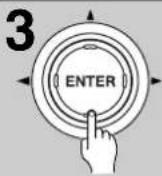
Once the program type is selected. Use the cursor button (▼) to enter the program window.
When [Program Chapter] is selected, you must also select what title the chapters to be programmed are in. Use the cursor button (▲) to highlight "Title" and then use the number buttons to enter the title number to be used.
4
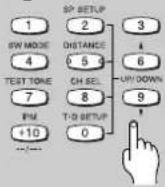
In the program window, use the number buttons to enter the numbers of the titles or chapters in the order you want to program them in.
• To program DVD titles/chapters 9, 7, and 18 in order, press 9, 7, +10 and 8.
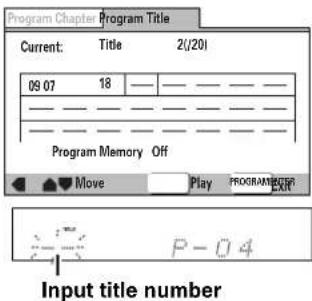
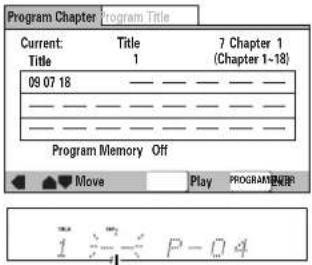
Input chapter number
- To program a pause in a program, press - instead of a number button.
"II" appears on the screen and the pause can be programmed.
A pause cannot be programmed as the first or last position in a program, and two or more pauses cannot be programmed in succession.
Press ENTER or ▶.
- Playback starts in the set order.
- Press PROGRAM to return to the previous display. The program will not begin until ▶ is pressed.
• To stop the program play, press ■.
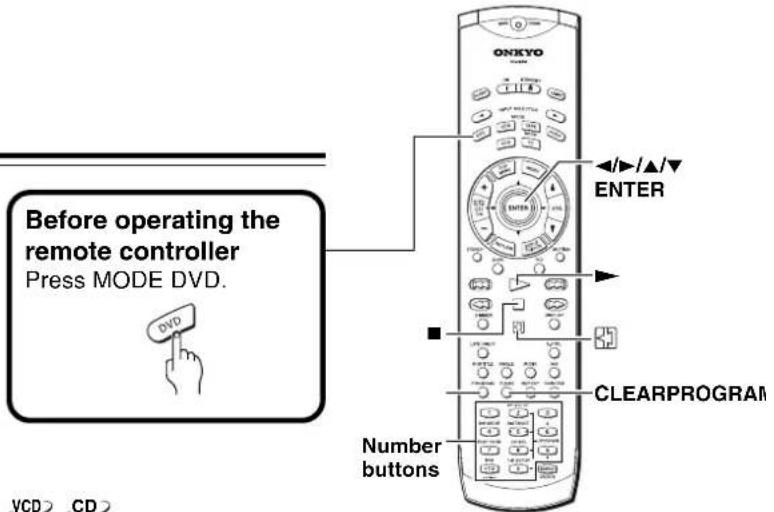
Programming Video CDs, CDs
A program with a maximum of 24 steps can be memorized.
Notes
- When programming chapters, chapters not programmed may appear on the screen. This is not a malfunction.
- Programming may not be possible with certain DVDs. On these types of discs, the 🔔 mark will appear on the screen when programming is attempted.
- Only chapters within the same title can be programmed during chapter programming.
■To save a program in memory
This DVD Receiver can memorize the programs on up to 24 DVDs. By turning the [Program Memory] to [On], the DVD Receiver will save your program and recall it the next time you use the same DVD. When the program memory exceeds 24, programs will be erased in chronological order from the oldest program in memory.
1 Use the cursor button (▼) to highlight [Program Memory] and use the cursor button (▶) to select [On].
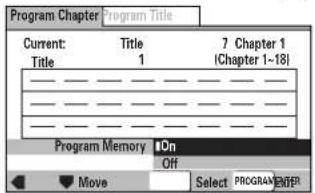
2 Press ENTER.
The program is saved in memory.
Note
When a DVD with a program stored in memory is loaded, program playback may start automatically.
■To erase a program saved in memory
The player erases programs in chronological order when the maximum number of programs that can be held in memory is exceeded. To prevent the player from erasing older programs that you may still use regularly, or when you don't want to use a program anymore, it is possible to manually erase programs stored in memory.
1 Load a DVD that has a program stored in memory.
2 Press PROGRAM.
The program screen appears.
3 Use the cursor button (▼) to highlight [Program Memory] and use the cursor buttons (▶/▼) to select [Off].
4 Press ENTER.
The program is cleared from memory.
1
Press PROGRAM.
The program screen appears. When a Video CD or CD is loaded, the cursor appears in the program window.
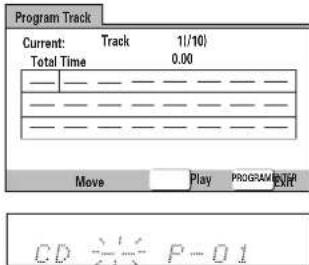
2
Use the number buttons to enter the numbers of the tracks in the order you want to program them in.
• To program tracks 9, 7, and 18 in order, press 9, 7, +10 and 8.
• To edit the program, refer to the procedures on the previous page.
- To program a pause in a program, press
■ instead of a number button.
"II" appears on the screen and the pause can be programmed.
A pause cannot be programmed as the first or last position in a program, and two or more pauses cannot be programmed in succession.
3
Press ENTER or ▶.
- Playback starts in the specified track order.
- Press PROGRAM to return to the previous display. The program play will not begin until ▶ is pressed.
• To stop the program play, press ■.
Notes
- To program a pause, or to add or delete a number, refer to the procedures for "Programming DVDs" on page 56.
- You cannot program when playing a Video CD using menu selections (during PBC).
MP3
Programming MP3s
A program with a maximum of 24 steps can be memorized.
1
Press PROGRAM to enter the [MP3 Program] screen.
If you added tracks to the program list from the "Using the MP3 navigator" on page 53, the tracks are displayed here.
Total number of folder and track
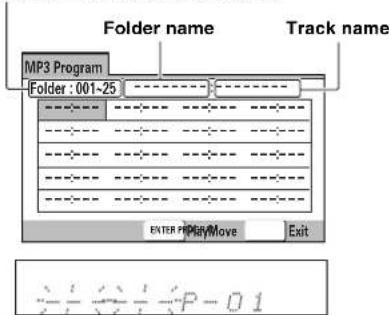
From this screen you can enter folder and track numbers directly to build up a program list.
2
![ONKYO DR-S2.2 - Press PROGRAM to enter the [MP3 Program] screen. - 2](/content/2026/05/762021/images/9abaf7f03772b5fde8267cc424bead025dd30b031d7defe5d1e40d35b61fd496.jpg)
Use the number buttons to enter a three-digit folder number.
The number of folders on the disc is displayed in the top-left of the screen.
Once you've entered a valid folder number, the name of the folder appears.
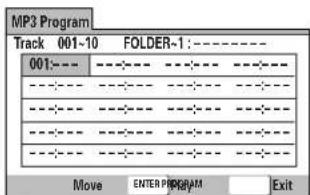

3
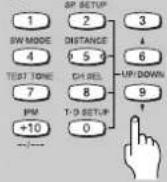
Use the number buttons to enter a three-digit track number.
The number of tracks in the current folder is displayed in the top-left of the screen.
Once you've entered a valid track number, the name of the track appears.
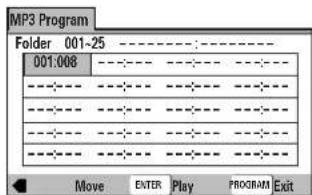

↓

- To program a pause in a program, press Ⅱ instead of a number button.
"II" appears on the screen and the pause can be programmed.
A pause cannot be programmed as the first or last position in a program, and two or more pauses cannot be programmed in succession.
4
Press ENTER or ▶.
- Playback starts in the set order.
- Press PROGRAM to return to the previous display. The program will not begin until ▶ is pressed.
• To stop the program play, press ■.
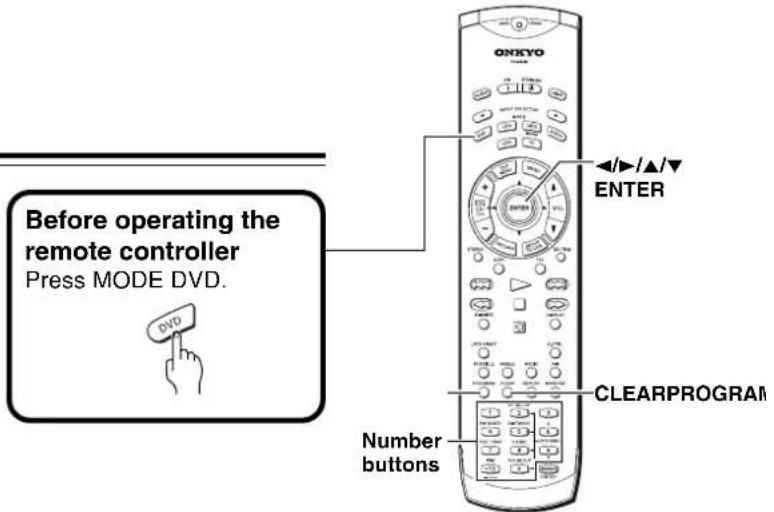

Additional programming options
After you have made a program, it is then possible to confirm, add, or clear the contents of the program.
■To confirm the contents of a program
On a CD or Video CD track program, press PROGRAM to confirm.
The program screen displays the current program.
On a DVD, select the program type (title or chapter) with the cursor buttons (◄/►).
The current DVD title or chapter program can then be confirmed on the appropriate program screen.
■To add to a program
1 Press PROGRAM.
2 Use a number button to add a new title, chapter, or track at the end of the program.
3 Press PROGRAM to exit the program screen.
■To add a title/chapter/track to a program during playback
Press and hold PROGRAM for about 2 seconds.
The current title/chapter/track number appears on-screen together with the program step number. If there isn't already a program then a new one will be created.
e.g. DVD
Chapter 07 ▶ Program 03
■To insert a number
1 Press PROGRAM.
2 Use the cursor buttons (▲/▼/◄/►) to highlight the number to be placed after the new number and then press the number button(s) of the number to be inserted.
The new number is inserted before the previously selected number.
3 Press PROGRAM to exit the program screen.
■To delete a number
1 Press PROGRAM.
2 Use the cursor buttons (▲/▼/◄/►) to highlight the incorrect number and then press CLEAR.
The number is deleted. If the number was before another number, the later numbers are reordered automatically.
3 Press PROGRAM to exit the program screen.
Notes
- The complete program will be deleted even if the disc tray is open or power off (standby).
- Pressing CLEAR when the disc is stopped will clear all programs.
Selecting the Camera Angle
You can select a camera angle when viewing DVDs with the multi-angle option.
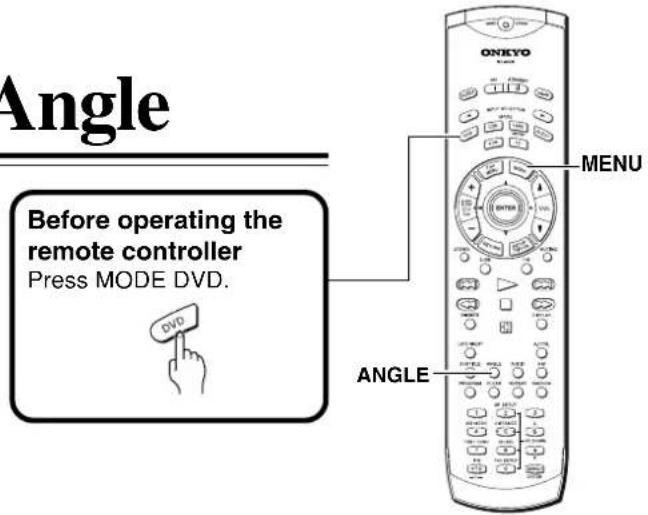
DVD
Viewing from a Desired Camera Angle (Multi-Angle)
Press ANGLE during playback.
The camera angle changes each time you press the button.
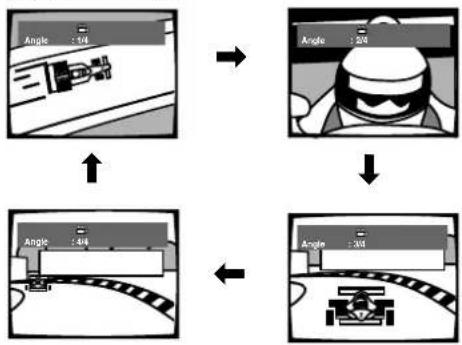
flowchart
graph TD
    A["Top: 24°"] --> B["Top: 24°"]
    B --> C["Bottom: 30°"]
    C --> D["Bottom: 30°"]
    style A fill:#f9f,stroke:#333
    style B fill:#ccf,stroke:#333
    style C fill:#cfc,stroke:#333
    style D fill:#fcc,stroke:#333
■To check whether or not a disc is recorded with angles
The jacket of discs that are recorded with angles will be marked with 📋. When locations on discs that are recorded with angles are played back, the 📋 indicator can be displayed.
To cancel the angle mark, set [Angle Indicator] to [Off] in the Setup screen Video menu described in the section below (page 70).
Notes
- You can use the Multi-Angle function only with discs featuring recordings of images shot from different camera angles.
- During Multi-Angle playback, the indicator in the display lights.
- For some discs, selection can be made using the DVD menu. In this case, press MENU to display the DVD menu screen and then make your selection.
- If you change the camera angle during still playback, the DVD Receiver resumes normal playback.
Selecting the Audio/Subtitle Language
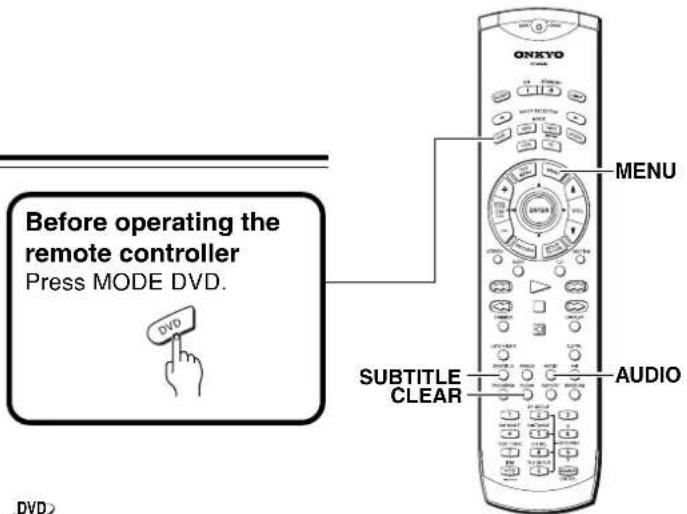
DVD
Changing the Audio Language (Multi-Language Function)
Dolby Digital, PCM, and other audio data can be recorded on DVDs in a number of languages or audio tracks, letting you choose the desired language or audio.
Press AUDIO repeatedly to select the desired language.
Pressing AUDIO once displays the currently selected language. Subsequent presses rotates through the audio languages available on the DVD.
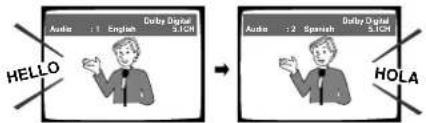
Notes
- You cannot switch languages if there is only one language recorded on the disc.
- Switching the audio language may not be possible with some titles. In this case, the Smark is displayed.
- For some titles, selection can be made using the DVD menu. In these cases, press MENU to display the DVD menu screen and then make your selection.
- When you erase the resume position or replace a disc, the DVD Receiver returns to the automatic setting in the setting menu (page 71).
■Changing Audio Type
For enjoyment of karaoke or similar format Video CDs, CDs and MP3s, it is possible to select stereo audio, or either right or left channel mono depending on the requirements of the source. Press AUDIO repeatedly during playback to switch the audio type.
Audio output changes from [1/L] (Left channel) to [2/R] (Right channel) to [Stereo].
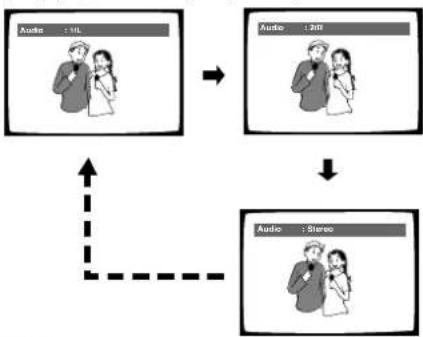
flowchart
graph TD
    A["Audio : 34L"] --> B["Audio : 20T"]
    B --> C["Audio : Stereo"]
    C --> D["Data Flow Arrow"]
Note
With karaoke and other discs, set the appropriate audio type for singing and accompaniment after referring to information on the disc jacket or accompanying material.
DVD
Selecting a Subtitle Language (Multi-Language Subtitles)
You can select a desired subtitle language with DVDs that have subtitle data in multiple languages recorded on them.
Press SUBTITLE repeatedly during playback.
Pressing SUBTITLE once displays the currently selected subtitle language. Subsequent presses rotates through the subtitle languages available on the DVD.
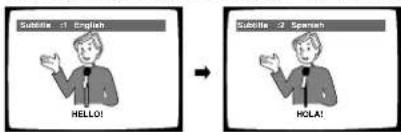
Notes
- The subtitle language cannot be switched if the subtitle language is not recorded, or if only one language is recorded.
- Switching the subtitle language may not be possible with some discs. In this case, the mark will be displayed.
• To clear subtitles during playback, press SUBTITLE and then press CLEAR, or press SUBTITLE until [Off] appears. - For some discs, subtitle language selection can be made using the menu on the DVD. In this case, press MENU to display the DVD menu screen and then make your selection.
- When you erase the resume position or replace a disc, the DVD Receiver returns to the automatic setting in the setting menu (page 72).
Viewing Disc Information
Use DISPLAY to get current information about the disc currently loaded. You can get information about the titles and chapters on a DVD or tracks on a Video CD or CD or folders and tracks on a MP3. When viewing DVDs, you can also check the digital bitstream transmission rate.
DVD VCD CD MP3
Viewing Disc Information during while a disc is playing
Remote controller
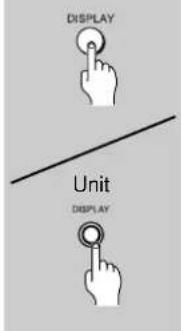
Press DISPLAY during while a disc is playing. Press DISPLAY repeatedly to change the information being displayed.
The disc information is displayed superimposed over the video image on the screen.
Press and hold DISPLAY to display the time remaining on the disc.
When you release the button, the information disappears.
The display changes for each type of disc as follows each time the button is pressed.
DVD
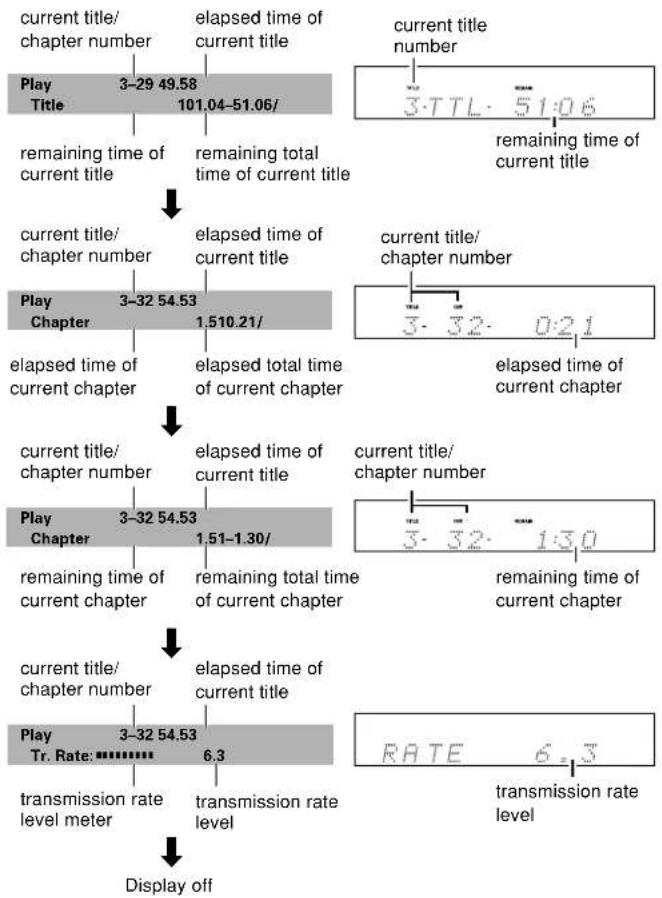
flowchart
graph TD
    A["current title/ chapter number"] --> B["3-29 49.58"]
    B --> C["101.04-51.06/"]
    D["remaining time of current title"] --> E["remaining total time of current title"]
    F["current title/ chapter number"] --> G["3-32 54.53"]
    G --> H["1.510.21/"]
    I["elapsed time of current chapter"] --> J["elapsed total time of current chapter"]
    K["current title/ chapter number"] --> L["3-32 54.53"]
    L --> M["1.51-1.30/"]
    N["current title/ chapter number"] --> O["3-32 1:30"]
    P["elapsed time of current chapter"] --> Q["3-32 1:30"]
    R["current title/ chapter number"] --> S["RATE 6.3"]
    T["transmission rate level meter"] --> U["6.3"]
    V["display off"] --> W["transmission rate level"]
Video CD (with PBC disabled)
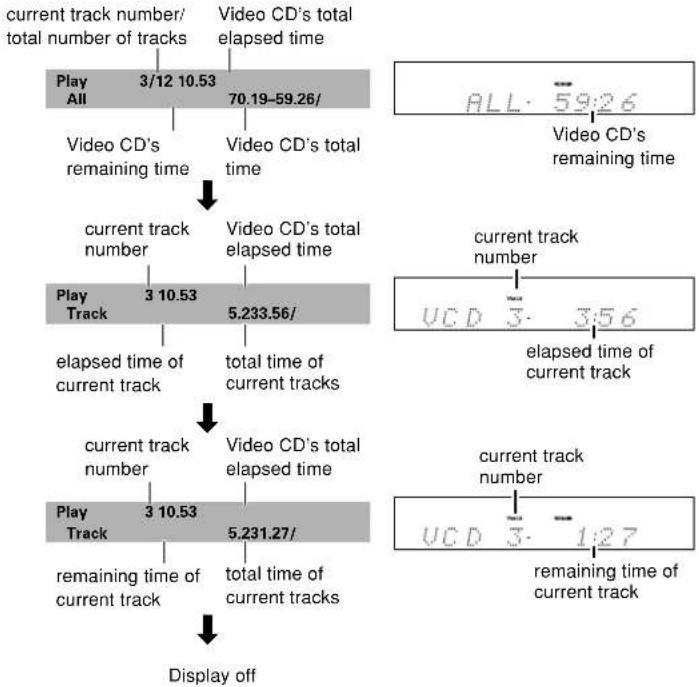
flowchart
graph TD
    A["current track number/total number of tracks"] --> B["Play All 3/12 10.53"]
    B --> C["Video CD's remaining time 70.19-59.26/"]
    C --> D["current track number"]
    D --> E["Play Track 3 10.53"]
    E --> F["elapsed time of current track 5.233.56/"]
    F --> G["current track number"]
    G --> H["Play Track 3 10.53"]
    H --> I["remaining time of current track 5.231.27/"]
    I --> J["Display off"]

    K["Video CD's total elapsed time"] --> L["ALL: 59:26"]
    L --> M["Video CD's remaining time"]
    N["current track number"] --> O["VCD 3: 3:56"]
    O --> P["elapsed time of current track"]
    Q["current track number"] --> R["VCD 3: 1:27"]
    R --> S["remaining time of current track"]
CD
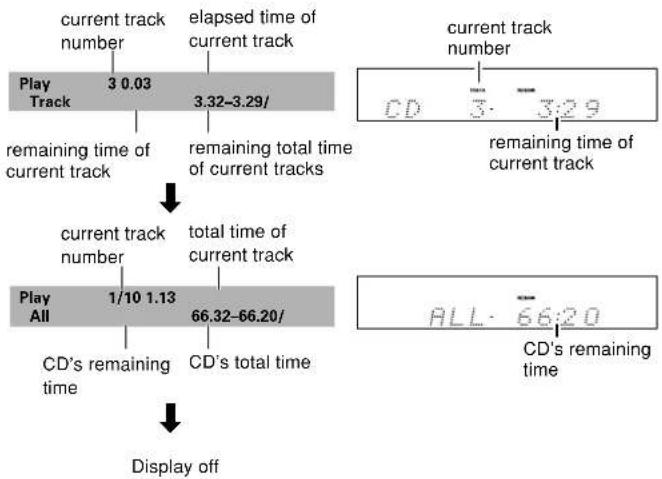
flowchart
graph TD
    A["current track number"] --> B["3 0.03"]
    B --> C["remaining time of current track"]
    C --> D{3.32-3.29/}
    D --> E["remaining total time of current tracks"]
    E --> F{total time of current track}
    F --> G["1/10 1.13"]
    G --> H["CD's remaining time"]
    G --> I["66.32-66.20/"]
    I --> J["Display off"]

    K["current track number"] --> L["3: 3:29"]
    L --> M["remaining time of current track"]
    M --> N["ALL: 66:20"]
    N --> O["CD's remaining time"]
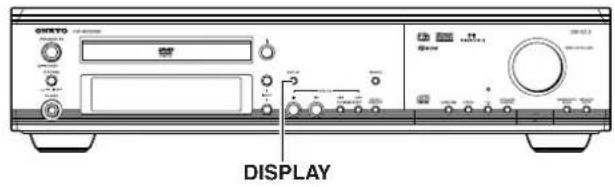
Before operating the remote controller Press MODE DVD.

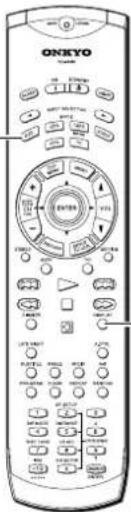
Viewing Disc Information during while a disc is stopped
MP3
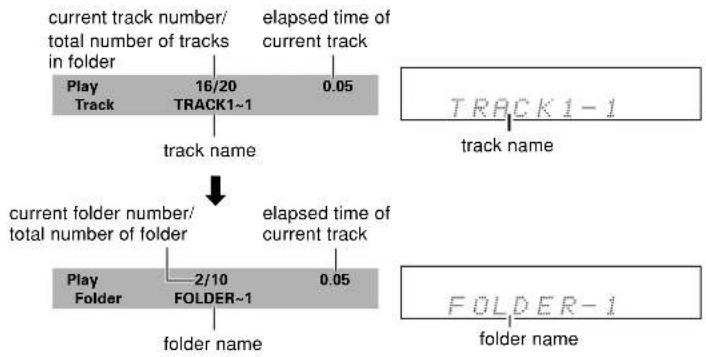
flowchart
graph TD
    A["current track number/total number of tracks in folder"] --> B["Play Track 16/20 TRACK1~1"]
    B --> C["track name"]
    D["elapsed time of current track"] --> E["TRACK1-1"]
    E --> F["track name"]
    G["current folder number/total number of folder"] --> H["Play Folder 2/10 FOLDER~1"]
    H --> I["folder name"]
    J["elapsed time of current track"] --> K["FOLDER-1"]
    K --> L["folder name"]

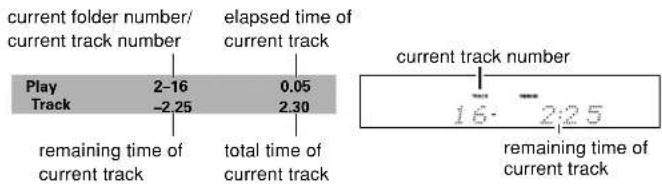
other
| Category | Current Folder Number/Current Track Number | Elapsed Time of Current Track | | -------- | --------------------------------------------- | ----------------------------- | | Play Track | 2-16 | 0.05 | | Track | -2.25 | 2.30 | | Remaining Time of Current Track | | Total Time of Current Track | | Current Track Number | 16 | 2:25 | | Remaining Time of Current Track | | (no label) |
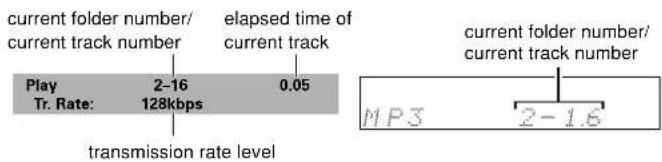

Display off
Notes
- Depending on the format and type of disc being used, not all screens may be displayed.
- When playing Video CDs in PBC mode or unfinalized CD-Rs not all the above information is displayed.
Remote controller
Press DISPLAY during while a disc is stopped to display DVD title and chapter information or Video CD and CD track information or MP3 folder and track information. Press DISPLAY again to turn the display off.
Information about the titles and chapters or folders and tracks on a disc is displayed. When the information exceeds the space on the screen, use the cursor buttons (◀/▶) to move to other screens.
DVD
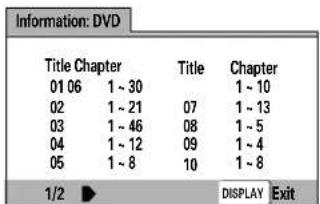
Titles and number of chapters in each title
Video CD and CD
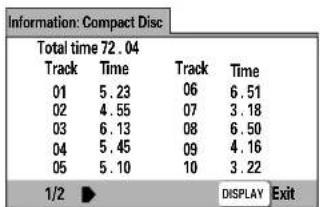
Total playing time of disc, tracks and track times
MP3
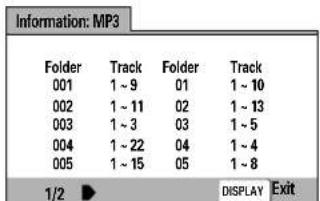
Folders and number of tracks in each folder
Customizing the Function Settings
The procedure on this page describes how to operate the menus on the Setup screen. These menus are used to set and adjust a number of system settings. The various functions that can be adjusted are covered throughout this manual. The procedure on this page provides a basic outline for using the Setup screen menus.
Using the Setup Screen Menus
1 | Press ON (STANDBY/ON on the front panel). |
2 | Press SETUP.The Setup screen appears.Example (North American model)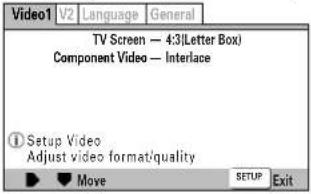 |
 | Use the cursor buttons (◄/►) to select the menu you want.As each menu is selected with the cursor, the settings appear below the menu heading. |
 | Use the cursor buttons (▼) to enter the menu.The top item within the menu becomes highlighted.Example (North American model)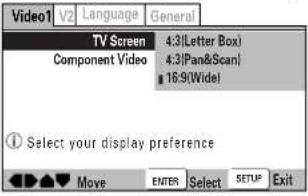 |
 | Use the cursor buttons (▲/▼) to select the setting you want to change.The options available for each setting appear to the right when the setting is selected. The current setting appears with the setting indicator lit. |
Press SETUP.
Use the cursor buttons (◄/►) to select the menu you want.
Use the cursor buttons (▼) to enter the menu.
Use the cursor buttons (▲/▼) to select the setting you want to change.
6
Use the cursor buttons (▶) to enter the setting options.
Example (North American model)
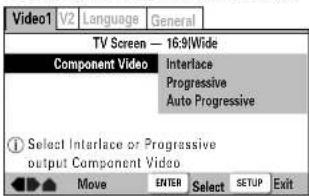
- Not all menu options can be changed while a disc is playing. In these cases, the options appear grayed out on the screen and cannot be adjusted. To change these settings, press ■ first before pressing SETUP.
- Operating the menu after pressing ■ may cancel the resume function.
- Some menu options are not immediately effective if set while a disc is playing. To make these settings effective, stop playback and then start again, or change the settings while the disc is stopped.
7
Use the cursor buttons (▲/▼) to select a new setting and press ENTER to set the new setting in memory.
Press RETURN or the cursor button (◀) to exit the options without making any changes.
8
Press RETURN or the cursor button (◀) to go back to the main menu bar to select another menu.
9
Press SETUP to close the Setup screen.
The Setup screen closes.
Notes
- If you turn off the DVD Receiver during setup, the settings are canceled. Press SETUP to finish the setup.
- The memorized resume position may be erased by setup.
• The Setup screen always shows the latest settings.
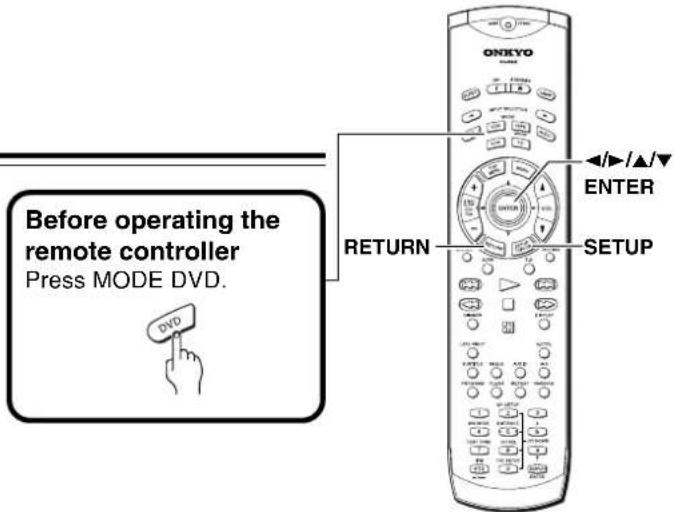
■ When setting up for the first time
It is recommended to set up player using the Setup Navigator (page 27). If you selected [Auto Start Off] when the Setup Navigator appeared, you may still set up the DVD Receiver using the Setup Navigator in the General menu screen. If you choose not to use the Setup Navigator, be sure to make the necessary settings in the Setup screen Video 1, Video 2 and Language menus as described on the following pages. Some DVDs start playing automatically when loaded in the DVD Receiver. If a DVD has been loaded, be sure to press ■ before proceeding.
Note
The next time you press SETUP, you'll see the menu screen that you exited from last time.
■ How to interpret the setting indicator colors in the Setup screen menus
When setting up the system, or when making adjustments, it is convenient to know what settings are applicable to the different disc formats. When the settings appear for each menu option, the currently selected setting appears with the setting indicator highlighted in one of three colors: blue, green or yellow. These colors correspond to what formats the menu option effects as shown in the table below.
| Color of indicator Disc format(s) | |
| Blue | DVD only |
| Yellow | DVD/Video CD |
| Green | All compatible formats |
Note
If a setting applicable only to DVDs is changed while a Video CD or CD is loaded, a blue DVD icon appears in the upper right hand corner of the screen to indicate that the setting is not applicable to the currently loaded disc. The setting will be effective the next time a DVD is loaded.
Changing to the Setup Screen "Expert" Menu Mode
The Setup screen menus are divided into two levels, [Basic] and [Expert], to make this unit more convenient to operate for different levels of users. The [Basic] menu mode contains functions that may be considered necessary for the basic operations of this DVD Receiver and helpful on-screen information identified by the ① mark. The [Expert] menu mode adds to the [Basic] menu mode additional functions of the player that can be adjusted to further personalize performance of the player.
In this manual, functions that are contained in the [Expert] menu mode are identified by the Expert icon.
Make changes to the [Setup Menu Mode] setting in the Setup screen General menu.
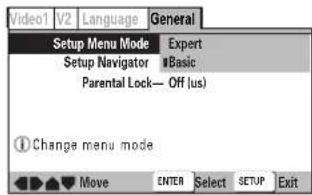
Settings: Expert
Basic (Factory setting)
Note
On-screen information only appears in the [Basic] menu mode.
Setting the TV Screen Size
The width-to-height ratio of conventional TVs is 4:3, while the width-to-height ratio of wide screen and high-definition TVs is 16:9. This width-to-height ratio is called the aspect ratio.
When viewing software recorded in different aspect ratios, the image's height to width ratio can be switched to match the TV or monitor being used.
Make changes to the TV screen size in the [TV Screen] setting in the Setup screen Video 1 menu. Please note that changes to the [TV Screen] setting cannot be made when a disc is playing. Stop playback of the disc before attempting to make any changes.
Example (North American model)
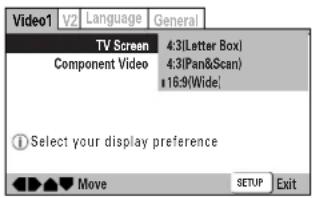
Settings: 4:3 (Letter Box)
4:3 (Pan & Scan)
16:9 (Wide) (Factory setting)
Notes
- If [Standard (4:3)] is selected in the Setup Navigator screen, [4:3 (Letter Box)] is selected on this screen. If you prefer the pan&scan format, change the settings on this screen.
- Whether the aspect can be switched or not depends on the disc. Please refer to the information written on the disc jacket, etc.
- Some discs may not include the screen format selected in the [TV Screen] setting. When this occurs, the standard TV screen format available on the disc is automatically selected.
■ Differences in screen sizes and DVD formats
The number of screen size formats currently available can be somewhat confusing. If set incorrectly, the video presentation may not appear as it should. The following diagrams and descriptions are intended to help you set your TV screen size in a way that will allow you to fully enjoy the digital video of DVD.
The settings in the [TV Screen] setting are perhaps most applicable when the DVD you are watching is programmed in the wide screen format. If you have a standard TV, select either [4:3 (Letter Box)] or [4:3 (Pan & Scan)] based on your personal preference. If you have a wide screen TV, select [16:9 (Wide)].
| When viewing a wide screen TV or monitor | |
| DVD screen size format | Setting and Appearance |
| Wide screen format DVDPlease note that there are some wide screen letter box formats that place black bars at the top and bottom of the screen. This is not a malfunction. | 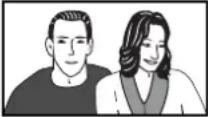 “Wide” setting “Wide” setting |
| Standard screen format DVDWhen viewing a standard screen format DVD on a wide screen TV, black bars may be automatically placed at the side of the screen to adjust to the DVD format. | 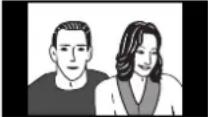 “Wide” setting “Wide” setting |
| Standard screen format DVD (unnatural stretched effect)If you are viewing a standard screen format DVD on a wide screen TV, the picture may appear “stretched” on the screen. To remedy this condition, change your wide screen TV to display a standard (4:3) screen. Refer to the instructions supplied with your wide screen TV or monitor for more information. | 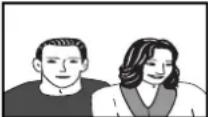 “Wide” setting “Wide” setting |
| When viewing a standard size TV or monitor | |
| DVD screen size format | Setting and Appearance |
| Wide screen format DVDThe Letter box presentationplaces black bars at the top andbottom portions of the screen toprovide the full wide screenpresentation of a movie on astandard TV (4:3 aspect ratio). |  “Letter Box” setting “Letter Box” setting |
| Wide screen format DVDThe Pan & Scan presentationcrops both sides of the widescreen presentation to use thefull standard TV screen. |  “Pan & Scan” setting “Pan & Scan” setting |
| Standard screen format DVDIf you have a standard TV, thestandard screen format will bepresented regardless of thesetting. |  Any setting Any setting |
| Wide screen format DVD(unnatural squeezed effect)If you are viewing a wide screenformat DVD on a standard TVand the [TV Screen] setting isset to [16:9 (Wide)], the picturemay appear “squeezed” on thescreen. To remedy thiscondition, select either [4:3(Letter Box)] or [4:3 (Pan &Scan)]. |  “Wide” setting “Wide” setting |
Setting the Video 1 Options
■ Connecting to a progressive scan-compatible TV (North American model)
Compared to a standard interlaced TV picture, a progressive scan TV is capable of stable, flicker-free images. Set only if you connected the COMPONENT VIDEO OUT jacks to a progressive scan-compatible TV or monitor. Make changes to the [Component Video] setting in the Setup screen Video 1 menu.
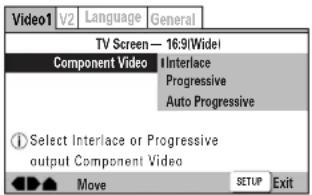
Settings: Interlace (Factory Setting)
Use this setting with regular TVs that are not compatible with progressive scan. Check the TV's instruction manual if you are not sure about this.
Progressive
Use this setting with TVs and monitors that have progressive scan component video inputs. The PRGV indicator lights up. Check the TV's instruction manual if you are not sure about this.

Auto Progressive
Switches to progressive scan when 16:9 DVDs are played,4:3 DVDs uses interlace setting. Your TV/monitor must be compatible with progressive scan to use this setting.
Tip
If this DVD Receiver is set to output progressive-scan video, it's possible that the picture will appear stretched when playing discs recorded in 4:3 format. This happens when the TV's aspect ratio is set at 16:9. To see the picture in its correct aspect ratio, change the TV setting to 4:3.
If your TV can not be switched between 4:3 and 16:9, set this DVD Receiver to [Interlace] or [Auto progressive]. In Auto progressive mode, 4:3 discs will be played in Interlace mode, while discs that are recorded in both 4:3 and 16:9 will play in interlace mode during the 4:3 sections, and in progressive mode during the 16:9 parts. Switch your TV's aspect ratio to the most suitable setting (for more details, see the manual that came with your TV). When set to [Auto progressive], you may see picture disturbance when this player (and the TV) switches between progressive and interlace modes. This is not a malfunction of either this player or the TV. Picture disturbance should only occur when switching from a menu screen to the main feature, for example.
Notes
- If you connect a TV that is not compatible with a progressive scan signal and choose one of the progressive scan settings, you will not be able to see any picture at all. With your TV connected using either the composite or S-Video terminals, choose the [Interlace] setting in the [Component Video] menu.
- (Other than North American model) The DVD Receiver is fixed to [Interlace] setting. You cannot choose other settings.
■Setting the Video Output Format for the AV CONNECTOR (European models)
When connections are made to the AV CONNECTOR jack on the player via a SCART cable, it is possible to select the video format that is compatible with your TV or monitor. Select [Video] to have a composite video signal output, [S-Video] to have an S-video signal output, and [RGB] to have an RGB signal output. For more information on which format is most appropriate, refer to the instructions supplied with your TV or monitor.
Make changes to the [Video Out] setting in the Setup screen Video 1 menu.
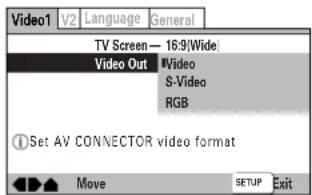
Settings: Video (Factory setting) S-Video RGB
■Switching the S-Video Output Expert
You can switch the kind of S-Video signal output from the S-Video outputs. If you connected your TV with an S-Video cord, in rare cases the TV picture may appear stretched. In this case switch the output from [S2] to [S1]. Make changes in the [S-Video Out] in the Setup screen Video 1 menu in the [Expert] menu mode (page 65).
Example (North American model)
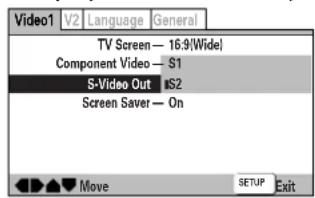
Settings: S1
S2 (Factory Setting)
■Turning the Screen Saver On and Off Expert
As a protective function against residual images on the TV screen or monitor, a phenomenon referred to as "screen burn", the screen saver appears when the same screen has been displayed for a length of time. By default, the screen saver is turned on. However, the screen saver function can be turned on and off at your discretion.
Make changes to the [Screen Saver] setting in the Setup screen Video 1 menu in the [Expert] menu mode (page 65).
Example (North American model)
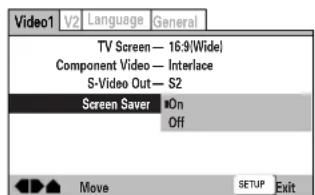
Settings: On (Factory setting) Off
Adjusting the Video Quality
You can either select a preprogrammed setting designed to match certain program types or make adjustments to match your own preferences and save them in the player's memory. Make changes to the [Video Adjust] setting in the Setup screen Video 2 menu.
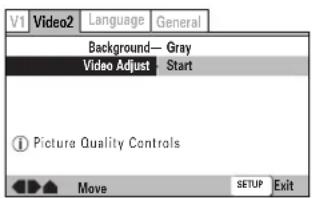
■Selecting a preprogrammed setting
1 Use the cursor button (▶) to select [Start] then press ENTER. Setting items vary depending on the settings in the Setup screen Video 1 menu.
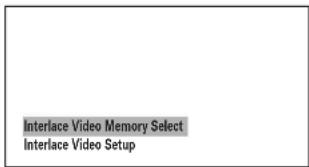
2 Press ENTER.
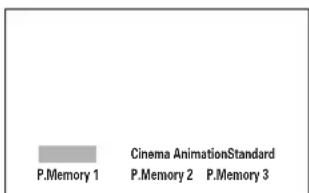
Standard (Factory Setting)
Presents the video with no effect added.
Cinema
Delivers a cinema-like picture.
Animation
Provides images with bright clear colors.
Memory 1, Memory 2, and Memory 3
(P.Memory 1, P.Memory 2, and P.Memory 3)
These are user programmable settings. See "Adjusting the picture quality settings" on this page and page 69 for more information.
3 Use the cursor buttons (◄/►/▲/▼) to select one of the preprogrammed picture quality settings. If there is a DVD or Video CD playing, the effects of each setting can be viewed while it is highlighted on the screen. This may be useful in selecting an appropriate setting.
4 Press ENTER.
The new selection is set.
Notes
- Each picture quality setting is defined by a number of individual settings, described in "Adjusting the picture quality settings" on pages 68 and 69.
- Depending on the disc and the TV/monitor, you may not see the effect clearly.
■Adjusting the picture quality settings – To create your own setting (1)
1 Use the cursor button (▶) to select [Start] then press ENTER.
2 Use the cursor button (▼) to select [Video Setup] then press ENTER.
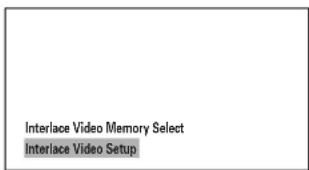
3 Use the cursor buttons (◄/►) to select the setting to [On] or [Off].
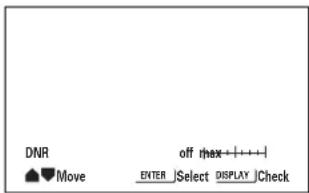
4 Use the cursor buttons (▲/▼) to select the setting to adjust. You can adjust any or all of the following picture quality factors: (North American model when set to [Progressive] or [Auto Progressive] in the Setup screen Video 1 menu.)
DNR
Adjustt to control the amount of signal noise in the luminance component of the video signal.
Sharpness
Adjusts the sharpness of the mid-frequency (less detailed) elements in the picture. (This setting is only effective when [Fine Focus] is [On].)
Detail
Switch on to reveal greater detail (higher resolution) in the picture.
Chroma Delay
Adjusts how saturated colours appear.
Gamma
Adjusts the brightness of the darker images in the picture.
Prog. Memory
Program the current settings.
(North American model when set to [Interlace] setting in the Setup screen Video 1 menu, and other models)
Fine Focus
Switch [On] to reveal greater detail (higher resolution) in the picture
Contrast
Adjusts the contrast of the elements in the picture.
Sharpness
Adjust the sharpness of the high-frequency (detailed) elements in the picture. (This setting is only effective when [Fine Focus] is [On].)
Chroma Level
Adjusts how saturated colours appear.
Hue
Adjusts the overall red/green color balance.
Memory (Interlace Memory)
Program the current settings.
5 Use the cursor buttons (◄/►) to adjust the settings.
Adjust these while a disc is playing to see the effect of changes immediately.
6 Repeat steps 4 and 5 to make adjustments to other settings.
If you would like to save the settings in the player's memory, be sure to select either [1], [2], or [3] in the [Prog. Memory] or [Memory (Interlace Memory)] setting to establish which memory location to save the new settings in. Please note that if you select a location where settings have already been saved, the old settings will be replaced by the new ones.
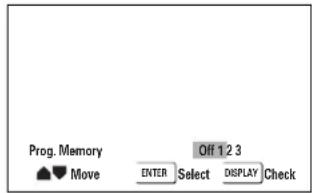
7 When you are finished making adjustments, press ENTER to establish the new settings.
■Adjusting the picture quality settings – To create your own setting (2)
1 Use the cursor button (▶) to select [Start] then press ENTER.
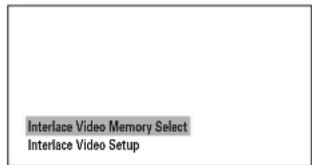
2 Use the cursor button (▼) to select [Video Setup] and press ENTER.
3 Press DISPLAY.
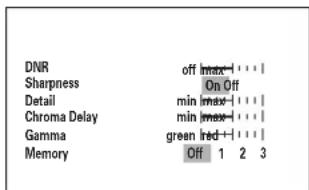
4 Use the cursor buttons (▲/▼) to select the setting and use the cursor buttons (◄/►) to adjust the settings.
Adjust these while a disc is playing to see the effect of changes immediately.
5 To memorize the setting, select Memory 1, 2, 3, then press ENTER.
The previous setting will be erased.
Setting the Video 2 Options
■Changing the Background of the Screen
You can select a background to appear when the DVD
Receiver is in the stop mode.
Make changes to the [Background] setting in the Setup screen Video 2 menu.
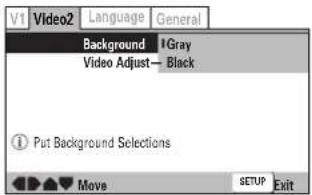
Settings: Gray Blac
■Selecting the Type of Paused Image to Display Expert
This function lets you view a clear still-image when DVD playback is paused.
Make changes in the [Still Picture] setting in the Setup screen Video 2 menu in the [Expert] menu mode (page 65).
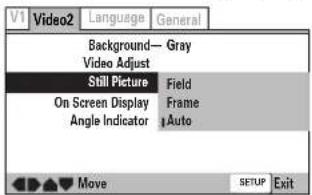
Settings: Field (Picture shake will be eliminated during a paused picture.)
Frame (Select to obtain higher picture quality.)
Auto (Selects [Field] or [Frame] automatically according to the disc.) (Factory setting)
■Setting the Position of the On-screen Display Expert
When watching conventional software on a wide screen TV, the operation display is at the very top of the screen, and may be difficult to see. Changing the position of the display lets you see operation indicators clearly even on a wide screen TV.
Alternatively, you can choose to turn them off completely with the [Off] setting.
Make changes in the [On Screen Display] in the Setup screen Video 2 menu in the [Expert] menu mode (page 65).
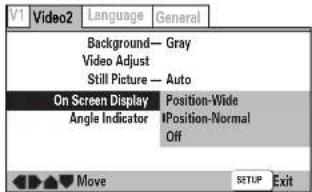
Settings: Position-Wide
Position-Normal (Factory setting) Off
Note
This setting is only effective with DVDs that contain a 4:3 aspect ratio video presentation.
■Turning the angle indicator on and off Expert
When a picture recorded in different angles is played back 📋 is displayed on the screen. This setting lets you see clearly whether the playback picture is recorded in multiple angles or not.
Turn the angle indicator on or off in the [Angle Indicator] setting in the Setup screen Video 2 menu in the [Expert] menu mode (page 65).
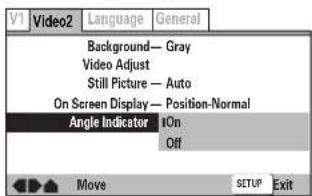
Settings: On (☐ is displayed) (Factory setting) Off (Not Displayed)
Note
Even when the [Angle Indicator] setting is set to [Off], the 📋 indicator in the display panel of the DVD Receiver lights during multi-angle playback. Therefore, it is possible to know when the multi-angle function can be used without having to display the icon on the screen.
Setting the Language Options
DVDs have the capacity to contain a great deal of audio information, which includes the ability to hold up to 8 different language tracks and subtitle information in as many as 32 different languages. This section outlines the variety of audio language and subtitle options available with this player. Please note that if you have completed the Setup Navigator, the audio and subtitle language options have automatically been set in accordance with the [OSD Language] (the language that appears on the screen).
Note
DVDs differ in content and do not all contain multiple language or subtitle information. Therefore making settings in this section may have no effect on some DVDs.
■Setting the On-screen Display (OSD) Language
This setting is used to establish the language that operation indicators and on-screen messages and operations display. Change this setting in the Setup screen Language menu [OSD Language] setting.
(Other than Asian models)
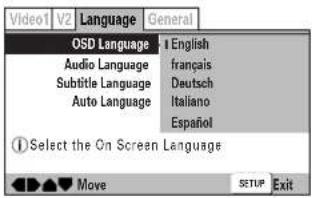
(Asian models)
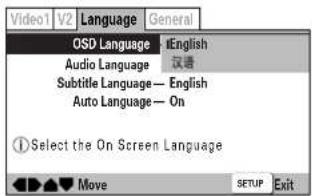
Settings: English (Factory setting)
français
Deutsch
Italiano
Español
Asian models only
English (Factory setting)
汉语
Notes
- The menu settings may be different from those shown above.
- The [OSD Language] setting is factory set to [English]. If you want English to be displayed, it is not necessary to adjust this setting.
■Selecting an audio language preference
The audio language that you normally listen to can be selected from the various audio languages on a DVD. Even when the audio language is changed during playback by pressing AUDIO, the language selected at this setting will be selected as the default when the DVD is changed. Make changes to the [Audio Language] setting in the Setup screen Language menu.
You cannot make this setting with a disc playing.
(Other than Asian models)
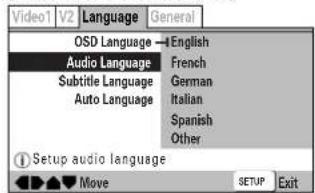
(Asian models)
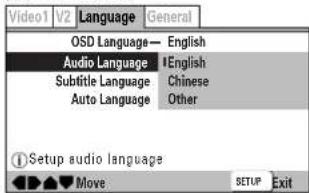
Settings: English (Factory setting)
French
German
Italian
Spanish
Other (For details on how to select other languages, see "When [Other] is selected" on page 73.)
Asian models only
English (Factory setting)
Chinese
Other
Note
The menu settings may be different from those shown above.
Setting the Language Options
■Selecting a subtitle language preference
The subtitle language that you will normally display can be selected from the subtitles programmed on a disc. Even when the subtitle language is changed during playback by pressing SUBTITLE, the language selected at this setting will be selected when the disc is changed.
Make changes to the [Subtitle Language] setting in the Setup screen Language menu.
You cannot make this setting with a disc playing.
(Other than Asian models)
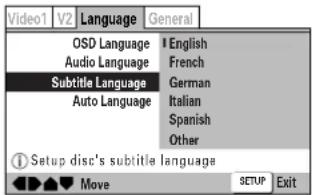
(Asian models)
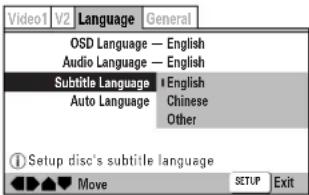
Settings: English (Factory setting)
French
German
Italian
Spanish
Other (For details on how to select other languages, see "When [Other] is selected" on page 73.)
Asian models only
English (Factory setting)
Chinese
Other
Note
The menu settings may be different from those shown above.
■Setting Auto Language to control subtitle and audio language based on program content
When the Auto Language function is used, foreign movies are shown with the original audio soundtrack and subtitles in the language selected in the [Subtitle Language] menu option.
Domestic films are shown with the original audio soundtrack and no subtitles. (This setting may not be effective with all DVDs.)
Make changes to the [Auto Language] setting in the Setup screen Language menu.
You cannot make this setting with a disc playing.
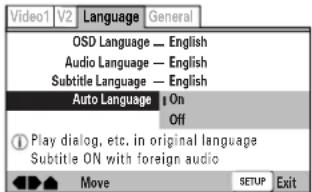
Settings: On (Factory setting)
Off
Note
The Auto Language function operates only when this function is set to [On], and the language set for the [Audio Language] and [Subtitle Language] settings is the same.
■Selecting a DVD menu language preference
Expert
In addition to containing different audio languages, DVD may also contain menu screens in different languages as well. Setting a DVD language preference, sets the selected language as a default when DVDs with menu information in that language are encountered.
Selecting [w/ Subtitle Language] automatically assigns the language selected in the [Subtitle Language] setting. Make changes to the [DVD Language] setting in the Setup screen Language menu in the [Expert] menu mode (page 65). You cannot make this setting with a disc playing.
(Other than Asian models)
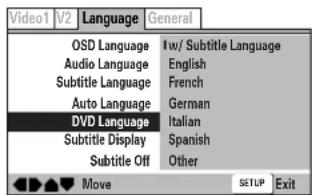
(Asian models)
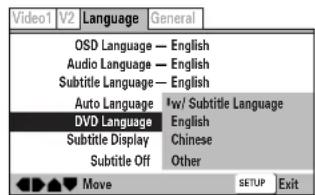
Settings: w/ Subtitle Language (Factory setting)
English
French
German
Italian
Spanish
Other (For details on how to select other languages, see "When [Other] is selected" on page 73.)
Asian models only
w/ Subtitle Language (Factory setting)
English
Chinese
Other
Notes
- The menu settings may look different from the one shown above.
- If this function is not effective, the languages that can be selected may also be selected in the DVD menu. Press MENU to open the DVD menu and make your selection accordingly.
■Selecting subtitles, assist subtitles or no subtitles Expert
Use this function to turn the subtitles on or off. Additionally, some DVDs provide assist subtitles that provide additional explanations of scenes in addition to the standard subtitles for viewers who are hard of hearing. Select [Assist Subtitle] to display these subtitles on DVDs where this function is offered. Make changes to the [Subtitle Display] setting in the Setup screen Language menu in the [Expert] menu mode (page 65). You cannot make this setting with a disc playing.
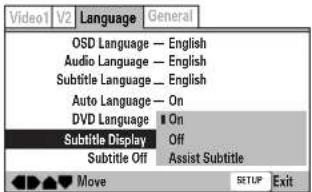
Settings: On (Factory setting) Off Assist Subtitle
Notes
- If there is no subtitle information recorded on the DVD, no subtitles are displayed even if this function is set to [On].
- This setting serves as a default as whether or not to display subtitles. Even if this option is set to [Off], subtitles can be displayed by pressing SUBTITLE. Similarly, if this option is set to [On], the subtitles can be turned off by pressing SUBTITLE and then CLEAR.
■Forcing subtitles to be displayed Expert
Even when the subtitles are turned off, some DVDs will nevertheless display them on the screen. This setting allows you to select the language of the subtitles to be displayed with this type of DVD.
Select [With Audio] to display the subtitles in the same language as the currently selected [Audio Language]. Select [Selected Subtitle] to display the subtitles in the language set in the [Subtitle Language] setting.
Make changes to the [Subtitle Off] setting in the Setup screen Language menu in the [Expert] menu mode (page 65).
You cannot make this setting with a disc playing.
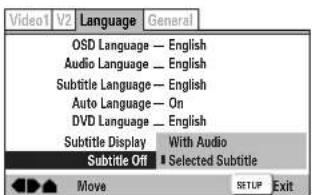
Settings: With Audio
Selected Subtitle (Factory setting)
■When [Other] is selected
When you want to select one of the 136 languages as the main audio language, follow the steps below when the following screen appears.
A language code list can be found on page 74.
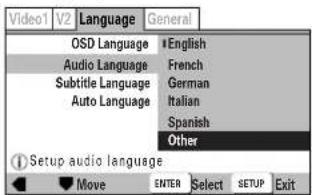
1 Use the cursor buttons to select [Other] and press ENTER. The language selection screen appears.
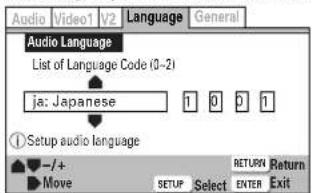
2 Use the cursor buttons (◄/►) to select either "List of Language" or "Code".
3 If you select "List of Language", use the cursor buttons (▲/▼) to select the language.
For languages which are only shown as a code, refer to "Language Code List" on page 74.
List of Languages
![ONKYO DR-S2.2 - ■When [Other] is selected - 3](/content/2026/05/762021/images/01958a66a074f71579763c1319c10b4e364fe905e787fed46636c2aadb494ad0.jpg)
If you select "Code", use the cursor buttons (▲/▼) to input the numbers of the input code.
Use the cursor buttons (◄/►) to change the position of the cursor. You can also use the number buttons to enter the code.
Code (0\~2)
![ONKYO DR-S2.2 - ■When [Other] is selected - 4](/content/2026/05/762021/images/0edf47aca6b7ca3482699bd5396cdc2e87500289ac92eaea6b67519daedde575.jpg)
4 Press ENTER to set the new language.
To exit the screen without making any changes, press RETURN.
Language Code List
Language codes are used when setting the audio and subtitle language preferences (pages 71-73).
| Language Input-code | |
| Japanese (ja) | 1001 |
| English (en) | 0514 |
| French (fr) | 0618 |
| German (de) | 0405 |
| Italian (it) | 0920 |
| Spanish (es) | 0519 |
| Chinese (zh) | 2608 |
| Dutch (nl) | 1412 |
| Portuguese (pt) | 1620 |
| Swedish (sv) | 1922 |
| Russian (ru) | 1821 |
| Korean (ko) | 1115 |
| Greek (el) | 0512 |
| Afar (aa) | 0101 |
| Abkhazian (ab) | 0102 |
| Afrikaans (af) | 0106 |
| Amharic (am) | 0113 |
| Arabic (ar) | 0118 |
| Assamese (as) | 0119 |
| Aymara (ay) | 0125 |
| Azerbaijani (az) | 0126 |
| Bashkir (ba) | 0201 |
| Byelorussian (be) | 0205 |
| Bulgarian (bg) | 0207 |
| Bihari (bh) | 0208 |
| Bislama (bi) | 0209 |
| Bengali (bn) | 0214 |
| Tibetan (bo) | 0215 |
| Breton (br) | 0218 |
| Catalan (ca) | 0301 |
| Corsican (co) | 0315 |
| Czech (cs) | 0319 |
| Welsh (cy) | 0325 |
| Danish (da) | 0401 |
| Bhutani (dz) | 0426 |
| Esperanto (eo) | 0515 |
| Estonian (et) | 0520 |
| Basque (eu) | 0521 |
| Persian (fa) | 0601 |
| Finnish (fi) | 0609 |
| Fiji (fj) | 0610 |
| Faroese (fo) | 0615 |
| Frisian (fy) | 0625 |
| Irish (ga) | 0701 |
| Scots-Gaelic (gd) | 0704 |
| Galician (gl) | 0712 |
| Guarani (gn) | 0714 |
| Language Input-code | |
| Gujarati (gu) | 0721 |
| Hausa (ha) | 0801 |
| Hindi (hi) | 0809 |
| Croatian (hr) | 0818 |
| Hungarian (hu) | 0821 |
| Armenian (hy) | 0825 |
| Interlingua (ia) | 0901 |
| Interlingue (ie) | 0905 |
| Inupiak (ik) | 0911 |
| Indonesian (in) | 0914 |
| Icelandic (is) | 0919 |
| Hebrew (iw) | 0923 |
| Yiddish (ji) | 1009 |
| Javanese (jw) | 1023 |
| Georgian (ka) | 1101 |
| Kazakh (kk) | 1111 |
| Greenlandic (kl) | 1112 |
| Cambodian (km) | 1113 |
| Kannada (kn) | 1114 |
| Kashmiri (ks) | 1119 |
| Kurdish (ku) | 1121 |
| Kirghiz (ky) | 1125 |
| Latin (la) | 1201 |
| Lingala (ln) | 1214 |
| Laothian (lo) | 1215 |
| Lithuanian (lt) | 1220 |
| Latvian (lv) | 1222 |
| Malagasy (mg) | 1307 |
| Maori (mi) | 1309 |
| Macedonian (mk) | 1311 |
| Malayalam (ml) | 1312 |
| Mongolian (mn) | 1314 |
| Moldavian (mo) | 1315 |
| Marathi (mr) | 1318 |
| Malay (ms) | 1319 |
| Maltese (mt) | 1320 |
| Burmese (my) | 1325 |
| Nauru (na) | 1401 |
| Nepali (ne) | 1405 |
| Norwegian (no) | 1415 |
| Occitan (oc) | 1503 |
| Oromo (om) | 1513 |
| Oriya (or) | 1518 |
| Panjabi (pa) | 1601 |
| Polish (pl) | 1612 |
| Pashto, Pushto (ps) | 1619 |
| Quechua (qu) | 1721 |
| Language Input-code | |
| Rhaeto-Romance (rm) | 1813 |
| Kirundi (rn) | 1814 |
| Romanian (ro) | 1815 |
| Kinyarwanda (rw) | 1823 |
| Sanskrit (sa) | 1901 |
| Sindhi (sd) | 1904 |
| Sangho (sg) | 1907 |
| Serbo-Croatian (sh) | 1908 |
| Sinhalese (si) | 1909 |
| Slovak (sk) | 1911 |
| Slovenian (sl) | 1912 |
| Samoan (sm) | 1913 |
| Shona (sn) | 1914 |
| Somali (so) | 1915 |
| Albanian (sq) | 1917 |
| Serbian (sr) | 1918 |
| Siswati (ss) | 1919 |
| Sesotho (st) | 1920 |
| Sundanese (su) | 1921 |
| Swahili (sw) | 1923 |
| Tamil (ta) | 2001 |
| Telugu (te) | 2005 |
| Tajik (tg) | 2007 |
| Thai (th) | 2008 |
| Tigrinya (ti) | 2009 |
| Turkmen (tk) | 2011 |
| Tagalog (tl) | 2012 |
| Setswana (tn) | 2014 |
| Tonga (to) | 2015 |
| Turkish (tr) | 2018 |
| Tsonga (ts) | 2019 |
| Tatar (tt) | 2020 |
| Twi (tw) | 2023 |
| Ukrainian (uk) | 2111 |
| Urdu (ur) | 2118 |
| Uzbek (uz) | 2126 |
| Vietnamese (vi) | 2209 |
| Volapük (vo) | 2215 |
| Wolof (wo) | 2315 |
| Xhosa (xh) | 2408 |
| Yoruba (yo) | 2515 |
| Zulu (zu) | 2621 |
Setting the Parental Lock Level
This player lets you set the Parental Lock if the DVD has a parental lock level recorded on it. With Parental Lock capable discs, you can block access to material you feel is inappropriate for your children. Refer to the DVD jacket and the accompanying documentation to see if a particular disc contains a parental lock level.
Make changes to the [Parental Lock] setting in the Setup screen General menu. Please note that changes to the Parental Lock level cannot be made when a disc is playing. Stop playback of the disc before attempting to make any changes.
You cannot select [Level] or [Country Code] until you have registered a password. Select [Password] to register a new password. See "Entering the password" on this page for how to register a new password.
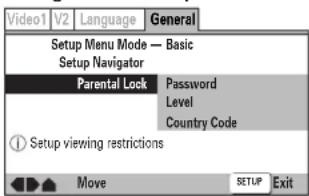
Settings: Password
(For information, refer to "Entering the Password" on the this page.)
Level
(For information, refer to "Setting the Parental Lock Level" on this page.)
Country Code
(For information, refer to "Setting the Country Code" on the following page.)
When a DVD with a set Parental Lock level is loaded
Playback cannot be started until the code number has been correctly input by using the cursor buttons (◄/►/▲/▼) or the number buttons, and ENTER has been pressed.
■ Entering the Password
When you select either [Level] or [Country Code], it is necessary to register the password (4-digit code number). You'll be asked to confirm your existing password before registering a new one. Use the following steps at any time you are asked to enter or confirm your password.
1 Use the cursor buttons (▲/▼) or the number buttons to select a number between 0 and 9.
You can also use the number buttons to enter the numbers directly. When entering your password for the first time, or changing it, you will be asked to reenter your password. When using the number buttons to confirm the password, the numbers appear as asterisks, and the cursor advances automatically to the next position.
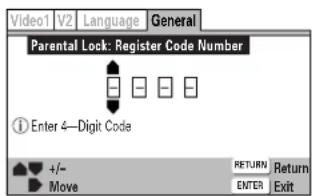
2 Use the cursor buttons (◀/▶) to move the cursor to a different position in the password. When all four numbers of the password have been entered, ENTER appears on the screen.
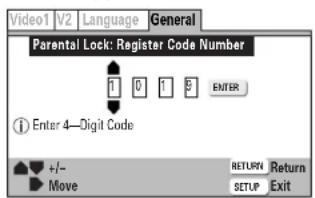
3 Press ENTER to set the password. The password is entered.
Notes
- Be sure not to forget your password. If you should forget it, reset the system, and enter a new password. To reset the system, see "Resetting the DVD Receiver to System Settings" (page 76). Please note that this procedure resets the system, and clears all saved settings, not just the password.
- Some discs lock out violent scenes. Refer to instruction notes on discs.
■ Setting the Parental Lock Level
Change the Parental Lock level to a higher or lower level according to the settings printed on the DVD disc jacket or accompanying documentation. If you use the Condition Memory function to save the settings for a particular disc, the Parental Lock level is saved as well. Because it is saved in memory, Parental Lock levels can be set for individual discs according to their content rather than a set level for all DVDs.
1 Select [Level] in the [Parental Lock] setting and press ENTER. The screen changes to the password input screen. You cannot select [Level] until you have registered a password. To enter the password, refer to "Entering the Password" on this page.
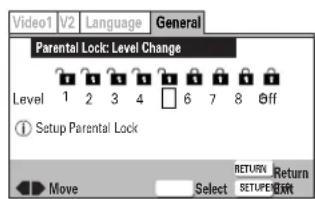
2 Use the cursor buttons (◄/►) to adjust the Parental Lock Level.
The lock icons appear "unlocked" up to the selected level to indicate that access is available.
3 Press ENTER to set the new level.
The new Parental Lock level is set and the screen returns to the General menu screen. To go back to the General menu screen without making any changes, press RETURN.
■ Changing the Password
Change your password whenever you feel it is necessary. However, if you forget your existing password, you cannot enter this screen to change it.
1 Select [Password Change] in the [Parental Lock] setting and press ENTER.
The screen changes to the password input screen. To enter the password, refer to "Entering the Password" on this page.
2 Use the cursor buttons (◄/►/▲/▼) or the number buttons to enter the new password.
3 When the new password has been entered, press ENTER. The new password is set and the screen returns to the General menu screen. To go back to the General menu screen without making any changes, press RETURN.
Setting the Parental Lock Level
■Setting the Country Code
Change your Country Code whenever you feel it is necessary. However, if you forget your existing password, you cannot enter this screen to change it.
1 Select [Country Code] in the [Parental Lock] setting and press ENTER. The screen changes to the password input screen. To enter the password, refer to "Entering the Password" on the previous page. The Country Code selection screen appear.
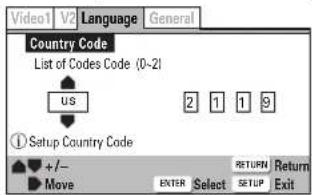
2 Use the cursor buttons (◀/▶) to select either "List of Codes" or "Code".
3 If you select "List of Codes", use the cursor buttons (▲/▼) to select the country.
For country codes which are only shown as a code, please refer to "Country Code List" on this page.
List of Codes

If you select "Code", use the cursor buttons (▲/▼) to input the numbers of the input code. Use the cursor buttons (◀/▶) to change the position of the cursor. You can also use the number buttons to enter the code.
Code (0\~2)
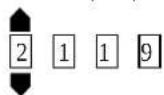
4 Press ENTER to set the new Country Code. To exit the screen without making any changes, press RETURN.
Country Code List
| Country Input-code Country-code | ||
| ARGENTINA | 0118 | ar |
| AUSTRALIA | 0121 | au |
| AUSTRIA | 0120 | at |
| BELGIUM | 0205 | be |
| BRAZIL | 0218 | br |
| CANADA | 0301 | ca |
| CHILE | 0312 | cl |
| CHINA | 0314 | cn |
| DENMARK | 0411 | dk |
| FINLAND | 0609 | fi |
| FRANCE | 0618 | fr |
| GERMANY | 0405 | de |
| HONG KONG | 0811 | hk |
| INDIA | 0914 | in |
| INDONESIA | 0904 | id |
| ITALY | 0920 | it |
| JAPAN | 1016 | jp |
| KOREA, REPUBLIC OF | 1118 | kr |
| MALAYSIA | 1325 | my |
| MEXICO | 1324 | mx |
| NETHERLANDS | 1412 | nl |
| NEW ZEALAND | 1426 | nz |
| NORWAY | 1415 | no |
| PAKISTAN | 1611 | pk |
| PHILIPPINES | 1608 | ph |
| PORTUGAL | 1620 | pt |
| RUSSIAN FEDERATION | 1821 | ru |
| SINGAPORE | 1907 | sg |
| SPAIN | 0519 | es |
| SWEDEN | 1905 | se |
| SWITZERLAND | 0308 | ch |
| TAIWAN, PROVINCE OF CHINA | 2023 | tw |
| THAILAND | 2008 | th |
| UNITED KINGDOM | 0702 | gb |
| UNITED STATES OF AMERICA | 2119 | us |
Resetting the DVD Receiver to System Settings
To reset the DVD player section of this unit, press and hold ■ on the front panel when pressing STANDBY/ON to turn the unit from standby to on.
All program memory, saved settings from functions such as Video Memory are cleared, TV System is reset to AUTO and all Setup screen menus are returned to factory settings.
Recording Using the Connected Equipment
You can record according to the following using the connected recording equipment:
- Sound/picture of discs played back by the DVD Receiver,
• Sound of FM/AM programs, and - Sound/picture of the connected source.
Note
Many discs and sources are copy protected. Copy protected sources are impossible to record.
Basic Recording Procedure
| 1 | Set the recording equipment (MD recorder, DAT, Cassette tape deck, VCR, DVD recorder, CD recorder, etc.) to recording pause. |
| 2 | Select the input source to be recorded, then set it to play pause.To play and pause a DVD video, Video CD, or audio CD, see page 34.To select an FM/AM program, see page 38.To select a connected source, see page 40.Refer to the manuals of the connected source equipment for instructions on how to play and pause. |
| 3 | Release the recording pause set in step 1 to start recording. |
| 4 | Start playback of the selected source in step 2. |
Notes
- If you select another input source during recording, the selected source will be recorded.
- Sound effects described on pages 44 to 50 do not affect the recorded sounds.
■Recording the Picture and Sound From Different Sources at the Same Time
The picture from the playing VIDEO 2/CDR/PC source is output through the VIDEO OUT jacks when you select any audio source (TAPE/MD, FM, or AM) or TV/LINE.
Play the VIDEO 1 source and select TAPE/MD, FM, AM, or TV/LINE, then you can record the picture from the VIDEO 1 source and the sound from the selected input source at the same time, using the recording equipment connected to the VIDEO 2 jacks.
■Digital recording from the source connected to the digital input connectors to the digital recording equipment connected to the digital output connector
The digital input connectors are as follows:
• The VIDEO 1 DIGITAL INPUT (COAX) connector, and
• The VIDEO 2 DIGITAL INPUT (OPT) connector.
The digital output connector is the DIGITAL OUTPUT (OPT) connector.
Recording digital sound signals from sources connected to the digital input connectors using digital recording equipment connected to the digital output is possible unless:
- The recording is against SCMS (Serial Copy Management System) rules (for details of SCMS rules, refer to the manual of the digital recording equipment),
- The digital signals are in bitstream format (the recordable digital signal format is PCM — two channel digital stereo sound signals), or
- The sampling frequency is out of the recordable range of the recording equipment (for recordable sampling frequency, refer to the manual of the digital recording equipment). Note that the maximum signal frequency output from the DVD Receiver is 48 kHz.
■Analog recording from a DVD Video played using the DVD Receiver
The digital sound signals are converted to analog signals and output to the analog output jacks unless the DVD video is recorded in the DTS Surround.
Although the speakers can reproduce DTS Surround sounds, DTS signals are not output to the analog output jacks.
Controlling other components connected to the DVD Receiver
The remote controller has two learning functions. One is entering the signal number for a remote controller of another brand that is pre-programmed. Another is a normal learning function that enables the remote controller to learn the codes from other remote controllers.
Caution
With some brand's components, some buttons may not work correctly. In this case, program the command separately.
Learning a pre-programming code
By learning a pre-programming code, you can make the RC-484M remote controller able to operate a product from another brand. The buttons that are used for operation are given on the next page.
| 1 | Find the 3-digit number for the brand name of the component that you want to operate in the table on the next page. |
| 2 | Turn on the component that you want to operate (i.e. DVD, satellite tuner, or television). |
| 3MODEDVDCORTAPEMGRDAVDDVCRTVIPM+10 | While holding down the MODE button on the RC-484M that you want to program, press the +10 button, and then release both buttons.The SEND/LEARN indicator lights when the MODE button is pressed and turns off when the +10 button is pressed. Wait until the indicator turns off before releasing both buttons. Then the SEND/LEARN indicator lights again. |
| 4SP SETUPSW MODE2DISTANCE456TEST TONECH SELUP/DOWN789PMT-D SETUP+100 | Within 30 seconds, enter the 3-digit code number.The SEND/LEARN indicator flashes twice slowly. If the SEND/LEARN indicator quickly flashes three times, then either a mistaken 3-digit code was entered or an incorrect operation was performed. If this occurs, return to step 3. |
5
Press the button that you programmed and check if the system operates correctly.
- If the component does not operate properly, return to step 3 and repeat the steps above.
- If it still does not operate properly, then program the commands one by one to the buttons on the RC-484M remote controller.
Pre-programmong codes
Note:
If more than one code is given in the table, try the code one by one until you reach the code for your component (i.e. if the first code does not work, then try the next).
DVD
| BRAND SETTING No. |
| DENON 602, 609 |
| HITACHI 603 |
| JVC 604 |
| KENWOOD 605 |
| MAGNAVOX 606, 613 |
| MARANTZ 607 |
| MITSUBISHI 608, 613 |
| ONKYO 600, 601, 613 |
| PANASONIC 609 |
| PIONEER 610 |
| PROSCAN 611 |
| RCA 611 |
| SONY 612 |
| TOSHIBA 613 |
| YAMAHA 609, 614 |
| ZENITH 613, 615 |
VCR
| BRAND SETTING No. | |
| AIWA 300, 301, 302 | |
| AKAI 303, 304, 305, 306, 307 | |
| BAIRD | 308 |
| BELL & HOWELL | 309 |
| BLAUPUNKT | 310 |
| CGM | 311, 312, 313 |
| COLTINA | 314 |
| DAEWOO | 315, 316 |
| DIGITAL | 317 |
| EMERSON | 318, 319, 320, 321, 322 |
| FENNER | 323 |
| FISHER | 324, 325, 326, 327 |
| FUJITSU GENERAL | 328 |
| FUNAI | 329 |
| GE | 330, 331 |
| GO VIDEO 332, 336, 337 | |
| GOLDSTAR | 333, 334 |
| GOODMANS | 335 |
| GRUNDIG | 338 |
| HITACHI 331, 339, 340, 341, 382 | |
| JVC 342, 343, 344, 345, 346, 347, 348, 349, 350 | |
| LOEWE 351, 352 | |
| MAGNAVOX 353, 354, 355 | |
| MITSUBISHI 356, 357, 358, 359, 360, 361, 362, 363, 364 | |
| NEC 365, 366, 367 | |
| NOKIA | 313 |
| NORDMENDE | 368, 369, 370 |
| OKANO 371, 372 | |
| ORION | 319, 373 |
| PANASONIC 374, 375, 376, 377, 378 | |
| PHILIPS | 353, 379, 380 |
| PHONOLA | 311 |
| PIONEER 381 | |
| RCA 382 | |
| SABA | 383 |
| SAMSUNG | 384, 385, 386, 387, 388, 389, 390 |
| SANYO | 391, 392, 393 |
| SCOTT | 394 |
| SELECO | 395 |
| SHARP | 396, 397, 398, 399 |
| SHINTOM | 400 |
| SIEMENS 401 | |
| SONY 402, 403, 404, 405, 406, 407, 408, 409, 410, 411, 412, 413, 423 | |
| SYMPHONIC | 414 |
| TEKNIKA | 414, 415 |
| TELEFUNKEN | 416, 417 |
| TOSHIBA 418, 419, 420 | |
| WHITEWESTINGHOUSE | 333 |
| WATSON 421 | |
| ZENITH 422 | |
TV
| BRAND SETTING No. | |
| AIWA 100, 101 | |
| AKAI 102, 103, 104 | |
| AUDIOSONIC | 105 |
| BELL & HOWELL | 106 |
| BLAUPUNKT | 107 |
| BRIONVEGA | 108, 109 |
| CENTURION | 110 |
| COLTINA | 111, 112, 113 |
| CORONAD | 114 |
| CROWN | 115, 116 |
| DAEWOO | 117, 118, 119, 120, 121 |
| DUAL | 122 |
| EMERSON | 123, 124, 125, 126, 127 |
| FENNER | 128, 129 |
| FERGUSON | 130, 131 |
| FISHER | 132 |
| FUNAI | 133, 134, 135 |
| FUJITSU GENERAL | 136, 137, 138 |
| GE | 139, 140, 141 |
| GOLDSTAR | 142, 143 |
| GOODMANS | 144 |
| GRUNDIG | 145, 146 |
| HITACHI 147, 148, 149, 150 | |
| HYPER | 151 |
| INNO HIT 152 | |
| IRRADIO | 103 |
| JVC 153, 154, 155, 156, | |
| 157 | |
| KENDO | 158 |
| KTV | 159, 160 |
| LUXOR | 161 |
| MAGNAVOX 162, 163 | |
| MARANTZ 164 | |
| MARK | 165 |
| MATSUI | 166, 167, 168, 169 |
| MITSUBISHI 170, 171, 172, 173 | |
| MIVAR | 174, 175 |
| NEC 176, 177 | |
| NOKIA | 178, 179, 180, 181 |
| OCEANIC | 181 |
| NORDMENDE | 182, 183 |
| OKANO 152 | |
| ORION | 184, 185, 186 |
| PANASONIC 187, 188, 189, 190 | |
| PHILIPS | 152, 162, 191 |
| PIONEER 192, 193 | |
| PROSCAN 194 | |
| QUASAR 195 | |
| RADIO SHACK | 196 |
| RCA 110, 141, 197, 198, | |
| 199, 200 | |
| SABA | 182, 183, 201 |
| SAMSUNG | 202, 203, 204, 205, 206, 207, 208 |
| SANYO | 209, 210, 211, 212 |
| SCHNEIDER 103 | |
| SEARS | 213 |
| SELECO | 214, 215 |
| SHARP | 216, 217 |
| SONY 218, 219, 220, 221, | |
| 222, 223 | |
| SYMPHONIC | 224, 225 |
| TELEFUNKEN | 201, 226, 227 |
| THOMSON | 228 |
| TOSHIBA 213, 229 | |
| UNIVERSUM | 230 |
| ZENITH 231, 232 | |
Controlling other components connected to the DVD Receiver
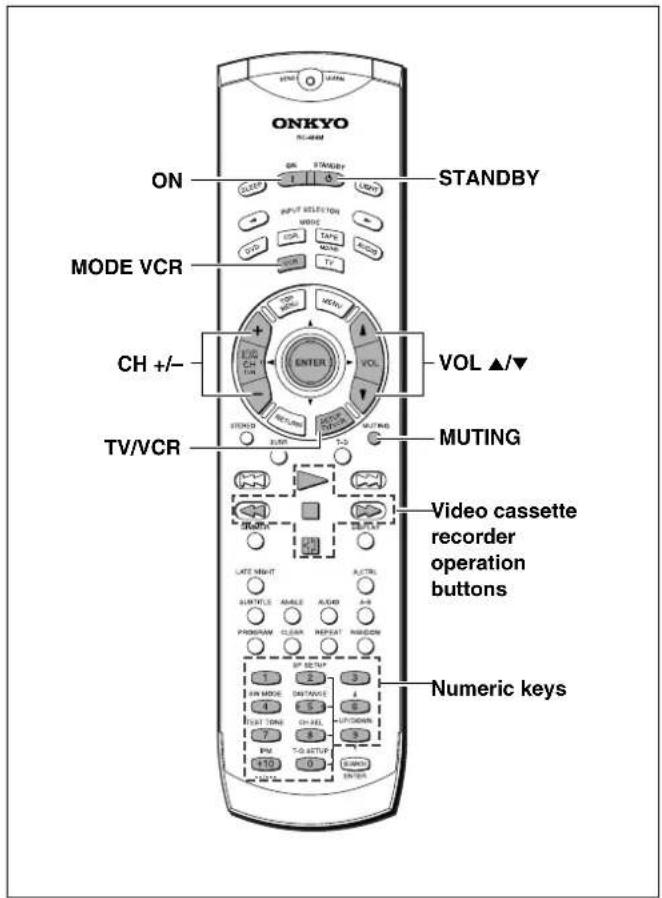
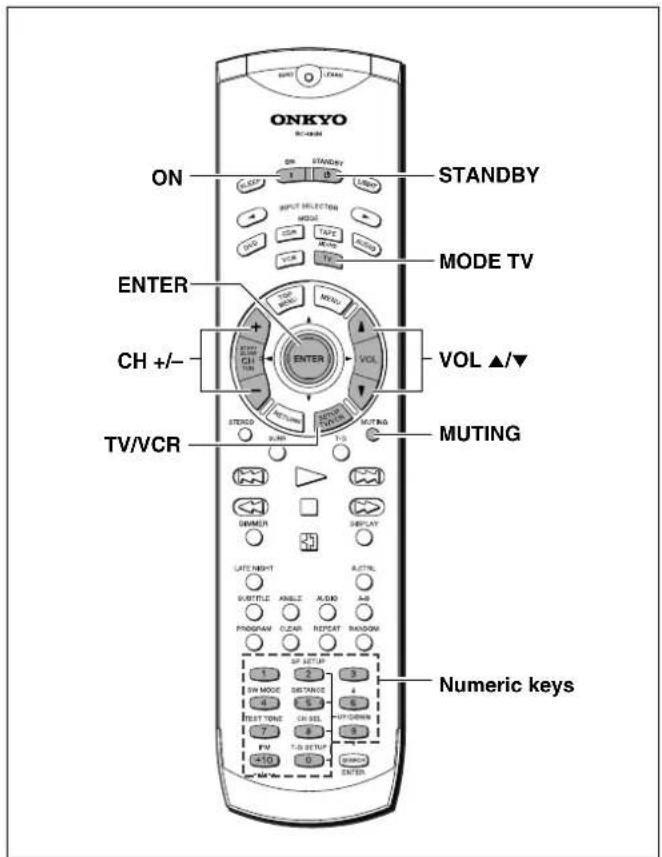
Controlling VCR
| 1 | Press the MODE VCR button.The VCR button lights green. |
| 2 | Press the desired operation button.The buttons shaded in the figure to the left are the operation buttons that can be used to control your VCR. |
The buttons given below have operations programmed into them.
ON: Turns on the VCR
STANDBY: Turns off the VCR
CH +/-: Moves up and down the preset channel numbers
TV/VCR: Switches the AV input for the VCR
▶: Play
■: Stop
◀◀: Rewind
▶▶: Fast Forward
Pause
0,1 to 9, +10: Numeric keys
You may also use the following buttons:
VOL ▲/▼: Adjusts the volume at the DR-S2.2
MUTING: Activates the muting function at the DR-S2.2
Controlling TV
| 1 | Press the MODE TV button.The TV button lights green. |
| 2 | Press the desired operation button.The buttons shaded in the figure to the left are the operation buttons that can be used to control your television. |
The buttons given below have operations programmed into them.
ON: Turns on the TV
STANDBY: Turns off the TV
CH +/-: Moves up and down the television channels
TV/VCR: Switches the TV/VCR input for the television
0,1 to 9, +10: Numeric keys
ENTER: Confirm
VOL ▲/▼: Adjusts the volume at the television
MUTING: Activates the muting function at the television
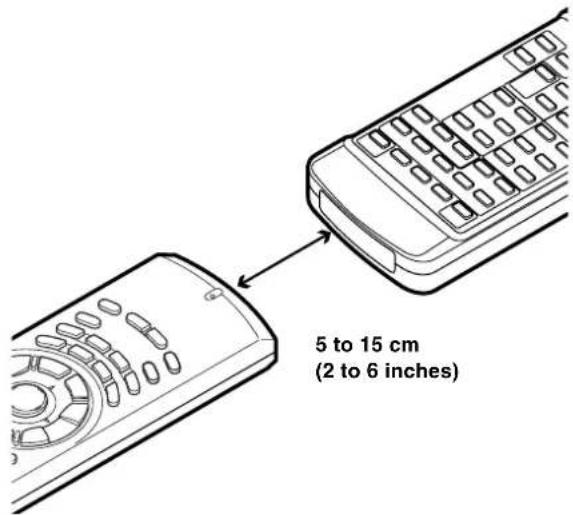
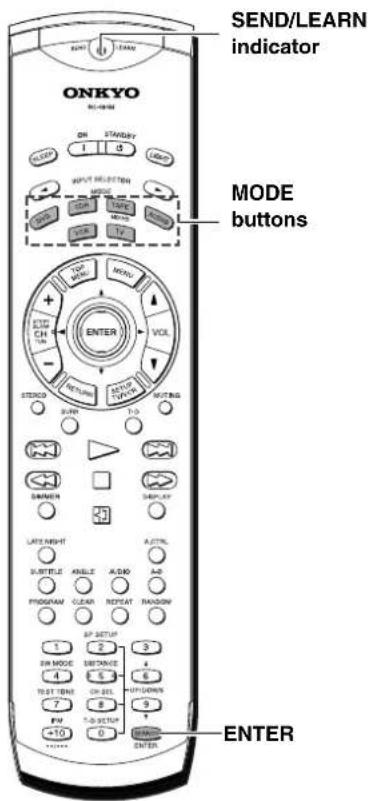
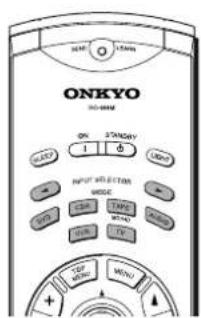
☐: Buttons that cannot be programmed.
Programming the commands of remote controllers for other devices into the remote controller
When programming the commands of another remote controller to the RC-484M remote controller, you must first decide under which MODE button you want the commands to be linked. In general, you will select the MODE button that corresponds to the component you are programming. After programming which MODE button to use, you will then transfer the separate commands from the other remote controller over to the RC-484M remote controller one at a time. Each command is then programmed to a different button on the RC-484M remote controller. Any button is programmable for this step except for the six MODE buttons (DVD, CDR, TAPE/MD/HD, AUDIO, VCR, TV). Even after the commands have been memorized, keep your old remote controller in a safe place. If for some reason the commands are lost (e.g., when the batteries run down), it will be necessary to memorize them once again.
1
Place the remote controller and the remote controller for the other device facing each other at a distance of 5 to 15 cm (2 to 6 inches) apart.
2
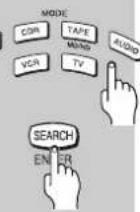
While pressing and holding down the desired MODE button on the remote controller, press the ENTER button and then release both buttons.
When you press and hold down the MODE button, the SEND/LEARN indicator lights. When you press the ENTER button, the lamp turns off. When you release the buttons, the lamp lights again.
3
Press and release the button on the remote controller to which you want to transfer the next command.
You may select any button but the eight ones indicated in the figure below. When you press the button, the SEND/LEARN indicator turns off. When you release the button, the indicator lights again.
If you press the wrong button by mistake, press that same button again. The SEND/LEARN indicator flashes twice, and the remote controller exits the programming mode.
Controlling other components connected to the DVD Receiver
| 4 | Press and hold down the button (that corresponds to the command you are programming) on the remote controller of the other device until the SEND/LEARN indicator on the remote controller flashes twice.After flashing twice, the SEND/LEARN indicator will light again. |
| 5 | Repeat Steps 3 and 4 to transfer all the commands you desire from the other remote controller and program them to buttons on the remote controller under the same MODE.Repeat Steps 2 through 4 to program commands to a different MODE (e.g., when programming from a different remote controller). |
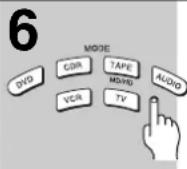 | Press the MODE button that you pressed in step 2 to complete the programming. |
| 7 | Operate the newly programmed buttons to make sure the learning function was performed properly. |
Notes:
- The remote controller codes for Onkyo CD player, MD player, cassette tape deck or HD Recorder have already been programmed into buttons on the remote controller. You may, however, use these buttons to program the codes for other remote controllers. If you wish to restore the Onkyo preset codes after you program new codes, you must first erase the new codes (see page 83).
- The remote controller has 300 memory slots (6 modes × 50 buttons). Some remote controllers may have more commands that can be remembered by the remote controller. In such cases, it will be necessary for you to determine which commands are more important than others.
- If no button is pressed for more than 30 seconds during the programming, or if you perform an invalid operation during programming, the SEND/LEARN indicator flashes three times quickly, and the remote controller exits the programming mode. Resume from Step 2.
- If a failure occurs during programming, the SEND/LEARN indicator flashes three times quickly, and the remote controller exits the programming mode. Resume from Step 3.
- If a failure occurs five times in row during programming, the remote controller exits the programming mode. Resume from Step 3.
- If you try to program beyond the learning capacity of the remote controller, the SEND/LEARN indicator flashes six times quickly, and the remote controller exits the programming mode. Try programming under a different MODE button.
- When you want to program a command to a button to which you have already programmed a command, simply follow the same procedure given and programming for that button will be overwritten.
- The remote controller uses infrared rays to send its commands, as do most other remote controllers. Though most remote controller codes can be memorized by the remote controller, be aware that some remote controllers use a system that is quite different from the remote controller and therefore may not be able to be programmed.
- Some remote controllers have a single button that performs multiple functions (for example, the function may change each time the button is pressed). If this is the case, each function must be programmed to a separate button on the remote controller.
- Once you have transferred the commands from the other remote controller, refer to the instruction manual that came with that product for instructions on how to operate that product.
- Make sure both the remote controller and the other remote controller have new batteries. If either of them has batteries that are low, you may not be able to program the commands of the other remote controller properly into the remote controller.
See page 83 for how to erase the memorized commands from all buttons.
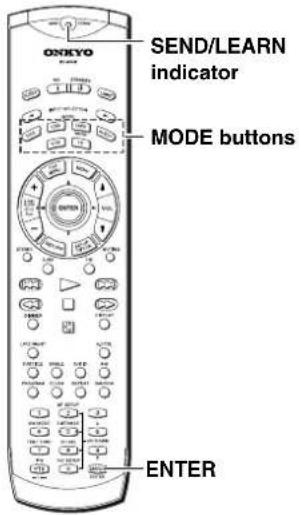
Erasing the programmed command from one button
You can only erase memorized commands and not preset ones.
| 1MODEDVDCORTAPEMINDAUDNVCNFTVSEARCHENTER | Press and hold down the desired MODE button for the command, press the ENTER button, and then release both buttons.When you press the MODE button, the SEND/LEARN indicator lights. When you press the ENTER button, the lamp turns off. When you release the buttons, the lamp lights again. |
| 2 | Press and release the button for the command you wish to erase.When you press the button, the SEND/ LEARN indicator turns off. When you release the button, the lamp lights again. |
| 3 | Press and release the same button again.The SEND/LEARN indicator flashes twice slowly. The memorized command is erased. |
Note
If no button is pressed for more than 30 seconds during the erasing procedure, the SEND/LEARN indicator flashes three times quickly, and the remote controller exits the erasing mode. Resume from Step 1.
Erasing all the commands programmed under a MODE button
| 1MODEDVDCCNTAPEMINDAVIOVVCRTYSEARCHENR | Press and hold down the desired MODE button, press the ENTER button twice, and then release both buttons.When you press the MODE button, the SEND/LEARN indicator lights. When you press the ENTER button, the lamp turns off. When you release the buttons, the lamp flashes twice slowly and then lights again. |
| 2 | Press and release the same MODE button again.When you release the button, the SEND/ LEARN indicator flashes twice slowly. This erases all the commands memorized to the MODE button. |
Notes
- If no button is pressed for more than 30 seconds during the erasing procedure, the SEND/LEARN indicator flashes three times quickly and the remote controller exits the erasing mode. Resume from Step 1.
- If you perform an invalid operation during erasing, the SEND/LEARN indicator flashes three times quickly, and the remote controller exits the erasing mode. Resume from Step 1.
- If many commands have been programmed to the MODE button, then the SEND/LEARN indicator may remain lit for up to 20 seconds during Step 2. This is not a malfunction.
Check the following guide for the possible cause of a problem before contacting service. Refer also to the respective instruction manuals of the connected components and TV.
| Symptoms | Causes | Remedies | Pages | |
| Amplifier | The DVD Receiver doesn't switch on. | · The power cord (mains lead) is disconnected.· The main power is set to OFF.· There is external noise interfering with the computer circuits of the DVD Receiver.· The AC fuse is blown. | · Check the connection of the power cord (mains lead).· Turn on the main power.· Switch off the main power, then switch it on again. If not recovered, disconnect the power cord (mains lead), then connect it again.· Contact your nearest Onkyo service center. | 262626— |
| No sound is reproduced. | · The muting function is activated.· The DVD Receiver is not properly connected.· The amplifier protection circuitry has activated. (The STANDBY indicator flashes.)· Headphones are connected. | · Deactivate the muting function.· Check the connections to the DVD Receiver.· Contact your nearest Onkyo service center.· Decrease the volume, then disconnect the headphones. | 4216-25—43 | |
| No sound or very little sound is reproduced from the center speaker. | · The speakers are not properly connected.· The listening mode is set to “Stereo” or “Orchestra.”· The volume level of the center speaker (“Center”) is set to minimum.· A speaker configuration without the center speaker is selected. | · Check the speaker connections.· No sound is reproduced from the center speaker when the listening mode is “Stereo” or “Orchestra.”· Adjust the volume level of the center speaker.· Check that the selected speaker configuration includes the center speaker. | 18, 1944, 483329, 30 | |
| No picture appears on the TV screen. | · The TV is not set to receive the output signals from the DVD Receiver.· The video connection cable is not connected securely.· Only the S video connection is made. | · Set the TV to the DVD Receiver's input. Refer to the instruction manual of TV.· Check the connections between the DVD Receiver and TV set.· Also make video connection. | —16, 1716, 17 | |
| The sound of the playback source is not heard. | · Another input source is selected. | · Select the appropriate input source. | 40 | |
| The buttons on the remote controller and DVD Receiver do not operate. | · Power supply fluctuations or other abnormalities such as static electricity may interrupt correct operation. | · Switch off the main power, then switch it on again. If not recovered, disconnect the power cord (mains lead), then connect it again. | 26 | |
| DVD (VIDEO CD/Audio CD) | The disc tray comes back out automatically, shortly after the disc tray is closed. | · The disc is not placed properly on the disc tray.· The disc is dirty or warped.· Region number does not conform with this unit. | · Use the disc tray guide to align the disc.· Refer to “Notes on Discs”.· If the region number on the disc does not match the number on the player, the disc cannot be used | 348, 94 |
| The DVD Receiver does not start playback. | · No disc is inserted.· An unplayable disc is inserted.· The disc is placed upside down.· The disc is not placed within the disc tray guide.· The disc is dirty.· The parental lock function is activated. | · Insert a disc. (Check that “DVD,” “VCD,” or “CD” is lit in the DVD Receiver's display.)· Check the playable discs.· Place the disc with the playback side down.· Place the disc within the proper guide on the disc tray.· Eject the disc and clean it.· Deactivate the parental lock function or change the parental lock level. | 3483434975 | |
| The playback picture is occasionally distorted. | · The disc is dirty.· It is in fast forward or fast reverse playback. | · Eject the disc and clean it.· Sometimes a small amount of picture distortion may appear. This is not a malfunction. | 9— | |
| Brightness is unstable or noise is visible on the playback picture. | · Copy protection is activated. | · Connect the DVD Receiver directly to the TV. Avoid connecting the DVD Receiver to the TV through a VCR. | 16, 17 | |
| The picture from the DVD Receiver doesn't appear on the TV screen. | · The TV is not set to receive the output signals from the DVD Receiver.· The DVD Receiver is not properly connected. | · Set the TV to the DVD Receiver's input.· Check the connections to the DVD Receiver. | —16, 17 | |
| Settings are canceled. | · When the power is turned off by power failure or by unplugging the power cord, settings will be canceled. | · Before unplugging the power cord, press STANDBY/ON and check that “--OFF--” disappears in the display. | — | |
| DVD (VIDEO CD/Audio CD) | Playback doesn't follow the course of the disc's programs. | The DVD Receiver is in repeat playback mode, memory playback mode, or random playback mode, etc. | Resume normal playback. | 54-59 |
| The buttons on the remote controller and DVD Receiver do not operate. | Power supply fluctuations or other abnormalities such as static electricity may interrupt correct operation. | Switch off the main power, then switch it on again. If not recovered, disconnect the mains lead, then connect it again. | 26 | |
| mark appears on screen. | The selected function does not operate for that disc. | - | 34 | |
| mark appears on screen. | The operation is prohibited by the player. | - | 34 | |
| When making changes in the Setup screen menus, is displayed. | There is a Video CD, CD or MP3 loaded in the player and the setting that was changed only applies to DVD performance. | The setting will be effective the next time a DVD is loaded. | 65 | |
| Some settings in the Setup Menu do not appear. | The [Setup Menu Mode] is set to [Basic]. | Set the [Setup Menu Mode] to [Expert]. | 65 | |
| No sound is reproduced. | The pause mode is engaged.The volume level of TV or amplifier is set to minimum. | Press ▶ or II to exit the pause mode.Increase the volume level. | 3442 | |
| The screen is stretched or aspect does not change. | The multi aspect setting is not appropriate.The TV is connected with an S-video cord. | Change the aspect setting in the [TV Screen] setting in the Setup screen Video 1 menu to the screen type most appropriate to the TV or monitor you are using.If you connected your TV with an S-Video cord, in rare cases the TV picture may appear stretched. In this case switch the output from [S2] to [S1] | 6667 | |
| The disc containing the MP3 tracks won't play. | The disc is not ISO 9660 compatible.Files are not MPEG1 Audio Layer 3 format, 44.1 or 48 kHz, fixed bit-rate. | Check the disc.Check the file format. | 88 | |
| Some MP3 tracks appear to be missing from a disc. | The track name does not end in ".mp3" or ".MP3".More than 251 folders and tracks are recorded on a disc.A multi-session disc is inserted.The disc contains variable bit-rate MP3 file. | This system will not recognize file that does not end in ".mp3" or ".MP3" as an MP3 track. Change the track name.This DVD Receiver only recognizes the first 250 folders and tracks on a disc. If there are more folders/tracks than this, you will not be able to play them.This DVD Receiver is not compatible with multi-session discs. If the disc is multi-session, you will only be able to play tracks recorded onto the first session.Be sure to make MP3 CD with fixed bit-rate setting. | 888 | |
| Tuner | Too much noise is heard or sound is interrupted occasionally. (The FM ST indicator does not light steadily.) | FM stereo waves may produce a hiss noise when a certain level is reached.The position or direction of the FM antenna (aerial) is incorrect.The station is too weak. | Switch the frequency receiving mode to mono.Adjust the position, height, and direction of the FM antenna (aerial).Connect an FM outdoor antenna (aerial).Try to use an antenna (aerial) with more elements.(For installation of the outdoor antenna (aerial), consult your nearest dealer as it requires special skills and experience.) | 3824, 2524, 25 |
| Sound is distorted or sound volume decreases. | The radio wave is distorted.Cars are running or airplanes are flying near the house. | - | - | |
| Sound is excessively distorted. | There is a tall building or a mountain nearby.(The waves transmitted from the transmission center (direct waves) and the waved reflected by buildings or mountains (diffraction waves) interfere with each other causing multi pass distortion.) | - | - | |
| No preset channels are selected. | The power cord (mains lead) is unplugged, or the main power is switched off, for a long time. | The preset data in memory is lost. Preset the radio stations again. | 38 | |
| Recording | Sound is reproduced from the speakers but not recorded. | The sound system you are trying to record is DTS Surround. | DTS Surround sound is unable to be recorded. | - |
| Remote controller | The buttons on the DVD Receiver operate but the buttons on the remote controller do not operate. | No batteries are inserted in the remote controller.The batteries are worn out.The remote controller is not pointed at the remote sensor of the DVD Receiver.The remote controller is too far from the DVD Receiver.Any wrong MODE button is pressed. | Insert new batteries.Replace with new batteries.Point the remote controller at the remote sensor of the DVD Receiver.Operate the remote controller within 5 m (16 feet).Press the appropriate MODE button. | 1515151515 |
This unit contains a sensitive microcomputer, which under certain circumstances might fail to operate due to excessive noise interference. If this happens, press the DVD Receiver's SPEAKER A/B button (or SPEAKER SETUP button for other than North American and South American model) and STANDBY/ON button at the same time until "Clear" appears in the DVD Receiver's display. The DVD Receiver turns into the standby mode, then all the custom settings for the receiver section of the DVD Receiver will be erased. Please repeat the custom settings from the beginning.
| AMPLIFIER SECTION | ||
| Power Output (FTC) All channels 40 watts per channel min.RMS. into 6 ohms two channel driven,1,000 Hz with no more than 5 % totalharmonic distortion.Continuous power output (DIN)All channels 30 watts per channel min.RMS. into 6 ohms two channel driven,1,000 HzContinuous Power output (EIAJ)All channel 45 watts per channel min.RMS. into 6 ohms two channel driven,1,000 HzDynamic Power 6 ohms: 42 W (L/R)8 ohms: 35 W (L/R)Total Harmonic Distortion 5 % at rated power0.2 % at 1 watt outputIM Distortion 5 % at rated power0.2 % at 1 watt outputDamping Factor 40 at 8 ohmsInput Sensitivity and ImpedanceVIDEO 1 DIGITAL INPUT (OPT) -21 to -15 dBmVIDEO 2 DIGITAL INPUT (COAX) 0.5 Vp-p, 75 ohms | LINE (VIDEO 1, VIDEO 2/CDR/PC, TV/LINE, TAPE/MD/HD)200 mV/50 kohmsComposite (VIDEO 1, VIDEO 2/CDR/PC) 1 Vp-p, 75 ohmsS-VIDEO (VIDEO 1, VIDEO 2/CDR/PC) Y: 1 Vp-p, 75 ohmsC: 0.28 Vp-p, 75 ohmsOutput Level and ImpedanceDIGITAL OUTPUT (OPT)-21 to -15 dBmREC OUT (TAPE/MD/HD, VIDEO 2/CDR/PC) 200 mV, 2.2 kohmsPRE OUT (SUBWOOFER) 1 V, 470 ohmsComposite (MON OUT, VIDEO 1) 1 Vp-p, 75 ohmsS-VIDEO (MON OUT, VIDEO 1) Y: 1 Vp-p, 75 ohmsC: 0.28 Vp-p, 75 ohmsCOMPONENT VIDEO OUTPUT Y: 1.0 Vp-p, 75 ohms(Except European model) Pb/Pr: 0.7 Vp-p, 75 ohmsRGB (European model) 0.7 Vp-p, 75 ohmsFrequency Response 20 to 30,000 Hz : +/- 0.8 dBAcoustic Control 1: +9 dB at 120 Hz2: +9 dB at 120 Hz+6 dB at 10,000 HzSignal-to-noise Ratio 100 dB (0.5 V INPUT LINE)Muting -50 dB | |
| DVD SECTION | ||
| Signal readout system Optical non-contactLinear velocity 3.49 m/s (Single Layer)3.84 m/s (Dual Layer)Error correction system Reed Solomon Product CodeSignal system North American model: NTSCOther models: PAL/AutoRegional restriction code USA and Canadian area: 1European area: 2South-east Asian area: 3Australian and South American area: 4PRC: 6 | Laser Semiconductor laser, wavelength 650 nmFrequency response 10 Hz to 44 kHz (96 kHz)Signal-to-noise ratio (digital audio) More than 100 dBAudio dynamic range (digital audio) More than 93 dBHarmonic distortion (digital audio) Less than 0.025%Wow and flutter Below threshold of measurabilityOperating conditions Temperature: 5°C to 35°C (41°F to 95°F),Operation status: Horizontal | |
| TUNER SECTION | ||
| Tuning Range FM: 87.50 to 108.00 MHz (50 kHz steps)AM: (North American and South American models) (Other models)530 to 1710 kHz (10 kHz steps) 522 to 1611 kHz (9 kHz steps)Usable Sensitivity FM: Mono 11.2 dBf, 1.0 μV (75 ohms IHF)0.9 μV (75 ohms DIN)Stereo 17.2 dBf, 2.0 μV (75 ohms IHF)23 μV (75 ohms DIN)AM: 30 μV50 dB Quieting Sensitivity FM: Mono 17.2 dBf, 2.0 μV (75 ohms)Stereo 37.2 dBf, 20.0 μV (75 ohms)Capture Ratio FM: 2.0 dBImage Rejection Ratio FM: (North American and South American models) (Other models)40 dBAM: 40 dB | ||
| IF Rejection Ratio FM: 90 dBAM: 40 dBSignal-to-noise Ratio FM: Mono 73 dB, IHFStereo 67 dB, IHFAM: 40 dBAlternate Channel Att. (+/- 400 kHz)FM: Mono 55 dB, IHFSelectivity FM: 50 dB, DIN 55dB, IHFAm Suppression Ratio FM: 50 dB | Harmonic Distortion FM: Mono 0.2%Stereo 0.3%AM: 0.7%Frequency response FM: 30 to 15,000 Hz (+/- 1.0 dB)Stereo Separation FM: 45 dB at 1,000 Hz30 dB at 100 to 10,000 HzStereo Threshold FM: 17.2 dBf, 20 μV (75 ohms) | |
| GENERAL | ||
| Power Supply Rating (North American and South American models)AC 120 V, 60Hz 2.0 A(Other models)AC 120V, 60Hz 170 WAC 230-240 V, 50Hz 170 W | Dimensions (W x H x D) 435 × 101 × 428 mm (171⁄8 × 4 × 161⁄8 ins.)Weight 8.8 kg (19.4 lb.) | |
Specifications and features are subject to change without notice.
ONKYO CORPORATION
Sales & Product Planning Div.: 2-1, Nisshin-cho, Neyagawa-shi, OSAKA 572-8540, JAPAN
Tel: 072-831-8111 Fax: 072-833-5222 http://www.onkyo-intl.com
18 Park Way, Upper Saddle River, N.J. 07458, U.S.A.
Tel: 201-785-2600 Fax: 201-785-2650 http://www.onkyousa.com
ONKYO EUROPE ELECTRONICS GmbH
Liegintzerstrasse 6, 82194 Groebenzell, GERMANY
Tel: +49-8142-4401-0 Fax: +49-8142-4401-555 http://www.onkyo.net
ONKYO CHINA LIMITED
Units 2102-2107, Metroplaza Tower I, 223 Hing Fong Road, Kwai Chung,
N.T., HONG KONG Tel: 852-2429-3118 Fax: 852-2428-9039 http://www.onkyochina.com
HOMEPAGE
- DVD Receiver
- DR-S2.2
- Instruction Manual
- WARNING:
- CAUTION:
- WARNING RISK OF ELECTRIC SHOCK DO NOT OPEN
- AVIS RISQUE DE CHOC ELECTRIQUE NE PAS OUVRIR
- Important Safeguards
- Precautions
- For U.S. model
- FCC INFORMATION FOR USER
- NOTE:
- Note to CATV system installer:
- For Canadian model
- IMPORTANT
- For European model
- Regional Restriction Codes (Region Number)
- About This Manual
- Recording Copyright
- AC Fuse
- Power
- WARNING
- Do not touch the unit with wet hands
- Location of the unit
- Care
- Notes on Handling
- To Obtain a Clear Picture
- Notes on Moisture Condensation
- Moisture condensation damages the unit. Please read the following carefully.
- Getting Started
- Setup
- Basic Operation
- Advanced Operation
- Other
- ■ Receiver Features
- ■ DVD/CD Player Features
- ■ Other Features
- Memory Preservation
- Declaration of Conformity
- Supplied Accessories
- playable Discs
- About VIDEO CDs
- MP3 compatibility information
- Notes on Copyright
- Handling Discs
- Cleaning Discs
- Storing Discs
- Differences in Disc Composition
- DVD
- ■Video CD/CD
- MP3
- ■ Remote controller
- (MODE DVD is selected) STEP/SLOW +/- buttons [41]
- ■Rear panel
- AV CONNECTOR terminal [17]
- (Other models)
- COMPONENT VIDEO OUTPUT Y/P\_B/P\_R jacks [16]
- FRONT SPEAKERS, CENTER SPEAKER and SURROUND SPEAKERS terminals [19]
- Preparing the Remote Controller
- Inserting the Batteries
- Notes
- Pointing the remote controller in the right direction
- Switching the remote controller function modes
- Connecting to a TV (Other than European model)
- Before connecting
- ■Connecting to a TV (or projector)
- Note
- Connecting to a TV (European model)
- ■Connecting to a TV Using the SCART Cable
- If the TV is compatible with S video signals
- If an RGB monitor is connected to the DVD Receiver
- ■Connecting to a TV usinf the Audio/Video connection cable or S video connection cable
- Connecting Speakers (North American and South American model)
- Connecting to SPEAKERS A
- How to connect to the speaker connectors
- Connecting to SPEAKERS B
- Connecting Speakers (Other models)
- Connecting to SPEAKERS
- How to connect to the FRONT SPEAKER terminals
- How to connect to the SURROUND SPEAKERS and CENTER SPEAKER terminals
- ■Standard speaker placement of the speakers system (standard speaker placement of the SPEAKERS A system for North American and South American model)
- Front
- Surround
- Subwoofer
- ■For North American and South American models
- The configuration of the FRONT SPEAKERS A system
- The configuration of the FRONT SPEAKERS B system
- Connecting to Audio/Video Equipment
- ■Turning the unit on/off with the TV's power switch — IPM function
- To activate the IPM function
- RI Connection for the Onkyo MD Recorder or Cassette Tape Deck
- Making Antenna (Aerial) Connections
- ■ Adjusting the position of the FM indoor antenna (aerial)
- ■ Adjusting the position of the AM indoor antenna (aerial)
- Connecting an AM Outdoor Antenna (Aerial)
- Connecting an FM Outdoor Antenna (Aerial)
- Connecting coaxial cable to a 75/300 ohm antenna (aerial) adapter\*
- ■ Directional linkage
- Connecting the Power/ Turning on the DVD Receiver
- (European and some Asian models)
- 1
- Connect the power cord to a wall outlet.
- 2
- (European and some Asian models only)
- Press POWER to switch on the main power to put the DVD Receiver in the standby mode.
- 3
- Press STANDBY/ON on the DVD Receiver or ON on the remote controller to turn on the DVD Receiver.
- ■Setting the TV System (Other than North American model)
- About MOD. (Modulation) PAL
- Setting Up the DVD Receiver
- Using the Setup Navigator
- ■When setting up for the first time
- ■To change the answer to a prior question
- ■To exit the Setup Navigator
- ■Setting the OSD Language (On-Screen Display Language)
- ■Setting the TV screen size
- ■Confirming the settings
- Delete Changes
- Start Again
- ■To change other player settings in the Setup screen menus
- Selecting the number of speaker channels (North American and South American model)
- Unit only
- Press SPEAKER A/B to select "Speaker A."
- Press SP SETUP repeatedly to select the number of channels for the SPEAKERS A system.
- Speaker 5ch
- Speaker 2ch
- Speaker 3ch
- Speaker 4ch
- Selecting the number of speaker channels (other than North American and South American model)
- Press SPEAKER SETUP repeatedly to select the number of channels for the SPEAKERS system.
- Selecting the Subwoofer mode
- Before operating the remote controller
- Press SUBWOOFER MODE on the unit or SW MODE on the remote controller.
- SW Mode 1
- SW Mode 2
- SW Mode 3
- SW Off
- Setting the Distance From the Listening Position to Each Speaker
- Adjusting Each Speaker's Relative Volume Balance – Test Tone
- Press TEST TONE.
- Press CH SEL repeatedly to select the speaker, then press UP/DOWN ▲/▼ to adjust the volume level.
- When you have completed the adjustment by repeating step 2, press TEST TONE.
- Getting Started Using Your DVD Receiver
- ■About the DVD, VCD, CD and MP3 marks in the pages related to disc operation
- Playing DVDs, Video CDs, CDs and MP3s
- Press ▲.
- Load a disc.
- Press ▶.
- Select the item you want to view.
- ■When an operation is prohibited
- When a Menu Screen is Displayed
- ■To navigate a menu screen
- To Open or Return To the DVD or Video CD Menu Screen
- ■To play Video CDs without displaying menu screens
- Chapter (Track) Skip Forward/Skip Back
- Forward and Reverse Scanning
- Resuming playback from where you stopped
- Press ■ once.
- Stopping Playback and Switching Power Off
- Selecting Preset Stations
- Erasing a Preset Station
- Receiving RDS (European models only)
- Various Functions While Listening to Radio Programs
- Enjoying the Sound Effects While Listening to Radio Programs
- Playing the Connected Source
- ■ About digital sound
- ■ Enjoying the picture with the sound of another source
- Various Functions While Playing the Connected Source
- Enjoying the Sound Effects While Playing the Connected Source
- Operating the Onkyo MD Recorder/CD Recorder/Cassette Tape Deck/Hard Disk Recorder With the Supplied Remote Controller
- CD recorder
- MD recorder
- Hard Disk Recorder
- Turning on/off the SPEAKERS A/ SPEAKERS B Systems (North American and South American models only)
- ■ Operating with the unit
- Press SPEAKER A/B repeatedly.
- Adjusting the Volume
- ■ Operating with the remote controller
- Muting the Sound
- Press MUTING.
- Tip
- Listening Through Headphones
- Press DIMMER.
- Using the Sleep Timer
- Press SLEEP.
- ■ Checking the remaining time
- Press SLEEP while the Sleep Timer is On.
- ■ Canceling the Sleep Timer
- Enjoying the Sound Effects
- ■ DOLBY DIGITAL Surround and DTS (Digital Theater System) Surround
- DOLBY DIGITAL Surround
- DTS Surround
- Notes on DTS Surround
- ■ DOLBY PRO LOGIC II Surround
- ■ Onkyo's original Digital Signal Processing (DSP) modes
- Orchestra
- Unplugged
- Studio-Mix
- TV Logic
- All Ch St (All Channel Stereo)
- ■ Theater-Dimensional (T-D)\* mode
- The importance of the speaker setup
- The Input Sources and Available Listening Modes
- Checking the Sound System of the Playing Source
- Choosing Theater-Dimensional Mode
- ■ Listening angle
- ■ Virtual Surround Level
- ■ Dialog mode
- ■ Activating Theater-Dimensional mode
- Press T-D.
- ■ Adjusting Theater-Dimensional mode
- Using Dolby Pro Logic II/ Onkyo's Original DSP Modes
- Changing the Sound to Stereo
- Adjusting Each Speaker's Relative Volume Balance Temporarily
- (Checking each speaker's relative volume balance)
- While playing the source, press CH SEL repeatedly.
- (Adjusting each speaker's relative volume balance)
- ■ Saving the adjusted values
- Using the LATE NIGHT/FRONT EFFECT Function
- Press LATE NIGHT.
- Boosting the Super Bass Sounds/High Frequency Sounds
- Still Frame/Slow Play
- Viewing a still frame
- Press STEP/SLOW +/-
- ■Frame by frame advance playback: Viewing one frame at a time
- ■To return to normal playback
- Viewing slow playback
- ■ To return to normal playback
- Locating a Specific Title/Folder/Chapter/Track/Location
- Searching for a Title, Folder, Chapter, Track, or Location on a Disc
- Press SEARCH repeatedly to select the type of search.
- Press the number button(s) of the desired title, chapter or track or of the specific time where you would like to begin playback.
- When performing a time search:
- ■To perform a direct title or chapter/track search using the number buttons
- Using the MP3 Navigator
- Repeat Play
- Repeating a Disc, Title, Folder, Chapter or Track
- Press REPEAT repeatedly.
- ■To repeat a program
- ■To cancel repeat play
- Repeating a Specific Segment
- Repeat play of a specified section
- Press A-B at the beginning and end of the section you want to repeat.
- ■To cancel A-B repeat play
- ■To clear the specified location
- Random Play
- Playing in Random Order
- ■To change titles or chapters during random play
- ■To stop random play
- ■To change tracks during random play
- Playing in a Favorite Order
- Programming DVDs
- 4
- Press ENTER or ▶.
- Programming Video CDs, CDs
- ■To save a program in memory
- ■To erase a program saved in memory
- Press PROGRAM.
- Use the number buttons to enter the numbers of the tracks in the order you want to program them in.
- Programming MP3s
- Press PROGRAM to enter the [MP3 Program] screen.
- Use the number buttons to enter a three-digit folder number.
- Use the number buttons to enter a three-digit track number.
- Additional programming options
- ■To confirm the contents of a program
- ■To add to a program
- ■To add a title/chapter/track to a program during playback
- ■To insert a number
- ■To delete a number
- Selecting the Camera Angle
- Viewing from a Desired Camera Angle (Multi-Angle)
- Press ANGLE during playback.
- ■To check whether or not a disc is recorded with angles
- Selecting the Audio/Subtitle Language
- Changing the Audio Language (Multi-Language Function)
- Press AUDIO repeatedly to select the desired language.
- ■Changing Audio Type
- Selecting a Subtitle Language (Multi-Language Subtitles)
- Press SUBTITLE repeatedly during playback.
- Viewing Disc Information
- Viewing Disc Information during while a disc is playing
- Viewing Disc Information during while a disc is stopped
- Customizing the Function Settings
- Using the Setup Screen Menus
- Press SETUP.
- Use the cursor buttons (◄/►) to select the menu you want.
- Use the cursor buttons (▼) to enter the menu.
- Use the cursor buttons (▲/▼) to select the setting you want to change.
- 6
- Use the cursor buttons (▶) to enter the setting options.
- 7
- Use the cursor buttons (▲/▼) to select a new setting and press ENTER to set the new setting in memory.
- 8
- Press RETURN or the cursor button (◀) to go back to the main menu bar to select another menu.
- 9
- Press SETUP to close the Setup screen.
- ■ When setting up for the first time
- ■ How to interpret the setting indicator colors in the Setup screen menus
- Changing to the Setup Screen "Expert" Menu Mode
- Setting the TV Screen Size
- ■ Differences in screen sizes and DVD formats
- Setting the Video 1 Options
- ■ Connecting to a progressive scan-compatible TV (North American model)
- Progressive
- Auto Progressive
- ■Setting the Video Output Format for the AV CONNECTOR (European models)
- ■Switching the S-Video Output Expert
- ■Turning the Screen Saver On and Off Expert
- Adjusting the Video Quality
- ■Selecting a preprogrammed setting
- Cinema
- Animation
- Memory 1, Memory 2, and Memory 3
- (P.Memory 1, P.Memory 2, and P.Memory 3)
- ■Adjusting the picture quality settings – To create your own setting (1)
- DNR
- Sharpness
- Detail
- Chroma Delay
- Gamma
- Prog. Memory
- Fine Focus
- Contrast
- Chroma Level
- Hue
- Memory (Interlace Memory)
- ■Adjusting the picture quality settings – To create your own setting (2)
- Setting the Video 2 Options
- ■Changing the Background of the Screen
- ■Selecting the Type of Paused Image to Display Expert
- ■Setting the Position of the On-screen Display Expert
- ■Turning the angle indicator on and off Expert
- Setting the Language Options
- ■Setting the On-screen Display (OSD) Language
- ■Selecting an audio language preference
- ■Selecting a subtitle language preference
- ■Setting Auto Language to control subtitle and audio language based on program content
- ■Selecting a DVD menu language preference
- Expert
- ■Selecting subtitles, assist subtitles or no subtitles Expert
- ■Forcing subtitles to be displayed Expert
- ■When [Other] is selected
- Language Code List
- Setting the Parental Lock Level
- Settings: Password
- Level
- Country Code
- When a DVD with a set Parental Lock level is loaded
- ■ Entering the Password
- ■ Setting the Parental Lock Level
- ■ Changing the Password
- ■Setting the Country Code
- Resetting the DVD Receiver to System Settings
- Recording Using the Connected Equipment
- ■Recording the Picture and Sound From Different Sources at the Same Time
- ■Digital recording from the source connected to the digital input connectors to the digital recording equipment connected to the digital output connector
- ■Analog recording from a DVD Video played using the DVD Receiver
- Controlling other components connected to the DVD Receiver
- Caution
- Learning a pre-programming code
- 5
- Press the button that you programmed and check if the system operates correctly.
- Pre-programmong codes
- Controlling VCR
- The buttons given below have operations programmed into them.
- Controlling TV
- Programming the commands of remote controllers for other devices into the remote controller
- Notes:
- Erasing the programmed command from one button
- Erasing all the commands programmed under a MODE button
- ONKYO CORPORATION
Brand : ONKYO
Model : DR-S2.2
Category : Blu-ray player