
AVIC-F850BT - Gps PIONEER - Free user manual and instructions
Find the device manual for free AVIC-F850BT PIONEER in PDF.


| Product Type | Car GPS Navigation Receiver |
| Brand | Pioneer |
| Model | AVIC-F850BT |
| Dimensions (W x H x D) | 178 x 100 x 160 mm |
| Weight | 1.5 kg |
| Power Supply | 12 V DC (car battery) |
| Display Size | 6.1-inch touchscreen |
| Navigation Features | GPS, voice guidance, 3D maps, route calculation |
| Audio Features | AM/FM tuner, CD/DVD player, USB, AUX, Bluetooth audio streaming |
| Bluetooth Functionality | Hands-free calling, phonebook access, audio streaming |
| Connectivity | USB, AUX, Bluetooth, rear camera input |
| Smartphone Integration | MirrorLink, AppRadio Mode |
| Security | Detachable front panel |
| Maintenance | Clean with soft dry cloth |
| Operating Temperature | -10°C to 60°C |
| Supported Map Formats | iGO, Navteq (internal) |
| Included Accessories | GPS antenna, installation kit, remote control |
| Spare Parts Availability | Contact Pioneer service |
| Warranty | 1 year (depending on region) |
Frequently Asked Questions - AVIC-F850BT PIONEER
User questions about AVIC-F850BT PIONEER
0 question about this device. Answer the ones you know or ask your own.
Ask a new question about this device
Download the instructions for your Gps in PDF format for free! Find your manual AVIC-F850BT - PIONEER and take your electronic device back in hand. On this page are published all the documents necessary for the use of your device. AVIC-F850BT by PIONEER.
USER MANUAL AVIC-F850BT PIONEER
Pleasereadthroughtheseinstructionssoyouwillknowhowtooperateyourmodel properly. After you have finished reading the instructions, keep this documentina safe place for future reference.

Important
Thescreensshownintheexamplesmaydiffer fromactualscreens,whichmaybechanged withoutnoticeforperformanceandfunction improvements.

Introduction
Manualoverview10
-Howtousethismanual10
-Conventionsusedinthismanual10
-Termsusedinthismanual10
Noticeregardingvideoviewing11
NoticeregardingDVD-Videoviewing11
NoticeregardingMP3fileusage11
iPodcompatibility11
Mapcoverage12
ProtectingtheLCDpanelandscreen12
Notesoninternalmemory12
—Beforeeremovingthevehicle battery12
- Datasubjecttoerasure12

Basicoperation
Checkingpartnamesandfunctions14
Protectingyourproductagainsttheft16
-Removingthedetachable faceplate16
-Attachingthedetachablefaceplate17
AdjustingtheLCDpanelangle17
Insertingandejectingadisc17
-Insertingadisc(forAVIC-F50BT)17
-Ejectingadisc(forAVIC-F50BT)17
-Insertingadisc(forAVIC-F950DAB, AVIC-F950BTandAVIC-F850BT)18
-Ejectingadisc(forAVIC-F950DAB, AVIC-F950BTandAVIC-F850BT)18
InsertingandejectinganSDmemory card18
-InsertinganSDmemorycard(forAVIC-F50BT)18
-EjectinganSDmemorycard(forAVIC-F50BT)18
-InsertinganSDmemorycard(forAVIC-F950DAB,AVIC-F950BTandAVIC-F850BT)19
-EjectinganSDmemorycard(forAVIC-F950DAB,AVIC-F950BTandAVIC-F850BT)19
ConnectinganddisconnectinganiPod20
-ConnectingyouriPod20
-DisconnectingyouriPod21
PluggingandunpluggingaUSBstorage device21
-PlugginginaUSBstoragedevice21
-UnpluggingaUSBstoragedevice22
Startupandtermination22
Onfirst-timestartup22
Regularstartup23
-Amessageaboutthemap database23
Demonstrationimages23
Temporarilyclearingthescreen(navigation systeminstandbymode)23
Howtousethenavigationmenu screens24
ShortcutMenu25
-Selectingtheshortcut25
-Removingashortcut25
Usingthetouchpanel26
-Usingthecommontouchpanel keys26
-Operatinglistscreens(e.g.POI list)26
-Operatingtheon-screenkeyboard26
Swipeaction27
-Swipeactionlist28

Howtousethemap
Howtoreadthemapscreen30
-Enlargedmapoftheintersection31
-Thedisplaywhiledrivingonthe motorway32
Typesoftheroadstoredinthemap database32
Operatingthemapscreen32
-Scrollingthemaptothepositionyou wanttosee32
-Viewinginformationaboutaspecified location33
Switchingtheviewmode34
Switchingthemaporientation34
Displayingone-waystreetmarks35
DisplayingPOlonthemap35
-DisplayingpreinstalledPOlsonthe map35
Registeringascale36
04 Searchingforandselectingallocation
Thebasicflowofcreatingyourroute37
Searchingforalocationbyaddress38
-Searchingforastreetnamefirst38
-Searchingforacitynamefirst39
-Findingyourdestinationbyspecifying thepostcode40
-Searchingbyselectedcityhistory41
Settinguparoutetoyourhome41
SearchingforPointsofInterest(POI)41
-SearchingforaPOldirectlyfromthe nameofthefacilities41
-SearchingforanearbyPOI42
-SearchingforPOIsaroundthe destination42
-SearchingforPOIsaroundthecity43
-Deletingtheiconsdisplayedafter searchingforanearbyPOI44
Selectingdestinationfromstored locations44
Selectingalocationyousearchedfor recently44
Searchingforalocationbycoordinates45
05 Afterthelocationisdecided
Settingaroutetoyourdestination46
-Displayingmultipleroutes46
06 Checkingandmodifyingthecurrent route
Displayingtherouteoverview47
Checkingthecurrentitinerary47
Modifyingtheroutecalculation conditions48
-Itemsthatuserscanoperate48
Editingwaypoints49
-Addingawaypoint49
-Deletingawaypoint49
-Sortingwaypoints50
Skippingawaypoint50
Usingthedemonstrationguidance50
-Finishingthedemonstration guidance51
Cancellingtherouteguidance51
07 Editingthedataontheuseofnavigation function
Registeringandeditinglocations52
-Storingfavouritelocations52
-Editing registered locations52
-Deletingafavouritelocationfromthe list52
-Deleting the destination history from the list53
Deletinglearnedroutes54
Deletingtracklogs54
08 Usingtrafficinformation
Checkingalltrafficinformation55
Checkingtrafficinformationonthe route56
Howtoreadtrafficinformationonthe map56
Settinganalternativeroutetoavoidtraffic jams56
-Checkingfortrafficjams automatically57
Selecting the preferred RDS-TMC service provider manually 57
09 RegisteringandconnectingaBluetooth device
Preparingcommunicationdevices58
RegisteringyourBluetoothdevices58
-SearchingfornearbyBluetooth devices58
-PairingfromyourBluetooth devices62
-Deletingaregistereddevice65
ConnectingaregisteredBluetoothdevice manually65
-Settingforpriorityconnecting66
10 Usinghands-freephoning
Displayingthephonemenu67
Makingaphonecall67
-Directdialling67
-Callinganumberinthephone book68
-Diallingfromthehistory69
-Rediallingacall69
-Diallingafavouritelocation69
-Diallingafacility'sphonenumber70
Receivingaphonecall70
-Answeringanincomingcall70
Transferringthephonebook71
-Deletingregisteredcontacts72
-Deletingthehistoryinformation72
Changingthephonesettings73
-Editingthedevicename73
-Editingthepassword73
-StoppingBluetoothwave transmission74
-Answeringacallautomatically74
-Settingtheautomaticrejection function74
Notesforhands-freephoning75
11 BasicoperationsoftheAVsource
DisplayingtheAVoperationscreen76
-Selectingasource76
TurningofftheAVsource76
AVsourceplatedisplay76
12 Usingtheradio
Startingprocedure77
Readingthescreen77
Usingthetouchpanelkeys78
-Storingbroadcastfrequencies78
-Storingthestrongestbroadcast frequencies79
-Usingradiotext79
Usingadvancedfunctions80
-Tuninginstrongfrequencies80
-Limitingstationstoregional programming80
-SearchingforanRDSstationbyPTY information80
-Receivingtrafficannouncements80
-Usingnewsprogramme interruption81
-Tuning into alternative frequencies81
-Interruptioniconstatus82
-SwitchingthesoundqualityoftheFM tuner82
Operatingbyhardwarebuttons82
13 UsingtheDigitalRadio(DAB)
Startingprocedure83
Readingthescreen83
Usingthetouchpanelkeys84
-Storingbroadcastfrequencies84
Selectingachannelfromthelist85
Listeningtoarecentbroadcast85
Usingadvancedfunctions86
-Switchingtoachannelwithgood receiving sensitivity automatically86
Operatingbyhardwarebuttons86
14 PlayingaudioCDs
Startingprocedure87
Readingthescreen87
Usingthetouchpanelkeys87
Operatingbyhardwarebuttons88
15 PlayingmusicfilesonROM
Startingprocedure89
Readingthescreen89
Usingthetouchpanelkeys90
Operatingbyhardwarebuttons90
16 PlayingaDVD-Video
Startingprocedure91
Readingthescreen91
Usingthetouchpanelkeys91
-Resuming playback(Bookmark)93
-Searchingforaspecificsceneand startingplaybackfromaspecified time93
-Directnumbersearch93
-OperatingtheDVDmenu93
-UsingtheDVDmenubytouchpanel keys94
-Frame-by-frame playback94
-Slowmotionplayback94
-Changingthewidescreenmode94
Operatingbyhardwarebuttons95
17 PlayingaDivXvideo
Startingprocedure96
Readingthescreen96
Usingthetouchpanelkeys96
-Frame-by-frame playback97
-Slowmotionplayback97
-Starting playback from aspecified time98
-Changingthewidescreenmode98
PlayingDivX® VODcontent99
Operatingbyhardwarebuttons99
18 DVD-VideoorDivXsetup
DisplayingDVD/DivX® Setupmenu100
Settingthetop-prioritylanguages100
Settingtheangleicondisplay100
Settingtheaspectratio101
Settingtheparentallock101
-Settingthecodenumberand level101
Settingtheautoplay102
SettingthesubtitlefileforDivX102
LanguagecodechartforDVDs103
19 Playingmusicfiles(fromUSBorSD)
Startingprocedure104
Readingthescreen104
Usingthetouchpanelkeys(Music)105
Operatingbyhardwarebuttons106
20 Playingvideofiles(fromUSBorSD)
Startingprocedure107
Readingthescreen107
Usingthetouchpanelkeys(Video)108
-Searchingforaspecificscene and starting playbackfromaspecified time108
Operatingbyhardwarebuttons109
21 UsinganiPod(iPod)
Startingprocedure110
Readingthescreen110
Usingthetouchpanelkeys112
Changingthewidescreenmode113
Operatingbyhardwarebuttons113
22 UsingAhaRadio
Informationforcompatibilityofconnected devices114
Startingprocedure115
-ForiPhonewith30-pinconnector users115
-ForiPhonewithLightningconnector users115
-Forsmartphoneusers115
Readingthescreen116
Usingthetouchpanelkeys116
FunctionscoupledwithAhaRadioandthe navigationsystem118
-ViewingPOinformationwithAha Radio118
23 UsingtheBluetoothaudioplayer
Startingprocedure119
Readingthescreen119
Usingthetouchpanelkeys120
Operatingbyhardwarebuttons121
24 UsingAVinput
Readingthescreen122
UsingAV1122
UsingAV2122
Usingthetouchpanelkeys122
Changingthewidescreenmode123
25 UsingAppRadioMode
Informationforcompatibilityofconnected devices124
Startingprocedure125
-ForiPhonewith30-pinconnector users125
-ForiPhonewithLightningconnector users126
-Forsmartphoneusers126
Usingthekeyboard128
Usingthesoundmixfunction128
Otherfunctions129
-Displayingtheimageofyour application(iPhonewith30-pin connector)129
-Displayingtheimageofyour application(iPhonewithLightning connector)129
-Displayingtheimageofyour application(smartphone)129
26 Customisingpreferences
Displayingtheinformationscreen131
Checkingtheconnectionsofleads131
Checkingsensorlearningstatusanddriving status132
-Clearingstatus133
Checkingthedevicenumber133
Checkingtheversioninformation133
Registeringyourhome133
Displayingtheadjustmentandcorrection screen134
Switchingthemuting/attenuation timing134
Switchingthemuting/attenuationlevel135
SettingtheVolumeforGuidanceand Phone135
Correcting the current location 135
Switchingtheroadonwhichyouare driving136
Displayingthescreenfornavigationfunction settings136
-Settingthespeedlimitdisplay136
-Changingtheroadcolour136
-Settingthescroll-Locked2D(Normal) View137
-Displayingthe3Dlandmarks137
-Settingthedetailedcitymap137
-Settingthebarriergraphicforthecity map138
-Settingthemapcolourchange betweendayandnight138
-Displayingthetracklog138
-Deletingthetracklog automatically139
-Settingthecurrentstreetname display139
-Settingthecriteriaofroute calculation139
-Settingtheuseofferries140
-Settingtheroutecalculationby learningroute140
-Settingtheroutecalculationallowing fortimerestrictions140
-Settingtheuseofmotorways140
-Settingtoselectyourroute automaticallyusingtheroute alternativesfunction141
-Displayingthedistanceandestimated time141
-Settingtheroutealternativesfunction toavoidtrafficjamsandclosed/blocked roads141
-Settingtheauto-zoomdisplay142
-Changingthesettingofthenavigation interruptionscreen142
-SettingtheAppoperationscreen interruption142
-Changingthevirtualspeedofthe vehicle142
-Changingtheunitbetweenkmand miles143
-Displayingthetrafficicnotification icon143
Changingtheviewmode143
Displayingthescreenforsystem settings143
-Selectingthelanguage144
-Settingthetimedifference144
-Changingthepreinstalledsplash screen144
-Changingtothesplashscreenstored ontheSDmemorycard145
-Adjustingtheresponsepositionsofthe touchpanel(touchpanel calibration)145
-Settingtheilluminationcolour146
-Reversingtheclimatecontrolstatus display147
-Displayingtheiconforsettingtherear displayoutput147
DisplayingthescreenforAVsystem settings147
-Settingvideoinput1(AV1)148
-Settingvideoinput2(AV2)148
-ChangingthescreensizeofSD/USB video148
-DisplayingyourDivXVODregistration code149
-DisplayingyourDivXVOD deregistrationcode149
-SettingtheiPodconnection149
-SwitchingAutoPlseek149
-SettingtheFMtuningstep150
DisplayingthescreenforAVsound settings150
-Usingbalanceadjustment150
-Adjustingloudness151
-Usingtheequaliser151
-Adjustingsourcelevels153
-Usingthehighpassfilter153
-Usingthesubwooferoutput154
-Enhancingbass(BassBooster)154
-Usingsoniccentrecontrol154
Adjusting the equaliser curve automatically (AutoEQ)154
-BeforeoperatingtheAutoEQ function155
-PerformingAutoEQ155
Displayingthescreenforappsettings157
-Selectingthedeviceconnection method157
-Settingthekeyboardlanguagewith applicationforiPhone158
Settingtherearoutput158
Adjustingthepicture159
Selectingthevideoforreardisplay160
Replicatingthesettings160
Usingtherearviewcamerafunctions161
-Settingforrearviewcamera161
-Settingguidelinesontherearview image162
Settingthesafemode163
27 Displayingtheoperationstatusof vehicleequipment
Displayingobstacledetection information164
Displayingtheoperatingstatusoftheclimate controlpanel164
28 Otherfunctions
Settingtheanti-theftfunction166
-Settingthepassword166
-Enteringthepassword166
-Deletingthepassword166
-HowdoGPSanddeadreckoningwork together?179
Handlinglargeerrors180
-WhenpositioningbyGPSis impossible180
- Conditions likely to cause noticeable positioning errors 181
Routesettinginformation183
-Routesearchspecifications183
Handlingandcareofdiscs183
-Built-indriveandcare184
-Ambientconditionsforplayinga disc184
Playablediscs184
-DVD-VideoandCD184
-AVCHDrecordeddiscs185
-PlayingDualDisc185
-DolbyDigital185
Detailed information for playable media 185
-Compatibility185
-Mediacompatibilitychart188
Bluetooth192
SDandSDHClogo192
WMA/WMV192
DivX192
AAC193
Android ^TM 193
Detailedinformationregardingconnected
iPoddevices193
-iPodandiPhone193
-Lightning194
-AppStore194
-iOS194
-iTunes194
Usingapp-basedconnectedcontent194
-AhaRadio194
HDMI194
MHL195
UsingtheLCDscreencorrectly195
-HandlingtheLCDscreen195
-Liquidcrystaldisplay(LCD) screen195
-MaintainingtheLCDscreen195
-LED(light-emittingdiode) backlight195
Displayinformation196
-Destinationmenu196
-Phonemenu196
-Informationmenu196
-Edit/Settingsmenu197
-EditDatamenu197
-Navisettingsmenu197
-AVSettingsmenu198
-Settingaccordingtosource menu199
Contents
-Appsettingsmenu199
-SystemSettingsmenu199
-BluetoothSettingsmenu200
Glossary201
Specifications204
Manualoverview
Beforeusing this product, besuretoread Important Information for the User (aseparate manual) which contains warnings, cautions, and other important information that you should note.
Thescreenexample shown in this manual are those for AVIC-F50BT. Thescreens may vary according to them models.
Howtousethismanual
Findingtheoperationprocedurefor whatyouwanttodo
When you have decided what you want to do, you can find the page you need from the contents.
Finding the operation procedure from amenuname
If you want to check the meaning of an item displayed on screen, you will find the necessary page from the Display information at the end of the manual.
Glossary
Usetheglossarytofindthemeaningsof terms.
Conventionsusedinthismanual
Beforemovingon, takeafewminutestoread the following information about the conventions used in this manual. Familiarity with these conventions will help you greatly as you learn how to use your new equipment.
- ButtonsonyournavigationsystemaredescribedinALLCAPITALS, BOLD lettering: e.g.)
HOMEbutton, MODEbutton.
- Menuitems, screentitles, and functional components are described in bold with doublequotationmarks“ ”:
e.g.)
"Destination" screen or "Phone" screen
- Touchpanelkeysthatareavailableonthe screenaredescribedinboldinbrackets[]: e.g.) [Destination],[AVSource].
- Extrainformation, alternatives and other notes are presented in the following format: e.g.)
□Ifthehomelocationhasnotbeenstored yet,setthelocationfirst.
- Functionsofotherkeysonthesamescreen areindicatedwith■atthebeginningofthe description: e.g.)
■Ifyoutouch[OK],theentryisdeleted.
- References are indicated likethis: e.g.)
- Fordetailsoftheoperations,referto Howtousethenavigationmenuscreens onpage24.
Termsusedinthismanual
"Frontdisplay" and "Reardisplay"
In this manual, the screen that is attached to the body of this navigation unit will be referred to the "Front display". Any additional screen that is commercially available and can be connected to this navigation unit will be referred to the "Reardisplay".
"Videoimage"
"Videoimage" in this manual indicates moving images of DVD-Video, DivX ^® , iPod, and any equipment that is connected to this system with an RCA cable, such as general-purpose AV equipment.
"Externalstoragedevice(USB,SD)"
TheSDmemorycard, SDHCmemorycard, microSDcard, microSDHCcard and USB memory device are collectively referred to as the "external storage device (USB, SD)". If it indicates the USB memory only, it is referred to as the "USB storage device".
"SDmemorycard"
TheSDmemorycard, SDHCmemorycard, microSDcardandmicroSDHCcardarecollectivelyreferredtoasthe"SDmemorycard".
" iPod"
Inthismanual,iPodandiPhonewillbereferredtoas"iPod".
Noticeregardingvideo viewing
Remember that use of this system for commercial or public viewing purposes may constitute an infringement on the author's rights as protected by the Copyright Law.
NoticeregardingDVD-Videoviewing
ThisitemincorporatescopyprotectiontechnologythatisprotectedbyU.S.patentsandotherintellectualpropertyrightsofRovi Corporation.Reverseengineeringanddisassemblyareprohibited.
NoticeregardingMP3file usage
Supplyofthisproductonlyconveysalicence forprivate,non-commercialuseanddoesnot conveyalicencenorimplyanyrighttouse thisproductinanycommercial(i.e.revenue-generating)realtimebroadcasting(terrestrial, satellite,cableand/oranyothermedia),broadcasting/streamingviainternet,intranetsand/orothernetworksorinotherelectroniccontentdistributionsystems,suchaspay-audioor audio-on-demandapplications.Anindependentlicenceforsuchuseisrequired.Fordetails,pleasevisit http://www.mp3licensing.com.
iPodcompatibility
ThisproductsupportsonlythefollowingiPod modelsandiPodsoftwareversions.Others maynotworkcorrectly.
Madefor
- iPodtouch(5thgeneration):iOS6.0.1
- iPodtouch(4thgeneration):iOS6.0.1
- iPodtouch(3rdgeneration):iOS5.1.1
- iPodtouch(2ndgeneration):iOS4.2.1
- iPodtouch(1stgeneration):iOS3.1.3
- iPodclassic160GB(2009):Ver.2.0.4
• iPodclassic160GB(2008):Ver.2.0.1
- iPodclassic80GB:Ver.1.1.2
• iPodnano(6thgeneration): Ver.1.2
• iPodnano(5thgeneration): Ver.1.0.2
• iPodnano(4thgeneration): Ver.1.0.4
• iPodnano(3rdgeneration): Ver.1.1.3
- iPhone5:iOS6.0.1
- iPhone4S:iOS6.0.1
- iPhone4:iOS6.0.1
- iPhone3GS:iOS6.0.1
- iPhone3G:iOS4.2.1
- iPhone:iOS3.1.3
☐YoucanconnectandcontrolaniPodcompatiblewiththisnavigationsystemby usingseparatelysoldconnectorcables.
☐Operationmethodsmayvarydependingon theiPodmodelsandthesoftwareversion ofiPod.
☐Dependingonthesoftwareversionofthe iPod,itmaynotbecompatiblewiththis equipment. FordetailsaboutiPodcompatibilitywith thisnavigationsystem,refertotheinformationonourwebsite.
ThismanualappliestothefollowingiPod models.
iPodwith30-pinconnector
- iPodtouch4thgeneration
- iPodtouch3rdgeneration
- iPodtouch2ndgeneration
- iPodtouch1stgeneration
- iPodclassic160GB
- iPodclassic80GB
- iPodnano6thgeneration
- iPodnano5thgeneration
- iPodnano4thgeneration
• iPodnano3rdgeneration - iPhone4S
- iPhone4
- iPhone3GS
- iPhone3G
- iPhone
iPodwithLightningconnector
- iPodtouch5thgeneration
- iPhone5
Mapcoverage
Fordetailsaboutthemapcoverageofthisnavigationsystem, refertotheinformationon ourwebsite.
ProtectingtheLCDpanel andscreen
☐DonotexposetheLCDscreentodirect sunlightwhenthisproductisnotused. ThismayresultinLCDscreenmalfunction duetotheresultinghightemperatures.
□When using a mobile phone, keep the aerial of the mobile phone away from the LCD screentoprevent disruption of the video in the form of spots, coloured stripes, etc.
☐ToprotecttheLCDscreenfromdamage,be suretotouchthetouchpanelkeysonly withyourfingeranddosogently.
Notesoninternalmemory Beforeremovingthevehicle battery
If the battery is disconnected, discharged, them memory will be erased and must bere programmed.
□ Somedataremains.BesuretoreadSetting itemstobedeletedfirst.
- Fordetails, refertoSettingitemstobe deletedonpage168.
Datasubjecttoerasure
The information is erased by disconnecting they yellow lead from the battery (or removing the battery itself).
☐ Somedataremains.BesuretoreadSetting itemstobedeletedfirst.
Fordetails, refertoSettingitemstobe deletedonpage168.
Introduction
Checkingpartnamesandfunctions
Thischaptergivesinformationaboutthenamesofthepartsandthemainfeaturesusingthebuttons.
AVIC-F50BT(withtheLCDpanelclosed)
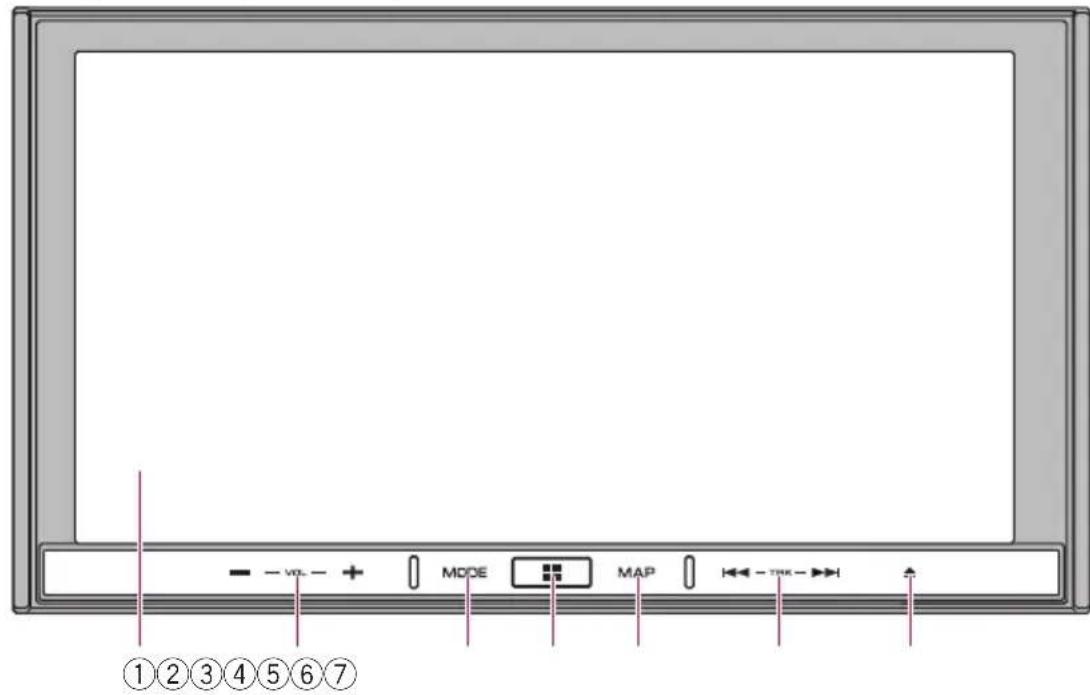
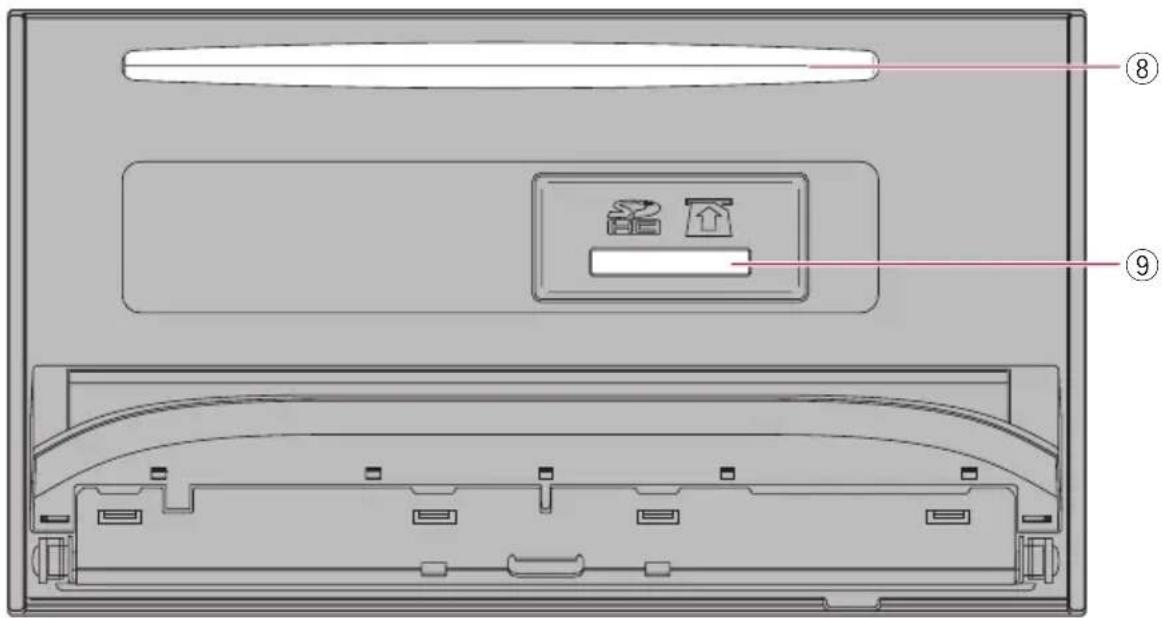
AVIC-F50BT(withtheLCDpanelopen)
AVIC-F950DAB, AVIC-F950BT, and AVIC-F850BT
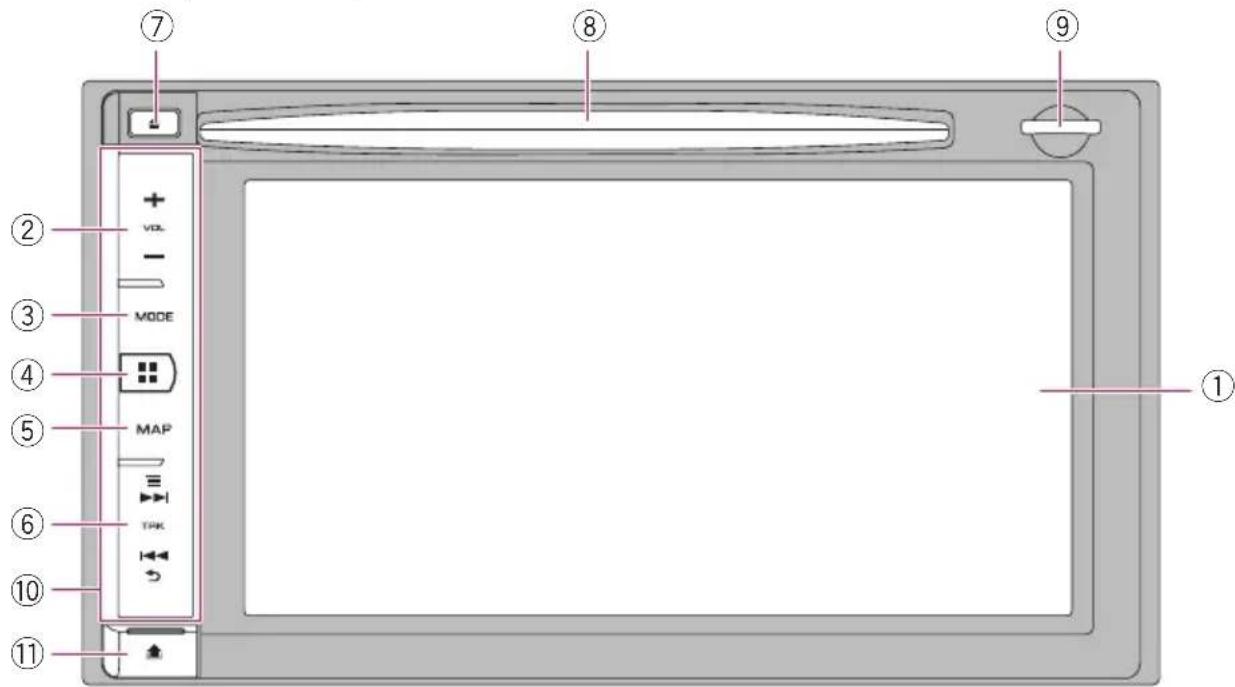
①LCDscreen
②VOL(+/-)button
PresstoadjusttheAV(AudioandVideo) sourcevolume.
③MODEbutton
- PresstoswitchthescreentotheAVoperationscreenortheAppRadioMode screen.
Fordetailsoftheoperations,referto Howtousethenavigationmenu screenshotpage24.
- PresstoswitchbetweentheAppRadio ModescreenandtheAVoperation screen.
Fordetailsoftheoperations,referto Howtousethenavigationmenu screenshotpage24.
- Pressandholdtodisplaythe"Picture Adjustment"screen.
- Fordetails, refertoAdjusting the picture on page 159.
- Pressandholdtodisplaythetouch panelcalibrationscreenwhilethe"PictureAdjustment"screenisdisplayed.
Fordetails, refer to Adjusting there-sponse position of the touch panel (touch panel calibration) on page 145.
④HOMEbutton
- PresstheHOMEbuttontodisplaythe "TopMenu"screenwhilethemap screen,theAVoperationscreen,orthe applicationmenuscreenisdisplayed.
- Presstoswitchtheapplicationoperation screentotheapplicationmenuscreen.
Fordetailsoftheoperations,referto Howtousethenavigationmenuscreens onpage24.
⑤MAPbutton
- Presstodisplaythecurrentlocation whenthenavigationscreen(showing otherthanthecurrentlocation)isdisplayed.
Whenthecurrentlocationisdisplayed, thescreenchangestotheregistered mapscale. WhentheAVsourcescreen isdisplayed, itswitchestothecurrentlocationscreen.
- Fordetails, refertoRegisteringascale onpage36.
- Pressandholdtotemporarilyclearthe screenregardlessofwhetheritistheAV source,thecurrentlocationscreenor theAppRadioModescreen.
Fordetails, referto Temporarily clearing the screen (navigation system in standby mode) on page 23.
⑥TRKbutton
- Presstoperformmanualseektuning, fastforward, reverseandtracksearch controls.
- Presstoperformthebackandmenu functionoftheAndroiddevicewhenyou usetheAppRadioModewithan Androiddevice.
⑦▲button
⑧Disc-loadingslot
Insertadisctoplay.
Fordetails, referto/inserting and rejecting adisconpage17.
⑨SDcardslot
- Fordetails, referto/inserting and rejecting an SDmemorycardonpage18.
⑩ Detachablefaceplate
⑪ button
Presstoremovethedetachablefaceplate fromthenavigationsystem.
Fordetails, refertoRemovingthedetachablefaceplateonpage16.
Protectingyourproduct againsttheft
ThisfunctionisavailableonAVIC-F950DAB,AVIC-F950BT,andAVIC-F850BT. Thedetachablefaceplatecanbedetached fromthenavigationsystemtodiscourage theft,asdescribedbelow.
CAUTION
- Donotexposethedetachablefaceplatetoexcessiveshockordisassembleit.
- Nevergripthebuttonstightlyoruseforce whenremovingorattaching.
- Keepthedetachablefaceplateoutofreachof smallchildrentopreventthemfromplacingit intheirmouths.
• Afterremovingthedetachablefaceplate, keep itinasafeplacesoitisnotscratchedordamaged.
- Donotexposethedetachablefaceplatetodirectsunlightandhightemperatures.
- When removing or attaching the detachable faceplate, doso after turning off the ignition switch (ACCOFF).
Removingthedetachable faceplate
☐Thenavigationsystemcannotbeoperated whilethedetachablefaceplateisremoved fromthenavigationsystem.
1Pressthe button.
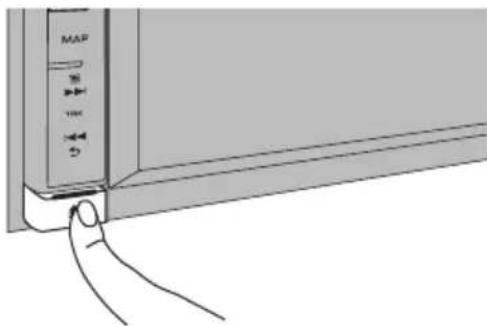
natural_image
Line drawing of a device's front panel with a finger pointing to the button (no text or symbols visible)When you release your finger, the bottom of the detachable face plates separately slightly from then navigation system.
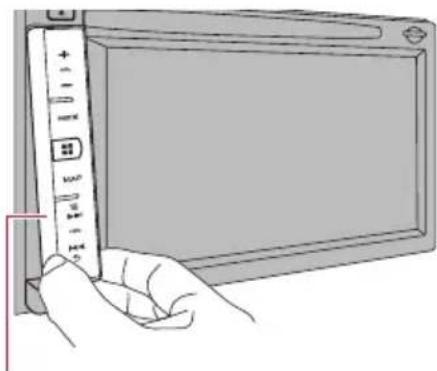
2Gentlygripthebottomofthedetachablefaceplateandslowlypullitoutward.
natural_image
Line drawing of a hand holding a remote control panel with a screen (no text or symbols visible)Detachablefaceplate
Attachingthedetachablefaceplate
1Slidethedetachablefaceplateallthe wayintothenavigationsystem.
Makesurethedetachablefaceplateissecurelyconnectedtothemountinghooksof thenavigationsystem.
2Pushthelowerpartofthedetachable faceplateuntilyouhearaclick.
If you fail to successfully attach the detachable face plate to then navigation system, try again but be careful not to force it as the panel could be damaged.
AdjustingtheLCDpanelangle
☐ThisfunctionisonlyavailableonAVIC-F50BT.

WARNING
Keephandsandfingersclearoftheunitwhen opening,closing,oradjustingtheLCDpanel.Be especiallycautiousofchildren'shandsandfingers.

CAUTION
DonotopenorclosetheLCDpanelbyforce.This maycauseamalfunction.
1Pressthe▲button.
The "MonitorSetup" screenappears.
2Touch angle.

ortoadjustthe
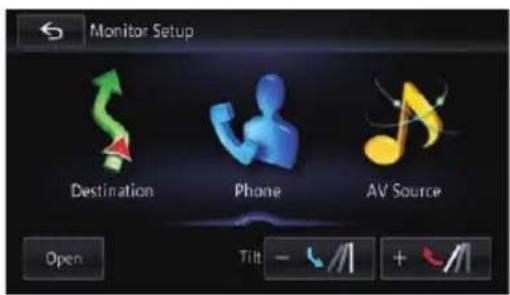
3Touch.

☐TheadjustedangleoftheLCDpanelwillbe memorisedandtheLCDpanelwillautomaticallyreturntothatanglethenexttimethe LCDpanelisopenedorclosed.
Insertingandejectingadisc Insertingadisc(forAVIC-F50BT)

WARNING
- Keephandsandfingersclearoftheunitwhen opening,closing,oradjustingtheLCDpanel. Beespeciallycautiousofchildren'shands andfingers.
- DonotusewiththeLCDpanelleftopen.Ifthe LCDpanelisleftopen,itmayresultininjury intheeventofanaccident.

CAUTION
- DonotopenorclosetheLCDpanelbyforce. Thismaycauseamalfunction.
- Donotoperatethisnavigationsystemuntil theLCDpanelhascompletelyopenedor closed.Ifthisnavigationsystemisoperated whiletheLCDpanelisopeningorclosing,the LCDpanelmaystopatthatangleforsafety.
- DonotplaceaglassorcanontheopenLCD panel.Doingsomaybreakthisnavigationsystem.
- Donotinsertanythingotherthanadiscinto thedisc-loadingslot.
1Pressthe▲button.
The "MonitorSetup" screenappears.
2Touch[Open].
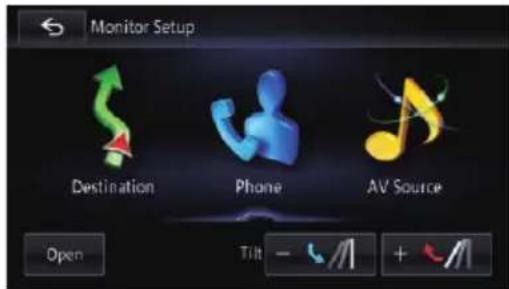
TheLCDpanelopens, andthedisc-loading slotappears.
3Insertadiscintothedisc-loadingslot.
Thediscisloaded, and the LCD panel closes.
Ejectingadisc(forAVIC-F50BT)
1Pressthe▲button.
The "MonitorSetup" screenappears.
2Touch[DiscEject].
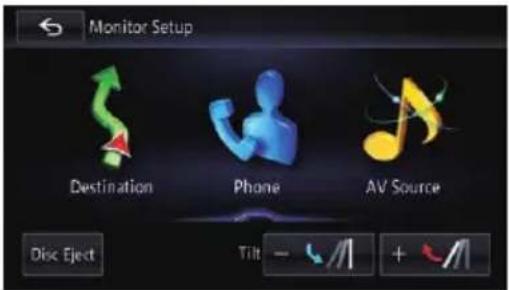
TheLCDpanelopens, and the discisejected.
3Removethedisc, and pressthe ▲ button.
TheLCDpanelcloses.
Insertingadisc(forAVIC-F950DAB, AVIC-F950BTandAVIC-F850BT)

CAUTION
Donotinsertanythingotherthanadiscintothe disc-loadingslot.
- Insertadiscintothedisc-loadingslot.
Ejectingadisc(forAVIC-F950DAB, AVIC-F950BTandAVIC-F850BT)
- Pressthe▲button.
Thediscisejected.
Insertingandejectingan SDmemorycard

CAUTION
- EjectinganSDmemorycardduringdata transfercandamagetheSDmemorycard.Be suretoejecttheSDmemorycardbythepro-ceduredescribedinthismanual.
- If datalossorcorruption occurs on the storage device for any reason, it is usually not possible to recover the data. Pioneer accepts no liability for damages, costsorexpenses arising from datalossorcorruption.
- DonotinsertanythingotherthanSDmemory cards.
☐Thissystemisnotcompatiblewiththe MultiMediaCard(MMC).
□CompatibilitywithallSDmemorycardsis notguaranteed.
ThisunitmaynotachieveoptimumperformancewithsomeSDmemorycards.
InsertinganSDmemorycard (forAVIC-F50BT)

CAUTION
- Donotpressthe▲buttonwhenanSDmemorycardisnotfullyinserted.Doingsomaydamagethecard.
- Donotpressthe▲buttonbeforeanSDmemorycardhasbeencompletelyremoved.Doing somaydamagethecard.
1Pressandholdthe▲button.
TheLCDpanelopensfully.
2InsertanSDmemorycardintotheSD cardslot.
Insertitwiththelabelsurfaceface-upand pressthecarduntilitclicksandcompletely locks.
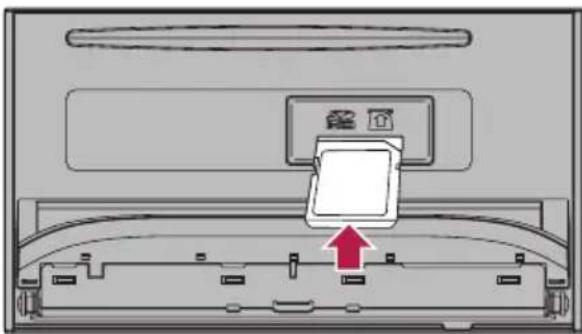
natural_image
Diagram of a device interior with a highlighted component and red arrow indicating direction (no text or symbols)3Pressthe▲button.
TheLCDpanelcloses.
EjectinganSDmemorycard (forAVIC-F50BT)
1Pressandholdthe▲button.
TheLCDpanelopensfully.
Basicoperation
2PressthemiddleoftheSDmemory cardgentlyuntilitclicks.
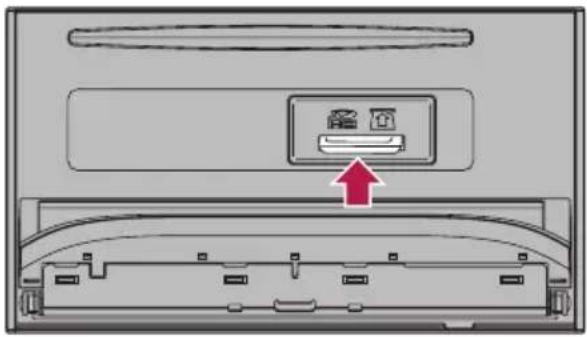
3PulltheSDmemorycardoutstraight.
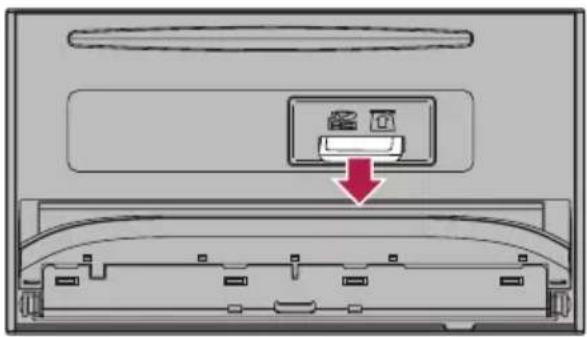
4Pressthe▲button. TheLCDpanelcloses.
InsertinganSDmemorycard (forAVIC-F950DAB,AVIC-F950BTandAVIC-F850BT)
- InsertanSDmemorycardintotheSD cardslot.
InserttheSDmemorycardwiththeterminal contactsface-down,andpressthecarduntil clicksandlockscompletely.
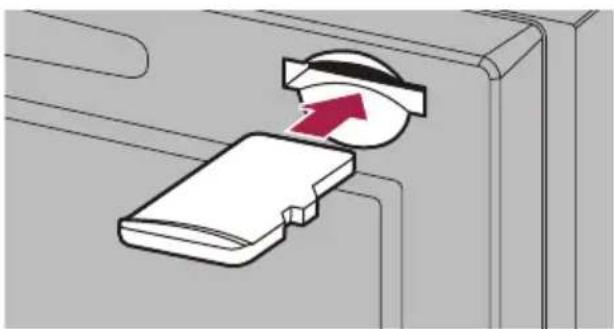
natural_image
Diagram of a device being inserted into a folder, showing a red arrow indicating direction (no text or symbols present)EjectinganSDmemorycard (forAVIC-F950DAB,AVIC-F950BTandAVIC-F850BT)
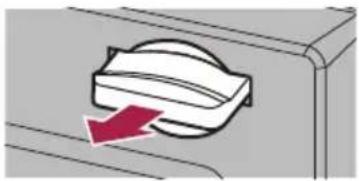
1PressthemiddleoftheSDmemory cardgentlyuntilitclicks.

natural_image
Diagram of a mechanical component with a circular feature and a red arrow indicating direction (no text or symbols)2PulltheSDmemorycardoutstraight.
natural_image
Diagram showing a mechanical component with a red arrow indicating direction (no text or symbols)
Connecting and disconnectinganiPod

CAUTION
- Topreventdatalossanddamagetothesto-ragedevice,neverremoveitfromthisnaviga-tionsystemwhiledataisbeingtransferred.
- Pioneercannotguaranteecompatibilitywith allUSBmassstoragedevicesandassumes noresponsibilityforanylossofdataonmedia players,iPhone,smartphone,orotherdevices whileusingthisproduct.
ConnectingyouriPod
ForiPodwith30-pinconnectorusers
UsingaUSBinterfacecableforiPod/iPhone (CD-IU201N)(soldseparately),youcanconnectyouriPodtothenavigationsystem.
☐ FordetailsaboutiPodcompatibilitywith thisnavigationsystem, refertotheinformationonourwebsite.
□ConnectionviaaUSBhubisnotpossible.
ForiPodwithLightningconnector userswhouseaUSBinterfacecablefor iPod/iPhone
YoucanconnectyouriPodwiththisnavigation systembyusingaUSBinterfacecablefor iPod/iPhone(CD-IU201N)(soldseparately) andaLightningto30-pinAdapter(AppleInc. products)(soldseparately). However, functionsrelatedtoiPodvideofiles arenotavailable.
ForiPodwithLightningconnector userswhouseanHDMI/USBinterface cableforiPod/iPhone
Toplaymusicand/orvideofilesonyouriPod withthisnavigationsystem,connectthefollowingcables,andlaunchCarMediaPlayer whileinAppRadioMode.
• HDMI/USBinterfacecableforiPod/iPhone(CD-IH202)(soldseparately)
• LightningDigitalAVAdapter(AppleInc. products)(soldseparately)
• LightningtoUSBcable(suppliedwith iPhonewithLightningconnector)
FordetailsofAppRadioMode,referto Chapter25.
RefertotheCarMediaPlayermanualfor moreinformation.
1 Check that no USB storage device is connected.
2ConnectyouriPod.
Fordetailsoftheoperations, refertotheInstallationManual.
- ForiPodwith30-pinconnectorusers
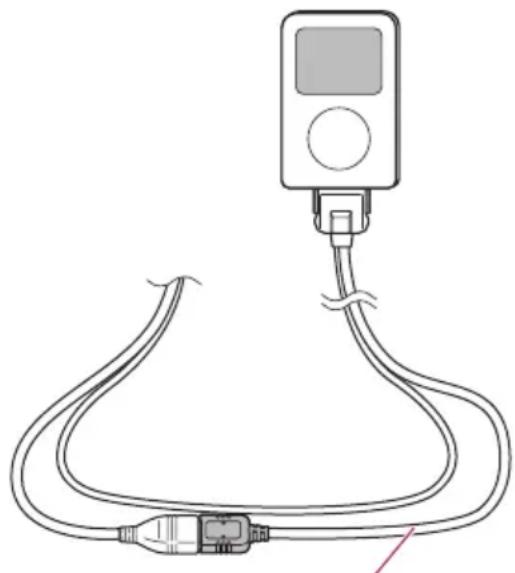
natural_image
Diagram of a medical or electrical device with two connected cables, one showing a screen and the other a plug (no text or symbols)USBinterfacecableforiPod/iPhone
- ForiPodwithLightningconnector userswhouseaUSBinterfacecablefor iPod/iPhone
Lightningto30-pinAdapter
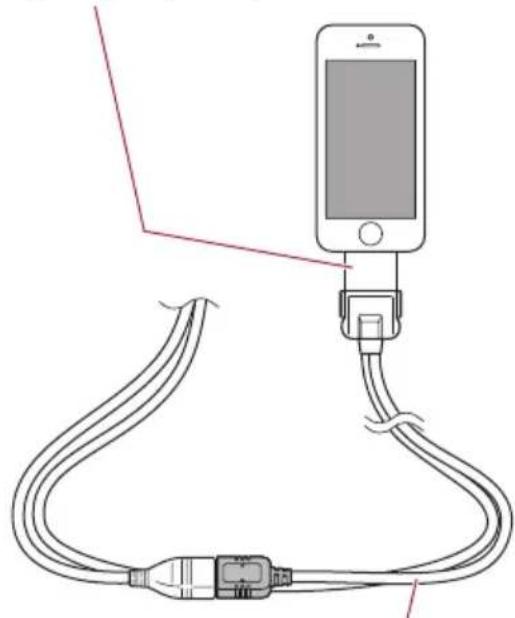
natural_image
Diagram of a smartphone connected to two USB cables, showing cable routing (no text or symbols)USBinterfacecableforiPod/iPhone
- ForiPodwithLightningconnector userswhouseanHDMI/USBinterface cableforiPod/iPhone
LightningDigitalAVAdapter
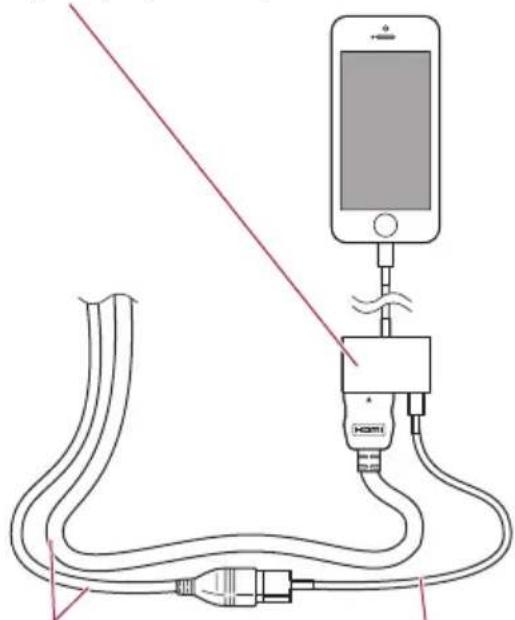
natural_image
Diagram of a mobile phone connected to a cable with a plug, showing wiring and connection (no text or symbols)HDMI/USBinterface cableforiPod/iPhone
LightningtoUSB cable
DisconnectingyouriPod
●Pulloutthecablesafterconfirming thatnodataisbeingaccessed.
Pluggingandunplugginga USBstoragedevice
CAUTION
- Topreventdatalossanddamagetothesto-ragedevice,neverremoveitfromthisnaviga-tionsystemwhiledataisbeingtransferred.
- Pioneercannotguaranteecompatibilitywith allUSBmassstoragedevicesandassumes noresponsibilityforanylossofdataonmedia players,iPhone,smartphone,orotherdevices whileusingthisproduct.
ThisnavigationsystemmaynotachieveoptimumperformancewithsomeUSBstoragedevices.
□ConnectionviaaUSBhubisnotpossible.
☐AUSBinterfacecableforiPod/iPhone (soldseparately)isrequiredforconnection.iPodwithLightningconnectoruserscan alsoconnectaUSBstoragedevicetothis navigationsystembypluggingitintothe USBportoftheotherseparatelysoldcable.
PlugginginaUSBstoragedevice
1PullouttheplugfromtheUSBportof theUSBinterfacecableforiPod/iPhone.
2PlugaUSBstoragedeviceintotheUSB interfacecableforiPod/iPhone.
USBinterfacecableforiPod/iPhone
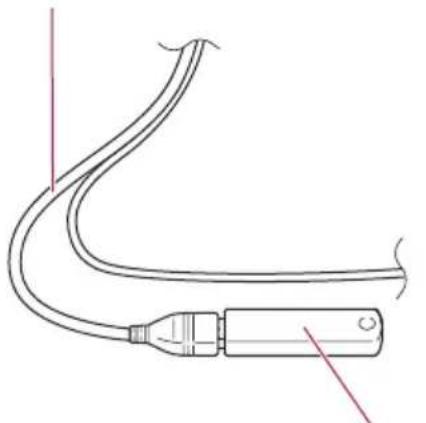
natural_image
Line drawing of a medical or laboratory device with a curved tube and connector (no text or symbols)USBstoragedevice
UnpluggingaUSBstoragedevice
●PullouttheUSBstoragedeviceafter checkingthatnodataisbeingaccessed.

Startupandtermination
1Starttheenginetobootupthesystem.
Afterashortpause,thesplashscreencomes onforafewseconds.
☐ToprotecttheLCDscreenfromdamage, be suretotouchthetouchpanelkeysonly withyourfingeranddosogently.
2Turnoffthevehicleenginetoterminatethesystem.
Thenavigationsystemisalsoturnedoff.

Onfirst-timestartup
Whenyouusethenavigationsystemforthe firsttime,selectthelanguagethatyouwantto use.
1Starttheenginetobootupthesystem.
Afterashortpause,thesplashscreencomes onforafewseconds.
2Touchthelanguagethatyouwantto useonscreen.
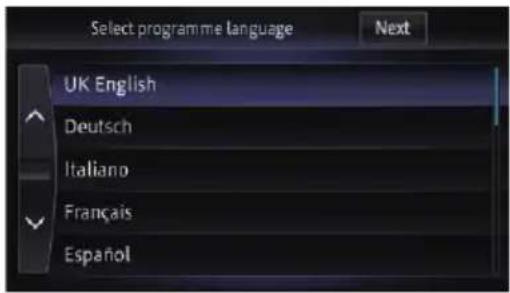
3Touchthelanguagethatyouwantto useforthevoiceguidance.
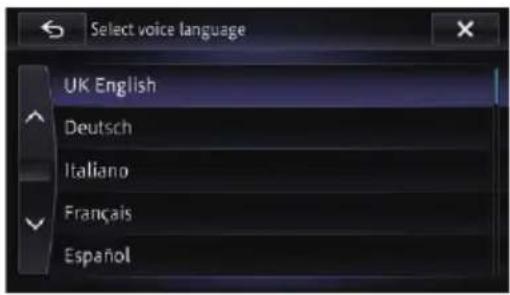
Thenavigationsystemwillnowrestart.
4Readthetermscarefully,checking the details,andthentouch[OK]ifyouagreeto theconditions.
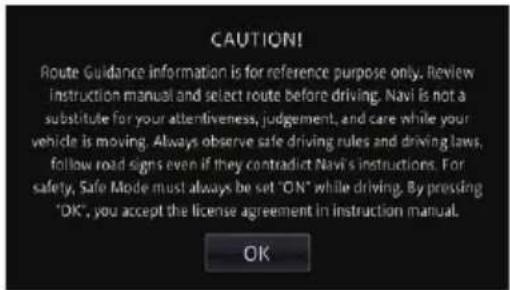
Themapscreenappears.
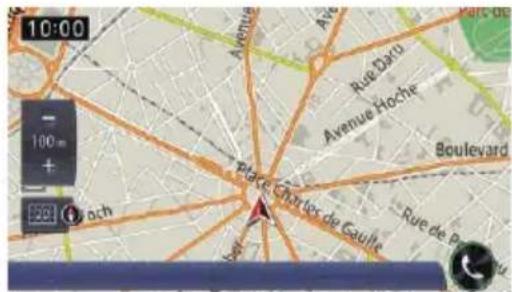

Regularstartup
●Starttheenginetobootupthesystem.
Afterashortpause,thesplashscreencomes onforafewseconds.
☐ Thescreenshownwilldifferdependingon thepreviousconditions.
□Iftheanti-theftfunctionisactivated,you mustenteryourpassword.
☐Thetermsappearifthepreviouscondition wasthenavigationscreen.
Readthetermscarefully,checkingthedetails,andthentouch[OK]ifyouagreeto theconditions.
Afteryoutouch[OK], the screen that was displayed just before returning off the ignition switch (ACCOFF) is displayed.
Amessageaboutthemap database
Afteryoustartusingthisnavigationsystem,a messagerelatedtomapdatamaybedis-played.
☐Thismessageisdisplayedthefirsttimeyou turnonthenavigationsystemeachmonth.
☐Touchthemessagetocloseitoritwilldisappearautomaticallyaftereightseconds.
Demonstrationimages
If you donotoperatethisnavigation system for five minutes, demonstration images are displayed.
☐The demonstration images will not be displayed if you drive after mounting this navigation system.
Temporarilyclearingthe screen(navigationsystem instandbymode)
Youcantemporarilyclearthescreenatnight orwhenthescreenistoobright.
●PressandholdtheMAPbutton.
Thescreenisclearedtemporarily.
□Ifyoutouchthescreenwhenthenavigation systemisinstandbymode,itrevertstothe originalscreen. Also,ifyoupresstheMAPbutton,the standbymodeiscancelledandthecurrent locationscreenisdisplayed.Ifyoupress theMODEbutton,thestandbymodeis cancelledandtheAVsourcescreenisdisplayed.
□Whenthenavigationsystemisinstandby mode, thenavigationguidancedoesnot outputthevoiceguidance.Theaudiosound isoutput.
☐Thestandbymodeisnotcancelledbyturningignitionswitchonoroff.
Howtousethenavigationmenuscreens
flowchart
graph TD
    A["App icon"] --> B["Destination"]
    A --> C["Phone"]
    A --> D["AV Source"]
    B --> E["Mode"]
    C --> F["Mode"]
    D --> G["Mode"]
    E --> H["Map"]
    F --> I["Map"]
    G --> J["Map"]
    H --> K["Location Map"]
    I --> L["Location Map"]
    J --> M["Location Map"]
    K --> N["27 Tue 28 Wed 29 Thu"]
    L --> O["27 Tue 28 Wed 29 Thu"]
    M --> P["27 Tue 28 Wed 29 Thu"]
    N --> Q["27 Tue 28 Wed 29 Thu"]
    O --> R["27 Tue 28 Wed 29 Thu"]
    P --> S["27 Tue 28 Wed 29 Thu"]
    Q --> T["27 Tue 28 Wed 29 Thu"]
    R --> U["27 Tue 28 Wed 29 Thu"]
    S --> V["27 Tue 28 Wed 29 Thu"]
    T --> W["27 Tue 28 Wed 29 Thu"]
    U --> X["27 Tue 28 Wed 29 Thu"]
    V --> Y["27 Tue 28 Wed 29 Thu"]
    W --> Z["27 Tue 28 Wed 29 Thu"]
    X --> AA["27 Tue 28 Wed 29 Thu"]
    Y --> AB["27 Tue 28 Wed 29 Thu"]
    Z --> AC["27 Tue 28 Wed 29 Thu"]
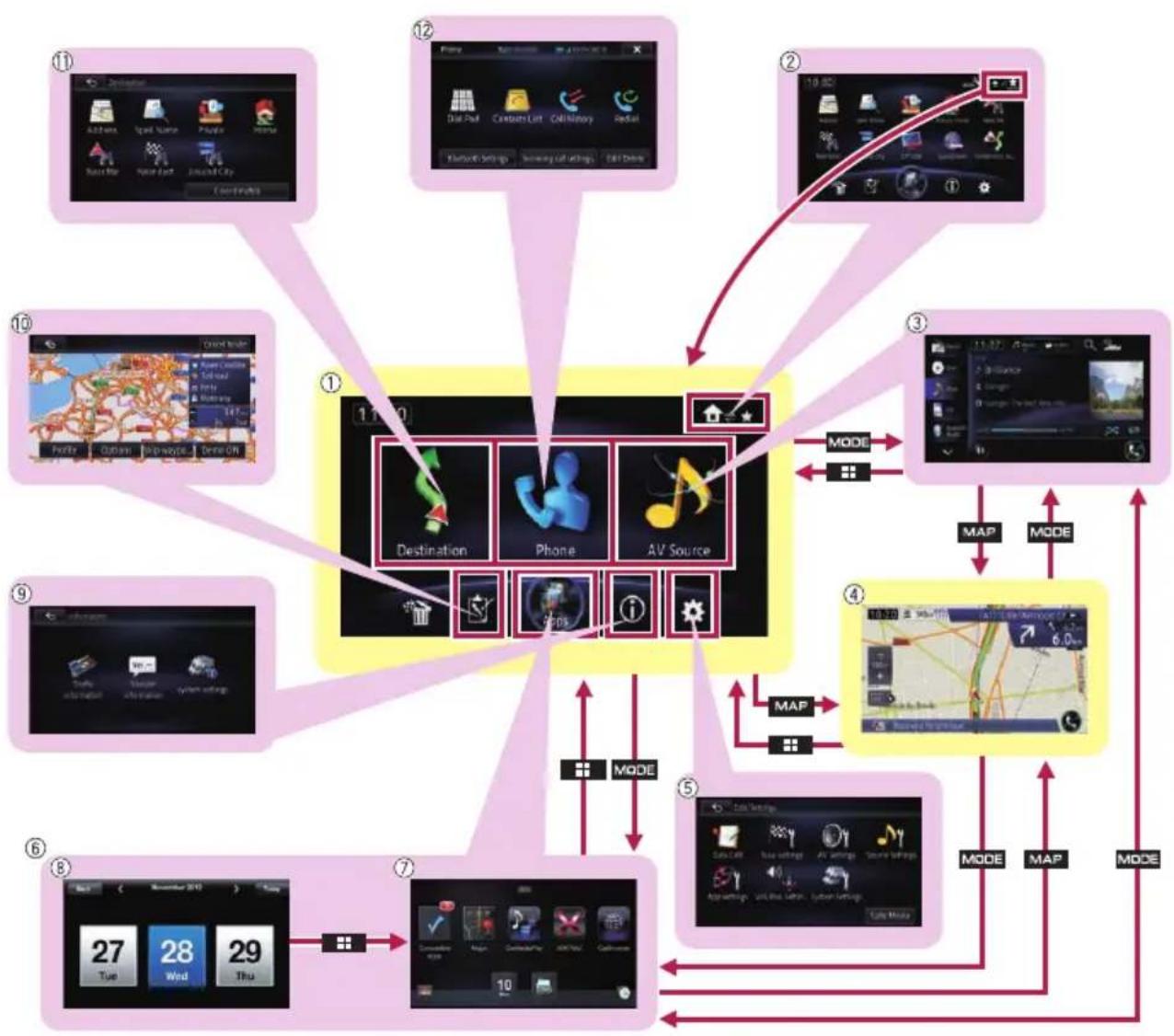
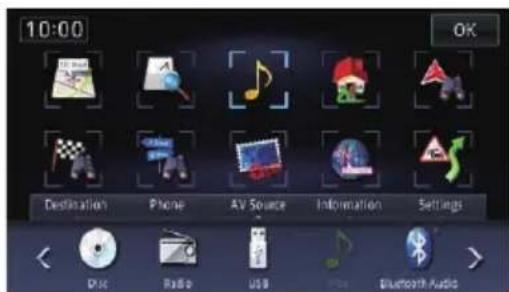
① TopMenu
Thisisthestartingmenutoaccessthedesired screensandoperatevariousfunctions.You canalsocheckorcancelyoursetroutefrom thismenu.
□IfyoupresstheHOMEbutton,the screen of either "Top Menu" or Shortcut Menuwhichwasbeingdisplayedlast timeisdisplayed.
□[Apps]isonlyavailablewhenaniPhone orasmartphoneisconnectedtothisnavigationsystem.
②ShortcutMenu
□IfyoupresstheHOMEbutton,the screen of either "Top Menu" or Shortcut
Menuwhichwasbeingdisplayedlast timeisdisplayed.
③AVoperationscreen
Thisisthescreenthatnormallyappearswhen youplaytheAVsource.
④Mapscreen
Youcanusethisscreentocheckthecurrent vehiclepositioninformationandroutetothe destination.
⑤Edit/Settingsscreen
Youcanaccessthescreentocustomiseset- tings.
⑥AppRadioModescreen
In this manual, the application menuscreen and the application operations screen are collectively referred to as the "AppRadioMode screen".
⑦Applicationmenuscreen
Thisnavigationsystemcanswitchtotheapplicationmenu,whichyoucandisplayandoperatetheapplicationfortheiPhoneorsmartphoneonthescreen.
⑧Applicationoperationscreen
YoucancontroltheiPhoneorsmartphoneapplicationsdirectlyonthenavigationscreen.
⑨Informationscreen
Youcanaccessthescreenforhandlingvar- iousinformationsuchasthesysteminformationofthedevice.
⑩Editingroutescreen
You can edit the conditions for calculating the current route.
⑪Destinationscreen
Youcansearchforyourdestinationonthis menu.
⑫Phonescreen
Youcanaccessthescreenthatisrelatedto hands-freephoning.
ShortcutMenu
Registeringyourfavouritemenuitemsin shortcutsallowsyoutoquicklyjumptotheregisteredmenuscreenbyasimpletouchon theShortcutMenuscreen.
Selectingtheshortcut
☐Upto10menuitemscanberegisteredin shortcuts.
1DisplaytheShortcutMenuscreen.
- Fordetailsoftheoperations,refertoHowto usethenavigationmenuscreensonpage 24.
2Touch.

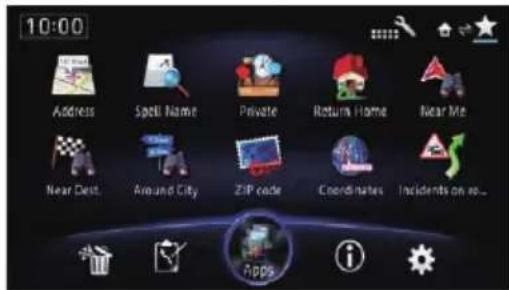
TheShortcutselectionscreenappears.
3Touchthetabortouch ortodisplaytheiconthatyouwanttosettoshort-cut.

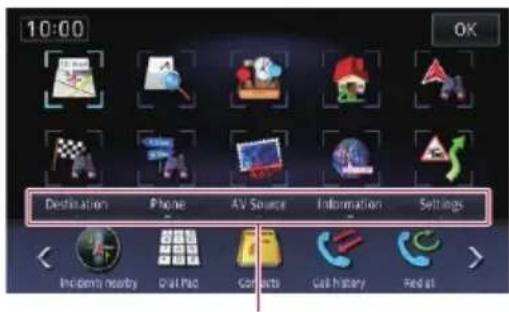
Tabs
4Touchandholdtheiconthatyouwant toaddtoshortcut.
5Movetheicontotheuppersideofthe screen, and thenreleaseit.
Theselecteditemisaddedtoshortcut.
Removingashortcut
1Touchandholdtheiconoftheshortcut youwanttoremove.
2Movetheicontothelowersideofthe screen, and thenreleaseit.
Usingthetouchpanel
Youcanoperatetheproductbytouchingthe marksanditems(touchpanelkeys)displayed onthescreendirectlywithyourfingers.
Usingthecommontouchpanel keys
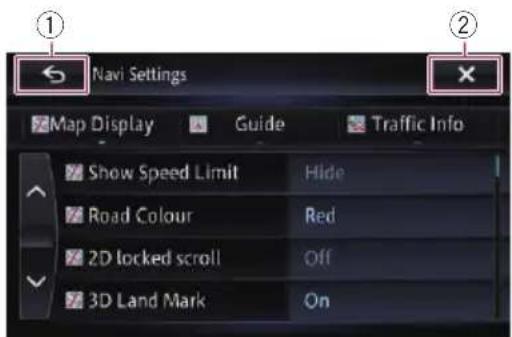


The previous screen returns.


Thescreenisclosed.
Operatinglistscreens(e.g.POllist)
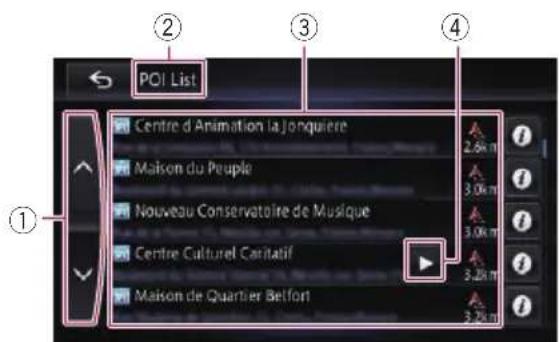
Touching month scrollbarscrolls through the list and allows you to view their maining items.
②Screentitle
③Listediterr
Touchinganitemonthelistallowsyoutonarrowdowntheoptionsandproceedtothenext operation.


If not all the characters can be displayed within the displayed area, touching the key to the
rightoftheitemallowsyoutoseetheremainingcharacters.
Operatingtheon-screenkeyboard
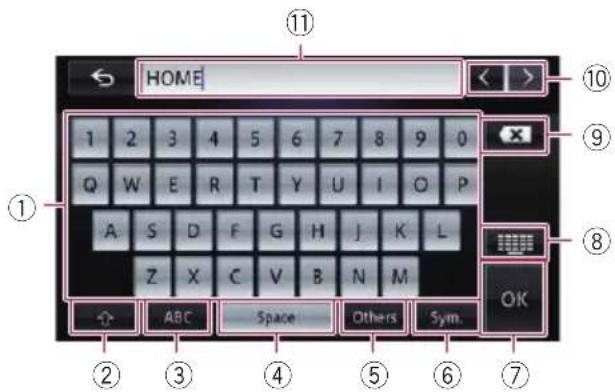
①Keyboard
Touchingthekeysentersthecharactersinthe textbox.


Youcanswitchbetweenencapitalandlower caseletters.
③ABC
Youcanenterlettersandnumbers.
④Space
Youcanleavespaces.
Aspaceequivalenttothenumberoftouches isinserted.
⑤Others
Youcanenterothercharactersofalphabet.
□ Even if you use any of "A", "Ä", "Å", "Æ", thedisplayedresultisthesame.
⑥Sym.
Youcanentertextwithmarkssuchas"&", "+",ornumbers.
⑦OK
Confirmstheentryandallowsyoutoproceed tothenextstep.


Switchestheon-screenkeyboardlayout.


Delete the input text one letter at a time, beginning at the end of the text. Continuing to touch the key deletes all of the text.
Basicoperation


Allowsyoutomovethecursorortotherightor leftforanumberofcharactersequivalentto thenumberoftouches.
⑪Textbox
Displaysthecharactersthatareentered.If thereisnotextinthebox,aninformative guidewithtextappears.
Swipeaction
Youcanoperatesomenavigationandaudio functionsbyslidingyourfingersverticallyand horizontallywhiletouchingthescreen.
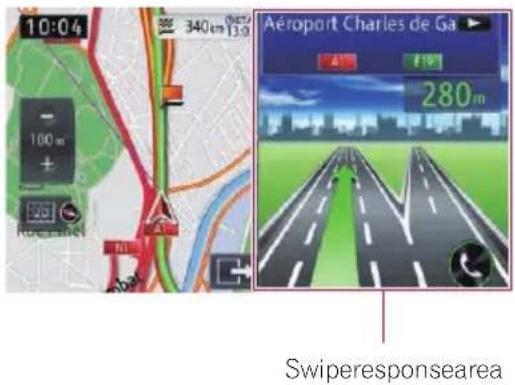
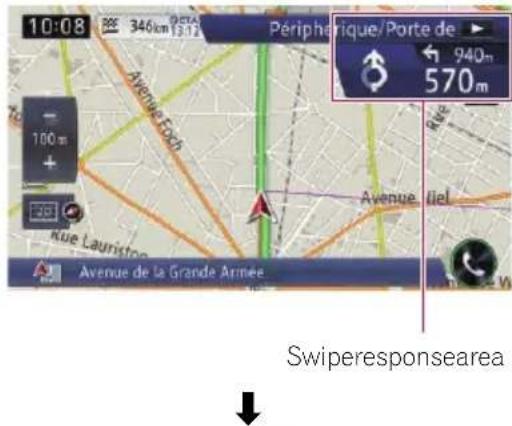
1Touchandholdtheswiperesponse area.
☐Theswiperesponseareavariesdepending onthedisplayedscreen.
Example:CD
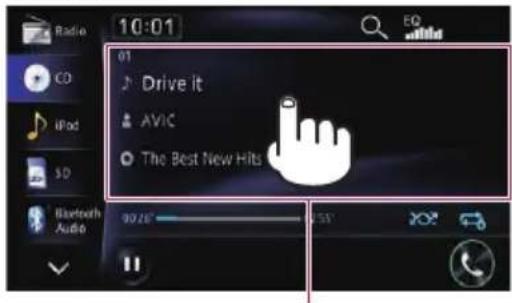
Swiperesponsearea

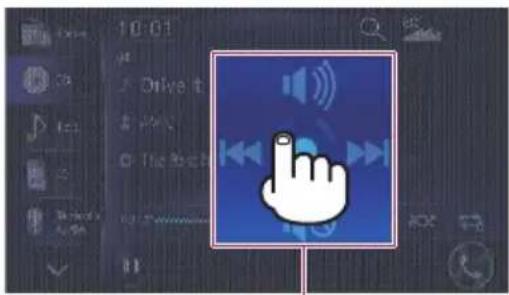
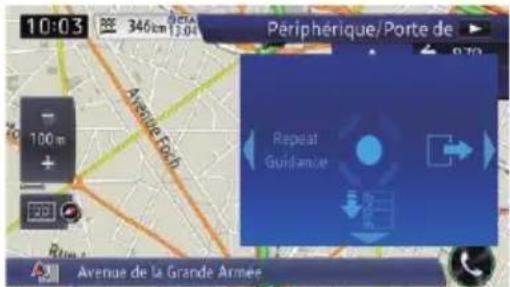
Operationguide
Theoperationguideappears.
2Whiletouchingthescreen,slideyour fingertowardthefunctionyouwantto executeandrelease.
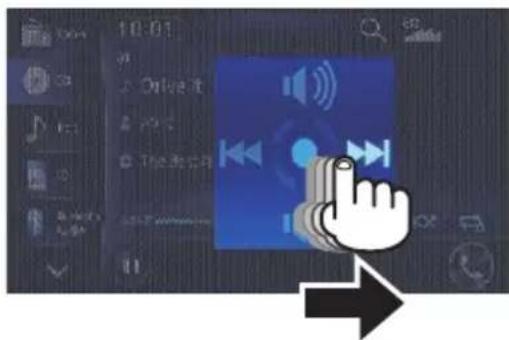

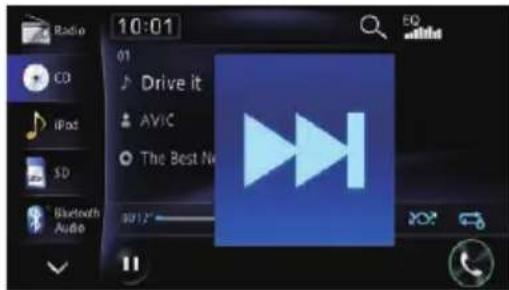
Theselectedfunctioniszoomedinandthe functionoperates.
Swipeactionlist
Navigation
| Operation screen | Action | |
| Guidancedis-play | ← | Displaystheturningdirectionatthenextguidepointandthedistance,andgivesavoiceannouncement. |
| → | Cancelsthedisplayofthein-tersectionguidemap. | |
| ↑ | Hidesthestreetlist. | |
| ↓ | Displaysthenextguidancepoint. | |
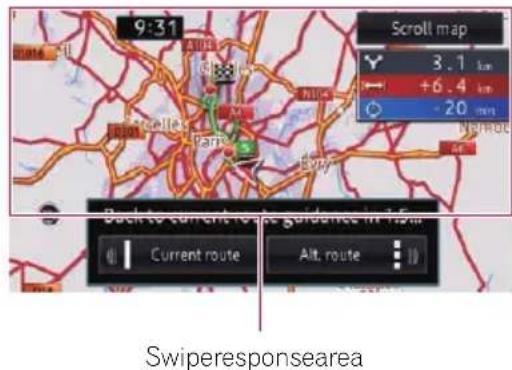
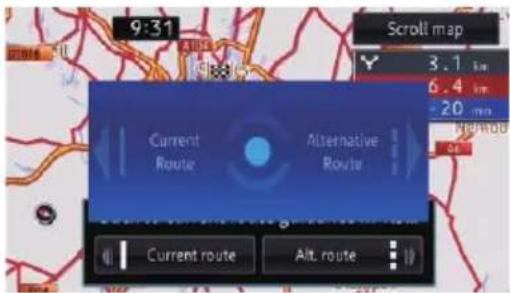
| Therouteal-ternativesfunctiontakingintoac-counttrafficjamsandclosed/blockedroads | → | Selectsanalternativeroute. |
| ← | Selectsthecurrentroute. | |
| Appview map | ← | Displaystheturningdirectionatthenextguidepointandthedistance,andgivesavoiceannouncement. |
| ↑ | Thesoundmixfunctionisdis-abled. | |
| ↓ | Thesoundmixfunctionisen-abled. | |
| ●(*1) | Displaysthe“AppRadioMode”screen. | |
(*1) Display this screen after releasing your finger from the circle.
• The intersectionguidancedisplay and the interchangeguidancedisplay
Theotherguidancedisplays
• Theroutealternativesfunctiontakinginto accounttrafficjamsandclosed/blocked roads
Audio
| Operation screen | Action |
| Radio(FM, MW/LW) | ←Skipstothepreviouspreset channel. |
| →Skipstothenextpresetchannel. | |
| ↑Unmutesthesound. | |
| ↓Mutesthesound. | |
| DigitalRadio (DAB)(*1) | ←Skipstothepreviouspreset channel. |
| →Skipstothenextpresetchannel. | |
| ↑Unmutesthesound. | |
| ↓Mutesthesound. | |
| Disc(CD,CD-R,CD-RW)/Bluetooth Audio | ←Skipstotheprevioustrack. |
| →Skipstothenexttrack. | |
| ↑Unmutesthesound. | |
| ↓Mutesthesound. | |
| Disc(DVD-Video) | ←Skipstothepreviouschapter. |
| →Skipstothenextchapter. | |
| ↑Unmutesthesound. | |
| ↓Mutesthesound. | |
| Disc(DivX videofiles)/SD/USB | ←Skipstothepreviousfile. |
| →Skipstothenextfile. | |
| ↑Unmutesthesound. | |
| ↓Mutesthesound. | |
| iPod | ←Skipstothepreviouschapter orsong. |
| →Skipstothenextchapteror song. | |
| ↑Unmutesthesound. | |
| ↓Mutesthesound. |
| Operation screen | Action |
| AhaRadio | ←Skipstothepreviouscontent. |
| →Skipstothenextcontent. | |
| ↑Unmutesthesound. | |
| ↓Mutesthesound. |
(*1)AsourceonlyavailableonAVIC-F950DAB.
Hands-freephoning
| Operation screen | Action |
| Receivinga phonecall | ← Allowsyoutotalkonthe phone. |
| → Endsthecall. |
- Receivingaphonecall
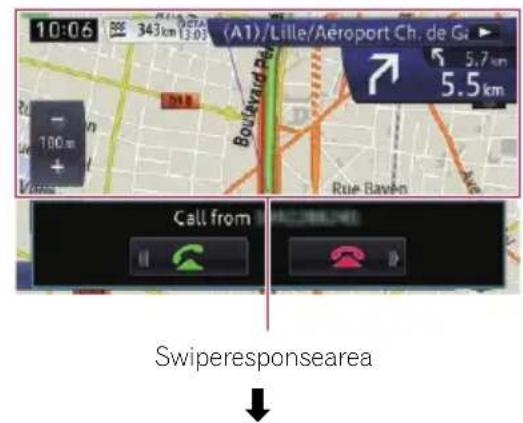
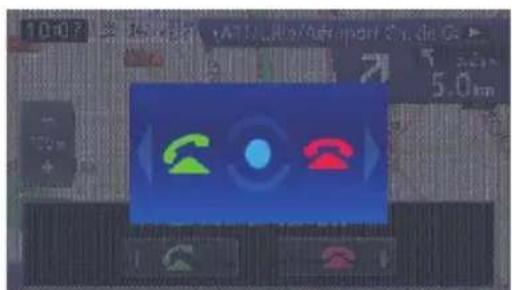

Mostoftheinformationprovidedbyyournavigationsystemcanbeseenonthemap.Youneedtobe-comefamiliarwithhowinformationappearonthemap.
Howtoreadthemapscreen
Thisexampleshowsanexampleofa2Dmapscreen.
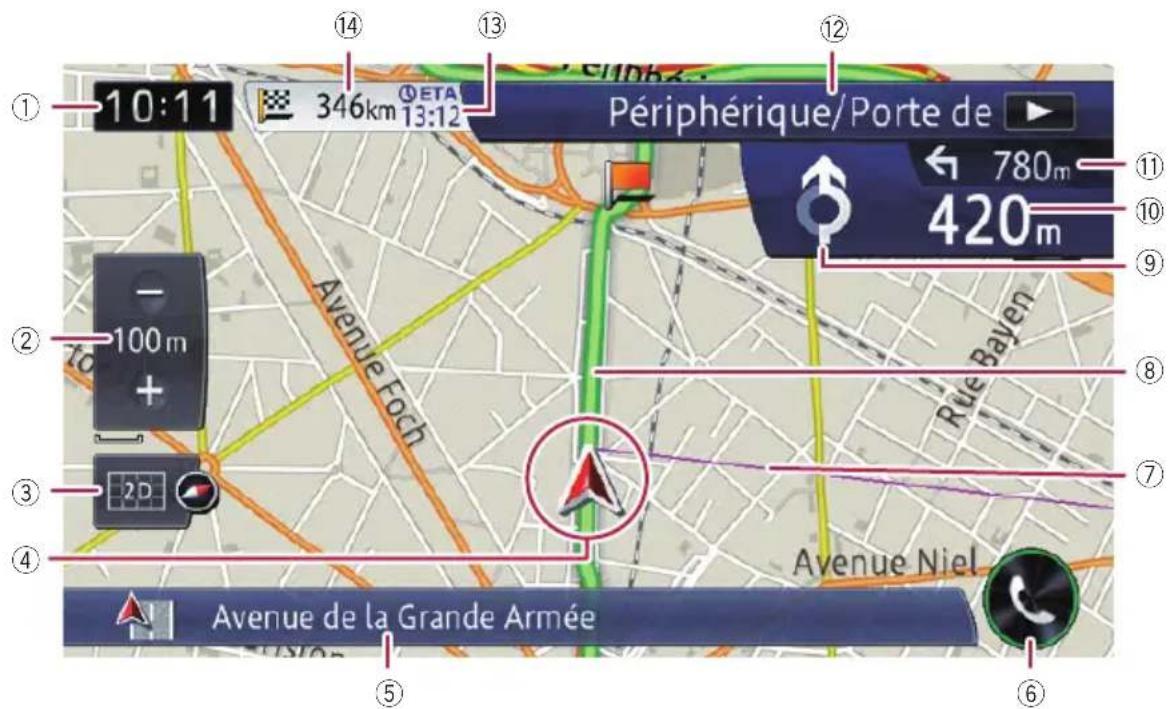
Informationwithanasterisk(*)appears onlywhetherouteisset.
☐Dependingontheconditionsandsettings, someitemsmaynotbedisplayed.
①Currenttime
②Scaledisplaytouchpanelkey
Touching[+]or[-]changesthemapscale. You can change themapscale between 10 metres and 2000 kilometres (10 yards and 1000 miles).
☐The“_”markshownbelowindicate the scaledistance(2Ddisplayonly).
③Mapcontrol
The "View" screenthatcansettheviewmode andthemaporientationappears.
- Fordetailsoftheoperation,referto Switchingtheviewmodeonpage34.
- Fordetails, referto Switching themaporientation on page 34.
④Currentposition
Indicate the current location of your vehicle. The apexofthetriangular mark indicates your orientation and the display moves automatically as you drive.
☐Theapexofthetriangulararmarkisthe actualcurrentpositionofthevehicle.
⑤Informationbar
Eachtouchofthiskeychangesthedisplayinformationasfollows.
•Theinformationofwhereyourvehicleistravellingalong
When "StreetName" is selected on "Currentlocationinfo." of "Navi
Settings",thestreetnameorcity nameisdisplayed.Also,"Coordinates"isselected,latitudeandlongitudearedisplayed.
Fordetails, refertoSettingthecurrentstreetnamedisplayonpage 139.
Howtousethemap
□Whenthereisnodataofcurrentposition, noinformationisdisplayed.
•TheAVsourcecurrentlyselected □Dependingonthesourcecurrently chosen,animageisdisplayed.
⑥Phonekey
Displaysthe"Phone"screen.
Fordetails, refertoDisplaying the phone menuonpage67.
⑦Directionline*
The direction towards your destination (next waypoint, ortheposition of a cursor) is indicated with a straight line.
⑧Currentroute*
Theroutecurrentlysetishhighlightedincolour onthemap.Ifawaypointissetontheroute, therouteafterthenextwaypointishhigh-lightedinanothercolour.
⑨Nextdirectionoftravel*
Asyougetclosertotheguidancepoint,the colouroftheitemchangestogreen.
⑩Distancetotheguidancepoint*
Showsthedistancetothenextguidance point.
⑪Secondmanoeuvrearrow*
Showsteturningdirectionafterthenextguidancepointandthedistancetoit.
⑫Numberandnameofthestreettobeused (ornextguidancepoint)*
Displaysthenumberandnameoftheupcomingstreet.lfyoutouch ▶,thestreetnameis scrolledandhiddenlettersappear.
⑬Estimatedtimeofarrivalatyourdestinationorwaypoint*
Theestimatedtimeofarrivalisanidealvalue calculatedbasedonthevaluesetforMinor OrdinaryRoad, MajorOrdinaryRoador Motorway, and the actual drivingspeed. The estimated timeofarrival is only a reference value, and does not guarantee arrival at that time.
Fordetails, refertoChangingthevirtual speedofthevehicleonpage142.
⑭Distancetothedestination(ordistanceto waypoint)*
Meaningofguidanceflags
IconMeaning

Destination
Thechequeredflagindicatesyourdestination.

Waypoint
Theredflagsindicateyourwaypoints.

Guidancepoint
Thenextguidancepoint(nextturning point,etc.)isshownbyanorangeflag.
Enlargedmapoftheintersection
When "Close Up View" in the "Guide" screen is "On", an enlarged map of the intersection appears.
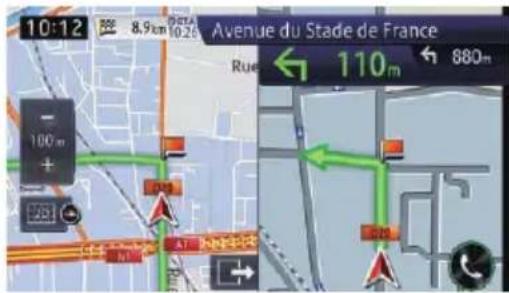
Fordetails, refertoSettingtheauto-zoom displayonpage142.
□Whentheenlargedmapofroundaboutappears,theexitnumbersaredisplayedoneachexit.Thevoiceguidanceisannouncedfromtheentrancetotheexit.
Thedisplaywhiledrivingon themotorway
In certain location softhemotorway, lane information is available. Themapindicates the recommended lanetobe into easily man-oeuvrethenextguidance.
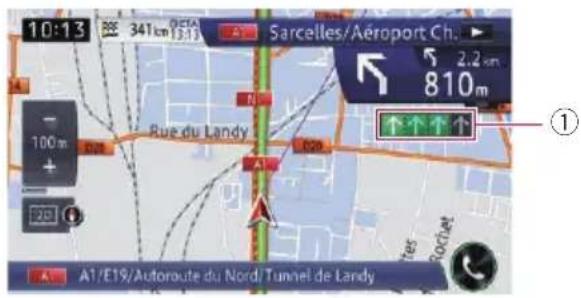
While driving on them motor way, motor way exit numbers and motor ways signs may be displayed in the vicinity of interchanges and exits.
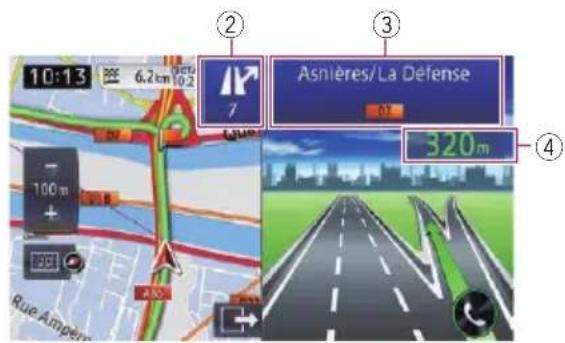
①Laneinformation
•Greenlane:
Guidedlane
Greenlanewithawhitearrow:
Recommendedlane
•Greylane:
Nonguidedlane
□Onthetollroads, thelanesareinblue insteadofgreen.
②Motorwayexitinformation
Displaysthemotorwayexit.
③Motorwaysigns
Theseshowtheroadnumberandgivedirec- tionalinformation.
④Distancetothenextguidancepoint
Theseshowthedistancetothenextguidance point.
□Ifthedatafortheseitemsisnotcontained inthebuilt-inmemory,theinformationis
notavailable even if there are signs on the actual road.
Typesoftheroadstoredin themapdatabase
Roadsincludedintherouteguidance
Turn-by-turnroutableroadscontainfullattributedataandcanbeusedforfullrouteguidance.Pioneernavigationwilldisplayfull routeguidance,includingturn-by-turnvoice directionsandarrowicons.
Roadswithoutturn-by-turn instructions
Routableroads(therouteddisplayedandhigh-lightedinpink)haveonlybasicdataandcan onlybeusedtoplotanavigableroute.Pioneer navigationwilldisplayfullrouteguidance,includingturn-by-turnvoicedirectionsand arrowicons.Pleasereviewandobeyalllocal trafficrulesalongthehighlightedroutefor yoursafety.
Noturn-by-turndirectionswillbedisplayedon theseroads.
Non-routableroads(lightgrey-colour roads)
Mapdisplayispossible, but cannot be used for route calculation. Pleasereviewandobey allocaltrafficrulesalongthisroute. (Foryour safety.)
Operatingthemapscreen Scrollingthemaptothe positionyouwanttosee
1Displaythemapscreen.
Fordetailsoftheoperations,refertoHowto usethenavigationmenuscreensonpage 24.
2Touchandholdthemapinthedesired directiontosee.
Themapmovescentredaroundtheposition youhavetouched.
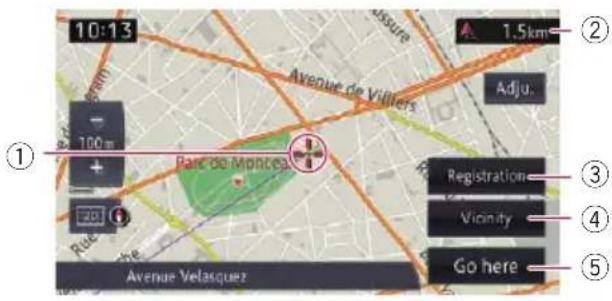
①Cursor
②Distancefromthecurrentposition
③Registration
Youcanregisterthelocationindicatedby thecurrentcursorpositionas"Favourites".
- Fordetails, refertoRegisteringandeditinglocationsonpage52.
④Vicinity
YoucansearchforthePOIsnearthecursor positionbyselectingacategory.
- Fordetails,refertoSearchingforanearby PO/onpage42.
⑤Gohere
Youcansearchforaroutetoadestination indicatedbythecursorposition.
Fordetails, refertoSettingarouteto yourdestinationonpage46.
3Toslightlyadjusttheposition,touch [Adju.]first,thenthedirectionarrow (eightdirections)inwhichyouwantto makeslightadjustments.
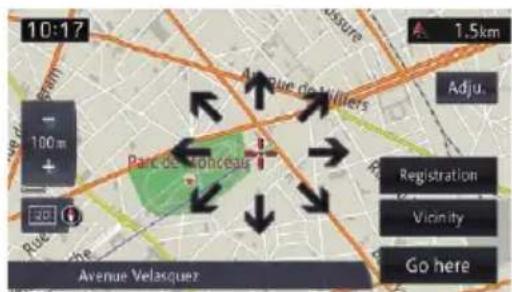
Eachtouchofthedirectionarrowmovesthe maplittlebylittle.
Thedirectionarrowsdisappearbytouching [Adju.]again.
☐PressingtheMAPbuttonreturnsthemap tothecurrentposition.
Viewinginformationabouta specifiedlocation
Forthelocationsyouhavesearchedusingthe destinationmenu,youcandisplaythedetailed informationaslongastheinformationrelated tothelocationisstoredinthesystem.
1Searchforalocationusingthe"Destination"screen.
→Fordetails, refertoChapter4.
2Touch.

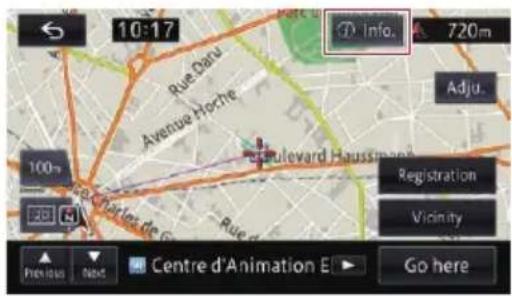
The "Details" screenappears.
3Touchtheitemthatyouwanttocheck thedetailedinformation.
The information forthespecified location appears.
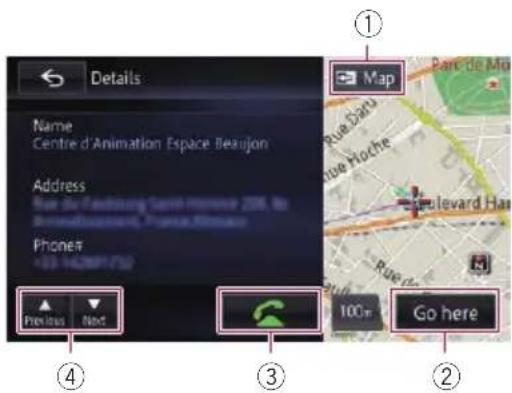
Theinformationshownvariesaccordingtothe location.(Theremaybenoinformationforthat location.)
① Map
Displaysthemapscreen.
②Gohere
Searchesfortheroutetothedisplayedlocation.
□Iftherouteisalreadyset,thedisplayed locationcanbemodifiedtothedestinationorawaypoint.
Howtousethemap


Enablesyoutocallthepositionifatele-phonenumberisavailable.(Pairingwith mobilephonefeaturingBluetoothwireless technologyisrequired.)


ThepreviousfacilityorthenextfacilityappearswhensearchingforaPOI.
Switchingtheviewmode
Varioustypesofscreendisplayscanbese-lectedfornavigationguidance.
1Displaythemapscreen.
Fordetailsoftheoperations,refertoHowto usethenavigationmenuscreensonpage 24.
2Touchonthemapscreen.
The "View" screenappears.
3Touchthetypethatyouwanttoset.
Youcanselectthefollowingtypes:
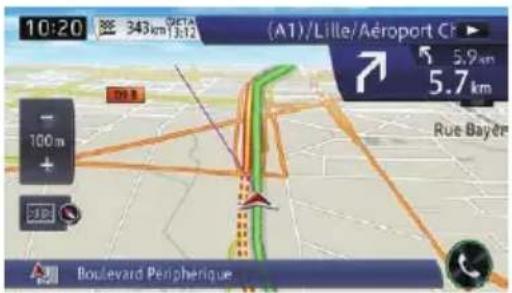
- 2DView(default):
Displaysanormalmap(2Dmap).
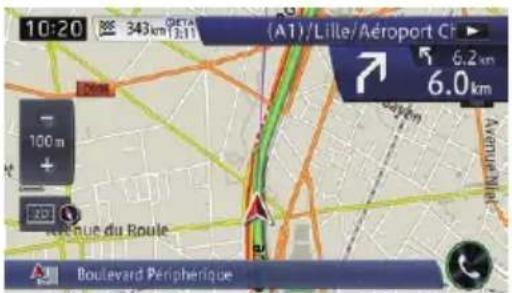
•3DView:
Displaysamapwithanaerialview(3D map).
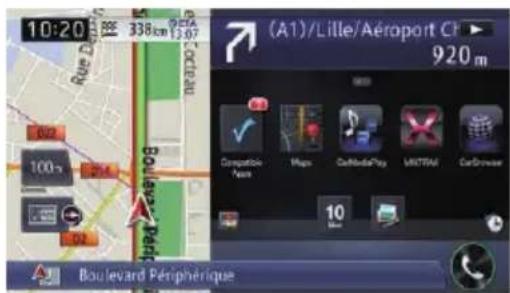
- Appview:
Displaysthescreenofanapplicationfor theiPhoneorsmartphoneontherightside
ofthescreenandthemapontheleftside ofthescreen.
Ifyoutouchthemap, themapissrolled onthewholescreen. Andifyoutouchthe screenofanapplicationfortheiPhoneor smartphone, theAppRadioModescreen appears.
- Fordetails, refertoScrolling themapto the position you want to see on page 32.
Fordetails, referto Swipeaction on page 27.
Youcanswitchhowthemapshowsyourvehicle'sdirectionbetween"Headingup"and "Northup".
- Headingup:
Themapdisplayalwaysshowsthevehicle's directionasproceedingtowardthetopof thescreen.
When "Headingup" is selected, is played.
• Northup:
Themapdisplayalwayshasnorthatthe topofthescreen.
When "Northup" is selected, is displayed.
☐Theredarrowindicatesnorth.
☐Themaporientationisfixedat"Northup"whenthemapscaleis50kilometres(25 miles)ormore.
☐Themaporientationisfixedat"Heading up"whenthe3Dmapscreenisdisplayed.
☐Themaporientationisfixedat“Northup”, whenthecurrentpositionisdisplayedregardlessofwhetherthe2Dmapscreenis displayedorthe3Dmapisdisplayed.
1Displaythe"View"screen.
→Fordetailsoftheoperation,refertoSwitchingtheviewmodeonpage34.
2Touch[Maporientation]toswitchthe vehicle'sdirection.
Eachtimeyoutouchthekeythesetting changes.
Displayingone-waystreet marks
Youcandisplayone-waystreetmarks.
☐Youcanturnonorofftheone-waystreet displayonthe100metres(0.1mile)scale.
1Displaythe"View"screen.
- Fordetailsoftheoperation,refertoSwitchingtheviewmodeonpage34.
2Touch[1-way;at100m].
Eachtouchofthekeyturnsonorofftheone-waystreetdisplayonthe100metres(0.1mile) scale.
DisplayingPOlonthemap
Displaysiconsforthesurroundingfacilities (POI)onthemap.
☐POliconsarenotdisplayedwhenthemap scaleis1kilometre(0.75mile)ormore.
☐Upto200itemsor100preinstalledPOIs aredisplayedonthemap.
DisplayingpreinstalledPOlson themap
☐Youcanselectupto200itemsfromthe subcategoriesordetailedcategories.
1Displaythe"View"screen.
Fordetailsoftheoperation,refertoSwitchingtheviewmodeonpage34.
2Touch[OverlayPOI].
3Touch[Hide], andthentouch[View].
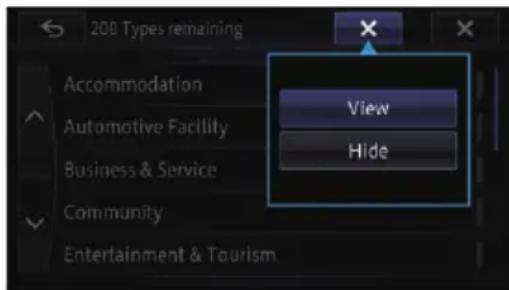
□IfyoudonotwanttodisplaythePOlicon onthemap,touch[Hide].(Evenif"Hide"is selected,thePOIselectionsettingisretained.)
■Ifyoutouch ×, thepop-upmenuisdisappeared.
4Touchthemaincategoryyouwant.
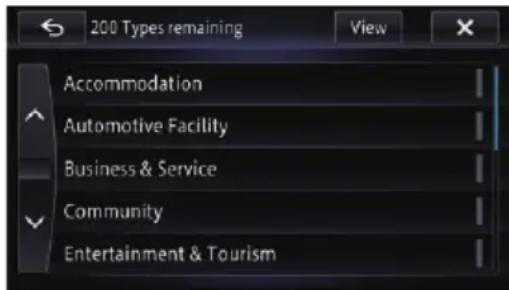
Alistofsubcategoriesundertheselected maincategoryappears.
□Ifyoutouchtheitem,theindicatoronthe rightofthelistturnsonandshowthatthe itemisselected.Ifyoutouchthesame item,theindicatorturnsoffandtheselectioniscancelled.
5Touchthesubcategorytodisplay.
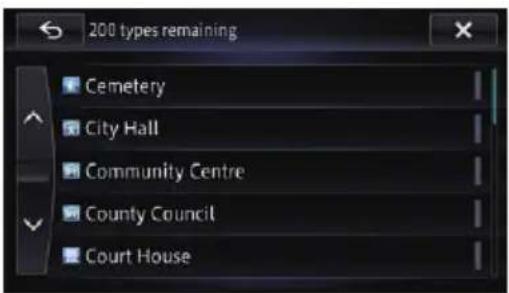
The indicator of these selected POI lights up and you can continue to select the POI.
☐The indicatoralsolightsupwhenseveral POIareselected.Touchingthefacilityagain turnsofftheindicatoranddeselectsthe POI.
☐ToselectanotherPOI,touch ← toreturn totheStep2screenandrepeatStep2and 3.
6Touch.

Thescreenreturnstothemapscreenandthe logooftheselectedPOlappears.
Registeringascale
Youcanregisterascaleforeachmapaccordingtothedisplaymethod.Youcanseethe mapintheregisteredscalebypassingthe MAPbuttonevenifyouswitchtheviewmode.
1Adjustthemapscaletothescaleyou wanttoregister.
2Displaythe"View"screen.
- Fordetailsoftheoperation,refertoSwitchingtheviewmodeonpage34.
3Touch[Savescale].
Aconfirmationmessageappears.
4Touch[Yes].
Theregistrationiscomplete.
![PIONEER AVIC-F850BT - 4Touch[Yes]. - 1](/content/2026/05/761308/images/64b901070eb6072276bedd5d9775dde2af8c33e10da9e508d9bb78930d66a5b0.jpg)
CAUTION
Forsafetyreasons,theseroute-settingfunctions arenotavailablewhileyourvehicleisinmotion. Toenablethesefunctions,youmuststopina safeplaceandputonthehandbrakebeforesettingyourroute.
☐Someinformationregardingtrafficregulationsdependsonthetimewhentheroute calculationisperformed. Thus, the informationmaynotcorrespondwithacertain trafficregulationwhenyourvehicleactually passesthroughthelocationinquestion. Also, the informationonthetrafficregulationsprovidedappliesforapassengervehicle, and not for a truck or other delivery vehicles. Always follow the actual traffic regulations when driving.
Thebasicflowofcreating yourroute
1 Parkyourvehicleinasafeplaceandapply thehandbrake.
2 Displaythe"Destination"screen.
Fordetailsoftheoperations, referto Howtousethenavigationmenuscreens onpage24.
3 Selectthemethodofsearchingforyour destination.
4 Entertheinformationaboutyourdestinationtocalculatetheroute.
5 Confirmthelocationonthemap.
Fordetails, refertoSettingarouteto yourdestinationonpage46.
6 Thenavigationsystemcalculateetheroute toyourdestination, and thenshowsthe routeonthemap.
7 Checkanddecidetheroute.
Fordetails, refertoSettingarouteto yourdestinationonpage46.
8 Yournavigationsystemsetstherouteto yourdestination, andamapofyoursurroundingsappears.
9Releasethehandbrake, and drive in accordance with thenavigation guidance.


Searchingforalocationby address
Themostfrequentlyusedfunctionis"Address",inwhichtheaddressisspecifiedand thedestinationissearched.
You can select them method of searching for a location by address.
- Searchingforastreetnamefirst
- Searchingforacitynamefirst
• Findingthelocationbyspecifyingthepostcode
Searchingforastreetnamefirst
☐Dependingonthesearchresults, some stepsmaybeskipped.
□Whenyouentercharacters,thesystemwill automaticallysearchthedatabaseforall possibleoptions.Onlythecharactersyou enterareactive.
□Ifthesearchcandidatesnumberreaches 20orless,thescreenautomatically changestothesearchresultscreen.
1Displaythe"Destination"screen.
Fordetailsoftheoperations,refertoHowto usethenavigationmenuscreensonpage 24.
2Touch[Address].
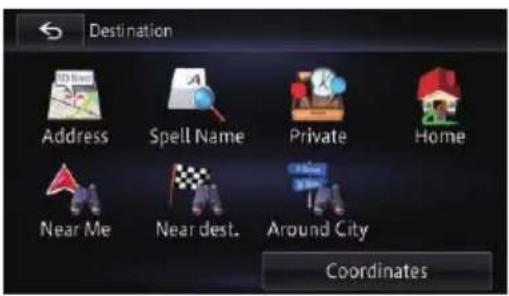
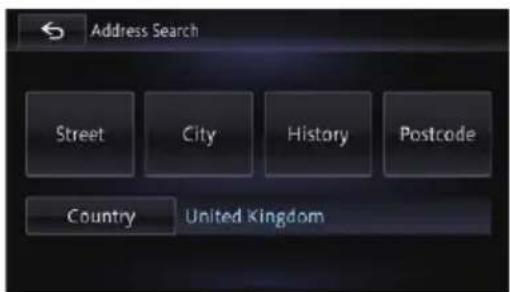
3Touch[Country].
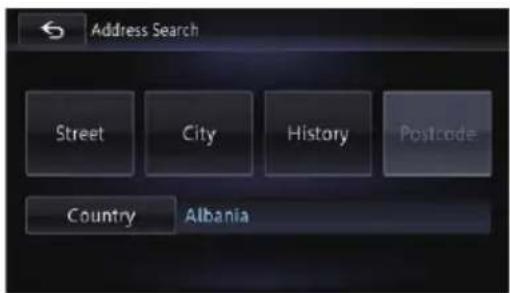
4Touchoneoftheitemsonthelisttoset thecountryasasearcharea.
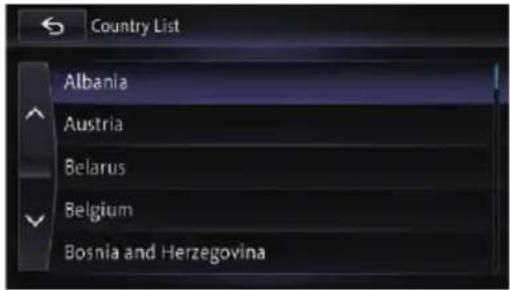
Thescreenreturnstothepreviousscreen.
5Touch[Street].
6Enterthestreetnameandthentouch [OK].
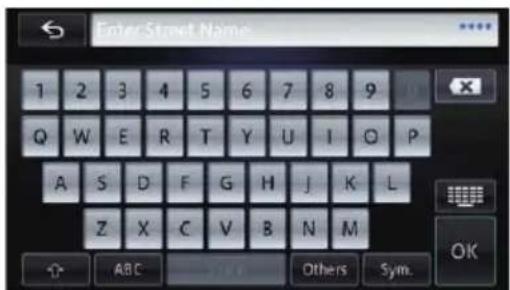
The "Selectastreet" screenappears.
7Touchthestreetyouwant.
Searchingforandselectingallocation
8Enterthecitynameandthentouch [OK].
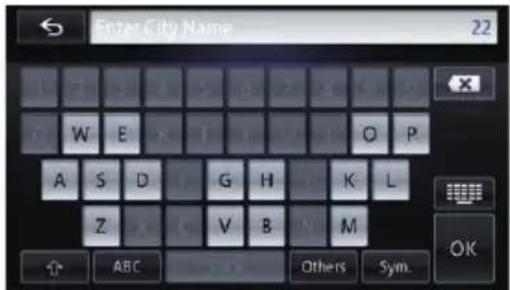
The "SelectCity" screenappears.
9Touchthedesiredcityname.
■Ifyoutouch, the geographic centre of the city appear on themapscreen.
10Enterthehousenumberandthen touch[OK].
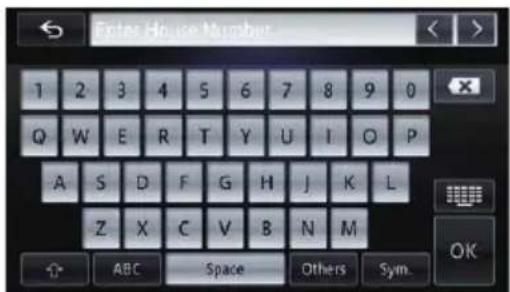
The "Housenumberselection" screenappears.
■Ifyoutouch[OK]withoutenteringthehouse number,arepresentativelocationonthestreetin theselectedcityappears.
11Touchthedesiredhousenumberrange.
Thesearchedlocationappearsonthemap screen.
For subsequent operations, refer to Setting a rout et o your destination on page 46.
Searchingforacitynamefirst
- Depending on these search results, some steps may be skipped. - When you enter characters, the system will automatically search the database for all possible options. Only the characters you enter are active.
□Ifthesearchcandidatesnumberreaches 20orless,thescreenautomatically changestothesearchresultscreen.
1Displaythe"Destination"screen.
Fordetailsoftheoperations,refertoHowto usethenavigationmenuscreensonpage 24.
2Touch[Address].
The "AddressSearch" screenappears.
3Touch[City].
- If you touch [History], the "City History List" screenappears, enabling youtosearch by previously selected city history. - Fordetails, refertoSearching by selected city history on page 41.
4Enterthecitynameandthentouch [OK].
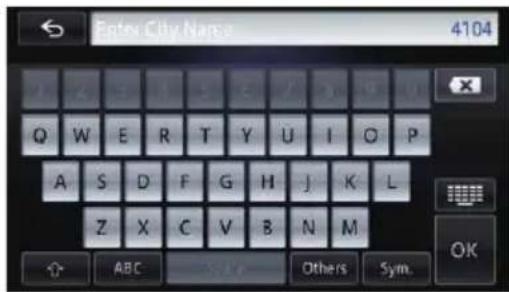
The "SelectCity" screenappears.
5Touchthedesiredcityname.
■Ifyoutouch, thegeographiccentreofthe cityappearsonthemapscreen.
6Enterthestreetnameandthentouch [OK].
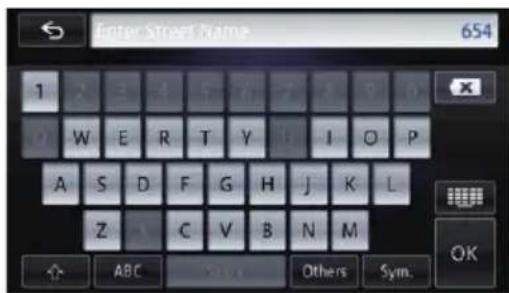
The "Selectastreet" screenappears.
Searchingforandselectingalocation
7Touchthestreetyouwant.
8Enterthehousenumberandthen touch[OK].
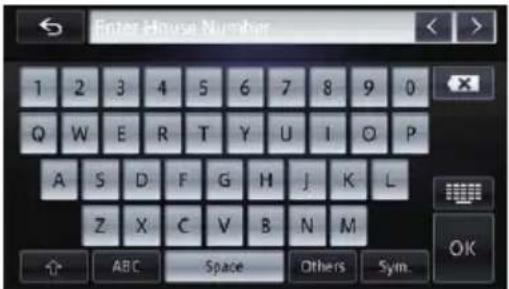
The "Housenumberselection" screenappears.
■Ifyoutouch[OK]withoutenteringthehouse number,arepresentativelocationonthestreetin theselectedcityappears.
9Touchthedesiredhousenumberrange.
Thesearchedlocationappearsonthemap screen.
- For subsequent operations, refertoSetting a routetoyourdestinationonpage46.
Findingyourdestinationby specifyingthepostcode
If you know the postcode of your destination, you can use it to find your destination.
☐Depending on thesearch results, some steps may be skipped.
1Displaythe"Destination"screen.
Fordetailsoftheoperations,refertoHowto usethenavigationmenuscreensonpage 24.
2Touch[Address].
The "AddressSearch" screenappears.
3Touchthekeynextto"Country"todisplaythecountrylist.
4Touchoneoftheitemsonthelisttoset thecountryasasearcharea.
Thescreenreturnstothepreviousscreen.
5Touch[Postcode].
The "EnterPostcode" screenappears.
6Inputthepostcode.
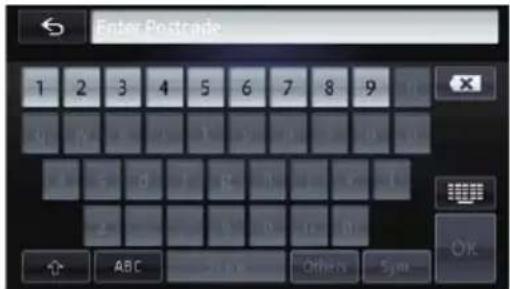
Alistofcitieswiththespecifiedpostcodeis shown(exceptforthefollowingcases).
Britishpostcode:
Thesearched location appear on themap screen.
Netherlandspostcode:
If you input a partial postcode (4 digits) or a complete postcode (6 digits), and touch [OK], alistof cities is shown.
7Touchthecityorareawhereyourdestinationislocated.
■Ifyoutouch, the geographic centre of the city appear on themapscreen.
8Enterthestreetnameandthentouch [OK].
The "Selectastreet" screenappears.
□Ifthereisnohousenumber,thesearched locationappearsonthemapscreen.
9Touchthestreetyouwant.
The "EnterHouseNumber" screenappears.
□Iftheselectedstreethasonlyonematching location,thesearchedlocationappearson themapscreen.
10Enterthehousenumberandthen touch[OK].
The "Housenumberselection" screenappears.
■Ifyoutouch[OK]withoutenteringthehouse number,arepresentativelocationonthestreetin theselectedcityappears.
Searchingforandselectingallocation
11Touchthedesiredhousenumberrange.
Thesearchedlocationappearsonthemap screen.
→Forsubsequentoperations,refertoSetting aroutetoyourdestinationonpage46.
Searchingbyselectedcityhistory
Youcansearchcitiesfromthehistorythatyou havesearchedbyenteringthenamewiththe keyboardandselectedby"Address".
☐Thehistorycanstoreupto100cities.
☐The cities are listed in order of them most recent search.
1Displaythe"Destination"screen.
Fordetailsoftheoperations,refertoHowto usethenavigationmenuscreensonpage 24.
2Touch[Address].
The "AddressSearch" screenappears.
3Touch[History].
The "CityHistoryList" screenappears.
4Touchthedesiredcityname.
■Ifyoutouch, the geographic centre of the city appear on themapscreen.
5Enterthestreetnameandthentouch [OK].
The "Selectastreet" screenappears.
6Touchthestreetyouwant.
The "EnterHouseNumber" screenappears. □Iftheselectedstreethasonlyonematching location,thesearchedlocationappearson themapscreen.
7Enterthehousenumberandthen touch[OK].
The "Housenumberselection" screenappears.
■Ifyoutouch[OK]withoutenteringthehouse number,arepresentativelocationonthestreetin theselectedcityappears.
8Touchthedesiredhousenumberrange.
Thesearchedlocationappearsonthemap screen.
→Forsubsequentoperations,refertoSetting aroutetoyourdestinationonpage46.
Settinguparoutetoyour home
If your homelocation is stored, therout to your home can be calculated by touching a single key.
1Displaythe"Destination"screen.
Fordetailsoftheoperations,refertoHowto usethenavigationmenuscreensonpage 24.
2Touch[Home].
□Ifyouhavenotregisteredyourhomelocation,amessageappears.Touch[Yes] to startregistration.
Fordetails, refertoRegistering your homeonpage133.
SearchingforPointsof Interest(POI)
Informationaboutvariousfacilities(PointsOf Interest–POI),suchaspetrolstations,car parksorrestaurants,isavailable.Youcan searchforaPOIbyselectingthecategory(or enteringthePOIName).
SearchingforaPOIdirectly fromthenameofthefacilities
□Ifthesearchcandidatesnumberreaches 20orless,thescreenautomatically changestothesearchresultscreen.
1Displaythe"Destination"screen.
Fordetailsoftheoperations,refertoHowto usethenavigationmenuscreensonpage 24.
Searchingforandselectingallocation
2Touch[POIName].
The "Spellname" screenappears.
3Touch[Name].
■If you changethe countrytosearch, touch
[Country] and display the "Country List" screen toconfigure.
☐Oncethecountryhasbeenselected, you only havetochangecountrieswhenyour destinationisoutsidethecountryyouselected.
4EnterthePOInameandthentouch [OK].
The "POIList" screenappears.
5TouchthePOIyouwant.
Thesearchedlocationappearsonthemap screen.
■Ifyoutouch[Sort],theorderofPOlcanbe sorted.
☐Thecurrentorderisindicatedontheupper rightofthescreen.
- Bydistance:
Sortstheitemsinthelistinorderbydistancefromthevehicleposition.
- Bycoincidence:
Sortstheitemsinthelistinorderbydegree ofconsistencywiththeenteredtext.
- Byname:
Sortstheitemsinthelistalphabetically, andthelistdisplaycanbeswitchedby switchingthealphabettabs.
For subsequent operations, refer to Setting a rout et your destination on page 46.
SearchingforanearbyPOI
YoucansearchforPOIsinyoursurroundings.
☐Upto50POIswithina160-kilometre(100-mile)radiusofthevehiclepositionare listedinorderbydistance.
1Displaythe"Destination"screen.
Fordetailsoftheoperations,refertoHowto usethenavigationmenuscreensonpage 24.
2Touch[NearMe].
POIsaredividedintoseveralcategories.
☐The"Categoryhistory" screenappears if you have searched for POIs before.
☐Thehistorycanbestoredupto10genres. Youcandeletethestoredhistoriescollectively.
□Ifyouwanttodeletethehistories,touch [DeleteAll].
□Ifyouwanttosearchforagenreotherthan displayed,touch[Other].ThePOllistisdis- played.
3Touchthecategoryyouwant.
The "POIList" screenappears.
□Iftherearemoredetailedcategorieswithin theselectedcategory,repeatthisstepas frequentlyasnecessary.
4TouchthePOIyouwant.
Thesearched location appear on themap screen.
- Forsubsequentoperations, refertoSetting aroutetoyourdestinationonpage46.
SearchingforPOIsaroundthe destination
☐Thisfunctionisavailablewhentherouteis set.
1Displaythe"Destination"screen.
Fordetailsoftheoperations,refertoHowto usethenavigationmenuscreensonpage 24.
2Touch[Nearest.].
POIsaredividedintoseveralcategories.
□The "Categoryhistory" screenappears if you have searched for POIs before.
☐Thehistorycanbestoredupto10genres. Youcandeletethestoredhistoriescollectively.
□Ifyouwanttodeletethehistories,touch [DeleteAll].
□Ifyouwanttosearchforagenreotherthan displayed,touch[Other].ThePOllistisdis- played.
Searchingforandselecting allocation
3Touchthecategoryyouwant.
The "POIList" screenappears.
☐If there are more detailed categories within these selected category, repeat this step as frequently as necessary.
4TouchthePOIyouwant.
Thesearchedlocationappearsonthemap screen.
- Forsubsequentoperations, refertoSetting aroutetoyourdestinationonpage46.
SearchingforPOIsaroundthecity
YoucansearchforPOIsaroundaspecified city.
□Ifthesearchcandidatesnumberreaches 20orless,thescreenautomatically changestothesearchresultscreen.
1Displaythe"Destination"screen.
Fordetailsoftheoperations,refertoHowto usethenavigationmenuscreensonpage 24.
2Touch[AroundCity].
The "AroundCity" screenappears.
3Touch[Country].
The "CountryList" screenappears.
4Touchoneoftheitemsonthelisttoset thecountryasasearcharea.
Thescreenreturnstothepreviousscreen.
5Touch[City].
- If you touch [History], the "City History List" screenappears, enabling youtosearch by previously selected city history.
- Fordetails, refertoSearching by selected cityhistoryonpage41.
6Enterthecitynameandthentouch [OK].
The "SelectCity" screenappears.
7Touchthedesiredcityname.
POIsaredividedintoseveralcategories.
□The"Categoryhistory"screenappearsif youhavesearchedforPOIsbefore.
☐Thehistorycanbestoredupto10genres. Youcandeletethestoredhistoriescollectively.
□Ifyouwanttodeletethehistories,touch [DeleteAll].
□Ifyouwanttosearchforagenreotherthan displayed,touch[Other].ThePOllistisdisplayed.
■Ifyoutouch, thegeographiccentreofthe cityappearsonthemapscreen.
8Touchthecategoryyouwant.
The "POIList" screenappears.
□Iftherearemoredetailedcategorieswithin theselectedcategory,repeatthisstepas frequentlyasnecessary.
9TouchthePOIyouwant.
Thesearchedlocationappearsonthemap screen.
●Forsubsequentoperations, refertoSetting aroutetoyourdestinationonpage46.
Howtoreadthe"POIList"screen
The following information is displayed on the "POIList" screen.
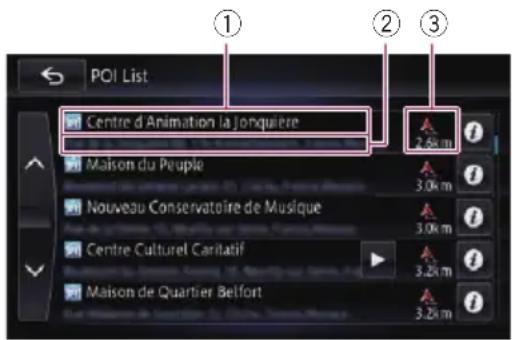
①Facilityname
②Facilityaddress
③Distancefromthepositionthatthesearch starts
□Ifyoutouch,deledinformationofthe facilityappears.
Deletingtheiconsdisplayed aftersearchingforanearbyPOI
AftersearchingforanearbyPOI,theiconsof nearbyfacilitiesappearonthemap.Thefollowingoperationsshowshowtodeletethe icons.
1Displaythe"View"screen.
- Fordetailsoftheoperation,refertoSwitchingtheviewmodeonpage34.
2Touch[Del.searchresults].
Alldisplayediconsaredeleted.
Selectingdestinationfrom storedlocations
Storinglocationsyouvisitfrequently saves timeandeffort.
Selectinganitemfromthelistprovidesan easywaytospecifytheposition.
☐Thisfunctionisnotavailableifnolocations havebeenregisteredin"Stored".
- Fordetails, referto Storingfavouritelocationsonpage52.
1Displaythe"Destination"screen.
Fordetailsoftheoperations,refertoHowto usethenavigationmenuscreensonpage 24.
2Touch[Stored].
Alistofregisteredlocationsappears.
Thesearchedlocationappearsonthemap screen.
For subsequent operations, refer to Setting a routetoyourdestinationonpage46.
Youcanswitchthelistdisplaybetween"Fa-vourites" and "History" by touching the tabs.
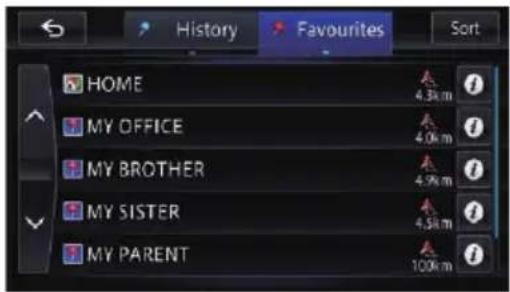
■Ifyoutouch[Sort],youcansorttheentryby followingorder.
- Bydate(default): Sortsthelistinchronologicalorderofregistrationorcallup.
- Bydistance: Sortsthelistinorderbydistancefromthe vehicleposition.
- Byname: Sortsthelistalphabetically.
Selectingalocationyou searchedforrecently
The place that you set as destinations or way-points previously are automatically stored in "History".
□IfnolocationisstoredinDestinationHistory,youcannotselect[History].(Ifyouperformaroutecalculation,youcanselect[History].)
□“History”canstoreupto100locations.If theentriesreachthemaximum,anyfurther entrywilloverwritetheoldestone.
1Displaythe"Destination"screen.
- Fordetailsoftheoperations,refertoHowto usethenavigationmenuscreensonpage 24.
2Touch[Stored].
3Touch[History].
Alistoflocationswhereyouhaveselectedappears.
Searchingforandselectingallocation
Thesearchedlocationappearsonthemap screen.
- Forsubsequentoperations, refertoSetting aroutetoyourdestinationonpage46.
Searchingforalocationby coordinates
Enteringalatitudeandlongitudepinpoints thelocation.
1Displaythe"Destination"screen.
Fordetailsoftheoperations,refertoHowto usethenavigationmenuscreensonpage 24.
2Touch[Coordinates].
3Touch[East]or[West], and thenenter the longitude.
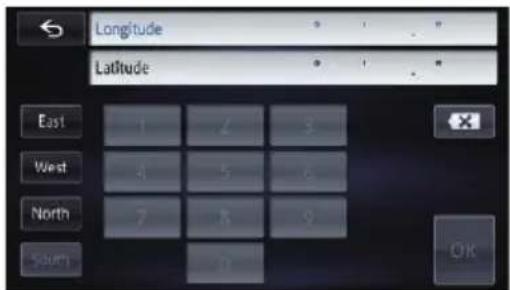
ToenterW50°1'2.5"forexample,touch [West],[0],[5],[0],[0],[1],[0],[2],and[5].
4Touch[North]or[South],andthen enterthelatitude.
To enter N 5°1'2.5" for example, touch [North], [0], [5], [0], [1], [0], [2], and [5].
5Touch[OK].
Thesearchedlocationappearsonthemap screen.
For subsequent operations, refer to Setting a rout to your destination on page 46.
Settingaroutetoyour destination
1Searchforalocation.
Fordetails, referto Chapter4.
Aftersearchingforthedestination,theLocationconfirmationscreenappears.
2Touch[Gohere].
Locationconfirmationscreen
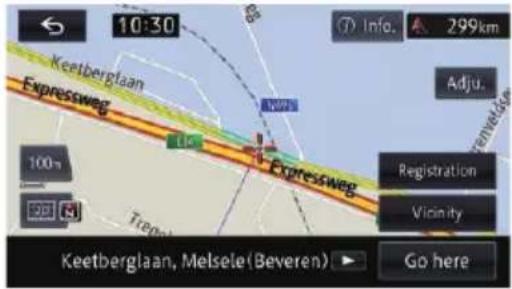
Thedestinationisset, and thentheroute calculation starts.
Whentheroutecalculationiscompleted, the Routeconfirmationscreenappears.
□IfyoupresstheMAPbuttonduringroute calculation, thecalculationiscancelled andthemapscreenappears.
□Iftherouteisalreadyset,thescreenforaskingwhetherthesearchedlocationbecomes thedestinationorawaypointappears.If youtouch[Destination],thecurrentdestinationisdeletedandtheroutetoanew destinationissearched.
Ifyoutouch[Waypoint],therouteforstoppingbythesearchedlocationonthewaytothesamedestinationissearched.
Routeconfirmationscreen
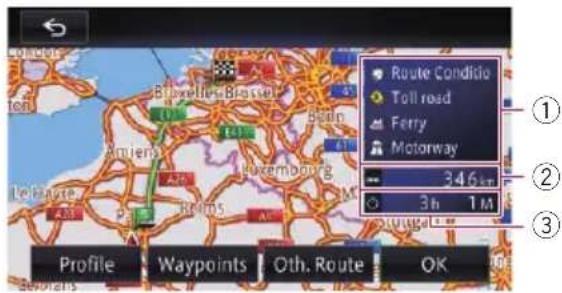
①Routecalculationcondition
②Distancetothedestination
③Traveltimetoyourdestination
- If you touch [Profile], the "Route Profile" screenappears.
Fordetails, referto Checking the current itinerary on page 47.
■ If you touch [Waypoints], the "Waypoints List" screenappears.
- Fordetails,refertoEditingwaypointson page49.
■Whentherearemultipleroutesfollowinga search,[Oth.route]appears.
Ifyoutouch[Oth.route],youcanselectaroute withconditionsthatmaydifferfromthoseofthe currentlyselectedroute.
- Fordetails, refertoDisplaying multiple routesonpage46.
When there is only yoneroute, [Routemap] appears.
Ifyoutouch[Rootemap],theentirerouteisdisplayedononescreen.
☐Ontheroutemapscreen,youcanscrollthe maporchangeitsscale.
Fordetails, refertoScrolling themapto the position you want to see on page 32.
- Fordetails, refertoHowtoreadthemap screenonpage30.
■ Ifyoutouch ← , amessageconfirming whethertocancelthecalculatedrouteappears. Ifyoutouch [Yes], thecalculatedrouteiscancelledandthemapscreenappears.
3Touch[OK].
Thedisplayedrouteissetasyourselected route, and routeguidancestarts.
Displayingmultipleroutes
Youcanselectadesiredroutefrommultiple routeoptions.
□Ifyousetwaypoints,youcannotdisplay multiplieroutes.
1Touch[Oth.route]ontheRouteconfirmationscreen.
Multiplierouteoptionsappear.
2Touch 1 to 6.
Anotherrouteisdisplayed.
3Touch[OK].
Thedisplayedrouteissetasyourselected route, and routeguidancestarts.
Checkingandmodifyingthecurrentroute
Displayingtherouteoverview
☐Therouteoverviewisonlyactivewhenthe routeisset.
1Displaytheeditingroutescreen.
- Fordetailsoftheoperations,refertoHowto usethenavigationmenuscreensonpage 24.
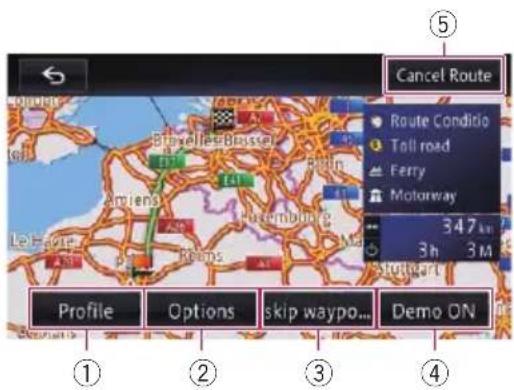
①Profile
Youcanconfirmthesetroute.
- Fordetails, referto Checking the current itinerary on page 47.
②Options
Youcanaddawaypointalongtherouteand settheroutewhichpassesthroughit.You canalsochangesearchcriteria.
- Fordetails, refertoModifyingtheroute calculationconditionsonpage48.
- Fordetails,refertoEditingwaypointson page49.
③skipwaypt.
If youonlongerneedtostopbytheregisteredwaypoint, youcansearcharoute againbysupposingthatyouhavealready passedthewaypoint.
- Fordetails,refertoSkippingawaypoint onpage50.
④DemoON
Youcan confirm their route from the demonstration of the driving of the route from the starting point and final destination.
- Fordetails, refer to Using the demonstration guidance on page 50.
DemoOFF
While the demonstration guidance is running, [DemoOFF] appears. Touching the key finish the demonstration guidance.
⑤CancelRoute
Youcandeletethecurrentroute.
- Fordetails,refertoCancellingtheroute guidanceonpage51.
2Touchtheitemthatyouwanttore-fine.
Checking the current itinerary
Youcanchecktheroutedetails.
1Displaytheeditingroutescreen.
Fordetailsoftheoperations,refertoHowto usethenavigationmenuscreensonpage 24.
2Touch[Profile].
The"RouteProfile" screenappears.
![PIONEER AVIC-F850BT - 2Touch[Profile]. - 1](/content/2026/05/761308/images/6e3a801908e6629c644414c9ef6fac3c508b65001982a240e2d7c81b39a45ff3.jpg)
Checkingandmodifyingthecurrentroute
Modifyingtheroute calculationconditions
You can modify the conditions for route calculation and recalculate the current route.
1Displaytheeditingroutescreen.
- Fordetailsoftheoperations,refertoHowto usethenavigationmenuscreensonpage 24.
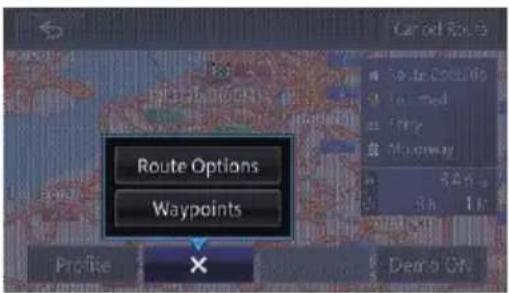
2Touch[Options], andthentouch[Route Options].
The"RouteOptions"screenappears.
■Ifyoutouch, the x-upmenuis disappeared.
3Touchthedesireditemstochangethe routecalculationconditionsandthen touch[OK].
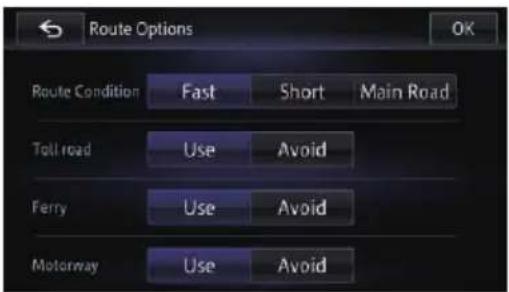
Therouteisrecalculated, and the Routecon- firmationscreenappears.
Itemsthatuserscanoperate
Settingsmarkedwithanasterisk(*)aredefaultorfactorysettings.
RouteCondition
Thissettingcontrolshowtheroutes should be calculated by taking into account the time, distance or main road.
Determines which condition takes priority for route calculation.
Fast\*:
Calculatesaroutewiththeshortesttraveltime toyourdestinationasapriority.
Short:
Calculatesaroutewiththeshortestdistance toyourdestinationasapriority.
MainRoad:
Calculatesaroutethatpassesmajorarterial roadsasapriority.
Tollroad
Thissettingcontrolswhethertollroads(includingtollareas)shouldbetakenintoaccount.
Use\*:
Calculatesaroutethatmayincludetollroads (includingtollareas).
Avoid:
Calculatesaroutethatavoidstollroads(includingtollareas).
☐Thesystemmaycalculatearoutethatin-cludes toll roads even if "Avoid" is selected.
Ferry
Thissettingcontrolswhetherferrycrossings shouldbetakenintoaccount.
Use\*:
Calculatesaroutethatmayincludeferries.
Avoid:
Calculatesaroutethatavoidsferries.
☐Thesystemmaycalculatearoutethatin-cludes ferries even if "Avoid" is selected.
Motorway
Thissetting control whether motorways may be included in the route calculation.
Use\*:
Calculatesaroutethatmayincludemotorways.
Avoid:
Checkingandmodifyingthecurrentroute
Calculatesaroutethatavoidsmotorways.
☐Thesystemmaycalculatearoutethatin-includes motorways even if "Avoid" is selected.
Editingwaypoints
Youcaneditwaypoints(locationsyouwantto visitonthewaytoyourdestination)andrecal-culatetheroutesothatitpassesthrough theselocations.
Addingawaypoint
□Uptofivewaypointscanbeset.
1Displaytheeditingroutescreen.
Fordetailsoftheoperations,refertoHowto usethenavigationmenuscreensonpage 24.
2Touch[Options], andthentouch[Waypoints].
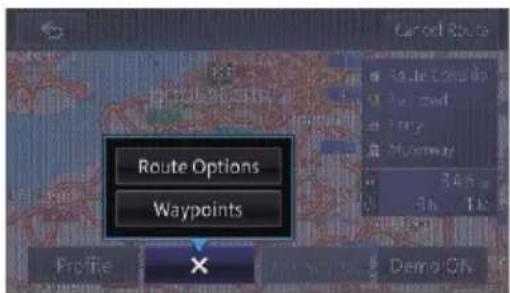
The "Waypoints List" screen appears.
■Ifyoutouch, the pop-upmenuis disappeared.
3Touch[Add].
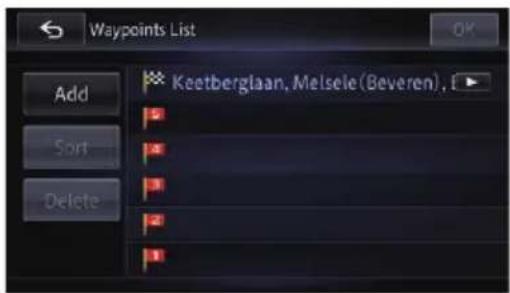
The "Add" screenappears.
4Searchforalocation.
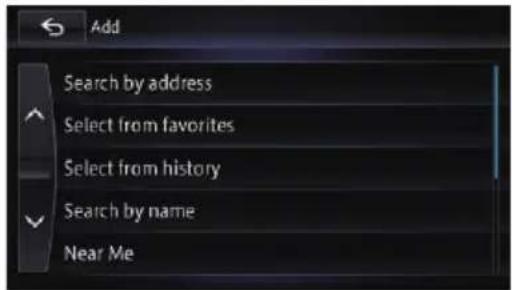
Fordetails, referto Chapter4.
5Touch[OK]onthe"WaypointsList" screen.
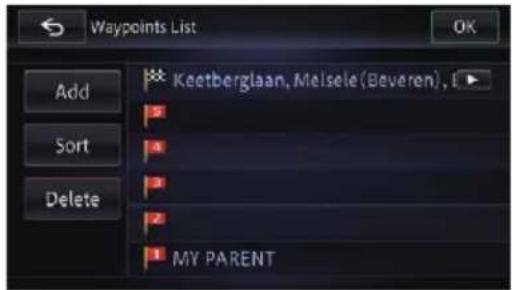
Therouteisrecalculated, andtheRouteconfirmationscreenappears.
6Touch[OK].
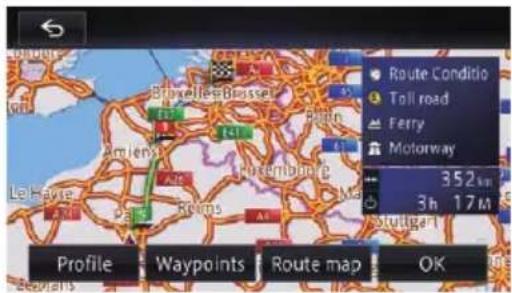
Amapofthecurrentpositionappears.
□Ifyousetwaypoints,youcannotdisplay multiplieroutes.
Deletingawaypoint
Youcandeletewaypointsfromtherouteand thenrecalculatetheroute.(Youcandelete successivewaypoints.)
Checkingandmodifyingthecurrentroute
1Displaytheeditingroutescreen.
→ Fordetailsoftheoperations,refertoHowto usethenavigationmenuscreensonpage 24.
2Touch[Options], andthentouch[Waypoints].
The "WaypointsList" screenappears.
3Touch[Delete].
The "Delete" screenappears.
4Selectthewaypointthatyouwantto delete.
Atickmarkappearsnexttotheselectedwaypoint.
5Touch[Delete].
Amessageconfirmingwhethertodeletethe waypointappears.
6Touch[Yes].
Theselectedwaypointwillbedeletedfromthe list.
7Touch[OK]onthe"WaypointsList" screen.
Therouteisrecalculated, and the Routeconfirmationscreenappears.
8Touch[OK].
Amapofthecurrentpositionappears.
Sortingwaypoints
Youcansortwaypointsandrecalculatethe route.
☐Youcannotsortwaypointsthatyouhaveal-readypassed.
1Displaytheeditingroutescreen.
- Fordetailsoftheoperations,refertoHowto usethenavigationmenuscreensonpage 24.
2Touch[Options], andthentouch[Waypoints].
The "WaypointsList" screenappears.
3Touch[Sort], andthentouch[Manual].
Youcanspecifytheorderofwaypointstosort.
■Ifyoutouch[Automatic], thewaypoints are sorted in the order of the nearest one from the current location.
4Touchthewaypointordestination.
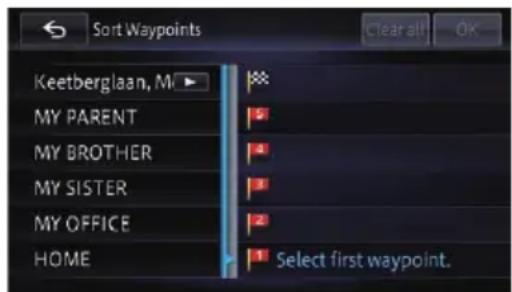
Puttheminthedesiredorder.
5Touch[OK].
The "WaypointsList" screenappears.
6Touch[OK]onthe"WaypointsList" screen.
Therouteisrecalculated, and the Routecon- firmationscreenappears.
7Touch[OK].
Amapofthecurrentpositionappears.
Skippingawaypoint
1Displaytheeditingroutescreen.
- Fordetailsoftheoperations,refertoHowto usethenavigationmenuscreensonpage 24.
2Touch[skipwaypt.].
Thenextwaypointisconsideredtohavealreadybeenpassedthrough,andarouteis searched.
Usingthedemonstration guidance
Youcan confirmtheroutebymakingthenavigationsystemruntothedestinationfromthe pointofdepartureonscreen.
Checkingandmodifyingthecurrentroute
☐The demonstration is repeated, but finishes in the following cases:
- When starting actual driving
- Whensearchingaroute
- Whendeletingroute
- Whenistouched[DemoOFF].
1Displaytheeditingroutescreen.
Fordetailsoftheoperations,refertoHowto usethenavigationmenuscreensonpage 24.
2Touch[DemoON].
3Displaythemapscreen.
Thedemonstrationguidancewillbegin.
→ Fordetailsoftheoperations,refertoHowto usethenavigationmenuscreensonpage 24.
Finishingthedemonstration guidance
1Displaytheeditingroutescreen.
Fordetailsoftheoperations,refertoHowto usethenavigationmenuscreensonpage 24.
2Touch[DemoOFF].
Thedemonstrationguidanceisfinished.
☐Youcanalsofinishthedemonstrationguidancebytouching Demo... andthentouching[Yes]whilethedemonstrationguidance isrunning.
Cancellingtherouteguidance
If you nolongerneed totravel to your destination, follow the steps below to cancel her route guidance.
1Displaytheeditingroutescreen.
- Fordetailsoftheoperations,refertoHowto usethenavigationmenuscreensonpage 24.
2Touch[CancelRoute].
Amessageconfirmingthecancellationofthe currentrouteappears.
3Touch[Yes].
The current route is deleted, and a map of yours surrounding reappears.
☐Youcanalsocanceltheroutebytouching on the "Top Menu" screen.
Registeringandediting locations
Storingfavouritelocations
Storingyourfavouritelocationsas"Favourites"letsyousavethetimeandeffortofre-enteringthisinformation.Storeditemscanbe madeavailableon"Favourites"later. "Favourites"canstoreupto400locations. Homelocationiscountedasoneoftheitems in"Favourites".
1Searchforalocation.
→Fordetailsaboutthesearchmethods,refer toChapter4.
2Whenthemapofthelocationyou wanttoregisterisdisplayed,touch[Registration].
Thelocationisregistered, thelocationname inputscreenappears.
- Fordetails, referto Editing registered location on page 52.
3Touch[OK].
Theregistrationiscomplete.
Editingregisteredlocations
1Displaythe"Edit/Settings"screen.
Fordetailsoftheoperations,refertoHowto usethenavigationmenuscreensonpage 24.
2Touch[EditData].
The "EditData" screenappears.
3Touch[Editfavorite].
The "EditFavourite" screenappears.
4Touch[Edit].
The "EditFavourite" screenappears.
□Homelocationisdisplayonthetopof thelist.
5Touchthelocationthatyouwantto edit.
6Touchtheitemyouwanttoconfigure.
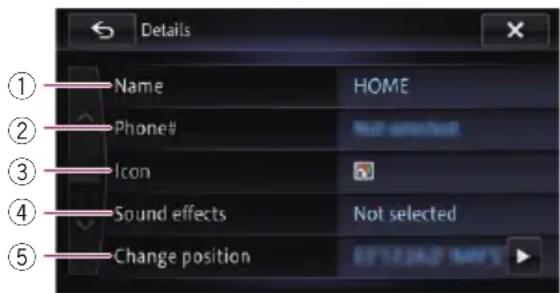
①Name
Youcanenterthedesiredname.
☐Upto40 characterscanbeinputforthe name.
②Phone#
Youcanedittheregisteredphonenumber. Themaximumdigitsyoucanenterforthe phonenumberis24.
③Icon
Youcanchangethesymboldisplayedon themapandthe"EditFavourite"screen.
④Soundeffects
Youcaneditthesoundeffectsofregistered locations.
⑤Changeposition
Youcanchangetheregisteredlocationby scrollingthemap.
7Touch.

Theregistrationiscomplete.
Deletingafavouritelocation fromthelist
1Displaythe"Edit/Settings"screen.
- Fordetailsoftheoperations,refertoHowto usethenavigationmenuscreensonpage 24.
2Touch[EditData].
The "EditData" screenappears.
3Touch[Editfavorite].
The "EditFavourite" screenappears.
Editingthedataontheuseofnavigationfunction
4Touch[Delete].
5Selectthelocationyouwanttodelete.
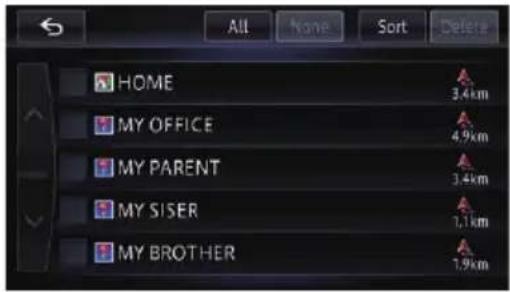
Atickmarkappearsnexttotheselectedlocation.
■Ifyoutouch[All],youcanselectallentries.If youwanttodeselectallentries,touch[None].
6Touch[Delete].
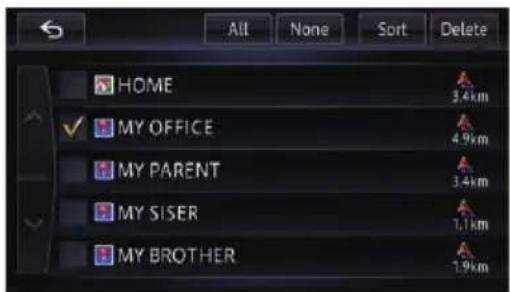
Thedatayouselectedisdeleted.
■Ifyoutouch[No], thedeletioniscancelled.
Deleting the destination history from the list
Itemsin"History"canbedeleted.Allentries in"History"canbedeletedcollectively.
1Displaythe"Edit/Settings"screen.
Fordetailsoftheoperations,refertoHowto usethenavigationmenuscreensonpage 24.
2Touch[EditData].
The "EditData" screenappears.
3Touch[Deletesearchhistory].
The "History" screenappears.
4Selectthelocationyouwanttodelete.
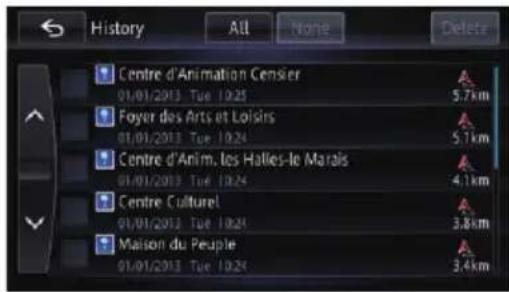
Atickmarkappearsnexttotheselectedlocation.
■Ifyoutouch[All],youcanselectallentries.If youwanttodeselectallentries,touch[None].
5Touch[Delete].
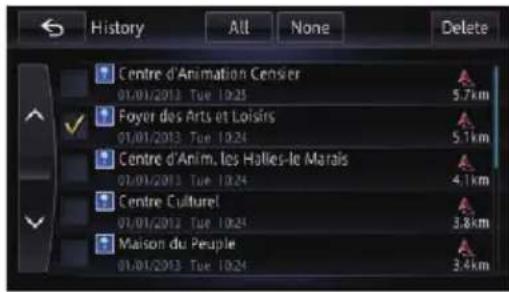
Amessagewillappearaskingyoutoconfirm thedeletion.
6Touch[Yes].
Thedatayouselectedisdeleted.
■Ifyoutouch[No], thedeletioniscancelled.
![PIONEER AVIC-F850BT - 6Touch[Yes]. - 1](/content/2026/05/761308/images/ae8a6285c03663ea9c068bfe44c76e6214b42b6849c60fa4f2398658c2705ce9.jpg)
Deletinglearnedroutes
The device learnsthestreetsyouoftenuse, and the learned streets are preferentially used during a route search. To change afrequently used street, delete the learned route and let the device learnit again.
☐Pleasenotethatallthelearnedrouteswill bedeleted.
1Displaythe"Edit/Settings"screen.
- Fordetailsoftheoperations,refertoHowto usethenavigationmenuscreensonpage 24.
2Touch[EditData].
The "EditData" screenappears.
3Touch[Deletelearnedroutes].
Aconfirmationmessageappears.
4Touch[Yes].
Deletesthelearnedroutes.
Deletingtracklogs
Youcandeletetracklogsdisplayedonthe mapscreen.
☐Youcanalsoautomaticallydeletetrack logs.
1Displaythe"Edit/Settings"screen.
- Fordetailsoftheoperations,refertoHowto usethenavigationmenuscreensonpage 24.
2Touch[EditData].
The "EditData" screenappears.
3Touch[Deletetravellog].
Aconfirmationmessageappears.
4Touch[Yes].
Deletesthetracklog.
Usingtrafficinformation
Youcancheckreal-timetrafficinformation transmittedbytheTrafficMessageChannel (TMC)oftheFMRadioDataSystem(RDS)on screen. Thetrafficinformationisupdatedperiodically. Whenthenavigationsystemreceives updatedtrafficinformation, thenavigationsystemwillshowitonmapanddisplaydetailed textinformationwhenavailable. Whenyoureceiveinformationconcerningtrafficincidents onyourroute, thesystemwillsuggestanother routetoavoidtrafficjams.
☐ Thesystemacquiresthetrafficinformation withinaradiusofupto150kmfromthevehicleposition.(Ifthereisalotoftrafficinformationaroundyourvehicle,theradius willbeshorterthan150km.)
☐Thenavigationsystemprovidesthefollowingfunctionsbyusingtheinformation fromRDS-TMCservice:
- Displayingalistoftrafficinformation
- Displayingtrafficinformationonamap
- Suggestingaroutetoavoidtrafficjams byusingtrafficinformation
☐ The term "traffic jam" in this section refers to the following types of traffic information: slow and queuing traffic, stationary traffic and closed/blocked roads. This information is always taken into consideration when checking your route, and the information related to these events cannot be turned off.
Checkingalltraffic information
Trafficinformationisdisplayedonascreenin theformofalist. This allowsyoutocheckhow manytrafficincidentshaveoccurred, their location and their distance from your current position.
1Displaythe"Information"screen.
Fordetailsoftheoperations,refertoHowto usethenavigationmenuscreensonpage 24.
2Touch[TrafficInformation].
The "Traffic information menu" screen appears.
3Touch[Nearbyincidents].
The "Nearby" screenappears.
Alistwithreceivedtrafficinformationis shown.
4Selectanincidentyouwanttoviewin detail.
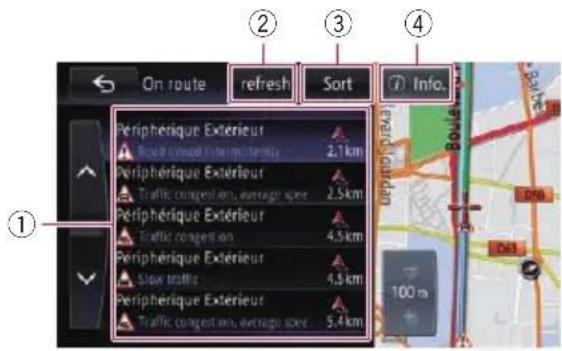
①Listediterr
Thedetailsoftheselectedincidentaredis-played.
②Refresh
Ifyoutouch[Refresh]whilenewtrafficinformationisreceived, thecurrentinformationisupdatedandoldinformationisremoved. Thetrafficinformationlistisupdatedtoreflectthenewsituation.
③Sort
Touchingthekeydisplaysthefollowing pop-upmenutosortthetrafficinformation.
- Bydistance:
Youcansorttrafficinformationbydistancefromyourcurrentposition. Whenyoutouch[Nearbyincidents], thelistdisplayedwillbesortedaccordingtothelineardistancefromthevehiclepositiontothetrafficinformation. Whenyoutouch[Trafficonroute], the listdisplayedwillbesortedaccordingtothedistancefromthevehiclepositiontothetrafficinformation.
- Byname:
Youcansortthetrafficinformationinal-phabeticalorder.
Usingtrafficinformation
- Byevent:
Youcansortthetrafficinformationaccordingtotheincident.
Thelistwillbesortedintheorderof closed/blockedroads,trafficjams,accidents,roadworksandothers.

Thedetailsoftheselectedincidentaredisplayed.
5Touch.
Theprevioussscreenreturns.
Checkingtraffic informationontheroute
Alltrafficinformationonthecurrentrouteis displayedonscreeninalist.
1Displaythe"Information"screen.
- Fordetailsoftheoperations,refertoHowto usethenavigationmenuscreensonpage 24.
2Touch[TrafficInformation].
The "Traffic information menu" screen appears.
3Touch[Trafficonroute].
The "Onroute" screenappears. Themethodforcheckingthecontentdisplayedonthescreenisthesameas "Nearby" screen.
Fordetails, referto Checking all traffic information on page 55.
Howtoreadtraffic informationonthemap
Thetrafficeventinformationdisplayedonthe mapisasfollows.
☐Alineisdisplayedonlywhenthemapscale is5km(2.5miles)orlower.
□Iconsappearonlywhenthescaleonthe mapis20km(10miles)orlower.Ifthe
scaleischanged, theiconsareresized according to theselected scale.
Trafficeventicon
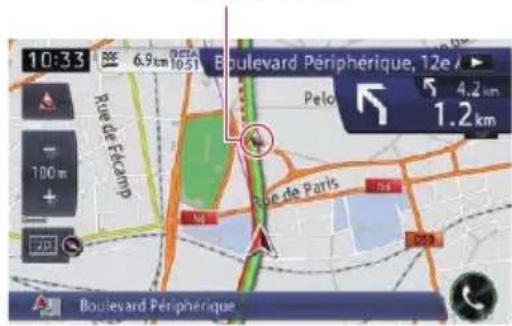
- with yellowline:
Slowandqueuingtraffic
- withredline:
Stationarytraffic
- withblackline:
Closed/blockedroads
• etc.:
Accidents, constructions, etc.
Settinganalternative routetoavoidtrafficjams
Ifthenavigationsystemdetectsanytraffic jamsonyourcurrentroute,thesystemtriesto findabetterrouteinthebackground.
☐Thisfunctionisavailablewhenboth "Traf- fic avoidance" and "Auto reroute" are set to"On".
- Fordetails, refertoSettingtheroutealternativesfunctiontoavoidtrafficjams andclosed/blockedroadsonpage141.
☐The following types of traffic incidents on therout will be checked for: slow, queuing and stationary traffic, and closed/blocked roadsexcept for closed motorway exits/entrances.
Checkingfortrafficjams automatically
If there is information about traffic jamson your current route and if an alternative route can be found, then navigation system will recommend an new alternative route automatically. Ins such a case, the following screen will appear.
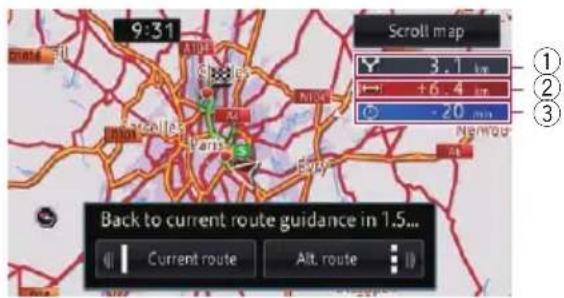
①Distancefromthecurrentpositionofyourvehicletothepointofentryintothenewroute.
②Differenceindistancebetweentheexisting routeandnewroute.
③Differenceintraveltimebetweentheexisting routeandnewroute.
☐Noactionistakenifthesystemcannotfind anytrafficjaminformationonyourrouteor cannotfindanalternative.
- Touch[Alt.route].
Therecommendedrouteissetasyourroute, andtherouteguidancestarts.
☐Whennoselectionismade,therecommendedrouteorthecurrentroutewillbe automaticallyselectedaccordingtothesettings.Andtherouteguidancestarts.
→Fordetails, refertoSettingtoselect your route automatically using theroutealternatives function on page 141.
■ Ifyoutouch[Currentroute]whiletherecommendedrouteisdisplayed,thescreenswitches tothecurrenttroutedisplayed,androuteguidancestarts.
■Ifyoutouch[Scrollbar],youcanswitchthe mapscaleorthemaporientationandconfirm theroute.
SelectingthepreferredRDS-TMCserviceprovidermanually
AdefaultpreferredTMCserviceproviderfor eachcountryhasbeenset.ThenavigationsystemtunestotheradiostationwithgoodreceptionamongthepreferredRDS-TMCservice providers.Ifyouwanttosetanotherpreferred RDS-TMCserviceprovider,youcanmanually selectonefromtheavailableRDS-TMCservice providers.
1Displaythe"Information"screen.
Fordetailsoftheoperations,refertoHowto usethenavigationmenuscreensonpage 24.
2Touch[TrafficInformation].
The "Traffic information menu" screen appears.
3Touch[TMCProviderSelection].
4Touchthedesiredserviceprovideron thelist.
Aftertouchingaserviceprovider, the system startstuningtotheselectedRDS-TMCservice provider. Whenthetuningissuccessful, the systemreturnstothemapdisplay.
RegisteringandconnectingaBluetoothdevice
If your devices feature Bluetooth ^ technology, this navigationsystem can be connected to your devices wirelessly. This section describes how to setup a Bluetooth connection.
Fordetailsabouttheconnectivitywiththede- vicesfeaturingBluetoothwirelesstechnology, refertotheinformationonourwebsite.
Preparingcommunication devices
This navigation system has been built-in function to use devices featuring Bluetooth wireless technology.
- Fordetails, referto Notes for hands-free phoning on page 75.
Youcanregisterandusedevicesthatfeature thefollowingprofileswiththisnavigationsystem.
• HFP(Hands-FreeProfile)
• A2DP(AdvancedAudioDistributionProfile)
- SPP(SerialPortProfile)
☐Whenthenavigationsystemisturnedoff, theBluetoothconnectionisalsodisconnected. Whenthesystemrestarts, thesystemautomaticallyattemptstoreconnect thepreviously-connecteddevice. Even whentheconnectionisseveredforsome reason, thesystemautomatically reconnectsthespecifieddevice (exceptwhenthe connectionisseveredduetodeviceoperation).
RegisteringyourBluetooth devices
Youneedtoregisteryourdevicesfeaturing Bluetoothwirelesstechnologywhenyouconnectitforthefirsttime.Atotalof5devices canberegistered.Tworegistrationmethods areavailable:
- SearchingfornearbyBluetoothdevices
• PairingfromyourBluetoothdevices
□Ifyoutrytoregistermorethan5devices, thesystemwillaskyoutoselectoneofthe registereddevicestodelete.
- Fordetails, refertoDeleting are registered device on page 65.
SearchingfornearbyBluetooth devices
ThesystemsearchesforavailableBluetooth devicesnearthenavigationsystem, displays theminalist, and registersthemforconnection.
ForiPodwith30-pinconnectorusers
1ActivatetheBluetoothwirelestechnologyonyourdevices.
ForsomeBluetoothdevices,nospecific-action isnecessarytoactivateBluetoothwireless technology.Fordetails,refertotheinstruction manualofyourdevices.
2Displaythe"Phone"screen.
- Fordetailsoftheoperations,refertoHowto usethenavigationmenuscreensonpage 24.
3Touch[BluetoothSettings].
The "BluetoothSettings" screenappears.
4Touch[Registration].
The "Devicelist" screenappears. ThesystemsearchesforBluetoothdevices waitingfortheconnectionanddisplaythem inthelistifadeviceisfound.
☐Upto10deviceswillbelistedintheorder thatthedevicesarefound.
RegisteringandconnectingaBluetoothdevice
5WaituntilyourBluetoothdeviceappearsinthelist.
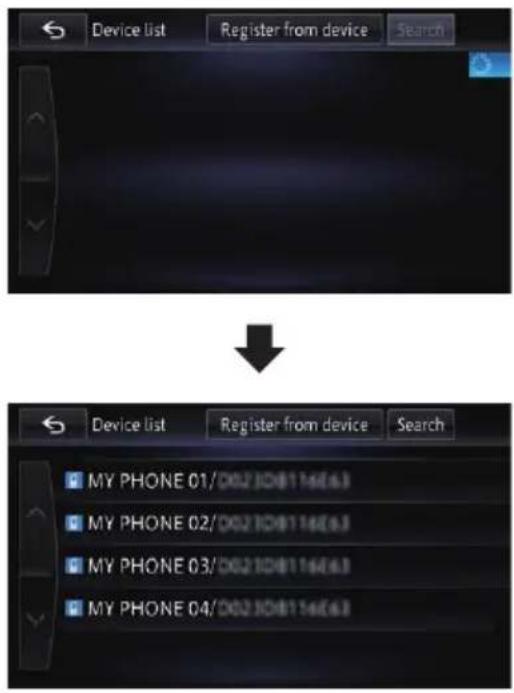
If you cannot find the Bluetooth device that you want to connect, check that the device is waiting for the Bluetooth wireless technology connection.
6TouchtheBluetoothdevicenameyou wanttoregister.
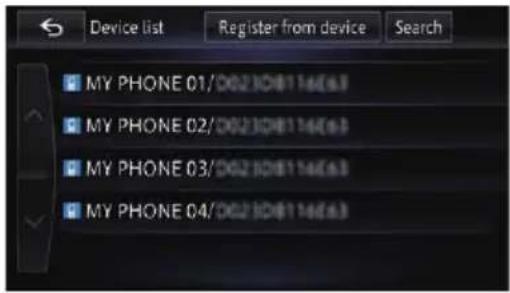
■Ifyoutouch[Search],thesystemstarts searchingforBluetoothdeviceswaitingforconnection,anddisplaystheminthelistformat whenanydevicesaredetected.
7Pairthisnavigationsystemwithyour Bluetoothdevice.
WhentheBluetoothdeviceconnectstothis productforthefirsttime,apairingoperation isneededtospecifythedevicetoconnect. Howthepairingisperformedvariesdepend-
ingontheBluetoothdevice.Performpairing accordingtothescreeninstructionsforthis productorBluetoothdevice.Refertotheinstructionmanualofyourdevicestoregister (registrationandauthenticationofdevice). Afterregistering, a confirmationmessageappears.
8Touch[OK].
Theregistrationiscomplete, and the device is connected asahands-freephone.
YoucanperformthefollowingsettingdependingontheBluetoothdeviceregistered.
• Transferring the phonebook
Youcantransfer the phonebook to then navigation system if theregistered Bluetooth device features PBAP (PhoneBookAccess Profile).
Ifyoutouch[Yes],youcantransferthe wholephonebooktothenavigationsystem, andthenthemessagethattransferisfinishedappears.
- SelectingwhethertousetheBluetooth audio
Youcanselectwhethertousethe Bluetoothaudiofunctioniftheregistered BluetoothdevicefeaturesBluetoothaudio.
Themessage "IsthisAndroid?" appears.
9Touch[No].
Themessage "Isthisdeviceequippedwitha DigitalAVConnector?" appears.
10Touch[No].
The device is registered in the navigation system. After the device is successfully registered, the Bluetooth connection is established from the navigation system.
RegisteringandconnectingaBluetoothdevice
ForiPodwithLightningconnectorusers
□OnlytheiPodwithLightningconnectorcan performtheiPhonecooperationfunction (AppRadioModeandaha) viaBluetooth wirelesstechnology.
1ActivatetheBluetoothwirelestechnologyyourdevices.
ForsomeBluetoothdevices,nospecific-action isnecessarytoactivateBluetoothwireless technology.Fordetails,refertotheinstruction manualofyourdevices.
2Displaythe"Phone"screen.
→Fordetailsoftheoperations,refertoHowto usethenavigationmenuscreensonpage 24.
3Touch[BluetoothSettings].
The "BluetoothSettings" screenappears.
4Touch[Registration].
The "Devicelist" screenappears.
ThesystemsearchesforBluetoothdevices waitingfortheconnectionanddisplaythem inthelistifadeviceisfound.
☐Upto10deviceswillbelistedintheorder thatthedevicesarefound.
5WaituntilyourBluetoothdeviceappearsinthelist.

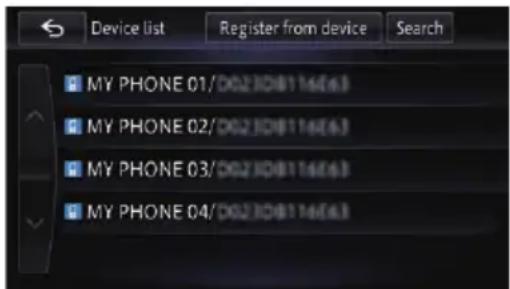
□If you cannot find the Bluetooth device that you want to connect, check that the device is waiting for the Bluetooth wireless technology connection.
6TouchtheBluetoothdevicenameyou wanttoregister.
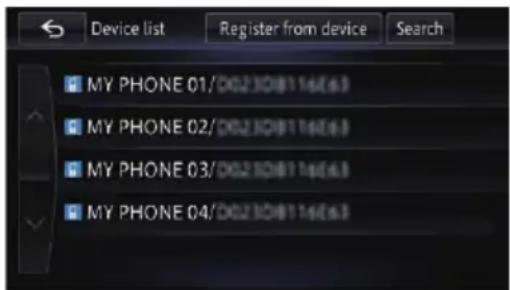
■Ifyoutouch[Search],thesystemstarts searchingforBluetoothdeviceswaitingforconnection,anddisplaystheminthelistformat whenanydevicesaredetected.
7Pairthisnavigationsystemwithyour Bluetoothdevice.
WhentheBluetoothdeviceconnectstothis productforthefirsttime,apairingoperation isneededtospecifythedevicetoconnect. HowthepairingisperformedvariesdependingontheBluetoothdevice.Performpairing accordingtothescreeninstructionsforth this productorBluetoothdevice.Refertotheinstructionmanualofyourdevicestoregister (registrationandauthenticationofdevice). Afterregistering,aconfirmationmessageappears.
8Touch[OK].
Theregistrationiscomplete, and the device is connected asahands-freephone. You can perform the following setting depending on the Bluetooth device registered.
RegisteringandconnectingaBluetoothdevice
• Transferring the phonebook
Youcantransfer the phonebook to then navigation system if theregistered Bluetooth device features PBAP (Phone Book Access Profile).
Ifyoutouch [Yes], you can transfer the whole phone book to then navigation system, and then them message that transfer is finished appears.
- SelectingwhethertousetheBluetooth audio
Youcanselectwhethertousethe Bluetoothaudiofunctioniftheregistered BluetoothdevicefeaturesBluetoothaudio.
Themessage"IsthisAndroid?"appears.
9Touch[No].
Themessage "Isthisdeviceequippedwitha DigitalAVConnector?" appears.
10Touch[Yes].
Themessage"DoyouwanttosetthisdevicefortheAppRadioMode?"appears.
11Touch[Yes]ifyouusetheAppRadio Modewithadeviceyouregistered.
• Yes:
Allowsyoutoproceedtothenextstep.
• No:
The device is registered in the navigation system. After the device is successfully registered, the Bluetooth connection is established from the navigation system.
12Touch[OK].
ForBluetoothdevice(otherthan iPod)users
□OnlytheAndroiddevicecanperformthe smartphonecooperationfunction (AppRadioModeandaha) via Bluetooth wirelesstechnology.
1ActivatetheBluetoothwirelestechnologyonyourdevices.
ForsomeBluetoothdevices,nospecific-action isnecessarytoactivateBluetoothwireless
technology.Fordetails,refertotheinstruction manualofyourdevices.
2Displaythe"Phone"screen.
Fordetailsoftheoperations,refertoHowto usethenavigationmenuscreensonpage 24.
3Touch[BluetoothSettings].
The "BluetoothSettings" screenappears.
4Touch[Registration].
The "Devicelist" screenappears. ThesystemsearchesforBluetoothdevices waitingfortheconnectionanddisplaythem inthelistifadeviceisfound.
☐Upto10deviceswillbelistedintheorder thatthedevicesarefound.
5WaituntilyourBluetoothdeviceappearsinthelist.

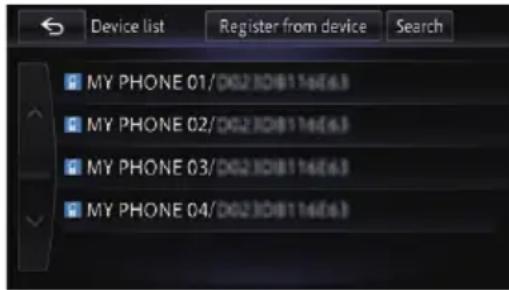
□If you cannot find the Bluetooth device that you want to connect, check that the device is waiting for the Bluetooth wireless technology connection.
RegisteringandconnectingaBluetoothdevice
6TouchtheBluetoothdevicenameyou wanttoregister.
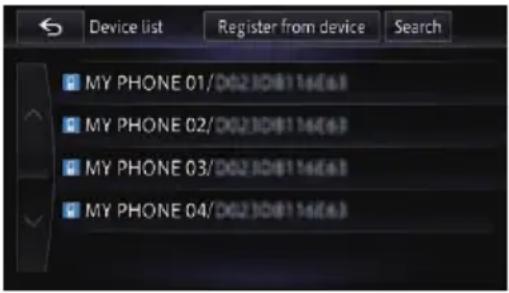
■Ifyoutouch[Search], thesystemstarts searching for Bluetooth devices waiting for connection, and display the theminthelist format when any devices are detected.
7Pairthisnavigationsystemwithyour Bluetoothdevice.
WhentheBluetoothdeviceconnectstothis productforthefirsttime,apairingoperation isneededtospecifythedevicetoconnect. HowthepairingisperformedvariesdependingontheBluetoothdevice.Performpairing accordingtothescreeninstructionsforth this productorBluetoothdevice.Refertotheinstructionmanualofyourdevicestoregister (registrationandauthenticationofdevice). Afterregistering,aconfirmationmessageappears.
8Touch[OK].
Theregistrationiscomplete, and the device is connected asahands-freephone. You can perform the following settings depending on the Bluetooth device is registered.
• Transferring the phonebook
Youcantransfer the phonebook to then navigation system if theregistered Bluetooth device features PBAP (PhoneBookAccess Profile). Ifyoutouch [Yes], you can transfer the whole phonebook to then navigation system, and thenthemessagethattransferis finished appears.
- SelectingwhethertousetheBluetooth audio
Youcanselectwhethertousethe
Bluetoothaudiofunctioniftheregistered
BluetoothdevicefeaturesBluetoothaudio.
Themessage“IsthisAndroid?”appears.
9Touch[Yes]iftheBluetoothdeviceyou connectedisanAndroiddevice.
• Yes:
Allowsyoutoproceedtothenextstep.
• No:
The device is registered in the navigation system. After the device is successfully registered, the Bluetooth connection is established from the navigation system.
□OnlytheAndroiddevicecanperform thesmartphonecooperationfunction
(AppRadioModeandaha)via
Bluetoothwirelesstechnology.
Themessage"DoyouwanttosetthisdevicefortheAppRadioMode?"appears.
10Touch[Yes]ifyouusetheAppRadio Modewithadeviceyouregistered.
• Yes:
Allowsyoutoproceedtothenextstep.
• No:
The device is registered in the navigation system. After the device is successfully registered, the Bluetooth connection is established from the navigation system.
11Touch[OK].
PairingfromyourBluetooth devices
YoucanregistertheBluetoothdevicebysettingthenavigationsystemtostandbymode andrequestingconnectionfromtheBluetooth device.
RegisteringandconnectingaBluetoothdevice
ForiPodwith30-pinconnectorusers
1ActivatetheBluetoothwirelestechnologyonyourdevices.
ForsomeBluetoothdevices,nospecific-action isnecessarytoactivateBluetoothwireless technology.Fordetails,refertotheinstruction manualofyourdevices.
2Displaythe"Phone"screen.
Fordetailsoftheoperations,refertoHowto usethenavigationmenuscreensonpage 24.
3Touch[BluetoothSettings].
The "BluetoothSettings" screenappears.
4Touch[Registration].
The "Devicelist" screenappears.
5Touch[Registerfromdevice].
ThenavigationsystemwaitsforaBluetooth wirelessstechnologyconnection.
6Registerthenavigationsystemonyour Bluetoothdevice.
If your device asks you to enter a password, enter the password of then navigation system. When the device is successfully registered, the connection settings are made from the device.
□Ifregistrationfails,repeattheprocedure fromthebeginning.
7Touch[OK].
Theregistrationiscomplete, and the device is connected asahands-freephone. You can perform the following setting depending on the Bluetooth deviceeregistered.
• Transferring the phonebook
Youcantransfer the phonebook to then navigation system if there registered Bluetooth device features PBAP (Phone Book Access Profile).
Ifyoutouch [Yes], you can transfer the whole phone book to then navigation system, and then them message that transfer is finished appears.
- SelectingwhethertousetheBluetooth audio
Youcanselectwhethertousethe Bluetoothaudiofunctioniftheregistered BluetoothdevicefeaturesBluetoothaudio.
Themessage "IsthisAndroid?" appears.
8Touch[No].
Themessage "Isthisdeviceequippedwitha DigitalAVConnector?" appears.
9Touch[No].
The device is registered in the navigation system. After the device is successfully registered, the Bluetooth connection is established from the navigation system.
ForiPodwithLightningconnectorusers
□OnlytheiPodwithLightningconnectorcan performtheiPhonecooperationfunction (AppRadioModeandaha) via Bluetooth wirelesstechnology.
1ActivatetheBluetoothwirelestechnologyonyourdevices.
ForsomeBluetoothdevices,nospecific-action isnecessarytoactivateBluetoothwireless technology.Fordetails,refertotheinstruction manualofyourdevices.
2Displaythe"Phone"screen.
Fordetailsoftheoperations,refertoHowto usethenavigationmenuscreensonpage 24.
3Touch[BluetoothSettings].
The "BluetoothSettings" screenappears.
4Touch[Registration].
The "Devicelist" screenappears.
5Touch[Registerfromdevice].
ThenavigationsystemwaitsforaBluetooth wirelessstechnologyconnection.
6Registerthenavigationsystemonyour Bluetoothdevice.
If your device asks you to enter a password, enter the password of then navigation system. When the device is successfully registered, the connection settings are made from the device.
□Ifregistrationfails,repeattheprocedure fromthebeginning.
7Touch[OK].
Theregistrationiscomplete, and the device is connected asahands-freephone.
RegisteringandconnectingaBluetoothdevice
YoucanperformthefollowingsettingdependingontheBluetoothdeviceregistered.
• Transferring the phonebook
Youcantransfer the phonebook to then navigation system if there registered Bluetooth device features PBAP (Phone Book Access Profile).
Ifyoutouch[Yes],youcantransferthe wholephonebooktothenavigationsystem, andthenthemessagethattransferisfinishedappears.
- SelectingwhethertousetheBluetooth audio
Youcanselectwhethertousethe
Bluetoothaudiofunctioniftheregistered
BluetoothdevicefeaturesBluetoothaudio.
Themessage"IsthisAndroid?"appears.
8Touch[No].
Themessage "Isthisdeviceequippedwitha DigitalAVConnector?" appears.
9Touch[Yes].
Themessage“DoyouwanttosetthisdevicefortheAppRadioMode?”appears.
10Touch[Yes]ifyouusetheAppRadio Modewithadeviceyouregistered.
• Yes:
Allowsyoutoproceedtothenextstep.
• No:
The device is registered in the navigation system. After the device is successfully registered, the Bluetooth connection is established from the navigation system.
11Touch[OK].
ForBluetoothdevice(otherthan iPod)users
OnlytheAndroiddevicecanperformthe smartphonecooperationfunction (AppRadioModeandaha) viaBluetooth wirelesstechnology.
1ActivatetheBluetoothwirelestechnologyonyourdevices.
ForsomeBluetoothdevices,nospecific-action isnecessarytoactivateBluetoothwireless technology.Fordetails,refertotheinstruction manualofyourdevices.
2Displaythe"Phone"screen.
Fordetailsoftheoperations,refertoHowto usethenavigationmenuscreensonpage 24.
3Touch[BluetoothSettings].
The "BluetoothSettings" screenappears.
4Touch[Registration].
The "Devicelist" screenappears.
5Touch[Registerfromdevice].
ThenavigationsystemwaitsforaBluetooth wirelesstechnologyconnection.
6Registerthenavigationsystemonyour Bluetoothdevice.
If your device asks you to enter a password, enter the password of then navigation system. Whenthe device is successfully registered, the connection settings are made from the device.
□Ifregistrationfails,repeattheprocedure fromthebeginning.
7Touch[OK].
Theregistrationiscomplete, and the device is connected asahands-freephone. You can perform the following setting depending on the Bluetooth device registered.
• Transferring the phonebook
Youcantransfer the phonebook to then navigation system if theregistered Bluetooth device features PBAP (Phone Book Access Profile).
Ifyoutouch[Yes],youcantransferthe wholephonebooktothenavigationsystem, andthenthemessagethattransferisfinishedappears.
- SelectingwhethertousetheBluetooth audio
Youcanselectwhethertousethe Bluetoothaudiofunctioniftheregistered BluetoothdevicefeaturesBluetoothaudio.
Themessage"IsthisAndroid?"appears.
8Touch[Yes]iftheBluetoothdeviceyou connectedisanAndroiddevice.
• Yes:
Allowsyoutoproceedtothenextstep.
• No:
RegisteringandconnectingaBluetoothdevice
The device is registered in the navigation system. After the device is successfully registered, the Bluetooth connection is established from the navigation system.
Themessage "DoyouwanttosetthisdevicefortheAppRadioMode?" appears.
9Touch[Yes]ifyouusetheAppRadio Modewithadeviceyouregistered.
• Yes:
Allowsyoutoproceedtothenextstep.
• No:
The device is registered in the navigation system. After the device is successfully registered, the Bluetooth connection is established from the navigation system.
10Touch[OK].
Deletingaregistereddevice
When you have already registered 5 Bluetooth devices and you want to add another, you must first delete one of the registered devices.
☐Ifaregisteredphoneisdeleted,allthe phonebookentriesandcallhistorylists thatcorrespondtothephonewillbealso cleared.
1Displaythe"Phone"screen.
Fordetailsoftheoperations,refertoHowto usethenavigationmenuscreensonpage 24.
2Touch[BluetoothSettings].
The "BluetoothSettings" screenappears.
3Touch[Deletedevice].
The "Deleteregistereddevice" screenappears.
4TouchtheBluetoothdevicenamethat youwanttodelete.
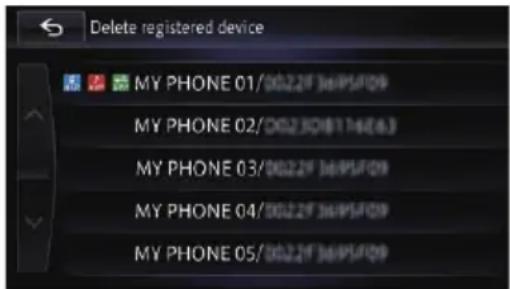
Amessagepromptingyoutodeletearegistereddeviceappears.
5Touch[Yes].
The device is deleted.
□Ifthedeviceyoudeletedwassetforthe priorityconnectingasahands-freephone, Bluetoothaudioplayerorsmartphone,this navigationsystemneedstosetanotherdeviceforpriorityconnecting.
Connectingaregistered Bluetoothdevicemanually
Thenavigationsystemautomaticallyconnects theBluetoothdeviceselectedasthetargetof connection. However, connecttheBluetooth device manually in the following cases:
- TwoormoreBluetoothdevicesareregistered, and you want to manually select the device to be used.
- Youwanttoreconnectadisconnected Bluetoothdevice.
- Connection cannot be established automatically for somereason.
If you start connection manually, carry out the following procedure. You can also connect the Bluetooth device by having then navigation system detect it automatically.
1ActivatetheBluetoothwirelestechnologyyourdevices.
ForsomeBluetoothdevices,nospecific-action isnecessarytoactivateBluetoothwireless technology.Fordetails,refertotheinstruction manualofyourdevices.
2Displaythe"Phone"screen.
Fordetailsoftheoperations,refertoHowto usethenavigationmenuscreensonpage 24.
3Touch[BluetoothSettings].
The "BluetoothSettings" screenappears.
4Touch[Changedevice].
The "ChangeBluetoothdevice" screenappears.
RegisteringandconnectingaBluetoothdevice
5Touchthenameofthedevicethatyou wanttoconnect.
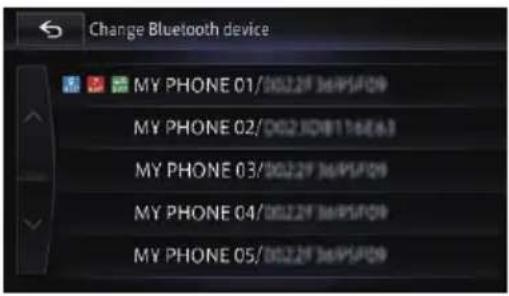
6Touchtheprofilethatyouwanttoconnect.
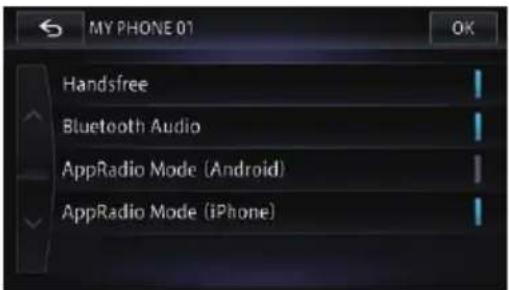
Youcanselectthefollowingprofiles:
- Handsfree:
Connectsthedeviceasahands-freephone.
- BluetoothAudio:
ConnectsthedeviceasaBluetoothaudio player.
- AppRadioMode(Android):
Connectsthedeviceasasmartphone (Androiddevice)inAppRadioMode.
• AppRadioMode(iPhone):
ConnectsthedeviceasaniPodwithLightningconnectorinAppRadioMode.
7Touch[OK].
Connectionstarts.
□Ifyouselect"AppRadioMode(Android)" or "AppRadio Mode (iPhone)", the "DeviceSelectionforAppRadioMode"
screenwillappear.Pleasenotethatdependingon"Appconnectionsettings",thedis-playedmessagewillvary.
- Fordetails, refer to Selecting the device connection method on page 157.
- Fordetails, refertoSettingtheiPodconnectiononpage149.
When a connection is successfully established, a connection completely message ap-
pearsandthemapscreenreturnsbytouching [OK].
☐Tocanceltheconnectiontoyourdevice, touch[Cancel].
□Ifconnectionfails, checkwhetheryourdeviceiswaitingforaconnectionandthen retry.
8Touch[OK].
Settingforpriorityconnecting
Theselecteddeviceissetforpriorityconnecting.
Andoneofthefollowingiconsisindicated nexttothedevicename.

Appearswhenthedeviceisregistered sothatitwillbepreferentiallypaired withthesmartphoneinAppRadio Mode.

Appearswhenthedeviceisregistered sothatitwillbepreferentiallypaired withtheBluetoothaudioconnection.

Appearswhenthedeviceisregistered sothatitcanbepreferentiallypaired withthehands-freeconnection.


CAUTION
Foryoursafety, avoid talking on the phone as much as possible while driving.
If your mobile phone features Bluetooth technology, this navigation system can be connected to your mobile phonewirelessly. Using this hands-free function, you can operate the navigation system to make or receive phone calls. You can also transfer the phonebook data stored in your mobile phoneto then navigation system. This section describes how to setup a Bluetooth connection and how to operate a mobile phone featuring Bluetooth technology on the navigation system.
Fordetailsabouttheconnectivitywiththede- vicesfeaturingBluetoothwirelesstechnology, refertotheinformationonourwebsite.
Displayingthephonemenu
Usethe"Phone"ifyouconnectthemobile phonetothenavigationsystemforutilisation. ➕ Fordetails,refertoChapter9.
1PresstheHOMEbuttontodisplaythe "TopMenu" screen.
2Touch[Phone].
The "Phone" screenappears.
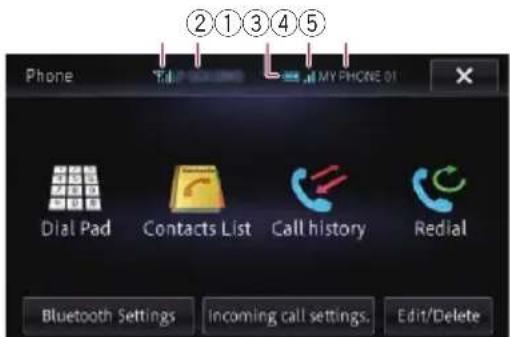
①Receptionstatusofthemobilephone
②Networknameofthemobilephonecompany
③Batterystatusofthemobilephone
④StrengthoftheBluetoothconnectionbetweenthenavigationsystemandthedevice
⑤Nameoftheconnectedmobilephone
Makingaphonecall
Youcanmakeaphonecallinmanydifferent ways.
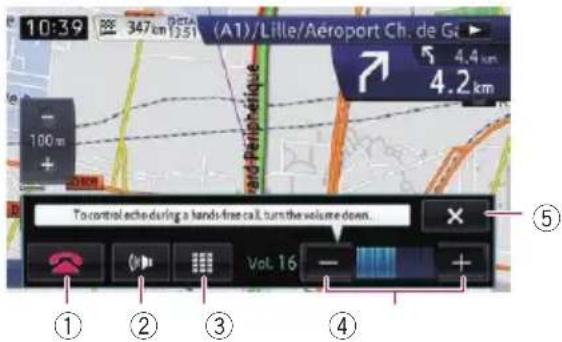
①

Thecallends.
②

Thehands-freefunctionisturnedonoroff. If youwanttotalkonthemobilephone,turnoff thehands-freefunction.
③

Thedialpadappears.
④

Youcanadjustthevolumewhentalking.
⑤

Theoperationmenuduringcallisminimised.
Directdialling
1Displaythe"Phone"screen.
- Fordetails, refertoDisplaying the phone menu on page 67.
2Touch[DialPad].
3Touchthenumberkeystoenterthe phonenumber.
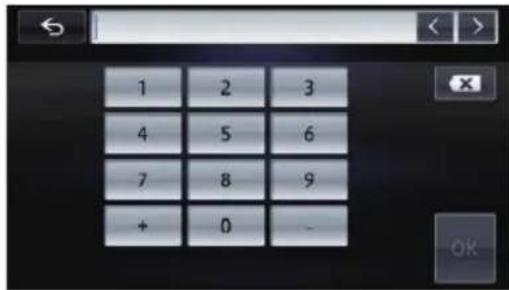
When the input is complete, [OK] becomes active.
■ Ifyoutouch, the rednumberisdeletedonedigitatatimefromtheendofthenumber.Pressandholdtodeletealldigits.
4Touch[OK]tomakeacall.
☐Tocancelthecallafterthesystemstarts dialling,touch[Cancel] or
5Touchtoendthecall.
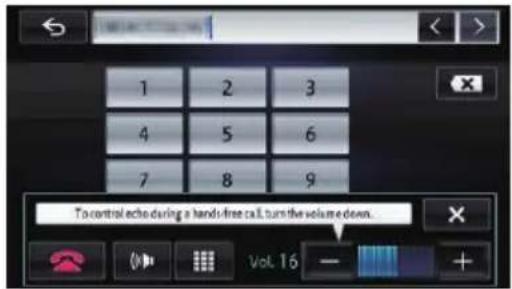
Thecallends.
☐Youmayhearanoisewhenyouhangup thephone.
■Ifyoutouch ×, theoperationmenuisminimisedduringthecall.
Todisplaythemenuagain,touch
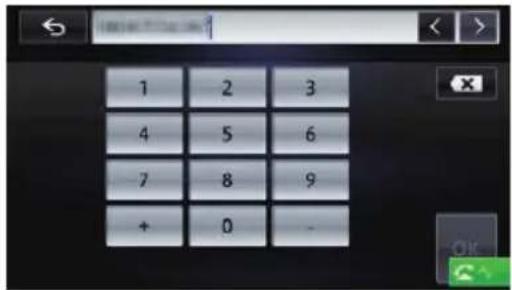
Callinganumberinthephone book
Youcanselectandcallacontactfromthe phonebookentriestransferredtothenavigationsystem.
Beforeusingthisfunction,youneedto transferthephonebookentriesstoredin yourmobilephonetothenavigationsystem.
Fordetails, refertoTransferring the phone book on page 71.
Searchingforacontacttocallonthe alphabettabs
1Displaythe"Phone"screen.
- Fordetails, refertoDisplaying the phone menuonpage67.
2Touch[ContactsList].
The "ContactsList" screenappears.
3Touchalphabettabs.
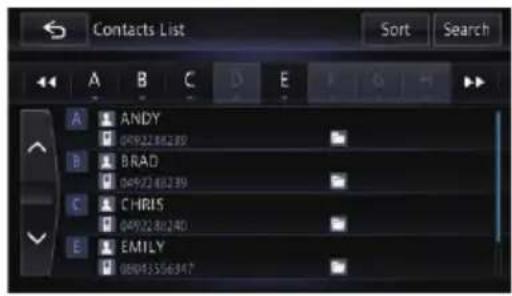
Thescreenjumpstothetopofthepagedis-playingtheentriesthatstartwiththeselected letterornumber.
☐Touchingthealphabettabsdisplaysallen- triesthatstartwithsymbols.
☐Touching[Num]displaysallentriesthat startwithnumbers.
□Touching[Oth.]displaysthepageincludingentriesthatarenotassignedtoanyoftheothertabs.
■ Ifyoutouch[Sort], thenamescanbesorted. Eachtouchof[Sort]changesthesettingsasfollows:
- First(default): Switchesthecontactentriestofirst/last namedisplayandsortstheentriesbyorder offirstname.
- Last: Switchesthecontactentriestolast/first namedisplayandsortstheentriesbyorder oflastname.
☐Dependingonthetypeofmobilephone,the settingsmaynotbeavailable.
4Touchthedesirednameonthelist.
5Touchthedesiredentryonthelistto makeacall.
Acallconfirmationmessageappears.
6Touch[Yes].
Diallingstarts.
Usinghands-freephoning
☐Tocancelthecallafterthesystemstarts dialling,touch[Cancel] or
7Touchtoendthecall.
Callinganumberbysearchingbyname
Youcansearchbythenamesregisteredinthe "ContactsList" screen.
1Displaythe"Phone"screen.
- Fordetails, refertoDisplaying the phone menu on page 67.
2Touch[ContactsList].
The "ContactsList" screenappears.
3Touch[Search].
4Enterthedesirednameandthentouch [OK].
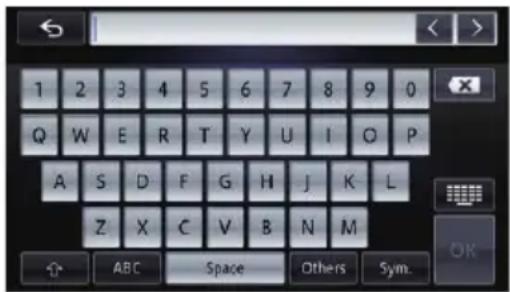
The "ContactsNameSearchResults" screen appears.
5Touchthedesirednameonthelist.
6Touchthedesiredentryonthelistto makeacall.
Acallconfirmationmessageappears.
7Touch[Yes].
Diallingstarts.
☐Tocancelthecallafterthesystemstarts dialling,touch[Cancel] or
8Touchtoendthecall.
Diallingfromthehistory
Themostrecentcallsmade(dialled),received andmissedarestoredinthecallhistorylist. Youcanbrowsethecallhistorylistandcall numbersfromit.
☐Eachcallhistorysaves30callsperregisteredmobilephone.Ifthenumberofcalls exceeds30,theoldestentrywillbedeleted.
1Displaythe"Phone"screen.
- Fordetails, refertoDisplaying the phone menu on page 67.
2Touch[Callhistory].
3Touch[Received], [Dialed] or [Missed].
Theselectedcallhistorylistappears.
4Touchanentryonthelist.
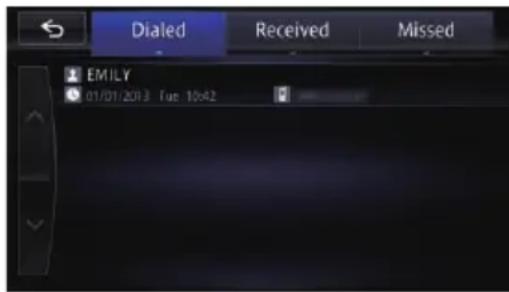
Acallconfirmationmessageappears.
5Touch[Yes].
Diallingstarts.
☐Tocancelthecallafterthesystemstarts dialling,touch[Cancel] or 📞.
6Touchtoendthecall.
Rediallingacall
Youcancallagaintothenumberthatwas sentlast.
1Displaythe"Phone"screen.
- Fordetails, refertoDisplaying the phone menu on page 67.
2Touch[Redial].
Acallconfirmationmessageisdisplayed.
3Touch[Yes].
Diallingstarts.
Diallingafavouritelocation
Youcanmakeacalltoanentrystoredinthe "Stored"list.
1Displaythe"Destination"screen.
- Fordetailsoftheoperations,refertoHowto usethenavigationmenuscreensonpage 24.
2Touch[Stored].
3Touch nexttothelocationthatyou wanttomakeacall.
The "Details" screenappears.
4Touch tomakeacall.
Diallingstarts.
☐Tocancelthecallafterthesystemstarts dialling,touch[Cancel] or
5Touchtoendthecall.
Diallingafacility'sphonenumber
Youcanmakeacalltofacilitieswithphone numberdata.
☐YoucannotmakeacalltolocationsorPOIs thatavenophonenumberdata.
1SearchforthePOI.
The "POIList" screenappears.
Fordetailsoftheoperations,refertoSearchingforPointsofInterest(POI)onpage41.
2TouchnexttothePOIthatyouwant tocall.
The "Details" screenappears.
3Touch tomakeacall.
Diallingstarts.
☐Tocancelthecallafterthesystemstarts dialling,touch[Cancel] or
4Touchtoendthecall.


Receivingaphonecall
Youcanperformhands-freeansweringby usingthenavigationsystem.
Answeringanincomingcall
Thesysteminformsyouthatitisreceivinga callbydisplayingamessageandproducinga ringsound.
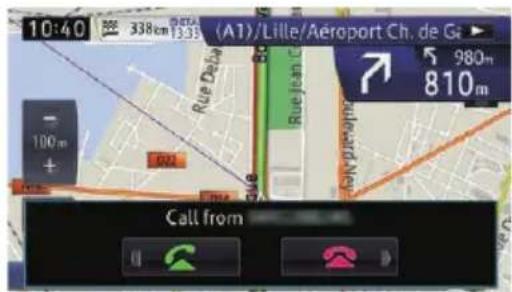
☐Youcansetthesystemtoautomaticallyanswerincomingcalls.Ifnotsettoautomaticallyanswerincomingcalls,youwillhave toanswerthecallsmanually.
- Fordetails, refertoAnsweringacall automaticallyonpage74.
□Ifthevoiceontheotherendofthecallis tooquiettohear,youcanadjustthevolume ofthereceivedvoice.
- Fordetails,refertoSettingtheVolume forGuidanceandPhoneonpage135.
☐Theregisterednameappearsifthephone numberofthereceivedcallisalreadyregisteredin"ContactsList".
☐DependingonthecallerIDservice,the phonenumberofthereceivedcallmaynot bedisplayed."Callfromunknowncaller." appearsinstead.
1 Toansweranincomingcall,touch

Theoperationmenuduringacallappears.
■ Ifyoutouch theincomingcallisrejected.
Therejectedcallisrecordedinthemissedcall historylist.
For details, refer to Dialling from the history onpage69.
2Touchtoendthecall.
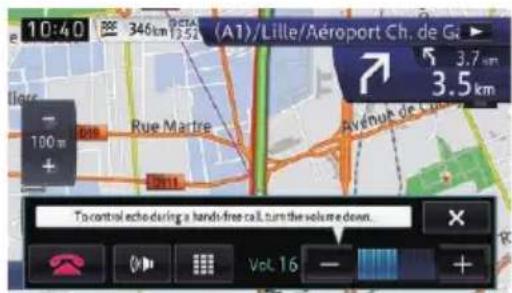
Thecallends.
☐Youmayhearanoisewhenyouhangup thephone.
■Ifyoutouch
or, you canturnonoroff
thehands-freefunction.Turnthisoffifyouwant totalkonthemobilephone.
■Ifyoutouch youcandialduringacall.
■ If you touch [−] or [+], you can adjust the volumewhentalking.
■Ifyoutouch ✗, theoperationmenuisminimisedduringthecall.
Todisplaythemenuagain,touch

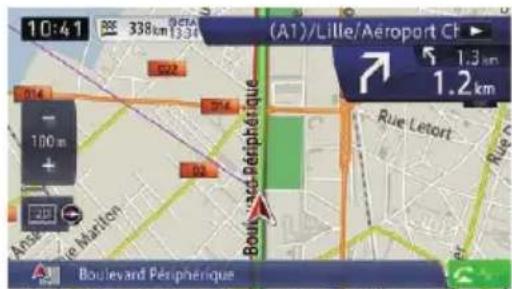
Transferring the phonebook
Youcantransfer the phonebookentries from your mobilephoneto the phonebook of the navigation system.
☐Dependingonthemobilephone,the phonebookmaybecalledContacts,BusinessCardorsomethingelse.
□Withsomemobilephones,itmaynotbe possibletotransfertheentirephonebook collectively.Inthiscase,transferaddresses oneatatimefromyourphonebookusing yourmobilephone.
□If you connect a mobile phone featuring an auto-synchronisation function, the phone book transfers synchronisation will be automatically performed.
☐A maximum of 1000 entries can be transferred per mobile phone. If the entries exceed 1000, the extra entries will not be transferred.
☐Eachentrycanholdupto5phonenumbers. Ifmorethanonenumberisregisteredfor oneperson,suchasworkplaceandhome, eachnumbermaybecountedseparately.
☐Dependingonthemobilephonethatis connectedtothisnavigationsystemvia Bluetoothtechnology,thisnavigationsystemmaynotbeabletodisplaythephone bookcorrectly.(Somecharactersmaybe garbled.)
□Ifthephonebookinthemobilephonecontainsimagedata,thephonebookmaynot becorrectlytransferred.
☐Thetransferreddatacannotbeeditedon thenavigationsystem.
☐Dependingonthemobilephone, phone booktransfermaynotbeavailable.
1Connectthemobilephonethathasthe phonebooktotransfer.
For details, refer to Connecting a registered Bluetoothdevicemanuallyonpage65.
2Touch[Edit/Delete]onthe"Phone" screen.
The "Edit/Delete" screenappears.
For details, refer to Displaying the phone menuonpage67.
3Touch[Contacts].
The "ContactsList" screenappears.
4Touch[Import].
☐Dependingonthemobilephonethatisconnectedtothisnavigationsystemvia Bluetoothtechnology,operationneedsto beconductedfromthemobilephone.
□Ifsomedatahasbeenalreadyretrieved,select either [Overwrite] or [Additional].
Dependingonthemobilephone,thephone bookregisteredinthenavigationsystem maybeautomaticallyoverwrittenandthis stepmaybeskipped.
• Overwrite:
Theexistingdataisoverwritten, and if thetelephonenumberisaddedtothe mobilephone, it will betransferred anew.
• Additional:
If the telephone number is added to the mobile phone, it will be transferred anew.
Whendatatransferisfinished, amessageaskingwhetheryouwanttotransfermoredata appears.
5Touch[No].
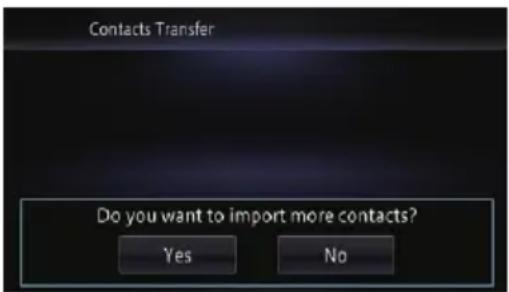
Thetransferreddataisimportedtothenavigationsystem.
Whenthedatahasbeensuccessfullyimported,animportcompletemessageisdisplayandthe"ContactsList"screen appears.
☐Itmaytaketimedependingonhowmany entriesaretransferred.
■Touch[Yes]tocontinuethetransfer.
Deletingregisteredcontacts
1Touch[Edit/Delete]onthe"Phone" screen.
The "Edit/Delete" screenappears.
- Fordetails, refertoDisplaying the phone menu on page 67.
2Touch[Contacts].
The "ContactsList" screenappears.
3Touch[Delete].
The "Delete" screenappears.
4Touchtheentryyouwanttodelete.
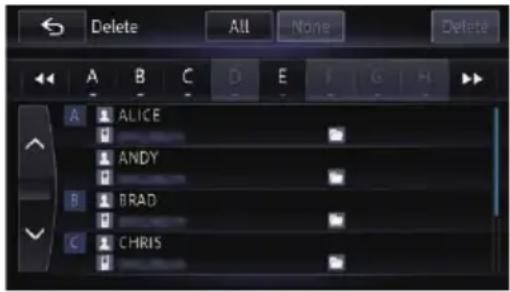
Atickmarkappearsnexttotheentry.
■Ifyoutouch[All],youcanselectallentries.If youwanttodeselectallentries,touch[None].
5Touch[Delete].
Amessageconfirmingwhethertodeletethe entryappears.
6Touch[Yes].
Theentryisdeleted.
■Ifyoutouch[No], thedeletioniscancelled.
Deletingthehistoryinformation
Youcanclearthememoryofeachitemthat correspondstothecconnectedmobilephone: theoutgoingcallhistory,incomingcallhistory ormissedcallhistoryinformation.
1Touch[Edit/Delete]onthe"Phone" screen.
The "Edit/Delete" screenappears.
- Fordetails, refertoDisplaying the phone menu on page 67.
2Touchthehistoryitemyouwanttode-
lete.
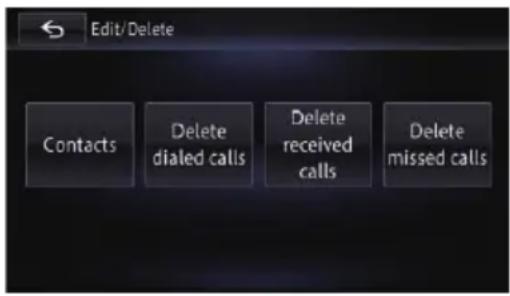
Usinghands-freephoning
Onthisscreen,youcanselectthefollowing items:
- Deletediedcalls:
Clearsthedralledcallhistorylist. - Deletereceivedcalls:
Clearsthereceivedcallhistorylist. - Deletemissedcalls:
Clearsthemissedcallhistorylist.
3Touchthehistoryinformationyou wanttodelete.
Theselectedhistoryinformationistickmarked andyoucancontinuetoselectthehistoryinformation.
■Touching[All]selectsallhistoryinformation.
Touching[None]deselectsallselectedhistoryinformation.
4Touch[Delete].
Aconfirmationmessageappears.
5Touch[Yes].
Dataontheselecteditemisclearedfromthis navigationsystem'smemory.
■ If you donotwant to clear them memory that you have selected, touch [No].
Changingthephonesettings Editingthedevicename
Youcanchangethedevicenametobedisplayedonyourmobilephone.(Defaultis "PIONEERNAVI".)
1Displaythe"Phone"screen.
- Fordetails, refertoDisplaying the phone menu on page 67.
2Touch[BluetoothSettings].
The "BluetoothSettings" screenappears.
3Touch[DeviceName].
Thekeyboardtoenterthenameappears.
4Touch 📧 todeletethecurrentname, andenterthenewnameusingthekeyboard.
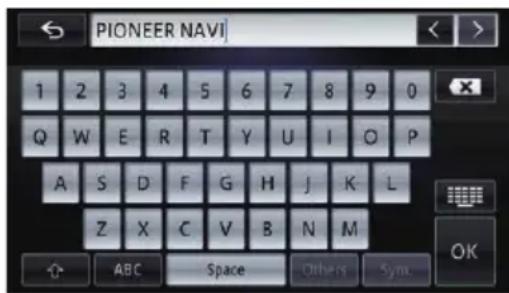
☐Upto20characterscanbeenteredforade- vicename.
5Touch[OK].
Thenameischanged.
Editingthepassword
Youcanchangethepasswordtobeusedfor authenticationonyourmobilephone.(Default is"1111".)
☐ Fourtoeightcharacterscanbeenteredfor apassword.
1Displaythe"Phone"screen.
- Fordetails, refertoDisplaying the phone menu on page 67.
2Touch[BluetoothSettings].
The "BluetoothSettings" screenappears.
3Touch[Password].
Thepasswordsettingscreenappears.
4Touch 📧 todeletethecurrentpassword, and enterthenewpassword using the keyboard.
5Touch[OK].
Thepassworddischanged.
StoppingBluetoothwave transmission
Youcanstoptransmissionofelectricwavesby turningofftheBluetoothfunction.Ifyoudo notusetheBluetoothwirelesstechnology,we recommendselecting"Off".
1Displaythe"Phone"screen.
- Fordetails, refertoDisplaying the phone menu on page 67.
2Touch[BluetoothSettings].
The "BluetoothSettings" screenappears.
3Touch[BluetoothOn/Off].
Eachtouchof[BluetoothOn/Off]changes thesettingsasfollows:
- On(default):
TurnsontheBluetoothfunction.
• Off:
TurnsofftheBluetoothfunction.
Answeringacallautomatically
Thenavigationsystemautomaticallyanswers incomingcallstothemobilephone,soyou cananswercallswhiledrivingwithouttaking yourhandsoffthesteeringwheel.
1Displaythe"Phone"screen.
- Fordetails, refertoDisplaying the phone menu on page 67.
2Touch[Incomingcallsettings].
The "Incomingcallsettings." screenappears.
3Touch[AutoAnswerPreference].
The "AutoAnswerPreference" screenappears.
4Touchthedesiredoption.
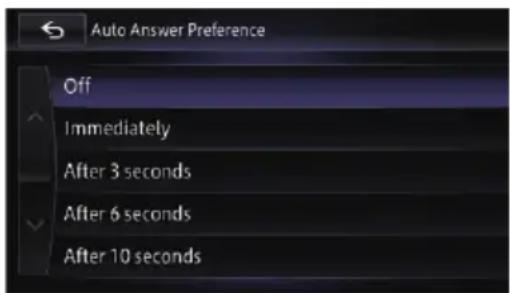
Onthisscreen,youcanselectthefollowing items:
- Off(default): Noautomaticresponse.Respondmanually.
- Immediately: Answersimmediately.
• After3seconds: Answersafterthreeseconds.
• After6seconds: Answersaftersixseconds.
• After10seconds: Answersaftertenseconds.
Settingtheautomaticrejection function
If this function is on, then navigation system automatically rejects all incoming calls.
1Displaythe"Phone"screen.
- Fordetails, refertoDisplaying the phone menu on page 67.
2Touch[Incomingcallsettings].
The "Incomingcallsettings." screenappears.
3Touch[RefuseAllCalls].
Eachtouchof[RefuseAllCalls]changesthe settingsasfollows:
- Off(default): Acceptsallincomingcalls.
- On: Rejectsallincomingcalls.
☐ If both "Refuse All Calls" and "Auto AnswerPreference" are activated, "Refuse
AllCalls"takespriorityandallincoming callsareautomaticallyrejected.
☐ If "Refuse All Calls" is set to "On", rejected incomingcallswillnotbestoredinthe missedcalllist.
Notesforhands-freephoning
Generalnotes
- Connectiontoallmobilephonesfeaturing Bluetoothwirelesstechnologyisnotguaranteed.
- Theline-of-sightdistancebetweenthisnavigationsystemandyourmobilephone mustbe10metresorlesswhensending andreceivingvoiceanddataviaBluetooth technology. However, the actualtransmission distance may be shorter than the estimated distance, depending on the usage environment.
- Withsomemobilephones,theringsound maynotbeoutputfromthespeakers.
- Ifprivatemodeisselectedonthemobile phone,hands-freephoningmaybedisabled.
Registrationandconnection
- Mobilephoneoperationsvarydepending onthetypeofmobilephone.Refertothe instructionmanualthatcamewithyour mobilephonefordetailedinstructions.
- Withmobilephones, phonebooktransfer may not workevent though your phone is paired with thenavigationsystem. In that case, disconnect your phone, performpairing again from your phoneto thenavigationsystem, and then perform the phone booktransfer.
Makingandreceivingcalls
- You may hearanoise in the following situations:
—When you answer the phone using the button on the phone.
—Whenthepersonontheotherendof linehangsupthephone. - If the person on the other end of the phone call can not hear the conversation duetoan
echo, decrease the volume level for hands-free phoning. This may reduce the echo.
- Withsomemobilephones,evenifyou presstheacceptbuttononthemobile phonewhenacallcomesin,hands-free phoningmaynotbeperformed.
- Theregisterednameappearsifthephone numberofthereceivedcallisalreadyregisteredinthephonebook.Whenonephone numberisregisteredunderdifferent names,onlythephonenumberisdisplayed.
- If the phonenumberofthereceivedcallis not registered in the phonebook, the phonenumberofthereceivedcallappears.
Thereceivedcallandthedialled numberhistories
- You cannot make acall to the entry of an unknown user (nophonenumber) in there received call history.
- Ifcallsaremadebyoperatingyourmobile phone, nohistorydatawillberecordedin thenavigationsystem.
Phonebooktransfers
- If there are more than 1000 phone book entries on your mobile phone, not all entries may download completely.
- Withsomemobilephones, it may not be possible to transfer all items in the phone bookatonetime. In this case, transfer items one by one from your mobile phone.
- Dependingonthemobilephone,thisnavigationsystemmaynotdisplaythephone bookcorrectly.(Somecharactersmaybe garbled,orfirstandlastnamesmaybereversed.)
- If the phone book in the mobile phone contains imagedata, the phone book may not be transferred correctly. (Imagedata cannot be transferred from the mobile phone.)
- Dependingonthemobilephone, phone booktransfermaynotbeavailable.
Thischapterdescribesthebasicoperationsof theAVsource.
Youcanplayorusethefollowingsourceswith yourPioneernavigationsystem.
• Radio(FM, MW/LW)
• CD
• ROM(inMP3, AAC, WMA)
• DVD-Video
• DivX
•SD
The following sources can be played back or used by connecting an auxiliary device.
•USB
• iPod
•AhaRadio
- Bluetoothaudio
• AVinput1(AV1)
- AVinput2(AV2)
• DigitalRadio(DAB)(*1)
☐(*1)AsourceonlyavailableonAVIC-F950DAB.
DisplayingtheAV operationscreen
●PresstheMODEbuttonwhenthemap screenisdisplayed.
☐TheAVoperationscreencanalsobedis- playedbytouching[AVSource]onthe "TopMenu".
Selectingasource
Sourceicons
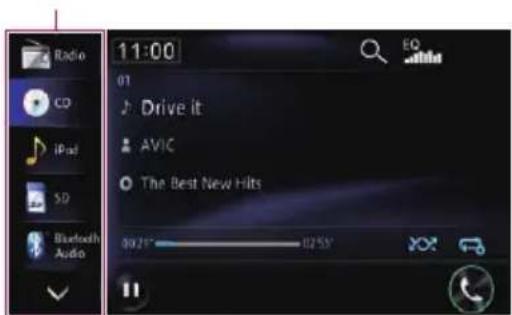
●Touchthesourceiconyouwanttoselectontheleftedgeofthescreen.
The operationscreenoftheselectedsource appears.
□ Ifsevenormoresourcescanbeselected, appears.
□Ifyoutouch ▼,theAVsourceiconswill beswitchedandhiddeniconswillappear.
TurningofftheAVsource
TurnofftheAVsourcetostopplayingorreceivingtheAVsource.
●Touch[SourceOff]ontheleftedgeof thescreen.
TheAVsourceisturnedoff.
AVsourceplatedisplay
If you select a station or song with the track up/down button while themapscreen is still displayed, the AV source plate appears on the top of themapscreen. The AV source plate display the status of the currently played AV source. The AV source plated disappears if it is not operated for about four seconds after it appears.
AVsourceplate
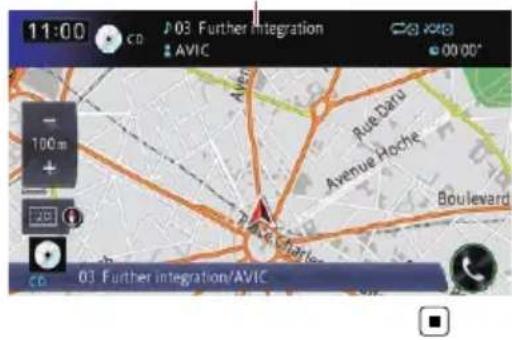
Usingtheradio
Youcanlistentotheradiousingthenavigationsystem. Thissectiondescribesoperations forradio.
The functions related to RDS (RadioData System) are only available in areas with FM stations broadcasting RDS signals. Even if the navigation system is receiving an RDS station, not all the functions related to RDS will be available.
Startingprocedure
1DisplaytheAVoperationscreen.
Fordetailsoftheoperations,refertoDis- playingtheAVoperationscreenonpage76.
2Touch[Radio]ontheleftedgeofthe screentodisplaythe"Radio"screen.
3Touchthebandindicatortoswitcha band.
- Fordetails, refertoUsingthetouchpanel keysonpage78.
4Usethetouchpanelkeysonthescreen tocontroltheradio.
Fordetails, refertoUsingthetouchpanel keysonpage78.
Readingthescreen
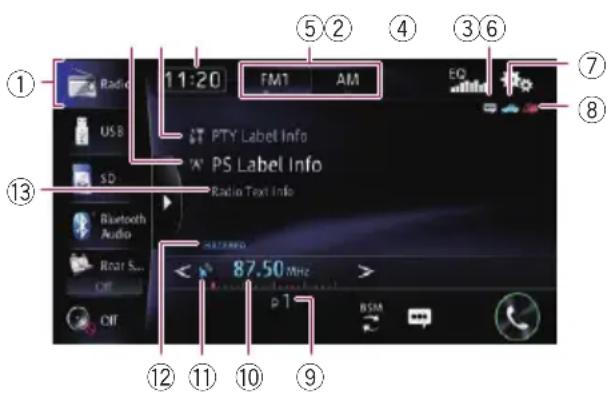
①Sourceicon
Showswhichsourcehasbeenselected.
②Programmeservicenameindicator
Showstheprogrammeservicename(station name)ofthecurrentstation.
□When“AM”isselected,thisindicatoris notshown.
③PTYindicator
Showstheprogrammetypeofthecurrentstation(whenavailable).
□When“AM”isselected,thisindicatoris notshown.
④Currenttime
⑤Bandindicator
Showswhichbandtheradioistunedto:FM1, FM2, FM3orAM.
⑥TEXTindicator
Showswhenradiotextisreceived.
⑦TRFCindicator
Showsthestatusoftrafficannouncements.
⑧NEWSindicator
Showsthestatusofnewsprogrammes.
⑨Presetnumberindicator
Showstheselectedpresetitem.
⑩Frequencyindicator
⑪Signallevelindicator
⑫STEREOindicator
Showsthatthefrequencyselecteddisbeing broadcastinstereo.
□When“AM”isselected,thisindicatoris notshown.
⑬Radiotextdisplayarea
Displaystheradiotextcurrentlyreceived.
□When“AM”isselected,thisindicatoris notshown.
Usingthetouchpanelkeys
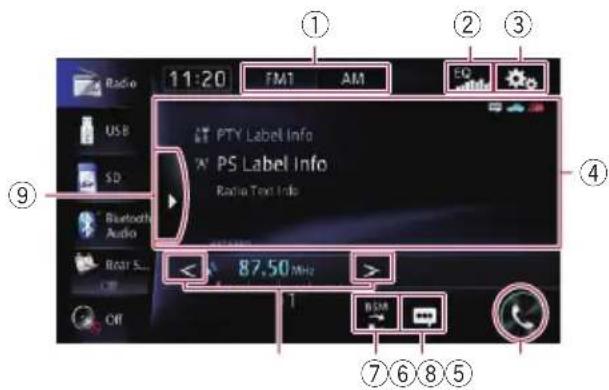
①Selectsaband
TouchtheleftparttoselectaFMband(FM1, FM2orFM3).Touchtherightparttoswitchto theAMband.
□When"AM"isselected,youcannot switchtoanotherAMbandbytouching thebandkey.
②Recallsequalisercurves
- Fordetails, refertoUsingtheequaliser onpage151.
③Displaysthe"Function"menu
Fordetails, refertoUsingadvancedfunc- tionsonpage80.
④Operatessomefunctionsbyswipeaction
- Fordetails, referto Swipeactiononpage 27.
⑤Displaysthe"Phone"screen
Fordetails, refertoDisplaying the phone menuonpage67.
⑥Displaystheradiotextscreen
Displaystheradiotextcurrentlyreceived.
□When“AM”isselected,thisindicatoris notshown.
- Fordetails, refertoUsingradiotexton page79.
⑦Storesthestrongestbroadcastfrequencies
Fordetails, referto Storing the strongest broadcast frequencies on page 79.
⑧Performsmanualtuning
Totunemanually,touch or briefly. The frequenciesmoveupordownonestepata time.
Performsseektuning
Toperformseektuning,touchandhold or foraboutonesecondandthenrelease.The
tunerwillscanfrequenciesuntilitfindsa broadcaststrongenoughforgoodreception.
□Youcancancelseektuningbytouching either ▶ or briefly.
□Ifyoukeepholding ▶or,▶ucan skipbroadcastingfrequencies.Seek tuningwillstartwhenyoureleasethe keys.
⑨Displayspresetchannels
Touchingthiskeydisplaysthepresetchannel list.
Touch the item of the list ("1" to "6") to switch toachannelregisteredasapresetchannel.
□Ifyoutouchthepresetchannellistdisplaykeywhilethepresetchannellistis displayed, thelistdisappearsandpreset tuningkeysaredisplayed.
Presetchannellistdisplaykey
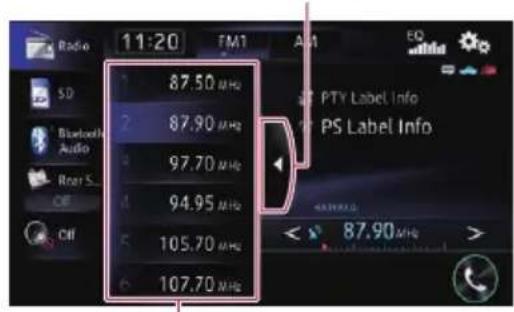
Presettuningkeys
- Once you have stored broadcast channels, you can easily recall preset channels from memory with asingle touch of a key.
- Fordetails, refertoStoringbroadcast frequencies on page 78.
Storingbroadcastfrequencies
Withatouchofanyofthepresettuningkeys ("1" to "6"), you can easily store up to six broadcastfrequenciesforlaterrecall(also withthetouchofakey).
1 Selectafrequencythatyouwantto storeinmemory.
2 Displaythepresetchannellist.
For details, refer to Displays preset channelsonpage78.
3Keeptouchingapresettuningkey[1] to[6].
Theselectedradiostationhasbeenstoredin memory.
Thenexttimeyoutouchthesamepresetting key "1" to "6", the radio station frequencies arerecalledfrommemory.
☐Upto18FMstations, sixforeachofthe threeFMbands, aswellassixMW/LWstations, canbestoredinmemory.
Storingthestrongestbroadcast frequencies
BSM(beststationsmemory)letsyouautomaticallystorethesixstrongestbroadcastfrequenciesunderthepresettuningkeys"1"to
“6”and,oncestoredthere,youcantuneinto themwiththetouchofakey.
☐StoringbroadcastfrequencieswithBSM mayreplacebroadcastfrequenciesyou havealreadysaved.
●Touch[BSM]tobeginasearch.
Amessageappears. Whilethemessageisdis- playing,thesixstrongestbroadcastfrequen- cieswillbestoredunderthepresettuning keys "1" to "6" in order of their signal strength. Whenthisiscomplete,themessagedisap- pears.
■Ifyoutouch[Cancel], thestorageprocessis cancelled.
Usingradiotext
☐ThisfunctioncanonlybeusedontheFM band.
ThistunercandisplayradiotextdatattransmittedbyRDSstations,suchasstationinformation,thetitleofthecurrentlybroadcast songandthenameoftheartist.
☐Thetunerautomaticallymemorisesthe threelatestradiotextbroadcastsreceived, replacingtextfromtheleastrecentreceptionwithnewtextwhenitisreceived.
☐ When no radio text is received, "No Text" is displayed.
Viewingthethreelatestradiotext
Youcandisplaythecurrentlyreceivedradio textandthethreemostrecentradiotexttransmissions.
1Displaytheradiotextscreen.
Fordetails, refer to Displaystheradiotext screenonpage78.
2PresstheTRKbutton.
Pressingthebuttonswitchesthetextcontents fromthecurrentradiotexttothemostrecent threeradiotexttransmissions.
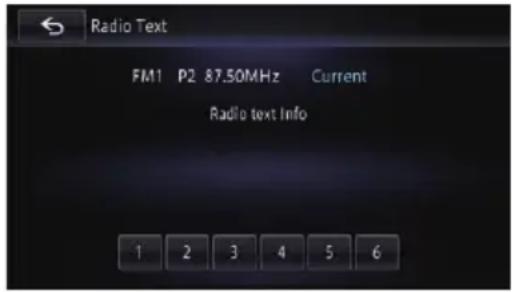
□Ifthereisnoradiotextdatainmemory,the displaywillnotchange.
Storingandrecallingradiotext
You can stored data fromuptosixradiotext transmissions in the touch panel keys "1" to "6".
1Displaytheradiotextyouwantto storeinmemory.
- Fordetails, refertoViewingthethreelatest radiotextonpage79.
2Touchandholdanyofthekeys[1]to [6]tostorethedisplayedradiotext.
Theselectedradiotextisstoredinmemory. Thenexttimeyoupressthesamekeysinthe radiotextdisplay,thestoredtextwillbere-calledfrommemory.
□Iftheradiotextdataisalreadystoredunder allkeys,thenewtextwilloverwritetheexistingone.
Usingadvancedfunctions
Tuninginstrongfrequencies
Localseektuningallowsyoutonlytuneinto thoseradiostationswithsufficientlystrong signalsforgoodreception.
1Touch onthe"Radio"screen.
The"Function" menuappears.
2Touch[Local].
3Touch[On]toturnlocalseektuningon.
■Ifyoutouch[Off],localseektuningisturned off.
4Touchortosetthesensitivity.
Thereare four level sofsensitivity for FM and two levels for MW/LW:
FM:1—2—3—4
MW/LW:1—2
☐ The FM "4" (MW/LW "2") setting allows receptionofonlythestrongeststations,while lowersettingsletyoureceiveweakerstations.
Limitingstationstoregional programming
☐ThisfunctioncanonlybeusedontheFM band.
When AF(alternative frequency) is used to automatically retunefrequencies, theregional function limit these selection to stations broadcasting regional programmes.
1Touch onthe"Radio"screen.
The "Function" menuappears.
2Touch[Regional].
3Touch[On]or[Off].
- On(default):
TurnstheRegionalfunctionon.
• Off:
TurnstheRegionalfunctionoff.
☐Regionalprogrammingandregionalnetworksareorganiseddifferentlydepending onthecountry(i.e.theymaychangeaccordingtothetime,countryorbroadcast area).
☐Thepresetnumbermaydisappearonthe displayifthetunertunesintoaregionalstationthatdiffersfromtheoriginallysetstation.
☐Theregionalfunctioncanbeturnedonor offindependentlyforeachFMband.
SearchingforanRDSstationby PTYinformation
☐ThisfunctioncanonlybeusedontheFM band.
Youcansearchforgeneraltypesofbroadcastingprogrammes.
1Touch onthe"Radio"screen.
The "Function" menuappears.
2Touch[PTY].
3Touch < ort>electaprogramme type.
Therearefourprogrammetypes:
NEWS&INF—Popular—Classics—Others
4Touch[Start]tobeginasearch.
Thetunersearchesforastationbroadcasting thatprogrammetype.
■Ifyoutouch[Stop],thesearchiscancelled.
☐Theprogrammesofsomestationsmaydifferfromthatindicatedbythetransmitted PTY.
□Ifnostationisbroadcastingthetypeofprogrammeyousearchedfor,"NotFound"is displayedforabouttwosecondsandthen thetunerreturnstotheoriginalstation.
Receivingtrafficannouncements
☐ThisfunctioncanonlybeusedontheFM band.
TA(trafficannouncementstandby)letsyoureceivetrafficannouncementsautomatically,no matterwhatsourceyouarelisteningto.TA canbeactivatedforbothaTPstation(astationthatbroadcaststrafficinformation)oran-otherenhancednetwork'sTPstation(astation carryinginformationthatcross-referencesTP stations).
Usingtheradio
1TuneintoaTPstationoranotherenhancednetwork'sTPstation.
2Touch[TA].
3Touch[On].
☐Toturntrafficannouncementsstandbyoff, touch[TA]again.
4UsetheVOL(+/-)buttontoadjustthe TAvolumewhenatrafficannouncement begins.
Thenewlysetvolumeisstoredinmemoryand recalledforsubsequenttrafficannouncements.
5Touch[Cancel]whileatrafficannouncementisbeingreceivedtocanceltheannouncement.
Thetunerreturnstotheoriginalsourcebutremainsinstandbymodeuntil[TA]istouched again.
Youcanalsocanceltheannouncementby changingthesourceorband.
☐Thesystemswitchesbacktotheoriginal sourcefollowingtrafficannouncementreception.
OnlyTPstationsandotherenhancednetworks'TPstationsaretunedinduringseek tuningorBSMwhentheTAfunctionison.
Usingnewsprogramme interruption
☐ThisfunctioncanonlybeusedontheFM band.
Whenanewsprogrammeisbroadcastfroma PTYcodenewsstation,thenavigationsystem canswitchfromanystationtothenewsbroadcaststation.Whenthenewsprogramme ends,receptionofthepreviousprogrammeresumes.
1Touch onthe"Radio"screen.
The "Function" menuappears.
2Touch[News].
3Touch[On]or[Off].
- Off(default):
TurnstheNewsfunctionoff.
• On
TurnstheNewsfunctionon.
☐Anewsprogrammecanbecancelled by touching[Cancel].
☐Youcanalsocancelthenewsprogramme bychangingthesourceorband.
Tuningintoalternativefrequencies
☐ThisfunctioncanonlybeusedontheFM band. Ifyouarelisteningtoabroadcastandthereceptionbecomesweakorthereareotherproblems,thenavigationsystemwill automaticallysearchforadifferentstationin thesamenetworkthatisbroadcastingastrongersignal.
1Touch onthe"Radio"screen.
The "Function" menuappears.
2Touch[AF].
3Touch[On]or[Off].
- On(default): TurnstheAFfunctionon.
- Off: TurnstheAFfunctionoff.
☐OnlyRDSstationsaretunedinduringseek tuningorBSMwhenAFison.
Whenyourecallapresetstation, the tuner may updatethepresetstation with anew frequency from the stestation's AFlist. Nopresetnumber appears on the display if the RDS data for the stestation received differs from that for the originally stored station.
☐Soundmaybetemporarilyinterrupted by anotherprogrammeduringanAFfrequencysearch.
□AFcanbeturnedonoroffindependently foreachFMband.
PISeekoperation
If the unit fail to find suitable alternative frequency, or if you are listening to broadcast and thereception becomes weak, then navigation system will automatically search for different station with the same programming. During these search, "PISeek" is displayed and the output is muted. Muting is discontinued after completion of the PISeek, whether or not adifferent station is found.
ActivatingtheAutoPIseekfor presetstations
Whenpresetstations cannot be recalled, as when travelling long distances, the unit can besettoperform PISeek during preset recall.
☐ThedefaultsettingforAutoPISeekisoff.
- Fordetails, refertoSwitchingAutoPIseek onpage149.
Interruptioniconstatus
☐ThisfunctioncanonlybeusedontheFM band.
When the information interruption setting is enabled, the interruption icon is displayed.
The interruptionicondisplay may change depending on the programmereception status.
Fordetailsoftheoperation,refertoReceivingtrafficannouncementsonpage80.
→Fordetailsoftheoperations,refertoUsing newsprogrammeinterruptiononpage81.
☐TheinterruptioniconisdisplayedonallAV sourceoperationscreens.
TRFCindicator
| IndicatorMeaning | |
| Informationinterruptionisactivated, butyouwillnotreceivedatasincethere isnone. | |
| Informationinterruptionisactivated, anddatacurrentlybeingreceived. | |
| (Nodis-play) | Informationinterruptionisdeactivated. |
NEWSindicator
| IndicatorMeaning | |
| Informationinterruptionisactivated, butyouwillnotreceivedatasincethere isnone. | |
| Informationinterruptionisactivated, anddatacurrentlybeingreceived. | |
| (Nodis-play) | Informationinterruptionisdeactivated. |
Switchingthesoundqualityof theFMtuner
☐ThisfunctioncanonlybeusedontheFM band.
You can select the sound quality from the three settings according to the circumstances of use.
1Touch onthe"Radio"screen.
The "Function" menuappears.
2Touch[TunerSound].
The "Tuner Sound" menu appears.
Switchtosettingsthatprioritisenoiseprevention.
- Standard:
Switchtothestandardsettings.
• Hi-Fi:
Switchtothesettingsthatgavepriorityto thesoundquality.
Operatingbyhardware buttons
PressingtheTRKbutton
Youcanmovethepresetchannelsupordown.
PressingandholdingtheTRKbutton
Youcanperformseektuning.

UsingtheDigitalRadio(DAB)
☐ThisfunctionisonlyavailableonAVIC-F950DAB.
YoucanlistentotheDigitalAudioBroadcastingusingthenavigationsystem. Thissection describesoperationsforDigitalAudioBroadcasting.
ToreceiveDABsignals,connectaDABAerial (AN-DAB1)soldseparatelytotheunit.
DigitalRadio(DAB)featuresthefollowing:
- Highsoundquality(nearlyashighasfor CDs,althoughitmaybereducedinsome casesinordertoallowmoreservicestobe broadcast)
• Interference-freereception
Someindividualservicesinanensemblemay befurthersubdividedintoServiceComponents.ThemainServiceComponentiscalled thePrimaryServiceComponent,andanyauxiliaryServiceComponentsarecalledSecondaryServiceComponents.
Ensemble
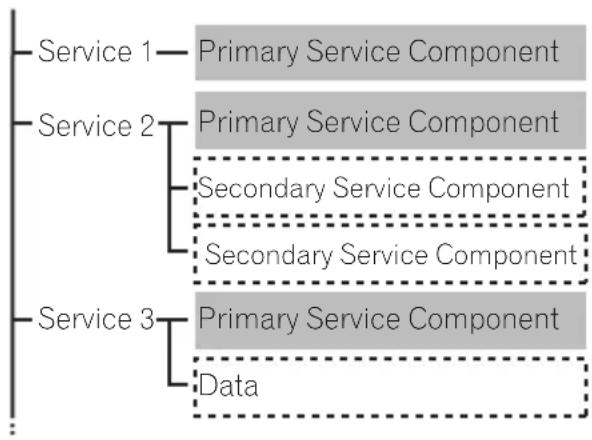
flowchart
graph TD
    A["Service 1"] --> B["Primary Service Component"]
    C["Service 2"] --> D["Primary Service Component"]
    C --> E["Secondary Service Component"]
    C --> F["Secondary Service Component"]
    G["Service 3"] --> H["Primary Service Component"]
    G --> I["Data"]
■: Primary data
: Secondary data
Startingprocedure
1DisplaytheAVoperationscreen.
- Fordetailsoftheoperations,refertoDis-playingtheAVoperationscreenonpage76.
2Touch[DigitalRadio]ontheleftedge ofthescreentodisplaythe"DigitalRadio" screen.
3Usethetouchpanelkeysonthescreen tocontroltheradio.
- Fordetails, refertoUsingthetouchpanel keysonpage84.
Readingthescreen
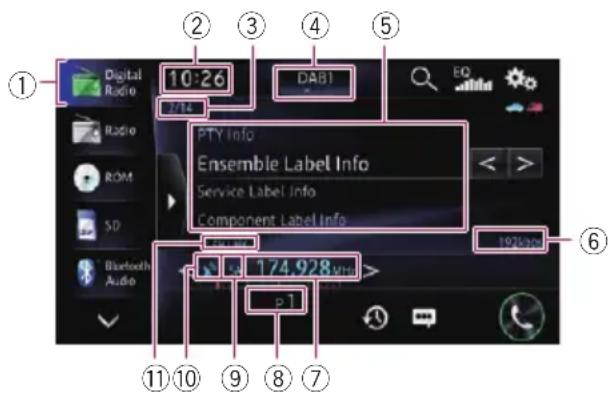
①Sourceicon
Showswhichsourcehasbeenselected.
②Currenttime
③Servicecomponentnumber
④Bandindicator
Showswhichbandtheradioistunedto: DAB1, DAB2 or DAB3.
⑤Currentbroadcastinformation
- PTYlabel
- Ensemblelabel
- Servicelabel
• Servicecomponentlabel
☐ “----” is displayed if there is no corresponding information.
⑥Currentbitrate
Showsthedatavolumebeingreceivedbroadcast.
⑦Frequencyindicator
⑧Presetnumberindicator
Showstheselectedpresetitem.
⑨Channelnumberindicator
⑩Signallevelindicator
⑪FMLinkindicator
Appearswhenthenavigationsystemswitches toachannelreceivedingoodconditionautomaticallyfromachannelreceivedinbadcondition.
Usingthetouchpanelkeys
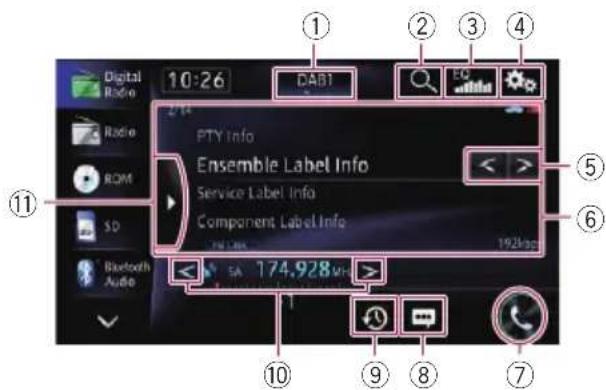
①Selectsaband
Touchthekeyrepeatedlyuntilthedesired band is displayed: DAB1, DAB2, or DAB3.
☐Thisfunctionisconvenientforpreparing differentpresetlistsforeachband.
②Selectsachannelfromthelist
- Fordetails,refertoSelectingachannel fromthelistonpage85.
③Recallsequalisercurves
- Fordetails,refertoUsingtheequaliser onpage151.
④Displaysthe"Function"menu
⑤Skipstheensembleforwardorbackward
⑥Operatessomefunctionsbyswipeaction
Fordetails, referto Swipeactiononpage 27.
⑦Displaysthe"Phone"screen
Fordetails, refertoDisplaying the phone menu on page 67.
⑧Displaystheradiotextscreen
Toseetextinformationsofprogrammecurrentlybeinglistenedto,touchthiskey.
⑨Listenstorecentbroadcast
Toplaybackbroadcastthechannelcurrently beinglistenedto.touchthiskey.
Fordetails, refertoListeningtoarecent broadcastonpage85.
⑩Performsmanualtuning
Totunemanually,touch or briefly. The frequenciesmoveupordownonestepata time.
Performsseektuning
Toperformseektuning,touchandhold

foraboutonesecondandthenrelease.The tunerwillscanfrequenciesuntilitfindsa broadcaststrongenoughforgoodreception.
□Youcancancelseektuningbytouching either ▶ or briefly.
⑪Recallschannelsfromthepreset
Touchingthiskeydisplaysthepresetchannel list.
Touch the item of the list ("1" to "6") to switch toachannelregisteredasapresetchannel.
Ifyoutouchthepresetchannellistdisplaykeywhilethepresetchannellistis displayed, thelistdisappearsandpreset tuningkeysaredisplayed.
Presetchannellistdisplaykey
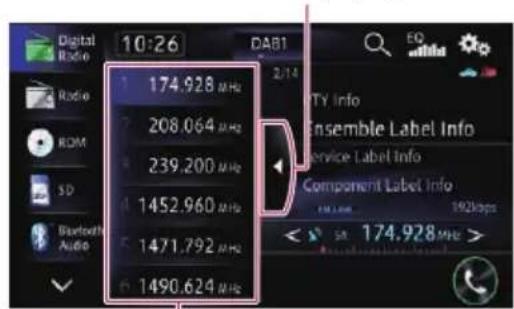
Presettuningkeys
- Once you have stored broadcast channels, you can easily recall preset channels from memory with asingletouch of a key.
- Fordetails, refertoStoringbroadcast frequencies on page84.
Storingbroadcastfrequencies
Withatouchofanyofthepresettuningkeys ("1" to "6"), you can easily store up to six broadcastchannelsforlaterrecall(alsowith thetouchofakey).
1 Selectafrequencythatyouwantto storeinmemory.
UsingtheDigitalRadio(DAB)
2Displaythepresetchannellist.
- Fordetails, refertoUsingthetouchpanel keysonpage84.
3Keeptouchingapresettuningkey[1] to[6].
Theselectedradiostationhasbeenstoredin memory.
Thenexttimeyoutouchthesamepresetuning key "1" to "6", the service component is recalled from memory.
□Upto18stations, sixforeachofthethree bandscanbestoredinmemory.
Selectingachannelfrom thelist
Youcanselectachannelbysearchingchannellist.
1Touch onthe"DigitalRadio"screen.
Thelistscreenappears.
2Touchthecategoryyouwant.
Youcanselectachannelfromthefollowing categories.
- Ensemble:
YoucanselectaServiceComponentfrom therelevantensemble.
• PTY:
YoucanselectaServiceComponentfrom PTYinformation.
☐ ThePTYcanbeselectedare[NEWS&INF], [Popular], [Classics] or [Others].
•ServiceComponent:
YoucanselectaServiceComponentfrom thelistofallcomponents.
Itchangestotheselectedchannel.
□Ifyoutouch[Update],youcanupdatethe channellist.
□[ABC]mayappeardependingonthelist.If youtouch[ABC],youcansearchby alphabet.
Listeningtoarecentbroadcast
Youcanlistentotheservicecomponentthat hasbeenbroadcasted(timeshiftfunction).
●Touch 📁 onthe"DigitalRadio"screen.
Switchestothetimeshiftfunctionmode.
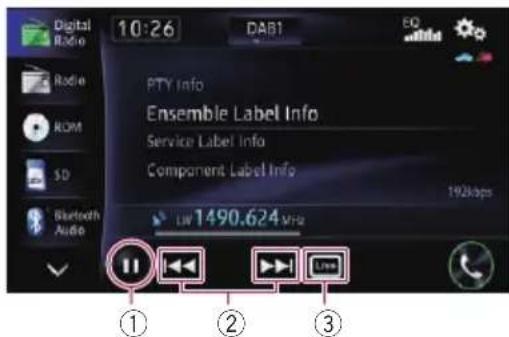
①PlaybackandPause
Touching [▶] or [■■] switches between play-backandpause.
②Fastreverseorforward
Touch[◀◀]andyoucanperformfastre-versetheplaytimeforoneminite.
Touch[▶▶]andyoucanperformfastforwardtheplaytimeforoneminute.
③Returnstolivebroadcast
□Ifyouswitchthebandinthetimeshiftfunctionmode,thetimeshiftfunctionmodeis cancelledandswitchchestothecurrentlive broadcast.
Usingadvancedfunctions
Switchingtoachannelwithgood receivingsensitivityautomatically
Ifthetunercannotgetgoodreception, the unitwillautomaticallysearchforanotherensemblethatsupportsthesameservicecomponent.Ifnoalternativeservicecomponent canbefoundorreceptionremainspoor,this functionwillautomaticallyswitchtoanidenticalFMbroadcast.
□Afterthechannelisswitched,iftheoriginallychannelregainsgoodreceivingsensitivity,thesystemswitchesbacktothe originalchannelautomatically.
1Touch

onthe"DigitalRadio"screen.
The "Function" menuappears.
2Touch[Servicefollow].
The "Servicefollow" screenappears.
3Touch[On].
Automaticchannelswitchingisenabled.
□Ifyoutouch[Off],settingforswitchingthe channelautomaticallyisdisabled.
Operatingbyhardware buttons
PressingtheTRKbutton
Youcanmovethepresetchannelsupordown.
PressingandholdingtheTRKbutton
Youcanperformseektuning.
PlayingaudioCDs
YoucanplayanormalmusicCDusingthe built-indriveofthenavigationsystem.This sectiondescribeshow.
Startingprocedure
1DisplaytheAVoperationscreen.
Fordetailsoftheoperations,refertoDis- playingtheAVoperationscreenonpage76.
2Insertthediscyouwanttoplayinto thedisc-loadingslot.
PlaybackstartsfromthefirsttrackoftheCD.
- Fordetails, referto Inserting and ejecting a disconpage 17.
□Ifthediscisalreadyset,touch[Disc]onthe leftedgeofthescreen.
Fordetails, referto Selectingasource on page76.
3Usethetouchpanelkeysonthescreen tocontrolthedisc.
Fordetails, refertoUsingthetouchpanel keysonpage87.
Readingthescreen
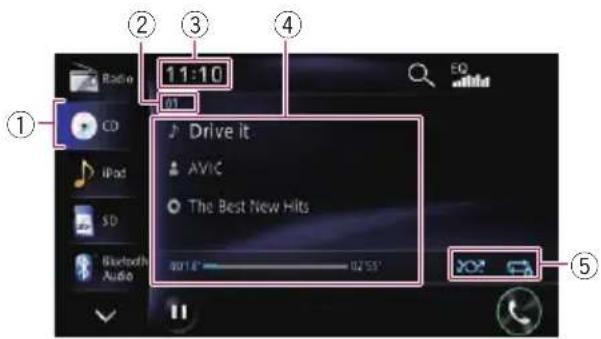
①Sourceicon
Showswhichsourcehasbeenselected.
②Tracknumberindicator
Showsthenumberofthetrackcurrentlyplaying.
③Currenttime
④Currenttrackinformation

Showsthetitleofthetrackcurrently playing(whenavailable).
• Artistname
Showstheartistnameofthetrackcurrentlyplaying(whenavailable).
• Albumtitle
Showsthetitleofthealbumofthecurrenttrack(whenavailable).
- Playtime
Showstheelapsedplayingtimewithin thecurrenttrack.
☐ “----” is displayed if there is no corresponding information.
⑤Playbackconditionindicator
Indicate the current playback condition.
Playingtracksinrandomorder
| Indicator | Meaning |
| Doesnotplaytracksinrandom order. | |
| Playsalltracksinthecurrentdiscin randomorder. |
Settingarepeatplayrange
| Indicator | Meaning |
| Repeatsthecurrentdisc. | |
| Repeatsjustthecurrenttrack. |
Usingthetouchpanelkeys
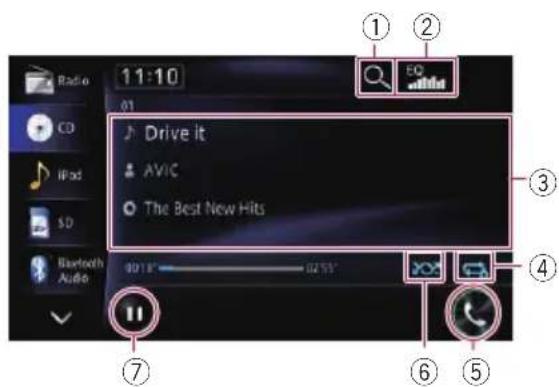
①Selectsatrackfromthelist
Touchingthekeydisplaysalistwhichletsyou seethetracktitlesonadisc.Youcanplaya trackonthelistbytouchingit.
☐ “----” is displayed if there is no corresponding information.
②Recallsequalisercurves
- Fordetails, refertoUsingtheequaliser onpage151.
③Operatessomefunctionsbyswipeaction
- Fordetails, referto Swipeactiononpage 27.
④Setsarepeatplayrange
Therepeatplayrangecanbechangedbyonly touchingasinglekey.
□Ifyouperformtracksearchorfastforwardorreverse,trackrepeat playbackis automaticallycancelled.
Fordetails, refertoPlaybackcondition indicatoronpage87.
⑤Displaysthe"Phone"screen
- Fordetails, refertoDisplaying the phone menu on page 67.
⑥Playstracksinrandomorder
Alltracksinthedisccanbeplayedatrandom byonlytouchingasinglekey.
□Ifyouturntherandomplayonwhenthe repeatplayrangeissetto 📄,therepeat playrangechangesto 📄 automatically.
Fordetails, refertoPlaybackcondition indicatoronpage87.
⑦PlaybackandPause
Touching [▶] or [■] switches between play-backandpause.
Operatingbyhardware buttons
PressingtheTRKbutton
Youcanskiptracksforwardorbackward.
PressingandholdingtheTRKbutton
Youcanperformfastreverseorfastforward.
PlayingmusicfilesonROM
Youcanplayadiscthatcontainscompressed audiofilesusingthebuilt-indriveofthenavigationsystem. Thissectiondescribesthese operations.
☐Inthefollowingdescription,theMP3, WMA,AACfilesarecollectivelyreferred to as"Compressedaudiofiles".
Startingprocedure
1DisplaytheAVoperationscreen.
Fordetailsoftheoperations,refertoDis- playingtheAVoperationsscreenonpage76.
2Insertthediscyouwanttoplayinto thedisc-loadingslot.
PlaybackstartsfromthefirstfileoftheROM.
- Fordetails, refertoInsertingandejectinga disconpage17.
□Ifthediscisalreadyset,touch[Disc]onthe leftedgeofthescreen. - Fordetails, referto Selectingasource on page76.
3Usethetouchpanelkeysonthescreen tocontrolthedisc.
- Fordetailsconcerningoperations,referto Usingthetouchpanelkeysonpage90.

Readingthescreen
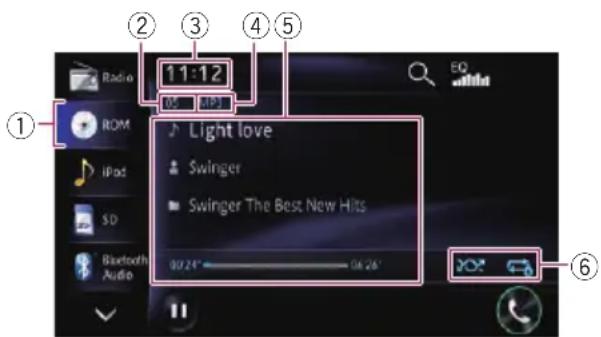
①Sourceicon
Showswhichsourcehasbeenselected.
②Tracknumberindicator
Showsthenumberofthetrackcurrentlyplaying.
③Currenttime
④Filetypeindicator
Showsthetypeofaudiofiles.
⑤Currentfileinformation
•:Tracktitle
Showsthetitleofthetrackcurrently playing(whenavailable).
□Ifthetitleofatrackisnotavailable, thefilenameappears.
• Artistname
Showstheartistnamecurrentlyplaying (whenavailable).
• :Foldername/Albumtitle
ShowsthetitleofthealbumofthecurrentfilewhenMP3orAACdatahaveinformation. Otherwise, showsthefolder namecurrentlypaying.
- Playtime
Showstheelapsedplayingtimewithin thecurrentfile.
☐ “----” is displayed if there is no corresponding information.
⑥Playbackconditionindicator
Indicate the current playback condition.
Playingfilesinrandomorder
| Indicator | Meaning |
| Doesnotplayfilesinrandomorder. | |
| Playsallaudiofilesinthecurrentre-peatplayrangeinrandomorder. |
Settingarepeatplayrange
| Indicator | Meaning |
| Repeatsallcompressedaudiofiles. | |
| Repeatsjustthecurrentfile. | |
| Repeatsthecurrentfolder. |

Usingthetouchpanelkeys
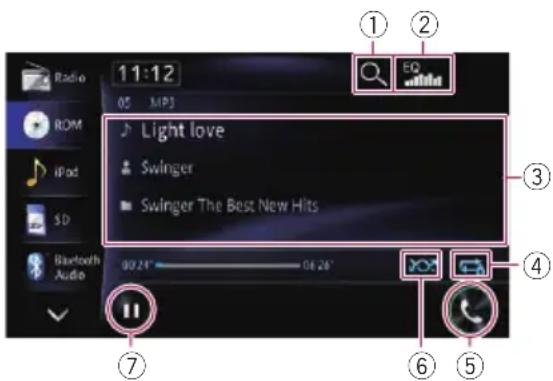
①Selectsafilefromthelist
Touchingthekeydisplaysalistwhichletsyou seethetracktitlesorfoldernamesonadisc.
□Ifthetitleofatrackisnotavailable,the filenameappears.
Touchingafolderonthelistshowsitscontent. Youcanplayafileonthelistbytouchingit.
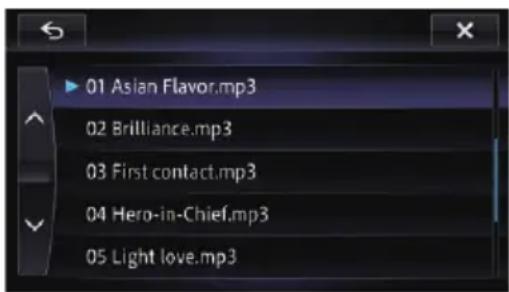
②Recallsequalisercurves
- Fordetails, refertoUsingtheequaliser onpage151.
③Operatessomefunctionsbyswipeaction
- Fordetails, referto Swipeactiononpage 27.
④Setsarepeatplayrange
Therepeatplayrangecanbechangedbyonly touchingasinglekey.
□Ifyouselectanotherfolderduringrepeatplay,therepeatplayrangechanges to 📄.
□Ifyouperformfastreverseorfastforwardduring 📄,therepeatplayrange changesto 📄.
□When isselected,itisnotpossible toplaybackasubfolderofthatfolder.
Fordetails, refer to Playback condition indicator on page 89.
⑤Displaysthe"Phone"screen
- Fordetails, refertoDisplaying the phone menu on page 67.
⑥Playsfilesinrandomorder
Thefilesinthecurrentrepeatplayrangecan beplayedatrandombyonlytouchingasingingle key.
□Ifyouturntherandomplayonwhenthe repeatplayrangeissetto 📄,therepeat playrangechangesto 📄 automatically.
Fordetails, refertoPlaybackcondition indicatoronpage89.
⑦PlaybackandPause
Touching [▶] or [■] switches between play-backandpause.
Operatingbyhardware buttons
PressingtheTRKbutton
Youcanskipfilesforwardorbackward.
PressingandholdingtheTRKbutton
Youcanperformfastreverseorfastforward.
PlayingaDVD-Video
YoucanplayaDVD-Videousingthebuilt-in driveofthenavigationsystem. ThissectiondescribesoperationsforplayingaDVD-Video.
Startingprocedure
1DisplaytheAVoperationscreen.
- Fordetailsoftheoperations,refertoDis-playingtheAVoperationsscreenonpage76.
2Insertthediscyouwanttoplayinto thedisc-loadingslot.
Thesourcechangesandthen playbackwill start.
Fordetails, referto/inserting and ejectinga disconpage17.
□Ifthediscisalreadyset,touch[Disc]onthe leftedgeofthescreen.
Fordetails, referto Selectingasource on page76.
3Usethetouchpanelkeysonthescreen tocontrolthedisc.
- Fordetails, refertoUsingthetouchpanel keysonpage91.
Readingthescreen
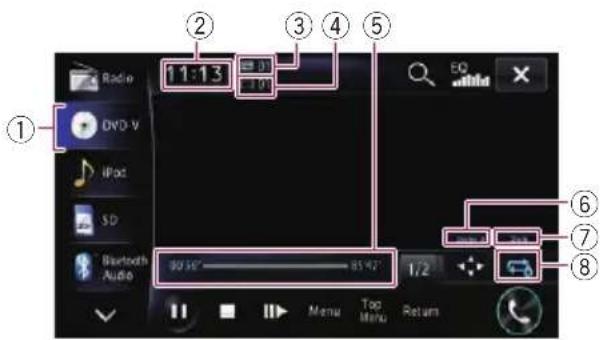
①Sourceicon
Showswhichsourcehasbeenselected.
②Currenttime
③Titlenumberindicator
Showsthetitlenumbercurrentlyplaying.
④Chapternumberindicator
Showsthechapternumbercurrentlyplaying.
⑤Playtimeindicator
Showstheelapsedplayingtimewithinthe currenttitle.
⑥Digitalsoundformatindicator
Showswhichdigitalsoundformat(surround soundformat)hasbeenselected.
⑦Audiochannelindicator
Showsthecurrentaudiochanneltype,such as"Mch"(Multi-channel).
⑧Repeatrangeindicator
Showswhichrepeatrangehasbeenselected.
Settingarepeatplayrange
IndicatorMeaning

Playsthewholeofthecurrentdisc.

Repeatsjustthecurrentchapter.

Repeatsjustthecurrenttitle.

Usingthetouchpanelkeys
Playbackscreen(page1)
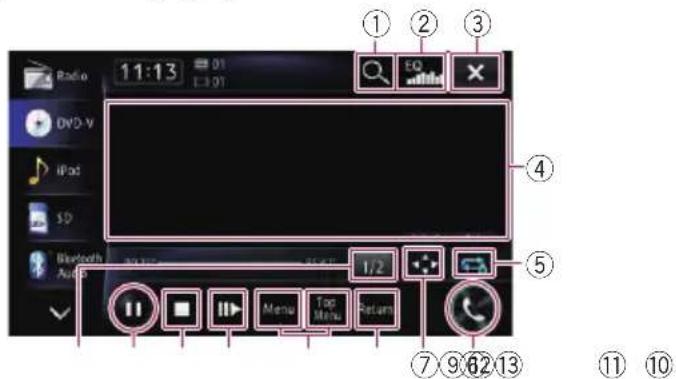
Playbackscreen(page2)
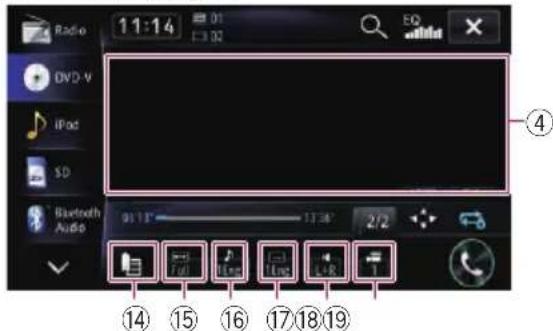
□ Withsomediscs, theicon⊗maybedis-played, meaning that the operation is invalid.
① Searchesforadesiredsceneandstarts playbackfromaspecifiedtime
Fordetails, refertoSearchingforaspecificscene and starting playback from a specified time on page 93.
②Recallsequalisercurves
- Fordetails, refertoUsingtheequaliser onpage151.
③Hidesthetouchpanelkeysandinformationofthecurrentvideo
Touching ✗ showsonlythecurrentvideo.
☐Ifyouwanttodisplaythetouchpanel keysandinformationofthecurrent videoagain,touchanywhereontheLCD screen.
④Operatessomefunctionsbyswipeaction
☐Whenthevideoisdisplayedinfull screenmode, thewholescreenbecomesaswiperesponsearea.
- Fordetails, referto Swipeactiononpage 27.
⑤Setsarepeatplayrange
Therepeatplayrangecanbechangedbyonly touchingasinglekey.
□Ifyouperformchapter(title)search,fast forward,fastreverseorslowmotion playback,therepeatplayrangechanges to 📄.
☐Thisfunctionisnotavailablewhendisc playbackhasbeenstopped.
- Fordetails, referto Repeatrangeindicatoronpage91.
⑥Displaysthe"Phone"screen
Fordetails, refertoDisplaying the phone menu on page 67.
⑦DisplaystheDVDmenukeypad
Fordetails, refertoUsingtheDVDmenu bytouchpanelkeysonpage94.
⑧Performsanoperation(suchasresuming) thatisstoredonthedisc
When using a DVD that has a point recorded that indicates where to return to, the DVD return to the specified point and begins play-back from there.
⑨DisplaystheDVDmenu
Youcandisplaythemenubytouching[Menu] or[TopMenu]whileadiscisplaying.Touchingeitherofthesekeysagainletsyoustart playbackfromthelocationselectedfromthe
menu.Fordetails, refertotheinstructionsprovidedwiththedisc.
⑩Frame-by-frame playback(orslow-motion playback)
Fordetails, refertoFrame-by-frameplay-backonpage94.
→Fordetails, refertoSlowmotion playback onpage94.
⑪Stops playback
⑫PlaybackandPause
Touching [▶] or [■■] switches between play-backandpause.
⑬Switchestothenextpageoftouchpanel keys
⑭Resumes playback(Bookmark)
- Fordetails, referto Resuming playback (Bookmark) on page 93.
⑮Changingthewidescreenmode
- Fordetails, refertoChangingthewide screenmodeonpage94.
⑯Switchestheaudiolanguage
Youcanswitchtheaudiolanguagewhilethe discisplayingwhenadischasmultilingual data(multi-audio).
□Eachtimeyoutouchthiskeychanges theaudiolanguage.
Fordetails, refertoSettingthetop-prioritylanguagesonpage100.
⑰Switchesthesubtitlelanguage
Youcanswitchthesubtitlelanguagewhilethe discisplayingwhenadischasmultilingual data(multi-subtitle).
□Eachtimeyoutouchthiskeychanges thesubtitlelanguage.
→Fordetails, refertoSettingthetop-prioritylanguagesonpage100.
⑱Selectsaudiooutput
WhenplayingDVDsrecordedwithLPCM audio,youcanswitchtheaudiooutput.Touch
repeatedlyuntilthedesiredaudiooutput appearsonthedisplay.
Eachtouchof 📂 changesthesettingsasfollows:
•L+R:Leftandright
•L:Left
•R:Right
•Mix:Mixingleftandright
Thisfunctionisnotavailablewhendisc playbackhasbeenstopped.
☐Theappearanceofthiskeychangesaccordingtothecurrentsetting.
⑲Changestheviewingangle(Multi-angle)
Eachtouch of switches betweenviewing angles.
☐During playbackofasceneshotfrom multipleangles,theangleicon is displayed.Turntheangleicondisplay onoroffusingthe“DVD/DivX®Setup” menu.
☐Theappearanceofthiskeychangesaccordingtothecurrentsetting.
Fordetails, refertoSettingtheangleicon displayonpage100.
Resuming playback(Bookmark)
TheBookmarkfunctionletsyouresumeplay-backfromaselectedscenethenexttimethediscisloaded.
●Touch onthe"DVD-V"screen.
Youcanbookmarkonepointforeachofupto fivediscs.Ifyoutrytomemoriseanotherpoint forthesamedisc,theolderbookmarkwillbe overwrittenbythenewerone.
☐ Toclearthebookmarkonadisc,touchand hold ☐.
Searchingforaspecificscene andstarting playbackfroma specifiedtime
Youcansearchforthesceneyouwantbyspecifyingatitleorchapter,andthetime.
☐Chaptersearchandtimesearcharenot availablewhendiscplaybackhasbeen stopped.
1Touch 🔒 andthentouchTitle, Chapter, Time.
2Touchthekeystoinputthetargetnumberortimeandthentouch[Enter].
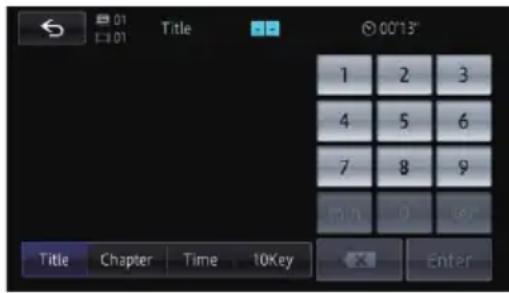
Fortitles, chapters
- To select 3, touch [3] and [Enter] in order. - To select 10, touch [1] and [0] and [Enter] in order.
Fortime(timesearch)
- Toselect5minutes3seconds,touch[5], [min], [3], [sec] and [Enter] in order.
- Toselect71minutes00seconds,touch[7], [1],[min]and[Enter]inorder.
- Toselect100minutes05seconds,touch [1], [0], [0], [5], [sec] and [Enter] in order.
☐Tocancelaninputnumber,touch Tocanceltheinputnumbers,touchand hold X.
Directnumbersearch
Youcanusethisfunctionwhenyouneedto enteranumericalcommandduringDVDplay-back.
1Touch
2Touch[10Key].
3Touch[0]to[9]toinputthedesired number.
4Whiletheinputnumberisdisplayed, touch[Enter].
OperatingtheDVDmenu
YoucanoperatetheDVDmenubytouching themenuitemonthescreendirectly.
Thisfunctioncanbeusedwhenthe
keyisdisplayedontheupperleftcornerof theLCDscreen.
☐Thisfunctionmaynotworkproperlywith someDVDdiscontent.Inthatcase,use touchpanelkeystooperatetheDVDmenu.
□Ifyoutouchthescreenwhile isdisplayed,thetouchpanelkeyswillnotbedisplayed.
1Touchthescreentodisplaythetouch panelkeys.
2Touch[TopMenu]or[Menu]todisplay thetouchpanelkeystooperatetheDVD menu.
■ Ifyoutouch, the touchpanelkeysforselectingthemenuitemaredisplayed.
UsingtheDVDmenubytouch panelkeys
IfitemsontheDVDmenuappear,thetouch panelkeysmayoverlaythem.Ifso,selectan itemusingthosetouchpanelkeys.
1Touch 🔊,ortoselectedesiredmenuitem.
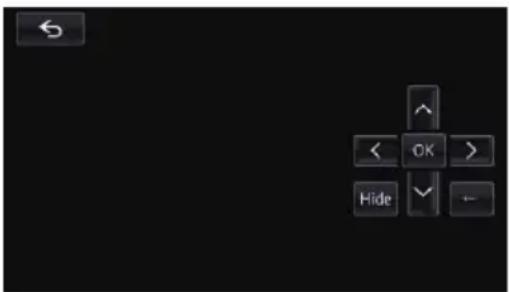
□IfthetouchpanelkeysforDVDmenuselectiondisappear,touchanywhereonthe screen,andthentouch 🧑.Thetouch panelkeysaredisplayedagain.
2Touch[OK].
Playbackstartsfromtheselectedmenuitem. Thewaytodisplaythemenudiffersdepending onthedisc.
■Ifyoutouchor, the display position of touchpanel keysischangedeachtimeyoutouch it.
■Ifyoutouch[Hide],thetouchpanelkeysdisappearandthe 📁 iconisdisplayed.Youcanselectamenuitembytouchingit.
Frame-by-frame playback
Thisletsyoumoveaheadoneframeatatime duringpause.
●Touch[11▶]duringpause.
Eachtimeyoutouch[▶],youmoveahead oneframe.
□Toreturntonormal playback,touch[▶] or [■].
□Withsomediscs,imagesmaybeunclear duringframe-by-frame playback.
Slowmotionplayback
Thisletsyouslowdownplaybackspeed.
1Touchandhold[▶]until isdis-playedduring playback.
Theicon isdisplayed, and forwardslow motion playback begins.
□Toreturntonormal playback,touch[▶] or [■].
2Touch[11▶]toadjustplaybackspeed duringslowmotion playback.
Eachtimeyoutouch[Ⅱ▶]itchangesthe speedinfourstepsinthefollowingorder: 1/16→1/8→1/4→1/2
☐Thereisnosoundduringslowmotionplay-back.
□Withsomediscs,imagesmaybeunclear
duringslowmotionplayback.
☐Reversedslowmotion playback is not possible.
Changingthewidescreenmode
Youcansetthescreensizeofvideo.
☐Thedefaultsettingis"Full".
1Touch onthe"DVD-V"screen.
☐Theappearanceofthiskeychangesaccordingtothecurrentsetting.
•Full
A4:3pictureisenlargedinthehorizontal directiononly,enablingyoutoenjoya4:3 TVpicture(normalpicture)withoutany omissions.
- Just
Thepictureisenlargedslightlyatthecentre andtheamountofenlargementincreases horizontallytowardtheendsofthepicture, enablingyoutoenjoya4:3picturewithout sensinganydisparity,evenonawide screen.
• Cinema
Apictureisenlargedbythesameproportion as "Full" or "Zoom" in the horizontal directionandbyanintermediateproportion between "Full" and "Zoom" in the vertical direction;idealforacinema-sized(wide screen)picturewherecaptionslieoutside theframe.
- Zoom
A4:3pictureisenlargedinthesameproportionbothverticallyandhorizontally; idealforacinema-sized(widescreen)picture.
• Normal
A4:3pictureisdisplayednormally, giving younosenseofdisparitysinceitsproportionsarethesameasthoseofthenormal picture.
☐Imagesmaybeunclearwhen“Cinema”or“Zoom”isselected.
Remember that use of this system for commercial or public viewing purposes may constitute an infringement on the author's rights protected by the Copyright Law.
Operatingbyhardware buttons
PressingtheTRKbutton
Youcanskipchaptersforwardorbackward.
PressingandholdingtheTRKbutton
Youcanperformfastreverseorfastforward.
YoucanplayaDivXdiscusingthebuilt-in driveofthenavigationsystem. Thissectiondescribesthoseoperations.
Startingprocedure
1DisplaytheAVoperationscreen.
- Fordetailsoftheoperations,refertoDis-playingtheAVoperationscreenonpage76.
2Insertthediscyouwanttoplayinto thedisc-loadingslot.
Thesourcechangesandthen playbackwill start.
→Fordetails, referto Inserting and ejectinga disconpage17.
□Ifthediscisalreadyset,touch[Disc]onthe leftedgeofthescreen.
Fordetails, referto Selectingasourceon page76.
3Usethetouchpanelkeysonthescreen tocontrolthedisc.
- Fordetails, refertoUsingthetouchpanel keysonpage96.
Readingthescreen
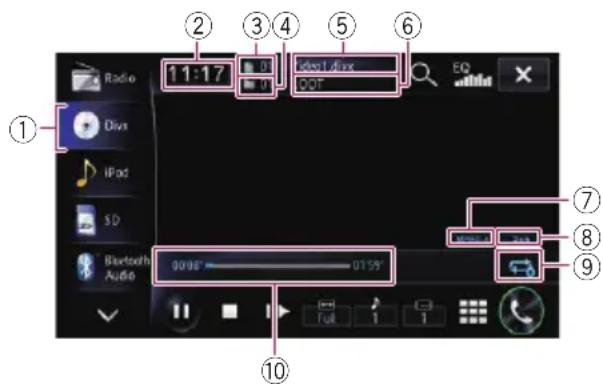
①Sourceicon
Showswhichsourcehasbeenselected.
②Currenttime
③ Filenumberindicator
Showsthefilenumbercurrentlyplaying.
④Foldernumberindicator
Showsthefoldernumbercurrentlyplaying.
⑤Currentfilenameindicator
Showsthefilenamecurrentlyplaying.
⑥Currentfoldernameindicator
Showsthefoldernamecurrentlyplaying.
⑦Digitalsoundformatindicator
Showsthedigitalsoundformat(surround soundformat)currentlyselected.
⑧Audiochannelindicator
Showsthecurrentaudiochanneltype,such as“Mch”(Multi-channel).
⑨Repeatrangeindicator
Showswhichrepeatrangehasbeenselected.
Settingarepeatplayrange
IndicatorMeaning

Playsthewholeofthecurrentdisc.

Repeatsjustthecurrentfile.

Repeatsjustthecurrentfolder.
⑩Playtimeindicator
Showstheelapsedplayingtimewithinthe currentfile.
Usingthetouchpanelkeys
Playbackscreen
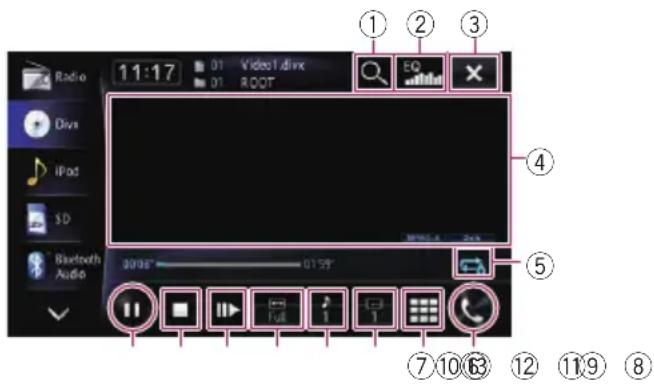
□ Withsomediscs, theicon may be displayed, meaning that the operation is invalid.
①Selectsafilefromthelist
Touchingthekeydisplaythelistwhichlets youfindfilenamesorfoldernamesonadisc.
☐ A dash (−) is displayed if there is no corresponding information.
Touchingafolderonthelistshowsitscontent. Youcanplayafileonthelistbytouchingit.
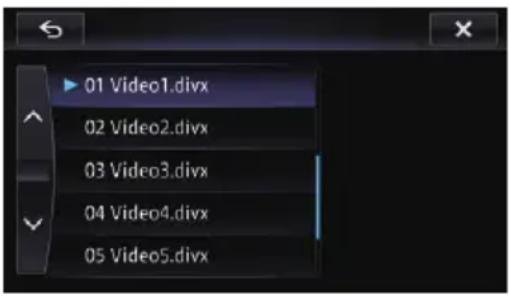
Thecontentsofthefolderinwhichthecurrentlyplayingfileislocatedaredisplayed.
②Recallsequalisercurves
Fordetails, refertoUsingtheequaliser onpage151.
③Hidesthetouchpanelkeysandinformationofthecurrentvideo
Touching ✗ showsonlythecurrentvideo.
If you want to display the touch panel keys and information of the current video again, touch any where on the LCD screen.
④Operatessomefunctionsbyswipeaction
☐Whenthevideoisdisplayedinfull screenmode, thewholescreenbecomesaswiperesponsearea.
→Fordetails, refertoSwipeactiononpage 27.
⑤Setsarepeatplayrange
Therepeatplayrangecanbechangedbyonly touchingasinglekey.
□Ifyouselectanotherfolder during repeat play, therepeat play range changes to 📄.
□Ifyouperformfastreverseorfastforwardduring 📄,therepeatplayrange changesto 📄.
□When isselected,itisnotpossible toplaybackasubfolderofthatfolder.
Fordetails, referto Repeatrangeindicatoronpage96.
⑥Displaysthe"Phone"screen
Fordetails, refertoDisplaying the phone menu on page 67.
⑦ Searchesforadesiredsceneandstarts playbackfromaspecifiedtime
- Fordetails, refertoStarting playback from aspecifiedtimeonpage98.
⑧Switchesthesubtitlelanguage
Youcanswitchthesubtitlelanguagewhilethe discisplayingwhenadischasmultilingual data(multi-subtitle).
□Eachtimeyoutouchthiskeychanges thesubtitlelanguage.
→Fordetails, refertoSettingthetop-prioritylanguagesonpage100.
⑨Switchestheaudiolanguage
Youcanswitchtheaudiolanguagewhilethe discisplayingwhenadischasmultilingual data(multi-audio).
□Eachtimeyoutouchthiskeychanges theaudiolanguage.
- Fordetails, refertoSettingthetop-prioritylanguagesonpage100.
⑩Changingthewidescreenmode
- Fordetails, refertoChangingthewide screenmodeonpage98.
⑪Frame-by-frame playback(orslow-motion playback)
Fordetails, refertoFrame-by-frameplay-backonpage97.
→Fordetails, refertoSlowmotion playback onpage97.
⑫Stops playback
⑬PlaybackandPause
Touching [▶] or [■] switches between play-backandpause.
Frame-by-frame playback
Thisletsyoumoveaheadoneframeatatime duringpause.
- Touch[11▶]duringpause.
Eachtimeyoutouch[▶],youmoveahead oneframe.
□Toreturntonormal playback,touch[▶] or [■].
□Withsomediscs,imagesmaybeunclear duringframe-by-frame playback.
Slowmotion playback
Thisletsyouslowdownplaybackspeed.
- Touchandhold[11▶]untilisdis playedduring playback.
Theicon isdisplayed, and forwardslow motion playback begins.
Toreturntonormal playback, touch [▶].
☐Thereisnosoundduringslowmotionplay-back.
□Withsomediscs,imagesmaybeunclear
duringslowmotionplayback.
☐Reversedslowmotion playback is not possible.
Starting playback from a specified time
Youcansearchforadesiredscenebyspecifyingthetime.
□Timesearchisimpossiblewhendiscplaybackhasbeenstopped.
1Touch ☒.
2Touchthekeystoinputthetargetnumberortimeandthentouch[Enter].
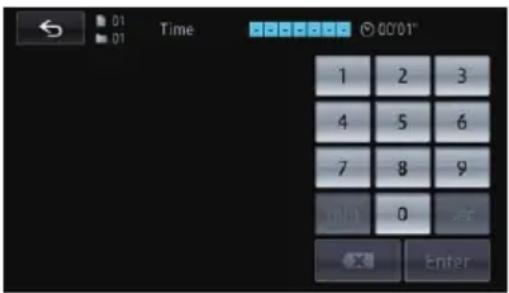
- Toselect5minutes3seconds,touch[5], [min], [3], [sec] and [Enter] in order.
- Toselect71minutes00seconds,touch[7], [1],[min]and[Enter]inorder.
- Toselect100minutes05seconds,touch [1], [0], [0], [5], [sec] and [Enter] in order.
☐Tocancelaninputnumber,touch Tocanceltheinputnumbers,touchand hold
Changingthewidescreenmode
Youcansetthescreensizeofvideo.
☐Thedefaultsettingis"Full".
1Touch onthe"DivX"screen.
☐Theappearanceofthiskeychangesaccordingtothecurrentsetting.
•Full
A4:3pictureisenlargedinthehorizontal directiononly,enablingyoutoenjoya4:3 TVpicture(normalpicture)withoutany omissions.
- Just
Thepictureisenlargedslightlyatthecentre andtheamountofenlargementincreases horizontallytowardtheendsofthepicture, enablingyoutoenjoya4:3picturewithout sensinganydisparity,evenonawide screen.
• Cinema
Apictureisenlargedbythesameproportion as "Full" or "Zoom" in the horizontal directionandbyanintermediateproportion between "Full" and "Zoom" in the vertical direction;idealforacinema-sized(wide screen)picturewherecaptionslieoutside theframe.
- Zoom
A4:3pictureisenlargedinthesameproportionbothverticallyandhorizontally; idealforacinema-sized(widescreen)picture.
• Normal
A4:3pictureisdisplayednormally, giving younosenseofdisparitysinceitsproportionsarethesameasthoseofthenormal picture.
☐Imagesmaybeunclearwhen"Cinema"or "Zoom"isselected.
Remember that use of this system for commercial or public viewing purposes may constitute an infringement on the author's rights protected by the Copyright Law.
PlayingDivX®VODcontent
SomeDivXVOD(videoondemand)content mayonlybeplayableafixednumberoftimes. Whenyouloadadisccontainingthistypeof DivXVODcontent,theremainingnumberof playsisshownon-screenandyouthenhave theoptionofplayingthedisc(therebyusing uponeoftheremainingplays),orstopping.If youloadadiscthatcontainsexpiredDivX VODcontent(forexample,contentthathas zereremainingplays),"ThisDivXrentalhas expired."isdisplayed.
□IfyourDivXVODcontentallowsanunlimitednumberofplays,thenyoumayloadthediscintoyourplayerandplaythecontentasoftenasyoulike,andnomessagewillbedisplayed.
InordertoplayDivXVODcontentonthis unit,youfirstneedtoregistertheunitwith yourDivXVODcontentprovider.Forinformationaboutyourregistrationcode,refer toDisplayingyourDivXVODregistration codeonpage149.
☐DivXVODcontentisprotectedbyaDRM (DigitalRightsManagement)system.This restrictsplaybackofcontenttospecific,registereddevices.
- IfthemessageisdisplayedafterloadingadisccontainingDivXVODcontent, touch[▶].
PlaybackoftheDivXVODcontentwillstart.
☐ Touch [◀◀] or [▶▶] to switch between files.
□IfyoudonotwanttoplaytheDivXVODcontent,touch[■].
Operatingbyhardware buttons
PressingtheTRKbutton
Youcanskipfilesforwardorbackward.
PressingandholdingtheTRKbutton
Youcanperformfastreverseorfastforward.
Thischapterdescribeshowtoconfigurethe DVD-Video/DivX playback.
DisplayingDVD/DivX® Setupmenu
1PresstheHOMEbuttontodisplaythe "TopMenu" screen.
2Touch

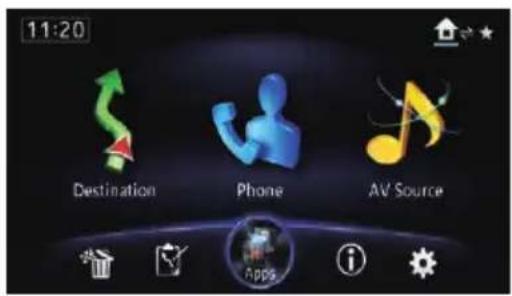
The "Edit/Settings" screenappears.
3Touch[SourceSettings].
The "Settingaccordingtosource" screenappears.
4Touch[DVD/DivX®Setup].
The "DVD/DivX® Setup" screenappears.
5Touchtheitemyouwanttoconfigure.
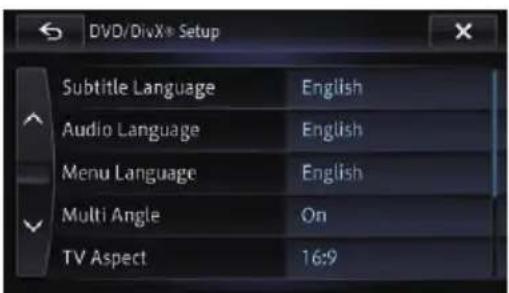

Settingthetop-priority languages
Youcanassignthetop-prioritylanguagetothe top-prioritysubtitle, audioandmenuinitial playback. If theselectedlanguageisrecorded onthedisc, subtitles, audioandmenuaredisplayedoroutputinthatlanguage.
1Displaythe"DVD/DivX®Setup"screen.
Fordetails, refertoDisplayingDVD/DivX® Setupmenuonpage100.
2Touch[SubtitleLanguage], [AudioLanguage] or [MenuLanguage].
Each linguagemenuisdisplayedandthecurrentlysetlanguageisselected.
3Touchthedesiredlanguage.
Whenyouselect"Others",alanguagecode inputdisplayisshown.Inputthefour-digit codeofthedesiredlanguagethentouch[OK].
Fordetails, refertoLanguagecodechartfor DVDsonpage103.
□Iftheselectedlanguageisnotrecordedon thedisc,thedefaultlanguagespecifiedon thediscisoutputanddisplayed.
☐Youcanalsoswitchthesubtitleandaudio languagebytouching 🐎 or √ng playback.
Evenifyoutouch

ort's vitchthe
subtitleoraudiolanguage, this setting will not change.
Settingtheangleicondisplay
Youcansettheangleicontodisayin sceneswheretheanglecanbeswitched.
1Displaythe"DVD/DivX®Setup"screen.
- Fordetails, refertoDisplayingDVD/DivX® Setupmenuonpage100.
2Touch[MultiAngle].
3Touch[On]or[Off].
- On(default):
Displaystheangleiconinsceneswherethe anglecanbeswitched.
-Off: Hidestheangleicon.
Settingtheaspectratio
Therearetwokindsofdisplays.Awidescreen displayhasawidth-to-heightratio(TVaspect) of16:9,whilearegulardisplayhasaTVaspect of4:3.Ifyouusearegularreardisplaywitha TVaspectof4:3,youcansettheaspectratio suitableforyourreardisplay.(Werecommend useofthisfunctiononlywhenyouwanttofitit tothereardisplay.)
□When using aregulardisplay, select either "Letter Box" or "Panscan". Selecting
"16:9" may result in an unnatural image.
1Displaythe"DVD/DivX®Setup"screen.
- Fordetails, refertoDisplayingDVD/DivX® Setupmenuonpage100.
2Touch[TVAspect].
3Touch[16:9], [LetterBox] or [Panscan].
• 16:9:Widescreenimage(16:9)isdisplayed asitis(initialsetting).
- LetterBox:Theimageisintheshapeofa letterboxwithblackbandsatthetopand bottomofthescreen.
- Panscan: The image is cut short at the right and left of the screen.
Whenplayingdiscsthatdonothaveapan-scansystem,thediscisplayedbackwith "LetterBox"evenifyouselect"Panscan" setting. Confirmwhetherthediscpackage bearsthe 16:9 LB mark.
□ Somediscsdonotenablechangingofthe TVaspect. Fordetails, refertothedisc's instructions.
Settingtheparentallock
SomeDVD-Videodiscsletyouuseparental locktosetrestrictionssothatchildrencannot watchviolentoradult-orientedscenes.You cansettheparentallocklevelinstepsasdesired.
☐Whenyousetaparentallocklevelandthen playadiscfeaturingaparentallock,code numberinputindicationsmaybedisplayed.Inthiscase, playbackwillbegin whenthecorrectcodenumberisinput.
Settingthecodenumberandlevel
When you first us this function, registry your codenumber. If you donot register a code number, the parental lock will not operate.
1Displaythe"DVD/DivX®Setup"screen.
- Fordetails, refertoDisplayingDVD/DivX® Setupmenuonpage100.
2Touch[ParentalLevel].
3Touch[0]to[9]toinputafour-digit codenumber.
4Whiletheinputnumberisdisplayed, touch[OK].
Thecodenumberisregistered, and you can now set the level.
5Touchanyof[1]to[8]toselectthedesiredlevel.
Theparentallocklevelisset.
- ParentalLevel8:Playbackoftheentire discispossible(initialsetting).
- ParentalLevel7toParentalLevel2:Play-backofdiscsforchildrenandnon-adultorienteddiscsispossible.
- ParentalLevel1: Only playback of discs for children is possible.
□Ifyouwanttochangetheparentallevelal-readyset,entertheregisteredcodenumber andthenselecttheparentallevel.
□Werecommendthatyoukeeparecordof yourcodenumberincaseyouforgetit.
☐Theparentallocklevelisrecordedonthe disc.Youcanconfirmitbylookingatthe discpackage,theincludedliteratureorthe discitself.Youcannotusetheparentallock withdiscsthatdonotfeaturearecorded parentallocklevel.
□Withsomediscs,parentallockoperatesto skipcertainscenesonly,afterwhichnormal playbackresumes.Fordetails,refertothe disc'sinstructions.
□Ifyouforgettheregisteredcodenumber, touch 10timesonthenumberinput screen. Theregisteredcodenumberiscancelled, lettingyouregisteranewone.
Settingtheautoplay
WhenaDVDdiscwithaDVDmenuisinserted, thisunitwillcanceltheDVDmenu automaticallyandstart playbackfromthefirst chapterofthefirsttitle.
ThisfunctionisavailableonDVD-Video.
☐SomeDVDsmaynotoperateproperly. If thisfunctionisnotfullyoperable,turnthis functionoffandstartplayback.
1Displaythe"DVD/DivX®Setup"screen.
- Fordetails, refertoDisplayingDVD/DivX® Setupmenuonpage100.
2Touch[AutoPlay].
3Touch[On]or[Off].
- Off(default): Deactivatetheautoplayfunction.
- On: Activate the autoplay function.
☐ When "Auto Play" is set to "On", the repeat rangeisautomaticallysetto
Settingthesubtitlefilefor DivX
YoucanselectwhethertodisplayDivXexternalsubtitlesornot.
□IfnoDivXexternalsubtitlefilesexist,the originalDivXsubtitlesaredisplayedeven when"Custom"isselected.
1Displaythe"DVD/DivX®Setup"screen.
Fordetails, refertoDisplayingDVD/DivX® Setupmenuonpage100.
2Touch[SubtitleFile].
3Touch[Original]or[Custom].
☐Upto42characterscanbedisplayedon oneline.Ifmorethan42charactersareset, thelinebreaksandtheexcesscharacters aredisplayedonthenextline.
☐Upto126characterscanbedisplayedon onescreen.Ifmorethan126charactersare set,theexcesscharacterswillnotbedis-played.
☐TheDivXsubtitleswillbedisplayedeven whenthesubtitlefilesettingisonifnocorrespondingsubtitlefilesexist.
☐Uptothreesubtitlelinescanbedisplayed collectively.
LanguagecodechartforDVDs
| Two-letter code,input code | Language | Two-letter code,input code | Language | Two-letter code,input code | Language |
| aa,0101Afarie,0905Interlinguern,1814Rundi | |||||
| ab,0102Abkhazianik,0911Inupiaqro,1815Romanian | |||||
| af,0106Afrikaansin,0914Indonesianru,1821Russian | |||||
| am, 0113 | Amharic | is, 0919 | Icelandic | rw, 1823 | Kinyarwanda |
| ar, 0118 | Arabic | it, 0920 | Italian | sa, 1901 | Sanskrit |
| as, 0119 | Assamese | iw, 0923 | Hebrew | sd, 1904 | Sindhi |
| ay,0125Aymaraja,1001Japanesesg,1907 Sango | |||||
| az, 0126 | Azerbaijani | ji, 1009 | Yiddish | sh, 1908 | Serbo-Croat |
| ba, 0201 | Bashkir | jw, 1023 | Javanese | si, 1909 | Sinhala |
| be, 0205 | Belarusian | ka, 1101 | Georgian | sk, 1911 | Slovak |
| bg, 0207 | Bulgarian | kk, 1111 | Kazakh | sl, 1912 | Slovenian |
| bh, 0208 | Bihari | kl, 1112 | Greenlandic | sm, 1913 | Samoan |
| bi, 0209 | Bislama | km, 1113 | Central Khmer | sn, 1914 | Shona |
| bn, 0214 | Bengali | kn, 1114 | Kannada | so, 1915 | Somali |
| bo, 0215 | Tibetan | ko, 1115 | Korean | sq, 1917 | Albanian |
| br, 0218 | Breton | ks, 1119 | Kashmiri | sr, 1918 | Serbian |
| ca,0301Catalanku,1121Kurdishss,1919Swati | |||||
| co, 0315 | Corsican | ky, 1125 | Kirghiz | st, 1920 | Sotho |
| cs, 0319 | Czech | la, 1201 | Latin | su, 1921 | Sundanese |
| cy, 0325 | Welsh | In, 1214 | Lingala | sv, 1922 | Swedish |
| da, 0401 | Danish | Io, 1215 | Lao | sw, 1923 | Swahili |
| de, 0405 | German | It, 1220 | Lithuanian | ta, 2001 | Tamil |
| dz, 0426 | Dzongkha | lv, 1222 | Latvian | te, 2005 | Telugu |
| el, 0512 | Greek | mg, 1307 | Malagasy | tg, 2007 | Tajik |
| en, 0514 | English | mi, 1309 | Maori | th, 2008 | Thai |
| eo, 0515 | Esperanto | mk, 1311 | Macedonian | ti, 2009 | Tigrinya |
| es, 0519 | Spanish | ml, 1312 | Malayalam | tk, 2011 | Turkmen |
| et, 0520 | Estonian | mn, 1314 | Mongolian | tl, 2012 | Tagalog |
| eu, 0521 | Basque | mo, 1315 | Moldavian | tn, 2014 | Tswana |
| fa, 0601 | Persian | mr, 1318 | Marathi | to, 2015 | Tonga |
| fi, 0609 | Finnish | ms, 1319 | Malay | tr, 2018 | Turkish |
| fj, 0610 | Fijian | mt, 1320 | Maltese | ts, 2019 | Tsonga |
| fo, 0615 | Faroese | my, 1325 | Burmese | tt, 2020 | Tatar |
| fr, 0618 | French | na, 1401 | Nauru | tw, 2023 | Twi |
| fy, 0625 | Western Frisian | ne, 1405 | Nepali | uk, 2111 | Ukrainian |
| ga, 0701 | Irish | nl, 1412 | Dutch | ur, 2118 | Urdu |
| gd, 0704 | Scot.Gaelic | no, 1415 | Norwegian | uz, 2126 | Uzbek |
| gl,0712Galician | oc,1503Occitanvi,2209 | Vietnamese | |||
| gn, 0714 | Guarani | om, 1513 | Oromo | vo, 2215 | Volapük |
| gu, 0721 | Gujarati | or, 1518 | Oriya | wo, 2315 | Wolof |
| ha, 0801 | Hausa | pa, 1601 | Panjabi | xh, 2408 | Xhosa |
| hi, 0809 | Hindi | pl, 1612 | Polish | yo, 2515 | Yoruba |
| hr, 0818 | Croatian | ps, 1619 | Pashto | zh, 2608 | Chinese |
| hu, 0821 | Hungarian | pt, 1620 | Portuguese | zu, 2621 | Zulu |
| hy, 0825 | Armenian | qu, 1721 | Quechua | ||
| ia,0901Interlingua | rm,1813 | Romansh | |||

Youcanplaycompressedaudiofilesstoredin theexternalstoragedevice(USB,SD).
When you play audio files stored on a USB storage device, a USB interface can be for iPod/iPhone(sold separately) is required for connection.
In the following description, the SD memory card and USB memory device are collectively referred to as the "external storage device (USB, SD)". If it indicates the USB memory device only, it is referred to as the "USB storage device".
Startingprocedure
1DisplaytheAVoperationscreen.
- Fordetailsoftheoperations,refertoDis- playingtheAVoperationscreenonpage76.
2InserttheSDmemorycardintotheSD cardslotorplugtheUSBstoragedevice intotheUSBconnector.
- Fordetails, refertoPlugginginaUSBstoragedeviceonpage21.
- Fordetails, referto/inserting and ejecting an SDmemorycardonpage18.
☐Playbackisperformedinorderoffolder numbers.Foldersareskippediftheycontainnoplayablefiles.Iftherearenoplayablefilesinfolder01(rootfolder), playback startsfromfolder02.
3Touch[USB]or[SD]ontheleftedgeof the screen to display the "USB" or "SD" screen.
4Usethetouchpanelkeysonthescreen tocontroltheexternalstoragedevice (USB,SD).
- Fordetails, refertoUsingthetouchpanel keys(Music)onpage105.
Readingthescreen
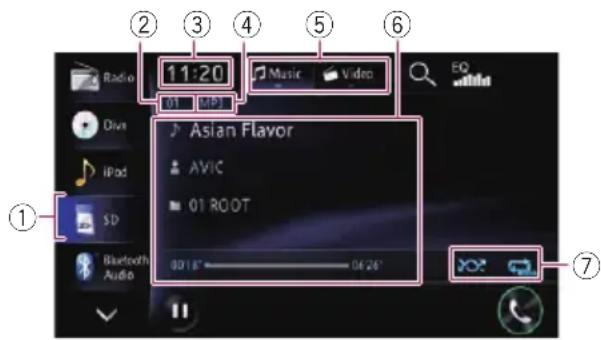
Thisunitmaynotachieveoptimumperformancewithsomeexternalstoragedevices.
☐Youcan playback the files on a USB storage device compliant with the Mass Storage Class. Ford details about the USB Class, referto them anuals supplied with the USB storage device.
①Sourceicon
Showswhichsourcehasbeenselected.
② Filenumberindicator
Showsthenumberofthefilecurrentlyplaying.
③Currenttime
④Filetypeindicator
Showsthetypeofaudiofiles.
⑤Playbackmode
⑥Currentfileinformation
•:Tracktitle
Showsthetitleofthetrackcurrently playing(whenavailable).
□Ifthetitleofatrackisnotavailable, thefilenameappears.
• Artistname
Showstheartistnamecurrentlyplaying (whenavailable).
• :Foldername/Albumtitle
Showsthetitleofthealbumofthecurrentfile(whenavailable).
□Ifthetitleofanalbumisnotavailable, thefoldernameappears.
- Playtime
Showstheelapsedplayingtimewithin thecurrentfile.
☐ “----” is displayed if there is no corresponding information.
Playingmusicfiles(fromUSBorSD)
⑦Playbackconditionindicator
Indicate the current playback condition.
Playingfilesinrandomorder
IndicatorMeaning

Doesnotplayfilesinrandomorder.

Playsallaudiofilesinthecurrentrepeatplayrangeinrandomorder.
Settingarepeatplayrange
IndicatorMeaning

Repeatsallcompressedaudiofiles intheselectedexternalstoragedevice(USB,SD).

Repeatsjustthecurrentfile.

Repeatsthecurrentfolder.

Usingthetouchpanelkeys (Music)
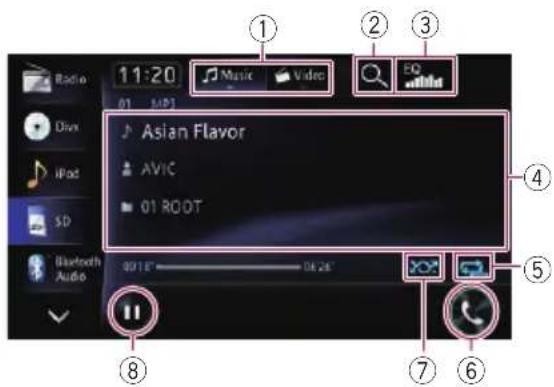
①Switchestheoperationscreen
Touchingthiskeyswitchesbetweenthe screentoooperatemusicfilesandthattooperatevideofiles. Thisouchpanelkeyisonly availablewhentherearebothaudioandvideo filesontheexternalstoragedevice(USB,SD).
②Selectsafilefromthelist
Touchingthekeydisplaythelistwhichlets youfindtracktitlesorfoldernamesonanexternalstoragedevice(USB,SD).
Touchingafolderonthelistshowsitscontent.
Youcanplayafileonthelistbytouchingit.
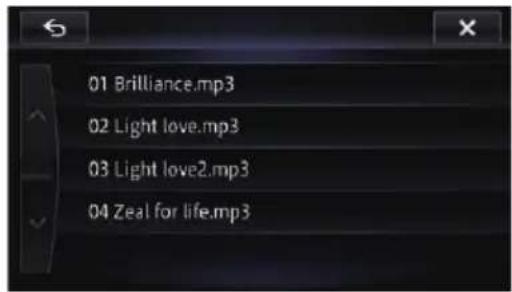
③Recallsequalisercurves
- Fordetails, refertoUsingtheequaliser onpage151.
④Operatessomefunctionsbyswipeaction
→Fordetails, refertoSwipeactiononpage 27.
⑤Setsarepeatplayrange
Therepeatplayrangecanbechangedbyonly touchingasinglekey.
□Ifyouskipthefileforwardorbackward whentherepeatplayrangein ,there-peatplayrangechangesto .
Fordetails, refertoPlaybackcondition indicatoronpage105.
⑥Displaysthe"Phone"screen
- Fordetails, refertoDisplaying the phone menu on page 67.
⑦Playsfilesinrandomorder
Thefilesinthecurrentrepeatplayrangecan beplayedatrandombyonlytouchingasingingle key.
□Ifyouturntherandomplayonwhenthe repeatplayrangeissetto 📋,therepeat playrangechangesto 📋 automatically.
Fordetails, refertoPlaybackcondition indicatoronpage105.
⑧PlaybackandPause
Touching [▶] or [■] switches between play-backandpause.
Operatingbyhardware buttons
PressingtheTRKbutton
Youcanskipfilesforwardorbackward.
PressingandholdingtheTRKbutton
Youcanperformfastreverseorfastfor-
ward.
Playingvideofiles(fromUSBorSD)
Youcanplayvideofilesstoredintheexternal storagedevice(USB,SD).
□WhenyouplayvideofilesstoredonaUSB storagedevice,aUSBinterfacecablefor iPod/iPhone(soldseparately)isrequired forconnection.
In the following description, the SD memory card and USB memory device are collectively referred to as the "external storage device (USB, SD)". If it indicates the USB memory device only, it is referred to as the "USB storage device".
Startingprocedure
1DisplaytheAVoperationscreen.
Fordetailsoftheoperations,refertoDis- playingtheAVoperationscreenonpage76.
2InserttheSDmemorycardintotheSD cardslotorplugtheUSBstoragedevice intotheUSBconnector.
- Fordetails, refertoPlugginginaUSBstoragedeviceonpage21.
- Fordetails, referto/inserting and ejecting an SDmemorycardonpage18.
☐Playbackisperformedinorderoffolder numbers.Foldersareskippediftheycontainnoplayablefiles.Iftherearenoplayablefilesinfolder01(rootfolder), playback startsfromfolder02.
3Touch[USB]or[SD]ontheleftedgeof the screen to display the "USB" or "SD" screen.
4Touchthescreentodisplaythetouch panelkeys.
5Usethetouchpanelkeysonthescreen tocontroltheexternalstoragedevice (USB,SD).
- Fordetails, refertoUsingthetouchpanel keys(Video)onpage108.
Readingthescreen
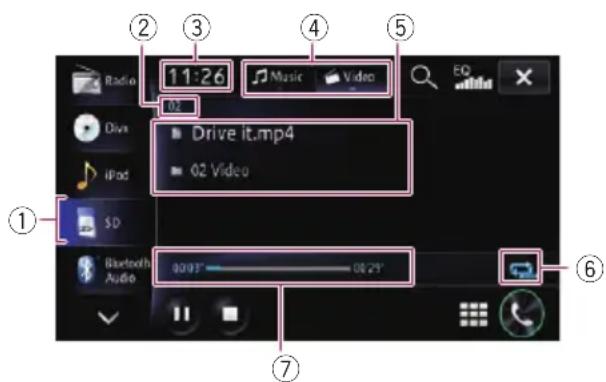
☐Thisunitmaynotachieveoptimumperformancewithsomeexternalstoragedevices.
☐Youcan playback the filesona USB storage device compliant with the Mass Storage Class. Ford details about the USB Class, referto them anuals supplied with the USB storage device.
①Sourceicon
Showswhichsourcehasbeenselected.
② Filenumberindicator
Showsthenumberofthefilecurrentlyplaying.
③Currenttime
④Playbackmode
⑤Currentvideoinformation
- Filenameindicator
Showsthefilenamecurrentlyplaying.
- Foldername indicator
Showsthefoldernamecurrentlyplaying.
⑥Playbackconditionindicator
Indicatesthecurrentplaybackcondition.
Playingvideofiles(fromUSBorSD)
Settingarepeatplayrange
IndicatorMeaning

Repeatsallvideofilesintheselected externalstoragedevice(USB,SD).

Repeatsjustthecurrentfile.

Repeatsthecurrentfolder.
⑦Playtimeindicator
Showstheelapsedplayingtimewithinthe currentfile.
Usingthetouchpanelkeys (Video)
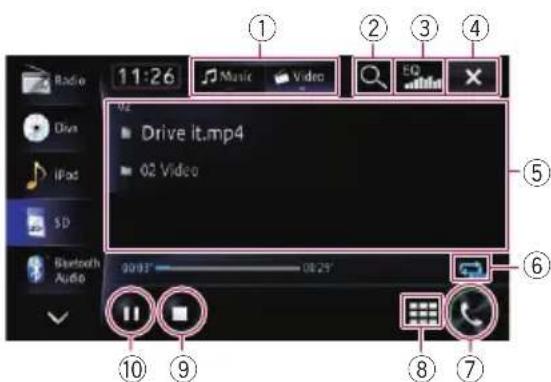
①Switchestheoperationscreen
Touchingthiskeyswitchesbetweenthe screentoooperatemusicfilesandthattooperatevideofiles. Thisouchpanelkeyisonly availablewhentherearebothaudioandvideo filesontheexternalstoragedevice(USB,SD).
②Selectsafilefromthelist
Youcanselectandplayyourchoiceoftitles fromthelist.
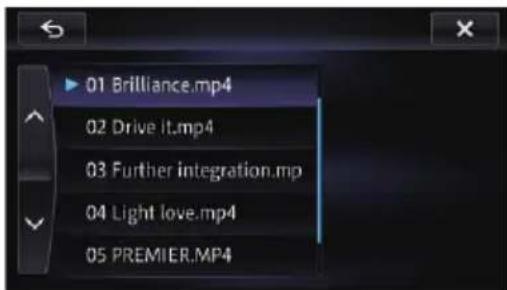
Thecontentsofthefolderinwhichthecurrentlyplayingfileislocatedaredisplayed.
③Recallsequalisercurves
- Fordetails,refertoUsingtheequaliser onpage151.
④Hidesthetouchpanelkeysandinformationofthecurrentvideo
Touching ✗ showsonlythecurrentvideo.
□Ifyouwanttodisplaythetouchpanel keysandinformationofthecurrent videoagain,touchanywhereontheLCD screen.
⑤Operatessomefunctionsbyswipeaction
☐Whenthevideoisdisplayedinfull screenmode, thewholescreenbecomesaswiperesponsearea.
Fordetails, referto Swipeactiononpage 27.
⑥Setsarepeatplayrange
Therepeatplayrangecanbechangedbyonly touchingasinglekey.
Fordetails, refertoPlaybackcondition indicatoronpage107.
⑦Displaysthe"Phone"screen
Fordetails, refertoDisplaying the phone menu on page 67.
⑧ Searchesforadesiredsceneandstarts playbackfromaspecifiedtime
Fordetails, refertoSearchingforaspecificscene and starting playback from a specified time on page 108.
⑨Stops playback
⑩PlaybackandPause
Touching [▶] or [■■] switches between play-backandpause.
Searchingforaspecificscene andstarting playbackfroma specifiedtime
Youcansearchforadesiredscenebyspecifyingthetime.
1Touch

2Touchthekeystoinputthetargetnumberortimeandthentouch[Enter].
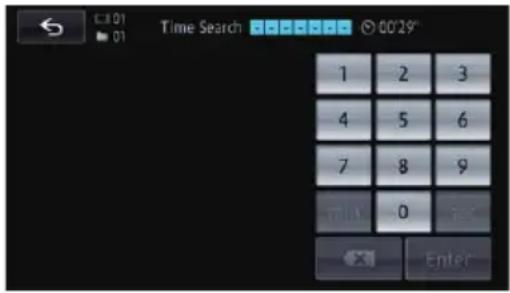
- Toselect5minutes3seconds,touch[5], [min], [3], [sec] and [Enter] in order.
- Toselect71 minutes00 seconds, touch[7], [1], [min] and [Enter] inorder.
- Toselect100minutes05seconds,touch [1], [0], [0], [5], [sec] and [Enter] in order.
☐Tocancelaninputnumber,touch Tocanceltheinputnumbers,touchand hold
Operatingbyhardware buttons
PressingtheTRKbutton
Youcanskipfilesforwardorbackward.
PressingandholdingtheTRKbutton
Youcanperformfastreverseorfastforward.

CAUTION
ForiPodwithLightningconnectorusers
iPodsourceisnotavailablewhenaniPodwith LightningconnectorisconnectedwithanHDMI/USBinterfacecableforiPod/iPhone(CD-IH202)(soldseparately)tothisnavigationsystem. Whenyouwanttoplaymusicand/orvideofiles onyouriPodwithaLightningconnector,firstinstallCarMediaPlayeronyouriPodwithaLightningconnectorandthenlaunch
CarMediaPlayerwhileinAppRadioMode.
FordetailsofAppRadioMode,referto Chapter25.
RefertotheCarMediaPlayermanualfor moreinformation.
☐TouseiPodsource,youmustconnectyour iPodtothenavigationsystemusingaUSB interfacecableforiPod/iPhone(CD-IU201N)(soldseparately)andaLightning to30-pinAdapter(AppleInc.products) (soldseparately). However,functionsrelatedtoiPodvideo filesandAppRadioModearenotavailable.
- Fordetails,refertoConnectingyouriPod onpage20.
ForiPodwith30-pinconnectorusers
- DependingonyouriPod,theremaynotbe anyoutputunlessyouuseaUSBinterface cableforiPod/iPhone(CD-IU201N)(sold separately).BesuretouseaUSBinterface cableforiPod/iPhone(CD-IU201N)(sold separately)toconnectyouriPod.
- Fordetails,refertoConnectingyouriPod onpage20.
Startingprocedure
1 Set "iPod Connection Settings" to "30-pinConnector".
Fordetails, refer to Selecting the device connection method on page 157.
Fordetails, refer to Setting the iPod connection on page 149.
2DisplaytheAVoperationscreen.
Fordetailsoftheoperations,refertoDisplayingtheAVoperationscreenonpage76.
3ConnectyouriPod.
Thesourcechangesandthen playbackwill start.
For details, refer to Connecting your iPod on page20.
□IftheiPodisalreadyconnected,touch [iPod]ontheleftedgeofthescreen.
Fordetails, referto Selectingasource onpage76.
□IfyouconnecttheiPhoneoriPodtouch, quitapplicationsbeforeconnecting.
4Usethetouchpanelkeysonthescreen tocontrolyouriPod.
- Fordetailsoftheoperation,refertoUsing thetouchpanelkeysonpage112.
☐ThevideoimageofiPodmayhavenoiseif thereardisplayoutputsthevideoimage. Whennoiseisproducedinthevideoimage ofiPod,turnoffoutputsettingoftherear display.
Fordetailsoftheoperations,refertoSelectingthevideoforreardisplayonpage 160.
Readingthescreen
Music
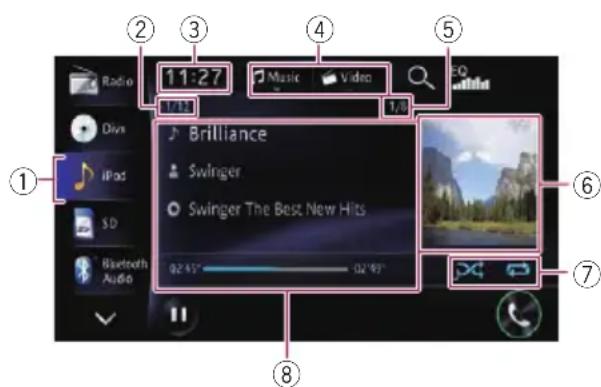
Video
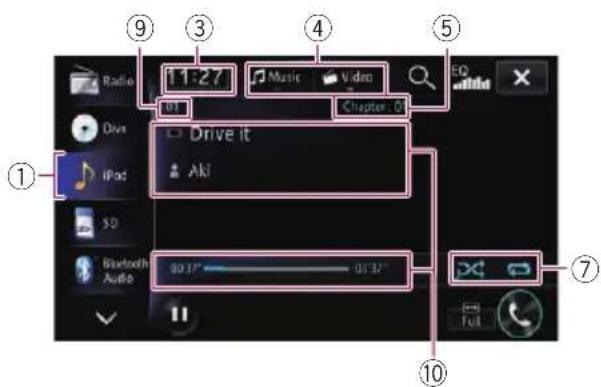
①Sourceicon
Showswhichsourcehasbeenselected.
②Songnumberindicator
Showsthenumberofthesongandthetotal numberofsongsintheselectedlist.
③Currenttime
④Playbackmode
⑤Chapternumberindicator
Showsthecurrentchapternumberwhena filewithchaptersisplayed(whenavailable).
⑥Albumartwork
Albumartofthecurrentsongisdisplayedifit isavailable.
⑦Playbackconditionindicator
Indicate the current playback condition.
Settingtheshuffleplay
IndicatorMeaning

Cancelstheshuffleplay.

Playsbacksongsvideosinrandomorderwithintheselectedlist.

Selectsanalbumrandomly, and thenplaysbackallthesongsinthat albuminorder. Theactionswhilethisindicatoris displayedonthevideooperation screenvarydependingontheconnectediPod.
Settingarepeatplayrange
IndicatorMeaning
Repeatsallsongsorvideosinthese- lectedlist.

Repeatsjustthecurrentsongor video.
⑧Currentsong(episode)information
•:Songtitle(episode)
Showsthetitleofthecurrentsong. Whenapodcastisplayed, the episode is displayed (when available).
• Artistname(podcasttitle)
Showstheartistnamecurrentlyplaying. Whenapodcastisplayed, thepodcast titleisdisplayed (whenavailable).
• Albumtitle(podcastproducer)
Showsthetitleofthealbumforthe song. Whenapodcastisplayed, the podcastproducerisdisplayed (when available).
•Playtime
Showstheelapsedplayingtimewithin thecurrentsong(episode).
☐ “----” is displayed if there is no corresponding information.
⑨ Filenumberindicator
Showsthenumberofthefilecurrentlyplaying (whenavailable).
⑩Currentvideoinformation
- Filenameindicator
Showsthefilenamecurrentlyplaying (whenavailable).
• Artistname(podcasttitle)
Showstheartistnamecurrentlyplaying. Whenapodcastisplayed, thepodcast titleisdisplayed (whenavailable).
- Playtimeindicator
Showstheelapsedplayingtimewithin thecurrentfile.
☐ “----” is displayed if there is no corresponding information.
□IfcharactersrecordedontheiPodarenot compatiblewiththisnavigationsystem, theymaybecomegarbled.
Usingthetouchpanelkeys
Music
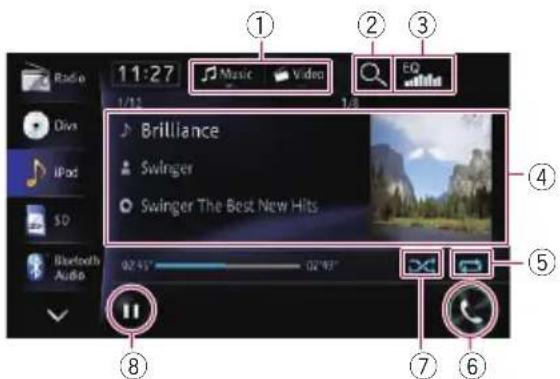
Video
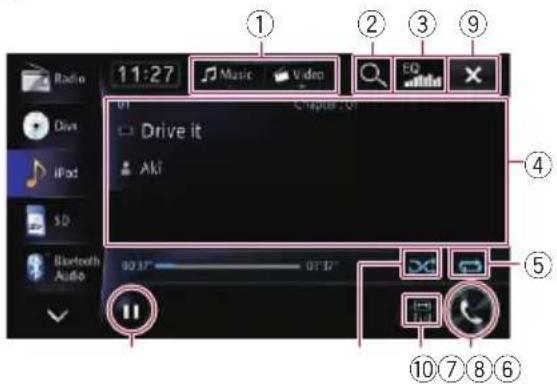
①Switchestheoperationscreen
Touchingthiskeydisplaysthetouchpanelkey ([Video] or [Music]) to switch between the screentoooperatevideofilesandthattooperatemusicfiles.
☐Thistouchpanelkeyisonlyavailable whentherearebothaudioandvideofile inyouriPod.
②Selectsafilefromthelist
Touchingafolderonthelistshowsitscontent. Youcanplayafileonthelistbytouchingit.
Music
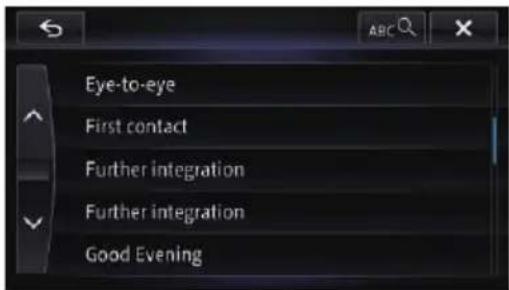
Video
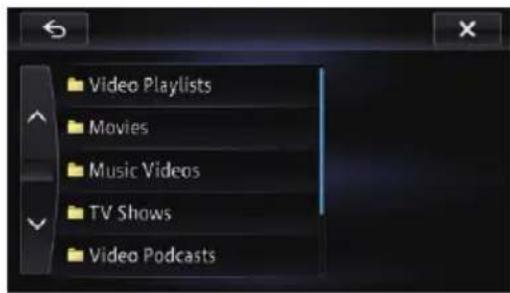
□Ifyoutouch,alp#etcharacters aredisplayed. Touchthefirstletterofthetitleofthe video/songyouarelookingfor.
③Recallsequalisercurves
- Fordetails, refer to Using the equaliser on page 151.
④Operatessomefunctionsbyswipeaction
☐Whenthevideoisdisplayedinfull screenmode, thewholescreenbecomesaswiperesponsearea.
Fordetails, referto Swipeactiononpage 27.
⑤Setsarepeatplayrange
Therepeatplayrangecanbechangedbyonly touchingasinglekey.
Fordetails, refertoPlaybackcondition indicatoronpage111.
⑥Displaysthe"Phone"screen
Fordetails, refertoDisplaying the phone menu on page 67.
⑦Setstheshuffleplay
Theshuffleplaysettingcanbechangedby onlytouchingasinglekey.
Fordetails, refertoPlaybackcondition indicatoronpage111.
⑧PlaybackandPause
Touching [▶] or [■■] switches between play-backandpause.
⑨Hidesthetouchpanelkeysandinformationofthecurrentvideo
Touching ✗ showsonlythecurrentvideo.
□Ifyouwanttodisplaythetouchpanel keysandinformationofthecurrent videoagain,touchanywhereontheLCD screen.
⑩Changingthewidescreenmode
- Fordetails,refertoChangingthewide screenmodeonpage113.
Changingthewidescreen mode
Youcansetthescreensizeofvideo.
☐Thedefaultsettingis"Full".
1Touch

onthe"iPod"screen.
☐Theappearanceofthiskeychangesaccordingtothecurrentsetting.
•Full
A4:3pictureisenlargedinthehorizontal directiononly,enablingyoutoenjoya4:3 TVpicture(normalpicture)withoutany omissions.
- Just
Thepictureisenlargedslightlyatthecentre andtheamountofenlargementincreases horizontallytowardtheendsofthepicture, enablingyoutoenjoya4:3picturewithout sensinganydisparity,evenonawide screen.
• Cinema
Apictureisenlargedbythesameproportion as "Full" or "Zoom" in the horizontal directionandbyanintermediateproportion between "Full" and "Zoom" in the vertical direction;idealforacinema-sized(wide screen)picturewherecaptionslieoutside theframe.
- Zoom
A4:3pictureisenlargedinthesameproportionbothverticallyandhorizontally; idealforacinema-sized(widescreen)picture.
• Normal
A4:3pictureisdisplayednormally, giving younosenseofdisparitysinceitsproportionsarethesameasthoseofthenormal picture.
☐ Imagesmaybeunclearwhen"Cinema"or "Zoom"isselected.
Remember that use of this system for commercial or public viewing purposes may constitute an infringement on the author's rights protected by the Copyright Law.
Operatingbyhardware buttons
PressingtheTRKbutton
Youcanskipsongs, videosorpodcastsforwardorbackward.
Whenasong,videoorpodcastwithchapteris played,youcanskipchapterforwardorbackward.
PressingandholdingtheTRKbutton
Youcanperformfastreverseorfastforward.

WARNING
Certainusesofasmartphonemaynotbe legalwhiledrivinginyourjurisdiction,so youmustbeawareofandobeyanysuchrestrictions.
Ifindoubtastoaparticularfunction,only performitwhilethecarisparked.
Nofeatures should be used unless it is safe to dosounderthedriving conditions you are experiencing.
WhenconnectinganiPhoneorsmartphone withtheAhaRadioinstalled,youcancontrol, view,and/orhearAhaRadiocontentfromthis navigationsystem.YoucanalsodisplayPOinformationfromtheAhaRadioapplicationon themapscreenandroutetothesePOIs.
Inthischapter, theiPhone andiPodtouch will bereferred toasiPhone.
☐ Fordetailsconcerningoperations, refer to the HelpandTipssectionwithintheAha Radioapplication.
☐AhaRadiostationsmayrequireinitial setuporsigninbeforethestationcanbe accessed.
□BesuretoreadUsingapp-basedconnected contentbeforeyouperformthisoperation.
Fordetails, referto Usingapp-basedconnectedcontentonpage194.
Note:
- CertainfunctionalityoftheAhaRadioservice maynotbeavailablewhenaccessingtheservicethroughthePioneernavigationsystem, including,butnotlimitedto,creatingnew Ahastations,deletingAhastations,recording 'shouts'byvoice,adjustingAhaRadioApp settings,loggingintoFacebook,creatingaFacebookaccount,loggingintoTwitter,orcreatingaTwitteraccount.
- AhaRadioisaservicenotaffiliatedwith Pioneer.Moreinformationisavailableat http://www.ahamobile.com.
- AspecificversionoftheAhaRadioapplicationmustbeinstalledonyouriPhoneorsmartphonetoenjoyAhaRadiocontentonthisnavigationsystem. Because the application for the iPhoneor smartphone is not provided by Pioneer, there-
quiredversionoftheapplicationmaynotyet beavailableatthetimeofpurchaseofthenavigationsystem.
Availability, version and update information can be found at
http://www.pioneer.eu/aharadio
Informationforcompatibility ofconnecteddevices
The following is detailed information regarding the terminals required to set the AhaRadio application on this navigation system.
ForiPhonewith30-pinconnectorusers
•ThedevicehasiOS3.0orhigher.
- AUSBinterfacecableforiPod/iPhone (soldseparately) mustbeusedtoconnect youriPhonetothisnavigationsystem.
ForiPhonewithLightningconnector users
- The following cablesarerequiredforconnectiontothisnavigationsystem.
—HDMI/USBinterfacecableforiPod/iPhone(CD-IH202)(soldseparately)
—LightningDigitalAVAdapter(AppleInc. products)(soldseparately)
—LightningtoUSBcable(suppliedwith iPhonewithLightningconnector)
- The device is connected to this navigation system via Bluetooth.
Forsmartphoneusers
- The following conditions apply to the use of this function.
—The device has Android OS2.2 or higher.
—The devices supports Bluetooth SPP (Serial Port Profile).
□CompatibilitywithallAndroiddevicesis notguaranteed.
FordetailsaboutAndroiddevicecompatibilitywiththisnavigationsystem, refertotheinformationonourwebsite.
- AnAppConnectivityKit(CD-AH200)(sold separately)isrequiredforconnectionto thisnavigationsystem.
- The device is connected to this navigation system via Bluetooth.
Startingprocedure
The procedure varies depending on your type of device.
ForiPhonewith30-pin connectorusers
1Set"Appconnectionsettings" to "iPhone", and "iPodConnectionSettings" to "30-pinConnector".
Fordetails, refer to Selecting the device connection method on page 157.
→Fordetails, refertoSettingtheiPodconnectiononpage149.
2StartuptheAhaRadioapplicationinstalledontheiPhone.
□Beforestartingup,sign-intoAhaRadio fromyouriPhone.
3ConnectyouriPhone.
□IftheiPhoneisalreadyconnected,touch [aha]ontheleftedgeofthescreen.
- Fordetails, refertoConnectingyouriPodon page20.
4DisplaytheAVoperationscreen.
→Fordetailsoftheoperations,refertoDis- playingtheAVoperationscreenonpage76.
5Touch[aha]ontheleftsideofthe screentodisplaythe"aha"screen.
6Usethetouchpanelkeysonthescreen tocontroltheAhaRadio.
ForiPhonewithLightning connectorusers
1Set"Appconnectionsettings" to "iPhone", and "iPodConnectionSettings" to "DigitalAVConnector".
- Fordetails, refer to Selecting the device connection method on page 157.
Fordetails, refertoSettingtheiPodconnectiononpage149.
2RegistryouriPhoneandconnectitto thisproductviatheBluetoothwireless technology.
☐Theregistereddevicemustbeselectedas theprioritydevice.
Fordetails, refertoRegistering your Bluetooth devices on page 58.
3UnlockyouriPhone.
4ConnectyouriPhone.
- Fordetails,refertoConnectingyouriPodon page20.
5DisplaytheAVoperationscreen.
→Fordetailsoftheoperations,refertoDis- playingtheAVoperationscreenonpage76.
6Touch[aha]ontheleftsideofthe screentodisplaythe"aha"screen.
Whenyoutouch[aha], thenavigationsystem attemptstoestablishaBluetoothconnection. Aftertheconnectionissuccessfullyestablished, thetouchpanelkeysonthe“aha” screenareactivated.
7Usethetouchpanelkeysonthescreen tocontroltheAhaRadio.
Forsmartphoneusers
1Set"Appconnectionsettings" to "Android".
Fordetails, refer to Selecting the device connection method on page 157.
2Registryoursmartphoneandconnect ittothisproductviatheBluetoothwireless technology.
☐Theregistereddevicemustbeselectedas theprioritydevice.
- Fordetails, refertoRegistering your Bluetooth devices on page 58.
3Unlockyoursmartphone.
4ConnectyoursmartphonetothisproductviatheseparatelysoldAppConnectivityKit(CD-AH200).
☐Thecableconnectionmethodvariesdependingonyourdevice.
- Fordetailsoftheoperations, refertothel Installation Manual.
5DisplaytheAVoperationscreen.
Fordetailsoftheoperations,refertoDisplayingtheAVoperationscreenonpage76.
6Touch[aha]ontheleftsideofthe screentodisplaythe"aha"screen.
Whenyoutouch[aha], thenavigationsystem attemptstoestablishaBluetoothconnection. Aftertheconnectionissuccessfullyestablished, thetouchpanelkeysonthe“aha” screenareactivated.
7Usethetouchpanelkeysonthescreen tocontroltheAhaRadio.
Readingthescreen
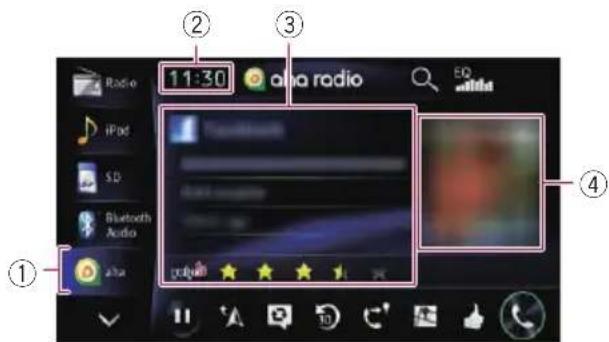
①Sourceicon
Showswhichsourcehasbeenselected.
②Currenttime
③Currentstationinformation
Showswhichsourcehasbeenselected.
- Stationname
ShowsthenameoftheAhaRadiostationtowhichnavigationsystemiscurrentlytuned.
• Detailedinformation
Show the information on the content currently being played.
☐ “----” is displayed if there is no corresponding information.
• Ratinginformation
Showstheratedvalueofthecurrent contentdisplayed(onlywhenandwhere applicable).
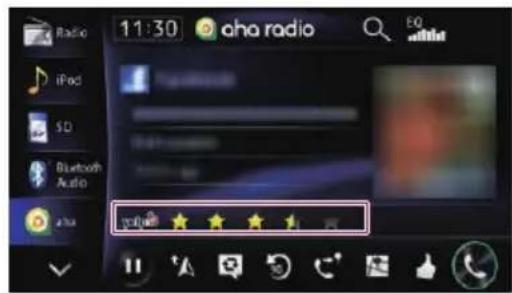
④Contentimage
Displaysanimageofthecurrentcontentif oneisavailable.
Usingthetouchpanelkeys
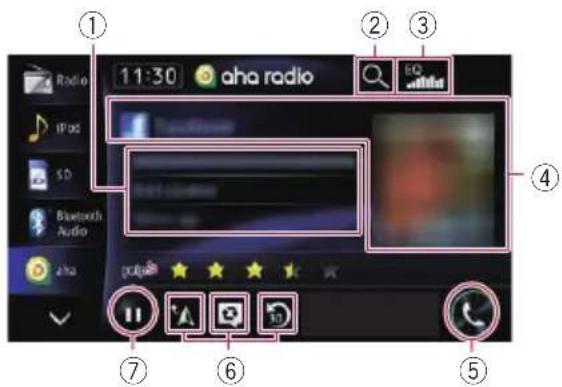
①Pausesthecontentcurrentlyplayingand showsatextpop-upscreen
☐ “----” is displayed if there is no corresponding information.
Pop-upscreen
□Touching[OK]closesthepop-upscreen and playsthecontent.
②SelectsanAhaRadiostationfromthelist
TouchingthiskeydisplaysthelistofyouravailableAhaRadiostations.TouchthedesiredAhaRadiostationtochangeAhaRadium sources.
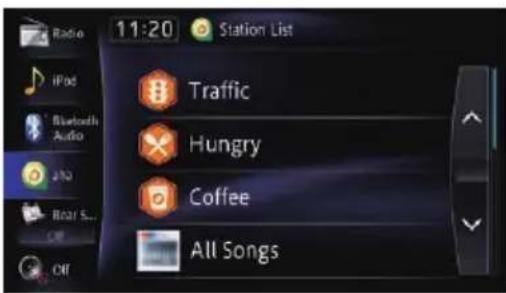
③Recallsequalisercurves
- Fordetails, refertoUsingtheequaliser onpage151.
④Operatessomefunctionsbyswipeaction
Fordetails, referto Swipeactiononpage 27.
⑤Displaysthe"Phone"screen
- Fordetails, refertoDisplaying the phone menu on page 67.
⑥Performsadditionalfunctionsofeachstationorcontentcurrentlyplaying
☐Theiconsdisplayedvarydependingon eachstationorcontent.
IndicatorMeaning

TouchingthekeydisclosesthecurrentcarlocationthroughAhaRadio.

Touchingthekeyretweetsthese- lectedtweetswithyourTwitterac- count.
IndicatorMeaning

Touchingthekeyperformsfastreverseofthecurrentcontentfor30 seconds.

Touchingthekeysendsyoutothe Locationconfirmationscreenofthe selectedPOltosearchforthede-siredroute.
- Forsubsequentoperations, refer toSettingaroutetoyourdestinationonpage46.

Touchingthekey"likes"thecurrent content.
□Dependingonthecontent, touching ▲ or ▼ncels"likes".

Touchingthekey"dislikes"thecurrentcontent.
☐Dependingonthecontent, touching ▲ or•ncels“dislikes”.

Touchingthekeyletsyoumakea calltoaphonenumberregisteredin thecurrentcontentusingthehands-freefunction.
⑦Playbackandpause(orstop)
Touch[▶]tostart playback.Touching[■]during playback, pausesor stops playback.
☐Pause(orstop)keyfunctionalitydependsonthecontent.
⑧ConnectsaregisteredBluetoothdevice manually
☐Thekeyappearsunderoneoffollowing conditions:
- When "Appconnectionsettings" is setto "Android"
- When "Appconnectionsettings" is set to "iPhone", and "iPod ConnectionSettings" is set to "DigitalAV Connector"
Fordetails, refertoStartingprocedureon page115.
Functionscoupledwith AhaRadioandthe navigationsystem
Dependingonthestations, functionscoupled withthenavigationsystemmayalsobe.
ViewingPOinformationwith AhaRadio
YoucanchecktheinformationofPOIlocation whensettingtothedestinationthePOIlocationobtainedwithAhaRadio.
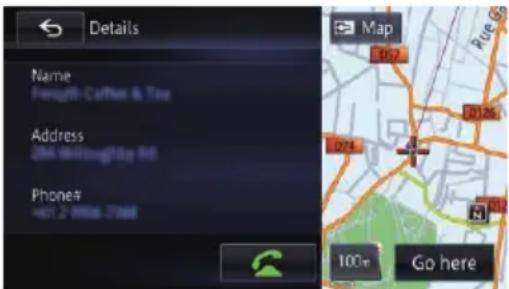
- Fordetails, refertoViewinginformation aboutaspecifiedlocationonpage33.
□Whenyouswitchtothemapscreenwhile viewingthecontentthatincludesPOIlocationinformation,amaximumof30POI iconsaredisplayedonthemapscreen.
☐ThePOliconsonthemapwillnotdisappear,evenwhenthesmartphoneisremoved.
Theiconswilldisappearwiththefollowing operations:
- Turningofftheignitionswitch(ACC OFF)
- Initialisinguserdata
- UpdatingthedisplayoftheAhaPOI icons
☐AhaPOliconsareupdatedatthefollowing intervals.
- Whenastationwithcontentincluding locationinformationisreselected
- When the content list so of the Aha application are updated
- Ifthereare30ormorecontentitemsselectedandthe31stPOlisread
UsingtheBluetoothaudioplayer
YoucancontroltheBluetoothaudioplayer.
BeforeusingtheBluetoothaudioplayer, youmustregisterandconnectthedevice tothisnavigationsystem.
Fordetails, refertoRegistering your Bluetooth devices on page 58.
☐Operationsmayvarydependingonthe Bluetoothaudioplayer.
☐Depending on the Bluetooth audioplayer connected to this navigation system, the available operations with this navigation system may be limited to the following two levels:
- A2DP(AdvancedAudioDistribution Profile): Only playing backsongson your audioplayer is possible.
- A2DPandAVRCP(Audio/VideoRemote ControlProfile):Playingback,pausing,selectingsongs,etc.,arepossible.
☐SinceanumberofBluetoothaudioplayers areavailableonthemarket,operations withyourBluetoothaudioplayerusingthis navigationsystemvaryconsiderably in range.PleaserefertotheinstructionmanualthatcamewithyourBluetoothaudio playeraswellasthismanualwhileoperatingyourplayeronthisnavigationsystem.
While you are listening to song on your Bluetooth audioplayer, pleaserefrain from operating your mobile phone as much as possible. If you try operating your mobile phone, the signal may cause noise on the song playback.
□Evenifyouswitchtoanothersourcewhile listeningtoasongonyourBluetoothaudio player,thesong playback continues.
☐DependingontheBluetoothaudioplayer youconnectedtothisnavigationsystem, operationsonthisnavigationsystemto controltheplayermaydifferfromthoseexplainedinthismanual.
□Whenyouaretalkingonamobilephone connectedtothisunitviaBluetoothwirelesstechnology,song playbackfromyour Bluetoothaudioplayerconnectedtothis unitmaybepaused.
Startingprocedure
1Pullouttheconnectingcableforusing theAppRadioMode.
☐YoucannotuseBluetoothaudioplayer whentheconnectingcableforusingthe AppRadioModeisconnected.
2DisplaytheAVoperationscreen.
→Fordetailsoftheoperations,refertoDis- playingtheAVoperationscreenonpage76.
3Touch[BluetoothAudio]ontheleft edgeofthescreentodisplaythe
"BluetoothAudio" screen.
☐TheBluetoothdeviceisconnectedwhen youtouch[BluetoothAudio].Ifthe Bluetoothdeviceisnotconnected,touch [Connect].
Fordetails, refer to Connects and disconnects the Bluetooth audioplayer on page 121.
4Usethetouchpanelkeysonthescreen tocontroltheBluetoothaudioplayer.
Fordetails, refertoUsingthetouchpanel keysonpage120.
Readingthescreen
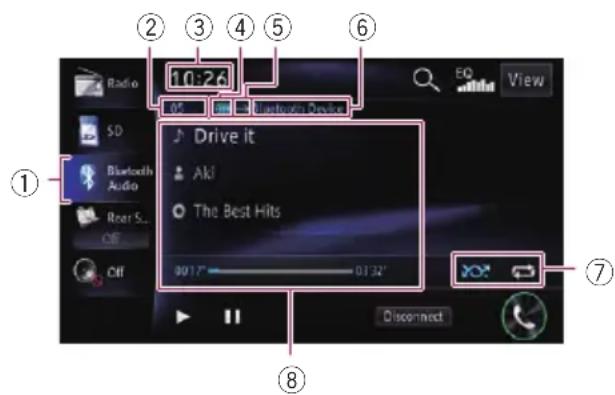
①Sourceicon
Showswhichsourcehasbeenselected.
② Filenumberindicator
Showsthefilenumbercurrentlyplaying (whenavailable).
③Currenttime
UsingtheBluetoothaudioplayer
④BatterystatusoftheBluetoothdevice
☐DependingontheBluetoothdevice,this iconmaynotappear.
⑤Connectionstatusindicator
ShowswhetherthedevicefeaturingBluetooth technologyisconnectedornot.
⑥Devicenameindicator
⑦Playbackconditionindicator
Indicate the current playback condition if the connected Bluetooth audioplayer features AVRCP1.3.
Playingfilesinrandomorder
| IndicatorMeaning | |
 | Doesnotplayfilesinrandomorder. |
 | Playsallaudiofilesinthecurrent groupinrandomorder. |
 | Playsallaudiofilesinthecurrentre-peatplayrangeinrandomorder. |
Settingarepeatplayrange
| IndicatorMeaning | |
 | Doesnotrepeat. |
 | Repeatsjustthecurrentfile. |
 | Repeatsthecurrentgroup. |
 | RepeatsallaudiofilesintheBluetoothaudioplayer. |
⑧Currentfileinformation
If the connected Bluetooth audioplayer features AVRCP1.3, the following file information will be displayed.
•:Tracktitle
Showsthetitleofthetrackcurrently playing(whenavailable).
• Artistname
Showstheartistnamecurrentlyplaying (whenavailable).
• Albumtitle
Showsthetitleofthealbumofthecurrentfile(whenavailable).
- Playtimeindicator
Showstheelapsedplayingtimewithin thecurrentfile.
In the following cases, file information will only be displayed after a file starts or resumes playing:
- YouconnectaBluetoothaudioplayer compatiblewithAVRCP1.3,andoperatetheplayertostartplaying.
- Youselectanotherfilewhenplay-backispaused.
Usingthetouchpanelkeys
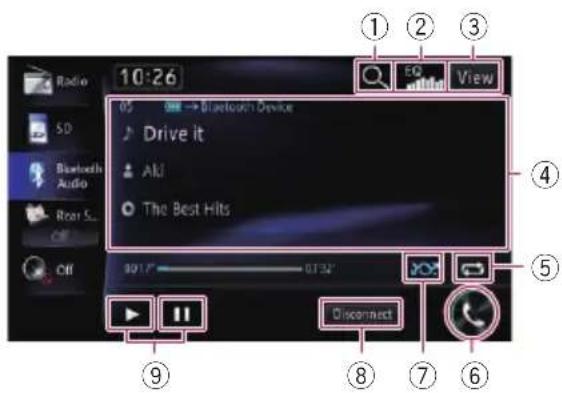
①Selectsatrackfromthelist
Touchingthiskeydisplaythelistinwhich youcanfindthetracktitleandthefolder nameofBluetoothaudioplayer. Touchingafolderonthelistshowsitscontent. Youcanplayatrackonthelistbytouchingit.
Thisfunctionisonlyavailablewhenthe connectedBluetoothaudioplayersupportsAVRCP1.4.
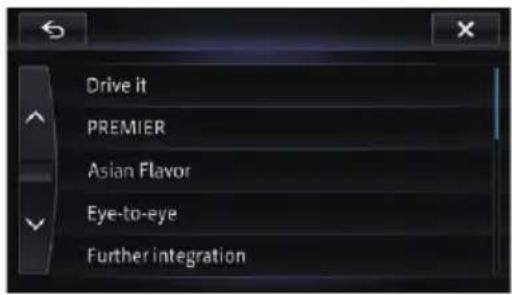
②Recallsequalisercurves
- Fordetails,refertoUsingtheequaliser onpage151.
③Switchesthescreendisplays
UsingtheBluetoothaudioplayer
Eachtouchofthiskey,switchesbetweenthe fileinformationscreenandthelistselection screen.
④Operatessomefunctionsbyswipeaction
→Fordetails, refer to Swipeaction on page 27.
⑤Setsarepeatplayrange
Therepeatplayrangecanbechangedbyonly touchingasinglekey.
☐Thisfunctionisonlyavailablewhenthe connectedBluetoothaudioplayersupportsAVRCP1.3.
Fordetails, refertoPlaybackcondition indicatoronpage120.
⑥Displaysthe"Phone"screen
→Fordetails,refertoDisplayingthephone menuonpage67.
⑦Playsfilesinrandomorder
Allofthefileswithintherepeatplayrange canbeplayedatrandombyonlytouchinga singlekey.
☐Thisfunctionisonlyavailablewhenthe connectedBluetoothaudioplayersupportsAVRCP1.3.
Fordetails, refertoPlaybackcondition indicatoronpage120.
⑧ConnectsanddisconnectstheBluetooth audioplayer
The Bluetooth audioplayer is disconnected when y outouch [Disconnect].
□IftheBluetoothaudioplayerisnotconnected,touch[Connect]andawaitfor theBluetoothwirelessconnection.
⑨PlaybackandPause
Touching [▶] or [■] switches between play-backandpause.
Operatingbyhardware buttons
PressingtheTRKbutton
Youcanskipfilesforwardorbackward.
PressingandholdingtheTRKbutton
Youcanperformfastreverseorfastforward.
Youcandisplaythevideoimageoutputbythe deviceconnectedtothenavigationsystem. Fordetailsoftheconnectionmethod,referto theInstallationManual.

CAUTION
Forsafetyreasons, videoimages cannot be viewed while your vehicle is in motion. Toview videoimages, you must stop in as a safe place and apply the handbrake.
Readingthescreen
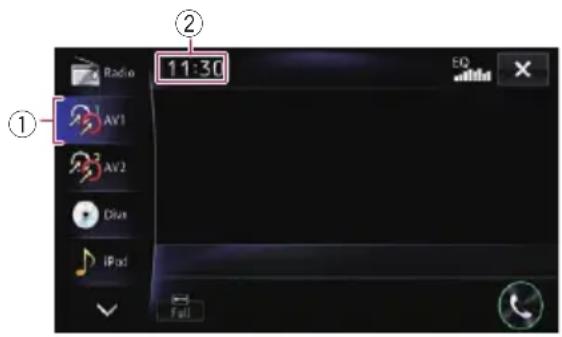
①Sourceicon
Showswhichsourcehasbeenselected.
②Currenttime
UsingAV1
Youcandisplaythevideoimageoutputbythe deviceconnectedtovideoinput1.
1Turnonthesettingofvideoinput1 (AV1).
- Fordetails, refertoSettingvideoinput1 (AV1) on page 148.
2DisplaytheAVoperationscreen.
Fordetailsoftheoperations,refertoDisplayingtheAVoperationscreenonpage76.
3Touch[AV1]ontheleftedgeofthe screen.
The image is displayed on the screen.
![PIONEER AVIC-F850BT - 3Touch[AV1]ontheleftedgeofthe screen. - 1](/content/2026/05/761308/images/91c05e994f6c3f37564deee12ad415db00141aa7197815dc3c5976a985a6f176.jpg)
UsingAV2
Youcandisplaythevideoimageoutputbythe equipmentconnectedtovideoinput2.
1Turnonthesettingofvideoinput2 (AV2).
- Fordetails, refertoSettingvideoinput2 (AV2) on page 148.
2DisplaytheAVoperationscreen.
Fordetailsoftheoperations,refertoDisplayingtheAVoperationscreenonpage76.
3Touch[AV2]ontheleftedgeofthe screen.
The image is displayed on the screen.
![PIONEER AVIC-F850BT - 3Touch[AV2]ontheleftedgeofthe screen. - 1](/content/2026/05/761308/images/5f07ebf1b21c3e109bd74b059e878c7c364104566011445c896228425da0b757.jpg)
Usingthetouchpanelkeys
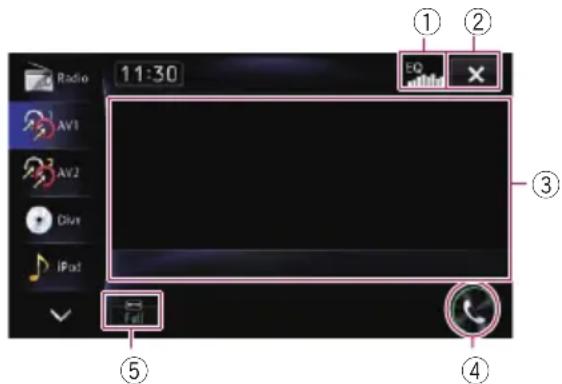
①Recallsequalisercurves
- Fordetails, refertoUsingtheequaliser onpage151.
②Hidesthetouchpanelkeysandinformationofthecurrentvideo
Touching ✗ showsonlythecurrentvideo.
□Ifyouwanttodisplaythetouchpanel keysandinformationofthecurrent videoagain,touchanywhereontheLCD screen.
③Operatessomefunctionsbyswipeaction
☐Whenthevideoisdisplayedinfull screenmode, thewholescreenbecomesaswiperesponsearea.
→Fordetails,refertoSwipeactiononpage 27.
④Displaysthe"Phone"screen
Fordetails, refertoDisplaying the phone menu on page 67.
⑤Changingthewidescreenmode
Fordetails, refertoChangingthewide screenmodeonpage123.
Changingthewidescreen mode
Youcansetthescreensizeofvideo.
☐Thedefaultsettingis"Full".
1Touch

on the "AV1" or "AV2"
screen.
☐Theappearanceofthiskeychangesaccordingtothecurrentsetting.
•Full
A4:3pictureisenlargedinthehorizontal directiononly,enablingyoutoenjoya4:3 TVpicture(normalpicture)withoutany omissions.
- Just
Thepictureisenlargedslightlyatthecentre andtheamountofenlargementincreases horizontallytowardtheendsofthepicture, enablingyoutoenjoya4:3picturewithout sensinganydisparity,evenonawide screen.
• Cinema
Apictureisenlargedbythesameproportion as "Full" or "Zoom" in the horizontal directionandbyanintermediateproportion between "Full" and "Zoom" in the vertical direction;idealforacinema-sized(wide screen)picturewherecaptionslieoutside theframe.
- Zoom
A4:3pictureisenlargedinthesameproportionbothverticallyandhorizontally; idealforacinema-sized(widescreen)picture.
• Normal
A4:3pictureisdisplayednormally,giving younosenseofdisparitysinceitspropor-
tionsarethesameasthoseofthenormal picture.
☐Imagesmaybeunclearwhen“Cinema”or“Zoom”isselected.
Remember that use of this system for commercial or public viewing purposes may constitute an infringement on the author's rights protected by the Copyright Law.

WARNING
Certainusesofasmartphonemaynotbe legalwhiledrivinginyourjurisdiction,so youmustbeawareofandobeyanysuchrestrictions.
Ifindoubtastoaparticularfunction,only performitwhilethecarisparked.
Nofeatures should be used unless it is safe to dosounderthedriving conditions you are experiencing.
YoucancontrolapplicationsforiPhoneand smartphonedirectlyonthenavigationscreen (AppRadioMode).
InAppRadioMode, you can operate applications with fingeringesturessuchastapping, dragging, scrolling or flicking on the screen of the navigation system.
□Inthischapter,theiPhoneandiPodtouch willbereferredtoasiPhone.
☐ThecompatiblefingergesturesvarydependingontheapplicationforiPhoneor smartphone.
□Whenanapplicationnotcompatiblewith AppRadioModeisstarted,dependingon theapplication,youcanseeanimeof applicationonthescreenofthisnavigation system.However,youcannotoperatethe application.
TousetheAppRadioMode, install the
AppRadioappontheiPhoneorsmartphone beforehandtoenablelaunchingoftheapplicationonthenavigationsystem.Fordetails abouttheAppRadioapp,visitthefollowing site:
http://www.pioneer.eu/AppRadioMode
□BesuretoreadUsingapp-basedconnected contentbeforeyouperformthisoperation.
Fordetails, refertoUsingapp-basedconnectedcontentonpage194.
- Pioneerisnotliableforanyissuesthatmay arisefromincorrectorflawedapp-based content.
• Thecontentandfunctionalityofthesupportedapplicationsaretheresponsibilityof theAppproviders. - InAppRadioMode, functionality through the product is limited while driving, with available functions determined by the App providers.
- Availability of AppRadio Mode functionality is determined by the Appprovider, and not determined by Pioneer.
- AppRadioModeallowsaccesstoapplicationsotherthanthoselisted(subjecttolimitationswhiledriving),buttheextentto whichcontentcanbeusedisdetermined bytheAppproviders.
Informationforcompatibility ofconnecteddevices
The following is the detailed information regarding the terminals required to set the application for iPhone or smartphone on this navigation system.
ForiPhonewith30-pinconnectorusers
- ThisfunctioncanbeoperatedwiththefollowingiPhonemodels.
—iPodtouch4thgeneration
—iPhone4S
—iPhone4
• ThedevicehasiOS4.0orhigher.
- AUSBinterfacecableforiPod/iPhone (soldseparately) mustbeusedtoconnect youriPhonetothisnavigationsystem.
ForiPhonewithLightningconnector users
- ThisfunctioncanbeoperatedwiththefollowingiPhonemodels.
—iPodtouch5thgeneration
—iPhone5
- The following cablesarerequired for connection to this navigation system. —HDMI/USBinterface cable for iPod/iPhone(CD-IH202)(sold separately)
UsingAppRadioMode
—LightningDigitalAVAdapter(AppleInc. products)(soldseparately)
—LightningtoUSBcable(suppliedwith iPhonewithLightningconnector)
- The device is connected to this navigation system via Bluetooth.
☐YoucannotusetheAppRadioMode whenBluetoothwirelesstechnologyis disconnected.
Forsmartphoneusers
- The following conditions apply to the use of this function.
—The device has Android OS2.3 or higher.
—The devices supports Bluetooth SPP (Serial Port Profile).
□CompatibilitywithallAndroiddevicesis notguaranteed.
FordetailsaboutAndroiddevicecompatibilitywiththisnavigationsystem, refertotheinformationonourwebsite.
- AnAppConnectivityKit(CD-AH200)(sold separately)isrequiredforconnectionto thisnavigationsystem.
- The device is connected to this navigation system via Bluetooth.
☐YoucannotusetheAppRadioMode whenBluetoothwirelesstechnology (SPP)isdisconnected.
Startingprocedure
The procedure varies depending on your type of device.
ForiPhonewith30-pin connectorusers
1Set"Appconnectionsettings" to "iPhone", and "iPodConnectionSettings" to "30-pinConnector".
- Fordetails, refer to Selecting the device connection method on page 157.
→Fordetails, refertoSettingtheiPodconnectiononpage149.
2ConnectyouriPhone.
For details, refer to Connecting your iPod on page20.
3PresstheHOMEbuttontodisplaythe "TopMenu" screen.
4Touch[Apps].
Amessage, which notifies youth that your iPhone can launch the application, appears on screen.
Amessage, which asks you whether you want to launch your application, appear on your iPhone.
5UseyouriPhonetolaunchtheapplication.
TheAppRadioappislaunched.
6Touch[OK]onthescreenofthisproduct.
TheAppRadioModescreen(Application menuscreen)appears.
Applicationmenuscreen
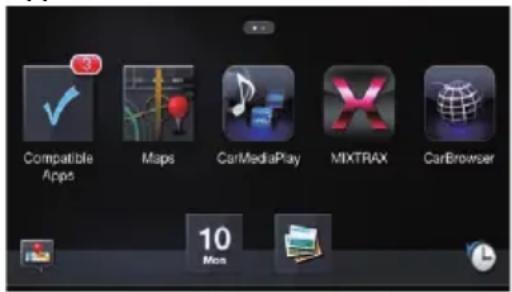
□Ifyouconnectyourdevicewhilean
AppRadioMode-compatibleapplicationis alreadyrunning, theapplicationoperation screenappearsonthisnavigationsystem.
7Touchthedesiredapplicationicon.
Thedesiredapplicationislaunched, and the applicationoperationscreenappears.
8Operatetheapplication.
9PresstheHOMEbuttontogobackto theapplicationmenuscreen.
□IfyoupresstheHOMEbuttonwhiletheapplicationmenuscreenisdisplayed,the "TopMenu"screenappears.
ForiPhonewithLightning connectorusers
1Set"Appconnectionsettings" to "iPhone", and "iPodConnectionSettings" to "DigitalAVConnector".
- Fordetails, refer to Selecting the device connection method on page 157.
Fordetails, refer to Setting the iPod connection on page 149.
2RegistryouriPhoneandconnectitto thisproductviatheBluetoothwireless technology.
☐Theregistereddevicemustbeselectedas theprioritydevice.
Fordetails, refertoRegistering your Bluetooth devices on page 58.
3UnlockyouriPhone.
4ConnectyouriPhone.
For details, refer to Connecting your iPod on page20.
5PresstheHOMEbuttontodisplaythe "TopMenu" screen.
□ appears the Apps key while Bluetooth wireless technology is in the process of connecting.
6Touch[Apps].
TheAppRadioappislaunched, and the AppRadioModescreen(Applicationmenu screen) appears.
Applicationmenuscreen
□Ifyouconnectyourdevicewhilean
AppRadioMode-compatibleapplicationis alreadyrunning, theapplicationoperation screenappearsonthisnavigationsystem.
7Touchthedesiredapplicationicon.
The desired application is launched, and the application operations screen appears.
8Operatetheapplication.
9PresstheHOMEbuttontogobackto theapplicationmenuscreen.
□IfyoupresstheHOMEbuttonwhiletheapplicationmenuscreenisdisplayed,the "TopMenu"screenappears.
Forsmartphoneusers
1Set"Appconnectionsettings" to "Android".
Fordetails, refer to Selecting the device connection method on page 157.
2Registryoursmartphoneandconnect ittothisproductviatheBluetoothwireless technology.
☐Theregistereddevicemustbeselectedas theprioritydevice.
- Fordetails, refertoRegistering your Bluetooth devices on page 58.
3Unlockyoursmartphone.
4ConnectyoursmartphonetothisproductviatheseparatelysoldAppConnectivityKit(CD-AH200).
☐Thecableconnectionmethodvariesdependingonyourdevice.
- Fordetailsoftheoperations, refertothelInstallationManual.
5PresstheHOMEbuttontodisplaythe "TopMenu" screen.
6Touch[Apps].
TheAppRadioappislaunched, and the AppRadioModescreen(Applicationmenu screen) appears.
Applicationmenuscreen
□Ifyouconnectyourdevicewhilean AppRadioMode-compatibleapplicationis alreadyrunning,theapplicationoperation screenappearsonthisnavigationsystem.
☐The[Apps]keyiconandBluetoothicon vary according to the precondition of Bluetooth connection as follows:
IconMeaning

AppearswhenBluetoothwireless technology(SPP)isconnected.

AppearswhileBluetoothwireless technology(SPP)isintheprocess ofconnecting.
WhenanAndroiddeviceisfirstconnected tothisproduct,touchthewhitedottoactivatetheconnection.
natural_image
Dark background with a faint circular light spot, no visible text or symbols7Touchthedesiredapplicationicon.
Thedesiredapplicationislaunched,andthe applicationoperationscreenappears.
8Operatetheapplication.
9PresstheHOMEbuttontogobackto theapplicationmenuscreen.
□IfyoupresstheHOMEbuttonwhiletheapplicationmenuscreenisdisplayed,the "TopMenu" screenappears.
☐ TouseAppRadioModewithanAndroid deviceconnectedtothisproduct,you shouldadjustthesizeoftheAndroidwindowonthescreenofthisproduct.
Settingthedisplaysizeforthe Androidvideoplayback
ThisfunctionisonlyavailableinAppRadio Mode(HDMIconnection)ontheAndroid. FordetailsofAppRadioMode,referto Chapter25.
YoucanchangethesizeofAndroidvideo imagetofitittothescreen.
1DisplaytheAppRadioModescreen.
2PresstheHOMEbuttontodisplaythe "TopMenu" screen.
3Touch

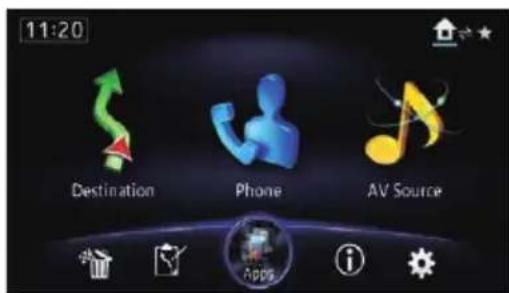
The "Edit/Settings" screenappears.
4Touch[Appsettings].
The "Appsettings" menuappears.
5Touch[AndroidVideoAdj.].
6Touchtheitemtoadjustthesizeofthe Androidwindow.
Usingthekeyboard

CAUTION
Foryoursafety, the keyboard functionality is only available when the vehicle is stopped and the handbrake is engaged.
ThisfunctionisonlyavailableinAppRadio ModeontheiPhone.
WhenyoutapthetextinputareaofanapplicationforiPhone,akeyboardwillbedisplayed on-screen.Youcaninputthedesiredtextdirectlyfromthisnavigationsystem.
☐Thelanguagepreferenceforthekeyboard ofthisnavigationsystemshouldbesame asthesettingonyouriPhone. Ifthesettingsforthisproductandthe iPhonearedifferent,youmaybeunableto entercharactersproperly.
1Setthekeyboardlanguage.
Fordetailsoftheoperations, refertoSetting thekeyboardlanguagewithapplicationfor iPhoneonpage158.
2StartuptheAppRadioMode.
- Fordetails, refertoStartingprocedure on page125.
3Touchthetextinputareaontheapplicationoperationscreen.
Akeyboardforenteringtextappears.
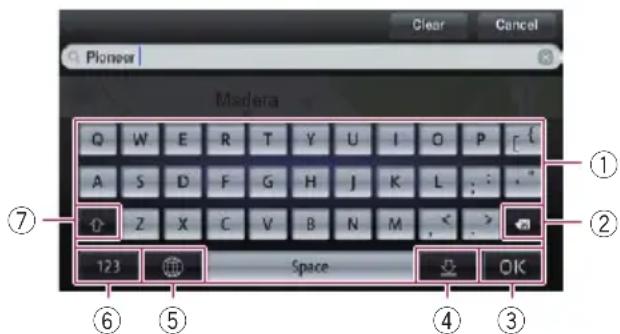
①Entersthecharacters
②Delete the input text one letter at a time, beginning at the end of the text
③Confirmstheentryandallowsyouto proceedtothenextstep
④Hidesthekeyboardandtextcannow beenteredusingthekeyboardof iPhone
⑤ChangestheiPhonekeyboardlayout
□TheiPhonekeyboardlayoutsthatcanbe selectedbytapping 📋 dependsonthe settingofHardwareKeyboardLayoutof youriPhone.
⑥Switchestoakeyboardofferingnumericandsymbolcharacters
⑦ Convertsthecaseofthekeyboard characters ■
Usingthesoundmixfunction
YoucanoutputsoundmixingAVsourceand anapplicationforiPhoneorsmartphone whentheAppRadioModeisused.
□MixingthesoundofiPodwiththatofan applicationcannotbedonewithaniPhone.
When "iPodConnectionSettings" issetto "30-pinConnector", you cannot mix the sound of USB with that of an application.
☐YoucannotmixthesoundofBluetooth Audiowiththatofanapplication.
1StartuptheAppRadioMode.
- Fordetails, refertoStartingprocedureon page125.
2PresstheVOL(+/-)button.
Thesoundmixmenuwillbedisplayedon-screen.
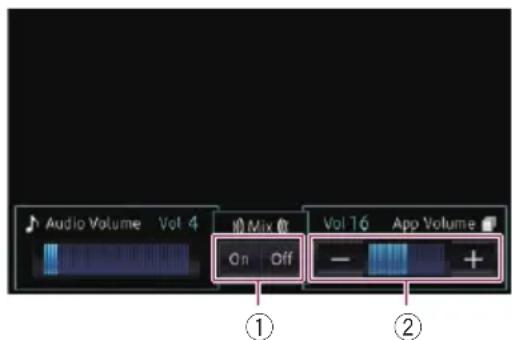
①Setswhethertoswitchthesoundmix functiononoroff
- Off(default):
Thesoundmixfunctionisdisabled. - On:
Thesoundmixfunctionisenabled.
②AdjuststheAppRadioModevolume Each touch of [+] or [-] increases or decreasesthevolumelevel.
Otherfunctions
Displayingtheimageofyour application(iPhonewith30-pin connector)
Youcansetanimageoftheapplicationfor iPhone,whichisnotcompatiblewith AppRadioMode,tobeshownonthescreen.
☐Dependingonthetypeofapplication,you maynotbeabletoseetheimageon screen.
☐Youcanonlycontroltheapplicationonthe connecteddevice.
1ConnectyouriPhone.
For details, refer to Connecting your iPod on page20.
2PresstheHOMEbuttontodisplaythe "TopMenu" screen.
3Touch[Apps].
Amessage,whichnotifiesyouthatyour iPhonecanlaunchtheapplication,appears onscreen. Amessage,whichasksyouwhetheryouwant tolaunchyourapplication,appearsonyour iPhone.
4UseyouriPhonetorefusetolaunchthe application.
5Touch[OK]onthescreenofthisproduct.
The blackscreenappears.
6LaunchanapplicationonyouriPhone.
Animageoftheapplicationappearsonthe screen.
7PresstheHOMEbuttontoreturntothe "TopMenu" screen.
Displayingtheimageofyour application(iPhonewith Lightningconnector)
Youcansetanimageoftheapplicationfor smartphone,whichisnotcompatiblewith AppRadioMode,tobeshownonthescreen.
☐Dependingonthetypeofapplication,you maynotbeabletoseetheimageon screen.
□Whenyouusethisfunction,donotconnect otherdevicesviaBluetoothwirelestechnology.Besuretodisconnectyour Bluetoothdevicebeforeusingthisfunction.
☐Youcanonlycontroltheapplicationonthe connecteddevice.
1ConnectyouriPhone.
For details, refer to Connecting your iPod on page20.
2PresstheHOMEbuttontodisplaythe "TopMenu" screen.
3Touch[Apps].
The image in youriPhone appears on the screen.
4LaunchanapplicationonyouriPhone.
Animageoftheapplicationappearsonthe screen.
5PresstheHOMEbuttontoreturntothe "TopMenu" screen.
Displayingtheimageofyour application(smartphone)
Youcansetanimageoftheapplicationfor smartphone,whichisnotcompatiblewith AppRadioMode,tobeshownonthescreen.
□Compatibilitywithallsmartphonesisnot guaranteed.
□Whenyouusethisfunction,donotconnect otherdevicesviaBluetoothwirelestechnology.Besuretodisconnectyour Bluetoothdevicebeforeusingthisfunction.
UsingAppRadioMode
☐Youcanonlycontroltheapplicationonthe connecteddevice.
1ConnectyoursmartphonetothisproductviatheseparatelysoldAppConnectivityKit(CD-AH200).
☐Thecableconnectionmethodvariesdependingonyourdevice.
→Fordetailsoftheoperations,refertothelInstallationManual.
2PresstheHOMEbuttontodisplaythe "TopMenu" screen.
3Touch[Apps].
The image in your smartphone appears on the screen.
4Launchanapplicationonyoursmartphone.
Animageoftheapplicationappearsonthe screen.
5PresstheHOMEbuttontoreturntothe "TopMenu" screen.
Displayingtheinformation screen
1PresstheHOMEbuttontodisplaythe "TopMenu" screen.
2Touch i.
The "Information" screenappears.

Checkingtheconnections ofleads
Check that leads are properly connected between the navigation system and vehicle. Please also check whether they are connected in the correct positions.
1Displaythe"Information"screen.
- Fordetails, refertoDisplayingtheinformationscreenonpage131.
2Touch[NavigationInfo].
The "NavigationInfo" screenappears.
3Touch[ConnectionStatus].
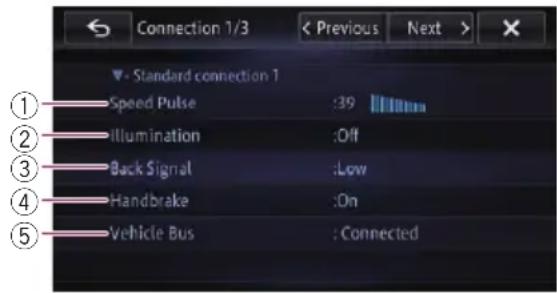
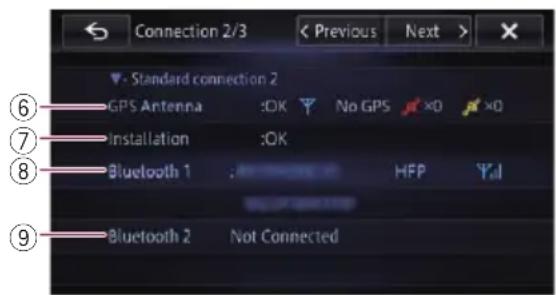
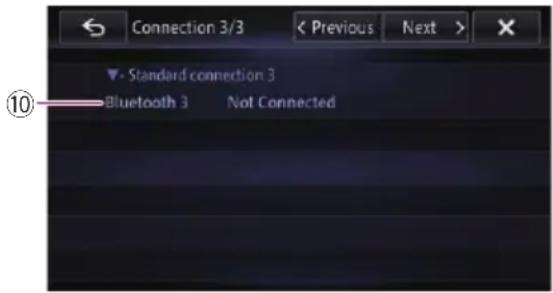
①SpeedPulse
TheSpeedPulsevaluedetectedbythenavigationsystemisshown."0"isshownwhile thevehicleisstationary.
②Illumination
Whentheheadlightsorsmalllampsofavehicleareon, "On" is displayed. Whenthe smalllampsofavehicleareoff, "Off" is displayed. (If the orange/white lead is not connected, "Off" appears.)
③BackSignal
Whenthegearstickisshiftedto“R”, the signal switches to “High” or “Low”. (One of these is displayed depending on the vehicle.)
④Handbrake
Whenthehandbrakeisapplied, "On" is displayed. Whenthehandbrakeisreleased, "Off" is displayed.
⑤VehicleBus
WhentheoptionalVehicleBusadapteris connected, "Connected" is displayed. If not connected, "—" is displayed.
⑥GPSAntenna
Indicate the connection status of the GPS aerial, thereception sensitivity, and from how many satellites signal is received.
| Colour | Signalcommunication | Usedinpositioning |
OrangeYesYes
YellowYesNo
□WhentheGPSaerialisconnectedto thisnavigationsystem,"OK"isdisplayed.
When the GPS aerial is not connected to this navigation system, "NOK" is displayed.
□ Ifreceptionispoor,pleasechangethe installationpositionoftheGPSaerial.
⑦Installation
The installation position of the navigation system is shown. If installed correctly, "OK" appears. Indicates whether the installation position of the navigationsystem is correct or not. When the navigationsystem is installed at an extreme angle exceeding the limitation of the installing angle, "NG" will be displayed. When the angle of the navigation system has been changed, "NG" will be displayed.
⑧Bluetooth1
ThenameoftheconnectedBluetoothdevice, Bluetoothdeviceaddressandnameof theprofileinusearedisplayed.Theelectric waveconditionbetweenthisproductand theBluetoothdeviceisshownintheillustration.
⑨Bluetooth2
ThenameoftheconnectedBluetoothdevice, Bluetoothdeviceaddressandnameof theprofileinusearedisplayed.Theelectric waveconditionbetweenthisproductand theBluetoothdeviceisshownintheillustration.
⑩Bluetooth3
ThenameoftheconnectedBluetoothdevice, Bluetoothdeviceaddressandnameof theprofileinusearedisplayed.Theelectric waveconditionbetweenthisproductand theBluetoothdeviceisshownintheillustration.
Checkingsensorlearning statusanddrivingstatus
☐Thenavigationsystemcanautomatically useitssensormemorybasedontheouter dimensionsofthetyres.
1Displaythe"Information"screen.
- Fordetails, refertoDisplayingtheinformationscreenonpage131.
2Touch[NavigationInfo].
The "NavigationInfo" screenappears.
3Touch[3DCalibrationStatus].
The "3DCalibrationStatus" screenappears.
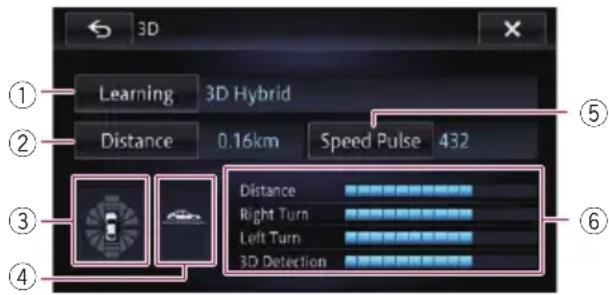
①Learning
Indicate the current driving mode.
②Distance
Indicatesdrivingdistance.
③Accelerationordeceleration/Rotational speed
Indicate the acceleration or deceleration velocity of your vehicle. Also, therotational speed when your vehicle turn to the left for right is shown.
④Inclination
Indicate the incline of the street that you are currently on.
⑤SpeedPulse
Indicatesthetotalnumberofspeedpulses.
⑥Degreeoflearning
Sensorlearningsituationsfordistance (Distance), right turn (Right Turn), left turn (LeftTurn) and 3Ddetection (3DDetection) are indicated by the length of bars.
☐ Whentyreshavebeenchangedor chainsfitted, turningontheSpeed Pulseallowsthesystemtodetectthe factthatthetyrediameterhaschanged, andautomaticallyreplacethevaluefor calculatingdistance.
□Ifaseparatelysoldspeedpulsegenerator(ND-PG1)isconnected,thedistance calculationvaluecannotbereplaced automatically.
Clearingstatus
Youcandeletethelearnedresultsstoredin "Distance", "Speed Pulse" or "Learning".
1Touch[Distance]or[SpeedPulse].
The followingmessageappears.
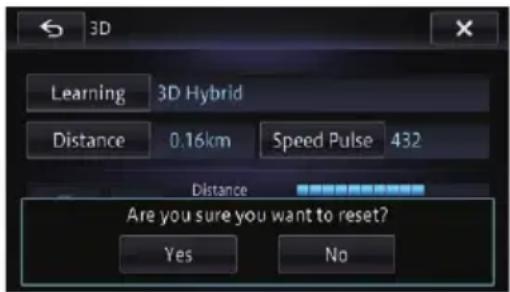
2Touch[Yes].
Clearstheresultsstoredin "Distance" or "SpeedPulse".
3Touch[Learning].
4Touch[Resetall].
Clearsallleaningresults.
☐Touch[Resetall]forthefollowingcases:
• Afterchangingtheinstallationposition ofthenavigationsystem
• Afterchangingtheinstallationangleof thenavigationsystem
• Aftermovingthenavigationsystemto anothervehicle
■Ifyoutouch[Resetdistance],alllearnedresultsstoredin"Distance"arecleared.
Checkingthedevicenumber
1Displaythe"Information"screen.
→Fordetails, refertoDisplayingtheinformationscreenonpage131.
2Touch[NavigationInfo].
The device number of your navigation system is displayed.
3Checkthedevicenumber.
Checkingtheversion information
1Displaythe"Information"screen.
- Fordetails, refertoDisplayingtheinformationscreenonpage131.
2Touch[VersionInformation].
The current version is displayed.
3Checktheversioninformation.
4Touch[OK].
Registeringyourhome
Registering your home positions savestime and effort. Also, route to home positions can be calculated easily with a single touch of the key from the "Destination". Theregistered home position can also be modified later.
□If your home has been already registered, deletetheregistered homelocation first.
- Fordetails,refertoDeletingregistered contactsonpage72.
1Searchforalocation.
→Fordetails, refertoChapter4.
Aftersearchingforapoint, themapofthese-lectedpositionisdisplayed.
2PresstheHOMEbuttontodisplaythe "TopMenu" screen.
3Touch[Destination].
4Touch[Home].
If the homelocation has not been stored yet, a confirmation message appears.
5Touch[Yes].
Theregistrationiscomplete.
□Ifyourhomelocationhasbeennewlyregistered,thename"Home"andhomemark areautomaticallyentered.
□Youcanchangeyourhomeposition.
Fordetails, refertoEditing registered locations on page 52.
Displayingtheadjustment andcorrectionscreen
1PresstheHOMEbuttontodisplaythe "TopMenu" screen.
2Touch

The "Edit/Settings" menuappears.
3Touch[Vol./Pos.Adj.].
The "Volume/Position adjustment" screen appears.
4Touchtheitemyouwanttoconfigure.
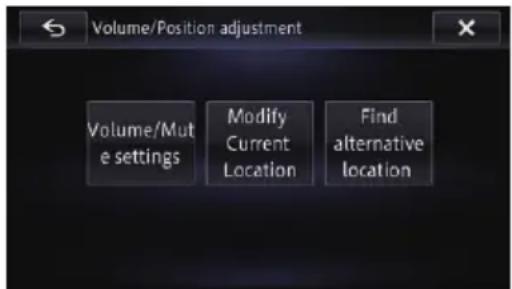

Switchingthemuting/attenuationtiming
YoucanmutetheAVsourcevolumeorattenu- atetheoutputsignal.
1Displaythe"Volume/Positionadjustment"screen.
- Fordetails, refertoDisplayingtheadjustment and corrections screen on page 134.
2Touch[Volume/Mutesettings].
The "Volume/Mute settings" screen appears.
3Touch[Mute].
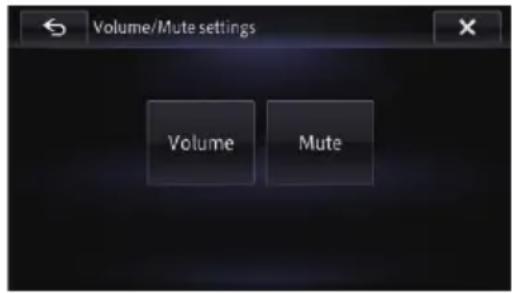
4Touchtheitemyouwanttoconfigure.
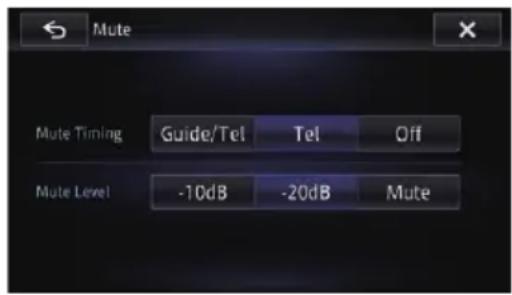
•Guide/Tel:
The volume is muted or attenuated according to the following conditions.
—When then navigation output the guidance voice.
—Whenyouuseamobilephonevia Bluetoothtechnology(dialling,talking, incomingcall).
• Tel:
The volume is muted or attenuated when you use a mobile phone via Bluetooth technology (dialling, talking, incoming call).
• Off:
Thevolumedoesnotchange.

Switchingthemuting/attenuationlevel
Youcanselectthemuting/attenuationlevelof
"MuteTiming". This setting is also effective for amutesignalthathas been received from the MUTElead connected to then navigation unit.
Thismenuisnotavailablewhen
"Mute Timing" is "Off".
1Displaythe"Volume/Positionadjustment"screen.
- Fordetails, refertoDisplayingtheadjustment and corrections screen on page 134.
2Touch[Volume/Mutesettings].
The "Volume/Mute settings" screen appears.
3Touch[Mute].
4Touchtheitemyouwanttoconfigure.
-20dB:
Thevolumebecomes1/10.
-10dB:
Thevolumebecomes1/3.
- Mute:
Thevolumebecomes0.
SettingtheVolumefor GuidanceandPhone
Thesoundvolumeforthenavigationcanbe set.Youcanseparatelysetthevolumeofthe routeguidanceandthebeepsound.
1Displaythe"Volume/Positionadjustment"screen.
- Fordetails, refertoDisplayingtheadjustment and corrections screen on page 134.
2Touch[Volume/Mutesettings].
The "Volume/Mute settings" screen appears.
3Touch[VolumeSettings].
The "Volume Settings" screen appears.
4Touch[+]or[-]tosettheirvolume.
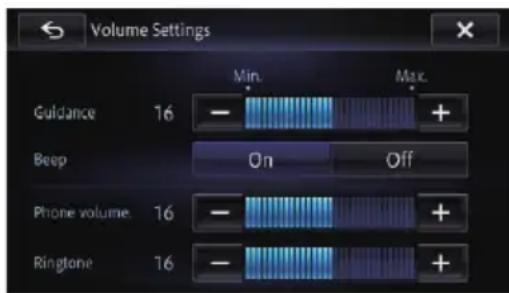
Onthisscreen, you can operate the following items.
•Guidance
Thissettingcontrolstheguidancevolume of navigation.
- Phonevolume.
Thissettingcontrolstheincomingvoicevolume.
• Ringtone
Thissettingcontrolstheincomingringtone volume.
☐ "Ringtone" and "Phone volume." adjustmentsareneededonlywhenamobile phonefeaturingBluetoothtechnologyis connected.
■ If you touch the key next to "Beep", the setting is changed.
- On(default):
Abeepsounds.
• Off:
Thebeepsoundismuted.

Correcting the current location
Touchthescreentoadjustthecurrentposition anddirectionofthevehicledisplayedonthe map.
1Displaythe"Volume/Positionadjustment"screen.
- Fordetails, refertoDisplayingtheadjustment and corrections screen on page 134.
2Touch[ModifyCurrentLocation].
3Scrolltothepositionwhereyouwant toset, thentouch[OK].
4Touchthearrowkeyonthescreento setthedirection, thentouch[OK].
Switchingtheroadon whichyouaredriving
Whenyouaredrivingintheareawhereanordinaryroadandtollroadrunparallel,andif thesystemcalculatesyourvehiclepositionto beonaroadoppositefromtheoneonwhich youareactuallydriving,youcanswitchyour vehiclepositionotherightroad,i.e.eitherthe ordinaryroadorthetollroad.
1Displaythe"Volume/Positionadjustment"screen.
Fordetails, refertoDisplayingtheadjustment and corrections screen on page 134.
2Touch[Findalternativelocation].
The vehicle position is corrected to other right type of road.
☐Thevehiclepositionmaynotbecorrected insomecases.
☐Duringtherouteguidance,thevehiclepositioniscorrectedbeforetherouteis searchedagain.
Displayingthescreenfor navigationfunctionsettings
1PresstheHOMEbuttontodisplaythe "TopMenu" screen.
2Touch

The "Edit/Settings" menuappears.
3Touch[Navisettings].
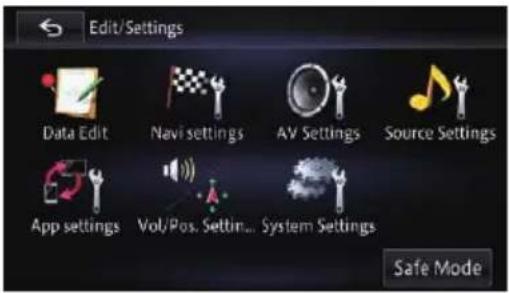
The "NaviSettings" menuappears.
4Touchtheitemyouwanttoconfigure.
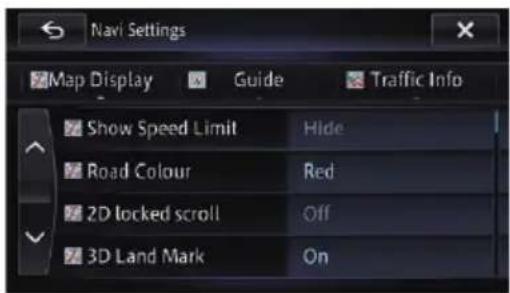
5Touchtoendthesetup.
Settingthespeedlimitdisplay
Selectswhethertodisplayorhidethespeed limitofthecurrentroad.
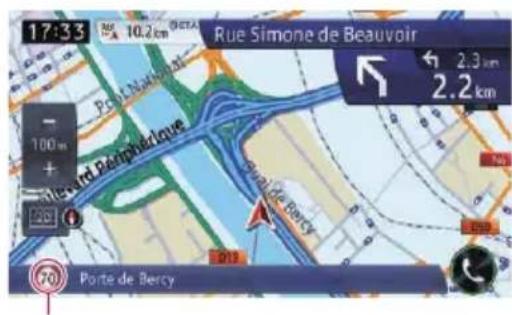
SpeedLimit
1Displaythe"NaviSettings"screen.
Fordetails, refertoDisplayingthescreenfor navigationfunctionsettingsonpage136.
2Touch[MapDisplay].
3Touch[ShowSpeedLimit].
Thesettingscreenappears.
4Touchtheitemyouwanttoset.
- Hide(default):
Hidesthespeedlimitonthemap.
•View: Displaysthespeedlimitonthemap.
Changingtheroadcolour
Youcansettheroadcolourtobluishorred-dish.
1Displaythe"NaviSettings"screen.
Fordetails, refer to Displaying the screen for navigation function settings on page 136.
Customisingpreferences
2Touch[MapDisplay].
3Touch[RoadColour].
Thesettingscreenappears.
4Touchtheitemyouwanttoset.
- Red(default): Changestoredbasedroadcolours.
- Blue: Changestobluebasedroadcolours.
Settingthescroll-Locked2D (Normal)View
You can select whether to lock then normal view when you own scroll the screen.
1Displaythe"NaviSettings"screen.
→Fordetails, refertoDisplayingthescreenfor navigationfunctionsettingsonpage136.
2Touch[MapDisplay].
3Touch[2Dlockedscroll].
Thesettingscreenappears.
4Touchtheitemyouwanttoset.
- Off(default): Doesnotlockthenormalviewwhenyou scrollthescreen.
- On Locksthenormalviewwhenyouscrollthe screen.
Displayingthe3Dlandmarks
☐The3Dlandmarksandthissettingareonly availableonAVIC-F50BT.
Youcanselectwhethertodisplaythe3Dlandmarksonthemap.
☐3Dlandmarksonlyappearwhentheview modeis"3DView"andthemapscaleis setto200m(0.25mile)orlower.
1Displaythe"NaviSettings"screen.
→Fordetails, refertoDisplayingthescreenfor navigationfunctionsettingsonpage136.
2Touch[MapDisplay].
3Touch[3DLandMark].
Thesettingscreenappears.
4Touchtheitemyouwanttoset.
- On(default): Displaysthe3Dlandmarkonthemap.
- Off: Hidesthe3Dlandmarkonthemap.
Settingthedetailedcitymap
☐ThisfunctionisonlyavailableonAVIC-F50BT.
Youcanselectwhethertodisplaythecitymap whenincertainmetropolitancityareas.
☐Thecitymapisdisplayedwhenthemap scaleis50metres(0.05mile)orless.
1Displaythe"NaviSettings"screen.
→Fordetails, refer to Displaying the screen for navigation function settings on page 136.
2Touch[MapDisplay].
3Touch[CityMap].
Thesettingscreenappears.
4Touchtheitemyouwanttoset.
- On(default): Automaticallyswitchestothecitymap wheninacitymaparea.
- Off: Doesnotshowthecitymap.
□ Even if you switch "City Map" to "On", thecitymapcannotbedisplayedin areaswherethereisnocitymapdata.
Settingthebarriergraphicfor thecitymap
☐ThisfunctionisonlyavailableonAVIC-F50BT.
Onthecitymapscreen,youcandisplaya "barriergraphic"patternwherenocitymap dataisavailable.Thispreventsanormalmap ofadifferentscalefrombeingdisplayedatthe sametime,considerablyenhancingtheclarity ofthecitymaponscreen.
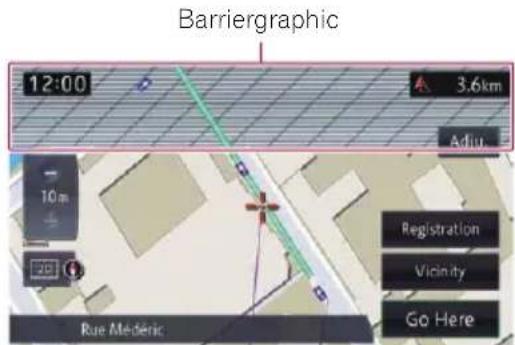
1Displaythe"NaviSettings"screen.
Fordetails, refer to Displaying the screen for navigation function settings on page 136.
2Touch[MapDisplay].
3Touch[CityMapBarrier].
Thesettingscreenappears.
4Touchtheitemyouwanttoset.
- On(default): Displaysthebarriergraphicforthecity map. Whenthevehiclepositionorcursorenters thebarriergraphicarea,thegraphicdisappearsandanormalmapisdisplayedinfull screenmode.
- Off: Doesnotdisplaythebarriergraphicforthe citymap.Whenthevehiclepositionorcur-sorenterstheareawherenocitymapdata isavailable,anormalmapisdisplayedin fullscreenmode.
Settingthemapcolourchange betweendayandnight
Toimprovethevisibilityofthemapduringthe evening,youcansetthetimingforchanging thecombinationofthemapcolour.
1Displaythe"NaviSettings"screen.
Fordetails, refertoDisplayingthescreenfor navigationfunctionsettingsonpage136.
2Touch[MapDisplay].
3Touch[Day/NightDisplay].
Thesettingscreenappears.
4Touchtheitemyouwanttoset.
•Automatic(default): Youcanchangethecoloursofamapbetweendaytimeandnighttimeaccordingto whetherthevehiclelightsareonoroff.
•Day: Themapisalwaysdisplayedwithdaytime colours.
☐Tousethisfunctionwith"Automatic",the orange/whiteleadofthenavigationsystem mustbeconnectedcorrectly.
Displayingthetracklog
Youcanselectwhethertodisplaythetracklog onthemap.
1Displaythe"NaviSettings"screen.
- Fordetails, refertoDisplayingthescreenfor navigationfunctionsettingsonpage136.
2Touch[MapDisplay].
3Touch[Displaytravellog].
Thesettingscreenappears.
4Touchtheitemyouwanttoset.
- On(default): Displaysthetracklogonthescreen.
- Off: Doesnotdisplaysthetracklogonthe screen.
Deletingthetracklog automatically
Youcandeletethetracklogautomatically.
1Displaythe"NaviSettings"screen.
Fordetails, refer to Displaying the screen for navigation function settings on page 136.
2Touch[MapDisplay].
3Touch[TravLogAutoDel.].
Thesettingscreenappears.
4Touchtheitemyouwanttoset.
- Off(default): Does not delete the track log automatically.
- NearHome: Afteryouturnoffpowerofthisproduct (turnofftheengine)atalocationwithin 100mfromregisteredyourhome,thetrack logisdeletedautomatically.
- AtPowerOff: Afteryouturnoffpowerofthisproduct (turnofftheengine), thetracklogisdeleted automatically.
Setting the current street name display
Selectswhethertodisplayorhidethestreet name(orcityname)thatyourvehicleistravellingalong.
1Displaythe"NaviSettings"screen.
Fordetails, refer to Displaying the screen for navigation function settings on page 136.
2Touch[MapDisplay].
3Touch[Currentlocationinfo.].
Thesettingscreenappears.
4Touchtheitemyouwanttoset.
- StreetName(default): Displaysthestreetname(orcityname)on themap.
- Coordinates: The current position is displayed in latitude and longitude.
Settingthecriteriaofroute calculation
You can predefinetheroutecalculation criteria. This setting control show the routes should be calculated by taking into account the time, distance or main road. Determines which condition takes priority for route calculation.
1Displaythe"NaviSettings"screen.
→Fordetails, refertoDisplayingthescreenfor navigationfunctionsettingsonpage136.
2Touch[Guide].
3Touch[RouteCondition].
Thesettingscreenappears.
4Touchtheitemyouwanttoset.
- Fast(default): Calculatesaroutewiththeshortesttravel timetoyourdestinationasapriority.
- Short: Calculatesaroutewiththeshortestdistancetoyourdestinationasapriority.
- MainRoad: Calculatesaroutethatpassesmajorarterialroadsasapriority.
- Fordetails, refer to Displaying the screen for navigation function settings on page 136.
2Touch[Guide].
3Touch[Tollroad].
Thesettingscreenappears.
4Touchtheitemyouwanttoset.
- Use(default): Calculatesaroutethatmayincludetoll roadsinastandardcriteria.
- Avoid: Calculatesaroutethatavoidstollroads.
Settingtheuseofferries
Youcanpredefinetheuseofferrieswhencalculatingaroute.Thissettingcontrolswhetherferrycrossingsshouldbetakenintoaccount.
1Displaythe"NaviSettings"screen.
→Fordetails, refertoDisplayingthescreenfor navigationfunctionsettingsonpage136.
2Touch[Guide].
3Touch[Ferry].
Thesettingscreenappears.
4Touchtheitemyouwanttoset.
- Use(default): Calculatesaroutethatmayincludeferries inastandardcriteria.
- Avoid: Calculatesaroutethatavoidsferries.
Settingtheroutecalculationby learningroute
Thesystemlearnsthetravelhistoryofyourvehicleforeachroad. Thissettingcontrolswhetherornotthetravel historyshouldbetakenintoaccount.
1Displaythe"NaviSettings"screen.
→Fordetails, refertoDisplayingthescreenfor navigationfunctionsettingsonpage136.
2Touch[Guide].
3Touch[LearningRoute].
Thesettingscreenappears.
4Touchtheitemyouwanttoset.
- On(default): Calculatesaroutewiththetravelhistory takenintoaccount.
- Off: Calculatesaroutewithoutthetravelhistory takenintoaccount.
Settingtheroutecalculation allowingfortimerestrictions
Thissettingcontrolswhetherstreetsor bridgesthathavetrafficrestrictionsduringa certaintimeshouldbetakenintoaccount.
CAUTION
If the timed difference is not set correctly, then navigation system cannot consider traffic regulations correctly. Set the timed difference correctly.
→Fordetails,refertoSettingthetimedifference onpage144.
1Displaythe"NaviSettings"screen.
→Fordetails, refertoDisplayingthescreenfor navigationfunctionsettingsonpage136.
2Touch[Guide].
3Touch[Timerestrictions].
Thesettingscreenappears.
4Touchtheitemyouwanttoset.
- On(default): Calculatesaroutewhileavoidingstreetsor bridgeswithtrafficrestrictionsduringacertaintime.
- Off: Calculatesaroutewhileignoringtrafficrestrictions.
□Ifyouwanttosetyourroutetoavoidraised drawbridges,select"On".
☐Thesystemmaycalculatearoutethatin-cludesstreetsorbridgesthataresubjectto trafficrestrictionsduringacertaintime evenif"On"isselected.
Settingtheuseofmotorways
You can predefinethe use of motor ways when calculating a route.
1Displaythe"NaviSettings"screen.
Fordetails, refertoDisplayingthescreenfor navigationfunctionsettingsonpage136.
2Touch[Guide].
3Touch[Motorway].
Thesettingscreenappears.
4Touchtheitemyouwanttoset.
- Use(default): Calculatesaroutethatmayincludemotor- waysinastandardcriteria.
- Avoid: Calculatesaroutethatavoidsmotorways.
Settingtoselectyourroute automaticallyusingtheroute alternativesfunction
You can set in advance anew route and the current route you select when then navigation system recommends anew alternative route automatically and no selection is made.
1Displaythe"NaviSettings"screen.
- Fordetails, refertoDisplayingthescreenfor navigationfunctionsettingsonpage136.
2Touch[Guide].
3Touch[Autoreroutechoice].
Thesettingscreenappears.
4Touchtheitemyouwanttoset.
- Currentroute(default): Selectsthecurrentroute.
- AlternativeRoute: Selectsanalternativeroute.
Displayingthedistanceand estimatedtime
Youcansetthedisplayinformationoftheestimatedtimeofarrivalintherouteguidance.
1Displaythe"NaviSettings"screen.
Fordetails, refer to Displaying the screen for navigation function settings on page 136.
2Touch[Guide].
3Touch[Distance/ETA].
Thesettingscreenappears.
4Touchtheitemyouwanttoset.
- Destination(default): Displaysthedistanceandtheprogressto thedestination,elapsedtimeandtheestimatedtimeofarrival.
- Waypoint: Displaysthedistanceandtheprogressto thenextwaypoint,elapsedtimeandtheestimatedtimeofarrival.
Settingtheroutealternatives functiontoavoidtrafficjams andclosed/blockedroads
When both "Traffic avoidance" and "Auto reroute" are set to "On", this navigation system can calculate route allowing for traffic jams and closed/blocked roads when the system acquire traffic information.
1Displaythe"NaviSettings"screen.
- Fordetails, refertoDisplayingthescreenfor navigationfunctionsettingspage136.
2Touch[Guide].
3Touch[Trafficavoidance] and [Autore-route].
Thesettingscreenappears.
4Touchtheitemyouwanttoset.
- On(default): Suggestsanalternativeroutetoavoid eventsontheroute. - Off: Doesnotcalculatearouteautomatically.
Settingtheauto-zoomdisplay
Thissettingenablesswitchingtoanenlarged maparoundthepointwhereyourvehicleis approachinganintersection,entrance/exitof motorwayorajunction.
1Displaythe"NaviSettings"screen.
- Fordetails, refertoDisplayingthescreenfor navigationfunctionsettingsonpage136.
2Touch[Guide].
3Touch[CloseUpView].
Thesettingscreenappears.
4Touchtheitemyouwanttoset.
- On(default):
Switchestoanenlargedmap.
• Off:
Doesnotswitchtoanenlargedmap.
Changingthesettingofthe navigationinterruptionscreen
Youcansetwhethertoautomaticallyswitchto thenavigationscreenfromtheAVscreen whenyourvehicleapproachesaguidance pointsuchasanintersection.
1Displaythe"NaviSettings"screen.
Fordetails, refertoDisplayingthescreenfor navigationfunctionsettingsonpage136.
2Touch[Guide].
3Touch[AVGuideMode].
Thesettingscreenappears.
4Touchtheitemyouwanttoset.
- On(default):
SwitchesfromtheAVoperationscreento themapscreen.
• Off:
Doesnotswitchthescreen.
□Thissettingiseffectiveonlywhen“Close
Up View" is set to "On".
SettingtheAppoperation screeninterruption
Youcansetwhethertoautomaticallyswitchto thenavigationscreenfromtheAppRadio Modescreen.
1Displaythe"NaviSettings"screen.
- Fordetails, refertoDisplayingthescreenfor navigationfunctionsettingsonpage136.
2Touch[Guide].
3Touch[AppGuideMode].
Thesettingscreenappears.
4Touchtheitemyouwanttoset.
- On(default):
SwitchesfromtheAppoperationscreento themapscreen.
• Off:
Doesnotswitchthescreen.
Changingthevirtualspeedof thevehicle
Youcansettheaveragespeedfortheordinary roadormotorwaytocalcatetheestimated timeofarrival.
☐ Thissettingisenablediftheroutecalculationdoesnottakeaccountoftrafficjams.
- Fordetails, refertoSettingtheroutealternativesfunctiontoavoidtrafficjams andclosed/blockedroadsonpage141.
1Displaythe"NaviSettings"screen.
Fordetails, refertoDisplayingthescreenfor navigationfunctionsettingsonpage136.
2Touch[Guide].
3Touch[MinorOrdinaryRoad], [Major OrdinaryRoad] or [Motorway].
Thesettingscreenappears.
4Touchtheitemyouwanttoset.
Theestimatedtimeofarrivaliscalculated basedontheaveragespeedyouset. Theaveragespeedyoucanselectforeach kindofroadisasfollows.
MinorOrdinaryRoad
•km:
20km/h, 30km/h, 40km/h (default), 50km/h, 60km/h
- mileorMile&Yard: 10mph, 20mph, 25mph (default), 30mph, 40mph
MajorOrdinaryRoad
• km: 50km/h, 60km/h, 70km/h (default), 80km/h, 90km/h
- mileorMile&Yard: 30mph, 40mph, 45mph (default), 50mph, 55mph
Motorway
• km: 90km/h, 100km/h(default), 110km/h, 120km/h, 130km/h
- mileorMile&Yard: 55mph, 60mph (default), 70mph, 75mph, 80mph
☐Theunitmayvarydependingonthesettings.
Fordetails, referto Changing the unit between kmandmiles on page 143.
☐Theestimatedtimeofarrivalmaynottake intoaccountparametersotherthanthis speedvalue.
Changingtheunitbetweenkm andmiles
Thissettingcontrolstheunitofdistanceand speeddisplayedonyournavigationsystem.
1Displaythe"NaviSettings"screen.
Fordetails, refer to Displaying the screen for navigation function settings on page 136.
2Touch[Guide].
3Touch[km/mile].
Thesettingscreenappears.
4Touchtheitemyouwanttoset.
- km(default): Showsdistanceinkilometres.
- mile: Showsdistanceinmiles.
- Mile&Yard: Showsdistanceinmilesandyards.
Displayingthetraffic notificationicon
Selectswhethertodisplayorhidethetraffic notificationiconsonthemapwhenincidents occuronyourroute.
1Displaythe"NaviSettings"screen.
→Fordetails, refertoDisplayingthescreenfor navigationfunctionsettingsonpage136.
2Touch[TrafficInfo].
3Touch[Traffic].
Thesettingscreenappears.
4Touchtheitemyouwanttoset.
- On(default): Displaystheiconsonthemap.
-Off: Hidestheiconsonthemap.
Changingtheviewmode
Varioustypesofscreendisplayscanbese- lectedfornavigationguidance.
Fordetailsoftheoperation,refertoSwitchingtheviewmodeonpage34.
Displayingthescreenfor systemsettings
1PresstheHOMEbuttontodisplaythe "TopMenu" screen.
2Touch
The "Edit/Settings" menuappears.
3Touch[SystemSettings].
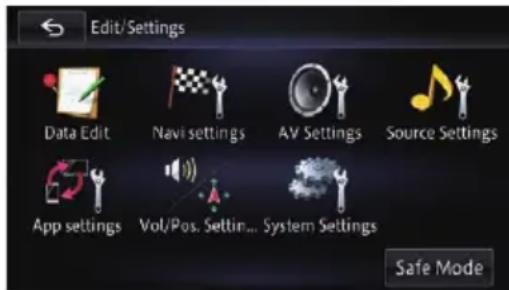
The "SystemSettings" screenappears.
4Touchtheitemyouwanttoconfigure.
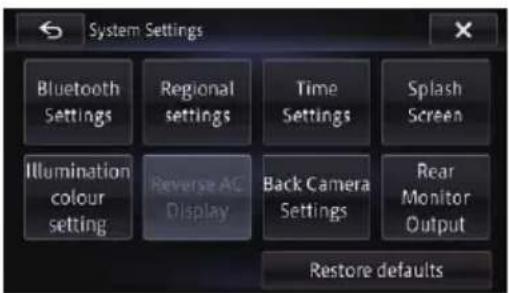
Selectingthelanguage
Youcansetthelanguagesusedontheprogrammeandvoiceguidance.Eachlanguage canbesetseparately.
1Displaythe"SystemSettings"screen.
- Fordetails, refertoDisplayingthescreenfor systemsettingsonpage143.
2Touch[Regionalsettings].
The "Languagesettings" screenappears.
3Touch[ProgramLanguage].
The "Selectprogrammelanguage" screen appears.
4Touchthedesiredlanguage.
Afterthelanguageisselected, theprevious screenreturns.
5Touch[VoiceLanguage].
The "Selectvoicelanguage" screenappears.
6Touchthedesiredlanguage.
Afterthelanguageisselected, theprevious screenreturns.
7Touch ✗ onthe"Languagesettings" screen.
Amessageconfirmingwhethertorestartthe navigationsystemappears.
8Touch[Yes].
Thenavigationsystemrestarts.
■ If you press the MODE, MAP, or HOME button, the setting procedure is cancelled.
Settingthetimedifference
Adjuststhesystem'sclock.Setthetimedifference(+,-)fromthetimeoriginallysetinyour navigationsystem.
1Displaythe"SystemSettings"screen.
Fordetails, refertoDisplayingthescreenfor systemsettingsonpage143.
2Touch[TimeSettings].
The "TimeSettings" screenappears.
3Tosetthetimedifference,touch[+]or[-],[On]or[Off],or[12H]or[24H].
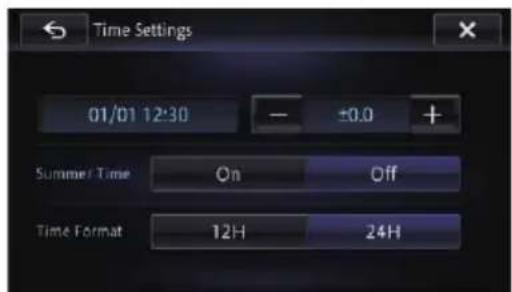
Onthisscreen, you can operate the following items.
• + , -
Adjuststimeforthesummertime.
- SummerTime
Turnsthesummertimeonoroff.
Off(default):
Changesthesummertimesettingtooff.
On:
Changesthesummertimesettingtoon.
- TimeFormat
24H(default):
Changesthedisplayto24-hourformat.
12H:
Changesthedisplayto12-hourformatwith am/pm.
Changingthepreinstalled splashscreen
Youcanchangethesplashscreentother imagespreinstalledinthenavigationsystem.
1Displaythe"SystemSettings"screen.
- Fordetails, refertoDisplayingthescreenfor systemsettingsonpage143.
2Touch[SplashScreenSetting].
The "SelectSplashScreen" screenappears.
3Touchtheimagetouseasthesplash screenfromthelist.
The image is displayed on the mescreen.
■Ifyoutouch[Showimage].youcanconfirma selectedimageviafullscreenpreview.Touchthe screen to return to the "Select Splash Screen".
4Touch[OK].
The image is a set of images that can be used to create a single image.
Changingtothesplashscreen storedontheSDmemorycard
Youcanchangethesplashscreentoother imagesimportedfromtheSDmemorycard.
☐Splashscreenimagesmustbeusedwithin thefollowingformats.
- BMPorJPEGfiles
- Allowabledatasizeis6MBorsmaller
☐Thebestimagesizeis800pixelsx480pixels.
☐Propercompatibilitywithallowablefilesis notguaranteed.
Importedoriginalimageswillbestoredin thebuilt-inmemory,buttheabilitytosave theseimagescannotbeguaranteedcompletely.Ifyouroriginalimagedataisdeleted,inserttheSDmemorycardagain andre-importtheoriginalimage.
☐Themaximumnumberofimages,includingthoseinthebuilt-inmemory,thatcanbeimportedanddisplayedonthelistis10.
1Createafoldernamed"Pictures"inthe top-mostdirectoryoftheSDmemorycard.
2Storethepicturefilesinthe"Pictures" folder.
3InsertanSDmemorycardintotheSD cardslot.
Fordetailsoftheoperation, referto/insertingandejectinganSDmemorycardon page18.
4Displaythe"SystemSettings"screen.
→Fordetails, refertoDisplayingthescreenfor systemsettingsonpage143.
5Touch[SplashScreenSetting].
The "SelectSplashScreen" screenappears.
6Touch[LoadfromSD].
Amessageconfirmingwhethertostartloadingfilesappears.
• Yes:
Startsimportingthefilesintothenavigation system.
• No:
Returnsyoutothepreviousscreen.
The "SelectSplashScreen" screenappears.
7Touchtheimagetouseasthesplash screenfromthelist.
The image is displayed on the mescreen.
8Touch[OK].
The image is a set of images that can be used to create the image.
ImagesimportedfromtheSDmemorycard areaddedtotheliston"SelectSplash Screen".
Adjustingtheresponse positionsofthetouchpanel (touchpanelcalibration)
If you feel that the touch panel key on the screendeviate from the actual position that respond to your touch, adjust the response position of the touch panel screen.
☐Donotusesharppointedtoolssuchasa ballpointormechanicalpen,whichcould damagethescreen.
1PressandholdtheMODEbutton.
Thepictureadjustmentscreenappears.
2PressandholdtheMODEbuttonwhile thepictureadjustmentscreenisstilldisplayed.
Thetouchpaneladjustmentscreenappears.
3Touchtwocornerofthescreenalong theallows, andthentouchtwocentreof+ markatthesametimetwice.
4PresstheMODEbutton.
The adjustment results are saved.
5PresstheMODEbuttononceagain.
Proceedtothe16-pointadjustment.
6Gentlytouchthecentreofthe+mark displayedonthescreen.
Thetargetindicatestheorder.
Afteryoutouchallmarks, the adjusted position data is assaved.
☐ Donotturnofftheenginewhile saving the adjusted position data.
■ If you press the MODE button, the previous adjustment position returns.
■ If you press and hold the MODE button, the adjustment is cancelled.
Settingtheilluminationcolour
Theilluminationcolourcanbeselectedfrom5 differentcolours. Furthermore, theilluminationcanbeswitchedbetweenthese5 colours inorder.
Selectingthecolourfromthepreset colours
1Displaythe"SystemSettings"screen.
- Fordetails, refertoDisplayingthescreenfor systemsettingspage143.
2Touch[IllumiColourSetting].
The "IllumiColourSetting" screenappears.
3Touchthecolouryouwant.
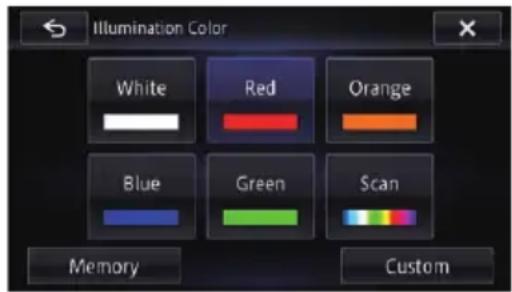
Availableoptions:
- Colouredkeys:
Selectsthedesiredpresetcolour.
- Memory:
Selectstheregisteredcolourinthememory.
- Scan:
Shiftsgraduallybetweenthefivedefault coloursinsequence.
- Custom:
Displaysthe“IlluminationColor” screen. Youcancustomisetheilluminationcolour.
Fordetails, referto Creatingauser-definedcolourandstoringittomemoryon page146.
Creatingauser-definedcolourand storingittomemory
Youcancreateauser-definedcolourandsetit astheilluminationcolour.
1Displaythe"SystemSettings"screen.
Fordetails, refertoDisplayingthescreenfor systemsettingsonpage143.
2Touch[IllumiColourSetting].
The "IllumiColourSetting" screenappears.
3Touch[Custom].
The "IlluminationColor" screenappears.
4Touchort adjustment the values for Red, Green and Bluet ocreate a favourite colour.
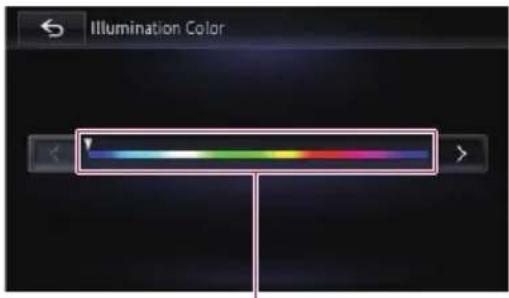
Colourbar
■Youcanadjustthecolourtonebydragging thecolourbar. Watchtheilluminationofthehardwarebuttons whileadjustingthecolour.
5Touch.

The previous screen returns.
Reversingtheclimatecontrol statusdisplay
If the left/right display of the climate control status screendoes not match that of the vehicle, the display can be reversed.
☐Toconfigurethissetting, theoptionalVehicleBusadaptermustbeconnected.
Fordetailsoftheoperations,refertoDisplayingtheoperatingstatusoftheclimate controlpanelonpage164.
1Displaythe"SystemSettings"screen.
Fordetails, refer to Displaying the screen for system settings on page 143.
2Touch[ReverseACDisplay].
The "ReverseACDisplay" screenappears.
3Touch[On]or[Off].
- Off(default):
Theclimatecontrolstatusdisplayisnotreversed.
• On:
Theclimatecontrolstatusdisplayisreversed.
Displayingtheiconforsetting thereardisplayoutput
Youcandisplaytheicontoselectwhich sourcewillbedisplayedonthereardisplay.
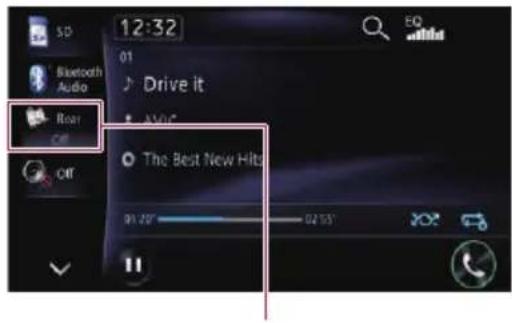
Iconofoutputtoselectwhichsettingofthe reardisplay
- Fordetails, refertoSelectingthevideofor reardisplayonpage160.
1Displaythe"SystemSettings"screen.
Fordetails, refertoDisplayingthescreenfor systemsettingspage143.
2Touch[RearMonitorOutput].
The "RearVideoOutput" screenappears.
3Touch[On]or[Off].
- Off(default):
Theiconoftheoutputsettingoftherear displaydisappears.
• On:
Theiconoftheoutputsettingoftherear displayappears.
Displayingthescreenfor AVsystemsettings
1PresstheHOMEbuttontodisplaythe "TopMenu" screen.
2Touch.

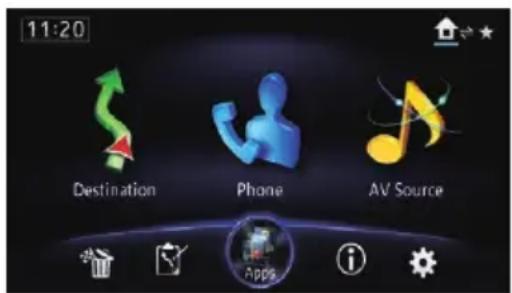
The "Edit/Settings" screenappears.
3Touch[SourceSettings].
The "Settingaccordingtosource" screenappears.
4Touchtheitemyouwanttoconfigure.
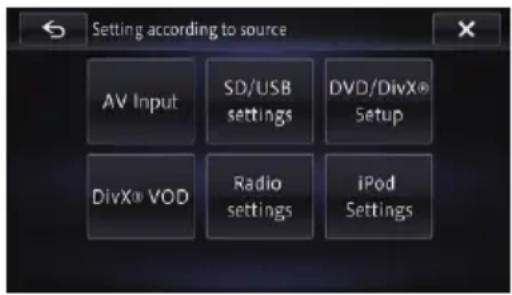
Settingvideoinput1(AV1)
Youcanuseoutsidevideoequipmentsuchas portableplayersconnectedtothisproduct withthissetting.
☐ Thissettingappliestomini-jackinput.
1Displaythe"Settingaccordingto source"screen.
- Fordetails, refertoDisplayingthescreenfor AVsystemsettingspage147.
2Touch[AVInput].
3Touch[AV1Input].
4Touch[On].
Theconnectedcomponentisenabled.
☐ Use "AV1 Input" when connecting CD-RM10(soldseparately)throughtheexternal videocomponent.
■Ifyoutouch[Off],thesettingisturnedoff.
Settingvideoinput2(AV2)
You can use outside video equipments such as portable players connected to this product with this setting.
☐ ThissettingappliestoRCAinputs (AUDIOINPUTandVIDEOINPUT) on the backofthesystem.
1Displaythe"Settingaccordingto source"screen.
Fordetails, refertoDisplayingthescreenfor AVsystemsettingsonpage147.
2Touch[AVInput].
3Touch[AV2Input].
4Touch[On].
Theconnectedcomponentisenabled.
■Ifyoutouch[Off],thesettingisturnedoff.
ChangingthescreensizeofSD/USBvideo
Changesthescreensizeofvideo.lfavideofile isplayed,youcanselectthedisplaymodebetweennormalandfullscreen.
1Displaythe"Settingaccordingto source"screen.
- Fordetails, refertoDisplayingthescreenfor AVsystemsettingspage147.
2Touch[SD/USBsettings].
3Touch[SDvideooutputsettings]or[Set USBvideooutput].
4Touch[Full]or[Normal].
- Full(default): Apictureisenlargedinfourdirectionswithoutkeepingtheaspectratioanddisplayto thefullextentofascreen.
•Normal:
Apictureisdisplayedfittingtothelongside ofthescreenwhilekeepingtheaspect ratio.
DisplayingyourDivXVOD registrationcode
If you want to play DivXVOD (video on demand) content on this navigation system, you must first register the unit with your DivXVOD content provider. You do this by generating a DivXVOD registration code, which you submit to your provider.
☐Thisfeatureisavailablewhentheselected source is CD, ROM, DivX, or DVD-V.
1Displaythe"Settingaccordingto source"screen.
- Fordetails, refertoDisplayingthescreenfor AVsystemsettingsonpage147.
2Touch[DivX®VOD].
Ascreenwhereyoucanchoosetodisplayare-gistrationcodeorderegistrationcodeisdis-played.
☐lfaregistrationcodehasalreadybeenactivated, itcannotbedisplayed.
3Touch[RegistrationCode].
Your10-digitregistrationcodeisdisplayed. ☐ Makeanoteofthecodeasyouwillneedit whenyouregisterwithaDivXVODprovider.
DisplayingyourDivXVOD deregistrationcode
Aregistrationcoderegisteredwithaderegistrationcodecanbedeleted.
☐Thisfeatureisavailablewhentheselected source is CD, ROM, DivX, or DVD-V.
1Displaythe"Settingaccordingto source"screen.
Fordetails, refertoDisplayingthescreenfor AVsystemsettingspage147.
2Touch[DivX®VOD].
Ascreenwhereyoucanchoosetodisplayare-gistrationcodeorderegistrationcodeisdis-played.
☐Ifaregistrationcodehasnotbeenactivated,thederegistrationcodeisnotdisplayed.
3Touch[DeregistrationCode].
Youreight-digitderegistrationcodeisdisplayed.
☐ Makeanoteofthecodeasyouwillneedit whenyouderegisterwithaDivXVODprovider.
SettingtheiPodconnection
Settingsarerequiredaccordingtotheconnecteddevice.
" iPodConnectionSettings" can be set when allof the following conditions are met.
•TheAVsourceisturnedoff.
- AlliPod,smartphoneandexternalstorage devicesarenotconnectedtothisnavigationsystem.
1Displaythe"Settingaccordingto source"screen.
→Fordetails, refertoDisplayingthescreenfor AVsystemsettingsonpage147.
2Touch[iPodSettings].
The "iPodSettings" screenappears.
3Touch[iPodConnectionSettings].
The "iPodConnectionSettings" screenappears.
4Touch[DigitalAVConnector]or[30-pin Connector].
- 30-pinConnector(default):
ThissettingisforiPodwith30-pinconnectorusersandAndroiddeviceusers.
• DigitalAVConnector:
ThissettingisforiPodwithLightningconnectorusers.
SwitchingAutoPIseek
Thenavigationsystemcanautomatically searchforadifferentstationwiththesame programming,evenduringpresetrecall.
□“AutoPI”canbesetonlywhenthesource isselectedto“SourceOff”.
1Displaythe"Settingaccordingto source"screen.
Fordetails, refertoDisplayingthescreenfor AVsystemsettingsonpage147.
2Touch[Radiosettings].
3Touch[AutoPI].
4Touch[On]or[Off].
- Off(default): Deactivates theAutoPIseekfunction.
- On: Activate the AutoPlseek function.
SettingtheFMtuningstep
NormallytheFMtuningstepemployedby seek tuning is 50 kHz. When "AF" or "TA" is on,thetuningstepautomaticallychangesto 100kHz.Butyoucansetthetuningstepto 50 kHz when "AF" or "TA" is on.
☐ "FMStep" can be set only when the source is selected to "SourceOff".
1Displaythe"Settingaccordingto source"screen.
- Fordetails,refertoDisplayingthescreenfor AVsystemsettingspage147.
2Touch[Radiosettings].
3Touch[FMStep].
4Touch[50kHz]or[100kHz].
- 100kHz(default): TheFMtuningstepisswitchedto100kHz.
- 50kHz: TheFMtuningstepisswitchedto50kHz.
☐Thetuningstepremainsat50kHzduring manualtuning.
Displayingthescreenfor AVsoundsettings
1PresstheHOMEbuttontodisplaythe "TopMenu" screen.
2Touch
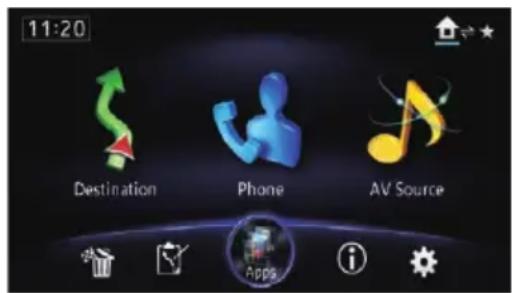
The "Edit/Settings" screenappears.
3Touch[AVSettings].
The "AV Settings" menu appears.
4Touch[AVSoundSettings].
The "AV Sound Settings" screen appears.
☐You cannot make adjustments in the following situations:
• AV source is "Source Off".
• Duringmuting/attenuation
5Touchtheitemyouwanttoconfigure.
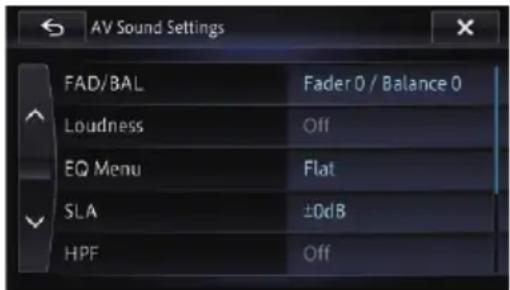
Usingbalanceadjustment
Youcanselectafader/balancesettingthat providesanideallisteningenvironmentinall occupiedseats.
1Displaythe"AVSoundSettings"
screen.
- Fordetails, refertoDisplayingthescreenfor AVsoundsettingspage150.
Customising preferences
2Touch[FAD/BAL].
When “Sub. W” is selected in “Rear SP”, [Balance] will be displayed instead of [FAD/BAL] and the front/rearspeaker balance cannot be adjusted.
- Fordetails, refertoSettingtherearoutput onpage158.
3Touchortoadjustfront/rear speakerbalance.
Eachtimeyoutouch or, thefront/rear speakerbalancemovestowardsthefrontor rear.
"Front 15" to "Rear 15" is displayed as the front/rearspeakerbalancemovesfromthe fronttorear.
Set "Front" and "Rear" to "0" when using a dualspeakersystem.
4Touch ← ortoadjusttheleft/right speakerbalance.
Eachtimeyoutouch ← or, the left/right speakerbalancemovestowardstheleftor right.
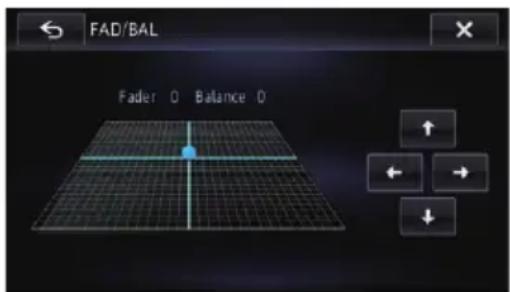
"Left 15" to "Right 15" is displayed as the left/rightspeakerbalancemovesfromlefttoright.
Adjustingloudness
Loudnesscompensatesfordeficienciesinthe low-andhigh-soundrangesatlowvolumes.
1Displaythe"AVSoundSettings" screen.
- Fordetails, refer to Displaying the screen for AVsoundsettings page 150.
2Touch[Loudness].
3Touch[On].
■Ifyoutouch[Off],thesettingisturnedoff.
4Touchor, and select the level youwanttoset. Low—Mid—High
Usingtheequaliser
Theequaliserletsoyouadjustequalisationto matchthevehicleinterioracousticcharacteristicsasdesired.
Recallingequalisercurves
Therearesevenstoredequalisercurvesthat youcaneasilyrecallatanytime. Hereisalist oftheequalisercurves:
Equalisercurve
S.Bass(SuperBass)isacurveinwhichonlylow-pitchedsoundisboosted.
Powerful is a curve in which low-and high-pitched sounds are boosted.
Naturalisacurveinwhichlow-andhigh-pitched soundsareslightlyboosted.
Vocalisacurveinwhichthemidrange,whichisthe humanvocalrange,isboosted.
Flatisaflatcurveinwhichnothingisboosted.
Custom1isanadjustedequalisercurvethatyoucreate.Aseparatecustomcurvecanbecreatedforeach source.
Custom2isanadjustedequalisercurvethatyoucreate.Ifyouselectthiscurve,theeffectisappliedtoallAVsources.
□When "Flat" is selected, nos supplementor correctionismadetothesound. This is useful to check the effect of the equaliser curves by switching alternatively between "Flat" and a set equaliser curve.
☐ You cannot select "Custom1" and "Custom2" when "Auto EQ" is "On".
- Fordetails, refertoUsingtheauto-adjustedequaliseronpage153.
1Displaythe"AVSoundSettings" screen.
- Fordetails,refertoDisplayingthescreenfor AVsoundsettingspage150.
2Touch[EQMenu].
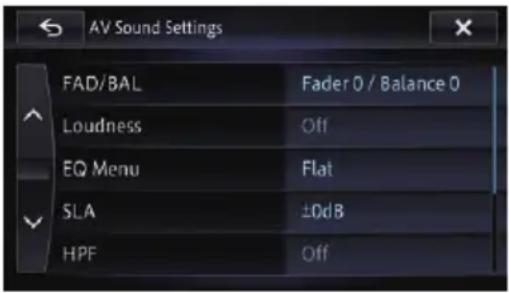
3Touchtheequaliseryouwant.
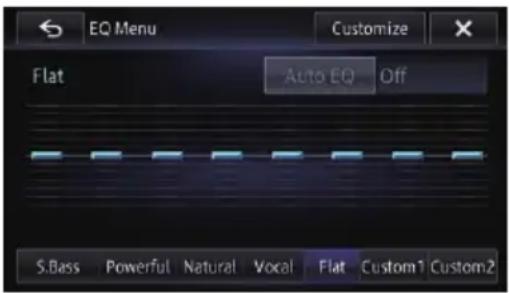
☐ If Auto EQ has been set to "On", an image correspondingtoeachequalisercurveyou selectedappears.
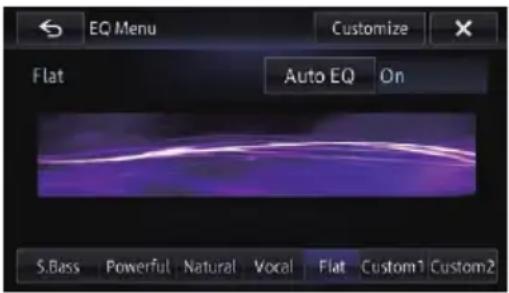
Fordetailsoftheoperations,refertoAdjustingtheequalisercurveautomatically(Auto EQ)onpage154.
Customisingtheequalisercurves
You can adjust the currently selected equaliser curvesetting as desired. Adjustments can be made with a 8-band graph of equaliser.
☐Thisfunctionisnotavailablewhen"Auto EQ"is"On".
- Fordetails, referto Using the auto-adjusted equaliseron page 153.
Thedifferencebetween "Custom1" and "Custom2"
- Aseparate "Custom1" curve can be created for each source. If you make adjustments when a curve is "S.Bass(SuperBass)", "Powerful", "Natural", "Vocal", "Flat", or "Custom1" is selected, the equaliser curve settings will be memorised in "Custom1".
- A "Custom2" curve can be created commonly all sources. If you make adjustments when the "Custom2" curve is selected, the "Custom2" curve will be updated.
- The "Custom1" curve is applied to each of the sources selected, but you can apply the same curvetothefollowingsources.
—AV1andAV2
— CD, ROM, DVD-V, and DivX
—SDandUSB
—BluetoothAudio,AhaRadio
(Bluetoothconnection)andAppRadio
Mode(Bluetoothconnection)
—AhaRadio(HDMIconnection) and AppRadioMode(HDMIconnection)
—iPod,AhaRadio(iPhone)and AppRadioMode(iPhone)
1Displaythe"AVSoundSettings" screen.
Fordetails, refertoDisplayingthescreenfor AVsoundsettingsonpage150.
2Touch[EQMenu].
3Touchoneofthekeystoselectacurve thatyouwanttouseasthebasisofcustomising.
4Touch[Customise].
5Touchthefrequencyforwhichyou wanttoadjustthelevel.
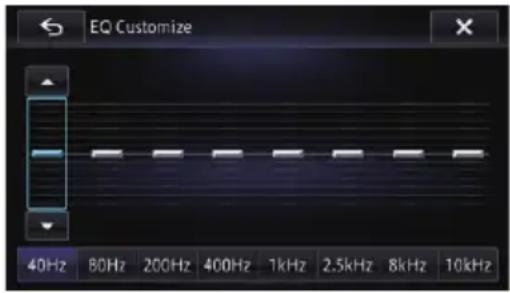
6 Touch [▲] or [▼] to adjust the level of theequaliserband.
Each time you touch [▲] or [▼], the level of the equaliserband increases or decreases.
Usingtheauto-adjustedequaliser
Youcansettheauto-adjustedequalisertosuit thevehicle'sacoustics.Tousethisfunction, thevehicle'sacousticsmustbemeasuredin advance.
Fordetailsoftheoperations,refertoAdjustingtheequalisercurveautomatically(Auto EQ)onpage154.
☐Tomanuallyadjusttheequalisercurve,set "AutoEQ"to"Off".
1Displaythe"AVSoundSettings" screen.
- Fordetails,refertoDisplayingthescreenfor AVsoundsettingspage150.
2Touch[EQMenu].
3Touchthekeynextto"AutoEQ"to turntheauto-adjustedequaliseronoroff.
4Selecttheequalisercurve.
Adjustingsourcelevels
SLA(sourceleveladjustment)letsyouadjust thevolumelevelofeachsourcetopreventradicalchangesinvolumewhenswitchingbeteensources.
☐SettingsarebasedontheFMtunervolume level,whichremainsunchanged.
☐Youcannotselect[SLA]whentheFMtuner isselectedastheAVsource.
1 Compare the FM tunervolume level with the level of the source you wish to adjust.
2Displaythe"AVSoundSettings" screen.
- Fordetails, refertoDisplayingthescreen for AVsoundsettingspage150.
3Touch[SLA].
4Touch[+]or[-]toadjustthesourcevolume.
“+8 dB” to “-8 dB” is displayed as the source volume is increased or decreased.
The following AV sources a reset to the same source level adjustment volume automatically.
- AV1 and AV2
• CD, ROM, and DivX - SDandUSB
- Bluetooth Audio, Aha Radio (Bluetooth connection) and AppRadioMode (Bluetooth connection)
- AhaRadio(HDMIconnection) and AppRadioMode(HDMIconnection)
- iPod, Aha Radio (iPhone) and AppRadio Mode (iPhone)
Usingthehighpassfilter
When you cut lowers sounds from the subwoofer output frequency, activate HPF (highpass filter). Only frequencies higher than those in these selected range are output from the frontor rearspeakers.
1Displaythe"AVSoundSettings" screen.
- Fordetails, refertoDisplayingthescreenfor AVsoundsettingspage150.
2Touch[HPF].
3Touch[On].
■ If you touch [Off], the setting is turned off.
4Eachtouchoforchangesthe
cut-offfrequenciesasfollows:
Usingthesubwooferoutput
Thenavigationsystemisequippedwithasub-wooferoutputmechanism,whichcanbe turnedonoroff.
1Displaythe"AVSoundSettings" screen.
Fordetails, refer to Displaying the screen for AVsoundsettings on page 150.
2Touch[SubWoofer].
3Confirmthatthesubwooferoutputis turnedon.
☐Thedefaultsettingis"On".
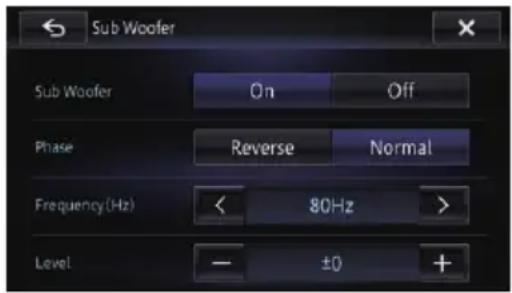
■Ifyoutouch[Off], thesubwooferoutputis turnedoff.
4Touch[Reverse]or[Normal]toselect thephaseofsubwooferoutput.
5Touch < ornextto
"Frequency(Hz)"toselectcut-offfrequency.
Eachtimeyoutouch or, t-offfrequenciesareselectedinthefollowingorder: 50Hz — 63Hz — 80Hz — 100Hz — 125Hz Onlyfrequencieslowerthanthoseinthese-lectedrangeareoutputfromthesubwoofer.
6Touch[+]or[-]nextto"Level"toadjust theoutputlevel.
“+6” to “-24” is displayed as the level is increased or decreased.
Enhancingbass(BassBooster)
Youcanenhancebasssoundsthatareoften mutedbydrivingnoise.
1Displaythe"AVSoundSettings" screen.
- Fordetails,refertoDisplayingthescreenfor AVsoundsettingspage150.
2Touch[BassBooster].
3Touch[+]or[-]toadjusttherangefrom 0 to 6.
Usingsonicentrecontrol
Soundthatissuitedforthelisteningposition caneasilybecreatedwiththisfunction.
1Displaythe"AVSoundSettings" screen.
- Fordetails,refertoDisplayingthescreenfor AVsoundsettingspage150.
2Touch[SonicCenterControl].
3Touch ortoselectalisteningposition.
☐ The larger the value of the range: "Left 7" to "Right7" setting, the greater the delay of the speaker output.
☐When "Left" isset, the lefts speaker output is delayed. When "Right" isset, theright speaker output is delayed.
Adjustingtheequalisercurve automatically(AutoEQ)
Bymeasuringthevehicle'sacoustics,the equalisercurvecanbeadjustedautomatically tosuitthevehicleinterior.
WARNING
Aloudtone(noise)maybeemittedfromthe speakerswhenmeasuringthevehicle'sacoustics.NeverperformtheAutoEQmeasurement whiledriving.

CAUTION
- ThoroughlychecktheconditionsbeforeperformingAutoEQ, asthespeakersmaybedamagedifthisisperformedunderthefollowing conditions:
—Whenthespeakersareincorrectlyconnected.(Forexample,whenarearspeaker isconnectedasasubwooferoutput.) —Whenaspeakerisconnectedtoapower ampdeliveringoutputhigherthanthe speaker'smaximuminputpowercapability. - Ifamicrophoneforacousticalmeasurement (soldseparately)isnotplacedinanappropriatelocation,themeasurementtonemaybe-comeloudandmeasurementmaytakealong time,resultinginbatterydrainage.Besureto placethemicrophoneinthespecifiedlocation.
BeforeoperatingtheAutoEQ function
- PerformAutoEQinasquietaplaceaspossible,withthevehicleengineandairconditioningswitchedoff.Also,cutpowertocar phonesormobilephonesinthevehicle,or removethemfromthevehiclebeforeperformingAutoEQ.Soundsotherthanthe measurementtone(surroundingsounds, enginesound,telephonesringing,etc.) maypreventcorrectmeasurementofthe vehicle'sacoustics.
- BesuretoperformAutoEQusingthemicrophoneforacousticalmeasurement (soldseparately).Usinganothermicrophonemaypreventmeasurement,orresult inincorrectmeasurementofthevehicle's acoustics.
- ToperformAutoEQ, thefrontspeakers mustbeconnected.
- Whenthisnavigationsystemisconnected toapowerampwithinputlevelcontrol, AutoEQmaybeimpossibleifthepower amp'sinputlevelissetbelowthestandard level.
- Whenthisnavigationsystemisconnected toapowerampwithanLPF(lowpassfilter),turntheLPFoffbeforeperforming AutoEQ.Also,setthecut-offfrequencyfor thebuilt-inLPFofanactivesubwooferto thehighestfrequency.
- Thedistancehasbeencalculatedbycomputertoprovideoptimumdelaytoensureaccurateresults.Donotchangethisvalue.—Thereflectedsoundwithinthevehicleisstronganddelaysoccur.—TheLPFonactivesubwoofersorexternalampsdelaythelowersounds.
- Ifanerroroccursduringmeasurement,a messageappearsandmeasurementis cancelled.Checkthefollowingbeforemeasuringthevehicle'sacoustics.
—Frontspeakers(left/right)
—Rearspeakers(left/right)
—Noise
—Microphoneforacousticalmeasurement(soldseparately)
—Lowbattery
PerformingAutoEQ
□AutoEQchangestheaudiosettingsasfollows:
- "Auto EQ" on the "EQ Menu" screen is setto"On".
- Fordetails, refertoUsingtheauto-adjustedequaliseronpage153.
- Thefader/balancesettingsreturntothe centreposition.
→Fordetails, refertoUsingbalanceadjustmentonpage150.
•Theequalisercurveswitchesto"Flat".
- Fordetails,refertoUsingtheequaliseronpage151.
- Thefrontandrearspeakerswillautomaticallybeadjustedtoahighpassfilter setting.
☐PrevioussettingsforAutoEQwillbeoverwritten.
ForAVIC-F50BTusers
Donotpressthe▲buttontoopenorclose thepanelwhenyouareusingthemicrophone.
1Stopthevehicleinaquietplace, close allthedoors, windowsandsunroof, and thenturntheengineoff.
If the engine is left running, enginenois may prevent correct AutoEQ.
□Ifdrivingrestrictionsaredetectedduring measurement,measurementiscancelled.
2Fixthemicrophoneforacousticalmeasurement(soldseparately)inthecentreof theheadrestofthedriver'sseat, facingforward.
TheAutoEQmaydifferdependingonwhere youplacethemicrophone. Ifdesired, place themicrophoneonthefrontpassengerseat and performAutoEQ.
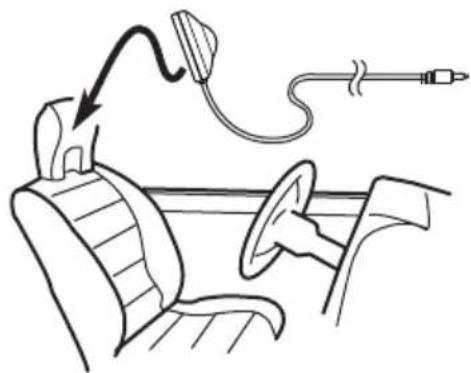
natural_image
Line drawing of a medical procedure with an arrow pointing to a device attached to a seated patient's seat (no text or symbols)3DisconnecttheiPhoneorsmartphone device.
4Turnontheignitionswitch(ACCON).
Ifthevehicle'sairconditionerorheateris turnedon,turnitoff. Noisefromthefaninthe airconditionerorheatermaypreventcorrect AutoEQ.
5SwitchtheAVsourceto"SourceOff".
→Fordetailsoftheoperations,refertoDis-playing the AV operation screen onpage76.
6Setthevideosettingforthereardisplayto"MirrorAV".
- Fordetailsoftheoperations,refertoSelecting the video for rear display onpage160.
7PresstheHOMEbuttontodisplaythe "TopMenu" screen.
8Touch
The "Edit/Settings" screenappears.
9Touch[AVSettings].
The "AV Settings" menu appears.
10Touch[AutoEQMeasurement].
The "AutoEQMeasurement" screenappears.
11Plugthemicrophoneintothemini-jack connector.
Mini-jackoftheRCAconnector
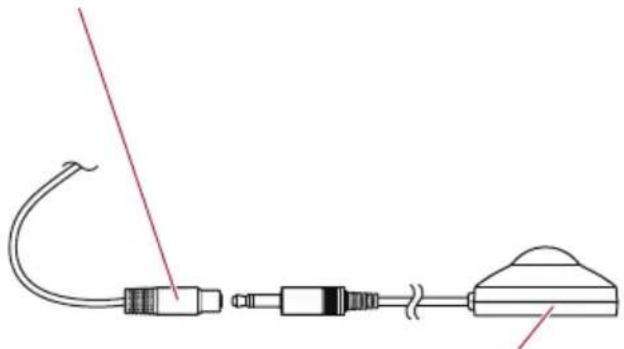
natural_image
Diagram of a medical or laboratory device with tubing and connector (no text or symbols)Microphoneforacousticalmeasurement(soldseparately)
12Touch[Start].
A10-secondcountdownstarts.
13Exitthevehicleandkeepthedoor closeduntilthecountdownfinishes.
When the countdown is over, a measurement tone (noise) is emitted from the speakers and the AutoEQ measurement begins.
14Waituntilthemeasurementiscompleted.
WhenAutoEQiscompleted, amessageisdisplayed indicating that themeasurement is completed.
□Ifthevehicle'sacousticscannotbemeasuredcorrectly,anerrormessagewillbe displayed.
Themeasurementtimevariesdepending onthetypeofvehicle.
Tostopthemeasurement,touch[Stop].
Customisingpreferences
15Storethemicrophonecarefullyinthe glovecompartmentoranothersafeplace.
Ifthemicrophoneissubjectedtodirectsun-lightforanextendedperiod,highttemperaturesmaycausedistortion,colourchangeor malfunction.
Displayingthescreenfor appsettings
1PresstheHOMEbuttontodisplaythe "TopMenu" screen.
2Touch

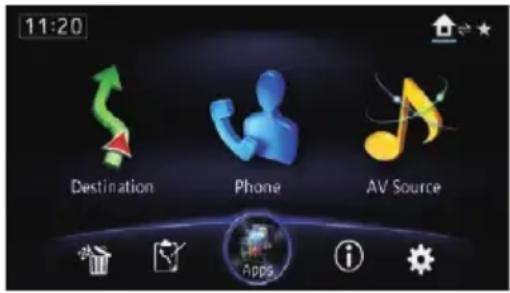
The "Edit/Settings" screenappears.
3Touch[Appsettings].
The "Appsettings" menuappears.
4Touchtheitemyouwanttoconfigure.
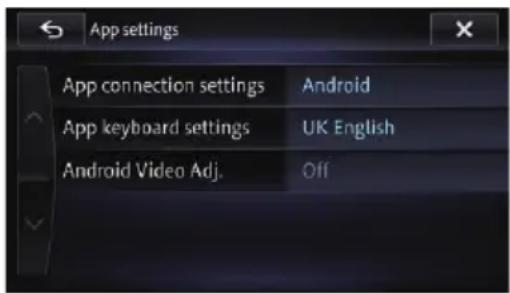
Selecting the device connection method
If you want to set the application for iPhone or smartphone on this navigation system, you must select them method for connecting your device.
Settingsarerequiredaccordingtotheconnecteddevice.
"Appconnectionsettings" can beset when allof the following conditions are met.
•TheAVsourceisturnedoff.
- AlliPod,smartphoneandexternalstorage devicesarenotconnectedtothisnavigationsystem.
ForiPhonewith30-pinconnectorusers
1Displaythe"Appsettings"screen.
Fordetailsoftheoperations, refertoDisplayingthescreenforappsettingsonpage 157.
2Touch[Appconnectionsettings].
The "Appconnectionsettings" screenappears.
3Touch[iPhone].
The connection setting of iPhone is enabled. The "iPodConnectionSettings" screen appears.
4Touch[30-pinConnector].
ForiPhonewithLightningconnector users
1Displaythe"Appsettings"screen.
Fordetailsoftheoperations, refertoDisplayingthescreenforappsettingsonpage 157.
2Touch[Appconnectionsettings].
The "Appconnectionsettings" screenappears.
3Touch[iPhone].
The connection setting of iPhone is enabled. The "iPodConnectionSettings" screen appears.
4Touch[DigitalAVConnector].
Forsmartphoneusers
1Displaythe"Appsettings"screen.
- Fordetailsoftheoperations,refertoDisplayingthescreenforappsettingsonpage 157.
2Touch[Appconnectionsettings].
The "Appconnectionsettings" screenappears.
3Touch[Android].
The connection setting of smartphone (Android device) is enabled.
Settingthekeyboardlanguage withapplicationforiPhone
☐ThisfunctionisonlyavailableinAppRadio ModeontheiPhone.
YoucanusethekeyboardinAppRadioMode bysettingthelanguageofthekeyboardfor iPhone.
1 Setthelanguage preference for the keyboard of the iPhone.
2Displaythe"Appsettings"screen.
- Fordetailsoftheoperations,refertoDisplayingthescreenforappsettingsonpage 157.
3Touch[Appkeyboardsettings].
The "Appkeyboardselection" screenappears.
4Touchthedesiredlanguage.
Afterthelanguageisselected, theprevious screenreturns.
Settingtherearoutput
Thenavigationsystem'srearoutputcanbe usedforafull-rangespeakerorsubwoofer connection.Ifyouswitch"RearSP"to
"Sub.W", you can connect are speakers lead directly to as subwoofer without using an auxiliary.
Initially, thenavigationsystemissetforarear full-rangespeakerconnection("Full").
☐BothrearspeakerleadsoutputandRCA rearoutputareswitchedsimultaneously in thissetting.(Whenyouusetheproduct withoutRCArearoutput,thissettingonly appliestotherearspeakerleads.)
☐ "Rear SP" can be set when all of the following conditions are met.
•TheAVsourceisturnedoff.
- AlliPod,smartphoneandexternalstoragedevicesarenotconnectedtothis navigationsystem.
1 Disconnect the iPhone or smartphone device.
2PresstheHOMEbuttontodisplaythe "TopMenu" screen.
3Touch
The "Edit/Settings" screenappears.
4Touch[AVSettings].
The "AVSettings" menuappears.
5Touch[RearSP].
6Touch[Full]or[Sub.W].
- Full(default): Whennosubwooferisconnectedtotherearoutput,select"Full".
- Sub.W Whenasubwooferisconnectedtotherear output,select"Sub.W".
Adjusting the picture
CAUTION
Forsafetyreasons, you cannot us some of these navigation functions while your vehicle is in motion. To enable these functions, you must stop in as afe place and apply the handbrake. Referto Important Information for the User (aseparate manual).
You can adjust the picture for each source and rearview camera.
1PressandholdtheMODEbutton.
The "PictureAdjustment" screenappears.
2Touchtherightandlefttouchpanel keystomakeanadjustment.
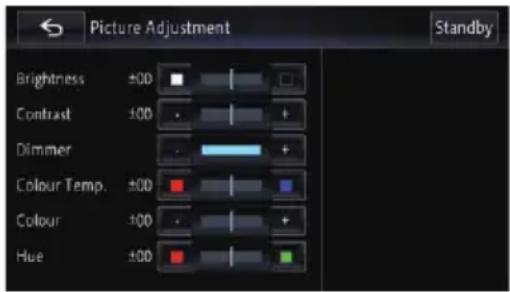
- Brightness:
Adjuststheblackintensity.
- Contrast:
Adjuststhecontrast.
- Dimmer:
Adjuststhebrightnessofdisplay.
- ColourTemp.:
Adjuststhetoneofcolour(whichcolouris emphasised,redorblue).
•Colour:
Adjuststhecoloursaturation.
•Hue:
Adjuststhetoneofcolour(whichcolouris emphasised, redorgreen).
☐Touching[Standby]whileadjustingthe rearviewcameraimageclearsthescreen temporarily.
Fordetails, referto Temporarily clearing the screen (navigationsystem instand by mode) on page 23.
☐Theadjustmentsof"Brightness"and
"Contrast" are stored separately when your vehicle's headlights are off (daytime) and when your vehicle's headlights are on (nighttime). These are switched automatically depending on whether the vehicle's headlights are on or off.
☐Theadjustmentsof"Dimmer"isstoredseparatelywhenyourvehicle'sheadlightsare off(daytime)andwhenyourvehicle'sheadlightsareon(nighttime)."Dimmer"is switchedautomaticallyonlywhenthevalue ofnighttimeislowerthanthatofdaytime.
☐ You cannot adjust "Colour" and "Hue" for the source without video and navigation map display.
☐ Thesettingcontentscanbememorisedseparatelyforthefollowingscreenandthe videoimage.
• Audiosource
— Radio/CD/ROM/iPod (Music)/SD (audio)/USB(audio)/Bluetooth Audio/sourceoffscreen/menu screens/others
• Videosource
—AppRadioMode(iOS)(Video)and iPod(Video)
—AppRadioMode(iOS(HDMIconnection))(Video)andAppRadio Mode(Android)(Video)
—DVD-VandDivX
—SD(Video)
—USB(Video)
—AV1(Video)
—AV2(Video)
—Rearviewcameraimage
- Mapscreen
☐Thepictureadjustmentmaynotbeavailablewithsomerearviewcameras.
BecauseoftheLCDscreencharacteristics, youmaybeunabletoadjustthescreenat lowtemperatures.
3Touch.

The previous screen returns.

Selectingthevideoforrear display
You can choose either to show the same image as the front screen to show these selected source on there are display.
1DisplaytheAVoperationscreen.
- Fordetailsoftheoperations,refertoDis-playingtheAVoperationsscreenonpage76.
2Touchon the leftedge of the screen.
□Ifthesourceicontobedisplayedonthe reardisplaydoesnotappearontheAVoperationscreen,turnonthesettingof[Rear MonitorOutput].
Fordetails, refertoDisplayingtheicon forsettingthereardisplayoutputon page147.
☐Theappearanceofthiskeychangesaccordingtothecurrentsetting.
While the tuner is receiving an emergency announcement, traffic announcement, or news programme, the current setting cannot be changed.
3Touchthesourceyouwanttoshowon thereardisplay.
Thesourceyoucanselectisasfollows.
- MirrorAV:
Thevideoonthefrontscreenofthenavigationunitisoutputtothereardisplay.
• Disc:
ThevideoandsoundoftheDVDsareoutputtothereardisplay.
• iPod:
ThevideoandsoundoftheiPodareoutput tothereardisplay.
•AV1:
ThevideoandsoundofAV1areoutputto thereardisplay.
• AV2:
ThevideoandsoundofAV2areoutputto thereardisplay.
• Off:
Nothingisoutputtothereardisplay.
□Touching ✗ closesthepop-upscreen.
□When "MirrorAV" is selected, the following restrictions are applied to record display.
—Whenselecting"RearView"inthemap display,nothingisdisplayed.
—Allsoundscannotbeoutputfortherear display.
—When playing back video files on the external storage device (USB, SD), the video image is not output.
—ThepicturemayhavenoiseiftheiPod videoisoutputtothereardisplay.
□When "Disc"isselected, the following restriction is applied to record display.
—WhenaCDorMP3/WMA/AACdiscis setinthebuilt-inDVDdrive,onlythe soundisoutput.
When "iPod" is selected, the following restriction is applied to record display.
—ThepicturemayhavenoiseiftheiPod videoisoutputtothereardisplay.
☐ When "AV1" or "AV2" is selected, the following restrictions are applied to therear display.
—The video image and sound are output only when “AV1” or “AV2” has both video and sound.
—The video image and soundare output only when the corresponding settings on "AV1 Input" or "AV2 Input" are "On".
Replicatingthesettings
Youcanimportsettingsyouhavemadeonthe utilityprogrammeNavGateFEEDSwhichis availableseparatelytothenavigationsystem.
□NavGateFEEDSisavailableonourwebsite.
1UseNavGateFEEDStoreplicatethesettingsandstorethemonanSDmemory card.
2InsertanSDmemorycardintotheSD cardslot.
Fordetailsoftheoperation, referto/insertingandejectinganSDmemorycardon page18.
Amessageconfirmingwhethertoupdatethe settingsappears.
3Touch[Yes].
Updatestarts.
Afterthesettingsareupdated,amessagenotifyingcompletionofupdateappears.
4Touch[OK].
Thenavigationsystemrestarts.
![PIONEER AVIC-F850BT - 4Touch[OK]. - 1](/content/2026/05/761308/images/d74a8d6b310167b17c570f852159aef1a87080acf6647453607961e90c4c2b06.jpg)
Usingtherearviewcamera functions
The following two functions are available. The rearviewcamera feature requires a separately sold rearview camera (e.g. ND-BC6). (For details, consult your dealer.)
Rearviewcamera
Thenavigationsystemfeaturesafunctionthat automaticallyswitchestothefull-screen imageoftherearviewcamerainstalledon yourvehicle.WhenthegearstickisintheRE-VERSE(R)position,thescreenautomatically switchestofull-screenrearviewcamera image.
CameraforRearviewmode
Rearviewcanbedisplayedatalltimes(e.g. whenmonitoringanattachedtrailer,etc.)asa splitscreenwheremapinformationispartially displayed.Pleasenotethatwiththissetting, cameraimageisnotresizedtofit,andthata portionofwhatisseenbythecameraisnot viewable.
- Fordetails,refertoSettingforrearview cameraonpage161.
Settingforrearviewcamera
CAUTION
Pioneerrecommendstheuseofacamerawhich outputsmirrorreversedimages,otherwisethe screenimagemayappearreversed.
☐Immediatelyverifywhetherthedisplay changestoarearviewcameraimagewhen thegearstickismovedtoREVERSE(R) fromanotherposition.
☐ Whenthescreenchangestofull-screen rearviewcameraimageduringnormal driving, switchtotheoppositesettingin "Polarity".
Settingtherearviewcameraactivation
1Displaythe"SystemSettings"screen.
- Fordetails, refertoDisplayingthescreenfor systemsettingsonpage143.
2Touch[BackCameraSettings].
The "BackCameraSettings" screenappears.
3Touch[Camera].
Thischangesthesettingto"On"
☐Youcanonlyswitchto"RearView"ifthis settingis"On".
- Fordetailsoftheoperation,refertoSwitchingtheviewmodeonpage34.
Setting the polarity of therear view camera
1Displaythe"SystemSettings"screen.
Fordetails, refertoDisplayingthescreenfor systemsettingsonpage143.
2Touch[BackCameraSettings].
The "BackCameraSettings" screenappears.
3Touch[Polarity].
4Touch[GND]or[Battery]toselectan appropriatesettingforpolarity.
- Battery(default):
Whenthepolarityoftheconnectedleadis positivewhilethegearstickisintheRE-VERSE(R)position.
• GND:
Whenthepolarityoftheconnectedleadis negativewhilethegearstickisintheRE-VERSE(R)position.
When the gear stick is moved to the REVERSE (R) position after setting there are view camera, there are view image appears.
Displayingtheparkingassistguidelines
1Displaythe"SystemSettings"screen.
- Fordetails, refertoDisplayingthescreenfor systemsettingsonpage143.
2Touch[BackCameraSettings].
The "BackCameraSettings" screenappears.
3Touch[ParkingAssistLine].
4Touch[On]or[Off].
- Off(default):
Theguidelinedisappears.
• On:
Theguidelineappears.
When the gear stick is moved to the REVERSE (R) position after setting there are view camera, there are view image appears.
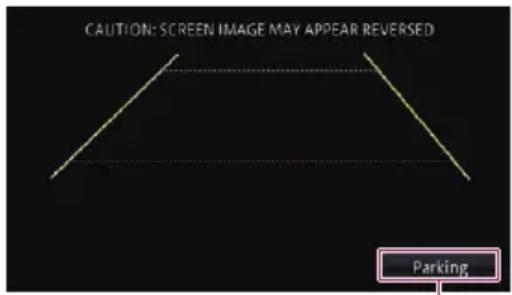
①
① Switches the display to the "Parking Assist" screen.
□Because the Vehicle Bus adapter cannot connect to this product, this key is always in active.
Settingguidelinesontherear viewimage

CAUTION
- Whenadjustingtheguidelines,besureto parkthevehicleinasafeplaceandapplythe handbrake.
- Beforegettingoutofthecartoplacethe markings,besuretoturntheignitionswitch off(ACCOFF).
- Therangeprojectedbytherearviewcamera islimited.Also,thevehiclewidthanddistanceguidelinesdisplayontherearviewcamera imagemaydifferfromtheactualvehicle widthanddistance.(Theguidelinesare straightlines.)
- The image quality may deteriorate depending on the usage environment, such as at nightor indarks surroundings.
1 Park your vehicle in as a safe place and apply the hand brake.
2Usingpackingtapeorsimilar, place markingsapproximately25cmfromeach sideofthevehicle,andapproximately
50cmand2mfromtherearbumper.
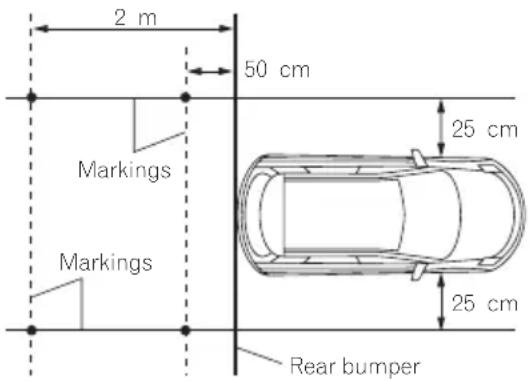
3Displaythe"SystemSettings"screen.
Fordetails, refer to Displaying the screen for system settings on page 143.
4Touch[BackCameraSettings].
The "BackCameraSettings" screenappears.
5Touch[ParkingAssistlineadj].
Aconfirmationmessageappears.
Customisingpreferences
6Touch[OK].
Thescreenforsettingtheguidelinesappears.
7Touch



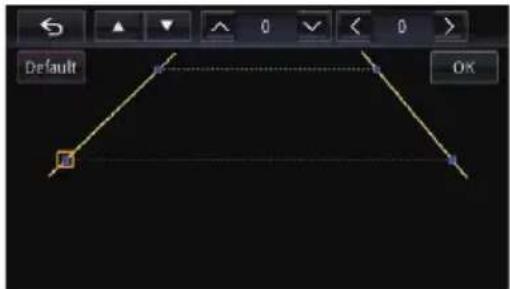
8Touch,,or to a just the po-
sitionofthepoint.
□Whenapointismoved,thedistancefrom theinitialvalueisdisplayedatthetopright ofthescreen.
9Touch[OK].
Thesetvalueissavedandtherearviewimage appears.
■Ifyoutouch[Default],thepointreturnstothe preadjustmentposition.
■Ifyoutouch 📁,thedisplayreturnstothesettingscreenforguidelineswithoutreflectingthe setting.
Settingthesafemode
Forsafetyreasons, you can limit the functions that are available while your vehicle is in motion.
1Displaythe"Edit/Settings"screen.
Fordetailsoftheoperations,refertoHowto usethenavigationmenuscreensonpage 24.
2Touch[SafeMode].
The "SafeMode" screenappears.
3Touch[On]or[Off].
- On(default):
Activatesthesafemodefunction.
• Off:
Deactivatesthesafemodefunction.
Displayingtheoperationstatusofvehicleequipment
ByconnectingtheoptionalVehicleBusadapter,youcandisplaytheoperationstatusofthe vehicle'sparkingsensorfunctionandclimate controlpanelonthenavigationscreen.

CAUTION
- ForinformationoninstallingtheVehicleBus adapter,seetheoperatingmanualoftheVehicleBusadapter.
• AfterinstallingtheVehicleBusadapter, be suretocheckoperations. - FordetailsaboutvehiclemodelsthatarecompatiblewithVehicleBusadapters, refertothe informationonourwebsite.
- Functionsanddisplaysvarydependingonthe vehiclemodel.Fordetailsofthefunctions availableaccordingtomodel,refertotheinformationonourwebsite.
Displayingobstacle detectioninformation

CAUTION
Thisfunctionisintendedsolelytoassistthedriver'svision.Itdoesnotdetectalldangersandobstaclesandisnotasubstituteforyour attentiveness,judgement,andcarewhileparking yourvehicle.
Turnontheparkingassistsensoronyourvehicle, and thenavigationscreenwillswitch to the "ParkingAssist" screen.
☐Thisfunctionisonlyavailableforvehicles equippedwithaparkingsensorsystem.
☐The "ParkingAssist" screenisnotdisplayed until then navigationscreen has started.
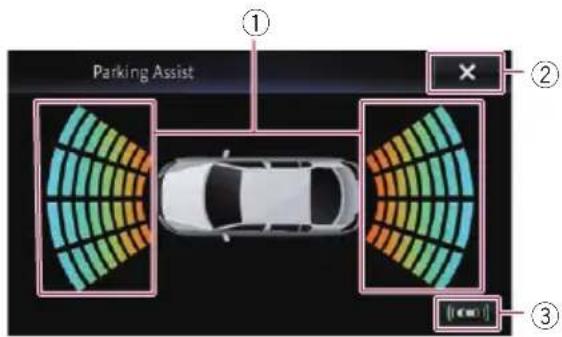
①Displaysthepositionofdetectedobstacles.
②Thepreviousscreenreturns.
③Switchesthedisplaytotherearviewcamera image.
☐Thedisplayswitchesonlywhentherear viewcamerasettingissetto"On"and thegearstickisintheREVERSE(R) position.
Displayingtheoperating statusoftheclimate controlpanel
When you operate the climate control panel of the vehicle, then navigations screens switches automatically to the "A/C Control" screen.
☐Thesettingsoftheclimatecontrolpanel operatedbeforethenavigationsystemis startedarenotdisplayedonthescreen.
□Anyclimatecontrolpanelsettingsofthe vehiclethatareturnedoffarenotdisplayed onthescreen.
□Iftheinformationdisplayonthenavigationscreenisreversedfortheleftandright sidesofthevehicle,changethe"Reverse AC Display" setting to "On".
- Fordetailsoftheoperations, refertoReversingtheclimatecontrolstatusdisplay onpage147.
Displayingtheoperationstatusofvehicleequipment
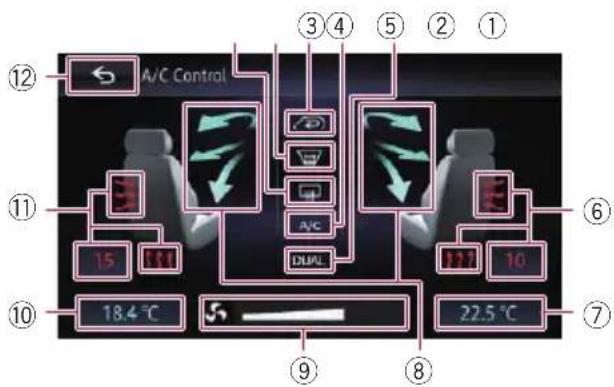
flowchart
graph TD
    A["12"] --> B["A/C Control"]
    C["11"] --> D["15"]
    D --> E["18.4 °C"]
    F["10"] --> G["22.5 °C"]
    H["③ ④ ⑤ ② ①"] --> I["15"]
    J["⑥"] --> K["11"]
    L["⑦"] --> M["10"]
    N["⑨"] --> O["22.5 °C"]
①Displaysthattherearwindowheatingsetting ison.
②Displaysthatthefrontwindowheatingsetting ison.
③Displaysthattheinternalcirculationmode settingison.
④DisplaysthattheA/Csettingison.
⑤DisplaysthatthedualA/Cfunctionison.
⑥Displaytheseatheatingsettingfortheright seat.
⑦Display the internal temperatures setting for therightseat.
⑧Displaysthefandirection.
⑨Displaysthefanspeed.
⑩Display the internal temperatures setting for the left seat.
⑪Displaytheseatheatingsettingfortheleft seat.
⑫Theprevioussscreenreturns.
If you donotoperatetheclimatecontrol panelforafewseconds, the previous screen is displayed automatically.
Settingtheanti-theftfunction
Youcanetapasswordforthenavigationsystem.Iftheback-upleadiscutafterthepasswordisset,thenavigationsystempromptsfor thepasswordatthetimeofnextbootup.
Settingthepassword
1Displaythe"SystemSettings"screen.
Fordetails, refertoDisplayingthescreenfor systemsettingsonpage143.
2TouchArea1,followedbyArea2,and thentouchandholdArea3.
Area1Area2Area3
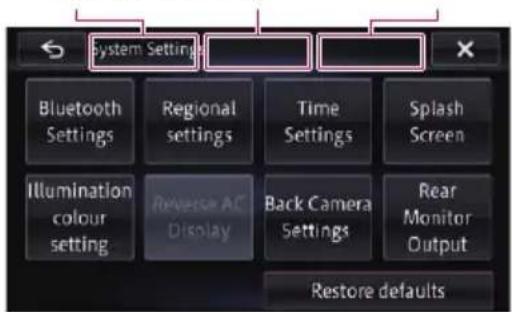
3Touch[SetPassword].
Thepasswordsettingscreenappears.
4Enterthepasswordyouwanttoset.
☐5to16characterscanbeenteredfora password.
5Touch[OK].
6Enterapasswordhint.
☐Upto40characterscanbeenteredfora hint.
7Touch[OK].
The "Passwordconfirmation" screenappears.
□Ifyouwanttochangethepasswordcurrentlyset,enterthecurrentpasswordand thenenterthenewone.
8Checkthepassword,andthentouch

Entering the password
Onthepasswordinputscreen,youmustenter thecurrentpassword.
1Enterthepassword.
2Touch[OK].
If you enter the correct password, then navigation system will be unlocked.
Deletingthepassword
Thecurrentpasswordcanbedeleted.
1Displaythe"SystemSettings"screen.
Fordetails, refertoDisplayingthescreenfor systemsettingsonpage143.
2TouchArea1,followedbyArea2,and thentouchandholdArea3.
3Touch[Clearpassword].
Amessageconfirmingwhethertodeletethe passwordappears.
4Touch[Yes].
Thepasswordsettingscreenappears. Amessageconfirmingapasswordhintappears.
5Touch[OK].
6Enterthecurrentpassword.
7Touch[OK].
Forgottenpassword
ContactthenearestauthorisedPioneerServiceStation.
Restoringthenavigation systemtothedefaultor factorysettings
You can restore settings or recorded content to the default factory settings. Various methods are used to clear user data, and the situations and the cleared content differ in each case. For information regarding the content cleared by each method, seethelist presented later.
Method1:Removethevehiclebattery
This transformsthesystemintothesame stateaswhenthenavigationsystemisuninstalled.
Method2: Touchtheitemyouwantto initialiseonthe "Restoredefaults" screen
Fordetails, refertoRestoring thedefaultsettingonpage167.
Method3: Touch[Restorefactory settings]
→Fordetails, refertoRestoringthenavigation systemtotheinitialstateonpage167.
Restoringthedefaultsetting
Resetsvarioussettingsregisteredtothenavigationsystemandrestoresthemtothedefault orfactorysettings.
☐ Be sure to read "Setting items to be deleted" before you perform this operation.
- Fordetails, refertoSettingitemstobe deleted on page 168.
1Displaythe"SystemSettings"screen.
- Fordetails, refertoDisplayingthescreenfor systemsettingspage143.
2Touch[Restoredefaults].
3Touchtheitemyouwanttoinitialise.
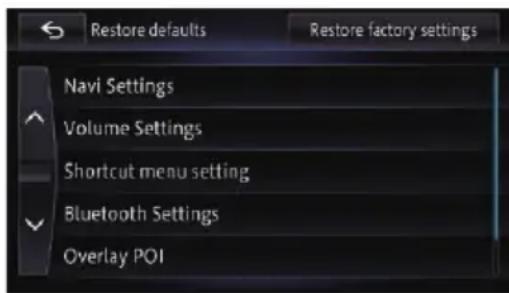
Amessageconfirmingwhethertoerasethe dataappears.
4Touch[Yes].
Theselecteditemisinitialised.
Restoringthenavigation systemtotheinitialstate
You can return settings or recorded content to the default factory settings.
☐ Be sure to read "Setting items to be deleted" before you perform this operation.
Fordetails, refertoSettingitemstobe deletedonpage168.
1Displaythe"SystemSettings"screen.
→Fordetails, refertoDisplayingthescreenfor systemsettingsonpage143.
2Touch[Restoredefaults].
3Touch[Restorefactorysettings].
Amessageconfirmingwhethertoerasethe dataappears.
4Touch[Yes].
Therecordedcontentsarecleared, and thenavigationsystemrestarts.
Settingitemstobedeleted
Theitemstobedeletedvarydependingontheresetmethod.Theitemslistedinthefollowingtablewill berestoredtothedefaultorfactorysettings.Anyitemsnotlistedbelowwillberetained.
—:Thesettingwillberetained.
√: Thesettingwillbeclearedandrestoredtothedefaultorfactorysettings.
Boldindicatesfunctionsorcommandnames.
• Method1: Removethevehiclebattery
- Method 2: Touch the item you want to initialise on the “Restore defaults” screen
• Method3: Touch[Restorefactorysettings]
| SettingitemstobedeletedMethod1Method2Method3 | ||||
| All settings in the "Navi Settings" screen | — | √ | √ | |
| All settings in the "Edit Data" screen | — | √ | √ | |
| All settings in the "AV Settings" screen | — | — | √ | |
| SourceSettings | AVInput√—√ | |||
| Othersettings— | — | √ | ||
| Vol./Pos.Adj. | VolumeSet- tings | —√ | √ | |
| Othersettings— | — | √ | ||
| All settings in the "Language settings" screen | — | — | √ | |
| All settings in the "Time Settings" screen | — | — | √ | |
| Allsettingsinthe"SelectSplashScreen" screen | —√ | √ | ||
| Allsettingsinthe"IllumiColourSetting" screen | — | — | ||
| All settings in the "Reverse AC Display" screen | — | — | √ | |
| BackCameraSettings | Polarity√—√ | |||
| Othersettings— | — | √ | ||
| All settings in the "Rear Video Output" screen | — | — | √ | |
| All settings in the "Safe Mode" screen | — | √ | √ | |
| Allsettingsinthe"Appsettings"screen | Android VideoAdj. | √ | √ | √ |
| Othersettings— | — | √ | ||
| ShortcutMenusettings | —√ | √ | ||
| Learningroutedata | — | — | ||
| Viewmodeandscalesettingonthemap,direc- tionofthemap | — | — | ||
| Routesearchresults | — | — | ||
| Currentroute | — | — | ||
Other functions
| SettingitemstobedeletedMethod1Method2Method3 | ||||
| VolumesettingforAVsources,TAvolume√—√ | ||||
| Allsettingsandstoreddatainthe“Phone” screen | —√ | √ | ||
| Overlay POI in the “View” screen | — | √ | √ | |
| Tracklog— — | √ | |||
| All settings in the “AV Sound Settings” screen | √ | — | √ | |
| Widescreenmode√—√ | ||||
| Soundmixfunction— — | √ | |||
| PlaybackmethodofAVsource√—√ | ||||
| All settings in the “Function” screen | √ | — | √ | |
| PictureAdjustment | Dimmer | — | — | |
| Othersettings | √—√ | |||
| LCDpanelangle | √—√ | |||
| Standbymode | √—√ | |||
| Output setting of the rear display | √ | — | √ | |

Appendix
Troubleshooting
If you have problems operating your navigation system, referto this section. Themost common problems are listed below, along with likely causes and solutions. If as solution to your problem cannot be found here, contact your dealer or the nearest authorised Pioneerservice facility.
Problemswiththenavigationscreen
| SymptomCauseAction(Reference) | ||
| Thepowerdoesnotturnon.The navigationsystemdoesnotoperate. | Leadsandconnectorsareincorrectlyconnected. | Confirmonethatalconnectionsare correct. |
| Thefuseisblown.Rectifythereasonforthefuseblowing,then replacethefuse.Alwaysinstallacorrectfuse withthesamerating. | ||
| Noiseandotherfactorsarecausing thebuilt-inmicroprocessortooper-ateincorrectly. | Parkyourvehicleinasafeplace,andturnoff theengine.Turntheignitionkeybacktooff (ACCOFF).Thenrestarttheengine,andturn thepowertothenavigationsystembackon. | |
| Youcannotpositionyourvehicle onthemapwithoutasignificant positioningerror. | TheGPSaerialisinanunsuitable location. | ThequalityofsignalsfromtheGPSsatellites ispoor,impairingpositioningaccuracy.ChecktheGPSsignalreceptionandthepositionoftheGPSaerialifnecessary. |
| Obstaclesareblockingsignalsfrom thesatellites. | ThequalityofsignalsfromtheGPSsatellites ispoor,causingreducedpositioningaccuracy.ChecktheGPSsignalreceptionandthe positionoftheGPSaerialifnecessary,orcontinuedrivinguntilreceptionimproves.Keep theaerialclean. | |
| Thepositionofsatellitesrelativeto yourvehicleisinadequate. | ThequalityofsignalsfromtheGPSsatellites ispoor,impairingpositioningaccuracy.Continuedrivinguntilreceptionimproves. | |
| SignalsfromtheGPSsatelliteshave beenmodifiedtoreduceaccuracy.(GPSsatellitesareoperatedbythe USDepartmentofDefense,andthe USgovernmentreservestherightto distortpositioningdataformilitary reasons.Thismayleadtogreater positioningerrors.) | ThequalityofsignalsfromtheGPSsatellites ispoor,causingreducedpositioningaccuracy.Waituntilreceptionimproves. | |
| Ifavehiclephoneormobilephone isusedneartheGPSaerial,GPSreceptionmaybelosttemporarily. | ThequalityofsignalsfromtheGPSsatellites ispoor,impairingpositioningaccuracy.Whenusingamobilephone,keepitsaerial awayfromtheGPSaerial. | |
SymptomCauseAction(Reference)
| Youcannotpositionyourvehicle onthemapwithoutasignificant positioningerror. | SomethingiscoveringtheGPSaerial. | DonotcovertheGPSaerialwithspraypaint orvehiclewax,becausethismayblockthereceptionofGPSsignals.Snowbuildupcan alsodegradesthesignals. | |
| Signalsfromthevehicle'sspeed pulsearenotbeingpickedupproperly. | Checkthatthecablesareproperlyconnected.Ifnecessary,consultthedealerthatinstalled thesystem. | ||
| Thenavigationsystemmaynotbe mountedsecurelyinyourvehicle. | Checkthatthenavigationsystemissecurely mountedand,ifnecessary,consultthedealer thatinstalledthesystem. | ||
| Thenavigationsystemisinstalled withanextremeangleexceeding theinstallationanglelimitations. | Confirmtheinstallationangle.(Thenavigationsystemmustbeinstalledwithintheallowedinstallationangle.Fordetails,referto theInstallationManual.) | ||
| IndicationofthepositionofyourvehicleismisalignedafteraU-turnor reversing. | Checkwhetherornotherversegearsignal inputlead(violet)isproperlyconnected.(The navigationsystemworksproperlywithoutthe leadconnected,butpositioningaccuracywill beadverselyaffected.) | ||
| Themapcolourdoesnotswitch automaticallybetweendaytime andnighttime. | “Day/NightDisplay”issetto “Day”. | Checkthe“Day/NightDisplay”settingand ensure“Automatic”isselected.(Page138) | |
| Theorange/whiteleadisnotconnected. | Checktheconnection. | ||
| Thescreenistoobright.Thepicturequalityadjustmentof thedisplayisincorrect. | Adjustthepicturequality.(Page159) | ||
| Thedisplaysverydim.Thevehicle’slightisturnedON,and “Automatic”isselectedon“Day/NightDisplay”. | Readabout“Day/NightDisplay”setting and,ifdesired,select“Day”.(Page138) | ||
| Thepicturequalityadjustmentof thedisplayisincorrect. | Adjustthepicturequality.(Page159) | ||
| NosoundsofAVsourceareproduced.Thevolumlevelwillnotrise. | Thevolumelevelislow.Adjustthevolumelevel. | ||
| Theattenuatorormuteison.Turntheattenuatorormuteoff. | |||
| Aspeakerleadisdisconnected.Checktheconnection. | |||
| Thevolumeofnavigationguidanceandbeepscannotbeadjusted. | TheVOL(+/-)buttonisusedtoad-justthevolume. | Turnthevolumeupordownusing“Volume Settings”on the “Vol./Pos. Adj.” menu. (Page135) | |
| Thepersonontheotherendof thephonecallcannothearthe conversationduetoanecho. | Thevoicefromthepersononthe otherendofthephonecallisoutput fromthespeakersandthenpicked upbythemicrophoneagain,creat-inganecho. | Usethefollowingmethodstoreducethe echo:-Lowerthevolumeonthereceiver—Havebothpartiespauseslightlybefore speaking | |
| Thereisnopicture.Thehandbrakecordisnotconnected. | Connectthehandbrakecord,andapplythe handbrake. | ||
| Thehandbrakeisnotapplied.Connectthehandbrakecord,andapplythe handbrake. | |||
| ThebacklightoftheLCDpanelis turnedoff. | Turnonthebacklight.(Page23) | ||
Appendix
SymptomCauseAction(Reference)
| Reardisplaypicturedisappears.Thesourcediscbeinglistenedtoin thenavigationsystemhasbeen ejected. | Beforeejectingthedisc,switchthesource. Thisproblemmayoccurwhencertainconnectionmethodsareused. | |
| Thereisaproblemwiththereardis-play,forexampleafaultywiringcon- nection. | ||
| AnAVsourcethatcannotoutputto thereardisplayisselected. | ||
| Nothingisdisplayedandthe touchpanelkeyscannotbe used. | Thesettingfortherearviewcamera isincorrect. | Selecttheappropriatesettingfortherear viewcamera. |
| Thegearstickwasplacedin[R] whentherearviewcamerawasnot connected. | Selectthecorrectpolaritysettingfor"Back CameraSettings".(Page161) | |
| Thereisnoresponsewhenthe touchpanelkeysaretouched,or adifferentkeyresponds. | Thetouchpanelkeysdeviatefrom theactualpositionsthatrespondto yourtouchforsomereason. | Performtouchpanelcalibration.(Page145) |
| Theexternalstoragedevice (USB,SD)cannotbeused. | TheUSBstoragedevicehasbeen removedimmediatelyafterplugging itin. | Parkyourvehicleinasafeplace,andturnoff theengine.Turntheignitionkeybacktooff (ACCOFF).Thenrestarttheengine,andturn thepowertothenavigationsystembackon. |
| Thescreenbecomesfreezes.Aerrorhasoccurred.Parkyourvehicleinasafeplace,andturnoff theengine.Turntheignitionkeybacktooff (ACCOFF).Thenrestarttheengine,andturn thepowertothenavigationsystembackon. | ||
| Thesmartphonewasnot charged. | Chargingstoppedbecausethetem- peratureofthesmartphonerose duetoprolongeduseofthesmart- phoneduringcharging. | Disconnectthesmartphonefromthecable, andwaituntilthesmartphonecoolsdown. |
| Morebatterypowerwasconsumed thanwasgainedfromcharging. | Thisproblemmayberesolvedbystopping anyunnecessaryservicesonthesmartphone. | |
ProblemswiththeAVscreen
| SymptomCauseAction(Reference) | ||
| CDorDVD playback is not possible. | Thediscis inserted upsidedown. Insert the disc with the label upward. | |
| Thediscis dirty. Clean the disc. | ||
| Thediscis cracked or otherwise damaged. | Insert anormal, round disc. | |
| The files on the disc are in an irregular file format. | Check the file format. | |
| Thedisc format cannot be played back. | Replacethedisc. | |
| The loaded disc is atypethissystem cannot play. | Check what type of disc it is. (Page 185) | |
| Thescreen is covered by a caution message and the video can-not beshown. | The handbrake leads not connected or applied. | Connect the handbrake lead correctly, and apply the handbrake. |
| The handbrake interlock is activated. | Park your vehicle in as afe place and apply the handbrake. | |
SymptomCauseAction(Reference)
| Novideooutputfromtheconnectedequipment. | The "AV1 Input" or "AV2 Input" settingisincorrect. | Correctthesettings.(Page122) |
| Theaudioorvideoskips.Thenavigationsystemisnotfirmly secured. | Securethenavigationsystemfirmly. | |
| Nosoundsareproduced.Thevolumelevelwillnotrise. | Cablesarenotconnectedcorrectly.Connectthecablescorrectly. | |
| Thesystemisperformingstill,slow motion,orframe-by-frame playback withDVD-Video. | Thereisnosoundduringstill,slowmotion,or frame-by-frame playbackwithDVD-Video. | |
| Thesystemispausedorperforming, fastreverseorforwardduring the discplayback. | ForthemediaotherthanmusicCD(CD-DA), thereisnosoundonfastreverseorforward. | |
| Theicon∅isdisplayed,andoperationisimpossible. | Theoperationisnotcompatible withthevideoconfiguration. | Thisoperationisnotpossible.(Forexample, theDVDplayingdoesnotfeaturethatangle, audiosystem,subtitlelanguage,etc.) |
| Thepicturestops(pauses)and thenavigationsystemcannotbe operated. | Thereadingofdataisimpossible duringdiscplayback. | Stopplaybackonce,thenrestart. |
| Thepictureisstretched,withan incorrectaspectratio. | Theaspectsettingisincorrectfor thedisplay. | Selecttheappropriatesettingforthatimage. (Page101) |
| Aparentallockmessageisdis-playedandDVDplaybackisnot possible. | Theparentallockison.Turntheparentallockofforchangethelevel. (Page101) | |
| TheparentallockforDVDplay-backcannotbecancelled. | Thecodenumberisincorrect.Inputthecorrectcodenumber.(Page101) | |
| Playbackisnotwiththeaudio languageandsubtitlelanguage settingsselectedin"DVD/DivX®Setup". | TheDVDplayingdoesnotfeature dialogueorsubtitlesinthelanguageselectedin"DVD/DivX® Setup". | Switchingtoaselectedlanguageisnotpossibleifthelanguageselectedin"DVD/DivX® Setup"isnotrecordedonthedisc.(Page 100) |
| Thepictureisextremelyunclear/distortedanddarkduringplay-back. | Thedisfeaturesasignaltoprohibit copying.(Somediscsmayhave this.) | Sincethenavigationsystemiscompatible withthecopyguardanaloguecopyprotect system,thepicturemaysufferfromhorizon-talstripesorotherimperfectionswhenadisc withthatkindofprotectionsignalisviewed onsomedisplays.Thisdoesnotmeanthenavigationsystemismalfunctioning. |
| iPodcannotbeoperated.TheiPodisfrozen.•ReconnecttheiPodwiththeUSBinterface cableforiPod/iPhone.•UpdatetheiPodsoftwareversion. | ||
| Aerrorhasoccurred.•ReconnecttheiPodwiththeUSBinterface cableforiPod/iPhone.•Parkyourvehicleinasafeplace,andturn offtheengine.Turntheignitionkeybackto off(ACCOFF).Thenrestarttheengine,and turnthepowertothenavigationsystemback on.•UpdatetheiPodsoftwareversion. | ||
| Cablesarenotconnectedcorrectly.Connectthecablescorrectly. | ||
Appendix
SymptomCauseAction(Reference)
| SoundfromtheiPodcannotbe heard. | Theaudiooutputdirectionmay switchautomaticallywhenthe BluetoothandUSBconnectionsare usedatthesametime. | UsetheiPodtochangetheaudiooutputdirection. |
Problemswiththephonescreen
| SymptomCauseAction(Reference) | ||
| Diallingisimpossiblebecausethetouchpanelkeysfordiallingareinactive. | Yourphoneisoutofrangeforservice. | Retryafterre-enteringtherangeforservice. |
| Theconnectionbetweenhemobile phoneandthenavigationsystem cannotbeestablishednow. | Performtheconnectionprocess. | |
ProblemswiththeAppRadioModescreen
| SymptomCauseAction(Reference) | ||
| Ablackscreenisdisplayed.Whileoperatinganapplication,the applicationwasendedonthesmart-phoneside. | PresstheHOMEbuttontodisplaythe"Top Menu"screen. | |
| ThesmartphoneOSmaybeawaitingscreenoperation. | Stopthevehicleinasafeplaceandcheckthe screenonthesmartphone. | |
| Thescreenisdisplayed,butoperationdoesnotworkatall. | Aerrorhasoccurred.•Parkyourvehicleinasafeplace,andthen turnofftheignitionswitch(ACCOFF).Subsequently,turntheignitionswitchtoon(ACC ON)again.•WhenanAndroiddeviceisconnected,disconnecttheBluetoothconnectionfromthis productandthenreconnectit. | |

Messagesfornavigationfunctions
The following messages may be displayed by your navigation system. Referto the tabletoidentify the problem, thentakethes suggested corrective action.
Thereareoccasionswhenyoumayseeerrormessagesotherthanthoseshownhere.Insuch cases,followtheinstructionsgivenonthedisplay.
| MessageCauseAction(Reference) | ||
| Routecalculationwasnot possible. | Routecalculationhasfailedbe-causeofamalfunctioninthemap data,software,orhardware. | •Changethedestination.•ConsultthePioneerLocaldealerifthismes-sagepersists. |
| Routecalculationnotpossible:destinationistoofar. | Thedestinationistoofar.Setadestinationclosertothestartingpoint. | |
| Routecalculationnotpossible:destinationistooclose. | Thedestinationistooclose.Setadestinationfartherfromthestarting point. | |
| Routecalculationnotpossible:navigationcannotbepro-videdarounddestinationor startingpoint. | Thedestination,waypoint(s),or startingpointareinanareawhere noroadexists(e.g.amountain)and theroutecalculationisimpossible. | •Setadestinationandwaypoint(s)onroads.•Resetthedestinationafteryoudrivetheve-hicletoanyroad. |
| Unabletofindanyroadlead-ingtodestination | Thedestinationorwaypoint(s)arein anisolatedisland,etc.withouta ferryandtheroutecalculationisim-possible.Ifthereisnoroadcon- nectedtoyourstartingpointor destination,thismessagewillap-pear. | Changethedestination. |
| Failedtomaketheroutepro-file. | Inrarecases,aroutecalculation errormayoccur. | •Retry.•ConsultthePioneerLocaldealerifthismes-sagepersists. |
| No image file. | “Pictures” folder exists on the SD memorycardbutthereisnoload-abledatainthefolder. | Useappropriatedataandstoreitcorrectly. (Page145) |
| Unsupportedfileformat.Animagefilewasnotmadetospe-cificationsasthesplashscreen. | Useappropriatedataandstoreitcorrectly. (Page145) | |
| Anomalywasdetectedon thespeakeroutput.Please turnthelgnitionOFF/ONto restart.Iftheproblemper-sists,Pleasecontactyour PioneerdealerorServiceCen-ter. | Thisunitfailstooperateorthe speakerconnectionisincorrect;the protectivecircuitisactivated. | Checkthespeakerconnection.Ifthemes-sagefailstodisappearevenaftertheengine isswitchedoff/on,contactyourdealeroran authorisedPioneerServiceStationforassis-tance. |

Appendix
MessagesforAVfunctions
WhenproblemsoccurwithAVsource playback, an error message appears on the display. Refer to the table below to identify the problem, thentakethes suggested corrective action. If the error persists, record the error message and contact your dealer or your nearest Pioneerservice centre. The messages in “()” will appear on the rear display.
Built-inDVDdrive
| MessageCauseAction(Reference) | ||
| Playbackerror.Pleaseremove thedisc. | DirtyCleanthedisc. | |
| ScratcheddiscReplacethedisc. | ||
| Thediscisloadedupsidedown.Checkthatthediscisloadedcorrectly. | ||
| Thereisanelectricalormechanical error. | •Replacethedisc.•SettheACCtooffandthensetittoon again. | |
| Regioncodecannotbe matched(DIFFERENTREGION DISC) | Thediscdoesnothavethesamere-gionnumberasthenavigationsys-tem. | ReplacetheDVD-Videowithonebearingthe correctregionnumber. |
| Unreadabledisc(UNPLAYABLE DISC) | Thistypeofdisc cannotbeplayed bythenavigationsystem. | Replacethediscwithonethenavigationsys-temcanplay.(Page188,Page204) |
| Playbackerrorduetoirregu-lartemperature.Pleasere-movethedisc.(THERMAL PROTECTIONINMOTION) | Thetemperatureofthenavigation systemisoutofthenormaloperat-ingrange. | Waituntiltheunit'stemperaturereturnswith-innormaloperatinglimits. |
| Tracksthatcannotbeplayed backwillbeskipped(FILE SKIPPED) | Filesthatareprotectedbydigital rightsmanagement(DRM). | Theprotectedfilesareskipped. |
| Cannotplaybackalltracks (PROTECTEDDISC) | Allthefilesontheinserteddiscare securedbyDRM. | Replacethedisc. |
| Flashwriteerror.Unableto writetoflashmemory.(CAN NOTSAVEDATA) | TheplaybackhistoryforVODcon-tentscannotbesavedforsomerea-son. | •Retry.•Ifthemessageappearsfrequently,consult yourdealer. |
| Yourdeviceisnotaauthorised toplaythisprotectedDivX video.(YOURDEVICEISNOT AUTHORIZEDTOPLAYTHIS DivXPROTECTEDVIDEO) | Thedevicedoesnotmatchthede-viceregisteredwiththeVODprovi-der.VODcontentcannotbeplayed back. | Checkwhetherthisdevicehasbeenregis-teredwiththeVODprovider. |
| Unabletoplayback.Referto OperationManualforplay-ablefileformat.(VIDEORESOLUTIONNOTSUPPORTED) | Highdefinition(HD)DivXvideocan-notbeplayed. | Createplayableoneandretry. |
SD/USB/iPod
| MessageCauseAction(Reference) | ||
| Tracksthatcannotbeplayed backwillbeskipped | Filesthatareprotectedbydigital rightsmanagement(DRM). | Theprotectedfilesareskipped. |
| Thistypeoffilecannotbeplayedby thisunit. | Replaceitwithaplayablefile.(Page188, Page204) | |
Appendix
MessageCauseAction(Reference)
| CannotplaybackalltracksAllthefilesontheinsertedexternal storagedevicearesecuredbyDRM. | Storeplayablefiles. | |
| Noneofthefilescanbeplayedby thisunit. | ||
| USBflashdrivewasdisconnectedfordeviceprotection.DonotconnectthisUSBflash drivetotheunit.Torestart USB,restarttheunit. | TheUSBconnectororUSBcableis short-circuited. | ConfirmthattheUSBconnectororUSB cableisnotcaughtinsomethingordamaged. |
| TheconnectedUSBstoragedevice consumesmorethanthemaximum allowablecurrent. | DisconnecttheUSBstoragedeviceanddo notuseit.Turntheignitionswitchtooff,then turnACCbackonorturntheignitionswitch onandthenconnectthecompliantUSBstoragedevice. | |
| TheUSBinterfacecableforiPod/iPhoneisshort-circuited. | ConfirmthattheUSBinterfacecableforiPod /iPhoneorUSBcableisnotcaughtinsomethingordamaged. | |
| Authorizationfailure.iPodis notconnected. | TheiPodisnotcompatiblewiththis navigationsystem. | UseacompatibleiPod. |
| Communicationfailure•DisconnectthecablefromtheiPod.Once theiPodmainmenuisdisplayed,reconnect thecable.•Ifthemessageappearsfrequently,consult yourdealer. | ||
Appendix
MessagesforBluetoothfunctions
WhenproblemsoccurwithBluetoothfunctions,anerrormessageappearsonthedisplay.Refer tothetablebelowtoidentifytheproblem,thentakethesuggestedcorrectiveaction.Iftheerror persists,recordtheerrormessageandcontactyourdealeroryournearestPioneerservicecentre.
| MessageCauseAction(Reference) | ||
| CurrentlyunabletoregisterTheBluetoothdevicethatyouwanttoregisterisundercommunicationsuchastransferringphonebook. | Afterfinishingthecommunication,registertheBluetoothdeviceagain. | |
| Unabletoconnectthedevice.Tryagainlater. | ThisnavigationsystemistryingtoconnecttotheBluetoothdevicewhileperformingthefollowingoperationswithanotherdevice.•RegisteringtheBluetoothdevice•SettingtoconnecttheBluetoothdevice•Transferringthephonebook | Aftertheoperationofanotherdeviceiscomplete,reconnecttheBluetoothdevice. |
| UnabletoregisterBluetoothdevice. | An error has occurred. | Set the “Bluetooth On/Off” to “Off”, andthensetto“On”.Subsequently,operatetoregisteragain. |
| Couldnotfindanyavailable phone. | Noavailablephoneisinthesur-roundingareawhenthesystemsearchesforconnectablemobilephonesfeaturingBluetoothwirelesstechnology. | •Activatethetargetphone’sBluetoothwire-lesstechnology.•Checkwhetheryourmobilephoneisactivatedand,whetherthedistancetoyourmo-bilephoneistoofar. |
| Unabletosearchforavailable devices. | Thisnavigationsystemistryingtosearchforavailabledevicewhileperformingfollowingoperations.•RegisteringtheBluetoothdevice•SettingtoconnecttheBluetoothdevice•Transferringthephonebook•DeletingtheregisteredBluetoothdevice | Afterfinishingtheoperation,searchforavail-abledevicesagain. |
| Device search failed. | An error has occurred. | Set the “Bluetooth On/Off” to “Off”, andthensetto“On”.Subsequently,searchforavailabledevicesagain. |
| Unabletochangedevicename. | An error has occurred. | Set the “Bluetooth On/Off” to “Off”, andthensetto“On”.Subsequently,operatetochangethedevicenameagain. |
| Currentlyunabletodelete.ThisnavigationsystemistryingtodeletetheregisteredBluetoothdev-vicewhileperformingthefollowingoperations.•Usingthehands-freephoning•RegisteringBluetoothdevice•SettingtoconnecttheBluetoothdevice•Transferringthephonebook | Afterfinishingtheoperation,deletetheBluetoothdeviceagain. | |
| Delete failed | An error has occurred. | Set the “Bluetooth On/Off” to “Off”, andthensetto“On”.Subsequently,operatetode-letetheBluetoothdeviceagain. |
Positioningtechnology PositioningbyGPS
TheGlobalPositioningSystem(GPS)usesa networkofsatellitesorbitingtheEarth.Each ofthesatellites,whichorbitataheightof 21000km,continuallybroadcastsradiosignalsgivingtimeandpositioninformation.This ensuresthatsignalsfromatleastthreecanbe pickedupfromanyopenareaontheearth's surface.
The accuracy of the GPS information depends on how good thereception is. When these signals are strong and reception is good, GPS candeterminelatitude, longitude and altitude for accurate positioning in three dimensions. But if signal quality is poor, only two dimensions, latitude and longitude, can be obtained and positioning errors are somewhat greater.
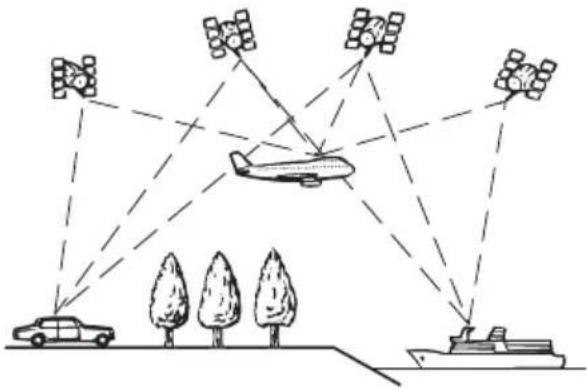
Positioningbydeadreckoning
The built-insensor in then navigation system alsocalculates your position. The current location is measured by detecting driving distance with the speed pulse, the turning direction with the gyrosensor and inclination of the road with the G sensor.
Thebuilt-insensorcanevencalculate changesofaltitude,andcorrectthediscrepanciesinthedistancetravelledcausedbydriving alongwindingroadsorupslopes. Ifyouusethisnavigationsystemwithconnectingthespeedpulse,thesystemwillbecome moreaccuratethannoconnectionofspeed
pulse.Soyouconnectthespeedpulsewithout failtogettheaccuracyofpositioning.
☐Thepositionofthespeeddetectioncircuit varydependingonthevehiclemodel. For details, consultyourauthorisedPioneer dealeroraninstallationprofessional.
☐Sometypesofvehiclesmaynotoutputa speedsignalwhiledrivingatjustafewkilometresperhour.Insuchacase,thecurrent locationofyourvehiclemaynotbedisplayedcorrectlywhileintrafficjamorina carpark.
HowdoGPSanddead reckoningworktogether?
Formaximumaccuracy,yournavigationsystemcontinuallycomparesGPSdatawithyour estimatedpositionascalculatedfromthedata ofbuilt-insensor.However,ifonlythedata fromthebuilt-insensorisavailableforalong period,positioningerrorsaregradually compoundeduntiltheestimatedpositionbecomes unreliable.Forthisreason,wheneverGPSsignalsareavailable,theyarematchedwiththe dataofthebuilt-insensorandusedtocorrect itforimprovedaccuracy.
□Ifyouusechainsonyourwheelsforwinter drivingorputonthesparewheel,errors maysuddenlyincreasebecauseofdifferenceinwheeldiameter.Initialisethesensorstatusanditmayrecovertheaccuracy tonormalcondition.
- Fordetails, referto Clearingstatus on page133.
Appendix
Mapmatching
Asmentioned, thepositioningsystemsused by this navigationsystemaresusceptible to certainerrors. Their calculations may, on occasion, place you initial location on themap where noroadexists. In this situation, the processing system understands that vehicle travel only on roads, and can correct your position by adjusting it to an rear by road. This is called map matching.
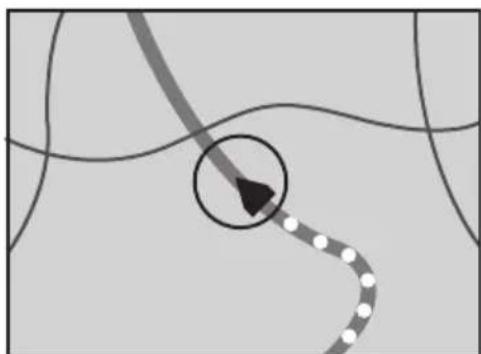
natural_image
Abstract diagram with curved lines and a dotted path, no text or symbols presentWithmapmatching
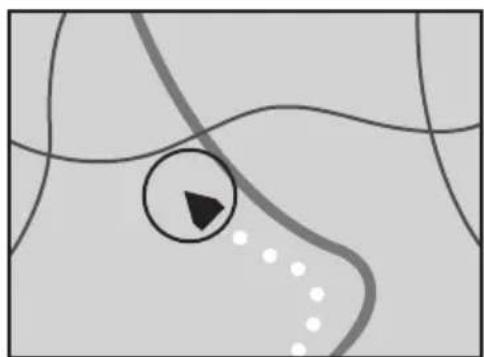
natural_image
Abstract diagram with curved lines, a black arrow, and scattered dots (no text or symbols)Withoutmapmatching

Handlinglargeerrors
Positioningerrorsarekepttoaminimumby combiningGPS,deadreckoningandmap matching. However,insomesituations,these functionsmaynotworkproperly,andtheerror maybecomebigger.
WhenpositioningbyGPSis impossible
• GPSpositioning is disabled if signals cannot be received from more than two GPS satellites.
- Insomedrivingconditions,signalsfrom GPSsatellitesmaynotreachyourvehicle. Inthiscase,itisimpossibleforthesystem touseGPSpositioning.
natural_image
Simple line drawing of a car inside an arched tunnel with tire tracks (no text or symbols)Intunnelsoren- closedparking garages
natural_image
Line drawing of a car driving under a covered structure (no text or symbols)Underelevated roadsorsimilar structures
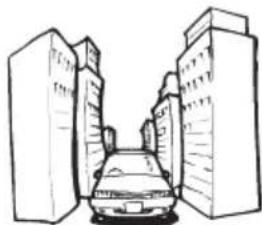
natural_image
Simple line drawing of a car parked in front of two tall buildings (no text or symbols)Whendriving amonghighbuild- ings
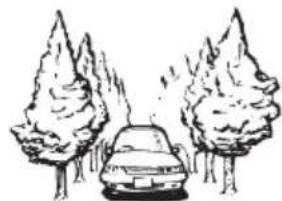
natural_image
Simple line drawing of a car parked under trees (no text or symbols)Whendrivingthrough adenseforestortall trees
- Ifacarphoneormobilephoneisusednear theGPSaerial,GPSreceptionmaybelost temporarily.
- DonotcovertheGPSaerialwithspray paintorcarwax, because this may block thereception of GPS signals. Snowbuildup can also degrade the signals, so keep the aerial clear.
□IfaGPSsignalhasnotbeenreceivedforalongtime,yourvehicle'sactualpositionandthecurrentpositionmarkonthemapmaydivergeconsiderablyormaynotbeupdated.Insuchcase,onceGPSreceptionisrestored,accuracywillberecovered.
Appendix
Conditionslikelytocause noticeablepositioningerrors
Forvariousreasons,suchasthestateofthe roadyouaretravellingonandthereception statusoftheGPSsignal,theactualpositionof yourvehiclemaydifferfromthepositiondisplayonthemapscreen.
- Ifyoumakeaslightturn.
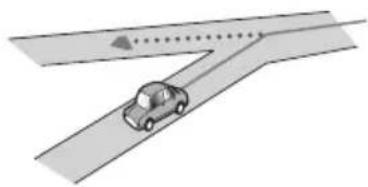
natural_image
Illustration of a car driving on a road with a dashed arrow indicating direction (no text or symbols)- Ifthereisaparallelroad.
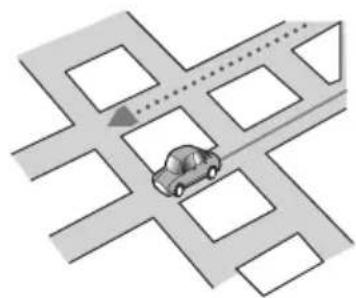
natural_image
Illustration of a car driving on a multi-lane road intersection (no text or symbols)- If there is another road very nearby, such as in the case of an elevated motorway.
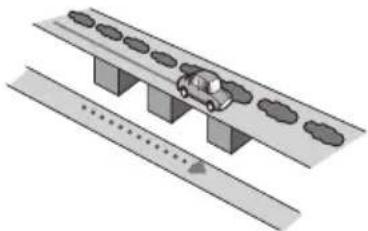
natural_image
Illustration of a car driving on an elevated road with a dotted lane below (no text or symbols)- Ifyoutakearecentlyopenedroadthatis notonthemap.
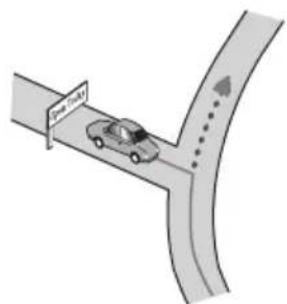
- Ifyoudriveinzigzags.
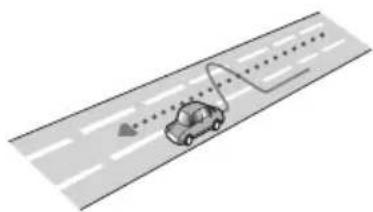
natural_image
Illustration of a car driving on a multi-lane road with a curved path and directional arrow (no text or symbols)- Iftheroadhasaseriesofhairpinbends.
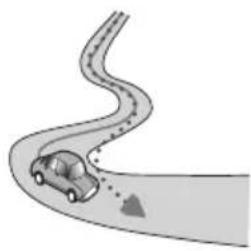
natural_image
Illustration of a car driving on a curved road with motion arrows (no text or symbols)- If there is a loop or similar road configuration.
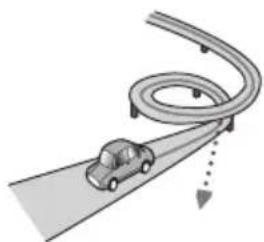
natural_image
Diagram of a car driving on a curved road with an arrow indicating direction (no text or symbols)- Ifyoutakeaferry.
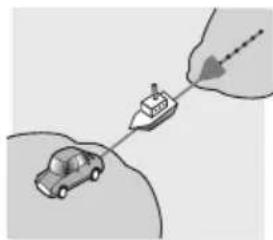
natural_image
Illustration of a car and a boat with an arrow pointing to it, no text or symbols present- If you are driving on long, straight road or agently curving road.
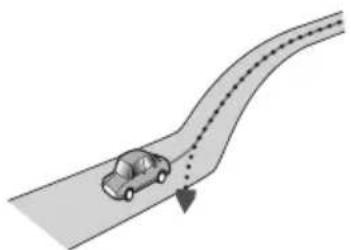
natural_image
Illustration of a car driving on a curved road with dashed trajectory lines and an arrow indicating direction (no text or symbols)Appendix
- If you are on a steep mountain road with many height changes.
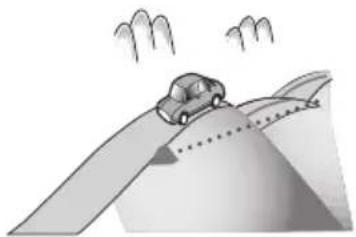
natural_image
Illustration of a car driving on a curved road with motion lines and hills (no text or symbols)- Ifyouenterorexitamulti-storeycarparkor similarstructureusingaspiralramp.
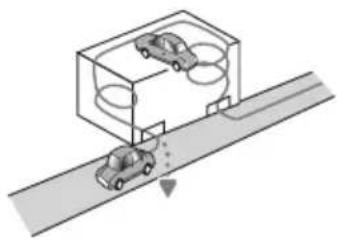
natural_image
Diagram of a car driving on a road with two cars inside a vehicle storage unit (no text or symbols)- If your vehicle is turned on a turntable or similar structure.
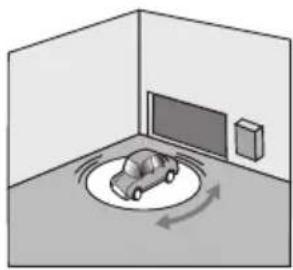
natural_image
Isometric illustration of a car moving inside a room with a TV and wall-mounted device (no text or symbols)- If your vehicle's wheelsspin, such as a rough track or in snow.
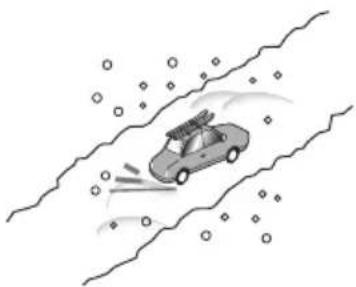
natural_image
Illustration of a car driving on a road with scattered clouds (no text or symbols)- If you put on chains, or change your tyres for ones with different size.
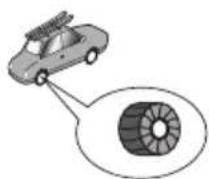
- IftreesorotherobstaclesblocktheGPS signalsforaconsiderableperiod.
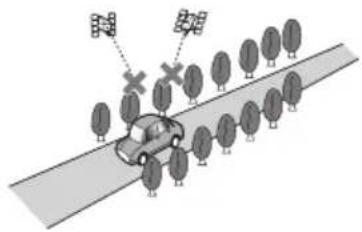
- If you drive very slowly, or in a start-and-stop manner, as in a traffic jam.
natural_image
Illustration of a row of cars on a road (no text or symbols)- If you join the road after driving around a large car park.
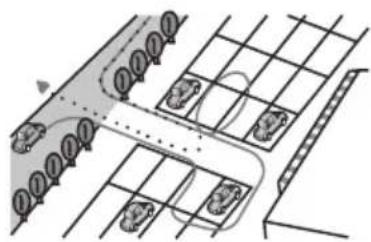
natural_image
Diagram of a parking lot with vehicles and parking areas, no text or symbols present- When you drive around around about.
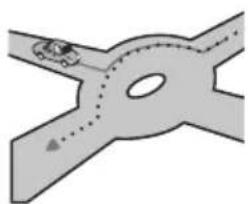
natural_image
Diagram of a road intersection with a car and a dashed path (no text or symbols)- When starting driving immediately after starting the engine.
Routesettinginformation Routesearchspecifications
Yournavigationsystemsetsaroutetoyour destinationbyapplyingcertainbuilt-inrulesto themapdata.Thissectionprovidessomeusefulinformationabouthowarouteisset.

CAUTION
Whenarouteiscalculated,therouteandvoice guidancefortherouteareautomaticallyset. Also,fordayortimetrafficregulations,onlyinformationabouttrafficregulationsapplicableatthe timewhentheroutewascalculatedisconsidered.One-waystreetsandstreetclosuresmay notbetakenintoconsideration.Forexample,ifa streetisopenduringthemorningonly,butyou arrivelater,itwouldbeagainstthetrafficregulationssoyoucannotdrivealongthesetroute. Whendriving,pleasefollowtheactualtraffic signs.Also,thesystemmaynotknowsometrafficregulations.
- Thecalculatedrouteisoneexampleoftheroutetoyourdestinationdecidedbythenavigationsystemwhiletakingthetypeofstreetsortrafficregulationsintoaccount.Itisnotnecessarilyanoptimumroute.(Insomecases,youmaynotbeabletosethestreetsyouwanttotake.Ifyouneedtotakeacertainstreet,setawaypointonthatstreet.)
- If the destination is too far, there may be instances where there are cannot be set. (If you want to set along distancer out going across several areas, set waypoints along the way.)
- Duringvoiceguidance,turnsandintersectionsfromthemotorwayareannounced. However,ifyoupassintersections,turns, andotherguidancepointsinrapidsuccession,somemaydelayornotbeannounced.
- Itispossiblethatguidancemaydirectyou offamotorwayandthenbackonagain.
- Insomecases,theroutemayrequireyou totravelintheoppositedirectiontoyour
currentheading.Insuchcases,youarein- structedtoturnaround,sopleaseturn aroundsafelybyfollowingtheactualtraffic rules.
- In some cases, a routem may begin on the oppositeside of a railway or river from your actual current location. If this happens, drivetowards your destination for awhile, and try route calculation again.
- Whenthereisatrafficjamahead,adetour routemaynotbesuggestedifdriving throughthetrafficjamwouldstillbebetter thantakingthedetour.
- Theremaybeinstanceswhenthestarting point,thewaypointandthedestination pointarenotonthehhighlightedroute.
- Thenumberofroundaboutexitsdisplayed onthescreenmaydifferfromtheactual numberofroads.
Routehighlighting
- Onceset,therouteishhighlightedinbright colouronthemap.
- The immediate vicinity of your starting point and destination may not be highlighted, and neither will areas with particularly complex road layouts. Consequently, ther out may appear to be cut off the display, but voice guidance will continue.
Autoreroutefunction
- If you deviate from the esetroute, the system will re-calculate ether out from that point so that you remain on track to the destination.
- Thisfunctionmaynotworkundercertain conditions.
Handlingandcareofdiscs
Somebasicprecautionsarenecessarywhen handlingyourdiscs.
Appendix
Built-indriveandcare
- Useonlyconventional,fullycirculardiscs. Donotuseshapeddiscs.

natural_image
Two 3D mechanical parts with no visible text or symbols, one marked with a prohibition symbol and the other with a donut (no text or labels)- Donotusecracked, chipped, warped, or otherwise damaged discsastheymaydamage the built-indrive.
- Use12-cmdiscs.Donotuse8-cmdiscsor anadapterfor8-cmdiscs.
- When using discsthatcan beprinted on labelsurfaces, check the instructions and the warning of the discs. Depending on the discs, inserting and rejecting may not be possible. Using such discsmay result in damage to this equipment.
- Donottouchtherecordedsurfaceofthe discs.
- Storediscsintheircaseswhennotinuse.
- Avoidleavingdiscsinexcessivelyhotenvir- onmentsincludingunderdirectsunlight.
- Donotattachlabels, writeonorapplychemicalstothesurfaceofthediscs.
- Donotattachcommerciallyavailablelabels orothermaterialstothediscs.
—Thediscsmaywarpmakingthediscun-playable.
—Thelabelsmaycomeoffduringplay-backandpreventejectionofthediscs, whichmayresultindamagetothe equipment.
- Tocleanadisc, wipeitwithasoftcloth, movingoutwardfromthecentre.
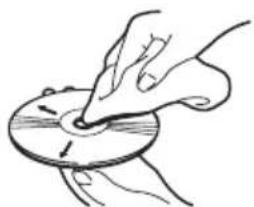
natural_image
Illustration of a hand holding a circular object with a pointer, no text or symbols present- Condensationmaytemporarilyimpairthe built-indrive'sperformance.Leaveittoadjusttothewarmertemperatureforabout
onehour. Also, wipeanydampdiscswitha softcloth.
- Playbackofdiscsmaynotbepossiblebe- causeofdisccharacteristics,discformat, recordedapplication, playbackenvironment, storageconditionsandsoon.
• Roadshocksmayinterruptdiscplayback. - Read the precautions for discs before using them.
Ambientconditionsforplaying adisc
- Atextremelyhightemperatures,atemperaturecutoutprotectsthisproductbyswitchingitoffautomatically.
- Despiteourcarefuldesignoftheproduct, smallscratchesthatdonotaffectactual operationmayappearonthediscsurface asaresultofmechanicalwear,ambient conditionsforuseorhandlingofthedisc. Thisisnotasignofthemalfunctionofthis product.Considerittobenormalwearand tear.
Playablediscs
DVD-VideoandCD
DVDandCDdiscsthatdisplaythelogos shownbelowgenerallycanbeplayedonthis built-inDVDdrive.
DVD-Video

CD


Appendix
□isetademarkofDVDFormat/Logo LicensingCorporation.
ItisnotpossibletoplayDVD-Audiodiscs. ThisDVDdrivemaynotbeabletoplayall discsbearingthemarksshownabove.
AVCHDrecordeddiscs
Thisunitisnotcompatiblewithdiscsrecorded inAVCHD(AdvancedVideoCodecHighDefinition)format.DonotinsertAVCHDdiscs.If inserted,thediscmaynotbeejected.
PlayingDualDisc
- DualDiscsaretwo-sideddiscsthathavea recordableCDforaudioononesideanda recordableDVDforvideoontheother.
- PlaybackoftheDVDsideispossiblewith thisnavigationsystem. However, sincethe CDsideofDualDiscsisnotphysicallycompatiblewiththegeneralCDstandard, it may not be possible to play the CDside with this navigation system.
- Frequentloadingandejectingofa DualDiscmayresultinscratchestothe disc.
- Seriousscratchescanleadtoplaybackproblemsonthisnavigationsystem.Insome cases,aDualDiscmaybecomestuckin thedisc-loadingslotandwillnoteject.To preventthis,werecommendyourefrain fromusingDualDiscwiththisnavigation system.
- Pleaserefertothemanufacturerformore detailedinformationaboutDualDiscs.
DolbyDigital
Thisproductwilldown-mixDolbyDigitalsignalsinternallyandthesoundwillbeoutputin stereo.
ManufacturedunderlicencefromDolby Laboratories.Dolbyandthedouble-DsymbolaretrademarksofDolbyLaboratories.

DOLBY. DIGITAL

Detailedinformationfor playablemedia
Compatibility
Commonnotesaboutdiscompatibility
- Certainfunctionsofthisproductmaynot beavailableforsomediscs.
- Compatibilitywithalldiscsisnotguaranteed.
- ItisnotpossibletopplaybackDVD-ROM/DVD-RAMdiscs.
- Playbackofdiscsmaybecomeimpossible withdirectexposureosunlight,highttemperatures,ordependingonthestorage conditionsinthevehicle.
DVD-Videodiscs
- DVD-VideodiscsthathaveincompatibleregionnumberscannotbeplayedonthisDVDdrive.Theregionnumberoftheplayer canbefoundonthisproduct'schassis.
DVD-R/DVD-RW/DVD-RSL(Single Layer)/DVD-RDL(DualLayer)discs
- UnfinaliseddiscswhichhavebeenrecordedwiththeVideoformat(videomode) cannotbeplayedback.
- Discswhichhavebeenrecordedwiththe VideoRecordingformat(VRmode)cannot beplayedback.
• DVD-RDL(DualLayer)discswhichhave beenrecordedwithLayerJumprecording cannotbeplayedback. - Fordetailedinformationaboutrecording mode,pleasecontactthemanufacturerof media,recorders,orwritingsoftware.
Appendix
CD-R/CD-RWdiscs
- Unfinaliseddiscscannotbeplayedback.
- ItmaynotbepossibletopplaybackCD-R/CD-RWdiscsrecordedonamusicCDre-corderorapersonalcomputerbecauseof disccharacteristics,scratchesordirton thedisc,ordirt,scratchesorcondensation onthelensofthebuilt-indrive.
- Playbackofdiscsrecordedonapersonal computermaynotbepossible,depending ontherecordingdevice,writingsoftware, theirsettings,andotherenvironmentalfactors.
- Pleaserecordwiththecorrectformat.(For details,pleasecontactmanufacturerofmedia,recorders,orwritingsoftware.)
- Titlesandothertextinformationrecorded onaCD-R/CD-RWdiscmaynotbedisplayedbythisproduct(inthecaseofaudio data(CD-DA)).
- Read the precautions with CD-R/CD-RW discs before using them.
Commonnotesabouttheexternal storagedevice(USB,SD)
- Donotleavetheexternalstoragedevice (USB,SD)inanylocationwithhightemperatures.
- Dependingonthekindoftheexternalstoragedevice(USB,SD)youuse,thisnavigationsystemmaynotrecognisethestorage deviceorfilesmaynotbeplayedbackproperly.
- Thetextinformationofsomeaudioand videofilesmaynotbecorrectlydisplayed.
- Fileextensionsmustbeusedproperly.
- Theremaybeaslightdelaywhenstarting playbackoffilesonanexternalstoragedevice(USB,SD)withcomplexfolderhierarchies.
- Operationsmayvarydependingonthe kindofanexternalstoragedevice(USB, SD).
- Itmaynotbepossibletoplaysomemusic filesfromSDorUSBbecauseoffilecharacteristics,fileformat,recordedapplica-
tion, playbackenvironment, storage conditions, and soon.
USBstoragedevicecompatibility
FordetailsaboutUSBstoragedevicecompatibilitywiththisnavigationsystem,refer toSpecificationsonpage204.
- Protocol:bulk
- You cannot connect a USB storage device to this navigation system via a USB hub.
- PartitionedUSBstoragedeviceisnotcompatiblewiththisnavigationsystem.
- FirmlysecuretheUSBstoragedevicewhen driving.DonotlettheUSBstoragedevice fallontothefloor,whereitmaybecome jammedunderthebrakeoraccelerator pedal.
- Theremaybeaslightdelaywhenstarting playbackofaudiofilesencodedwithimage data.
- SomeUSBstoragedevicesconnectedto thisnavigationsystemmaygeneratenoise ontheradio.
- Donotconnectanythingotherthanthe USBstoragedevice.
ThesequenceofaudiofilesonUSBstoragedevice
ForUSBstoragedevice, thesequence is different from that of USBstoragedevice.
SDmemorycardandSDHCmemorycard
FordetailsaboutSDmemorycardcompatibilitywiththisnavigationsystem,referto Specificationsonpage204.
Handlingguidelinesand supplementalinformation
- This system is not compatible with the MultiMediaCard(MMC).
- Copyrightprotectedfilescannotbeplayed back.
Appendix
NotesspecifictoDivXfiles
- OnlyDivXfilesdownloadedfromDivXpartnersitesareguaranteedforproperoperation.UnauthorisedDivXfilesmaynot operateproperly.
- DRMrentalfilescannotbeoperateduntil playingbackisstarted.
- Thenavigationsystemcorrespondstoa DivXfiledisplayofupto1590minutes43 seconds.Searchoperationsbeyondthis timelimitareprohibited.
- DivXVODfile playback requiressupplying the IDcode of this navigationsystem to the DivXVOD provider. Regarding the IDcode, referto Displaying your DivXVOD registration code on page 149.
- PlaysallversionsofDivXvideo,exceptfor DivX7withstandardplaybackofDivX mediafiles.
- FormoredetailsaboutDivX,visitthefollowingsite: http://www.divx.com/
DivXsubtitlefiles
- Srtformatsubtitlefileswiththeextension ".srt" canbeused.
- Onlyonesubtitlefilecanbeusedforeach DivXfile.Multiplesubtitlefilescannotbe associated.
- Subtitlefilesthatarenamedwiththesame characterstringastheDivXfilebeforethe extensionareassociatedwiththeDivXfile. Thecharacterstringsbeforetheextension mustbeexactlythesame. However, ifthere isonlyoneDivXfileandonesubtitlefilein asinglefolder, thefilesareassociatedeven ifthefilenamesarenotthesame.
- Thesubtitlefilemustbestoredinthesame folderastheDivXfile.
- Upto255subtitlefilesmaybeused.Any moresubtitlefileswillnotberecognised.
- Upto64characterscanbeusedforthe nameofthesubtitlefile,includingtheextension.Ifmorethan64charactersare usedforthefilename,thesubtitlefilemay notberecognised.
• The charactercode forthesubtitlefile should comply with ISO-8859-1. Using characters other than ISO-8859-1 may cause the characterstobedisplayed incorrectly.
- Thesubtitlesmaynotbedisplayedcorrectly ifthedisplayedcharactersinthesubtitle fileincludecontrolcode.
- Formaterialsthatuseahightransferrate, thesubtitlesandvideomaynotbecompletely synchronised.
- If multiples subtitles are programmed to display within a very short timeframe, such as 0.1 seconds, the subtitles may not be displayed at the correct time.
Appendix
Mediacompatibilitychart
General
| MediaCD-R/-RW | DVD-R/-RSL/-RDL/DVD-RW | USBstoragedevice | SDmemorycard | |
| Filesystem | •ISO9660level1•ISO9660level2•Romeo,Joliet•UDF1.02/1.50/2.00/2.01/2.50 | •ISO9660level1•ISO9660level2•Romeo,Joliet•UDF1.02/1.50/2.00/2.01/2.50 | FAT16/FAT32 | |
| Maximumnumberof folders | 700300 | |||
| Maximumnumberof files | 99935005000 | |||
| PlayablefiletypesMP3,WMA,AAC,DivX | MP3,WMA,AAC,WAVE,H.264,MPEG4,WMV | |||
| Notes:•Maximum playbacktimeofaudiofilestoredinthedisc:60h•Maximum playback time of audio file stored on an external storage device (USB, SD): 7.5 h (450 minutes) | ||||
MP3compatibility
| MediaCD-R/-RW | DVD-R/-RSL/-R DL/DVD-RW | USBstoragede-vice | SDmemorycard | |
| Fileextension.mp3 | ||||
| Bitrate8kbpsto320kbps(CBR),VBR | ||||
| Samplingfrequency | 16kHzto48kHz(32kHz,44.1kHz,48kHz foreemphasis) | 8kHzto48kHz | ||
| ID3tagID3tagVer.1.0,1.1,2.2,2.3ID3tagVer.1.0,1.1,2.2,2.3,2.4 | ||||
| Notes:Ver. 2.x of ID3 tag is prioritised when both Ver. 1.x and Ver. 2.x exist.Thenavigationsystemisnotcompatiblewiththefollowing:MP3i(MP3interactive),mp3PRO,m3uplaylist | ||||
Appendix
WMAcompatibility
| MediaCD-R/-RW | DVD-R/-RSL/-RDL/DVD-RW | USBstoragedevice | SDmemorycard | |
| Fileextension.wma | ||||
| Bitrate5kbpsto320kbps(CBR),VBR | ||||
| Samplingfrequency8kHzto48kHz | ||||
| Note:Thenavigationsystemisnotcompatiblewiththefollowing:WindowsMediaTM Audio9Professional,Lossless,Voice | ||||
WAVcompatibility
| MediaCD-R/-RW | DVD-R/-RSL/-R DL/DVD-RW | USBstoragede-vice | SDmemorycard | |
| Fileextension | WAVfilesontheCD-R/-RW,DVD-R/-RW/-R | .wav | ||
| FormatLinearPCM(LPCM) | ||||
| Samplingfrequency16kHz | 48kHz | |||
| Quantisationbits8bitsand | 16bits | |||
| Note:Thesamplingfrequencyshowninthedisplaymayberounded. | ||||
AACcompatibility
| MediaCD-R/-RW | DVD-R/-RSL/-RDL/DVD-RW | USBstoragedevice | SDmemorycard | |
| Fileextension.m4a | ||||
| Bitrate8kbpsto320kbps(CBR) | ||||
| Samplingfrequency8kHzto44.1kHz 8kHzto48kHz | ||||
| Note:ThenavigationsystemplaysbackAACfilesencodedbyiTunes. | ||||
Appendix
DivXcompatibility
| MediaCD-R/-RW | DVD-R/-RSL/-R DL/DVD-RW | USBstoragede-vice | SDmemorycard | |
| Fileextension.avi/.divx | DivXfilesontheexternalstoragedevice (USB,SD) cannotbeplayed. | |||
| Profile(DivXversion) | HomeTheaterVer.3.11/Ver.4.x/Ver.5.x/ Ver.6.x | |||
| CompatibleaudiocodeMP3,DolbyDigital | ||||
| Bitrate(MP3)8kbpsto320kbps(CBR),VBR | ||||
| Samplingfrequency (MP3) | 16kHzto48kHz(32kHz,44.1kHz,48kHz foreemphasis) | |||
| Maximumimagesize720pixels×576pixels | ||||
| Maximumfilesize4GB | ||||
| Notes:Thenavigationsystemisnotcompatiblewiththefollowing:DivXUltraformat,DivXfileswithoutvideodata,DivXfilesencodedwithLPCM(LinearPCM)audiocodeDepending on the file information composition, such as the number of audio streams, there may be a slight delayinthestartofplaybackondiscs.Ifafilecontainsmorethan4GB, playbackstopsbeforetheend.Some special operations may be prohibited because of the composition of DivX files.Files with high transfer rates may not be played back correctly. The standard transfer rate is 4 Mbps for CDs and 10.08MbpsforDVDs. | ||||
Appendix
Videofilescompatibility(USB,SD)
| Fileextension.avi.mp4.m4v.wmv | |||||
| FormatMPEG-4MPEG | G-4H.264MPEG-4WMV | ||||
| Compatiblevideo codec | MPEG-4MPEG-4H.264MPEG-4WMV | ||||
| Compatibleaudio codec | LinearPCM (LPCM) MP3 | AACAACAACWMA | |||
| Maximumresolution | 400pixelsx240pixels | ||||
| Maximumbitrate: | Bitrate: 2.5Mbps Framerate: 30fps | Bitrate: 2.5Mbps Framerate: 30fps | Bitrate: 1.5Mbps Framerate: 30fps | Bitrate: 2.5Mbps Framerate: 30fps | Bitrate:768kbps Framerate:30fps |
| Maximumfilesize4GB | |||||
| Maximumplay-backtime | 150minutes | ||||
Commonnotes
- Thenavigationsystemmaynotoperatecor-rectly,dependingontheapplicationused toencodeWMAfiles.
- Depending on the version of Windows Media™ Player used to encode WMA files, album names and other text information may not be correctly displayed.
- Theremaybeaslightdelaywhenstarting playbackofaudiofilesencodedwithimage data.
- Thenavigationsystemisnotcompatible withpacketwritedatatransfer.
- Thisnavigationsystemcanrecogniseupto 32characters,beginningwiththefirstcharacter,includingextensionforthefileand foldername.Dependingonthe display area, the navigation system may try to display themwithreduced fontsize.However,themaximumnumber ofthe charactersthat youcandisplayvaries according tothewidthof eachcharacter,and ofthe displayarea.
- Folderselection sequenceorotheroperations maybealtered,dependingon theencoding orwriting software.
- Regardless of the length of blank section between the songsoforiginal recording, compressed audiodiscsplay with ashort pause between songs.
Appendix
Exampleofahierarchy
The following figure is an example of the structure in the disc. Then numbers in the figure indicate the order in which fold numbers are assigned and the order to be played back.
:Folder
File
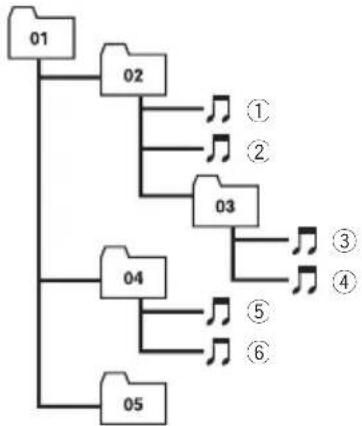
flowchart
graph TD
    01 --> 02
    02 --> 1
    02 --> 2
    02 --> 3
    03 --> 4
    04 --> 5
    04 --> 6
    05 --> 6
Level 1 L level 2 L level 3 L level 4

Notes
- Thisproductassignsfoldernumbers.Theuser cannotassignfoldernumbers.
- If thereisafolderthatdoesnotcontainany playablefile, thefolderitselfwilldisplayinthe folderlistbutyoucannotcheckanyfilesin thefolder.(Ablanklistwillappear.) Also, thesefolderswillbeskippedwithoutdisplayingthefoldernumber.
Bluetooth

Bluetooth®
•TheBluetooth® wordmarkandlogosareregisteredtrademarksownedbyBluetooth SIG,Inc.andanyuseofsuchmarksby PIONEERCORPORATIONisunderlicence. Othertrademarksandtradenamesare thoseoftheirrespectiveowners.
SDandSDHClogo

SDLogoisatrademarkofSD-3C,LLC.

SDHCLogoisattrademarkofSD-3C,LLC.

microSDLogoisattrademarkofSD-3C,LLC.

microSDHCLogoisattrademarkofSD-3C, LLC.
WMA/WMV
WindowsMediaiseitheraregisteredtrademarkorttrademarkofMicrosoftCorporationin theUnitedStatesand/orothercountries.
Thisproductincludestechnologyownedby MicrosoftCorporationandcannotbeused ordistributedwithoutalicencefrom MicrosoftLicensing,Inc.
DivX

Appendix
DivXisacompresseddigitalvideoformatcreatedbytheDivXvideocodefromDivX,LLC,a subsidiaryofRoviCorporation.Thisunitcan playDivXvideofilesrecordedonCD-R/RW/ROMandDVD-R/RW/ROMdiscs.Keepingthe sameterminologyasDVDvideo,individual DivXvideofilesarecalled"Titles".Keepin mindthatwhennamingflies/titlesonaCD-R/RWoraDVD-R/RWdiscpriortoburning,they willbyplayedinwrittenorderbydefault.
☐DivX ^® , DivXCertified ^® and associated logos are trademarksof RoviCorporationorits subsidiariesandareusedunderlicence.
ABOUTDIVXVIDEO:DivX ^® isadigital videoformatcreatedbyDivX,LLC,asubsidiary ofRoviCorporation.ThisisanofficialDivX Certified ^® devicethatplaysDivXvideo.Visit divx.comformoreinformationandsoftware toolstoconvertyourfilesintoDivXvideos.
ABOUTDIVXVIDEO-ON-DEMAND:This DivXCertified ^® device must be registered in ordertoplay purchased DivXVideo-on-Demand(VOD) movies. To obtain your registration code, locate the DivXVOD section in Displaying your DivXVOD registration code. Go to vod.divx.com form more information on how to complete your registration.
- Fordetails, refertoDisplayingyourDivX VODregistrationcodeonpage149.
AAC
AACisshortforAdvancedAudioCodingand referstoanaudiocompressiontechnology standardusedwithMPEG-2andMPEG-4.SeveralapplicationscanbeusedtoencodeAAC files, butfileformatsandextensionsdifferdependingontheapplicationwhichisusedto encode.ThisunitplaysbackAACfilesencodedbyiTunes.
Android™
AndroidisattrademarkofGoogleInc.

Detailedinformation regardingconnectediPod devices
CAUTION
- Pioneeracceptsnoresponsibilityfordatalost fromaniPod, evenifthatdataislostwhile usingthenavigationsystem.Pleasebackup youriPoddataregularly.
- DonotleavetheiPodindirectsunlightforex-tendedamountsoftime.Extendedexposure todirectsunlightcanresultiniPodmalfunc-tionduetotheresultinghightemperature.
- Donotleavethei Podinany location with hightemperatures.
- FirmlysecuretheiPodwhendriving.Donot lettheiPodfallontothefloor,whereitmaybe-comejammedunderthebrakeoraccelerator pedal.
Fordetails, refertothei Podmanuals.
iPodandiPhone
Made for

iPod

iPhone
"Made for iPod" and "Made for iPhone" mean that an electronic accessory has been designed to connect specifically to iPod or iPhone, respectively, and has been certified by the development meet Apple performance standards.
Appleisnotresponsiblefortheoperationof thisdeviceoritscompliancewithsafetyand regulatorystandards.
Pleasenotethattheuseofthisaccessorywith iPodoriPhonemayaffectwirelessperformance.
iPhone,iPod,iPodclassic,iPodnano,and iPodtoucharetrademarksofAppleInc.,registeredintheU.S.andothercountries.
Appendix
Lightning
LightningisattrademarkofAppleInc.
AppStore
AppStoreisaservicemarkofAppleInc.
ios
iOSisattrademarkonwhichCiscoholdsthe trademarkrightintheUSandcertainother countries.
iTunes
iTunesisattrademarkofAppleInc., registered intheU.S.andothercountries.
Usingapp-basedconnected content
IMPORTANT
Requirementstoaccessapp-basedconnected contentservicesusingthisproduct:
- LatestversionofthePioneercompatibleconnectedcontentapplication(s)forthesmartphone,availablefromtheserviceprovider,downloadedtoyouriPhonedevice.
- A current account with the contents service provider.
- SmartphoneDataPlan.
Note: if the Data Plan for your smartphone does not provide for unlimited data usage, additional charges from your carrier may apply for accessing app-based connected content via 3Gand/or EDGE networks.
- ConnectiontotheInternetvia3G,EDGEor Wi-Finetwork.
- OptionalPioneeradaptercableconnecting youriPhonetothePioneernavigationsystem.
Limitations:
- Accesstoapp-basedconnectedcontentwill dependontheavailabilityofcellularand/or Wi-Finetworkcoverageforthepurposeofal-
lowingyoursmartphonetoconnecttotheIn- ternet.
- Serviceavailabilitymaybegeographicallylimitedtotheregion.Consulttheconnectedcontentserviceproviderforadditional information.
- Abilityofthisproducttoaccessconnected contentissubjecttochangewithoutnotice andcouldbeaffectedbyanyofthefollowing: compatibilityissueswithfuturefirmwareversionsofsmartphone;compatibilityissueswith futureversionsoftheconnectedcontentapplication(s)forthesmartphone;changestoor discontinuationoftheconnectedContentapplication(s)orservicebyitsprovider.
AhaRadio
Aha,AhaRadioandtheAhaandAhaRadio logosareeitherthetrademarksortheregisteredtrademarksofHarmanInternationalIndustries,Incorporated.
HDMI

HIGH-DEFINITION MULTIMEDIA INTERFACE
The terms HDMI and HDMI High-Definition Multimedia Interface, and the HDMI Logo are trademarks or registered trademark of HDMI Licensing, LLC in the United States and other countries.
MHL
MHL,theMHLLogo,andMobileHigh-Definition Linkaretrademarksorregisteredtrademarksof MHL,LLCintheUnitedStatesandother countries.
UsingtheLCDscreencorrectly HandlingtheLCDscreen
- WhentheLCDscreenissubjectedtodirect sunlightforalongperiodoftime, itwillbecomeveryhot, resultinginpossibledamagetotheLCDscreen. Whennotusing thisnavigationsystem, avoidexposingitto directsunlightasmuchaspossible.
- The LCD screens should be used within the temperaturerangesshowninSpecifications.
- DonotusetheLCDscreenattemperatures higherorlowerthantheoperatingtemperaturerange,because the LCD screen may not operate atenormally and could bedamaged.
- TheLCDscreenisexposedinordertoincreaseitsvisibilitywithinthevehicle. Pleasedonotpressstronglyonitasthis maydamageit.
- DonotpushtheLCDscreenwithexcessive forceasthismayscratchit.
- NevertouchtheLCDscreenwithanything besidesyourfingerwhenoperatingthe touchpanelfunctions.TheLCDscreencan scratcheasily.
Liquidcrystaldisplay(LCD)screen
- If the LCD screen is near the event of fan air conditioner, makes sure that air from the air conditioner is not blowing on it. Heat from the heater may break the LCD screen, and cool air from the cooler may cause moisture to form inside the navigation unit, resulting in possible damage.
- Smallblackdotsorwhitedots(brightdots) mayappearontheLCDscreen.Theseare
duetothecharacteristicsoftheLCD screenanddonotindicateamalfunction.
• The LCD screen will be difficult to see if it is exposed to direct sunlight.
- When using a mobile phone, keep the aerial of themobile phone away from the LCD screentoprevent disruption of the video in the form of disturbance such as spots or coloured stripes.
MaintainingtheLCDscreen
- When removing dust from the LCD screen or cleaning it, first turn the system power off, then wipewith as of t dry cloth.
- WhenwipingtheLCDscreen,takecarenot toscratchthesurface.Donotuseharshor abrasivechemicalcleaners.
LED(light-emittingdiode) backlight
Alightemittingdiodeisusedinsidethedis- playtoilluminatetheLCDscreen.
- Atlowtemperatures, using the LED backlight may increase image lag and degrade the image quality because of the characteristic of the LCD screen. Image quality will improve with an increase in temperature.
• The product lifetime of the LED backlight is more than 10000 hours. However, it may decrease if used in high temperatures. - IftheLEDbacklightreachestheendofits productlifetime,thescreenwillbecome dimmerandtheimagewillnolongerbe visible.Inthatcase,pleaseconsultyour dealerorthenearestauthorisedPioneer ServiceStation.
Appendix
Displayinformation
Destinationmenu
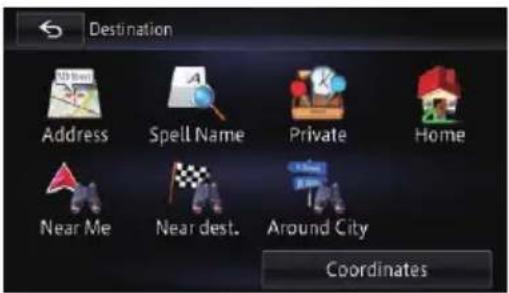
| Page | |
| Address38 | |
| POIName41 | |
| Stored44,52 | |
| Favourites52 | |
| History44,53 | |
| Home41 | |
| NearMe42 | |
| Neardest.42 | |
| AroundCity43 | |
| Coordinates45 | |
Phonemenu
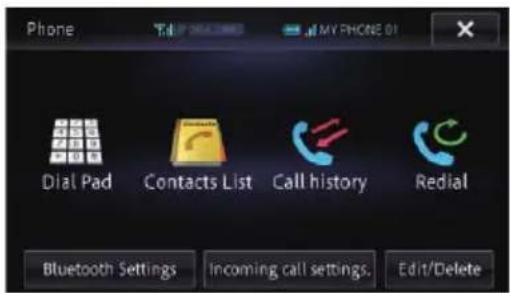
| Page | |
| DialPad67 | |
| ContactsList68 | |
| Callhistory69 | |
| Redial69 | |
| BluetoothSettings73 | |
| Incomingcallsettings | 7374 |
| Edit/Delete | 71 |
Informationmenu
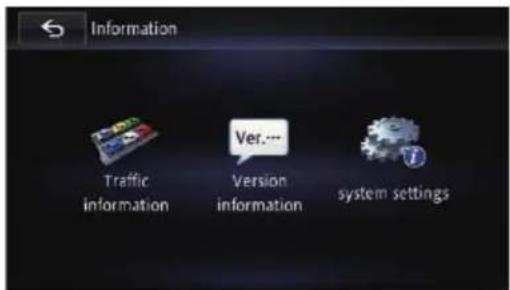
| Page | |
| TrafficInformation55 | |
| Version Information | 133 |
| NavigationInfo | 131132 |
Edit/Settingsmenu
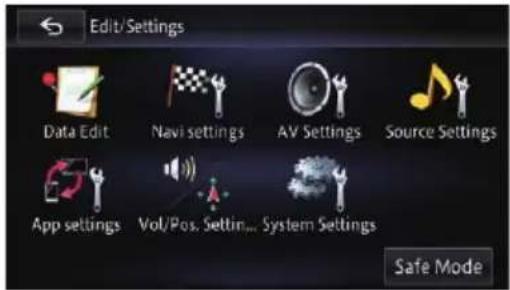
| Page | |
| EditData52 | |
| Navisettings131 | |
| AVSettings150,154,158 | |
| SourceSettings147 | |
| Appsettings157 | |
| Vol./Pos.Adj.135 | |
| SystemSettings143 | |
| SafeMode163 | |
EditDatamenu
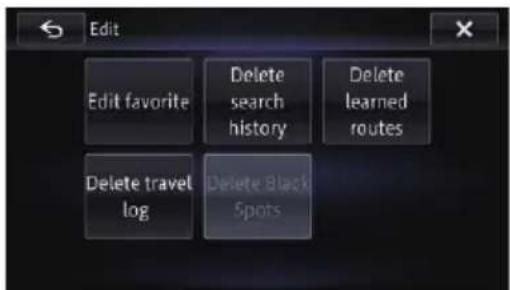
| Page | |
| Editfavorite52 | |
| Deletesearchhistory53 | |
| Deletelearnedroutes54 | |
| Deletetravellog | 54 |
Navisettingsmenu
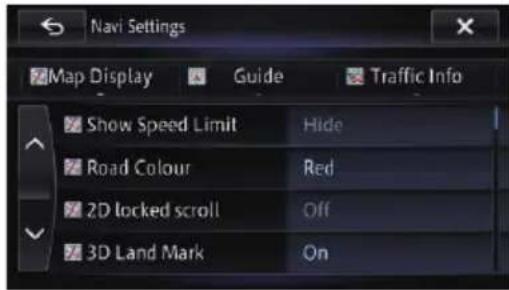
MapDisplay
| Page | |
| ShowSpeedLimit | 136 |
| RoadColour | 136 |
| 2Dlockedscroll | 137 |
| 3DLandMark | 137 |
| CityMap | 137 |
| CityMapBarrier | 138 |
| Day/NightDisplay138 | |
| Displaytravellog138 | |
| TravLogAutoDel. | 139 |
| Currentlocation info. | 139 |
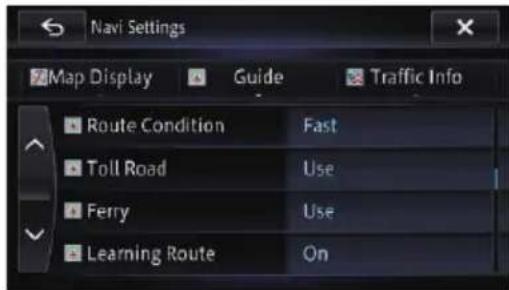
Guide
| Page | |
| RouteCondition | 139 |
| Tollroad | 139 |
| Ferry | 140 |
| LearningRoute | 140 |
| Trafficavoidance | 141 |
| Timerestrictions | 140 |
| Motorway | 140 |
Appendix
| Page | |
| Autoreroutechoice141 | |
| Distance/ETA141 | |
| Autoreroute141 | |
| CloseUpView142 | |
| AVGuideMode142 | |
| AppGuideMode142 | |
| MinorOrdinaryRoad142 | |
| MajorOrdinaryRoad142 | |
| Motorway142 | |
| km/mile143 | |
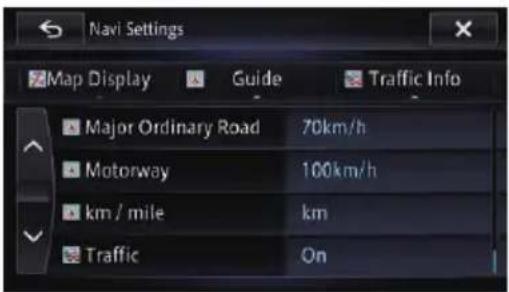
TrafficInfo
| Page | |
| Traffic143 | |
AVSettingsmenu
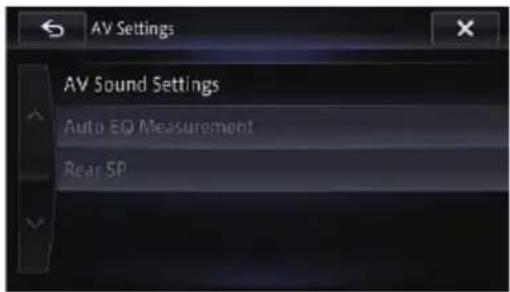
| Page | ||
| AVSoundSettings | 150 | |
| FAD/BAL(Balance) | 150 | |
| Loudness | 151 | |
| EQMenu | 151 | |
| SLA | 153 | |
| HPF | 153 | |
| SubWoofer | 154 | |
| BassBooster | 154 | |
| SonicCenterControl | 154 | |
| AutoEQMeasurement | 154 | |
| RearSP | 158 | |
Settingaccordingtosourcemenu
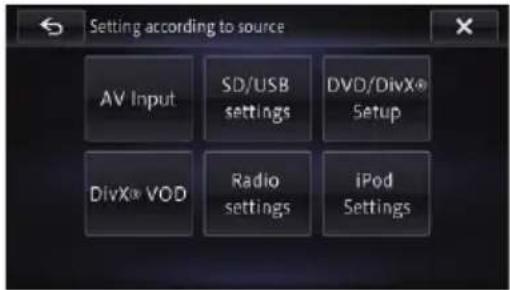
| Page | |
| AVInput | |
| AV1Input148 | |
| AV2Input148 | |
| SD/USBsettings | |
| SDvideooutputsettings148 | |
| SetUSBvideooutput148 | |
| DVD/DivX®Setup100 | |
| SubtitleLanguageAudioLanguageMenuLanguage | 100 |
| MultiAngle100 | |
| TVAspect101 | |
| ParentalLevel101 | |
| AutoPlay102 | |
| SubtitleFile102 | |
| DivX®VOD | |
| RegistrationCode149 | |
| DeregistrationCode149 | |
| Radiosettings | |
| AutoPI149 | |
| FMStep | 150 |
| iPodSettings | |
| iPodConnectionSettings | 149 |
Appsettingsmenu
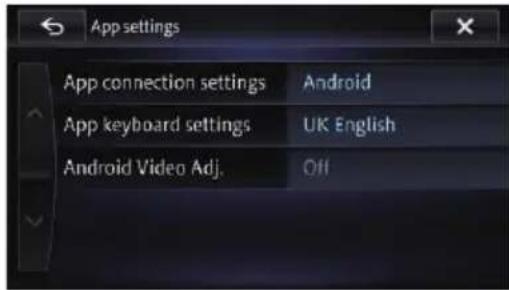
| Page | |
| Appconnectionsettings | 157 |
| Appkeyboardsettings | 157 |
| AndroidVideoAdj. | 127 |
SystemSettingsmenu
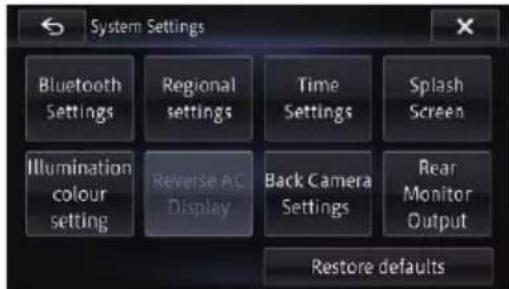
| Page | |
| BluetoothSettings73 | |
| Regionalsettings | |
| VoiceLanguage ProgramLanguage | 144 |
| TimeSettings | 144 |
| SplashScreenSetting | 144 |
| IllumiColourSetting | 146 |
| ReverseACDisplay | 147 |
| BackCameraSettings | 161 |
| RearMonitorOutput | 147 |
| Restoredefaults167 | |
Appendix
BluetoothSettingsmenu
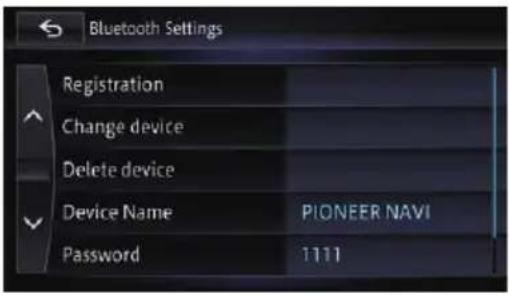
Page
Registration58
Changedevice65
Deletedevice65
DeviceName73
Password73
BluetoothOn/Off74

Appendix
Glossary
AAC
AACisshortforAdvancedAudioCodingand referstoanaudiocompressiontechnology standardusedwithMPEG-2andMPEG-4.
Aspectratio
Thisisthewidth-to-heighttratioofaTVscreen. Aregulardisplayhasanaspectratioof4:3. Widescreendisplayshaveanaspectratioof 16:9, providingabiggerpictureforexceptional presenceandatmosphere.
Bitrate
Thisexpressesdatavolumepersecond,orbps units(bitspersecond).Thehighertherate, themoreinformationisavailabletoreproduce thesound.Usingthesameencodingmethod (suchasMP3),thehighertherate,thebetter thesound.
Built-insensor
The built-insensorthatenablesthesystemto estimate your vehicle's position.
CD-DA
ThisstandsforageneralmusicCD(commercial-releaseaudioCD).Inthismanual,this wordissometimeusedforadistinctionbetweendataCDs(whichincludedecompressed audiofiles)andgeneralmusicCDs.
Chapter
TitlesofDVD-Videoareinturndividedinto chapterswhicharenumberedinthesame wayasthechaptersofabook.Withdiscsfeaturingchapters,youcanquicklyfindadesired scenewithchaptersearch.
Currentlocation
The present location of your vehicle; your current location is shown on them by a red triangle mark.
Destination
Alocationyouchooseastheendpointofyour journey.
DivX
DivXisapopularmediatechnologycreatedby DivX,LLC,asubsidiaryofRoviCorporation. DivXmediafilescontainhighlycompressed videowithhighvisualqualitythatmaintainsa relativelysmallfilesize.DivXfilescanalsoincludeadvancedmediafeatureslikemenus, subtitles,andalternateaudiotracks.Many DivXmediafilesareavailablefordownloadonline,andyoucancreateyourownusingyour personalcontentandeasy-to-usetoolsfrom DivX.com.
DivXCertified®
DivXCertified ^® productsareofficiallytestedby thecreatorsofDivXandguaranteedtoplayall versionsofDivXvideo,exceptforDivX7.
Favourites
Afrequentlyvisitedlocation(suchasyour workplaceorarelative'shome)thatyoucan registertoalloweasyrouting.
GPS
GlobalPositioningSystem.Anetworkofsatellitesthatprovidesnavigationsignalsforavarietyofpurposes.
Guidancepoint
These are important landmarks along your route, generally intersections. Then next guidance point along your route is indicated on them by the flag icon.
Homelocation
Yourregisteredhomelocation.
ID3tag
Thisisamethodofembeddingtrack-related informationinanMP3file. Thisembeddedinformationcanincludethetracktitle, theartist'sname, thealbumtitle, themusicgenre, theyearofproduction, commentsandother data. Thecontentscanbefreelyedited using softwarewithID3tageditingfunctions. Althoughthetagsarerestrictedbythenumberofcharacters, theinformationcanbe viewedwhenthetrackisplayedback.
Appendix
ISO9660format
ThisistheinternationalstandardfortheformatlogicofDVD/CD-ROMfoldersandfiles. FortheISO9660format,thereareregulations forthefollowingtwolevels:
•Level1:
Thefilenameisin8.3format(thename consistsofuptoeightcharacters,half-byte Englishcapitalletters,half-bytenumerals andthe“_”sign,withafile-extensionof threecharacters).
- Level2:
The filename can have up to 31 characters (including these separation mark". "and a file extension). Each folder contains less than eighth hierarchies.
- Extendedformats
Joliet:
Filenamescanhaveupto64characters.
Romeo:
Filenamescanhaveupto128characters.
JPEG
ThisstandsforJointPhotographicExperts Group, and is an international still image compression standard.
MP3
MP3isshortforMPEGAudioLayer3.Itisan audiocompressionstandardestablishedbya workinggroup(MPEG)oftheISO(InternationalOrganizationforStandardization).MP3 isabletocompressaudiodatatoabout1/10th thesizeofaconventionaldisc.
MPEG
ThisstandsforMovingPicturesExperts Group, and is an international video image compression standard.
Multi-angle
WithregularTVprogrammes,althoughmulp-plecamerasareusedtosimultaneouslyshootscenes,onlyimagesfromonecameraata timearetransmittedtoyourTV.SomeDVDs featurescenessshotfrommultipleangles,lettingyouchooseyourviewingangleasdesired.
Multi-audio(Multilingualdialogue)
Somevideosfeatureddialoguerecordedinmultiplelanguagesoraudiorecordedinmultipletracks.Forexample,dialogueinuptoeight languagescanberecordedonasingle DVD-Video,lettingyouchoosethelanguage asdesired.
Multi-session
Multi-sessionisarecordingmethodthatal- lowsadditionaldatatoberecordedlater. WhenrecordingdataonaCD-ROM,CD-Ror CD-RW,etc.,alldatafrombeginningtoendis treatedasasingleunitorsession.Multi-ses-sionisamethodofrecordingmorethantwo sessionsinonedisc.
Multi-subtitle
Forexample, subtitlesinupto32languages canberecordedonasingleDVD-Video, letting youchooseasdesired.
Packetwrite
Thisisageneraltermforamethodofwriting individualfilestoaCD-R,etc.wheneverrequired,justasisdonewithfilesonfloppyor harddisks.
Parentallock
SomeDVD-Videodiscswithviolentoradult-orientedscenesfeatureparentallockwhichpreventschildrenfromviewingsuchscenes.With thiskindofdisc,ifyousettheunit'sparental locklevel,playbackofscenesinappropriatefor childrenwillbedisabled,orthesesceneswill beskipped.
Phonebook
Anaddressbookonuser'sphoneiscollectivelyreferredtoas"Phonebook".Depending onthemobilephone, the phonebook maybe calledanamesuchas"Contacts", "Business card" or something else.
PointOfInterest(POI)
Anyofarangeoflocationsstoredinthedata, suchasrailwaystations,shops,restaurants, andamusementparks.
Appendix
Regionnumber
DVDplayersandDVDdiscsfeatureregion numbersindicatingtheareainwhichthey werepurchased.PlaybackofaDVDisnotpossibleunlessitfeaturesthesameregionnumberastheDVDplayer.
Routesetting
The process of determining the ideal route to a specific location; routesetting is done automatically by the system when you specify a destination.
Setroute
Theroutemarkedoutbythesystemtoyour destination.Itishhighlightedinbrightcolour onthemap.
Title
DVD-Videodiscshaveahighdatacapacity,enablingrecordingofmultiplevideosonasingle disc.If,forexample,onediscccontainsthree separatevideos,theyaredividedintotitle1, title2andtitle3.Thisletsoyouenjoytheconvenienceoftitlesearchandotherfunctions.
Tracklog
Yournavigationsystemlogsroutesthatyoual-readypassedthroughifthetrackloggerisactivated. Thisrecordedrouteiscalleda"track log".Itishandywhenyouwanttochecka routetravelledorifreturningalongacomplex route.
VBR
VBRisshortforvariablebitrate.Generally speaking,CBR(constantbitrate)ismore widelyused.Butbyflexiblyadjustingthebit rateaccordingtotheneedsofaudiocompression,itispossibletoproducecompression-prioritydata.
Voiceguidance
Thegivingofdirectionsbynavigationvoice whileinguidance.
Waypoint
Alocationthatyouchoosetovisitbeforeyour destination;ajourneycanbebuiltupfrom multiplewaypointsandthedestination.
WMA
WMAisshortforWindowsMedia™ Audioand referstoanaudiocompressiontechnology that is developed by Microsoft Corporation. WMAdatacanbeencoded by using Windows MediaPlayversion7 or later.
Appendix
Specifications
General
Ratedpowersource......14.4VDC (allowablevoltagerange: 12.0Vto14.4VDC)
Earthingsystem......Negativetype Maximumcurrentconsumption ......10.0A
NANDflashmemory......8GB
Navigation
GPSreceiver: System......L1,C/AcodeGPS SPS(StandardPositioning Service) Receptionsystem......12-channelmulti-channel reception system Receptionfrequency...1575.42MHz Sensitivity......-140dBm(typ) Positionupdatefrequency .....Approx.oncepersecond
GPSaerial: Aerial....Microstripflataerial/right-handedhelicalpolarisation Aerialcable....3.55m Dimensions(W×H×D) ....33mm×14.7mm×36mm Weight.....73.7g
Display
Screensize/aspect ratio: AVIC-F50BT....7inchwide/16:9 AVIC-F950DAB....6.1inchwide/16:9 AVIC-F950BT....6.1inchwide/16:9 AVIC-F850BT....6.1inchwide/16:9
Effectivedisplayarea: AVIC-F50BT.....155.2mm×81.3mm AVIC-F950DAB.....135mm×70.8mm AVIC-F950BT.....135mm×70.8mm AVIC-F850BT.....135mm×70.8mm
Pixels....384000(800×480) Displaymethod....TFTActivematrixdriving Backlight....LED Coloursystem....PAL/NTSCcompatible
Tolerabletemperaturerange: Poweron....-10°Cto+60°C Poweroff.....-20°Cto+80°C
Angleadjustment AVIC-F50BT.....0°to22° AVIC-F950DAB.....0° AVIC-F950BT.....0° AVIC-F850BT.....0°
Audio
Maximumpoweroutput.....50W×4 50W×2ch/4Ω+70W×1ch/2Ω(forsubwoofer)
Continuouspoweroutput..22W×4(50Hz to 15kHz, 5% THD, 4Ω LOAD, Both Channels Driven)
Load impedance .... 4Ω (4Ω to 8Ω [2Ω for 1 ch] allowable)
Preoutputlevel(max): AVIC-F50BT.....4.0V
Appendix
AVIC-F950DAB.....2.2V
AVIC-F950BT.....2.2V
AVIC-F850BT....2.2V
Preoutimpedance:
AVIC-F50BT....100Ω
AVIC-F950DAB....1 kΩ
AVIC-F950BT....1 kΩ
AVIC-F850BT....1 kΩ
Equaliser(8-BandGraphicEqualiser):
Frequency....40Hz/80Hz/200Hz/400Hz/1kHz/2.5kHz/8kHz/10kHz
Gain....±12dB
Loudnesscontour:
Low....+3.5dB(100Hz), +3dB (10kHz)
Phase Normal/Reverse
Bassboost:
Gain....0dBto+12dB
DVDdrive
System......DVD-Video,CD,MP3,WMA,AAC,DivXsystem
Usablediscs....DVD-Video,DVD-R(SL/DL), DVD-RW,CD-ROM,CD-DA, CD-R/RW
Regionnumber......2
Signalformat:
Samplingfrequency.....44.1kHz/48kHz/96kHz
Numberofquantisationbits .....16bit/20bit/24bit;linear
Frequencyresponse......5Hzto44000Hz(withDVD,atsamplingfrequency96kHz)
Signal-to-noiseratio....97dB(1kHz)(IEC-Anetwork) (CD:96dB(1kHz)(IEC-Anetwork))
Dynamicrange....95dB(1kHz)(CD:94dB (1kHz))
Distortion....0.008%(1kHz)
Outputlevel:
Video....1.0Vp-p/75Ω(±0.2V)
Audio....1.0V(1kHz,0dB)
Numberofchannels.....2(stereo)
MP3decodingformat......MPEG-1,2&2.5AudioLayer 3
WMAdecodingformat......Ver.7,8&9
AACdecodingformat......MPEG-4AAC(onlyencoded byiTunes); .m4a
DivXdecodingformat......HomeTheaterVer.3.11, Ver.4.X, Ver.5.X, Ver.6.X: .avi, divx
USB
USBstandardspec.....USB2.0HighSpeed
Maxcurrentsupply....1A
Filesystem.....FAT16,FAT32
USBclass....Massstorageclass
Decodingformat....MP3/WMA/AAC/WAVE/H.264/MPEG4/WMV
SD(AVIC-F50BT)
SDmemorycard, SDHCmemorycard
Compatiblephysicalformat ....Version2.00
Filesystem.....FAT16,FAT32
Decodingformat......MP3/WMA/AAC/WAVE/H.264/MPEG4/WMV
SD(AVIC-F950DAB,AVIC-F950BTandAVIC-F850BT)
microSDcard, microSDHCcard
Compatiblephysicalformat ....Version2.00
Filesystem.....FAT16,FAT32
Decodingformat......MP3/WMA/AAC/WAVE/H.264/MPEG4/WMV
Bluetooth
Version......Bluetooth2.1+EDR
Outputpower....+4dBmMax. (Powerclas
FMtuner
Frequencyrange....87.5MHzto108.0MHz
Usable sensitivity ....9 dBf (0.8 V/75 , mono, S/N:30dB)
Signal-to-noiseratio....72dB(IEC-Anetwork)
MWtuner
Frequencyrange.....531kHzto1602kHz(9kHz)
Usablesensitivity....25μV(S/N:20dB)
Signal-to-noiseratio....62dB(IEC-Anetwork)
Appendix
LWtuner
Frequencyrange.....153kHzto281kHz
Usablesensitivity.....28μV(S/N:20dB)
Signal-to-noiseratio....62dB(IEC-Anetwork)
DABtuner(AVIC-F950DAB)
Frequencyrange
BandIII....174.928MHzto
239.200MHz(5A-13F)
LBand.....1452.960MHzto
1490.624MHz(LA-LW)
Usablesensitivity......-100dBm
S/Nratio.....85dB

Note
Specificationsanddesignaresubjecttopossible
modificationswithoutnoticeduetoim-
provements.
To keep up to date with the latest navigational data, you can periodically update your navigation system. For further details, please visit our website.
http://www.pioneer.eu
Visit www.pioneer.co.uk (or www.pioneer.eu) to register your product. Visitez www.pioneer.fr (ou www.pioneer.eu) pour enregistrer votre appareil. Si prega di visitare il sito www.pioneer.it (o www.pioneer.eu) per registrare il prodotto. Visite www.pioneer.es (o www.pioneer.eu) para registrar su producto. Zum Registrieren Ihres Produktes besuchen Sie bitte www.pioneer.de (oder www.pioneer.eu). Bezoek www.pioneer.nl (of www.pioneer.eu) om uw product te registreren.
PIONEERCORPORATION
1-1, Shin-ogura, Saiwai-ku, Kawasaki-shi, Kanagawa212-0031, JAPAN
PIONEERELECTRONICS(USA)INC. P.O.Box1540,LongBeach,California90801-1540,U.S.A. TEL:(800)421-1404
PIONEEREUROPENV
Haven1087, Keetberglaan1, B-9120Melsele, Belgium/Belgique TEL:(0)3/570.05.11
©2012-2013PIONEERCORPORATION. Allrightsreserved.