
DrivePro Body 60 - Video camera TRANSCEND - Free user manual and instructions
Find the device manual for free DrivePro Body 60 TRANSCEND in PDF.


| Product Type | Body Camera |
| Brand | Transcend |
| Model | DrivePro Body 60 |
| Dimensions | Approx. 80 x 60 x 30 mm |
| Weight | Approx. 100 g |
| Power Source | Rechargeable Lithium-ion battery (3.7V, 1900mAh) |
| Video Resolution | 1080p Full HD at 30 fps |
| Field of View | 140° wide-angle lens |
| Night Vision | Infrared LEDs for low-light recording |
| Loop Recording | Yes, with automatic overwrite |
| G-Sensor | Built-in impact detection for emergency file protection |
| Storage | Supports microSD up to 128GB (Class 10 recommended) |
| Battery Life | Up to 7 hours continuous recording |
| Charging Time | Approx. 3 hours via USB |
| Mounting | Rotating clip for belt, pocket, or strap |
| Water Resistance | IPX4 splash-proof rating |
| Maintenance | Clean lens with soft, dry cloth; avoid solvents |
| Safety Warnings | Do not disassemble; avoid extreme temperatures; keep away from children |
| Spare Parts / Repairability | Replacement battery and mounting clip available; not user-serviceable internally |
| General Information | Firmware upgradable; compatible with Windows/macOS; one-year warranty |
Frequently Asked Questions - DrivePro Body 60 TRANSCEND
User questions about DrivePro Body 60 TRANSCEND
0 question about this device. Answer the ones you know or ask your own.
Ask a new question about this device
Download the instructions for your Video camera in PDF format for free! Find your manual DrivePro Body 60 - TRANSCEND and take your electronic device back in hand. On this page are published all the documents necessary for the use of your device. DrivePro Body 60 by TRANSCEND.
USER MANUAL DrivePro Body 60 TRANSCEND
natural_image
Black Transdeind device with a flashlight and cable, no visible text or symbols on the device bodyTable of Contents
- Introduction ...... 3
- System Requirements....4
- Getting Started ....4
3-1 Mounting the DrivePro Body....4
3-2 Function Buttons....6
3-3 Function Buttons Description....7
3-4 LED Indicator Table....8
3-5 Charging the DrivePro Body 60....9
- Recording Videos....10
4-1 Buffering Mode....10
4-2 Recording Mode 10
- Taking Photos....11
- Using the DrivePro Body App ....11
6-1 Downloading and Installing the App ....11
6-2 Connecting to the DrivePro Body App ....11
6-3 DrivePro Body App Home 14
6-4 Playing Videos and Browsing Photos ....14
6-5 Settings 16
- Using the DrivePro Body Toolbox Software....18
7-1 Status....19
7-2 Settings 19
7-3 Tools 22
7-4 File Manager 22
7-5 Preference 24
- Docking Station (Optional) 26
-
Cautions ...... 29
-
IP67 Protection....30
- Package Contents....31
- Specifications .... 33
- Frequently Asked Questions....34
- EU Compliance Statement....35
- Recycling and Environmental Protection....36
- Two-year Limited Warranty ....37
- GNU General Public License (GPL) Disclosure 38
- End-User License Agreement (EULA) 38
-
Federal Communications Commission (FCC) Statement 41
-
Eurasian Conformity Mark (EAC) 42
1. Introduction
Transcend's DrivePro™ Body 60 is an easy-to-operate wearable video camera that is tailor-made for police officers, security guards, military personnel, and other professionals to capture real time videos and photos of events. The DrivePro Body 60 features a camera unit connected to the main unit by a flexible cable, allowing for a wide variety of attachment options and best recording perspective. The Sony sensor can capture high-resolution images even in low light conditions. The built-in GPS receiver allows for GPS coordinates to be embedded on footage, enabling accurate retracing to the site of an incident. Paired with Transcend's exclusive DrivePro Body App, the Wi-Fi network and Bluetooth allows live streaming to smartphones and adjusting the function settings.
The DrivePro Body 60 features a 130° wide angle lens and records videos in Full HD 1080P (30 FPS) with a F2.8 aperture. The handy snapshot function allows for taking photos while recording. The high-capacity built-in Li-Polymer battery can record up to 10 hours of recording on a single charge. The internal 64GB storage allows users to store up to 16 hours of Full HD 1080P video. In addition, the camera is IP67 water and dust resistant, and meets rigorous US military drop-test standards for shock resistance.
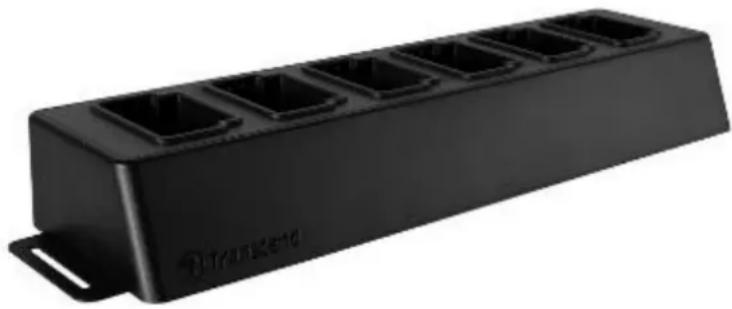
The DrivePro Body Toolbox provides a password protection mechanism to protect the recorded data. For enterprises or departments that purchase multiple DrivePro Body cameras, Transcend's optional 6-port Docking Station offers the best solution as each port can simultaneously charge and upload the recorded data to your database.
Features
● Smooth and detailed Full HD 1080P recording at 30fps resolution.
● Handy snapshot button to take photos while recording (2 million pixels camera).
● F2.8 aperture with 130^ wide angle lens.
● Built-in Wi-Fi and Bluetooth to allow live streaming to your smartphone app and adjust the function settings.
- 64GB internal storage.
- Record videos in .MP4 file format with 7Mbps high video bit rate.
● Meets U.S. military drop-test standards and IP67 protection (non-submersible).
- 360° rotatable clip or adhesive mounts attached for easy operation.
● Built-in microphone.
● Built-in Li-Polymer battery to record up to 10 hours of footage.
● Built-in battery indicator to accurately show the battery usage status.
● Multiple indicator lights and a vibrator for easy operation.
2. System Requirements
System requirements for connecting the DrivePro Body 60 to a computer and for using the DrivePro Body Toolbox:
● A desktop or a laptop with a working USB port
- Windows® 7
- Windows® 8
- Windows® 8.1
- Windows® 10
- macOS® 10.14 or later
System requirements for using DrivePro Body App on a mobile device:
- For compatibility information, please refer to the links below:


3. Getting Started
3-1 Mounting the DrivePro Body
natural_image
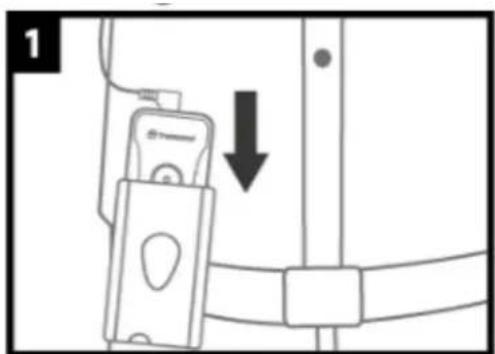
Diagram showing a device being locked in a belt, with a downward arrow indicating motion (no text or symbols present)- Attach the main unit to your duty belt.
text_image
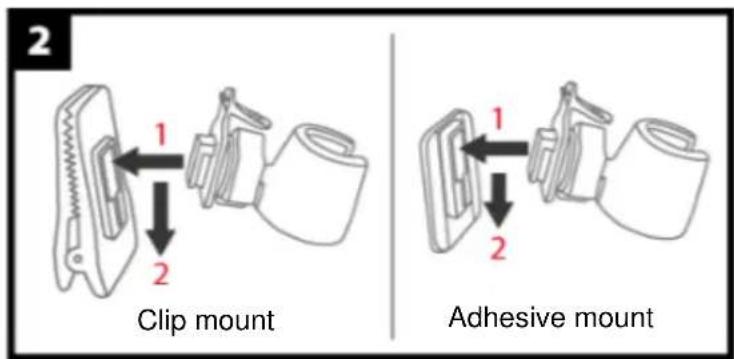
2 1 2 Clip mount Adhesive mount- Insert and slide the camera holder into the clip/adhesive mount until your hear a click.

natural_image
Mechanical component diagram showing a piston assembly with a downward arrow indicating force or direction (no text or symbols present)- Push the camera into the holder until you hear a click.
text_image
4- Mount the camera in place.
text_image
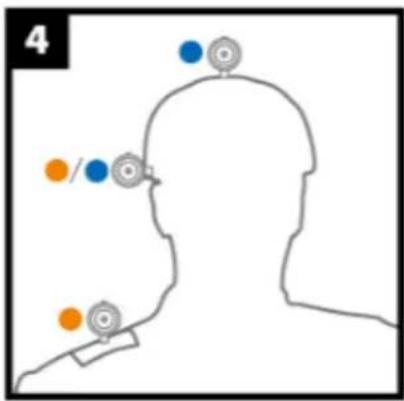
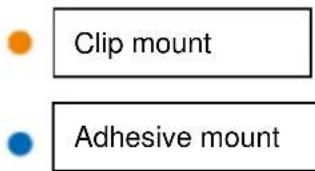
Clip mount Adhesive mountAllow at least 24 hours for the adhesive mount to properly adhere to the surface.
natural_image
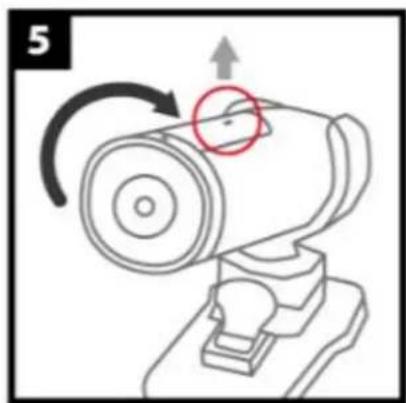
Diagram of a mechanical device with rotating components and an arrow indicating rotation (no text or symbols)- Rotate the camera so that the LED recording indicator faces upward.
text_image
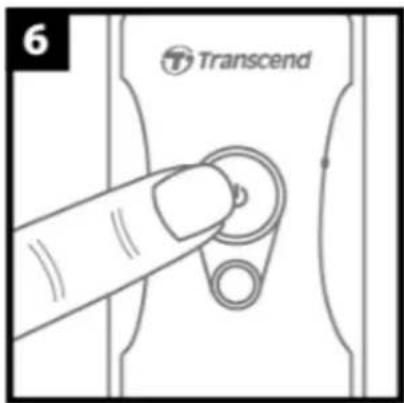
6 Transcend- To power on, long press the ⏻ button.

text_image
7 Transcend- To switch between Buffering and Recording modes, press the ⏻ button twice in quick succession.
text_image
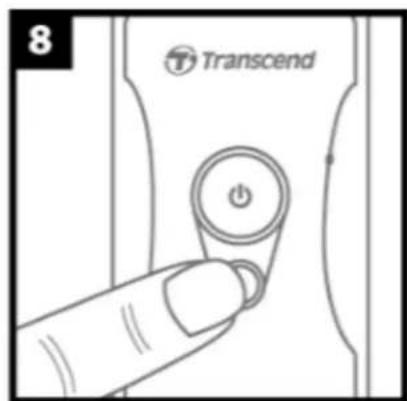
8 Transcend- To take a snapshot, short press the button.
3-2 Function Buttons
text_image
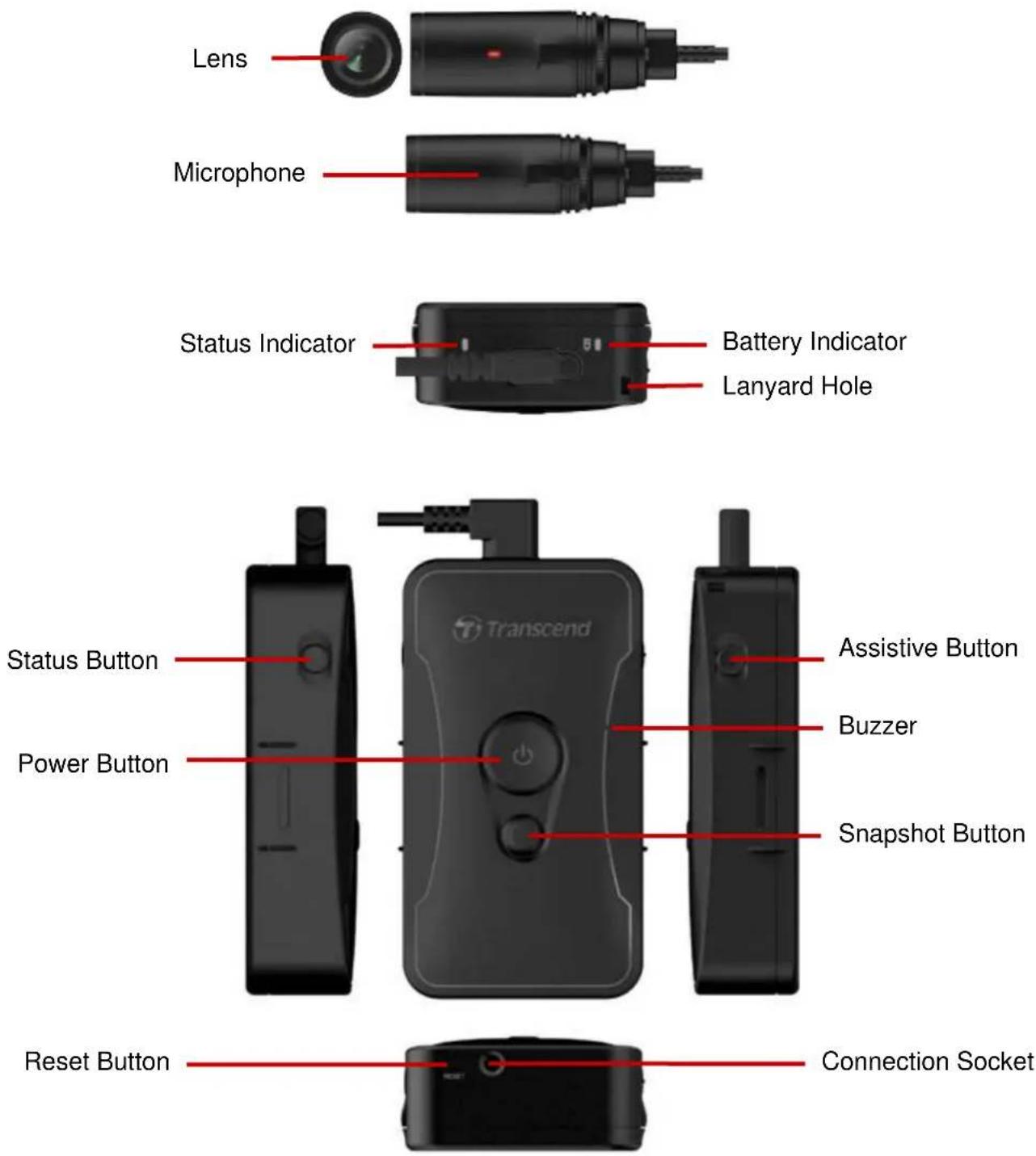
Lens Microphone Status Indicator Battery Indicator Lanyard Hole Status Button Power Button Assistive Button Buzzer Snapshot Button Reset Button Connection Socket3-3 Function Buttons Description
| Power Button ⏻ | Long press once | Power on/off. |
| Short press twice | Switch between Buffering mode and Recording mode.Default mode: Buffering mode. | |
| Snapshot Button ⏻ | Short press once | Take a snapshot.In Recording mode, a note will be added to the recording file. |
| Long press once | Audio recording. | |
| ⊕ + ⏻ | Press for 5 seconds | Reset, format and power off the device.This function is disabled by default and can be enabled using the DrivePro Body Toolbox.Warning! All data will be permanently removed. |
Status Button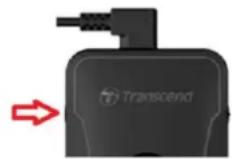 | Long press once | Pair and connect to Bluetooth. |
| Short press once | Check the battery and recording status. | |
Assistive Button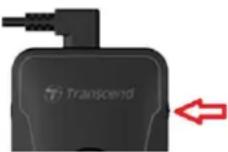 | Long press once | Turn on/off the light indicators and buzzer (Stealth Mode) |
| Short press twice | Turn on/off the microphone (Silent Mode) |
3-4 LED Indicator Table
Top View 1
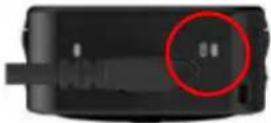
Battery Indicator
Recording
| LED | Status | LED Definition |
| ● | Flashing | Low battery |
Connected to computer/power
| LED | Status | LED Definition |
| ● | Solid | Charging |
Checking the battery status
| LED | Status | LED Definition |
| ● | Solid | >67% remaining |
| ● | Solid | 31%-67% remaining |
| ● | Solid | <31% remaining |
Status Indicator
Top View 2
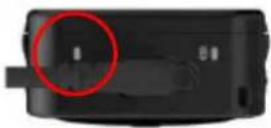
Recording
| LED | Status | LED Definition |
| Flashing | Memory almost full | |
| Flashing quickly | Bluetooth pairing | |
| Flashing | GPS positioning | |
| Solid | Checking status in buffering mode | |
| Flashing steadily | Checking status in recording mode | |
| Flashing twice | Checking status in audio recording mode | |
| Solid | Silent mode (Microphone off) |
Connected to computer
| LED | Status | LED Definition |
| ● | Flashing | Transferring data |
Camera Top View
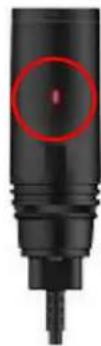
Recording Indicator
| LED | Status | LED Definition |
| Flashing | Powering on | |
| Solid | Buffering mode | |
| Flashing steadily | Recording mode | |
| Flashing twice | Audio recording mode | |
| Solid | Browser/connected to computer |
3-5 Charging the DrivePro Body 60
Before use, please ensure that the battery is fully charged. Charge the DrivePro Body 30 via the bundled 3.5mm to USB cable. A solid orange LED light is visible while charging; the orange LED light will turn off when fully charged.
To charge the DrivePro Body 30, you can either:
- Connect the bundled 3.5mm to USB cable to a wall outlet with the included adapter
- Connect the bundled 3.5mm to USB cable to a computer
- Connect the DrivePro Body 30 to Transcend's Docking Station (Optional)

WARNING:
Do not use the 3.5mm to USB cable on other devices.
4. Recording Videos
4-1 Buffering Mode
Recording in Buffering mode can greatly save storage space as the files are not recorded to the internal storage.
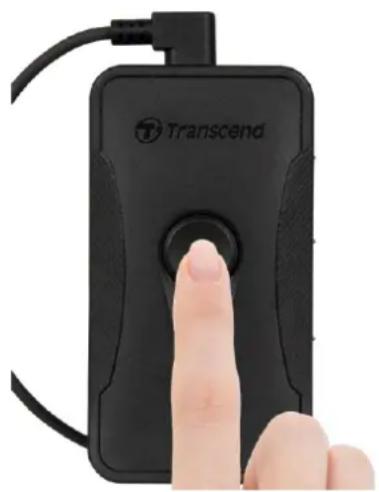
To power on and start Buffering mode (by default), long press the button; you will hear 1 beep; the recording indicator will flash blue when powering on and then be solid in Buffering mode.
To power off, long press the ⏻ button again; you will hear 1 beep, the LED light will then turn off.
To switch between Buffering mode and Recording mode, quickly press the 🎨 button twice, you will hear 2 beeps.
natural_image
Hand touching a black Transcend device with a finger, no visible text or symbols on the device body4-2 Recording Mode
When an incident occurs, switch to Recording mode. The file being recorded, along with up to 2 minutes of footage prior to the incident, will then be stored on internal memory.
To start Recording mode, quickly press the ⏻ button twice while in Buffering mode; you will hear 2 beeps, and the recording indicator will flash red. Video files recorded in Recording mode are saved in the "VIDEO" folder and will be overwritten with loop recording enabled (This function is disabled by default and can be enabled using the DrivePro Body Toolbox).
One video file is saved for every 3 minutes of recording (by default).
5. Taking Photos
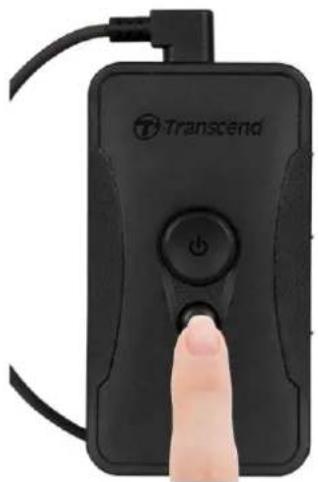
To take photos while recording, quickly press the ● button, you will hear 1 beep.
natural_image
Black Transcend device with a finger pressing the button (no visible text or symbols on body)6. Using the DrivePro Body App
Developed for iOS and Android devices, the free DrivePro Body App allows you to wirelessly adjust the settings of the camera and to take snapshots, or live stream video to your smart device.
6-1 Downloading and Installing the App
-
Search for DrivePro Body App from the App Store or Google Play.
-
Download and install the DrivePro Body App .
Once the installation is complete, the App will be displayed on the home screen of your device.
6-2 Connecting to the DrivePro Body App
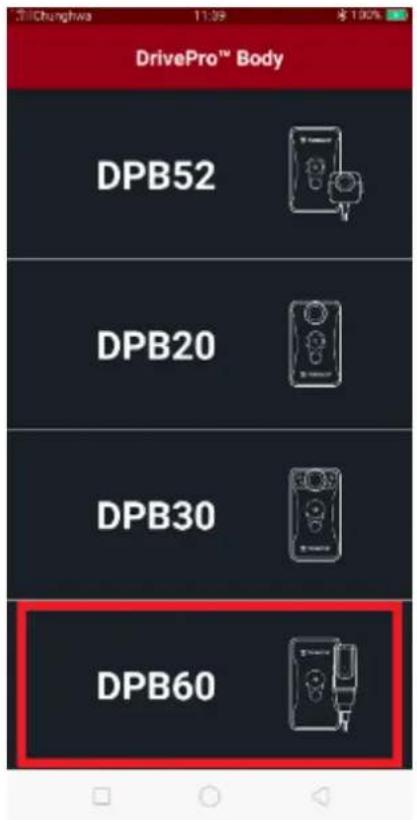
- Tap "DrivePro Body" App and turn on Bluetooth. Select "DPB60" on the App.
text_image
DrivePro™ Body DPB52 DPB20 DPB30 DPB60- Power on the DrivePro Body by long pressing the ⏻ button. Tap "Next" to continue.
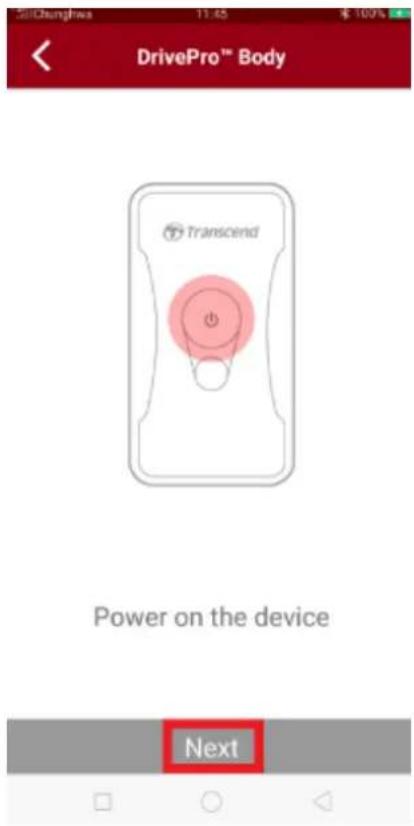
text_image
DrivePro™ Body Transcend Power on the device Next- Long press the Status button until you hear a beep. Tap "Next" on the App to connect to Bluetooth. You will hear 3 beeps. You can now take snapshots, switch recording modes, or adjust settings via the App.
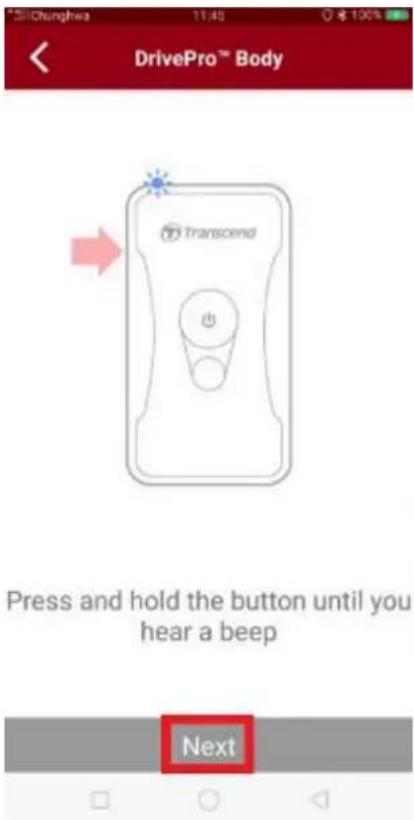
text_image
DrivePro™ Body Transcend Press and hold the button until you hear a beep Next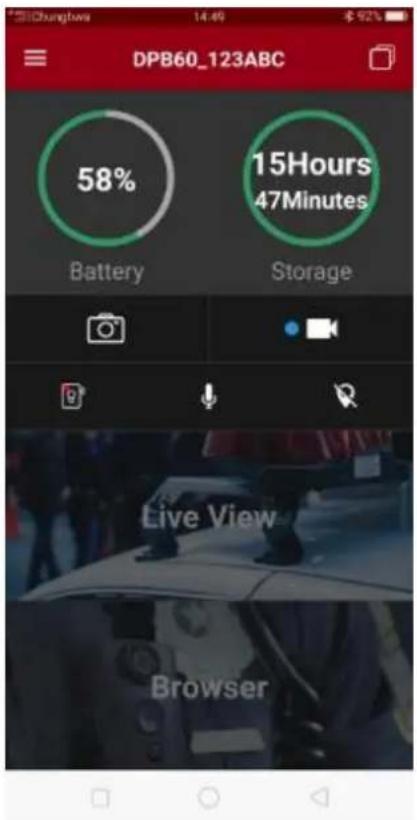
text_image
DPB60_123ABC 58% Battery 15Hours 47Minutes Storage Live View Browser- Tap Live View or Browser and connect to "DPB60_XXXXXX" Wi-Fi with the default password "12345678".
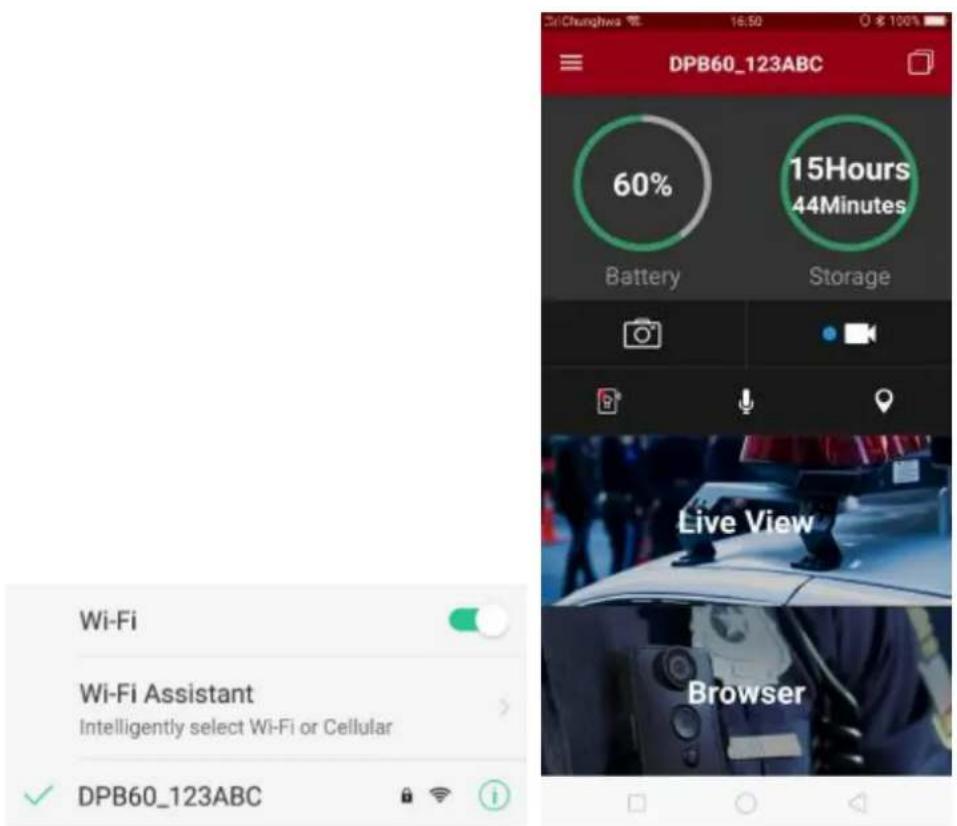
text_image
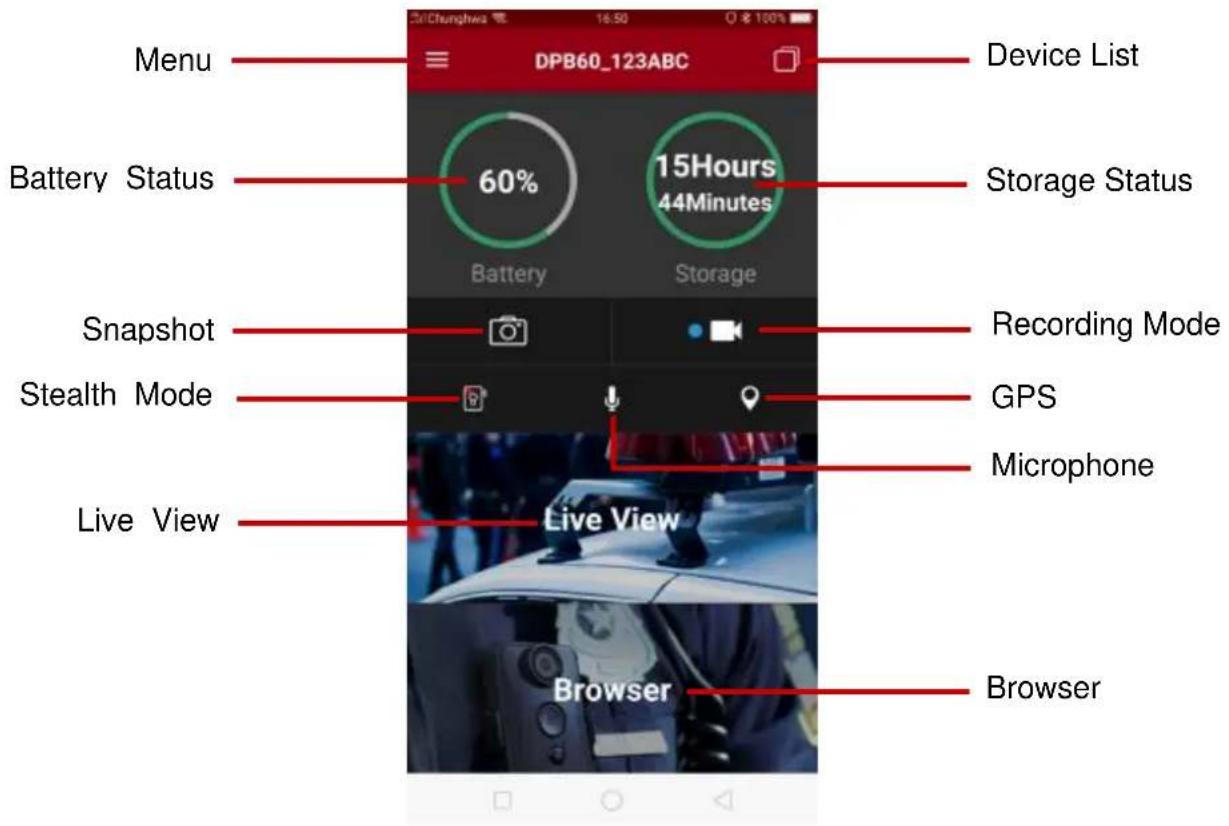
DPB60_123ABC 60% 15Hours 44Minutes Battery Storage Live View Wi-Fi Wi-Fi Assistant Intelligently select Wi-Fi or Cellular DPB60_123ABC Browser6-3 DrivePro Body App Home
text_image
Menu DPB60_123ABC Device List Battery Status 60% 15Hours 44Minutes Battery Storage Battery Storage Snapshot Recording Mode Stealth Mode GPS Live View Microphone Live View Browser BrowserNote: The camera stops recording when you tap Browser or Settings after tapping ≡ using the App, the front LED turns solid blue/red. The camera will resume recording when you tap Home.
6-4 Playing Videos and Browsing Photos
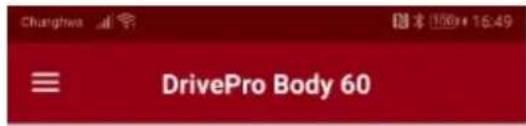
- To play videos and browse photos, tap Browser on the Homepage, or tap on the top left corner first then tap. DrivePro Body 60
- You can sort the files by tapping the - √ icon on the bottom right corner.
text_image
Changtwa DrivePro Body 60Today
2018/04/27







6-5 Settings
text_image
Settings Video Resolution 1080P Video Length 3Mins Loop recording Buffered Video Length 120s Video Stamp Video Label DPB60_123ABC Watermark Device Default Recording Mode Buffering mode Stealth Mode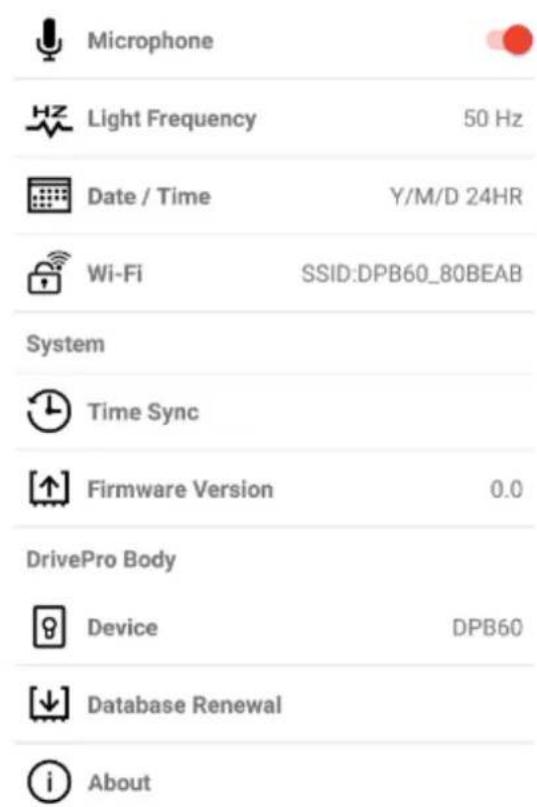
text_image
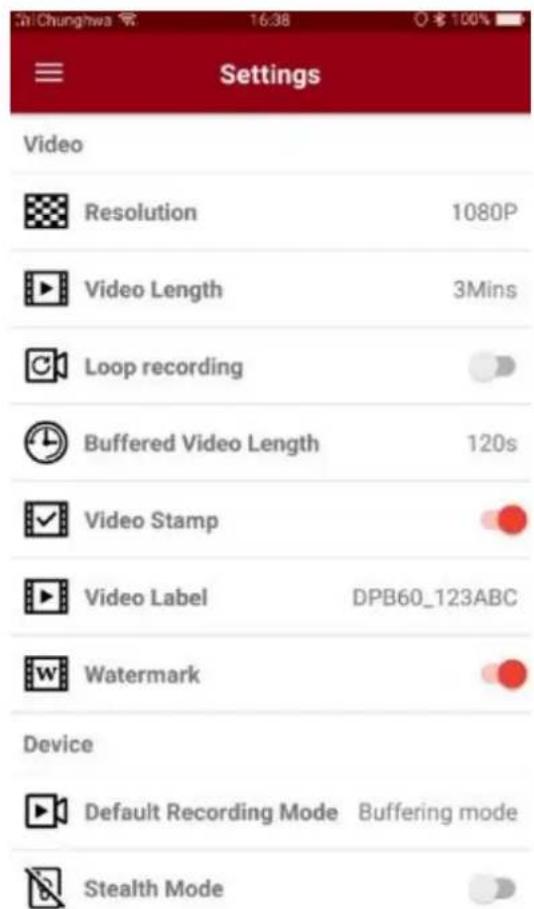
Microphone Light Frequency 50 Hz Date / Time Y/M/D 24HR Wi-Fi SSID:DPB60_80BEAB System Time Sync Firmware Version 0.0 DrivePro Body Device DPB60 Database Renewal AboutTap ≡ on the top left corner first then tap ⚙️ to enter the Settings menu. In the Settings menu, you can adjust the settings of video, device, Wi-Fi and System.
Menu options
Video

Resolution: Set the resolution/quality for video recording.
Available options: 1080p / 720p / 480p

Video Length: Set the recording length of each recorded video file.
Available options: 3 mins / 5 mins / 10 mins

Loop Recording: Overwrite the old video files with new ones.
Available options: Disable (default) / Enable
WARNING:

- For best recording stability, you are suggested to back up your data using the DrivePro Body Toolbox each time you finish using the DrivePro Body-30, or format the device using the Toolbox every 3 months.
- Please only format your DrivePro Body 30 using the DrivePro Body Toolbox.

Buffered Video Length: Set the buffered video length to record footage that happens prior to switching to Recording mode.
Available options: 30 secs / 60 secs / 90 secs / 120 secs

Video Stamp: Display the video label, date/time, watermark, and GPS coordinates, on the photo or video.
Available options: Disable / Enable

Video Label: Tap to edit the video label to be displayed (default label is DPB60_XXXXXX)

Watermark: Display the Transcend logo watermark on the photo or video.
Available options: Disable / Enable
Device

Default Recording Mode: Select the default recording mode.
Available options: Buffering mode (default) / Recording mode

Stealth Mode: Turn on/off the stealth mode. When the stealth mode is on, the light indicators, buzzer, and vibrator are disabled.
Available options: Disable / Enable

Microphone: Turn on/off the microphone during video recording.
Available options: Disable / Enable

Light Frequency: Select the appropriate frequency to avoid flashing A/C light.
Available options: 50Hz / 60Hz

Date / Time: Select the date and time format.
Available options: Y/M/D or M/D/Y or D/M/Y; 24HR or AM/PM

Wi-Fi: Set the Wi-Fi SSID to connect wirelessly to DrivePro Body 60 (default password is 12345678).
System

Time Sync: Sync the DrivePro Body time with your smart device.

Firmware Version: Tap to upgrade the firmware to the latest version.
DrivePro Body

Device: Select your camera model.

Database Renewal: Check for available database to download.

About: Display the App version, End-User License Agreement, and Open Source Statement.

WARNING: NEVER remove the power cord while the firmware is being upgraded.
-
The DrivePro Body will shut down and the status indicator will flash green while the firmware is being upgraded. After the upgrade is complete, the DrivePro Body will restart automatically.
-
If the DrivePro Body cannot be turned on due to firmware upgrade failure, please contact Transcend customer service for technical support.
7. Using the DrivePro Body Toolbox Software
DrivePro Body Toolbox is a video file management software which simplifies the settings of the camera. The software features a user-friendly interface that allows Windows users to set the basic functions of the DrivePro Body camera.
To use the DrivePro Body Toolbox:
- Download the installation files from: www.transcend-info.com/downloads
- Install DrivePro Body Toolbox software on your desktop or laptop.
7-1 Status
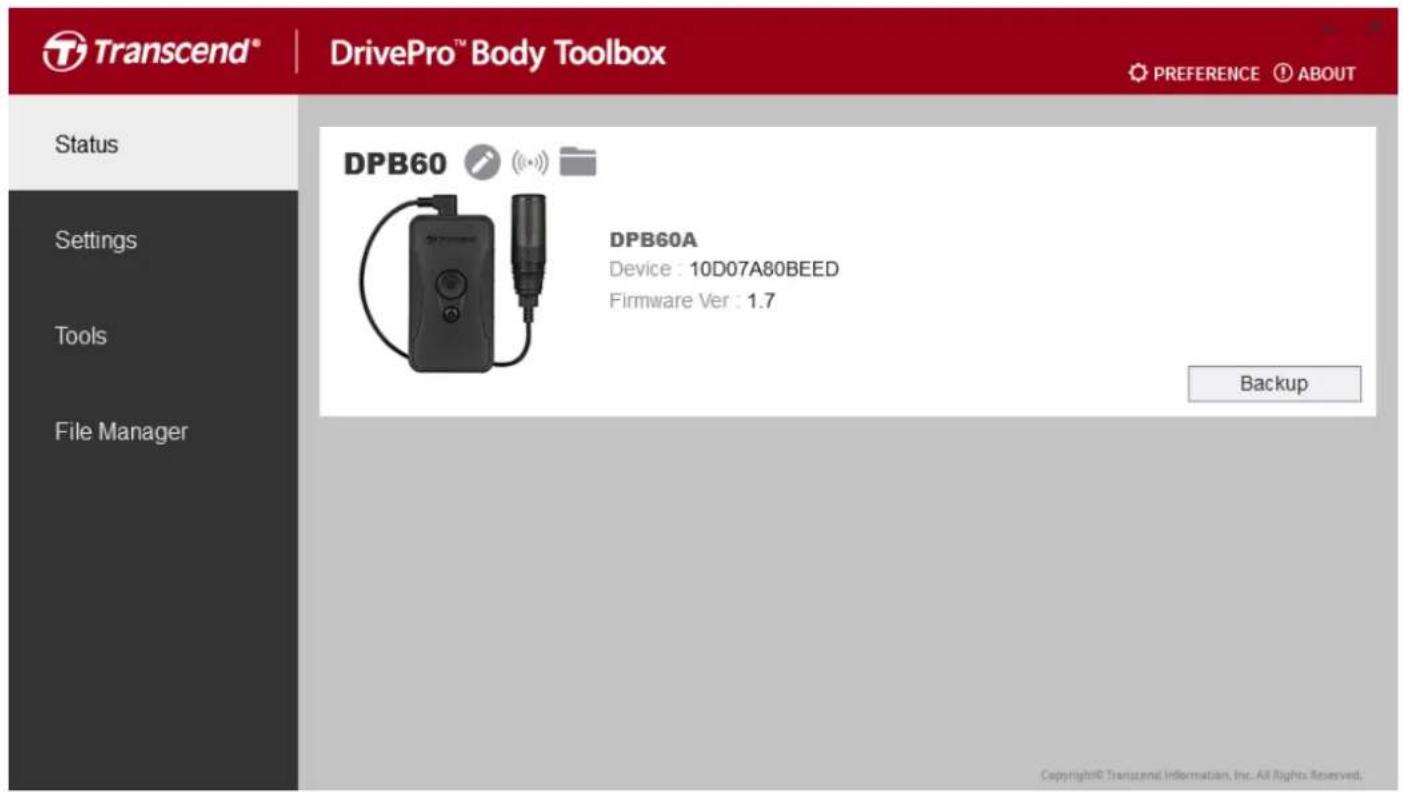
On the Status page, the basic information of the DrivePro Body is displayed, including device serial number, firmware version, user label and model name.
text_image
Transcend® DrivePro™ Body Toolbox PREFERENCE ① ABOUT Status DPB60 DPB60A Device : 10D07A80BEED Firmware Ver : 1.7 Backup Settings Tools File Manager Copyright© Transcend Information, Inc. All Rights Reserved.To change the user label, click on .
To start backing up, click on Backup
To play videos and browse photos, click on .
7-2 Settings
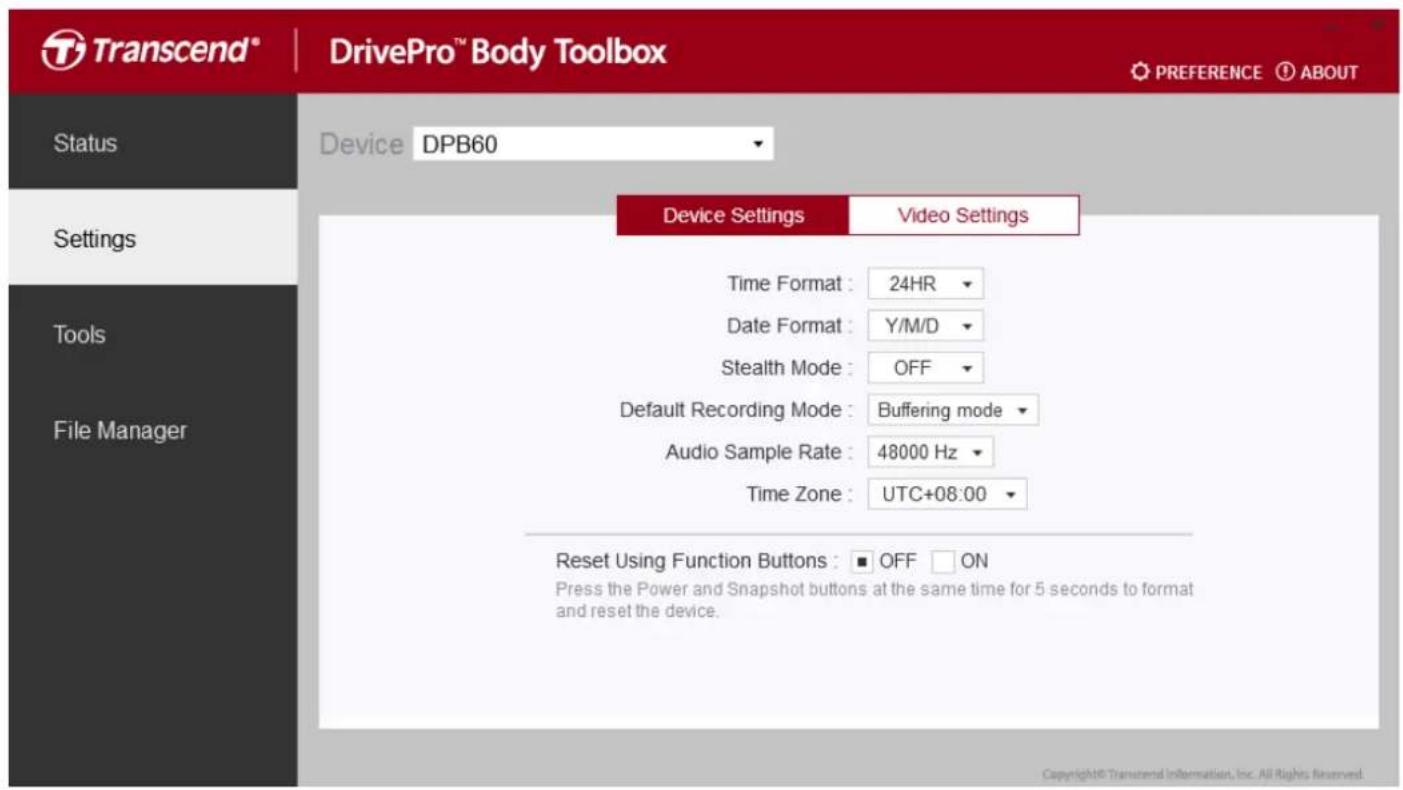
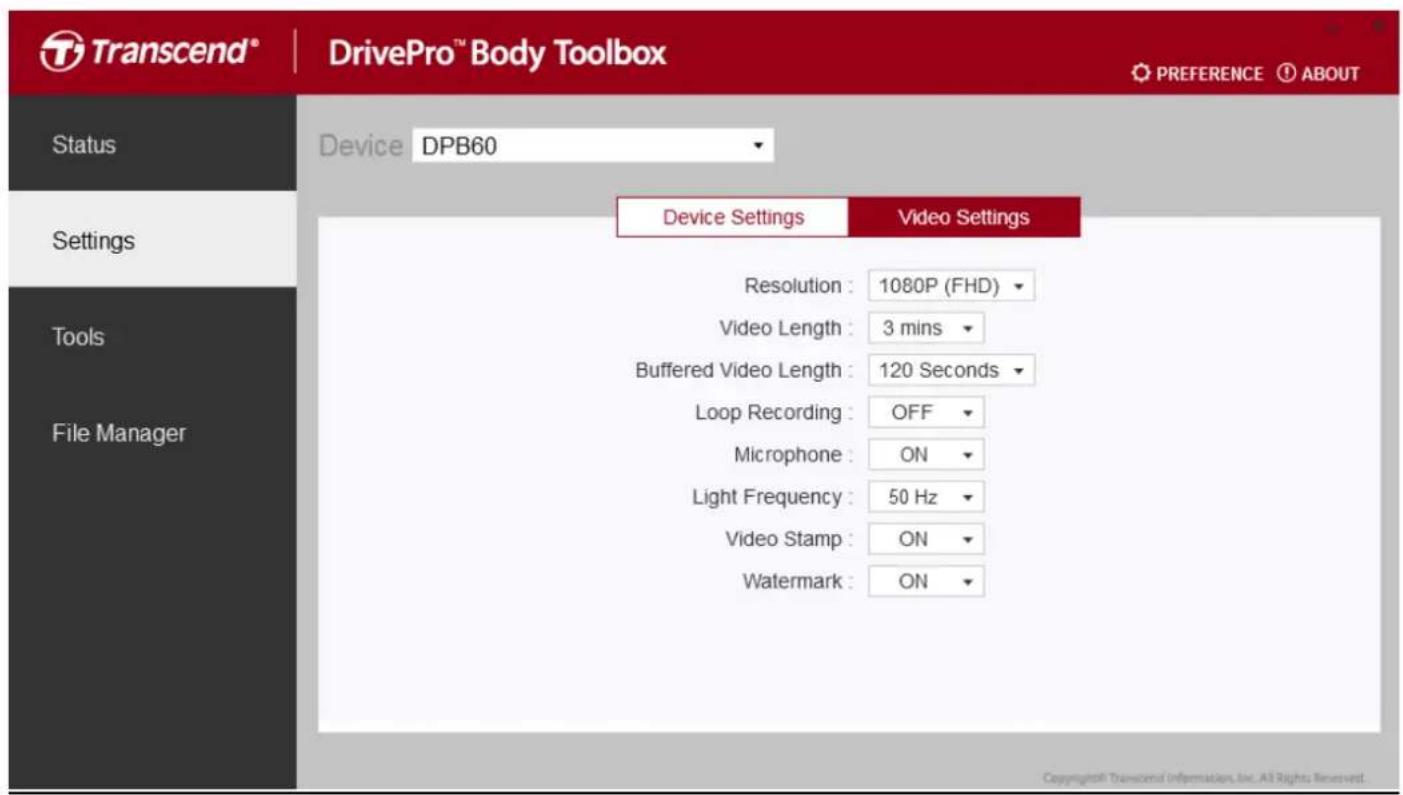
On the Settings page, you can adjust the Device settings or Video settings.
text_image
Transcend® DrivePro™ Body Toolbox PREFERENCE ① ABOUT Status Device DPB60 Settings Tools File Manager Device Settings Video Settings Time Format : 24HR Date Format : Y/M/D Stealth Mode : OFF Default Recording Mode : Buffering mode Audio Sample Rate : 48000 Hz Time Zone : UTC+08:00 Reset Using Function Buttons : ■ OFF □ ON Press the Power and Snapshot buttons at the same time for 5 seconds to format and reset the device. Copyright© Transcend Information, Inc. All Rights ReservedDevice Settings
Time Format: Select the 24-hour or 12-hour AM/PM time format.
Available options: 24HR / AM/PM
Date Format: Set the date format.
Available options: YY/MM/DD or MM/DD/YY or DD/MM/YY
Stealth Mode: Turn on/off the stealth mode. When the stealth mode is on, the light indicators, buzzer, and vibrator are disabled.
Available options: Disable / Enable
Default Recording Mode: Select the default recording mode.
Available options: Buffering mode (default) / Recording mode
Audio Sample Rate: Set audio sample rate.
Available options: 48000 Hz/ 44100 Hz/ 32000 Hz/ 24000 Hz/ 22050Hz
Time Zone: Set time zone
Reset Using Function Buttons: Press the Power and Snapshot buttons at the same time for 5 seconds to format and reset the device (default: off).
text_image
Transcend® DrivePro™ Body Toolbox PREFERENCE ① ABOUT Status Device DPB60 Settings Tools File Manager Device Settings Video Settings Resolution : 1080P (FHD) Video Length : 3 mins Buffered Video Length : 120 Seconds Loop Recording : OFF Microphone : ON Light Frequency : 50 Hz Video Stamp : ON Watermark : ON Copyright© Transcend Information, Inc. All Rights Reserved.Video Settings
Resolution: Set the resolution/quality for video recording.
Available options: FHD / HD
Video Length: Set the recording length of each recorded video file.
Available options: 3 mins / 5 mins / 10 mins
Buffered Video Length: Set the buffered video length to record footage that happens prior to activating the Recording mode.
Available options: Available options: 30 secs / 60 secs / 90 secs / 120 secs (default)
Loop recording: Overwrite the old video files with new ones.
Available options: Disable (default) / Enable
Microphone: Turn on/off the microphone during video recording.
Available options: On/Off
Light Frequency: Select the appropriate frequency to avoid flashing A/C light.
Available options: 50Hz / 60Hz
Video Stamp: Display the video label, date/time, watermark, and GPS coordinates, on the photo or video.
Available options: On/Off
Watermark: Display the Transcend logo watermark on the photo or video
Available options: On/Off
7-3 Tools
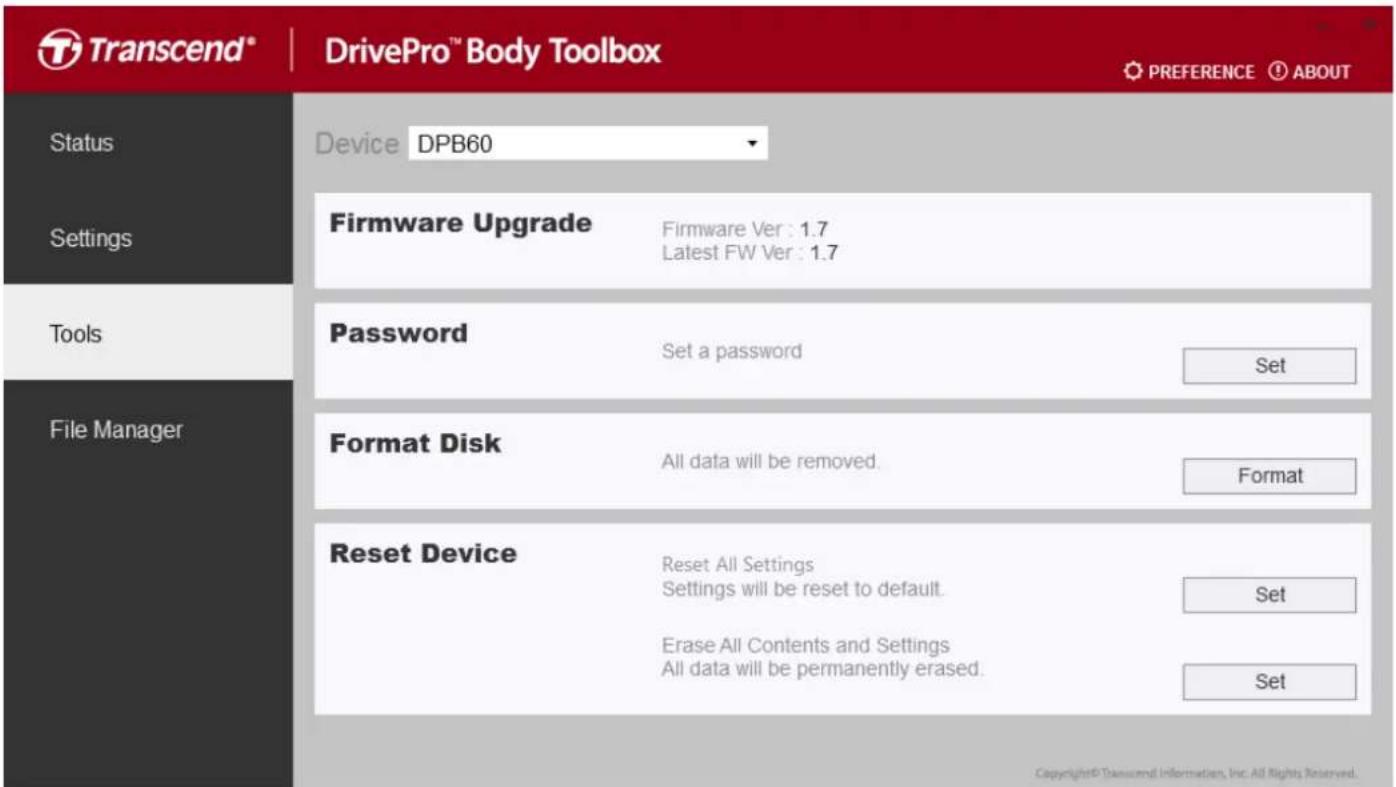
On the Tools page, you can upgrade firmware to the latest version, format disk or reset DrivePro Body to its default status.
text_image
Transcend® DrivePro™ Body Toolbox PREFERENCE ⏻ ABOUT Status Device DPB60 Settings Firmware Upgrade Firmware Ver: 1.7 Latest FW Ver: 1.7 Tools Password Set a password Set File Manager Format Disk All data will be removed. Format Reset Device Reset All Settings Settings will be reset to default. Erase All Contents and Settings All data will be permanently erased. Set Set Copyright© Transcend Information, Inc. All Rights Reserved.Note: Formatting the disk and resetting the device will permanently remove all data.
Firmware Upgrade: Upgrade your firmware to the latest version available.
Password: Set a password to protect the recorded data. Password should be between 8-16 characters, either letters or numbers.
Format Disk: Format your device.
Reset Device: Reset all settings to default or erase all contents and settings.
7-4 File Manager
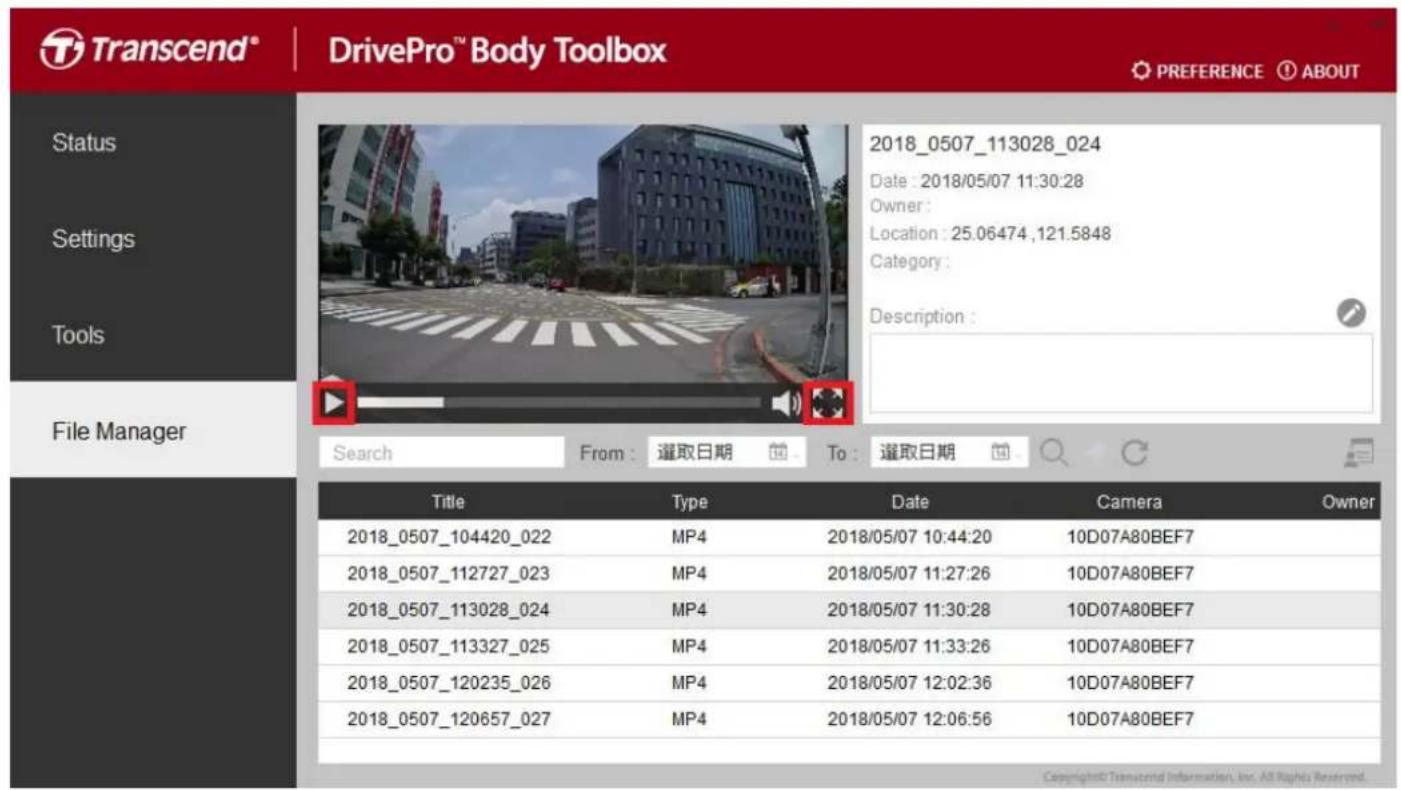
On the File Manager page, you can search and manage your videos and photos, or edit photos.
text_image
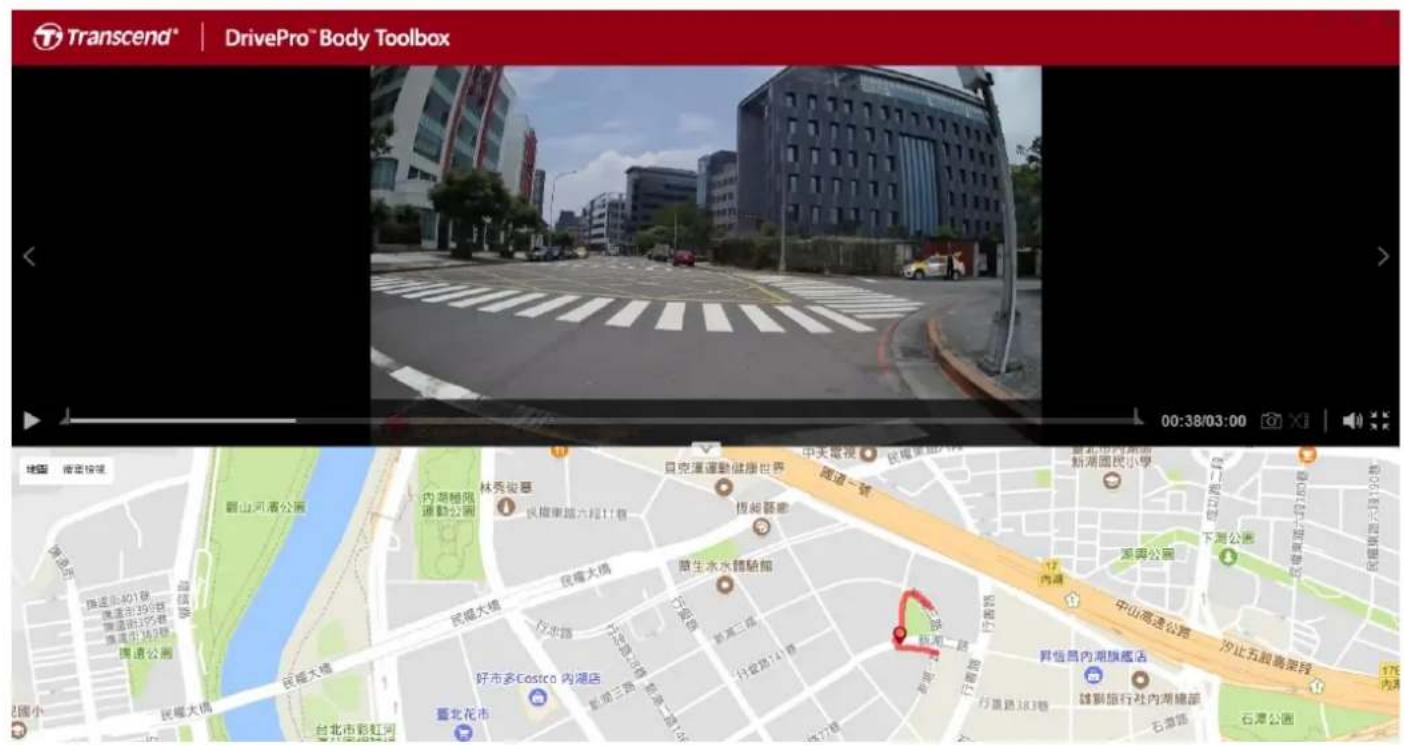
Transcend® DrivePro™ Body Toolbox PREFERENCE ① ABOUT Status Settings Tools File Manager Search From: 選取日期 To: 選取日期 2018_0507_113028_024 Date: 2018/05/07 11:30:28 Owner: Location: 25.06474,121.5848 Category: Description : Title Way Date Camera Owner 2018_0507_104420_022 MP4 2018/05/07 10:44:20 10D07A80BEF7 2018_0507_112727_023 MP4 2018/05/07 11:27:26 10D07A80BEF7 2018_0507_113028_024 MP4 2018/05/07 11:30:28 10D07A80BEF7 2018_0507_113327_025 MP4 2018/05/07 11:33:26 10D07A80BEF7 2018_0507_120235_026 MP4 2018/05/07 12:02:36 10D07A80BEF7 2018_0507_120657_027 MP4 2018/05/07 12:06:56 10D07A80BEF7 Copyright © Transcend Information, Inc. All Rights Reserved.Click on to play the video on screen. Click on to enlarge and play the video to full screen. With a GPS receiver, the paths can be displayed along with the recorded video.
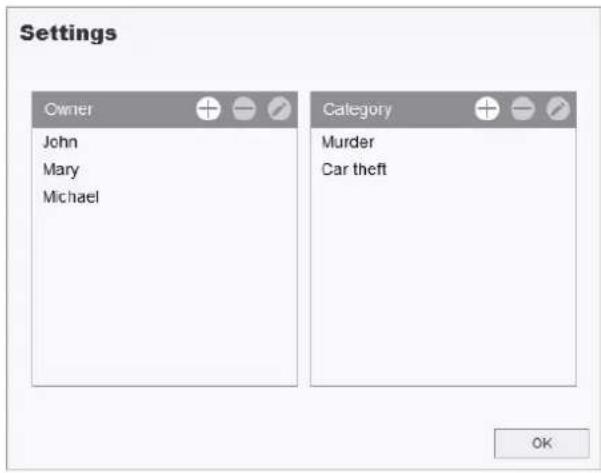
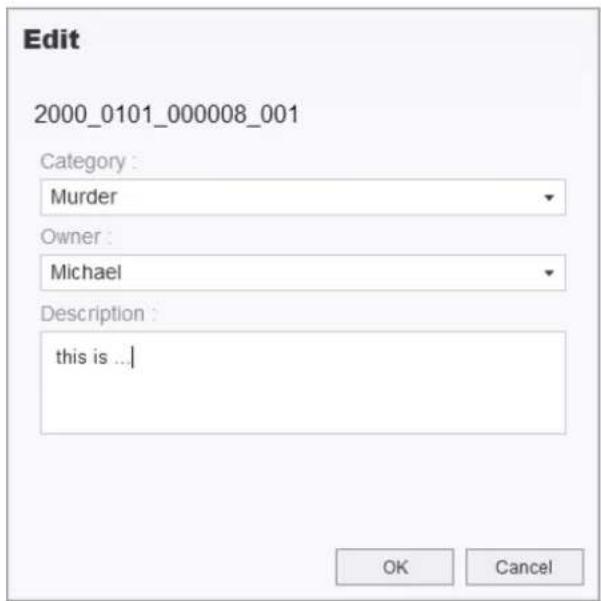
Click on in the middle of the page to add, delete, or edit the Owner and Category.
text_image
Settings Owner John Mary Michael Category Murder Car theft OKClick on to classify the Owner and Category of the selected file.
text_image
Edit 2000_0101_000008_001 Category : Murder Owner : Michael Description : this is ...] OK Cancel7-5 Preference
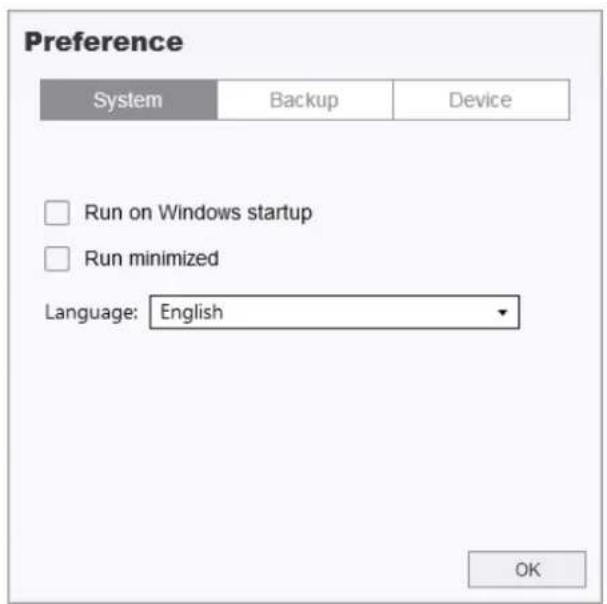
Click on PREFERENCE on top of the page to adjust the settings of the DrivePro Body Toolbox. Check the available options below according to your preference.
text_image
Preference System Backup Device □ Run on Windows startup □ Run minimized Language: English OK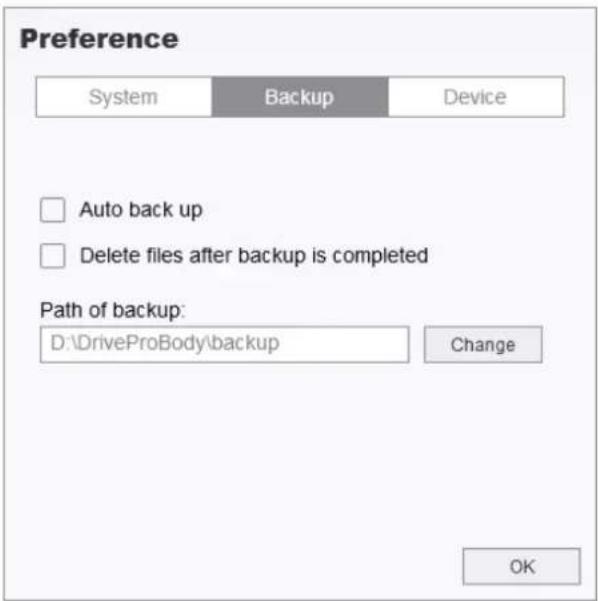
text_image
Preference System Backup Device □ Auto back up □ Delete files after backup is completed Path of backup: D:\DriveProBody\backup Change OK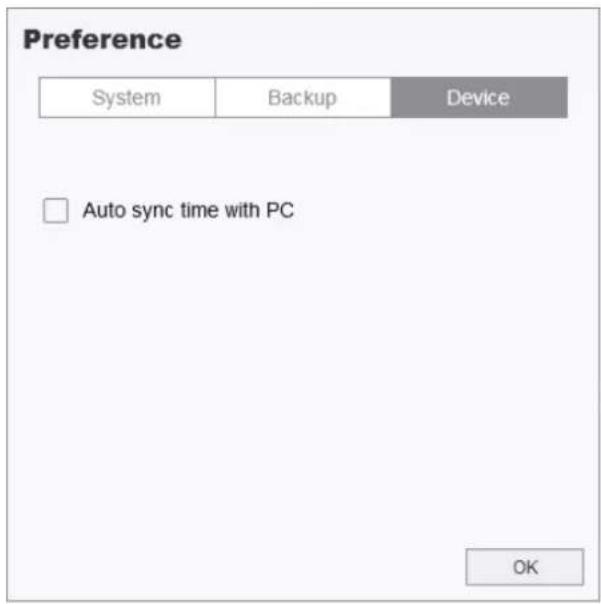
text_image
Preference System Backup Device □ Auto sync time with PC OK8. Docking Station (Optional)
Transcend's DPD6N networked docking station is designed specifically for the DrivePro Body 60 and offers a complete charging, data upload, and camera management solution. Ideal for large-scale deployments of DrivePro Body 60 body cameras, it allows for simultaneous charging and network-based data and camera management. Files may also be shared to an external storage device via the USB 3.0 port.
natural_image
Black rectangular electronic device with six internal slots, labeled 'Tranke10' at the base (no other text or symbols visible)Installation Guide
- Plug in the power adapter and power on.
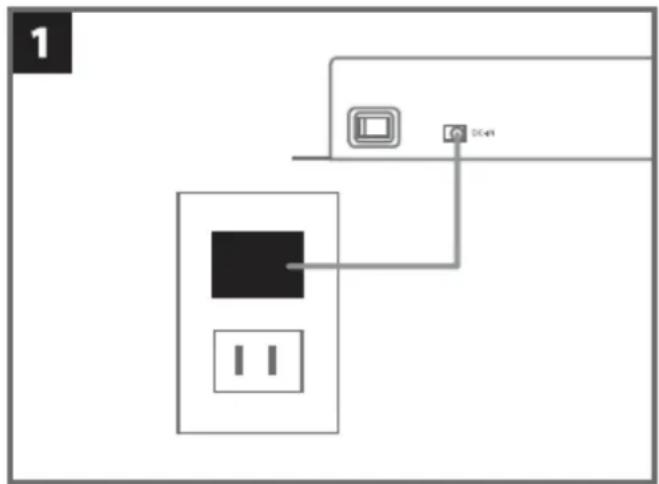
text_image
1 DC-41- Connect one Ethernet cable from the LAN port to the computer's Internet port.
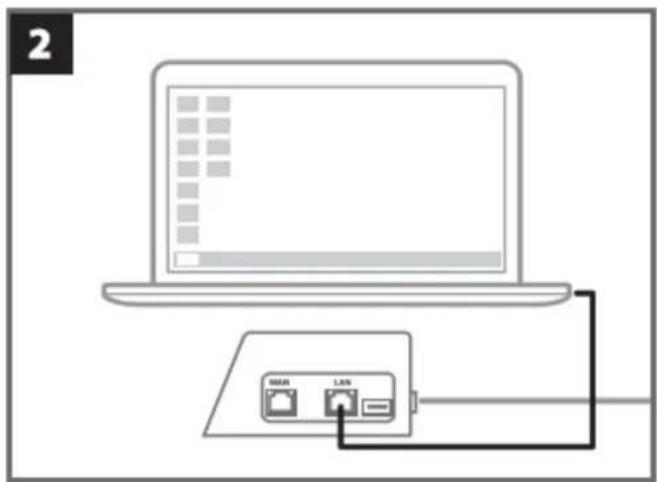
natural_image
Diagram of a laptop connected to an attached network device (no text or symbols present)- Connect the other Ethernet cable from the WAN port to an active Internet port.
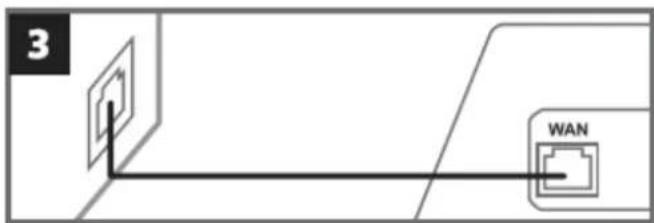
text_image
3 WAN- Change IP address to http://10.10.0.100.
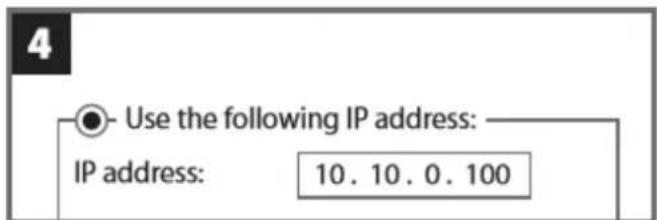
text_image
4 ●- Use the following IP address: IP address: 10. 10. 0. 100- Open browser and link to http://10.10.0.1.
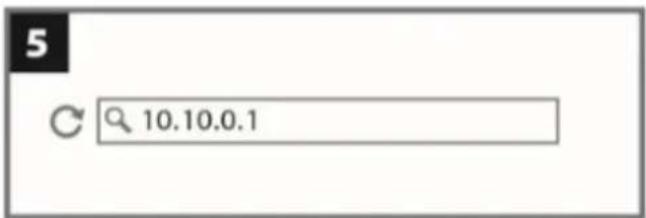
text_image
5 10.10.0.1- Enter default user name "admin" and password "12345678" to log in.
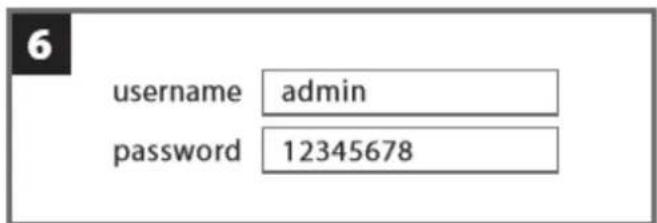
text_image
username admin password 12345678- Complete instructions on the web page.
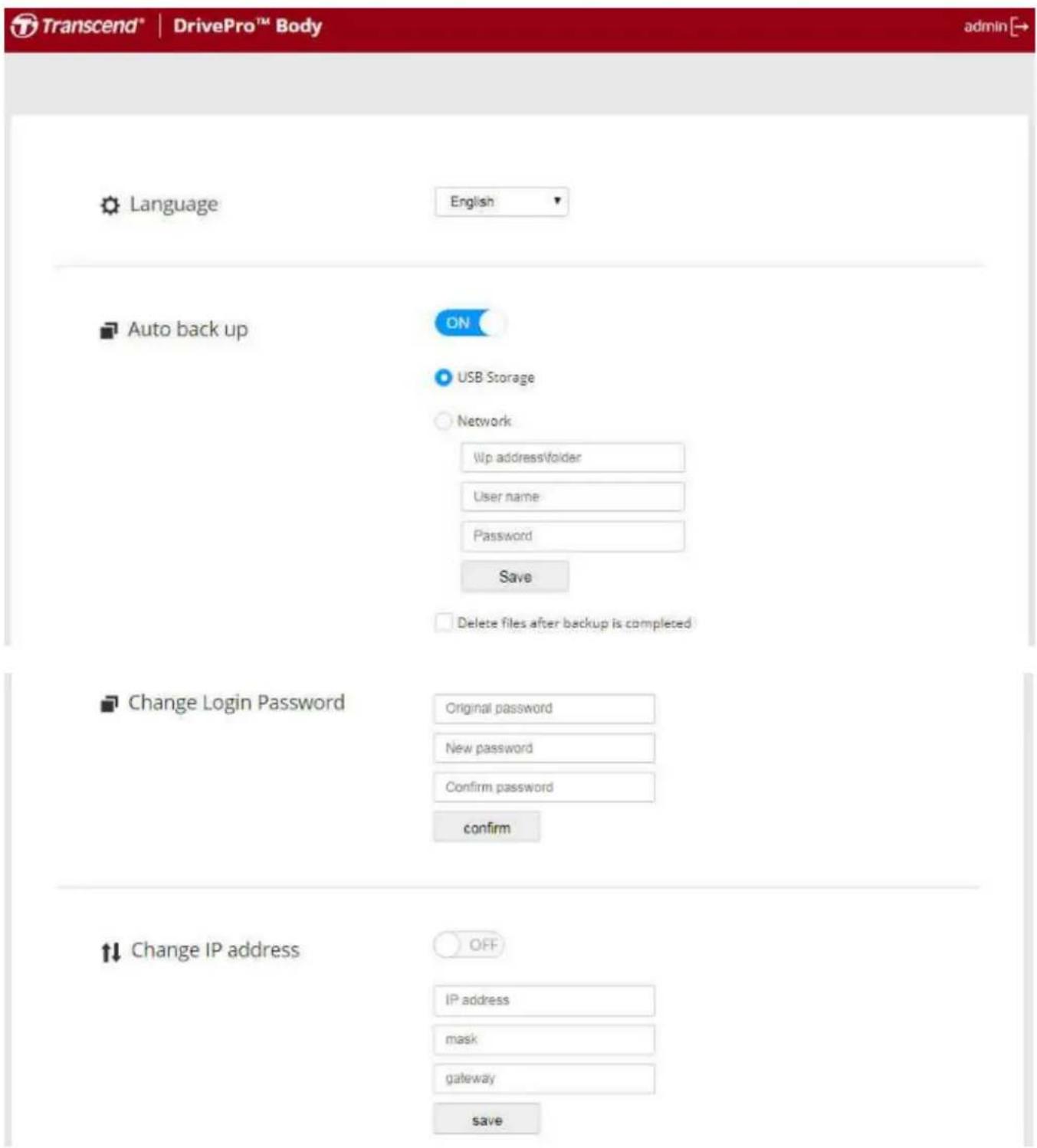
text_image
Transcend® | DrivePro™ Body admin → Language English Auto back up ON USB Storage Network Wp address/folder User name Password Save Delete files after backup is completed Change Login Password Original password New password Confirm password confirm Change IP address OFF IP address mask galway save- Charge the DrivePro Body and upload data simultaneously.
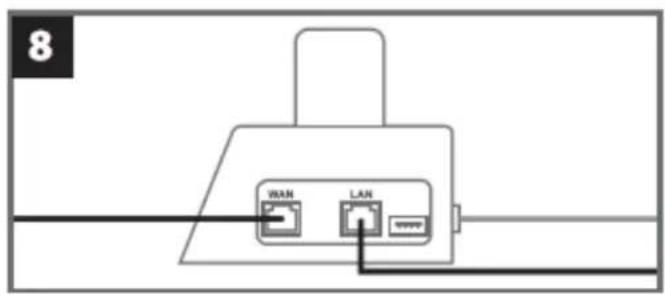
text_image
8 VLAN LAN9. Cautions
Do not use or store the DrivePro Body in the following places to prevent malfunction or deformation:
- In extremely hot, cold or humid places such as in a car parked in the sun
• Under direct sunlight or near a heater
• Near strong magnetic fields
• In sandy or dusty places
■ Care and storage of the DrivePro Body lens
- Wipe the surface of the lens clean with a soft cloth in the following cases:
- When there are fingerprints on the lens surface
- When the lens is exposed to salty air such as at the seaside
- Store in a well-ventilated location subject to little dirt or dust
- To prevent mold, periodically clean the lens as described above
Cleaning
Clean the DrivePro Body surface with a soft cloth slightly moistened with water, then wipe the surface with a dry cloth. Do not use any of the following as they may damage the finish or the casing:
- Chemical products such as thinner, benzine, alcohol, disposable cloths, insect repellent, sunscreen or insecticide, etc.
- Do not touch the camera with any of the above on your hand.
- Do not leave the camera in contact with rubber or vinyl for a long time.
Moisture condensation
- If the DrivePro Body is brought directly from a cold to a warm place (or vice versa), moisture may condense inside or outside the camera. This moisture condensation may cause malfunction of the DrivePro Body.
- If moisture condensation occurs, turn off the DrivePro Body and wait about 1 hour for the moisture to evaporate.
GPS receiver
- The GPS system is subject to changes which could affect its accuracy and performance. Transcend does not guarantee the accuracy of GPS data, which should not influence your personal judgment while using the DrivePro Body.
• GPS signals cannot penetrate buildings and metallic tinted films. The accuracy of GPS data
depends on the surroundings including the weather and the location it is being used (e.g. high buildings, tunnels, undergrounds and forests). On first use or cold start, please place the DrivePro Body in an outdoor open area for GPS positioning.
■ Adhesive mount usage
- The adhesive pad is recommended for use on smooth surface.
• Application instructions:
- Clean the area where the adhesive pad will be placed.
- Allow at least 24 hours for the mount to properly adhere to the surface.
10. IP67 Protection
The camera body of the DrivePro Body 60 is rated at IP67, offering splash, water, and dust resistance. However, splash, water, and dust resistance are not permanent conditions and resistance might decrease as a result of normal wear. Liquid damage is not covered under warranty.

WARNING: DrivePro Body 60 is not water resistant when connected to the power cable or when any of the screws is removed from the main unit.
Failure caused from incorrect use is not covered by the limited warranty.
- Do not use the DrivePro Body 60 in water as it is not waterproof.
- Do not use the DrivePro Body 60 in high temperature and high humidity environments (i.e. saunas, steam and shower rooms).
- Do not use the DrivePro Body 60 for a long time in heavy rains to avoid the moisture from penetrating. Make sure the power cable, adapter and connection socket are completely dry before charging.
11. Package Contents
DrivePro Body 60
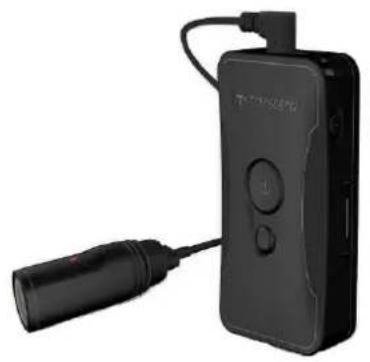
natural_image
Black handheld device with a flashlight and connector, no visible text or symbolsBelt holster
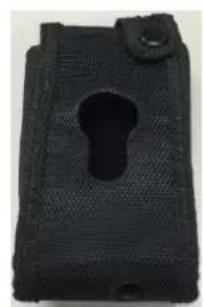
natural_image
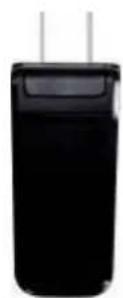
Black rectangular object with a central hole and mounting feet (no text or symbols visible)Adapter
3.5mm to USB cable
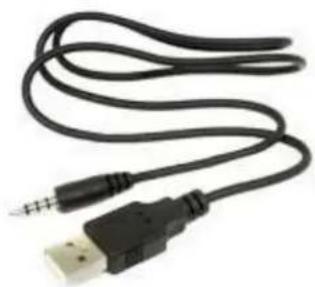
natural_image
Coiled black USB cable with two connectors (no text or symbols visible)Camera holder
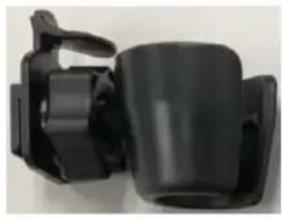
natural_image
Close-up of a black plastic camera module with no visible text or symbolsClip & adhesive mounts
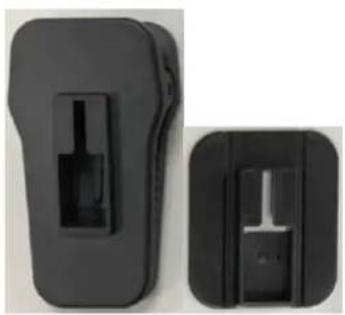
natural_image
Two black plastic electronic devices with internal slots, shown from front and side views (no text or symbols visible)Quick Start Guide
text_image
DrivePro Body 60 Quick Start Guide Transcend®Warranty Card

text_image
Transcend® WARRANTY CARD- Specifications
| Connect Interface | USB 2.0 |
| Storage | Internal storage |
| Dimensions | Main unit: 95.9 mm (L) × 52.2 mm (W)× 24.9 mm (H)3.78” (L) x 2.06” (W) x 0.98” (H)Camera unit: 61.3 mm x ∅22 mm2.41” x ∅0.87mm |
| Weight | 167g5.9 oz |
| Battery | Li-Polymer 3120mAh |
| Power Supply | Input: AC100V-240V, 50-60Hz, 0.4A MaxOutput: DC5V 2A |
| Recording Life | Up to 10 hours* |
| Operating Temperature | -20°C (-4°F) ~ 65°C (149°F)5°C (41°F) ~ 35°C (95°F) when charging with the adapter |
| Video Format | H.264 (MP4: up to 1920x1080 30fps) |
| Ingress Protection | IP67 |
| Shock Resistance | MIL-STD-810G 516.6-Transit Drop Test |
| Lens | F/2.8, 130° wide angle |
| Resolution / Frame Rate | Full HD (1920 x 1080) / 30fps |
| Certification | CE, FCC, BSMI, NCC, MIC, EAC |
| Warranty | 2-Year Limited |
* Environmental conditions may increase or decrease specifications
13. Frequently Asked Questions
If you have any question or a problem occurs to your DrivePro Body 60, please first check the instructions listed below before sending your DrivePro for repair. If you cannot find any ideal solution to your question below, please consult your dealer, service center, or local Transcend branch office for further help. You can also visit Transcend website (http://www.transcend-info.com/) for more FAQs and Technical Support services (http://www.transcend-info.com/Support/contact_form).
My computer operating system cannot detect my DrivePro Body
Please check the followings:
- Is your DrivePro Body properly connected to the USB port? If not, unplug and connect it again. Make sure that both ends of the USB cables are properly connected as shown in the User's Manual.
- Is your DrivePro Body connected to the Mac keyboard? If yes, try to plug it in an available USB port on your Mac Desktop directly.
- Is the computer's USB ports enabled? If not, refer to the user's manual of your computer (or motherboard) to enable them.
None of the DrivePro Body buttons are responding.
Please press the Reset button on the bottom of the DrivePro Body with a pointed object such as a paper clip.
Is the DrivePro Body shockproof and waterproof?
The DrivePro is IP67 dust and water protected and meets rigorous U.S. military drop-test standards*.
*Based on MIL-STD-810G 516.6-Transit Drop Test
14. EU Compliance Statement
Transcend Information hereby declares that all CE marked Transcend products incorporating radio equipment functionality are in compliance with Directive 2014/53/EU.
The full text of the EU declaration of conformity is available at the following internet address:
www.transcend-info.com/eu_compliance

Dashcam / Body Camera series
| Frequency: | Maximum transmit power: |
| 2400-2483.5MHz | < 100mW |
DrivePro Body 60
| Frequency: | Maximum transmit power: |
| 2400-2483.5MHz | < 100mW |
| Frequency: | Maximum transmit power: |
| 5150-5250MHz | < 100mW |
15. Recycling and Environmental Protection

natural_image
Symbol of a trash bin crossed with diagonal lines and a horizontal bar below (no text or labels)Recycling the Product (WEEE): Your product is designed and manufactured with high quality materials and components, which can be recycled and reused. When you see the crossed-out wheel bin symbol attached to a product, it means that the product is covered by the European Directive 2002/96/EC:
Never dispose of your product with other household waste. Please inform yourself about the local rules on the separate collection of electrical and electronic products. The correct disposal of your old product helps prevent potential negative consequences on the environment and human health.

natural_image
Simple line drawing of a trash bin with crossed lines indicating no waste or restriction (no text or symbols)Battery Disposal: Your product contains a built-in rechargeable battery covered by the European Directive 2006/66/EC, which cannot be disposed of with normal household waste. Please inform yourself about the local rules on separate collection of batteries. The correct disposal of batteries helps prevent potentially negative consequences on the environment and human health.
For products with non-exchangeable built in batteries: The removal of (or the attempt to remove) the battery invalidates the warranty. This procedure is only to be performed at the end of the product's life.
CAUTION
RISK OF EXPLOSION IF BATTERY IS REPLACED BY AN INCORRECT TYPE. DISPOSE OF USED BATTERIES ACCORDING TO THE INSTRUCTIONS.
16. Two-year Limited Warranty
This product is covered by a Two-year Limited Warranty. Should your product fail under normal use within two years from the original purchase date, Transcend will provide warranty service pursuant to the terms of the Transcend Warranty Policy. Proof of the original purchase date is required for warranty service. Transcend will inspect the product and in its sole discretion repair or replace it with a refurbished product or functional equivalent. Under special circumstances, Transcend may refund or credit the current value of the product at the time the warranty claim is made. The decision made by Transcend shall be final and binding upon you. Transcend may refuse to provide inspection, repair or replacement service for products that are out of warranty, and will charge fees if these services are provided for out-of-warranty products.
Limitations
Any software or digital content included with this product in disc, downloadable, or preloaded form, is not covered under this Warranty. This Warranty does not apply to any Transcend product failure caused by any accident, abuse, mishandling or improper usage (including use contrary to the product description or instructions, outside the scope of the product's intended use, or for tooling or testing purposes), alteration, abnormal mechanical or environmental condition (including prolonged exposure to humidity), acts of nature, improper installation (including connection to incompatible equipment), or problems with electrical power (including undervoltage, overvoltage, or power supply instability). In addition, damage or alteration of warranty, quality or authenticity stickers, and/or product serial or electronic numbers, unauthorized repair or modification, or any physical damage to the product or evidence of opening or tampering with the product casing will also void this Warranty. This Warranty shall not apply to the transferees of Transcend products and/or anyone who stands to profit from this Warranty without Transcend's prior written authorization. This Warranty only applies to the product itself, and excludes integrated LCD panels, rechargeable batteries, and all product accessories (such as card adapters, cables, earphones, power adapters, and remote controls).
Transcend Warranty Policy
Please visit www.transcend-info.com/warranty to view the Transcend Warranty Policy. By using the product, you agree that you accept the terms of the Transcend Warranty Policy, which may be amended from time to time.
17. GNU General Public License (GPL) Disclosure
Firmware incorporated into this product and/or software used for this product may include third party copyrighted software licensed under the GPL (hereinafter referred to as “GPL Software”). In accordance with the GPL, if applicable: 1) the source code for the GPL Software may be downloaded at no charge or obtained on CD for a nominal charge by calling Customer Support within three years of the date of purchase; 2) you may copy, re-distribute and/or modify the GPL Software under the terms of the GNU General Public License as below or any later version, which may be obtained at http://www.gnu.org/licenses/gpl.html; 3) the GPL Software is distributed WITHOUT ANY WARRANTY, without even implied warranty of MERCHANTABILITY or FITNESS FOR A PARTICULAR PURPOSE. The entire risk as to the quality and performance of the GPL Software is with you. Transcend does not provide any support for the GPL software.
18. End-User License Agreement (EULA)
Software license terms and conditions
- Generally. Transcend Information, Inc. ("Transcend") is willing to grant the following license to install or use the software and/or firmware ("Licensed Software") pursuant to this End-User License Agreement ("Agreement"), whether provided separately or associated with a Transcend product ("Product"), to the original purchaser of the Product upon or with which the Licensed Software was installed or associated as of the time of purchase ("Customer") only if Customer accepts all of the terms and conditions of this Agreement. PLEASE READ THESE TERMS CAREFULLY. USING THE SOFTWARE WILL CONSTITUTE CUSTOMER'S ACCEPTANCE OF THE TERMS AND CONDITIONS OF THIS AGREEMENT. IF YOU DO NOT AGREE TO THE TERMS AND CONDITIONS OF THIS AGREEMENT, DO NOT INSTALL OR USE THE LICENSED SOFTWARE.
- License Grant. Transcend grants to Customer a personal, non-exclusive, non-transferable, non-distributable, non-assignable, non-sublicensable license to install and use the Licensed Software on the Product in accordance with the terms and conditions of this Agreement.
- Intellectual Property Rights. As between Transcend and Customer, the copyright and all other intellectual property rights in the Licensed Software are the property of Transcend or its supplier(s) or licensor(s). Any rights not expressly granted in this License are reserved to Transcend.
- License Limitations. Customer may not, and may not authorize or permit any third party to: (a) use the Licensed Software for any purpose other than in connection with the Product or in a manner inconsistent with the design or documentations of the Licensed Software; (b) license, distribute, lease, rent, lend, transfer,
assign or otherwise dispose of the Licensed Software or use the Licensed Software in any commercial hosted or service bureau environment; (c) reverse engineer, decompile, disassemble or attempt to discover the source code for or any trade secrets related to the Licensed Software, except and only to the extent that such activity is expressly permitted by applicable law notwithstanding this limitation; (d) adapt, modify, alter, translate or create any derivative works of the Licensed Software; (e) remove, alter or obscure any copyright notice or other proprietary rights notice on the Licensed Software or Product; or (f) circumvent or attempt to circumvent any methods employed by Transcend to control access to the components, features or functions of the Product or Licensed Software.
-
Copying. Customer may not copy the Licensed Software except that one copy of any separate software component of the Licensed Software may be made to the extent that such copying is necessary for Customer's own backup purposes.
-
Open Source. The Licensed Software may contain open source components licensed to Transcend pursuant to the license terms specified as below,
(a) GNU General Public License (GPL), the terms of which is currently available at http://www.gnu.org/licenses/gpl.html ;
(b) GNU Lesser General Public License (LGPL), the terms of which is currently available at http://www.gnu.org/copyleft/lesser.html ; and/or
(c) Code Project Open License (CPOL), the terms of which is currently available at http://www.codeproject.com/info/cpol10.aspx
The above license terms will control solely with respect to the open source components. In the event that this Agreement conflicts with the requirements of the above one or more terms with respect to the use of the corresponding open source components, Customer agrees to be bound by such one or more license terms.
- Disclaimer. TRANSCEND MAKES NO WARRANTY AND REPRESENTATIONS ABOUT THE SUITABILITY, RELIABILITY, AVAILABILITY, TIMELINESS, LACK OF VIRUSES OR OTHER HARMFUL COMPONENTS AND ACCURACY OF THE INFORMATION, LICENSED SOFTWARE, PRODUCTS, SERVICES AND RELATED GRAPHICS CONTAINED WITHIN THE LICENSED SOFTWARE FOR ANY PURPOSE. ALL SUCH INFORMATION, LICENSED SOFTWARE, PRODUCTS, SERVICES AND RELATED GRAPHICS ARE PROVIDED "AS IS" WITHOUT WARRANTY OF ANY KIND. TRANSCEND HEREBY DISCLAIMS ALL WARRANTIES AND CONDITIONS WITH REGARD TO THIS INFORMATION, LICENSED SOFTWARE, PRODUCTS, SERVICES AND RELATED GRAPHICS, INCLUDING ALL IMPLIED WARRANTIES AND CONDITIONS OF MERCHANTABILITY, FITNESS FOR A PARTICULAR PURPOSE, WORKMANLIKE EFFORT, TITLE, AND NON-INFRINGEMENT.
IN NO EVENT SHALL TRANSCEND BE LIABLE FOR ANY DIRECT, INDIRECT, PUNITIVE, INCIDENTAL, SPECIAL, CONSEQUENTIAL DAMAGES OR ANY DAMAGES WHATSOEVER INCLUDING, WITHOUT LIMITATION, DAMAGES FOR LOSS OF USE, DATA OR PROFITS, ARISING OUT OF OR IN ANY WAY
CONNECTION WITH THE USE, PERFORMANCE OR ACCURACY OF THE LICENSED SOFTWARE OR WITH THE DELAY OR INABILITY TO USE THE LICENSED SOFTWARE, OR THE PRODUCT WITH WHICH THE LICENSED SOFTWARE IS ASSOCIATED, WHETHER BASED ON CONTRACT, TORT, NEGLIGENCE, STRICT LIABILITY OR OTHERWISE, EVEN IF TRANSCEND HAS BEEN ADVISED OF THE POSSIBILITY OF SUCH DAMAGES.
- Limitation of Liability. IN ANY CASE, TRANSCEND 'S LIABILITY ARISING OUT OF OR IN CONNECTION WITH THIS AGREEMENT WILL BE LIMITED TO THE TOTAL AMOUNT ACTUALLY AND ORIGINALLY PAID AT RETAIL BY CUSTOMER FOR THE PRODUCT. The foregoing Disclaimer and Limitation of Liability will apply to the maximum extent permitted by applicable law. Some jurisdictions do not allow the exclusion or limitation of incidental or consequential damages, so the exclusions and limitations set forth above may not apply.
- Termination. Transcend may, in addition to any other remedies available to Transcend, terminate this Agreement immediately if Customer breaches any of its obligations under this Agreement.
- Miscellaneous. (a) This Agreement constitutes the entire agreement between Transcend and Customer concerning the subject matter hereof, and it may only be modified by a written amendment signed by an authorized executive of Transcend. (b) Except to the extent applicable law, if any, provides otherwise, this Agreement will be governed by the law of the Republic of China, excluding its conflict of law provisions. (c) If any part of this Agreement is held invalid or unenforceable, and the remaining portions will remain in full force and effect. (d) A waiver by either party of any term or condition of this Agreement or any breach thereof, in any one instance, will not waive such term or condition or any subsequent breach thereof. (e) Transcend may assign its rights under this Agreement without condition. (f) This Agreement will be binding upon and will inure to the benefit of the parties, their successors and permitted assigns.
19. Federal Communications Commission (FCC)
Statement
This device complies with Part 15 FCC Rules. Operation is subject to the following two conditions: (1) This device may not cause harmful interference. (2) This device must accept any interference received including interference that may cause undesired operation.
This Equipment has been tested and found to comply with the limits for a Class B digital device, pursuant to Part 15 of the FCC rules. These limits are designed to provide reasonable protection against harmful interference in a residential installation. This equipment generates, uses and can radiate radio frequency energy and, if not installed and used in accordance with the instructions, may cause harmful interference to radio communications. However, there is no guarantee that interference will not occur in a particular installation. If this equipment does cause harmful interference to radio or television reception, which can be determined by turning the equipment off and on, the user is encouraged to try to correct the interference by one or more of the following measures:
- Reorient or relocate the receiving antenna.
- Increase the separation between the equipment and receiver.
- Connect the equipment into an outlet on a circuit different from that to which the receiver is connected.
- Consult the dealer or an experienced radio/TV technician for help.
RF Exposure Information (SAR)
This equipment complies with the FCC portable RF exposure limit set forth for an uncontrolled environment. The exposure standard for wireless devices employing a unit of measurement is known as the Specific Absorption Rate, or SAR. The SAR limit set by the FCC is 1.6W/kg.
This equipment could be installed and operated with minimum distance 0cm between the radiator & your body.
* Any changes or modifications not expressly approved by the party responsible for compliance could void the authority to operate equipment.
* This device and its antenna must not be co-located or operating in conjunction with any other antenna or transmitter.
Transcend Information Inc (USA)
1645 North Brian Street, Orange, CA 92867, U.S.A
TEL: +1-714-921-2000
20. Eurasian Conformity Mark (EAC)