Kamvas Pro 16 Premium - Graphic tablet Huion - Free user manual and instructions
Find the device manual for free Kamvas Pro 16 Premium Huion in PDF.


| Product Type | Graphics Drawing Tablet with Display |
| Model | Kamvas Pro 16 Premium |
| Brand | Huion |
| Screen Size | 15.6 inches |
| Resolution | 1920 x 1080 Full HD |
| Color Gamut | 120% sRGB |
| Pen Technology | Battery-free, 8192 levels of pressure sensitivity |
| Pen | PW517 (Rechargeable-free) |
| Tilt Support | ±60° |
| Connection | USB-C (3-in-1 cable) |
| Dimensions (with stand) | 440 x 250 x 12 mm |
| Weight | About 1.2 kg (tablet only) |
| Power Supply | USB-C (5V/2A) or external power adapter |
| Power Consumption | ≤ 18W |
| Main Functions | Digital drawing, painting, photo editing, animation, note-taking |
| Compatible Systems | Windows 7 or later, macOS 10.12 or later |
| Tablet Stand | Included, adjustable tilt (20° to 80°) |
| Express Keys | 8 programmable buttons |
| Touch Bar | Yes, scroll and zoom |
| Maintenance | Clean with soft lint-free cloth; avoid solvents |
| Safety Precautions | Keep away from water and heat sources; use included power adapter |
| Spare Parts | Replacement pens, pen nibs, cables, and stands available |
| Repair Service | Authorized service centers; contact Huion support |
| Warranty | 1 year limited warranty |
Frequently Asked Questions - Kamvas Pro 16 Premium Huion
User questions about Kamvas Pro 16 Premium Huion
0 question about this device. Answer the ones you know or ask your own.
Ask a new question about this device
Download the instructions for your Graphic tablet in PDF format for free! Find your manual Kamvas Pro 16 Premium - Huion and take your electronic device back in hand. On this page are published all the documents necessary for the use of your device. Kamvas Pro 16 Premium by Huion.
USER MANUAL Kamvas Pro 16 Premium Huion
KAMVAS Pro 16 Premium
User Manual
natural_image
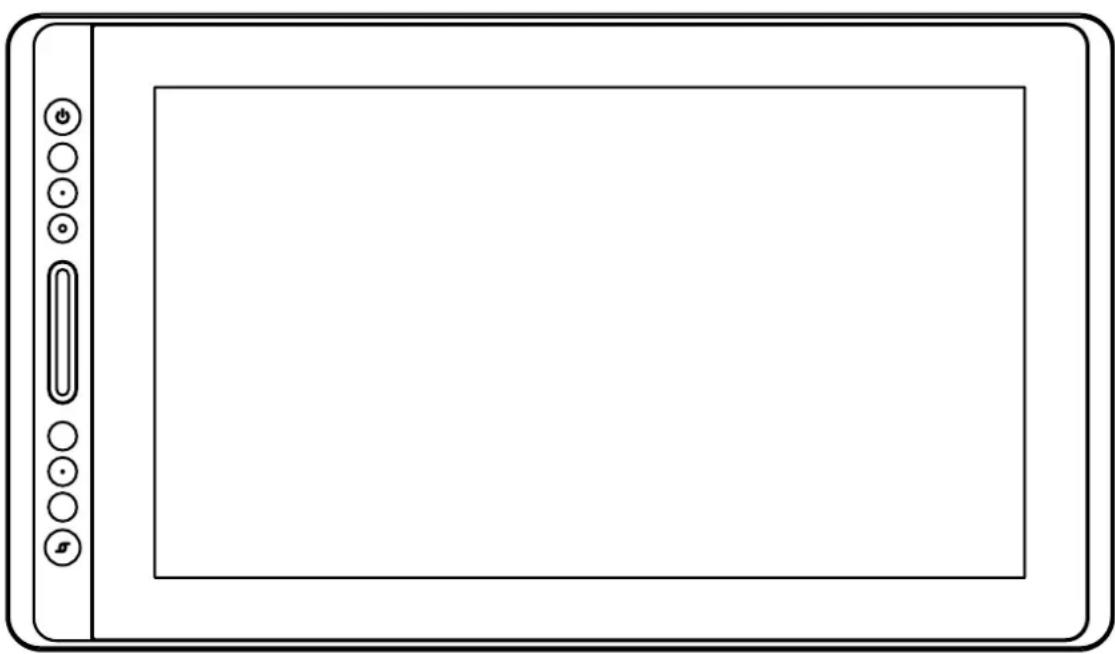
Line drawing of a blank tablet device with control buttons and a scroll wheel (no text or symbols)Contents
1 / Precautions....3
2 / Product Overview....4
2.1 Display Introduction....4
2.2 Product and Accessories....4
2.3 Setting up Display....6
2.4 Install Driver 7
3 / Pen Basic Operation ....9
3.1 Hold the pen....9
3.2 Position the cursor....9
3.3 Click....10
3.4 Move....10
3.5 Use the side buttons....10
3.6 Pen Nib Replacement....11
4 / Using the Display....12
4.1 Power Button....12
4.2 Press Keys....12
4.3 Touch Bar 12
4.4 OSD Function....12
5 / Function Setting....13
5.1 Working Area Setting....13
5.2 Press Keys Function Setting....14
5.3 Pen Buttons Function Setting....16
5.4 Enable the Windows Ink Feature....16
5.5 Pressure Sensitivity Setting 17
5.6 Pen Pressure Testing....18
5.7 Enable the Windows Ink Feature....18
6 / Specifications....19
7 / Trouble Shooting 20
8 / After-service Contact 23
1 / Precautions

【Please read this manual carefully before using, and keep it well for future reference.】
--Before cleaning the display, please unplug the USB cable and wipe with a soft damp cloth, do not use any kind of detergents.
--Please don't place the display near water sources such as bathtub, washbasin, sinks, washing machine, damp basement, swimming pool, etc.
--Do not place the display on where is unstable or a height for children reaching easily in order to avoid danger.
--Do not place the display and digital pen close to the magnetic field.
--The grooves and holes on the back case is designed for ventilation to prevent the monitor from overheating. Please don't place the display on beds, sofas, carpets or in embedded device.
--Only power supplies shown on the nameplate can be used for the display. If you have questions about the power supply which you are using, please consult the distributor of your display.
--To protect your display, please switch off the power when it is not in use. During blackouts or not using for long time, please unplug the display from the socket.
--Make sure no foreign bodies get inside the monitor through grooves and prevent liquid from splashing on the display as to prevent short-circuit or fire.
--If the display has a breakdown, do not open the main case and try to repair it by yourself. Please ask for a service for proper repair and maintenance.
--When the following situations occur, please unplug the power adapter and you may need a service for full repair and maintenance:
A. The power wire or plug is damaged or worn out;
B. There is liquid splashed inside of the display;
C. The display has fallen or the LCD is broken;
D. When obvious abnormalities occur to the display.
--While getting the components replaced, you are supposed to guarantee that the repairman is using the substitute components specified by the manufacturer. Unauthorized component replacement might cause fire, electric shocks or other dangers.
2 / Product Overview
2.1 Display Introduction
Thanks for choosing HUION ^® KAMVAS ^® Pro 16 creative display. This is a new generation of desktop-level professional drawing display, which can greatly improve your work efficiency of painting and creation, and full of fun. You can freely paint and write, depicting different lines and colors, just as the pen writes on the paper, which brings you a real shock experience.
To give you a better understanding and using of your display, please read this user manual carefully. The user manual only shows the information under Windows, unless otherwise specified, this information applies to both Windows and Macintosh systems.
2.2 Product and Accessories
text_image
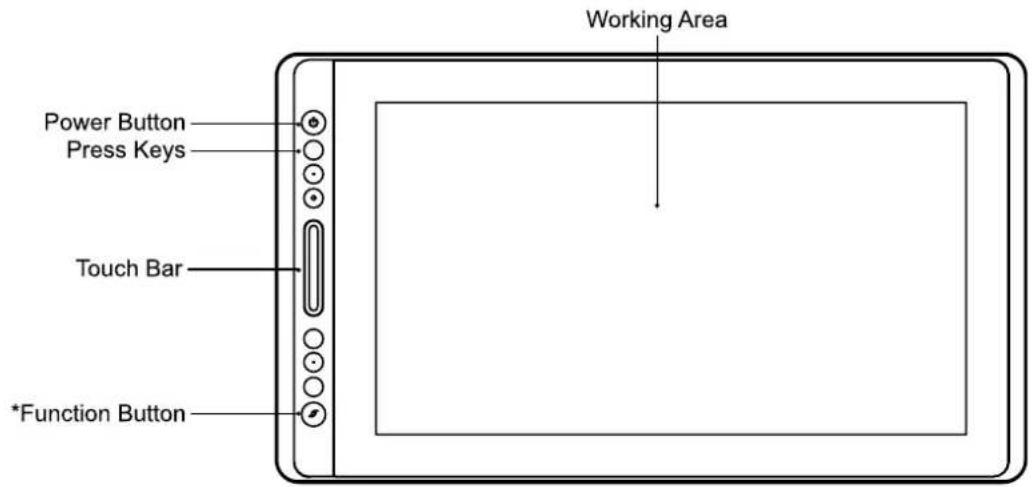
Working Area Power Button Press Keys Touch Bar *Function Button*Long press: OSD
Short press: switch function of the touch bar:
-
Zoom in/out
-
Adjust brush size
-
Scroll up/down
text_image
HLION2.2.1 Accessories
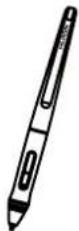
Battery-free pen
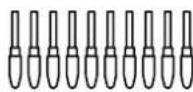
Replacement Nibs
(inside the pen holder)
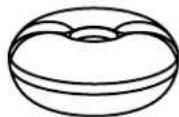
Pen Holder
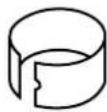
Pen Nib Clip
(inside the pen holder)
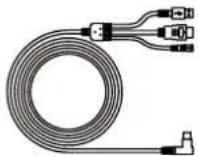
3-in-1 Cable
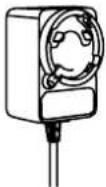
Power Adapter
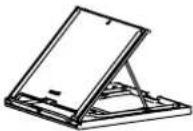
Quick Start GuideStand
Cleaning Cloth
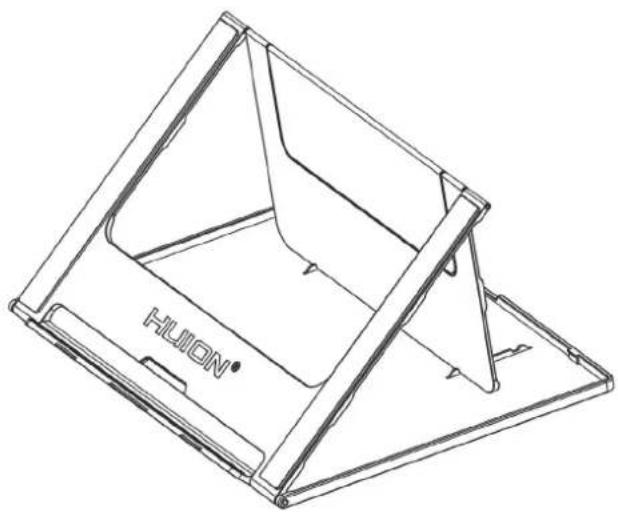
2.2.2 Adjustable Stand
We designed this ergonomic adjustable stand specially for your KAMVAS display, you can adjust the angle of the display according to your usage habit, and make you feel more comfortable when painting and creating.
natural_image
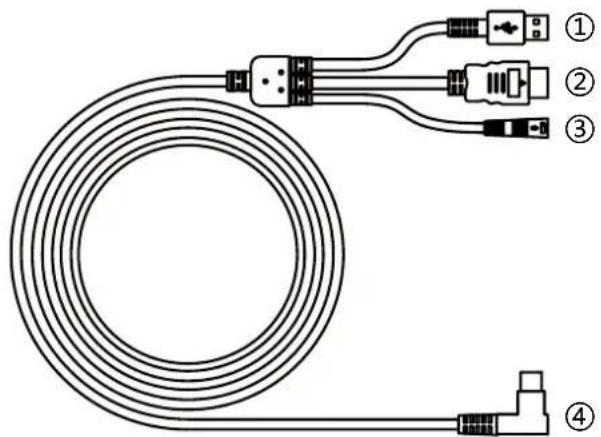
Line drawing of a folding stand with 'HUION' branding on the base (no other text or symbols)2.2.3 3-in-1 Cable
natural_image
Diagram of a coiled cable with four labeled connectors (no text or symbols present)① USB
② HDMI
③ Power
④ Type-C
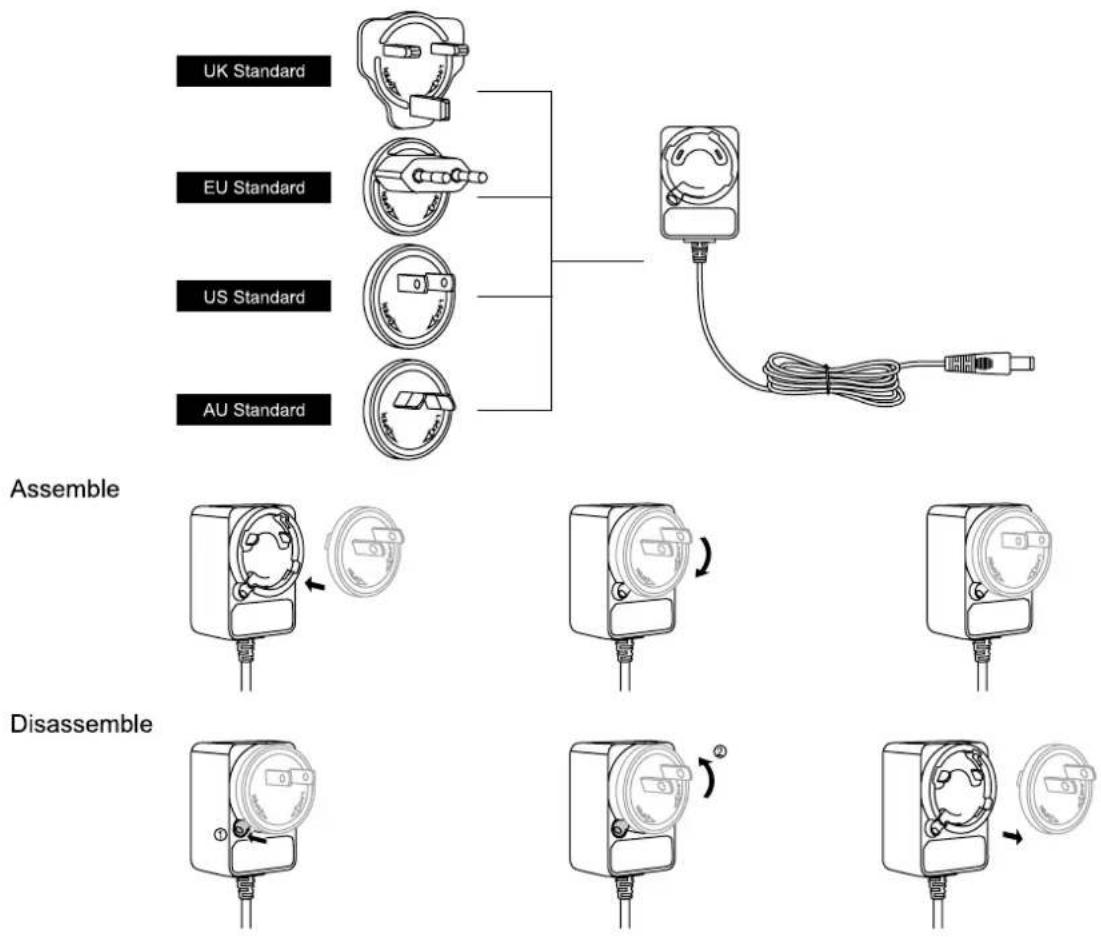
2.2.4 Plug
Please choose the right plug according to your country or region, and assemble it to the power adapter. (It may not come with all the plugs)
text_image
UK Standard EU Standard US Standard AU Standard Assemble Disassemble2.3 Setting Up Display
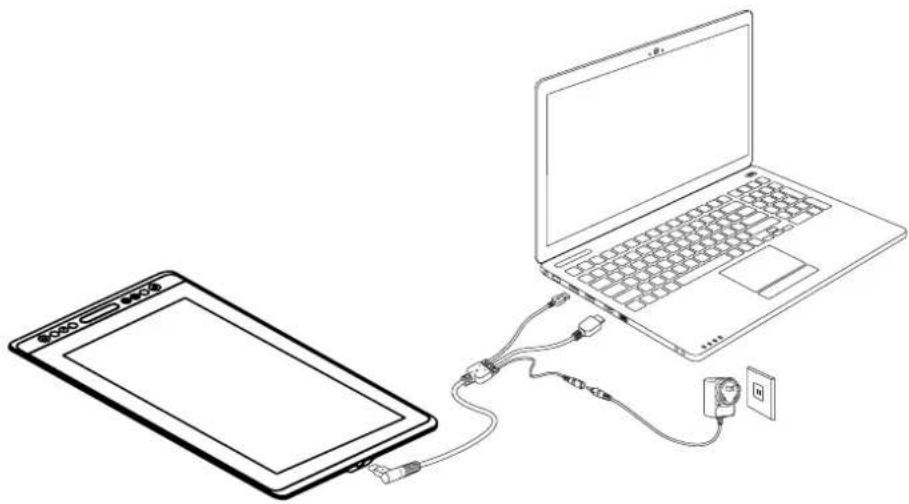
[1] Connect your PC and the display with 3-in-1 cable.
[2] Plug the power adapter into the cable power connector and turn it 90° to ensure that the plug does not come off and connect the power adapter to the power source.
[3] Turn on computer and switch on the display, the LED indicator will show the current status: Green means working normal, Orange means no signal.
natural_image
Line drawing of a laptop connected to a tablet and cable, with a small electrical outlet nearby (no text or symbols)2.4 Install Driver
2.4.1 OS Support
Windows 7 or later, macOS 10.12 or later.
2.4.2 Install Driver
Please download the driver from our website: www.huion.com/download
After finishing installation, you can find the driver icon "⚡" in the system tray area, which means the driver was installed successfully; when you connect the display to computer, the icon will change to color "⚡", which means the driver has already recognized the display and you can start using it now.

Notes:
[1] Before installing, you need to uninstall other driver of similar products, including the old driver of this product.
[2] Before installing, please close all graphics software and anti-virus software to avoid unnecessary mistake.
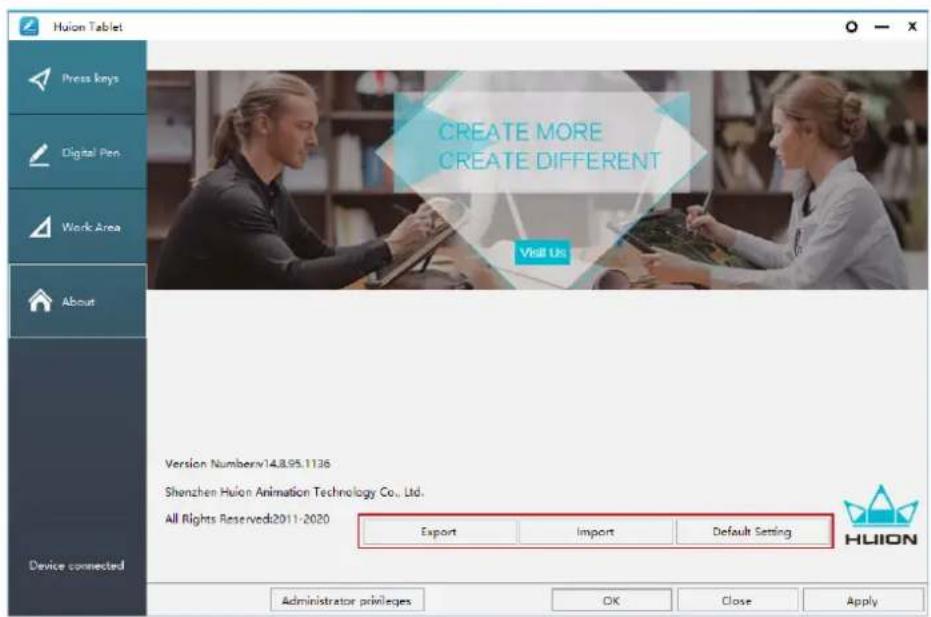
2.4.3 Driver Page
After the download is successful, double-click to open the driver, connect the display to your computer with attached cable.
When the connection is complete, watch for a prompt at the bottom left of the driver page that display two states "Device disconnected" or "Device connected".
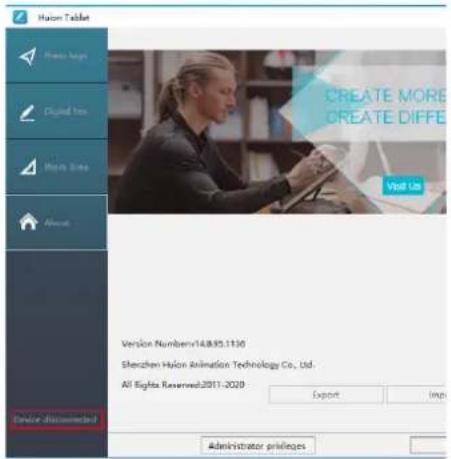
text_image
Huion Tablet Press logit Digital Icon Main Store About CREATE MORE CREATE DIFFE Visit Us Version Numbers:14.8.95.1116 Sherchen Huion Animation Technology Co., Ltd. All Rights Reserved:2011-2020 Export Imp Device discounted Administrator privileges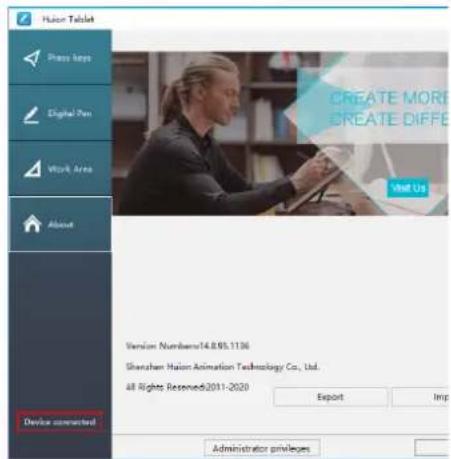
text_image
Huaon Tablet Press Maps Digital Pen Work Area About Device connected CREATE MORE CREATE DIFFE Visit Us Version Numbers:14.8.95.1136 Shenzhen Huaon Animation Technology Co., Ltd. All Rights Reserved:2011-2020 Export Import Administrator privileges3 / Pen Basic Operation
3.1 Hold the pen
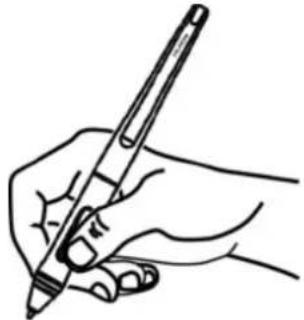
Hold the pen as you hold a normal pen or pencil. Adjust your grip so that you can toggle the side switch easily with your thumb or forefinger. Be careful not to accidentally press the switch while drawing or positioning with the pen.
Notice:
When not in use, place the pen in the pen case or on the desk. Do not place the pen on the surface of screen, which may interfere with the use of other screen cursor positioning equipment, may also cause your computer can not enter the sleep mode.
natural_image
Line drawing of a hand holding a pen, no text or symbols present3.2 Position the cursor
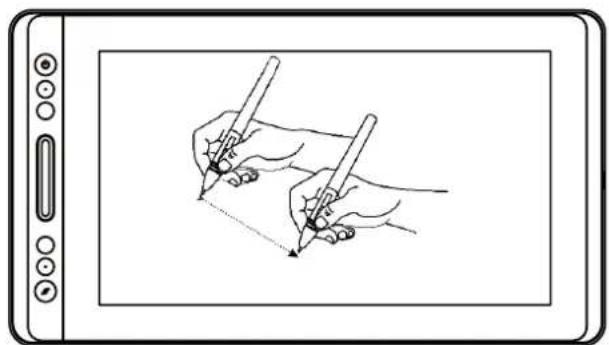
Move the pen slightly above the active area without touching the screen surface, the cursor will move to the new position accordingly.
Press the pen tip on the screen to make a selection. Tap the screen once with the pen tip, or touch it to the screen with enough pressure to register a click.
natural_image
Line drawing of two hands holding pens, poised to write on a blank sheet (no text or symbols)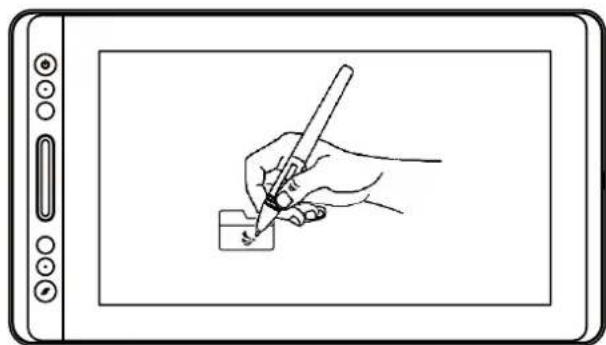
natural_image
Line drawing of a hand holding a pen writing on a small object, placed on a tablet screen (no text or symbols present)3.3 Click
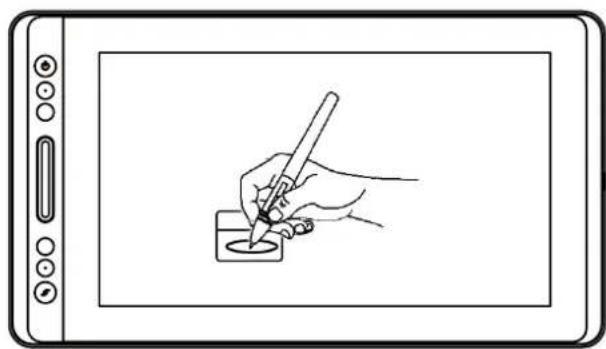
Use the pen tip to tap once on the screen to register a click. Tap to highlight or select an item on the screen and double-click to open it.
natural_image
Line drawing of a hand holding a pen writing on a digital inkwell (no text or symbols present)3.4 Move
Select the object, then slide the pen tip across the screen to move it.

natural_image
Illustration of two hands using stethoscope to write a small object on a tablet screen (no text or symbols)3.5 Use the side buttons
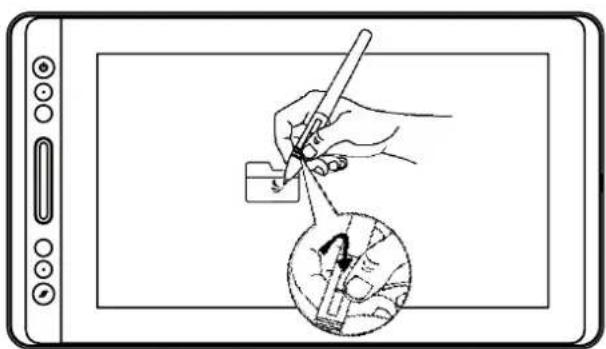
The buttons on the pen can be set to two different customizable functions.
You can use the buttons whenever the pen tip is within 10mm of the display active area.
You do not have to touch the pen tip to the display in order to use the switch.
natural_image
Illustration of a hand using a pen to draw a circular object with a tool, mounted on a tablet device (no text or symbols present)3.6 Pen Nib Replacement
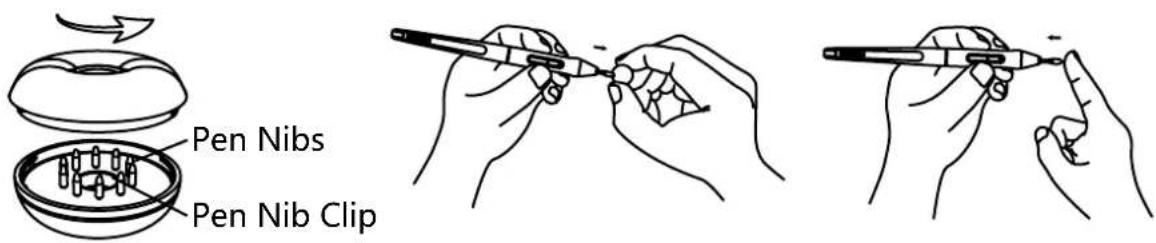
The nib will be worn off after using for a long time, then you need to replace a new nib.
[1] Anticlockwise rotate the pen holder to open the cover, take a new nib out.
[2] Insert the pen nib into the hole on the bottom of the holder and tilt the pen to pull out the old nib.
[3] Insert the new nib straight into the pen and push the nib slowly and firmly until it stops.
text_image
Pen Nibs Pen Nib Clip4 / Using the Display
4.1 Power Button
The power button was placed on the left side of the digital screen, you need to turn on the power switch before using.
4.2 Press Keys
There are 4 press keys on the top left side of the display, which you can modify the functions according to your own habits, thus will help to improve your work efficiency.
4.3 Touch Bar
The left side of the display is provided with a touch bar, you can slide up and down to achieve zoom function, or you can self-define the function on the driver.
4.4 OSD Function
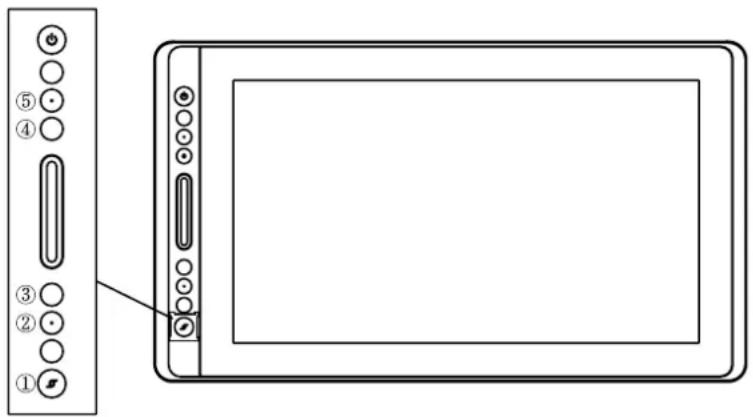
text_image
Diagram showing a device panel with labeled buttons and a screen, likely illustrating a digital interface or setup.Enter OSD Menu:
[1] Press ① "Function Button" around three seconds until the OSD menu appears and meanwhile the indicator will be on. The function of the Keys ② ③ ④ ⑤ will become OSD function.
[2] In the menu, the function of ②③④⑤ will become as the following:
② AUTO: Before entering menu, its function is "auto adjustment".
After entering menu, its function is "back to previous menu".
③ MENU: Press to call up the menu, after entering menu, its function is "confirm".
④ - : After entering menu, its function is "down/left/decrease".
⑤ +: After entering menu, its function is "up/right/increase".
Exit OSD Menu:
[3] Press ①"Function Button" again for around three seconds until the indicator will be off, the function of the Keys ②③④⑤ will become "short cuts function again".
5 / Function Setting
5.1 Working Area Setting
5.1.1 Using Multiple Monitors
Select the Working Area tab to define the relationship between pen movement on the display and cursor movement on the monitor screen.
By default the entire active area of display maps to the entire monitor. If more than one monitor is in use and you are in extended mode, you need to choose the related monitor on the driver interface which you are going to map to.
If your monitors are in mirror mode (All monitors display the same content), the display maps to the entire space on each monitor and the screen cursor is displayed on each monitor simultaneously.
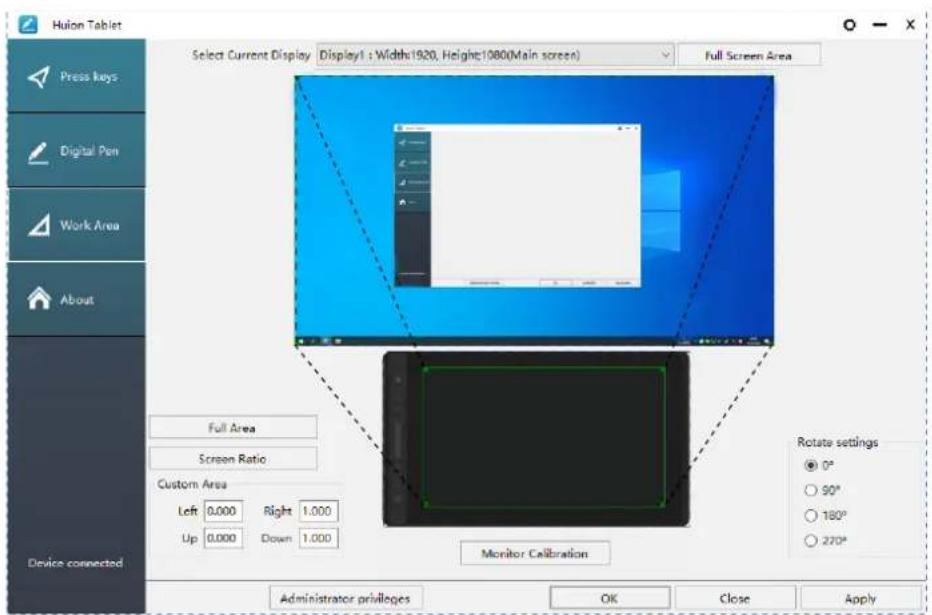
text_image
Huilon Tablet Select Current Display Display1 : Width:1920, Height:1080(Main screen) Full Screen Area Full Area Screen Ratio Custom Area Left 0.000 Right 1.000 Up 0.000 Down 1.000 Monitor Calibration Rotate settings ● 0° ○ 90° ○ 180° ○ 270° Device connected Administrator privileges OK Close Apply5.1.2 Working Area Setting
Define the display area that will be mapped to the screen area.
[1] Full Area: the entire active area of the display. This is the default setting.
[2] Screen Ratio: As a general rule, be 16:9.
[3] Customized Area:
1> Enter coordinate values.
2> Drag the corners of the foreground graphic to select the screen area.
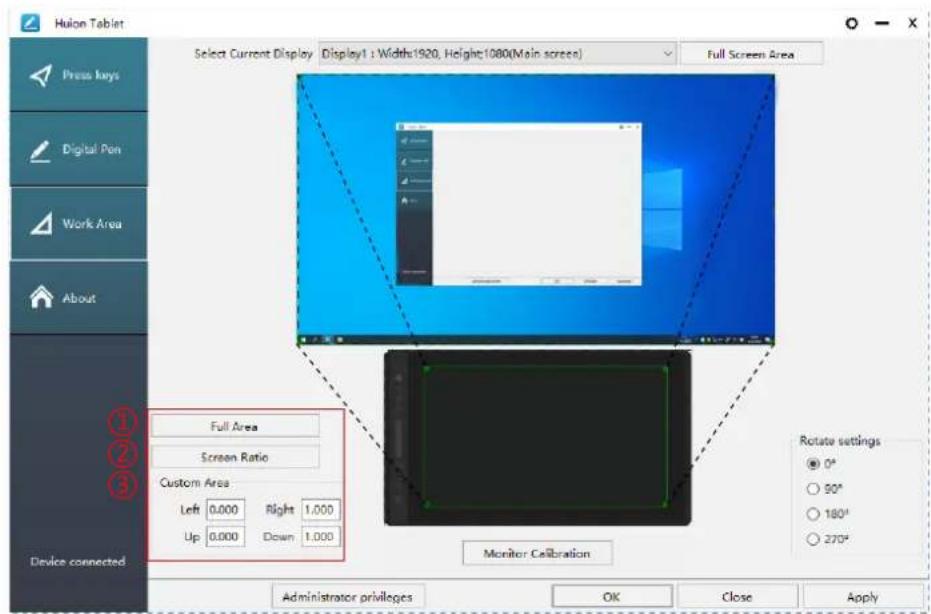
text_image
Huilon Tablet Select Current Display Display1 : Width:1920, Height:1080(Main screen) Full Screen Area Full Area Screen Ratio Custom Area Left 0.000 Right 1.000 Up 0.000 Down 1.000 Monitor Calibration Rotate settings ● 0° ○ 90° ○ 180° ○ 270° Device connected Administrator privileges OK Close Apply5.1.3 Rotate Working Area
By changing the direction of the display to adapt to the left and right hand operation. You can rotate the display by 0^ , 90^ , 180^ or 270^ .
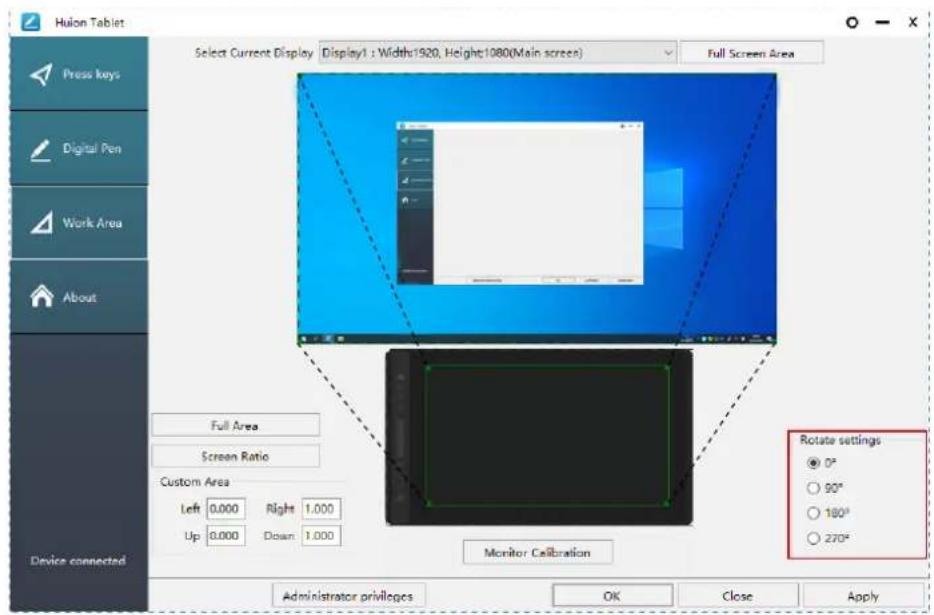
text_image
Huilon Tablet Select Current Display Display1 : Width:1920, Height:1080(Main screen) Full Screen Area Full Area Screen Ratio Custom Area Left 0.000 Right 1.000 Up 0.000 Down 1.000 Monitor Calibration Rotate settings ● 0° ○ 90° ○ 180° ○ 270° Administrator privileges OK Close Apply5.2 Press Keys Function Setting
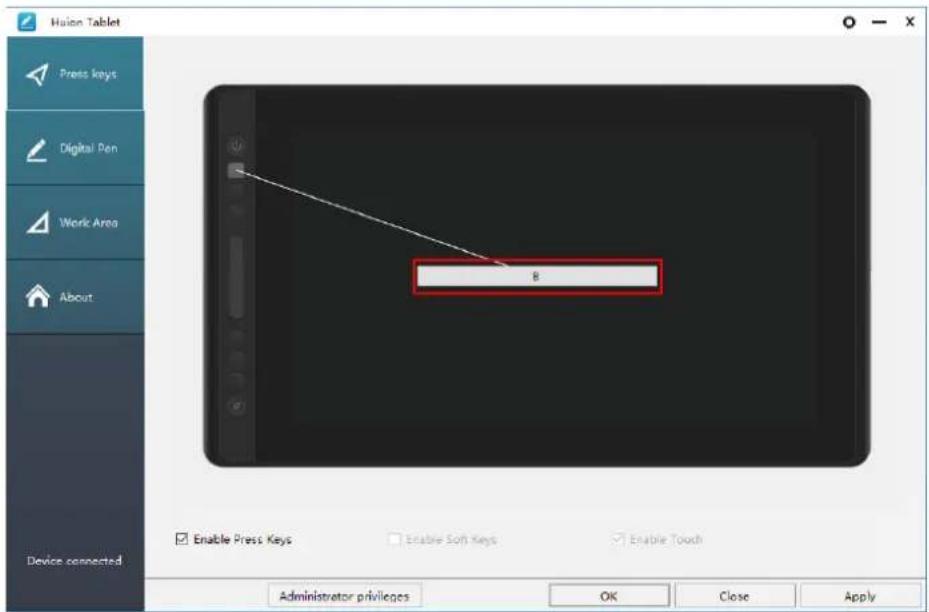
Default Setting: Place the cursor on the press key or click the press key to find the default values.
Customized Setting: Select the function to be achieved on the pop-up dialog box, then click "Apply" or "OK" to take effect.
Enable/Disable Press Keys: Check/Uncheck "Enable Press Keys".
text_image
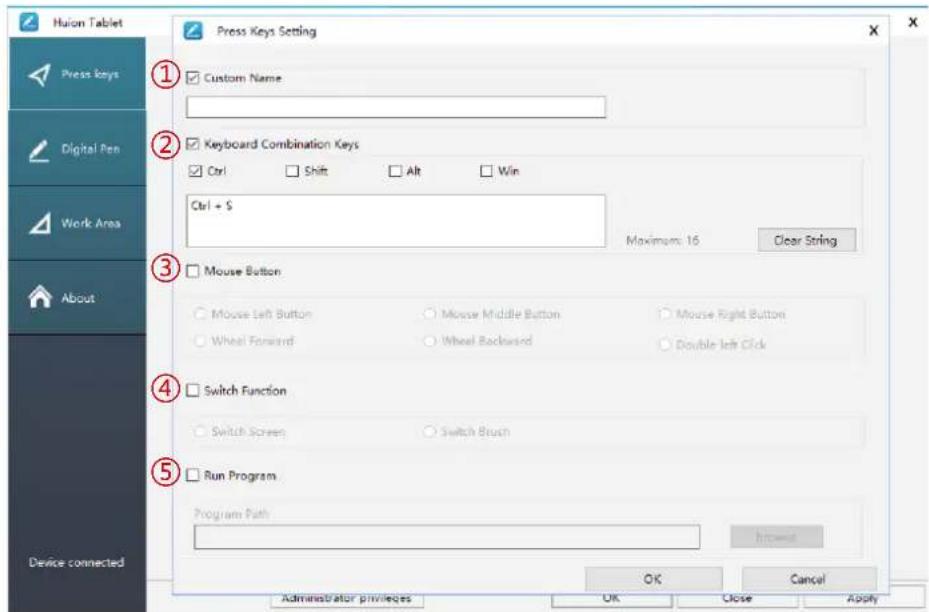
Huaon Tablet Press keys Digital Pen Work Area About Device connected Enable Press Keys Enable Soft Keys Enable Touch Administrator privileges OK Close ApplyThe following shortcut key customization interface is displayed, with a total of 5 Settings.
① Custom: according to the use of custom or professional terms to set. ② Key combination function keys: Ctrl, Shift, Alt, Win+ any letter or other. Ctrl, Shift, Alt, Win, you can select one or more of them, and you can arrange them in any combination. Enter the corresponding Settings in the input box. For example: deselect -Ctrl +D, enter task manager -Ctrl+Alt+Delete, etc.
③ Mouse Button Function: click the box, select the required function, can be set to complete. ④ switch function: also click the box, select the required function. ⑤ Run the program function: click browse, select the connection, to achieve the required run the program function.
text_image
Huron Tablet Press Keys Setting ① Custom Name ② Keyboard Combination Keys ③ Mouse Button ④ Switch Function ⑤ Run Program Program Path OK Cancel Administrator privileges OK Close Apply5.3 Pen Buttons Function Setting
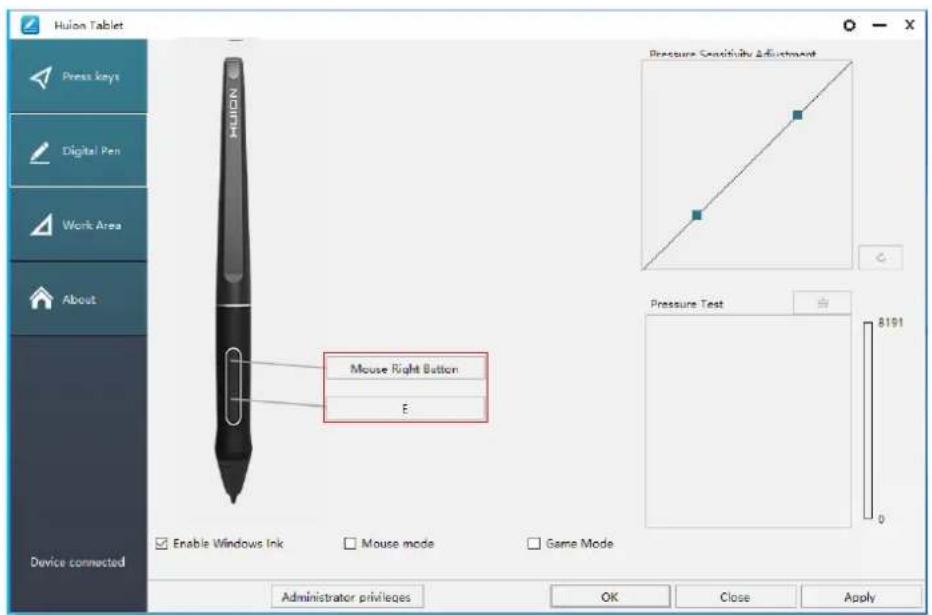
Select the function to be achieved on the pop-up dialog box, then click "Apply" or "OK" to take effect.
text_image
Hulon Tablet Press keys Digital Pen Work Area About Device connected Mouse Right Button E Enable Windows Ink Mouse mode Game Mode Pressure Sensitivity Adjustment Pressure Test 8191 0 Administrator privileges OK Close Apply5.4 Enable the Windows Ink feature
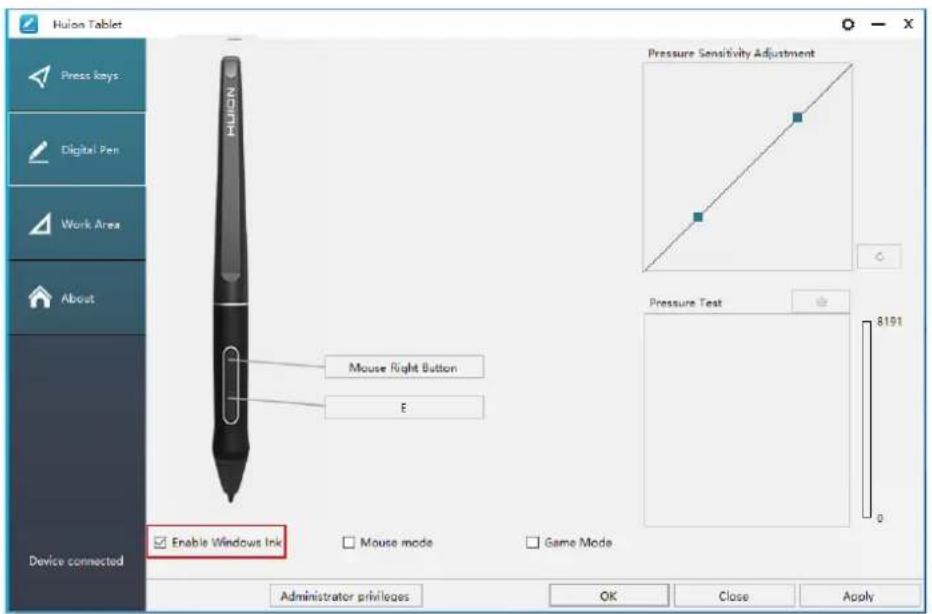
Microsoft Windows provides extensive support for pen input. Pen features are supported in such as Microsoft Office, Windows Journal, Adobe Photoshop CC, SketchBook 6 and so on.
text_image
Huilon Tablet Press keys Digital Pen Work Area About Device connected Mouse Right Button E Enable Windows Ink Mouse mode Game Mode Pressure Sensitivity Adjustment Pressure Test 8191 0 Administrator privileges OK Close Apply5.5 Pressure Sensitivity Setting
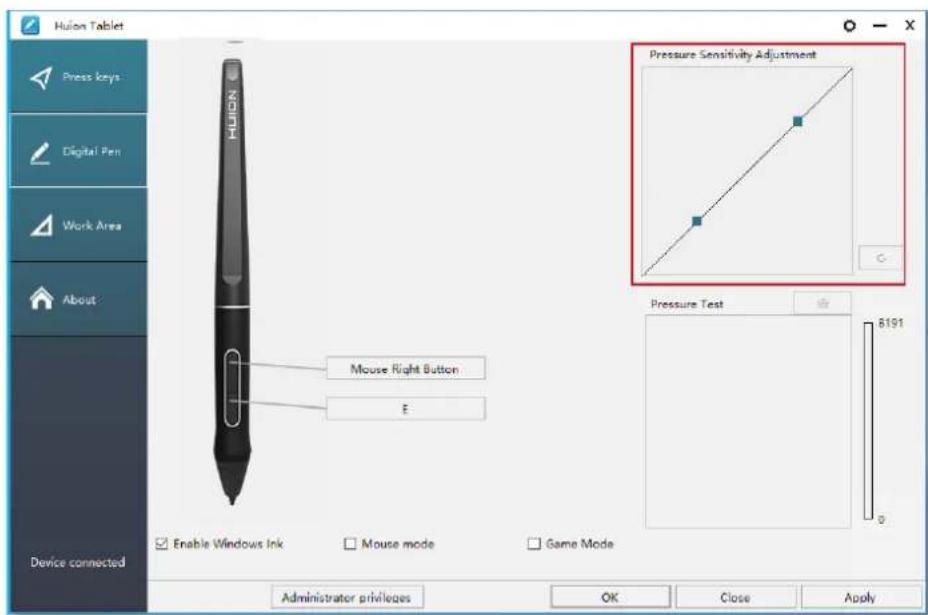
The pressure sensitivity will be changed by dragging the slider up and down, the smaller the value, the more pressure sensitive.
text_image
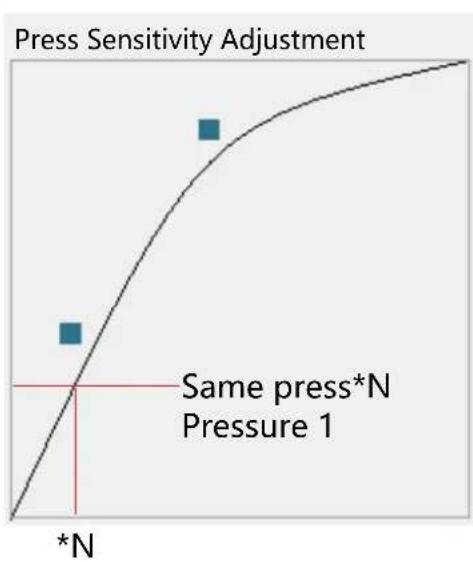
Hulon Tablet Press keys Digital Pen Work Area About Device connected Mouse Right Button E Pressure Sensitivity Adjustment Pressure Test 8191 Enable Windows Ink Mouse mode Game Mode Administrator privileges OK Close ApplyDrag upward (left): the pressure change is more obvious, small pressure produces a great pressure.
Drag down (right): pressure change is weak, a lot of pressure produces less pressure.
Click the button ☐ at the bottom right of the Settings box to reset the pressure sensitivity to the default state.
For example: apply *N respectively the same pressure, under different pressure coefficient produced different pressure effects. According to their habit of holding the pen posture and the size of the hand for the appropriate pressure Settings.
line
| Pressure | Sensitivity Adjustment | | -------- | ---------------------- | | *N | Same press*N Pressure 1 |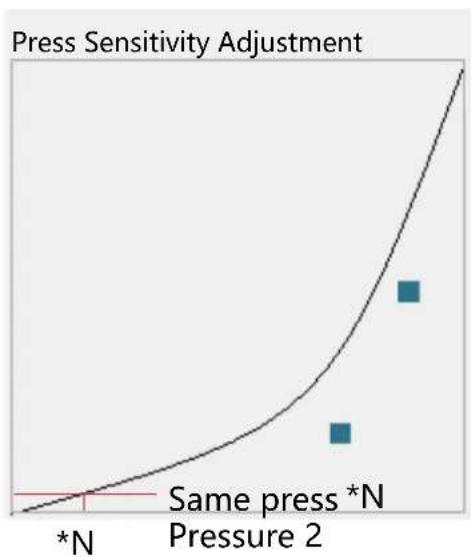
line
| Pressure | Sensitivity Adjustment | | -------- | ---------------------- | | *N | 0 | | Same press *N | 0 | | Pressure 2 | 1 |5.6 Pen Pressure Testing
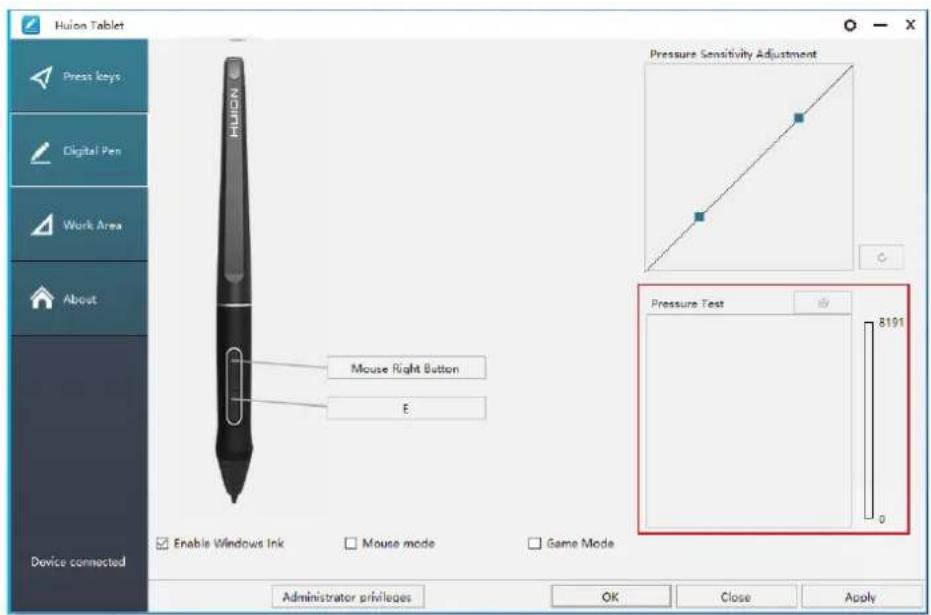
You can gradually apply pressure to the stylus on the screen to test the pressure level. Click "☐" button to clear all the ink.
text_image
Huilon Tablet Press keys Digital Pen Work Area About Device connected Mouse Right Button E Enable Windows Ink Mouse mode Game Mode Pressure Sensitivity Adjustment Pressure Test 8191 0 Administrator privileges OK Close Apply5.7 Enable the Windows Ink feature
Microsoft Windows provides extensive support for pen input. Pen features are supported in such as Microsoft Office, Windows Journal, Adobe Photoshop CC, SketchBook 6 and so on.
text_image
Huion Tablet Press keys Digital Pen Work Area About CREATE MORE CREATE DIFFERENT Visit Us Version Numbersv14.8.95.1136 Shenzhen Huion Animation Technology Co., Ltd. All Rights Reserved:2011-2020 Export Import Default Setting HULION Device connected Administrator privileges OK Close Apply6 / Specifications
| Model GT-156 | ||
| Screen | Panel Size | 15.6 inch |
| Resolution | 1920 x 1080 (16:9) | |
| LCD Type | IPS | |
| Active Area | 344.16 x 193.59mm | |
| Contrast Ratio | 1000:1 | |
| Brightness | 220 cd/m2 | |
| Response Time | 25ms | |
| View Angle | 89° /89° (H) /89° /89° (V) (Typ.) (CR > 10) | |
| Gamut | 120% sRGB | |
| Display Color | 16.7M (8bit) | |
| Touch | Touch Type | Battery-Free Electromagnetic Resonance |
| Resolution | 5080LPI | |
| Pressure Level | 8192 | |
| Accuracy | ±0.5 mm (Center), ±3 mm (Corner) | |
| Sensing Height | 10mm | |
| Report Rate | 266PPS | |
| Pen | Model | PW507 |
| Dimension | 163.7 x Φ14.3mm | |
| Buttons | Two Customized Press Key | |
| General | Output Voltage | 12V 1A |
| Video Interface | USB-C | |
| Press Key | 6 Customized Press Key | |
| Dimension | 437.8 x 251.2 x 11.5mm | |
| Net Weight | 1.35kg | |
| OS Support | Windows 7 or later, mac OS 10.12 or later | |
7 / Trouble Shooting
7.1 Possible Breakdowns Related to DISPLAY
| Abnormal Phenomena Possible Solutions | |
| Power indicator does not flash | 1. Make sure power is on.2. Check the socket and power cable. |
| No display on the screen | 1. Make sure power is on.2. Correctly connect the cables.3. If you connect the display with a laptop, please make sure the display is on the right display mode: extend or duplicate mode.4. Check whether the side indicator shows green, if not, it means no signal in. Please reboot your computer or reconnect the cable.5. Is the signal wire broken or bent? If so, please replace the signal wire. |
| No signal | 1. Make sure the cables are well connected.2. If you use a desktop, make sure the HDMI port is plugged into the graphic card on the tower, but not into the motherboard.3. If you use a Windows OS computer, make sure to press "Windows+P" on keyboard, then choose Duplicate or Extend. Don't choose Computer Only or Projector Only.4. If there is no HDMI port on your computer, you need an extra HDMI adapter. We don't recommend a USB to HDMI adapter. Also, we don't recommend a USB hub. We recommend DVI/ VGA/ Display Port/ Type-C/ Thunderbolt, etc. to HDMI adapters. |
| Images are blurred | Please set the display resolution with 1920 x 1880. |
| Displays wallpaper & task bar of computer monitor only. | It is because you are under extended mode right now. It is a normal situation.If you are not familiar with extended mode, we recommend you to use in Duplicate/Mirror mode. Windows OS: Press keyboard combination---Windows+P---then choose Duplicate Mac OS: System Preference---Displays--- Arrangement---Check "Mirror Displays".If you decide to use in Extended mode. Make sure to choose pen display as Work Area in Driver. It is usually "Display 2". |
| Lack of colors | Check the pins of the signal wire are not bent or fractured. |
| There is chromatic aberration | As the regional color temperature is different, so minor chromatic aberration is a normal phenomenon. |
| Images jitter or ripple images appear | It is likely that there is electric equipment nearby that brings about electronic interference. |
7.2 Possible Breakdowns Related to FUNCTIONS
| Abnormal Phenomena Possible Solutions | |
| There is no pressure in the graphics software but the cursor moves | You may have installed other display drivers or opened the drawing software when installing the driver. Please uninstall all drivers and close the drawing software, then reinstall the Huion driver. It's better to restart your computer after finishing the installation. |
| The pen does not work | 1. Make sure you are using the pen that originally came with your display.2. Make sure you installed the driver correctly. |
| Press Keys does not work | 1. Make sure the Press Keys function was enabled in the driver.2. Make sure you have correctly defined the Press Keys.3. Check if the press lock switch is on the unlock position. |
| The computer can't enter sleep mode | When you are not using the display, please do not put the pen on the display surface, which will keep the computer awake. |
| The side button of the pen doesn't work | When pressing the side button, please make sure that the nib didn't touch the display surface and the distance between the nib and surface is within 10mm. |
| The side button of the pen doesn't work | Make sure the USB port is functional, if not, please change to another USB port. |
| The computer can't recognize the display | Check that the USB port is normal. If there is any problem, please use another USB port. |

natural_image
Teal crown icon with three triangular heads and a horizontal base (no text or symbols)HUION