
GTR - Smartwatch AMAZFIT - Free user manual and instructions
Find the device manual for free GTR AMAZFIT in PDF.


User questions about GTR AMAZFIT
0 question about this device. Answer the ones you know or ask your own.
Ask a new question about this device
Download the instructions for your Smartwatch in PDF format for free! Find your manual GTR - AMAZFIT and take your electronic device back in hand. On this page are published all the documents necessary for the use of your device. GTR by AMAZFIT.
USER MANUAL GTR AMAZFIT
Amazfit GTR User Manual
Content
Operating Instructions and Functions Navigation....2
Basic Operations....2
Functions Navigation....2
Watch Wearing and Charging....4
Use of Functions ....5
Device Pairing and Unpairing....5
Control Shortcut Menu....7
Flashlight....7
Brightness adjustment....8
DND mode....8
Battery saver mode....9
Lock screen....10
Replace the Watch Face 11
Status....11
Heart Rate 12
Workout....13
Workout Record....14
Weather 15
Music....16
Notifications....17
Alarm 18
Event Reminder....20
Timer....22
Count Down....23
Find Device....24
Compass/Air Pressure/Altitude....25
Settings....27
Workout Function 29
Workout Positioning....30
During Workouts....31
Swimming 32
Workout Reminder....33
Workout Pause and End 33
Workout Settings....34
Operating Instructions and Functions Navigation
Amazfit GTR features one AMOLED touch screen and two physical buttons.
Basic Operations
Slide left and right or up and down: You can switch between different function pages.
Tap and exit: You can tap to enter a specific function page and also operate the tap tips on that page.
You can slide right to quickly return to the upper-level menu after tapping to enter a certain function page.
Button on the upper right:
① Short press to light up the screen.
② Short press the watch face page to close the screen.
③ Short press other pages to quickly return to the watch face.
④ Long press for 10s to shut down.
Button on the bottom right:
① Short press to light up the screen.
② Short press the watch face page to quickly enter the workout list. (This function can be customized and used to short press to quickly start other functions)
You can long press either of the two buttons above to exit the battery saver mode, suspend the workout, and close the alarm alert.
Functions Navigation
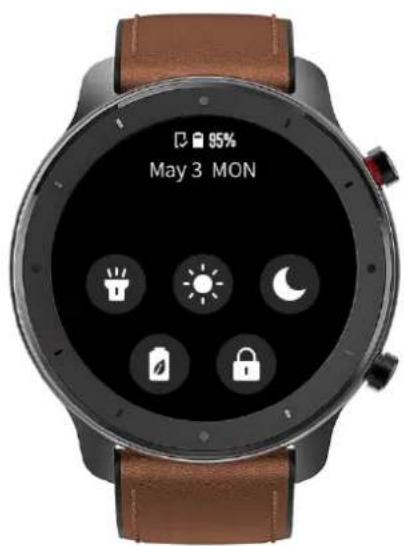
Pull the watch face down: You can then enter the shortcut control menu, which allows you to quickly open the flashlight, set brightness, control the DND mode, enter the battery saver mode, and lock the screen.
text_image
95% May 3 MONSlide the watch face left and right: You can then quickly enter Status, Heart rate,

text_image
6240 5.08 km 125 Cal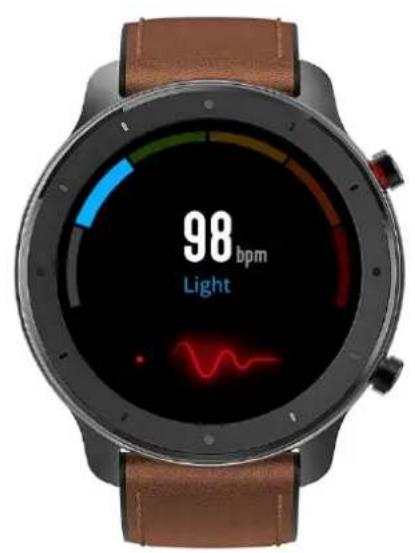
text_image
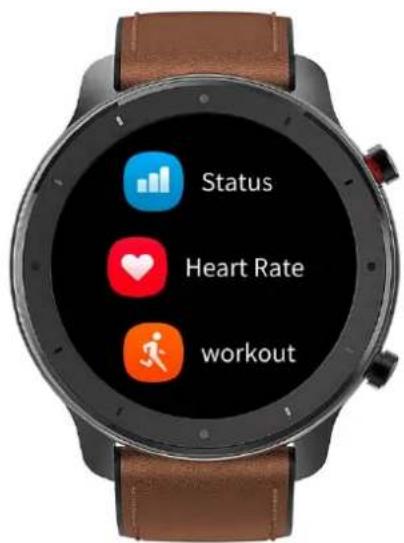
98 bpm LightSlide the watch face up: You can then enter the function list.
text_image
Status Heart Rate workoutWatch Wearing and Charging
Daily wearing: During daily use, it is recommended to wear the watch with a moderate tightness at a distance two fingers far from your wrist to ensure that the optical heart rate monitor works properly. Wearing during workouts: During workouts, it is recommended to wear the watch comfortably and ensure a tight fit without slipping. Being too tight or too loose may cause the inaccuracy of detected workout data, so avoid doing this.
Charging
- The watch charger's USB port needs to be plugged into the USB-supported device, such as socket, PC, power bank.
- When placing the watch into the power socket, it's required to keep the watch in a proper direction and position. Be sure that the metal contacts on the back of the watch are closely connected to the charging base.
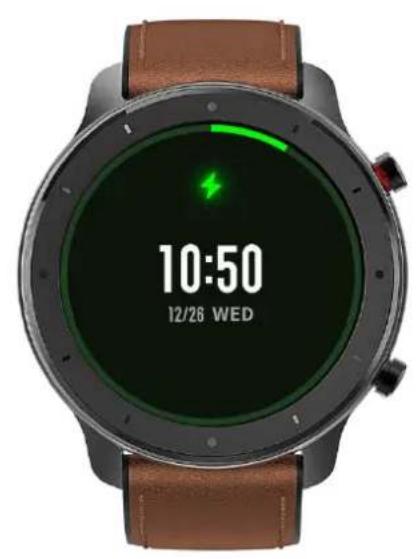
• The screen will display the charging reminder when the watch is placed properly.
natural_image
Smartwatch with green and black progress screen displaying time 10:50 on December 28, 2023 (no readable text beyond clock and date)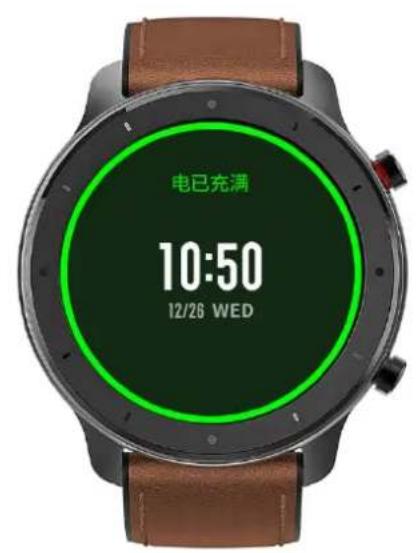
text_image
电已充满 10:50 12/26 WEDUse of Functions
Download the Amazfit App via the mobile phone before using Amazfit GTR. You cannot use the entire watch functions nor save and upload watch data to your personal cloud account until the watch is paired by using the Amazfit App.
Device Pairing and Unpairing
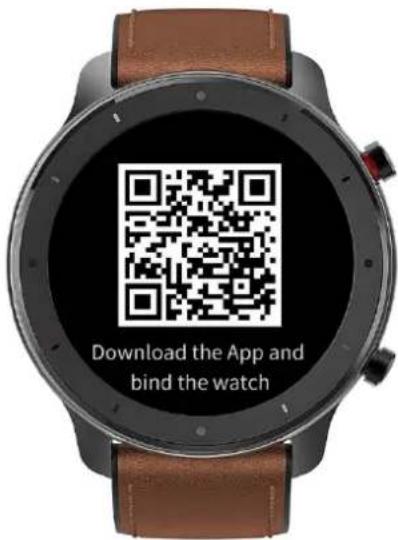
Download the Amazfit App from Google Play Store or App Store and register an account or log in.
text_image
Download the App and bind the watchOpen the Amazfit App and choose "Profile – My devices – Watch – Amazfit GTR" to search the device nearby.
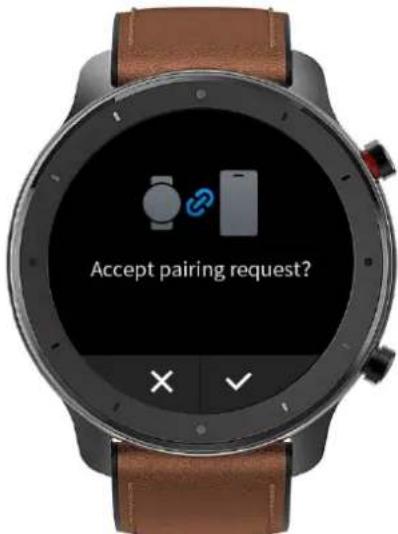
Please tap the check-mark when it shows a pairing request on the watch.
text_image
Accept pairing request?If a device can be paired by scanning a QR code, with the Amazfit App on, you can directly pair the device by scanning the QR code on your watch.
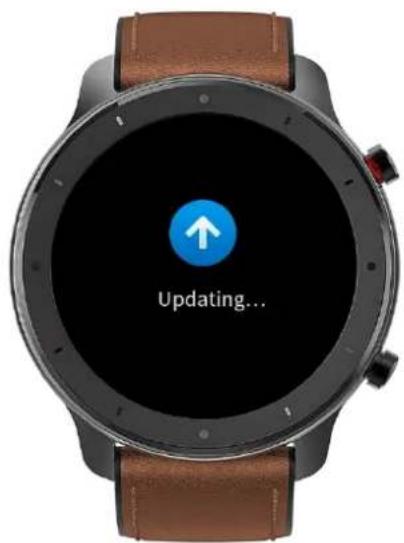
After paired, the watch usually needs to be upgraded. Wait for upgrading with patience. With the mobile network and Bluetooth on, you also need to keep the watch close to the mobile phone, so as to ensure a successful upgrade.
text_image
Updating...After the watch is paired and upgraded, its functions are available. Meanwhile, the Amazfit App allows for the watch function-specific operations and settings.
To unpair the watch, open the Amazfit App, tap "Profile – My devices – Amazfit GTR" and then swipe up and tap the "Unpair" button.
Control Shortcut Menu
Pulling down on the watch face page can quickly open the control shortcut menu page.
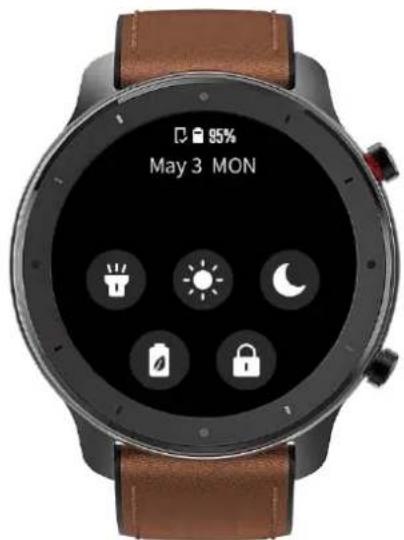
text_image
95% May 3 MONFlashlight
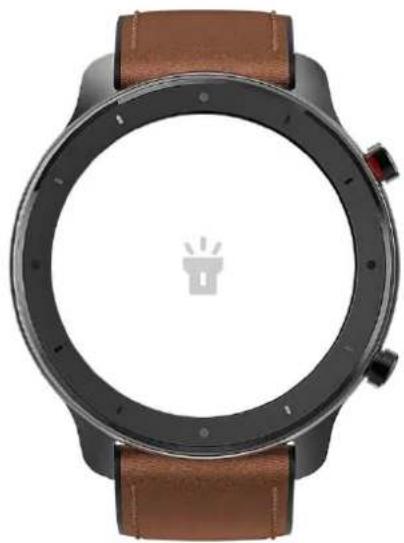
Tapping the flashlight icon can open the flashlight function. The white background on the watch screen helps light up a small area at night. You can close the enabled flashlight function by sliding
right or pressing the button on the upper right.
natural_image
Top-down view of a smartwatch with brown leather strap and white display screen (no text or symbols visible)Brightness adjustment
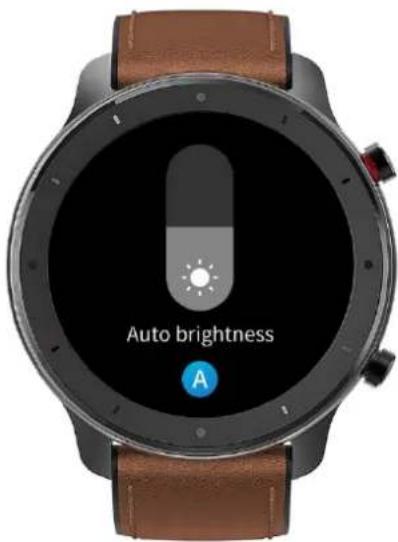
Tapping on the brightness adjustment button can go to the brightness adjustment settings.
Auto brightness: The watch will automatically adjust the screen brightness upon ambient light.
Manual brightness: You can tailor the screen brightness as you wish.
text_image
Auto brightness ADND mode
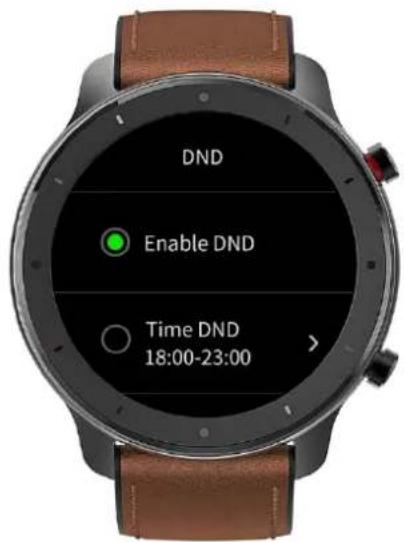
Enable DND: With the DND mode enabled, the watch will not vibrate when receiving any message pushed by the mobile phone.
Time DND: You can tailor the time period during which the DND mode changes from automatically enabled to disabled.
Smart DND: After you fall asleep with the watch, the watch will automatically enable the DND mode.
Disable DND: The DND mode is disabled, so the watch will vibrate when receiving notifications.
text_image
DND Enable DND Time DND 18:00-23:00Battery saver mode
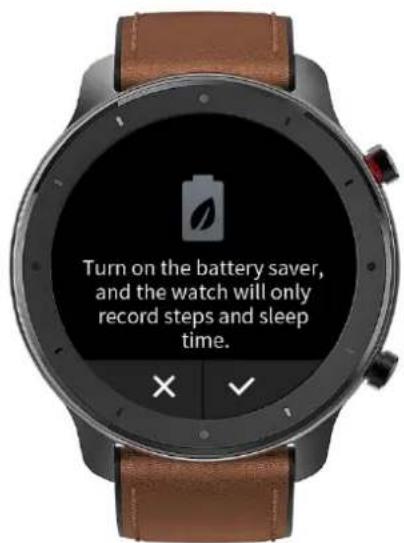
The battery saver mode can minimize the power consumption of the watch and improve its endurance. With the battery saver mode on, the watch can only record steps and sleep time, with other functions disabled.
text_image
Turn on the battery saver, and the watch will only record steps and sleep time.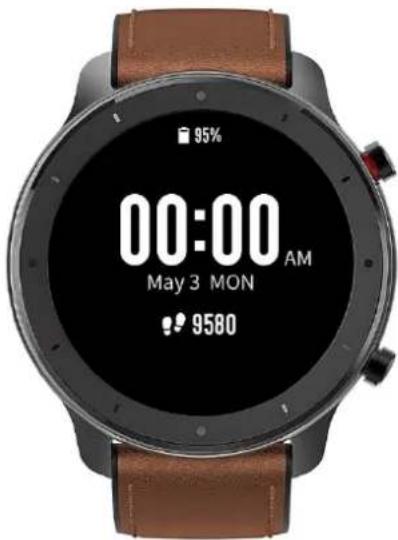
text_image
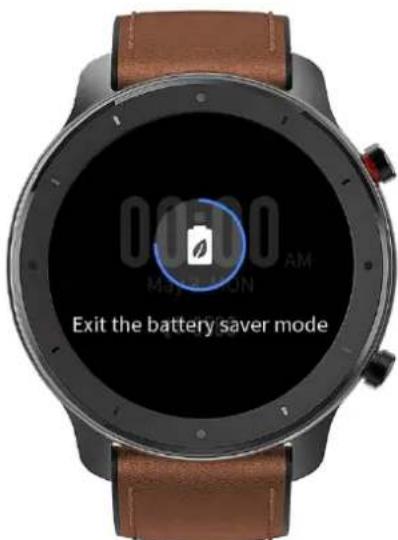
95% 00:00 AM May 3 MON 9580To exit the battery saver mode, long press any button on the watch.
text_image
00:00 AM MAY-ON Exit the battery saver modeLock screen
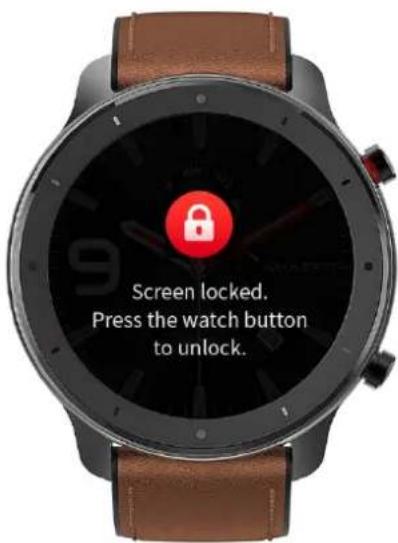
With the lock screen function on, you can unlock the watch to enter the watch face page only by using the watch button. This can prevent any error caused by mistouch. To close the lock screen function, tap the lock screen button again to close this function.
text_image
Screen locked. Press the watch button to unlock.Replace the Watch Face
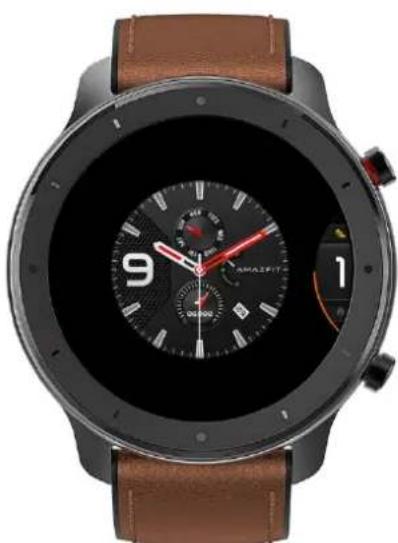
To replace the watch face on the watch: Long press the watch face page for 2s, or go to "Settings – Watch face settings", slide left and right to scan the watch face, and tap one to complete replacement. To replace the watch face on the App: Tap "Profile – Amazfit GTR – Watch face settings" to download more watch faces on the Watch Face Store.
natural_image
Smartwatch with black and brown dual-lens, displaying a circular digital clock showing 9 and 1 (no readable text or symbols beyond branding)Status
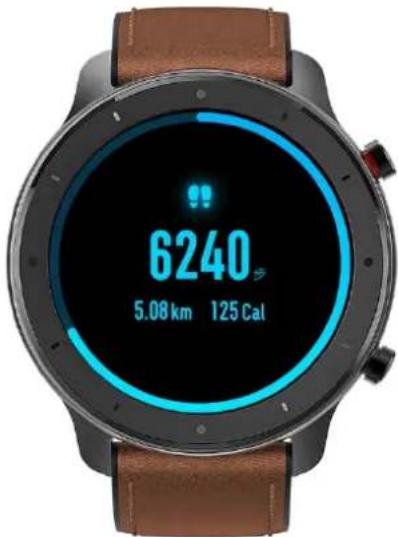
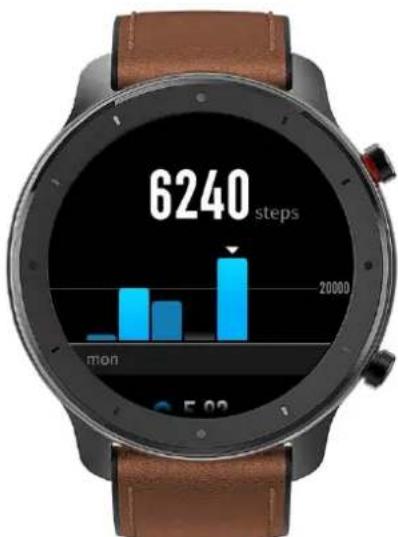
Sliding left on the watch face page can enable you to enter the status page which displays the current steps and goal completed. Tapping the status entry can enable you to enter the details page which
shows you the steps, distance, calories and idle data.
text_image
6240 5.08 km 125 CalYou can also enter the details page by sliding up on the watch face page and choosing "Status".
text_image
6240 steps mon 5:02Heart Rate
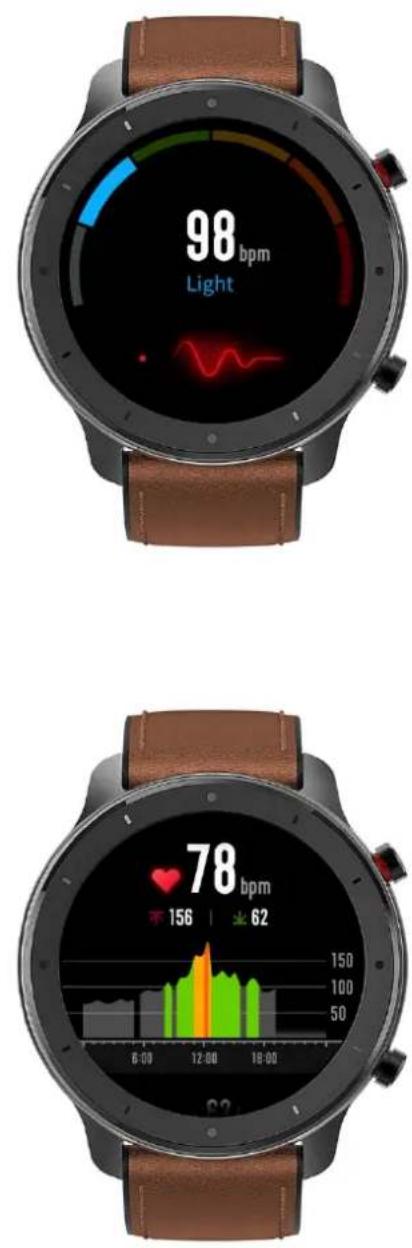
Sliding left on the watch face can enable you to enter the heart rate page, and then the watch automatically starts to measure the heart rate. During measurement, it is required to properly wear the watch and keep the back of the watch fairly close to your skin until the watch can measure a stable heart rate.
To enable the all-day measure function, open the Amazfit App, go to "Profile – Amazfit GTR – Heart rate detection", and choose to enable automatic heart rate detection.
Notes: With the all-day measure function on, the watch will measure the heart rate at regular time. Sliding right on the watch face can make the last heart rate value visible. You can enter the all-day heart rate details page by tapping it.
Workout
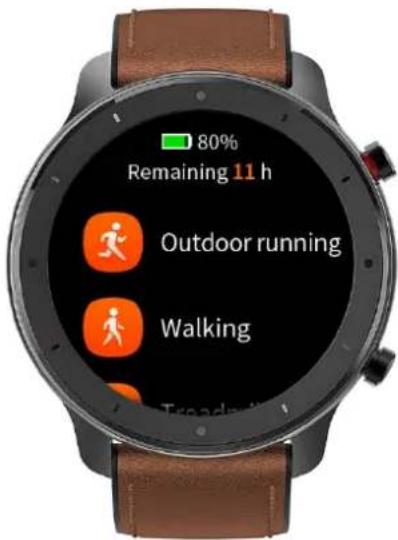
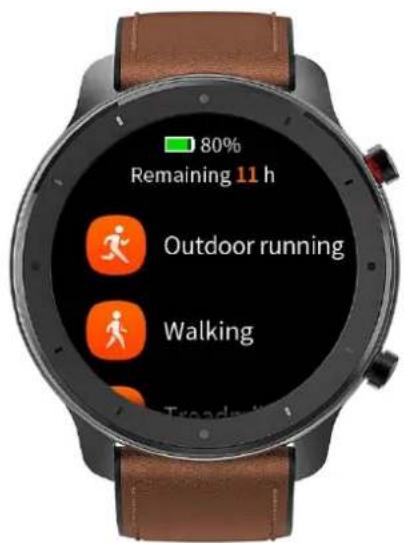
Amazfit GTR supports twelve workout types: Outdoor running, Walking, Outdoor cycling, Treadmill, Indoor cycling, Pool swim, Open water swim, Elliptical trainer, Climb, Trail run, Skiing, and Exercise. See the "Workout" section for more details about the functions of different workout types.
text_image
80% Remaining 11 h Outdoor running Walking TreadmWorkout Record
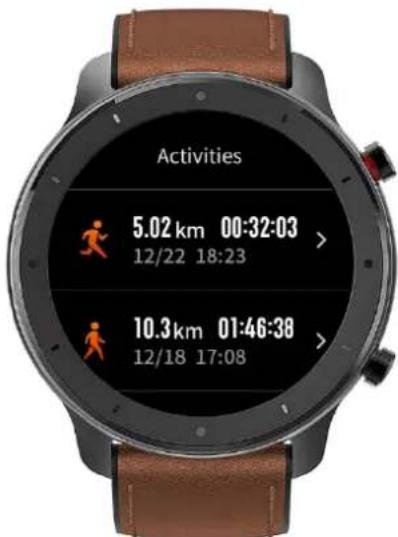
The workout data on the watch will be stored in workout records, which are shown from the latest to the earliest. Tapping a specific workout record will make the workout details visible. The visible details vary in workout type.
text_image
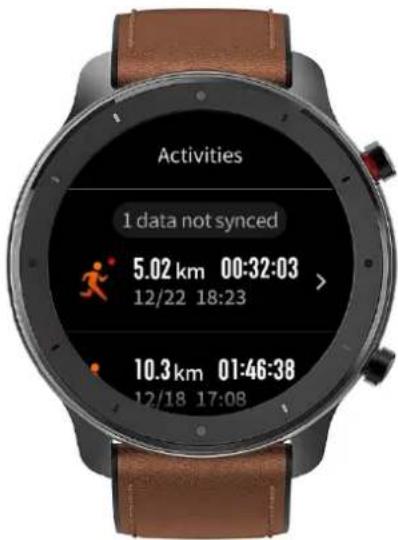
Activities 5.02 km 00:32:03 > 12/22 18:23 10.3km 01:46:38 > 12/18 17:08The workout record not uploaded to the App will be marked with a little red dot before it. Open the App to synchronize data timely to avoid the loss of workout records.
text_image
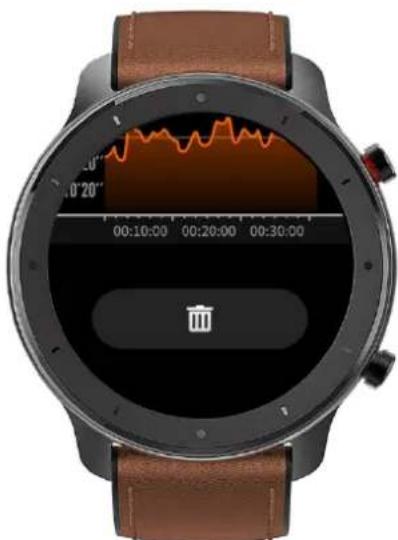
Activities 1 data not synced 5.02 km 00:32:03 > 12/22 18:23 10.3 km 01:46:38 12/18 17:08To delete a workout record on the watch, tap to enter the workout record details page, slide up to the bottom of the page, and then tap the delete button.
natural_image
Smartwatch with digital display showing waveform, battery icon, and status bar (no readable text or symbols)Weather
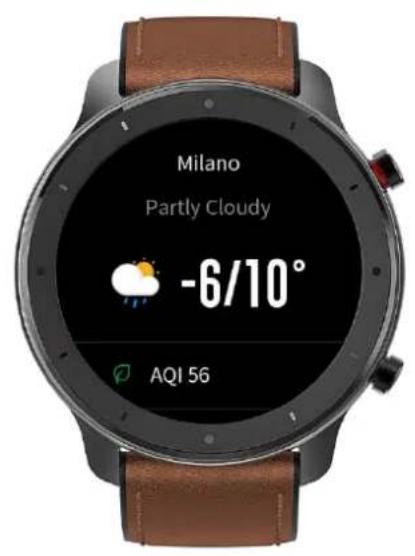
Tapping the weather function can give you access to the current weather conditions and the weather forecast. If weather data are invisible, you should open the App and connect the device to update the data.
text_image
Milano Partly Cloudy -6/10° AQI 56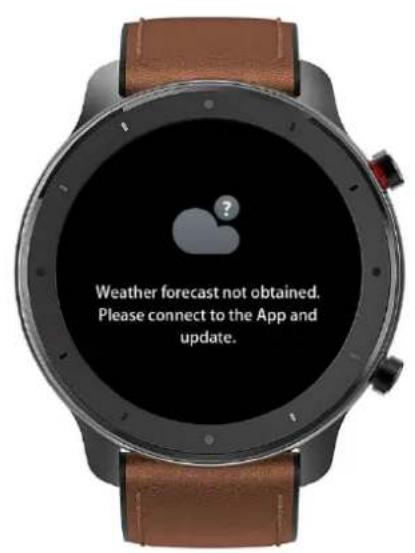
text_image
Weather forecast not obtained. Please connect to the App and update.Music
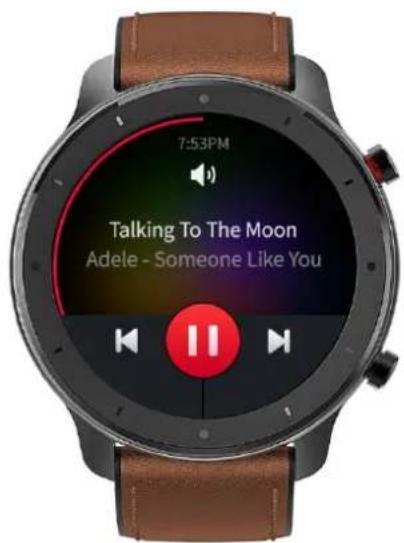
With the Bluetooth, the watch can suspend or play the music on the mobile music player, switch between songs, and adjust the volume.
- Open the mobile music player first, and then enable the music function on the watch.
• If you are using an iOS device, you need to pair and connect the watch with the Amazfit App. - If you are using an Android device, you need to connect the watch with the Amazfit App and also enable the notification reading permission on the App.
Notes: The compatibility of the Android mobile phone system and the openness of different music players may to a certain extent affect the music control function of the watch.
text_image
7:53PM Talking To The Moon Adele - Someone Like YouNotifications
Enable notifications
During use, you need to enable the corresponding "App alerts" on the App, and keep the watch and the mobile phone connected. You can also enable the incoming SMS and incoming call alerts as you wish.
• If you are using an iOS device, you need to pair and connect the watch with the Amazfit App.
- If you are using an Android device, you need to keep the App running in the background or include the App into the self-starting whitelist, so as to ensure the mobile phone can send the alert to the watch.
View notifications
- In the case of an incoming notification, the watch will automatically light up the screen and display the content.
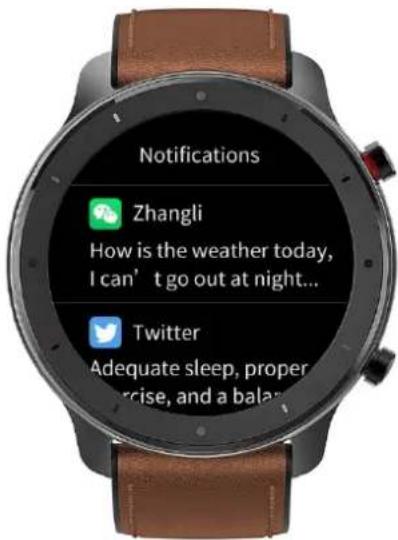
- You can view the unread notification in the notification list and tap any notification to enter the notification details page.
text_image
Notifications Zhangli How is the weather today, I can't go out at night... Twitter Adequate sleep, proper exercise, and a balaDelete notifications
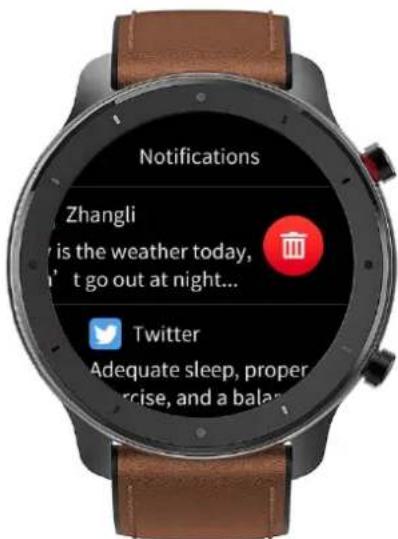
- The read notification on the watch or the mobile phone will be automatically deleted from the notification list on the watch.
- To manually delete the notification on the watch, slide left on the notification to be deleted and tap the delete button.
text_image
Notifications Zhangli is the weather today, t go out at night... Twitter Adequate sleep, proper eprise, and a balanAlarm
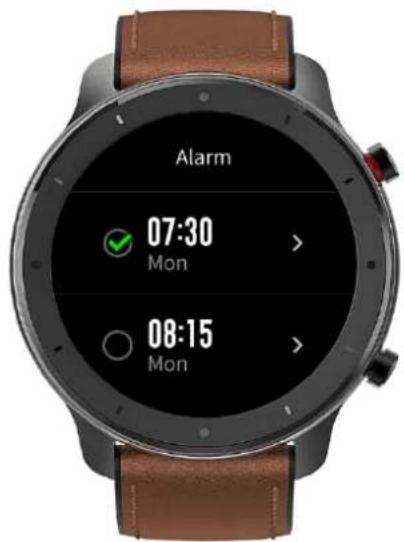
Amazfit GTR supports creating and managing the alarm on the watch. You can also create a watch alarm on the Amazfit App.
Tapping the create button on the watch alarm function page can enable you to set the alarm time and
cycle. After saved, the alarm can be opened and closed in the alarm list.
To create an alarm via the Amazfit App, go to "Profile – Amazfit GTR – Watch alarm" and add an alarm upon the tips on the page.
text_image
Alarm 07:30 Mon 08:15 MonAlarm alert
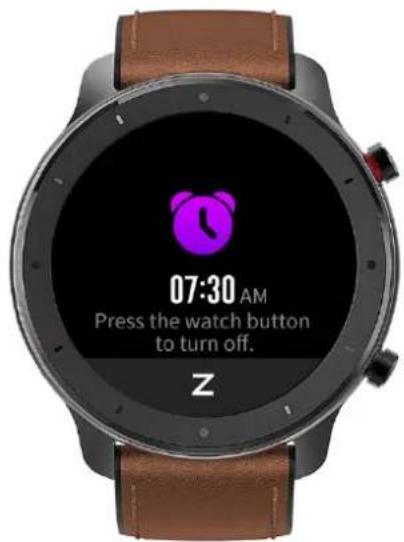
In the case of a watch alarm alert, you can choose to close it or remind you later.
text_image
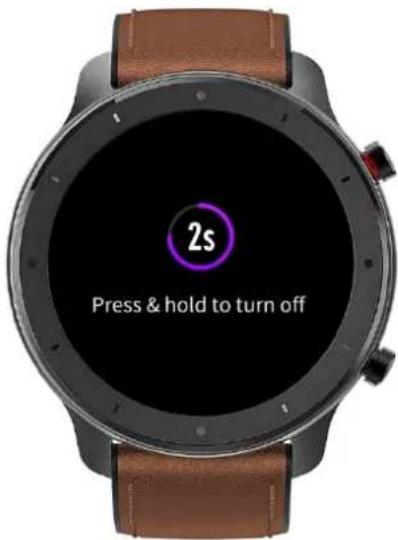
07:30 AM Press the watch button to turn off. ZTo close the alarm, long press any button for 2s within the duration of the alarm alert.
text_image
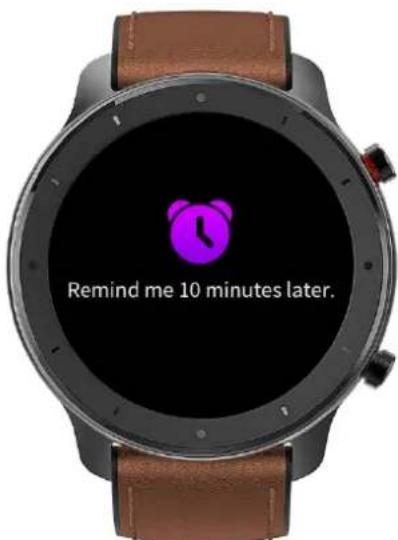
2s Press & hold to turn offTo make a delayed alert, you can, within the duration of the alarm alert, tap the "Z" button at the bottom. Then, the alarm will remind you 10min later.
text_image
Remind me 10 minutes later.Event Reminder
You need to create and manage the event reminder via the Amazfit App. The watch will display your to-do list and vibrate to remind you in the set time.
Open the Amazfit App, go to "Profile – Amazfit GTR – Event reminder", and create the event reminder upon the tips on the page.
An alert will pop up on the watch when the time set for the event arrives. Tap the "×" button at the bottom to close the alert.
The watch supports modifying and deleting the event reminder.
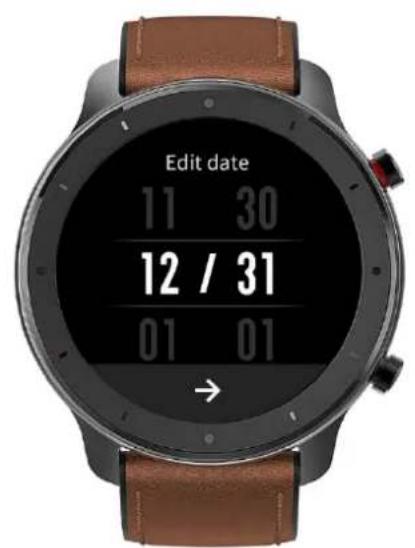
To modify the event reminder, tap the right arrow on the event reminder list page to modify the event reminder date and time.
text_image
Edit date 11 30 12 / 31 01 01 →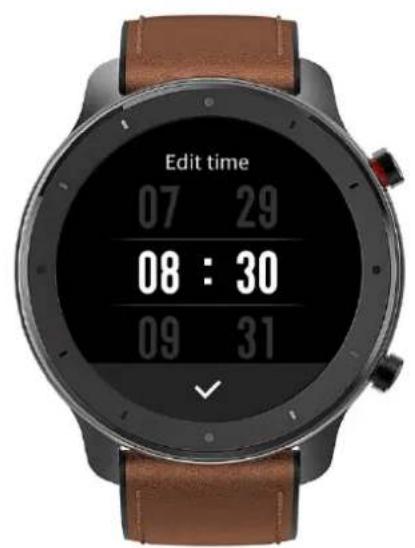
text_image
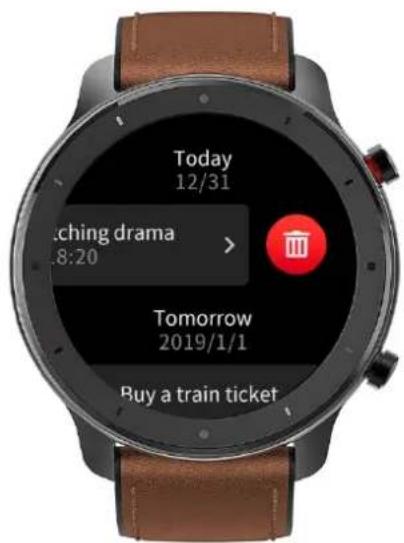
Edit time 07 29 08 : 30 09 31To delete the event reminder, slide right on the event to be deleted and tap the trash icon to delete it.
text_image
Today 12/31 Watching drama 8:20 > Tomorrow 2019/1/1 Buy a train ticketTimer
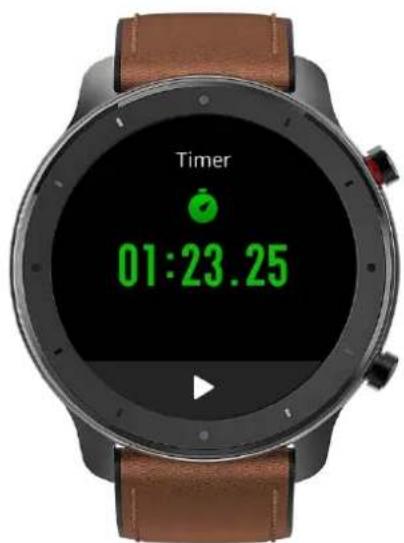
The timer on the watch supports one hundredth of a second. To enable the timer, pull up the app list on the watch face and choose the timer app.
• Tapping the start button can activate the timer to time it right away.
- During timing, you can also count the number of times by tapping the button on the bottom left on the watch screen (up to 99 times of such operation),
• and suspend the current timer by tapping the button on the bottom right on the watch screen.
- When the timer pauses, you can reset it by tapping the button on the bottom left on the watch screen, and resume timing by tapping the button on the bottom right on the watch screen.
text_image
Timer 01:23.25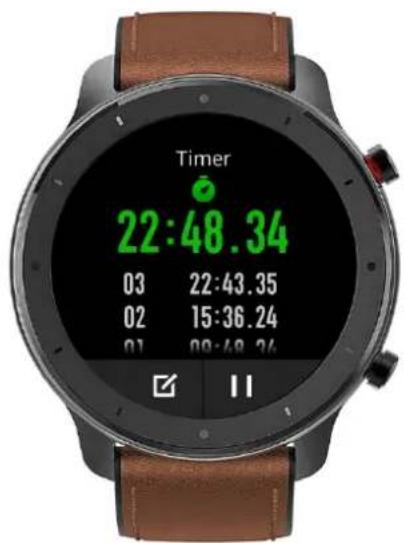
text_image
Timer 22:48.34 03 22:43.35 02 15:36.24 01 09:48.24Count Down
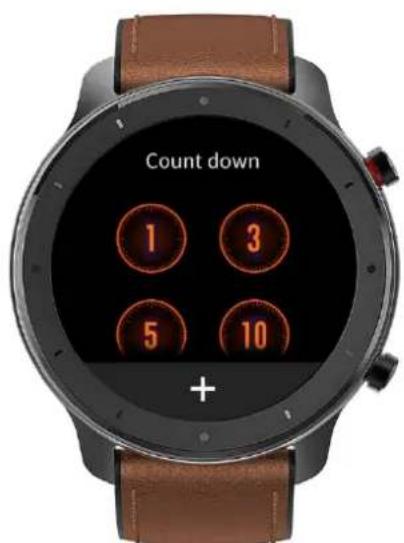
To enable the count down, pull up the app list on the watch face and choose the count down app. By default, the watch supports the shortcut count down of 1min, 3min, 5min, 10min, 15min, 20min, 30min, and 60min. You can enable the count down function right away by tapping it. A custom count down function is available, which ranges from 1min to 23h and 59min.
text_image
Count down 1 3 5 10 +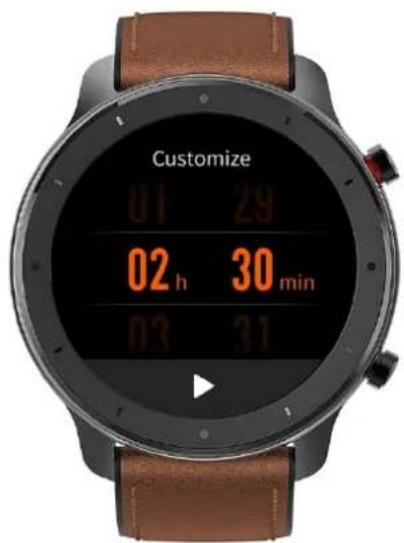
text_image
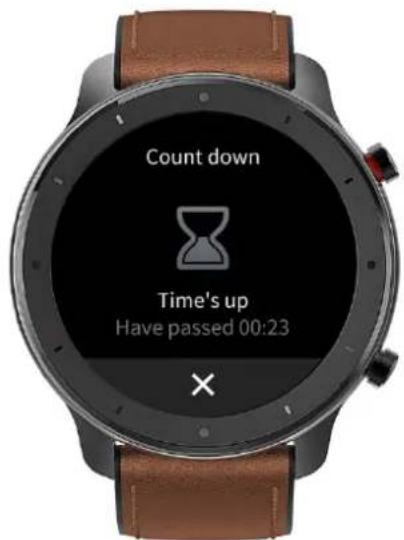
Customize 01 29 02 h 30 min 03 31You can suspend, resume or stop the count down function anytime when it operates. When time's up, the watch will vibrate to remind you. You can close the count down function by tapping the "×" button at the bottom.
text_image
Count down Time's up Have passed 00:23Find Device
Amazfit GTR supports finding the device via the Bluetooth. To enable this function, slide up the app list on the watch face page and tap the find device function.
• To activate the find device function, you need to keep the Amazfit App running and ensure the watch is connected to the mobile phone. Otherwise the function is not available.
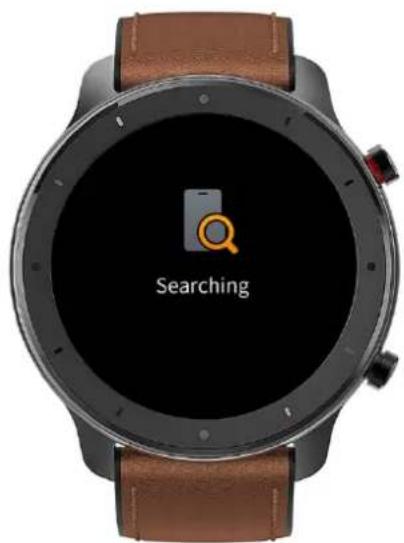
• On the find page, the watch will automatically find the device. If no device is found after 60s.
a failure prompt will display and then you can try again.
- When found, the mobile phone will beep. You can close the ring on the mobile phone by tapping the tip button on the watch. Meanwhile, the mobile phone will produce a message on the notification bar. Tapping the message can draw back the Amazfit App and close the ring on the mobile phone.
Notes: If you wish to use the find device function anytime, you can include the Amazfit App into the built-in self-starting whitelist and keep it running in the background. In addition, the watch is required to be connected to the mobile phone, otherwise it is unable to find the mobile phone.
text_image
SearchingCompass/Air Pressure/Altitude
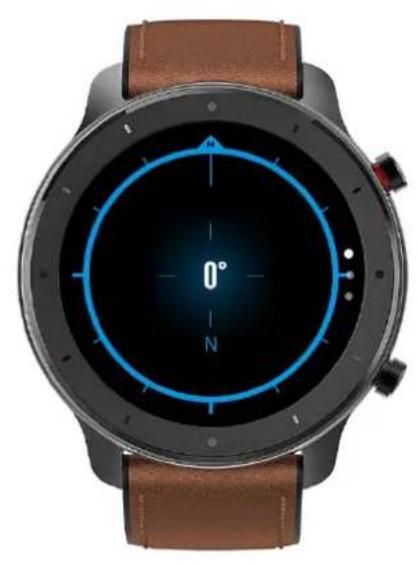
Amazfit GTR supports the compass function. When the compass page opens, the watch automatically detects the current orientation and degree. If needed, you can wear the watch and calibrate the compass by filling out that circle with figure 8 movements in the air, until the watch vibrates. Then the compass function can be reused.
natural_image
Top-down view of a smartwatch with blue compass rose and cardinal direction indicators (N, 0°) on the dial, no readable text or symbols beyond directional markers.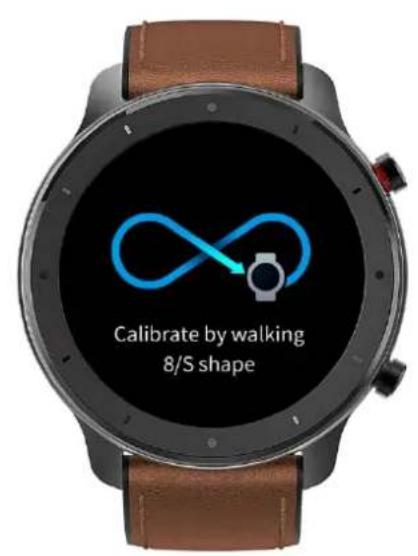
text_image
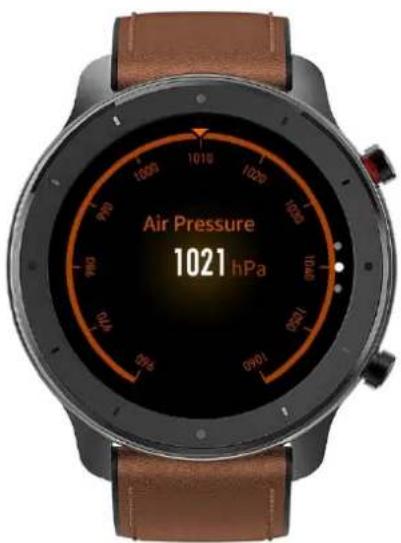
Calibrate by walking 8/S shapeSliding up on the compass page can enable you to enter the atmospheric pressure page. The barometer on the watch displays the current air pressure in real time.
text_image
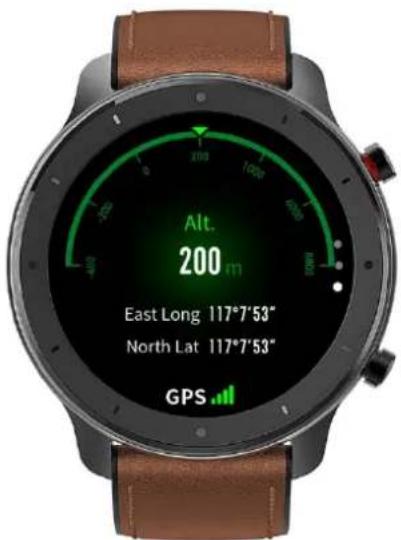
Air Pressure 1021 hPaSliding up on the air pressure page can enable you to enter the altitude page. The altitude requires double calibration of watch barometer and GPS. If you want more accurate altitude data, try to get the satellite positioning in an open area as soon as possible.
text_image
Alt. 200 m East Long 117°7'53" North Lat 117°7'53" GPSSettings
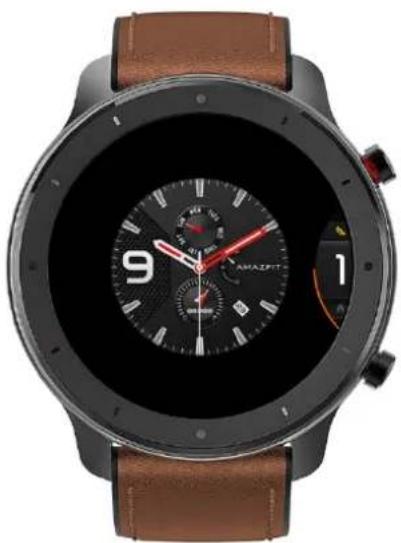
The watch settings page includes some watch settings and built-in control functions. Watch face settings: You can quickly switch between watch faces.
natural_image
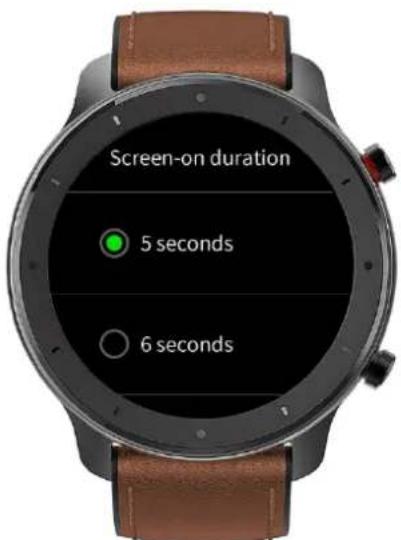
Top-down view of a modern smartwatch with black bezel, brown leather strap, and digital clock display (no readable text or symbols)Screen-on duration: You can control the screen-on duration of the watch for 8s (by default) to 15s (max).
text_image
Screen-on duration 5 seconds 6 secondsQuick start: You can short press the button on the bottom right to quickly start one watch function (by default, workout list).
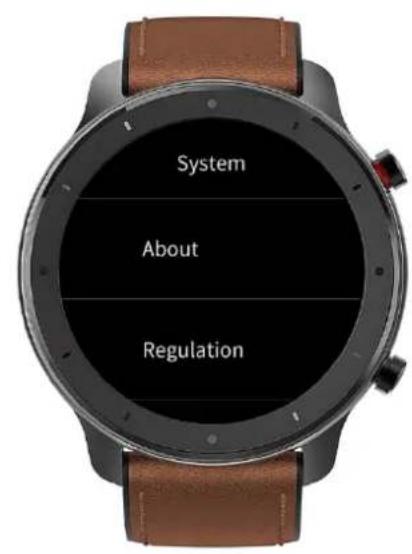
System: It supports viewing the firmware version and regulatory information, and controlling the actions of closing and rebooting the watch and performing the factory reset.
text_image
System About Regulation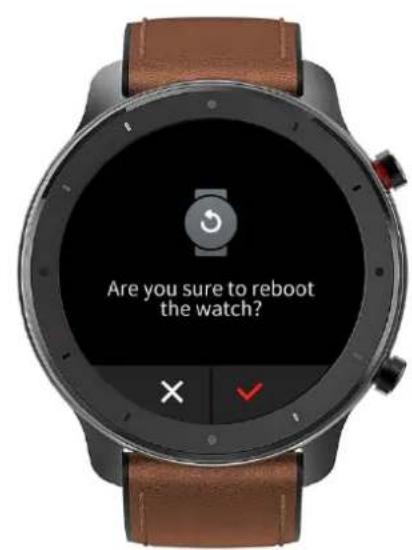
text_image
Are you sure to reboot the watch?Workout Function
Amazfit GTR supports twelve workout types: Outdoor running, Walking, Outdoor cycling, Treadmill, Indoor cycling, Pool swim, Open water swim, Elliptical trainer, Climb, Trail run, Skiing, and Exercise. And the workout types like Outdoor running, Walking, Outdoor cycling, Open water swim, Climb, Trail run, and Skiing support recording GPS-enabled workout tracks.
text_image
80% Remaining 11 h Outdoor running Walking TreadmThere are two approaches to enabling the workout function on the watch:
- If the workout list is set for quick start, then you can quickly enter the workout list by short pressing the button on the bottom right on the watch face page. By default, the last workout type displays.
- Sliding up on the watch face page and choosing "Workout" can enable you to enter the workout list page and choose the workout you want to start.
Workout Positioning
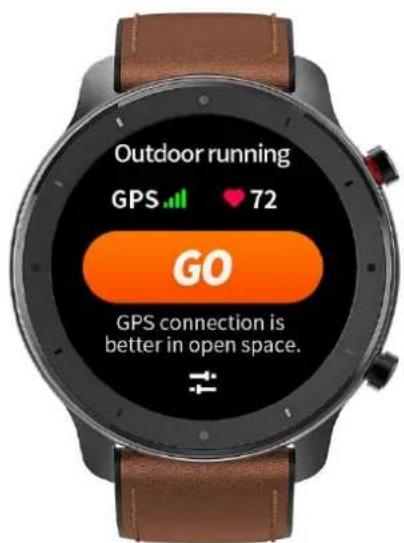
If you choose to start Outdoor running, you'd better go to the open area before workouts, which is conducive to rapid GPS positioning.
text_image
Outdoor running GPS 72 GO GPS connection is better in open space.If it takes a long time to process positioning, it may be because the buildings nearby block satellite signals, or because the watch is disconnected to the App for a long time, causing the AGPS to be not upgraded. You can open the Amazfit App, connect it to the watch, and try again after the AGPS is updated.
It is recommended to ensure GPS positioning is processed successfully before the outdoor workout. If you start the workout during positioning, the workout track cannot be recorded and the recorded workout data will not be accurate.
After GPS positioning is processed successfully, the "GO" icon will be lit up and you can tap it to start the workout.
During Workouts
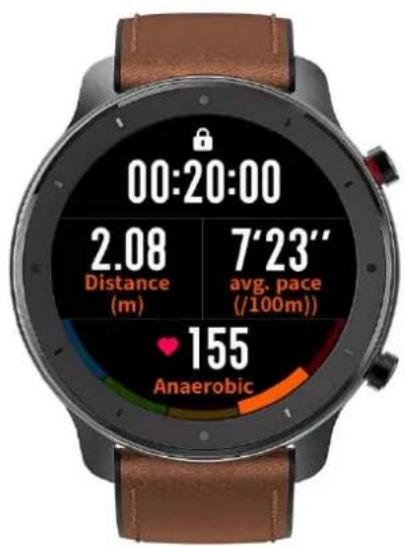
During workouts, the watch will display the current workout data in real time, such as time, distance, pace/speed, and heart rate. After the watch screen goes off, the screen can be lit up again by lifting the wrist or touching the screen.
Sliding right during workouts can enable you to view the time, date, and watch power.
text_image
00:20:00 2.08 Distance (m) 7'23'' avg. pace (/100m)) 155 Anaerobic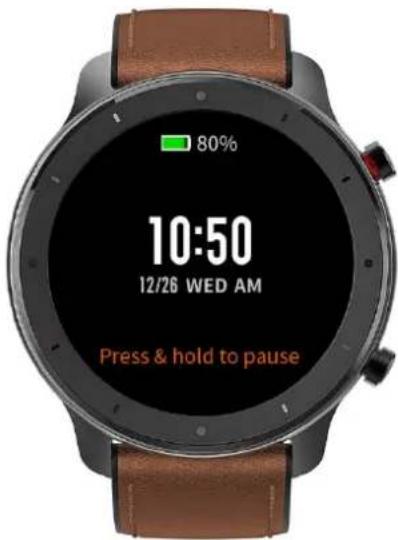
text_image
80% 10:50 12/26 WED AM Press & hold to pauseSwimming
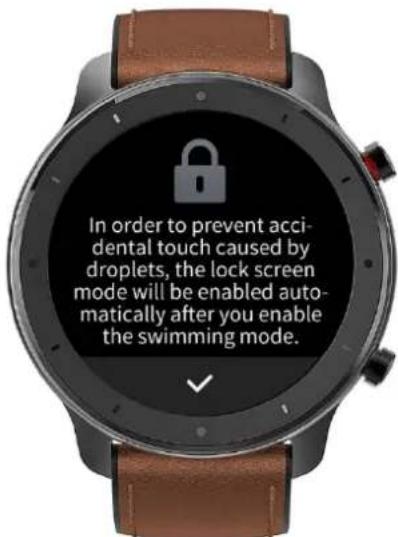
With the swimming workout enabled, the watch will automatically lock the screen to avoid water drops interfering with the screen display during the workout. To unlock the screen, you can short press any button on the watch, and the screen will be locked again after the watch screen goes off.
text_image
In order to prevent accidental touch caused by droplets, the lock screen mode will be enabled automatically after you enable the swimming mode.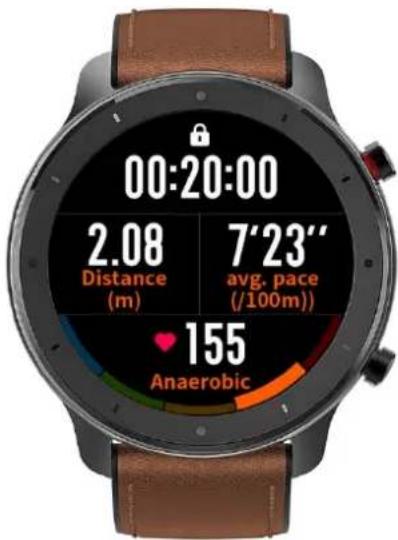
text_image
00:20:00 2.08 Distance (m) 7'23'' avg. pace (/100m)) 155 AnaerobicWorkout Reminder
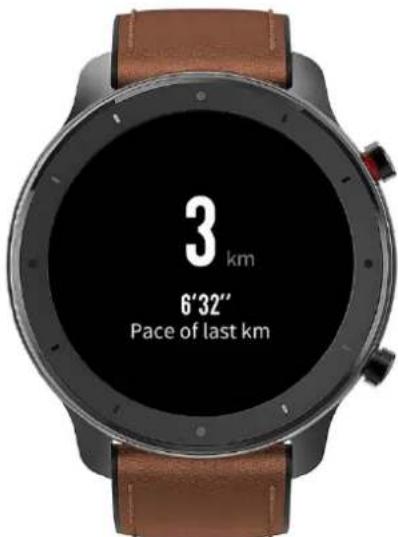
The workout reminder on the watch varies in workout type. For the workout types Running, Cycling, and Walking, the alert will be vibrated once per kilometer by default. You can also set the alerts for other workout types before workouts. See the "Workout Settings" section for more details.
text_image
3 km 6'32" Pace of last kmWorkout Pause and End
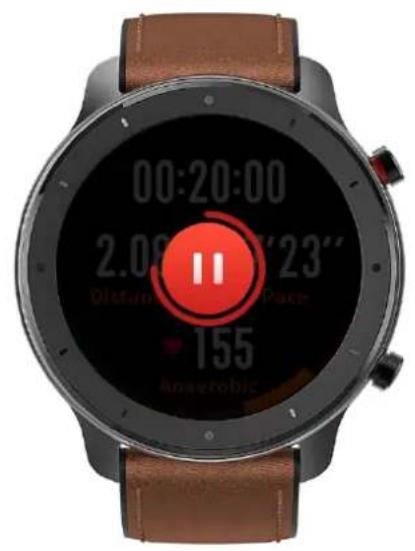
With the auto pause function on, the watch will automatically pause when the workout end is detected. When the workout resumes, the watch will automatically end the pause status and resume recording the workout performance.
Tapping any button during a workout can suspend the workout.
text_image
00:20:00 2.00'23" Distance Place 155 Anaerobic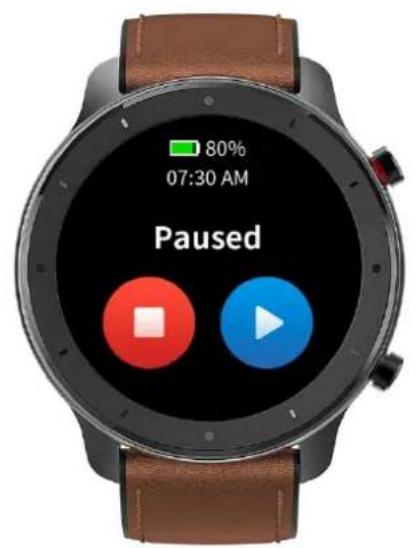
text_image
80% 07:30 AM PausedTapping the right button can cancel the pause and resume the workout.
Tapping the left button can end the current workout and save the workout performance.
Workout Settings
Before workouts, you can set some relevant functions.
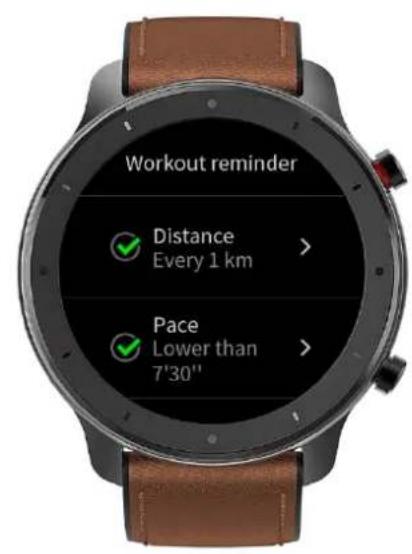
The workout goal supports three types: mileage, duration, and calories. When the set goal is achieved, the watch will vibrate to remind you.
text_image
Workout reminder Distance Every 1 km > Pace Lower than 7'30"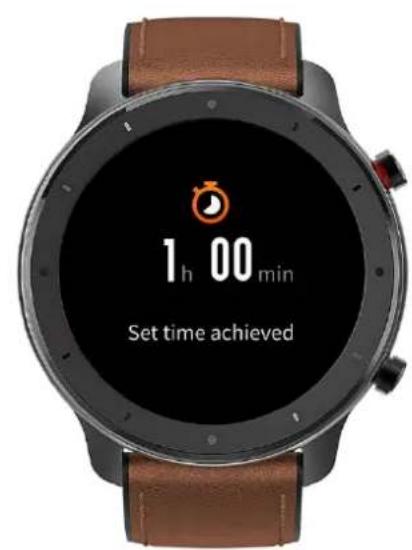
text_image
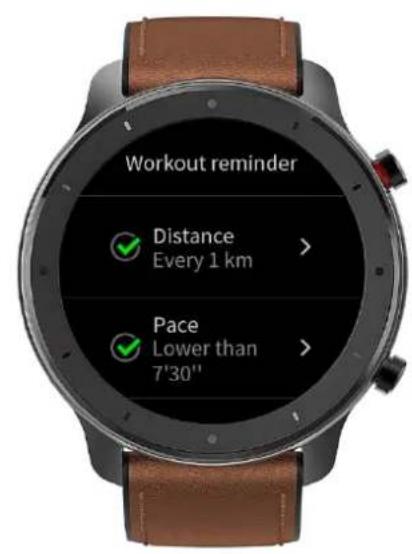
1 h 00 min Set time achievedThe workout reminder supports five types: distance, pace, safe heart rate, heart rate zone, and pace. With a reminder set, the watch will vibrate to remind you as long as the set value is reached during workouts.
text_image
Workout reminder Distance Every 1 km > Pace Lower than 7'30"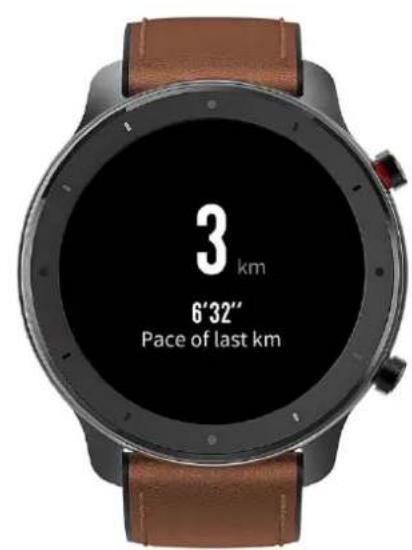
text_image
3 km 6'32" Pace of last kmWith the auto pause on, the watch will automatically detect the workout status. When the workout is stopped, the watch will automatically suspend the current exercise. And the watch will re-record the data when the workout is resumed.
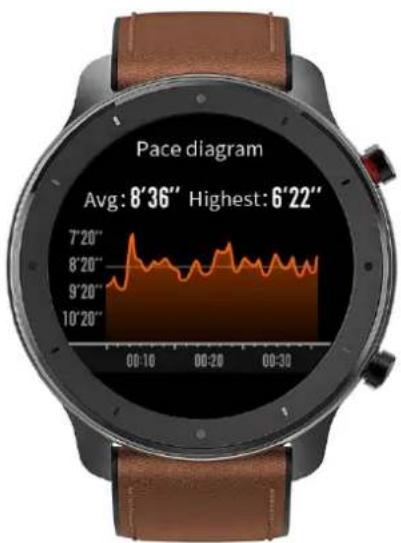
The real-time diagram supports demonstrating the real-time heart rate and pace. With the real-time diagram on, a curve is drawn for the fluctuations of the heart rate or pace during workouts.
text_image
Pace diagram Avg: 8'36" Highest: 6'22" 7'20" 8'20" 9'20" 10'20" 00:10 00:20 00:30Notes: Some workout types don't support the above four settings. The settings might slightly vary in workout type.