
Plus - Tablet ALCATEL - Free user manual and instructions
Find the device manual for free Plus ALCATEL in PDF.


| Product Type | 2-in-1 detachable tablet with keyboard |
| Model | Alcatel Plus 10 (8085) |
| Operating System | Windows 10 |
| Display | 10.1-inch touchscreen (estimated) |
| Processor | Intel Atom (estimated) |
| RAM | 2 GB (estimated) |
| Storage | 32 GB or 64 GB eMMC, expandable via microSD |
| Cameras | Front 2 MP, Rear 5 MP |
| Connectivity | Wi-Fi 802.11 b/g/n, Bluetooth 4.0, 3G/4G LTE (optional via keyboard), Micro HDMI, Micro USB |
| Battery (Tablet) | Li-Polymer, non-removable, capacity estimated 6000 mAh |
| Battery (Keyboard) | Li-Polymer, non-removable, capacity estimated 3000 mAh |
| Charging | 5V/3A via micro USB; supports charging through keyboard dock |
| Dimensions (Tablet) | Approximately 260 x 175 x 10 mm |
| Weight (Tablet + Keyboard) | Approximately 1.2 kg |
| Operating Temperature | 0°C to 45°C (charging 0°C to 40°C) |
| SAR (Head/Body) | 1.300 W/kg (tablet), 0.609 W/kg (tablet + keyboard) |
| Safety Features | Hearing protection warning, magnetic interference warning, battery safety instructions |
| Maintenance | Keep clean and dry; avoid extreme temperatures; do not disassemble |
| Warranty | 12 months for tablet, 6 months for keyboard and accessories |
Frequently Asked Questions - Plus ALCATEL
User questions about Plus ALCATEL
0 question about this device. Answer the ones you know or ask your own.
Ask a new question about this device
Download the instructions for your Tablet in PDF format for free! Find your manual Plus - ALCATEL and take your electronic device back in hand. On this page are published all the documents necessary for the use of your device. Plus by ALCATEL.
USER MANUAL Plus ALCATEL
Information in this document, including URL and other Internet website references, may change without notice.
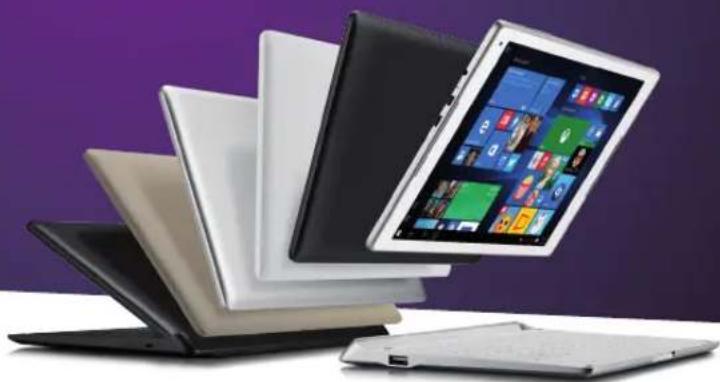
natural_image
Stacked tablet devices with a central screen showing app icons, displayed against a purple background (no text or symbols visible)Table of Contents
Safety information for tablet 3
Warranty for tablet 13
Safety information for keyboard....15
Warranty for keyboard....20
1 Getting started....21
1.1 Appearance 21
1.2 Charging the tablet and keyboard....23
1.3 Inserting microSD and SIM cards....24
1.4 Mode switchover 25
1.5 Projecting to a larger display....26
1.6 Accounts and signing in.... 29
2 Getting to know Windows 10....30
2.1 Go to Start 30
2.2 Action center 31
2.3 Search....32
2.4 Task view and virtual desktops 34
2.5 OneDrive 35
2.6 Cameras and other related apps 36
2.7 Mail....39
2.8 Microsoft Edge 43
2.9 Settings....45
2.10 Other apps on your Plus10 46
3 Working with the keyboard....48
3.1 Folding your tablet....48
3.2 Touchpad gestures....48
3.3 3G/4G button 50
3.4 Keyboard indicators....50
3.5 Connecting to a keyboard hotspot....52
3.6 Keyboard setup 53
4 Troubleshooting....61

www.sar-tick.com
alcatel
This device meets applicable national SAR limits of 2.0 W/kg. SAR values can be found on pages 8 and 16 of this user guide. When carrying the devices or using them while worn on your body, either use an approved accessory such as a holster or otherwise maintain a distance of 0 mm from the body to ensure compliance with RF exposure requirements. Note that the product may be transmitting even if you are not using it.
PROTECT YOUR HEARING
To prevent possible hearing damage, do not listen at high volume levels for long periods. Exercise caution when holding your device near your ear while the loudspeaker is in use.
The tablet contains magnets which may interfere with other devices and items (such as credit card, pacemakers, defibrillators, etc.). Please maintain at least 15 cm of separation between your tablet and the devices/items mentioned above.
Safety information for tablet
Safety and use
We recommend that you read this chapter carefully before using your device. The manufacturer disclaims any liability for damage, which may result as a consequence of improper use or use contrary to the instructions contained herein.
- TRAFFIC SAFETY
Given that studies show that using a device while driving a vehicle constitutes a real risk, even when the hands-free kit is used (car kit, headset...), drivers are requested to refrain from using their device when the vehicle is not parked.
When driving, do not use your device or headphone to listen to music or to the radio. Using a headphone can be dangerous and forbidden in some areas. When switched on, your device emits electromagnetic waves that can interfere with the vehicle's electronic systems such as ABS anti-lock brakes or airbags. To ensure that there is no problem:
- Do not place your device on top of the dashboard or within an airbag deployment area,
- Check with your car dealer or the car manufacturer to make sure that the dashboard is adequately shielded from device RF energy.
• CONDITIONS OF USE
You are advised to switch off the device from time to time to optimize its performance.
Switch the device off before boarding an aircraft.
Switch the device off when you are in healthcare facilities, except in designated areas. As with many other types of equipment now in regular use, these devices can interfere with other electrical or electronic devices, or equipment using radio frequencies.
Switch the device off when you are near gas or flammable liquids. Strictly obey all signs and instructions posted in a fuel depot, petrol station, or chemical plant, or in any potentially explosive atmosphere.
When the device is switched on, it should be kept at least 15 cm from any medical device such as a pacemaker, a hearing aid or insulin pump, etc. In particular when using the device, you should hold it against the ear on the opposite side to the device, if any.
To avoid hearing impairment, move the device away from your ear while using the "hands-free" mode because the amplified volume might cause hearing damage.
Do not let children use the device and/or play with the device and accessories without supervision.
Please note that your device is a unibody device, the back cover and battery are not removable. Do not attempt to disassemble your device. If you disassemble your device the warranty will not apply. Also disassembling the device may damage the battery, and may cause leakage of substances that could create an allergic reaction.
Always handle your device with care and keep it in a clean and dust-free place. Do not allow your device to be exposed to adverse weather or environmental conditions (moisture, humidity, rain, infiltration of liquids, dust, sea air, etc.). The manufacturer's recommended operating temperature range is -0°C to +45°C.
At over 45°C the legibility of the device's display may be impaired, though this is temporary and not serious.
Do not open, dismantle or attempt to repair your device yourself.
Do not drop, throw or bend your device.
Do not use the device if the glass made screen is damaged, cracked or broken to avoid any injury.
Do not paint it.
Use only battery chargers and accessories which are recommended by TCL Communication Ltd. and its affiliates and are compatible with your device model. TCL Communication Ltd. and its affiliates disclaim any liability for damage caused by the use of other chargers or accessories.
Remember to make back-up copies or keep a written record of all important information stored in your device.
Some people may suffer epileptic seizures or blackouts when exposed to flashing lights, or when playing video games. These seizures or blackouts may occur even if a person never had a previous seizure or blackout. If you have experienced seizures or blackouts, or if you have a family history of such occurrences, please consult your doctor before playing video games on your device or enabling a flashing-lights feature on your device.
Parents should monitor their children's use of video games or other features that incorporate flashing lights on the device. All persons should discontinue use and consult a doctor if any of the following symptoms occur: convulsion, eye or muscle twitching, loss of awareness, involuntary movements, or disorientation. To limit the likelihood of such symptoms, please take the following safety precautions:
- Do not play or use a flashing-lights feature if you are tired or need sleep.
- Take a minimum of a 15-minute break hourly.
- Play in a room in which all lights are on.
- Play at the farthest distance possible from the screen.
- If your hands, wrists, or arms become tired or sore while playing, stop and rest for several hours before playing again.
- If you continue to have sore hands, wrists, or arms during or after playing, stop the game and see a doctor.
When you play games on your device, you may experience occasional discomfort in your hands, arms, shoulders, neck, or other parts of your body. Follow the instructions to avoid problems such as tendinitis, carpal tunnel syndrome, or other musculoskeletal disorders.
Sometimes your screen may be temporarily blank in case of electrostatic discharge which may potentially damage your device.
To restore your screen, please press the Power button. The screen should be restored shortly.
- PRIVACY
Please note that you must respect the laws and regulations in force in your jurisdiction or other jurisdiction(s) where you will use your device regarding taking photographs and recording sounds with your device. Pursuant to such laws and regulations, it may be strictly forbidden to take photographs and/or to record the voices of other people or any of their personal attributes, and duplicate or distribute them, as this may be considered to be an invasion of privacy. It is the user's sole responsibility to ensure that prior authorization be obtained, if necessary, in order to record private or confidential conversations or take a photograph of another person; the manufacturer, the seller or vendor of your device (including the operator) disclaim any liability which may result from the improper use of the device.
Please note by using the device some of your personal data may be shared with the main device. It is under your own responsibility to protect your own personal data, not to share with it with any unauthorized devices or third party devices connected to yours. For products with Wi-Fi features, only connect to trusted Wi-Fi networks. Also when using your product as a hotspot (where available), use network security. These precautions will help prevent unauthorized access to your device. Your product can store personal information in various locations including a SIM card, memory card, and built-in memory. Be sure to remove or clear all personal information before you recycle, return, or give away your product. Choose your apps and updates carefully, and install from trusted sources only. Some apps can impact your product's performance and/or have access to private information including account details, call data, location details and network resources.
Note that any data shared with TCL Communication Ltd. is stored in accordance with applicable data protection legislation. For these purposes TCL Communication Ltd. implements and maintains appropriate technical and organizational measures to protect all personal data, for example against unauthorized or unlawful processing and accidental loss or destruction of or damage to such personal data whereby the measures shall provide a level of security that is appropriate having regard to
(i) the technical possibilities available,
(ii) the costs for implementing the measures.
(iii) the risks involved with the processing of the personal data, and
(iv) the sensitivity of the personal data processed.
You can access, review and edit your personal information at any time by logging into your user account, visiting your user profile or by contacting us directly. Should you require us to edit or delete your personal data, we may ask you to provide us with evidence of your identity before we can act on your request.
• BATTERY
Following new air regulation, the battery of your product is not charged. Please charge it first.
Observe the following precautions for battery use:
- Do not attempt to open the back cover and replace the inner rechargeable Li-polymer battery. Please contact the dealer to replace it.
- Do not attempt to eject, replace and open battery.
Do not punctuate the back cover of your device. - Do not burn or dispose of your device in household rubbish or store it at temperature above 50°C.
- Dispose of used batteries according to the instructions. Risk of explosion if battery replaced by an incorrect type.
This symbol on your device, the battery and the accessories means that these products must be taken to collection points at the end of their life:
- Municipal waste disposal centers with specific bins for these items of equipment.
- Collection bins at points of sale.
They will then be recycled, preventing substances being disposed of in the environment, so that their components can be reused.
In European Union countries:
These collection points are accessible free of charge.
All products with this sign must be brought to these collection points.
In non-European Union jurisdictions:
Items of equipment with this symbol are not to be thrown into ordinary bins if your jurisdiction or your region has suitable recycling and collection facilities; instead they are to be taken to collection points for them to be recycled.
- CHARGERS
Mains powered chargers will operate within the temperature range of 0°C to 40°C.
The chargers designed for your device meet with the standard for safety of information technology equipment and office equipment use. They are also compliant to the eco design directive 2009/125/EC. Due to different applicable electrical specifications, a charger you purchased in one jurisdiction may not work in another jurisdiction. They should be used for this purpose only.
The charger shall be installed near the equipment and shall be easily accessible.
Radio waves
THIS DEVICE MEETS INTERNATIONAL GUIDELINES FOR EXPOSURE TO RADIO WAVES
Your device is a radio transmitter and receiver. It is designed not to exceed the limits for exposure to radio waves (radio frequency electromagnetic fields) recommended by international guidelines. The guidelines were developed by an independent scientific organization (ICNIRP) and include a substantial safety margin designed to assure the safety of all persons, regardless of age and health. The radio wave exposure guidelines use a unit of measurement known as the Specific Absorption Rate, or SAR. The SAR limit for mobile devices is 2 W/kg.
Tests for SAR are conducted using standard operating positions with the device transmitting at its highest certified power level in all tested frequency bands. The highest SAR value under the ICNIRP guidelines for this device model is:
| Maximum SAR for this model and conditions under which it was recorded: | |
| 8085 (Body-worn) 1.300 W/kg | |
During use, the actual SAR values for this device are usually well below the values stated above. This is because, for purposes of system efficiency and to minimize interference on the network, the operating power of your device is automatically decreased when full power is not needed. The lower the power output of the device, the lower its SAR value.
Body-worn SAR testing has been carried out at a separation distance of 0 mm. To meet RF exposure guidelines during body-worn operation, the device should be positioned at least this distance away from the body.
If you are not using an approved accessory, ensure that whatever product is used is free of any metal and that it positions the device the indicated distance away from the body.
Organizations such as the World Health Organization and the US Food and Drug Administration have suggested that if people are concerned and want to reduce their exposure they could use a hands-free accessory to keep the wireless device away from the head or body during use, or reduce the amount of time spent on the device.
Licences

microSD Logo is a trademark.

The Bluetooth word mark and logos are owned by the Bluetooth SIG, Inc. and any use of such m arks by TCL Communication Ltd. and its affiliates is under license. Other trademarks and trade names are those of their respective owners.
8085 Bluetooth Declaration ID D030870

The Wi-Fi Logo is a certification mark of the Wi-Fi Alliance.
Your device uses non-harmonized frequency and is intended for use in all European countries.
The WLAN can be operated in the EU without restriction indoors, but cannot be operated outdoors in France.
We hereby point out that the end user warranty for infringement IPR is solely limited to the EU.
If and to the extent that the Product is exported, taken with or used by end customer or end user outside the EU any responsibility, warranty or indemnification of manufacturer and its suppliers in regard to the Product expires (including any indemnification in regard to infringement IPR).
Regulatory information
The following approvals and notices apply in specific regions as noted.
TCTMobile
TCT Mobile Europe SAS
3) Artio (2015 Europe, 407000)
423 4016 4100
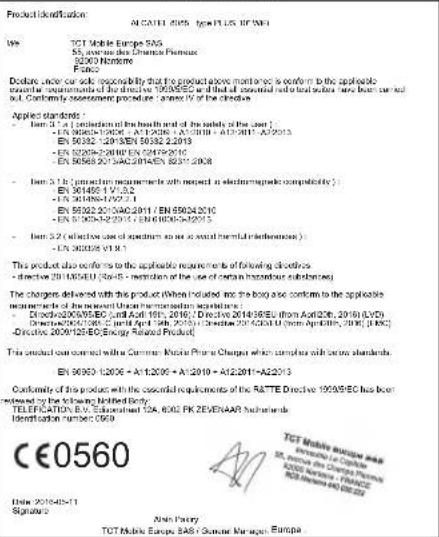
EC declaration of conformity
- Hotline Number: see "TCL Communication Services" leaflet or go to our website.
• Manufacturer: TCL Communication Ltd.
- Address: Room 1910-12A, Tower 3, China HK City, 33 Canton Road, Tsimshatsui, Kowloon, Hong Kong
On our website, you will find our FAQ (Frequently Asked Questions) section. You can also contact us by e-mail to ask any questions you may have.
An electronic version of this user guide is available in English and other languages according to availability on our server: www.alcatel-mobile.com
Your device is a transceiver that operates on Wi-Fi and Bluetooth with 2.4GHz.
C€0560
This equipment is in compliance with the essential requirements and other relevant provisions of Directive 1999/5/EC, 2011/65/EU and 2009/125/EC. The entire copy of the Declaration of Conformity for your device can be obtained through our website: www.alcatel-mobile.com.
- Disclaimer
There may be certain differences between the user manual description and the device's operation, depending on the software release of your device or specific operator services.
TCL Communication shall not be held legally responsible for such differences, if any, nor for their potential consequences, which responsibility shall be borne by the operator exclusively.
This device may contain materials, including applications and software in executable or source code form, which is submitted by third parties for inclusion in this device ("Third Party Materials").
All third party materials in this device are provided "as is", without warranty of any kind, whether express or implied, including the implied warranties of merchantability, fitness for a particular purpose or use/third party application, interoperability with other materials or applications of the purchaser and non-infringement of copyright. The purchaser undertakes that TCL Communication has complied with all quality obligations incumbent upon it as a manufacturer of mobile devices and devices in complying with Intellectual Property rights. TCL Communication will at no stage be responsible for the inability or failure of the Third Party Materials to operate on this device or in interaction with any other devices of the purchaser. To the maximum extent permitted by law, TCL Communication disclaims all liability for any claims, demands, suits or actions, and more specifically - but not limited to - tort law actions, under any theory of liability, arising out of the use, by whatever means, or attempts to use, such Third Party Materials. Moreover, the present Third Party Materials, which are provided free of charge by TCL Communication, may be subject to paid updates and upgrades in the future; TCL Communication waives any responsibility regarding such additional costs, which shall be borne exclusively by the purchaser. The availability of the applications may vary depending on the countries and the operators where the device is used;
in no event shall the list of possible applications and software provided with the devices be considered as an undertaking from TCL Communication; it shall remain merely as information for the purchaser. Therefore, TCL Communication shall not be held responsible for the lack of availability of one or more applications wished for by the purchaser, as its availability depends on the country and the operator of the purchaser. TCL Communication reserves the right at any time to add or remove Third Party Materials from its devices without prior notice; in no event shall TCL Communication be held responsible by the purchaser for any consequences that such removal may have on the purchaser regarding the use or attempt to use such applications and Third Party Materials.
Warranty for tablet
Your device is warranted against any defect or malfunctioning which may occur in conditions of normal use during the warranty period of twelve (12) months (1) from the date of purchase as shown on your original invoice.
Batteries (2) and accessories sold with your device are also warranted against any defect which may occur during the first six (6) months (1) from the date of purchase as shown on your original invoice.
In case of any defect of your device which prevents you from normal use thereof, you must immediately inform your vendor and present your device with your proof of purchase.
(1) The warranty period may vary depending on your country.
(2) The life of a rechargeable mobile device battery in terms of conversation time standby time, and total service life, will depend on the conditions of use and network configuration. Batteries being considered expendable supplies, the specifications state that you should obtain optimal performance for your device during the first six months after purchase and for approximately 200 more recharges.
If the defect is confirmed, your device or part thereof will be either replaced or repaired, as appropriate. Repaired device and accessories are entitled to a one (1) month warranty for the same defect. Repair or replacement may be carried out using reconditioned components offering equivalent functionality.
This warranty covers the cost of parts and labor but excludes any other costs.
This warranty shall not apply to defects to your device and/or accessory due to (without any limitation):
1) Non-compliance with the instructions for use or installation, or with technical and safety standards applicable in the geographical area where your device is used;
2) Connection to any equipment not supplied or not recommended by TCL Communication Ltd.;
3) Modification or repair performed by individuals not authorised by TCL Communication Ltd. or its affiliates or your vendor;
4) Modification, adjustment or alteration of software or hardware performed by individuals not authorized by TCL Communication Ltd.;
5) Inclement weather, lightning, fire, humidity, infiltration of liquids or foods, chemical products, download of files, crash, high voltage, corrosion, oxidation...
Your device will not be repaired in case labels or serial numbers (IMEI/SN) have been removed or altered.
There are no express warranties, whether written, oral or implied, other than this printed limited warranty or the mandatory warranty provided by your country or jurisdiction.
In no event shall TCL Communication Ltd. or any of its affiliates be liable for indirect, incidental or consequential damages of any nature whatsoever, including but not limited commercial or financial loss or damage, loss of data or loss of image to the full extent those damages can be disclaimed by law.
Some countries/states do not allow the exclusion or limitation of indirect, incidental or consequential damages, or limitation of the duration of implied warranties, so the preceding limitations or exclusions may not apply to you.
Safety information for keyboard
Battery
Following new air regulation, the battery of your product is not charged. Please charge it first.
Observe the following precautions for battery use:
- Do not attempt to open the back cover and replace the inner rechargeable Li-polymer battery. Please contact the dealer to replace it.
- Do not attempt to eject, replace and open battery.
- Do not punctuate the back cover of your device.
- Do not burn or dispose of your device in household rubbish or store it at temperature above 50°C.
- Dispose of used batteries according to the instructions. Risk of explosion if battery replaced by an incorrect type.
This symbol on your device, the battery and the accessories means that these products must be taken to collection points at the end of their life:
- Municipal waste disposal centers with specific bins for these items of equipment.
- Collection bins at points of sale.
They will then be recycled, preventing substances being disposed of in the environment, so that their components can be reused.
In European Union countries:
These collection points are accessible free of charge.
All products with this sign must be brought to these collection points.
In non-European Union jurisdictions:
Items of equipment with this symbol are not to be thrown into ordinary bins if your jurisdiction or your region has suitable recycling and collection facilities; instead they are to be taken to collection points for them to be recycled.
Chargers
Mains powered chargers will operate within the temperature range of 0^ C to 40^ C.
The chargers designed for your device meet with the standard for safety of information technology equipment and office equipment use. They are also compliant to the eco design directive 2009/125/EC. Due to different applicable electrical specifications, a charger you purchased in one jurisdiction may not work in another jurisdiction. They should be used for this purpose only.
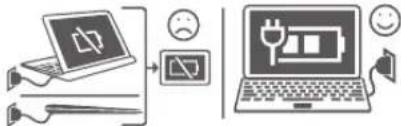
The charger shall be installed near the equipment and shall be easily accessible. When charging the tablet or keyboard, use Alcatel-standard charger (5V/3A) and USB cable that come out of the box.
Please note well:
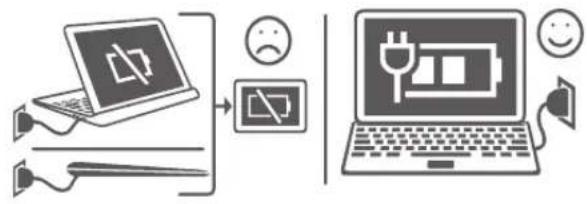
In case you want to charge the tablet from the micro USB port placed on the keyboard, the tablet must be correctly docked on the keyboard in laptop mode.
flowchart
graph LR
    A["Device 1"] --> B["Device 2"]
    B --> C["Device 3"]
    C --> D["Device 4"]
    D --> E["Device 5"]
    E --> F["Device 6"]
    F --> G["Device 7"]
    G --> H["Device 8"]
    H --> I["Device 9"]
    I --> J["Device 10"]
    style A fill:#f9f,stroke:#333
    style B fill:#f9f,stroke:#333
    style C fill:#f9f,stroke:#333
    style D fill:#f9f,stroke:#333
    style E fill:#f9f,stroke:#333
    style F fill:#f9f,stroke:#333
    style G fill:#f9f,stroke:#333
    style H fill:#f9f,stroke:#333
    style I fill:#f9f,stroke:#333
    style J fill:#f9f,stroke:#333
Radio waves
THIS DEVICE MEETS INTERNATIONAL GUIDELINES FOR EXPOSURE TO RADIO WAVES
Your device is a radio transmitter and receiver. It is designed not to exceed the limits for exposure to radio waves (radio frequency electromagnetic fields) recommended by international guidelines. The guidelines were developed by an independent scientific organization (ICNIRP) and include a substantial safety margin designed to assure the safety of all persons, regardless of age and health. The radio wave exposure guidelines use a unit of measurement known as the Specific Absorption Rate, or SAR. The SAR limit for mobile devices is 2 W/kg.
Tests for SAR are conducted using standard operating positions with the device transmitting at its highest certified power level in all tested frequency bands. The highest SAR values under the ICNIRP guidelines for this device model are:
LKB001X:
| Maximum SAR for this model and conditions under which it was recorded: | |
| LKB001X (Body-worn) 0.545 W/kg | |
LKB001X + 8085:
| Maximum SAR for this model and conditions under which it was recorded: |
| LKB001X + 8085 (Body-worn) 0.609 W/kg |
During use, the actual SAR values for this device are usually well below the values stated above. This is because, for purposes of system efficiency and to minimize interference on the network. The operating power of your device is automatically decreased when full power is not needed. The lower the power output of the device, the lower its SAR value.
Body-worn SAR testing has been carried out at a separation distance of 0 mm. To meet RF exposure guidelines during body-worn operation, the device should be positioned at least this distance away from the body.
If you are not using an approved accessory, ensure that whatever product is used is free of any metal and that it positions the device the indicated distance away from the body.
Organizations such as the World Health Organization and the US Food and Drug Administration have suggested that if people are concerned and want to reduce their exposure they could use a hands-free accessory to keep the wireless device away from the head or body during use, or reduce the amount of time spent on the device.
Regulatory information
The following approvals and notices apply in specific regions as noted.
TCTMobile
TCT Mobile Europe SAS
EC declaration of conformity
![Product Identification TCT Mobile Europe SAS 55, version 42 Chinese Finance 26/01/2016 Copyright Deluxe under car sole responsibility that the product is connected to a conform to the applicable electronic requirements of the directive: 1999/8/02 or if it is a technical red and teal solution were used. The company's device is designed to be used in the product. Applied standards: - Item 3.1 (A) [protection of the best end of the needs of the user] - EN 0030-12006 - AT 01/08 - AT 01/08 - AT 01/08 - EN 0030-22000 - EN 0030-2015AC2B1EEN 02/01-2005 - Item 3.1 (C) [protection requirements with respect to electromagnet compatibility] - EN 00148N-17 V1.07 - EN 00148N-17 V1.22 V1.07 V1.5 - EN 0030-22015AC2B1EEN 11/08/2016 - EN 0030-22014 - EN 6160-3-32013 - Item 3.2 (if useful use of quantum sensors to email 'ternal maintenance') - EN 0030-28 V1.5 - EN 0030-8-1 V1.1/2 V1.5 V1.5/2 V1.5 This product also confirms to the applicable requirements of following directions: - directive: 29.1/08/2016 (Sec-6 - restriction of the use of certain electronic requirements) The charges delivered with this product when indicated are the body and confirm to the applicable requirements of the instrument from electromagnetic instruments: - Directive:29.4/35/EB (and April 1997, 2016) Directive: 29.4/35/EB from April 2007, 2016 (Dec) - Directive:29.4/35/EB from April 2016, 2016 (Dec) Directive: 29.4/35/EB from April 2016, 2016 (Dec) - Directive: 29.4/35/EB Energy Related Product This product can be connected with a Common Mobile Phone Charge which consists with below standards: EN 0030-12006 - AT 01/08 - AT 01/09 - AT 01/2011-AE2/2013 Customity of this product with the essential requirements of the RATTTE Directive: 1999/8/02 has been referred to by the Software Foundation TELEPTICATION-EV. Subsidiaries: 56A, 60X2 PCEVEENAAI Netherlands Identification number: 2669 CE 0560 Date: 29/04/24/7 Signature: Main Party TCT Mobile Europe, SABi Government, Europe](/content/2026/05/760709/images/c98ca850e91cb8702fc8c11b80eb2be49da13e82ca28bf3bd690506a272f5986.jpg)
TCT Mio le Europa GAS - Chège social : 50 Avenue des Chemie Finance, Irretable Le Capile 22000 Nariere France 8725 31 04921 02 23 031 062 0006. HCB 4400010 5 440 126 222 - 811 1440 126 222 007 361 096- 48322.
General information
- Internet address: www.alcatel-mobile.com
- Hotline Number: see "TCL Communication Services" leaflet or go to our website.
• Manufacturer: TCL Communication Ltd.
- Address: Room 1910-12A, Tower 3, China HK City, 33 Canton Road, Tsimshatsui, Kowloon, Hong Kong
On our website, you will find our FAQ (Frequently Asked Questions) section. You can also contact us by e-mail to ask any questions you may have.
An electronic version of this user guide is available in English and other languages according to availability on our server: www.alcatel-mobile.com
Your device is a transceiver that operates on UMTS bands (850/900/1900/2100MHz) and LTE bands (B1/3/7/8/20).
C€0560
This equipment is in compliance with the essential requirements and other relevant provisions of Directive 1999/5/EC, 2011/65/EU and 2009/125/EC. The entire copy of the Declaration of Conformily for your device can be obtained through our website: www.alcatel-mobile.com
We hereby point out that the end user warranty for infringement IPR is solely limited to the EU.
If and to the extent that the Product is exported, taken with or used by end customer or end user outside the EU any responsibility, warranty or indemnification of manufacturer and its suppliers in regard to the Product expires (including any indemnification in regard to infringement IPR).
Warranty for keyboard
Your product is warranted against any defect or malfunctioning which may occur in conditions of normal use during the warranty period of six (6) months ((1)) from the date of purchase as shown on your original invoice.
In case of any defect of your product which prevents you from normal use thereof, you must immediately inform your vendor and present your product with your proof of purchase:
If the defect is confirmed, your product or part thereof will be either replaced or repaired, as appropriate. Repaired product and accessories are entitled to a one (1) month warranty for the same defect. Repair or replacement may be carried out using reconditioned components offering equivalent functionality.
This warranty covers the cost of parts and labor but excludes any other costs.
This warranty shall not apply to defects to your product and/or accessory due to (without any limitation):
1) Non-compliance with the instructions for use or installation, or with technical and safety standards applicable in the geographical area where your product is used.
2) Connection to any equipment not supplied or not recommended by TCL Communication Ltd.,
3) Modification or repair performed by individuals not authorised by TCL Communication Ltd. or its affiliates or your vendor,
4) Modification, adjustment or alteration of software or hardware performed by individuals not authorized by TCL Communication Ltd.,
5) Inclement weather, lightning, fire, humidity, infiltration of liquids or foods, chemical products, download of files, crash, high voltage, corrosion, oxidation...
Your product will not be repaired in case labels or serial numbers have been removed or altered. There are no express warranties, whether written, oral or implied, other than this printed limited warranty or the mandatory warranty provided by your country or jurisdiction.
In no event shall TCL Communication Ltd. or any of its affiliates be liable for indirect, incidental or consequential damages of any nature whatsoever, including but not limited commercial or financial loss or damage, loss of data or loss of image to the full extent those damages can be disclaimed by law. Some countries/states do not allow the exclusion or limitation of indirect, incidental or consequential damages, or limitation of the duration of implied warranties, so the preceding limitations or exclusions may not apply to you.
1 Getting started
1.1 Appearance
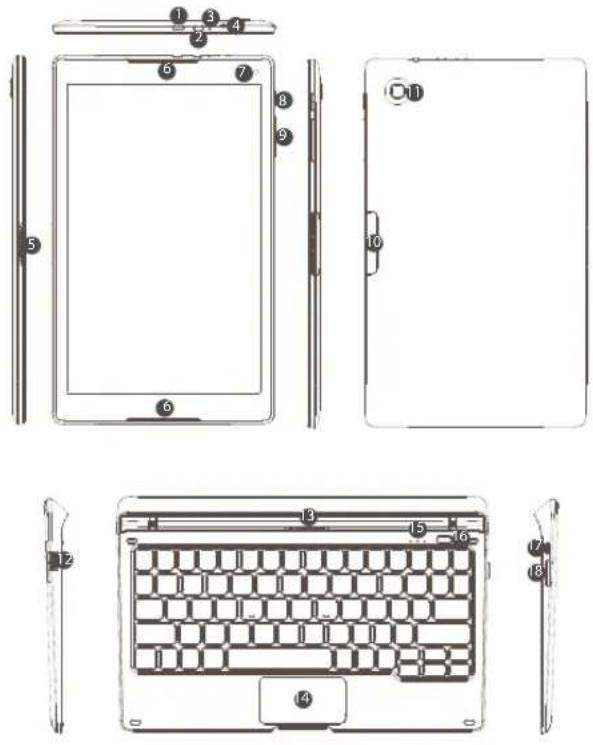
| Number Function |
| 1 Micro USB port |
| 2 Micro HDMI port |
| 3 Microphone |
| 4 Headset port |
| 5 Connectors to keyboard |
| 6 Speaker |
| 7 Front camera |
| 8 Power key |
| 9 Volume Up/Down |
| 10 microSD card slot |
| 11 Rear camera |
| 12 USB port |
| 13 Connectors to tablet |
| 14 Touchpad |
| 15 Power, Wi-Fi, and data indicators |
| 16 3G/4G button |
| 17 Micro USB port |
| 18 SIM card slot |
1.2 Charging the tablet and keyboard
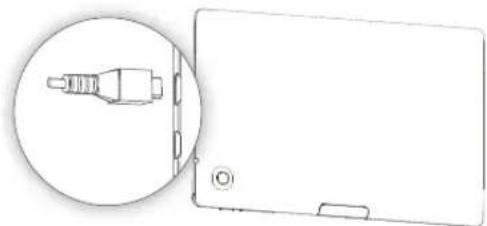
It is advisable to charge your tablet and keyboard in preparation for their first use. The micro USB port on your tablet can be used to charge the tablet directly, while that on the keyboard can charge both your tablet and keyboard.
Before charging, please note the following:
- Select the micro USB port (upper) instead of the micro HDMI port (lower).
natural_image
Diagram showing a device with a circular component and a rectangular panel, no text or symbols present.- In case you want to charge the tablet from the micro USB port placed on the keyboard, the tablet must be correctly docked on the keyboard in laptop mode.
1.3 Inserting microSD and SIM cards
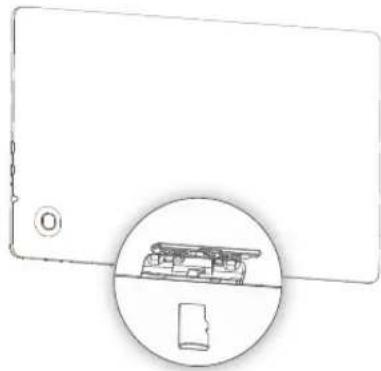
Insert the microSD card to expand your tablet's storage.
natural_image
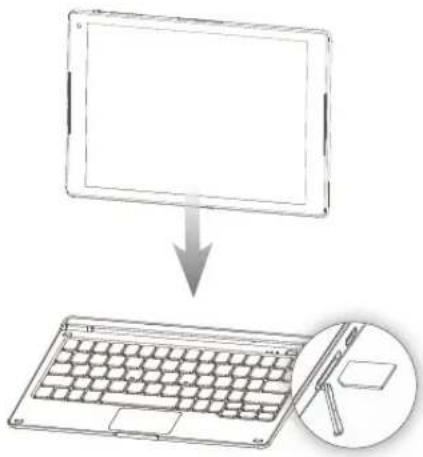
Simple line drawing of a rectangular object with a circular inset showing a mechanical component (no text or symbols)Insert a 3G/4G SIM card into the SIM card slot and dock your tablet correctly with the keyboard to start the amazing Plus10 experience.
natural_image
Line drawing of a laptop with a screen and a hand holding a pen, showing the keyboard and mouse (no text or symbols)1.4 Mode switchover
Once your tablet has started, you can choose your preferred viewing mode.
When you separate your tablet from the keyboard, it supports switchover between the landscape and portrait modes.
When you dock your tablet on the keyboard, it switches to the laptop mode.
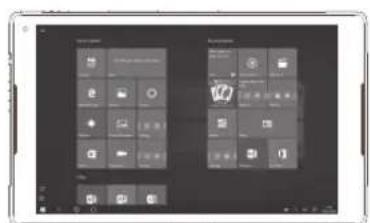
Landscape mode
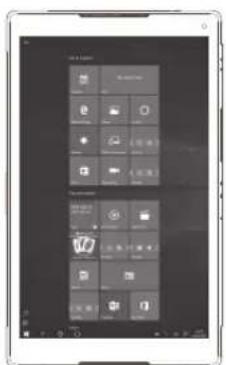
Portrait mode
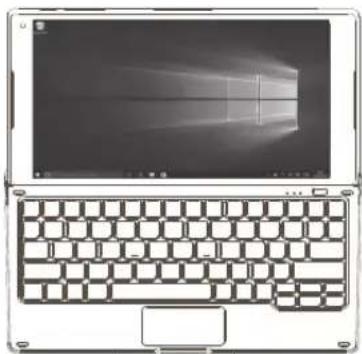
natural_image
Front view of a laptop with a checkered keyboard and Windows logo displayed on screen (no text or symbols on the keyboard)Laptop mode
1.5 Projecting to a larger display
You can project the tablet screen to a larger display like a TV. Switch to the laptop mode to make the most of this feature.
1.5.1 Use an HMDI cable
- Use an HDMI cable to interconnect the HDMI ports of the tablet and display device.
- Select Action center in the taskbar, and touch Project. Then there will be four modes available for selection: PC screen only, Duplicate, Extend, and Second screen only.
PC screen only
In this mode, the communication is interrupted between the tablet and display device. That is, contents appear only on the tablet screen.
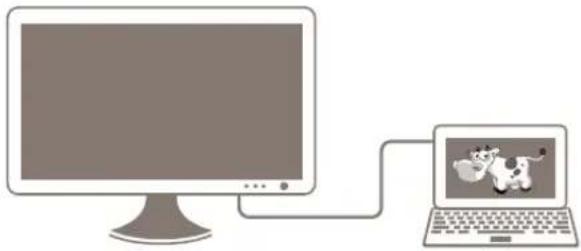
natural_image
Illustration of a computer monitor connected to a laptop displaying a cartoon cow (no text or symbols present)Duplicate
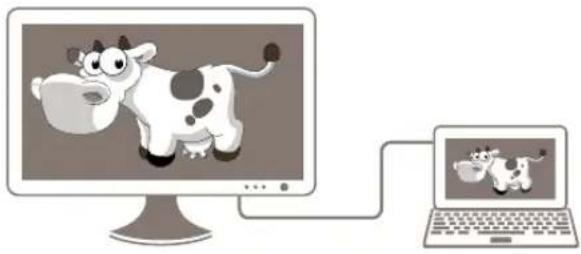
In this mode, the tablet screen is synchronized to the display screen. Operations on the tablet will be reflected on the display device in real time. You can use this mode for full presentation of contents in your tablet.
natural_image
Illustration of a cow streaming on a computer screen connected to a laptop (no text or symbols present)Extend
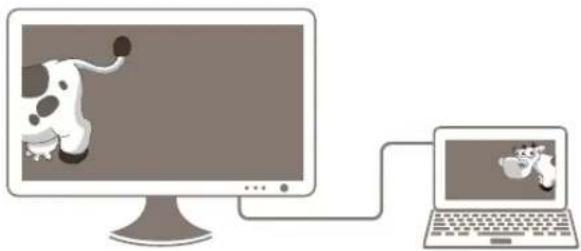
In this mode, you can share an object to the display screen by dragging it to the left edge of your tablet screen. Upon its full appearance on the display screen, you can perform further operations on the object. This mode allows you to share only the desired objects so as to be more protective of your privacy.
The dragging and operations on the display screen take effect only with a mouse or the keyboard touchpad.
natural_image
Illustration of a computer monitor connected to a laptop displaying a cartoon cow (no text or symbols present)Second screen only
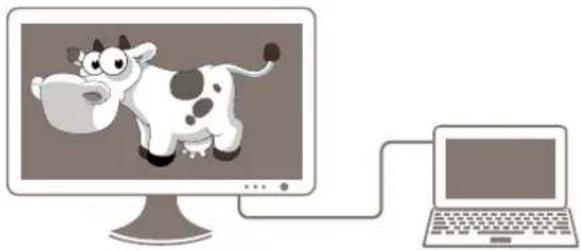
In this mode, the tablet screen turns off while its contents appear on the display screen. Upon initial switchover, you can touch Revert or wait 10 seconds to exit, or slay in this mode as long as you desire. It is advisable to use the keyboard or a mouse to perform operations on the display screen.
natural_image
Illustration of a cartoon cow on a computer monitor connected to a laptop (no text or symbols present)1.5.2 Project wirelessly
You may sometimes find your HDMI is not long enough or have other restrictions. In this case, to project wirelessly would be an ideal solution.
- Use an HDMI cable to connect a Wi-Fi display receiver to the display device.
- Select Action center in the taskbar, and touch Connect to a wireless display.
• After the Wi-Fi display receiver is searched out, touch for connection. Then the preceding projection modes will be available for selection.
1.6 Accounts and signing in
When you set up your Plus10, an account is set up for you. You can create additional accounts later for family and friends, so each person using your Plus10 can set it up just the way he or she likes.
1.6.1 Sign in
• Turn on or wake your Plus10 by pressing the power button.
- Swipe up on the screen or tap a key on the keyboard.
- If you see your account name and account picture, enter your password and select the right arrow or press Enter on your keyboard.
- If you see a different account name, select your own account from the list at the left. Then enter your password and select the right arrow or press Enter on your keyboard.
1.6.2 Sign out
Here's how to sign out:
- Go to Start and right-click your name. Then select Sign out.
2 Getting to know Windows 10
2.1 Go to Start
Select Start in the taskbar or press the Start by on your keyboard to open the Start menu.
- At the lower left of the Start menu, you'll find quick links to File Explorer, Settings, Power (shut down, sleep, and restart), and All apps.
• The apps you've used most often appear at the upper left. - Your name and profile picture appear at the top of the left side. Select them to change your account settings, lock the screen, or sign out.
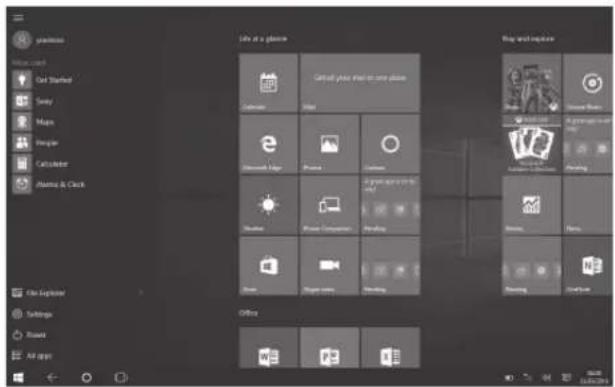
Tiles on Start acl as quick links to apps. You can rearrange, resize, add, and remove tiles whenever you want.
2.2 Action center
You can open the action center with one of the following methods:
- Swipe in from the right edge of the screen.
- Select Action center the taskbar.
- Touch the keyboard touchpad with four fingers.
- Press keys 📄A on the keyboard at the same time.
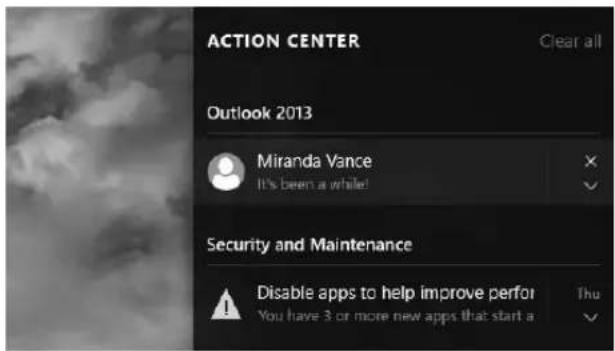
2.2.1 Notifications at a glance
If a notification has an arrow to the right, select the arrow to read more or take action—like replying to a message—without having to open the related app or other notification sender. If you don't want to take any action, clear the notification by selecting and dragging it off screen to the right, or by selecting the clear X button.
2.2.2 Take a shortcut
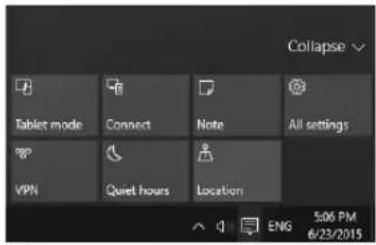
Quick actions take you right to the settings and apps you're likely to use often, from Bluetooth to brightness. When you open action center you'll see all your available quick actions. Collapse them to see only your top picks.
2.3 Search
Search is always ready for you. Just select the search box in the taskbar and enter your question. Or, go to Start and select Cortana . You can also open Cortana by touching the keyboard touchpad with three fingers.
2.3.1 Cortana
Cortana is your digital agent. She'll help you get things done. The more you use Cortana, the more personalized your experience will be. To get started, type a question in the search box, or select the microphone and talk to Cortana.
If you're not sure what to say, you'll see suggestions in Cortana home when you select the search box on the taskbar.
Here are some things Cortana can do for you:
- Give you reminders based on time, places, or people.
• Track packages, teams, interests, and flights. - Send emails and texts.
- Manage your calendar and keep you up to date.
• Create and manage lists.
• Chit chat and play games.
• Find facts, files, places, and info. - Open any app on your system.
2.4 Task view and virtual desktops
Swipe in from the left edge of the screen or select Task view ☐ from the taskbar to see all your open apps. Select an app to focus on or close an app by clicking the X in the upper-right corner of the app.
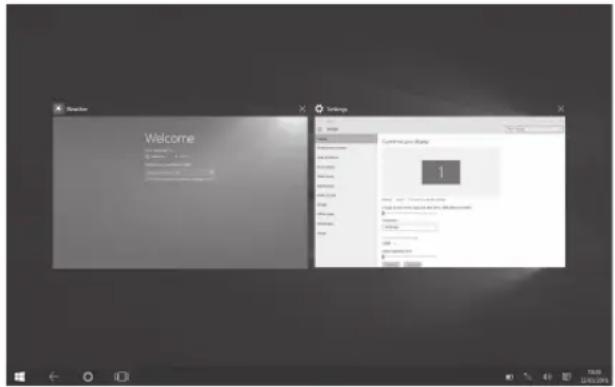
While you're in Task view, you can create a new virtual desktop by selecting New desktop in the lower-right corner. Each virtual desktop can have its own set of open apps. To switch between desktops, open Task view and select a desktop.
2.5 OneDrive
OneDrive is online storage that comes with your Microsoft account. Save your documents, photos, and other files to the OneDrive folder on your Plus10 and they'll be synced to OneDrive in the cloud whenever you have an Internet connection. The copy in the cloud is available to you from any web-connected device. If you want to, you can share some of the folders in your OneDrive with others or send someone a link to just one page.
To save space on your Plus10, you can choose not to sync some of your OneDrive folders. You can still access your files on the Internet by signing into OneDrive.com, but they won't be available in File Explorer. You can add them back at any time.
Here's how to choose which folders to sync:
- Select File Explorer in the taskbar and open the OneDrive folder.
- Right-click any folder in OneDrive and select Choose OneDrive folders to sync to produce a list of all the folders in your OneDrive account.
- Select the folders you want to sync to your Plus10 and select OK.
2.5.1 Save files you're working on to OneDrive
To save a file from a desktop app directly to OneDrive, choose OneDrive in the left panel of the Save As screen. Then navigate to the folder where you want to save the file.
2.6 Cameras and other related apps
Plus10 has a front-facing camera (2 megapixel) and a rear-facing camera (5 megapixel FF). You can use the front camera to video chat with a friend, or the back camera to record meetings and events. You can also use either camera to take photos.
2.6.1 Take photos and record videos
By default, the built-in Camera app is ready to take photos, but you can switch easily between photo and video mode. To take a photo or record a video:
- Go to Start, and select Camera.
- Select the on-screen Camera 📂 Video button to activate the camera you want to use and select the button again to take a picture or start recording video.
Note: To pin the Camera app to Start, select All Apps, press and hold (or right-click) the Camera app, and select Pin to Start
2.6.2 Change camera options
Use the Camera app to switch between the front and back camera, or manually set camera options.
Change between the front and back camera
At the top of the screen, select either the Front camera or Back camera (depending on which camera you're currently using).
Set the timer
- Select See more (...) in the top-right corner, and select Photo timer.
- Select the Delay that you want to set (2, 5 or 10 seconds), and select the check mark at the bottom.
Change camera settings
You can also modify the photo aspect ratio, show or hide framing grid lines, adjust video settings, and change what happens when you press and hold the camera button.
Note: In the Camera app, select See more (...) in the top-right corner, select Settings, and change the settings so that holding the camera button takes a video or a quick series of still photos.
Turn off the camera shutter sound
You can turn off the shutter sound the camera makes by muting the volume. This will turn off all tablet sounds.
In the task bar, select Volume and adjust the volume slider all the way down to mute the sound.
2.6.3 View photos and videos
By default, your photos and videos are saved to the Camera roll. You can choose to save your pictures to OneDrive, so you can access them from any web-connected device.
There are a few ways to look through your photos and videos:
- Camera app. Select Photos 📋 in the top-left corner to open the Photos app and view the most recent picture or video taken. Swipe right to see others in your collection.
- Photos app. Select View collection 📄 in the top-left corner to see other photos and videos in your collection.
- File Explorer or OneDrive app. Go to your Pictures library and open your Camera roll.
To change where your pictures are saved:
- In the Camera app, select More options (...) in the top-right corner, and select Settings.
- Select Change where photos and videos are saved, select Yes to open Settings, and select Storage.
- Under Save locations, change the option under New pictures will save to.
2.6.4 Edit photos and videos
To edit photos:
- Open a photo using the Photos app or the OneDrive app.
• At the top of the screen, select Edit - Choose from Basic fixes and Enhance, light and colour adjustments, and effects.
• Once the picture is how you like it, select Save or Save a copy.
To trim videos:
- Open a video using the Photos app.
- Select Trim 🧑 make the video shorter. Move the handles at the left and right ends of the time line to the new start and stop points you want.
2.7 Mail
2.7.1 Add and remove email accounts
The first time you start the Mail app:
- If you signed in to your Plus10 with a Microsoft account, your mail account is already set up. You can then add other accounts from Outlook, Gmail, AOL, Yahoo!, and even your work email (Exchange ActiveSync).
- If you signed in to your Plus10 with a local account, your mail account isn't set up yet. You'll need to add an account using an email address to begin using Mail. After you create the first email account, you can add other accounts.
To add an email account:
- Go to Start and select Mail.
- In the bottom-left corner of the Mail app, select Settings Settings appear in a pane along the right edge of the Mail app window.
- Under Settings, select Accounts > Add account, choose the type of account you want to add, and follow the on-screen instructions.
Note: You'll need your user name (email address) and password to set up most email accounts. In some cases, you'll need to provide more info, which you can usually find on your email account's website.
After you add an email account:
- Contacts from your email account appear in the People app.
- Appointments appear in the Calendar app.
To remove an email account from the Mail app:
• In the Mail app, select Settings > Accounts.
- Select the account you want to remove, and select Delete Account.
2.7.2 Change account settings
To change your email account settings:
- Go to Start and select Mail.
• In the bottom-left corner, select Settings
- Select Accounts, and choose the account that you want to change. Settings appear in a window along the right edge. In Settings, you can do things like your change your email password, choose how much email to download, or set up an email signature.
- Change the settings you want, and select Save.
2.7.3 Use the Mail app to manage messages
The Mail app has three panes:
- The left pane shows you your email folders and accounts. Select a folder or account to switch to it.
- The middle pane shows you messages for the selected email account.
- The right pane is the reading pane, showing you the content of the selected email message.
Here's how to get things done in the Mail app:
| Task What to do | |
| Reply, Reply all, or Forward | Select a message, and select Reply, Reply all or Forward at the top of the Mail app window. |
| Delete messages Swipe from | right to left across each message you want to delete.Or, select one or more messages and select Delete at the top of the Mail app window. |
| Search for messages | Select Search at the top of the Mail app window. In the search box, enter what you want to find—someone's name or text from an email message—and press Enter (or select the Search icon) to search. |
| Email notifications New email notifications appear in the Action centre. | |
| Sync email To manually sync your email, select Sync Next to the account name in the left pane. By default, the Mail app downloads new email as it arrives. To change how often and how much email the app downloads select Settings >Accounts, and select the account that you want to change. | |
| Send an attachment | In a new email message, select Insert at the top, and select Attach File. Select the files you want to add to the message, and select Open. |
| Add a contact Select an email address in a message and select Open Contact to open the People app. Select the Save icon in the top-right corner. | |
2.8 Microsoft Edge
To get going, select Microsoft Edge on the Windows taskbar.
2.8.1 Hub: all your stuff in one place
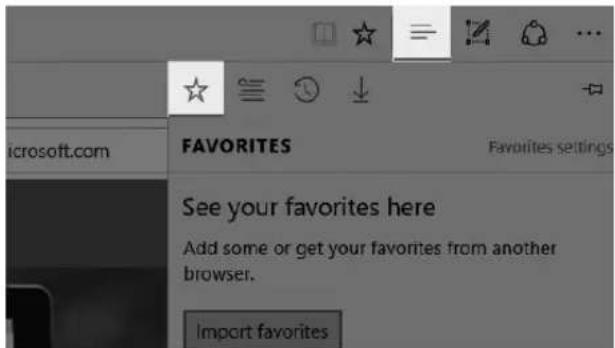
Select Hub ≡ to view your favorites, reading list, browsing history, and current downloads.
Note: Sign in with a Microsoft account to make your favorites and reading list available across all your Windows 10 devices.
To import your favorites from another browser, select Hub ≡ > Favorites ☆ > Import favorites. Press and hold (or right-click) any item in the list and select Sort by name to arrange them alphabetically.
2.8.2 Search faster from the address bar
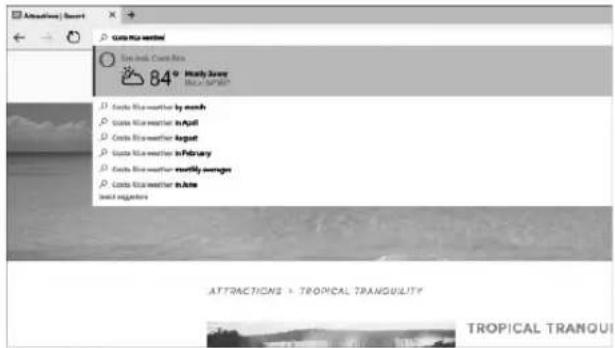
Whether you're looking for pictures of penguins or just want to know what the weather is, save time by typing your search directly in the address bar. You'll get search suggestions, instant results from the web, and your browsing history, on the spot.
2.9 Settings
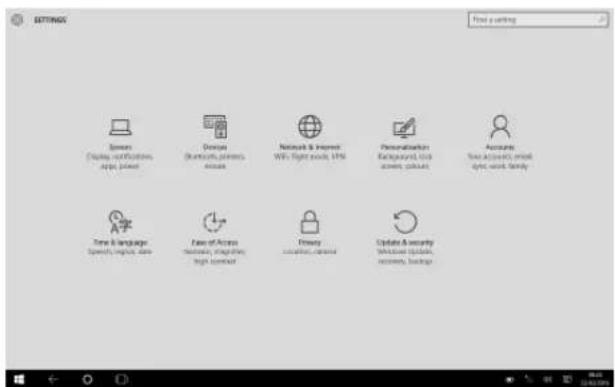
Go to Start and select Settings for access to all your settings.
2.10 Other apps on your Plus10

OneNote
You can use the OneNote app on your Plus10 to take notes and store them in the cloud. With OneNote, you'll have your notes whenever you need them—on your tablet, phone, or the web.

Calendar
Use Calendar to manage your busy schedule. Use the What's next view to see what's on the schedule or look at entire days, weeks, workweeks, or months.

People
The People app brings all your contacts together in a single space. See each contact's email address, phone number, website, and other information at a glance.

Groove Music
Groove Music lets you access your music collection and more from your Plus10.

Movies & TV
Movies & TV brings you the latest movies and TV shows as well as featured hits. It offers recommendations based on what you've watched, making it easier to find something new that you'll like.

News
News brings you the latest breaking stories as well as more in-depth coverage. You can customize the coverage to add more local information or highlight the topics you choose.

Weather
The Weather app offers hourly, daily, and 10-day forecasts as well as historical information and annual weather trends. You can also add locations, so you can see not only the information for where you are but for where you might be heading.

Money
Money not only covers the fast-moving market conditions but lets you track your portfolio, browse financial news articles, and access tools and calculators for common financial tasks.

Sports
Sports brings you scoreboards, schedules, videos, slide shows, and news headlines and stories to help you keep up to date with the world of sports and your favorite teams.

Maps
Maps lets you see your current location, zoom in for greater detail, zoom out for a bigger picture, scroll or search for new locations, get directions, and more.
3 Working with the keyboard
The keyboard enables your tablet to work as a laptop by providing physical keys, a gesture-enabled touchpad, and the option to connect a mouse, a smartphone, another tablet, etc.
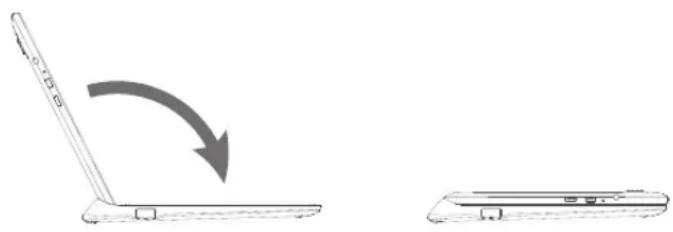
3.1 Folding your tablet
When you fold your tablet with the keyboard, it becomes more portable, occupies less space, and goes to sleep to extend the battery life.
natural_image
Diagram showing a device with a scroll and a separate flat base, no text or symbols present3.2 Touchpad gestures
The keyboard touchpad supports eight gestures to make operations much easier.
One finger

Double touch to start an app. This equals the effect of left-clicking using a mouse.
Double touch and slide to move an icon across the screen.
Two fingers

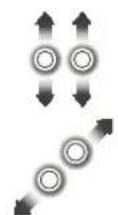
Three fingers
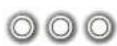
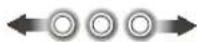
Touch to show the attributes of an object. This equals the effect of right-clicking using a mouse.
Touch and slide up and down for scrolling up and down.
Draw two fingers apart or together to scale an element on the screen.
Touch to start the Cortana search assistant.
Touch and slide left or right to switch between tasks.
Four fingers
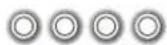
Touch to show the Action centre.
3.3 3G/4G button
The 3G/4G button is located at the upper right corner of the keyboard. Different durations of pressing enable the corresponding operations.
| Duration Operation | |
| Short press | Start up the keyboard. |
| Wake up the Wi-Fi hotspot when it goes dormant. | |
| 2s Shut down the keyboard. | |
| 8s Forcibly restore the factory settings of the keyboard. After all the indicators blink green three times, the restoration is complete. | |
3.4 Keyboard indicators
You can learn about the keyboard's status by checking the power (☐), Wi-Fi (☐) and data (☐) indicators.
Power indicator
Always red Battery lower than 20%
Blinks red with 1s Battery lower than 20% and charging intermittence
Blinks green with 1s intermittence Battery higher than 20% and charging
Off Full battery
Always green Keyboard started up
Turns off after blinking Battery very low and unable to start up the red for 3s keyboard
Turns off after blinking Keyboard being shut down red for 0.1s
Wi-Fi indicator
Always green Wi-Fi hotspot activated
Off Wi-Fi hotspot deactivated
Data indicator
Blinks red with 0.5s SIM card not inserted or detected intermittence
Blinks green with 0.1s Searching for 3G/4G data service intermittence
Blinks red with 0.2s An SMS message received but not read intermittence
Always red SIM card detected without 3G/4G data service
Always green 3G/4G data service available
Off Keyboard shut down
3.5 Connecting to a keyboard hotspot
The keyboard creates a hotspot after you insert your 3G/4G SIM card. By connecting your tablet to the hotspot, you can enjoy internet services, such as online chats, webpage browsing, videos, games, etc.
- Insert a 3G/4G SIM card in the keyboard slot.
- Press the 3G/4G button. The data and Wi-Fi indicators will turn green.
- In the taskbar of the tablet screen, touch the Wi-Fi icon ^* , and then select "PLUS 10 LTE KB_xxxx" in the hotspot list.
• Enter the default password to confirm.
• Enter the PIN code of your SIM card.
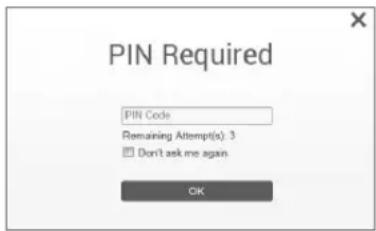
- When the connection is successful, the Wi-Fi icon becomes
Note: By default, the hotspot name is "PLUS 10 LTE KB_xxxx", and its password is the last eight digits of the keyboard IMEI code (available on the IMEI label). To protect your personal data, you are advised to change them by logging in to the Web UI when using it for the first time.
(1) The PIN code may not be required in some countries.
3.6 Keyboard setup
After your tablet is connected to the keyboard hotspot, you can set up your keyboard using the Web UI.
Open the browser, enter "192.168.1.1" or "plus10.home" in the address bar and confirm.
On the page that appears, enter the default password "admin" to log in to the Web UI.
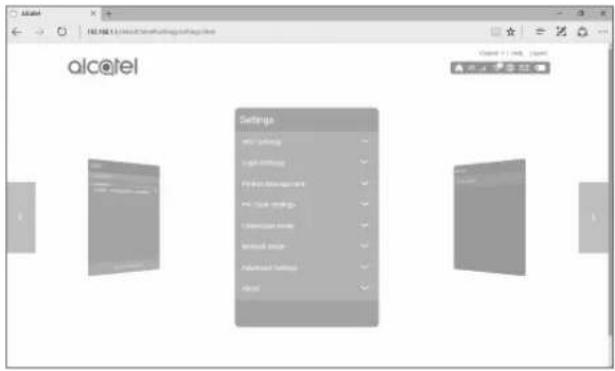
3.6.1 Icon description
| Category Icon Display | |||||
| Signal Strength | [DZKW] |  | [6AHG] |  | [0XK2] |
| From no signal to excellent | |||||
| Network Status | [T0XX] | [D034] | [TSYK] | ||
| [T540] |  | [9C44] | |||
 |  | Foming | |||
| SMS | [0ASX] | Nc[23TT] | |||
| [AY02] | N | ||||
| [ZCOT] | ST | ||||
| [TX27] | V[7452] | ||||
| Home | [JHKDY] |  | |||
| Worth go back to Home page | |||||
| Battery | [DTOK] | [BYD] | |||
| Binary level: | |||||
| Network Type 3 | [WAKS] | SP[T4W2] | |||
| [06KK] | [7XK0] | ||||
| [222Z] | A+, DC-HSPA+; | ||||
| LT | |||||
| Connection Status | [0057] | Cdetected | |||
| [KTSY] | D connected | ||||
| Usage | [HBW7] | Js[60YG] | |||
| Wi-Fi status | [DCCE] | Wifi active with connected Devices | |||
3.6.2 Connection
Click "Connection" area to open connection menu, including connection info, upload/download usage (for a connected duration), network technology, battery status, number of device connected are included.
Connection Information
• Turn on/off Key: connect/disconnect from internet;
- Network information: display Operator name, if network is roaming, the icon "R" appeared on right of operator name, otherwise, hidden "R" icon.
Usage Information
A current usage time and data is displayed
• Total time duration for current connection in HH;MM (e.g: 12Hrs 02 Mins);
• Total data for current connection in MB or GB.
Signal & Technology Info
• Signal icon: Shows the signal strength, Icon is grey if no service;
• Network technology: 3G, 3G+, 4G in different network; Icon is empty in disconnected and no service status.
Battery information
Lower power
Different battery levels
Connected devices information
This component shows the connected devices to this device.
- Device list edit: click "numbers" to view detail connected devices. Click to edit the device name, and save the changes, click to give up the changes;
- Block list edit: click "Block" or "unblock" to manage device list, but USB Device cannot be blocked.
3.6.3 Usage
Click "Usage" area to open usage status menu, display usage info in home and roaming status, including upload/download data transfers.
Usage information
- Home: local download + upload usage, current Volume/total Volume; Clear all data when start a new period cycle;
• Roaming: current Roaming Data and Total Roaming Data - Duration: Duration time for each connection; Total time duration for a specified connection period.
Clear History
- Click top right option menu, selected "Clear History" in draw menu.
- When billing day, automatically clear all usage database.
- If usage or time excessed limitation, when set a new usage plan or Time limitation plan, clear previous database automatically.
- If usage or time haven't exceeded limitation, When set a new usage plan or time limitation plan, database will not be cleared.
Usage setting
Click top right option menu, selected "Usage setting" to set Usage data.
3.6.4 Message
Click "SMS" area to enter Message interface, the following items are included:
• +New message: create new SMS;
• Draft: save the SMS not sent;
• : delete SMS
• : send SMS fail
• : Option Menu (SMS setting; Delete all messages)
Read/Reply/Forward SMS
Double click a message to read the entire message; same time a SMS box is displayed for Reply/Forward
3.6.5 Settings
Click "Settings" areas to enter Setting, the following items are included:
Wi-Fi Settings
802.11 Mode Select the mode used, such as 802.11b, 802.11b/g, or 802.11b/g/n.
SSID This is the name of Wi-Fi network, which was used to identify your Wi-Fi network. The length of the SSID should be 1-32 characters including “_”.
SSID Broadcast The default setting is "Enable".
Wi-Fi Channel Different domain has different channels: Channel 1\~11 in FCC (US)/IC (Canada); Channel 1\~13 in ETSI (Europe); Channel 1\~13 in MKK (Japan)
Max Number of Set the maximum number of Wi-Fi users. The Users default and maximum value is "15".
Security Set the cipher for Wi-Fi; Select an encryption mode in the list and set your password. If you select "Disable", any Wi-Fi enabled device can connect to the device without the password.
WEP Lower security. Works with older Wi-Fi devices. Recommended only if your devices don't support WPA or WPA2.
WPA A strong security standard, supported by most Wi-Fi devices. 8 to 63 ASCII characters needed.
WPA2 A stronger, newer security standard. Limited to newer Wi-Fi devices. 8 to 63 ASCII characters needed.
Login Settings
Login password 4-16 characters. If it exceeds 16 characters, you are not allowed to proceed. If an invalid character is input, an error message is displayed:
Invalid password! The length of login password is 4-16, a-z, A-Z, "- + ! @ \$ # ^ & *".
Profile management
Edit your profile.
PIN Code Settings
Disconnect the 3G/4G network if you want to perform PIN Code settings.
PIN operation: include three behaviors Enable/Disable/Modify.
When you entered wrong PIN 3 times, PUK is needed, you can get this key from the operator.
PIN code: 4-8 digits.
Connection mode
Automatic or Manual in the draw-down list
Network mode
Auto, 3G only, 4G only modes in the draw-down list
Advanced Settings
DHCP Router IP Address: The router's IP address on the LAN. The default setting is "192.168.1.1".
Subnet Mask: The router's internal LAN subnet mask. The default setting is "255.255.255.0".
DHCP Server: DHCP Server will automatically assign IP addresses to devices on the network. The default setting is "Enable".
DHCP IP Pool: Set a range of IP addresses available to access.
DHCP Lease Time: Amount of time that a Wi-Fi enabled device can use its assigned IP address before it is required to renew the lease.
MAC Filter MAC filtering is used to control specific MAC addresses to access, include Disable, Allow, and Deny.
The maximum allowed MAC list is 15.
About
Reboot Restart the device
Reset Reset the device to the original factory settings
3.6.6 More
Online update
Device Auto check SW version, if detect a new SW version, online update reminder icon display on home page and also under more function sync display.
3.6.7 Help
Click Help to open the User Manual.
4 Troubleshooting
Before contacting the service center, you are advised to follow the instructions below:
• You are advised to fully charge the battery for optimal operation.
- Avoid storing large amounts of data in your tablet as this may affect its performance.
- Use Factory data reset and the upgrade tool to perform tablet formatting or software upgrading. All user tablet data: contacts, photos, files, and downloaded apps will be lost permanently. You are strongly advised to fully back up the tablet data and profile before doing formatting and upgrading.
My tablet cannot be started
- When the tablet cannot be started, charge for at least 20 minutes to ensure the minimum battery power needed, and then try to start it again.
My tablet has not responded for several minutes
- Press the Power key for 10s to shut down your tablet. Then start your tablet again after 2 minutes.
My tablet turns off by itself
- Check that your screen is locked when you are not using your tablet, and make sure the Power key is not mis-contacted due to unlocked screen.
• Check the battery charge level.
My tablet cannot charge properly
- Make sure that your battery is not completely discharged; if the battery power is empty for a long time, it may take around 20 minutes to display the battery charger indicator on the screen.
- Make sure charging is carried out under normal conditions (0°C to +40°C).
- When abroad, check that the voltage input is compatible.
I am unable to download new files
• Make sure there is sufficient tablet memory for your download.
The tablet cannot be detected by others via Bluetooth
- Make sure that Bluetooth is turned on and your tablet is visible to other users.
- Make sure that the target device is within Bluetooth detection range of your tablet.
How to make your battery last longer
- Make sure you follow the complete charge time (minimum 4.5 hours).
- Adjust the brightness of screen as appropriate.
- Extend the email auto-check interval for as long as possible.
- Manually update news and weather information when required, or extend their auto-check interval.
- Stop background-running apps if they are not being used for a long time.
• Deactivate Bluetooth or Wi-Fi when not in use.
The tablet will become warm following game playing, Internet surfing or running other complex apps.
- This healing is a normal consequence of the CPU handling excessive data. Ending above actions will make your tablet return to normal temperatures.
Which browser does the device support?
• It supports Firefox, Safari, Internet Explorer, Opera, and Chrome
How to connect to the device
- Open your wireless network connection list and select the relative SSID.
I see the SSID but failed to connect
- Ensure the password you entered is the right one.
How to do if No service
• The possible reasons are listed as bellow:
- Unstable local signal.
- Hardware problem.
- You may:
- If you are inside a building or near a structure that may be blocking the signal, change the position or location of the device. For example, try moving the device close to a window.
- Check the hardware or use another device and retry.
How to do if "PIN lock" or "PUK lock"
- The SIM card is locked. Login Web page and Enter your PIN code or PUK code you got from the operator.
Note: if you entered wrong PIN 3 times, then PUK is needed, and if the wrong PUK entered 10 times, the SIM card will be locked forever.
How to connect/disconnect to the 4G/3G network
- Log in to the web browser, go to Connection and click "Connect/Disconnect" button.
How to set a new PIN for my SIM card
- Log in to the web browser, go to Settings > PIN Code Management
Where to find information about Internet connectivity and Wi-Fi setup
- Log in to the web browser, go to Connection.
• How to check the volume and time I used before
- Log in to the web browser, go to Usage.
How to search the network manually
- Log in to the web browser, go to Settings > Network mode, choose Manual for network selection.
How to check the model number and firmware versions of my device
- Log in to the web browser, go to Settings > About.
How to back up and restore my configuration settings
- Log in to the web browser, go to Settings > About.
How to set the device dials to connect internet automatically when turn on the device
- Log in to the web browser, go to Settings > Network mode > AUTO.
How to change the SSID
- Log in to the web browser, go to Settings >Wi-Fi settings.
How to change the login password
- Log in to the web browser, go to Settings >Login settings.
How to change the Wi-Fi Key
- Log in to the web browser, go to Settings >Wi-Fi settings.
Alcatel is a trademark of Alcatel-Lucent and is used under license by TCL Communication Ltd.
© Copyright 2016 TCL Communication Ltd. All rights reserved
TCL Communication Ltd. reserves the right to alter material or technical specification without prior notice.
- Table of Contents
- PROTECT YOUR HEARING
- Safety information for tablet
- Safety and use
- - TRAFFIC SAFETY
- • CONDITIONS OF USE
- - PRIVACY
- • BATTERY
- In European Union countries:
- In non-European Union jurisdictions:
- - CHARGERS
- Radio waves
- Licences
- Bluetooth Declaration ID D030870
- Regulatory information
- EC declaration of conformity
- C€0560
- - Disclaimer
- Warranty for tablet
- Safety information for keyboard
- Battery
- Chargers
- Please note well:
- General information
- Warranty for keyboard
- Getting started
- Charging the tablet and keyboard
- Inserting microSD and SIM cards
- Mode switchover
- Projecting to a larger display
- Use an HMDI cable
- PC screen only
- Duplicate
- Extend
- Second screen only
- Project wirelessly
- Accounts and signing in
- Sign in
- Sign out
- Getting to know Windows 10
- Go to Start
- Action center
- Notifications at a glance
- Take a shortcut
- Search
- Cortana
- Task view and virtual desktops
- OneDrive
- Save files you're working on to OneDrive
- Cameras and other related apps
- Take photos and record videos
- Change camera options
- Change between the front and back camera
- Set the timer
- Change camera settings
- Turn off the camera shutter sound
- View photos and videos
- Edit photos and videos
- To edit photos:
- To trim videos:
- Add and remove email accounts
- Change account settings
- Use the Mail app to manage messages
- Microsoft Edge
- Hub: all your stuff in one place
- Search faster from the address bar
- Settings
- Other apps on your Plus10
- OneNote
- Calendar
- People
- Groove Music
- Movies & TV
- News
- Weather
- Money
- Sports
- Maps
- Working with the keyboard
- Folding your tablet
- Touchpad gestures
- One finger
- Two fingers
- Three fingers
- Four fingers
- 3G/4G button
- Keyboard indicators
- Power indicator
- Wi-Fi indicator
- Data indicator
- Connecting to a keyboard hotspot
- Keyboard setup
- Icon description
- Connection
- Connection Information
- Usage Information
- Signal & Technology Info
- Battery information
- Connected devices information
- Usage
- Clear History
- Usage setting
- Message
- Read/Reply/Forward SMS
- Settings
- Wi-Fi Settings
- Login Settings
- Profile management
- PIN Code Settings
- Connection mode
- Network mode
- Advanced Settings
- About
- More
- Online update
- Help
- Troubleshooting
- Before contacting the service center, you are advised to follow the instructions below:
- My tablet cannot be started
- My tablet has not responded for several minutes
- My tablet turns off by itself
- My tablet cannot charge properly
- I am unable to download new files
- The tablet cannot be detected by others via Bluetooth
- How to make your battery last longer
- The tablet will become warm following game playing, Internet surfing or running other complex apps.
- Which browser does the device support?
- How to connect to the device
- I see the SSID but failed to connect
- How to do if No service
- How to do if "PIN lock" or "PUK lock"
- How to connect/disconnect to the 4G/3G network
- How to set a new PIN for my SIM card
- Where to find information about Internet connectivity and Wi-Fi setup
- How to search the network manually
- How to check the model number and firmware versions of my device
- How to back up and restore my configuration settings
- How to set the device dials to connect internet automatically when turn on the device
- How to change the SSID
- How to change the login password
- How to change the Wi-Fi Key
Brand : ALCATEL
Model : Plus
Category : Tablet