
JumpDrive Fingerprint F35 - USB Drive LEXAR - Free user manual and instructions
Find the device manual for free JumpDrive Fingerprint F35 LEXAR in PDF.


| Product Type | USB Flash Drive with Fingerprint Sensor |
| Brand | Lexar |
| Model | JumpDrive Fingerprint F35 |
| Interface | USB 3.0 (backward compatible with USB 2.0) |
| Total Storage Capacity | 57.5 GB (adjustable between public and secure partitions) |
| Fingerprint Capacity | Up to 10 fingerprints |
| Encryption | 256-bit AES hardware encryption |
| Operating Systems for Fingerprint Management | Windows XP+SP3, Vista, 7, 8, 8.1, 10 (32 & 64-bit) |
| Operating Systems for Data Access | Windows, Linux, macOS |
| Power Source | Bus-powered via USB port |
| Dimensions (Approx.) | 70 x 20 x 10 mm |
| Weight (Approx.) | 20 g |
| LED Indicator | Yes, for fingerprint authentication status |
| Partitioning | Adjustable public and secure partition sizes via included software |
| Security Features | Fingerprint authentication, password recovery, self-destruct after 254 incorrect password attempts, auto-lock secure partition after 15 minutes of inactivity |
| User Accounts | Administrator and multiple user accounts supported |
| Software | FingerTool Lexar for Windows (preloaded on drive) |
| Compatibility | USB 3.0 (also works with USB 2.0 ports) |
| Material | Plastic with metal fingerprint sensor |
| Maintenance | Keep fingerprint sensor clean and dry; avoid moisture and extreme temperatures |
Frequently Asked Questions - JumpDrive Fingerprint F35 LEXAR
User questions about JumpDrive Fingerprint F35 LEXAR
0 question about this device. Answer the ones you know or ask your own.
Ask a new question about this device
Download the instructions for your USB Drive in PDF format for free! Find your manual JumpDrive Fingerprint F35 - LEXAR and take your electronic device back in hand. On this page are published all the documents necessary for the use of your device. JumpDrive Fingerprint F35 by LEXAR.
USER MANUAL JumpDrive Fingerprint F35 LEXAR
JumpDrive® Fingerprint F35
Flash Drive
User Manual for Windows
Contents
Before You Start 1
For Users....1
Specifications and Compatibility....1
Fingerprint Management Application 1
Registration for Administrators....2
To Set Password for Administrator.... 2
To Enroll Fingerprint for Administrator.... 3
How to use F35 Fingerprint Flash Drive ....3
Partitioning the Flash Drive ....3
Managing Administrator and Users' Accounts 4
Managing Password 7
FAQ 10
Before You Start
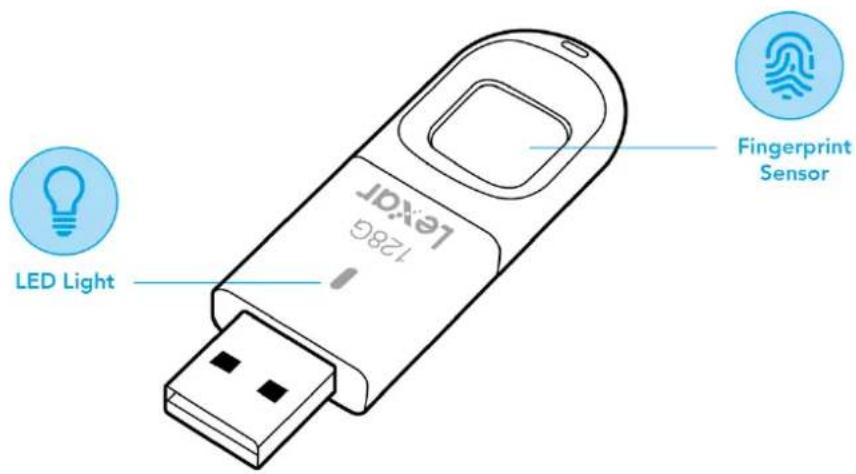
For Users
Dear User, thank you for purchasing the Lexar JumpDrive Fingerprint F35. The F35 is an integration of biometric identification technology and data storage. Designed for those demanding the highest level of data protection, the drive can safeguard sensitive data against unauthorized access attempts using fingerprint authentication. Data stored in the secure partition is safely protected and can only be accessed when the scanned fingerprint is authenticated. Featuring convenience and top-class security, it not only spares you the trouble of memorizing long passwords, but also brings you peace of mind.
Specifications and Compatibility
Interface: USB3.0
Fingerprint: The F35 can save up to 10 fingerprints.
Compatible Systems for Fingerprint Management Application: Windows XP+SP3, Vista, Windows 7, Windows 8, Windows 8.1, Windows 10(32&64bit).
Compatible Systems for Memory Function: Windows XP+SP3, Vista, Windows 7, Windows 8, Windows 8.1, Windows 10(32&64bit), Linux, Mac.
Fingerprint Management Application
When using the F35 for the first time, please run the built-in application on your F35 with
your computer. This application is designed to set passwords and enroll fingerprints, manage users whose accounts are registered, and change the size of the public and secure partition.
To run the fingerprint management application on your computer:
a. Attach your F35 to any available USB port on your computer. The drive should be recognized automatically.
b. Click on "CD Drive(): Lexar" in the window of "My computer"

CD Drive (E:) Lexar 0 bytes free of 2.08 MB CDFS

Public (F:) 19.9 GB free of 19.9 GB

Secure (G): 38.7 GB free of 38.7 GB
c. Double click the app icon "FingerTool_Lexar(Windows)" to run the application.

FingerTool_Lexar(Windows).exe 1.0.9.0 2018/4/4 1:49
Note: Some Anti-Virus programs may block the FingerTool application, please set your Anti-Virus to allow the operation of the application.
Registration for Administrators
Before the administrator can create additional accounts and enroll fingerprints for general users, they must first register their account
This chapter explains how to register a password and fingerprint for the administrator.
To Set Password for Administrator

To Enroll Fingerprint for Administrator
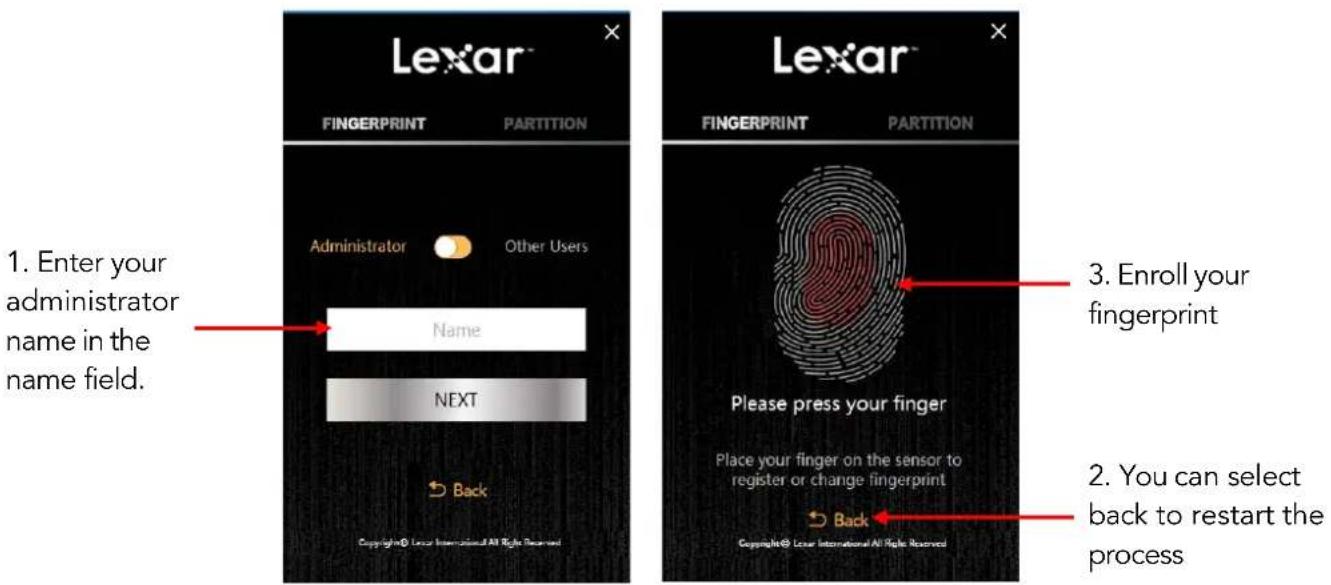
Note: We suggest you slightly change the angle of your finger for every attempt, allowing the system to store prints of your pad, both sides, and tip of your finger. Repeat until the scan of your fingerprint is completed.
How to use F35 Fingerprint Flash Drive
a. Attach the F35 to any available USB port on your computer and the drive should be recognized automatically.
b. Place your finger (the one that had been enrolled) on the fingerprint sensor with light and even pressure. You will see the light flash. When the fingerprint is authenticated, you will see the secure partition and can access the data stored in this partition as shown below.

CD Drive (E:) Lexar 0 bytes free of 2.08 MB CDFS

Public (F:) 19.9 GB free of 19.9 GB

Secure (G:) 38.7 GB free of 38.7 GB
Partitioning the Flash Drive
a. Run the application "FingerTool_Lexar(Windows)", and apply the Administrator's fingerprint to access the program. Click on the right tab marked "Partition."
b. Click "NEXT".

c. Move the slider left and right to adjust the capacity between the public and the secure partition. Click "Confirm" to begin the process. Please remove and re-insert the flash drive after the drive has been re-partitioned.

Managing Administrator and Users' Accounts
This chapter explains how to add, change, delete, and edit accounts.
1.1 Add Accounts.
a. Click "+" to start adding accounts.
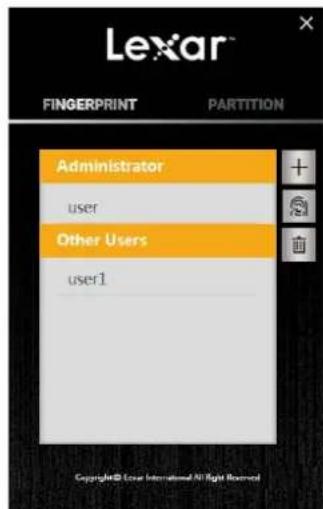
b. Choose the account type (Administrator/Other Users) and then name the account. Click "NEXT"
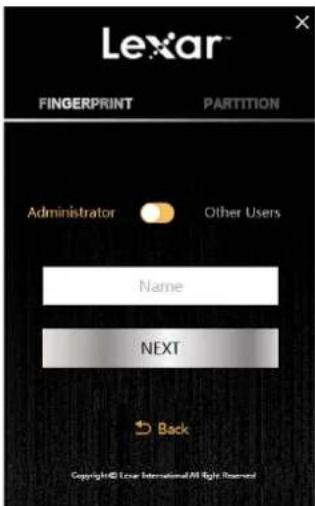
c. Place your finger on the sensor to register your fingerprint for this new account.

1.2 Edit accounts.
a. Choose the account you want to edit and click the fingerprint icon on the right.

b. Edit the account type & name and click Confirm. If you want to change the fingerprint, click "Change Fingerprint"

c. Place your finger on the sensor to change fingerprint.

1.3 Delete accounts.
a. Choose the account you want to delete and click the trash icon in the right.

b. Click "Confirm" if you are sure you want to delete the account.

Note: The application will not allow you to have zero administrator accounts. You must have at least one administrator account.
Managing Password
a. Click "Password Verification" on the initial screen when asked for your Fingerprint Verification.

b. Click "Forget Password?" on the password authentication screen.

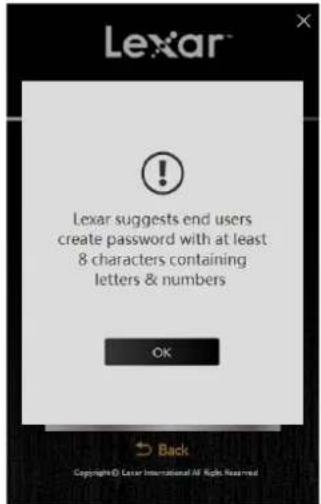
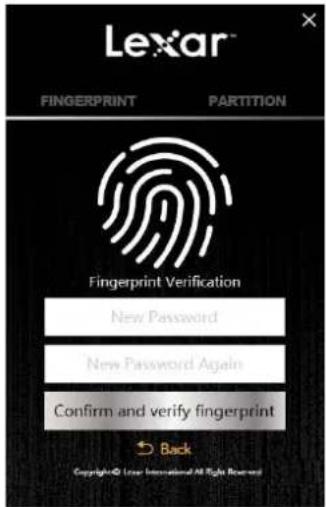
Enter a new password. Before entering, a pop-up window will show Lexar's suggestion for a new password.
c. Click "Confirm and verify fingerprint" and apply the administrator's fingerprint to complete the change.
FAQ
After plugging in my USB flash drive, why doesn't my computer recognize it?
Please re-attach the flash drive and run the application again.
Why does the flash drive show less than the total capacity?
The total capacity is divided up between the public partition and secure partition. Users can change the capacity of the secure partition once their fingerprints have been authenticated.
Can the secure partition of the flash drive be accessed through my smartphone?
Only the public partition can be accessed through your smartphone.
Why can't files larger than 4GB be saved to the flash drive?
The initial format of the F35 is FAT32; you need to re-format it to exFAT when transmitting files larger than 4GB. Please note all files on the drive will be lost if you re-format. However, the fingerprint application itself, will not be erased.
What systems are compatible with the fingerprint application?
The fingerprint application can be operated in Windows XP, Windows Vista, Windows 7, Windows 8, Windows 10.
What are the minimum requirements to set up an admin/user account or change the partition size of the drive?
The fingerprint application requires Windows XP and up. The fingerprint application is required to setup any accounts or changes to the partition size.
If I have an older version of Windows, Mac OS, or Linux, can I still access the public and secure partitions?
Regular flash drive use is compatible with Windows, Linux, and macOS.
Why does the secure partition disappear after 15 minutes?
The secure partition is designed to close after 15 minutes of inactivity for security purposes. To re-access the secure partition, simply place an authorized fingerprint on the sensor and it will re-open.
What type of encryption is used on the Lexar F35 fingerprint flash drive?
Encryption is based on the 256-bit AES method. The fingerprint data is saved on the flash drive with an exclusive UID produced by FP IC. Since the fingerprint data and fingerprint algorithm is separate, the data saved in the secure partition will be lost if the flash drive is dismantled by
force.
How many chances do I have to enter my administrator password correctly?
If the user enters an incorrect password more than 254 times in succession, the F35 will start the process of self-destruction. All data in the USB flash drive will be erased, and the F35 can only be recovered by downloading the firmware again.
Why can't I access the secure partition after placing my finger on the fingerprint sensor several times?
Ensure your fingerprint and sensor are clean and dry. If that doesn't work, try re-attaching the flash drive.

- CONTENTS
- BEFORE YOU START
- FOR USERS
- SPECIFICATIONS AND COMPATIBILITY
- FINGERPRINT MANAGEMENT APPLICATION
- REGISTRATION FOR ADMINISTRATORS
- TO SET PASSWORD FOR ADMINISTRATOR
- TO ENROLL FINGERPRINT FOR ADMINISTRATOR
- HOW TO USE F35 FINGERPRINT FLASH DRIVE
- PARTITIONING THE FLASH DRIVE
- MANAGING ADMINISTRATOR AND USERS' ACCOUNTS
- 1.2 EDIT ACCOUNTS
- 1.3 DELETE ACCOUNTS
- MANAGING PASSWORD
- FAQ
Brand : LEXAR
Model : JumpDrive Fingerprint F35
Category : USB Drive