
ROG Strix LC 240 RGB - Laptop cooler ASUS - Free user manual and instructions
Find the device manual for free ROG Strix LC 240 RGB ASUS in PDF.


| Type | Laptop Cooler |
| Brand | ASUS |
| Model | ROG Strix LC 240 RGB |
| Dimensions | 400 x 280 x 30 mm |
| Weight | 1.2 kg |
| Number of Fans | 2 x 120 mm |
| Fan Speed | 800 - 1500 RPM |
| Airflow | 70 CFM |
| Noise Level | 25 dBA |
| RGB Lighting | ASUS Aura Sync compatible |
| Power Source | USB 5V |
| Compatibility | 15 - 17 inch laptops |
| Material | Plastic, metal mesh |
| Adjustable Height | Yes, 2 levels |
| Anti-slip Pads | Yes |
| Maintenance | Clean with soft cloth; avoid liquids |
| Safety | Place on stable surface; do not obstruct vents |
Frequently Asked Questions - ROG Strix LC 240 RGB ASUS
User questions about ROG Strix LC 240 RGB ASUS
0 question about this device. Answer the ones you know or ask your own.
Ask a new question about this device
Download the instructions for your Laptop cooler in PDF format for free! Find your manual ROG Strix LC 240 RGB - ASUS and take your electronic device back in hand. On this page are published all the documents necessary for the use of your device. ROG Strix LC 240 RGB by ASUS.
USER MANUAL ROG Strix LC 240 RGB ASUS
Armoury Crate Quick Start Guide
This Quick Start Guide is for the Armoury Crate and will guide you through the installation as well as provide you with a brief overview of Armoury Crate. Armoury Crate is a unified software center which allows you to download and update your motherboard drivers and utilities, adjust device lighting control and various other functions. The Armoury Crate Highlights section also provides various news and stories from ROG at a glance.
Before installing Armoury Crate
Please check that following requirements are met before installing Armoury Crate:
- Armoury Crate is only supported on Windows updated to Windows® 10 RS3 or later.
^® 10 RS3 or later. Ensure your Windows OS is - Ensure the Aura application is not installed on your device, if the Aura application is already installed on your device, please uninstall it before installing or updating Armoury Crate.
- Ensure the device you wish to install Armoury Crate on has a steady network connection.
Installing Armoury Crate

If you are installing Armoury Crate on a non-ASUS motherboard or if you have canceled the installation prompt, please skip step 1 and proceed to step 2.
- On the first boot up of your PC with the supported OS, the system will prompt you with an option to automatically download and execute the Armoury Crate installer.

The automatic prompt will only appear on ASUS motherboards with the Armoury Crate BIOS option set to enabled in the BIOS before booting up.
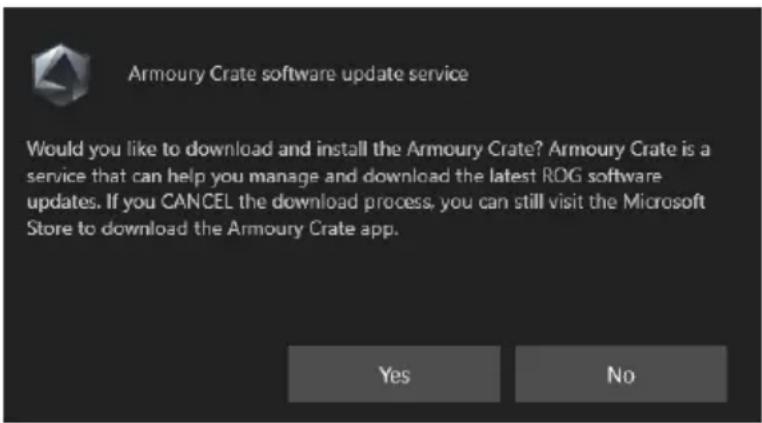

Please skip to step 4 if you clicked Yes on the first boot up installation prompt in step 1.
- (optional) If the prompt does not appear, or you have canceled the installation prompt, or you are using a non-ASUS motherboard, you may manually install Armoury Crate. Download the Armoury Crate installer (SetupROGLSService.exe) from https://www.asus.com/support/.
- (optional) Once the installer has been downloaded, double left-click on the installer to begin the installation process.

Please ensure all previous instances of Armoury Crate are completely removed before running the installer.
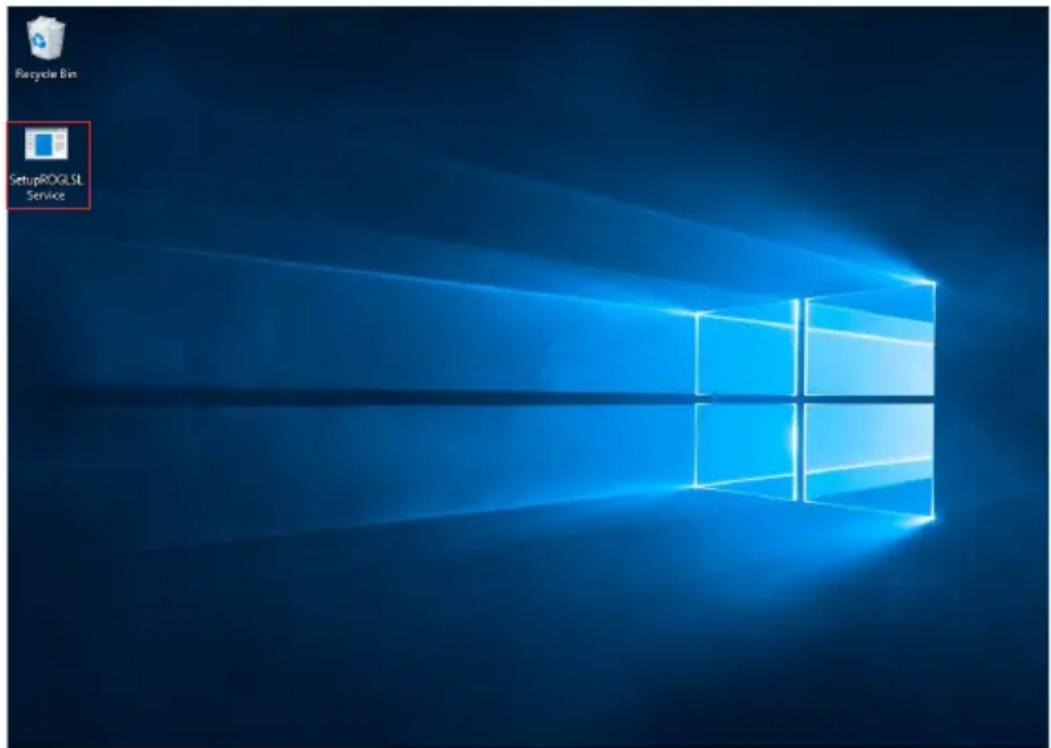
- Follow the onscreen instructions to complete the installation.
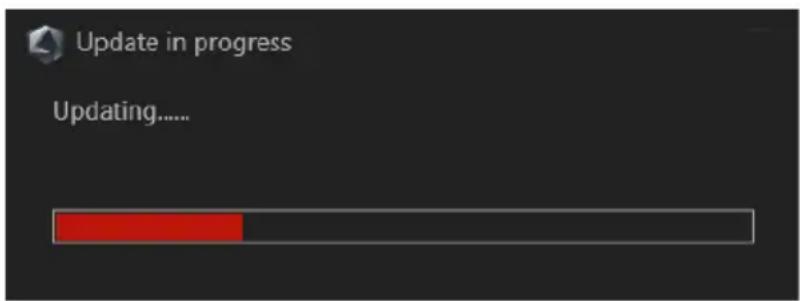
- Ensure to update your Armoury Crate once you launch your newly installed Armoury Crate.

Please refer to Updating Armoury Crate section of this document for more details on updating your Armoury Crate.
Updating Earlier Builds of Armoury Crate

This section is only for Armoury Crate versions before Armoury Crate v2.3.5.
- Uninstall your previous version of Armoury Crate (v1.4.1 or v2.1.9).

Please ensure all previous instances of Armoury Crate are completely removed.
-
Download the Armoury Crate installer (SetupROGLSService.exe) from https://www.asus.com/support/.
-
Once the installer has been downloaded, double left-click on the installer to begin the installation process.
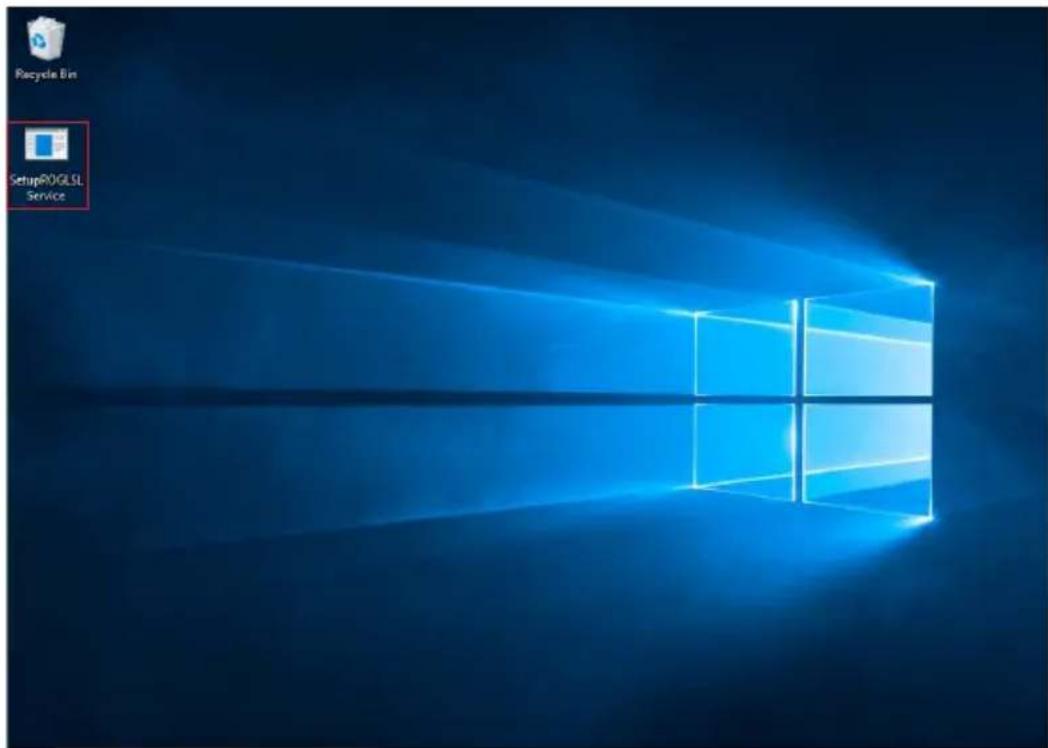
- Follow the onscreen instructions to complete the installation.
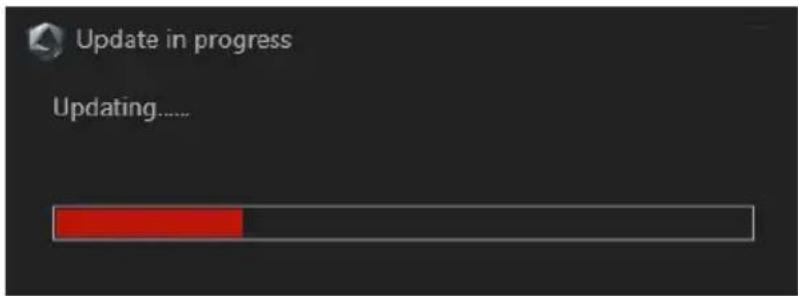
- Ensure to update your Armoury Crate once you launch your newly installed Armoury Crate.

Please refer to Updating Armoury Crate section of this document for more details on updating your Armoury Crate.
Updating Armoury Crate
-
Launch Armoury Crate, then click on > update center.
-
Click on Check for updates to check for the latest updates.
-
Click on Update all to update all devices, or click on Update next to the individual devices you wish to update.
![Armour Crals Settings General Settings Update center About Check for updates Update all Update ROG CROSSHAIR VIII HERO (WI-FI) Update [HAL] Version: 1.0.48 Date: 2019/06/24 Update Up to date OptionHal 2019/07/02 Addressable Device 20190522](/content/2026/05/760592/images/47e47447b0f284a0654b66d34ef8a5870d1911a0e4d1d863345735de9c8ca517.jpg)
- You may need to restart your system to complete the update(s).
Armoury Crate Overview
This section will provide a brief overview of Armoury Crate, providing brief descriptions for the different functions available in Armoury Crate.

You can expand the side menu by clicking on

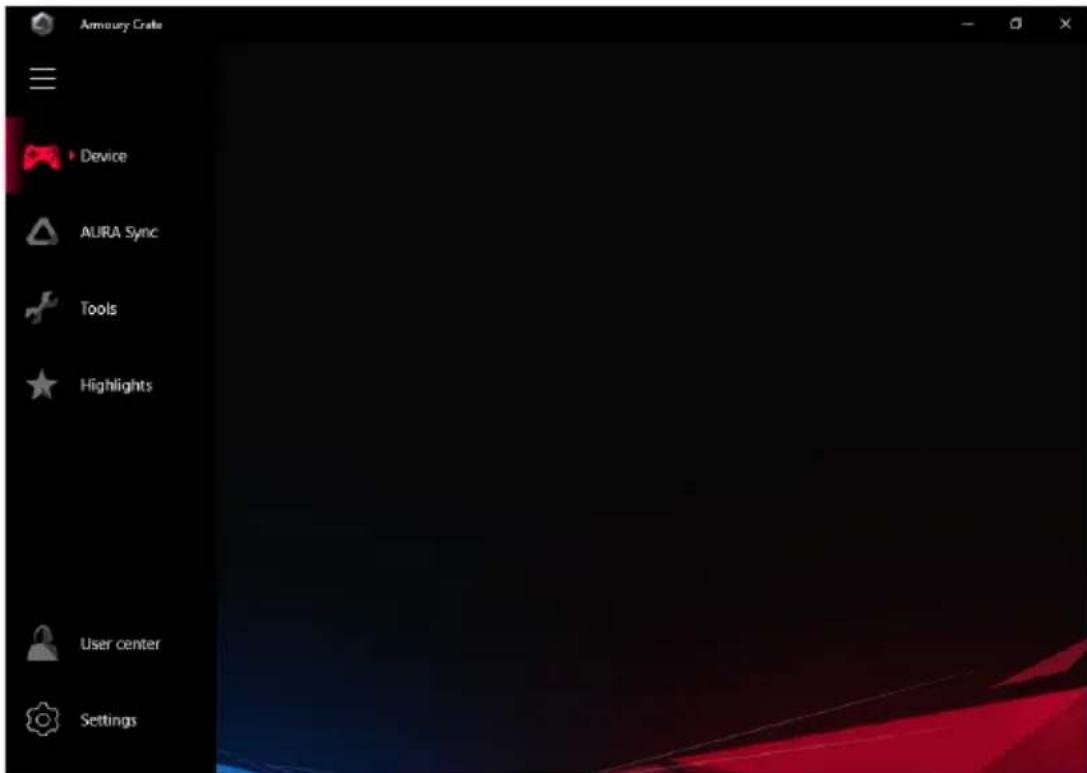

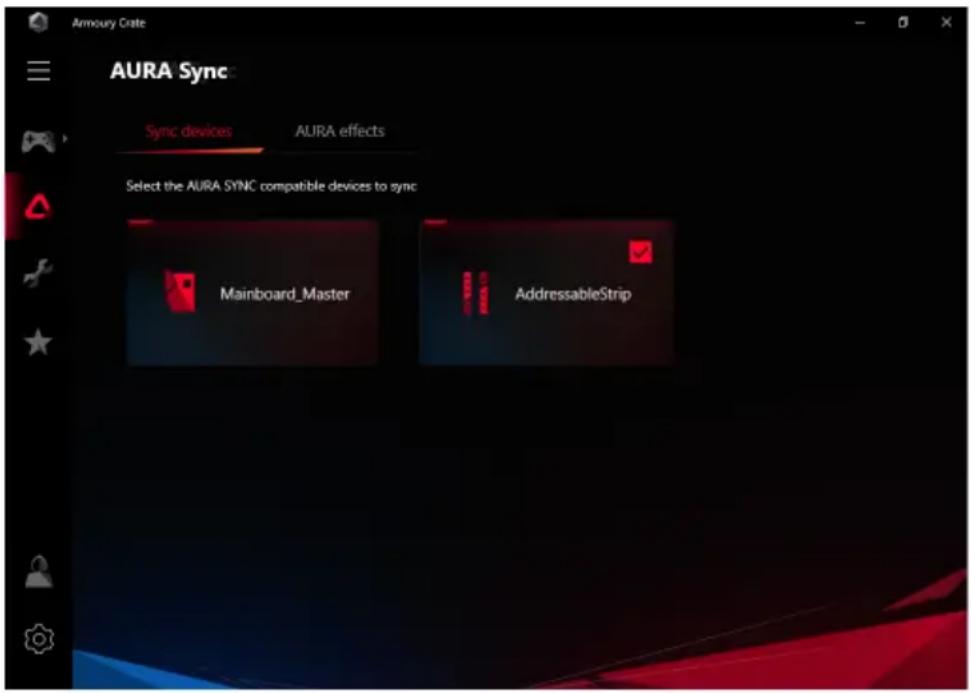
Aura
Select your AURA SYNC compatible devices you wish to sync lighting effects in the Sync Devices tab, or select the AURA Effects tab to customize the lighting effects.

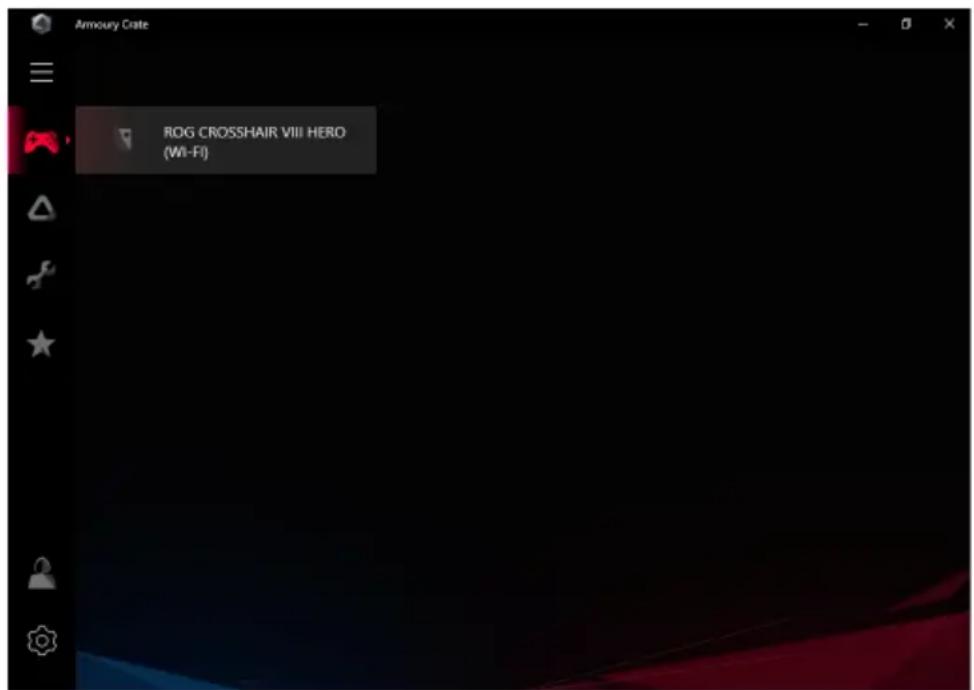
Device Control
Fine tune motherboard specific settings such as the OLED display, fan control, and lighting effects.

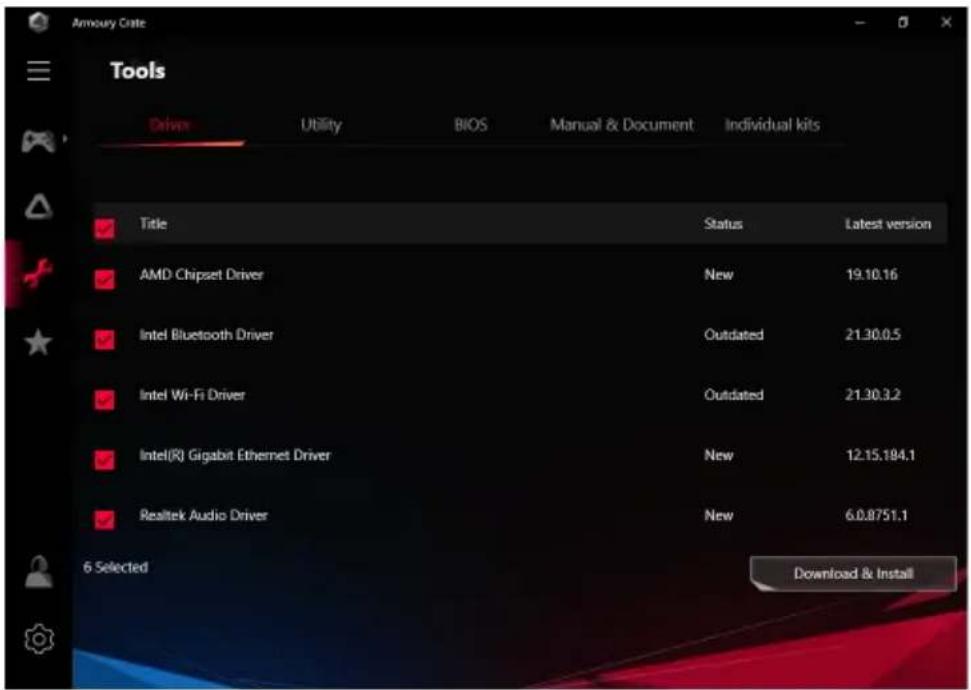
Tools
Download the latest drivers, utilities, BIOS file, user manuals and documents, and individual kits for your device.

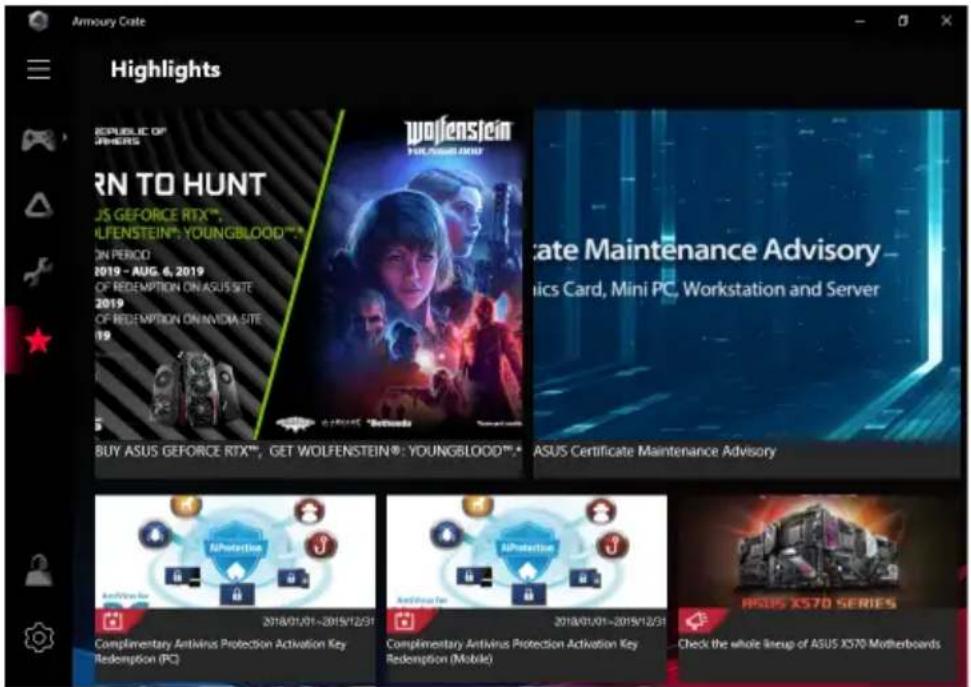
Highlights
Displays news, stories, and on-going events from ROG. You can also browse through various wallpapers and download them.

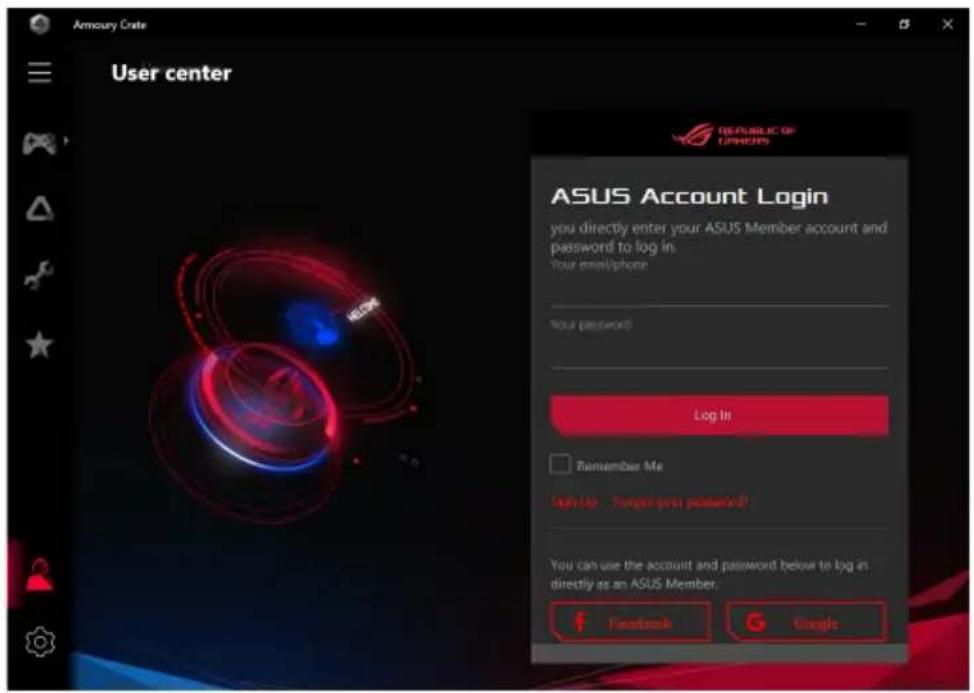
User Center
Register an ASUS Member account. This will allow you to review and manage the products and events registered to your ASUS account as well receive important push notice messages.

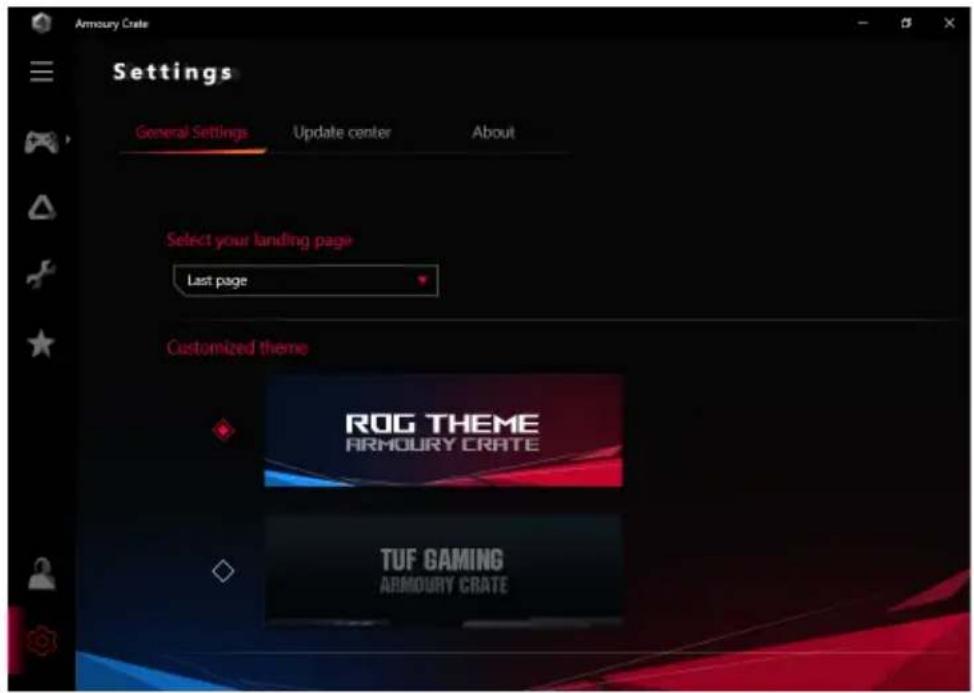
Settings
Configure general settings and updates for your Armoury Crate, select a main theme for the Armoury Crate, or review the App version, Privacy Policy and Notices.


Brand : ASUS
Model : ROG Strix LC 240 RGB
Category : Laptop cooler