
Arius YDP-144R - Piano YAMAHA - Free user manual and instructions
Find the device manual for free Arius YDP-144R YAMAHA in PDF.


| Product Type | Digital Piano |
| Brand | Yamaha |
| Model | Arius YDP-144R |
| Keyboard | 88 keys, GHS (Graded Hammer Standard) with matte black keytops |
| Touch Sensitivity | Hard, Medium, Soft, Fixed |
| Pedals | 3 (Damper with half-pedal, Sostenuto, Soft) |
| Sound Source | Yamaha CFX |
| Polyphony | 192 notes |
| Preset Voices | 10 |
| Effects | Reverb (4 types), IAC, Stereophonic Optimizer |
| Metronome | Yes, tempo 5-280 |
| Transpose | -6 to +6 semitones |
| Tuning | 414.8 - 466.8 Hz |
| Recording | 1 song, 2 tracks, approx. 11,000 notes |
| Connectivity | USB TO HOST, DC IN, 2 headphone jacks |
| Amplifiers | 8W x 2 |
| Speakers | 12cm x 2 |
| Power Supply | AC adaptor PA-150 (or equivalent) |
| Power Consumption | 9W |
| Auto Power Off | Yes (default 30 minutes) |
| Dimensions (W x H x D) | 1353 x 815 x 309 mm |
| Weight | 38.0 kg |
| Cabinet | Sliding key cover, music rest |
| Accessories | Owner's Manual, Quick Operation Guide, 50 Classical Music Masterpieces, AC adaptor, bench (may vary) |
Frequently Asked Questions - Arius YDP-144R YAMAHA
User questions about Arius YDP-144R YAMAHA
0 question about this device. Answer the ones you know or ask your own.
Ask a new question about this device
Download the instructions for your Piano in PDF format for free! Find your manual Arius YDP-144R - YAMAHA and take your electronic device back in hand. On this page are published all the documents necessary for the use of your device. Arius YDP-144R by YAMAHA.
USER MANUAL Arius YDP-144R YAMAHA
Before using the instrument, be sure to read "PRECAUTIONS" on pages 5-6.
For information on assembling the instrument, refer to the instructions at the end of this manual.
This product utilizes batteries or an external power supply (adapter). DO NOT connect this product to any power supply or adapter other than one described in the manual, on the name plate, or specifically recommended by Yamaha.
WARNING: Do not place this product in a position where anyone could walk on, trip over, or roll anything over power or connecting cords of any kind. The use of an extension cord is not recommended! If you must use an extension cord, the minimum wire size for a 25' cord (or less) is 18 AWG. NOTE: The smaller the AWG number, the larger the current handling capacity. For longer extension cords, consult a local electrician.
This product should be used only with the components supplied or; a cart, rack, or stand that is recommended by Yamaha. If a cart, etc., is used, please observe all safety markings and instructions that accompany the accessory product.
SPECIFICATIONS SUBJECT TO CHANGE:
The information contained in this manual is believed to be correct at the time of printing. However, Yamaha reserves the right to change or modify any of the specifications without notice or obligation to update existing units.
This product, either alone or in combination with an amplifier and headphones or speaker/s, may be capable of producing sound levels that could cause permanent hearing loss. DO NOT operate for long periods of time at a high volume level or at a level that is uncomfortable. If you experience any hearing loss or ringing in the ears, you should consult an audiologist. IMPORTANT: The louder the sound, the shorter the time period before damage occurs.
Some Yamaha products may have benches and / or accessory mounting fixtures that are either supplied with the product or as optional accessories. Some of these items are designed to be dealer assembled or installed. Please make sure that benches are stable and any optional fixtures (where applicable) are well secured BEFORE using.
Benches supplied by Yamaha are designed for seating only. No other uses are recommended.
NOTICE:
Service charges incurred due to a lack of knowledge relating to how a function or effect works (when the unit is operating as designed) are not covered by the manufacturer's warranty, and are therefore the owners responsibility. Please study this manual carefully and consult your dealer before requesting service.
ENVIRONMENTAL ISSUES:
Yamaha strives to produce products that are both user safe and environmentally friendly. We sincerely believe that our products and the production methods used to produce them, meet these goals. In keeping with both the letter and the spirit of the law, we want you to be aware of the following:
Battery Notice:
This product MAY contain a small non-rechargeable battery which (if applicable) is soldered in place. The average life span of this type of battery is approximately five years. When replacement becomes necessary, contact a qualified service representative to perform the replacement.
This product may also use “household” type batteries. Some of these may be rechargeable. Make sure that the battery being charged is a rechargeable type and that the charger is intended for the battery being charged.
When installing batteries, never mix old batteries with new ones, and never mix different types of batteries. Batteries MUST be installed correctly. Mismatches or incorrect installation may result in overheating and battery case rupture.
Warning:
Do not attempt to disassemble, or incinerate any battery. Keep all batteries away from children. Dispose of used batteries promptly and as regulated by the laws in your area. Note: Check with any retailer of household type batteries in your area for battery disposal information.
Disposal Notice:
Should this product become damaged beyond repair, or for some reason its useful life is considered to be at an end, please observe all local, state, and federal regulations that relate to the disposal of products that contain lead, batteries, plastics, etc. If your dealer is unable to assist you, please contact Yamaha directly.
NAME PLATE LOCATION:
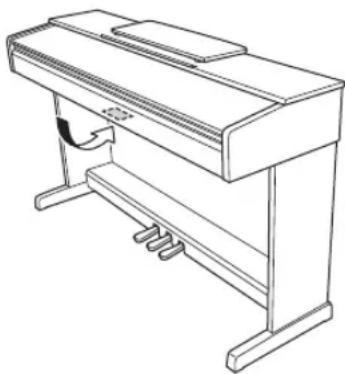
The name plate is located on the bottom of the product. The model number, serial number, power requirements, etc., are located on this plate. You should record the model number, serial number, and the date of purchase in the spaces provided below and retain this manual as a permanent record of your purchase.
natural_image
Line drawing of a piano with a stand and keyboard (no text or symbols)Model
Serial No.
Purchase Date
92-BP (bottom)
PLEASE KEEP THIS MANUAL
FCC INFORMATION (U.S.A.)
1. IMPORTANT NOTICE: DO NOT MODIFY THIS UNIT!
This product, when installed as indicated in the instructions contained in this manual, meets FCC requirements. Modifications not expressly approved by Yamaha may void your authority, granted by the FCC, to use the product.
-
IMPORTANT: When connecting this product to accessories and/or another product use only high quality shielded cables. Cable/s supplied with this product MUST be used. Follow all installation instructions. Failure to follow instructions could void your FCC authorization to use this product in the USA.
-
NOTE: This product has been tested and found to comply with the requirements listed in FCC Regulations, Part 15 for Class "B" digital devices. Compliance with these requirements provides a reasonable level of assurance that your use of this product in a residential environment will not result in harmful interference with other electronic devices. This equipment generates/uses radio frequencies and, if not installed and used according to the instructions found in the users manual, may cause interference harmful to the operation of other electronic devices. Com-
pliance with FCC regulations does not guarantee that interference will not occur in all installations. If this product is found to be the source of interference, which can be determined by turning the unit "OFF" and "ON", please try to eliminate the problem by using one of the following measures:
Relocate either this product or the device that is being affected by the interference.
Utilize power outlets that are on different branch (circuit breaker or fuse) circuits or install AC line filter/s.
In the case of radio or TV interference, relocate/reorient the antenna. If the antenna lead-in is 300 ohm ribbon lead, change the lead-in to co-axial type cable.
If these corrective measures do not produce satisfactory results, please contact the local retailer authorized to distribute this type of product. If you can not locate the appropriate retailer, please contact Yamaha Corporation of America, Electronic Service Division, 6600 Orangethorpe Ave, Buena Park, CA90620
The above statements apply ONLY to those products distributed by Yamaha Corporation of America or its subsidiaries.
* This applies only to products distributed by Yamaha Corporation of America. (class B)
COMPLIANCE INFORMATION STATEMENT (Supplier's declaration of conformity procedure)
Responsible Party : Yamaha Corporation of America
Address : 6600 Orangethorpe Ave., Buena Park, Calif. 90620
Telephone : 714-522-9011
Type of Equipment : Digital Piano
Model Name : YDP-164, YDP-144, YDP-S54
This device complies with Part 15 of the FCC Rules.
Operation is subject to the following two conditions:
1) this device may not cause harmful interference, and
2) this device must accept any interference received including interference that may cause undesired operation.
* This applies only to products distributed by Yamaha Corporation of America.
(FCC SDoC)
For AC adaptor
Explanation of Graphical Symbols
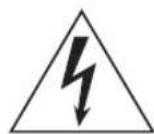
The lightning flash with arrowhead symbol within an equilateral triangle is intended to alert the user to the presence of uninsulated “dangerous voltage” within the product’s enclosure that may be of sufficient magnitude to constitute a risk of electric shock to persons.

The exclamation point within an equilateral triangle is intended to alert the user to the presence of important operating and maintenance (servicing) instructions in the literature accompanying the product.
IMPORTANT SAFETY INSTRUCTIONS
1 Read these instructions.
2 Keep these instructions.
3 Heed all warnings.
4 Follow all instructions.
5 Do not use this apparatus near water.
6 Clean only with dry cloth.
7 Do not block any ventilation openings. Install in accordance with the manufacturer's instructions.
8 Do not install near any heat sources such as radiators, heat registers, stoves, or other apparatus (including amplifiers) that produce heat.
9 Do not defeat the safety purpose of the polarized or grounding-type plug. A polarized plug has two blades with one wider than the other. A grounding type plug has two blades and a third grounding prong. The wide blade or the third prong are provided for your safety. If the provided plug does not fit into your outlet, consult an electrician for replacement of the obsolete outlet.
10 Protect the power cord from being walked on or pinched particularly at plugs, convenience receptacles, and the point where they exit from the apparatus.
11 Only use attachments/accessories specified by the manufacturer.
12 Use only with the cart, stand, tripod, bracket, or table specified by the manufacturer, or sold with the apparatus. When a cart is used, use caution when moving the cart/apparatus combination to avoid injury from tip-over.
13 Unplug this apparatus during lightning storms or when unused for long periods of time.
14 Refer all servicing to qualified service personnel. Servicing is required when the apparatus has been damaged in any way, such as power-supply cord or plug is damaged, liquid has been spilled or objects have fallen into the apparatus, the apparatus has been exposed to rain or moisture, does not operate normally, or has been dropped.

natural_image
Symbolic icon of a person pushing a ladder inside a circle (no text or symbols)WARNING
TO REDUCE THE RISK OF FIRE OR ELECTRIC SHOCK, DO NOT EXPOSE THIS APPARATUS TO RAIN OR MOISTURE.
(UL60065_03)
PRECAUTIONS
PLEASE READ CAREFULLY BEFORE PROCEEDING
Please keep this manual in a safe and handy place for future reference.
For AC adaptor

WARNING
- This AC adaptor is designed for use with only Yamaha electronic instruments. Do not use for any other purpose.
- Indoor use only. Do not use in any wet environments.

CAUTION
- When setting up, make sure that the AC outlet is easily accessible. If some trouble or malfunction occurs, immediately turn off the power switch of the instrument and disconnect the AC adaptor from the outlet. When the AC adaptor is connected to the AC outlet, keep in mind that electricity is flowing at the minimum level, even if the power switch is turned off. When you are not using the instrument for a long time, make sure to unplug the power cord from the wall AC outlet.
For YDP-164, YDP-144, YDP-S54

WARNING
Always follow the basic precautions listed below to avoid the possibility of serious injury or even death from electrical shock, short-circuiting, damages, fire or other hazards. These precautions include, but are not limited to, the following:
Power supply/AC adaptor
- Do not place the power cord near heat sources such as heaters or radiators. Also, do not excessively bend or otherwise damage the cord, or place heavy objects on it.
- Only use the voltage specified as correct for the instrument. The required voltage is printed on the name plate of the instrument.
- Use the specified adaptor (page 40) only. Using the wrong adaptor can result in damage to the instrument or overheating.
• (YDP-164, YDP-S54) Use only the supplied power cord/plug. - Check the electric plug periodically and remove any dirt or dust which may have accumulated on it.
Do not open
- This instrument contains no user-serviceable parts. Do not open the instrument or attempt to disassemble or modify the internal components in any way. If it should appear to be malfunctioning, discontinue use immediately and have it inspected by qualified Yamaha service personnel.
Water warning
- Do not expose the instrument to rain, use it near water or in damp or wet conditions, or place on it any containers (such as vases, bottles or glasses) containing liquids which might spill into any openings. If any liquid such as water seeps into the instrument, turn off the power immediately and unplug the power cord from the AC outlet. Then have the instrument inspected by qualified Yamaha service personnel.
- Never insert or remove an electric plug with wet hands.
Fire warning
- Do not put burning items, such as candles, on the unit. A burning item may fall over and cause a fire.
If you notice any abnormality
- When one of the following problems occur, immediately turn off the power switch and disconnect the electric plug from the outlet. Then have the device inspected by Yamaha service personnel.
- The power cord or plug becomes frayed or damaged.
- It emits unusual smells or smoke.
- Some object has been dropped into the instrument.
- There is a sudden loss of sound during use of the instrument.
Always follow the basic precautions listed below to avoid the possibility of physical injury to you or others, or damage to the instrument or other property. These precautions include, but are not limited to, the following:
Power supply/AC adaptor
- Do not connect the instrument to an electrical outlet using a multiple-connector. Doing so can result in lower sound quality, or possibly cause overheating in the outlet.
- When removing the electric plug from the instrument or an outlet, always hold the plug itself and not the cord. Pulling by the cord can damage it.
- Remove the electric plug from the outlet when the instrument is not to be used for extended periods of time, or during electrical storms.
Assembly
- Read carefully the attached documentation explaining the assembly process. Failure to assemble the instrument in the proper sequence might result in damage to the instrument or even injury.
- (YDP-S54) Be sure to attach the anti-fall brackets to the instrument, to ensure stability. Failure to do so might result in damage to the instrument or even injury.
Location
- Do not place the instrument in an unstable position where it might accidentally fall over.
- When transporting or moving the instrument, always use two or more people. Attempting to lift the instrument by yourself may damage your back, result in other injury, or cause damage to the instrument itself.
- Before moving the instrument, remove all connected cables, to prevent damage to the cables or injury to anyone who might trip over them.
- When setting up the product, make sure that the AC outlet you are using is easily accessible. If some trouble or malfunction occurs, immediately turn off the power switch and disconnect the plug from the outlet. Even when the power switch is turned off, electricity is still flowing to the product at the minimum level. When you are not using the product for a long time, make sure to unplug the power cord from the wall AC outlet.
Connections
- Before connecting the instrument to other electronic components, turn off the power for all components. Before turning the power on or off for all components, set all volume levels to minimum.
- Be sure to set the volumes of all components at their minimum levels and gradually raise the volume controls while playing the instrument to set the desired listening level.
Handling caution
- Do not insert a finger or hand in any gaps on the key cover or instrument. Also take care that the key cover does not pinch your finger.
- Never insert or drop paper, metallic, or other objects into the gaps on the key cover, panel or keyboard. This could cause physical injury to you or others, damage to the instrument or other property, or operational failure.
- (YDP-S54) Do not apply excessive force when closing the key cover. A key cover equipped with the SOFT-CLOSE™ mechanism closes the cover slowly. Applying excessive force to the key cover when closing it could damage the SOFT-CLOSE™ mechanism, and possibly result in injury to your hands and fingers caught under the closing key cover.
- Do not rest your weight on, or place heavy objects on the instrument, and do not use excessive force on the buttons, switches or connectors.
- Do not use the instrument/device or headphones for a long period of time at a high or uncomfortable volume level, since this can cause permanent hearing loss. If you experience any hearing loss or ringing in the ears, consult a physician.
Using the bench (If included)
- Do not place the bench in an unstable position where it might accidentally fall over.
- Do not play carelessly with or stand on the bench. Using it as a tool or stepladder or for any other purpose might result in accident or injury.
- Only one person should sit on the bench at a time, in order to prevent the possibility of accident or injury.
- If the bench screws become loose due to extensive long-term use, tighten them periodically using the specified tool in order to prevent the possibility of accident or injury.
- Keep special watch over any small children so that they don't fall off the rear of the bench. Since the bench does not have a backrest, unsupervised use may result in accident or injury.
Yamaha cannot be held responsible for damage caused by improper use or modifications to the instrument, or data that is lost or destroyed.
Always turn the power off when the instrument is not in use. Even when the [ ] (Standby/On) switch is in standby status (power lamp is off), electricity is still flowing to the instrument at the minimum level. When you are not using the instrument for a long time, make sure you unplug the power cord from the wall AC outlet.
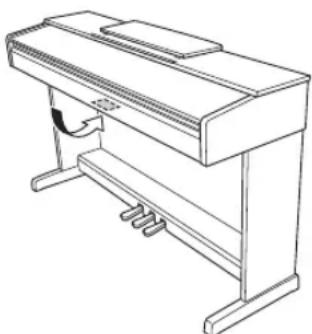
The model number, serial number, power requirements, etc., may be found on or near the name plate, which is at the bottom of the unit. You should note this serial number in the space provided below and retain this manual as a permanent record of your purchase to aid identification in the event of theft.
Model No.
Serial No.
natural_image
Line drawing of a simple typewriter or typewriter device with no text or symbols(bottom_en_01) The name plate is located on the bottom of the unit.
NOTICE
To avoid the possibility of malfunction/ damage to the product, damage to data, or damage to other property, follow the notices below.
Handling
- Do not use the instrument in the vicinity of a TV, radio, stereo equipment, mobile phone, or other electric devices. Otherwise, the instrument, TV, or radio may generate noise. When you use the instrument along with an application on your smart device such as iPad, iPhone or iPod touch, we recommend that you set “Airplane Mode” to “ON” on that device in order to avoid noise caused by communication.
- Do not expose the instrument to excessive dust or vibrations, or extreme cold or heat (such as in direct sunlight, near a heater, or in a car during the day) to prevent the possibility of panel disfiguration, damage to the internal components or unstable operation. (Verified operating temperature range: 5^ - 40^ , or 41^ - 104^ .)
- Do not place vinyl, plastic or rubber objects on the instrument, since this might discolor the panel or keyboard.
■ Maintenance
- When cleaning the instrument, use a soft and dry/slightly damp cloth. Do not use paint thinners, solvents, alcohol, cleaning fluids, or chemical-impregnated wiping cloths.
- During extreme changes in temperature or humidity, condensation may occur and water may collect on the surface of the instrument. If water is left, the wooden parts may absorb the water and be damaged. Make sure to wipe any water off immediately with a soft cloth.
■ Saving data
- Some of the data of this instrument (page 31) are retained when the power is turned off. However, the saved data may be lost due to some failure, an operation mistake, etc. Save your important data onto an external device such as a computer (page 31).
Information
■ About copyrights
- Copying of the commercially available musical data including but not limited to MIDI data and/or audio data is strictly prohibited except for your personal use.
- This product incorporates and bundles contents in which Yamaha owns copyrights or with respect to which Yamaha has license to use others' copyrights. Due to copyright laws and other relevant laws, you are NOT allowed to distribute media in which these contents are saved or recorded and remain virtually the same or very similar to those in the product.
* The contents described above include a computer program, Accompaniment Style data, MIDI data, WAVE data, voice recording data, a score, score data, etc.
* You are allowed to distribute medium in which your performance or music production using these contents is recorded, and the permission of Yamaha Corporation is not required in such cases.
■ About functions/data bundled with the instrument
- Some of the preset songs have been edited for length or arrangement, and may not be exactly the same as the original.
■ About this manual
- The illustrations as shown in this manual are for instructional purposes only, and may appear somewhat different from those on your instrument.
- The letters at the end of the model name (“B” or “WH,” for example) are coded information about the finish of the instrument. For example, “B” indicates “black walnut,” and “WH” indicates “white.” Since they simply indicate the finish, these letters are omitted in this manual.
- Windows is a registered trademark of Microsoft* Corporation in the United States and other countries.
- iPhone, iPad and iPod touch are trademarks of Apple Inc., registered in the U.S. and other countries.
- Android ^™ is a trademark of Google LLC.
- The company names and product names in this manual are the trademarks or registered trademarks of their respective companies.
Tuning
- Unlike an acoustic piano, this instrument does not need to be tuned by an expert (although the pitch can be user-adjusted to match other instruments). This is because the pitch of digital instruments is always maintained perfectly.
Table of Contents
PRECAUTIONS 5
About the Manuals 9
Included Accessories 9
Panel Controls and Terminals .....10
Basic Operations
Setting Up....12
Key Cover (YDP-164, YDP-144)....12
Music Rest (YDP-164, YDP-144)......12
Key Cover and Music Rest (YDP-S54)......13
Turning the Power On....14
Auto Power Off Function....15
Using Headphones ....15
Playing the Piano....16
Intelligent Acoustic Control (IAC)....16
Using the Pedals....17
Using the Damper Resonance ....17
Setting the Operation Confirmation Sounds......18
Changing the Touch Sensitivity .....18
Using the Metronome....19
Advanced Operations
Playing Various Musical Instrument Sounds (Voices)....20
Selecting a Voice....20
Listening to the Demo Songs ......21
Adding Variations to the Sound (Reverb) ......22
Transposing the Pitch in Semitones .....23
Fine-tuning the Pitch 23
Layering Two Voices (Dual mode) ......24
Playing Duo....25
Song Playback and Practice ......26
Listening to 50 Preset Songs....26
Listening to Songs Loaded from the Computer ...26
Practicing a One-Hand Part....27
Playing from the Beginning of a Measure that Includes Rest or Silence ....27
Recording Your Performance ...... 28
Recording Your Performance ....28
Changing the Initial Settings of the Recorded Song 29
Deleting Recorded Data 29
Using with a Computer or a Smart Device .... 30
Using an App on Your Smart Device.... 30
Playback/Recording of Audio Data (USB Audio Interface) 30
Backing up Data and Initializing the Settings.... 31
Data Maintained When Power is Turned Off..... 31
Saving User Song data to a computer ....31
Initializing the Settings....31
Confirming the firmware version of this instrument....31
Appendix
Troubleshooting 32
Keyboard Stand Assembly......33
Assembly Precautions ......33
YDP-164, YDP-144 Assembly.... 34
YDP-S54 Assembly....37
Specifications ....40
Index......42
Thank you for choosing this Yamaha digital piano.
This instrument provides exceptionally high-quality sound and expressive control for your playing enjoyment.
In order to make the most of the performance potential and features of the instrument, please read the manuals thoroughly, and keep them in a handy place for later reference.
About the Manuals
This instrument has the following manuals.
■ Included Manuals

Owner's Manual (this book)
Explains how to use the instrument.

Quick Operation Guide (separate sheet)
Shows in chart form the functions assigned to the buttons and the keyboard for quick understanding.
■ Online Manuals (PDF)

Smart Device Connection Manual
Explains how to connect the instrument to a smartphone or tablet, etc. You can choose from two versions (for iOS and Android) depending on your device.

Computer-related Operations
Includes instructions on connecting this instrument to a computer, and operations related to transferring song data.

MIDI Reference
Contains the MIDI Data Format and MIDI Implementation chart, as well as descriptions on MIDI functions such as MIDI channel and Local Control settings.

MIDI Basics (only in English, French and German)
Contains basic explanations about MIDI.
To obtain these materials, access the Yamaha Downloads website, then enter the model name for searching the desired files.
Yamaha Downloads
http://download.yamaha.com/
Included Accessories
- Owner's Manual (this book) x1
- Quick Operation Guide (separate sheet) x1
- “50 Classical Music Masterpieces” (music book) x1
• Online Member Product Registration x1
- Warranty * x l
- A C a d a p t o r * x l
• Power cord* x1 (YDP-164, YDP-S54)
- Bench* x1 (YDP-164, YDP-144)
* May not be included depending on your particular area. Please check with your Yamaha dealer.
Smart device application – “Smart Pianist”
With the specially developed “Smart Pianist” app running on your smart device, you can remotely control your digital piano for even more convenience and flexibility. By presenting various parameters on-screen, this app allows you to make settings in a visual, more intuitive manner. For more details on “Smart Pianist,” refer to the following Yamaha web site.
https://www.yamaha.com/kbdapps/
For instructions on connecting the instrument to a smart device, Connection Wizard in "Smart Pianist" will guide you according to the operating condition and environment. To start the Connection Wizard, tap ☐(Menu) located at the upper left of the screen to open the Menu display, and then tap "Instrument" → "Start Connection Wizard."
Panel Controls and Terminals
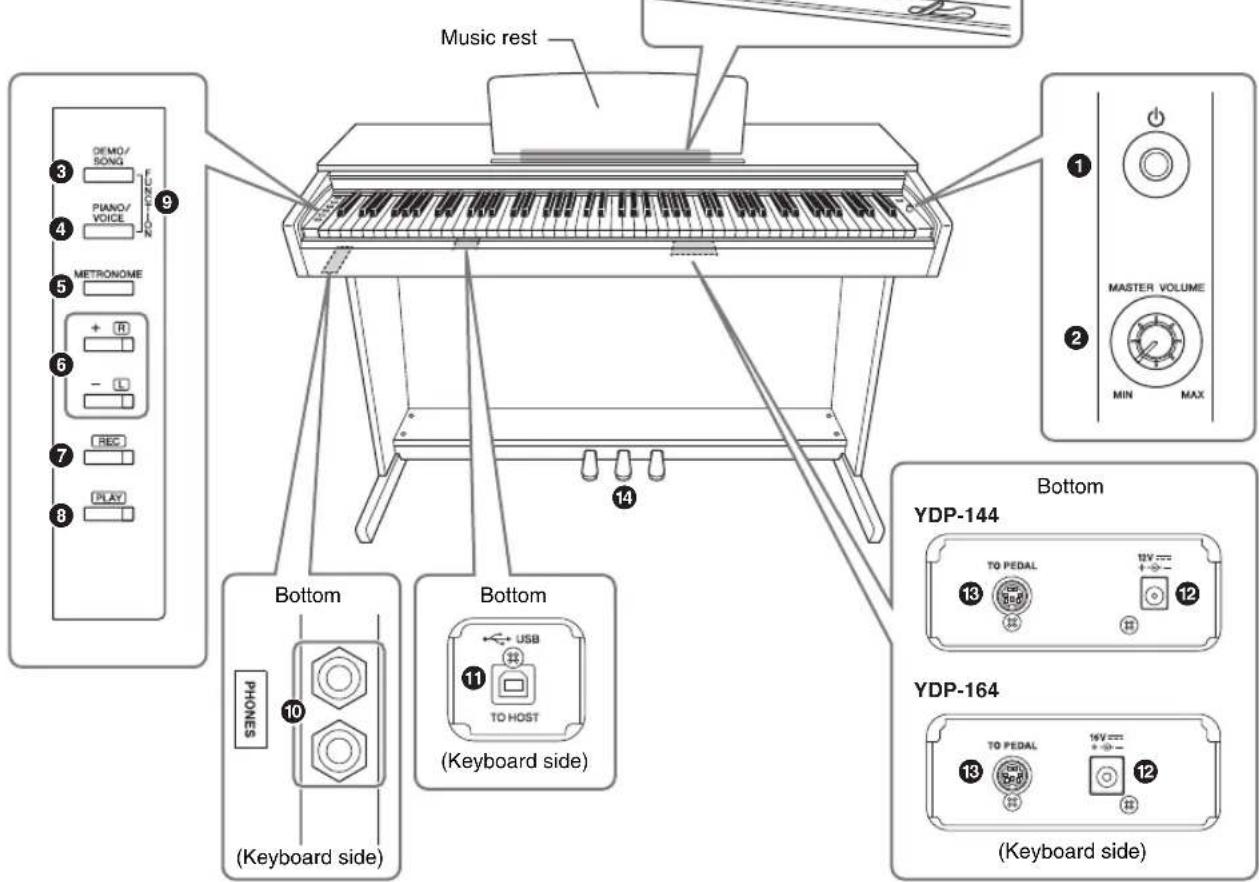
YDP-164, YDP-144
The illustrations are taken from the YDP-144.
YDP-S54
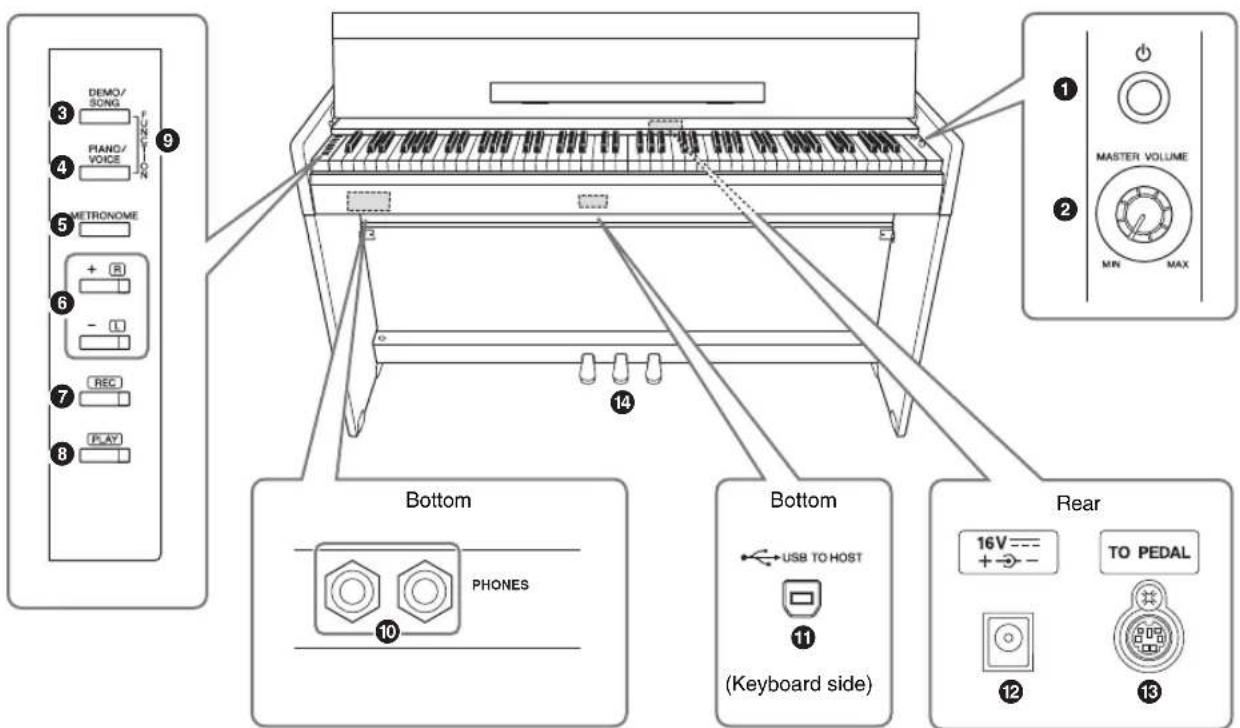
① [⏻] (Standby/On) switch...... page 14 For turning the power on or setting to standby.
② [MASTER VOLUME] knob For adjusting the volume of the entire sound.
Level decreases
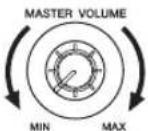
Level increases
CAUTION
Do not use this instrument at a high volume level for a long period of time, to avoid damaging your hearing.
③ [DEMO/SONG] button...... pages 21, 26 For playing the Demo Songs and the Preset Songs.
4 [PIANO/VOICE] button...... pages 20, 22, 24 For selecting a single Voice, two Voices for layering or a Reverb Type.
⑤ [METRONOME] button.... page 19 For starting or stopping the metronome.
⑥ [+R], [-L] buttons ...... pages 19, 20, 26, 27
• In general, these are for selecting the next or previous Voice.
- During Song playback, these are for selecting the next or previous Song, and (while holding down [PLAY]) turning on/off the right-hand and left-hand Parts individually.
- During Metronome playback, these are for increasing or decreasing the Tempo.
⑦ [REC] button...... page 28 For recording your keyboard performance.
⑧ [PLAY] button...... page 28 For playing back the recorded performance.
9 [FUNCTION] ...... pages 15, 23 Simultaneously holding both [DEMO/SONG] and [PIANO/VOICE] and pressing a specified key allows you to change various settings, including Auto Power off function, Transpose parameters, etc.
⑩ [PHONES] jacks...... page 15 For connecting a set of standard stereo headphones.
Headphone hanger (YDP-164 only)
You can hang the headphones on this instrument when not using them. For instructions on installing the headphone hanger, refer to "Keyboard Stand Assembly" on page 36.
NOTICE
Do not hang anything other than the headphones on the hanger.
Doing so may damage this instrument or the hanger.
⑪ [USB TO HOST] terminal ...... page 30 For connecting to a computer or a smart device such as an iPhone or iPad.
⑫ DC IN jack...... page 14 For connecting the AC adaptor.
13 [TO PEDAL] jack ...... pages 36, 39 For connecting the pedal cord.
14 Pedals ...... page 17 For controlling expression and sustain, just as on an acoustic piano.
Setting Up
Key Cover (YDP-164, YDP-144)
To open the key cover:
Lift the cover slightly, then push and slide it to the end.
To close the key cover:
Slide the cover toward you and gently lower the cover over the keys.
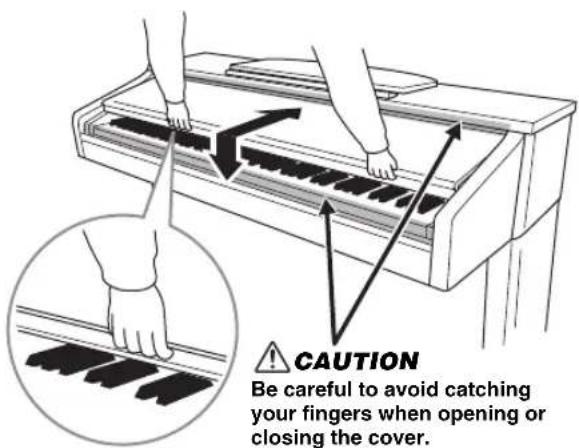

CAUTION
- Hold the cover with both hands when opening or closing it. Do not release it until it is fully opened or closed. Be careful to avoid catching fingers (yours or others, especially children's) between the cover and main unit.
- Do not place objects, such as a piece of metal or paper, on top of the key cover. Small objects placed on the key cover may fall inside the unit when the cover is opened and may be nearly impossible to remove. This could cause electric shock, short circuit, fire or other serious damage to the instrument.
Music Rest (YDP-164, YDP-144)
To raise the music rest:
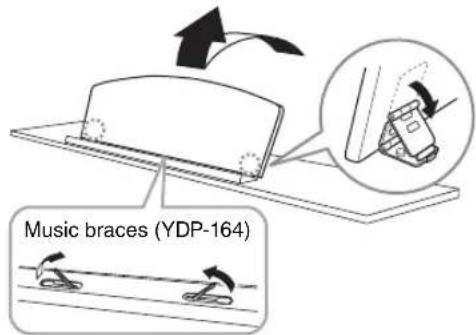
- Pull the music rest up and toward yourself as far as it will go.
- Flip down the two metal supports at the left and right on the rear of the music rest.
- Lower the music rest so that the metal supports latch into place.
(YDP-164) Music braces allow you to hold the pages of music books in place.

CAUTION
Do not try to use the music rest in a half-raised position. When lowering the music rest, do not release your hands from the music rest until it is all the way down.
To lower the music rest:
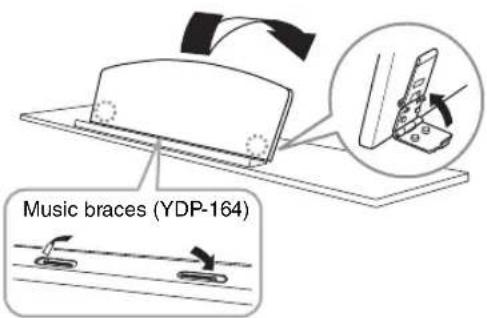
(YDP-164) Close the Music braces if they are open, and then lower the music rest by following the instructions below.
- Pull the music rest toward yourself as far as it will go.
- Raise the two metal supports (at the rear of the music rest).
- Gently lower the music rest backward until it is all the way down.
Key Cover and Music Rest (YDP-S54)

CAUTION
Hold the key cover with both hands when opening or closing it. Do not release it until it is fully opened or closed. Be careful to avoid catching fingers (yours or others, especially children's) between the key cover and main unit.
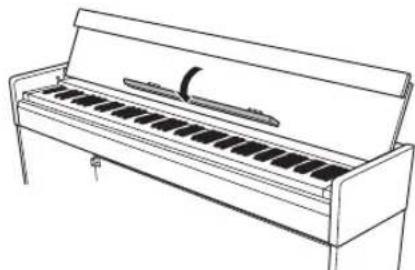
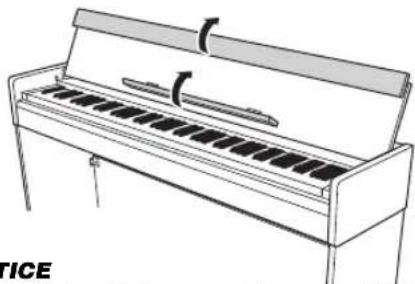
Opening the key cover
- Hold the edge of the key cover top with both hands, then open the key cover slowly.
- Fold down the front part of the key cover.
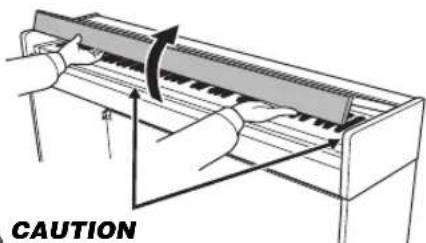

CAUTION
Be careful to avoid catching your fingers when opening or closing the cover.
natural_image
Line drawing of a piano with a curved arrow indicating compression or rotation (no text or symbols)- Unfold the music rest.
natural_image
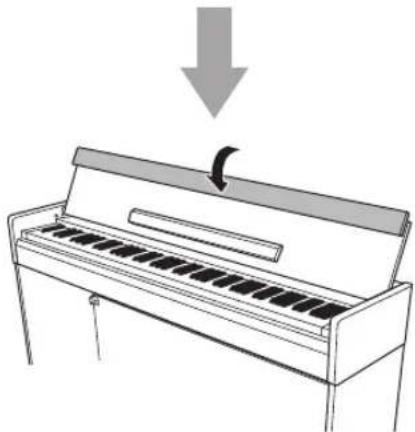
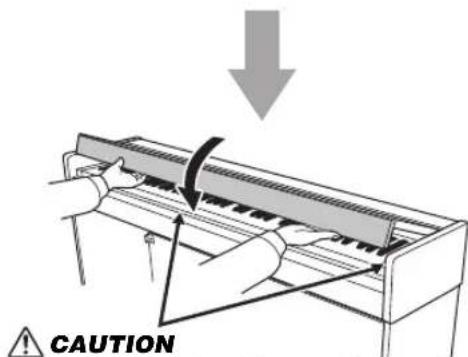
Line drawing of a piano with a curved handle and slats (no text or symbols)Closing the key cover
- Fold the music rest.
- Unfold the front part of the key cover.
- Hold the key cover with both hands and close it slowly.
The key cover is equipped with the special SOFT-CLOSE ^™ mechanism which closes the cover slowly.
natural_image
Line drawing of a piano with a handle and scroll, no text or symbols presentNOTICE
Before closing the key cover, be sure to fold the music rest and unfold the front part of the key cover.

CAUTION
Be careful to avoid catching your fingers when opening or closing the cover.

CAUTION
Do not apply excessive force when closing the key cover. Applying excessive force to the key cover when closing it could damage the SOFT-CLOSE™ mechanism, and possibly result in injury to your hands and fingers caught under the closing key cover.
Turning the Power On
1. Connect the plugs of the AC adaptor in the order shown in the illustration.
YDP-164, YDP-S54
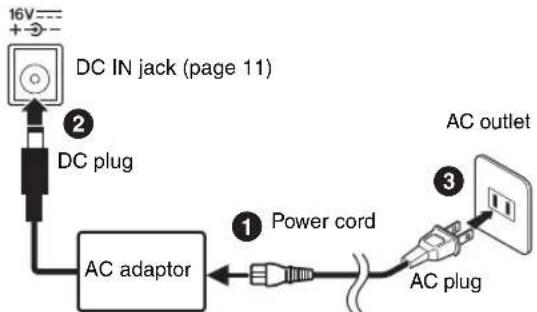
The shape of the plug and outlet differ depending on the locale.
YDP-144
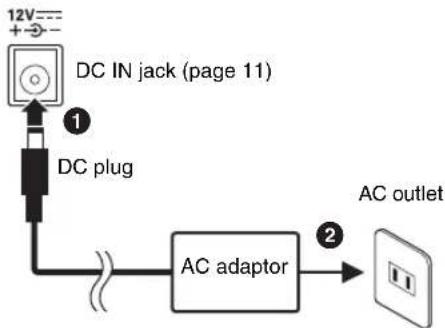
flowchart
graph LR
    A["DC IN jack (page 11)"] --> B["DC plug"]
    B --> C["AC adaptor"]
    C --> D["AC outlet"]
WARNING
Use the specified adaptor (page 40) only. The use of other adaptors may result in irreparable damage to both the adaptor and the instrument.
CAUTION
Remove the AC plug from the AC outlet when the instrument is not to be used for extended periods of time, or during electrical storms.
NOTE
Follow this procedure in reverse order when disconnecting the AC adaptor.
For the Power Adaptor with a Removable Plug
Do not remove the plug from the power adaptor. If the plug is removed accidentally, slide the plug into place without touching the metallic parts, and then push the plug in completely until it clicks.
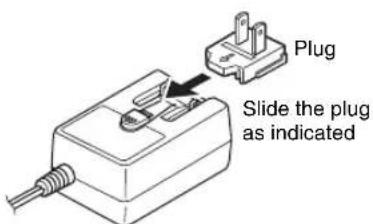
The shape of the plug and outlet differ depending on the locale.
WARNING
- Make sure to keep the plug attached to the AC adaptor. Using the plug alone can cause electric shock or fire.
- Never touch the metallic section when attaching the plug. To avoid electric shock, short circuit or damage, also be careful that there is no dust between the AC adaptor and plug.
2. Press the [∅] (Standby/On) switch to turn the power on.
![[Ø] (Standby/On) switch Power indicator](/content/2026/05/760312/images/344a9fb3a7878832ddac97751ad1c2586ea57e2c15383abfbe1735410b0fa340.jpg)
Power indicator
If you close the key cover without turning the power to standby, the power indicator remains lit, indicating that the power is still on.
When you're ready to turn the power to standby, press the [⏻] (Standby/On) switch again for a second. The power indicator turns off.
CAUTION
Even when the [∅] (Standby/On) switch is in the standby status, electricity is still flowing to the instrument at a minimum level. When not using the instrument for an extended period of time, be sure to unplug the power cord from the wall AC outlet.
NOTICE
Press only the [☐] (Standby/On) switch when turning the power on. Any other operations, such as pressing the keys, buttons or pedals may cause the instrument to malfunction.
Auto Power Off Function
To prevent unnecessary power consumption, this instrument features an Auto Power Off function that automatically turns the power off if the instrument is not operated for approximately 30 minutes.
Default setting: Enabled
Disabling Auto Power Off (simple method)
Turn off the power of the instrument once.
While holding down the A-1 key (the lowest key), press the [∅] (Standby/On) switch to turn the instrument on. The [REC] indicator flashes three times, indicating the Auto Power Off function has been disabled.
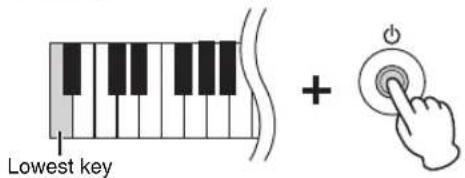
Switching the Auto Power Off Function (Enable/Disable)
While holding down [DEMO/SONG] and [PIANO/VOICE] simultaneously, press the A#0 key to enable the Auto Power Off function or the A0 key to disable it.
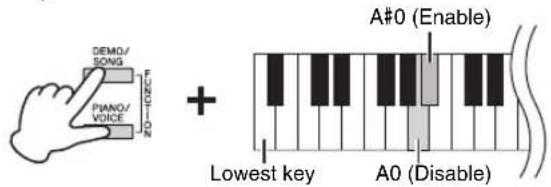
Using Headphones
Since this instrument is equipped with two [PHONES] jacks, you can connect two sets of standard stereo headphones. If you are using only one set of headphones, insert a plug into either jack, which automatically shuts off the speakers according to the default setting.
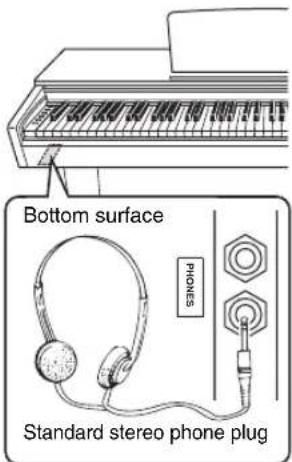
CAUTION
Do not use headphones at a high volume for an extended period of time; doing so may cause hearing loss.
Speaker On/Off setting
You can set whether the sound of this instrument is always output from its built-in speaker or not. While holding down [DEMO/SONG] and [PIANO/VOICE] simultaneously, press one of the D6 – E6 key.
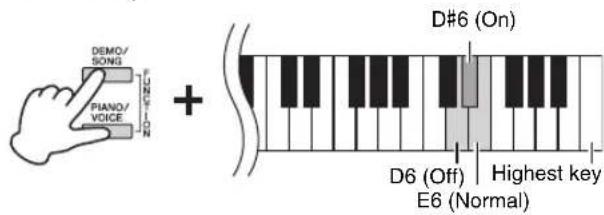
| Off(D6 key) | The speaker will not sound. |
| On(D#6 key) | The speaker will always sound regardless of whether a set of headphones is connected or not. |
| Normal(E6 key) | The speaker will sound only if headphones are not connected. (This is the default setting.) |
Reproducing a natural sense of distance (Stereophonic Optimizer)
The Stereophonic Optimizer gives you the feeling of playing an actual acoustic piano — even though you're listening through headphones. Normally, the sound comes out from headphones sounds very close to your ears. However, this Stereophonic Optimizer effect recreates a natural distance or the sense of physical space between your ears and the instrument, just as when playing an acoustic piano.
Default setting: On
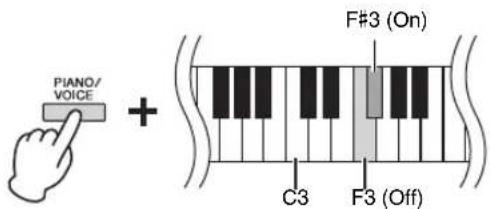
While holding down [PIANO/VOICE], press the F#3 key to turn the function on or the F3 key to turn the function off.
Playing the Piano
Intelligent Acoustic Control (IAC)
With this function, the sound quality of this instrument is automatically adjusted and controlled according to the overall volume. Even when the volume is low, this lets you hear both low sounds and high sounds clearly.
To turn on IAC:
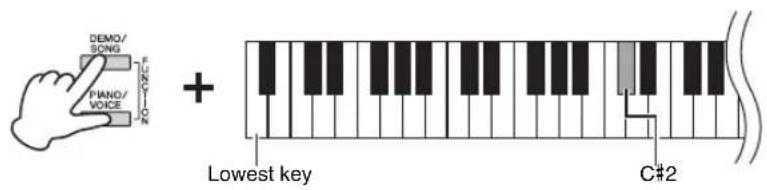
While holding down [DEMO/SONG] and [PIANO/VOICE] simultaneously, press the C#2 key.
To turn off IAC:
While holding down [DEMO/SONG] and [PIANO/VOICE] simultaneously, press the C2 key.
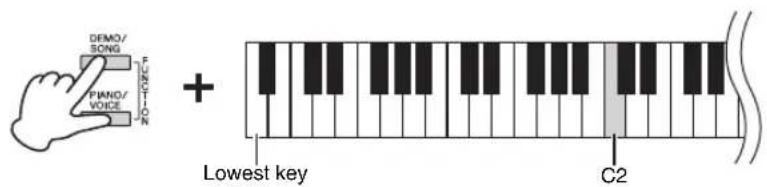
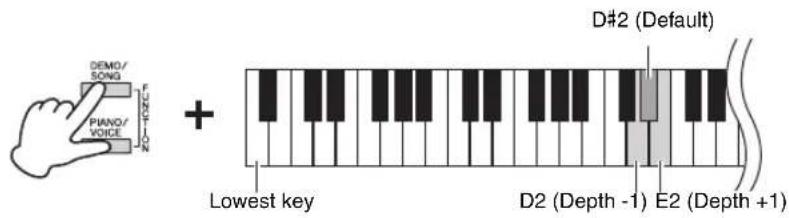
To adjust IAC Depth:
While holding down [DEMO/SONG] and [PIANO/VOICE] simultaneously, press the D2 key to decrease the value, or the E2 key to increase.
The higher the value, the more clearly that low and high sounds are heard at lower volume levels.
Default setting: On
Setting range: -3 - +3
Default setting: 0 (D#2)
Using the Pedals
Damper Pedal (Right)
Pressing this pedal will sustain notes longer. Releasing this pedal immediately stops (damps) any sustained notes. This pedal also features a "half-pedal" function that creates partial sustain effects, depending on how far down you press the pedal.
Sostenuto Pedal (Center)
Pressing this pedal while holding the notes will sustain the pressed notes (as if the Damper Pedal had been pressed), but all subsequently played notes will not be sustained. This makes it possible to sustain a chord or single low note, for example, while the other notes are played “staccato.”
Soft Pedal (Left)
Pressing this pedal will reduce the volume and slightly change the timbre of the notes. The notes played before this pedal is pressed are not affected.
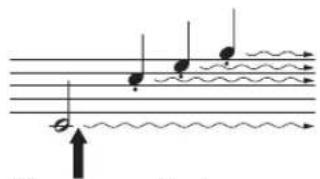
When you press the damper pedal here, this note and the notes you play before you release the pedal sustain longer.
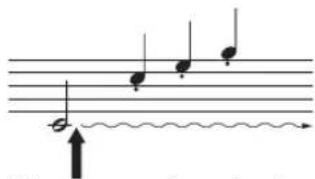
When you press the sostenuto pedal here while holding the note, the note will sustain as long as you hold the pedal.
Using the Damper Resonance
The Damper Resonance effect simulates the sustain sound of the damper pedal on a grand piano, as if you were pressing the damper pedal and playing the keyboard. This effect is applied only to the Piano Voices (page 20).
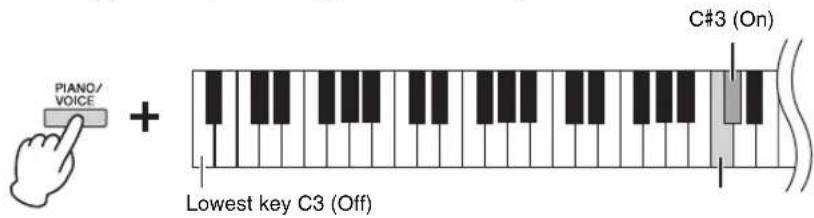
To turn on the Damper Resonance:
While holding [PIANO/VOICE], press the C#3 key.
To turn off the Damper Resonance:
While holding [PIANO/VOICE], press the C3 key.
NOTE
If the damper pedal doesn't work, make sure that the pedal cord is properly plugged into the main unit (page 39).
Half-pedal function
This function allows you to vary the sustain length depending on how far the pedal is pressed. The farther down you press the pedal, the more the sound sustains. For example, if you press the damper pedal and all notes you are playing sound a bit murky and loud with too much sustain, you can release the pedal half way or higher to decrease the sustain (murkiness).
NOTE
While the sostenuto pedal is held, the organ and strings Voices sound continuously without decay after the notes have been released.
NOTE
When Jazz Organ Voice (page 20) is selected, pressing the left pedal switches between fast/slow rotation of the rotary speaker. When the Vibraphone Voice (page 20) is selected, the left pedal switches Vibrato on and off.
Default setting:
On
Setting the Operation Confirmation Sounds
When a setup is changed using a button and key combination, an operation sound (on, off, click, tempo value input) is sounded. This confirmation sound can be enabled (on) or disabled (off) as desired.
Turning the Operation Confirmation Sounds on
While holding down [DEMO/SONG] and [PIANO/VOICE] simultaneously, press the A#-1 key.
Turning the Operation Confirmation Sounds off
While holding down [DEMO/SONG] and [PIANO/VOICE] simultaneously, press the A-1 key.
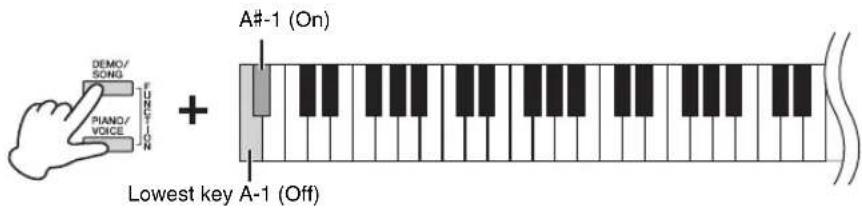
Default setting: On
Changing the Touch Sensitivity
You can specify the Touch Sensitivity (how the sound responds to the way you play the keys).
While holding down [PIANO/VOICE], press one of the C6 - D#6 keys.
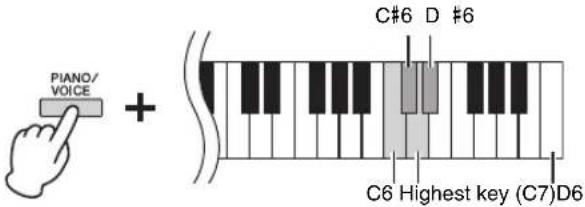
| Key | Touch Sensitivity | Description |
| C6 Soft | The volume level does not change much when you play the keyboard soft or hard. | |
| C#6 Medium This is the standard piano touch response. | ||
| D6 Hard | The volume level changes very widely from pianissimo to fortissimo to facilitate dynamic and dramatic expression. You have to hit the keys hard to produce a loud sound. | |
| D#6 | F i | The volume level does not change at all regardless of whether you play the keyboard soft or hard. |
NOTE
This setting is disabled with some Voices, such as an organ sound.
Default setting: C#6 (Medium)
Using the Metronome
The metronome feature is convenient for practicing with an accurate tempo.
- Press [METRONOME] to start the Metronome.
- Press [METRONOME] to stop the Metronome.
Metronome setting
While holding down the [METRONOME] button, press one of the highlighted keys shown below to set the Metronome parameter.
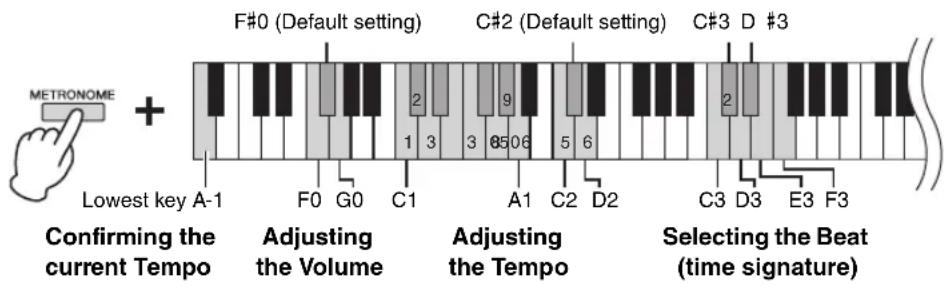
Voice confirmation of current Tempo value (in English)
While holding down [METRONOME], press the A-1 key (lowest key).
Selecting the Beat (time signature)
While holding down [METRONOME], press one of the C3 - F3 keys.
The first beat is accented with a bell sound and the rest with clicks. Default set is 0 (C3). In this setting, clicks sound in all beats.
Adjusting the Tempo
The Metronome tempo can be set from 5 to 280 beats per minute.
• To increase or decrease the value by 1:
While holding down [METRONOME], press [+R] to increase or [-L] to decrease. While the metronome is playing, press [+R] to increase or [-L] to decrease.
• To increase or decrease the value by 10:
While holding down [METRONOME], press the D2 key to increase or the C2 key to decrease.
• To specify a numeric value:
While holding down [METRONOME], press the relevant C1 - A1 keys one by one in order. Specifying three digits or releasing [METRONOME] after specifying one or two digits will enter the value.
- Resetting the value to the default (120)
While holding down [METRONOME], press [+R] and [-L] simultaneously, or press the C#2 key. While the metronome is playing, press [+R] and [-L] simultaneously.
Adjusting the Volume
While holding down [METRONOME], press the G0 key to increase the volume or the F0 key to decrease. To reset to the default setting, press the F#0 key while holding down [METRONOME].
| Key | Beat (time signature) |
| C3 | 0 (no accent) |
| C#3 | 2 |
| D3 | 3 |
| D#3 | 4 |
| E3 | 5 |
| F3 | 6 |
NOTE
A numeric value is read out when a relevant key is pressed. If the entered value is outside the setting range, it will be ignored.
Setting range:
1 - 10
Default setting:
7 (F#0)
Playing Various Musical Instrument Sounds (Voices)
Selecting a Voice
To select "CFX Grand":
Simply press [PIANO/VOICE].
To select another Voice:
After pressing [PIANO/VOICE], press [+R] or [-L] to select the next or previous Voice.
To select a specific Voice:
While holding down [PIANO/VOICE], press one of the C1 - A1 keys. For details on which Voice is assigned to each key, see the list below.
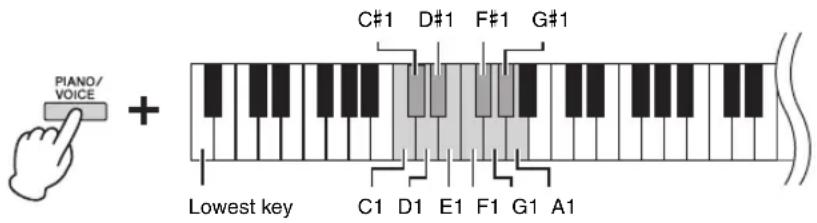
Voice List
| Key Voice Name Voice description | ||
| C1 CFX Grand | Yamaha's CFX flagship concert grand piano sound with a wide dynamic range for maximum expressive control. Suitable for playing in any music genre and style. | |
| C#1 Mellow Grand | Grand piano sound with a soft and warm tone. Good for playing ballads. | |
| D1 Pop Grand | Bright piano sound. Good for clear expression and “cutting through” other instruments in an ensemble. | |
| D#1 Stage E.Piano | The sound of an electric piano using hammer-struck metallic “tines.” Soft tone when played lightly, and an aggressive tone when played hard. | |
| E1 DX E.Piano | An electronic piano sound created by FM synthesis. Good for standard popular music. | |
| F1 Harpsichord | The definitive instrument for baroque music. Since harpsichord uses plucked strings, there is no touch response. There is, however, a characteristic additional sound when the keys are released. | |
| F#1 Vibraphone | Vibraphone played with relatively soft mallets. The tone becomes more metallic the harder you play. | |
| G1 Pipe Organ | This is a typical pipe organ sound (8 feet + 4 feet + 2 feet). Good for sacred music from the Baroque period. | |
| G#1 Jazz Organ | The sound of a “tonewheel” type electric organ. Often heard in jazz and rock music. | |
| A1 Strings | Stereo-sampled, large-scale strings ensemble with realistic reverb. Try combining this Voice with piano in the Dual mode. | |
NOTE
To hear the characteristics of the Voices, play back the Demo Songs (page 21).
Listening to the Demo Songs
Special individual Demo Songs are provided for all of the instrument Voices.
1. Press [DEMO/SONG] to start playback.
The Demo Song for the current Voice starts. During playback, the [PLAY] lamp flashes at the current tempo.
Starting with the selected song, the playback of the Demo Songs will continue. After the last demo song, the sequence then returns to the first Demo Song and repeats until you stop it.
To change the Demo Song during playback:
Press [+R] or [-L] to change to the next or previous Demo Song.
To change to a specific Demo Song, press and hold down [DEMO/SONG], then press one of the C1 - A1 keys.
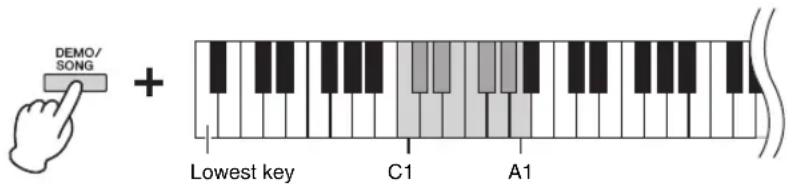
2. Press [DEMO/SONG] or [PLAY] to stop playback.
The [PLAY] lamp turns off.
Demo Song List
| Key Voice Name Title Composer | |||
| C1 CFX Grand | El pelele - Escena goyesca,Goyescas - Los majos enamorados II No.7 | E. Granados | |
| C#1 Mellow Grand | Von fremden Ländern und Menschen,Kinderszenen op. 15-1 | R. Schumann | |
| D1 Pop Grand Original — | |||
| D#1 Stage E.Piano Original — | |||
| E1 DX E.Piano Original — | |||
| F1 Harpsichord | Concerto a cembalo obbligato, 2 violini, viola econtinuo No.7, BWV 1058 | J. S. Bach | |
| F#1 | Vibraphone | Original | — |
| G1 Pipe Organ | Herr Christ, der ein'ge Gottes-Sohn, BWV 601 J. S. Bach | ||
| G#1 Jazz Organ | Original — | ||
| A1 Strings | Original — | ||
The Demo Songs excluding original Songs are short rearranged excerpts from the original compositions. The original Demo Songs are Yamaha originals (© Yamaha Corporation).
NOTE
If you want to change the playback tempo, see page 19.
Adding Variations to the Sound (Reverb)
This instrument features several Reverb Types that add extra depth and expression to the sound to create a realistic acoustic ambience. The appropriate Reverb Type and Depth are called up automatically when you select each of the Voices and Songs. This is why the Reverb Type need not be selected; however, you can change it if desired.
To select a Reverb Type:
While holding down [PIANO/VOICE], press one of the C2 - E2 keys.
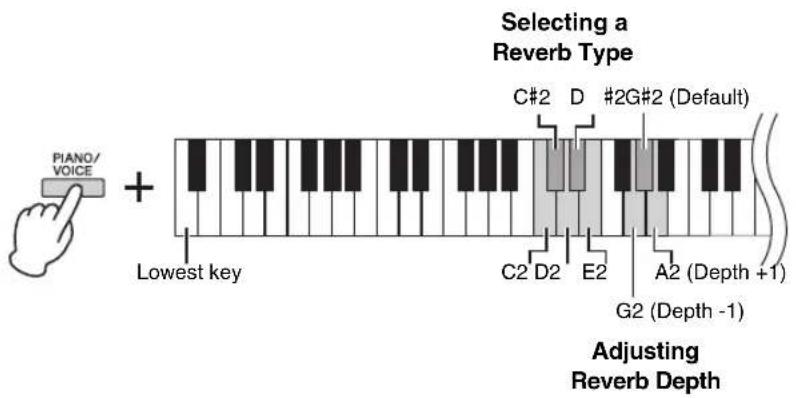
Reverb Type List
| Key Reverb Type Description | ||
| C2 Recital Hall | Simulates the clear reverb sound you would hear in a medium-sized concert hall for piano recitals. | |
| C#2 Concert Hall | Simulates the gorgeous reverb sound you would hear in a large concert hall for orchestral performances. | |
| D2 Chamber | Suitable for playing chamber music; simulates the intimate reverb sound you would hear in a spacious room, such as for classical music recitals. | |
| D#2 | C | Simulates the vivid reverb sound you would hear in a live music venue or a jazz club. |
| E2 Off | No effect is applied. | |
To adjust Reverb Depth:
While holding down [PIANO/VOICE], press the G2 key to decrease the value by 1 or the A2 key to increase the value by 1.
While holding down [PIANO/VOICE], press the G#2 key to reset the Reverb Depth to the default setting, which is the most suitable value for the current Voice.
Reverb in Dual Mode (page 24)
An optimum reverb type for the combination of Voices is assigned automatically.
Setting range:
0 (no effect) - 20 (maximum depth)
Transposing the Pitch in Semitones
You can shift the pitch of the entire keyboard up or down in semitones in order to facilitate playing in difficult key signatures, or to easily match the pitch of the keyboard to the range of a singer or other instruments. For example, if “+5” is selected, playing key C produces pitch F, letting you play a song of F major as though it were in C major.
To transpose the pitch down:
While holding down [DEMO/SONG] and [PIANO/VOICE], press a key between F#2 (-6) and B2 (-1).
To transpose the pitch up:
While holding down [DEMO/SONG] and [PIANO/VOICE], press a key between C#3 (+1) and F#3 (+6).
To restore the normal pitch:
While holding down [DEMO/SONG] and [PIANO/VOICE], press the C3 key.
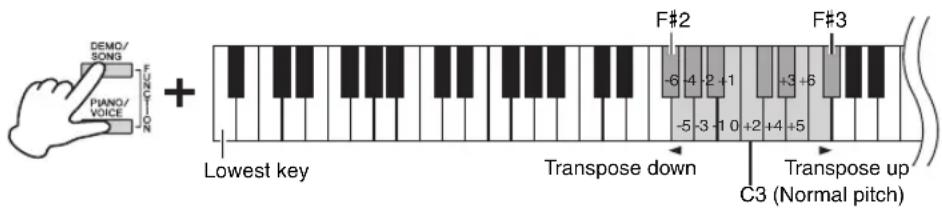
NOTE
The transposition setting affects not only the pitch of the keyboard but also the pitch of Song playback (page 26). The transposition setting of the Transposition for the Keyboard and the Song cannot be set independently.
Fine-tuning the Pitch
You can fine-tune the pitch of the entire instrument in about 0.2 Hz steps. This lets you accurately match the keyboard pitch to that of other instruments or CD music.
To tune up (in about 0.2 Hz steps):
Press and hold down [DEMO/SONG] and [PIANO/VOICE] simultaneously, and press [+R].
To tune down (in about 0.2 Hz steps):
Press and hold down [DEMO/SONG] and [PIANO/VOICE] simultaneously, and press [-L].
To set the pitch to 442.0 Hz:
Press and hold down [DEMO/SONG] and [PIANO/VOICE] simultaneously, and press the C#1 key.
To restore default pitch (440.0 Hz):
While simultaneously holding down [DEMO/SONG] and [PIANO/VOICE], press [+] and [-L] simultaneously. Alternately, you can press the C1 key while holding down [DEMO/SONG] and [PIANO/VOICE] simultaneously.
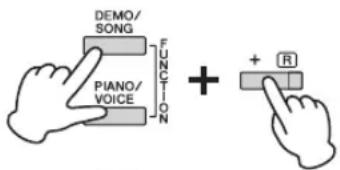
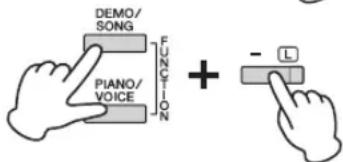
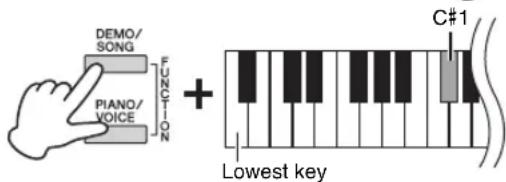
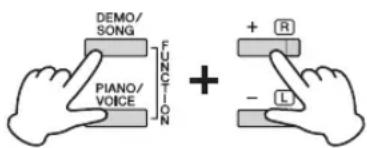
Hz (Hertz)
This unit of measurement refers to the frequency of a sound and represents the number of times a sound wave vibrates in a second.
Setting range:
414.8 - 466.8 Hz
Default setting:
A3 = 440.0 Hz
Layering Two Voices (Dual mode)
You can layer two Voices and play them simultaneously to create a more richly textured sound.
1. Engage the Dual mode.
While holding down [PIANO/VOICE], simultaneously hold down two keys between C1 and A1 to select the two desired Voices. For information on which Voices are assigned to the keys, refer to "Voice List" (page 20).
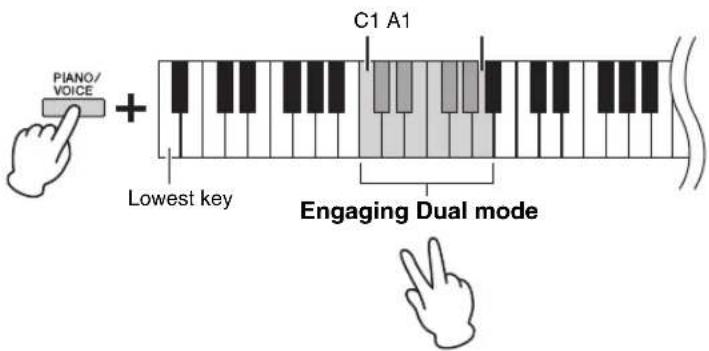
The Voice assigned to the lower key will be designated as Voice 1, and the Voice assigned to the higher key will be designated as Voice 2. You cannot assign the same Voice to both Voice 1 and Voice 2 simultaneously in Dual mode.
To shift the Octave for each Voice:
While holding down [PIANO/VOICE], press one of the keys F5 – G5 or A5 – B5 as shown in the illustration below. For example, pressing the B5 key twice while holding down [PIANO/VOICE] shifts Voice 1 up by two octaves. To restore the default setting, simultaneously hold down [PIANO/VOICE] and press the A#5 key for Voice 1 or the F#5 key for Voice 2.
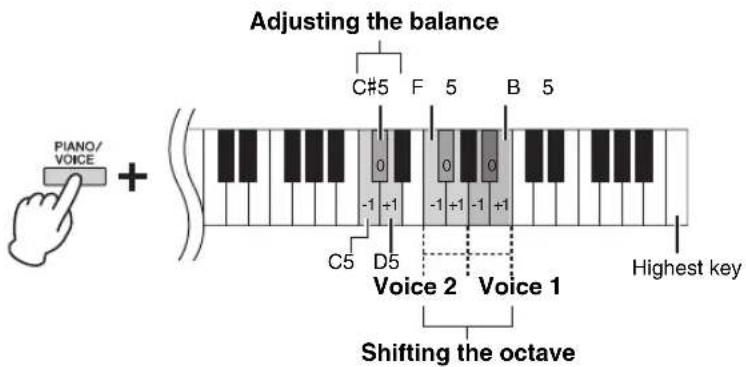
To adjust the Balance between two Voices:
While holding down [PIANO/VOICE], press the C5 key to decrease the value or the D5 key to increase. When the value is set to "0," the volume levels of the two Voices reset to their respective default settings. Settings below "0" increase the volume of Voice 2, while settings above "0" increase the volume of Voice 1, in relation to the other.
2. To exit from Dual mode, press [PIANO/VOICE].
NOTE
The Dual and Duo modes (page 25) cannot be engaged at the same time.
Setting range:
$$ - 2 - 0 - + 2 $$
Setting range:
$$ - 6 - 0 - + 6 $$
Playing Duo
This function allows two different players to play the instrument, one on the left and the other on the right, over the same octave range.
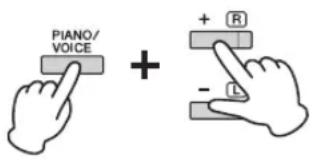
1. While holding down [PIANO/VOICE], press [+] and [-L] simultaneously to engage Duo.
The keyboard is divided into two sections, with the E3 key as the Split Point.
NOTE
- Different Voices cannot be assigned to the Right Voice and Left Voice.
- The Split Point cannot be changed from E3.
- In Duo, Reverb, Damper Resonance and Stereophonic Optimizer are not effective.

2. One person can play the left section of the keyboard while the other plays the right.
To shift the Octave for each section:
Same operation as in Dual (page 24).
In Duo, the left section is assigned to Voice 2, while the right section is assigned to Voice 1.
To adjust the volume balance between two keyboard sections:
Same operation as in Dual (page 24).
Settings below “0” increase the volume of Left Voice (Voice 2), while settings above “0” increase the volume of Right Voice, in relation to the other.
Pedal function in Duo
Damper Pedal: Applies Sustain to the right section.
Sostenuto Pedal: Applies Sustain to both sections.
Soft Pedal: Applies Sustain to the left section.
3. To exit from Duo, simultaneously hold down [PIANO/VOICE] and press [+R] and [-L] .
Setting range:
$$ - 2 - 0 - + 2 $$
Setting range:
$$ - 6 - 0 - + 6 $$
NOTE
Sounds played in the left section are played from the left speaker, and sounds played in the right section are played from the right speaker. Moreover, when using headphones, sounds played in the left section are played by the left channel, and sounds played in the right section are played by the right channel of the headphones.
NOTE
If the keyboard is in Dual mode, engaging Duo will exit from Dual, and Voice 1 is used over the entire range of the keyboard.
Song Playback and Practice
Listening to 50 Preset Songs
In addition to the Demo Songs, Preset Songs are provided for your listening pleasure.
- Find the number of the Song that you want to play back from the included “50 Classical Music Masterpieces.”
- While holding down [DEMO/SONG], press one of the C2 - C#6 keys to start playback.
The number of each piano Preset Song is assigned to the C2 - C#6 keys.

During playback, the [+R] and [-L] lamps light, and the [PLAY] lamp flashes at the current tempo. Playback of the Preset Songs continues in sequence, starting with the selected song. After the last Preset Song, the sequence then returns to the first Preset Song and repeats until you stop it.
To change the Preset Song during playback:
Press [+R] or [-L] to change to the next or previous Preset Song, or directly select the desired Song by holding down [DEMO/SONG] and pressing the appropriate key.
To change the tempo during playback:
While holding down [METRONOME], press [+R] or [-L] to increase or decrease the Tempo value by 1. Other instructions are the same as those of the Metronome Tempo (page 19).
To play back from the beginning of the Song
During playback, press [+R] and [-L] simultaneously to jump to the playback position at the beginning of the Song then continue playback at the last specified tempo.
- Press [DEMO/SONG] or [PLAY] to stop playback.
The [PLAY], [+R] and [-L] lamps turn off.
Song:
In this manual, performance data is called a "Song." This includes 50 Preset Songs and Demo Songs.
NOTE
You can play the keyboard along with the Preset Song. You can also change the Voice played from the keyboard.
NOTE
The Preset Songs, Demo Songs and other Songs (a maximum of ten) transferred from a computer can be played back consecutively within each category.
NOTE
You can import additional Songs by loading SMF files from a computer. For details, refer to the "Computer-related Operations" on the website (page 9).
Listening to Songs Loaded from the Computer
You can transfer up to 10 songs from your computer to this instrument and play them back. For details on transferring Songs from a computer and playing them back on this instrument, refer to the “Computer-related Operations” section on the website (page 9).
Types of file that can be exchanged with a computer
Files with a .mid extension (SMF format 0 or 1)
NOTE
Certain MIDI files in SMF format 0 or 1 may contain data that is not supported by your digital piano, and such files may not play as originally intended. If this is the case, setting the song playback channels to "1&2" may enable a better rendition of the song. For details, refer to the "Computer-related Operations" section on the website (page 9).
Practicing a One-Hand Part
All the Songs except for the Demo (page 21) let you turn on or off the left-hand and right-hand Parts individually. By turning off [+R], for example, you can practice the right-hand Part while the left-hand Part is playing back, and vice versa.
- Start playback of a Preset Song (page 26) or the User Song (page 28).
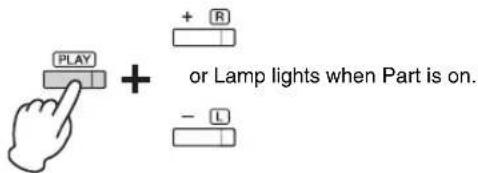
- While holding down [PLAY], press [+] or [-L] to turn the Part on/off.
Pressing the same button repeatedly while holding down [PLAY] toggles playback on and off. The lamp of the button lights to indicate that the corresponding Part is on.
- Practice the Part which is turned off.
To change the Tempo:
If desired, you can change the tempo for your practice convenience. For details, refer to page 19.
- Press [PLAY] to stop playback.
NOTE
Selecting another Song will reset the on/off status.
NOTE
Songs 16 – 20 of "50 Classical Music Masterpieces" are duet songs. The right-hand Part is for the first player, and the left-hand Part is for the second player.
Playing from the Beginning of a Measure that Includes Rest or Silence
This Quick Play feature enables you to specify whether a Song should play back immediately from the very first note, or play back any silence or rests that exist before the first note.
To turn on Quick Play:
Hold down [DEMO/SONG] and press the A#-1 key to enable immediate playback from the first note or first pedal operation.
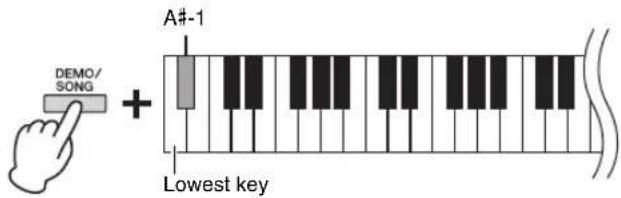
To turn off Quick Play:
Hold down [DEMO/SONG] and press the lowest key (A-1) to play from the top of the first measure (including a rest or blank).
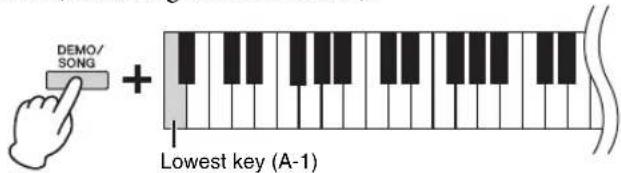
Default setting:
On
Recording Your Performance
This instrument lets you record your keyboard performance as the User Song. Up to two Parts (left-hand and right-hand) can be recorded separately. The recorded Song data can be saved to a computer as a Standard MIDI file (SMF; page 31).
Recording Your Performance
1. Select the desired Voice and other parameters, such as beat (time signature), for recording.
For instructions on selecting a Voice, refer to page 20. If necessary, set other parameters, such as beat (time signature) and effects, in this step.
2. Engage the Record Ready mode.
Quick Recording
Press [REC] to engage the Record Ready mode. Your keyboard performance will be automatically recorded to the right-hand part. Note that the already-recorded data of the right- and left-hand parts will be erased by Quick Recording.
Recording to individual parts
While holding down [REC], press [+R] or [-L] to engage the Record Ready mode for the Part you want to record.
![REC + + R REC + - L To record the right-hand Part ([+R]) To record the left-hand Part ([-L])](/content/2026/05/760312/images/4e31a699324b49e9a01846241ff1b4152dd20e5e3d69ac3ab82c6125b7992d2a.jpg)
If data has already been recorded to the other Part, the data in this Part will be played back while recording.
To turn the Part off or on, press the appropriate part button ([+R] or [-L]) while holding down [PLAY].
To exit from Record Ready mode:
Simply press [REC].
3. Play the keyboard or press [PLAY] to start recording.
The [REC] lamp lights up while the Recording Part lamp flashes at the current tempo.
4. Press either [REC] or [PLAY] to stop recording.
The [REC], [PLAY], [+R] and [-L] lamps flash, indicating that the recorded data is being stored. After the Save operation is completed, the lamps will turn off, indicating that the Record operation has been completed.
5. To hear the recorded Song, press [PLAY] to start playback.
Press [PLAY] again to stop playback.
To record to the other part
Repeat the steps above. In step 2, follow the instructions of “Recording individual parts.”
NOTE
The Recording function of this instrument will record your keyboard performance as MIDI data. If you want to record audio data, you can connect a computer to the instrument for that purpose. Refer to page 30 for details.
NOTE
You can use the Metronome while recording; however, the Metronome sound will not be recorded.
NOTE
If the keyboard is in the Duo mode (page 25), the data will be recorded to each Part. The Part for recording cannot be specified.
NOTICE
Note that recording your performance to a part containing data will replace already-recorded data with the new data.
NOTE
If the data capacity of the instrument approaches full when you engage Record Ready mode, the [REC] and [PLAY] lamps flash quickly for about three seconds.
NOTICE
Never turn off the power while the recorded data is being stored (while the lamps are flashing). Otherwise, all recorded data will be lost.
Recording Capacity
This instrument can record up to 100 KB (approximately 11,000 notes).
Changing the Initial Settings of the Recorded Song
The settings of the following parameters can be changed after the Record operation is completed.
- For individual Parts: Voice, Volume balance (Dual/Duo), Reverb Depth, Damper Resonance
-
For the entire Song: Tempo, Reverb Type
-
Make settings for the above parameters as desired.
-
While holding down [REC], press the desired Part button to engage Record Ready mode.
The [REC], [PLAY] and selected Part ([+R] or [-L]) lamps flash. In this status, do not press [PLAY] again or any key. Otherwise, the originally recorded performance data will be deleted.
- While holding down [REC], press [PLAY] to exit from Record Ready mode.
The [REC], [PLAY], [+R] and [-L] lamps flash. After the Save operation is completed, the lamps will turn off, indicating that the operation has been completed.
Confirm the setting by playing the Song.
Deleting Recorded Data
To delete the entire Song:
-
While holding down [REC], press [DEMO/SONG].
The [REC] and [PLAY] lamps flash alternately.
To exit from this status, press [REC]. -
Press [PLAY] to delete the data of the entire Song.
The [REC], [PLAY], [+R] and [-L] lamps flash.
After the operation is completed, all lamps turn off.
To delete a specific Part:
- While holding down [REC], press [+R] or [-L] (depending on the Part you want to delete) to engage Record Ready mode.
The [REC], [PLAY] and selected Part ([+R] or [-L]) lamps flash.
- Press [PLAY] to start recording without playing the keyboard.
The selected Part ([+R] or [-L]) lamp flashes.
- Press [REC] or [PLAY] to stop recording.
All data recorded for the selected Part will be deleted, and the lamp turns off.
NOTE
If a User Song has not been recorded to the instrument, the [REC] and [PLAY] lamps flash quickly for about three seconds.
Using with a Computer or a Smart Device
Connecting this instrument to a computer or a smart device such as iPhone/iPad allows you to transmit/receive performance data and Song data to/from the computer or a smart device. For details on connections, refer to the “Computer-related Operations” section or the “Smart Device Connection Manual” section on the website (page 9).
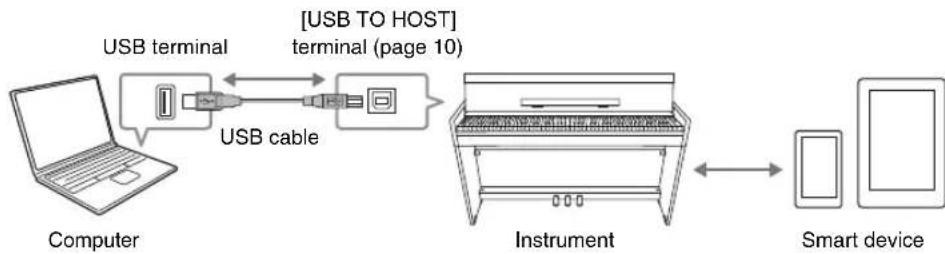
flowchart
graph LR
    A["Computer"] -->|USB terminal| B["USB cable"]
    B --> C["[USB TO HOST"] terminal (page 10)]
    C --> D["Instrument"]
    D --> E["Smart device"]
NOTICE
Use an AB type USB cable of less than 3 meters. USB 3.0 cables cannot be used.
NOTE
For instructions on using MIDI, refer to the online manual "MIDI Reference" (page 9).
Using an App on Your Smart Device
By using an app on a smart device, you can take advantage of convenient functions and get more enjoyment out of this instrument. In particular, with the “Smart Pianist” app running on your smart device, you can remotely control your digital piano for even more convenience and flexibility.
For information about the compatible smart devices and apps, access the following page:
https://www.yamaha.com/kbdapps/
NOTICE
Do not place your smart device in an unstable position. Doing so may cause the device to fall and result in damage.
NOTE
While using "Smart Pianist" with the instrument, all buttons on the instrument cannot be used. Control the instrument by using "Smart Pianist."
Playback/Recording of Audio Data (USB Audio Interface)
You can play back audio data on a smart device or a computer with this instrument. You can also record your keyboard performance as audio data to a music production app on a smart device or a computer.
When using this function on a computer running Windows, you will need to install the Yamaha Steinberg USB Driver to your computer. For details, refer to the “Computer-related Operations” on the website (page 9).
Audio Loop Back On/Off
You can set whether audio sound input from the [USB TO HOST] terminal is returned to the computer/smart device or not along with the performance played on the instrument.
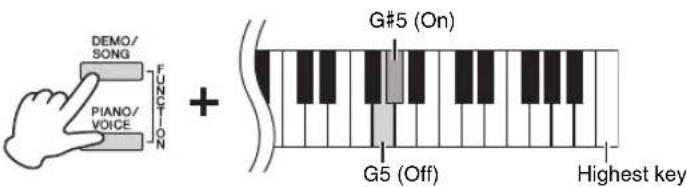
While holding down [DEMO/SONG] and [PIANO/VOICE] simultaneously, press the G5 key to turn this parameter "Off" or the G#5 key to turn it "On."
NOTE
The volume of the audio sound input can be adjusted from a computer or a smart device.
Default setting: On
NOTICE
If you are using a DAW (digital audio workstation) with this instrument, set the Audio Loop Back to OFF. Otherwise, loud noises may occur, depending on the settings of the computer/ smart device or the application software.
Backing up Data and Initializing the Settings
Data Maintained When Power is Turned Off
The following settings and data are maintained even if you turn the power off.
• Metronome Volume
• Metronome Beat (time signature)
- Touch Sensitivity
- Tuning
• Intelligent Acoustic Control Depth
• Intelligent Acoustic Control On/Off
- Stereophonic Optimizer On/Off
• Operation Confirmation Sounds On/Off
• Auto Power Off Enable/Disable - Speaker On / Off
- User Song data
- Song data (SMF files) transferred from a computer
Saving User Song data to a computer
Among the data listed above, only User Song data (USERSONG00.MID) can be transferred to a computer and saved as an SMF file. For details, refer to the “Computer-related Operations” on the website (page 9).
NOTICE
Saved data may be lost due to malfunction or incorrect operation. Save important data to an external device such as a computer.
Initializing the Settings
With this operation, all data (with the exception of the Songs) will be reset to the factory default settings.
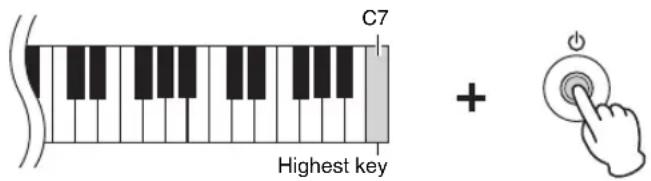
To do this, simultaneously hold down the C7 (the highest) key and turn on the power.
NOTICE
Never turn off the power while the Initialize operation is being executed (that is, while the [REC], [PLAY], [+R] and [-L] lamps are flashing).
NOTE
If this instrument somehow becomes disabled or malfunctions, turn off the power then execute Initialization.
Confirming the firmware version of this instrument
You can confirm the firmware version of your instrument by audible voice in English.
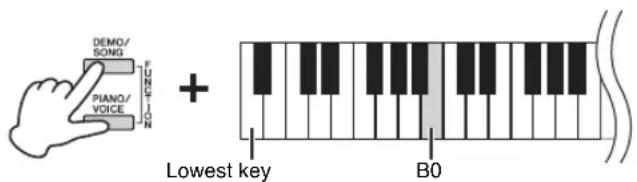
While holding down [DEMO/SONG] and [PIANO/VOICE] simultaneously, press the B0 key.
About the latest Firmware Version
Yamaha may from time to time update firmware of the product without notice for improvement. Make sure to check our website for information of the latest release and upgrade the firmware for your instrument.
Troubleshooting
| Problem Possible Cause and Solution | |
| Power suddenly and unexpectedly turns off. | This is normal and the Auto Power Off function may have been activated (page 15). If desired, disable the Auto Power Off function. |
| The instrument does not turn on. | The plugs are not properly connected. Make sure that the DC plug is securely inserted into the DC IN jack on the instrument, and that the AC plug is securely inserted to the AC outlet (page 14). |
| A click or pop is heard when the power is turned on or off. | This is normal when electrical current is being applied to the instrument. |
| Noise is heard from the speakers or headphones. | The noise may be due to interference caused by the use of a mobile phone in close proximity to this instrument. Turn off the mobile phone, or move it further away from this instrument. |
| Noise is heard from the instrument's speakers or headphones when using the instrument with a smart device, such as an iPhone/iPad. | When you use the instrument along with the application on your smart device, we recommend that you set “Airplane Mode” to “ON” on your smart device in order to avoid noise caused by communication. While Bluetooth is connected, setting “Airplane Mode” to “ON” disconnects Bluetooth; however, the connection can be restored by reconnecting again. |
| The overall volume is low, or no sound is heard. | The Master Volume is set too low. Set it to an appropriate level using the [MASTER VOLUME] knob (page 11). |
| Make sure a pair of headphones or conversion adaptor is not connected to the [PHONES] jack (page 15). | |
| The Speaker setting is “Off.” Set the Speaker to “Normal” or “On” (page 15). | |
| Make sure that Local Control is On. For details, refer to the “MIDI Reference” (page 9). | |
| Pedals do not function. | The pedal cord may not be securely connected to the [TO PEDAL] jack. Be sure to insert the pedal cord all the way until the metal part of the cord plug disappears from view (pages 36, 39). |
| The damper pedal does not function as expected. | The damper pedal was pressed when the power was turned on. This is not a malfunction; release the pedal and press it again to reset the function. |
Keyboard Stand Assembly
Assembly Precautions

CAUTION
- Be careful not to confuse parts, and be sure to install all parts in the correct orientation. Please assemble the unit in accordance with the sequence given below.
- Assembly should be carried out by at least two persons.
- Assemble the unit on a hard and flat floor with ample space.
- Be sure to use the correct screw size, as indicated below. Use of incorrect screws can cause damage.
- Be sure to tighten all screws upon completing assembly of the unit.
- To disassemble, reverse the assembly sequence given below.
Have a Phillips-head (+) screwdriver of the appropriate size ready.

Keyboard Stand Assembly
| Reference page | |
| YDP-164, YDP-144 page 34 | |
| YDP-S54 page 37 | |
After completing the assembly, please check the following.
• Are there any parts left over?
Review the assembly procedure and correct any errors.
- Is the instrument clear of doors and other movable fixtures?
Move the instrument to an appropriate location.
- Does the instrument make a rattling noise when you shake it?
Tighten all screws.
- Does the pedal box rattle or give way when you step on the pedals?
Turn the adjuster so that it is set firmly against the floor.
- Are the pedal and power cords inserted securely into the sockets?
Check the connection.
When Moving the Instrument After Assembly

CAUTION
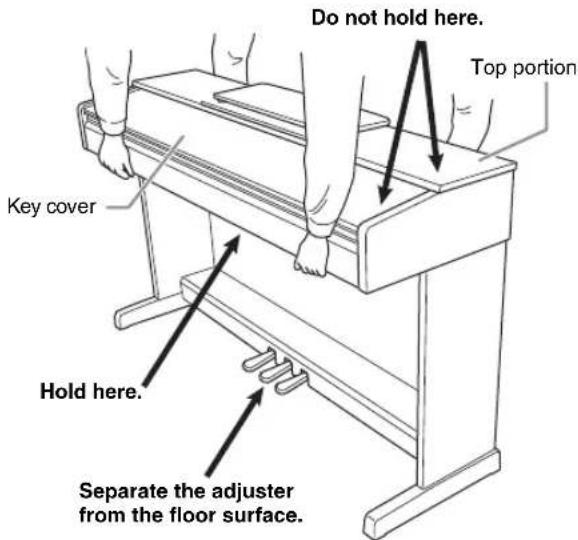
- When moving the instrument after assembly, always hold the bottom of the main unit.
- Do not hold the key cover or top portion. Improper handling can result in damage to the instrument or personal injury.
NOTICE
Rotate the adjuster under the pedal until it separates from the floor surface. Contact with the adjuster can result in damage to the floor surface.
Transporting
If you move to another location, you can transport the instrument along with other belongings. You can move the unit as it is (assembled), or you can disassemble the unit down to the condition it was in when you first took it out of the box. Transport the keyboard horizontally. Do not lean it up against a wall or stand it up on its side. Do not subject the instrument to excessive vibration or shock. When transporting the assembled instrument, make sure all screws are properly tightened and have not been loosened by moving the instrument.

CAUTION
If the unit creaks or is otherwise unsteady when you play on the keyboard, refer to the assembly instructions and retighten all screws.
YDP-164, YDP-144 Assembly
The illustrations here are taken from the YDP-144. Remove all parts from the package and make sure you have all of the items.
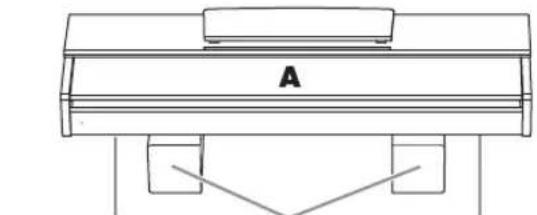
Remove foamed styrol pads from the package, position them on the floor, then place A on top of them. Position the pads so that they will not hide the speaker covers on the bottom of A.
natural_image
Line drawing of a piano with labeled 'A' and support legs (no text or symbols beyond label)Speaker cover Speaker coverFoamed styrol pads


natural_image
Pure electrical circuit lines without any symbolsBundled pedal cord inside
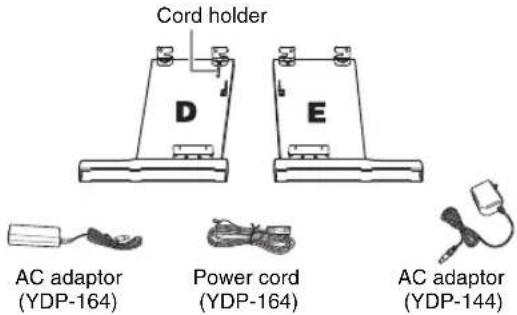
* The adaptor may not be included, or may look different from the illustration above, depending on your particular area. Please check with your Yamaha dealer.
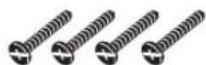
6 x 20 mm long screws x 4
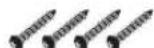
4 x 20 mm tapping screws
x 4
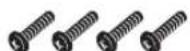
6 x 16 mm short screws x 4

4 x 12 mm thin screws x 2

Caps x 4
Headphone hanger set (YDP-164 only)

4×10 mm thin screws

Headphone hanger
- After untying the bundled pedal cord on C, attach C to D and E and fasten the screws (1-3).
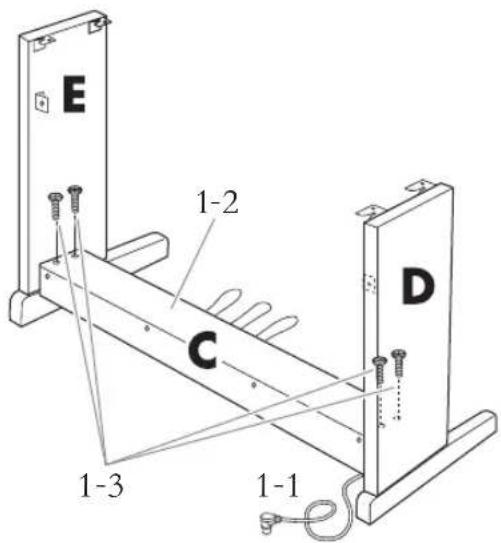
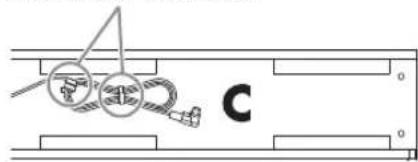
1-1 Untie and straighten out the bundled pedal cord.
Untie the two vinyl strings.
natural_image
Pure technical diagram showing mechanical components without any text, numbers, or symbols1-2Align D and E with each end of C.
1-3 Attach D and E to C by finger-tightening the long screws (6 x 20 mm).
- Attach B.
Depending on the model of digital piano you purchased, the surface color of one side of B may be different from the other side. In this case, position B so that the side of the surface color similar to D and E faces the player.
2-1 Place the lower side of B on each foot of D and E, then attach the upper side to D and E.
2-2 Attach the top of B to D and E by finger-tightening the thin screws (4 x 12 mm).
2-3While pressing on the lower part of D and E from the outside, secure the bottom ends of B using two tapping screws (4 x 20 mm).
2-4 Insert the other two tapping screws (4 x 20 mm) into the other two screw holes to secure B.
2-5 Securely tighten the screws on the top of B that were attached in Step 2-2.
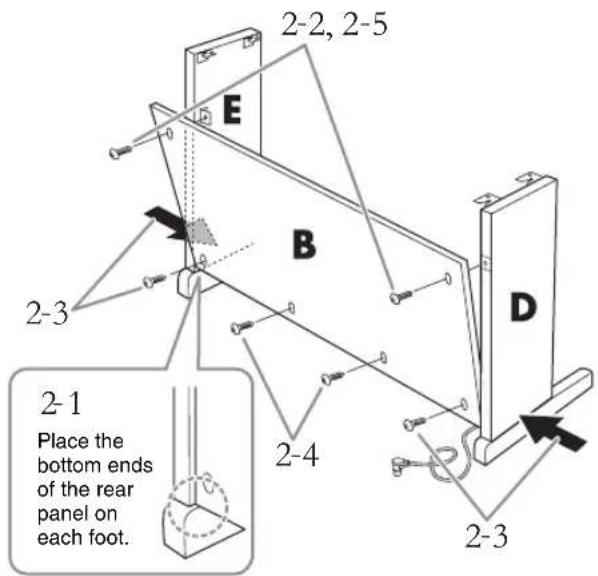
3.Secure C.
3-1 Securely tighten the screws on C that were attached in Step 1-3.
3-2 Attach the caps to the head of the screws.
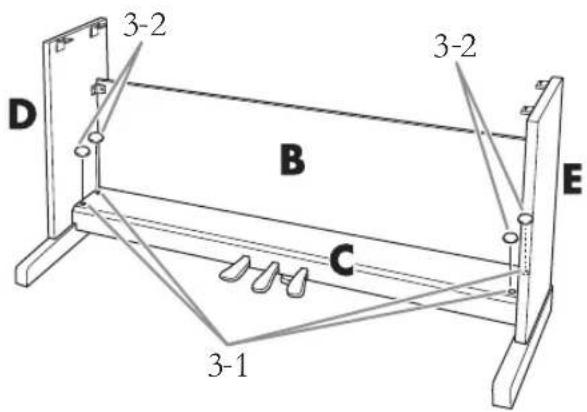
- Mount A.
Be sure to place your hands at least 10 cm from either end of A when positioning it.
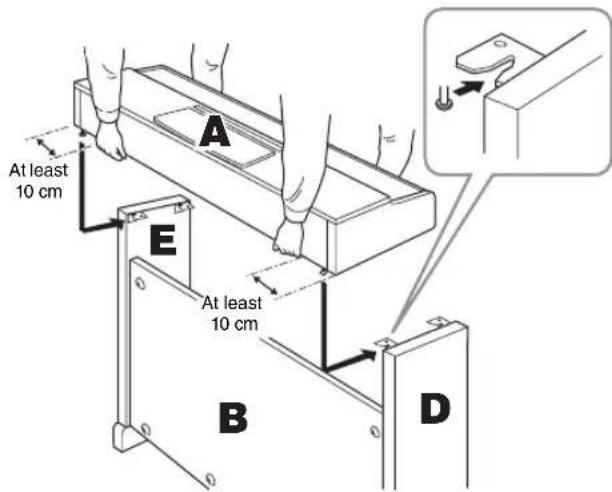
CAUTION
- Fingers can become pinched between the main unit and the rear or side panels, be extra careful so as not to drop the main unit.
- Do not hold the keyboard in any position other than the position shown in the illustration.
5.Secure A.
5-1 Adjust the position of A so that the left and right ends of A will project beyond D and E equally when seen from the front.
5-2 Secure A by tightening the short screws (6 x 16 mm) from the front.
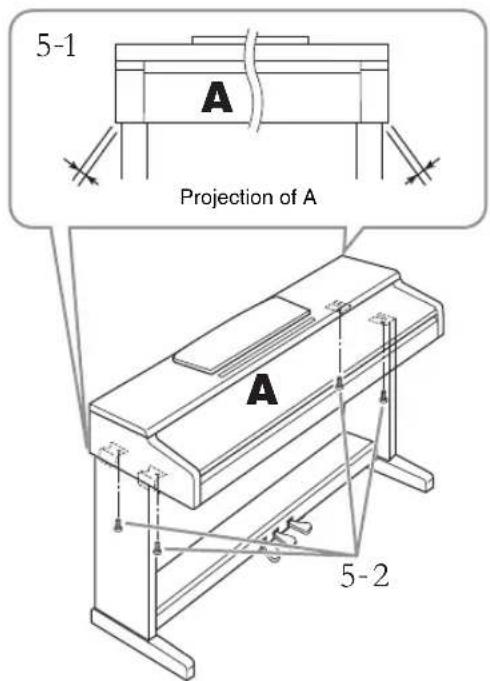
- Connect the pedal cord and the AC adaptor.
6-1 Insert the pedal cord plug to the [TO PEDAL] jack from the rear.
6-2 Securely wind the cord holder around the pedal cord.
The cord holder is attached to D.
6-3 Insert the AC adaptor plug into the DC IN jack from the rear.
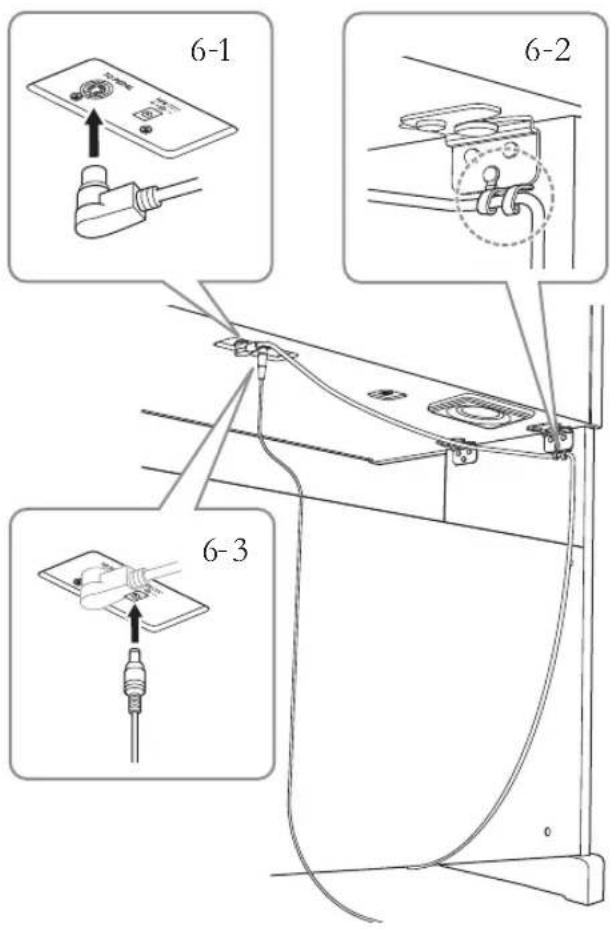
Insert the pedal cord securely until the metal part of the cord plug disappears from view. Otherwise, the pedal may not function properly.
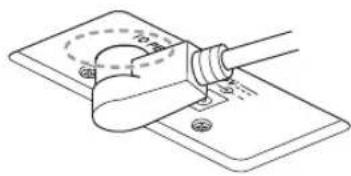
natural_image
Diagram of a hand holding a tool interacting with a surface, showing no text or symbols- Set the adjuster.
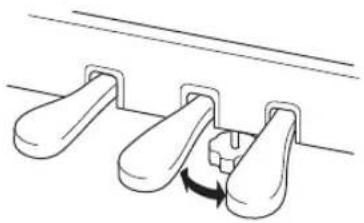
natural_image
Simple line drawing of a door handle mechanism with no text or symbolsRotate the adjuster until it comes in firm contact with the floor surface.
(YDP-164 only)
- Attach the headphone hanger.
Use the included two screws (4 x 10 mm) to attach the hanger as shown in the illustration.
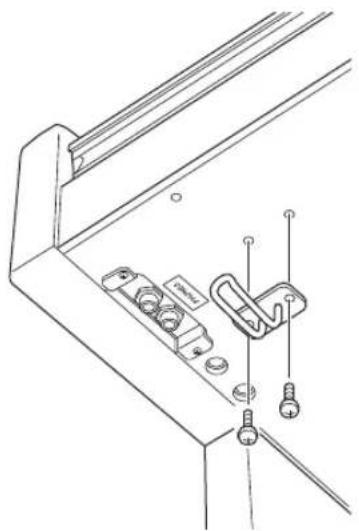
natural_image
Technical line drawing of a mechanical bracket with mounting holes and clamps (no text or symbols)NOTICE
Do not hang anything other than the headphones on the hanger. Doing so may damage this instrument or the hanger.
After completing the assembly, make sure to confirm the list of post-assembly questions on page 33.
YDP-S54 Assembly
Remove all parts from the package and make sure you have all of the items.
Remove foamed styrol pads from the package, position them on the floor, then place A on top of them. Position the pads so that they will not hide the connector panel on the bottom of A.
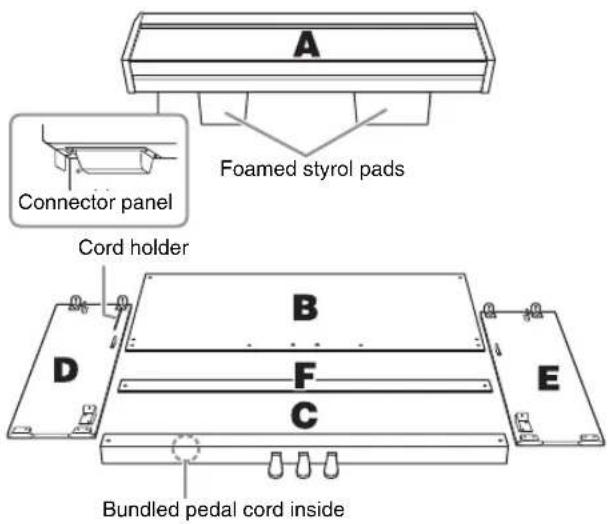
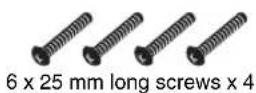
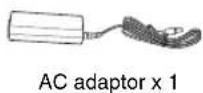
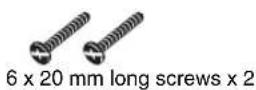
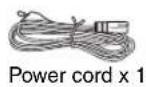
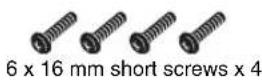
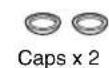
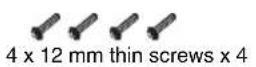
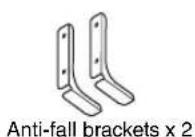
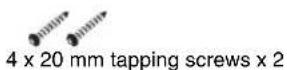
* The two anti-fall brackets are identical. (Either one can be used for left or right.)
* The adaptor may not be included, or may look different from the illustration above, depending on your particular area. Please check with your Yamaha dealer.
1. Attach (finger-tighten) C to D and E.
1-1 Untie and straighten out the bundled pedal cord.
Don't discard the vinyl tie. You will need it later in step 7.
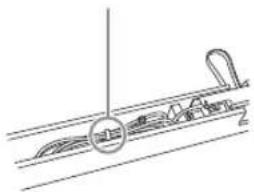
natural_image
Pure technical line drawing of a mechanical component or assembly without any text, numbers, or symbols1-2Align D and E with each end of C.
1-3 Attach D and E to C by finger-tightening the long screws (6 x 20 mm).
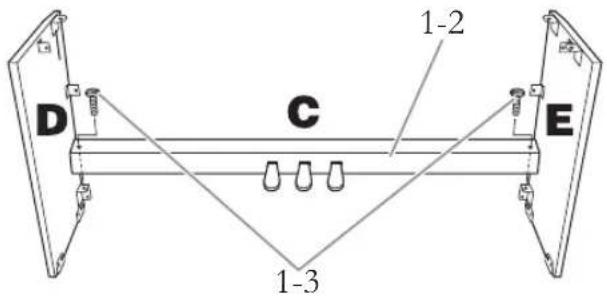
2. Attach B.
Depending on the model of digital piano you purchased, the surface color of one side of B may be different from the other side. In this case, position B so that the side of the surface color similar to D and E faces the player.
2-1 Attach the top of B to D and E by finger-tightening the two thin screws (4 x 12 mm).
2-2While pressing on the lower part of D and E from the outside, attach the anti-fall brackets and then secure the bottom ends of B using four long screws (6 x 25 mm).
2-3 Insert the other two tapping screws (4 x 20 mm) into the other two screw holes to secure B.
2-4 Securely tighten the screws on the top of B that were attached in Step 2-1.
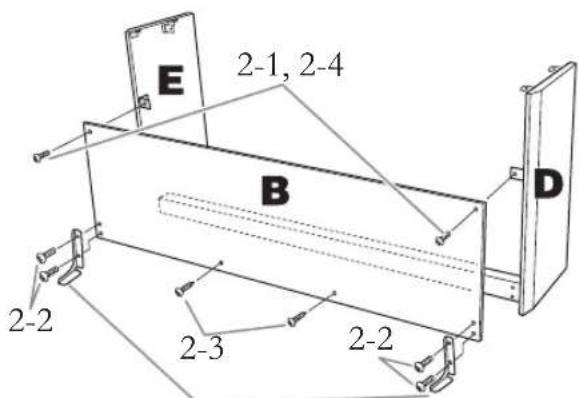
Secure the anti-fall brackets using the screws.
CAUTION
Be sure to attach the anti-fall brackets to the instrument, to ensure stability. Failure to do so might result in damage to the instrument or even injury.
3.Secure C.
3-1 Securely tighten the screws on C that were attached in Step 1-3.
3-2 Attach the caps to the head of the screws.
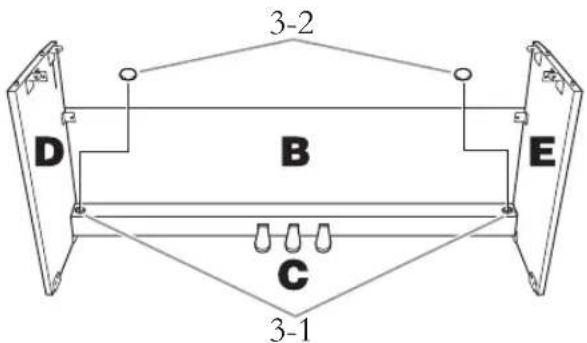
- Mount A.
Be sure to place your hands at least 10 cm from either end of A when positioning it.
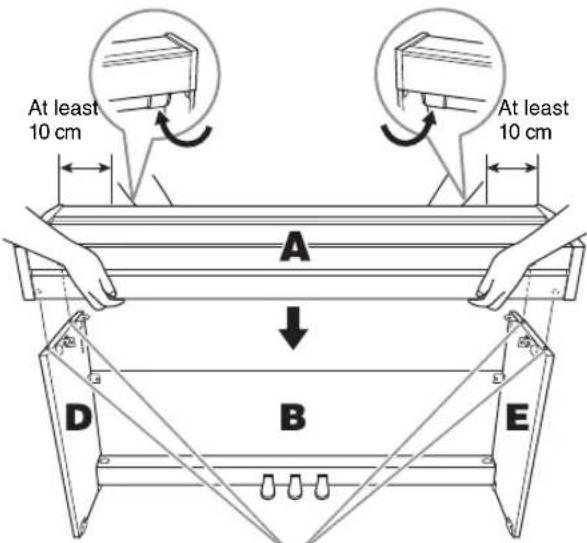
Align the dowels on D and E with the corresponding holes on the bottom of A.
CAUTION
- Be careful not to pinch your fingers or drop the unit.
- Make sure to keep your hands more than 10 cm distant from the ends of A when positioning the unit, to avoid pinching your fingers.
- Do not hold the keyboard in any position other than the position shown in the illustration.
5.Secure A.
5-1 Adjust the position of A so that the left and right ends of A will project beyond D and E equally when seen from the front.
5-2 Secure A by tightening the short screws (6 x 16 mm) from the bottom.
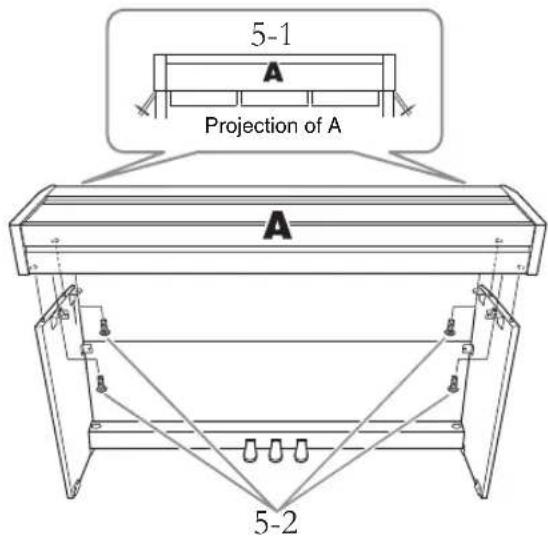
6.Secure F.
Position F so that the side without felt faces the player. Secure F by tightening two thin screws (4 x 12 mm).
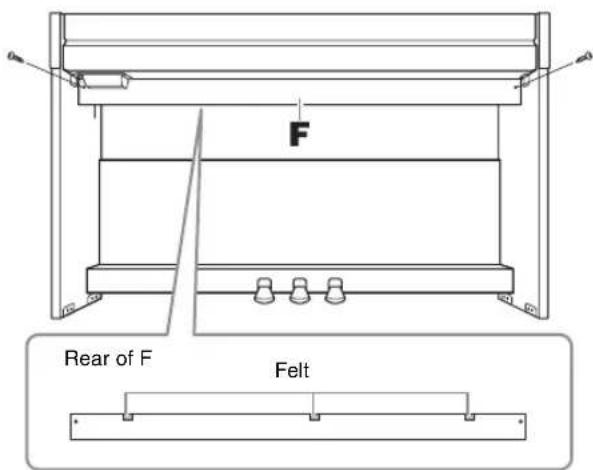
- Connect the pedal cord.
7-1 Insert the pedal cord plug to the [TO PEDAL] jack from the rear.
7-2 Securely wind the cord holder around the pedal cord.
The cord holder is attached to D.
7-3 Use a vinyl tie (Step 1-1) to take up any slack in the pedal cord.
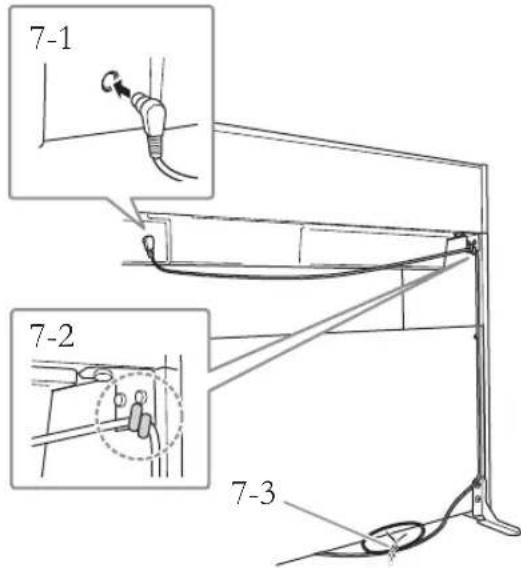
Insert the pedal cord securely until the metal part of the cord plug disappears from view. Otherwise, the pedal may not function properly.
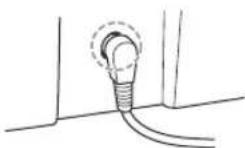
- Connect the AC adaptor.
8-1 Connect one end of the power cord to the power adapter.
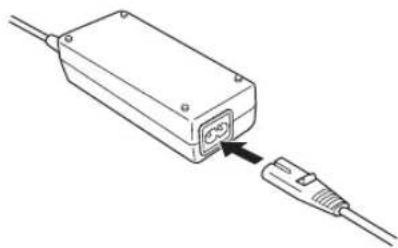
natural_image
Line drawing of an electronic device with a cable and connector, no text or symbols present8-2 Insert the AC adaptor plug into the DC IN jack from the rear.
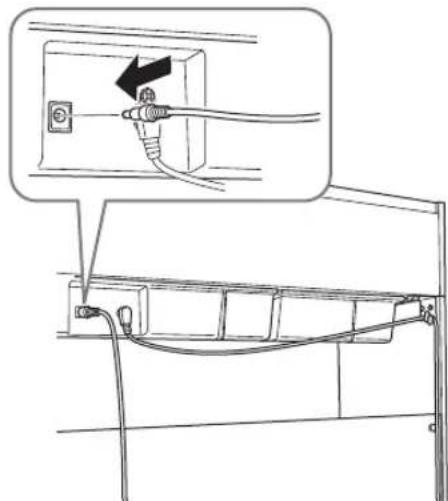
natural_image
Line drawing of a cable installation with an open electrical outlet, showing wiring and connection points (no text or symbols)- Set the adjuster.
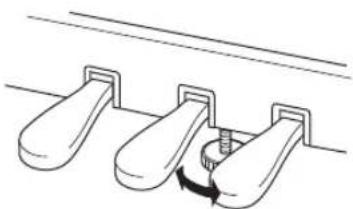
natural_image
Diagram of a mechanical assembly with three identical parts and a rotating knob (no text or symbols)Rotate the adjuster until it comes in firm contact with the floor surface.
After completing the assembly, make sure to confirm the list of post-assembly questions on page 33.
Specifications
| YDP-164 YDP-144 | YDP-S54 | ||||
| Product Name Digital Piano | |||||
| Size/Weight | Width 1,357 mm [53-7/16"] 1,353 mm [53-1/4"] | ||||
| Height | 849 mm [33-27/64"] (With music rest raised: 1,003 mm [39-31/64]) | 815 mm [32-1/16"] (With music rest raised: 969 mm [38-1/8]) | 792 mm [31-3/16"] (Key cover open: 976 mm [38-27/64]) | ||
| Depth 422 mm [16-5/8"] | 309 mm [12-11/64"] (Key cover open: 317 mm [12-15/32]) "With anti-fall brackets attached, the depth is 404 mm [15-57/64]. | ||||
| Weight 42.0 kg (92 lbs., 10 oz.) 38.0 kg (83 lbs., 12 oz.) 40.0 kg (88 lbs., 3 oz.) | |||||
| Control Interface | Keyboard | Number of Keys 88 | |||
| Type | GH3 (Graded Hammer 3) keyboard with synthetic ebony and ivory keytops | GHS (Graded Hammer Standard) keyboard with matte black keytops | GH3 (Graded Hammer 3) keyboard with synthetic ebony and ivory keytops | ||
| Touch Response Hard/Medium/Soft/Fixed | |||||
| Pedal | Number of Pedals 3 | ||||
| Half Pedal Yes (Damper) | |||||
| Functions Damper, Sostenuto, Soft | |||||
| Panel | Language | English | |||
| Cabinet | Key Cover Style | Sliding Folding | |||
| Music Rest | Yes | ||||
| Voices | Tone Generation | Piano Sound | Yamaha CFX | ||
| Piano Effect | Damper Resonance | Yes | |||
| Key-off Samples | Yes | ||||
| String Resonance | Yes | ||||
| Smooth Release | Yes | — | Yes | ||
| Polyphony (max.) | 192 | ||||
| Preset | Number of Voices | 10 | |||
| Effects | Types | Reverb | 4 types | ||
| Intelligent Acoustic Control (IAC) | Yes | ||||
| Stereophonic Optimizer | Yes | ||||
| Functions | Dual | Yes | |||
| Duo | Yes | ||||
| Recording/Playback (MIDI data only; audio not supported.) | Preset | Number of Preset Songs | 10 Voice Demo Songs, 50 Classics | ||
| Recording | Number of Songs | 1 | |||
| Number of Tracks | 2 | ||||
| Data Capacity | Approx. 100 KB/Song (approx. 11,000 notes) | ||||
| Format | Playback SMF (Format 0, Format 1) | ||||
| Recording | SMF (Format 0) | ||||
| Functions | Overall Controls | Metronome | Yes | ||
| Tempo Range | 5 - 280 | ||||
| Transpose | -6 - 0 - +6 | ||||
| Tuning | 414.8 - 440.0 - 466.8 Hz (approx. 0.2 Hz Increments) | ||||
| USB audio interface Yes | |||||
| Storage and Connectivity | Storage | Internal Memory (USER Drive) | Total maximum size approx. 900 KB (User song: One song approx. 100 KB Loading song data from a computer: Up to 10 songs) | ||
| Connectivity | DC IN | 16V | 12V | 16V | |
| Headphones Headphones/Output | Standard stereo phone jack (x 2) | ||||
| USB TO HOST | Yes | ||||
| Sound System | Amplifiers | 20W x 2 | 8W x 2 | 20W x 2 | |
| Speakers | 12cm x 2 | ||||
| Power Supply | AC Adaptor | PA-300C (or an equivalent recommended by Yamaha) | PA-150 (or an equivalent recommended by Yamaha) | PA-300C (or an equivalent recommended by Yamaha) | |
| Power Consumption | 13W (When using PA-300C AC adaptor) | 9W (When using PA-150 AC adaptor) | 13W (When using PA-300C AC adaptor) | ||
| Auto Power Off | Yes | ||||
| YDP-164 YDP-144 | YDP-S54 | ||
| Included Accessories(*Included or optional depending on locale.) | Owner's Manual | ||
| Quick Operation Guide | |||
| 50 Classical Music Masterpieces (Music Book) | |||
| AC adaptor: PA-300C or an equivalent*, Power cord* | AC adaptor: PA-150 or an equivalent* | AC adaptor: PA-300C or an equivalent*, Power cord* | |
| Bench* — | |||
| Warranty* | |||
| Online Member Product Registration | |||
| Separately Sold Accessories(May not be available depending on your area.) | HPH-150/100/50 headphonesAC adaptor PA-300C or an equivalent recommended by YamahaUD-BT01 Wireless MIDI adaptor | HPH-150/100/50 headphonesAC adaptor: PA-150 or an equivalent recommended by YamahaUD-BT01 Wireless MIDI adaptor | HPH-150/100/50 headphonesAC adaptor PA-300C or an equivalent recommended by YamahaUD-BT01 Wireless MIDI adaptor |
* The contents of this manual apply to the latest specifications as of the publishing date. To obtain the latest manual, access the Yamaha website then download the manual file. Since specifications, equipment or separately sold accessories may not be the same in every locale, please check with your Yamaha dealer.
Index
Numerics
50 Preset Songs 26
A
AC adaptor 14
Accessories 9
Assembly 33
Audio Loop Back 30
Auto Power Off ....15
B
Backing up Data ....31
Beat 19
C
Computer 30
Computer-related Operations 9
D
Damper Pedal 17
Damper Resonance 17
Delete 29
Demo Song List 21
Demo Songs 21
Dual mode 24
Duo 25
F
Firmware version ....31
H
Half-pedal ....17
Headphones 15
Hz (Hertz) 23
I
Initializing ....31
Intelligent Acoustic Control (IAC) ......16
K
Key Cover 12, 13
L
Left-hand Part 27
M
Manuals 9
Metronome 19
MIDI Basics ......9
MIDI Reference 9
Music Rest 12, 13
0
Octave 24
Operation Confirmation Sounds 18
P
Panel Controls and Terminals ....10
Pedals 17
Pitch 23
Playback 26
Power 14
Power indicator 14
Practice 27
Preset Songs 26
Q
Quick Operation Guide 9
Quick Play 27
R
Recording 28
Reverb 22
Reverb Depth 22
Reverb Type 22
Reverb Type List 22
Right-hand Part 27
S
Smart Device 30
Smart Device Connection Manual 9
Smart Pianist 9
Soft Pedal ....17
Song 26
Sostenuto Pedal ....17
Speaker 15
Stereophonic Optimizer ....15
T
Tempo 19
Time signature 19
Touch Sensitivity ....18
Transpose 23
Tuning 23
U
USB Audio Interface ....30
USB TO HOST 11,30
User Song 28
V
Voice 20
Voice List 20
Volume 11, 19
MEMO
Information for users on collection and disposal of old equipment:

This symbol on the products, packaging, and/or accompanying documents means that used electrical and electronic products should not be mixed with general household waste.
For proper treatment, recovery and recycling of old products, please take them to applicable collection points, in accordance with your national legislation.
By disposing of these products correctly, you will help to save valuable resources and prevent any potential negative effects on human health and the environment which could otherwise arise from inappropriate waste handling.
For more information about collection and recycling of old products, please contact your local municipality, your waste disposal service or the point of sale where you purchased the items.
For business users in the European Union:
If you wish to discard electrical and electronic equipment, please contact your dealer or supplier for further information.
Information on Disposal in other Countries outside the European Union:
This symbol is only valid in the European Union. If you wish to discard these items, please contact your local authorities or dealer and ask for the correct method of disposal.
(weee_eu_en_02)
Important Notice: Guarantee Information for customers in European Economic Area (EEA) and Switzerland
| Important Notice: Guarantee Information for customers in EEA* and SwitzerlandFor detailed guarantee information about this Yamaha product, and Pan-EEA* and Switzerland warranty service, please either visit the website address below (Printable file is available at our website) or contact the Yamaha representative office for your country. * EEA: European Economic Area | English |
| Wichtiger Hinweis: Garantie-Information für Kunden in der EWR* und der SchweizFür nähere Garantie-Information über dieses Produkt von Yamaha, sowie über den Pan-EWR*- und Schweizer Garantiservice, besuchen Sie bitte entweder die folgend angegebene Internetadresse (eine druckfähige Version befindet sich auch auf unserer Webseite), oder wenden Sie sich an den für Ihr Land zuständigen Yamaha-Vertrieb. *EWR: Europäischer Wirtschaftsraum | Deutsch |
| Remarque importante: informations de garantie pour les clients de l’EEE et la SuissePour des informations plus détaillées sur la garantie de ce produit Yamaha et sur le service de garantie applicable dans l’ensemble de l’EEE ainsi qu’en Suisse, consultez notre site Web à l’adresse ci-dessous (le fichier imprimable est disponible sur notre site Web) ou contactez directement Yamaha dans votre pays de résidence. * EEE : Espace Economique Européen | Français |
| Belangrijke mededeling: Garantie-informatie voor klanten in de EER* en ZwitserlandVoor gedetailleerde garantie-informatie over dit Yamaha-product en de garantieservice in heel de EER* en Zwitserland, gaat u naar de onderstaande website (u vind een afdrukbaar bestand op onze website) of neemt u contact op met de vertegenwoordiging van Yamaha in uw land. * EER: Europese Economische Ruimte | Nederlands |
| Aviso importante: información sobre la garantía para los clientes del EEE* y SuizaPara una información detallada sobre este producto Yamaha y sobre el soporte de garantía en la zona EEE* y Suiza, visite la dirección web que se incluye más abajo (la version del archivo para imprimir esta disponible en nuestro sitio web) o póngase en contacto con el representante de Yamaha en su país. * EEE: Espacio Económico Europeo | Español |
| Avviso importante: informazioni sulla garanzia per i clienti residenti nell’EEA* e in SvizzeraPer informazioni dettagliate sulla garanzia relativa a questo prodotto Yamaha e l’assistenza in garanzia nei paesi EEA* e in Svizzera, potete consultare il sito Web all’indinizzo riportato di seguito (è disponibile il file in formato stampabile) oppure contattare l’ufficio di rappresentanza locale della Yamaha. * EEA: Area Economica Europea | Italiano |
| Aviso importante: informações sobre as garantías para clientes da AEE* e da SuíçaPara obter uma informação pormenorizada sobre este produto da Yamaha e sobre o serviço de garantia na AEE* e na Suíça, visite o site a seguir (o arquivo para impressão está disponível no nosso site) ou entre em contato com o escritório de representação da Yamaha no seu país. * AEE: Área Econômica Europeía | Português |
| Σημοντική σημείωση: Πληροφορίες εγγύησης για τους πελάτες στον ΕΟΧ* και ΕλβετίαΓια λεπτομερείς πληροφορίες εγγύησης χετικά με το παρόν προϊόν της Yamaha και την κάλυψη εγγύησης σε όλες τις χώρες του ΕΟΧ και την Ελβετία, επισκερείτε την παρακάτω ιστοσελίδα (Εκτυπώσιμη μορφή είναι διαθέσιμη στην ιστοσελίδα μας) ή απευθυνθείτε στην αντιπροσωπεία της Yamaha στη χώρα σας. * ΕΟΧ: Ευρωπαϊκός Οικονομικός Χώρος | Ελληνικά |
| Viktigt: Garantiinformation för kunder i EES-området* och SchweizFör detaljerad information om denna Yamaha-produkt samt garantiservice i hela EES-området* och Schweiz kan du antingen besöka nedanstående webbaddress (en utskriftsvänlig fil finns på webbplatsen) eller kontakta Yamahas officiella representant i ditt land. * EES: Europeiska Ekonomiska Samarbetsområdet | Svenska |
| Viktig merknad: Garantiinformasjon for kunder i E∅S* og SveitsDetaljert garantiinformasjon om dette Yamaha-produktet og garantiservice for hele E∅S-området* og Sveits kan fås enten ved å besake nettadressen nedenfor (utskriftsversjon finnes på våre nettsider) eller kontakte kontakte Yamaha-kontoret i landet der du bor. *E∅S: Det europeiske økonomiske samarbeidsområdet | Norsk |
| Vigtig oplysning: Garantioplysninger til kunder i E∅O* og SchweizDe kan finde detaljerede garantioplysninger om dette Yamaha-produkt og den fælles garantiserviceordning for E∅O* (og Schweiz) ved at besøge det websted, der er angivet nedenfor (der findes en fil, som kan udskrives, på vores websted), eller ved at kontakte Yamahas nationale repräsentationskontor i det land, hvor De bor. * E∅O: Det Europæiske ∅konomiske Område | Dansk |
| Tärkeä ilmoitus: Takuutiedot Euroopan talousalueen (ETA)* ja Sveitsin asiakkailleTämän Yamaha-tuotteen sekä ETA-alueen ja Sveitsin takuuta koskevat yksiyiskohtaiset tiedot saatte alla olevasta nettiosoitteesta. (Tulostettava tiedosto saatavissa sivustollamme.)Volite myös ottaa yhteyttä paikalliseen Yamaha-edustajaan. *ETA: Euroopan talousalue | Suomi |
| Wažne: Warunki gwarancyjne obowiązujące w EOG* i SzwajcariiAby dowiedzieć się więcej na temat warunków gwarancyjnych tego produktu firmy Yamaha i serwisu gwarancyjnego w całym EOG* i Szwajcarii, należy odwiedzić wskazaną ponizej stronę internetową (Plik gotowy do wydruku znajduje się na naszej stronie internetowej) lub skontaktować się z przedstawicielstwem firmy Yamaha w swoim kraju. * EOG — Europejski Obszar Gospodarczy | Polski |
| Dûležité oznámení: Záruční informace pro zákazníky v EHS* a ve ŠvýcarskuPodrobné záruční informace o tomto produktu Yamaha a záručním servisu v celém EHS* a ve Švýcarsku naleznete na niže uvedené webové adrese (soubor k tisku je dostupný na našich webových stránkách) nebo se můžete obrátil na zastoupení firmy Yamaha ve své zemi. * EHS: Europský hospodářský prostor | Česky |
| Fontos figyelmeztetés: Garancia-információk az EGT* területén és Svájcban élő vásárlók számáraA jelen Yamaha termékre vonatkózoz részletes garancia-információk, valamint az EGT*-re és Svájcra kiterjedő garanciális szolgáltatás tekintetében keresse fel webhelyünket az alábbi címen (a webhelyen nyomtatható fájt is talál), vagy pedig lépjen kapcsolatba az országában működő Yamaha képviseleti irodával. * EGT: Európai Gazdasági Térség | Magyar |
| Oluline márkus: Garantiiteave Euroopa Majanduspiirkonna (EMP)* ja Šveitsi klientideleTäpsema teabe saamiseks selle Yamaha toote garantii ning kogu Euroopa Majanduspiirkonna ja Šveitsi garantiiteeninduse kohta, külastage palun veebisaiti alljärgneval aadressil (meie saidil on saadaval prindítav fail) või põörduge Teile regioni! Yamaha esinduse poole. * EMP: Euroopa Majanduspiirkond | Eesti keel |
| Svarīgs paziņojums: garantijas informáčija klientiem EEZ* un ŠveicēLai saņemtei detalizētu garantijas informāciju par šo Yamaha produktu, ká arī garantijas apkalpošanu EEZ* un Šveicē, lõdzu, apmekléjiet zemāk norādīto tīmekja vietnes adresi (tīmekja vietně ir pieejams drukājams fails) vai sazinieties je rusu valsti apkalpojošo Yamaha pärstāvniecibu. * EEZ: Europas Ekonomikas zona | Latviešu |
| D MESlo: Informacija déi garantijos pirkējams EEE* ir ŠveicarlijojeJei reikia ësamios informacijos apie ši „Yamaha” produktą ir jo techninę priežūrą visoje EEE* ir Šveicarijoje, apsilankykite mūsy svetainėje toliau nurodytu adresu (svetainėje yra spausdintinas failas) arba kreipkitės į „Yamaha” astovybę savo šaliai. * EEEE — Europos ekonominė erdvė | Lietuviu kalba |
| Dôležité upozornenie: Informácie o záruke pre zákazníkov v EHP* a ŠvajčiarskuPodrobné informácie o záruke týkajúce sa tohto produktu od spoločnosti Yamaha a garančnom servise v EHP* a Švajčiarsku nájdete na webovej stránke uvedenej nižšie (na našej webovej stránke je k dispozlicii súbor na tlač) alebo sa obrătte na zástupcu spoločnosti Yamaha vo svojej krajine. * EHP: Európsky hospodársky priestor | Slovenčina |
| Pomembno obvestilo: Informacije o garanciji za kupce v EGP* in ŠviciZa podrobnješje informacije o tem Yamahinem izdelku ter garancijskem servisu v celotnem EGP in Švici, obiščite spletno mesto, ki je navedeno spodaj (natisljiva datoteka je na voljo na našem spletnem mestu), ali se obrnite na Yamahinega predstavnika v svoji državi. * EGP: Evropski gospodarski prostor | SlovenčinaSlovenčina |
| Bажно съобщение: Информация за гаранцията за клиенти в ЕИП* и ШвейцарияЗа подробна информация за гаранцията за този продукт на Yamaha и гаранционното обслужване в паневролейската зона на ЕИП* и Швейцария или посетете посочения по-долу уеб сайт (на нашия учеб сайт има файл за печат), или се свържете с представителния офис на Yamaha във вашата страна. * ЕИП: Европейско икономическо пространство | Български език |
| Notificare importantă: Informațiți despre garantie pentru clienții din SEE* și ElvețiaPentru informațiți detalate privind acest produs Yamaha și serviciul de garanție Pan-SEE* și Elveția, vizitați site-ul la adresa de mai jos (fișierul imprimabil este disponibil pe site-ul nostru) sau contactați biroul reprezentanței Yamaha din țara dumneavoastră. * SEE: Spațiul Economic European | Limba română |
http://europe.yamaha.com/warranty/
For details of products, please contact your nearest Yamaha representative or the authorized distributor listed below.
Yamaha Canada Music Ltd.
135 Milner Avenue, Toronto, Ontario M1S 3R1,
Canada
Tel: +1-416-298-1311
U.S.A
Yamaha Corporation of America
6600 Orangethorpe Avenue, Buena Park, CA 90620,
U.S.A.
Tel: +1-714-522-9011
CENTRAL & SOUTH AMERICA
MEXICO
PANAMA AND OTHER LATIN
AMERICAN COUNTRIES/
CARIBBEAN COUNTRIES
Yamaha Music Latin America, S.A.
Sherbourne Drive, Tilbrook, Milton Keynes,
MK7 8BL, U.K.
Tel: +44-1908-366700
GERMANY
Yamaha Music Europe GmbH
Siemensstrasse 22-34, 25462 Rellingen, Germany
Tel: +49-4101-303-0
Switzerland in Thalwil
Seestrasse 18a, 8800 Thalwil, Switzerland
Tel: +41-44-3878080
AUSTRIA/CROATIA/CZECH REPUBLIC/
HUNGARY/ROMANIA/SLOVAKIA/
SLOVENIA
Yamaha Music Europe GmbH, Branch Austria
Schleiergasse 20, 1100 Wien, Austria
Tel: +43-1-60203900
POLAND
Yamaha Music Europe GmbH
Valletta Road, Mosta MST9010, Malta
Tel: +356-2133-2093
NETHERLANDS/BELGIUM/
LUXEMBOURG
Yamaha Music Europe, Branch Benelux
Clarissenhof 5b, 4133 AB Vianen, The Netherlands
Tel: +31-347-358040
FRANCE
Yamaha Music Europe
Yamaha Music Europe GmbH, Branch Italy
19th klm. Leof. Lavriou 190 02 Peania – Attiki,
Greece
Tel: +30-210-6686260
SWEDEN
Yamaha Music Europe GmbH Germany filial
Scandinavia
JA Wettergrensgata 1, 400 43 Göteborg, Sweden
Tel: +46-31-89-34-00
DENMARK
Yamaha Music Denmark,
Fillial of Yamaha Music Europe GmbH, Tyskland
Generatorvej 8C, ST. TH., 2860 Søborg, Denmark
Tel: +45-44-92-49-00
FINLAND
F-Musiikki Oy
Antaksentie
FI-01510 Vantaa, Finland
Tel: +358 (0)96185111
NORWAY
Yamaha Music Europe GmbH Germany -
Norwegian Branch
Grini Næringspark 1, 1332 ∅sterås, Norway
Tel: +47-6716-7800
ICELAND
Hljodfaerahusid Ehf.
Sidumula 20
IS-108 Revkjavik, Iceland
Tel: +354-525-5050
CYPRUS
Nakas Music Cyprus Ltd.
Nikis Ave 2k
1086 Nicosia
Tel: +357-22-511080
Major Music Center
21 Ali Riza Ave. Ortakov
P.O.Box 475 Lefkoşa, Cyprus
Tel: (392) 227 9213
RUSSIA
Yamaha Music (Russia) LLC.
Room 37, entrance 7, bld. 7, Kievskaya street,
Moscow, 121059, Russia
Tel: +7-495-626-5005
OTHER EUROPEAN COUNTRIES
Yamaha Music Europe GmbH
Siemensstrasse 22-34. 25462 Rellingen, Germany
Tel: +49-4101-303-0
AFRICA
Yamaha Music Gulf FZE
JAFZA-16. Office 512, P.O.Box 17328,
Jebel Ali FZE, Dubai, UAE
Tel: +971-4-801-1500
MIDDLE EAST
TURKEY
Yamaha Music Europe GmbH
Bati Atasehir Istanbul, Turkey
Tel: +90-216-275-7960
ISRAEL
RBX International Co., Ltd.
P.O Box 10245, Petach-Tikva, 49002
Tel: (972) 3-925-6900
OTHER COUNTRIES
Yamaha Music Gulf FZE
JAFZA-16, Office 512, P.O.Box 17328,
Jebel Ali FZE, Dubai, UAE
Tel: +971-4-801-1500
ASIA
THE PEOPLE'S REPUBLIC OF CHINA
Yamaha Music & Electronics (China) Co., Ltd.
2F, Yunhedasha, 1818 Xinzha-lu, Jingan-qu,
Shanghai, China
Tel: +86-400-051-7700
HONG KONG
Tom Lee Music Co., Ltd.
11/F., Silvercord Tower 1, 30 Canton Road,
Tsimshatsui, Kowloon, Hong Kong
Tel: +852-2737-7688
INDIA
Yamaha Music India Private Limited
P-401, JMD Mcgapolis, Sector-48, Sohna Road,
Gurgaon-122018, Haryana, India
Tel: +91-124-485-3300
INDONESIA
PT. Yamaha Musik Indonesia (Distributor)
Yamaha Music Center Bldg. Jalan Jend. Gatot
Subroto Kav. 4, Jakarta 12930, Indonesia
Tel: +62-21-520-2577
KOREA
Yamaha Music Korea Ltd.
11F, Prudential Tower, 298, Gangnam-daero,
Gangnam-gu, Seoul, 06253, Korea
Tel: +82-2-3467-3300
MALAYSIA
Yamaha Music (Malaysia) Sdn. Bhd.
No.8, Jalan Perbandaran, Kelana Jaya, 47301
Petaling Java, Selangor, Malaysia
Tel: +60-3-78030900
SINGAPORE
Yamaha Music (Asia) Private Limited
Block 202 Hougang Street 21, #02-00,
Singapore 530202, Singapore
Tel: +65-6740-9200
TAIWAN
Yamaha Music & Electronics Taiwan Co., Ltd.
2F., No.1, Yuandong Rd., Banqiao Dist.,
New Taipei City 22063, Taiwan (R.O.C.)
3, 4, 15, 16th Fl., Siam Motors Building,
891/1 Rama 1 Road, Wangmai,
Pathumwan, Bangkok 10330, Thailand
Tel: +66-2215-2622
VIETNAM
Yamaha Music Vietnam Company Limited
15th Floor, Nam A Bank Tower, 201-203 Cach
Mang Thang Tam St., Ward 4, Dist.3,
Ho Chi Minh City, Vietnam
Tel: +84-28-3818-1122
OTHER ASIAN COUNTRIES
https://asia-latinamerica-mea.yamaha.com/
index.html
OCEANIA
AUSTRALIA
Yamaha Music Australia Pty. Ltd.
Level 1, 80 Market Street, South Melbourne,
VIC 3205 Australia
Tel: +61-3-9693-5111
NEW ZEALAND
Music Works LTD
P.O.BOX 6246 Wellesley, Auckland 4680.
New Zealand
Tel: +64-9-634-0099
COUNTRIES AND TRUST
TERRITORIES IN PACIFIC OCEAN
https://asia-latinamerica-mea.yamaha.com/
index.html
Yamaha Global Site
https://www.yamaha.com/
Yamaha Downloads
http://download.yamaha.com/
Manual Development Group
© 2018 Yamaha Corporation
Published 12/2018 MWMA*.*-**B0