
DS-7616NXI-I2 - Video surveillance Hikvision - Free user manual and instructions
Find the device manual for free DS-7616NXI-I2 Hikvision in PDF.


| Product Type | Network Video Recorder (NVR) |
| Brand | Hikvision |
| Model | DS-7616NXI-I2 |
| Video Input | 16 channels |
| Compression | H.265+, H.265, H.264+, H.264 |
| Recording Resolution | Up to 8MP (4K) |
| Display Output | 1 HDMI, 1 VGA |
| Audio | 1-ch RCA input, 1-ch RCA output |
| Network Interface | 1 RJ45 10/100/1000 Mbps |
| Hard Drive Slots | 2 SATA (up to 10TB each) |
| Dimensions (W×D×H) | 315 × 240 × 48 mm |
| Weight | 1.5 kg (without HDD) |
| Power Supply | 12V DC, 3.3A |
| Power Consumption | ≤10 W (without HDD) |
| Operating Temperature | -10°C to 55°C |
| Main Functions | Recording, playback, remote access, motion detection, alarm input |
| Maintenance | Firmware updates via USB or network; clean dust from vents |
| Safety | Indoor use only; ensure proper ventilation |
| Spare Parts & Repairability | Hard drives, power adapter; component-level repair by technician |
| General Information | Supports Hik-Connect, DDNS, NTP, and backup via USB/eSATA |
Frequently Asked Questions - DS-7616NXI-I2 Hikvision
User questions about DS-7616NXI-I2 Hikvision
0 question about this device. Answer the ones you know or ask your own.
Ask a new question about this device
Download the instructions for your Video surveillance in PDF format for free! Find your manual DS-7616NXI-I2 - Hikvision and take your electronic device back in hand. On this page are published all the documents necessary for the use of your device. DS-7616NXI-I2 by Hikvision.
USER MANUAL DS-7616NXI-I2 Hikvision
Any and all information, including, among others, wordings, pictures, graphs are the properties of Hangzhou Hikvision Digital Technology Co., Ltd. or its subsidiaries (hereinafter referred to be "Hikvision"). This user manual (hereinafter referred to be "the Manual") cannot be reproduced, changed, translated, or distributed, partially or wholly, by any means, without the prior written permission of Hikvision. Unless otherwise stipulated, Hikvision does not make any warranties, guarantees or representations, express or implied, regarding to the Manual.
About this Manual
This Manual is applicable to Network Video Recorder (NVR).
The Manual includes instructions for using and managing the product. Pictures, charts, images and all other information hereinafter are for description and explanation only. The information contained in the Manual is subject to change, without notice, due to firmware updates or other reasons. Please find the latest version in the company website (http://overseas.hikvision.com/en/).
Please use this user manual under the guidance of professionals.
Trademarks Acknowledgement
HIKVISION and other Hikvision's trademarks and logos are the properties of Hikvision in various jurisdictions. Other trademarks and logos mentioned below are the properties of their respective owners.
Legal Disclaimer
TO THE MAXIMUM EXTENT PERMITTED BY APPLICABLE LAW, THE PRODUCT DESCRIBED, WITH ITS HARDWARE, SOFTWARE AND FIRMWARE, IS PROVIDED "AS IS", WITH ALL FAULTS AND ERRORS, AND HIKVISION MAKES NO WARRANTIES, EXPRESS OR IMPLIED, INCLUDING WITHOUT LIMITATION, MERCHANTABILITY, SATISFACTORY QUALITY, FITNESS FOR A PARTICULAR PURPOSE, AND NON-INFRINGEMENT OF THIRD PARTY. IN NO EVENT WILL HIKVISION, ITS DIRECTORS, OFFICERS, EMPLOYEES, OR AGENTS BE LIABLE TO YOU FOR ANY SPECIAL, CONSEQUENTIAL, INCIDENTAL, OR INDIRECT DAMAGES, INCLUDING, AMONG OTHERS, DAMAGES FOR LOSS OF BUSINESS PROFITS, BUSINESS INTERRUPTION, OR LOSS OF DATA OR DOCUMENTATION, IN CONNECTION WITH THE USE OF THIS PRODUCT, EVEN IF HIKVISION HAS BEEN ADVISED OF THE POSSIBILITY OF SUCH DAMAGES.
REGARDING TO THE PRODUCT WITH INTERNET ACCESS, THE USE OF PRODUCT SHALL BE WHOLLY AT YOUR OWN RISKS. HIKVISION SHALL NOT TAKE ANY RESPONSIBILITIES FOR ABNORMAL OPERATION, PRIVACY LEAKAGE OR OTHER DAMAGES RESULTING FROM CYBER ATTACK, HACKER ATTACK, VIRUS INSPECTION, OR OTHER INTERNET SECURITY RISKS; HOWEVER, HIKVISION WILL PROVIDE TIMELY TECHNICAL SUPPORT IF REQUIRED.
SURVEILLANCE LAWS VARY BY JURISDICTION. PLEASE CHECK ALL RELEVANT LAWS IN YOUR JURISDICTION BEFORE USING THIS PRODUCT IN ORDER TO ENSURE THAT YOUR USE CONFORMS THE APPLICABLE LAW. HIKVISION SHALL NOT BE LIABLE IN THE EVENT THAT THIS PRODUCT IS USED WITH ILLEGITIMATE PURPOSES.
IN THE EVENT OF ANY CONFLICTS BETWEEN THIS MANUAL AND THE APPLICABLE LAW, THE LATER PREVAILS.
Regulatory Information
FCC Information
Please take attention that changes or modification not expressly approved by the party responsible for compliance could void the user's authority to operate the equipment.
FCC compliance: This equipment has been tested and found to comply with the limits for a Class A digital device, pursuant to part 15 of the FCC Rules. These limits are designed to provide reasonable protection against harmful interference when the equipment is operated in a commercial environment. This equipment generates, uses, and can radiate radio frequency energy and, if not installed and used in accordance with the instruction manual, may cause harmful interference to radio communications. Operation of this equipment in a residential area is likely to cause harmful interference in which case the user will be required to correct the interference at his own expense.
FCC Conditions
This device complies with part 15 of the FCC Rules. Operation is subject to the following two conditions:
- This device may not cause harmful interference.
- This device must accept any interference received, including interference that may cause undesired operation.
EU Conformity Statement
CE This product and - if applicable - the supplied accessories too are marked with "CE" and comply therefore with the applicable harmonized European standards listed under the EMC Directive 2014/30/EU, the LVD Directive 2014/35/EU, the RoHS Directive 2011/65/EU.
2012/19/EU (WEEE directive): Products marked with this symbol cannot be disposed of as unsorted municipal waste in the European Union. For proper recycling, return this product to your local supplier upon the purchase of equivalent new equipment, or dispose of it at designated collection points. For more information see: www.recyclethis.info
2006/66/EC (battery directive): This product contains a battery that cannot be disposed of as unsorted municipal waste in the European Union. See the product documentation for specific battery information. The battery is marked with this symbol, which may include lettering to indicate cadmium (Cd), lead (Pb), or mercury (Hg). For proper recycling, return the battery to your supplier or to a designated collection point. For more information see: www.recyclethis.info
Industry Canada ICES-003 Compliance
This device meets the CAN ICES-3 (A)/NMB-3(A) standards requirements.
Applicable Models
This manual is applicable to the models listed in the following table.
| Series | Model |
| DS-7700NXI-I/S | DS-7716NXI-I4/4S |
| DS-7732NXI-I4/4S | |
| DS-7700NXI-I/P/S | DS-7716NXI-I4/16P/4S |
| DS-7732NXI-I4/16P/4S | |
| DS-7600NXI-I/S | DS-7608NXI-I2/4S |
| DS-7616NXI-I2/4S | |
| DS-7632NXI-I2/4S | |
| DS-7600NXI-I/P/S | DS-7608NXI-I2/8P/4S |
| DS-7616NXI-I2/16P/4S | |
| DS-7632NXI-I2/16P/4S |
Symbol Conventions
The symbols that may be found in this document are defined as follows.
| Symbol | Description |
 NOTE NOTE | Provides additional information to emphasize or supplement important points of the main text. |
 WARNING WARNING | Indicates a potentially hazardous situation, which if not avoided, could result in equipment damage, data loss, performance degradation, or unexpected results. |
 DANGER DANGER | Indicates a hazard with a high level of risk, which if not avoided, will result in death or serious injury. |
Safety Instructions
- Proper configuration of all passwords and other security settings is the responsibility of the installer and/or end-user.
- In the use of the product, you must be in strict compliance with the electrical safety regulations of the nation and region. Please refer to technical specifications for detailed information.
- Input voltage should meet both the SELV (Safety Extra Low Voltage) and the Limited Power Source with 100\~240 VAC or 12 VDC according to the IEC60950-1 standard. Please refer to technical specifications for detailed information.
- Do not connect several devices to one power adapter as adapter overload may cause over-heating or a fire hazard.
- Please make sure that the plug is firmly connected to the power socket.
- If smoke, odor or noise rise from the device, turn off the power at once and unplug the power cable, and then please contact the service center.
Preventive and Cautionary Tips
Before connecting and operating your device, please be advised of the following tips:
● Ensure unit is installed in a well-ventilated, dust-free environment.
● Unit is designed for indoor use only.
- Keep all liquids away from the device.
- Ensure environmental conditions meet factory specifications.
- Ensure unit is properly secured to a rack or shelf. Major shocks or jolts to the unit as a result of dropping it may cause damage to the sensitive electronics within the unit.
- Use the device in conjunction with an UPS if possible.
● Power down the unit before connecting and disconnecting accessories and peripherals.
● A factory recommended HDD should be used for this device.
- Improper use or replacement of the battery may result in hazard of explosion. Replace with the same or equivalent type only. Dispose of used batteries according to the instructions provided by the battery manufacturer.
TABLE OF CONTENTS
Chapter 1 Introduction....16
1.1 Front Panel 16
1.2 IR Remote Control Operations ...... 16
1.2.1 Pairing (Enabling) the IR Remote to a Specific Device (optional) 17
1.2.2 Unpairing (Disabling) an IR Remote from a Device....18
1.2.3 Troubleshooting 21
1.3 USB Mouse Operation....22
1.4 Rear Panel 23
1.4.1 DS-7700NXI-I/S Series 23
1.4.2 DS-7700NXI-I/P/S Series....24
1.4.3 DS-7600NXI-I/S 25
1.4.4 DS-7600NXI-I/P/S 26
Chapter 2 Getting Started ....27
2.1 Start up the Device....27
2.2 Activate the Device 27
2.3 Configure Unlock Pattern for Login 28
2.4 Login to the Device....29
2.4.1 Log in via Unlock Pattern....29
2.4.2 Log in via Password 30
2.5 Enter Wizard to Configure Basic Settings....31
2.6 Enter Main Menu 35
2.7 System Operation....36
2.7.1 Log out....36
2.7.2 Shut Down the Device....36
2.7.3 Reboot the Device....37
Chapter 3 Camera Management....38
3.1 Add the IP Cameras....38
3.1.1 Add the IP Camera Manually .... 38
3.1.2 Add the Automatically Searched Online IP Cameras .... 39
3.2 Manage Cameras for PoE Device 39
3.2.1 Add PoE Cameras .... 39
3.2.2 Add Non-PoE IP Cameras 39
3.2.3 Configure PoE Interface 40
3.3 Configure the Customized Protocols....41
Chapter 4 Camera Settings ....43
4.1 Configure OSD Settings 43
4.2 Configure Privacy Mask....44
4.3 Configure the Video Parameters....45
4.4 Configure the Day/Night Switch....45
4.5 Configure Other Camera Parameters....45
Chapter 5 Live View ....47
5.1 Start Live View ....47
5.1.1 Digital Zoom 47
5.1.2 3D Positioning ....48
5.1.3 Live View Strategy....48
5.2 Configure Live View Settings....49
5.3 Configure Live View Layout....49
5.4 Configure Auto-Switch of Cameras....51
5.5 Configure Channel-Zero Encoding....51
5.6 Use an Auxiliary Monitor....52
Chapter 6 PTZ Control ....53
6.1 PTZ Control Wizard ....53
6.2 Configure PTZ Parameters....53
6.3 Set PTZ Presets, Patrols & Patterns ....54
6.3.1 Set a Preset....54
6.3.2 Call a Preset....55
6.3.3 Set a Patrol 56
6.3.4 Call a Patrol ....57
6.3.5 Set a Pattern....58
6.3.6 Call a Pattern....59
6.3.7 Set Linear Scan Limits....59
6.3.8 Call Linear Scan 60
6.3.9 One-touch Park 60
6.4 Auxiliary Functions....61
Chapter 7 Storage....63
7.1 Storage Device Management....63
7.1.1 Install the HDD 63
7.1.2 Add the Network Disk 63
7.1.3 Configure eSATA for Data Storage....65
7.2 Storage Mode....66
7.2.1 Configure HDD Group 66
7.2.2 Configure HDD Quota....68
7.3 Recording Parameters....69
7.3.1 Main Stream....69
7.3.2 Sub-Stream....70
7.3.3 Picture 70
7.3.4 ANR....70
7.3.5 Configure Advanced Recording Settings 70
7.4 Configure Recording Schedule 71
7.5 Configure Continuous Recording .... 73
7.6 Configure Motion Detection Triggered Recording....73
7.7 Configure Event Triggered Recording....73
7.8 Configure Alarm Triggered Recording 74
7.9 Configure POS Event Triggered Recording 74
7.10 Configure Picture Capture....75
7.11 Configure Holiday Recording and Capture....75
7.12 Configure Redundant Recording and Capture 76
Chapter 8 Disk Array....78
8.1 Create Disk Array....78
8.1.1 Enable RAID....78
8.1.2 One-Touch Creation ......79
8.1.3 Manual Creation....79
8.2 Rebuild Array....81
8.2.1 Configure Hot Spare Disk ....81
8.2.2 Automatically Rebuild Array 81
8.2.3 Manually Rebuild Array....82
8.3 Delete Array 83
8.4 Check and Edit Firmware 83
Chapter 9 File Management ....85
9.1 Search and Export Human Files 85
9.1.1 Search Human Files....85
9.1.2 Export Human Files 85
9.2 Search and Export Vehicle Files 86
9.2.1 Search Vehicle Files....86
9.2.2 Export Vehicle Files 87
9.3 Search History Operation 88
9.3.1 Save Search Condition....88
9.3.2 Call Search History......88
Chapter 10 Playback....89
10.1 Playing Video Files 89
10.1.1 Instant Playback 89
10.1.2 Play Video 89
10.1.3 Play Tag Files 90
10.1.4 Play by Smart Search....91
10.1.5 Play Event Files....93
10.1.6 Play by Sub-periods....94
10.1.7 Play Log Files 95
10.1.8 Play External File 97
10.2 Playback Operations....97
10.2.1 Normal/Important/Custom Video 97
10.2.2 Set Play Strategy in Important/Custom Mode 97
10.2.3 Edit Video Clips 98
10.2.4 Switch between Main Stream and Sub-Stream 98
10.2.5 Thumbnails View....99
10.2.6 Fast View....99
10.2.7 Digital Zoom 99
Chapter 11 Event and Alarm Settings....101
11.1 Configure Arming Schedule....101
11.2 Configure Alarm Linkage Actions .... 101
11.2.1 Configure Auto-Switch Full Screen Monitoring....102
11.2.2 Configure Audio Warning....103
11.2.3 Notify Surveillance Center 103
11.2.4 Configure Email Linkage....103
11.2.5 Trigger Alarm Output 103
11.2.6 Configure PTZ Linkage 104
11.3 Configure Motion Detection Alarm....105
11.4 Configure Video Loss Alarm....106
11.5 Configure Video Tampering Alarm....106
11.6 Configure Sensor Alarms....107
11.6.1 Configure Alarm Input....107
11.6.2 Configure One-Key Disarming....108
11.6.3 Configure Alarm Output....109
11.7 Configure Exceptions Alarm....111
11.8 Trigger or Clear Alarm Output Manually....112
Chapter 12 VCA Event Alarm....114
12.1 Human Body Detection....114
12.2 Face Detection....115
12.3 Vehicle Detection 116
12.4 Line Crossing Detection....117
12.5 Intrusion Detection 119
12.6 Region Entrance Detection .... 121
12.7 Region Exiting Detection 122
12.8 Unattended Baggage Detection 124
12.9 Object Removal Detection .... 125
12.10 Audio Exception Detection....126
12.11 Sudden Scene Change Detection ....128
12.12 Defocus Detection....129
12.13 PIR Alarm....129
12.14 Enable Smart Search .... 130
Chapter 13 Smart Search....131
13.1 Face Search....131
13.2 Vehicle Search....131
13.3 People Counting....132
13.4 Heat Map....132
Chapter 14 Human Body Detection ....134
14.1 View Engine Status....134
14.2 Human Body Search 134
Chapter 15 POS Configuration....135
15.1 Configure POS Settings....135
15.1.1 Configure POS Connection....135
15.1.2 Configure POS Text Overlay....139
15.2 Configure POS Alarm....141
Chapter 16 Network Settings ....142
16.1 Configure TCP/IP Settings....142
16.2 Configuring Hik-Connect 143
16.3 Configure DDNS....145
16.4 Configure PPPoE....146
16.5 Configure NTP 146
16.6 Configure SNMP 147
16.7 Configure Email....148
16.8 Configure Ports....150
Chapter 17 Hot Spare Device Backup....152
17.1 Set Hot Spare Device....152
17.2 Set Working Device 153
17.3 Manage Hot Spare System 153
Chapter 18 System Maintenance....155
18.1 Storage Device Maintenance .... 155
18.1.1 Configure Disk Clone....155
18.1.2 S.M.A.R.T Detection 156
18.1.3 Bad Sector Detection 157
18.1.4 HDD Health Detection....158
18.2 Search & Export Log Files....159
18.2.1 Search the Log Files....159
18.2.2 Export the Log Files....161
18.3 Import/Export IP Camera Configuration Files....162
18.4 Import/Export Device Configuration Files 164
18.5 Upgrade System 165
18.5.1 Upgrade by Local Backup Device....165
18.5.2 Upgrade by FTP 165
18.6 Restore Default Settings....167
18.7 System Service....167
18.7.1 Network Security Settings....167
18.7.2 Manage ONVIF User Accounts 169
18.7.3 Manage IP Camera Activation.... 170
Chapter 19 General System Settings....172
19.1 Configure General Settings 172
19.2 Configure Date & Time 173
19.3 Configure DST Settings.... 174
19.4 Manage User Accounts....174
19.4.1 Add a User 174
19.4.2 Set the Permission for a User 176
19.4.3 Set Local Live View Permission for Non-Admin Users 178
19.4.4 Edit the Admin User .... 179
19.4.5 Edit the Operator/Guest User 181
19.4.6 Delete a User....182
Chapter 20 Appendix ....183
20.1 Glossary....183
20.2 Troubleshooting 185
Product Key Features
General
- Connectable to network cameras, network dome and encoders.
- Connectable to the third-party network cameras like ACTI, Arecont, AXIS, Bosch, Brickcom, Canon, PANASONIC, Pelco, SAMSUNG, SANYO, SONY, Vivotek and ZAVIO, and cameras that adopt ONVIF protocol.
- Connectable to the smart IP cameras.
● H.265+/H.265/ H.264+/H.264/MPEG4 video formats
● PAL/NTSC adaptive video inputs.
● Each channel supports dual-stream.
● Up to 64 network cameras can be added according to different models. - Independent configuration for each channel, including resolution, frame rate, bit rate, image quality, etc.
● The quality of the input and output record is configurable.
Local Monitoring
● HDMI/VGA output provided.
● HDMI Video output at up to 4K resolution and VGA video output at up to 2K resolution.
- Multiple screen display in live view is supported, and the display sequence of channels is adjustable.
● Live view screen can be switched in group. Manual switch and auto-switch are provided and the auto-switch interval is configurable.
● 3D positioning in live view.
- Configurable main stream and sub-stream for the live view.
- Quick setting menu is provided for live view.
● POS information overlay on live view.
● Motion detection, video tampering, video exception alert and video loss alert functions.
- Privacy mask.
● Multiple PTZ protocols supported; PTZ preset, patrol and pattern.
- Zooming in by clicking the mouse and PTZ tracing by dragging mouse.
HDD Management
- Up to 4 SATA hard disks and 1 eSATA disk can be connected.
● Supports 8 network disks (NAS/IP SAN disk).
● Supports S.M.A.R.T. and bad sector detection. - HDD group management.
● Supports HDD standby function.
- HDD property: redundancy, read-only, read/write (R/W).
- HDD quota management; different capacity can be assigned to different channel.
● RAID0, RAID1, RAID5, RAID6 and RAID 10 are supported.
- Hot-swappable RAID storage scheme, and can be enabled and disabled on your demand. And 16 arrays can be configured.
● Supports disk clone to the eSATA disk.
Recording, Capture and Playback
- Holiday recording schedule configuration.
● Continuous and event video recording parameters. - Multiple recording types: manual, continuous, alarm, motion, motion | alarm, motion & alarm VCA, and POS.
● 8 recording time periods with separated recording types.
● POS information overlay on image. - Pre-record and post-record for alarm, motion detection for recording, and pre-record time for schedule and manual recording.
- Searching record files and captured pictures by events (alarm input/motion detection).
- Tag adding for record files, searching and playing back by tags.
- Locking and unlocking record files.
- Local redundant recording and capture.
- Provide new playback interface with easy and flexible operation.
- Searching and playing back record files by channel number, recording type, start time, end time, etc.
● Supports the playback by main stream or sub stream.
● Smart search for the selected area in the video. - Zooming in when playback.
- Reverse playback of multi-channel.
● Supports pause, play reverse, speed up, speed down, skip forward, and skip backward when playback, and locating by dragging the mouse.
● Supports thumbnails view and fast view during playback.
● Up to 12-ch synchronous playback at 1080p real time.
● Supports playback by transcoded stream.
● Manual capture, continuous capture of video images and playback of captured pictures.
● Supports enabling H.264+ to ensure high video quality with lowered bitrate.
Backup
● Export video data by USB, SATA or eSATA device.
- Export video clips when playback.
● Management and maintenance of backup devices. - Either Normal or Hot Spare working mode is configurable to constitute an N+1 hot spare system.
Human Body Detection
● Human body detection and alarm linkage actions.
● More precise human body analytics based on deep learning algorithm.
● Re-recognition of the human body target in behavior analytics (line crossing detection, intrusion detection) to effectively raise the alarm accuracy rate.
Alarm and Exception
- Configurable arming time of alarm input/output.
- Alarm for video loss, motion detection, tampering, abnormal signal, video input/output standard mismatch, illegal login, network disconnected, IP confliction, abnormal record/capture, HDD error, and HDD full, etc.
● POS triggered alarm supported.
● VCA detection alarm is supported.
● VCA search for face detection vehicle plate, behavior analysis, people counting and heat map.

NOTE
Only DS-7700NXI series support face detection function.
- Connectable to the thermal network camera.
● Supports the advanced search for fire/ship/temperature/temperature difference detection triggered alarm and the recorded video files and pictures. - Alarm triggers full screen monitoring, audio alarm, notifying surveillance center, sending email and alarm output.
● Automatic restore when system is abnormal.
Other Local Functions
- Operable by front panel, mouse, remote control, or control keyboard.
- Three-level user management; admin user is allowed to create many operating accounts and define their operating permission, which includes the limit to access any channel.
- Admin password resetting by exporting/importing the GUID file.
● Operation, alarm, exceptions and log recording and searching.
● Manually triggering and clearing alarms. - Import and export of device configuration information.
Network Functions
- Two self-adaptive 10M/100M/1000Mbps network interfaces, and the multi-address and network fault tolerance working modes are configurable.
- IPv6 is supported.
● TCP/IP protocol, DHCP, DNS, DDNS, NTP, SADP, SMTP, SNMP, NFS, and iSCSI are supported.
● TCP, UDP and RTP for unicast.
● Auto/Manual port mapping by UPnP ^TM . - Remote web browser access by HTTPS ensures high security.
- The ANR (Automatic Network Replenishment) function is supported, it enables the IP camera save the recording files in the local storage when the network is disconnected, and synchronizes the files to the NVR when the network is resumed.
- Remote reverse playback via RTSP.
● Supports accessing by the platform via ONVIF. - Remote search, playback, download, locking and unlocking of the record files, and support downloading files broken transfer resume.
- Remote parameters setup; remote import/export of device parameters.
- Remote viewing of the device status, system logs and alarm status.
- Remote keyboard operation.
- Remote HDD formatting and program upgrading.
- Remote system restart and shutdown.
● RS-232, RS-485 transparent channel transmission.
● Alarm and exception information can be sent to the remote host
● Remotely start/stop recording. - Remotely start/stop alarm output.
- Remote PTZ control.
- Remote JPEG capture.
● Virtual host function is provided to get access and manage the IP camera directly.
● Two-way audio and voice broadcasting. - Embedded WEB server.
Development Scalability:
- SDK for Windows system.
● Source code of application software for demo.
● Development support and training for application system.
Chapter 1 Introduction
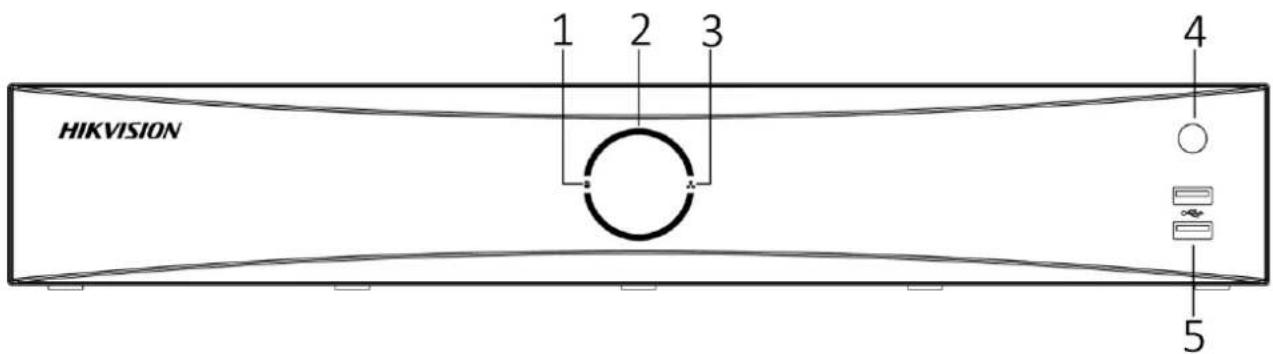
1.1 Front Panel
text_image
HIKVISION 1 2 3 4 5Figure 1-1 Front Panel

NOTE
The DS-7600NXI series only have one USB 2.0 port.
Table 1-1 Panel Description
| No. | Name | Function Description |
| 1 | HDD indicator | Solid white: HDD is abnormal.Flashing white: HDD is reading/writing.Unlit: No HDD is detected. |
| 2 | Power indicator | Solid white: Device is running normally.Breathing light: Device is shutdown.Unlit: No power supply is connected. |
| 3 | Network indicator | Solid white: Network connection is normal.Flashing white: Device is transferring data via network.Unlit: Network connection failed. |
| 4 | IR receiver | IR receiver for remote control. |
| 5 | USB | Universal Serial Bus (USB) 2.0 port for additional devices such as USB mouse and USB Hard Disk Drive (HDD). |
1.2 IR Remote Control Operations
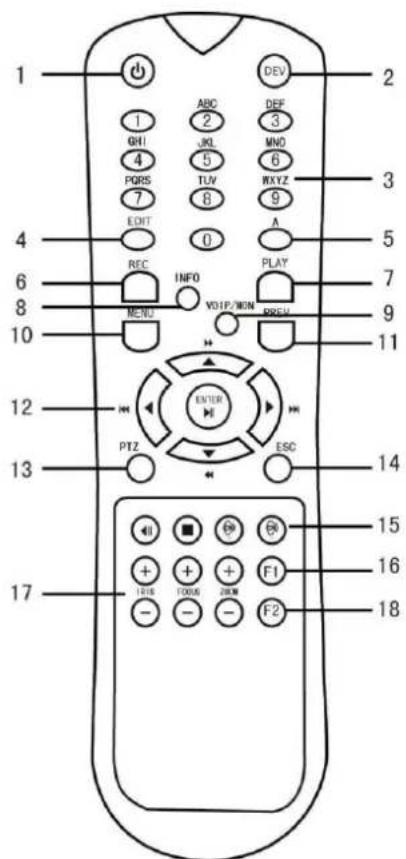
The device may also be controlled with the included IR remote control, shown in Figure 1-2.
i NOTE
Batteries (2×AAA) must be installed before operation.
The IR remote is set at the factory to control the device (using default Device ID# 255) without any additional steps. Device ID# 255 is the default universal device identification number shared by the devices. You may also pair an IR Remote to a specific device by changing the Device ID#, as follows:
1.2.1 Pairing (Enabling) the IR Remote to a Specific Device (optional)
You can pair an IR Remote to a specific device by creating a user-defined Device ID#. This feature is useful when using multiple IR Remotes and devices.
On the device:
Step 1 Go to System > General.
Step 2 Type a number (255 digits maximum) into the Device No. field.
On the IR Remote:
Step 3 Press the DEV button.
Step 4 Use the Number buttons to enter the Device ID# that was entered into the device.
Step 5 Press Enter button to accept the new Device ID#.
text_image
1 2 3 4 5 6 7 8 9 10 11 12 13 14 15 16 17 ABC 2 JXL 5 TLV 8 EOHT 0 REC INFO MENU VOUT/P/WON PLAY BREW ENTER PTZ ESC F1 F2Figure 1-2 Remote Control
1.2.2 Unpairing (Disabling) an IR Remote from a Device
To unpair an IR Remote from a device so that the unit cannot control any device functions, proceed as follows:
Press the DEV key on the IR Remote. Any existing Device ID# will be erased from the unit's memory and it will no longer function with the device.
i NOTE
(Re)-enabling the IR Remote requires pairing to a device. See “Pairing the IR Remote to a Specific device (optional),” above.
The keys on the remote control closely resemble the ones on the front panel. See the table 1.4.
Table 1-2 IR Remote Functions
| No. | Name | Function Description |
| 1 | POWER ON/OFF | •To Turn Power On:-If User Has Not Changed the Default device Device ID# (255):1.Press Power On/Off button (1).-If User Has Changed the device Device ID#:1.Press DEV button.2.Press Number buttons to enter user-defined Device ID#.3.Press Enter button.4.Press Power button to start device.•To Turn device Off:-If User Is Logged On:1.Hold Power On/Off button (1) down for five seconds to display the “Yes/No” verification prompt.2.Use Up/Down Arrow buttons (12) to highlight desired selection.3.Press Enter button (12) to accept selection.-If User Is Not Logged On:1.Hold Power On/Off button (1) down for five seconds to display the user name/password prompt.2.Press the Enter button (12) to display the on-screen keyboard.3.Input the user name.4.Press the Enter button (12) to accept input and dismiss the on-screen keyboard.5.Use the Down Arrow button (12) to move to the “Password” field.6.Input password (use on-screen keyboard or numeric buttons (3) for numbers).7.Press the Enter button (12) to accept input and dismiss the on-screen keyboard.8.Press the OK button on the screen to accept input and display the Yes/No” verification prompt (use Up/Down Arrow buttons (12) to move between fields)9.Press Enter button (12) to accept selection.User name/password prompt depends on device is configuration.See “System Configuration” section. |
| 2 | DEV | Enable IR Remote: Press DEV button, enter device Device ID# with number keys, press Enter to pair unit with the device |
| Disable IR Remote: Press DEV button to clear Device ID#; unit will no longer be paired with the device | ||
| 3 | Numerals | Switch to the corresponding channel in Live View or PTZ Control mode |
| Input numbers in Edit mode | ||
| 4 | EDIT | Delete characters before cursor |
| Check the checkbox and select the ON/OFF switch | ||
| 5 | A | Adjust focus in the PTZ Control menu |
| Switch on-screen keyboards (upper and lower case alphabet, symbols, and numerals) | ||
| 6 | REC | Enter Manual Record setting menu |
| Call a PTZ preset by using the numeric buttons in PTZ control settings | ||
| Turn audio on/off in Playback mode | ||
| 7 | PLAY | Go to Playback mode |
| Auto scan in the PTZ Control menu | ||
| 8 | INFO | Reserved |
| 9 | VOIP | Switches between main and spot outputZooms out the image in PTZ control mode |
| 10 | MENU | Return to Main menu (after successful login) |
| N/A | ||
| Show/hide full screen in Playback mode | ||
| 12 | DIRECTION | Navigate between fields and menu items |
| Use Up/Down buttons to speed up/slow down recorded video, and Left/Right buttons to advance/rewind 30 secs in Playback mode | ||
| Cycle through channels in Live View mode | ||
| Control PTZ camera movement in PTZ control mode | ||
| ENTER | Confirm selection in any menu mode | |
| Checks checkbox | ||
| Play or pause video in Playback mode | ||
| Advance video a single frame in single-frame Playback mode | ||
| Stop/start auto switch in auto-switch mode | ||
| 13 | PTZ | Enter PTZ Control mode |
| 14 | ESC | Go back to previous screen |
| N/A | ||
| 15 | RESERVED | Reserved |
| 16 | F1 | Select all items on a list |
| N/A | ||
| Switch between play and reverse play in Playback mode | ||
| 17 | PTZ Control | Adjust PTZ camera iris, focus, and zoom |
| 18 | F2 | Cycle through tab pages |
| Switch between channels in Synchronous Playback mode |
1.2.3 Troubleshooting
i NOTE
Make sure you have installed batteries properly in the remote control. And you have to aim the remote control at the IR receiver in the front panel.
If there is no response after you press any button on the remote, follow the procedure below to troubleshoot.
Step 1 Go to System > General by operating the front control panel or the mouse.
Step 2 Check and remember device ID#. The default ID# is 255. This ID# is valid for all the IR remote controls.
Step 3 Press the DEV button on the remote control.
Step 4 Enter the device ID# you set in step 2.
Step 5 Press the ENTER button on the remote.
If the Status indicator on the front panel turns blue, the remote control is operating properly. If the Status indicator does not turn blue and there is still no response from the remote, please check the following:
● Batteries are installed correctly and the polarities of the batteries are not reversed.
● Batteries are fresh and not out of charge.
● IR receiver is not obstructed.
● No fluorescent lamp is used nearby
If the remote still can't function properly, please change a remote and try again, or contact the device provider.
1.3 USB Mouse Operation
A regular 3-button (Left/Right/Scroll-wheel) USB mouse can also be used with this device. To use a USB mouse:
Step 1 Plug USB mouse into one of the USB interfaces on the front panel of the device.
Step 2 The mouse should automatically be detected. If in a rare case that the mouse is not detected, the possible reason may be that the two devices are not compatible, please refer to the recommended the device list from your provider.
The operation of the mouse:
Table 1-3 Description of the Mouse Control
| Name | Action | Description |
| Left-Click | Single-Click | Live view: Select channel and show the quick set menu.Menu: Select and enter. |
| Double-Click | Live view: Switch between single-screen and multi-screen. | |
| Click and Drag | PTZ control: pan, tilt and zoom.Video tampering, privacy mask and motion detection: Select target area.Digital zoom-in: Drag and select target area.Live view: Drag channel/time bar. | |
| Right-Click | Single-Click | Live view: Show menu.Menu: Exit current menu to upper level menu. |
| Scroll-Wheel | Scrolling up | Live view: Previous screen.Menu: Previous item. |
| Scrolling down | Live view: Next screen.Menu: Next item. |
1.4 Rear Panel
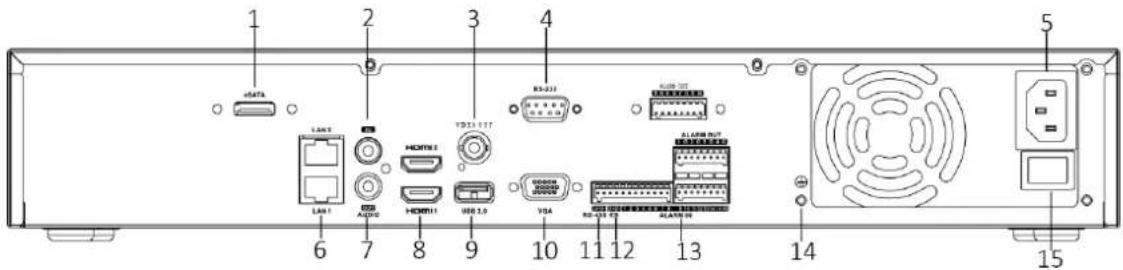
1.4.1 DS-7700NXI-I/S Series
text_image
1 2 3 4 5 6 7 8 9 10 11 12 13 14 15Figure 1-3 Rear Panel
Table 1-4 Panel Description
| No. | Name | Description |
| 1 | eSATA | Connects external SATA HDD, CD/DVD-RM. |
| 2 | Audio in | RCA connector for audio input. |
| 3 | Video out | CVBS video output. |
| 4 | RS-232 | Connector for RS-232 device. |
| 5 | Power supply | 100 to 240 VAC power supply |
| 6 | LAN1/LAN2 | 2 RJ-45 10/100/1000 Mbps self-adaptive Ethernet interfaces. |
| 7 | Audio out | RCA connector for audio output. |
| 8 | HDMI | HDMI video output connector. |
| 9 | USB 3.0 | Universal Serial Bus (USB) 3.0 port for additional device such as USB mouse and USB Hard Disk Drive (HDD). |
| 10 | VGA | DB9 connector for VGA output. Display local video output and menu. |
| 11 | RS-485 | Connector for RS-485 device. |
| 12 | Controller Port | D+, D- pin connects to Ta, Tb pin of controller. For cascading devices, the first NVR's D+, D- pin should be connected with the D+, D- pin of the next NVR. |
| 13 | Alarm In/out | Connector for alarm input/output. |
| 14 | GND | Ground. |
| 15 | Power switch | Switch for turning on/off the device. |
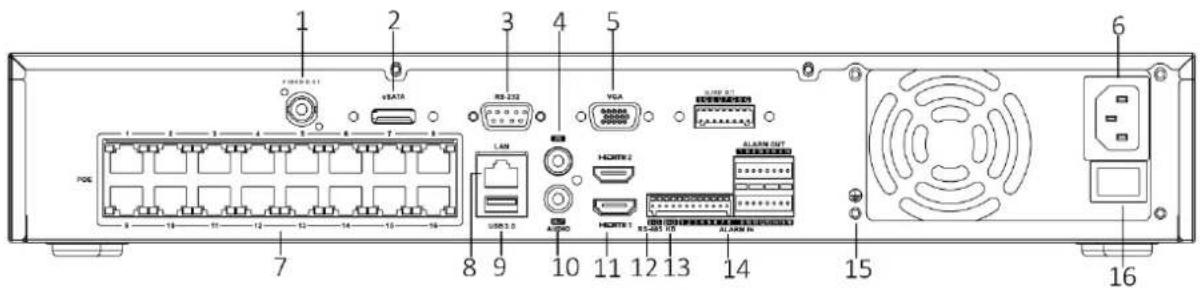
1.4.2 DS-7700NXI-I/P/S Series
text_image
1 2 3 4 5 6 7 8 9 10 11 12 13 14 15 16 USB 3.0 USB 232 VGA I/O 3.0 I/O 3.0 I/O 3.0 I/O 3.0 I/O 3.0 I/O 3.0 I/O 3.0 I/O 3.0 I/O 3.0 I/O 3.0 I/O 3.0 I/O 3.0 I/O 3.0 I/O 3.0 I/O 3.0 USB 1.0 I/O 1.0 I/O 1.0Figure 1-4 Rear Panel
Table 1-5 Panel Description
| No. | Name | Description |
| 1 | Video out | CVBS video output. |
| 2 | eSATA | Connects external SATA HDD, CD/DVD-RM. |
| 3 | RS-232 | Connector for RS-232 device. |
| 4 | Audio in | RCA connector for audio input. |
| 5 | VGA | DB9 connector for VGA output. Display local video output and menu. |
| 6 | Power supply | 100 to 240 VAC power supply |
| 7 | PoE | RJ-45 10/100 Mbps self-adaptive Ethernet interfaces. |
| 8 | LAN | 1 RJ-45 10/100/1000 Mbps self-adaptive Ethernet interface. |
| 9 | USB 3.0 | Universal Serial Bus (USB) 3.0 port for additional device such as USB mouse and USB Hard Disk Drive (HDD). |
| 10 | Audio out | RCA connector for audio output. |
| 11 | HDMI | HDMI video output connector. |
| 12 | RS-485 | Connector for RS-485 device. |
| 13 | Controller Port | D+, D- pin connects to Ta, Tb pin of controller. For cascading devices, the first NVR's D+, D- pin should be connected with the D+, D- pin of the next NVR. |
| 14 | Alarm In/out | Connector for alarm input/output. |
| 15 | GND | Ground. |
| 16 | Power switch | Switch for turning on/off the device. |
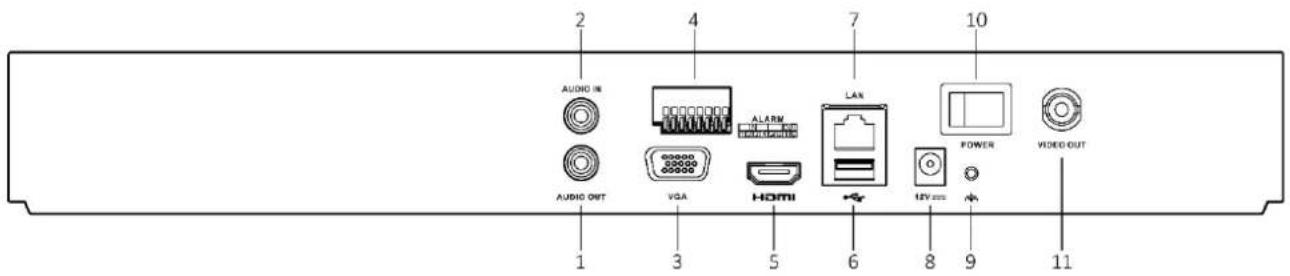
1.4.3 DS-7600NXI-I/S
text_image
2 AUDIO IN 4 ALARM VIA HDMI LAN 10 POWER VIDEO OUT 1 3 5 6 8 9 11Figure 1-5 Rear Panel
Table 1-6 Panel Description
| No. | Name | Description |
| 1 | Audio out | RCA connector for audio output. |
| 2 | Audio in | RCA connector for audio input. |
| 3 | VGA | DB9 connector for VGA output. Display local video output and menu. |
| 4 | Alarm in/out | Connector for alarm input/output. |
| 5 | HDMI | HDMI video output connector. |
| 6 | USB 3.0 | Universal Serial Bus (USB) 3.0 port for additional device such as USB mouse and USB Hard Disk Drive (HDD). |
| 7 | LAN | 1 RJ-45 10/100/1000 Mbps self-adaptive Ethernet interface. |
| 8 | Power supply | 12 VDC power supply |
| 9 | GND | Ground. |
| 10 | Power switch | Switch for turning on/off the device. |
| 11 | Video out | CVBS video output. |
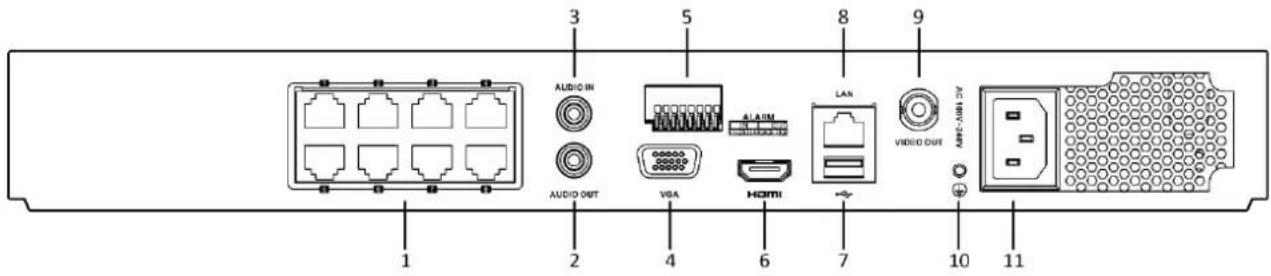
1.4.4 DS-7600NXI-I/P/S
text_image
1 2 3 AUDIO IN AUDIO OUT 4 5 VGA 6 HDMI 7 8 LAN 9 VIDEO OUT 10 11Figure 1-6 Rear Panel
Table 1-7 Panel Description
| No. | Name | Description |
| 1 | PoE | RJ-45 10/100 Mbps self-adaptive Ethernet interfaces. |
| 2 | Audio out | RCA connector for audio output. |
| 3 | Audio in | RCA connector for audio input. |
| 4 | VGA | DB9 connector for VGA output. Display local video output and menu. |
| 5 | Alarm in/out | Connector for alarm input/output. |
| 6 | HDMI | HDMI video output connector. |
| 7 | USB 3.0 | Universal Serial Bus (USB) 3.0 port for additional device such as USB mouse and USB Hard Disk Drive (HDD). |
| 8 | LAN | 1 RJ-45 10/100/1000 Mbps self-adaptive Ethernet interface. |
| 9 | Video out | CVBS video output. |
| 10 | GND | Ground. |
| 11 | Power supply | 100 to 240 VAC power supply |
Chapter 2 Getting Started
2.1 Start up the Device
Purpose
Proper startup and shutdown procedures are crucial to expanding the life of the device.
Before you start
Check that the voltage of the extra power supply is the same with the device's requirement, and the ground connection is working properly.
Step 1 Connect the device power supply interface and electrical socket with delivered power cable. It is HIGHLY recommended that an Uninterruptible Power Supply (UPS) be used in conjunction with the device. The Power button on the front panel should be red, indicating the device is receiving the power.
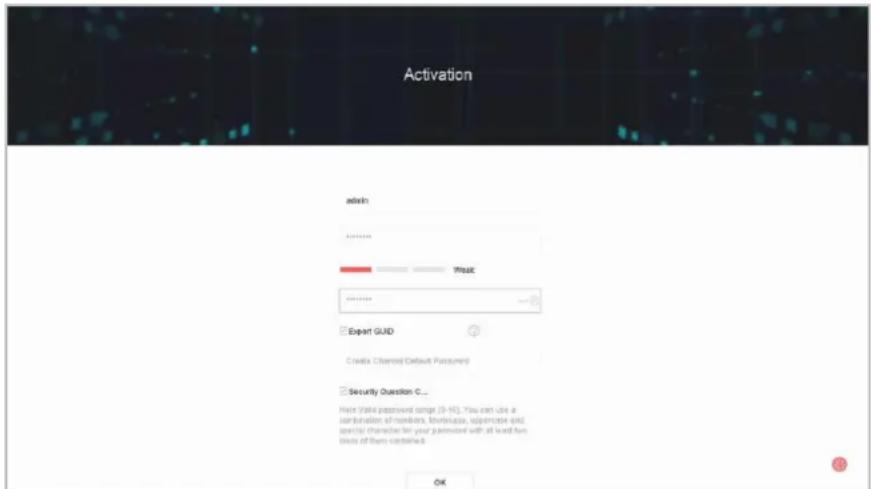
2.2 Activate the Device
Purpose:
For the first-time access, you need to activate the device by setting an admin password. No operation is allowed before activation. You can also activate the device via Web Browser, SADP or Client Software.
Step 1 Input the same password in the text field of Create New Password and Confirm New Password.

NOTE
You can click to show the characters input.
text_image
Activation admin Music ■ Export GUID Create Checked Default Password ■ Security Question C... Help Will password tagge (9-16). You can use a combination of numbers, booklist, uppercase end, special characters for your password with all key fun lists of them combined. OKFigure 2-1 Activating the Device

WARNING
We highly recommend you create a strong password of your own choosing (Using a minimum of 8 characters, including at least three of the following categories: upper case letters, lower case letters, numbers, and special characters.) in order to increase the security of your product. And we recommend you reset your password regularly, especially in the high security system, resetting the password monthly or weekly can better protect your product.
Step 2 In the Create Channel Default Password text field, create a login password for IP camera (s) connected to the device.
Step 3 (Optional) Check Export GUID and Security Question Configuration.
● Export GUID: export the GUID for future password resetting.
- Security Question Configuration: configure the security questions which can be used for resetting the password.
Step 4 Click OK.
What to do next:
- When you have enabled the Export GUID, continue to export the GUID file to the USB flash driver for the future password resetting.
- When you have enabled the Security Question Configuration, continue to set the security questions for the future password resetting.

NOTE
● After the device is activated, you should properly keep the password.
- You can duplicate the password to the IP cameras that are connected with default protocol.
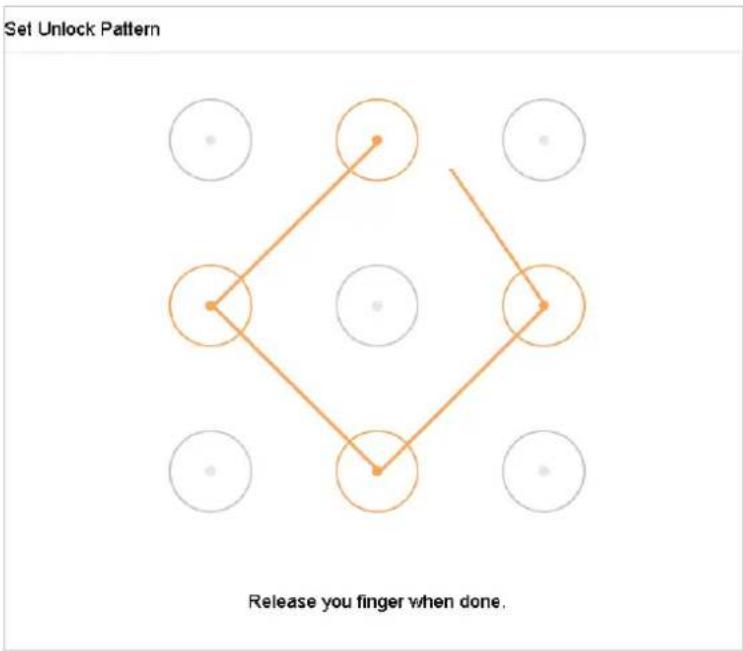
2.3 Configure Unlock Pattern for Login
For the admin user, you can configure the unlock pattern for device login.
Step 1 After the device is activated, you can enter the following interface to configure the device unlock pattern.
Step 2 Use the mouse to draw a pattern among the 9 dots on the screen. Release the mouse when the pattern is done.
text_image
Set Unlock Pattern Release you finger when done.Figure 2-2 Draw the Pattern
i NOTE
- Connect at least 4 dots to draw the pattern.
● Each dot can be connected for once only.
Step 3 Draw the same pattern again to confirm it. When the two patterns match, the pattern is configured successfully.
i NOTE
If the two patterns are different, you must set the pattern again.
2.4 Login to the Device
2.4.1 Log in via Unlock Pattern
NOTE
● Only the admin user has the permission to unlock the device.
- Please configure the pattern first before unlocking. Please refer to Chapter 2.3 Configure Unlock Pattern for Login.
Step 1 Right click the mouse on the screen and select the menu to enter the interface.
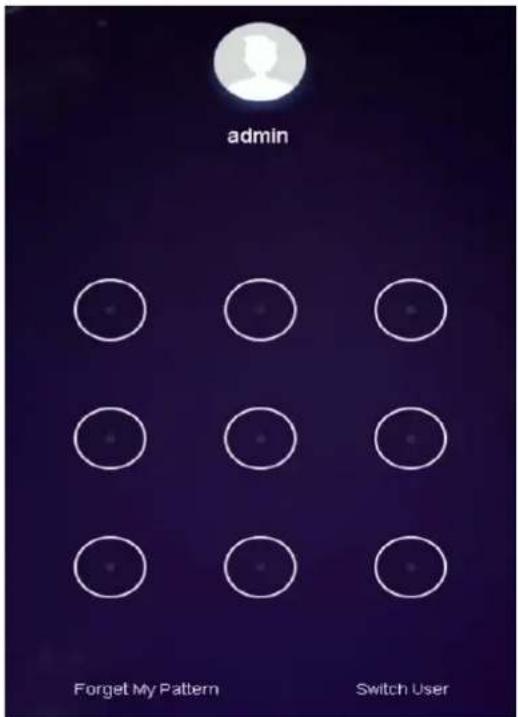
text_image
admin Forget My Pattern Switch UserFigure 2-3 Draw the Unlock Pattern
Step 2 Draw the pre-defined pattern to unlock to enter the menu operation.
i NOTE
- If you have forgotten your pattern, you can select the Forgot My Pattern or Switch User option to enter the normal login dialog box.
- When the pattern you draw is different from the pattern you have configured, you should try again.
- If you have drawn the wrong pattern for more than 5 times, the system will switch to the normal login mode automatically.
2.4.2 Log in via Password
Purpose:
If device has logged out, you must login the device before operating the menu and other functions. Step 1 Select the User Name in the dropdown list.
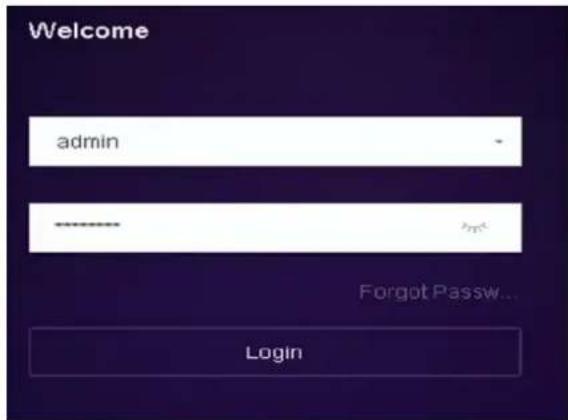
text_image
Welcome admin Forgot Passw... LoginFigure 2-4 Login Interface
Step 2 Input password.
Step 3 Click OK to log in.

NOTE
- When you forget the password of the admin, you can click Forgot Password to reset the password.
- In the Login dialog box, if you enter the wrong password 7 times, the current user account will be locked for 60 seconds.
2.5 Enter Wizard to Configure Basic Settings
By default, the Setup Wizard starts once the device has loaded.
The Setup Wizard can walk you through some important settings of the device. If you don't want to use the Setup Wizard at that moment, click the Exit button.
Step 1 Configure the date and time on the Date and Time Setup interface.
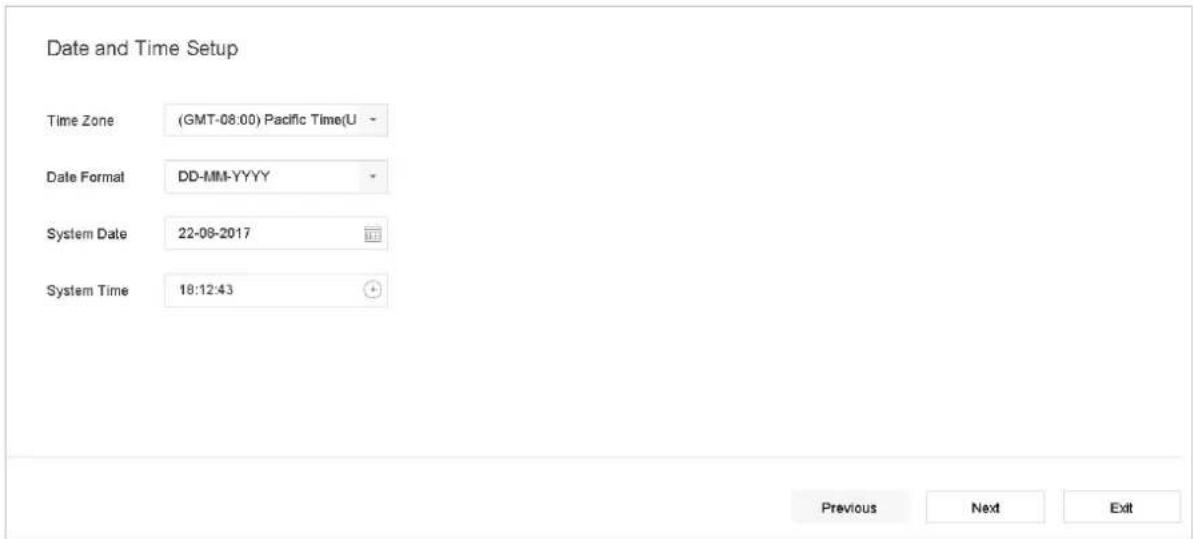
text_image
Date and Time Setup Time Zone (GMT-08:00) Pacific Time(U - Date Format DD-MM-YYYY - System Date 22-08-2017 System Time 18:12:43 Previous Next ExitFigure 2-5 Date and Time Settings
Step 2 After the time settings, click Next to enter the Network Setup Wizard window, as shown in the following figure.
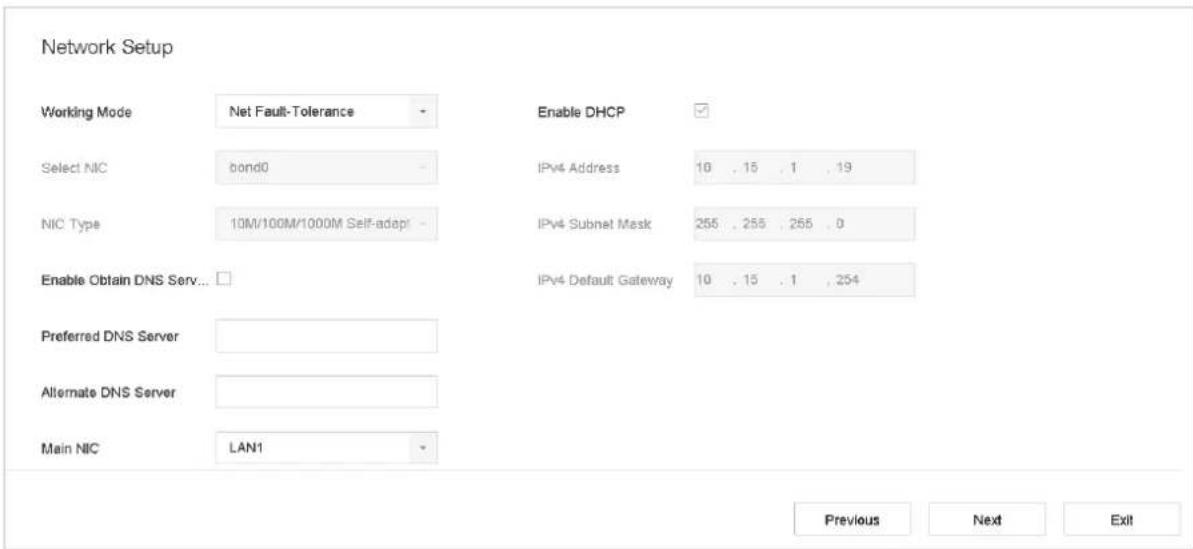
text_image
Network Setup Working Mode Net Fault-Tolerance Enable DHCP Select NIC bond0 IPv4 Address 10 . 15 . 1 . 19 NIC Type 10M/100M/1000M Self-adapt IPv4 Subnet Mask 255 . 255 . 255 . 0 Enable Obtain DNS Serv... IPv4 Default Gateway 10 . 15 . 1 . 254 Preferred DNS Server Alternate DNS Server Main NIC LAN1 Previous Next ExitFigure 2-6 Network Settings
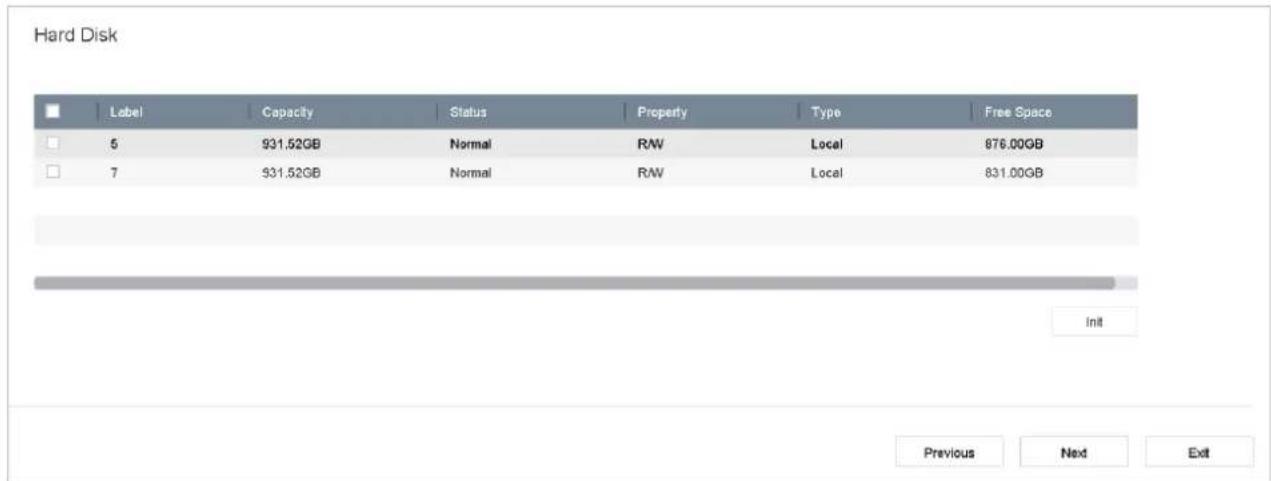
Step 3 Click Next after you configured the network parameters, which takes you to the HDD Management window.
text_image
Hard Disk Label Capacity Status Property Type Free Space 5 931.52GB Normal R/W Local 876.00GB 7 931.52GB Normal R/W Local 831.00GB Init Previous Nex ExitFigure 2-7 HDD Management
Step 4 To initialize the HDD, click the Init button. Initialization removes all the data saved in the HDD.
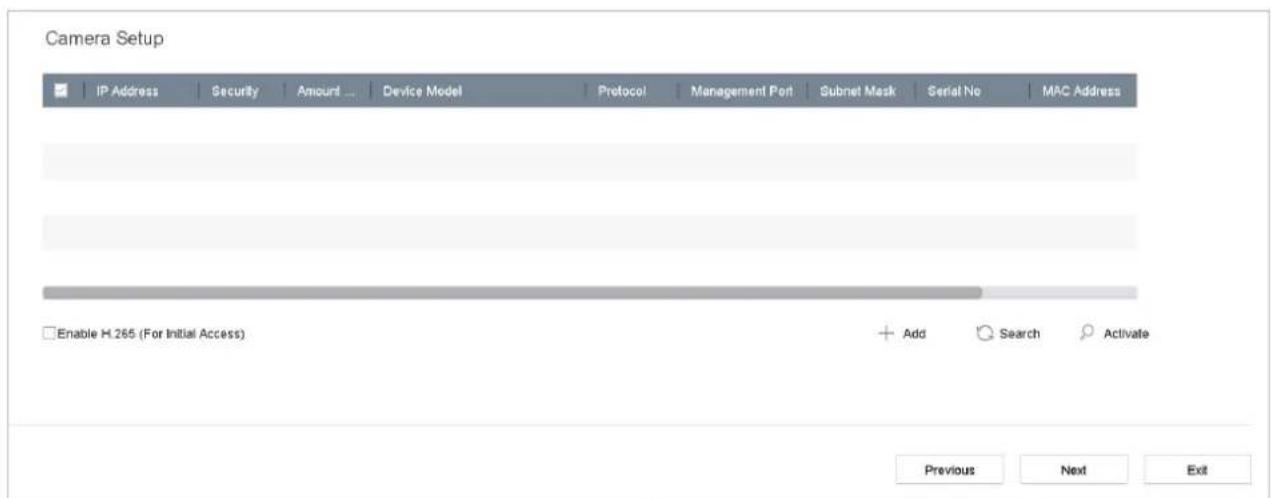
Step 5 Click Next. You enter the Camera Setup interface to add the IP cameras.
1) Click Search to search the online IP Camera. Before adding the camera, make sure the IP camera to be added is in active status.
2) Click the Add to add the camera.

NOTE
If the camera is in inactive status, you can select the camera from the list and click Activate to activate the cameras.
text_image
Camera Setup IP Address Security Amount ... Device Model Protocol Management Port Subnet Mask Serial No MAC Address Enable H.265 (For Initial Access) Add Search Activate Previous Next ExitFigure 2-8 Search for IP Cameras
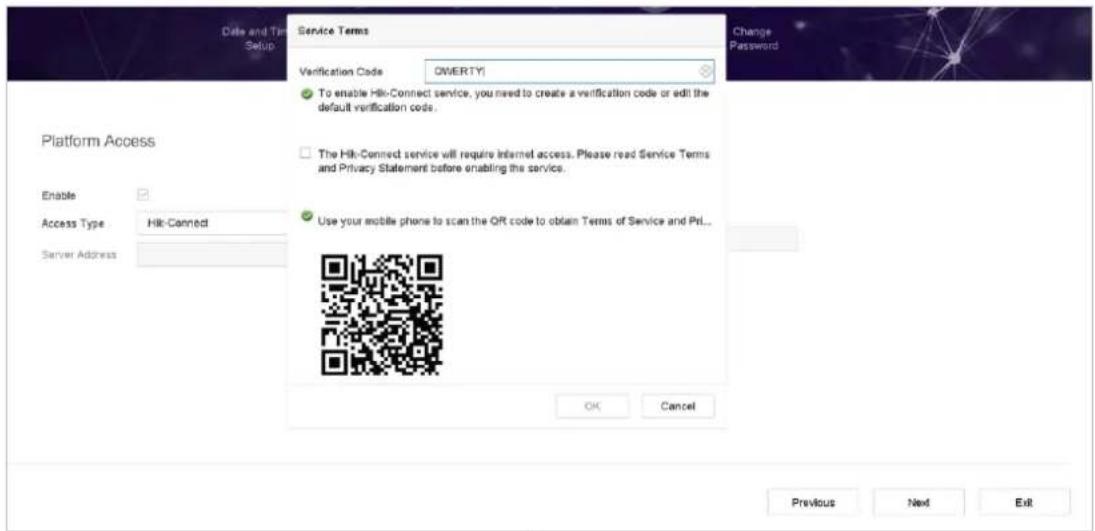
Step 6 Enter the Platform Access and configure the Hik-Connect settings.
text_image
Date and Time Setup Service Terms Verification Code OWERTY To enable Hik-Connect service, you need to create a verification code or edit the default verification code. The Hik-Connect service will require Internet access. Please read Service Terms and Privacy Statement before enabling the service. Use your mobile phone to scan the ORT code to obtain Terms of Service and Prl... OK Cancel Platform Access Enable Access Type Hik-Connect Server Address Previous Next ExitFigure 2-9 Hik-Connect Access
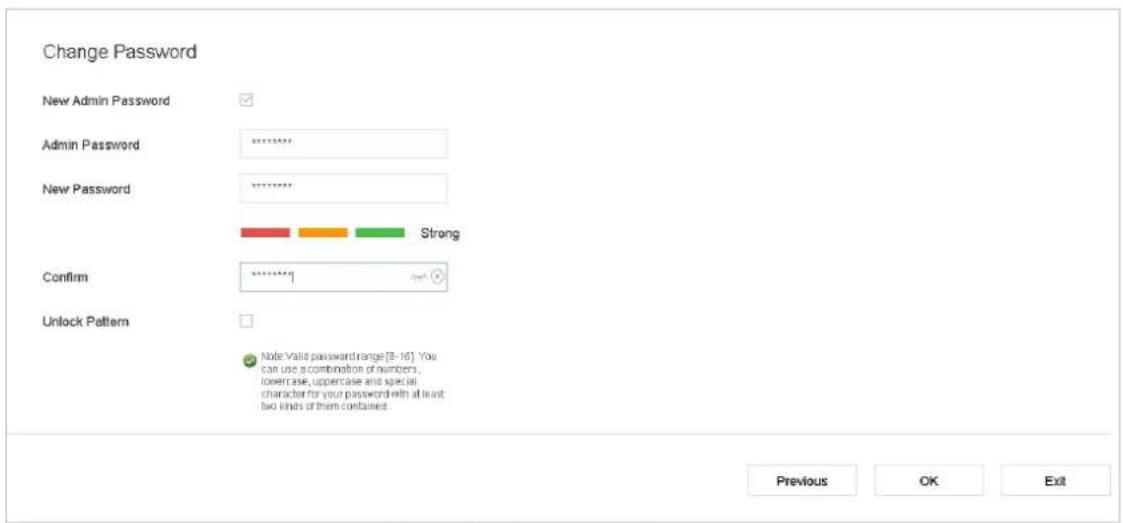
Step 7 Click Next to enter the Change Password interface to create the new admin password if required.
text_image
Change Password New Admin Password Admin Password New Password Strong Confirm Unlock Pattern Note Valid password range[8-16]. You can use a combination of numbers . lowercase, uppercase and special character for your password with at least two kinds of them contained. Previous OK ExitFigure 2-10 Change Password

NOTE
You can enter click to show the characters input.
1) Check the checkbox of New Admin Password.
2) Enter the original password in the text field of Admin Password
3) Input the same password in the text field of New Password and Confirm.
4) Check the Unlock Pattern to enable the unlock pattern login.

WARNING
We highly recommend you create a strong password of your own choosing (Using a minimum of 8 characters, including at least three of the following categories: upper case letters, lower case letters, numbers, and special characters.) in order to increase the security of your product. And we recommend you reset your password regularly, especially in the high security system, resetting the password monthly or weekly can better protect your product.
Step 8 Click OK to complete the startup Setup Wizard.
2.6 Enter Main Menu
After you have completed the wizard, you can right click on the screen to pop up main menu bar. Refer to the following figure and table for the description of main menu and sub-menus.

natural_image
Row of eight software icons on dark background, including camera, play button, folder, checkmark, file/folder, database, gear, and wrench (no text or symbols)Figure 2-11 Main Menu Bar
Table 2-1 Description of Icons
| Icon | Description |
 | Live View |
 | Playback |
 | File Management |
 | Smart Analysis |
 | Camera Management |
 | Storage Management |
 | System Management |
 | System Maintenance: |
2.7 System Operation
2.7.1 Log out
Purpose:
After logging out, the monitor turns to the live view mode and if you want to perform any operations, you need to enter user name and password to log in again.
Step 1 Click on the menu bar.
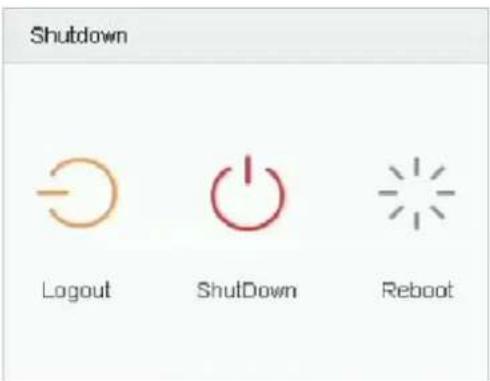
text_image
Shutdown Logout ShutDown RebootFigure 2-12 Logout
Step 2 Click Logout.

NOTE
After you have logged out the system, menu operation on the screen is invalid. It is required to input a user name and password to unlock the system.
2.7.2 Shut Down the Device
Step 1 Click on the menu bar.
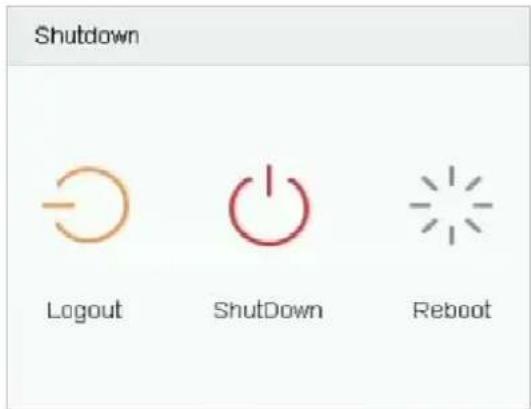
text_image
Shutdown Logout ShutDown RebootFigure 2-13 Shutdown Menu
Step 2 Click the Shutdown button.
Step 3 Click the Yes button.

Do not press the POWER button again when the system is shutting down.
2.7.3 Reboot the Device
From the Shutdown menu, you can also reboot the device.
Step 1 Click on the menu bar.
Step 2 Click Reboot to reboot the device.
Chapter 3 Camera Management
3.1 Add the IP Cameras
3.1.1 Add the IP Camera Manually
Purpose:
Before you can get live video or record the video files, you should add the network cameras to the connection list of the device.
Before you start:
Ensure the network connection is valid and correct, and the IP camera to add has already been activated.
Step 1 Click on the main menu bar to enter the Camera Management.
Step 2 Click the Custom Add tab on the title bar to enter the Add IP Camera interface.
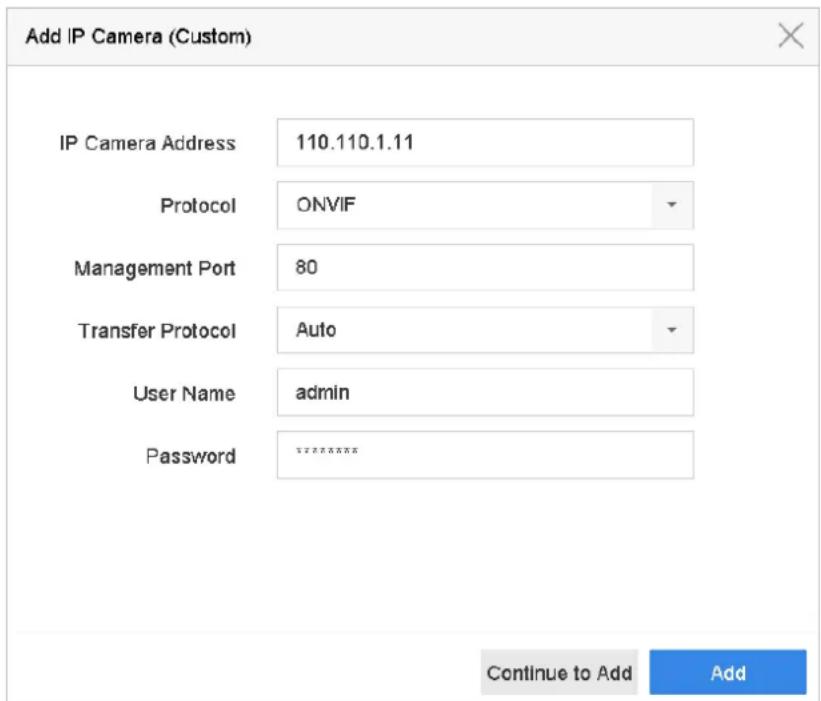
text_image
Add IP Camera (Custom) IP Camera Address 110.110.1.11 Protocol ONVIF Management Port 80 Transfer Protocol Auto User Name admin Password ******** Continue to Add AddFigure 3-1 Add IP Camera
Step 3 Enter IP address, protocol, management port, and other information of the IP camera to add.
Step 4 Enter the login user name and password of the IP camera.
Step 5 Click Add to finish the adding of the IP camera.
Step 6 (Optional) Click Continue to Add to continue to add other IP cameras.
3.1.2 Add the Automatically Searched Online IP Cameras
Step 1 On the Camera Management interface, click the Online Device panel to expand the Online Device interface.
Step 2 Select the automatically searched online devices.
Step 3 Click Add.

NOTE
If the IP camera to add has not been activated, you can activate it from the IP camera list on the camera management interface.
3.2 Manage Cameras for PoE Device

NOTE
This chapter is only applicable for the following models: DS-7700NXI-I/P/S series device.
Purpose:
The PoE interfaces enables the device system to pass electrical power safely, along with data, on Ethernet cabling to the connected PoE cameras. Supported PoE camera number varies with device model
If you disable the PoE interface, you can also connect to the online network cameras. And the PoE interface supports the Plug-and-Play function.
For example, for iDS-7716NXI-I4/16P/8S, if you want to connect 8 network cameras via PoE interfaces and 8 online cameras, you must disable 8 PoE interfaces in the Edit IP Camera menu.
Follow the steps to add network cameras for device supporting PoE function.
3.2.1 Add PoE Cameras
Step 1 Connect PoE cameras to device PoE ports with network cables.
Step 2 Go to Camera > Camera > IP Camera to view camera image and information.
3.2.2 Add Non-PoE IP Cameras
You can disable the PoE interface by selecting the manual while the current channel can be used as a normal channel and the parameters can also be edited.
Step 1 Go to Camera > Camera > IP Camera.
Step 2 Position the cursor on a window with no linked IP camera and click the button.
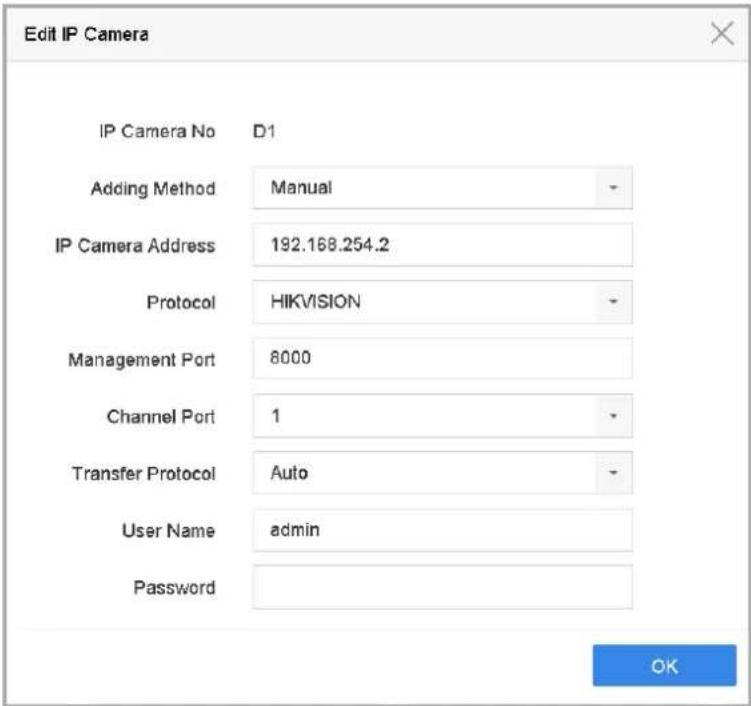
text_image
Edit IP Camera IP Camera No D1 Adding Method Manual IP Camera Address 192.168.254.2 Protocol HIKVISION Management Port 8000 Channel Port 1 Transfer Protocol Auto User Name admin Password OKFigure 3-2 Edit IP Camera
Step 3 Select Adding Method as Manual.
- Plug-and-Play: The camera is physically connected to the PoE interface. Its parameters cannot be edited. You can go to System > Network > TCP/IP to change IP address of PoE port.
- Manual: Add IP camera without physical connection via network.
Step 4 Enter the IP address, the user name and password of administrator manually.
Step 5 Click OK.
3.2.3 Configure PoE Interface
Purpose:
When it requires long-distance PoE transmission (100 to 300 m), you can enable long distance mode for the PoE channel.
Step 1 Go to Camera > Camera > PoE Settings.
Step 2 Enable or disable long network cable mode by selecting Long Distance or Short Distance radio.
● Long Distance: Long-distance (100 to 300 meters) network transmissions via PoE interface.
● Short Distance: Short-distance (< 100 meters) network transmission via PoE interface.
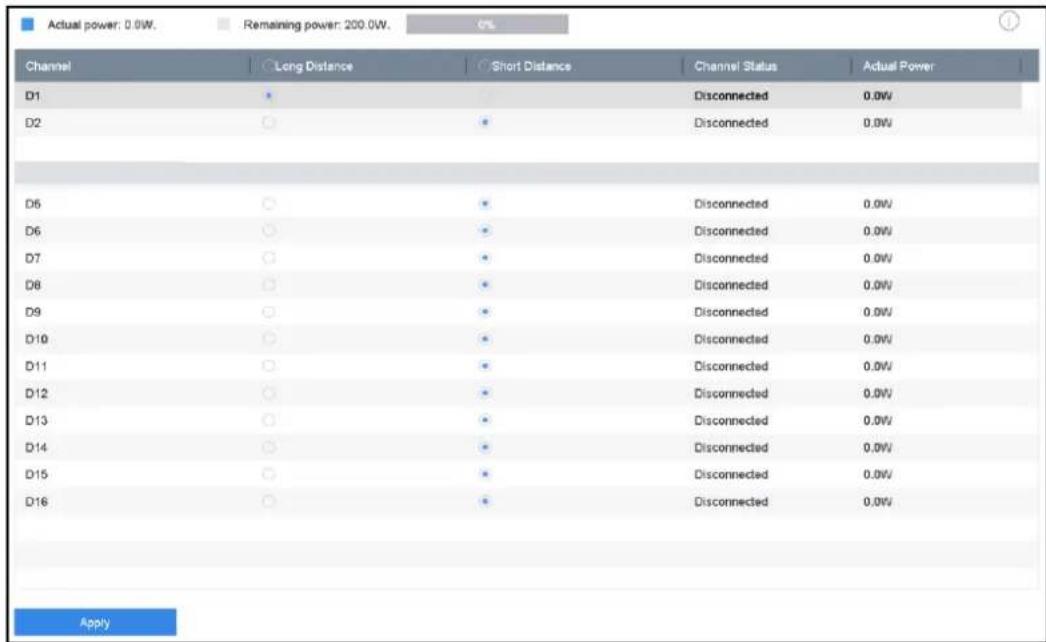
Figure 3-3 PoE Settings
i NOTE
● The PoE ports are enabled with the short distance mode by default.
- The bandwidth of IP camera connected to the PoE via long network cable (100 to 300 meters) cannot exceed 6 MP.
- The allowed max. long network cable may be less than 300 meters depending on different IP camera models and cable materials.
- When the transmission distance reaches 100 to 250 meters, you must use the CAT5E or CAT6 network cable to connect with the PoE interface.
- When the transmission distance reaches 250 to 300 meters, you must use the CAT6 network cable to connect with the PoE interface.
Step 3 Click Apply.
3.3 Configure the Customized Protocols
Purpose:
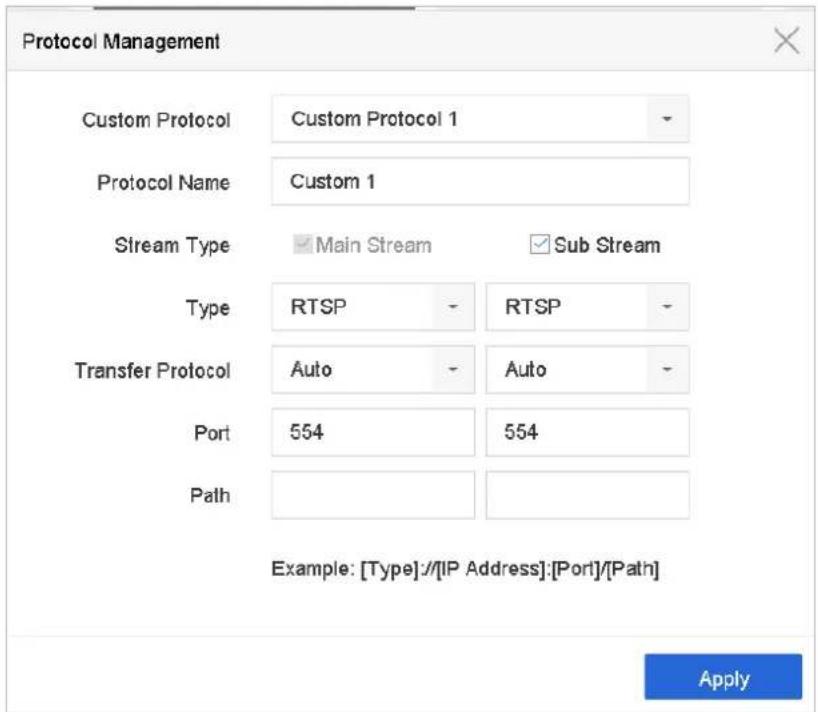
To connect the network cameras which are not configured with the standard protocols, you can configure the customized protocols for them. The system provides 16 customized protocols.
Step 1 Click Protocol at the top taskbar to enter the protocol management interface.
text_image
Protocol Management Custom Protocol Custom Protocol 1 Protocol Name Custom 1 Stream Type Main Stream Sub Stream Type RTSP - RTSP - Transfer Protocol Auto - Auto - Port 554 554 Path Example: [Type]://[IP Address]:[Port]/[Path] ApplyFigure 3-4 Protocol Management
Step 2 Select the protocol type of transmission and choose the transfer protocols.
- Type: The network camera adopting custom protocol must support getting stream through standard RTSP.
- Path: you have to contact the manufacturer of the network camera to consult the URL (uniform resource locator) for getting main stream and sub-stream.
● The format of the URL is: [Type]://[IP Address of the network camera]:[Port]/[Path].
Example: rtsp://192.168.1.55:554/ch1/main/av_stream.

NOTE
The protocol type and the transfer protocols must be supported by the connected IP camera.
Result:
Step 3 After adding the customized protocols, you can see the protocol name is listed in the drop-down list.
Chapter 4 Camera Settings
4.1 Configure OSD Settings
Purpose:
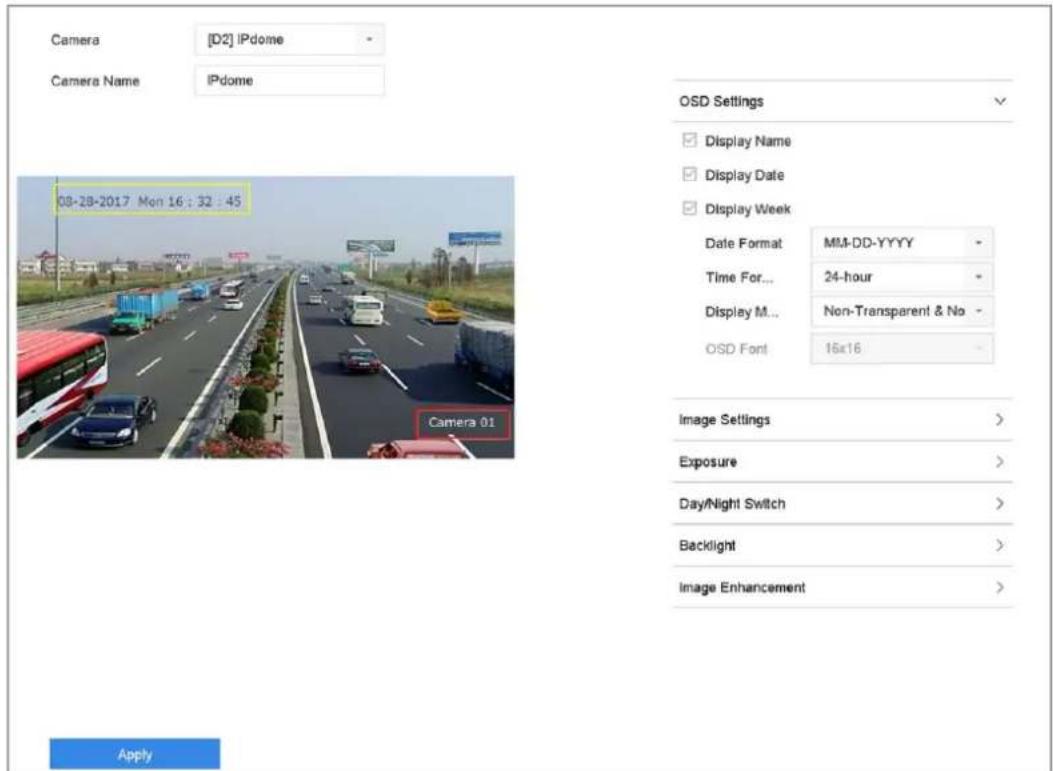
You can configure the OSD (On-screen Display) settings for the camera, including date/time, camera name, etc.
Step 1 Go to Camera > Display.
Step 2 Select the camera from the drop-down list.
Step 3 Edit the name in the Camera Name text field.
Step 4 Check the checkbox of the Display Name, Display Date and Display Week if you want to show the information on the image.
Step 5 Set the date format, time format, and display mode.
text_image
Camera [D2] IPdome Camera Name IPdome 08-28-2017 Mon 16:32:45 Camera 01 OSD Settings Display Name Display Date Display Week Date Format MM-DD-YYYY Time For... 24-hour Display M... Non-Transparent & No - OSD Font 16x16 Image Settings > Exposure > Day/Night Switch > Backlight > Image Enhancement > ApplyFigure 4-1 OSD Configuration Interface
Step 6 You can use the mouse to click and drag the text frame on the preview window to adjust the OSD position.
Step 7 Click the Apply button to apply the settings.
4.2 Configure Privacy Mask
Purpose:
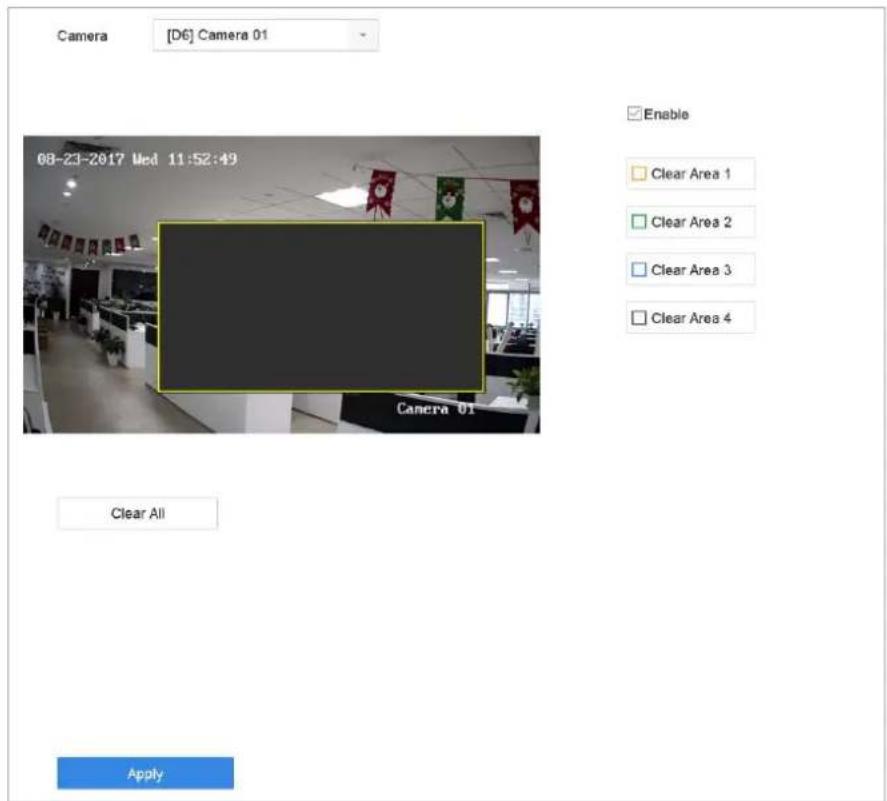
The privacy mask can be used to protect personal privacy by concealing parts of the image from view or recording with a masked area.
Step 1 Go to Camera >Privacy Mask.
Step 2 Select the camera to set privacy mask.
Step 3 Click the checkbox of Enable to enable this feature.
Step 4 Use the mouse to draw a zone on the window. The zones will be marked with different frame colors.
text_image
Camera [D6] Camera 01 08-23-2017 Wed 11:52:49 Clear All Enable Clear Area 1 Clear Area 2 Clear Area 3 Clear Area 4 ApplyFigure 4-2 Privacy Mask Settings Interface

NOTE
Up to 4 privacy masks zones can be configured and the size of each area can be adjusted.
Related Operation:
The configured privacy mask zones on the window can be cleared by clicking the corresponding Clear Zone1-4 icons on the right side of the window, or click Clear All to clear all zones.
Step 5 Click Apply to save the settings.
4.3 Configure the Video Parameters
Purpose:
You can customize the image parameters including the brightness, contrast, saturation for the live view and recording effect.
Step 1 Go to Camera > Display.
Step 2 Select the camera from the drop-down list.
Step 3 Adjust the slider or click on the up/down arrow to set the value of the brightness, contrast or saturation.
Step 4 Click Apply to save the settings.
4.4 Configure the Day/Night Switch
The camera can be set to day, night or auto switch mode according to the surrounding illumination conditions.
Step 1 Go to Camera > Display.
Step 2 Select the camera from the drop-down list.
Step 3 Select the day/night switch mode to Day, Night, Auto or Auto-Switch.
Auto: The camera switches between the day mode and the night mode according to the illumination automatically.
The sensitivity ranges from 0 to 7, and the higher sensitivity results in the more easily to trigger the mode switch.
The switch time refers to the interval time between the day/night switch. You can set it from 5 sec to 120 sec.
Auto-Switch: The camera switches the day mode and the night mode according to the start time and end time you set.
Step 4 Click the Apply to save the settings.
4.5 Configure Other Camera Parameters
For the connected camera, you can configure the camera parameters including the exposure mode, backlight and image enhancement.
Step 1 Go to Camera > Display.
Step 2 Select the camera from the drop-down list.
Step 3 Configure the camera parameters.
- Exposure: Set the exposure time (1/10000 to 1 sec) of camera. The larger exposure value results in the brighter image.
- Backlight: Set the wide dynamic range (0 to 100) of the camera. When the surrounding illumination and the object have larger difference in brightness, you should set the WDR value.
● Image Enhancement: For optimized image contrast enhancement.
Step 4 Click the Apply to save the settings.
Chapter 5 Live View
Live view shows you the video image getting from each camera in real time. The device automatically enters Live View mode when powered on. It is also at the very top of the menu hierarchy, thus pressing the ESC many times (depending on which menu you're on) brings you to the Live View mode.
5.1 Start Live View
Step 1 The system automatically enters the live view interface when starts up, or you can click the

on the main menu bar to enter the live view interface.
Step 2 Click to select a window for live view.
Step 3 Double click the IP camera on the left list to start playing the live video.
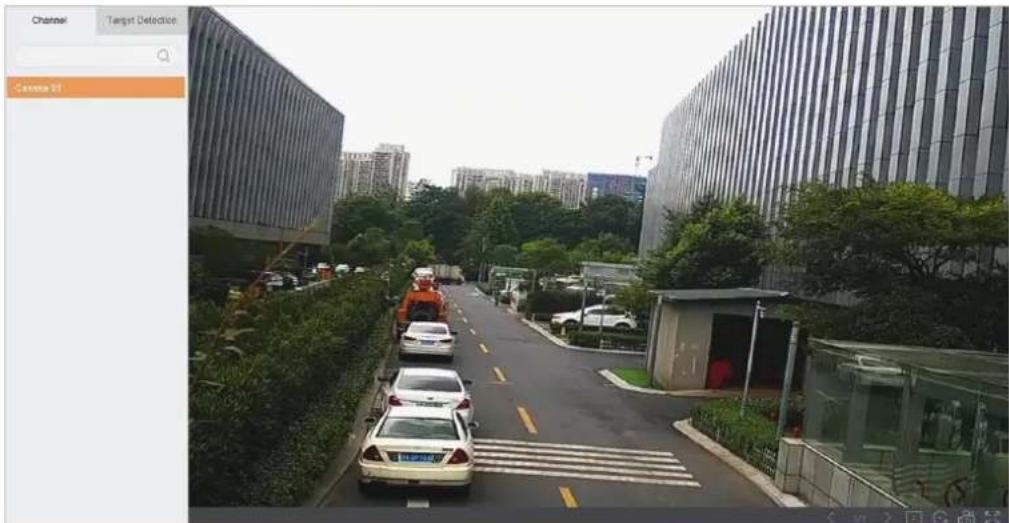
text_image
Channel Target Detection Camera 91Figure 5-1 Live View
Step 4 You can use the toolbar at the window bottom to realize the capture, instant playback, audio on/off, digital zoom, live view strategy, show information and start/stop recording, etc.
5.1.1 Digital Zoom
Digital Zoom is for zooming in the live image. You can zoom in the image to different proportions (1 to 16X).
Step 1 In the live view mode, click from the toolbar to enter the digital zoom interface.
Step 2 You can move the sliding bar or scroll the mouse wheel to zoom in/out the image to different proportions (1 to 16X).
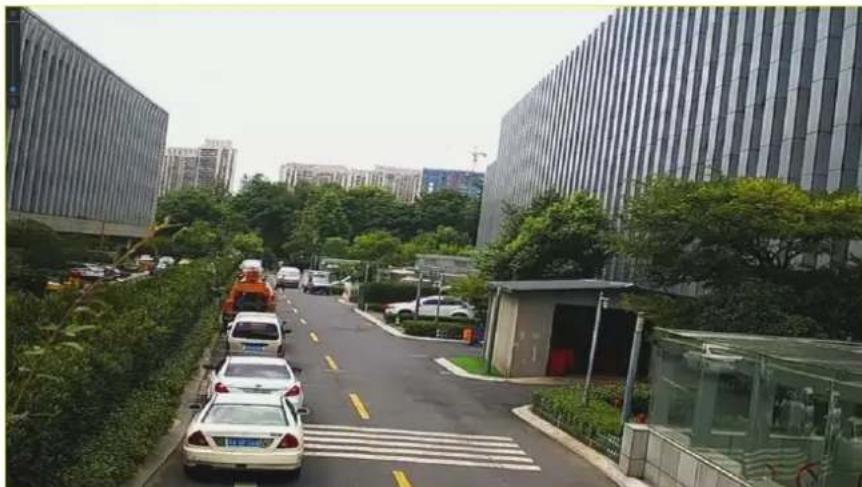
natural_image
Street view with modern glass buildings and parked cars, surrounded by greenery (no visible text or signage)Figure 5-2 Digital Zoom
5.1.2 3D Positioning
3D Positioning (for I series device) is for zooming in/out the specific area of live image.
Step 1 In the live view mode, click the 3D to enter the 3D positioning mode.
Step 2 Operate the zoom in/out in the image.
- Zoom in
Use the left key of mouse to click on the desired position in the video image and drag a rectangle area in the lower right direction to realize zoom in.
- Zoom out
Use the left key of mouse to drag a rectangle area in the upper left direction to move the position to the center and enable the rectangle area to zoom out.
5.1.3 Live View Strategy
Step 1 In the live view mode, click to enter the digital zoom operation interface in full screen mode.
Step 2 Select the live view strategy to Real-time, Balanced or Fluency.
5.2 Configure Live View Settings
Live View settings can be customized according to different needs. You can configure the output interface, dwell time for screen to be shown, mute or turning on the audio, the screen number for each channel, etc.
Step 1 Go to System > Live View > General.
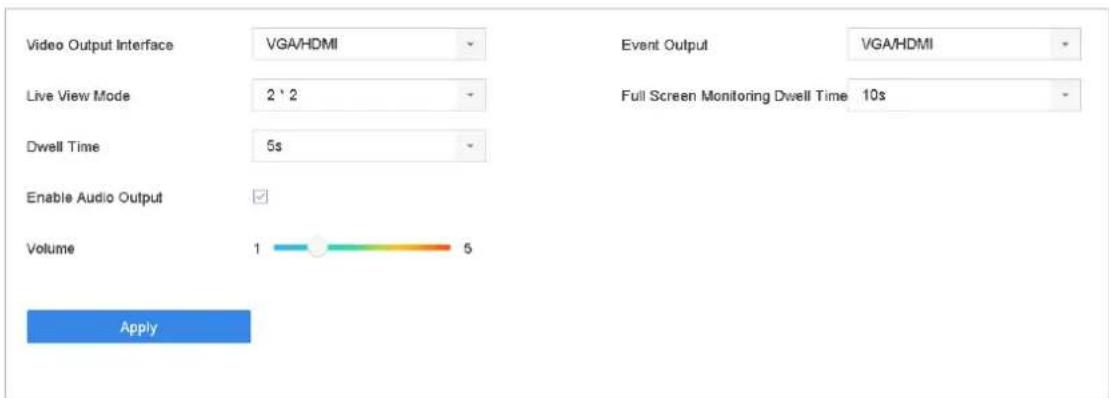
text_image
Video Output Interface VGA/HDMI Live View Mode 2^2 Dwell Time 5s Enable Audio Output Volume 1 5 Apply Event Output VGA/HDMI Full Screen Monitoring Dwell Time 10s ApplyFigure 5-3 Live View-General
Step 2 Configure the live view parameters.
● Video Output Interface: Select the video output to configure.
● Live View Mode: Select the display mode for live view, e.g., 2*2, 1*5, etc.
● Dwell Time: The time in seconds to dwell between switching of cameras when enabling auto-switch in Live View.
- Enable Audio Output: Enable/disable audio output for the selected video output.
● Volume: Adjust the volume of live view, playback and two-way audio for the selected output interface.
● Event Output: Select the output to show event video.
● Full Screen Monitoring Dwell Time: Set the time in seconds to show alarm event screen.
Step 3 Click OK to save the settings.
5.3 Configure Live View Layout
Step 1 Go to System> Live View>View Settings.
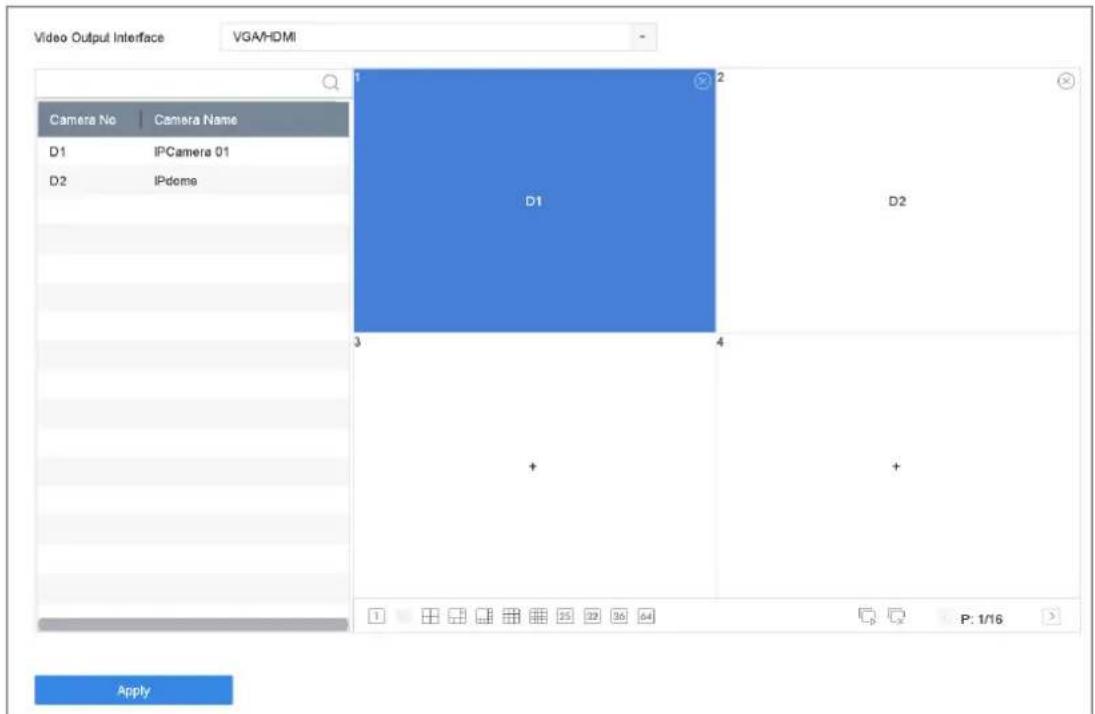
text_image
Video Output Interface VGA/HDMI Camera No Camera Name D1 IPCamera 01 D2 IPdome 1 2 D1 D2 3 4 + + P: 1/16 ApplyFigure 5-4 Live View
Step 2 Select the video output interface, e.g., HDMI/ VGA or channel-zero.
Step 3 Select a window division mode from the toolbar.
Step 4 Select a division window, and double-click on the camera from the list to set the camera to the window.
You can enter the number in the text field to quickly search the camera from the list.

NOTE
You can also click-and-drag the camera to the desired window on the live view interface to set the camera order.
Related Operation:
- Click button to start live view for all the channels.
- Click to stop all the live view.
Step 5 Click Apply to save the settings.
5.4 Configure Auto-Switch of Cameras
You can set the auto-switch of cameras to play in different display modes.
Step 1 Go to System > Live View > General.
Step 2 Set the video output interface, live view mode and dwell time.
● Video Output Interface: Select the video output interface.
● Live View Mode: Select the display mode for live view, e.g., 2*2, 1*5, etc.
● Dwell Time: The time in seconds to dwell between switching of cameras when enabling auto-switch. The range is from 5s to 300s.
Step 3 Go to View Settings to set the view layout.
Step 4 Click OK to save the settings.
5.5 Configure Channel-Zero Encoding
Purpose:
You can enable the channel-zero encoding when you need to get a remote view of many channels in real time from web browser or CMS (Client Management System) software, in order to decrease the bandwidth requirement without affecting the image quality.
Step 1 Go to System > Live View > General.
Step 2 Select the video output interface to Channel-Zero.
Step 3 Go to System > Live View > Channel-Zero.
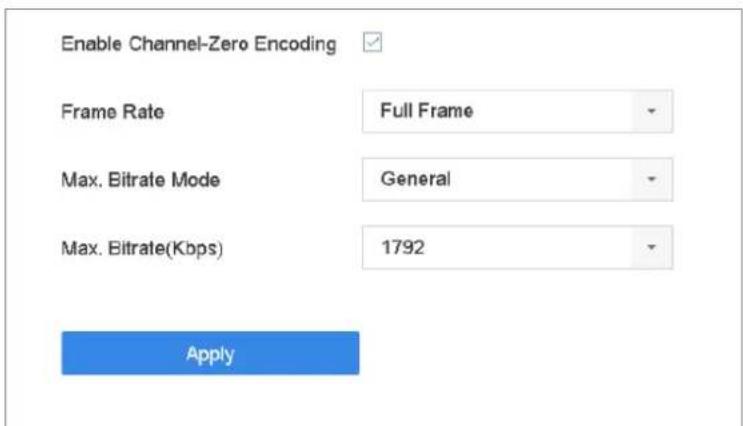
Step 4 Check the checkbox to enable the channel-zero.
text_image
Enable Channel-Zero Encoding Frame Rate Full Frame Max. Bitrate Mode General Max. Bitrate(Kbps) 1792 ApplyFigure 5-5 Live View- Channel-Zero Encoding
Step 5 Configure the Frame Rate, Max. Bitrate Mode and Max. Bitrate. The higher frame rate and bitrate settings result in the higher requirement of bandwidth.
Step 6 Click Apply.
Result:
You can view all of the channels in one screen using the CMS or web browser.
5.6 Use an Auxiliary Monitor
Certain features of the Live View are also available while in an Aux monitor. These features include:
- Single Screen: Switch to a full screen display of the selected camera. Camera can be selected from a dropdown list.
- Multi-screen: Switch between different display layout options. Layout options can be selected from a dropdown list.
- Next Screen: When displaying less than the maximum number of cameras in Live View, clicking this feature will switch to the next set of displays.
● Playback: Enter into Playback mode.
● PTZ Control: Enter PTZ Control mode.
● Main Monitor: Enter Main operation mode.

NOTE
In the live view mode of the main output monitor, the menu operation is not available while Aux output mode is enabled.
Chapter 6 PTZ Control
6.1 PTZ Control Wizard
Before you start
Please make sure the connected IP camera supports the PTZ function and is properly connected.
Purpose
Follow the PTZ control wizard to guide you through the basic PTZ operation.
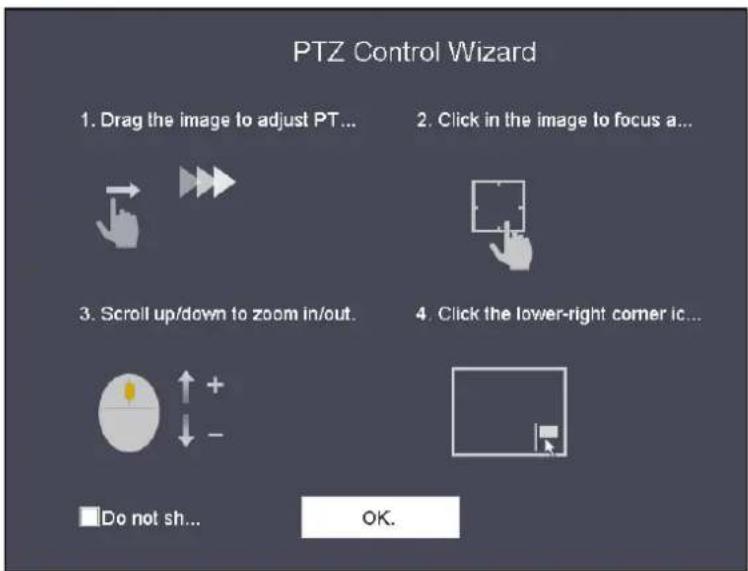
Step 1 Click 🙏 on the quick settings toolbar of the PTZ camera live view. The PTZ control wizard pops up as below.
text_image
PTZ Control Wizard 1. Drag the image to adjust PT... 2. Click in the image to focus a... 3. Scroll up/down to zoom in/out. 4. Click the lower-right corner ic... Do not sh... OK.Figure 6-1 PTZ Control Wizard
Step 2 Follow the wizard to adjust the PTZ view, focus, and zoom in/out the camera.
Step 3 (Optional) Check Do not show this prompt again.
Step 4 Click OK to exit.
6.2 Configure PTZ Parameters
Purpose
Follow the procedure to set the parameters for PTZ. The configuration of the PTZ parameters should be done before you control the PTZ camera.
Step 1 Click 📁 on the quick settings toolbar of the PTZ camera live view. The PTZ control panel displays on the right of the interface.
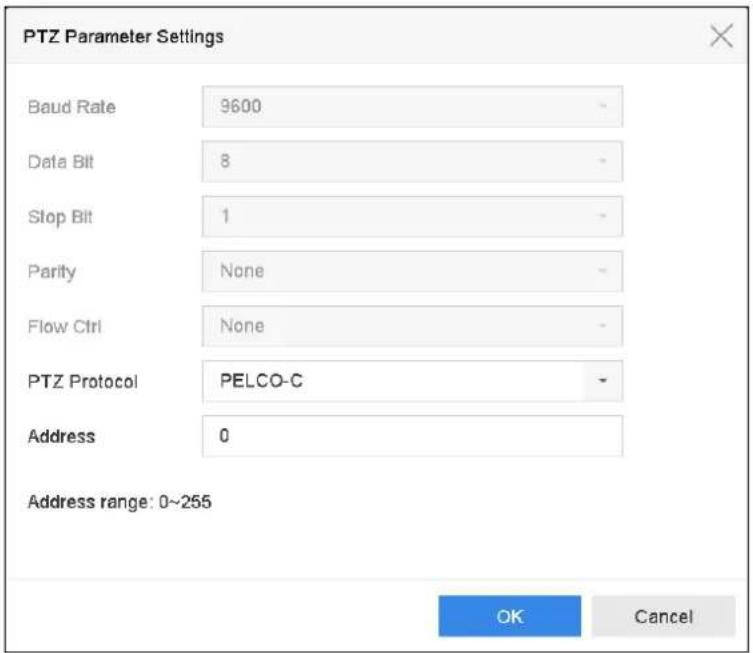
Step 2 Click PTZ Parameters Settings to set the PTZ parameters.
text_image
PTZ Parameter Settings Baud Rate 9600 Data Bit 8 Stop Bit 1 Parity None Flow Ctrl None PTZ Protocol PELCO-C Address 0 Address range: 0~255 OK CancelFigure 6-2 PTZ Parameters Settings
Step 3 Edit the parameters of the PTZ camera.
i NOTE
All the parameters should be exactly the same as the PTZ camera parameters.
Step 4 Click OK to save the settings.
6.3 Set PTZ Presets, Patrols & Patterns
Before you start:
Please make sure that the presets, patrols and patterns should be supported by PTZ protocols.
6.3.1 Set a Preset
Purpose:
Follow the steps to set the preset location which you want the PTZ camera to point to when an event takes place.
Step 1 Click 🙏 on the quick settings toolbar of the PTZ camera live view.
The PTZ control panel displays on the right of the interface.
Step 2 Use the directional buttons on the PTZ control panel to wheel the camera to the location where you want to set preset, and the zoom and focus operations can be recorded in the preset as well.
Step 3 Click in the lower right corner of live view to set the preset.
| 1 | Preset 1 | Call | Apply | Cancel |
Figure 6-3 Set Preset
Step 4 Select the preset No. (1\~255) from the drop-down list.
Step 5 Enter the preset name in the text field.
Step 6 Click Apply to save the preset.
Step 7 Repeat steps 2-6 to save more presets.
Step 8 (Optional) Click Cancel to cancel the location information of the preset.
Step 9 (Optional) Click in the lower right corner of live view to view the configured presets.

text_image
1.Preset 1 2.Preset2 No available preset. No available preset. No available preset. No available preset.Figure 6-4 View the Configured Presets
6.3.2 Call a Preset
Purpose:
This feature enables the camera to point to a specified position such as a window when an event takes place.
Step 1 Click 🙏 on the quick settings toolbar of the PTZ camera live view.
Step 2 Click in the lower right corner of live view.
Step 3 Select the preset No. from the drop-down list.
Step 4 Click Call to call it.
| 1 | Preset 1 | Call | Apply | Cancel |
Figure 6-5 Call Preset (1)
Or click in the lower right corner of live view, and click the configured preset to call it.

text_image
1.Preset 1 2.Preset2 No available preset. No available preset. No available preset. No available preset.Figure 6-6 Call Preset (2)
6.3.3 Set a Patrol
Purpose:
Patrols can be set to move the PTZ to different key points and have it stay there for a set duration before moving on to the next key point. The key points are corresponding to the presets.
Step 1 Click 🙏 on the quick settings toolbar of the PTZ camera live view.
The PTZ control panel displays on the right of the interface.
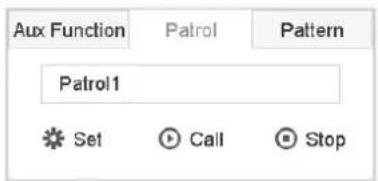
Step 2 Click Patrol to configure patrol.
text_image
Aux Function Patrol Pattern Patrol1 Set Call StopFigure 6-7 Patrol Configuration
Step 3 Select the patrol No. in the text field.
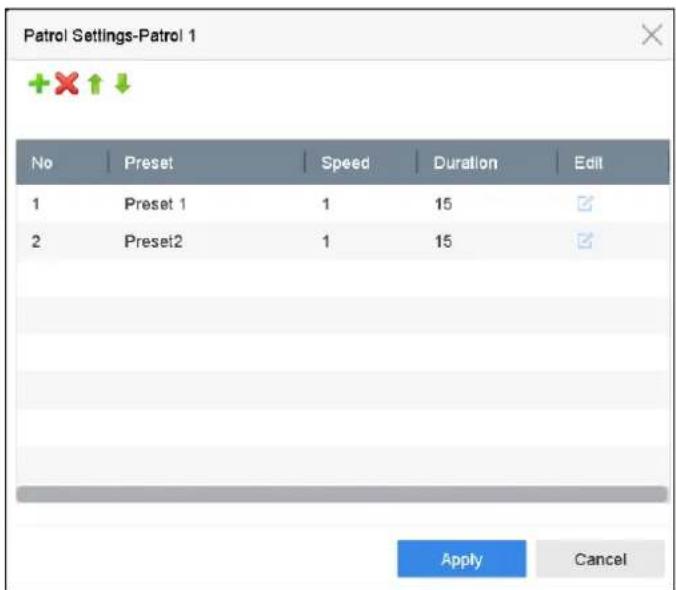
Step 4 Click Set to enter the Patrol Settings interface.
text_image
Patrol Settings-Patrol 1 No Preset Speed Duration Edit 1 Preset 1 1 15 2 Preset2 1 15 Apply CancelFigure 6-8 Patrol Settings
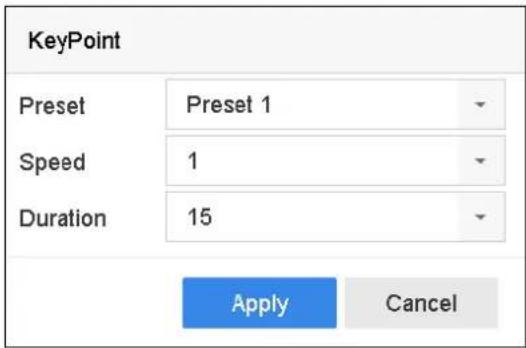
Step 5 Click + to add key point for the patrol.
text_image
KeyPoint Preset Preset 1 Speed 1 Duration 15 Apply CancelFigure 6-9 Key Point Configuration
1) Configure key point parameters.
Preset: It determines the order at which the PTZ will follow while cycling through the patrol.
Speed: It defines the speed at which the PTZ will move from one key point to the next.
Duration: It refers to the time span to stay at the corresponding key point.
2) Click Apply to save the key points to the patrol.
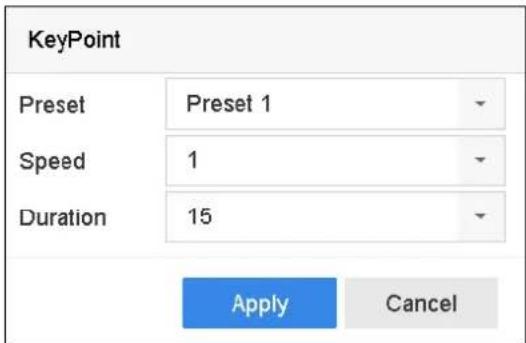
Step 6 (Optional) Click to edit the added key point.
text_image
KeyPoint Preset Preset 1 Speed 1 Duration 15 Apply CancelFigure 6-10 Edit Key Point
Step 7 (Optional) Select a key point and click to delete it.
Step 8 (Optional) Click or to adjust the key point order.
Step 9 Click Apply to save the settings of the patrol.
Step 10 Repeat steps 3-9 to set more patrols.
6.3.4 Call a Patrol
Purpose:
Calling a patrol makes the PTZ to move according to the predefined patrol path.
Step 1 Click

on the quick settings toolbar of the PTZ camera live view.
The PTZ control panel displays on the right of the interface.
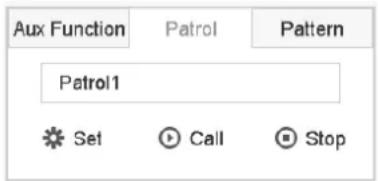
Step 2 Click Patrol on the PTZ control panel.
text_image
Aux Function Patrol Pattern Patrol1 Set Call StopFigure 6-11 Patrol Configuration
Step 3 Select a patrol in the text field.
Step 4 Click Call to call it.
Step 5 (Optional) Click Stop to stop calling it.
6.3.5 Set a Pattern
Purpose:
Patterns can be set by recording the movement of the PTZ. You can call the pattern to make the PTZ movement according to the predefined path.
Step 1 Click 🙏 on the quick settings toolbar of the PTZ camera live view.
The PTZ control panel displays on the right of the interface.
Step 2 Click Pattern to configure pattern.
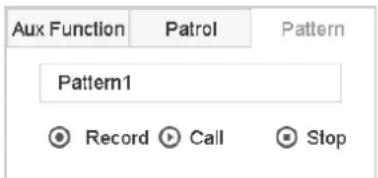
text_image
Aux Function Patrol Pattern Pattern1 Record Call StopFigure 6-12 Pattern Configuration
Step 3 Select the pattern No. in the text field.
Step 4 Set the pattern.
1) Click Record to start recording.
2) Click corresponding buttons on the control panel to move the PTZ camera.
3) Click Stop to stop recording.
The movement of the PTZ is recorded as the pattern.
Step 5 Repeat steps 3-4 to set more patterns.
6.3.6 Call a Pattern
Purpose:
Follow the procedure to move the PTZ camera according to the predefined patterns.
Step 1 Click

on the quick settings toolbar of the PTZ camera live view.
The PTZ control panel displays on the right of the interface.
Step 2 Click Pattern to configure pattern.
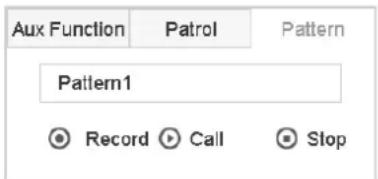
text_image
Aux Function Patrol Pattern Pattern1 Record Call StopFigure 6-13 Pattern Configuration
Step 3 Select a pattern in the text field.
Step 4 Click Call to call it.
Step 5 (Optional) Click Stop to stop calling it.
6.3.7 Set Linear Scan Limits
Before you start:
Please make sure the connected IP camera supports the PTZ function, and is properly connected.
Purpose:
The linear scan can be enabled to trigger the scan in the horizontal direction in the predefined range.

NOTE
This function is supported by some certain models.
Step 1 Click 🙏 on the quick settings toolbar of the PTZ camera live view.
The PTZ control panel displays on the right of the interface.
Step 2 Click the directional buttons to wheel the camera to the location where you want to set the limit, and click Left Limit or Right Limit to link the location to the corresponding limit.

NOTE
The speed dome starts linear scan from the left limit to the right limit, and you must set the left limit on the left side of the right limit, as well the angle from the left limit to the right limit should be no more than 180^ .
6.3.8 Call Linear Scan

NOTE
Before operating this function, make sure the connected camera supports the linear scan and is in HIKVISION protocol.
Purpose:
Follow the procedure to call the linear scan in the predefined scan range.
Step 1 Click

on the quick settings toolbar of the PTZ camera live view.
The PTZ control panel displays on the right of the interface.
Step 2 Click Linear Scan to start the linear scan and click it again to stop it.
Step 3 (Optional) Click Restore to clear the defined left limit and right limit data.

NOTE
Reboot the camera to take the settings into effect.
6.3.9 One-touch Park

NOTE
Before operating this function, make sure the connected camera supports the linear scan and is in HIKVISION protocol.
Purpose
For some certain model of the speed dome, it can be configured to start a predefined park action (scan, preset, patrol and etc.) automatically after a period of inactivity (park time).
Step 1 Click

on the quick settings toolbar of the PTZ camera live view.
The PTZ control panel displays on the right of the interface.
Step 2 Click Park (Quick Patrol), Park (Patrol 1) or Park (Preset 1) to activate the park action.
Park (Quick Patrol): The dome starts patrol from the predefined preset 1 to preset 32 in order after the park time. The undefined preset will be skipped.
Park (Patrol 1): The dome starts moving according to the predefined patrol 1 path after the park time.
Park (Preset 1): The dome moves to the predefined preset 1 location after the park time.

The park time can only be set via the speed dome configuration interface. The value is 5s by default.
Step 3 Click Stop Park (Quick Patrol), Stop Park (Patrol 1) or Stop Park (Preset 1) to inactivate it.
6.4 Auxiliary Functions
Before you start
Please make sure the connected IP camera supports the PTZ function, and is properly connected.
Purpose
You can operate the auxiliary functions including light, wiper, 3D positioning, and center on the PTZ control panel.
Step 1 Click

on the quick settings toolbar of the PTZ camera live view.
The PTZ control panel displays on the right of the interface.
Step 2 Click Aux Function.
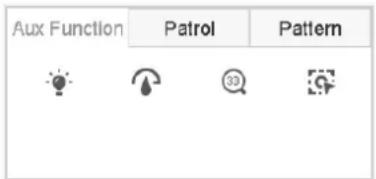
text_image
Aux Function Patrol PatternFigure 6-14 Aux Function Configuration
Step 3 Click the icons to operate the aux functions. See the table for the description of the icons.
Table 6-1 Description of Aux Functions Icons
| Icon | Description |
 | Light on/off |
 | Wiper on/off |
 | 3D positioning |
 | Center |
Chapter 7 Storage
7.1 Storage Device Management
7.1.1 Install the HDD
Before startup of the device, install and connect the HDD to the device. Refer to the Quick Start Guide for the installation instructions.
7.1.2 Add the Network Disk
You can add the allocated NAS or disk of IP SAN to device, and use it as network HDD. Up to 8 network disks can be added.
Adding NAS
Step 1 Go to Storage > Storage Device.
Step 2 Click Add to enter the Custom Add interface.
Step 3 Select the NetHDD from the drop-down list.
Step 4 Select the type to NAS.
Step 5 Enter the NetHDD IP address in the text field.
Step 6 Click Search to search the available NAS disks.
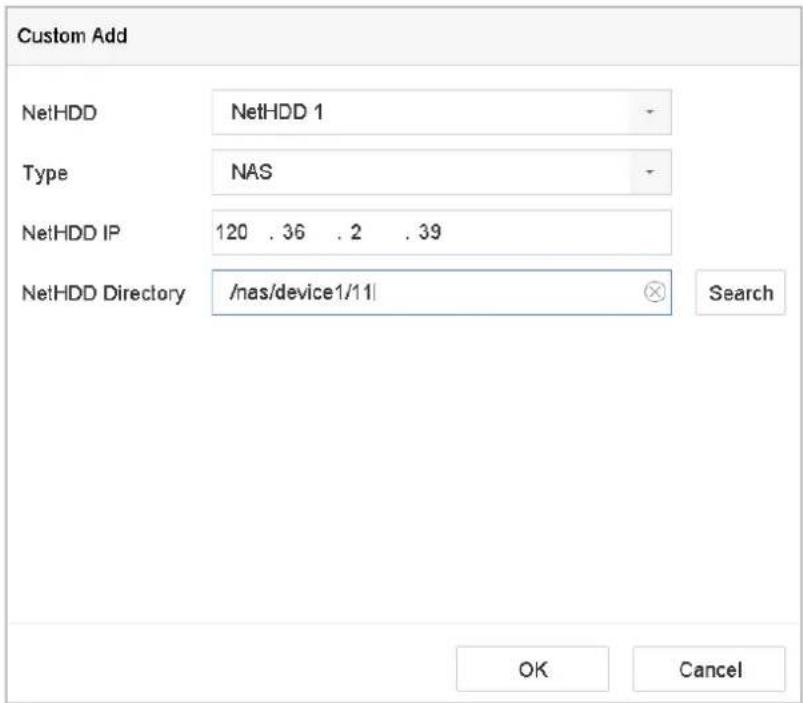
text_image
Custom Add NetHDD NetHDD 1 Type NAS NetHDD IP 120 .36 .2 .39 NetHDD Directory /nas/device1/11 Search OK CancelFigure 7-1 Add NAS Disk
Step 7 Select the NAS disk from the list shown below, or you can manually enter the directory in the text field of NetHDD Directory.
Step 8 Click the OK to complete the adding of the NAS disk.
Result:
After having successfully added the NAS disk, return to the HDD Information menu. The added NetHDD will be displayed in the list.
Adding IP SAN
Step 1 Go to Storage > Storage Device.
Step 2 Click Add to enter the Custom Add interface.
Step 3 Select the NetHDD from the drop-down list.
Step 4 Select the type to IP SAN.
Step 5 Enter the NetHDD IP address in the text field.
Step 6 Click Search to search the available IP SAN disks.
Step 7 Select the IP SAN disk from the list shown below.
Step 8 Click OK to complete the adding of the IP SAN disk.

NOTE
Up to 1 IP SAN disk can be added.
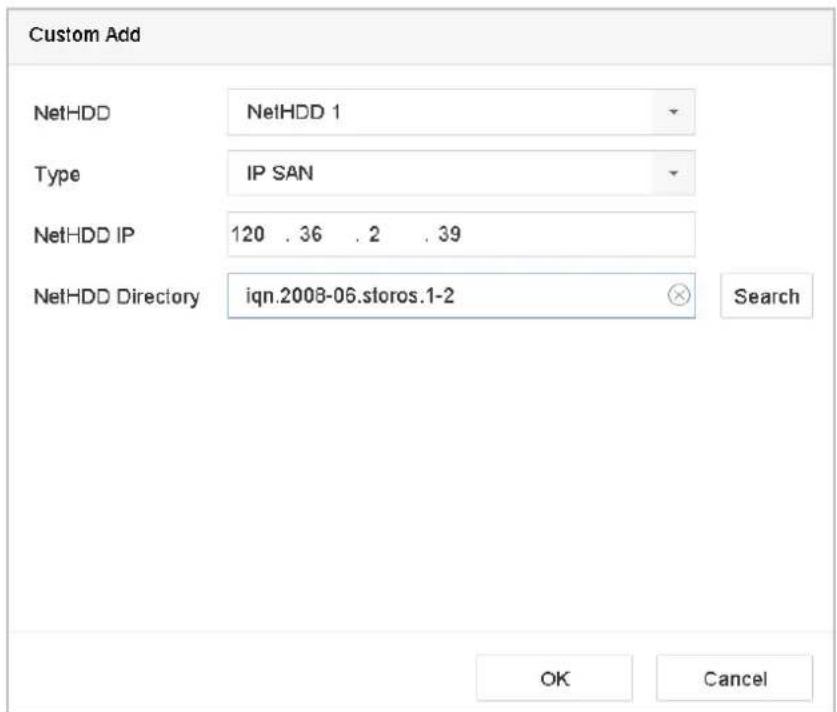
text_image
Custom Add NetHDD NetHDD 1 Type IP SAN NetHDD IP 120 . 36 . 2 . 39 NetHDD Directory iqn.2008-06.storos.1-2 Search OK CancelFigure 7-2 Add IP SAN Disk
Result:
After having successfully added the IP SAN disk, return to the HDD Information menu. The added NetHDD will be displayed in the list.

NOTE
If the installed HDD or NetHDD is uninitialized, please select it and click the Init button for initialization.
7.1.3 Configure eSATA for Data Storage
When there is an external eSATA device connected to device, you can configure eSATA for the data storage, and you can manage the eSATA in the device.
Step 1 Click Storage > Advanced.
Step 2 Select the eSATA type to Export or Record/Capture from the dropdown list of eSATA.
● Export: use the eSATA for backup.
- Record/Capture: use the eSATA for record/capture. Refer to the following steps for operating instructions.

text_image
eSATA eSATA1 Usage Record/CaptureFigure 7-3 Set eSATA Mode
Step 3 When the eSATA type is selected to Record/Capture, enter the storage device interface.
Step 4 Edit the property of the selected eSATA, or initialize it is required.
7.2 Storage Mode
7.2.1 Configure HDD Group
Purpose:
Multiple HDDs can be managed in groups. Video from specified channels can be recorded onto a particular HDD group through HDD settings.
Step 1 Go to Storage> Storage Device.
Step 2 Check the checkbox to select the HDD to set the group.
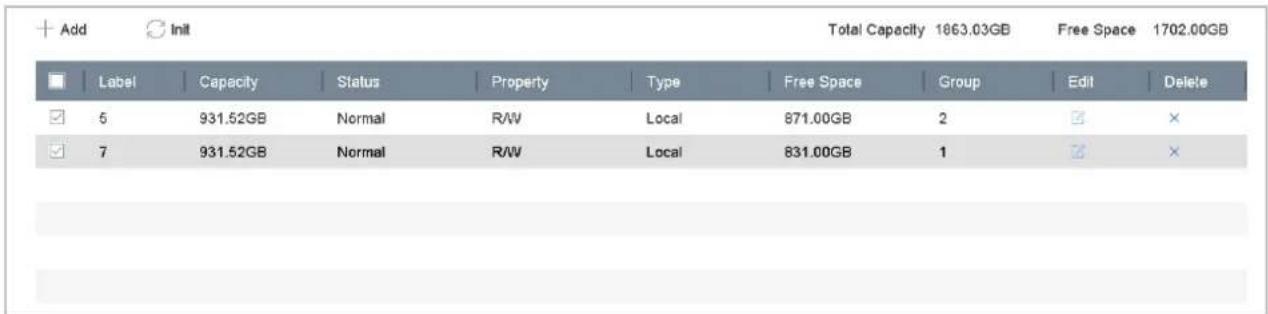
text_image
Add Init Total Capacity 1063.03GB Free Space 1702.00GB Label Capacity Status Property Type Free Space Group Edit Delete 5 931.52GB Normal R/W Local 871.00GB 2 ☑ × 7 931.52GB Normal R/W Local 831.00GB 1 ☑ ×Figure 7-4 Storage Device
Step 3 Click to enter the Local HDD Settings interface.
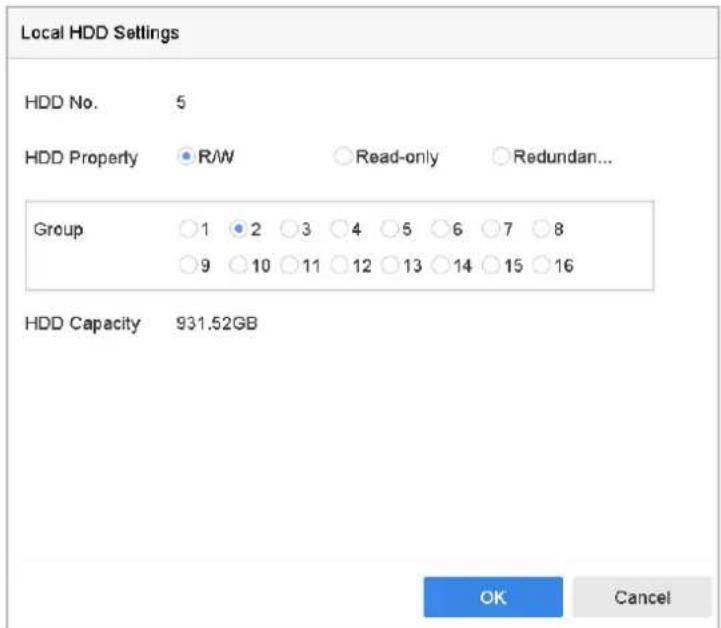
text_image
Local HDD Settings HDD No. 5 HDD Property R/W Read-only Redundan... Group 1 2 3 4 5 6 7 8 9 10 11 12 13 14 15 16 HDD Capacity 931.52GB OK CancelFigure 7-5 Local HDD Settings
Step 4 Select the Group number for the current HDD.
Step 5 Click OK.

NOTE
Regroup the cameras for HDD if the HDD group number is changed.
Step 6 Go to Storage> Storage Mode.
Step 7 Check the checkbox of Group tab.
Step 8 Select the group No. from the list.
Step 9 Check the checkbox to select the IP camera (s) to record/capture on the HDD group.
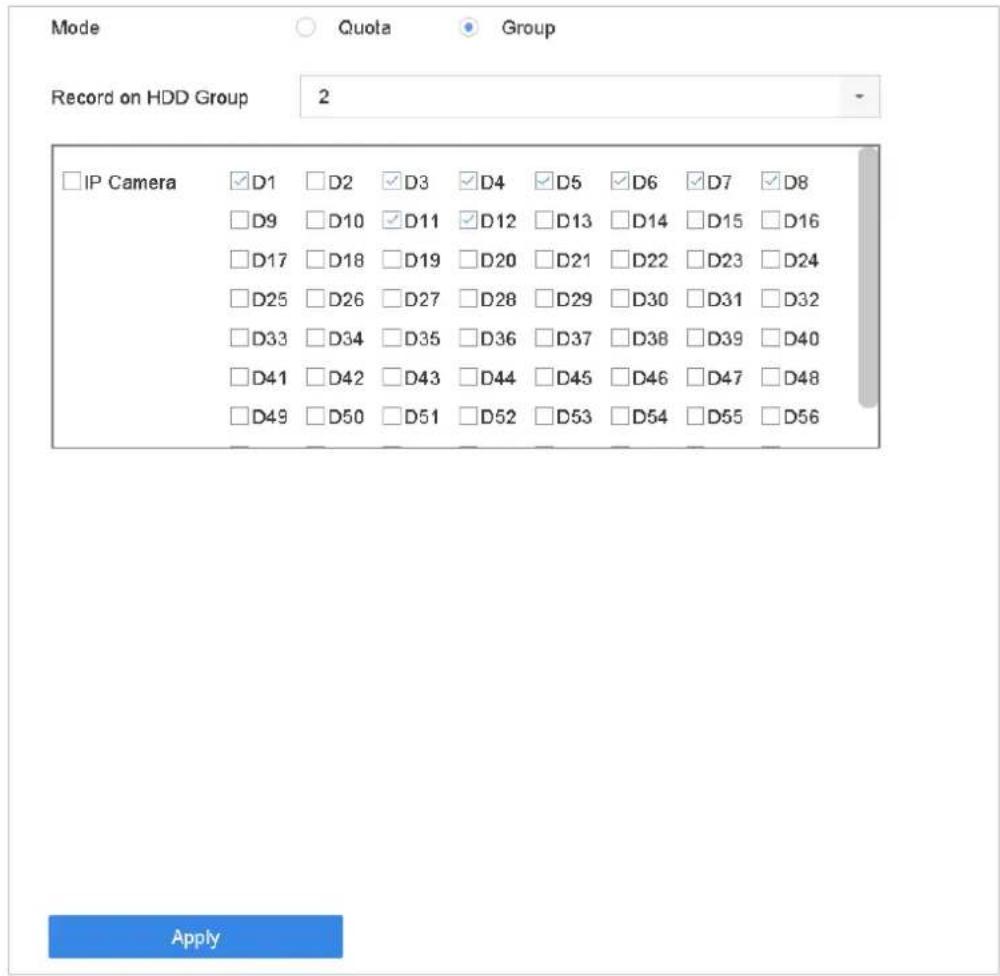
text_image
Record on HDD Group 2 IP Camera D1 D2 D3 D4 D5 D6 D7 D8 D9 D10 D11 D12 D13 D14 D15 D16 D17 D18 D19 D20 D21 D22 D23 D24 D25 D26 D27 D28 D29 D30 D31 D32 D33 D34 D35 D36 D37 D38 D39 D40 D41 D42 D43 D44 D45 D46 D47 D48 D49 D50 D51 D52 D53 D54 D55 D56 ApplyFigure 7-6 Storage Mode-HDD Group
Step 10 Click Apply.

NOTE
Reboot the device to activate the new storage mode settings.
7.2.2 Configure HDD Quota
Purpose:
Each camera can be configured with allocated quota for the storage of recorded files or captured pictures.
Step 1 Go to Storage > Storage Mode.
Step 2 Check the checkbox of Quota tab.
Step 3 Select a camera to set quota.
Step 4 Enter the storage capacity in the text fields of Max. Record Capacity (GB) and Max. Picture Capacity (GB).
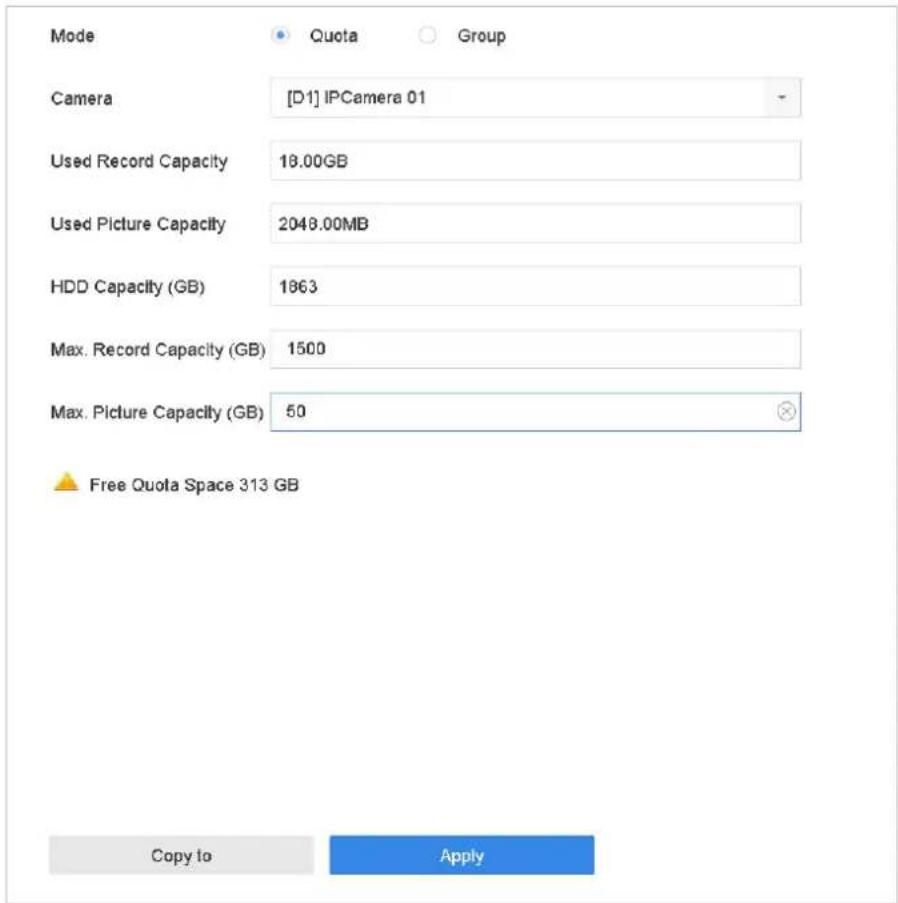
text_image
Mode Quota Group Camera [D1] IPCamera 01 Used Record Capacity 18.00GB Used Picture Capacity 2048.00MB HDD Capacity (GB) 1863 Max. Record Capacity (GB) 1500 Max. Picture Capacity (GB) 50 Free Quota Space 313 GB Copy to ApplyFigure 7-7 Storage Mode-HDD Quota
Step 5 (Optional) You can click Copy to if you want to copy the quota settings of the current camera to other cameras.
Step 6 Click the Apply button to apply the settings. Reboot the device to activate the new storage mode settings.

When the quota capacity is set to 0, all cameras will use the total capacity of HDD for record and picture capture.
7.3 Recording Parameters
7.3.1 Main Stream
The Main Stream refers to the primary stream that affects data recorded to the hard disk drive and will directly determine your recording quality and image size.
Comparing with the sub-stream, the main stream can provide a higher quality video with higher resolution and frame rate.
- Frame Rate (FPS - Frames Per Second): refers to how many frames are captured each second. A higher frame rate is advantageous when there is movement in the video stream, as it maintains image quality throughout.
- Resolution: Image resolution is a measure of how much detail a digital image can hold: the greater the resolution, the greater the level of detail. Resolution can be specified as the number of pixel-columns (width) by the number of pixel-rows (height), e.g.,1024×768.
- Bitrate: The bit rate (in kbit/s or Mbit/s) is often referred to as speed, but actually defines the number of bits/time unit and not distance/time unit.
- Enable H.264+ Mode: The H.264+ mode helps to ensure the high video quality with a lowered bitrate. It can effectively reduce the need of bandwidth and HDD storage space.
i NOTE
A higher resolution, frame rate and bitrate setting will provide you the better video quality, but it will also require more internet bandwidth and use more storage space on the hard disk drive.
7.3.2 Sub-Stream
The sub-stream is a second codec that runs alongside the mainstream. It allows you to reduce the outgoing internet bandwidth without sacrificing your direct recording quality.
The sub-stream is often exclusively used by smartphone applications to view live video. Users with limited internet speeds may benefit most from this setting.
7.3.3 Picture
The picture refers to the live picture capture in continuous or event recording type.
Picture Quality: set the picture quality to low, medium or high. The higher picture quality results in more storage space requirement.
Interval: the interval of capturing live picture.
7.3.4 ANR
ANR (Automatic Network Replenishment) function which enables the IP camera to save the recording files in the local storage when the network is disconnected, and when the network is resumed, it uploads the files to the device.
Enable the ANR (Automatic Network Replenishment) function via the web browser
(Configuration > Storage > Schedule Settings > Advanced).
7.3.5 Configure Advanced Recording Settings
Step 1 Go to Storage > Schedule Settings > Record Schedule/Capture Schedule.
Step 2 Check the checkbox of Enable to enable scheduled recording.
Step 3 Click Advanced to set the recording parameters.
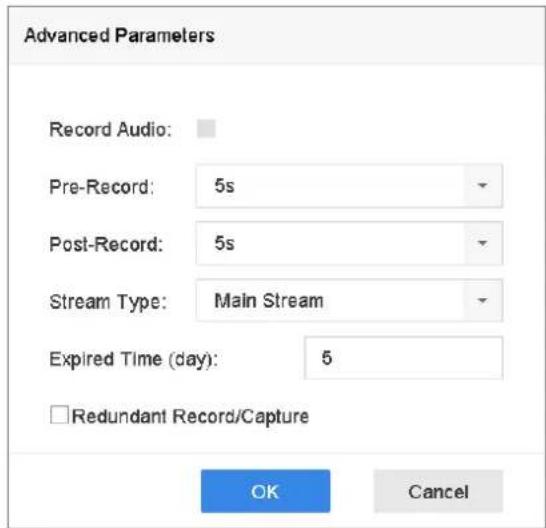
text_image
Advanced Parameters Record Audio: Pre-Record: 5s Post-Record: 5s Stream Type: Main Stream Expired Time (day): 5 □Redundant Record/Capture OK CancelFigure 7-8 Advanced Record Settings
● Record Audio: Check the checkbox to enable or disable audio recording.
● Pre-record: The time you set to record before the scheduled time or event. For example, when an alarm triggers the recording at 10:00, and if you set the pre-record time as 5 seconds, the camera records at 9:59:55.
- Post-record: The time you set to record after the event or the scheduled time. For example, when an alarm triggered recording ends at 11:00, and if you set the post-record time as 5 seconds, it records till 11:00:05.
● Expired Time: The expired time is period for a recorded file to be kept in the HDD. When the deadline is reached, the file will be deleted. If you set the expired time to 0, the file will not be deleted. The actual keeping time for the file should be determined by the capacity of the HDD.
- Redundant Record/Capture: By enabling redundant record or capture you save the record and captured picture in the redundant HDD. See Chapter Configure Redundant Recording and Capture.
- Stream Type: Main stream and sub-stream are selectable for recording. When you select sub-stream, you can record for a longer time with the same storage space.
Step 4 Click OK to save the settings.
7.4 Configure Recording Schedule
Set the record schedule, and then the camera automatically starts/stops recording according to the configured schedule.
Before you start
Make sure you have installed the HDDs to the device or added the network disks before you want to store the video files, pictures and log files.
Refer to the Quick Start Guide for the HDD installation.
Refer to Chapter 7.1.2 Add the Network Disk for network HDD connections.
Step 1 Go to Storage > Recording Schedule.
Step 2 Select a camera.
Step 3 Check Enable Schedule.
Step 4 Select a Record Type. The record type can be Continuous, Motion Detection, Alarm, Motion | Alarm, Motion & Alarm, and Event.
Different recording types are configurable.
● Continuous: scheduled recording.
● Event: recording triggered by all event triggered alarm.
● Motion: recording triggered by motion detection.
● Alarm: recording triggered by alarm.
● M/A: recording triggered by either motion detection or alarm.
● M&A: recording triggered by motion detection and alarm.
● POS Event: recording triggered by POS and alarm.
Step 5 Select a day and click-and-drag the mouse on the time bar to set the record schedule.
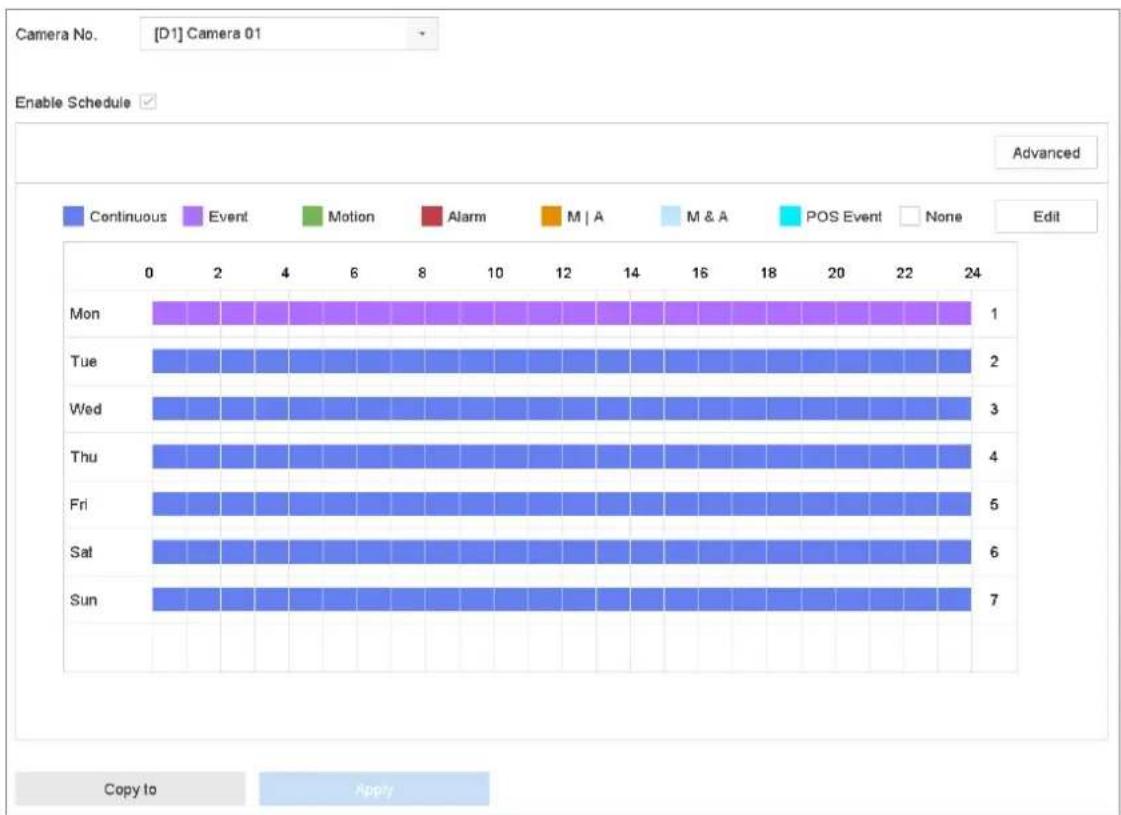
bar
| Day | Event | Continuous | Motion | Alarm | M | A | M & A | POS Event | None | |-------|-------|------------|--------|-------|---|---|-------|-----------|------| | Mon | 1 | 1 | 0 | 0 | 0 | 0 | 0 | 0 | 0 | | Tue | 2 | 1 | 0 | 0 | 0 | 0 | 0 | 0 | 0 | | Wed | 3 | 1 | 0 | 0 | 0 | 0 | 0 | 0 | 0 | | Thu | 4 | 1 | 0 | 0 | 0 | 0 | 0 | 0 | 0 | | Fri | 5 | 1 | 0 | 0 | 0 | 0 | 0 | 0 | 0 | | Sat | 6 | 1 | 0 | 0 | 0 | 0 | 0 | 0 | 0 | | Sun | 7 | 1 | 0 | 0 | 0 | 0 | 0 | 0 | 0 |Figure 7-9 Record Schedule
Step 6 Repeat the above steps to schedule recording or capture for other days in the week.
Step 7 Click Apply to save the settings.
i NOTE
To enable Motion, Alarm, M | A (motion or alarm), M & A (motion and alarm) and Event triggered recording and capture, you must configure the motion detection settings, alarm input settings and other events as well. Please refer to Chapter 11 Event and Alarm Settings and Chapter 12 VCA Event Alarm for details.
7.5 Configure Continuous Recording
Step 1 Go to Camera > Encoding Parameters > Recording Parameters.
Step 2 Set the continuous main stream/sub-stream recording parameters for the camera.
Step 3 Go to Storage > Recording Schedule.
Step 4 Select Continuous recording type.
Step 5 Set the schedule for the continuous recording. Refer to Chapter 7.4 Configure Recording Schedule for details.
7.6 Configure Motion Detection Triggered Recording
You can configure the recording triggered by the motion detection event.
Step 1 Go to System > Event > Normal Event > Motion Detection.
Step 2 Configure the motion detection and select the channel (s) to trigger the recording when motion event occurs. Refer to Chapter 11.3 Configure Motion Detection Alarm for details.
Step 3 Go to Camera > Encoding Parameters > Recording Parameters.
Step 4 Set the event main stream/sub-stream recording parameters for the camera.
Step 5 Go to Storage > Recording Schedule.
Step 6 Select Motion recording type.
Step 7 Set the schedule for the motion detection triggered recording. Refer to Chapter 7.4 Configure Recording Schedule for details.
7.7 Configure Event Triggered Recording
You can configure the recording triggered by the motion detection, vehicle detection, line crossing detection, etc.
Step 1 Go to System > Event.
Step 2 Configure the event detection and select the channel (s) to trigger the recording when event occurs. Refer to Chapter 11 Event and Alarm Settings and Chapter 12 VCA Event Alarm for details.
Step 3 Go to Camera > Encoding Parameters > Recording Parameters.
Step 4 Set the event main stream/sub-stream recording parameters for the camera.
Step 5 Go to Storage > Recording Schedule.
Step 6 Select Event recording type.
Step 7 Set the schedule for the event triggered recording. Refer to Chapter 7.4 Configure Recording Schedule for details.
7.8 Configure Alarm Triggered Recording
You can configure the recording triggered by the motion detection, vehicle detection, line crossing detection, etc.
Step 1 Go to System > Event > Normal Event > Alarm Input.
Step 2 Configure the alarm input and select the channel (s) to trigger the recording when alarm occurs. Refer to Chapter 11 Event and Alarm Settings and Chapter 12 VCA Event Alarm for details.
Step 3 Go to Camera > Encoding Parameters > Recording Parameters.
Step 4 Set the event main stream/sub-stream recording parameters for the camera.
Step 5 Go to Storage > Recording Schedule.
Step 6 Select Alarm recording type.
Step 7 Set the schedule for the alarm triggered recording. Refer to Chapter 7.4 Configure Recording Schedule for details.
7.9 Configure POS Event Triggered Recording
You can configure the recording triggered by the connected POS event, such as the transaction, etc.
Step 1 Go to System >POS Settings.
Step 2 Configure the POS and select the channel (s) in the Event Linkage to trigger the recording when POS event occurs. Refer to Chapter 13 for details.
Step 3 Go to Camera > Encoding Parameters > Recording Parameters.
Step 4 Set the event main stream/sub-stream recording parameters for the camera.
Step 5 Go to Storage > Recording Schedule.
Step 6 Select POS Event recording type.
Step 7 Set the schedule for the POS event triggered recording. Refer to Chapter 7.4 Configure Recording Schedule for details.
7.10 Configure Picture Capture
The picture refers to the live picture capture in continuous or event recording type.
Step 1 Go to Camera > Encoding Parameters > Capture.
Step 2 Set the picture parameters.
● Resolution: set the resolution of the picture to capture.
● Picture Quality: set the picture quality to low, medium or high.
- Interval: the interval of capturing live picture.
Step 3 Go to Storage > Capture Schedule.
Step 4 Select the camera to configure the picture capture.
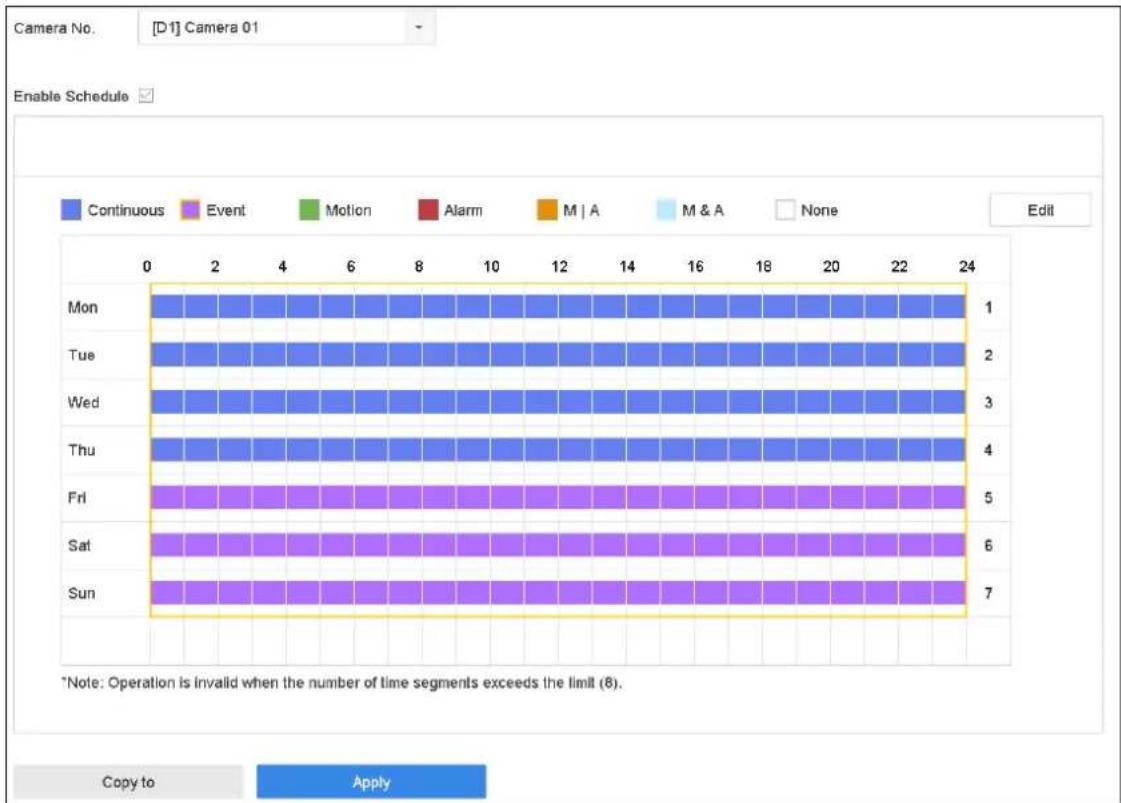
Figure 7-10 Set Picture Capture Schedule
Step 5 Set the picture capture schedule. Refer to Chapter 7.4 Configure Recording Schedule for details.
7.11 Configure Holiday Recording and Capture
Purpose:
Follow the steps to configure the record or capture schedule on holiday for that year. You may want to have different plan for recording and capture on holiday.
Step 1 Go to System > Holiday Settings.
Step 2 Select a holiday item from the list and click.
Step 3 Check the Enable to configure the holiday.
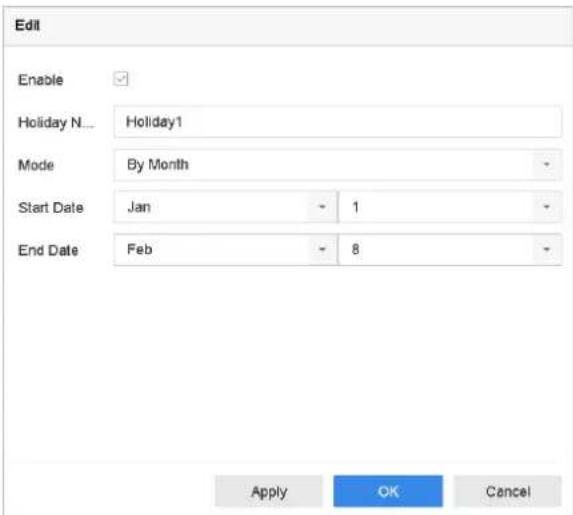
text_image
Edit Enable Holiday N... Holiday1 Mode By Month Start Date Jan 1 End Date Feb 8 Apply OK CancelFigure 7-11 Edit Holiday Settings
1) Edit the holiday name.
2) Select the mode to by date, by week or by month.
3) Set the start and end date of the holiday.
4) Click OK.
Step 4 Set the schedule for the holiday recording. Refer to Chapter 7.4 Configure Recording Schedule for details.
7.12 Configure Redundant Recording and Capture
Purpose:
Enabling redundant recording and capture, which means saving the record files and captured pictures not only in the R/W HDD but also in the redundant HDD, will effectively enhance the data safety and reliability.

You must set the storage mode to Group before you set the HDD property to Redundancy. For detailed information, please refer to Chapter 7.2.1 Configure HDD Group. There should be at least another HDD which is in Read/Write status.
Step 1 Go to Storage > Storage Device.
Step 2 Select an HDD from the list and Click to enter the Local HDD Settings interface.
Step 3 Set the HDD property to Redundancy.
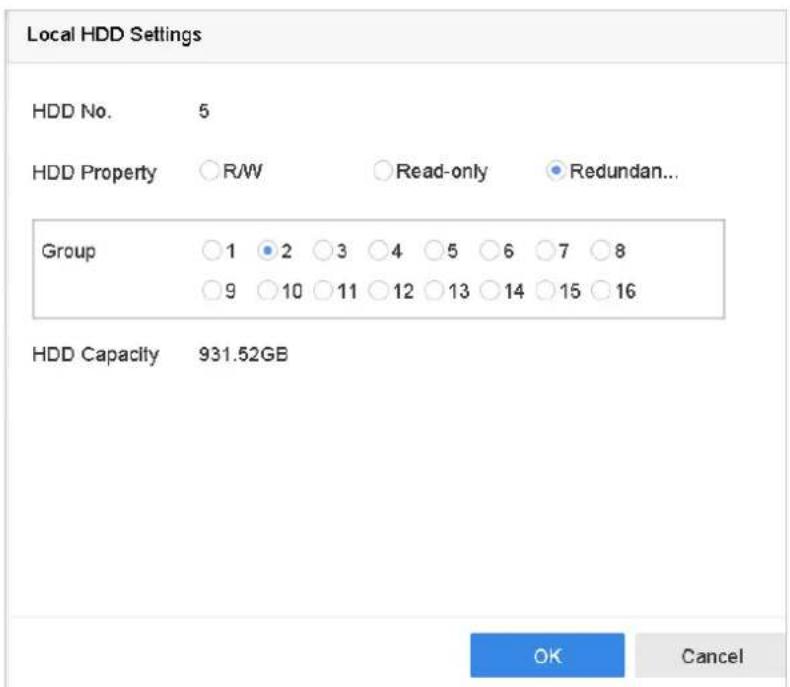
text_image
Local HDD Settings HDD No. 5 HDD Property R/W Read-only Redundan... Group 1 2 3 4 5 6 7 8 9 10 11 12 13 14 15 16 HDD Capacity 931.52GB OK CancelFigure 7-12 HDD Property-Redundancy
Step 4 Go to Storage > Schedule Settings > Record Schedule/Capture Schedule.
Step 5 Click Advanced to set the camera recording parameters.
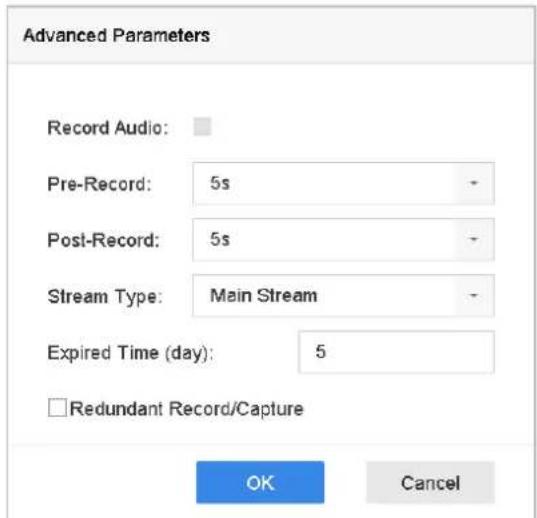
text_image
Advanced Parameters Record Audio: Pre-Record: 5s Post-Record: 5s Stream Type: Main Stream Expired Time (day): 5 □Redundant Record/Capture OK CancelFigure 7-13 Record Parameters
Step 6 Check the checkbox of Redundant Record/Capture.
Step 7 Click OK to save settings.
Chapter 8 Disk Array
Purpose
Disk array is a data storage virtualization technology that combines multiple physical disk drive components into a single logical unit. An array stores data over multiple HDDs to provide enough redundancy so that data can be recovered if one disk fails. Data is distributed across the drives in one of several ways called "RAID levels", depending on what level of redundancy and performance is required.
8.1 Create Disk Array
Purpose
The device supports the disk array that is realized by software. You can enable the RAID function as required. Two ways are available for creating array: one-touch configuration and manual configuration. The following flow chart shows the process of creating array.
8.1.1 Enable RAID
Purpose
Perform the following steps to enable the disk array function.
Step 1 Go to Storage > Advanced.
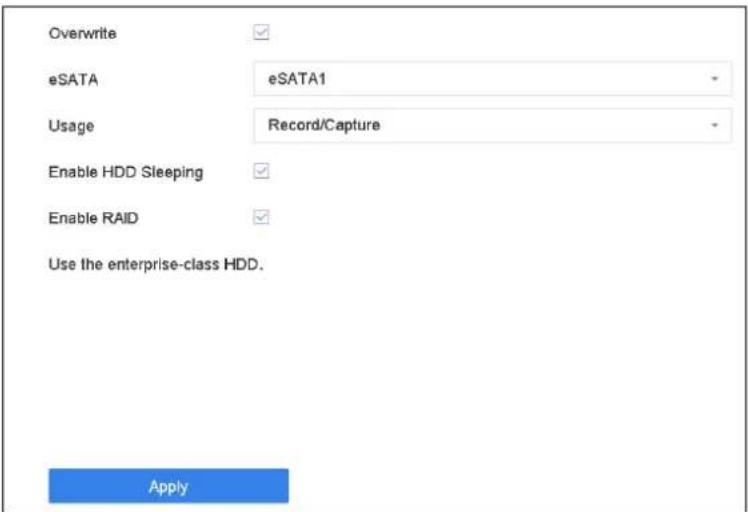
text_image
Overwrite eSATA eSATA1 Usage Record/Capture Enable HDD Sleeping Enable RAID Use the enterprise-class HDD. ApplyFigure 8-1 Advanced
Step 2 Check Enable RAID.
Step 3 Click Apply.
Step 4 Reboot device to take effect the settings.
8.1.2 One-Touch Creation
Purpose
One-touch configuration helps you to quickly create the disk array. By default, the array type created by one-touch configuration is RAID 5.
Before you start
● Enable RAID function. For details, refer to Chapter 8.1.1 Enable RAID.
- Install at least 3 HDDs. If more than 10 HDDs are installed, 2 arrays will be created. To maintain reliable and stable running of the HDDs, it is recommended to use enterprise-level HDDs with the same model and capacity.
Step 1 Go to Storage > RAID Setup > Physical Disk.
| One-touch Config Create | |||||||
| No. | Capacity | Array | Type | Status | Model | Hot Spare | Task |
| 1 | 1863.02GB | Normal | Functional | ST2000VX000-1CU164 | ☒ | None | |
| 2 | 2794.52GB | Normal | Functional | ST3000VX000-9YW166 | ☒ | None | |
| 5 | 1863.02GB | Normal | Functional | ST2000VX000-1CU164 | ☒ | None | |
| 9 | 2794.52GB | Normal | Functional | ST3000VX000-1CU166 | ☒ | None | |
| 10 | 1863.02GB | Normal | Functional | ST2000VX000-1CU164 | ☒ | None | |
Figure 8-2 Physical Disk
Step 2 Click One-touch Config.
Step 3 Edit the array name in Array Name text filed and click OK to start configuring.

NOTE
If you install 4 HDDs or more, a hot spare disk for array rebuilding will be created.
Step 4 A message box will pop up when the array creation is completed, click OK on it.
Step 5 Optionally, the device will automatically initialize the created array. Go to Storage > RAID Setup > Array view the information of created array.
8.1.3 Manual Creation
Purpose
Manually create the array of RAID 0, RAID 1, RAID 5, RAID 6, and RAID 10.
Step 1 Go to Storage > RAID Setup > Physical Disk.
Step 2 Click Create.
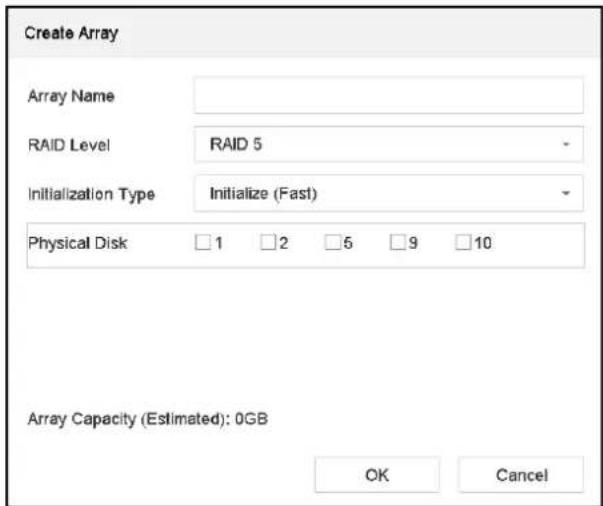
text_image
Create Array Array Name RAID Level RAID 5 Initialization Type Initialize (Fast) Physical Disk 1 2 5 9 10 Array Capacity (Estimated): 0GB OK CancelTable 8-1 Create Array
Step 3 Enter the array name.
Step 4 Select RAID Level as RAID 0, RAID 1, RAID 5, RAID 6, or RAID 10 as required.
Step 5 Select the physical disks to constitute array.
Table 8-2 Required Number of HDD
| RAID Level | Required Number of HDD |
| RAID 0 | At least 2 HDDs. |
| RAID 1 | At least 2 HDDs. |
| RAID 5 | At least 3 HDDs. |
| RAID 6 | At least 4 HDDs. |
| RAID 10 | The number of HDD must be an even ranges from 4 to 16. |
Step 6 Click OK.
Step 7 Optionally, the device will automatically initialize the created array. Go to Storage > RAID Setup > Array view the information of created array.
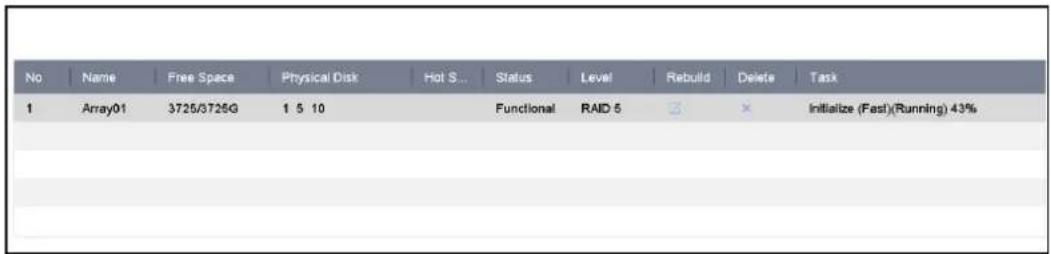
text_image
No Name Free Space Physical Disk Hot S... Status Level Rebuild Delete Task 1 Array01 3725/3725G 1 5 10 Functional RAID 5 3 × Initialize (Fast)(Running) 43%Figure 8-3 Array List
8.2 Rebuild Array
Purpose
The status of array includes Functional, Degraded and Offline. To ensure the high security and reliability of the data stored in array, you should take immediate and proper maintenance at arrays according their status.
● Functional: No disk loss in the array.
- Offline: The number of lost disks has exceeded the limit.
- Degraded: If amount of HDD fail in array, array degrades. You should recover it to Functional by array rebuilding.
8.2.1 Configure Hot Spare Disk
Purpose
Hot spare disks are required for disk array automatic rebuilding.
Step 1 Go to Storage > RAID Setup > Physical Disk.
| No. | Capacity | Array | Type | Status | Model | Hot Spare | Task |
| 1 | 1863.02GB | Array01 | Array | Functional | ST2000VX000-1CU164 | None | |
| 2 | 2794.52GB | Normal | Functional | ST3000VX000-9YW166 | None | ||
| 5 | 1863.02GB | Array01 | Array | Functional | ST2000VX000-1CU164 | None | |
| 9 | 2794.52GB | Normal | Functional | ST3000VX000-1CU166 | None | ||
| 10 | 1863.02GB | Array01 | Array | Functional | ST2000VX000-1CU164 | None |
Figure 8-4 Physical Disk
Step 2 Click of an available HDD to set it as the hot spare disk.
8.2.2 Automatically Rebuild Array
Purpose
The device can automatically rebuild degraded arrays with the hot spare disks.
Before you start
Create hot spare disks. For details, refer to Chapter 8.2.1 Configure Hot Spare Disk.
Step 1 The device will automatically rebuild the degraded arrays with the hot spare disks. Go to Storage > RAID Setup > Array to view rebuilding progress.
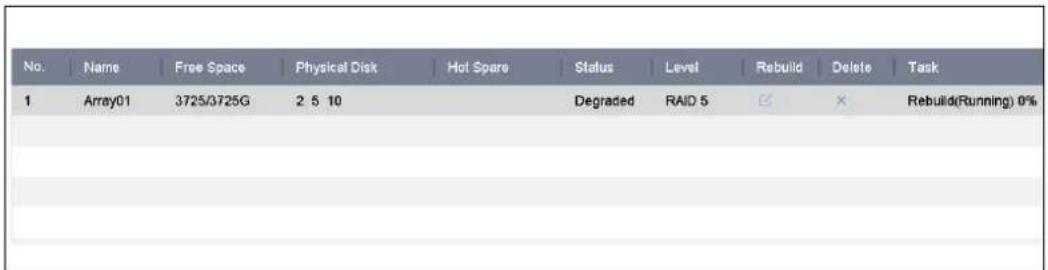
text_image
No. Name Free Space Physical Disk Hot Spare Status Level Rebuild Delete Task 1 Array01 3725/3725G 2 5 10 Degraded RAID 5 ✉ × Rebuild(Running) 0%Figure 8-5 Array List
8.2.3 Manually Rebuild Array
Purpose
If no hot spare disks are configured, rebuild the degraded array manually.
Before you start
At least one available physical disk should exist for rebuilding the array.
Step 1 Go to Storage > RAID Setup > Array.
| No. | Name | Free Space | Physical Disk | Hot Spare | Status | Level | Rebuild | Delete | Task |
| 1 | Array01 | 3725/3725G | 5 10 | Degraded | RAID 5 | ☒ | × | None |
Figure 8-6 Array List
Step 2 Click of degraded array.
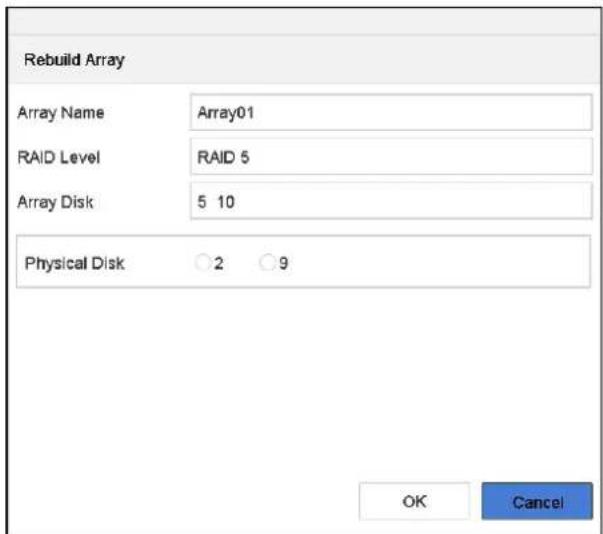
text_image
Rebuild Array Array Name Array01 RAID Level RAID 5 Array Disk 5 10 Physical Disk ○ 2 ○ 9 OK CancelFigure 8-7 Rebuild Array
Step 3 Select the available physical disk.
Step 4 Click OK.
Step 5 Click OK on the pop up message box "Do not unplug the physical disk when it is under rebuilding".
8.3 Delete Array

NOTE
Deleting array will delete all the data saved in it.
Step 1 Go to Storage > RAID Setup > Array.
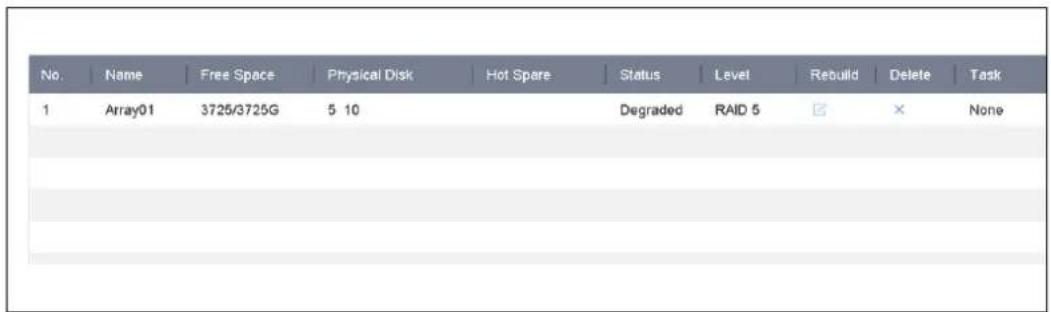
text_image
No. Name Free Space Physical Disk Hot Spare Status Level Rebuild Delete Task 1 Array01 3725/3725G 5 10 Degraded RAID 5 ✗ ✘ NoneFigure 8-8 Array List
Step 2 Click of array to delete.
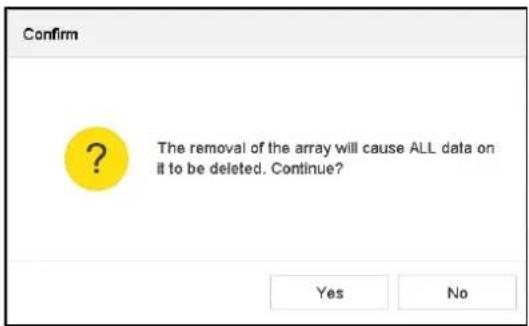
text_image
Confirm The removal of the array will cause ALL data on it to be deleted. Continue? Yes NoFigure 8-9 Attention
Step 3 Click Yes on the popup message box.
8.4 Check and Edit Firmware
Purpose
You can view the information of the firmware and set the background task speed on the Firmware interface.
Step 1 Go to Storage > RAID Setup > Firmware.
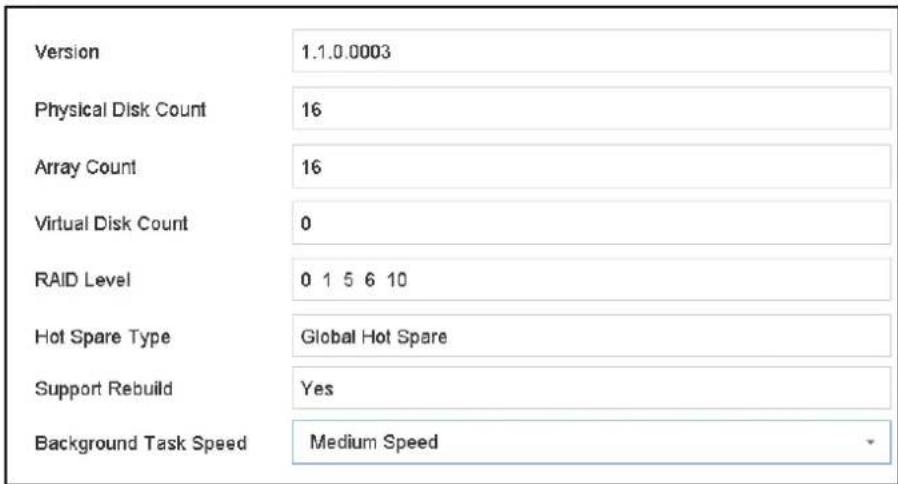
text_image
Version 1.1.0.0003 Physical Disk Count 16 Array Count 16 Virtual Disk Count 0 RAID Level 0 1 5 6 10 Hot Spare Type Global Hot Spare Support Rebuild Yes Background Task Speed Medium SpeedFigure 8-10 Firmware
Step 2 Optionally, set the Background Task Speed.
Step 3 Click Apply.
Chapter 9 File Management
9.1 Search and Export Human Files
9.1.1 Search Human Files
Purpose
Specify detailed conditions to search human files.
Before you start
Configure human body detection function for the cameras you want to search and export human files.
Step 1 Go to File Management > Human File.
Step 2 Click Show More and specify detailed conditions, including time, camera, people appearance, etc.
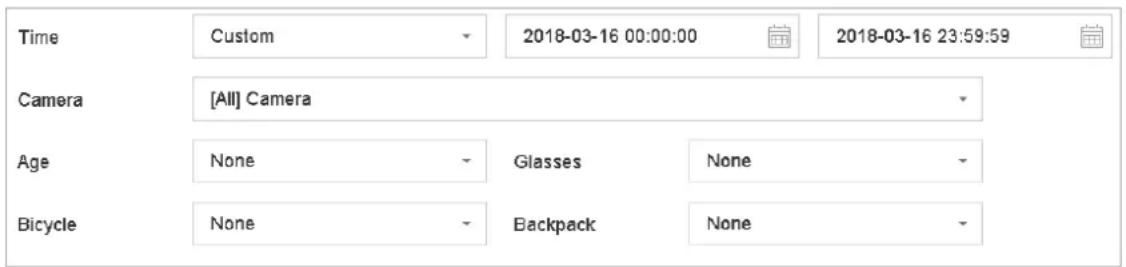
text_image
Time Custom 2018-03-16 00:00:00 2018-03-16 23:59:59 Camera [All] Camera Age None Glasses None Bicycle None Backpack NoneFigure 9-1 Search Conditions
Step 3 Click Search to display results. The matched files are displayed in thumbnail or list.
Step 4 Select Target Picture or Source Picture in menu bar to display related pictures only. Select Video or Picture to specify the file type.
● Target Picture: Display the search results of people close-up.
● Source Picture: Display the search results of original picture captured by camera.
● Group: Sort the search results by selected item.
9.1.2 Export Human Files
Purpose
Export files for backup purposes using USB device (USB flash drive, USB HDD, USB optical disc drive), SATA optical disc drive or eSATA HDD.
Step 1 Search for the human files to export. For details, see 9.1.1 Search Human Files.
Step 2 Click files and click Export.
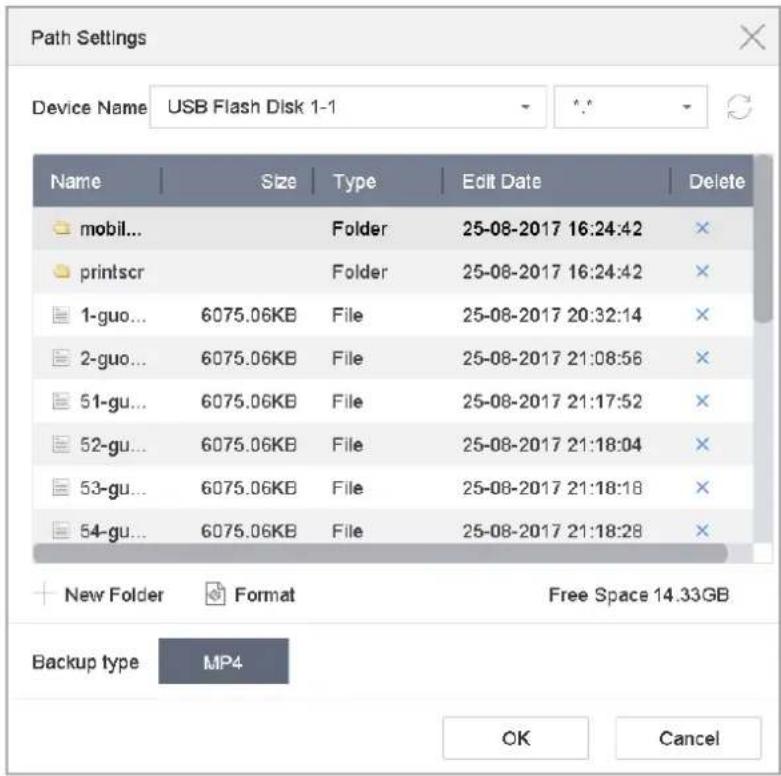
text_image
Path Settings Device Name USB Flash Disk 1-1 Name Size Type Edit Date Delete mobil... Folder 25-08-2017 16:24:42 printscr Folder 25-08-2017 16:24:42 1-guo... 6075.06KB File 25-08-2017 20:32:14 2-guo... 6075.06KB File 25-08-2017 21:08:56 51-gu... 6075.06KB File 25-08-2017 21:17:52 52-gu... 6075.06KB File 25-08-2017 21:18:04 53-gu... 6075.06KB File 25-08-2017 21:18:18 54-gu... 6075.06KB File 25-08-2017 21:18:28 New Folder Format Free Space 14.33GB Backup type MP4 OK CancelFigure 9-2 Export Files
Step 3 Click OK to export pictures to backup device.
9.2 Search and Export Vehicle Files
9.2.1 Search Vehicle Files
Purpose
Specify detailed conditions to search vehicle files.
Before you start
Configure vehicle detection function for the cameras you want to search and export vehicle files.
Step 1 Go to File Management > Vehicle Files.
Step 2 Click Show More and specify detailed conditions, including time, camera, vehicle appearance, etc.
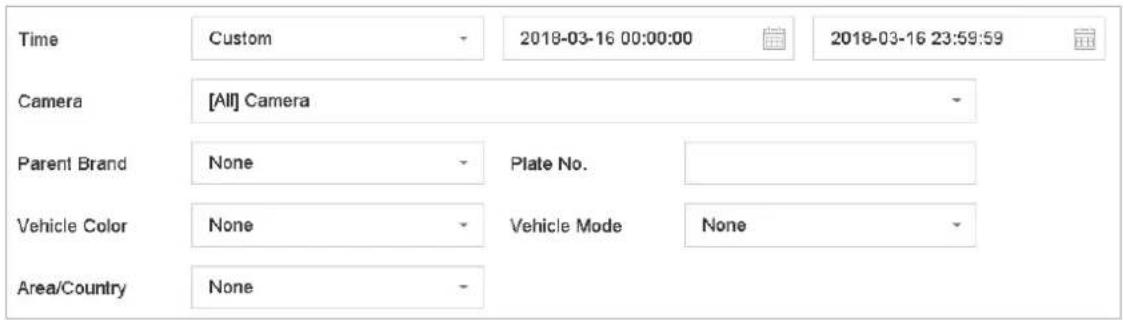
text_image
Time Custom 2018-03-16 00:00:00 2018-03-16 23:59:59 Camera [All] Camera Parent Brand None Plate No. Vehicle Color None Vehicle Mode None Area/Country NoneFigure 9-3 Advanced Search
Step 3 Click Search to display results. The matched files are displayed in thumbnail or list.
Step 4 Select Target Picture or Source Picture in menu bar to display related pictures only. Select Video or Picture to specify the file type.
● Target Picture: Display the search results of vehicle close-up.
● Source Picture: Display the search results of original picture captured by camera.
● Group: Sort the search results by selected item.
9.2.2 Export Vehicle Files
Purpose
Export files for backup purposes using USB device (USB flash drive, USB HDD, USB optical disc drive), SATA optical disc drive or eSATA HDD.
Step 1 Search for the vehicle files to export. For details, see 9.2.1 Search Vehicle Files.
Step 2 Click files and click Export.
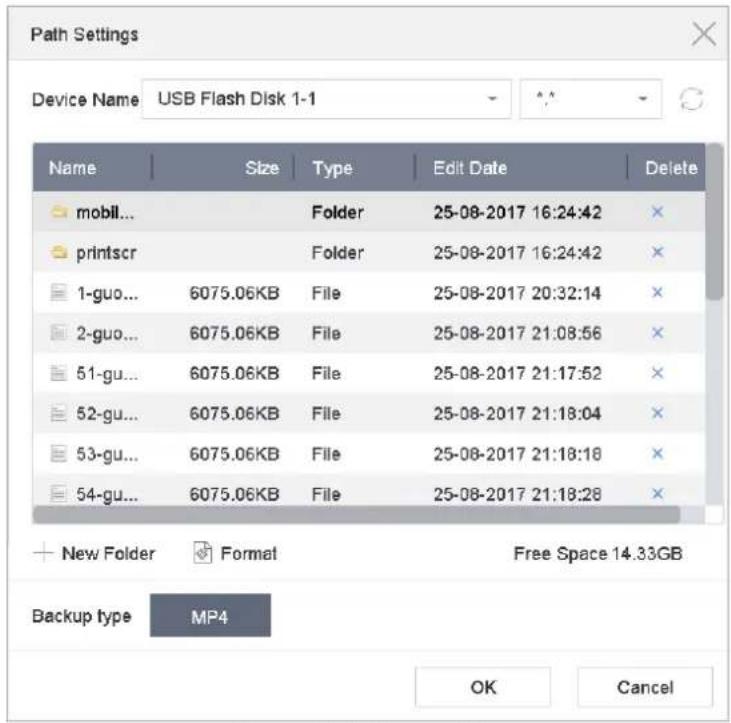
text_image
Path Settings Device Name USB Flash Disk 1-1 Name Size Type Edit Date Delete mobil... Folder 25-08-2017 16:24:42 × printscr Folder 25-08-2017 16:24:42 × 1-guo... 6075.06KB File 25-08-2017 20:32:14 × 2-guo... 6075.06KB File 25-08-2017 21:08:56 × 51-gu... 6075.06KB File 25-08-2017 21:17:52 × 52-gu... 6075.06KB File 25-08-2017 21:18:04 × 53-gu... 6075.06KB File 25-08-2017 21:18:18 × 54-gu... 6075.06KB File 25-08-2017 21:18:28 × + New Folder Format Free Space 14.33GB Backup type MP4 OK CancelFigure 9-4 Export Files
Click OK to export pictures to backup device.
9.3 Search History Operation
9.3.1 Save Search Condition
Purpose:
You can save the search conditions for future reference and quick search.
Step 1 Go to File Management > All Files/Human File/Vehicle File.
Step 2 Click Show More and set the search conditions.
Step 3 Click Save.
Step 4 Enter a name in text field and click Finished. The saved search conditions will be displayed in search history list.
9.3.2 Call Search History
Purpose:
You can quickly search files by calling search history.
Step 1 Go to File Management > All Files/Human File/Vehicle File.
Step 2 Click a created search condition to quickly search files.
Chapter 10 Playback
10.1 Playing Video Files
10.1.1 Instant Playback
Instant Playback enables the device to play the recorded video files in last five minutes. If no video is found, it means there is no video during the last five minutes.
Step 1 On the live view window of the selected camera, move the cursor to the window bottom to access the toolbar.
Step 2 Click

to start instant playback.
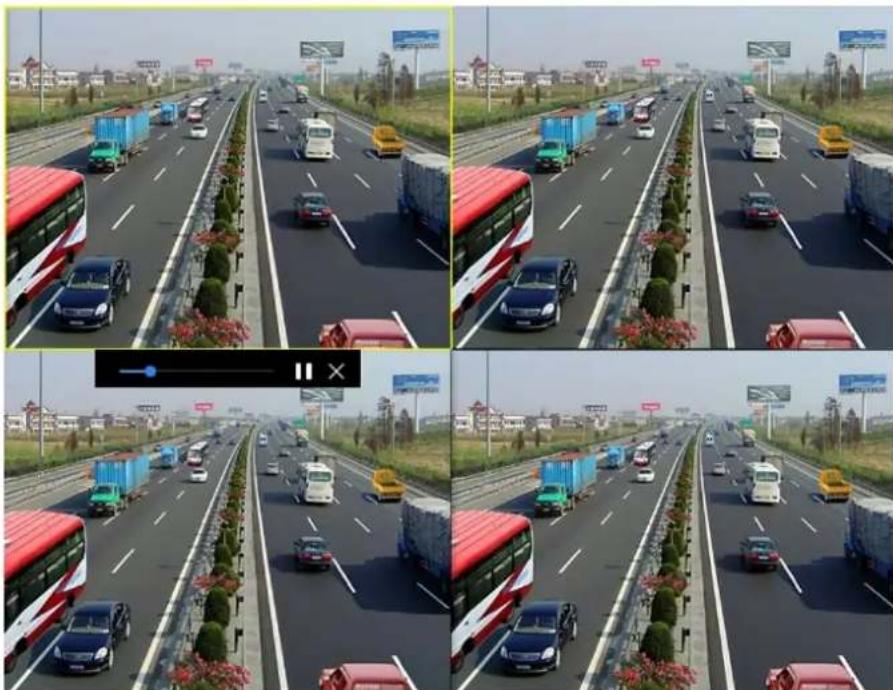
natural_image
Four-panel composite image showing a multi-lane highway with vehicles and traffic, no visible text or symbols.Figure 10-1 Playback Interface
10.1.2 Play Video
Step 1 Go to Playback.
Step 2 Select one or more cameras in the camera list.
Step 3 Select a date in the calendar.
Step 4 You can use the toolbar in the bottom part of playback interface to control the playing and realize a series of operations. Refer to Chapter 10.2 Playback Operations.
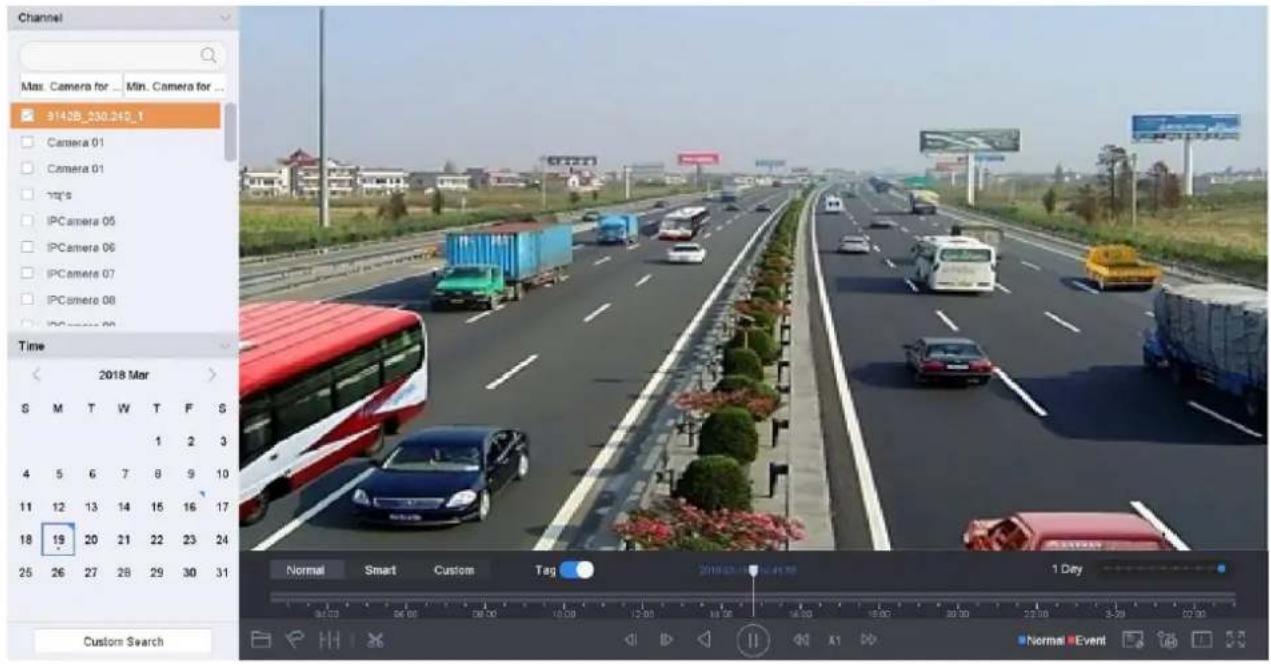
text_image
Channel Max: Camera for ... Min: Camera for ... 9142B_230.242_T Camera 01 Camera 01 mp's IPCamera 05 IPCamera 06 IPCamera 07 IPCamera 08 IPCamera 09 Time 2018 Mar S M T W T F S 1 2 3 4 5 6 7 8 9 10 11 12 13 14 15 16 17 18 19 20 21 22 23 24 25 26 27 28 29 30 31 Custom Search Normal Smart Custom Tag 2018/03/06 04:45:59 1 Day Normal EventFigure 10-2 Playback Interface

text_image
Normal Smart Custom Tag 2018-08-10 12:49:59 1 Day 04.00 06.00 06.00 10.00 12.00 14.00 16.00 18.00 20.00 22.00 23.00 02.00 Normal EventFigure 10-3 Toolbar of Playback
Step 5 You can click the channel(s) to execute simultaneous playback of multiple channels.
i NOTE
The playing speed of 256X is supported.
10.1.3 Play Tag Files
Purpose:
Video tag allows you to record related information like people and location of a certain time point during playback. You can use video tag(s) to search for video files and position time point.
Before playing back by tag:
Manage Tag Files
Step 1 Go to Playback.
Step 2 Search and play back the video file(s).
Step 3 Click to add the tag.
Step 4 Edit the tag information.

NOTE
Max. 64 tags can be added to a single video file.
Play Tag Files
Step 1 Go to File Management > All Files.
Step 2 Enter the search conditions for the tag files, including the time and the tag keyword.
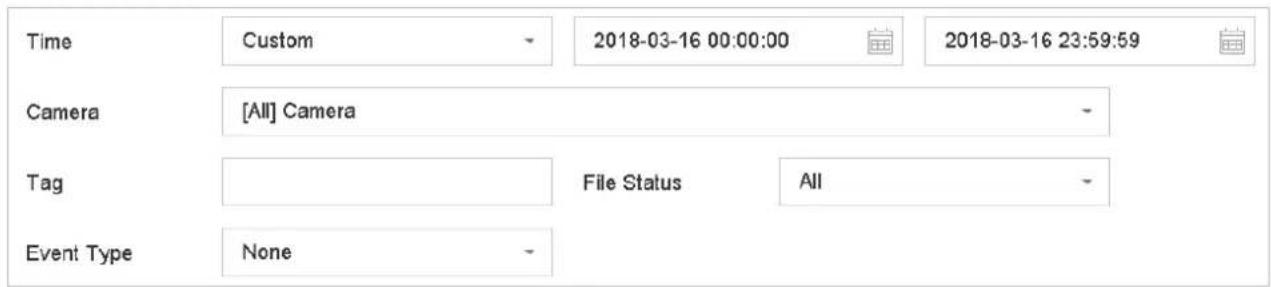
text_image
Time Custom 2018-03-16 00:00:00 2018-03-16 23:59:59 Camera [All] Camera Tag File Status All Event Type NoneFigure 10-4 Tag Search
Step 3 Click Search.
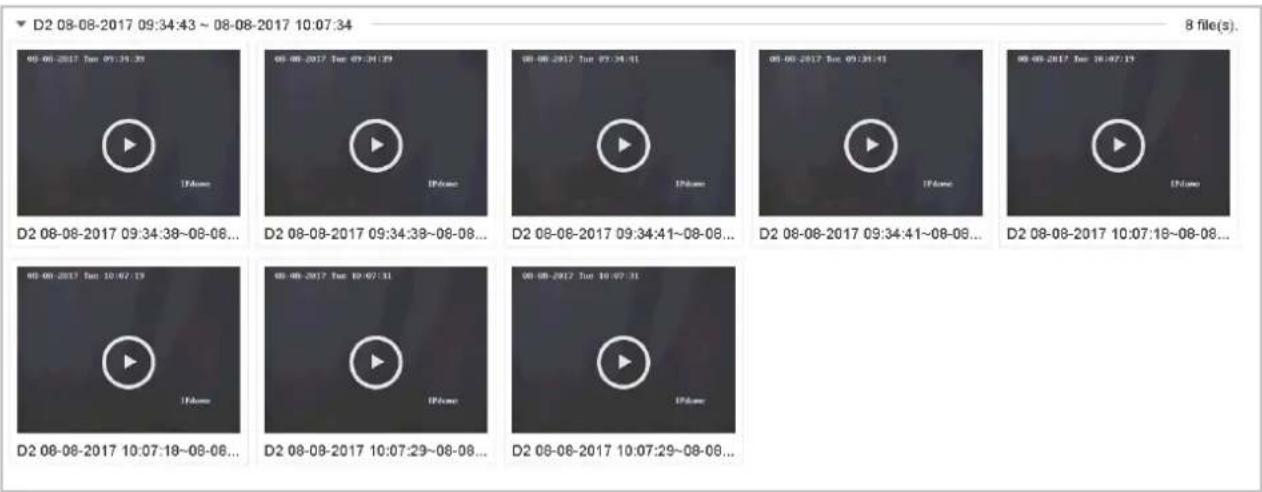
text_image
D2 08-08-2017 09:34:43 ~ 08-08-2017 10:07:34 8 file(s). 00-00-2017 Tue 09:34:35 1Pbox 00-00-2017 Tue 09:34:39 1Pbox 00-00-2017 Tue 09:34:41 1Pbox 00-00-2017 Tue 09:34:43 1Pbox 00-00-2017 Tue 10:07:15 1Pbox D2 08-08-2017 09:34:38~08-06... D2 08-08-2017 09:34:38~08-08... D2 08-08-2017 09:34:41~08-08... D2 08-08-2017 09:34:41~08-08... D2 08-08-2017 10:07:18~08-08... D2 08-08-2017 10:07:18~08-08... D2 08-08-2017 10:07:29~08-08... D2 08-08-2017 10:07:29~08-08...Figure 10-5 Searched Tag Files
Step 4 On the search results interface, select a tag file and click to start playing the video.
10.1.4 Play by Smart Search
Purpose
In the smart playback mode, the device will analyze the video containing the motion, line or intrusion detection information, mark it with green color and play it in the normal speed. And the video without motion will be played in 16X speed.
The smart playback rules and areas are configurable.
Step 1 Go to Playback.
Step 2 Start playing the video files by channel or by time.
Step 3 From the toolbar at the bottom of the playing window, click the motion/line crossing/ intrusion icon for search.
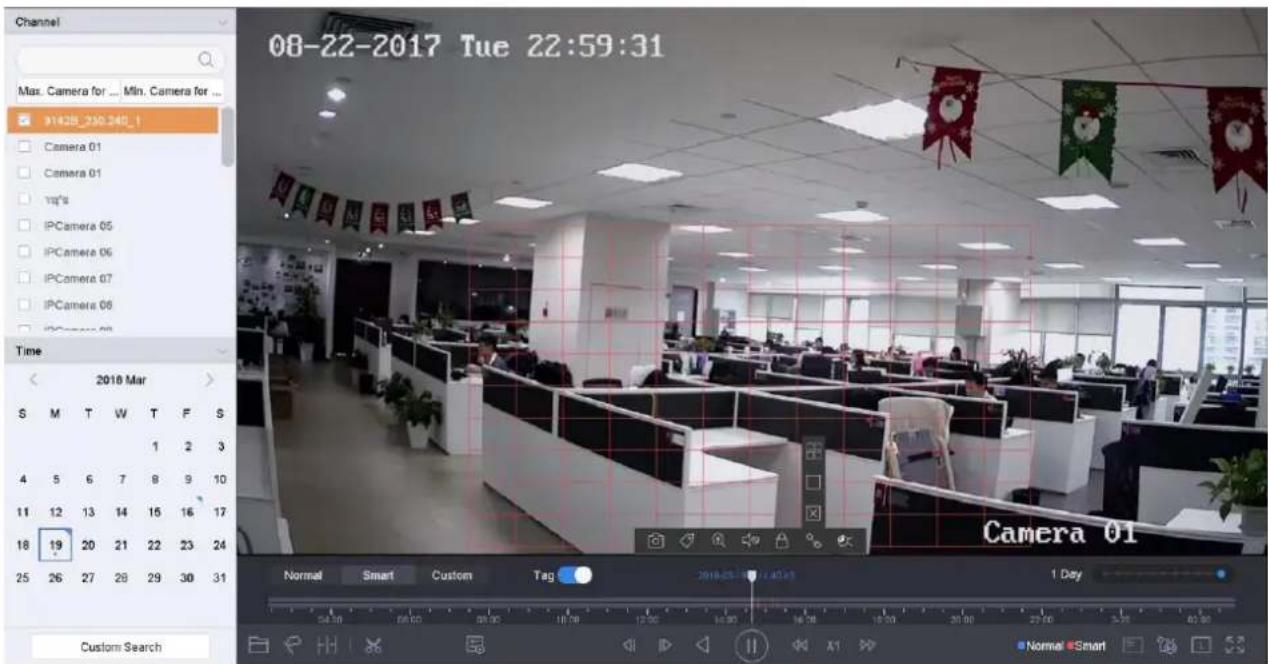
text_image
Channel Max. Camera for ... Min. Camera for ... 9142B_230.240_1 Camera 01 Camera 01 tag's IPCamera 05 IPCamera 06 IPCamera 07 IPCamera 08 Time 2018 Mar S M T W T F S 1 2 3 4 5 6 7 8 9 10 11 12 13 14 15 16 17 18 19 20 21 22 23 24 25 26 27 28 29 30 31 Custom Search 08-22-2017 Tue 22:59:31 Camera 01 Normal Smart Custom Tag 2018-05-19 1 Day 54:30 06:00 09:00 12:00 15:00 18:00 21:00 24:00 X1 Normal SmartFigure 10-6 Playback by Smart Search
Step 4 Set the rules and areas for smart search of line crossing detection, intrusion detection or motion detection event triggered recording.
• Line Crossing Detection
1) Click the icon.
2) Click on the image to specify the start point and end point of the line.
- Intrusion Detection
3) Click the icon.
4) Specify 4 points to set a quadrilateral region for intrusion detection. Only one region can be set.
- Motion Detection
5) Click the icon.
6) Hold the mouse on the image to draw the detection area manually.
7) Click Search to search the matched video and start to play it.
10.1.5 Play Event Files
Purpose
Play back video files on one or several channels searched by event type (e.g., alarm input, motion detection, line crossing detection, face detection, vehicle detection, etc.).
Step 1 Go to Playback.
Step 2 Click Custom Search on the left bottom to enter the Search Condition interface.
Step 3 Enter the search conditions for the event files, e.g., time, event type, file status, people appearance (for face detection, human detection, etc.), vehicle information (for vehicle detection event).

NOTE
Only DS-7700NXI series support face detection function.
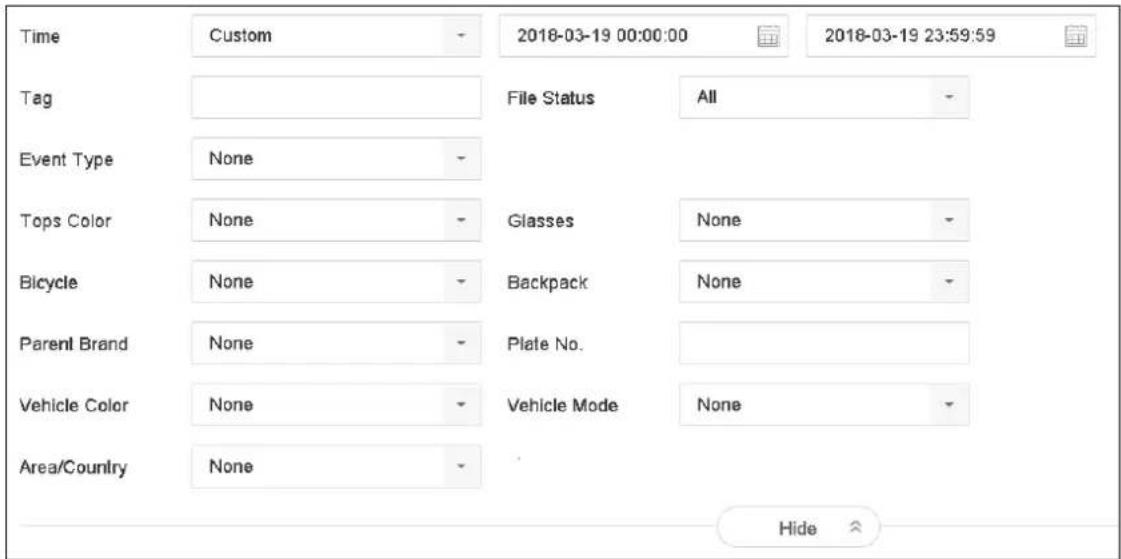
text_image
Time Custom 2018-03-19 00:00:00 2018-03-19 23:59:59 Tag File Status All Event Type None Tops Color None Glasses None Bicycle None Backpack None Parent Brand None Plate No. Vehicle Color None Vehicle Mode None Area/Country None HideFigure 10-7 Search Conditions
Step 4 Click Search.
Step 5 On the search results interface, select an event video file/picture file and click to start playing the video or double click to play the picture.
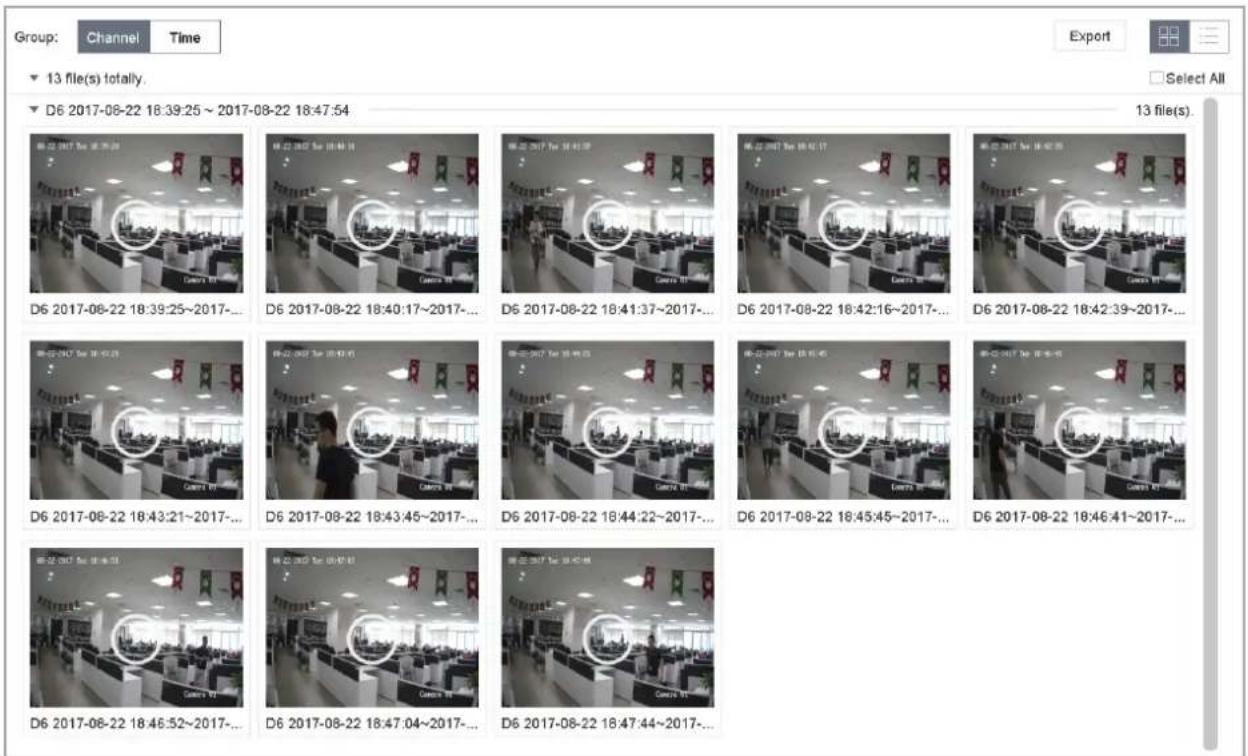
text_image
Group: Channel Time Export 13 file(s) totally. D6 2017-08-22 18:39:25 ~ 2017-08-22 18:47:54 D6 2017-08-22 18:39:25~2017-... D6 2017-08-22 18:40:17~2017-... D6 2017-08-22 18:41:37~2017-... D6 2017-08-22 18:42:16~2017-... D6 2017-08-22 18:42:39~2017-... D6 2017-08-22 18:43:21~2017-... D6 2017-08-22 18:43:45~2017-... D6 2017-08-22 18:44:22~2017-... D6 2017-08-22 18:45:45~2017-... D6 2017-08-22 18:46:41~2017-... D6 2017-08-22 18:46:52~2017-... D6 2017-08-22 18:47:04~2017-... D6 2017-08-22 18:47:44~2017-...Figure 10-8 Event Files
Step 6 You can click or button to select the previous or next event.

NOTE
- Refer to Chapter 11 Event and Alarm Settings and Chapter 12 VCA Event Alarm for details for event and alarm settings.
- Refer to Chapter 7.7 Configure Event Triggered Recording for the event triggered recording/capture settings.
10.1.6 Play by Sub-periods
Purpose:
The video files can be played in multiple sub-periods simultaneously on the screens.
Step 1 Go to Playback.
Step 2 Select Sub-periods from the drop-down list in the upper-left corner of the page to enter the Sub-periods Playback interface.
Step 3 Select a date and start playing the video file. Select the Split-screen Number from the dropdown list. Up to 16 screens are configurable.
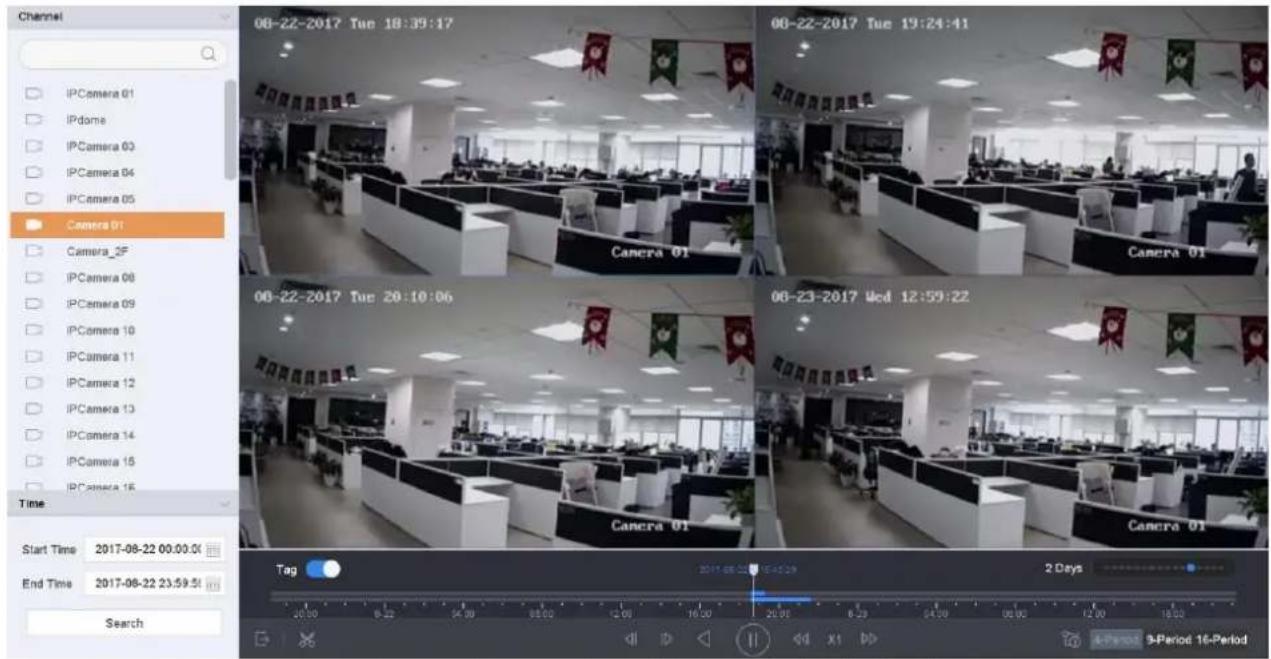
text_image
Channel IPCamera 01 IPdome IPCamera 03 IPCamera 04 IPCamera 05 Camera 01 Camera_2F IPCamera 08 IPCamera 09 IPCamera 10 IPCamera 11 IPCamera 12 IPCamera 13 IPCamera 14 IPCamera 15 IPCamera 16 Time Start Time 2017-08-22 00:00:00 End Time 2017-08-22 23:59:50 Search 08-22-2017 Tue 18:39:17 08-22-2017 Tue 19:24:41 08-22-2017 Tue 20:10:06 08-23-2017 Wed 12:59:22 Camera 01 Camera 01 Tag 2 Days X1 4-Period 9-Period 16-PeriodFigure 10-9 Interface of Sub-periods Playback
i NOTE
According to the defined number of split-screens, the video files on the selected date can be divided into average segments for playback. E.g., if there are video files existing between 16:00 and 22:00, and the 6-screen display mode is selected, then it can play the video files for 1 hour on each screen simultaneously.
10.1.7 Play Log Files
Purpose:
Play back record file(s) associated with channels after searching system logs.
Step 1 Go to Maintenance > Log Information.
Step 2 Click Log Search tab to enter Playback by System Logs.
Step 3 Set search time and type and click Search.
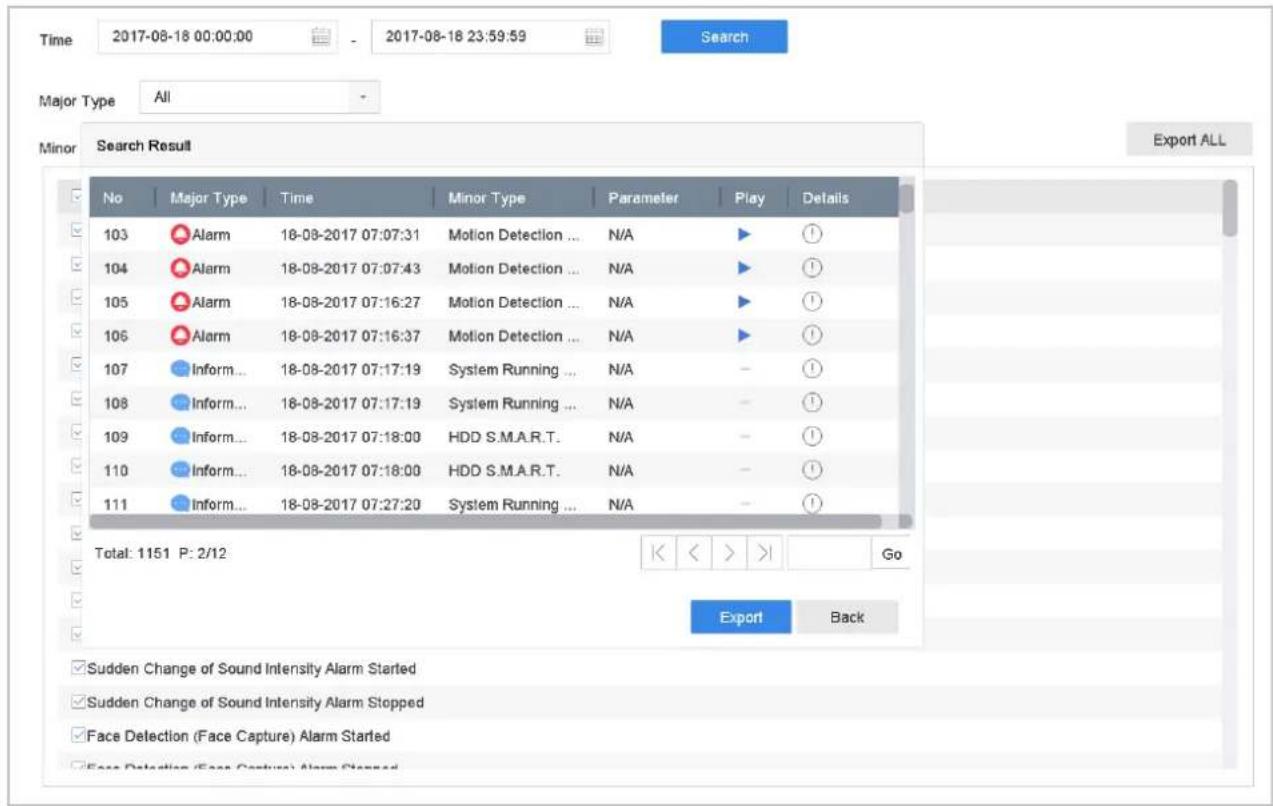
text_image
Time 2017-08-18 00:00:00 - 2017-08-18 23:59:59 Search Major Type All Minor Search Result Export ALL No Major Type Time Minor Type Parameter Play Details 103 Alarm 18-08-2017 07:07:31 Motion Detection ... N/A ▶ ① 104 Alarm 18-08-2017 07:07:43 Motion Detection ... N/A ▶ ① 105 Alarm 18-08-2017 07:16:27 Motion Detection ... N/A ▶ ① 106 Alarm 18-08-2017 07:16:37 Motion Detection ... N/A ▶ ① 107 Inform... 18-08-2017 07:17:19 System Running ... N/A - ① 108 Inform... 18-08-2017 07:17:19 System Running ... N/A - ① 109 Inform... 18-08-2017 07:18:00 HDD S.M.A.R.T. N/A - ① 110 Inform... 18-08-2017 07:18:00 HDD S.M.A.R.T. N/A - ① 111 Inform... 18-08-2017 07:27:20 System Running ... N/A - ① Total: 1151 P: 2/12 < < > Go Export Back Sudden Change of Sound Intensity Alarm Started Sudden Change of Sound Intensity Alarm Stopped Face Detection (Face Capture) Alarm Started Face Detection (Face Capture) Alarm StoppedFigure 10-10 System Log Search Interface
Step 4 Choose a log with video file and click to start playing the log file.
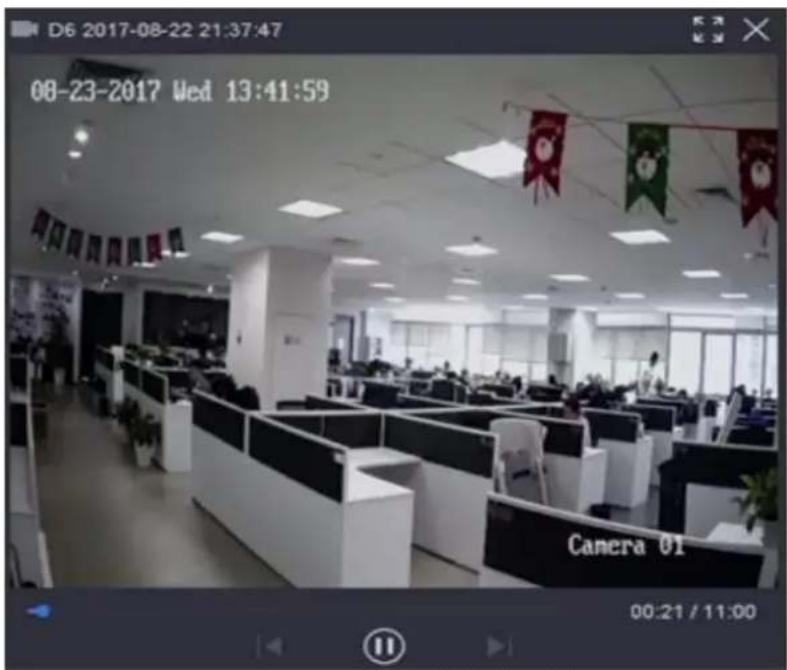
text_image
D6 2017-08-22 21:37:47 08-23-2017 Wed 13:41:59 Camera 01 00:21 / 11:00Figure 10-11 Interface of Playback by Log
10.1.8 Play External File
Purpose:
You can play files from the external storage devices.
Before You Start:
Connect the storage device with the video files to your device.
Step 1 Go to Playback.
Step 2 Click the icon at the left bottom corner.
Step 3 Select and click the button or double click to play the file.
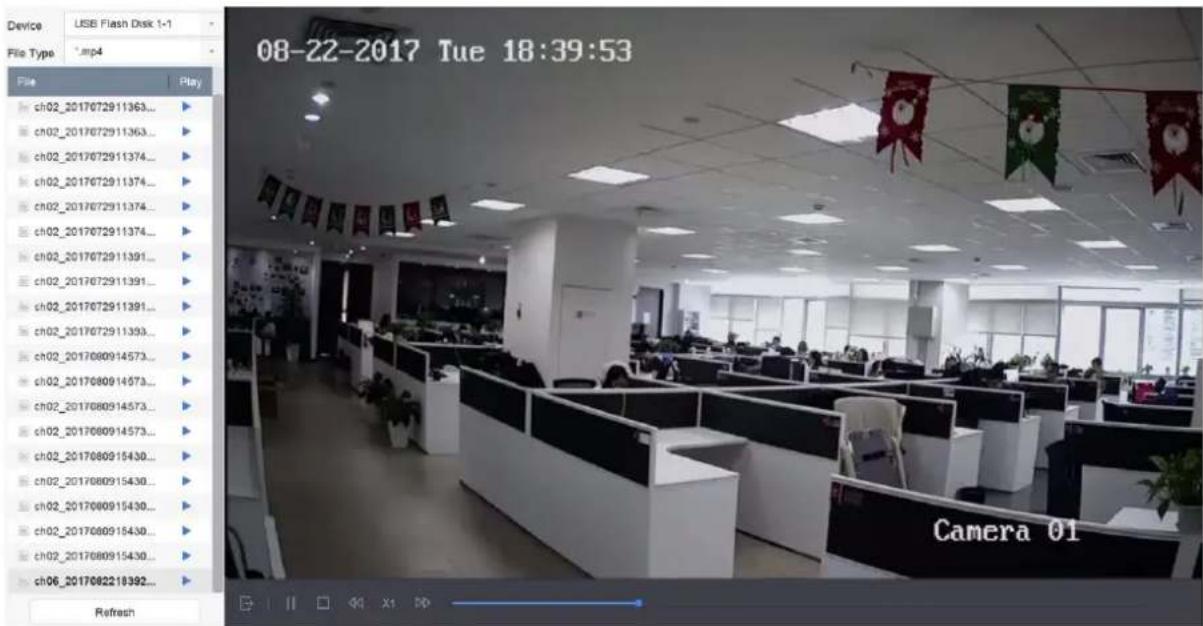
text_image
Device: USB Flash Disk 1-1 File Type: *.mp4 File Play ch02_2017072911363... ch02_2017072911363... ch02_2017072911374... ch02_2017072911374... ch02_2017072911374... ch02_2017072911391... ch02_2017072911391... ch02_2017072911391... ch02_2017072911393... ch02_2017080914573... ch02_2017080914573... ch02_2017080914573... ch02_2017080915430... ch02_2017080915430... ch02_2017080915430... ch02_2017080915430... ch02_2017080915430... ch06_2017082218392... Refresh Camera 01Figure 10-12 External File Playback
10.2 Playback Operations
10.2.1 Normal/Important/Custom Video
During the playback, you can select the following three modes to play the video.
Normal: video files from the continuous recording.
Important: video files from the event and alarm recording triggered recording.
Custom: video files searched by custom conditions.
10.2.2 Set Play Strategy in Important/Custom Mode
Purpose:
When you are in the important or custom video playback mode, you can set the playing speed separately for the normal video and the important/custom video, or you can select to skip the normal video.
In the Important/Custom video playback mode, click

to set the play strategy.
- When Do not Play Normal Videos is checked, the device will skip the normal video and play the important (event) video and the custom (searched video) only in the normal speed (X1).
- When Do not Play Normal Videos is unchecked, you can set the play speed for the normal video the important/custom video separately. The speed range is from X1 to XMAX.

NOTE
You can set the speed in the single-channel play mode only.
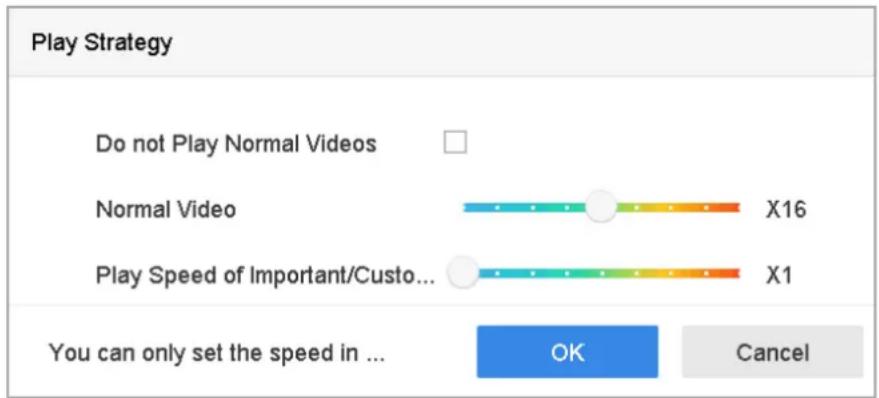
text_image
Play Strategy Do not Play Normal Videos Normal Video X16 Play Speed of Important/Custo... X1 You can only set the speed in ... OK CancelFigure 10-13 Play Strategy
10.2.3 Edit Video Clips
You can take video clips during the playback and export the clips.
In the video playback mode, click to start video clipping operation.

● : Set the start time and end time of the video clipping.

● : Export the video clips to the local storage device.
10.2.4 Switch between Main Stream and Sub-Stream
You can switch between the main stream and the sub-stream during the playback.

: Play the video in main stream.

: Play the video in sub-stream.

NOTE
The encoding parameters for the main stream and sub-stream can be configured in Storage > Encoding Parameters.
10.2.5 Thumbnails View
With the thumbnails view on the playback interface, you can conveniently locate the required video files on the time bar.
In the video playback mode, move the mouse to the time bar to get the preview thumbnails of the video files.
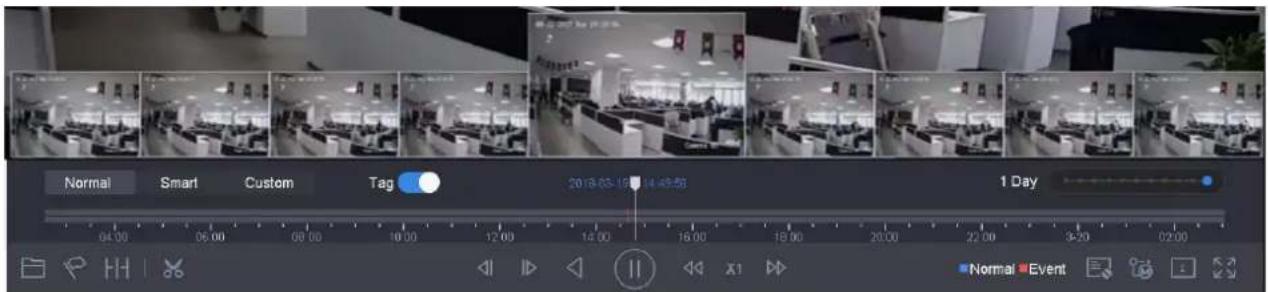
text_image
Normal Smart Custom Tag 2018-05-16 14:49:53 1 Day Normal EventFigure 10-14 Thumbnails View
You can select and double click on a required thumbnail to enter the full-screen playback.

NOTE
The thumbnail view is supported only in the 1X single-camera playback mode.
10.2.6 Fast View
You can hold the mouse to drag on the time bar to get the fast view of the video files.
In the video playback mode, use the mouse to hold and drag through the playing time bar to fast view the video files.
Release the mouse to the required time point to enter the full-screen playback.

NOTE
The fast view is supported only in the 1X single-camera playback mode.
10.2.7 Digital Zoom
In the video playback mode, click from the toolbar to enter the digital zoom interface.
You can move the sliding bar or scroll the mouse wheel to zoom in/out the image to different proportions (1 to 16X).
natural_image
Highway traffic scene with multiple lanes, trucks, and a red double-decker bus, no visible text or signageFigure 10-15 Digital Zoom
Chapter 11 Event and Alarm Settings
11.1 Configure Arming Schedule
Step 1 Select the Arming Schedule tab.
Step 2 Choose one day of a week and set the time segment. Up to eight time periods can be set within each day.

NOTE
Time periods cannot be repeated or overlapped.
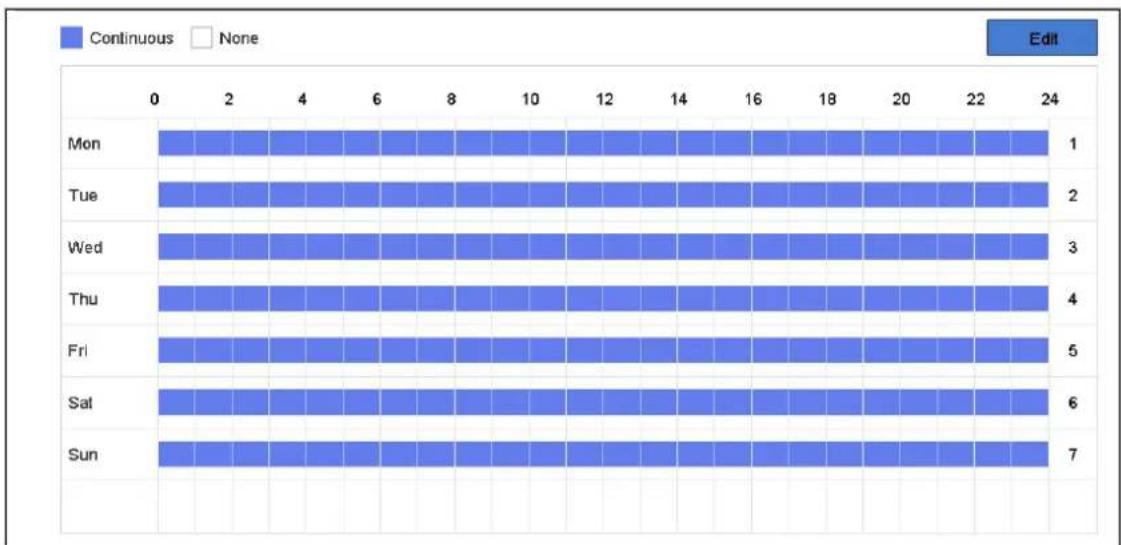
bar_stacked
| Day | Continuous | None | |-------|------------|------| | Mon | 1 | | | Tue | 2 | | | Wed | 3 | | | Thu | 4 | | | Fri | 5 | | | Sat | 6 | | | Sun | 7 | |Figure 11-1 Set Arming Schedule
Step 3 (Optional) If you want to copy the same arming schedule of the current day to the other day (s) of the week or holiday, you can click the icon to copy arming schedule settings.
Step 4 Click Apply to save the settings.
11.2 Configure Alarm Linkage Actions
Purpose:
Alarm linkage actions will be activated when an alarm or exception occurs, including Event Hint Display, Full Screen Monitoring, Audible Warning (buzzer), Notify Surveillance Center, Trigger Alarm Output and Send Email.
Step 1 Click Linkage Action to set the alarm linkage actions.
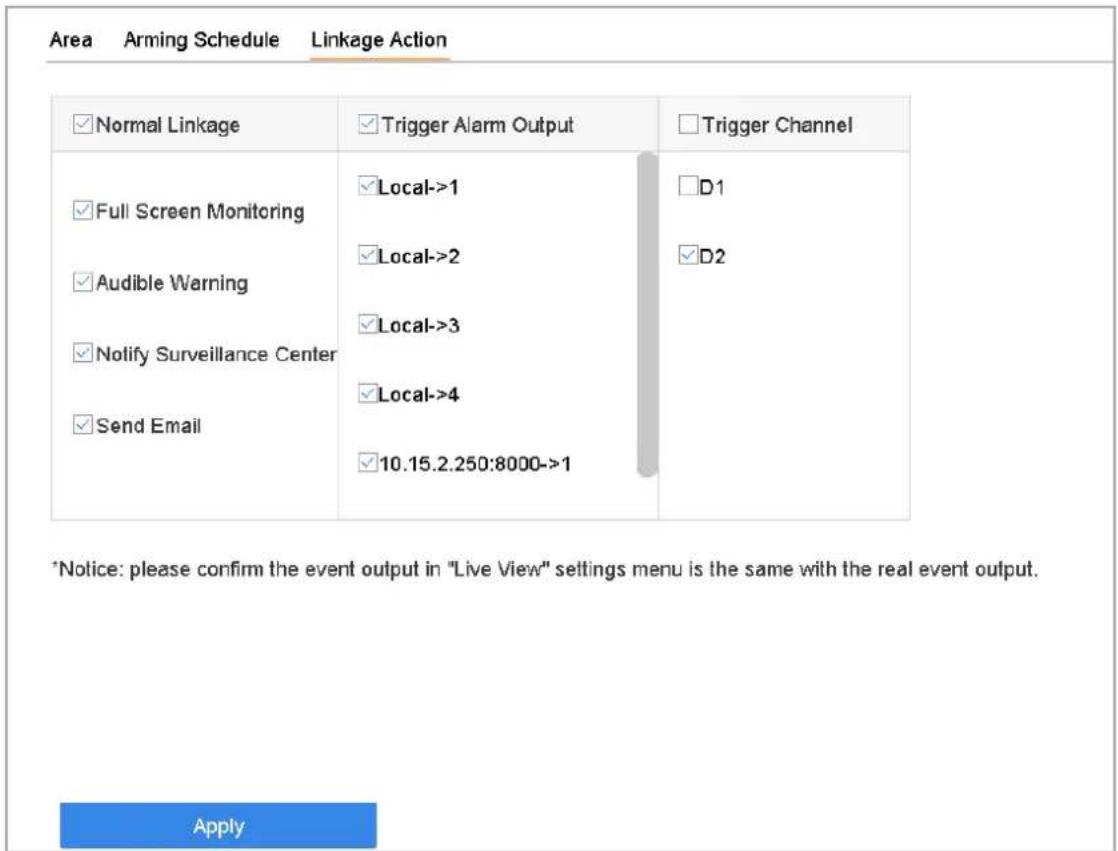
text_image
Area Arming Schedule Linkage Action ✓ Normal Linkage ✓ Trigger Alarm Output ☐ Trigger Channel ✓ Full Screen Monitoring ✓ Local->1 ☐D1 ✓ Audible Warning ✓ Local->2 ✓D2 ✓ Notify Surveillance Center ✓ Local->3 ✓ Send Email ✓ Local->4 10.15.2.250:8000->1 *Notice: please confirm the event output in "Live View" settings menu is the same with the real event output. ApplyFigure 11-2 Set Linkage Actions
Step 2 Select the normal linkage actions, trigger alarm output or trigger recording channel. For details, refer to Chapter 11.2.1 to 11.2.6.
Step 3 Click Apply to save the settings.
11.2.1 Configure Auto-Switch Full Screen Monitoring
When an alarm is triggered, the local monitor displays in full screen the video image from the alarming channel configured for full screen monitoring. And when the alarm is triggered simultaneously in several channels, you must configure the auto-switch dwell time.
Step 1 Go to System > Live View > General.
Step 2 Set the event output and dwell time.
● Event Output: Select the output to show event video.
● Full Screen Monitoring Dwell Time: Set the time in seconds to show alarm event screen. If alarms are triggered simultaneously in several channels, their full-screen images will be switched at an interval of 10 seconds (default dwell time).
Step 3 Go to the Linkage Action interface of the alarm detection (e.g., motion detection, video tampering, etc.).
Step 4 Select the Full Screen Monitoring alarm linkage action.
Step 5 Select the channel(s) in Trigger Channel settings you want to make full screen monitoring.

NOTE
Auto-switch will terminate once the alarm stops and back to the live view interface.
11.2.2 Configure Audio Warning
The audio warning enables the system to trigger an audible beep when an alarm is detected.
Step 1 Go to System > Live View > General.
Step 2 Enable the audio output and set the volume.
Step 3 Go to the Linkage Action interface of the alarm detection (e.g., motion detection, video tampering, etc.).
Step 4 Select the Audio Warning alarm linkage action.
11.2.3 Notify Surveillance Center
The device can send an exception or alarm signal to the remote alarm host when an event occurs. The alarm host refers to the PC installed with client software (e.g., iVMS-4200, iVMS-5200).
Step 1 Go to System > Network > Advanced > More Settings.
Step 2 Set the alarm host IP and alarm host port.
Step 3 Go to the Linkage Action interface of the alarm detection (e.g., motion detection, video tampering, etc.).
Step 4 Select the Notify Surveillance Center.
11.2.4 Configure Email Linkage
The system can send an email with alarm information to a user or users when an alarm is detected.
Please refer to Chapter 16.7 Configure Email for details of Email configuration.
Step 1 Go to System > Network > Advanced.
Step 2 Configure the Email settings.
Step 3 Go to the Linkage Action interface of the alarm detection (e.g., motion detection, video tampering, etc.).
Step 4 Select the Send Email alarm linkage action.
11.2.5 Trigger Alarm Output
The alarm output can be triggered by the alarm input, motion detection, video tampering detection, line crossing detection, and all other events.
Step 1 Go to the Linkage Action interface of the alarm input or event detection (e.g., motion detection, line crossing detection, intrusion detection, etc.).
Step 2 Click the Trigger Alarm Output tab.
Step 3 Select the alarm output (s) to trigger.
Step 1 Go to System > Event > Normal Event > Alarm Output.
Step 2 Select an alarm output item from the list.

NOTE
Refer to Chapter 11.6.3 Configure Alarm Output for the alarm output settings.
11.2.6 Configure PTZ Linkage
The system can trigger the PTZ actions (e.g., call preset/patrol/pattern) when the alarm event, or VCA detection events occur.

NOTE
Make sure the PTZ or speed dome connected supports PTZ linkage.
Step 1 Go to the Linkage Action interface of the alarm input or VCA detection (e.g., line crossing detection, intrusion detection, etc.).
Step 2 Select the PTZ Linkage.
Step 3 Select the camera to perform the PTZ actions.
Step 4 Select the preset/patrol/pattern No. to call when the alarm events occur.
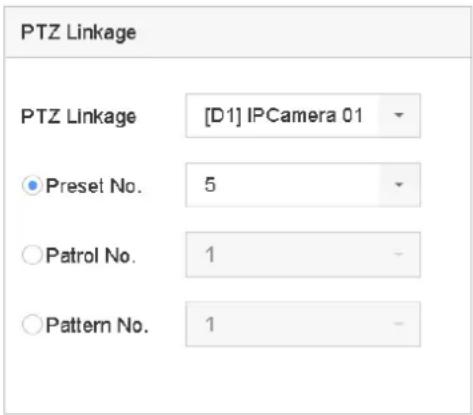
text_image
PTZ Linkage PTZ Linkage [D1] IPCamera 01 Preset No. 5 Patrol No. 1 Pattern No. 1Figure 11-3 PTZ Linkage

NOTE
You can set one PTZ type only for the linkage action each time.
11.3 Configure Motion Detection Alarm
The motion detection enables the device to detect the moving objects in the monitoring area and trigger the alarm.
Step 1 Go to System > Event > Normal Event > Motion Detection.
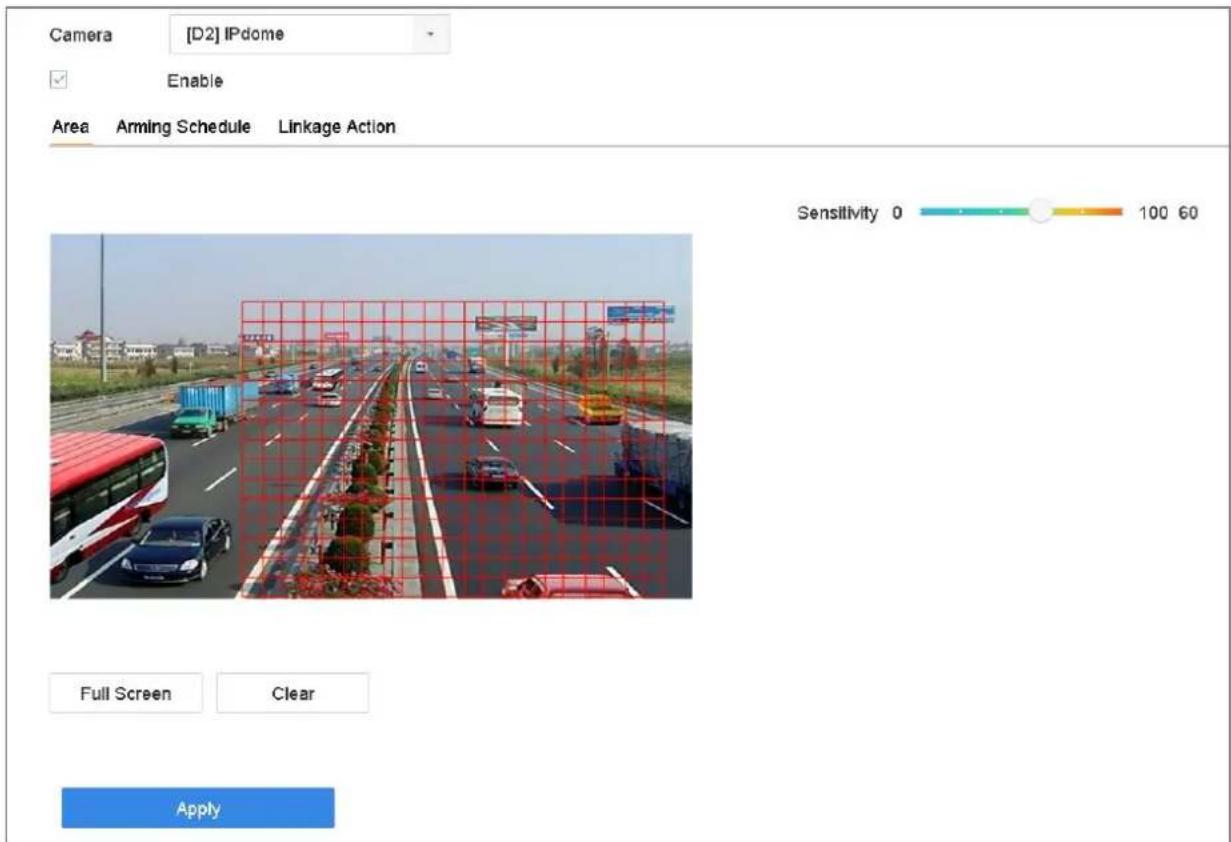
text_image
Camera [D2] IPdome Enable Area Arming Schedule Linkage Action Sensitivity 0 100 60 Full Screen Clear ApplyFigure 11-4 Set Motion Detection
Step 2 Select the camera to configure the motion detection.
Step 3 Check Enable.
Step 4 Set the motion detection area.
● Full screen: click to set the full-screen motion detection for the image.
- Customized area: use the mouse to click and drag on the preview screen to draw the customized motion detection area (s).
You can click Clear to clear the current motion detection area settings and draw again.
Step 5 Set sensitivity (0-100). The sensitivity allows you to calibrate how readily movement triggers the alarm. The higher value results in the more readily to trigger the motion detection.
Step 6 Set the arming schedule. Refer to Chapter 11.1 Configure Arming Schedule.
Step 7 Set the linkage actions. Refer to Chapter 11.2 Configure Alarm Linkage Actions.
11.4 Configure Video Loss Alarm
Purpose
The video loss detection enables to detect video loss of a channel and take alarm response action(s).
Step 1 Go to System > Event > Normal Event > Video Loss
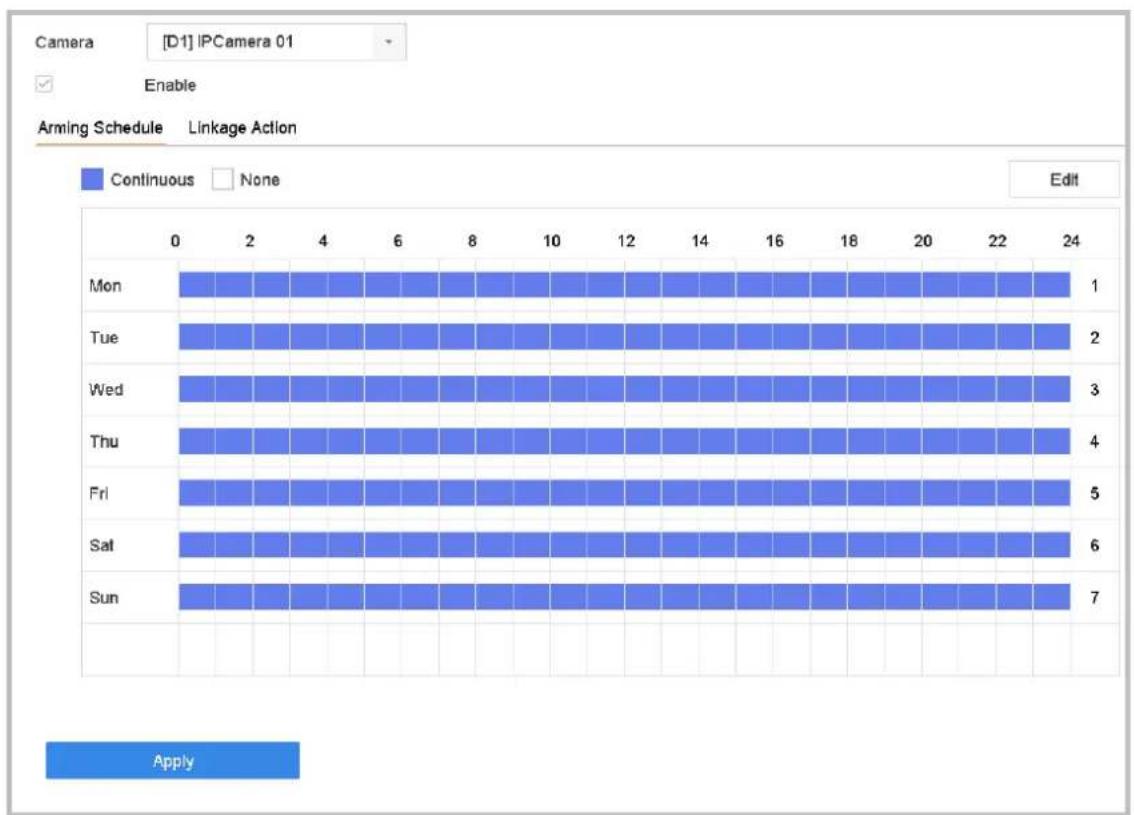
bar
| Day | Continuous | None | |---|---|---| | Mon | 1 | 0 | | Tue | 2 | 0 | | Wed | 3 | 0 | | Thu | 4 | 0 | | Fri | 5 | 0 | | Sat | 6 | 0 | | Sun | 7 | 0 | ApplyFigure 11-5 Set Video Loss Detection
Step 2 Select the camera to configure the video loss detection.
Step 3 Check Enable.
Step 4 Set the arming schedule. Refer to Chapter 11.1 Configure Arming Schedule.
Step 5 Set the linkage actions. Refer to Chapter 11.2 Configure Alarm Linkage Actions.
11.5 Configure Video Tampering Alarm
Purpose:
The video tampering detection enables to trigger alarm when the camera lens is covered and take alarm response action(s).
Step 1 Go to System > Event > Normal Event > Video Tampering.
Step 2 Select the camera to configure the video tampering detection.
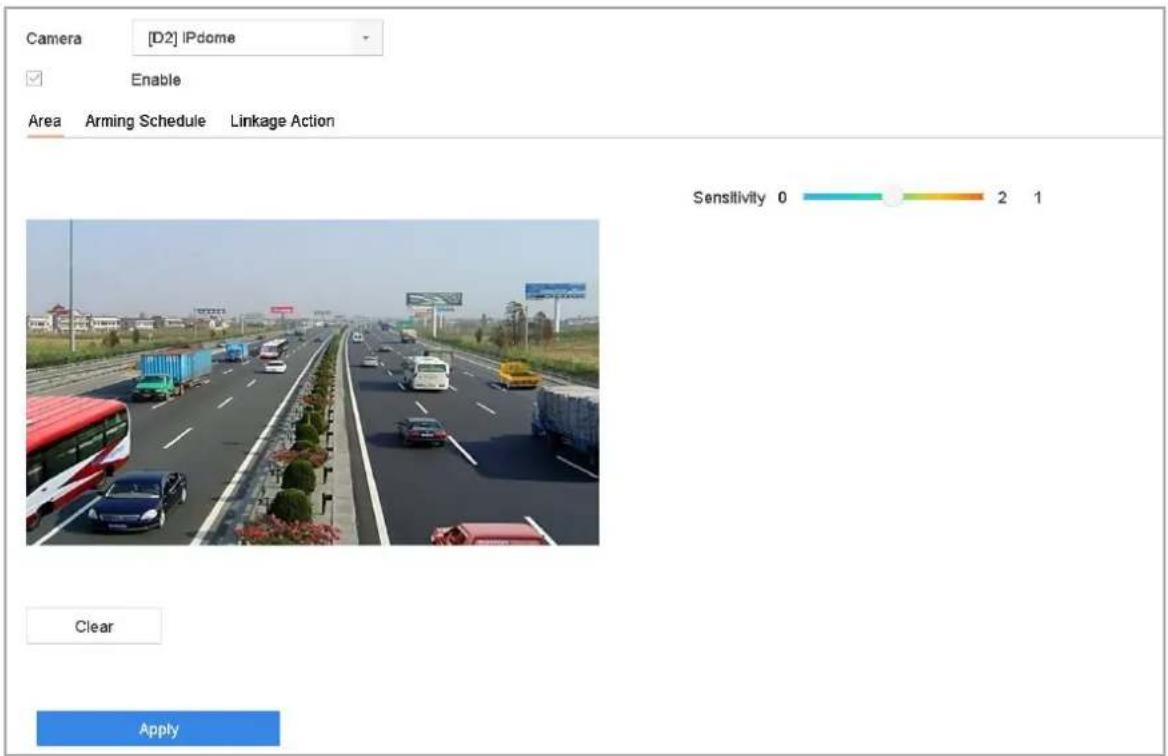
text_image
Camera [D2] IPdome Enable Area Arming Schedule Linkage Action Sensitivity 0 2 1 Clear ApplyFigure 11-6 Set Video Tampering Setting
Step 3 Check Enable.
Step 4 Set the video tampering area. Use the mouse to click and drag on the preview screen to draw the customized video tampering area.
You can click Clear to clear the current area settings and draw again.
Step 5 Set sensitivity level (0-2). 3 levels are available. The sensitivity allows you to calibrate how readily movement triggers the alarm. The higher value results in the more readily to trigger the video tampering detection.
Step 6 Set the arming schedule. Refer to Chapter 11.1 Configure Arming Schedule.
Step 7 Set the linkage actions. Refer to Chapter 11.2 Configure Alarm Linkage Actions.
11.6 Configure Sensor Alarms
Purpose:
Set the handling action of an external sensor alarm.
11.6.1 Configure Alarm Input
Step 1 Go to System > Event > Normal Event > Alarm Input
Step 2 Select an alarm input item from the list and click
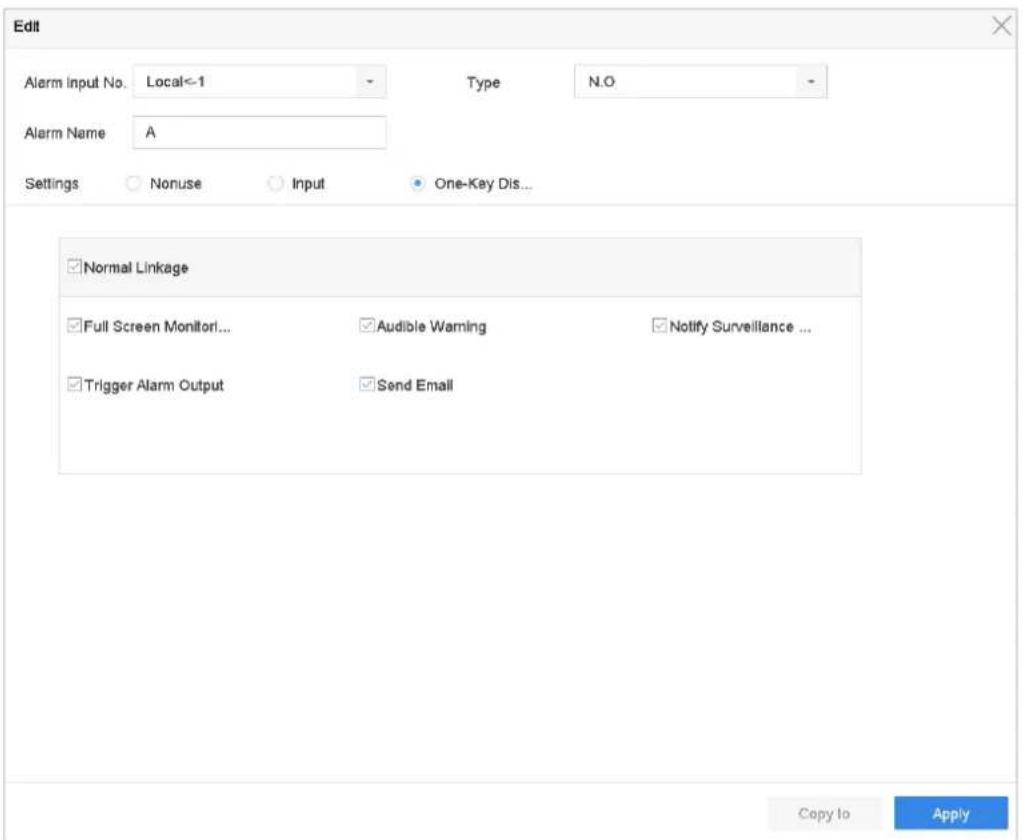
text_image
Edit Alarm Input No. Local<-1 Type N.O Alarm Name A Settings Nonuse Input One-Key Dis... Normal Linkage Full Screen Monitor... Audible Warning Notify Surveillance ... Trigger Alarm Output Send Email Copy to ApplyFigure 11-7 Alarm Input
Step 3 Select the alarm input type to N.C or N.O.
Step 4 Edit the alarm name.
Step 5 Check the radio button of Input.
Step 6 Set the arming schedule. Refer to Chapter 11.1 Configure Arming Schedule.
Step 7 Set the linkage actions. Refer to Chapter 11.2 Configure Alarm Linkage Actions.
Step 8 Click Apply and follow the message box to reboot device to take effect the settings.
11.6.2 Configure One-Key Disarming
The one-key disarming enables the device to disarm the alarm input 1 by one-key operation.
Step 1 Go to System > Event > Normal Event > Alarm Input
Step 2 Select the alarm input1 item from the list and click

Step 3 Select the alarm input type to N.C or N.O.
Step 4 Edit the alarm name.
Step 5 Check the radio button of Enable One-Key Disarming.
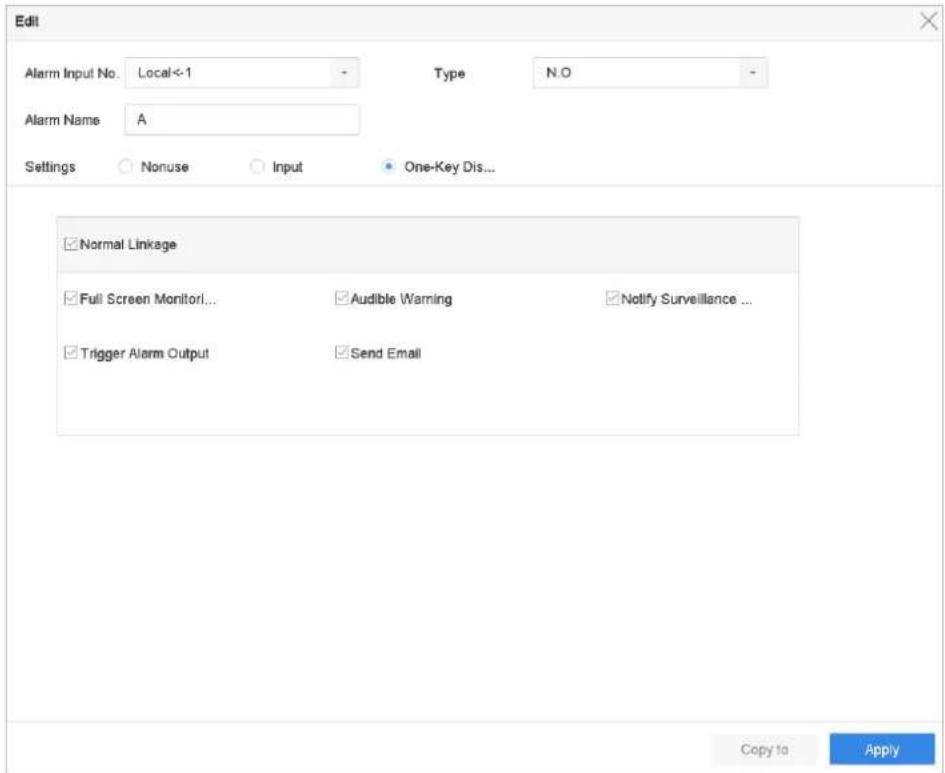
text_image
Edit Alarm Input No. Local<-1 Type N.O Alarm Name A Settings Nonuse Input One-Key Dis... Normal Linkage Full Screen Monitor... Audible Warning Notify Surveillance ... Trigger Alarm Output Send Email Copy to ApplyFigure 11-8 One-Key Alarm Disarming
Step 6 Select the alarm linkage action (s) you want to disarm for the local alarm input1.

NOTE
When the alarm input 1 (Local<-1) is enabled with one-key disarming, the other alarm input settings are not configurable.
Step 7 Click Apply to save the settings.
11.6.3 Configure Alarm Output
Trigger an alarm output when an alarm is triggered.
Step 1 Go to System > Event > Normal Event > Alarm Output.
Step 2 Select an alarm output item from the list and click
Step 3 Edit the alarm name.
Step 4 Select the dwell time (the alarm duration) from 5s to 600s, or Manually Clear.
Manually Clear: you should manually clear the alarm when the alarm occurs. Refer to Chapter 11.8 Trigger or Clear Alarm Output Manually for detailed instructions.
Step 5 Set the arming schedule. Refer to Chapter 11.1 Configure Arming Schedule.
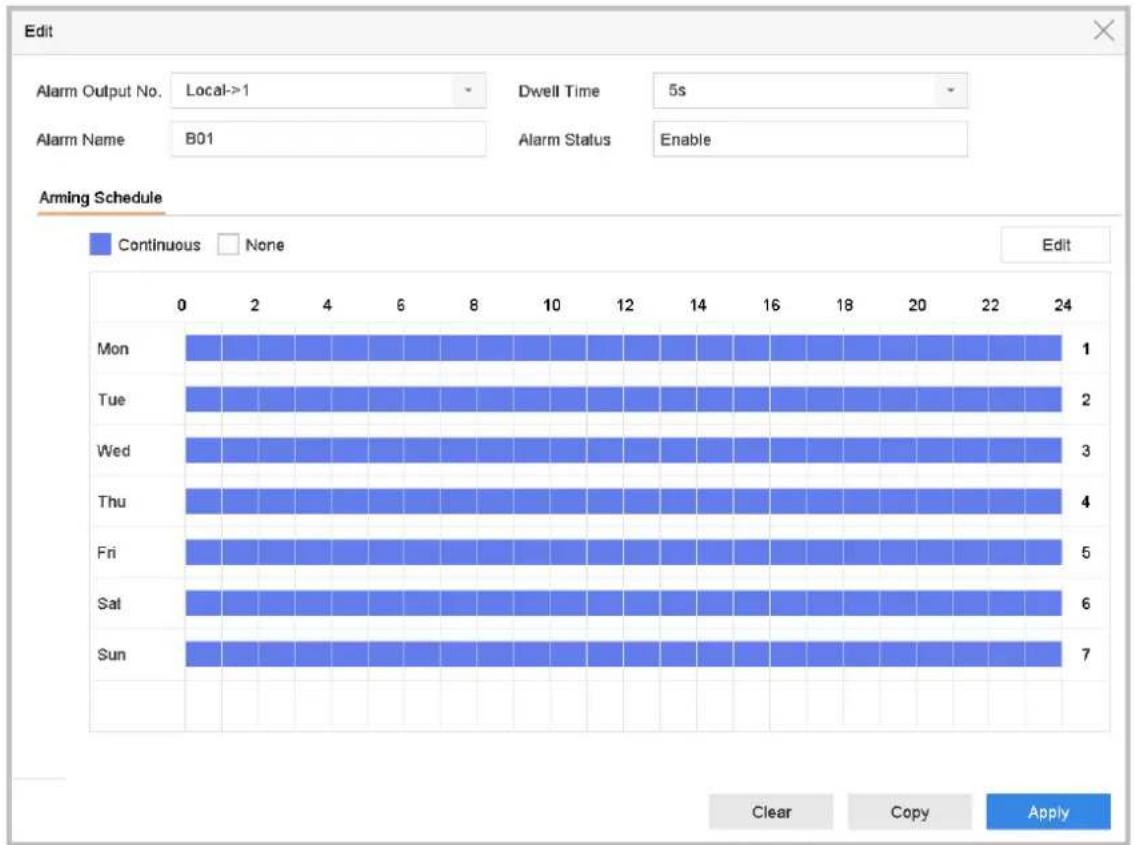
bar
| Day | Continuous | None | |-------|------------|------| | Mon | 1 | 0 | | Tue | 2 | 0 | | Wed | 3 | 0 | | Thu | 4 | 0 | | Fri | 5 | 0 | | Sat | 6 | 0 | | Sun | 7 | 0 |Figure 11-9 Alarm Output
Step 1 (Optional) You can click Copy to copy the same settings to other alarm output (s).
11.7 Configure Exceptions Alarm
The exception events can be configured to take the event hint in the live view window, trigger alarm output and linkage actions.
Step 1 Go to System> Event>Normal Event>Exception.
Step 2 (Optional) Enable the event hint if you want to display the event hint in the live view window.
1) Check the checkbox of Enable Event Hint.
2) Click 📋 to select the exception type (s) to take the event hint.
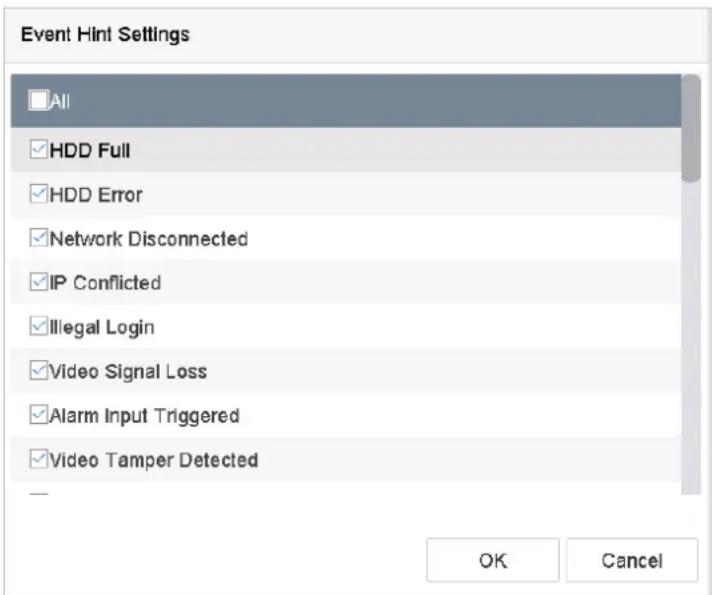
text_image
Event Hint Settings All HDD Full HDD Error Network Disconnected IP Conflicted Illegal Login Video Signal Loss Alarm Input Triggered Video Tamper Detected OK CancelFigure 11-10 Event Hint Settings
Step 3 Select the excetion type from the drop-down list to set the linkage actions.
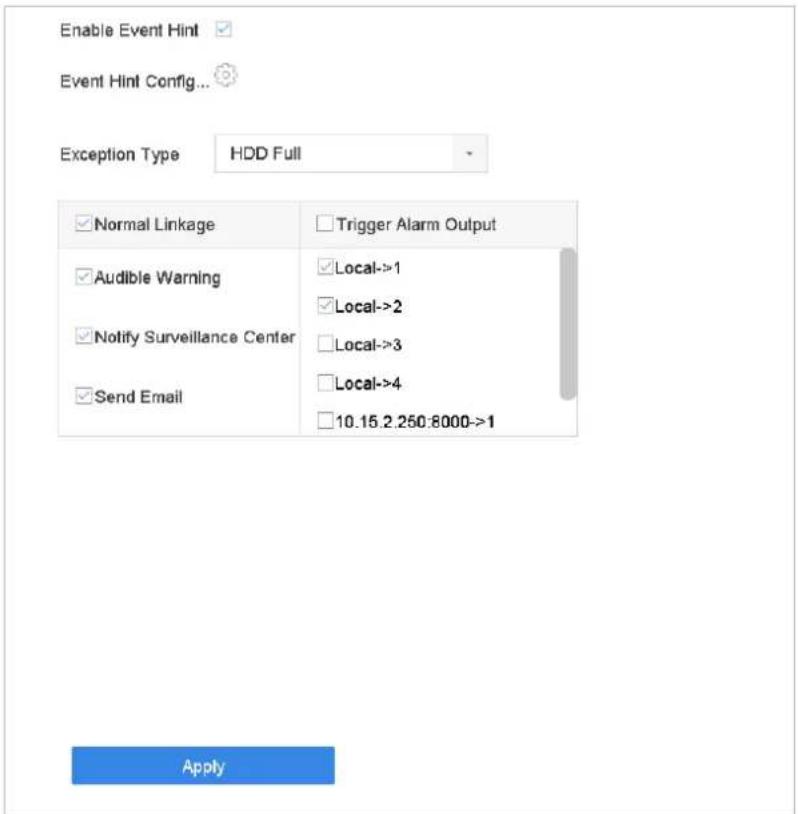
text_image
Enable Event Hint Event Hint Config... Exception Type HDD Full ✓ Normal Linkage ✓ Trigger Alarm Output ✓ Audible Warning ✓ Local->1 ✓ Notify Surveillance Center ✓ Local->2 ✓ Send Email ✓ Local->3 ✓ Local->4 10.15.2.250:8000->1 ApplyFigure 11-11 Exceptions Handling
Step 4 Set the normal linkage and alarm output triggering. Refer to Chapter 10.2 Setting Alarm Linkage Actions.
11.8 Trigger or Clear Alarm Output Manually
Purpose:
Sensor alarm can be triggered or cleared manually. When the Manually Clear is selected for the dwell time of an alarm output, the alarm can be cleared only by clicking Clear button.
Step 1 Go to System > Event > Normal Event > Alarm Output.
Step 2 Select the alarm output you want to trigger or clear.
Step 3 Click Trigger/Clear to trigger or clear an alarm output.
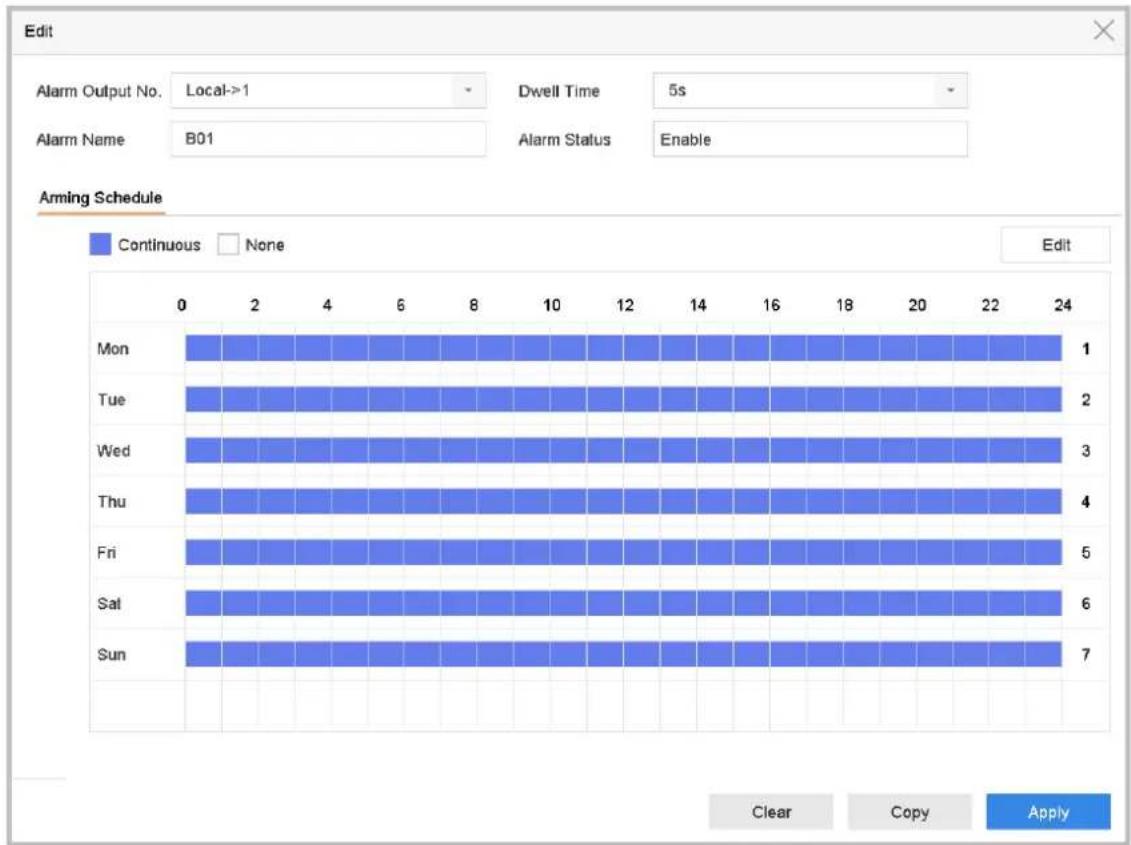
bar
| Day | Continuous | None | |-------|------------|------| | Mon | 1 | 0 | | Tue | 2 | 0 | | Wed | 3 | 0 | | Thu | 4 | 0 | | Fri | 5 | 0 | | Sat | 6 | 0 | | Sun | 7 | 0 |Figure 11-12 Alarm Output
Chapter 12 VCA Event Alarm
The device supports receiving the VCA detections sent by connected IP cameras. Enable and configure the VCA detection on the IP camera settings interface first.
i NOTE
● VCA detections must be supported by the connected IP camera.
- Refer to the User Manual of Network Camera for the detailed instructions for the VCA detection.
12.1 Human Body Detection
The human body detection is used to detect the human body appearing in the monitoring scene, and capture the human body pictures.
i NOTE
This feature is available only when the connected camera supports the human body detection.
Step 1 Go to System > Event > Smart Event.
Step 2 Click Human Body.
Step 3 Select the camera to configure the human body detection.
Step 4 Check Save VCA Picture to save the captured pictures of human body detection.
Step 5 Check Target of Interest (Human Body) to discard non-human body pictures and videos which are not triggered by human body detection.
Step 6 Set detection area.
1) Select the detection area to configure from the Area drop-down list. Up to 8 detection areas are selectable.
2) Check the checkbox of Enable Area to enable the selected detection area.
3) Edit the area name in the Scene Name. The scene name can contain up to 32 characters.
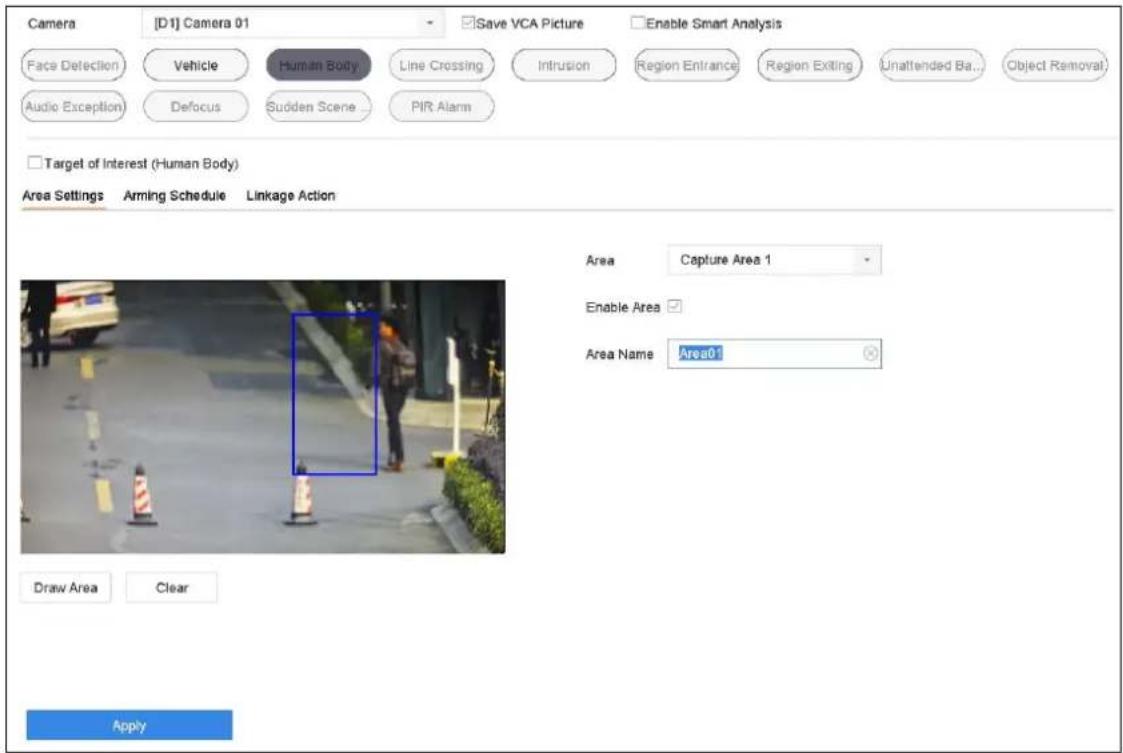
text_image
Camera [D1] Camera 01 Save VCA Picture Enable Smart Analysis Face Detection Vehicle Human Body Line Crossing Intrusion Region Entrance Region Exiting Unattended Ba... Object Removal Audio Exception Defocus Sudden Scene PIR Alarm Target of Interest (Human Body) Area Settings Arming Schedule Linkage Action Area Capture Area 1 Enable Area Area Name Area0 Draw Area Clear ApplyFigure 12-1 Human Body Detection
4) Click Draw Area to draw a quadrilateral in the preview window and then click Stop Drawing.
Related Operation: You can click Clear to clear the existing virtual line and re-draw it.
Step 7 Set the arming schedule. Refer to Chapter 11.1 Configure Arming Schedule.
Step 8 Set the linkage actions. Refer to Chapter 11.2 Configure Alarm Linkage Actions.
Step 9 Click Apply to activate the settings.
12.2 Face Detection
Purpose
Face detection function detects the face appears in the surveillance scene. Linkage actions will be triggered when a human face is detected.

NOTE
Only DS-7700NXI series support face detection function.
Step 1 Go to System > Event > Smart Event.
Step 2 Click Face Capture.
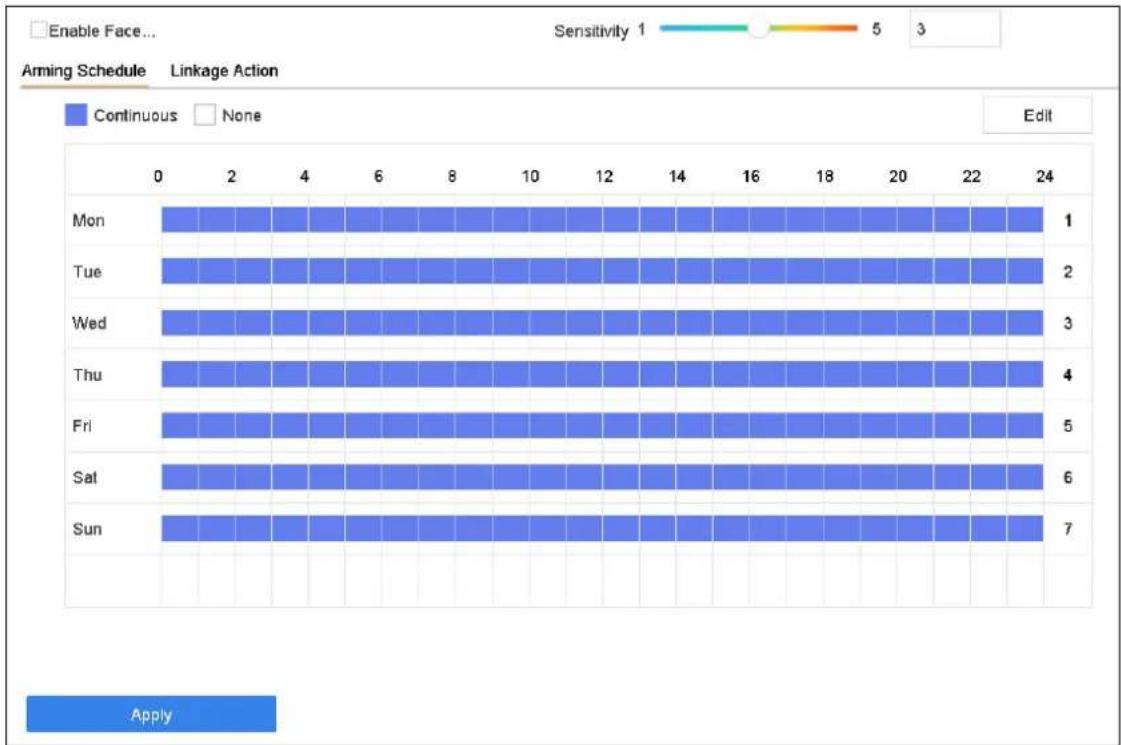
bar
| Day | Continuous | None | |-------|------------|------| | Mon | 1 | | | Tue | 2 | | | Wed | 3 | | | Thu | 4 | | | Fri | 5 | | | Sat | 6 | | | Sun | 7 | |Figure 12-2 Face Detection
Step 3 Select a Camera to configure.
Step 4 Check Enable Face Detection.

NOTE
For some IP cameras, the checkbox is grey and cannot be checked. In this situation, the function is enabled by default.
Step 5 Optionally, check Save VCA Picture to save the captured pictures of face detection.
Step 6 Drag the Sensitivity slider to set the detection sensitivity. Sensitivity range: [1-5]. The higher the value is, the more easily the face can be detected.
Step 7 Set the arming schedule. Refer to Chapter 11.1 Configure Arming Schedule.
Step 8 Set the linkage actions. Refer to Chapter 11.2 Configure Alarm Linkage Actions.
Step 9 Click Apply.
12.3 Vehicle Detection
Purpose
Vehicle Detection is available for the road traffic monitoring. In Vehicle Detection, the passed vehicle can be detected and the picture of its license plate can be captured. You can send alarm signal to notify the surveillance center and upload the captured picture to FTP server.
Step 1 Go to System > Event > Smart Event.
Step 2 Click Vehicle.
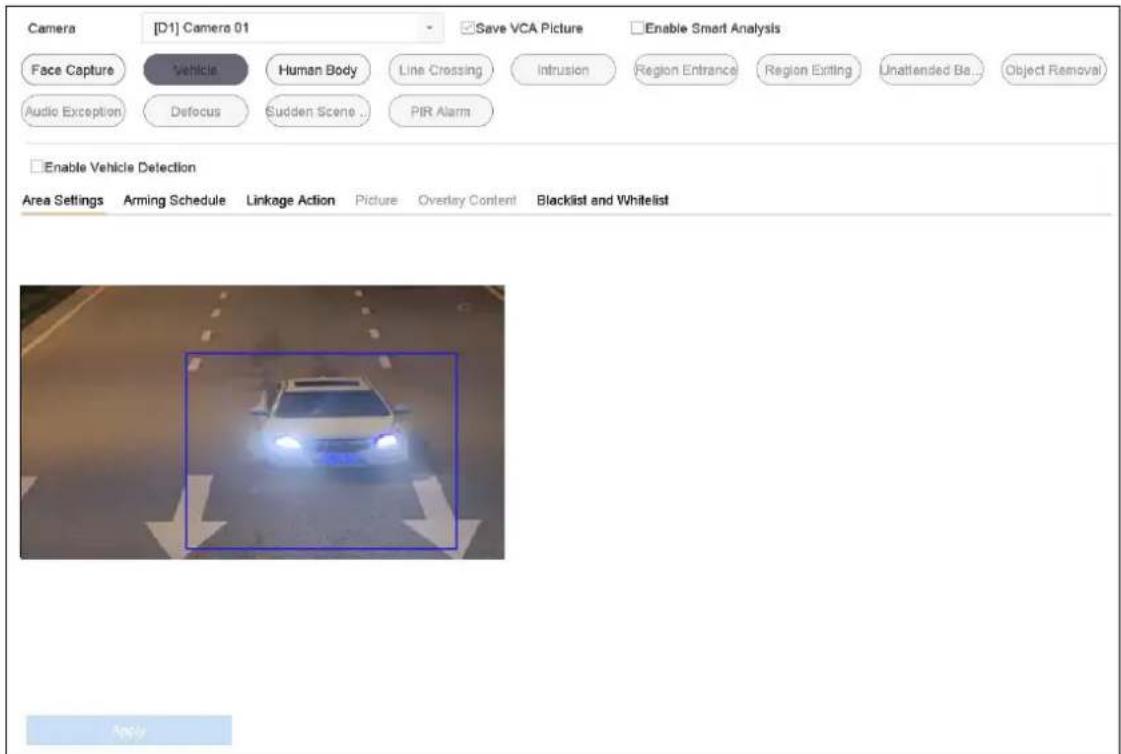
text_image
Camera [D1] Camera 01 Save VCA Picture Enable Smart Analysis Face Capture Vehicle Human Body Line Crossing Intrusion Region Entrance Region Exiting Unattended Be... Object Removal Audio Exception Defocus Sudden Scene . PIR Alarm Enable Vehicle Detection Area Settings Arming Schedule Linkage Action Picture Overlay Content Blacklist and Whitelist ApplyFigure 12-3 Vehicle Detection
Step 3 Select a Camera to configure.
Step 4 Check Enable Vehicle Detection.
Step 5 Optionally, check Save VCA Picture to save the captured pictures of vehicle detection.
Step 6 Set the arming schedule. Refer to Chapter 11.1 Configure Arming Schedule.
Step 7 Set the linkage actions. Refer to Chapter 11.2 Configure Alarm Linkage Actions.
Step 8 Configure rules, including Area Settings, Picture, Overlay Content, and Blacklist and Whitelist. Area Settings: Up to 4 lanes are selectable.
Step 9 Click Save.

Refer to the User Manual of Network Camera for the detailed instructions for the vehicle detection.
12.4 Line Crossing Detection
Purpose
Line crossing detection detects people, vehicles, and objects crossing a set virtual line. The detection direction can be set as bidirectional, from left to right or from right to left.
Step 1 Go to System > Event > Smart Event.
Step 2 Click Line Crossing.
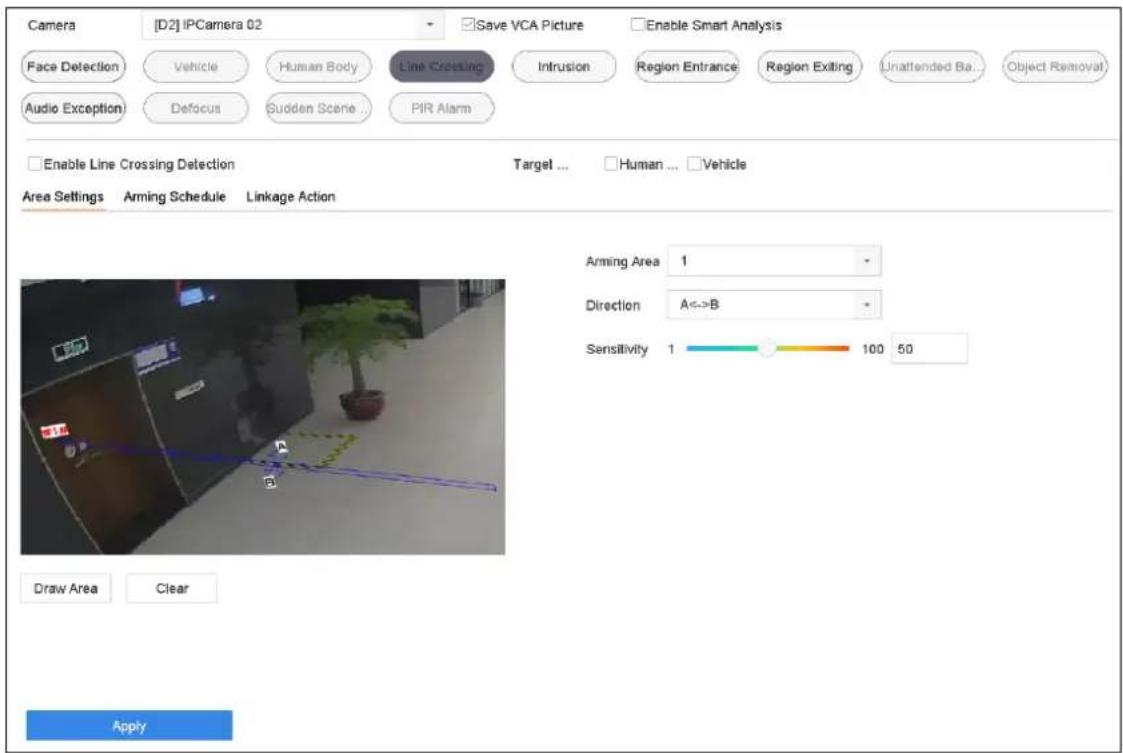
text_image
Camera [D2] IPCamera 02 Save VCA Picture Enable Smart Analysis Face Detection Vehicle Human Body Line Crossing Intrusion Region Entrance Region Exiting Unattended Ba... Object Removal Audio Exception Defocus Sudden Scene ... PIR Alarm Enable Line Crossing Detection Target ... Human ... Vehicle Area Settings Arming Schedule Linkage Action Arming Area 1 Direction A<>B Sensitivity 1 100 50 Draw Area Clear ApplyFigure 12-4 Line Crossing Detection
Step 3 Select a Camera to configure.
Step 4 Check Enable Line Crossing Detection checkbox.
Step 5 Optionally, check Save VCA Picture to save the captured pictures of line crossing detection.
Step 6 Select Target Detection as Human Body or Vehicle.
● Human Body: Discard non-human body pictures and videos which are not triggered by line crossing detection.
● Vehicle: Discard non-vehicle pictures and videos which are not triggered by line crossing detection.
Step 7 Follow the steps to set the line crossing detection rules and detection areas.
1) Select an Arming Region to configure. Up to 4 arming regions are selectable.
2) Select the Direction as A<->B, A->B, or A<-B.
A<->B: Only the arrow on the B side shows. When an object goes across the configured line with both direction can be detected and alarms are triggered.
A->B: Only the object crossing the configured line from the A side to the B side can be detected.
B->A: Only the object crossing the configured line from the B side to the A side can be detected.
3) Drag the Sensitivity slider to set the detection sensitivity. Sensitivity range: sensitivity. The higher the value is, the more easily the detection alarm can be triggered.
4) Click Draw Region and set two points in the preview window to draw a virtual line.
Step 8 Draw the maximum size/minimum size for targets. Only target the size of which is rangers from max. size and min. size will be trigger line crossing detection.
1) Click Max. Size/Min. Size.
2) Draw an area in preview window.
3) Click Stop Drawing.
Step 9 Set the arming schedule. Refer to Chapter 11.1 Configure Arming Schedule.
Step 10 Set the linkage actions. Refer to Chapter 11.2 Configure Alarm Linkage Actions.
Step 11 Click Apply.
12.5 Intrusion Detection
Purpose
Intrusion detection function detects people, vehicle or other objects which enter and loiter in a pre-defined virtual region, and some certain actions can be taken when the alarm is triggered.
Step 1 Go to System > Event > Smart Event.
Step 2 Click Intrusion.
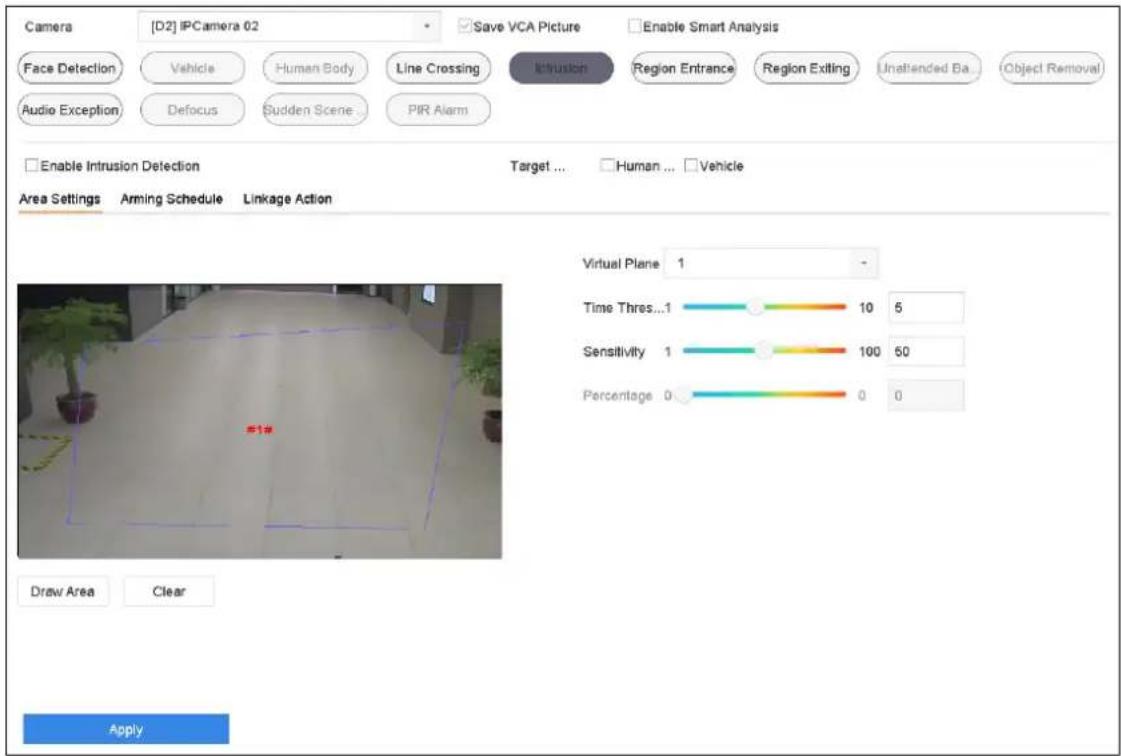
text_image
Camera [D2] IPCamera 02 Save VCA Picture Enable Smart Analysis Face Detection Vehicle Human Body Line Crossing Itrusion Region Entrance Region Exiting Unattended Ba Object Removal Audio Exception Defocus Sudden Scene PIR Alarm Enable Intrusion Detection Target ... Human ... Vehicle Area Settings Arming Schedule Linkage Action Virtual Plane 1 Time Thres...1 10 6 Sensitivity 1 100 50 Percentage 0 0 0 Draw Area Clear ApplyFigure 12-5 Intrusion Detection
Step 3 Select a Camera to configure.
Step 4 Check Enable Intrusion Detection.
Step 5 Optionally, check Save VCA Picture to save the captured pictures of intrusion detection.
Step 6 Select Target Detection as Human Body or Vehicle.
● Human Body: Discard non-human body pictures and videos which are not triggered by intrusion detection.
● Vehicle: Discard non-vehicle pictures and videos which are not triggered by intrusion detection.
Step 7 Follow the steps to set the detection rules and detection areas.
1) Select a Virtual Panel to configure. Up to 4 virtual panels are selectable.
2) Drag the sliders to set Time Threshold, Sensitivity, and Percentage.
Time Threshold: The threshold for the time of the object loitering in the region. When the duration of the object in the defined detection area is longer than the threshold, device will trigger an alarm. Its range is [1s-10s].
Sensitivity: The size of the object that can trigger the alarm. The higher the value is, the more easily the detection alarm can be triggered. Its range is [1-100].
Percentage: The ratio of the in-region part of the object that can trigger the alarm. For example, if the percentage is 50%, when the object enters the region and occupies half of the whole region, device will trigger an alarm. Its range is [1-100].
3) Click Draw Region and draw a quadrilateral in the preview window by specifying four vertexes of the detection region.
Step 8 Draw the maximum size/minimum size for targets. Only target the size of which is rangers from max. size and min. size will be trigger intrusion detection.
1) Click Max. Size/Min. Size.
2) Draw an area in preview window.
3) Click Stop Drawing.
Step 9 Set the arming schedule. Refer to Chapter 11.1 Configure Arming Schedule.
Step 10 Set the linkage actions. Refer to Chapter 11.2 Configure Alarm Linkage Actions.
Step 11 Click Apply.
12.6 Region Entrance Detection
Purpose
Region entrance detection function detects objects that enter a pre-defined virtual region from the outside.
Step 1 Go to System Management > Event Settings > Smart Event.
Step 2 Click Region Entrance Detection.
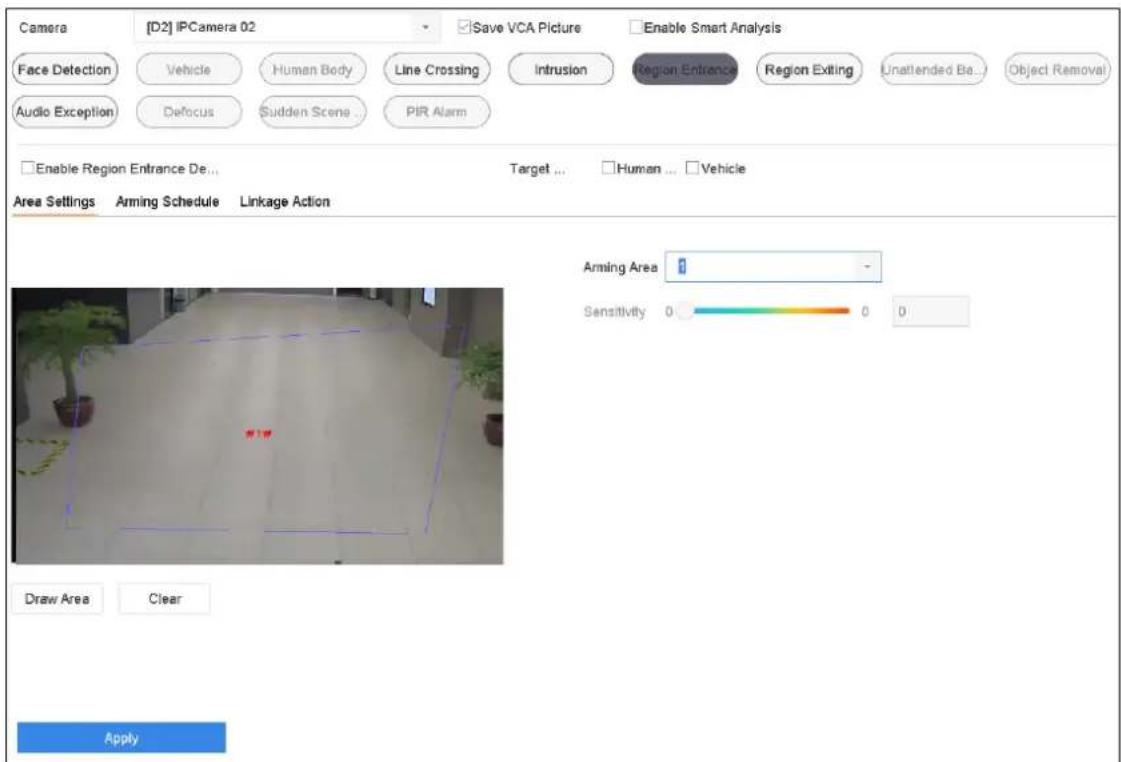
text_image
Camera [D2] IPCamera 02 Save VCA Picture Enable Smart Analysis Face Detection Vehicle Human Body Line Crossing Intrusion Region Entrance Region Exiting Unattended Ba... Object Removal Audio Exception Defocus Sudden Scene... PIR Alarm Enable Region Entrance De... Target ... Human ... Vehicle Area Settings Arming Schedule Linkage Action Arming Area Sensitivity 0 0 0 Draw Area Clear ApplyFigure 12-6 Region Entrance Detection
Step 3 Select a Camera to configure.
Step 4 Check Enable Region Entrance Detection.
Step 5 Optionally, check Save VCA Picture to save the captured pictures of region entrance detection.
Step 6 Select Target Detection as Human Body or Vehicle.
● Human Body: Discard non-human body pictures and videos which are not triggered by region entrance detection.
- Vehicle: Discard non-vehicle pictures and videos which are not triggered by region entrance detection.
Step 7 Follow the steps to set the detection rules and detection areas.
1) Select an Arming Region to configure. Up to 4 regions are selectable.
2) Drag the sliders to set Sensitivity.
Sensitivity: The higher the value is, the more easily the detection alarm can be triggered. Its range is [0-100].
3) Click Draw Region and draw a quadrilateral in the preview window by specifying four vertexes of the detection region.
Step 8 Configure Arming Schedule and Linkage Action.
Step 9 Click Apply.
12.7 Region Exiting Detection
Purpose
Region exiting detection function detects objects that exit from a pre-defined virtual region.
Step 1 Go to System > Event > Smart Event.
Step 2 Click Region Exiting.
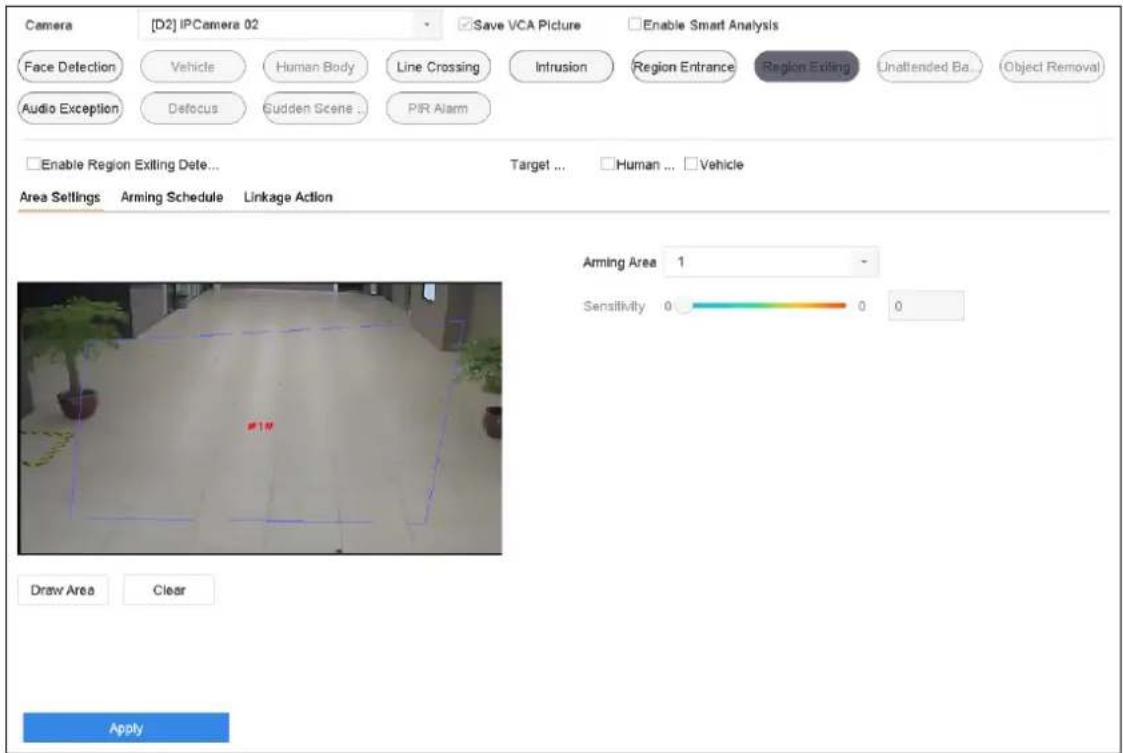
text_image
Camera [D2] IPCamera 02 Save VCA Picture Enable Smart Analysis Face Detection Vehicle Human Body Line Crossing Intrusion Region Entrance Region Exiting Unattended Ba... Object Removal Audio Exception Defocus Sudden Scene PIR Alarm Enable Region Exiting Detec Target ... Human ... Vehicle Area Settings Arming Schedule Linkage Action Arming Area 1 - Sensitivity 0 0 0 Draw Area Clear ApplyFigure 12-7 Region Exiting Detection
Step 3 Select a Camera to configure.
Step 4 Check Enable Region Exiting Detection.
Step 5 Optionally, check Save VCA Picture to save the captured pictures of region exiting detection.
Step 6 Select Target Detection as Human Body or Vehicle.
● Human Body: Discard non-human body pictures and videos which are not triggered by region exiting detection.
● Vehicle: Discard non-vehicle pictures and videos which are not triggered by region exiting detection.
Step 7 Follow the steps to set the detection rules and detection areas.
1) Select an Arming Region to configure. Up to 4 regions are selectable.
2) Drag the sliders to set Sensitivity.
Sensitivity: The higher the value is, the more easily the detection alarm can be triggered. Its range is [0-100].
3) Click Draw Region and draw a quadrilateral in the preview window by specifying four vertexes of the detection region.
Step 8 Set the arming schedule. Refer to Chapter 11.1 Configure Arming Schedule.
Step 9 Set the linkage actions. Refer to Chapter 11.2 Configure Alarm Linkage Actions.
Step 10 Click Apply.
12.8 Unattended Baggage Detection
Purpose
Unattended baggage detection function detects the objects left over in the pre-defined region such as the baggage, purse, dangerous materials, etc., and a series of actions can be taken when the alarm is triggered.
Step 1 Go to System > Event > Smart Event.
Step 2 Click Unattended Baggage.
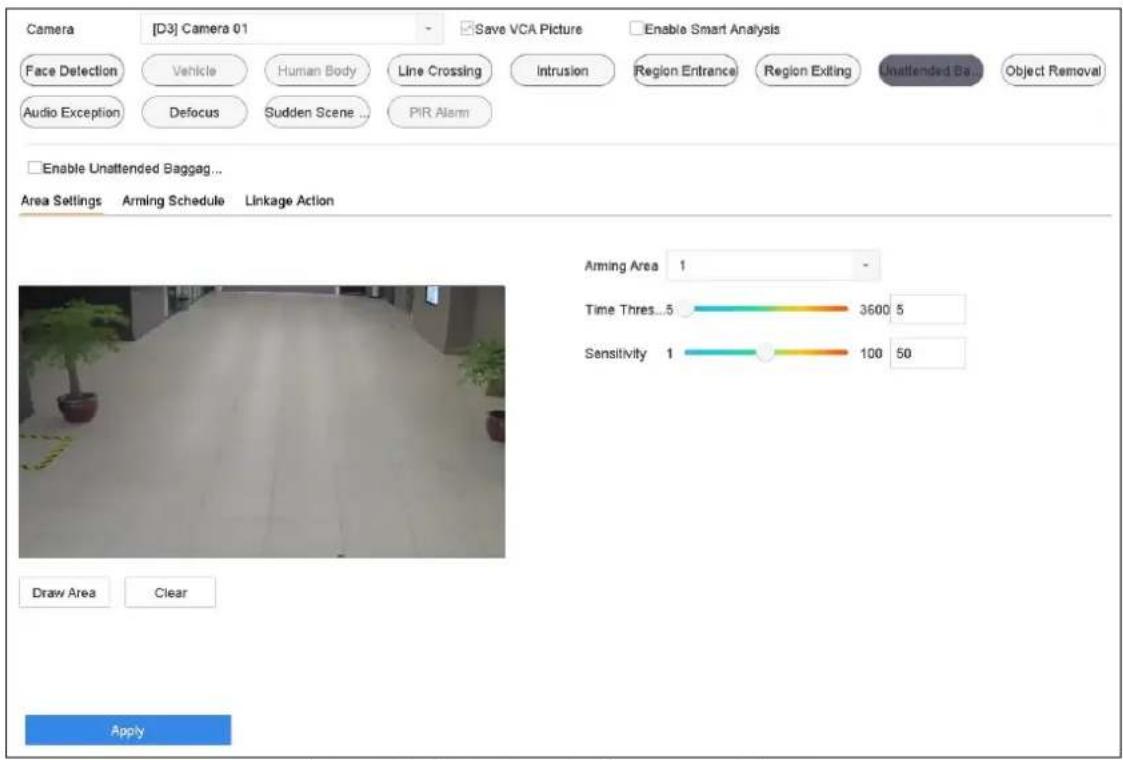
text_image
Camera [D3] Camera 01 Save VCA Picture Enable Smart Analysis Face Detection Vehicle Human Body Line Crossing Intrusion Region Entrance Region Exiting Unattended Bag Object Removal Audio Exception Defocus Sudden Scene ... PIR Alarm Enable Unattended Baggag... Area Settings Arming Schedule Linkage Action Arming Area 1 - Time Thres...5 3600 5 Sensitivity 1 100 50 Draw Area Clear ApplyFigure 12-8 Unattended Baggage Detection
Step 3 Select a Camera to configure.
Step 4 Check Enable Unattended Baggage Detection.
Step 5 Optionally, check Save VCA Picture to save the captured pictures of unattended baggage detection.
Step 6 Follow the steps to set the detection rules and detection areas.
1) Select an Arming Region to configure. Up to 4 regions are selectable.
2) Drag the sliders to set Time Threshold and Sensitivity.
Time Threshold: The time of the objects left over in the region. If the value is 10, alarm is triggered after the object is left and stayed in the region for 10s. Its range is [5s-20s].
Sensitivity: Similarity degree of the background image. The higher the value is, the more easily the detection alarm can be triggered.
3) Click Draw Region and draw a quadrilateral in the preview window by specifying four vertexes of the detection region.
Step 7 Set the arming schedule. Refer to Chapter 11.1 Configure Arming Schedule.
Step 8 Set the linkage actions. Refer to Chapter 11.2 Configure Alarm Linkage Actions.
Step 9 Click Apply.
12.9 Object Removal Detection
Purpose
Object removal detection function detects the objects removed from the pre-defined region, such as the exhibits on display, and a series of actions can be taken when the alarm is triggered.
Step 1 Go to System > Event > Smart Event.
Step 2 Click Object Removable.
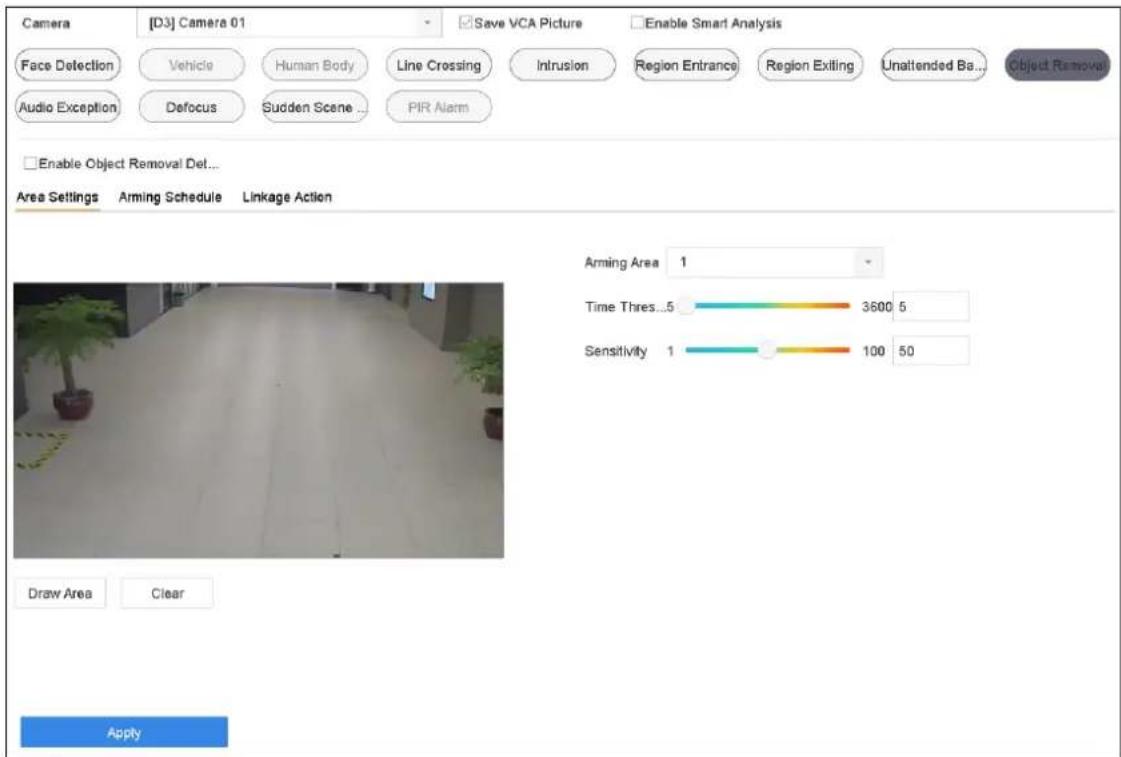
text_image
Camera [D3] Camera 01 Save VCA Picture Enable Smart Analysis Face Detection Vehicle Human Body Line Crossing Intrusion Region Entrance Region Exiting Unattended Ba... Object Removal Audio Exception Defocus Sudden Scene ... PIR Alarm Enable Object Removal Det... Area Settings Arming Schedule Linkage Action Arming Area 1 Time Thres...5 3600 5 Sensitivity 1 100 50 Draw Area Clear ApplyFigure 12-9 Object Removal Detection
Step 3 Select a Camera to configure.
Step 4 Check Enable Object Removable Detection.
Step 5 Optionally, check Save VCA Picture to save the captured pictures of object removable detection.
Step 6 Follow the steps to set the detection rules and detection areas.
1) Select an Arming Region to configure. Up to 4 regions are selectable.
2) Drag the sliders to set Time Threshold and Sensitivity.
Time Threshold: The time of the objects removed from the region. If the value is 10, alarm is triggered after the object disappeared from the region for 10s. Its range is [5s-20s].
Sensitivity: The similarity degree of the background image. Usually, when the sensitivity is high, a very small object taken from the region can trigger the alarm.
3) Click Draw Region and draw a quadrilateral in the preview window by specifying four vertexes of the detection region.
Step 7 Set the arming schedule. Refer to Chapter 11.1 Configure Arming Schedule.
Step 8 Set the linkage actions. Refer to Chapter 11.2 Configure Alarm Linkage Actions.
Step 9 Click Apply.
12.10 Audio Exception Detection
Purpose
Audio exception detection detects the abnormal sounds in the surveillance scene, such as the sudden increase/decrease of the sound intensity.
Step 1 Go to System > Event > Smart Event.
Step 2 Click Audio Exception.
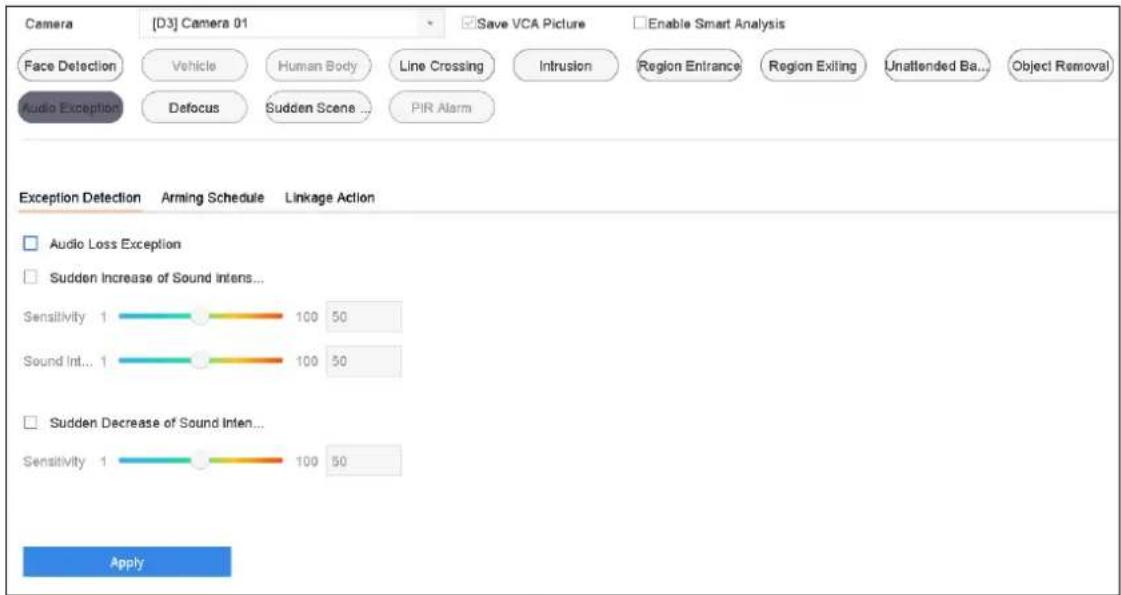
text_image
Camera [D3] Camera 01 Save VCA Picture Enable Smart Analysis Face Detection Vehicle Human Body Line Crossing Intrusion Region Entrance Region Exiting Unattended Ba... Object Removal Audio Exception Defocus Sudden Scene ... PIR Alarm Exception Detection Arming Schedule Linkage Action Audio Loss Exception Sudden Increase of Sound Intens... Sensitivity 1 100 50 Sound Int... 1 100 50 Sudden Decrease of Sound Inten... Sensitivity 1 100 50 ApplyFigure 12-10 Audio Exception Detection
Step 3 Select a Camera to configure.
Step 4 Optionally, check Save VCA Picture to save the captured pictures of audio exception detection.
Step 5 Follow the steps to set the detection rules.
1) Select the Exception Detection tab.
2) Check the checkboxes of Audio Loss Exception, Sudden Increase of Sound Intensity Detection, or Sudden Decrease of Sound Intensity Detection.
Audio Loss Exception: Detects the sound steep rise in the surveillance scene. You can set the detection sensitivity and threshold for sound steep rise. You need to configure its Sensitivity and Sound Intensity Threshold.
Sensitivity: The smaller the value is, the more severe the change should be to trigger the detection. Range [1-100].
Sound Intensity Threshold: It can filter the sound in the environment. The louder the environment sound, the higher the value should be. Adjust it according to the environment. Range [1-100].
Sudden Decrease of Sound Intensity Detection: Detects the sound steep drop in the surveillance scene. You need set the detection sensitivity [1-100].
Step 6 Set the arming schedule. Refer to Chapter 11.1 Configure Arming Schedule.
Step 7 Set the linkage actions. Refer to Chapter 11.2 Configure Alarm Linkage Actions.
Step 8 Click Apply.
12.11 Sudden Scene Change Detection
Purpose
Scene change detection detects the change of surveillance environment affected by the external factors, such as the intentional rotation of the camera.
Step 1 Go to System > Event > Smart Event.
Step 2 Click Sudden Scene Change.
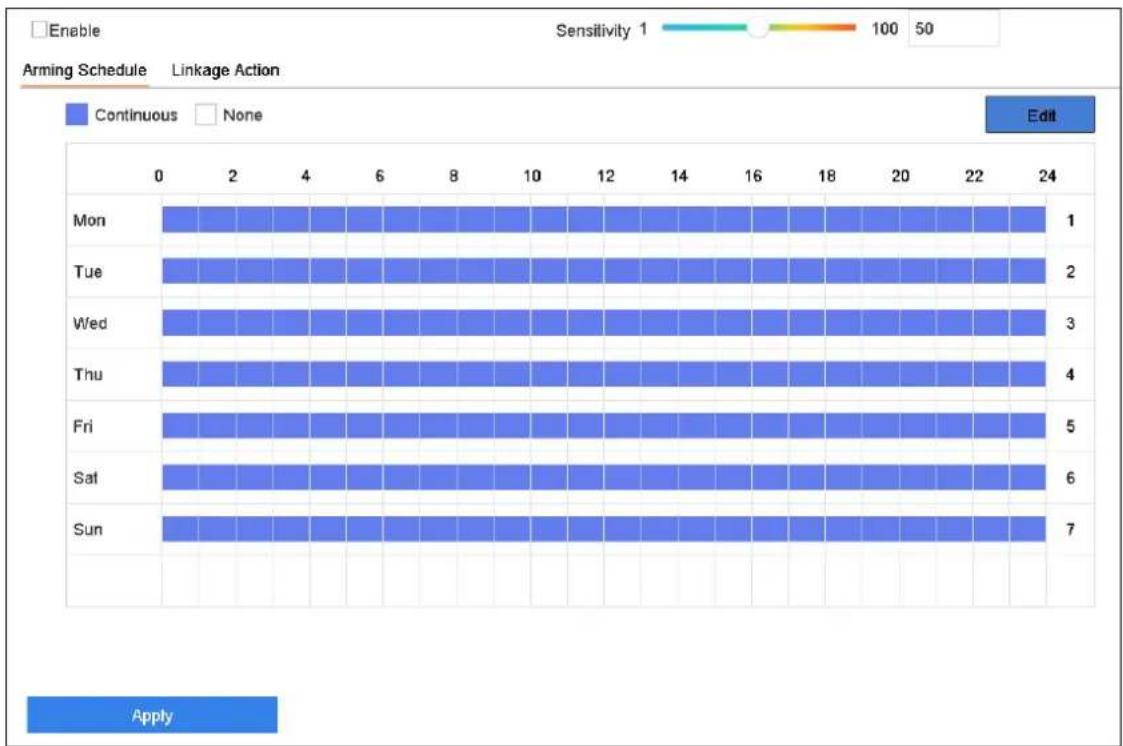
bar
| Day | Continuous | None | |---|---|---| | Mon | 1 | 0 | | Tue | 2 | 0 | | Wed | 3 | 0 | | Thu | 4 | 0 | | Fri | 5 | 0 | | Sat | 6 | 0 | | Sun | 7 | 0 | Apply Sensitivity 1 100 50 EditFigure 12-11 Sudden Scene Change
Step 3 Select a Camera to configure.
Step 4 Check Enable Sudden Scene Change Detection.
Step 5 Optionally, check Save VCA Picture to save the captured pictures of sudden scene change detection.
Step 6 Drag the Sensitivity slider to set the detection sensitivity. Sensitivity range: [1-100]. The higher the value is, the more easily the change of scene can trigger the alarm.
Step 7 Set the arming schedule. Refer to Chapter 11.1 Configure Arming Schedule.
Step 8 Set the linkage actions. Refer to Chapter 11.2 Configure Alarm Linkage Actions.
Step 9 Click Apply.
12.12 Defocus Detection
Purpose
The image blur caused by defocus of the lens can be detected.
Step 1 Go to System > Event > Smart Event.
Step 2 Click Defocus.
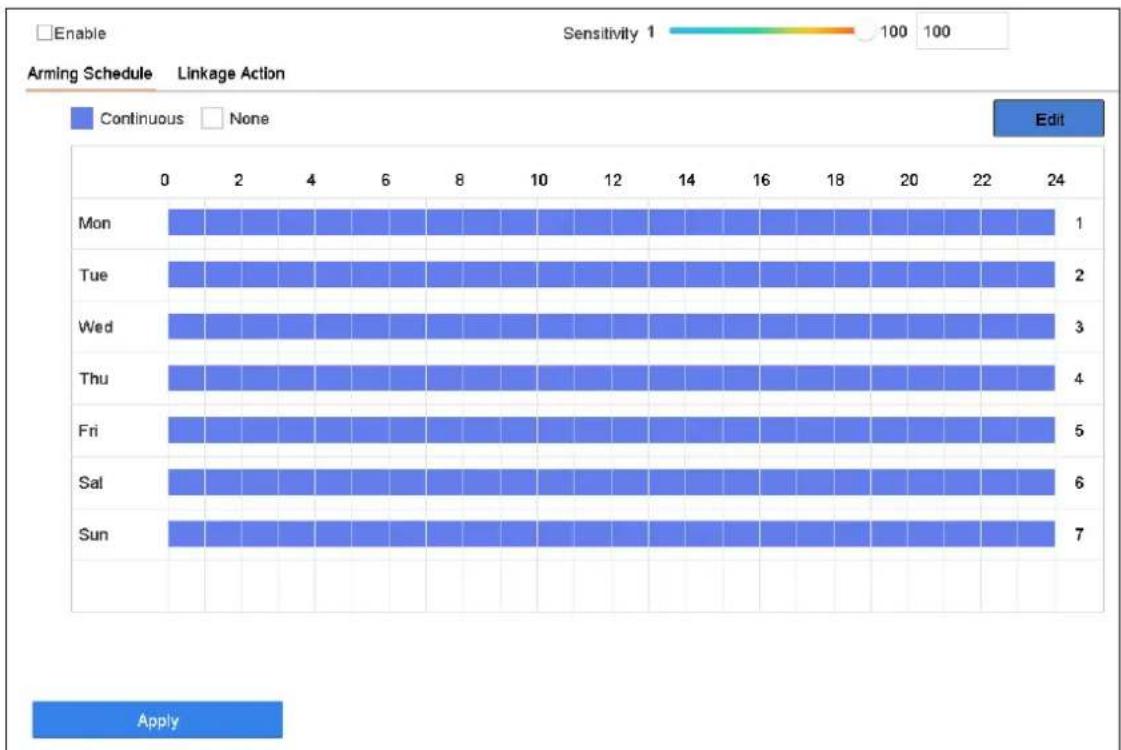
bar
| Day | Continuous | None | |---|---|---| | Mon | 1 | 0 | | Tue | 2 | 0 | | Wed | 3 | 0 | | Thu | 4 | 0 | | Fri | 5 | 0 | | Sat | 6 | 0 | | Sun | 7 | 0 | Apply Sensitivity 1 100 100 EditFigure 12-12 Defocus Detection
Step 3 Select a Camera to configure.
Step 4 Check Enable Defocus Detection.
Step 5 Optionally, check Save VCA Picture to save the captured pictures of defocus detection.
Step 6 Drag the Sensitivity slider to set the detection sensitivity. Sensitivity range: [1-100]. The higher the value is, the more easily the defocus image can be detected.
Step 7 Set the arming schedule. Refer to Chapter 11.1 Configure Arming Schedule.
Step 8 Set the linkage actions. Refer to Chapter 11.2 Configure Alarm Linkage Actions.
Step 9 Click Apply.
12.13 PIR Alarm
Purpose
A PIR (Passive Infrared) alarm is triggered when an intruder moves within the detector vision field. The heat energy dissipated by a person, or any other warm blooded creature such as dogs, cats, etc., can be detected.
Step 1 Go to System > Event > Smart Event.
Step 2 Click PIR Alarm.
Step 3 Select a Camera to configure.
Step 4 Check PIR Alarm.
Step 5 Optionally, check Save VCA Picture to save the captured pictures of PIR alarm.
Step 6 Set the arming schedule. Refer to Chapter 11.1 Configure Arming Schedule.
Step 7 Set the linkage actions. Refer to Chapter 11.2 Configure Alarm Linkage Actions.
Step 8 .Click Apply.
12.14 Enable Smart Search
Purpose
By enabling smart search for IP cameras do not support line crossing and intrusion detection, the device will analyze line crossing and intrusion events. Supported smart events will be changed after enabling smart search.
Step 1 Go to System > Event > Smart Event.
Step 2 Check Enable Smart Analysis.
Step 3 Click Yes on popup message box.
Chapter 13 Smart Search
With the configured VCA detection, the NVR supports the search for the pictures, video files and resources of the human body detection, behavior analysis, face detection, people counting and heat map results.
13.1 Face Search
Purpose:
When there are detected face picture captured and saved in HDD, you can enter the Face Search interface to search the picture and play the picture related video file according to the specified conditions.
Step 1 Go to Smart Analysis > Smart Search > Face Search.
Step 2 Select the IP camera for the face search.
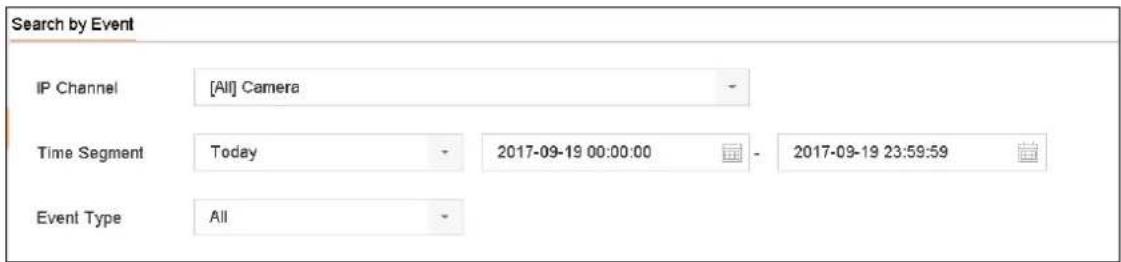
text_image
Search by Event IP Channel [All] Camera Time Segment Today 2017-09-19 00:00:00 2017-09-19 23:59:59 Event Type AllFigure 13-1 Face Search
Step 3 Specify the start time and end time for search the captured face pictures or video files.
Step 4 Click Start Search to start searching.
Step 5 Double click on a face picture to play its related video file in the view window on the top right Play the face picture related video file.
Step 6 To export the captured face pictures to local storage device, connect the storage device to the device and click Export.
13.2 Vehicle Search
Purpose:
You can search and view the matched captured vehicle pictures.
Step 1 Go to Smart Analysis > Smart Search > Vehicle Search.
Step 2 Select the IP camera for the vehicle search.
Step 3 Set search conditions.
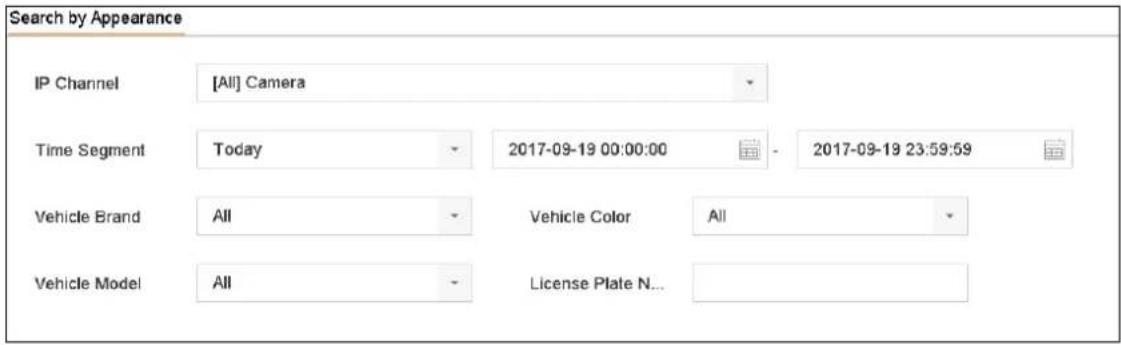
text_image
Search by Appearance IP Channel [All] Camera Time Segment Today 2017-09-19 00:00:00 2017-09-19 23:59:59 Vehicle Brand All Vehicle Color All Vehicle Model All License Plate N...Figure 13-2 Plate Search
Step 4 Click Start Search.
13.3 People Counting
Purpose:
The Counting is used to calculate the number of people entered or left a certain configured area and form in daily/weekly/monthly/annual reports for analysis.
Step 1 Go to Smart Analysis > Counting.
Step 2 Select the camera.
Step 3 Select the report type to Daily Report, Weekly Report, Monthly Report, or Annual Report.
Step 4 Set the Date to analyze. Then the people counting graphic will show.
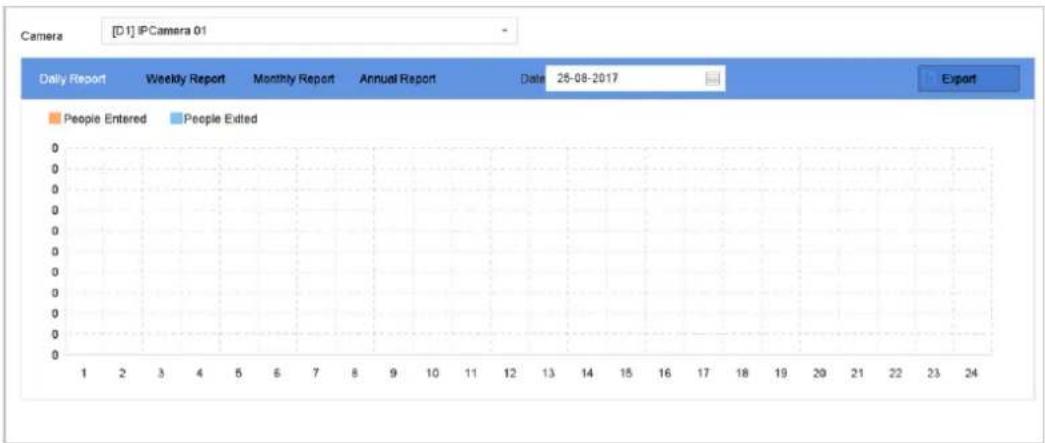
bar
| Date | People Entered | People Edited | |---|---|---| | 25-08-2017 | 0 | 0 |Figure 13-3 People Counting Interface
Step 5 (Optional) Click Export to export the report in excel format.
13.4 Heat Map
Purpose:
Heat map is a graphical representation of data. The heat map function is usually used to analyze how many people visited and stayed in a specified area.
The heat map function must be supported by the connected IP camera and the corresponding configuration must be set.
Step 1 Go to Smart Analysis > Heat Map.
Step 2 Select a camera.
Step 3 Select the report type as Daily Report, Weekly Report, Monthly Report, or Annual Report.
Step 4 Set the Data to analyze.
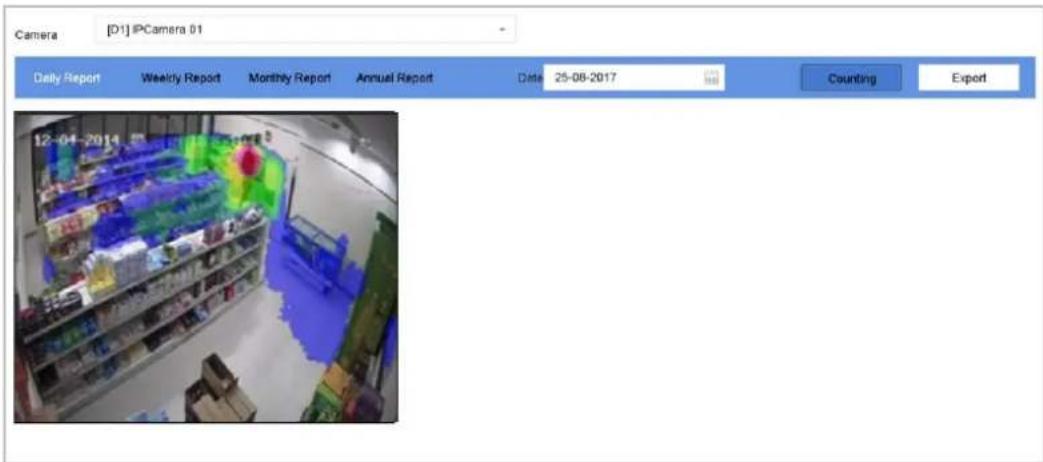
text_image
Camera [D1] IPCamera 01 Daily Report Weekly Report Monthly Report Annual Report Date 25-08-2017 Counting Export 12-04-2014Figure 13-4 Heat Map Interface
Step 5 Click Counting. Then the results displayed in graphics marked in different colors will show.

NOTE
As shown in the figure above, red color block (255, 0, 0) indicates the most welcome area, and blue color block (0, 0, 255) indicates the less-popular area.
Step 6 (Optional) Click Export to export the statistics report in excel format.
Chapter 14 Human Body Detection
14.1 View Engine Status
Purpose
Smart analysis engine is applied to analyze false alarm and smart analysis task. Go to Smart Analysis > Smart Analysis > Engine Configuration to view the working status, usage rate, and applied channel of smart analysis engine.
14.2 Human Body Search
Purpose
Search human body pictures according to manually specified search conditions.
Before you start
Import human body pictures you want to search.
Step 1 Go to Smart Analysis > Smart Search > Human Body Detection > Search by Appearance.
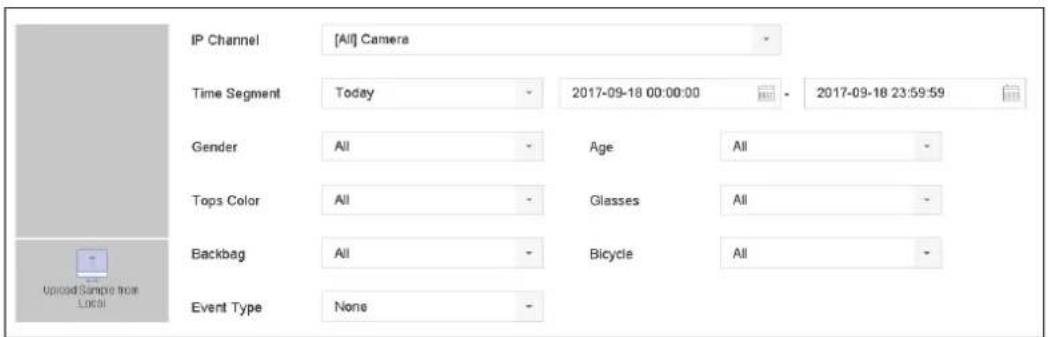
text_image
IP Channel [All] Camera Time Segment Today 2017-09-18 00:00:00 2017-09-18 23:59:59 Gender All Age All Tops Color All Glasses All Backbag All Bicycle All Event Type NoneFigure 14-1 Search by Appearance
Step 2 Specify search conditions.
Step 3 Click Start Search.
Chapter 15 POS Configuration
The device can be connected with the POS machine/server, and receive the transaction message for overlay on the image during the live view or playback, as well as trigger the POS event alarm.
15.1 Configure POS Settings
15.1.1 Configure POS Connection
Step 1 Go to System > POS Settings.
Step 2 Click Add to enter the POS adding interface.
Step 3 Select a POS from the drop-down list.
Step 4 Check Enable.

NOTE
The amount of POS devices supported for each device is the half of its channel amount.

text_image
Add POS Enable POS Name POS 3 POS Protocol AVE Custom Connection Mode Sniff ParametersFigure 15-1 POS Settings
Step 5 Select the POS protocol to Universal Protocol, EPSON, AVE or NUCLEUS.

NOTE
When the new protocol is selected, you should reboot the device to activate the new settings.
● Universal Protocol
Click the Advanced button to expand more settings when selecting the universal protocol. You can set the start line identifier, line break tag and end line tag for the POS overlay characters, and the case-sensitive property of the characters. You can also optionally check the filtering identifier and the XML protocol.
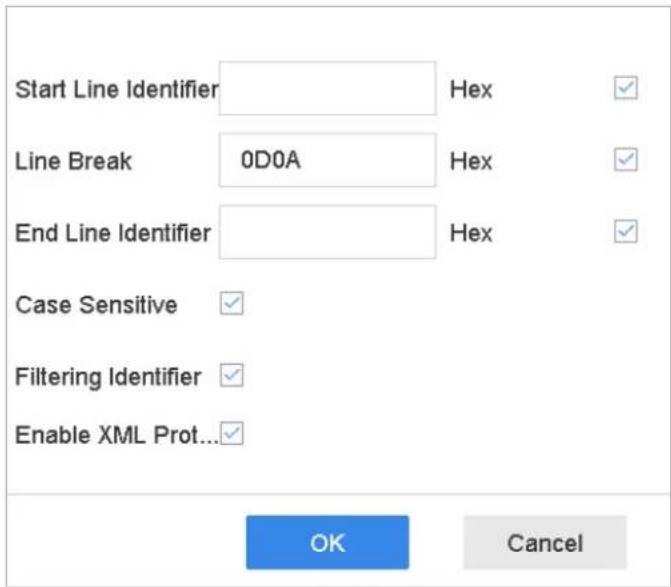
text_image
Start Line Identifier Line Break 0D0A End Line Identifier Case Sensitive Filtering Identifier Enable XML Prot... OK CancelFigure 15-2 Universal Protocol Settings
- EPSON
The fixed start and end line tag are used for EPSON protocol.
● AVE
The fixed start and end line tag are used for AVE protocol. And the serial port and virtual serial port connection types are supported.
4) Click the Custom to configure the AVE settings.
5) Se the rule to VSI-ADD or VNET.
6) Set the address bit of the POS message to send.
7) Click OK to save the settings.
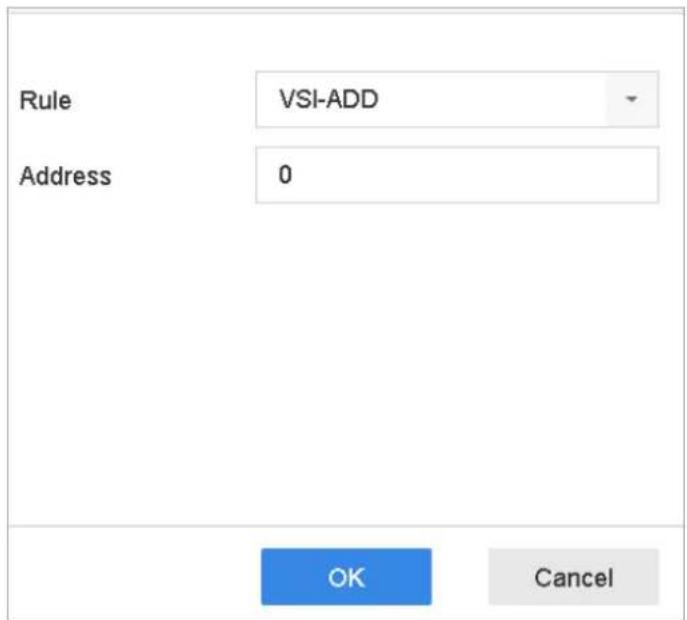
text_image
Rule VSI-ADD Address 0 OK CancelFigure 15-3 AVE Settings
- NUCLEUS
8) Click the Custom to configure the NUCLEUS settings.
9) Enter the employee No. shift No. and the terminal No. in the field. The matching message sent from the POS device will be used as the valid POS data.

NOTE
The NUCLEUS protocol must be used in the RS-232 connection communication.
Step 6 Select the connection mode to TCP Reception, UDP Reception, Multicast, RS-232,
USB-to-RS-232 or Sniff, and click Parameters to configure the parameters for each connection mode.
- TCP Connection
10) When using TCP connection, the port must be set from 1 to 65535, and the port for each POS machine must be unique.
11) Set the Allowed Remote IP Address of the device sending the POS message.
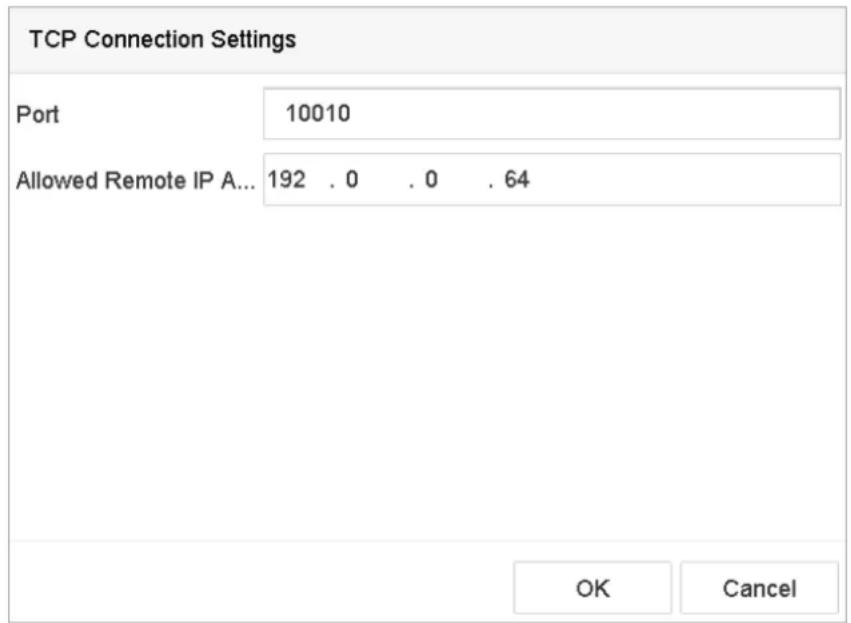
text_image
TCP Connection Settings Port 10010 Allowed Remote IP A... 192 . 0 . 0 . 64 OK CancelFigure 15-4 TCP Connection Settings
- UDP Connection
12) When using UDP connection, the port must be set from 1 to 65535, and the port for each POS machine must be unique.
13) Set the Allowed Remote IP Address of the device sending the POS message.
- USB-to-RS-232 Connection
Configure the port parameters of USB-to-RS-232 convertor, including the serial number of port, baud rate, data bit, stop bit, parity and flow ctrl.
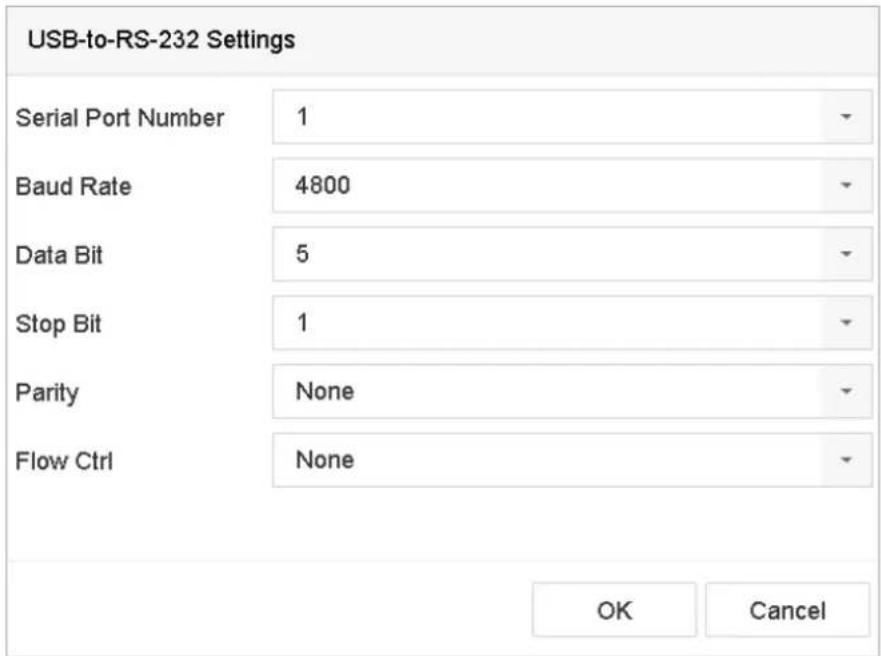
text_image
USB-to-RS-232 Settings Serial Port Number 1 Baud Rate 4800 Data Bit 5 Stop Bit 1 Parity None Flow Ctrl None OK CancelFigure 15-5 USB-to-RS-232 Settings
● RS-232 Connection
Connect the device and the POS machine via RS-232. The RS-232 settings can be configured in Menu>Configuration>RS-232. The Usage must be set to Transparent Channel.
● Multicast Connection
When connecting the device and the POS machine via Multicast protocol, set the multicast address and port.
- Sniff Connection
Connect the device and the POS machine via Sniff. Configure the source address and destination address settings.
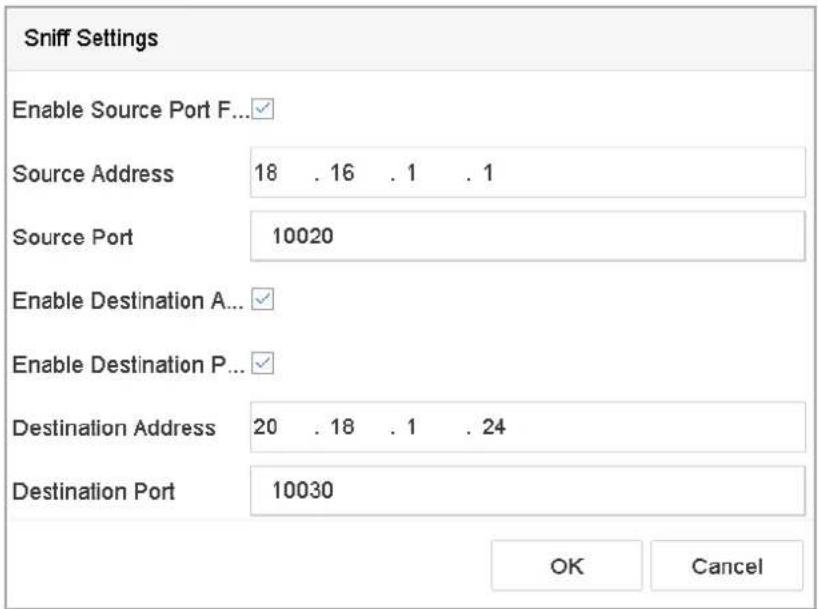
text_image
Sniff Settings Enable Source Port F... Source Address 18 . 16 . 1 . 1 Source Port 10020 Enable Destination A... Enable Destination P... Destination Address 20 . 18 . 1 . 24 Destination Port 10030 OK CancelFigure 15-6 Sniff Settings
15.1.2 Configure POS Text Overlay
Step 1 Go to System > POS Settings.
Step 2 Click Channel Linkage and Display tab.
Step 3 Select the linked channel to overlay the POS characters.
Step 4 Set the characters overlay for the enabled POS.
● Character encoding format: currently the Latin-1 format is available.
● Overlay mode of the characters to display in scrolling or page mode.
● Font size and font color.
● Display time (sec) of the characters. The value ranges 5 -3600 sec.
- Timeout of POS event. The value ranges 5 -3600 sec. When the device has not received the POS message over the defined time, the transaction is finished.
Step 5 In the Privacy Settings, set the POS privacy information to not display on the image, e.g., the card number, or the user name, etc.
Result: The defined privacy information will be displayed in ***on the image instead.
Step 6 (optional) Check the checkbox to enable the Overlay POS in Live View. When this feature is enabled, the POS information can be overlain on the live view image.
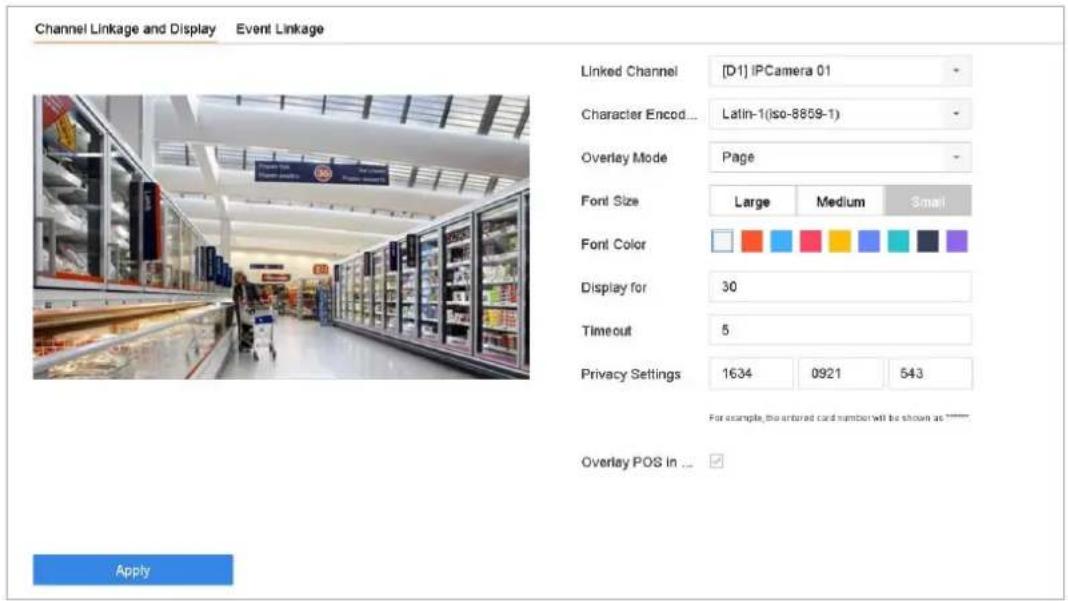
text_image
Channel Linkage and Display Event Linkage Linked Channel [D1] iPCamera 01 Character Encod... Latin-1(iso-8859-1) Overlay Mode Page Font Size Large Medium Small Font Color Display for 30 Timeout 5 Privacy Settings 1634 0921 543 For example, the entered card number will be shown as Overlay POS in ... ApplyFigure 15-7 Overlay Character Settings
i NOTE
You can adjust the size and position of textbox on the preview screen of POS settings interface by dragging the frame.
Step 7 Click Apply to activate the settings.
15.2 Configure POS Alarm
Purpose:
The POS event can trigger channels to start recording, or trigger full screen monitoring, audio warning, notifying the surveillance center, sending email and so on.
Step 1 Go to Storage > Recording Schedule.
Step 2 Set the arming schedule of the POS event.
Step 3 Go to System > POS Settings.
Step 4 On the POS adding or editing interface, click the Event Linkage tab.
Step 5 Select the normal linkage actions: full screen monitoring, audio warning or send Email.
Step 6 Select one or more alarm output (s) to trigger.
Step 7 Select one or more channels to record or become full-screen monitoring when POS alarm is triggered.
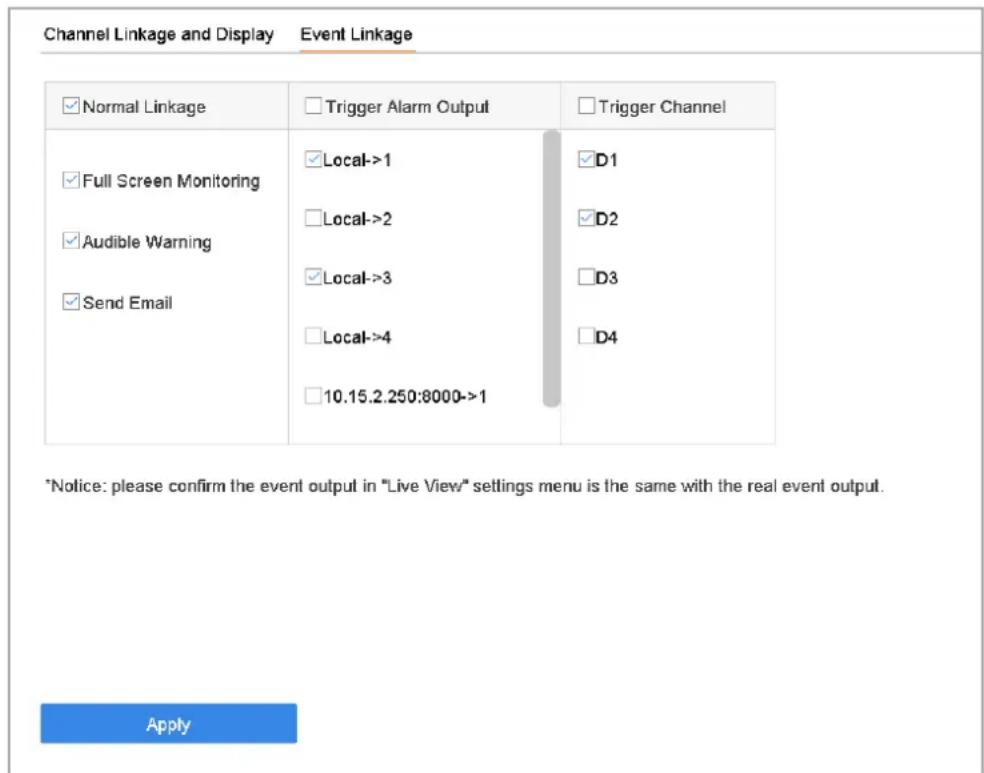
text_image
Channel Linkage and Display Event Linkage ✓ Normal Linkage ✓ Trigger Alarm Output ✓ Trigger Channel ✓ Full Screen Monitoring ✓ Local->1 ✓D1 ✓ Audible Warning ✓ Local->2 ✓D2 ✓ Send Email ✓ Local->3 ✓D3 ✓ Local->4 ✓D4 □10.15.2.250:8000->1 *Notice: please confirm the event output in "Live View" settings menu is the same with the real event output. ApplyFigure 15-8 Set Trigger Cameras of POS
Step 8 Click Apply to save the settings.
Chapter 16 Network Settings
16.1 Configure TCP/IP Settings
Purpose
TCP/IP settings must be properly configured before you can operate the device over network.
Step 1 Go to System > Network > TCP/IP.
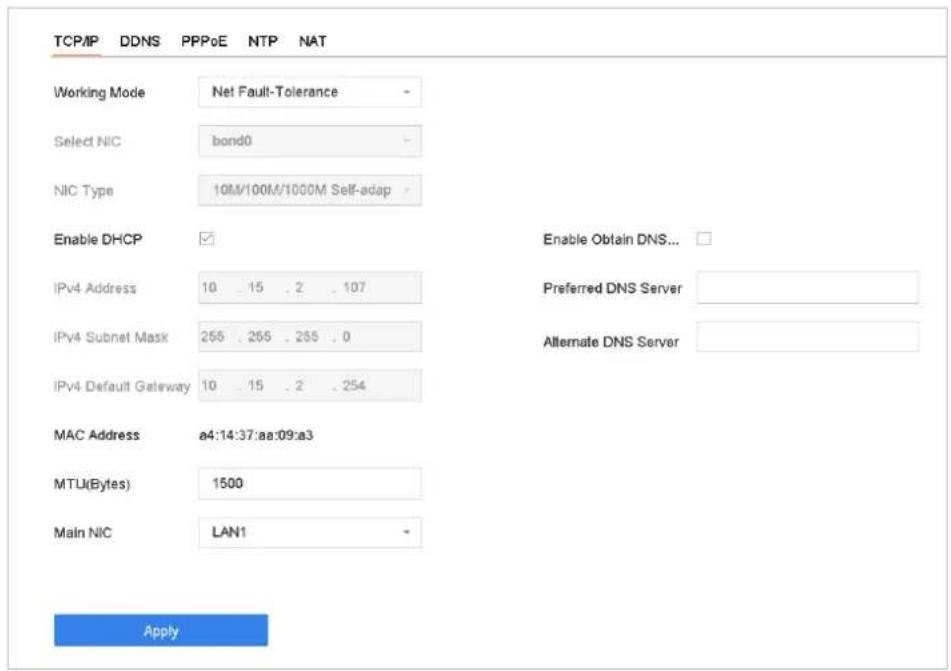
text_image
TCP/IP DDNS PPPoE NTP NAT Working Mode Net Fault-Tolerance - Select NIC bond0 - NIC Type 10M/100M/1000M Self-adap - Enable DHCP ✓ Enable Obtain DNS... IPv4 Address 10 . 15 . 2 . 107 Preferred DNS Server IPv4 Subnet Mask 255 . 255 . 255 . 0 Alternate DNS Server IPv4 Default Gateway 10 . 15 . 2 . 254 MAC Address a4:14:37:aa:09:a3 MTU(Bytes) 1500 Main NIC LAN1 ApplyFigure 16-1 TCP/IP Settings
Step 2 Select Net-Fault Tolerance or Multi-Address Mode under Working Mode.
- Net-Fault Tolerance: The two NIC cards use the same IP address, and you can select the main NIC to LAN1 or LAN2. By this way, in case of one NIC card failure, the device will automatically enable the other standby NIC card so as to ensure the normal running of the whole system.
- Load Balance: By using the same IP address and two NIC cards share the load of the total bandwidth, which enables the system to provide two Gigabit network capacity.
- Multi-address Mode: The parameters of the two NIC cards can be configured independently. You can select LAN1 or LAN2 under Select NIC for parameter settings. You can select one NIC card as default route. And then the system is connecting with the extranet the data will be forwarded through the default route.
Step 3 Configure other IP settings as needed.

NOTE
- Check Enable DHCP to obtain IP settings automatically if a DHCP server is available in the network.
● Valid range of MTU value is 500 to 9676.
Step 4 Click Apply.
16.2 Configuring Hik-Connect
Hik-Connect provides the mobile phone application and the service platform page (www.hik-connect.com) to access and manage your connected encoder, which enables you to get a convenient remote access to the surveillance system.

NOTE
The Hik-Connect can be enabled via operation on SADP software, GUI and Web browser. We introduce the operation steps on GUI in this section.
Step 1 Go to Configuration > Network > Advanced Settings > Platform Access to enter the Hik-Connect Settings page.
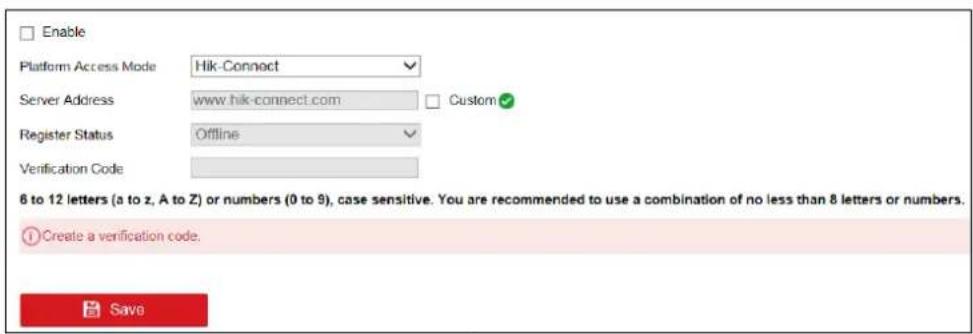
text_image
Enable Platform Access Mode Hik-Connect Server Address www.hik-connect.com Custom Register Status Offline Verification Code 6 to 12 letters (a to z, A to Z) or numbers (0 to 9), case sensitive. You are recommended to use a combination of no less than 8 letters or numbers. ① Create a verification code. SaveFigure 16-2 Hik-Connect Settings
Step 2 Check the Enable to activate the function.
Then the Service Terms page pops up as below.
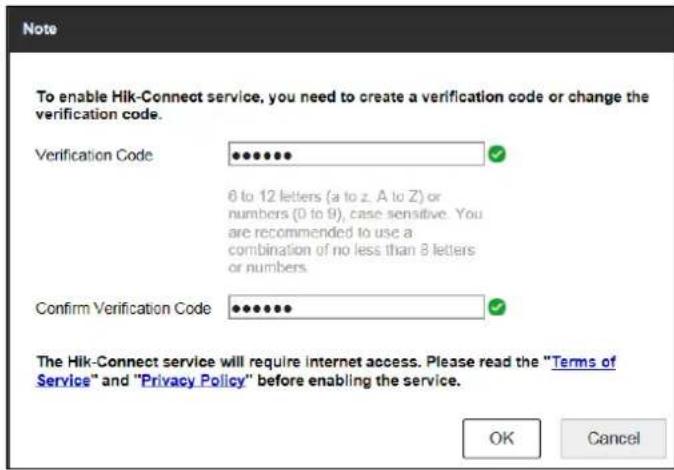
text_image
To enable Hik-Connect service, you need to create a verification code or change the verification code. Verification Code 6 to 12 letters (a to z, A to Z) or numbers (0 to 9), case sensitive. You are recommended to use a combination of no less than 8 letters or numbers. Confirm Verification Code The Hik-Connect service will require Internet access. Please read the "Terms of Service" and "Privacy Policy" before enabling the service. OK CancelFigure 16-3 Service Terms
1) Create the verification code in the Verification Code text field.
2) Confirm the verification code.
3) Read Terms of Service and Privacy Policy before enabling the service.
4) Click OK to save the settings and return to the Hik-Connect page.
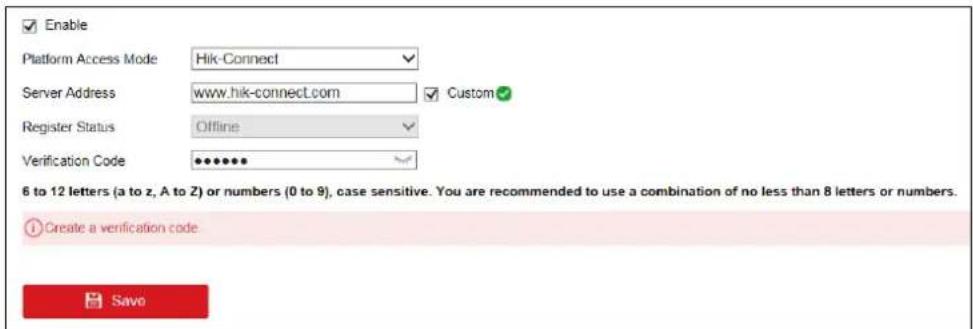
text_image
Enable Platform Access Mode Hik-Connect Server Address www.hik-connect.com Custom Register Status Offline Verification Code ••••••• 6 to 12 letters (a to z, A to Z) or numbers (0 to 9), case sensitive. You are recommended to use a combination of no less than 8 letters or numbers. Create a verification code SaveFigure 16-4 Hik-Connect Settings

NOTE
● Hik-Connect is disabled by default.
● The verification code is empty when the device leaves factory.
● The verification code must contain 6 to 12 letters or numbers and is case sensitive.
● Every time you enable Hik-Connect, the Service Terms page pops up and you should read Terms of Service and Privacy Policy before enabling it.
Step 3 If you want to customize the server, enable Custom and enter the Server Address in the text field.
Step 4 Click Save.
Step 5 After configuration, you can access and manage the DVR by your mobile phone or by the website (www.hik-connect.com).
- For the iOS users, please scan the QR code below to download the Hik-Connect application for the subsequent operations.
text_image
QR code image containing encoded data, no visible human-readable textFigure 16-5 QR Code for iOS Users
- For the Android users, please scan the QR code below to download the Hik-Connect application for the subsequent operations. You must install googleplay on your Android mobile phone to skip to the address successfully.
text_image
QR code image containing encoded data, no visible human-readable textFigure 16-6 QR Code for Android Users

NOTE
Please refer to the help file on the official website (www.hik-connect.com) and the Hik-Connect Mobile Client User Manual for adding the device to Hik-Connect and more operation instructions.
16.3 Configure DDNS
Purpose
You can set Dynamic DNS service for network access. Different DDNS modes are available: DynDNS, PeanutHull, and NO-IP.
Before You Start
You must register DynDNS, PeanutHull and NO-IP services with your ISP before configuring DDNS settings.
Step 1 Go to System > Network > TCP/IP > DDNS.
Step 2 Check Enable.
Step 3 Select DynDNS under DDNS Type.

NOTE
PeanutHull and NO-IP are also available under DDNS Type, and required information should be entered accordingly.
Step 4 Enter Server Address for DynDNS (i.e. members.dyndns.org).
Step 5 Under Device Domain Name, enter the domain name obtained from the DynDNS website.
Step 6 Enter the User Name and Password registered in the DynDNS website.
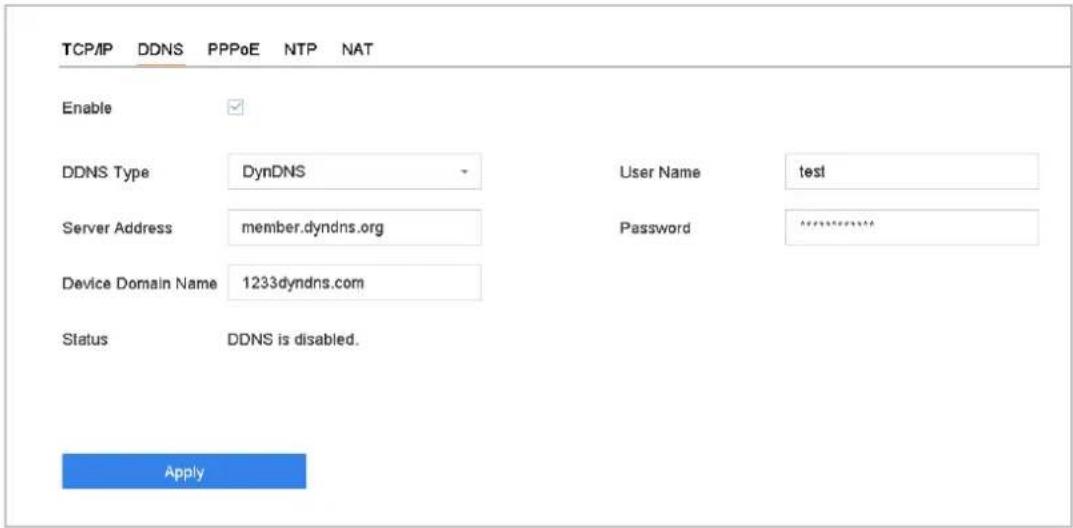
text_image
TCP/IP DDNS PPPoE NTP NAT Enable DDNS Type DynDNS User Name test Server Address member.dyndns.org Password ********** Device Domain Name 1233dyndns.com Status DDNS is disabled. ApplyFigure 16-7 DDNS Settings
Step 7 Click Apply.
16.4 Configure PPPoE
If the device is connected to Internet through PPPoE, you need to configure user name and password accordingly under System > Network > TCP/IP > PPPoE.

NOTE
Contact your Internet service provider for details about PPPoE service.
16.5 Configure NTP
Purpose
Connection to a network time protocol (NTP) server can be configured on your device to ensure the accuracy of system date and time.
Step 1 Go to System > Network > TCP/IP > NTP.
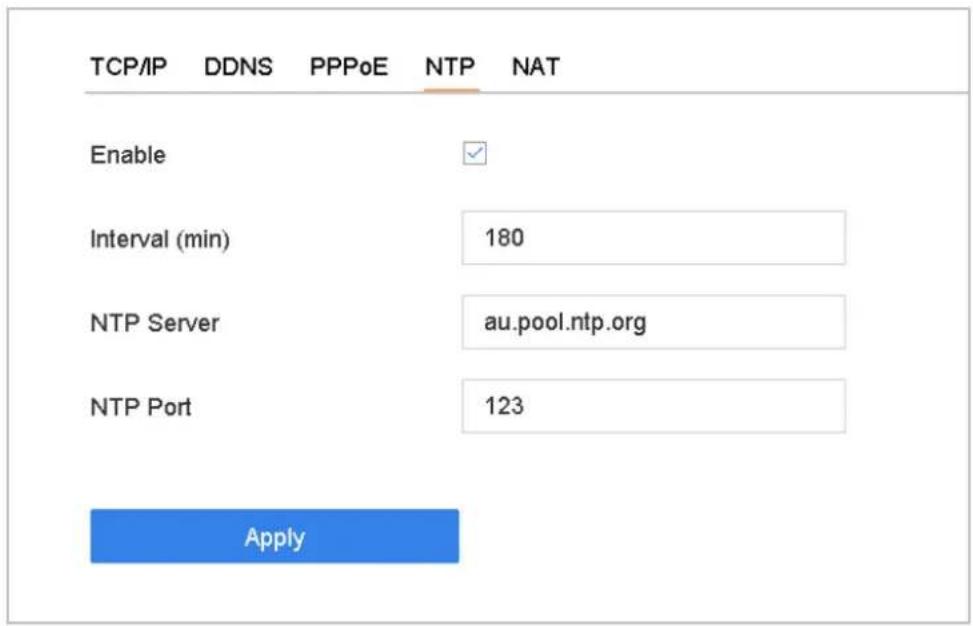
text_image
TCP/IP DDNS PPPoE NTP NAT Enable Interval (min) 180 NTP Server au.pool.ntp.org NTP Port 123 ApplyFigure 16-8 NTP Settings
Step 2 Check Enable.
Step 3 Configure NTP settings as need.
- Interval (min): Time interval between two time synchronization with NTP server.
● NTP Server: IP address of the NTP server.
● NTP Port: Port of the NTP server.
Step 4 Click Apply.
16.6 Configure SNMP
Purpose
You can configure SNMP settings to get device status and parameter information.
Before You Start
Download the SNMP software to receive device information via SNMP port. By setting the trap address and port, the device is allowed to send alarm event and exception message to the surveillance center.
Step 1 Go to System > Network > Advanced > SNMP.
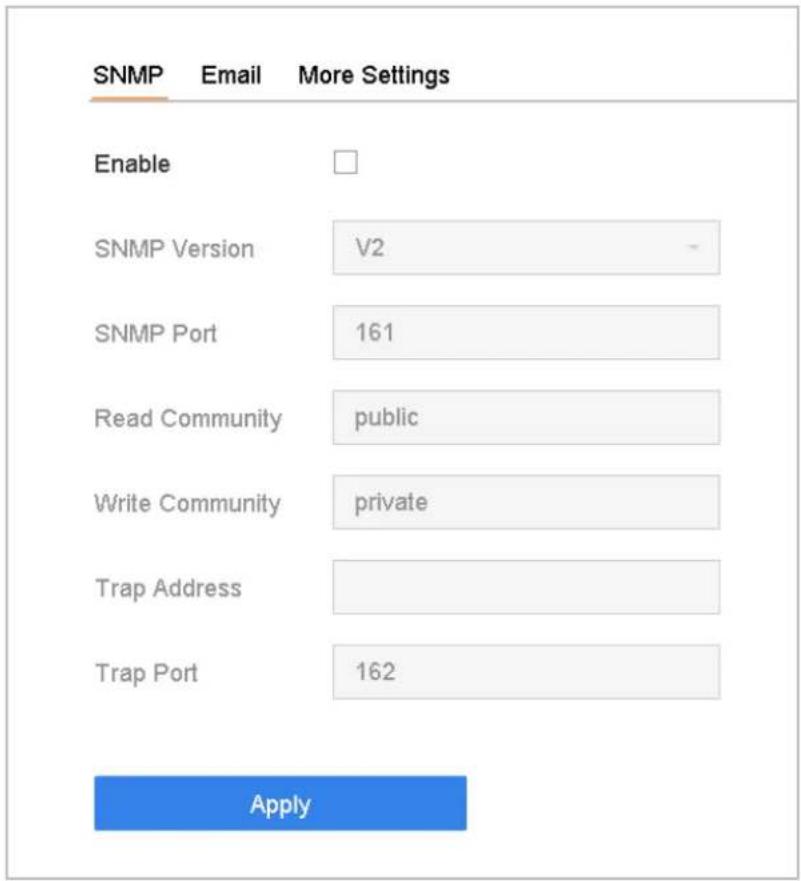
text_image
SNMP Email More Settings Enable SNMP Version V2 - SNMP Port 161 Read Community public Write Community private Trap Address Trap Port 162 ApplyFigure 16-9 SNMP Settings
Step 2 Check Enable. A message will pop up to prompt possible security risk and click Yes to continue.
Step 3 Configure the SNMP settings as needed.
● Trap Address: IP address of the SNMP host.
● Trap Port: Port of the SNMP host.
Step 4 Click Apply.
16.7 Configure Email
Purpose
The system can be configured to send an Email notification to all designated users when a specified event occur, such as an alarm or motion event is detected, or the administrator password is changed, etc.
Before You Start
The device must be connected to a local area network (LAN) that contains an SMTP mail server. The network must also be connected to either an intranet or the Internet depending on the location of the e-mail accounts to which you want to send notification.
Step 1 Go to System > Network > Advanced > Email.
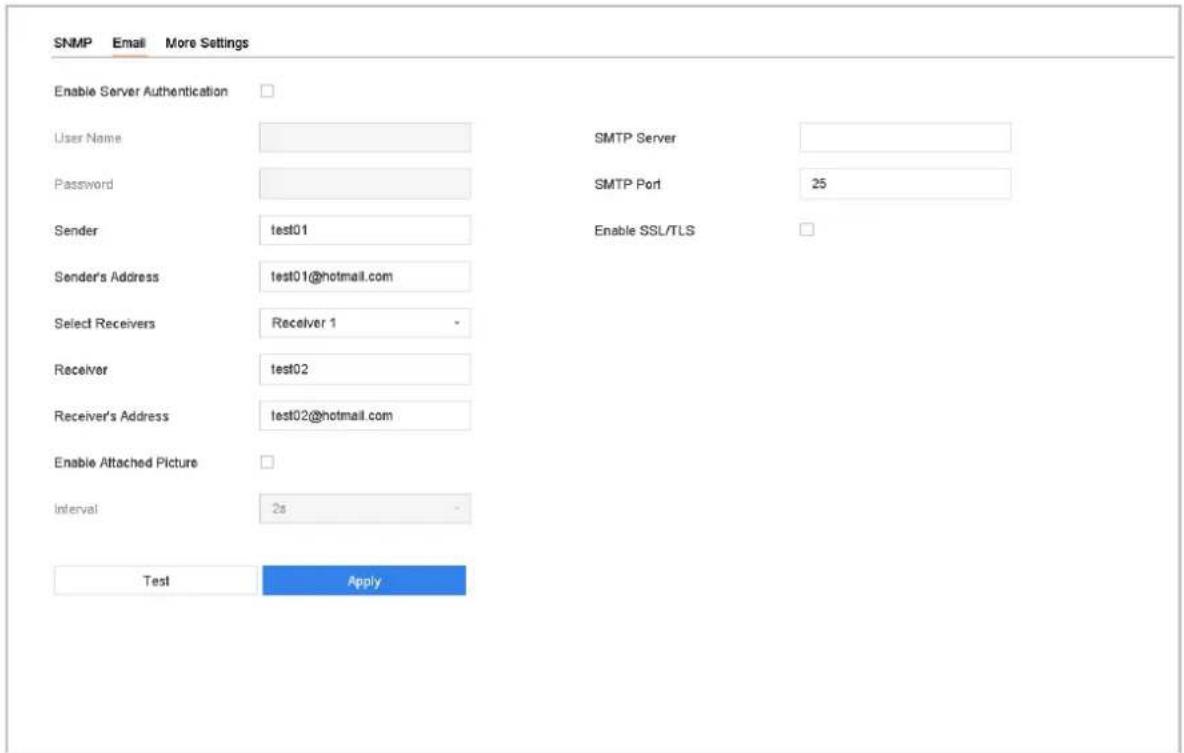
text_image
SNMP Email More Settings Enable Server Authentication User Name Password Sender test01 Sender's Address test01@hotmail.com Select Receivers Receiver 1 Receiver test02 Receiver's Address test02@hotmail.com Enable Attached Picture Interval 25 Test ApplyFigure 16-10 Email Settings
Step 2 Configure the following Email settings.
- Enable Server Authentication: Check to enable the function if the SMTP server requires user authentication and enter user name and password accordingly.
● SMTP Server: The IP address of SMTP Server or host name (e.g., smtp.263xmail.com).
● SMTP Port: The SMTP port. The default TCP/IP port used for SMTP is 25.
● Enable SSL/TLS: Check to enable SSL/TLS if required by the SMTP server. - Sender: The name of the sender.
- Sender's Address: Sender's Address.
- Select Receivers: Select the receiver. Up to 3 receivers can be configured.
● Receiver: The name of the receiver.
● Receiver's Address: The Email address of user to be notified. - Enable Attached Picture: Check to enable the function if you want to send email with attached alarm images. The interval is the time between two adjacent alarm images.
Step 3 Click Apply.
Step 4 (Optional) Click Test to send a test email.
16.8 Configure Ports
You can configure different types of ports to enable relevant functions.
Go to System > Network > Advanced > More Settings and configure port settings as needed.
- Alarm Host IP/Port: With a remote alarm host configured, the device will send the alarm event or exception message to the host when an alarm is triggered. The remote alarm host must have the client management system (CMS) software installed.
The Alarm Host IP refers to the IP address of the remote PC on which the CMS software (e.g., iVMS-4200) is installed, and the Alarm Host Port (7200 by default) must be the same as the alarm monitoring port configured in the software. - Server Port: Server port (8000 by default) should be configured for remote client software access and its valid range is 2000 to 65535.
- HTTP Port: HTTP port (80 by default) should be configured for remote web browser access.
- Multicast IP: Multicast can be configured to enable live view for cameras that exceed the maximum number allowed through network. A multicast IP address covers Class-D IP ranging from 224.0.0.0 to 239.255.255.255 and it is recommended to use the IP address ranging from 239.252.0.0 to 239.255.255.255.
When adding a device to the CMS software, the multicast address must be the same as that of the device. - RTSP Port: RTSP (Real Time Streaming Protocol) is a network control protocol designed for use in entertainment and communications systems to control streaming media servers. The port is 554 by default.
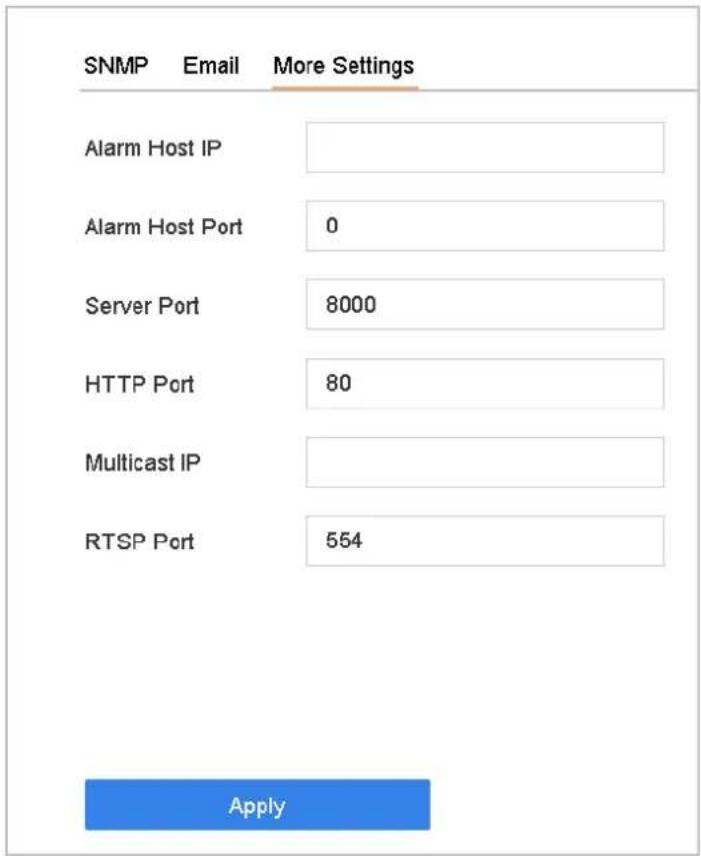
text_image
SNMP Email More Settings Alarm Host IP Alarm Host Port 0 Server Port 8000 HTTP Port 80 Multicast IP RTSP Port 554 ApplyFigure 16-11 Port Settings
Chapter 17 Hot Spare Device Backup
Purpose:
The device can form an N+1 hot spare system. The system consists of several working devices and a hot spare device; when the working device fails, the hot spare device switches into operation, thus increasing the reliability of the system. Please contact dealer for details of models which support the hot spare function.
A bidirectional connection shown in the figure below is required to be built between the hot spare device and each working device.

flowchart
graph LR
    A["Start Finish"] --> B["Set a hot spare device"]
    B --> C["Add a hot spare device on normal device"]
    C --> D["Add the normal device on the hot spare device"]
    D --> E["End"]
Figure 17-1 Building Hot Spare System
Before you start:
At least 2 devices are online.
17.1 Set Hot Spare Device
Purpose:
Hot spare devices takes over working device tasks when working device fails.
Step 1 Go to System > Hot Spare.
Step 2 Set the Work Mode as Hot Spare Mode.
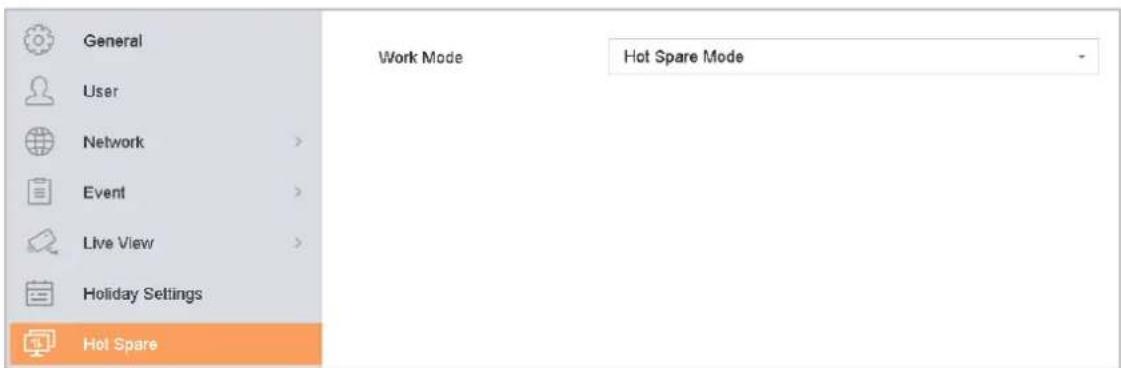
text_image
General User Network > Event > Live View > Holiday Settings Hot Spare Work Mode Hot Spare ModeFigure 17-2 Hot Spare
Step 3 Click Apply.
Step 4 Click Yes in popup attention box to reboot the device.

NOTE
● The camera connection will be disabled when the device works in the hot spare mode.
- It is highly recommended to restore the defaults of the device after switching the working mode of the hot spare device to normal mode to ensure the normal operation afterwards.
17.2 Set Working Device
Step 1 Go to System > Hot Spare.
Step 2 Set the Work Mode as Normal Mode.
Step 3 Check Enable.
Step 4 Enter the IP address and admin password of hot spare device.
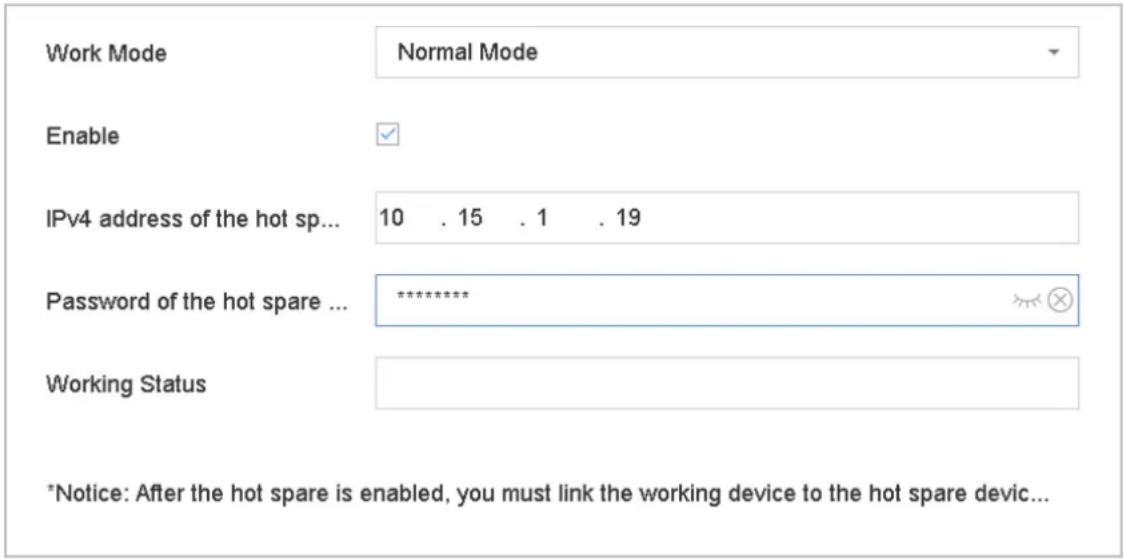
text_image
Work Mode Normal Mode Enable IPv4 address of the hot sp... 10 . 15 . 1 . 19 Password of the hot spare ... ****** Working Status *Notice: After the hot spare is enabled, you must link the working device to the hot spare devic...Figure 17-3 Hot Spare
Step 5 Click Apply.
17.3 Manage Hot Spare System
Step 1 Go to System > Hot Spare in hot spare device.
Step 2 Check working devices from the device list and click Add to link the working device to the hot spare device.

NOTE
A hot spare device can connect up to 32 working devices.
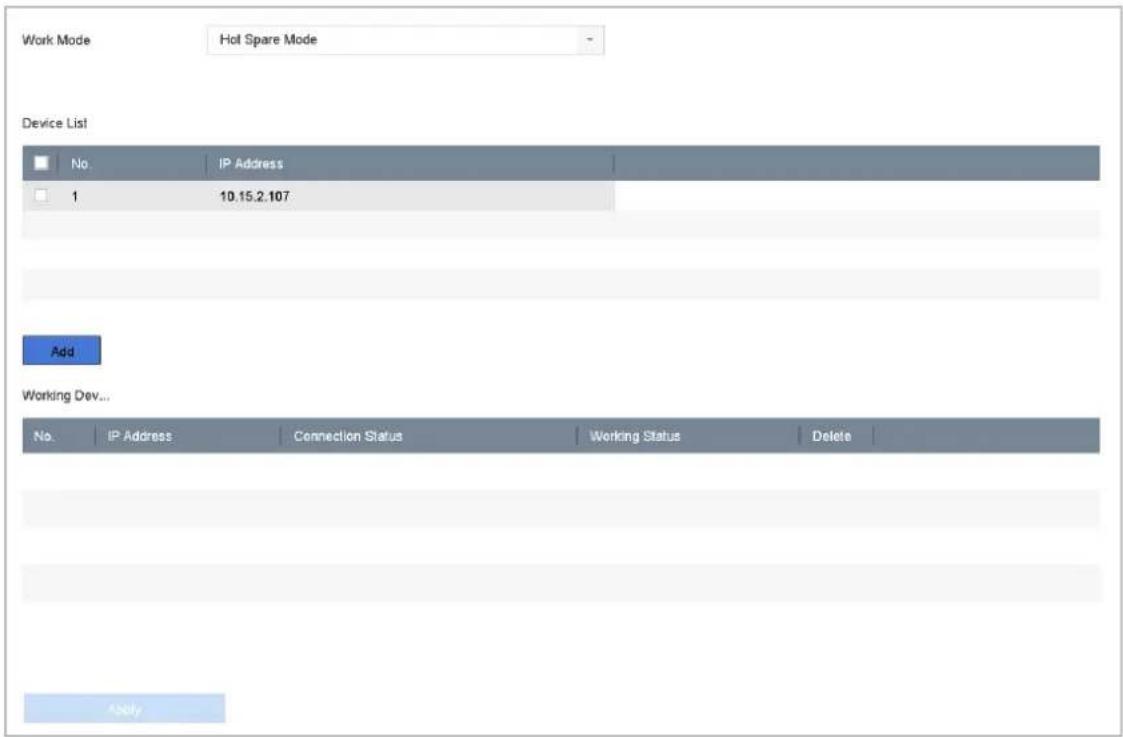
text_image
Work Mode Hot Spare Mode Device List No. IP Address 1 10.15.2.107 Add Working Dev... No. IP Address Connection Status Working Status Delete ApplyFigure 17-4 Add Working Device
Table 17-1 Working Status Description
| Working Status | Description |
| No record | The working device works properly. |
| Backing up | The working device gets offline, the hot spare device will record the video of the IP camera connected to the working device for backupThe record backing up can be functioned for 1 working device at a time. |
| Synchronizing | The working device comes online, the lost video files will be restored by the record synchronization function.The record synchronization function can be enabled for 1 working device at a time. |
Chapter 18 System Maintenance
18.1 Storage Device Maintenance
18.1.1 Configure Disk Clone
Purpose:
Select the HDDs to clone to eSATA HDD.
Before you start:
Connect an eSATA disk to the device.
Step 1 Go to Maintenance > HDD Operation > HDD Clone.
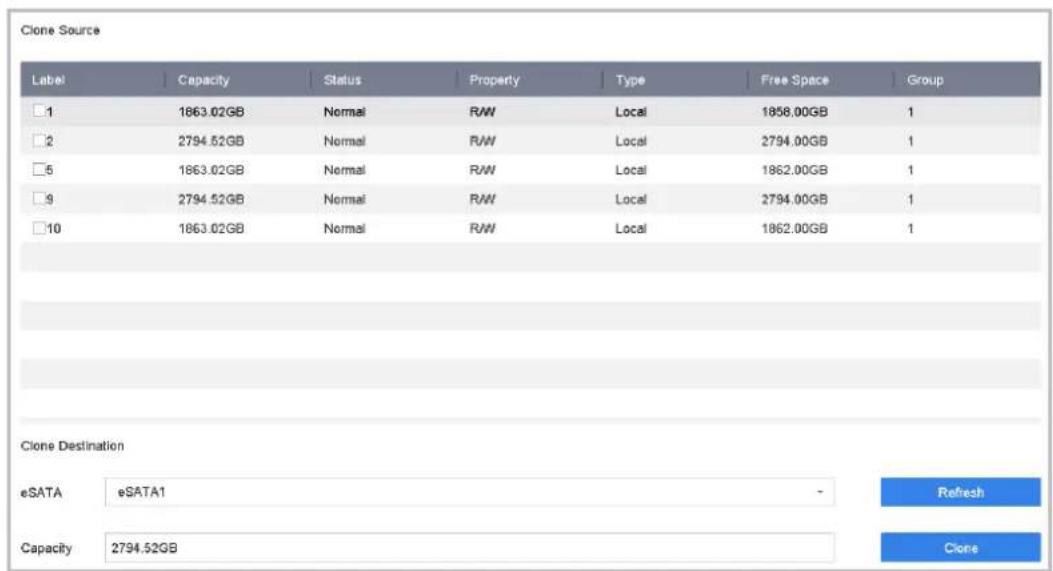
text_image
Clone Source Label Capacity Status Property Type Free Space Group □1 1863.02GB Normal R/W Local 1858.00GB 1 □2 2794.52GB Normal R/W Local 2794.00GB 1 □5 1863.02GB Normal R/W Local 1862.00GB 1 □9 2794.52GB Normal R/W Local 2794.00GB 1 □10 1863.02GB Normal R/W Local 1862.00GB 1 Clone Destination eSATA eSATA1 Capacity 2794.52GB Refresh CloneFigure 18-1 HDD Clone
Step 2 Check the HDD to clone. The capacity of selected HDD must match the capacity of clone destination.
Step 3 Click Clone.
Step 4 Click Yes on popup message box to continue clone.
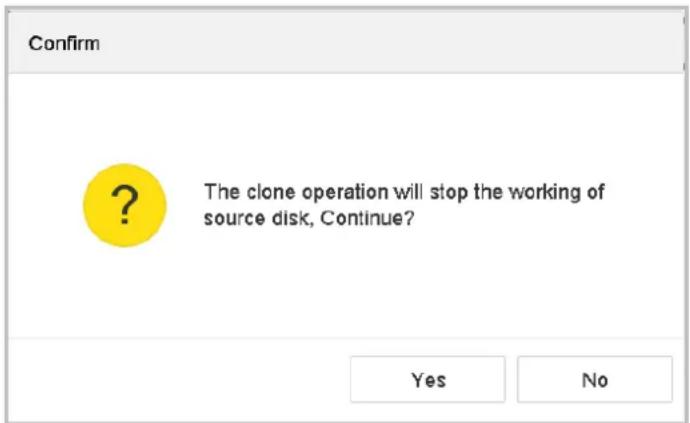
text_image
Confirm The clone operation will stop the working of source disk, Continue? Yes NoFigure 18-2 Message Box
18.1.2 S.M.A.R.T Detection
Purpose:
The device provides the HDD detection function such as the adopting of the S.M.A.R.T. and the Bad Sector Detection technique. The S.M.A.R.T. (Self-Monitoring, Analysis and Reporting Technology) is a monitoring system for HDD to detect and report on various indicators of reliability in the hopes of anticipating failures.
Step 1 Go to Maintenance > HDD Operation > S.M.A.R.T..
Step 2 Select the HDD to view its S.M.A.R.T information list.
Step 3 Select the self-test types as Short Test, Expanded Test or the Conveyance Test.
Step 4 Click Self-Test to start the S.M.A.R.T. HDD self-evaluation.
Step 5 The related information of the S.M.A.R.T. is shown on the interface. You can check the HDD status.
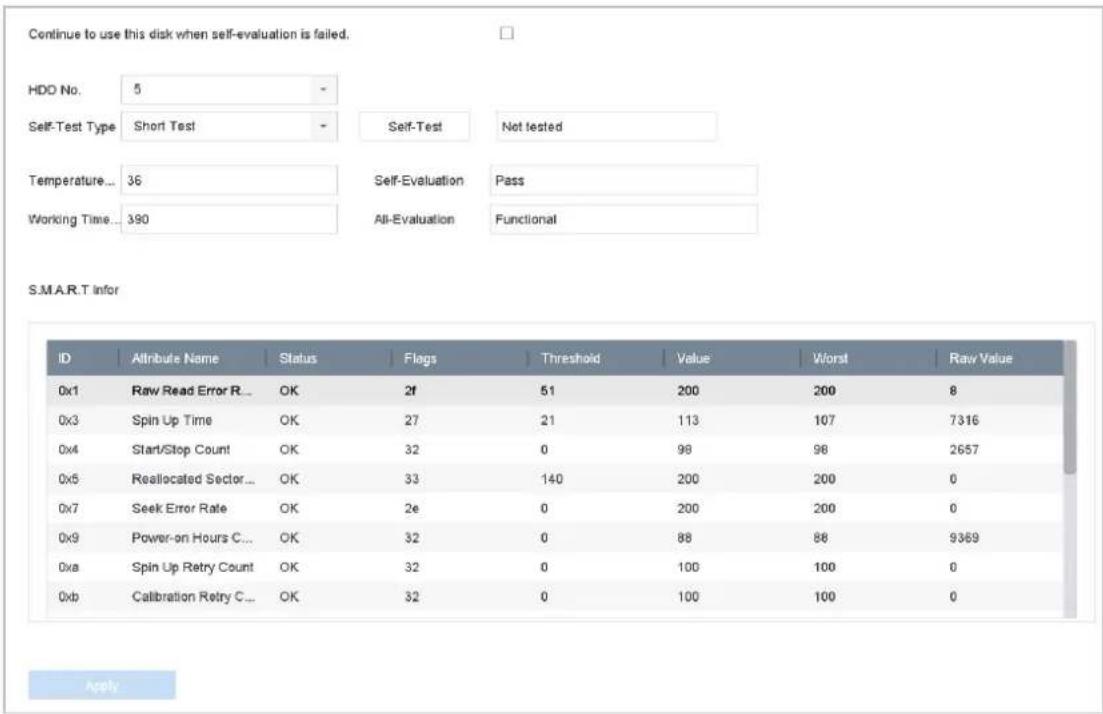
text_image
Continue to use this disk when self-evaluation is failed. HDD No. 5 Self-Test Type Short Test Self-Test Not tested Temperature... 36 Self-Evaluation Pass Working Time... 390 All-Evaluation Functional S.M.A.R.T Infor ID Attribute Name Status Flags Threshold Value Worst Raw Value 0x1 Raw Read Error R... OK 2f 51 200 200 8 0x3 Spin Up Time OK 27 21 113 107 7316 0x4 Start/Stop Count OK 32 0 98 98 2657 0x5 Reallocated Sector... OK 33 140 200 200 0 0x7 Seek Error Rate OK 2e 0 200 200 0 0x9 Power-on Hours C... OK 32 0 88 88 9369 0xa Spin Up Retry Count OK 32 0 100 100 0 0xb Calibration Retry C... OK 32 0 100 100 0 ApplyFigure 18-3 S.M.A.R.T Settings Interface

NOTE
If you want to use the HDD even when the S.M.A.R.T. checking is failed, you can check the checkbox of the Continue to use the disk when self-evaluation is failed item.
18.1.3 Bad Sector Detection
Step 1 Go to Maintenance > HDD Operation > Bad Sector Detection.
Step 2 Select the HDD No. in the dropdown list you want to configure.
Step 3 Select All Detection or Key Area Detection as the detection type.
Step 4 Click the Self-Test button to start the detection.
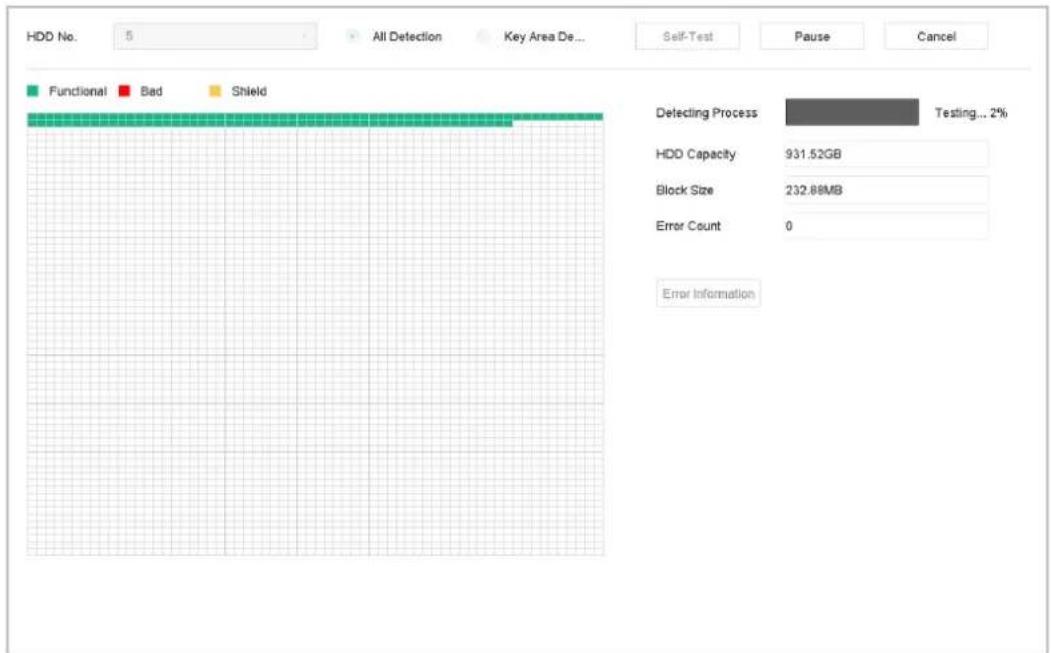
text_image
HDD No. 5 All Detection Key Area De... Functional Bad Shield Detecting Process Testing... 2% HDD Capacity 931.52GB Block Size 232.88MB Error Count 0 Error InformationFigure 18-4 Bad Sector Detection
- You can also pause/resume or cancel the detection.
● After testing completed, you can click Error information button to see the detailed damage information.
18.1.4 HDD Health Detection
Purpose:
You can view the health status of Seagate HDD that generated after October 1th, 2017 and capacity ranges from 4 TB to 8 TB. The function helps you to troubleshoot HDD problems. Compared with S.M.A.R.T function, health detection shows HDD status with more details.
Step 1 Go to Maintenance > HDD Operation > Health Detection.
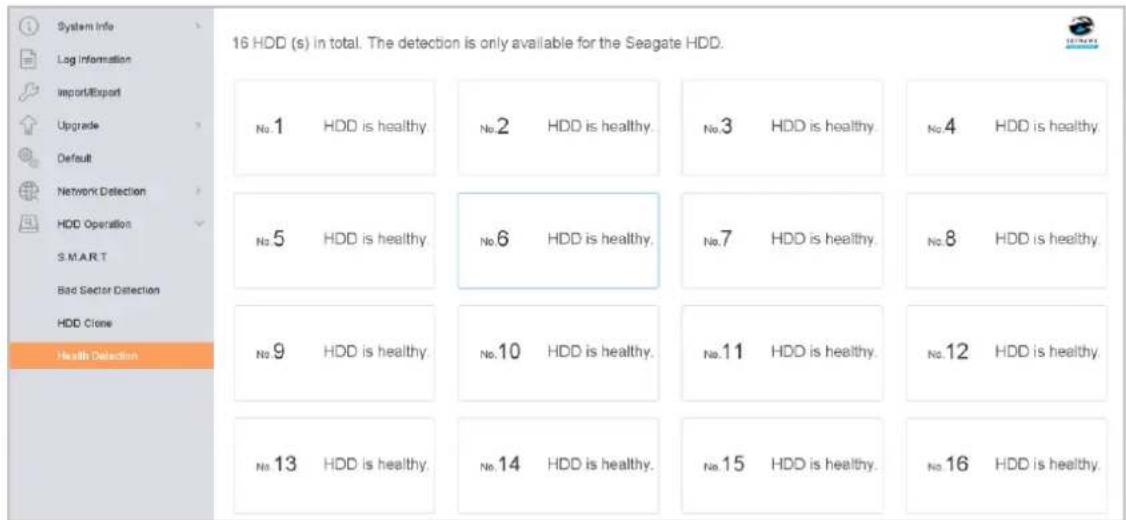
text_image
System Info Log Information Import/Export Upgrade Default Network Detection HDD Operation SMART Bad Sector Detection HDD Clone Health Detection 16 HDD (s) in total. The detection is only available for the Seagate HDD. No.1 HDD is healthy. No.2 HDD is healthy. No.3 HDD is healthy. No.4 HDD is healthy. No.5 HDD is healthy. No.6 HDD is healthy. No.7 HDD is healthy. No.8 HDD is healthy. No.9 HDD is healthy. No.10 HDD is healthy. No.11 HDD is healthy. No.12 HDD is healthy. No.13 HDD is healthy. No.14 HDD is healthy. No.15 HDD is healthy. No.16 HDD is healthy.Figure 18-5 Health Detection
Step 2 Click a HDD to view details.
18.2 Search & Export Log Files
Purpose:
The operation, alarm, exception and information of the device can be stored in log files, which can be viewed and exported at any time.
18.2.1 Search the Log Files
Step 1 Go to Maintenance > Log Information.

text_image
Time 2017-08-18 00:00:00 2017-08-18 23:59:59 Search Major Type All Minor Type Select All Export ALL ✓ Alarm Input ✓ Alarm Output ✓ Motion Detection Started ✓ Motion Detection Stopped ✓ Video Tampering Detection Started ✓ Video Tampering Detection Stopped ✓ POS Started ✓ POS Stopped ✓ Line Crossing Detection Alarm Started ✓ Line Crossing Detection Alarm Stopped ✓ Intrusion Detection Alarm Started ✓ Intrusion Detection Alarm Stopped ✓ Audio Loss Exception Alarm Started ✓ Audio Loss Exception Alarm Stopped ✓ Sudden Change of Sound Intensity Alarm Started ✓ Sudden Change of Sound Intensity Alarm Stopped ✓ Face Detection (Face Capture) Alarm Started ✓ Face Detection (Face Capture) Alarm StoppedFigure 18-6 Log Search Interface
Step 2 Set the log search conditions, including the Time, Major Type and Minor Type.
Step 3 Click Search to start search log files.
The matched log files will be displayed on the list shown below.
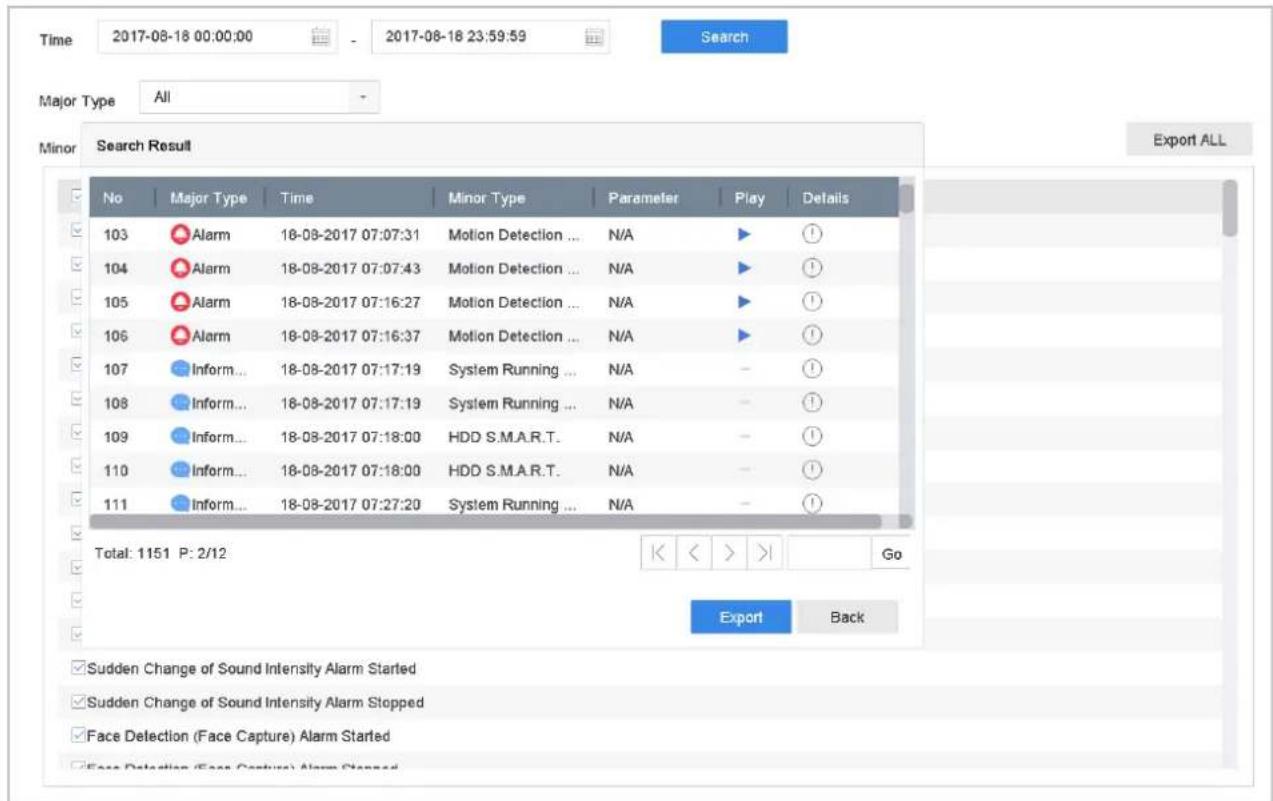
text_image
Time 2017-08-18 00:00:00 - 2017-08-18 23:59:59 Search Major Type All Minor Search Result Export ALL No Major Type Time Minor Type Parameter Play Details 103 Alarm 18-08-2017 07:07:31 Motion Detection ... N/A ▶ ① 104 Alarm 18-08-2017 07:07:43 Motion Detection ... N/A ▶ ① 105 Alarm 18-08-2017 07:16:27 Motion Detection ... N/A ▶ ① 106 Alarm 18-08-2017 07:16:37 Motion Detection ... N/A ▶ ① 107 Inform... 18-08-2017 07:17:19 System Running ... N/A - ① 108 Inform... 18-08-2017 07:17:19 System Running ... N/A - ① 109 Inform... 18-08-2017 07:18:00 HDD S.M.A.R.T. N/A - ① 110 Inform... 18-08-2017 07:18:00 HDD S.M.A.R.T. N/A - ① 111 Inform... 18-08-2017 07:27:20 System Running ... N/A - ① Total: 1151 P: 2/12 < < > Go Export Back Sudden Change of Sound Intensity Alarm Started Sudden Change of Sound Intensity Alarm Stopped Face Detection (Face Capture) Alarm Started Face Detection (Face Capture) Alarm StoppedFigure 18-7 Log Search Results

NOTE
Up to 2000 log files can be displayed each time.
Related Operation:
- Click the ⓘ button or double click it to view its detailed information.
- Click the button to view the related video file.
18.2.2 Export the Log Files
Before You Start:
Connect a storage device to your device.
Step 1 Search the log files. Refer to Chapter 18.2.1 Search the Log Files.
Step 2 Select the log files you want to export, and click Export.
Or you can click Export ALL on the Log Search interface to export all the system logs to the storage device.
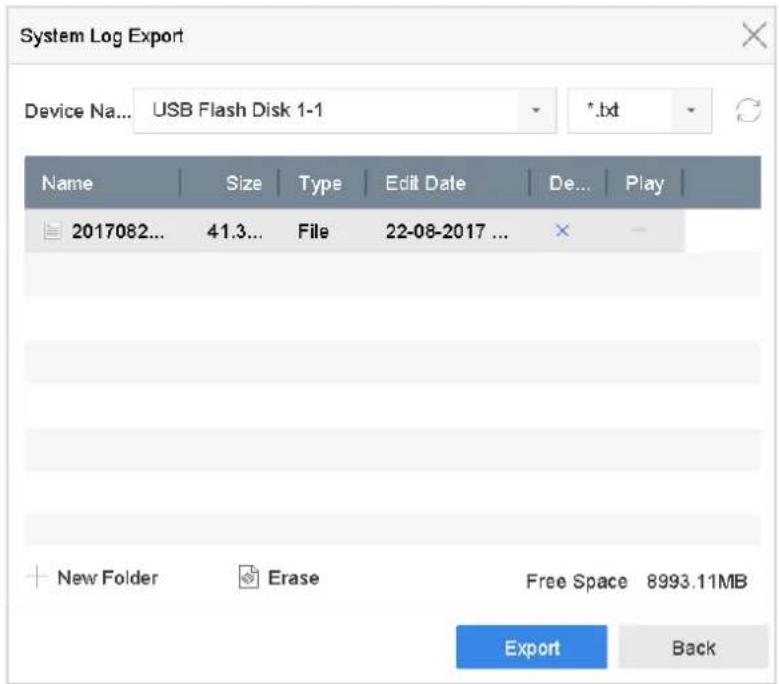
text_image
System Log Export Device Na... USB Flash Disk 1-1 *.txt Name Size Type Edit Date De... Play 2017082... 41.3... File 22-08-2017 ... New Folder Erase Free Space 8993.11MB Export BackFigure 18-8 Export Log Files
Step 3 On the Export interface, select the storage device from the dropdown list of Device Name.
Step 4 Select the format of the log files to be exported. Up to 15 formats are selectable.
Step 5 Click the Export to export the log files to the selected storage device.
Related Operation:
- Click the New Folder button to create new folder in the storage device.
- Click the Format button to format the storage device before log export.
18.3 Import/Export IP Camera Configuration Files
Purpose:
The information of added IP camera can be generated into an excel file and exported to the local device for backup, including the IP address, manage port, password of admin, etc. And the exported file can be edited on your PC, like adding or deleting the content, and copy the setting to other devices by importing the excel file to it.
Before You Start:
Connect a storage device to your device. For importing the configuration file, the storage device must be with the file.
Step 1 Go to Camera > IP Camera Import/Export.
Step 2 Click the IP Camera Import/Export tab, and the content of detected plugged external device appears.
Step 3 Export or import the IP camera configuration files.
- Click Export to export configuration files to the selected local backup device.
- To import a configuration file, select the file from the selected backup device and click the Import button.

After the importing process is completed, you must reboot the device to activate the settings.
18.4 Import/Export Device Configuration Files
Purpose:
The configuration files of the device can be exported to local device for backup; and the configuration files of one device can be imported to multiple devices if they are to be configured with the same parameters.
Connect a storage device to your device. For importing the configuration file, the storage device must be with the file.
Before You Start:
Connect a storage device to your device. For importing the configuration file, the storage device must be with the file.
Step 1 Go to Maintenance >Import/Export
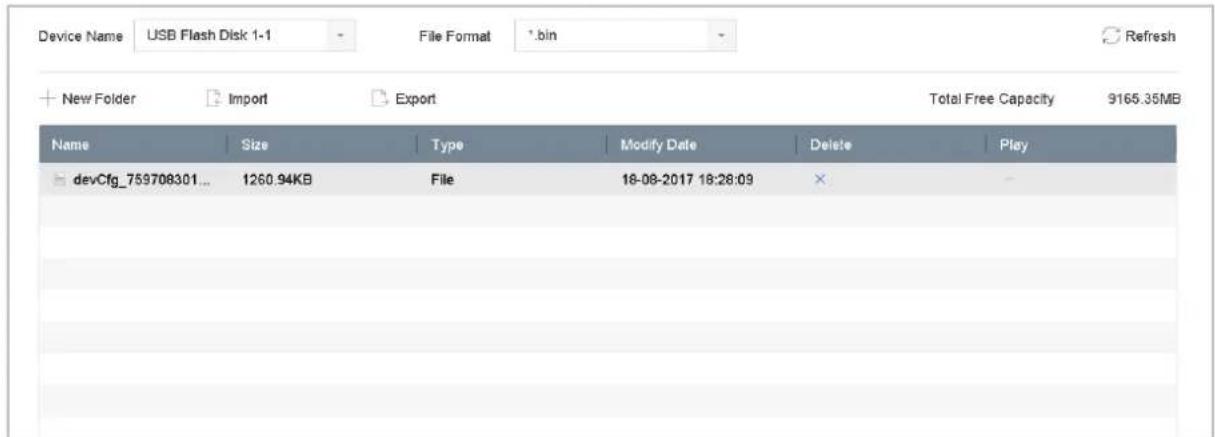
text_image
Device Name USB Flash Disk 1-1 File Format *.bin Refresh + New Folder Import Export Total Free Capacity 9165.35MB Name Size Type Modify Date Delete Play devCfg_759708301... 1260.94KB File 18-08-2017 18:28:09 ×Figure 18-9 Import/Export Config File
Step 2 Export or import the device configuration files.
- Click Export to export configuration files to the selected local backup device.
- To import a configuration file, select the file from the selected backup device and click the Import button.

After having finished the import of configuration files, the device will reboot automatically.
18.5 Upgrade System
Purpose:
The firmware on your device can be upgraded by local backup device or remote FTP server.
18.5.1 Upgrade by Local Backup Device
Before You Start:
Connect your device with a local storage device with update firmware file.
Step 1 Go to Maintenance>Upgrade.
Step 2 Click the Local Upgrade tab to enter the local upgrade interface.
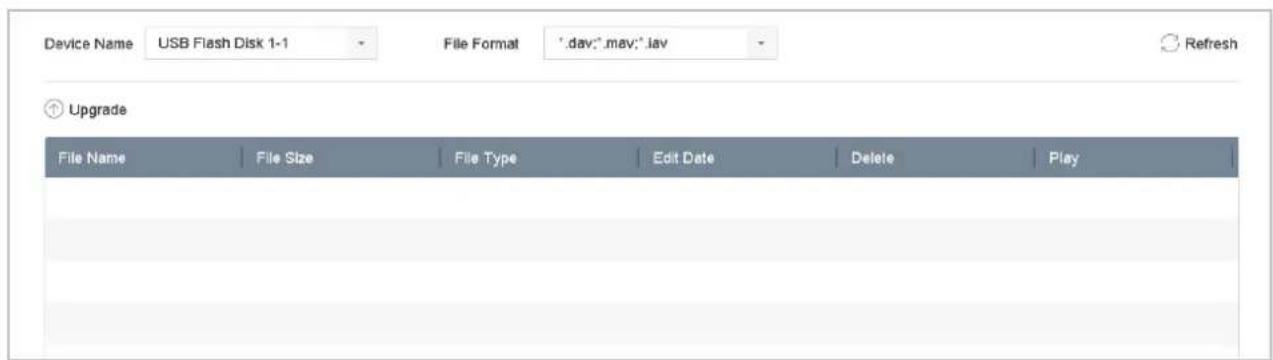
text_image
Device Name USB Flash Disk 1-1 File Format ".dav;".mav;".lav Refresh ↑ Upgrade File Name File Size File Type Edit Date Delete PlayFigure 18-10 Local Upgrade Interface
Step 3 Select the update file from the storage device.
Step 4 Click Upgrade to start upgrading.
Step 5 After the upgrading is complete, the device will reboot automatically to activate the new firmware.
18.5.2 Upgrade by FTP
Before you start:
Ensure the network connection of the PC (running FTP server) and the device is valid and correct. Run the FTP server on the PC and copy the firmware into the corresponding directory of your PC.
Step 1 Go to Maintenance>Upgrade.
Step 2 Click the FTP tab to enter the local upgrade interface.
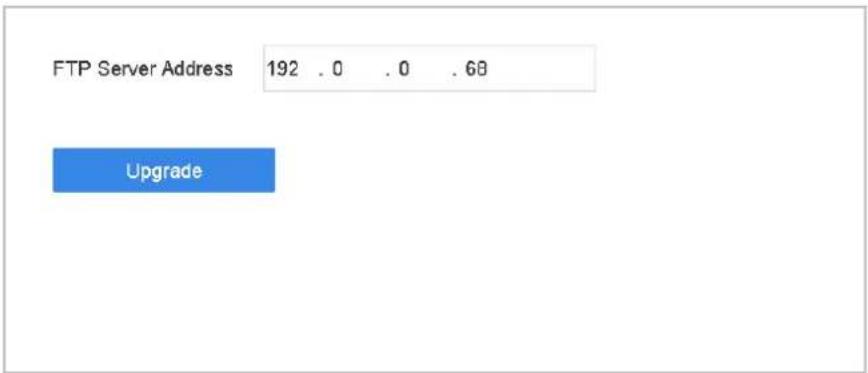
text_image
FTP Server Address 192 . 0 . 0 . 68 UpgradeFigure 18-11 FTP Upgrade Interface
Step 3 Enter the FTP Server Address in the text field.
Step 4 Click the Upgrade button to start upgrading.
Step 5 After the upgrading is complete, reboot the device to activate the new firmware.
18.6 Restore Default Settings
Step 1 Go to Maintenance > Default.
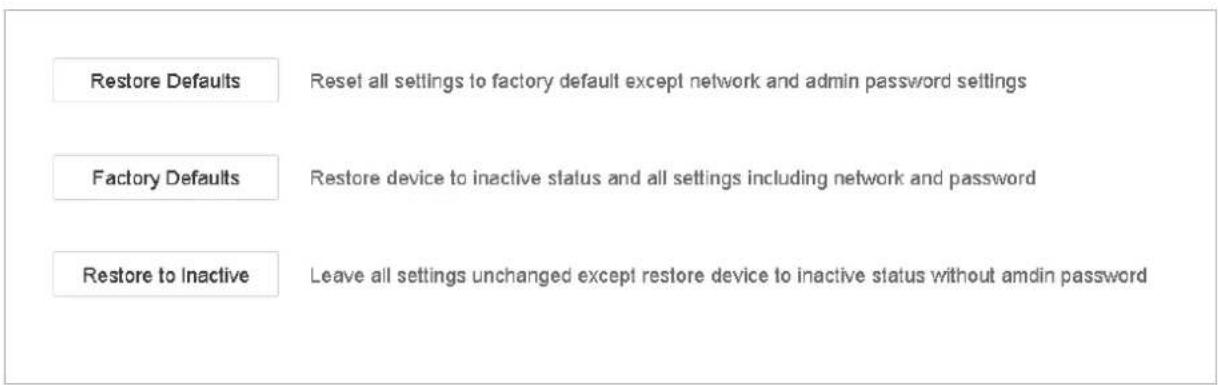
text_image
Restore Defaults Reset all settings to factory default except network and admin password settings Factory Defaults Restore device to inactive status and all settings including network and password Restore to Inactive Leave all settings unchanged except restore device to inactive status without amdin passwordFigure 18-12 Restore Defaults
Step 2 Select the restoring type from the following three options.
Restore Defaults: Restore all parameters, except the network (including IP address, subnet mask, gateway, MTU, NIC working mode, default route, server port, etc.) and user account parameters, to the factory default settings.
Factory Defaults: Restore all parameters to the factory default settings.
Restore to Inactive: Restore the device to the inactive status.

NOTE
The device will reboot automatically after restoring to the default settings.
18.7 System Service
18.7.1 Network Security Settings
Disable SADP Services
Purpose
You can disable SADP service to enhance the access security, e.g., when you are in an untrusted network environment.
Step 1 Go to System > System Service > System Service.
Step 2 Uncheck Enable SADP to disable the service.
HTTP
You can choose to disable the HTTP, or set the HTTP authentication when it is enabled as demand to enhance the access security.

NOTE
By default, the HTTP service is enabled.
Set HTTP Authentication
Purpose
If you need to enable the HTTP service, you can set the HTTP authentication to enhance the access security.
Step 1 Go to System > System Service > System Service.

text_image
Enable HTTP HTTP Authentication Type digestFigure 18-13 HTTP Authentication
Step 2 Check the Enable HTTP to enable the HTTP service.
Step 3 Select the digest as the HTTP Authentication in the drop-down list.
Step 4 Click Save to save the settings.

NOTE
Two authentication types are selectable: digest and digest/basic. For security reasons, it is recommended to select digest as the authentication type.
Disable HTTP
Purpose
The admin user account can disable the HTTP service from the GUI or the web browser.
After the HTTP is disabled, all its related services, including the ISAPI, Onvif and Genetec, will terminate as well.
Step 5 Go to System > System Service> System Service.
Step 6 Uncheck the Enable HTTP to disable the HTTP service.
RTSP Authentication
Purpose
You can specifically secure the stream data of live view by setting the RTSP authentication.
Step 1 Go to System > System Service> System Service.

text_image
Enable RTSP RTSP Authentication Type digestFigure 18-14 RTSP Authentication
Step 2 Select the authentication type.

NOTE
Two authentication types are selectable: digest and digest/basic. If you select digest, as the RTSP authentication, only the request with digest authentication can access the video stream by the RTSP protocol via the IP address. For security reasons, it is recommended to select digest as the authentication type.
Step 3 Click Save to save the settings.
18.7.2 Manage ONVIF User Accounts
Purpose
For the third-party camera connection to the device via ONVIF, you can enable ONVIF function and manage the user accounts.
Step 1 Go to System > System Service > ONVIF.
Step 2 Check Enable ONVIF to enable the ONVIF access management.
Step 3 Click Add to enter the Add User interface.
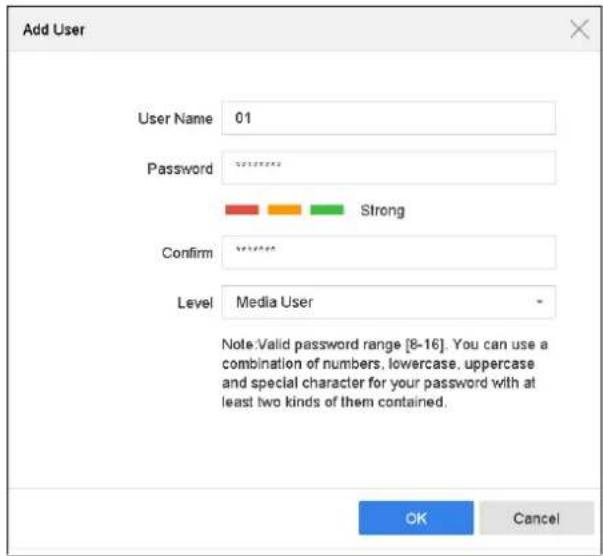
text_image
Add User User Name 01 Password Strong Confirm Level Media User Note:Valid password range [8-16]. You can use a combination of numbers, lowercase, uppercase and special character for your password with at least two kinds of them contained. OK CancelFigure 18-15 Add User
Step 4 Edit the user name, and enter the strong password.
Step 5 Select the user level to Media User, Operator and Admin.
Step 6 Click OK to save the settings.
Result:
The added user accounts have the permission to connect other devices to the device via ONVIF protocol.
i NOTE
ONVIF protocol is disabled by default.
18.7.3 Manage IP Camera Activation
When you activate the device for the first-time access, you can set the activation password for the IP camera(s) as well. And you can also manage the password to enhance the security.
Step 1 Go to System > System Service > IP Camera Activation.
Step 2 Check the Change Password to enable the permission.
Step 3 Enter the admin password of the device to obtain the permission.
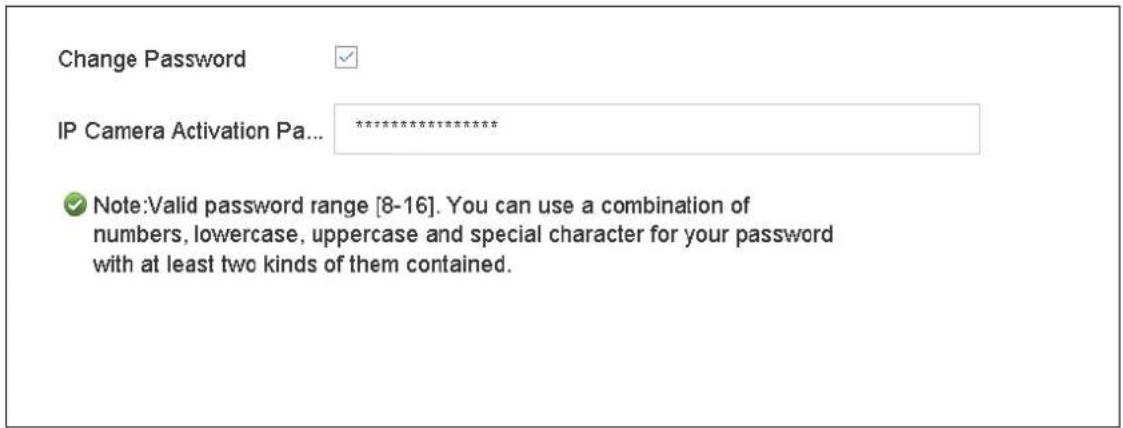
text_image
Change Password IP Camera Activation Pa... ********** ✓ Note:Valid password range [8-16]. You can use a combination of numbers, lowercase, uppercase and special character for your password with at least two kinds of them contained.Figure 18-16 Change IP Camera Activation Password
Step 4 In the text field of the IP Camera Activation Password, enter the new strong password for the cameras.
Step 5 Click Apply to see the following pop-up attention box.
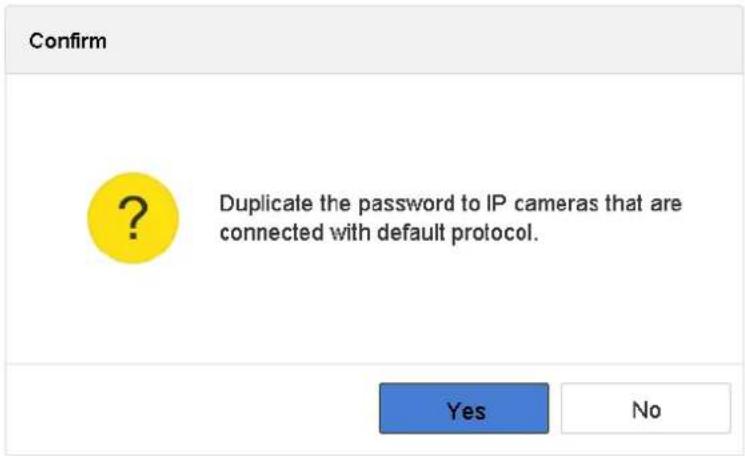
text_image
Confirm Duplicate the password to IP cameras that are connected with default protocol. Yes NoFigure 18-17 Attention
Step 6 Click Yes to duplicate the current password to the IP cameras which are connected with the default protocol.
Chapter 19 General System Settings
19.1 Configure General Settings
Purpose:
You can configure the BNC output standard, VGA output resolution, mouse pointer speed through the System > General interface.
Step 1 Go to System > General.
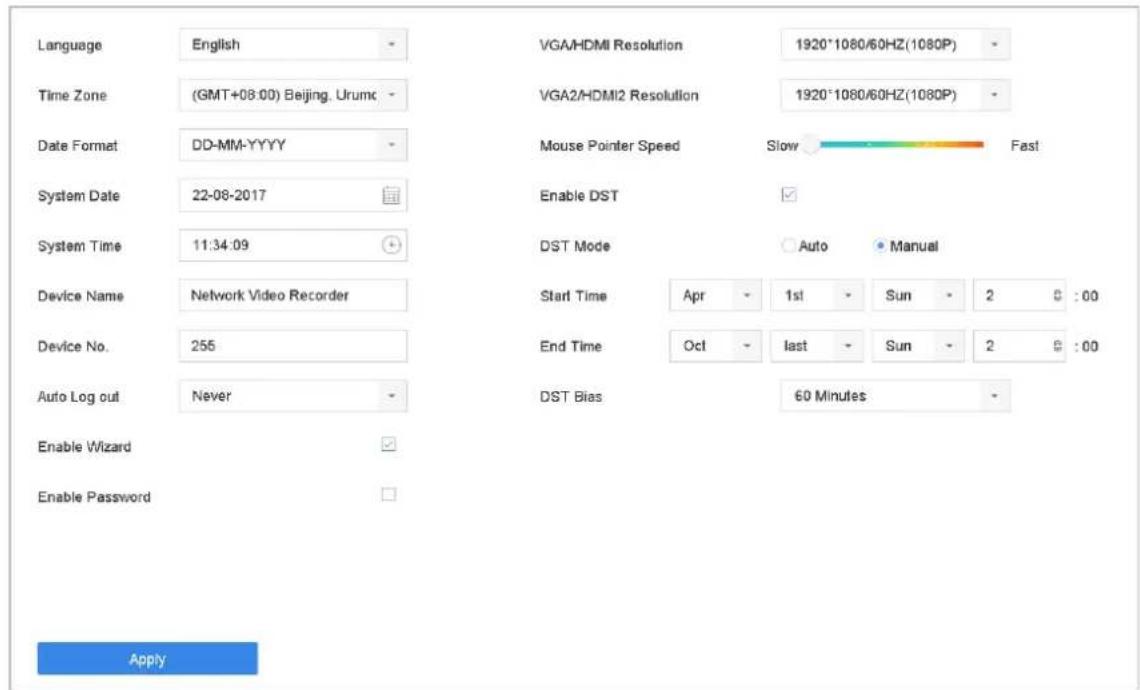
text_image
Language English Time Zone (GMT+08:00) Beijing, Urumc Date Format DD-MM-YYYY System Date 22-08-2017 System Time 11:34:09 Device Name Network Video Recorder Device No. 255 Auto Log out Never Enable Wizard Enable Password Apply VGA/HDMI Resolution 1920°1080/60HZ(1080P) VGA2/HDMI2 Resolution 1920°1080/60HZ(1080P) Mouse Pointer Speed Slow Fast Enable DST DST Mode Auto Manual Start Time Apr 1st Sun 2 0 : 00 End Time Oct last Sun 2 0 : 00 DST Bias 60 Minutes ApplyFigure 19-1 General Settings Interface
Step 2 Configure the following settings.
Language: The default language used is English.
Output Standard: Select the output standard to NTSC or PAL, which must be the same with the video input standard.
Resolution: Configure the resolution of the video output.
Device Name: Edit the name of the device
Device No.: Edit the serial number of the device. The Device No. can be set in the range of 1\~255, and the default No. is 255. The number is used for the remote and keyboard control.
Auto Logout: Set timeout time for menu inactivity. E.g., when the timeout time is set to 5 Minutes, then the system will exit from the current operation menu to live view screen after 5 minutes of menu inactivity.
Mouse Pointer Speed: Set the speed of mouse pointer; 4 levels are configurable.
Enable Wizard: Enable/disable the Wizard when the device starts up.
Enable Password: Enable/disable the use of the login password.
Step 3 Click the Apply button to save the settings.
19.2 Configure Date & Time
Step 1 Go to System > General.
Step 2 Configure the date and time.
Time Zone: Select the time zone.
Date Format: Select the date format.
System Date: Select the system date.
System Time: Set the system time.
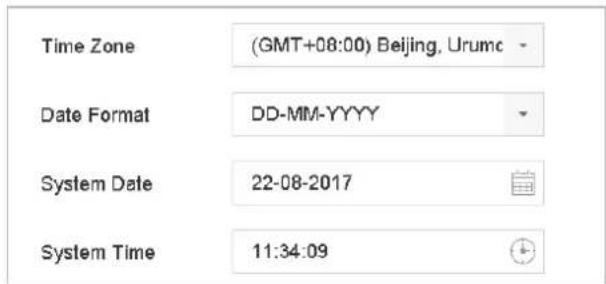
text_image
Time Zone (GMT+08:00) Beijing, Urumc Date Format DD-MM-YYYY System Date 22-08-2017 System Time 11:34:09Figure 19-2 Date and Time Settings
Step 3 Click the Apply button to save the settings.
19.3 Configure DST Settings
The DST (daylight saving time) refers to the period of the year when clocks are moved one period ahead. In some areas worldwide, this has the effect of creating more sunlit hours in the evening during months when the weather is the warmest.
We advance our clocks ahead a certain period (depends on the DST bias you set) at the beginning of DST, and move them back the same period when we return to standard time (ST).
Step 1 Go to System > General.
Step 2 Check the Enable DST.
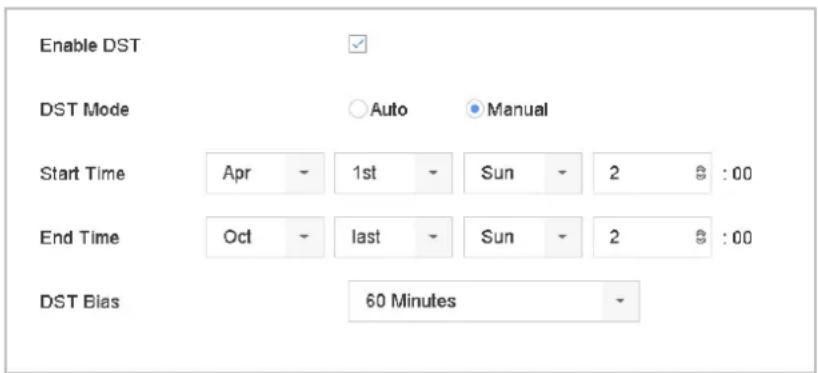
text_image
Enable DST DST Mode Auto Manual Start Time Apr 1st Sun 2 :00 End Time Oct last Sun 2 :00 DST Bias 60 MinutesFigure 19-3 DST Settings Interface
Step 3 Select the DST mode to Auto or Manual.
● Auto: automatically enable the default DST period according to the local DST rules.
● Manual: manually set the start time and end time of the DST period, and the DST bias.
DST Bias: set the time (30/60/90/120 minutes) offset from the standard time.
Example: The DST begins at 2:00 a.m. on the second Sunday of March and ends at 2:00 a.m. on the first Sunday of November, with 60 minutes ahead.
Step 4 Click the Apply button to save the settings.
19.4 Manage User Accounts
Purpose:
The Administrator user name is admin and the password is set when you start the device for the first time. The Administrator has the permission to add and delete user and configure user parameters.
19.4.1 Add a User
Step 1 Go to System > User.
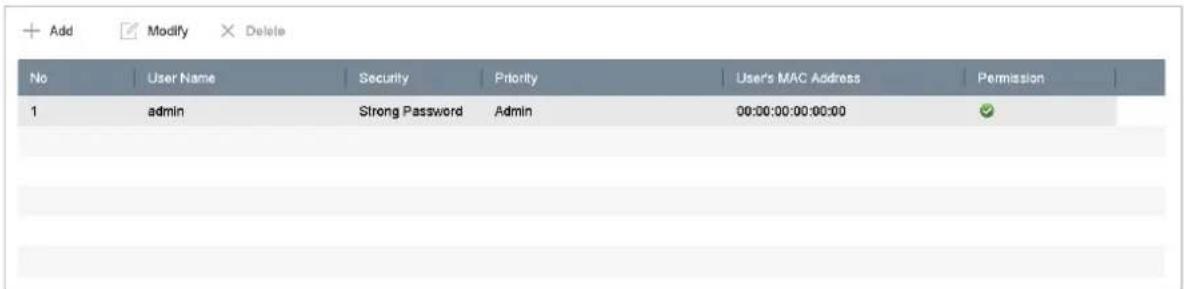
text_image
Add Modify Delete No User Name Security Priority User's MAC Address Permission 1 admin Strong Password Admin 00:00:00:00:00:00Figure 19-4 User Management Interface
Step 2 Click Add to enter the operation permission interface.
Step 3 Enter the admin password and click OK.
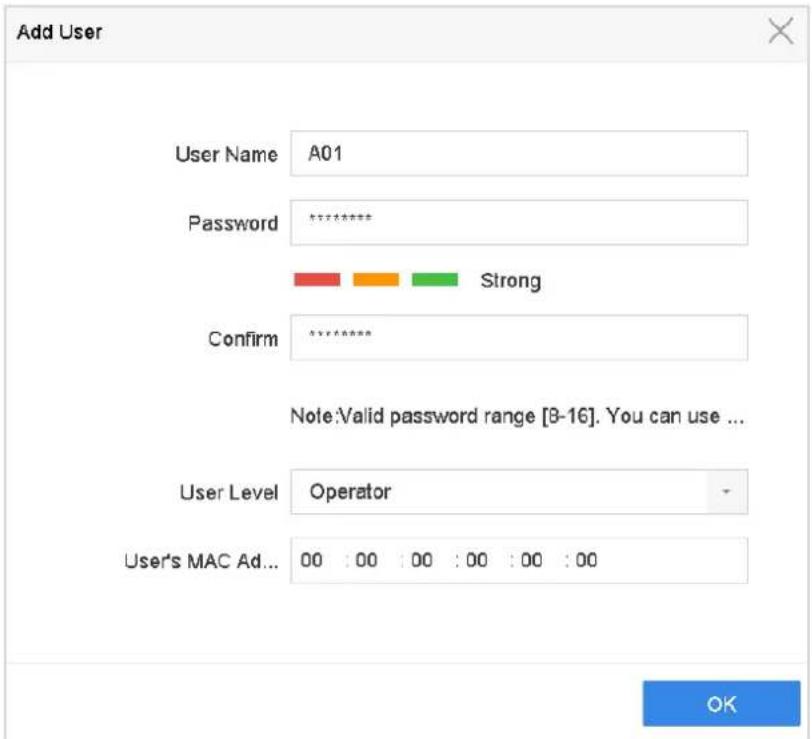
text_image
Add User User Name A01 Password ********** Strong Confirm ********** Note:Valid password range [8-16]. You can use ... User Level Operator User's MAC Ad... 00 : 00 : 00 : 00 : 00 : 00 OKFigure 19-5 Add User
Step 4 In the Add User interface, enter the information for new user, including User Name, Password, Confirm (password), User Level (Operator/Guest) and User's MAC Address.

WARNING
Strong Password recommended—We highly recommend you create a strong password of your own choosing (Using a minimum of 8 characters, including at least three of the following categories: upper case letters, lower case letters, numbers, and special characters.) in order to increase the security of your product. And we recommend you reset your password regularly, especially in the high security system, resetting the password monthly or weekly can better protect your product.
- User Level: Set the user level to Operator or Guest. Different user levels have different operating permission.
Operator: The Operator user level has permission of Two-way Audio in Remote Configuration and all operating permission in Camera Configuration by default.
Guest: The Guest user has no permission of Two-way Audio in Remote Configuration and only has the local/remote playback in the Camera Configuration by default.
- User's MAC Address: The MAC address of the remote PC which logs onto the device. If it is configured and enabled, it only allows the remote user with this MAC address to access the device.
Step 5 Click OK to finish the new user account adding.
Result: In the User Management interface, the added new user is displayed on the list.
| No | User Name | Security | Priority | User's MAC Address | Permission |
| 1 | admin | Strong Password | Admin | 00:00:00:00:00:00 | ✓ |
| 2 | A01 | Strong Password | Operator | 00:00:00:00:00:00 | ✓ |
| 3 | A02 | Strong Password | Operator | 00:00:00:00:00:00 | ✓ |
Figure 19-6 User List
19.4.2 Set the Permission for a User
For the added user, you can assign the different permissions, including the local and remote operation for the device.
Step 1 Go to System > User.
Step 2 Select a user from the list and then click the √ button to enter the permission settings interface.
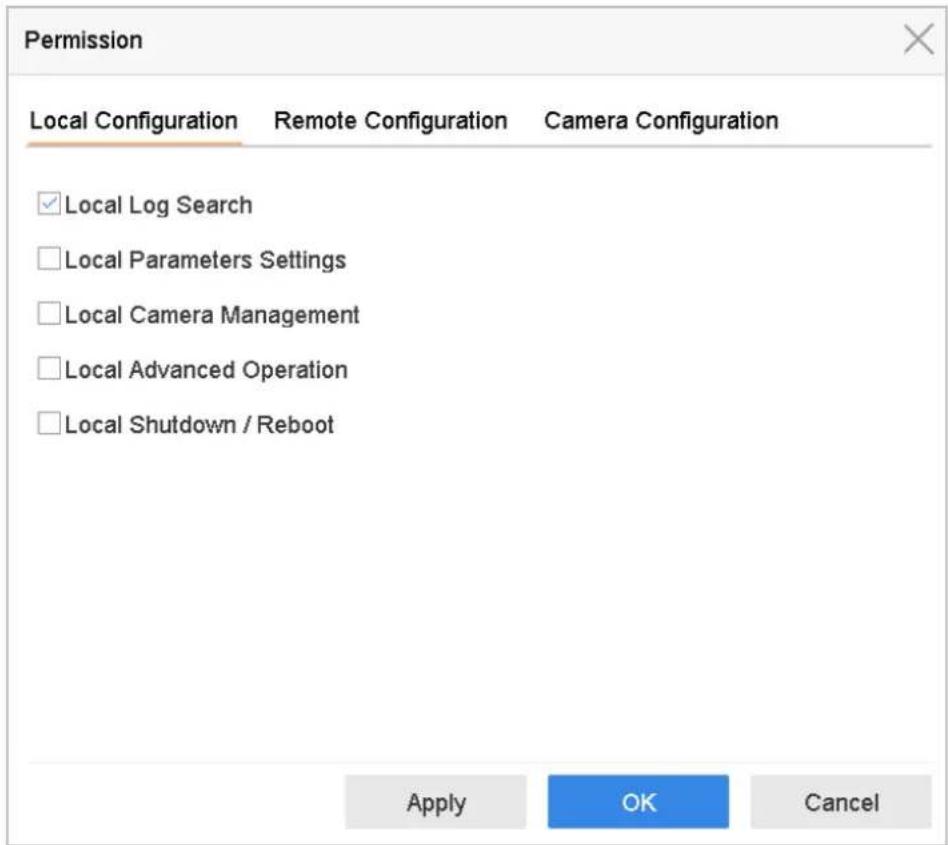
text_image
Permission Local Configuration Remote Configuration Camera Configuration ✓ Local Log Search □ Local Parameters Settings □ Local Camera Management □ Local Advanced Operation □ Local Shutdown / Reboot Apply OK CancelFigure 19-7 User Permission Settings Interface
Step 3 Set the operating permission of Local Configuration, Remote Configuration and Camera Configuration for the user.
- Local Configuration
Local Log Search: Searching and viewing logs and system information of device.
Local Parameters Settings: Configuring parameters, restoring factory default parameters and importing/exporting configuration files.
Local Camera Management: The adding, deleting and editing of IP cameras.
Local Advanced Operation: Operating HDD management (initializing HDD, setting HDD property), upgrading system firmware, clearing I/O alarm output.
Local Shutdown Reboot: Shutting down or rebooting the device.
- Remote Configuration
Remote Log Search: Remotely viewing logs that are saved on the device.
Remote Parameters Settings: Remotely configuring parameters, restoring factory default parameters and importing/exporting configuration files.
Remote Camera Management: Remote adding, deleting and editing of the IP cameras.
Remote Serial Port Control: Configuring settings for RS-232 and RS-485 ports.
Remote Video Output Control: Sending remote button control signal.
Two-Way Audio: Realizing two-way radio between the remote client and the device.
Remote Alarm Control: Remotely arming (notify alarm and exception message to the remote client) and controlling the alarm output.
Remote Advanced Operation: Remotely operating HDD management (initializing HDD, setting HDD property), upgrading system firmware, clearing I/O alarm output.
Remote Shutdown/Reboot: Remotely shutting down or rebooting the device.
● Camera Configuration
Remote Live View: Remotely viewing live video of the selected camera (s).
Local Manual Operation: Locally starting/stopping manual recording and alarm output of the selected camera (s).
Remote Manual Operation: Remotely starting/stopping manual recording and alarm output of the selected camera (s).
Local Playback: Locally playing back recorded files of the selected camera (s).
Remote Playback: Remotely playing back recorded files of the selected camera (s).
Local PTZ Control: Locally controlling PTZ movement of the selected camera (s).
Remote PTZ Control: Remotely controlling PTZ movement of the selected camera (s).
Local Video Export: Locally exporting recorded files of the selected camera (s).
Step 4 Click OK to save the settings.

NOTE
Only the admin user account has the permission of restoring factory default parameters.
19.4.3 Set Local Live View Permission for Non-Admin Users
Step 1 Go to System > User.
Step 2 Click of admin user.
Step 3 Enter admin password and click OK.
Step 4 Select cameras that non-admin user can view in local and click OK.
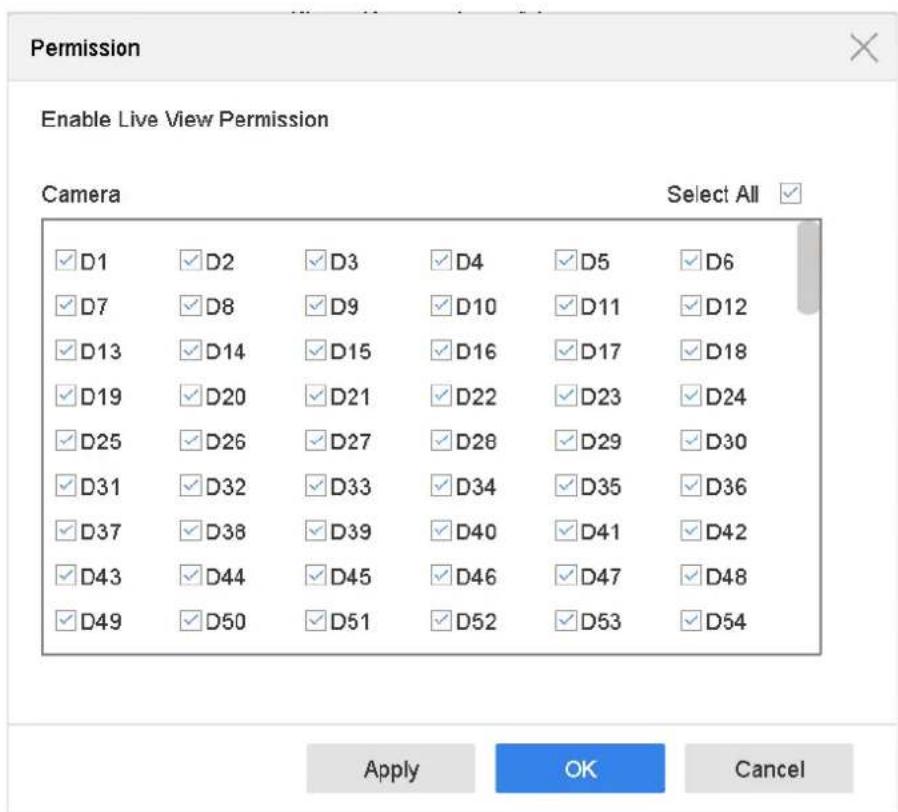
text_image
Permission Enable Live View Permission Camera Select All ✓D1 ✓D2 ✓D3 ✓D4 ✓D5 ✓D6 ✓D7 ✓D8 ✓D9 ✓D10 ✓D11 ✓D12 ✓D13 ✓D14 ✓D15 ✓D16 ✓D17 ✓D18 ✓D19 ✓D20 ✓D21 ✓D22 ✓D23 ✓D24 ✓D25 ✓D26 ✓D27 ✓D28 ✓D29 ✓D30 ✓D31 ✓D32 ✓D33 ✓D34 ✓D35 ✓D36 ✓D37 ✓D38 ✓D39 ✓D40 ✓D41 ✓D42 ✓D43 ✓D44 ✓D45 ✓D46 ✓D47 ✓D48 ✓D49 ✓D50 ✓D51 ✓D52 ✓D53 ✓D54 Apply OK CancelFigure 19-8 Enable Live View Permission
Step 5 Click of non-admin user.
Step 6 Enter Camera Configuration tab.
Step 7 Select Camera Permission as Local Live View.
Step 8 Select cameras to live view.
Step 9 Click OK.
19.4.4 Edit the Admin User
For the admin user account, you can modify its password the unlock pattern.
Step 1 Go to System > User.
Step 2 Select the admin user from the list and click Modify.
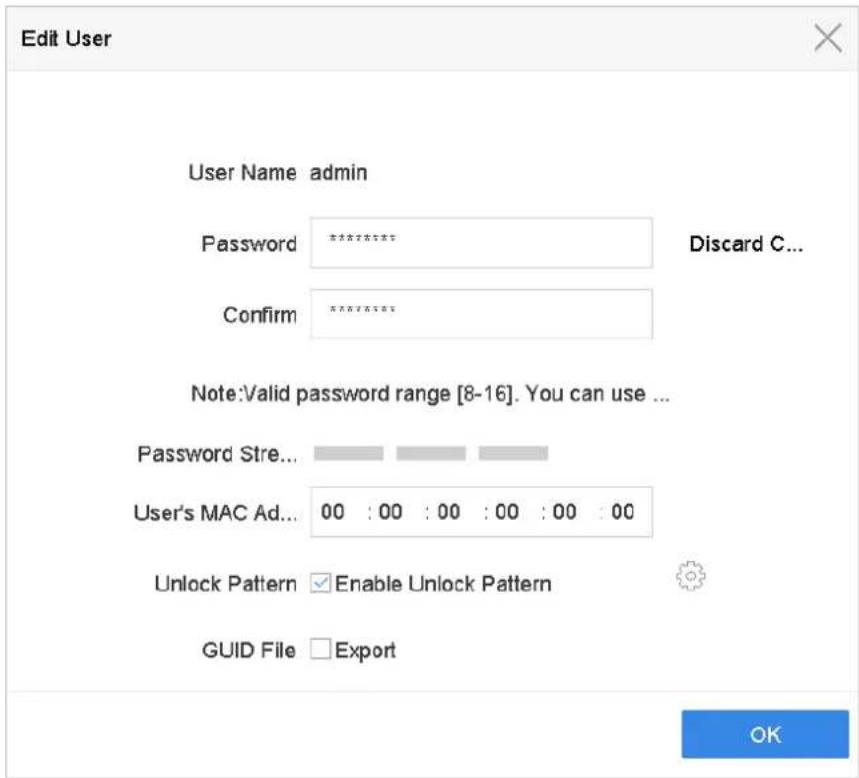
text_image
Edit User User Name admin Password ***** Confirm ***** Discard C... Note:Valid password range [8-16]. You can use ... Password Stre... User's MAC Ad... 00 : 00 : 00 : 00 : 00 : 00 Unlock Pattern ✓ Enable Unlock Pattern GUID File □ Export OKFigure 19-9 Edit User (Admin)
Step 3 Edit the admin user information as demand, including the new admin password (strong password is required), and MAC address.
Step 4 Edit the unlock pattern for the admin user account.
14) Check the checkbox of Enable Unlock Pattern to enable the use of unlock pattern when logging in to the device.
15) Use the mouse to draw a pattern among the 9 dots on the screen, and release the mouse when the pattern is done.

NOTE
Please refer to Chapter 2.3 Configure Unlock Pattern for Login for detailed instructions.
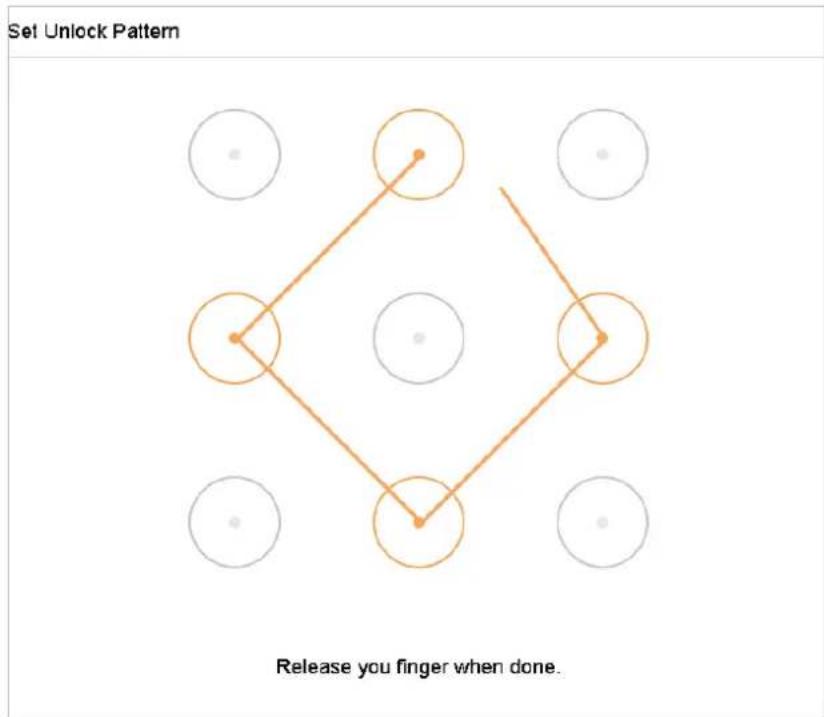
text_image
Set Unlock Pattern Release you finger when done.Figure 19-10 Set Unlock Patter for Admin User
Step 5 Click of Export GUID to enter the reset password interface to export the GUID file for the admin user account.
When the admin password is changed, you can export the new GUID to the connected U flash disk in the Import/Export interface for the future password resetting.
Step 6 Click the OK button to save the settings.
Step 7 For the Operator or Guest user account, you can also click the button on the user management interface to edit the permission.
19.4.5 Edit the Operator/Guest User
You can edit the user information, including user name, password, permission level and MAC address. Check the checkbox of Change Password if you want to change the password, and input the new password in the text field of Password and Confirm. A strong password is recommended.
Step 1 Go to System > User.
Step 2 Select a user from the list and click Modify.
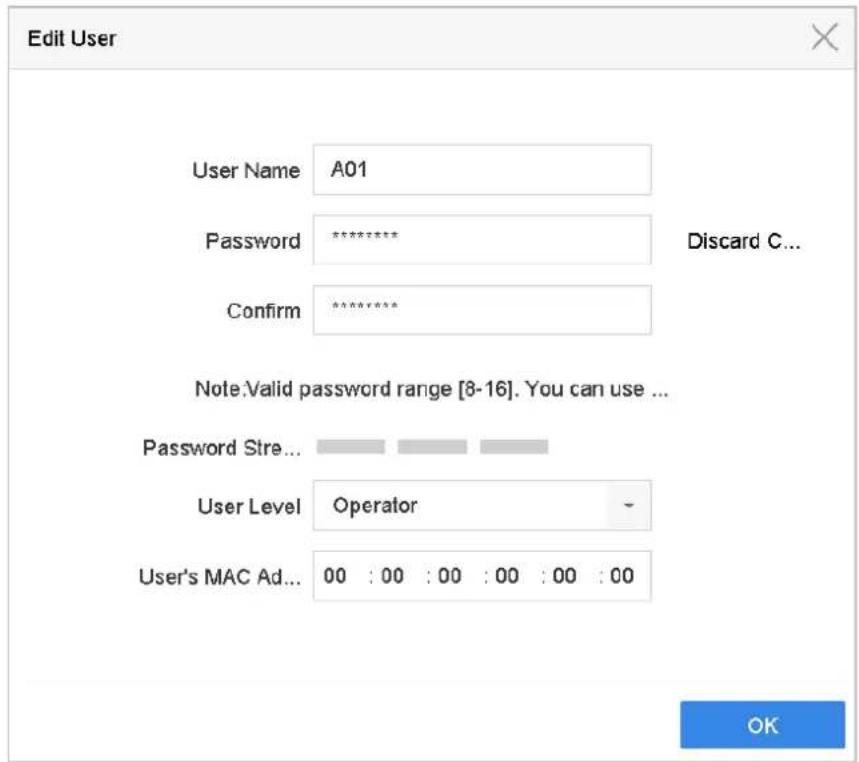
text_image
Edit User User Name A01 Password ******** Confirm ******** Discard C... Note:Valid password range [8-16]. You can use ... Password Stre... User Level Operator User's MAC Ad... 00 : 00 : 00 : 00 : 00 : 00 OKFigure 19-11 Edit User (Operator/Guest)
Step 3 Edit the user information as demand, including the new password (strong password is required), and MAC address.
19.4.6 Delete a User
The admin user account has the permission to delete the operator/guest user account.
Step 1 Go to System > User.
Step 2 Select a user from the list.
Step 3 Click Delete to delete the selected user account.
Chapter 20 Appendix
20.1 Glossary
- Dual Stream: Dual stream is a technology used to record high resolution video locally while transmitting a lower resolution stream over the network. The two streams are generated by the device, with the main stream having a maximum resolution of 4CIF and the sub-stream having a maximum resolution of CIF.
- HDD: Acronym for Hard Disk Drive. A storage medium which stores digitally encoded data on platters with magnetic surfaces.
- DHCP: Dynamic Host Configuration Protocol (DHCP) is a network application protocol used by devices (DHCP clients) to obtain configuration information for operation in an Internet Protocol network.
- HTTP: Acronym for Hypertext Transfer Protocol. A protocol to transfer hypertext request and information between servers and browsers over a network
- DDNS: Dynamic DNS is a method, protocol, or network service that provides the capability for a networked device, such as a router or computer system using the Internet Protocol Suite, to notify a domain name server to change, in real time (ad-hoc) the active DNS configuration of its configured hostnames, addresses or other information stored in DNS.
- PPPoE: Stands for "Point-to-Point Protocol over Ethernet." PPPoE is a network configuration used for establishing a PPP connection over an Ethernet protocol.
- Hybrid device: A hybrid device is a combination of a DVR and device.
- NTP: Acronym for Network Time Protocol. A protocol designed to synchronize the clocks of computers over a network.
- NTSC: Acronym for National Television System Committee. NTSC is an analog television standard used in such countries as the United States and Japan. Each frame of an NTSC signal contains 525 scan lines at 60Hz.
- Device: Acronym for Network Video Recorder. A device can be a PC-based or embedded system used for centralized management and storage for IP cameras, IP Domes and other devices.
- PAL: Acronym for Phase Alternating Line. PAL is also another video standard used in broadcast televisions systems in large parts of the world. PAL signal contains 625 scan lines at 50Hz.
- PTZ: Acronym for Pan, Tilt, Zoom. PTZ cameras are motor driven systems that allow the camera to pan left and right, tilt up and down and zoom in and out.
- USB: Acronym for Universal Serial Bus. USB is a plug-and-play serial bus standard to interface devices to a host computer.
20.2 Troubleshooting
- No image displayed on the monitor after starting up normally.
Possible Reasons:
- No VGA or HDMI connections.
- Connection cable is damaged.
- Input mode of the monitor is incorrect.
Step 1 Verify the device is connected with the monitor via HDMI or VGA cable.
Step 2 If not, please connect the device with the monitor and reboot.
Step 3 Verify the connection cable is good.
Step 4 If there is still no image display on the monitor after rebooting, please check if the connection cable is good, and change a cable to connect again.
Step 5 Verify Input mode of the monitor is correct.
Step 6 Please check the input mode of the monitor matches with the output mode of the device (e.g. if the output mode of device is HDMI output, then the input mode of monitor must be the HDMI input). And if not, please modify the input mode of monitor.
Step 7 Check if the fault is solved by the step 1 to step 3.
Step 8 If it is solved, finish the process.
If not, please contact the engineer from Hikvision to do the further process.
- There is an audible warning sound "Di-Di-Di-DiDi" after a new bought device starts up.
Possible Reasons:
- No HDD is installed in the device.
- The installed HDD has not been initialized.
- The installed HDD is not compatible with the device or is broken-down.
Step 9 Verify at least one HDD is installed in the device.
- If not, please install the compatible HDD.

NOTE
Please refer to the Quick Start Guide for the HDD installation steps.
- If you don't want to install a HDD, go to Menu>System> Event>Normal Event>Exception, and uncheck the Audible Warning checkbox of "HDD Error".
Step 10 Verify the HDD is initialized.
16) Go to Menu>Storage>Storage Device.
17) If the status of the HDD is "Uninitialized", please check the checkbox of corresponding HDD and click the "Init" button.
Step 11 Verify the HDD is detected or is in good condition.
18) Select Menu>Storage>Storage Device.
19) If the HDD is not detected or the status is "Abnormal", please replace the dedicated HDD according to the requirement.
Step 12 Check if the fault is solved by the step 1 to step 3.
If it is solved, finish the process.
If not, please contact the engineer from Hikvision to do the further process.
- The status of the added IP camera displays as “Disconnected” when it is connected through Private Protocol. Select “Menu>Camera>Camera>IP Camera” to get the camera status.
Possible Reasons:
- Network failure, and the device and IP camera lost connections.
- The configured parameters are incorrect when adding the IP camera.
- Insufficient bandwidth.
Step 13 Verify the network is connected.
20) Connect the device and PC with the RS-232 cable.
21) Open the Super Terminal software, and execute the ping command. Input "ping IP" (e.g. ping 172.6.22.131).
i NOTE
Simultaneously press Ctrl and C to exit the ping command.
If there exists return information and the time value is little, the network is normal.
Step 14 Verify the configuration parameters are correct.
22) Go to Menu>Camera.
23) Verify the following parameters are the same with those of the connected IP devices, including IP address, protocol, management port, user name and password.
Step 15 Verify the whether the bandwidth is enough.
24) Go to Menu>Maintenance>Net Detect>Network Stat..
25) Check the usage of the access bandwidth, and see if the total bandwidth has reached its limit.
Step 16 Check if the fault is solved by the step 1 to step 3.
If it is solved, finish the process.
If not, please contact the engineer from Hikvision to do the further process.
- The IP camera frequently goes online and offline and the status of it displays as "Disconnected".
Possible Reasons:
- The IP camera and the device versions are not compatible.
- Unstable power supply of IP camera.
- Unstable network between IP camera and device.
- Limited flow by the switch connected with IP camera and device.
Step 17 Verify the IP camera and the device versions are compatible.
26) Go to Menu>Camera, and view the firmware version of connected IP camera.
27) Go to Menu>Maintenance>System Info>Device Info and view the firmware version of device.
Step 18 Verify power supply of IP camera is stable.
28) Verify the power indicator is normal.
29) When the IP camera is offline, please try the ping command on PC to check if the PC connects with the IP camera.
Step 19 Verify the network between IP camera and device is stable.
30) When the IP camera is offline, connect PC and device with the RS-232 cable.
31) Open the Super Terminal, use the ping command and keep sending large data packages to the connected IP camera, and check if there exists packet loss.

Simultaneously press Ctrl and C to exit the ping command.
Example: Input ping 172.6.22.131 -l 1472 -f.
Step 20 Verify the switch is not flow control.
Check the brand, model of the switch connecting IP camera and device, and contact with the manufacturer of the switch to check if it has the function of flow control. If so, please turn it down.
Step 21 Check if the fault is solved by the step 1 to step 4.
If it is solved, finish the process.
If not, please contact the engineer from Hikvision to do the further process.
- No monitor connected with the device locally and when you manage the IP camera to connect with the device by web browser remotely, of which the status displays as Connected.
And then you connect the device with the monitor via VGA or HDMI interface and reboot the device, there is black screen with the mouse cursor.
Connect the device with the monitor before startup via VGA or HDMI interface, and manage the IP camera to connect with the device locally or remotely, the status of IP camera displays as Connect. And then connect the device with the CVBS, and there is black screen either.
Possible Reasons:
After connecting the IP camera to the device, the image is output via the main spot interface by default.
Step 22 Enable the output channel.
Step 23 Go to Menu>System>Live View>General, and select video output interface in the drop-down list and configure the window you want to view.

NOTE
● The view settings can only be configured by the local operation of device.
- Different camera orders and window-division modes can be set for different output interfaces separately, and digits like "D1" and "D2" stands for the channel number, and "X" means the selected window has no image output.
Step 24 Check if the fault is solved by the above steps.
If it is solved, finish the process.
If not, please contact the engineer from Hikvision to do the further process.
● Live view stuck when video output locally.
Possible Reasons:
- Poor network between device and IP camera, and there exists packet loss during the transmission.
- The frame rate has not reached the real-time frame rate.
Step 25 Verify the network between device and IP camera is connected.
- When image is stuck, connect the RS-232 ports on PC and the rear panel of device with the RS-232 cable.
- Open the Super Terminal, and execute the command of "ping 192.168.0.0 -I 1472 -f" (the IP address may change according to the real condition), and check if there exists packet loss.

NOTE
Simultaneously press Ctrl and C to exit the ping command.
Step 26 Verify the frame rate is real-time frame rate.
Go to Menu>Camera>Encoding Parameters, and set the Frame rate to Full Frame.
Step 27 Check if the fault is solved by the above steps.
If it is solved, finish the process.
If not, please contact the engineer from Hikvision to do the further process.
● Live view stuck when video output remotely via the Internet Explorer or platform software.
Possible Reasons:
- Poor network between device and IP camera, and there exists packet loss during the transmission.
- Poor network between device and PC, and there exists packet loss during the transmission.
- The performances of hardware are not good enough, including CPU, memory, etc..
Step 28 Verify the network between device and IP camera is connected.
32) When image is stuck, connect the RS-232 ports on PC and the rear panel of device with the RS-232 cable.
33) Open the Super Terminal, and execute the command of "ping 192.168.0.0 -l 1472 -f" (the IP address may change according to the real condition), and check if there exists packet loss.

Simultaneously press Ctrl and C to exit the ping command.
Step 29 Verify the network between device and PC is connected.
1) Open the cmd window in the Start menu, or you can press "windows+R" shortcut key to open it.
2) Use the ping command to send large packet to the device, execute the command of "ping 192.168.0.0 -l 1472 -f" (the IP address may change according to the real condition), and check if there exists packet loss.

Simultaneously press Ctrl and C to exit the ping command.
Step 30 Verify the hardware of the PC is good enough.
Simultaneously press Ctrl, Alt and Delete to enter the windows task management interface, as shown in the following figure.
text_image
Windows Task Manager File Options View Help Applications Processes Services Performance Networking Users CPU Usage 35 % CPU Usage History Memory 1.19 GB Physical Memory Usage History Physical Memory (MB) Total 3060 Cached 1324 Available 1837 Free 547 Kernel Memory (MB) Paged 185 Nonpaged 78 System Handles 21916 Threads 1:07 Processes 73 Up Time 0:11:57:41 Commit (MB) 1463 / 6:119 Resource Monitor... Processes: 73 CPU Usage: 35% Physical Memory: 39%Figure 20-1 Windows task management interface
- Select the "Performance" tab; check the status of the CPU and Memory.
- If the resource is not enough, please end some unnecessary processes.
Step 31 Check if the fault is solved by the above steps.
If it is solved, finish the process.
If not, please contact the engineer from Hikvision to do the further process.
- When using the device to get the live view audio, there is no sound or there is too much noise, or the volume is too low.
Possible Reasons:
- Cable between the pickup and IP camera is not connected well; impedance mismatches or incompatible.
- The stream type is not set as "Video & Audio".
- The encoding standard is not supported with device.
Step 32 Verify the cable between the pickup and IP camera is connected well; impedance matches and compatible.
Log in the IP camera directly, and turn the audio on, check if the sound is normal. If not, please contact the manufacturer of the IP camera.
Step 33 Verify the setting parameters are correct.
Go to Menu>Camera>Encoding Parameters, and set the Stream Type as "Audio & Video".
Step 34 Verify the audio encoding standard of the IP camera is supported by the device.
The device supports G722.1 and G711 standards, and if the encoding parameter of the input audio is not one of the previous two standards, you can log in the IP camera to configure it to the supported standard.
Step 35 Check if the fault is solved by the above steps.
If it is solved, finish the process.
If not, please contact the engineer from Hikvision to do the further process.
● The image gets stuck when device is playing back by single or multi-channel.
Possible Reasons:
- Poor network between device and IP camera, and there exists packet loss during the transmission.
- The frame rate is not the real-time frame rate.
- The device supports up to 16-channel synchronize playback at the resolution of 4CIF, if you want a 16-channel synchronize playback at the resolution of 720p, the frame extracting may occur, which leads to a slight stuck.
Step 36 Verify the network between device and IP camera is connected.
1) When image is stuck, connect the RS-232 ports on PC and the rear panel of device with the RS-232 cable.
2) Open the Super Terminal, and execute the command of "ping 192.168.0.0-I 1472 -f" (the IP address may change according to the real condition), and check if there exists packet loss.

NOTE
Simultaneously press the Ctrl and C to exit the ping command.
Step 37 Verify the frame rate is real-time frame rate.
Select "Menu > Record > Parameters > Record", and set the Frame Rate to "Full Frame".
Step 38 Verify the hardware can afford the playback.
Reduce the channel number of playback.
Go to Menu>Camera>Encoding Parameters, and set the resolution and bitrate to a lower level.
Step 39 Reduce the number of local playback channel.
Go to Menu>Playback, and uncheck the checkbox of unnecessary channels.
Step 40 Check if the fault is solved by the above steps.
If it is solved, finish the process.
If not, please contact the engineer from Hikvision to do the further process.
- No record file found in the device local HDD, and prompt "No record file found".
Possible Reasons:
- The time setting of system is incorrect.
- The search condition is incorrect.
- The HDD is error or not detected.
Step 41 Verify the system time setting is correct.
Go to Menu>System>General, and verify the "Device Time" is correct.
Step 42 Verify the search condition is correct.
Go to playback interface, and verify the channel and time are correct.
Step 43 Verify the HDD status is normal.
Go to Menu>Storage>Storage Device to view the HDD status, and verify the HDD is detected and can be read and written normally.
Step 44 Check if the fault is solved by the above steps.
If it is solved, finish the process.
If not, please contact the engineer from Hikvision to do the further process.

See Far, Go Further