
zPix 300 MM-940 - Microscope Carson - Free user manual and instructions
Find the device manual for free zPix 300 MM-940 Carson in PDF.


| Product Type | Digital Microscope |
| Brand | Carson |
| Model | zPix 300 MM-940 |
| Dimensions (Width x Depth x Height) | 85.5 mm x 80 mm x 130.4 mm |
| Weight | 220 grams |
| Power Source | USB 2.0 / 3.0 (no batteries required) |
| Effective Magnification (on 21" monitor) | 86x to 457x |
| Effective Viewing Area (without zoom) | 4.96 mm x 3.72 mm |
| Effective Viewing Area (5.3x zoom) | 0.93 mm x 0.70 mm |
| Illumination | Four LED array |
| Optics | 5.3x zoom lens system |
| Sensor Type | CMOS |
| Sensor Resolution | 1600 x 1200 pixels (UXGA) |
| Connection Interface | USB 2.0 / 3.0 |
| Compatible Operating Systems | Windows and Mac OS |
| Software | xploview (download from Carson website) |
| Package Contents | Digital microscope, 3 blank specimen slides, 1 prepared slide with cotton swatch, tweezers, dropper |
| Warranty | 1 year limited warranty |
| Care and Cleaning | Wipe with a soft cloth slightly dampened in mild soap-and-water solution |
| Safety Warning | Do not place lighted microscope upon the eye; do not open or dismantle |
Frequently Asked Questions - zPix 300 MM-940 Carson
User questions about zPix 300 MM-940 Carson
0 question about this device. Answer the ones you know or ask your own.
Ask a new question about this device
Download the instructions for your Microscope in PDF format for free! Find your manual zPix 300 MM-940 - Carson and take your electronic device back in hand. On this page are published all the documents necessary for the use of your device. zPix 300 MM-940 by Carson.
USER MANUAL zPix 300 MM-940 Carson
natural_image
Line drawing of a mechanical device with a cable and connector (no text or symbols)- Table of Contents
Important information.... 4
Product description.... 4
Computer requirements & software installation.... 5
Package contents.... 6
Product overview....7
Product specification....8
Getting started....9
Assembling the product.... 9
Connecting the device.... 10
Starting the xploview software....10
Windows based PC.... 10
Mac OS based PC.... 10
Focusing.... 11
Zooming....12
Using the xploview software....13
System settings menu.... 14
Device setup.... 15
Timed shot setup.... 15
Movie setup.... 15
Save setting.... 15
Language setting.... 15
Advanced settings.... 16
Saved files.... 16
Full screen.... 17
Care and maintenance.... 17
Warning 18
Warranty description.... 18
Warranty procedure.... 19
- Important information
Please read this instruction manual carefully before using this product, and retain this instruction for future reference.
Improvements and changes to this text necessitated by typographical errors, or improvements to the software and/or equipments may be made at any time without notice.
- Product description
This product is a USB powered device which features an effective magnification of 86x to 457x on a 21" computer monitor.
Snapshot of the specimens can be captured using the shutter button located on the top of the device. Video recording is also available.
Compatible with Mac and PC.
This item can be used with applications that support the viewing of USB video devices (these applications are not included).
USB 2.0 / 3.0 required. No batteries required.
- Computer requirements & Software Installation
Go to www.carson.com/software to download the latest software and corresponding software installation guide for the MM-940. The computer requirements (operating system, etc.) may be different depending on the software version.
- Package contents
- Digital Microscope x1
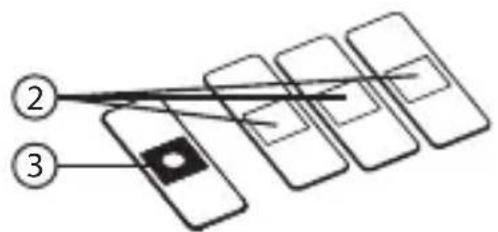
- Blank specimen slides x3
- Prepared slide with cotton swatch x1
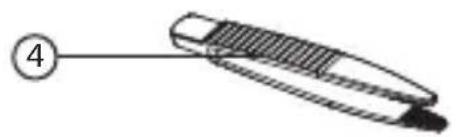
- Tweezers x1
- Dropper x1
flowchart
graph TD
    A["②"] --> B["Block 1"]
    C["③"] --> D["Block 2"]
    E["Block 3"] --> F["Block 4"]
    G["Block 5"] --> H["Block 6"]
natural_image
Simple line drawing of a pen or tool with a numbered label (4) pointing to its tip, no text or symbols present.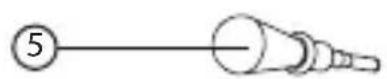
- Product overview
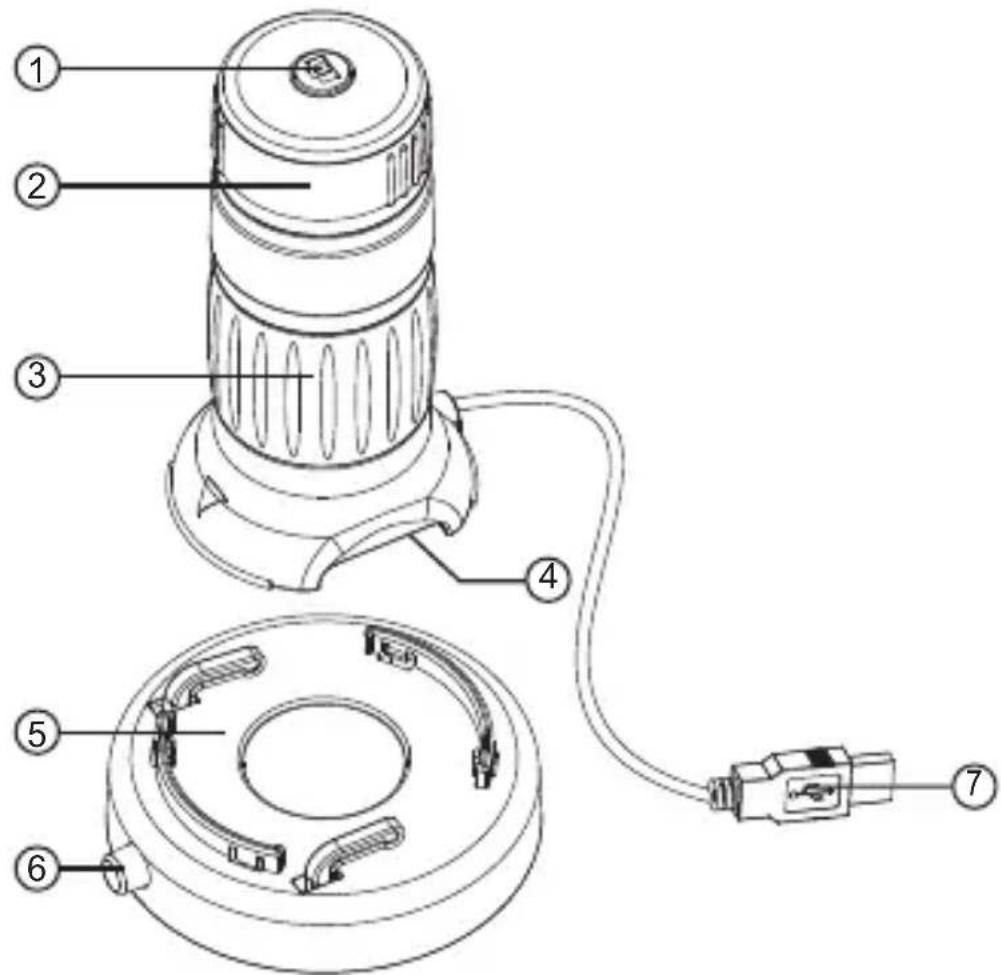
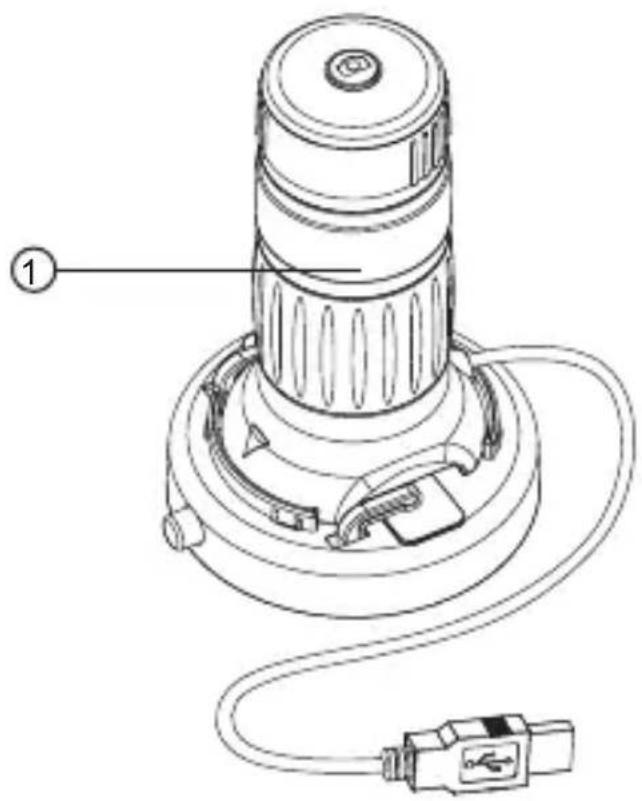
- Shutter button
- Focusing ring
- Zooming ring
- LED illumination
- Specimen stage
- Specimen slide releasing button
- USB cable
- Product specification
| Connection type | USB 2.0 / 3.0 |
| Effective* magnification | 21" monitor - 86x - 457x |
| Effective viewing area | 4.96mm x 3.72mm (without zoom)0.93mm x 0.70mm (5.3x zoom) |
| Illumination | Four LED array |
| Optics | 5.3x zoom lens system |
| Sensor | CMOS |
| Sensor resolution | 1600 x 1200 pixels (UXGA) |
| Size | 85.5mm x 80mm x 130.4mm |
| Weight | 220 grams |
*Please note that the effective magnification is a combination of the optical system and a high powered digital zoom.
- Getting started
■ Assembling the product
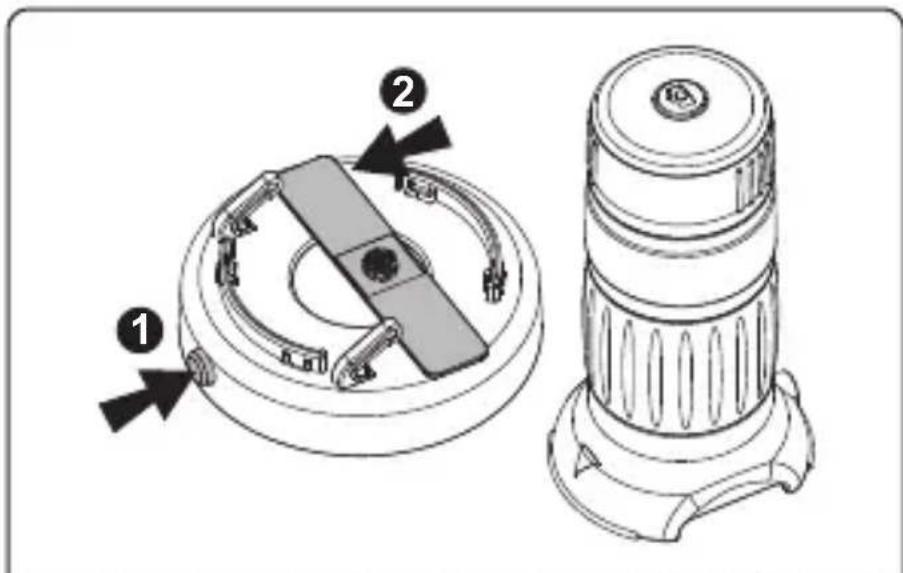
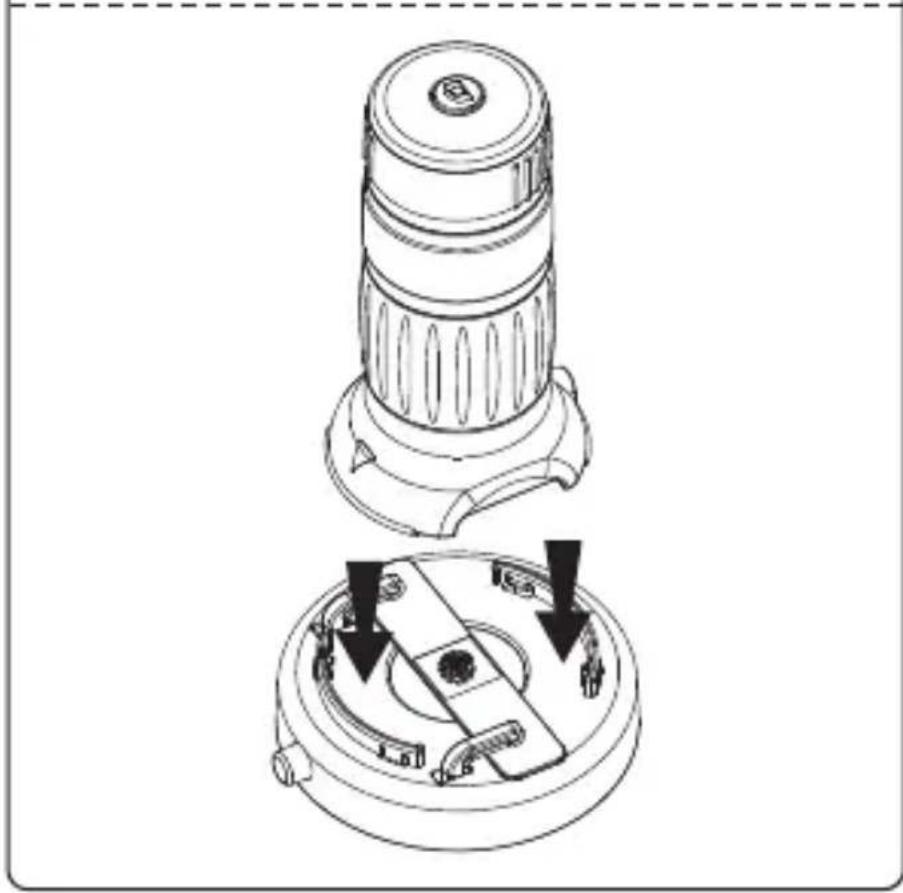
natural_image
Technical line drawing of a mechanical device with two views: top shows top view of a cylindrical component, bottom shows internal components with arrows indicating assembly or adjustment (no text or symbols)Insert a specimen slide into the specimen stage as shown, and place the device on the specimen stage.
■ Connecting the device
Connect the device to the computer using the USB cable provided.
When the device is connected to the computer for the first time, a driver will automatically be installed by Windows or Mac OS. This process could take up to a few minutes.
- Starting the xploview software
■ Windows based PC
The xploview software can be launched by double clicking the xploview icon from the desktop, or from the start menu (Start > All Programs > xploview).
Mac OS based PC
The xploview software can be launched by double clicking the xploview icon from the Applications menu.
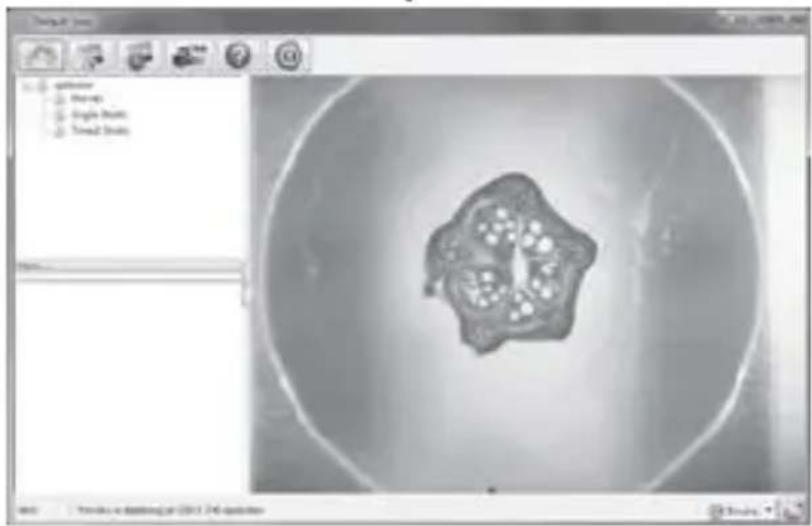
- Focusing
Focusing ring
Adjust the focus of the image manually by rotating the focusing ring.
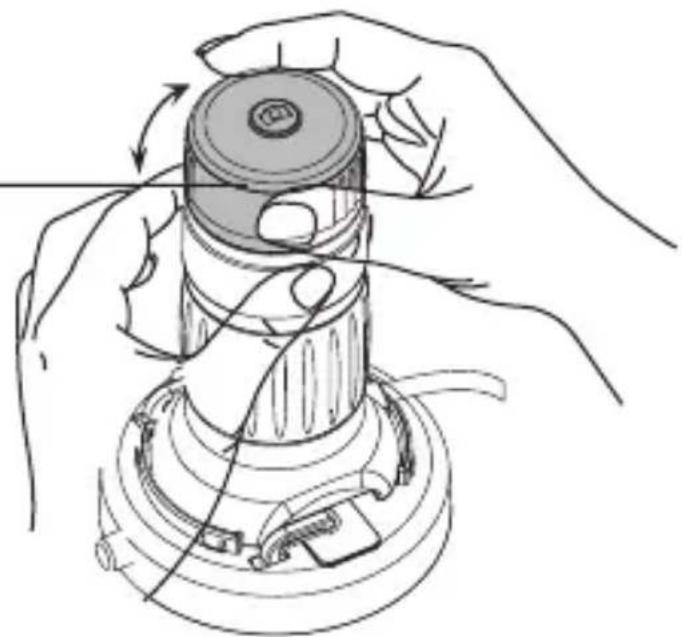
natural_image
Line drawing of hands operating a mechanical device with rotating components (no text or symbols)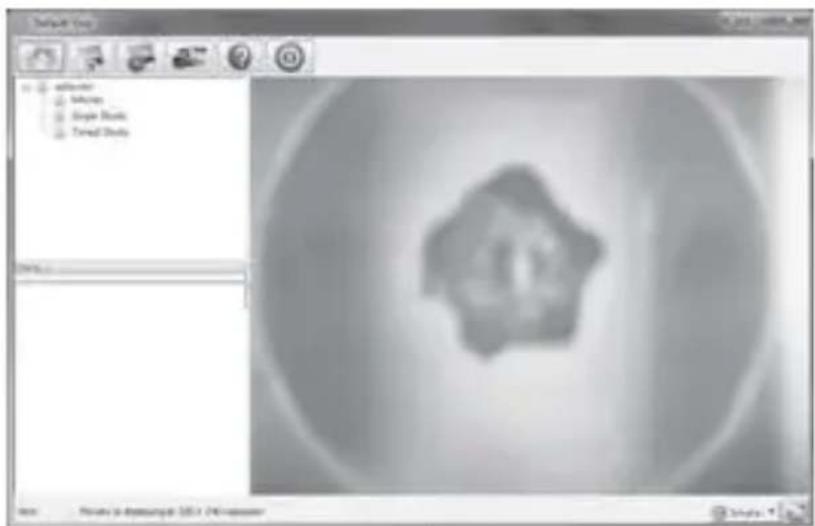

natural_image
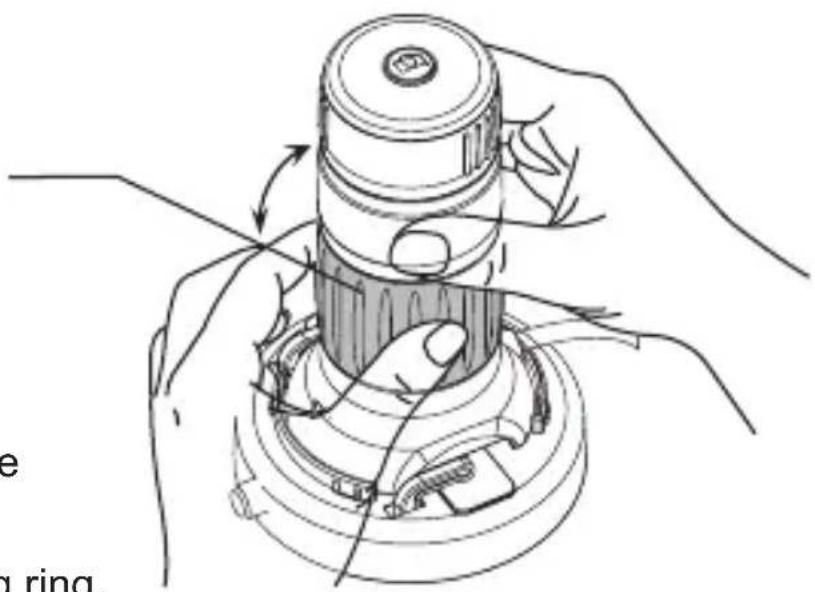
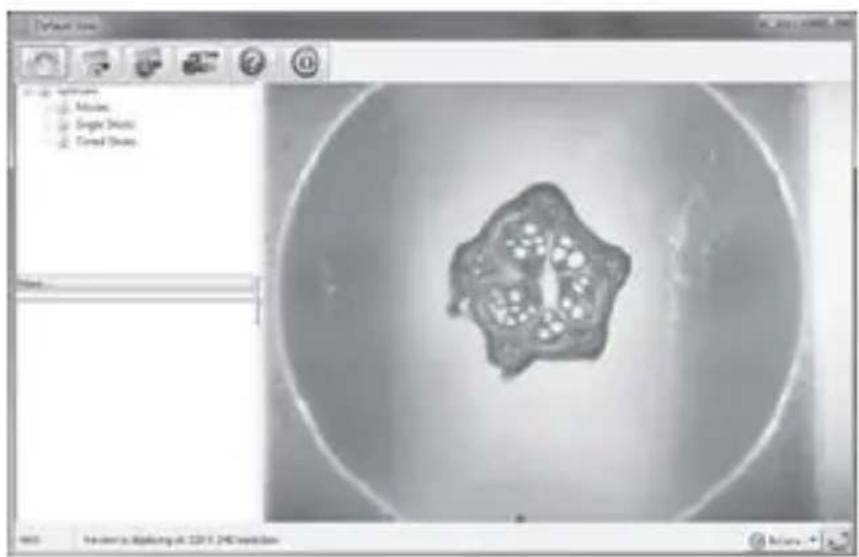
3D rendered abstract geometric shape within a circular frame, displayed in a software interface (no text or symbols on the object itself)- Zooming
Zooming ring
natural_image
Technical line drawing of a mechanical assembly with hands operating a central component (no text or symbols)Zoom in or out of the image manually by rotating the zooming ring.
natural_image
Software interface displaying a 3D model of a star-shaped object inside a circular frame, with no visible text or symbols on the model itself.
- Using the xploview software
The following buttons are available:
 | Clicking this will open the system settings menu (see next section). |
 | Clicking this will capture the on screen image of the device. |
 | Clicking this will activate or deactivate the timed shot feature. When activated, images will be captured at a regular interval. |
 | Clicking this will activate or deactivate the video recording feature. |
 | Clicking this will show the copyright and version information of the application software. |
 | Clicking this will shut down the application software. |
- System settings menu
The first time the xploview software is started, the default settings will be loaded, you may change these settings manually in the system settings menu.
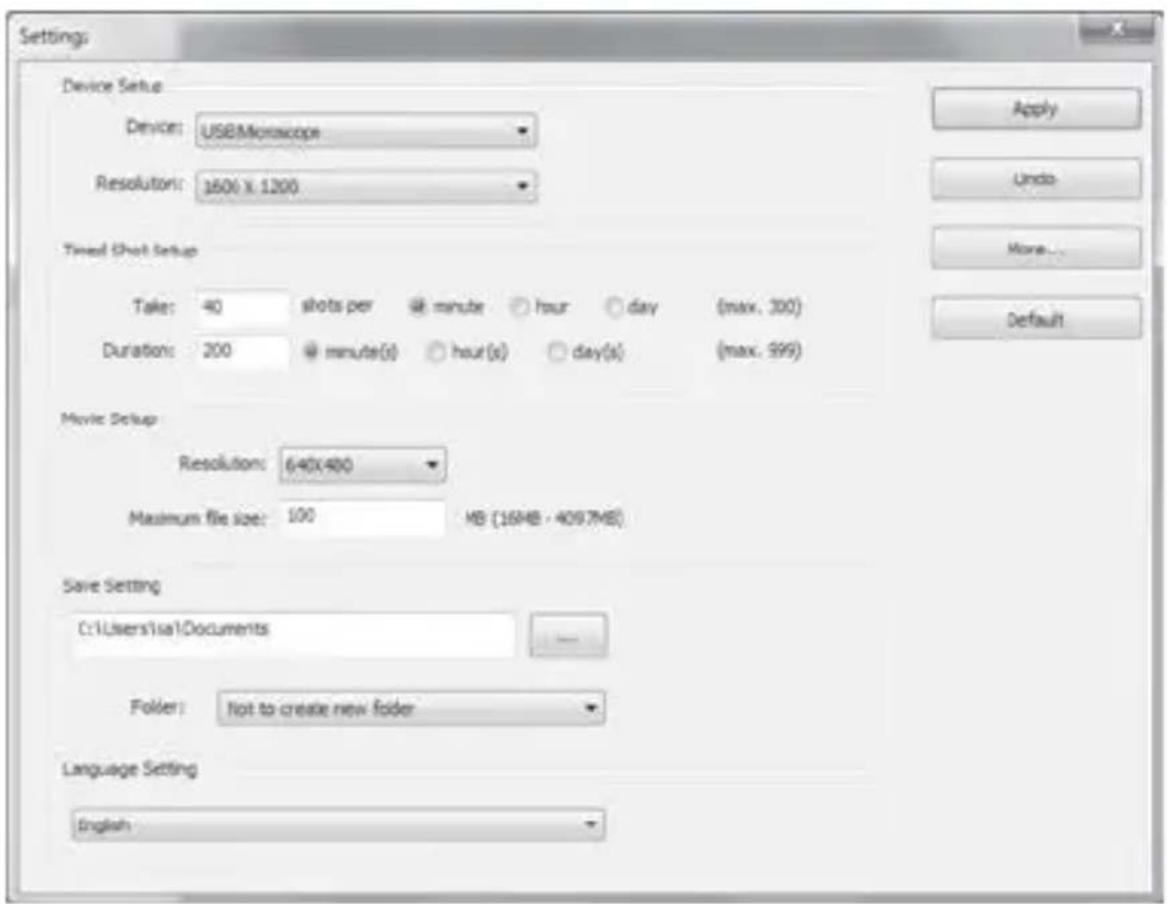
■ Device setup
If the image captured by the Digital Microscope was not displayed by default, you can change this by selecting it from the "Device" drop-down menu.
The resolution of images you capture can be changed from the "Resolution" drop-down menu.
- Timed shot setup
The frequency and duration of automatic images capture can be adjusted under this option.
■ Movie setup
The resolution of videos you record can be changed from the "Resolution" menu. You can also set a maximum file size for each video.
■ Save setting
The default location for captured images or videos can be changed under this option.
- Language setting
The language of the xploview software can be changed under this option.
■ Advanced settings
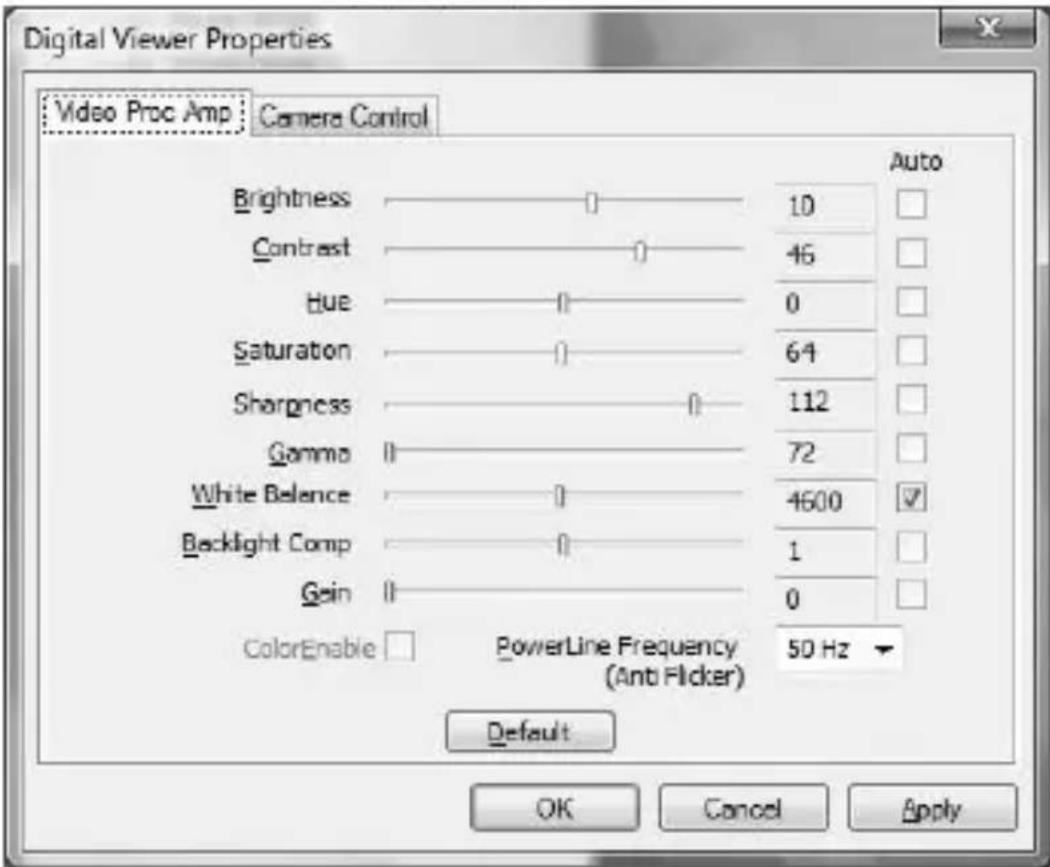
By clicking the "More..." button on the right of the system settings menu, you will be able to manually adjust all of the image settings. Note that the settings available may be different, depending on your operating system.
- Saved files
With the xploview application software opened, you can locate the saved files folder by clicking the "More..." button located on the left of the main software window.

- Full screen
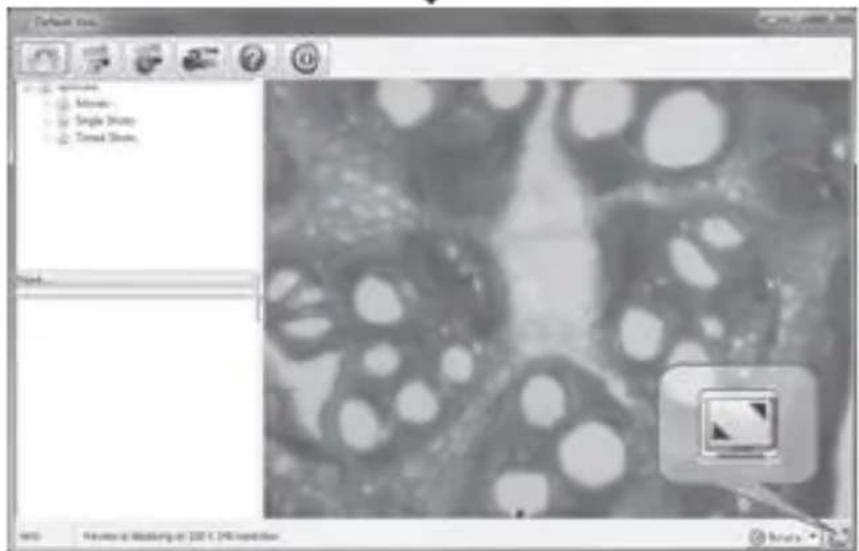
To activate the full screen mode, click the full screen button located on the bottom right hand corner of the xploview application software window.
To exit full screen mode, either double click on the screen, or press the “Esc” button on the keyboard.
- Care and maintenance
Keep the device dry and protect it from water or vapour.
Do not leave your device in a place with an extreme high or low temperature.
Do not touch the device with a wet hand as it may damage the device, or cause an electric shock to the user.
Do not use or store the device in dusty, dirty areas as its moving parts may be damaged.
Do not use harsh chemicals, cleaning solvents or strong detergents to clean the device. Wipe it with a soft cloth slightly dampened in a mild soap-and-water solution.
- Warning
Do not place lighted Digital Microscope upon the eye, doing so may cause permanent eye damage.
Do not attempt to open or dismantle the Digital Microscope.
CARSON ONE YEAR LIMITED WARRANTY
This Carson product is warranted to be free from defects in material and workmanship for a period of one year from date of purchase. During this period Carson will, at its option and without charge, either repair any part or assembly of parts found to be defective in material or workmanship, or replace this Carson product with a Carson product of comparable value and condition, subject to the limitations and exclusions noted herein. This warranty extends to the original purchaser only and is not assignable or transferable. It shall not apply to any product that has been subject to misuse, abuse, negligence or accident, or to any defects or damage directly or indirectly caused by the use of unauthorized replacement parts and/or service performed by unauthorized personnel.
This warranty gives you specific legal rights, and you may also have other rights which could vary from state to state. Some states do not allow limitations on the life of an implied warranty and/or do not allow excluding or limiting incidental or consequential damages. If so, the above limitations or exclusions may not apply to you.
WARRANTY PROCEDURE
Call or write for authorization. Before returning any product for a warranty claim, a Return Authorization (RA) number must be obtained. No merchandise will be accepted without an RA, and failure to obtain an RA will prevent or delay processing of the warranty claim. To obtain an RA call 631-963-5000, or write to Carson Warranty Service, 2070 5th Ave.,
Ronkonkoma NY 11779 with a description of the problem. Include your name, address and telephone number.
Package the return carefully. Shippers will not reimburse for damages due to insufficient packaging, even if the merchandise is insured. Print the RA number prominently on the top of the package. Prepay shipping. Insure the package. Send it to Carson Warranty Service, 2070 5th Ave., Ronkonkoma NY 11779. Merchandise must be shipped prepaid. Carson will not accept merchandise C.O.D.
- - Table of Contents
- - Important information
- - Product description
- - Computer requirements & Software Installation
- - Package contents
- - Product overview
- - Product specification
- ■ Connecting the device
- Mac OS based PC
- - Focusing
- - Zooming
- - Using the xploview software
- - System settings menu
- ■ Device setup
- - Timed shot setup
- ■ Movie setup
- ■ Save setting
- - Language setting
- ■ Advanced settings
- - Saved files
- - Full screen
- - Care and maintenance
- - Warning
- CARSON ONE YEAR LIMITED WARRANTY
- WARRANTY PROCEDURE
Brand : Carson
Model : zPix 300 MM-940
Category : Microscope