
XG-P20XE - Video projector SHARP - Free user manual and instructions
Find the device manual for free XG-P20XE SHARP in PDF.


| Product Type | LCD Projector |
| Model | XG-P20XE |
| Display Technology | 3 LCD Panels (RGB Optical Shutter) |
| Native Resolution | XGA (1024 x 768) |
| Standard Lens | 1-1.3x Zoom, F1.7-2.3, f=49.1-63.8 mm |
| Projection Lamp | AC 220 W |
| Lamp Replacement | Sharp BQC-XGP20X/Y |
| Contrast Ratio | 400:1 |
| Brightness (Approx.) | Ultra High (Power 220W AC) |
| Video Compatibility | PAL/SECAM/NTSC, DTV 480i/480P/720P/1080i |
| Computer Compatibility | VGA to UXGA (Compressed/Expanded) |
| Horizontal Resolution | 520 TV Lines (S-Video), 750 TV Lines (DTV 720P) |
| Input Terminals | RGB 15-pin D-sub (x1), 5 BNC (x1), DVI-D (x1), Composite RCA (x1), S-Video (x1) |
| Audio System | Built-in Speaker 22W + 2W (Stereo) |
| Remote Control | GyroRemote (RF, Gesture Tracking, 30 m range) |
| Keystone Correction | Intelligent Digital (Vertical & Horizontal Compression) |
| Lens Shift | Manual (Vertical), Power Zoom & Focus |
| Network Control | RS-232C, Ethernet (via Sharp Software) |
| Power Consumption | 330 W |
| Dimensions (W x H x D) | 319 x 155 x 423 mm (Body Only); 322.5 x 188.5 x 438 mm (Incl. Lens) |
| Weight | 9.5 kg (Body Only) |
| Operating Temperature | 5°C to 40°C |
| Storage Temperature | -20°C to 60°C |
| Safety Features | Auto Power Off, Overheat Protection, Lamp Shutdown, Kensington Lock |
Frequently Asked Questions - XG-P20XE SHARP
User questions about XG-P20XE SHARP
0 question about this device. Answer the ones you know or ask your own.
Ask a new question about this device
Download the instructions for your Video projector in PDF format for free! Find your manual XG-P20XE - SHARP and take your electronic device back in hand. On this page are published all the documents necessary for the use of your device. XG-P20XE by SHARP.
USER MANUAL XG-P20XE SHARP
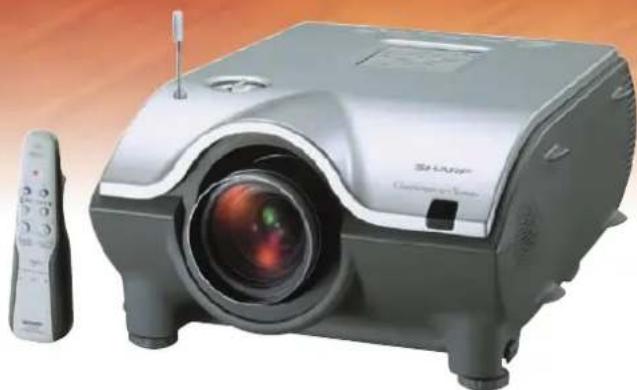
OPERATION MANUAL
MODEL
XG-P20XE
LCD PROJECTOR
Conference Series
natural_image
Exterior view of a silver projector with a remote control unit beside it (no visible text or symbols)香港電器安全規格
(國際電工委員會規格適合)
This equipment complies with the requirements of Directives 89/336/EEC and 73/23/EEC as amended by 93/68/EEC.
The mains lead of this product is fitted with a non-rewireable (moulded) plug incorporating a 13A fuse. Should the fuse need to be replaced, a BSI or ASTA approved BS 1362 fuse marked 🌐 or ◊ and of the same rating as above, which is also indicated on the pin face of the plug, must be used.
Always refit the fuse cover after replacing the fuse. Never use the plug without the fuse cover fitted.
In the unlikely event of the socket outlet in your home not being compatible with the plug supplied, cut off the mains plug and fit an appropriate type.
DANGER:
The fuse from the cut-off plug should be removed and the cut-off plug destroyed immediately and disposed of in a safe manner.
Under no circumstances should the cut-off plug be inserted elsewhere into a 13A socket outlet, as a serious electric shock may occur.
To fit an appropriate plug to the mains lead, follow the instructions below:
IMPORTANT:
The wires in the mains lead are coloured in accordance with the following code:
Blue: Neutral
Brown: Live
As the colours of the wires in the mains lead of this product may not correspond with the coloured markings identifying the terminals in your plug, proceed as follows:
- The wire which is coloured blue must be connected to the plug terminal which is marked N or coloured black.
- The wire which is coloured brown must be connected to the plug terminal which is marked L or coloured red.
Ensure that neither the brown nor the blue wire is connected to the earth terminal in your three-pin plug.
Before replacing the plug cover make sure that:
- If the new fitted plug contains a fuse, its value is the same as that removed from the cut-off plug.
- The cord grip is clamped over the sheath of the mains lead, and not simply over the lead wires.
IF YOU HAVE ANY DOUBT, CONSULT A QUALIFIED ELECTRICIAN.
The supplied CD-ROM contains operation instructions in English, German, French, Swedish, Spanish, Italian, Dutch, Chinese, Korean and Arabic. Carefully read through the operation instructions before operating the LCD projector.
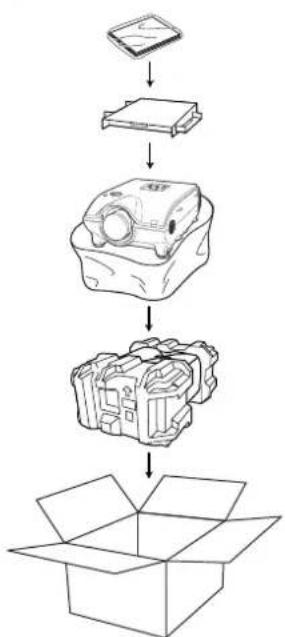
For your assistance in reporting the loss or theft of your Colour LCD Projector, please record the Serial Number located on the bottom of the projector and retain this information. Before recycling the packaging, please be sure that you have checked the contents of the carton thoroughly against the list of “Supplied Accessories” on page 12.
Model No.: XG-P20XE
Serial No.:
WARNING:
Intense light source. Do not look into the beam or view it directly. Be especially careful that children do not look directly into the beam.
WARNING:
To reduce the risk of fire or electric shock, do not expose this appliance to liquids.
CAUTION:
To reduce the risk of electric shock, do not remove cabinet. No user-serviceable parts are inside. Refer servicing to qualified service personnel.
WARNING:
This is a class A product. In a domestic environment this product may cause radio interference in which case the user may be required to take adequate measures.
WARNING:
The cooling fan in this projector continues to run for about 90 seconds after the projector is turned off. During normal operation, when turning the power off always use the
POWER OFF button on the projector or the POWER button on the GyroRemote. Ensure the cooling fan has stopped before disconnecting the power cord.
DURING NORMAL OPERATION, NEVER TURN THE PROJECTOR OFF BY DISCONNECTING THE POWER CORD. FAILURE TO OBSERVE THIS WILL RESULT IN PREMATURE LAMP FAILURE.
For GyroRemote unit (RRMCG1631CEZZ)
This device complies with part 15 of the FCC rules. Operation is subject to the following two conditions:
(1) This device may not cause harmful interference, and
(2) This device must accept any interference received, including interference that may cause undesired operation.
This device operates in the frequency band of 49.82 to 49.9 MHz. with RF output power of less than 30 MicroWatts EIRP (Effective Isotropic Radiated Power).
Caution
Any changes made to this device not expressly approved by the manufacturer could void the users right to operate this device.
ATTENTION: Please read all of these instructions before you operate your LCD Projector for the first time. Save these instructions for future reference.
For your own protection and prolonged operation of your LCD Projector, be sure to read the following “Important Safeguards” carefully, before use.
This projector has been engineered and manufactured to ensure your personal safety. But IMPROPER USE CAN RESULT IN POTENTIAL ELECTRICAL SHOCK OR FIRE HAZARDS. In order not to defeat the safeguards incorporated into this LCD Projector, observe the following basic rules for its installation, use and servicing.
- Unplug the LCD Projector from the wall outlet before cleaning.
- Do not use liquid cleaners or aerosol cleaners. Use a damp cloth for cleaning.
- Do not use attachments not recommended by the LCD Projector manufacturer, as they may cause hazards.
- Do not use the LCD Projector near water; for example, near a bathtub, washbowl, kitchen sink, laundry tub, in a wet basement, near a swimming pool, etc. Never spill liquid into the projector.
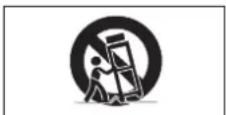
- Do not place the LCD Projector on an unstable cart, stand, or table. The LCD Projector may fall, which may cause serious injury to a child or an adult, and/or serious damage to the unit.
- Wall or Ceiling Mounting—The product should be mounted to a wall or ceiling only as recommended by the manufacturer.
- LCD Projector equipment and cart combinations should be moved with care. Quick stops, excessive force, and uneven surfaces may cause the equipment and cart combination to overturn.
- Slots and openings in the cabinet back and bottom are provided for ventilation. To ensure reliable operation of the LCD Projector and to protect it from overheating, these openings must not be blocked or covered. The openings should never be covered with cloth or other material.
- This LCD Projector should never be placed near or over a radiator or heating vent. The LCD Projector should not be placed in a built-in installation such as a bookcase unless proper ventilation is provided.
- The LCD Projector should be operated only from the type of power source indicated on the back of the projector or in the specifications. If you are not sure of the type of power supplied to your home, consult your LCD Projector dealer or local power company.
- Do not place the LCD Projector where the cord will be abused by persons walking on it.
- Follow all warnings and instructions marked on the LCD Projector.
- To prevent damage to the projector due to lightning and power-line surges, unplug the projector from the power outlet, when not in use.
- Do not overload wall outlets and extension cords with too many products, because this can result in fire or electric shock.
- Never push objects of any kind into the LCD Projector through the cabinet slots as they may touch high-voltage points or cause a short circuit. This could result in a fire or electric shock.
- Do not attempt to service the LCD Projector yourself. Opening or removing covers may expose you to dangerous voltage or other hazards. Refer all servicing to qualified service personnel.
- Unplug the LCD Projector equipment from the wall outlet and refer servicing to qualified service personnel under the following conditions:
a. When the power cord or plug is damaged or frayed.
b. If liquid has been spilled into the LCD Projector.
c. If the LCD Projector has been exposed to rain or water.
d. If the LCD Projector does not operate normally when you follow the operating instructions. Adjust only those controls that are covered by the operating instructions, as improper adjustment of other controls may cause damage and will often require extensive work by a qualified technician to restore the LCD Projector to normal operation.
e. If the LCD Projector has been dropped or the cabinet has been damaged.
f. When the LCD Projector exhibits a distinct change in performance—this indicates a need for service
-
When replacement parts are required, be sure the service technician has used replacement parts specified by the manufacturer that have the same characteristics as the original parts. Unauthorised substitutions may result in fire, electric shock, or other hazards.
-
This LCD Projector is provided with one of the following types of plugs. If the plug should fail to fit into the power outlet, please contact your electrician.
Do not defeat the safety purpose of the plug.
a. Two-wire type mains plug.
b. Three-wire grounding type mains plug with a grounding terminal.
This plug will only fit into a grounding type power outlet.
natural_image
Technical line drawing of a mechanical component with no visible text or symbols
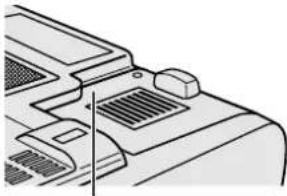
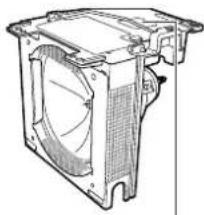
LAMP REPLACEMENT CAUTION
BEFORE REMOVEING THE SCREW, DISCONNECT POWER CORD. HOT SURFACE INSIDE ALLOW 1 HOUR TO COOL BEFORE REPLACING THE LAMP. REPLACE WITH SAME SHARP LAMP UNIT TYPE BQC-XGP20X/Y ONLY. UV RADIATION - CAN CAUSE EYE DAMAGE. TURN OFF LAMP BEFORE SERVICING MEDIUM PRESSURE LAMP - RISK OF EXPLOSION POTENTIAL HAZARD OF GLASS PARTICLES IF LAMP HAS RUPTURED. HANDLE WITH CARE. SEE OPERATION MANUAL.
natural_image
Technical line drawing of a mechanical fan or housing component (no text or symbols visible)Caution Concerning the Lamp Replacement
See "Replacing the Lamp" on pages 68 and 69.
Caution Concerning the Lamp Unit
Potential hazard of glass particles if lamp ruptures. In case of lamp rupture, contact your nearest Authorised LCD Projector Dealer or Service Centre for a replacement.
See "Replacing the Lamp" on pages 68 and 69.
Cautions Concerning the Setup of the Projector
For minimal servicing and to maintain high image quality, SHARP recommends that this projector be installed in an area free from humidity, dust and cigarette smoke. When the projector is subjected to these environments, the lens must be cleaned more often. As long as the projector is regularly cleaned, use in these environments will not reduce the overall operation life of the unit. Internal cleaning should only be performed by a Sharp Authorised LCD Projector Dealer or Service Centre.
Notes on Operation
- The exhaust vent, the lamp cage cover and adjacent areas may be extremely hot during projector operation. To prevent injury, do not touch these areas until they have sufficiently cooled.
- Allow at least 10 cm of space between the exhaust vent and the nearest wall or obstruction.
- If the cooling fan becomes obstructed, a protection device will automatically turn off the projector lamp. This does not indicate a malfunction. Remove the projector power cord from the wall outlet and wait at least 10 minutes. Then turn on the power by plugging the power cord back in. This will return the projector to the normal operating condition.

TEMP.
natural_image
Line drawing of a vintage portable device with handle and front panel (no text or symbols)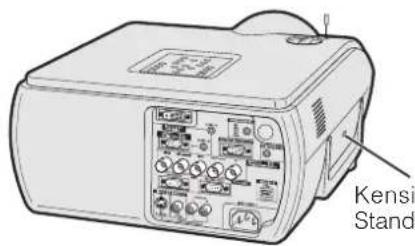
Kensington Security Standard connector
Temperature Monitor Function
If the projector starts to overheat due to setup problems or a dirty air filter, "TEMP." and "☒" will flash in the lower-left corner of the picture. If the temperature continues to rise, the lamp will turn off, the TEMPERATURE WARNING indicator on the projector will flash, and after a 90-second cooling-off period the power will shut off. Refer to "Lamp/Maintenance Indicators" on page 67, for details.
NOTE
- The cooling fan regulates the internal temperature, and its performance is automatically controlled. The sound of the fan may change during projector operation due to changes in the fan speed.
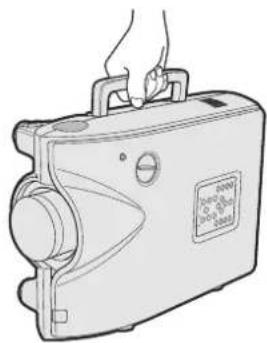
Using the Carrying Handle
When transporting the projector, carry it by the carrying handle on the side.
CAUTION
- Always put on the lens cap to prevent damage to the lens when transporting the projector.
- Do not lift or carry the projector by the lens or the lens cap as this may damage the lens.
Using the Kensington Lock
This projector has a Kensington Security Standard connector for use with a Kensington MicroSaver Security System. Refer to the information that came with the system for instructions on how to use it to secure the projector.
1. High-end LCD Projector with Ultra High Brightness
- AC 220 W Lamp
Use AC 220 W lamp for excellent colour uniformity and ultra high brightness.
2. Computer Compatibility
- Compatible with resolutions including VGA-SVGA (expanded), XGA (true resolution) and SXGA-UXGA (compressed) as well as DTV* formats (480i, 480P, 720P and 1080i).
3. XGA Image Quality
- OCS LCD panel enhances colour uniformity.
- Various other circuits are also used to provide high quality video images.
4. Computer & Video Integrated Composer Technology
- New Progressive Mode
I/P conversion with new algorithm used to achieve beautiful image quality.
• Enhanced Up-scaling and Digital Image Enlargement
Enables sharper image quality without jaggies even for enlarged images.
• Superior 16:9 Image
4:3 images can be converted to 16:9 images using Smart Stretch (sides stretched, centre untouched), previously not achievable with LCD projectors.
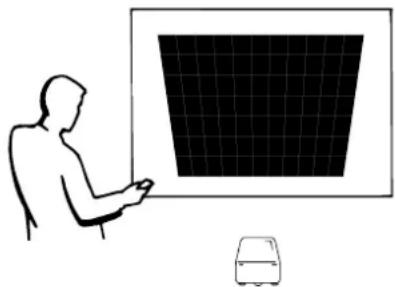
- Intelligent Digital Keystone Correction
Smooths out jaggies on keystone images and compresses the image not only horizontally but vertically keeping the 4:3 aspect ratio, and at the same time, calculates the aspect ratio automatically adjusting to the lens shift width.
- New Intelligent Compression
Efficiently compresses UXGA (1,600 × 1,200) images to XGA (1,024 × 768).
• Enhanced three-two pull down
Converts cinema mode DVD images transformed with three-two pull down enhancement to progressive mode images for easier viewing by Film Mode.
• Dynamic GAMMA Correction
Optimizing GAMMA correction frame by frame in real time.
5. 3D Digital Uniformity and Digital Convergence
- Three-Dimensional Digital Uniformity compensates uneven picture brightness even for pictures at any brightness level from white to dark. And, with Digital Convergence, a slight distortion of convergence can be adjusted on the service menu screen without having to touch the LCD panel.
natural_image
Silhouette of a person using a computer with a screen and a small vehicle nearby (no text or symbols)*DTV is the umbrella term used to describe the new digital television system in the united states.
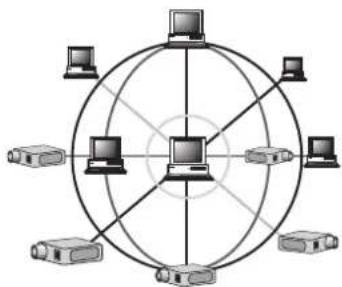
6. Network Capability
• Self-Diagnosis/Projector Status
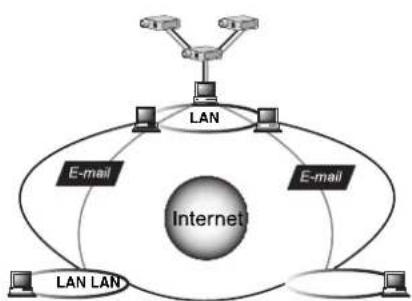
Self-diagnosis/Projector status function sends e-mail messages to a specified computer about lamp usage time and any malfunctions.
• Multiple & Group Projector Control
Up to 250 projectors can be controlled over a network. Projector RS-232C OUT can be used for daisy chain connection.
- Simple Stacking and Videowall Display
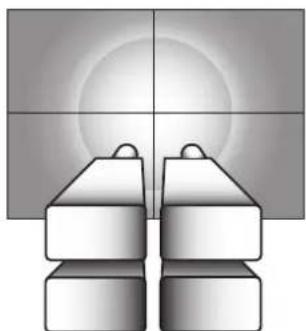
Comes with software for easy stacking and videowall processing even for input from a single source.
7. Four Optional Lenses for Maximum Flexibility
- Bayonet mount type: Wide-Zoom Lens, Tele-Zoom Lens
- Screw mount type: Fixed Wide Lens, Tele-Zoom Lens
8. Multiple Input and Output Terminals
• BNC Terminal for RGB/Component/Video Signal
• PC Digital Input (DVI)
- Output terminal with VAO (variable audio output) support
9. Easy Setup
- Lens Shift, Power Zoom & Focus, Digital Keystone Correction
• High Speed Auto Sync Technology
10. Advanced Presentation Features incorporating a unique gyro device for "in-air" remote control
- An intuitive presentation tool with an easy-to-see screen pointer.
- Raising the bar for roaming interaction with a wireless, RF (nondirectional) design that erases out-of-sight worries. Loaded with USB mouse control.
11. Useful Features
• Picture-in-Picture, Digital Enlargement, Freeze
- Customizable Startup Screen & Background Screen
12. Application Software
- “Sharp Advanced Presentation Software—Professional Edition” (Network and Remote Control)
flowchart
graph TD
    A["Internet"] --> B["LAN"]
    A --> C["E-mail"]
    A --> D["LAN LAN"]
    A --> E["E-mail"]
    B --> F["Network Port"]
    C --> G["Network Port"]
    D --> H["Network Port"]
    E --> I["Network Port"]
natural_image
Abstract 3D geometric shapes with gradient shading, no text or symbols present
Contents

Important Information
Introduction 1
Important Safeguards ...... 2
Outstanding Features 5
Contents 7
How to Access the PDF Operation Manuals 9
Part Names.... 10
Accessories 12
Setup & Connections
Connections.... 13
Power Supply 13
Projecting Computer Images 14
Watching Video Images 17
Watching Component Video Images ..... 18
For Better Sound 18
Power ON/OFF 19
Setting Up the Screen 20
Using the Adjustment Feet 20
Using the Lens Shift 20
LENS Button 21
Adjusting the Projection Distance ..... 22
Image Projection 29
Rear Projection 29
Projection Using a Mirror 29
Ceiling-mount Projection 29
Operation Buttons
Introducing GyroRemote 30
GyroRemote Features 30
Using GyroRemote 32
Setting up GyroRemote 36
Using the Operation Buttons ...... 39
Selecting the Input Signal Source 39
Adjusting the Volume.... 39
Muting the Sound 39
Superimposing a Black Screen 40
Displaying a Still Image 40
Magnifying a Specific Portion of an Image 41
Pan Around the Screen 41
Adjusting the Picture Aspect Ratio...... 42
Gamma Correction Function 43
Basic Operation
Using the GUI (Graphical User Interface) Menu Screen 43
Basic Operations 43
Menu Bars 45
Adjusting the Picture 47
Adjusting the Computer Images (RGB menu only) 49
Adjusting the Sound 52
Displaying Dual Pictures
(RGB menu only) 53
Reducing Image Noise
(VIDEO menu only) 53
Turning On/Off the On-screen Display ... 54
Setting the Video Signal
(VIDEO menu only) 54
Selecting a Background Image 55
Selecting a Startup Image 55
Selecting the Economy Mode 56
Confirming the Lamp Usage Time ..... 57
Reversing/Inverting Projected Images ... 57
Setting the Stacking Mode 58
Locking the Operation Buttons on the Projector.... 58
Deselecting Inputs 59
Selecting the Transmission Speed (RS-232C) 59
Controlling Multiple Projectors with ID Numbers 60
Protecting Important Settings with a Password 61
Selecting the On-screen Display Language.... 62
Displaying the Adjustment Settings ..... 62
Multiple Function
Using Extended Functionality Features 63

Maintenance & Troubleshooting
Lamp/Maintenance Indicators 67
Replacing the Lamp 68
Replacing the Air Filter 70
Troubleshooting 71

Appendix
Connecting Pin Assignments ...... 72
(RS-232C) Specifications and Command Settings.... 73
Wired Remote Control Terminal Specifications 76
Computer Compatibility Chart ..... 77
Dimensions 78
Specifications 79
Glossary 80
Index 81
PDF operation manuals in several languages are included in the CD-ROM. To utilize these manuals, you need to install Adobe Acrobat Reader on your PC (Windows or Macintosh). If you have not installed Acrobat Reader yet, you can download it from the Internet (http://www.adobe.com) or install it from the CD-ROM.
To Install Acrobat Reader from the CD-ROM
For Windows:
①Insert the CD-ROM in the CD-ROM drive.
② Double click on the "My Computer" icon.
③Double click on the "CD-ROM" drive.
④Double click on the “acrobat” folder.
⑤ Double click on the "windows" folder.
⑥Double click on the desired installation programme and follow the instructions on the screen.
For Macintosh:
①Insert the CD-ROM in the CD-ROM drive.
② Double click on the "CD-ROM" icon.
③Double click on the "acrobat" folder.
④ Double click on the "mac" folder.
⑤Double click on the desired installation programme and follow the instructions on the screen.
For other operating systems:
Please download Acrobat Reader from the Internet (http://www.adobe.com).
For other languages:
If you prefer using Acrobat Reader for languages other than those included in the CD-ROM, please download the appropriate version from the Internet.
Accessing the PDF Manuals
For Windows:
①Insert the CD-ROM in the CD-ROM drive.
② Double click on the "My Computer" icon.
③Double click on the "CD-ROM" drive.
④ Double click on the "manuals" folder.
⑤Double click on the "xg-p20xe" folder.
⑥Double click on the language (name of the folder) that you want to view.
⑦ Double click on the "p20x" pdf file to access the projector manuals.
Double click on the "saps" pdf file to access the Sharp Advanced Presentation Software manual.
⑧Double click on the pdf file.
For Macintosh:
①Insert the CD-ROM in the CD-ROM drive.
② Double click on the "CD-ROM" icon.
③ Double click on the "manuals" folder.
④Double click on the "xg-p20xe" folder.
⑤Double click on the language (name of the folder) that you want to view.
⑥ Double click on the "p20x" pdf file to access the projector manuals.
Double click on the "saps" pdf file to access the Sharp Advanced Presentation Software manual.
⑦Double click on the pdf file.
NOTE
- If the desired pdf file cannot be opened by double clicking the mouse, start Acrobat Reader first, then specify the desired file using the "File", "Open" menu.
- See the "readme.txt" file on the CD-ROM for important information on the CD-ROM not included in this operation manual.
Numbers next to the part names refer to the main pages in this manual where the topic is explained.
Projector
Front View
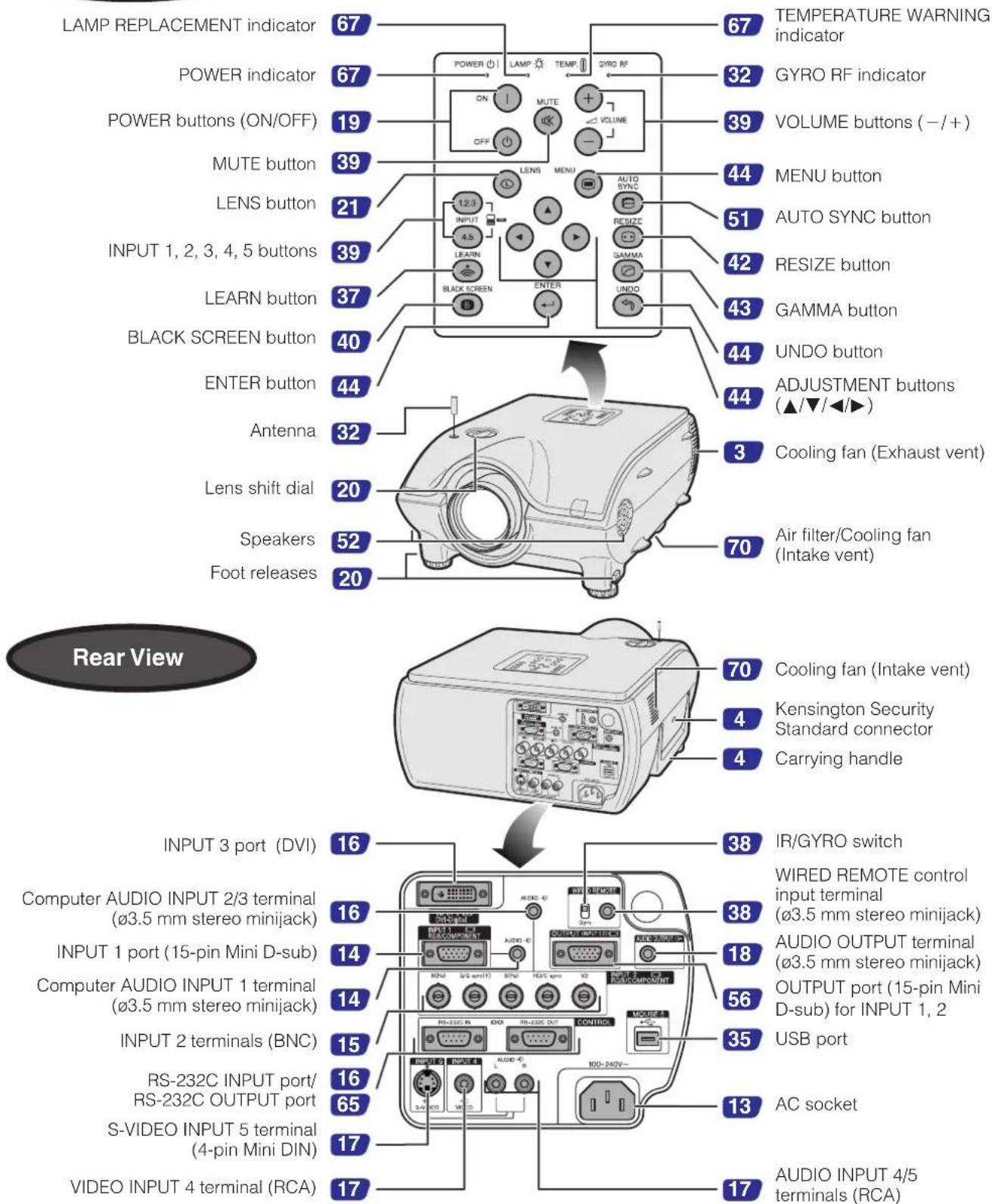
Numbers next to the part names refer to the main pages in this manual where the topic is explained.
GyroRemote
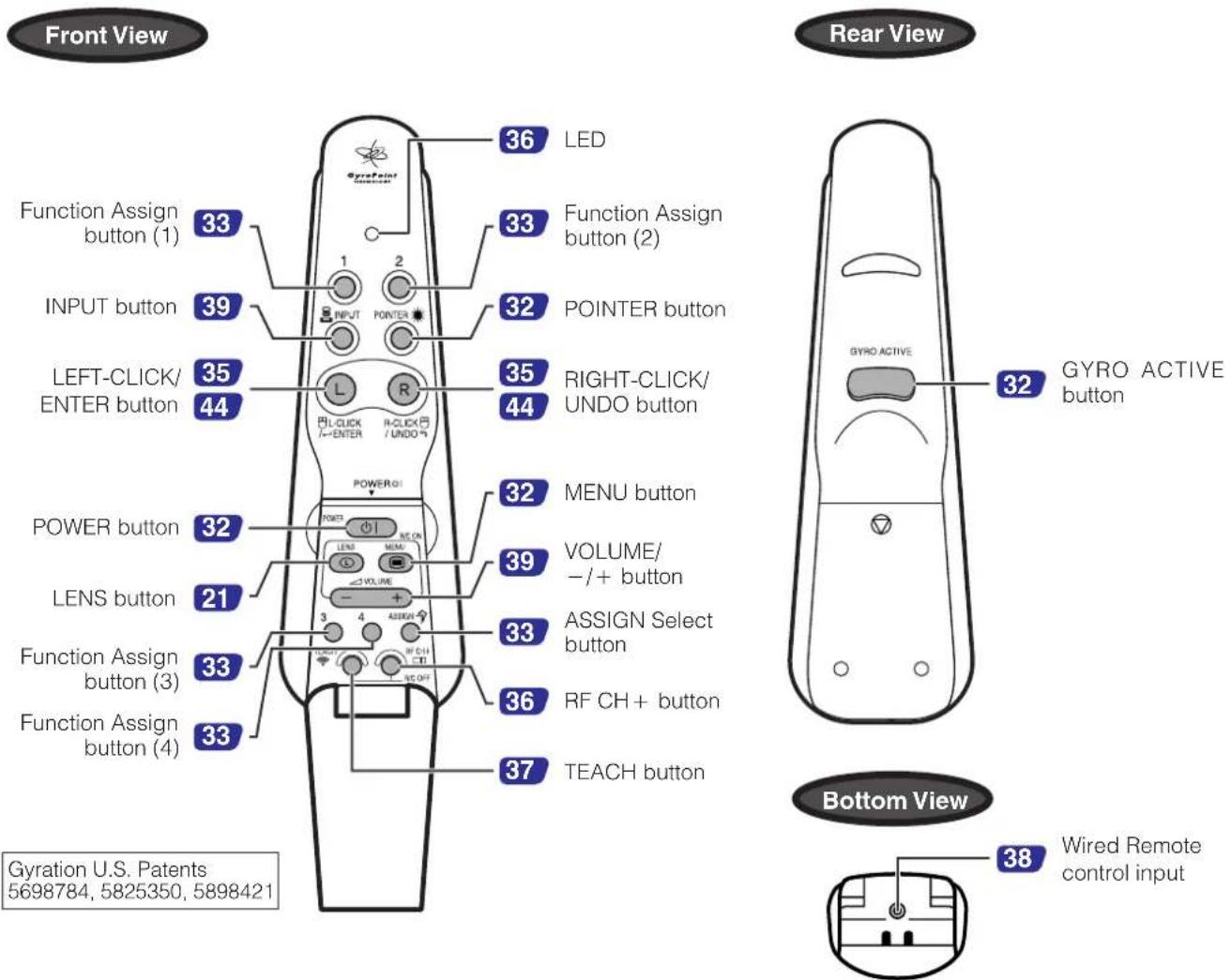
Inserting and removing the batteries
Batteries are not pre-installed at the factory. When inserting batteries for the first time, follow steps 1, 3 and 4 below.
| 1 Press in on the arrow mark and slide in the direction of the arrow to remove the battery cover. | 2 Remove the two upper batteries and pull the tapes to pick up two other batteries at the bottom of the compartment. | 3 Insert four AAA size batteries, making sure the polarities match the + and - marks inside the battery compartment and the batteries are placed on the tapes. | 4 Insert the side tabs of the battery cover into the slots and press the cover in until it is properly seated. |
Battery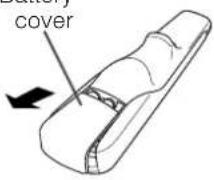 | Battery compartment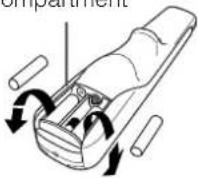 | 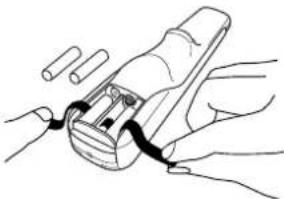 | Battery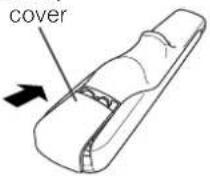 |
Supplied Accessories
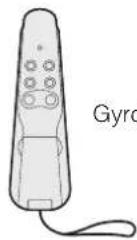
GyroRemote
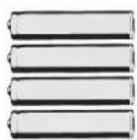
Four AAA size batteries
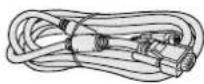
RGB cable
Power cord
For Europe and Hong Kong
For Europe, except U.K. For U.K. and Hong Kong
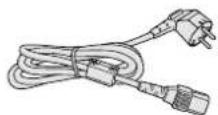
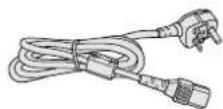
For Australia, New Zealand and Oceania
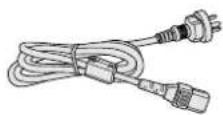
NOTE
- The configuration of wall outlets differs from country to country. Use the power cord that corresponds to the wall outlet in your country.
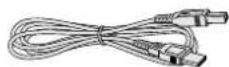
USB mouse control cable
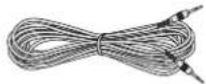
Computer audio cable (ø3.5 mm stereo minijack cable)
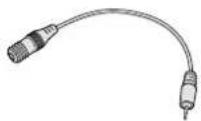
∅2.5–∅3.5 mm wired remote control cable
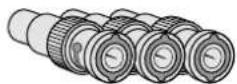
Three BNC-RCA adaptors
Extra air filter
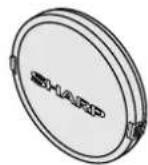
Lens cap
flowchart
graph TD
    A["Device Input"] --> B["Package"]
    B --> C["Product"]
    C --> D["Packaging"]
    D --> E["Final Box"]
CD-ROM
LCD projector operation manual
Sharp Advanced Presentation
Software operation manual
ID number seal
LCD projector quick guide
Optional cables
DVI cable (3 m)
AN-C3DV
3RCA to 15pin D-sub cable (3 m)
AN-C3CP
5BNC to 15pin D-sub cable (3 m)
AN-C3BN
RS-232C serial control cable (10 m)
AN-C10RS
Connecting the Power Cord
Plug the supplied power cord into the AC socket on the rear of the projector.
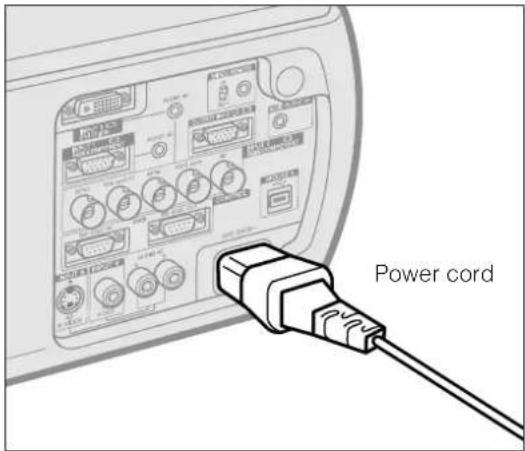
Make the necessary connections before proceeding. Connect the power cord to a wall outlet. The POWER indicator lights up red and the projector enters standby mode.
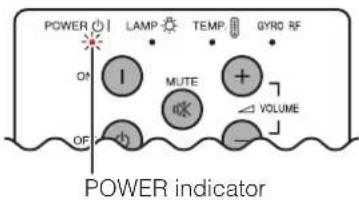
NOTE
- If the bottom filter cover is not securely installed, the POWER indicator flashes.
Connecting the Projector to a Computer
You can connect your projector to a computer for projection of full colour computer images.
Connecting to a computer using the standard 15-pin Input
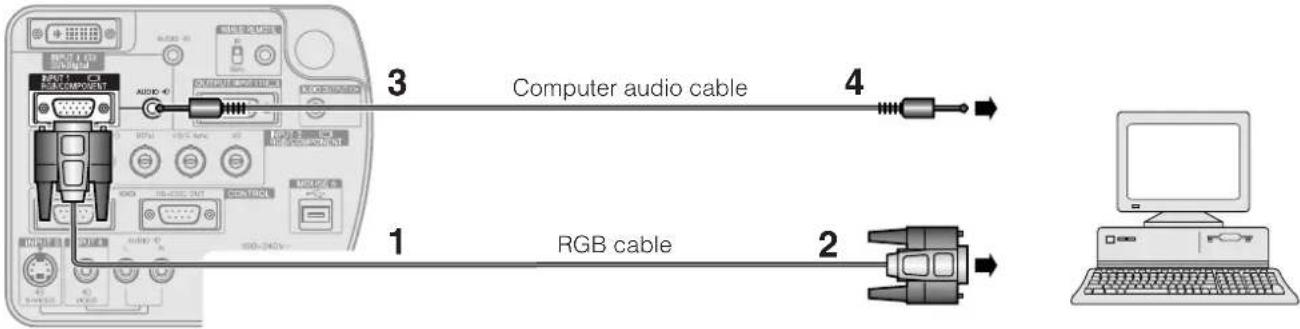
1 Connect one end of the supplied RGB cable to the INPUT 1 port on the projector.
2 Connect the other end to the monitor output port on the computer. Secure the connectors by tightening the thumb screws.
3 To use the built-in audio system, connect one end of the supplied computer audio cable to the AUDIO INPUT 1 terminal on the projector.
4 Connect the other end to the audio output terminal on the computer.
CAUTION
- Before connecting, be sure to turn both the projector and the computer off. After making all connections, turn the projector on first. The computer should always be turned on last.
NOTE
- Please read the computer's operation manual carefully before making connections.
- Refer to page 77 "Computer Compatibility Chart" for a list of computer signals compatible with the projector. Use with computer signals other than those listed may cause some of the functions not to work.
- A 3.5 mm stereo minijack to stereo RCA audio cable adaptor may be necessary.
When connecting this projector to a computer, select "RGB" for "Signal Type" on the GUI menu. (See page 47.)
NOTE
- A Macintosh adaptor may be required for use with some Macintosh computers. Contact your nearest Sharp Authorised LCD Projector Dealer or Service Centre.
-
AUDIO INPUT 1 can be used to input audio corresponding to the INPUT 1.
-
This projector uses a 5 BNC computer input to prevent deterioration of image quality.
- Connect the R (PR), G/G sync (Y), B (PB), HD/C sync and VD cables (sold separately) to the correct input terminals on the projector and an RGB switcher (sold separately) connected to the computer, or connect a 5 BNC cable (sold separately) directly from the input terminals on the projector to the computer.
Connecting to an external RGB switcher or other compatible computers using the BNC Input (Typically used in larger installations)
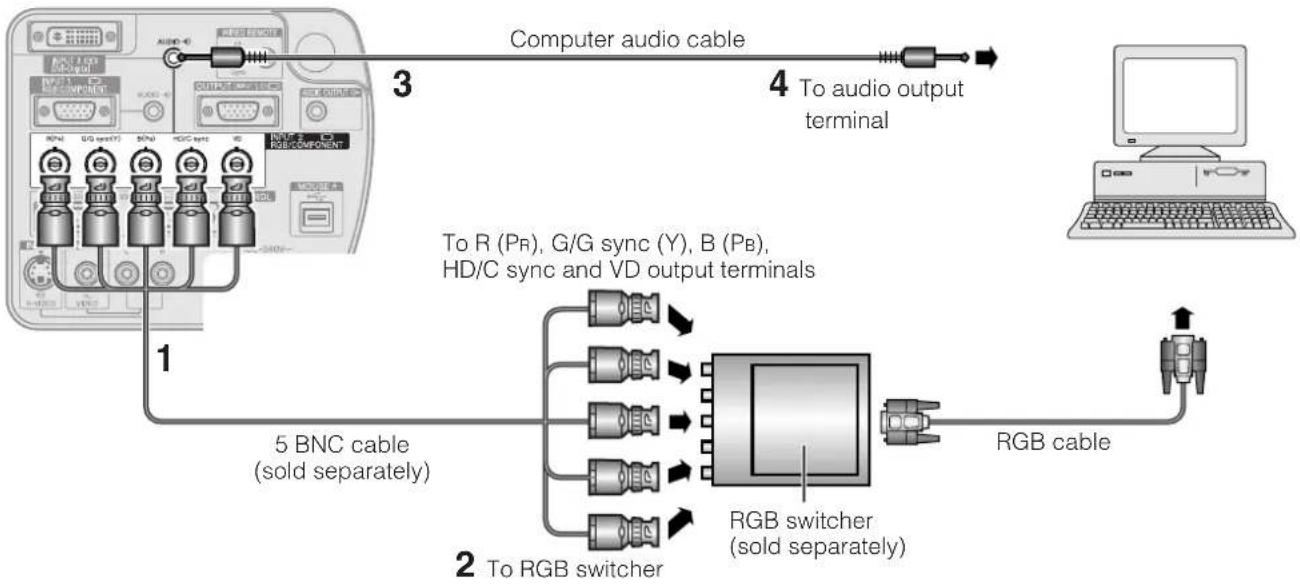
flowchart
graph LR
    A["Computer audio cable"] -->|3| B["To audio output terminal"]
    B --> C["RGB cable"]
    C --> D["To R (Pr), G/G sync (Y), B (Pb), HD/C sync and VD output terminals"]
    D --> E["5 BNC cable (sold separately)"]
    E --> F["RGB switcher (sold separately)"]
    F --> G["To RGB switcher"]
1 Connect each BNC connector of a 5 BNC cable to the corresponding INPUT 2 terminals on the projector.
2 Connect the other end of the 5 BNC cable to the corresponding BNC terminals on the external RGB switcher. Connect the RGB switcher to the computer using a RGB cable.
3 To use the built-in audio system, connect one end of the supplied computer audio cable to the AUDIO INPUT 2/3 terminal on the projector.
4 Connect the other end to the audio output terminal on the computer or external audio system.
NOTE
- A 3.5 mm stereo minijack to stereo RCA audio cable adaptor may be necessary.
When connecting the projector to a compatible computer other than a PC (VGA/SVGA/XGA/SXGA/UXGA) or Macintosh (i.e. Workstation), a separate cable may be needed. Please contact your dealer for more information.
When connecting this projector to a computer, select "RGB" for "Signal Type" on the GUI menu. (See page 47.)
NOTE
- Connecting computers other than the recommended types may result in damage to the projector, the computer, or both.
- AUDIO INPUT 2/3 can be used to input audio corresponding to the INPUT 2/3.
"Plug and Play" function (when connecting to a 15-pin terminal)
- This projector is compatible with VESA-standard DDC 1/DDC 2B. The projector and a VESA DDC compatible computer will communicate their setting requirements, allowing for quick and easy setup.
- Before using the "Plug and Play" function, be sure to turn on the projector first and the connected computer last.
NOTE
- The DDC "Plug and Play" function of this projector operates only when used in conjunction with a VESA DDC compatible computer.
Connecting to a computer using the RS-232C Port
When the RS-232C port on the projector is connected to a computer with an RS-232C cable (null modem, cross type, sold separately), the computer can be used to control the projector and check the status of the projector. See pages 73, 74 and 75 for details.
Connect an RS-232C cable (null modem, cross type, sold separately) to the serial port on the computer.
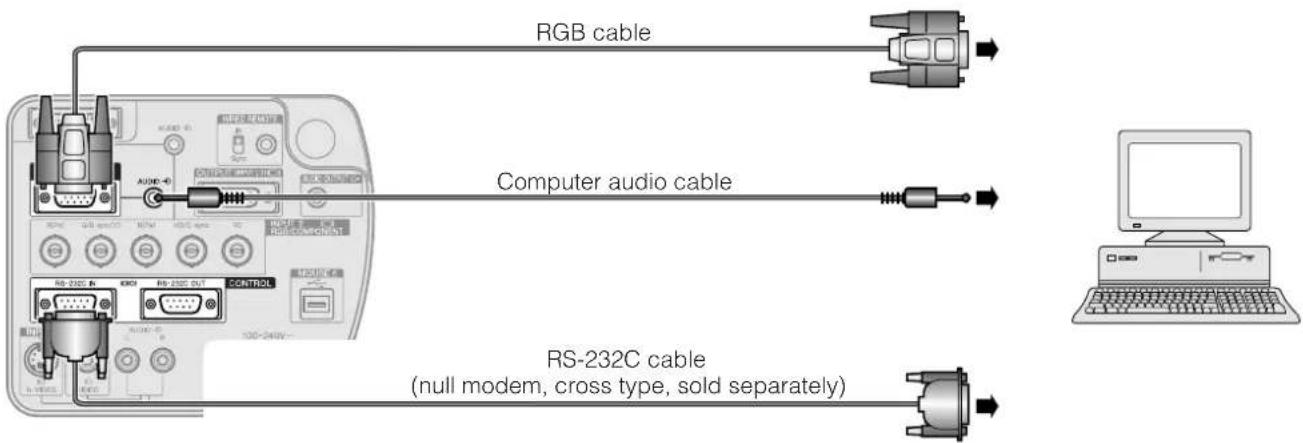
CAUTION
- Do not connect or disconnect an RS-232C cable to or from the computer while it is on. This may damage your computer.
NOTE
- The wireless mouse or RS-232C function may not operate if your computer port is not correctly set up. Please refer to the operation manual of the computer for details on setting up/installing the correct mouse driver.
- A Macintosh adaptor may be required for use with some Macintosh computers. Contact your nearest Sharp Authorised LCD Projector Dealer or Service Centre.
Connecting to a computer using the direct digital input port
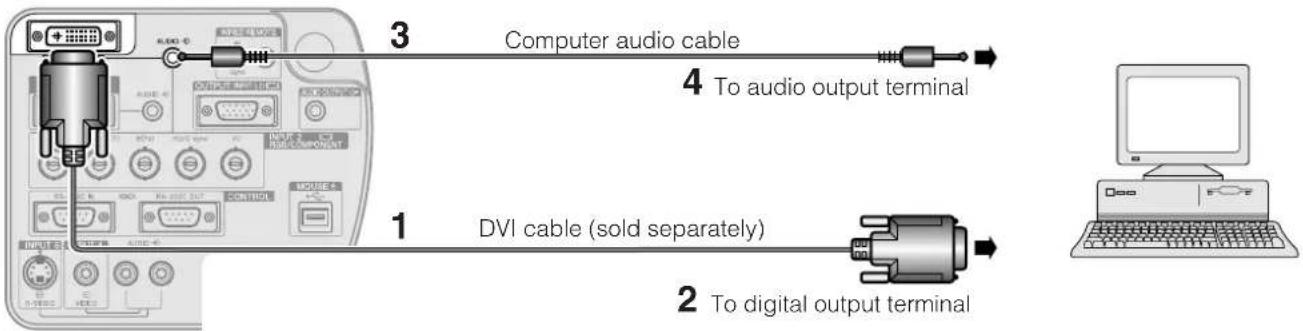
1 Connect one end of the DVI cable to the INPUT 3 port on the projector.
2 Connect the other end to the corresponding terminal on a computer.
3 To use the built-in audio system, connect one end of the supplied computer audio cable to AUDIO INPUT 2/3 terminal on the projector.
4 Connect the other end to the audio output terminal on the computer.
NOTE
- This DVI port is DVI version 1.0 compatible. Therefore when the signal is input from copy guard system compatible (DVI version 2.0) equipment, no signal will be received.
Connecting to a VCR, laser disc player and other audiovisual equipment using the standard video Input
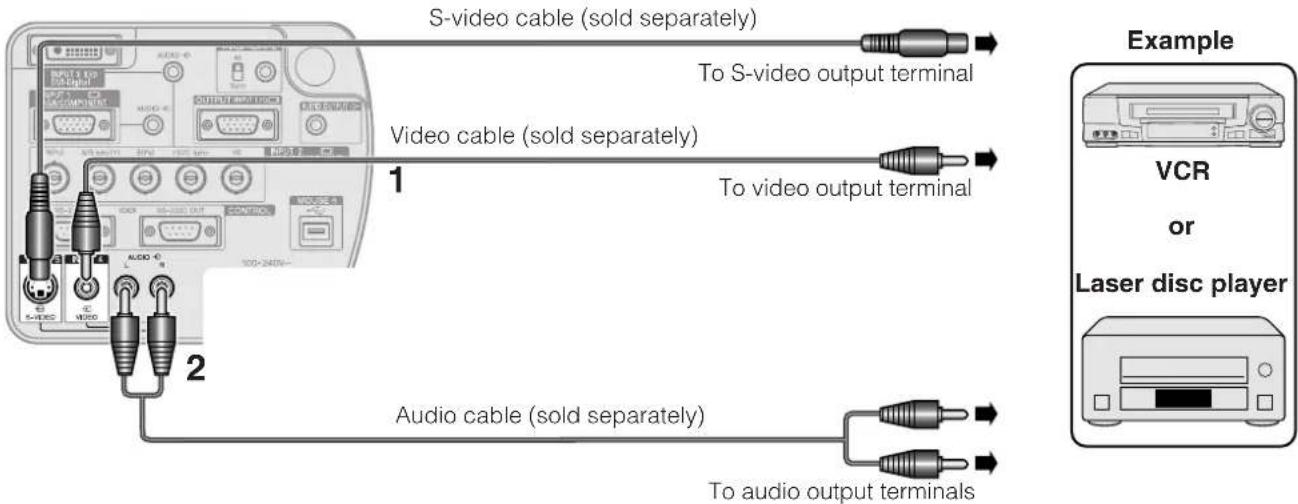
1 Connect the yellow RCA connectors to the corresponding yellow VIDEO INPUT 4 terminal on the projector and the Video output terminal on the video source.
2 To use the built-in audio system, connect the red and white RCA connectors to the corresponding reed and white AUDIO INPUT 4/5 terminals on the projector and the Audio output terminals on the video source.
The S-VIDEO INPUT 5 terminal uses a video signal system in which the picture is separated into a colour and a luminance signal to realise a higher-quality image.
NOTE
- For higher quality video, you may use the S-VIDEO INPUT 5 terminal on the projector. S-video cable is sold separately.
- If your video equipment does not have an S-video output terminal, use a composite video cable.
CAUTION
- Always turn off the projector before connecting to video equipment, in order to protect both the projector and the equipment being connected.
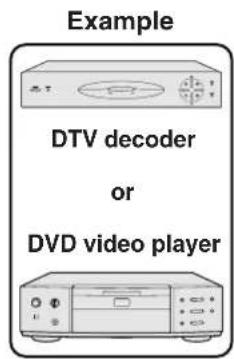
Connecting to a DVD video player, DTV decoder and other component video equipment using the 5 BNC Input
CAUTION
- Always turn off the projector before connecting to video equipment, in order to protect both the projector and the equipment being connected.
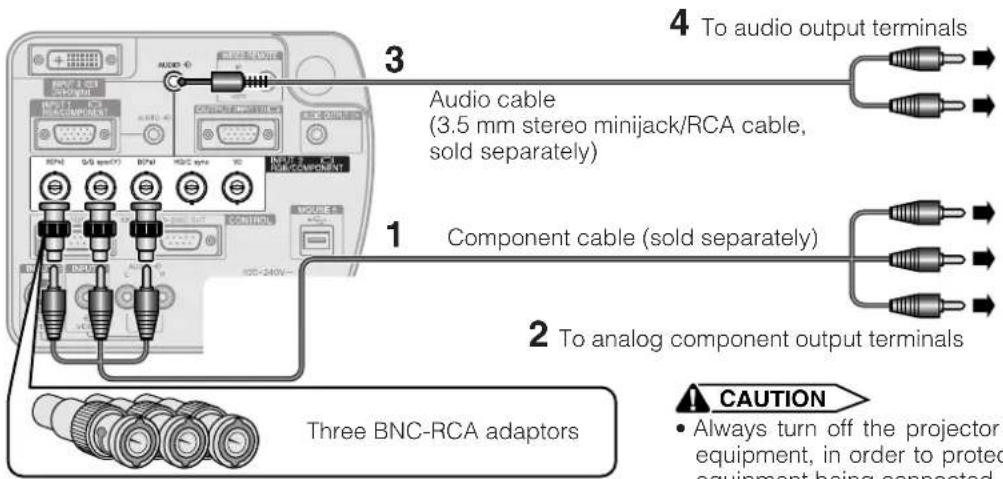
1 Connect each BNC connector of a component cable to the corresponding BNC INPUT 2 terminals on the projector.
2 Connect the other end of the cable to the corresponding terminals on a DVD video player or DTV decoder.
3 To use the built-in audio system, connect one end of an audio cable (sold separately) to the AUDIO INPUT 2/3 terminal on the projector.
4 Connect the other end to the audio output terminal on the DVD video player or DTV decoder.
NOTE
- BNC-RCA adaptors are included for use with RCA type cables and sources.
- A 3.5 mm stereo minijack to stereo RCA audio cable adaptor may be necessary.
When connecting this projector to a DVD video player or DTV decoder, select "Component" for "Signal Type" on the GUI menu. (See page 47.)

For Better Sound
Connecting to an amplifier and other audio components
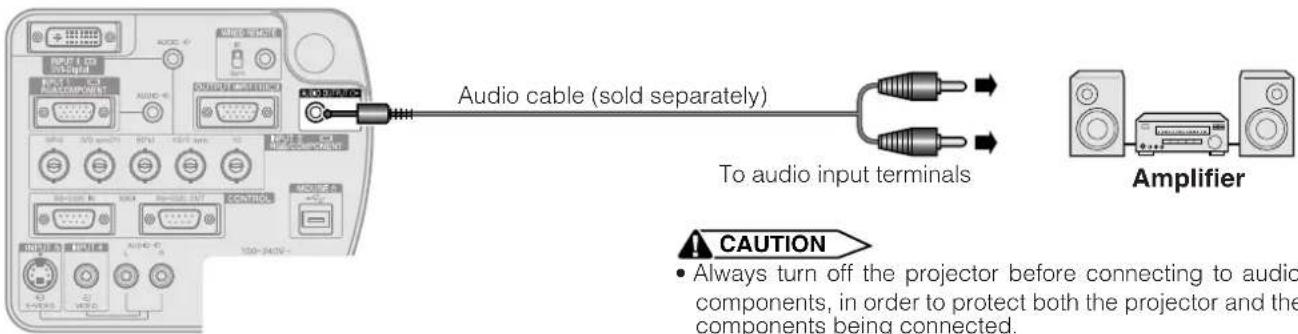
NOTE
- By using external audio components, the volume can be amplified for better sound.
- The AUDIO OUTPUT terminal allow you to output audio to audio components from the selected AUDIO INPUT 1 to 5 terminals connected to audiovisual equipment.
- For details on Variable Audio Output (VAO) and Fixed Audio Output (FAO), see page 52.
- A 3.5 mm stereo minijack to stereo RCA audio cable adaptor may be necessary.
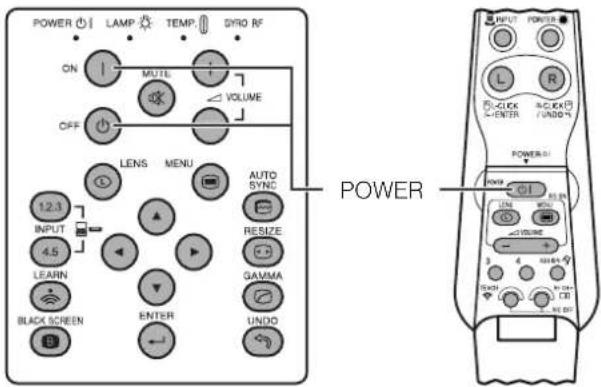
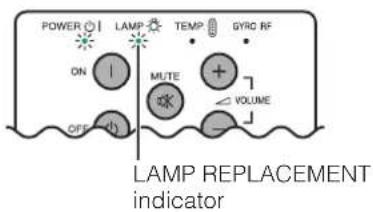
Press POWER ON on the projector or POWER on the GyroRemote.
- The flashing green LAMP REPLACEMENT indicator shows that the lamp is warming up. Wait until the indicator stops flashing before operating the projector.
- If the power is turned off and then immediately turned on again, it may take a short while before the lamp turns on.
NOTE
- When the projector cannot recognise GyroRemote, an on-screen display appears. Follow the instructions to activate control.
- After the projector is unpacked and turned on for the first time, a slight odour may be emitted from the exhaust vent. This odour will soon disappear with use.
When the power is on, the LAMP REPLACEMENT indicator lights, indicating the status of the lamp.
Green: Lamp is ready.
Flashing green: Warming up.
Red: Change the lamp.
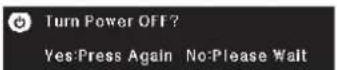
Press POWER OFF on the projector or POWER on the GyroRemote.
Press POWER OFF/POWER again while the message is displayed.
NOTE
- If you accidentally pressed POWER OFF/POWER and do not want to turn off the power, wait until the power off screen disappears.
- When the power is turned off, the POWER indicator will light up red and the cooling fan will run for about 90 seconds. The projector will then enter standby mode.
- Wait until the cooling fan stops before disconnecting the power cord.
- The power can be turned on again by pressing POWER ON/POWER. When the power is turned on, the POWER indicator and the LAMP REPLACEMENT indicator light green.
- The POWER indicator flashes if the bottom filter cover is not securely installed.
WARNING:
The cooling fan in this projector continues to run for about 90 seconds after the projector is turned off. During normal operation, when turning the power off always use the POWER OFF/POWER button on the projector or the remote control. Ensure the cooling fan has stopped before disconnecting the power cord. DURING NORMAL OPERATION, NEVER TURN THE PROJECTOR OFF BY DISCONNECTING THE POWER CORD. FAILURE TO OBSERVE THIS WILL RESULT IN PREMATURE LAMP FAILURE.

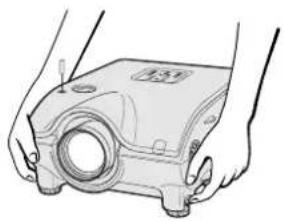
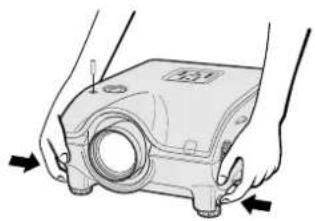
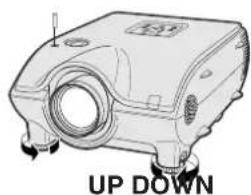
Using the Adjustment Feet
1
natural_image
Line drawing of hands holding a mechanical component with a circular opening (no text or symbols)2
natural_image
Illustration of hands operating a mechanical device with arrows indicating motion (no text or symbols)3
natural_image
Technical line drawing of a mechanical device with mounting feet and a cylindrical component (no text or symbols)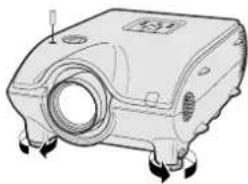
natural_image
Technical line drawing of a mechanical component with mounting feet and a central circular feature (no text or symbols)Press foot releases. Adjust height of projector and remove hands from foot releases.
Rotate feet to make minor changes.
NOTE
- The projector is adjustable up to approximately 5^ from the standard position.
- When the height of the projector is adjusted, the image may become distorted (keystoned), depending on the relative positions of the projector and the screen.
CAUTION
- Do not press the foot releases when the adjustment feet are extended without firmly holding the projector.
- Do not hold the lens when lifting or lowering the projector.
- When lowering the projector, be careful not to get your fingers caught in the area between the adjustment feet and the projector.

Using the Lens Shift
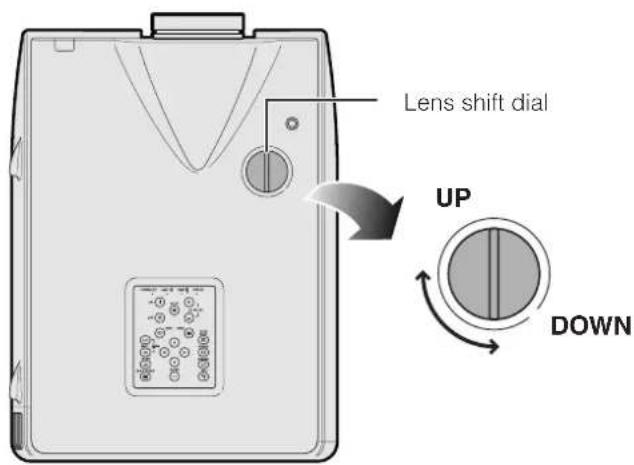
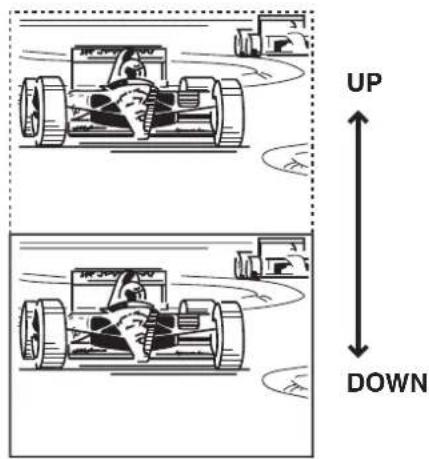
The picture can be adjusted within the shift range of the lens by rotating the dial on the top of the projector.
Projector Projected Image
NOTE
- The lens shift dial is set to the upper most position at the factory. Remember to adjust lower by turning the dial when operating the projector.
- The lens shift dial has two points to help orient the position. The centre of the lens and bottom of the screen are the same height (10:0) and the centre of the lens and centre of the screen are the same height (5:5). When either position is reached by turning the dial, you will notice a slight latching feeling.
- Do not forcefully turn the lens shift dial beyond the 10:0 and 5:5 orientating positions; doing so may result in damaging the equipment.
- When the AN-P9MX of optional lens is attached, lens shift cannot be used.
Projector GyroRemote
On-screen Display (Example: 4:3 NORMAL image)
flowchart
graph TD
    A["3D FOCUS"] --> B["3D ZOOM"]
    B --> C["KEystone"]
    C --> D["V-SIZE"]
On-screen Display (Example: 16:9 WIDE image)
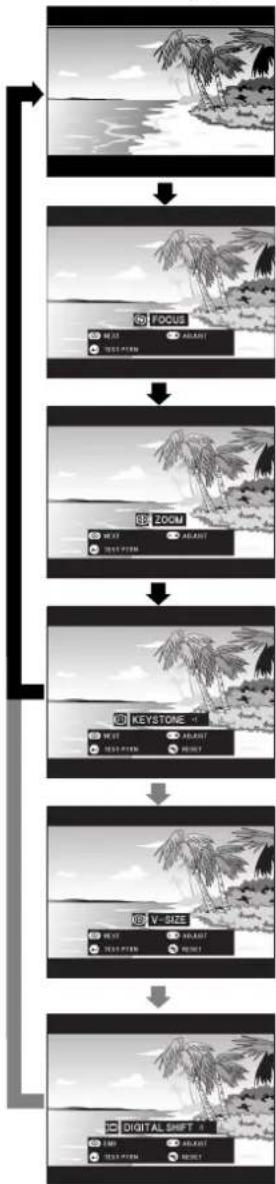
flowchart
graph TD
    A["Focus"] --> B["ZOOM"]
    B --> C["KEYSTONE"]
    C --> D["V-DIZE"]
    D --> E["DIGITAL SHIFT 0"]
Digital Image Adjustments
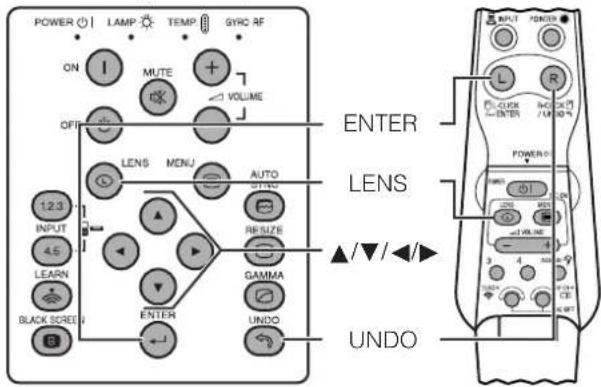
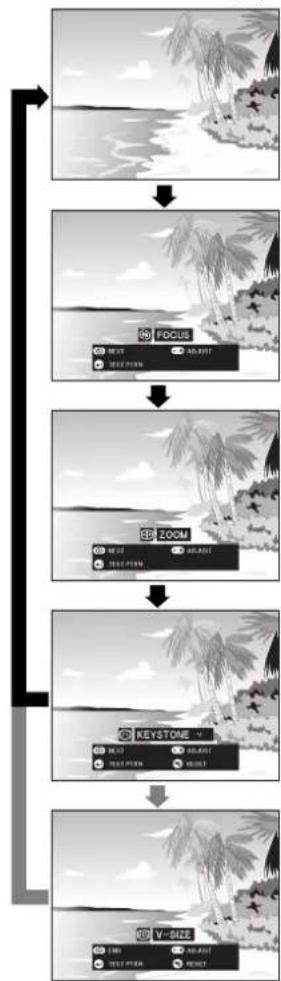
This function can be used to adjust the focus, zoom, keystone, v-size and digital shift settings.
1 Press LENS to select mode. Each time LENS is pressed, the screen changes as shown on the left.
2 Press ENTER to display test pattern.
3 Press ▲/▼/◄/► to make adjustments. (Press -/+ to make adjustments on the GyroRemote.)
4 a. Press LENS until normal screen appears.
b. To reset the "KEYSTONE", "V-SIZE" and "DIGITAL SHIFT" setting, press UNDO.
NOTE
- Do not touch the lens when adjusting the focus or zoom.
Keystone setting
Trapezoidal distortion is caused when the projector image is positioned away from the centre axis of the screen. This function allows you to correct the keystone effect for excellent picture quality.
NOTE
- Straight lines and the edges of the displayed image may appear jagged, when adjusting the KEYSTONE setting.
V-size setting
During keystone correction an error can occur in the aspect ratio depending on the amount of lens shift. Use the V-SIZE fine-tuning function to correct this error.
NOTE
- V-SIZE is only displayed and can only be adjusted when performing KEYSTONE correction.
Digital shift setting
For easier viewing, this function shifts the image projected on the screen up or down eliminating either the upper or lower black band found in 16:9 and other wide aspect ratios.
NOTE
- Digital shift function only works with BORDER, STRETCH or SMART STRETCH of VIDEO and DTV inputs. (See page 43 for details.) The DIGITAL SHIFT screen is not displayed when projecting images other than WIDE.
Digital Shift
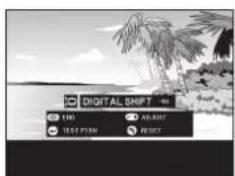
Press ▲.
or
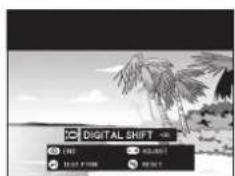
Press ▼.
Position the projector perpendicular to the screen with all feet flat and level to achieve an optimal image. Move the projector forward or backward if the edges of the image are distorted.
NOTE
- The projector lens should be centred in the middle of the screen. If the lens centre is not perpendicular to the screen, the image will be distorted, making viewing difficult.
- Position the screen so that it is not in direct sunlight or room light. Light falling directly onto the screen washes out colours, making viewing difficult. Close the curtains and dim the lights when setting up the screen in a sunny or bright room.
- A polarizing screen cannot be used with this projector.
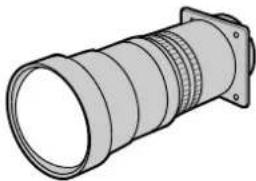
Four optional lenses from Sharp are also available for specialised application. Please see your local Sharp Authorised LCD Projector Dealer for details on all the lenses. (Refer to the lens operation manual when attaching a lens.) You can install the AN-W6EZ and AN-T6EZ optional lenses yourself. However, be sure to have service personnel install the AN-P9MX and AN-P48EZ optional lenses.
Throw Distance
The graph below is for 254 cm screen with 4:3 normal mode.
Screen
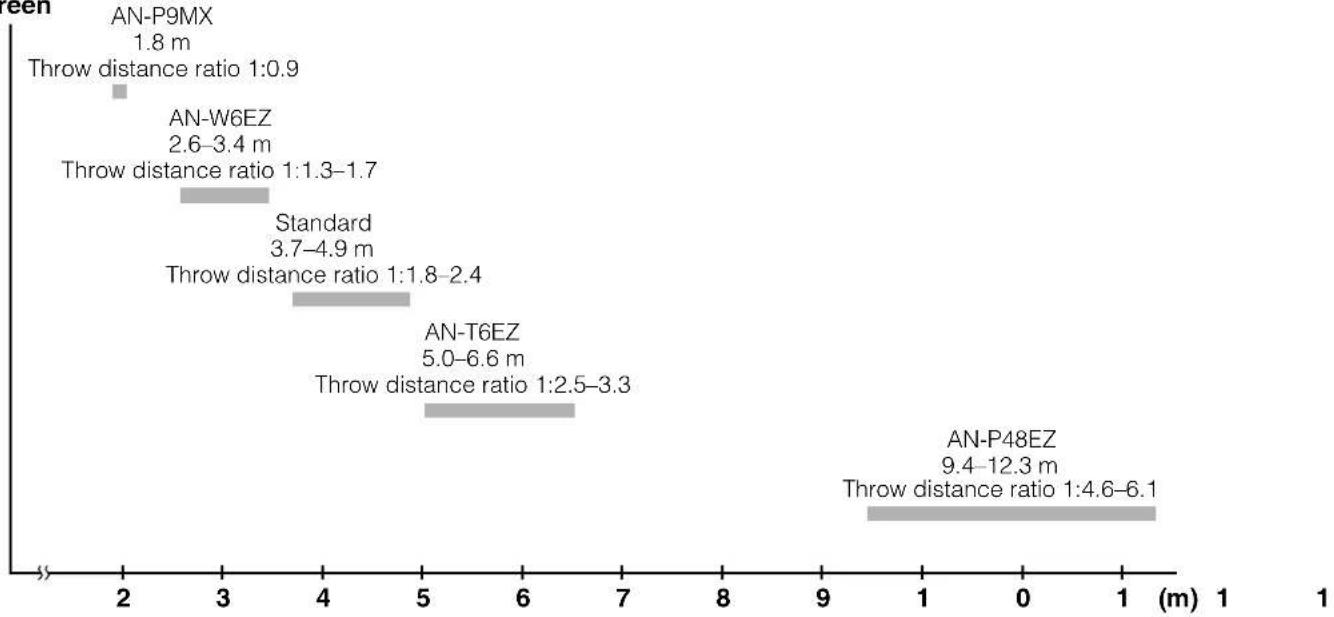
bar
| Model | Throw distance ratio (m) | Throw distance ratio (1:0.9) | | :--- | :--- | :--- | | AN-P9MX | 1.8 | 0.9 | | AN-W6EZ | 2.6–3.4 | 1.7 | | Standard | 3.7–4.9 | 2.4 | | AN-T6EZ | 5.0–6.6 | 3.3 | | AN-P48EZ | 9.4–12.3 | 6.1 |Standard Setup (Front Projection)
Place the projector at the required distance from the screen according to the desired picture size. (See pages 23 to 27.)
NOTE
- Four optional lenses from Sharp are available for specialised application. Please see your local Sharp Authorised LCD Projector Dealer for details on all the lenses.
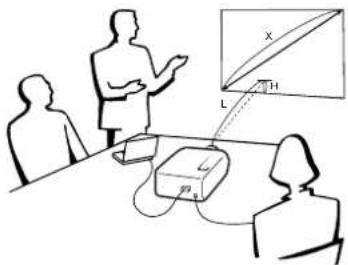
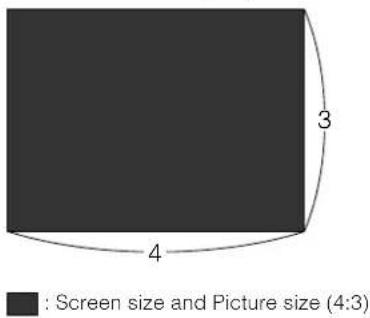
NORMAL Mode (4:3)
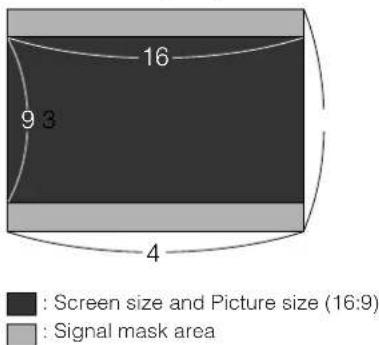
WIDE Mode (16:9)
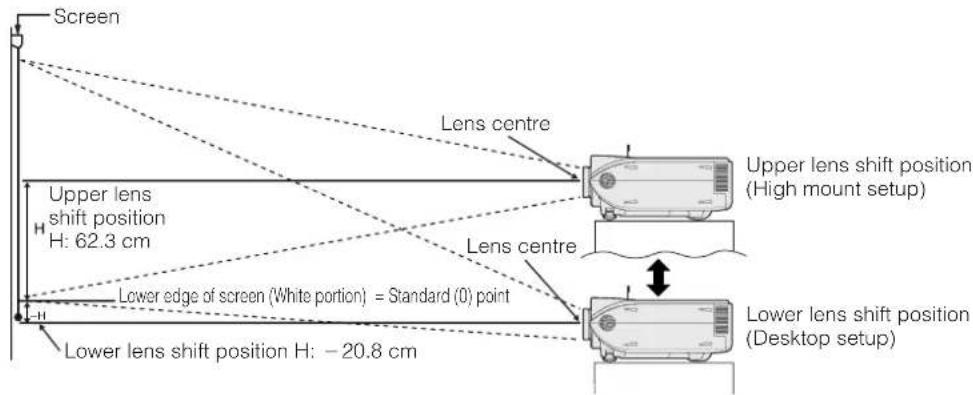
Upper and Lower Lens Shift Position
- This projector is equipped with a lens shift function that lets you adjust the projection height.
- Adjust to match the setup configuration.
Screen size: 254 cm (100 inches)
WIDE Mode: 16:9
Standard Lens as an example
Upper and Lower Lens Shift Position (Ceiling Mount)
When the projector is in the inverted position, use the upper edge of the screen as the base line, and exchange the lower and upper lens shift values.
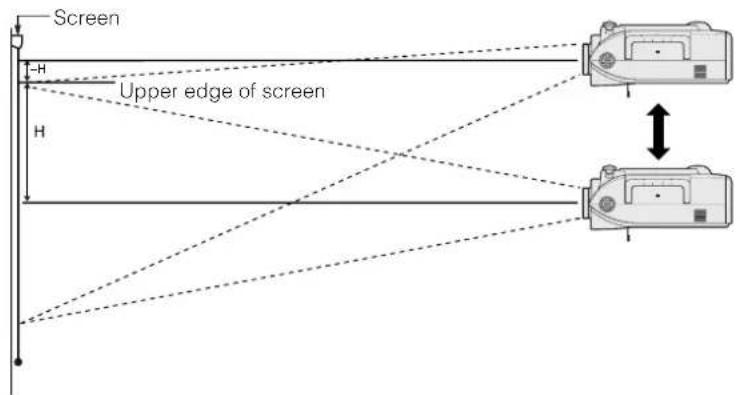
NOTE
- Optimal image quality is produced with the projector positioned perpendicular to the screen with all feet flat and level. Tilting or angling the projector will reduce the effectiveness of the lens shift function.
Standard Lens
Throw distance ratio
1:1.8 to 2.4
NORMAL Mode (4:3)
| Screen size (4:3) (X) | Projection distance (L) | Lens centre to the lower edge of the screen (H) | ||||
| Diag. Width | Height | Maximum | Minimum | Upper lens shift position | Lower lens shift position | |
| 762 cm (300") | 610 cm (240") | 457 cm (180") | 14.3 m | 11.0 m | 228.6 cm | 0.0 cm |
| 508 cm (200") | 406 cm (160") | 305 cm (120") | 9.8 m | 7.4 m | 152.4 cm | 0.0 cm |
| 381 cm (150") | 305 cm (120") | 229 cm (90") | 7.2 m | 5.6 m | 114.3 cm | 0.0 cm |
| 254 cm (100") | 203 cm (80") | 152 cm (60") | 4.9 m | 3.7 m | 76.2 cm | 0.0 cm |
| 213 cm (84") | 170 cm (67") | 127 cm (50") | 4.0 m | 3.1 m | 64.0 cm | 0.0 cm |
| 183 cm (72") | 147 cm (58") | 109 cm (43") | 3.4 m | 2.6 m | 54.9 cm | 0.0 cm |
| 152 cm (60") | 122 cm (48") | 91 cm (36") | 2.9 m | 2.2 m | 45.7 cm | 0.0 cm |
| 102 cm (40") | 81 cm (32") | 61 cm (24") | 1.9 m | 1.4 m | 30.5 cm | 0.0 cm |
WIDE Mode (16:9)
| Screen size (4:3) (X) | Projection distance (L) | Lens centre to the lower edge of the screen (H) | ||||
| Diag. Width | Height | Maximum | Minimum | Upper lens shift position | Lower lens shift position | |
| 762 cm (300") | 663 cm (261") | 373 cm (147") | 15.6 m | 12.0 m | 186.8 cm | -62.3 cm |
| 508 cm (200") | 442 cm (174") | 249 cm (98") | 10.5 m | 8.1 m | 124.5 cm | -41.5 cm |
| 381 cm (150") | 333 cm (131") | 188 cm (74") | 7.9 m | 6.1 m | 93.4 cm | -31.1 cm |
| 338 cm (133") | 295 cm (116") | 165 cm (65") | 7.0 m | 5.4 m | 82.8 cm | -27.6 cm |
| 269 cm (106") | 234 cm (92") | 132 cm (52") | 5.6 m | 4.3 m | 66.0 cm | -22.0 cm |
| 254 cm (100") | 221 cm (87") | 124 cm (49") | 5.2 m | 4.0 m | 62.3 cm | -20.8 cm |
| 234 cm (92") | 203 cm (80") | 114 cm (45") | 4.8 m | 3.7 m | 57.3 cm | -19.1 cm |
| 213 cm (84") | 185 cm (73") | 104 cm (41") | 4.3 m | 3.3 m | 52.3 cm | -17.4 cm |
| 183 cm (72") | 160 cm (63") | 89 cm (35") | 3.7 m | 2.8 m | 44.8 cm | -14.9 cm |
| 152 cm (60") | 132 cm (52") | 74 cm (29") | 3.1 m | 2.4 m | 37.4 cm | -12.5 cm |
| 102 cm (40") | 89 cm (35") | 51 cm (20") | 2.0 m | 1.5 m | 24.9 cm | -8.3 cm |
NOTE
- Values with a minus (-) sign indicate the distance of the lens centre below the bottom of the screen.
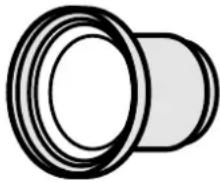
AN-W6EZ
Throw distance ratio
1:1.3 to 1.7
natural_image
Simple line drawing of a cylindrical object with concentric rings (no text or symbols)NORMAL Mode (4:3)
| Screen size (4:3) (X) | Projection distance (L) | Lens centre to the lower edge of the screen (H) | ||||
| Diag. Width | Height | Maximum | Minimum | Upper lens shift position | Lower lens shift position | |
| 762 cm (300") | 610 cm (240") | 457 cm (180") | 10.3 m | 7.9 m | 228.6 cm | 0.0 cm |
| 508 cm (200") | 406 cm (160") | 305 cm (120") | 6.9 m | 5.3 m | 152.4 cm | 0.0 cm |
| 381 cm (150") | 305 cm (120") | 229 cm (90") | 5.1 m | 3.9 m | 114.3 cm | 0.0 cm |
| 254 cm (100") | 203 cm (80") | 152 cm (60") | 3.4 m | 2.6 m | 76.2 cm | 0.0 cm |
| 213 cm (84") | 170 cm (67") | 127 cm (50") | 2.8 m | 2.2 m | 64.0 cm | 0.0 cm |
| 183 cm (72") | 147 cm (58") | 109 cm (43") | 2.4 m | 1.9 m | 54.9 cm | 0.0 cm |
| 152 cm (60") | 122 cm (48") | 91 cm (36") | 2.0 m | 1.5 m | 45.7 cm | 0.0 cm |
| 102 cm (40") | 81 cm (32") | 61 cm (24") | 1.3 m | 1.0 m | 30.5 cm | 0.0 cm |
WIDE Mode (16:9)
| Screen size (4:3) (X) | Projection distance (L) | Lens centre to the lower edge of the screen (H) | ||||
| Diag. Width | Height | Maximum | Minimum | Upper lens shift position | Lower lens shift position | |
| 762 cm (300") | 663 cm (261") | 373 cm (147") | 11.3 m | 8.7 m | 186.8 cm | -62.3 cm |
| 508 cm (200") | 442 cm (174") | 249 cm (98") | 7.5 m | 5.8 m | 124.5 cm | -41.5 cm |
| 381 cm (150") | 333 cm (131") | 188 cm (74") | 5.6 m | 4.3 m | 93.4 cm | -31.1 cm |
| 338 cm (133") | 295 cm (116") | 165 cm (65") | 5.0 m | 3.8 m | 82.8 cm | -27.6 cm |
| 269 cm (106") | 234 cm (92") | 132 cm (52") | 3.9 m | 3.0 m | 66.0 cm | -22.0 cm |
| 254 cm (100") | 221 cm (87") | 124 cm (49") | 3.7 m | 2.8 m | 62.3 cm | -20.8 cm |
| 234 cm (92") | 203 cm (80") | 114 cm (45") | 3.4 m | 2.6 m | 57.3 cm | -19.1 cm |
| 213 cm (84") | 185 cm (73") | 104 cm (41") | 3.1 m | 2.4 m | 52.3 cm | -17.4 cm |
| 183 cm (72") | 160 cm (63") | 89 cm (35") | 2.7 m | 2.0 m | 44.8 cm | -14.9 cm |
| 152 cm (60") | 132 cm (52") | 74 cm (29") | 2.2 m | 1.7 m | 37.4 cm | -12.5 cm |
| 102 cm (40") | 89 cm (35") | 51 cm (20") | 1.4 m | 1.1 m | 24.9 cm | -8.3 cm |
NOTE
- Values with a minus (−) sign indicate the distance of the lens centre below the bottom of the screen.
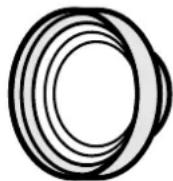
AN-T6EZ
Throw distance ratio
1:2.5 to 3.3
NORMAL Mode (4:3)
| Screen size (4:3) (X) | Projection distance (L) | Lens centre to the lower edge of the screen (H) | ||||
| Diag. Width | Height | Maximum | Minimum | Upper lens shift position | Lower lens shift position | |
| 762 cm (300") | 610 cm (240") | 457 cm (180") | 20.0 m | 15.4 m | 228.6 cm | 0.0 cm |
| 508 cm (200") | 406 cm (160") | 305 cm (120") | 13.3 m | 10.2 m | 152.4 cm | 0.0 cm |
| 381 cm (150") | 305 cm (120") | 229 cm (90") | 9.9 m | 7.6 m | 114.3 cm | 0.0 cm |
| 254 cm (100") | 203 cm (80") | 152 cm (60") | 6.6 m | 5.0 m | 76.2 cm | 0.0 cm |
| 213 cm (84") | 170 cm (67") | 127 cm (50") | 5.5 m | 4.2 m | 64.0 cm | 0.0 cm |
| 183 cm (72") | 147 cm (58") | 109 cm (43") | 4.7 m | 3.6 m | 54.9 cm | 0.0 cm |
| 152 cm (60") | 122 cm (48") | 91 cm (36") | 3.9 m | 2.9 m | 45.7 cm | 0.0 cm |
| 102 cm (40") | 81 cm (32") | 61 cm (24") | 2.5 m | 1.9 m | 30.5 cm | 0.0 cm |
WIDE Mode (16:9)
| Screen size (4:3) (X) | Projection distance (L) | Lens centre to the lower edge of the screen (H) | ||||
| Diag. Width | Height | Maximum | Minimum | Upper lens shift position | Lower lens shift position | |
| 762 cm (300") | 663 cm (261") | 373 cm (147") | 21.8 m | 16.8 m | 186.8 cm | -62.3 cm |
| 508 cm (200") | 442 cm (174") | 249 cm (98") | 14.5 m | 11.1 m | 124.5 cm | -41.5 cm |
| 381 cm (150") | 333 cm (131") | 188 cm (74") | 10.8 m | 8.3 m | 93.4 cm | -31.1 cm |
| 338 cm (133") | 295 cm (116") | 165 cm (65") | 9.6 m | 7.3 m | 82.8 cm | -27.6 cm |
| 269 cm (106") | 234 cm (92") | 132 cm (52") | 7.6 m | 5.8 m | 66.0 cm | -22.0 cm |
| 254 cm (100") | 221 cm (87") | 124 cm (49") | 7.2 m | 5.5 m | 62.3 cm | -20.8 cm |
| 234 cm (92") | 203 cm (80") | 114 cm (45") | 6.6 m | 5.0 m | 57.3 cm | -19.1 cm |
| 213 cm (84") | 185 cm (73") | 104 cm (41") | 6.0 m | 4.6 m | 52.3 cm | -17.4 cm |
| 183 cm (72") | 160 cm (63") | 89 cm (35") | 5.1 m | 3.9 m | 44.8 cm | -14.9 cm |
| 152 cm (60") | 132 cm (52") | 74 cm (29") | 4.2 m | 3.2 m | 37.4 cm | -12.5 cm |
| 102 cm (40") | 89 cm (35") | 51 cm (20") | 2.8 m | 2.1 m | 24.9 cm | -8.3 cm |
NOTE
- Values with a minus (−) sign indicate the distance of the lens centre below the bottom of the screen.
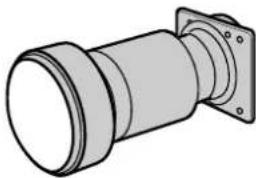
AN-P9MX
Throw distance ratio
1:0.9
natural_image
Technical illustration of a cylindrical mechanical component with flanged ends and a central shaft (no text or symbols)NORMAL Mode (4:3)
| Screen size (4:3) (X) | Projection distance (L) Lens centre to the lower edge of the screen (H) | |||
| Diag. Width | Height | |||
| 762 cm (300") | 610 cm (240") | 457 cm (180") | 5.5 m | 228.6 cm |
| 508 cm (200") | 406 cm (160") | 305 cm (120") | 3.7 m | 152.4 cm |
| 381 cm (150") | 305 cm (120") | 229 cm (90") | 2.7 m | 114.3 cm |
| 254 cm (100") | 203 cm (80") | 152 cm (60") | 1.8 m | 76.2 cm |
| 213 cm (84") | 170 cm (67") | 127 cm (50") | 1.5 m | 64.0 cm |
| 183 cm (72") | 147 cm (58") | 109 cm (43") | 1.3 m | 54.9 cm |
| 152 cm (60") | 122 cm (48") | 91 cm (36") | 1.1 m | 45.7 cm |
| 102 cm (40") | 81 cm (32") | 61 cm (24") | 0.7 m | 30.5 cm |
WIDE Mode (16:9)
| Screen size (4:3) (X) | Projection distance (L) | Lens centre to the lower edge of the screen (H) | ||
| Diag. Width | Height | |||
| 762 cm (300") | 663 cm (261") | 373 cm (147") | 6.0 m | 186.8 cm |
| 508 cm (200") | 442 cm (174") | 249 cm (98") | 4.0 m | 124.5 cm |
| 381 cm (150") | 333 cm (131") | 188 cm (74") | 3.0 m | 93.4 cm |
| 338 cm (133") | 295 cm (116") | 165 cm (65") | 2.6 m | 82.8 cm |
| 269 cm (106") | 234 cm (92") | 132 cm (52") | 2.1 m | 66.0 cm |
| 254 cm (100") | 221 cm (87") | 124 cm (49") | 2.0 m | 62.3 cm |
| 234 cm (92") | 203 cm (80") | 114 cm (45") | 1.8 m | 57.3 cm |
| 213 cm (84") | 185 cm (73") | 104 cm (41") | 1.6 m | 52.3 cm |
| 183 cm (72") | 160 cm (63") | 89 cm (35") | 1.4 m | 44.8 cm |
| 152 cm (60") | 132 cm (52") | 74 cm (29") | 1.2 m | 37.4 cm |
| 102 cm (40") | 89 cm (35") | 51 cm (20") | 0.8 m | 24.9 cm |
NOTE
- Values with a minus (−) sign indicate the distance of the lens centre below the bottom of the screen.
AN-P48EZ
Throw distance ratio
1:4.6 to 6.1
natural_image
Illustration of a cylindrical mechanical component with flanged ends and threaded sections (no text or symbols)NORMAL Mode (4:3)
| Screen size (4:3) (X) | Projection distance (L) | Lens centre to the lower edge of the screen (H) | ||||
| Diag. Width | Height | Maximum | Minimum | Upper lens shift position | Lower lens shift position | |
| 762 cm (300") | 610 cm (240") | 457 cm (180") | 36.5 m | 27.9 m | 228.6 cm | 0.0 cm |
| 508 cm (200") | 406 cm (160") | 305 cm (120") | 24.4 m | 18.7 m | 152.4 cm | 0.0 cm |
| 381 cm (150") | 305 cm (120") | 229 cm (90") | 18.3 m | 14.0 m | 114.3 cm | 0.0 cm |
| 254 cm (100") | 203 cm (80") | 152 cm (60") | 12.3 m | 9.4 m | 76.2 cm | 0.0 cm |
| 213 cm (84") | 170 cm (67") | 127 cm (50") | 10.3 m | 7.9 m | 64.0 cm | 0.0 cm |
| 183 cm (72") | 147 cm (58") | 109 cm (43") | 8.9 m | 6.8 m | 54.9 cm | 0.0 cm |
| 152 cm (60") | 122 cm (48") | 91 cm (36") | 7.4 m | 5.7 m | 45.7 cm | 0.0 cm |
WIDE Mode (16:9)
| Screen size (4:3) (X) | Projection distance (L) | Lens centre to the lower edge of the screen (H) | ||||
| Diag. Width | Height | Maximum | Minimum | Upper lens shift position | Lower lens shift position | |
| 762 cm (300") | 663 cm (261") | 373 cm (147") | 39.8 m | 30.4 m | 186.8 cm | -62.3 cm |
| 508 cm (200") | 442 cm (174") | 249 cm (98") | 26.6 m | 20.3 m | 124.5 cm | -41.5 cm |
| 381 cm (150") | 333 cm (131") | 188 cm (74") | 20.0 m | 15.3 m | 93.4 cm | -31.1 cm |
| 338 cm (133") | 295 cm (116") | 165 cm (65") | 17.7 m | 13.6 m | 82.8 cm | -27.6 cm |
| 269 cm (106") | 234 cm (92") | 132 cm (52") | 14.1 m | 10.8 m | 66.0 cm | -22.0 cm |
| 254 cm (100") | 221 cm (87") | 124 cm (49") | 13.4 m | 10.2 m | 62.3 cm | -20.8 cm |
| 234 cm (92") | 203 cm (80") | 114 cm (45") | 12.3 m | 9.4 m | 57.3 cm | -19.1 cm |
| 213 cm (84") | 185 cm (73") | 104 cm (41") | 11.2 m | 8.6 m | 52.3 cm | -17.4 cm |
| 183 cm (72") | 160 cm (63") | 89 cm (35") | 9.7 m | 7.4 m | 44.8 cm | -14.9 cm |
| 152 cm (60") | 132 cm (52") | 74 cm (29") | 8.1 m | 6.2 m | 37.4 cm | -12.5 cm |
NOTE
- Values with a minus (−) sign indicate the distance of the lens centre below the bottom of the screen.

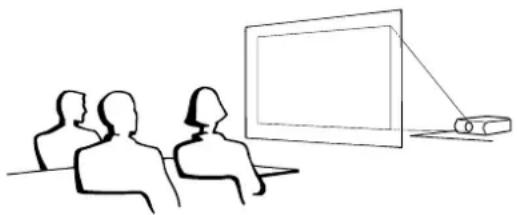
Rear Projection
natural_image
Line drawing of three people watching a screen with a projector (no text or symbols)- Place a translucent screen between the projector and the audience.
- Use the projector's menu system to reverse the projected image. (See page 57 for use of this function.)
NOTE
- Optimal image quality can be achieved when the projector is positioned perpendicular to the screen with all feet flat and level.

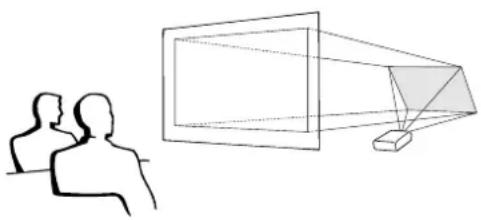
Projection Using a Mirror
natural_image
Simple line drawing of two human silhouettes facing a screen and a geometric projection (no text or symbols)- When the distance between the projector and screen is not sufficient for normal rear projection, you can use a mirror to reflect the image onto the screen.
- Place a mirror (normal flat type) in front of the lens.
- Project the normal image onto the mirror.
- The image reflected from the mirror is projected onto the translucent screen.
CAUTION
- When using a mirror, be sure to carefully position both the projector and the mirror so the light does not shine into the eyes of the audience.

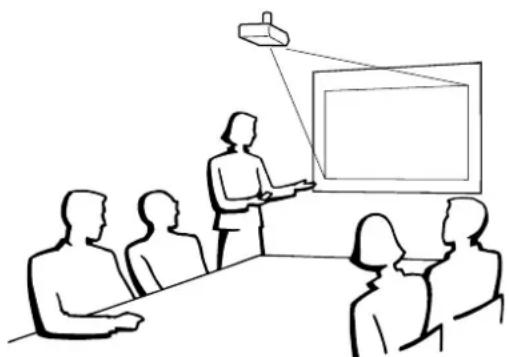
Ceiling-mount Projection
natural_image
Line drawing of a meeting scene with a presenter and audience (no text or symbols)- It is recommended that you use the optional Sharp ceiling-mount bracket for this installation.
- Before mounting the projector, contact your nearest Sharp Authorised LCD Projector Dealer or Service Centre to obtain the recommended ceiling-mount bracket (sold separately). (AN-NV6T ceiling-mount bracket, AN-TK201/AN-TK202 extension tube for AN-NV6T.)
- When the projector is in the inverted position, use the upper edge of the screen as the base line.
- Use the projector's menu system to select the appropriate projection mode. (See page 57 for use of this function.)

GyroRemote Features
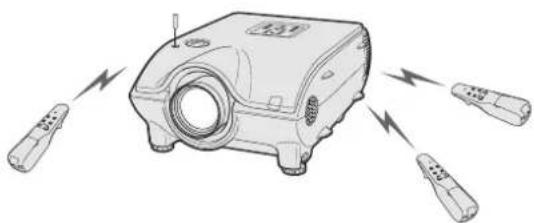
- RF design provides nondirectional control.
- Individual Recognition (Teach/Learn) function for multi-projector control.
- Senses your natural hand motion for accurate control of mouse operations and projector menus.
1. RF Technology
Nondirectional radio design with 30 m range. (Current IR technology offers only 7 m.)
NOTE
- The control range measured is with the antenna fully extended.
- The control range under actual operating conditions may be less than optimum depending on where the projector is placed and the radio signal environment.
RF: Nondirectional IR: Directional
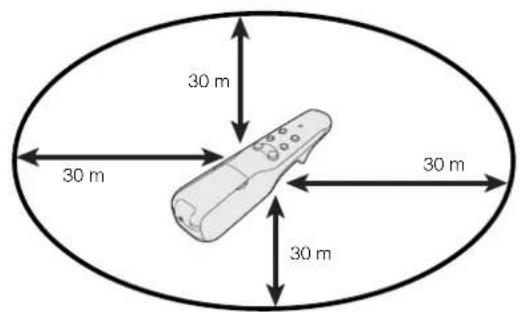
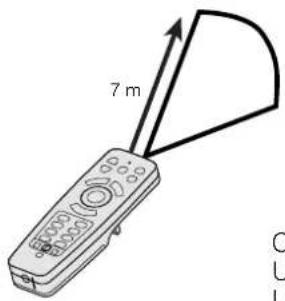
Control range
Up/Down: 30°
Left/Right: 45°
2. Multi-Projector Control
An individual recognition function makes it possible to control multiple projectors.
No radio interference even if other projectors of the same type are within GyroRemote's operating range.
Projector: 1 unit
GyroRemote: 1 unit
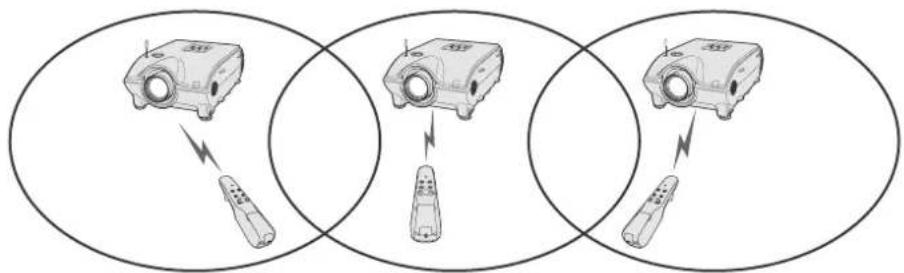
Can operate multiple projections with one GyroRemote.
Projector: multiple units
GyroRemote: 1 unit
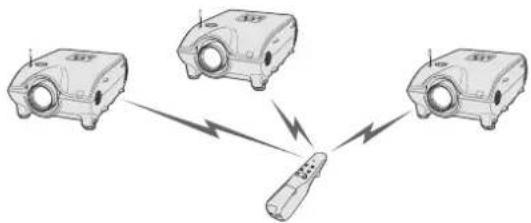
flowchart
graph TD
    A[" projector 1"] -->|Wireless Signal| C[" Remote"]
    B[" projector 2"] -->|Wireless Signal| C[" Remote"]
    D[" projector 3"] -->|Wireless Signal| C[" Remote"]
Can operate one projector using multiple GyroRemotes.
Projector: 1 unit
GyroRemote: multiple units
natural_image
Diagram of a projector with three connected ports and lightning bolts, no text or symbols present3. Gesture tracking
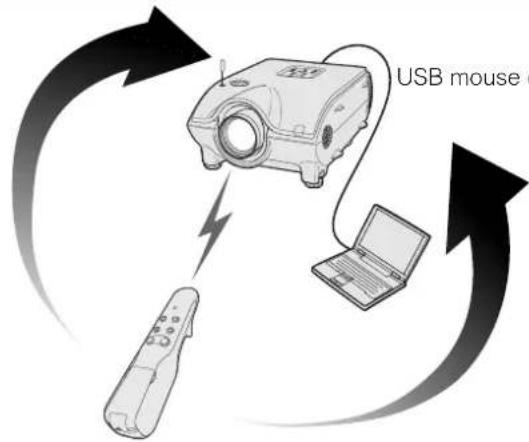
Accurately tracks your hand movements in the air for pinpoint control of projector menus and computer cursor.
Projector Control (for OSD)
flowchart
graph TD
    A["Remote Device"] -->|Data Flow| B[" projector"]
    B -->|Data Flow| C["Laptop"]
    C -->|Data Flow| D["External Device"]
    D -->|Data Flow| E["USB mouse"]
USB mouse control cable
natural_image
Simple red circular arrow with a black arrowhead pointing inward, no text or symbols present.Mouse Control
NOTE
- GYRO ACTIVE/L/R controls depend on whether the GyroRemote is operating the projector or the computer.
Projector Control
On-screen Display
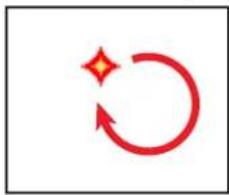
natural_image
Red circular arrow symbol with a starburst, no text or labels present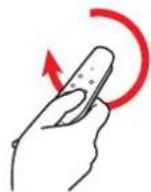
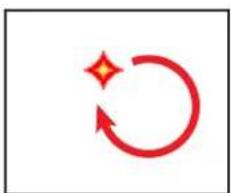
Bright and easy-to-see screen pointer (See page 32.)
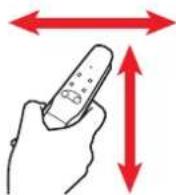
Operate the menu with a simple wave of the hand. (See page 32.)
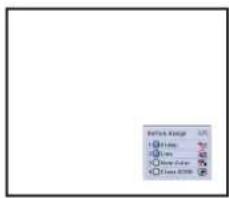
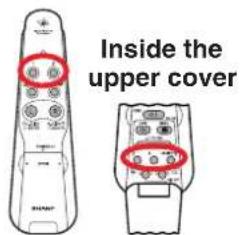
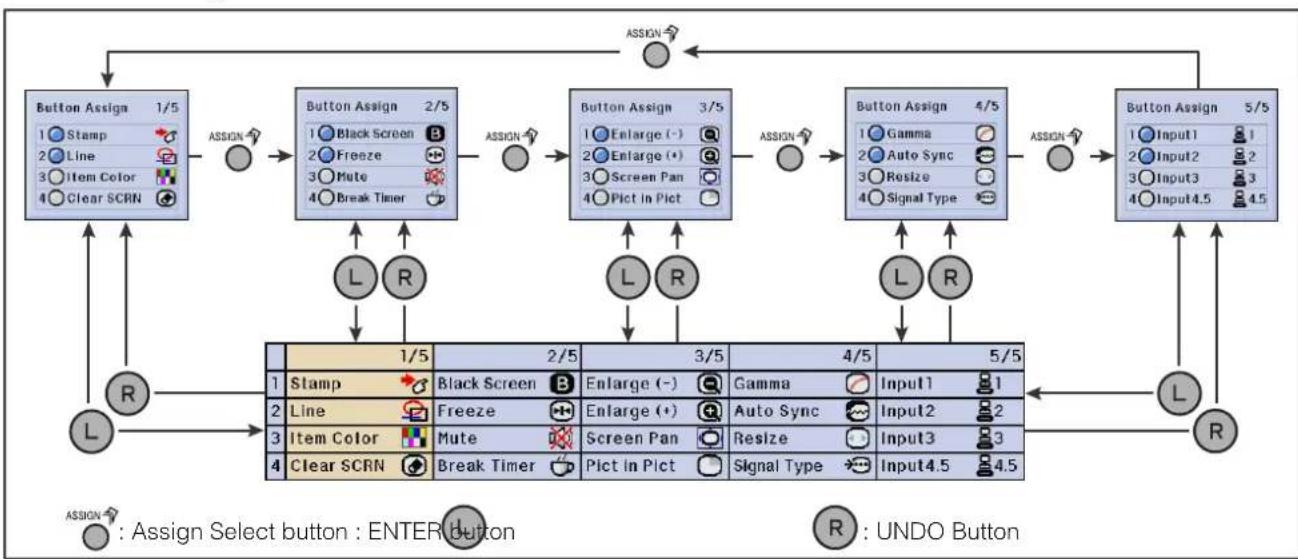
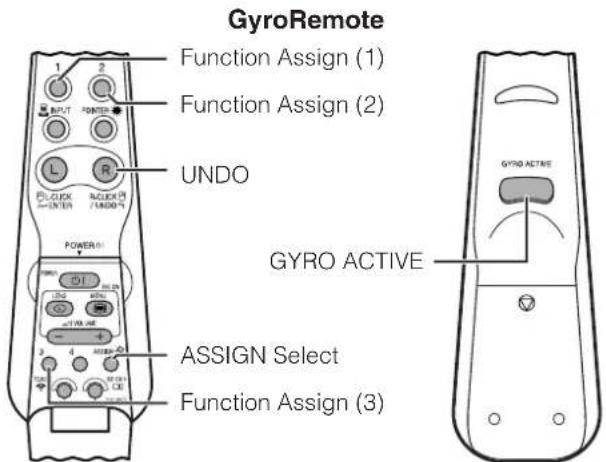
Press ASSIGN Select to toggle and display the 5 "Button ASSIGN" lists one-by-one. Each "Button ASSIGN" list has 4 selection items. (See page 33.)
Mouse Control
natural_image
Simple red circular arrow with a black arrowhead pointing inward, no text or symbols present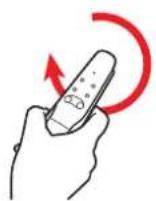
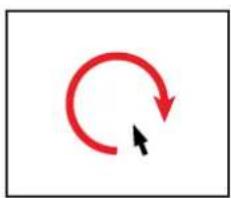
You can operate your computer with the same operating feeling as a normal mouse. (See page 35.)
natural_image
Technical line drawing of a mechanical component with an upward arrow indicator (no text or symbols)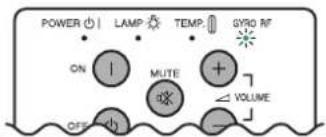
natural_image
Red circular arrow with a starburst symbol, no text or labels present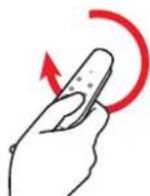
natural_image
Simple diagram with a red double-headed arrow and horizontal lines, no text or symbols present.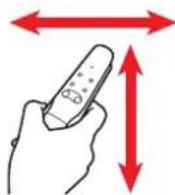
natural_image
Simple diagram with a blue rectangle and red double-headed arrows pointing to a black rectangle (no text or symbols)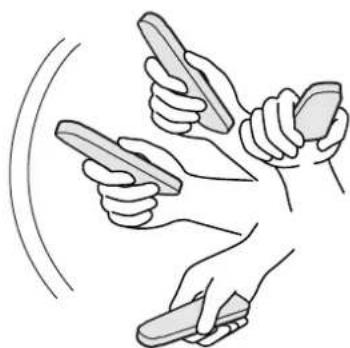
natural_image
Illustration of two hands holding pens with curved lines indicating motion or movement (no text or symbols)Preparation
1 Switch on the projector power source. The projector image will appear on the screen.
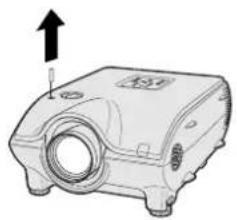
2 Pull out the projector antenna.
NOTE
- The control range will not be optimized if you do not pull out the antenna. Always use with the antenna fully extended.
- The control range under actual operating conditions may be less than optimum depending on where the projector is placed and the radio signal environment.
3 Press POWER on the GyroRemote, located on the front, inside the upper cover.
NOTE
• The Gyro RF indicator on the projector flashes green whenever it receives a radio signal from the GyroRemote.
Operating the screen pointer
1 Press POINTER on the GyroRemote.
As the POINTER is being pushed, a pointer on the screen will display. If you release your finger from the POINTER it will disappear from the screen.
2 Hold the GyroRemote and move it around freely in the air. The pointer on the screen moves precisely in concert with the movement of your GyroRemote in hand.
Menu Adjustments
1 Open the upper cover on the front of the GyroRemote.
2 Press MENU.
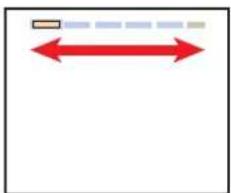
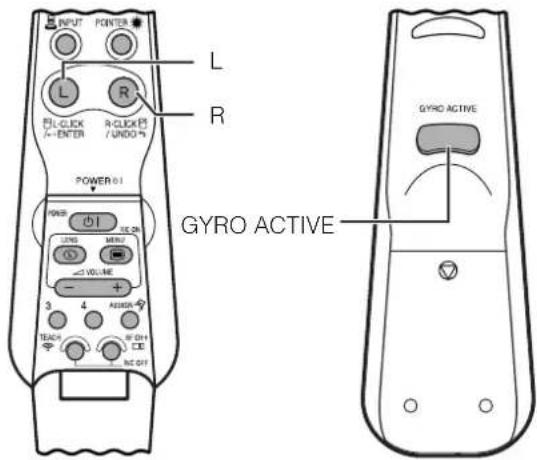
3 Press GYRO ACTIVE on the back of the GyroRemote, and select your desired category by moving the unit left or right.
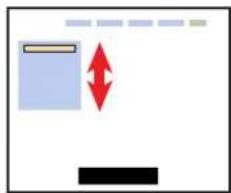
4 Then select the desired item by moving the unit up or down.
5 Move the unit left or right, or press -/+ to adjust item values.
6 Press MENU.
The menu display disappears.
NOTE
- Double click on GYRO ACTIVE, the LED will light, then release your finger from the button to operate GyroRemote just like pressing the button continuously. To cancel this mode, press GYRO ACTIVE once.
- If you release GYRO ACTIVE located on the back of the unit, you will not be able to control operations no matter how you wave your hand in the air.
On-screen Display
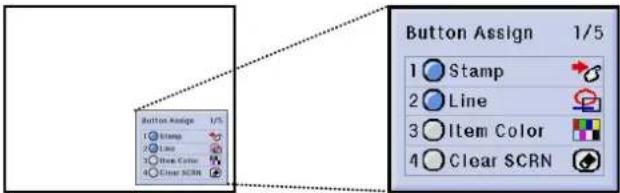
Button Assign list
GyroRemote
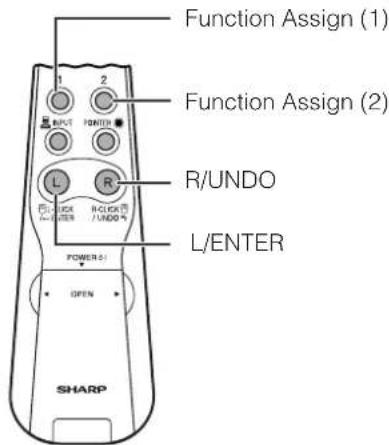
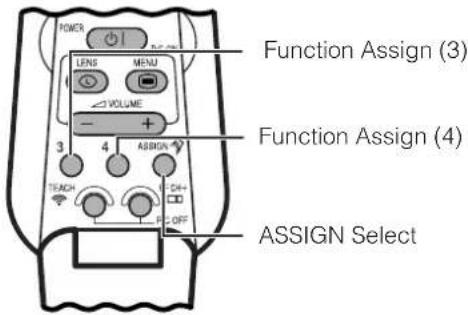
Inside the upper cover
All Button Assign selections
flowchart
graph TD
    A["Button Assign 1/5"] -->|ASSIGN| B["Button Assign 2/5"]
    B -->|ASSIGN| C["Button Assign 3/5"]
    C -->|ASSIGN| D["Button Assign 4/5"]
    D -->|ASSIGN| E["Button Assign 5/5"]
    E --> F["L R"]
    F --> G["1/5"]
    G --> H["2/5"]
    H --> I["3/5"]
    I --> J["4/5"]
    J --> K["5/5"]
    K --> L["L R"]
    L --> M["1: Stamp Black Screen"]
    L --> N["2: Line Freeze"]
    L --> O["3: Item Color Mute"]
    L --> P["4: Clear SCRN Break Timer"]
    style A fill:#f9f,stroke:#333
    style B fill:#ccf,stroke:#333
    style C fill:#cfc,stroke:#333
    style D fill:#fcc,stroke:#333
    style E fill:#cff,stroke:#333
    style F fill:#ffc,stroke:#333
    style G fill:#cfc,stroke:#333
    style H fill:#fcc,stroke:#333
    style I fill:#cfc,stroke:#333
    style J fill:#cfc,stroke:#333
    style K fill:#cfc,stroke:#333
    style L fill:#ffc,stroke:#333
    style M fill:#cfc,stroke:#333
Function ASSIGN
1 Open the upper cover on the front of GyroRemote.
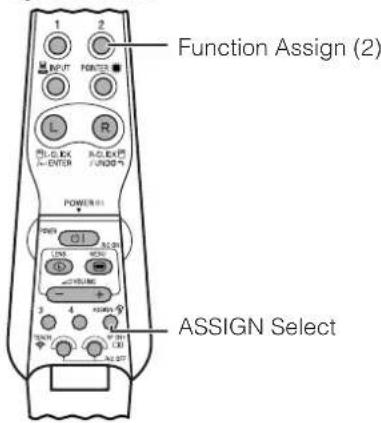
2 Press ASSIGN Select.
"Button Assign" list appears on the lower right of the display. Each time you press ASSIGN Select, "Button Assign" list changes as shown below.

NOTE
- Press ASSIGN Select. After the "Button Assign" list pops up press L (ENTER) to view a list of all selections. Refer to the list of all Button Assign selections below.
3 Press Function Assign (1–4) and select the desired item.
4 Press UNDO. The "Button Assign" list display disappears.
NOTE
- The Button Assign function is not recorded on the GyroRemote itself, it is recorded on the projector side.
Using the Presentation Tools
This projector is equipped with presentation tools that can be used to emphasise keypoints within your presentation.
You can adjust this setting by accessing the "Button Assign" list on your GyroRemote. Choose popup list "1/5" and press Function Assign (1) to (4). (See page 33.)
Button Assign list
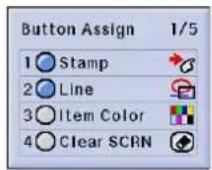
Stamp
Each time you press Function Assign (1), stamps can be changed as shown below.

Line
Each time you press Function Assign (2), lines can be changed as shown below (straight line, horizontal or vertical line, box, circle, free line).

flowchart
graph LR
    A["+"] --> B["+1"]
    B --> C["+□"]
    C --> D["+o"]
    D --> E["+v"]
    E --> F["↑"]
Item Colour
Each time you press Function Assign (3), colours can be changed as shown below.

flowchart
graph LR
    A["Red Green Blue Yellow"] --> B["Black White Purple Light blue"]
    B --> C["Step 1"]
    C --> D["Step 2"]
    D --> E["Step 3"]
    E --> F["Step 4"]
    F --> G["Step 5"]
Clear SCRN
When you press Function Assign (4), all items shown on the screen can be cleared.
NOTE
- The last item selected before switching off the power is saved as the default setting.
- A check mark signifies "Stamp", a straight line is for "Line" and red is for "Item Colour".
Using stamps
1 Press Function Assign (1) repeatedly to select the desired stamp.
- Types of stamps are changed as shown left.
2 Press and hold down GYRO ACTIVE to move the stamp to the desired position.
3 Release GYRO ACTIVE to set the stamp in the desired position.
4 Press ENTER to bring up another stamp, then repeat steps 1 to 3 above.
Using lines
1 Press Function Assign (2) repeatedly to select the desired line.
- Types of lines are changed as shown left.
2 Press and hold down GYRO ACTIVE to move the line to the desired starting position.
3 Release GYRO ACTIVE and press ENTER to set the line in its starting position.
4 Press and hold down GYRO ACTIVE again and draw the line by waving the unit around in the air freely.
5 Release GYRO ACTIVE to set the ending point and complete the line drawing.
6 Press ENTER to bring up another line, then repeat steps 1 to 5 above.
NOTE
- In steps 2 and 4 above, while holding down GYRO ACTIVE, wave the unit around in the air with your hand. The stamps and starting positions of the lines move and the lines are drawn precisely in concert with your hand movements.
- To change colours, press Function Assign (3) while performing any of the steps above.
- To erase the item you just placed on the screen, press UNDO. However, when you are drawing lines with the free line tool, pressing UNDO will erase all free lines drawn.
Displaying the Break Timer
You can adjust this setting by accessing the "Button Assign" list on your GyroRemote. Choose popup list "2/5" and press Function Assign (4). (See page 33.)
- As soon as Function Assign (4) is pressed, the timer starts to count down from 5 minutes.
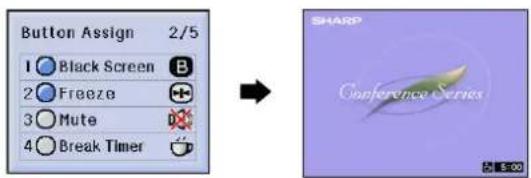
NOTE
- If you press Function Assign (4) again, the Break Timer is cancelled.
- You can set the Break Timer from 1 to 60 minutes with ▲/▼ on the projector or -/+ on the GyroRemote. The timer starts to count down as soon as ▲/▼ or -/+ is pressed.
- The Break Timer is displayed against the background image selected in "Selecting a Startup Image". (See page 55.)
Operating the mouse
Basically operates the same as a standard mouse.
Connecting the projector to the computer
GyroRemote allows you to perform mouse operations on your computer.
1 Connect one end of a USB mouse control cable to your computer.
2 Connect the other end of the cable to the projector USB port.
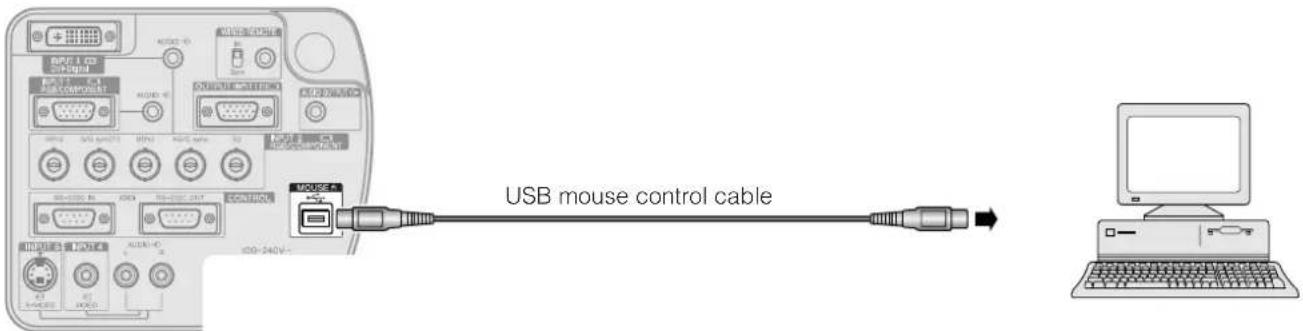
CAUTION
- Windows 95 does not support USB mouse driver software.
- The minimum system requirements for the USB type mouse system are shown below.
Windows
Hardware: PC/AT compatible machine with USB port that has Windows 98/Windows 2000 or higher installed. OS: Windows 98/Windows 2000 or higher
Macintosh
Hardware: Macintosh series with USB port
OS: Mac OS 8.5 or higher
natural_image
Simple red circular arrow with a black arrowhead pointing inward, no text or symbols present.GyroRemote
Using the mouse
You can operate GyroRemote when there is no on-screen display.
1 Press GYRO ACTIVE at the back of GyroRemote. While pressing, wave the unit around in the air with your hand. The mouse cursor responds precisely in concert with your hand movements.
2 Release your finger from GYRO ACTIVE. The mouse cursor will stop moving around.
NOTE
- For left/right mouse clicks, we recommend that you first move the cursor to the item you want to click on, then release your finger from GYRO ACTIVE before clicking your target.
- When the projector is connected to a computer by a USB mouse cable, you can still operate the mouse even if the projector is unplugged. (However, only when GyroRemote is not connected to the projector by wired GyroRemote cable.)
The projector uses RF channel and TEACH/LEARN settings to recognize individual projectors that may be operating in the same area, and keep them from interfering with each other. One GyroRemote can operate multiple projectors or you can even use multiple Gyros to control one projector.
Setting RF channels
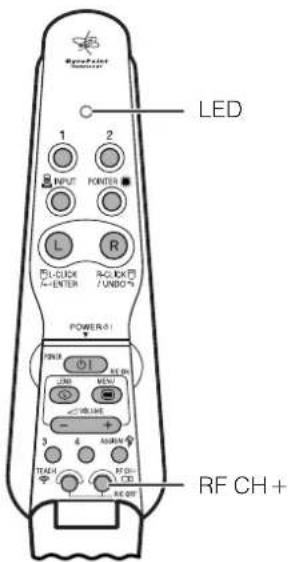
GyroRemote uses radio signals, which can receive interference under certain conditions. To avoid interference, you can switch RF channels. GyroReomte has 8 channels.
GyroRemote
On-screen Display
Confirming the present RF channel
1 Press RF CH+ located on the front, inside the upper cover.
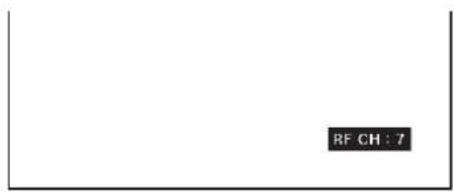
2 The current channel in use is displayed on the lower right of the screen. You can also confirm the RF channel by the number of times the LED flashes. (Ex: RF Channel 7 if the LED flashes 7 times.)
Switching RF channels
1 Press RF CH + for over 1 sec.
2 Each time you press for over 1 sec. the RF channel changes as shown below.

3 Each time you change RF channels it is displayed in the lower right of the screen.
NOTE
- An auto-search is performed on the projector side, so there is no need for manual adjusting.
TEACH/LEARN
• Each GyroRemote has its own ID code, which must be recognized by the projector that is going to be used.
- The projector only recognizes the signal of the GyroRemote whose ID code has been input. Signals from other projectors or GyroRemotes that may be operating in the same area are not allowed to interrupt each other.
Projector GyroRemote
On-screen Display
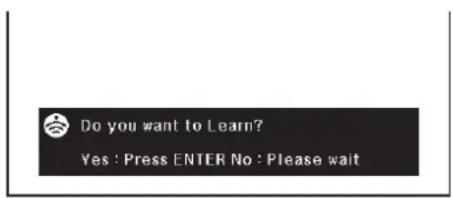
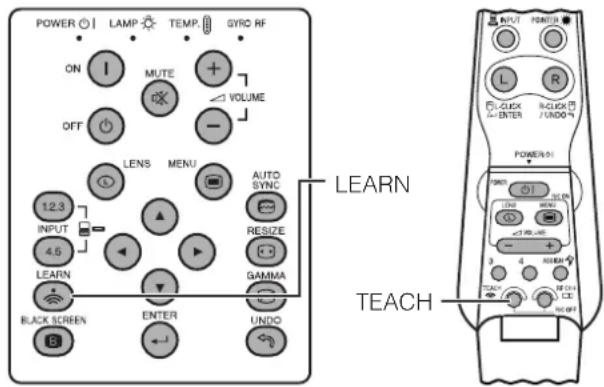
1 Press LEARN on the projector.
2 While "Do you want to LEARN?" is displaying, press ENTER. You are now in LEARN mode.
CAUTION
- Entering LEARN mode erases all previously registered GyroRemotes data. You must re-enter each GyroRemote ID code in order for the projector to recognise them again.
3 Press TEACH located on the front, inside the upper cover on the remote within 5 minutes. "Register" will appear on the display and you can now start using the GyroRemote with the projector.
4 To exit from the LEARN mode, press LEARN.
NOTE
- LEARN mode will exit if the LEARN is pressed or 5 minutes has elapsed.
Operating multiple projectors with one GyroRemote
CAUTION
- Be aware that you can operate multiple projectors with one GyroRemote, even if you are in another room, as long as you stay within a 98' 5" (30 m) range of the projector.
1 Set projector to LEARN mode.
2 Press TEACH on the GyroRemote. You can now operate multiple projectors with one GyroRemote.
3 Perform steps 1 and 2 for each projector you plan to use.
4 To exit from LEARN mode, press LEARN.
NOTE
- For setting multiple units in LEARN mode at one time, perform step 1 above for all projectors.
Using multiple GyroRemotes to operate one projector
One projector can recognize up to 8 GyroRemote ID codes.
1 Set projector to LEARN mode.
2 Press TEACH on all GyroRemotes being used. Once the eighth GyroRemote is registered to operate one projector, the LEARN mode automatically finishes. You can now operate one projector using multiple GyroRemotes.
3 To exit from the LEARN mode, press LEARN.
NOTE
- Contact your nearest Sharp Authorised LCD Projector Dealer or Service Centre if you need to use an additional GyroRemote unit.
Turning off GyroRemote
CAUTION
- Make sure to turn off GyroRemote aboard aircraft or other places where using radio signals is prohibited.
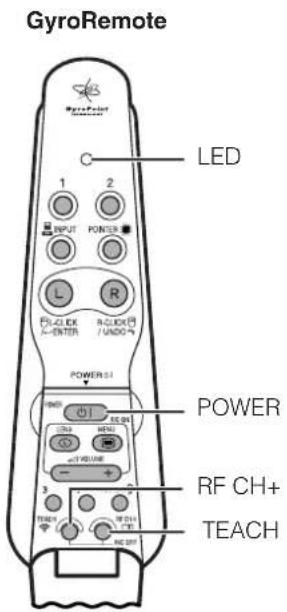
1 Press TEACH and RF CH + located inside the upper cover at the same time for over 2 seconds, the LED will flash 3 times and the GyroRemote will turn off.
2 If the LED doesn't light up after pressing any of the buttons (except POWER), the GyroRemote power is turned off.
NOTE
- Press TEACH and RF CH+ at the same time or POWER located inside the upper cover of the GyroRemote to turn the power on.
- When the power is turned off, the GyroRemote is protected from malfunctioning or battery depletion if control buttons are inadvertently pressed.
Using as a Wired Remote Control
When the GyroRemote cannot be used due to the range or positioning of the projector (rear projection, etc.), connect a 3.5 mm stereo minijack cable (sold separately) from the wired remote control input on the bottom of the remote control to the WIRED REMOTE control input terminal on the rear of the projector.
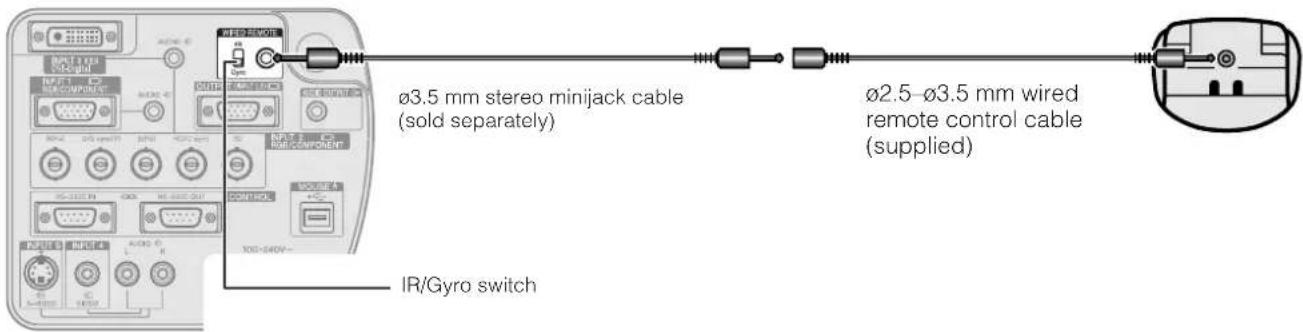
Using the GyroRemote with a wired remote control cable
Slide the IR/Gyro switch to the Gyro position.
NOTE
- GyroRemote will lose its source of power if it detaches from the 2.5 - 3.5 mm wired remote control cable.
Using the IR remote control as a wired remote
You can use the IR remote control by connecting a 3.5 mm stereo minijack cable (sold separately) from the wired remote control input on the bottom of the remote control to the WIRED REMOTE control input terminal, a SHARP product.
Slide the IR/Gyro switch to the IR position.

Selecting the Input Signal Source
Projector GyroRemote
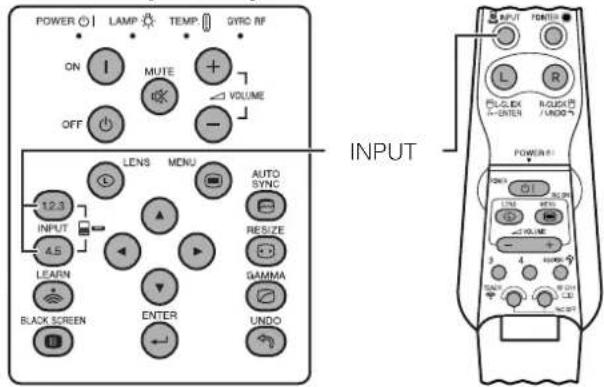
Press INPUT again to change the mode.
You can adjust this setting by accessing the "Button Assign" list on your GyroRemote. Choose popup list "5/5" and press Function Assign (1–4). (See page 33.)
NOTE
- When no signal is received, "NO SIGNAL" will be displayed. When a signal that the projector is not preset to receive is received, "NOT REG." will be displayed.
On-screen Display
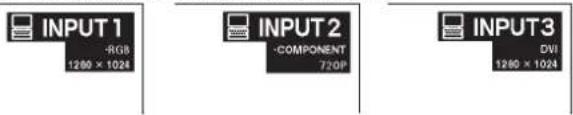
INPUT 1 Mode INPUT 2 Mode INPUT 3 Mode
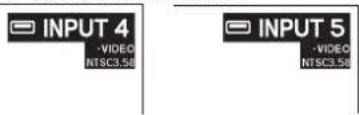
INPUT 4 Mode INPUT 5 Mode

Adjusting the Volume
Projector GyroRemote
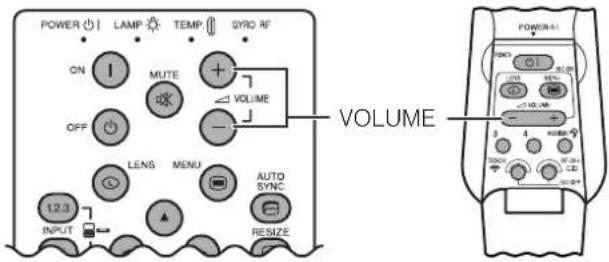
Press VOLUME -/+ to adjust the volume.
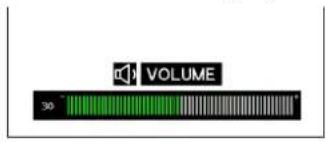
On-screen Display

Muting the Sound
Projector
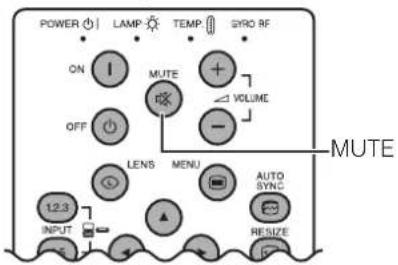
Press MUTE to temporarily turn off the sound.
Press MUTE again to turn the sound back on.
You can adjust this setting by accessing the "Button Assign" list on your GyroRemote. Choose popup list "2/5" and press Function Assign (3). (See page 33.)
On-screen Display
MUTE
Projector
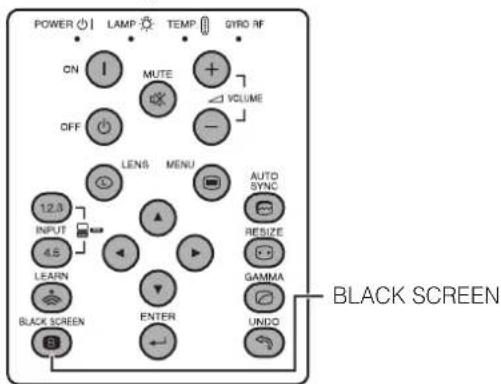
This function can be used to superimpose a black screen over the projected image.
Blacking out the Projected Image
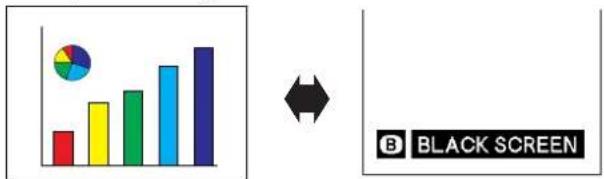
Press BLACK SCREEN. The screen turns black and "BLACK SCREEN" is displayed on the screen. To return to the original projected image, press BLACK SCREEN again.
You can adjust this setting by accessing the "Button Assign" list on your GyroRemote. Choose popup list "2/5" and press Function Assign (1). (See page 33.)
Projected Image
bar
| Color | Value | |---|---| | Red | 100 | | Yellow | 200 | | Green | 250 | | Blue | 350 | | Dark Blue | 450 |
Displaying a Still Image
GyroRemote
Button Assign list
On-screen Display
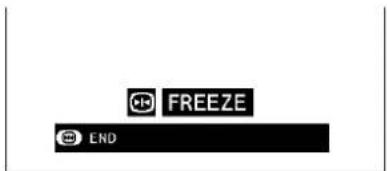
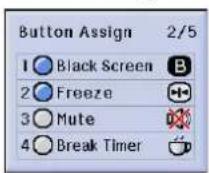
This function allows you to instantly freeze a moving image. This is useful when you want to display a still image from a computer or video, giving you more time to explain the image to the audience.
You can also use this function to display a still image from a computer while you make preparations for the next computer images to be presented.
You can only adjust this setting by accessing the "Button Assign" list on your GyroRemote. Choose popup list "2/5" and press Function Assign (2). (See page 33.)
1 Press Function Assign (2) to freeze the image.
2 Press Function Assign (2) again to return to the moving image.
Button Assign list
On-screen Display
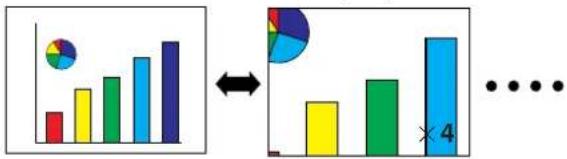
bar
| Category | Bar Value | Pie Chart (%) | |---|---|---| | Top Left | 10 | 5 | | Top Right | 20 | 8 | | Bottom Left | 15 | 3 | | Bottom Right | 25 | 10 | X=4By using ▲/▼/◄/►.
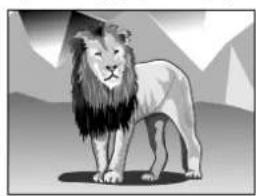
natural_image
Illustration of a lion standing against a mountainous background (no text or symbols)Press Function
Assign (2) to zoom in.
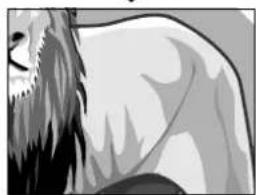
natural_image
Illustration of a mythical creature with long hair and flowing tail (no text or symbols)Press Function
Assign (3), and then Press ▲.
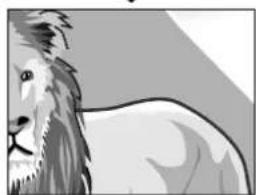
natural_image
Illustration of a lion with detailed facial features and mane (no text or symbols)Press ◀.
natural_image
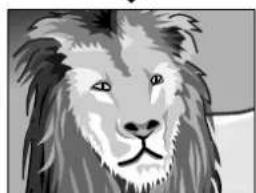
Black and white illustration of a lion's face (no text or symbols)This function allows you to magnify a specific portion of an image. This is useful when you want to display a detailed portion of the image.
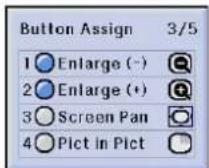
You can only adjust this setting by accessing the "Button Assign" list on your GyroRemote. Choose popup list "3/5" and press Function Assign (1) or (2). (See page 33.)
1 Press Function Assign (2) to zoom in. (Press Function Assign (1) to zoom out.)
$$ \times 1 \longleftrightarrow \times 4 \longleftrightarrow \times 9 \longleftrightarrow \times 1 6 \longleftrightarrow \times 3 6 \longleftrightarrow \times 6 4 $$
2 To return to ×1, press UNDO.
NOTE
- If you press Function Assign (1) when the zoom is set to × 1 , no change will occur. And if you press Function Assign (2) when the zoom is set to × 64 , no change will occur.
- If the input signal is changed during digital image magnification, the image will return to × 1 . The input signal is changed
(a) when INPUT is pressed,
(b) when the input signal is interrupted, or
(c) when the input resolution and refresh rate changes.
Pan Around the Screen
Enlarging the screen image and move it around.
You can adjust this setting by accessing the "Button Assign" list on your GyroRemote. Choose popup list "3/5" and press Function Assign (3). (See page 33.)
1 When the image is magnified, press and hold down GYRO ACTIVE, and then move the unit in the direction of the image which you want to see.
2 To exit from the Screen Pan mode, press Function Assign (3).
NOTE
- The Screen Pan icon remains on the screen for a few seconds after the enlargement setting icon disappears. (The same as when the menu is displayed.)
- Select "Screen Pan" when you want to remove the Screen Pan icon (exiting this mode).
- You can also pan and scan around the image by using ▲/▼/◄/► on the projector.
Projector
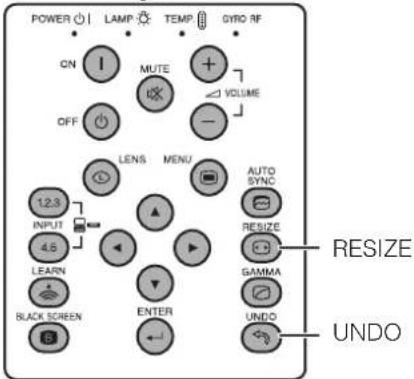
This function allows you to modify or customise the picture display mode to enhance the input image. Depending on the input signal, you can choose NORMAL, FULL, DOT BY DOT, BORDER, STRETCH or SMART STRETCH image.
1 Press RESIZE. Each time RESIZE is pressed, the picture mode changes as shown below.
2 To return to the standard image, press UNDO while "RESIZE" is displayed on the screen.
You can adjust this setting by accessing the "Button Assign" list on your GyroRemote. Choose popup list "4/5" and press Function Assign (3). (See page 33.)
COMPUTER
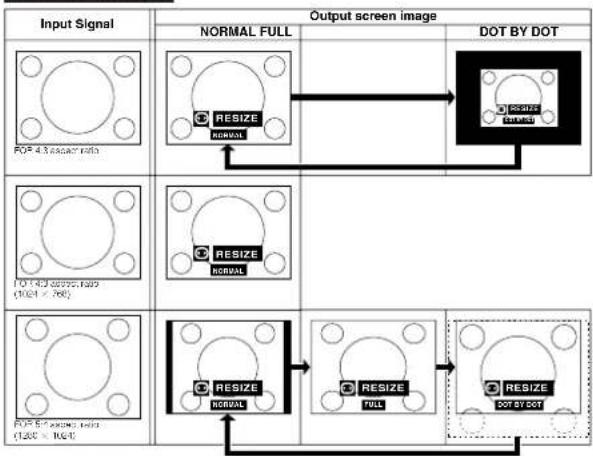
flowchart
graph TD
    A["Input Signal"] --> B["NORMAL FULL"]
    B --> C["DOT BY DOT"]
    subgraph Input_Signal_1
        D["FOR 4.3 arcsec ratio"] --> E["RESIZE NORMAL"]
        F["FOR 4.3 arcsec ratio (1/62) = 760"] --> G["RESIZE NORMAL"]
        H["FOR 5.7 arcsec ratio (1/28) = 964"] --> I["RESIZE NORMAL"]
    end
    subgraph Output_Signal_2
        J["RESIZE NORMAL"] --> K["RESIZE FULL"]
        L["RESIZE NORMAL"] --> M["RESIZE DOT BY DOT"]
    end
EXAMPLE
| NORMAL | FULL | DOT BY DOT | ||
| For 4:3 aspect ratio | SVGA (800 × 600) | 1024 × 768 | - | 900 × 600 |
| XGA (1024 × 768) | 1024 × 768 | - | - | |
| SXGA (1260 × 960) | 1024 × 768 | - | 1024 × 768 | |
| UXGA (1600 × 1200) | 1024 × 768 | - | 1024 × 768 | |
| For without 4:3 aspect ratio | SXGA (1260 × 1024) | 900 × 768 | 1024 × 768 | 1024 × 768 |
VIDEO/DTV
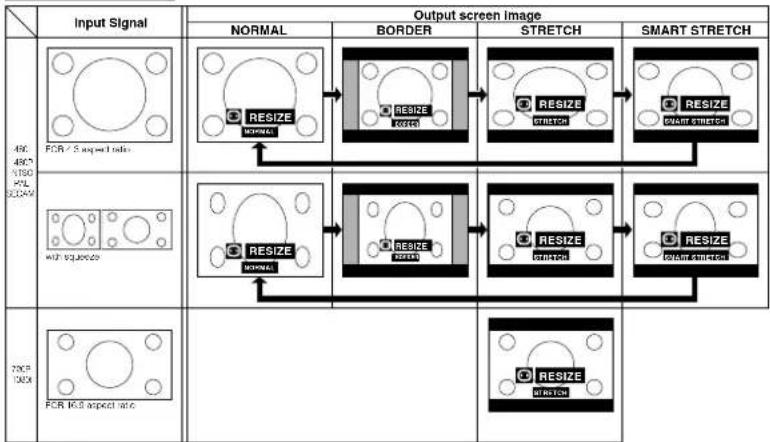
flowchart
graph TD
    A["Input Signal"] --> B["FORM"]
    B --> C{RESIZE NORMAL}
    C --> D["BORDER"]
    D --> E{RESIZE SHORTS}
    E --> F["STRETCH"]
    F --> G{RESIZE SMART STRETCH}
    G --> H["FORM"]
    H --> I{RESIZE NORMAL}
    I --> J{RESIZE SHORTS}
    J --> K["STRETCH"]
    K --> L{RESIZE SMART STRETCH}
    L --> M["FORM"]
    M --> N["RESIZE NORMAL"]
    N --> O["STRETCH"]
    O --> P["FORM"]
    P --> Q["RESIZE NORMAL"]
    Q --> R["STRETCH"]
    R --> S["FORM"]
EXAMPLE

| NORMAL | BORDER | STRETCH | SMART STRETCH | ||
| For 4:3 aspect ratio | NTSC, SECAM, 480i | 1224 × 768 | 768 × 576 | 1224 × 576* | 1224 × 576* |
| PAL, 580i | 1224 × 768 | 768 × 576 | 1224 × 576* | 1224 × 576* | |
| For 16:9 aspect ratio | 480P | 1224 × 768 | 768 × 576 | 1224 × 576* | 1224 × 576* |
| 720P | - | - | 1224 × 576* | - | |
| 1080i | - | - | 1224 × 576* | - | |
* The digital image shift function can be used with these picture display modes.
Projector
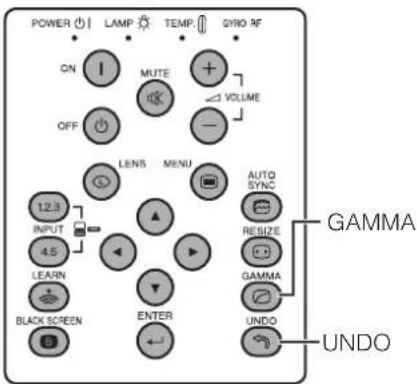
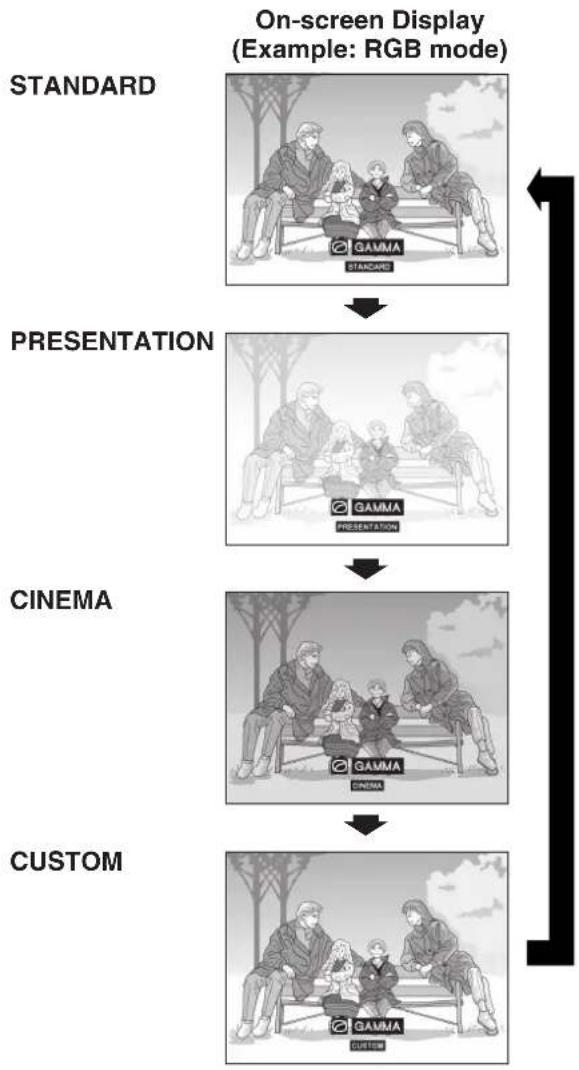
flowchart
graph TD
    A["STANDARD"] --> B["PRESENTATION"]
    B --> C["CINEMA"]
    C --> D["CUSTOM"]
    style A fill:#f9f,stroke:#333
    style B fill:#f9f,stroke:#333
    style C fill:#f9f,stroke:#333
    style D fill:#f9f,stroke:#333
- Gamma is an image quality enhancement function that offers a richer image by brightening the darker portions of the image without altering the brightness of the brighter portions.
- Four gamma settings are available to allow for differences in the images displayed and in the brightness of the room.
- When you are displaying images with frequent, dark scenes, such as a film or concert, or when you are displaying images in a bright room, this feature makes the dark scenes easier to see and gives the impression of greater depth in the image.
Gamma Modes
| Gamma modeSelected Mode | |
| STANDARD | Standard picture without gamma correction. |
| PRESENTATION | Brightens darker portions of image for more enhanced presentations. |
| CINEMA | Gives greater depth to darker portions of image for a more exciting theatre experience. |
| CUSTOM | Allows you to adjust gamma value using Sharp Advanced Presentation Software. |
1 Press GAMMA. Each time GAMMA is pressed, the gamma level toggles as shown on the left.
2 To return to the standard image, press UNDO while "GAMMA" is displayed on the screen.
You can adjust this setting by accessing the "Button Assign" list on your GyroRemote. Choose popup list "4/5" and press Function Assign (1). (See page 33).
NOTE
- The CUSTOM setting of VIDEO mode optimises the video source to reproduce the image more beautifully. It darkens bright portions of the image and gives greater depth to darker portions of the image. Select CUSTOM as your default setting if you prefer a smooth textured image to a sharply contrasted one.
- STANDARD and CINEMA settings of VIDEO mode (except COMPONENT 480P/720P/1080i) incorporate a DYNAMIC GAMMA function for optimising GAMMA correction frame by frame in real time, thus providing a more beautiful image.
- PRESENTATION settings are the same for both RGB and VIDEO modes.

Basic Operations
This projector has two sets of menu screens that allow you to adjust the image and various projector settings. These menu screens which appear on pages 47 to 62 can be operated from the projector or the GyroRemote with the following procedure.
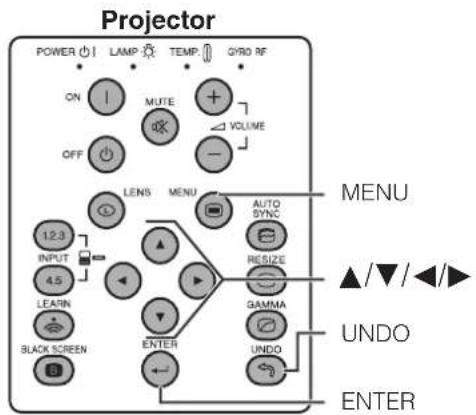
(GUI) On-screen Display
INPUT 1, 2 (RGB) or 3 (DIGITAL) mode
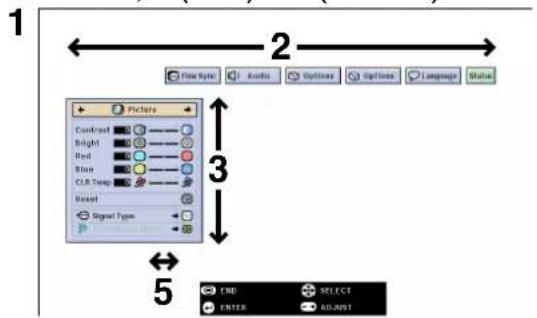
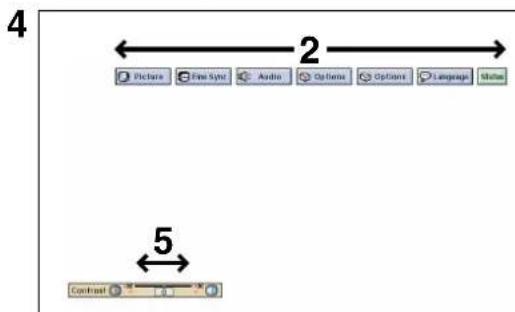
INPUT 4, 5 (VIDEO) mode
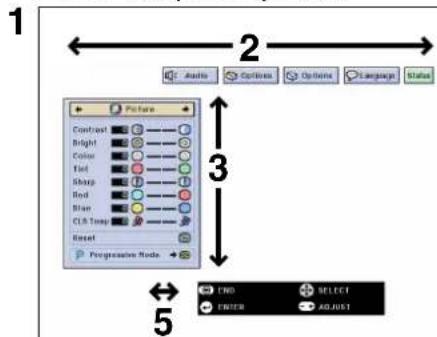
For operating the GyroRemote, see page 32.
1 Press MENU to display the INPUT 1, 2, 3, 4 or 5 mode menu bar.
2 Press ◀/▶ to select an adjustment menu on the menu bar.
3 Press ▲/▼ to select a specific adjustment item.
4 To display a single adjustment item, press ENTER after selecting the item. Only the menu bar and the selected adjustment item will appear.
5 Press ◀/▶ to adjust the item.
6 Press UNDO to return to the previous screen.
7 To exit from the GUI, press MENU.
NOTE
- For details on items on the menu screen, see the tree charts on pages 45 and 46.
Items on the INPUT 1, 2 or 3 Mode Menu Bar
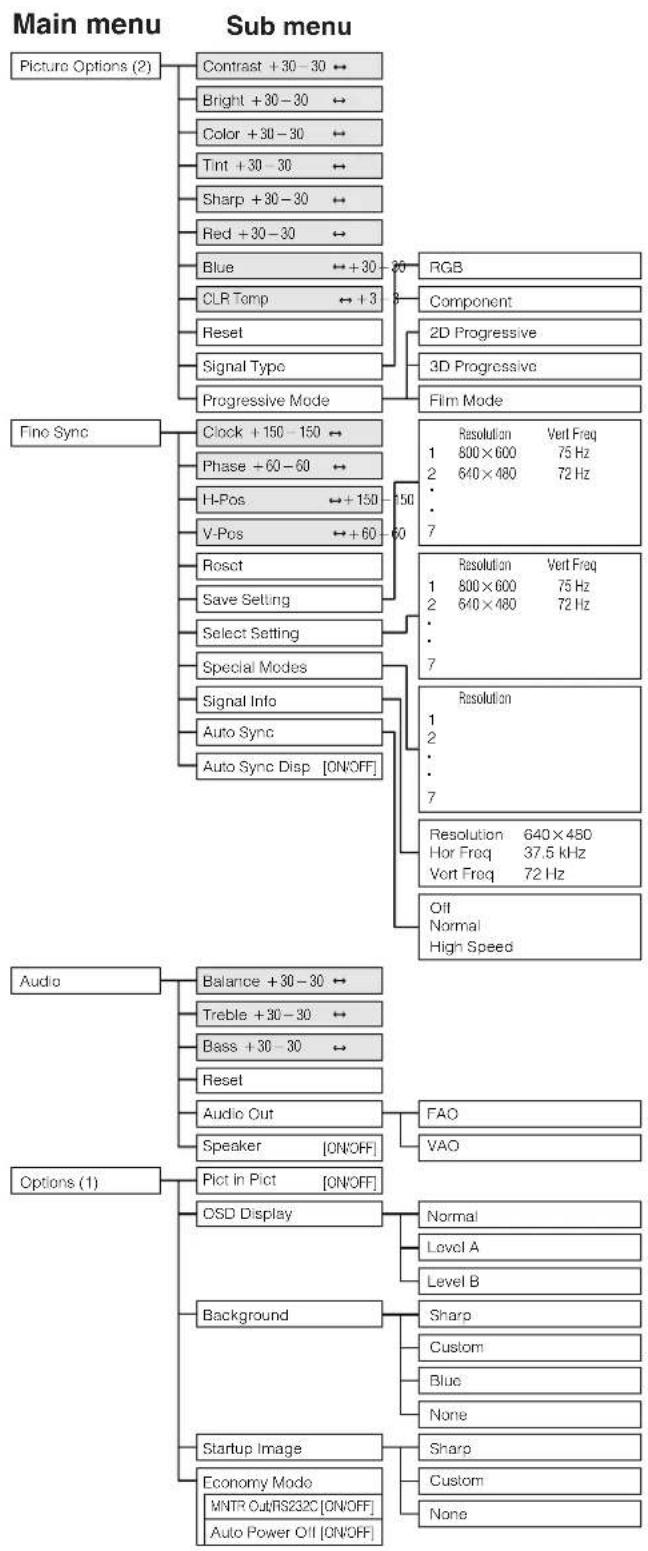
flowchart
graph TD
    A["Picture Options (2)"] --> B["Contrast +30-30 ↔"]
    A --> C["Bright +30-30 ↔"]
    A --> D["Color +30-30 ↔"]
    A --> E["Tint +30-30 ↔"]
    A --> F["Sharp +30-30 ↔"]
    A --> G["Red +30-30 ↔"]
    A --> H["Blue ↔+30"]
    H --> I["RGB"]
    H --> J["Component"]
    H --> K["2D Progressive"]
    H --> L["3D Progressive"]
    H --> M["Film Mode"]
    N["Fine Sync"] --> O["Clock +150-150 ↔"]
    N --> P["Phase +60-60 ↔"]
    N --> Q["H-Pos ↔+150"]
    Q --> R["50"]
    R --> S["Resolution Vert Freq 1 800×600 75 Hz 2 640×480 72 Hz"]
    R --> T["7"]
    N --> U["V-Pos ↔+60"]
    U --> V["Resolution Vert Freq 1 800×600 75 Hz 2 640×480 72 Hz"]
    U --> W["7"]
    N --> X["Rosct"]
    X --> Y["Resolution"]
    Y --> Z["1"]
    Y --> AA["2"]
    Y --> AB["7"]
    N --> AC["Save Setting"]
    AC --> AD["Selection"]
    AD --> AE["Resolution 640×480 Hor Freq 37.5 kHz Vort Freq 72 Hz"]
    N --> AF["Special Modes"]
    AF --> AG["Signal Info"]
    AG --> AH["Auto Sync"]
    AH --> AI["Auto Sync Disp [ON/OFF"]]
    AI --> AJ["Ott Normal High Speed"]
    AK["Audio"] --> AL["Balance +30-30 ↔"]
    AL --> AM["Treble +30-30 ↔"]
    AL --> AN["Bass +30-30 ↔"]
    AL --> AO["Reset"]
    AO --> AP["Audio Out"]
    AP --> AQ["Speaker [ON/OFF"]]
    AQ --> AR["FAO VAO"]
    AK --> AS["Pict in Plot [ON/OFF"]]
    AS --> AT["OSD Display"]
    AT --> AU["Normal Level A Level B"]
    AS --> AV["Background"]
    AV --> AW["Sharp Custom Blue None"]
    AK --> AX["Startup Image"]
    AX --> AY["Economy Mode MNTR Out/RS232C [ON/OFF"] Auto_Power_Off["ON/OFF"]]
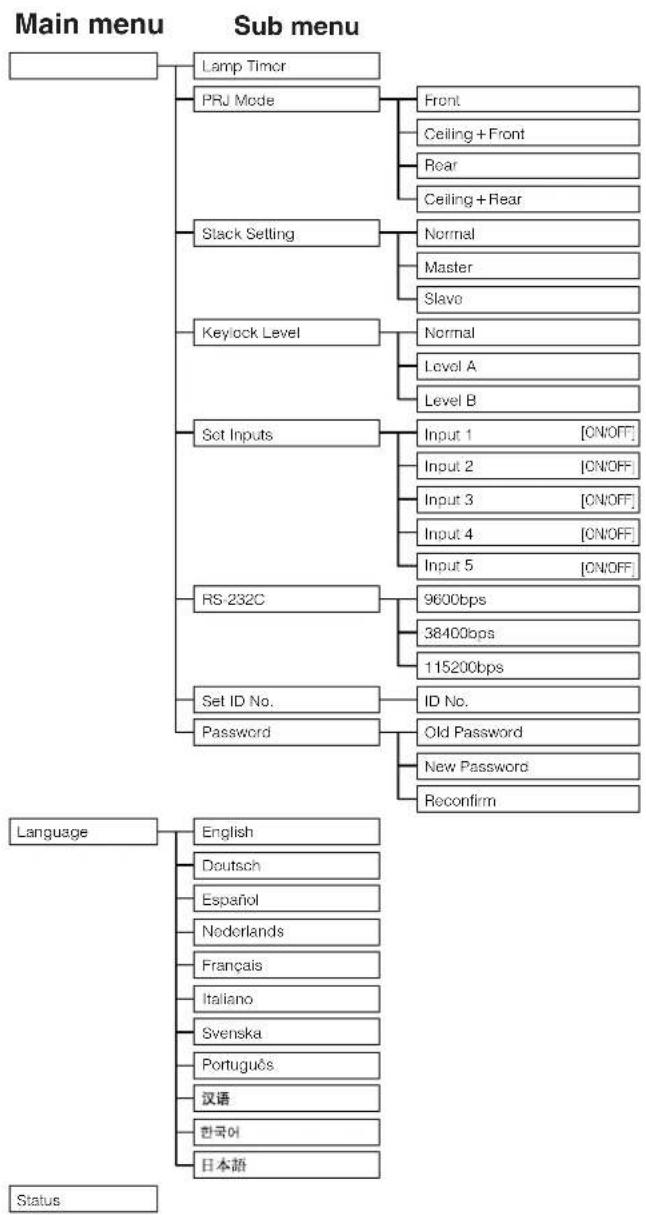
flowchart
graph TD
    A["Main menu"] --> B["Lamp Timor"]
    A --> C["PRJ Mode"]
    C --> D["Front"]
    C --> E["Ceiling + Front"]
    C --> F["Rear"]
    C --> G["Ceiling + Rear"]
    A --> H["Stack Setting"]
    H --> I["Normal"]
    H --> J["Master"]
    H --> K["Slave"]
    A --> L["Keylock Level"]
    L --> M["Normal"]
    L --> N["Level A"]
    L --> O["Level B"]
    A --> P["Set Inputs"]
    P --> Q["Input 1 [ON/OFF"]]
    P --> R["Input 2 [ON/OFF"]]
    P --> S["Input 3 [ON/OFF"]]
    P --> T["Input 4 [ON/OFF"]]
    P --> U["Input 5 [ON/OFF"]]
    A --> V["RS-232C"]
    V --> W["9600bps"]
    V --> X["38400bps"]
    V --> Y["115200bps"]
    A --> Z["Set ID No."]
    Z --> AA["ID No."]
    Z --> AB["Password"]
    AB --> AC["Old Password"]
    AB --> AD["New Password"]
    AB --> AE["Reconfirm"]

    AF["Language"] --> AG["English"]
    AF --> AH["Deutsch"]
    AF --> AI["Espanol"]
    AF --> AJ["Noderlands"]
    AF --> AK["Français"]
    AF --> AL["Italiano"]
    AF --> AM["Svenska"]
    AF --> AN["Português"]
    AF --> AO["汉语"]
    AF --> AP["한국어"]
    AF --> AQ["日本語"]

    AR["Status"] --> AS
NOTE
- The resolution, vertical frequency and horizontal frequency figures displayed above are for example purposes only.
- "Color", "Tint", and "Sharp" appear only when Component input is selected in INPUT 1 or 2 mode. For INPUT 3 (DVI), in "Picture" menu, only "CLR Temp" is active and the other menus are displayed in grey. In "Fine Sync" menu, only "Signal Info" is active and the other menus are displayed in grey.
- Only the items highlighted in the tree charts above can be adjusted.
- To adjust the items under the sub menu, press ▶ after selecting the sub menu.
Items on the INPUT 4 or 5 Mode Menu Bar
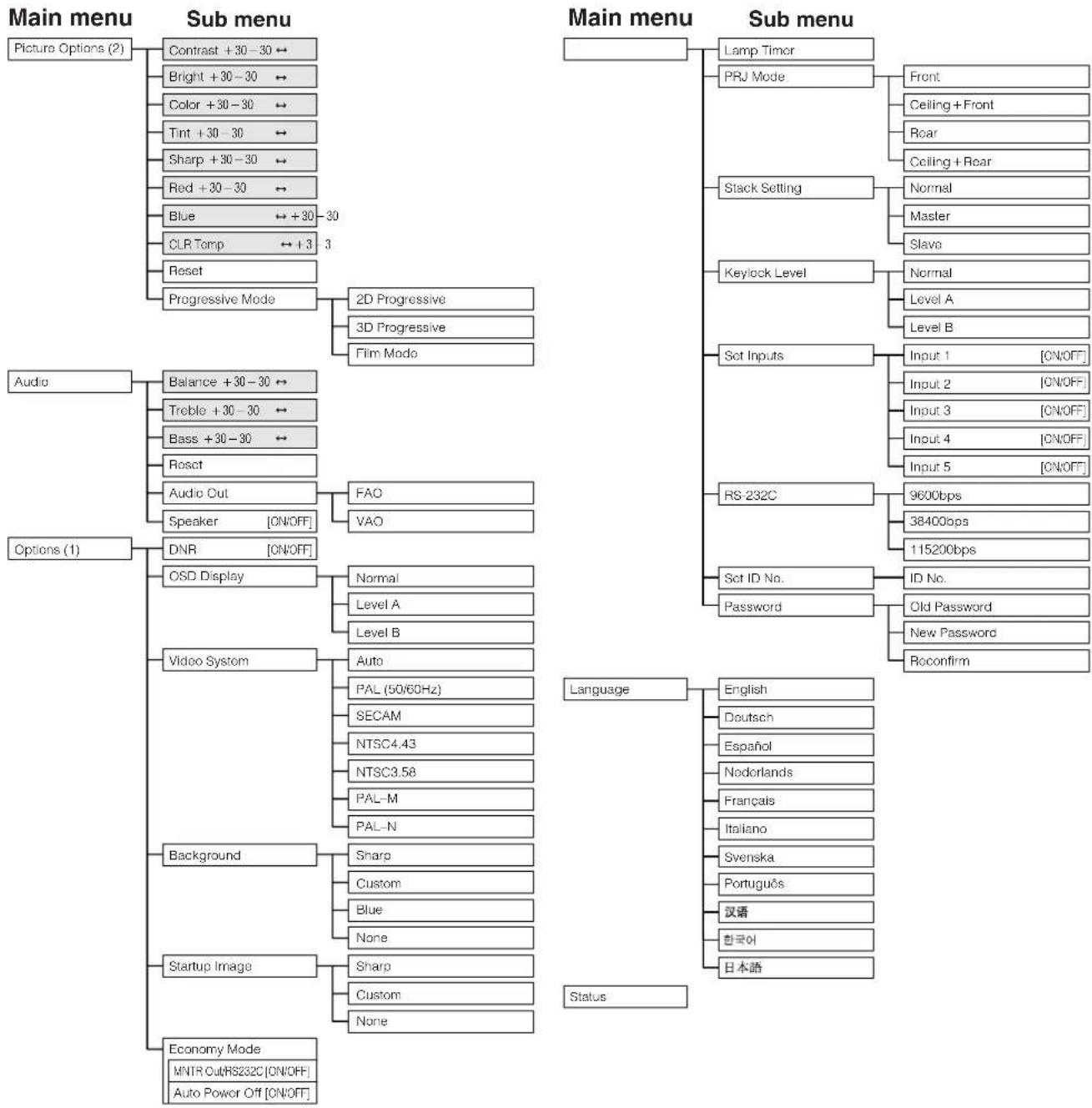
flowchart
```mermaid
graph TD
    A["Main menu"] --> B["Picture Options (2)"]
    B --> C1["Contrast +30-30"]
    B --> C2["Bright +30-30"]
    B --> C3["Color +30-30"]
    B --> C4["Tint +30-30"]
    B --> C5["Sharp +30-30"]
    B --> C6["Red +30-30"]
    B --> C7["Blue"]
    B --> C8["CLR Temp"]
    B --> C9["Reset"]
    B --> C10["Progressive Mode"]
    C10 --> D1["2D Progressive"]
    C10 --> D2["3D Progressive"]
    C10 --> D3["Film Mode"]

    E["Sub menu"] --> F["Main menu"]
    F --> G1["Lamp Timor"]
    F --> G2["PRJ Mode"]
    F --> G3["Stack Setting"]
    F --> G4["Keylock Level"]
    F --> G5["Sot Inputs"]
    F --> G6["RS-232C"]
    F --> G7["Sot ID No."]
    F --> G8["Password"]
    F --> G9["Language"]
    F --> G10["English"]
    F --> G11["Deutsch"]
    F --> G12["Espanol"]
    F --> G13["Nodorlands"]
    F --> G14["Français"]
    F --> G15["Italano"]
    F --> G16["Svenska"]
    F --> G17["Português"]
    F --> G18["汉语"]
    F --> G19["한국어"]
    F --> G20["日本語"]

    H["Audio"] --> I["Audio"]
    I --> J1["Balance +30-30"]
    I --> J2["Treble +30-30"]
    I --> J3["Bass +30-30"]
    I --> J4["Resct"]
    I --> J5["Audio Out"]
    I --> J6["Speaker [ON/OFF"]]
    I --> J7["DNR [ON/OFF"]]

    K["Options (1)"] --> L["CSD Display"]
    L --> M1["OVID Display"]
    L --> M2["Video System"]
    L --> M3["Background"]
    L --> M4["Startup Image"]
    L --> M5["Economy Mode"]

    N["Main menu"] --> O["Main menu"]
    O --> P1["Lamp Timor"]
    O --> P2["PRJ Mode"]
    O --> P3["Stack Setting"]
    O --> P4["Keylock Level"]
    O --> P5["Sot Inputs"]
    O --> P6["RS-232C"]
    O --> P7["Sot ID No."]
    O --> P8["Password"]

    Q["Main menu"] --> R["Main menu"]
    R --> S1["Lamp Timor"]
    R --> S2["PRJ Mode"]
    R --> S3["Stack Setting"]
    R --> S4["Keylock Level"]
    R --> S5["Sot Inputs"]
    R --> S6["RS-232C"]
    R --> S7["Sot ID No."]

    T["Main menu"] --> U["Main menu"]
    U --> V1["Lamp Timor"]
    U --> V2["PRJ Mode"]
    U --> V3["Stack Setting"]
    U --> V4["Keylock Level"]
    U --> V5["Sot Inputs"]

    W["Main menu"] --> X["Main menu"]

    Y["Main menu"] --> Z["Main menu"]

    AA["Main menu"] --> AB["Main menu"]

    AC["Main menu"] --> AD["Main menu"]

    AE["Main menu"] --> AF["Main menu"]

    AG["Main menu"] --> AH["Main menu"]

    AI["Main menu"] --> AJ["Main menu"]

    AK["Main menu"] --> AL["Main menu"]

    AM["Main menu"] --> AN["Main menu"]

    AO["Main menu"] --> AP["Main menu"]

    AQ["Main menu"] --> AR["Main menu"]

    AS["Main menu"] --> AT["Main menu"]

    AU["Main menu"] --> AV["Main menu"]

    AW["Main menu"] --> AX["Main menu"]

    AY["Main menu"] --> AZ["Main menu"]

    BA["Main menu"] --> BB["Main menu"]

    BC["Main menu"] --> BD["Main menu"]

    BE["Main menu"] --> BF["Main menu"]

    BG["Main menu"] --> BH["Main menu"]

    BI["Main menu"] --> BJ["Main menu"]

    BK["Main menu"] --> BL["Main menu"]

    BM["Main menu"] --> BN["Main menu"]

    BO["Main menu"] --> BP["Main menu"]

    BQ["Main menu"] --> BR["Main menu"]

    BS["Audio"] --> BT["Balance +30-30"]
    BS --> BU["Treble +30-30"]
    BS --> BV["Bass +30-30"]
    BS --> BW["Resct"]
    BS --> BX["Audio Out"]
    BS --> BY["Speaker [ON/OFF"]]

    CA["Options (1)"] --> CB["DNR [ON/OFF"]]

    CC["Audio"] --> DD["CSD Display"]
    CC --> DE["Video System"]

    DF["Audio"] --> DG["CSD Display"]

    DF["Audio"] --> DH["Video System"]

    DF["Audio"] --> DI["CSD Display"]

    DJ["Audio"] --> DJ["Video System"]

    DK["Audio"] --> DL["CSD Display"]

    DK["Audio"] --> DV["Video System"]

    DW["Audio"] --> DX["CSD Display"]

    DW["Audio"] --> DY["Video System"]

    DX["Audio"] --> DY["Video System"]

    DB["Audio"] --> DC["CSD Display"]

    DB["Audio"] --> DD["Video System"]

    DB["Audio"] --> DE["Video System"]

    DB["Audio"] --> DL["Video System"]

    DB["Audio"] --> DV["Video System"]

    DB["Audio"] --> DY["Video System"]

    DB["Audio"] --> DE["Video System"]

    DB["Audio"] --> DE["Video System"]

    DB["Audio"] --> DE["Video System"]

    DB["Audio"] --> DE["Video System"]

    DB["Audio"] --> DE["Video System"]

    DB["Audio"] --> DE["Video System"]

    DB["Audio"] --> DE["Video System"]

    DB["Audio"] --> DE["Video System"]

    DB["Audio"] --> DE["Video System"]

        AE
        AF
        AG
        AH
        AI
        AJ
        AK
        AL
        AM
        AN
        AO
        AP
        AQ
        AR
        AS
        AT
        AU
        AV
        AW
        AX
        AY
        AZ
        BA
        BB
        BC
        BD
        BD
        BD
        BD
        BD
        BD
        BD
        BD
        BD
        BD
        BD
        BD
        BD
        BD
        BD
        BD
        BD
        BD
        BD
        BD
        BD
        BD
        BD
        BD
        BD
        BD
        BD
        BD
        BD
        BD
        BD
        BD
        BD
        BD

        AC
        AD
        AE
        AF
        AG
        AH
        AI
        AJ
        AK
        AL
        AM
        AN
        AO
        AP
        AQ
        AZ
        BA
        BB
        BC
        AD
        AE
        AF
        AH
        AI
        AJ
        AK
        AL
        AM
        AN
        AO
        AP
        AQ
        AZ
        BA
        BB
        BC
        AD
        AE
        AF
        AH
        AI
        AJ
        AK
        AL
        AM
        AN
        AO
        AP
        AQ
        AZ
        BA
        BB
        BC
        AD
        AE
NOTE
- Only the items highlighted in the tree charts above can be adjusted.
- To adjust the items under the sub menu, press ▶ after selecting the sub menu.

You can adjust the projector's picture to your preferences with the following picture settings. See page 44 for the procedure details.
e. g. RGB input in INPUT 1 or 2 mode
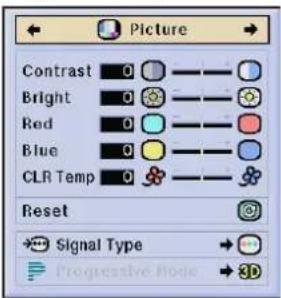
| Selected item | ◀ button | ▶ button |
| Contrast | For less contrast | For more contrast |
| Bright | For less brightness | For more brightness |
| Color | For less colour intensity | For more colour intensity |
| Tint | Skin tones become purplish | Skin tones become greenish |
| Sharp | For less sharpness | For more sharpness |
| Red | For weaker red | For stronger red |
| Blue | For weaker blue | For stronger blue |
| Reset | All image adjustment items are returned to the factory preset settings. | |
NOTE
- "Color", "Tint" and "Sharp" do not appear for RGB input in INPUT 1 or 2 mode.
- To reset all adjustment items, select "Reset" on the "Picture" menu screen and press ENTER.
- The adjustments can be stored separately in the INPUT 1 to 5 modes.
- Depending on the type of signal received, "Sharp" may not be adjustable for COMPONENT input in INPUT 1 or 2 mode.
Adjusting the Colour Temperature
This function can be used to adjust the colour temperature to suit the type of image input to the projector (video, computer image, TV broadcast, etc.). Decrease the colour temperature to create warmer, reddish images for natural flesh tones, or increase to create cooler, bluish images for a brighter picture.
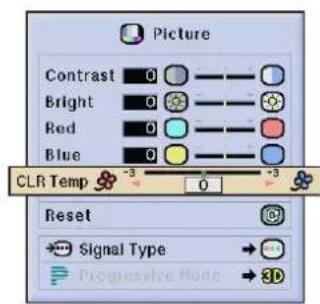
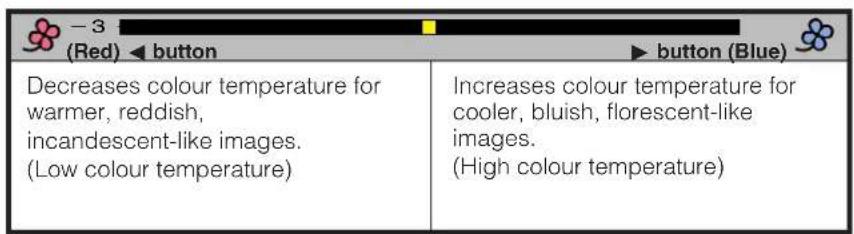
Selecting the Signal Type (RGB menu only)
This function allows you to select the input signal type RGB or COMPONENT for INPUT 1 or 2 port.
You can adjust this setting by accessing the "Button Assign" list on your GyroRemote. Choose popup list "4/5" and press Function Assign (4). (See page 33.)
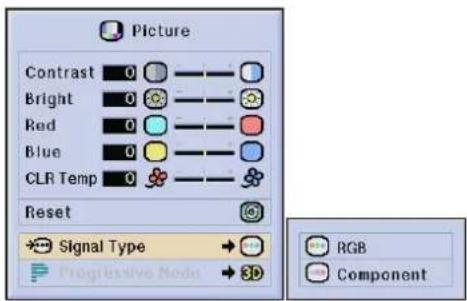

Progressive Mode
This function allows you to select the progressive display of a video signal. The progressive display projects a smoother video image. See page 44 for the procedure details.
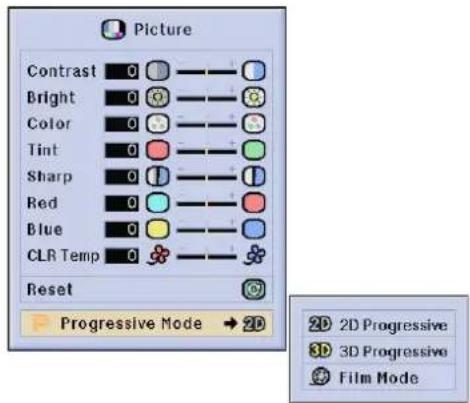
Progressive Mode
Selects the progressive conversion mode.
2D Progressive
This function is useful to display fast-moving images such as sports and action films. Mode that optimises the image in a displayed frame.
3D Progressive
This function is useful to display relatively slow-moving images such as drama and documentary more clearly. Mode that optimises the image by estimating the movement of a number of preceding and succeeding frames.
Film Mode
Reproduces the image of film software clearly. Displays the optimised image of film transformed with three-two pull down enhancement to progressive mode images.
NOTE
• Film Mode cannot work with PAL 50 Hz.

Picture

Fine Sync

Audio

Options

Options

Language
Status
When displaying computer patterns which are very detailed (tiling, vertical stripes, etc.), interference may occur between the LCD pixels, causing flickering, vertical stripes, or contrast irregularities in portions of the screen. Should this occur, adjust "Clock", "Phase", "H-Pos" and "V-Pos" for the optimum computer image. See page 44 for the procedure details. Select the desired computer input mode with INPUT 1 or 2.
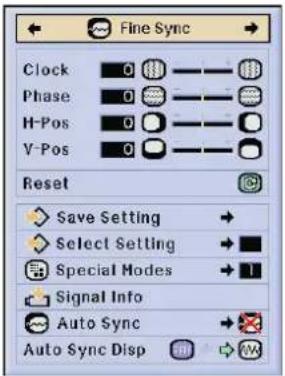
Clock
Adjusts vertical noise.
Phase
Adjusts horizontal noise (similar to tracking on your VCR).
H-Pos
Centres the on-screen image by moving it to the left or right.
V-Pos
Centres the on-screen image by moving it up or down.
NOTE
- Computer image adjustments can be made easily by pressing AUTO SYNC (☐). See page 51 for details.
- To reset all adjustment items, select "Reset" on the "Fine Sync" menu screen and press ENTER.
Saving and Selecting Adjustment Settings
This projector allows you to store up to seven adjustment settings for use with various computers. Once these settings are stored, they can be easily selected each time you connect a computer to the projector.
Saving the adjustment setting
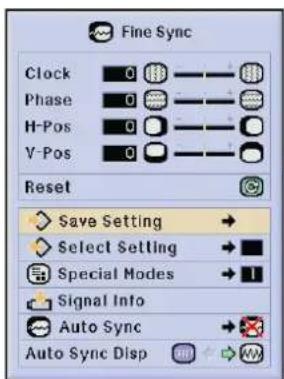
| Resolution | Vert Freq | |
| 1 | 640 × 480 | 60 Hz |
| 2 | 800 × 600 | 60 Hz |
| 3 | ||
| 4 | ||
| 5 | ||
| 6 | ||
| 7 |
Selecting a saved setting
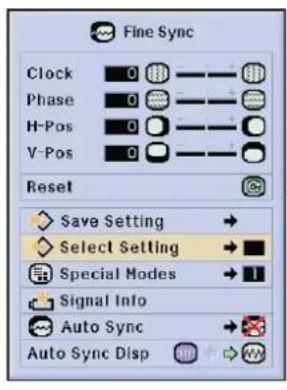
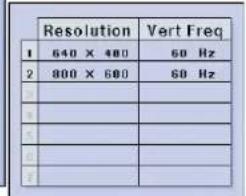
NOTE
- If a memory position has not been set, a resolution and frequency setting will not be displayed.
- When selecting the stored adjustment setting with "Select Setting", the computer system should match the stored setting.

Picture

Fine Sync

Audio

Options

Options

Language
Status
Special Mode Adjustment
Ordinarily, the type of input signal is detected and the correct resolution mode is automatically selected. However, for some signals, the optimal resolution mode in "Special Modes" on the "Fine Sync" menu screen may need to be selected to match the computer display mode. See page 44 for the procedure details.
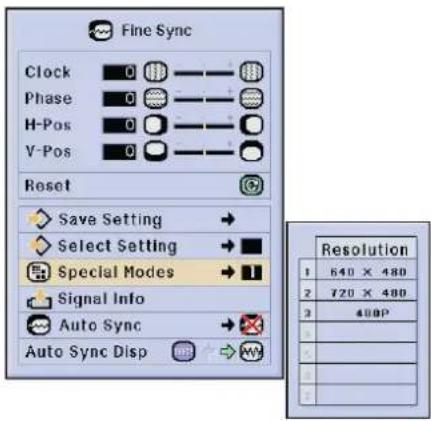
NOTE
- Avoid displaying computer patterns which repeat every other line (horizontal stripes). (Flickering may occur, making the image hard to see.)
- When inputting DTV 480P or 1080i signals, select the corresponding type of signal.
Checking the Input Signal
This function allows you to check the current input signal information.
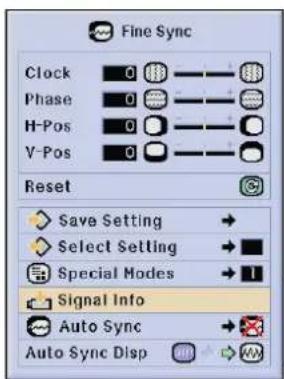
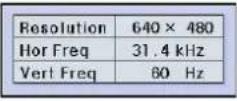

Picture

Fine Sync

Audio

Options

Options

Language
Status
Auto Sync Adjustment
• Used to automatically adjust a computer image.
- Auto Sync adjustment can be made manually by pressing AUTO SYNC, or automatically by setting "Auto Sync" to "Normal" or "High Speed" in the projector's GUI menu. See page 44 for the procedure details.
You can adjust this setting by accessing the "Button Assign" list on your GyroRemote. Choose popup list "4/5" and press Function Assign (2). (See page 33.)
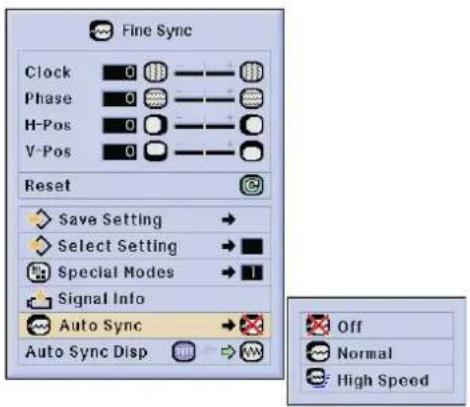
Off
- Synchronized adjustment is not automatically performed.
- Press AUTO SYNC to perform manual adjustment.
Normal
- Synchronized adjustment is automatically performed the same as the "High Speed" setting.
- Adjustment using the "Normal" setting takes longer to perform than using the "High Speed" setting, but it is more accurate.
High Speed
- The sync adjustment is automatically made each time the projector is turned on while connected to a computer or the input selection is changed.
- The Auto Sync adjustment setting previously made is cleared when the projector's setting is changed.
NOTE
• Automatic adjustments can be made by pressing AUTO SYNC.
- When performing AUTO SYNC in Off or High Speed mode, if you press AUTO SYNC once, then press it again within one minute, AUTO SYNC will be executed in Normal mode.
- Auto Sync adjustment may take some time to complete, depending on the image of the computer connected to the projector.
- When the optimum image cannot be achieved with Auto Sync adjustment, use manual adjustments. (See page 49.)
Auto Sync Display Function
Normally, an image is not superimposed during Auto Sync adjustment. You can, however, choose to superimpose a background image during Auto Sync adjustment.
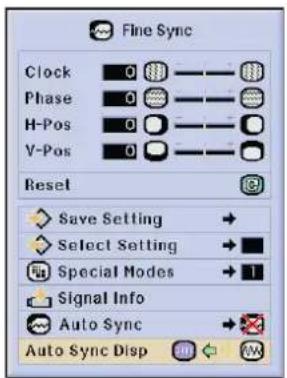

This projector's audio is factory preset to standard settings. However, you can adjust it to suit your own preferences by adjusting the following audio settings. See page 44 for the procedure details.
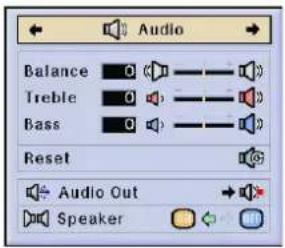
| ◀ buttonSelected item | ▶ button | |
| Balance | Increased audio from the left speaker | Increased audio from the right speaker |
| Treble | For weaker treble | For stronger treble |
| Bass | For weaker bass | For stronger bass |
| Reset | All audio adjustment items are returned to the factory preset settings. | |
NOTE
- To reset all adjustment items, select "Reset" on the "Audio" menu screen and press ENTER.
Audio Out
FAO (Fixed audio output): Audio output that does not vary in strength with the volume level of the source projector.
VAO (Variable audio output): Audio output that varies in strength with the volume level of the source projector.
Speaker
Switching the built-in speakers on the projector ON/OFF.

Picture

Fine Sync

Audio

Options

Options

Language
Status
Picture in Picture function allows you to display two pictures on the same screen. You can display the image input from INPUT 4 or 5 as an inset picture overlapping the main picture input from INPUT 1, 2 or 3. See page 44 for the procedure details.
You can adjust this setting by accessing the "Button Assign" list on your GyroRemote. Choose popup list "3/5" and press Function Assign (4). (See page 33)
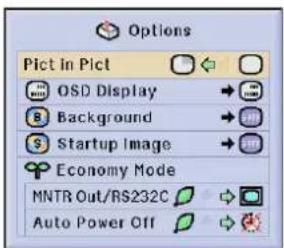
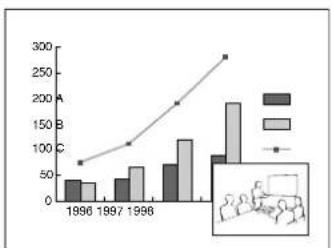
bar_line
| Year | Category A | Category B | |---|---|---| | 1996 | 40 | 35 | | 1997 | 45 | 65 | | 1998 | 75 | 120 | | 2008 | 90 | 195 | | 2009 | 100 | 285 |1 Press ◀ to select "☐" to display an inset picture (Factory preset to INPUT 4).
2 Press ◀/▶/▲/▼ to move the inset picture to one of four preset positions.
NOTE
• The image from INPUT 1, 2 or 3 is displayed as the main picture and the image from INPUT 4 or 5 is displayed as the inset picture.
- The last displayed image from INPUT 4 or 5 is displayed as the inset picture.
For example, when you want to display the image from INPUT 4 as the inset picture, select INPUT 4, then select the main picture, and then select "Pict in Pict".
- Inset picture can only be displayed in video signal of NTSC/PAL/SECAM.
- When selecting the image for the inset picture, only the images being input will be displayed
- The audio of the inset picture will come out of the projector's speakers.
• Picture in Picture does not work in case of the following RGB signals. UXGA signal image/Interlaced signal/DTV (480P/720P/1080i)
- You can only use the following functions while in Picture in Picture mode. FREEZE: Works for the inset picture only.

Reducing Image Noise (VIDEO menu only)

Picture

Audio

Options

Options

Language
Status
Digital Noise Reduction (DNR) provides high quality images with minimal dot crawl and cross colour noise. See page 44 for the procedure details.
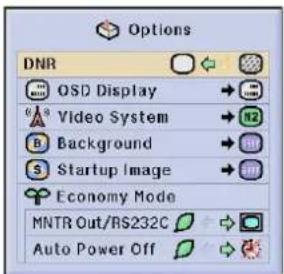
NOTE
- If the image is clear, select "☐" to prevent any blurring.

This function allows you to turn on or off the on-screen messages that appear during input select. See page 44 for the procedure details.
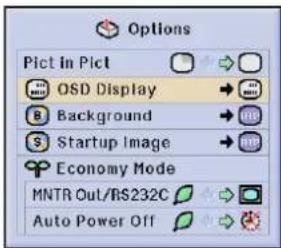
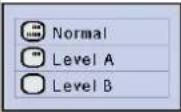
| Selected item | Description |
| Normal | All On-screen Display are displayed. |
| Level A | Input/Custom/Freeze/Enlarge/Auto sync/Volume/Mute/Black screen functions are not displayed. |
| Level B | All On-screen Display are not displayed (except Menu/Button assign list/Lens functions and warning display (Power off/Temp./Lamp function etc.)). |

Setting the Video Signal (VIDEO menu only)

The video input system mode is preset to "Auto"; however, it can be changed to a specific system mode if the selected system mode is not compatible with the connected audiovisual equipment. See page 44 for the procedure details.
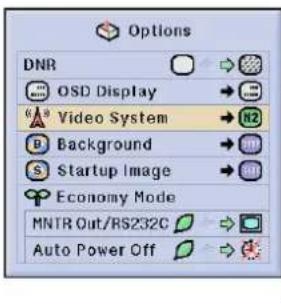
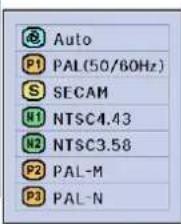
NOTE
- When the system mode is set to "Auto", you may not receive a clear picture due to signal differences. Should this occur, switch to the video system of the source signal.
- AUTO cannot be set for PAL-M and PAL-N input signals. Select "PAL-M" or "PAL-N" in "Video System" menu for PAL-M and PAL-N input signals.

Picture

Fine Sync

Audio

Options

Options

Language
Status
This function allows you to select the image displayed when no signal is being sent to the projector. See page 44 for the procedure details.
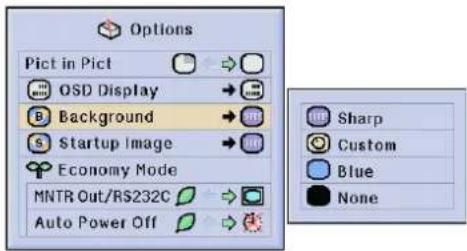
| Selected item | Description |
| Sharp | SHARP default image |
| Custom | User customised image (i.e. company logo) |
| Blue | Blue screen |
| None | Black screen |
NOTE
- By selecting "Custom", the projector can display a custom image (i.e. your company logo) as the background image. The custom image must be a 256-colour BMP file with a picture size no larger than 1,024 × 768 pixels. Please see the Sharp Advanced Presentation Software operation manual for how to save (or change) a custom image.

Selecting a Startup Image

Picture

Fine Sync

Audio

Options

Options

Language
Status
This function allows you to specify the image to be displayed upon the projector's startup. A custom image (i.e. your company logo) can be uploaded to the projector via an RS-232C cable. See page 16 in this operation manual, and also the supplied Sharp Advanced Presentation Software operation manual for detailed instructions. See page 44 for the procedure details.
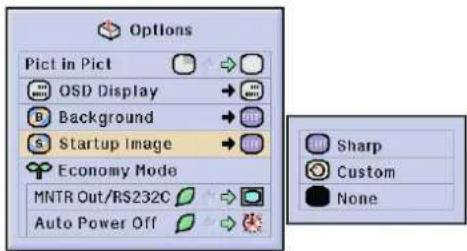
| Selected item | Description |
| Sharp | SHARP default image |
| Custom | User customised image (i.e. company logo) |
| None | Black screen |
NOTE
- By selecting "Custom", the projector can display a custom image (i.e. your company logo) as the startup image. The custom image must be a 256-colour BMP file with a picture size no larger than 1,024 × 768 pixels. Please see the Sharp Advanced Presentation Software operation manual for how to save (or change) a custom image.

Picture

Fine Sync

Audio

Options

Options

Language
Status
These functions allow you to reduce the power consumption when the projector is in standby mode. See page 44 for the procedure details.
Monitor Out/RS-232C Off Function
This projector consumes power when using a monitor connected to the OUTPUT port for INPUT 1, 2 and a computer connected to the RS-232C port. When not using these ports, "MNTR Out/RS232C" can be set to "☐" to reduce standby power consumption.
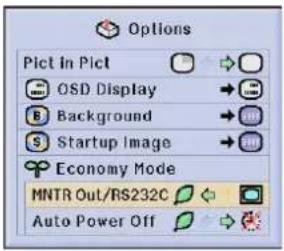
| Standby power for Monitor Out/RS-232C connection turned off. | |
| Monitor Out/RS-232C on |

CAUTION
- Set "MNTR Out/RS232C" to "☐" when using the Sharp Advanced Presentation Software (supplied).
Automatic Power Shutoff Function
When no input signal is detected for more than 15 minutes, the projector will automatically shut off. The on-screen message on the left will appear five minutes before the power is automatically turned off.
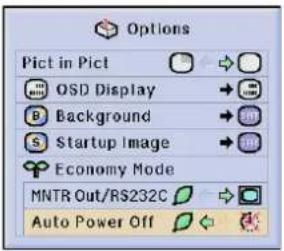
| Power automatically shuts off after 15 minutes of no signal input. | |
| Automatic Power Shutoff disabled. |
NOTE
- "MNTR Out/RS232C" is factory preset to "☐", and "Auto Power Off" is factory preset to "☐".

Picture

Fine Sync

Audio

Options

Options

Language
Status
This function allows you to check the accumulated lamp usage time. See page 44 for the procedure details.
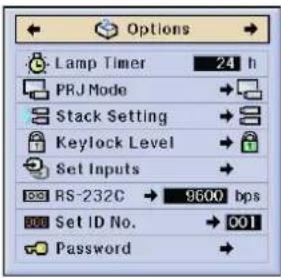
NOTE
- It is recommended that the lamp be replaced after approximately 1,000 cumulative hours of use. See pages 68 and 69 for lamp replacement.

Reversing/Inverting Projected Images

Picture

Fine Sync

Audio

Options

Options

Language
Status
This projector is equipped with a reverse/invert image function which allows you to reverse or invert the projected image for various applications. See page 44 for the procedure details.
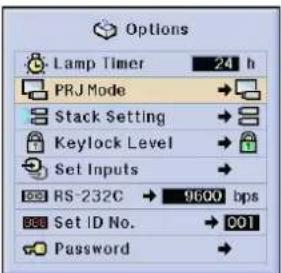
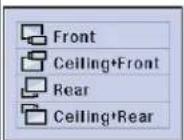
| Selected item | Description |
| Front | Normal image |
| Ceiling + Front | Inverted image |
| Rear | Reversed image |
| Ceiling + Rear | Reversed and inverted image |
NOTE
- This function is used for the reversed image and ceiling-mount setups. See page 29 for these setups.

You can double the brightness of an image by stacking two projectors and projecting same picture simultaneously. To control two projectors, assign one as the master and one as the slave. The slave projector will duplicate any operational settings made to the master projector. See page 44 for the procedure details.
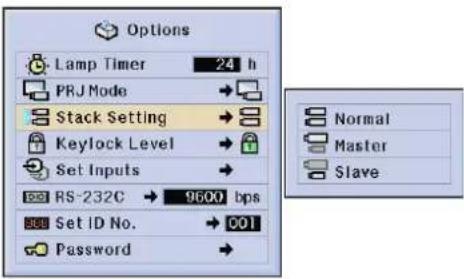
NOTE
- When the projector is set to "Master", button operation signals will be transmitted through RS-232C.
- When the projector is set to "Slave", operations follow the button operations sent from the "Master"
- When set to slave, all buttons on the projector along with ENTER, UNDO, POWER, LENS and MENU on the GyroRemote can be used. The slave cannot operate the other buttons on GyroRemote.
• For details on intended purpose, see pages 65 and 66

Locking the Operation Buttons on the Projector

This function can be used to lock the use of certain operation buttons on the projector. The user can still operate the projector fully with the GyroRemote. See page 44 for the procedure details.
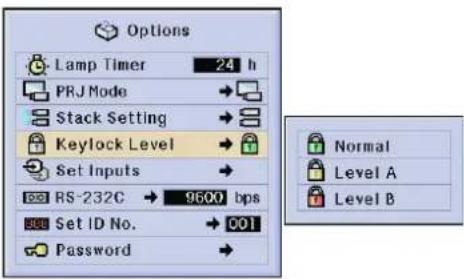
| Selected item | Description |
| Normal | All operation buttons are functional. |
| Level A | Only Input/Volume/Mute functions on the projector are available. |
| Level B | All operation buttons on the projector are unavailable. |
NOTE
• To cancel the Keylock Level, perform the above procedure using the GyroRemote.
• See page 61 for details using the password function.

Picture

Fine Sync

Audio

Options

Options

Language
Status
This function allows you to deselect unwanted signal input. See page 44 for the procedure details.
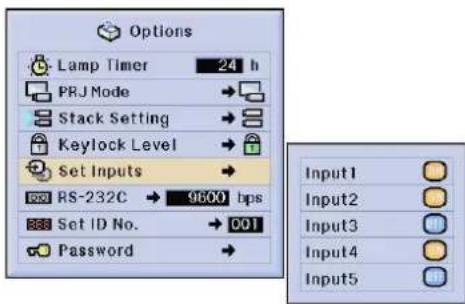
NOTE
- When stack projecting, multi-screen projecting and so on, this function can be used to cancel the RS-232C control.
- Up to two input signals can be blocked for both Input 1, 2, 3 or Input 4, 5.
- For details on intended purpose, see pages 65 and 66.

Selecting the Transmission Speed (RS-232C)

Picture

Fine Sync

Audio

Options

Options

language
Status
This menu allows you to adjust the transmission speed of the RS-232C connection by selecting the baud rate. See page 44 for the procedure details.
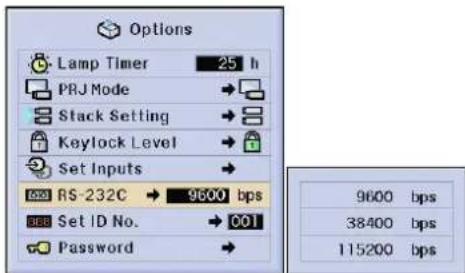
NOTE
- Make sure that both the projector and computer are set for the same baud rate. Refer to the computer's operation manual for instructions for setting the baud rate.

This projector can form a network of up to 250 projectors. To identify separately and control specified projector, you need to set ID No.. The ID No. is factory preset to "001". See page 44 for the procedure details.
Setting the ID No.
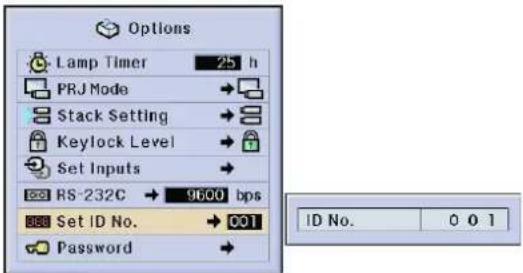
Press ▶ to select the first digit and ▲/▼ to select the desired number. Continue this procedure for the remaining two digits.
NOTE
- Be sure to set the ID No. in the Option menu and attach a corresponding number seal to the projector.
• The ID No. can be set from 001 to 250. - For details on intended purpose, see pages 63 to 66

A password can be set by the user and used with the keylock level to prevent adjustments to certain settings on the GUI. See page 44 for the procedure details.
NOTE
- When password is set, you need to enter the password to use "PRJ Mode", "Stack Setting", "Keylock Level", "Set Inputs", "RS-232C" and "Set ID No." menus.
Setting the Password
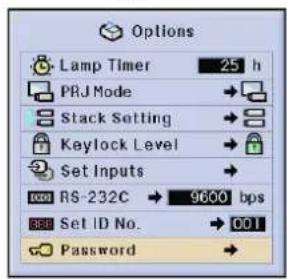
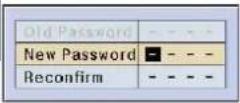
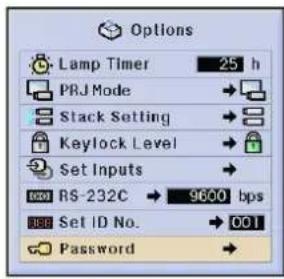
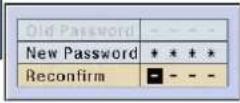
1 Enter the new password using ▲/▼ to select the desired number, and then press ▶ to select the next digit. Continue this procedure for the remaining three digits, and then press ENTER.
2 Enter the password again ("Reconfirm") using ▲/▼/◄/►, and then press ENTER.
NOTE
• After setting the password, be sure to write it down in a secure location in case you can not remember it.
Changing the Password
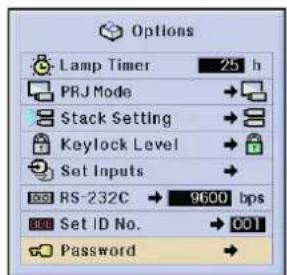
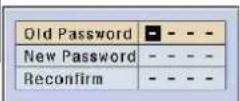
1 Enter the old password using ▲/▼/◄/►, and then press ENTER.
2 Enter the new password using ▲/▼/◄/►, and then press ENTER.
3 Enter the password again ("Reconfirm") using ▲/▼/◄/►, and then press ENTER.

Picture

Fine Sync

Audio

Options

Options

Language
Status
English is the preset language for the On-screen Display; however, this can be changed to German, Spanish, Dutch, French, Italian, Swedish, Portuguese, Chinese, Korean or Japanese. See page 44 for the procedure details.
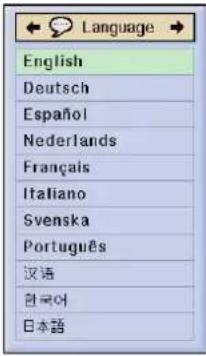

Displaying the Adjustment Settings

Picture

Fine Sync

Audio

Options

Options

Language

This function can be used to display all the adjusted settings on the screen simultaneously. See page 44 for the procedure details.
INPUT 1, 2 (RGB) or 3 (DIGITAL) mode INPUT 4, 5 (VIDEO) mode
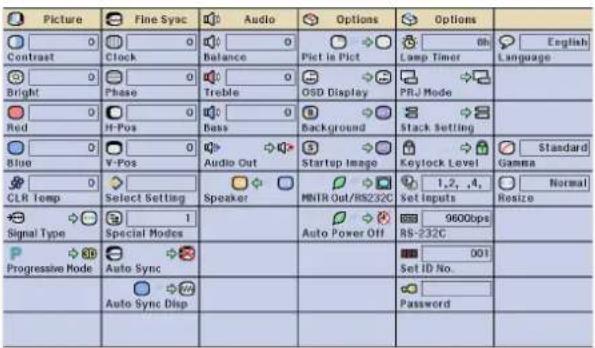
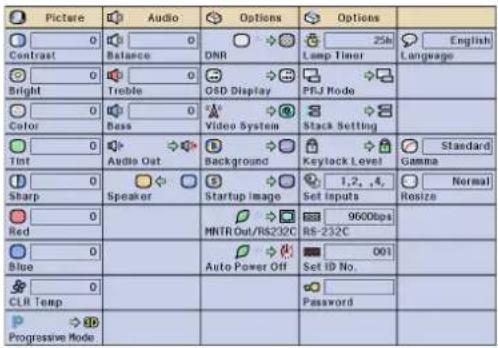
This projector has outstanding network capability.
- Internet access for self-diagnosis
- Multiple and group projector control
- Simultaneous multiple projector control
Internet access for self-diagnosis, status information and preventive maintenance
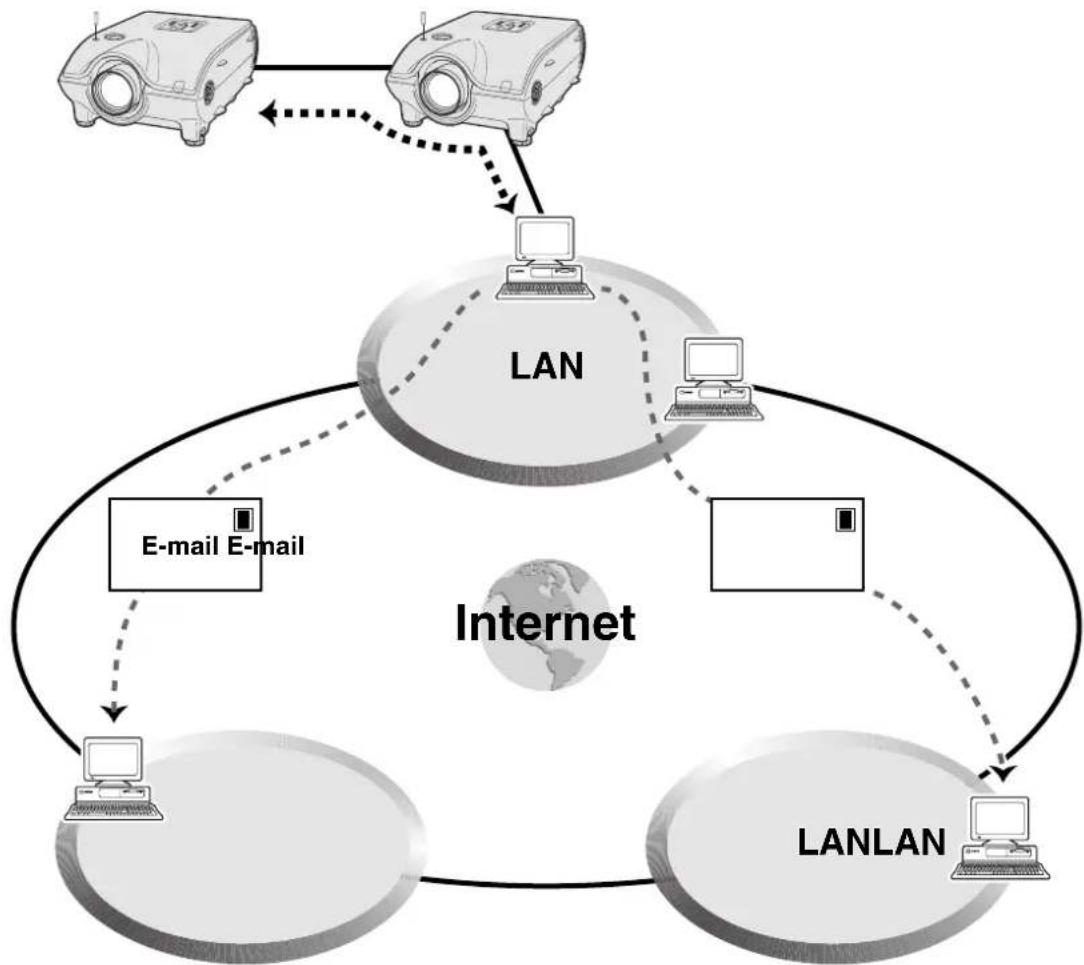
flowchart
graph TD
    A["Internet"] --> B["LAN"]
    B --> C["E-mail E-mail"]
    C --> D["LANLAN"]
    D --> E["LAN"]
    E --> F["Pod 1"]
    E --> G["Pod 2"]
    F --> H["Pod 3"]
    G --> I["Pod 4"]
    H --> J["Pod 5"]
    I --> K["Pod 6"]
    J --> L["Pod 7"]
    K --> M["Pod 8"]
    L --> N["Pod 9"]
    M --> O["Pod 10"]
    N --> P["Pod 11"]
    O --> Q["Pod 12"]
    P --> R["Pod 13"]
    Q --> S["Pod 14"]
    R --> T["Pod 15"]
    S --> U["Pod 16"]
    T --> V["Pod 17"]
    U --> W["Pod 18"]
    V --> X["Pod 19"]
    W --> Y["Pod 20"]
    X --> Z["Pod 21"]
    Y --> AA["Pod 22"]
    Z --> AB["Pod 23"]
    AA --> AC["Pod 24"]
    AB --> AD["Pod 25"]
    AC --> AE["Pod 26"]
    AD --> AF["Pod 27"]
    AE --> AG["Pod 28"]
    AF --> AH["Pod 29"]
    AG --> AI["Pod 30"]
    AH --> AJ["Pod 31"]
    AI --> AK["Pod 32"]
    AJ --> AL["Pod 33"]
    AK --> AM["Pod 34"]
    AL --> AN["Pod 35"]
    AM --> AO["Pod 36"]
    AN --> AP["Pod 37"]
    AO --> AQ["Pod 38"]
    AP --> AR["Pod 39"]
    AQ --> AS["Pod 40"]
    AR --> AT["Pod 41"]
    AS --> AU["Pod 42"]
    AT --> AV["Pod 43"]
    AU --> AW["Pod 44"]
    AV --> AX["Pod 45"]
    AW --> AY["Pod 46"]
    AX --> AZ["Pod 47"]
    AY --> BA["Pod 48"]
    AZ --> BB["Pod 49"]
    BA --> BC["Pod 50"]
    BB --> BD["Pod 51"]
    BC --> BE["Pod 52"]
    BD --> BF["Pod 53"]
This projector can be used in a network of up to 250 projectors managed from a single PC with the accompanied Sharp Advanced Presentation Software—Professional Edition. This projector can be connected to a PC using an RS-232C connection. Output terminals are provided (RS-232C on the projector) enabling a daisy chain configuration and eliminating the need for a distributor.
This projector is also equipped with a function to send status information (lamp usage time, etc.) to a Sharp Service Centre or outside contractor for quick and efficient customer service.
NOTE
- For more information on these features, see the operation manuals accompanying the Sharp Advanced Presentation Software—Professional Edition and optional boards.
Multiple and group projector control via computer
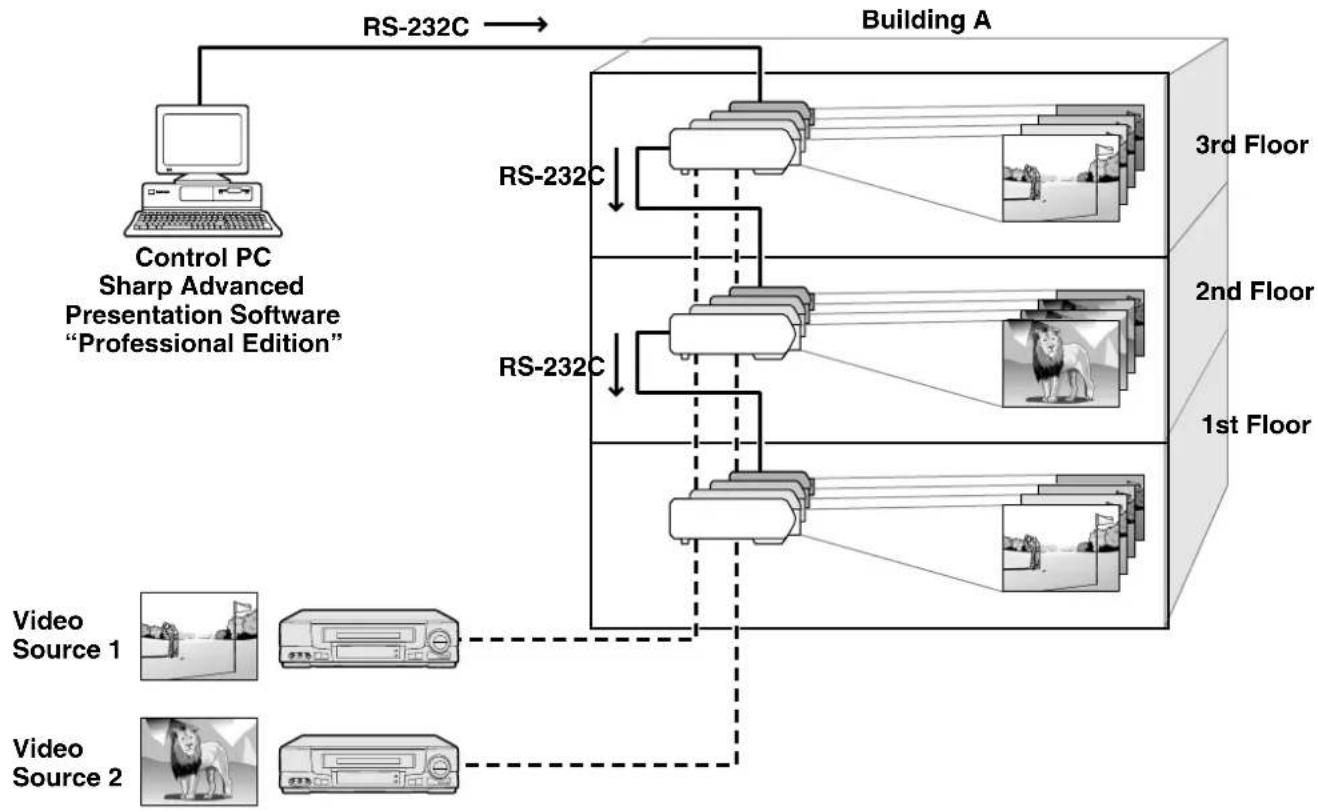
flowchart
graph TD
    A["Control PC\nSharp Advanced Presentation Software\n"Professional Edition""] -->|RS-232C| B["Building A"]
    B --> C["1st Floor\nVideo Source 1"]
    B --> D["2nd Floor\nVideo Source 2"]
    B --> E["3rd Floor\nVideo Source 3"]
    C --> F["RS-232C"]
    D --> G["RS-232C"]
    E --> H["RS-232C"]
    F --> I["Building A"]
    G --> I
    H --> I
This projector can be used in a network of projectors managed from a single PC with the accompanied Sharp Advanced Presentation Software—Professional Edition. Projectors in conference rooms on the first and third floors of a building, for example, can be used for video presentations, while projectors on the second floor can be used for PC-assisted presentations. Projectors can even be powered down at different times (e.g., projectors on the first and second floors are powered down in one hour, while those on the third floor are powered down in two hours).
NOTE
- For more information on these features, see the operation manuals accompanying the Sharp Advanced Presentation Software—Professional Edition.
Simultaneous multiple projector control for stacking and videowall projection
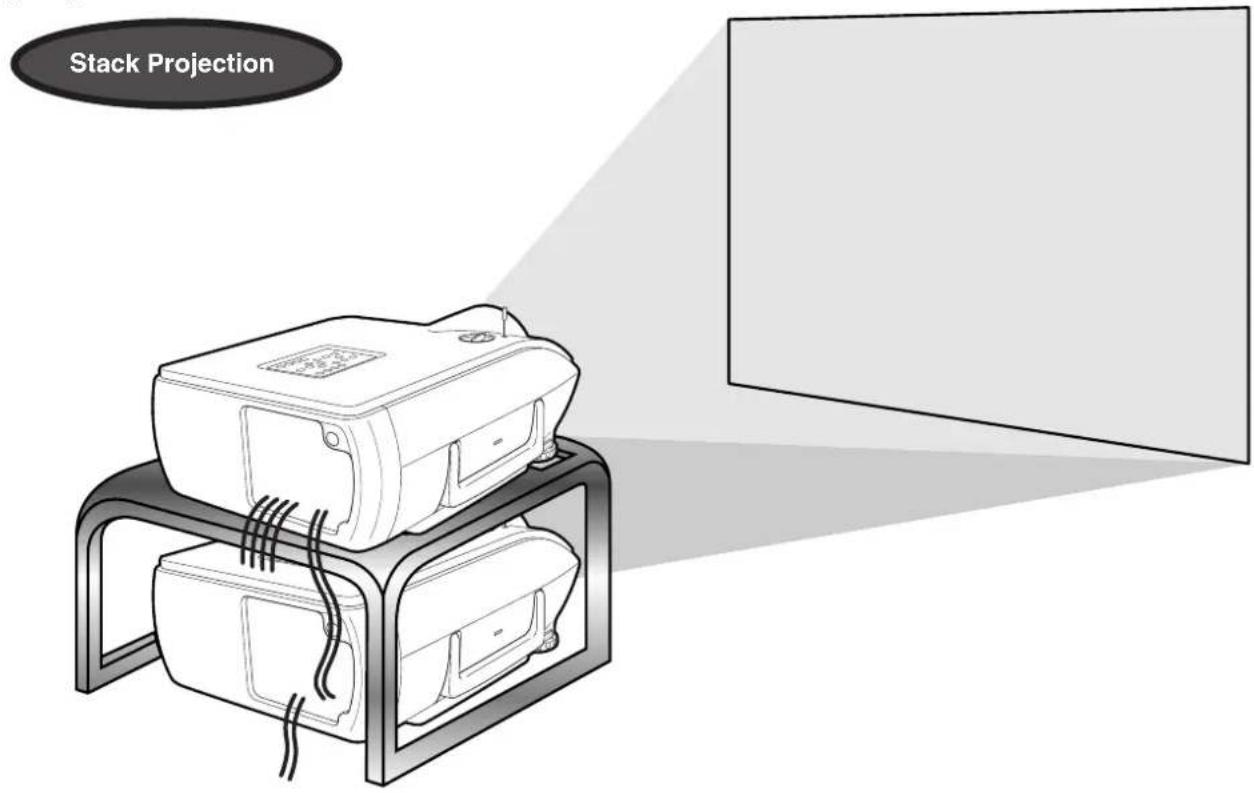
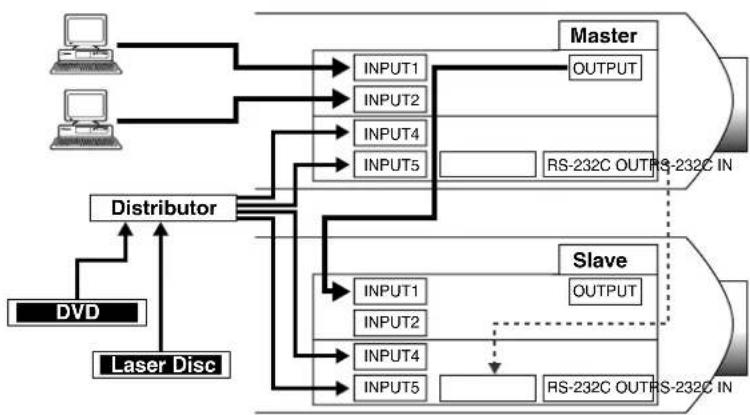
flowchart
graph TD
    A["Computer"] --> B["Master"]
    C["Laser Disc"] --> D["Distributor"]
    D --> E["Slave"]
    F["DVD"] --> D
    B --> G["INPUT1"]
    B --> H["INPUT2"]
    B --> I["INPUT4"]
    B --> J["INPUT5"]
    B --> K["OUTPUT"]
    B --> L["RS-232C OUTRS-232C IN"]
    M["Master"] --> N["Output"]
    O["Slave"] --> P["OUTPUT"]
    Q["Master"] --> R["Input1"]
    Q --> S["Input2"]
    Q --> T["Input4"]
    Q --> U["Input5"]
    Q --> V["RS-232C OUTRS-232C IN"]
    W["Master"] --> X["Output"]
    Y["Slave"] --> Z["Input1"]
    Y --> AA["Input2"]
    Y --> AB["INPUT4"]
    Y --> AC["INPUT5"]
    Y --> AD["RS-232C OUTRS-232C IN"]
| Stack Setting |
| Master |
| Stack Setting |
| Slave |
| Set Inputs | |
| INPUT1 | Yes |
| INPUT2 | Yes |
| INPUT3 | No |
| INPUT4 | Yes |
| INPUT5 | Yes |
| Set Inputs | |
| INPUT1 | Yes |
| INPUT2 | No |
| INPUT3 | No |
| INPUT4 | Yes |
| INPUT5 | Yes |
For brighter images, two projectors can be stacked using the Stack Setting function, with one projector set as the Master and the other as the Slave. The operations of the Slave projector are controlled by the Master projector during projection through an RS-232C connection. The RS-232C cable (null modem, cross type, sold separately) is connected from the RS-232C output on the Master projector to the RS-232C input on the Slave projector.
Projectors can be stacked using an RS-232C cable (null modem, cross type, sold separately).
NOTE
• See page 59, "Deselecting Inputs", and page 58, "Setting the Stacking Mode".
Videowall
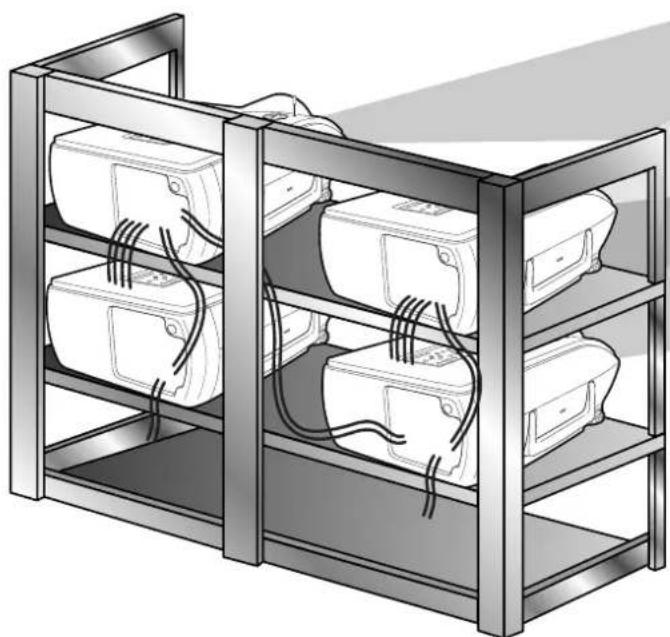
natural_image
Illustration of a metal rack with three labeled boxes and cables, no text or symbols present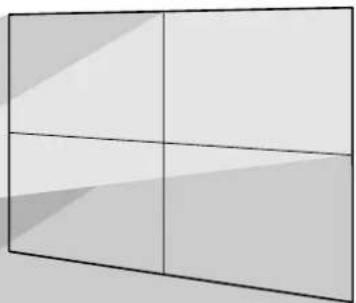
natural_image
Simple 3x3 grid layout with no text, numbers, or symbols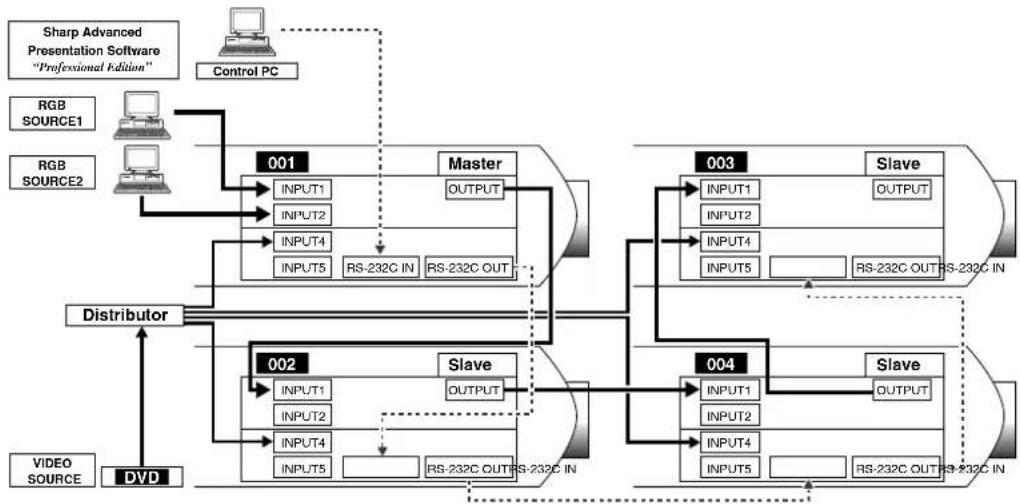
flowchart
graph TD
    A["Sharp Advanced Presentation Software "Professional Edition""] --> B["Control PC"]
    C["RGB SOURCE1"] --> D["001"]
    E["RGB SOURCE2"] --> D
    D --> F["Master"]
    F --> G["003"]
    H["Distributor"] --> I["002"]
    J["VIDEO SOURCE"] --> K["DVD"] --> L["004"]
    M["Slave"] --> N["003"]
    O["Slave"] --> P["004"]
    Q["RS-232C IN"] --> R["001"]
    S["RS-232C OUT"] --> T["002"]
    U["INPUT1"] --> V["001"]
    V --> W["Master"]
    X["INPUT2"] --> Y["001"]
    Z["INPUT4"] --> AA["001"]
    AB["INPUT5"] --> AC["001"]
    AD["RS-232C IN"] --> AE["003"]
    AF["RS-232C OUT"] --> AG["004"]
    AH["RS-232C IN"] --> AI["Slave"]
    AJ["INPUT1"] --> AK["003"]
    AL["INPUT2"] --> AM["003"]
    AN["INPUT4"] --> AO["003"]
    AP["INPUT5"] --> AQ["003"]
    AR["RS-232C IN"] --> AS["Slave"]
    AT["RS-232C OUT"] --> AU["Slave"]
| Master | |
| Set Inputs | |
| INPUT1 | Yes |
| INPUT2 | Yes |
| INPUT3 | No |
| INPUT4 | Yes |
| INPUT5 | Yes |
| Slave | |
| Set Inputs | |
| INPUT1 | Yes |
| INPUT2 | No |
| INPUT3 | No |
| INPUT4 | Yes |
| INPUT5 | No |
This projector can be used together with other projectors managed using the accompanied Sharp Advanced Presentation Software—Professional Edition to create a videowall projection. Whereas conventional videowall technology required the use of an image distributor, this projector videowall feature enables easy image settings from a PC when inputting a single video source. This function greatly simplifies videowall setup.
RS-232C OUTPUTS also realise the simple daisy chain connection. The master projector directly connected to the computer can make the daisy chain connection with multiple slave projectors. For details on setting master or slave, see page 60.
- Use a videowall projector stand, sold separately, when using this function.
- Image quality may deteriorate when picture signals are input through multiple projectors in a daisy chain connection.
NOTE
- For more information on this feature, see the operation manuals accompanying the Sharp Advanced Presentation Software—Professional Edition.
- When UXGA signal is displayed, the videowall can not be set by Sharp Advanced Presentation Software—Professional Edition.
Maintenance Indicators
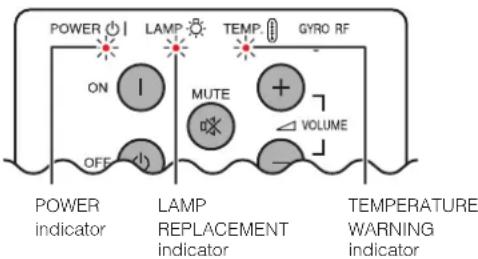
flowchart
graph TD
    A["POWER indicator"] --> B["ON"]
    B --> C["LAMP"]
    C --> D["MUTE"]
    D --> E["VOLUME"]
    E --> F["TEMP."]
    F --> G["GYRO RF"]
    G --> H["TEMPERATURE WARNING indicator"]
    style A fill:#f9f,stroke:#333
    style B fill:#ccf,stroke:#333
    style C fill:#cfc,stroke:#333
    style D fill:#fcc,stroke:#333
    style E fill:#cff,stroke:#333
    style F fill:#ffc,stroke:#333
    style G fill:#fcc,stroke:#333
    style H fill:#ffc,stroke:#333
- The warning lights on the projector indicate problems inside the projector.
- There are two warning lights: a TEMPERATURE WARNING indicator that warns you when the projector is too hot, and two LAMP REPLACEMENT indicators that warn you when to change a lamp.
- If a problem occurs, either the TEMPERATURE WARNING indicator or the LAMP REPLACEMENT indicators will light up red. After turning off the power, follow the procedures given below.
| Maintenance Indicator | Condition Possible Solution Problem | ||
| TEMPERATURE WARNING indicator | The internal temperature is abnormally high. | • Blocked air intake. | • Relocate the projector to an area with proper ventilation. |
| • Clogged air filter. | • Replace the filter.(See page 70.) | ||
| • Cooling fan breakdown.• Internal circuit failure. | • Take the projector to your nearest Sharp Authorised LCD Projector Dealer or Service Centre for repair. | ||
| LAMP REPLACE-MENT indicator | The lamp does not light up. | • Burnt-out lamp.• Lamp circuit failure. | • Carefully replace the lamp. (See pages 68 and 69.)• Take the projector to your nearest Authorised LCD Projector Dealer or Service Centre for repair. |
| POWER indicator | The POWER indicator flashes in red when the projector is on. | • The filter cover is open. | • Securely install the filter cover. |
NOTE
- If the TEMPERATURE WARNING indicator lights up, follow the above possible solutions and then wait until the projector has cooled down completely before turning the power back on. (At least 5 minutes.)
- If the power is turned off and then turned on again, as during a brief rest, the LAMP REPLACEMENT indicators may be triggered, preventing the power from going on. Should this occur, take the power cord out of the wall outlet and put it back in again.
Lamp
It is recommended that the lamp be replaced after approximately 1,000 cumulative hours of use or when you notice a significant deterioration of the picture and colour quality. The lamp usage time can be checked with the On-screen Display. (As the usage environment can vary significantly, the projector lamp may not operate for 1,000 hours.)
CAUTION
- Intense light hazard. Do not attempt to look into the aperture and lens while the projector is operating.
CAUTION
- Potential hazard of glass particles if lamp ruptures. In case of lamp rupture, contact your nearest Sharp Authorised LCD Projector Dealer or Service Centre for a replacement.
- Do not remove the lamp cage directly after operation of the projector. The lamp may be extremely hot. Wait at least one hour after the power cord is disconnected to allow the surface of the lamp cage to fully cool before removing the lamp cage.
It is recommended that the lamp be replaced after approximately 1,000 cumulative hours of use or when you notice a significant deterioration of the picture and colour quality. Carefully change the lamp by following the steps below.
If the new lamp does not light after replacement, take your projector to the nearest Sharp Authorised LCD Projector Dealer or Service Centre for repair. Purchase a replacement lamp unit (lamp/cage module) of the current type BQC-XGP20X//1 from your nearest Sharp Authorised LCD Projector Dealer or Service Centre. Then carefully change the lamp by following the instructions below. If you wish, you may have the lamp replaced at your nearest Sharp Authorised LCD Projector Dealer or Service Centre
Removing and installing the lamp unit
CAUTION
- Be sure to remove the lamp cage by the handle. Be sure not to touch the glass surface of the lamp cage or the inside of the projector.
• To avoid injury to yourself and damage to the lamp, be sure to carefully follow the steps below. - Be sure to change the air filter during lamp replacement. The air filter comes packaged with the lamp unit.
| 1 Turn off the power. | 2 Disconnect the power cord. | 3 Remove the bottom filter cover. |
Press POWER OFF. Wait until the cooling fan stops.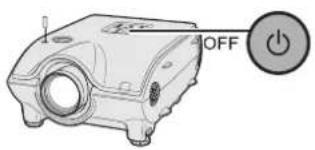 | Unplug the power cord from the AC socket.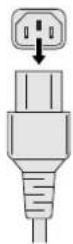 | Turn over the projector. Press the tab and lift open the filter cover in the direction of the arrow.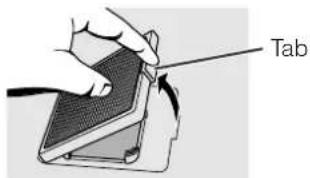 |
| 4 Remove the air filter. | 5 Replace the air filter. | 6 Replace the filter cover. |
Grasp the air filter between your fingers and lift it out of the filter cover.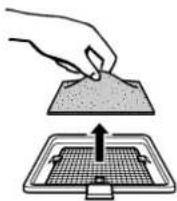 | Place the air filter underneath the tabs on the filter frame.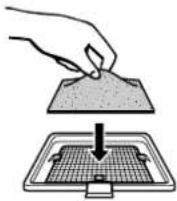 | Insert the tab on the end of the filter cover into the filter cover opening and press the filter cover into position.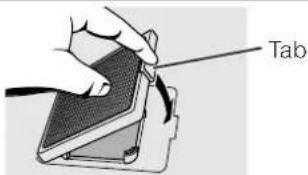 |
| 7 Remove the lamp cage cover. | 8 Remove the lamp cage. | 9 Insert the new lamp cage. |
Turn over the projector and loosen the user service screw that secures the lamp cage cover. Then slide the cover in the direction of the arrow.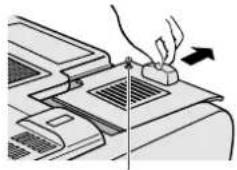 User service screw User service screw | Remove the securing screws from the lamp cage. Hold the lamp cage by the handle and pull it towards you.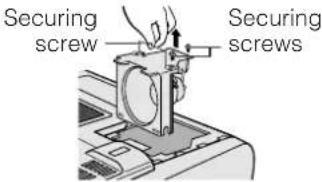 | Press the lamp cage firmly into the lamp cage compartment.Fasten the securing screws.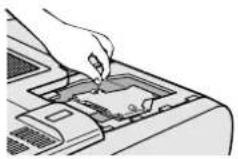 |
| 10 Attach the lamp cage cover. | ||
| Slide the lamp cage cover in the direction of the arrow. Then tighten the user service screw.[User service screw] | ||
Resetting the lamp timer
| 1 Connect the power cord. | 2 Reset the lamp timer. | |
Plug the power cord into the AC socket of the projector.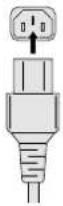 | While pressing ▼, ▶ and ENTER on the projector, press POWER ON on the projector.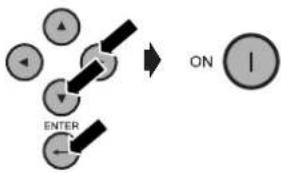 | “LAMP 0000H” is displayed, indicating that the lamp timer is reset.  |
NOTE
- Reset the lamp timer only after replacing the lamp.

Replacing the Air Filter
- This projector is equipped with two air filters to ensure the optimal operating condition of the projector.
- The air filters should be cleaned every 100 hours of use. Clean the filters more often when the projector is used in a dusty or smoky location.
- Have your nearest Sharp Authorised LCD Projector Dealer or Service Centre exchange the filter (PFILD0080CEZZ) when it is no longer possible to clean it.
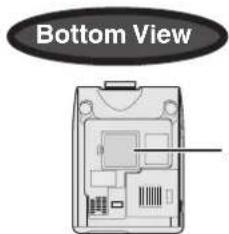
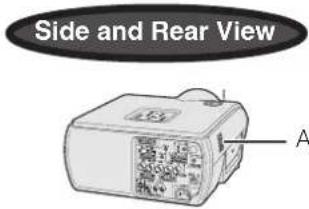
Air filters (not removable)
Cleaning and replacing the bottom air filter
| 1 Unplug the power cord. | 2 Remove the bottom filter cover. | 3 Remove the air filter. |
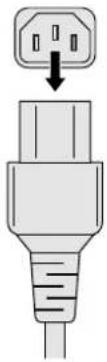 | Turn over the projector. Press the tab and lift open the filter cover in the direction of the arrow. | Grasp the air filter between your fingers and lift it out of the filter cover. |
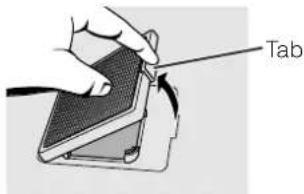 | 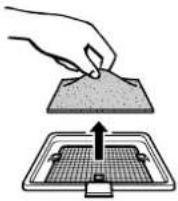 | |
| 4 Clean the air filter. | 5 Replace the air filter. | 6 Replace the filter cover. |
| Clean the dust off the air filter and cover with a vacuum cleaner extension hose. | Place the air filter underneath the tabs on the filter frame. | Insert the tab on the end of the filter cover into the filter cover opening and press the filter cover into position. |
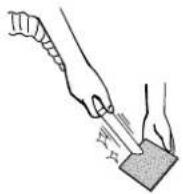 | 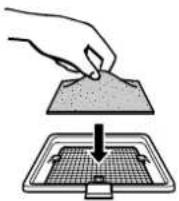 | 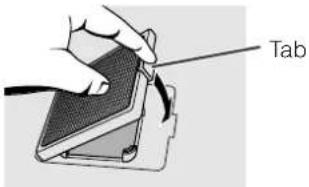 |
NOTE
- Be sure the filter cover is securely installed. The power will not turn on unless it is correctly installed.
Cleaning the side air filter (not removable)
If dust or dirt has collected inside the air filter, clean the filter with a vacuum cleaner extension hose.
NOTE
- The side air filter cannot be removed.
| Problem | Check |
| Power cannot be turned on or off using the POWER buttons (ON/OFF) on the projector. | Keylock level is set to "Level A" or "Level B", preventing operation of some or all buttons. (See page 58.) |
| Cannot be operated by GyroRemote. | Register GyroRemote once again the projector. (See page 37.)When the GyroRemote is connected to the projector with wired remote control cable, confirm the position of the IR/Gyro switch. (See page 38.)When the projector is set to slave, use the buttons on the master projector or change the setting by RS-232C commands from the computer. (See page 58.) |
| Cannot be operated by all buttons of the projector and GyroRemote. | When using slave setting in combination with Keylock Level B, all the buttons on the projector and the GyroRemote are disabled. Use the SAPS or RS-232C commands to release slave and Keylock setting and enable buttons to operate. Without a computer, you can release slave and Keylock setting by entering the buttons on the projector as follows.ON → ENTER → ON → ENTER → ON → ENTER → MENUHowever, this operation also releases the password set. |
| No picture and no sound. | Projector power cord is not plugged into the wall outlet.The bottom filter cover is not securely installed.Selected input is wrong. (See page 39.)Cables incorrectly connected to rear panel of the projector. (See pages 13–18.)GyroRemote batteries have run down. (See page 11.) |
| Sound is heard but no picture appears. | Cables incorrectly connected to rear panel of the projector. (See pages 13–18.)“Contrast” and “Bright” adjustments are set to minimum position. (See page 47.)On-screen Display (“BLACK SCREEN”) is turned off and Black Screen function is turned on, creating a black image. (See page 40.) |
| Colour is faded or poor. | “Color” and “Tint” adjustments are not correct. (See page 47.) |
| Picture is blurred. | Adjust the focus. (See page 21.)Projection distance is too long or too short to allow for proper focus. (See pages 22–28.) |
| Picture appears but no sound is heard. | Cables incorrectly connected to rear panel of the projector. (See pages 13–18.)Volume is set to minimum. (See page 39.) |
| No OSD appears. | OSD Display is set to “Level A” or “Level B”, preventing to display some or all On-screen Displays. (See page 54.) |
| An unusual sound is occasionally heard from the cabinet. | If the picture is normal, the sound is due to cabinet shrinkage caused by temperature changes. This will not affect operation or performance. |
| Maintenance indicator lights up. | Refer to “Lamp/Maintenance Indicators” on page 67. |
| Picture noise appears. | Adjust the “Phase” setting. (See page 49.)Noise may appear when used with certain computers. Set the NOISE FILTER to ON using the RS-232C command. (See pages 73–75.) |
| 480P images do not appear. | Set the resolution mode to 480P. (See page 50.) |
| Image is green on INPUT 1 or 2 COMPONENT.Image is pink (no green) on INPUT 1, 2 RGB. | Change the input signal type. (See page 47.) |
| Lens comes off. | Align the mark on the lens with the corresponding mark on the projector, push the lens firmly in place, and rotate to the right. |
INPUT 1 RGB and OUTPUT (INPUT 1, 2) Signal Ports: 15-pin Mini D-sub female connector
RGB Input
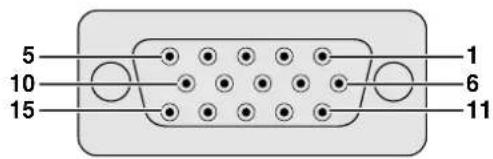
Analog
| 1. Video input (red) | 8. Earth (blue) |
| 2. Video input(green/sync on green) | 9. Not connected10. GND |
| 3. Video input (blue) | 11. GND |
| 4. Reserve input 1 | 12. Bi-directional data |
| 5. Composite sync | 13. Horizontal sync signal |
| 6. Earth (red) | 14. Vertical sync signal |
| 7. Earth (green/sync on green) | 15. Data clock |
Component Input
| Analog | |
| 1. PR (CR) | 9. Not connected |
| 2. Y | 10. Not connected |
| 3. PB (CB) | 11. Not connected |
| 4. Not connected | 12. Not connected |
| 5. Not connected | 13. Not connected |
| 6. Earth (PR) | 14. Not connected |
| 7. Earth (Y) | 15. Not connected |
| 8. Earth (PB) | |
RS-232C Port: 9-pin D-sub male connector of the DIN-D-sub RS-232C cable
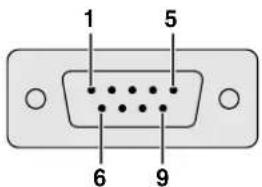
Pin No. Signal Name I/O Reference
1 CD Not connected
2 RD Receive Data Input Connected to internal circuit
3 SD Send Data Output Connected to internal circuit
4 ER Not connected
5 SG Signal Ground Connected to internal circuit
6 DR Data Set Ready Output Not connected
7 RS Request to Send Output Connected to internal circuit
8 CS Clear to Send Input Connected to internal circuit 9 CI Not connected
INPUT 3 DVI Port: 29-pin
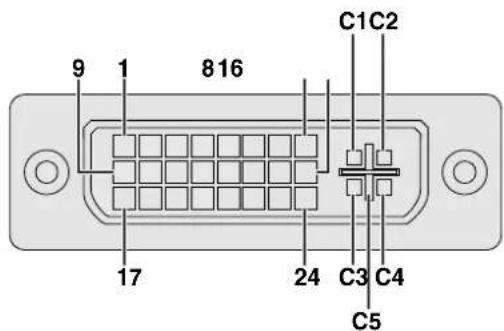
NOTE
- *1 Return for +5 V, Hsync. and Vsync.
• *2 Analog R, G and B return - ^*3 These pins are not used on this equipment.
Pin No.
| 1 | T.M.D.S. Data 2- |
| 2 | T.M.D.S. Data 2+ |
| 3 | T.M.D.S. Data 2/4 Shield |
| 4 | T.M.D.S. Data 4-*3 |
| 5 | T.M.D.S. Data 4+*3 |
| 6 | DDC Clock |
| 7 | DDC Data |
| 8 | Analog Vertical Sync |
| 9 | T.M.D.S. Data 1- |
| 10 | T.M.D.S. Data 1+ |
| 11 | T.M.D.S. Data 1/3 Shield |
| 12 | T.M.D.S. Data 3-*3 |
| 13 | T.M.D.S. Data 3+*3 |
| 14 | +5 V Power |
| 15 | Ground*1 |
| 16 | Hot Plug Detect |
| 17 | T.M.D.S. Data 0- |
| 18 | T.M.D.S. Data 0+ |
| 19 | T.M.D.S. Data 0/5 Shield |
| 20 | T.M.D.S. Data 5-*3 |
| 21 | T.M.D.S. Data 5+*3 |
| 22 | T.M.D.S. Clock Shield |
| 23 | T.M.D.S. Clock+ |
| 24 | T.M.D.S. Clock- |
| C1 | Analog Red |
| C2 | Analog Green |
| C3 | Analog Blue |
| C4 | Analog Horizontal sync |
| C5 | Analog Ground*2 |
Name
PC control
A computer can be used to control the projector by connecting an RS-232C cable (null modem, cross type, sold separately) to the projector. (See page 16 for connection.)
Communication conditions
Set the serial port settings of the computer to match that of the table.
Signal format: Conforms to RS-232C standard.
Baud rate: 9,600 bps
Data length: 8 bits
Parity bit: NON
Stop bit: 1 bit
Flow control: None
Basic format
Commands from the computer are sent in the following order: command, parameter, and return code. After the projector processes the command from the computer, it sends a response code to the computer.
Command format

Response code format
Normal response

Problem response (communication error or incorrect command)

When more than one code is being sent, send each command only after the OK response code for the previous command from the projector is verified.
NOTE
- When using the computer control function of the projector, the projector operating status cannot be read to the computer. Therefore, confirm the status by transmitting the display commands for each adjustment menu and checking the status with the On-screen Display. If the projector receives a command other than a menu display command, it will execute the command without displaying the On-screen Display.
Commands
EXAMPLE

- When "BRIGHT" of INPUT 1 IMAGE ADJUSTMENT is set to -10.
ProjectorComputer
| R | A | B | R | 1 | 0 | O | K |
| BUTTONS & REMOTE CONTROL KEY | CONTROL CONTENTS | COMMAND | PARAMETER | RETURN | |||||
| POWER ON | P | D | W | R | _ | _ | 1 | OK OR ERR | |
| POWER OFF | P | D | W | R | _ | _ | 0 | OK OR ERR | |
| VOLUME (0-60) | V | D | L | A | _ | _ | * | OK OR ERR | |
| MUTE ON | M | U | T | E | _ | _ | 1 | OK OR ERR | |
| MUTE OFF | M | U | T | E | _ | _ | 0 | OK OR ERR | |
| LENS FOCUS (-30-+30) | L | N | F | O | _ | * | * | OK OR ERR | |
| LENS ZOOM (-30-+30) | L | N | Z | O | _ | * | * | OK OR ERR | |
| KEYSTONE (-127-+127) | K | E | Y | S | * | * | * | OK OR ERR | |
| V-SIZE (-30-+30) | V | S | I | Z | _ | _ | * | OK OR ERR | |
| DIGITAL SHIFT (-30-+30) | L | N | D | S | _ | * | * | OK OR ERR | |
| BUTTONS & REMOTE CONTROL KEY | CONTROL CONTENTS | COMMAND | PARAMETER | RETURN | ||||||
| BLACK SCREEN ON | I | M | B | K | — | — | — | 1 | OK OR ERR | |
| BLACK SCREEN OFF | I | M | B | K | — | — | — | 0 | OK OR ERR | |
| INPUT 1 (RGB 1) | I | R | G | B | — | — | — | 1 | OK OR ERR | |
| INPUT 2 (RGB 2) | I | R | G | B | — | — | — | 2 | OK OR ERR | |
| INPUT 3 (RGB 3) | I | R | G | B | — | — | — | 3 | OK OR ERR | |
| INPUT 4 (VIDEO 1) | I | V | E | D | — | — | — | 1 | OK OR ERR | |
| INPUT 5 (VIDEO 2) | I | V | E | D | — | — | — | 2 | OK OR ERR | |
| INPUT CHECK | I | C | H | K | — | — | — | 0 | OK OR ERR | |
| FREEZE ON | F | R | E | Z | — | — | — | 1 | OK OR ERR | |
| FREEZE OFF | F | R | E | Z | — | — | — | 0 | OK OR ERR | |
| AUTO SYNC START | A | D | J | S | — | — | — | 1 | OK OR ERR | |
| CONTROLS CONTENTS | COMMAND | PARAMETER | RETURN | |||||||
| BUTTONS & REMOTE CONTROL KEYPICTURE | INPUT 1 (RGB 1) RESIZE : NORMAL | R | A | S | R | _ | _ | _ | 1 OK OR ERR | |
| INPUT 1 (RGB 1) RESIZE : FULL | R | A | S | R | _ | _ | _ | 5 OK OR ERR | ||
| INPUT 1 (RGB 1) RESIZE : DOT BY DOT | R | A | S | R | _ | _ | _ | 3 OK OR ERR | ||
| INPUT 2 (RGB 2) RESIZE : NORMAL | R | B | S | R | _ | _ | _ | 1 OK OR ERR | ||
| INPUT 2 (RGB 2) RESIZE : FULL | R | B | S | R | _ | _ | _ | 5 OK OR ERR | ||
| INPUT 2 (RGB 2) RESIZE : DOT BY DOT | R | B | S | R | _ | _ | _ | 3 OK OR ERR | ||
| INPUT 3 (RGB 3) RESIZE : NORMAL | R | C | S | R | _ | _ | _ | 1 OK OR ERR | ||
| INPUT 3 (RGB 3) RESIZE : FULL | R | C | S | R | _ | _ | _ | 5 OK OR ERR | ||
| INPUT 3 (RGB 3) RESIZE : DOT BY DOT | R | C | S | R | _ | _ | _ | 3 OK OR ERR | ||
| INPUT 4 (VIDEO 1) RESIZE : NORMAL | R | A | S | V | _ | _ | _ | 1 OK OR ERR | ||
| INPUT 4 (VIDEO 1) RESIZE : FULL | R | A | S | V | _ | _ | _ | 5 OK OR ERR | ||
| INPUT 4 (VIDEO 1) RESIZE : BORDER | R | A | S | V | _ | _ | _ | 3 OK OR ERR | ||
| INPUT 4 (VIDEO 1) RESIZE : STRETCH | R | A | S | V | _ | _ | _ | 2 OK OR ERR | ||
| INPUT 4 (VIDEO 1) RESIZE : SMART STRETCH | R | A | S | V | _ | _ | _ | 4 OK OR ERR | ||
| INPUT 5 (VIDEO 2) RESIZE : NORMAL | R | B | S | V | _ | _ | _ | 1 OK OR ERR | ||
| INPUT 5 (VIDEO 2) RESIZE : FULL | R | B | S | V | _ | _ | _ | 5 OK OR ERR | ||
| INPUT 5 (VIDEO 2) RESIZE : BORDER | R | B | S | V | _ | _ | _ | 3 OK OR ERR | ||
| INPUT 5 (VIDEO 2) RESIZE : STRETCH | R | B | S | V | _ | _ | _ | 2 OK OR ERR | ||
| INPUT 5 (VIDEO 2) RESIZE : SMART STRETCH | R | B | S | V | _ | _ | _ | 4 OK OR ERR | ||
| RGB GAMMA : STANDARD | G | A | M | R | _ | _ | _ | 1 OK OR ERR | ||
| RGB GAMMA : PRESENTATION | G | A | M | R | _ | _ | _ | 2 OK OR ERR | ||
| RGB GAMMA : CINEMA | G | A | M | R | _ | _ | _ | 3 OK OR ERR | ||
| RGB GAMMA : CUSTOM | G | A | M | R | _ | _ | _ | 4 OK OR ERR | ||
| VIDEO GAMMA : STANDARD | G | A | M | V | _ | _ | _ | 1 OK OR ERR | ||
| VIDEO GAMMA : PRESENTATION | G | A | M | V | _ | _ | _ | 2 OK OR ERR | ||
| VIDEO GAMMA : CINEMA | G | A | M | V | _ | _ | _ | 3 OK OR ERR | ||
| VIDEO GAMMA : CUSTOM | G | A | M | V | _ | _ | _ | 4 OK OR ERR | ||
| INPUT 1 (RGB 1) CONTRAST (-30 - +30) | R | A | P | I | _ | * | * * | OK OR ERR | ||
| INPUT 1 (RGB 1) BRIGHT (-30 - +30) | R | A | B | R | _ | * | * * | OK OR ERR | ||
| INPUT 1 (RGB 1) RED (-30 - +30) | R | A | R | D | _ | * | * * | OK OR ERR | ||
| INPUT 1 (RGB 1) BLUE (-30 - +30) | R | A | B | E | _ | * | * * | OK OR ERR | ||
| INPUT 1 (RGB 1) COLOR (-30 - +30) | R | A | C | O | _ | * | * * | OK OR ERR | ||
| INPUT 1 (RGB 1) TINT (-30 - +30) | R | A | T | I | _ | * | * * | OK OR ERR | ||
| INPUT 1 (RGB 1) SHARP (-30 - +30) | R | A | S | H | _ | * | * * | OK OR ERR | ||
| INPUT 1 (RGB 1) CLR TEMP (-3 - +3) | R | A | C | T | _ | _ | * * | OK OR ERR | ||
| INPUT 1 (RGB 1) DISPLAY | R | A | R | E | _ | _ | _ | 0 OK OR ERR | ||
| INPUT 1 (RGB 1) ADJUSTMENT RESET | R | A | R | E | _ | _ | _ | 1 OK OR ERR | ||
| INPUT 2 (RGB 2) CONTRAST (-30 - +30) | R | B | P | I | _ | * | * * | OK OR ERR | ||
| INPUT 2 (RGB 2) BRIGHT (-30 - +30) | R | B | B | R | _ | * | * * | OK OR ERR | ||
| INPUT 2 (RGB 2) RED (-30 - +30) | R | B | R | D | _ | * | * * | OK OR ERR | ||
| INPUT 2 (RGB 2) BLUE (-30 - +30) | R | B | B | E | _ | * | * * | OK OR ERR | ||
| INPUT 2 (RGB 2) COLOR (-30 - +30) | R | B | C | O | _ | * | * * | OK OR ERR | ||
| INPUT 2 (RGB 2) TINT (-30 - +30) | R | B | T | I | _ | * | * * | OK OR ERR | ||
| INPUT 2 (RGB 2) SHARP (-30 - +30) | R | B | S | H | _ | * | * * | OK OR ERR | ||
| INPUT 2 (RGB 2) CLR TEMP (-3 - +3) | R | B | C | T | _ | _ | * * | OK OR ERR | ||
| INPUT 2 (RGB 2) DISPLAY | R | B | R | E | _ | _ | _ | 0 OK OR ERR | ||
| INPUT 2 (RGB 2) ADJUSTMENT RESET | R | B | R | E | _ | _ | _ | 1 OK OR ERR | ||
| INPUT 3 (RGB 3) CONTRAST (-30 - +30) | R | C | P | I | _ | * | * * | OK OR ERR | ||
| INPUT 3 (RGB 3) BRIGHT (-30 - +30) | R | C | B | R | _ | * | * * | OK OR ERR | ||
| INPUT 3 (RGB 3) RED (-30 - +30) | R | C | R | D | _ | * | * * | OK OR ERR | ||
| INPUT 3 (RGB 3) BLUE (-30 - +30) | R | C | B | E | _ | * | * * | OK OR ERR | ||
| INPUT 3 (RGB 3) COLOR (-30 - +30) | R | C | C | O | _ | * | * * | OK OR ERR | ||
| INPUT 3 (RGB 3) TINT (-30 - +30) | R | C | T | I | _ | * | * * | OK OR ERR | ||
| INPUT 3 (RGB 3) SHARP (-30 - +30) | R | C | C | H | _ | * | * * | OK OR ERR | ||
| INPUT 3 (RGB 3) CLR TEMP (-3 - +3) | R | C | C | T | _ | _ | * * | OK OR ERR | ||
| INPUT 3 (RGB 3) DISPLAY | R | C | R | E | _ | _ | _ | 0 OK OR ERR | ||
| INPUT 3 (RGB 3) ADJUSTMENT RESET | R | C | R | E | _ | _ | _ | 1 OK OR ERR | ||
| CONTROL CONTENTS | COMMAND | PARAMETER | RETURN | |||||
| PICTUREFINE SYNC | INPUT 1 (RGB 1) SIGNAL TYPE : RGB | I | A | S | I | _ | _ | 0 OK OR ERR |
| INPUT 1 (RGB 1) SIGNAL TYPE : COMPONENT | I | A | S | I | _ | _ | 1 OK OR ERR | |
| INPUT 2 (RGB 2) SIGNAL TYPE : RGB | I | B | S | I | _ | _ | 0 OK OR ERR | |
| INPUT 2 (RGB 2) SIGNAL TYPE : COMPONENT | I | B | S | I | _ | _ | 1 OK OR ERR | |
| INPUT 1 (RGB 1) 2D PROGRESSIVE | R | A | I | P | _ | _ | 0 OK OR ERR | |
| INPUT 1 (RGB 1) 3D PROGRESSIVE | R | A | I | P | _ | _ | 1 OK OR ERR | |
| INPUT 1 (RGB 1) Film MODE | R | A | I | P | _ | _ | 2 OK OR ERR | |
| INPUT 2 (RGB 2) 2D PROGRESSIVE | R | B | I | P | _ | _ | 0 OK OR ERR | |
| INPUT 2 (RGB 2) 3D PROGRESSIVE | R | B | I | P | _ | _ | 1 OK OR ERR | |
| INPUT 2 (RGB 2) Film MODE | R | B | I | P | _ | _ | 2 OK OR ERR | |
| INPUT 3 (RGB 3) 2D PROGRESSIVE | R | C | I | P | _ | _ | 0 OK OR ERR | |
| INPUT 3 (RGB 3) 3D PROGRESSIVE | R | C | I | P | _ | _ | 1 OK OR ERR | |
| INPUT 3 (RGB 3) Film MODE | R | C | I | P | _ | _ | 2 OK OR ERR | |
| INPUT 4 (VIDEO 1) CONTRAST (-30 - +30) | V | A | P | I | _ | * * | * OK OR ERR | |
| INPUT 4 (VIDEO 1) BRIGHT (-30 - +30) | V | A | B | R | _ | * * | * OK OR ERR | |
| INPUT 4 (VIDEO 1) RED (-30 - +30) | V | A | R | D | _ | * * | * OK OR ERR | |
| INPUT 4 (VIDEO 1) BLUE (-30 - +30) | V | A | B | E | _ | * * | * OK OR ERR | |
| INPUT 4 (VIDEO 1) COLOR (-30 - +30) | V | A | C | O | _ | * * | * OK OR ERR | |
| INPUT 4 (VIDEO 1) TINT (-30 - +30) | V | A | T | I | _ | * * | * OK OR ERR | |
| INPUT 4 (VIDEO 1) SHARP (-30 - +30) | V | A | S | H | _ | * * | * OK OR ERR | |
| INPUT 4 (VIDEO 1) CLR TEMP (-3 - +3) | V | A | C | T | _ | ^ * | ^ OK OR ERR | |
| INPUT 4 (VIDEO 1) DISPLAY | V | A | R | E | _ | _ | 0 OK OR ERR | |
| INPUT 4 (VIDEO 1) ADJUSTMENT RESET | V | A | R | E | _ | _ | 1 OK OR ERR | |
| INPUT 5 (VIDEO 2) CONTRAST (-30 - +30) | V | B | P | I | _ | * * | * OK OR ERR | |
| INPUT 5 (VIDEO 2) BRIGHT (-30 - +30) | V | B | B | R | _ | * * | * OK OR ERR | |
| INPUT 5 (VIDEO 2) RED (-30 - +30) | V | B | R | D | _ | * * | * OK OR ERR | |
| INPUT 5 (VIDEO 2) BLUE (-30 - +30) | V | B | B | E | _ | * * | * OK OR ERR | |
| INPUT 5 (VIDEO 2) COLOR (-30 - +30) | V | B | C | O | _ | * * | * OK OR ERR | |
| INPUT 5 (VIDEO 2) TINT (-30 - +30) | V | B | T | I | _ | * * | * OK OR ERR | |
| INPUT 5 (VIDEO 2) SHARP (-30 - +30) | V | B | S | H | _ | * * | * OK OR ERR | |
| INPUT 5 (VIDEO 2) CLR TEMP (-3 - +3) | V | B | C | T | _ | * * | * OK OR ERR | |
| INPUT 5 (VIDEO 2) DISPLAY | V | B | R | E | _ | _ | 0 OK OR ERR | |
| INPUT 5 (VIDEO 2) ADJUSTMENT RESET | V | B | R | E | _ | _ | 1 OK OR ERR | |
| INPUT 4 (VIDEO 1) 2D PROGRESSIVE | V | A | I | P | _ | _ | 0 OK OR ERR | |
| INPUT 4 (VIDEO 1) 3D PROGRESSIVE | V | A | I | P | _ | _ | 1 OK OR ERR | |
| INPUT 4 (VIDEO 1) Film MODE | V | A | I | P | _ | _ | 2 OK OR ERR | |
| INPUT 5 (VIDEO 2) 2D PROGRESSIVE | V | B | I | P | _ | _ | 0 OK OR ERR | |
| INPUT 5 (VIDEO 2) 3D PROGRESSIVE | V | B | I | P | _ | _ | 1 OK OR ERR | |
| INPUT 5 (VIDEO 2) Film MODE | V | B | I | P | _ | _ | 2 OK OR ERR | |
| (INPUT 1-5) 2D PROGRESSIVE | I | M | I | P | _ | _ | 0 OK OR ERR | |
| (INPUT 1-5) 3D PROGRESSIVE | I | M | I | P | _ | _ | 1 OK OR ERR | |
| (INPUT 1-5) Film MODE | I | M | I | P | _ | _ | 2 OK OR ERR | |
| CLOCK (-150 - +150) | I | N | C | L | * | * * | * OK OR ERR | |
| PHASE (-60 - +60) | I | N | P | H | _ | * * | * OK OR ERR | |
| H-POSITION (-150 - +150) | I | A | H | P | * | * * | * OK OR ERR | |
| V-POSITION (-60 - +80) | I | A | V | P | _ | * * | * OK OR ERR | |
| RGB INPUT DISPLAY | I | A | R | E | _ | _ | 0 OK OR ERR | |
| RGB ADJUSTMENT RESET | I | A | R | E | _ | _ | 1 OK OR ERR | |
| SAVE SETTING (1 - 7) | M | E | M | S | _ | _ | * OK OR ERR | |
| SELECT SETTING (1 - 7) | M | E | M | L | _ | _ | * OK OR ERR | |
| RGB HORIZONTAL FREQUENCY CHECK | T | F | R | Q | _ | _ | 1 kHz (***, * OR_) | |
| RGB VERTICAL FREQUENCY CHECK | T | F | R | Q | _ | _ | 2 Hz (***, * OR_) | |
| AUTO SYNC OFF | A | A | D | J | _ | _ | 0 OK OR ERR | |
| NORMAL AUTO SYNC | A | A | D | J | _ | _ | 1 OK OR ERR | |
| HIGH SPEED AUTO SYNC | A | A | D | J | _ | _ | 2 OK OR ERR | |
| AUTO SYNC DISPLAY ON | I | M | A | S | _ | _ | 1 OK OR ERR | |
| AUTO SYNC DISPLAY OFF | I | M | A | S | _ | _ | 0 OK OR ERR | |
| AUDIOPTIONS (1) | CONTROL CONTENTS | COMMAND | PARAMETER | RETURN | |||||
| BALANCE (-30 - +30) | A | A | B | L | _ | * | * | OK OR ERR | |
| TREBLE (-30 - +30) | A | A | T | E | _ | * | * | OK OR ERR | |
| BASS (-30 - +30) | A | A | B | A | _ | * | * | OK OR ERR | |
| AUDIO DISPLAY | A | A | R | E | _ | _ | 0 | OK OR ERR | |
| AUDIO ADJUSTMENT RESET | A | A | R | E | _ | _ | 1 | OK OR ERR | |
| FAO | A | O | U | T | _ | _ | 1 | OK OR ERR | |
| VAO | A | O | U | T | _ | _ | 2 | OK OR ERR | |
| SPEAKER ON | A | S | P | K | _ | _ | 1 | OK OR ERR | |
| SPEAKER OFF | A | S | P | K | _ | _ | 0 | OK OR ERR | |
| PICT IN PICT : BOTTOM RIGHT | P | I | N | P | _ | 1 | 1 | OK OR ERR | |
| PICT IN PICT : BOTTOM LEFT | P | I | N | P | _ | 1 | 2 | OK OR ERR | |
| PICT IN PICT : UPPER RIGHT | P | I | N | P | _ | 1 | 3 | OK OR ERR | |
| PICT IN PICT : UPPER LEFT | P | I | N | P | _ | 1 | 4 | OK OR ERR | |
| PICT IN PICT RESET | P | I | N | P | _ | _ | 0 | OK OR ERR | |
| VIDEO DNR OFF | 3 | D | N | R | _ | _ | 0 | OK OR ERR | |
| VIDEO DNR ON | 3 | D | N | R | _ | _ | 1 | OK OR ERR | |
| OSD DISPLAY ON | I | M | D | I | _ | _ | 1 | OK OR ERR | |
| OSD DISPLAY OFF (LEVEL A) | I | M | D | I | _ | _ | 2 | OK OR ERR | |
| OSD DISPLAY OFF (LEVEL B) | I | M | D | I | _ | _ | 0 | OK OR ERR | |
| BLACK SCREEN DISPLAY ON | I | M | B | O | _ | _ | 1 | OK OR ERR | |
| BLACK SCREEN DISPLAY OFF | I | M | B | O | _ | _ | 0 | OK OR ERR | |
| VIDEO SYSTEM SELECTION : AUTO | M | E | S | Y | _ | _ | 1 | OK OR ERR | |
| VIDEO SYSTEM SELECTION : PAL | M | E | S | Y | _ | _ | 2 | OK OR ERR | |
| VIDEO SYSTEM SELECTION : SECAM | M | E | S | Y | _ | _ | 3 | OK OR ERR | |
| VIDEO SYSTEM SELECTION : NTSC4.43 | M | E | S | Y | _ | _ | 4 | OK OR ERR | |
| VIDEO SYSTEM SELECTION : NTSC3.58 | M | E | S | Y | _ | _ | 5 | OK OR ERR | |
| VIDEO SYSTEM SELECTION : PAL_M | M | E | S | Y | _ | _ | 6 | OK OR ERR | |
| VIDEO SYSTEM SELECTION : PAL_N | M | E | S | Y | _ | _ | 7 | OK OR ERR | |
| BACKGROUND SELECTION : SHARP | I | M | B | G | _ | _ | 1 | OK OR ERR | |
| BACKGROUND SELECTION : CUSTOM | I | M | B | G | _ | _ | 2 | OK OR ERR | |
| BACKGROUND SELECTION : BLUE | I | M | B | G | _ | _ | 3 | OK OR ERR | |
| BACKGROUND SELECTION : NONE | I | M | B | G | _ | _ | 4 | OK OR ERR | |
| STARTUP IMAGE SELECTION : SHARP | I | M | S | I | _ | _ | 1 | OK OR ERR | |
| STARTUP IMAGE SELECTION : CUSTOM | I | M | S | I | _ | _ | 2 | OK OR ERR | |
| STARTUP IMAGE SELECTION : NONE | I | M | S | I | _ | _ | 3 | OK OR ERR | |
| MONITOR OUT OFF | M | O | U | T | _ | _ | 0 | OK OR ERR | |
| MONITOR OUT ON | M | O | U | T | _ | _ | 1 | OK OR ERR | |
| AUTO POWER OFF : NO USE | A | P | O | W | _ | _ | 0 | OK OR ERR | |
| AUTO POWER OFF : USE | A | P | O | W | _ | _ | 1 | OK OR ERR | |
| CONTROLS CONTENTS | COMMAND | PARAMETER | RETURN | ||||||
| OPTIONS (2)LANGUAGE | LAMP USAGE TIME | T | L | T | T | — | — | 1 | 0-9009 (INTEGER) |
| LAMP STATUS | T | L | P | S | — | — | 1 | 0:OFF, 1:ON, 2:RETRY,3:WAITING, 4:LAMP ERROR | |
| PRJ MODE : REVERSE OFF | I | M | R | E | — | — | 0 | OK OR ERR | |
| PRJ MODE : REVERSE ON | I | M | R | E | — | — | 1 | OK OR ERR | |
| PRJ MODE : INVERT OFF | I | M | I | N | — | — | 0 | OK OR ERR | |
| PRJ MODE : INVERT ON | I | M | I | N | — | — | 1 | OK OR ERR | |
| STACK SETTING : NORMAL | S | T | A | K | — | — | 0 | OK OR ERR | |
| STACK SETTING : MASTER | S | T | A | K | — | — | 1 | OK OR ERR | |
| STACK SETTING : SLAVE | S | T | A | K | — | — | 2 | OK OR ERR | |
| KEYLOCK LEVEL : NORMAL | K | E | Y | L | — | — | 0 | OK OR ERR | |
| KEYLOCK LEVEL : LEVEL A | K | E | Y | L | — | — | 1 | OK OR ERR | |
| KEYLOCK LEVEL : LEVEL B | K | E | Y | L | — | — | 2 | OK OR ERR | |
| SET INPUTS : INPUT 1 NO USE | R | A | S | I | — | — | 0 | OK OR ERR | |
| SET INPUTS : INPUT 1 USE | R | A | S | I | — | — | 1 | OK OR ERR | |
| SET INPUTS : INPUT 2 NO USE | R | B | S | I | — | — | 0 | OK OR ERR | |
| SET INPUTS : INPUT 2 USE | R | B | S | I | — | — | 1 | OK OR ERR | |
| SET INPUTS : INPUT 3 NO USE | R | C | S | I | — | — | 0 | OK OR ERR | |
| SET INPUTS : INPUT 3 USE | R | C | S | I | — | — | 1 | OK OR ERR | |
| SET INPUTS : INPUT 4 NO USE | V | A | S | I | — | — | 0 | OK OR ERR | |
| SET INPUTS : INPUT 4 USE | V | A | S | I | — | — | 1 | OK OR ERR | |
| SET INPUTS : INPUT 5 NO USE | V | B | S | I | — | — | 0 | OK OR ERR | |
| SET INPUTS : INPUT 5 USE | V | B | S | I | — | — | 1 | OK OR ERR | |
| ID NO. CHECK | R | D | I | D | — | — | 1 | 001-250 | |
| LANGUAGE SELECTION : ENGLISH | M | E | L | A | — | — | 0 | OK OR ERR | |
| LANGUAGE SELECTION : DEUTSCH | M | E | L | A | — | — | 1 | OK OR ERR | |
| LANGUAGE SELECTION : ESPAÑOL | M | E | L | A | — | — | 2 | OK OR ERR | |
| LANGUAGE SELECTION : NEDERLANDS | M | E | L | A | — | — | 3 | OK OR ERR | |
| LANGUAGE SELECTION : FRANÇAIS | M | E | L | A | — | — | 4 | OK OR ERR | |
| LANGUAGE SELECTION : ITALIANO | M | E | L | A | — | — | 5 | OK OR ERR | |
| LANGUAGE SELECTION : SVENSKA | M | E | L | A | — | — | 6 | OK OR ERR | |
| LANGUAGE SELECTION : 日本語 | M | E | L | A | — | — | 7 | OK OR ERR | |
| LANGUAGE SELECTION : PORTUGUÉS | M | E | L | A | — | — | 8 | OK OR ERR | |
| LANGUAGE SELECTION : 汉语 | M | E | L | A | — | — | 9 | OK OR ERR | |
| LANGUAGE SELECTION : 한국어 | M | E | L | A | — | — | 10 | OK OR ERR | |
| MODEL NAME CHECK | M | N | R | D | — | — | 1 | MODEL NAME | |
| NOISE FILTER OFF | N | F | I | L | — | — | 0 | OK OR ERR | |
| NOISE FILTER ON 2 | N | F | I | L | — | — | 1 | OK OR ERR | |
| SERIAL NO. CHECK 3 | S | N | R | D | — | — | 1 | SERIAL NO. | |
| PROJECTOR NAME SETTING 4 | P | J | N | A | — | — | 1 | OK OR ERR | |
| PROJECTOR NAME CHECK | P | J | N | A | — | — | 2 | PROJECTOR NAME | |
NOTE
- If an underbar (_) appears in the parameter column, enter a space. If an asterisk (*) appears, enter a value in the range indicated in brackets under CONTROL CONTENTS.
- ^1 FINE SYNC can only be set in the displayed RGB mode.
- ^2 Noise may appear when used with certain computers. Set the NOISE FILTER to ON using the RS-232C command.
- ^3 SERIAL NO. CHECK command is used to read out the 12 digits of serial No.
- *4 After OK is returned, enter PROJECTOR NAME, up to 12-character memory. The PROJECTOR NAME in memory can then be output (confirmed).
Specifications of wired remote control input
- 3.5mm minijack
• External: +5 V (1 A) - Internal: GND
Function and transmission codes
| CONTROL ITEM | SYSTEM CODE | DATA CODE | EXTERNAL CODE | ||||||||||||
| C1 | C2 | C3 | C4 | C5 | C6 | C7 | C8 | C9 | C10 | C11 | C12 | C13 | C14 | C15 | |
| ON | 1 | 0 | 1 | 1 | 0 | 0 | 1 | 1 | 0 | 1 | 0 | 1 | 0 | 1 | 0 |
| OFF | 1 | 0 | 1 | 1 | 0 | 0 | 1 | 1 | 0 | 1 | 0 | 0 | 1 | 1 | 0 |
| VOLUME + | 1 | 0 | 1 | 1 | 0 | 0 | 0 | 1 | 0 | 1 | 0 | 0 | 0 | 1 | 0 |
| VOLUME - | 1 | 0 | 1 | 1 | 0 | 1 | 0 | 1 | 0 | 1 | 0 | 0 | 0 | 1 | 0 |
| MUTE | 1 | 0 | 1 | 1 | 0 | 1 | 1 | 1 | 0 | 1 | 0 | 0 | 0 | 1 | 0 |
| MENU | 1 | 0 | 1 | 1 | 0 | 0 | 0 | 1 | 0 | 0 | 0 | 1 | 1 | 1 | 0 |
| LENS | 1 | 0 | 1 | 1 | 0 | 1 | 1 | 0 | 1 | 0 | 0 | 0 | 1 | 1 | 0 |
| BLACK SCREEN | 1 | 0 | 1 | 1 | 0 | 1 | 0 | 0 | 1 | 0 | 1 | 1 | 0 | 1 | 0 |
| ENTER | 1 | 0 | 1 | 1 | 0 | 1 | 1 | 1 | 0 | 1 | 0 | 1 | 0 | 1 | 0 |
| RESIZE | 1 | 0 | 1 | 1 | 0 | 0 | 1 | 1 | 1 | 1 | 0 | 1 | 0 | 1 | 0 |
| UNDO | 1 | 0 | 1 | 1 | 0 | 1 | 0 | 0 | 1 | 1 | 0 | 1 | 0 | 1 | 0 |
NOTE
- To operate the mouse, left-click and right-click functions through the wired remote control input, connect the cable from the WIRED REMOTE control input terminal on the projector to the remote control. The codes for these functions are complex and are, therefore, not listed here.
| CONTROLITEM | SYSTEM CODE | DATA CODE | EXTERNALCODE | ||||||||||||
| C1 | C2 | C3 | C4 | C5 | C6 | C7 | C8 | C9 | C10 | C11 | C12 | C13 | C14 | C15 | |
| Freeze | 1 | 0 | 1 | 1 | 0 | 1 | 0 | 1 | 1 | 0 | 0 | 0 | 1 | 1 | 0 |
| Enlarge | 1 | 0 | 1 | 1 | 0 | 1 | 0 | 1 | 1 | 0 | 1 | 1 | 0 | 1 | 0 |
| AUTO SYNC | 1 | 0 | 1 | 1 | 0 | 0 | 1 | 0 | 1 | 1 | 1 | 1 | 1 | 1 | 0 |
| ▲ | 1 | 0 | 1 | 1 | 0 | 0 | 0 | 1 | 1 | 1 | 0 | 0 | 1 | 1 | 0 |
| ▼ | 1 | 0 | 1 | 1 | 0 | 1 | 0 | 1 | 1 | 1 | 0 | 0 | 1 | 1 | 0 |
| ◀ | 1 | 0 | 1 | 1 | 0 | 0 | 0 | 0 | 0 | 1 | 0 | 1 | 0 | 1 | 0 |
| ▶ | 1 | 0 | 1 | 1 | 0 | 1 | 1 | 1 | 1 | 0 | 0 | 1 | 0 | 1 | 0 |
| GAMMA | 1 | 0 | 1 | 1 | 0 | 0 | 0 | 0 | 0 | 0 | 0 | 1 | 0 | 1 | 0 |
| INPUT 1. 2. 3 | 1 | 0 | 1 | 1 | 0 | 0 | 0 | 1 | 1 | 0 | 1 | 1 | 1 | 1 | 0 |
| INPUT 4. 5 | 1 | 0 | 1 | 1 | 0 | 0 | 1 | 1 | 0 | 1 | 1 | 0 | 1 | 1 | 1 |
Wired remote control function code
LSB MSB
| C1 System Code C5 C6 Beta Code | C13 C14 C15— | ||||||||||||||||
| 1 | 0 | 1 | 1 | 0 | ' | ' | ' | ' | ' | ' | ' | ' | ' | ' | 1 | 0 | |
- System codes C1 to C5 are fixed at "10110".
- Codes C14 and C15 are reverse confirmation bits, with "10" indicating "Front" and "01" indicating "Rear".
Sharp remote control signal format
Transmission format: 15-bit format

Wave form of output signal: Output using Pulse Position Modulation

• t = 264 μs
- Pulse carrier frequency = 455/12 kHz
- T_0 = 1.05 ~ms
- Duty ratio = 1:1
- T_1 = 2.10 ~ms
Transmission control code
15 bit
| C1 | C2 | C3 | C4 | C5 | C6 | C7 | C8 | C9 | C10 | C11 | C12 | C13 | C14 | C15 |
| System Address | Function Key Data Bit | Data Expansion | Mask | Data Diver-ination | ||||||||||
| D to D Common Data Bit | Reverse in D | |||||||||||||
Example of Reverse D to
| D | C1 | C2 | C3 | C4 | C5 | C6 | C7 | C8 | C9 | C10 | C11 | C12 | C13 | C14 | C15 |
| 1 | 0 | 1 | 1 | 0 | 1 | 0 | 0 | 0 | 0 | 0 | 0 | 0 | 1 | 0 | |
| C1 | C2 | C3 | C4 | C5 | C6 | C7 | C8 | C9 | C10 | C11 | C12 | C13 | C14 | C15 | |
| 1 | 0 | 1 | 1 | 0 | 0 | 1 | 1 | 1 | 1 | 1 | 1 | 1 | 0 | 1 |
Horizontal Frequency: 15–126 kHz
Vertical Frequency: 43–200 Hz
Pixel Clock: 12–230 MHz
Compatible with sync on green and composite sync signals
UXGA and SXGA compatible in advanced intelligent compression or intelligent compression
AICS (Advanced Intelligent Compression and Expansion System) resizing technology
| PC/MAC/WS | Resolution | Horizontal Frequency (kHz) | Vertical Frequency (Hz) | VESA Standard | Display | |
| PC | VGA | 640 × 350 | 27.0 60 | Upscale | ||
| 31.5 70 | ||||||
| 37.9 85 | × | |||||
| 720 × 350 | 27.0 60 | |||||
| 31.5 70 | ||||||
| 640 × 400 | 27.0 60 | |||||
| 31.5 70 | ||||||
| 37.9 | 85 | × | ||||
| 720 × 400 | 27.0 | 60 | ||||
| 31.5 | 70 | |||||
| 37.9 | 85 | × | ||||
| 640 × 480 | 26.2 | 50 | ||||
| 31.5 | 60 | × | ||||
| 34.7 | 70 | |||||
| 37.9 | 72 | × | ||||
| 37.5 | 75 | × | ||||
| 43.3 | 85 | × | ||||
| 47.9 | 90 | |||||
| 53.0 | 100 | |||||
| 61.8 | 120 | |||||
| 78.5 | 150 | |||||
| 80.9 | 160 | |||||
| 100.4 200 | ||||||
| SVGA | 800 × 600 | 31.4 50 | ||||
| 35.1 56 | × | |||||
| 37.9 60 | × | |||||
| 44.5 70 | ||||||
| 48.1 72 | × | |||||
| 46.9 75 | × | |||||
| 53.7 85 | × | |||||
| 56.8 90 | ||||||
| 64.0 100 | ||||||
| 77.2 120 | ||||||
| 98.3 150 | ||||||
| 102.1 160 | ||||||
| 125.6 200 | ||||||
| XGA | 1,024 × 768 | 35.5 43 | × | True | ||
| 40.3 50 | ||||||
| 56.5 70 | × | |||||
| 58.1 72 | ||||||
| 68.7 85 | × | |||||
| 73.5 90 | ||||||
| 77.2 96 | ||||||
| 80.6 100 | ||||||
| 98.8 120 | ||||||
| 113.2 140 | ||||||
| 125.6 150 | ||||||
| PC/MAC/WS | Resolution Display | Horizontal Frequency (kHz) | Vertical Frequency (Hz) | VESA Standard | ||
| PC | SXGA | 1,152 × 864 | 54.3 60 | Advanced Intelligent Compression | ||
| 64.0 70 | ||||||
| 64.1 72 | ||||||
| 67.5 75 | × | |||||
| 75.7 80 | ||||||
| 77.3 85 | ||||||
| 90.2 100 | ||||||
| 111.1 120 | ||||||
| 1,152 × 882 | 54.8 60 | |||||
| 65.9 72 | ||||||
| 67.4 74 | ||||||
| 1,280 × 1,024 | 64.0 60 | × | ||||
| 74.6 70 | ||||||
| 75.1 74 | ||||||
| 75.7 75 | ||||||
| 91.1 85 | × | |||||
| 108.4 100 | ||||||
| UXGA | 1,600 × 1,200 | 74.7 52 | ||||
| 75.0 60 | × | |||||
| 81.3 65 | × | Intelligent Compression | ||||
| 87.5 70 | × | |||||
| 90.1 72 | ||||||
| 93.8 75 | × | |||||
| 106.3 85 | × | |||||
| PC/MAC 13' | VGA | 640 × 480 | 34.9 | 67 | Upscale | |
| PC/MAC 19' | XGA | 1,024 × 768 | 48.4 60 | × | True | |
| 60.0 | 75 | × | ||||
| PC/MAC 21' | SXGA | 1,280 × 1,024 | 80.0 | 75 | × | Advanced Intelligent Compression |
| MAC 16' | SVGA | 832 × 624 | 46.8 75 | Upscale | ||
| 49.6 75 | ||||||
| MAC 21' | SXGA | 1,152 × 870 | 68.5 | 75 | Advanced Intelligent Compression | |
| HP (WS) | SXGA | 1,280 × 1,024 | 78.1 72 | |||
| PC (WS) | 1,280 × 960 | 60.0 60 | × | |||
| WS | 85.9 85 | |||||
| SGI (WS) | 1,280 × 1,024 | 53.5 50 | ||||
| 76.8 72 | ||||||
| SUN (WS) | 1,152 × 900 | 60.9 66 | ||||
| 71.9 76 | ||||||
NOTE
- This projector may not be able to display images from notebook computers in simultaneous (CRT/LCD) mode. Should this occur, turn off the LCD display on the notebook computer and output the display data in "CRT only" mode. Details on how to change display modes can be found in your notebook computer's operation manual.
- This projector can receive 640 × 350 VESA format VGA signals, however, "640 × 400" will appear on the screen.
- When receiving 1,600 × 1,200 VESA format UXGA signals, sampling occurs and the image is displayed with 1,024 lines, causing part of the image to be blocked.
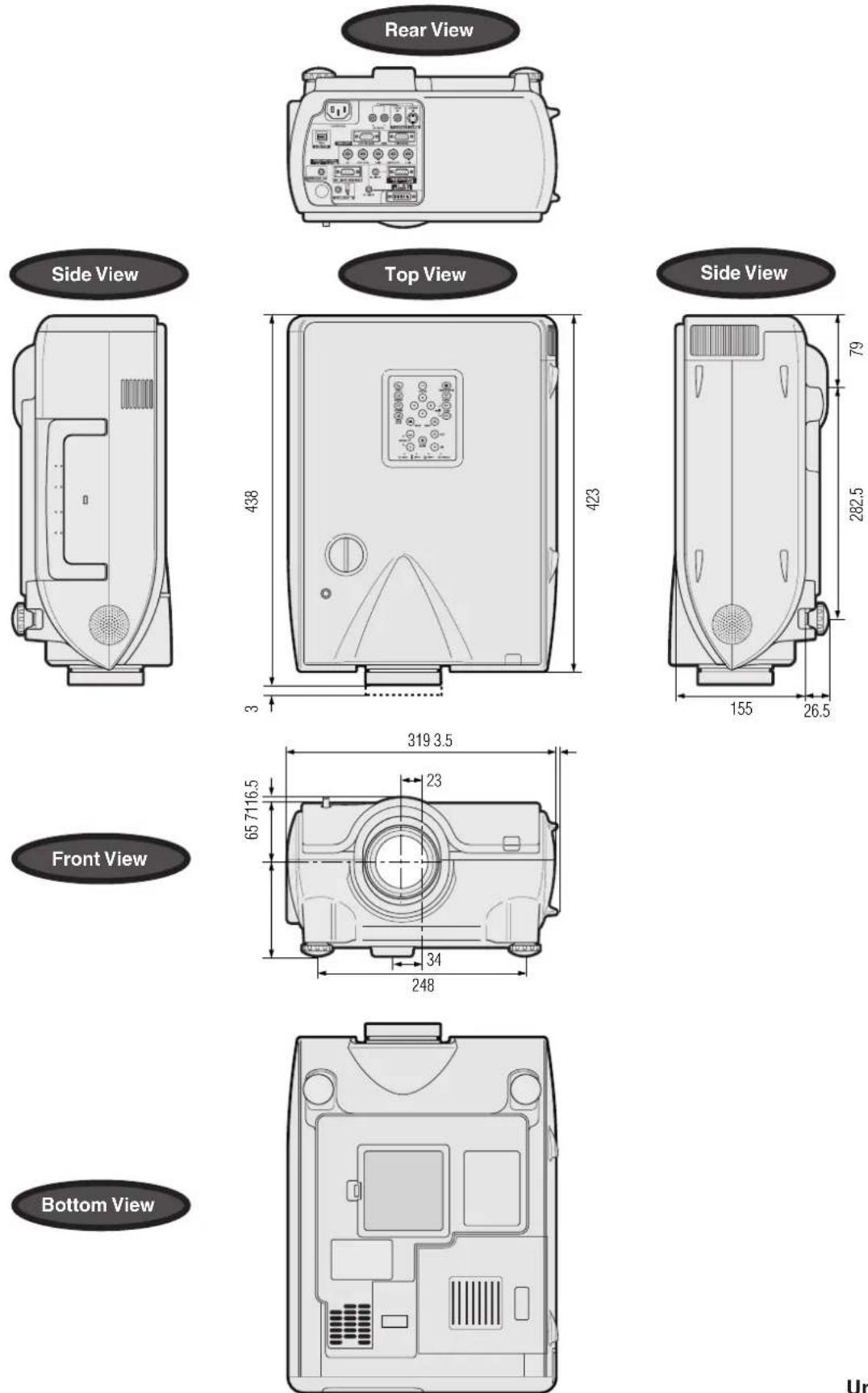
Units: mm
| Product type | LCD Projector |
| Model | XG-P20XE |
| Video system | PAL/PAL 60/PAL-M/PAL-N/SECAM/NTSC 3.58/NTSC 4.43DTV 480P/720P/1080i |
| Display method | LCD panel × 3, RGB optical shutter method |
| LCD panel | Panel size: 33 mm (1.3") (20.0 [H] × 26.6 [W] mm)Display method: Translucent TN liquid crystal panelDrive method: TFT (Thin Film Transistor) Active Matrix panelNo. of dots: 786,432 dots (1,024 [H] × 768 [V]) |
| Standard Lens | 1-1.3 × zoom lens, F1.7-2.3, f = 49.1-63.8 mm |
| Projection lamp | AC 220 W lamp |
| Contrast ratio | 400:1 |
| Video input signal | RCA Connector: VIDEO, composite video, 1.0 Vp-p, sync negative, 75 Ω terminatedRCA Connector: AUDIO, 0.5 Vrms more than 22 kΩ (stereo) |
| S-video input signal | 4-pin Mini DIN connectorY (luminance signal): 1.0 Vp-p, sync negative, 75 Ω terminatedC (chrominance signal): Burst 0.286 Vp-p, 75 Ω terminated |
| Component input signal | BNC Connector (INPUT 2)Y: 1.0 Vp-p, sync negative, 75 Ω terminatedPb: 0.7 Vp-p, 75 Ω terminatedPr: 0.7 Vp-p, 75 Ω terminated |
| Horizontal resolution | 520 TV lines (S-video input), 750 TV lines (DTV 720P input, STRETCH mode) |
| RGB input signal | DVI CONNECTOR (29-PIN) (INPUT 3), RGB (DIGITAL), 250-1,000 mV, 50 Ω15-PIN MINI D-SUB CONNECTOR (INPUT 1), 5 BNC CONNECTOR (INPUT 2):RGB separate/composite sync/sync on green type analog input: 0-0.7 Vp-p, positive,75 Ω terminatedSTEREO MINIJACK: AUDIO, 0.5 Vrms, more than 22 kΩ (stereo) |
| HORIZONTAL SYNC. SIGNAL: TTL level (positive/negative) or composite sync (Apple only)VERTICAL SYNC. SIGNAL: Same as above | |
| Pixel clock | 12-230 MHz |
| Vertical frequency | 43-200 Hz |
| Horizontal frequency | 15-126 kHz |
| Computer control signal | 9-pin D-sub connector (RS-232C Input Port/Output Port) |
| Speaker system | 4.5 cm (1 43/64") round × 22 W + 2 W (stereo) |
| Rated voltage | AC 100-240 V |
| Input current | 3.95 A |
| Rated frequency | 50/60 Hz |
| Power consumption | 330 W |
| Power dissipation | < 1,250 BTU/hour |
| Operating temperature | +5°C to +40°C |
| Storage temperature | -20°C to +60°C |
| Cabinet | Plastic |
| GyroRemote | RF carrier frequency: 49.825-49.895 MHzDesign field: 2,500 uV/m (at 3 m (9' 10"))Control range: 30 m (98' 5") |
| Dimensions (approx.) | 319.0 × 155.0 × 423.0 mm (12 9/16" (W) × 6 3/32" (H) × 16 21/32" (D)) (main body only)322.5 × 188.5 × 438.0 mm (12 11/32" (W) × 7 27/64" (H) × 17 15/64" (D)) (including standard lens, adjustment feet and projecting parts) |
| Weight (approx.) | 9.5 kg (main body only) |
| Supplied accessories | GyroRemote, Four AAA size batteries, Power cord (1.8 m), RGB cable (3 m), USB mouse control cable (1 m), Computer audio cable (3 m), ø2.5-ø3.5 mm wired remote control cable (15 cm), Three BNC-RCA adaptors, Extra air filter, Lens cap, CD-ROM, LCD projector operation manual, LCD projector quick reference, Sharp Advanced Presentation Software operation manual, ID number seal |
| Replacement parts | Standard lens unit (CLNS-0236CE01), Lamp unit (Lamp/cage module) (BQC-XGP20X//1), GyroRemote (RRMCG1653CESA), AAA size batteries, Power cord, RGB cable (QCNW-5304CEZZ), USB mouse control cable (QCNW-5916CEZZ), Computer audio cable (QCNW-4870CEZZ), ø2.5-ø3.5 mm wired remote control cable (QCNW-5943CEZZ), BNC-RCA adaptors (QPLGJ0107GEZZ), Air filter (PFILD0080CEZZ), Lens cap (PCAPH1056CESA), CD-ROM (UDSKA0045CEN1), LCD projector operation manual (TINS 7403CEZZ), LCD projector quick reference (TINS-7404CEZZ, TINS-7405CEZZ), Sharp Advanced Presentation Software operation manual (TINS-7407CEZZ), ID number seal (TLABZ0781CEZZ) |
This SHARP projector uses LCD (Liquid Crystal Display) panels. These very sophisticated panels contain 786,432 pixels ( × RGB) TFTs (Thin Film Transistors). As with any high technology electronic equipment such as large screen TVs, video systems and video cameras, there are certain acceptable tolerances that the equipment must conform to.
This unit has some inactive TFTs within acceptable tolerances which may result in illuminated or inactive dots on the picture screen. This will not affect the picture quality or the life expectancy of the unit.
Aspect ratio
Width and height ratio of an image. The normal aspect ratio of a computer and video image is 4:3. There are also wide images with an aspect ratio of 16:9 and 21:9.
Auto Sync
Optimises projected computer images by automatically adjusting certain characteristics.
Background
Initial setting image projected when no signal is being input.
Border
Displays the 4:3 image as the biggest size (768×576) that can be displayed on the WIDE mode screen (1024×576).
Clock
Clock adjustment is used to adjust vertical noise when clock level is incorrect.
CLR Temp (Colour temperature)
Function that can be used to adjust the colour temperature to suit the type of image input to the projector. Decrease the colour temperature to create warmer, reddish images for natural flesh tones, or increase to create cooler, bluish images for a brighter picture.
Composite sync
Signal combining horizontal and vertical sync pulses.
Digital shift
Shifts image up or down easily by ▲/▼ buttons when RESIZE mode of input image is BORDER, STRETCH or SMART STRETCH of COMPUTER (except for SXGA and UXGA), VIDEO and DTV inputs.
DNR (Digital Noise Reduction)
Provides high quality images with minimal dot crawl and cross colour noise.
Dot by dot
Mode that projects images in their native resolution.
DVI
Digital Visual Interface that supports both digital and analog displays.
GAMMA
Image quality enhancement function that offers a richer image by brightening the darker portions of the image without altering the brightness of the brighter portions. You can select four different modes: STANDARD, PRESENTATION, CINEMA and CUSTOM.
GyroRemote
Remote control device with a built-in sensor that can operate projectors and computers. GyroRemote communicates with a projector via radio signals and therefore does not encounter the line-of-sight problems found in infrared devices.
Intelligent compression and expansion
High quality resizing of lower and higher resolution images to fit the projector's native resolution.
Intelligent digital keystone correction
Function to digitally correct a distorted image when the projector is set up at an angle, smooths out jaggies on keystone images and compresses the image not only horizontally but vertically keeping the 4:3 aspect ratio, and at the same time, calculates the aspect ratio automatically adjusting to the lens shift width.
Keylock level
Mode that can lock the operation of projector buttons to prevent mischief.
Lens shift
The lens can be easily raised and lowered to minimize or eliminate "Keystone" type effect.
Magnification (Enlarge)
Digitally zooms in on a portion of an image.
Phase
Phase shift is a timing shift between isomorphic signals with the same resolution. When phase level is incorrect, the projected image typically displays horizontal flicker.
Picture in Picture
Allows you to add video images onto a data screen image, providing you with even more effective presentations.
Presentation tools
Helpful tools used to emphasise keypoints throughout a presentation.
Progressive Mode
The progressive display projects a smoother video image. You can select three different modes: 2D Progressive, 3D Progressive and Film Mode.
RESIZE
Allows you to modify or customise the picture display mode to enhance the input image. You can select six different modes: NORMAL, FULL, DOT BY DOT, BORDER, STRETCH and SMART STRETCH.
RS-232C
Function to control the projector from the computer by using the RS-232C ports on the projector and computer.
Set Inputs
Function to limit inputs. For example, when setting Input 2 to "OFF", the input is switchable only between Input 1 and Input 3, skipping Input 2.
Smart Stretch
Mode that stretches the right and left sides of the 4:3 image horizontally while maintaining the aspect ratio around the centre of the image to display it on the WIDE screen.
Stack Setting
Prevents trouble with adjustment and operation when stack projecting. When setting two projectors, one to master and the other to slave, the slave follows the master's operation.
Status function
Displays the settings of each adjustment item.
Stretch
Mode that stretches the 4:3 image horizontally to display it on the WIDE screen.
Sync on green
Video signal mode of a computer which overlaps horizontal and vertical sync signal to green colour signal pin.
A
AC socket 13
Adjusting the Picture 47
Adjustment Feet 20
Air filter 70
Aspect ratio 42
ASSIGN Select button 33
Audio 52
Audio cable 18
AUDIO INPUT terminal 14
AUDIO OUTPUT terminal 18
Auto sync adjustment 51
AUTO SYNC button....51
B
Background 55
BLACK SCREEN button 40
BNC-RCA adaptors....18
BORDER 42
C
Carrying handle 4
Ceiling-mount 29
Ceiling+Rear 57
Clock 49
CLR Temp (Colour Temperature) 47
D
Digital shift 21
DNR (Digital Noise Reduction) 53
DOT BY DOT 42
DVI INPUT port (INPUT 3) 16
E
Economy Mode 56
ENTER button....44
Exhaust vent....3
Extra air filter 12
F
FAO 52
Function Assign button 33
G
GAMMA button 43
GUI (Graphical User Interface) 44
GyroRemote 30
|
INPUT button.... 39
INPUT port 14
Intelligent digital keystone correction 21
K
Keylock Levels 58
L
LAMP REPLACEMENT indicator 67
LEARN button 37
LEFT-CLICK button 35
LENS button 21
Lens shift 20
M
MENU button....44
Monitor Out/RS-232C Off Function 56
MUTE button 39
N
Network Function 63
0
On-screen display....54
On-screen display Language 62
OUTPUT port 56
P
Password 61
PDF 9
Phase 49
Picture in Picture 53
POINTER button 32
POWER buttons 19
Power cord 13
POWER indicator 13
Presentation tools.... 34
Progressive Mode 48
R
Rear projection.... 29
RESIZE button 42
RF CH+ button 36
RGB cable....14
RIGHT-CLICK button 35
RS-232C port 16
S
Save Setting 49
Select Setting 49
Set ID No. 60
Set Inputs 59
Speaker 52
Stack Setting 58
Startup image 55
Status function 62
S-VIDEO INPUT terminal 17
Sync 51
Sync on green 72
T
TEACH button 37
TEMPERATURE WARNING indicator 67
Transmission Speed (RS-232C) 59
U
UNDO button 44
USB mouse control cable 35
V
VAO 52
VIDEO INPUT terminal 17
Video System 54
Videowall 66
VOLUME buttons 39
W
Wired remote control input.... 38
WIRED REMOTE control input terminal 38
No.
1.2.3 button 39
4.5 button 39
SHARP CORPORATION
- OPERATION MANUAL
- XG-P20XE
- DANGER:
- IMPORTANT:
- WARNING:
- CAUTION:
- For GyroRemote unit (RRMCG1631CEZZ)
- Caution
- ATTENTION: Please read all of these instructions before you operate your LCD Projector for the first time. Save these instructions for future reference.
- LAMP REPLACEMENT CAUTION
- Caution Concerning the Lamp Replacement
- Caution Concerning the Lamp Unit
- Cautions Concerning the Setup of the Projector
- Notes on Operation
- Temperature Monitor Function
- NOTE
- Using the Carrying Handle
- Using the Kensington Lock
- High-end LCD Projector with Ultra High Brightness
- Computer Compatibility
- XGA Image Quality
- Computer & Video Integrated Composer Technology
- 3D Digital Uniformity and Digital Convergence
- Network Capability
- Four Optional Lenses for Maximum Flexibility
- Multiple Input and Output Terminals
- Easy Setup
- Advanced Presentation Features incorporating a unique gyro device for "in-air" remote control
- Useful Features
- Application Software
- Contents
- Important Information
- Setup & Connections
- Operation Buttons
- Basic Operation
- Multiple Function
- Maintenance & Troubleshooting
- Appendix
- To Install Acrobat Reader from the CD-ROM
- For Windows:
- For Macintosh:
- For other operating systems:
- For other languages:
- Accessing the PDF Manuals
- Projector
- Front View
- Inserting and removing the batteries
- Supplied Accessories
- Optional cables
- Connecting the Power Cord
- Connecting the Projector to a Computer
- Connecting to a computer using the standard 15-pin Input
- "Plug and Play" function (when connecting to a 15-pin terminal)
- Connecting to a computer using the RS-232C Port
- Connecting to a computer using the direct digital input port
- Connecting to a VCR, laser disc player and other audiovisual equipment using the standard video Input
- Connecting to a DVD video player, DTV decoder and other component video equipment using the 5 BNC Input
- For Better Sound
- Connecting to an amplifier and other audio components
- Press POWER ON on the projector or POWER on the GyroRemote.
- Press POWER OFF on the projector or POWER on the GyroRemote.
- Using the Adjustment Feet
- Using the Lens Shift
- Digital Image Adjustments
- Keystone setting
- V-size setting
- Digital shift setting
- Throw Distance
- Standard Setup (Front Projection)
- Upper and Lower Lens Shift Position
- Upper and Lower Lens Shift Position (Ceiling Mount)
- Standard Lens
- Throw distance ratio
- 1:1.8 to 2.4
- AN-W6EZ
- 1:1.3 to 1.7
- AN-T6EZ
- 1:2.5 to 3.3
- AN-P9MX
- 1:0.9
- AN-P48EZ
- 1:4.6 to 6.1
- Rear Projection
- Projection Using a Mirror
- Ceiling-mount Projection
- GyroRemote Features
- RF Technology
- Multi-Projector Control
- Gesture tracking
- Projector Control
- Preparation
- Operating the screen pointer
- Menu Adjustments
- Function ASSIGN
- Using the Presentation Tools
- Stamp
- Line
- Item Colour
- Clear SCRN
- Using stamps
- Using lines
- Displaying the Break Timer
- Operating the mouse
- Connecting the projector to the computer
- Windows
- Macintosh
- Using the mouse
- Setting RF channels
- Confirming the present RF channel
- Switching RF channels
- TEACH/LEARN
- Operating multiple projectors with one GyroRemote
- Using multiple GyroRemotes to operate one projector
- Turning off GyroRemote
- Using as a Wired Remote Control
- Using the GyroRemote with a wired remote control cable
- Using the IR remote control as a wired remote
- Selecting the Input Signal Source
- Adjusting the Volume
- Muting the Sound
- Blacking out the Projected Image
- Displaying a Still Image
- Pan Around the Screen
- Basic Operations
- Items on the INPUT 1, 2 or 3 Mode Menu Bar
- Items on the INPUT 4 or 5 Mode Menu Bar
- e. g. RGB input in INPUT 1 or 2 mode
- Adjusting the Colour Temperature
- Selecting the Signal Type (RGB menu only)
- Progressive Mode
- Selects the progressive conversion mode.
- 2D Progressive
- 3D Progressive
- Film Mode
- Clock
- Phase
- H-Pos
- V-Pos
- Saving and Selecting Adjustment Settings
- Special Mode Adjustment
- Checking the Input Signal
- Auto Sync Adjustment
- Off
- Normal
- High Speed
- Auto Sync Display Function
- Audio Out
- Speaker
- Reducing Image Noise (VIDEO menu only)
- Setting the Video Signal (VIDEO menu only)
- Selecting a Startup Image
- Monitor Out/RS-232C Off Function
- Automatic Power Shutoff Function
- Reversing/Inverting Projected Images
- Locking the Operation Buttons on the Projector
- Selecting the Transmission Speed (RS-232C)
- Setting the ID No.
- Setting the Password
- Changing the Password
- Displaying the Adjustment Settings
- INPUT 1, 2 (RGB) or 3 (DIGITAL) mode INPUT 4, 5 (VIDEO) mode
- Internet access for self-diagnosis, status information and preventive maintenance
- Multiple and group projector control via computer
- Simultaneous multiple projector control for stacking and videowall projection
- Videowall
- Maintenance Indicators
- Lamp
- Removing and installing the lamp unit
- Resetting the lamp timer
- Replacing the Air Filter
- Cleaning and replacing the bottom air filter
- Cleaning the side air filter (not removable)
- Pin No. Signal Name I/O Reference
- PC control
- Communication conditions
- Basic format
- Commands
- EXAMPLE
- Specifications of wired remote control input
- Wired remote control function code
- Sharp remote control signal format
- Transmission control code
- Aspect ratio
- Auto Sync
- Background
- Border
- CLR Temp (Colour temperature)
- Composite sync
- Digital shift
- DNR (Digital Noise Reduction)
- Dot by dot
- DVI
- GAMMA
- GyroRemote
- Intelligent compression and expansion
- Intelligent digital keystone correction
- Keylock level
- Lens shift
- Magnification (Enlarge)
- Picture in Picture
- Presentation tools
- RESIZE
- RS-232C
- Set Inputs
- Smart Stretch
- Stack Setting
- Status function
- Stretch
- Sync on green
- A
- B
- C
- D
- E
- F
- G
- |
- K
- L
- M
- N
- 0
- P
- R
- S
- T
- U
- V
- W
- No.
- SHARP CORPORATION
Brand : SHARP
Model : XG-P20XE
Category : Video projector