
M2432D-PR - Screen LG - Free user manual and instructions
Find the device manual for free M2432D-PR LG in PDF.


User questions about M2432D-PR LG
0 question about this device. Answer the ones you know or ask your own.
Ask a new question about this device
Download the instructions for your Screen in PDF format for free! Find your manual M2432D-PR - LG and take your electronic device back in hand. On this page are published all the documents necessary for the use of your device. M2432D-PR by LG.
USER MANUAL M2432D-PR LG
Please read this manual carefully before operating the your TV and retain it for future reference.
LED LCD TV MODEL
M2232D
M2432D
M2732D

natural_image
Illustration of a computer monitor with a hand interacting with a touchscreen button (no text or symbols present)TABLE OF CONTENTS
3 LICENSES
4 INSTALLATION PROCEDURE
5 ASSEMBLING AND PREPARING
5 Unpacking
7 Parts and buttons
8 Lifting and moving the TV
9 Setting up the TV
9 - Attaching the Stand
12 - Mounting on a table
13 - Tidying cables
14 - Detaching the Stand
16 - Mounting on a wall
18 WATCHING TV
18 Turning the TV on for the first time
20 MAKING CONNECTIONS
20 Connecting an antenna
21 Connecting to a HD receiver, DVD, VCR player or Gaming device
21 - HDMI connection
22 - HDMI to DVI connection
23 - Component connection
24 - Composite connection
25 - Euro Scart connection
26 Connecting to a USB
26 Connecting to a CI Module
27 Connecting to a PC
28 - HDMI connection
29 - HDMI to DVI connection
30 - RGB connection
31 REMOTE CONTROL
33 CUSTOMIZING SETTINGS
33 Accessing main menus
34 USING THE USER GUIDE
34 Accessing User Guide menu.
34 - Using the TV menu
34 - Using the Remote Control
35 MAINTENANCE
35 Cleaning Your TV
35 Screen and frame
35 Cabinet and stand
35 Power cord
36 Preventing "Image burn" or "Burn-in" on your TV screen
37 TROUBLESHOOTING
37 General
38 SPECIFICATIONS
LICENSES
Supported licenses may differ by model. For more information of the licenses, visit www.lg.com.

text_image
DOLBY DIGITAL PLUS PULSEManufactured under license from Dolby Laboratories. "Dolby "and the double-D symbol are trademarks of Dolby Laboratories.

HDMI, the HDMI logo and High-Definition Multimedia Interface are trademarks or registered trademarks of HDMI Licensing LLC.

ABOUT DIVX VIDEO: DivX® is a digital video format created by DivX, LLC, a subsidiary of Rovi Corporation. This is an official DivX Certified® device that plays DivX video. Visit divx.com for more information and software tools to convert your files into DivX videos.
ABOUT DIVX VIDEO-ON-DEMAND: This DivX Certified® device must be registered in order to play purchased DivX Video-on-Demand (VOD) movies. To obtain your registration code, locate the DivX VOD section in your device setup menu. Go to vod.divx.com for more information on how to complete your registration.
DivX Certified ^® to play DivX ^® video up to HD 1080p, including premium content.
DivX ^® , DivX Certified ^® and associated logos are trademarks of Rovi Corporation or its subsidiaries and are used under license.
Covered by one or more of the following U.S. patents: 7,295,673; 7,460,668; 7,515,710; 7,519,274
INSTALLATION PROCEDURE
1 Open the package and make sure all the accessories are included.
2 Attach the stand to the TV.
3 Connect an external device to the TV.

NOTE
• Image shown may differ from your TV.
- Your TV's OSD (On Screen Display) may differ slightly from that shown in this manual.
- The available menus and options may differ from the input source or product model that you are using.
- New features may be added to this TV in the future.
ASSEMBLING AND PREPARING
Unpacking
Check your product box for the following items. If there are any missing accessories, contact the local dealer where you purchased your product. The illustrations in this manual may differ from the actual product and accessories.

NOTE
• The accessories supplied with your product may vary depending on the model.
- Product specifications or contents in this manual may be changed without prior notice due to upgrade of product functions.

CAUTION
- Do not use any pirated items to ensure the safety and product life span.
- Any damages or injuries by using pirated items are not covered by the warranty.

NOTE
- The items supplied with your product may vary depending on the model.
- Product specifications or contents of this manual may be changed without prior notice due to upgrade of product functions.
- For an optimal connection, HDMI cables and USB devices should have bezels less than 10 mm thick and 18 mm width. Use an extension cable that supports USB 2.0 if the USB cable or USB memory stick does not fit into your TV's USB port.
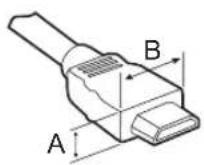
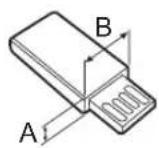
*A ≤10 mm
*B ≤ 18 mm
M2232D M2432D M2732D
natural_image
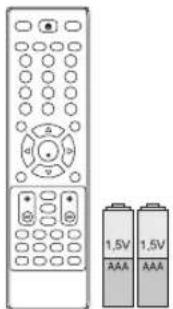
Illustration of a remote control with two batteries (1.5V and 1.5V) beside it, no text or symbols present.Remote control.
Batteries (AAA).
(See p.31, See p.32)
natural_image
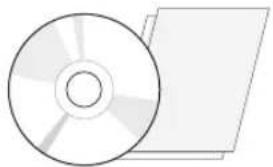
Illustration of a CD or DVD disc and its corresponding physical case (no text or symbols present)CD (Owner's Manual).
Cards.
natural_image
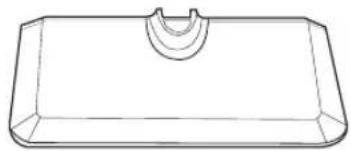
Simple line drawing of a rectangular tray with a recessed top (no text or symbols)Stand Base.
(See p.9, See p. 14)
(See p. 10, See p. 15)
natural_image
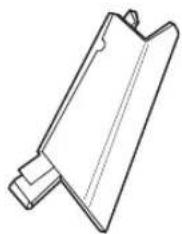
Line drawing of a mechanical component or bracket (no text or symbols)Stand Body.
(Only M2232D, M2432D)
(See p.9, See p. 14)
natural_image
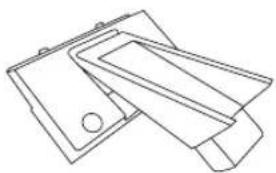
Line drawing of two overlapping electronic devices with no text or symbolsStand Body.
(Only M2732D)
(See p. 10, See p. 15)
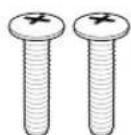
Screws for Assembly.
2 EA
(Only M2732D)
(See p. 10, See p. 15)
natural_image
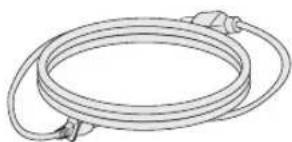
Line drawing of a coiled electrical plug (no text or symbols)Power Cord.
( Depending on the country )
(See p.12)
natural_image
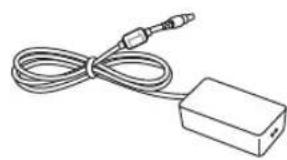
Line drawing of a cable and rectangular device with connectors (no text or symbols)AC-DC Adapter.
(See p.12)
natural_image
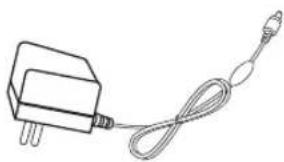
Simple line drawing of a plug connected to a cable (no text or symbols)or
AC-DC Adapter.
( Depending on the country )
(See p.12)
○ ○ ○ ○ ○ ○
Cable Tie.
(See p.13)
Parts and buttons
text_image
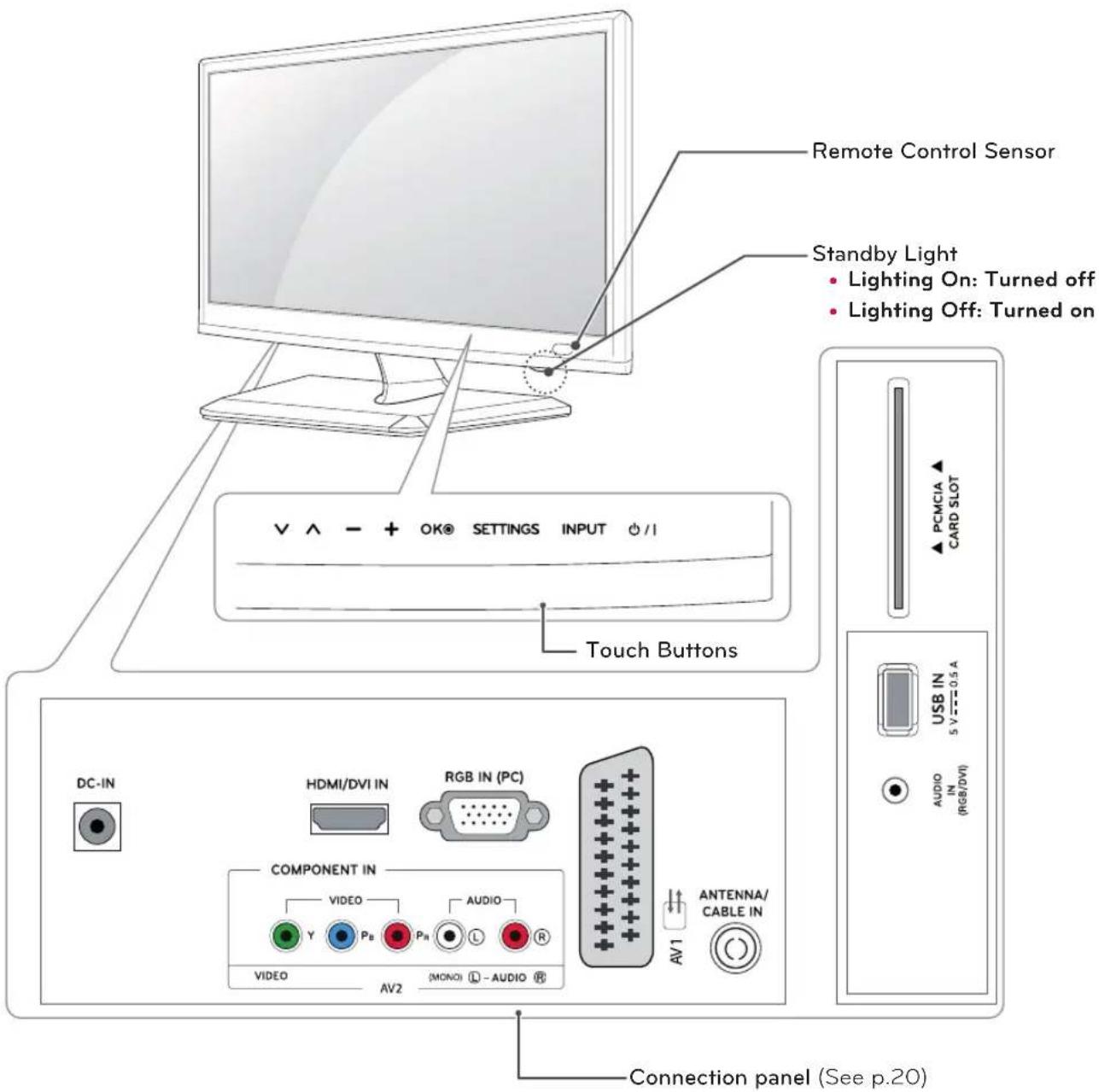
Remote Control Sensor Standby Light • Lighting On: Turned off • Lighting Off: Turned on Touch Buttons DC-IN HDMI/DVI IN RGB IN (PC) COMPONENT IN VIDEO AUDIO Y P_B P_N L R VIDEO AV2 (MONO) - AUDIO AV1 ANTENNA/ CABLE IN PCMCIA ▲ CARD SLOT USB IN 5 V 0.5 A AUDIO IN (RGB/DVI) Connection panel (See p.20)| Touch button Description | |
| ∨ ∧ | Scrolls through the saved programmes. |
| - + | Adjusts the volume level. |
| OK Selects the highlighted menu option or confirms an input. | |
| SETTINGS Accesses the main menus, or saves your input and exits the menus. | |
| INPUT Changes the input source. | |
| ○ / I | Turns the power on or off. |

NOTE
All of the buttons are touch sensitive and can be operated through simple touch with your finger.
Lifting and moving the TV
When moving or lifting the TV, read the following to prevent the TV from being scratched or damaged and for save transportation regardless of its type and size.

CAUTION
Avoid touching the screen at all times, as this may result in damage to the screen or some of the pixels used to create images.
- It is recommended to move the TV in the box or packing material that the TV originally came in.
- Before moving or lifting the TV, disconnect the power cord and all cables.
- Hold the top and bottom of the TV frame firmly. Make sure not to hold the transparent part, speaker, or speaker grill area.
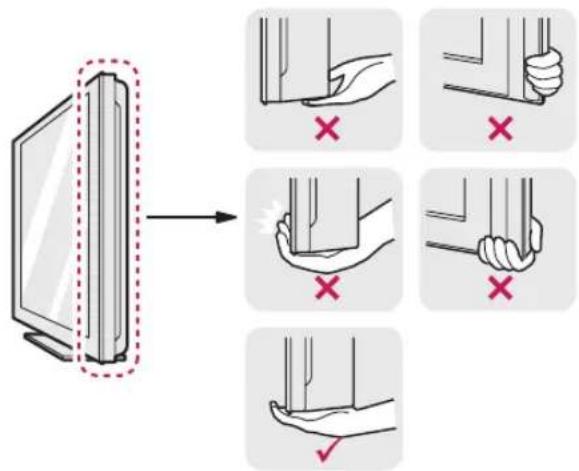
text_image
Diagram illustrating hand positioning and stress application on a device, with labeled correct and incorrect states indicated by red X marks.- When holding the TV, the screen should face away from you to prevent the screen from scratches.
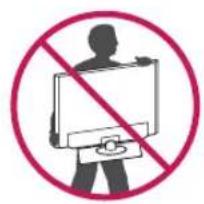
text_image
Prohibition sign with silhouette of person holding a monitor and crossed out by a diagonal line- When transporting the TV, do not expose the TV to jolts or excessive vibration.
- When transporting the TV, keep the TV upright, never turn the TV on its side, or tilt towards the left or right.
Setting up the TV
M2232D M2432D
Attaching the Stand
If you are not mounting the TV to a wall, use the following instructions to attach the stand.
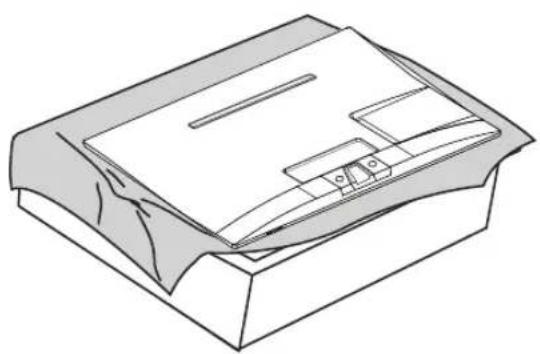
1 Place the TV with the screen side down on a flat and cushioned surface.
natural_image
Isometric line drawing of a mechanical component or housing with no visible text or symbols
CAUTION
- Lay a foam mat or soft protective cloth on the surface to protect the screen from damage.
- When attaching the stand to the TV, place the screen facing down on a cushioned table or flat surface to protect the screen from scratches.
3 Attach the Stand Base from the Stand Body by turning the screw to the right with a Coin.
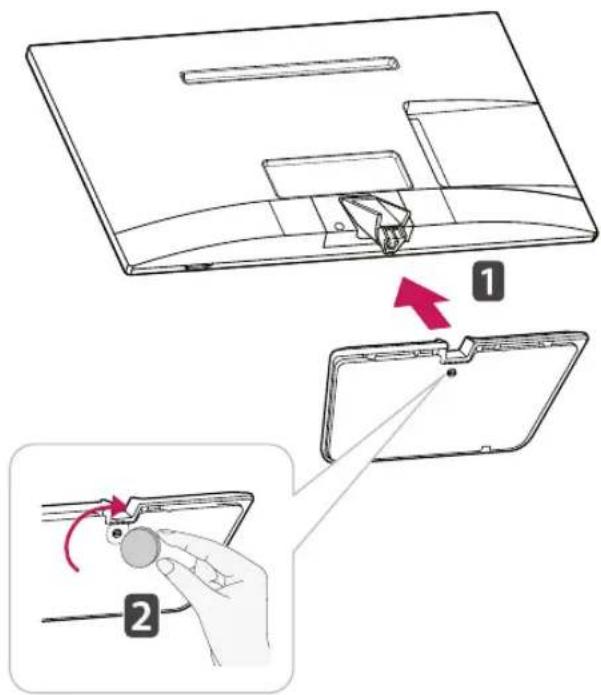
text_image
Diagram illustrating a device's internal structure and adjustment, showing step 1 and step 2 with arrows indicating movement.
CAUTION
Tighten the screws firmly to prevent the TV from tilting forward. Do not over tighten.
2 Attach the Stand Body from the TV.
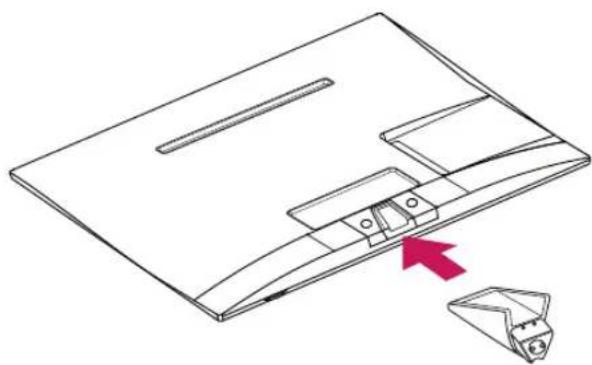
natural_image
Technical line drawing of a device with a red arrow pointing to a component (no text or symbols present)M2732D
If you are not mounting the TV to a wall, use the following instructions to attach the stand.
1 Place the TV with the screen side down on a flat and cushioned surface.
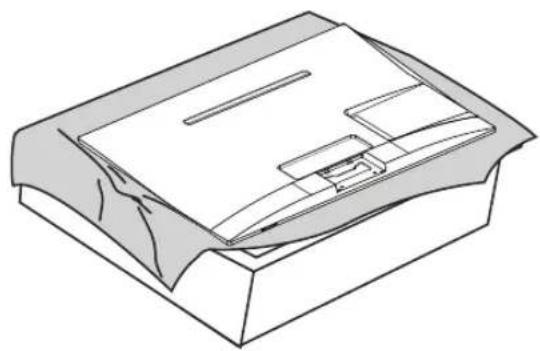
natural_image
Technical line drawing of a mechanical component or housing with internal components (no text or symbols)2 Attach the Stand Body from the TV.
Insert the two Lockers of the Stand Body right into the groove of the TV head and secure them by pressing the left and right bottom sides.
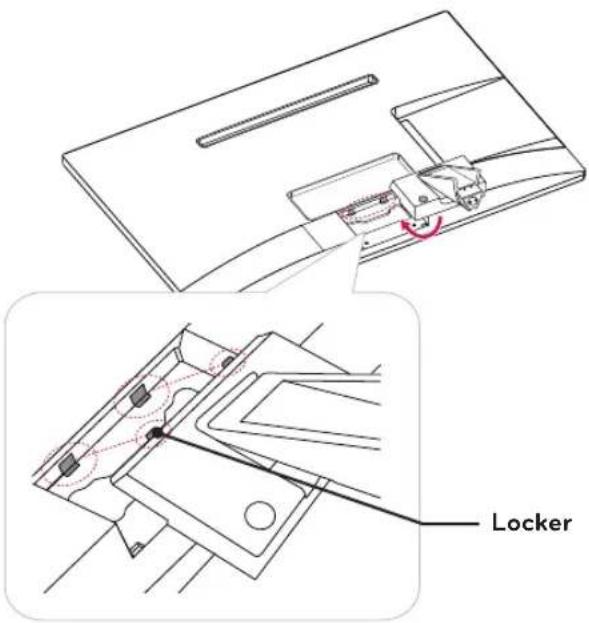
text_image
Locker3 Secure the TV and the Stand Body with the 2 screws.
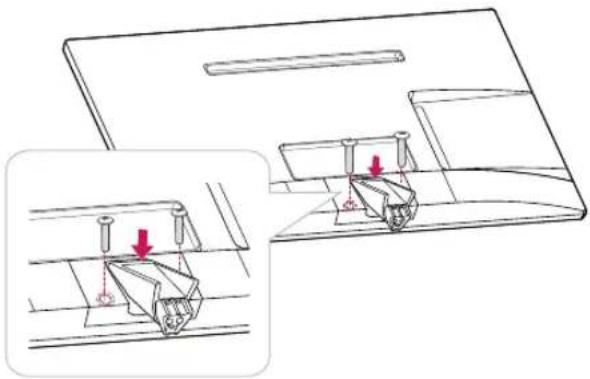
natural_image
Technical illustration of a mechanical assembly with two views showing internal components and red arrows indicating motion (no text or symbols)
WARNING
If you don't fasten the screw tightly, TV will fall down and get damaged.
4 Attach the Stand Base from the Stand Body by turning the screw to the right with a Coin.
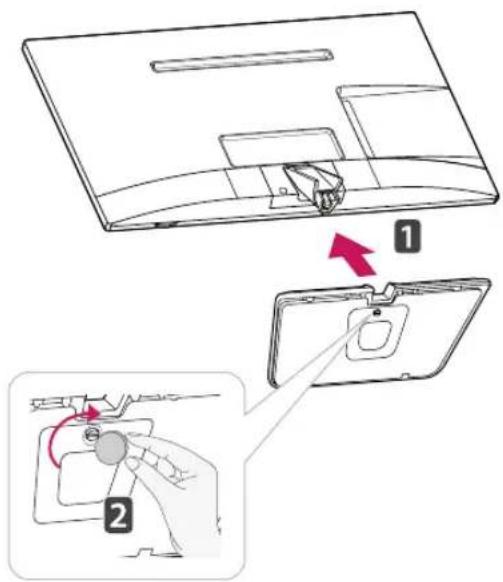
text_image
Diagram showing a device's internal structure and assembly steps, labeled with numbers 1 and 2 indicating different states or components.
CAUTION
Tighten the screws firmly to prevent the TV from tilting forward. Do not over tighten.

CAUTION
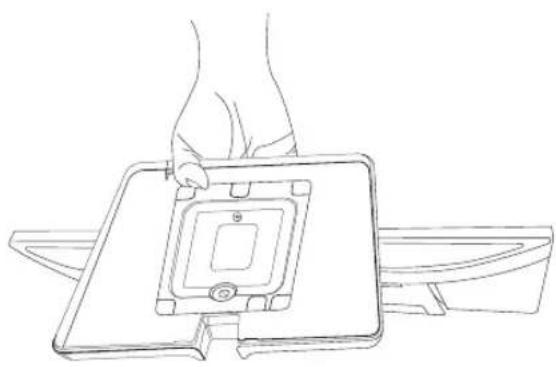
natural_image
Line drawing of a hand holding a small electronic component with a square top and base (no text or symbols)- Do not carry the monitor upside-down as this may cause it to fall off its stand, resulting in damage or injury.
• The illustration shows a general example of installation and may look different from the actual product.
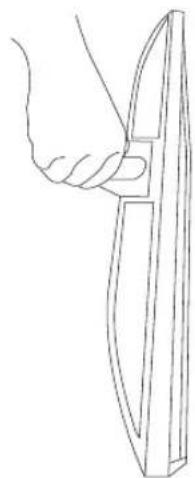
natural_image
Line drawing of a hand holding a curved blade or blade (no text or symbols)- Do not carry the monitor upside-down by holding the stand body as this may cause it to fall off, resulting in damage or injury.
- The illustration shows a general example of installation and may look different from the actual product.
Mounting on a table
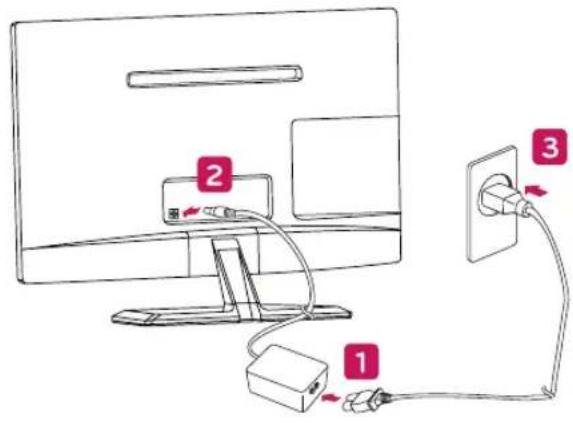
1 Lift and tilt the TV into its upright position on a table.
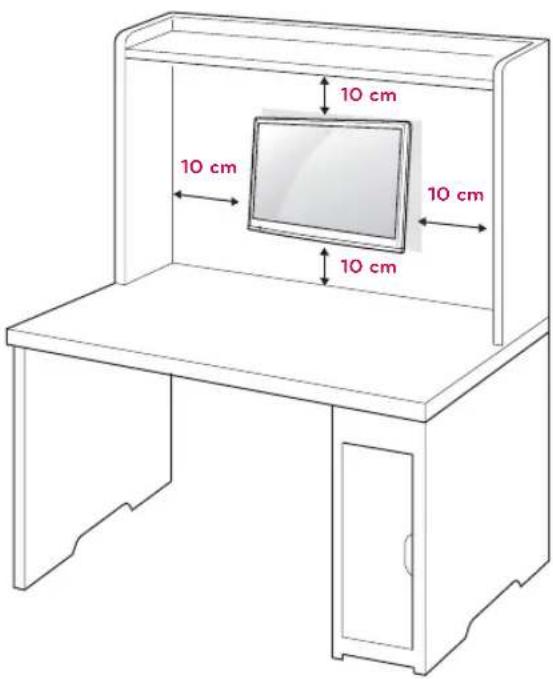
Leave a 10 cm (4 inches) (minimum) space from the wall for proper ventilation.
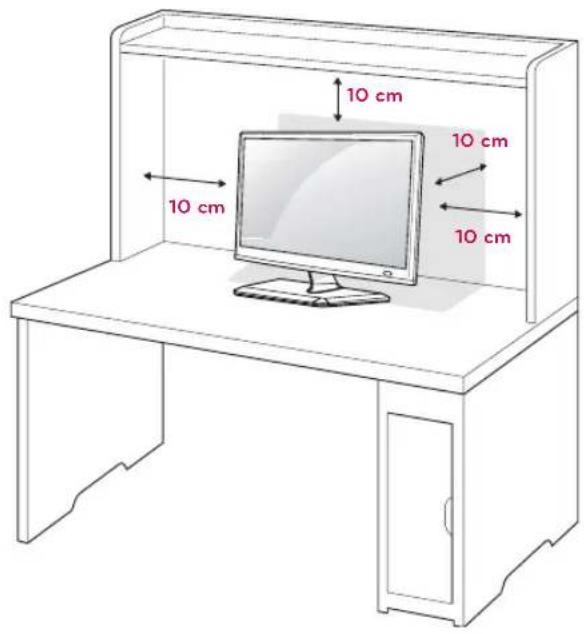
text_image
10 cm 10 cm 10 cm 10 cm
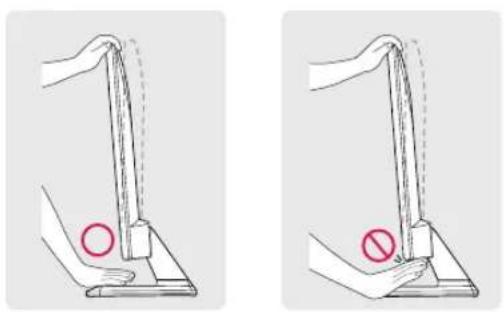
WARNING
When you adjust the angle, do not hold the bottom of the TV frame as shown on the following illustration, as may injure your fingers.
natural_image
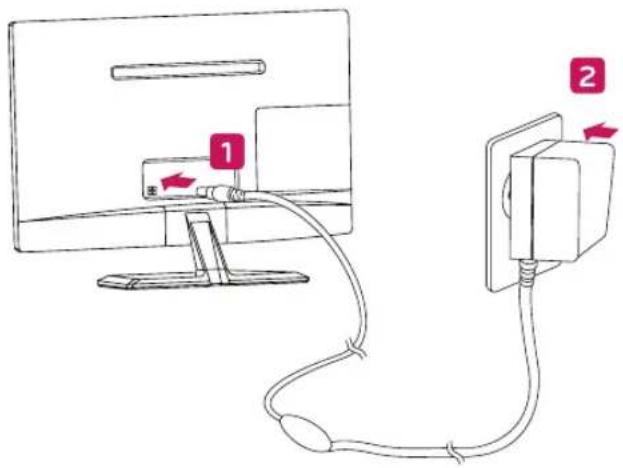
Two diagrams showing a hand operating a lever with a red circle and a red prohibition symbol (no text or labels)2 Connect the AC-DC Adapter and Power Cord to a wall outlet.
text_image
Diagram showing cable connection between a monitor and a plug, with labeled components 1, 2, and 3.or
text_image
Diagram showing cable connection between a monitor and a plug, with labeled components 1 and 2 indicating cable routing or installation steps.
CAUTION
Disconnect the power cord first, and then move or install the TV. Otherwise electric shock may occur.

CAUTION
Do not place the TV near or on sources of heat, as this may result in fire or other damage.

NOTE
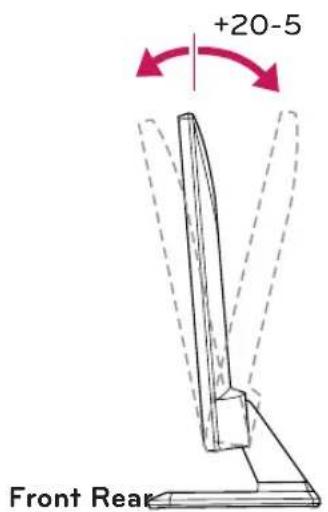
Tilt from +20 to -5 degrees up or down to adjust the angle of the TV to suit your view.
text_image
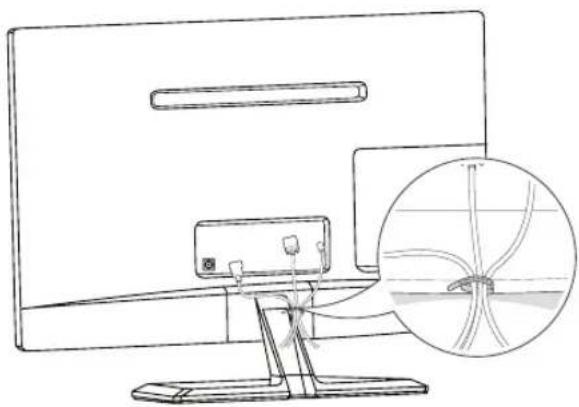
+20-5 Front RearTidying cables
Gather and bind the cables with the supplied cable tie.
natural_image
Line drawing of a computer monitor with an inset showing a close-up of a cable or wire component (no text or symbols present)Using the Kensington security system
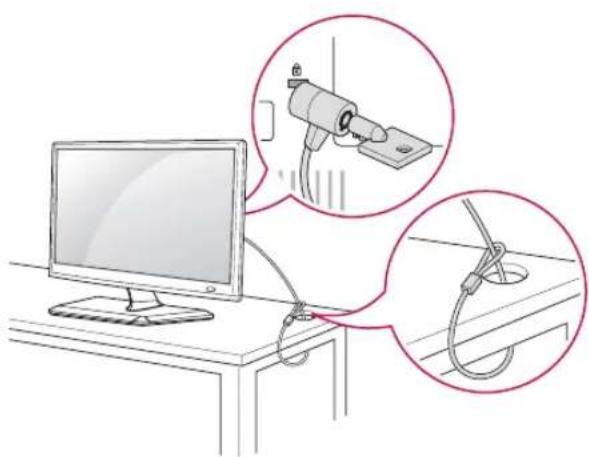
The Kensington security system connector is located at the back of the TV. For more information of installation and using, refer to the manual supplied with the Kensington security system or visit http://www.kensington.com.
Connect the Kensington security system cable between the TV and a table.
natural_image
Illustration of a computer monitor connected to a cable with two magnified insets showing mechanical components (no text or symbols present)
NOTE
The Kensington security system is optional. You can obtain additional accessories from most electronics stores.
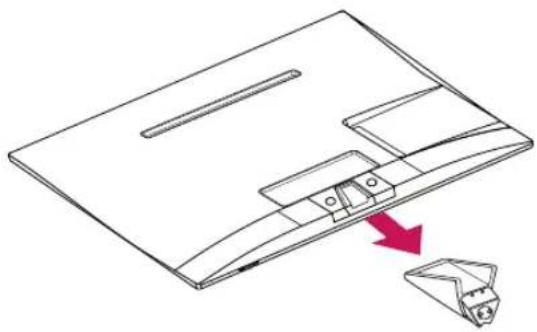
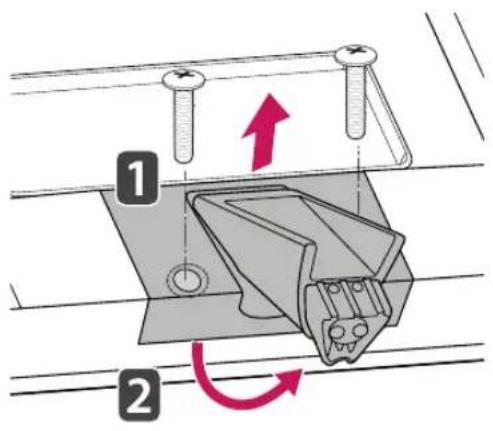
Detaching the Stand
M2232D M2432D
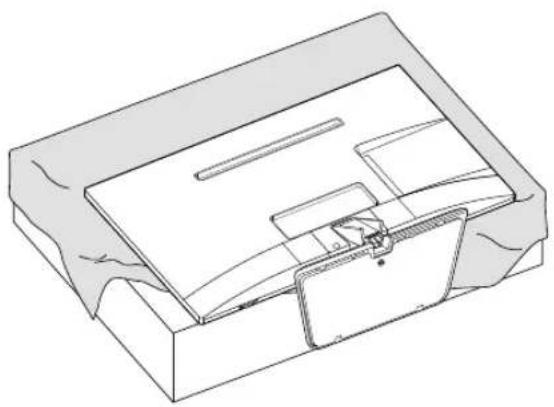
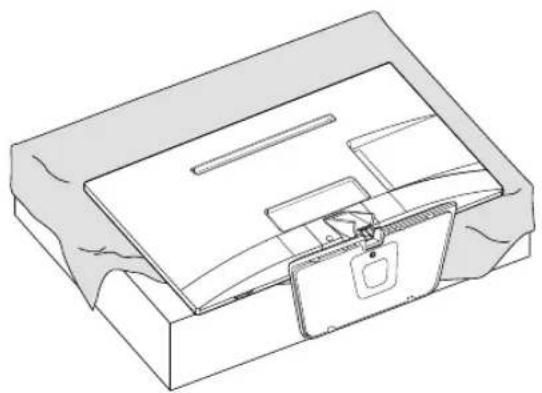
1 Place the TV with the screen side down on a flat and cushioned surface.
natural_image
Technical line drawing of a mechanical component or housing assembly (no text or symbols)CAUTION
- Lay a foam mat or soft protective cloth on the surface to protect the screen from damage.
- When detaching the stand to the TV, place the screen facing down on a cushioned table or flat surface to protect the screen from scratches.
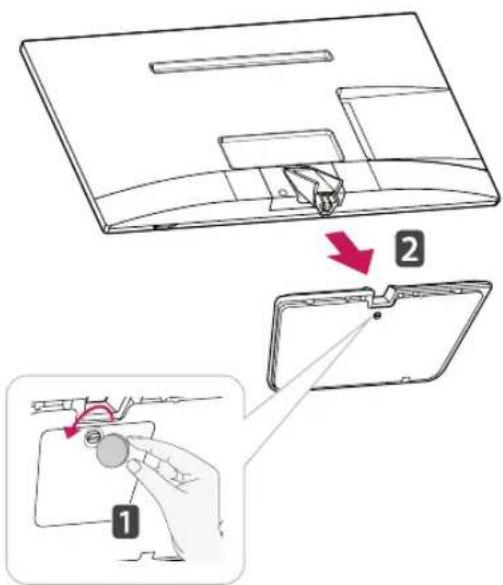
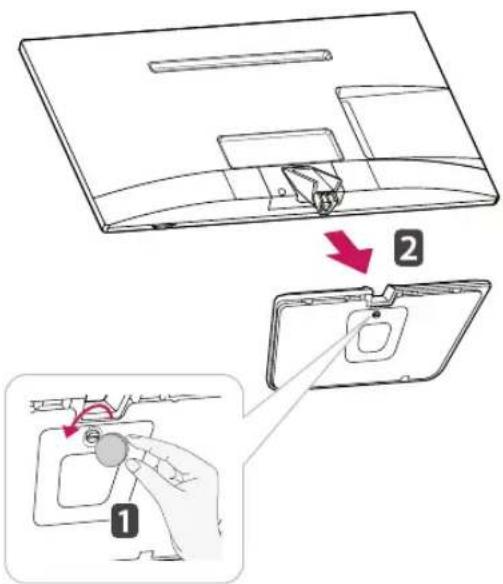
2 Turn the screw to the left, and then pull out the Stand Base from the Stand Body.
text_image
Diagram illustrating a device's internal structure and adjustment, labeled with step 1 and step 2.3 Pull out the Stand Body from the TV.
natural_image
Technical line drawing of a mechanical component with a red arrow pointing to a folded paper (no text or symbols present)M2732D
1 Place the TV with the screen side down on a flat and cushioned surface.
natural_image
Technical line drawing of a mechanical device with internal components and mounting bracket (no text or symbols)3 Remove 2 screws and pull out the Stand Body from the TV.
text_image
Technical diagram showing a mechanical assembly with labeled parts and directional arrows indicating motion or movement.
CAUTION
- Lay a foam mat or soft protective cloth on the surface to protect the screen from damage.
- When detaching the stand to the TV, place the screen facing down on a cushioned table or flat surface to protect the screen from scratches.
2 Turn the screw to the left, and then pull out the Stand Base from the Stand Body.
text_image
Diagram illustrating a device's step-by-step installation, showing part positioning and adjustment of a device's edge.Mounting on a wall
For proper ventilation, allow a clearance of 10 cm on each side and from the wall. Detailed installation instructions are available from your dealer, see the optional Tilt Wall Mounting Bracket Installation and Setup Guide.
text_image
10 cm 10 cm 10 cm 10 cmIf you intend to mount the TV to a wall, attach Wall mounting interface (optional parts) to the back of the TV.
When you install the TV using the wall mounting interface (optional parts), attach it carefully so it will not drop.
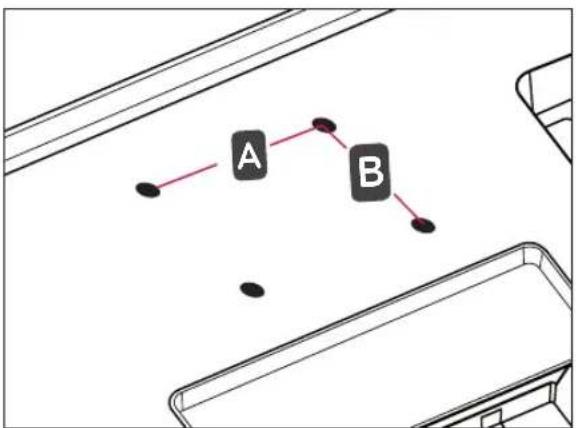
1 Please, Use the screw and wall mount interface in accordance with VESA Standards.
2 If you use screw longer than standard, the TV might be damaged internally.
3 If you use improper screw, the product might be damaged and drop from mounted position. In this case, LG Electronics is not responsible for it.
4 VESA compatible only with respect to screw mounting interface dimensions and mounting screw specifications.
5 Please use VESA standard as below.
• 784.8 mm (30.9 inch) and under
* Wall Mount Pad Thickness : 2.6 mm
* Screw : Φ 4.0 mm x Pitch 0.7 mm x Length 10 mm
• 787.4 mm (31.0 inch) and above
* Please use VESA standard wall mount pad and screws.
| VESA (A x B) 100 x 100 | |
| Standard screw M4 | |
| Number of screws 4 | |
| Wall mount bracket (optional) | RW120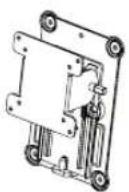 |
- VESA (A × B)
flowchart
graph TD
    A["A"] --> B["B"]
    A --> C["..."]
    B --> D["..."]
    C --> E["..."]
    D --> F["..."]

CAUTION
- Disconnect the power cord first, and then move or install the TV. Otherwise electric shock may occur.
- If you install the TV on a ceiling or slanted wall, it may fall and result in severe injury.
- Use an authorized LG wall mount and contact the local dealer or qualified personnel.
- Do not over tighten the screws as this may cause damage to the TV and void your warranty.
- Use the screws and wall mounts that meet the VESA standard. Any damages or injuries by misuse or using an improper accessory are not covered by the warranty.

NOTE
- Use the screws that are listed on the VESA standard screw specifications.
- The wall mount kit includes an installation manual and necessary parts.
- The wall mount bracket is optional. You can obtain additional accessories from your local dealer.
- The length of screws may differ depending on the wall mount. Be sure to use the proper length.
- For more information, refer to the instructions supplied with the wall mount.
WATCHING TV
Turning the TV on for the first time
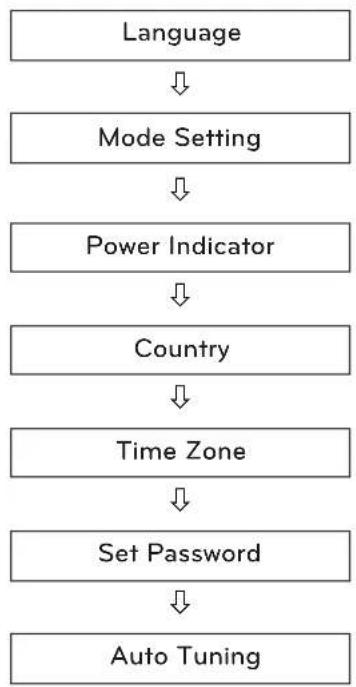
When you access the TV for the first time, the initial setting screen appears. Select a language and customize the basic settings.
1 Connect the power cord to a power outlet.
2 Press on the TV or power button on the remote control to turn the TV on.
The Standby Light is turned off.

NOTE
When the TV is in Power saving mode, the Standby Light turns amber.
3 The initial setting screen appears if you access the TV for the first time.

NOTE
If you do not operate the TV within 40 seconds when the setting menu screen appears, the setting menus will disappear.
4 Follow the on-screen instructions to customize your TV according to your preferences.
flowchart
graph TD
    A["Language"] --> B["Mode Setting"]
    B --> C["Power Indicator"]
    C --> D["Country"]
    D --> E["Time Zone"]
    E --> F["Set Password"]
    F --> G["Auto Tuning"]
Selects a language for the display.
Selects Home Use for the home environment.
Selects the Standby Light. If you select On, the TV turns on the Standby Light in the front panel when the TV is off.
Selects a country to display.
Selects the time zone and daylight saving. (When Russia is selected for Country)
Set the password. (When France/Italy is selected for Country)
Scans and saves available programmes automatically.

NOTE
- For those countries without confirmed DTV broadcasting standards, some DTV features might not work, depending on the DTV broadcasting environment.
- When France is selected for Country, the initial password is not '0', '0', '0', '0' but '1', '2', '3', '4'.
• To display images in the best quality for your home environment, select Home Use mode. - Store Demo mode is suitable for the retail environment.
- If you select Store Demo mode, the previously customized settings will switch to the default settings of Store Demo mode in 2 minutes.
5 When the basic settings are complete, press OK.

NOTE
If you do not complete the initial setting, it will appear whenever you access the TV.
6 To turn the TV off, press 📄 on the TV.
The Standby Light is turned on.

CAUTION
Disconnect the power cord from the power outlet when you do not use the TV for a long period of time.

NOTE
You can also access Factory Reset by accessing OPTION in the main menus.
MAKING CONNECTIONS
Connect various external devices to the TV and switch input modes to select an external device. For more information about an external device's connection, refer to the manual supplied with each device. Available external devices are: HD receivers, DVD players, VCRs, audio systems, USB storage devices, PC, camcorders or cameras, gaming devices, and other external devices.

NOTE
- If you record a TV program on a DVD recorder or VCR, make sure to connect the TV signal input cable to the TV through a DVD recorder or VCR. For more information about recording, refer to the manual supplied with the connected device.
- The external device connection may differ from the model.
- Connect external devices to the TV regardless of the order of the TV port.
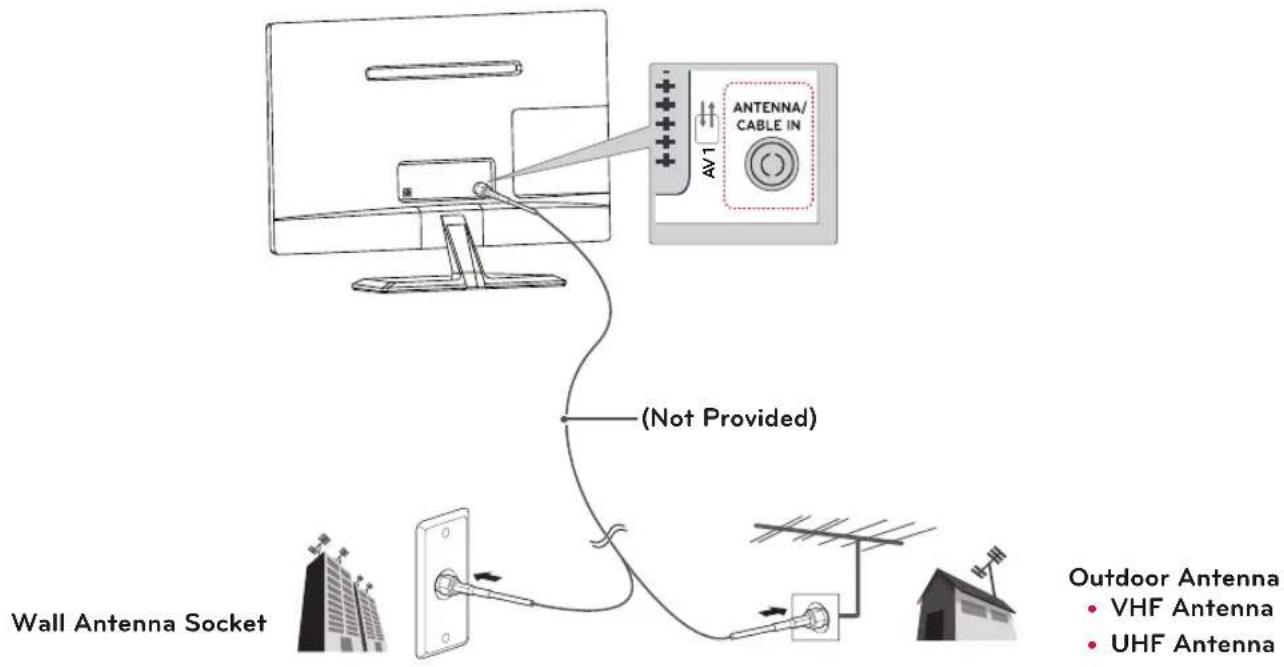
Connecting an antenna
Connect an antenna, cable or cable box to watch TV referring to the following. The illustrations may differ from the actual accessories and an RF cable is optional.
Connect the TV to a wall antenna socket with an RF cable (75).
text_image
AV1 ANTENNA/ CABLE IN (Not Provided) Wall Antenna Socket Outdoor Antenna • VHF Antenna • UHF Antenna
NOTE
• Use a signal splitter to use more than 2 TVs.
- If the image quality is poor, install a signal amplifier properly to improve the image quality.
- If the image quality is poor with an antenna connected, aim the antenna to the proper direction.
- Visit http://AntennaWeb.org for more information about the antenna and cable connection.

CAUTION
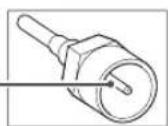
• Make sure not to bend the copper wire of the RF cable.
Copper wire
- Complete all connections instructions between devices, and then connect the power cord to the power outlet to prevent damages to your TV.
Connecting to a HD receiver, DVD, VCR player or Gaming device
Connect a HD receiver, DVD, VCR player or Gaming device to the TV and select an appropriate input mode.
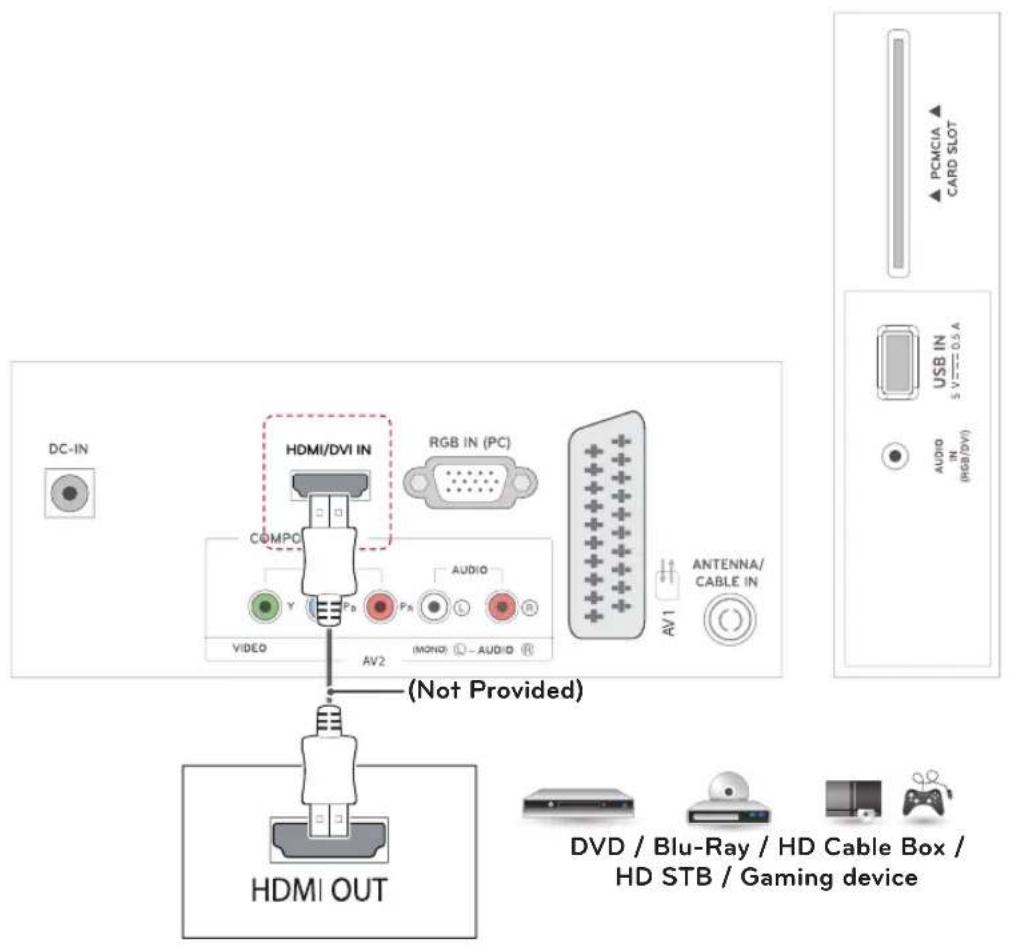
HDMI connection
HDMI is the best way to connect a device.
Transmits the digital video and audio signals from an external device to the TV. Connect the external device and the TV with the HDMI cable as shown on the following illustration.

NOTE
• Use a High Speed HDMI™ Cable.
- High Speed HDMI™ Cables are tested to carry an HD signal up to 1080p and higher.
• Supported DTV Audio: MPEG, Dolby Digital.
- Supported HDMI Audio format: Dolby Digital, PCM (Up to 192 KHz, 32k/44.1k/48k/88k/96k/176k/192k, DTS Not supported.)
text_image
DC-IN HDMI/DVI IN RGB IN (PC) COMPC AUDIO Y Ps L R VIDEO AV2 (MONO) - AUDIO (Not Provided) ANTENNA/CABLE IN AV1 PCMCIA CARD SLOT USB IN 5 V 0.5 A AUDIO IN (RGB/DVI) HDMI OUT DVD / Blu-Ray / HD Cable Box / HD STB / Gaming deviceHDMI to DVI connection
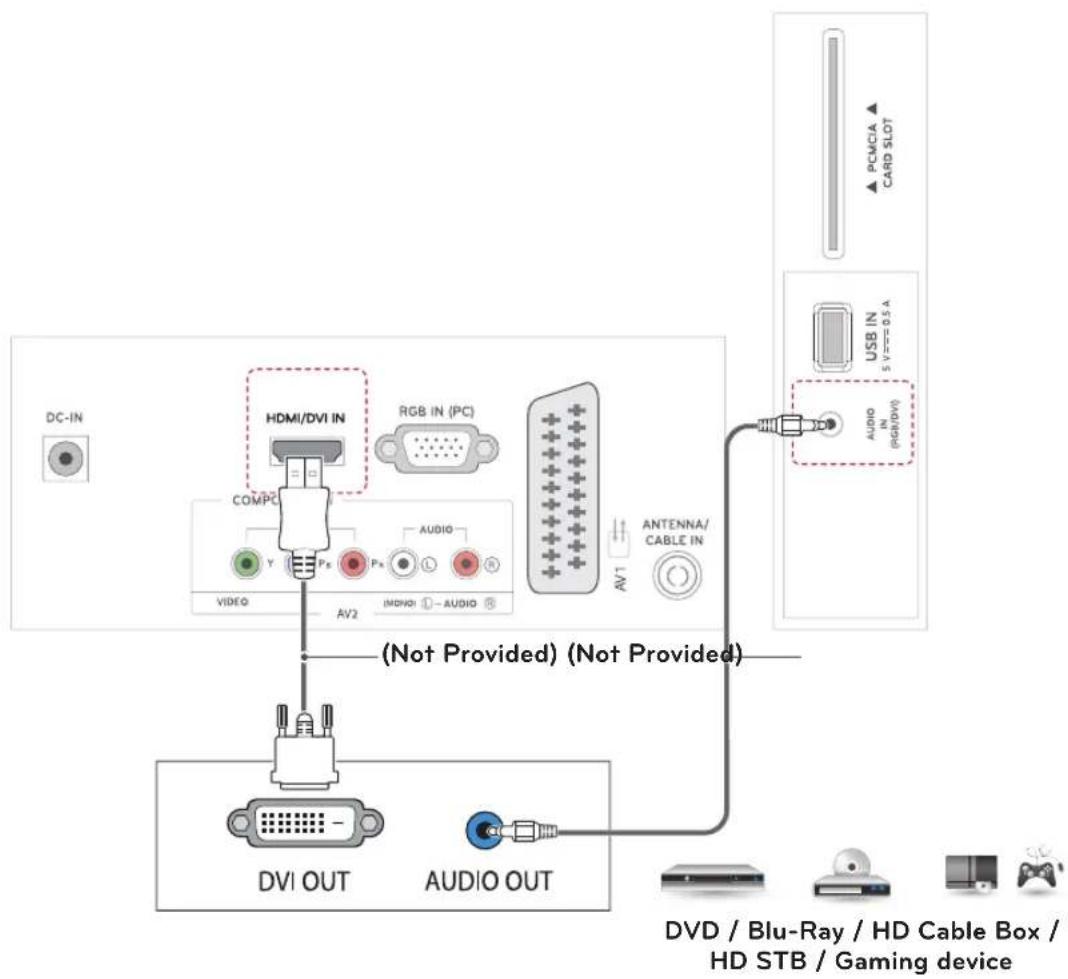
Transmits the digital video signal from an external device to the TV. Connect the external device and the TV with the HDMI to DVI cable as shown in the following illustration. To transmit an audio signal, connect an optional audio cable.

NOTE
If you do not use an optional external speaker, connect the external device to the TV with the optional audio cable.
text_image
DC-IN HDMI/DVI IN RGB IN (PC) COMPC AUDIO VIDEO AV2 (MONO I - AUDIO) ANTENNA/CABLE IN (Not Provided) (Not Provided) DVI OUT AUDIO OUT DVD / Blu-Ray / HD Cable Box / HD STB / Gaming device PCMCIA ▲ CARD SLOT USB IN S 1 V 0.1 A AUDIO IN (RG/DVI)Component connection
Transmits the analog video and audio signals from an external device to the TV. Connect the external device and the TV with the component cable as shown on the following illustration. To display images by using progressive scan, make sure to use the component cable.

NOTE
- If cables are installed incorrectly, it could case the image to display in black and white or with distorted color.
- Check to ensure the cable are matched with the corresponding color connection.
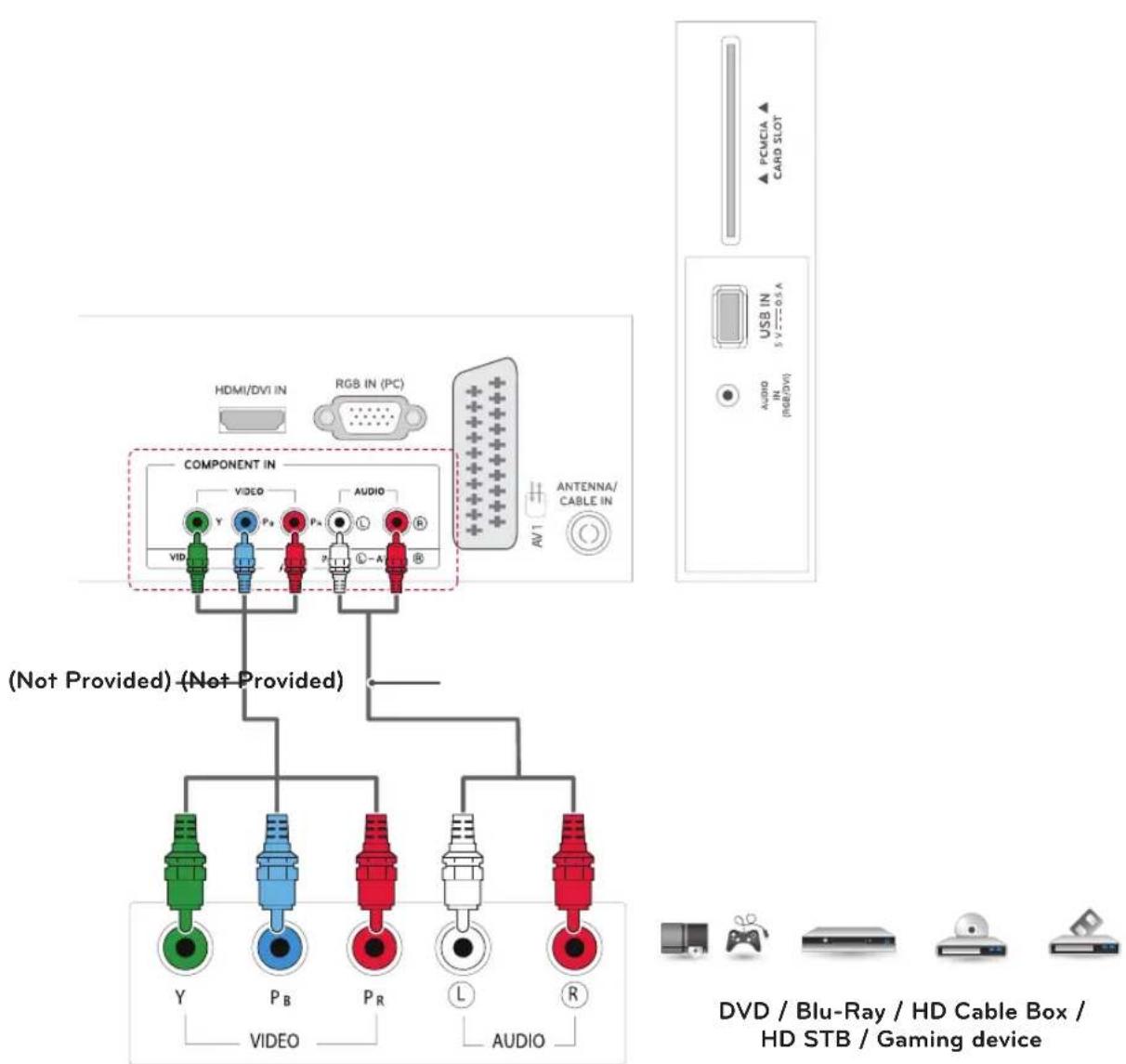
text_image
HDMI/DVI IN RGB IN (PC) COMPONENT IN VIDEO AUDIO ANTENNA/CABLE IN (Not Provided) (Not Provided) Y P_B P_R L AUDIO DVD / Blu-Ray / HD Cable Box / HD STB / Gaming device PCMCIA CARD SLOT USB IN 5 V 0.5 A AUDIO IN (HS/HIV) DVD / Blu-Ray / HD Cable Box / HD STB / Gaming deviceComposite connection
Transmits the analog video and audio signals from an external device to the TV. Connect the external device and the TV with the composite cable as shown on the following illustration.

NOTE
Check to ensure the cable are matched with the corresponding color connection.
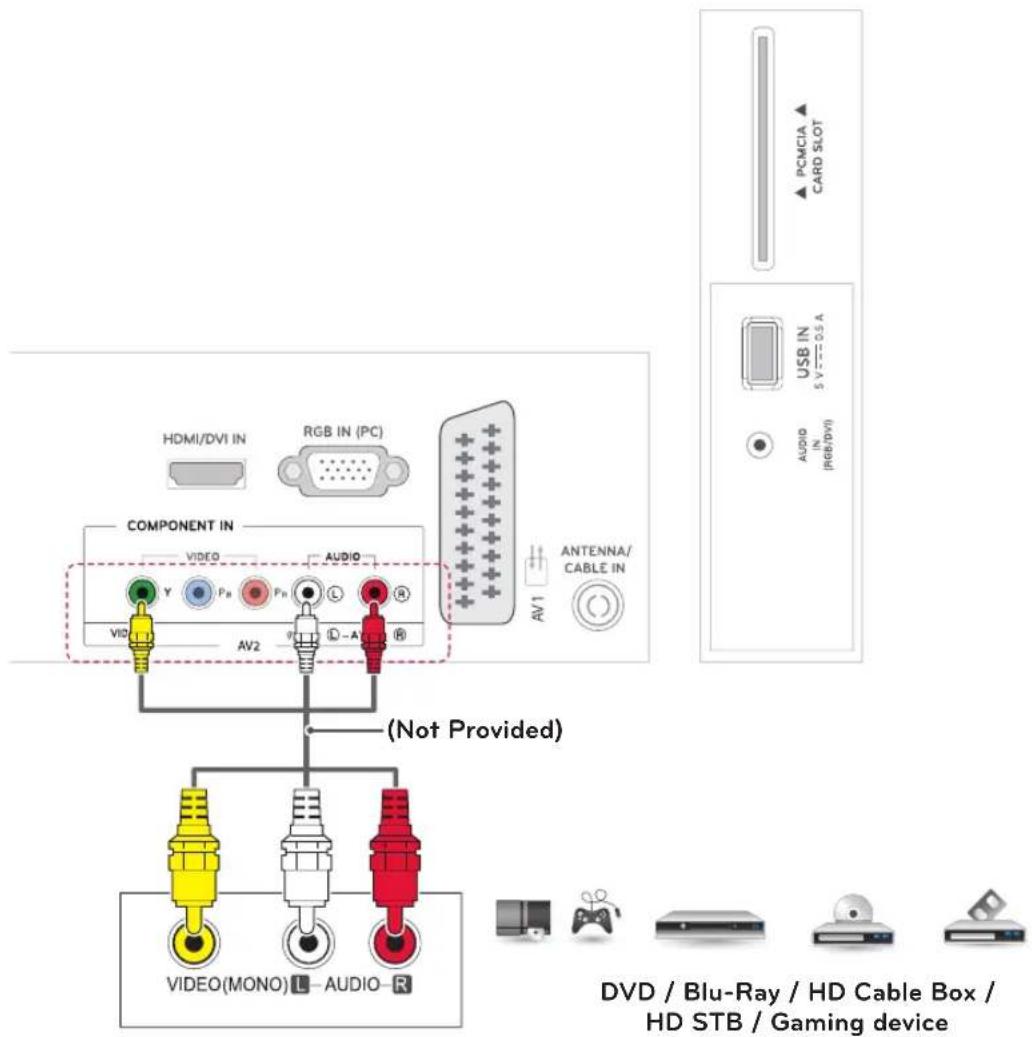
text_image
Diagram illustrating the internal components and connections of a TV or audio device, including HDMI/DVI, RGB/PC, and video/video/dVD systems.Euro Scart connection
Transmits the video and audio signals from an external device to the TV. Connect the external device and the TV with the Euro Scart cable as shown on the following illustration. To display images by using progressive scan, make sure to use the Euro Scart cable.
| Output TypeCurrentinput mode | AV1 (TV Out ^1 ) |
| Digital TV Digital TV | |
| Analogue TV,AV | Analogue TV |
| Component/RGB | |
| HDMI |

NOTE
Any Euro scart cable used must be signal shielded.
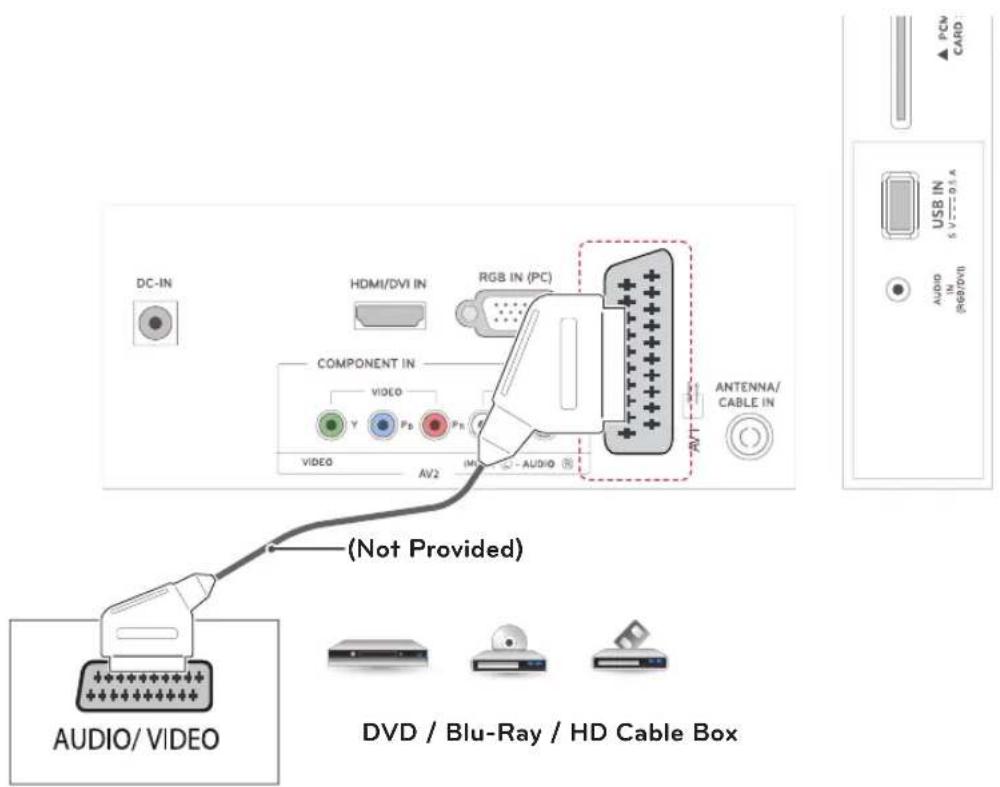
text_image
DC-IN HDMI/DVI IN RGB IN (PC) COMPONENT IN VIDEO Y Pb Pb VIDEO AV2 ANTENNA/CABLE IN AV/T (Not Provided) AUDIO/VIDEO DVD / Blu-Ray / HD Cable Box PCV CARD USB IN 5 V 0.1 A AUDIO IN (RAD/DVI)Connecting to a USB
Connect a USB storage device such as s USB flash memory, external hard drive, MP3 player or a USB memory card reader to the TV and access the USB menu to use various multimedia files.
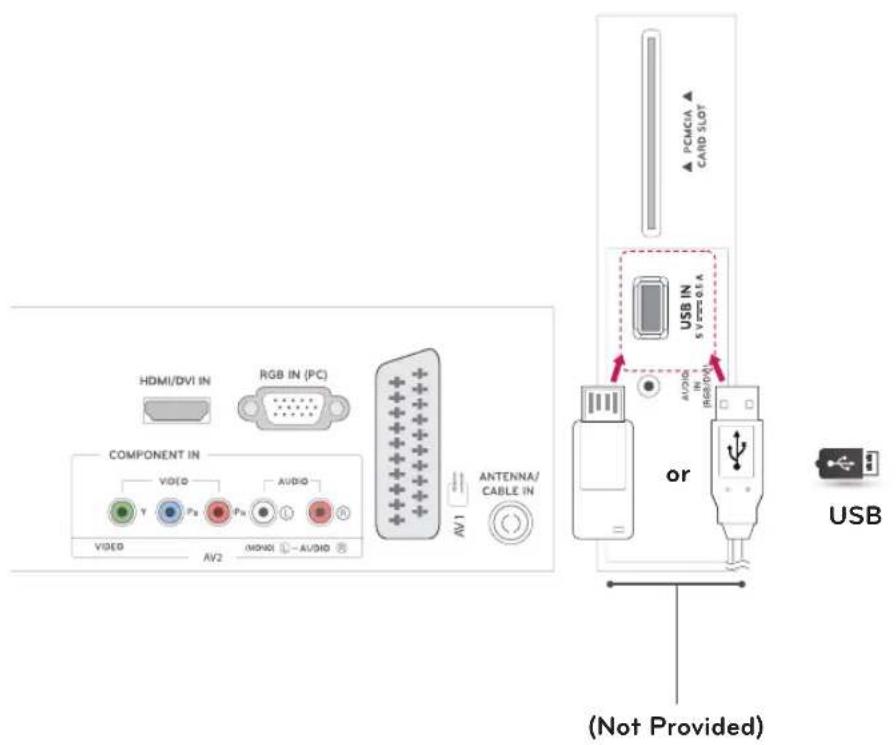
text_image
HDMI/DVI IN RGB IN (PC) COMPONENT IN VIDEO AUDIO VIDEO AV2 (MON/O) - AV/DVD AV1 ANTENNA/CABLE IN PCMCIA CARD SLOT USB IN 5V720.014 MCKU IN or USB (Not Provided)Connecting to a CI Module
View the encrypted (pay) services in digital TV mode. This feature is not available in all countries.

NOTE
Check if the CI module is inserted into the PCMCIA card slot in the right direction. If the module is not inserted properly, this can cause damage to the TV and the PCMCIA card slot.
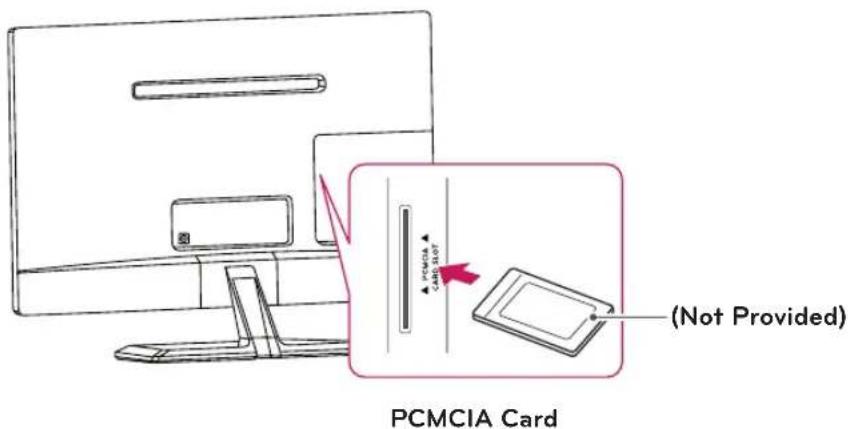
text_image
PCMCIA Card (Not Provided)Connecting to a PC
Your TV supports the Plug & Play* feature and has the built-in speakers with Infinite Surround that reproduces sound clearly with a rich bass.
* Plug & Play: The function when a PC recognizes a connected device that users connect to a PC and turn on, without device configuration or user intervention.

NOTE
- It is recommended to use the TV with the HDMI connection for the best image quality.
- If you do not use an optional external speaker, connect the PC to the TV with the optional audio cable.
- If you turn the TV on when the set becomes cold, the screen may flicker. This is normal.
- Use a shielded signal interface cable, such as D-sub 15 pin signal cable and HDMI to DVI cable, with a ferrite core to maintain standard compliance for the product.
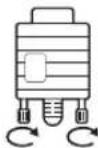
• Some red, green, or blue spots may appear on the screen. This is normal. - Connect the signal input cable and tighten it by turning the screws clockwise.
- Do not press the screen with your finger for a long time as this may result in temporary distortion on the screen.
- Avoid displaying a fixed image on the screen for a long period of time to prevent image burn. Use a screensaver if possible.

NOTE
- If you want to use HDMI-PC mode, you must set the input label to PC mode.
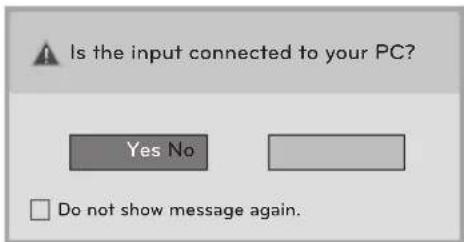
- The OSD (On Screen Display) is displayed on the screen as shown below.
» When turning the product on in HDMI input.
» When switching to HDMI input.
text_image
Is the input connected to your PC? Yes No Do not show message again.- If you select "Yes" the size and image quality are optimised for your PC.
- If you select "No" the size and image quality are optimised for the AV device (DVD player, set-top box, gaming device).
- If you select "Do not show message again" this message does not appear until the TV is reset. You can change the set value in SETTINGS ▶ INPUT ▶ Input Label.
HDMI connection
Transmits the digital video and audio signals from your PC to the TV. Connect the PC and the TV with the HDMI cable as shown in the following illustrations. You should set PC as an input label to connect the PC to the TV with an HDMI connection.

NOTE
• Use a High Speed HDMI™ Cable.
• High Speed HDMI™ Cables are tested to carry an HD signal up to 1080p and higher.
- If you want to use HDMI-PC mode, you must set the input label to PC or DVI mode.
• Supported DTV Audio: MPEG, Dolby Digital.
- Supported HDMI Audio format: Dolby Digital, PCM (Up to 192 KHz, 32k/44.1k/48k/88k/96k/176k/192k, DTS Not supported.)
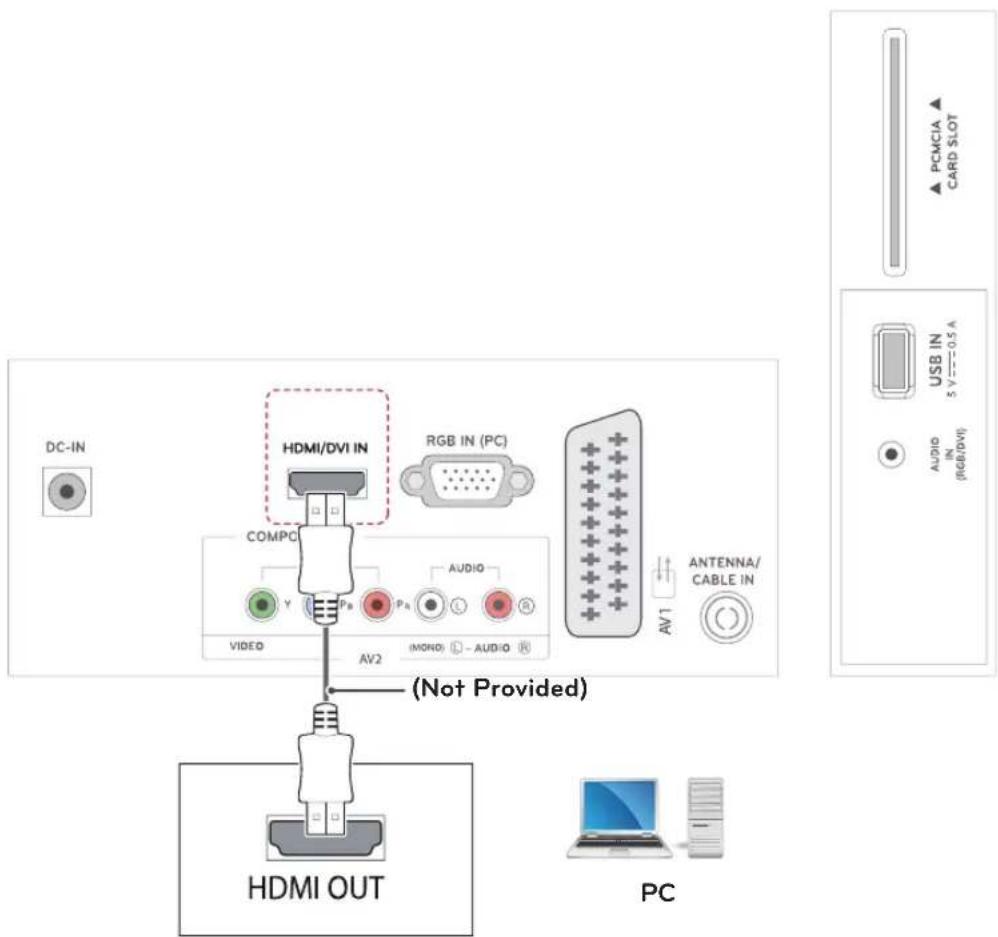
text_image
DC-IN HDMI/DVI IN RGB IN (PC) COMPC AUDIO VIDEO AV2 (MONO) - AUDIO ANTENNA/CABLE IN (Not Provided) HDMI OUT PC PCMCIA CARD SLOT USB IN 5 V=0.5 A AUDIO IN (RGB/DVI)HDMI to DVI connection
Transmits the digital video signal from your PC to the TV. Connect the PC and the TV with the HDMI to DVI cable as shown the following illustrations. To transmit an audio signal, connect an optional audio cable.

NOTE
- If you want to use HDMI-PC mode, you must set the input label to DVI mode.
- If you do not use an optional external speaker, connect the PC to the TV with the optional audio cable.
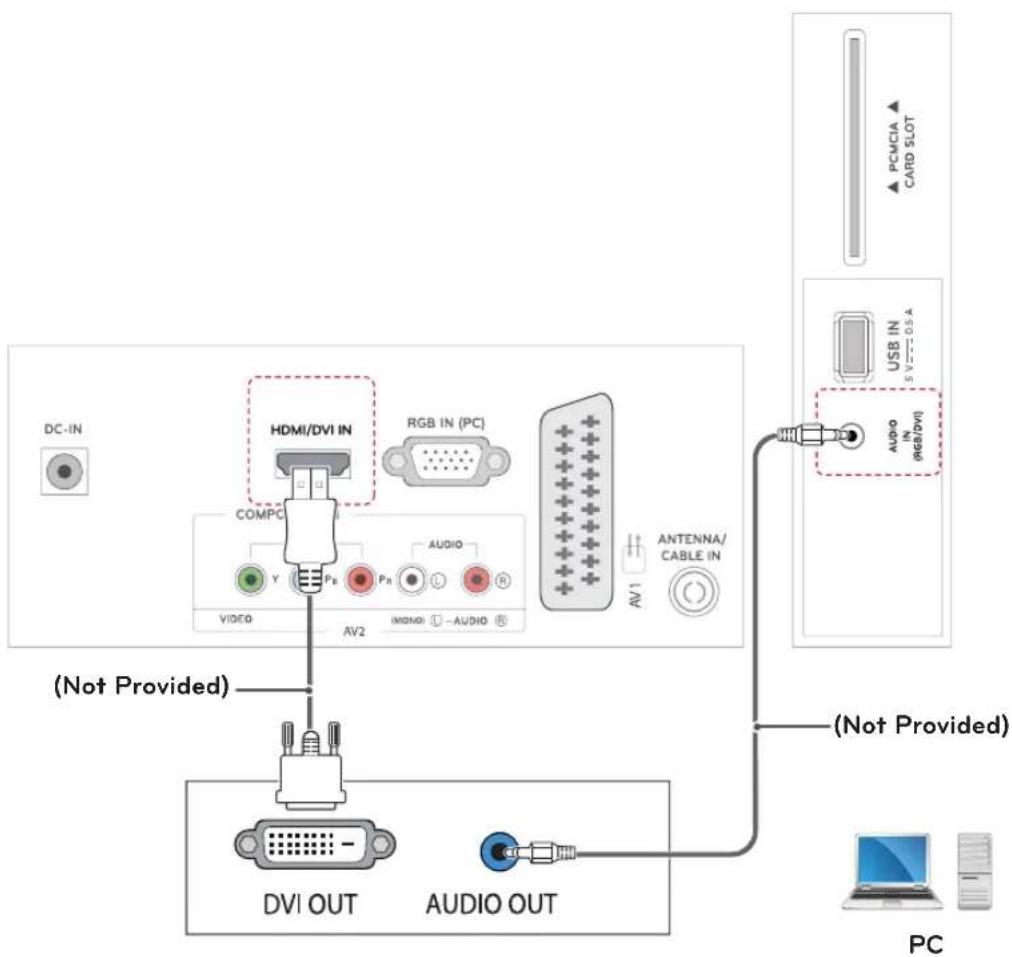
text_image
DC-IN HDMI/DVI IN RGB IN (PC) COMPC Y Ps Pn AUDIO VIDEO AV2 (MONO) -AUDIO AV1 ANTENNA/CABLE IN (Not Provided) DVI OUT AUDIO OUT PC PCMCIA CARD SLOT USB IN 5 V 0.5 A AUDIO IN (RGB/DVI) (Not Provided) PCRGB connection
Transmits the analog video signal from your PC to the TV. Connect the PC and the TV with the D-sub 15 pin cable as shown the following illustrations. To transmit an audio signal, connect an optional audio cable.

NOTE
If you do not use an optional external speaker, connect the PC to the TV with the optional audio cable.
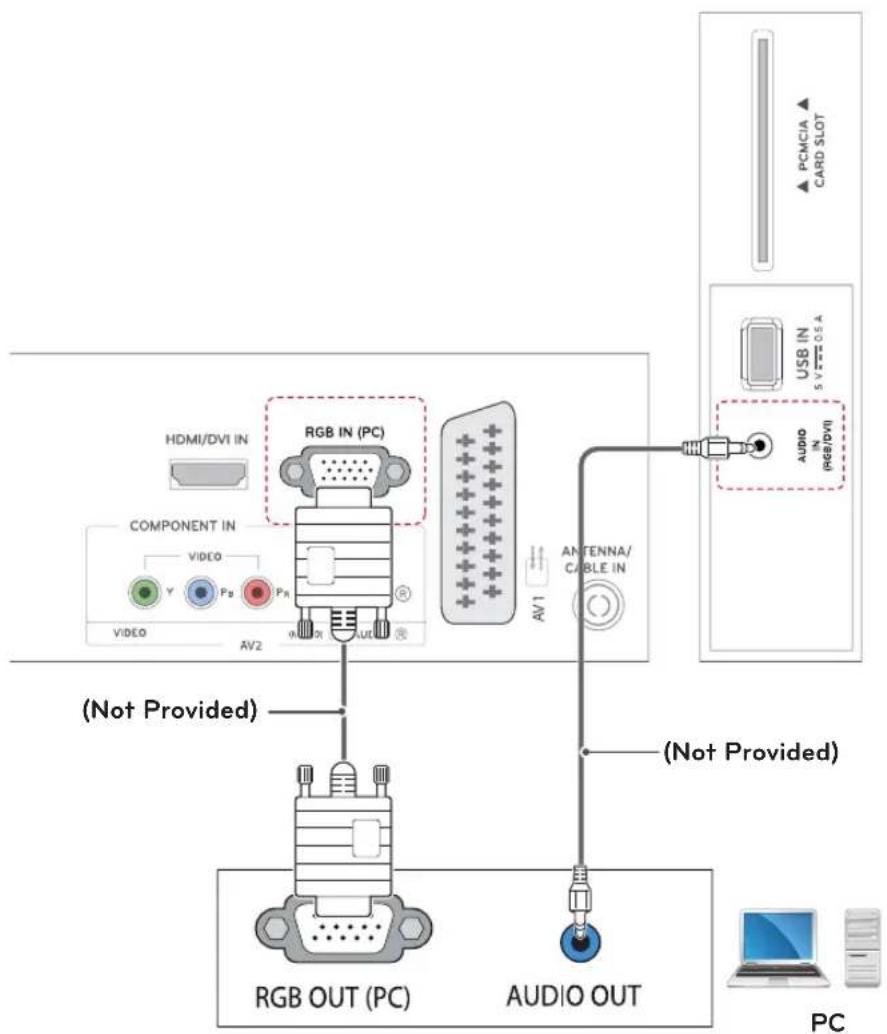
flowchart
graph TD
    A["PC"] --> B["RGB OUT (PC)"]
    A --> C["AUDIO OUT"]
    B --> D["(Not Provided)"]
    C --> E["(Not Provided)"]
    D --> F["AV1"]
    E --> G["AV2"]
    H["COMPONENT IN"] --> I["RGB IN (PC)"]
    I --> J["HDMI/DVI IN"]
    I --> K["VIDEO"]
    I --> L["Ps"]
    I --> M["Ps"]
    I --> N["AV2"]
    O["PCMCIA"] --> P["CARD SLOT"]
    Q["USB IN 5V77705A"] --> R["AUDIO IN (RGB/DVI)"]
    S["AV1"] --> T["ANTENNA/CABLE IN"]
REMOTE CONTROL
M2232D M2432D M2732D
The descriptions in this manual are based on the buttons of the remote control. Please read this manual carefully and use the TV correctly.
To replace batteries, open the battery cover, replace batteries (1.5 V AAA) matching⊕ and ⏻ ends to the label inside the compartment, and close the battery cover.
To remove the batteries, perform the installation actions in reverse.

CAUTION
Do not mix old and new batteries, as this may damage the remote control.
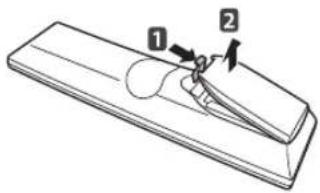
natural_image
Diagram of a mechanical component with labeled parts (1 and 2), no readable text or symbols present.Make sure to point the remote control to the remote control sensor on the TV.
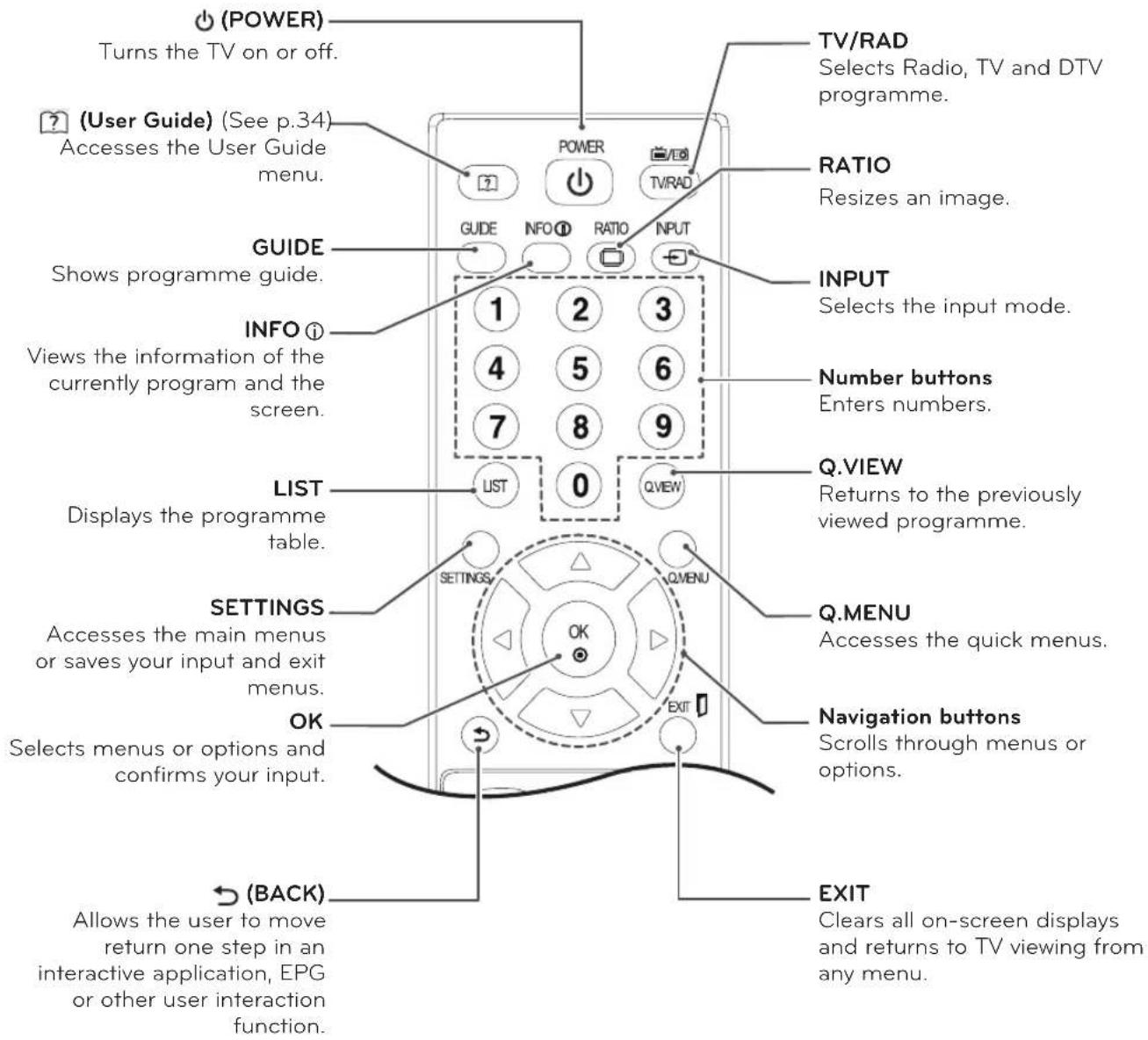
text_image
(POWER) Turns the TV on or off. (User Guide) (See p.34) Accesses the User Guide menu. GUIDE Shows programme guide. INFO ⓘ Views the information of the currently program and the screen. LIST Displays the programme table. SETTINGS Accesses the main menus or saves your input and exit menus. OK Selects menus or options and confirms your input. (BACK) Allows the user to move return one step in an interactive application, EPG or other user interaction function. TV/RAD Selects Radio, TV and DTV programme. RATIO Resizes an image. INPUT Selects the input mode. Number buttons Enters numbers. Q.VIEW Returns to the previously viewed programme. Q.MENU Accesses the quick menus. Navigation buttons Scrolls through menus or options. EXIT Clears all on-screen displays and returns to TV viewing from any menu.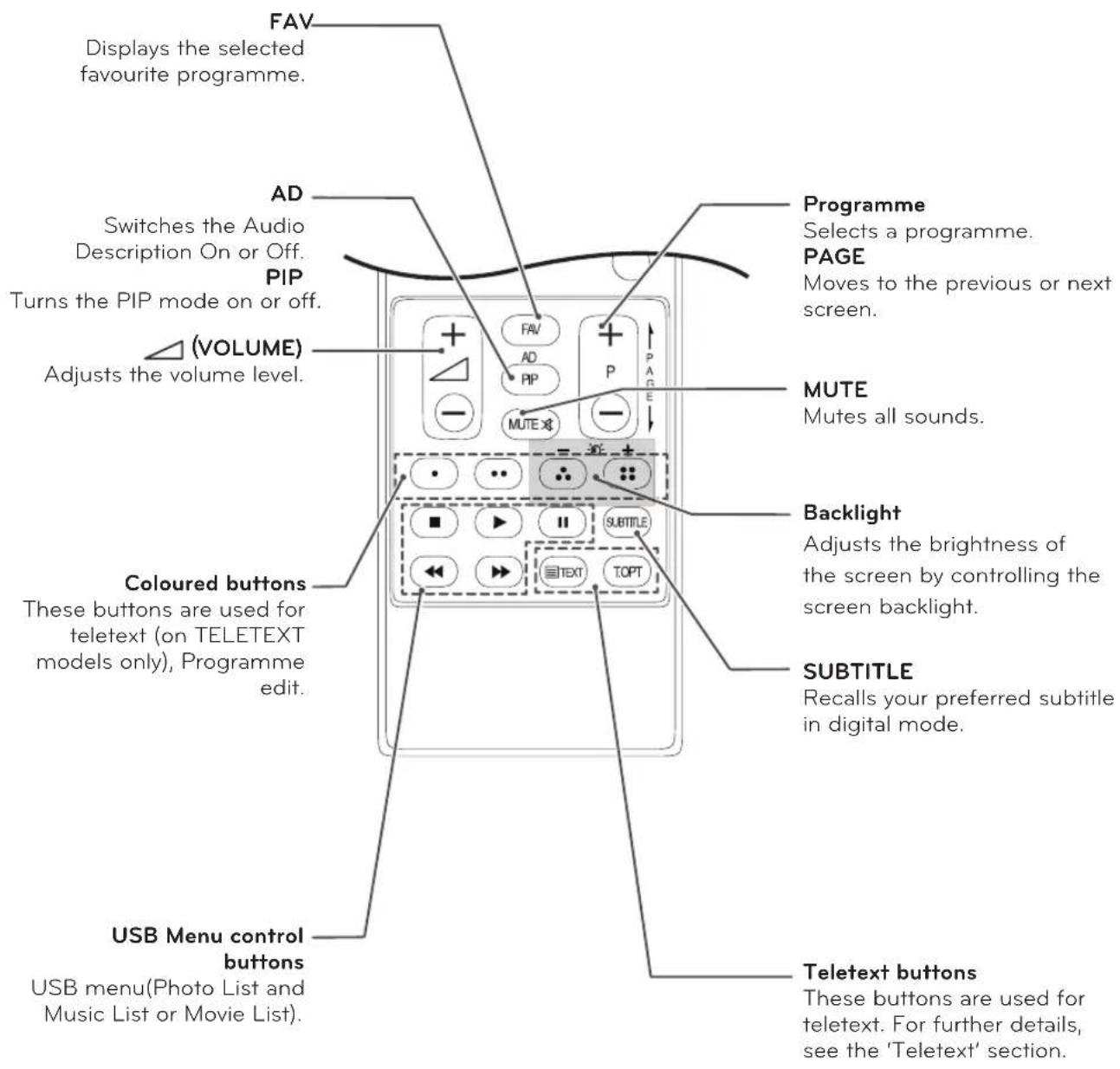
text_image
FAV Displays the selected favourite programme. AD Switches the Audio Description On or Off. PIP Turns the PIP mode on or off. (VOLUME) Adjusts the volume level. Coloured buttons These buttons are used for teletext (on TELETEXT models only), Programme edit. USB Menu control buttons USB menu(Photo List and Music List or Movie List). Programme Selects a programme. PAGE Moves to the previous or next screen. MUTE Mutes all sounds. Backlight Adjusts the brightness of the screen by controlling the screen backlight. SUBTITLE Recalls your preferred subtitle in digital mode. Teletext buttons These buttons are used for teletext. For further details, see the 'Teletext' section.
NOTE
On MHEG channel, you cannot adjust the backlight with the yellow or blue key.
CUSTOMIZING SETTINGS
Accessing main menus
1 Press SETTINGS to access the main menus.
2 Press the Navigation buttons to scroll to one of the following menus and press OK.
3 Press the Navigation buttons to scroll to the setting or option you want and press OK.
4 When you are finished, press EXIT. When you return to the previous menu, press ↩ (BACK).
| PICTURE | Adjusts the image size, quality or effect. |
| AUDIO | Adjusts the sound quality, effect or volume level. |
| SETUP | Sets up and edit programmes. |
| TIME | Sets the time, date or Timer feature. |
| LOCK | Locks or unlocks channels and programs. |
| OPTION | Customizes the general settings. |
| INPUT | Views the input sources with their labels. |
| MY MEDIA | Using integrated media feature. |
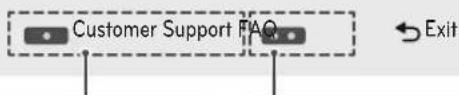
- Press RED button to access the Customer Support menus.
- Press GREEN Button to access the FAQ menus.
Press OK(d) to set programme settings.
text_image
Customer Support FAQ ExitCustomer Support
Using Customer Support feature.
- Software Update
Picture Test - Sound Test
- Signal Test
• Product/Service Info. - User Guide
FAQ
Shows answers to frequently asked questions about TV viewing and sets the related menus.
USING THE USER GUIDE
Accessing User Guide menu.
Using the TV menu
1 Press SETTINGS to access the main menus.
2 Press the RED button to access the Customer Support menus.
3 Press the Navigation button to scroll to User Guide and press OK.
4 Press the Navigation buttons to scroll to the option you want and press OK.
5 When you are finished, press EXIT.
When you return to the previous menu, press
(BACK).
Using the Remote Control
text_image
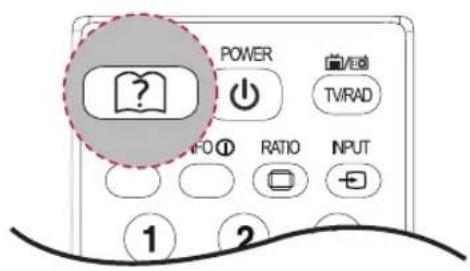
POWER TV/RAD RATIO INPUT ① ②1 Press (User Guide) to access the User Guide.
2 Press the Navigation buttons to scroll to the option you want and press OK.
3 When you are finished, press EXIT.
When you return to the previous menu, press
(BACK).
• Image shown may differ from your TV.
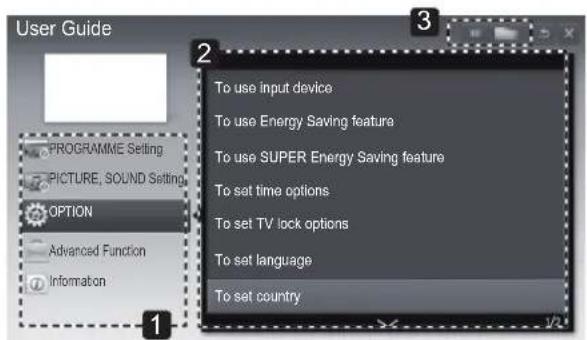
text_image
User Guide PROGRAMME Setting PICTURE, SOUND Setting OPTION Advanced Function Information To use input device To use Energy Saving feature To use SUPER Energy Saving feature To set time options To set TV lock options To set language To set country1 Allows to select the category you want.
2 Allows to select the item you want.
You can use ^/√ to move between pages.
3 Allows to browse the description of the function you want from the index.
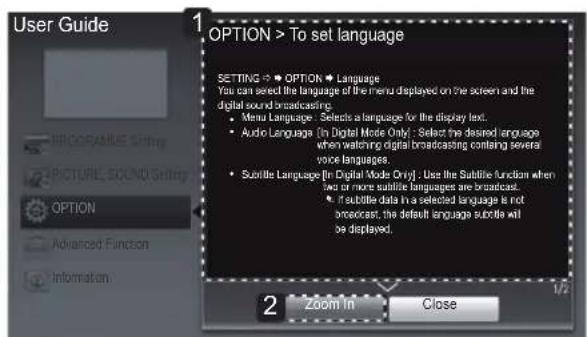
text_image
User Guide 1. OPTION > To set language SETTING ➕ OPTION ➕ Language You can select the language of the menu displayed on the screen and the digital sound broadcasting: • Menu Language: Selects a language for the display text. • Audio Language (In Digital Mode Only): Select the desired language when watching digital broadcasting containing several voice languages. • Subtile Language (In Digital Mode Only): Use the Subtile function when low or more subtile languages are broadcast. • Full table data in a selected language is not broadcast; the default language subtle will be displayed. 2 Zoom in Close 1/2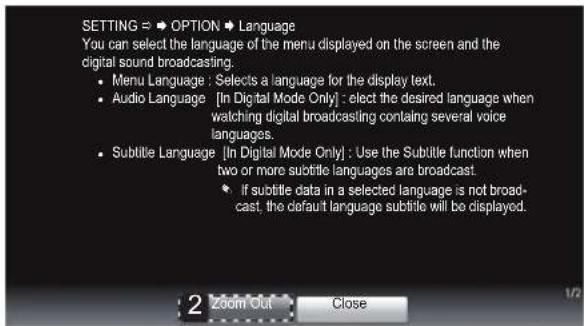
text_image
SETTING ⇔ ➕ OPTION ➕ Language You can select the language of the menu displayed on the screen and the digital sound broadcasting. • Menu Language : Selects a language for the display text. • Audio Language [In Digital Mode Only] : elect the desired language when watching digital broadcasting containing several voice languages. • Subtitle Language [In Digital Mode Only] : Use the Subtitle function when two or more subtitle languages are broadcast. • If subtitle data in a selected language is not broad- cast, the default language subtitle will be displayed.1 Shows the description of the selected menu. You can use ^/√ to move between pages.
2 Zooms in or out the screen.
MAINTENANCE
Cleaning Your TV
Clean your TV regularly to keep the best performance and to extend the product lifespan.

CAUTION
- Make sure to turn the power off and disconnect the power cord and all other cables first.
- When the TV is left unattended and unused for a long time, disconnect the power cord from the wall outlet to prevent possible damage from lightning or power surges.
Screen and frame
To remove dust, wipe the surface with a dry and soft cloth.
To remove major dirt, wipe the surface with a soft cloth dampened in clean water or a diluted mild detergent. Then wipe immediately with a clean and dry cloth.

CAUTION
- Do not push, rub, or hit the surface with your fingernail or a sharp object, as this may result in scratches on the screen and image distortions.
- Do not use any chemicals, such as waxes, benzene, alcohol, thinners, insecticides, air fresheners, lubricants, as these may damage the screen's finish and cause discolorations.
Cabinet and stand
To remove dust, wipe the cabinet with a dry and soft cloth.
To remove major dirt, wipe the cabinet with a soft cloth dampened in a clean water or water containing a small amount of mild detergent.

CAUTION
- Do not spray liquid onto the surface. If water enters the TV, it may result in fire, electric shock, or malfunction.
- Do not use any chemicals as this may deteriorate the surface.
Power cord
Remove the accumulated dust or dirt on the power cord regularly.
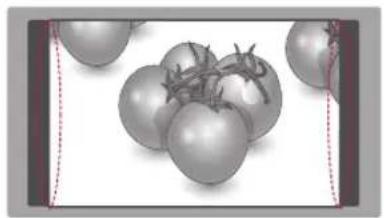
Preventing "Image burn" or "Burn-in" on your TV screen
natural_image
Illustration of several tomatoes with stems, shown in grayscale (no text or symbols)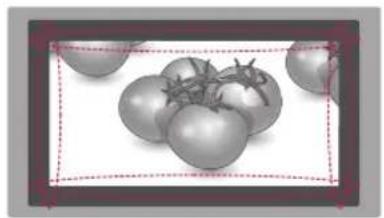
natural_image
Illustration of several tomatoes with stems, enclosed in a dashed red border (no text or symbols)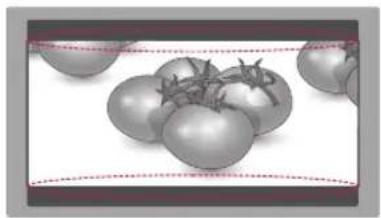
natural_image
Illustration of a cluster of tomatoes with stems, enclosed in a dashed rectangular frame (no text or symbols)- If a fixed image displays on the TV screen for a long period of time, it will be imprinted and become a permanent disfigurement on the screen. This is "image burn" or "burn-in" and not covered by the warranty.
- If the aspect ratio of the TV is set to 4:3 for a long period of time, image burn may occur on the letterboxed area of the screen.
- Avoid displaying a fixed image on the TV screen for a long period of time (2 or more hours for LCD) to prevent image burn.
TROUBLESHOOTING
General
| ProblemResolution | |
| Cannot control the TV with the remote control. | Check the remote control sensor on the product and try again.Check if there is any obstacle between the product and the remote control.Check if the batteries are still working and properly installed(⊕ to ⊕ ⏻ ).⊖ |
| No image display and no sound is produced. | Check if the product is turned on.Check if the power cord is connected to a wall outlet.Check if there is a problem in the wall outlet by connecting other products. |
| The TV turns off suddenly. | Check the power control settings. The power supply may be interrupted.Check if the Auto sleep feature is activated in the Time settings.If there is no signal while the TV is on, the TV will turn off automatically after 15 minutes of inactivity. |
SPECIFICATIONS
M2232D
| Panel Screen Type | 546.1 mm Wide (21.5 inch) | Visible diagonal size : 546.1 mm |
| Pixel Pitch 0.25 mm (H) x 0.25 mm (V) | ||
| Video Signal Max. | Resolution 1920 x 1080 @ 60 Hz | |
| Recommended Resolution | 1920 x 1080 @ 60 Hz | |
| Horizontal Frequency 30 kHz to 83 kHz | ||
| Vertical Frequency 56 Hz to 75 Hz | ||
| Synchronization Type Separate Sync, Digital | ||
| Input Connector TV, D-Sub Analog, SCART, PC Audio In, Component, CVBS, HDMI, USB, PCMCIA | ||
| Power Rated Voltage | 19 V | --- 1.6 A |
| Power Consumption | On Mode : 30 W (typ.)Off Mode ≤ 0.4 W | |
| AC/DC Adapter | Manufacturer: Lien Chang, Model LCAP16A-EManufacturer: Lien Chang, Model LCAP25A | |
| Tilt | Tilt Range | -5 to 20° |
| Dimensions (Width x Depth x Height)Weight | With Stand | |
| 508.6 mm x 180.9 mm x 386.5 mm3.2 kg | ||
| Without Stand | ||
| 508.6 mm x 62.9 mm x 314.8 mm2.9 kg | ||
| Environmental conditions | Operating Temperature | 10 °C to 35 °C |
| Operating Humidity | 20 % to 80 % | |
| Storage Temperature | -10 °C to 60 °C | |
| Storage Humidity | 5 % to 90 % | |
Product specifications shown above may be changed without prior notice due to upgrade of product functions.
M2432D
| Panel Screen Type | 609.6 mm Wide (23.6 inch) | Visible diagonal size : 609.6 mm |
| Pixel Pitch 0.27 mm (H) x 0.27 mm (V) | ||
| Video Signal Max. | Resolution 1920 × 1080 @ 60 Hz | |
| Recommended Resolution 1920 × 1080 @ 60 Hz | ||
| Horizontal Frequency 30 kHz to 83 kHz | ||
| Vertical Frequency 56 Hz to 75 Hz | ||
| Synchronization Type Separate Sync, Digital | ||
| Input Connector TV, D-Sub Analog, SCART, PC Audio In, Component, CVBS, HDMI, USB, PCMCIA | ||
| Power Rated Voltage | 19 V | --- 2.0 A |
| Power Consumption On Mode : 33 W (typ.) Off Mode ≤ 0.4 W | ||
| AC/DC Adapter | Manufacturer: Lien Chang, Model LCAP16B-E Manufacturer: Lien Chang, Model LCAP25B | |
| Tilt | Tilt Range | -5 to 20° |
| Dimensions (Width x Depth x Height) Weight | With Stand | |
| 556.5 mm x 180.9 mm x 414.7 mm 3.88 kg | ||
| Without Stand | ||
| 556.5 mm x 62.9 mm x 343.0 mm 3.6 kg | ||
| Environmental conditions | Operating Temperature Operating Humidity | 10 °C to 35 °C 20 % to 80 % |
| Storage Temperature Storage Humidity | -10 °C to 60 °C 5 % to 90 % | |
Product specifications shown above may be changed without prior notice due to upgrade of product functions.
M2732D
| Panel Screen Type | 685.65 mm Wide (27 inch) | Visible diagonal size : 685.65 mm |
| Pixel Pitch 0.31 mm (H) x 0.31 mm (V) | ||
| Video Signal Max. | Resolution 1920 × 1080 @ 60 Hz | |
| Recommended Resolution | 1920 × 1080 @ 60 Hz | |
| Horizontal Frequency 30 kHz to 83 kHz | ||
| Vertical Frequency 56 Hz to 75 Hz | ||
| Synchronization Type Separate Sync, Digital | ||
| Input Connector TV, D-Sub Analog, SCART, PC Audio In, Component, CVBS, HDMI, USB, PCMCIA | ||
| Power Rated Voltage | 19 V | --- 2.0 A |
| Power Consumption On Mode : 35 W (typ.)Off Mode ≤ 0.4 W | ||
| AC/DC Adapter | Manufacturer: Lien Chang, Model LCAP16B-EManufacturer: Lien Chang, Model LCAP25B | |
| Tilt | Tilt Range | -5 to 20° |
| Dimensions (Width x Depth x Height)Weight | With Stand | |
| 641.3 mm x 203.3 mm x 458.8 mm5.3 kg | ||
| Without Stand | ||
| 641.3 mm X53 mm X 391.2 mm4.7 kg | ||
| Environmental conditions | Operating Temperature | 10 °C to 35 °C |
| Operating Humidity | 20 % to 80 % | |
| Storage Temperature | -10 °C to 60 °C | |
| Storage Humidity | 5 % to 90 % | |
Product specifications shown above may be changed without prior notice due to upgrade of product functions.
RGB (PC) / HDMI (PC) supported mode
| Resolution | Horizontal Frequency(kHz) | Vertical Frequency(Hz) |
| 720 x 400 31.468 | 70.080 | |
| 640 x 480 31.469 | 59.940 | |
| 640 x 480 37.500 | 75.000 | |
| 800 x 600 37.879 | 60.317 | |
| 800 x 600 46.875 | 75.000 | |
| 1024 x 768 48.363 | 60.004 | |
| 1024 x 768 60.023 | 75.029 | |
| 1152 x 864 67.500 | 75.000 | |
| 1280 x 720 45.000 | 60.000 | |
| 1280 x 800 49.702 | 59.810 | |
| 1280 x 1024 63.981 | 60.020 | |
| 1280 x 1024 79.976 | 75.025 | |
| 1400 x 1050 65.317 | 59.978 | |
| 1440 x 900 55.935 | 59.887 | |
| 1600 x 900 60.000 | 60.000 | |
| 1680 x 1050 | 64.674 | 59.883 |
| 1680 x 1050 | 65.290 59.954 | |
| 1920 x 1080 | 67.500 60.000 |
Component supported mode
| Resolution | Horizontal Frequency(kHz) | Vertical Frequency(Hz) |
| 720 x 480 | 15.730 59.940 | |
| 720 x 480 | 15.750 60.000 | |
| 720 x 576 | 15.625 50.000 | |
| 720 x 480 | 31.470 59.940 | |
| 720 x 480 | 31.500 | 60.000 |
| 720 x 576 | 31.250 | 50.000 |
| 1280 x 720 44.960 | 59.940 | |
| 1280 x 720 45.000 | 60.000 | |
| 1280 x 720 37.500 | 50.000 | |
| 1920 x 1080 | 33.720 59.940 | |
| 1920 x 1080 | 33.750 60.000 | |
| 1920 x 1080 | 28.125 50.000 | |
| 1920 x 1080 | 56.250 50.000 | |
| 1920 x 1080 | 67.432 59.940 | |
| 1920 x 1080 | 67.500 60.000 |
HDMI (DTV) supported mode
| Resolution | Horizontal Frequency(kHz) | Vertical Frequency(Hz) |
| 720 x 480 | 31.469 | 59.940 |
| 31.500 | 60.000 | |
| 720 x 576 | 31.250 50.000 | |
| 1280 x 720 37.500 | 50.000 | |
| 1280 x 720 44.960 | 45.000 | 59.940 |
| 60.000 | ||
| 1920 x 1080 | 33.720 | 59.940 |
| 33.750 | 60.000 | |
| 1920 x 1080 | 28.125 50.000 | |
| 1920 x 1080 | 27.000 24.000 | |
| 1920 x 1080 | 33.750 30.000 | |
| 1920 x 1080 | 56.250 50.000 | |
| 1920 x 1080 | 67.430 | 59.940 |
| 67.500 | 60.000 |
Component port connecting information
| Component ports on the TV | Y | P_B | P_R |
| Video output ports on DVD player | Y | P_B | P_R |
| Y B-Y | R-Y | ||
| Y Cb | Cr | ||
| Y | Pb Pr | ||

NOTE
- Avoid keeping a fixed image on the set's screen for prolonged periods of time. The fixed image may become permanently imprinted on the screen. Use a screen saver when possible.
- There may be interference relating to resolution, vertical pattern, contrast or brightness in PC mode. Change the PC mode to another resolution or change the refresh rate to another rate or adjust the brightness and contrast on the menu until the picture is clear. If the refresh rate of the PC graphic card can not be changed, change the PC graphic card or consult the manufacturer of the PC graphic card.
- The synchronization input waveform for Horizontal and Vertical frequencies are separate.
- Connect the signal cable from the RGB output port of the PC to the RGB (PC) port of the TV or the signal cable from the HDMI output port of the PC to the HDMI/DVI IN port on the TV.
- Connect the audio cable from the PC to the Audio input on the TV. (Audio cables are not included with the TV).
• If using a sound card, adjust PC sound as required. - If the graphic card on the PC does not output analogue and digital RGB simultaneously, connect only one of either RGB or HDMI/DVI IN to display the PC output on the TV.
- If the graphic card on the PC does output analogue and digital RGB simultaneously, set the TV to either RGB or HDMI. (The other mode is set to Plug and Play automatically by the TV.)
- DOS mode may not work depending on the video card if you use an HDMI to DVI cable.
- If you use too long an RGB-PC cable that is too long, there may be interference on the screen. We recommend using under 5 m of cable. This provides the best picture quality.
UK Only
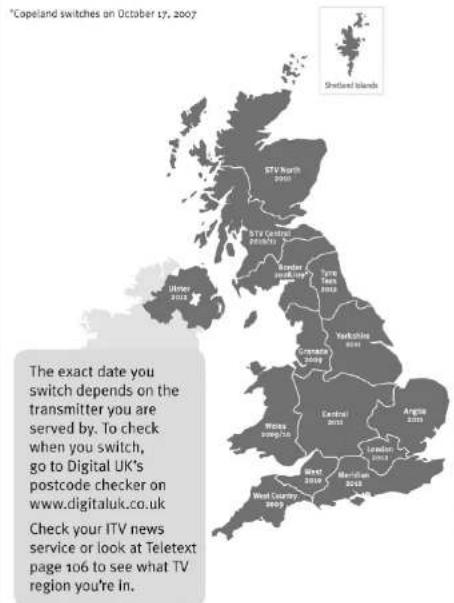
When does switchover happen?
text_image
Capeland switches on October 17, 2007 The exact date you switch depends on the transmitter you are served by. To check when you switch, go to Digital UK's postcode checker on www.digitaluk.co.uk Check your ITV news service or look at Teletext page 106 to see what TV region you're in.Visit us at digitaluk.co.uk call us on 0845 6 50 50 50 ^+
*Calls charged at BT rate of 3p per minute daytime and 10 per minute evenings and weekends. Rates may vary for calls from non-BT lines.
Keep this important information about how to re-tune your TV during the digital TV switchover
Keep this leaflet and your instruction manual safe – you'll need them

natural_image
3D cartoon robot figure with large round eyes and a small number on the body (no text or symbols)get set for digital √
Television in the UK is going digital, bringing us all more choice and new services. Starting in late 2007 and ending in 2012, television services in the UK will go completely digital, TV region by TV region.
Please see overleaf to find out when your area switches to digital. Digital UK is the independent, non-profit organisation leading the process of digital TV switchover in the UK. Digital UK provides impartial information on what people need to do to prepare for the move to digital, and when they need to do it.
How the switchover affects your TV equipment:
Your new TV has a digital tuner built in, which means it is ready to receive the Freeview signal by simply plugging it into your aerial socket (check if you can get digital TV through your aerial now, or whether you'll have to wait until switchover, at www.digitaluk.co.uk).
When the TV switchover happens in your area, there are at least two occasions when you will need to re-tune your TV in order to continue receiving your existing TV channels, and also to pick up new ones. Digital UK, the body leading the digital TV switchover, will advise you when you need to re-tune during the switchover.
If you choose to connect your TV to satellite or cable with a digital box then it will not be affected by switchover, and you won't need to re-tune.
How to re-tune:
To find out how to re-tune your TV, check your manufacturer's instructions for details. Or see below for a typical sequence:
-
With your TV in digital TV mode, press 'Menu' on your remote control. (Some TVs will ask you for a code. If you have not already changed it, the default code is usually 0000, or check your instruction book.)
-
From the Menu options on screen, select 'SETUP'. Select 'Auto Tuning' to re-tune your digital TV (not 'add channels'). You may have to wait a couple of minutes for the re-tune to complete.
*Also sometimes referred to as 'Update', 'Rescan', 'Replace', 'Auto-Tuning', 'Channel Search', 'First Time Install', or 'Store Channels'.
- If you do not re-tune your channels when advised to do so by Digital UK, you may lose some or all of your channels until you do re-tune. You should re-tune your TV every few months to check for any new channels.
If you are missing any channels, it may be that they are not available in your area, or that your aerial needs upgrading.
If you have any questions, please contact your equipment supplier or call Digital UK on 0845 6 50 50 50 or visit www.digitaluk.co.uk

text_image
LG Life's GoodMake sure to read the Safety Precautions before using the product.
Keep the Owner's Manual (CD) in an accessible place for future reference.
The model and serial number of the TV is located on the back and one side of the TV. Record it below should you ever need service.
MODEL
SERIAL
To obtain the source code under GPL, LGPL, MPL and other open source licenses, that is contained in this product, please visit http:// opensource.lge.com.
In addition to the source code, all referred license terms, warranty disclaimers and copyright notices are available for download.
LG Electronics will also provide open source code to you on CD-ROM for a charge covering the cost of performing such distribution (such as the cost of media, shipping and handling) upon email request to opensource@lge.com.
This offer is valid for three (3) years from the date on which you purchased the product.