MT4212 - Access Point Media-Tech - Free user manual and instructions
Find the device manual for free MT4212 Media-Tech in PDF.


User questions about MT4212 Media-Tech
0 question about this device. Answer the ones you know or ask your own.
Ask a new question about this device
Download the instructions for your Access Point in PDF format for free! Find your manual MT4212 - Media-Tech and take your electronic device back in hand. On this page are published all the documents necessary for the use of your device. MT4212 by Media-Tech.
USER MANUAL MT4212 Media-Tech
The WIFI Repeater is a combined wired/wireless network connection device designed specifically for small businesses, offices, and home office networking requirements. It allows a wireless network to be expanded using multiple access points without the need for a wired backbone to link them. It also works out with other 1 big and 11n protocol wireless products.
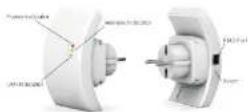
NOTE: If you need to reset the WiFi Repeater, you need press and hold the reset button inside the tiny hole for 10 seconds.
Passage Contentin
Before you stating to use this motor, process orders if home's anything missing in the package, and contact your dealer of purchase to claim for missing items:
-1 x Wireless-N Repeater -1 x RJ-45 Networking Cable -1 x Quick Installation Guide
Getting Started
Setting up a Wireless Infrastructure Network
For a typical wireless setup at home (as shown below), please do the following:

Wireless AP Mode
You will need broadcast Router Internet access
Connect the Wi-Fi Repeater to your RouterSwitch with RJ-45 Cable
How to configure the WiFi Repeater
You can configure the WIFIRepeater by connecting it with your
computer/saptop with closed RMS scales or wireless. We recommend you to do it with wire.
A. Configure the Wi-Fi Repeater with RMS Cable
A1. Plug the Wi-Fi Reposter to a well socket. Connect your computer / laptop with the Wi-Fi Reposter with enclosed RJ45 Cable.
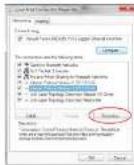
A2. Click the "Start" button (I should be located at the lower left corner of your screen), then click "Control Panel". Click "View Network Status and Tasks" and then click "Manage Network Connections", Right-click "Local Area Network", then select "Properties". When the "Local Area Connection Properties" window appears, select "Internet Protocol Version 4 (TCP/IPwd)" and then click "Properties".
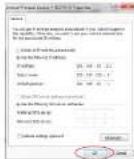
A3. Setting IP address manually: Type IP address is 192.168.10.x (x is from 2 to 254), and Subnet mask is 255.255.255.0. Type the Router's LAN IP address (the default IP is 192.168.10.1) into the Default gateway field
01 — Wireless-N W-B Repeater

02 — Wireless N WIF Repeater

-03 - Wireless-N WiFi Repeater

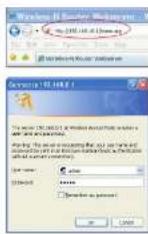
A4. Open web browser and type http://192.108.10.1 in the browser's address box. This number is the default IP address for this device.
A5. The login screen below will appear. Enter the "User Name" and "Password" and click "OK" to login. The default User name is "admin" and the Password is "admin".
AS: After logging in and click "Setup Wizard", you will see the web page below: Select "Wireless Repeater Mode (Station)" and click on Next to continue.
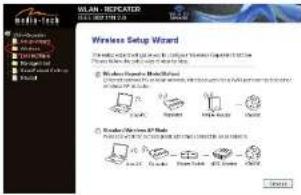
text_image
WLAN-REFRATED Wireless Setup Wizard ■ Windows Setup Wizard (Windows) ■ Windows Connection Wizard (Windows) ■ Windows Connection Wizard (Windows) ■ Windows Connection Wizard (Windows) ■ Windows Connection Wizard (Windows)A7. Click on Repeater - OneKey Setting button
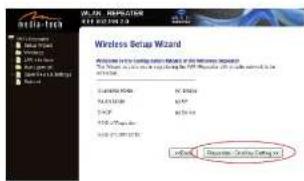
text_image
Wireless Setup Wizard Microsoft Windows 2.0.1.0.1.0 (Windows 2.0.1.0.1.0) Microsoft Windows 2.0.1.0.1.0 (Windows 2.0.1.0.1.0) Microsoft Windows 2.0.1.0.1.0 (Windows 2.0.1.0.1.0) Microsoft Windows 2.0.1.0.1.0 (Windows 2.0.1.0.1.0) Microsoft Windows 2.0.1.0.1 (Windows 2.0.1.0.1.0) Microsoft Windows 2.0.1.0.1 (Windows 2.0.1.0.1.0) Microsoft Windows 2.0.1.0.1 (Windows 2.0.1.0.1.0) Microsoft Windows 2.0.1.0.1 (Windows 2.0.1.0.1.0) Microsoft Windows 3.0.1.0.1 (Windows 2.0.1.0.1.0) Microsoft Windows 3.0.1.0.1 (Windows 2.0.1.0.1.0) Microsoft Windows 3.0.1.0.1 (Windows 2.0.1.0.1.0) Microsoft Windows 3.0.1.0.1 (Windows 2.0.1.0, 25%) Microsoft Windows 3.0.1.0.1 (Windows 2.0.1, 25%) Microsoft Windows 3.0.1.0.1 (Windows 2.0, 25%) Microsoft Windows 3.0.1.0.1 (Windows 2, 25%) Microsoft Windows 3.0.1, 25%All. Wait a few seconds and you will see the site below and please click on 'Wireless Network Selection' button.
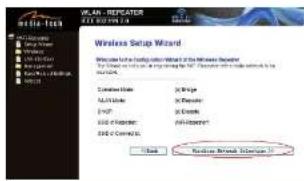
text_image
WAL-REPLCATOR 2017 800 MB/14 Wireless Setup Wizard Windows For Existing Settings Wizard Of the Wireless Setup To be installed in any way to support the TCP. According to this setup is to be installed. Controller Style: X-Ray Auto Tools: X-Rayable TCP/IP: X-Costs USB Connection: X-Internet USB Connection: OK Network Network Options:AS. Click on 'Refresh List' button. Select the W release SSID and click Next to continue.
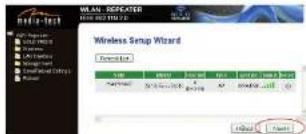
text_image
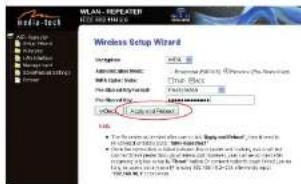
WLAN - DEPICKER WLAN 2023/10/24 Wireless Setup Wizard Network SIP TCP/IP TCP/IP TCP/IP TCP/IP TCP/IP TCP/IP TCP/IP TCP/IP TCP/IP TCP/IP TCP/IP TCP/IP TCP/IP TCP/IP TCP/IP TCP/IP TCP/IP TCP/IP TCP/IP TCP/IP TCP/IP TCP/IP TCP/IP TCP/IP TCP/IP TCP/IP TCP/IP TCP/IP TCP/IP TCP/IP TCP/IP TCP/IP TCP/IP TCP/IPA10. When you see the site below, please do not change any selling but only I want the password of your network.
text_image
WLAN-REPEATER WLAN-REPEATER Wireless Setup Wizard Windows Microsoft Windows Microsoft Windows Microsoft Windows Microsoft Windows Microsoft Windows Microsoft Windows Microsoft Windows Microsoft Windows Microsoft Windows Microsoft Windows Microsoft Windows Microsoft Windows Microsoft Windows Microsoft Windows Microsoft Windows Microsoft Windows Microsoft Windows Microsoft Windows Microsoft Windows Microsoft Windows Microsoft Windows Microsoft Windows Microsoft Windows Microsoft Windows Microsoft Windows Microsoft Windows Microsoft Windows Microsoft Windows Microsoft Windows Microsoft Windows Microsoft Windows Microsoft Windows Microsoft Windows Microsoft WindowsClick on Apply and Reboot button.
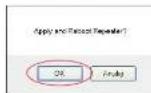
A11. Click 'OK' to confirm. The Repealer will select!
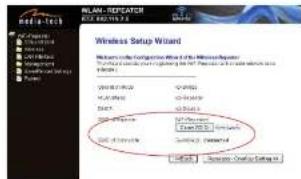
A12. Wall a few seconds and you will see the status site like below. It means your Wi-Fi Reporter is ready for use.
The Wi-Fi Repeater! WLAN key is same with your router.
text_image
WINSLE Setup Wizard Windows 10.0000 (Windows 10.0000) Windows 10.0000 (Windows 10.0000) Windows 10.0000 (Windows 10.0000) Windows 10.0000 (Windows 10.0000) Windows 10.0000 (Windows 10.0000) Windows 10.0000 (Windows 10.0000)If you do not see the site like above, you need to re-contiguro it again.
NOTE: If you need to reset the Wi-Fi Repeater, you need press the reset button inside the tiny hole for 10 seconds
04
Wireless N With Repeater

05
Wireless N W/I Repeater

06
Wireless NWB Repeater

07
Wireless N Wi-Fi Repeater
