MT4028 - Webcam Media-Tech - Free user manual and instructions
Find the device manual for free MT4028 Media-Tech in PDF.


User questions about MT4028 Media-Tech
0 question about this device. Answer the ones you know or ask your own.
Ask a new question about this device
Download the instructions for your Webcam in PDF format for free! Find your manual MT4028 - Media-Tech and take your electronic device back in hand. On this page are published all the documents necessary for the use of your device. MT4028 by Media-Tech.
USER MANUAL MT4028 Media-Tech
PC Camera for Teleconferencing & Video Surveillance
Instructions Manual
Introduction
Thank you for buying this high quality video webcam. Following information will help you to use your camera to its full capabilities. For viewing pictures or video, camera must be connected to your personal computer. This camera supports Microsoft Video Class and Plug&Play directly without driver. For using special features like "face tracking" or "snapshot" please follow software installation steps.
System requirements
■ Pentium IV 1GHz or higher CPU
■ 500MB free hard disk space
■ CD-ROM drive
512MB RAM
■ VGA card with DirectX 9.0 support
■ Windows 2000/XP SP2/Vista/7
■ Internet connection
■ Free USB 2.0 port
Package content
■ WebCam
■ Software CD-ROM
■ User manual
Hardware installation
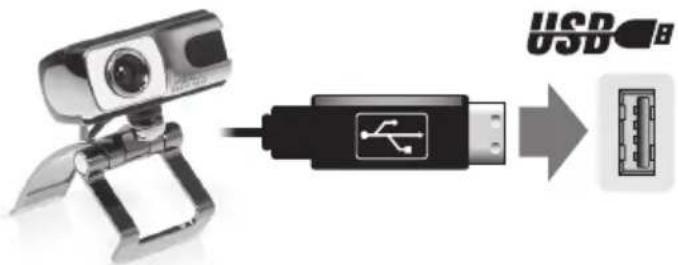
Please plug camera into free USB 2.0 port
text_image
USBSoftware installation
Note: Please make sure the WebCam is plugged in the USB port before proceeding.
-
Insert software disc into CD-ROM drive. If installation will not start automatically, open Setup.exe from CD-ROM root folder.
-
When installation is completed, webcam icon will appear in system tray.

text_image
Web Camera is plugged in- Select AMCAP application from Start menu as shown below.
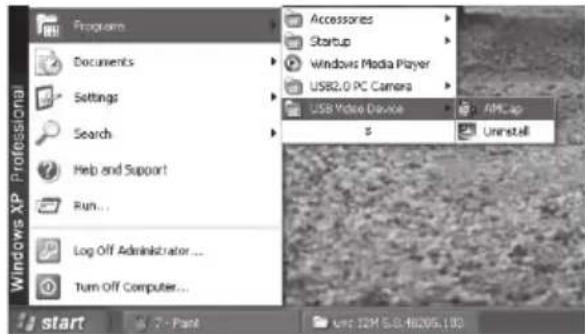
text_image
Windows XP Professional Start 7 - Paint unit: 12M 5.0/48205.100Using AMCAP software
Video Preview
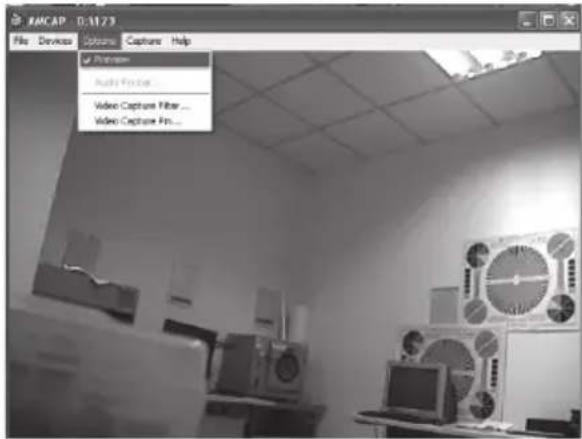
Click AMCAP to run application, if you cannot see the picture click "Options" and choose "Preview" to enable video preview.
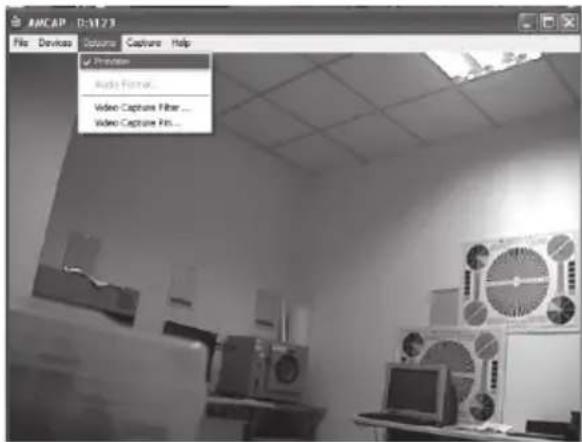
text_image
ANCAP D:\1273 File Devices Colors Capture Help ✓ Printers Audio Format... Video Capture Filter ... Video Capture Pins...Snapshot function
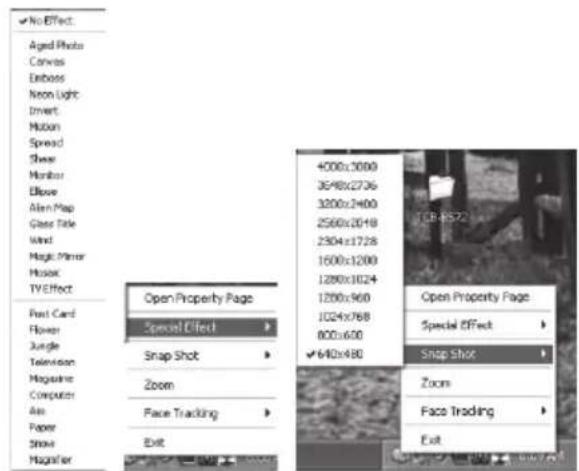
To capture a still image, right click on the webcam icon form system tray and then select "Snapshot" and your desired image size. A screen with a preview of the taken photo will appear. To save the photo choose "File" and then "Save as" and specify fi lename.
Changing
video resolution
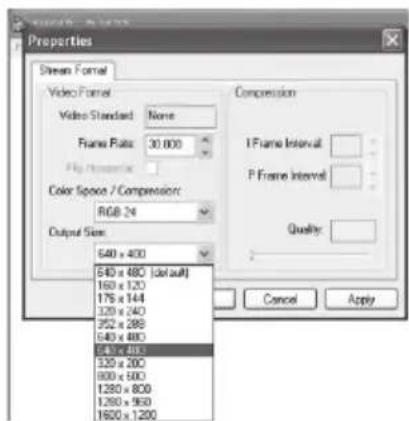
Select "Options" and then "Video Capture Pin" to open following window.
text_image
Properties Stream Format Video Format Video Standard: None Frame Rate: 30.000 Color Space / Compression: RGB 24 Output Size: 540 x 400 540 x 480 [default] 160 x 120 175 x 144 120 x 240 352 x 288 540 x 480 540 x 480 320 x 200 800 x 500 1280 x 800 1280 x 950 1600 x 1200 Compression I Frame Interval: P Frame Interval: Quality: Cancel ApplyNote: any higher then VGA resolution will decrease transmisson speed (fps) due to USB bandwitch.
Recording a video
Open AMCAP, click the "Capture" then "Start Capture", specify fi lename and patch then click „OK" to start capturing. Select "Stop Capture" to fi nish recording.
Advanced settings
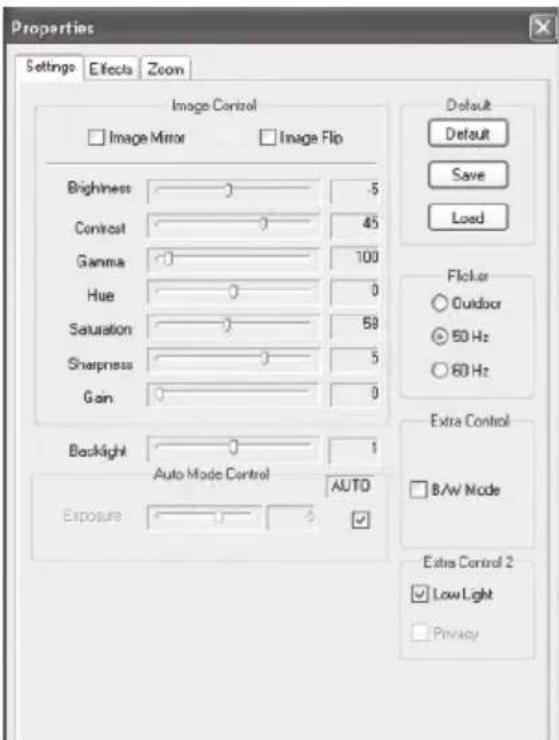
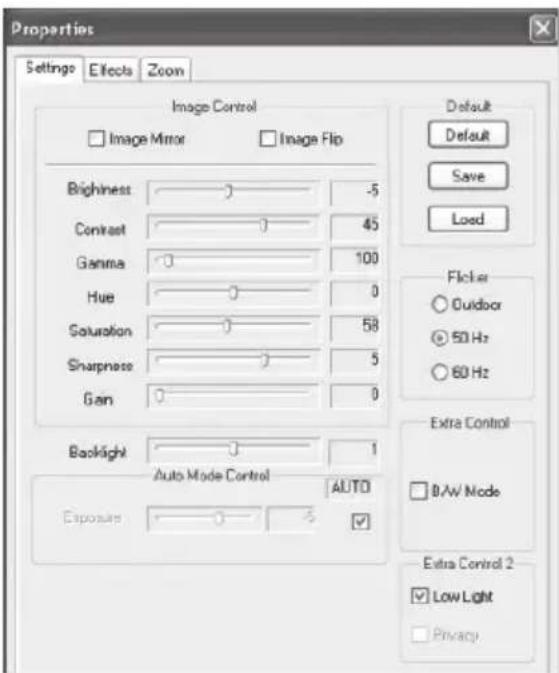
Open AMCAP, select "Options" and then "Video capture fi Iter" – following window will appear.
„Settings" tab
text_image
Properties Settings Effects Zoom Image Control □ Image Mirror □ Image Flip Brightness -5 Contrast 45 Gamma 100 Hue 0 Saturation 58 Sharpness 5 Gain 0 Backlight 1 Auto Mode Control AUTO Exposure ✓ Default Default Save Load Flicker ○ Outdoor ● 50 Hz ○ 60 Hz Extra Control □ BAW Mode Extra Control 2 ✓ Low Light □ PrivacyHere you can adjust basic image corrections. You can also choose "low light" when working in dark conditions or choose frequency to match your power grid frequency rate (50Hz or 60Hz).
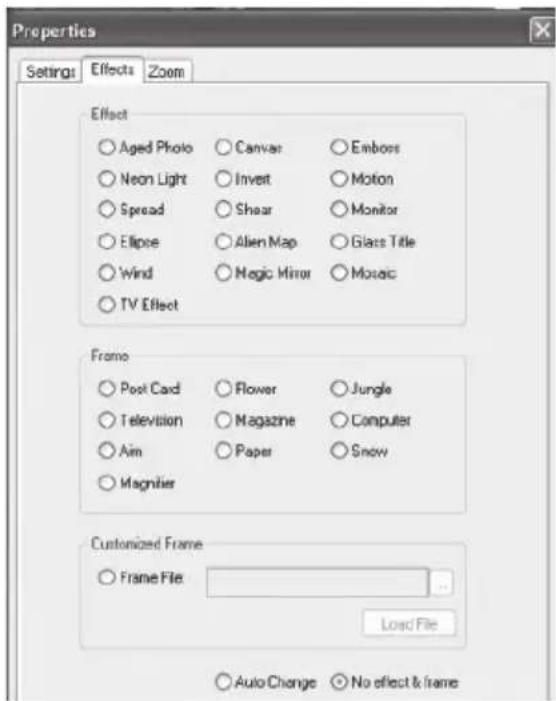
"Eff ect" tab
Here you can select image effect and image frame for captured video.
text_image
Properties Settings Effects Zoom Effect ○ Aged Photo ○ Canvas ○ Emboss ○ Neon Light ○ Invert ○ Motion ○ Spread ○ Shear ○ Monitor ○ Ellipse ○ Alien Map ○ Glass Title ○ Wind ○ Magic Mirror ○ Mosaic ○ TV Effect Frame ○ Post Card ○ Flower ○ Jungle ○ Television ○ Magazine ○ Computer ○ Aim ○ Paper ○ Snow ○ Magnifier Customized Frame ○ Frame File Load File ○ Auto Change ○ No effect & frame„Zoom“ tab
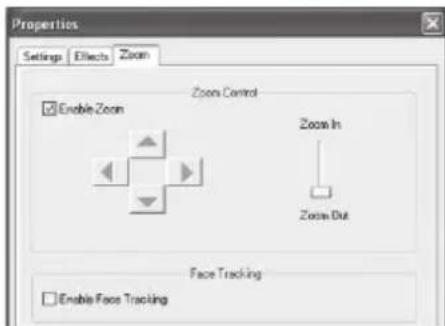
Here you can enable „Face tracking“ function and control „Zoom“ function.
Note: „Face tracking“ works only in VGA mode.
text_image
Properties Settings Effects Zoom Zoom Control Enable Zoom Zoom In Zoom Out Face Tracking Enable Face TrackingAdvanced settings can be accessed by right click on webcam icon from system tray.
text_image
✓ No Effect Aged Photo Canvas Emboss Neon Light Invert Mbox Spread Shear Monitor Elbow Alan Map Glass Tile Wind Magic Mirror Music TV Effect Open Property Page Special Effect Snap Shot Zoom Face Tracking Exit 4000x3000 3548x2736 3200x2400 2560x2018 2304x1728 1600x1200 1280x1024 1200x960 1024x768 800x600 ✓ 640x480 Open Property Page Special Effect Snap Shot Zoom Face Trading ExitSetting focus
To adjust focus rotate lens ring to left/right to achieve desired focus range.
Precautions
■ Do not touch camera lens with hand, sharp or coarse stuff, always use clean and soft cloth for cleaning.
■ Do not use it in extremely hot, cold, dusty or humid circumstances.
■ Avoid mechanical shocks not to damage the glass lens.
Note: Heat emission is a normal effect when web-cam is working.
Camera Specification
■ High Resolution Digital Camera CMOS Sensor
■ Video mode: RGB24 or YUY2
■ Interface: USB2.0
■ Max transmission rate: 640x480@30fps
■ Image focus: 3cm to infinity
■ Non-Compression Image Processor
■ AWB (Automatic White Balance)
■ Manual Focus Function
■ 5-layer glass lens
■ Built-in Microphone
■ Face tracking function (software enabled)
■ Photo frame function (software enabled)
PC Camera for Teleconferencing & Video Surveillance
Instrukcja obsługi
Wprowadzenie
text_image
Web Camera is plugged intext_image
Properties Settings Effects Zoom Image Control Image Mirror Image Flip Blightness -5 Contrast 45 Gamma 100 Hue 0 Saturation 58 Sharpness 5 Gain 0 Backlight 1 Auto Mode Control AUTO Exposure ✓ Default Default Save Load Flicker ● Outdoor ● 50 Hz ○ 60 Hz Extra Control □ B/W Mode Extra Control 2 ✓ Low LightPC Camera for Teleconferencing & Video Surveillance
Gebrauchsanleitung
Einleitung
Hardware installation
Software Installation
text_image
Web Camera is plugged intext_image
Properties Settings Effects Zoom Effect Aged Photo Canvas Emboss Neon Light Invert Motion Spread Shear Monitor Ellipse Allen Map Glass Title Wind Magic Mirror Mosaic TV Effect Frame Post Card Flower Jungle Television Magazine Customer Aim Paper Snow Magnities Customized Frame Frame File Load File Auto Change No effect & frame„Zoom“ Tab
text_image
Open Property Page Special Effect Snap Shot Zoom Face Tracking Exit 4000x3000 3648x2736 3200x2400 2560x2010 2304x1729 1600x1200 1280x1024 1280x960 1024x768 800x600 ✓ 640x480 TCP-8572 Open Property Page Special Effect Snap Shot Zoom Face Tracking Exit ✓ No Effect Aged Photo Canvas Embass Neon Light Invert Mobotn Spread Shear Monitor Ellipse Allen Map Glass Title Wind Magic Mirror Hosak IVEffect Post Card Flower Jungle Television Magazine Computer Air Paper Show Magifiertext_image
Web Camera is plugged intext_image
No Effect Aged Photo Canvas Emboss Neon Light Invert Huban Spread Shear Monitor Elbow Allen Map Glass Title Wind Magic Mirror Mouse IV Effect Post Card Flower Jungle Television Magazine Computer Air Paper Snow Magnifier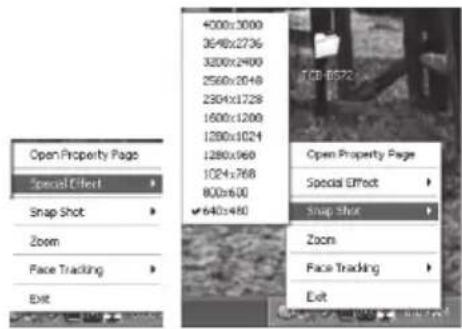
text_image
Open Property Page Special Effect Snap Shot Zoom Face Tracking Exit 400x:3000 3648x2736 3200x2400 2560x2049 2304x1728 1600x1200 1280x1024 1280x068 1024x768 800x600 ✓640x+80 TCP-0572 Open Property Page Special Effect Snap Shot Zoom Face Tracking ExitНастройка фокуса
PC Camera for Teleconferencing & Video Surveillance
Használati utasítás
text_image
Web Camera is plugged intext_image
✓ No Effect Aged Photo Canvas Emboss Neon Light Invert Motion Spread Shear Monitor Ellipse Alien Map Glass Title Wind Magic Mirror Mosaic TV Effect Post Card Flowers Jungle Television Magazine Computer Alin Paper Snow Magnifier Open Property Page Special Effect Snap Shot Zoom Face Tracking Exit 4000x3000 5648x2736 3200x2400 2560x2040 2304x1728 1600x1200 1200x1024 1200x950 1024x768 800x600 ✓ 640x480 Open Property Page Special Effect Snap Shot Zoom Face Tracking ExitSetting focus
text_image
Web Camera is plugged intext_image
Windows XP Professional Programs Documents Settings Search Help and Support Run... Log Off Administrator ... Turn Off Computer... Accessories Startup Windows Media Player USB2.0 PC Camera USB Video Device s AML Iraq Uninstall start 7 - Plant wnt: 12M 5/8/46206.132AMCAP
Преглед на видео
text_image
No Effect Applied Photo Canvas Emboss Neon Light Drive Motion Spread Shear Monitor Elbow Allen Map Glass Title Wind Magic Mirror Mouse IV Effect Post Card Flower Jungle Television Magazine Computer Air Paper Snaw Magnifier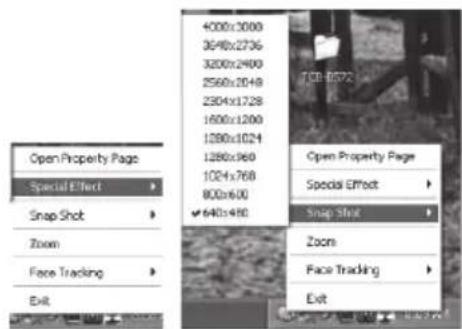
text_image
Open Property Page Special Effect Snap Shot Zoom Face Tracking Exit 4000x3000 3540x2736 3200x2400 2560x2049 2304x1728 1600x1200 1280x1024 1280x960 1024x768 800x600 ✓ 640x490 Open Property Page Special Effect Snap Shot Zoom Face Tracking ExitНастройка на фокуса
PC Camera for Teleconferencing & Video Surveillance
Navodila za uporabo
Uvod
Hvala ker ste kupili to visokokvalitetno video kamero. Naslednje informacije vam bodo pomagale pri varni in pravilni uporabi vaše kamere. Za izdelavo in pregled vaših slik in video posnetkov, morate kamero priklopiti na vaš osebni računalnik.
Ta kamera podpira Microsoft Video Class in Plug&Play direktno brez gonilnikov. Za uporabo ostalih dodatenih storitev kot "face tracking" ali "snapshot" prosimo sledite navodilom za nalaganje programske opreme.
Sistemske zahteve
■ Pentium IV 1GHz ali boljši CPU
■ 500MB postega spomina na trdem disku
■ CD-ROM pogon
512MB RAM
■ VGA kartica z DirectX 9.0 podporo
■ Windows 2000/XP SP2/Vista/7
■ internet povezavo
■ prost USB 2.0 vhod
Vsebina paketa
text_image
Web Camera is plugged intext_image
Windows XP Professional Programs Documents Settings Search Help and Support Run... Log Off Administrator ... Turn Off Computer... Accessories Startup Windows Media Player USB2.0 PC Camera USB Video Device $ AMC App Uninstall start 7-Pack unit: 12M S-8/48205.193Uporaba AMCAP programske opreme
Video predogled
Kliknite AMCAP za zagon aplikacije, će ne vidite slike kliknite "Options" and izberite "Preview" da omogočite video predogled.
text_image
MACAP 0.1273 File Devices Options Capture Help Release Audio Filter... Video Capture Filter... Video Capture Pin..."Snapshot" funkcija
Za zajemanje stoječe slike, naredite desni klik na ikono vebkamere in nato izberite "snapshot" in nato izberite velikost slike. Zaslon z predogledom napravljene slike se bo prikazal. Za shranitev slike izberite "File" in nato "Save as" in izberite ime slike.
Zamenjava
video
resolucije
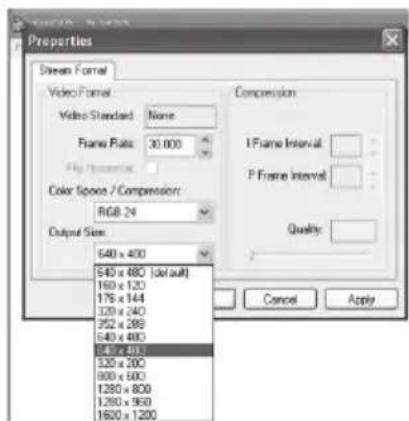
Izberite "Options" in nato "Video Capture Pin" da se vam od-pre naslednje okno.
text_image
Properties Stream Format Video Format Video Standard: None Frame Rate: 30.000 Color Splice / Compression: RGB 24 Output Size: 540 x 400 540 x 480 [default] 160 x 120 176 x 144 120 x 240 352 x 286 540 x 480 540 x 490 520 x 200 800 x 500 1280 x 800 1280 x 950 1600 x 1200 Compression I Frame Interval: P Frame Interval: Quality: Cancel ApplySnemanje video
Odprite AMCAP, kliknite "Capture" nato "Start Capture", zapišite ime in nato kliknite „OK“ za začetek zajemanja. Izberite "Stop Capture" za zaključek snemanja.
Napredne nastavitve
Odprite AMCAP, izberite "Options" in nato "Video capture fi Iter" – prikazalo se bo naslednje okno.
„Settings“ zavihek