
32PFL3330 - TV PHILIPS - Free user manual and instructions
Find the device manual for free 32PFL3330 PHILIPS in PDF.


User questions about 32PFL3330 PHILIPS
0 question about this device. Answer the ones you know or ask your own.
Ask a new question about this device
Download the instructions for your TV in PDF format for free! Find your manual 32PFL3330 - PHILIPS and take your electronic device back in hand. On this page are published all the documents necessary for the use of your device. 32PFL3330 by PHILIPS.
USER MANUAL 32PFL3330 PHILIPS
Register your product and get support at
www.philips.com/welcome
natural_image
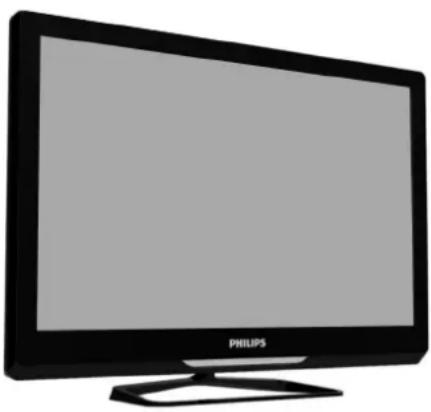
Black Philips TV monitor with blank screen and stand (no text or symbols on body)32PFL3330/V7
EN User manual
PHILIPS
Cover 2 Blank
Contents
1 Notice 2
2 Important 3
Product disposal Guidelines 4
3 Use your TV 5
4 Use more of your TV
9
5 Play photos, music and videos 16 o n USB storage devices
6 Troubleshooting
18
7 Product information
21
8 Consumer Guidelines
23
9 Warranty
24
1 Notice
Pixel characteristics
This LCD/LED product has a high number of color pixels. Although it has effective pixels of 99.999% or more, black dots or bright points of light (red, green or blue) may appear constantly on the screen. This is a structural property of the display (within common industry standards) and is not a malfunction.
Warranty
No components are user serviceable. Do not open or remove covers to the inside of the product. Repairs may only be done by Philips Service Centres and official repair shops. Failure to do shall void any warranty, stated or implied.
Any operation expressly prohibited in this manual, or any adjustments and assembly procedures not recommended or authorised in this manual shall void the warranty.
2 Important
Read and understand all instructions before you use your TV. If damage is caused by failure to follow instructions, the warranty does not apply.
Safety
Risk of electric shock or fire!
- Never expose the TV to rain or water. Never place liquid containers, such as vasels, near the TV. If liquids are spilt on or into the TV, disconnect the TV from the power outlet immediately. Contact Philips Consumer Care to have the TV checked before use.
- Never place the TV, remote control or batteries near naked flames or other heat sources, including direct sunlight. To prevent the spread of fire, keep candles or other flames away from the TV, remote control and batteries at all times.

- Never insert objects into the ventilation slots or other openings on the TV.
- When the TV is swivelled ensure that no strain is exerted on the power cord. Strain on the power cord can loosen connections and cause arcing.
Risk of short circuit or fire!
- Never expose the remote control or batteries to rain, water or excessive heat.
- Avoid force coming onto power plugs. Loose power plugs can cause arcing or fire.
Risk of injury or damage to the TV!
- Two people are required to lift and carry a TV that weighs more than 25 kg or 55 lbs.
- When stand mounting the TV, use only the supplied stand. Secure the stand to the TV lightly. Place the TV on a flat, level surface that can support the combined weight of the TV and the stand.
- When wall mounting the TV, use only a wall mount that can support the weight of the TV. Secure the wall mount to a wall that can support the combined weight of the TV and wall mount.PE Electronics Ltd. bears no responsibility for improper wall mounting that result in accident, injury or damage.
Risk of injury to children!
Follow these precautions to prevent the TV from toppling over and causing injury to children:
- Never place the TV on a surface covered by a cloth or other material that can be pulled away.
- Ensure that no part of the TV hangs over the edge of the surface.
- Never place the TV on tall furniture (such as a bookcase) without anchoring both the furniture and TV to the wall or a suitable support.
• Educate children about the dangers of climbing on furniture to reach the TV Risk of swallowing batteries!
• The product/remote control may contain a coin-type battery, which can be swallowed. Keep the battery out of reach of children at all times!
Risk of overheating!
- Never install the TV in a confined space. Always leave a space of at least 4 inches or 10cm around the TV for ventilation. Ensure curtains or other objects never cover the ventilation slots on the TV.
Risk of damage to the TV!
- Before you connect the TV to the power outlet, ensure that the power voltage matches the value printed on the back of the TV. Never connect the TV to the power outlet if the voltage is different.
Risk of injury, fire or power cord damage!
- Never place the TV or any objects on the power cord.
- To easily disconnect the TV power cord from the power outlet, ensure that you have full access to the power cord at all times.
- When you disconnect the power cord, always pull the plug, never the cable.
- Disconnect the TV from the power outlet and antenna before lightning storms. During lightning storms, never touch any part of the TV, power cord or antenna cable.
Risk of hearing damage!
- Avoid using earphones or headphones at high volumes or for prolonged periods of time.
Low temperatures
- If the TV is transported in temperatures below 5^ or 41^ , unpack the TV and wait until the TV temperature matches room temperature before connecting the TV to the power outlet.
Screen care
- Avoid stationary images as much as possible. Stationary images are images that remain on-screen for extended periods of time. Examples include: on-screen menus, black bars and time displays. If you must use stationary images, reduce screen contrast and brightness to avoid screen damage.
- Unplug the TV before cleaning.
- Clean the TV and frame with a soft, damp cloth. Never use substances such as alcohol, chemicals or household cleaners on the TV.
- Risk of damage to the TV screen! Never touch, push, rub or strike the screen with any object.
• To avoid deformations and colour fading, wipe off water drops as soon as possible.
Product disposal Guidelines:
For the purpose of recycling to facilitate effective utilization of resources, please return this product to a nearby authorized collection center, registered dismantler, recycler, service center when disposing of this product. In case of further assistance, you may contact nearest authorized service center. Or Please see the Company website for further information on collection centers etc. Visit-it www.phillips.com Toll: 1860 200 0129
Congratulations on your purchase, and welcome to Philips. To fully benefit from the support that Philips offers, register your TV at www.philips.com/welcome.
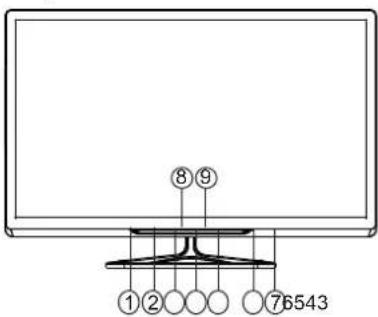
3.1 Name and Function of Control on Set (32PFL3330/V7)
A) TV controls and Indicators
text_image
①②○○○ ⑧⑨ ⑦6543Note:
1) Above sketches are just for representation. Actual product may look different.
2) Connect YPbPr Audio input to R IN & L IN input terminals for AV2.
3) MHL is Supported in HDMI 1 & ARC is supported in HDMI 2.
4) For source selection by controls on TV. Press TV/AV key repeatedly till you
reach to desired source In source OSD & then press VOL+ key.
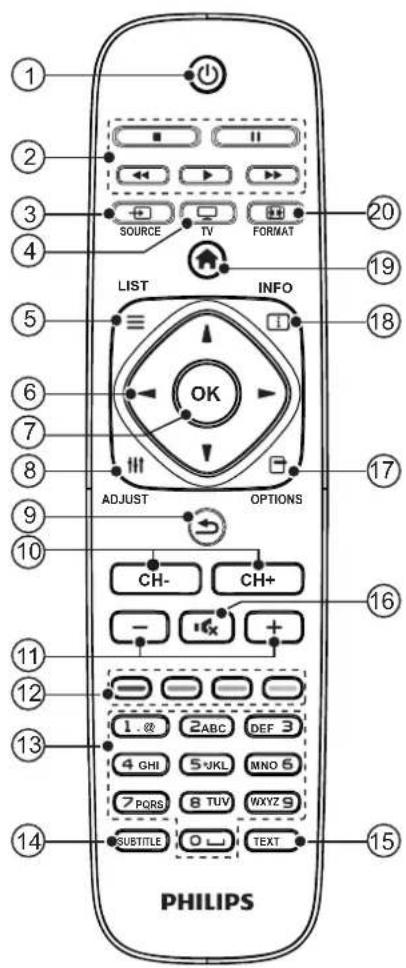
3.2 Name and Function of Control on Remote
text_image
① ② ③ ④ SOURCE TV FORMAT LIST INFO OK ADJUST OPTIONS CH- CH+ ⑥ ⑦ ⑧ ⑨ ⑩ ⑪ ⑫ ⑬ ⑭ ⑮ ⑯ ⑰ ⑱ ⑲ ⑳ 1. @ 2ABC DEF 3 4 GHI SJKL MNO 5 7 PQRS 8 TUV WXYZ9 SUBTITLE TEXT PHILIPS①
(Standby-On)
• Switches the TV ON or OFF
The TV is not powered off completely unless it is physically unplugged
②
Multimedia Control buttons
• Control video or music.
③
SOURCE
- Selects connected devices.
④
TV
- Access the TV mode.
⑤
LIST
• Access the Channel List.
⑥
▲▼◀▶ (Navigation buttons)
- Navigate through menus and select items. (Also in USB mode).
7
OK
- Confirm an entry or selection.
8
ADJUST
- Access the Adjust menu to adjust settings.
⑨
5
Return to the previous menu or exit a function.
10
CH-/CH+(Previous/Next)
- Switch channels or navigate through menu pages, tracks, albums or folders.
⑪
+/-
- Adjust volume.
12
Color buttons
- Select tasks or options.
13
0-9 Numeric buttons
- Select channels.
14
SUBTITLE
• Not Applicable for 3300 series model's.
15
TEXT
Not applicable for 3300 series model's.
16

Access the option menu to adjust settings.
18
INFO
• Displays the source information with details of input connected.
19
(Home)
- Access the home menu.
20
FORMAT
- Adjust picture format.
3.3 Remote control usage
When you use the remote control, hold it close to the TV and point it at the remote control sensor. Make sure that the line-of-sight between the remote control and TV is not blocked by furniture, walls or other objects.

text_image
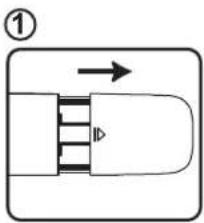
5m 283.4 Battery Installation
- Remove the battery compartment door.
- Install 2 "AAA" or UM-4 (1.5V) batteries or equivalent with the correct polarity as indicated.
- Refix the battery compartment door.
NOTE: Remove batteries when they are exhausted or if the remote control is not to be used for a long time.
BATTERY PRECAUTIONS:
Incorrect use of batteries can cause electrolyte leakage which will corrode the remote handset or cause the batteries to burst.
■ Replace both batteries at the same time.
■ Don't Mix battery types (alkaline with carb on, zinc etc.).
■ Don't recharge.
text_image
①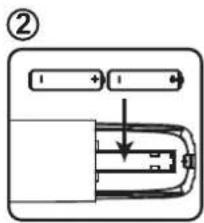
text_image
Diagram showing battery connection with labeled components and directional arrow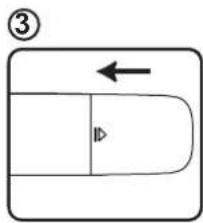
text_image
③4 Use more of your TV
4.1 Main Menu
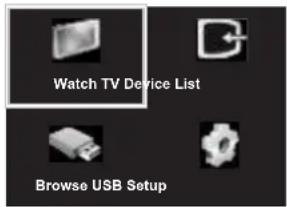
Menus help you to install channels, change picture and sound settings and access other TV features.
1 Press
» The menu screen appears.
text_image
Watch TV Device List Browse USB Setup2 Select one of the following, then press OK
- [Watch TV] : If a source other than antenna is selected, switch back to the antenna source
• [Browse USB]: View photos and play music and movies contained in USB storage devices. - [Device List] : Access menus to change other source by pressing key.
- [Setup] : Access menus to change picture, sound and other settings.
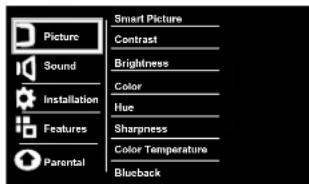
4.2 Manually adjust picture setting
text_image
Picture Sound Installation Features Parental Smart Picture Contrast Brightness Color Hue Sharpness Color Temperature Blueback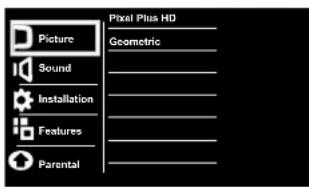
text_image
Picture Sound Installation Features Parental Pixel Plus HD Geometric1 Press
2 Select [Setup] > [Picture], then press OK.
3 Select one of the following settings, then Press ▲▼ to move, and press ◀▶ to adjust.
- [Smart picture] : Access predefined smart picture settings.
• [Contrast] : Adjust the intensity of backlight areas, while the video contents are kept unchanged.
• [Brightness] : Adjust the intensity and details of dark areas.
• [Color]: Adjust color saturation.
• [Sharpness]: Adjust sharpness in the image.
Note: Not Applicable for VGA Mode
• [Hue] : Compensate for color variations. (Available only for NTSC channels).
• [Color Temperature] : Adjust the color balance in an image.
• [Blueback] : This function is used to ON/OFF the blue screen at no signal condition.
[Pixel Plus HD ] :
To enhance the picture quality
• [Flesh Tone] : Aduct Flesh tone
- [Noise Reduction]: Filter and reduce noise in an Image
• [Dynamic contrast] : Enhance contrast.
• [Color enhancement] : Make colors more vivid and improve the details in bright colors. You can switch this feature ON or OFF.
[Geometric]:
- [Auto Setting]: This automatically adjust H & V-position, Phase and Clock for VGA mode.
• [H-Position] : Adjust the horizontal position of image [Only in VGA].
• [V-Position] : Adjust the vertical position of image [Only in VGA]. - [Manual Clock]: If picture is not OK with Auto Setting, then adjust by manual clock [Only in VGA].
- [Phase]: If picture is not OK with Auto Setting, then adjust by phase. [Only in VGA].
4.3 Use Smart Picture
Use smart picture to apply pre-defined picture settings.
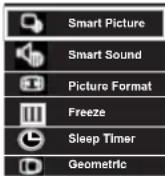

1 Press III ADJUST.
2 Select [Smart Picture], then press OK.
3 Select one of the following settings, by ▲▼
• [Bright] : Ideal settings for night time.
• [Vivid] : Rich and dynamic settings, ideal for daytime.
• [Sport] : Ideal settings for sport.
. [Cinema] : Ideal settings for movies.
• [Personal] : Apply your customised picture settings.
4.4 Use Picture Format
1 Press III ADJUST.
2 Select [Picture Format], then press OK
3 Select any picture format, then press OK

- Depending on the format of the picture source, some picture settings may not be available.
4.5 Use Freeze option
1 Press III ADJUST.
2 Select [Freeze], then press OK
3 Select option as ON to freeze the picture.
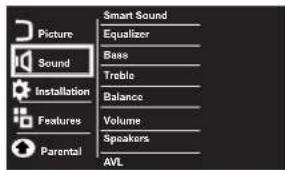
4.6 Manually adjust sound setting
text_image
Picture Sound Installation Features Parental Smart Sound Equalizer Bass Treble Balance Volume Speakers AVL1 Press
2 Select [Setup] > [Sound] then press OK
3 Select one of the following settings, then Press ▲ to move, and press ◀ to adjust.
- [Smart Sound]: Access predefined smart sound settings.
• [Equalizer]: Adjust the equalizer ON various frequencies.
• [Bass] : Adjust the bass level.
• [Treble] : Adjust the treble level.
• [Balance]: Adjust the balance of the right and left speakers.
• [Volume] : The main speaker volume can be adjusted by varying this volume bar.
• [Speakers] : The main speakers can be made ON / OFF by this option.
• [AVL] : Auto volume leveler automatically reduces sudden volume changes, for example when switching channels.
4.7 Use Smart Sound
Use smart sound to apply pre-defined Sound settings.
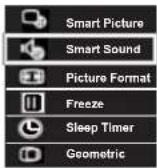

1 Press ⬆ ADJUST.
2 Select [Smart Sound], then press OK.
3 Select one of the following settings, by ▲▼ [Smart sound] : Access predefined smart sound settings.
• [Standard] : Settings that suit most environments and types of audio.
• [Music] : Ideal settings for listening to music
- [News] : Ideal settings for spoken audio, such as news.
• [Personal] : Apply the settings that were customised in the sound menu.
4.8 Use Sleep Timer
1 Press || ADJUST
2 Select [Sleep Timer], then press OK.
Press ▲adjust the Sleep timer OFF and ON
in step of 5,10,30,60,120 min
4.9 Installation Menu
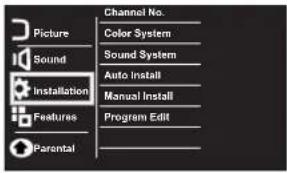
text_image
Picture Sound Installation Features Parental Channel No. Color System Sound System Auto Install Manual Install Program Edit1 Press
2 Select [Setup] > [Installation] then press OK
3 Select one of the following settings, then Press ▲ to move, and press ◀ to adjust.
• [Channel No.]: Display the channel number of the current channel.
• [Color System] : Change the color system (AUTO/PAL/SECAM) setting if the picture is not reproduced properly.
Note: For India color system is Auto or PAL.
• [Sound System] : Change the sound sound system (BG/I/DK) setting if sound is not reproduced properly. Note: For India sound system is BG.
• [Auto Install] : Select the function TV set will start auto tuning for all available channels.
- [Manual Install] : Select this for manually searching the channels, select the function from which tuning will start.
• [Program Edit]: You can Delete, Rename, Move or Skip any programmes.
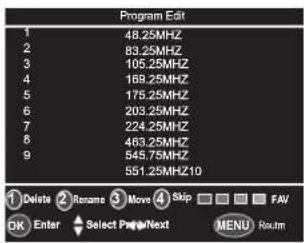
text_image
Program Edit 1 48.25MHz 2 83.25MHz 3 105.25MHz 4 169.25MHz 5 175.25MHz 6 203.25MHz 7 224.25MHz 8 463.25MHz 9 545.75MHz 1 551.25MHz10 ① Delete ② Rename ③ Move ④ Skip FAV OK Enter Select Page/Next MENU RoutmDelete
Select Delete option by Pressing 1 button, the program will be deleted.
Rename
Move the cursor to the program, Select Rename option by pressing 2 button to rename the program. Press ▲▼ to choose the character. Press ◀▶ to move the cursor. Press OK button to Enter, Press Menu button to Return the Edit Menu.
Move
Move the cursor to the program, Select Move option by pressing 3 button and press ▲▼to move the program.
Skip
Select Skip option by pressing 4 button to skip this program.
Favourite List
User can prepare 4 independent favourite list. To define favourite list, Move the cursor to the desired program number & press Red/Green/Yellow or Cyan color key in which you wish to add program
To access favourite list press Red/Green/Yellow/Cyan color keys on remote.
4.10 Features Menu
1 Press
2 Select [Setup] > [Features] then press OK
3 Select one of the following settings. then press OK.. Press ▲▼ to move, and press ◀▶ to adjust.
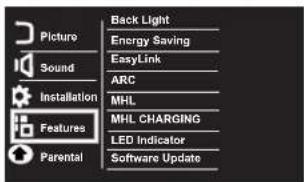
text_image
Picture Sound Installation Features Parental Back Light Energy Saving EasyLink ARC MHL MHL CHARGING LED Indicator Software Update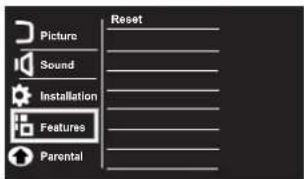
text_image
Picture Sound Installation Features Parental Reset- [Back Light]: The backlight value can be varied. This function used to adjust brightness level of panel.
- [Energy Saving]: To save the power consumed by TV, select power saving modes Off/low/Mid/ High/Audio only Mode. After selection of Low/Mid/high energy saving indication displayed on energy meter by pressing info key of remote control
Low: After selection of energy saving option to "Low", approx.5% of rated power will get saved.

Mid: After selection of energy saving option to "Mid", approx. 10% of rated power will get saved.

High: After selection of energy saving option to "High", approx 25% of rated power will get saved.

Audio only : After selection of energy saving to "Audio only" panel power switched off & only audio come from TV sets which results in power saved of approx 35%

Note
- Press any key ( except Find, Text, subtitle Vol +/- and Mute) to exit 'Audio only' mode
- [Easy Link]: If you connect HDMI-CEC compliant devices through HDMI, you can control them at the same time with your TV remote control.
- [ARC] : This is used to control ARC feature, If set ARC to "On" TV sound will be deactivated & ARC enabled HT sound will be activated
- [MHL] : This is used to control MHL feature, If set MHL to "On" mobile screen will be Displayed on TV
• [MHL CHARGING] : If set MHL charging To On mobile can be charged through TV Even if TV is in standby mode. - [LED Indicator] : This is used to control LED indicator status when TV is in standby Mode.
If LED Indicator is "ON" LED will glow when TV is in standby mode & vice versa.
[Software Update] : This option is for updating the software.
[Reset]: Reset to factory default settings.
4.11 Parental Menu
text_image
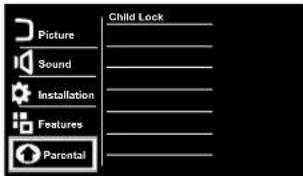
Picture Sound Installation Features Parental Child Lock1 Press
2 Select [Setup] > [Parental] then press OK
3 Select one of the following settings, then press OK.
- [Child Lock]: Enter the password, then the following menus will open.
Note: Default password is "0000"
- [Child Lock Switch]: Make the child lock switch ON to lock the source/channel. [Change Password]: Select this option to change the password.
- [Channel Block]: Select the channels to be locked and press '2' to lock or unlock the channels.
• [Video Lock]: Select the sources with up/down keys on remote and press OK to set or clear lock.
• [Clear All]: Reset the child lock option to default value.
4.12 Use Philips EasyLink
Get the most out of your HDMI-Consumer Electronic Control (CEC) compliant devices with Philips EasyLink enhanced control features.
If your HDMI-CEC compliant devices are connected through HDMI, you can control them at the same time with your TV remote control.
To enable Philips EasyLink, you need to:
- Connect HDMI-CEC
compliant devices through HDMI
- Configure each HDMI-CEC compliant device properly
- Switch on EasyLink

Note
- The EasyLink-compliant device must be switched on and selected as the source.
• Philips does not guarantee 100% interoperability with all HDMI CEC devices.
4.13 Switch on or off EasyLink
1 Press

2 Select [Setup] > [Features] > [EasyLink] > [EasyLink].
3 Select [On] or [Off], then press OK

Note
- If EasyLink is OFF, all its submenus are unavailable.
text_image
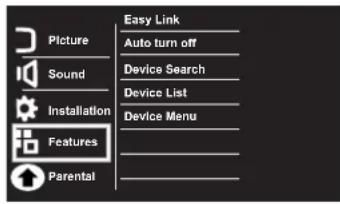
Picture Sound Installation Features Parental Easy Link Auto turn off Device Search Device List Device Menu4.14 Switch the device ON or OFF
When an HDMI-CEC compliant device is connected and TV switches to standby, the device gets turned OFF automatically.
1 Press

2 Select [Setup] > [Features] > [EasyLink] > [Auto turn off] >
3 Select [On] or [Off], then press OK
When an HDMI-CEC compliant device is connected and TV is switched ON, then the device gets turned ON automatically.
4.15 Search the connected devices Search the HDMI-CEC compliant devices connected to your TV and list them using Device list.
1 Press

2 Select [Setup] > [Features] > [EasyLink] > [Device Search] >
4.16 Control the device using TV remote
Now use a single remote to control your CEC enabled device.
1 Press

2 Select [Setup] > [Features] > [EasyLink] > [Device Menu]
text_image
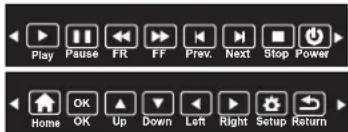
Play Pause FR FF Prev. Next Stop Power Home OK Up Down Left Right Setup ReturnPress ◀▶ to select the function icon, press OK button to confirm the function.
4.17 Use Geometric
Use Geometric to automatically adjust phase and Clock for VGA mode
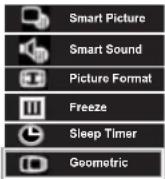
1 Press III ADJUST.
2 Select [Geometric], then press OK.
This automatically adjust H & V-position,
Phase and Clock for VGA mode
4.18 Use the Options menu
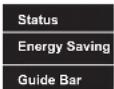
Visit options relevant to current action or selection.
1 While you watch TV, press☐ OPTIONS key.
» The TV options menu appears.
2 Select one of the following options, then press OK.
• [Status]: Display information concerning currently viewing channel/source.
• [Energy Saving]: Respective menu after pressing OK.pop ups
- Press ▲▼ to conserve energy, refer 4.10 for more details.
• [Guide Bar] : Respective menu after pressing OK.pop ups
- Press ◀▶ to access menu bar. refer 5.8 for more details.

• Guide Bar only applicable for HDMI (CEC) & USB Source.
5 Play photos, music and videos on USB storage devices
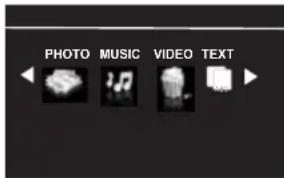
5.1 Connect a USB storage device to play photos, music or videos stored on it.
1 Switch on the TV.
2 Connect the USB device to the USB port on the side of your TV.
3 Press
4 Select [Browse USB], then press OK
The USB browser appears.
5.2 View photos
1 In the USB browser, select [Photo], then press OK.
2 Select a photo or a photo album, then OK to view the photo
- To preview the next or previous photo, press ◀▶ then press ▶ to play
5.3 View a slide show of your photos
Press the following buttons to control play of selected photos.:
Select photos by OK key :
• ▶ to play.
- to pause.
- CH- or CH+ to play the previous or next photo.
5.4 Listen to music
1 In the USB browser, select [Music], then press OK.
2 Select a music track or album, then press OK or ▶ to play.
5.5 Watch video
1 In the USB browser, select [Video], then press OK.
2 Press OK or ▶ to play.
3 To control play, press buttons:
• ▶ to play & || to pause.
- CH- or CH+ to play the previous or next video.
5.6 Text
1 In the USB browser, select [Text], then press OK.
2 Select a Text File, then Press
OK or ▶ to play.
5.7 Use the Options menu
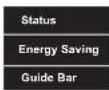
Visit options relevant to current action or selection.
1 While you watch TV, press OPTIONS key.
» The TV options menu appears.
2 Select one of the following options, then press OK.
[Status]: Not Applicable For USB
• [Energy Saving]:
after pressing OK.pop ups
- Press ▲▼ to conserve energy. refer 4.10 for more details.
• [Guide Bar]: Respective menu after pressing OK.pop ups
- Press ◀▶ to access menu bar. refer 5.8 for more details.

Note
- Guide Bar only applicable for HDMI (CEC) & USB Source.
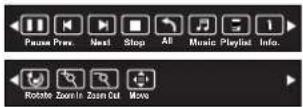
5.8 Music, Photo, video, text mode control menu bars
You can select the multimedia functions like play, Pause, FF, FR, Next, Previous. Stop etc.
To use above functions press
☐ OPTIONS key, then select 'Guide Bar'.
Picture mode menu bar:
Music mode menu bar:
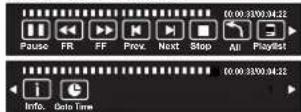
Press ◀▶ to select the function icon, press OK button to confirm the function.
Video mode menu bar:
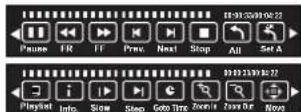
Press ◀▶ to select the function icon, press OK button to confirm the function.
Text mode menu bar:

Press ◀▶ to select the function icon, press OK button to confirm the function.
5.9 Disconnect a USB storage device

Caution
- Follow this procedure to avoid damage to your USB storage device.
1 Press to exit the USB browser.
2 Wait for five seconds, then disconnect the USB storage device.
6 Troubleshooting
This section describes commonly encountered issues and accompanying solutions.
6.1 General TV issues
The TV does not switch on:
- Disconnect the power cable from the power outlet. Wait for one minute then reconnect it.
- Check that the power cable is securely connected.
The remote control is not working properly:
- Check that the remote control batteries are correctly inserted according to the +/- orientation.
- Replace the remote control batteries if they are flat or weak.
- Clean the remote control and TV sensor lens. The standby light on the TV blinks red:
- Disconnect the power cable from the power outlet. Wait until the TV cools down before reconnecting the power cable. If the blinking reoccurs, contact Philips Consumer Care.
You forgot the code to unlock the TV lock feature • Enter '8202'.
When turning the TV on/off/to standby, you hear a creaking sound from the TV chassis:
- No action is required. The creaking sound is normal expansion and contraction of the TV as it cools down and warms up. This does not impact performance.
6.2 TV channel issues
Previously installed channels do not appear in the channel list:
Check that the correct channel list is selected.
6.3 Picture issues
The TV is on, but there is no picture:
- Check that the antenna is properly connected to the TV.
- Check that the correct device is selected as the TV source.
There is sound but no picture:
- Check that the picture settings are correctly set.
There is poor TV reception from an antenna connection:
- Check that the antenna is properly connected to the TV.
- Loudspeakers, unearthed audio devices, neon lights, high buildings and other large objects can influence reception quality. If possible, try to improve the reception quality by changing the antenna direction or moving devices away from the TV.
- If reception on only one channel is poor, fine tune this channel. There is poor picture quality from connected devices:
- Check that the devices are connected properly.
- Check that the picture settings are correctly set.
The TV did not save your picture settings:
- Check that the TV location is set to the home setting. This mode offers you the flexibility to change and save settings.
The picture does not fit the screen; it is too big or too small:
• Try using a different picture format.
The picture position is incorrect:
• Picture signals from some devices may not fit the screen correctly. Check the signal output of the device.
6.4 Sound issues
There is a picture but sound quality is poor:

Note
- If no audio signal is detected, the TV automatically switches the audio output off this does not indicate malfunction.
- Check that all cables are properly connected.
• Check that the volume is not set to 0.
• Check that the sound is not muted.
There is a picture but the sound quality is poor: - Check that the sound settings are correctly set.
There is a picture but sound comes from one speaker only:
• Verify that sound balance is set to the centre.
6.5 HDMI connection issues
There are problems with HDMI devices:
• Note that HDCP (High-bandwidth Digital Content Protection) support can delay the time taken for a TV to display content from a HDMI device.
- If the TV does not recognise the HDMI device and no picture is displayed, try switching the source from one device to another and back again.
- If there are intermittent sound disruptions, check that output settings from the HDMI device are correct.
• If you use an HDMI-to-DVI adapter or HDMI-to-DVI cable, check that an additional audio cable is connected to AV IN.
6.6 Computer connection issues
The computer display on the TV is not stable:
- Check that your PC uses the supported resolution and refresh rate.
-
Select the "Auto Setting" function.
-
Press
-
Select [Setup] >[Picture] >[Geometric] [Auto Setting].
6.7 ARC issues
ARC enables digital sound to be output using just an HDMI cable.
How to Use ARC
Connect ARC-enabled AV receiver through
High Speed HDMI™ Cable (HDMI 1.4 cable)
• to HDMI Port 2 of TV.
- In "Setting" menu of TV, set "HDMI ARC" switch to "On".
Select/Set "ARC" mode "On" in AV receiver (For more details refer user manual of AV receiver).
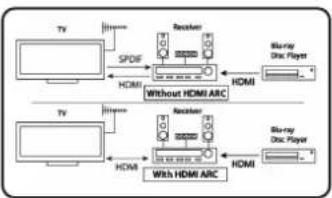
flowchart
graph TD
    A["TV"] -->|SPDB| B["Receiver"]
    B --> C["HDMI"]
    C --> D["Blu-ray Disc Player"]
    E["TV"] -->|Wi-Fi| F["Receiver"]
    F --> G["HDMI"]
    G --> H["Blu-ray Disc Player"]
    I["Without HDMI ARC"] --> J["Receiver"]
    J --> K["HDMI"]
    K --> L["Blu-ray Disc Player"]
Note:-
- Connect AV receiver in "HDMI 2" Port of TV.
When ARC is "On" TV Speaker will be
. deactivated.
If you disconnect ARC Home Theater then in Setting Menu of TV,
- Set "HDMI ARC" option to "Off" to activate TV speakers.
To use ARC feature keep "Easy link" on.
6.8 MHL issues
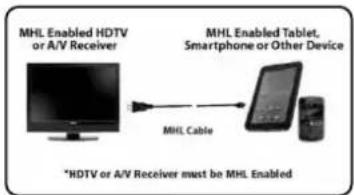
Mobile High-definition Link (MHL) is an interface for transmitting digital audiovisual signals from mobile phones to supported television sets.
Note that it works only for the MHL-enabled Phones, to confirm MHL Support in your Phone check operation manual of phone.
When Smart phone is connected through MHL Cable Some applications can be operated by the TV remote control.
How to Use MHL
* Connect MHL enabled phone with passive MHL cable (not supplied with set) to HDMI 1
* In TV OSD Menu Go to "Settings" & Set "MHL" option to "On" to view the phone screen on the TV.
flowchart
graph LR
    A["MHL Enabled HDTV or A/V Receiver"] --> B["MHL Enabled Tablet, Smartphone or Other Device"]
    B --> C["MHL Cable"]
    C --> D["*HDTV or A/V Receiver must be MHL Enabled"]
Note: -
• MHL is supported in "HDMI 1" port of TV.
- Because TV screen is wider than mobile
phone, picture quality may appear lower in TV.
- Mobiles need 5 Pins MHL cable but few mobiles needs 11 Pins MHL cable.
- For better user experience /Operation ease, user can pair Mobile with Bluetooth compatible keyboard/mouse available in market.
- Although in many handset do not need any setting to activate MHL, additional setting may require in some mobiles/tablets, for more details check user manual of Mobiles/Tablets).
6.9 Contact us
If you cannot resolve your problem, refer to the FAQs for this product at www.philips.com/support. or Contact Customer Service Center.

Warning
- Do not attempt to repair the product yourself. This may cause severe injury, irreparable damage to your product or void your warranty.

Note
• Make a note of your TV model and serial number before you contact Philips. These numbers are printed on the back of the TV and on the packaging.
7 Product information
Product information is subject to change without notice. For detailed product information, go to www.philips.com/support.
7.1 Supported display resolutions Computer formats (HDMI)
• Resolution - refresh rate:
• 720 x 480p - 60Hz
• 720 x 576p - 50Hz
• 1280 x 720p - 50Hz,60Hz
• 1920 x 1080p -50Hz,60Hz
• 1920 × 1080 l- 50Hz/60Hz
Computer formats (VGA)
• Resolution - refresh rate:
• 640 x 480 - 60Hz,72Hz,75Hz
• 800 x 600 - 56Hz, 60Hz, 72Hz, 75Hz
1024 x768 - 60Hz.70Hz.75Hz
• 1280 x 1024 - 60Hz
Video Formats
• Resolution - refresh rate:
720 x 480i - 60Hz
- 720 x 480p - 60Hz
- 720 x 576i - 50Hz
720 x 576p - 50Hz
• 1280 x 720p - 50Hz, 60Hz
• 1920 x 1080i - 50Hz, 60Hz
7.2 Tuner/Reception/Transmission
• Antenna input: 75ohm coaxial (IEC75)
• TV system: PAL,B/G
• Video playback: NTSC, SECAM, PAL
• Tuner Bands: UHF, VHF
7.3 Remote control
• Type: RC-Z8091-800
Batteries: 2 x AAA (LR03 type)
7.4 Multimedia
• Supported USB storage device: (Only FAT 16 or FAT 32 USB storage devices are supported)
• Supported storage file formats:
- Images: JPEG, BMP, PNG
• Audio : MP3.WMA.
- Text
- Video :
| File Extention | Container | Video Decoder |
| *.avi | AVI | MPEG 1/2/4H.264 |
| *.mp4 | MP4 | MPEG 4H.264 |
| *.mov | ||
| *.mkv | MKV | MPEG 4H.264 |
| *.mpg/*.mpeg | PS | MPEG 1/2 |

Note
1) USB file names must not exceed 128 characters.
2) The USB features/functions may vary from file to file depending on relative information present in the file
7.5 Power
• Mains power: AC 110-240V\~ 50/60Hz
• Ambient temperature: 5 to 40 degrees Celsius
• Power consumption
• 32PFL3330/V7 : 50W
7.6 TV mount
To wall mount the TV, kit is provided in accessory bag along with TV set.

Warning
Follow all instructions provided with the TV mount. PE Electronics Ltd. bears no responsibility for improper TV mounting that results in accident, injury or damage.
7.7 Product specification
Design and specifications are subject to change without notice.
32 3330 : PFL/V7
- With TV stand
• Dimension(WxHxD): 740 x515 x 199 (mm)
• Weight: 5.5 kg
• Without TV stand
• Dimension(WxHxD): 740 x 453 x 88 (mm)
• Weight: 5.1 kg
Consumer Guidelines
- Kindly ensure that the dealer fills out warranty card correctly.
- To avail the Warranty please register your product with the Philips-
• Log on to www.Philips.com
OR
- Contact Philips Consumer Care Centre
- In the unlikely event of a defect developing in the TV set contact the Philips Customer Care Centre for obtaining warranty service and inform of the defect observed in the set, the type no. and serial no. of the set.
- On your lodging a complaint, a trained technician will call on you promptly. In the event of the technician deciding that set requires attention at the service station; the technician would arrange to get the set picked up to be delivered to service station for further attention. "Homecalls" by the technician would however be restricted within municipal limits of the city/town in which the set has been registered.
Type no. ____ Serial No. Date of Purchase
Purchased By: Name
Address:
Tel.No.
Sold by: Name
Address:
Tel.No.
PHILIPS
Model no.: 32PFL3330/V7
Sold by (User rubber stamp)
Serial no.:

Contact Customer Service Executive at:
Toll :- 1860 200 0129
Regd Office: PE Electronics Ltd, Auto Cars Compound, Adalat Road, Aurangabad, 431005.
Front
WARRANTY
This TV receiver is covered under warranty against any defect arising out of faulty or defective material or workman ship for a period of 12 months from the date of purchase.
Should a defect develop in this set during the period of warranty, PE Electronics Limited undertakes to get the set repaired free of charge either
from whom the set has been purchased or through an Authorised Service Center for warranty service. However, if the
Purchaser has to shift his residence to another town on account of transfer or other reasons, the warranty benefit will be available at the Authorised Service Center of that town.
The warranty is not valid in case of any of the following events:
- The TV set is not used according to instructions given in the 'Direction for use' / 'User Manual'
• Defects are caused by improper or reckless use.
• Any repair work carried out by persons other than a Philips dealer or Authorised Service Center.
• Any modification or alteration of any nature made in the electrical circuitry of the set. - This Warranty Card is not completed and signed immediately on delivery of the set by the Philips Dealer.
- Fading effects and/or Ghosts (Multiple Image) in picture, if any, arising due to location / signal reception.
- Defects due to causes beyond control like lightning, abnormal voltage, Acts of God or while in transit to purchaser's residence.
(Refer Consumer Guidelines for further details)
PHILIPS
Back
Cover 3 Blank


Be responsible Respect copyrights
Specifications are subject to change without notice. PHILIPS and the PHILIPS Shield Emblem are registered trademarks of Koninklijke Philips N.V. and are used under license from Koninklijke Philips N.V.
www.philips.com
1100116360
1100116360
LED TV 32
Rev.00 Rajmudra
RoHS COMPLIANT