
E1820 - Clé USB matériel HUAWEI - Free user manual and instructions
Find the device manual for free E1820 HUAWEI in PDF.


User questions about E1820 HUAWEI
0 question about this device. Answer the ones you know or ask your own.
Ask a new question about this device
Download the instructions for your Clé USB matériel in PDF format for free! Find your manual E1820 - HUAWEI and take your electronic device back in hand. On this page are published all the documents necessary for the use of your device. E1820 by HUAWEI.
USER MANUAL E1820 HUAWEI
Thank you for choosing Mobile Broadband E1820 USB Stick (hereinafter referred to as the E1820). With E1820, you can access a wireless network at high speed.
Note:
This manual describes the appearance of the E1820, as well as the procedures for preparation, installation, and removal. For operation details about the management program, see the online help included in the management program.
Getting to Know Your E1820
The following figure shows the appearance of the E1820. It is provided only for your reference. The actual product may be different.
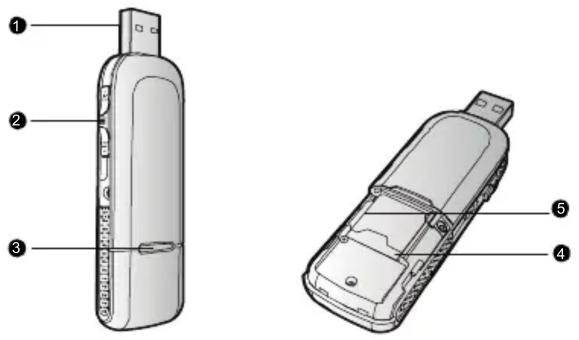
① USB Connector
It connects the E1820 to a PC.
② Slider
It extends or retracts the USB connector.
③ Indicator
It indicates the status of the E1820.
- Green, blinking twice every 3s: The E1820 is powered on.
- Green, blinking once every 3s: The E1820 is registering with a 2G network.
- Blue, blinking once every 3s: The E1820 is registering with a 3G/3G+ network.
- Green, solid: The E1820 is connected to a 2G network.
- Blue, solid: The E1820 is connected to a 3G network.
- Cyan, solid: The E1820 is connected to a 3G+ network.
- Off: The E1820 is removed.
④ SIM/USIM Card Slot
It holds a Subscriber Identity Module (SIM)/Universal Subscriber Identity Module (USIM) card.
⑤ microSD Card Slot
It holds a microSD card.
Getting Your E1820 Ready
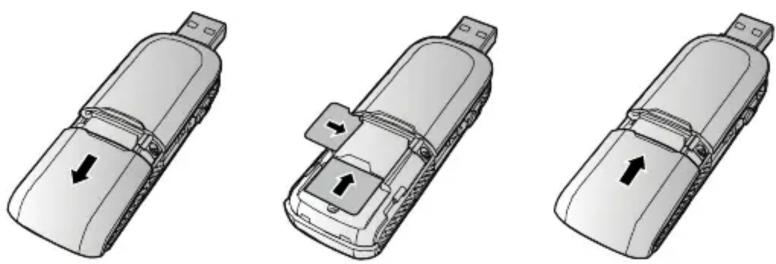
- Slide the back cover to remove it from the E1820.
- Insert the SIM/USIM card and the microSD card into the corresponding card slots, as shown in the following figure.
- Replace the back cover and slide it into place.
natural_image
Three technical illustrations of a car's front panel showing internal components and directional arrows (no text or symbols)Note:
- The microSD card is an optional accessory. If it is not provided in the package, you can buy one yourself.
- Ensure that the beveled edge of the SIM/USIM card is properly aligned with that of the SIM/USIM card slot and the microSD card is inserted according to the direction as labeled on the microSD card slot.
- Do not remove the microSD or SIM/USIM card when the card is in use. Otherwise, the card as well as your E1820 may get damaged and the data stored on the card may be corrupted.
Installation/Removal Guide
The procedure for installing the management program depends on the operating system (OS) installed on your PC. The following sections take Windows XP as an example.
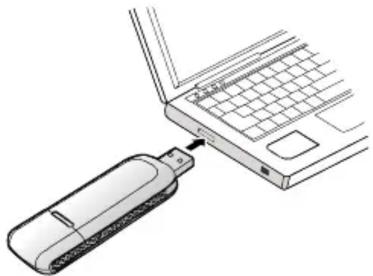
- Plug the E1820 into the USB port of your PC.
natural_image
Diagram showing a device inserted into a laptop keyboard, with no visible text or symbols- The OS automatically detects and recognizes the new hardware and starts the installation wizard.
Note:
If the auto-run program does not respond, find the AutoRun.exe file in the driver path. Then double-click AutoRun.exe to run the program.
-
Follow the on-screen instructions of the installation wizard.
-
After the program is installed, a shortcut icon for the management program appears on the desktop.
Starting the Management Program
After being installed, the management program starts automatically. Then every time the E1820 is connected to the PC, the management program starts automatically. You can also double-click the shortcut icon on the desktop to start the management program.
Removing the E1820
- Double-click box appears. in the notification area. Then the Unplug or Eject Hardware dialog
- Select the corresponding hardware and then click Stop.
- When the message "It is safe to remove the device" appears, remove the E1820.
Uninstalling the Management Program
- Choose Start > Control Panel > Add or Remove Programs.
- Find the management program and click Remove to uninstall the management program.
Note:
Exit the management program before uninstalling it.
- Thank you for choosing Mobile Broadband E1820 USB Stick (hereinafter referred to as the E1820). With E1820, you can access a wireless network at high speed.
- Note:
- Getting to Know Your E1820
- ① USB Connector
- ② Slider
- ③ Indicator
- ④ SIM/USIM Card Slot
- ⑤ microSD Card Slot
- Getting Your E1820 Ready
- Installation/Removal Guide
- Starting the Management Program
- Removing the E1820
- Uninstalling the Management Program
Brand : HUAWEI
Model : E1820
Category : Clé USB matériel