
WMC8947VI.S - Washing machine ASKO - Free user manual and instructions
Find the device manual for free WMC8947VI.S ASKO in PDF.
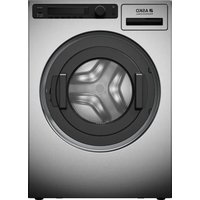


| Product type | Front-load washing machine |
| Brand | Asko |
| Model | WMC8947VI.S |
| Wash capacity | 9 kg |
| Dimensions (H x W x D) | 850 x 600 x 650 mm |
| Net weight | 80 kg |
| Power supply | 230 V, 50 Hz, 10 A |
| Energy class | A |
| Maximum spin speed | 1400 rpm |
| Noise level (wash/spin) | 52 dB / 75 dB |
| Wi-Fi connectivity | Yes (ConnectLife) |
| Number of programs | 15 programs |
| Steam function | Yes |
| Child lock | Yes |
| Delayed start | Yes (up to 96 h) |
| Digital display | Yes |
| Drum type | Anti-bacterial DrumClean |
| Water consumption | 60 L per cycle |
| Warranty | 2 years |
Frequently Asked Questions - WMC8947VI.S ASKO
User questions about WMC8947VI.S ASKO
0 question about this device. Answer the ones you know or ask your own.
Ask a new question about this device
Download the instructions for your Washing machine in PDF format for free! Find your manual WMC8947VI.S - ASKO and take your electronic device back in hand. On this page are published all the documents necessary for the use of your device. WMC8947VI.S by ASKO.
USER MANUAL WMC8947VI.S ASKO
WIFI INSTRUCTION
Professional Washing Machine
Professional Tumble Dryer
EN SL DE IT FR PT ES NL CS DA SV NO FI LT LV ET RU UK
For owner/distributor
Contents
Connection Setup Quick Guide 3
Settings 5
WiFi status 5
WiFi (On/Off) 5
Connection setup (Yes/No) 5
End user functions (see separated instructions for an end user) 5
Appliance booking (Enable/Disable) 5
Time limit remote start (5min --> 96h) 5
Add device 6
Remove all devices (connection to WiFi will remain)
These instructions are intended solely for the owner/distributor of this machine.
(Instructions for use are supplied separately)
NOTE!
Check the link to application: https://laundry.connectlife.io/
- Download the ConnectLife application.

- Register a ConnectLife account and login.
- Press "Add device" in the application.
- Find and scan the QR code to detect your appliance model (QR code located on the inside of the appliance door).
- Press "Set Up appliance" in the application.
- You should be able to see and follow the instructions below:
a. When machine is off, press and hold the two rightmost buttons, at the same time, turn on the machine. b. Press "Settings" button to enter Setting menu and toggle the knob to the "WiFi settings" section. Enter the section by pressing the button. c. Press "WiFi On/Off" button and toggle the knob to the option "On", press "Save" button. d. Back to "WiFi settings" section, press "Connection setup" button; you have 5 minutes to connect your appliance to the network. e. In your smart device, connect to the WiFi network named HIS-XXXX (make sure you stay on HIS-XXXX network until step h). f. Return to the ConnectLife application and press "NEXT". g. Choose your local WiFi network in the list of all networks and enter password. h. Press "Connect". 7. When pairing is successful, you will get message "Connection established successfully!" on the appliance UI and check-mark in the application. 8. Name your appliance and assign a room of this appliance. 9. Congratulation! Now you can monitor and control your connected appliance on the website. Start from here: https://laundry.connectlife.io/ (for a better experience, please open it in computer).
Connection Setup Quick Guide
TIP!
More detailed instructions and further help and troubleshooting can be found online: www.connectlife.io
How to get to menu:
Appliance is switched off.
Hold the last two buttons + then short press on button on/off:

Choose option Settings with program selector knob and confirm with button under selected option.
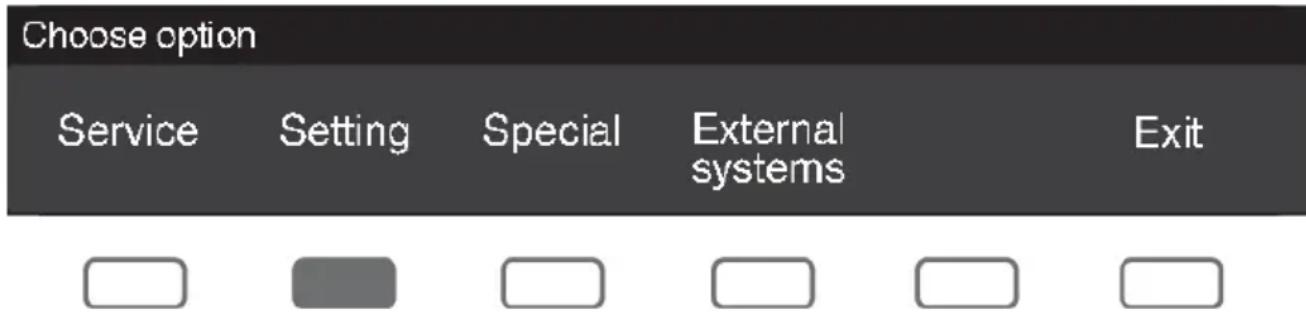
WiFi settings:
WiFi status
- WiFi (On/Off) • Connected to router (Yes/No) • Connected to cloud (Yes/No)
- End-user functions – Remote access level (see instruction below**) • Control session active (Yes/No)
- Limit remote start (24h) • HEIDI number (ID number for UI)
WiFi (On/Off)
WiFi module turned Off is factory setting.
(by turning WiFi module On, the energy consumption will increase in standby mode.)
Connection setup (Yes/No)
Connection setup is performed with the ConnectLife application.
Time limit to complete connection setup is 5 minutes.
End user functions (see separate instructions for an end user)
- WiFi setting is not available
- WiFi setting is available, but there is no connection
- WiFi setting is available. Monitoring
- WiFi setting is available. Monitoring + Program selection
- WiFi setting is available. Monitoring + Program selection + Remote start
Appliance booking (Enable/Disable)
Enable: Appliance is able to be reserved by end user in Asko booking system.
Time limit remote start (5min --> 96h)
Limit the duration of remote start session.
Settings
Add device
It allows the owner of appliance to add device, without configuring the connection.
It is necessary to have mobile application.
Remove all devices (connection to WiFi will remain)
It will remove all "paired" devices; this process can take some time depending on your network condition.
WiFi settings:
WiFi status
WLAN settings:
WLAN status
WiFi settings:
WiFi status
Wi-Fi settings
Wi-Fi status
WiFi settings:
WiFi status
WiFi settings:
WiFi status
- WiFi (On/Off)
Wi-Fi settings:
Wi-Fi status
• Wi-Fi (On/Off)
Wi-Fi settings:
Wi-Fi status
- Wi-Fi (On/Off)
Select the Settings option with the program selector button and confirm with the button below the selected option.
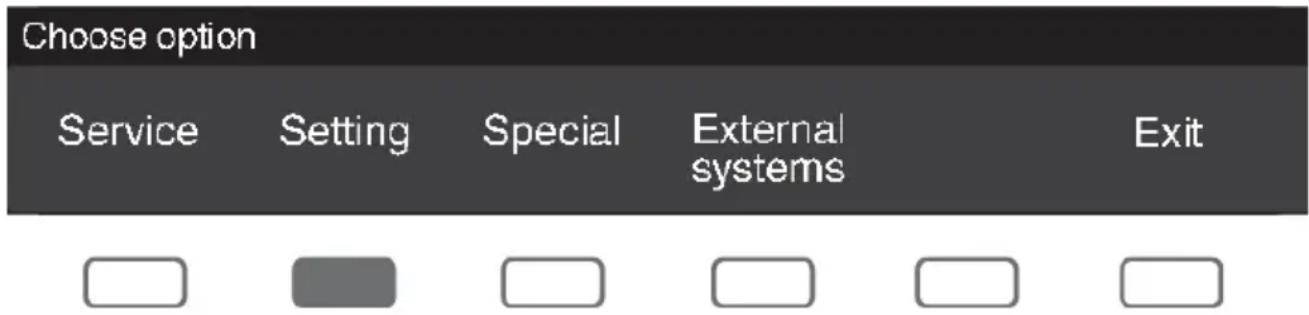
Wi-Fi settings:
Wi-Fi status
- Wi-Fi (On/Off)
Wi-Fi settings:
Wi-Fi status
Wi-Fi settings:
Wi-Fi status
End user functions (see separated instructions for an end
Wi-Fi settings
WiFi status
Select the Settings option with the program selection button and confirm with the button below the selection.
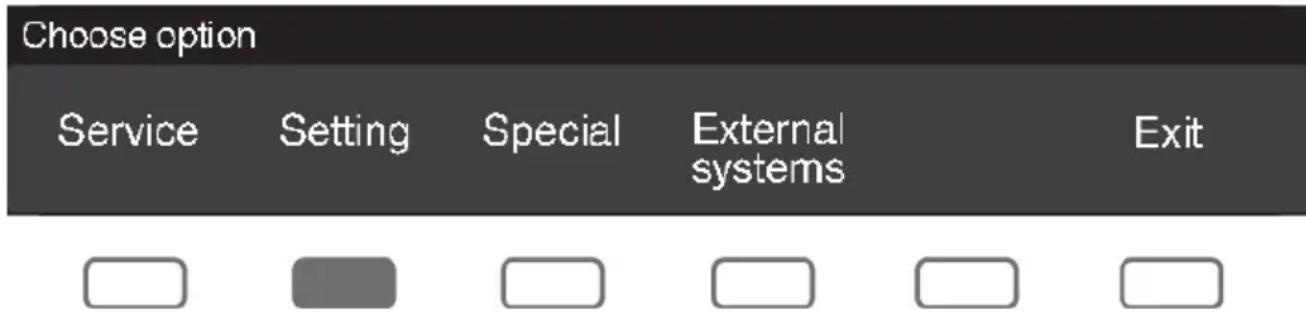
Wi-Fi settings:
WiFi status
WiFi settings:
WiFi status
Inspired by Scandinavia
Gorenje, Partizanska 12, 3320 Velenje, Slovenija • www.asko.com

FSC www.fsc.org
MIX
Paper from
responsible sources
FSC® C114278

577778-a4
CE
- WIFI INSTRUCTION
- CONTENTS
- CONNECTION SETUP QUICK GUIDE
- SETTINGS
- NOTE
- TIP
- WIFI SETTINGS
- WIFI STATUS
- WIFI (ON/OFF)
- CONNECTION SETUP (YES/NO)
- END USER FUNCTIONS (SEE SEPARATE INSTRUCTIONS FOR AN END USER)
- APPLIANCE BOOKING (ENABLE/DISABLE)
- TIME LIMIT REMOTE START (5MIN --> 96H)
- ADD DEVICE
- REMOVE ALL DEVICES (CONNECTION TO WIFI WILL REMAIN)
- WLAN SETTINGS
- WLAN STATUS
- WI-FI SETTINGS
- WI-FI STATUS
- END USER FUNCTIONS (SEE SEPARATED INSTRUCTIONS FOR AN END
Brand : ASKO
Model : WMC8947VI.S
Category : Washing machine